
DLA-VS45NV - Vidéo-projecteur JVC - Free user manual and instructions
Find the device manual for free DLA-VS45NV JVC in PDF.


| Product Type | Video Projector |
| Brand | JVC |
| Model | DLA-VS45NV |
| Display Technology | D-ILA (Direct Drive Image Light Amplifier), 0.69" 4K D-ILA (4096 x 2160) x 3 |
| Light Source | Laser diode (30 W x 6, wavelength 450-460 nm) and IR LED |
| Brightness | 3000 lm |
| Native Resolution | 4096 x 2160 pixels (with e-shift up to 8192 x 4320 for VS47NV) |
| Screen Size | 60" to 300" diagonal (aspect ratio 4096 x 2160 or 16:9) |
| Input Terminals | DisplayPort 1.2a (20-pin male) x 4 |
| Control Terminals | RS-232C (D-sub 9-pin), LAN (RJ-45), REMOTE (stereo mini jack), SERVICE (USB Type A) |
| Power Consumption | 750 W (standby 1.5 W) |
| Power Requirements | AC 100-240 V, 50/60 Hz (AC 120-240 V for DLA-VS45NVHB) |
| Dimensions (W x H x D) | 500 x 235 x 741 mm (including feet) |
| Weight | 35 kg |
| Operating Environment | Temperature: 5°C to 35°C; Humidity: 20% to 80% |
| Installation Altitude | Below 2000 m (High Altitude Mode available above 900 m) |
| Accessories | Remote control, AAA batteries (2), Power cord, Lens spacer, Screws (4), Sponge, Front base |
| Safety Class | Class 3R Laser Product (USA/Canada), Class 1 Laser Product (other countries) |
| Filter Cleaning | Regular cleaning required; refer to manual for replacement interval |
| Warranty | Refer to included warranty card |
Frequently Asked Questions - DLA-VS45NV JVC
User questions about DLA-VS45NV JVC
0 question about this device. Answer the ones you know or ask your own.
Ask a new question about this device
Download the instructions for your Vidéo-projecteur in PDF format for free! Find your manual DLA-VS45NV - JVC and take your electronic device back in hand. On this page are published all the documents necessary for the use of your device. DLA-VS45NV by JVC.
USER MANUAL DLA-VS45NV JVC
natural_image
Line drawing of a rectangular electronic device with ventilation grilles and a central circular opening (no text or symbols)Safety Precautions
IMPORTANT INFORMATION
WARNING:
TO PREVENT FIRE OR SHOCK HAZARDS, DO NOT EXPOSE THIS APPLIANCE TO RAIN OR MOISTURE.
WARNING:
THIS APPARATUS MUST BE EARTHED.
CAUTION:
To reduce the risk of electric shock, do not remove cover. Refer servicing to qualified service personnel.
This projector is equipped with a 3-blade grounding type plug to satisfy FCC rule. If you are unable to insert the plug into the outlet, contact your electrician.
NOISE EMISSION DECLARATION
The sound pressure level at the operator position is equal or less than 60dB(A) according to ISO7779.
WARNING
REMOVE THE LENS COVER BEFORE TURNING ON THE PROJECTOR
WARNING
This equipment is compliant with Class A of CISPR 32.
In residential environment this equipment may cause radio interference.
Supplier's Declaration of Conformity
Model Number: DLA-VS45NV, DLA-VS47NV, DLA-VS45NVHB
Trade Name: JVC
Responsible JVCKENWOOD USA
party: Corporation
Address: 1440 Corporate Drive, Irving, TX 75038
Telephone 678-449-8879
Number:
This device complies with Part 15 of the FCC Rules. Operation is subject to the following two conditions: (1) This device may not cause harmful interference, and (2) this device must accept any interference received, including interference that may cause undesired operation.
Changes or modifications not approved by JVC could void the user's authority to operate the equipment. This equipment has been tested and found to comply with the limits for a Class A digital device, pursuant to Part 15 of the FCC Rules.
These limits are designed to provide reasonable protection against harmful interference when the equipment is operated in a commercial environment.
This equipment generates, uses, and can radiate radio frequency energy and, if not installed and used in accordance with the instructions, may cause harmful interference to radio communications. Operation of this equipment in a residential area is likely to cause harmful interference in which case the user will be required to correct the interference at his own expense.
IMPORTANT SAFEGUARDS
Electrical energy can perform many useful functions. This unit has been engineered and manufactured to assure your personal safety. But IMPROPER USE CAN RESULT IN POTENTIAL ELECTRICAL SHOCK OR FIRE HAZARD. In order not to defeat the safeguards incorporated into this product, observe the following basic rules for its installation, use and service. Please read these Important Safeguards carefully before use.
- All the safety and operating instructions should be read before the product is operated.
- The safety and operating instructions should be retained for future reference.
- All warnings on the product and in the operating instructions should be adhered to.
- All operating instructions should be followed.
- Place the projector near a wall outlet where the plug can be easily unplugged.
- Unplug this product from the wall outlet before cleaning.
- Do not use liquid cleaners or aerosol cleaners. Use a damp cloth for cleaning.
- Do not use attachments not recommended by the product manufacturer as they may be hazardous.
- Do not use this product near water. Do not use immediately after moving from a low temperature to high temperature, as this causes condensation, which may result in fire, electric shock, or other hazards.
- Do not place this product on an unstable cart, stand, or table. The product may fall, causing serious injury to a child or adult, and serious damage to the product. The product should be mounted according to the manufacturer's instructions, and should use a mount recommended by the manufacturer.
- When the product is used on a cart, care should be taken to avoid quick stops, excessive force, and uneven surfaces which may cause the product and cart to overturn, damaging equipment or causing possible injury to the operator.
- Slots and openings in the cabinet are provided for ventilation. These ensure reliable operation of the product and protect it from overheating. These openings must not be blocked or covered. (The openings should never be blocked by placing the product on bed, sofa, rug, or similar surface. It should not be placed in a built-in installation such as a bookcase or rack unless proper ventilation is provided and the manufacturer's instructions have been adhered to.)
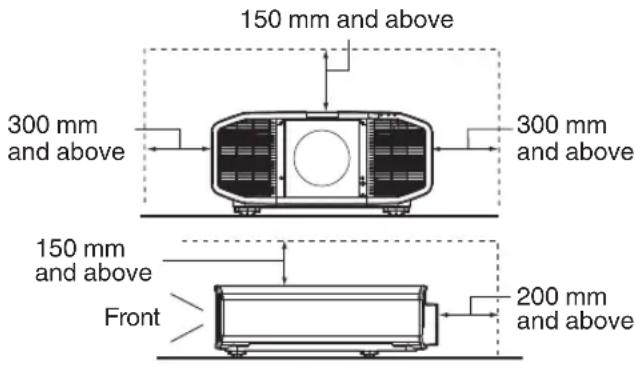
- To allow better heat dissipation, keep a clearance between this unit and its surrounding as shown below. When this unit is enclosed in a space of dimensions as shown below, use an air-conditioner so that the internal and external temperatures are the same. Overheating can cause damage.
PORTABLE CART WARNING (symbol provided by RETAC)

S3126A
- Power source indicated on the label. If you are not sure of the type of power supply to your home, consult your product dealer or local power company.
- This product is equipped with a three-wire plug. This plug will fit only into a grounded power outlet. If you are unable to insert the plug into the outlet, contact your electrician to install the proper outlet. Do not defeat the safety purpose of the grounded plug.
- Power-supply cords should be routed so that they are not likely to be walked on or pinched by items placed upon or against them. Pay particular attention to cords at doors, plugs, receptacles, and the point where they exit from the product.
- For added protection of this product during a lightning storm, or when it is left unattended and unused for long periods of time, unplug it from the wall outlet and disconnect the cable system. This will prevent damage to the product due to lightning and power line surges.
- Do not overload wall outlets, extension cords, or convenience receptacles on other equipment as this can result in a risk of fire or electric shock.
- Never push objects of any kind into this product through openings as they may touch dangerous voltage points or short out parts that could result in a fire or electric shock. Never spill liquid of any kind on the product.
- Do not attempt to service this product yourself as opening or removing covers may expose you to dangerous voltages and other hazards. Refer all service to qualified service personnel.
- Unplug this product from the wall outlet and refer service to qualified service personnel under the following conditions:
a) When the power supply cord or plug is damaged.
b) If liquid has been spilled, or objects have fallen on the product.
c) If the product has been exposed to rain or water.
d) If the product does not operate normally by following the operating instructions. Adjust only those controls that are covered by the Operation Manual, as an improper adjustment of controls may result in damage and will often require extensive work by a qualified technician to restore the product to normal operation.
e) If the product has been dropped or damaged in any way.
f) When the product exhibits a distinct change in performance, this indicates a need for service.
- When replacement parts are required, be sure the service technician has used replacement parts specified by the manufacturer or with same characteristics as the original part. Unauthorized substitutions may result in fire, electric shock, or other hazards.
- Upon completion of any service or repairs to this product, ask the service technician to perform safety checks to determine that the product is in proper operating condition.
- The product should be placed more than one foot away from heat sources such as radiators, heat registers, stoves, and other products (including amplifiers) that produce heat.
- When connecting other products such as VCR's, and DVD players, you should turn off the power of this product for protection against electric shock.
- Do not place combustibles behind the cooling fan. For example, cloth, paper, matches, aerosol cans or gas lighters that present special hazards when over heated
- Do not ceiling-mount the projector to a place which tends to vibrate; otherwise, the attaching fixture of the projector could be broken by the vibration, possibly causing it to fall or overturn, which could lead to personal injury.
- Use only the accessory cord designed for this product to prevent shock.
- For health reasons, please take a break of about 5-15 minutes every 30-60 minutes and let your eyes rest. Please refrain from watching any 3D-images when you feel tired, unwell or if you feel any other discomfort. Moreover, in case you see a double image, please adjust the equipment and software for proper display. Please stop using the unit if the double image is still visible after adjustment.
- Once every three years, please perform an internal test. This unit is provided with replacement parts needed to maintain its function (such as cooling fans). Estimated replacement time of parts can vary greatly depending on frequency of use and the respective environment. For replacement, please consult your dealer, or the nearest authorized JVC service center.
- When fixing the unit to the ceiling, Please note that we do not take any responsibility, even during the warranty period, if the product is damaged due to use of metal fixtures used for fixation to the ceiling other than our own or if the installation environment of said metal fixtures is not appropriate. If the unit is suspended from the ceiling during use, please be careful in regard to the ambient temperature of the unit. If you use a central heating, the temperature close to the ceiling will be higher than normally expected.
- Video images can burn into the electronic component parts. Please do not display screens with still images of high brightness or high contrast, such as found in video games and computer programs. Over a long period of time it might stick to the picture element. There is no problem with the playback of moving images, e.g. normal video footage.
- Not using the unit for a long time can lead to malfunction. Please power it on and let it run occasionally. Please avoid using the unit in a room where cigarettes are smoked. It is impossible to clean optical component parts if they are contaminated by nicotine or tar. This might lead to performance degradation.
- Please watch from a distance three times the height of the projected image size. Persons with photosensitivity, any kind of heart disease, or weak health should not use 3D glasses.
- Watching 3D-images might be cause of illness. If you feel any change in your physical condition, please stop watching immediately and consult a physician if necessary.
- When watching 3D images, it is recommended to take regular breaks. As the length and frequency of the required breaks differ for every person, please judge according to your own condition.
- If your child watches while wearing 3D glasses, it should be accompanied by its parents or an adult guardian. The adult guardian should be careful to avoid situations where the child's eyes might become tired, as responses to tiredness and discomfort, etc., are hard to detect, and it is possible for the physical condition to deteriorate very quickly. As the visual sense is not yet fully developed in children under the age of 6, please consult a physician in regard to any problem concerning 3D-images if necessary.
- Note that when using the 3D feature, the video output may appear different from the original video image due to image conversion on the device.
\* DO NOT allow any unqualified person to install the unit.
Be sure to ask your dealer to install the unit (e.g. attaching it to the ceiling) since special technical knowledge and skills are required for installation. If installation is performed by an unqualified person, it may cause personal injury or electrical shock.
- Do not use optical instruments (such as magnifying glass or reflector) viewing the laser output. It may pose an eye hazard.
- When turning on the projector, ensure that no one is looking into the projection lens.
- Do not look into the lens and openings when the light is on. Doing so would have serious effects on the human body.
- Do not detach or attach the projection lens with the power connected.
- Attempting to disassemble, repair or modify the projector yourself may lead to serious safety issues.
- Using a faulty product not only results in electrical shock or fire hazard, it can cause visual impairment.
- When abnormality occur, stop using the projector immediately and send it to your authorized dealer for repair.
Removing the batteries
CAUTION
- Risk of explosion if battery is replaced by an incorrect type. Dispose of used batteries according to the local recycling standards.
POWER CONNECTION
For USA and Canada only
Use only the following power cord.
Power cord
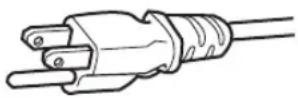
The power supply voltage rating of this product is AC100V – AC240V (DLA-VS45NV / DLA-VS47NV), AC120V – AC240V (DLA-VS45NVHB). Use only the power cord designated by our dealer to ensure Safety and EMC.
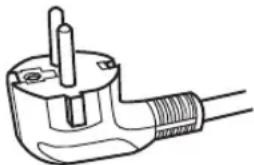
Ensure that the power cable used for the projector is the correct type for the AC outlet in your country. Consult your product dealer.
Power cord
natural_image
Line drawing of a plug with a screw and terminal socket (no text or symbols)For European continent countries
WARNING:
Do not cut off the main plug from this equipment.
If the plug fitted is not suitable for the power points in your home or the cable is too short to reach a power point, then obtain an appropriate safety approved extension lead or adapter or consult your dealer. If nonetheless the mains plug is cut off, dispose of the plug immediately, to avoid a possible shock hazard by inadvertent connection to the main supply.
WARNING:
THIS APPARATUS MUST BE EARTHED.
Dear Customer,
This apparatus is in conformance with the valid European directives and standards regarding electromagnetic compatibility and electrical safety. European representative of JVCKENWOOD Corporation is: JVCKENWOOD Deutschland GmbH Konrad-Adenauer-Allee 1-11, 61118 Bad Vilbel, GERMANY
IMPORTANT (Europe only):
The wires in the mains lead on this product are colored in accordance with the following cord:
Green-and-yellow : Earth
Blue : Neutral
Brown : Live
As these colors may not correspond with the colored making identifying the terminals in your plug, proceed as follows:
The wire which is colored green-and-yellow must be connected to the terminal which is marked M with the letter E or the safety earth or colored green or green-and-yellow. The wire which is colored blue must be connected to the terminal which is marked with the letter N or colored black.
The wire which is colored brown must be connected to the terminal which is marked with the letter L or colored red.
ENGLISH
Information for Users on Disposal of Old Equipment and Batteries
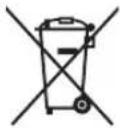

Products
Battery
[European Union only]
These symbols indicate that equipment with these symbols should not be disposed of as general household waste. If you want to dispose of the product or battery, please consider the collection systems or facilities for appropriate recycling.
Notice: The sign Pb below the symbol for batteries indicates that this battery contains lead.
FRANÇAIS
For the customers In the U.S.A. and Canada
CAUTION
Use of controls or adjustments or performance of procedures other than those specified herein may result in hazardous radiation exposure.
This Projector is classified as a CLASS 3R LASER PRODUCT.
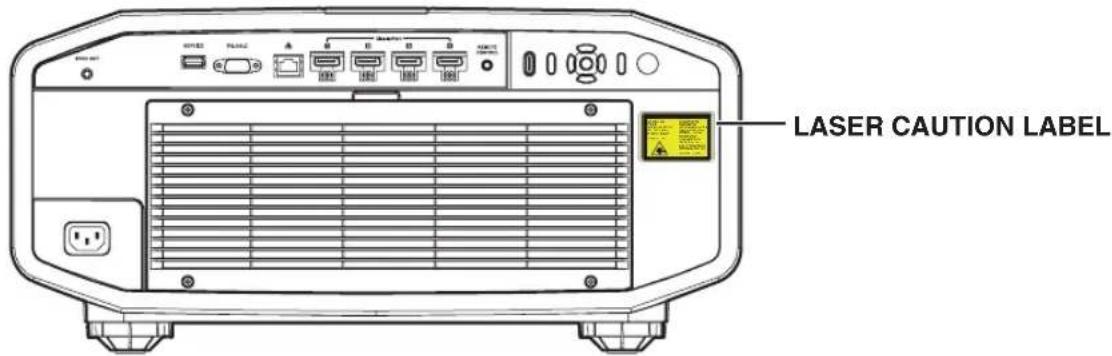
This CLASS 3R LASER PRODUCT label and Caution label is located on the Rear Side surface of the projector.
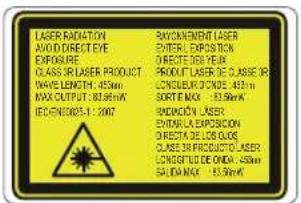
Location information of the labels
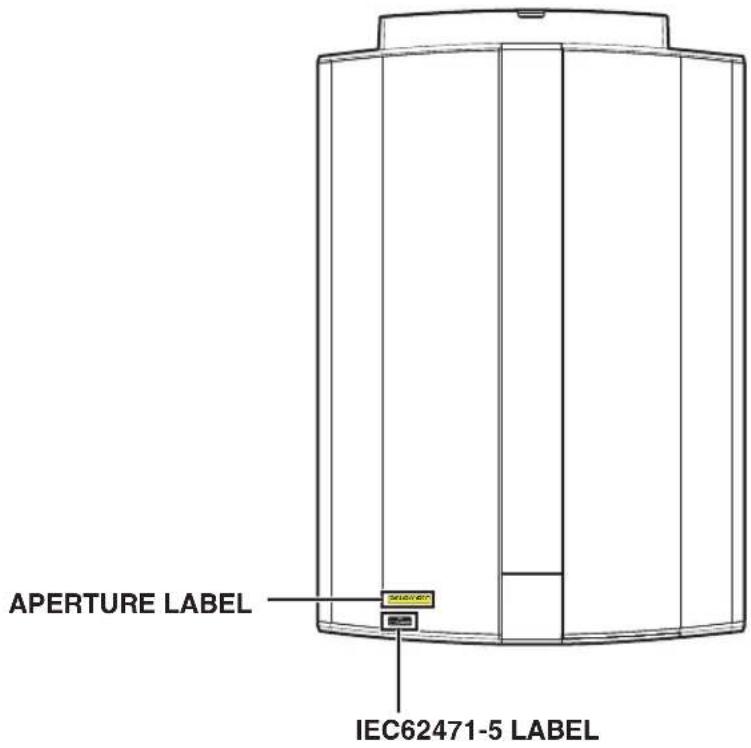
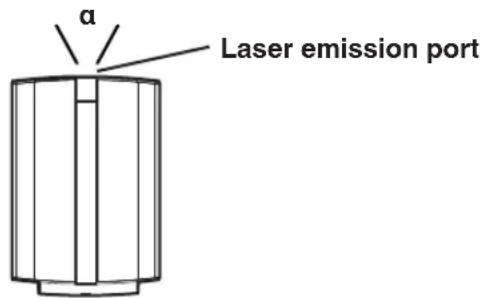
APERTURE LABEL
LASER APERTURE
The APERTURE LABEL is located on the top cover.
WARNING
LASER RADIATION AVOID DIRECT EYE EXPOSURE CLASS 3R LASER PRODUCT.
CAUTION
Do not look into the lens while in use.
Light source specifications
30 W Laser diodes ×6
Wavelength 450 - 460 nm
Maximum output is 64.12 W
Beam divergence angle from lens of this unit
Wide: =71^
Tele : =39^
For the customers In other countries
CLASS 1 LASER PRODUCT
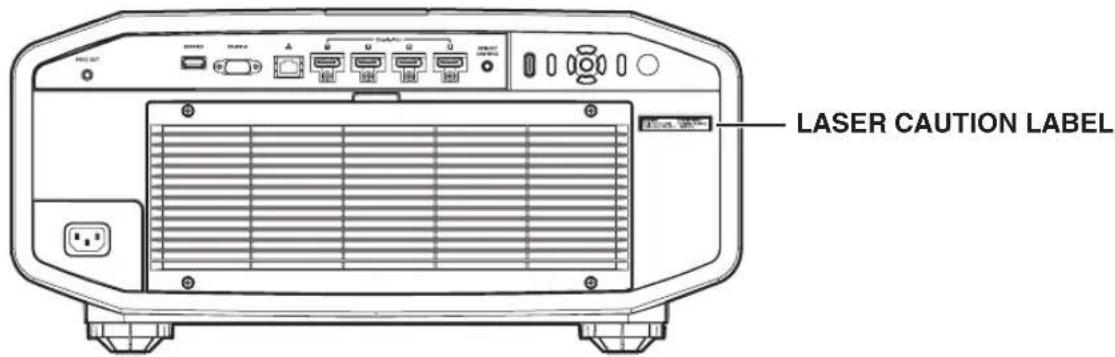
LASER CAUTION LABEL
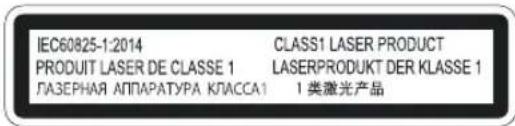
WARNING
Do not look into the lens while in use.
CAUTION
Use of controls or adjustments or performance of procedures other than those specified herein may result in hazardous radiation exposure.
Location information of the labels
IEC62471-5
Location information of the labels
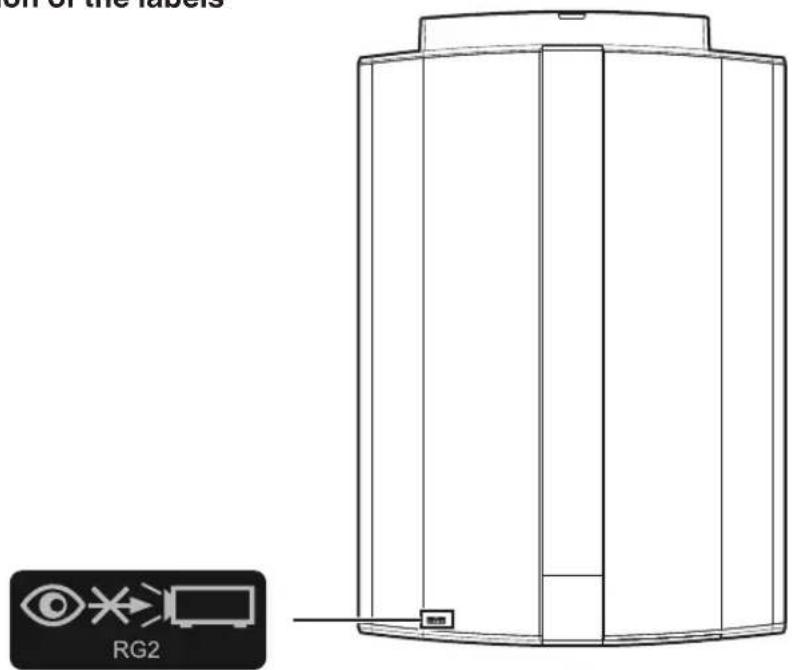
As with any bright light source, do not stare into the beam, RG2 IEC 62471-5:2015
DLA-VS45NVHB
IEC60825-1
CLASS 1 LASER PRODUCT
LASER CAUTION LABEL
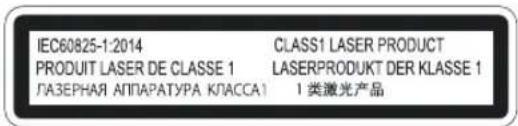
WARNING
Do not look into the lens while in use.
CAUTION
Use of controls or adjustments or performance of procedures other than those specified herein may result in hazardous radiation exposure.
Location information of the labels
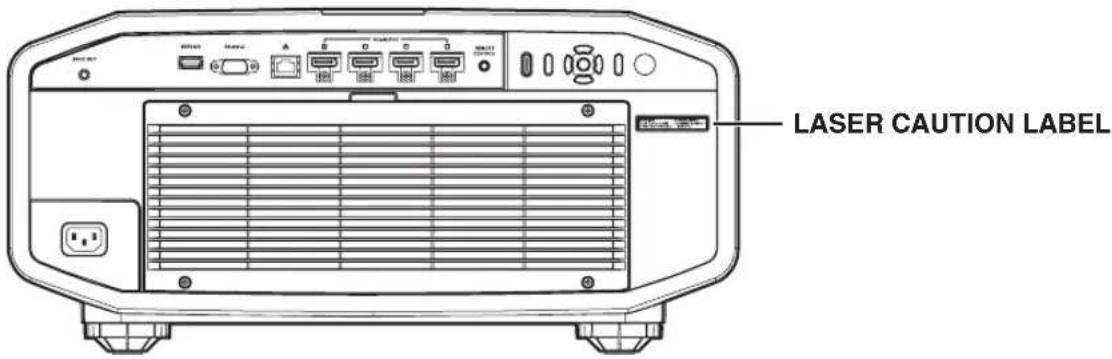
CAUTION
- Do not stare into the projector beam at any distance from the projector.
- Be careful to beam from lens when using the remote control for starting the projector while in front of the projection lens.
- Do not use of optical aids such as binoculars or telescopes inside the beam.
For EU
Standard is EN 60825-1:2014+A11:2021, Published : 2021
IEC62471-5
Location information of the labels
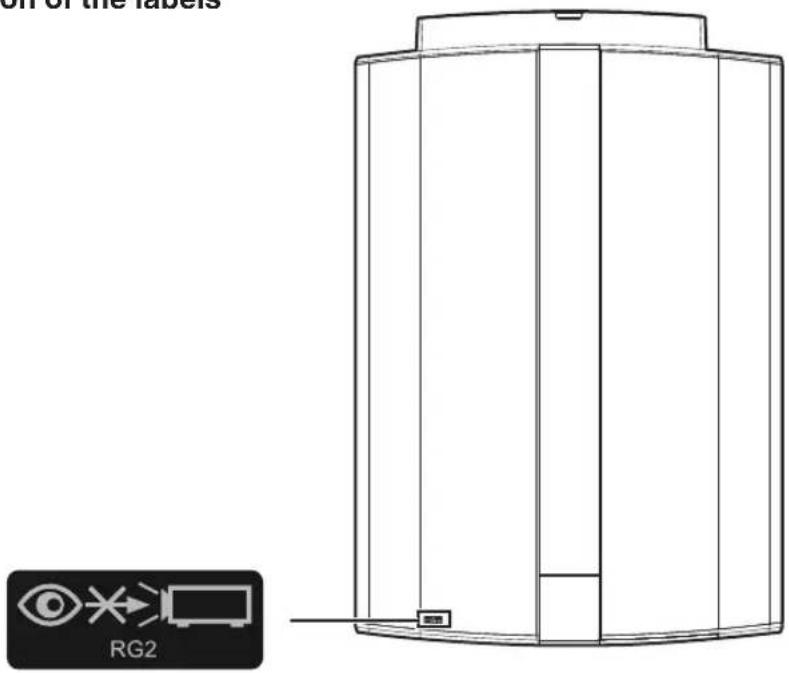
As with any bright light source, do not stare into the beam, RG2 IEC 62471-5:2015
Light source specifications
30 W Laser diodes ×6
Wavelength 450 - 460 nm
Maximum output is 64.12 W
Beam divergence angle from lens of this unit
Wide: = 71^
Tele : = 39^
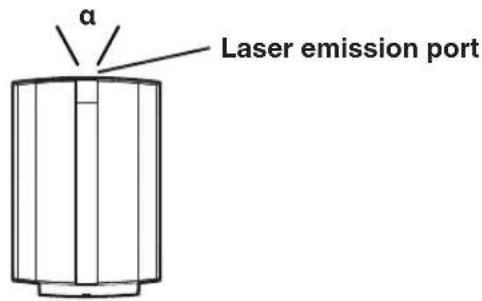
For the customers In China
When used in China, the power cord is sold separately. A suitable power cord for this equipment is 10 A / 250 V rated. Please do not use bundled power cords.
Safety Precautions 2
Accessories/Optional Accessories 15
Check the Accessories 15
Controls and Features 16
Main Unit - Front 16
Main Unit - Bottom 16
Main Unit - Rear 17
Main Unit - Input Terminals 18
Remote Control 19
Loading Batteries into the Remote Control ..... 20
Effective Range of Remote Control Unit 20
Menu 21
Set up
Installing the Projector 22
Precautions during Installation 22
Precautions during Mounting 23
Adjusting the Position 25
Connecting the Projector 26
Connecting to the DisplayPort Terminals ..... 26
Connecting to the LAN Terminal 26
Connecting to the RS-232C Terminal 27
Connecting to the REMOTE Terminal 27
Connecting the Power Cord (Supplied Accessory) ..... 27
Operate
Viewing Videos 28
Adjust/Set
Adjustments and Settings in the Menu 30
List of Menu Items 30

Picture Adjust 32

Input Signal 40

Installation 41

Display Setup 51

Function 52

Information 55
Maintenance
Maintaining the Cabinet and Remote Control ..... 56
Cleaning and Replacing the Filter 56
Long-term Storage of the Projector 57
About the Lens 58
Mounting the Lens 58
Troubleshooting
Troubleshooting 61
When the Following Messages Appear... 64
Others
External Control 65
RS-232C Specifications 65
TCP/IP Connection 65
Command Format 66
Remote Control Code 67
Communications Example 68
Specifications 69
Index 80
Symbols used in this manual
VS47NV indicates a function that is supported by DLA-VS47NV.
VS45NV indicates a function that is supported by DLA-VS45NV.
VS45NVHB indicates a function that is supported by DLA-VS45NVHB.
Items not marked with any of the above symbols are supported by all models.
Accessories/Optional Accessories
Check the Accessories
Remote control .... 1 piece
AAA-size batteries (for operational check) 2 pieces
Power cord (for USA) (about. 2 m) VS45NV VS47NV .... 1 piece
Power cord (for USA) (about. 3.3 m) VS45NVHB 1 piece
Power cord (for EU) (about. 2 m) VS45NV VS47NV .... 1 piece
Lens spacer .... 1 piece
Screw 4 pieces
Sponge .... 1 piece
Front base 1 piece
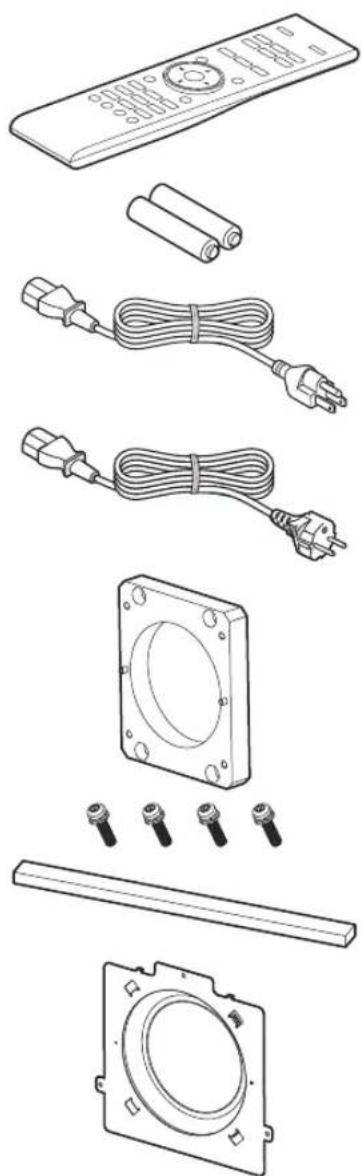
natural_image
Exploded view diagram of electronic components including remote control, cable, and power plug (no text or labels)- Other items include the instruction manual, warranty, and other printed materials.
- Be sure to read the "Safety Precautions" before using this projector.
Controls and Features
Main Unit - Front
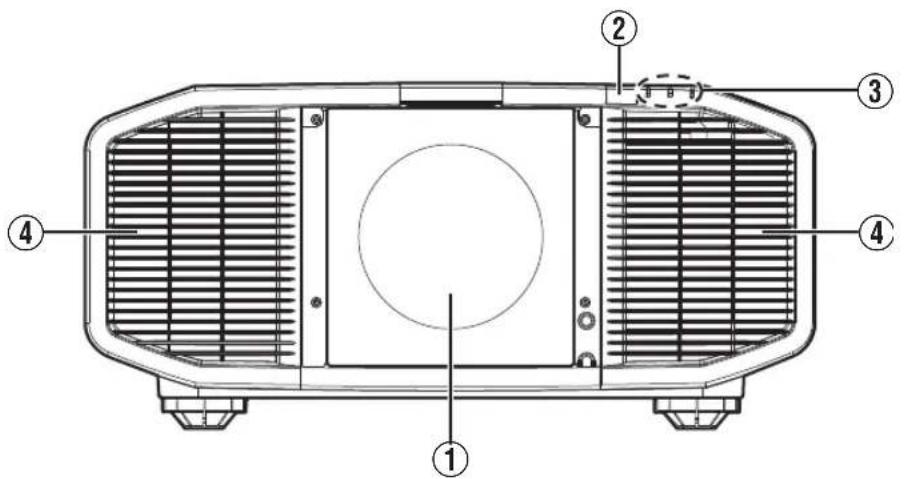
① Lens (sold separately)
Zoom lens or short focal length lens is optional.
② Remote Sensor (front)
Please aim the remote control at this area when using it.
* There is also a remote sensor at the rear.
③ Indicator
Refer to "Indicator Display on the Main Unit" P. 77.
④ Exhaust vent
Warm air is discharged to cool down the internal temperature.
Do not block the vents.
Main Unit - Bottom
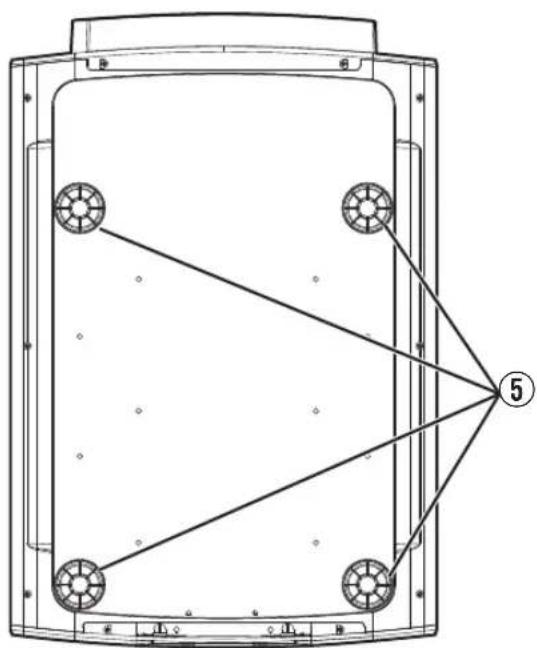
⑤ Feet
The height and angle of the projector can be adjusted by turning the foot. (0 to 5 mm) (P. 25)
When the foot is removed, it can be used as the mounting hole for the ceiling mount bracket.
Main Unit - Rear
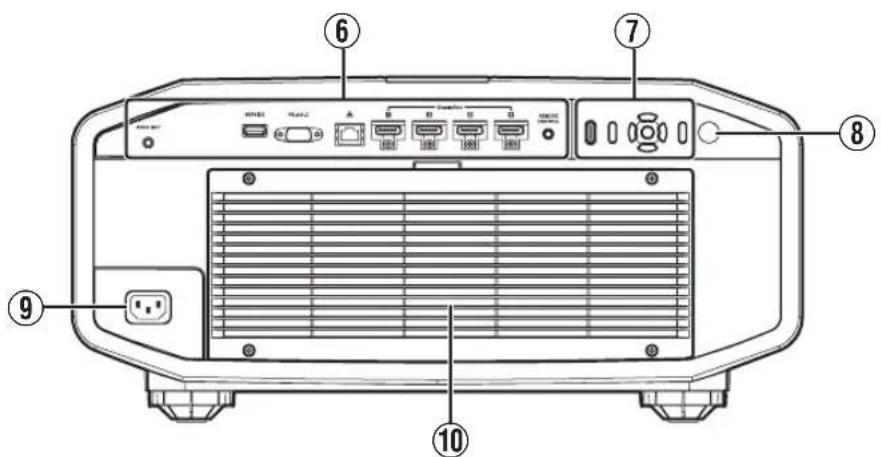
⑥ Input terminals
For details on the terminals, refer to "Main Unit - Input Terminals" P. 18.
⑦ Operation panel
For more details, please refer to the
* There is also a remote sensor at the front.
"Operation panel" in the diagram below.
⑧ Remote Sensor (rear)
Please aim the remote control at this area when using it.
⑨ Power input terminal
Connect the supplied power cord to this terminal.
⑩ Air Inlets
The inlets take in air to cool down the internal temperature.
Do not block the inlet. Do not blow hot air on the inlet. Doing so may cause the unit to malfunction.
Operation panel
![[▲ INPUT ▼]: Switches the input ○/I: Turns "on"/"off" the power [INPUT ▼] ○/I: Displays the menu [MENU]: Displays the menu [BACK]: Returns to the previous menu [OK]: Confirms a selection [▲▼◀▶] keys: Selects an item](/content/2026/05/820685/images/430fa3394deb1df655628346cde166f5336c90b47a71ccdd3ff09e08ce69b3b5.jpg)
Main Unit - Input Terminals
Enlarged View of Rear Face
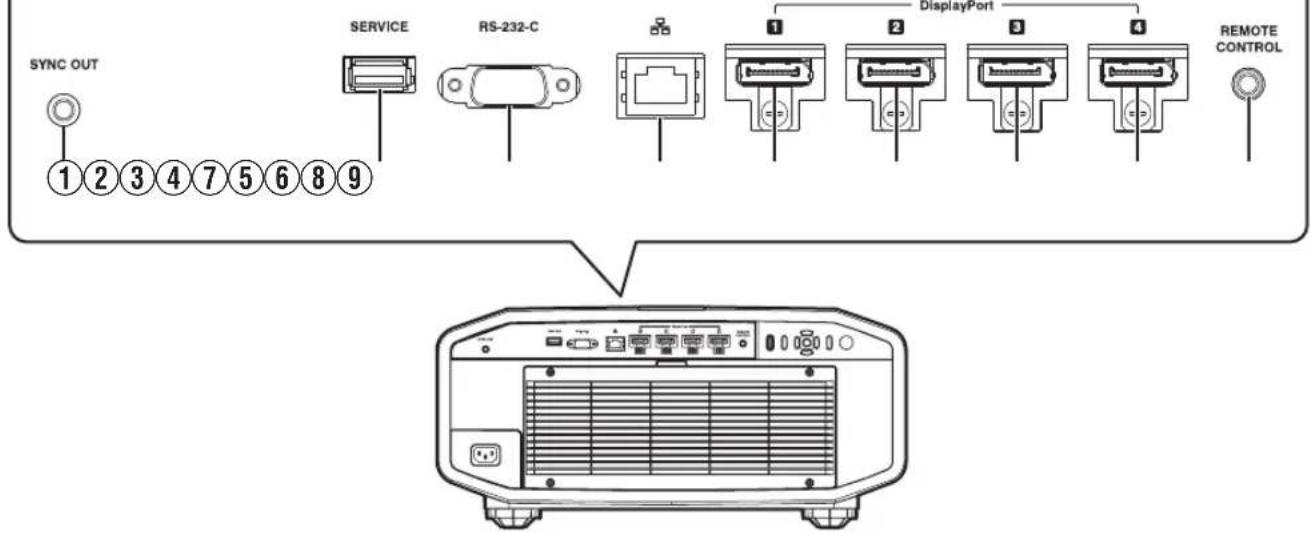
① [SYNC OUT] terminal
For synchronizing with other equipment.
② [SERVICE] terminal
For updating the software using a commercially available USB flash drive.
③ [RS-232C] terminal (D-sub 9-pin male)
The projector can be controlled by connecting a PC to this terminal.
④ [LAN] terminal (RJ-45)
The projector can be controlled by connecting it to a PC through the computer network for control commands to be sent to the projector.
⑤ [DisplayPort 1] input terminal
⑥ [DisplayPort 2] input terminal
⑦ [DisplayPort 3] input terminal
⑧ [DisplayPort 4] input terminal (20-pin male)
For connecting to devices that support DisplayPort output. (P. 26)
⑨ [REMOTE CONTROL] terminal (stereo mini jack)
Outputs L and R sync signals during 3D signal input. (P. 52)
This terminal is used to connect the remote control directly to the projector with the cable.
Remote Control
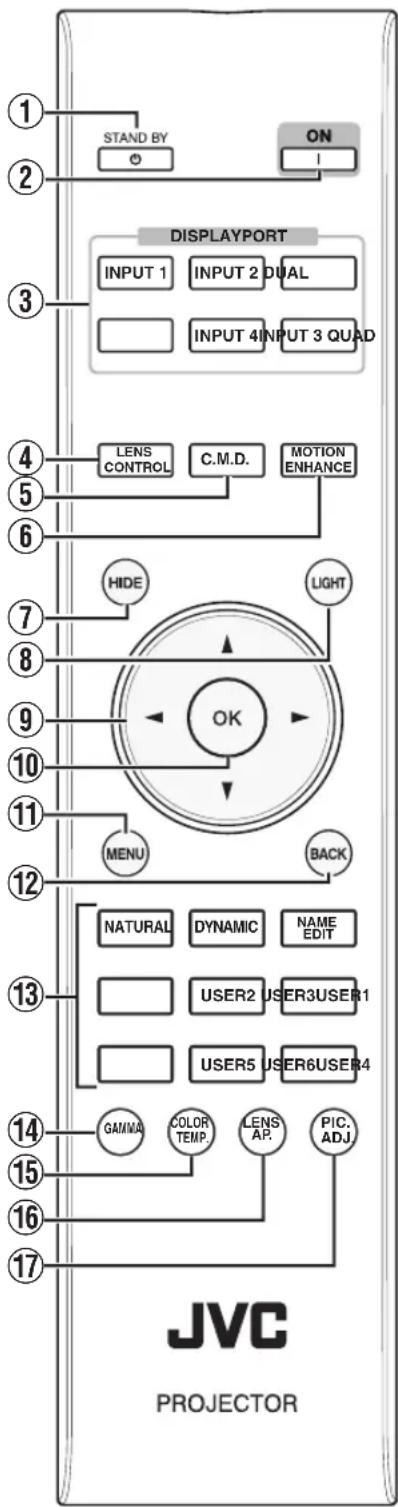
① ⏻ [STANDBY]
Turns off the power. (P. 29)
② I [ON]
Turns on the power. (P. 28)
③ [DISPLAYPORT]
Switches the input to [DisplayPort 1] to [DisplayPort 4], [Dual] or [Quad]. (P. 28)
④ [LENS CONTROL]
For adjusting focus, zoom, and shift. (P. 41)
⑤ [C.M.D.]
For setting frame processing. (P. 39)
- Pressing the button each time switches the mode in the following sequence: "Off" → "Mode 1" → "Mode 2" → "Mode 3"...
⑥ [MOTION ENHANCE]
Switches the Motion Enhance setting. (P. 39)
⑦ [HIDE]
Hides the image temporarily. (P. 28)
⑧ [LIGHT]
Illuminates the buttons on the remote control.
⑨ [▲▼◀▶] keys
For selecting an item.
⑩ [OK]
Confirms a selected item.
⑪ [MENU]
Displays the menu, or hides the menu if it is displayed.
⑫ [BACK]
Returns to the previous menu.
⑬ [PICTURE MODE]
Switches the picture mode. (P. 32)
- Press [NATURAL], [DYNAMIC] or [USER1] to [USER6] to switch to the respective picture mode.
- Pressing [NAME EDIT] enables the name of the picture mode from [USER1] to [USER6] to be edited.
⑭ [GAMMA]
Switches the gamma. (P. 35)
- Pressing the button each time switches the configurable gamma in sequence.
⑮ [COLOR TEMP.]
Switches the color temperature. (P. 34)
- Pressing the button each time switches the configurable color temperature in sequence.
⑯ [LENS AP.]
For setting the aperture. (P. 32)
⑰ [PIC. ADJ.]
Displays the picture quality adjustment gauge. (P. 39)
- Pressing the button each time displays the adjustment gauge in the following sequence: "Contrast" → "Brightness" → "Color" → "Tint" → "Sharpness" → "LD Current" → "IR Current" → "LD Gain" → "IR Gain" → "Aperture" → "Picture Tone" → "Dark Level" → "Bright Level".
Loading Batteries into the Remote Control
Loading the batteries
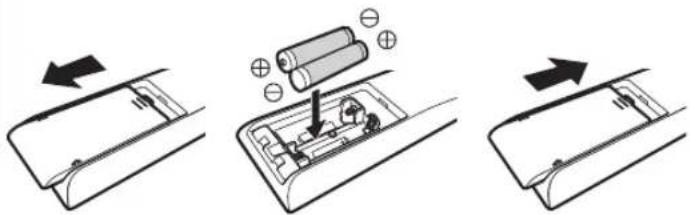
- If the remote control has to be brought closer to the unit to operate, it means that the batteries are wearing out. Replace the batteries with new ones (AAA).
- Insert the batteries according to the marks. Be sure to insert the end first.
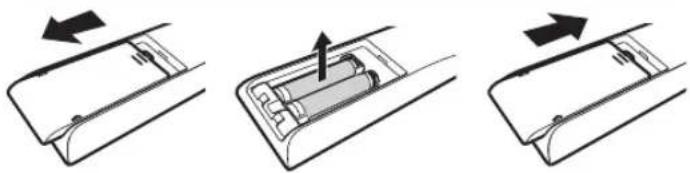
When removing the battery, do so from the end. - If an error occurs while using the remote control, remove the batteries and wait for five minutes. Load the batteries again and operate the remote control.
Removing the batteries
natural_image
Three-step diagram showing a battery internal structure with arrows indicating direction (no text or symbols)Effective Range of Remote Control Unit
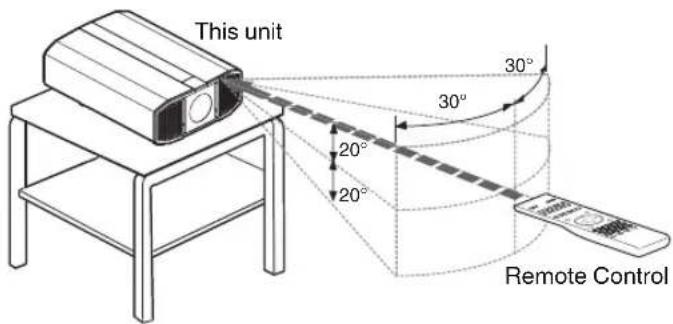
When aiming the remote control toward the sensor on this unit (front or rear), ensure that the distance to the sensor is within 7 m.
If the remote control fails to work properly, move closer to this unit.
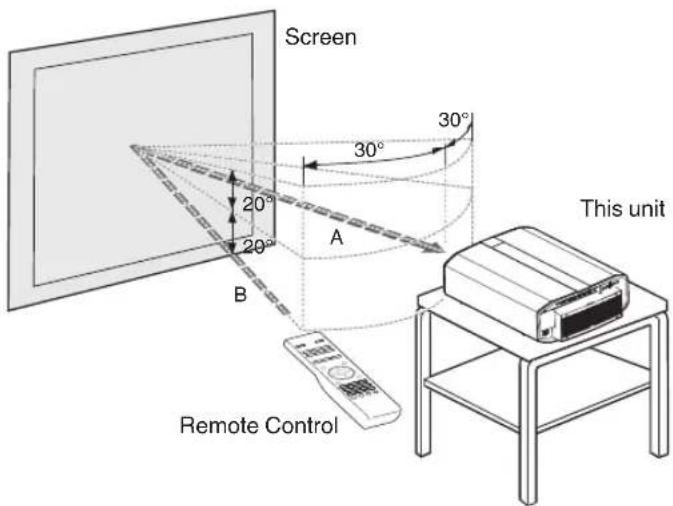
Control through reflection off a screen, etc.
Ensure that the total of distance A (between this unit and the screen) and distance B (between the remote control and the screen) is within 7 m.
* As the efficiency of signals reflected from the remote control unit varies with the type of screen used, the operable distance may decrease.

CAUTION
- Do not put the remote control in a place with an exposure to direct sun light or high temperature. It may deformed due to heat, or the internal components may be adversely affected resulting in fire hazard.
- Remove the batteries from the remote control when storing the remote control. Storing the remote control for a prolonged period without removing the batteries can cause battery leakage.
Menu
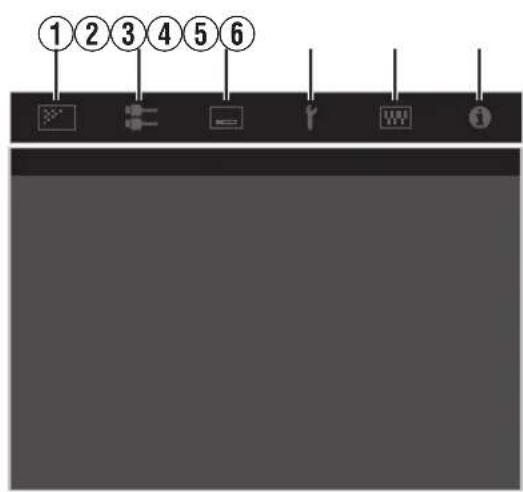
Select the icon at the top of the menu to display its corresponding setting item as shown below.
① Picture Adjust
② Input Signal
③ Installation
④ Display Setup
⑤ Function
⑥ Information
Installing the Projector
Precautions during Installation
Please read the following carefully before installing this unit.
When carrying this unit
This unit is heavy in weight. Please ensure that there are at least two persons carrying it.
Do not install at the following
This unit is a precision device. Please refrain from installing or using it at the following locations. Otherwise, it may cause fire or malfunction.
• Dusty, wet and humid places
- Places subject to oily smoke or cigarette smoke
- On top of a carpet or bedding, or other soft surfaces
- Places exposed to direct sunlight
- Places with a high or low temperature
- Do not install this unit in a room that is oily or subject to cigarette smoke. Even a small quantity of smoke or oiliness can have a long-term impact on this unit.
* This unit produces a great amount of heat, and is designed to take in cool air to cool its optical components. Using the unit at the above locations may cause dirt to attach to the light path, thereby resulting in dark images or dull colors.
* Dirt that sticks to the optical components cannot be removed.
Using the projector
There is no particular limitation on the positioning of the projector during installation.
You can install at your preferred angle.
Maintain clearance from the wall, etc.
As the unit discharges a large amount of heat, install it with adequate clearance from the surroundings as shown below.
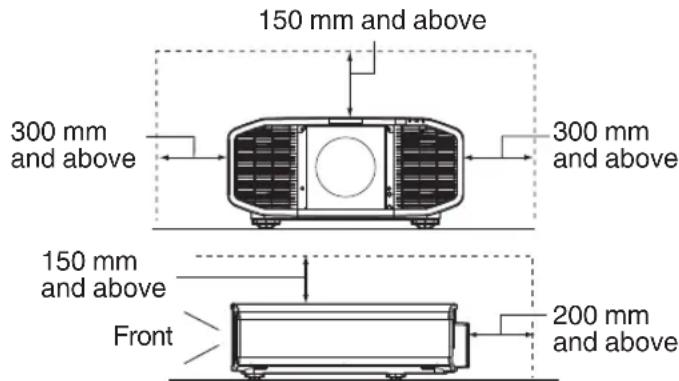
Leave the front area of the unit unblocked. If there is any obstructing object in front of the exhaust vent, hot air will flow back to the unit and cause it to heat up. Hot air flowing out of the unit may cast shadows on the screen (heat haze phenomenon).
Installing the screen
Install the unit and the screen such that they are perpendicular to each other.
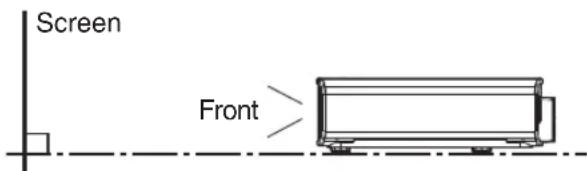
- Please choose a screen material with non-uniform patterns. Uniform patterns such as checks may cause interference patterns to occur.
- In this case, you can change the size of the screen to make the interference patterns less noticeable.
Using the projector at a high altitude
When using this unit at a location that is higher than 900 m above sea level (low air pressure), set the “High Altitude Mode” to “On”. (P. 49)
Precautions during Mounting
Securing (mounting) the projector
natural_image
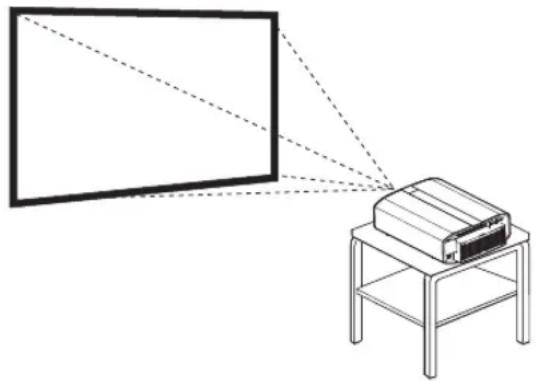
Diagram showing a projector on a stand with a large screen, no text or symbols present- When this unit is to be mounted to a fixed position for use, install it horizontally.
- Make sure to secure the main unit to prevent accidents such as during an earthquake.
Securing the projector (directly mount)
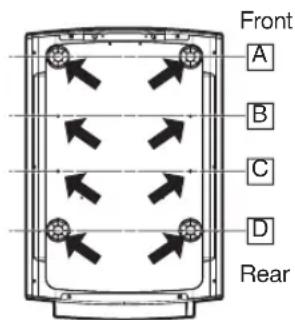
For directly mounting projectors to a stand for motion or non-motion systems, remove the four feet from the base of the projector and use the inner six mounting screw holes (see pictures below).

CAUTION
Use ONLY the fixing screws specified for mounting the projector. Using any screws other than those specified can cause damage and malfunction to the projector. NEVER insert the four outer feet into the inner screw holes, as the length of the screws are to long and will cause damage to the unit. If the mounting instructions are not followed, issues or failure can occur.
Non-Motion Applications
Outer 4 screw holes can be used
Screw Specifications
• M5 (screw pitch 0.8)
- The screw length into the body of the projector must not exceed 15 to 25mm .
- The length of the screw will be determined by the depth of the projector mounting plate.
Example - If the plate is 5mm thick a screw between 20 to 30mm must be used.
- Use screws with spring washers.
- Tightening torque
When this unit is suspended from a ceiling: 1.5 to 2.0N · m
Other than the above: 1.5 to 5.0N · m
- Do not use 2 adjacent locations (A+B, B+C, C+D) only.
Motion Applications
Inner 6 Screw holes must be used
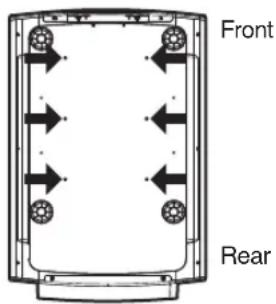
Screw Specifications
• M5 (screw pitch 0.8)
- The screw length into the body of the projector must not exceed 17 to 25mm .
- The length of the screw will be determined by the depth of the projector mounting plate.
Example - If the plate is 5mm thick a screw between 22 to 30mm must be used.
- Use screws with spring washers.
• Tightening torque: 1.5 to 5.0N · m
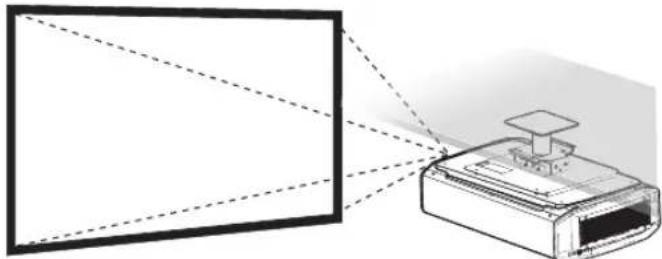
Securing the projector (ceiling mount)
natural_image
Diagram showing light rays projecting off a rectangular screen onto a device (no text or symbols present)- Be sure to ask your dealer to install the unit for you. Installing the unit on your own may cause the unit to fall resulting in injury.
• Take the necessary actions to prevent the main unit from falling off such as during an earthquake. - Regardless of the warranty period, JVC is not liable for any product damage caused by mounting the unit with non-JVC ceiling fittings or to an environment that is not suited for ceiling mount.
- When using the unit with it suspended from a ceiling, pay attention to the surrounding temperature. When a heater is in use, the temperature around the ceiling may be higher than expected.
- To attach the unit to the ceiling mount bracket, set the torque between the range of 1.5N m to 2.0N m. Tightening with torque exceeding the above range may cause damage to the unit, which may result the unit to fall.
- When reusing the ceiling mount bracket of an old model, consult the specialist to check if there are any issues with the surrounding space and increase in weight.
• Install the outlet at an accessible height to unplug from the wall. Or install the circuit breaker at an accessible height to shut down the projector. If you need information, please consult your authorized dealer or specialist.
Installing the ceiling mounting bracket
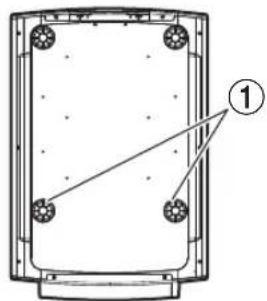
① Remove the rear foot (x2).
- It is not necessary to remove the front feet. However, it will not pose any usage problems even when they are removed.
Front
natural_image
Technical line drawing of a rectangular panel with mounting holes and a numbered label (1) pointing to a section, no readable text or symbols present.Rear
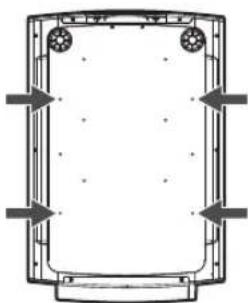
② Install the ceiling mounting brackets to the screw holes indicated by the arrows.
• Use screws that meet the specification.
- For details, contact your authorized dealer.
Front
natural_image
Pure architectural floor plan lines without any text, numbers, or symbolsRear
Adjusting the Position
Adjusting the elevation angle of the projector
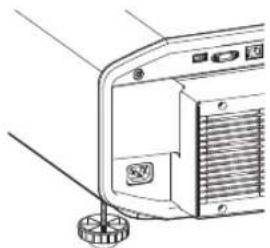
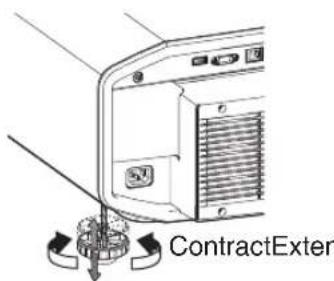
The height and inclination of the unit (0 to 5 mm) can be adjusted by turning the feet.
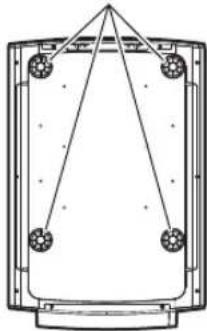
Lift the unit and adjust the four feet.
natural_image
Technical line drawing of a mechanical component with a knob and housing (no text or symbols)Feet
4 Locations
natural_image
Pure technical line drawing of a mechanical component with no text, numbers, or symbolsConnecting the Projector
- Do not turn on the power until connection is complete.
- The connection procedures differ according to the device used. For details, please refer to the instruction manual of the device to be connected.
- This projector is used for projecting images. To output the audio of connected devices, please connect a separate audio output device, such as an amplifier or speaker.
- Some cables cannot be connected to this unit due to the size of their connector cover.
- Configuration of a network password is necessary before connecting to the LAN terminal. For details, refer to "Network Password VS45NVHB" P. 53.
Connecting to the DisplayPort Terminals
![This Unit To [DisplayPort 1] to [DisplayPort 4] Input Terminals DisplayPort Cable (Sold Separately) PC, etc. DisplayPort Terminal](/content/2026/05/820685/images/4935de5522cce9147c8657c7351ecebd31cf7dab9abc24bdf09bb42380e6a62c.jpg)
- For single-channel input signals, connect to one of the [DisplayPort 1], [DisplayPort 2], [DisplayPort 3] or [DisplayPort 4] input terminals.
- For two-channel input signals, connect to the [DisplayPort 1] and [DisplayPort 3] input terminals.
- For four-channel input signals, connect to the [DisplayPort 1] to [DisplayPort 4] input terminals.
→ "Types of Possible Input Signals" (P. 72)
• Video images may not appear if a cable that does not support HBR2 is used. Use a cable that supports HBR2. - When disconnecting the DisplayPort cable, make sure to release the latch and unplug the cable.
Connecting to the LAN Terminal
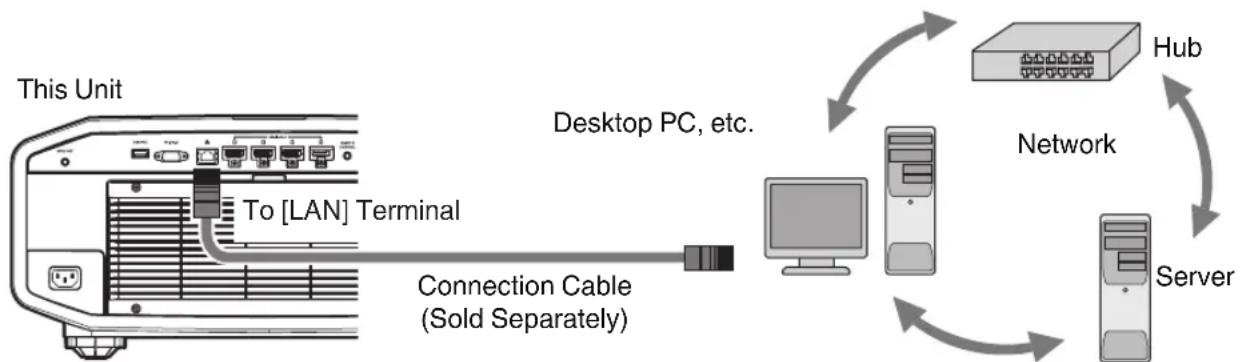
flowchart
graph TD
    A["This Unit"] --> B["To [LAN"] Terminal]
    B --> C["Connection Cable (Sold Separately)"]
    C --> D["Desktop PC, etc."]
    D --> E["Hub"]
    E --> F["Server"]
    F --> G["Network"]
    G --> E
- The network is used to control this unit. It is not used for sending or receiving video signals.
- Please contact your network administrator for information concerning the network connection.
- Configuration of a network password is necessary before connecting to the LAN terminal. For details, refer to "Network Password VS45NVHB" P. 53.
- For more information on control, please refer to "External Control" P. 65.
Connecting to the RS-232C Terminal
![This Unit To [RS-232C] Terminal RS-232C Connection Cable (Sold Separately) Laptop, etc. RS-232C Terminal](/content/2026/05/820685/images/7d2fa55d910b0e47a66bc9f8ed6306ac11deb521de18466ca2f5b60263d12eac.jpg)
- For more information on control, please refer to "External Control" P. 65.
Connecting to the REMOTE Terminal
![This Unit To [REMOTE] Terminal Connection Cable (Sold Separately) Wired Remote Controller (Sold Separately)](/content/2026/05/820685/images/841edfd40241330fcb76f55e0fa0f338ea8ee2691927c086ab0e5c0132293e8b.jpg)
- For more details on the wired remote controller and connection cable, please consult your dealer.
Connecting the Power Cord (Supplied Accessory)
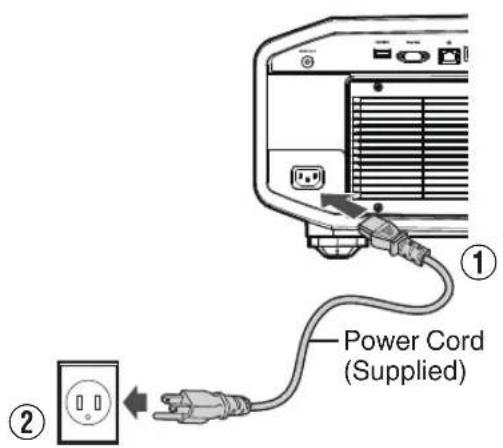
① Connect the power cord supplied to the power input terminal on the main unit
② Insert the supplied power plug into the wall outlet.

Precautions to prevent fire and electric shock
- The power consumption of this unit is large. Please connect it directly to the wall outlet.
- When you are not using the projector, please unplug the power cord from the outlet.
- Connect it using only the power cord supplied.
- Do not use a voltage other than the indicated power voltage.
- Do not damage, break or modify the power cord. Do not place a heavy object on the power cord, or heat or pull it. Doing so may damage the power cord.
- Do not unplug the power cord with wet hands.
Viewing Videos
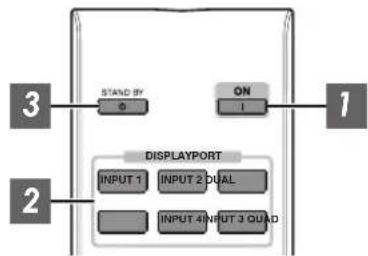
Remote Control
flowchart
graph TD
    A["1"] --> B["ON"]
    B --> C["4"]
    C --> D["3"]
    D --> E["2"]
    E --> F["3"]
    style A fill:#99ccff,stroke:#333
    style B fill:#ffcc99,stroke:#333
    style C fill:#cccccc,stroke:#333
    style D fill:#ffffff,stroke:#333
    style E fill:#ffffff,stroke:#333
    style F fill:#ffffff,stroke:#333
This unit
MEMO
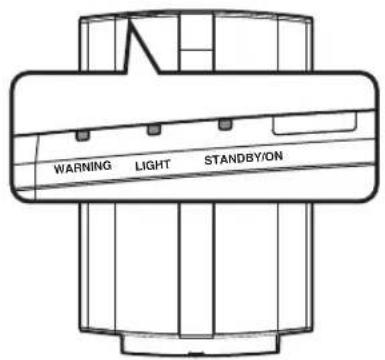
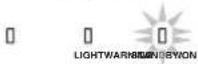
- Connect the power cord, and ensure that the "STANDBY/ON" indicator lights up in red.
1 Turn on the power
Remote control: press the I [ON] button
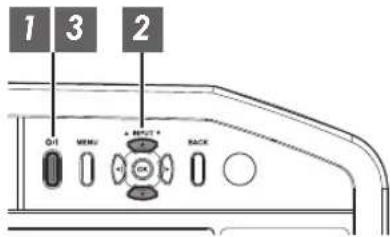
Projector unit: press the ⏻/I button
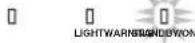
"STANDBY/ON" lights up (red) "STANDBY/ON" lights up (green) In standby state During startup
2 Choose the image to project
Remote control:
| Button Terminal | |
| [INPUT 1] DisplayPort 1 | |
| [INPUT 2] DisplayPort 2 | |
| [INPUT 3] DisplayPort 3 | |
| [INPUT 4] DisplayPort 4 | |
| [DUAL] Dual (*1) | |
| [QUAD] Quad (*2) |
*1, *2: Refer to "Types of Possible Input Signals" P. 72
Projector unit: press the [INPUT] button to switch the input
- Play back the selected device to project the image.
To hide the image temporarily
Press the [HIDE] button on the remote control
- The "STANDBY/ON" indicator light starts to blink in green. When "LED Indication" is set to "Off", the indicator does not blink.
- Press the [HIDE] button again to resume display of the image.
- The power cannot be turned off when the image is temporarily hidden.
3 Turn off the power
Remote control: press the ⏻ [STANDBY] button
Projector unit: press the ⏻/I button
- While the “Are you sure you want to turn off?” message is displayed, press the button again.
- The laser light source and IR light source turn off, and the “STANDBY/ON” indicator switches from a green light to a red blinking light.
- After the light goes off, the fan will run for about 10 seconds to cool down the light source (Cool-down mode). Do not disconnect the power cable while cooling is in progress.
- After about 10 seconds, the "STANDBY/ON" indicator switches from a blinking red to a solid red light.
"STANDBY/ON" blinking (red) In the Cool-down mode
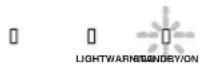
"STANDBY/ON" lights up (red) In standby state
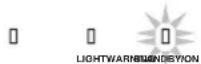

CAUTION
- The power cannot be turned off within approximately 30 seconds after it has been turned on.
- The power cannot be turned on again while cooling is in progress (10 seconds).
- Pull out the power plug when the unit is not to be used for a prolonged period of time.
- If the indication of indicator differs from the description, refer to "Indicator Display on the Main Unit" P. 77 for details.
Adjustments and Settings in the Menu
Pressing the [MENU] button displays the menu.
Press the [▲▼◀▶] keys to select an item, followed by pressing the [OK] button to confirm the selection.
List of Menu Items
Picture Adjust
▶ Picture Mode ...... P. 32
→ Sharpness ...... P. 32
Aperture P. 32
→ User Name Edit ...... P. 32
▶ Color Management ...... P. 33
▶ Color Temp. P. 34
▶ Gamma ...... P. 35
▶Display Mode P. 36
e-shift polarity VS47NV P. 37
→ IR Enhance Mode ...... P. 37
→ Light Source Ctrl ...... P. 38
→ LD Current P. 38
→ LD Power ...... P. 38
→ IR Current P. 38
→ Crosstalk Adjust ...... P. 38
▶ Blur Reduction ...... P. 39
→ Clear Motion Drive ...... P. 39
→ Motion Enhance ...... P. 39
▶ Contrast ...... P. 39
▶ Brightness ...... P. 39
▶ Color P. 39
▶Tint P. 39
Input Signal
▶ Input Level ...... P. 40
▶ Color Space ...... P. 40
▶ Channel Hide ...... P. 40
▶ 3D Setting P. 40
Polarity P. 40
→ Sync Phase ...... P. 40
Installation
▶ Lens Control ...... P. 41
→ Focus P. 41
→ Zoom P. 41
→ Shift P. 41
→ Image Pattern P. 41
▶ Pixel Adjust ...... P. 42
Adjust P.42
→ Adjust Area P. 42
→ Adjust Color P. 42
→ Adjust Pattern P. 42
→ Adjust Pattern Color P. 42
→ Adjust (Pixel) P. 42
→ Adjust (Fine) P. 42
→ Reset P. 42
▶ Mask ...... P. 46
▶ Distortion Correction P. 46
▶ Edge Blending ...... P. 48
▶ Installation Style ...... P. 48
▶ LED Indication ...... P. 49
▶ High Altitude Mode P. 49
▶ Auto Geometry Stabilizer P. 49
Display Setup
▶ Back Color ...... P. 51
▶ Menu Position ...... P. 51
▶ Signal Display P. 51
▶ Logo P. 51
▶NV Menu Display P. 51
Function
▶ Sync Out ...... P. 52
▶ Off Timer P. 52
▶ Network P. 52
▶ Remote Code ...... P. 53
▶ Hide Mode ...... P. 54
▶ Software Update ...... P. 54
Information
▶ Information ...... P. 55

Picture Adjust
Picture Mode
You can adjust the image quality according to the type of video image you are viewing.
| Setting Description | |
| Natural Image quality that focuses | on natural color and gradation reproduction. Suitable for displaying video images in general. |
| Dynamic This is the picture setting | best suited for viewing the picture in a room that cannot be made completely dark. |
| User 1 to User 6 Enables user-defined image quality data to be saved and retrieved. | |
You can configure the following setting items by pressing the [MENU] button to display the menu, followed by selecting "Picture Adjust" → "Picture Mode" and pressing the [OK] button.
Sharpness
The sharpness of the image can be adjusted.
- Setting: 0 (low sharpness) to 50 (high sharpness)
Aperture
For changing the brightness through controlling the aperture.
- Setting range: -7 (stops down) to 0 (opens up)
User Name Edit
You can edit the "User 1" to "User 6" names in the Picture mode.
- Characters that are usable include alphabets (upper or lower case), numeric characters, and symbols.
- Enter not more than 10 characters.
![User Name Edit Name User 1 Input Cursor Selection Cursor A B C D E F G H I J K L M N O P Q R S T U V W X Y Z a b c d e f g h i j k l m n o p q r s l y v w x y z 1 2 3 4 5 6 7 8 9 0 . . ^ ! ' # $ % & ^ + - / = ? @ : : | - ( ) < > [ ] { } \ Space OKAll ClearCl... After entry is complete, select "OK" and press the [OK] button](/content/2026/05/820685/images/7bf712313fbceaff2ab4489cf640b4a1fbfedf0edccab6ec7077f246a81297c0.jpg)
Color Management
Each of the colors is adjustable according to the user's preference.
1 Select the “Picture Adjust” → “Color Management” menu, and press the [OK] button.
2 Set "Color Management" to "On", and press the [OK] button
3 Adjust to the preferred color
① Select "Color Selection", and press the ◀▶ keys to select the color to adjust
- For color adjustment, select the color from the following: "Red", "Yellow", "Green", "Cyan", "Blue", "Magenta".
② Adjust the selected color
| Item | Setting Range | Description |
| Axis Position - | 30 to 30 Fine-tune the position of the central axis of the selected color. | |
| Hue -30 to 30 | Adjusts the hue (color tone). | |
| Saturation -30 | to 30 Adjusts the color saturation (vividness). -30 (dull) to +30 (vivid) | |
| Brightness -30 | to 30 Adjusts the brightness. -30 (dark) to +30 (bright) | |
- Selecting "Reset" resets all the adjustment data.
- Pressing the [HIDE] button on the remote control enables you to check the image before adjustment. Press the [HIDE] button again to return to the adjustment screen.
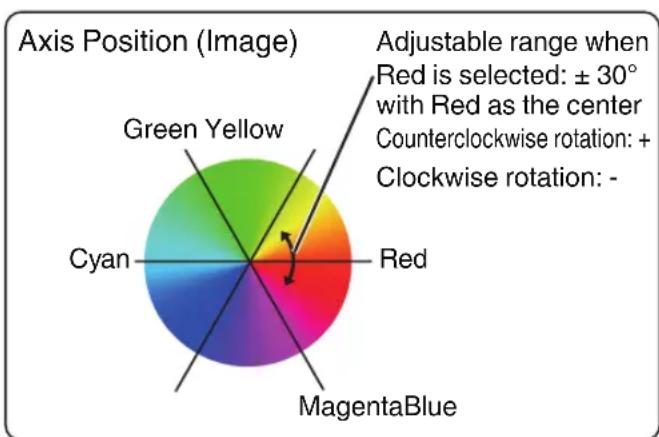
radar
| Category | Value | | -------------- | ----- | | Red | ± 30° | | Counterclockwise | + | | Clockwise | - |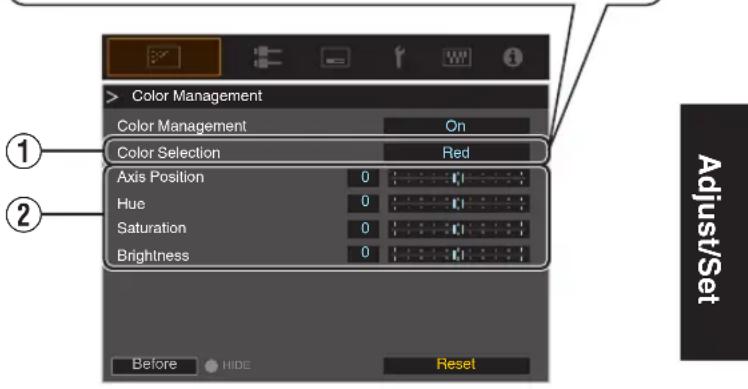
4 Press the [MENU] button to exit
Color Temp.
For setting the color temperature of the video image.
- The selectable "Color Temp." settings vary according to "Picture Mode".
"Color Temp."
| Color Temp. Description | |
| 5500K Increasing the value enhances the blue tone of the video image, while decreasing the value enhances the red tone. | |
| 6500K | |
| 9500K | |
| High Bright Color temperature that gives priority to brightness. | |
| Custom 1 to Custom 2 The color temp. temperature of video images can be adjusted manually and saved as one of the three customized settings. | |
List of selectable "Color Temp." according to "Picture Mode"
| Picture Mode Color Temp. | |
| NaturalUser 1 to User 6 | 5500K |
| 6500K | |
| 9500K | |
| High Bright | |
| Custom 1 to Custom 2 | |
| Dynamic High Bright | |
Correction Value
For setting the base color temperature for the adjustment of "Gain Red" / "Gain Green" / "Gain Blue" / "Offset Red" / "Offset Green" / "Offset Blue" when one of the "Custom 1" to "Custom 2" setting is selected in "Color Temp.".
- The selectable correction values vary according to "Picture Mode". (Refer to the table below.)
List of selectable “Correction Value” according to “Picture Mode”
| Picture Mode Correction | Value |
| NaturalUser 1 to User 6 | 5500K |
| 6500K | |
| 9500K | |
| High Bright | |
| Dynamic Not selectable |
Gain Red / Gain Green / Gain Blue
Adjusts each color in the bright parts of the video image.
- Setting range: -255 (reduces the red/green/blue tone) to 0 (no adjustment)
Offset Red / Offset Green / Offset Blue
Adjusts each color in the dark areas of the video image.
- Setting range: -50 (reduces the red/green/blue tone) to 0 (no adjustment) to +50 (enhances the red/green/blue tone)
- Setting "Color Temp." to "Custom 1" or "Custom 2" allows you to select and adjust a base correction value (initial value) for adjustment.
Gamma
You can adjust the output value of the projected image with respect to the video signal input.
"Gamma"
| Gamma Description | |
| 2.2 The gamma is set to “2.2”. | |
| Custom 1 to Custom 3 Enables fine adjustment of gamma according to preference. | |
You can perform fine adjustments based on the selected gamma adjustment setting.
Correction Value
For setting the base Gamma for the adjustment of “Picture Tone” / “Dark Level” / “Bright Level” when one of the “Custom 1” to “Custom 3” setting is selected in “Gamma”.
- Setting: 1.8 to 2.6, Import
Adjustment item and its setting
| Item Description Setting | |
| Color Selection For selecting the color for adjusting “Picture Tone”, “Dark Level” and “Bright Level”. | White / Red / Green / Blue |
| Picture Tone Adjusts the overall brightness automatically for a well-balanced result without compromising the gradation of the image. | -16 (darkens image for an underexposed effect) to +16 (brightens image for an overexposed effect) |
| Dark Level Adjusts the dark areas of the input image.• To do so, use the ◀▶ keys to move the cursor. | -7 (darkens the shadows) to +7 (brightens the shadows) |
| Bright Level Adjusts the bright areas of the input image.• To do so, use the ◀▶ keys to move the cursor. | -7 (darkens the highlights) to +7 (brightens the highlights) |
"IR Gamma" VS45NVHB
Configure the gamma curve at the time the IR light source is lit when "Display Mode" is set to "NV" or "NV(FS)".
| IR Gamma Description | |
| 2.2 The gamma is set to “2.2”. | |
| Custom 1 to Custom 3 Enables fine adjustment of gamma according to preference. | |
Correction Value
Enables fine adjustment of gamma when the setting from "Custom 1" to "Custom 3" is selected in "IR Gamma".
- Setting: 1.8 to 2.6, Import

When "Correction Value" is set to "Import"
- By selecting “Import” for “Correction Value”, the gamma data created externally can be selected as the base setting value for adjustment.
- The factory setting for "Import" is "2.2".
- You can use the calibration software to customize the gamma data adjustment, and import the created gamma data.
Please check with your authorized dealer for details.
Display Mode
For managing the e-shift status VS47NV and the lighting condition of the light sources.
| Setting Description | |
| Normal Only the laser light source lights up. | |
| NV Only the IR light source lights up. | |
| e-shift VS47NV | This is the mode for displaying e-shift. Only the laser light source lights up. |
| NV(e-shift) VS47NV | This is the mode for displaying e-shift. Only the IR light source lights up. |
| NV(FS) The laser light source and IR light source light up alternately frame by frame. | |
| NV(e-shift FS) VS47NV | This is the mode for displaying e-shift. The laser light source and IR light source light up alternately frame by frame. |
| 3D This is the mode for displaying 3D videos. | |
- The selectable "Display Mode" settings vary according to input signal.
List of selectable "Display Mode" according to input signal VS47NV
| Input Signal Display Mode | ||
| Single (DP1-DP4) 24, 25, 30, 50, 60 Hz Normal / NV | ||
| Dual - stripes 50, 60 Hz | ||
| Quad - stripes 60 Hz | ||
| Quad - cross | ||
| Dual - frame sequential 100 Hz Normal / NV / e-shift / NV(e-shift) / 3D | ||
| Dual - frame sequential 100 Hz Normal / NV / e-shift / NV(e-shift) / 3D | ||
| Dual - stripes 120 Hz Normal / NV / e-shift / NV(e-shift) / NV(FS) / Quad - stripes | NV(e-shift FS) / 3D | |
| Quad - cross | ||
| Dual - frame sequential | ||
| Quad - frame sequential | ||
| No signal Normal / e-shift | ||
| Out of range | Normal | |
List of selectable "Display Mode" according to input signal VS45NV
| Input Signal Display Mode | ||
| Single (DP1-DP4) 24, 25, 30, 50, 60 Hz Normal / NV | ||
| Dual - stripes 50, 60 Hz | ||
| Quad - stripes | 60 Hz | |
| Quad - cross | ||
| Dual - stripes 100 Hz | 120 Hz | Normal / NV / NV(FS) / 3D |
| Quad - stripes | ||
| Quad - cross | ||
| Dual - frame sequential | ||
| Quad - frame sequential | ||
| No signal Normal | ||
| Out of range | Normal | |
List of selectable "Display Mode" according to input signal VS45NVHB
| Input Signal Display Mode | ||
| Single (DP1-DP4) 24, 25, 30, 50, 60 Hz Normal / NV | ||
| Dual - stripes 50, 60 Hz | ||
| Quad - stripes 60 Hz | ||
| Quad - cross | ||
| Dual - frame sequential 100 Hz Normal / NV / 3D | ||
| Dual - stripes 120 Hz Normal / NV / NV(FS) / 3D | ||
| Quad - stripes | ||
| Quad - cross | ||
| Dual - frame sequential | ||
| Quad - frame sequential | ||
| No signal Normal | ||
| Out of range Normal | ||
e-shift polarity VS47NV
For switching the polarity of e-shift.
| Setting Description | |
| Positive Activates e-shift using positive polarity signal. | |
| Negative Activates e-shift using negative polarity signal. | |
- This function cannot be used except when "Display Mode" is set to "e-shift", "NV(e-shift)", "NV(e-shift FS)" or "3D".
IR Enhance Mode
For switching the function to support the power of the IR light source.
| Setting Description | |
| Off Disables the support function. | |
| On Enables the support function. |
Light Source Ctrl
For switching the function to automatically control the current of the laser light source.
| Setting Description | |
| Manual For configuring the current | setting manually. |
| Auto Intensity Controls the current | automatically to maintain the brightness at a constant level. |
| FEDLC Detects the current information that is included in the input image and controls the current automatically. | |
LD Current
For controlling the brightness of the laser light source by controlling the current of the laser light source.
- Setting range: 38 to 100 VS45NV VS47NV
- Setting range: 38 to 107.5 VS45NVHB
* This function cannot be used when "Light Source Ctrl" is set to "Auto Intensity" or "FEDLC".
LD Power
For switching the brightness by controlling the number of laser to turn on.
- Setting this item to "Low" or "Mid" may cause the video image to become blurry. This is not a malfunction. If you are bothered by the blurry images, set this to "High".
| Setting Description | |
| Low Brightness (low) | |
| Mid Brightness (mid) | |
| High Brightness (high) |
IR Current
For controlling the brightness of the IR light source by controlling the current of the IR light source.
- Setting range: 38 to 100
Crosstalk Adjust
For correcting the crosstalk of the projected images of the IR light source and laser light source when “Display Mode” is set to “NV(FS)” or “NV(e-shift FS)”. When “Display Mode” is set to “3D”, it corrects crosstalk between the left-eye and right-eye images.
LD Gain
For adjusting the gain level for the correction amount of the laser light source.
- Setting range: -8 to 8
IR Gain
For adjusting the gain level for the correction amount of the IR light source.
- Setting range: -8 to 8
Blur Reduction
For reducing the after-image, which occurs in a fast-moving scene.
- Blur Reduction is grayed out and cannot be adjusted when "Display Mode" is set to "NV(FS)", "NV(e-shift FS)" or "3D" and when an out of range signal is input.
Clear Motion Drive
For reducing the after-image, which occurs in a fast-moving scene.
- Pressing the [C.M.D.] button each time switches the mode in the following sequence: "Off" → "Mode 1" → "Mode 2" → "Mode 3" → "Off"...
* C.M.D. is the abbreviation for Clear Motion Drive.
| Setting Description | |
| Off Doubles the frame rate of the input image by drawing the original image twice. | |
| Mode 1 Displays the image as it is at the frame rate of the input image. | |
| Mode 2 Displays the image as it is at the frame rate of the input image.Applies black insertion to reduce blurriness in the video images. | |
| Mode 3 Reduce blurriness in the video image by applying black insertion to the Off mode. | |
Motion Enhance
You can reduce motion blur with this function enhancing the response of D-ILA image devices. If the image outline is unnatural, set this item to "Off".
| Setting Description | |
| Off Does not perform correction. | |
| On Reduces image blurring. | |
| Gain | When Motion Enhance is set to “On”, the overall intensity is adjusted using Gain, while adjustment of each color is performed using Red/Green/Blue. |
| Red | |
| Green | |
| Blue |
Contrast
For adjusting the white level point to avoid clipping or over saturation.
- Setting range: -50 (little difference in brightness) to +50 (large difference in brightness)
Brightness
For adjusting the black level point to avoid clipping or over saturation.
- Setting range: -50 (darker) to +50 (brighter)
Color
For adjusting the color density of the video image.
- Setting range: -50 (lighter) to +50 (deeper)
Tint
For adjusting the hue of the video image.
- Setting range: -50 (reddish) to +50 (greenish)

Input Signal
Input Level
For setting the dynamic range (gradation) of the video input.
- If the dynamic range is not appropriate, the bright areas become overexposed, and the dark areas become underexposed.
| Setting Description | |
| 16-235 (Video) Select this setting if you are inputting video signals (dynamic range: 16 - 235). | |
| 0-255 (PC) Select this setting if you are inputting PC signals (dynamic range: 0 - 255). | |
Color Space
For setting the color space of the input signal.
| Setting Description | |
| YCbCr444 Select this setting when | inputting YCbCr (4:4:4) video signals. |
| YCbCr422 Select this setting when | inputting YCbCr (4:2:2) video signals. |
| RGB Select this setting when inputting RGB video signals. | |
Channel Hide
A function for configuring whether to display video images for each DisplayPort input terminal.
| Setting Description | ||
| DP 1 | Off Displays video images with the Hide function disabled. | |
| DP 2 | ||
| DP 3 | On Enables the Hide function and does not display video images. | |
| DP 4 | ||
3D Setting
For performing 3D settings.
Polarity
This is the function to switch the signal polarity output from Sync Out for synchronizing the glasses.
| Setting Description | |
| Positive Sets the signal polarity for | synchronization to positive. |
| Negative Sets the signal polarity for | synchronization to negative. |
Sync Phase
This is the function to adjust the signal phase output from Sync Out for synchronizing the glasses.
- Setting range: 0 (0°) to 18 (180°)
Lens Control
Focus / Zoom / Shift
For adjusting the lens according to the projection position

MEMO
To use the Shift function, a motorized lens shift unit is required. For details on installing the motorized lens shift unit (sold separately), refer to the instruction manual of the motorized lens shift unit. Motorized lens shift unit (product no.: PK-MLS01)
1
Press the [LENS CONTROL] button, and use the [▲▼◀▶] keys to adjust Focus, Zoom (screen size), and Shift (screen position)
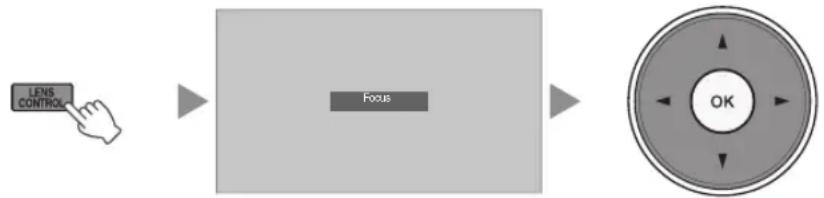
flowchart
graph LR
    A["LENS CONTROL"] --> B["Focus"]
    B --> C["OK"]
- Pressing the [LENS CONTROL] or [OK] button each time switches the mode in the following sequence: "Focus" → "Zoom" → "Shift" → "Focus"...
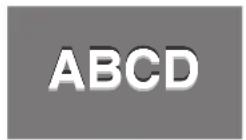
Focus Adjustment
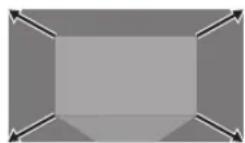
Zoom (Screen Size)
Adjustment
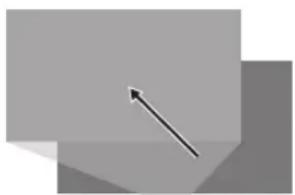
natural_image
Abstract geometric shape with a diagonal arrow, no text or symbols present
Shift (Screen Position) Adjustment
- If the driving range of the motorized lens shift unit is exceeded, the projected screen cannot be shifted anymore when the lens reaches the end.
- Pressing and holding the [▲▼◀▶] keys continuously after the projected screen cannot be shifted anymore will overload the motor causing malfunction.
2 Press the [MENU] button once, or the [BACK] twice, to end adjustment
Image Pattern
For setting whether to display the lens adjustment pattern.
| Setting Description | |
| Off Displays external signals, and does not display the lens adjustment pattern. | |
| On Displays the lens adjustment pattern. | |
Pixel Adjust
For correcting the phase shifting between each RGB color by adjusting the pixel.
Adjust
For setting the adjustment feature to On or Off.
Adjust Area
| Setting Description | |
| Whole Adjusts the entire image. | |
| Zone Enables fine adjustment of each area by dividing the screen evenly into 10 vertical and horizontal zones. | |
Adjust Color
For selecting the color to adjust ("Red" or "Blue").
Adjust Pattern
| Setting Description | |
| Off Displays the external signals without displaying the test pattern for adjustment. | |
| On Displays the test pattern for adjustment. | |
Adjust Pattern Color
For setting the color of the adjustment pattern displayed during adjustment to "White" or "Yellow / Cyan".
Adjust (Pixel)
When “Adjust Area” is set to “Whole”, adjustment can be made by moving in units of one pixel on the screen of the color selected in “Adjust Color”.
→ "Whole Adjust (Pixel) Operation Procedure" (P. 43)
- Adjustment cannot be made when "Adjust Area" is set to "Zone".
- Adjustment cannot be made when "Mode" of "Auto Geometry Stabilizer" is configured to "On".
| Setting Description | |
| H (Horizontal) Setting range: -2 (moves red/blue to the left) to +2 (moves red/blue to the right) | |
| V (Vertical) Setting range: -2 (moves red/blue downward) to +2 (moves red/blue upward) | |
Adjust (Fine)
When “Adjust Area” is set to “Whole”, adjustment can be made by moving in units of 1/8 pixel on the screen of the color selected in “Adjust Color”.
→ "Whole Adjust (Fine) Operation Procedure" (P. 44)
When “Adjust Area” is set to “Zone”, the screen is divided evenly into 10 vertical and horizontal zones, and fine adjustment of each area is possible.
→ "Zone Adjust Operation Procedure" (P. 45)
| Setting Description | |
| H (Horizontal) Setting range: -31 (moves red/blue to the left) to +31 (moves red/blue to the right) | |
| V (Vertical) Setting range: -31 (moves red/blue downward) to +31 (moves red/blue upward) | |
Reset
Restores all pixel adjustment data to the factory default.

Whole Adjust (Pixel) Operation Procedure
For making general adjustments to slight color fringing in the horizontal/vertical directions of the video image.
① Set “Adjust Area” to “Whole”
② Select "Adjust Color" and "Adjust Pattern Color"
③ Select "Adjust (Pixel)", and press the [OK] button
- The Adjustment mode is activated, and the selected adjustment pattern and Adjustment (Pixel) window are displayed.
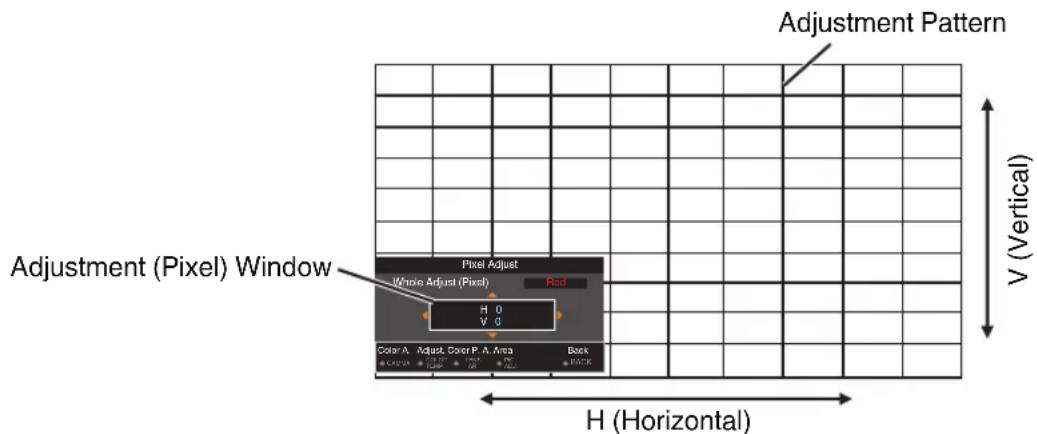
④ Use the [▲▼◀▶] keys to move and adjust the vertical and horizontal pixels of the entire zone
- The adjustment setting appears at the center of the Adjustment (Pixel) window.
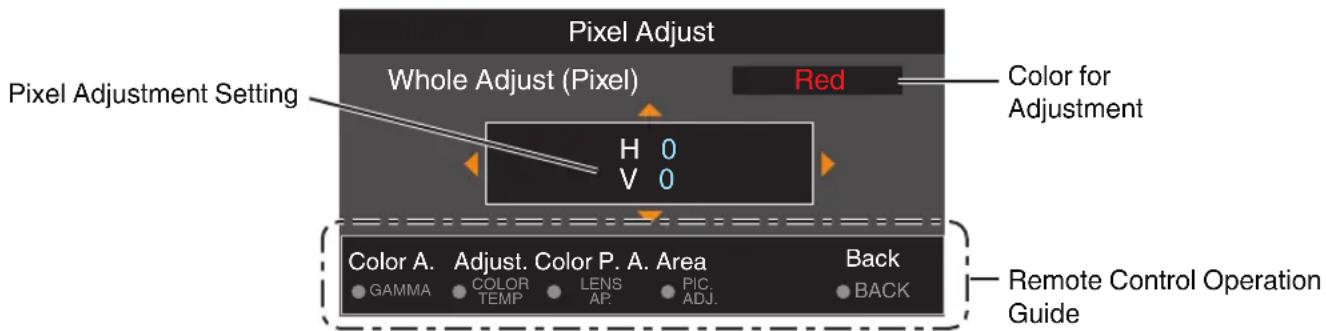
⑤ After adjustment is complete, press the [BACK] button twice to exit the Adjustment mode
Remote Control Operation Guide
| Button Name Function Description of Operation | ||
| [GAMMA] Color A. Changes “Adjust Color”. | ||
| [COLOR TEMP.] Adjust Switches between “Adjust (Pixel)” and “Adjust (Fine)”. | • Switches to “Adjust (Pixel)” when “Adjust Area” is set to “Zone”. | |
| [LENS AP.] Color P. Changes “Adjust Pattern Color”. | ||
| [PIC ADJ.] A. Area | Switches “Adjust Area”. | • A zone cursor appears on the adjustment pattern when the “Zone” setting is selected. |

Whole Adjust (Fine) Operation Procedure
For making general adjustments on the misalignment of the entire screen using “Adjust (Pixel)”, followed by making fine adjustments.
① Set "Adjust Area" to "Whole"
② Select "Adjust Color" and "Adjust Pattern Color"
③ Select Adjust (Fine), and press the [OK] button
- The Adjustment mode is activated, and the selected adjustment pattern and Fine window are displayed.
- The adjustable range may be smaller depending on the pixels being adjusted on the entire screen.
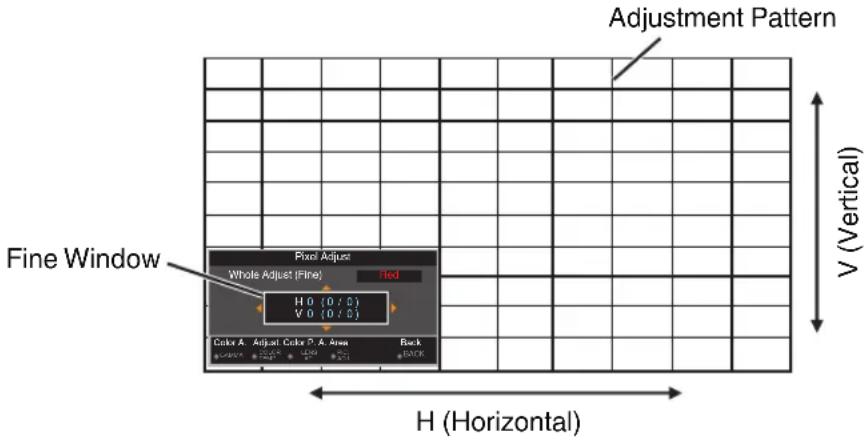
④ Use the [▲▼◀▶] keys to move and adjust the vertical and horizontal pixels of the entire zone
- The adjustment setting appears at the center of the Fine window.
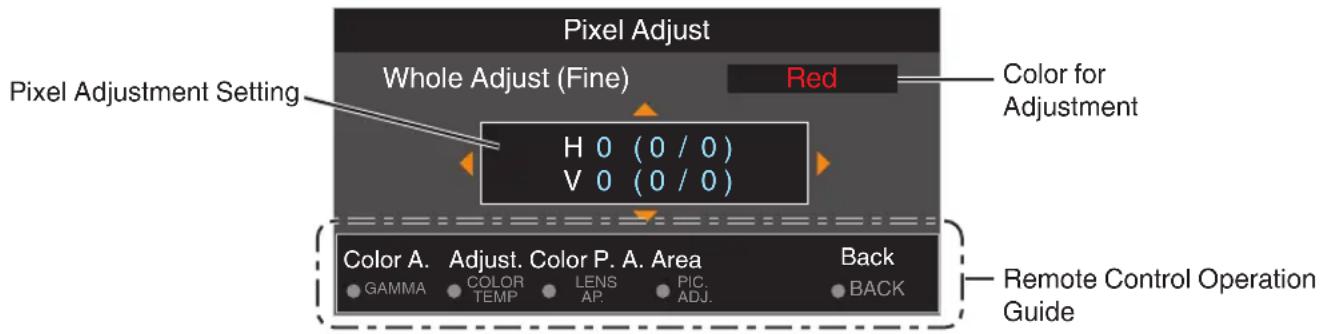
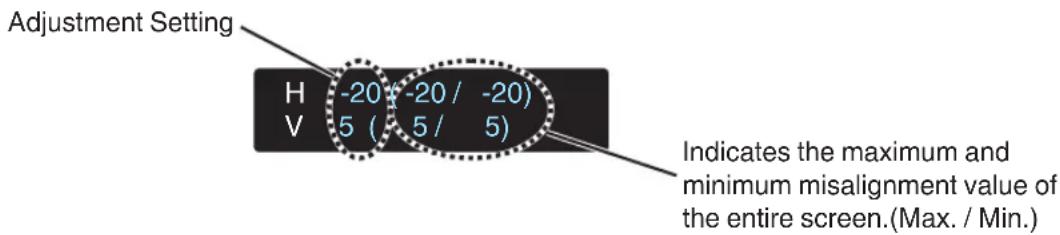
⑤ After adjustment is complete, press the [BACK] button twice to exit the Adjustment mode

MEMO
- If both the maximum overall screen misalignment of H (horizontal direction) and V (vertical direction) are "31", you cannot select a value that is larger than the displayed setting even when the adjustment setting is lower than the maximum value.
- If the minimum overall screen misalignment is “-31”, you cannot select a value that is smaller than the displayed setting even when the adjustment setting is higher than the minimum value.

Zone Adjust Operation Procedure
For fine-tuning misalignments on a part of the screen after adjusting the overall screen misalignment using “Adjust (Pixel)” and “Adjust (Fine)”.
- The screen can be divided vertically and horizontally into 10 sections for partial adjustments to be made.
① Set "Adjust Area" to "Zone"
② Select "Adjust Color" and "Adjust Pattern Color"
③ Select Adjust (Fine), and press the [OK] button
- The Adjustment mode is activated, and the selected adjustment pattern and Zone Adjustment window are displayed.
- The adjustable range may be smaller depending on the pixels being adjusted on the entire screen.
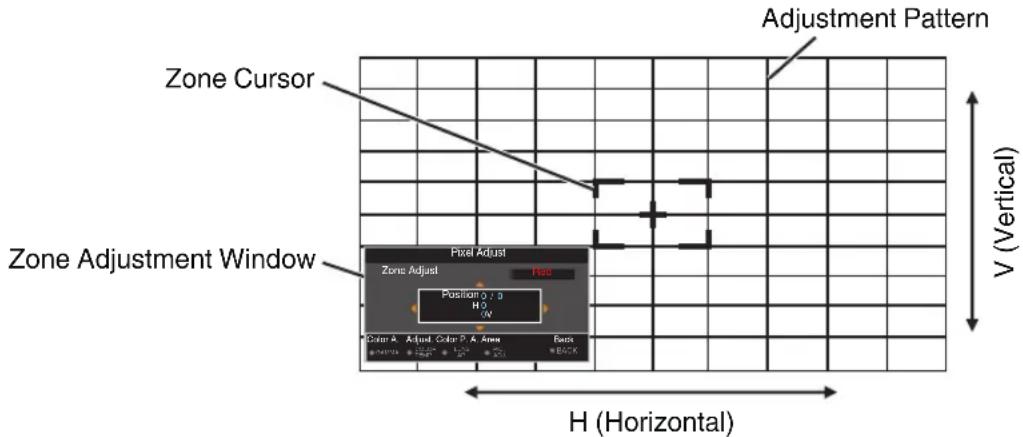
④ Press the [▲▼◀▶] keys to move the cursor to the point to be adjusted
⑤ Press the [OK] button to enter the Adjustment mode
⑥ Use the [▲▼◀▶] keys to move and adjust the vertical and horizontal pixels of the entire zone
- The adjustment setting appears at the center of the Zone Adjustment window.
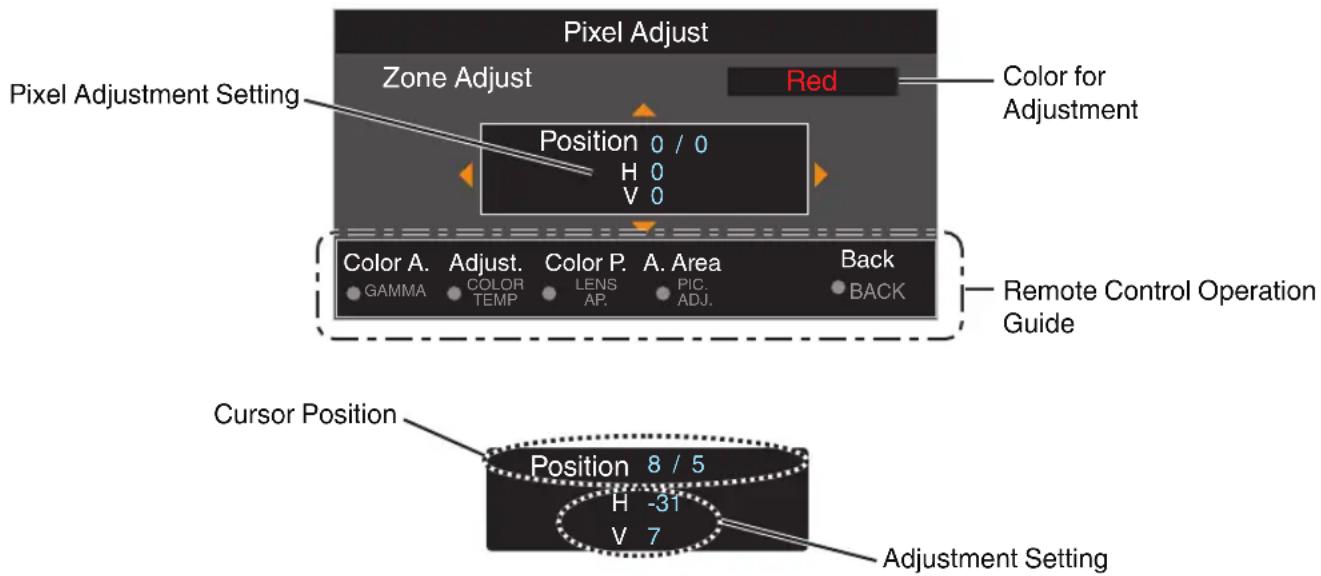
⑦ After adjustment is complete, press the [BACK] button twice to exit the Adjustment mode
Mask
For hiding the peripheral area of the image with a mask (black strip).
| Setting Description | |
| Off Not masked. | |
| On Hides the ranges specified in “Top”, “Bottom”, “Left” and “Right” by masking (with black strips). | |
Off

natural_image
Newborn baby resting on a fluffy white surface, wearing a knitted hat (no text or symbols visible)On

natural_image
Newborn baby wearing a patterned cap, resting on a fluffy white surface (no text or symbols visible)Mask: black strip around the periphery
"Top" / "Bottom" / "Left" / "Right"
For specifying the ranges to hide by masking (with black strips).
- Setting range: 0 to 220
Distortion Correction
Corrects distortion of the screen.
Distortion Correction
For setting the adjustment feature to On or Off.
Adjust Pattern Color
For setting the color of the adjustment pattern displayed during adjustment to "White" or "Green".
Adjust Pattern
| Setting Description | |
| Off Displays the external signals without displaying the test pattern for adjustment. | |
| On Displays the test pattern for adjustment. | |
Adjust
Displays the adjustment screen.
- Setting range: -64 to 63

Operation procedure for Adjust
① Select "Adjust Pattern Color"
② Select "Adjust", and press the [OK] button
- The Adjustment mode is activated, and the selected adjustment pattern and Adjustment window are displayed.
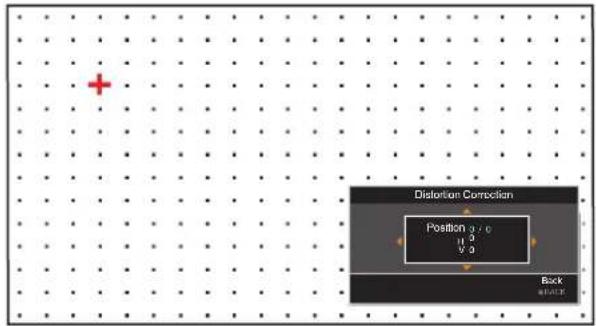
③ Select the position to compensate by using the [▲▼◀▶] keys to move the cursor, followed by pressing the [OK] button.
④ Use the [▲▼◀▶] keys to set the compensation value
- Pressing the [OK] button each time switches the setting item in sequence. "Position" → "H" → "V" → "Position"...
• The item that is currently being set is displayed in blue.
- A red cursor is displayed when setting the position. A blue cursor is displayed when setting the compensation value.
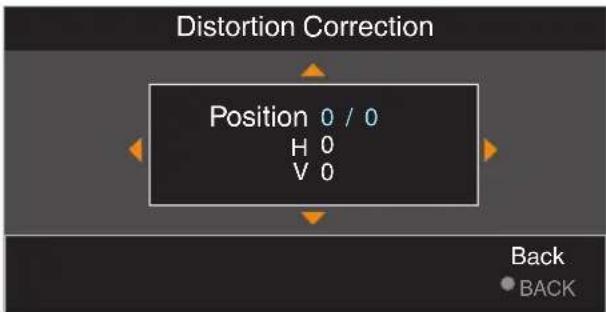
⑤ After adjustment is complete, press the [BACK] button to exit the Adjustment mode

MEMO
- Noise may occur during adjustment. This is not a malfunction.
Edge Blending
Corrects the seam between the images during projection by multiple projectors.
* This function is disabled when "Picture Mode" is set to "Dynamic".
Edge Blending
For setting the function to On or Off.
| Setting Description | |
| Off Disables the Edge Blending function. | |
| On Enables the Edge Blending function. | |
Guide
For setting the guideline display (start point: green; end point: red).
| Setting Description | |
| Off Hides the guideline. | |
| On Displays the guideline. |
Position Select
For setting the compensation position.
| Setting Description | |
| Top For setting the start and end points using the Start/End item. | |
| Bottom | |
| Left | |
| Right | |
Start/End
For setting the start and end points of the compensation position selected in "Position Select".
- Setting range: 0 to 255 (left/right), 0 to 135 (up/down)
Black Level
For adjusting the black level.
- Setting range: 0 to 50
Installation Style
For setting to “Front”, “Ceiling Mount (F)”, “Rear”, or “Ceiling Mount (R)” according to the installation status of the projector.
- "Front" or "Ceiling Mount (F)" is set when projector is installed in the front with respect to the screen.
- “Rear” or “Ceiling Mount (R)” is set when projector is installed in the rear with respect to the screen.
* When using the projector with the lens shifted in the vertical direction, the amount of distortion at the upper and lower ends may be different and the curvature distortion may not be fully corrected.
LED Indication
When "LED Indication" is set to "Off", the LED indicator does not light up or blink under the following status.
- When the time to replace the laser light source or IR light source is near. (P. 55)
- When HIDE is on. (P. 77)
- When the projector receives a signal from a remote control which is set to a different code mode (A or B). (P. 53)
High Altitude Mode
For setting the high altitude mode to "On" or "Off".
Set to "On" when using the projector at a location of low atmospheric pressure (higher than 900 m above sea level).
Auto Geometry Stabilizer
For correcting the phase shifting between each RGB color due to the temperature according to the duration after starting up.
Phase shift correction is performed every minute for 120 minutes from startup according to the preconfigured correction value.
- When this function is used, up to 4 pixels on either the left or right end will be missing depending on the amount of correction.
Mode
For configuring the correction feature to On or Off.
- The menu options under "Adjust" are not available when "Mode" is configured to "Off".
- “Adjust (Pixel)” of “Pixel Adjust” is not available when “Mode” is configured to “On”.
Adjust Pattern
| Setting Description | |
| Off Displays the external signals without displaying the test pattern for adjustment. | |
| On Displays the test pattern for adjustment. | |
Adjust
For configuring the correction value according to the current time.
- Correction values can be configured for up to four points.
- After configuration of the correction values for the four points is complete, "Adjust" will not be selectable. To configure the setting, do so after erasing the unwanted correction values.
| Setting Description | |
| H (Horizontal) Setting range: -4 (moves Red/Green/Blue to the left) to +4 (moves Red/Green/Blue to the right) | |
| V (Vertical) Setting range: -4 (moves Red/Green/Blue downward) to +4 (moves Red/Green/Blue upward) | |
Point 1 to 4
For editing or erasing preconfigured correction values directly.
The configured time is displayed in "Point 1 to 4" after configuration of the correction values is complete.
Reset
For erasing the preconfigured correction values in Point 1 to 4.

Operation procedure on the Adjust Screen
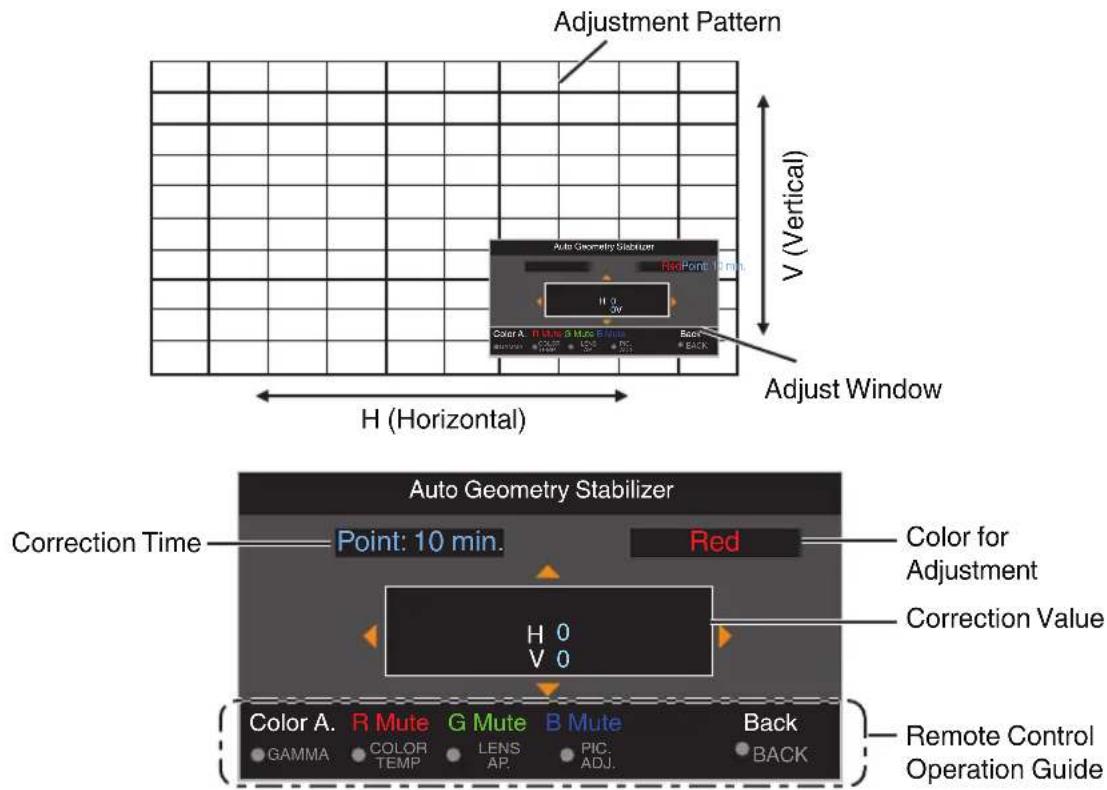
① Select "Adjust", and press the [OK] button to display the adjustment screen.
② Configure the correction value by using the [▲▼◀▶] keys to move the vertical and horizontal pixels.
③ Press the [GAMMA] button on the remote control to switch the color to adjust. (Red→Green→Blue)
④ Press the [COLOR TEMP.] / [LENS AP.] / [PIC ADJ.] button on the remote control to switch between showing and hiding the image for each RGB color.
⑤ After adjustment is complete, press the [BACK] button to exit the adjustment screen.
Remote Control Operation Guide
| Button Name Function Description of Operation | ||
| [GAMMA] Color A. For | selecting the color for adjusting. | |
| [COLOR TEMP.] R Mute | Switches between showing and hiding the R signal. | |
| [LENS AP.] G Mute | Switches between showing and hiding the G signal. | |
| [PIC ADJ.] | B Mute | Switches between showing and hiding the B signal. |

Display Setup
Back Color
For setting the color of the background to "Blue" or "Black" when there is no signal input.
Menu Position
For setting the display position of the menu.
Signal Display
For setting the display of the input information to "On" or "Off".
| Setting Description | |
| Off Not displayed. | |
| On Shows the input terminal for 5 seconds when input is switched. | |
Logo
For setting the display of logo during startup to "On" or "Off".
| Setting Description | |
| Off Not displayed. | |
| On Displays the “D-ILA” logo for 5 seconds during startup. | |
NV Menu Display
For turning on the laser light source when displaying the menu when the projector is configured to project only with the IR light source (*).
- Does not function except when "Display Mode" is set to "NV" or "NV(e-shift)" and "IR Enhance Mode" is set to "Off".
* "Display Mode" is set to "NV" or "NV(e-shift)" and "IR Enhance Mode" is set to "Off".
| Setting Description | |
| Off Turns off the laser light source | when displaying the menu. |
| On Turns on the laser light source | when displaying the menu. |
Sync Out
For selecting the type of signal to output from Sync Out.
| Setting Description | |
| Input (Positive) Outputs a signal that is synchronized with the vertical sync signal of the input video signal. (*1) | |
| Input (Negative) Outputs a signal with reversed polarity that is synchronized with the vertical sync signal of the input video signal. (*1) | |
| Low Fixes the output at Low.(*2) | |
| High Fixes the output at High.(*2) | |
| FEDSC Outputs a signal that is synchronized with the polarity information included in the FEDSC packet. Outputs a Low when there is no FEDSC packet. | |
*1 Outputs the e-shift driving waveform if "e-shift" is set to "On(Positive)", "On(Negative)" or "On(FEDEC)".
*2 Does not function when "Display Mode" is set to "NV(FS)".
• 3D sync signal is output during 3D signal input regardless of this setting.
Output signal varies as follows according to the format of the 3D signal.
| Input Signal Output Signal | |
| Dual, Quad (frame sequential) Outputs a signal that is synchronized with the input video signal. | |
| Dual, Quad (stripes) Outputs a signal that is synchronized with the polarity information included in the FEDSC packet. | |
Polarity switches to the setting in "3D Setting" → "Polarity".
Off Timer
For setting the duration before the power turns off automatically when the projector is not operated.
- Setting values: "Off", "1 Hour", "2 Hours", "3 Hours" and "4 Hours"
* The setting will be retained even after the Off Timer operation has completed.
Network
For specifying the settings for external control from a PC or smartphone.
| Setting Description | ||
| DHCP Client On Obtains | the IP address automatically from the DHCP server inside the connected network. | |
| Off For configuring the network settings manually. | ||
| IP Address For configuring the IP address. | ||
| Subnet Mask For configuring the subnet mask. | ||
| Default Gateway | For configuring the default gateway. | |
| MAC Address | Displays the MAC address of the unit. | |
| Set | Applies the network settings. | |

Glossary of Network Terminology
DHCP
: Abbreviation for Dynamic Host Configuration Protocol. This is a protocol for the network to assign an IP address automatically to the connected device.
IP Address : Numeric characters for identifying the device that is connected to the network.
Subnet Mask : Numeric characters that define the bit count used for the network address that is a segment of the IP address.
Default Gateway : Server for communicating beyond the network that is divided by the subnet mask.
MAC Address : Abbreviation for Media Access Control address. This is a number that is unique to each network adapter. Each of the network adapters is assigned with a unique MAC address.
Network Password VS45NVHB
For configuring the password during LAN connection.
- Characters that are usable include alphabets (upper or lower case), numeric characters, and symbols.
- Enter a password with at least 8 characters and not more than 10 characters.
![Network Password Password Input Cursor Selection Cursor After entry is complete, select "OK" and press the [OK] button](/content/2026/05/820685/images/d4f1dba3e1b58f3726dff40fa49f0f41acd2467d0e4fcba9af28605233cbdf5b.jpg)

CAUTION
- Configuration of a network password is necessary before connecting to the LAN terminal.
Remote Code
For changing the remote control code.
| Setting Description | |
| A Change the remote control code | from “B” to “A”. |
| B Change the remote control code | from “A” to “B”. |
- You need to configure the remote control according to the settings of this unit. On the remote control unit, press the [MENU] and [BACK] buttons at the same time for three seconds or longer to switch the code.
- The backlight of the remote control blinks 3 times: change the remote control code to "A"
- The backlight of the remote control blinks 2 times: change the remote control code to "B"
- If the setting differs between this unit and the remote control, the "STANDBY/ON" indicator blinks in green when receiving the remote control code.


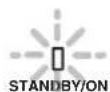
(Green)
Hide Mode
For reducing the power consumption by turning off the laser light source or lowering the current when the [HIDE] button is pressed to hide the image temporarily.
| Setting Description | |
| Off Do not suppress the current supply when the [HIDE] button is pressed to hide the image temporarily. | |
| On Reduces the power consumption by turning off the laser light source when the [HIDE] button is pressed to hide the image temporarily. | |
Software Update
For performing a software update.
For the latest information on the software, refer to https://www3.jvckenwood.com/english/download/.

Information
Page 1
| Setting Description | |
| Input Displays video input terminal. | |
| Status Displays the image output status. | |
| Resolution (DP 1 / DP 2 / DP 3 / DP 4) | Displays the resolution information of signal input to each of the DP 1 to DP 4 terminals. |
| Light Source Time Displays the laser light source time. | |
| Soft Ver. Displays the firmware version. | |
Pages 2 to 5
| Setting Description | |
| DP 1 to DP 4 Displays the terminal | for which the corresponding information is displayed. |
| Resolution | Displays the image resolution. |
| H Frequency | Displays the horizontal frequency. |
| V Frequency | Displays the vertical frequency. |
| Color Depth Displays the color bit | depth of the input video signal.Not displayed when YCbCr (4:2:2) is input.Displayed when Deep Color information is received from the source device. |
| Color Space Displays the Color Space detected by AVI Info frame. | |
| Link Rate Displays the transmission frequency of the input signal. | |
| Lane Count Displays the number of lanes used for the input signal. | |
Maintaining the Cabinet and Remote Control
• Gently wipe off dirt on the cabinet with a soft cloth.
- If it is extremely dirty, wet a cloth in water, wring dry and use it to wipe off the dirt, followed by wiping again with a dry cloth.
- Pay attention to the following as the cabinet may deteriorate in condition or the paint may come off.
- Do not wipe with thinner or benzine
- Do not allow prolonged contact with rubber or plastic products
- Do not spray volatile chemicals such as insecticide
Cleaning and Replacing the Filter
Clean the filter regularly. Using a filter without cleaning may reduce the brightness of the image. Dirt that enters the unit may also appear as shadows on the image.
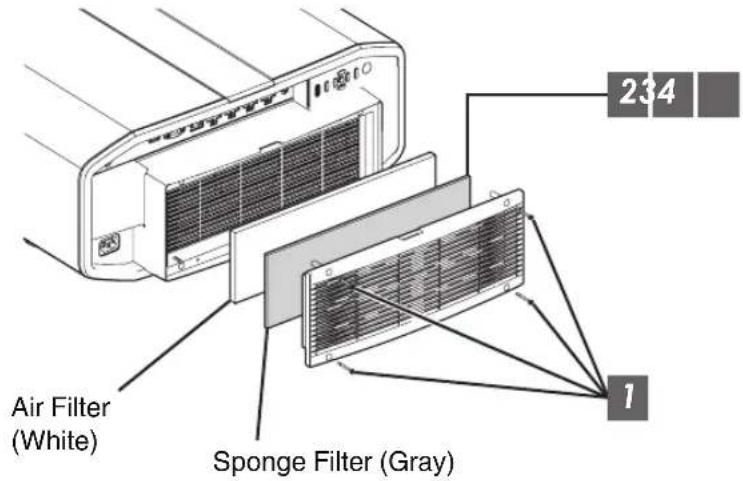
1 Loosen the 4 screws and remove the cover
- The screws cannot be removed from the cover. Do not try to remove the screws from the cover by force.
2 Remove the sponge filter
3 Use a vacuum cleaner to remove dirt from the sponge filter carefully
4 Restore the sponge filter
5 Restore the cover and fasten the 4 screws

CAUTION
- Do not wash the air filter with water. Doing so may cause the filter to deteriorate.
- Make sure to attach the air filter and sponge filter in the correct sequence.

MEMO
- If the air filter or sponge filter is damaged and requires replacement, or if dust gets into the unit, consult your authorized dealer or nearby service center.
• Air filter Product no.: F1K-0062-00 - Sponge filter Product no.: J3K-0049-00
Long-term Storage of the Projector
If projector is to be stored or not powered up from more than 3 month, it is recommended that the projector be stored in a sealed bag with desiccant.

CAUTION
1) If projector is run on a normal cycle weekly or powered on for at least 8 hours every 90 days, no action is required.
2) Desiccant should be changed every year or sooner if exposed to humid environment.
- Desiccant Product no :LC43436-001A
- Sealed bag Product no :LC43435-002A
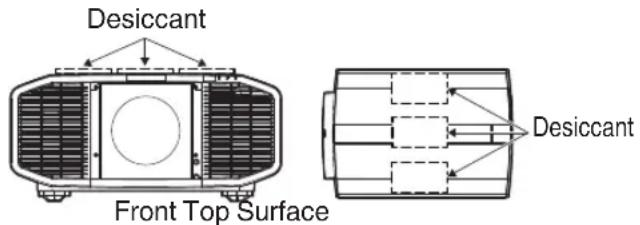
About the Lens
• This projector does not come with a projection lens.
To use the projector, please mount a projection lens according to your requirements.
- When using an optional standard zoom lens or short focus lens, a spacer and shift plate are required. Use the spacer that comes with this unit. The shift plate varies depending on the tilting angle of the lens so please contact our sales representative.
• To use the Shift function, a motorized lens shift unit is required. (Sold separately)
(Optional Extras>
Standard zoom lens (product no.: GL-MZ4014SZ)
Short focus lens (product no.: GL-MZ4009SZ)
Motorized lens shift unit (product no.: PK-MLS01)
Mounting the Lens
When installing the lens using the shift plate, do so according to the following procedures. When using the optional motorized lens shift unit (PK-MLS01), refer to its instruction manual.

CAUTION
- Before attaching the lens, check to make sure that the power of the projector is not turned on and the power cord is not connected. Failure to do so may cause electric shock or injuries.
- When using the projector in an environment where vibration occurs continuously, tighten the mounting screws periodically or apply treatment to the screws for mounting before use to prevent them from loosening.
* The recommended tightening torque for the screws for mounting the lens is 1.47N·m (15kgf·cm).
1 Unscrew the 4 screws using a Phillips screwdriver to remove the front cover
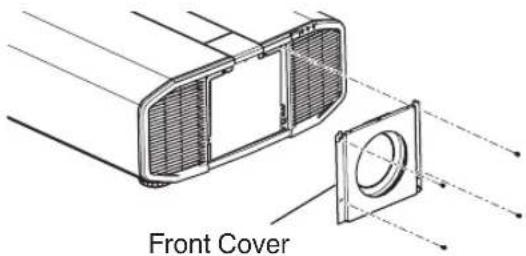
2 Unscrew the screw using a Phillips screwdriver to remove the front plate
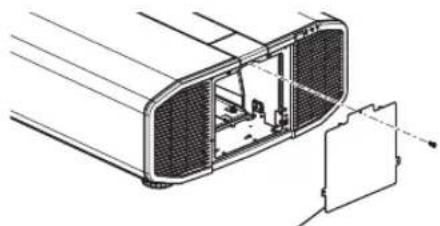
natural_image
Technical line drawing of a mechanical component with internal structure and mounting bracket (no text or symbols)Front Plate
3 Secure the lens spacer to the shift plate using the supplied screws
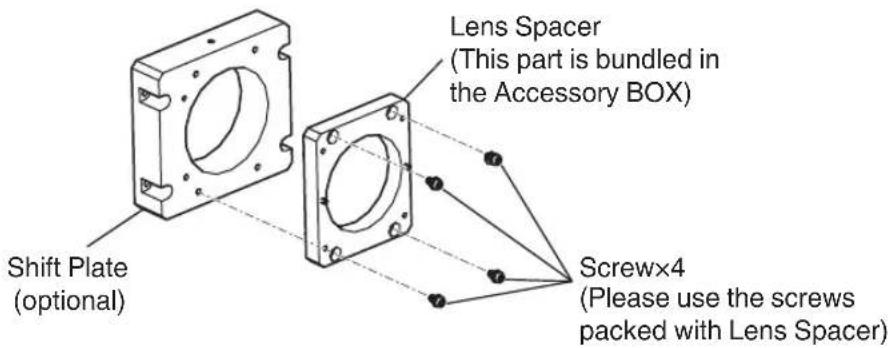
4 Attach the spacer and insert lens
- Attach the Lens Spacer and Shift Plate to the Lens Holder and fasten using the 4 screws packed with Lens Spacer using a Phillips screwdriver.
- Insert the lens with the connector rightward.
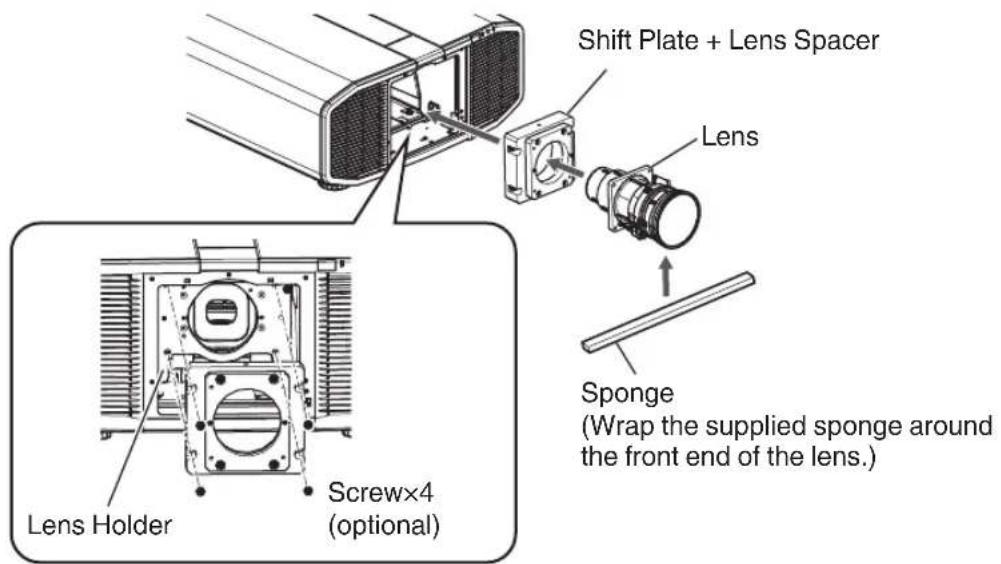
5 Connect the motor cable
- Connect the motor cable (20pin) to lens.
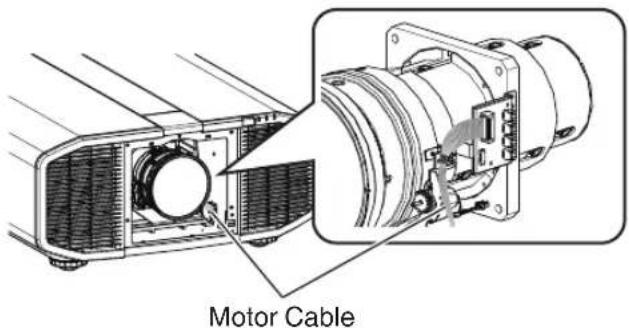

CAUTION
- Keep the cable away from the motor gear when clamping the motor cable.
6 Tighten the 4 screws using the Phillips head screwdriver to fasten the lens
- Use the screws that comes with the lens.
* The recommended tightening torque for the screws for mounting the lens is 1.47N·m (15kgf·cm).
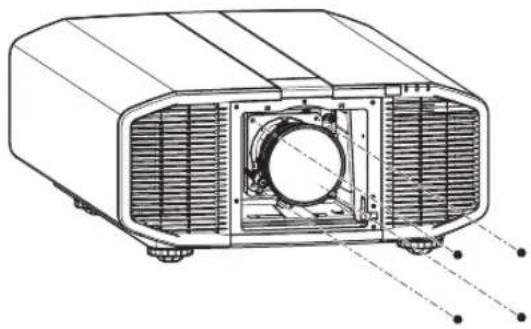
natural_image
Technical line drawing of a cylindrical device with internal components and mounting feet (no text or symbols)7 Clamp the motor cable
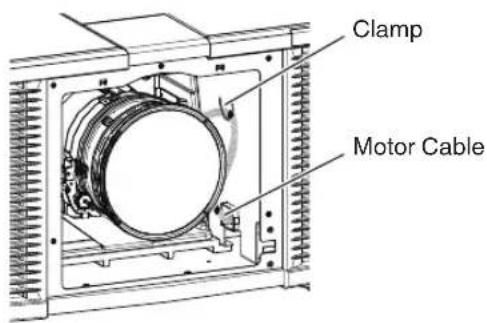
8 Attach the front cover, and fasten using the 4 screws using a Phillips screwdriver
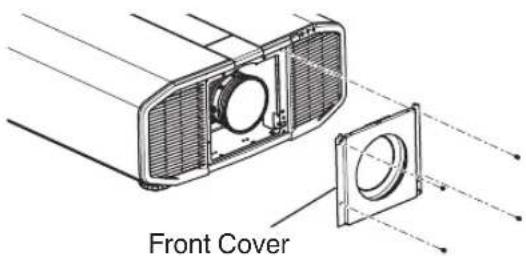
Troubleshooting
Before sending the unit to your authorized dealer for repair, please check the following points.
The following symptoms are not malfunctions.
You do not need to worry about the following symptoms if there is no abnormality on the screen.
- A part of the top or front surface of the unit is hot.
• A creaking sound is heard from the unit. - An operating sound is heard from the inside of the unit.
• Color smear occurs on some screens.
This unit is a digital device. This unit may become unable to operate normally due to external static or noise. Perform the following operations when such malfunctions occur.
① If the unit is in the Standby mode, pull out the power plug, followed by inserting it again
② Press the ⏻/I button on the projector unit to turn on the power again
Power is not supplied
| Check Action Refer to | ||
| Is the power cord disconnected? Insert the power cord (plug) firmly. P. 27 | ||
| Is the unit in the Cool-down mode? After exiting the Cool-down mode, turn on the power again. P. 29 | ||
Power shuts down automatically
| Check Action Refer to | ||
| Has “Off Timer” been configured? Set “Off Timer” to “Off”. P. 52 | ||
| Are the air inlets and exhaust vent blocked? | Leave proper clearance when installing the unit. P. 17, 22 | |
| Is there a large amount of dirt attached to remove the dirt using a vacuum cleaner. P. 56 the sponge filter? | ||
Video image does not appear
| Check Action Refer to | ||
| Is the correct external input selected? Select the correct external input terminal. P. 28 | ||
| Is the power of the AV device or PC turned on? | Turn on the power of the AV device or PC and play the video. | P. 26 |
| Is the AV device or PC properly connected? | Connect the AV device or PC properly. P. 26 | |
| Are the correct signals being output from the AV device or PC? | Set the AV device or PC properly. P. 26 | |
| Is an intermediate device (AV amplifier, divider, etc.) in use? | Change the sequence of turning on the source device, intermediate device and the projector. And after turning on each device, ensure that the signal output is stable before turning on the next device. | P. 26 |
| Is “Display mode” set to “NV” or “NV(e-shift)” VS47NV ? | When “Display mode” is set to “NV” or “NV(e-shift)” VS47NV , a device that can see infrared light is required. Set “Display mode” to a value other than “NV” or “NV(e-shift)” VS47NV . Setting “NV Menu Display” to “On” turns on the laser light source when displaying the menu even when the projector is configured to project only with the IR light source. And if the input terminal is not connected or if there is no signal though the input terminal is connected, “Display mode” will be forcibly switched to “Normal” or “e-shift” VS47NV . | P. 36, P. 51 |
3D images do not appear
| Check Action Refer to | ||
| Is an intermediate device (AV amplifier, divider, etc.) in use? | Connect the source device to the projector directly, and check whether there is any improvement in the condition. If the condition improves, it is likely that this is not caused by malfunction of the projector. | — |
| Is the power of the 3D Glasses turned on? | Check the power of the 3D Glasses. Check the | instruction manual of the 3D Glasses. |
3D video image looks unnatural
| Check Action Refer to | ||
| Are there overlapping video images? If there are overlapping video images partially, this is due to the crosstalk phenomenon.Adjust “Crosstalk Cancel” and “Sync Phase”. | P. 40 |
Video image looks unnatural
Colors are unnatural
| Check Action Refer to | ||
| Is the color space of the input signal correctly set? | The color may turn out unnatural when the input signal is different from that in the projector setting. Set the “Color Space” for “Input Signal” correctly. | P. 40 |
| Is the image correctly adjusted? Adjust “Color” and “Tint” accordingly. P. 39 | ||
| Is the AV device or PC properly connected? | Connect the AV device or PC properly. P. 26 |
* The video image may appear slightly reddish immediately after starting up. This is not a malfunction.
Video image is fuzzy
| Check Action Refer to | ||
| Is the focus correctly adjusted? Adjust the focus. P. 41 | ||
| Is the unit placed too near or too far away from the screen? | Set the unit at a correct distance from the screen. P. 70 | |
Video image flickers
| Check Action Refer to | ||
| Are you viewing the video images under a fluorescent light? | This is caused by interference between the 3D glasses with the flickers of the fluorescent light.View with the fluorescent light turned off. | — |
Projected image is dark
| Check Action Refer to | ||
| Is the laser light source near exhaustion? | Check the laser light source time in the “Information” menIf 20,000 hours have elapsed, the brightness will be half the brightness at shipment. | P. 55 |
| Is the aperture closed? Increase the value of the “Aperture” setting. P. 32 | ||
| Is the value of the “LD Current” setting small? | Increase the value of the “LD Current” setting. P. 38 |
Striped patterns appear on the screen
| Check Action Refer to | ||
| Does the fabric of the screen have a regular pattern? | Interference fringes may sometimes occur between the fabric pattern and the pixels. Please consult the authorized dealer. | — |
Video images are missing
| Check Action Refer to | ||
| Has screen mask been configured? Set | “Mask” to “Off”. P. 46 |
The video images are overlapping
| Check Action Refer to | ||
| Is “Crosstalk Cancel” adjusted? If there are overlapping video images partially, this is due to the crosstalk phenomenon. In this case, adjust “Crosstalk Adjust” accordingly. | P. 38 |
Zoom or focus does not work
| Check Action Refer to | ||
| Is the lens replaced? Depending on the lens position, the lens may not work when it has been replaced.While at the Focus / Zoom adjustment screen, press and hold the ▲ or ▼ key for 2 seconds or longer. Doing so will allow the lens to recover from this condition. | P. 41 |
Remote control does not work
| Check Action Refer to | ||
| Are the batteries correctly loaded? | Match the polarities (⊕⊖) correctly when loading the batteries. | P. 20 |
| Are the batteries exhausted? Replace with new batteries. P. 20 | ||
| Is there an obstructing object between the remote control and remote sensor? | Remove any obstructing object. P. 20 | |
| Is the remote control held too far away from the unit? | Hold the remote control closer to the sensor during use. P. 20 | |
Noise is heard
| Check Action Refer to | ||
| Is the exhaust vent blocked?Is the unit used near a heater or air-conditioner? | Check the installation condition of the projector.When the surrounding temperature of the projector is high,the fan revolution speed increases to protect the projector unit, hence a louder operating sound. | P. 22 |
Unable to connect to LAN terminal
| Check Action Refer to | ||
| Has a network password been configured? VS45NVHB | Configuration of a network password is necessary before connecting to the LAN terminal. Configure the network password. | P. 53 |
There are small black or colored dots on the screen
The D-ILA device is manufactured using high-precision technologies, but there may be some (less than 0.01%) missing pixels or pixels that remain permanently lit. This is not a malfunction.
When the Following Messages Appear...
| Message Description Action | ||
 | No device is connected to the input terminal.The input terminal is connected but there is no signal. | Input the video signals. |
 | A video signal that cannot be used with this unit has been input (the names of input terminals such as “DP 1” will be displayed in yellow). | Input video signals that can be used.(P. 72) |
External Control
It is possible to control this unit by connecting it to a PC using an RS-232C cross cable (D-sub 9-pin).
The projector can be controlled by connecting it to a PC through the computer network with a LAN cable for control commands to be sent to the projector.
→ “Network” (P. 52)
- Please use it after you have gained proper understanding from professional books or consulting the system administrator.
RS-232C Specifications
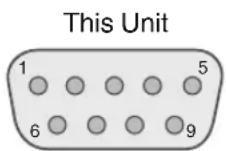
| Pin No. Signal Function Signal Direction | |||
| 2 RxD Receive data PC → | This unit | ||
| 3 TxD Transmission data This unit → PC | |||
| 5 GND Signal ground | — | ||
| 1, 4, 6 - 9 N/C | — | — | |
- PC refers to the controller, such as a personal computer.
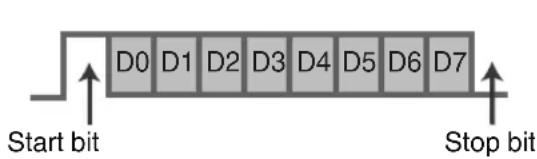
| Mode Non-synchronous | |
| Character length 8 bit | |
| Parity None | |
| Start bit 1 | |
| Stop bit 1 | |
| Data rate 19200 bps | |
| Data format | Binary |
TCP/IP Connection
Before controlling via LAN, it is necessary to establish connection of the TCP layer by a "3-way handshake", followed by sending out "PJREQ" and receiving "PJACK" within five seconds after the projector sends out "PJ_OK" for connection authentication.
If you are unable to complete sending within five seconds, or when "PJ_NG" or "PJNAK" is received, check the operating status of the projector, followed by performing the steps again starting from establishment of a TCP connection.
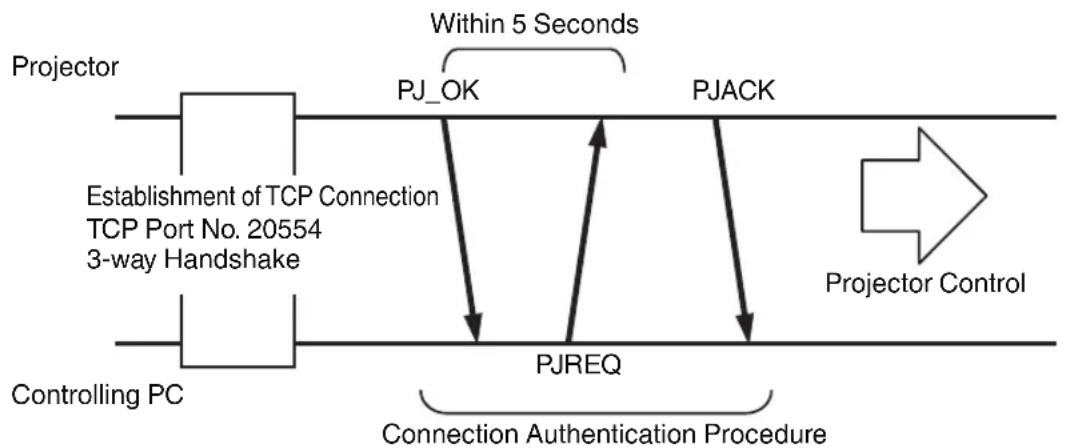
flowchart
graph TD
    A["Projector"] --> B["Establishment of TCP Connection TCP Port No. 20554 3-way Handshake"]
    B --> C["Controlling PC"]
    C --> D["PJ_OK"]
    D --> E["PJREQ"]
    E --> F["PJACK"]
    F --> G["Connection Authentication Procedure"]
    G --> H["Within 5 Seconds"]
    H --> I["Projector Control"]
Command Format
The command between this unit and the computer consists of "Header", "Unit ID", "Command", "Data" and "End".
- Header (1 byte), Unit ID (2 bytes), Command (2 bytes), Data (n bytes), End (1 byte)
Header
This binary code indicates the start of communication.
| Binary Code Type | Description | |
| 21 Operating command | PC → | This unit |
| 3F Reference command | PC → | This unit |
| 40 Response command | This unit → PC | |
| 06 ACK This unit → PC | (returns to PC after the | command is accepted without error) |
Unit ID
This is a code that specifies the unit. The binary code is fixed at "8901".
Command and data
Operating command and data (binary code)
| Command | Type Description | |
| 0000 | Connection check | Check whether communication is enabled between this unit and the PC during standby. |
| 5057 Power supply | During standby31: Turns on the powerWhen power is on30: Turns off the power (Standby mode) | |
| 4950 Input | When power is on38: DP 139: DP 241: DP 342: DP 4 | |
| 5243 Remote control | Sends the same code as the supplied remote control.“Remote Control Code”P. 67 | |
Reference command and data (binary code)
| Command | Type Description | |
| 5057 Power supply | During standby or when power is on30: Standby mode31: When power is on32: In the Cool-down mode34: When error occurs on this unit | |
| 4950 Input | When power is on38: DP 139: DP 241: DP 342: DP 4 | |
End
This code indicates the end of communication. The binary code is fixed at "0A".
Remote Control Code
Binary code is sent during communication.
- The following applies to the case when the remote control code is “A”. In the case of “B”, add “36” to the beginning of the code.
| Remote Control Button Name Binary Code | |
| STAND BY 37 33 30 36 | |
| ON 37 33 30 35 | |
| INPUT 1 37 33 37 30 | |
| INPUT 2 37 33 37 31 | |
| DUAL 37 33 34 44 | |
| INPUT 3 37 33 34 42 | |
| INPUT 4 37 33 34 43 | |
| QUAD 37 33 34 36 | |
| LENS CONTROL 37 33 33 30 | |
| C.M.D. 37 33 38 41 | |
| MOTION ENHANCE 37 33 46 36 | |
| HIDE 37 33 31 44 | |
| ▲ | 37 33 30 31 |
| ▼ | 37 33 30 32 |
| ▶ | 37 33 33 34 |
| ◀ | 37 33 33 36 |
| Remote Control Button Name Binary Code | |
| OK 37 33 32 46 | |
| MENU 37 33 32 45 | |
| BACK 37 33 30 33 | |
| NATURAL 37 33 36 41 | |
| DYNAMIC 37 33 36 42 | |
| NAME EDIT 37 33 46 37 | |
| USER1 | 37 33 36 43 |
| USER2 | 37 33 36 44 |
| USER3 | 37 33 36 45 |
| USER4 | 37 33 43 41 |
| USER5 | 37 33 43 42 |
| USER6 | 37 33 43 43 |
| GAMMA | 37 33 37 35 |
| COLOR TEMP. | 37 33 37 36 |
| LENS AP. | 37 33 32 30 |
| PIC. ADJ. | 37 33 37 32 |
Communications Example
This section shows the communication examples of RS-232C.
Operating command
| Type Command Description | ||
| Connection check PC → This unit: 21 89 01 00 00 0AThis unit → PC: 06 89 01 00 00 0A | Connection check | |
| Power (On) PC → This unit: 21 89 01 50 57 31 0AThis unit → PC: 06 89 01 50 57 0A | When power is turned on from the Standby mode | |
| Power (Off) PC → This unit: 21 89 01 50 57 30 0AThis unit → PC: 06 89 01 50 57 0A | When power is turned off (Standby mode) from power-on mode | |
| Remote control (MENU) | PC → This unit: 21 89 01 52 43 37 33 32 45 0AThis unit → PC: 06 89 01 52 43 0A | When the same operation as pressing the [MENU] button on the remote control is performed |
Reference command
| Type Command Description | ||
| Power (On) PC → | This unit: 3F 89 01 50 57 0AThis unit → PC: 06 89 01 50 57 0AThis unit → PC: 40 89 01 50 57 31 0A | When information on the power-on state is acquired |
| Input (DP 1) PC → This | unit: 3F 89 01 49 50 0AThis unit → PC: 06 89 01 49 50 0AThis unit → PC: 40 89 01 49 50 38 0A | When information on DP 1 input is acquired |
Specifications
| Product Name D-ILA Projector | ||
| Model Name DLA-VS47NV, DLA-VS45NV | ||
| Display Panel/Size D-ILA device *1, 2 | 0.69" 4K D-ILA (4096 x 2160 pixels) x 3 | |
| Light Source Laser diode and IR LED | ||
| Screen Size Approx. 60" to 300" (Aspect ratio of 4096 x 2160) | ||
| Brightness 3000 lm (visible light) | ||
| Projection Distance Refer to P. 70. | ||
| Input Compatibility Signal Refer to P. 72. | ||
| Display Resolution | 8192 x 4320 pixels VS47NV, 4096 x 2160 pixels VS45NV VS45NVHB | |
| Input Terminal DisplayPort Input DisplayPort 1.2a, 20-pin (male) x 4 | ||
| Output Terminal SYNC OUT Mini jack, TTL output x 1 *3 | ||
| Control Terminal | RS-232C Terminal Single, D-sub 9-pin (male) x 1 *4 | |
| Remote Terminal | Stereo mini jack (remote control) x 1 | |
| LAN Terminal | Single, RJ45 jack, 10BASE-T/100BASE-TX x 1 | |
| Service Terminal | SERVICE | Single (USB Type A) x 1 *5 |
| Power Requirements | AC 100 V to 240 V, 50 Hz/60 Hz VS45NV VS47NV AC 120 V to 240 V, 50 Hz/60 Hz VS45NVHB | |
| Power Consumption | 750 W (during standby: 1.5 W *6) | |
| Operation Environment | Temperature: 5°C to 35°C; humidity: 20% to 80%; storage temperature: -10°C to 60°C | |
| Installation Height | Below 6,561 ft (2,000 m) | |
| Dimensions (Width x Height x Depth) | 500 mm x 235 mm x 741 mm (including feet) | |
| Mass | 35 kg | |
| Accessories | Refer to P. 15. | |
*1 D-ILA is the abbreviation for Direct Drive Image Light Amplifier.
*2 D-ILA devices are manufactured using extremely high-precision technology with a pixel effectiveness of 99.99%. Only 0.01% or less of the pixels are either missing or would remain permanently lit.
*3 During 3D playback, the display resolution is 4096 x 2160 pixels.
*4 For synchronizing with other equipment.
*5 For external control.
*6 Exclusively for firmware update.
*7 The power consumption of this product during networked standby when all wired network ports are connected is 1.5 W.
- Design and specifications are subject to change without prior notice.
- Please note that some of the pictures and illustrations may have been abridged, enlarged or contextualized in order to aid comprehension. Images may differ from the actual product.
Screen Size and Projection Distance
GL-MZ4009Z
| Screen Size Diagonal (Inch) | Projection Distance (m) | |||
| 17:9 Screen 16:9 Screen | ||||
| Wide-end Tele-end Wide-end Tele-end | ||||
| 60 1.22 1.74 1.29 1.83 | ||||
| 70 1.44 2.04 1.52 2.15 | ||||
| 80 1.65 2.34 1.74 2.47 | ||||
| 90 1.87 2.65 1.97 2.78 | ||||
| 100 2.08 2.95 2.19 3.10 | ||||
| 110 2.30 3.25 2.42 3.42 | ||||
| 120 2.52 3.55 2.65 3.74 | ||||
| 130 2.73 3.85 2.87 4.05 | ||||
| 140 2.95 4.15 3.10 4.37 | ||||
| 150 3.16 4.46 3.33 4.69 | ||||
| 160 3.38 4.76 3.55 5.00 | ||||
| 170 3.59 5.06 3.78 5.32 | ||||
| 180 3.81 5.36 4.01 5.64 | ||||
| 190 4.02 5.66 4.23 5.95 | ||||
| 200 4.24 5.96 4.46 6.27 | ||||
| 210 4.45 6.26 4.69 6.59 | ||||
| 220 4.67 6.57 4.91 6.90 | ||||
| 230 4.88 6.87 5.14 7.22 | ||||
| 240 5.10 7.17 5.36 7.54 | ||||
| 250 5.32 7.47 5.59 7.85 | ||||
| 260 5.53 7.77 5.82 8.17 | ||||
| 270 5.75 8.07 6.04 8.49 | ||||
| 280 5.96 8.37 6.27 8.81 | ||||
| 290 6.18 8.68 -- | ||||
| 300 6.39 8.98 -- | ||||
GL-MZ4014Z
| Screen Size Diagonal (Inch) | Projection Distance (m) | |||
| 17:9 Screen 16:9 Screen | ||||
| Wide-end Tele-end Wide-end Tele-end | ||||
| 60 1.66 3.43 1.75 3.61 | ||||
| 70 1.96 4.02 2.06 4.23 | ||||
| 80 2.25 4.60 2.37 4.84 | ||||
| 90 2.54 5.19 2.67 5.46 | ||||
| 100 2.83 5.77 2.98 6.07 | ||||
| 110 3.12 6.36 3.28 6.69 | ||||
| 120 3.41 6.94 3.59 7.30 | ||||
| 130 3.70 7.53 3.90 7.92 | ||||
| 140 3.99 8.11 4.20 8.53 | ||||
| 150 4.28 8.70 4.51 9.15 | ||||
| 160 4.58 9.28 4.81 9.76 | ||||
| 170 4.87 9.87 5.12 10.38 | ||||
| 180 5.16 10.45 5.43 10.99 | ||||
| 190 5.45 11.04 5.73 11.61 | ||||
| 200 5.74 11.62 6.04 12.22 | ||||
| 210 6.03 12.21 6.34 12.84 | ||||
| 220 6.32 12.79 6.65 13.45 | ||||
| 230 6.61 13.38 6.95 14.07 | ||||
| 240 6.90 13.96 7.26 14.68 | ||||
| 250 7.19 14.55 7.57 15.30 | ||||
| 260 7.49 15.13 7.87 15.91 | ||||
| 270 7.78 15.72 8.18 16.53 | ||||
| 280 8.07 16.31 8.48 17.14 | ||||
| 290 8.36 16.89 - - | ||||
| 300 8.65 17.48 - - | ||||
Types of Possible Input Signals
Single - DP1 - DP4
| Original Input Signal | ||||||||||
| Designation | Resolution | Projector Terminal for Connection | Resolution fn [kHz] fv [Hz] | dot CLK [MHz] | Total No. of Dots [dot] | Total No. of Lines [line] | No. of Effective Dots [dot] | No. of Effective Lines [line] | ||
| VGA 640 x 480 | [DP 1]/[DP 2]/[DP 3]/[DP 4] | 640 x 480 31 | .469 59.94 | 0 25.18 800 | 525 640 480 | |||||
| 1080p 1920 | x 1080 1920 | 0 50.000 148 | .50 2640 1 | 125 1920 1080 | ||||||
| 67.433 59 | 940 148.35 | 2200 1125 | 1920 1080 | |||||||
| 67.500 60 | 000 148.50 | 2200 1125 | 1920 1080 | |||||||
| 2K 2048 x 1080 | 2048 x 1080 | 56.250 50 | 0.000 148.50 | 2640 1125 | 2048 1080 | |||||
| 67.433 59 | 940 148.35 | 2200 1125 | 2048 1080 | |||||||
| 67.500 60 | 000 148.50 | 2200 1125 | 2048 1080 | |||||||
| UXGA 1600 | x 1200 1600 | x 1200 75.00 | 0 60.000 162 | .00 2160 1 | 250 1600 1200 | |||||
| WUXGA 1920 | x 1200 1920 | x 1200 74. | 556 59.885 1 | 93.25 2592 | 1245 1920 1200 | |||||
| QXGA | 2048 x 1536 | 2048 x 1536 | 95.446 59.95 | 54 267.25 2 | 800 1592 2048 1536 | |||||
| WQXGA 2560 | x 1600 2560 | x 1600 99. | 458 59.987 3 | 48.50 3504 | 1658 2560 1600 | |||||
| 4K 3840 x 2160 | 3840 x 2160 | 60 53.946 23 | 3.976 296.70 | 5500 2250 | 3840 2160 | |||||
| 54.000 24 | 000 297.00 | 5500 2250 | 3840 2160 | |||||||
| 56.250 25 | 000 297.00 | 5280 2250 | 3840 2160 | |||||||
| 67.433 29 | 970 296.70 | 4400 2250 | 3840 2160 | |||||||
| 67.500 30 | 000 297.00 | 4400 2250 | 3840 2160 | |||||||
| 112.500 50 | 0.000 594.00 | 5280 2250 | 3840 2160 | |||||||
| 134.865 59 | 9.940 593.41 | 4400 2250 | 3840 2160 | |||||||
| 135.000 60 | 0.000 594.00 | 4400 2250 | 3840 2160 | |||||||
| 4096 x 2160 | 4096 x 2160 | 53.946 23.97 | 76 296.70 | 500 2250 4096 2160 | ||||||
| 54.000 24 | 000 297.00 | 5500 2250 | 4096 2160 | |||||||
| 56.250 25 | 000 297.00 | 5280 2250 | 4096 2160 | |||||||
| 67.433 29 | 970 296.70 | 4400 2250 | 4096 2160 | |||||||
| 67.500 30 | 000 297.00 | 4400 2250 | 4096 2160 | |||||||
| 112.500 50 | 0.000 594.00 | 5280 2250 | 4096 2160 | |||||||
| 134.865 59 | 9.940 593.41 | 4400 2250 | 4096 2160 | |||||||
| 135.000 60 | 0.000 594.00 | 4400 2250 | 4096 2160 | |||||||
* For WQXGA, the display is dot-by-dot.
Dual - stripes
| Original Input Signal | ||||||||||
| Designation | Resolution | Projector Terminal for Connection | Resolution fh [kHz] fv [Hz] | dot CLK [MHz] | Total No. of Dots [dot] | Total No. of Lines [line] | No. of Effective Dots [dot] | No. of Effective Lines [line] | ||
| WQXGA 2560 x 1600 [DP 1], [DP 3] | 160 135.0002048 x 2160 | 1280 x 1600 | 99.458 59.198 973 348 | 1752 1658 | 1280 1600 | |||||
| 198.916 11 | 50 1752 16 | 58 1280 16 | 00 | |||||||
| 4K 3840 x 2160 1920 x 2 | 60.000 297.00 | 0 2200 225 | 0 1920 216 | 0 | ||||||
| 270.000 12 | 00 2200 22 | 50 1920 21 | 60 | |||||||
| 112.500 50.00 | 000 297.00 | 2640 2250 | 2048 2160 | |||||||
| 135.000 60 | 0 2200 225 | 0 2048 216 | 0 | |||||||
| 270.000 12 | 00 2200 22 | 50 2048 21 | 60 | |||||||
![H H/2 H/2 Same for all frames V [DP 1] [DP 3]](/content/2026/05/820685/images/014bd67d840200660f259972b197a5352af5e6ae6ff2f262c6253e35fbf01826.jpg)
Dual - frame sequential
| Original Input Signal | ||||||||||
| Designation | Resolution | Projector Terminal for Connection | Resolution fn [kHz] fv [Hz] | dot CLK [MHz] | Total No. of Dots [dot] | Total No. of Lines [line] | No. of Effective Dots [dot] | No. of Effective Lines [line] | ||
| WQXGA 2560 x 1600 | [DP 1], [DP 3] | 2560 x 1600 | 99.46 59.9 | 9 348.5 350 | 4 1658 2560 | 1600 | ||||
| 4K 3840 x 2160 x 2160 | 60 3840 x 2160 | 94 593.4 44096 x 2160 | 00 2250 3840 | 2160 | ||||||
| 135.00 60.00 | 594.0 4400 | 2250 3840 | 2160 | |||||||
| 4096 x 2160 | 112.50 50.00 | 594.0 5280 | 2250 4096 | 2160 | ||||||
| 134.87 59.94 | 593.4 4400 | 2250 4096 | 2160 | |||||||
| 135.00 60.00 | 594.0 4400 | 2250 4096 | 2160 | |||||||
![Odd number frame display V H [DP 1]](/content/2026/05/820685/images/8d4a9af74bf1aeb8c36ae63f23b76da28ab47c23d856f7b8fbb16b031421f709.jpg)
![Time direction ⇒ 60 Hz [DP 1] F1 F3 F5 ... [DP 3] F2 F4 F6 ... Output F1 F2 F3 F4 F5 F6 ... 120 Hz](/content/2026/05/820685/images/dc39bd0dc01d207027b0bdc37b7843918ac8a5bb417eeb8477a231c43b69136a.jpg)
![Even number frame display V [H] [DP 3]](/content/2026/05/820685/images/bd025d63515f0f42deaa5e921c74f36538901964712fe861e0db0e6b93fc4909.jpg)
Quad - stripes
| Original Input Signal | ||||||||||
| Designation | Resolution | Projector Terminal for Connection | Resolution fn [kHz] fv [Hz] | dot CLK [MHz] | Total No. of Dots [dot] | Total No. of Lines [line] | No. of Effective Dots [dot] | No. of Effective Lines [line] | ||
| 4K 3840 x 2160 | [DP 1], | [DP 2], [DP 3], [DP 4] x 2160 | 960 x 2160 | 35.000 60.000 148.50 | 1100 2250 | 960 2160 | ||||
| 270.000 120.000 297 | 00 1100 2250 | 960 2160 | ||||||||
| 4096 x 2160 | 135.000 60.000 148.50 | 1100 2250 | 1024 2160 | |||||||
| 270.000 120.000 297 | 00 1100 2250 | 1024 2160 | ||||||||
![H H/4 H/4 H/4 H/4 Same for all frames V [DP 1] [DP 2] [DP 3] [DP 4]](/content/2026/05/820685/images/8ca5bfb2519593e741a1aa74852801f6e0aed9d4f0f36e774e2b4ef4cde07a60.jpg)
Quad - cross
| Original Input Signal | ||||||||||
| Designation | Resolution | Projector Terminal for Connection | Resolution fn [kHz] fv [Hz] | dot CLK [MHz] | Total No. of Dots [dot] | Total No. of Lines [line] | No. of Effective Dots [dot] | No. of Effective Lines [line] | ||
| 4K 3840 x 21 | 60 [DP 1], | [DP 2], [DP 3], [DP 4] | 1920 x 1080 | 67.500 60.000 | 148.50 | 2200 1125 | 1920 1080 | |||
| 135.000 120.000 | 297 | 00 2200 11 | 25 1920 1080 | |||||||
| 4096 x 2160 | 67.500 60.000 | 148.50 | 2200 1125 | 2048 1080 | ||||||
| 135.000 120.000 | 297 | 00 2200 11 | 25 2048 1080 | |||||||
![H H/2 H/2 Same for all frames V V/2 [DP 1] [DP 2] V/2 [DP 3] [DP 4]](/content/2026/05/820685/images/2efe6541de1031e4ae3a1b17488116b63afcfbb6841ccb995cd2d83759c19d4d.jpg)
Quad - frame sequential
| Original Input Signal | ||||||||||
| Designation | Resolution | Projector Terminal for Connection | Resolution | fh [kHz] fv [Hz] | dot CLK [MHz] | Total No. of Dots [dot] | Total No. of Lines [line] | No. of Effective Dots [dot] | No. of Effective Lines [line] | |
| 4K 3840 x 2160 | [DP 1], | [DP 2],2048 x 2160 | 1920 x 2160 | 135.000 60.000 297.00 | 0 2200 2250 | 1920 2160 | ||||
| 4096 x 2160 | [DP 3],[DP 4] | 135.000 60.000 297.00 | 2200 2250 | 2048 2160 | ||||||
![Odd number frame display V H H/2 H/2 [DP 1] [DP 3]](/content/2026/05/820685/images/bf170cea3c282b2b8427f45879089a32c604128b4f4649b604c95af2936b707f.jpg)
![Time direction ⇒ 60 Hz [DP 1] F1 (L) F3 (L) F5 (L) ... [DP 3] F1 (R) F3 (R) F5 (R) ... [DP 2] F2 (L) F4 (L) F6 (L) ... [DP 4] F2 (R) F4 (R) F6 (R) ... Output F1 F2 F3 F4 F5 F6 ... 120 Hz](/content/2026/05/820685/images/079b66996158fec55bed133399188a5937900dd24f088839da22d2a4f3ad5bea.jpg)
![Even number frame display V H H/2 H/2 [H] [DP 2] [DP 4]](/content/2026/05/820685/images/76c446db683757913bf54a3f98e33eea17e88dba3e755b35a167e6ee96b3c70e.jpg)
Indicator Display on the Main Unit
Meaning of the front panel indicators

The indicator lights up.

The indicator appears blinking.
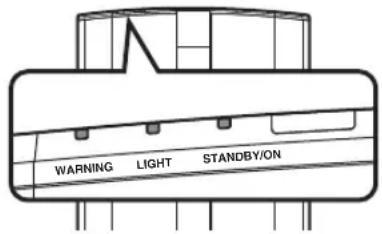
Operation mode display
Displays using the different colors and solid/blinking light of the indicator on the projector unit.
"STANDBY/ON" lights up (red)
- In standby state
"STANDBY/ON" lights up (green)
- During startup


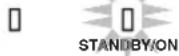
"STANDBY/ON" blinking (red)
• In the Cool-down mode
"STANDBY/ON" blinking (green)
- When the video image is temporarily hidden (HIDE is on) *


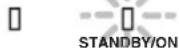
* "LIGHT" indicator does not blinking when "LED Indication" is set to "Off".
Estimated timing for replacing laser light source and IR light source
The "LIGHT" indicator lights up when the time to replace the laser light source or IR light source is near.
* "LIGHT" indicator does not light up when "LED Indication" is set to "Off".
"LIGHT" lights up (orange)
- Lights up when the “LD Current” gauge reaches 95 and above. (When the “Auto Intensity” function is “On”.)

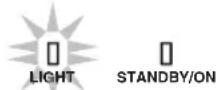
Warning display
You can tell the details of a warning from the (repeated) displays of the "WARNING" and "LIGHT" indicators. The "STANDBY/ON" indicator will light up or appear blinking according to the operation mode of the projector unit. (Please refer to "Operation mode display" P. 77".)
The Warning mode is activated once the message is displayed. Projection is interrupted, and the cooling fan is turned on for about 10 seconds.
The power cannot be turned on again while cooling is in progress. Check the following after cooling is complete.
| Indicator Status | Blinking Frequency | Description Check and | Countermeasure | ||
| WARNING LIGHT | STANDBY/ON | ||||
 (Red) (Red) | [Y2KW] | 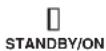 Mode Display Mode Display | x2 Cooling fan stopped abnormally | Check that nothing is blocking the air inlets.Check that the external temperature is normal. Countermeasure: Leave the unit unoperated until it cools down. After that, turn on the power again. | |
| x3 Internal temperature is abnormally high | |||||
| x4 External temperature is too high | |||||
 (Red) (Red) | 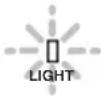 (Orange) (Orange) | [20X6]Mode Display | x1 DD board occurs error | ||
| x2 Motor board occurs error | |||||
| x3 CPU board occurs error | |||||
| x4 Power board occurs error | |||||
 (Red) (Red) |  (Orange) (Orange) | [07Y6]Mode Display | x1 LD Driver occurs error | ||
| x3 Color sensor occurs error | |||||
| x4 When the safety switch is activated | Request for repair at your authorized dealer or a nearby service center. | ||||
 | [CTSW] |  (Green) (Green) | x3 The remote control code differs between this unit and the remote control | Set the remote control code for this unit and the remote control correctly.(P. 53) | |
If the Warning mode is activated again, wait for the cooling fan to stop, followed by pulling out the power plug from the outlet.
Request for repair at your authorized dealer or a nearby service center.
Dimensions
(Unit: mm)
Top Surface
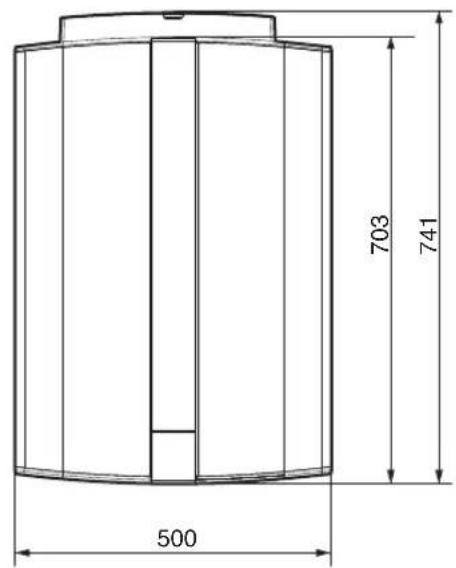
Bottom Surface
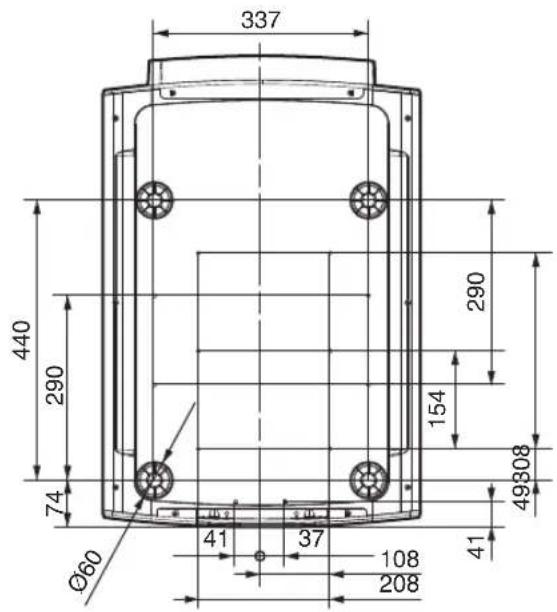
Front
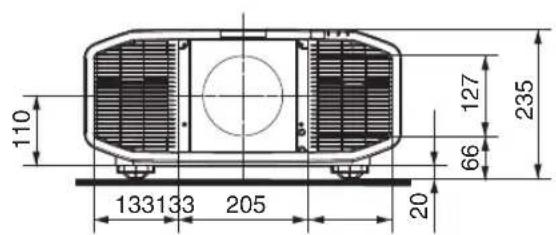
Rear Surface
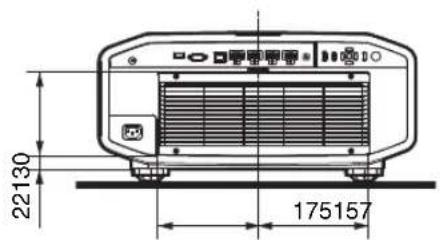
Index
A Accessories....15
Adjust (Auto Geometry Stabilizer)....49
Adjust (Distortion Correction)....46
Adjust (Fine) 42
Adjust (Pixel Adjust)......42
Adjust (Pixel) 42
Adjust Area (Pixel Adjust).... 42
Adjust Color (Pixel Adjust).... 42
Adjust Pattern (Auto Geometry Stabilizer)......49
Adjust Pattern (Distortion Correction)...... 46
Adjust Pattern (Pixel Adjust)...... 42
Adjust Pattern Color (Distortion Correction)...... 46
Adjust Pattern Color (Pixel Adjust)...... 42
Adjusting the Position.... 25
Adjustments and Settings in the Menu....30
Aperture....32
Auto Geometry Stabilizer 49
Axis Position (Color Management)....33
B Back Color.... 51
Black Level.... 48
Blur Reduction.... 39
Bright Level (Gamma)....35
Brightness....39
Brightness (Color Management).... 33
C Channel Hide.... 40
Cleaning and Replacing the Filter.... 56
Clear Motion Drive 39
Color.... 39
Color Depth (Information).... 55
Color Management.... 33
Color Selection (Color Management)....33
Color Selection (Gamma).... 35
Color Space (Information)....55
Color Space (Input Signal).... 40
Color Temp.... 34
Connecting the Projector.... 26
Contrast.... 39
Controls and Features.... 16
Correction Value (Color Temp.) 34
Crosstalk Adjust....38
D Dark Level (Gamma)....35
Default Gateway.... 52
DHCP Client 52
Dimensions....79
Display Mode....36
Display Setup....51
Distortion Correction.... 46
Hue (Color Management).... 33
I Image Pattern.... 41
Information....55
Input (Information)....55
Input Level.... 40
Input Signal....40
Input Terminal.... 18
Installation....41
Installation Style....48
Installing the Projector....22
IP Address 52
IR Current.... 38
IR Enhance Mode.... 37
IR Gamma....35
L LAN Terminal.... 18, 26, 65
Lane Count (Information).... 55
LD Current 38
LD Power.... 38
LED Indication....49
Lens.... 16,58
Lens Control.... 41
Lens spacer.... 15
Light Source Ctrl.... 38
Light Source Time (Information)....55
Link Rate (Information)....55
List of Menu Items....30
Logo....51
Long-term Storage of the Projector.... 57
M MAC Address 52
Maintaining the Cabinet and Remote Control..... 56
Maintenance.... 56
Mask.... 46
Menu....21
Menu Position....51
Mode (Auto Geometry Stabilizer)....49
Motion Enhance....39
Mounting the Lens.... 58
N Network....52
NV Menu Display.... 51
O Off Timer....52
Offset Blue....34
Offset Green.... 34
Offset Red....34
P Picture Adjust....32
Picture Mode....32
Picture Tone (Gamma)....35
Pixel Adjust.... 42
Point 1 to 4....49
Polarity....40
Position Select 48
Power Cord....27
Precautions during Installation.... 22
Projection Distance....70
R Remote Code....53
Remote Control....19
Resolution (Information)......55
RS-232C Terminal.... 18, 27, 65
S Safety Precautions....2
Saturation (Color Management)....33
Screen Size and Projection Distance....70
Screw....15
Securing (Mounting) the Projector.... 23
Securing the Projector (Ceiling Mount).... 24
Securing the projector (directly mount).... 23
SERVICE Terminal.... 18
Sharpness....32
Shift....41
Signal Display.... 51
Soft Ver. (Information)....55
Software Update.... 54
Specifications.... 69
Sponge....15
Start/End....48
Status (Information).... 55
Subnet Mask....52
Sync Out.... 52
Sync Phase....40
T Tint....39
Troubleshooting....61
Types of Possible Input Signals.... 72
U User Name Edit....32
V V Frequency (Information)...... 55
Viewing Videos.... 28
W When the Following Messages Appear....64
Whole Adjust (Fine).... 44
Whole Adjust (Pixel)......43
Z Zone Adjust....45
Zoom.... 41
Alphanumeric
3D Setting.... 40