
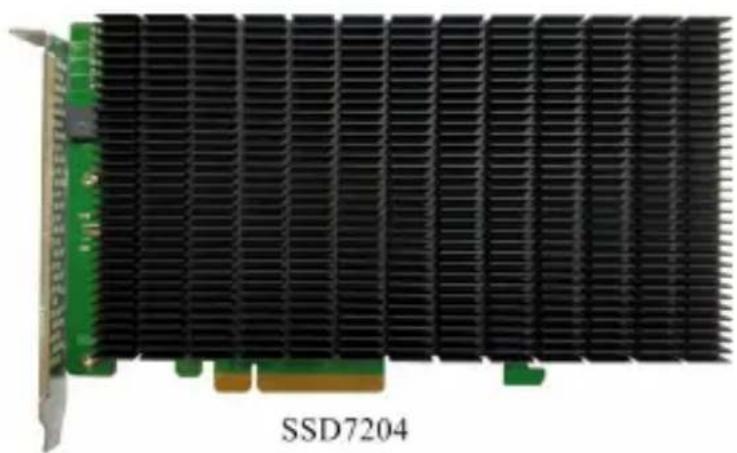
SSD7204 - Regulator Highpoint - Free user manual and instructions
Find the device manual for free SSD7204 Highpoint in PDF.


| Product Type | NVMe RAID Controller |
| Model | SSD7204 |
| Host Interface | PCIe 3.0 x16 |
| Supported SSDs | 4 x M.2 NVMe (2242, 2260, 2280, 22110) |
| RAID Levels | 0, 1, 5, 10 (typical; refer to user guide) |
| Supported Operating Systems | Windows 10/2016/2019, Linux (kernel 3.10+), macOS 10.13+ |
| Form Factor | Full-height PCIe add-in card |
| Dimensions (approx.) | 168 mm x 68 mm (typical PCIe card) |
| Cooling | Passive heatsink with thermal pad; requires system airflow |
| Power Consumption | ~15-25 W (typical depending on SSDs) |
| Operating Temperature | 0°C to 55°C (ambient) |
| Storage Temperature | -20°C to 70°C |
| Regulatory Certifications | CE, FCC, RoHS (typical) |
| Main Functions | Hardware RAID controller for NVMe SSDs, supports bootable arrays (with UEFI), management via WebGUI |
| Installation Requirement | PCIe 3.0 x16 slot, UEFI-compatible motherboard, clean M.2 SSDs |
| Package Contents | SSD7204 controller card, Quick Installation Guide |
| Warranty | 3 years (typical; check manufacturer) |
| Maintenance | Keep heatsink and fan (if any) clean from dust; ensure thermal pad contact |
| Spare Parts | Contact HighPoint support for replacement heatsink or thermal pad |
Frequently Asked Questions - SSD7204 Highpoint
User questions about SSD7204 Highpoint
0 question about this device. Answer the ones you know or ask your own.
Ask a new question about this device
Download the instructions for your Regulator in PDF format for free! Find your manual SSD7204 - Highpoint and take your electronic device back in hand. On this page are published all the documents necessary for the use of your device. SSD7204 by Highpoint.
USER MANUAL SSD7204 Highpoint
Quick Installation Guide
V1.04
SSD7104/SSD7204 Quick Installation Guide (QIG)
This guide includes hardware descriptions of the SSD7104 and SSD7204 NVMe RAID controllers, explains how to safely install NVMe SSD's into each card, and provides a series of Resource for additional installation guides, compatibility lists and software updates.
SSD7104 Kit Content
- SSD7104 Controller Card
- Quick Installation Guide
SSD7204 Kit Content
- SSD7204 Controller Card
- Quick Installation Guide
Data RAID Prerequisites
Data arrays are used exclusively for storage – they cannot be 1 boot a system.
- You must have at least one NVMe SSD installed into SSD7104/SSD7204 controller.
- The SSD7104 must be installed into a PCIe 3.0 and 4 lanes.
-
The SSD7204 must be installed into a PCIe 3.0 and 4 x16 lanes.
-
Operating system:
-
Windows 10 / Windows 2016 / Windows 2019
• A Linux Distribution with Kernel 3.10 and later
• macOS 10.13 and later -
A motherboard that can support UEFI modes. Please check the SSD7104 Compatibility List and SSD7204 Compatibi List for recommended motherboards.
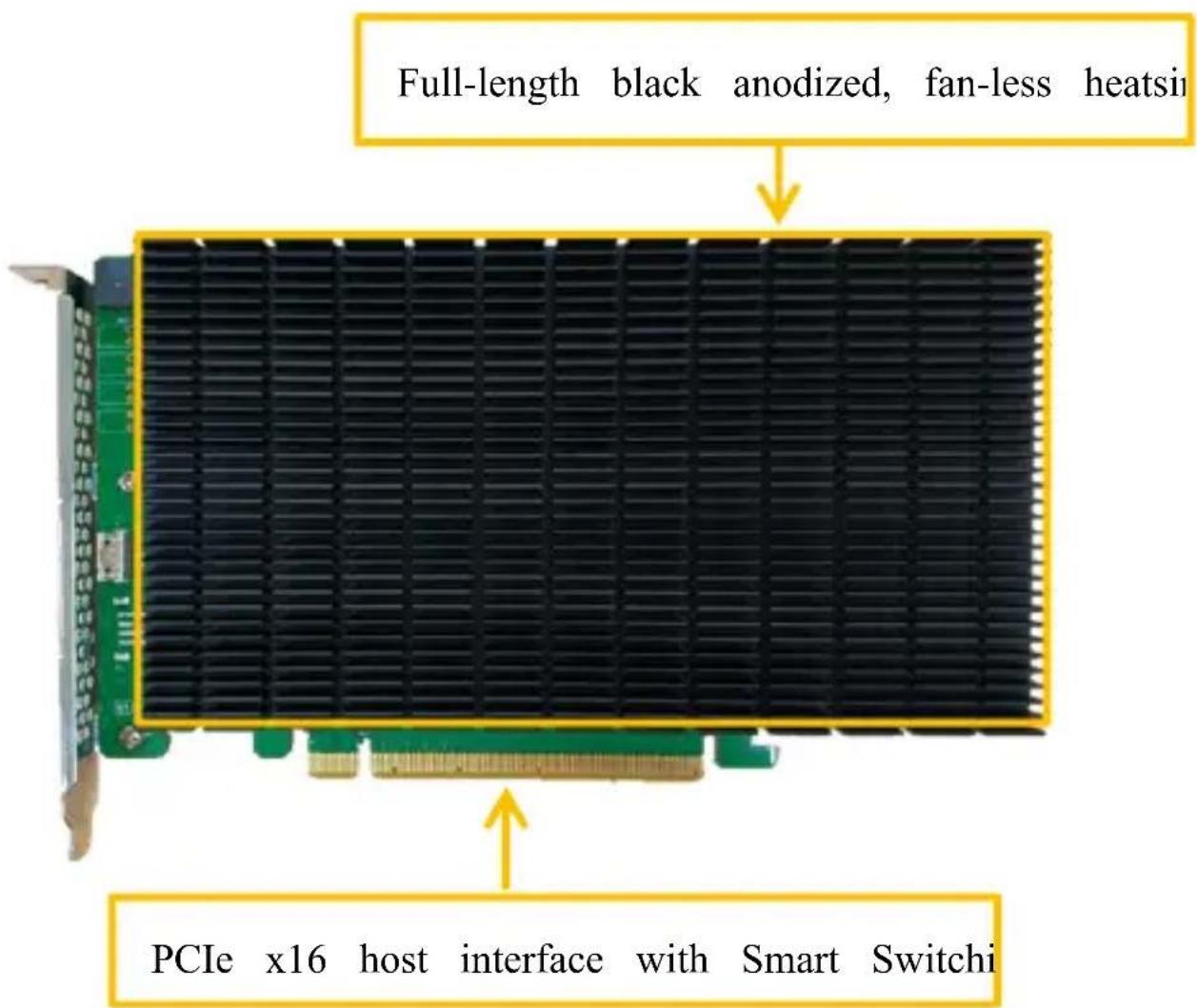
SSD7104 Hardware
Front View
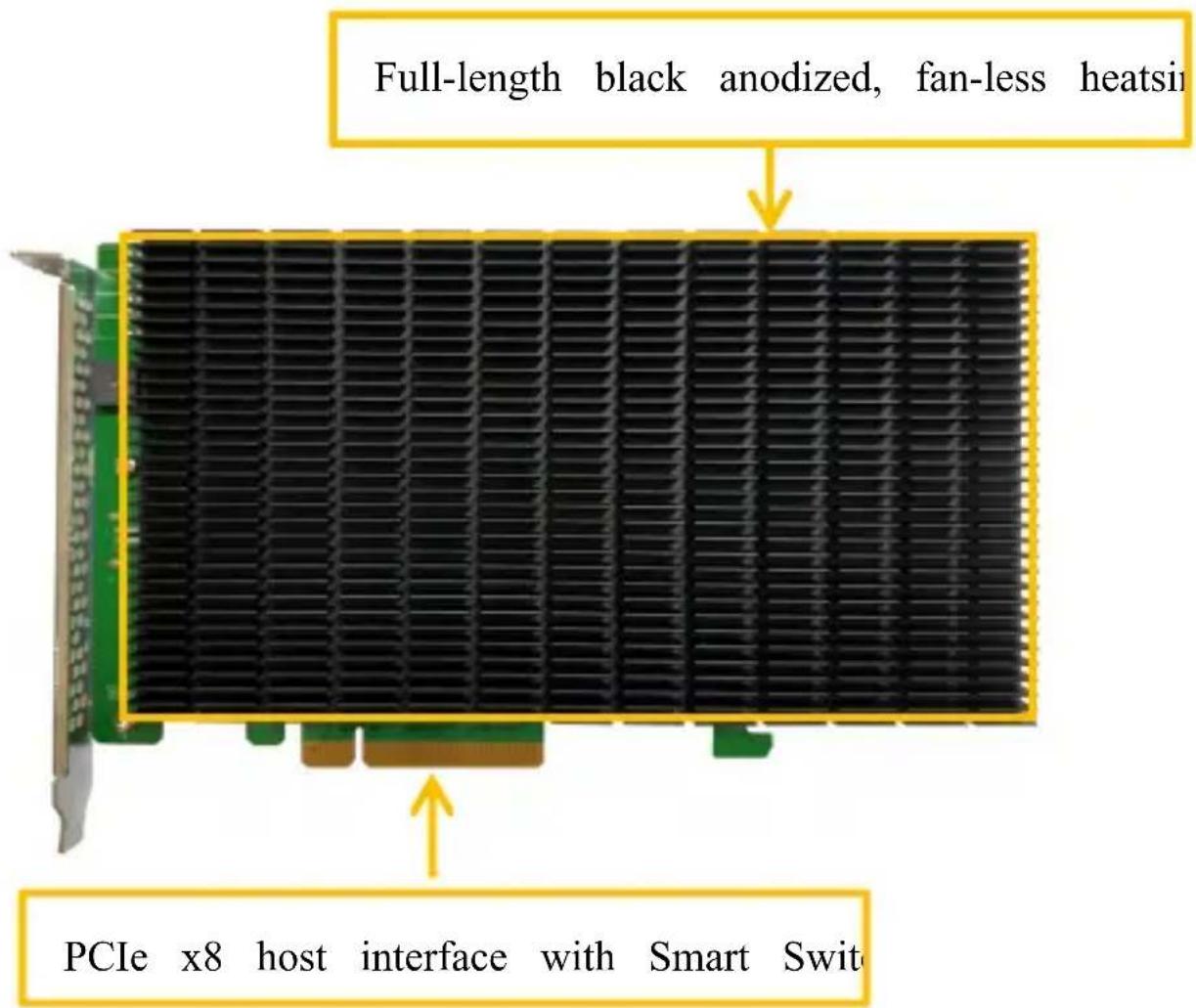
SSD7204 Hardware
Front View
NVMe Drive Installation:
Take SSD7204 as an example:
Step 1. On the rear of the SSD7204, remove the six screws that the unit's heat sink to the PCB.
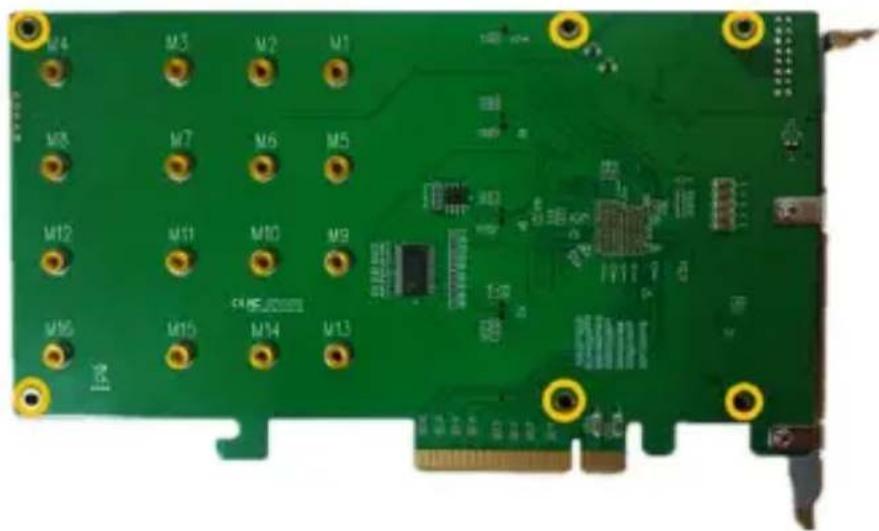
After removing the screws, carefully remove the heat sink f SSD7204.
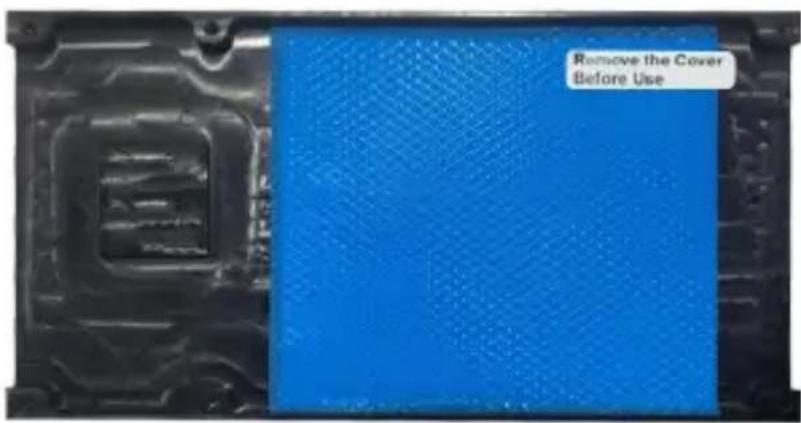
Step 2. After removing the casing, carefully turn it over to vie thermal pad. The blue film must be removed from the pad before reinstalling the panel. This film protects the pad from damage a foreign objects prior to installation, however, it can also prevent thermal pad form conducting the heat away from the NVMe SS we don't remove it.
Step 3. These 4 screws are used to install the NVMe SSD's.
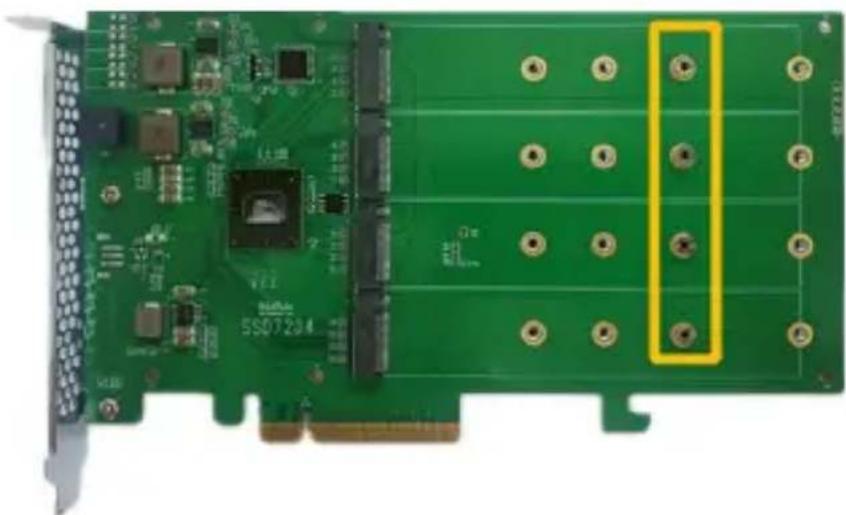
The SSD7204 can support any M.2 form factor (2242, 226 and 22110).
Step 4. Please remove the screws on the right side of SSD720.
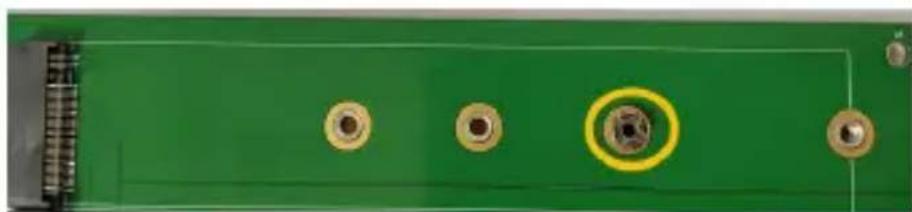
Step 5. Gently insert the SSD into the slot.
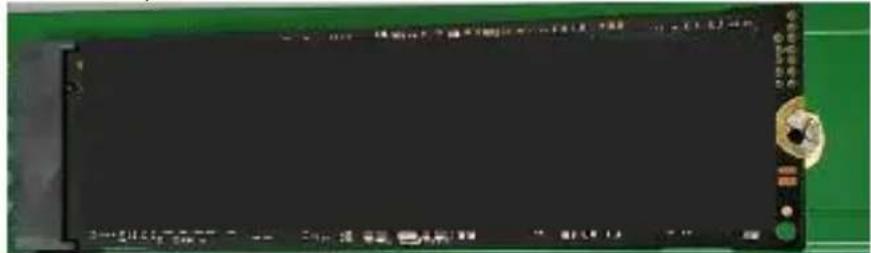
Note: Please make sure all disks are clean before you ins into the slot to avoid unexpected situations.
Step 6. Refasten the screw to secure the SSD.
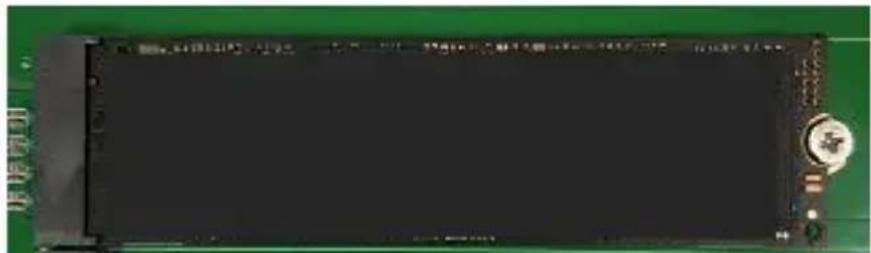
Repeat Steps 4 to 6 to install the remaining SSD.
Note: Make sure the SSD's are carefully, but securely insta each M.2 port. Loose connections can cause a variety of s and performance issues, and may ultimately result in data l
The following example shows four M.2 SSDs installed into Ports:
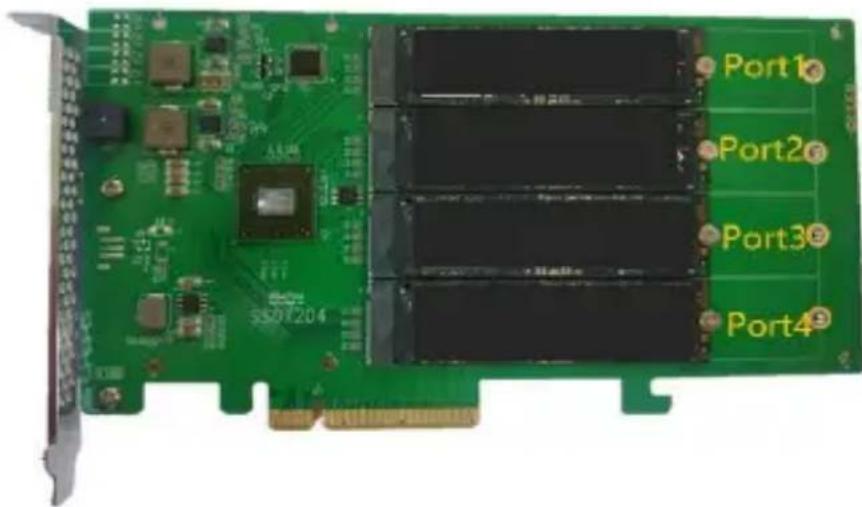
Step 7. Replace the heat sink after installing all SSDs Step 8. On the rear of the SSD7204, refasten the six screws t removed in step 1.
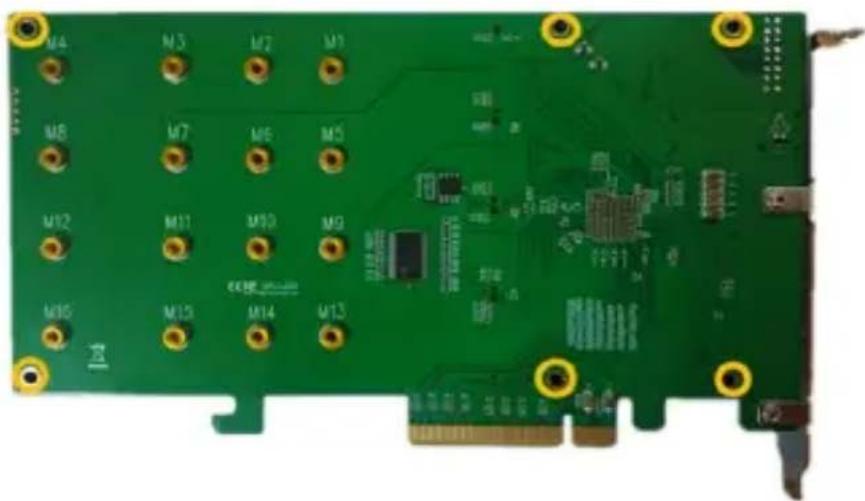
Note: Make sure the aluminum cover is properly aligned with the controller board (PCB), and that it makes full contact with the pad, before refastening it to the SSD7204. If the cover is improved installed, the fan and thermal pad will be unable to sufficiently NVMe SSD's and controller componentry, which may result in data to the SSD's or controller hardware, performance loss, unstable and the loss of data.
Note: Please be sure to connect NVMe before using the product reduce the occurrence of unnecessary errors!
Note: Install the driver in the system first and then install the
Resources
A variety of manuals, guides and FAQ's are available for the /SSD7204 RAID controller.
In addition, we recommend visiting the Software Downloads web for the latest drivers, management interfaces, and installation guid
Software Download:
SSD7104 Driver, WebGUI, Installation Guide
https://highpoint-tech.com/USA_new/series-ssd7104-download.htm
SSD7204 Driver, WebGUI, Installation Guide
https://highpoint-tech.com/USA_new/series-ssd7204-download.htm
Other Reference Information:
Motherboard & NVMe SSD Compatibility List
SSD7104 User Guide – How To Set Up & Monitor RAID Arr
https://highpoint-tech.com/USA_new/series-ssd7104-resource.htm
SSD7204 User Guide – How To Set Up & Monitor RAID Arr https://highpoint-tech.com/USA_new/series-ssd7204-resource.htm
FAQ & Troubleshooting:
https://highpoint-tech.com/USA new/support-faq-nvme.htm
Customer Support
If you encounter any problems while utilizing the SSD7104/SSD7 drive, or have any questions about this or any other HighPoint Technologies, Inc. product, feel free to contact our Customer Suj Department.
Web Support: https://www.highpoint-tech.com/websupport/
HighPoint Technologies, Inc. websites: https://www.highpoint-tech.com


- SSD7104/SSD7204 QUICK INSTALLATION GUIDE (QIG)
- SSD7104 KIT CONTENT
- SSD7204 KIT CONTENT
- DATA RAID PREREQUISITES
- SSD7104 HARDWARE
- FRONT VIEW
- SSD7204 HARDWARE
- NVME DRIVE INSTALLATION
- TAKE SSD7204 AS AN EXAMPLE
- RESOURCES
- SOFTWARE DOWNLOAD
- OTHER REFERENCE INFORMATION
- FAQ & TROUBLESHOOTING
- CUSTOMER SUPPORT
Brand : Highpoint
Model : SSD7204
Category : Regulator