
CineEye 2S - Hi-Fi System Accsoon - Free user manual and instructions
Find the device manual for free CineEye 2S Accsoon in PDF.


| Product Type | Wireless Video Transmitter (Hi-Fi System) |
| Brand | Accsoon |
| Model | CineEye 2S |
| Video Input | SDI and HDMI |
| SDI Input Formats | 1080p 23.98/24/25/29.97/30/50/59.94/60fps |
| HDMI Input Formats | 1080p 23.98/24/25/29.97/30/50/59.94/60fps; 720p 50/59.94/60fps; 480p 59.94/60fps |
| Audio | 44.1KHz/48KHz 16bit/24bit PCM |
| Transmission Technology | 5GHz WiFi |
| Transmission Range | Up to 500ft (152m) with no obstacles or interference |
| Latency | <0.06 seconds (camera latency not included) |
| Number of Receivers | Up to 4 |
| Camera Control | Yes |
| Display | 1.3-inch OLED |
| Power Supply | DC input (DC port) or NP-F970/F750/F550 battery |
| Power Consumption | 4.0 Watt (typical) |
| Operating Temperature | -10 to 40°C |
| Dimensions (without antenna) | 108mm × 68.5mm × 30mm |
| Weight | 213g |
| App Support | Accsoon Go for iOS and Android |
| Firmware Update | Via app (over-the-air) |
| Warranty | 1 year for transmitter/receiver; 15 days for quality issues; 3 months for accessories |
| Included Accessories | CineEye 2S transmitter, hot/cold shoe mount adapter, user manual |
Frequently Asked Questions - CineEye 2S Accsoon
User questions about CineEye 2S Accsoon
0 question about this device. Answer the ones you know or ask your own.
Ask a new question about this device
Download the instructions for your Hi-Fi System in PDF format for free! Find your manual CineEye 2S - Accsoon and take your electronic device back in hand. On this page are published all the documents necessary for the use of your device. CineEye 2S by Accsoon.
USER MANUAL CineEye 2S Accsoon
5GHz WiFi transmission
Transmission range of up to 500ft
Very low latency (<0.06 seconds)
SDI in and HDMI in
High quality audio transmission
Supports transmission to up to 4 receivers
Camera Control supported
Professional monitoring App for iOS and Android
1.3 inch OLED display
DC and battery power supply supported
Firmware upgradable

natural_image
Front view of a wireless router device with two antennas and control buttons (no visible text or labels)CineEye 2S x1

Hot/Cold shoe mount adapter x1

User manual x1
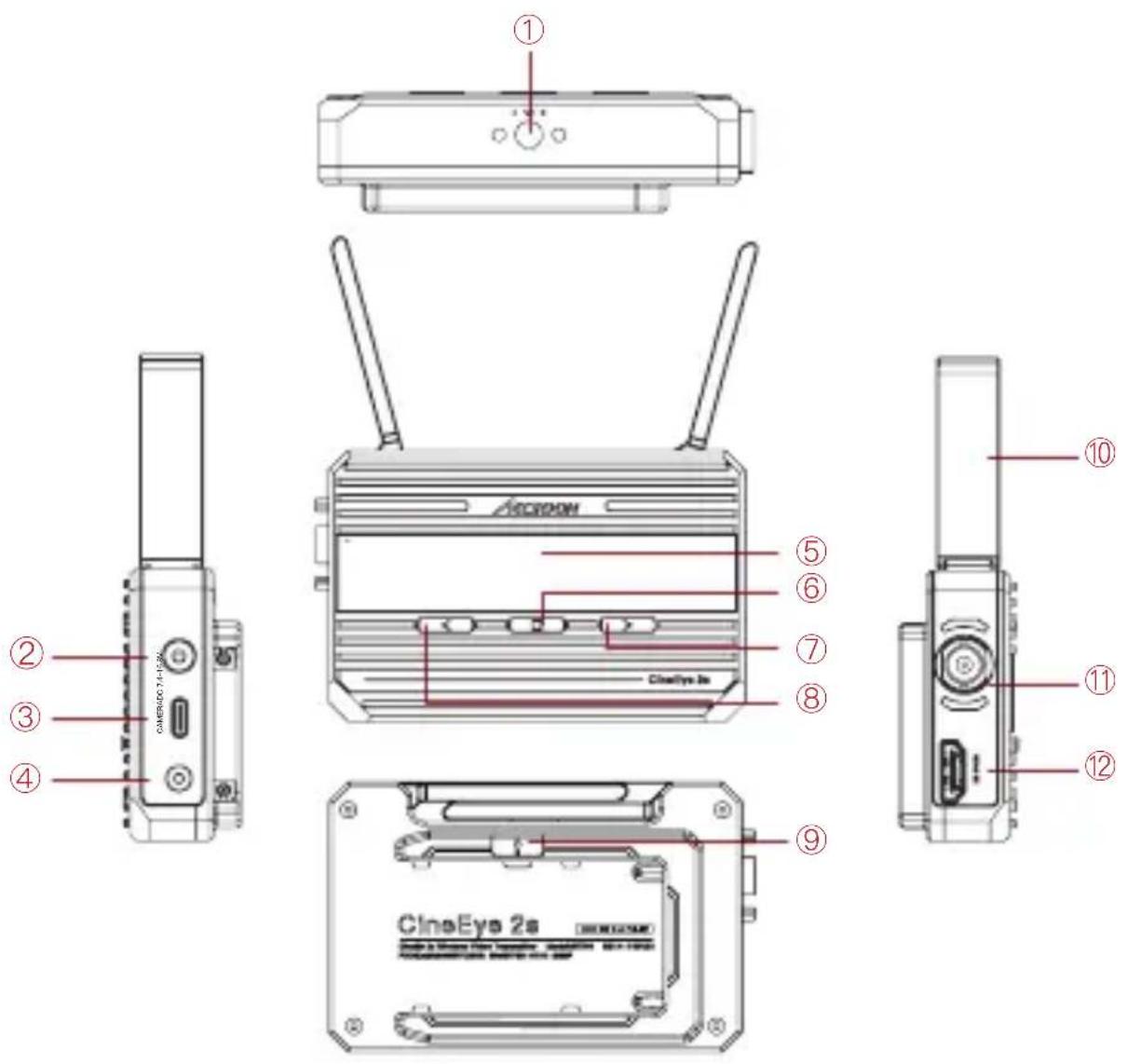
① 1 / 4 Screw
② Power Button
③ Camera Control Interface
④ DC Port
⑤ 1.3 Inch OLED
⑥ Menu/OK Key
⑦ Right Key
⑧ Left Key
⑨ Battery Lock
⑩ Antenna
⑪ SDI In
⑫ HDMI In
Diagram
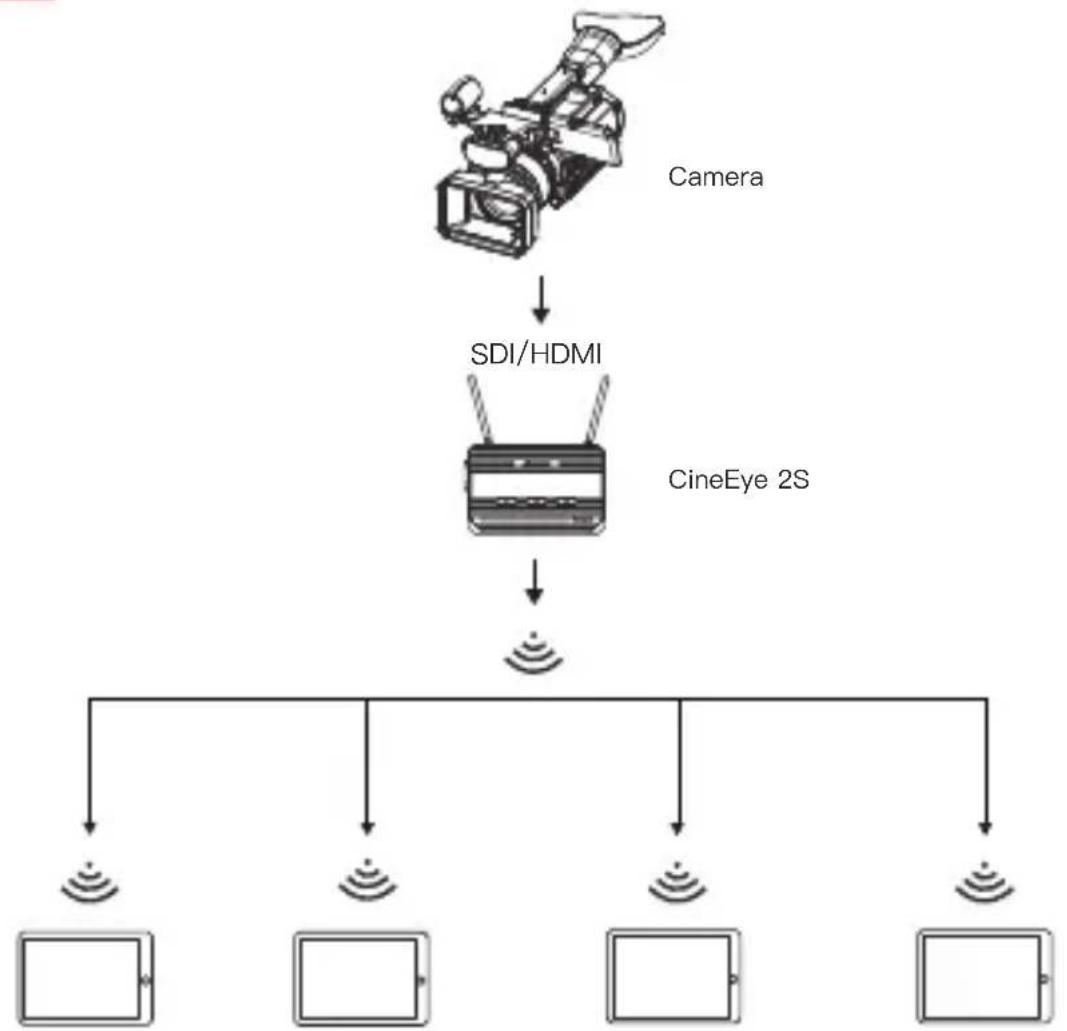
flowchart
graph TD
    A["Camera"] --> B["SDI/HDMI"]
    B --> C["CineEye 2S"]
    C --> D["Device 1"]
    C --> E["Device 2"]
    C --> F["Device 3"]
    C --> G["Device 4"]
    C --> H["Device 5"]
Mobile Devices Mobile Devices Mobile Devices Mobile Devices
Operating Instructions
01 Install Instructions
-
Unfold the antennas as demonstrated.
-
Use the hot/cold shoe mount adapter to install the CineEye 2S onto the camera or camera cage.
-
Use a NP-F970/F750/F550 battery or DC source to power the CineEye 2S.
-
Connect camera output to CineEye 2S SDI/HDMI input port.
①

natural_image
Diagram of a router with two antennas and red arrows indicating flow or movement (no text or symbols)②
02 Turn On/Off
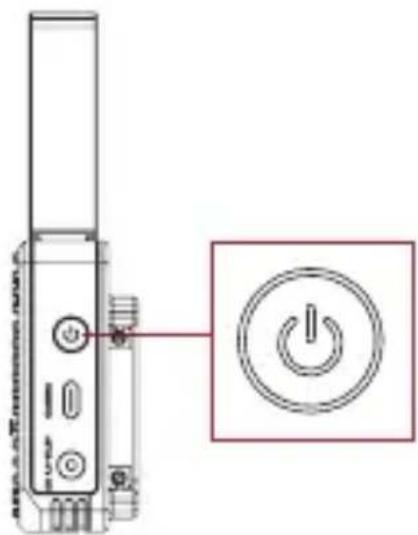
Turn on – Hold the power button for 1 second Turn off – Hold the power button for 2 second
03 OLED Display
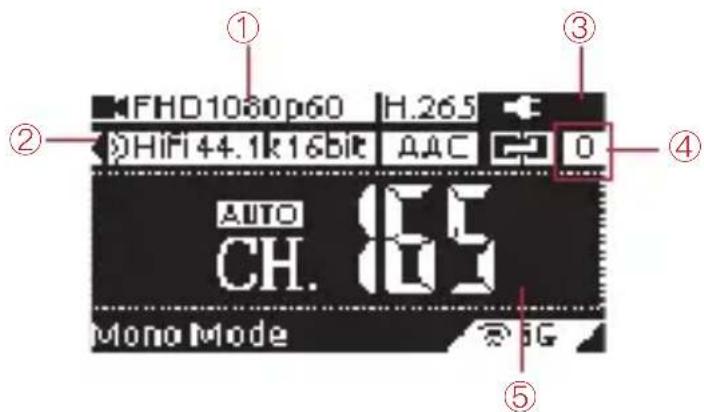
① Input video info
② Input audio info
③ Battery level/DC input
④ Connection status
⑤ Current 5G WiFi channel
Connection Status:
The connection status indicates how many devices are connected, if no devices are connected the unit will display "0".
Operating Instructions
04 Data Rate Setting
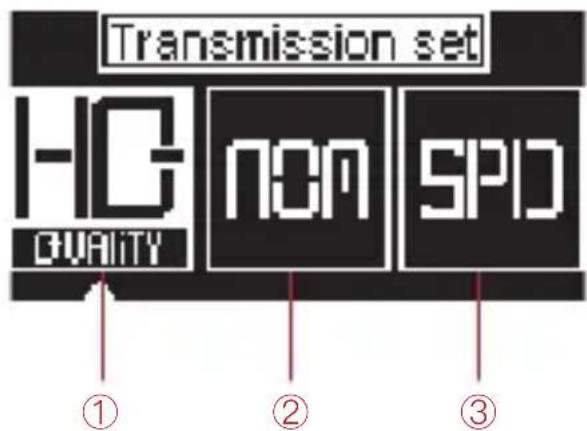
① High Quality Mode
② Normal Mode (Default setting)
③ Speed Mode
Setting steps:
Click the “Menu” button to enter “Data Rate Setting”->choosing a data rate mode->click “Menu” button to take effect.
05 Channel Setting
- The default setting is "Auto" which means the transmitter will select a channel with the least interference automatically after power on.
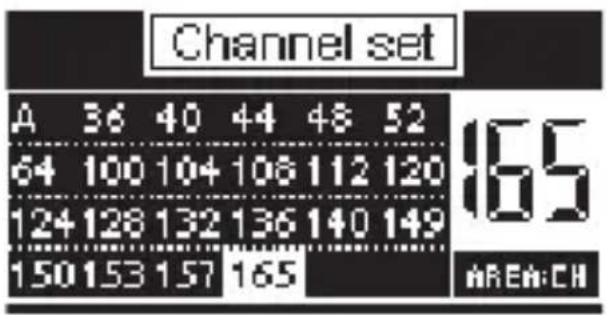
- If users want to select a channel manually, please follow below steps: Click "Menu" button to enter "Channel Setting" menu->choosing a channel->click "Menu" button to confirm->Choosing "Yes" ->Click "Menu" button to reboot the transmitter and the setting will take effect.
Operating Instructions
06 Network Reset
- Users can reset the WiFi SSID and password to factory settings by "Network Reset" menu.
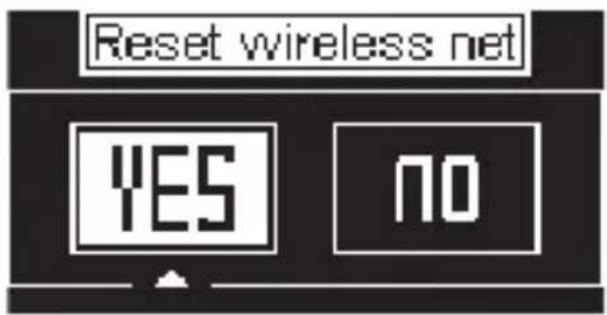
Operation steps:
Click “Menu” button to enter “Network Reset” menu->choosing “Yes” ->click “Menu” button to confirm->Choosing “Yes” ->Click “Menu” button to reboot, the SSID and password of the 5G WiFi will be reset to factory settings.
07 App Monitoring
- App download
Please download the App (Accsoon Go) from the Google Play or iOS App Store.

- Connect the App to the CineEye 2S
Launch the “Accsoon Go” app and then select “CineEye 2S”, open the WLAN (Wirless/WiFi)settings page of the mobile devices, then choose the CineEye 2S WiFi and connect to it. The name of the CineEye 2S WiFi is “CineEye2_XXXX” and the default password is “12345678”.
Operating Instructions
3. Monitoring
Return to the Accsoon Go and ensure CineEye 2S is selected, click "Monitor" to enter the monitoring page and you will be able to monitor the live feed of the camera.

08 Firmware Update
- Make sure your mobile phone has internet access, then launch "Accsoon Go" and select "CineEye 2S", Click "Firmware Update", then the App will automatically check if there is an update. The app will download the latest firmware automatically if there is an update available.
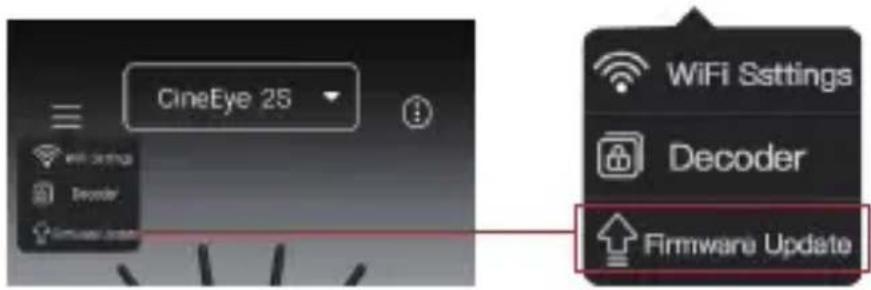
- Update: After the firmware is downloaded, connect mobile devices to the CineEye 2S. Go back to the App and click the "Firmware Update" to update.

- The battery level of the CineEye 2S should be above 50% before updating.
- Don't turn off the CineEye 2S before the updates are complete.
CineEye 2S
| Video Input | SDI/HDMI |
| SDI Input | 1080p 23.98/24/25/29.97/30/50/59.94/60fps |
| HDMI | 1080p 23.98/24/25/29.97/30/50/59.94/60fps720p 50/59.94/60fps480p 59.94/60fps |
| Audio | 44.1KHz/48KHz 16bit/24bit PCM |
| Latency | <0.06 seconds (Camera latency not included) |
| OLED | 1.3 inch OLED |
| Transmission Power | 17~20dBm |
| Transmission Range | 500ft (no obstacles, no interference) |
| Camera Control | Yes |
| Power Consumption | 4.0 Watt (Typical) |
| Operating Temperature | -10~40°C |
| Dimensions | 108mm×68.5mm×30mm (Antenna not included) |
| Weight | 213g |
Warranty
01 Warranty Period
-
If there is any quality problem that occurs within 15 days after receiving the product, we will provide complimentary maintenance or replacement.
-
The warranty period for transmitter and receiver units is one year. Within the warranty period, if under the usage of instruction manual for any product problem Accsoon will offer repair service for free.
-
The accessories and cables warranty period is 3 months.
02 Warranty Exclusions
-
Unauthorized maintenance, misuse, impact damage, liquid infiltration, or modification.
-
Incorrect use of the product or altering the label and warranty sticker.
-
The warranty period has been exceeded.
-
Damage due to fire, flood disaster, lighting, etc.
03 Warranty Process
- Customer shall contact the local dealer to solve their problem. If there is no local dealer available, please contact Accsoon directly via email (support@accsoon.com) or our website (www.accsoon.com). Accsoon reserves the right to review the damaged products.
01 No video displayed
-
Please ensure the video cable is plugged into the "SDI IN" or "HDMI IN" port of the CineEye 2S.
-
Please check if the output format of the camera is compatible with the CineEye 2S input formats and check if the camera has video output enabled via the SDI or HDMI port.
02 Video is choppy
- Please make sure the antennas have unfolded.
- Please make sure there is no cable around the antenna.
- Please switch to another channel manually.
03 Mobile devices can't see the CineEye 2s WiFi
- Please check if your mobile devices support 5G WiFi.



Website Facebook Youtube
Certificate of Quality
This product is confirmed to meet quality standards and permitted for sale after strict inspection.

More details about the product please visit www.accsoon.com This document is subject to change without notice.
Accsoon® is a trademark of Accsoon Technology Co., Ltd. Copyright ©2020 Accsoon. All rights reserved




- Operating Instructions
- Install Instructions
- Turn On/Off
- OLED Display
- Connection Status:
- Data Rate Setting
- Setting steps:
- Channel Setting
- Network Reset
- Operation steps:
- App Monitoring
- Monitoring
- Firmware Update
- Warranty
- Warranty Period
- Warranty Exclusions
- Warranty Process
- No video displayed
- Video is choppy
- Mobile devices can't see the CineEye 2s WiFi
- Certificate of Quality
Brand : Accsoon
Model : CineEye 2S
Category : Hi-Fi System