
SuperChassis SC743 - Computer Case Supermicro - Free user manual and instructions
Find the device manual for free SuperChassis SC743 Supermicro in PDF.


User questions about SuperChassis SC743 Supermicro
0 question about this device. Answer the ones you know or ask your own.
Ask a new question about this device
Download the instructions for your Computer Case in PDF format for free! Find your manual SuperChassis SC743 - Supermicro and take your electronic device back in hand. On this page are published all the documents necessary for the use of your device. SuperChassis SC743 by Supermicro.
USER MANUAL SuperChassis SC743 Supermicro
text_image
Technical line drawing of a control panel with labeled buttons and a door mechanismSC743TQ-865B-SQ SC743T-665B SC743T-R760(B)
SC743TQ-R760(B) SC743T-500B SC743i-665B
SC743S1-R760(B) SC743TQ-865(B) SC743i-500B
SC743i-R760(B) SC743S2-R760(B) SC743i-465B
SC743TQ-903B SC743AC-668B SC743AC-1200B-SQ
USER'S MANUAL
Revision 1.3a
The information in this User's Manual has been carefully reviewed and is believed to be accurate. The vendor assumes no responsibility for any inaccuracies that may be contained in this document, and makes no commitment to update or to keep current the information in this manual, or to notify any person or organization of the updates. Please Note: For the most up-to-date version of this manual, please see our website at www.supermicro.com.
Super Micro Computer, Inc. ("Supermicro") reserves the right to make changes to the product described in this manual at any time and without notice. This product, including software and documentation, is the property of Supermicro and/or its licensors, and is supplied only under a license. Any use or reproduction of this product is not allowed, except as expressly permitted by the terms of said license.
IN NO EVENT WILL Super Micro Computer, Inc. BE LIABLE FOR DIRECT, INDIRECT, SPECIAL, INCIDENTAL, SPECULATIVE OR CONSEQUENTIAL DAMAGES ARISING FROM THE USE OR INABILITY TO USE THIS PRODUCT OR DOCUMENTATION, EVEN IF ADVISED OF THE POSSIBILITY OF SUCH DAMAGES. IN PARTICULAR, SUPER MICRO COMPUTER, INC. SHALL NOT HAVE LIABILITY FOR ANY HARDWARE, SOFTWARE, OR DATA STORED OR USED WITH THE PRODUCT, INCLUDING THE COSTS OF REPAIRING, REPLACING, INTEGRATING, INSTALLING OR RECOVERING SUCH HARDWARE, SOFTWARE, OR DATA.
Any disputes arising between manufacturer and customer shall be governed by the laws of Santa Clara County in the State of California, USA. The State of California, County of Santa Clara shall be the exclusive venue for the resolution of any such disputes. Supermicro's total liability for all claims will not exceed the price paid for the hardware product.
FCC Statement: This equipment has been tested and found to comply with the limits for a Class A digital device pursuant to Part 15 of the FCC Rules. These limits are designed to provide reasonable protection against harmful interference when the equipment is operated in a commercial environment. This equipment generates, uses, and can radiate radio frequency energy and, if not installed and used in accordance with the manufacturer's instruction manual, may cause harmful interference with radio communications. Operation of this equipment in a residential area is likely to cause harmful interference, in which case you will be required to correct the interference at your own expense.
California Best Management Practices Regulations for Perchlorate Materials: This Perchlorate warning applies only to products containing CR (Manganese Dioxide) Lithium coin cells. "Perchlorate Material-special handling may apply. See www.dtsc.ca.gov/hazardouswaste/perchlorate".
WARNING: Handling of lead solder materials used in this product may expose you to lead, a chemical known to the State of California to cause birth defects and other reproductive harm.
The products sold by Supermicro are not intended for and will not be used in life support systems, medical equipment, nuclear facilities or systems, aircraft, aircraft devices, aircraft/emergency communication devices or other critical systems whose failure to perform be reasonably expected to result in significant injury or loss of life or catastrophic property damage. Accordingly, Supermicro disclaims any and all liability, and should buyer use or sell such products for use in such ultra-hazardous applications, it does so entirely at its own risk. Furthermore, buyer agrees to fully indemnify, defend and hold Supermicro harmless for and against any and all claims, demands, actions, litigation, and proceedings of any kind arising out of or related to such ultra-hazardous use or sale.
Manual Revision 1.3a
Release Date: March 22, 2018
Unless you request and receive written permission from Super Micro Computer, Inc., you may not copy any part of this document. Information in this document is subject to change without notice. Other products and companies referred to herein are trademarks or registered trademarks of their respective companies or mark holders.
Copyright © 2018 by Super Micro Computer, Inc.
All rights reserved.
Printed in the United States of America
Preface
About this Manual
This manual is written for professional system integrators and PC technicians. It provides information for the installation and use of the chassis. Installation and maintenance should be performed by experienced technicians only.
This document lists compatible parts available when this document was published. Refer to the Supermicro web site for updates on supported parts and configurations.
This manual may be periodically updated without notice. Check the Supermicro website for possible updates.(http://www.supermicro.com).
Notes
Information on this and other chassis is available on the Supermicro website.
- Supermicro product manuals: http://www.supermicro.com/support/manuals/
- Product safety info: http://www.supermicro.com/about/policies/safety_information.cfm
If you have any questions, please contact our support team at:
support@supermicro.com.
Warnings
Special attention should be given to the following symbols used in this manual.

Warning! Indicates important information given to prevent equipment/property damage or personal injury.

Warning! Indicates high voltage may be encountered when performing a procedure.
Contents
Chapter 1 Introduction
1.1 Overview....7
1.2 Unpacking the System 8
1.3 System Features ....8
1.4 Chassis Features 9
Control Panel 9
Front Features....10
Rear Features 11
1.5 Where to Get Replacement Components....12
1.6 Returning Merchandise for Service....12
Chapter 2 Rack Mount Installation
2.1 Overview....13
2.2 Preparing for Rack Mounting ....13
Choosing a Setup Location....13
Rack Precautions....13
Server Precautions....14
Rack Mounting Considerations ....14
Ambient Operating Temperature....14
Airflow 14
Mechanical Loading....14
Circuit Overloading....15
Reliable Ground....15
2.3 Chassis Preparation....16
2.4 Installing the Rails....17
Identifying the Rails ....17
Releasing the Inner Rails....17
Installing the Inner Rails ....18
Assembling and Installing the Outer Rails....19
2.5 Installing the Server into the Rack....20
Removing the Chassis from the Rack....21
2.6 Control Panel Orientation....22
Chapter 3 Maintenance and Component Installation
3.1 Removing Power....24
3.2 Accessing the System....25
3.3 Chassis Components ....26
Storage Drives ....26
Drive Indicators ......26
Installing the Standard 3.5" Drives....27
Configuring the 5.25" Drive Bays....29
Additional Storage Drives in a Mobile Rack....32
Installing Expansion Cards....34
System Cooling 35
Chassis Fans....35
Air Shroud....36
Power Supply 37
465, 500, 665, 668, 865 and 1200 Watt Power Supplies....37
Installing the Power Supply....37
760 Watt Power Supply 39
Installing the Power Supply....39
Appendix A Power Supply Specifications
Appendix B Standardized Warning Statements for AC Systems
Appendix C BPN-SAS-743TQ Backplane Specifications
Appendix D BPN-SAS3-743A Backplane Specifications
Appendix E SATA-743 Backplane Specifications
Contacting Supermicro
Headquarters
Address: Super Micro Computer, Inc.
980 Rock Ave.
San Jose, CA 95131 U.S.A.
Tel: +1 (408) 503-8000
Fax: +1 (408) 503-8008
Email: marketing@supermicro.com (General Information)
support@supermicro.com (Technical Support)
Website: www.supermicro.com
Europe
Address: Super Micro Computer B.V.
's-Hertogenbosch, The Netherlands
Tel: +31 (0) 73-6400390
Fax: +31 (0) 73-6416525
Email: sales@supermicro.nl (General Information)
support@supermicro.nl (Technical Support)
rma@supermicro.nl (Customer Support)
Website: www.supermicro.nl
Asia-Pacific
Address: Super Micro Computer, Inc.
3F, No. 150, Jian 1st Rd.
Zhonghe Dist., New Taipei City 235
Taiwan (R.O.C)
Tel: +886-(2) 8226-3990
Fax: +886-(2) 8226-3992
Email: support@supermicro.com.tw
Website: www.supermicro.com.tw
Chapter 1
Introduction
Supermicro's SC743 chassis series is optimized for the latest Intel Xeon processor and is also compatible with previous generation Intel and AMD single/dual processor-based motherboards. Utilizing redundant, high-efficiency power supplies (95+%) and eight hot-swap 3.5" drive bays, this chassis offers reliable performance with problem-free maintenance. Designed with 100% cooling redundancy using a combination of high-performance fans, the chassis minimizes the probability of system downtime or performance degradation from thermal-related issues. With seven tool-less PCIe expansion slots, and 6-pin power connectors supporting up to three high-end graphics cards, and it is quick to configure and easy to operate. Optionally, this tower can be converted to mount in a standard rack.
1.1 Overview
This chapter provides a brief outline of the functions and features of the SC743 chassis. Models are listed below.
| SC743 Chassis Models | |||
| Model HDD I/O Slots Power Supply | |||
| SC743AC-1200B-SQ 8x SAS3/SATA 7x FF 1200W | |||
| SC743TQ-903B 8x SAS3/ATA 7x FF 903W | |||
| SC743TQ-865B-SQ 8x SAS/SATA 7x FF 865W | |||
| SC743TQ-865B 8x SAS/SATA 7x FF 865W | |||
| SC743TQ-R760 / SC743TQ-R760B | 8x SAS/SATA 7x FF 760W | ||
| SC743S2-R760 / SC743S2-R760B | 8x SCA Dual Channel | 7x FF 760W | |
| SC743S1-R760 / SC743S1-R760B | 8x SCA 7x FF | 760W | |
| SC743T-R760 / SC743T-R760B | 8x SATA | 7x FF 760W | |
| SC743i-R760 / SC743i-R760B | 8x Fixed | 7x FF 760W | |
| SC743AC-668B 8x SAS3/ATA 7x FF 668W | |||
| SC743T-665B | 8x SAS/SATA | 7x FF | 665W Super Quiet |
| SC743i-500B | 8x Fixed | 7x FF 500W | |
| SC743T-500B | 8x SATA | 7x FF | 500W |
| SC743i-465 / SC743i-465B | 8x Fixed | 7x FF | 465W Low Noise |
1.2 Unpacking the System
Inspect the box in which the chassis was shipped, and note if it was damaged. If any equipment appears damaged, file a damage claim with the carrier who delivered it.
1.3 System Features
The following table provides you with an overview of the main features of the SC743.
| System Features |
| Chassis |
| SC743 |
| Drives Bays |
| Up to eight SAS3/SATA3 3.5" hot-swap drives, or optionally, 2.5" drives with converter |
| Cooling |
| Three 8-cm, 4-pin PWM mid-chassis fans; two 8-cm exhaust fans; one airflow shroud (-SQ models have two 8-cm fans and one 9-cm fan for super quiet performance) |
| Expansion Slots |
| Seven PCI-Express full-height slots |
| Form Factor |
| 4U tower; optional rack mounting rails |
| Dimensions |
| (WxHxD) 17.8 x 7.0 x 25.5 in. (452 x 178 x 647 mm) |
1.4 Chassis Features
Control Panel
Power switches and status LEDs are located on the control panel on the front of the chassis.

text_image
7654 9 10 1 2Figure 1-1. Control Panel View
| Control Panel Features | ||
| Item Feature Description | ||
| 1 Power Button | The main power button is used to apply or remove power from the power supply to the server. Turning off system power with this button removes the main power but maintains standby power. | |
| 2 Reset Button | The reset button is used to reboot the system. | |
| 3 Power LED | Indicates power is being supplied to the system power supply. This LED should normally be illuminated when the system is operating. | |
| 4 HDD LED Indicates hard drive activity when flashing. | ||
| 5 NIC1 LED Indicates network activity on LAN port 1 when flashing. | ||
| 6 NIC2 LED Indicates network activity on LAN port 2 when flashing. | ||
| 7 Information LED See table below for details. | ||
| 8 Power Fail LED | This LED flashes to indicate one of the redundant power supply modules has failed. The flashing light should be accompanied by an audible warning. | |
| 9 USB0 Port USB 3.0 port | ||
| 10 USB1 Port USB 3.0 port | ||
| Information LED | |
| Status Description | |
| Continuously on and red | An overheat condition has occurred.(This may be caused by cable congestion.) |
| Blinking red (1Hz) Fan failure | re, check for an inoperative fan. |
| Solid blue | Local UID has been activated. Use this function to locate the server in a rackmount environment. |
| Blinking blue | Remote UID is on. Use this function to identify the server from a remote location. |
Front Features
The SC743 is a tower chassis. See the illustration below for the features included on the front of the chassis.
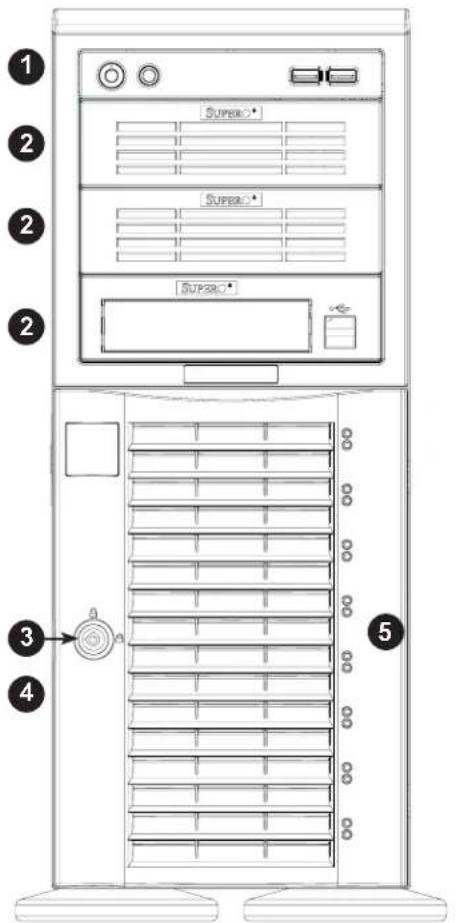
text_image
1 2 2 2 3 4 5 SUPERC SUPERC SUPERC SUPERCFigure 1-2. Chassis Front View
| Front Chassis Features | ||
| Item Feature Description | ||
| 1 | Control Panel | Front control panel with LEDs and buttons (see preceding page) |
| 2 | Peripheral Drive Bays | Three 5.25" bays for optional peripherals such as a DVD drive |
| 3 Lock Front bezel lock | ||
| 4 Drive Bays Elight 3.5" bays for hot-swap hard drives behind front bezel | ||
| 5 | Drive Indicators | Eight pairs of LED status indicators for drives |
Rear Features
The illustration below shows the features included on the rear of the chassis.

text_image
Technical diagram of a server rack with labeled components including fan, drive, and socket portsFigure 1-3. Chassis Rear View
| Rear Chassis Features | ||
| Item Feature | Description | |
| 1 Power Supply | Most models have P/S 2 power supplies | |
| 2 I/O Back Panel | Rear I/O ports (see Section 4.3) | |
| 3 Fans Two 8-cm exhaust fans | ||
| 4 Expansion Slots | Seven PCI-E expansion card slots | |
1.5 Where to Get Replacement Components
If you need replacement parts for your system, to ensure the highest level of professional service and technical support, purchase exclusively from our Supermicro Authorized Distributors/System Integrators/Resellers. A list can be found at: http://www.supermicro.com. Click the "Where to Buy" link.
1.6 Returning Merchandise for Service
A receipt or copy of your invoice marked with the date of purchase is required before any warranty service will be rendered. You can obtain service by calling your vendor for a Returned Merchandise Authorization (RMA) number. When returning to the manufacturer, the RMA number should be prominently displayed on the outside of the shipping carton, and mailed prepaid or hand-carried. Shipping and handling charges will be applied for all orders that must be mailed when service is complete.
For faster service, RMA authorizations may be requested online (http://www.supermicro.com/support/rma/).
Whenever possible, repack the chassis in the original Supermicro carton, using the original packaging material. If these are no longer available, be sure to pack the chassis securely, using packaging material to surround the chassis so that it does not shift within the carton and become damaged during shipping.
This warranty only covers normal consumer use and does not cover damages incurred in shipping or from failure due to the alteration, misuse, abuse or improper maintenance of products.
During the warranty period, contact your distributor first for any product problems.
Chapter 2
Rack Mount Installation
2.1 Overview
This chapter provides instructions for preparing and mounting your chassis in a rack. By default, the chassis is shipped configured as a tower. The tower top cover and bottom feet must be removed to mount in a rack. Also, the control panel/drive module should be rotated 90 degrees.
Mounting rails are optional for this system. Be sure you have received the correct rail kit for your server.
2.2 Preparing for Rack Mounting
Choosing a Setup Location
- The system should be situated in a clean, dust-free area that is well ventilated. Avoid areas where heat, electrical noise and electromagnetic fields are generated.
- Leave at least 25 inches clearance in front of the rack to open the front door completely.
- Leave approximately 30 inches of clearance in the back of the rack to allow for sufficient airflow and access for servicing.
- It should be a restricted access location, such as a dedicated equipment room or a service closet.
- This product is not suitable for use with visual display workplace devices according to §2 of the German Ordinance for Work with Visual Display Units.
Rack Precautions
- Ensure that the leveling jacks on the bottom of the rack are extended to the floor so that the full weight of the rack rests on them.
- In single rack installations, stabilizers should be attached to the rack. In multiple rack installations, the racks should be coupled together.
-
Always make sure the rack is stable before extending a server or other component from the rack.
-
You should extend only one server or component at a time; extending two or more simultaneously may cause the rack to become unstable.
- When initially installing the server to a rack, test that the rail locking tabs engage to prevent the server from being overextended. Have a rack lift in place as a precaution in case the test fails.
Server Precautions
- Review the electrical and general safety precautions in Appendix B.
- Determine the placement of each component in the rack before you install the rails.
- Install the heaviest server components at the bottom of the rack first and then work your way up.
- Use a regulating uninterruptible power supply (UPS) to protect the server from power surges and voltage spikes and to keep your system operating in case of a power failure.
- Allow any drives and power supply modules to cool before touching them.
- When not servicing, always keep the front door of the rack and all covers/panels on the servers closed to maintain proper cooling.
Rack Mounting Considerations
Ambient Operating Temperature
If installed in a closed or multi-unit rack assembly, the ambient operating temperature of the rack environment may be greater than the room's ambient temperature. Therefore, consideration should be given to installing the equipment in an environment compatible with the manufacturer's maximum rated ambient temperature (TMRA).
Airflow
Equipment should be mounted into a rack so that the amount of airflow required for safe operation is not compromised.
Mechanical Loading
Equipment should be mounted into a rack so that a hazardous condition does not arise due to uneven mechanical loading.
Circuit Overloading
Consideration should be given to the connection of the equipment to the power supply circuitry and the effect that any possible overloading of circuits might have on overcurrent protection and power supply wiring. Appropriate consideration of equipment nameplate ratings should be used when addressing this concern.
Reliable Ground
A reliable ground must be maintained at all times. To ensure this, the rack itself should be grounded. Particular attention should be given to power supply connections other than the direct connections to the branch circuit (i.e. the use of power strips, etc.).

To prevent bodily injury when mounting or servicing this unit in a rack, you must take special precautions to ensure that the system remains stable. The following guidelines are provided to ensure your safety:
- This unit should be mounted at the bottom of the rack if it is the only unit in the rack.
- When mounting this unit in a partially filled rack, load the rack from the bottom to the top with the heaviest component at the bottom of the rack.
- If the rack is provided with stabilizing devices, install the stabilizers before mounting or servicing the unit in the rack.
- Slide rail mounted equipment is not to be used as a shelf or a work space.
2.3 Chassis Preparation
The chassis is shipped with the tower top cover and feet installed. Both must be removed for before installing the rails.
Removing the Tower Top Cover
- Locate the chassis cover lock (blue lever) at the rear of the chassis cover.
- Slide the chassis cover lock to the right and push chassis cover forward.
- Lift the chassis top cover off the chassis.

text_image
Tower Top Cover Chassis Feet Chassis Cover LockFigure 2-1. Remove Feet and Chassis Top Cover
Removing the Chassis Feet
- Place the chassis on its side.
- Remove the screw holding a chassis foot in place.
- The foot lock is a tab located in the center of the foot. It prevents the foot from sliding. Using a flat head screwdriver, gently lift the foot lock upward and slide the foot toward the rear of the chassis.
2.4 Installing the Rails
There are a variety of rack units on the market, which may require a slightly different assembly procedure. Do not use a two post "telco" type rack. This rail set fits a rack between 26" and 35.9" deep.
The following is a basic guideline for installing the system into a rack with the rack mounting hardware provided. You should also refer to the installation instructions that came with the specific rack you are using.
Identifying the Rails
The optional rackmount kit includes two rack rail assemblies, one for each side. Each of these assemblies consist of several sections: an inner fixed rail that secures to the chassis, an outer rack rail that secures to the rack, a middle rail that slides within the outer rail, and two brackets that attach the outer rail to the rack. The brackets are specific to the left and right side, and front and back, and labeled.
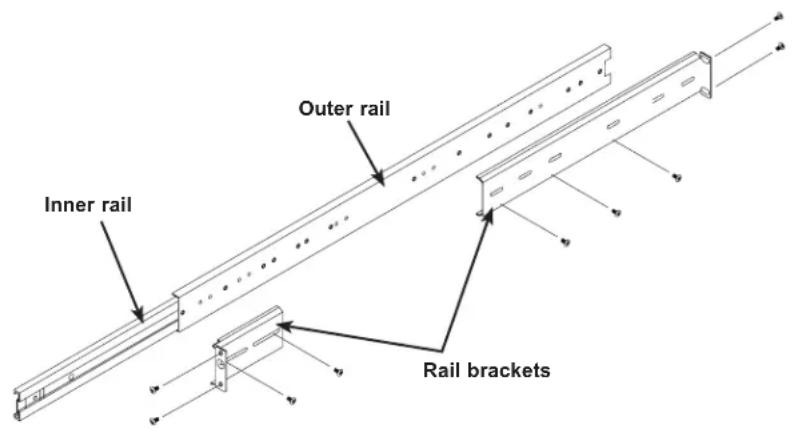
text_image
Outer rail Inner rail Rail bracketsFigure 2-2. Identifying the Sections of the Rack Rails
Releasing the Inner Rails
The inner rails must be removed from the outer rails to install onto the chassis. To remove the inner rail, pull it out as far as possible until it clicks to a stop. Depress the locking lever on the inner rail next to the middle rail to pull the inner rail completely out.
Installing the Inner Rails
Identify the left and right inner rails.
- Attach the handles to the front sides of the chassis with three screws each.
- Position the inner rails along the side of the chassis making sure the screw holes line up.
- Screw the rail securely to the side of the chassis.

text_image
Screw for Handles Screw for Inner RailsFigure 2-3. Installing the Chassis Rails

Warning: Do not pick up the server with the front handles. They are designed to pull the system from a rack only.
Assembling and Installing the Outer Rails
Each outer rail comes in three sections that require assembly before mounting onto the rack.
- Find the outer rail mounting brackets in the chassis accessory box.
• A pair of long brackets for the rear of each rail
• A pair of short brackets for the front of each rail
Note that the brackets are labeled as to front, rear, and up. They are specific for the left and right rails.
- Secure the front (short) bracket onto the outer rail with M5 screws.
- Mount the rear (long) bracket onto the outer rail at the approximate position to fit your rack. Use two or three M5 screws into holes that are convenient. Leave the screws just loose enough that the bracket can slide.
- Install the outer rail assembly onto your rack. Adjust the outer rail to the exact depth of the rack by sliding the rear bracket. Then use screws and fasteners to secure the outer rail to the front and rear rack posts.
- Further tighten the screws holding the rear bracket to the rail.

text_image
Screw for Outer Rail BracketsFigure 2-4. Assembling the Outer Rails
2.5 Installing the Server into the Rack
After attaching rails to both the chassis and the rack, slide the server into the rack.
- Pull the middle rail out of the front of the outer rail and make sure that the ball bearing shuttle is locked at the front of the middle rail.
- Align the rear of the inner (chassis) rails with the front of the outer (rack) rails and slide the inner rails into the outer rails until the server is completely in the rack.
- Insert and tighten the thumbscrews that hold the front of the server to the rack.
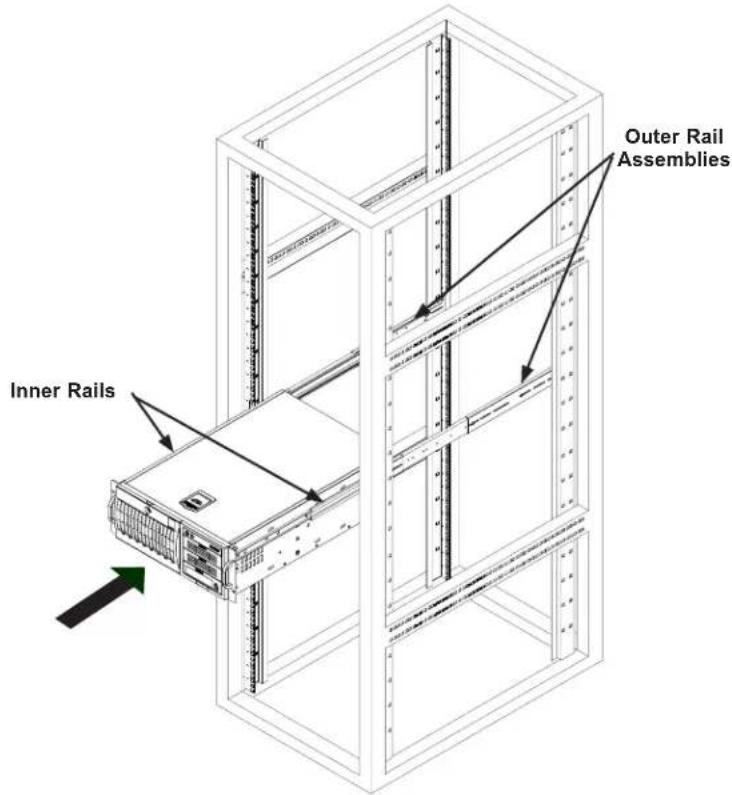
text_image
Inner Rails Outer Rail AssembliesFigure 2-5. Installing the Server into a Rack
Note: Figure is for illustrative purposes only. Always install servers to the bottom of a rack first.

Warning: Stability hazard. The rack stabilizing mechanism must be in place, or the rack must be bolted to the floor before you slide the unit out for servicing. Failure to stabilize the rack can cause the rack to tip over.

When initially installing the server to a rack, test that the rail locking tabs engage to prevent the server from being overextended. Have a rack lift in place as a precaution in case the test fails.
Removing the Chassis from the Rack
Caution! It is dangerous for a single person to off-load the heavy chassis from the rack without assistance. Be sure to have sufficient assistance supporting the chassis when removing it from the rack. Use a lift.
- Pull the chassis forward out the front of the rack until it stops.
- Find the release lever on each side of the chassis on the inner rails. Release the chassis by simultaneously and lifting the left lever and pushing down the right lever. Continue to pull the chassis out of the rack.

Warning: In any instance of pulling the system from the rack, always use a rack lift and follow all associated safety precautions.

Slide rail mounted equipment is not to be used as a shelf or a work space.
2.6 Control Panel Orientation
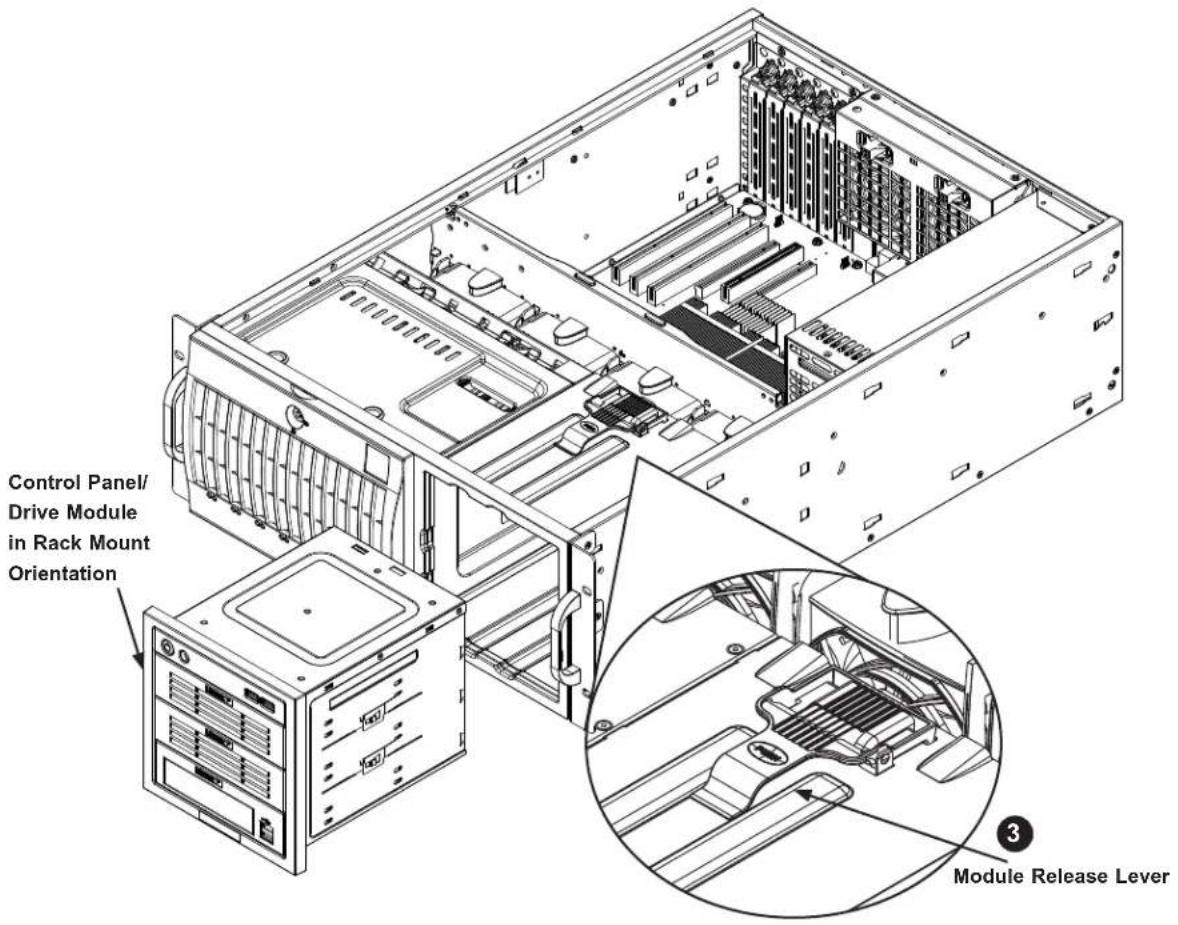
The server can be configured for either tower or server rack orientation. It is shipped in tower mode and can be immediately used as desktop server. To use it in a rack, rotate the module that contains the control panel and the three drive trays ( ① in Figure 2-6) 90 degrees.
Note that two of the 5.25" drives may be replaced by a mobile rack containing eight 2.5" storage drives.

text_image
Control Panel 5.25" Drive Trays Default Hard Disk Drive Bays Control Panel/ Drive ModuleFigure 2-6. Chassis in Tower Mode (Default Configuration)
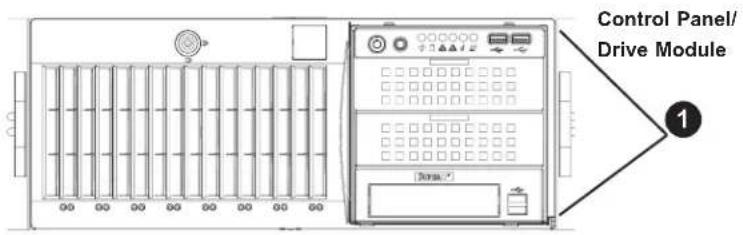
text_image
Control Panel/ Drive Module 1Figure 2-7. Chassis in Rack Mount Mode
Rotating the Control Panel/Drive Module for Rack Mounting
- Power down the system as described in section 3.1 and open the chassis cover.
- Disconnect any cables from the back of the Control Panel/Drive Module.
- Push the module release lever to unlock the module.
text_image
Control Panel/ Drive Module in Rack Mount Orientation Module Release LeverFigure 2-8. Rotating the Control Panel/Drive Module
- Grasp the edges of the module and pull it from the chassis.
- Rotate the module 90 degrees so that the control panel is on top.
- Reinsert the module into the chassis and reconnect the cables.
Caution: Use caution when working around the backplane. Do not touch the module backplane with any metal objects and make sure no ribbon cables touch the backplane or obstruct the holes, which aid in proper airflow.
Chapter 3
Maintenance and Component Installation
This chapter provides instructions on installing and replacing main system components. To assure compatibility, only use components that match the specifications or part numbers given. Installation or replacement of most components require that power first be removed from the system.
3.1 Removing Power
Use the following procedure to ensure that power has been removed from the system. This step is necessary when removing or installing non-hot-swap components.
- Use the operating system to power down the system.
- After the system has completely shut down, disconnect both the AC power cords from the power strip or outlet.
- Disconnect the power cords from both the power supply modules.
3.2 Accessing the System
The chassis offers a removable side cover (top, if rack mounted) which allows access to the internal components.
Removing the Side Cover
- Locate the latch on the cover, depress where it says "push," then lift the latch to release the cover.
- Slide the cover to the rear and off.

text_image
Technical diagram of a server rack with labeled components and directional arrows indicating assembly or movement.Figure 3-1. Removing the Chassis Cover
3.3 Chassis Components
Storage Drives
The standard system provides hot-swap drive bays for eight 3.5" SATA drives covered by the front bezel. Alternatively, each bay can house a 2.5" SATA drive with an optional converter (pn MCP-220-00080-0B). The drive IDs for these bays are preconfigured as 0 through 7 from bottom to top.
The drives are hot-swappable, meaning they can be removed and replaced without powering down the system, if that capability is supported by your operating system. The drives are mounted in drive carriers to simplify their installation and removal from the chassis. The carriers also promote airflow for the system. For this reason, even carriers without drives must remain in the server.
There are several options that provide additional SAS or SATA storage drives if an optional SAS RAID controller card is purchased. Each 5.25" bay can house one 3.5" drive, or two 2.5" drives with a bracket. Or two 5.25" bays can be replaced by an optional enclosure called a mobile rack that houses eight hot-swap 2.5" drives. Additional cables are also required.
Note: Enterprise level hard disk drives are recommended for use in Supermicro chassis and servers. For information on recommended HDDs, visit the Supermicro website at http://www.supermicro.com/products/nfo/files/storage/SBB-HDDCompList.pdf.
Drive Indicators
Each hot-swap drive has two LED indicators: an activity indicator and a status indicator. In RAID configurations, the status indicator lights to indicate the status of the drive. In non-RAID configurations, the status indicator remains off. See the table below for details.
| Drive Carrier LED Indicators | |||
| Color Blinking Pattern Behavior for Device | |||
| Activity LED | Off No drive, or SATA drive installed | ||
| Blue Solid On SAS drive installed | |||
| Blue Blinking I/O activity | |||
| Status LED | Red Solid On Failure of drive with RSTe support | ||
| Red Blinking at 1 Hz Rebuild drive with RSTe support | |||
| Red Blinking with two blinks and one stop at 1 Hz | Hot spare for drive with RSTe support | ||
| Red On for five seconds, then off | Power on for drive with RSTe support | ||
| Red Blinking at 4 Hz Identify drive with RSTe support | |||
Installing the Standard 3.5" Drives
Removing Drive Carriers from the Chassis
- Swing open the front bezel.
- Press the release button on the drive carrier. This extends the drive carrier handle.

natural_image
Technical line drawing of a mechanical assembly with two views (top and side), showing internal components and alignment indicators (no text or symbols)Figure 3-2. Removing a Drive Carrier
- Use the handle to pull the carrier out of the chassis.
- Remove the dummy drive from the carrier.

natural_image
Technical line drawing of a device casing with mounting holes and internal compartments (no text or symbols)Figure 3-3. Removing the Dummy Drive
Caution: Except for short periods of time (swapping drives), do not operate the server with the drive carriers removed from the bays, regardless of how many drives are installed, for proper airflow.
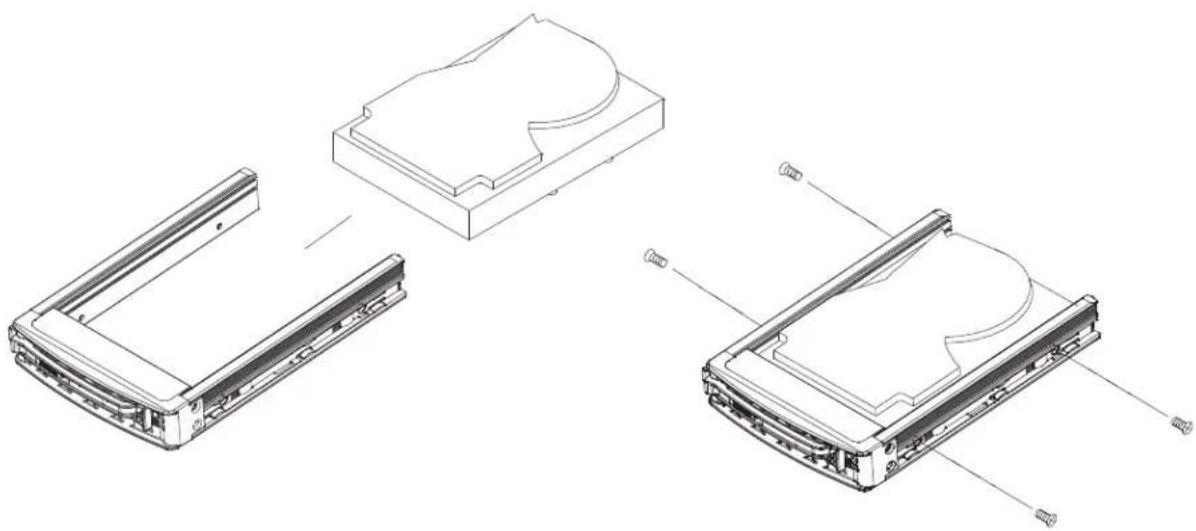
Installing a Hard Drive
- Place the hard drive carrier on a flat surface.
- Insert the hard drive into the carrier with the printed circuit board side facing downward and so that the mounting holes in the drive align with those in the drive carrier.
- Secure the hard drive to the carrier with the screws included with the hard drive.
- Use the open handle of the drive carrier to insert the drive carrier into the open drive bay.
- Secure the drive carrier into the drive bay by closing the drive carrier handle.
natural_image
Technical line drawing of a device chassis with internal components and mounting holes (no text or symbols)Figure 3-4. Mounting a Drive in a Carrier
Configuring the 5.25" Drive Bays
The control panel/drive module includes three 5.25" drive bays under the front control panel. It can be set up in a variety of configurations to suit the user's needs.
- Up to three 5.25" peripheral drives, such as a DVD drive
• One or two additional fixed SATA, SAS or solid state drives in a single tray - A mobile rack with eight additional 2.5" hot-swap hard drives (replaces two 5.25" bays; requires an optional expansion card and cables)
• A combination of the above
Accessing the 5.25" Trays
- Open the chassis cover.
- Locate the drive tray and pull the appropriate release tab.
- Push the drive tray out of the front of the chassis.

text_image
Drive Tray Release TabsFigure 3-5. Removing a Drive Tray
Installing a Storage Drive into a 5.25" Tray
One 3.5" drive, or two 2.5" drives with an optional bracket (pn MCP-220-00044-0N) can be installed. An optional expansion card and cables are also required.
-
Remove the tray from the drive bay.
-
For a 3.5" drive, place the drive in the drive tray, and secure the drive to the tray with four screws from the bottom.
For one or two 2.5" drives, install the drives into the special purpose bracket, then secure the bracket to drive tray with screws through the bottom of the tray.

text_image
Drive Drive TrayFigure 3-6. Installing a 3.5" Drive to the Drive Tray
- Slide the drive tray into the chassis until the tray clicks into place.
- Connect the data and power cables for the new drive.
- Replace the chassis cover and power up the system.
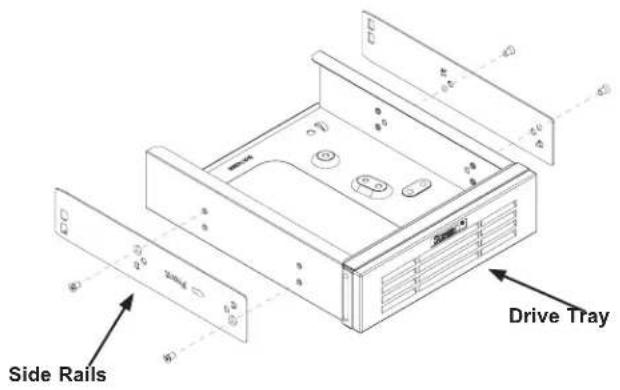
Installing a 5.25" Peripheral Device
An optional peripheral device such as a DVD drive can be installed in a 5.25" bay.
-
Remove the tray from the drive bay.
-
Re-use the side rails from the tray and install them onto the peripheral device.
text_image
Drive Tray Side RailsFigure 3-7. Removing Rails from the Drive Tray
- Insert the new device in the slot until the tab locks in place.
- Connect the data and power cables.
- Replace the chassis cover and power up the system.
Additional Storage Drives in a Mobile Rack
The chassis accepts a Supermicro mobile rack (pn CSE-M28SABP) in place of two 5.25" bays. This adds eight hot-swap 2.5" SAS or SATA drives. An optional expansion card and cables are also required.

text_image
Mobile RackFigure 3-8. Chassis with a Mobile Rack Installed
Installing the Mobile Rack
- Remove two adjacent trays from the drive bays.
- Remove the drive tray rails.

text_image
Front Right D1-SC41501-X1001/D1 RailFigure 3-9. Mobile Rack with Drive Tray Rails
- Install a drive tray rail onto each side of the mobile rack. Make sure the arrow on the rail points toward the front of the chassis.
- Slide the mobile rack into the chassis.
- Connect the data and power cables.
Installing Expansion Cards
The system can accommodate six PCIe cards. The chassis has seven slots, but the slot nearest the chassis top is not supported by this motherboard.

text_image
Expansion Card Chassis SlotsFigure 3-10. PCI Slots
Installing an Expansion Card
- Power down the system and remove the cover.
- In the rear of the chassis, push on PCI shield lock, then lift the lock.
- Remove the screw holding the PCI shield in place and remove the shield.
- Push the expansion card into the expansion slot on the motherboard while aligning it with the chassis slot in the rear of the chassis.
- Secure the expansion card shield onto the rear of the chassis with a screw and the lock.

text_image
PCI Shield Lock push here PCI Shield Lock liftedFigure 3-11. Removing a Blank PCI Shield
System Cooling
Three 8-cm fans located in the center of the chassis provide cooling airflow while two 8-cm exhaust fans at the rear of the chassis expel hot air. (The -SQ models have two 8-cm fans and one 9-cm fan.) The chassis is also fitted with an air shroud to concentrate the flow of cooling air over the areas of highest generated heat. The fans should all be connected to headers on the motherboard (see Chapter 4). Each power supply module also has a cooling fan.
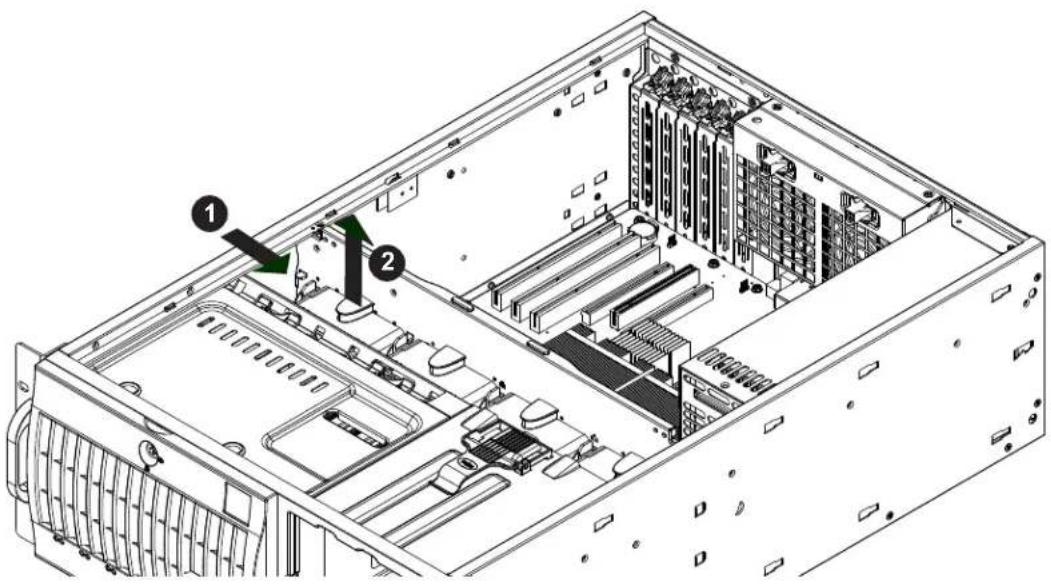
Chassis Fans
Under normal operation, all three chassis fans and both exhaust fans run continuously. They can be replaced without powering down the system (hot-swap).
Replacing Chassis Cooling Fans
-
Depress the locking tab on the failed fan.
-
On a mid-chassis fan, push the tab on the side of the housing inward.
-
On an exhaust fan, push down on the colored tab.
-
With the tab depressed, pull the unit straight out.
-
Replace the failed fan, noting the air flow direction. It should click into place. Check that the fan is working before replacing the chassis cover.
text_image
Technical diagram of a server rack with labeled components, showing internal hardware layout and component indicators.Figure 3-12. Removing a Chassis Fan
Air Shroud
Air shrouds concentrate airflow to maximize fan efficiency. It covers the processors and heatsinks.
Installing the Air Shroud
The air shroud fits behind the two fans closest to the power supply. Align the pins and press the air shroud into the chassis. It should click into place.

text_image
Release TabsFigure 3-13. Installing the Air Shroud
To remove the air shroud, press the release tabs at the front and rear of the shroud to unlock it, the lift it out.
Power Supply
The SC743 chassis includes a power supply rated from 465 to 1200 Watts. In the unlikely event that you need to replace the power supply, simply follow the directions for your specific power supply below.
Warning: Always unplug the power cord before removing the power supply.
Warning: Do not open the casing of the power supply. Power supplies can only be serviced by a qualified manufacturer's technician.
465, 500, 665, 668, 865 and 1200 Watt Power Supplies
The 465, 500, 665, 668, 865 and 1200 Watt power supplies offer different features, but are designed to be installed and removed in the same way.
Installing the Power Supply
- Unplug the power cord from the power supply.

natural_image
Technical diagram of a computer tower rear panel showing fan and drive structure (no text or symbols)Figure 3-14. Installing the 465, 500, 665 or 865 Watt Power Supply
-
Remove both the side and top covers from the chassis as described in section 4-2 of this manual.
-
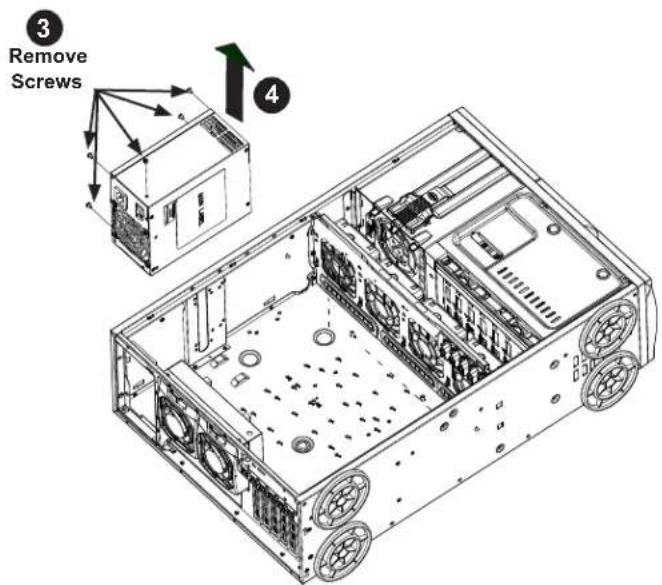
Using a Phillips head screwdriver, remove the five screws securing the power supply to the chassis as shown above, and set them aside for later use.
- Carefully lift the power supply up and out of the chassis.
text_image
③ Remove Screws ④Figure 3-15. Removing the Interior Chassis Screws on the Power Supply
- Install the replacement power supply in the chassis.
- Replace the screws which were set aside previously.
- Replace any other components in the chassis that have been removed and replace the chassis cover before replacing the power cord and powering up the system.
760 Watt Power Supply
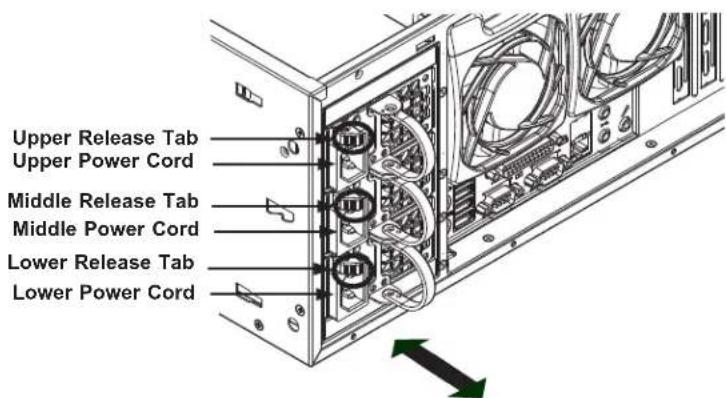
The 760 Watt power supply is a triple redundant power supply with a different configuration than that of the 465, 500, 665 and 865 Watt power supplies.
Installing the Power Supply
- Unplug the AC power cord from the power supply.
- Push the release tab on the left side of each power supply to release it from the locked position.
- Once released from the locked position, pull the power supply outward, using the handle provided.
- Install the replacement power supply in the chassis.
- Replace any other components in the chassis that have been removed and replace the chassis cover before replacing the power cord and powering up the system.
text_image
Upper Release Tab Upper Power Cord Middle Release Tab Middle Power Cord Lower Release Tab Lower Power CordFigure 3-16. Installing the 760 Watt Power Supply
Appendix A
Power Supply Specifications
This appendix lists power supply specifications for your chassis system.
| 465W | |
| MFR Part # | PWS-465-PQ |
| Rated AC Voltage | 100 - 240V60 - 50Hz6 - 3 Amp |
| +5V standby | 3 Amp |
| +12V | 35 Amp |
| +5V | 20 Amp |
| +3.3V | 15 Amp |
| -12V | 0.5 Amp |
| 500W | |
| MFR Part # PWS-502-PQ | |
| Rated AC Voltage | 100 - 240V50 - 60Hz12 - 6 Amp |
| +5V standby | 6.5 Amp |
| +12V | 69 Amp |
| +5V | 30 Amp |
| +3.3V | 305 Amp |
| -12V | 1 Amp |
| 665W | |
| MFR Part # | PWS-665-PQ |
| Rated AC Voltage | 100 - 240V50 - 60Hz10- 5 Amp |
| +5V standby | 6 Amp |
| +12V | 54.0 Amp |
| +5V | 30.0 Amp |
| +3.3V | 24 Amp |
| -12V | 0.5 Amp668W |
| MFR Part # | PWS-668-PQ |
| Rated AC Voltage | 100 - 240V50 - 60Hz10- 5 Amp |
| +5V standby | 2 Amp |
| +12V | 54.0 Amp |
| +5V | 11.8 Amp |
| +3.3V | 12 Amp |
| -12V | 0.1 Amp |
| R760W | |
| MFR Part # | PWS-0056 |
| Rated AC Voltage | 100 - 240V50 - 60Hz14 - 8 Amp |
| +5V standby | 3.5 Amp |
| +12V | 50.0 Amp |
| +5V | 36.0 Amp |
| +3.3V | 36.0 Amp |
| -12V | 1.0 Amp |
| 865W | |
| MFR Part # PWS-865-PQ | |
| Rated AC Voltage | 100 - 240V50 - 60Hz12- 6 Amp |
| +5V standby | 6.5 Amp |
| +12V | 70.0 Amp |
| +5V | 30.0 Amp |
| +3.3V | 30.0 Amp |
| -12V | 1.0 Amp903W |
| MFR Part # | PWS-903-PQ |
| Rated AC Voltage | 100 - 240V50 - 60Hz10- 6 Amp |
| +5V standby | 4.0 Amp |
| +12V | 71.67 Amp |
| +5V | 25.0 Amp |
| +3.3V | 25.0 Amp |
| -12V | 0.5 Amp |
| 1200W | |
| MFR Part # | PWS-1K25P-PQ |
| Rated AC Voltage | 100 - 240V50 - 60Hz12- 8 Amp |
| +5V standby | 3.0 Amp |
| +12V | 99.0 Amp (114.9-240Vac) / 83.0 Amp (100-114.9Vac) |
| +5V | 20.0 Amp |
| +3.3V | 20.0 Amp |
| -12V | 0.3 Amp |
Appendix B
Standardized Warning Statements for AC Systems
About Standardized Warning Statements
The following statements are industry standard warnings, provided to warn the user of situations which have the potential for bodily injury. Should you have questions or experience difficulty, contact Supermicro's Technical Support department for assistance. Only certified technicians should attempt to install or configure components.
Read this appendix in its entirety before installing or configuring components in the Supermicro chassis.
These warnings may also be found on our website at http://www.supermicro.com/about/policies/safety_information.cfm.
Warning Definition

Warning! This warning symbol means danger. You are in a situation that could cause bodily injury. Before you work on any equipment, be aware of the hazards involved with electrical circuitry and be familiar with standard practices for preventing accidents.
警告の定義
この警告サインは危険を意味します。
Installation Instructions

Warning! Read the installation instructions before connecting the system to the power source.
設置手順書
Warning! This product relies on the building's installation for short-circuit (overcurrent) protection. Ensure that the protective device is rated not greater than: 250 V, 20 A.
サーキット・ブレーカー
Power Disconnection Warning

Warning! The system must be disconnected from all sources of power and the power cord removed from the power supply module(s) before accessing the chassis interior to install or remove system components.
電源切断の警告
Equipment Installation

Warning! Only trained and qualified personnel should be allowed to install, replace, or service this equipment.
機器の設置
Warning! This unit is intended for installation in restricted access areas. A restricted access area can be accessed only through the use of a special tool, lock and key, or other means of security. (This warning does not apply to workstations).
アクセス制限区域
Warning! There is the danger of explosion if the battery is replaced incorrectly. Replace the battery only with the same or equivalent type recommended by the manufacturer. Dispose of used batteries according to the manufacturer's instructions
電池の取り扱い
Redundant Power Supplies

Warning! This unit might have more than one power supply connection. All connections must be removed to de-energize the unit.
冗長電源装置
Warning! Hazardous voltage or energy is present on the backplane when the system is operating. Use caution when servicing.
バックプレーンの電圧
Comply with Local and National Electrical Codes

Warning! Installation of the equipment must comply with local and national electrical codes.
地方および国の電気規格に準拠
Warning! Ultimate disposal of this product should be handled according to all national laws and regulations.
製品の廃棄
Warning! Hazardous moving parts. Keep away from moving fan blades. The fans might still be turning when you remove the fan assembly from the chassis. Keep fingers, screwdrivers, and other objects away from the openings in the fan assembly's housing.
ファン・ホットスワップの警告
Power Cable and AC Adapter

Warning! When installing the product, use the provided or designated connection cables, power cables and AC adaptors. Using any other cables and adaptors could cause a malfunction or a fire. Electrical Appliance and Material Safety Law prohibits the use of UL or CSA-certified cables (that have UL/CSA shown on the cord) for any other electrical devices than products designated by Supermicro only.
電源コードとACアダプター
This appendix provides details about the BPN-SAS-743TQ backplane.
C-1 Safety Guidelines
ESD Safety Guidelines
Electrostatic Discharge (ESD) can damage electronic components. To prevent damage to your system, it is important to handle it very carefully. The following measures are generally sufficient to protect your equipment from ESD.
- Use a grounded wrist strap designed to prevent static discharge.
- Touch a grounded metal object before removing a component from the antistatic bag.
- Handle the backplane by its edges only; do not touch its components, peripheral chips, memory modules or gold contacts.
- When handling chips or modules, avoid touching their pins.
- Put the backplane and peripherals back into their antistatic bags when not in use.
General Safety Guidelines
- Always disconnect power cables before installing or removing any components from the computer, including the backplane.
- Disconnect the power cable before installing or removing any cables from the backplane.
- Make sure that the backplane is securely and properly installed on the motherboard to prevent damage to the system due to power shortage.
C-2 Version Information
This manual reflects BPN-SAS-743TQ, Revision 3.00, the most current release available at the time of publication. Refer to the Supermicro Web site at www.supermicro.com for the latest updates, compatible parts and supported configurations.
All images and layouts shown in this guide are based upon the latest PCB revision available at the time of publishing. Your backplane may or may not look exactly the same.
C-3 Rear Connectors, Jumpers, and Indicators
Rear Connector Locations
The following connectors are on the side of the backplane that faces the rear of the chassis. They are identified by silkscreen labels.

text_image
SUPER® SAS743TQ REV 1.00 pb 1 2 3 4 5 6 8 9 10 11 12 13 14 15 16 17Figure C-1. Top Connectors
- JTAG Connector: JP47
- SAS Port #0 J5
- Upgrade Connector: JP46 11. SAS Port #1 J6
- Chip: MG9072
- SAS Port #2 J7
- Power Connectors (4-pin): JP10, and 13. SAS Port #3 J8 JP13
- ACT IN: JP26
- Sideband Connector #2 JP52
- Sideband Connector #1 JP51
- I²C Connector #2 JP45
- I²C Connector #1 JP44
Rear Connectors and Pin Definitions
#1. and #2. JTAG Connector and Upgrade Connectors
The JTAG and Upgrade connectors, designated JP47 and JP46, are used for diagnostic purposes. These connectors should be used by a certified and experienced technician.
#3. MG9072 Chip
The MG9072 is an enclosure management chip that supports the SES-2 controller and SES-2 protocols.
#4. Backplane Main Power Connectors
The 4-pin connectors, designated JP10 and JP13, provide power to the backplane. See the table on the right for pin definitions.
#5. Activity LED Header
The activity LED header, designated JP26, is used to indicate the activity status of each SAS drive. The Activity LED Header is located on the front panel. For the Activity LED Header to work properly, connect using a 10-pin LED cable.
| Backplane Main Power4-Pin Connector | |
| Pin# | Definition |
| 1 +12V | |
| 2 and 3 Ground | |
| 4 +5V | |
#6. and #7. Sideband Headers
The sideband headers are designated JP51 and JP52. For SES-2 to work properly, you must connect an 10-pin sideband cable. See the table to the right for pin definitions.
| Sideband Headers | |
| Pin # Definition Pin # Definition | |
| 2 Backplane Addressing (SB5) | 1 Controller ID (SB6) |
| 4 Reset (SB4) 3 GND (SB2) | |
| 6 GND (SB3) 5 SDA (SB1) | |
| 8 Backplane ID (SB7) | 7 SCL (SB0) |
| 10 No Connection | 9 No Connection |
#8. and #9. I ^2 C Connectors
The I ^2 C Connectors, designated JP44 and JP45, are used to monitor HDD activity and status. See the table on the right for pin definitions.
| I2C Connector Pin Definitions | |
| Pin# | Definition |
| 1 | Data |
| 2 | Ground |
| 3 | Clock |
| 4 | No Connection |
#10. to #17. SAS Ports
The SAS ports are used to connect the SAS drive cables. The eight ports are designated #0 – #7. Each port is also compatible with SATA drives. However, do not mix SAS and SATA drives in the same enclosure.
SAS Port Connections in I²C and SGPIO Settings
Use the following chart when connecting this backplane. If you connect the SAS ports out of order, you will not able to easily identify drives using the LED function.
| SAS Port Connections in I^2C and SGPIO Settings | ||
| Port # | I^2C | SGPIO |
| # 0 - 3 | I^2C #1 | Sideband #1 |
| # 4 - 7 | I^2C #2 | Sideband #2 |
Rear Jumpers and Pin Definitions
text_image
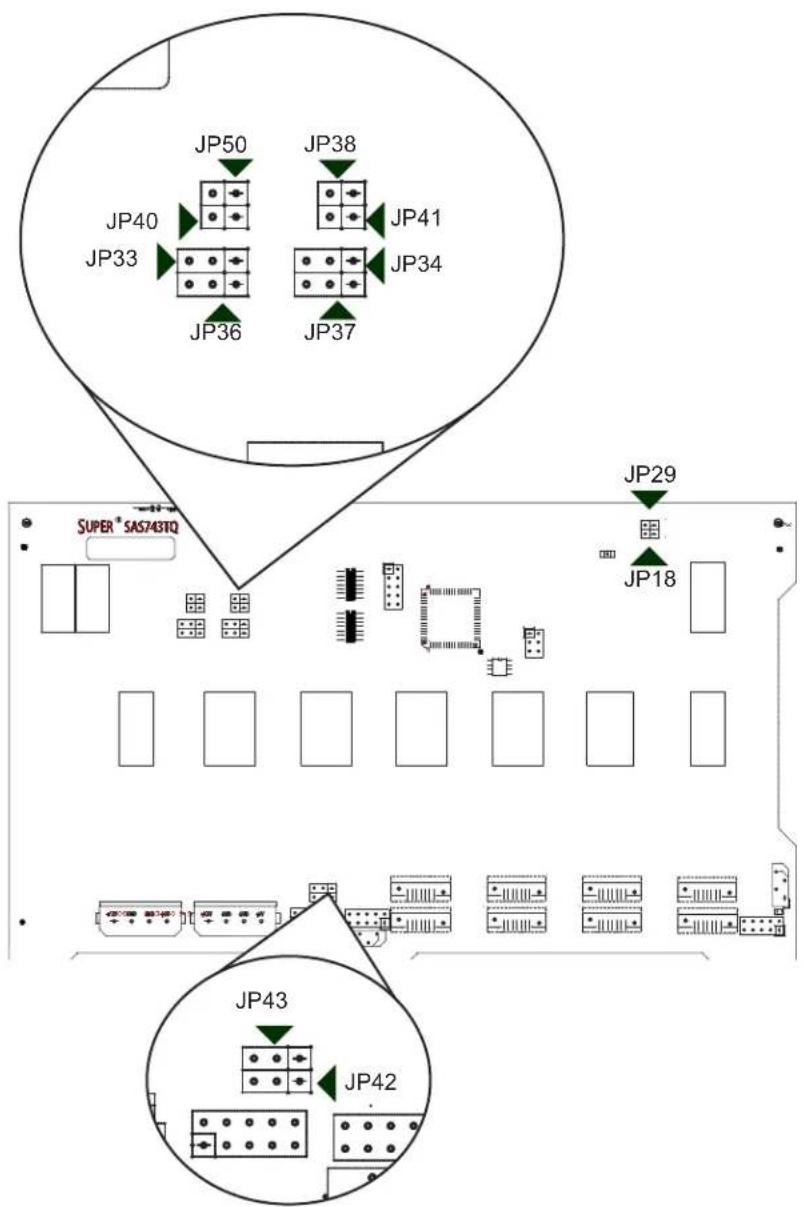
JP50 JP38 JP40 JP41 JP33 JP34 JP36 JP37 JP29 SUPER* SAS743TQ JP18 JP43 JP42Figure C-2. Rear Jumpers
| Jumper Settings | ||
| Jumper Jumper Settings Note | ||
| JP18 | Open: EnabledClosed: Disabled | Buzzer reset* |
| JP29 | Open: DefaultClosed: Reset | MG9072 chip reset |
*The buzzer sound indicates that a condition requiring immediate attention has occurred. The buzzer alarm is triggered by the following conditions: hard drive failure, fan failure, or system temperature over 45^ Celsius.
I^2C and SGPIO Mode Jumper Settings
This backplane can utilize I ^2 C or SGPIO. I ^2 C is the default mode and can be used without making changes to your jumpers. The following information details which jumpers must be configured to use SGPIO mode or restore your backplane to I ^2 C mode.
| I2C and SGPIO Settings | |||
| Jumper | I2C Jumper Setting (Default) | SGPIO Jumper Setting | Note |
| JP33 Pins 2 | -3 Pins 1-2 Controller ID #1 | ||
| JP34 Pins 1 | -2:ID#0 Pins 1-2 Backplane ID #1 | ||
| JP36 Pins 2 | -3 Pins 1-2 Controller ID #2 | ||
| JP37 Pins 2 | -3:ID#1 Pins 1-2 Backplane ID #2 | ||
| JP38 | Closed | Open | I2C Reset #2 |
| JP40 Open | Closed | I | 2C Reset SDOUT #1 |
| JP41 | Open | Closed | I2C Reset SDOUT #2 |
| JP42 Pins 2 | -3 Pins 1-2 Backplane ID SDIN #1 | ||
| JP43 Pins 2 | -3 Pins 1-2 Backplane ID SDIN #2 | ||
| JP50 Closed | Open | I | 2C Reset #1 |
Explanation of Jumpers
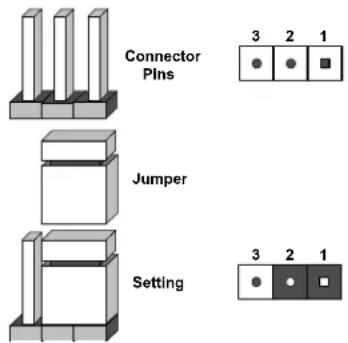
To modify the operation of the backplane, jumpers can be used to choose between optional settings. Jumpers create shorts between two pins to change the function of the connector. Pin 1 is identified with a square solder pad on the printed circuit board.
Note: On two pin jumpers, "Closed" means the jumper is on and "Open" means the jumper is off the pins.
text_image
Connector Plins Jumper Setting 3 2 1 3 2 1Rear LED Indicators

text_image
SUPER® SAS743TQ REV 3.00 pb 15Ω OH/Drive Fail LED 12V/3.50 60V 2.4V 1.1V 42V 60 60 4VFigure C-3. Rear LEDs
| Front Panel LEDs | ||
| LED State S | specification | |
| D3 On | Overheat/drive failure LED indicator(Red light: flashing, Buzzer: On, if activated) | |
C-4 Front Connectors and Indicators

text_image
SAS #0 SAS #1 SAS #2 SAS #3 SAS #4 SAS #5 SAS #6 SAS #7 J1 J2 J3 J4 J9 J11 J13 J15 D5 D6 D7 D8 D19 D20 D23 D26 D12 D13 D14 D15 D18 D21 D22 D25Figure C-4. Front Connectors and LEDs
| Drive Connectors and LED Indicators | |||
| Drive Number Label | HDD Activity LED (blue) | HDD Failure LED (red) | |
| SAS #0 J1 D12 D5 | |||
| SAS #1 J2 D13 D6 | |||
| SAS #2 J3 D14 D7 | |||
| SAS #3 J4 D15 D8 | |||
| SAS #4 J9 D18 D19 | |||
| SAS #5 J11 | D21 D20 | ||
| SAS #6 J13 D22 D23 | |||
| SAS #23 J15 D25 D26 | |||
Appendix D
BPN-SAS3-743A Backplane Specifications
This appendix provides details about the BPN-SAS3-743A backplane.
D-1 Safety Guidelines
ESD Safety Guidelines
Electrostatic Discharge (ESD) can damage electronic components. To prevent damage to your system, it is important to handle it very carefully. The following measures are generally sufficient to protect your equipment from ESD.
- Use a grounded wrist strap designed to prevent static discharge.
- Touch a grounded metal object before removing a component from the antistatic bag.
- Handle the backplane by its edges only; do not touch its components, peripheral chips, memory modules or gold contacts.
- When handling chips or modules, avoid touching their pins.
- Put the backplane and peripherals back into their antistatic bags when not in use.
General Safety Guidelines
- Always disconnect power cables before installing or removing any components from the computer, including the backplane.
- Disconnect the power cable before installing or removing any cables from the backplane.
- Make sure that the backplane is securely and properly installed on the motherboard to prevent damage to the system due to power shortage.
D-2 Version Information
This manual reflects BPN-SAS3-743A, Revision 1.00, the most current release available at the time of publication. Refer to the Supermicro Web site at www.supermicro.com for the latest updates, compatible parts and supported configurations.
All images and layouts shown in this guide are based upon the latest PCB revision available at the time of publishing. Your backplane may or may not look exactly the same.
D-3 Rear Connectors, Jumpers, and Indicators
Rear Connector Locations
The following connectors are on the side of the backplane that faces the rear of the chassis. They are identified by silkscreen labels.

text_image
SUPERO® BPN-SAS3-743A REV: 1.00 DEGNCED IN USA FC CE 1 BAR CODE 2 3 4 5 6 7Figure D-1. Rear Connectors
- Chip: CPLD
- JTAG Connector: J16
- SAS3 Port #1: JSM1
- SAS3 Port #0: JSM0
- Power Connector (4-pin) #3: JPW3
- Power Connector (4-pin) #2: JPW2
- Power Connector (4-pin) #1: JPW1
Rear Connectors and Pin Definitions
#1. CPLD Chip
The CPLD is an enclosure management chip that supports the SGPIO and LED management.
#2. JTAG Connector
The JTAG connector, designated J16, is used for diagnostic purposes. This connector should not be used as it is for internal testing only.
#3. - 4. SAS3 Ports
The SAS3 ports are used to connect the SAS3 drive cables. The 2 ports are designated JSM0, for drives at SAS #0-#3, and JSM1, for drives at SAS #4-#7 (see section 2-4 for SAS drive locations). Each port is also compatible with SATA drives. However, mixing SAS3 and SATA drives in the same enclosure is not recommended.
#5. – #7. Backplane Main Power Connectors
The 4-pin connectors, designated JPW1, JPW2, and JPW3, provide power to the backplane. See the table on the right for pin definitions.
| Backplane Main Power4-Pin Connector | |
| Pin# | Definition |
| 1 +12V | |
| 2 and 3 Ground | |
| 4 +5V | |
Rear Jumpers and Pin Definitions
The jumpers are used for internal texting only.

text_image
SUPERO® BPN-SAS3-743A RDS: 1.00 DEBOARD IN USA JP8 JP9 F C C E BAR CODE ACTLED 12V 6ND 6ND 5V 12V 6ND 6ND 5V 12V 6ND 6ND 5VFigure D-2. Rear Jumpers
| Jumper Settings | |
| Jumper Jumper Settings Note | |
| JP8 2-3: Default This is used for internal testing only. | |
| JP9 1-2: Default This is used for internal testing only. | |
| ACTLED Open: Default This is used for internal testing only. | |
Explanation of Jumpers
To modify the operation of the backplane, jumpers can be used to choose between optional settings. Jumpers create shorts between two pins to change the function of the connector. Pin 1 is identified with a square solder pad on the printed circuit board.
Note: On two pin jumpers, "Closed" means the jumper is on and "Open" means the jumper is off the pins.

text_image
Connector Pins Jumper Setting 3 2 1 3 2 1D-4 Front Connectors and Indicators
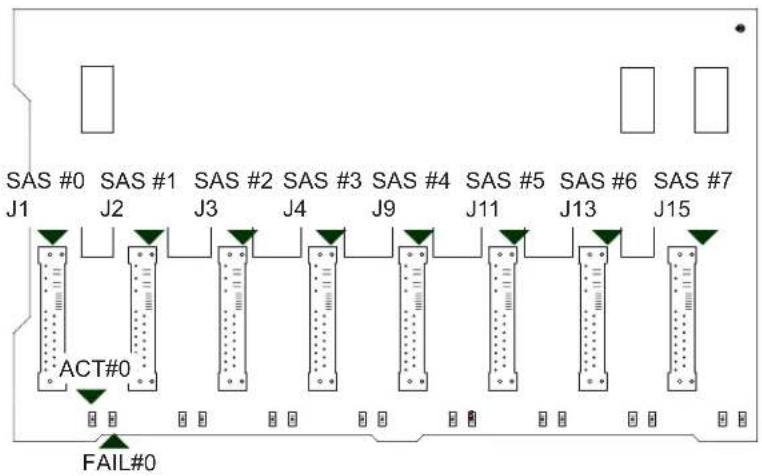
flowchart
graph TD
    A["SAS #0 J1"] --> B["ACT#0"]
    C["SAS #1 J2"] --> D["FAIL#0"]
    E["SAS #2 J3"] --> F["ACT#0"]
    G["SAS #3 J4"] --> H["FAIL#0"]
    I["SAS #4 J9"] --> J["ACT#0"]
    K["SAS #5 J11"] --> L["FAIL#0"]
    M["SAS #6 J13"] --> N["ACT#0"]
    O["SAS #7 J15"] --> P["FAIL#0"]
Figure D-3. Front Connectors and LEDs
| Drive Connectors and LED Indicators | |||
| Drive Number Label | HDD Activity LED (blue) | HDD Failure LED (red) | |
| SAS #0 J1 ACT #0 FAIL #0 | |||
| SAS #1 J2 ACT #1 FAIL #1 | |||
| SAS #2 J3 ACT #2 FAIL #2 | |||
| SAS #3 J4 ACT #3 FAIL #3 | |||
| SAS #4 J9 ACT #4 FAIL #4 | |||
| SAS #5 J11 | ACT #5 FAIL #5 | ||
| SAS #6 J13 ACT #6 FAIL #6 | |||
| SAS #23 J15 ACT #7 FAIL #7 | |||
Appendix E
SATA-743 Backplane Specifications
This appendix provides details about the SATA-743 backplane.
E-1 ESD Safety Guidelines
Electrostatic Discharge (ESD) can damage electronic components. To prevent damage to your system, it is important to handle it very carefully. The following measures are generally sufficient to protect your equipment from ESD.
- Use a grounded wrist strap designed to prevent static discharge.
- Touch a grounded metal object before removing a component from the antistatic bag.
- Handle the backplane by its edges only; do not touch its components, peripheral chips, memory modules or gold contacts.
- When handling chips or modules, avoid touching their pins.
- Put the card and peripherals back into their antistatic bags when not in use.
E-2 General Safety Guidelines
- Always disconnect power cables before installing or removing any components from the computer, including the backplane.
- Disconnect the power cable before installing or removing any cables from the backplane.
- Make sure that the backplane is securely and properly installed on the motherboard to prevent damage to the system due to power shortage.
E-3 An Important Note to Users
All images and layouts shown in this user's guide are based upon the latest revision available at the time of publishing. The backplane you have received may or may not look exactly the same as the graphics shown in this manual.
E-4 Introduction to the SATA-743 Backplane
The SATA-743 backplane has been designed to utilize the most up-to-date technology available, providing your system with reliable, high-quality performance.
This manual reflects SATA-743 Revision 3.00, the most current release available at the time of publication. Always refer to the Supermicro Web site at www.supermicro.com for the latest updates, compatible parts and supported configurations.
E-5Front Connectors and Jumpers

text_image
SUPRENT SABR243 12 1 9 7 5 2 2 3 10 8 6 4Figure E-1. Front Connectors
Connectors and Jumpers
- Overheat Temperature Setting: JP25
- SATA Port #3: J8
- Power Connectors (4-pin): JP10 and JP13
- SATA Port #4: J10
- ACT_IN#0-7: JP26
- SATA Port #5: J12
- SATA Port #0: J5
- SATA Port #6: J14
- SATA Port #1: J6
11.SATA Port #7: J16 - SATA Port #2: J7
- Buzzer Reset: JP18
E-6 Front Connector and Jumper Pin Definitions
1. Overheat Temperature Jumper
| Overheat Temperature (JP25) | |
| Pin# | Definition |
| 1-2 50° | C (Default) |
| 2-3 55° | C |
| Open | 45°C |
2. Backplane Main Power Connectors
The 4-pin connectors designated JP10 and JP13 provide power to the backplane. See the table on the right for pin definitions.
| BackplaneMain Power4-Pin Connector | |
| Pin# | Definition |
| 1 +12V | |
| 2-3 Ground | |
| 4 +5V | |
3. Activity LED Connector
The activity LED connector, designated JP26, is used to indicate the activity status of each SATA drive. The activity LED connector is located on the front panel. For the activity LED header to work properly, connect using a 10-pin LED cable.
| SATA Activity LED Header Pin Definitions | |
| Pin # Definition Pin # | Definition |
| 1 ACT IN#0 6 ACT IN#4 | |
| 2 ACT IN#1 7 ACT IN#5 | |
| 3 ACT IN#2 8 ACT IN#6 | |
| 4 ACT IN#3 9 ACT IN#7 | |
| 5 Ground 10 Empty | |
4. - 11. SATA Ports
The SATA ports are used to connect the SATA drive cables. The eight SATA ports are designated #0 - #7.
12. Buzzer Reset
The buzzer reset jumper allows the buzzer to be reset when an alarm has occurred.
E-7 Front Jumper Locations and Pin Definitions

text_image
S&P50® S&P743 JP25 JP18Figure E-2. Front Jumpers
| Socket Settings | ||
| Jumper Setting Note | ||
| JP18 | Open: No Reset (Default)Closed: Reset | Buzzer reset* |
| JP25 | Open: 45°C1-2: 50°C (Default)2-3: 55°C | Overheat temperature setting. |
Explanation of Jumpers
To modify the operation of the backplane, jumpers can be used to choose between optional settings. Jumpers create shorts between two pins to change the function of the connector. Pin 1 is identified with a square solder pad on the printed circuit board. Note: On two pin jumpers, "Closed" means the jumper is on and "Open" means the jumper is off the pins.

text_image
Connector Pins 3 2 1 Jumper Setting 3 2 1*The buzzer sound indicates that a condition requiring immediate attention has occurred.
The buzzer alarm is triggered by the following conditions:
- Hard drive failure
- System temperature over 50°Celsius.
Front LED Indicator

text_image
SUPER® SAT0743 D3 ICT N ICT N ICT N ICT N ICT N ICT N ICT N ICT N ICT N ICT N ICT N ICT N ICT N ICT N ICT N ICT N ICT N ICT N ICT N ICT N ICT N ICT N ICT N ICT N ICT N ICTNFigure E-3. Front LED
| Front Panel LEDs | ||
| LED | Normal State | Indicator Status |
| D3: OH LED | Off | Red indicator light is on when an overheat condition occurs. |
E-8 Rear Connectors and LED Indicators
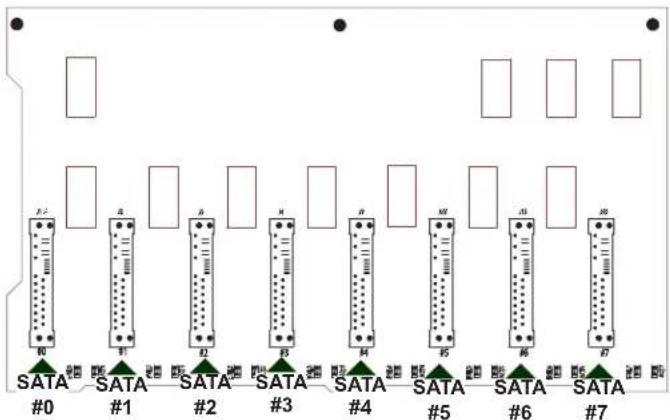
Rear Connectors
text_image
P1 R S M M M SATA SATA SATA SATA SATA SATA SATA SATA SATA SATA SATA #0 #1 #2 #3 #4 #5 #6 #7Figure E-4. Rear Connectors
| Rear SATA Connectors | |
| Rear Connector | SATA Drive Number |
| SATA #0 SATA HDD | #0 |
| SATA #1 SATA HDD | #1 |
| SATA #2 SATA HDD | #2 |
| SATA #3 SATA HDD | #3 |
| SATA #4 SATA HDD | #4 |
| SATA #5 SATA HDD | #5 |
| SATA #6 SATA HDD | #6 |
| SATA #7 SATA HDD | #7 |
Rear LEDs

text_image
ACT 0 D12 ACT 1 D13 ACT 2 D14 ACT 3 D15 ACT 4 D18Figure E-5. Rear LEDs
| Rear LED Indicators | ||
| Rear LED Activity LED SATA Drive Number | ||
| ACT 0 D12 SATA HDD #0 | ||
| ACT 1 D13 SATA HDD #1 | ||
| ACT 2 D14 SATA HDD #2 | ||
| ACT 3 D15 SATA HDD #3 | ||
| ACT 4 D18 SATA HDD #4 | ||
| ACT 5 D21 SATA HDD #5 | ||
| ACT 6 D22 SATA HDD #6 | ||
| ACT 7 D25 SATA HDD #7 | ||