
Toughpad FZ-Q1 - Graphic tablet PANASONIC - Free user manual and instructions
Find the device manual for free Toughpad FZ-Q1 PANASONIC in PDF.


| Product Type | Rugged Tablet |
| Brand | Panasonic |
| Model | Toughpad FZ-Q1 |
| Dimensions | 257 x 174 x 16.4 mm (10.1 inches) |
| Weight | Approximately 1.15 kg |
| Display | 10.1 inches, touchscreen, resolution 1920 x 1200 pixels |
| Processor | Intel Core i5-4300U or i5-5300U |
| RAM | 4 or 8 GB DDR3 |
| Storage | 128 GB or 256 GB SSD |
| Operating System | Windows 8.1 Pro or Windows 10 Pro |
| Connectivity | Wi-Fi 802.11 a/b/g/n/ac, Bluetooth 4.0, GPS, optional 4G/LTE |
| Ports | USB 3.0, HDMI, headphone jack, microSD card reader |
| Power | 26 Wh lithium-ion battery (removable), 16 V AC adapter |
| Battery Life | Up to 8 hours |
| Key Features | Capacitive touchscreen and stylus, 5 MP camera, stereo speakers, microphone, ambient light sensor |
| Durability | MIL-STD-810G, IP65 (dust and water jet resistant) |
| Maintenance and Cleaning | Clean with a soft lint-free cloth, avoid solvents and abrasive products |
| Security | TPM 2.0, optional fingerprint reader, Kensington security cable support |
| Spare Parts and Repairability | Removable battery, replacement stylus, optional AC adapter, repair by authorized center |
| Warranty | 3-year manufacturer warranty |
Frequently Asked Questions - Toughpad FZ-Q1 PANASONIC
User questions about Toughpad FZ-Q1 PANASONIC
0 question about this device. Answer the ones you know or ask your own.
Ask a new question about this device
Download the instructions for your Graphic tablet in PDF format for free! Find your manual Toughpad FZ-Q1 - PANASONIC and take your electronic device back in hand. On this page are published all the documents necessary for the use of your device. Toughpad FZ-Q1 by PANASONIC.
USER MANUAL Toughpad FZ-Q1 PANASONIC
natural_image
Line drawing of a tablet device with no text or symbols on the screen or bodyOPERATING INSTRUCTIONS
Basic Guide
Tablet Computer
Model No. FZ-Q1 series
Contents
Getting Started
Introduction......2
Description of Parts 4
First-time Operation....7
Turning On / Turning Off....10
Useful Information
Handling and Maintenance.... 11
Installing Software 17
Troubleshooting
Troubleshooting (Basic)......22
Appendix
LIMITED USE LICENSE AGREEMENT.....28
Standard Limited Warranty....43
Thank you for purchasing this Panasonic product. For optimum performance and safety, please read these instructions carefully.
In these instructions, the names are referred as follows.
Windows 8.1 indicates Windows 8.1 Operating System.
Windows 7 indicates Windows 7 Operating System.
■ Terms and illustrations in these instructions
CAUTION : Conditions that may result in minor or moderate injury.
NOTE : Useful and helpful information.
Enter : Press [Enter] key.
Alt + Del : Press and hold [Alt] key, and then press [Del] key.
→ : Page in these Operating Instructions.
Reference to the on-screen manuals.
Windows 8.1
Display “Charm”: Align the cursor to the top right (or bottom right) corner of the screen to display Charm menu.
Alternatively:
Flick toward the center of the screen from the right edge.
- Touch (Settings) and then touch (Power).
Windows 7
(Start) - [All Programs] : Touch (Start), and then touch [All Programs].
- Some illustrations are simplified to help your understanding and may look different from the actual unit.
- If you do not log on as an administrator, you cannot use some functions or cannot display some screens.
- Refer for the latest information about optional products to the catalogs, etc.
- In these instructions, the names and terms are referred as follows.
- "Windows 8.1 Pro 64-bit" as "Windows" or "Windows 8.1"
- “Windows 7 Professional 32-bit Service Pack 1” and “Windows 7 Professional 64-bit Service Pack 1” as “Windows” or “Windows 7”
Windows 8.1
Screen messages are explained in [English (United States)].
(Depending on the language preference, some screen messages in these instructions are different from the actual screen messages. For example, [Flight mode] may be displayed instead of [Airplane mode] in some language preference.)
■ Disclaimer
Computer specifications and manuals are subject to change without notice. Panasonic Corporation assumes no liability for damage incurred directly or indirectly from errors, omissions or discrepancies between the computer and the manuals.
Trademarks
Microsoft, Windows, and the Windows logo are registered trademarks of Microsoft Corporation of the United States and/or other countries.
Intel, Core, Centrino and PROSet are either registered trademarks or trademarks of Intel Corporation.
microSDXC Logo is a trademark of SD-3C, LLC.

Adobe, the Adobe logo and Adobe Reader are either registered trademarks or trademarks of Adobe Systems Incorporated in the United States and/or other countries.
Bluetooth ^® is a registered trademark owned by Bluetooth SIG, Inc., U.S.A. and licensed to Panasonic Corporation.
HDMI, the HDMI Logo and High-Definition Multimedia Interface are trademarks or registered trademarks of HDMI Licensing LLC in the United States and other countries.
Names of products, brands, etc., appearing in this manual are trademarks or registered trademarks of their respective own companies.
■ On-screen Manual
For further information about the computer, you can refer to the on-screen manual.
● Operating Instructions - Reference Manual
The Operating Instructions - Reference Manual contains the practical information to help you fully enjoy the computer's performance. Update it to the latest version for reference.
● Important Battery Tips
The Important Battery Tips will provide you with the battery information so that you can use the battery in the optimum condition to obtain longer operation time.
- Update the on-screen manuals
This describes the procedures to update the on-screen manual.
● Operating Instructions - Connect to a network
This describes the connection procedures using the network devices mounted on this unit.
To access the on-screen manuals, follow the steps below.
Windows 8.1
On the Start screen, touch the [Manual Selector] tile, and select the on-screen manual.
Windows 7
Double-touch [Manual Selector] on the desktop screen, and select the on-screen manual.
NOTE
- [Contents] tab or [Search] tab is displayed on the left side of the window. Select tab and display the desired item.
Front side
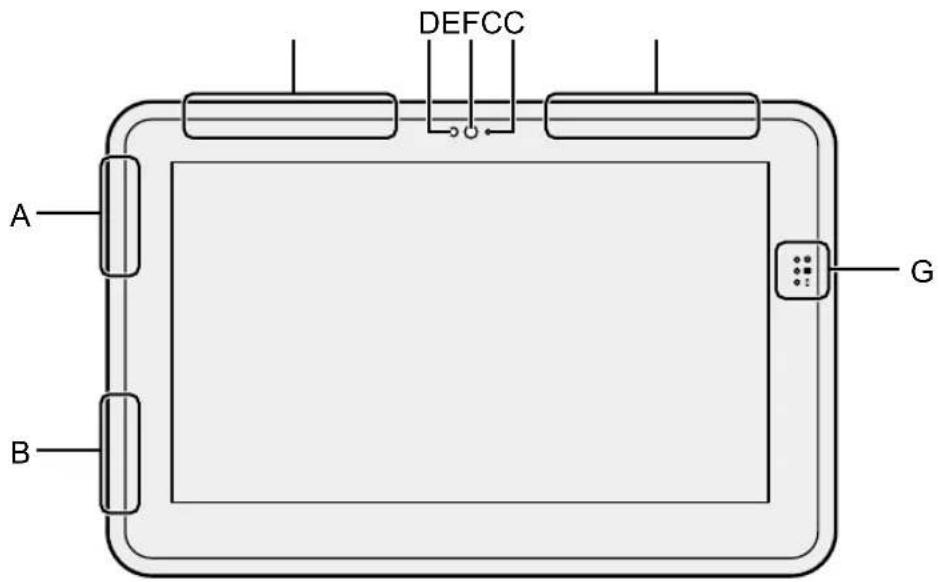
A: Wireless LAN Antenna / Bluetooth Antenna
→ Operating Instructions - Connect to a network "Wireless LAN" "Bluetooth"
B: Wireless LAN Antenna
→ Operating Instructions - Connect to a network "Wireless LAN"
C: Wireless WAN Antenna
→ Operating Instructions - Connect to a network "Wireless WAN"
D: Ambient Light Sensor
The ambient light sensor is equipped with an automatic brightness adjustment function that adjusts the display screen. (→ page 12)
Front Camera
→ Operating Instructions - Reference Manual "Camera"
E: Camera Lens
F: Camera Indicator
G: LED Indicators
① : Power Indicator
Off: Power off/Hibernation, Green: Power on, Blinking green: Sleep.
: Drive status
☐: Battery status
→ page 12 "When the battery indicator does not light on"
→ Operating Instructions - Reference Manual "Battery Power"
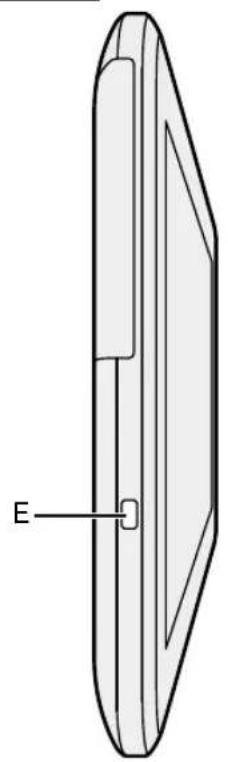
Left side
natural_image
Diagram of a curved object with a labeled point E, no text or symbols presentTop
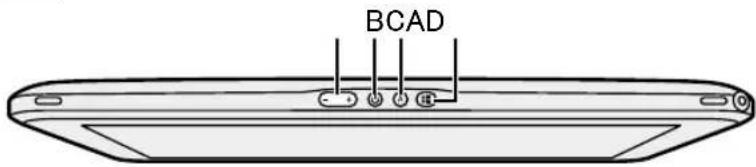
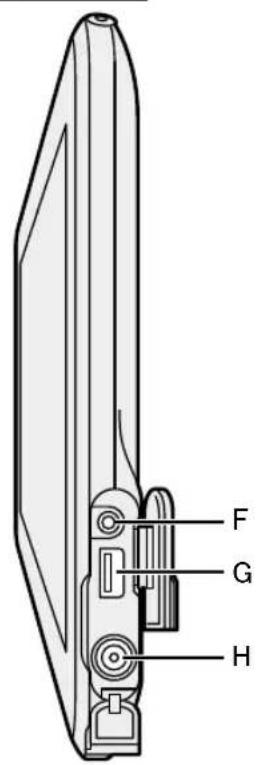
Right side
A: Volume Button
→ Operating Instructions -Reference Manual "Tablet Buttons"
B: Power Switch
C: A Button
→ Operating Instructions - Reference Manual "Tablet Buttons"
D: Windows Button
→ Operating Instructions - Reference Manual "Tablet Buttons"
E: Security Lock
A Kensington cable can be connected. For further information, read the manual that comes with the cable.
F: Headset Jack
A headset or headphone can be connected.
G: USB3.0 Port
→ Operating Instructions - Reference Manual "USB Devices"
H: DC-IN Jack
Rear side
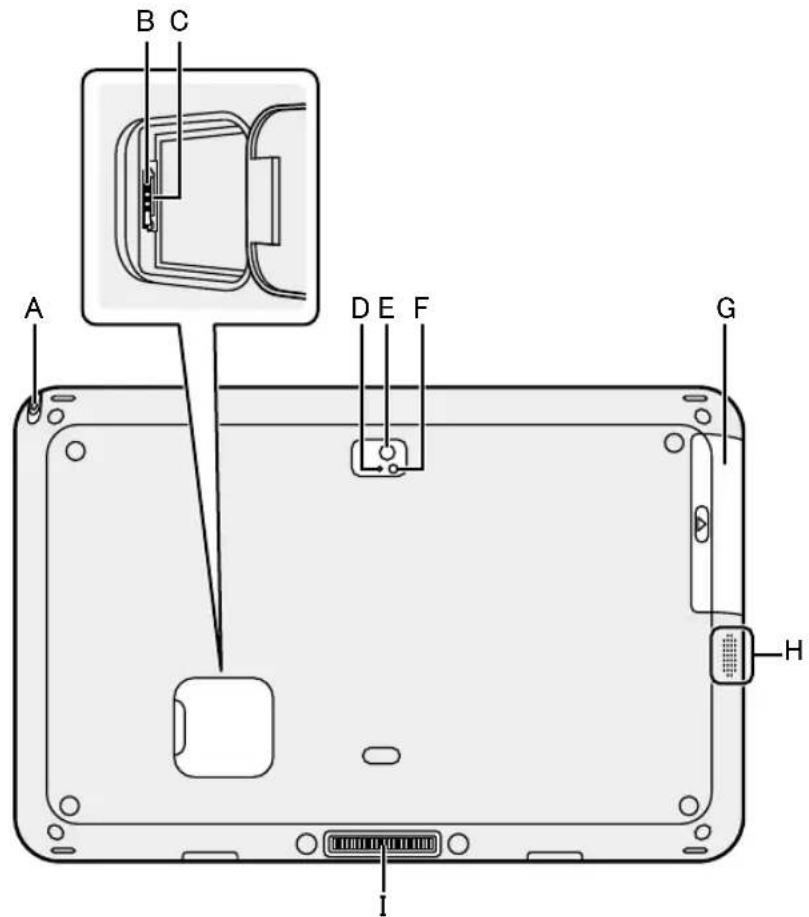
A: Stylus Holder
B: microSIM Card Slot
→ Operating Instructions - Connect to a network
→ Operating Instructions - Reference Manual "Wireless WAN"
C: microSD Memory Card Slot
→ Operating Instructions - Reference Manual "microSD Memory Card Slot"
Rear Camera
→ Operating Instructions - Reference Manual "Camera"
D: Camera Indicator
E: Camera Lens
F: Camera Light
G: Smart Card Reader
→ Operating Instructions - Reference Manual "Smart Card Reader"
H: Speaker
I: Expansion Bus Connector
→ Operating Instructions - Reference Manual "Cradle"
■ Preparation
① Check and identify the supplied accessories.
If you do not find the described accessories, contact Panasonic Technical Support. (→ page 36).
- AC Adaptor ..... 1
- AC Cord ..... 1
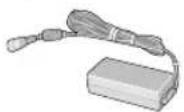
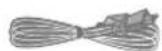
Model No: CF-AA6373A
- Soft Cloth 1
- Stylus ^1 1
• Tether....1
• OPERATING INSTRUCTIONS - Read Me First 1
*1 At the time of purchase, stylus is set to the stylus holder.
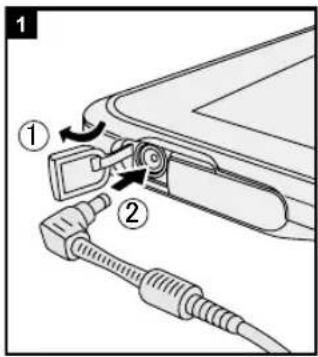
1 Connect your computer to a power outlet.
The battery charging starts automatically.
CAUTION
- Do not disconnect the AC adaptor until the first-time operation procedure is completed.
- When using the computer for the first time, do not connect any peripheral device except the AC adaptor.
● Handling the AC adaptor - Problems such as sudden voltage drops may arise during periods of thunder and lightning. Since this could adversely affect your computer, an uninterruptible power source (UPS) is highly recommended unless running from the battery alone.
NOTE
- Note that the computer consumes electricity even when the computer power is off. If the battery is fully charged, the battery will fully discharge in the following period of time:
When power is off Approx. 16 weeks
In sleep Approx. 12 days
In hibernation Approx. 16 weeks
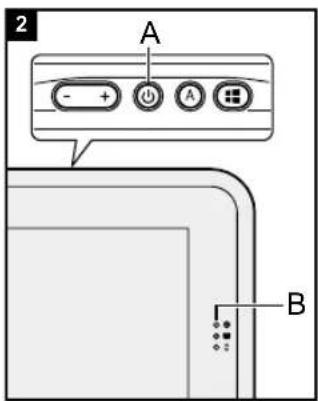
2 Turn on the computer.
Press the power switch (A) until the power indicator lights. (→ page 10)
CAUTION
- Do not press the power switch repeatedly or do not hold the power switch for four seconds or longer.
- Any changes from the default setting of the Setup Utility must not be made until the First-time Operation is completed.
3 Setup Windows.
Follow the on-screen instructions.
- The computer restarts several times. Do not touch the screen or tablet buttons, and wait until the drive indicator has turned off.
- After the computer is turned on, the screen remains black or unchanged for a while, but this is not a malfunction. Wait for a moment until the Windows setup screen appears.
- Setup of Windows will take approximately Windows 8.1 5 minutes / Windows 7. Go to the next step, confirming each message on the display.
- Windows 7 Follow the steps below.
① When “Enable sensors” is displayed, touch [Enable this sensor].
② When the [User Account Control] screen is displayed, touch [Yes].
③ At the [Display Rotation Tool] confirmation screen, touch [Yes].
The computer restarts automatically, and the setting is enabled.
- You can set the Wireless Network after the setup of Windows is complete.
Windows 8.1 If "Get online" is displayed, you can select "Skip this step".
Windows 7 "Join a wireless network" screen may not appear.
CAUTION
- You can change the user name, password, image and security setting after setup of Windows.
- Remember your password. If you forget the password, you cannot use Windows. Creating a password reset disk beforehand is recommended.
- Do not use the following words for user name: CON, PRN, AUX, CLOCK\$, NUL, COM1 to COM9, LPT1 to LPT9, LPT, @, &, space. In particular, if you create a user name (account name) that includes the “@” mark, a password will be requested at the log-on screen, even if no password has been set. If you try to log on without entering a password, “The user name or password is incorrect.” may be displayed and you will not be able to Windows 8.1 sign in / Windows 7 log on to Windows (→ page 25).
4 Create the recovery disc.
A recovery disc allows you to install OS and restore its factory default condition, in case, for example, the recovery partition of the flash memory is damaged. We recommend creating a recovery disc before you begin using the computer.
Refer to → Operating Instructions - Reference Manual "Recovery Disc Creation Utility" about creating the disc.
NOTE
● PC Information Viewer
This computer periodically records the management information of the flash memory, etc. The maximum data volume for each record is 1024 bytes.
This information is only used for estimating the cause when the flash memory goes down by any possibility. They are never sent to outside via network nor used for any other purpose except for the purpose described the above.
To disable the function, add the check mark for [Disable the automatic save function for management information history] in [Hard Disk Status] of PC Information Viewer, and touch [OK]. Then follow the on-screen instructions.
(→ Operating Instructions - Reference Manual "Checking the Computer's Usage Status")
■ Before using wireless function
Windows 8.1
① Display "Charm", and touch ⚙ - [Change PC Settings] - [Network] - [Airplane mode].
Set [Airplane mode] to [Off], and then;
set [Wi-Fi] to [On] (for wireless LAN).
set [Mobile broadband] to [On] (for wireless WAN).
set [GPS] to [On] (for wireless WAN).
set [Bluetooth] to [On] (for Bluetooth).
■ To change the partition structure
You can shrink a part of an existing partition to create unallocated disk space, from which you can create a new partition. In the default setting, you can use a single partition.
① Windows 8.1
- Flick from the middle of the Start screen to the top, and then long touch [This PC] under "Windows System".
- Touch [Manage] on app bar.
Windows 7
Touch (Start) and long touch [Computer], then touch [Manage].
● A standard user needs to enter an administrator password.
② Touch [Disk Management].
③ Long touch the partition for Windows ("c" drive in the default setting), and touch [Shrink Volume].
● The partition size depends on the computer specifications.
④ Input the size in [Enter the amount of space to shrink in MB] and touch [Shrink].
- You cannot input a larger number than the displayed size.
- To select [Reinstall to the OS related partitions.] in installing OS (→ page 19),
Windows 8.1 70 GB / Windows 7 GB or more is necessary for [Total size after shrink in MB].
⑤ Long touch [Unallocated] (the shrunk space in the step ④) and touch [New Simple Volume].
⑥ Follow the on-screen instructions to make the settings, and touch [Finish]. Wait until formatting is completed.
NOTE
- You can create an additional partition using remaining unallocated space or newly creating unallocated space.
- To delete a partition, long touch the partition and touch [Delete Volume] in the step ③.
Turning On
Press the power switch (↓) → page 5) until the power indicator (↓) → page 4) lights.
NOTE
- Do not press the power switch repeatedly.
- The computer will forcibly be turned off if you press the power switch for four seconds or longer.
- Once you turn off the computer, wait for ten seconds or more before you turn on the computer again.
- Do not perform the following operation until the drive indicator turns off.
- Connecting or disconnecting the AC adaptor
- Pressing the power switch
- Touching tablet buttons, screen or external mouse
Turning Off
① Shut down the computer.
Windows 8.1
- Display "Charm", and touch 🙏
- Touch [Power] - [Shut down].
Windows 7
Touch (Start) - [Shutdown].
NOTE
Windows 8.1
To turn off the computer completely, proceed as follows.
① Display "Charm", and touch [Change PC settings] - [Update and recovery] - [Recovery].
② Touch [Restart now] under “Advanced startup”.
③ Touch [Turn off your PC].
Precaution against Starting Up/Shutting Down
- Do not do the following
- Connecting or disconnecting the AC adaptor
- Pressing the power switch
- Touching tablet buttons, screen or external mouse
NOTE
● To conserve power, the following power saving methods are set at the time of purchase.
- The screen automatically turns off after: 10 minutes (when AC adaptor is connected) of inactivity 5 minutes (when operating on battery power) of inactivity
- The computer automatically enters sleep ^1 after : 20 minutes (when AC adaptor is connected) of inactivity 15 minutes (when operating on battery power) of inactivity
*1 Refer to Operating Instructions - Reference Manual "Sleep or Hibernation Functions" about resuming from sleep.
Operation environment
- Place the computer on a flat stable surface not subject to shock, vibration, and danger of dropping. Do not place the computer upright or turn it over. If the computer is exposed to an extremely strong impact, it may become damaged.
- Operating environment
Temperature: Operation :
- 1 0 °C to 50 °C {14 °F to 122 °F} (IEC60068-2-1, 2) ^*1
Storage: -20 °C to 60 °C {-4 °F to 140 °F}
Humidity: Operation : 30 % to 80% RH (No condensation)
Storage : 30 % to 90% RH (No condensation)
Even within the above temperature/humidity ranges, operation for a long time in extreme environments, smoking nearby, or operation in places where oil is used or where there is a lot of dust will result in the product deterioration and will shorten the product life.
*1 Do not expose the skin to this product when using the product in a hot or cold environment. (→ Operating Instructions - Read Me First "Safety Precautions")
If the computer is wet in temperatures of 0 °C {32 °F} or below, freeze damage may occur. Make sure to dry off the computer in such temperatures.
- Do not place the computer in the following areas, otherwise the computer may be damaged.
- Near electronic equipment. Image distortion or noise may occur.
• In extremely high or low temperature.
- As the computer can become hot during operation, keep it away from items that are sensitive to heat.
Handling cautions
This computer is designed to minimize shock to parts such as the LCD and the flash memory drive, but no warranty is provided against any trouble caused by shock. Be extremely careful when handling the computer.
- When carrying the computer:
- Turn off the computer.
- Remove all external devices, cables, Smart Cards and other protruding objects.
- Do not drop or hit the computer against solid objects.
- Do not grip the display part.
- When you board an airplane, take the computer with you and never put it in your checked luggage. When using the computer on airplane, follow the airline's instructions.
- The touchscreen is designed to be used by a finger tip. Do not place any object on its surface and do not press down strongly with sharp-pointed or hard objects that may leave marks (e.g., nails, pencils and ball point pens).
- Avoid any harmful substances such as oil from getting into the touchscreen. The pointer may not work correctly.
- Be careful not to get injured by dropping or getting hit when carrying the computer.
- Use only the dedicated pen (included) to touch the screen. Do not place any object on its surface and do not press down strongly with sharp-pointed or hard objects that may leave marks (e.g., nails, pencils and ball point pens).
- Do not use the screen when dust or dirt (e.g., oil) is on the screen. Otherwise foreign particles on the screen/dedicated pen (included) can scratch the screen surface or obstruct the dedicated pen (included) operation.
- Use the dedicated pen (included) only for touching the screen. Using it for any other purpose may damage the dedicated pen (included) and result in scratches on the screen.
■ When the battery indicator does not light on
The battery indicator may not light on even if the AC adaptor is correctly connected to the computer, due to the following reasons.
- The AC adaptor's protection function may be working. In this case, pull out the AC cord and wait for more than 1 minute before reconnecting the AC cord.
■ When using peripheral devices
Follow these instructions and the Operating Instructions - Reference Manual to avoid any damage to the devices. Carefully read the instruction manuals of the peripheral devices.
- Use the peripheral devices conforming to the computer's specifications.
- Connect to the connectors in the correct direction.
- If it is hard to insert, do not try forcibly but check the connector's shape, direction, alignment of pins, etc.
- If screws are included, fasten them securely.
- Remove the cables when you carry the computer. Do not pull the cables forcibly.
■ Preventing your computer from unauthorized use via wireless LAN/Bluetooth/Wireless WAN
- Before using wireless LAN/Bluetooth/Wireless WAN, make the appropriate security settings such as data encryption.
■ Battery Recalibration
- The battery recalibration may take a long time due to the large battery capacity. This is not a malfunction.
• Full charge: Approximately 2.5 hours
- Complete discharge: Approximately 4 hours
When performing “Battery Recalibration” without shutting down Windows, it may take more time to charge / discharge.
■ Sensors
This computer is equipped with four sensors (acceleration sensor, gyro sensor, magnetic sensor, ambient light sensor), and you can use these sensors with any software that is compatible.
As the accuracy of each sensor output is dependent on the operating environment and other conditions, the results should only be used as a reference.
The acceleration sensor, gyro sensor, and magnetic sensor are located at the bottom left of the LCD. The detection results of each sensor may vary depending on the display mode, how you are holding the computer, the application software you are using, and other factors.
● Automatic brightness adjustment
The computer is equipped with an automatic brightness adjustment function that adjusts the display screen based on the ambient light sensor. You can configure the automatic adjustment function as follows.
Windows 8.1
① Display "Charm", and touch ⚙ - [Change PC Settings] - [PC and devices] - [Power and sleep], then set [Adjust my screen brightness automatically] to [On].
Windows 7
① Touch 📋 (Start) - [Control Panel] - [Hardware and Sound] - [Power Option].
② Touch [Change plan settings] for the power plan currently used.
③ Touch [Change advanced power settings] and double-touch [Display].
④ Double-touch [Enable adaptive brightness], make necessary settings, and touch [OK]. Set each item to ON, and the brightness of the screen display will adjust automatically.
The ambient light sensor is located at the top of LCD.
The ambient light cannot be detected properly if this area is obstructed or dirty.
● Magnetic sensor
The magnetic sensor on the computer operates by detecting geomagnetism. Therefore, the magnetic sensor may not function properly and it readings may be inaccurate, especially in the following environments.
- Inside or near steel structures such as buildings or bridges
- Inside or near automobiles, or near train power lines
• Near metallic furniture or appliances - When the AC adaptor or other peripheral devices are brought closer to the computer
- Near magnets, speakers, or other objects with strong magnetic fields
The magnetic directions indicated by the magnetic sensor may not be accurate immediately after purchase or in environments with poor magnetic fields.
In such cases, turn on the computer and move it as follows.
① Hold the computer so that its display side is facing the ground and level.
② While keeping the computer level, rotate it 90 degrees or more clockwise.
③ Return the computer to position ①, and rotate it 90 degrees or more counterclockwise.
④ Return the computer to position ①.
⑤ Tilt the computer 90 degrees or more to the left so that the left side of the computer tilts down.
⑥ Return the computer to position ①, and tilt it 90 degrees or more to the right so that the right side of the computer tilts down.
CAUTION
- Hold the computer firmly when moving it. Strong shocks from dropping the computer may result in damage.
- Tether for Stylus
When using the stylus with tether, do not pull the tether with excessive force. The dedicated pen (included) may hit the computer, person's body or other objects when released.
Maintenance
If drops of water or other stains get on the surface of the LCD panel, wipe them off immediately. Failure to do so may result in staining.
To clean the LCD panel
Use the soft cloth. (For further information, refer to "Suggestions About Cleaning the LCD Surface" → Operating Instructions - Reference Manual "Screen Input Operation".)
To clean areas other than the LCD panel
Wipe with a soft dry cloth such as gauze. When using detergent, dip a soft cloth in water-diluted detergent and wring it thoroughly.
CAUTION
- Do not use benzene, thinner, or rubbing alcohol since it may adversely affect the surface causing discoloration, etc. Do not use commercially-available household cleaners and cosmetics, as they may contain components harmful to the surface.
- Do not apply water or detergent directly to the computer, since liquid may enter inside of the computer and cause malfunction or damage.
- Use a soft, dry cloth to wipe droplets of water from the surface of the unit. Do not use a microwave to dry the unit. Doing so will result in malfunction or damage.
Dispose of Computer
Attention Customers
Don't remove the battery by yourself. The battery must be removed by qualified professionals. When disposing of this product, be sure to contact qualified professionals to remove the battery.
Attention Qualified professionals to remove the battery
Dispose of this product correctly in accordance with the local regulations after removing the battery as shown in the following procedure.
■ Preparation
- Remove all peripherals (microSD memory card, etc.).
- Erase the stored data. (→ Operating Instructions - Reference Manual "Erasing Flash Memory Data")
CAUTION
● Never disassemble the computer except before disposal.
- Refer to Operating Instructions - Read Me First "Safety Precautions" for precautions when disposing of the computer.
- Turn off the computer, and connect the AC adaptor.
- Press and hold [volume down] button and [A] button for 10 seconds or more.
- Disconnect the AC adaptor.
- Turn over the computer.
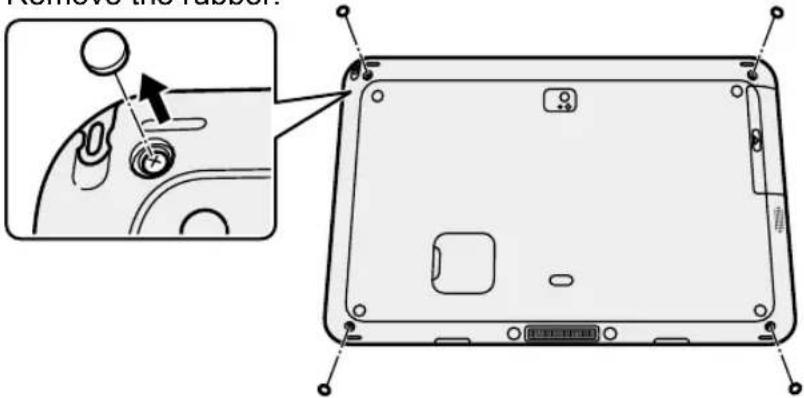
- Remove the screw covers.
Remove the rubber.
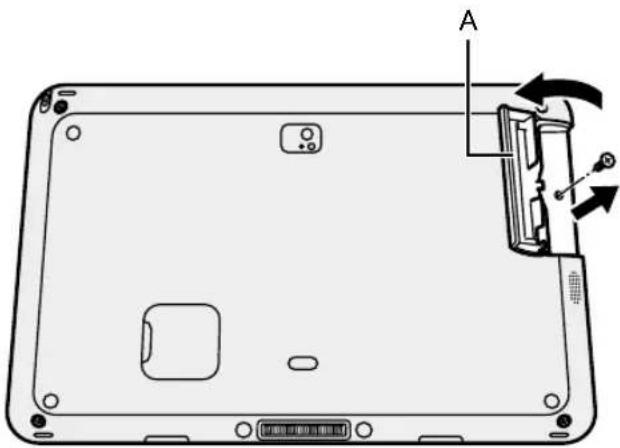
- Open the cover (A) and remove the screw.
natural_image
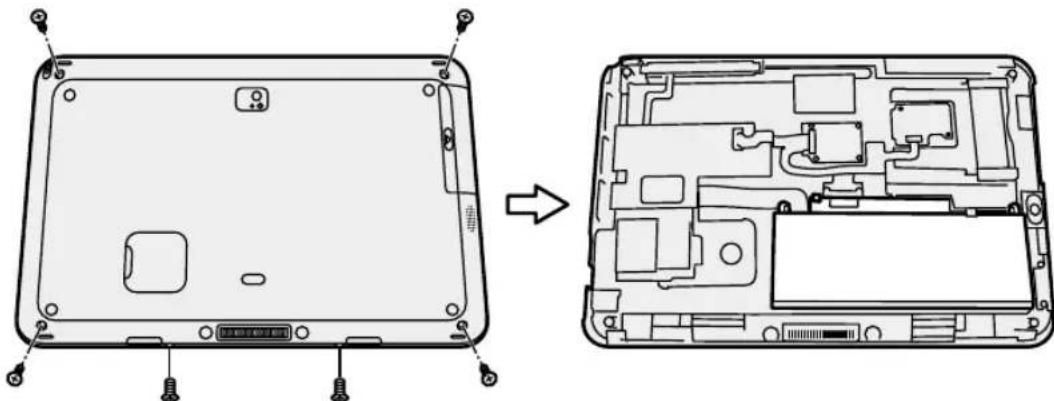
Diagram of a laptop back panel with labeled component A and directional arrows indicating movement (no text or symbols beyond labels)- Remove the screws and the rear cover.
natural_image
Diagram showing the open and internal views of a laptop chassis, showing front and side views with no text or symbols.- Lift up the side (B) and remove the battery.
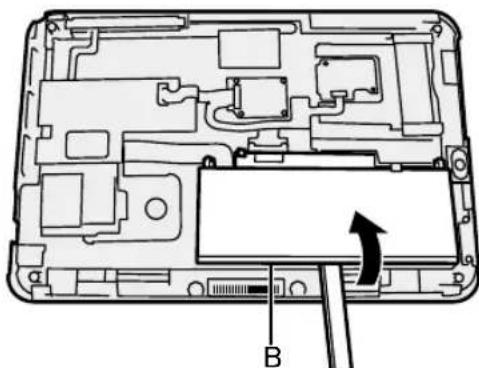
natural_image
Diagram of a laptop's internal circuit board with labeled component B (no text or symbols beyond label)- Insulate the connectors on the built-in battery by covering them with plastic tape, for example.
Installing software will return the computer to the default condition. When you install the software, the flash memory data will be erased.
Back up important data to other media or an external hard disk before installation.
CAUTION
- Only Windows 8.1 can be installed. Windows 7 can not be installed.
- Do not delete the Recovery Partition on the flash memory. The disk space in the partition is not available to store data.
To check the Recovery Partition, perform the following methods. - Flick from the middle of the Start screen to the top, and then long touch [This PC] under "Windows System".
- Touch [Manage] on app bar.
Touch (Start) and long touch [Computer], then touch [Manage].
● A standard user needs to enter an administrator password.
② Touch [Disk Management].
① Windows 8.1
Windows 7
■ Remove everything and reinstall Windows
Preparation
Connect the external keyboard. - Remove all peripherals.
- Connect the AC adaptor and do not remove it until installation is complete.
Windows 8.1
1 Perform "Remove everything and reinstall Windows".
① Display "Charm", and touch ⚙ - [Change PC settings] - [Update and recovery] - [Recovery].
② Touch [Get Started] under "Remove everything and reinstall Windows".
③ Touch [Next].
④ Select the option.
- Just remove my files
Perform the reinstallation of the Windows in a few moments (Approximately 20 minutes). - Fully clean the drive
By fully cleaning, the deleted files can not be recovered easily and the security level will be increased. The processing time will be longer (Approximately 140 minutes).
Follow the on-screen instructions.
After the reinstallation, the computer will restart.
- Do not interrupt installation, for example by turning off the computer or performing other operation.
Otherwise installation may become unavailable as Windows may not start up or the data may be corrupted.
2 Perform the "First-time Operation" ( → page 8).
NOTE
- The date and time, and the time zone may not be correct. Be sure to set them correctly.
3 Perform Windows Update.
4 Clear TPM.
① Flick from the middle of the Start screen to the top.
② Touch [Run] under "Windows System", input [tpm.msc] and touch [OK].
③ Touch [Clear TPM...] under "Actions" on the right of the "TPM Manager on Local Computer" screen.
④ Touch [Restart] of the “Manage the TPM security hardware” screen. The computer will restart.
⑤ When "TPM configuration change was requested to ..." is displayed, press F12.
⑥ Touch the Desktop tile, and when "TPM is ready" appears, touch [Close].
■ Hard disk (Flash memory) recovery
Preparation
- Remove all peripherals.
- Connect the AC adaptor and do not remove it until installation is complete.
You can reinstall the default condition of Windows 8.1.
Windows 8.1 If reinstallation using the method described in "Remove everything and reinstall Windows" above is not successful, follow the steps below.
1 Start the Setup Utility.
Windows 8.1
① Display "Charm", and touch ⚙ - [Change PC settings] - [Update and recovery] - [Recovery].
② Touch [Restart now] under "Advanced startup".
③ Touch [Troubleshoot] - [Advanced options] - [UEFI Firmware Settings] - [Restart].
Windows 7
Turn on the computer, and touch top left of the screen while [Panasonic] boot screen is displayed.
- If the [Panasonic] boot screen is not displayed, turn on the computer while touching top left of the screen.
- If the password is requested, enter the Supervisor Password.
2 Write down all of the contents of the Setup Utility and touch [Exit] and double-touch [Load Default Values].
At the confirmation message, touch [Yes].
3 Check the [UEFI Boot] setting of the Setup Utility.
[UEFI Boot] should be set to [Enabled].
4 Touch [Exit] and double-touch [Save Values and Reboot].
At the confirmation message, touch [Yes].
Computer will restart.
5 Touch top left of the screen while [Panasonic] boot screen is displayed.
The Setup Utility starts up.
- If the password is requested, enter the Supervisor Password.
6 Touch [Exit] and double-touch [Recovery Partition].
7 Touch [Next] and touch [YES].
8 At the License Agreement screen, touch [Yes, I agree to the provisions above and wish to continue!] and touch [Next].
9 Touch [Next].
If the option is displayed, select the setting and touch [Next].
- [Reinstall Windows to the System Disk to factory default.] Select this option when you want to install Windows to the factory default. After installation, you can create a new partition. For how to create a new partition, refer to “To change the partition structure” (→ page 9).
- [Reinstall to the OS related partitions.] ^*1
Select this option when the flash memory has already been divided into several partitions and you want to keep the partition structure. For how to create a new partition, refer to “To change the partition structure” ( page 9).
^*1 This does not appear if Windows cannot be installed to the recovery partition and the area usable by Windows.
10 At the confirmation message, touch [YES].
Installation starts according to the instructions on the screen. (It will take approximately 20 minutes.)
- Do not interrupt installation, for example by turning off the computer or performing other operation. Otherwise installation may become unavailable as Windows may not start up or the data may be corrupted.
11 When Ending process screen is displayed, touch [OK] to turn off the computer.
12 Turn on the computer.
- If the password is requested, enter the Supervisor Password.
13 Perform the "First-time Operation" (→ page 8).
NOTE
● The date and time, and the time zone may not be correct. Be sure to set them correctly.
14 Start the Setup Utility and change the settings as necessary.
15 Perform Windows Update.
16 Clear TPM ( → page 18).
■ Using Recovery Disc
Use the Recovery Disc in the following conditions.
- You have forgotten the administrator password.
- Installation is not complete. The recovery partition in the flash memory may be broken.
Preparation
● Prepare the following items:
- Recovery Disc ( → Operating Instructions - Reference Manual "Recovery Disc Creation Utility")
- USB DVD drive (optional) (refer to recent catalogs and other sources for information about the products available)
- Remove all peripherals (except for the USB DVD drive).
- Connect the AC adaptor and do not remove it until installation is complete.
1 Connect the DVD drive to the USB port.
2 Start the Setup Utility.
Windows 8.1
① Display "Charm", and touch ⚙ - [Change PC settings] - [Update and recovery] - [Recovery].
② Touch [Restart now] under "Advanced startup".
③ Touch [Troubleshoot] - [Advanced options] - [UEFI Firmware Settings] - [Restart].
Windows 7
Turn on the computer, and touch top left of the screen while [Panasonic] boot screen is displayed.
- If the [Panasonic] boot screen is not displayed, turn on the computer while touching top left of the screen.
- If the password is requested, enter the Supervisor Password.
3 Write down all of the contents of the Setup Utility and touch [Exit] and double-touch [Load Default Values].
At the confirmation message, touch [Yes].
4 Check the [UEFI Boot] setting of the Setup Utility.
[UEFI Boot] should be set to as follows.
When the recovery disc for Windows 8.1 is used: [Enabled]
When the recovery disc for Windows 7 is used: [Disabled]
5 Set the Recovery Disc into the DVD drive.
6 Touch [Exit] and double-touch [Save Values and Reboot].
At the confirmation message, touch [Yes].
Computer will restart.
7 Touch top left of the screen while [Panasonic] boot screen is displayed.
The Setup Utility starts up.
- If the password is requested, enter the Supervisor Password.
8 Touch [Exit] and double-touch your DVD drive in [Boot Override].
The computer will restart.
9 Touch [Reinstall Windows] and touch [Next].
10 At the confirmation message, touch [YES].
11 At the License Agreement screen, touch [Yes, I agree to the provisions above and wish to continue!] and touch [Next].
12 Touch [Next].
If the option is displayed, select the setting and touch [Next].
● [Reinstall Windows to the System Disk to factory default.]
Select this option when you want to install Windows to the factory default. After installation, you can create a new partition. For how to create a new partition, refer to "To change the partition structure" ( page 9).
- [Reinstall to the OS related partitions.] ^2
Select this option when the hard disk has already been divided into several partitions and you want to keep the partition structure. For how to create a new partition, refer to “To change the partition structure” ( page 9).
^*2 This does not appear if Windows cannot be installed to the recovery partition and the area usable by Windows.
13 At the confirmation message, touch [YES].
Installation starts according to the instructions on the screen. (It will take approximately 30 - 45 minutes.)
- Do not interrupt installation, for example by turning off the computer.
Otherwise installation may become unavailable as Windows may not start up or the data may be corrupted.
14 When Ending process screen is displayed, remove the Recovery Disc and DVD Drive and then touch [OK].
Follow the on-screen instructions.
Some models may take approximately 40 minutes.
15 Perform the "First-time Operation" ( → page 8).
16 Start the Setup Utility and change the settings as necessary.
17 Perform Windows Update.
18
Follow the instructions below when a problem has occurred. There is also an advanced troubleshooting guide in the “Operating Instructions - Reference Manual”. For a software problem, refer to the software’s instruction manual. If the problem persists, contact Panasonic Technical Support (→ page 36). You can also check the computer’s status in the PC Information Viewer (→ Operating Instructions - Reference Manual “Troubleshooting (Advanced)”).
■ Starting Up
| Cannot start up.The power indicator or battery indicator is not lit. | Connect the AC adaptor.Insert a fully charged battery.Remove the AC adaptor, then connect them again.If a device is connected to the USB port, disconnect the device, or set [USB Port] or [Legacy USB Support] to [Disabled] in the [Advanced] menu of the Setup Utility.Turn off the concealed mode (→ Operating Instructions - Reference Manual “Tablet Buttons”).Check the [UEFI Boot] setting of the Setup Utility. [UEFI Boot] should be set to Windows 8.1 [Enabled] / Windows 7 abled]. |
| The power is turned on but “Warming up the system” appears. | The computer is warming up before start up. Wait for the computer to start up (the maximum waiting time will be displayed on the screen). If, “Cannot warm up the system” is displayed, the computer failed to warm up and does not start. In this case, turn off the computer, leave it in an environment of 5 °C {41 °F} or higher temperature for about an hour, and then turn on the power again. |
| Cannot turn on the computer.The computer does not resume from sleep.(The battery indicator blinks green and orange alternately.) | Leave it in an environment of 5 °C {41 °F} or higher temperature for about an hour, then turn on the power again. |
| You have forgotten the password. | Supervisor Password or User Password: Contact Panasonic Technical Support (→ page 36).Administrator password:If you have a password reset disk, you can reset the administrator password. Set the disk and enter any wrong password, then follow the on-screen instructions and set a new password.If you do not have a password reset disk, reinstall→ page 17) and set up Windows, and then set a new password. |
| “Remove disks or other media. Press any key to restart” or a similar message appears. | A floppy disk is in the drive and it does not contain system startup information. Remove the floppy disk and press any key.If a device is connected to the USB port, disconnect the device, or set [USB Port] or [Legacy USB Support] to [Disabled] in the [Advanced] menu of the Setup Utility.If the problem persists after removing the disk, it may be a flash memory failure. Contact Panasonic Technical Support (→ page 36). |
■ Starting Up
| Windows startup and operation is slow. | Start the Setup Utility (→ Operating Instructions - Reference Manual “Setup Utility”) to return the Setup Utility settings (excluding the passwords) to the default values. Start the Setup Utility and make the settings again. (Note that the processing speed depends on the application software, so this procedure may not make Windows faster.)If you installed a resident software after purchase, turn off the residence. |
| The date and time are incorrect. | Make the correct settings.1 Open the Control Panel.Windows 8.1Flick from the middle of the Start screen to the top and touch [Control Panel] under “Windows System”.Windows 7Touch (Start) - [Control Panel].2 Touch [Clock, Language, and Region] - [Date and Time].If the problem persists, the internal clock battery may need to be replaced. Contact Panasonic Technical Support (→ page 36).When the computer is connected to network, check the date and time of the server.The 2100 A.D. or later year will not be correctly recognized on this computer. |
| [Executing Battery Recalibration] screen appears. | The Battery Recalibration was canceled before Windows was shut down last time. To start up Windows, turn off the computer by the power switch, and then turn on. |
| [Enter Password] does not appear when resuming from sleep/hibernation. | Select [Enabled] in [Password On Resume] in the [Security] menu of the Setup Utility (→ Operating Instructions - Reference Manual “Setup Utility”).The Windows password can be used instead of the password set in the Setup Utility.1 Add a password.Windows 8.11. Display “Charm” and touch [Change PC settings] - [Accounts].2. Touch [Sign-in options], and touch [Add] under “Password”.Windows 71. Touch (Start) - [Control Panel].2. Touch [User Accounts and Family Safety] - [Add or remove user accounts].2 Set up the following.Windows 8.11. Open the Control Panel, touch [System and Security] - [Power Options] - [Require a password on wakeup].2. Add a check mark for [Require a password].Windows 73. Touch [Control Panel] - [System and Security] - [Power Option] - [Require a password when the computer wakes] and add a check mark for [Require a password]. |
■ Starting Up
| Cannot resume. | One of the following operations may have been carried out. Press the power switch to turn on the computer. Data not saved will be lost.In sleep mode, the AC adaptor was disconnected, or a peripheral was connected or disconnected.The power switch was pressed for four seconds or longer to forcibly turn off the computer.An error may occur when the computer automatically enters the sleep or hibernation mode while the screensaver is active. In this case, turn off the screensaver or change the pattern of the screensaver. |
| Other startup problems. | Start the Setup Utility (→ Operating Instructions - Reference Manual “Setup Utility”) to return the Setup Utility settings (excluding the passwords) to the default values. Start the Setup Utility and make the settings again.Remove all peripheral devices.Check to see if there was a disk error.1 Remove all peripheral devices including an external display.2 Windows 8.11. Flick from the middle of the Start screen to the top, and then touch [This PC] under “Windows System”.Windows 71. Touch (Start) - [Computer].3 Windows 8.1Long touch [Windows (C:)], and touch [Properties].Windows 7Long touch [Local Disk (C:)], and touch [Properties].4 Windows 8.1Touch [Tools] - [Check].Windows 7Touch [Tools] - [Check Now...].A standard user needs to enter an administrator password.5 Follow the on-screen instructions.Windows 7Start the computer in Safe Mode and check the error details.When the [Panasonic] boot screen disappears*1 at startup, press and hold F8 until the Windows Advanced Options Menu is displayed. Select the Safe Mode and press Enter.When [Password on boot] is set to [Enabled] in the [Security] menu of the Setup Utility, [Enter Password] appears after the [Panasonic] boot screen disappears. As soon as you enter the password and pressEnter, press and hold F8. |
■ Entering Password
| Even after entering the password, password input screen is displayed again. |
■ Entering Password
| Cannot log on to Windows. (“The user name or password is incorrect.” is displayed.) | ● The user name (account name) includes an “@” mark.- If another user account name exists:Log on to Windows using another user account name, and delete the account name that includes “@”. Then create a new account name.- If no other account name exists:You need to reinstall Windows (→ page 17). |
■ Shutting down
| Windows does not shut down. | ● Remove the USB device. ● Wait one or two minutes. It is not a malfunction. |
■ Display
| No display. | ● The display is turned off by the power-saving function. Touch the screen.● The computer entered sleep or hibernation by the power-saving function. To resume, press the power switch.● When using an external display,· Check the cable connection.· Turn on the display.· Check the settings of external display. |
| The screen is dark. | ● The screen is darker when the AC adaptor is not connected.Open the Dashboard for Panasonic PC and adjust the brightness. As you increase the brightness, battery consumption increases. You can separately set the brightness for when the AC adaptor is connected and when not connected.● Turn off the concealed mode (→ Operating Instructions - Reference Manual "Key Combination"). |
| The screen is disordered. | ● Changing the number of display colors and resolution may affect the screen. Restart the computer.● Connecting/disconnecting an external display may affect the screen. Restart the computer. Under factory default settings, the brightness of the display screen will adjust automatically based on the ambient light detected by the ambient light sensor. You can adjust the settings for this sensor (→ page 12). |
| There are red, green, or blue dots on the screen, or there is unevenness in colors and brightness on the screen. | The following are not malfunctions.● Although advanced high-precision technologies are used in the production of color LCD screens, 0.002% or less of the picture elements may be dark or remain constantly lit (more than 99.998% of elements function properly).● Due to the natural characteristics of LCD screens, you may notice unevenness in colors and brightness depending on your angle of view. Hues may also vary by product. |
| During Simultaneous display, one of the screens becomes disordered. | ● When using the Extended Desktop, use the same display colors for the external display as those used by the LCD. If you continue to experience problems, try changing the display.Long touch on the desktop, and touch [Graphics Properties...] - [Display].● Simultaneous display cannot be used until Windows startup is complete (during Setup Utility, etc.). |
■ Display
| The external display does not work normally. | ● If the external display does not support the power saving function, it may not work normally when the computer enters the power saving mode. Turn off the external display. |
| Cannot rotate the display. | ● The application program currently running may not support the image rotation. Quit the program, and then try to rotate the image. This can ameliorate the status.● When the automatic rotation is off, screen display does not rotate automatically. |
Screen
| The pointer does not work. | ● When using the external mouse, connect it correctly.● When using the external keyboard, restart the computer using the keyboard.● If the computer does not respond to keyboard commands, read “No response” (→ page 26). |
| Cannot point the correct position using the dedicated pen (included). | ● Perform the screen calibration (→ Operating Instructions - Reference Manual “Screen Input Operation”).● Use the optional pen.● On the Windows logon screen or the Welcome screen, you may not be able to point the correct position using the pen (included).Use the external keyboard or the external mouse to log on. |
■ On-screen Document
| Windows 7The document of PDF format is not displayed. | ● Install Adobe Reader.1 Log on to Windows as an administrator.2 Touch 📋 (Start) and input “c:\util\reader\en\Pinstall.bat” in [Search Programs and files] then press Enter.3 Update Adobe Reader to its latest version.If your computer is connected to the internet, start up Adobe Reader and touch [Help] - [Check for Updates...]. |
Others
| No response. | ● Open Task Manager and close the software application that is not responding.● An input screen (e.g., password input screen at startup) may be hidden behind another window. Touch the application icons at the bottom of the screen to check.● Press the power switch for four seconds or longer to shut down the computer, and then press the power switch to turn it on. If the application program does not work normally, uninstall and reinstall the program. To uninstall,1 Open the Control Panel.Windows 8.1Flick from the middle of the Start screen to the top and touch [Control Panel] under “Windows System”.Windows 7Touch (Start) - [Control Panel].2 Touch [Program] - [Uninstall a program]. |
Others
| Cannot connect to a network. | ● Set the device ([Wireless LAN] / [Bluetooth] / [Wireless WAN] of [Wireless Configuration]) to [Enabled] in the [Advanced] menu of the Setup Utility (Wireless Configuration).Windows 8.1● Display “Charm”, and touch ⚙ - [Change PC Settings] - [Network]. Set [Airplane mode] to [Off], and then; set [Wi-Fi] to [On] (for wireless LAN).set [Mobile broadband] to [On] (for wireless WAN).set [GPS] to [On] (for wireless WAN).set [Bluetooth] to [On] (for Bluetooth). |
THE SOFTWARE PROGRAM(S) ("PROGRAMS") FURNISHED WITH THIS PANASONIC PRODUCT ("PRODUCT") ARE LICENSED ONLY TO THE END-USER ("YOU"), AND MAY BE USED BY YOU ONLY IN ACCORDANCE WITH THE LICENSE TERMS DESCRIBED BELOW. YOUR USE OF THE PROGRAMS SHALL BE CONCLUSIVELY DEEMED TO CONSTITUTE YOUR ACCEPTANCE OF THE TERMS OF THIS LICENSE.
Panasonic Corporation has developed or otherwise obtained the Programs and hereby licenses their use to you. You assume sole responsibility for the selection of the Product (including the associated Programs) to achieve your intended results, and for the installation, use and results obtained therefrom.
LICENSE
A. Panasonic Corporation hereby grants you a personal, non-transferable and non-exclusive right and license to use the Programs in accordance with the terms and conditions stated in this Agreement. You acknowledge that you are receiving only a LIMITED LICENSE TO USE the Programs and related documentation and that you shall obtain no title, ownership nor any other rights in or to the Programs and related documentation nor in or to the algorithms, concepts, designs and ideas represented by or incorporated in the Programs and related documentation, all of which title, ownership and rights shall remain with Panasonic Corporation or its suppliers.
B. You may use the Programs only on the single Product which was accompanied by the Programs.
C. You and your employees and agents are required to protect the confidentiality of the Programs. You may not distribute or otherwise make the Programs or related documentation available to any third party, by time-sharing or otherwise, without the prior written consent of Panasonic Corporation.
D. You may not copy or reproduce, or permit to be copied or reproduced, the Programs or related documentation for any purpose, except that you may make one (1) copy of the Programs for backup purposes only in support of your use of the Programs on the single Product which was accompanied by the Programs. You shall not modify, or attempt to modify, the Programs.
E. You may transfer the Programs and license them to another party only in connection with your transfer of the single Product which was accompanied by the Programs to such other party. At the time of such a transfer, you must also transfer all copies, whether in printed or machine readable form, of every Program, and the related documentation, to the same party or destroy any such copies not so transferred.
F. You may not remove any copyright, trademark or other notice or product identification from the Programs and you must reproduce and include any such notice or product identification on any copy of any Program.
G. In order to provide important customer support services for the Product (including any associated Programs), Programs may collect certain non-personally identifiable information from you regarding your Product. Such information does not identify you as an individual and may include, but is not limited to, model numbers, serial numbers and battery serial numbers. The Programs may send such information to servers of Panasonic Corporation. Panasonic Corporation does not use such information for any purpose other than for providing customer support services.
YOU MAY NOT REVERSE ASSEMBLE, REVERSE COMPILE, OR MECHANICALLY OR ELECTRONICALLY TRACE THE PROGRAMS, OR ANY COPY THEREOF, IN WHOLE OR IN PART.
YOU MAY NOT USE, COPY, MODIFY, ALTER, OR TRANSFER THE PROGRAMS OR ANY COPY THEREOF, IN WHOLE OR IN PART, EXCEPT AS EXPRESSLY PROVIDED IN THE LICENSE.
IF YOU TRANSFER POSSESSION OF ANY COPY OF ANY PROGRAM TO ANOTHER PARTY, EXCEPT AS PERMITTED IN PARAGRAPH E ABOVE, YOUR LICENSE IS AUTOMATICALLY TERMINATED.
TERM
This license is effective only for so long as you own or lease the Product, unless earlier terminated. You may terminate this license at any time by destroying, at your expense, the Programs and related documentation together with all copies thereof in any form. This license will also terminate effective immediately upon occurrence of the conditions thereof set forth elsewhere in this Agreement, or if you fail to comply with any term or condition contained herein. Upon any such termination, you agree to destroy, at your expense, the Programs and related documentation together with all copies thereof in any form.
YOU ACKNOWLEDGE THAT YOU HAVE READ THIS AGREEMENT, UNDERSTAND IT AND AGREE TO BE BOUND BY ITS TERMS AND CONDITIONS. YOU FURTHER AGREE THAT IT IS THE COMPLETE AND EXCLUSIVE STATEMENT OF THE AGREEMENT BETWEEN US, WHICH SUPERSEDES ANY PROPOSAL OR PRIOR AGREEMENT, ORAL OR WRITTEN, AND ANY OTHER COMMUNICATIONS BETWEEN US, RELATING TO THE SUBJECT MATTER OF THIS AGREEMENT.
GOVERNMENT RESTRICTED RIGHTS.
The Software is provided with “RESTRICTED RIGHTS.” Use duplication or disclosure by the government is subject to restrictions as set forth in FAR52.227-14 and DFAR252. 227-7013 et seq. or their successors.
Use of the Software by the government constitutes acknowledgement of Intel's proprietary rights therein.
Contractor or Manufacturer is Intel Corporation, 2200 Mission College Blvd., Santa Clara, CA 95052.
This page provides the specifications for the basic model.
The model number is different according to the unit configuration.
● To check the model number:
Check the label below the cover of microSD memory card slot or the box the computer came in at the time of purchase.
● To check CPU speed, memory size and the flash memory drive size:
Run the Setup Utility (→ Operating Instructions - Reference Manual "Setup Utility") and select [Information] menu.
[Processor Speed]: CPU speed, [Memory Size]: Memory size, [Hard Disk]: Flash memory drive size
■ Main Specifications
| CPU Intel | ^® CoreTM i5-4302Y Processor (3 MB ^*1 cache, up to 2.30 GHz with Intel ^® Turbo Boost Technology) | |
| Chipset CPU embedded | ||
| Video controller Intel | ^® HD Graphics (CPU embedded) | |
| Memory ^*1*2 | 4 GB | |
| Storage ^*3 | Flash memory drive (SSD): 128 GB/256 GB/512 GB | |
| Windows 8.1Approx. 14 GB is used as a partition with HDD recovery tools. (Users cannot use this partition.)Approx. 1 GB is used as a partition with system tools. (Users cannot use this partition.)Windows 7Approx. 25 GB is used as a partition with HDD recovery tools. (Users cannot use this partition.)Approx. 300 MB is used as a partition with system tools. (Users cannot use this partition.) | ||
| Display Method 12.5 FHD type (1920 × 1080 dots) | ||
| Internal LCD ^*4 | Max. 16,777,216 colors (1920 × 1080 dots) | |
| Wireless LAN ^*5 | Intel ^® Dual Band Wireless-AC 7260 (→ page 33) | |
| Bluetooth ^*6 | → page 34 | |
| Sound WAVE and MIDI playback, Intel ^® High Definition Audio subsystem support, Monaural speaker, Internal microphone (monaural) | ||
| Camera ^*7 | Front 1920 × 1080 dots, 30 fps (Video) / 1920 × 1080 dots (Still), Dual Microphone | |
| Rear 1280 × 720 dots, 30 fps (Video) / 3264 × 2448 dots (Still) / With camera light | ||
| Sensor Ambient light sensor, Magnetic sensor, Gyro sensor, Acceleration sensor | ||
| Card Slot microSD Memory Card ^*8 | microSDXC compatible | |
| Interface USB port 3.0 × 1 | ^*9 , Expansion Bus Connector, Headset Jack (Miniature jack, 3.5 DIA, CTIA standard / Headphone: Impedance 32 Ω, Output Power 4 mW × 2, Stereo / Microphone: Monaural Input) | |
| Touchscreen 10 Finger touch (Capacitive) | ||
| Power Supply AC adaptor or Internal Battery | ||
| AC Adaptor ^*10 | Input: 100 V to 240 V AC, 50 Hz/60 Hz, Output: 16 V DC, 3.75 A | |
■ Main Specifications
| Battery Li-ion 7.6 | V, 4860 mAh (typ.), 4740 mAh (min.) | ||
| Operating Time*11 | Approx. 9 hours | ||
| Charging Time*12 | Approx. 2.5 hours | ||
| Power Consumption*13 | Approx. 21 W*14 / Approx. 50 W (maximum when recharging in the ON state) | ||
| Physical Dimensions (W × D × H) (excluding projecting parts) | 340 mm × 220 mm × 19 mm {13.4 “ × 8.7 “ × 0.8 “} | ||
| Weight Approx. 1.1 | kg {Approx. 2.4 lb.} | ||
| Envi-ron-ment | Operat-ing | Temperature | <Model without heater>0 °C to 50 °C {32 °F to 122 °F} (IEC60068-2-1, 2)*15<Model with heater>-10 °C to 50 °C {14 °F to 122 °F} (IEC60068-2-1, 2)*15 |
| Humidity 30 | % to 80% RH (No condensation) | ||
| Storage | Temperature -20 | °C to 60 °C {-4 °F to 140 °F} | |
| Humidity 30 | % to 90% RH (No condensation) | ||
■ Software
| Base OS | Windows 8.1Windows® 8.1 Pro 64-bitWindows 7Windows® 7 Professional 32-bit Service Pack 1 / Windows® 7 Professional 64-bit Service Pack 1 |
| Installed OS*16 | Windows 8.1Windows® 8.1 Pro 64-bitWindows 7 <Only for Windows 7 downgrade model>Windows® 7 Professional 32-bit Service Pack 1 (downgraded to Windows® 7)*17 / Windows® 7 Professional 64-bit Service Pack 1 (downgraded to Windows® 7)*17 |
| Pre-installed Software*16 | Adobe Reader, PC Information Viewer, Battery Recalibration Utility, Hand Writing Utility, Infineon TPM Professional Package*18 *19, Dashboard for Panasonic PC, Recovery Disc Creation Utility, Power Plan Extension Utility, Camera Utility, Intel® PROSet/Wireless Software, Intel® PROSet/Wireless Software for Bluetooth® Technology, Microsoft Office Trial20, Wireless Manager 6.0*19 *21, Touch Operation Help Utility, Display Rotation Tool, Display Helper |
| Windows 8.1Wireless Toolbox, Camera for Panasonic PCWindows 7Wireless Switch Utility, Wireless Connection Disable Utility*19, Quick Boot Manager, Software Keyboard | |
| Aptio Setup Utility, PC-Diagnostic Utility, Hard Disk Data Erase Utility*22 |
■ Wireless LAN
| Data Transfer Rates*23 | IEEE802.11a: 54 MbpsIEEE802.11b: 11 MbpsIEEE802.11g: 54 MbpsIEEE802.11n: HT20: 150 MbpsHT40 : Mbps300IEEE802.11ac: VHT80: 866.7 MbpsVHT40 : MbpsVHT20 : Mbps |
Wireless LAN
| Standards Supported IEEE802.1 | 1a / IEEE802.11b / IEEE802.11g / IEEE802.11n / IEEE802.11ac |
| Transmission method OFDM system | stem, DSSS system |
Bluetooth ^4
| Bluetooth Version 4.0 | |
| Classic mode / Low Energy mode | |
| Transmission method FHSS system | |
| Wireless Channels Used Channels | 1 to 79 / Channels 0 to 39 |
| RF Frequency Band 2.402 | GHz - 2.480 GHz |
■ Optional Devices
| Wireless WAN*24 | LTE compatible |
| Security Chip *18 | TPM (TCG V1.2 compliant) |
| Smart Card Slot × 1 | |
| microSIM Card Slot*24 | × 1 |
| Contactless Smart Card Reader/RFID Reader | RF frequency: 13.56 MHz, compatible with ISO14443 Type-A, ISO14443 Type-B |
^*1 1 MB = 1,048,576 bytes/1 GB = 1,073,741,824 bytes
*2 Memory size of the factory default depends on the model.
You can physically expand the memory up to 8 GB, but the total amount of usable memory available will be less depending on the actual system configuration.
*3 1 MB = 1,000,000 bytes / 1 GB = 1,000,000,000 bytes. Your operating system or some application software will report as fewer GB.
*4 Depending on the OS settings.
*5 Only for model with wireless LAN.
*6 Only for model with Bluetooth.
Does not guarantee operation of all Bluetooth peripherals.
^*7 Only for model with camera. Depending on the specification of application software, the following cases may occur. In these cases, select a smaller resolution.
- Cannot select a large resolution.
- When selecting a large resolution, an error occurs.
*8 Operation has been tested and confirmed using Panasonic microSD Memory Card with a capacity of up to 2 GB and Panasonic microSDHC Memory Card with a capacity of up to 32 GB.
Operation on other microSD equipment is not guaranteed.
*9 Does not guarantee operation of all USB-compatible peripherals.
*10
The AC adaptor is compatible with power sources up to 240 V AC adaptor.
This computer is supplied with a 125 V AC compatible AC cord.
20-M-1-1
*11 Measured at LCD brightness: 60 cd/m²
Varies depending on the usage conditions, or when an optional device is attached.
*12 Varies depending on the usage conditions.
^13 Approx. 0.5 W when the battery is fully charged (or not being charged) and the computer is OFF.
Even when the AC adaptor is not connected to the computer, power is consumed (Max. 0.3W) simply by having the AC adaptor plugged into an AC outlet.
*14 Rated power consumption 23-E-1
*15 Do not expose the skin to this product when using the product in a hot or cold environment. (→ Operating Instructions - Read Me First "Safety Precautions")
When using in hot or cold environment, some peripherals and battery may fail to work properly. Check the operation environment of the peripherals.
Using this product continuously in a hot environment will shorten the product life. Avoid use in these types of environments.
When using in low temperature environment, startup may become slow or battery operation time may become short. The computer consumes power when the hard disk is warming up during startup. Therefore, if you are using battery power and the remaining power is low, the computer may not start up.
*16 Operations of this computer are not guaranteed except for the pre-installed OS and the OS which is installed by using the hard disk recovery and the recovery disc.
*17 This system is preinstalled with Windows® 7 Professional software and also comes with a license for Windows 8.1 Pro software. You may only use one version of the Windows software at a time. Switching between versions will require you to uninstall one version and install the other version.
*18 For information on TPM, Windows 6.3 screen, touch the [Manual Selector] tile, and select "Installation Manual for Trusted Platform Module (TPM)" / Windows 7 Double-touch [Manual Selector] on the desktop, and select "Installation Manual for Trusted Platform Module (TPM)".
*19 Must be installed before use.
*20 To continue using this software after the end of the trial, purchase a license by following the on-screen instructions.
*21 For information on Wireless Manager, refer to the supplementary instructions by the following procedure.
Windows 8.1
① Flick from the middle of the Start screen to the top.
② Touch [Run] under "Windows System", input "c:\util\wlprjct\Supplementary Instructions.pdf" then touch [OK].
Windows 7 Touch (Start) and input "c:\util\wlprjct\Supplementary Instructions.pdf" in [Search programs and files] and press Enter.
*22 Perform on the recovery disc. Windows 7 perform on the Hard disk recovery.
*23 Maximum data transfer rates of wireless LAN standards.
Actual speeds may differ.
*24 Only for model with wireless WAN.
The specifications may differ depending on the models.
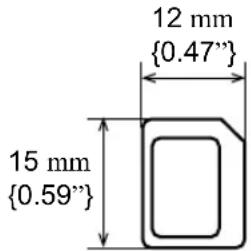
The slot accepts microSIM Cards.
For U.S.A.
Panasonic System Communications Company of North America (PSCNA)
Computer Products - Worldwide Warranties
Section 1 : Limited Warranty - Hardware
PSCNA, referred hereafter as “Panasonic” will repair the products listed below with new or rebuilt parts, free of charge in a Global Panasonic designated service location for the period specified below from the date of original purchase in the event of a defect in materials or workmanship. These warranties are extended solely to the original purchaser. A purchase receipt or other proof of date of original purchase will be required before warranty performance is rendered.
- Laptop PC (CF-##) – 3 Years
- Tablet PC (FZ-##) – 3 Years
- Ultra-Mobile (CF-U#/CF-H# Series) – 3 Years
- PDRC - LCD & Keyboard Assembly – 3 Years
Battery Warranty
Batteries supplied with the product are covered under the warranty for one (1) year from date of purchase, except as excluded in Section 3. Batteries purchased separately are covered under the warranty for one (1) year from the date of purchase. A replacement battery furnished under the product warranty is covered for the remaining period of the one year warranty on the original or purchased battery.
Optional: Panasonic "Protection Plus" Warranty
Any unit for which the Panasonic “Protection Plus” warranty has been purchased will receive additional coverage for any failure that occurs due to accidental damage. All other terms and conditions of the standard warranty apply and this additional coverage will exist for the duration of the standard warranty period of the unit. If an extended Protection Plus warranty program is purchased, coverage is extended to the end of the last year of extended coverage purchased.
This warranty does not cover failures or defects that are caused by fire, intentional acts, loss, theft, improper maintenance, modification or service by anyone other than the Panasonic National Service Center or a Panasonic Authorized Service Provider, or damage that is attributable to acts of God. Cosmetic damage that does not affect functionality is not covered. Cosmetic damage on units with hardware failures will be repaired in accordance with the warranty terms. This warranty is extended solely to the original purchaser on the unit serial number for which it was purchased. Complete unit replacement fulfills the full obligation and is at the discretion of Panasonic and is limited to once during the coverage term. Maximum benefit is limited to one replacement per coverage year of the Motherboard, LCD, Storage Drive, and Keyboard.
Wireless Module Warranty
Panasonic approved wireless modems installed in Panasonic brand computers and integrated by Panasonic or an Authorized Panasonic Wireless Integrator are covered under the warranty for the remaining warranty period of the device in which the modem is installed. For devices with less than three (3) months remaining on the unit warranty, the wireless modem will be covered for a period of three (3) months from the date of installation of the modem, covering only modem replacement or modem installation related issues.
All modems must be approved by the wireless carrier prior to use. Any use or attempted use of a wireless modem not approved and activated by the carrier for use on their network is strictly prohibited and is not sanctioned or warranted by Panasonic and may result in legal action. In addition, all modems must be approved by Panasonic as compatible with the device hardware before installation or use.
Panasonic's sole responsibility for the warranty or technical support of the software required to install or operate the modem is defined in Section 2 (Limited Software Warranty). Any attempted software installation by anyone other than a Panasonic Authorized Wireless Integrator is not covered under warranty and may result in service charges to re-image or replace the hard drive.
Installation or attempted installation by any party other than Panasonic or an Authorized Panasonic Wireless Integrator is strictly not covered under the warranty and may void the computer warranty if damage results.
Options and Accessories Warranties
The below listed Panasonic brand or supplied options and accessories are covered under this limited warranty for the period specified from the date of purchase or as specifically stated:
• AC Adaptor / Power Cord – 3 Years
• Memory Expansion Card (Panasonic Brand) – 3 Years
- Car Mount - Docking Station PCB or Vehicle Docking Station – 3 Years
- Desktop Port Replicator, I-O Box, Docking Cradle (like CF-U1) – 3 Years
- Antenna Pass-through Cable – 3 Years
- Backlit or Full-sized keyboard – 3 Years or assumes warranty of the unit in which it is installed
- Integrated Panasonic supplied options and kits including, but not limited to Wireless Modems, Media Bay Drives (Floppy, CD, DVD, Combo), Camera, GPS, Bluetooth, Smartcard Reader, Magnetic Card Reader, Barcode Scanner, and Fingerprint Reader - 3 Years or assumes warranty period of the unit in which it is installed provided the integration was performed by Panasonic or an Authorized Integrator.
- Hard Drive / Solid State Drive (Internal) – 3 Years
- Separately purchased 2nd Hard Drive – 1 Year
- External USB Drives (CD / DVD / Floppy / Hard Drive) – 1 Year
- Optional Battery – 1 Year
- Battery Charger / Multi-Bay Battery Charger – 1 Year
- Stylus Pens, Digitizer & Standard – 90 Days (physical damage excluded)
Section 2 - Limited Warranty - Software
Panasonic warrants to you only that the disk(s) or other media on which the Programs are furnished will be free from defects in material and workmanship under normal use for a period of sixty (60) days from the date of delivery thereof to you, as evidenced by your purchase receipt.
This is the only warranty Panasonic makes to you. Panasonic does not warrant that the functions contained in the Programs will meet your requirements or that the operation of the Programs will be uninterrupted or error free. Panasonic shall have no obligation for any defects in the disk(s) or other media on which the Programs are furnished resulting from your storage thereof, or for defects that have been caused by operation of the disk(s) or other media
Panasonic's entire liability and your exclusive remedy under this warranty shall be limited to the replacement, in the United States or other Panasonic designated location, of any defective disk or other media which is returned to Panasonic's Authorized Service Center, together with a copy of the purchase receipt, within the aforesaid warranty period.
Section 3 - Limited Warranty Exclusions - Specifically excluded from the warranty are:
- All consumable items; such as screen protection films, logo badges, labels, cleaning cloths, carry cases, manuals, cables, straps, belts, holsters, tethers, and harnesses and any other options and accessories not listed above or covered under a separate warranty.
- Failures related to the product operating system, hard drive or solid state drive image, software setup, software program, virus, other program(s) or file(s) on any drive or in any computer memory location.
- Failures due to BIOS settings or changes, as well as any cosmetic or physical damage to the unit.
- Any unit or device with a missing or altered model number or serial number label
- Cosmetic damage or any damage which occurs in shipment
- Failures which are caused by products not supplied by Panasonic
- Failures which result from alteration, accident, misuse, introduction of liquid or other foreign matter into the unit, abuse, neglect, installation, maladjustment of consumer controls, improper maintenance or modification, use not in accordance with product use instructions
- Failures due to service by anyone other than a Panasonic Authorized Service Provider
- Failures caused by improper installation of options or accessories or due to integration by any company other than Panasonic or a Panasonic Authorized Integrator
- Damage, failure, or loss due to the unit being stolen, lost, misplaced, or used by anyone other than the original purchaser
- Damage that is attributable to acts of God
This limited warranty only covers failures due to defects in materials or workmanship which occur during normal use. If a unit is sent to a Panasonic Authorized Service Center and no hardware failure is found, the customer will be billed for labor to correct a software issue or reimage the hard drive plus shipping and applicable administrative fees at the current rates set by the service provider.
THIS PRODUCT IS NOT INTENDED FOR USE AS OR PART OF NUCLEAR EQUIPMENT/SYSTEMS, AIR TRAFFIC CONTROL EQUIPMENT/SYSTEMS, OR AIRCRAFT COCKPIT EQUIPMENT/SYSTEMS ^1 . PANASONIC WILL NOT BE RESPONSIBLE FOR ANY LIABILITY RESULTING FROM THE USE OF THIS PRODUCT ARISING OUT OF THE FOREGOING USES.
^*1 AIRCRAFT COCKPIT EQUIPMENT/SYSTEMS include class 2 Electronic Flight Bag (EFB) Systems and Class 1 EFB Systems when used during critical phases of flight (e.g., during take-off and landing) and/or mounted onto the aircraft. Class 1 EFB Systems and 2 EFB Systems are defined by FAA: AC (Advisory Circular) 120-76A or JAA: JAA TGL (Temporary Guidance Leaflets) No. 36.
Other Limits and Exclusions: There are no other express warranties except as listed above.
PANASONIC SHALL NOT BE LIABLE FOR LOSS OF DATA OR OTHER INCIDENTAL OR CONSEQUENTIAL DAMAGES RESULTING FROM THE USE OF THIS PRODUCT, OR ARISING OUT OF ANY BREACH OF THIS WARRANTY. ALL EXPRESS AND IMPLIED WARRANTIES, INCLUDING THE WARRANTIES OF MERCHANTABILITY AND FITNESS FOR A PARTICULAR PURPOSE ARE LIMITED TO THE APPLICABLE WARRANTY PERIOD SET FORTH ABOVE. Some states do not allow the exclusion or limitation of incidental or consequential damages, or limitations on how long an implied warranty lasts, so the above limitations or exclusions may not apply to you.
This limited warranty gives you specific legal rights, and you may also have other rights which vary from state to state.
For technical support or to arrange for service on your Panasonic computer product, call our toll-free hotline at 1-855-PSC-TECH (855-772-8324).
DIAL TOLL FREE: 1-855-PSC-TECH (855-772-8324) Web Site : www.panasonic.com/toughbook
For Canada
PANASONIC COMPUTER AND PERIPHERALS LIMITED WARRANTY
Coverage – Panasonic Canada Inc. ("PCI") warrants to you, the first end user customer, this computer product (excluding software media), when purchased from PCI or from a PCI authorized reseller, to be free from defects in materials and workmanship under normal use, subject to the terms set forth below, during the period of warranty coverage specified.
| Scope of Coverage Period of Coverage Type of Failure Coverage | ||
| • Laptop Computers (except Battery) and AC Adaptor• Factory/PCI installed options including Wireless WAN, GPS, Bluetooth, Finger print reader, Backlit keyboard, Memory Card and Media Bay Drives (Floppy, CD/DVD)• Mobile Wireless Display• PDRC – LCD and Keyboard Assemblies• Port Replicator | Three (3) Years from Date of Original End User Customer Purchase | Defective Materials or Workmanship |
| • Hand-held Computers• Battery• Battery charger• Auto Adaptor• External USB Drives | One (1) Year from Date of Original End User Customer Purchase | Defective Materials or Workmanship |
| • Digitizer pen or stylus Ninety (90) Days from Date of Original End User Customer Purchase | Defective Materials or Workmanship | |
| • All consumable items including protection film, cleaning cloth, carry case, tether and harness | No Coverage | |
Remedy – In the event of a warranty claim, contact PCI's representatives within the applicable warranty period, identifying the nature of the defect claimed, at 1-800-668-8386 between 9:00 A.M. and 5:00 P.M., Eastern Time Zone, Mon. – Fri. (excluding holidays) for instructions on how to obtain service. A purchase receipt or other proof of date of original purchase is required before warranty service is performed. Defective parts covered by this Limited Warranty will be repaired or replaced with new or comparable rebuilt parts on an exchange basis. Warranty replacement or repair is subject to the terms of this Limited Warranty for the balance of the original period of warranty coverage.
No Coverage – This Limited Warranty does not cover products purchased outside Canada. Neither does it cover damage to, failure of, or defects in a product or accessory through mishandling, improper installation, abnormal use, misuse, neglect, accident, introduction of liquid or other foreign matter into the product, alteration or servicing by anyone not authorized by PCI, or act of God.
THIS PRODUCT IS NOT INTENDED FOR USE AS, OR AS PART OF, NUCLEAR EQUIPMENT/SYSTEMS, AIR TRAFFIC CONTROL EQUIPMENT/SYSTEMS, OR AIRCRAFT COCKPIT EQUIPMENT/SYSTEMS ^2 . PANASONIC WILL NOT BE RESPONSIBLE FOR ANY LIABILITY RESULTING FROM THE USE OF THIS PRODUCT ARISING OUT OF THE FOREGOING USES.
^2 AIRCRAFT COCKPIT EQUIPMENT/SYSTEMS include Class2 Electrical Flight Bag (EFB) Systems and Class1 EFB Systems when used during critical phases of flight (e.g., during take-off and landing) and/or mounted on to the aircraft. Class1 EFB Systems and 2 EFB Systems are defined by FAA: AC (Advisory Circular) 120-76A or JAA: JAA TGL (Temporary Guidance Leaflets) No.36
IF YOU SHIP THE PRODUCT FOR WARRANTY SERVICE
Carefully pack the product, preferably in the original carton. Include details of defect claimed and proof of date of original purchase. No liability is assumed for loss or damage to the product while in transit, if you chose your own transportation carrier.
SOFTWARE MEDIA LIMITED WARRANTY
Coverage – PCI warrants to you, the first end user customer, that the disk(s) or other media on which software program(s) is/are supplied will be free from defects in materials and workmanship under normal use in Canada for a period of sixty (60) days from date of receipt as evidenced by your purchase receipt for your Panasonic Computer product.
THIS IS THE ONLY WARRANTY THAT PCI MAKES RESPECTING THE SOFTWARE MEDIA. PCI does not warrant the software. Please refer to the software licensor's written warranty (accompanying the copy of the software) for any software warranty claim.
Claim Procedure – In the event of a defect in material or workmanship in the media during the sixty (60) day warranty period, and you return it, transportation costs prepaid, to Panasonic Canada Inc., Computer Products Marketing, 5770 Ambler Drive, Mississauga, Ontario L4W 2T3, within the warranty period, together with a copy of your purchase receipt, and an explanation of the suspected defect, PCI will replace in Canada the defective disk(s) or other media.
Remedy – PCI's entire liability, and your only remedy for any breach of this software media warranty is limited to replacement of the media only. It does not cover any other damages, including, but not limited to, loss of use or profit loss, or special, indirect or consequential damages, or other claims, whether or not of similar character.
No Coverage – This limited warranty does not apply if the disk(s) or other media has been used in other than a Panasonic product, or in environmental conditions other than those specified by PCI or the manufacturer, or if subjected to misuse, neglect, mishandling, modification or attempted modification of the program, or if damaged by accident or act of God. PCI is not responsible for damage to or loss of any program, data or removable storage media.
GENERAL
NO OTHER WARRANTIES – PCI DISCLAIMS ALL OTHER WARRANTIES, EITHER EXPRESS OR IMPLIED, INCLUDING, BUT NOT LIMITED TO, IMPLIED WARRANTIES OF MERCHANTABILITY AND FITNESS FOR A PARTICULAR PURPOSE, WITH RESPECT TO THE SOFTWARE, SOFTWARE MEDIA, COMPUTER PRODUCT, OPTIONS AND ACCESSORIES.
NO LIABILITY FOR CONSEQUENTIAL DAMAGES – IN NO EVENT SHALL PCI BE LIABLE FOR ANY SPECIAL, INDIRECT OR CONSEQUENTIAL DAMAGES ARISING FROM ANY BREACH OF THE LIMITED WARRANTIES SET OUT IN THIS DOCUMENT, OR FROM THE USE OF THE COMPUTER PRODUCT, INCLUDING, WITHOUT LIMITATION, LOSS OF DATA, BUSINESS, PROFIT OR GOODWILL.
IN ANY EVENT, PCI'S MAXIMUM LIABILITY FOR ANY BREACH SHALL NOT EXCEED THE AMOUNT ACTUALLY PAID BY YOU FOR THE COMPUTER PRODUCT.
NO ACTION, REGARDLESS OF ITS BASIS, MAY BE BEGUN AGAINST PCI MORE THAN TWO (2) YEARS AFTER THE CAUSE OF ACTION AROSE.
Statutory Warranties – Some jurisdictions do not allow these limitations or exclusions, so they may not apply to you.
Pour le Canada
GARANTIE LIMITÉE – ORDINATEURS ET PÉRIPHÉRIQUES PANASONIC
EXPÉDITION DU PRODUIT POUR SERVICE SOUS GARANTIE
Panasonic System Communications Company of North America
Two Riverfront Plaza,
Newark NJ 07102
Panasonic Canada Inc.
5770 Ambler Drive, Mississauga,
Ontario L4W 2T3
Web Site : http://panasonic.net/avc/pc/