
Toughpad FZ-B2D - Graphic tablet PANASONIC - Free user manual and instructions
Find the device manual for free Toughpad FZ-B2D PANASONIC in PDF.


| Product Type | Rugged Tablet with Stylus Input |
| Brand | Panasonic |
| Model | Toughpad FZ-B2D |
| Display Size | 10.1 inches |
| Display Resolution | 1280 x 800 pixels |
| Processor | Intel Atom Z3795 |
| Operating System | Windows 8.1 Pro / Windows 10 Pro |
| Memory (RAM) | 4 GB |
| Storage | 64 GB SSD |
| Battery | Lithium-Ion, 7.2V, 50 Wh |
| Battery Life | Up to 8 hours |
| Wireless | Wi-Fi 802.11 a/b/g/n/ac, Bluetooth 4.1 |
| Cameras | Front 1.3 MP, Rear 8 MP |
| Ports | USB 3.0, HDMI, Headphone/mic, MicroSD |
| Ruggedness | IP65, MIL-STD-810G |
| Weight | 1.1 kg |
| Dimensions (W x D x H) | 270 x 188 x 23 mm |
| Stylus | Active digitizer pen (included) |
| Power Adapter | Input: 100-240V AC, Output: 12V DC |
| Languages Supported | Multiple (via manual translation) |
| Care & Cleaning | Wipe with dry cloth; do not use solvents |
| Safety Warnings | Do not expose to extreme heat or water immersion |
| Spare Parts & Repairability | Battery, stylus, and charger available; repair by authorized service |
Frequently Asked Questions - Toughpad FZ-B2D PANASONIC
User questions about Toughpad FZ-B2D PANASONIC
0 question about this device. Answer the ones you know or ask your own.
Ask a new question about this device
Download the instructions for your Graphic tablet in PDF format for free! Find your manual Toughpad FZ-B2D - PANASONIC and take your electronic device back in hand. On this page are published all the documents necessary for the use of your device. Toughpad FZ-B2D by PANASONIC.
USER MANUAL Toughpad FZ-B2D PANASONIC
Panasonic®
OPERATING INSTRUCTIONS
Basic Guide
Tablet Computer
Model No. FZ-B2 series
Contents
Getting Started
Introduction ......2
Description of Parts ....4
First-time Operation ....7
Turning On/Off and Sleeping/Waking Up .....10
Input Operation 11
Useful Information
Handling and Maintenance ....14
Troubleshooting
Troubleshooting (Basic) ......21
Appendix
Specifications 24
LIMITED WARRANTY 27
Standard Limited Warranty ....38
Introduction
Thank you for purchasing this Panasonic product. For optimum performance and safety, please read these instructions carefully.
Terms and illustrations in these instructions
CAUTION: Conditions that may result in minor or moderate injury.
NOTE: Useful and helpful information.
→: Page in these Operating Instructions or in the Reference Manual.
: Reference to the on-screen manuals.
- Some illustrations are simplified to help your understanding and may look different from the actual unit.
- If you do not log on as an owner, you cannot use some functions or cannot display some screens.
- Refer to the latest information about optional products in the catalogs, etc.
- Screen messages are explained in [English (United States)]. (Depending on the language preference, some screen messages in these instructions are different from the actual screen messages. For example, [Aeroplane mode] may be displayed instead of [Airplane mode] in some language preference.)
■ Disclaimer
Computer specifications and manuals are subject to change without notice. Panasonic Corporation assumes no liability for damage incurred directly or indirectly from errors, omissions or discrepancies between the computer and the manuals.
■ Trademarks
Intel is a registered trademark or trademark of Intel Corporation.
microSDHC Logo is a trademark of SD-3C, LLC.

Adobe, the Adobe logo and Adobe Reader are either registered trademarks or trademarks of Adobe Systems Incorporated in the United States and/or other countries.
Bluetooth® is a registered trademark owned by Bluetooth SIG, Inc., U.S.A. and licensed to Panasonic Corporation.
Names of products, brands, etc., appearing in this manual are trademarks or registered trademarks of their respective own companies.
This product is licensed under the AVC Patent Portfolio License, VC-1 Patent Portfolio License and MPEG-4 Visual Patent Portfolio License for the personal use of a consumer or other uses in which it does not receive remuneration to
(i) encode video in compliance with the AVC Standard, VC-1 Standard and MPEG-4 Visual Standard (“AVC/VC-1/MPEG-4 Video”) and/or (ii) decode AVC/VC-1/MPEG-4 Video that was encoded by a consumer engaged in a personal activity and/or was obtained from a video provider licensed to provide AVC/VC-1/MPEG-4 Video. No license is granted or shall be implied for any other use. Additional information may be obtained from MPEG LA, LLC. See http://www.mpegla.com.
■ On-screen Manual
For further information about the computer, you can refer to the on-screen manual by performing the following steps.
① Touch - [Online Manual].
When more than one on-screen manuals are prepared, name of those manuals are listed in above step. Touch a manual to access from the list.
Description of Parts
Front side
A: Wireless WAN Antenna
→ 📋 Reference Manual "Wireless WAN"
B: Wi-Fi Antenna
→ Reference Manual "Wi-Fi"
C: Ambient Light Sensor
The ambient light sensor is equipped with an automatic brightness adjustment function that adjusts the display screen. (→ page 16)
Front Camera
→ Reference Manual "Photo and Videos"
D: Camera Lens
E: Camera Indicator
F: LED Indicators
① : Power Indicator
Off: Power off, Green: Power on, Blinking green: Sleep (Depending on the running state of software, the indicator may be green (not blinking)).
: Drive status
: Battery status
→ page 15 "When the battery indicator does not light on"
→ Reference Manual "Battery Power"
G: Wi-Fi Antenna / Bluetooth Antenna
→ Reference Manual "Wi-Fi" "Bluetooth"
Left side Right side Top


Bottom

A: Microphone B: Volume Button C: Power Switch D: Rotation Lock Button
→ 📋 Reference Manual "User Button"
E: A Button → 📋 Reference Manual "User Buttons" F: DC-IN Jack G: Headset Jack
A headset or headphone can be connected.
H: USB3.0 Port
→ Reference Manual "USB Devices"
I: Security Lock
A Kensington cable can be connected. For further information, read the manual that comes with the cable.
J: Expansion Bus Connector
→ Reference Manual "Cradle"
K: External Antenna Connector
Description of Parts
Rear side
Rear Camera
→ Reference Manual "Photos and Videos"
A: Camera Lens
B: Camera Light
C: Camera Indicator
D: Speaker
E: Battery Indicator
F: Battery Latch
→ Reference Manual "Battery Power"
G: Battery Pack
H: microSIM Card Slot
→ Reference Manual "Wireless WAN"
Top (optional)
I: microSD Memory Card Slot
→ Reference Manual "MicroSD Memory Card Slot"
J: Barcode Reader
→ Reference Manual "Barcode Reader"
K: Built-in Bridge Battery
L: Smart Card Reader
→ Reference Manual "Smart Card"
First-time Operation
■ Preparation
① Check and identify the supplied accessories.
If you do not find the described accessories, contact Panasonic Technical Support.
- AC Adaptor..... 1 • AC Cord ..... 1 • Battery Pack ..... 1
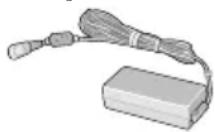
Model No: CF-AA6373A

Model No: FZ-VZSU94W

- Soft Cloth....1
• OPERATING INSTRUCTIONS - Read Me First ..... 1

1 Inserting the Battery Pack.
Turn over the computer and insert the battery pack until it touches the secured position.
● Make sure no foreign objects are under the computer.
CAUTION
● Make sure the latch is securely locked. Otherwise the battery pack may fall when you carry the computer. - Do not touch the terminals of the battery pack and the computer. Doing so can make the terminals dirty or damaged, and may cause malfunction of the battery pack and the computer.

2 Connect your computer to a power outlet.
The battery charging starts automatically.
CAUTION
- Do not disconnect the AC adaptor until the first-time operation procedure is completed.
- When using the computer for the first time, do not connect any peripheral device except the battery pack and AC adaptor. ● Handling the AC adaptor
Problems such as sudden voltage drops may arise during periods of thunder and lightning. Since this could adversely affect your computer, an uninterruptible power source (UPS) is highly recommended unless running from the battery pack alone.

3 Turn on the computer.
Press the power switch lights.
until the power indicator

CAUTION
- Do not press the power switch repeatedly or do not hold the power switch for four seconds or longer.
- Any changes from the default setting of the Setup Utility must not be made until the First-time Operation is completed.
4 Initializing the computer
① When “Welcome” is displayed, touch the language name and scroll the language list, then touch the language you use. ② When "Insert SIM card" screen is displayed, touch [Skip]. ③ When “Select Wi-Fi” screen is displayed, perform one of the following operations. - If you want to set up Wi-Fi, set up Wi-Fi by following the on-screen instructions.
- If you do not want to set up Wi-Fi, touch [Skip], then when the confirmation message is displayed touch [Skip anyway].
④ When “Google & location” screen is displayed, touch the items to select settings, then touch ▶. ⑤ When “Date & time” screen is displayed, confirm the settings and touch ▶. ⑥ When “Google services” screen is displayed, confirm the message and touch ▶. ⑦ When “Make yourself at home” screen is displayed, touch [OK]. ⑧ Connect to network via Wi-Fi or wireless WAN (Reference Manual "Wireless Communication"). To connect to the internet via wireless WAN, inserting the SIM card is necessary. (→ Reference Manual "Wireless WAN") ⑨ Touch Ⓗ - [Settings] - [About tablet] - [System updates] - [Downloads]. Follow the on-screen instructions.
CAUTION
- When “This tablet belongs to...” screen is displayed, rotate this computer in the direction of the portrait. In the direction of the landscape, input area is covered by the software keyboard and you cannot confirm the inputted items.
Turning On/Off and Sleeping/Waking Up
Turning On
① Press ⏻ (power switch) until ⏱ (power indicator) lights.
② Drag to .
CAUTION
- Do not press the power switch repeatedly.
- Once you turn off the computer, wait for ten seconds or more before you turn on the computer again.
- Do not perform the following operation until the drive indicator turns off.
- Connecting or disconnecting the AC adaptor
- Pressing the power switch
- Touching buttons, screen or external mouse
NOTE
- Lock type can be changed by touching ⏻ - [Settings] - [Security] - [Screen lock].
Turning Off
① Press and hold ⏻ (Power switch) until "Power off" screen is displayed. ② Touch [Power off].
Sleeping
At the time of purchase, the screen turns off automatically after 1 minute with no operation. To turn off the screen manually, perform the following operation.
① Press ⏻ (Power switch). The screen turns off.
NOTE
- The screen turns off automatically after 1 minute. You can change the time to turn the screen off by touching ⏻ - [Settings] - [Display] - [Sleep].
Waking Up
① Press ⏻ (power switch) until ⏱ (power indicator) lights. ② Drag to .
Input Operation
Screen Input Operation
Touch Select items or options. | |
| Touch and hold Open special options. | |
| Drag Scroll the screen. | |
Flick | Scroll the screen quickly. |
| Drag and drop Move an item. | |
Pin | Zoom in or out the screen.Depending on the applications, you can also zoom in or out by double-touching the screen. |
Buttons
 | Volume button |
 | Power switchTurn on or off the computer. |
 | Rotate Lock buttonAt the time of purchase, pressing this button switches between enabling and disabling the auto-rotate function. The function can be changed by User Button Manager. |
 | A buttonAt the time of purchase, pressing this button launches “Dashboard”. The function can be changed by User Button Manager. |
Home Screen

A: Search
Search the internet and this computer using Google search. You can input the search terms by using the on-screen keyboard.
B: Voice search
Search the internet and this computer using Google search. You can input the search terms by speaking.
C: Application shortcuts
Open an application. You can add/remove application shortcuts to/from the home screen.
D: Widgets
The small applications on the home screen. Some widgets display the latest information (clock, calendar, weather, email, etc.) on the home screen.
E: Home screen
The starting point for this computer. You can place shortcuts, widgets and other items to the home screen.
F: Apps
Display all applications and widgets. Touch an application/widget to open from the list.
G: Status detail
The status detail (remaining battery charge, network status, etc.) and clock are displayed. Flicking from this area opens the quick settings. The quick settings display network status, remaining battery charge and other details.
When you touch [ Settings], Settings application is opened.

H: Back
Return to the previous screen.
I: Home
Return to the home screen.
J: Recent apps
Display the recent applications. Touch an application to open from the application list. To stop the application, touch and hold it and touch [Remove from list].
K: Panels
This computer has 5 panels. Flick left or right to display the next panel.
Handling and Maintenance
Operation environment
- Place the computer on a flat stable surface not subject to shock, vibration, and danger of dropping. Do not place the computer upright or turn it over. If the computer is exposed to an extremely strong impact, it may become damaged. ● Operating environment
Temperature: Operation : -10 °C to 50 °C {14 °F to 122 °F} (IEC60068-2-1, 2) *1
Storage : -20
°C to 60 °C {-4 °F to 140 °F}
Humidity: Operation : 30
% to 80% RH (No condensation)
Storage : 30
% to 90% RH (No condensation)
Even within the above temperature/humidity ranges, operation for a long time in extreme environments, smoking nearby, or operation in places where oil is used or where there is a lot of dust will result in the product deterioration and will shorten the product life.
*1 Do not expose the skin to this product when using the product in a hot or cold environment. If the computer is wet in temperatures of 0\ °C\ 32\ °F or below, freeze damage may occur. Make sure to dry off the computer in such temperatures.
- Do not place the computer in the following areas, otherwise the computer may be damaged.
- Near electronic equipment. Image distortion or noise may occur.
• In extremely high or low temperature.
- As the computer can become hot during operation, keep it away from items that are sensitive to heat.
Handling cautions
This computer is designed to minimize shock to parts such as the LCD and the flash memory drive, but no warranty is provided against any trouble caused by shock. Be extremely careful when handling the computer.
- When carrying the computer:
- Turn off the computer.
- Remove all external devices, cables, Smart Cards and other protruding objects.
- Do not drop or hit the computer against solid objects.
- Do not grip the display part.
- Turn off the computer. - Remove all external devices, cables, Smart Cards and other protruding objects. - Do not drop or hit the computer against solid objects. - Do not grip the display part.
- When you board an airplane, take the computer with you and never put it in your checked luggage. When using the computer on airplane, follow the airline's instructions.
- When carrying a spare battery, put it in a plastic bag to protect its terminals.
- The touchscreen is designed to be used by a finger tip. Do not place any object on its surface and do not press down strongly with sharp-pointed or hard objects that may leave marks (e.g., nails, pencils and ball point pens).
- Avoid any harmful substances such as oil from getting into the touchscreen. The pointer may not work correctly.
- Be careful not to get injured by dropping or getting hit when carrying the computer.
- Use only the dedicated stylus to touch the screen. Do not place any object on its surface and do not press down strongly with sharp-pointed or hard objects that may leave marks (e.g., nails, pencils and ball point pens).
- Do not use the screen when dust or dirt (e.g., oil) is on the screen. Otherwise foreign particles on the screen/dedicated stylus can scratch the screen surface or obstruct the dedicated stylus operation.
- Use the dedicated stylus only for touching the screen. Using it for any other purpose may damage the dedicated stylus and result in scratches on the screen.
■ When the battery indicator does not light on
The battery indicator may not light on even if the AC adaptor and the battery pack are correctly connected to the computer, due to the following reasons.
- The AC adaptor's protection function may be working. In this case, pull out the AC cord and wait for more than 1 minute before reconnecting the AC cord.
■ When using peripheral devices
Follow these instructions and the Reference Manual to avoid any damage to the devices. Carefully read the instruction manuals of the peripheral devices.
- Use the peripheral devices conforming to the computer’s specifications.
- Connect to the connectors in the correct direction.
- If it is hard to insert, do not try forcibly but check the connector's shape, direction, alignment of pins, etc.
- If screws are included, fasten them securely.
- Remove the cables when you carry the computer. Do not pull the cables forcibly.
Handling and Maintenance
■ Preventing your computer from unauthorized use via Wi-Fi/Bluetooth/Wireless WAN
- Before using Wi-Fi/Bluetooth/Wireless WAN, make the appropriate security settings such as data encryption.
■ Sensors
This computer is equipped with four sensors (acceleration sensor, gyro sensor, magnetic sensor, ambient light sensor), and you can use these sensors with any software that is compatible.
As the accuracy of each sensor output is dependent on the operating environment and other conditions, the results should only be used as a reference.
The acceleration sensor, gyro sensor, and magnetic sensor are located at the bottom left of the LCD. The detection results of each sensor may vary depending on the display mode, how you are holding the computer, the application software you are using, and other factors.
● Automatic brightness adjustment
The computer is equipped with an automatic brightness adjustment function that adjusts the display screen based on the ambient light sensor. You can configure the automatic adjustment function as follows.
① Touch Ⓐ - [ Settings] - [ Display] - [Brightness]. ② Touch [AUTO] to select the automatic adjustment function.
The ambient light sensor is located at the top of LCD.
The ambient light cannot be detected properly if this area is obstructed or dirty.
● Magnetic sensor
The magnetic sensor on the computer operates by detecting geomagnetism. Therefore, the magnetic sensor may not function properly and its readings may be inaccurate, especially in the following environments.
- Inside or near steel structures such as buildings or bridges
- Inside or near automobiles, or near train power lines
- Near metallic furniture or appliances
- When the AC adaptor or other peripheral devices are brought closer to the computer
- Near magnets, speakers, or other objects with strong magnetic fields
The magnetic directions indicated by the magnetic sensor may not be accurate immediately after purchase or in environments with poor magnetic fields.
In such cases, turn on the computer and move it as follows.
① Hold the computer so that its display side is facing the ground and level. ② While keeping the computer level, rotate it 90 degrees or more clockwise. ③ Return the computer to position ①, and rotate it 90 degrees or more counterclockwise. ④ Return the computer to position ①. ⑤ Tilt the computer 90 degrees or more to the left so that the left side of the computer tilts down. ⑥ Return the computer to position ①, and tilt it 90 degrees or more to the right so that the right side of the computer tilts down.
CAUTION
- Hold the computer firmly when moving it. Strong shocks from dropping the computer may result in damage.
Handling and Maintenance
Maintenance
If drops of water or other stains get on the surface of the LCD panel, wipe them off immediately. Failure to do so may result in staining.
To clean the LCD panel
Use the soft cloth. (For further information, refer to “Suggestions About Cleaning the LCD Surface” → Reference Manual “Maintaining the performance of the screen”.)
To clean areas other than the LCD panel
Wipe with a soft dry cloth such as gauze. When using detergent, dip a soft cloth in water-diluted detergent and wring it thoroughly.
CAUTION
- Do not use benzene, thinner, or rubbing alcohol since it may adversely affect the surface causing discoloration, etc. Do not use commercially-available household cleaners and cosmetics, as they may contain components harmful to the surface.
- Do not apply water or detergent directly to the computer, since liquid may enter inside of the computer and cause malfunction or damage.
Encrypting Tablet
Before enabling “Encrypt tablet” by touching ⚙[ Security] - [Encrypt tablet], backup your data. If a trouble occurs while encrypting, data on this computer will be erased.
Dispose of Computer
■ Preparation - Remove all peripherals (microSD memory card, etc.). - Perform "Factory data reset" to erase the stored data.
Attention Customers
Don't remove the battery by yourself. The battery must be removed by qualified professionals. When disposing of this product, be sure to contact qualified professionals to remove the battery.
Attention Qualified professionals to remove the battery
Dispose of this product correctly in accordance with the local regulations after removing the battery as shown in the following procedure.
CAUTION
● Never disassemble the computer except before disposal. - Refer to "Safety Precautions" in OPERATING INSTRUCTIONS - Read Me First for precautions when disposing of the computer.
- Turn off the computer, and disconnect the AC adaptor.
- Turn over the computer, remove the battery pack, and wait for about 3 minutes.
- Remove the screws and the cover (A).

- Pull out all cables from the connector on the cover side.

Handling and Maintenance
- Pull out the battery cable and the plastic tab (B) to remove the battery.
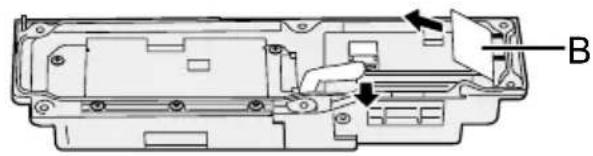

Pull out the plastic tab (C) to remove the circuit from the battery.

- Insulate the connectors on the built-in battery by covering them with plastic tape, for example.
Troubleshooting (Basic)
Follow the instructions below when a problem has occurred. There is also an advanced troubleshooting guide in the “Reference Manual”. For a software problem, refer to the software’s instruction manual. If the problem persists, contact Panasonic Technical Support (→ page 27). You can also use the “Hardware Diagnostic” to determine whether or not there is a problem (→ Reference Manual “Hardware Diagnostic”).
■ Starting Up
| Cannot start up.The power indicator or battery indicator is not lit. | ● Connect the AC adaptor.● Insert a fully charged battery.● Remove the battery pack and the AC adaptor, then connect them again.● If a device is connected to the USB port, disconnect the device. |
| Cannot turn on the computer.The computer does not wake up from sleep. | ● Turn off the computer and leave it in an environment of 5 °C {41 °F} or higher temperature for about an hour, then turn on the power again. |
| Starting up and operation is slow. | ● The ambient temperature may be higher. Move this computer to the cooler place. |
| The date and time are incorrect. | ● Make the correct settings.1 Touch [ Settings] - [ D & time], and set date and time.● If the problem persists, the internal clock battery may need to be replaced. Contact Panasonic Technical Support (→ page 27).● When the computer is connected to network, check the date and time of the server.● The 2038 A.D. or later year will not be correctly recognized on this computer. |
| Cannot wake up from sleep. | ● In sleep mode, the AC adaptor may be disconnected. If the AC adaptor was disconnected and the battery pack was discharged in sleep mode, data not saved will be lost and the computer will not wake up. |
| Unknown password required at startup. | ● When a password is configured for DeviceManagement, the same password is configured as the BIOS supervisor password. Contact the system administrator that configured the DeviceManagement password.● If you forgot the password, contact the system administrator or Panasonic Technical Support. |
Troubleshooting (Basic)
■ Starting Up
| Other startup problems. | ● Remove all peripheral devices. |
■ Shutting down
| Computer does not shut down. | Remove the peripheral devices.Wait one or two minutes. It is not a malfunction.Press and hold ⏻ (Power switch) for 10 seconds or longer to turn the computer off forcibly. |
■ Display
| No display. | ● The computer entered sleep mode by the power-saving function. To resume, press the power switch. |
| The screen is dark. | ● If the brightness setting of this computer is set to automatic brightness mode, the screen brightness automatically changes depending on the ambient brightness. Disable automatic brightness mode and change the brightness of the screen. |
| There are red, green, or blue dots on the screen, or there is unevenness in colors and brightness on the screen. | The following are not malfunctions.● Although advanced high-precision technologies are used in the production of color LCD screens, 0.002% or less of the picture elements may be dark or remain constantly lit (more than 99.998% of elements function properly).● Due to the natural characteristics of LCD screens, you may notice unevenness in colors and brightness depending on your angle of view. Hues may also vary by product. |
■ Screen Input Operation
| The pointer does not work. | ● When using the external mouse, connect it correctly. |
| Cannot operate the touchscreen. | ● Press ⏻ (Power switch) to enter to sleep mode, then press ⏻ (Power switch) to wake up. |
■ Battery Status Indicator
| Blinking orange. | ● The battery cannot be charged temporarily. Remove the AC adaptor, then connect it again. |
| Lighting red. | ● The remaining battery charge is approximately 5 % or less. Charge the battery pack. |
■ Others
No response.
- Press and hold ⏻ (Power switch) until "Power off" screen is displayed and touch [OK], then press ⏻ (Power switch) to turn it on. - If the application does not work normally, uninstall and reinstall the application. To uninstall:
① Touch Ⓗ - [Settings] - [Apps]. ② Touch [DOWNLOADED] or [ALL], and touch the application to uninstall, then touch [Uninstall]. ③ Uninstall the application by following the on-screen instructions.
Factory Data Reset
If you need to reset the storage to the default condition, perform "Factory data reset".
CAUTION
- Factory data reset function will return this computer to the default condition. When you reset this computer, the stored data will be erased. Back up important data to other media before reset.
① Touch Ⓗ - [Settings] - [Backup & reset] - [Factory data reset]. All the data in /mnt/sdcard folder will be erased. The data in microSD memory card inserted into microSD memory card slot will not be erased. ② Touch [Reset tablet]. ③ Follow the on-screen instructions.
This page provides the specifications for the basic model.
The specification is different according to the model number.
■ Main Specifications
| CPU | Intel® Celeron Processor N2930 (2 MB*1 Cache, 1.83 GHz up to 2.16 GHz) | |
| Video controller SoC embedded | ||
| Memory | 2 GB*1 | |
| Storage | Flash memory drive (eMMC) : 32 GB*2 | |
| Display Method 7.0 WXGA type (1280 × 800 dots) | ||
| Touchscreen 5 Finger touch (Capacitive) | ||
| Wi-Fi Intel | ® Dual Band Wireless-AC 7260 | |
| Bluetooth*3 | Version 4.0 | |
| Card Slot microSD Memory Card Slot*4 | microSDHC compatible | |
| Sensor Ambient light sensor, Magnetic sensor, Gyro sensor, Acceleration sensor | ||
| Camera Front | 1920 × 1080 dots, 30 fps (Video) / 1920 × 1080 dots (Still), Dual Microphone | |
| Rear 2048 × 1536 dots, 15 fps (Video) / 2592 × 1944 dots (Still), With camera light | ||
| Interface USB port 3.0 × 1 | *5, Expansion Bus Connector, Headset Jack (Miniature jack, 3.5 DIA, CTIA standard / Headphone: Impedance 32 Ω, Output Power 4 mW × 2, Stereo / Microphone: Monaural Input) | |
| Power Supply | AC adaptor or Battery pack | |
| AC Adaptor*6 | Input: 100 V to 240 V AC, 50 Hz/60 Hz, Output: 16 V DC, 3.75 A | |
| Battery Pack (FZ-VZSU94W) | Li-ion 7.2 V, 3220 mAh (typ.), 3050 mAh (min.) | |
| Operating Time*7 | Approx. 7 hours | |
| Charging Time*8 | Approx. 2.5 hours (power is off) Approx. 4 hours (power is on) | |
| Physical Dimensions (W × D × H) (excluding projecting parts) | 202.7 mm × 132 mm × 18 mm {8.0 " × 5.2 " × 0.7"} | |
| Weight | Approx. 540 g {Approx. 1.2 lb.} (with FZ-VZSU94W, excluding the optional devices) | |
■ Main Specifications
| Environment | Operating | Temperature | -10 °C to 50 °C {14 °F to 122 °F} (IEC60068-2-1, 2)*9 |
| Humidity | 30% to 80% RH (No condensation) | ||
| Storage | Temperature | -20 °C to 60 °C {-4 °F to 140 °F} | |
| Humidity | 30% to 90% RH (No condensation) | ||
| OS*10 | Android 4.4 | ||
| Pre-installed Software | Adobe Reader, Dashboard, DeviceManagement, OI File Manager, User Button Manager, Hardware Diagnostics, Google applications*11 | ||
■ Optional Devices
| Wireless WAN LTE compatible | |
| GPS GPS, Glonass | |
| Smart Card Slot x 1 | |
| MicroSIM Card Slot x 1 | |
| Barcode Reader x 1 | |
| Large Battery Pack (FZ-VZSU) | 95W)Li-ion 7.2 V, 7100 mAh (typ.), 6800 mAh (min.) |
| Operating Time*7 | Approx. 14 hours |
| Charging Time*8 | Approx. 4.5 hours |
| Built-in bridge battery (not replaceable) | Li-Polymer 3.7 V, 500 mAh (typ.), 490 mAh (min.) |
- Approx. 0.5 W when the battery pack is fully charged (or not being charged) and the computer is OFF.
Even when the AC adaptor is not connected to the computer, power is consumed (Max. 0.3 W) simply by having the AC adaptor plugged into an AC outlet.
*1 1 MB = 1,048,576 bytes / 1 GB = 1,073,741,824 bytes. *2 1 MB = 1,000,000 bytes / 1 GB = 1,000,000,000 bytes. Your operating system or some application software will report as fewer GB. *3 Does not guarantee operation of all Bluetooth peripherals. *4 Operation has been tested and confirmed using Panasonic microSD Memory Card with a capacity of up to 2 GB and Panasonic microSDHC Memory Card with a capacity of up to 32 GB. Operation on other microSD equipment is not guaranteed. *5 Does not guarantee operation of all USB-compatible peripherals.
*6
The AC adaptor is compatible with power sources up to 240 V AC adaptor.
This computer is supplied with a 125 V AC compatible AC cord.
20-M-1-1
*7 Measurement results are based on Panasonic testing methods. Measured at LCD brightness: 150 cd/m², browsing web site via Wi-Fi every 20 seconds.
Varies depending on the usage conditions, or when an optional device is attached.
*8 Varies depending on the usage conditions. When charging completely discharged battery pack, it may take a long time.
*9 Do not expose the skin to this product when using the product in a hot or cold environment. (→ OPERATING INSTRUCTIONS - Read Me First)
When using in hot or cold environment, some peripherals and battery pack may fail to work properly. Check the operation environment of the peripherals.
Using this product continuously in a hot environment will shorten the product life. Avoid use in these types of environments.
*10 An OS that has been installed at the time of purchase can be supported.
*11 Depending on the model, some Google applications may be installed.
For U.S.A.
Panasonic System Communications Company of North America (PSCNA) Computer Products - Worldwide Warranties
Section 1: Limited Warranty - Hardware
PSCNA, referred to hereafter as "Panasonic," will repair the products listed below with new or rebuilt parts, free of charge, at a Global Panasonic designated service location for the period specified below from the date of original purchase in the event of a defect in materials or workmanship. These warranties are extended solely to the original purchaser. A purchase receipt or other proof of the date of original purchase will be required before warranty performance is rendered.
• Laptop PC (CF-##) – 3 Years • Tablet PC (FZ-##) – 3 Years • Ultra-Mobile (CF-U#/CF-H# Series) – 3 Years • PDRC - LCD & Keyboard Assembly – 3 Years
Battery Warranty
Batteries supplied with the product are covered under the warranty for one (1) year from the date of purchase, except as excluded in Section 3. Batteries purchased separately are covered under the warranty for one (1) year from the date of purchase. A replacement battery furnished under the product warranty is covered for the remaining period of the one-year warranty on the original or purchased battery.
Optional: Panasonic "Protection Plus" Warranty
Any unit for which the Panasonic "Protection Plus" warranty has been purchased will receive additional coverage for any failure that occurs due to accidental damage. All other terms and conditions of the standard warranty apply, and this additional coverage will exist for the duration of the standard warranty period of the unit. If an extended Protection Plus warranty program is purchased, coverage is extended to the end of the last year of extended coverage purchased.
This warranty does not cover failures or defects that are caused by fire, intentional acts, loss, theft, improper maintenance, modification, or service by anyone other than the Panasonic National Service Center or a Panasonic Authorized Service Provider, or damage that is attributable to acts of God. Cosmetic damage that does not affect functionality is not covered. Cosmetic damage on units with hardware failures will be repaired in accordance with the warranty terms. This warranty is extended solely to the original purchaser on the unit serial number for which it was purchased. Complete unit replacement fulfills the full obligation and is at the discretion of Panasonic and is limited to once during the coverage term. Maximum benefit is limited to one replacement per coverage year of the Motherboard, LCD, Storage Drive, and Keyboard.
Wireless Module Warranty
Panasonic approved wireless modems installed in Panasonic brand computers and integrated by Panasonic or an Authorized Panasonic Wireless Integrator are covered under the warranty for the remaining warranty period of the device in which the modem is installed. For devices with less than three (3) months remaining on the unit warranty, the wireless modem will be covered for a period of three (3) months from the date of installation of the modem, covering only modem replacement or modem installation related issues.
All modems must be approved by the wireless carrier prior to use. Any use or attempted use of a wireless modem not approved and activated by the carrier for use on their network is strictly prohibited and is not sanctioned or warranted by Panasonic and may result in legal action. In addition, all modems must be approved by Panasonic as compatible with the device hardware before installation or use.
Panasonic's sole responsibility for the warranty or technical support of the software required to install or operate the modem is defined in Section 2 (Limited Software Warranty). Any attempted software installation by anyone other than a Panasonic Authorized Wireless Integrator is not covered under warranty and may result in service charges to re-image or replace the hard drive.
Installation or attempted installation by any party other than Panasonic or an Authorized Panasonic Wireless Integrator is strictly not covered under the warranty and may void the computer warranty if damage results.
Options and Accessories Warranties
The below listed Panasonic brand or supplied options and accessories are covered under this limited warranty for the period specified from the date of purchase or as specifically stated:
• AC Adaptor / Power Cord – 3 Years • Memory Expansion Card (Panasonic Brand) – 3 Years - Car Mount - Docking Station PCB or Vehicle Docking Station – 3 Years - Desktop Port Replicator, I-O Box, Docking Cradle (like CF-U1) – 3 Years • Antenna Pass-through Cable – 3 Years - Backlit or Full-sized keyboard – 3 Years or assumes warranty of the unit in which it is installed - Integrated Panasonic supplied options and kits including, but not limited to Wireless Modems, Media Bay Drives (Floppy, CD, DVD, Combo), Camera, GPS, Bluetooth, Smartcard Reader, Magnetic Card Reader, Barcode Scanner, and Fingerprint Reader - 3 Years or assumes warranty period of the unit in which it is installed provided the integration was performed by Panasonic or an Authorized Integrator. • Hard Drive / Solid State Drive (Internal) – 3 Years • Separately purchased 2nd Hard Drive – 1 Year • External USB Drives (CD / DVD / Floppy / Hard Drive) – 1 Year • Optional Battery – 1 Year - Battery Charger / Multi-Bay Battery Charger – 1 Year • Stylus Pens, Digitizer & Standard – 90 Days (physical damage excluded)
Section 2 - Limited Warranty - Software
Panasonic warrants to you only that the disk(s) or other media on which the Programs are furnished will be free from defects in material and workmanship under normal use for a period of sixty (60) days from the date of delivery thereof to you, as evidenced by your purchase receipt.
This is the only warranty Panasonic makes to you. Panasonic does not warrant that the functions contained in the Programs will meet your requirements or that the operation of the Programs will be uninterrupted or error free. Panasonic shall have no obligation for any defects in the disk(s) or other media on which the Programs are furnished resulting from your storage thereof, or for defects that have been caused by operation of the disk(s) or other media.
Panasonic's entire liability and your exclusive remedy under this warranty shall be limited to the replacement, in the United States or other Panasonic designated location, of any defective disk or other media which is returned to Panasonic's Authorized Service Center, together with a copy of the purchase receipt, within the aforesaid warranty period.
Section 3 - Limited Warranty Exclusions - Specifically excluded from the warranty are:
- All consumable items; such as screen protection films, logo badges, labels, cleaning cloths, carry cases, manuals, cables, straps, belts, holsters, tethers, and harnesses and any other options and accessories not listed above or covered under a separate warranty.
- Failures related to the product operating system, hard drive or solid state drive image, software setup, software program, virus, other program(s) or file(s) on any drive or in any computer memory location.
- Failures due to BIOS settings or changes, as well as any cosmetic or physical damage to the unit. • Any unit or device with a missing or altered model number or serial number label • Cosmetic damage or any damage which occurs in shipment • Failures which are caused by products not supplied by Panasonic
- Failures which result from alteration, accident, misuse, introduction of liquid or other foreign matter into the unit, abuse, neglect, installation, maladjustment of consumer controls, improper maintenance or modification, use not in accordance with product use instructions
- Failures due to service by anyone other than a Panasonic Authorized Service Provider
- Failures caused by improper installation of options or accessories or due to integration by any company other than Panasonic or a Panasonic Authorized Integrator
- Damage, failure, or loss due to the unit being stolen, lost, misplaced, or used by anyone other than the original purchaser • Damage that is attributable to acts of God
This limited warranty only covers failures due to defects in materials or workmanship which occur during normal use. If a unit is sent to a Panasonic Authorized Service Center and no hardware failure is found, the customer will be billed for labor to correct a software issue or reimage the hard drive plus shipping and applicable administrative fees at the current rates set by the service provider.
THIS PRODUCT IS NOT INTENDED FOR USE AS OR PART OF NUCLEAR EQUIPMENT/SYSTEMS, AIR TRAFFIC CONTROL EQUIPMENT/SYSTEMS, OR AIRCRAFT COCKPIT EQUIPMENT/SYSTEMS *1 . PANASONIC WILL NOT BE RESPONSIBLE FOR ANY LIABILITY RESULTING FROM THE USE OF THIS PRODUCT ARISING OUT OF THE FOREGOING USES.
*1 AIRCRAFT COCKPIT EQUIPMENT/SYSTEMS include class 2 Electronic Flight Bag (EFB) Systems and Class 1 EFB Systems when used during critical phases of flight (e.g., during take-off and landing) and/or mounted onto the aircraft. Class 1 EFB Systems and 2 EFB Systems are defined by FAA: AC (Advisory Circular) 120-76A or JAA: JAA TGL (Temporary Guidance Leaflets) No. 36.
Other Limits and Exclusions: There are no other express warranties except as listed above.
PANASONIC SHALL NOT BE LIABLE FOR LOSS OF DATA OR OTHER INCIDENTAL OR CONSEQUENTIAL DAMAGES RESULTING FROM THE USE OF THIS PRODUCT, OR ARISING OUT OF ANY BREACH OF THIS WARRANTY. ALL EXPRESS AND IMPLIED WARRANTIES, INCLUDING THE WARRANTIES OF MERCHANTABILITY AND FITNESS FOR A PARTICULAR PURPOSE ARE LIMITED TO THE APPLICABLE WARRANTY PERIOD SET FORTH ABOVE. Some states do not allow the exclusion or limitation of incidental or consequential damages, or limitations on how long an implied warranty lasts, so the above limitations or exclusions may not apply to you.
This limited warranty gives you specific legal rights, and you may also have other rights which vary from state to state.
For technical support or to arrange for service on your Panasonic computer product, call our toll-free hotline at 1-855-PSC-TECH (855-772-8324).
DIAL TOLL FREE: 1-855-PSC-TECH (855-772-8324)
Web Site : www.panasonic.com/toughbook
For Canada
PANASONIC COMPUTER AND PERIPHERALS LIMITED WARRANTY
Coverage – Panasonic Canada Inc. ("PCI") warrants to you, the first end user customer, this computer product (excluding software media), when purchased from PCI or from a PCI authorized reseller, to be free from defects in materials and workmanship under normal use, subject to the terms set forth below, during the period of warranty coverage specified.
| Scope of Coverage Period of Cover- | age | Type of Failure Coverage |
| ·Laptop Computers (except Battery) and AC Adaptor·Factory/PCI installed options including Wireless WAN, GPS, Bluetooth, Finger print reader, Backlit keyboard, Memory Card and Media Bay Drives (Floppy, CD/DVD)·Mobile Wireless Display·PDRC – LCD and Keyboard Assemblies·Port Replicator | Three (3) Years from Date of Original End User Customer Purchase | Defective Materials or Workmanship |
| ·Hand-held Computers·Battery·Battery charger·Auto Adaptor·External USB Drives | One (1) Year from Date of Original End User Customer Purchase | Defective Materials or Workmanship |
| ·Digitizer pen or stylus Ninety (90) Days | from Date of Original End User Customer Purchase | Defective Materials or Workmanship |
| ·All consumable items including protection film, cleaning cloth, carry case, tether and harness | No Coverage |
Remedy – In the event of a warranty claim, contact PCI's representatives within the applicable warranty period, identifying the nature of the defect claimed, at 1-800-668-8386 between 9:00 A.M. and 5:00 P.M., Eastern Time Zone, Mon. – Fri. (excluding holidays) for instructions on how to obtain service. A purchase receipt or other proof of date of original purchase is required before warranty service is performed. Defective parts covered by this Limited Warranty will be repaired or replaced with new or comparable rebuilt parts on an exchange basis. Warranty replacement or repair is subject to the terms of this Limited Warranty for the balance of the original period of warranty coverage.
No Coverage – This Limited Warranty does not cover products purchased outside Canada. Neither does it cover damage to, failure of, or defects in a product or accessory through mishandling, improper installation, abnormal use, misuse, neglect, accident, introduction of liquid or other foreign matter into the product, alteration or servicing by anyone not authorized by PCI, or act of God.
THIS PRODUCT IS NOT INTENDED FOR USE AS, OR AS PART OF, NUCLEAR EQUIPMENT/SYSTEMS, AIR TRAFFIC CONTROL EQUIPMENT/SYSTEMS, OR AIRCRAFT COCKPIT EQUIPMENT/SYSTEMS. PANASONIC WILL NOT BE RESPONSIBLE FOR ANY LIABILITY RESULTING FROM THE USE OF THIS PRODUCT ARISING OUT OF THE FOREGOING USES.
LIMITED WARRANTY (GARANTIE LIMITÉE)
*2 AIRCRAFT COCKPIT EQUIPMENT/SYSTEMS include Class2 Electrical Flight Bag (EFB) Systems and Class1 EFB Systems when used during critical phases of flight (e.g., during take-off and landing) and/or mounted on to the aircraft. Class1 EFB Systems and 2 EFB Systems are defined by FAA: AC (Advisory Circular) 120-76A or JAA: JAA TGL (Temporary Guidance Leaflets) No.36
IF YOU SHIP THE PRODUCT FOR WARRANTY SERVICE
Carefully pack the product, preferably in the original carton. Include details of defect claimed and proof of date of original purchase. No liability is assumed for loss or damage to the product while in transit, if you chose your own transportation carrier.
SOFTWARE MEDIA LIMITED WARRANTY
Coverage – PCI warrants to you, the first end user customer, that the disk(s) or other media on which software program(s) is/are supplied will be free from defects in materials and workmanship under normal use in Canada for a period of sixty (60) days from date of receipt as evidenced by your purchase receipt for your Panasonic Computer product. THIS IS THE ONLY WARRANTY THAT PCI MAKES RESPECTING THE SOFTWARE MEDIA. PCI does not warrant the software. Please refer to the software licensor's written warranty (accompanying the copy of the software) for any software warranty claim.
Claim Procedure – In the event of a defect in material or workmanship in the media during the sixty (60) day warranty period, and you return it, transportation costs prepaid, to Panasonic Canada Inc., Computer Products Marketing, 5770 Ambler Drive, Mississauga, Ontario L4W 2T3, within the warranty period, together with a copy of your purchase receipt, and an explanation of the suspected defect, PCI will replace in Canada the defective disk(s) or other media.
Remedy – PCI's entire liability, and your only remedy for any breach of this software media warranty is limited to replacement of the media only. It does not cover any other damages, including, but not limited to, loss of use or profit loss, or special, indirect or consequential damages, or other claims, whether or not of similar character.
No Coverage – This limited warranty does not apply if the disk(s) or other media has been used in other than a Panasonic product, or in environmental conditions other than those specified by PCI or the manufacturer, or if subjected to misuse, neglect, mishandling, modification or attempted modification of the program, or if damaged by accident or act of God. PCI is not responsible for damage to or loss of any program, data or removable storage media.
GENERAL
NO OTHER WARRANTIES – PCI DISCLAIMS ALL OTHER WARRANTIES, EITHER EXPRESS OR IMPLIED, INCLUDING, BUT NOT LIMITED TO, IMPLIED WARRANTIES OF MERCHANTABILITY AND FITNESS FOR A PARTICULAR PURPOSE, WITH RESPECT TO THE SOFTWARE, SOFTWARE MEDIA, COMPUTER PRODUCT, OPTIONS AND ACCESSORIES. NO LIABILITY FOR CONSEQUENTIAL DAMAGES – IN NO EVENT SHALL PCI BE LIABLE FOR ANY SPECIAL, INDIRECT OR CONSEQUENTIAL DAMAGES ARISING FROM ANY BREACH OF THE LIMITED WARRANTIES SET OUT IN THIS DOCUMENT, OR FROM THE USE OF THE COMPUTER PRODUCT, INCLUDING, WITHOUT LIMITATION, LOSS OF DATA, BUSINESS, PROFIT OR GOODWILL. IN ANY EVENT, PCI'S MAXIMUM LIABILITY FOR ANY BREACH SHALL NOT EXCEED THE AMOUNT ACTUALLY PAID BY YOU FOR THE COMPUTER PRODUCT. NO ACTION, REGARDLESS OF ITS BASIS, MAY BE BEGUN AGAINST PCI MORE THAN TWO (2) YEARS AFTER THE CAUSE OF ACTION AROSE.
Statutory Warranties – Some jurisdictions do not allow these limitations or exclusions, so they may not apply to you.
For Canada
LIMITED WARRANTY – PANASONIC COMPUTERS AND PERIPHERALS
SHIPPING THE PRODUCT FOR WARRANTY SERVICE
Personal / Notebook Computers - 36 Month Warranty from Date of Purchase
- Subject to the conditions of this warranty Panasonic or its Authorised Service Centre will perform necessary service on the product without charge for parts or labour, if in the opinion of Panasonic, the product is found to be faulty within the warranty period.
- This warranty only applies to Panasonic products purchased in Australia and sold by Panasonic Australia or its Authorised Distributors or Dealers, and only where the products are used and serviced within Australia or its territories. Warranty cover only applies to service carried out by a Panasonic Authorised Service Centre and only if valid proof of purchase is presented when warranty service is requested.
- This warranty only applies if the product has been installed and used in accordance with the manufacturer's recommendations (as noted in the operating instructions) under normal use and reasonable care (in the opinion of Panasonic). The warranty covers normal domestic use only and does not cover damage, malfunction or failure resulting from use of incorrect voltages, incorrect installation, accident, misuse, neglect, build-up of dirt or dust, abuse, maladjustment of customer controls, mains supply problems, thunderstorm activity, infestation by insects or vermin, tampering or repair by unauthorised persons (including unauthorised alterations), exposure to abnormally corrosive conditions or any foreign object or matter having entered the product.
- This warranty does not cover the following items unless the fault or defect existed at the time of purchase: Software
- Warranty on Toughbook accessories (stylus, pens, AC charger, combo drive, etc.) is 12 months from the date of purchase, and 3 months for batteries.
- To claim warranty service, when required, you should: Check the Panasonic web site for latest warranty contact http://www.panasonic.com/au/business/computers-tablets-and-pos/toughbook.html, use the Service Centre Locator and call the National Service Centre number indicated. Prepare purchase receipt as proof of purchase date and system serial number which will be required by the Authorised Service Centre.
- The warranty excludes 3 or fewer faulty pixels on screen.
- The warranty includes the repair or exchange of faulty parts within the product with items that are functionally equivalent to that as originally supplied or better – including new or refurbished parts or units – solely at Panasonic's discretion.
- It is the customer's responsibility to backup all data from the hard disk drive before sending equipment for repair. If a problem is related to the hard disk drive, or the hard disk drive has to be replaced, Panasonic will only reload the factory pre-installed software for the product onto the replacement drive.
- Panasonic will arrange free pick up and return for approved warranty repairs within 50 km of capital city locations. Please ensure your unit is properly packed for return to the service location.
- The warranties hereby conferred do not extend to, and exclude, any costs associated with the installation, de-installation or re-installation of a product, including costs related to the mounting, demounting or remounting of any screen, (and any other ancillary activities), delivery, handling, freighting, transportation or insurance of the product or any part thereof or replacement of and do not extend to, and exclude, any damage or loss occurring by reason of, during, associated with, or related to such installation, de-installation, re-installation or transit.
In addition to your rights under this warranty, Panasonic products come with consumer guarantees that cannot be excluded under the Australian Consumer Law. If there is a major failure with the product, you can reject the product and elect to have a refund or to have the product replaced or if you wish you may elect to keep the goods and be compensated for the drop in value of the goods. You are also entitled to have the product repaired or replaced if the product fails to be of acceptable quality and the failure does not amount to a major failure.
If there is a major failure in regard to the product which cannot be remedied then you must notify us within a reasonable period by contacting the Panasonic Customer Care Centre. If the failure in the product is not a major failure then Panasonic may choose to repair or replace the product and will do so in a reasonable period of time from receiving notice from you.
THIS PRODUCT IS NOT INTENDED FOR USE AS OR AS PART OF NUCLEAR EQUIPMENT/SYSTEMS, AIR TRAFFIC CONTROL EQUIPMENT/SYSTEMS, OR AIRCRAFT COCKPIT EQUIPMENT/SYSTEMS 4 . PANASONIC WILL NOT BE RESPONSIBLE FOR ANY LIABILITY RESULTING FROM THE USE OF THIS PRODUCT ARISING OUT OF THE FOREGOING USES.
*4 AIRCRAFT COCKPIT EQUIPMENT/SYSTEMS include Class 2 Electronic Flight Bag (EFB) Systems and Class 1 EFB Systems when used during critical phases of flight (e.g., during take-off and landing) and/or mounted onto the aircraft. Class 1 EFB Systems and 2 EFB Systems are defined by FAA: AC (Advisory Circular) 120-76A or JAA: JAA TGL (Temporary Guidance Leaflets) No.36.
THIS WARRANTY CARD AND THE PURCHASE DOCKET (OR SIMILAR PROOF OF PURCHASE) SHOULD BE RETAINED BY THE CUSTOMER AT ALL TIMES
If you require assistance regarding warranty conditions or any other enquiries, please visit the
Panasonic Australia website http://www.panasonic.com/au/business/computers-tablets-and-pos/toughbook.html or
contact by phone on 1300 132 463
Panasonic Australia Pty. Limited
ACN 001 592 187 ABN 83 001 592 187
1 Innovation Road, Macquarie Park NSW 2113
www.panasonic.com.au
PRO-031-F05 Issue: 4.0 11-11-2011
For Europe
Panasonic System Communications Company Europe
Panasonic System Communications Company Europe (referred to as “Panasonic”) will repair this product (other than software, which is treated in a different section of this warranty) with new or refurbished parts, from the date of original purchase in the event of a defect in materials or workmanship. This warranty only applies to new Panasonic Toughbooks purchased in the EEA and Switzerland and Turkey. Panasonic (or its authorised Service Provider) target to repair your equipment within 48 hours from its receipt in our service centre. Additional charges may apply for shipment to countries outside of the European Union. Panasonic will use all reasonable endeavours to ensure this service.
This warranty only covers failures due to defects in materials or workmanship which occur during normal use for the applicable Service Agreement Period listed below. In the event that any product (or part thereof) is replaced, Panasonic shall transfer ownership of the replacement product (or part) to the customer and the customer shall transfer ownership of the replaced product (or part) to Panasonic.
Service Agreement Period - from original date of purchase
- Toughbooks (and every accessory included in the original packaging except the battery) - 3 years
- Toughpads (and every accessory included in the original packaging except the battery) - 3 years • Accessories included in the original package - 3 years
- Additional peripherals manufactured by Panasonic (including media bay devices such as CD-Rom drives) - 1 year
- Batteries - 6 months. Panasonic Warranty covers the battery for six months. A battery is considered good if it maintains 50% of its charge capacity during the warranty period. If a battery is returned under this contract and testing determines that it has charge capacity greater than 50%, the battery will be returned with an invoice for the retail purchase price of a new battery.
This warranty is extended solely to the original purchaser. A purchase receipt or other proof of date of original purchase will be required before warranty performance is rendered.
Limits and Exclusions:
This warranty does not cover and shall be void for:
- Broken or cracked LCD screen. • Defective pixel in notebook displays and LCD screens within 0.002%
- Damage that is attributable to fire, theft or acts of God.
- Damage caused by environmental influences (electrical storms, magnetic fields etc.).
- Damage which has not been caused during normal operation
- Repair of damage that is cosmetic only or does not affect product functionality such as wear and tear, scratches and dents.
- Failures caused by products not supplied by Panasonic.
- Failures resulting from alteration, accidental damage, casualty, misuse, abuse or neglect.
- Introduction of liquid or other foreign matter into the unit.
- Improper installation, operation or maintenance.
- Improper connections with peripherals.
- Maladjustment of consumer controls such as function settings.
- Modification or service by anyone other than Panasonic or its approved Service Providers.
- Products used as short term rental or leased equipment.
- Products whose serial number has been removed making the unit warranty condition impossible to clearly determine.
THIS PRODUCT IS NOT INTENDED FOR USE AS, OR AS PART OF, NUCLEAR EQUIPMENT/SYSTEMS, AIR TRAFFIC CONTROL EQUIPMENT/SYSTEMS, OR AIRCRAFT COCKPIT EQUIPMENT/SYSTEMS. PANASONIC WILL NOT BE RESPONSIBLE FOR ANY LIABILITY RESULTING FROM THE USE OF THIS PRODUCT ARISING OUT OF THE FOREGOING USES.
There are no other express warranties except as listed above.
We strongly recommend that customers backup their data before sending back their unit to an Authorised Service Provider.
Panasonic shall not be liable for loss of data or other incidental or consequential damages resulting from the use of this product, or arising out of any breach of this warranty. All express and implied warranties, including the warranties of satisfactory quality and fitness for a particular purpose are limited to the applicable warranty period set forth above. Panasonic shall not be liable for any indirect, special or consequential loss or damage (including without limitation any loss of profits) arising from the use of this product or for any breach of this warranty.
This limited warranty gives you specific legal rights, and you may have other rights that vary from country to country. You must consult the applicable country laws for a full determination of your rights. This limited warranty is in addition to, and does not affect any rights arising out of any contract of sale or by statute.
Panasonic System Communications Company Europe
Data Storage Media
Data Storage Media is the media on which the Operating System, drivers and programs originally installed by Panasonic on the main unit are stored. This media is originally provided with the unit.
Panasonic warrants to you only that the disc(s) or other media on which the Programs are furnished will be free from defects in material and workmanship under normal use for a period of sixty (60) days from the date of delivery thereof to you, as evidenced by your purchase receipt.
This is the only warranty Panasonic makes to you. Panasonic does not warrant that the functions contained in the Programs will meet your requirements or that the operation of the Programs will be uninterrupted or error free.
Panasonic's entire liability and your exclusive remedy under this warranty shall be limited to the replacement of any defective disk or other media which is returned to Panasonic's authorized Service Centre, together with a copy of the purchase receipt, within the aforesaid warranty period.
Panasonic shall have no obligation for any defects in the disk(s) or other media on which the Programs are furnished resulting from your storage thereof, or for defects that have been caused by operation of the disk(s) or other media otherwise than on the Product or in the environment conditions other than those specified by Panasonic by alteration, accident, misuse, abuse, neglect, mishandling, misapplication, installation, maladjustment of consumer controls, improper maintenance, modification or damage that is attributable to acts of God. In addition, Panasonic shall have no obligation for any defects in the disk(s) or other media if you have modified, or attempted to modify any Program.
Duration of implied warranties, if any, is limited to sixty (60) days.
Pre-installed software
Pre-installed software means the software shipped pre-loaded by Panasonic, not that loaded by any third party or selling agent.
Panasonic and its suppliers make no warranty, either express, implied or statutory, with respect to software provided with the Product and licensed to Purchaser, its quality, performance, merchantability, or fitness for a particular purpose. Panasonic does not warrant that the functions contained in the software will be uninterrupted or error free. Panasonic assumes no risk of and shall not in any case be liable for any damages, including, without limitation, any special, incidental, consequential, or punitive damages arising from breach of warranty or contract, negligence or any other legal theory, including, without limitation loss of goodwill, profits or revenue, loss of use of the Programs or Products or any associated equipment, cost of capital, cost of any substitute equipment, facilities, or services, downtime costs, or claims of any party dealing with such damages.
Some countries do not allow the exclusion or limitation of incidental or consequential damages, or limitations on how long an implied warranty lasts, so the above limitations or exclusions may not apply to you.
This limited warranty gives you specific legal rights and you may also have other rights that vary from country to country. You must consult applicable country laws for a full determination of your rights.
Contacts
Address Panasonic System Communications Com-
pany Europe
Panasonic Manufacturing U.K. Ltd.
Service Centre Building B4,
Wyncliffe Road, Pentwyn Industrial Estate,
Cardiff,
United Kingdom
CF23 7XB
Web page
http://business.panasonic.co.uk/computer-product/
Helpdesk
English speaking service +44 (0) 800 0884324
French speaking service +33 (0) 80 5636449
German speaking service +49 (0) 800 7235211
Italian speaking service +39 800 986915
Spanish speaking service +34 (0) 901 101 157
E-mail address toughbooksupport@eu.panasonic.com
Czech speaking service +420 (0) 800 143234
Hungarian speaking service +36 (0) 6800 163 67
Polish speaking service +48 (0) 800 4911558
Romanian speaking service +40 (0) 800 894 743
Slovakian speaking service +421 (0) 800 42672627
E-mail address toughbooksupport@csg.de
Payments
toughbookservicepayments.cardiff@eu.panasonic.com
Panasonic Corporation
Osaka, Japan
Panasonic System Communications Company of North America
Two Riverfront Plaza,
Newark NJ 07102
Panasonic Canada Inc.
5770 Ambler Drive, Mississauga,
Ontario L4W 2T3
Panasonic Australia Pty. Limited
ACN 001 592 187 ABN 83 001 592 187
1 Innovation Road, Macquarie Park NSW 2113
Importer's name & address pursuant to the EU legislation
Panasonic System Communications Company Europe, Panasonic Marketing Europe GmbH
Hagenauer Straße 43
65203 Wiesbaden
Germany
Web Site: http://panasonic.net/


- PANASONIC®
- OPERATING INSTRUCTIONS
- BASIC GUIDE
- TABLET COMPUTER
- MODEL NO. FZ-B2 SERIES
- CONTENTS
- GETTING STARTED
- USEFUL INFORMATION
- TROUBLESHOOTING
- APPENDIX
- INTRODUCTION
- TERMS AND ILLUSTRATIONS IN THESE INSTRUCTIONS
- DISCLAIMER
- TRADEMARKS
- ON-SCREEN MANUAL
- DESCRIPTION OF PARTS
- A: WIRELESS WAN ANTENNA
- B: WI-FI ANTENNA
- C: AMBIENT LIGHT SENSOR
- FRONT CAMERA
- F: LED INDICATORS
- G: WI-FI ANTENNA / BLUETOOTH ANTENNA
- LEFT SIDE RIGHT SIDE TOP
- REAR CAMERA
- FIRST-TIME OPERATION
- PREPARATION
- INSERTING THE BATTERY PACK
- CAUTION
- CONNECT YOUR COMPUTER TO A POWER OUTLET
- TURN ON THE COMPUTER
- INITIALIZING THE COMPUTER
- TURNING ON/OFF AND SLEEPING/WAKING UP
- TURNING ON
- NOTE
- TURNING OFF
- SLEEPING
- WAKING UP
- INPUT OPERATION
- SCREEN INPUT OPERATION
- BUTTONS
- HOME SCREEN
- A: SEARCH
- B: VOICE SEARCH
- C: APPLICATION SHORTCUTS
- D: WIDGETS
- E: HOME SCREEN
- F: APPS
- G: STATUS DETAIL
- H: BACK
- I: HOME
- J: RECENT APPS
- K: PANELS
- HANDLING AND MAINTENANCE
- OPERATION ENVIRONMENT
- HANDLING CAUTIONS
- WHEN THE BATTERY INDICATOR DOES NOT LIGHT ON
- WHEN USING PERIPHERAL DEVICES
- ● MAGNETIC SENSOR
- MAINTENANCE
- TO CLEAN THE LCD PANEL
- TO CLEAN AREAS OTHER THAN THE LCD PANEL
- ENCRYPTING TABLET
- DISPOSE OF COMPUTER
- ATTENTION CUSTOMERS
- ATTENTION QUALIFIED PROFESSIONALS TO REMOVE THE BATTERY
- TROUBLESHOOTING (BASIC)
- OTHERS
- FACTORY DATA RESET
- FOR U.S.A
- SECTION 1: LIMITED WARRANTY - HARDWARE
- BATTERY WARRANTY
- OPTIONAL: PANASONIC "PROTECTION PLUS" WARRANTY
- WIRELESS MODULE WARRANTY
- OPTIONS AND ACCESSORIES WARRANTIES
- SECTION 2 - LIMITED WARRANTY - SOFTWARE
- SECTION 3 - LIMITED WARRANTY EXCLUSIONS - SPECIFICALLY EXCLUDED FROM THE WARRANTY ARE
- FOR CANADA
- PANASONIC COMPUTER AND PERIPHERALS LIMITED WARRANTY
- LIMITED WARRANTY (GARANTIE LIMITÉE)
- IF YOU SHIP THE PRODUCT FOR WARRANTY SERVICE
- SOFTWARE MEDIA LIMITED WARRANTY
- GENERAL
- LIMITED WARRANTY – PANASONIC COMPUTERS AND PERIPHERALS
- SHIPPING THE PRODUCT FOR WARRANTY SERVICE
- PERSONAL / NOTEBOOK COMPUTERS - 36 MONTH WARRANTY FROM DATE OF PURCHASE
- THIS WARRANTY CARD AND THE PURCHASE DOCKET (OR SIMILAR PROOF OF PURCHASE) SHOULD BE RETAINED BY THE CUSTOMER AT ALL TIMES
- PANASONIC AUSTRALIA PTY. LIMITED
- FOR EUROPE
- PANASONIC SYSTEM COMMUNICATIONS COMPANY EUROPE
- SERVICE AGREEMENT PERIOD - FROM ORIGINAL DATE OF PURCHASE
- LIMITS AND EXCLUSIONS
- DATA STORAGE MEDIA
- PRE-INSTALLED SOFTWARE
- CONTACTS
- WEB PAGE
- HELPDESK
- PANASONIC CORPORATION
- PANASONIC SYSTEM COMMUNICATIONS COMPANY OF NORTH AMERICA
- PANASONIC CANADA INC
- PANASONIC SYSTEM COMMUNICATIONS COMPANY EUROPE, PANASONIC MARKETING EUROPE GMBH
Brand : PANASONIC
Model : Toughpad FZ-B2D
Category : Graphic tablet