
AR380 F1 - Server ACER - Free user manual and instructions
Find the device manual for free AR380 F1 ACER in PDF.


| Product Type | 2U Rack-Mount Server |
| Supported Processors | Dual Intel Xeon 5500/5600 Series (LGA 1366) |
| Chipset | Intel 5520 / ICH10R |
| Memory | 18 DIMM slots, DDR3-1333 Registered/Unbuffered ECC, up to 192 GB (RDIMM) or 48 GB (UDIMM) |
| Storage Bays | 6 x 3.5" or 16 x 2.5" hot-swap SAS/SATA HDDs |
| Optical Drive Bay | 1 x Slim SATA (optional) |
| Expansion Slots | 1 x Flex I/O (PCIe 2.0 x8), 2 x Full-Height PCIe 2.0 x8 (x4 link), 1 x Full-Height PCIe 2.0 x16 (x8 link), 3 x Low-Profile PCIe 2.0 x8 (x4 link) via riser cards |
| Network | 4 x Gigabit Ethernet (Intel I/OAT, iSCSI boot) |
| Management | Integrated BMC (IPMI 2.0), dedicated RJ-45 management port, Acer Smart Console |
| Power Supply | 1 x 720W (80+), optional redundant 2nd PSU; 100-240 VAC |
| Cooling | 4 x hot-swap PWM system fans |
| Front Panel I/O | Power button, ID button, VGA, 2 x USB 2.0, status LEDs |
| Rear Panel I/O | PS/2 keyboard/mouse, VGA, 4 x USB 2.0, Serial, 4 x LAN, IPMI LAN, system ID |
| RAID Support | Intel SATA RAID (0/1/10/5), optional SAS hardware RAID via add-on card |
| Safety Compliance | FCC Class A, CE, BSMI, UL/CSA, VDE |
| Operating Temperature | 10°C to 35°C (50°F to 95°F) |
| Regulatory Notices | Laser Class 1 for optical drive, WEEE disposal, mercury advisory for displays |
| Package Contents | AR380 F1 server, accessory box, documentation |
Frequently Asked Questions - AR380 F1 ACER
User questions about AR380 F1 ACER
0 question about this device. Answer the ones you know or ask your own.
Ask a new question about this device
Download the instructions for your Server in PDF format for free! Find your manual AR380 F1 - ACER and take your electronic device back in hand. On this page are published all the documents necessary for the use of your device. AR380 F1 by ACER.
USER MANUAL AR380 F1 ACER
Acer AR380 F1 Series
User Guide
Acer AR380 F1
Model Number: ____
Serial Number: ____
Purchase Date: ____
Place of Purchase: ____
Information for your safety and comfort
Safety instructions
Read these instructions carefully. Keep this document for future reference. Follow all warnings and instructions marked on the product.
Turning the product off before cleaning
Unplug this product from the wall outlet before cleaning. Do not use liquid cleaners or aerosol cleaners. Use a damp cloth for cleaning.
CAUTION for plug as disconnecting device
Observe the following guidelines when connecting and disconnecting power to the power supply unit:
- Install the power supply unit before connecting the power cord to the AC power outlet.
- Unplug the power cord before removing the power supply unit from the computer.
- If the system has multiple sources of power, disconnect power from the system by unplugging all power cords from the power supplies.
CAUTION for accessibility
Be sure that the power outlet you plug the power cord into is easily accessible and located as close to the equipment operator as possible. When you need to disconnect power to the equipment, be sure to unplug the power cord from the electrical outlet.
Warnings
- Do not use this product near water.
- Do not place this product on an unstable cart, stand or table. If the product falls, it could be seriously damaged.
- Slots and openings are provided for ventilation to ensure reliable operation of the product and to protect it from overheating. These openings must not be blocked or covered. The openings should never be blocked by placing the product on a bed, sofa, rug or other similar surface. This product should never be placed near or over a radiator or heat register, or in a built-in installation unless proper ventilation is provided.
- Never push objects of any kind into this product through cabinet slots as they may touch dangerous voltage points or short-out parts that could result in a fire or electric shock. Never spill liquid of any kind onto or into the product. To avoid damage of internal components and to prevent battery leakage, do not place the product on a vibrating surface.
- Never use it under sporting, exercising, or any vibrating environment which will probably cause unexpected short current or damage rotor devices, HDD, Optical drive, and even exposure risk from lithium battery pack.
- This product is not suitable for use with visual display workplace devices according to B2 of the German Ordinance for Work with Visual Display Units.
Using electrical power
- This product should be operated from the type of power indicated on the marking label. If you are not sure of the type of power available, consult your dealer or local power company.
- Do not allow anything to rest on the power cord. Do not locate this product where people will walk on the cord.
- If an extension cord is used with this product, make sure that the total ampere rating of the equipment plugged into the extension cord does not exceed the extension cord ampere rating. Also, make sure that the total rating of all products plugged into the wall outlet does not exceed the fuse rating.
- Do not overload a power outlet, strip or receptacle by plugging in too many devices. The overall system load must not exceed 80% of the branch circuit rating. If power strips are used, the load should not exceed 80% of the power strip's input rating.
- This product's power supply is equipped with a three-wire grounded plug. The plug only fits in a grounded power outlet. Make sure the power outlet is properly grounded before inserting the power supply plug. Do not insert the plug into a non-
grounded power outlet. Contact your electrician for details.

Warning! The grounding pin is a safety feature. Using a power outlet that is not properly grounded may result in electric shock and/or injury.

Note: The grounding pin also provides good protection from unexpected noise produced by other nearby electrical devices that may interfere with the performance of this product.
- Use the product only with the supplied power supply cord set. If you need to replace the power cord set, make sure that the new power cord meets the following requirements: detachable type, UL listed/CSA certified, VDE approved or its equivalent, 4.6 meters (15 feet) maximum length.
Product servicing
Do not attempt to service this product yourself, as opening or removing covers may expose you to dangerous voltage points or other risks. Refer all servicing to qualified service personnel.
Unplug this product from the wall outlet and refer servicing to qualified service personnel when:
- the power cord or plug is damaged, cut or frayed
- liquid was spilled into the product • the product was exposed to rain or water • the product has been dropped or the case has been damaged
- the product exhibits a distinct change in performance, indicating a need for service
- the product does not operate normally after following the operating instructions

Note: Adjust only those controls that are covered by the operating instructions, since improper adjustment of other controls may result in damage and will often require extensive work by a qualified technician to restore the product to normal condition.
This server must be placed in a restricted access location.
vi
CAUTION: Danger of explosion if battery is incorrectly replaced. Replace only with the same or equivalent type recommended by the manufacturer. Dispose of used batteries according to the manufacturer's instructions.
Additional safety information
Your device and its enhancements may contain small parts. Keep them out of the reach of small children.
Disposal instructions
Do not throw this electronic device into the trash when discarding. To minimize pollution and ensure utmost protection of the global environment, please recycle. For more information on the Waste from Electrical and Electronics Equipment (WEEE) regulations, visit
http://www.acer-group.com/public/Sustainability/sustainability01.htm.

Mercury advisory
For projectors or electronic products containing an LCD/CRT monitor or display: Lamp(s) inside this product contain mercury and must be recycled or disposed of according to local, state or federal laws. For more information, contact the Electronic Industries Alliance at www.eiae.org. For lamp-specific disposal information, check www.lamprecycle.org.

Tips and information for comfortable use
Computer users may complain of eyestrain and headaches after prolonged use. Users are also at risk of physical injury after long hours of working in front of a computer. Long work periods, bad posture, poor work habits, stress, inadequate working conditions, personal health and other factors greatly increase the risk of physical injury.
Incorrect computer usage may lead to carpal tunnel syndrome, tendonitis, tenosynovitis or other musculoskeletal disorders. The following symptoms may appear in the hands, wrists, arms, shoulders, neck or back:
- numbness, or a burning or tingling sensation
- aching, soreness or tenderness
vii
- pain, swelling or throbbing
- stiffness or tightness
- coldness or weakness
If you have these symptoms, or any other recurring or persistent discomfort and/or pain related to computer use, consult a physician immediately and inform your company's health and safety department.
The following section provides tips for more comfortable computer use.
Finding your comfort zone
Find your comfort zone by adjusting the viewing angle of the monitor, using a footrest, or raising your sitting height to achieve maximum comfort. Observe the following tips:
• refrain from staying too long in one fixed posture - avoid slouching forward and/or leaning backward - stand up and walk around regularly to remove the strain on your leg muscles • take short rests to relax your neck and shoulders - avoid tensing your muscles or shrugging your shoulders • install the external display, keyboard and mouse properly and within comfortable reach - if you view your monitor more than your documents, place the display at the center of your desk to minimize neck strain
Taking care of your vision
Long viewing hours, wearing incorrect glasses or contact lenses, glare, excessive room lighting, poorly focused screens, very small typefaces and low-contrast displays could stress your eyes. The following sections provide suggestions on how to reduce eyestrain.
Eyes
- Rest your eyes frequently.
- Give your eyes regular breaks by looking away from the monitor and focusing on a distant point.
viii
- Blink frequently to keep your eyes from drying out.
Display
- Keep your display clean.
- Keep your head at a higher level than the top edge of the display so your eyes point downward when looking at the middle of the display.
- Adjust the display brightness and/or contrast to a comfortable level for enhanced text readability and graphics clarity.
- Eliminate glare and reflections by:
- placing your display in such a way that the side faces the window or any light source
- minimizing room light by using drapes, shades or blinds
- using a task light
- changing the display's viewing angle • using a glare-reduction filter
- using a display visor, such as a piece of cardboard extended from the display's top front edge
- Avoid adjusting your display to an awkward viewing angle.
- Avoid looking at bright light sources, such as open windows, for extended periods of time.
Developing good work habits
Develop the following work habits to make your computer use more relaxing and productive:
• Take short breaks regularly and often. - Perform some stretching exercises. - Breathe fresh air as often as possible. • Exercise regularly and maintain a healthy body.

Warning! We do not recommend using the computer on a couch or bed. If this is unavoidable, work for only short periods, take breaks regularly, and do some stretching exercises.
Regulations and safety notices
FCC notice
This device has been tested and found to comply with the limits for a Class A digital device pursuant to Part 15 of the FCC rules. These limits are designed to provide reasonable protection against harmful interference in a residential installation. This device generates, uses, and can radiate radio frequency energy and, if not installed and used in accordance with the instructions, may cause harmful interference to radio communications.
However, there is no guarantee that interference will not occur in a particular installation. If this device does cause harmful interference to radio or television reception, which can be determined by turning the device off and on, the user is encouraged to try to correct the interference by one or more of the following measures:
- Reorient or relocate the receiving antenna.
- Increase the separation between the device and receiver.
- Connect the device into an outlet on a circuit different from that to which the receiver is connected.
- Consult the dealer or an experienced radio/television technician for help.
Notice: Shielded cables
All connections to other computing devices must be made using shielded cables to maintain compliance with FCC regulations. In compliance with FCC regulations, use shielded cables to connect to other computing devices. A dual-link cable is recommended for DVI output.
Notice: Peripheral devices
Only peripherals (input/output devices, terminals, printers, etc.) certified to comply with the Class A limits may be attached to this equipment. Operation with non-certified peripherals is likely to result in interference to radio and TV reception.
Caution
Changes or modifications not expressly approved by the manufacturer could void the user's authority, which is granted by the Federal Communications Commission, to operate this computer.
Operation conditions
This device complies with Part 15 of the FCC Rules. Operation is subject to the following two conditions: (1) this device may not cause harmful interference, and (2) this device must accept any interference received, including interference that may cause undesired operation.
Notice: Canadian users
This Class A digital apparatus complies with Canadian ICES-003.
Compliant with Russian regulatory certification

Notice for Australia
For safety reasons, only connect headsets with a telecommunications compliance label. This includes customer equipment previously labelled permitted or certified.
Notice for New Zealand
1 The grant of a Telepermit for any item of terminal equipment indicates only that Telecom has accepted that the item complies with minimum conditions for connection to its network. It indicates no endorsement of the product by Telecom, nor does it provide any sort of warranty. Above all, it provides no assurance that any item will work correctly in all respects with another item of Telepermitted equipment of a different make or model, nor does it imply that any product is compatible with all of Telecom's network services.
2 This equipment is not capable, under all operating conditions, of correct operation at the higher speeds for which it is designed. Telecom will accept no responsibility should difficulties arise in such circumstances.
3 Some parameters required for compliance with Telecom's Telepermit requirements are dependent on the equipment (PC) associated with this device. The associated equipment shall be set to operate within the following limits for compliance with Telecom's Specifications:
a There shall be no more than 10 call attempts to the same number within any 30 minute period for any single manual call initiation, and b The equipment shall go on-hook for a period of not less than 30 seconds between the end of one attempt and the beginning of the next call attempt.
4 Some parameters required for compliance with Telecom's Telepermit requirements are dependent on the equipment (PC) associated with this device. In order to operate within the limits for compliance with Telecom's specifications, the associated equipment shall be set to ensure that automatic calls to different numbers are spaced such that there is not less than 5 seconds between the end of one call attempt and the beginning of another.
5 This equipment shall not be set up to make automatic calls to Telecom's 111 Emergency Service.
6 This device is equipped with pulse dialing while the Telecom standard is DTMF tone dialing. There is no guarantee that Telecom lines will always continue to support pulse dialing.
7 Use of pulse dialing, when this equipment is connected to the same line as other equipment, may give rise to bell tinkle or noise and may also cause a false answer condition. Should such problems occur, the user should NOT contact the telecom Fault Service.
8 This equipment may not provide for the effective hand-over of a call to another device connected to the same line.
9 Under power failure conditions this appliance may not operate. Please ensure that a separate telephone, not dependent on local power, is available for emergency use.
Notice: BSMI
Warning to users:
Power Supply Unit (PSU) statement
Power supply unit (PSU) redundancy claim ensures that the system may continue to run normally in the event one power supply unit becomes inoperable. Under normal operation, both power supplies share the system loading.
Laser compliance statement
The CD or DVD drive used with this computer is a laser product. The CD or DVD drive's classification label (shown below) is located on the drive.
CLASS 1 LASER PRODUCT
CAUTION: INVISIBLE LASER RADIATION WHEN OPEN. AVOID EXPOSURE TO BEAM.
Declaration of Conformity for EU countries
Hereby, Acer, declares that this system is in compliance with the essential requirements and other relevant provisions of Directive 1999/5/EC.
List of applicable countries
This device must be used in strict accordance with the regulations and constraints in the country of use. For further information, please contact local office in the country of use. Please see http://ec.europa.eu/enterprise/rtte/implem.htm for the latest country list.
External and internal structure 3
Front panel 3
Rear panel 7
Internal components 9
Mainboard 10
2 System setup 17
Setting up the system 18
Pre-installation requirements 18
Connecting peripherals 19
Turning on the system 20
To power on the system: 20
Power-on problems 20
Configuring the system OS 22
Turning off the system 23
3 System upgrades 25
Installation precautions 26
ESD precautions 26
Pre-installation instructions 26
Post-installation instructions 27
Opening the server 28
Configuring the storage devices 30
Accessing the drive bays 30
Hard disk drive configuration guidelines 30
Determining drive status 31
Removing and installing a 3.5" hard disk drive 32
Removing and installing a 2.5" hard disk drive 34
Removing and installing an optical drive 37
Installing and removing the power supply 41
Power supply failure 42
Replacing the power supply 42
Removing and installing the air duct 43
Replacing a system fan 44
Replacing the processor and heatsink 46
Removing the heatsink 46
Installing a heatsink 47
Upgrading the processor 49
Upgrading the system memory 52
Installing a memory module: 56
Removing a memory module: 57
Installing an expansion card 59
Installing a SAS card 59
Installing the rear SAS card 60
Installing the right riser card 62
4 System Bios 65
Introduction 66
The BIOS setup utility 66
Changing configuration data 66
Main setup 68
Advanced Settings 70
Boot Features 71
Processor & Clock Options 72
Advanced Chipset Control 76
IDE/SATA configuration 81
PCI/PnP configuration 84
Super IO Configuration 86
Hardware Health Configuration 87
ACPI configuration 90
Security Settings 92
System Management Settings 96
Product Information 97
Remote Access Configuration 99
DMI Event Logging 100
Boot Settings 103
Boot Device Priority 104
Hard Disk Drives 105
CD/DVD Drive 106
Exit 107
5 System troubleshooting 111
Resetting the system 112
Initial system startup problems 112
BIOS error beep codes 113
Initial troubleshooting checklist 114
Hardware diagnostic testing 115
Checking the boot-up status 115
Verifying the condition of the storage devices 115
Confirming loading of the operating system 116 Specific problems and corrective actions 117
Appendix A: Server management tools 121
Server management overview 122
RAID configuration utilities 123
Intel onboard SATA RAID Creation 123
Adaptec onboard SATA RAID Creation 125
Configuring LSI MegaRAID SAS 8204ELP 127
MEGARAID SAS 8708EM2 RAID CREATION 129
FLEX IO LSI 1078 SAS RAID CREATION 131
Appendix B: 133
Rack installation information 135
System rack installation 137
Vertical mounting hole pattern 138
Installing the system into the rack 139
Appendix C: Acer Smart Console 145
Using Acer Smart Console 146
Software requirements 146
Accessing Acer Smart Console 147
Acer Smart Console user interface 148
System Information 148
Server Health 149
Configuration 151
Remote Control 161
Launch SOL 163
Virtual Media 164
Maintenance 166
KVM function description 167
Exit 173
Index 175
xviii
1 System tour
Overview
The AR380 F1 is a high-performance 2U rack-mount dual-socket server that supports up to two new generations of Intel architecture processors (Intel® Xeon 5500 series and Intel® Xeon 5600 series processors), DDR3 memory technology, PCI Express Gen2 (5.0Gb/s) quad onboard gigabit Ethernet controllers with Intel® I/O Acceleration Technology (IOAT), VT-d and iSCSI boot and integrated BMC management feature.
The AR380 F1 targets medium businesses that require server solution combined with performance, reliability and expandability to support applications such as FTP server, file/printer server, data center, and Internet/Intranet server. The AR380 F1 is a flexible and highly reliable rack-mount server that satisfies growing businesses and customers' needs.
System features and support
- Six 3.5-inch or sixteen 2.5-inch SAS/SATA hard disk drives. • Hot-plug system fans • Dual Intel® Xeon 5500/5600 processors
- Eighteen DIMM slots that support a maximum of 192 GB (registered) or 48 GB (unbuffered) memory
External and internal structure
Front panel
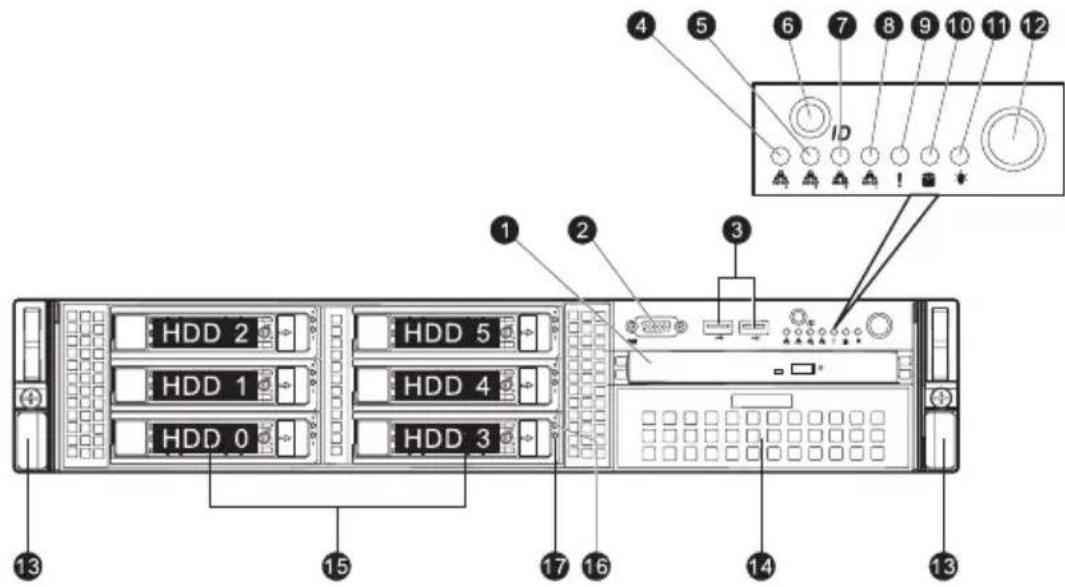
The illustration below shows the system front panel.
With 3.5-inch HDD bays
With 2.5-inch HDD bays
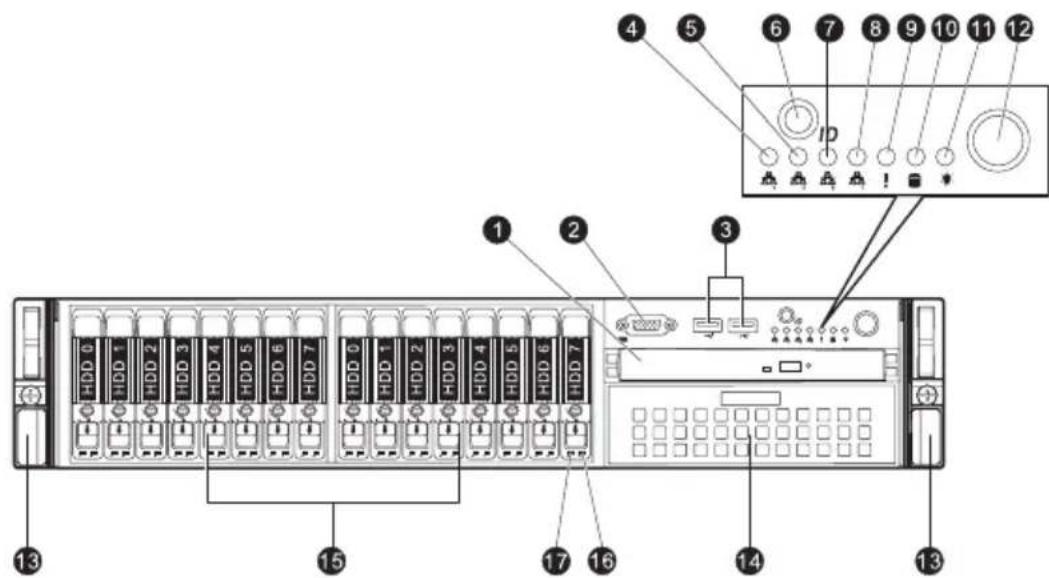
No. Icon Component
1 Optical drive
2 Monitor port

3 USB 2.0 ports

4 LAN4 activity indicator

5 LAN3 activity indicator

6 System ID indicator/button

7 LAN2 activity indicator

8 LAN1 activity indicator

9 Status/fault indicator

10 HDD activity indicator

11 Power indicator

12 Power button

13 Rack handles
14 Tape drive bay
15 3.5-inch or 2.5-inch hard disk drive (HDD) bays
| No. | Icon | Component |
| 16 | Hot-plug | HDD activity indicator |
| 17 | Hot-plug | HDD status indicator |
Front panel LED indicator status
| LED indicator | LED color | LED state | Status | |
 | Power indicator | Green On S0: Power ON | ||
| Green Blinking (1 Hz at 50% duty cycle) | S1: Sleep | |||
| N/A Off S4 | ||||
| N/A Off S5 | ||||
HDD activity indicator | Amber Blinking HDD access | |||
| N/A Off No access | ||||
 | System ID LED / Button | Blue On System ID buttonpressed | ||
| Blue Blinking IPMI-activated systemID | ||||
| Status/Fault indicator | Red On CPU overheat | |||
| Red Fast Blink (1x/sec) Fan failure | ||||
| Red Slow Blink (1x/4sec) Power failure | ||||
| LAN activity indicators | Green On LAN Link / No Access | |||
 | (LAN1, | Green Blinking LAN Access | ||
 | LAN2 | N/A Off Disconnect / Idle | ||
 | LAN3 | |||
 | LAN4) | |||
Rear panel
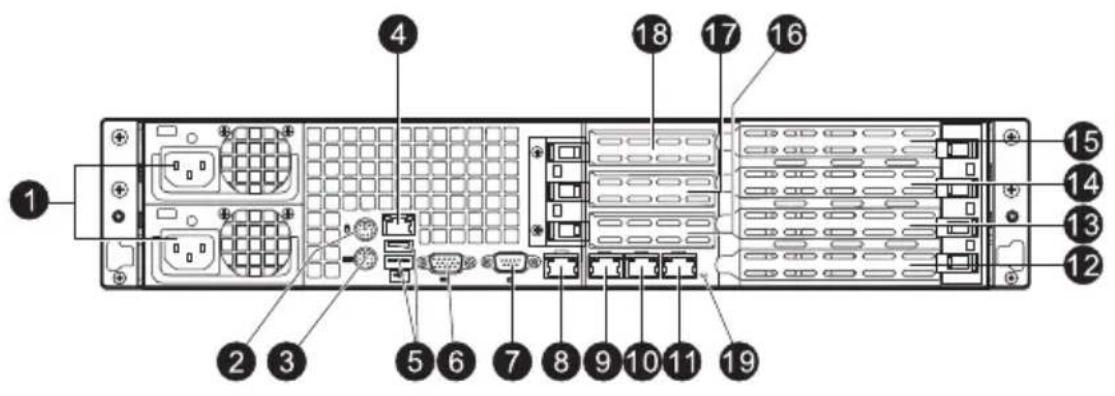
No. Component
1 Power supply modules
2 PS/2 mouse port
3 PS/2 keyboard port
4 Server management port (RJ-45) (10/100 Mbps)
5 USB 2.0 ports
6 COM port
7 Monitor port
8-11 Gigabit LAN1 - 4 ports (10/100/1000 Mbps)
12 Flex I/O expansion slot
13-14 Full-height PCI Express 2.0 x8 (x4 link) expansion slots
15 Full-height PCI Express 2.0 x16 (x8 link) expansion slot
16-18 Low-profile PCI Express 2.0 x8 (x4 link) expansion slots
19 System ID indicator
Rear panel LED indicator status
| LED indicator | LED color | LED state | Status |
| System ID LED N/A | Off Normal | ||
| Blue On System ID button pressed | |||
| Blue Blinking IPMI-activated system ID | |||
LAN port LED indicators
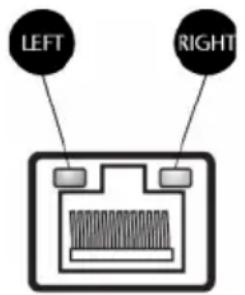
| LED indicator | LED color | LED state | Status |
| RJ45 LED (Left) N/A Off No connection or 10 Mbps | |||
| Green | On | 100 Mbps | |
| Amber | On | 1000 Mbps | |
| RJ45 LED (Right) Yellow | On | Active connection | |
| Yellow | Blinking | Transmit/Receive activity | |
Internal components
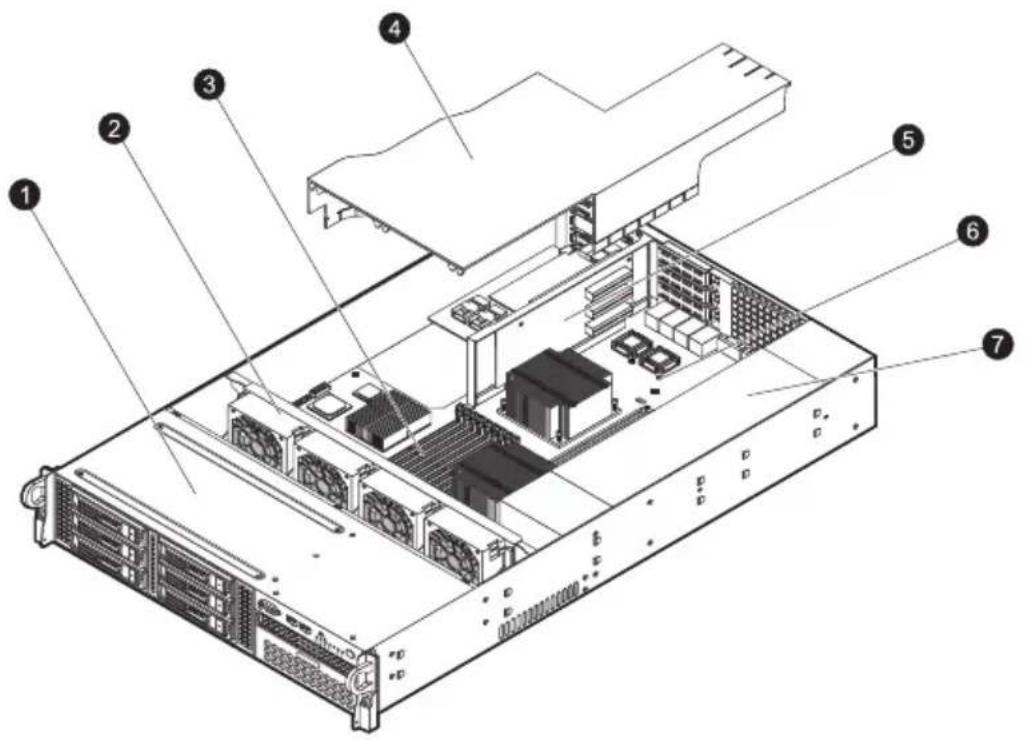
No. Component
| 1 Hard disk drive bay | ||||
| 2 | S | y | s | t |
| 3 Memory modules | ||||
| 4 Air duct | ||||
| 5 PCI riser board bracket assembly | ||||
| 6 Mainboard | ||||
| 7 Power supply module | ||||
e
Mainboard
The mainboard becomes accessible once you open the system. It should look like the figure shown below.
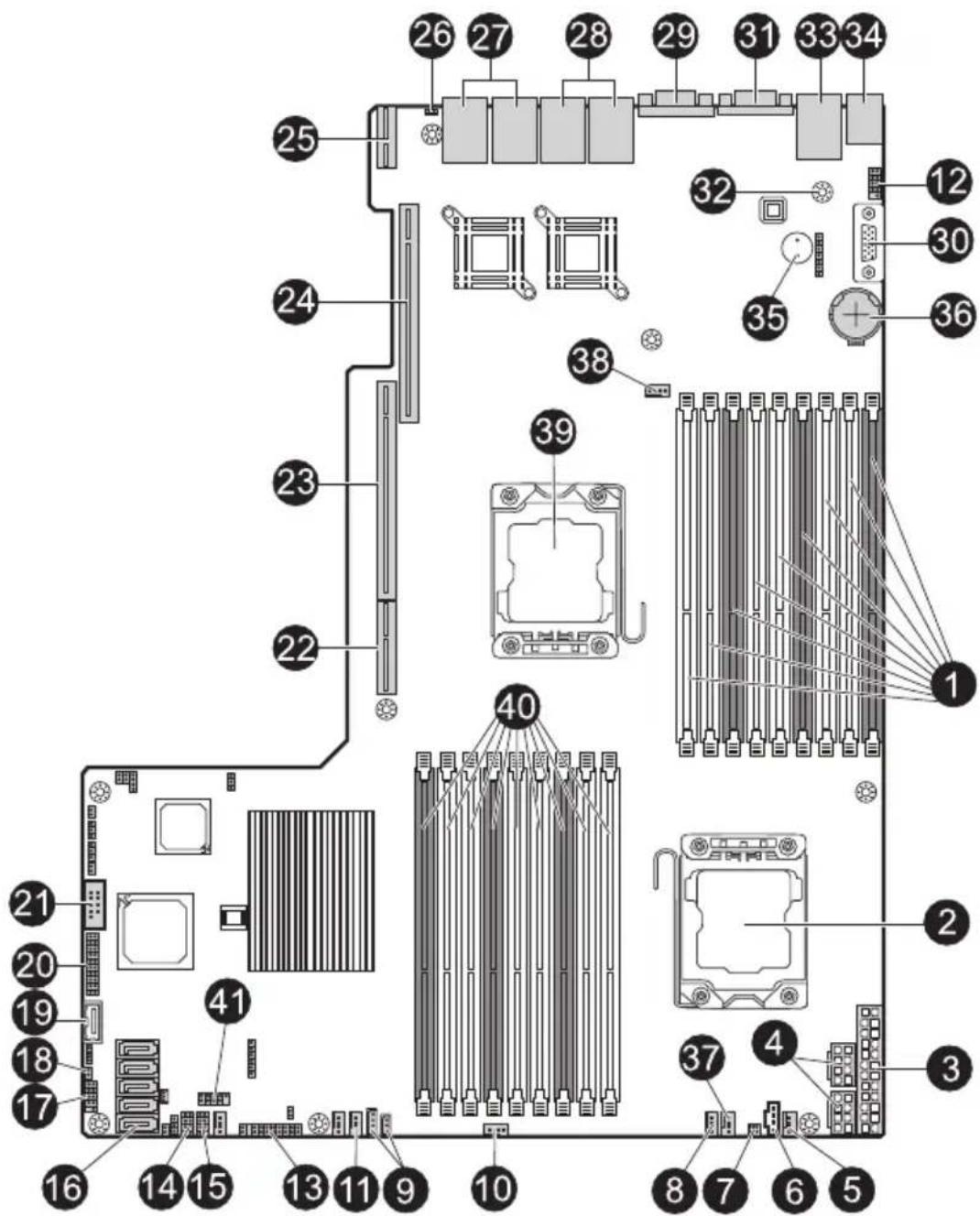
No. Connector Description
| 1 P1-DIMM3A | DDR3 sockets for processor 1 |
| P1-DIMM3B | |
| P1-DIMM3C | |
| P1-DIMM2A | |
| P1-DIMM2B | |
| P1-DIMM2C | |
| P1-DIMM1A | |
| P1-DIMM1B | |
| P1-DIMM1C | |
| 2 CPU2 Processor 2 socket | |
| 3 JPW1 ATX 24-pin power connector | |
| 4 JPW2/JPW3 12V 8-pin power connectors | |
| 5 FAN1 Chassis fan 1 | |
| 6 JPI2C Power supply SMB bus I2C header | |
| 7 JPK1 NIC3/NIC4 LED headers | |
| 8 FAN2 Chassis fan 2 | |
| 9 I P M4-pin/3pin external BMC I2C headerJIPMB2 | |
| 10 FAN3 Chassis fan 3 | |
| 11 FAN4 Chassis fan 4 | |
| 12 USB 2/3 Internal 2-port USB header (USB 2/3) for tape drive | |
| 13 JF1 Front panel control header | |
| 14 T-SGPIO1 Serial General Purpose Input/Output header 1 | |
| 15 T-SGPIO2 Serial General Purpose Input/Output header 2 | |
| 16 I-SATA0~5 SATA portsNote: I-SATA5 is reserved for an installed optical drive. | |
| No. | Connector | Description |
| 17 | USB 4/5 Front panel accessible USB headers (USB4/5) | |
| 18 | JL1 Chassis intrusion | |
| 19 | USB 6 Front panel accessible type A USB connector USB6 | |
| 20 | JTPM Trusted platform module header (JP8) | |
| 21 | COM2 Serial port 2 connection | |
| 22 | SXB3 Left side riser card slot | |
| 23 | SXB1 Left side riser card slot | |
| 24 | SXB2 Right side riser card slot | |
| 25 | UIOP Left side riser card slot | |
| 26 | ID System ID LED | |
| 27 | LAN3/LAN4 G-bit ethernet ports 3/4 | |
| 28 | LAN1/LAN2 G-bit ethernet ports 1/2 | |
| 29 | VGA1 Rear VGA port | |
| 30 | VGA2 Front VGA port | |
| 31 | COM1 COM1 serial connection | |
| 32 | IPMI LAN IPMI dedicated LAN | |
| 33 | USB 0/1 Back panel USB 0/1 | |
| 34 | KB/MS PS2 keyboard/mouse | |
| 35 | SP1 Onboard buzzer | |
| 36 | JBT1 Onboard battery | |
| 37 | FAN7 CPU2 FAN (Reserved) | |
| 38 | FAN8 CPU1 FAN (Reserved) | |
| 39 | CPU1 Processor 1 socket | |
No. Connector Description
| 40 P2-DIMM1C | DDR3 sockets for processor 2 |
| P2-DIMM1B | |
| P2-DIMM1A | |
| P2-DIMM2C | |
| P2-DIMM2B | |
| P2-DIMM2A | |
| P2-DIMM3C | |
| P2-DIMM3B | |
| P2-DIMM3A |
41 USB7 Front panel accessible USB headers (USB7)
Mainboard jumper settings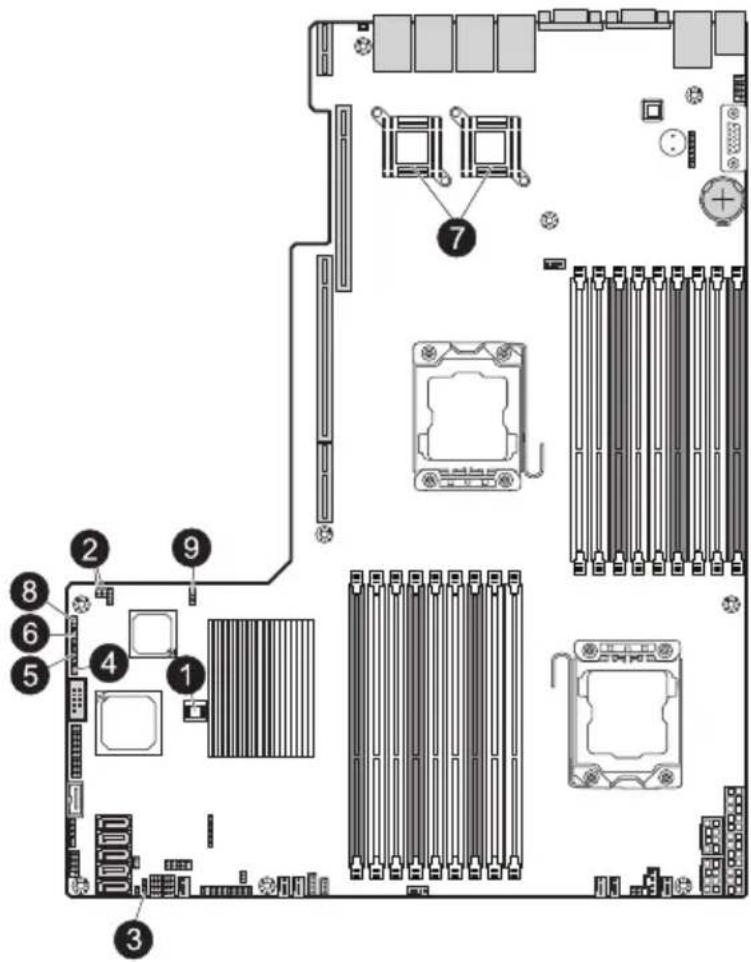
No. Jumper Description Default Setting
1 JBT1 Clear CMOS Instead of pins, this jumper consists of contact pads to prevent accidental clearing of the CMOS contents. To clear CMOS, disconnect the power and short the CMOS pads with a metal object such as a small screwdriver.
2 J I SMB to PCI-E slots Off (disable) JI2C2
3 JP3 ME Mode Select Pins 2\~3 (disable)
4 JP5 ME Recovery Open (normal)
| No. Jumper Description Default Setting | ||
| 5 JPB BMC Enabled Pins 1~2 (enable) | ||
| 6 JPG1 VGA Enable Pins 1~2 (enable) | ||
| 7 JPL1/ GLAN1/GLAN2 Pins 1~2 (enable)JPL2 Enable | ||
| 8 JPRST1 BMC/PHY Enable Pins 1~2 (enable) | ||
| 9 JWD Watch Dog Pins 1~2 (reset) |

Note: Jumpers not indicated are for test purposes only.
Mainboard LEDs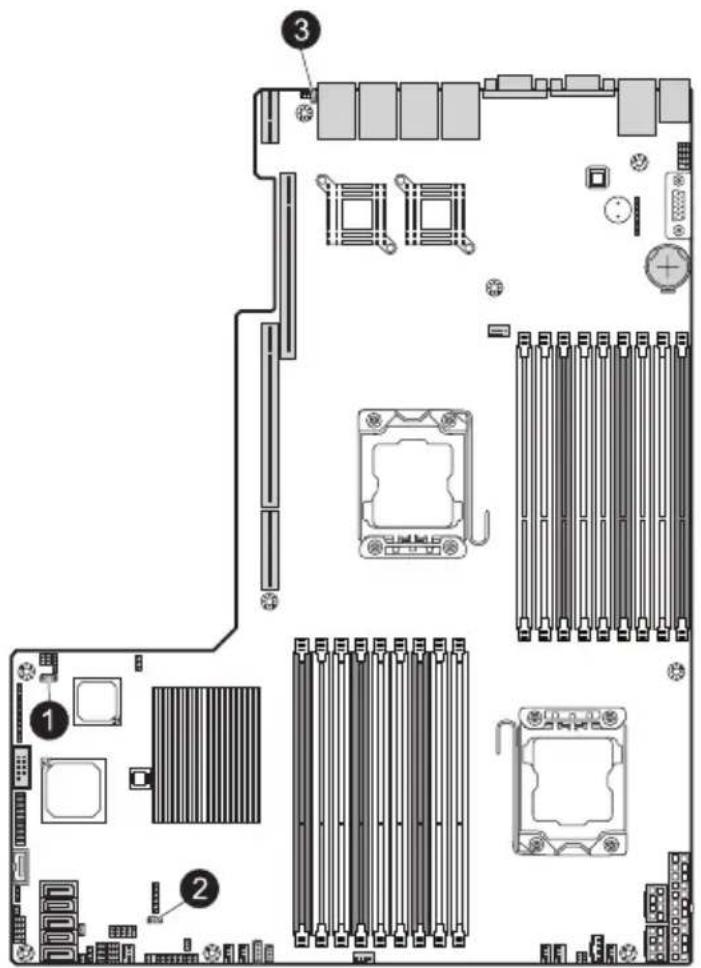
No. LED Description State Status
| 1 D20 BMC heartbeatLED | Green blinking Normal | |
| 2 LE1 Standby powerLED | Solid green | Power on |
| 3 LE11 System ID LED Solid blue System ID | ||
System setup
Setting up the system
Pre-installation requirements
Selecting a site
Before unpacking and installing the system, select a suitable site for the system for maximum efficiency. Consider the following factors when choosing a site for the system:
- Near a grounded power outlet.
- Clean and dust-free.
- Stable surface free from vibration.
- Well-ventilated and away from sources of heat.
- Protected from electromagnetic fields produced by electrical devices such as air conditioners, radio and TV transmitters, etc.
Package contents
Ensure you have the following items:
- Acer AR380 system
- Acer AR380 accessory box
If any of the above items is damaged or missing, contact your dealer immediately.
Save the boxes and packing materials for future use.
Connecting peripherals

Caution! The server operates on 100-127/200-240 VAC only. Do not connect the system to an incorrect voltage source.
Refer to the illustration below for specific connection instructions on the peripherals you want to connect to the system.
Front connections
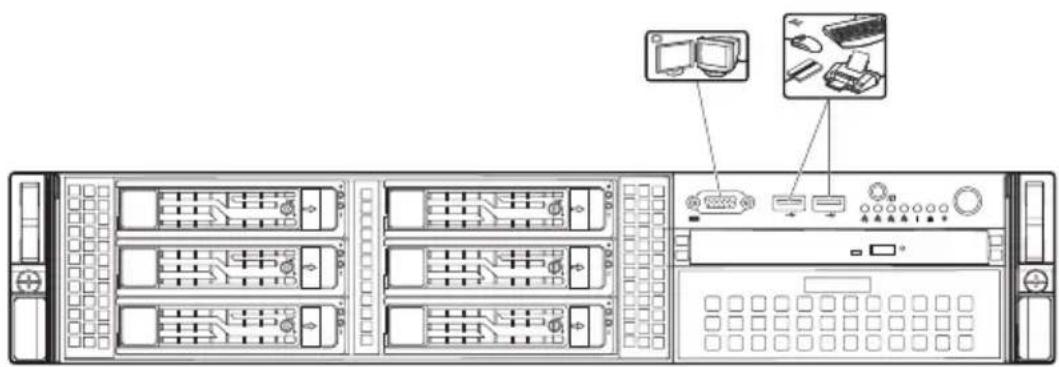
Rear connections
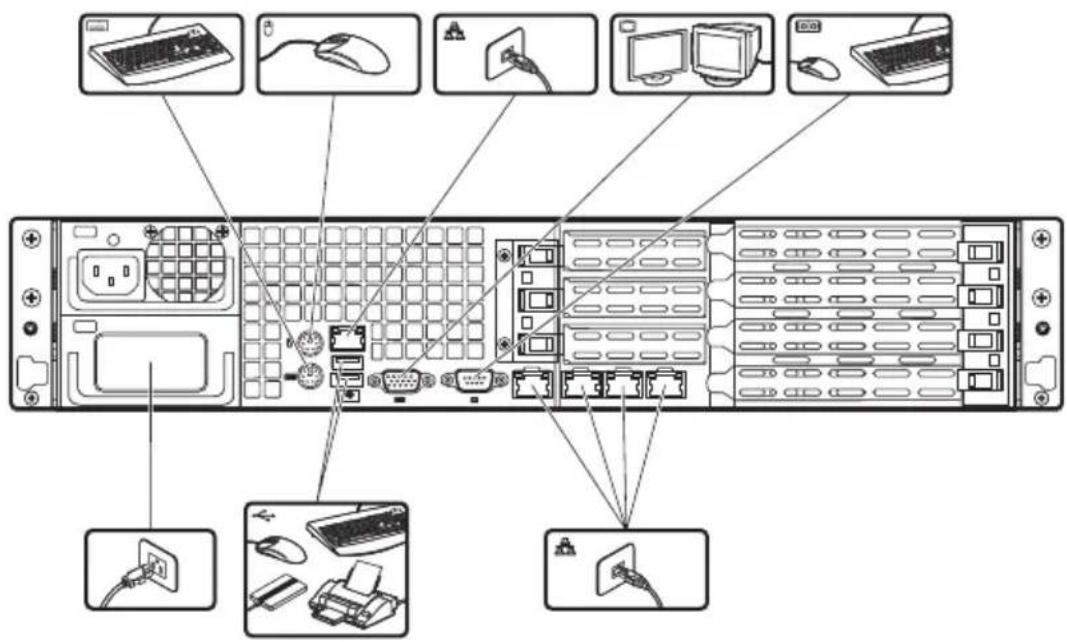

Note: Consult the operating system manual for information on how to configure the network setup.
Turning on the system
After making sure that you have properly set up the system and connected all the required cables, you can now power on the system.
To power on the system:
After plugging in the power cord, press the power button.

The system starts up and displays a welcome message on the monitor. After that, a series of POST messages appears. The POST messages indicate if the system is running well or not.

Note: If the system does not turn on or boot after pressing the power button(s), go to the next section for the possible causes of the boot failure.
Aside from the POST messages, you can determine if the system is in good condition by checking if the following occurred.
- The power indicator on the front panel lights up green.
- The Num Lock, Caps Lock, and Scroll Lock indicators on the keyboard light up.
Power-on problems
If the system does not boot after you have applied power, check the following factors that might have caused the boot failure.
- The external power cord may be loosely connected.
Check the power cord connection from the power source to the power supply module AC input connector on the rear panel. Make sure that the power cord is properly connected to the power source and to the AC input connector.
- No power comes from the grounded power outlet.
Have an electrician check your power outlet.
- Loose or improperly connected internal power cables.
Check the internal cable connections. If you are not confident to perform this step, ask a qualified technician to assist you.

Warning! Make sure all power cords are disconnected from the electrical outlet before performing this task.

Note: If you have gone through the preceding actions and the system still fails to boot, ask your dealer or a qualified technician for assistance.
Configuring the system OS
Acer Smart Setup assists you to conveniently install your choice of operating system.

Note: To purchase the Acer Smart Server Manager software, contact your local Acer representative.
To start using Smart Setup, follow the steps below.
1 Locate the Smart Setup included in the system package. 2 If an optional DVD drive is not installed in the server, connect an external DVD drive to your system. Press the Stop/Eject button on the DVD drive to eject the disc tray. 3 When the disc tray slides open, insert the Smart Setup DVD with the label or title side of the disc facing upward.

Note: When handling the disc, hold it by the edges to avoid smudges or fingerprints.
4 Gently press the disc down to make sure that it is properly inserted.

Caution! While pressing the disc, be careful not to bend the disc tray. Make sure that the disc is properly inserted before closing the disc tray. Improper insertion may damage both the disc and the CD-ROM drive.
5 Gently press the drive Stop/Eject button again to close the disc tray.
6 On the Acer Smart Setup window, select OS Installation.
7 Follow all onscreen instructions.
For more information, refer to the Smart Setup Help file.

Note: The Windows or Linux OS disc is needed when you install the OS with the Smart Setup.
Turning off the system
There are two ways to turn off the server — via software or via hardware. The software procedure below applies to a system running the Windows operating system. For further operating system shutdown procedures, refer to the related user documentation.
To turn off the system via software:
1 Press + + on the attached keyboard or click Start on the Windows taskbar.
2 Select Shut Down.
3 Select Shut down from the drop-down window then click on OK.
To turn off the system via hardware:
If you cannot shut down the server using the software, press and hold the power button for at least four seconds. Quickly pressing the button may put the server in a Suspend mode only.
3 System upgrades
Installation precautions
Before you install any server component, we recommend that you read the following sections. These sections contain important ESD precautions along with pre-installation and post-installation instructions.
ESD precautions
Electrostatic discharge (ESD) can damage the processor, disk drives, expansion boards, mainboard, memory modules and other server components. Always observe the following precautions before you install a server component:
- Do not remove a component from its protective packaging until you are ready to install it.
- Do not touch the component pins, leads, or circuitry.
- Components with a Printed Circuit Board (PCB) assembly should always be laid with the assembly-side down.
- Wear a wrist grounding strap and attach it to a metal part of the server before handling components. If a wrist strap is not available, maintain contact with the server throughout any procedure requiring ESD protection.
- Keep the work area free of nonconductive materials, such as ordinary plastic assembly aids and foam packing.
Pre-installation instructions
Perform the steps below before you open the server or before you remove or replace any component:

Warning! Failure to properly turn off the server before you start installing components may cause serious damage. Do not attempt the procedures described in the following sections unless you are a qualified service technician.
1. Turn off the system and all the peripherals connected to it. 2. Unplug all cables from the power outlets. 3. Disconnect all telecommunication cables from their ports.
4. Place the system unit on a flat, stable surface. 5. Open the system according to the instructions on page 43. 6. Follow the ESD precautions described in this section when handling a server component.
Post-installation instructions
Perform the steps below after installing a server component.
1. See to it that all components are installed according to the described step-by-step instructions. 2. Reinstall all components or cables that have been previously removed. 3. Reinstall the top cover. 4. Reconnect the necessary cables. 5. Turn on the system.
Opening the server

Caution: Before you proceed, make sure that you have turned off the system and all peripherals connected to it. Read the "Pre-installation instructions" on page 26.
You need to open the server before you can install additional components or access the system's internal components. Refer to the following sections for instructions.
Removing the top cover

Note: Observe the ESD precautions and pre-installation instructions described on page 26.
1. Press and hold the two release buttons. 2. Slide the cover toward the rear of the chassis. 3. Lift the cover off the chassis.
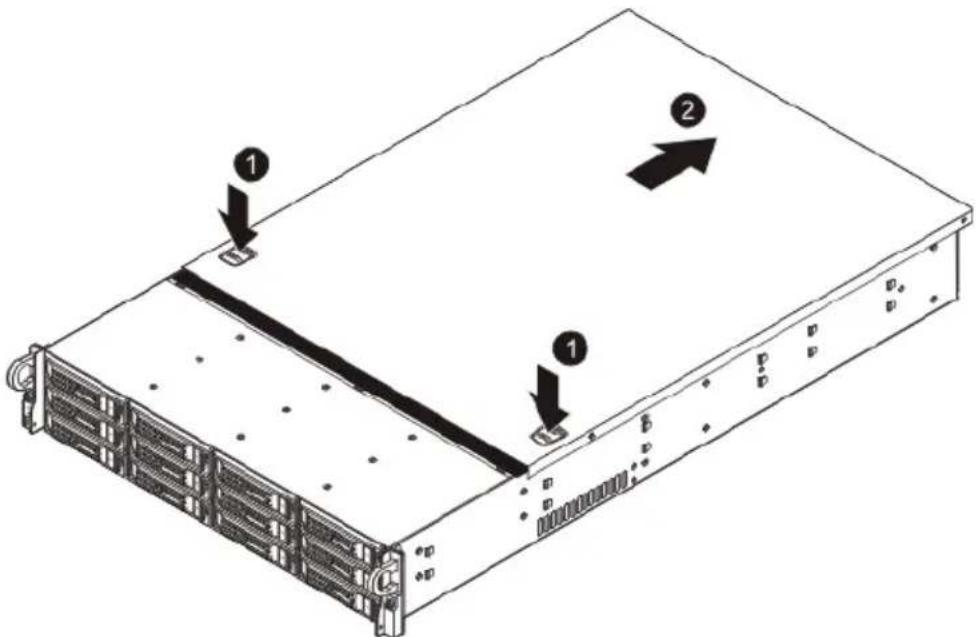
4. Put the top cover aside for reinstallation later.
Installing the top cover
1 Perform the pre-installation instructions described on page 26.
2 Install the top cover.
(1) Place the top cover on the chassis so that the tabs on the cover align with the slots on the chassis. (2) Slide the top cover toward the front of the chassis until it is fully closed.
Configuring the storage devices
The system supports up to four 3.5-inch hot-plug SAS/SATA hard disk drives. An optional optical drive can also be added to the server.
Accessing the drive bays
Since SAS/SATA drives have hot-plug capability, you do not need to access the inside of the chassis or power down the system to install or replace SAS/SATA drives. Proceed to the next step for instructions.

Note: The operating system you use must have RAID support to enable the hot-plug capability of the SATA drives.

Caution: When working around the SATA backplane, do not touch the backplane with any metal objects and make sure no cables touch the backplane. Also, regardless of how many SATA drives are installed, all eight drive carriers must remain in the chassis to maintain proper airflow.
Hard disk drive configuration guidelines
Observe these guidelines when replacing or installing a hard disk drive.
- Use only qualified SAS or SATA HDDs. To purchase a SAS or SATA HDD, contact your local representative.
- Before removing a hard disk drive, make sure to back up all important system files.
- Check hard disk drive status by checking the status LED indicators on the HDD carrier.
- The hard disk drive carriers must be installed in the following
order:
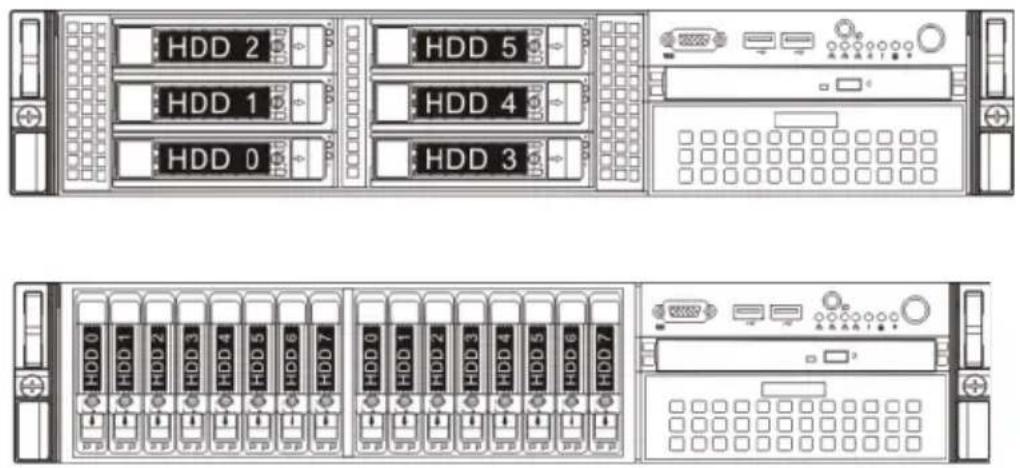
Determining drive status
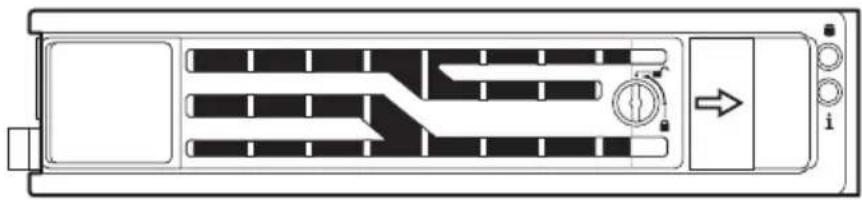
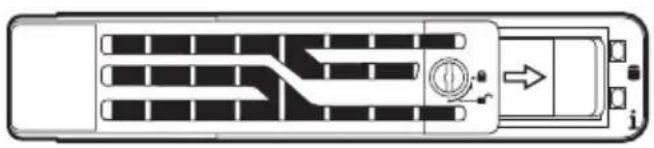
Each HDD carrier features two status LED indicators (see page 5) to display the hard drive status. If you are replacing a failed HDD, determine which drive has failed by checking the hot-plug HDD status indicators.
3.5" HDD
2.5" HDD

Onboard SATA RAID Green Red
HDD present no access Off Off
| Description | i | |
| HDD access Blink Off | ||
| RAID add-on card | ||
| HDD present no access SAS: OnSATA: Off | ||
| HDD access Blink | ||
| HDD failure On | ||
| HDD removal Off Off | ||
| HDD insertion and rebuilding Blink 1Hz | ||
| HDD locate Blink 4Hz | ||
Removing and installing a 3.5" hard disk drive
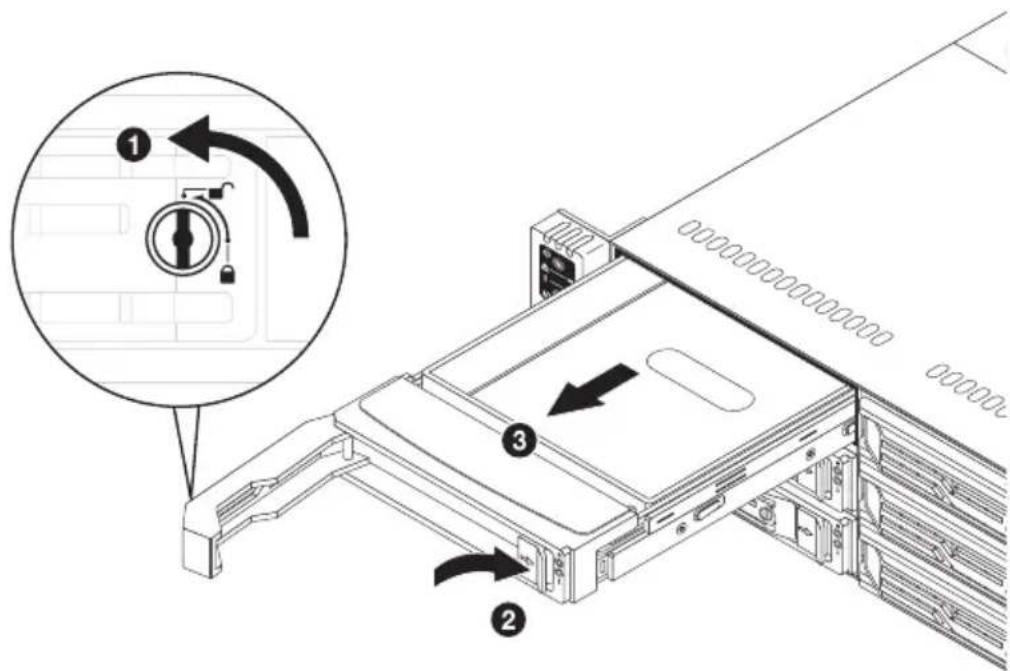
Removing a 3.5" hard disk drive with carrier
1 Observe the ESD precautions described on page 26. 2 Remove the carrier with failed HDD. 3 Remove the HDD carrier.
(1) Unlock the HDD carrier latch. (2) Slide the HDD carrier latch to release the lever.
(3) Pull the lever and slide the carrier from the chassis.
4 Observe the post-installation instructions described on page 27.
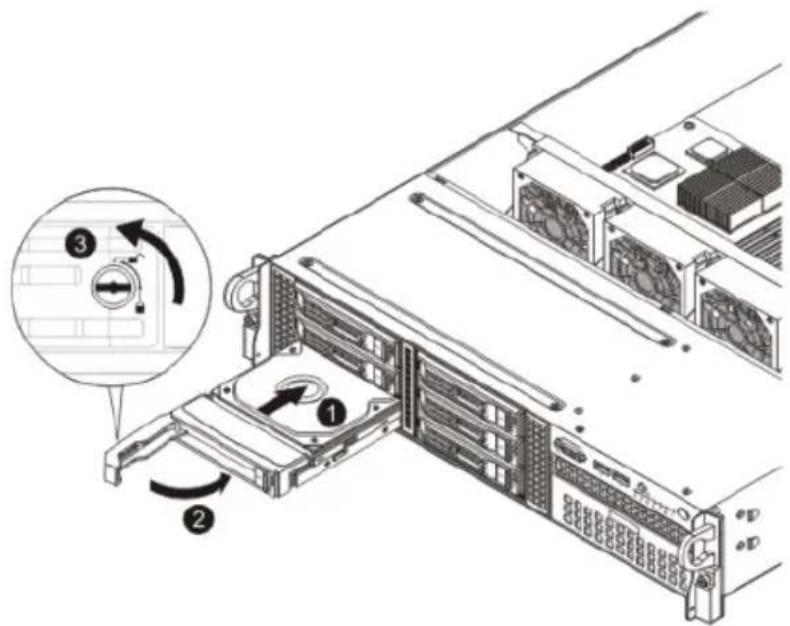
Installing a 3.5" hard disk drive with carrier
1 Slide the HDD carrier all the way into the drive bay. 2 Use the lever to push the HDD carrier until it locks into place, then close the HDD carrier lever.
3 Lock the HDD carrier.
4 Observe the post-installation instructions described on page 27.
Removing and installing a 2.5" hard disk drive
Removing a 2.5" hard disk drive with carrier
1 Observe the ESD precautions described on page 26. 2 Remove the carrier with failed HDD. 3 Remove the HDD carrier.
(1) Unlock the HDD carrier latch. (2) Slide the HDD carrier latch to release the lever. (3) Pull the lever up.
(4) Grasp the lever and pull the carrier from the chassis.
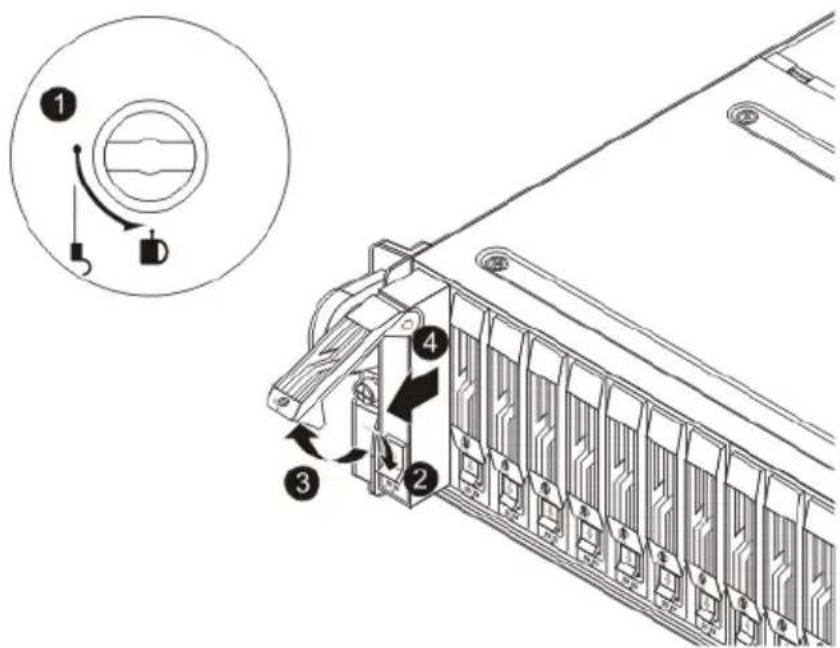
4 Observe the post-installation instructions described on page 27.
Installing a 2.5" hard disk drive with carrier
1 Slide the HDD carrier all the way into the drive bay. 2 Use the lever to push the HDD carrier into the chassis until it locks in place, then close the HDD carrier lever.
3 Lock the HDD carrier.
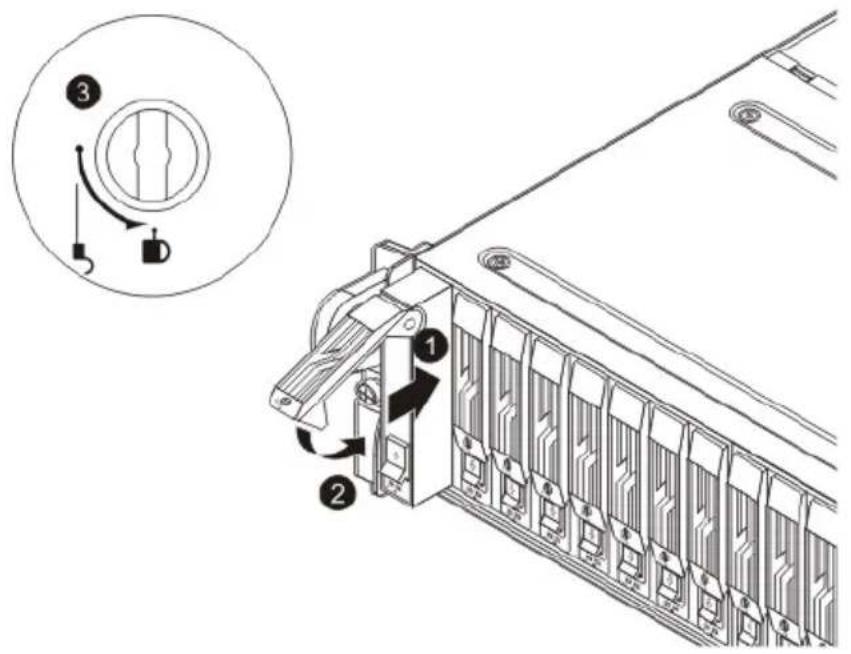
Observe the post-installation instructions described on page 27
Removing the 2.5" Carrier Cage
1 Observe the ESD precautions described on page 26. 2 Observe the Pre-installation instructions on page 26. 3 Unplug the power and data cables from the cage drives. 4 Remove the four screws of the HDD cage (1). 5 Slide the HDD cage out of the system chassis (2). 6 Observe the post-installation instructions described on page 27.
Installing the 2.5" Carrier Cage
1. Slide the HDD cage into the system chassis.
2. Replace the four screws of the HDD cage.
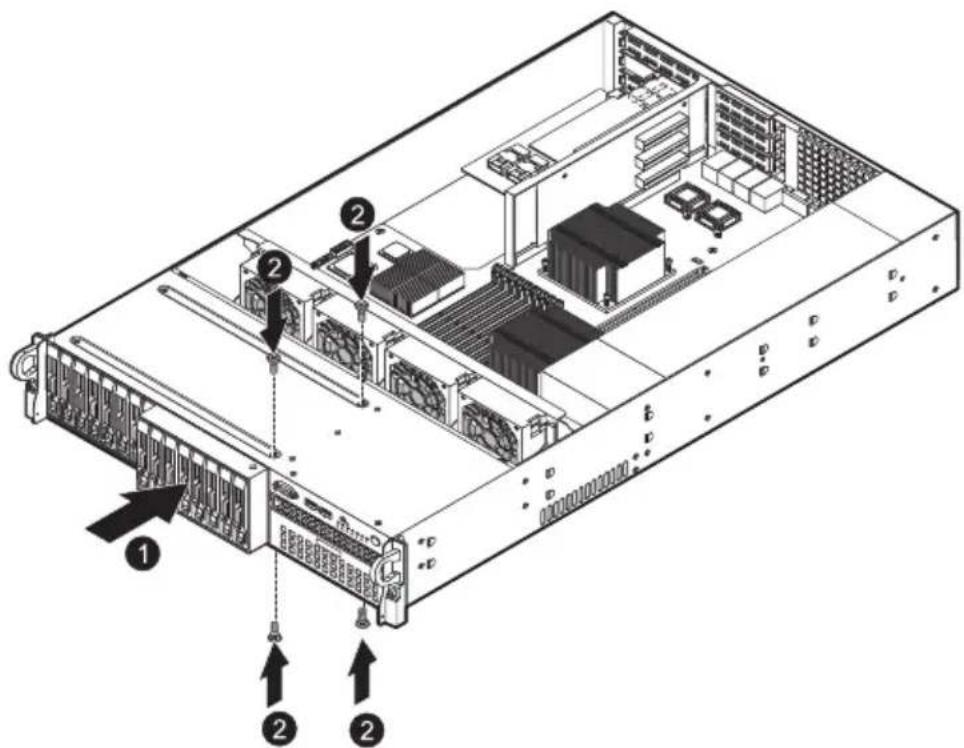
3. Plug the power and data cables of the carrier hard drives. 4. Install the top cover. See page 28. 5. Observe the post-installation instructions described on page 27.
Removing and installing an optical drive
The system supports a slim SATA optical drive.
Removing an optical drive
1. Observe the ESD precautions described on page 26. 2. Observe the Pre-installation instructions on page 26. 3. Unplug the power and data cables from the drive (1), (2). 4. Locate the locking tab at the rear of the drive.
5. Pull the tab away from the drive and push the drive out of the system (3).
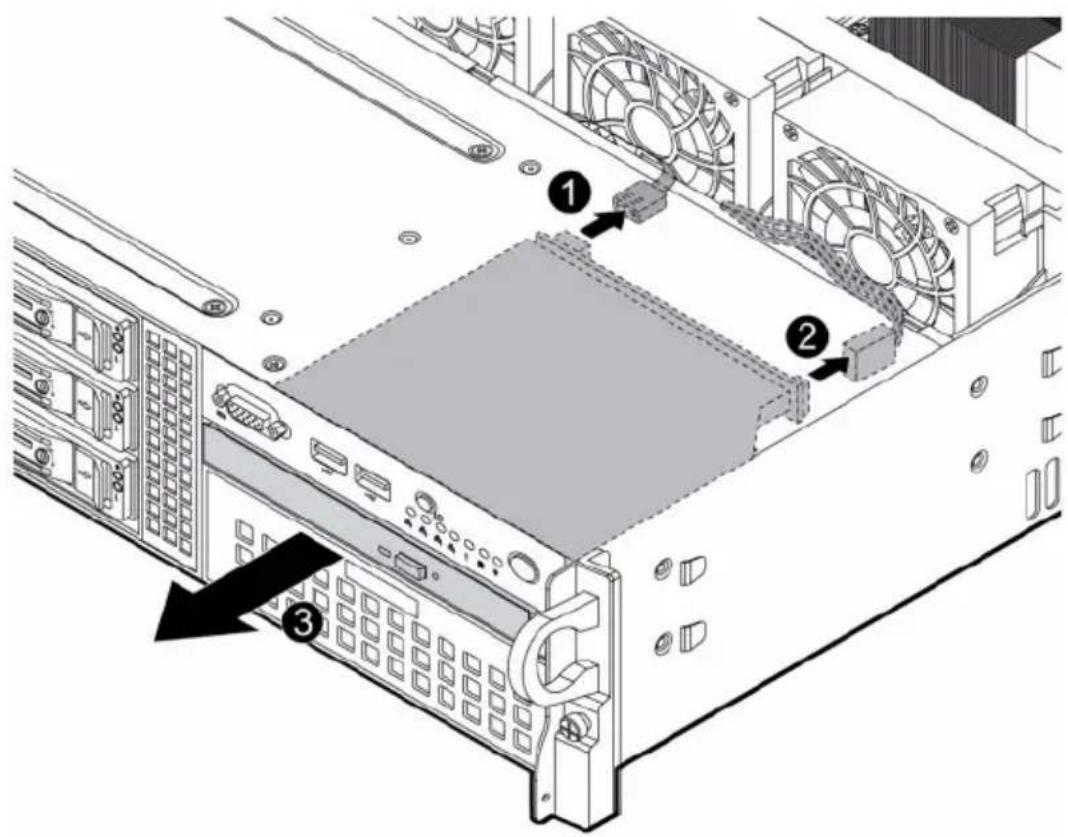
6. Remove the ODD carrier frame.
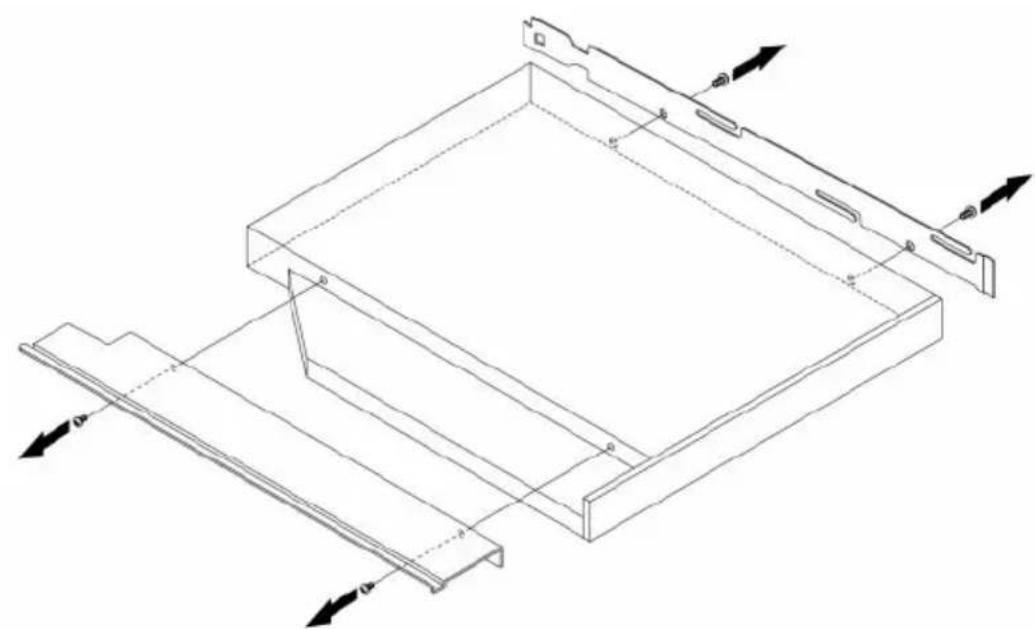
Installing an optical drive
1. Remove the ODD slot cover if present.
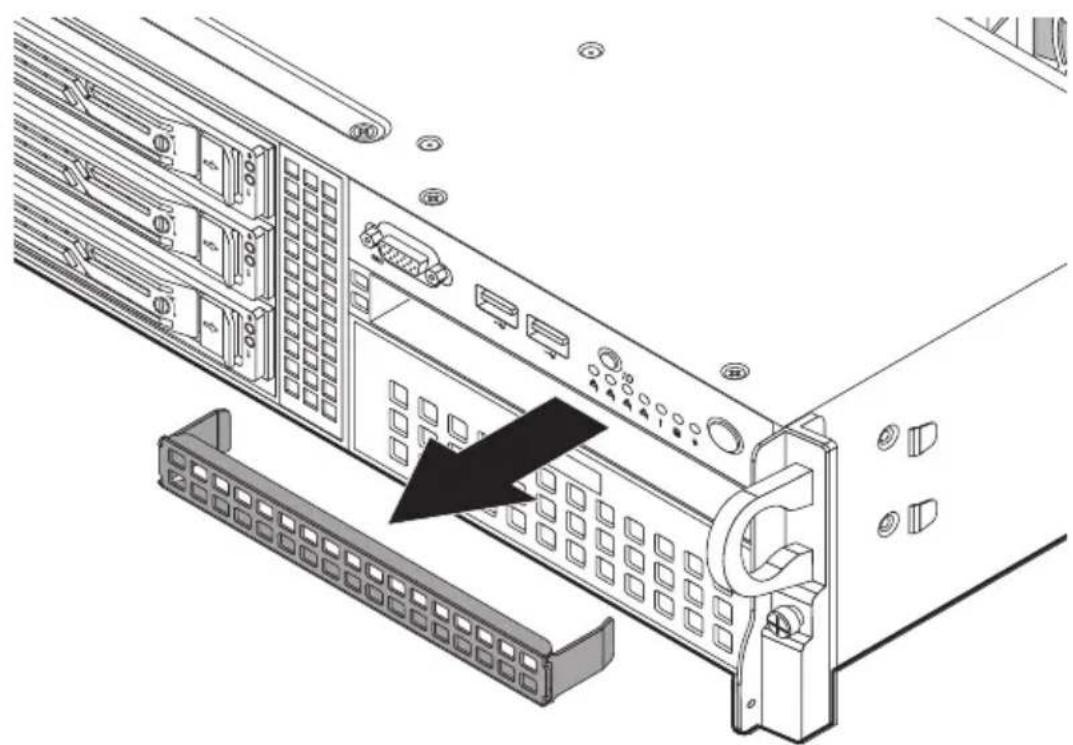
2. Install the ODD carrier frame to the ODD with the four screws.
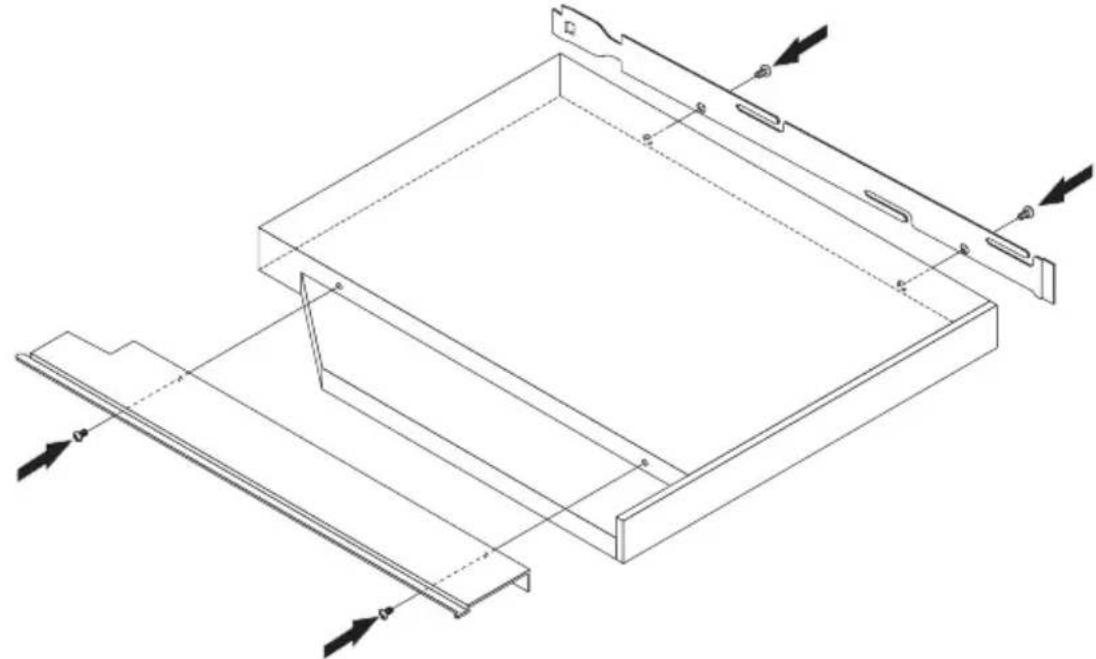
3. Insert the ODD into the system chassis. The drive is properly inserted if you hear a click and the locking tab locks into place (1).
4. Plug the power and data cables to the new optical drive (2), (3).
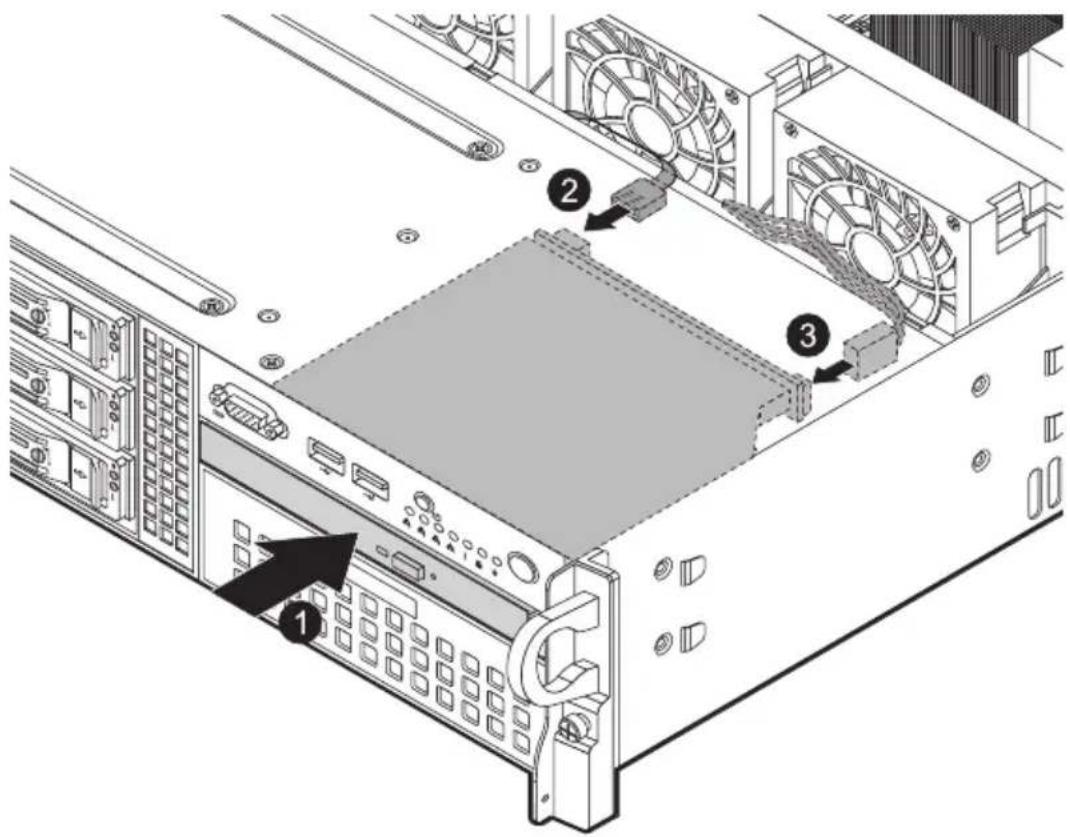
5 Observe the post-installation instructions described on page 27.

Note: The I-SATA5 port is reserved for connecting to the installed optical drive.
Installing and removing the power supply

WARNING! To reduce the risk of personal injury or damage to the equipment, the installation of power supply modules should be referred to individuals who are qualified to service server systems and are trained to deal with equipment capable of generating hazardous energy levels.

WARNING! To reduce the risk of personal injury from hot surfaces, observe the thermal labels on each power supply module. You can also consider wearing protective gloves.

WARNING! To reduce the risk of personal injury from electric shock hazards, do not open the power supply modules. There are no serviceable parts inside the module.

Caution! Electrostatic discharge can damage electronic components. Make sure that you are properly grounded before handling a power supply module.
Caution! Due to chassis airflow disruption, a power supply bay should never be vacant for more than two minutes when the server is powered on. Exceeding five minutes might cause the system to exceed the maximum acceptable temperature and possibly damage the system components.
Caution! The power supply is only hot-pluggable if you have a redundant system with two power supplies installed. If you only have one power supply installed, before removing or replacing the power supply, you must first take the server out of service, turn off all peripheral devices connected to the system, turn off the system by pressing the power button, and unplug the AC power cord from the system or wall outlet.
The server has a single 720-Watt power supply, capable of operating at 100 - 240 input volts.
Power supply failure
If the power supply unit fails, the system will shut down and you will need to replace the power supply unit. Replacement units can be ordered directly from Acer.
Replacing the power supply
Press the main power button on the front of the chassis and then unplug the AC power cord to completely remove power from the system before removing the power supply.
1 Remove the AC power cord from the power supply.
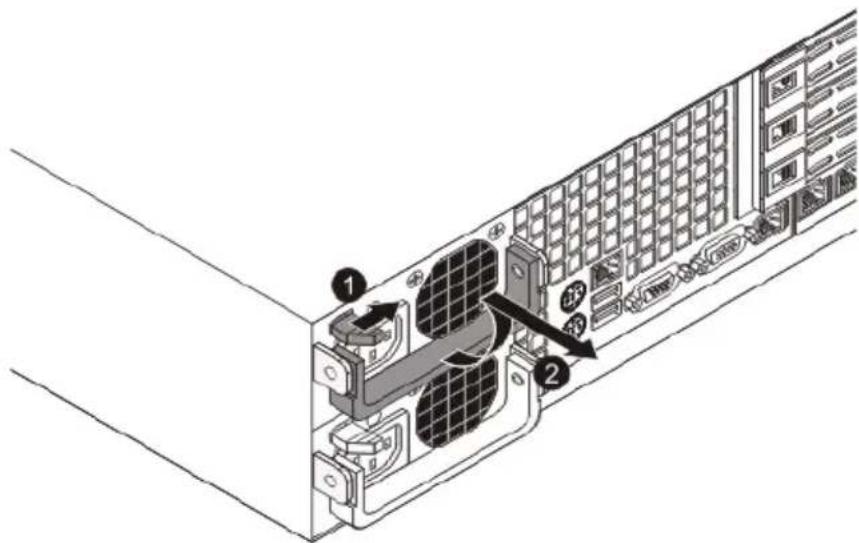
2 Remove the power supply module.
(1) Press the power supply release latch to release the power supply module from the chassis. (2) Use the handle to pull the failed power supply module out of the server.
3 Install a new power supply module with the exact same model.
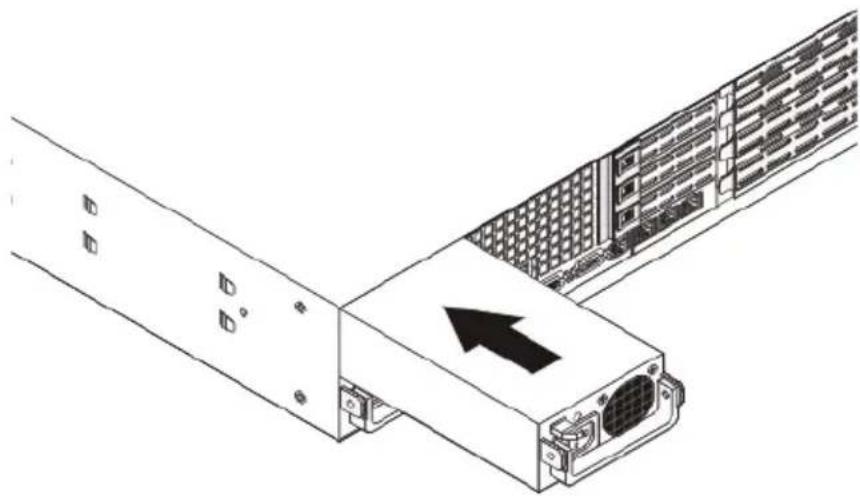
4 Push the new power supply module into the power bay until it clicks into place.
5 Plug the AC power cord back into the module and power up the server by pushing the power on button.
Removing and installing the air duct

Caution: Always operate your server with the air duct installed to ensure reliable and continued operation.
Removing the air duct
1 Perform the pre-installation instructions described on page 26. 2 Lift the air duct from the chassis.
Installing the air duct
1 Perform the pre-installation instructions described on page 26.
2 Place the air duct on the chassis so that the tabs on the air duct align with the slots on the chassis.
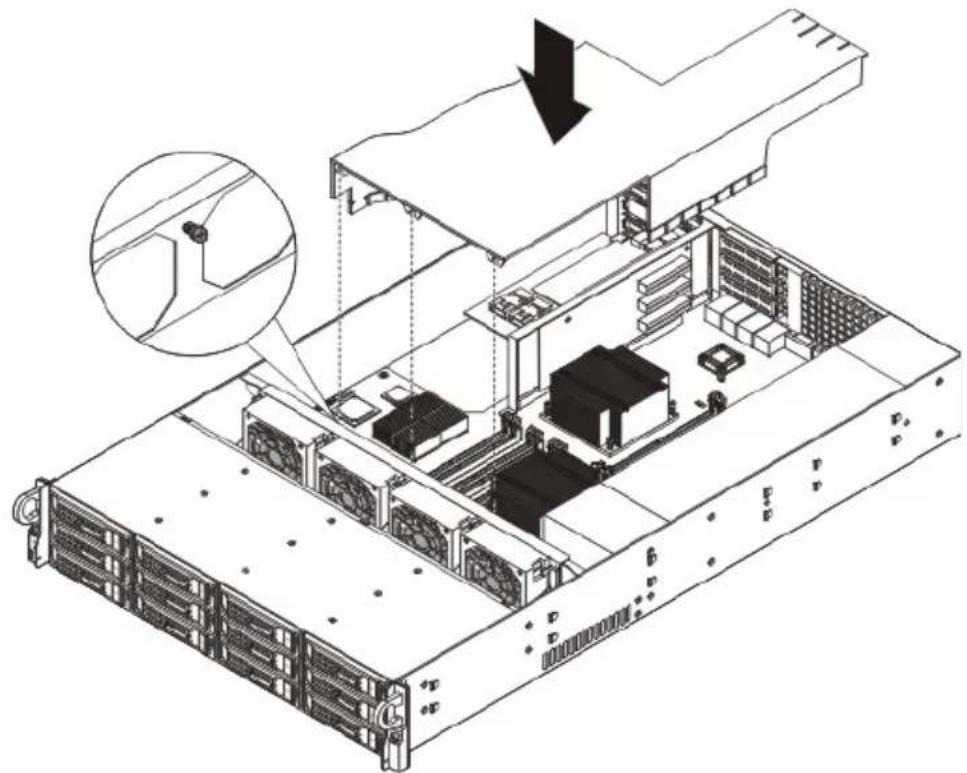

Caution: Do not pinch or unplug cables that may be near or under the air duct.
3 Observe the post-installation instructions described on page 27.
Replacing a system fan
The system has four high-performance PWM fans to provide the cooling for the system. Fan speed may be controlled by a setting in BIOS (see Chapter 4).
To replace a fan module:
1. Perform the pre-installation instructions described on page 26.

Warning! The system fan becomes very hot when the system is on. Allow it to cool off first before handling.
2. Remove the top chassis cover while the system is still running to determine which of the fans has failed.
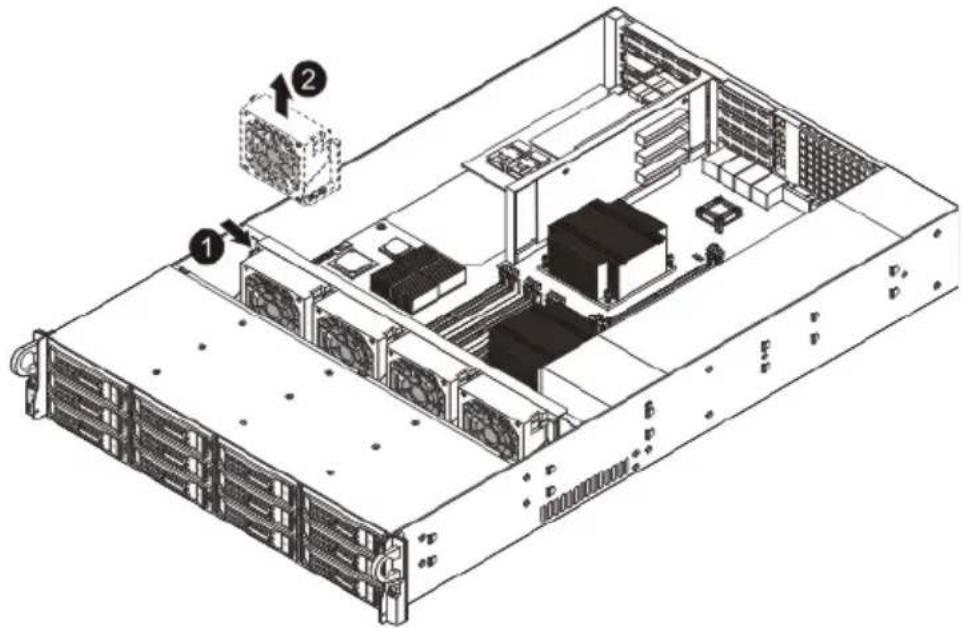
3. Remove the fan module.
(1) Push the fan clip handles inwards. (2) Pull the fan up and away from the chassis.
(1) Insert the new fan into the chassis.
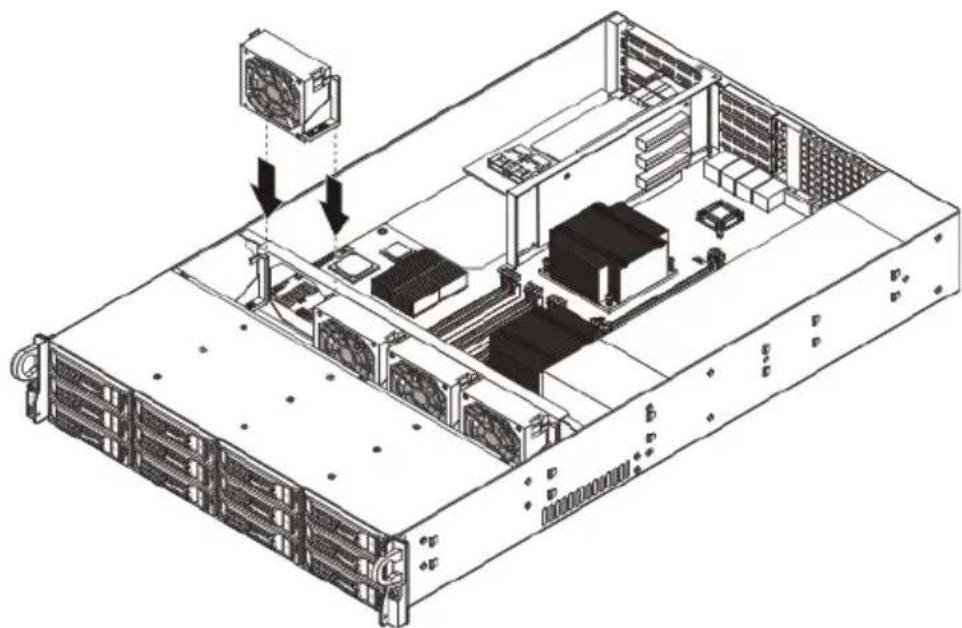
(2) Push downwards until firmly seated.
5. Observe the post-installation instructions described on page 27.
Replacing the processor and heatsink
Notes:
- Always connect the power cord last and always remove it before adding, removing or changing any hardware components. Make sure that you install the processor into the CPU socket before you install the CPU heatsink.
- If you buy a CPU separately, make sure that you use an Intel-certified multidirectional heatsink and fan only.
- Make sure to install the serverboard into the chassis before you install the CPU heatsinks.
- When receiving a serverboard without a processor pre-installed, make sure that the plastic CPU socket cap is in place and none of the socket pins is bent; otherwise, contact your retailer immediately.
Removing the heatsink

Warning! It is not recommended that the CPU or the heatsink be removed. However, if you do need to uninstall the heatsink, please follow the instructions below to prevent damage to the CPU or the CPU socket.
1. Remove power from the system and unplug the AC power cord from the power supply. 2. Observe the pre-installation instructions on page 26. 3. Remove the air duct. See page 43. 4. Disconnect the heatsink fan wires from the CPU fan header.
5. Using a screwdriver, loosen the heatsink screws from the mainboard.
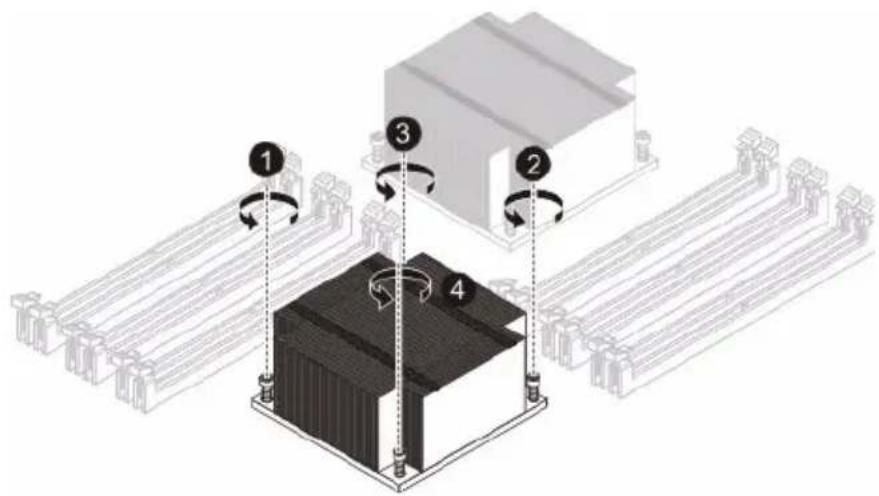
6. Lift the heat sink away from the processor.
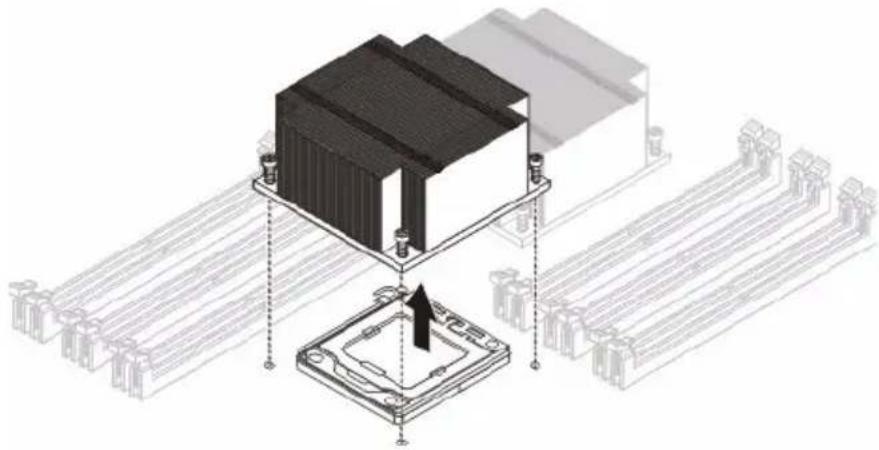
7. Lay down the heat sink in an upright position — with the thermal patch facing upward. Do not let the thermal patch touch the work surface.
Installing a heatsink

Caution: The heat sink has a thermal interface material (TIM) on the underside. Use caution so that you do not damage the TIM. If a protective film is installed on the TIM, remove it.
1. Remove power from the system and unplug the AC power cord from the power supply.
2. Do not apply any thermal grease to the heatsink or the CPU die; the required amount has already been applied. 3. Place the heatsink on top of the CPU so that the four mounting holes are aligned with those on the (preinstalled) heatsink retention mechanism.
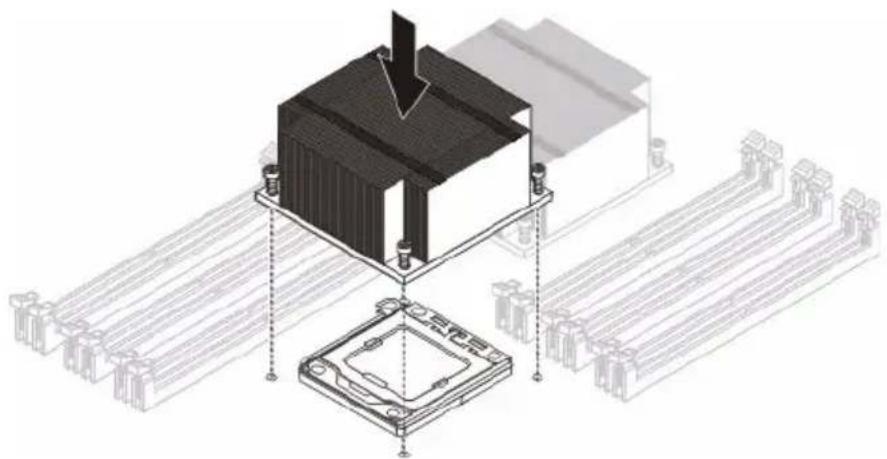
4. Screw in two diagonal screws (i.e. the #1 and the #2 screws) until just snug. Do not fully tighten the screws or you may damage the CPU.
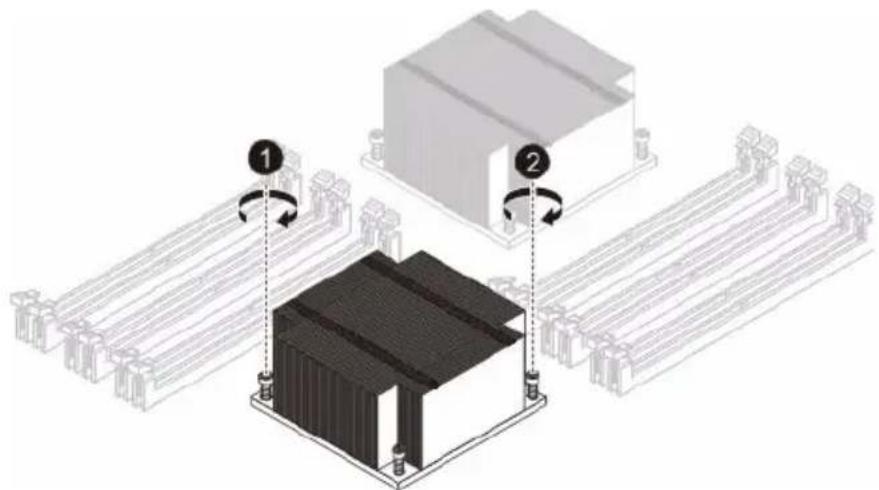
5. Add the two remaining screws then finish the installation by fully tightening all four screws. 6. Install the air duct. See page 43. 7. Observe the post-installation instructions on page 27.
Upgrading the processor
Processor configuration guidelines
The server supports two LGA 1366 processor sockets supporting dual-core or quad-core Intel Xeon processors. The supplied processors may be upgraded or additional processors installed.
Observe the following guidelines when replacing or installing a processor.
- Processor 1 socket must always be populated. If no processor is installed in this socket, the system will fail to boot.
- Before removing a processor, make sure to back up all important system files.
- When installing a second processor, make sure it has same stepping and frequency specifications as the default processor.
- Handle the processor and the heat sink carefully. Damage to either may prevent the system from functioning properly.
Replacing the processor

Warning! The processor becomes very hot when the system is on. Allow it to cool off first before handling.
(1) Remove the heatsink (see “Removing the heatsink” on page 46). (2) Release then lift the load lever. (3) Open the retention plate to expose the socket body.
(4) Grasp the installed processor by its edges and lift it out of its socket.
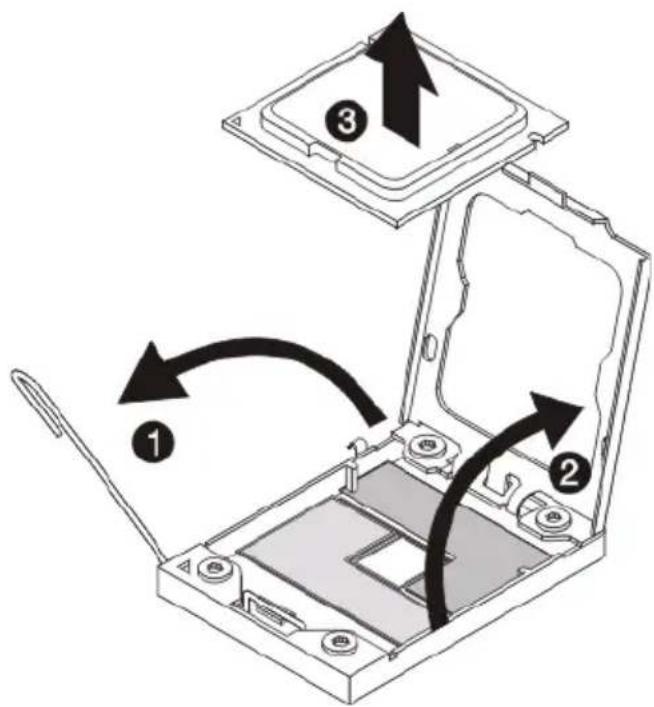
(5) Store the old processor inside an anti-static bag.
8 Remove the new processor from its protective packaging.
9 Install the new processor.
(1) Hold the processor by its edges. Make sure the alignment tabs on the socket fit the two notch located on the edge of the processor. The pins are keyed in such a way that you cannot install the processor in the wrong orientation without bending the pins.
(2) Insert the new processor in the socket.
(3) Close the retention plate.
(4) Engage the load lever back into place.
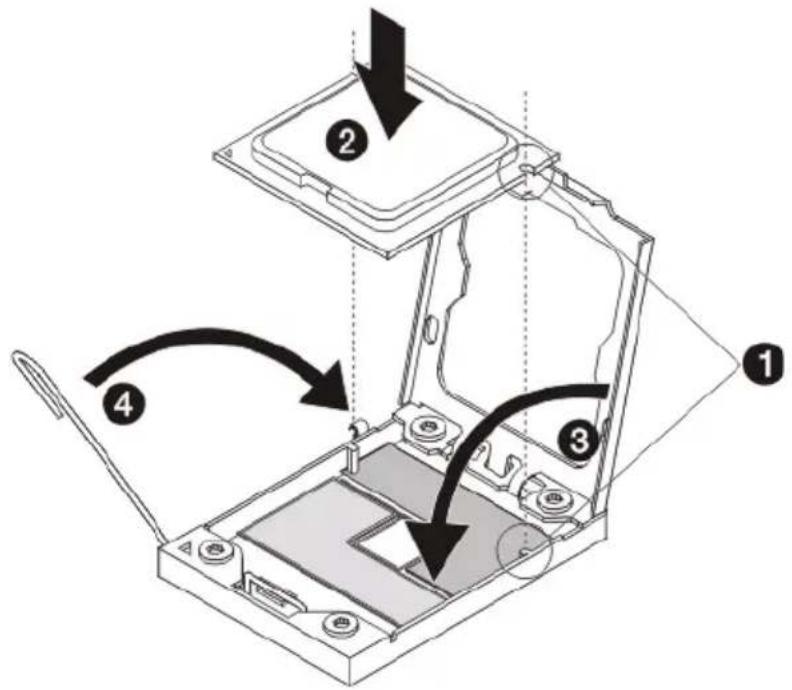
10 Apply the thermal interface material.
(1) Use an alcohol pad to wipe off the old thermal grease from both the heat sink and the processor socket retention plate.
(2) Apply a thin layer of an approved thermal interface material before installing the heat sink.
Make sure that only a very thin layer is applied so that both contact surfaces are still visible.
11 Install the heatsink (see "Installing a heatsink" on page 47).
12 Observe the post-installation instructions described on page 27.
13 Repeat the steps above to replace the second processor.
Upgrading the system memory
System memory interface
The system has eighteen DIMM slots. Each CPU controls nine slots. The DIMM slots support DDR3-1333 registered/unbuffered ECC memory modules. For single rank and dual rank RDIMM, a maximum 3 DIMMs per channel and a total 18 DIMMs can be supported. For UDIMMs and quad rank RDIMMs, only 2 DIMMs per channel are supported and maximum total 12 DIMMs.
• Each CPU has three memory channels (channel 1, 2 and 3). • Each channel has 3 slots.
To maximize the memory performance, the DIMM modules should be installed as balanced as possible among processors and memory channels. And slots with the same slot number across memory channels should be populated with identical DIMM.
Independent mode:
Single processor configuration
| No. of DIMM | P11C | P11B | P11A | P12C | P12B | P12A | P13C | P13B | P13A | ||
| 1 | X | ||||||||||
| 2 | X | X | |||||||||
| 3 | X | X | X | ||||||||
| 4 | X | X | X | ||||||||
| 6 | X | X | X | X | |||||||
| 9 | * | X | X | X | X | X | X | X | X |
* SR/DR RDIMM only
Dual processor configuration
| No. of DIMM | P11C | P11B | P11A | P12C | P12B | P12A | P13C | P13B | P13A | P21C | ||
| 2 | X | |||||||||||
| 3 | X | X | X | |||||||||
| 4 | X | X | ||||||||||
| 6 | X | X | X | |||||||||
| 8 | X | X | X | |||||||||
| 9 | X | X | X | |||||||||
| 1 | 2 | X | X | X | X | X | X | |||||
| 1 | 8 | * | X | X | X | X | X | X | X | X |
| No. of DIMM | P21B | P21A | P22C | P22B | P22A | P23C | P23B | P23A | ||
| 2 | X | |||||||||
| 3 | ||||||||||
| 4 | X | X | ||||||||
| 6 | X | X | X | |||||||
| 8 | X | X | X | |||||||
| 9 | X | X | X | |||||||
| 1 | 2 | X | X | X | X | X | ||||
| 1 | 8 | * | X | X | X | X | X | X |
* SR/DR RDIMM only
3 DIMM per channel configuration is only available for single/dual rank RDIMM. UDIMM and Quad rank RDIMM can only support 2 DIMM per channel.
Mirroring mode:
- For mirroring mode, the memory contains a primary image and a copy of the primary image. Therefore, the effective size of memory is reduced by at least one-half.
- Channel 3 has no function and can't be populated in this mode.
- Follow the population rules described in independent mode.
- Mirroring mode needs the channel 1 & channel 2 with identical DIMM. DIMM slot populations within a channel do not have to be identical but the same DIMM slot location across channel 1 and channel 2 must be the same. DIMM1A and DIMM2A should be the same type, size and manufacturer. DIMM1B and DIMM2B memory should be the same type, size and manufacturer. DIMM1C and DIMM2C memory should be the same type, size and manufacturer.
- Same rule is applied to the CPU2.
- 3 DIMM per channel configuration is only available for single/dual rank RDIMM.
- 16GB DIMM is only supported for Intel Xeon 5600 series processor.
- Please refer to the User Guide for complete population for both single and dual processor configurations.
Lockstep mode:
- In Lockstep Channel Mode, each memory access is a 128-bit data access that spans Channel 1 and Channel 2. This is done to support SDDC for DRAM devices with 8-bit wide data ports. The same address is used on both channels such that an address error on any channel is detectable by bad ECC. Lockstep Channel mode is the only RAS mode that supports x8 SDDC.
- Channel 3 has no function and can't be populated in this mode.
- Follow the population rules described in independent mode.
- Lockstep mode needs the channel 1 & channel 2 with identical DIMM. DIMM slot populations within a channel do not have to be identical but the same DIMM slot location across channel 1 and channel 2 must be the same. DIMM1A and DIMM2A should be the same type, size and manufacturer. DIMM1B and DIMM2B memory should be the same type, size and manufacturer. DIMM1C and DIMM2C memory should be the same type, size and manufacturer.
- Same rule is applied to the CPU2.
- 3 DIMM per channel configuration is only available for single/dual rank RDIMM.
- 16GB DIMM is only supported for Intel Xeon 5600 series processor.
- Please refer to the User Guide for complete population for both single and dual processor configurations.
Sparing mode:
- In this mode, if system detects degrading memory and system still not crash, the data in failed channel will be copied to spare channel. Failed channel is then isolated and spare channel becomes active. But if any uncorrectable error happens before the isolation, it will still cause the system stop normal operation.
- Channel 3 is the spare channel. Therefore, the effective size will be reduced by one-third.
- Follow the population rules described in independent mode.
- Sparing mode need all three channels with identical DIMMs. 1A, 2A and 3A should be the same type, size and manufacturer. 1B, 2B and 3B memory should be the same type, size and manufacturer. 1C, 2C and 3C memory should be the same type, size and manufacturer. Same rule is applied to CPU2.
- Memory sparing mode is only supported by Intel Xeon 5600 series processors. Intel Xeon 5500 series processors do NOT support memory sparing mode.
- 3 DIMM per channel configuration is only available for single/dual rank RDIMM.
- 16GB DIMM is only supported for Intel Xeon 5600 series processors.
- Please refer to the User Guide for complete population for both single and dual processor configurations.
Memory identification
Generally, there is some memory information printed on the label of the DIMM module. Different vendors may have different formats, but the convention is usually like this:
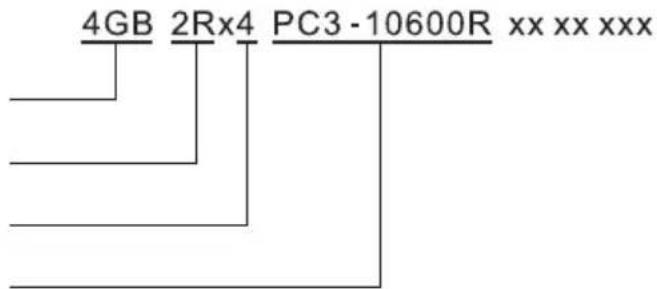
| Item Description | |
| Density 1GB, 2GB,4GB,8GB. Intel Xeon Processor 5500 Series CPU supports DIMM organized by 1Gb or 2Gb DRAM chips. | |
| Rank 1R = Single Rank 2R = Dual Rank 4R = Quad Rank Note: If quad rank DIMM is used, a maximum of only two DIMMs per channel can be supported. | |
| Bit Organization | This platform supports x4 and x8. Note: It is not recommend to mix DIMMs with different bit organizations in one system. |
| Speed PC3 - 6400 => DDR3- 800 PC3 - 8500 => DDR3- 1066 PC3 - 10600 => DDR3- 1333 PC3 - 12800 => DDR3- 1600 | |
Installing a memory module:

Warning! Memory of identical size, speed, and organization must be installed in the same colored DIMM slots.
1 Observe the pre-installation instructions on page 26.
2 Locate the DIMM slot on the mainboard.
3 Install the memory module.
a Align then insert the DIMM into the socket (1).
b Push the DIMM into the socket until the retaining clips snap inward (2).
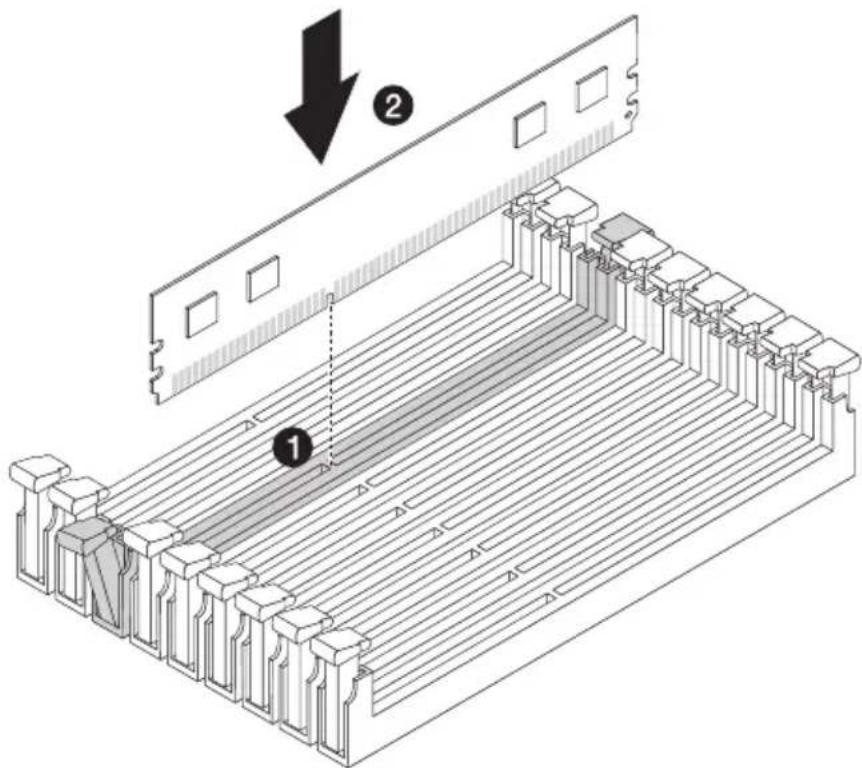

Note: The DIMM slot is slotted to ensure proper installation. If you insert a DIMM but it does not fit easily into the socket, you may have inserted it incorrectly. Reverse the orientation of the DIMM and insert it again.
4 Observe the post-installation instructions described on page 27.
5 Reconfigure the system memory. See “To reconfigure the system memory” section on page 58 for more information.
Removing a memory module:

Important: Before removing any DIMM from the mainboard, make sure to create a backup file of all important data.
1 Remove the memory module.
a Press the holding clips on both sides of the DIMM slot outward to release the DIMM (1).
b Gently pull the DIMM upward to remove it from the DIMM slot (2).
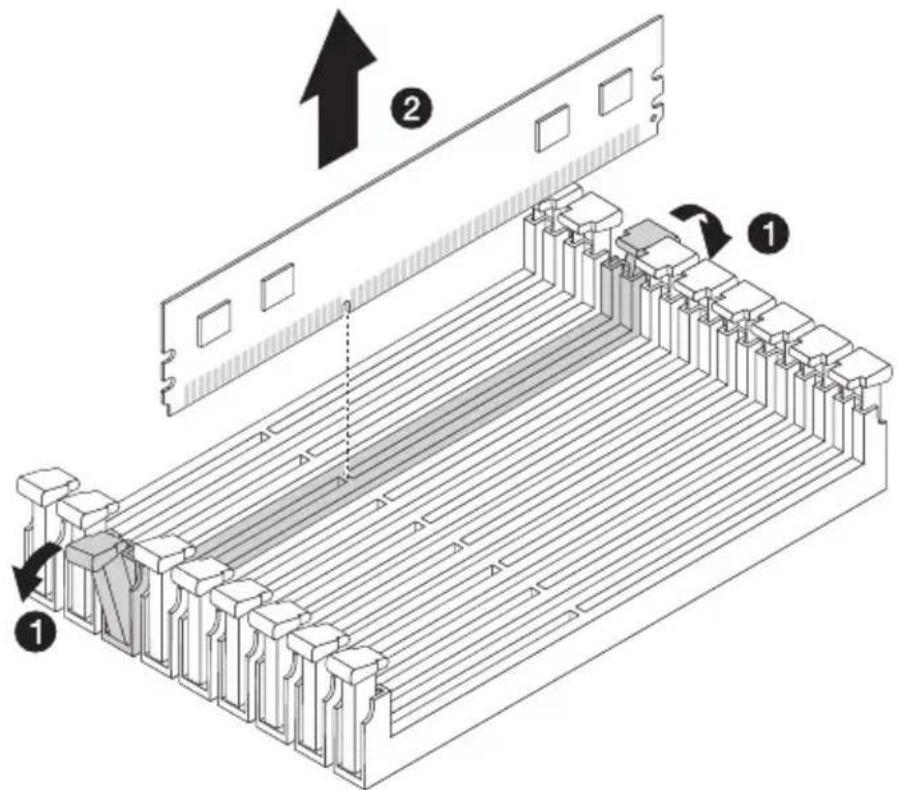
2 If you intend to install a new memory module, refer to the previous section.
To reconfigure the system memory:
The system automatically detects the amount of memory installed. Run the BIOS setup to view the new value for total system memory and make a note of it.
Installing an expansion card
Your server has a preinstalled riser card designed specifically for use in the 2U rackmount chassis. Depending on the type of riser card installed, you can install the following expansion cards:
- Left riser card (pre-installed)
• One Acer Flex I/O (PCI-E 2.0 x8) slot - Two full height PCI-E 2.0 x8 slots (with x4 link) • One full height PCI-E 2.0 x16 slot (with x8 link)
• Right riser card (optional)
- Three low profile PCI-E 2.0 x8 slots (with x4 link)
Installing a SAS card
1 Observe the pre-installation instructions on page 26. 2 Unclip the restraining latch and open in the direction shown below (1). 3 Remove the slot shield (2).
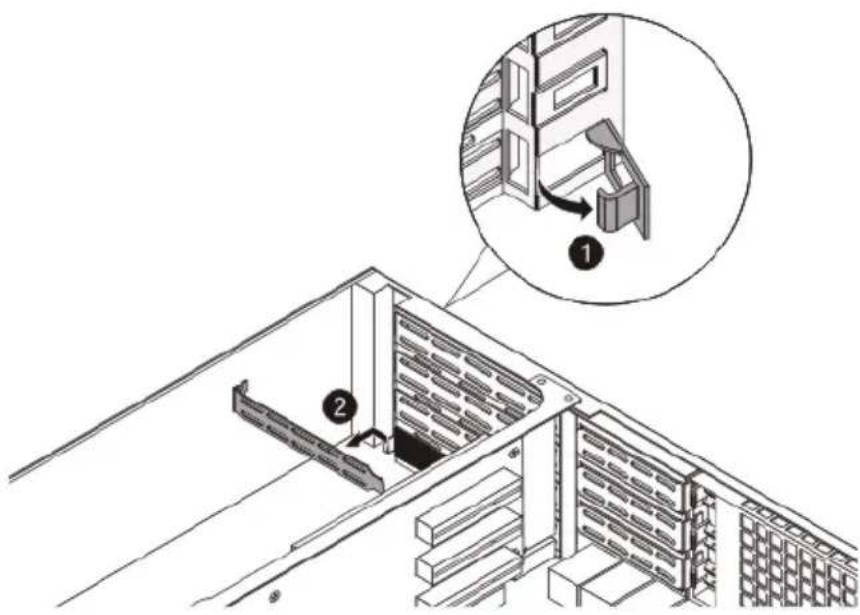
4 Insert the card.
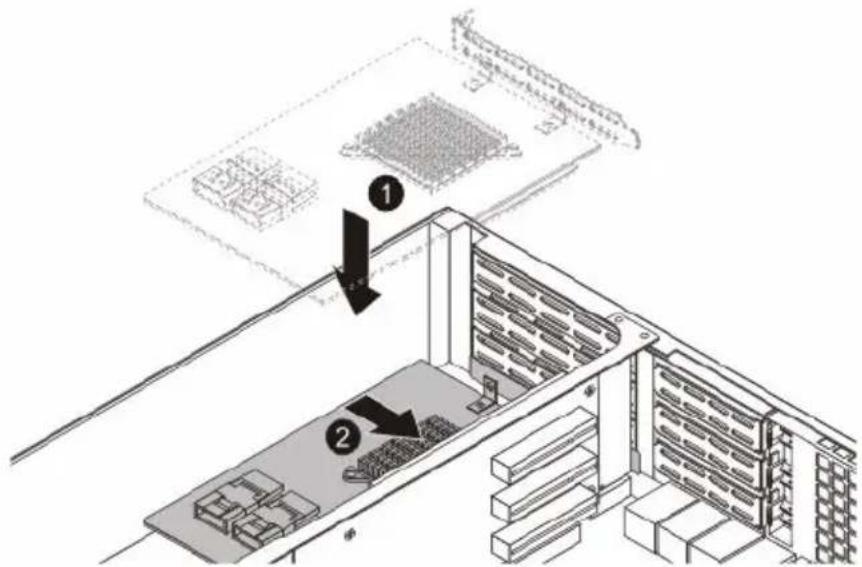
5 Close the restraining latch.
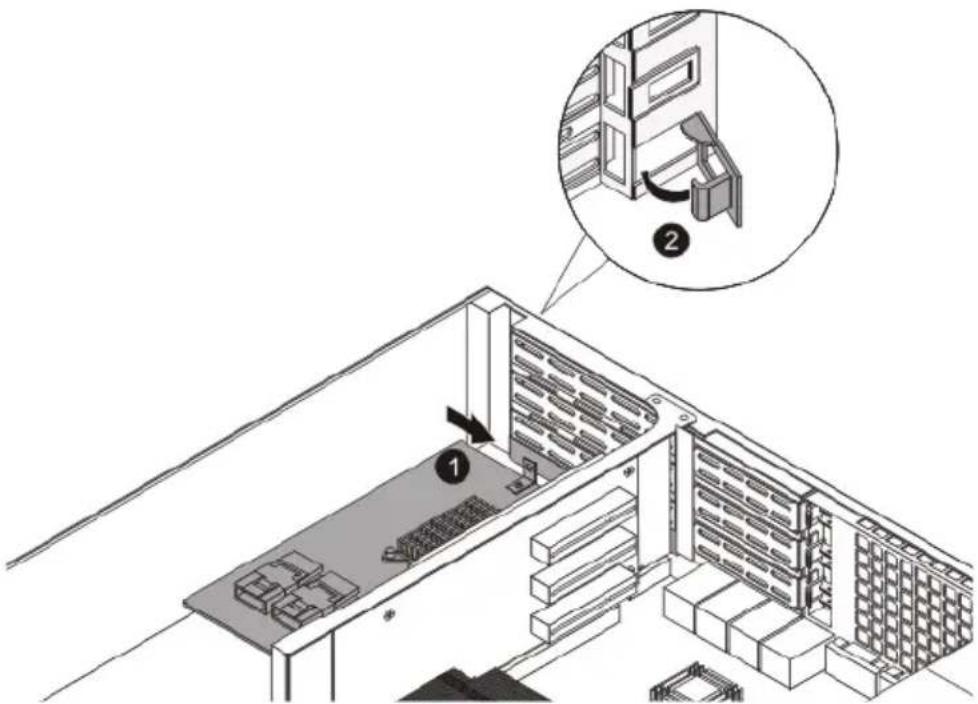
6 Connect the appropriate cables to the card.
7 Observe the post-installation instructions on page 27.
Installing the rear SAS card
1 Observe the pre-installation instructions on page 26.
2 Unclip the restraining latch and open in the direction shown below (1). 3 Remove the slot shield (2).
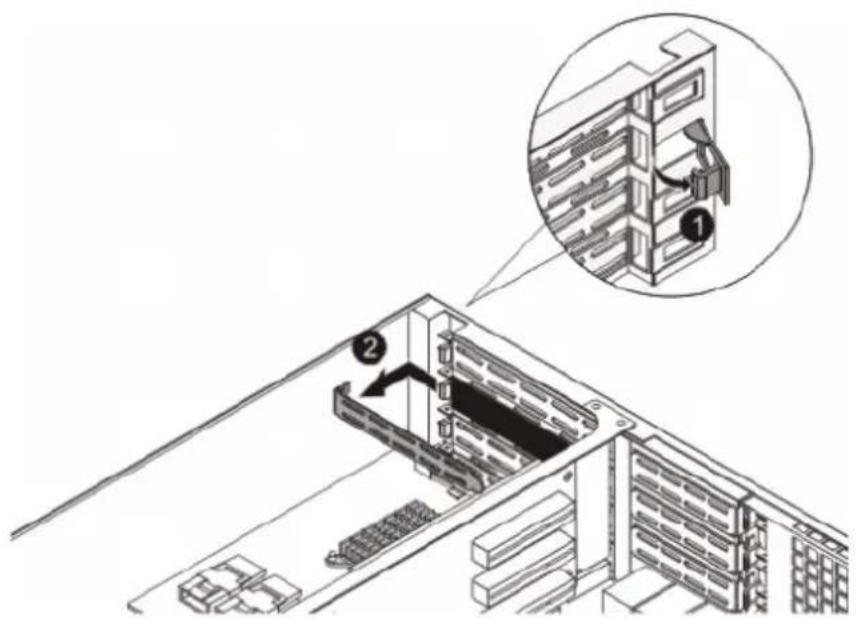
4 Insert the card.
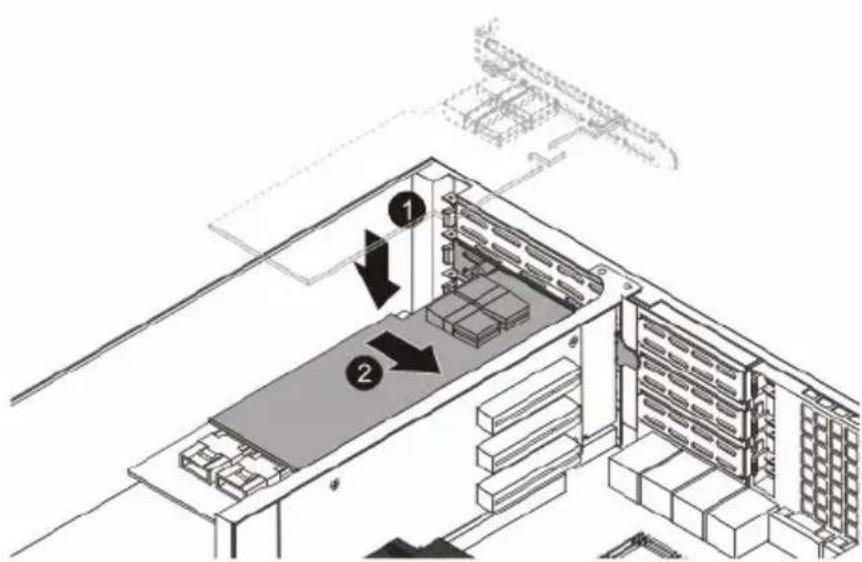
5 Close the restraining latch.
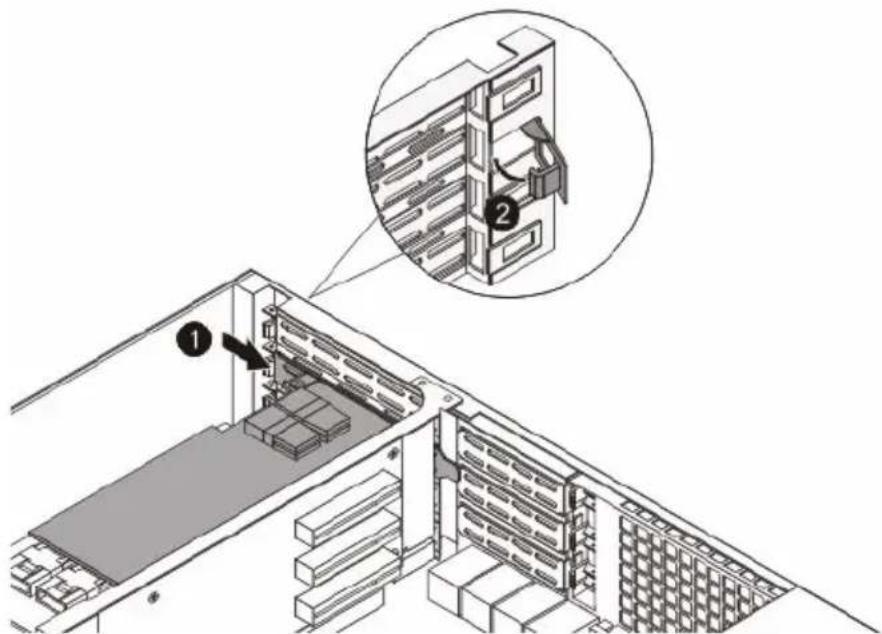
6 Connect the appropriate cables to the card.
7 Observe the post-installation instructions on page 27.
Installing the right riser card
Perform the following steps:
1 Observe the pre-installation instructions on page 26.
2 Unclip the restraining latch and open in the direction shown below.
3 Remove the PCI slot shield.
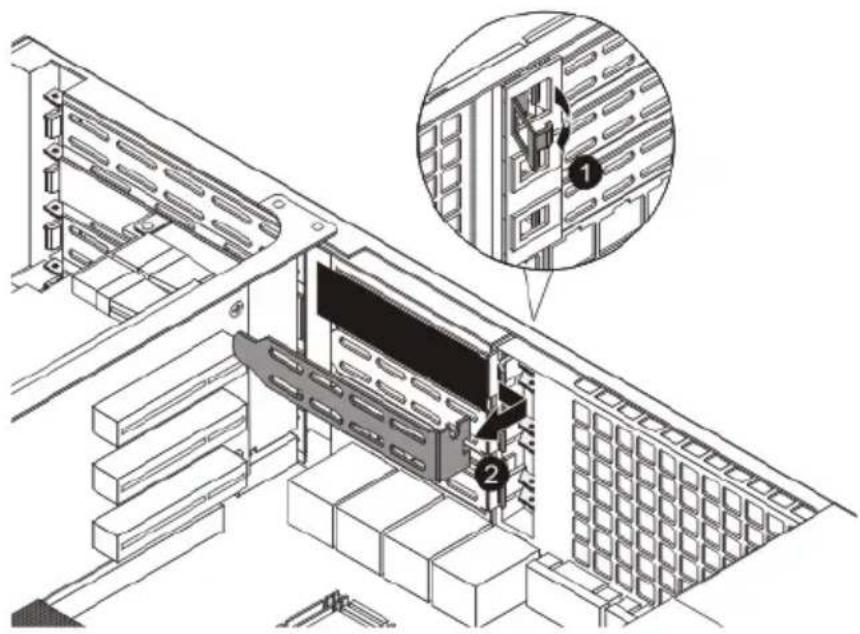
4 Insert the add-on card into the riser card.
5 Close the restraining latch.
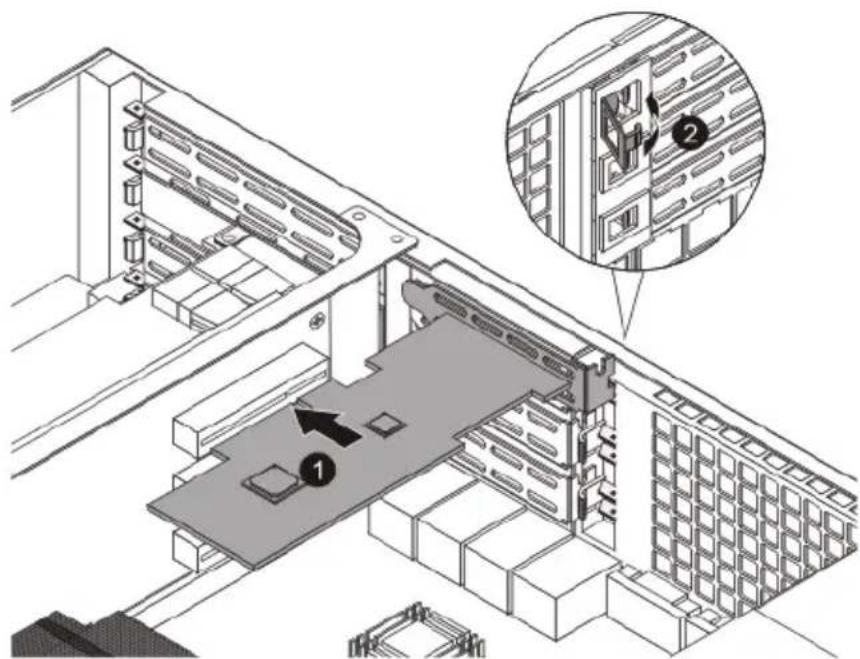
6 Connect the appropriate cables to the card.
7 Observe the post-installation instructions on page 27.
4 System BIOS
Introduction
This chapter describes the BIOS Setup Utility for your server. The AMI ROM BIOS is stored in a Flash EEPROM and can be easily updated.
This chapter describes the basic navigation of the BIOS Setup Utility setup screens.
The BIOS setup utility
To enter the BIOS Setup Utility, press the key while the system is booting up.
Each main BIOS menu option is described in this manual. The Main BIOS setup menu screen has two main frames. The left frame displays all the options that can be configured. Grayed-out options cannot be configured. Options in blue can be configured by you.
The right frame displays the key legend. Above the key legend is an area reserved for a text message. When an option is selected in the left frame, it is highlighted in white. Often a text message will accompany it.

Note: The BIOS has default text messages built in. Acer retains the option to include, omit or change any of these text messages.
The BIOS setup utility uses a key-based navigation system called hotkeys. Most of the BIOS setup utility hotkeys can be used at any time during the setup navigation process. These keys include , , , and arrow keys.
Changing configuration data
The configuration data that determines the system parameters may be changed by entering the BIOS setup utility. This setup utility can be accessed by pressing at the appropriate time during system boot.
Starting the setup utility normally, the only visible Power-On Self-Test (POST) routine is the memory test. As the memory is being tested, press the key to enter the BIOS setup utility main menu. From the main menu, you can access the other setup screens. A BIOS identification string is displayed at the left bottom corner of the screen below the copyright message.

Warning! Do not upgrade the BIOS unless your system has a BIOS-related issue. Flashing the wrong BIOS can cause irreparable damage to the system. In no event shall Acer be liable for direct, indirect, special, incidental, or consequential damages arising from a BIOS update. If you have to update the BIOS, do not shut down or reset the system while the BIOS is updating. This is to avoid possible boot failure.
Main setup
When you first enter the BIOS setup utility, you will enter the main setup screen. You can always return to the main setup screen by selecting the main tab on the top of the screen. The main BIOS setup screen is shown below.
![BIOS SETUP UTILITY Main Advanced Security Server Management Boot Exit System Overview System Time [09:50:55] System Date [Fri 11/13/2009] Build Ver :D04 Build Date :11/06/09 Processor Intel(R) Keon(R) CPU E5502 @ 1.87GHz Speed :1866MHz Physical Count :1 Logical Count :2 System Memory Size :1016MB Us…](/content/2026/05/817801/images/af28cc2aee12b20365d8fa05822dac3073ab9cf05f0c744f726b018ba103f99e.jpg)
System Overview
System Time/System Date
Use this option to change the system time and date. Highlight System Time or System Date using the arrow keys. Enter new values using the keyboard. Press the key or the arrow keys to move between fields. The date must be entered in MM/DD/YY format. The time is entered in HH:MM:SS format. (Note: The time is in the 24-hour format. For example, 5:30 P.M. appears as 17:30:00.)
BIOS Build Ver: This item displays the BIOS revision used in your system.
BIOS Build Date: This item displays the date this BIOS was completed.
Processor
The BIOS will automatically display the status of the processor used in your system and indicate the CPU type used.
Speed: This item displays the speed of the CPU detected by the BIOS.
Physical Count: This item displays the number of processors installed in your system as detected by the BIOS.
Logical Count: This item displays the number of CPU cores installed in your system as detected by the BIOS.
System Memory
This displays the size of memory available in the system as detected by the BIOS.
Populated Size: Displays the size of the memory modules installed in the system as detected by the BIOS.
Available Size: Displays the memory available for use.
Advanced Settings
Use the arrow keys to select Boot Setup and press to access the submenu items:
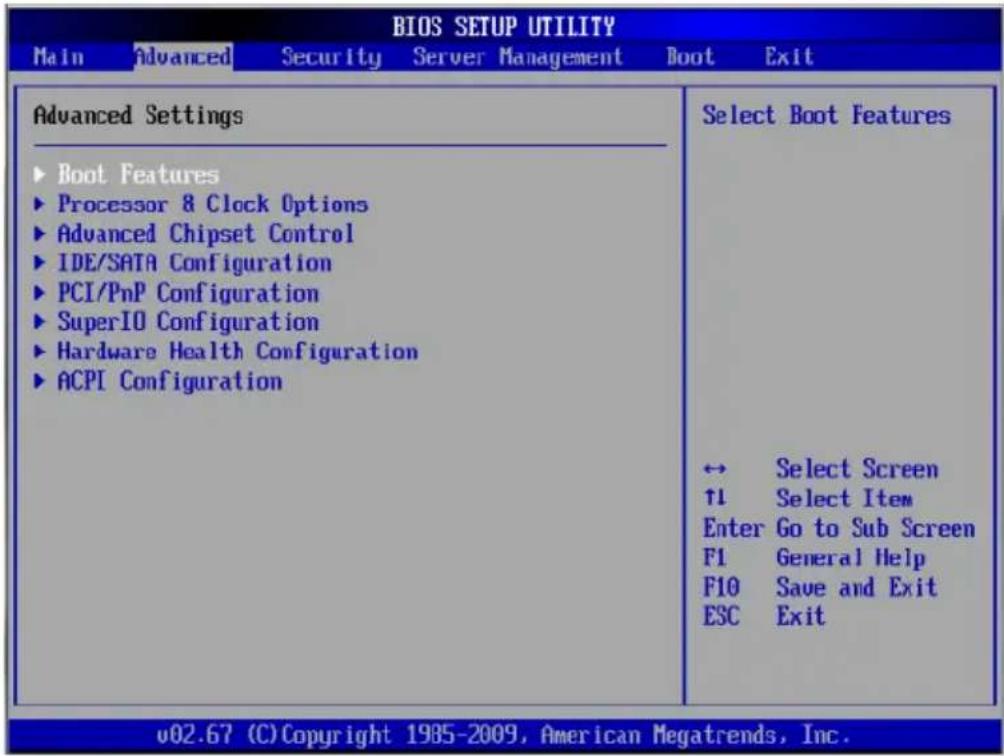
Boot Features
| BIOS SETUP UTILITY Advanced | ||
| Boot Features | Allows BIOS to skip certain tests while booting. This will decrease the time needed to boot the system. | |
| Quick Boot | [Enabled] | |
| Quiet Boot | [Enabled] | |
| AddOn ROM Display Mode | [Force BIOS] | |
| Bootup Num-Lock | [On] | |
| Wait For 'F1' If Error | [Enabled] | |
| Interrupt 19 Capture | [Enabled] | |
| Power Configuration | ||
| Power Button Function | [Instant Off] | |
| Restore on AC Power Loss | [Last State] | ← Select Screen ↑↓ Select Item +- Change Option F1 General Help F10 Save and Exit ESC Exit |
| Watch Dog Function | [Disabled] | |
| v02.67 (C) Copyright 1985-2009, American Megatrends, Inc. | ||
Quick Boot: Skip certain tests during POST to reduce the time needed for system boot.
Quiet Boot: Allows the bootup screen options to be modified between POST messages or the OEM logo. Select Disabled to display the POST messages. Select Enabled to display the OEM logo instead of the normal POST messages.
AddOn ROM Display Mode: Sets the display mode for Option ROM.
Bootup Num-Lock: Selects the Power-on state for Numlock key.
Wait For 'F1' If Error: Forces the system to wait until the key is pressed if an error occurs.
Interrupt 19 Capture: Interrupt 19 is the software interrupt that handles the boot disk function. When this item is set to Enabled, the ROM BIOS of the host adaptors will capture Interrupt 19 at boot and allow the drives that are attached to these host adaptors to function as bootable disks. If this item is set to Disabled, the ROM BIOS of the host adaptors will not capture Interrupt 19, and the drives attached to these adaptors will not function as bootable devices.
Power Button Function: If set to Instant_Off, the system will power off immediately when you press the power button. If set to
4_Second_Override, the system will power off when you press the power button for four seconds or longer.
Restore on AC Power Loss: Use this feature to set the power state after a power outage. Select Power-Off for the system power to remain off after a power loss. Select Power-On for the system power to be turned on after a power loss. Select Last State to allow the system to resume its last state before a power loss.
Watch Dog Function: If Enabled, the Watch Dog Timer will allow the system to reboot when it is inactive for more than five minutes.
Processor & Clock Options
This submenu displays the status of the processor as detected by the BIOS, including items such as the processor manufacturer, type, frequency, CPUID, Microcode Revision, Cache L1/L2/L3, Ratio Status, and Ratio Actual Value. The submenu also allows you to configure the processor and clock settings.
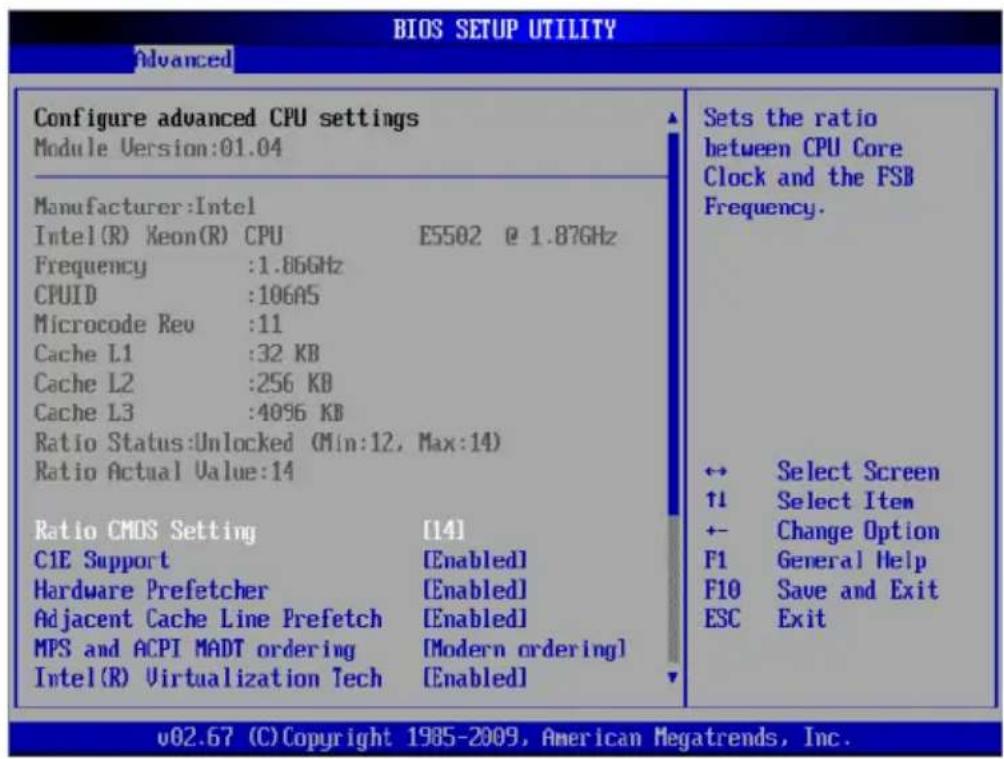
![BIOS SETUP UTILITY Advanced Cache L2 :256 KB Cache L3 :4096 KB Ratio Status:Unlocked (Min:12, Max:14) Ratio Actual Value:14 Ratio CMOS Setting [14] C1E Support [Enabled] Hardware Prefetcher [Enabled] Adjacent Cache Line Prefetch [Enabled] MPS and ACPI MADT ordering [Modern ordering] Intel(R) Virtual…](/content/2026/05/817801/images/f83cb20ee27d1e9721a31c8c7be1847de2277a3ed3f03a3ff03b7b681ea618ac.jpg)
Ratio to CMOS Setting: Select Manual to manually configure the CPU Ratio. Select Auto to allow the BIOS to automatically configure the CPU Ratio based on the processor installed on the motherboard.
C1E Support: Select Enabled to use the feature of Enhanced Halt State. C1E significantly reduces the CPU's power consumption by reducing the CPU's clock cycle and voltage during a Halt State.

Important: The following feature is only available if supported by the processor and/or operating system.
Hardware Prefetcher: If set to Enabled, the hardware prefetcher will prefetch streams of data and instructions from the main memory to the L2 cache in the forward or backward manner to improve CPU performance.

Important: The following feature is only available if supported by the processor and/or operating system.
Adjacent Cache Line Prefetch: The CPU fetches the cache line for 64 bytes if this option is set to Disabled. The CPU fetches both cache lines for 128 bytes as comprised if Enabled.
MPS and ACPI MADT Ordering: Allows you to configure the MPS (Multi-Processor Specifications) and ACPI settings for your motherboard. Select Modern Ordering if Windows XP or newer is used. Select Legacy Ordering if Windows 2000 or earlier is used.

Important: The following feature is only available if supported by the processor and/or operating system.
Intel (R) Virtualization Technology: Select Enabled to use Virtualization Technology to allow one platform to run multiple operating systems and applications in independent partitions, creating multiple virtual systems in one physical computer.

Important: The following feature is only available if supported by the processor and/or operating system.
Execute-Disable Bit Capability: Set to Enabled to enable the Execute Disable Bit which will allow the processor to designate areas in the system memory where an application code can execute and where it cannot, thus preventing a worm or a virus from flooding illegal codes to overwhelm the processor or damage the system during an attack.

Important: The following feature is only available if supported by the processor and/or operating system.
Simultaneous Multi-Threading: Set to Enabled to use simultaneous multi-threading technology, which will result in increased CPU performance.
Active Processor Cores: Set to Enabled to use a processor's second core and beyond. The options are All, 1 and 2.
Intel EIST Technology: EIST (Enhanced Intel SpeedStep Technology) allows the system to automatically adjust processor voltage and core frequency in an effort to reduce power consumption and heat dissipation. Please refer to Intel's web site for detailed information. The options are Disable (Disable GV3) and Enable (Enable GV3).
Intel C-STATE Tech: If Enabled, C-State is set by the system automatically to either C2, C3 or C4.
C-State package limit setting: If set to Auto, the BIOS will automatically set the limit on the C-State package register.
C1 Auto Demotion: When Enabled, the CPU will conditionally demote C3, C6 or C7 requests to C1 based on un-core auto-demote information.
C3 Auto Demotion: When Enabled, the CPU will conditionally demote C6 or C7 requests to C3 based on un-core auto-demote information.
Clock Spread Spectrum: Select Enable to use the feature of Clock Spectrum, which will allow the BIOS to monitor and attempt to reduce the level of Electromagnetic Interference caused by the components whenever needed.
DCA Technology: Uses Intel's DCA (Direct Cache Access) Technology to enhance data transfer efficiency.
DCA Prefetch Delay: Used with TOE components to prefetch data in order to shorten execution cycles and maximize data processing efficiency. Prefetching too frequently can saturate the cache directory and delay necessary cache accesses. This feature reduces or increases the frequency the system prefetches data.
Clock Spread Spectrum: Select Enable to use the Clock Spectrum feature, which allows BIOS to monitor and attempt to reduce the level of Electromagnetic Interference caused by the components.
Advanced Chipset Control
The items included in the Advanced Chipset Settings submenu are listed below:
| BIOS SETUP UTILITY Advanced | |
| Advanced Chipset Settings | Configure CPU Bridge features. |
| WARNING: Setting wrong values in below sections may cause system to malfunction. ►CPU Bridge Configuration ►North Bridge Configuration ►South Bridge Configuration ↔ Select Screen ↑↓ Select Item Enter Go to Sub Screen F1 General Help F10 Save and Exit ESC Exit | |
| v02.67 (C) Copyright 1985-2009, American Megatrends, Inc. | |
CPU Bridge Configuration
![BIOS SETUP UTILITY - Advanced - CPU Bridge Chipset Configuration. Shows CPU Revision: D, Current QPI Frequency: 4.800GT, CPU1 Current Memory Frequency: (blank), CPU2 Current Memory Frequency: 800 MHz, Memory Reference Code Rev: 01.05.00, QPI Reference Code Rev: 01.05.00, QPI Links Speed [Full-Speed]…](/content/2026/05/817801/images/e43ab083b6456c4057a9bcc839628f4642ebc82e0aa4a932b60989ac26f0f010.jpg)
QPI Links Speed: This feature selects QPI data transfer speed.

Important: The following feature is only available when QPI Links Speed is set to Full Speed.
QPI Frequency: This selects the desired QPI frequency.
QPI L0s and L1: This enables the QPI power state to low power. L0s and L1 are automatically selected by the motherboard.
Memory Frequency: This feature enables you to force a DDR3 frequency slower than what the system has detected.
Memory Mode: Set the memory mode.
- Independent - All DIMMs are available to the operating system.
- Channel Mirror - The motherboard maintains two identical copies of all data in memory for redundancy.
- Lockstep - The motherboard uses two areas of memory to run the same set of operations in parallel.
Demand Scrubbing: A memory error-correction scheme where the processor writes corrected data back into the memory block from where it was read by the processor.
Patrol Scrubbing: A memory error-correction scheme that works in the background looking for and correcting resident errors.
Throttling - Closed Loop/Throttling - Open Loop: Throttling improves reliability and reduces power in the processor by automatic voltage control during processor idle states. If Enabled, the following items will appear:
- Hysteresis Temperature (For Closed Loop only) - Temperature Hysteresis is the temperature lag (in degrees Celsius) after the set DIMM temperature threshold is reached before Closed Loop Throttling begins.
- Guardband Temperature (For the Closed Loop only) - This is the temperature which applies to the DIMM temperature threshold. Steps are in 0.5 °C increments. The default is [006]. Press "+" or "-" on your keyboard to change this value.
- Inlet Temperature - This is the temperature detected at the chassis inlet. Steps are in 0.5 °C increments. The default is [070]. Press "+" or "-" on your keyboard to change this value.
- Temperature Rise - This is the temperature rise to the DIMM thermal zone. Steps are in 0.5 °C increments. The default is [020]. Press "+" or "-" on your keyboard to change this value.
- Air Flow - This is the air flow speed to the DIMM modules. Each step is one mm/sec. The default is [1500]. Press "+" or "-" on your keyboard to change this value.
- Altitude - This feature defines how many meters above or below sea level the system is located.
- DIMM Pitch - This is the physical space between each DIMM module. Each step is 1/1000 of an inch. The default is [400]. Press "+" or "-" on your keyboard to change this value.
NorthBridge Chipset Configuration
![BIOS SETUP UTILITY - Advanced - NorthBridge Chipset Configuration. Shows NB Revision: 83, Current QPI Frequency: 4.800GT, Intel I/OAT [Enabled], DCA Technology [Enabled], DCA Prefetch Delay [32], Intel UT-d [Disabled], Active State Power-Management [Disabled], IOH PCIE Max Payload Size [128B]. Help…](/content/2026/05/817801/images/4df2ea3f7d64b55c33dbf1d7df11e734e6d9c5dda71ff68e825efb1ccdcc608c.jpg)
Intel I/OAT: Significantly reduces CPU overhead by leveraging CPU architectural improvements, freeing resources for other tasks.
DCA Technology: Select Enabled to use Intel's DCA (Direct Cache Access) Technology to improve data transfer efficiency.
DCA Prefetch Delay: A DCA Prefetch is used with TOE components to prefetch data in order to shorten execution cycles and maximize data processing efficiency. A TOE device is a specialized, dedicated processor that is installed on an add-on card or a network card to handle some or all packet processing of this add-on card. Prefetching too frequently can saturate the cache directory and delay necessary cache accesses. This feature reduces or increases the frequency the system prefetches data. The options are [8], [16], [32], [40], [48], [56], [64], [72], [80], [88], [96], [104], [112], and [120].
Intel VT-d: Select Enabled to enable Intel Virtualization Technology support for Direct I/O VT-d by reporting the I/O device assignments to VMM through the DMAR ACPI Tables. This feature offers fully-protected I/O resource-sharing across the Intel platforms, providing you with greater reliability, security and availability in networking and data-sharing.
Active State Power-Management: Uses power management for signal transactions between the PCI Express L0 and L1 Links. Select Enabled to configure PCI Express L0 and L1 Link power states.
IOH PCIE Max Payload Size: Some add-on cards perform faster with the coalesce feature, which limits the payload size to 128 MB. Others perform better with a payload size of 256 MB, which inhibits the coalesce feature.
Please refer to your add-on card user guide for the desired setting.
SouthBridge configuration
![BIOS SETUP UTILITY - Advanced - South Bridge Chipset Configuration. Shows USB Functions [Enabled], Legacy USB Support [Enabled], USB 2.0 Controller [Enabled], USB 2.0 Controller Mode [HiSpeed], BIOS EHCI Hand-Off [Enabled]. Options: Disabled, Enabled. Navigation: Select Screen, Select Item, Change O…](/content/2026/05/817801/images/1f74f7ef12572bd86393b625363fdb6162ff724473ceb711030b29c6a93c0ef3.jpg)
This feature allows you to configure the settings for the Intel ICH South Bridge chipset.
USB Functions: This feature allows you to decide how many onboard USB ports to enable.
Legacy USB Support: Select Enabled to use Legacy USB devices. If set to Auto, legacy USB support will be automatically enabled if a legacy USB device is installed on the motherboard.

Note: Only available when USB Functions is set to Enabled.
USB 2.0 Controller: Select Enabled to activate the onboard USB 2.0 controller.

Note: Only available when USB Functions is set to Disabled. Otherwise, this item will be set to Enabled by the BIOS.
USB 2.0 Controller Mode: This setting allows you to select the USB 2.0 Controller mode.
BIOS EHCI Hand-Off: Enable or disable BIOS Enhanced Host Controller Interface support to provide a workaround solution for an operating system that does not have EHCI Hand-Off support. When enabled, the EHCI Interface will be changed from BIOS-controlled to OS-controlled.
IDE/SATA configuration
![BIOS SETUP UTILITY - Advanced - IDE Configuration. Shows SATA#1 Configuration [Compatible], Configure SATA#1 as [IDE], SATA#2 Configuration [Enhanced], Primary IDE Master: [Not Detected], Primary IDE Slave: [Not Detected], Secondary IDE Master: [Not Detected], Secondary IDE Slave: [Not Detected], Th…](/content/2026/05/817801/images/d6a8d90fc172e85cbb504cc7cb1cc9c4f8dfed27b9f0b3b8dbeadbc903baf8d4.jpg)
When this submenu is selected, the BIOS automatically detects the presence of the IDE devices and displays the following items:
SATA#1 configuration: If Compatible is selected, it sets SATA#1 to legacy compatibility mode, while selecting Enhanced sets SATA#1 to native SATA mode.
- Configure SATA#1 as - This feature allows you to select the drive type for SATA#1. The options are IDE, RAID and AHCI.
- ICH RAID Code Base - Select Intel or Adaptec to launch the appropriate SATA RAID firmware to configure SATA RAID.

Note: Only available when RAID is selected in Configure SATA#1 as.
SATA#2 configuration: Selecting Enhanced will set SATA#2 to native SATA mode.

Note: Only available when IDE is selected in Configure SATA#1 as.
Primary IDE Master/Slave, Secondary IDE Master/Slave, Third IDE Master, and Fourth IDE Master: These settings allow you to set the parameters of the IDE slots. Press to activate the submenu screen for detailed options of these items. Set the configurations accordingly. Items included in the submenu are:
- Type - Select the type of device connected to the system.
- LBA/Large Mode - LBA (Logical Block Addressing) is a method of addressing data on a disk drive. In the LBA mode, the maximum drive capacity is 137 GB. For drive capacities over 137 GB, your system must be equipped with a 48-bit LBA mode addressing. If not, contact your manufacturer or install an ATA/133 IDE controller card that supports 48-bit LBA mode.
- Block (Multi-Sector Transfer) - Block Mode boosts the IDE drive performance by increasing the amount of data transferred. Only 512 bytes of data can be transferred per interrupt if Block Mode is not used. Block Mode allows transfers of up to 64 KB per interrupt. Select Disabled to allow data to be transferred from and to the device one sector at a time. Select Auto to allow data transfer from and to the device occur multiple sectors at a time if the device supports it.
- PIO Mode - The IDE PIO (Programmable I/O) Mode programs timing cycles between the IDE drive and the programmable IDE controller. As the PIO mode increases, the cycle time decreases.
Select Description
Auto Automatically detect the PIO mode. Use this value if the IDE disk drive support cannot be determined.
| Select Description |
| 0 Use PIO mode 0. It has a data transfer rate of 3.3 MBs. |
| 1 Use PIO mode 1. It has a data transfer rate of 5.2 MBs. |
| 2 Use PIO mode 2. It has a data transfer rate of 8.3 MBs. |
| 3 Use PIO mode 3. It has a data transfer rate of 11.1 MBs. |
| 4 Use PIO mode 4. It has a data transfer bandwidth of 32 bits. Select Enabled to enable 32-bit data transfer. |
• DMA Mode
Select Description
| Auto Automatically detect IDE DMA mode when the IDE disk drive support cannot be determined. |
| SWDMA0 Use Single Word DMA mode 0. It has a data transfer rate of 2.1 MBs. |
| SWDMA2 Use Single Word DMA mode 2. It has a data transfer rate of 8.3 MBs. |
| MWDMA0 Use Multi Word DMA mode 0. It has a data transfer rate of 4.2 MBs. |
| MWDMA1 Use Multi Word DMA mode 1. It has a data transfer rate of 13.3 MBs. |
| MWDMA2 Use Multi-Word DMA mode 2. It has a data transfer rate of 16.6 MBs. |
| UDMA0 Use Ultra DMA mode 0. It has a data transfer rate of 16.6 MBs. It has the same transfer rate as PIO mode 4 and Multi Word DMA mode 2. |
| UDMA1 Use Ultra DMA mode 1. It has a data transfer rate of 25 MBs. |
| UDMA2 Use Ultra DMA mode 2. It has a data transfer rate of 33.3 MBs. |
| UDMA3 Use Ultra DMA mode 3. It has a data transfer rate of 66.6 MBs. |
Select Description
UDMA4 Use Ultra DMA mode 4. It has a data transfer rate of 100 MB/s.
- S.M.A.R.T. For Hard disk drives - Self-Monitoring Analysis and Reporting Technology (SMART) can help predict impending drive failures. Select Auto to allow the BIOS to automatically detect hard disk drive support.
- 32Bit Data Transfer - Select Enable to enable the function of 32-bit IDE data transfer.
IDE Detect Timeout (Sec): Use this feature to set the time-out value for the BIOS to detect the ATA, ATAPI devices installed in the system.
PCI/PnP configuration
| BIOS SETUP UTILITY Advanced | |
| Advanced PCI/PnP Settings | Clear NURAM during System Boot. |
| WARNING: Setting wrong values in below sections may cause system to malfunction. | |
| Clear NURAM [No] | |
| Plug & Play O/S [No] | |
| PCI Latency Timer [64] | |
| PCI IDE BusMaster [Enabled] | |
| SR-IOV Supported [Enabled] | |
| PCI-E Slot1 OPROM [Enabled] | |
| Load Onboard LAN 1 Option ROM [Enabled] | |
| Load Onboard LAN 2 Option ROM [Enabled] | |
| Onboard LAN Option Rom Select [PXE] | |
| Boots Graphic Adapter Priority [Offboard VGA] | |
| ← Select Screen ↑1 Select Item +- Change Option F1 General Help F10 Save and Exit ESC Exit | |
| v02.67 (C) Copyright 1985-2009, American Megatrends, Inc. | |
Clear NVRAM: This feature clears the NVRAM during system boot. The options are No and Yes.
Plug & Play OS: Yes allows the OS to configure Plug & Play devices. (This is not required for system boot if your system has an operating system that supports Plug & Play.) Select No to allow the BIOS to configure all devices in the system.
PCI Latency Timer: This feature sets the latency timer of each PCI device installed on a PCI bus.
PCI IDE BusMaster: When Enabled, the BIOS uses PCI bus mastering for reading/writing to IDE drives.
SR-IOV Supported: Select Enabled to enable Single-Root I/O Virtualization (SR-IOV) support, which works in conjunction with Intel Virtualization Technology to allow multiple operating systems to run simultaneously within a single computer via natively-shared PCI Express devices in order to enhance network connectivity and performance. The options are Enabled and Disabled.
PCI-E Slot1 OPROM: Select Enabled to enable PCI Express slot SXB1. You can also enable Option ROMs to boot the computer using a network interface from these slots.
Load Onboard LAN1 Option ROM/Load Onboard LAN2 Option ROM: Select Enabled to enable the onboard LAN1 or LAN2 Option ROM. This is to boot computer using a network interface.
Onboard LAN Option ROM Select: Select iSCSI to use the iSCSI Option ROM to boot the computing using a network device. Select PXE to use the PXE Option ROM to boot the computer using a network device.
Boots Graphic Adapter Boot Priority: This feature allows you to select the graphics adapter to be used as the primary boot device.
Super IO Configuration
![BIOS SETUP UTILITY - Advanced - Configure WPCM450 Super IO Chipset. Shows Serial Port1 Address [3F8/IRQ4], Serial Port2 Address [2F8/IRQ3]. Help text: 'Allows BIOS to Select Serial Port1 Base Addresses.' Navigation: Select Screen, Select Item, Change Option, F1 General Help, F10 Save and Exit, ESC E…](/content/2026/05/817801/images/5c0c6089f6888b5277fb95da88f8d47204922e3b5213c53862db09cb2c290c8d.jpg)
Serial Port1 Address/ Serial Port2 Address: This option specifies the base I/O port address and the Interrupt Request address of Serial Port 1 and Serial Port 2. Select Disabled to prevent the serial port from accessing any system resources. When this option is set to Disabled, the serial port physically becomes unavailable. Select 3F8/IRQ4 to allow the serial port to use 3F8 as its I/O port address and IRQ 4 for the interrupt address.
Serial Port 2 Attribute: Select COM to configure the onboard COM2 port as a normal serial port. Select SOL (Serial Over_LAN) to configure the onboard COM2 port as a virtual COM port for SOL use.
Hardware Health Configuration
This feature allows you to monitor system health and review the status of each item as displayed.
![BIOS SETUP UTILITY Advanced Hardware Health Event Monitoring CPU Overheat Alarm [The Default Alarm] CPU 2 Temperature: Low System Temperature: 26°C/78°F Fan 1 Speed: 5555 RPM Fan 2 Speed: 5421 RPM FAN Speed Control Modes [Balanced / BL] CPU1 Ucore: N/A CPU2 Ucore: 1.236 V +1.5V: 1.524 V +5V: 5.010 V…](/content/2026/05/817801/images/3d07ed307ce1aab4dd6888e16b3bd5a8a1b666fd8413870149c6e0f0fcb664dd.jpg)
CPU Overheat Alarm: This option allows you to select the CPU Overheat Alarm setting, which determines when the CPU OH alarm will be activated to provide a warning of possible CPU overheat.

Warning: Any temperature that exceeds the CPU threshold temperature predefined by the CPU manufacturer may result in CPU overheat or system instability. When the CPU temperature reaches this predefined threshold, the CPU and system cooling fans will run at full speed.
The options are:
- Early Alarm - Select this setting if you want the CPU overheat alarm (including the LED and the buzzer) to be triggered as soon as the CPU temperature reaches the CPU overheat threshold as predefined by the CPU manufacturer.
- Default Alarm - Select this setting if you want the CPU overheat alarm (including the LED and the buzzer) to be triggered when the CPU temperature reaches about 5 °C above the threshold temperature as predefined by the CPU manufacturer, to
give the CPU and system fans additional time needed for CPU and system cooling.
CPU Temperature/System Temperature: This feature displays current temperature readings for the CPU and the System. The following items will be displayed for your reference only:
CPU Temperature: The CPU thermal technology that reports absolute temperatures (Celsius/Fahrenheit) has been upgraded to a more advanced feature by Intel in its newer processors. The basic concept is that each CPU is embedded with unique temperature information that the motherboard can read. This Temperature Threshold or Temperature Tolerance has been assigned at the factory and is the baseline on which the motherboard takes action during different CPU temperature conditions (i.e., by increasing CPU fan speed, triggering the Overheat Alarm, etc). Since CPUs can have different Temperature Tolerances, the installed CPU can now send information to the motherboard about what its Temperature Tolerance is, and not the other way around. This results in better CPU thermal management.
Acer has leveraged this feature by assigning a temperature status to certain thermal conditions in the processor (Low, Medium, and High). This makes it easier for you to understand the CPU's temperature status, rather than just simply seeing a temperature reading (i.e., 25°C). The CPU Temperature feature will display the CPU temperature status as detected by the BIOS:
- Low – This level is considered the normal operating state. The CPU temperature is well below the CPU Temperature Tolerance. The motherboard fans and CPU will run normally as configured in the BIOS (Fan Speed Control). User intervention: No action required.
- Medium – The processor is running warmer. This is a precautionary level and generally means that there may be factors contributing to this condition, but the CPU is still within its normal operating state and below the CPU Temperature Tolerance. The motherboard fans and CPU will run normally as configured in the BIOS. The fans may adjust to a faster speed depending on the Fan Speed Control settings.
User intervention: No action is required. However, consider checking the CPU fans and the chassis ventilation for blockage.
- High – The processor is running hot. This is a caution level since the CPU's Temperature Tolerance has been reached (or has been exceeded) and may activate an overheat alarm.
User intervention: If the system buzzer and Overheat LED has
activated, take action immediately by checking the system fans, chassis ventilation and room temperature to correct any problems.

Note: The system may shut down if it continues for a long period to prevent damage to the CPU. The information provided above is for your reference only. For more information on thermal management, please refer to Intel's Web site at www.intel.com.
System Temperature: The system temperature will be displayed (in degrees in Celsius and Fahrenheit) as it is detected by the BIOS.
Fan1 to Fan 8 Reading: This feature displays the fan speed readings from fan interfaces Fan1 through Fan8.
Fan Speed Control Modes: This feature allows you to decide how the system controls the speeds of the onboard fans. The CPU temperature and the fan speed are correlated. When the CPU on-die temperature increases, the fan speed will also increase for effective system cooling. Select Full Speed/FS to allow the onboard fans to run at full speed for maximum cooling. The FS setting is recommended for special system configuration or debugging. Select Performance/PF for better system cooling. The PF setting is recommended for high-power-consuming and high-density systems.
Select Balanced/BL for the onboard fans to run at a speed that will balance the needs between system cooling and power saving. The BL setting is recommended for regular systems with normal hardware configurations. Select Energy Saving/ES for best power efficiency and maximum quietness.
Voltage Monitoring: Indicates CPU1 Vcore, CPU2 Vcore, 1.5V, 5V, 5VSB, 12V, -12V, 3.3Vcc, 3.3VSB, VBAT and Vtt readings.
ACPI configuration
![BIOS SETUP UTILITY Advanced Advanced ACPI Configuration ACPI Aware O/S [Yes] ACPI Version Features [ACPI v3.0] ACPI APIC support [Enabled] APIC ACPI SCI IRQ [Disabled] Headless mode [Disabled] NUMA Support [Enabled] High Performance Event Timer [Enabled] WHEA Support [Enabled] Enable/Disable ACPI su…](/content/2026/05/817801/images/9c20320d3c70a27a1a7d3f5beee445e41624aa79b7e287a910308d5a6bef81d2.jpg)
Use this feature to configure Advanced configuration and Power Interface (ACPI) power management settings for your system.
ACPI Aware O/S:
ACPI Version Features: The options are ACPI v1.0, ACPI v2.0 and ACPI v3.0. Please refer to ACPI's website for further explanation: http://www.acpi.info/.
ACPI APIC Support: Select Enabled to include the ACPI APIC Table Pointer in the RSDT pointer list.

Note: Only available when ACPI is enabled on an ACPI-aware operating system.
APIC ACPI SCI IRQ: When this item is set to Enabled, APIC ACPI SCI IRQ is supported by the system.
Headless Mode: Enables the system to function without a keyboard, monitor, or mouse attached.

Note: Only available when ACPI is enabled on an ACPI-aware operating system.
NUMA Support: Uses Non-Uniform Memory Access to improve CPU performance.
High Performance Event Timer: Select Enabled to activate the high-performance event timer to produce periodic interrupts at a much higher frequency than a real-time clock does when synchronizing multimedia streams, providing smooth playback and reducing the dependency on other timestamp calculation devices, such as an x86 RDTSC Instruction embedded in the CPU. The high-performance event timer is used to replace the 8254 programmable interval timer.
WHEA Support: Select Enabled to enable Windows Hardware Error Architecture (WHEA) support, which will provide a common infrastructure for handling hardware errors on Windows platforms in order to reduce system crashes due to hardware errors and to improve system recovery and health monitoring.
Security Settings
The BIOS provides a Supervisor and a User password. If you use both passwords, the Supervisor password must be set first.
![BIOS SETUP UTILITY Main Advanced Security Server Management Boot Exit Security Settings Supervisor Password: Not Installed User Password: Not Installed Change Supervisor Password Change User Password Boot Sector Virus Protection [Disabled] Install or Change the password. ← Select Screen ↑↓ Select It…](/content/2026/05/817801/images/671ca14e034c71164d91428385f685c308204d8aa7f1891868f513a73c9bdc62.jpg)
Supervisor Password: This item indicates if a supervisor password has been entered for the system. Not installed means such a password has not been used.
User Password: This item indicates if a user password has been entered for the system. Not installed means such a password has not been used.
Change Supervisor Password: Select this feature and press to access the submenu, and then type in a new Supervisor Password.
The Security screen then appears as follows:
![BIOS SETUP UTILITY Main Advanced Security Server Management Boot Exit Security Settings Supervisor Password: Installed User Password: Not Installed Change Supervisor Password User Access Level [Full Access] Change User Password Password Check [Setup] Boot Sector Virus Protection [Disabled] Install o…](/content/2026/05/817801/images/182298328b41d29469859691c78f379a2856d4e538c4429b0fa206f7779340dc.jpg)
User Access Level: (Available when Supervisor Password is set as above) Available options are:
- Full Access - grants full User read and write access to the Setup Utility.
- View Only - allows access to the Setup Utility but the fields cannot be changed.
- Limited - allows only limited fields to be changed such as Date and Time.
- No Access - prevents User access to the Setup Utility.
Change User Password: Select this feature and press to access the submenu, and then type in a new User Password.
The Security screen then appears as follows with both passwords set:
![BIOS SETUP UTILITY Main Advanced Security Server Management Boot Exit Security Settings Supervisor Password: Installed User Password: Installed Change Supervisor Password User Access Level [Full Access] Change User Password Clear User Password Password Check [Setup] Boot Sector Virus Protection [Dis…](/content/2026/05/817801/images/97e54a93b0f1d382334e51ae18c3899f9b3054ae34457a171befb5e7e8e7140e.jpg)
The Security screen appears as follows with only the User Password set:
![BIOS SETUP UTILITY Main Advanced Security Server Management Boot Exit Security Settings Supervisor Password: Not Installed User Password: Installed Change Supervisor Password Change User Password Clear User Password Password Check [Setup] Boot Sector Virus Protection [Disabled] Install or Change the…](/content/2026/05/817801/images/d469cf129bc2876c5983758a7674ca60266752b278de8b2fec0c09b5953c5a11.jpg)
Clear User Password: (Available only if User Password has been set) This item allows you to clear a user password after it has been entered.
Password Check: If set to Setup, a password is required to enter the Setup Utility. If set to Always, the system will prompt for a password at bootup.
Boot Sector Virus Protection: When Enabled, the BIOS displays a warning when any program (or virus) issues a disk format command or attempts to write to the boot sector of the hard disk drive.
System Management Settings
Use this feature to configure System Management settings.
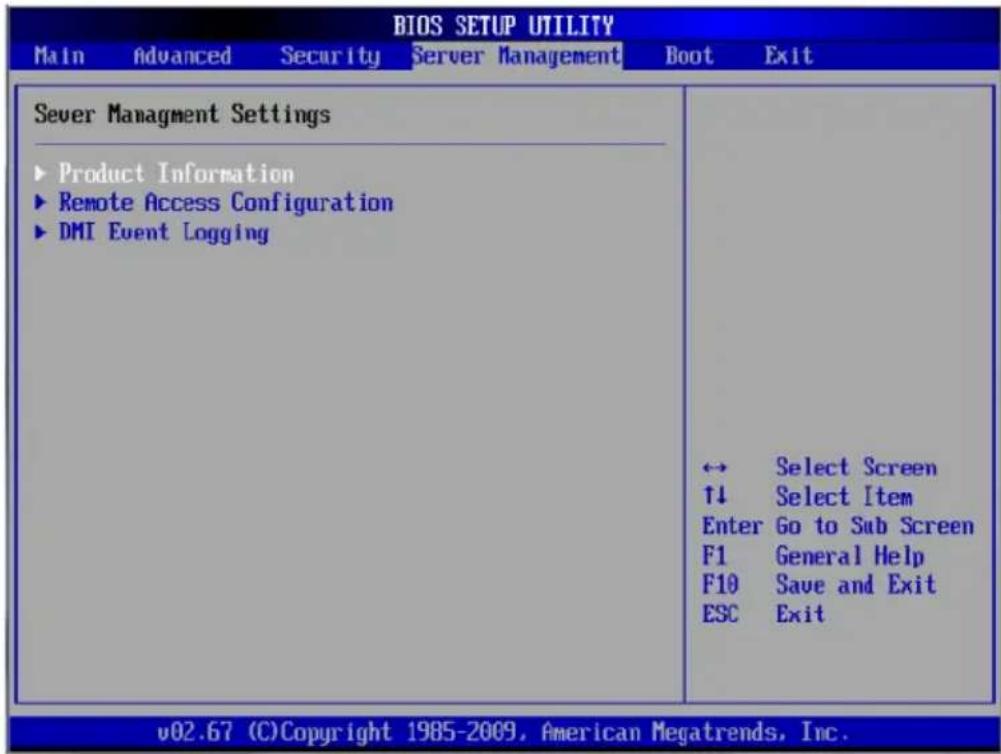
Product Information
This submenu displays the following product information.
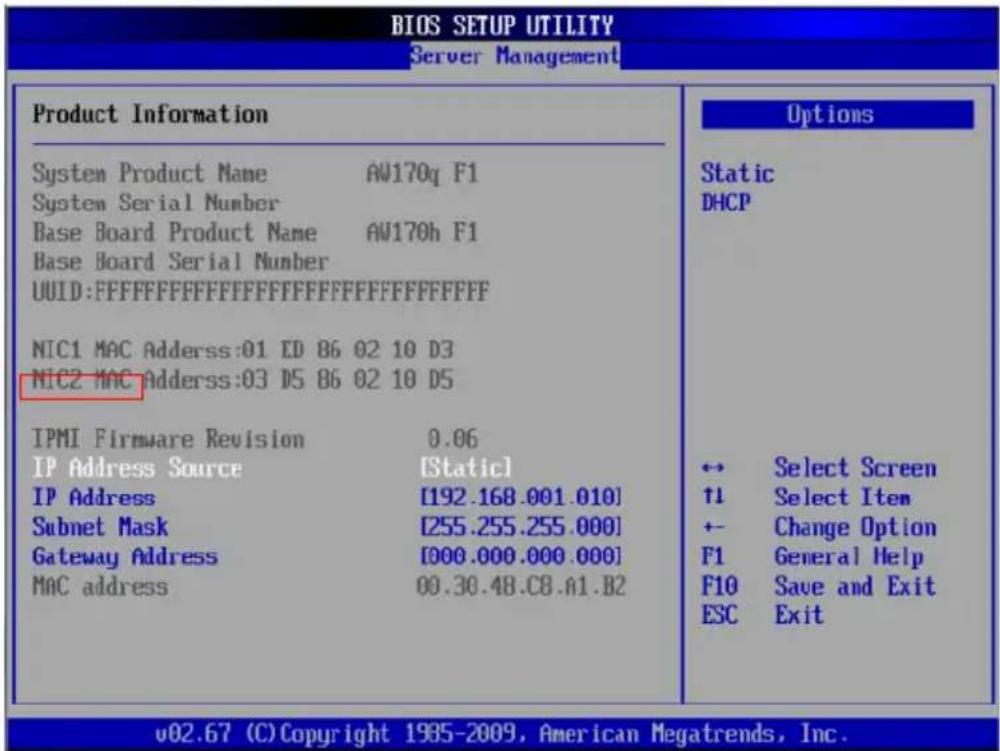
• System Product Name • System Serial Number - Base Board Product Name - Base Board Serial Number - UUID - NIC1 Mac Address - NIC2 Mac Address • IPMI Firmware Revision
IP Address Source: Select how an IP address is assigned to a client computer or network device. Select DHCP (Dynamic Host Configuration Protocol) to allow a client (computer or device) to obtain an IP address from a DHCP server that manages a pool of IP addresses and network information on a request and grant basis. Select Static (Static Allocation) to allow the host server to allocate an IP address based on a table containing MAC Address/IP Address pairs that are manually entered (such as by a network administrator). Only clients with a MAC address listed in the MAC/ IP Address Table will be assigned an IP address.
IP Address: The BIOS will automatically display the IP address of the machine. This should be in decimal and in dotted quad form (i.e., 192.168.10.253). The value of each three-digit number separated by dots should not exceed 255.

Note: This feature can be changed by the user when the IP Source is set to Static.
Subnet Mask: This item displays the current subnet mask setting for your IPMI connection. This should be in decimal and in dotted quad form (e.g., 192.168.10.253). The value of each three-digit number separated by dots should not exceed 255.
Acer Address: The BIOS will automatically display the Acer address of this machine. This should be in decimal and in dotted quad form (i.e., 192.168.10.253). The value of each three-digit number separated by dots should not exceed 255.
Mac Address: The BIOS will automatically enter the Mac address of this machine. Mac addresses are 6 two-digit hexadecimal numbers (Based 16, 0 to 9, A, B, C, D, E, F) separated by dots. (e.g., 00.30.48.D0.D4.60).
Remote Access Configuration
| Configure Remote Access type and parameters | Select Remote Access type. | |
| Remote Access | [Enabled] | |
| Serial port number Base Address, IRQ | [COM2*] [2F8h, 3] | |
| Serial Port Mode Flow Control | [115200 8,n,1] [None] | |
| Redirection After BIOS POST | [Always] [ANSI] | |
| Terminal Type VT-UTF8 Combo Key Support | [Enabled] [No Delay] | |
| Sredir Memory Display Delay | ||
| ← Select Screen ↑1 Select Item +- Change Option F1 General Help F10 Save and Exit ESC Exit | ||
Remote Access: This allows you to enable Remote Access support. If Remote Access is set to Enabled, the following items will be displayed:
Serial Port Number: This feature allows the user to decide which serial port to be used for Console Redirection. The options are COM 1 and COM2.
Base Address, IRQ: This item displays the base address and IRQ of the serial port used for Console Redirection.
Serial Port Mode: Allows you to set the serial port mode for Console Redirection.
Flow Control: Allows you to set the flow control for Console Redirection.
Redirection After BIOS POST: Select Disabled to turn off Console Redirection after POST or Always to keep Console Redirection active all the time after POST. Select Boot Loader to keep Console Redirection active during POST and Boot Loader.

Caution: Some settings may not be supported by some operating systems.
Terminal Type: Allows you to select the target terminal type for Console Redirection.
VT-UTF8 Combo Key Support: Select Enabled to enable VT-UTF8 Combination Key support for ANSI/VT100 terminals.
Sredir Memory Display Delay: Defines the length of time in seconds to display memory information.
DMI Event Logging
This submenu allows you to view and configure the system event log.
| BIOSETUP UTILITY Server Management | |
| DMI Event Logging | View all unread events on the Event Log. |
| View Event Log Mark all events as read Clear Event Log | |
| ← Select Screen ↑1 Select Item Enter Go to Sub Screen F1 General Help F10 Save and Exit ESC Exit | |
| v02.67 (C) Copyright 1985-2009, American Megatrends, Inc. | |
View Event Log: View the System Event Log.
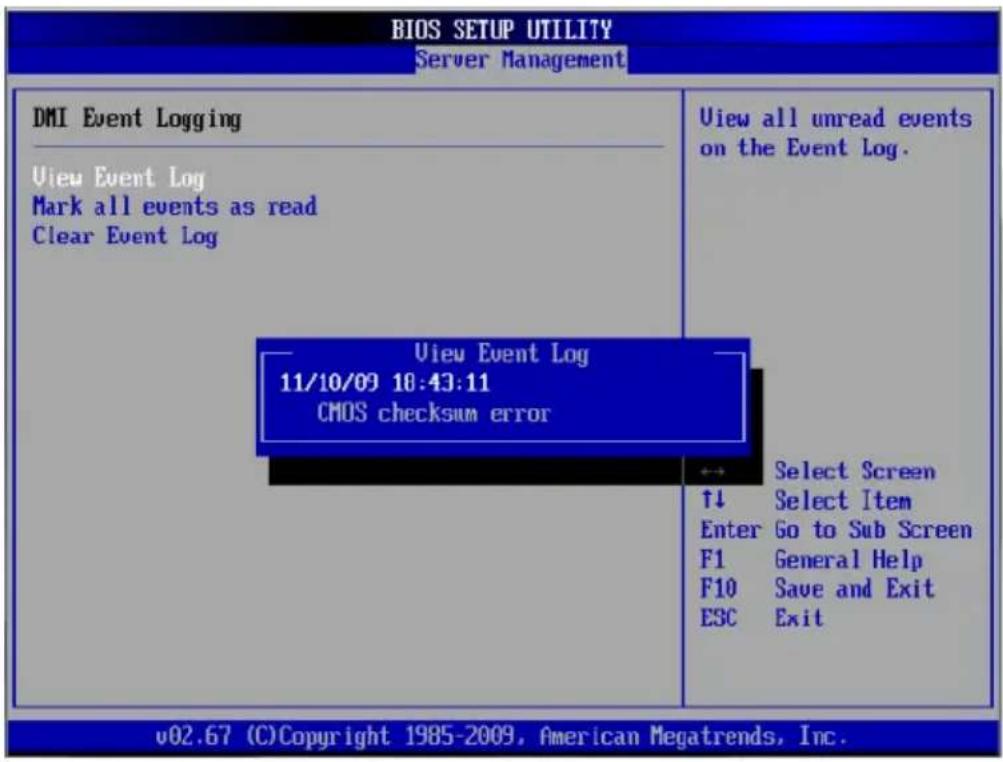
Mark All Events as Read: Marks all events as read.
![BIOS SETUP UTILITY Server Management DMI Event Logging View Event Log Mark all events as read Clear Event Log Mark all events as read now? [OK] [Cancel] Mark all unread events as read. Select Screen Select Item Enter Go to Sub Screen F1 General Help F10 Save and Exit ESC Exit v02.67 (C) Copyright 19…](/content/2026/05/817801/images/b2bb624fc42a9c2e05a3f2815b453ddb1787cda1ecbf8b26ac9e11b93d3e8d04.jpg)
Clear Event Log: This option clears the Event Log memory of all messages.
![BIOS SETUP UTILITY Server Management DMI Event Logging View Event Log Mark all events as read Clear Event Log Clear Event Log now? [OK] [Cancel] Discard all events in the Event Log. ← Select Screen ↑↓ Select Item Enter Go to Sub Screen F1 General Help F10 Save and Exit ESC Exit v02.67 (C) Copyright…](/content/2026/05/817801/images/0a0aeaef77469ee1ccbf26ffe3cd48bf2546dc9748c423c7740efe1d387be3b9.jpg)
Boot Settings
This submenu allows you to configure boot settings for the system.
![BIOS SETUP UTILITY Main Advanced Security Server Management Boot Exit Boot Settings ► Boot Device Priority ► Hard Disk Drives ► CD/DVD Drives Retry Boot Device: [Disabled] Specify the Boot Device Priority sequence. ↔ Select Screen ↑↓ Select Item Enter Go to Sub Screen F1 General Help F10 Save and Ex…](/content/2026/05/817801/images/280c65f71d354c90a3ea54d3417128787339fc2529803ecf1131bad7b1c46558.jpg)
Retry Boot Devices: Select Enabled to allow the BIOS to attempt to reboot the system from all bootable devices after a boot failure.
Boot Device Priority
![BIOS SETUP UTILITY Boot Boot Device Priority 1st Boot Device: [USB: USB FLASH DRI] 2nd Boot Device: [USB: ASUS SDRW-0804] Specifies the boot sequence from the available devices. A device enclosed in parenthesis has been disabled in the corresponding type menu. ↔ Select Screen ↑↓ Select Item +- Chang…](/content/2026/05/817801/images/38a6a53a5ee4db1283de3622d1fe24e0fb5c3ddcceb5f4e42cdd192b1acd0c81.jpg)
This feature allows you to specify the sequence of priority for the Boot Device.
- 1st Boot Device
- 2nd Boot Device
Hard Disk Drives
![BIOS SETUP UTILITY Boot Hard Disk Drives 1st Drive [USB: USB FLASH DRI] Specifies the boot sequence from the available devices. ← Select Screen ↑↓ Select Item +- Change Option F1 General Help F10 Save and Exit ESC Exit v02.67 (C)Copyright 1985-2009, American Megatrends, Inc.](/content/2026/05/817801/images/c8b45106f408b0026824bee8ea08ed89a6ebcdc81d1bd248b9856fe7e56042b1.jpg)
This feature allows you to specify the boot sequence from all available hard disk drives. The settings are Disabled and a list of all hard disk drives that have been detected.
- 1st Drive
- 2nd Drive
- 3rd Drive
CD/DVD Drive
![BIOS SETUP UTILITY Boot CD/DVD Drives 1st Drive [USB:ASUS SDFU-0004] Specifies the boot sequence from the available devices. ← Select Screen ↑↓ Select Item +- Change Option F1 General Help F10 Save and Exit ESC Exit v02.67 (C) Copyright 1985-2009, American Megatrends, Inc.](/content/2026/05/817801/images/a11cf5bfdce4b15516d3e6dae1b851961e0dba8551588db2651993848c81429d.jpg)
This feature allows you to specify the boot sequence from all available removable drives.
Exit
Select the Exit tab from the BIOS Setup Utility screen to enter the Exit BIOS Setup screen.
Save Changes and Exit: When you have completed the system configuration changes, select this option to leave the BIOS Setup Utility and reboot the computer, so the new system configuration parameters can take effect. Select Save Changes and Exit from the Exit menu and press .
| BIOS SETUP UTILITY Main Advanced Security Server Management Boot Exit | |
| Exit Options Save Changes and Exit Discard Changes and Exit Discard Changes Load Optimal Defaults Load Failsafe Defaults | Exit system setup after saving the changes. F10 key can be used for this operation. ↔ Select Screen ↑↓ Select Item Enter Go to Sub Screen F1 General Help F10 Save and Exit ESC Exit |
| v02.67 (C) Copyright 1985-2009, American Megatrends, Inc. | |
Discard Changes and Exit: Select this option to quit the BIOS Setup Utility without making any permanent changes to the system
configuration, and reboot the computer. Select Discard Changes and Exit from the Exit menu and press .
| Main Advanced Security Server Management Boot Exit | |
| Exit Options Save Changes and Exit Discard Changes and Exit Discard Changes Load Optimal Defaults Load Failsafe Defaults | Exit system setup without saving any changes. ESC key can be used for this operation. ↔ Select Screen ↑↓ Select Item Enter Go to Sub Screen F1 General Help F10 Save and Exit ESC Exit |
| v02.67 (C) Copyright 1985-2009, American Megatrends, Inc. | |
Discard Changes: Select this option and press to discard all the changes and return to the BIOS Setup Utility.
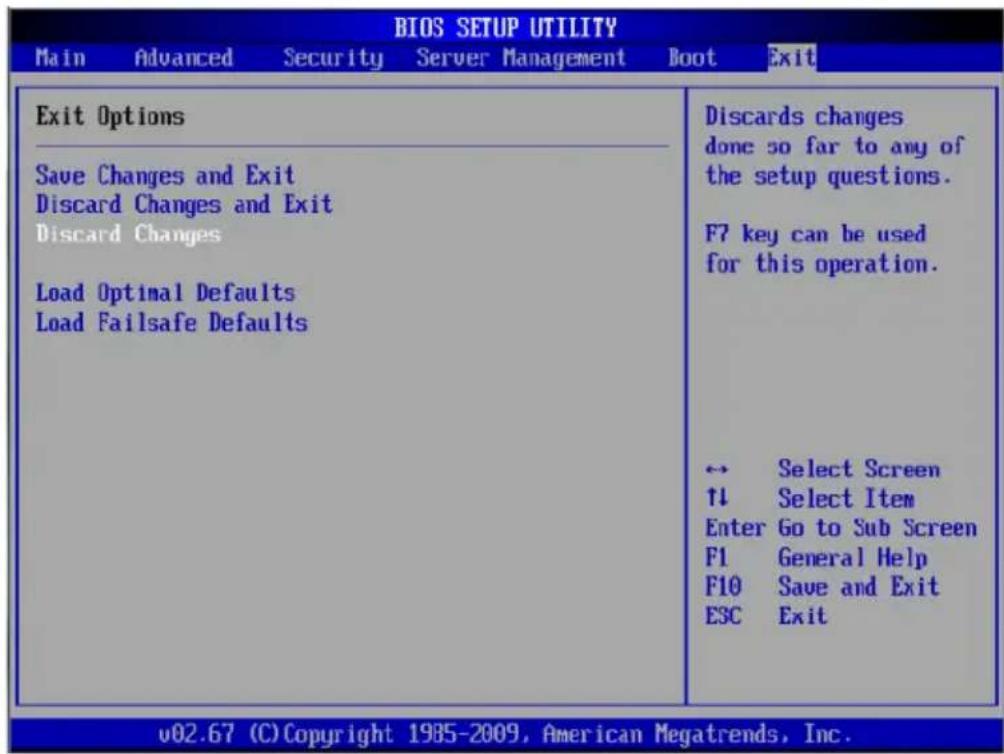
Load Optimal Defaults: To set this feature, select Load Optimal Defaults from the Exit menu and press . Then, select OK to allow the BIOS to automatically load optimal defaults to the BIOS settings. The Optimal settings are designed for maximum system performance, but may not work best for all computer applications.
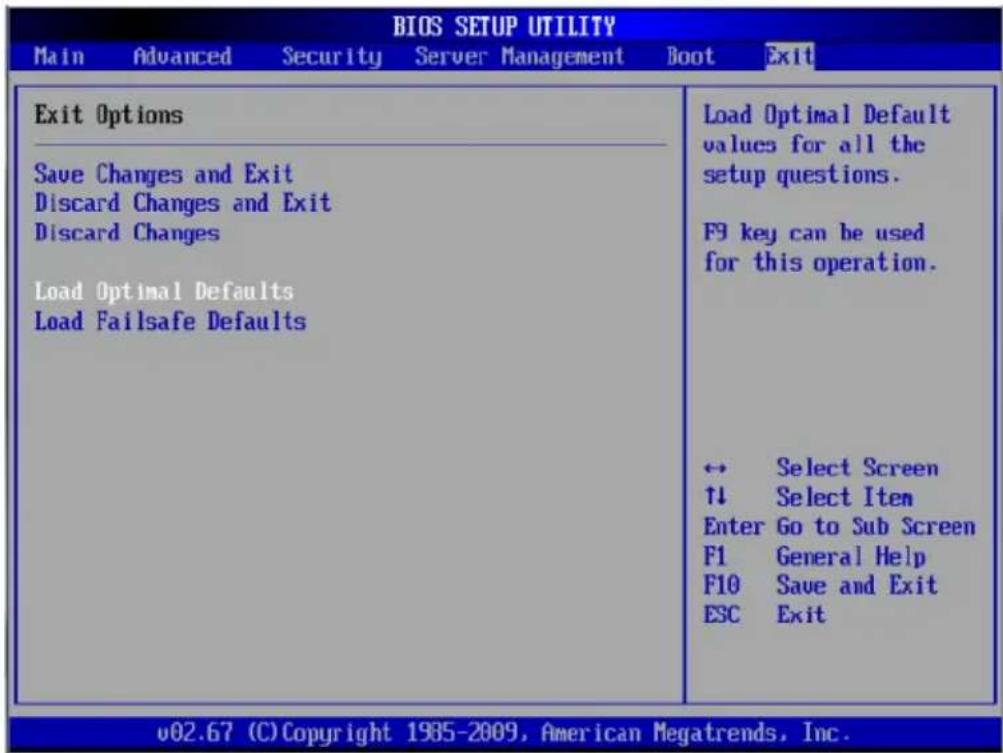
Load Fail-Safe Defaults: To set this feature, select Load Fail-Safe Defaults from the Exit menu and press . The Fail-Safe settings
are designed for maximum system stability, but not for maximum performance.
| Main Advanced Security Server Management Boot Exit | |
| Exit Options Save Changes and Exit Discard Changes and Exit Discard Changes Load Optimal Defaults Load Failsafe Defaults | Load Failsafe Default values for all the setup questions. F8 key can be used for this operation. ↔ Select Screen ↑↓ Select Item Enter Go to Sub Screen F1 General Help F10 Save and Exit ESC Exit |
| v02.67 (C) Copyright 1985-2009, American Megatrends, Inc. | |
5 System troubleshooting
Resetting the system
Before going through in-depth troubleshooting, attempt first to reset the system using one of the methods below.
To do this Press
| Soft boot reset to clear the system memory and reload the operating system. | |
| Cold boot reset. Turn the system power off and then on. This clears system memory, restarts POST, reloads the OS and halts power to all peripherals. | Power button |
Initial system startup problems
Problems that occur at initial system startup are usually caused by an incorrect installation or configuration. Hardware failure is a less frequent cause. If the problem you are experiencing is with a specific software application, see "There is problem with the application software" on page 118.
BIOS error beep codes
During POST (Power-On Self-Test) routines, which are performed each time the system is powered on, errors may occur.
Non-fatal errors are those, which, in most cases, allow the system to continue the boot-up process. The error messages normally appear on the screen.
Fatal errors are those which will not allow the system to continue the bootup procedure. If a fatal error occurs, you should consult with your system manufacturer for possible repairs.
Beep code Error message Description
| 1 beep Refresh Circuits have been reset. | ||
| (Ready to power up) | ||
| 5 short beeps, 1 long beep | Memory error No memory detected in the system. | |
| 8 beeps Display memory | read/write error | Video adapter missing or with faulty memory |
| 1 continuous beep (with the front panel overheat LED on) | System overheat 1 continuous beep with the front panel overheat LED on | |
Initial troubleshooting checklist
Use the checklist below to eliminate the possible cause for the problem you are encountering.
• AC power available at the wall outlet? - Is the power supply module properly installed? - Is the system power cord properly plugged into the power supply module socket? and connected to a NEMA 5-15R outlet for 100-120 V or a NEMA 6-15R outlet for 200-240 V?
- Are all peripheral cables correctly connected and secured?
- Did you press the system power button to turn the server on (power on indicator should be lit green)?
- Are all device drivers properly installed?
- Is hard disk drive(s) properly formatted and configured?
- Are the BIOS configuration settings in the BIOS setup utility correct?
- Is the operating system properly loaded?
- Refer to the operating system documentation.
- Are all hardware components compliant with the tested components lists?
- Are all internal cables correctly connected and secured?
- Are the processors fully seated in their mainboard sockets?
- Are all standoffs in the proper location and not touching any components, causing a potential short?
- Are all add-in expansion cards fully seated in their mainboard slots?
- Are all system jumpers correctly set?
- Are all switch settings on add-in boards and peripheral devices correct?
To check these settings, refer to the manufacturer's documentation that comes with them. If applicable, ensure that there are no conflicts (e.g., two add-in boards sharing the same interrupt).
Hardware diagnostic testing
This section provides a more detailed approach to identifying a hardware problem and its source.
Checking the boot-up status

Caution! Before disconnecting any peripheral cables from the system, turn off the system and any external peripheral devices. Failure to do so can cause permanent damage to the system and/or the peripheral device.
1. Turn off the system and all external peripheral devices. 2. Disconnect each device from the system, except for the keyboard and the display monitor. 3. Make sure the system power cord is plugged into a properly grounded AC outlet and in the power supply module cord socket. 4. Make sure the display monitor and keyboard are correctly connected to the system. 5. Turn on the display monitor. 6. Set the display brightness and contrast controls to at least two thirds of their maximum range. Refer to the documentation that came with your display monitor. 7. If the operating system normally loads from the hard drive, make sure there is no diskette in floppy drive and no disc in the optical drive. 8. If the power indicator is lit, attempt to boot from a floppy diskette or from a disc. 9. Turn on the system.
If the power indicator on the control panel does not light, see "Power indicator does not light" on page 117.
Verifying the condition of the storage devices
As POST determines the system configuration, it tests for the presence of each mass storage device installed in the system. As each device is checked, its activity indicator should turn on green briefly. Check the
activity indicators for the hard drive(s), DVD-ROM drive, and any other device you may have installed.
If any of these indicators fail to light up, refer to related problems listed in the "HDD activity indicator does not light." on page 117.
Confirming loading of the operating system
Once the system boots up, the operating system prompt appears on the screen. The prompt varies according to the operating system. If the operating system prompt does not appear, see "No Characters Appear on Screen" on page 119.
Specific problems and corrective actions
Listed below are specific problems that may arise during the use of your server and their possible solutions.
Power indicator does not light.
Do the following:
- Make sure the power supply module is properly installed.
- Make sure the power cord is connected correctly.
- Make sure that the wall outlet has power. Test it by plugging in another device.
- Make sure the power indicator on the front panel is lit up green.
- Remove all add-in cards and see if the system boots.
If reboot is successful, install the cards back in one at a time with a reboot between each addition to determine if one of them is causing the problem.
- Make sure that you have properly installed system compliant memory modules, and that they are populated according to the system guidelines.
- Make sure that you have installed system compliant processors, and that they are populated according to the system guidelines.
HDD activity indicator does not light.
Do the following:
- Make sure the drive is not disabled in the BIOS setup utility.
- Make sure the drive is compatible.
- Make sure you have not exceeded the power budget for the server.
Hard drives are not recognized.
Do the following:
- Make sure the disk controller is not disabled in the BIOS setup.
- Make sure the drive is compatible.
Bootable DVD drive is not detected.
Make sure the Boot option setting in the BIOS setup utility is configured to allow the DVD drive to be the first bootable device.
Newly installed memory modules are not detected.
Do the following:
- Make sure the memory modules specifications comply with the system requirements.
- Make sure the memory modules have been populated according to the system guidelines.
- Make sure the memory modules are properly installed on their mainboard slots.
Network status indicator does not light.
Do the following:
- Check the cabling and network equipment to make sure that they are in proper condition.
- Reinstall the network drivers.
- Try another port or hub on the switch.
Network activity indicator does not light.
Do the following:
- Make sure the correct network drivers are loaded on the system. • Network might be idle.
Peripheral device connected to a USB connector does not work.
Do the following:
- Reduce the number of external devices connected to a USB hub.
- Refer to the documentation that came with the device.
There is problem with the application software.
Do the following:
- Verify that the software is properly configured for the system.
Refer to the software installation and operation documentation for instructions on setting up and using the software.
- Try a different version of the software to see if the problem is with the copy you are using. If the other version runs correctly on the system, contact your vendor about the defective software.
System does not recognize all of the processors installed.
Do the following:
- Make sure the processor specifications comply with the system requirements.
- Make sure the processor has been populated according to the system guidelines.
- Make sure the processor is properly installed in its slot on the mainboard.
No characters appear on the display monitor.
Check the following:
- Is the keyboard functioning? Test it by turning the Num Lock function on and off to check if the Num Lock indicator lights up.
- Is the display monitor plugged in and turned on? If you are using a switch box, is it switched to the correct system?
- Are the brightness and contrast controls on the video monitor properly adjusted?
- Is the display monitor signal cable properly connected?
- Does this display monitor work correctly if plugged into a different system?
- Remove all add-in cards and see if the system boots.
- If reboot is successful, install the cards back in one at a time with a reboot between each addition to determine if one of them is causing the problem.
- Make sure that you have properly installed system compliant memory modules, and that they are populated according to the system guidelines.
- Make sure that you have installed system compliant processors, and that they are populated according to the system guidelines.
If you are using an add-in video controller card, do the following:
1. Verify that the display monitor works using the onboard video controller.
2. Verify that the add-in video controller card is fully seated in its slot.
3 Reboot the system for the changes to take effect.
4 If there are still no characters on the screen after you reboot the system, reboot it again.
Take note of the beep codes emitted during POST. This information may be required if you seek technical assistance.
If POST does not emit any beep code and characters still do not appear, the display monitor or the video controller may be defective. Contact your local representative or authorized dealer for technical assistance.
Appendix A: Server management tools
Server management overview
The server management tools supported by this system are listed in the table below.
| Tool Function | |
| Acer Smart Server Manager | Remotely manage the server in a network environment through a single management station. For detailed instructions on how to install and use this utility, please refer Acer Smart Server Manager User Guide. |
| Acer Smart Setup Allows you to install your choice of operating system for the server, clone system to set up multiple identical servers, update the system BIOS and firmware, set up BMC, and configure RAID for the system hard drivers. For detailed instructions on this utility, please refer to the Acer Smart Setup Help file.Note: BIOS and firmware updates are only available on selected operating systems. | |
| Acer Smart Console Remotely manage the server via a UPnP tool or a Web browser. For detailed instructions on this utility, please refer to “Appendix C: Acer Smart Console” on page 145. | |
RAID configuration utilities
Intel onboard SATA RAID Creation
Configuring Intel onboard SATA RAID
This section briefly shows how to create RAID volume with Intel onboard SATA RAID.
To enable the Intel onboard SATA RAID controller
1 Turn on the server and the display monitor. If the server is already turned on, please close all open applications and then restart the server. 2 During POST, press to access the BIOS Setup Utility. 3 Select the Advanced > IDE/SATA Configuration submenu. 4 Change the setting of the Configure SATA#1 as field from IDE to RAID. 5 Select Intel of ICH Raid CodeBase option. 6 Press . 7 Select Ok to save the setting and close the Setup Utility.
Entering Intel onboard SATA RAID Configuration Utility
To start Intel onboard SATA RAID Configuration Utility, press CTRL-I when you see the RAID BIOS during POST. After POST finishes, the Intel (R) Matrix Storage Manager option ROM will display on the screen.
Creating RAID Volume
1. Select Create RAID Volume. 2. The screen displays the CREATE VOLUME MENU. 3. Type in the name of the RAID volume. 4. Select RAID level. 5. Select desired HDD to create the RAID. 6. Select Create Volume.
7. Press Y when prompted by "Are you sure you want to create the volume? (Y/N):".
8. Now that the RAID volume is created, you can press or select option 5. Exit to exit.
Assigning Hot Spare drive
The Intel onboard SATA RAID Configuration Utility in POST does not provide the function to assign a hot spare driver. Please assign a hot spare driver with Intel onboard SATA RAID utility installed in the operating system.
Adaptec onboard SATA RAID Creation
Configuring Adaptec onboard SATA RAID
This section explains briefly how to create a RAID volume with the Adaptec onboard SATA RAID.
Enabling the Adaptec onboard SATA RAID controller
1. Turn on the server and the display monitor. If the server is already turned on, please close all open applications and then restart the server. 2. During POST, press to access the BIOS Setup Utility. 3. Select the Advanced > IDE/SATA Configuration submenu. 4. Change the setting of the Configure SATA#1 as field from IDE to RAID. 5. Select Adaptec of ICH Raid CodeBase option. 6. Press . 7. Select Ok to save the setting and close the Setup Utility.
Entering Adaptec onboard SATA RAID Configuration Utility
To start the Adaptec onboard SATA RAID Configuration Utility, please press + when you see the RAID BIOS during POST. After POST finished, the Adaptec RAID Configuration Utility will display on the screen.
Creating RAID Volume
1. Select the Array Configuration Utility option. 2. Select Create Array. 3. The screen displays Select drives to create Array. 4. Select the desired hard drive disk and then press to add it in Selected Drives area. 5. Press to complete the selection. 6. Select Array Type. 7. Configure the array properties. 8. Press Done when finish. 9. Press Y when prompted by "Do you want to create an array? (Yes/No):". 10. Press any key to continue.
11 Now that the RAID volume is created, you can press to exit.
Assigning Hot Spare drive
A hot spare is a hard disk drive that automatically replaces any failed drive in a RAID volume, and can subsequently be used to rebuild the RAID volume.
1 Select Array Configuration Utility option. 2 Select Add/Delete Hotspare. 3 The screen displays Select drives to assign Spare. 4 Select desired hard drive disk and then press to add it in Assigned Hotspare drives area. 5 Press to complete the selection. 6 Press Y when prompted by "Do you want to create a spare? (Yes/No):" displayed. 7 Now a hot spare drive is created, you can press to exit.
Configuring LSI MegaRAID SAS 8204ELP
This section briefly shows how to create RAID with LSI MegaRAID SAS 8204ELP.
Entering MegaRAID SAS RAID Configuration Utility
To start LSI MegaRAID SAS RAID Configuration Utility, press CTRL-M when you see the RAID BIOS during POST. After POST finished, the Adapter Selection page will show on the screen. Please click on Start to launch the configuration menu.
Loading Factory Default Setting
1 Select Objects from Management menu. 2 Select Adapter from Objects. The selectable adapter will be listed. 3 Press Enter on the adapter and the adapter setting will be shown on the screen. You can change the setting from this menu. 4 Select Factory Default and Yes to load the default settings. 5 Exit the configuration utility and press + + to reboot the server.
Creating a RAID Volume
1 Select Configuration from Management Menu. 2 Select New Configuration from the Configuration menu. An array selection window displays the devices connected to the current controller. 3 Press the arrow keys to choose specific physical drives and press spacebar to associate the selected drive with the current array. The indicator for selected drive change from READY to ONLINE. 4 After you adding the drives to current array, press Enter to finish creating current array. 5 Press Enter again to select array to configure. 6 Press spacebar to select the array and press F10 to configure the logical drive 7 Select Accept and press Enter to use the default setting for the RAID volume. 8 Press Enter to end the array configuration.
9 Select YES to Save Configuration and press any key to return to the Configuration menu. 10 Press ESC to return to the Management Menu
Initialing a RAID Volume
1 Select Initialize from Management menu. All logical drives should be listed under Logical Drives. 2 Press Spacebar to select drives for initialization. The selected drive will be shown in yellow. 3 After selecting the drives, press F10 and select YES to start the initialization process. 4 When initialization is complete, press ESC to continue. 5 Press ESC to return to the Management Menu.
Assigning a Hot Spare Drive
1. Select Objects from the Management menu. 2. Select Physical Drive from Objects. All of the HDDs will be listed. 3. Select a drive marked as READY and press Enter. 4. Select Make Hot Spare and press Enter. 5. Select Yes, then you will see the HDD change from READY to HOTSP. 6. Press ESC to return to the Management Menu.
MEGARAID SAS 8708EM2 RAID CREATION
This section briefly shows how to create RAID with MegaRAID SAS 8708EM2.
Entering MegaRAID SAS RAID Configuration Utility
To start the MegaRAID SAS RAID Configuration Utility for MegaRAID SAS 8708EM2, press CTRL-H when you see the RAID BIOS during POST. After POST finishes, the Adapter Selection page will show on the screen. Please click on Start to launch the configuration menu.
Loading Factory Default Setting
1. In the Configuration menu, select Adapter Properties. The current adapter settings appear. Please click on Next to change the setting. 2. Change the setting of Set Factory Defaults from No to Yes, then click on Submit. 3. Press Ctrl+Alt+Del to reboot the server.
Creating a RAID Volume
1. Launch the configuration menu. 2. Select Configuration Wizard. 3. Select Add Configuration (default) and click on Next. 4. Select Custom Configuration (default) and click on Next. 5. Hold the Ctrl key and select the drives that you want to add into the array. After selecting the drives, click on Add to Array. 6. Click on Accept DG, then Next. 7. Select the array you just created, click on Add to SPAN, and Next. 8. Select the RAID Level you want to use, create the logical volume by specifying the size at Select Size, and click on Accept to create the logical volume. 9. Click on Next after creating the logical volume. 10. Click on Accept and Yes to save the configuration.
Initializing a RAID Volume
1. After you create the logical volumes on all of the RAID volumes, click on Accept and Yes to save the configuration.
2. Click on Yes to initialize the new logical drives. You will see all the logical drives listed. 3. Click on Home to go back to the configuration menu.
Assigning a Hot Spare Drive
1. Select a free disk marked as UNCONF GOOD and listed under Physical Drives. 2. Select Make Global Dedicated HSP or Make Dedicated HSP and click on Go. 3. Click on Home to go back to the configuration menu. You will see the disk marked as Hotspare in pink and listed under Physical Drives. 4. Now you can reboot the system and install the Operating System. Select Exit, click on Yes, and press Ctrl+Alt+Del to reboot the system.
FLEX IO LSI 1078 SAS RAID CREATION
This section briefly shows how to create RAID with Flex IO SAS RAID card.
Entering Flex IO SAS RAID Configuration Utility
To start Flex IO SAS RAID Configuration Utility for Flex IO SAS RAID card, press CTRL-H when you see the RAID BIOS during POST. After POST finished, the Adapter Selection page will show on the screen. Please click on Start to launch the configuration menu.
Loading Factory Default Setting
1 In the Configuration menu, select Adapter Properties. The current adapter settings appear. Please click on Next to change the setting. 2 Change the setting of Set Factory Defaults from No to Yes then click on Submit. 3 Press Ctrl+Alt+Del to reboot the server.
Creating a RAID Volume
1 Launch the configuration menu. 2 Select Configuration Wizard. 3 Select Add Configuration (default) and click on Next. 4 Select Custom Configuration (default) and click on Next. 5 Hold the Ctrl key and select the drives that you want to add into the array. After you selecting the drives, click on AddtoArray. 6 Click on Accept DG then Next. 7 Select the array you just created, click on Add to SPAN and Next. 8 Select the RAID Level you want to use, create the logical volume by specify the size at Select Size and click on Accept to create the logical volume. 9 Click on Next after you creating the logical volume. 10 Click on Accept and Yes to save the configuration.
Initialing a RAID Volume
1 After you create the logical volumes on all of the RAID volume, click on Accept and Yes to save the configuration.
2 Click on Yes to initialize the new logical drives. You will see all the logical drives listed. 3 Click on Home to go back to the configuration menu.
Assigning a Hot Spare Drive
1 Select a free disk marked as UNCONF GOOD and listed under Physical Drives. 2 Select Make Global Dedicated HSP or Make Dedicated HSP and click on Go. 3 Click on Home to go back to the configuration menu. You will see the disk marked as Hotspare in pink and listed under Physical Drives. 4 Now you can reboot the system and install the Operating System. Select Exit, click on Yes and press Ctrl+Alt+Del to reboot the system.
Appendix B:
Rack mount configuration
Rack installation information
Rack installation precautions
Follow the rack manufacturer's safety and installation instructions for proper rack installation.
The following additional rack safety installation measures should be considered:
- Anchor the equipment rack
The equipment rack must be anchored to an unmovable suitable support to prevent the rack from falling over when one or more systems are fully extended out of the rack assembly. You must also consider the weight of any other devices installed in the rack assembly. The equipment rack must be installed according to the manufacturer's instructions.
- Main AC power disconnect
You are responsible for installing an AC power disconnect for the entire rack unit. This main disconnect must be readily accessible, and it must be labeled as controlling power to the entire unit, not just to the system(s).
- Earth ground the rack installation
To avoid the potential for an electrical shock hazard, the rack assembly itself must be suitably earth grounded, according to your local regional electrical codes. This typically will require the rack to have its own separate earth ground. We recommend you consult your local approved electrician.
- Elevated operating ambient temperature
The maximum operating temperature of the system is 35°C (95°F). Careful consideration should be given to installing the system in an environment compatible with the 35°C (95°F) maximum ambient temperature.
- Reduced airflow
The amount of airflow required for the safe operation of the equipment should not be compromised when installing the system in a rack.
- Mechanical loading
Exercise care when mounting the system in a rack to avoid any accidents.
- Circuit overloading
Appropriate consideration should be given when connecting the supply circuit to the system to avoid any circuit overload. The system name plate rating should be used when addressing concerns about circuit overload.
System rack installation
The server should be mounted into a rack. A tool-less rack rail kit is available for installing system to a rack cabinet.
The figure below shows the server in a rack-mount position.
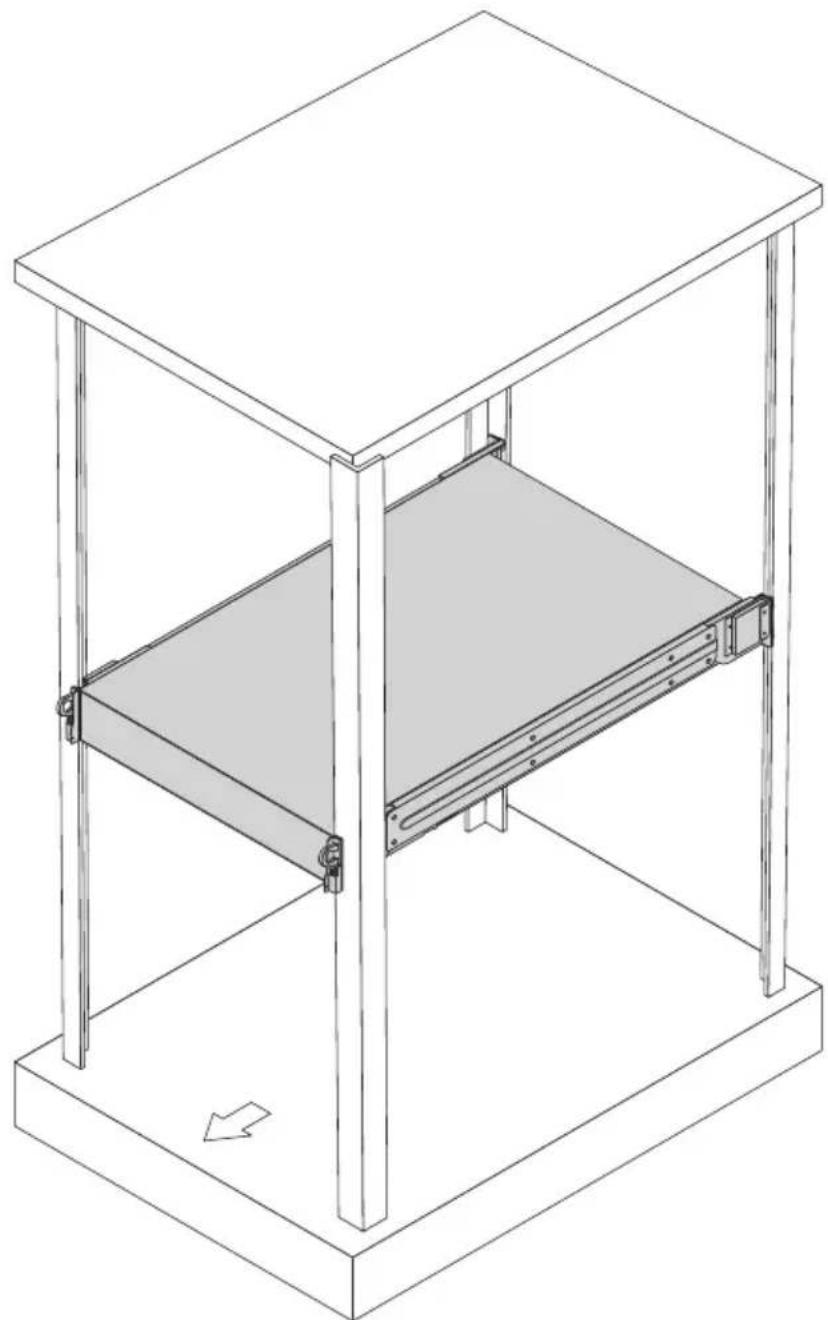
Vertical mounting hole pattern
The four vertical rails of the system rack contain mounting holes arranged in a manner shown in the figure below:
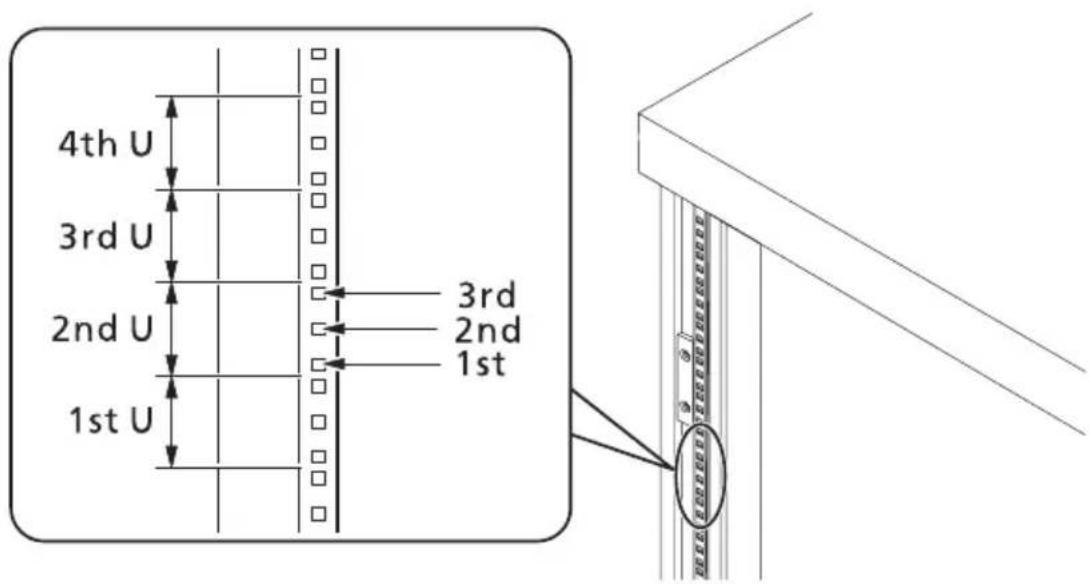
The system occupies 2U in the rack. Count the U positions and hole numbers from the bottom up.
The distance from the center of two holes with closer spacing to the center of the next pair is equivalent to 1U.

Note: The unit of measurement used in this guide is "U" (1U = 1.75 inches or 44.45 mm). The total sum of the heights of all components in the rack measured in "U" cannot exceed the height of the rack. For more information, refer to the documentation that came with the system rack.
When installing components, you must start your measurement from the center of the two holes with closer spacing. Otherwise, the screw holes on the component may not match those on the rack.
Installing the system into the rack

Caution! To minimize the chances of injuries, make sure that two or more people help in installing the server.
To install the system into a four-post rack
1 Confirm that the left and right inner rails have been correctly identified.
2 Remove the inner rails from the mounting rails.
a Extend the inner rail from the mounting rail until the rail release latch clicks (1).
b Press the release latch (2) and slip the inner rail out.
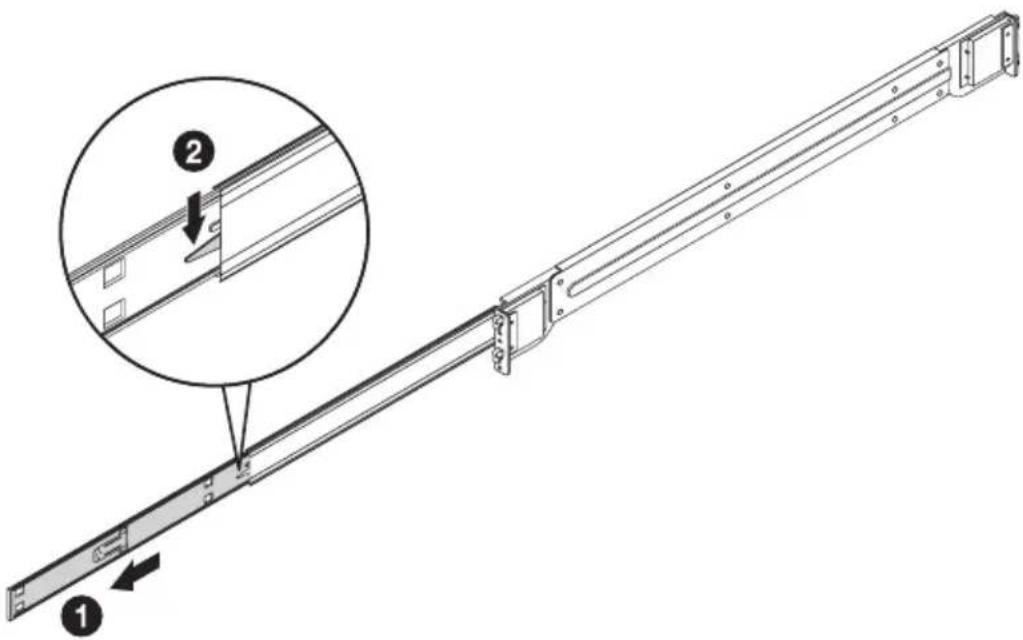
c Do the same thing to the other mounting rail.

Caution! To avoid personal injury, care should be taken when pressing the inner rail release latches and sliding the component into the rack.
3 Attach the inner rails to both sides of the server.
a Align the holes on the left and right inner rails to the hooks on the left and right sides of the server.
b Slide the inner rails to the front until the rails lock into place with an audible click.
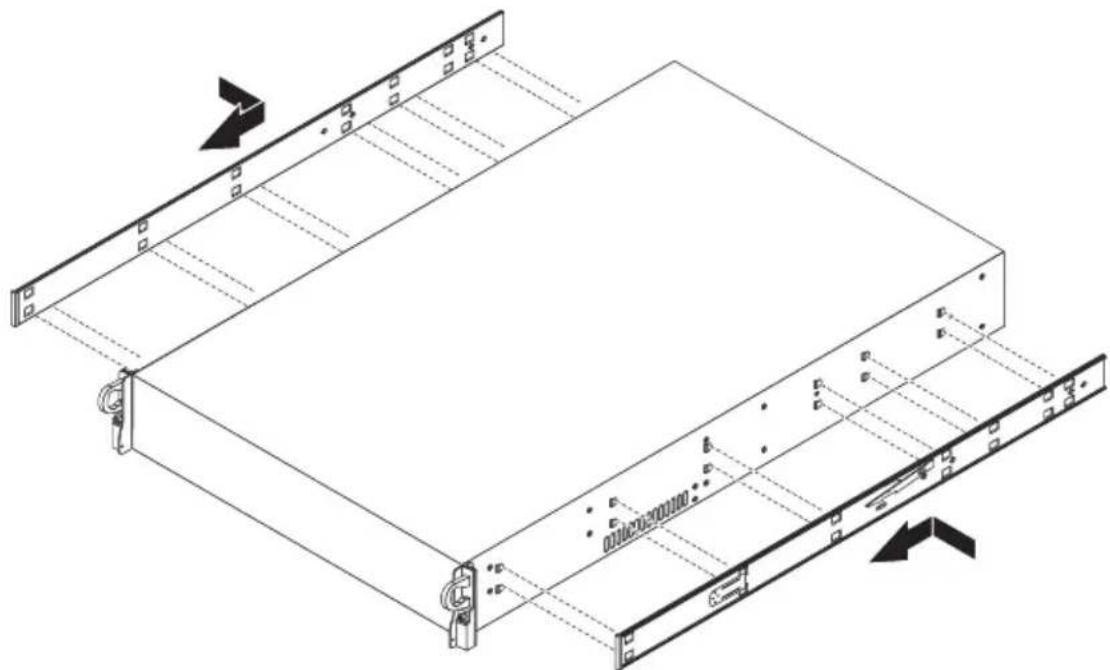
4 Install the mounting rails to the rack posts.
a Align and insert the tabs and latches on the left and right mounting rails to the front and rear rack post mounting holes (1). Make certain the proper mounting holes on rack post are selected.
b Push down the latches (2) to make sure the mounting rails are securely attached to the rack posts.
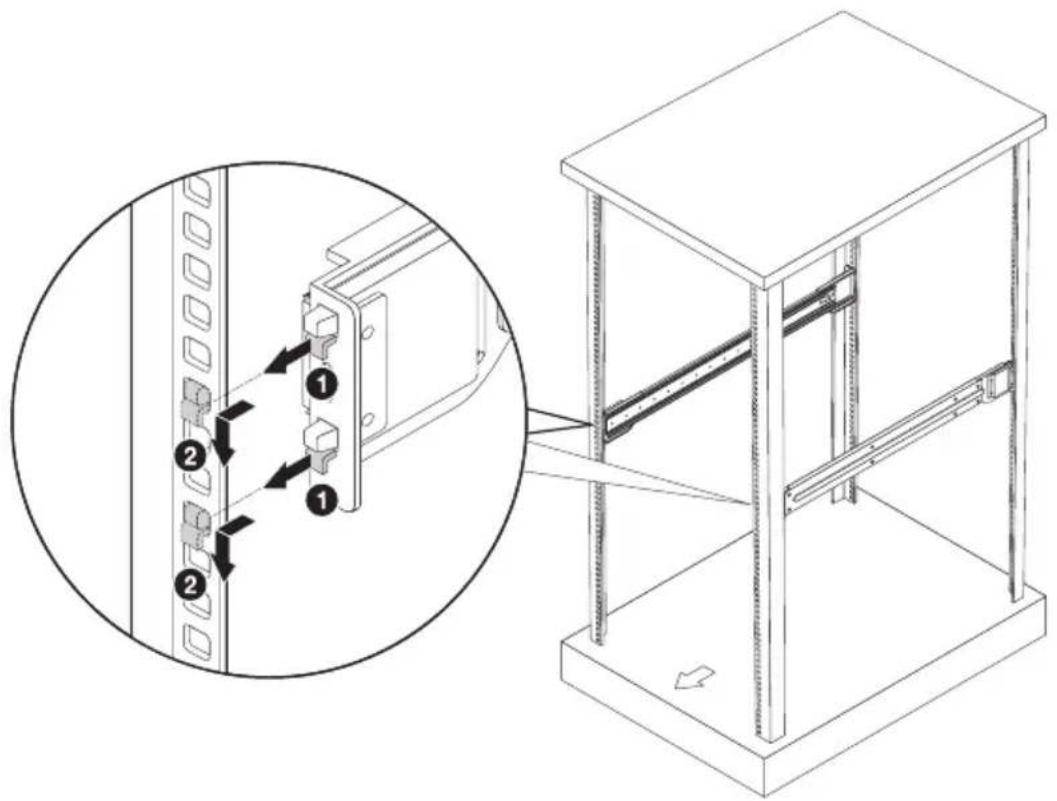
5 Pull out the server mounting rails from the left and right mounting rails.
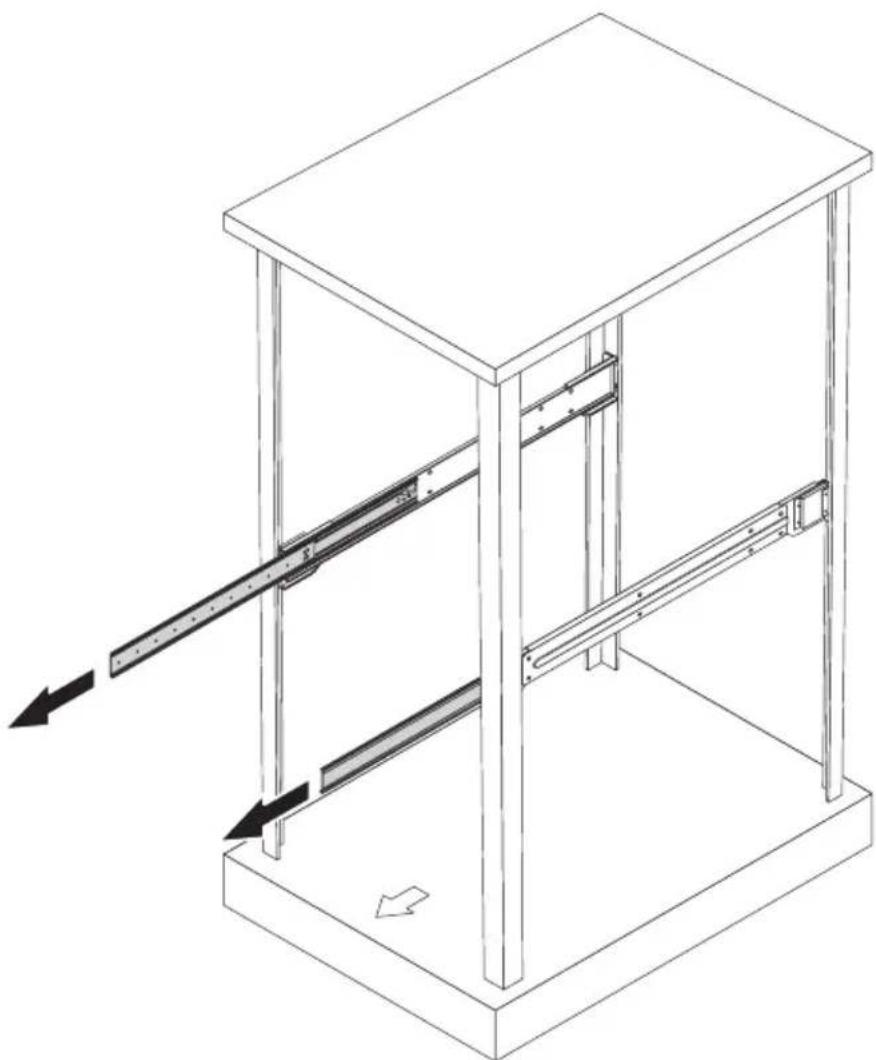

Caution! To avoid personal injury, care should be taken when pressing the inner rail release latches and sliding the component into the rack.
6 Install the server into the rack.
a Insert the inner rails into the server mounting rails, then push the server into the rack (1) until you hear a click sound.
b Press the release latch (2) and continue to push the server (3) into the rack until you hear a click sound.
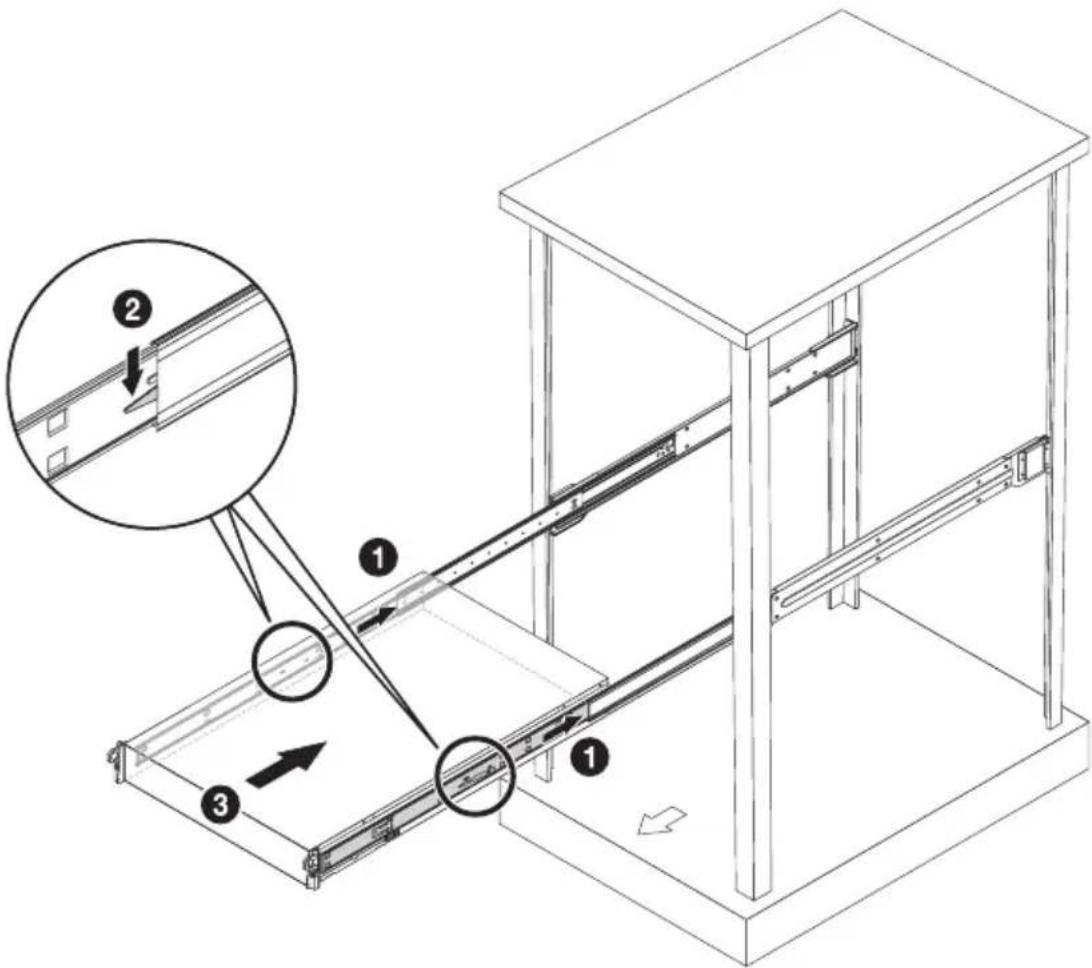
7 For security purposes, tighten the right and left thumbscrews on the front panel to secure the server to the front of the rack as illustrated below.
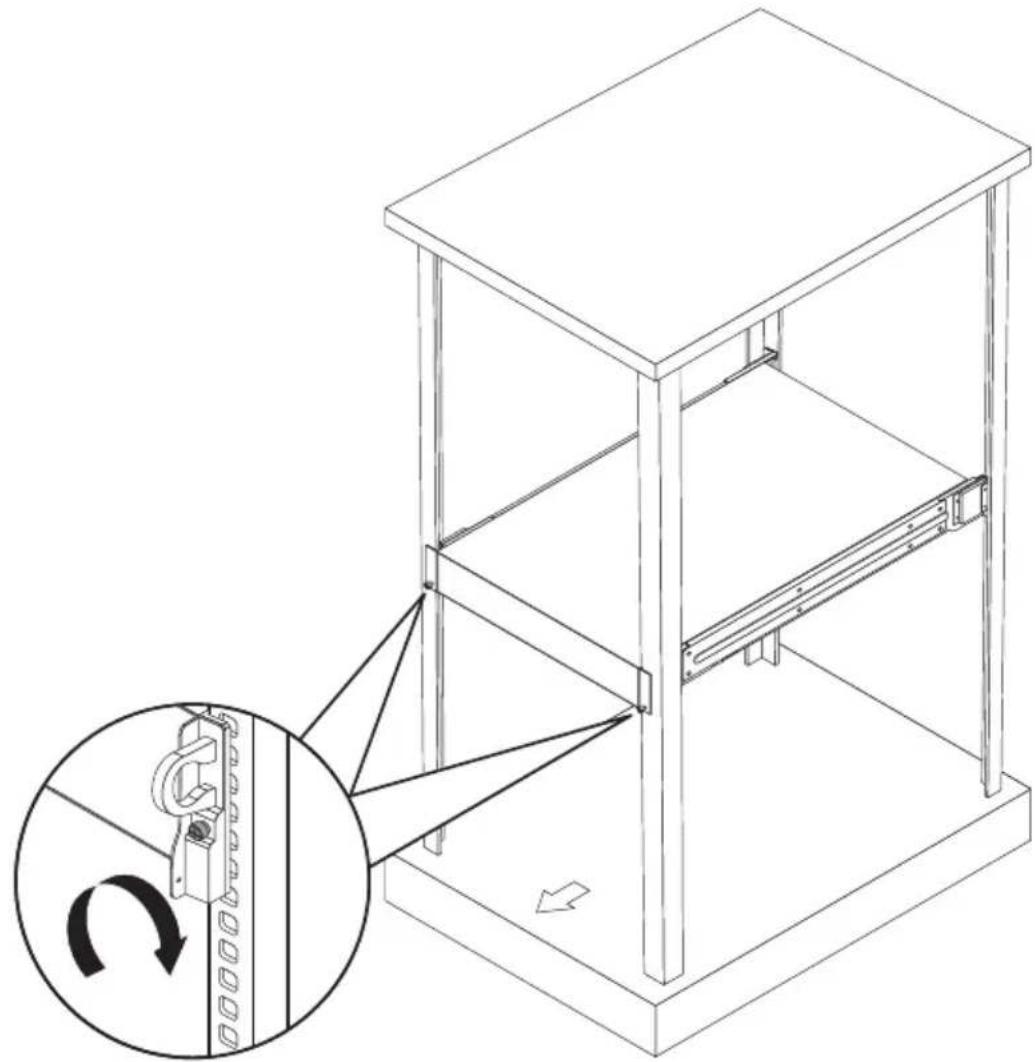
Appendix C: Acer Smart Console
Using Acer Smart Console
Acer Smart Console has a user-friendly graphical user interface (GUI) and a standard Internet browser. This article will help you become familiar with the Acer Smart Console. Each function will be described clearly.
Acer Smart Console offers:
System monitoring: Providing detailed information via a web UI, including system information readings, system health overview, sensor readings, and System Event Log readings. Green, amber and red indicators give a clear system health overview and sensor readings to help you to determine system status.
Remote system management: Via KVM/IP redirection lets you fully control the system. You can remotely power on, off, reset system through Acer Smart Console in-band or out-of-band. Acer Smart Console implements media redirection for the CD/DVD ROM drive and floppy drive. This feature enables remote installation of the operating system or applications.
Notification: Via SNMP trap and email to inform a person or management software when system status changes.
Platform neutrality: Acer Smart Console uses the standard HTTP protocols. You can easily use a web browser to remotely manage servers running different operating systems. Acer Smart Console also provides cross-platform JAVA-based KVM redirection.
Security: SSL (Secured Socket Layer) and auto session time out ensure higher security when using the web UI through HTTPS. When using KVM and media redirection you can also encrypt the communication.
Account management: Acer Smart Console implements role-based management. User accounts are separated into three levels: No access, operator and administrator. Acer Smart Console also provides RADIUS and LDAP Client Support.
Software requirements
Supported environments: Microsoft Windows Vista, XP, Windows 2000, 2003 and Server 2008.
JAVA: Version 6, update 12 or higher

Note: KVM Remote Console Redirection needs to run in a JAVA environment. Ensure the JAVA Runtime Environment Tool is installed.
Accessing Acer Smart Console
1. Open your web browser and enter the system's IP address. You will be prompted to enter a username and password.
2. Enter the root username and password in the login screen.
- Username: root
- Password: superuser
3. Click Login. The Acer Smart Console page appears.

Note: The default username is root and the default password is superuser. Both the username and password are case sensitive and should be entered in lower case each time.

Important: Logging into the console allows you full administrative rights. Once logged in, you should change your password.
Acer Smart Console user interface
The Acer Smart Console page opens once you have logged in. This page provides a central location for managing all connected servers. The user interface includes a system status alert indicator, function list, menu bar, function title, and section information.
System status
The system status indicator, located in the upper left-hand corner of the Acer Smart Console page, monitors and displays the system health and stability. The system sensors allow you to monitor the system's hardware parameters, such as fan performance, temperature sensors, voltages, and power status. The following are the different system health statuses that may be displayed on the console.
- Normal: The system is in good health and no alerts were detected on the sensors.
- Warning: At least one sensor has a warning alert. • Critical: At least one sensor has a critical alert.
System Information
The System Information menu includes options that allow you to view general system information and the system FRU (field replaceable units). Selecting the System Information menu displays the system information and FRU readings options in the left pane.
System Information
Displays general server information, such as the power status, management network IP and management controller MAC address, BMC firmware version and build time, FRU revision and SDR revision and allows you to manage the chassis LED indicator.
FRU Reading
Provides information about major system components, including chassis, main board and other product information.
Server Health
Displays data related to the server's health, such as sensor readings and the event log. This menu has two options: Sensor Readings and Event Log.
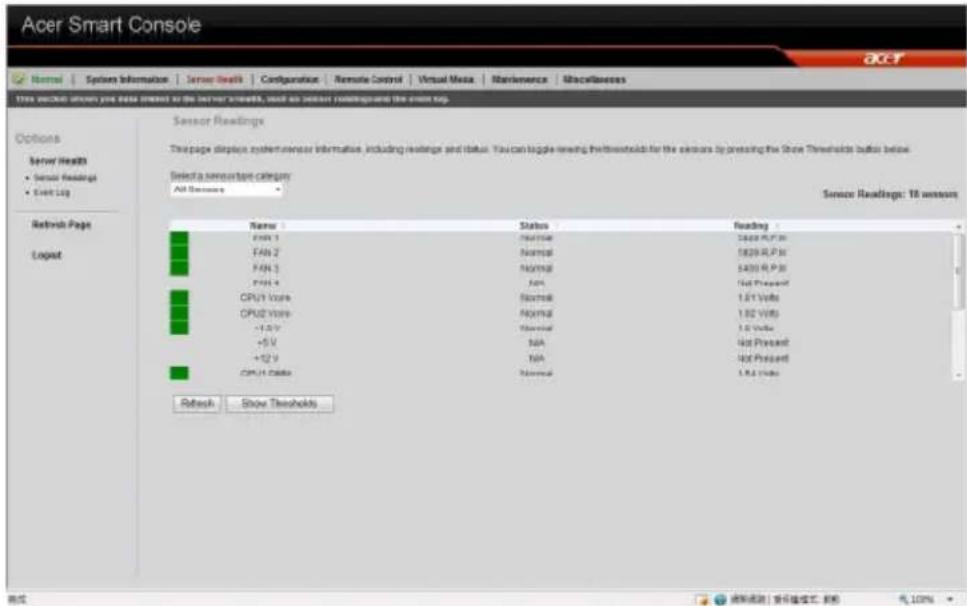
Sensor Readings
Allows you to monitor status of the voltages of the power supply, the fan speed, processor and system temperature sensors.
Sensor Display Color
Indicates the health of the system processor, fan, temperature and voltage in a box displayed before each sensor category.
- Green: Indicates the system is in good health and no alerts were detected on the sensors.
- Amber: Indicates at least one sensor has a warning alert. • Red: Indicates at least one sensor has a critical alert.
Threshold
Click Show Thresholds to view the threshold parameters of each sensor. It displays the Low Non-Critical (NC), High Non-Critical (NC), High Critical Threshold (CT) threshold information, and these items cannot be modified. When each threshold matches alert level, the system will send the alert to the specified destinations. To configure the specified
destination, please go to the Alert section. To refresh the sensor status, just click Refresh.
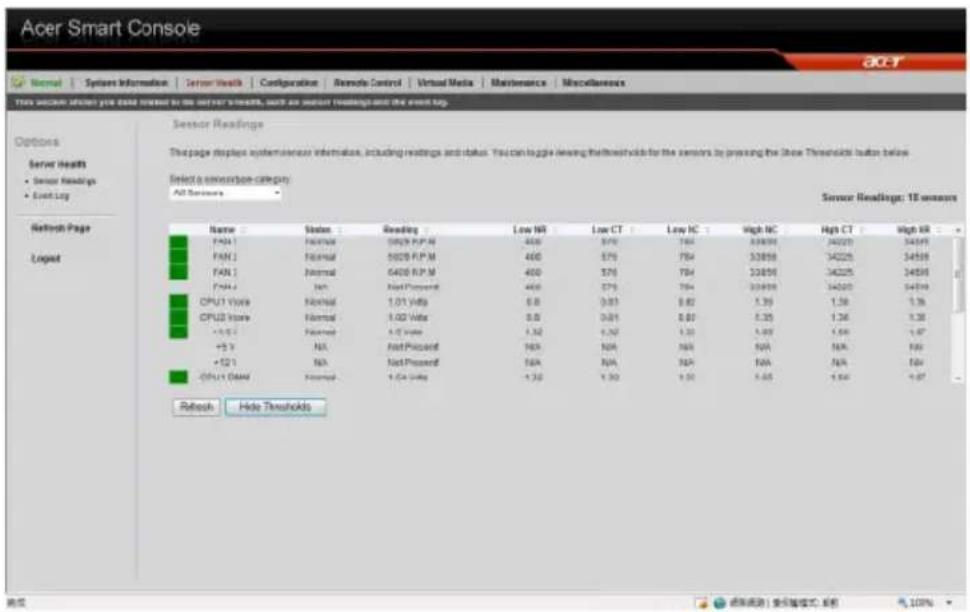
Event Log
Provides a record of system events related to critical hardware components. It logs the events when the sensor triggers an abnormal state or is recovering from an abnormal state. When the log matches a pre-defined alert, the system will send out a notification automatically if pre-configured.
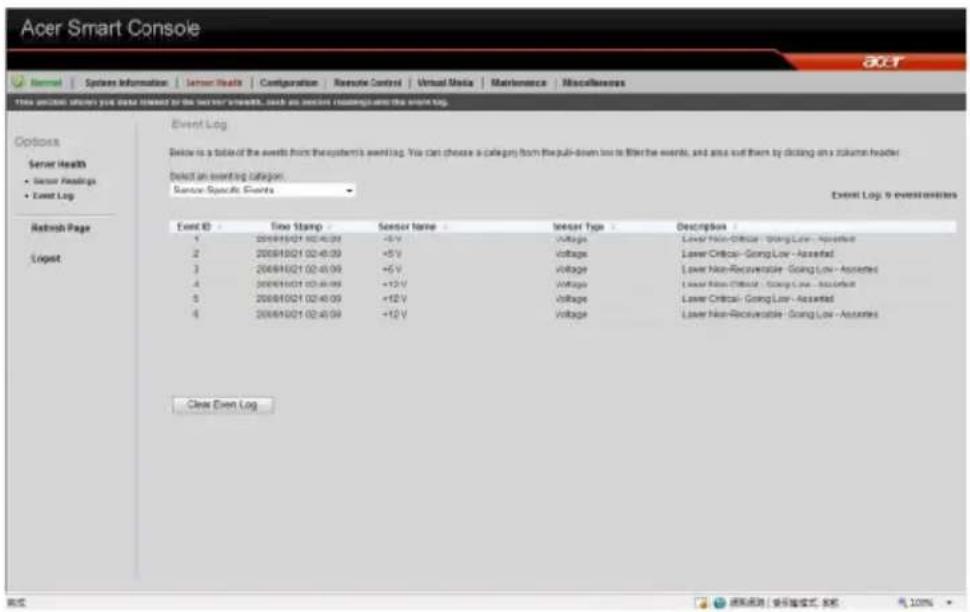
Configuration
Allows you to designate email recipients for notification of system alerts, configure the Date and Time, configure the LDAP (Lightweight Directory Access Protocol) and RADIUS settings, configure the mouse mode settings, configure the network settings, configure the Dynamic DNS, configure the remote session settings, configure the SMTP email server settings, create an SSL certificate and manage users.
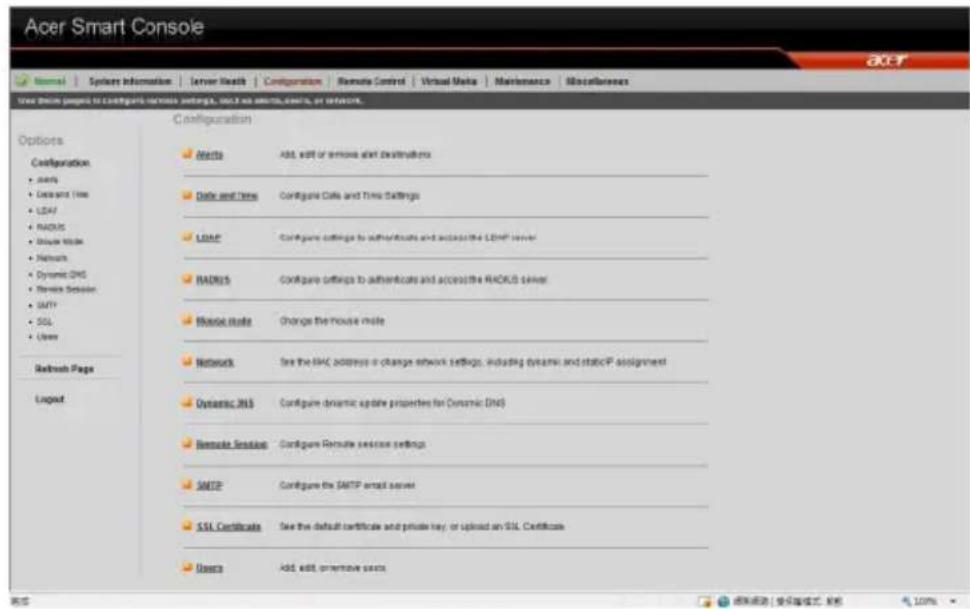
The Configuration menu has the following options:
- Alerts
- Date and Time
- LDAP • RADIUS
- Mouse mode • Network
- Dynamic DNS
- Remote Session • SMTP
- SSL Certificate
- Users
Alerts
Allows you to designate up to 15 email recipients for notification of system alerts. When alerts occur, the system will send an email or an SNMP (Simple Network Management Protocol) trap containing the event detail to the designated recipients.
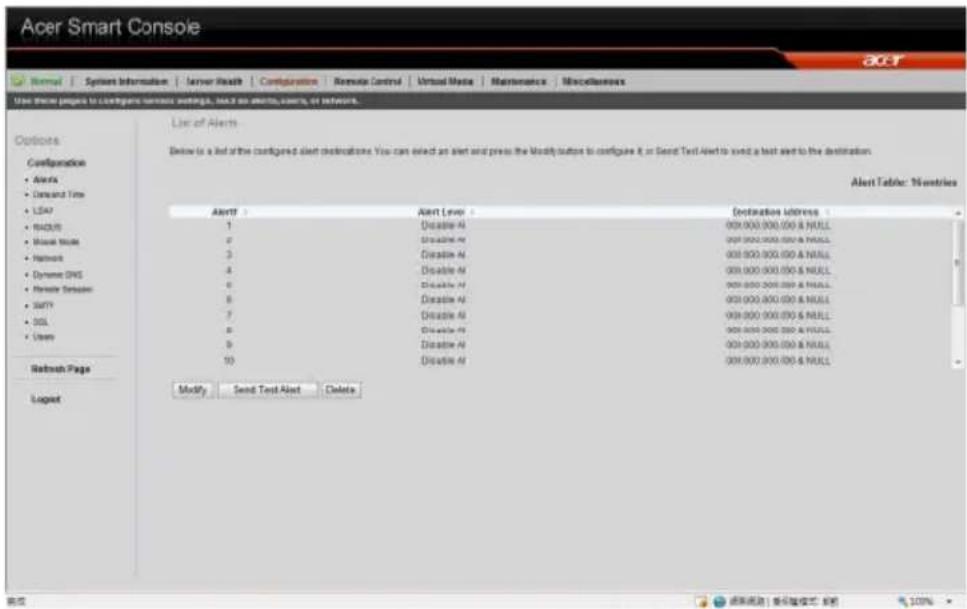
The Alerts page allows you to do the following:
- Modify: Change the email address or the destination server.
- Send Test Alert: Send a test alert to the designated email address.
- Delete: Remove pre-set alert destination settings.
Setting up alerts
You can set up notifications to be sent via SNMP trap or via email.
Setting up SNMP traps
1 On the Alerts page click Modify. 2 Specify the event severity, such as Critical or Warning. 3 Enter the IP information. 4 Click Save.
Setting up email notifications
1 On the Alerts page click Modify. 2 Specify the event severity, such as Critical or Warning. 3 Enter the recipient's email address.
4 Enter a subject and message.
5 Click Save.
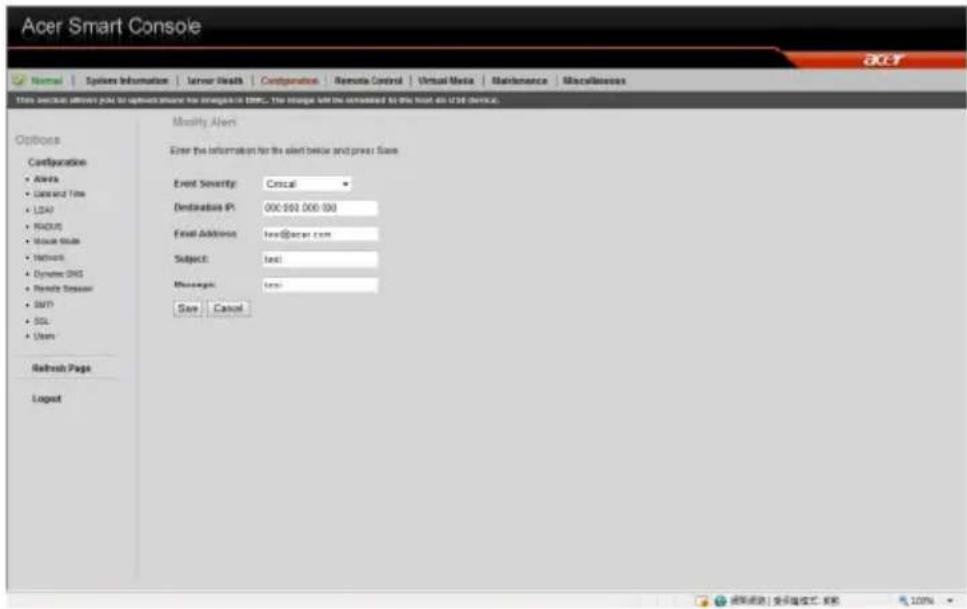
Date and Time
The Date and Time option allows you to set the BMC date and time.
LDAP (if available)
The LDAP option allows you to download the user account list and authentication from the LDAP server and create Acer Smart Console user accounts from this list.
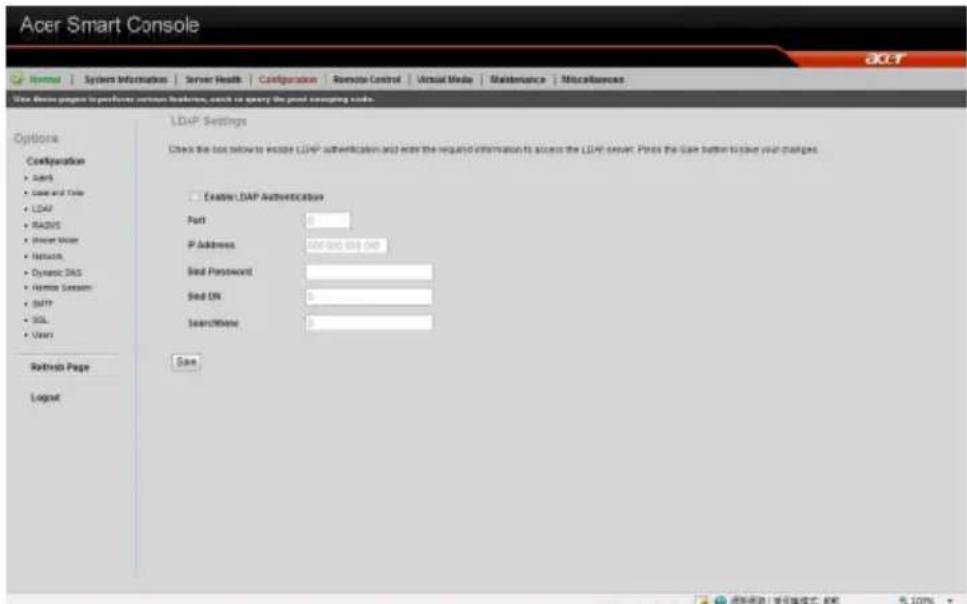
Configuring LDAP settings
1 On the LDAP Settings page and check Enable LDAP Authentication. 2 Enter the required information to access the LDAP server. 3 Click Save.
RADIUS
The RADIUS option allows you to configure the RADIUS option.
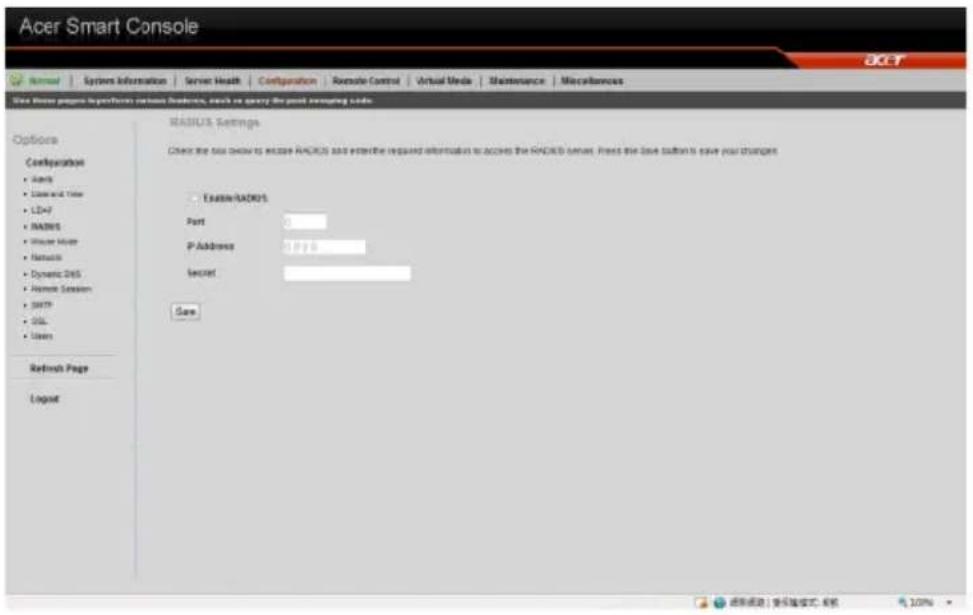
Configuring RADIUS
1 On the RADIUS Settings page check Enable RADIUS. 2 Enter the required information to access the RADIUS server. 3 Click Save.
Mouse mode
The Mouse mode option allows you to set a mouse mode to control your mouse.
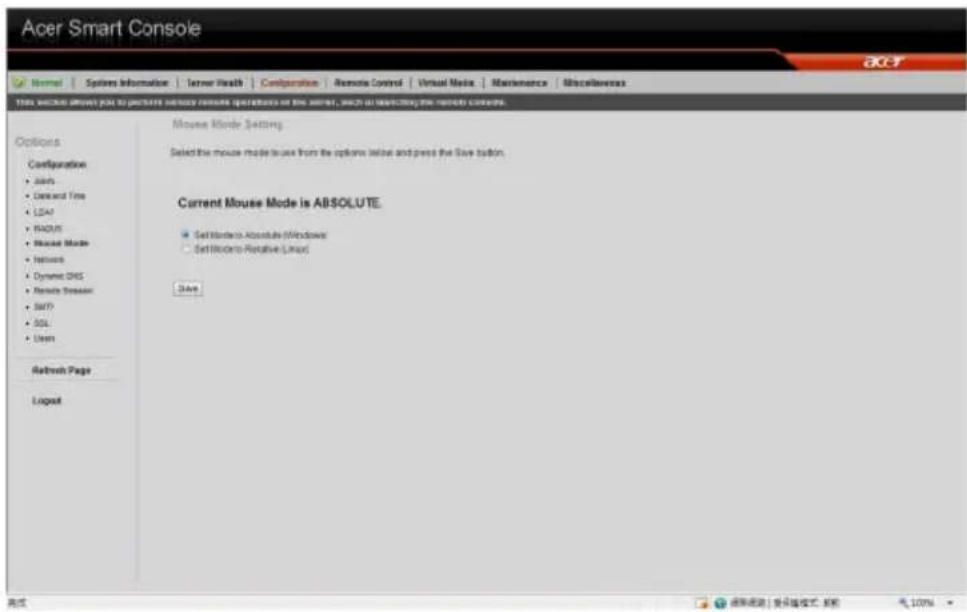
Setting the mouse mode
1 Select a mouse mode from the Mouse Mode page.
- Absolute: Select this setting when using a Microsoft Windows operating system.
- Relative: Select this setting when using a Linux operating system.
2 Click Save.
Network
The Network option allows you to configure and change the management network parameters. You can configure the network
settings by using DHCP (Dynamic Host Configuration Protocol) or manually.
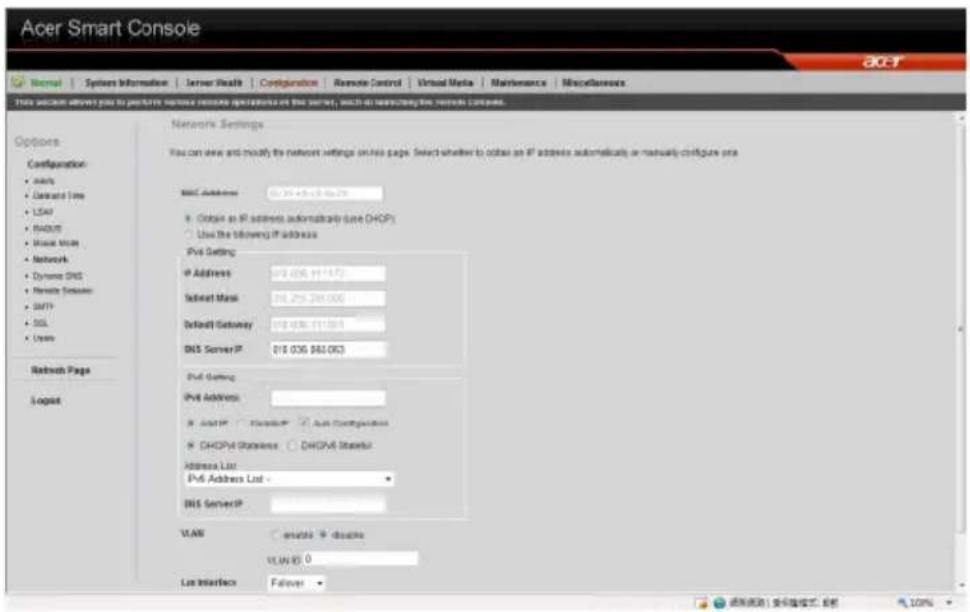
Configuring network settings
1 On the Network Settings page, select whether to obtain an IP address automatically or configure the network settings manually. 2 Click Save.
Dynamic DNS
The Dynamic DNS option allows you to configure and change the management network parameters.
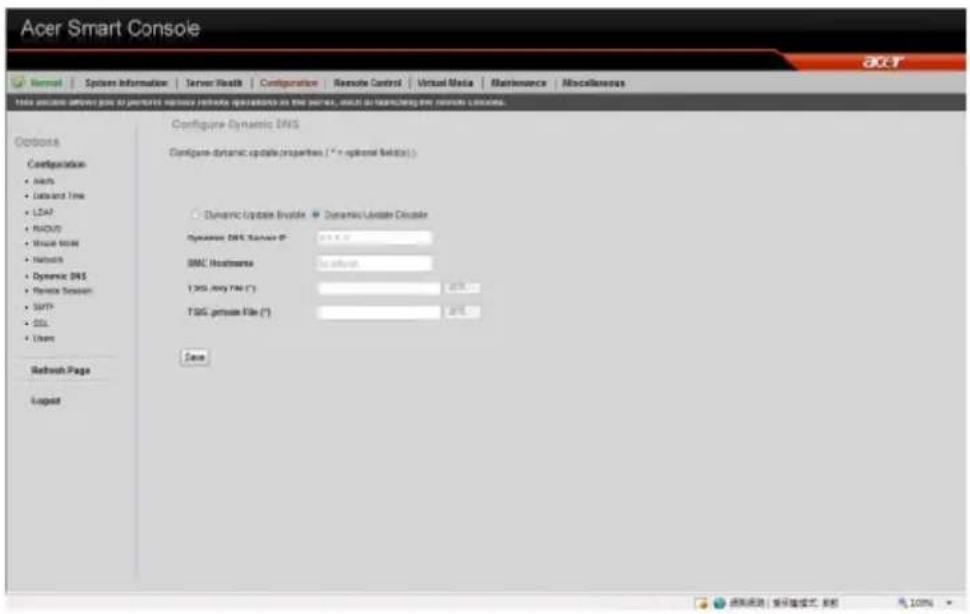
Configuring Dynamic DNS
1 On the Dynamic DNS Settings page, check Enable Dynamic DNS. 2 Enter the required information to access the Dynamic DNS server. 3 Click Save.
Remote Session
The following options allow you to enable or disable encryption on KVM or Media data during a redirection session. Select the remote session then press Save.
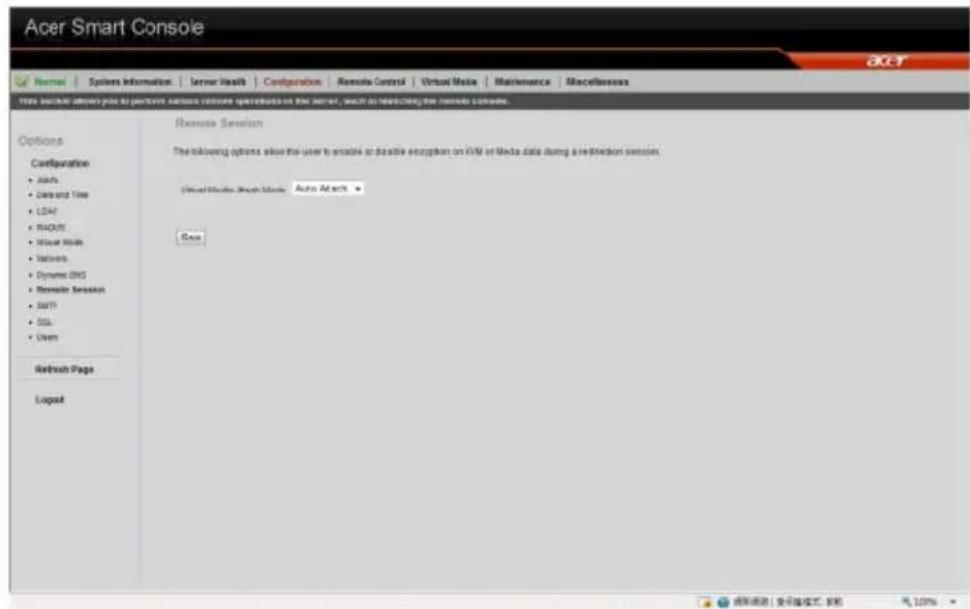
Configuring Remote Session settings
1 On the Remote Session page, select whether to enable KVM or Media Encryption. 2 Select a Virtual Media Attach Mode. 3 Click Save.
SMTP
The SMTP option allows you to configure the SMTP (Simple Mail Transfer Protocol) mail server settings.
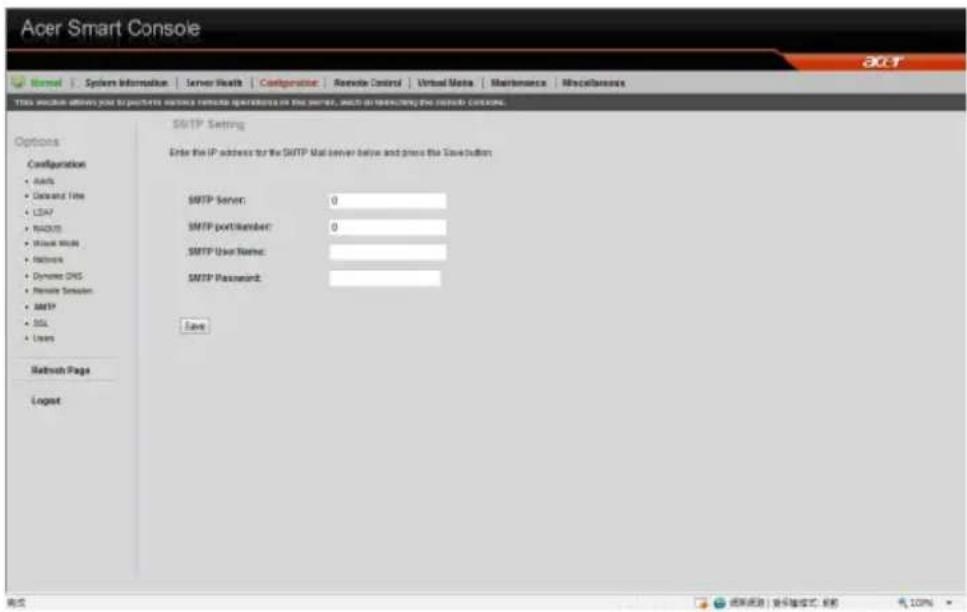
Configuring the SMTP settings
1 On the SMTP Setting page, select a LAN channel number. 2 Enter the IP address of the SMTP server. 3 Enter the username and password. 4 Enter the email address for sending email notifications. 5 Enter the machine name. 6 Click Save.
SSL Upload
The SSL Certificate option allows you to upload a SSL certificate manually.
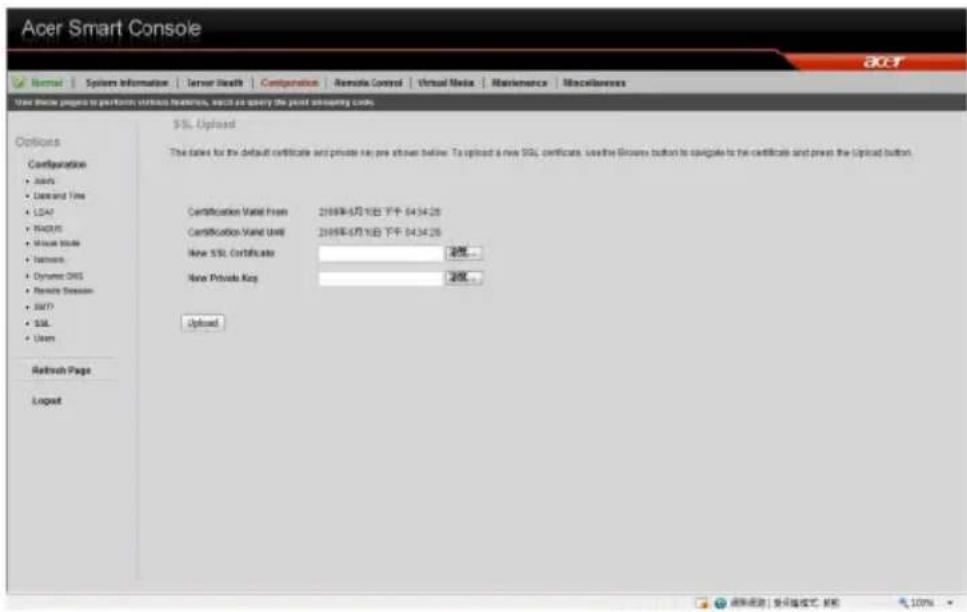
Uploading an SSL certificate
1 On the SSL Upload page, click Browse to locate the SSL certificate on your system.
2 Click Upload.
Users
The Users option allows you to create, edit, delete, and view user accounts from the user list.
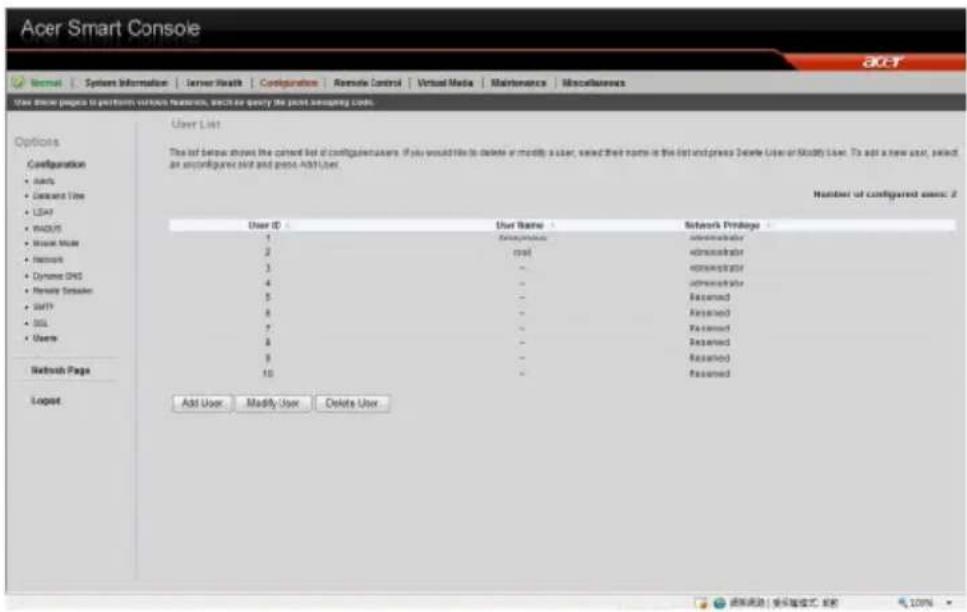
To configure user accounts in the User List page, you can select from the following command buttons:
- Delete User: Remove the user from the list.
- Modify User: Edit the user profile.
- Add User: Create a new user account.
User Privileges
The User List page includes a privilege setting for determining the maximum privilege a user can have to the system. Users can be configured to have certain access permissions, such as administrator privilege, operator privilege, or no access. The BMC (Baseboard Management Controller) maintains a local database of remote access users and their privileges. When the user logs in to the console, BMC determines the user's privileges and executes commands according to the privilege level.
The table below lists the privilege levels you can assign to a user.
- No access: Users assigned this privilege have the least amount of system access. This is considered the lowest privilege level. • Operator: The operator privilege has restricted access. All BMC commands are allowed, except for the configuration commands that allow the user to change the behavior of the out-of-band
interfaces. Operator privilege cannot disable individual channels or change user access privileges.
- Administrator: The administrator privilege has full access and can configure the software and add users. Administrator privilege has access to all BMC commands, including configuration commands for disabling a communication channel.
Modifying a user account
1. On the Users page, click Modify User. 2. Enter the username. 3. Enter the password. 4. Re-enter the password. 5. Select a privilege level from the drop-down menu. 6. Click Modify.
Remote Control
The Remote Control menu allows you to start a Remote Console session with the host system and manage power remotely. This menu includes two options: KVM Remote Console Redirection and Server Power Control.
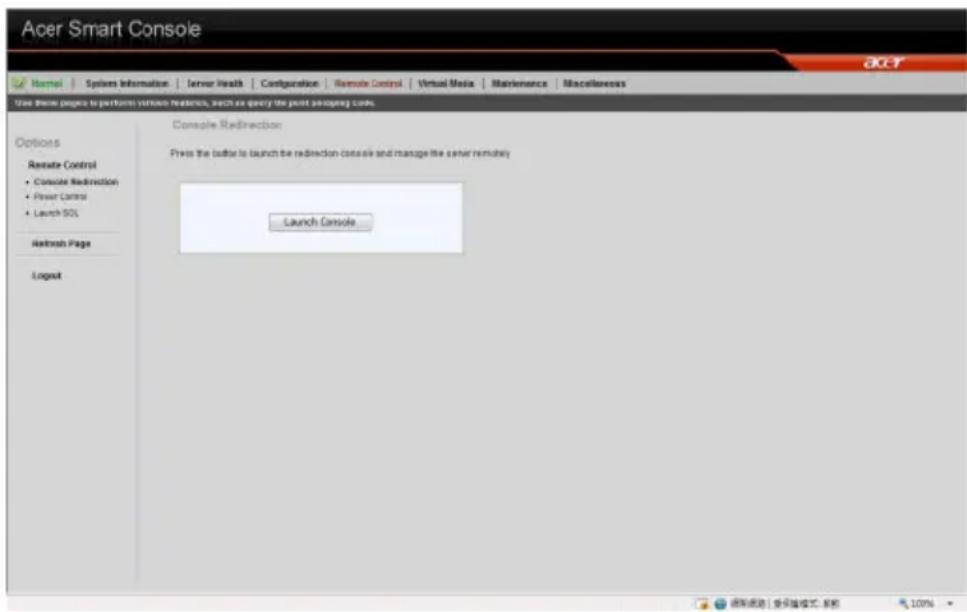
KVM Remote Console Redirection
The KVM Remote Console Redirection option allows you to start the KVM Remote Console utility and remotely manage the server using the monitor, mouse, and keyboard as if you were connected directly to the server.
Launching the KVM Remote Console utility
On the KVM Remote Console Redirection page, click Launch Console. The web browser downloads and automatically launches the remote console application. The KVM Remote Console screen appears.
For more information about the KVM Remote Console application, refer to "KVM function description" on page 167.
Server Power Control
The Server Power Control option allows you to perform a remote power on, power off, power cycle, and reset your server.
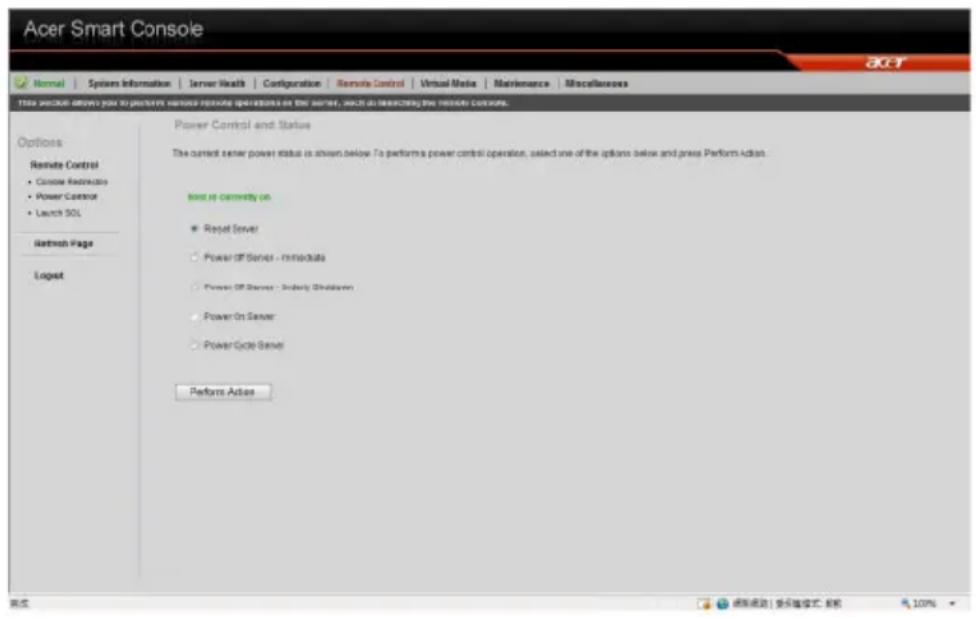
Performing a remote power control operation
On the Server Power Control page, select an option then click Perform Action.
Launch SOL
SOL allows you to launch the remote console by using Serial over LAN.
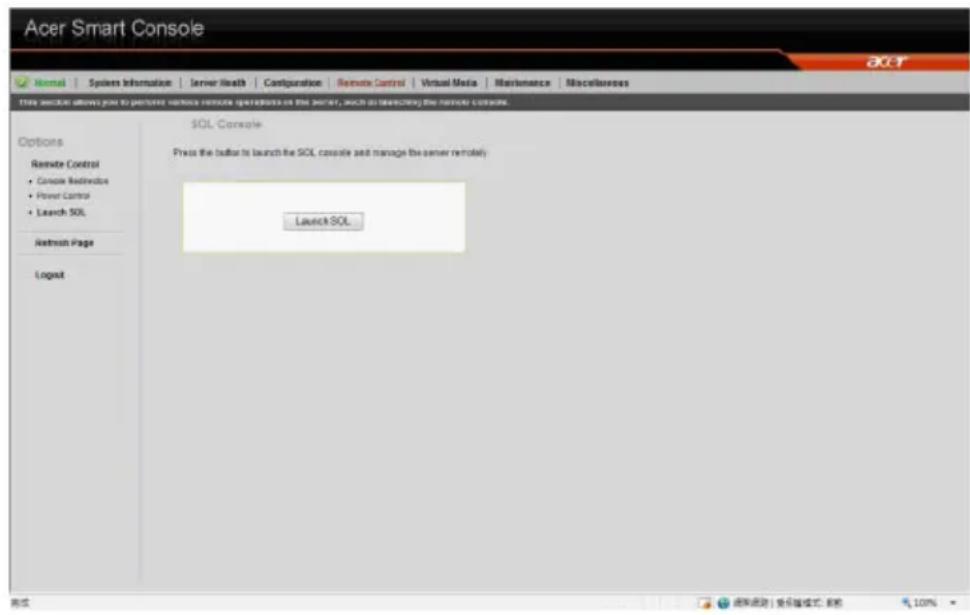
Click Launch SOL. Select the Baud rate from the pull-down menu as your SOL transfer rate. Make sure that the Baud rate selected here matches the Baud Rate set in the BIOS.
Once you have selected the Baud rate, press Start to start the session. You can also press Stop to stop the SOL connection.
Virtual Media
Floppy disk
This floppy disk option allows you to upload and share images via the BMC. These images will then be emulated to the host server as USB applications.
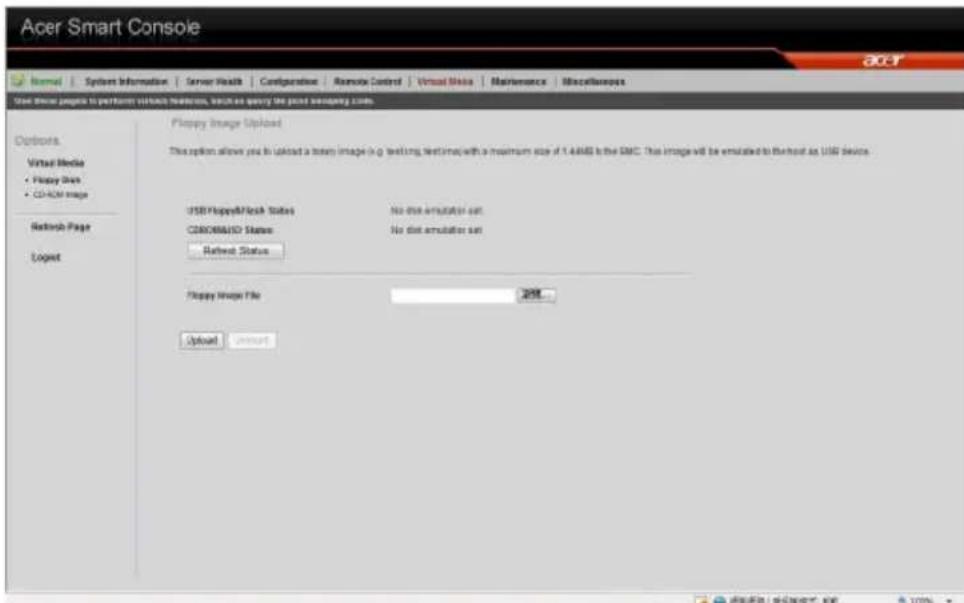
Perform the floppy disk operation
On the floppy disk page, select an image file, then click Upload to upload your image file to the server.
CD-ROM image
This option allows you to upload and share images via the BMC. These images will then be emulated to the host server as USB applications.
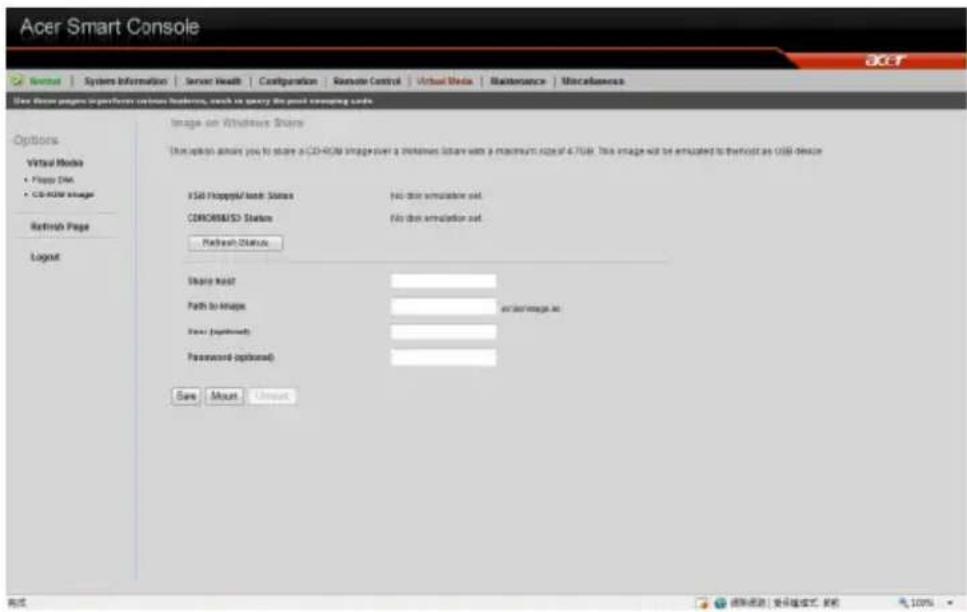
Perform the CD-ROM operation
1 On the CD-ROM Setting page, enter the share host server. 2 Enter the path to the CD-ROM image file. 3 Enter the user name (optional) and password (optional). 4 Click Save.
Maintenance
Firmware Update
Maintenance allows you to upgrade the BMC firmware (including Acer Smart Console and FRU information).
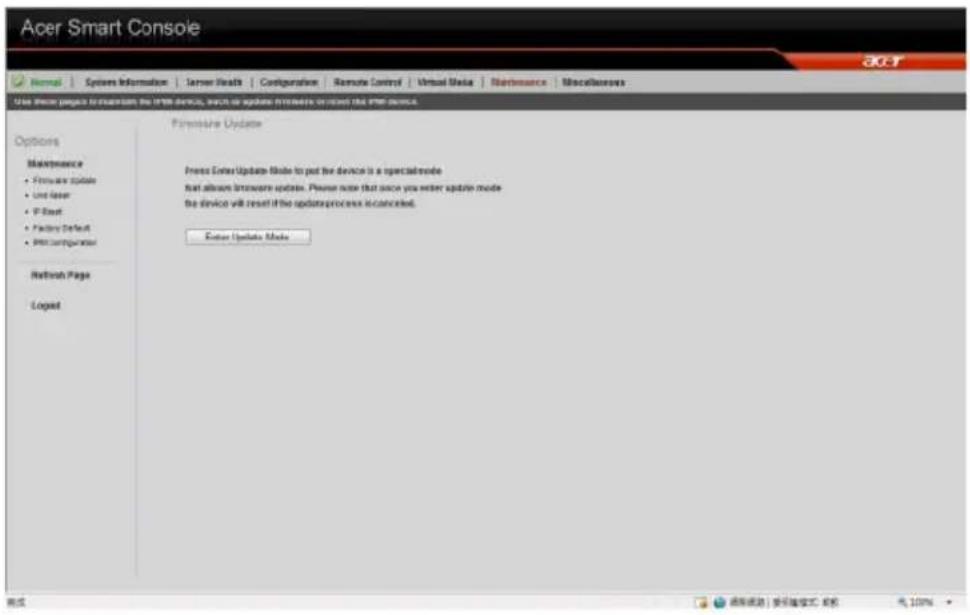
Upgrading firmware
1 On the Maintenance page click Enter Update Mode. The Firmware Upload page appears. 2 Click Browse to locate the firmware image file. 3 Click Upload to upload the image file to the server.
Unit reset
Unit reset allows you to reboot the BMC (IPMI) Controller.
IP reset
IP reset allows you to reset the settings for virtual media, keyboard and mouse on the host server.
Factory default
Factory Default allows you to reset IPMI to the factory default settings.
IPMI configuration
IPMI Configuration allows you to save the current configuration settings or to restore the settings to a previously-saved state.
Miscellaneous
POST snooping
POST snooping allows you to query the POST (Power-On Self Test) Snooping code for BIOS LPC Port80.
KVM function description
You can launch the KVM Remote Console utility from the Acer Smart Console Remote Control menu. The KVM Remote Console utility enables you to control any programs on the server remotely, using a local keyboard, monitor and mouse.
Virtual media
Virtual storage
Click this item to select a virtual storage device for your console redirection.
- USB Floppy & Flash Devices: Click this item to use a USB floppy device or a flash device for your console redirection.
- CDROM & ISO: Click this item to use a CDROM or an ISO device for your console redirection.
- Logical Drive Type: Click this item to select a logical drive type from the pull down menu for your console redirection. • Image Filename and Full Path: Enter the Image Filename and the path for your console redirection.
- Plug In: After you've entered the correct information, click Plug In > OK to launch console redirection.
Virtual keyboard
Click this item to configure the virtual keyboard settings for your console redirection.
• Virtual Keyboard: Click the item to activate the Virtual Keyboard.
- English Keyboard: The screen above shows the Virtual Keyboard in English. Click any key on the keyboard for your BMC connection.
Record
This feature allows you to record media displays for your console redirection.
Start recording: Click this item to start video recording on your remote server.
Stop Recording: Click this item to stop video recording on your remote server.
Playback
This feature allows you to playback the media displays that you have recorded.
- Open: Click this item to open your media recording files.
- Close: Click this item to close your media recording files.
- Stop: Click this item to stop media recording playback.
- Play/Pause: Click this item to continue with media recording playback or to stop media recording playback.
Macro
This feature allows you to configure Macro settings for your console redirection.
- Hold Right ALT Key: This item performs the same function as you holding down the key.
- Hold Left ALT Key: This item performs the same function as you holding down the key.
- Right Windows Key: This item performs the same function as pressing the key. Right-click this item to select Hold Down or Press & Release for the key function.
- Left Windows Key: This item performs the same function as pressing the key. Right-click this item to select Press Down or Press & Release for the key function. • Macro: Click this item to activate a pull-down submenu displaying
Macro hotkeys.
- Macro Hotkeys: Click this item to display the macro hotkey pop-up submenu. The hotkeys include the following:
The options menu allows you to configure the settings for Hotkey, Preferences, Full-Screen Mode, OSD UI Style, and Keyboard_Mouse_Hotplug for your console redirection.
Hotkey settings
This feature allows you to configure Hotkey settings for your console redirection.
- Set Hotkey: Click this item to configure your hotkey settings for your console redirection. • The Hotkey Settings screen displays the following information:
- Hotkeys: Hotkeys: + <1> to + <7> are displayed on the right side of the screen.
- Actions: Click a hotkey to show the action corresponding to this hotkey on the left of the screen.
- Keyboard Monitor: Click this item to enable keyboard monitor support.
- Assign: Click a hotkey and select an action from the actions menu,
and then click Assign to assign the action to the hotkey.
- Start: After an action is assigned to a hotkey, click Start to execute the command and complete the assignment.
- Stop: After an action is assigned to a hotkey, click Stop to cancel the selection.
- Close: After configuring the hotkey settings, click Close to close this submenu.
Preferences
Display
Recording Time: Check this box if you want video recording to be automatically turned off at a certain time. Once the automatic stop is selected, enter the number of minutes before your video recording will be automatically shut off.
Display Scale: Use the handle on the slider to set the appropriate scale setting for your video display (from 25 to 100).
Image Quality: Check the High Color box for a network connection with heavier traffic. Check the Low Color box for a network connection with lighter traffic. Click OK to use the settings set up by you.
Input
Mouse Settings: Click Input to configure mouse settings, including the following.
Enable Mouse Input: Check this box to use your mouse as an input device for your console redirection. Once mouse support is enabled, select Absolute Mouse Mode if you use Windows; select Relative Mouse for Linux.
Keyboard Settings: Check this box to use the keyboard as an input device for your console redirection. Once keyboard support is enabled, you can configure repeat key timeout settings.
Repeat Key Timeout: Use the handle on the slider to select the appropriate timeout settings for repeat keystrokes from 0 ms (millisecond) to 1000 ms (millisecond).
Language
From the Preferences submenu, select Language settings.
From the language settings pop-up menu, select the language you want to use for console redirection. The language options are: English, Japanese, German, French, Spanish, Korean, and Italian.
Once you have selected a language to use, click OK.
Window
From the Preference submenu, click Window to display the submenu. The Window pop-up menu will open.
Check this box to allow the display window to be automatically resized for best video display.
Click OK to keep the selection.
Video Stream Control
From the Preference submenu, click Video Stream Control to display the submenu. The Window pop-up menu will display.
Check this box to enable Video Stream Flow Control support.
Select the correct speed setting. After setting the speed, click OK.
Full-screen mode
This feature allows you to set the video display to the full-screen mode for your console redirection.
OSD UI style
This feature allows you to configure the OSD UI style settings for console redirection.
The OSD UI Style Screen: This screen provides shortcuts to the main features provided by the firmware for console redirection. Click an OSD UI Style icon to change the settings.
Move OSD UI Screen: Click this icon to move the UI to a new location on the display.
Hotkey Settings: Click this icon to access the Hotkeys submenu and change the settings.
Virtual Media: Click this item to access the Virtual Media submenu and configure the settings.
Virtual Keyboard: Click this item to access the Virtual Keyboard submenu and use your virtual keyboard.
Preferences submenu: Click this item to access the Preferences submenu.
Full-screen Mode: Click this item to change the display window to the full-screen.
Exit Remote Console: Click on this item to exit from the remote connection.
User List: Click on this item to display the user list.
Change Tool Bar Display: Click this item to change the tool bar display format.
Hotplug Keyboard/Mouse: Click this item to use hotplug keyboard and mouse.
Macro: Click this item to enable Macro support and use the Macro settings features.
Video Recording: Click this item to access the Video Recording submenu and to use video recording.
Video Playback: Click this item for video playback.
Hotplug Keyboard/Mouse
Hotplug Keyboard/Mouse: Click the item enable keyboard/mouse hotplug support for your console redirection.
User List
This feature allows you to access the user list.
Session ID: This item displays the current session ID#.
User Name: This item displays the name(s) of the user(s).
IP Address: This item displays the IP Address of the host server.
Capture
This feature allows you to capture the screen display on your remote console.
Full Screen Capture: Click this item to capture the full screen video display.
Exit
Yes: At the prompt, click Yes to exit from remote redirection.
No: Click No to return to the current session.
Index
A
Adaptec onboard SATA RAID
configuring 125
controller
enabling 125
creation 125
Adaptec onboard SATA RAID Configuration Utility
entering 125
air duct 9
B
backplane board
2.5-inch HDD 14
C
controller
Intel onboard SATA RAID 123
F
front panel 3
front panel 3
H
hard disk drives 9
hard drive
RAID configuration 123
Hot Spare drive
assigning
Adaptec 126
Intel 124
|
indicator
power 5
status/fault 4
Intel onboard SATA RAID
configuring 123
creation 123
Intel onboard SATA RAID Configuration Utility
tion Utility
entering 123
internal components 9
J
jumper
JBT1
CMOS 14
JP3
ME mode select 14
JP5
ME recovery 14
JPB
BMC enabled 15
JPG1
VGA enable 15
JPRST1
BMC/PHY enable 15
JWD
watch dog 15
Jumper and Connector Locations 26
Top View 26
jumpers
JI2C1/JI2C2
SMB to PCI-E slots 14
JPL1/JPL2
GLAN1/2 enable 15
L
LED
D20
BMC heartbeat 16
LE1
standby power 16
LE11
system ID 16
system ID 8
LED connectors
mainboard 16
LED indicator
LAN port 8
LED indicator status
front panel 8
LEDs
mainboard 16
M
mainboard 9, 10
memory modules 9
P
PCI riser board bracket assembly 9
Power supply module 9
R
rack
installing 139
rack installation 133
mounting pattern 138 precautions 135
RAID Volume
creating 125
rear panel 7
S
safety
CD or DVD xiii
server management
tools 122
system boards
backplane board 14
mainboard 10
riser board 16
system tour 1, 17, 111

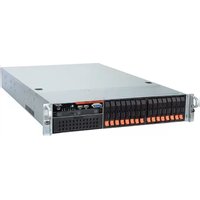
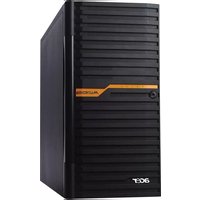

- INFORMATION FOR YOUR SAFETY AND COMFORT
- SAFETY INSTRUCTIONS
- TURNING THE PRODUCT OFF BEFORE CLEANING
- CAUTION FOR PLUG AS DISCONNECTING DEVICE
- CAUTION FOR ACCESSIBILITY
- WARNINGS
- USING ELECTRICAL POWER
- PRODUCT SERVICING
- ADDITIONAL SAFETY INFORMATION
- DISPOSAL INSTRUCTIONS
- MERCURY ADVISORY
- TIPS AND INFORMATION FOR COMFORTABLE USE
- FINDING YOUR COMFORT ZONE
- TAKING CARE OF YOUR VISION
- EYES
- DISPLAY
- DEVELOPING GOOD WORK HABITS
- REGULATIONS AND SAFETY NOTICES
- FCC NOTICE
- NOTICE: SHIELDED CABLES
- NOTICE: PERIPHERAL DEVICES
- CAUTION
- OPERATION CONDITIONS
- NOTICE: CANADIAN USERS
- NOTICE FOR AUSTRALIA
- NOTICE FOR NEW ZEALAND
- NOTICE: BSMI
- WARNING TO USERS
- POWER SUPPLY UNIT (PSU) STATEMENT
- LASER COMPLIANCE STATEMENT
- DECLARATION OF CONFORMITY FOR EU COUNTRIES
- LIST OF APPLICABLE COUNTRIES
- SYSTEM SETUP
- SYSTEM UPGRADES
- SYSTEM BIOS
- SYSTEM TROUBLESHOOTING
- APPENDIX A: SERVER MANAGEMENT TOOLS
- APPENDIX B
- APPENDIX C: ACER SMART CONSOLE
- SYSTEM TOUR
- OVERVIEW
- EXTERNAL AND INTERNAL STRUCTURE
- FRONT PANEL
- NO. ICON COMPONENT
- REAR PANEL
- NO. COMPONENT
- REAR PANEL LED INDICATOR STATUS
- LAN PORT LED INDICATORS
- INTERNAL COMPONENTS
- MAINBOARD
- NO. JUMPER DESCRIPTION DEFAULT SETTING
- SETTING UP THE SYSTEM
- PRE-INSTALLATION REQUIREMENTS
- SELECTING A SITE
- PACKAGE CONTENTS
- CONNECTING PERIPHERALS
- FRONT CONNECTIONS
- REAR CONNECTIONS
- TURNING ON THE SYSTEM
- TO POWER ON THE SYSTEM
- POWER-ON PROBLEMS
- CONFIGURING THE SYSTEM OS
- TURNING OFF THE SYSTEM
- INSTALLATION PRECAUTIONS
- ESD PRECAUTIONS
- PRE-INSTALLATION INSTRUCTIONS
- POST-INSTALLATION INSTRUCTIONS
- OPENING THE SERVER
- REMOVING THE TOP COVER
- INSTALLING THE TOP COVER
- CONFIGURING THE STORAGE DEVICES
- ACCESSING THE DRIVE BAYS
- HARD DISK DRIVE CONFIGURATION GUIDELINES
- DETERMINING DRIVE STATUS
- HDD
- REMOVING AND INSTALLING A 3.5" HARD DISK DRIVE
- REMOVING A 3.5" HARD DISK DRIVE WITH CARRIER
- INSTALLING A 3.5" HARD DISK DRIVE WITH CARRIER
- REMOVING AND INSTALLING A 2.5" HARD DISK DRIVE
- INSTALLING A 2.5" HARD DISK DRIVE WITH CARRIER
- REMOVING THE 2.5" CARRIER CAGE
- INSTALLING THE 2.5" CARRIER CAGE
- REMOVING AND INSTALLING AN OPTICAL DRIVE
- REMOVING AN OPTICAL DRIVE
- INSTALLING AN OPTICAL DRIVE
- INSTALLING AND REMOVING THE POWER SUPPLY
- POWER SUPPLY FAILURE
- REPLACING THE POWER SUPPLY
- REMOVING AND INSTALLING THE AIR DUCT
- REMOVING THE AIR DUCT
- INSTALLING THE AIR DUCT
- REPLACING A SYSTEM FAN
- REPLACING THE PROCESSOR AND HEATSINK
- NOTES
- REMOVING THE HEATSINK
- INSTALLING A HEATSINK
- UPGRADING THE PROCESSOR
- PROCESSOR CONFIGURATION GUIDELINES
- REPLACING THE PROCESSOR
- UPGRADING THE SYSTEM MEMORY
- SYSTEM MEMORY INTERFACE
- MIRRORING MODE
- LOCKSTEP MODE
- SPARING MODE
- MEMORY IDENTIFICATION
- INSTALLING A MEMORY MODULE
- REMOVING A MEMORY MODULE
- INSTALLING AN EXPANSION CARD
- INSTALLING A SAS CARD
- INSTALLING THE REAR SAS CARD
- INSTALLING THE RIGHT RISER CARD
- INTRODUCTION
- THE BIOS SETUP UTILITY
- CHANGING CONFIGURATION DATA
- MAIN SETUP
- SYSTEM OVERVIEW
- SYSTEM TIME/SYSTEM DATE
- PROCESSOR
- SYSTEM MEMORY
- ADVANCED SETTINGS
- BOOT FEATURES
- PROCESSOR & CLOCK OPTIONS
- ADVANCED CHIPSET CONTROL
- CPU BRIDGE CONFIGURATION
- NORTHBRIDGE CHIPSET CONFIGURATION
- SOUTHBRIDGE CONFIGURATION
- IDE/SATA CONFIGURATION
- SELECT DESCRIPTION
- PCI/PNP CONFIGURATION
- SUPER IO CONFIGURATION
- HARDWARE HEALTH CONFIGURATION
- ACPI CONFIGURATION
- SECURITY SETTINGS
- SYSTEM MANAGEMENT SETTINGS
- PRODUCT INFORMATION
- REMOTE ACCESS CONFIGURATION
- DMI EVENT LOGGING
- BOOT SETTINGS
- BOOT DEVICE PRIORITY
- HARD DISK DRIVES
- CD/DVD DRIVE
- EXIT
- RESETTING THE SYSTEM
- INITIAL SYSTEM STARTUP PROBLEMS
- BIOS ERROR BEEP CODES
- INITIAL TROUBLESHOOTING CHECKLIST
- HARDWARE DIAGNOSTIC TESTING
- CHECKING THE BOOT-UP STATUS
- VERIFYING THE CONDITION OF THE STORAGE DEVICES
- CONFIRMING LOADING OF THE OPERATING SYSTEM
- SPECIFIC PROBLEMS AND CORRECTIVE ACTIONS
- SERVER MANAGEMENT OVERVIEW
- RAID CONFIGURATION UTILITIES
- INTEL ONBOARD SATA RAID CREATION
- CONFIGURING INTEL ONBOARD SATA RAID
- ASSIGNING HOT SPARE DRIVE
- ADAPTEC ONBOARD SATA RAID CREATION
- CONFIGURING ADAPTEC ONBOARD SATA RAID
- ENABLING THE ADAPTEC ONBOARD SATA RAID CONTROLLER
- ENTERING ADAPTEC ONBOARD SATA RAID CONFIGURATION UTILITY
- CREATING RAID VOLUME
- CONFIGURING LSI MEGARAID SAS 8204ELP
- ENTERING MEGARAID SAS RAID CONFIGURATION UTILITY
- LOADING FACTORY DEFAULT SETTING
- CREATING A RAID VOLUME
- INITIALING A RAID VOLUME
- ASSIGNING A HOT SPARE DRIVE
- MEGARAID SAS 8708EM2 RAID CREATION
- INITIALIZING A RAID VOLUME
- FLEX IO LSI 1078 SAS RAID CREATION
- ENTERING FLEX IO SAS RAID CONFIGURATION UTILITY
- RACK MOUNT CONFIGURATION
- RACK INSTALLATION INFORMATION
- RACK INSTALLATION PRECAUTIONS
- SYSTEM RACK INSTALLATION
- VERTICAL MOUNTING HOLE PATTERN
- INSTALLING THE SYSTEM INTO THE RACK
- TO INSTALL THE SYSTEM INTO A FOUR-POST RACK
- USING ACER SMART CONSOLE
- SOFTWARE REQUIREMENTS
- ACCESSING ACER SMART CONSOLE
- ACER SMART CONSOLE USER INTERFACE
- SYSTEM STATUS
- SYSTEM INFORMATION
- FRU READING
- SERVER HEALTH
- SENSOR READINGS
- SENSOR DISPLAY COLOR
- THRESHOLD
- EVENT LOG
- CONFIGURATION
- ALERTS
- SETTING UP ALERTS
- DATE AND TIME
- LDAP (IF AVAILABLE)
- CONFIGURING LDAP SETTINGS
- RADIUS
- CONFIGURING RADIUS
- MOUSE MODE
- SETTING THE MOUSE MODE
- NETWORK
- CONFIGURING NETWORK SETTINGS
- DYNAMIC DNS
- CONFIGURING DYNAMIC DNS
- REMOTE SESSION
- CONFIGURING REMOTE SESSION SETTINGS
- SMTP
- CONFIGURING THE SMTP SETTINGS
- SSL UPLOAD
- UPLOADING AN SSL CERTIFICATE
- USERS
- USER PRIVILEGES
- MODIFYING A USER ACCOUNT
- REMOTE CONTROL
- KVM REMOTE CONSOLE REDIRECTION
- LAUNCHING THE KVM REMOTE CONSOLE UTILITY
- SERVER POWER CONTROL
- PERFORMING A REMOTE POWER CONTROL OPERATION
- LAUNCH SOL
- VIRTUAL MEDIA
- FLOPPY DISK
- CD-ROM IMAGE
- PERFORM THE CD-ROM OPERATION
- MAINTENANCE
- FIRMWARE UPDATE
- UPGRADING FIRMWARE
- UNIT RESET
- IP RESET
- FACTORY DEFAULT
- IPMI CONFIGURATION
- MISCELLANEOUS
- POST SNOOPING
- KVM FUNCTION DESCRIPTION
- VIRTUAL STORAGE
- VIRTUAL KEYBOARD
- RECORD
- PLAYBACK
- MACRO
- HOTKEY SETTINGS
- PREFERENCES
- INPUT
- LANGUAGE
- WINDOW
- VIDEO STREAM CONTROL
- FULL-SCREEN MODE
- OSD UI STYLE
- USER LIST
- CAPTURE
- INDEX
- A
- BACKPLANE BOARD
- CONTROLLER
- H
- J
- L
- M
- P
- R
- S
Brand : ACER
Model : AR380 F1
Category : Server