
Altos R520 - Server ACER - Free user manual and instructions
Find the device manual for free Altos R520 ACER in PDF.


| Product Type | 1U Rackmount Server |
| Processor | Up to two dual-core/quad-core Intel Xeon 5000 sequence, 667-1333 MHz FSB |
| Chipset | Intel 5000P / ESB2-E |
| Memory | 8 DDR2 FBDIMM slots, up to 32 GB (non-mirrored) / 16 GB (mirrored), 667 MHz |
| Storage | Up to 6 hot-plug 2.5" SATA or up to 8 hot-plug 2.5" SAS; slim-line IDE optical drive |
| RAID Support | Software RAID 0/1/10 (SATA/SAS); optional hardware RAID 0/1/5/6/10/50 (SAS with activation key) |
| Networking | Dual Gigabit Ethernet (Intel 82563EB) + dedicated management port (10/100 Mbps) |
| I/O Ports | Front: USB 2.0; Rear: PS/2 keyboard/mouse, Serial B (RJ-45), 2 USB 2.0, VGA, 2 LAN, management LAN |
| Expansion Slots | 1 low-profile PCIe x8, 1 full-height PCIe x8, optional 64-bit/133 MHz PCI-X |
| Graphics | ATI ES1000 with 16 MB DDR SDRAM |
| Power Supply | 1 or 2 hot-plug 650 W (redundant 1+1) |
| Cooling | 5 dual-rotor system fans (hot-swappable) |
| Dimensions (Approx.) | 1U: 1.75" H x 17.2" W x 20" D (44 x 437 x 508 mm) |
| Weight (Approx.) | 20 lb (9 kg) single PSU |
| Management | IPMI 2.0 BMC; optional ARMC/3 module for KVM redirection |
| Supported OS | Windows Server 2003 (x86/x64), Novell Netware 6.5, Red Hat Enterprise Linux 4.0, SUSE Linux Enterprise Server 9.0 |
| Safety Certifications | FCC Class A, ICES-003 Class A, Laser Class 1 (optical drive) |
| Cleaning Instructions | Unplug before cleaning; use a damp cloth only; no liquid cleaners |
| Hot-Pluggable Parts | Hard drives, power supply modules, fans |
| Warranty | Refer to Acer warranty documentation |
Frequently Asked Questions - Altos R520 ACER
User questions about Altos R520 ACER
0 question about this device. Answer the ones you know or ask your own.
Ask a new question about this device
Download the instructions for your Server in PDF format for free! Find your manual Altos R520 - ACER and take your electronic device back in hand. On this page are published all the documents necessary for the use of your device. Altos R520 by ACER.
USER MANUAL Altos R520 ACER
Acer Altos R520 Series
User's Guide
Copyright © 2006 Acer Incorporated All Rights Reserved.
Acer Altos R520 Series User's Guide
Changes may be made periodically to the information in this publication without obligation to notify any person of such revision or changes. Such changes will be incorporated in new editions of this manual or supplementary documents and publications. This company makes no representations or warranties, either expressed or implied, with respect to the contents hereof and specifically disclaims the implied warranties of merchantability or fitness for a particular purpose.
Record the model number, serial number, purchase date, and place of purchase information in the space provided below. The serial number and model number are recorded on the label affixed to your server. All correspondence concerning your unit should include the serial number, model number, and purchase information.
No part of this publication may be reproduced, stored in a retrieval system, or transmitted, in any form or by any means, electronic, mechanical, photocopy, recording, or otherwise, without the prior written permission of Acer Incorporated.
Acer Altos R520
Model Name : ____
Part Number: ____
Purchase Date: ____
Place of Purchase:
Acer and the Acer logo are registered trademarks of Acer Inc. Other company's product names or trademarks are used herein for identification purposes only and belong to their respective companies.
Notices
FCC notice
Class A equipment
This device has been tested and found to comply with the limits for a Class A digital device pursuant to Part 15 of the FCC Rules. These limits are designed to provide reasonable protection against harmful interference when the equipment is operated in a commercial environment. This equipment generates, uses, and can radiate radio frequency energy, and if not installed and used in accordance with the instructions, may cause harmful interference to radio communications. Operation of this equipment in a residential area is likely to cause harmful interference, in which case the user will be required to correct the interference at personal expense.
However, there is no guarantee that interference will not occur in a particular installation. If this device does cause harmful interference to radio or television reception, which can be determined by turning the device off and on, the user is encouraged to try to correct the interference by one or more of the following measures:
- Reorient or relocate the receiving antenna.
- Increase the separation between the device and receiver.
- Connect the device into an outlet on a circuit different from that to which the receiver is connected.
- Consult the dealer or an experienced radio/television technician for help.
Notice: Shielded cables
All connections to other computing devices must be made using shielded cables to maintain compliance with FCC regulations.
Notice: Peripheral devices
Only peripherals (input/output devices, terminals, printers, etc.) certified to comply with the Class A limits may be attached to this equipment. Operation with noncertified peripherals is likely to result in interference to radio and TV reception.

Caution! Changes or modifications not expressly approved by the manufacturer could void the user's authority, which is granted by the Federal Communications Commission, to operate this server.
Use conditions
This part complies with Part 15 of the FCC Rules. Operation is subject to the following two conditions: (1) this device may not cause harmful interference, and (2) this device must accept any interference received, including interference that may cause undesired operation.
Notice Canadian users
This device does not exceed the Class A limits for radio noise emissions from digital apparatus set out in the interference-causing equipment standard entitled “Digital Apparatus” ICES-003 of the Canadian Department of Communications.
Laser compliance statement
The DVD-ROM drive in this server is a laser product. The optical drive's classification label (shown below) is located on the drive.
CLASS 1 LASER PRODUCT
CAUTION: INVISIBLE LASER RADIATION WHEN OPEN. AVOID EXPOSURE TO BEAM.
Important safety instructions
Read these instructions carefully. Save these instructions for future reference.
1 Follow all warnings and instructions marked on the product.
2 Unplug this product from the wall outlet before cleaning. Do not use liquid cleaners or aerosol cleaners. Use a damp cloth for cleaning.
3 Do not use this product near water.
4 Do not place this product on an unstable cart, stand, or table. The product may fall, causing serious damage to the product.
5 Slots and openings on the back or bottom side of the chassis are provided for ventilation; to ensure reliable operation of the product and to protect it from overheating, these openings must not be blocked or covered. The openings should never be blocked by placing the product on a bed, sofa, rug, or other similar surface. This product should never be placed near or over a radiator or heat register, or in a built-in installation unless proper ventilation is provided.
6 This product should be operated from the type of power indicated on the marking label. If you are not sure of the type of power available, consult your dealer or local power company.
7 Do not allow anything to rest on the power cord. Do not locate this product where persons will walk on the cord.
8 If an extension cord is used with this product, make sure that the total ampere rating of the equipment plugged into the extension cord does not exceed the extension cord ampere rating. Also, make sure that the total rating of all products plugged into the wall outlet does not exceed the fuse rating.
9 Never push objects of any kind into this product through the chassis slots as they may touch dangerous voltage points or short out parts that could result in a fire or electric shock. Never spill liquid of any kind on the product.
10 Do not attempt to service this product yourself, as opening or removing covers may expose you to dangerous voltage points or other risks. Refer all servicing to qualified service personnel.
11 Unplug this product from the wall outlet and refer servicing to qualified service personnel under the following conditions:
a When the power cord or plug is damaged or frayed
b If liquid has been spilled on the product
c If the product has been exposed to rain or water
d If the product does not operate normally when the operating instructions are followed. Adjust only those controls that are covered by the operating instructions since improper adjustment of other controls may result in damage and will often require extensive work by a qualified technician to restore the product to normal condition.
e If the product has been dropped or the chassis has been damaged f If the product exhibits a distinct change in performance, indicating a need for service.
12 Replace the battery with the same type as the product's battery we recommend. Use of another battery type may present a risk of fire or explosion. Refer battery replacement to a qualified service technician.
13 Warning! Batteries may explode if not handled properly. Do not disassemble or dispose of them in fire. Keep them away from children and dispose of used batteries promptly.
14 This product is not suitable for use with visual display workplace devices according to §2 of the German Ordinance for Work with Visual Display Units.
Laser compliance statement iv
Important safety instructions v
1 System tour 1
System features 3
Performance 3
External and internal structure 7
Front bezel 7
Front panel 8
Rear panel 9
Internal components 10
System boards 11
Mainboard 11
Backplane board 13
Mid-plane board 15
Control panel 17
System LED indicators 20
Control panel LED indicators 24
Hot-plug HDD LED indicators 25
System jumpers 27
2 System setup 29
Setting up the system 31
Pre-installation requirements 31
Connecting peripherals 32
Turning on the system 33
Power-on problems 34
Configuring the system OS 35
Turning off the system 36
3 System upgrade 37
Installation precautions 39
ESD precautions 39
Pre-installation instructions 39
Post-installation instructions 40
Opening the server 41
Removing and installing the front bezel 41
Removing and installing the top cover 43
Removing and installing the CPU air duct 45
viii
Removing the CPU air dam 47
Removing and installing the power
distribution board cover 48
Configuring the storage devices 50
Removing and installing a hard disk drive 50
Removing and installing a slim-line optical drive 53
Removing and installing a PCI riser assembly 56
Removing and installing a PCI card 58
Upgrading the CPU 61
CPU upgrading guidelines 61
Upgrading the system memory 67
Memory module installation guidelines 68
Memory module population guidelines 68
Memory configuration overview 70
Installing and removing a power supply module 76
Removing and installing an ARMC/3 module 79
Installing and removing the SAS hardware
RAID components 82
Installing and removing the RAID activation
key and RAID cache 82
Installing and removing the RAID BBU 84
Installing and removing the SATA software RAID
activation key 87
4 BIOS setup 89
BIOS setup 91
Entering BIOS setup 92
Using the BIOS menus 94
Main 94
Advanced 96
Security 112
Server Management 114
Boot Options 118
Boot Manager 121
Error Manager 122
Exit 123
Upgrading the BIOS 125
5 Troubleshooting 127
Troubleshooting 129
Resetting the system 129
Problems following initial system installation 129
First steps checklist 130
Hardware diagnostic testing 131
Verifying proper operation of key system lights 131
Specific problems and corrective actions 132
Error beep codes 139
BIOS POST error beep codes 139
ARMC/3 module error beep codes 141
Diagnostic POST code LEDs 142
Appendix A: Acer Altos R520
rack installation guide 149
Setting up the system rack 151
System rack installation 153
Vertical mounting hole pattern 154
Installing the system into the rack 155
Appendix B: RAID configuration 163
Configuring integrated SAS RAID 165
Configuring the integrated SAS SW RAID 167
Configuring the onboard SATA RAID 169
X
1 System tour
The Acer Altos R520 is a 1U dual-core Intel Xeon-based server equipped with numerous high performance features designed to provide easy server set up, remote management, highly reliable shared storage, and handle more demanding database or high transaction applications.
This chapter provides a brief overview of the system hardware, including illustrations with component identification.
System features
Listed below are the key features of the Acer Altos R520 server.
Performance
Processor
- Supports two dual-core or quad-core Intel® Xeon™ processors 5000 sequence with 667 MHz, 1066 MHz, or 1333 MHz front side bus speed
- Extended Memory 64-bit Technology • Enhanced Intel SpeedStep Technology • Execute Disable Bit Technology
Chipset
- Intel 5000P Memory Controller Hub (north bridge)
- Intel ESB2-E (Enterprise South Bridge) I/O Controller (south bridge)
Memory
- Quad memory channels
- Eight DDR2 FBDIMM (fully buffered DIMM) slots • Supports 512 MB, 1 GB, and 2 GB DDR2 667 MHz FBDIMM
- Support for the following RASUM (reliability, availability, serviceability, usability, and manageability) features:
• Memory error detection and correction - Memory scrubbing - Retry on correctable errors • Memory built-in self test
- Memory sparing
- Memory mirroring
Media storage
- Slim-line IDE optical drive
- Supports either a SAS or SATA HDD interface
- For SATA models, the embedded SATA controller support
-Passive mid-plane board
-Six onboard SATA connectors
-Up to six hot-plug 2.5" SATA hard disk drives
-Intel Embedded Server RAID Technology capable of SATA software RAID levels:
- RAID 0 • RAID 10
- RAID 1 • RAID 5 (optional)
- For SAS models, the embedded SAS controller support
-Active mid-plane board
-Up to eight hot-plug 2.5" SAS hard disk drives
-Intel Embedded Server RAID Technology capable of SAS software RAID levels:
- RAID 0 • RAID 10
- RAID 1
-Provides optional hardware RAID support through installation of a RAID activation key and a RAID cache on the mid-plane board. The SAS hardware RAID levels supported include:
- RAID 0
- RAID 6 1
- RAID 1 • RAID 10
- RAID 5 • RAID 50

Note: The active mid-plane board provides a 244-pin mini-DIMM connector, supporting a single registered ECC non-parity DDR2-400 MHz mini-DIMM to provide RAID cache. To protect from data loss in the RAID cache in the event of power failure, you can also install a RAID BBU.
Networking
• Intel ESB2 I/O controller - Intel 82563EB Gigabit controller with dual ports • Supports Intel I/O Acceleration Technology
PCI I/O
- Low profile riser slot
- One x8 PCI Express slot • Full height riser slot
- One x8 PCI Express slot
- One 64-bits/133 MHz PCI-X slot (optional)
Graphic interface
• ATI® ES1000 video controller with 16MB DDR SDRAM
Server management
• BMC (Baseboard Management Controller) - IPMI (Intelligent Platform Management Interface) 2.0 compliant • In-band and out-band server management - ARMC/3 (Acer Remote Management Card/3) module (optional) • High performance KVM redirection - Includes a dedicated NIC port - USB mouse, keyboard, and media redirection
Control panel
- Mini control panel • Full-function control panel (optional)
I/O ports
- Front
• USB 2.0 port • VGA/monitor port (optional)
- Rear
- PS/2 keyboard port
- PS/2 mouse port
- Serial B port (RJ-45)
- Two Gigabit (10/100/1000 Mbps) LAN ports (RJ-45)
- Server management port (10/100 Mbps) (RJ-45) 2
- VGA/monitor port
- Two USB 2.0 ports
Operating system and software
- Operating system options
- Microsoft® Windows® Server 2003, x64 edition • Microsoft Windows Server 2003
- Novell Netware 6.5 • Red Hat Enterprise Linux 4.0 • Red Hat Enterprise Linux 4.0, EM64T • SUSE Linux Enterprise Server 9.0 • SUSE Linux Enterprise Server 9.0, EM64T
• ASM (Acer Server Manager) 3
- Easy Build 2
Power supply
• Supports one to two 650-watts power supply modules • Supports redundant (1+1) or non-redundant (1+0) power configuration
System fan
- Five dual rotor system fans
External and internal structure
Front bezel
The front bezel provides an interface for system management via status LED indicators. The light pipes on the backside of the front bezel allow the system status LEDs to be monitored when the front bezel is closed. Separate front bezels are available to support systems that use a mini control panel or full-function control panel.

Front bezel supporting mini control panel

Front bezel supporting full-function control panel (optional)
The front bezel is removable to allow access to the server's hard drives, peripheral device, and control panel. For details on how to remove the front bezel, see "To remove the front bezel" section on page 41.
Front panel

Item Component Item Component
A Rack handles D Dual-purpose bay*
B Slim-line optical drive bay E 2.5" hot-plug HDD bays
C Mini control panel bay
* The Acer Altos R520 dual-purpose bay supports either the full-function control panel or two 2.5" hot-plug HDD drives.
Rear panel
Item Component Item Component
| A PS2 mouse port G, H USB 2.0 ports | |
| B Low profile PCI expansion slot | I VGA/monitor port |
| C Full height PCI expansion slot J, K Gigabit LAN ports (10/100/1000 Mbps) | |
| D Power supply module 1 | L DB9 serial port A |
| E Power supply module bay filler panel | M PS2 keyboard port |
| F Server management port (10/100 Mbps) (RJ-45) cover 2 | |
1 The system power can be configured to support redundant (1+1) and non-redundant (1+0) configuration.
2 Reserved for remote management of server. This requires the installation of an ARMC/3 module.
Internal components

Item Component Item Component
| A Power distribution board G Memory modules | |
| B Power distribution board cover | H CPU air duct |
| C Power supply module 1 I System fan modules | |
| D Power supply module bay 2 (filler panel shown) | J Mid-plane board (active mid-plane shown) |
| E Riser card assembly K Bridge board | |
| F Mainboard | |
System boards
Mainboard
The mainboard becomes accessible once you open the system. It should look like the figure shown below.

Item Description Item Description
A Rolling BIOS jumper W Battery
B Intel ESB2-E I/O controller X Power supply management connector
| Item | Description | Item | Description |
| C Diagnostic POST code indicators | Y Dual port USB 2.0 connector | ||
| D Full height PCI riser slot Z SATA 0 connector | |||
| E Low profile PCI riser slot AA SATA 1 connector | |||
| F USB ports BB SATA 2 connector | |||
| G VGA/Monitor port CC SATA 3 connector | |||
| H System ID indicator DD SATA 4 connector | |||
| I System status indicator EE SATA 5 connector | |||
| J Gigabit LAN1 and LAN 2 ports | FF SATA software RAID activation key connector | ||
| K Serial B port | GG ARMC/3 module connector | ||
| L PS2 mouse (top) and keyboard (bottom) port | HH System recovery settings jumper block | ||
| M | Serial B configuration jumper | II Serial A connector | |
| N FBDIMM slots | JJ | NIC module connector | |
| O | Intel 5000P MCH | ||
| P CPU socket 1 | |||
| Q | CPU socket 2 | ||
| R CPU voltage regulator | |||
| S Bridge board connector | |||
| T IDE optical drive connector | |||
| U CPU power connector | |||
| V AC power connector | |||
Backplane board
SAS/SATA backplane board
The backplane board installed on the rear side of the hot-plug drive bay provides support for both SAS and SATA hard drives.
Front view

Item Description Item Description
| A Slim-line optical drive connector | C | S | A | S | / | S | A |
| B Mini control panel connector |
Rear view

Item Description Item Description
A Control panel connector D Mid-plane connectors
B USB connector E Backplane power connector
| C | I | D | E | c | o | n | n | e | c | t | o |
Mid-plane board
The mid-plane board serves as the primary interface between the mainboard, backplane, and control panel. It is used to determine the desired hard drive interface for the system. There are two mid-planes available for this system: an active mid-plane board and a passive mid-plane board.
Active mid-plane board (SAS model)
The active mid-plane board is used to provide SAS support. It has an integrated LSI 1068 SAS controller that provides support for up to eight hot-plug SAS HDDs. By default, the active mid-plane provides software RAID levels 0, 1, and 10. With the installation of an optional RAID activation key and RAID cache, the mid-plane can support hardware RAID levels 0, 1, 5, 6, 10, and 50.
Note: Mid-plane will support RAID level 6 when available.

Item Description Item Description
A Fan 2 power connector G RAID BBU (battery backup unit) connector
B Fan 1 power connector H Mid-plane power connector
C RAID activation key connector
I Thumbscrew
D Bridge board connector J Fan 4 power connector
Item Description Item Description
E Fan 6 power connector K Fan 3 power connector
F RAID cache slot
Passive mid-plane board (SATA model)
The passive mid-plane board is used to provide SATA support for the onboard SATA controller and six SATA ports. The mid-plane also supports up to six hot-plug SATA HDDs and software RAID levels 0, 1, and 10. With the installation of an optional SATA software RAID activation key, it can support software RAID level 5.

Item Description Item Description
A Fan 2 power connector F Fan 6 power connector
B Fan 1 power connector G
HBA I2C connector
C Thumbscrew H Fan 4 power connector
D Bridge board connector I Fan 3 power connector
E Mid-plane power connector
Control panel
The Acer Altos R520 server supports either the mini control panel, providing basic functionality, or the full-function control panel, which adds additional server management features. Both control panels utilize a combination of control buttons, status LED indicators, along with I/O ports, to centralize system control, monitoring, and accessibility.
Mini control panel

TP02215
Item Component Item Component
| A USB 2.0 port E Power/sleep button | ||||||
| B System identification indicator | F | N | M | I | b | |
| C System status indicator G System ID button | ||||||
| D | Power/sleep | indicator | ||||
Full-function control panel (optional)

Item Component Item Component
A LAN 2 activity indicator G System ID indicator
B LAN 1 activity indicator H System ID button
C Power/sleep button I Reset button
D Power/sleep indicator J USB 2.0 port
E HDD activity indicator K NMI button
F System status indicator L VGA/monitor port
Control panel button function overview
The following table lists and describes the functions of the control buttons available on the control panel.
Control button Function
| NMI button Puts the server in a halt-state for diagnostic purposes and allows you to issue a non-maskable interrupt. After using the interrupt, a memory download can be performed to determine the cause of the problem. |
| Reset button Reboots and initializes the system. |
| Power/sleep button Toggles the system power on and off. This button also functions as a sleep button if enabled by an ACPI-compliant operating system. |
| System ID button Toggles the front panel ID LED and the mainboard system ID LED on and off. The mainboard system ID LED is visible through the rear of the chassis and allows you to locate the server you're working on from behind a rack of servers. |
System LED indicators
This section describes the different LED indicators located on the
- mainboard
- control panel, hot-plug HDD carrier, LAN port,
and hot-plug power supply module.
Mainboard diagnostic LED indicators
Item Description Color State Description
A Diagnostic POST code indicators
During the system boot process, BIOS executes a number of platform configuration processes, each of which is assigned a specific hex POST code number. As each configuration routine is started, BIOS will display the given POST code to the POST Code Diagnostic LEDs found on the rear of the mainboard. To assist in troubleshooting a system hang during the POST process, the diagnostic LEDs can be used to identify the last POST process to be executed.
Refer to the Diagnostic POST code table on page 142 for a complete description of how these LEDs are read, and a list of all supported POST codes.
Item Description Color State Description
| B System ID indicator | Blue On The system ID buton on the control panel is activated | ||
| Off System identification is disabled | |||
| Blink Appropriate hex IPMI "Chassis Identify" value has been issued | |||
| C System status indicator | Green/ Amber | Alternating blink | Pre DC power on - 30-35 second BMC initialization when AC power is applied to the system |
| Green On System booted and ready or normal operation | |||
| Blink System degradedUnable to use all of the installed memorySystem loses memory redundancy when memory mirroring takes placeSystem loses memory redundancy when memory sparing takes placeRedundancy loss such as power supply or fanPCI-E link errorCPU failure or disabledFan alarm or failureNon-critical temperature and voltage threshold crossed | |||
Item Description Color State Description
| System status indicator (cont.) | Amber On Critical or non-recoverable conditionDIMM failure when there is one DIMM presentRun-time memory uncorrectable error in non-redundant modeIERR signal assertedProcessor 1 missingCritical temperaturePower faultCPU configuration error | ||
| Off AC power off | |||
| D | DIMM indicators | error | On System BIOS disables a DIMM after it reaches a specified number of given failures or critical DIMM failures are detected |
| E, F CPU error indicator | On • CPU is disabledCPU configuration error is detected | ||
| G | 5 - standby present indicator | v o | On • AC power is applied to the system5 V standby voltage is supplied to the system by the power supply |
Control panel LED indicators
The following table lists and describes the LED indicators available on the mini or optional full-function control panel.
| Indicator Color State Description | |||
| LAN1/LAN2 activity indicator | Green On Link between system and network | ||
| Blink Network access | |||
| Power/Sleep indicator | Green Off System is not powered on or ACPI S4 or S5 state | ||
| On System has power applied to it or ACPI S0 state | |||
| Blink System is in ACPI S1 state (sleep mode) | |||
| HDD activity indicator | Green Random blink | HDD is active | |
| Off No HDD activity | |||
| System ID indicator | Blue On System identification is active | ||
| Off System identification is disabled | |||
| System status indicator | Green/ Amber | Alternating blink | Pre DC power on - 30-35 second BMC initialization when AC power is applied to the system |
| Green On Running or normal operation | |||
| Blink System degraded | |||
| Amber On Critical or non-recoverable condition | |||
| Blink Non-critical condition | |||
| Off POST or system stop | |||
Hot-plug HDD LED indicators
There are two status LED indicators mounted for each hot-plug HDD carrier. The table below lists the possible drive states.
| Indicator Color State Description | |||
| Hot-plug HDD activity indicator | Amber Flash HDD is active | ||
| Amber + Green | Alternate flash | • HDD is powered on and rebuilding RAID • HDD is powered on and is in a fault condition | |
| Green Blink Ongoing hot-plug activity | |||
| Off • No HDD is installed • HDD is initiated but has no current activity | |||
| Hot-plug HDD failure indicator | Amber On HDD failure. | ||
| Green Blink Ongoing hot-plug activity | |||
LAN port LED indicators
| Indicator Color State Description | ||
| Speed indicator (left) | Green/Amber | Off 10 Mbps connection |
| Green On 100 Mbps connection | ||
| Amber On 1000 Mbps connection | ||
| Link/activity indicator (right) | Green On Network link is detected | |
| Off No network connection | ||
| Blink Transmit or receive activity | ||
Hot-plug power supply module LED indicator
The table below lists and describes the bi-color LED indicator located on the power supply module.
Indicator Color State Description
| Status Off No AC power to the power supply | |
| Green On System has power applied to it | |
| Blink AC power cord is plugged into an active AC power source | |
| Amber On • No AC power• Power supply critical event (i.e, failure, fuse blown, fan failed, etc.) causing shutdown | |
| Blink Power supply displays warning event (i.e., high temperature, high power, high current, slow fan, etc.) | |
System jumpers

Jumper name Settings Function
| J1D2 | 1-2 (default) | Password enabled |
| Password clear | 2-3 | Password disabled/cleared |
| J1D3 | 1-2 (default) | BIOS clear CMOS |
| Clear CMOS | 2-3 | Forced CMOS clear |
| J3H1 | 1-2 | Force lower bank |
| BIOS select | 2-3 (default) | Normal operation |
| J1D1 | 1-2 (default) | BMC force update disabled |
| BMC force update mode | 2-3 | BMC force update enabled |
| J8A3 | 1-2 | DCD (Data Carrier Detect) to DTR (Data Terminal Ready) signal |
| Serial B port (RJ-45) | 3-4 (default) | DSR (Data Set Ready) to DTR signal |
2 System setup
This chapter gives you instructions on how to set up the system. Procedures on how to connect peripherals are also explained.
Setting up the system
Pre-installation requirements
Selecting a site
Before unpacking and installing the system, select a suitable site for the system for maximum efficiency. Consider the following factors when choosing a site for the system:
- Near a grounded power outlet
- Clean and dust-free
- Stable surface free from vibration • Well-ventilated and away from sources of heat
- Secluded from electromagnetic fields produced by electrical devices such as air conditioners, radio and TV transmitters, etc.
Checking the package contents
Check the following items from the package:
- Acer Altos R520 server system
- Acer™ EasyBUILD
- Acer Altos R520 accessory box
If any of the above items are damaged or missing, contact your dealer immediately.
Save the boxes and packing materials for future use.
Connecting peripherals

Caution! The server operates on 100-127/200-240 VAC only. Do not connect the system to an incorrect voltage source.
Refer to the illustration below for specific connection instructions on the peripherals you want to connect to the system.


Note: Consult the operating system manual for information on how to configure the network setup.
Turning on the system
After making sure that you have properly set up the system and connected all the required cables, you can now power on the system.

Note: After plugging in the AC power cord, allow the system to warm up for 30 seconds or until the status/fault indicator on the control panel stops blinking before turning on the system.
Refer to "Control panel" on page 17 for the location of the status/fault indicator. The location of the status/fault indicator will depend on the type of control panel installed on your system.
To power on the system:
1. Remove the front bezel. See "To remove the front bezel" section on page 41. 2. Press the power button on the control panel.
The system starts up and displays a welcome message on the monitor. After that, a series of POST messages appears.

Note: If the system does not turn on or boot after pressing the power button, go to the next section for the possible causes of the boot failure.
If the POST finds any problems, the system will emit a beep code followed by an error message displayed on the monitor. Aside from the POST messages, you can determine if the system is in good condition by checking if the following occurred:
- Power indicator on the control panel lights up (green)
- Num Lock, Caps Lock, and Scroll Lock indicators on the keyboard light up
Power-on problems
If the system does not boot after you have applied power, check the following factors that might have caused the boot failure.
- The external power cord may be loosely connected.
Check the power cord connection from the power source to the power supply module AC input connector on the rear panel. Make sure that the power cord is properly connected to the power source and to the AC input connector.
- No power comes from the grounded power outlet.
Have an electrician check your power outlet.
- Loose or improperly connected internal power cables.
Check the internal cable connections. If you are not confident to perform this step, ask a qualified technician to assist you.

Warning! Make sure all power cords are disconnected from the electrical outlet before performing this task.

Note: If you have gone through the preceding actions and the system still fails to boot, ask your dealer or a qualified technician for assistance.
Configuring the system OS
The Acer Altos R520 server comes with Acer EasyBUILD™ that allows you to conveniently install your choice of operating system. To start using EasyBUILD, follow the steps below.
1 Locate the EasyBUILD DVD included in the system package. 2 With the system turned on, gently press the optical drive's Stop/Eject button. 3 When the disc tray slides open, insert the EasyBUILD DVD with the label or title side of the disc facing upward.

Note: When handling the disc, hold it by the edges to avoid smudges or fingerprints.
4 Gently press the disc down to make sure that it is properly inserted.

Caution! While pressing the disc, be careful not to bend the disc tray. Make sure that the disc is properly inserted before closing the disc tray. Improper insertion may damage both the disc and the CD-ROM drive.
5 Gently press the drive Stop/Eject button again to close the disc tray. 6 The Acer EasyBUILD sequence begins. Follow all onscreen instructions.
For more information, refer to the EasyBUILD Installation guide.

Note: EasyBUILD DVD supports Windows Server 2003, Red Hat Linux, and SUSE operating system only.
Windows or Linux OS CD is needed when you install the OS with the EasyBUILD DVD.
Turning off the system
There are two ways to turn off the server. These include:
- Software power off
If you are using a Windows OS on your server, you can turn off the server by clicking the Start button, point to Shut Down..., select Shut down from the drop-down window then click on OK. You can then turn off all peripherals connected to your server.
If you are using another OS, refer to the OS documentation for instructions on how to shut down the OS.
- Hardware power off
If you cannot shut down the server using the software, press the power button for at least four seconds. Quickly pressing the button may put the server in a Suspend mode only.
3 System upgrade
This chapter discusses the precautionary measures and installation procedures you need to know to upgrade the system.
Installation precautions
Before you install any server component, we recommend that you read the following sections. These sections contain important ESD precautions along with pre-installation and post-installation instructions.
ESD precautions
Electrostatic discharge (ESD) can damage the processor, disk drives, expansion boards, motherboard, memory modules and other server components. Always observe the following precautions before you install a server component:
1 Do not remove a component from its protective packaging until you are ready to install it. 2 Wear a wrist grounding strap and attach it to a metal part of the server before handling components. If a wrist strap is not available, maintain contact with the server throughout any procedure requiring ESD protection.
Pre-installation instructions
Perform the steps below before you open the server or before you remove or replace any component:
1 Turn off the system and all the peripherals connected to it. 2 Unplug all cables from the power outlets. 3 Place the system unit on a flat, stable surface. 4 Open the system according to the instructions on page 41. 5 Follow the ESD precautions described in this section when handling a server component. 6 Remove any hardware structure or cable that block access to the component you must replace or upgrade.
See the following sections for specific installation instructions on the component you want to install.

Warning! Failure to properly turn off the server before you start installing components may cause serious damage. Do not attempt the procedures described in the following sections unless you are a qualified service technician.
Post-installation instructions
Perform the steps below after installing a server component.
1 See to it that all components are installed according to the described step-by-step instructions. 2 Reinstall all components or cable that have been previously removed. 3 Reinstall the top cover. 4 Reinstall the front bezel. 5 Connect the necessary cables. 6 Turn on the system.
Opening the server

Caution! Before you proceed, make sure that you have turned off the system and all peripherals connected to it. Read the "Pre-installation instructions" on page 39.
You need to open the server before you can install additional components. The front bezel and top cover are removable to allow access to the system's internal components. Refer to the following sections for instructions.
Removing and installing the front bezel
To remove the front bezel:
1 If necessary, remove any cables attached to the control panel. 2 Grasp the front bezel at the outer edge and pull it straight out.

To install the front bezel:
1. Line up the center notch on both ends of the bezel with the center guide on the rack handles.
2. Slide the front bezel onto the chassis until it clicks into place.

Removing and installing the top cover
To remove the top cover:
1. Observe the ESD precautions and pre-installation instructions described on page 39.
2. Remove the screw located on the top cover (A).
3. Press and hold the blue release button (B), then slide the cover toward the back of the chassis until the cover disengages with the slots on the chassis (C).
4. Lift the top cover away from the server and put it aside for reinstallation later.

To install the top cover:
1. Observe the ESD precautions and pre-installation instructions described on page 39. 2. Place the top cover on the chassis so that the tabs on the cover align with the slots on the chassis. 3. Slide the top cover toward the front of the chassis until it is fully closed (A). 4. Replace the screw on the top cover (B).

Removing and installing the CPU air duct

Caution! Always operate your server with the CPU air duct installed to ensure reliable and continued operation.
To remove the CPU air duct:
You will need to remove the CPU air duct to perform the following procedures:
- Removing and installing a CPU air baffle
- Removing and installing the PCI riser assembly
- Removing and installing the PCI card
- Removing and installing a CPU
- Removing and installing a memory module
1 Observe the ESD precautions and pre-installation instructions described on page 39.
2 Lift the CPU air duct from the chassis.

To install the CPU air duct:
1 Observe the ESD precautions and pre-installation instructions described on page 39.
2 Place the CPU air duct over the two processor sockets. The front edge of the air duct should touch the front fan module and the top of the installed air duct should be flush with the top of the PCI riser assembly.

Caution! Do not pinch or unplug cables that may be near or under the air duct.

3 Observe the post-installation instructions described on page 40.
Removing the CPU air dam
To remove the CPU air dam:

Important: Do not remove the CPU air dam from the CPU air duct except when installing a second CPU to the system. The air dam ensures proper air flow when a single CPU is installed to the system.
Do not remove the memory air deflector.
1 Observe the ESD precautions and pre-installation instructions described on page 39.
2 Turn the CPU air duct over.
3 Remove the air dam by sliding slotted holes off duct pins.

4 Store it in a protective packaging.
5 To install a second CPU to your system, see "Upgrading the CPU" section on page 61 for detailed instructions.
6 Observe the post-installation instructions described on page 40.
Removing and installing the power distribution board cover
To remove the power distribution board cover:
You will need to remove the power distribution board cover to perform the following procedures:
- Removing and installing the RAID activation key and RAID cache
- Removing and installing a RAID BBU
1 Observe the ESD precautions and pre-installation instructions described on page 39.
2 Loosen the thumbscrew that secures the cover to the chassis (A).
3 Pull up the cover to remove it (B).

4 Observe the post-installation instructions described on page 40.
To install the power distribution board cover:
1 Observe the ESD precautions and pre-installation instructions described on page 39. 2 Lower the power distribution board cover to the chassis (A). 3 Tighten the thumbscrew to secure the cover to the chassis (B).

4 Observe the post-installation instructions described on page 40.
Configuring the storage devices
The system supports 2.5-inch storage devices. It accommodates slim-line optical drives and depending on system model, can support up to six 2.5-inch hot-plug SATA hard disk drives or eight hot-plug SAS hard disk drives.

Caution! To maintain proper system cooling, filler panels must be installed if a device is not replaced.
Removing and installing a hard disk drive

Note: Use only Acer-qualified SAS or SATA HDDs. To purchase a SAS or SATA HDD, contact your local Acer representative.

Caution! To ensure proper airflow and server cooling, all drive bays must contain either a carrier with a hard drive installed in it or a hard disk carrier cover.
Determining drive status
Each HDD carrier features two status LED indicators to display the hard drive status. If you are replacing a failed HDD, determine which drive has failed by checking the drive status LED. For more information on how to determine the drive status, refer to "Hot-plug HDD LED indicators" on page 25.
To remove a HDD:
1 Observe the ESD precautions described on page 39.
2 If you are removing a failed HDD, determine which drive has failed by checking the drive status LEDs.
3 Press the green HDD carrier latch to open the drive (A).
4 Pull out the lever and slide the carrier from the chassis (B).

5 Place the HDD carrier on a clean, static-free work surface.
6 If you are replacing a hard disk, remove the four screws that secure the hard disk to the HDD carrier, then remove the disk from the HDD carrier.
7 Keep the screws for later HDD installation.
To install a HDD:

Note: To purchase a HDD carrier, contact your local Acer representative.
1 Perform steps 1 to 4 listed on the "To remove a HDD" section on page 51.
2 Remove the four screws that secure the air baffle to the HDD carrier (A).
3 Remove the air baffle from the HDD carrier (B).

4 Save the air baffle and screws for later use.
5 Remove the HDD from its protective packaging.
6 Install a hard disk on the HDD carrier, then secure it with the four screws (A) that came with the HDD carrier (B).

7 With the lever still extended, slide the HDD carrier all the way into the drive bay (A). Do not push on the lever until it begins to close by itself.
8 When the lever begins to close by itself, push on it to lock the drive assembly into place (B).

Removing and installing a slim-line optical drive

Note: The slim-line optical drive is not hot-pluggable. Before removing or replacing the drive, you must first power down the server, unplug the AC power cord from the system, and turn off all peripheral devices connected to the server.

Caution! To maintain proper system cooling, a filler panel must be installed if a device is not installed in the bay.
To remove a slim-line optical drive:
1 Observe the ESD precautions and pre-installation instructions described on page 39.
2 Press the blue release lever to unlock the optical drive tray (A) and slide the optical drive tray out through the front of the server (B).

3 If no device will be installed in the drive bay, install the filler panel in the drive bay.
If installing a new optical drive, see succeeding section.
To install a slim-line optical drive:
1 Observe the ESD precautions and pre-installation instructions described on page 39.
2 If necessary, remove the old optical drive. See previous section.
3 If a filler panel is installed, remove it from the drive bay.

4 Remove the new drive from its protective packaging.
5 Install the plastic guide on the rear of the optical device, then secure it with the two screws that came with the optical drive kit.

6 Slide the optical drive tray into the front opening in the server. Make sure the back end of the plastic guide plugs into the matching connector on the backplane board.

7 Verify that the blue release lever on the tray locks into place. 8 Observe the post-installation instructions described on page 40.
Removing and installing a PCI riser assembly

Note: The PCI riser assembly includes an intrusion switch that engages the system cover. The intrusion switch is provided to allow server management software to monitor removal of the top cover from the server.

Caution! The PCI riser assembly must be installed to maintain proper airflow inside the server.
This section explains how to access the PCI riser assembly and remove and install PCI cards.
To remove the PCI riser assembly:
1 Observe the ESD precautions and pre-installation instructions described on page 39. 2 Remove the CPU air duct. Perform the instructions described in "To remove the CPU air duct" section on page 45. 3 Disconnect any cables attached to an installed PCI card. 4 Grasp both riser latches with thumb and forefinger, then pull up to release the riser assembly.
5 Lift the riser assembly from the chassis.

6 Place the riser assembly on a clean, static-free work surface. 7 If you need to replace PCI cards. See "Removing and installing a PCI card" on page 58. 8 Observe the post-installation instructions described on page 40.
To install the PCI riser assembly:
1 Observe the ESD precautions and pre-installation instructions described on page 39.
2 Lower the PCI riser assembly (A), aligning the four hooks on the back edge of the riser assembly with the matching slots on the rear of the chassis (B).

3 Press down on the assembly until the four hooks on the rear of the riser assembly engage the chassis rear panel slots. The riser cards will seat into the matching sockets on the mainboard.
4 Connect the cables to the installed PCI card.
5 Observe the post-installation instructions described on page 40.
Removing and installing a PCI card
To remove a PCI card:
1. Observe the ESD precautions and pre-installation instructions described on page 39.
2. Remove the CPU air duct. Perform the instructions described in "To remove the CPU air duct" section on page 45.
3. Remove the PCI riser assembly from the server. See "To remove the PCI riser assembly" section on page 56.
4. Open the rear retention clip by pushing the blue slide upward and rotating the clip to the fully open position.
5. When removing a full-height PCI card, open the full-length PCI card retention clip on the front of the riser assembly by rotating it 90 degrees outward.

Note: The installation sequence for low-profile PCI cards on the opposite side of the riser assembly is the same.
6. Pull up the card to remove it, then store the card in an antistatic protective wrapper.

7. Observe the post-installation instructions described on page 40.
To install a PCI card:

Note: When installing PCI-X cards into the full-height riser board, the cards must be installed starting with the top slot first, followed by the middle and then the bottom. Any card populated in the bottom PCI slot will cause the bus to operate at 66 MHz.
1. Observe the ESD precautions and pre-installation instructions described on page 39. 2. Remove the CPU air duct. Perform the instructions described in "To remove the CPU air duct" section on page 45. 3. Remove the PCI riser assembly from the server. See "To remove the PCI riser assembly" section on page 56. 4. Open the rear retention clip by pushing the blue slide upward (A) and rotating the clip to the fully open position.
5. When installing a full-height PCI card, open the full-length PCI card retention clip on the front of the riser assembly by rotating it 90 degrees outward (B).
6. Remove the filler panel, if installed.
7 Insert the PCI card into the selected slot (C). Make sure the card is properly seated.

8 Close both retention clips.
9 Observe the post-installation instructions described on page 40.
Upgrading the CPU
The server supports two dual-core or quad-core Intel Xeon processors 5000 sequence with system bus speeds of 667 MHz, 1066 MHz or 1333 MHz, and core frequencies starting at 1.6 GHz.
CPU upgrading guidelines
When installing CPUs the following rules must be observed:
- Use only Acer-qualified CPUs. • Each CPU socket includes a CPU and heat sink.
- When two CPUs are installed, both should have identical revision, core voltage, and bus/core speed values.
- When only one CPU is installed, it must be installed in CPU 1 socket.
- System is designed to provide up to 130 W of current per processor. Processors with higher current requirements are not supported.
To install a CPU:
1 Observe the ESD precautions and pre-installation instructions described on page 39.

Warning! The heat sink becomes very hot when the system is on. NEVER touch the assembly with any metal or with your hands.
2 Remove the CPU air duct. Perform the instructions described in "To remove the CPU air duct" section on page 45. 3 If installing a second CPU, remove the CPU air dam first. See "Removing the CPU air dam" section on page 47. 4 Locate the processor socket.
5 Push the socket retainer lever handle down and away from the socket to release it (A), then pull the lever to a fully open, upright position (B).

6 Push the rear tab with your finger tip to bring the front end of the load plate up slightly (A).
7 Lift the load plate (B).

8 Remove the CPU from its protective packaging.
9 Position the CPU over the socket (A), making sure the CPU cutouts match the socket notches, then insert the CPU into the socket (B).

Caution! The underside of the CPU has components that may damage the socket pins if installed improperly. CPU must align correctly with socket opening before installation. DO NOT drop processor into the socket.

10 Remove the protective socket cover by grasping the socket cover tab (A) and pulling it away from the load plate (B).

11 Store the protective socket cover for future use. 12 Close the load plate (A), then press the retainer lever down to lock the load plate in place (B, C).


13 If the heat sink does not have thermal grease on the bottom, apply thermal grease to the heat sink base.
14 Install the heatsink and fan

Caution! The heat sink has a thermal interface material (TIM) on the underside. Use caution so that you do not damage the TIM.
(1) If a protective film is installed on the TIM, remove it. (2) Set the heat sink over the processor, aligning the four captive screws with the four screw posts surrounding the processor. (3) Loosely screw in the captive screws on the heat sink corners in a diagonal manner.

Note: Do not fully tighten one screw before tightening another.
(4) Gradually and equally tighten each captive screw until each is firmly tightened.

15 Observe the post-installation instructions described on page 40.
To remove a CPU:
If you are replacing a CPU on the system, the heat sink must first be removed.

Important: Before removing a CPU from the mainboard, make sure to create a backup file of all important data.
1 Observe the ESD precautions and pre-installation instructions described on page 39.

Warning! The heat sink becomes very hot when the system is on. NEVER touch the assembly with any metal or with your hands.
2 Remove the CPU air duct. Perform the instructions described in "To remove the CPU air duct" section on page 45.
3 Locate the CPU you want to remove.
4 Remove the heat sink.
(1) Loosen the four captive screws on the heat sink.

(2) Twist the heat sink lightly to break the seal between the heatsink and the processor.
(3) Lift the heat sink from the processor.

Caution! If it does not pull up easily, twist the heat sink again. Do not force the heat sink from the processor. Doing so could damage the processor.
(4) Place the heat sink upside down on a flat surface.

Note: Wipe off the thermal grease from both the heat sink and processor using an alcohol pad.
5 Pull the CPU socket retainer lever handle down and away from the socket to release it.

6 Lift the load plate.
7 Pull out the CPU from the socket, then store it in an anti-static bag.
8 If installing a replacement processor, see "To install a CPU".
9 Observe the post-installation instructions described on page 40.
Upgrading the system memory
Acer Altos R520 server supports eight DDR2 fully buffered DIMM slots with four FBDIMM memory channels. Each channel can support up to 2 dual ranked DDR2 FBDIMMs. The memory channels are organized into two branches for support of mirrored memory configuration. Up to 8 FBDIMMs or a maximum memory size of 32 GB physical memory in standard non-mirrored mode and 16 GB physical memory in a mirrored configuration are supported by the server.
On the server, a pair of channels becomes a branch where each branch consists of:
- Branch 0: Channel A - DIMMA1 and DIMMA2; Channel B - DIMMB1 and DIMMB2
Branch 1:
Channel C - DIMMC1 and DIMMC2; Channel D - DIMMD1 and DIMMD2

Memory module installation guidelines
The following rules apply when installing fully-buffered memory modules to the server:
- The system must have a minimum of one 512 MB FBDIMM installed. When installing additional memory, refer to the tables on "Memory module population order" on page 69 for proper population order.
- Use only DDR2 FBDIMMs. Other DIMMs will not fit into the socket. Attempts to force a non-DDR2 FBDIMM into a socket will damage the slot or the FBDIMM.
- Hold FBDIMMs only by the edges. Do not touch the components or gold edge connectors. Install FBDIMMs with gold-plated edge connectors only.
Memory module population guidelines
The following configuration rules must be observed when populating memory modules:
- In a minimum memory configuration, the FBDIMM should be installed in DIMM A1 slot. Install FBDIMM pairs in the following order:
Channel A: DIMM slots A1 and A2
Channel B: DIMM slots B1 and B2
Channel C: DIMM slots C1 and C2
Channel D: DIMM slots D1 and D2
FBDIMMs within a given channel must be identical with respect to size, speed, and organization.
Memory module population order
The tables below list the suggested DDR2 FBDIMM module population for standard, mirrored or sparing configuration.
Standard configuration
| Branch 0 Branch 1 | ||||||||
| Channel A Channel B Channel C Channel D | ||||||||
| DIMM A1 | DIMM A2 | DIMM B1 | DIMM B2 | DIMM C1 | DIMM C2 | DIMM D1 | DIMM D2 | |
| 512 MB | ||||||||
| 512 MB 512 MB | ||||||||
| 512 MB 512 MB 512 MB 512 MB | ||||||||
| 512 MB 512 MB 512 MB 512 MB 512 MB 512 MB | ||||||||
| 512 MB 512 MB 512 MB 512 MB 512 MB 512 MB 512 MB 512 MB | ||||||||
| 1 GB | ||||||||
| 1 GB 1 GB | ||||||||
| 1 GB 1 GB 1 GB 1 GB | ||||||||
| 1 GB 1 GB 1 GB 1 GB 1 GB | ||||||||
| 1 GB 1 GB 1 GB 1 GB 1 GB 1 GB | ||||||||
| 2 GB | ||||||||
| 2 GB 2 GB | ||||||||
| 2 GB 2 GB 2 GB 2 GB | ||||||||
| 2 GB 2 GB 2 GB 2 GB 2 GB | ||||||||
| 2 GB 2 GB 2 GB 2 GB 2 GB 2 GB | ||||||||
Mirrored configuration
| Branch 0 Branch 1 | Total Memory | ||||||||
| Channel A | Channel B | Channel C | Channel D | Physical Memory | Detected by OS | ||||
| DIMM A1 | DIMM A2 | DIMM B1 | DIMM B2 | DIMM C1 | DIMM C2 | DIMM D1 | DIMM D2 | ||
| 512 MB | 512 MB | 512 MB (Mirror) | 512 MB (Mirror) | 2 GB 1 GB | |||||
| 512 MB | 512 MB | 512 MB | 512 MB | 512 MB (Mirror) | 512 MB (Mirror) | 512 MB (Mirror) | 512 MB (Mirror) | 4 GB 2 GB | |
| 1 GB | 1 GB | 1 GB (Mirror) | 1 GB (Mirror) | 4 GB 2 GB | |||||
| 1 GB | 1 GB | 1 GB | 1 GB | 1 GB (Mirror) | 1 GB (Mirror) | 1 GB (Mirror) | 1 GB (Mirror) | 8 GB 4 GB | |
| 2 GB | 2 GB | 2 GB (Mirror) | 2 GB (Mirror) | 8 GB 4 GB | |||||
| 2 GB | 2 GB | 2 GB | 2 GB | 2 GB (Mirror) | 2 GB (Mirror) | 2 GB (Mirror) | 2 GB (Mirror) | 16 GB | 8 GB |
Sparing configuration
| Branch 0 Branch 1 | Total Memory | ||||||||
| Channel A Channel B Channel C Channel D | Physical Memory | Detected by OS | |||||||
| DIMM A1 | DIMM A2 | DIMM B1 | DIMM B2 | DIMM C1 | DIMM C2 | DIMM D1 | DIMM D2 | ||
| 512 MB (Sparing) | 512 MB 1 GB | 512 MB | |||||||
| 512 MB (Sparing) | 512 MB | 512 MB(Sparing) | 512 MB | 2 GB | 1 GB | ||||
| 512 MB (Sparing) | 512 MB | 512 MB(Sparing) | 512 MB | 512 MB(Sparing) | 512 MB | 512 MB(Sparing) | 512 MB | 4 GB | 2 GB |
| 1 GB (Sparing) | 1 GB | 2 GB | 1 GB | ||||||
| 1 GB (Sparing) | 1 GB | 1 GB(Sparing) | 1 GB | 4 GB | 2 GB | ||||
| 1 GB (Sparing) | 1 GB | 1 GB(Sparing) | 1 GB | 1 GB(Sparing) | 1 GB | 1 GB(Sparing) | 1 GB | 8 GB | 4 GB |
| 2 GB (Sparing) | 2 GB | 4 GB | 2 GB | ||||||
| 2 GB (Sparing) | 2 GB | 2 GB(Sparing) | 2 GB | 8 GB | 4 GB | ||||
| 2 GB (Sparing) | 2 GB | 2 GB(Sparing) | 2 GB | 2 GB(Sparing) | 2 GB | 2 GB(Sparing) | 2 GB | 16 GB | 8 GB |
Memory configuration overview
The system supports the following memory configurations that allow flexibility in performance, redundancy, and ability to upgrade.
- Standard configuration
- Memory mirroring
- Memory sparing
Memory mirroring and memory sparing features are mutually exclusive, only one of these memory modes can be enabled at one time and not both at the same time.
Standard memory configuration
The system is capable of supporting a minimum of only one FBDIMM installed on the DIMM A1 slot. However, for system performance reasons, we recommend that at least two memory modules must be installed per branch. The modules must cover the same slot position on both channels and FBDIMM pairs must be identical with respect to size, speed, and organization. FBDIMMs that cover adjacent slot positions do not need to be identical.
When adding four FBDIMMs to a standard non-mirrored configuration, the memory modules must be populated in DIMM slots A1 and B1 first then DIMM slots C1 and D1. It allows both memory branches to operate in parallel and simultaneously to achieve equivalent performance.
Mirrored memory configuration
Memory mirroring is implemented in the MCH and the system BIOS. You can configure the system to maintain mirrored copy of the data in memory. When operating in mirrored mode, both branches operate in lock step. In mirrored mode, branch 1 contains a replicate copy of the data in branch 0. The minimum FBDIMM configuration to support memory mirroring is four FBDIMMs, populated as shown in the figure below:

All four memory modules must be identical with respect to size, speed, and organization.
To upgrade to a four FBDIMM mirrored memory configuration, four additional FBDIMMs must be added to the system. All four memory modules in the second set must be identical to the first with the exception of speed. The memory controller hub (MCH) will adjust to the low-speed FBDIMM memory.

Note: After upgrading system memory to this feature, the memory RAS setting in the BIOS setup must be set to Mirroring configuration. Refer to the BIOS setup's Configure Memory RAS and Performance screen on page 101 for more information.
Memory sparing configuration
The system provides FBDIMM sparing capabilities. Sparing is a RAS feature that involves configuring a FBDIMM to be placed in reserve so it can be used to replace a failed FBDIMM.

Note: FBDIMM sparing occurs within a given bank of memory and is not supported across branches.
The system supports two types of memory sparing configurations:
- Single branch mode sparing
In single branch mode sparing the following population rules must be observed:
- DIMM slots A1 and B1 or DIMM slots A2 and B2 must be identical in organization, speed, and size.
- DIMM slots A1 and A2 or DIMM slots B1 and B2 need not be identical in organization, size, and speed.
- Sparing should be enabled in the BIOS setup utility.
- System BIOS will configure rank sparing mode.
- The largest memory size among the DIMM pairs (DIMM_A1, DIMM_B1) and (DIMM_A2, DIMM_B2) will be selected as the spare pair unit.
- Dual branch mode sparing
Dual branch mode sparing requires that all eight FBDIMM slots be populated and must comply with the following population rules:
- The following FBDIMM slots must be identical in organization, size, and speed.
- DIMM slots A1 and B1 • DIMM slots C1 and D1
- DIMM slots A2 and B2 • DIMM slots C2 and D2
- The following DIMM slots need not be identical in organization, size, and speed.
- DIMM slots A1 and A2 • DIMM slots C1 and C2
- DIMM slots B1 and B2 • DIMM slots D1 and D2
- Sparing should be enabled in the BIOS setup utility
- BIOS will configure rank sparing mode.
- The largest memory size among the DIMM pairs (DIMM_A1, DIMM_B1) and (DIMM_A2, DIMM_B2) and (DIMM_C1, DIMM_D1) and (DIMM_C2, DIMM_D2), will be selected as the spare pair units.

Note: After upgrading system memory to this feature, the memory RAS setting in the BIOS setup must be set to Sparing configuration. Refer to the BIOS setup's Configure Memory RAS and Performance screen on page 101 for more information.
To install FBDIMMs:

Caution! Use extreme care when installing a FBDIMM. Applying too much pressure can damage the connector. FBDIMMs are keyed and can be inserted in only one way.

Note: The number labels next to the FBDIMM slots correspond to proper installation sequence.
1 Observe the ESD precautions and pre-installation instructions described on page 39. 2 Remove the CPU air duct. Perform the instructions described in "To remove the CPU air duct" section on page 45. 3 Locate the DIMM slots on the mainboard.
4 Open the clips on the DIMM slot(s) (A). 5 Align (B) then insert the FBDIMM into the socket (C). 6 Press the holding clips inward to lock the FBDIMM in place (D).


Note: The DIMM slot is slotted to ensure proper installation. If you insert a FBDIMM but it does not fit easily into the socket, you may have inserted it incorrectly. Reverse the orientation of the FBDIMM and insert it again.
7 Observe the post-installation instructions described on page 40.
To remove FBDIMMs:
Before you can install a new DIMM in a socket, first remove any previously installed DIMM from that socket.

Important: Before removing any DIMM from the mainboard, make sure to create a backup file of all important data.

Caution! Use extreme care when removing DIMMs. Too much pressure can damage the connector. Apply only enough pressure on the plastic levers to release the DIMM.
1. Observe the ESD precautions and pre-installation instructions described on page 39. 2. Press the holding clips on both sides of the DIMM slot outward to release the DIMM (A). 3. Gently pull the DIMM upward to remove it from the DIMM slot (B).

4. Observe the post-installation instructions described on page 40.
To reconfigure the system memory:
The system automatically detects the amount of memory installed. Run the BIOS setup to view the new value for total system memory and make a note of it.
Installing and removing a power supply module
The server has two power supply module bays on the rear panel that accept hot-plug power supply modules. The system ships out with only a single power supply module installed. You have the option to purchase an extra power supply module to provide the system with a redundant power source. A redundant power configuration enables a fully-configured system to continue running even if one power supply module fails.

WARNING! To reduce the risk of personal injury or damage to the equipment, the installation of power supply modules should be referred to individuals who are qualified to service server systems and are trained to deal with equipment capable of generating hazardous energy levels.

WARNING! To reduce the risk of personal injury from hot surfaces, observe the thermal labels on each power supply module. You can also consider wearing protective gloves.

WARNING! To reduce the risk of personal injury from electric shock hazards, do not open the power supply modules. There are no serviceable parts inside the module.

Caution! Electrostatic discharge can damage electronic components. Make sure that you are properly grounded before handling a power supply module.
Caution! Due to chassis airflow disruption, a power supply bay should never be vacant for more than two minutes when the server is powered on. Exceeding five minutes might cause the system to exceed the maximum acceptable temperature and possibly damage the system components.
Caution! The power supply is only hot-pluggable if you have a redundant system with two power supplies installed. If you only have one power supply installed, before removing or replacing the power supply, you must first take the server out of service, turn off all peripheral devices connected to the system, turn off the system by pressing the power button, and unplug the AC power cord from the system or wall outlet.
To install a second power supply module:
1 Remove the top cover. Perform the instructions described in "To remove the top cover" section on page 43.
2 If a filler panel is installed, use the finger hole to remove the filler panel out of the bay (A).

3 Insert the power supply module into the right bay, labeled power supply bay 2, until it locks into place.

4 Verify that the LED on the power supply are functioning. Refer to the "Hot-plug power supply module LED indicator" on page 26 for more information.
To remove a power supply module:

Caution! Power supply hot-plug operations should be performed only if a failure occurs in the power supply.
1 If there are more than one power supply modules installed, determine which power supply module has failed. Refer to the "Hot-plug power supply module LED indicator" on page 26 for more information. 2 Remove the AC power cord from the power supply being replaced. 3 Press the power supply latch to release the power supply module from the chassis (A). 4 Use the handle to pull the power supply module out of the server (B).

4
5 Install a new power supply module or install a filler panel to the empty bay.
Removing and installing an ARMC/3 module
The optional ARMC/3 module provides server management firmware and functionality to the system.
To remove an ARMC/3 module:
1 Observe the ESD precautions and pre-installation instructions described on page 39. 2 Remove the CPU air duct. Perform the instructions described in "To remove the CPU air duct" section on page 45.
3 Remove the NIC module.
Pull up the module to remove it from the connector.
Remove the three standoffs from the mainboard, then keep the standoffs for later NIC module installation.

Hold the module both by the finger grip loop and by the opposite corner (A).

Caution! Do not bend or twist the module.
Pull up the module to remove it from the connector (B).

Observe the post-installation instructions described on page 40.
To install an ARMC/3 module:

Note: Prior to installing the ARMC/3 module, you must remove the server management port cover module cover on the rear of the server.
Observe the ESD precautions and pre-installation instructions described on page 39. Remove the CPU air duct. Perform the instructions described in "To remove the CPU air duct" section on page 45. Insert the standoff into the hole in the ARMC/3 module. The standoff installs on the bottom side of the module (A).
Attach the module to the ARMC/3 module connector on the mainboard and snap the standoff into the matching hole on the mainboard (B).

Install the NIC module.
Install the three standoffs to the mainboard.
Attach the module to the NIC module connector on the mainboard and matching standoff holes.

Observe the post-installation instructions described on page 40.
Installing and removing the SAS hardware RAID components
The system supports SAS hardware RAID through the active mid-plane and backplane board. The server platform supports SAS hardware RAID 0, 1, 5, 6 (when available), 10, and 50 levels. Functionality for SAS hardware RAID is enabled by using the following components:
• RAID activation key and RAID cache
The RAID activation key works in conjunction with the RAID cache to provide hardware RAID.
- RAID BBU
If power to the storage I/O processor drops below specifications, the RAID BBU maintains the contents of the DIMM by keeping the DIMM in self-refresh mode until power is restored. After power is restored, data can be safely written to drives, maintaining the integrity of the disk array.
Installing and removing the RAID activation key and RAID cache
To install the RAID activation key and RAID cache:
1. Observe the ESD precautions and pre-installation instructions described on page 39. 2. Remove the power distribution board cover. Perform the instructions described in "To remove a power distribution module cover" section on page 48. 3. Remove the RAID activation key from its protective packaging. 4. Align then insert the activation key into the RAID activation key connector on the active mid-plane board (A). 5. Locate the RAID cache memory (DDR-2) slot on the active mid-plane board.
6. Open the clips on the slot (B). 7. Align then insert the RAID cache into the slot (C).

8. Press the holding clips inward to lock the RAID cache in place. 9. Observe the post-installation instructions described on page 40.
To remove the RAID activation key and RAID cache:
1. Observe the ESD precautions and pre-installation instructions described on page 39. 2. Remove the power distribution board cover. Perform the instructions described in "To remove a power distribution module cover" section on page 48. 3. Insert the tip of a small flat-bladed screwdriver under the plastic tab on the retainer holding the activation key to the active mid-plane board. 4. Gently push down to detach the activation key (A). 5. Press the holding clips on both sides of the slot outward to release the RAID cache (B).
6. Gently pull the RAID cache upward to remove it from the slot (C).

7. Close the clips. 8. Store the RAID activation key and RAID cache in an anti-static bag. 9. Observe the post-installation instructions described on page 40.
Installing and removing the RAID BBU
To install the RAID BBU:
1. Observe the ESD precautions and pre-installation instructions described on page 39. 2. Remove the power distribution board cover. Perform the instructions described in "To remove a power distribution module cover" section on page 48. 3. Open the BBU case lid (A), then connect the power cable to the power cable connector inside the battery pack (B).

4. Close and latch the BBU case lid. 5. Align the two hooks on the underside of the RAID BBU with the matching chassis tabs, then slide toward the power supply to lock into place (C). 6. Connect the power cable to the rear of the BBU and the RAID BBU connector on the active mid-plane board (D).

7. Observe the post-installation instructions described on page 40.
To remove the RAID BBU:
1. Observe the ESD precautions and pre-installation instructions described on page 39. 2. Remove the power distribution board cover. Perform the instructions described in "To remove a power distribution module cover" section on page 48. 3. Disconnect the BBU power cable from the rear of the RAID BBU and the mid-plane board (A).
4. Slide the RAID BBU forward and lift from the chassis (B).

5. Store the RAID BBU in an antistatic protective wrapper. 6. Observe the post-installation instructions described on page 40.
Installing and removing the SATA software RAID activation key
The system supports SATA software RAID 5 through the installation of a RAID activation key on the mainboard.
To install the RAID activation key:
1. Observe the ESD precautions and pre-installation instructions described on page 39. 2. Remove the power distribution board cover. Perform the instructions described in "To remove a power distribution module cover" section on page 48. 3. Locate the SATA software RAID activation key connector on the mainboard. 4. Remove the RAID activation key from its protective packaging. 5. With the lighter colored edge of the RAID activation key pointing to the edge of the mainboard, push the key onto the connector on the mainboard.

6. Observe the post-installation instructions described on page 40.
To remove the RAID activation key:
1. Observe the ESD precautions and pre-installation instructions described on page 39. 2. Remove the power distribution board cover. Perform the instructions described in "To remove a power distribution module cover" section on page 48. 3. Tightly squeeze the two ends of the RAID activation key to create a small gap at the lock points on the front and rear of the key (A). 4. While continuing to squeeze the ends, wiggle the key back and forth while pulling it from the connector (B).

5 Store the RAID activation key in an anti-static bag. 6 Observe the post-installation instructions described on page 40.
4 BIOS setup
This chapter gives information about the system BIOS and discusses how to configure the system by changing the settings of the BIOS parameters.
BIOS setup
BIOS setup is a hardware configuration program built into the system's Basic Input/Output System (BIOS). Since most systems are already properly configured and optimized, there is no need to run this utility. The BIOS setup utility stores basic settings for your server. You will need to run this utility under the following conditions:
- When changing the system configuration
- When a configuration error is detected by the system and you are prompted ("Run Setup" message) to make changes to the BIOS setup

Note: If you repeatedly receive Run Setup messages, the battery may be bad. In this case, the system cannot retain configuration values in CMOS. Ask a qualified technician for assistance.
- When redefining the communication ports to prevent any conflicts
- When changing the password or making other changes to the security settings
BIOS setup loads the configuration values in a battery-backed nonvolatile memory called CMOS RAM. This memory area is not part of the system RAM which allows configuration data to be retained when power is turned off.
Before you run BIOS setup, make sure that you have saved all open files. The system reboots immediately after you close the setup.
Entering BIOS setup
Power on the server to start the system POST process. During bootup, press F2 to enter the BIOS setup screen.

Note: You must press F2 while the system is booting. This key does not work during any other time.
There are several tabs on the setup screen corresponding to the eight primary BIOS menus.
- Main
- Advanced
- Security
- Server Management
- Boot Options
- Boot Manager
- Error Manager
- Exit
The parameters on the screens shown in this User's Guide display default system values. These values may not be the same as those in the system.
Note the following reminders when moving around the setup screen.
- Use the Left and Right arrow keys to move to the next page or to return to the previous screen. • Use the Up and Down arrow keys to select an item. • Use the + and - keys to select an option.

Note: You can configure a parameter that is enclosed in square brackets. Grayed-out items have fixed settings and are not user-configurable.
- Use the Enter key to display a submenu screen.

Note: When a parameter is preceded by a [>], it means that a submenu screen is available.
- Press F1 for General Help on using the BIOS setup.
- Press F9 to load the default configuration.
- Press F10 to save changes and close the BIOS setup.
- Press Esc to close the BIOS setup.
In the descriptive table following each of the screen illustrations, settings in boldface are the default and suggested parameter settings.
Using the BIOS menus
Main
The Main menu displays basic and important information about the system. This information is necessary for troubleshooting and may be required when asking for technical support. These entries are for your reference only and are not user-configurable.
The System Date and System Time parameters let you define the system's time and date settings. The real-time clock keeps the system date and time. After setting the date and time, you do not need to enter them every time you turn on the system. As long as the internal battery remains good and connected, the clock continues to keep the date and time accurately even when the power is off.
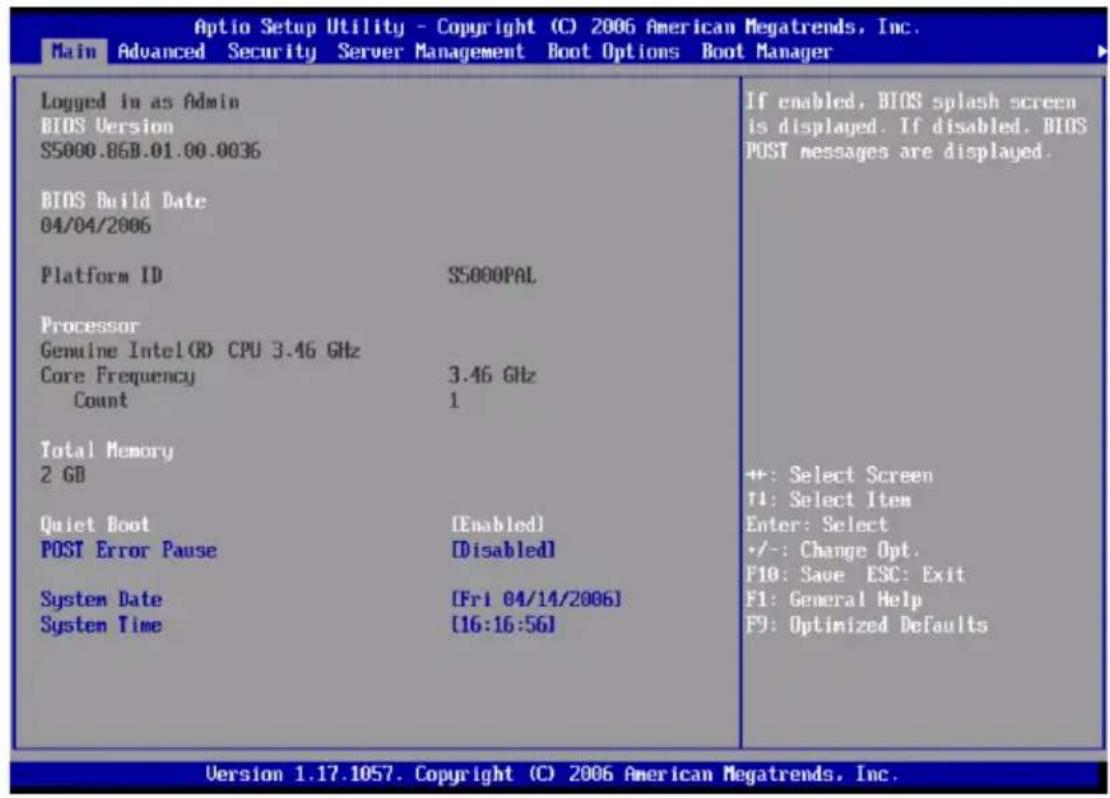
Parameter Description Option
BIOS Version Version of the BIOS.
BIOS Build Date
Date BIOS was created.
Parameter Description Option
| Processor Specification of the processor currently installed in the server. | ||
| Total Memory Indicates the size of the system memory. | ||
| Quiet Boot When Enabled, the BIOS splash screen is displayed during startup.When Disabled, the diagnostic messages are displayed during startup. | EnabledDisabled | |
| POST Error Pause | If Enabled, the system will pause if an error is found during POST. | DisabledEnabled |
| System Date Sets the date following the month-day-year format. Valid values for weekday, month, day, and year are:Month: Jan, Feb, Mar, Apr, May, Jun, Jul, Aug, Sep, Oct, Nov, DecDay: 1 to 31Year: 1998 to 2099 | ||
| System Time Sets the time following the hour-minute-second format. Valid values for hour, minute, and second are:Hour: 00 to 23Minute: 00 to 59Second: 00 to 59 | ||
Advanced
The Advanced menu contains parameter values that define how the system behaves on startup.

Warning! Be cautious in setting parameter values in the Advanced menu as any incorrect value may cause the system to malfunction.
Press Enter to enter the submenu screen of the parameters shown in the screen below.

Processor
The Processor submenu displays CPU settings such as type, actual speed, cache size and other CPU related settings.
| ProcessorCore Frequency 3.46 GHzSystem Bus Frequency 1.06 GHzHyperThreading Technology [Enabled]Enhanced Speedstep Technology [Enabled]Dual Core [Enabled]Virtualization Technology [Disabled]Execute Disable Bit [Enabled]Hardware Prefetcher [Enabled]Adjacent cache line prefetch [Enabled] | Enables or disables Intel® HyperThreading technology on the processor(s). Contact your OS vendor regarding OS support of this feature. | |
| Processor Re-Test [Disabled] | ||
| ► Processor 1 Information► Processor 2 Information | +: Select ScreenT4: Select ItemEnter: Select+/-: Change Opt.F10: Save ESC: ExitF1: General HelpF9: Optimized Defaults | |
Parameter Description Option
| Core Frequency Indicates the processor clock speed. | ||
| System Bus Frequency | Indicates the processor front side bus speed. | |
| Hyper Threading Technology | Enables or disables the Hyper-Threading Technology function of the processor. | EnabledDisabled |
| Enhanced Intel SpeedStep Technology | When set to Enabled, this feature allows the OS to reduce power consumption.When set to Disabled, the system operates at maximum CPU speed. | EnabledDisabled |
| Dual Core Enables or disables the secondary processor core. | EnabledDisabled | |
Parameter Description Option
| Virtualization Technology | Enables or disables the system to run multiple operating systems and applications in different partition. | Disabled Enabled |
| Execute Disable Bit | When Enabled, the processor disables code execution when a worm attempts to insert a code in the buffer preventing damage and worm propagation.When Disabled, the processor forces the Execute Disable Bit feature flag to always return to 0.Note: This parameter is hidden if the processor does not support this function. | Enabled Disabled |
| Hardware Prefetcher | Enables or disables the speculative prefetch unit within the processor(s).Note: Changing this feature may affect system performance. | Enabled Disabled |
| Adjacent Cache Line Prefetch | When Enabled, cache lines are fetched in pairs (even line + odd line)When Disabled, only current cache line required is fetched.Note: Changing this feature may affect system performance. | Enabled Disabled |
| Processor Re-Test | When Enabled, all processors will be activated and retested on the next boot. This option will be automatically reset to disable on the next boot. | Disabled Enabled |
| Processor # Information | Press Enter to access the Processor # Information submenu. |
Processor # Information
The screen below appears when you select the Processor #1 or 2 Information menu.

Memory
The Memory submenu displays the total amount of memory installed, the number of memory modules installed, and the current memory configuration.

Parameter Description
| Total Memory Indicates the total amount of onboard memory. The memory size is automatically detected by BIOS during the POST. If you install additional memory, the system automatically adjusts this parameter to display the new memory size. | |
| Effective Memory | Indicates the total effective memory installed in the server. |
| Current Configuration | Displays the current memory configuration. |
| Current Memory Speed | Indicates the speed of the memory module(s) installed in the server. |
Parameter Description
| Configure Memory RAS and Performance | Press Enter to access the Configure Memory RAS and Performance submenu. |
| DIMM information | Indicates the DIMM and DIMM slot status. |
Configure Memory RAS and Performance
The screen below appears when you select the Configure Memory RAS and Performance menu. This submenu allows you to view memory configuration details and configure the memory modules in the server.
| Optio Setup Utility - Copyright (C) 2006 American Megatrends, Inc. Advanced | ||
| Configure and View Memory RAS | If Auto, for 1066 MHz FSB CPU freq. all DIMMs set to 533. For 1333 MHz FSB CPU freq. all DIMMs set to 667 if all DIMMs 667 capable.If 533 selected, force all DIMMs to 533 regardless of CPU FSB freq.If 667 selected, force all DIMMs to 667 regardless of CPU FSB freq. if all DIMMs 667 capable.+: Select ScreenT4: Select ItemEnter: Select+/-: Change Opt.F10: Save ESC: ExitF1: General HelpF9: Optimized Defaults | |
| Capabilities | ||
| Memory Mirroring Possible | Yes | |
| Memory Sparing Possible | Yes | |
| Select Memory RAS Configuration | (RAS Disabled) | |
Parameter Description Option
Capabilities Displays the characteristics of the selected memory configuration.
Parameter Description Option
| MemoryMlrroringPossible | Indicates whether a mirrored configuration is possible with the current installed memory.If No is displayed, you may need to install more memory to meet the requirements of the selected configuration. | YesNo |
| MemorySparingPossible | Indicates whether a sparing configuration is possible with the current installed memory.If No is displayed, you may need to install more memory to meet the requirements of the selected configuration. | YesNo |
| Select MemoryRASConfiguration | Select a memory RAS configuration/option. | RASDisabledSparingMirroring |
ATA Controller
The ATA Controller submenu lets you define the parameter settings related to the hard disk(s).
![Optio Setup Utility - Copyright (C) 2006 American Megatrends, Inc. Advanced ATA Controller Onboard PATA Controller [Enabled] Onboard SATA Controller [Enabled] SATA Mode [Enhanced] AHCI Mode [Disabled] Configure SATA as RAID [Disabled] Primary IDE Master [Not Installed] Primary IDE Slave DU-2BE-N - A…](/content/2026/05/817800/images/73eecf394f36b2af74443d394d5e8600dbd12d461456bfcd3c3958e0e3cc9852.jpg)
| Parameter Description Option | ||
| Onboard PATA Controller | Enables or disables the integrated parallel ATA controller. | EnabledDisabled |
| Onboard SATA Controller | Enables or disables the integrated Serial ATA controller. | EnabledDisabled |
| SATA Mode When set to Enhanced, it will enable all SATA connectors as individual connectors.When set to Legacy, it will enable primary and secondary channels on SATA connectors. | EnhancedLegacy | |
Parameter Description Option
| AHCI Mode Enables or disables access to all six SATA connectors via the AHCI (Advanced Host Controller Interface) Option ROM. AHCI is an interface specification that allows the storage driver to enable advanced SATA features such as Native Command Queuing and hot plug.Note: Requires an AHCI aware OS. | DisabledEnabled | |
| Configure SATA as RAID | Enables or disables the software RAID technology Option ROM within the ESB2-E controller. | DisabledEnabled |
| Primary IDE Master | Indicates the controller that is set as primary master. | |
| Primary IDE Slave | Indicates the controller that is set as primary slave. | |
| SATA Port 0, 1, 2, 3 | Indicates the SATA HDD connected to the SATA connector. | |
Mass Storage
The Mass Storage submenu displays the status of the mass storage controller.
![Optio Setup Utility - Copyright (C) 2006 American Megatrends, Inc. Advanced Mass Storage SAS Controller [Enabled] SAS Option ROM [Enabled] Configure SAS as SW RAID [Disabled] ROMB Setup Activation Key Enable or Disable SAS Controller +: Select Screen F1: Select Item Enter: Select +/-: Change Opt. F1…](/content/2026/05/817800/images/a33286477b6b82980375563217884a814378107526578d50f28e60991c62b97f.jpg)
| Parameter Description Option | ||
| SAS Controller | Enables or disables the SAS controller. | EnabledDisabled |
| SAS Option ROM | If enabled, initializes the the embedded SAS device Option ROM. | EnabledDisabled |
| Configure SAS as SW RAID | Enables or disables the Embedded Server RAID Technology on the SAS connectors. | DisabledEnabled |
| ROMB setup Indicates if integrated RAID is enabled or not. | ||
| RAID Activation Key | Indicates if the RAID activation key is installed or not. | |
Serial Port
The Serial Port submenu lets you define the parameter settings for the system's serial port.
![Optio Setup Utility - Copyright (C) 2006 American Megatrends, Inc. Advanced Serial Port Serial A Enable [Enabled] Address [3F8] IRQ [4] Serial B Enable [Enabled] Address [2F8] IRQ [3] Enables or disables Serial A port. +: Select Screen +1: Select Items Enter: Select +/-: Change Opt. F10: Save ESC: E…](/content/2026/05/817800/images/1456f2073b64ca3ad1f6f85244c46cebde4858fae33d641685da4037fb642e60.jpg)
| Parameter Description Option | |
| Serial A Enable Enables or disables the onboard serial A port. | EnabledDisabled |
| Address Set the base I/O address for the serial A port. | 3F82F82E83E8 |
| IRQ Set the interrupt request line for the serial A port. | 43 |
| Serial B Enable Enables or disables the onboard serial B port. | EnabledDisabled |
| Address Set the base I/O address for the serial B port. | 2F8 |
| 3E8 | |
| 2E8 | |
| 3F8 | |
| IRQ Set the interrupt request line for the serial B port. | 3 |
| 4 | |
USB Configuration
The USB Configuration submenu allows you specify settings for USB devices.
![Optio Setup Utility - Copyright (C) 2006 American Megatrends, Inc. Advanced USB Configuration USB Devices Enabled: 3 Drives, 1 Keyboard, 1 Mouse, 1 Hub USB Controller [Enabled] Legacy USB Support [Enabled] Port 60/64 Emulation [Disabled] USB Mass Storage Device Configuration Device Reset timeout [20…](/content/2026/05/817800/images/d02d11a0e3f6f7ec75ca60aad838e654bdb98e4c1d6188e29227371a4f8071c9.jpg)
Parameter Description Option
USB Controller Enables or disables the USB controller. If disabled, all the USB controllers will be turned off and inaccessible to the OS.
Enabled
Disabled
Parameter Description Option
| Legacy USB Support | Enables or disables the support for legacy USB devices. | EnabledDisabledAuto |
| Port 60/64 Emulation | Enables or disables the I/O port 60/64h emulation support.This parameter is enabled for complete USB keyboard legacy support for non-USB aware OS. | EnabledDisabled |
| Device Reset Timeout | Select the number of seconds POST waits for the USB mass storage device after the start unit command. | 20 Sec10 Sec30 Sec40 Sec |
| Storage Emulation | When set to Auto, USB mass storage devices with less than 530 MB will be emulated as a floppy and the remaining as hard drives.The Forced FDD option can be used to force a formatted HDD to boot as a FDD. | AutoFloppyForced FDDCD-ROMHard Disk |
| USB 2.0 Controller | Sets the transfer rate at Hi Speed (480 Mbps) or Full Speed (12 Mbps). | EnabledDisabled |
PCI
The PCI submenu lets you specify settings that are related to the onboard controllers. It enables or disables the ROM scan of a device installed in the selected PCI slot. It also enables or disables posting of a 16-bit legacy ROM from the plug-in fiber channel card.
![Aptio Setup Utility - Copyright (C) 2006 American Megatrends, Inc. Advanced PCI PCI memory mapped I/O Space [2.5GB] Onboard Video [Enabled] Dual Monitor Video [Disabled] Onboard NIC ROM [Enabled] NIC1 MAC Address 000E0C4DD896 NIC2 MAC Address 000E0C4DD897 IO Acceleration Technology [Enabled] This se…](/content/2026/05/817800/images/6bad3b1b9d4af7ee1ecfb185ec60e57d5c33f12b9a546671aba8d79c7d4eb907.jpg)
| Parameter Description Option | ||
| PCI Memory Mapped IO Space | This selects the amount of memory that is reserved for PCI address space below 4GB for PCI devices. | 2.50 GB2.75 GB3.00 GB3.25 GB3.50 GB |
| Onboard Video Enables or disables the onboard VGA controller. | EnabledDisabled | |
| Dual Monitor Video | Select a graphic controller as a primary boot device.Note: This parameter will be disabled when the Onboard Video is set to Disabled. | DisabledEnabled |
Parameter Description Option
| Onboard NIC ROM | Enables or disables both channels of the embedded LAN.Note: If disabled, NIC1 and NIC2 cannot be used to boot the system. | EnabledDisabled |
| NIC 1 or 2 MAC Address | Indicates the media access control of the system's LAN controller. | |
| I/OAcceleration Technology | Enables or disables the onboard LAN's I/O Acceleration Technology. | EnabledDisabled |
System Acoustic and Performance Configuration
The System Acoustic and Performance Configuration submenu lets you set the system fan performance option.
![Aptio Setup Utility - Copyright (C) 2006 American Megatrends, Inc. Advanced System Acoustic and Performance Configuration Set Fan Profile [Performance] Altitude [301m - 900m] Select the Fan Control Profile that will be used to cool the system. +/-: Select Screen ↑↓: Select Item Enter: Select +/-: Ch…](/content/2026/05/817800/images/6d2a29859179421a7766aa3d6fbf3e5e68f855d9b63c0e5e08c6002428964491.jpg)
Parameter Description Option
| Set Fan Profile | Select the Fan Control Profile that will be used to cool the system. | Performance Acoustics |
| Altitude When set to less than 300 m (<= 980 ft), it will provide the best performance option for servers operating at or near sea level.When set to 301m - 900m (980 ft - 2950 ft), it will provide the best performance option for servers operating at moderate altitudes above sea level.When set to higher than 900m (>2950 ft), it will provide the best performance option for servers operating at high elevations above sea level. | 301 m - 900 m300 m or lessHigher than 900 m | |
Security
The Security menu allows you to safeguard and protect the system from unauthorized use by setting up access passwords.
| Main Advanced Security Server Management Boot Options Boot Manager | ||
| Administrator Password | Not Installed | Sets administrative password with maximum length of 7 characters. Cannot set user password until admin password is set. |
| User Password | Not Installed | |
| Admin Password | ||
| User Password | ||
| Front Panel Lockout | [Disabled] | |
Parameter Description Option
| Administrator Password | Prevents unauthorized access to the BIOS setup utility. | Not Installed Installed |
| User Password | Secures the system against unauthorized use. Once you set this password, you have to type it whenever you boot the system. User password is available only when an Administrator password is set. | Not Installed Installed |
| Administrator Password | Press Enter to change the Administrator password. | |
| User Password | Press Enter to change the User password. |
Parameter Description Option
| Front Panel Lockout | When Enabled, the front panel power and reset buttons will be locked. The power and reset operation must be controlled via system management interface. | Disabled Enabled |
To set an Administrator/User password
1. Use the up/down keys to highlight a password parameter (Set Administrator Password or Set User Password) then press Enter.
A password box will appear.
2 Type a password then press Enter.
The password may consist of up to seven alphanumeric characters (A-Z, a-z, 0-9).
3 Retype the password to verify the first entry then press Enter again.
After setting the password, the system automatically sets the chosen password parameter to Installed.
To change the Administrator/User password
1 Use the up/down keys to highlight either change password parameters (Change Administrator Password or Change User Password) then press Enter.
2 Type the original password then press Enter.
3 Type a new password then press Enter.
4 Retype the password to verify the first entry then press Enter again.
To remove the User password
1 Use the up/down keys to highlight the Clear User Password parameter then press Enter.
2 Enter the current password then press Enter.
3 Press Enter twice without entering anything in the new and confirm password fields.
After doing this, the system automatically sets the User password parameter to Not Installed.
Server Management
The Server Management submenu lets you specify the appropriate settings for the system's event handling function.
The system event log enables you to record and monitor events that occur in the system (e.g., system temperature changes, fan stops, over-temperature, over-voltage, fan failures, etc.).
![Aptio Setup Utility - Copyright (C) 2006 American Megatrends, Inc. Server Management Console Redirection Console Redirection [Disabled] Select the serial port over which console redirection should take place. +/-: Select Screen ↑↓: Select Item Enter: Select +/-: Change Opt. F10: Save ESC: Exit F1: G…](/content/2026/05/817800/images/fe3b702d744687de196ed651bd87434377c3e827b4ac8cb2df383a97800251dc.jpg)
Parameter Description Option
| Assert NMI on SERR | Enables or disables the PCI bus SERR (system error) support. | EnabledDisabled |
| Assert NMI on PERR | Enables or disables the PCI bus PERR (parity error) support.Note: This parameter is disabled when the NMI on SERR is disabled. | EnabledDisabled |
| Parameter Description Option | ||
| Resume on AC Power Loss | Defines the mode of operation if a power loss occurs.When set to Stay Off, the system remains off after power shutdown.When set to Last State, the system returns to the state it was prior to the AC power loss.When set to Reset, the system will turn on after power is restored. | Stay OffLast StateReset |
| Clear System Event Log | Deletes all events in the System Event Log. | DisabledEnabled |
| FRB-2 Enable When Enabled, the BMC (Baseboard Management Controller) will reset the system if BIOS does not complete the POST before the FRB-2 (Fault Resilient Booting) timer expires. | EnabledDisabled | |
| O/S Boot Watchdog Timer | Enables or disables the BIOS timer. It helps to determine if the OS has loaded successfully or followed the OS boot watchdog timer policy.The BIOS timer can only be shut off using the management software after the OS loads. | DisabledEnabled |
| Console Redirection | Press Enter to access the Console Redirection submenu. | |
| System Information | Press Enter to access the System Information submenu. | |
Console Redirection
The Console Redirection submenu lets you enable or disable the console redirection parameters for server management tasks over the serial port.
![Aptio Setup Utility - Copyright (C) 2006 American Megatrends, Inc. Server Management Console Redirection Console Redirection [Disabled] Select the serial port over which console redirection should take place. +/-: Select Screen ↑↓: Select Item Enter: Select +/-: Change Opt. F10: Save ESC: Exit F1: G…](/content/2026/05/817800/images/86acedd418f1af35fc1cace6f20547a2aee45158cd5c03d353ca52a246153a31.jpg)
System Information
The System Information submenu displays basic information about the server unit.

Boot Options
The Boot Options menu allows you to set the network device priority during system bootup. It also displays information about the installed storage devices.
![Aptio Setup Utility - Copyright (C) 2006 American Megatrends, Inc. Main Advanced Security Server Management Boot Options Boot Manager Boot Timeout 10 Boot Option #1 [Primary Slave CDROM] Boot Option #2 [AMI Virtual F1...] Boot Option #3 [IBA GE Slot 0700 v...] Boot Option #4 [(Bus 04 Dev OE)PCI...]…](/content/2026/05/817800/images/830ef2bfb6e8be8bb0317e5e8ba101bc55e52a3615eb73a5c8196e51287470f3.jpg)
Parameter Description Option
| Boot Timeout Sets the automatic boot time-out value. | 10 |
| Note: A value of 65535 will disable the timeout completely. | 1 |
| Boot Option 1 Sets the device from which the system will first attempt to boot up. | |
| Boot Option 2 Sets the device from which the system will attempt to boot up when the first attempt failed. | |
| Boot Option 3, 4, or 5 | Sets the device from which the system will attempt to boot up when the first, second, third, and fourth attempts failed. |
Parameter Description Option
CD-ROM Order Specifies the boot device priority sequence for available CD drives.
Floppy Order Specifies the boot device priority sequence for available FDD.
Network Specifies the boot device priority Device Order sequence for available network devices.
Network Device #
The Network Device # submenu lets you specify the preferred settings for system bootup.
![Aptio Setup Utility - Copyright (C) 2006 American Megatrends, Inc. Boot Options BEU Device #1 [IBA GE Slot 0700 v...] BEU Device #2 [IBA GE Slot 0701 v...] Sets the boot order of Bootstrap Entry Vector Devices. BEU devices are devices which have a bootable Option ROM such as add-in or onboard NICs.…](/content/2026/05/817800/images/40330fe9e6fb8fa602841f249414cd66baa9fc3843fd4537cd664d03c6032a78.jpg)
Parameter Description Option
| Network Device # | Sets the boot order of the Bootstrap Entry Vector Devices. Network devices are devices which have a bootable Option ROM such as a network card or onboard network controller. |
Boot Manager
The Boot Manager menu lets you set the device priority during system bootup. The server will attempt to boot from the first device on the list. If the first device is not available, it will continue down the list until it reaches an available device. Select a boot option, then press Enter.
![Aptio Setup Utility - Copyright (C) 2006 American Megatrends, Inc. Main Advanced Security Server Management Boot Options Boot Manager. Launch EFI Shell. Primary Slave CDROM. AMI Virtual Floppy 1.00. IBA GE Slot 0700 v1236. (Bus 04 Dev OE) PCI RAID Adapter. [EFI Shell]. Boot system using selected ite…](/content/2026/05/817800/images/6f9ed0f369fc7a48e6d4b953bbe8784f82cd784eaef94c04a8991cdaf9c8d0d7.jpg)
Error Manager
The Error Manager menu lets you view the system POST errors detected by the system.

Exit
The Exit menu displays the various options to quit from the BIOS setup. Highlight any of the exit options then press Enter.

Parameter Description
Save Changes and Exit Saves changes made and close the BIOS setup.
Discard Changes and Exit Discards changes made and close the BIOS setup.
Save Changes Saves changes made in the BIOS setup.
Discard Changes Discards all changes made in the BIOS setup.
Restore Defaults Loads the default settings for all BIOS setup parameters. Setup defaults are quite demanding in terms of resources consumption. If you are using low-speed memory chips or other kinds of low-performance components and you choose to load these settings, the system might not function properly.
Parameter Description
| Save as User Default Values | Saves current values to be restored later. |
| Restore User Default Values | Restores previously saved user default values. |
Upgrading the BIOS
The upgrade utility allows you to upgrade the BIOS in the flash memory. To prepare to upgrade the BIOS, you need to record the current BIOS settings and download the BIOS image file to a temporary folder on your hard drive or a USB flash memory device.
To record the current BIOS settings:
1. Run BIOS setup. See "Entering BIOS setup" on page 92. 2. Write down the current settings in the BIOS setup utility.
To download the BIOS image file:
Download the image file to a temporary folder on your hard drive or a USB flash memory device.

Note: Review the instructions and release notes that are provided in the Readme file distributed with the BIOS image file before attempting a BIOS upgrade. The release notes contain critical information regarding jumper settings, specific fixes, or other information to complete the upgrade.
To upgrade the BIOS:
Follow the instructions in the Readme file that came with the BIOS upgrade. When the update completes, remove the bootable media from which you performed the upgrade.

Note: Do not power down the system during the BIOS update process. The system will reset automatically when the BIOS update process is completed. You may encounter a CMOS checksum error or other problem after reboot. If this happens, shut down the system and boot it again. CMOS checksum errors require that you enter Setup, check your settings, save your settings, and exit Setup.
5 Troubleshooting
This chapter provides possible solutions for specific problems. If you cannot correct the problem, contact your local Acer representative or authorized dealer for assistance.
Troubleshooting
This chapter helps you identify and solve problems that might occur while you are using the system.
For any issue, first ensure that you are using the latest firmware and files. Firmware upgrades include updates for BIOS, the BMC, FRUSDR, and the HSC. In addition to the server firmware and files, make sure to update any drivers used for components you have installed in your system, such as video drivers, network drivers and SAS drivers.
If you are unable to resolve your server problems on your own, contact your dealer or local Acer representative for assistance.
Resetting the system
Before going through in-depth troubleshooting, attempt first to reset the system using one of the methods below.
To do this Press
| Soft boot reset to clear the system memory and reload the operating system. | Ctrl+Alt+Del |
| Clear system memory, restart POST, and reload the OS. Reset button* | |
| Cold boot reset. Turn the system power off and then on.This clears system memory, restarts POST, reloads the OS and halts power to all peripherals. | Power button |
* Available on system with full-function control panel configuration.
Problems following initial system installation
Problems that occur at initial system startup are usually caused by an incorrect installation or configuration. Hardware failure is a less frequent cause. If the problem you are experiencing is with a specific software application, see "There is problem with the application software" on page 136.
First steps checklist
- AC power available at the wall outlet?
- Are the power supplies plugged in? Check the AC cable(s) on the back of the chassis and at the AC source.
- Are all cables correctly connected and secured?
- Is the processor fully seated in the socket on the mainboard?
- Are all standoffs in the proper location and not touching any components, causing a potential short?
- Are all expansion boards fully seated in their slots on the PCI riser assembly?
- Are all jumper settings on the mainboard correct?
- Are all jumper and switch settings on expansion boards and peripheral devices correct? If applicable, ensure that there are no conflicts - for example, two expansion boards sharing the same interrupt.
- Are all peripheral devices installed correctly?
- Are all device drivers properly installed?
- Are the configuration settings made in the BIOS setup correct?
- Is the operating system properly loaded? Refer to the operating system documentation.
- Did you press the system power button on the control panel to turn the server on (power indicator should be lit)?
- Is the system power cord properly connected to the system and plugged into an outlet for 100-127 V or 200-240 V?
- Are all integrated components from the tested components lists? Check the tested memory, and chassis lists, as well as the supported hardware and operating system list.
Hardware diagnostic testing
This section provides a more detailed approach to identifying a hardware problem and locating its source.

Caution! Before disconnecting any peripheral cables from the system, turn off the system and any external peripheral devices. Failure to do so can cause permanent damage to the system and/or the peripheral device.
1 Turn off the system and all external peripheral devices. Disconnect each device from the system, except for the keyboard and the video monitor. 2 Make sure the system power cord is plugged into a properly grounded AC outlet. 3 Make sure your video display monitor and keyboard are correctly connected to the system. Turn on the video monitor. Set its brightness and contrast controls to at least two thirds of their maximum ranges (see the documentation supplied with your video display monitor). 4 If the operating system normally loads from the hard disk drive, make sure there is no disc in the optical drive. 5 If the power indicator does light, attempt to boot from a diskette or disc. 6 Turn on the system. If the power indicator on the control panel does not light, see "Power indicator does not light" on page 132.
Verifying proper operation of key system lights
As POST determines the system configuration, it tests for the presence of each mass storage device installed in the system. As each device is checked, its activity light should turn on briefly. Check if the HDD activity indicator lights briefly? If not, see "HDD activity indicator does not light." on page 133.
Confirming loading of the OS
Once the system boots up, the operating system prompt appears on the screen. The prompt varies according to the operating system. If the operating system prompt does not appear, see "No Characters Appear on Screen" on page 137.
Specific problems and corrective actions
The following contains specific problems that may arise during the use of your server. Possible solutions are listed for each problem.
Power indicator does not light.
Do the following:
- Make sure the power button on the control panel is turned on.
- Make sure the power cord is connected correctly.
- Make sure that the wall outlet has power. Test it by plugging another device.
- Remove all expansion cards and see if the system boots. If successful, add the cards back in one at a time with a reboot between each addition.
- Make sure the memory modules comply with the system requirements.
- Make sure the memory modules have been populated according to the system requirements.
- Remove and reseat the memory modules.
- Make sure the CPU comply with the system requirements.
- Make sure the CPU is populated according to the system requirements.
- Remove and reseat the CPU.
- Make sure the chassis standoffs are installed on the corresponding mounting holes. Misplaced standoffs may have contact to the pins on the bottom of the mainboard and cause a short.
Server boot does not complete POST
Do the following:
- Make sure the CPU is properly seated.
- Check the BIOS release notes to ensure the BIOS installed on the platform supports the stepping and the family of processors currently installed.
Server does not recognize all of the processors installed
Do the following:
- Make sure the CPU is properly seated.
- Make sure the CPU complies with the system requirements.
- Make sure the CPU is populated according to the system requirements.
- Remove and reseat the CPU.
HDD activity indicator does not light.
Do the following:
- Make sure the drive is not disabled in the BIOS setup utility.
- Make sure the drive is compatible.
- Make sure you have not exceeded the power budget for the server.
ODD (optical disk drive) activity indicator does not light.
Do the following:
- Make sure the ODD and plastic guide are properly connected. See page 54 for detailed installation instructions.
- Check that relevant switches and jumpers on the drive are set correctly.
- Check that drive is properly configured.
- Check that onboard IDE controller is enabled in the BIOS setup.
ODD tray cannot be ejected.
- Insert the tip of a paperclip into the small hole on the ODD drive. Slowly pull the tray out from the drive until the tray is fully extended then remove the disc.
ODD drive cannot read a disc.
Do the following:
- Make sure you are using the correct type of disc.
- Make sure the disc is properly seated in the drive.
- Make sure the disc is unscratched.
- Make sure ODD and plastic guide are properly connected.
Hard drives are not recognized.
Do the following:
- Make sure the disk controller is not disabled in the BIOS setup.
- Make sure the drive is compatible.
Bootable CD drive is not detected.
Make sure the Boot Options setting in the BIOS setup utility is configured to allow the CD drive to be the first bootable device.
New memory modules installed are not detected.
Do the following:
- Make sure the memory modules are properly seated on the DIMM slots.
- Make sure the memory modules comply with the system requirements.
- Make sure the memory modules have been populated according to the system requirements.
External device connected to a USB connector does not work.
Do the following:
- Reduce the number of external devices connected to a USB hub.
- Refer to the documentation that came with the device.
Server cannot connect to a network
- Make sure the network cable is securely attached to the correct connector at the system rear panel.
- Try a different network cable.
- Make sure you are using the correct and the current drivers.
- Make sure the driver is loaded and the protocols are bound.
Problems with the network
Network status indicator does not light.
Do the following:
- Check the cabling and network equipment to make sure that all cables are properly connected.
- Reinstall the network drivers.
- Try another port or hub on the switch.
Diagnostics pass but the connection fails.
Make sure the network cable is securely attached.
The controller stopped working when an adapter was installed.
- Make sure the cable is connected to the port from the onboard network controller.
- Make sure the other adapter supports shared interrupts and your OS supports shared interrupts.
- Try reseating the adapter.
The adapter stopped working without apparent cause.
- Try reseating the adapter first, then try a different slot if necessary.
- The network files driver may be corrupt or deleted. Delete and reinstall the drivers.
- Run the diagnostics.
Network activity indicator does not light.
Do the following:
- Make sure the correct network drivers are loaded on the system. • Network might be idle. Try accessing the server.
Server hangs when the drivers are loaded.
Change the PCI interrupt settings.
There is problem with the application software.
Do the following:
- Verify that the software is properly configured for the system. Refer to the software installation and operation documentation for instructions on setting up and using the software.
- Try a different version of the software to see if the problem is with the copy you are using.
- Make sure all cables are properly connected.
- If other software runs correctly on the system, contact your vendor about the defective software.
No characters appear on the screen.
Check the following:
- Is the keyboard functioning? Test it by turning the "Num Lock" function on and off to make sure the Num Lock light is functioning.
- Is the video monitor plugged in and turned on? If you are using a switch box, is it switched to the correct system?
- Are the brightness and contrast controls on the video monitor properly adjusted?
- Is the video monitor signal cable properly installed?
- Does this video monitor work correctly if plugged into a different system?
- Is the onboard video controller enabled in the BIOS setup?
- Remove all expansion cards and see if the system boots. If successful, add the cards back in one at a time with a reboot between each addition.
- Make sure the memory modules comply with the system requirements.
- Make sure the memory modules have been populated according to the system requirements.
- Remove and reseat the memory modules.
- Make sure the CPU complies with the system requirements.
- Make sure the CPU is populated according to the system requirements.
If you are using a video controller board, do the following:
1. Verify that the video works using the onboard video controller.
2. Verify that the video controller board is fully seated in the mainboard connector.
3. Reboot the system for changes to take effect.
4. If there are still no characters on the screen after you reboot the system and POST emits a beep code, write down the beep code you hear. This information is useful for your service representative.
5. If you do not receive a beep code and characters do not appear, the video display monitor or video controller may have failed. Contact your service representative or authorized dealer for help.
Characters are distorted or incorrect.
Check the following:
- Are the brightness and contrast controls properly adjusted on the video monitor? Refer to the documentation that came with the video monitor.
- Are the video monitor's signal and power cords properly connected?
- Is the video monitor working correctly when plugged into a different system?
System cooling fan does not rotate properly.
If the system cooling fan is not operating properly, it is an indication of possible system component failure.
Check the following:
- Is the power indicator lit? If not, see "Power indicator does not light." on page 132.
- Have any of the fan motors stopped? Use the server management subsystem to check the fan status.
- Have your fans speeded up in response to an overheating situation?
- Have your fans speeded up in response to a fan that has failed?
Error beep codes
BIOS POST error beep codes
The following table lists the POST error beep codes. Prior to system video initialization, BIOS uses these beep codes to inform you of error conditions. The beep code occurs only when a critical error occurs or when the BIOS fails to boot to the operating system. Not all error conditions are supported by the BIOS beep codes.
| Number of Beeps | Description |
| 1, 2, or 3 Memory error | |
| 4 – 7 or 9 – 11 | Fatal error indicating a possible serious system problem |
| 8 Video error | |
Troubleshooting BIOS POST error beep codes
The following table lists the possible beep codes that may occur while using the system and is followed by solutions to the situation.
Number of beeps
Troubleshooting action
1, 2, or 3 • Make sure the memory modules are properly seated on the DIMM slots.
- Make sure the memory modules comply with the system requirements.
- Make sure the memory modules have been populated according to the system requirements.
4-7, 9-11 • Indicates a fatal error. Consult your dealer or local Acer representative for assistance.
- If beep codes are generated even when all PCI cards are absent, consult your system manufacturer's technical support.
- Check for a malfunctioning expansion card. If beep codes are not generated when all expansion cards are absent, one of the expansion cards is causing the malfunction. Insert the cards back into the system, booting the system between each card addition, until the beeps occur again to reveal the malfunctioning card.
8 • Make sure the video adapter is properly seated on the expansion slot.
- If the video adapter is an integrated part of the mainboard, the board may be faulty.
ARMC/3 module error beep codes
In addition to the beep codes above, additional beep codes are provided if an ARMC/3 module is installed. The management modules provide the following additional beep codes.
| Beep Code | Reason for the beeps and action to take |
| 1 Control panel CMOS clear has been initiated. | |
| 1-5-1-1 Processor failure. Reseat or replace the failed processor. | |
| 1-5-2-1 No processor is installed or the CPU 1 socket is empty. Reseat or replace the failed processor. | |
| 1-5-2-3 Processor configuration error or CPU 1 socket is empty. Reseat or replace the failed processor. In a two-processor system, make sure the processors are identical. | |
| 1-5-2-4 Front side bus selects configuration error | |
| 1-5-4-2 AC power unexpectedly lost | |
| 1-5-4-3 Chipset control failure | |
| 1-5-4-4 Power control failure | |
Diagnostic POST code LEDs
During the system boot process, BIOS executes a number of platform configuration processes, each of which is assigned a specific hex code number. As each configuration routine is started, BIOS will display the given POST code to the diagnostic POST code LEDs found on the rear of the mainboard. To assist in troubleshooting a system hang during the POST process, the diagnostic LEDs can be used to identify the last POST process to be executed.
Each POST code will be represented by a combination of colors from the four LEDs. The LEDs are capable of displaying three colors: green, red, and amber. Each bit in the upper nibble is represented by a red LED and each bit in the lower nibble is represented by a green LED. If both bits are set in the upper and lower nibbles then both red and green LEDs are lit, resulting in an amber color. If both bits are clear, then the LED is off.
Diagnostic LED placement diagram![graph LR A["Back edge of server board"] --> B["USB Port"] A --> C["USB Port"] B --> D["Diagnostic LEDs"] C --> D D --> E["LSB MSB"] D --> F["Terminal"] style A fill:#f9f,stroke:#333 style B fill:#ccc,stroke:#333 style C fill:#ccc,stroke:#333 style D fill:#fff,stroke:#333 style E fill:#fff,stroke:#33…](/content/2026/05/817800/images/3575fc81fca06e1a0b462249996ee12f330d592321008bf67332bfae3014441f.jpg)
The following table lists the possible POST codes that may be displayed on the Diagnostic POST code LEDs during system initialization.
| Checkpoint code | Diagnostic LED Decoder | |
| G=Green, R=Red, A=Amber | Description | |
| MSB LSB | ||
Host Processor
| 0x10h OFF OFF R Power-on initialization of the host processor (bootstrap processor) |
| 0x11h OFF OFF A Host processor cache initialization (including AP) |
| 0x12h OFF G R Starting application processor initialization |
| Checkpoint code | Diagnostic LED DecoderG=Green, R=Red, A=AmberMSB LSB | Description |
| 0x13h OFF OFF G A SMM initialization | ||
| Chipset | ||
| 0x21h OFF OFF R G Initializing a chipset component | ||
| Memory | ||
| 0x22h OFF OFF A OFF Reading configuration data frommemory (SPD on DIMM) | ||
| 0x23h OFF OFF A G Detecting presence of memory | ||
| 0x24h OFF G R OFF Programming timing parameters inthe memory controller | ||
| 0x25h OFF G R G Configuring memory parameters inthe memory controller | ||
| 0x26h OFF G A OFF Optimizing memory controllersettings | ||
| 0 x 2 7 h O F F G A G I | ||
| 0x28h G OFF R OFF Testing memory | ||
| PCI Bus | ||
| 0x50h OFF R OFF R Enumerating PCI busses | ||
| 0x51h OFF R OFF A Allocating resources to PCI busses | ||
| 0x52h OFF R G R Hot Plug PCI controllerinitialization | ||
| 0x53h OFF R G A Reserved for PCI bus | ||
| 0x54h OFF A OFF R Reserved for PCI bus | ||
| 0x55h OFF A OFF A Reserved for PCI bus | ||
| 0x56h OFF A G R Reserved for PCI bus | ||
| 0 x 5 7 h O F F A G A R | ||
| USB | ||
| 0x58h G R OFF R Resetting USB bus | ||
| 0x59h G R OFF A Reserved for USB devices | ||
n i
e s
| Checkpoint code | Diagnostic LED DecoderG=Green, R=Red, A=Amber | Description |
| MSB LSB | ||
| ATA / ATAPI / SATA | ||
| 0x5Ah G R G R Resetting PATA / SATA bus and all devices | ||
| 0x5Bh G R G A Reserved for ATA | ||
| SMBUS | ||
| 0x5Ch G A OFF R Resetting SMBUS | ||
| 0x5Dh G A OFF A Reserved for SMBUS | ||
| Local Console | ||
| 0x70h OFF R R R Resetting the video controller | ||
| 0x71h OFF R R A Disabling the video controller | ||
| 0x72h OFF R A R Enabling the video controller | ||
| Remote Console | ||
| 0x78h G R R R Resetting the console controller | ||
| 0x79h G R R A Disabling the console controller | ||
| 0x7Ah G R A R Enabling the console controller | ||
| Keyboard (PS/2 or USB) | ||
| 0x90h R OFF OFF R Resetting the keyboard | ||
| 0x91h R OFF OFF A Disabling the keyboard | ||
| 0x92h R OFF G R Detecting the presence of the keyboard | ||
| 0x93h R OFF G A Enabling the keyboard | ||
| 0x94h R G OFF R Clearing keyboard input buffer | ||
| 0x95h R G OFF A Instructing keyboard controller to run Self Test (PS/2 only) | ||
| Mouse (PS/2 or USB) | ||
| 0x98h A OFF OFF R Resetting the mouse | ||
| 0x99h A OFF OFF A Detecting the mouse | ||
| 0x9Ah A OFF G R Detecting the presence of mouse | ||
| Checkpoint code | Diagnostic LED DecoderG=Green, R=Red, A=AmberMSB LSB | Description |
| 0x9Bh A OFF G A Enabling the mouse | ||
| Fixed Media | ||
| 0xB0h R OFF R R Resetting fixed media device | ||
| 0xB1h R OFF R A Disabling fixed media device | ||
| 0xB2h R OFF A R Detecting presence of a fixedmedia device (IDE hard drivedetection, etc.) | ||
| 0xB3h R OFF A A Enabling / configuring a fixedmedia device | ||
| Removable Media | ||
| 0xB8h A OFF R R Resetting removable media device | ||
| 0xB9h A OFF R A Disabling removable media device | ||
| 0xBAh A OFF A R Detecting presence of a removablemedia device (IDE CDROMdetection, etc.) | ||
| 0xBCh A G R R Enabling/configuring a removablemedia device | ||
| Boot Device Selection | ||
| 0xD0 R R OFF R Trying boot device selection | ||
| 0xD1 R R OFF A Trying boot device selection | ||
| 0xD2 R R G R Trying boot device selection | ||
| 0xD3 R R G A Trying boot device selection | ||
| 0xD4 R A OFF R Trying boot device selection | ||
| 0xD5 R A OFF A Trying boot device selection | ||
| 0xD6 R A G R Trying boot device selection | ||
| 0 x D 7 R A G A T r y i | ||
| 0xD8 A R OFF R Trying boot device selection | ||
| 0xD9 A R OFF A Trying boot device selection | ||
| 0XDA A R G R Trying boot device selection | ||
n g
| Checkpoint code | Diagnostic LED DecoderG=Green, R=Red, A=AmberMSB LSB | Description |
| 0xDB A R G A Trying boot device selection | ||
| 0xDC A A OFF R Trying boot device selection | ||
| 0xDE A A G R Trying boot device selection | ||
| 0xDF A A G A Trying boot device selection | ||
| Pre-EFI Initialization (PEI) Core | ||
| 0xE0h R R R OFF Started dispatching earlyinitialization modules (PEIM) | ||
| 0xE2h R R A OFF Initial memory found, configured,and installed correctly | ||
| 0xE1h R R R G Reserved for initialization moduleuse (PEIM) | ||
| 0xE3h R R A G Reserved for initialization moduleuse (PEIM) | ||
| Driver Execution Environment (DXE) Core | ||
| 0xE4h R A R OFF Entered EFI driver execution phase(DXE) | ||
| 0xE5h R A R G Started dispatching drivers | ||
| 0xE6h R A A OFF Started connecting drivers | ||
| DXE Drivers | ||
| 0xE7h R A A G Waiting for user input | ||
| 0xE8h A R R OFF Checking password | ||
| 0xE9h A R R G Entering BIOS setup | ||
| 0xEAh A R A OFF Flash update | ||
| 0xEEh A A A OFF Calling Int 19. One beep unlesssilent boot is enabled. | ||
| 0xEFh A A A G Unrecoverable boot failure / S3resume failure | ||
| Runtime Phase/EFI Operating System Boot | ||
| 0xF4h R A R R Entering Sleep state | ||
| 0xF5h R A R A Exiting Sleep state | ||
| Checkpoint code | Diagnostic LED Decoder | Description | ||||||||
| G=Green, R=Red, A=Amber | ||||||||||
| MSB LSB | ||||||||||
| 0 | x | F | 8 | h | A | R | R | R | O | p |
| to close boot services (Exit Boot Services has been called) | ||||||||||
| 0xF9h A R R A Operating system has switched to virtual address mode (Set Virtual Address Map has been called) | ||||||||||
| 0xFAh A R A R Operating system has requested the system to reset (Reset System has been called) | ||||||||||
| Pre-EFI Initialization Module (PEIM)/Recovery | ||||||||||
| 0x30h OFF OFF R R Crisis recovery has been initiated because of a user request | ||||||||||
| 0x31h OFF OFF R A Crisis recovery has been initiated by software (corrupt flash) | ||||||||||
| 0x34h OFF G R R Loading crisis recovery capsule | ||||||||||
| 0x35h OFF G R A Handing off control to the crisis recovery capsule | ||||||||||
| 0 | x | 3 | F | h | G | G | A | A | U | n |
Appendix A: Acer Altos R520 rack installation guide
This appendix shows you how to set up the Acer Altos R520 server in a rack mount configuration.
Setting up the system rack

Important! Observe the electrostatic discharge (ESD) precautions indicated on page 39 when performing the following procedures. Do not attempt the procedures described in the following sections unless you are a qualified technician.
Equipment rack precautions
Follow the rack manufacturer's safety and installation instructions for proper rack installation.
The following additional rack safety installation measures should be considered:
- Anchor the equipment rack
The equipment rack must be anchored to an unmovable suitable support to prevent the rack from falling over when one or more systems are fully extended out of the rack assembly. You must also consider the weight of any other devices installed in the rack assembly. The equipment rack must be installed according to the manufacturer's instructions.
- Main AC power disconnect
You are responsible for installing an AC power disconnect for the entire rack unit. This main disconnect must be readily accessible, and it must be labeled as controlling power to the entire unit, not just to the system(s).
- Earth ground the rack installation
To avoid the potential for an electrical shock hazard, the rack assembly itself must be suitably earth grounded, according to your local regional electrical codes. This typically will require the rack to have its own separate earth ground. We recommend you consult your local approved electrician.
• Elevated operating ambient temperature
The maximum operating temperature of the system is 35°C (95°F). Careful consideration should be given to installing the system in an environment compatible with the 35°C (95°F) maximum ambient temperature.
- Reduced airflow
The amount of airflow required for the safe operation of the equipment should not be compromised when installing the system in a rack.
- Mechanical loading
Exercise care when mounting the system in a rack to avoid any accidents.
- Circuit overloading
Appropriate consideration should be given when connecting the supply circuit to the system to avoid any circuit overload. The system name plate rating should be used when addressing concerns about circuit overload.
System rack installation
The Acer Altos R520 server should be mounted into a rack. A tool-less rack rail and CMA (cable management arm) kit is available for installing system to a rack cabinet.
The figure below shows the server in a rack-mount position.

Vertical mounting hole pattern
The four vertical rails of the system rack contain mounting holes arranged in a manner shown in the figure below:

The system occupies 1U in the rack. Count the U positions and hole numbers from the bottom up.
The distance from the center of two holes with closer spacing to the center of the next pair is equivalent to 1U.

Note: The unit of measurement used in this guide is "U" (1U = 1.75 inches or 44.45 mm). The total sum of the heights of all components in the rack measured in "U" cannot exceed the height of the rack. For more information, refer to the documentation that came with the system rack.
When installing components, you must start your measurement from the center of the two holes with closer spacing. Otherwise, the screw holes on the component may not match those on the rack.
Installing the system into the rack

Caution! To minimize the chances of injuries, make sure that two or more people help in installing the server.
To install the system into a four-post rack
1 Remove the inner rails from the mounting rails.
(1) Extend the inner rail from the mounting rail until the rail release latch clicks. (2) Depress the release latch (A) and slip the inner rail out (B).

(3) Do the same thing to the other mounting rail.

Caution! To avoid personal injury, care should be taken when pressing the inner rail release latches and sliding the component into the rack.
2 Attach the inner rails to both sides of the server.
Align the screw holes of the inner rail to the server screws (A), then slide rails to the left until the rails lock into place with an audible click (B).

3 Install the mounting rails to the rack posts.
(1) Determine the vertical position in the rack. Refer to "Vertical mounting hole pattern" on page 154 for more information. (2) Align and insert the mounting rails into the rack posts' mounting holes (A). (3) Make certain the proper mounting holes on rack post are selected. (4) Use two metal screws supplied with the kit to secure the front and rear mounting rail to the rack (B). (5) Do the same thing to the other mounting rail.

(6) Fully extend the mounting rails on the rack.

4 Install the server into the rack.

Caution! To avoid personal injury, care should be taken when pressing the inner rail release latches and sliding the component into the rack.
(1) Carefully align the inner rails attached to the server with the fully extended mounting rails on the rack. (2) Press the release latch on both sides of the server (A). (3) Insert the inner rails into the mounting rails, then push the server into the rack until you hear a click sound (B). (4) Secure the server to the rack using two metal screws (C).

5 Attach the CMA (cable management arm) to the rear of the server.
The CMA allows you to tie-wrap all cables to and from the system. As you slide the system in and out of the rack, the CMA collapses and extends, keeping the cables untangled and attached to the system.
(1) Insert the smaller CMA extension into the rear of the left inner rail (A1). (2) Insert the larger CMA extension into the rear of left mounting rail (A2). (3) Insert the CMA extension connector into the rear of the right mounting rail (B1). (4) Insert the CMA arm connector into the blue plastic cutout on the CMA extension connector (B2). (5) Attach the cable clips into the appropriate mounting holes in the CMA (C).

(6) Connect the power, peripheral and networking cables into their appropriate ports. Refer to "Connecting peripherals" on page 32 for detailed instructions.
(7) Route all cables through the cable clips.

Appendix B: RAID configuration
This appendix gives an overview of the different RAID configuration that you can use to configure RAID settings for the system hard drives.
Configuring integrated SAS RAID
This section briefly shows how to create RAID volume with integrated SAS RAID when the hardware RAID components: RAID activation key and RAID cache, are installed.
Load BIOS default setting
1 Power on the server to start the system POST (Power On Self Test) process. During boot up, press F2 to enter the BIOS setup screen.
2 Press F9 to load BIOS default setting and press F10 save the configuration changes and exit setup.
Enter the integrated SAS RAID Configuration Utility
When you see the RAID Controller BIOS Version information shows on the screen during the POST (Power-On Self Test), press Ctrl+G to enter the Intel RAID BIOS Console Virtual Configuration.
When the Adapter Selection page displayed on the screen, please click on Start to continue.
Loading Factory Default Setting
1 In the left panel, select Adapter Properties. The current adapter settings will be listed. Click Next to change the setting. 2 Change the setting of Set Factory Defaults from No to Yes, then click Submit. 3 Press Ctrl+Alt+Del to reboot the server.
Creating and Initializing a RAID Volume
1 In the left panel, select Configuration Wizard. 2 Select Add Configuration (default) and click Next. 3 Select Custom Configuration (default) and click Next. 4 Select the drives you want to add to the array using the Ctrl key. Click Accept DG, then Next.
5 Select the RAID level you want to configure. Create the logical volume by specifying the size at Select Size, and click Accept to create the logical volume. 6 The RAID volume is created; click Accept and Yes to save the configuration. 7 Select Fast Initialize and click Go to initialize the new logical drives. You will see all the logical drives listed. 8 Click Home to return to the configuration menu. 9 Select Exit, click Yes, and press Ctrl+Alt+Del to reboot the system.
Now you can reboot the system and install the operating system.
Assigning a Hot Spare Disk
1 Insert an additional SAS HDD. 2 Enter the Intel RAID BIOS Console Virtual Configuration. 3 Select a free disk marked as UNCONF GOOD and listed under Physical Drives. 4 Select Make Global Dedicated HSP or Make Dedicated DSP and click Go. 5 Click Home to return to the configuration menu. You will see the disk marked as Hotspare in pink and listed under Physical Drives.
Configuring the Integrated SAS SW RAID
This section briefly shows how to create a RAID 1 (mirror) volume with the integrated SAS SW RAID function.
Load BIOS Default Setting
1 Power on the server to start the system POST (Power On Self Test) process. During boot, press F2 to enter the BIOS setup screen.
2 Press F9 to load BIOS default settings, and press F10 to save the configuration changes and exit setup.
Enable Integrated SAS SW RAID Function
1 In the BIOS Setup Utility, move the cursor to Advanced. Then select Mass Storage Controller and press Enter.
2 Move the cursor to Configure SAS as SW RAID and press Enter to change the Options to Enabled.
3 Press F10 to save the configuration changes and exit setup.
Enter the integrated SAS SW RAID Configuration Utility
When you see the Intel Embedded Server RAID Technology II information on the screen during the POST (Power-On Self Test), press Ctrl+E to enter the Embedded RAID II Configuration Utility.
Loading integrated SAS SW RAID default setting
1 Select Objects from the Management menu.
2 Select Adapter from Objects. The selectable adapter will be listed.
3 Press Enter on the adapter and the adapter settings will be shown on the screen. You can change the settings from this menu.
4 Select Factory Default and Yes to load the default settings.
5 Exit the configuration utility and press Ctrl+Alt+Del to reboot the server.
Create RAID 1 volume
1 Select Configuration from the Management Menu.
2 Select New Configuration from the Configuration menu and select Yes to continue. An array selection menu displays the devices connected to the current controller. 3 Press the arrow keys to choose specific physical drives and press spacebar to associate the selected drive with the current array. The indicator for the selected drive changes from READY to ONLINE. 4 Add 2 drives to the current array and press Enter to finish creating the current array. 5 Press Enter again to select the array to configure. 6 Press spacebar to select the array and press F10 to configure the logical drive. 7 The default RAID level for 2 disk drives is RAID1. Select Accept to use the default setting and press Enter to return to the ARRAY SELECTION MENU. 8 Press Enter to end the array configuration. 9 Select Yes to Save Configuration and press any key to return to the Configure menu.
Initial RAID Volume
1 Press Esc to return to the Management Menu. 2 Select Initialize from the Management menu. All logical drives should be listed under Logical Drives. 3 Press spacebar to select drives for initialization. The selected drive will be shown in yellow. 4 After selecting the drives, press F10 and select Yes to start the initialization process. 5 When initialization is complete, press any key to continue. 6 Press Esc to return to the Management Menu.
Save and Exit Embedded RAID II Configuration Utility
1 When RAID configuration and initialization is complete, press Esc in the Management Menu. 2 Select Yes to exit the Embedded RAID Configuration Utility. 3 Press Ctrl+Alt+Del to reboot the server.
Configuring the onboard SATA RAID
This section briefly shows how to create RAID 1 (mirror) volume with onboard SATA RAID function.
Load BIOS default setting
1 Power on the server to start the system POST (Power On Self Test) process. During boot up, press F2 to enter the BIOS setup screen. 2 Press F9 to load BIOS default setting and press save the configuration changes and exit setup.
Enable onboard SATA RAID function
1 In the BIOS Setup Utility, move cursor to Advanced. Then select ATA Controller and press Enter. 2 Move cursor to Configure SATA as RAID and press Enter to change the options to Enabled. 3 Press F10 save the configuration changes and exit setup.
Enter the onboard SATA RAID Configuration Utility
When you see the Intel Embedded Server RAID Technology II information shows on the screen during the POST (Power-On Self Test), press Ctrl+E to enter the Embedded RAID II Configuration Utility.
Loading onboard SATA RAID default setting
1 Select Objects from Management menu. 2 Select Adapter from Objects. The selectable adapter will be listed. 3 Press Enter and the adapter setting will be shown on the screen. You can change the setting from this menu. 4 Select Factory Default and Yes to load the default settings. 5 Exit the configuration utility and press Ctrl+Alt+Del to reboot the server.
Create RAID 1 volume
1 Select Configuration from Management Menu.
2 Select New Configuration from the Configuration menu a select Yes to continue. An array selection menu displays the devices connected to the current controller. 3 Press the arrow keys to choose specific physical drives and press spacebar to associate the selected drive with the current array. The indicator for selected drive change from READY to ONLINE. 4 Add 2 drives to current array and press Enter to finish creating current array. 5 Press Enter again to select array to configure. 6 Press spacebar to select the array and press F10 to configure the logical drive 7 The default RAID level for 2 disk drives is RAID1. Just select Accept to use the default setting and press Enter to return to the ARRAY SELECTION MENU. 8 Press Enter to end the array configuration. 9 Select Yes to Save Configuratio and press any key to return to the Configure menu.
Initial RAID Volume
1 Press Esc to return to the Management Menu. 2 Select Initialize from Management menu. All logical drives should be listed under Logical Drives. 3 Press spacebar to select drives for initialization. The selected drive will be shown in yellow. 4 After selecting the drives, press F10 and select Yes to start the initialization process. 5 When initialization is complete, press any key to continue. 6 Press Esc to return to the Management Menu.
Save and Exit Embedded RAID II Configuration Utility
1 When RAID configuration and initialization is complete, press Esc in the Management Menu and select Yes to exit the Embedded RAID Configuration Utility. 2 Press Ctrl+Alt+Del to reboot the server.
Index
A
ARMC/3 module installing 80 removing 79 specifications 5
B
BIOS menus
Advanced 96
ATA Controller 103
Mass Storage 105
Memory 100
Configure Memory RAS
and Performance 101
PCI 109
Processor 97
Processor Information 99
Serial Port 106
System Acoustic and Performance Configuration 111
USB Configuration 107
Boot Manager 121
Boot Options 118
Network Device # 120
Devices
LAN 111
Error Manager 122
Exit 123
Main 94
Security 112
changing password 113
removing password 113
Supervisor password 112
User password 112
Server Management 114
Console Redirection 116
System Information 117
BIOS setup 91
entering 92
BMC
specifications 5
C
configuring the system OS 35
control panel 17
full-function control panel 18
installation guidelines 68
population guidelines 68
F
FBDIMMs
installing 73
removing 74
front bezel 7
installing 41
removing 41
front panel 7, 8
control buttons 19
LED indicators 24, 25
H
hardware RAID components 82
HDD
installing 52
removing 51
hot-plug
power supply 76
|
installing
ARMC/3 module 80
CPU 61
CPU air duct 46
FBDIMMs 73
front bezel 42
HDD 52
NIC module 81
optical drive 54
PCI card 59
PCI riser assembly 58
plastic guide 55
power distribution board cover 49
power supply 77
RAID activation key 82
RAID BBU 84
RAID cache 82
SATA software RAID activation key 87
top cover 44
internal components 10
L
LED indicators 20
front panel 24, 25
M
memory 76
reconfiguring 75
N
NIC module
installing 81
removing 79
0
opening the system 41
installing the front bezel 42
installing the top cover 44
removing the front bezel 41
removing the top cover 43
optical drive
installing 54
removing 53
P
PCI card
installing 59
removing 58
PCI riser assembly
installing 58
removing 56
peripherals 32
plastic guide
installing 55
power cord 33
power distribution board cover
installing 49
removing 48
power supply
installing 77
removing 78
processor
upgrade guidelines 61
R
rack
installing 155
rack installation 149
mounting pattern 154
precautions 151
RAID activation key
installing 82
removing 83
RAID BBU
installing 84
removing 85
RAID cache
installing 82
removing 83
RAID configuration
configuring integrated SAS RAID 165
configuring integrated SAS SW RAID 167
configuring onboard SATA RAID 169
integrated SAS RAID
create RAID Volume 165
integrated SAS SW RAID
create RAID Volume 167
onboard SATA RAID
create RAID Volume 169
RAID configuration utility 163
rear panel 9
LED indicators 26
removing
ARMC/3 module 79
CPU 65
CPU air dam 47
CPU air duct 45
FBDIMMs 74
front bezel 41
HDD 51
NIC module 79
optical drive 53
PCI card 58
PCI riser assembly 56
power distribution board cover 48
power supply 78
RAID activation key 83
RAID BBU 85
RAID cache 83
SATA software RAID activation key 88
top cover 43
S
SATA software RAID activation key 87
installing 87
removing 88
setting up the system 31
preinstallation requirements 31
specification
chipset 3
control panel 5
graphic interface 5
I/O ports 5
media storage 3
memory subsystem 3
networking 5
OS 6
PCI I/O 5
power supply 6
processor 3
SAS models 4
SATA models 4
server management 5
system fan 6
system boards 11
backplane board 13
SAS/SATA backplane board 13
mainboard 11
mid-plane board 15
active mid-plane board 15
passive mid-plane board 16
system diagnostic LEDs 21
system features 3
system jumpers 27
system memory
reconfiguring 75
system tour 1
system upgrade 37
ESD precautions 39
installation precautions 39
post-installation instructions 40
preinstallation instructions 39
T
top cover
installing 44
removing 44
troubleshooting 127
confirming loading of the OS 132
hardware diagnostic testing 131
POST error codes 140
problems 132
adapter stopped working 136
cannot connect to a network 135
cannot detect bootable drive 134
cannot detect memory 134
cannot eject DVD/CD tray 134
cannot read DVD/CD 134
controller stopped working 136
CPUs not recognized 133
DVD/CD drive no light 133
HDD LED no light 133
HDD not recognized 134
initial system installation 129
LAN LED no light 135
network connection fails 135
no characters on screen 137
no video 135
power indicator no light 132
server boot does not complete POST 133
system fans do not rotate 138
resetting the system 129
verifying key system lights 131
Turning off the system 36
Turning on the system 33
Power-on problems 34
U
Upgrading the BIOS 125


- ACER ALTOS R520 SERIES
- USER'S GUIDE
- NOTICES
- FCC NOTICE
- CLASS A EQUIPMENT
- NOTICE: SHIELDED CABLES
- NOTICE: PERIPHERAL DEVICES
- USE CONDITIONS
- NOTICE CANADIAN USERS
- LASER COMPLIANCE STATEMENT
- IMPORTANT SAFETY INSTRUCTIONS
- SYSTEM TOUR
- SYSTEM SETUP
- SYSTEM UPGRADE
- SYSTEM FEATURES
- PERFORMANCE
- PROCESSOR
- CHIPSET
- MEMORY
- MEDIA STORAGE
- NETWORKING
- PCI I/O
- GRAPHIC INTERFACE
- SERVER MANAGEMENT
- CONTROL PANEL
- I/O PORTS
- REAR
- OPERATING SYSTEM AND SOFTWARE
- OPERATING SYSTEM OPTIONS
- POWER SUPPLY
- SYSTEM FAN
- EXTERNAL AND INTERNAL STRUCTURE
- FRONT BEZEL
- FRONT PANEL
- ITEM COMPONENT ITEM COMPONENT
- INTERNAL COMPONENTS
- SYSTEM BOARDS
- MAINBOARD
- ITEM DESCRIPTION ITEM DESCRIPTION
- BACKPLANE BOARD
- SAS/SATA BACKPLANE BOARD
- MID-PLANE BOARD
- ACTIVE MID-PLANE BOARD (SAS MODEL)
- PASSIVE MID-PLANE BOARD (SATA MODEL)
- MINI CONTROL PANEL
- FULL-FUNCTION CONTROL PANEL (OPTIONAL)
- CONTROL PANEL BUTTON FUNCTION OVERVIEW
- SYSTEM LED INDICATORS
- ITEM DESCRIPTION COLOR STATE DESCRIPTION
- CONTROL PANEL LED INDICATORS
- HOT-PLUG HDD LED INDICATORS
- LAN PORT LED INDICATORS
- HOT-PLUG POWER SUPPLY MODULE LED INDICATOR
- SYSTEM JUMPERS
- SETTING UP THE SYSTEM
- PRE-INSTALLATION REQUIREMENTS
- SELECTING A SITE
- CHECKING THE PACKAGE CONTENTS
- CONNECTING PERIPHERALS
- TURNING ON THE SYSTEM
- TO POWER ON THE SYSTEM
- POWER-ON PROBLEMS
- CONFIGURING THE SYSTEM OS
- TURNING OFF THE SYSTEM
- INSTALLATION PRECAUTIONS
- ESD PRECAUTIONS
- PRE-INSTALLATION INSTRUCTIONS
- POST-INSTALLATION INSTRUCTIONS
- OPENING THE SERVER
- REMOVING AND INSTALLING THE FRONT BEZEL
- TO INSTALL THE FRONT BEZEL
- REMOVING AND INSTALLING THE TOP COVER
- TO REMOVE THE TOP COVER
- REMOVING AND INSTALLING THE CPU AIR DUCT
- TO INSTALL THE CPU AIR DUCT
- REMOVING THE CPU AIR DAM
- REMOVING AND INSTALLING THE POWER DISTRIBUTION BOARD COVER
- CONFIGURING THE STORAGE DEVICES
- REMOVING AND INSTALLING A HARD DISK DRIVE
- DETERMINING DRIVE STATUS
- TO REMOVE A HDD
- TO INSTALL A HDD
- REMOVING AND INSTALLING A PCI RISER ASSEMBLY
- TO REMOVE THE PCI RISER ASSEMBLY
- REMOVING AND INSTALLING A PCI CARD
- UPGRADING THE CPU
- CPU UPGRADING GUIDELINES
- TO INSTALL A CPU
- TO REMOVE A CPU
- UPGRADING THE SYSTEM MEMORY
- MEMORY MODULE INSTALLATION GUIDELINES
- MEMORY MODULE POPULATION GUIDELINES
- MEMORY MODULE POPULATION ORDER
- MEMORY CONFIGURATION OVERVIEW
- STANDARD MEMORY CONFIGURATION
- MIRRORED MEMORY CONFIGURATION
- MEMORY SPARING CONFIGURATION
- TO INSTALL FBDIMMS
- INSTALLING AND REMOVING A POWER SUPPLY MODULE
- REMOVING AND INSTALLING AN ARMC/3 MODULE
- INSTALLING AND REMOVING THE SAS HARDWARE RAID COMPONENTS
- INSTALLING AND REMOVING THE RAID ACTIVATION KEY AND RAID CACHE
- INSTALLING AND REMOVING THE RAID BBU
- TO INSTALL THE RAID BBU
- TO REMOVE THE RAID BBU
- INSTALLING AND REMOVING THE SATA SOFTWARE RAID ACTIVATION KEY
- BIOS SETUP
- ENTERING BIOS SETUP
- USING THE BIOS MENUS
- MAIN
- PARAMETER DESCRIPTION OPTION
- ADVANCED
- PROCESSOR # INFORMATION
- CONFIGURE MEMORY RAS AND PERFORMANCE
- ATA CONTROLLER
- MASS STORAGE
- SERIAL PORT
- USB CONFIGURATION
- ENABLED
- PCI
- SYSTEM ACOUSTIC AND PERFORMANCE CONFIGURATION
- SECURITY
- TO SET AN ADMINISTRATOR/USER PASSWORD
- TO CHANGE THE ADMINISTRATOR/USER PASSWORD
- TO REMOVE THE USER PASSWORD
- CONSOLE REDIRECTION
- SYSTEM INFORMATION
- BOOT OPTIONS
- NETWORK DEVICE
- BOOT MANAGER
- ERROR MANAGER
- EXIT
- PARAMETER DESCRIPTION
- UPGRADING THE BIOS
- TROUBLESHOOTING
- RESETTING THE SYSTEM
- PROBLEMS FOLLOWING INITIAL SYSTEM INSTALLATION
- FIRST STEPS CHECKLIST
- HARDWARE DIAGNOSTIC TESTING
- VERIFYING PROPER OPERATION OF KEY SYSTEM LIGHTS
- CONFIRMING LOADING OF THE OS
- SPECIFIC PROBLEMS AND CORRECTIVE ACTIONS
- SERVER BOOT DOES NOT COMPLETE POST
- SERVER DOES NOT RECOGNIZE ALL OF THE PROCESSORS INSTALLED
- HDD ACTIVITY INDICATOR DOES NOT LIGHT
- ODD (OPTICAL DISK DRIVE) ACTIVITY INDICATOR DOES NOT LIGHT
- NO CHARACTERS APPEAR ON THE SCREEN
- ERROR BEEP CODES
- BIOS POST ERROR BEEP CODES
- TROUBLESHOOTING BIOS POST ERROR BEEP CODES
- NUMBER OF BEEPS
- TROUBLESHOOTING ACTION
- ARMC/3 MODULE ERROR BEEP CODES
- DIAGNOSTIC POST CODE LEDS
- APPENDIX A: ACER ALTOS R520 RACK INSTALLATION GUIDE
- SETTING UP THE SYSTEM RACK
- EQUIPMENT RACK PRECAUTIONS
- SYSTEM RACK INSTALLATION
- VERTICAL MOUNTING HOLE PATTERN
- INSTALLING THE SYSTEM INTO THE RACK
- TO INSTALL THE SYSTEM INTO A FOUR-POST RACK
- APPENDIX B: RAID CONFIGURATION
- CONFIGURING INTEGRATED SAS RAID
- LOAD BIOS DEFAULT SETTING
- ENTER THE INTEGRATED SAS RAID CONFIGURATION UTILITY
- LOADING FACTORY DEFAULT SETTING
- CREATING AND INITIALIZING A RAID VOLUME
- ASSIGNING A HOT SPARE DISK
- CONFIGURING THE INTEGRATED SAS SW RAID
- ENABLE INTEGRATED SAS SW RAID FUNCTION
- ENTER THE INTEGRATED SAS SW RAID CONFIGURATION UTILITY
- LOADING INTEGRATED SAS SW RAID DEFAULT SETTING
- CREATE RAID 1 VOLUME
- INITIAL RAID VOLUME
- SAVE AND EXIT EMBEDDED RAID II CONFIGURATION UTILITY
- CONFIGURING THE ONBOARD SATA RAID
- ENABLE ONBOARD SATA RAID FUNCTION
- ENTER THE ONBOARD SATA RAID CONFIGURATION UTILITY
- LOADING ONBOARD SATA RAID DEFAULT SETTING
- INDEX
- A
- B
- C
- F
- H
- L
- M
- N
- P
- R
- S
- T
- U
Brand : ACER
Model : Altos R520
Category : Server