
Altos G540 - Server ACER - Free user manual and instructions
Find the device manual for free Altos G540 ACER in PDF.


| Product Type | Server |
| Brand | Acer |
| Model | Altos G540 |
| Processor | Dual Intel Xeon (LGA771), up to 3.00 GHz, 1066/1333 MHz FSB |
| Chipset | Intel 5000P MCH + Intel 6321ESB ICH |
| Memory | 8x DDR2 667 FBD ECC slots, max 16 GB |
| Storage Bays | 2x 5.25" (CD/DVD), 1x 3.5" FDD, 2x HDD cage (up to 8 SAS/SATA2) |
| Expansion Slots | 3x PCIe x8, 2x PCI-X 64-bit, 1x PCI 32-bit, 1x dedicated PCI-X for SAS |
| Network | Dual Gigabit Ethernet (RJ-45) |
| Power Supply | 610W (redundant option) |
| Dimensions (H x W x D) | 445 x 212 x 550 mm (17.5 x 8.3 x 21.6 in) |
| Weight | Approx. 18 kg (40 lb) |
| Operating Temperature | +10°C to +35°C |
| Humidity (non-operating) | 90% @ 35°C |
| Form Factor | Tower / 5U Rack (tray-less) |
| Video | Integrated ATI ES1000 with 16 MB |
| Management | Optional BMC (IPMI 2.0) or ARMC/3 (KVM over IP) |
| Front I/O | 2x USB 2.0, power button, LED indicators |
| Rear I/O | PS/2 KB/mouse, serial, parallel, VGA, 4x USB 2.0, 2x GbE LAN |
| Cooling | System fan (redundant option), CPU heatsink fans |
| Safety | FCC Class A (or B depending on configuration), CE, Canadian ICES |
| Included Software | Acer EasyBUILD for OS installation |
Frequently Asked Questions - Altos G540 ACER
User questions about Altos G540 ACER
0 question about this device. Answer the ones you know or ask your own.
Ask a new question about this device
Download the instructions for your Server in PDF format for free! Find your manual Altos G540 - ACER and take your electronic device back in hand. On this page are published all the documents necessary for the use of your device. Altos G540 by ACER.
USER MANUAL Altos G540 ACER
Acer Altos G540 Series
User's Guide
Copyright © 2006 Acer Incorporated All Rights Reserved.
Acer Altos G540 Series User's Guide
Changes may be made periodically to the information in this publication without obligation to notify any person of such revision or changes. Such changes will be incorporated in new editions of this manual or supplementary documents and publications. This company makes no representations or warranties, either expressed or implied, with respect to the contents hereof and specifically disclaims the implied warranties of merchantability or fitness for a particular purpose.
Record the model number, serial number, purchase date, and place of purchase information in the space provided below. The serial number and model number are recorded on the label affixed to the unit. All correspondence concerning the unit should include these information.
No part of this publication may be reproduced, stored in a retrieval system, or transmitted, in any form or by any means, electronic, mechanical, photocopy, recording, or otherwise, without the prior written permission of Acer Incorporated.
Acer Altos G540 Series
Model Name : G540
Part Number: MU.R230E.001
Purchase Date: ____
Place of Purchase: ____
Acer and the Acer logo are registered trademarks of Acer Inc. Other company's product names or trademarks are used herein for identification purposes only and belong to their respective companies.
Notices
FCC notice
Class A devices do not have an FCC logo or FCC ID on the label. Class B devices have an FCC logo or FCC ID on the label. Once the class of the device is determined, refer to the corresponding statement below.
Class A equipment
This device has been tested and found to comply with the limits for a Class A digital device pursuant to Part 15 of the FCC Rules. These limits are designed to provide reasonable protection against harmful interference when the equipment is operated in a commercial environment. This equipment generates, uses, and can radiate radio frequency energy, and if not installed and used in accordance with the instructions, may cause harmful interference to radio communications. Operation of this equipment in a residential area is likely to cause harmful interference, in which case the user will be required to correct the interference at personal expense.
Class B equipment
This device has been tested and found to comply with the limits for a Class B digital device pursuant to Part 15 of the FCC Rules. These limits are designed to provide reasonable protection against harmful interference in a residential installation. This device generates, uses, and can radiate radio frequency energy, and if not installed and used in accordance with the instructions, may cause harmful interference to radio communications.
However, there is no guarantee that interference will not occur in a particular installation. If this device does cause harmful interference to radio or television reception, which can be determined by turning the device off and on, the user is encouraged to try to correct the interference by one or more of the following measures:
- Reorient or relocate the receiving antenna.
- Increase the separation between the device and receiver.
- Connect the device into an outlet on a circuit different from that to which the receiver is connected.
- Consult the dealer or an experienced radio/television technician for help.
Notice: Shielded cables
All connections to other computing devices must be made using shielded cables to maintain compliance with FCC regulations.
Notice: Peripheral devices
Only peripherals (input/output devices, terminals, printers, etc.) certified to comply with the Class A or Class B limits may be attached to this equipment. Operation with noncertified peripherals is likely to result in interference to radio and TV reception.

Caution: Changes or modifications not expressly approved by the manufacturer could void the user's authority, which is granted by the Federal Communications Commission, to operate this server.
Use conditions
This part complies with Part 15 of the FCC Rules. Operation is subject to the following two conditions: (1) this device may not cause harmful interference, and (2) this device must accept any interference received, including interference that may cause undesired operation.
Notice: Canadian users
This Class A/Class B digital apparatus meets all requirements of the Canadian Interference-Causing Equipment Regulations.
Laser compliance statement
The CD-ROM drive in this server is a laser product. The CD-ROM drive's classification label (shown below) is located on the drive.
CLASS 1 LASER PRODUCT
CAUTION: INVISIBLE LASER RADIATION WHEN OPEN. AVOID EXPOSURE TO BEAM.
Important safety instructions
Read these instructions carefully. Save these instructions for future reference.
1 Follow all warnings and instructions marked on the product. 2 Unplug this product from the wall outlet before cleaning. Do not use liquid cleaners or aerosol cleaners. Use a damp cloth for cleaning.
3 Do not use this product near water.
4 Do not place this product on an unstable cart, stand, or table. The product may fall, causing serious damage to the product.
5 Slots and openings on the front and rear side of the chassis are provided for ventilation; to ensure reliable operation of the product and to protect it from overheating, these openings must not be blocked or covered. The openings should never be blocked by placing the product on a bed, sofa, rug, or other similar surface. This product should never be placed near or over a radiator or heat register, or in a built-in installation unless proper ventilation is provided.
6 This product should be operated from the type of power indicated on the marking label. If you are not sure of the type of power available, consult your dealer or local power company.
7 Do not allow anything to rest on the power cord. Do not locate this product where persons will walk on the cord.
8 If an extension cord is used with this product, make sure that the total ampere rating of the equipment plugged into the extension cord does not exceed the extension cord ampere rating. Also, make sure that the total rating of all products plugged into the wall outlet does not exceed the fuse rating.
9 Never push objects of any kind into this product through chassis slots as they may touch dangerous voltage points or short out parts that could result in a fire or electric shock. Never spill liquid of any kind on the product.
10 Do not attempt to service this product yourself, as opening or removing covers may expose you to dangerous voltage points or other risks. Refer all servicing to qualified service personnel.
11 Unplug this product from the wall outlet and refer servicing to qualified service personnel under the following conditions:
a When the power cord or plug is damaged or frayed.
b If liquid has been spilled on the product.
c If the product has been exposed to rain or water.
d If the product does not operate normally when the operating instructions are followed. Adjust only those controls that are covered by the operating instructions since improper adjustment of other controls may result in damage and will often require extensive work by a qualified technician to restore the product to normal condition.
e If the product has been dropped or the chassis has been damaged.
f If the product exhibits a distinct change in performance, indicating a need for service.
12 Replace the battery with the same type as the product's battery we recommend. Use of another battery may present a risk of fire or explosion. Refer battery replacement to a qualified service technician.
13 Warning! Batteries may explode if not handled properly. Do not disassemble or dispose of them in fire. Keep batteries away from children. Promptly dispose used batteries according to regulations applicable to your area.
14 Use only the proper type of power supply cord set (provided in your accessories box) for this unit. It should be a detachable type: UL listed/CSA certified, type SPT-2, rated 7A 125V minimum, VDE approved or its equivalent. Maximum length is 15 feet (4.6 meters).
1 System tour 1
System specifications 3
Performance 3
Mechanical 6
Environmental 6
Hardware options 7
External and internal structure 8
Front bezel 8
Front panel 9
Rear panel 11
Internal components 13
System boards 14
Mainboard 14
Backplane board 17
SAS controller board 18
BMC module 19
ARMC/3 module 20
System LED indicators 21
Front panel LED indicators 21
Hot-plug HDD LED indicator 22
LAN port LED indicators 22
Power supply module LED indicators 23
2 System setup 25
Setting up the system 27
Pre-installation requirements 27
Connecting peripherals 28
Turning on the system 29
Power-on problems 30
Configuring the system OS 31
Rack mount configuration 32
Turning off the system 33
3 System upgrade 35
Installation precautions 37
ESD precautions 37
Pre-installation instructions 38
Post-installation instructions 38
Opening the server 39
Removing the side panel 39
Removing the front bezel 40
Configuring the hard drive 41
viii
Installing a HDD cage 41
Removing a HDD cage 44
Installing an additional hard drive 45
Configuring a 5-25 inch storage device 48
Upgrading the processor 50
Upgrading the system memory 55
Installing an expansion card 60
Installing the SAS controller board 62
Installing the BMC module 63
Installing the ARMC/3 module 64
Installing a redundant power supply module 66
4 System BIOS 69
BIOS overview 71
Entering BIOS setup 72
BIOS setup primary menus 72
BIOS setup navigation keys 73
Main menu 74
Advanced menu 75
Advanced Processor Options 76
Memory Configuration 78
Advanced Chipset Control 79
PCI Configuration 80
I/O Device Configuration 81
IDE Configuration 83
Floppy Configuration 85
Boot Configuration 86
DMI Event Logging 87
Security menu 89
Setting a system password 90
Changing a system password 91
Removing a system password 91
Server menu 92
System Management 93
Console Redirection 93
Event Log Configuration 95
Boot menu 96
Exit menu 97
5 System troubleshooting 99
Resetting the system 101
Initial system startup problems 102
Initial troubleshooting checklist 103
Hardware diagnostic testing 104
Checking the boot-up status 104
Verifying the condition of the storage devices 105
Confirming loading of the operating system 105
Specific problems and corrective actions 106
Appendix A: Server management tools 111
Server management overview 113
RAID configuration utilities 114
Onboard SATA RAID Configuration Utility 114
LSI 1068 SAS Configuration Utility 116
LSI MegaRAID SAS RAID Configuration Utility 117
Appendix B: Rack mount configuration 119
Rack installation information 121
Rack installation precautions 121
Rack mount kit 122
Vertical mounting hole pattern 124
Rack installation procedures 125
Preparing the server for rack installation 125
Preparing the rack for server installation 127
Installing the server in the system rack 129
Installing the cable arm option 130
Index 133
1 System tour
The Acer Altos G540 server is a fully modular dual-processor system featuring the latest in computing technology. It hosts a range of powerful and flexible features designed to meet the needs of various network environments. From simple networking functions to computing intensive applications, the Altos G540 delivers.
System specifications
This section lists down the impressive computing features of the Altos G540 system.
Performance
Processor
- Two Intel LGA771 processor sockets supporting Dual-Core Intel® Xeon™ processor
- 2x 2 MB or 4 MB external L2 cache • 1066 or 1333 MHz FSB speed
- Support for the following Intel technologies: 1
• Hyper-Threading (HT) Technology • Intel Extended Memory 64 Technology (EM64T) • Virtualization Technology - Demand Based Switching Technology - Compatibility with the broadest range of 32- and 64-bit applications - Execute Disable Bit and reliable RAS security features
Chipset
- North bridge - Intel 5000P Memory Controller Hub (MCH)
- South bridge - Intel 6321ESB I/O Controller Hub (ICH)
Memory
- Eight fully-buffered DIMM (FBD-DIMM) slots supporting 240-pin, DDR2 667 FBD ECC modules • 16 GB maximum memory capacity
- Quad channel memory bus
PCI interface
- Six PCI bus slots with three separate bus segments
- Three PCI Express x8 bus slots
- Two 64-bit, 66/100 MHz PCI-X bus slots • One 32-bit/33 MHz PCI bus slot
- One dedicated PCI-X slot for the optional SAS controller board.
Video controller
- Integrated ATI ES1000 chipset • 16 MB DDR SDRAM
Networking
- Two Gigabit Ethernet LAN ports (RJ-45)
- Intel I/O Acceleration Technology (IOAT) support via Intel ESB2
Media storage
- Two 5.25-inch device bays support:
• CD-ROM, DVD-ROM, DVD-RW, DVD combo drive • DAT tape drive - AIT tape drive • LTO-2 half-height tape drive
- 3.5" floppy disk drive (FDD)
- Two hard disk drive (HDD) cage bays support:
• Hot-swap or easy-swap HDD cages - Up to eight SAS/SATA2 drive support (four drives per HDD cage)
- Embedded SATA2 controller with six onboard connectors
I/O ports
- Two front USB 2.0 ports
- PS/2 keyboard port
- PS/2 mouse port
- Serial port
- Monitor port
- Parallel port
- Four rear USB 2.0 ports
- Two Gigabit LAN ports (RJ-45)
Power supply and system fan
- 610-watts power supply with redundant option
- System fan with redundant option
Hardware monitoring and server management
- Winbond W83792D hardware monitoring IC for voltage, temperature, and fan speed detection
- LED indicators for constant monitoring of basic system function
- Acer Server Management (ASM) monitors potential problem spots in the network environment
Operating system
- Microsoft® Windows® Server 2003
- Microsoft Windows Server 2003, x64 Edition • Red Hat® Enterprise Linux® 4.0
- Red Hat Enterprise Linux 4.0, x86_64
• Novell® NetWare® 6.5
• SUSE Linux® Enterprise Server 9.0
• SUSE Linux Enterprise Server 9.0, EM64T
Mechanical
- Chassis
- Tool-less chassis design for easy hardware access and configuration
- Tower and rack-mount (5U, tray-less) setup options
- Dimensions
- Height: 445 mm (17.5 in)
- Depth: 212 mm (8.3 in)
- Width: 550 mm (21.6 in)
- Mainboard
- Dimensions (length x width): 304.8 x 330.2 mm (12 x 13 in)
- Platform: Extended ATX (EATX)
Environmental
- Temperature
- Operating: +10° to +35°C with the maximum rate of change not to exceed 10° per hour. • Non-operating: -40° to +70°C
• Humidity, non-operating: 90%, non-condensing @ 35°C • Vibration, operating: Half sine, 2g peak, 11 m/sec • System cooling: 2081.5 BTU/hour
Hardware options

Note: To purchase any of the following hardware options, contact your local Acer representative.
- Media storage
• LSI 1068 SAS controller board provides both SAS and SATA2 support • LSI MegaRAID SAS RAID controller board supports:
- Hardware RAID 0, 1, 5, 10, and 50 levels
- Backup battery unit (BBU) option
• Ultra 320 SCSI HBA (for backup devices only)
- Redundant modules
• Hot-swap redundant power supply - Redundant system fan
- Server management
• BMC (Baseboard Management Controller) module - IPMI (Intelligent Platform Management Interface) 2.0 compliant - In-band and out-band server management
• ARMC/3 (Acer Remote Management Card/3) module
– High performance KVM redirection - Includes a dedicated NIC port - USB mouse, keyboard, and media redirection
External and internal structure
Front bezel

No. Component
1 Side panel release button 2 Security keylock
This lock secures the bezel door to protect the server unit from unauthorized access.
3 LED indicator panel
For more information on the LED indicators description, go to page 21.
4 Bezel door
Front panel

No. Icon Component Description
| 1 DVD-ROM drive Eject button | Press this button to open the DVD drive tray. |
| 2 DVD-ROM drive activity indicator | When the LED indicator is lit, there is an ongoing DVD drive activity. |
| 3 DVD-ROM drive mechanical eject hole | When the DVD drive tray get stucked, insert a paperclip to this hole to manually eject the tray. |
| 4 DVD-ROM drive Disk drive for reading CD, VCD, and DVD contents. | |
| 5 5.25-inch drive bay Allows installation of additional storage devices. Go to page 4 for a list of supported devices. | |
| 6 Power indicator Indicates the system power status (green). | |
| 7 HDD activity indicator | Indicates the status of a system hard drive (green/amber). |
| 8 Status/fault indicator Indicates the status of the system operations (green/amber). | |
No. Icon Component Description
| 9 LAN port 1/2 status indicators | Indicate the system network connection status. |
| 10 Hot-plug HDD activity indicator | Indicates the status of a hot-plug HDD installed in the system (green /amber). |
| 11 HDD cage Supports four hot-plug or easy-swap SAS or SATA2 HDDs. | |
| 12 HDD cage bay Supports an optional four-bay HDD cage (hot-plug or easy-swap). | |
| 13 USB 2.0 ports Connects to USB devices. | |
| 14 Power button Press to turn the server on/off, or to put it in standby mode. | |
| 15 FDD Eject button Press this button to eject the floppy disk from the FDD. | |
| 16 Floppy disk drive Disk drive for reading floppy disks. | |
| 17 FDD activity indicator When the LED indicator is lit, there is an ongoing FDD activity. | |
Rear panel

No. Icon Component Description
| 1 Power supply | module release latch | Push down the latch to disengage the module from the chassis. |
| 2 Power supply | module cord socket | Connect the system power cord here. |
| 3 | M supply module | Provides the system's main power supply. |
| 4 PS/2 mouse | port | Connects to a PS/2 mouse. |
| 5 PS/2 keyboard | port | Connects to a PS/2 keyboard. |
| 6 Parallel port Connects to parallel devices. | ||
| 7 Serial port Connects to serial devices. | ||
| 8 Monitor port Connects to monitors. | ||
No. Icon Component Description
| 9 | U identification (UID) switch/ indicator | Press to mark a particular server unit within a server group (when rack-mounted) for purpose of identification during servicing or maintenance procedures. (blue) | t |
| 10 USB 2.0 ports Connects to USB devices. | |||
| 11 Gigabit LAN | ports 1/2 | Connects to an Internet or intranet network. | |
| 12 PCI slot covers Protects the vacant expansion slots. | |||
| 13 System fan Regulates the system airflow. | |||
| 14 Redundant | power supply module bay | Accommodates an optional hot-swap redundant power supply module. | |
| 15 Power supply | module fault indicator | Indicates the occurrence of a fault condition in the power supply module. (green/amber) | |
| 16 Power supply | module status indicator | Indicates the status of the power supply module. (green) | |
Internal components

No. Component
1 Redundant power supply module bay 2 Air duct 3 Heat sink fan (HSF) assemblies 4 Release sliders for the 5.25-inch devices 5 Release sliders for the HDD cages 6 Mainboard 7 PCI slot lock levers 8 System fan
Users have the option to purchase a redundant system fan unit.
System boards
Mainboard

No. Code Description
1 CN2 Top: PS/2 mouse port
Bottom: PS/2 keyboard port
2 COM1 Serial port
3 LPT1 Parallel/printer port
4 VGA1 Monitor port
5 SW1 UID switch
6 — Gigabit LAN ports
7 — USB 2.0 ports
8
D
|
Branch 0 FBDIMM slots
A
1
DIMMA2
DIMMB1
DIMMB2
9
D
|
Branch 1 FBDM lots
C
1
DIMMC2
DIMMD1
DIMMD2
10 FAN_R2 System fan 2 cable connector
11 FAN_R1 System fan 1 cable connector
12 ATX1 24-pin ATX power connector
13 ATX3 8-pin ATX power connector
14 FAN_CPU1 Processor 1 HSF cable connector
15 U47
Intel 5000P MCH (north bridge)
16 CPU 1
Processor 1 socket
17 U108
Winbond W83792D hardware monitoring IC
18 CPU 2
Processor 2 socket
19 FAN_CPU2 Processor 2 HSF cable connector
No. Code Description
20 JP_PASS1 Clear password jumper
Open - Normal (default)
Close – Clear password
21 JP_REC1 BIOS recovery jumper
1-2 – Enable BIOS recovery
2-3 – Disable (default)
22 IDE1 IDE cable connector
23 USB1 and
Front USB connectors
USB2
24 SATA HDD 0-5 SATA2 data cable connectors
25 CLR_CMOS1 Clear CMOS jumper
Close 1-2 - Normal CMOS settings (default)
Close 2-3 – Clear CMOS, restore system defaults
26 U69 Intel ESB2 ICH (south bridge)
27 BAT1 CMOS battery
28 U61 BIOS flash ROM (Read-Only Memory)
29 FDC1 FDD cable connector
30 U45 ITE ITE8712F-A I/O controller
31 PCI7 32-bit/33 MHz PCI expansion slot
32 JP_FP1 Signal cable connector for the front panel LED indicators/power button
33 — Chassis intrusion connector
34 IPMB_6 BMC and ARMC/3 modules slot
35 SODIMM1
SAS controller board slot
36 U10 ATI ES1000 video controller
No. Code Description
| 37 PCI-E 4PCI-E 5 | PCI Express x8 expansion slots |
| 38 U4 Video memory | |
| 39 PCI-X 2PCI-X 31 | 64-bit, 66/100 MHz PCI-X expansion slots |
| 40 PCI-E 1 PCI Express x8 expansion slot | |
1 The PCI-X 3 slot (green) supports the installation of a SAS ZCR (Zero Channel RAID) option card.
Backplane board
The backplane board attached to rear of the hot-plug HDD cage is what differentiate it from the easy-swap HDD cage model.


No. Code Description
| 1 J7 to J10 SAS/SATA2 HDD access LED control jumpersClose 2-3 – HDD LED control via pin 11(default) |
| 2 SGIO_JP Debug/diagnostic connector |
| 3 JP2 SAF-TE firmware flash connector |
| 4 J4 Backplane board peering cable connector |
| 5 CN1 and CN2 Power cable connectors for the SAS/SATA2 HDD |
No. Code Description
6 792D_ID1 HDD cage ID setting jumper
Close 1-2 - 5C (default for top HDD cage)
Close 2-3 - 58 (default for bottom HDD cage)
7 SAS/CON SAS/SATA2 HDD data cable connector
8 J5 Backplane board management cable connector
9 SATA/SAS_1-4 SAS/SATA2 HDD connectors
SAS controller board
This controller board enables the installation of a SAS HDD.


No. Code Description
1 SODIMM_CON1 Controller mainboard connector
2 JP3 SAS controller RAID jumper
Set to Close 2-3 to enable firmware RAID/0 channel RAID support (default)
3 SAS1-1 SAS data cable connector 1
4 U1 LSI SAS 1068 chipset
5 SAS1-2 SAS data cable connector 2
6 SU3 Flash ROM
7 U5 nvSRAM (non-volatile SRAM)
BMC module
The optional BMC module is the meeting point between the server hardware and the system management software. In conjunction with the mainboard hardware monitor, it allows system administrators to manage the system remotely over a network.

No. Code Description
1 SODIMM1 ARMC/3 module connector 2 DIMM1 BMC module mainboard connector 3 U3 SDRAM (Synchronous Dynamic Random Access Memory) 4 U1 H85/216x BMC chipset
ARMC/3 module
The optional ARMC/3 module expands the server's remote management function through its own dedicated NIC port. System administrators can now have full remote access to the server regardless of its condition. Options to access server configuration, performance and storage; view a summary of key components; and monitor system health events are readily access using a simple browser.

No. Code Description
1 LAN1 Dedicated NIC port cable connector 2 U6 SRAM (Static Random Access Memory)
| 3 | U | 9 | S | D | R | A | M |
4 SODIMM1 ARMC/3 module mainboard connector
| 5 | U | 8 | F | I | a | s | h | R | O | M |
| 6 | U | 5 | S | R | A | M |
7 U1 Peppercon KIRA 100 chipset
System LED indicators
This section discusses the different LED indicators located on the:
- Front panel
- Hot-plug HDD carrier • LAN port • Power supply module
Knowing what each LED indicator signifies can aid in problem diagnosis and troubleshooting.
Front panel LED indicators
The five LED indicators mounted on the front panel allow the constant monitoring of basic system functions. These indicators remain visible even when the bezel door is closed.
Indicator Color Status Description
| Power Green On The system has AC power and is powered on. | |
| Blinking The system is in standby mode. | |
| HDD activity Green Blinking There is an ongoing HDD activity. | |
| Amber On An system hard drive failed. | |
| Status/fault1 | Green On System in normal mode. |
| Amber On Critical system threshold breach Access the Setup utility and view the system event log for details. | |
| LAN port 1/2 connection | Green On Network connection is established. |
| Blinking Network connection is established and is running at supported speed. | |
| Off Network connection is not established. | |
1 The status/fault LED indicator is only enabled when the optional BMC module is installed on the mainboard. To purchase this option, contact your local Acer representative.
Hot-plug HDD LED indicator
A drive activity LED indicator is mounted on the hot-plug HDD carrier. The table below lists the possible drive states.
Status Green Amber Description
| HDD access Blinking — Ongoing hot-plug HDD activity |
| HDD failure — On Hot-plug HDD failure |
| HDD rebuild Flashing green/amber HDD is rebuilding data. |
LAN port LED indicators
| Indicator Color Status Description | ||
| Network speed (top) | Amber On GbE link network access | |
| Green On 100 Mbps link network access | ||
| Off | 10 Mbps link network access | |
| Network connection (bottom) | Green On Active network link | |
| Blinking | Ongoing network data activity | |
| Off | Off-line network | |
Power supply module LED indicators
Indicator Color Status Description
Status (top) Green On Output requirements are met.
Off AC power is disconnected from the module.
Fault (bottom) Green On Input voltage requirements are met.
Amber On • Overvoltage
- Overcurrent
- Output short circuit
Off AC power is disconnected from the module.
2 System setup
This chapter gives you instructions on how to prepare the system for operation. Procedures for connecting peripherals are also explained.
Setting up the system
Pre-installation requirements
Selecting a site
Before unpacking and installing the system, select a suitable site for the system for maximum efficiency. Consider the following factors when choosing a site for the system:
- Near a grounded power outlet
- Clean and dust-free
- Stable surface free from vibration • Well-ventilated and away from sources of heat
- Secluded from electromagnetic fields produced by electrical devices such as air conditioners, radio and TV transmitters, etc.
Checking the package contents
Check the following items from the package:
- Acer Altos G540 system
- Acer™ DVD pack and build
- Acer Altos G540 accessory box
- System keys (attached to the rear of the bezel door)
If any of the above items are damaged or missing, contact your dealer immediately.
Save the boxes and packing materials for future use.
Connecting peripherals
The color-coded I/O port panel on the system rear accepts a variety of compatible peripherals. Refer to the figure below for specific connection instructions for each port.


Note: Consult the operating system manual for information on how to configure the network setup.

Caution: Do not route the power cord where it will be walked on or pinched by items placed against it. The server is designed to be electrically grounded (earthed). To ensure proper operation, plug the power cord into a properly grounded AC outlet only.
Turning on the system
After making sure that you have properly set up the system, applied power, and connected all the necessary peripherals, you can now power on the system. Follow the procedure below.
1. Open the bezel door.

2 Press the power button.

The system starts up and displays a welcome message on the monitor. After that, a series of power-on self-test (POST) messages appears. The POST messages indicate if the system is running well or not.

Note: If the system does not turn on or boot after pressing the power button, go to the next section for the possible causes of the boot failure.
Aside from the POST messages, you can determine if the system is in good condition by checking if the following occurred.
- The power status indicator on the front panel lights up green.
- The Num Lock, Caps Lock, and Scroll Lock indicators on the keyboard light up.
Power-on problems
If the system fails to boot after you have applied power, check the following factors that might have caused the boot failure.
- The external power cord may be loosely connected.
Check the power cord connection from the power outlet to the power cord socket on the rear panel. Make sure that the cord is properly connected to the power outlet and to the power cord socket.
- No power comes from the grounded power outlet.
Have an electrician check your power outlet.
- Loose or improperly connected internal power cables.
Check the internal cable connections. If you are not confident to perform this step, ask a qualified technician to assist you.

Warning! Make sure all power cords are disconnected from the electrical outlet before performing this task.

Note: If you have gone through the preceding actions and the system still fails to boot, ask your dealer or a qualified technician for assistance.
Configuring the system OS
The Altos G540 comes with Acer EasyBUILD that allows users to conveniently install the preferred operating system. To start using EasyBUILD, follow the steps below.
1. Locate the EasyBUILD DVD included in the system package. 2. With the system turned on, press the DVD-ROM drive Eject button. 3. When the disc tray slides open, insert the EasyBUILD DVD with the label side of the disc facing upward.

Note: When handling the disc, hold it by the edges to avoid smudges or fingerprints.
4. Gently press the disc down to make sure that it is properly inserted.

Caution: While pressing the disc, be careful not to bend the disc tray. Make sure that the disc is properly inserted before closing the disc tray. Improper insertion may damage both the disc and the DVD-ROM drive.
5. Press the drive Eject button again to close the disc tray.
6. The Acer EasyBUILD sequence begins. Follow all onscreen instructions.
For more information, refer to the EasyBUILD Installation guide.

Note: EasyBUILD only supports the Microsoft and Red Hat Linux operating systems. The Windows or Red Hat installation disc(s) is required to install the OS.
Rack mount configuration
The Altos G540 server is a dual-platform system that can be set up in both tower and rack-mount configurations. A rack mount kit is available for customers who prefer to mount the server in a system rack. To purchase a rack mount kit, contact your local Acer representative or order directly from http://www.acer.com/.
The figure below shows the Altos G540 server in a rack-mount position.

For instructions on tower-to-rack configuration, refer to "Appendix B: Rack mount configuration" on page 119.
Turning off the system
There are two ways to turn off the server—via software or via hardware. The software procedure below applies to a system running on a Windows OS. For other NOS shutdown procedures, refer to the related user documentation.
To turn off the system via software:
1 Press Ctrl+Alt+Delete on the attached keyboard or click the Start on the Windows taskbar.
2 Select Shut Down.
3 Select Shut down from the drop-down menu, then click OK.
To turn off the system via hardware:
If you cannot shut down the server via software, press the power button for at least four seconds. Quickly pressing the button may put the server in a Suspend mode only.
3 System upgrade
This chapter discusses the precautionary measures and installation procedures you need to know when upgrading the system.
Installation precautions
Before you install any server component, it is recommended that you read the following sections first. These sections contain important ESD precautions along with pre-installation and post-installation procedures.
ESD precautions
Electrostatic discharge (ESD) can damage static-sensitive hardware components, such as the processor, disk drives, and the system boards. Always observe the following precautions before you install a server component:
- Do not remove a component from its protective packaging until you are ready to install it.
- Do not touch the component pins, leads, or circuitry.
- Components with a Printed Circuit Board (PCB) assembly should always be laid with the assembly-side down.
- Wear a wrist grounding strap and attach it to a metal part of the server before handling components. If a wrist strap is not available, maintain contact with the server throughout any procedure requiring ESD protection.
- Keep the work area free of nonconductive materials, such as ordinary plastic assembly aids and foam packing.
Pre-installation instructions
Perform the steps below before you open the server or before you remove or replace any component.

Warning! Failure to properly turn off the server before you start any hardware configuration may cause serious damage and bodily harm. Do not attempt the procedures described in the following sections unless you are a qualified service technician.
1. Turn off the server and all connected peripherals. 2. Unplug all power cables from their outlets. 3. Disconnect all telecommunication cables from their ports. 4. Place the server on a flat, stable surface. 5. Open the server according to the instructions on page 39. 6. Follow the ESD precautions described in the previous section when handling a server component.
Post-installation instructions
Perform the steps below after installing a server component.
1. See to it that all components are installed according to the described step-by-step instructions. 2. Reinstall any expansion board(s), peripheral(s), bracket(s) and system cable(s) that have previously been removed. 3. Reinstall the side panel. 4. Reconnect the power, peripheral, and telecommunication cables. 5. Turn on the system.
Opening the server

Caution: Before you proceed, make sure that you have turned off the system and all peripherals connected to it. Read the "Pre-installation instructions" section on page 38.
You need to open the server before you can install upgrade components. The front bezel and (left) side panel are removable to allow access to the server's internal components. Refer to the following sections for instructions.
Removing the side panel
1. Perform the pre-installation instructions described on page 37. 2. Remove the side panel.
(1) Remove the two screws located on the rear edge of the side panel. (2) Press the side panel release button. (3) Slide the side panel toward the rear of the chassis to disengage it.

Removing the front bezel
1. Remove the side panel.
Refer to the previous section for instructions.
2. Remove the front bezel.
(1) Release the bezel door retention tabs from the chassis interior. (2) Pull the bezel away from the chassis.

Configuring the hard drive
The two HDD cage bays of the Altos G540 accommodate both hot-plug and easy-swap HDD cage models. The main difference between these two cage models is the presence of a backplane board on the rear side of the hot-plug HDD cage. Both cage models support up to four SATA2 or SAS hard disk drives.
The system ships out with only a single HDD cage occupying the top cage bay. You have the option to purchase an extra HDD cage to provide the system with additional storage capacity and scalability. Contact your local Acer representative for more information.

Note: The HDD cage comes with HDD dummy covers. You need to purchase a blank HDD carrier to install a hard drive.
Installing a HDD cage
1. Perform the pre-installation instructions described on page 37.
2. Remove the HDD cage bay metal cover from the front chassis.
(1) Remove the one screw that secures the cover. (2) Detach the cover from chassis.
Store this cover for future reinstallation.

3 Install the HDD cage.
(1) Slide the cage into the lower bay with the HDD carriers facing front.
The cage locks to the chassis with an audible click.

If you have installed a hot-plug HDD cage, proceed to the next step for related drive cable connections.
Drive cable connections for an easy-swap HDD can be found on page 47.
(2) Connect the following cables to the hot-plug HDD cage backplane board.
(1) Connect the hard drive power cables to the CN1 and CN2 connectors of the backplane board.
(2) Connect the SAS/SATA2 cable to the SAS/CON connector of the backplane board.
(3) Connect the other end of the SAS/SATA2 cable to the SAS1-1 connector of the SAS controller board.

4 Remove the HDD cage bay plastic cover from the front bezel.
(1) Use a flat-blade screwdriver to disengage the tabs on the top edge of the cover from its bezel slots. (2) Detach the cover from the bezel.
Store this cover for future reinstallation.

5 Observe the post-installation instructions described on page 38.
For instructions on how to install a hard drive in an easy-swap HDD cage, go to page 47.
For instructions on how to install a hard drive in a hot-plug HDD cage, go to page 45.
Removing a HDD cage
1 Perform the pre-installation instructions described on page 37.
2 Prepare the HDD cage for removal.
- For a hot-plug HDD cage, disconnect the data and power cables from the backplane board, then remove all HDDs from the cage.
- For an easy-swap HDD cage, disconnect the data and power cables from their HDD connectors, then remove all HDDs from the cage.
3 Remove the HDD cage.
(1) Move the release slider all the way up to eject the hot-plug HDD cage.
(2) Remove the cage from the HDD bay.

4 Observe the post-installation instructions described on page 38.
Installing an additional hard drive
The Altos G540 HDD cage models supports both SATA2 and SAS hard drives in different capacities.

Note: If you intend to install a SAS hard drive model, you first need to install the SAS controller board option. For related instructions, go to page 62.
To install a hot-plug hard drive:
1 If necessary, unlock the front bezel, then pull it open.
2 Remove the HDD dummy cover from the cage.

3 Prepare the blank HDD carrier for installation.
(1) Remove the four screws that secure the blank frame. You will use these screws to secure the hard disk later.
(2) Detach the plastic frame from the HDD carrier.

4 Align the new hard disk with the HDD carrier, then secure it with the four screws you removed in step 3-1.

5 Install the new hard drive into the cage.
(1) Slide the drive into the cage with the carrier handle still extended.
(2) Make sure that the drive is properly inserted before pushing the handle back until it clicks into place.

6 Set up the new hard drive's RAID configuration.
For related instructions, go to the "RAID configuration utilities" section on page 114.
To install an easy-swap hard drive:
1 Remove the side panel from the chassis.
Go to page 39 for instructions.
2 Observe steps 2 through 5 of the previous section.
3 Connect the easy-swap HDD cables.
(1) Connect the power connectors of the SAS/SATA2 cable to the HDD power cables of the power supply module. (2) Connect the data connectors of the SAS/SATA2 cable to the signal connectors of the easy-swap HDDs. (3) Connect the other end of the SAS/SATA2 power cable to the SAS1-1 connector of the SAS controller board.

4. Observe the post-installation instructions described on page 38.
5. Set up the new hard drive's RAID configuration.
For related instructions, go to the "RAID configuration utilities" section on page 114.
Configuring a 5.25-inch storage device
The three 5.25-inch device bays support a variety of storage devices for additional storage capacity and scalability. Go to page 4 for a list of supported storage devices.
By default, the system ships with a DVD-ROM drive installed on the topmost device bay, and a floppy drive on the bottom-most device bay. You can choose to replace these default drives, or you can install a new storage device on the middle device bay.
To install an optional storage device:
1. Perform the pre-installation instructions described on page 37.
2. If you intend to replace a default storage device—the DVD drive or the floppy drive—go to the next step.
If you intend to install a new storage device on the middle device bay, go to step 5.
3. Disconnect the power and data cables (IDE or FDD data cable) from the rear of the old drive.
4. Remove the default drive you intend to replace.
(1) Move the release slider of the selected drive to the unlock position ☐.
(2) Pull the drive out of the device bay.
The figure below shows how to uninstall the DVD-ROM drive.

Proceed to step 6 for instructions on how to install a new storage device.
5 Remove the two screws that secure the cover of the empty 5.25-inch drive bay (1), then detach the cover (2).
Keep this cover for future reinstallation.

6 Install the new 5.25-inch storage device.
The instructions given below apply to a regular 5.25-inch storage device. If you intend to replace or install a floppy drive, refer to the documentation that came with the new drive for instructions on how to set up the FDD conversion kit.
(1) Install the new 5.25-inch drive into the drive bay.
(2) Move the release slider into the lock position.

(3) Connect the power and IDE cables to the new 5.25-inch drive. 7 Observe the post-installation instructions described on page 38.
Upgrading the processor
This section explains the procedures for removing and installing the processor and heat sink fan (HSF) assembly.
Processor configuration guidelines
The mainboard has two LGA771 processor sockets supporting Dual-Core Intel Xeon processors. You have the option to upgrade the default processor or install a second one for a dual-processor configuration.
Observe the following guidelines when replacing or installing a processor.
- The CPU 1 socket must always be populated. If no processor is installed in this socket, the system will fail to boot.
- Before removing a processor, make sure to back up all important system files.
- When installing a second processor, make sure it has the same stepping and frequency specifications as the default processor.
- Handle the processor and the HSF assembly carefully. Damage to either may prevent the system from functioning properly.

Note: A long-nosed screwdriver is needed to remove/install the HSF assembly.
To upgrade the default processor:
1. Perform the pre-installation instructions described on page 37. 2. Lay the server on its side (components showing). 3. Disconnect the processor 1 HSF cable from its mainboard connector.
4. Remove the HSF assembly.
(1) Use a long-nosed screwdriver to loosen the four HSF mounting pins.
(2) Once you have loosened all four mounting pins, lift the HSF away from the mainboard.

(3) Lay down the HSF in an upright position—with the thermal patch facing upward. Do not let the thermal patch touch the work surface.
Use an alcohol pad to wipe off the thermal grease from both the HSF assembly and the processor socket retention plate.
5. Remove the default processor.

Warning! The processor becomes very hot when the system is on. Allow it to cool off first before handling.
(1) Release then lift up the load lever. (2) Open the retention plate to expose the socket body. (3) Grasp the processor by its edges and lift it out of its socket.

6. Store the old processor inside an anti-static bag.
7 Remove the new processor from its protective packaging.
8 Install the new processor.
(1) Hold the processor by its edges, then insert it in the socket.
Make sure that the alignment tabs on the socket fit the two notches located on the edge of the processor. The pins are keyed in such a way that you cannot install the processor in the wrong orientation without bending the pins.
(2) Close the retention plate.
(3) Engage the load lever back into place.

9 Apply the thermal interface material.
(1) Use an alcohol pad to wipe off the old thermal grease from both the HSF assembly and the processor socket retention plate.
(2) Apply a thin layer of an Acer-approved thermal interface material before installing the HSF.
Make sure that only a very thin layer is applied so that both contact surfaces are still visible.
10 Reinstall the HSF assembly.
(1) Align then insert the HSF on top of the retention plate. (2) Use a long-nosed screwdriver to tighten the four HSF mounting pins to secure the assembly.

11 Reconnect the HSF cable to its mainboard connector.
Refer to the "Mainboard" section on page 14 for the location of the HSF connectors.
12 Observe the post-installation instructions described on page 38.
To install a second processor:
1. Perform steps 1 through 4 of the previous section.
2. Prepare the processor socket 2 for installation.
Refer to steps 5-1 and 5-2 of the previous section.
3. Install the new processor.
Refer to steps 7 and 8 of the previous section.
4. Reinstall the HSF assembly.
(1) Align then insert the HSF on top of the retention plate. (2) Use a long-nosed screwdriver to tighten the four HSF mounting pins to secure the assembly.

5. Observe the post-installation instructions described on page 38.
Upgrading the system memory
This section explains the procedures for removing and installing a fully-buffered memory module.
System memory interface
The mainboard has eight DIMM slots divided into two memory branches. Each branch is made up of two channels each, which in turn comprised of two FBD slots.
- Branch 0
• Channel A - DIMMA1 and DIMMA2 • Channel B - DIMMB1 and DIMMB2
- Branch 1
• Channel C - DIMMC1 and DIMMC2 • Channel D - DIMMD1 and DIMMD2

System memory configuration guidelines
- To ensure data integrity, use only Acer-approved 240-pin, DDR2 667 FBD ECC modules in 512 MB, 1 GB, or 2 GB capacities.
- Use identical modules—same specification for size, speed, and organization.
- Observe the population sequence illustrated in the table below when installing a memory module.
| Branch 0 Branch 1 | |||||||
| DIMM A1 | DIMMA2 | DIMMB 1 | DIMMB2 | DIMMC1 | DIMMC2 | DIMMD1 | DIMMD2 |
| 512 MB | |||||||
| 512 MB 512 MB | |||||||
| 512 MB 512 MB 512 MB | |||||||
| 512 MB 512 MB 512 MB 512 MB | |||||||
| 512 MB 512 MB 512 MB 512 MB 512 MB 512 MB | |||||||
| 1 GB | |||||||
| 1 GB 1 GB | |||||||
| 1 GB 1 GB 1 GB 1 GB | |||||||
| 1 GB 1 GB 1 GB 1 GB 1 GB | |||||||
| 1 GB 1 GB 1 GB 1 GB 1 GB 1 GB | |||||||
| 2 GB | |||||||
| 2 GB 2 GB | |||||||
| 2 GB 2 GB 2 GB 2 GB | |||||||
| 2 GB 2 GB 2 GB 2 GB 2 GB | |||||||
| 2 GB 2 GB 2 GB 2 GB 2 GB 2 GB | |||||||
The installation sequence listed in the above table is illustrated in the following figures.
- In a minimum memory configuration, the FBD should be installed in the DIMMA1 slot.

• Install FBD pair upgrades in the following sequence:
- First FBD pair: DIMMA1 and DIMMB1 slots
- Upgrade 1: DIMMC1 and DIMMD1 slots
- Upgrade 2: DIMMA2 and DIMMB2 slots
- Upgrade 3: DIMMC2 and DIMMD2 slots

To remove an FBD:

Important: Before removing an FBD, make sure to back up all important system files. Also, note that FBDs should be removed in pairs.
1 Perform the pre-installation instructions described on page 37. 2 Lay the server on its side (components showing). 3 Remove the air duct to access the FBD slots.
(1) Remove the three screws that secure the air duct. (2) Detach the air duct from the heat sink-fan.

4 Remove the FBD.
(1) Press the holding clips on both sides of the socket outward to release the DIMM.
(2) Gently pull the DIMM upward to remove it from the socket.

5 If you intend to install a new FBD, proceed to the next section for the related procedure; otherwise, reinstall the air duct, then observe the post-installation instructions described on page 38.
To install an FBD:
1 Perform steps 1 through 3 of the previous section.
2 Select an empty FBD slot.
3 If necessary, open the holding clips of the selected FBD slot.
4 Remove the new FBD from its protective packaging, handling it by the edges.
5 Install the FBD.
(1) Align the FBD so that the notch on the slot fits the keyed edge of the module, then press the module at both ends to seat it fully into the slot.
If you insert an FBD but it does not fit easily into the slot, you have inserted it incorrectly. Reverse the orientation of the module and insert it again.
(2) Firmly press the holding clips inward to lock the FBD in place. If the holding clips do not close, the FBD is not properly inserted.

6 Reinstall the air duct.
7 Observe the post-installation instructions described on page 38.
The system automatically detects the amount of memory installed. Run the BIOS setup to view the new value for total system memory and make a note of it.
Installing an expansion card
This section explains how to install an expansion card.
I/O interface
Altos G540 has six PCI bus slots with three separate bus segments, namely:
- PCI-E 1, PCI-E 4, and PCI-E 5 – PCI Express x8 slots
- PCI-X 2 and PCI-X 3 – 64-bit, 66/100 MHz PCI-X slots
- PCI7 – One 32-bit/33 MHz PCI bus slot
In addition to these six expansion slots, Altos G540 also has one dedicated PCI-X expansion slot for the optional SAS controller board (SODIMM1) slot.
To install an expansion card:
1 Perform the pre-installation instructions described on page 37. 2 If necessary, remove any cables that prevent access to the processor sockets. 3 Locate an empty expansion slot that is compatible with the specification of the card you intend to install.
4 Install the expansion card.
(1) Press the release latch of the slot cover opposite the selected expansion slot. (2) Pull out the slot cover and store it for reassembly later.

Caution: Do not discard the slot cover. If the expansion card is removed in the future, the slot cover must be reinstalled to maintain proper system cooling.
Remove the expansion card from its protective packaging, handling it by the edges.
(3) Insert the card into the selected slot.
Make sure that the card is properly seated.
(4) Press the release latch to secure the card in place.

(5) Connect the necessary cables to the expansion card as required.
5 Observe the post-installation instructions described on page 38.
When you turn on the system, the BIOS setup automatically detects and assigns resources to the new device (applicable only to Plug-and-Play expansion cards).
Installing the SAS controller board
If you intend to install a SAS hard drive, you need to first install the LSI 1068 SAS controller board option.
To install the SAS controller board:
1 Perform the pre-installation instructions described on page 37.
2 Locate the SODIMM slot. If necessary, remove any cables that prevent access to it.
3 Remove the SAS controller board from its protective packaging, handling it by the edges.
4 Install the SAS controller board.
(1) Align then insert the gold-lined edge of the board into the SODIMM slot.
(2) Firmly press the board down to seat it properly.
(3) Secure the board with the one screw.

5 Observe the post-installation instructions described on page 38.
When you turn on the system, the BIOS setup automatically detects and assigns resources to the new device.
For information on how to install a SAS HDD, go to page 45.
Installing the BMC module
The optional BMC module allows system administrators to manage the Altos G540 system remotely over a network.
To install the BMC module:
1 Perform the pre-installation instructions described on page 37. 2 Locate the IPMB_6 slot. If necessary, remove any boards or cables that prevent access to it. 3 If necessary, open the holding clips of the IPMB 6 slot.
4 Remove the BMC module from its protective packaging, handling it by the edges.
5 Install the BMC module.
(1) Align the module so that the notch on the IPMB_6 slot fits the keyed edge of the module, then press the module at both ends to seat it fully into the slot.
When the module is properly installed, the holding clips will automatically lock in place.
(2) Secure the module with the one screw.

6 Observe the post-installation instructions described on page 38.
Installing the ARMC/3 module
Remote system management just got easier with the new ARMC/3 module. The module provides high performance KVM (keyboard-video-mouse) redirection and features a dedicated NIC port for faster network access.
To install the ARMC/3 module:
1 Perform the pre-installation instructions described on page 37. 2 Locate the IPMB_6 slot. If necessary, remove any boards or cables that prevent access to it.
3 If necessary, open the holding clips of the IPMB_6 slot.
4 Remove the ARMC/3 module from its protective packaging, handling it by the edges.
5 Install the ARMC/3 module.
(1) Align the module so that the notch on the IPMB_6 slot fits the keyed edge of the module, then press the module at both ends to seat it fully into the slot.
When the module is properly installed, the holding clips will automatically lock in place.
(2) Secure the module with the one screw.

6 Install the dedicated NIC port card.
(1) Press the release latch of the slot cover opposite the IPMB_6 slot.
The release latch highlighted in the figure below is for illustration purpose only.
(2) Pull out the slot cover and store it for reassembly later.

Caution: Do not discard the slot cover. If the expansion card is removed in the future, the slot cover must be reinstalled to maintain proper system cooling.
(3) Insert the dedicated NIC port card into the selected slot.
Make sure that the card is properly seated.
(4) Press the release latch to secure the card in place.
(5) Connect the card's LAN cable to the LAN1 connector of the ARMC/3 module.

7 Observe the post-installation instructions described on page 38.
Installing a redundant power supply module
The Altos G540 supports two 610-watts hot-swap power supply modules. The system ships out with only one power supply module installed. You have the option to install a second module to provide the system with a redundant power source. A redundant power configuration enables a fully-configured system to continue running even if one of the power supply module fails.

WARNING! To reduce the risk of personal injury or damage to the equipment, the installation of power supply modules should be referred to individuals who are qualified to service server systems and are trained to deal with equipment capable of generating hazardous energy levels.

WARNING! To reduce the risk of personal injury from hot surfaces, observe the thermal labels on each power supply modules. You can also consider wearing protective gloves.

WARNING! To reduce the risk of personal injury from electric shock hazards, do not open the power supply module. There are no serviceable parts inside the module.

Caution! Electrostatic discharge can damage electronic components. Make sure that you are properly grounded before handling a power supply module.
To install a hot-swap power supply module:
1 Detach the cover from the chassis.
Keep the cover for future reassembly.

2 Slide the module into the empty bay until you feel resistance, and it locks into place.

3 Verify that the power status indicators on the main power supply and on the newly installed redundant power supply are illuminated green.
4 System BIOS
This chapter gives information about the system BIOS and discusses how to configure the system by changing the settings of the BIOS parameters.
BIOS overview
BIOS setup is a hardware configuration program built into the system's Basic Input/Output System (BIOS). Since most systems are already properly configured and optimized, there is no need to run this utility. You will need to run this utility under the following conditions.
- When changing the system configuration settings
- When redefining the communication ports to prevent any conflicts
- When modifying the power management configuration
- When changing the password or making other changes to the security setup
- When a configuration error is detected by the system and you are prompted ("Run Setup" message) to make changes to the BIOS setup

Note: If you repeatedly receive Run Setup messages, the battery may be bad. In this case, the system cannot retain configuration values in CMOS. Ask a qualified technician for assistance.
BIOS setup loads the configuration values in a battery-backed nonvolatile memory called CMOS RAM. This memory area is not part of the system RAM which allows configuration data to be retained when power is turned off.
Before you run the PhoenixBIOS Setup Utility, make sure that you have saved all open files. The system reboots immediately after you close the Setup.

Note: PhoenixBIOS Setup Utility will be simply referred to as "Setup" or "Setup utility" in this guide.
The screenshots used in this guide display default system values. These values may not be the same as those found in your system.
Entering BIOS setup
1. Turn on the server and the monitor.
If the server is already turned on, close all open applications, then restart the server.
2. During POST, press F2.
If you fail to press F2 before POST is completed, you will need to restart the server.
The Setup Main menu will be displayed showing the Setup's menu bar. Use the left and right arrow keys to move between selections on the menu bar.
BIOS setup primary menus
The tabs on the Setup menu bar correspond to the six primary BIOS Setup menus, namely:
- Main
- - Advanced
- - Security
- - Server
- - Boot
- - Exit
In the descriptive table following each of the menu screenshots, settings in boldface are the default and suggested settings.
BIOS setup navigation keys
Use the following keys to move around the Setup utility.
- Left and Right arrow keys – Move between selections on the menu bar.
- Up and Down arrow keys – Move the cursor to the field you want.
- PgUp and PgDn keys – Move the cursor to the previous and next page of a multiple page menu.
- Home – Move the cursor to the first page of a multiple page menu.
- End – Move the cursor to the last page of a multiple page menu.
- and - keys – Select a value for the currently selected field (only if it is user-configurable). Press these keys repeatedly to display each possible entry, or the Enter key to choose from a pop-up menu.

Note: Grayed-out fields are not user-configurable.
- Enter key – Display a submenu screen.

Note: Availability of submenu screen is indicated by a (>).
- E s c – If you press this key:
- On one of the primary menu screens, the Exit menu displays.
- On a submenu screen, the previous screen displays.
- When you are making selections from a pop-up menu, closes the pop-up without making a selection.
- F1 – Display the BIOS setup General Help panel.
• F9 – Press to load default system values.
- F10 – Save changes made in the Setup and close the utility.
Main menu
| PhoenixBIOS Setup Utility | |||||
| Main | Advanced | Security | Server | Boot | Exit |
| Item Specific Help | |||||
| System Time: [17:56:00] System Date: [07/07/2006] BIOS Version: 7BESH-E20A1 BIOS Date 06/30/06 Processor: CPU Type Genuine Intel(R) CPU 3.00GHz CPU Speed 3000 MHz CPU Count 4 Total Memory Size 1022 MB | |||||
| , or selects field. | |||||
| F1 Help 1 Select Item -/+ Change Values F9 Setup Defaults Esc Exit Select Menu Enter Select ▶ Sub-Menu F10 Save and Exit | |||||
Parameter Description
System Time: Set the system time following the hour-minute-second format.
System Date: Set the date following the weekday-month-day-year format.
BIOS Version: Version number of the BIOS setup utility.
BIOS Date: Date when the BIOS setup utility was created.
| Processor | Technical specifications for the installed processor |
| CPU Type | |
| CPU Speed | |
| CPU Count |
Total Memory Size: Total size of system memory detected during POST.
Advanced menu
The Advanced menu displays submenu options for configuring the function of various hardware components. Select a submenu item, then press Enter to access the related submenu screen.

Advanced Processor Options
| PhoenixBIOS Setup Utility Advanced | |
| Advanced Processor Options | Item Specific Help |
| Processor Retest (No)CPU Type Genuine IntelCPU Speed 3000 MHz Processor CPUID: DisabledHyperthreading: [Enabled]Intel(R) Virtualization Technology [Enabled]C1 Enhanced Mode [Disabled]Execute Disable Bit [Enabled]CPU Cache Control | Select 'Yes',BIOS will clear historical processor status and retest all processors on next boot. |
| F1 Help 1 Select Item -/- Change Values F9 Setup DefaultsEx Exit Select Menu Enter Select Sub-Menu F10 Save and Exit | |
Parameter Description Option
| Processor Retest Select whether to delete the historical processor data log. Processor(s) will be retested on the next boot-up. | YesNo |
CPU Type Processor model name
CPU Speed The processor speed is the speed at which a microprocessor executes instructions. Clock speeds are expressed in megahertz (MHz), with 1 MHz being equal to 1 million cycles per second. The faster the clock, the more instructions the CPU can execute per second.
Processor CPUID Processor ID number
Processor L2 Cache Processor second-level cache size detected during POST Note: This field is not shown on the above screenshot.
Hyperthreading Select whether to enable the Intel Hyper-Threading (HT) Technology function. HT enables the host operating system to view a single physical processor to appear as two logical processors. This can boost performance in OS and applications that are HT-compliant.
Enabled Disabled
Parameter Description Option
| IntelVirtualization Technology | Select whether to enable the Intel Virtualization Technology function. VT allows a single platform to run multiple operating systems in independent partitions. | EnabledDisabled |
| C1 Enhanced Mode | Select whether to enable the C1 Enhanced mode for the processor. If enabled, all logical processors in a physical processor will run in a C1 state. | EnabledDisabled |
| CPU Cache Control | Set which processor cache functions to run during system debugging.Press Enter to access the related submenu. |
CPU Cache Control![PhoenixBIOS Setup Utility Advanced CPU Cache Control Hardware Prefetcher [Enabled] Adjacent Cache Line Prefetch [Enabled] [FOR DEBUG ONLY] F1 Help F1 Select Item -/- Change Values F9 Setup Defaults Ex: Exit - Select Menu Enter Select ▶ Sub-Menu F10 Save and Exit](/content/2026/05/817799/images/1b8e153429b364060f6b2049e94059c3c4964a244cd4b0ef08abba695cfaaa1f.jpg)
Parameter Description Option
| Hardware Prefetcher | Select whether to enable the speculative prefetch unit of the processor. | Enabled Disabled |
| Adjacent Cache Line Prefetch | When enabled, cache lines are fetched in pairs. When disabled, only the required cache line is fetched. | Enabled Disabled |
Memory Configuration
| Memory Configuration | Item Specific Help |
| Extended Memory: 1022 MB DIMM Group #1 Status: 1024 MB DIMM Group #2 Status: Not Installed DIMM Group #3 Status: Not Installed DIMM Group #4 Status: Not Installed DIMM Group #5 Status: Not Installed DIMM Group #6 Status: Not Installed DIMM Group #7 Status: Not Installed DIMM Group #8 Status: Not Installed Memory Retest: [No] Extended RAM Step: [Disabled] Memory Branch Mode [Interleave] Branch 0 Rank Sparing [Disabled] Branch 1 Rank Sparing [Disabled] | Enables Branch 1 rank /DIMM sparing feature. |
| F1 Help 1 Select Item -/+ Change Values F9 Setup Defaults Ex Exit Select Menu Enter Select ▶ Sub-Menu F10 Save and Exit | |
Parameter Description Option
| Extended Memory | Total size of extended memory detected during POST | |
| DIMM Group #1 - 8 Status | The size of memory installed on each of the FBD slots. | |
| Memory Retest Select whether to delete the historical memory data log. System memory will be retested on the next boot-up. | YesNo | |
| Extend RAM Setup | Select whether to enable extended memory testing during boot-up. | EnabledDisabled |
| Memory Branch Mode | Select the type of memory branch mode to employ. | SequentialInterleaveMirrorSingle Channel 0 |
| Branch 0/1 Rank Sparing | Select whether to enable sparing for the selected memory branch. | EnabledDisabled |
Advanced Chipset Control

Parameter Description Option
| Advanced Multimedia Timer | Select whether to enable the system multimedia timer. | YesNo |
| Crystal Beach Configure Enable | Select whether to enable configuration /memory mapped access to the Crystal Beach Configuration space. | EnabledDisabled |
| I/O Acceleration Technology | Select whether to enable the Intel Acceleration Technology (I/OAT) function. It addresses all segments of the server I/O bottleneck problem using TCP/IP and without requiring any modification of existing or future applications. | EnabledDisabled |
| Wake On LAN/PME | Select whether to wake up the system when a LAN or PME event is detected. | EnabledDisabled |
| Wake On Ring Select whether to wake up the system when an incoming call is detected on the modem. | EnabledDisabled | |
| Wake On RTC Alarm | Select whether to wake up the system when an RTC alarm is detected. | EnabledDisabled |
PCI Configuration
| PCI Configuration | Item Specific Help |
| PCI Slot 1 Option ROM: [Enabled] PCI Slot 2 Option ROM: [Enabled] PCI Slot 3 Option ROM: [Enabled] PCI Slot 4 Option ROM: [Enabled] PCI Slot 5 Option ROM: [Enabled] PCI Slot 6 Option ROM: [Enabled] SAS Option ROM: [Enabled] LAN1 Option ROM Scan: [Enabled] LAN2 Option ROM Scan: [Enabled] | Initialize device expansion ROM |
| F1 Help 11 Select Item -/+ Change Values F9 Setup Defaults Exx Exit Select Menu Enter Select ▶ Sub-Menu F10 Save and Exit | |
Parameter Description Option
| PCI Slot 1 - 6Option ROM | When enabled, this setting will initialize the device expansion ROM for the related PCI slot. | EnabledDisabled |
| SAS Option ROM | When enabled, this setting will initialize the SAS controller board expansion ROM. | EnabledDisabled |
| LAN 1/2Option ROM Scan | Select whether to enable the selected onboard LAN device. When enabled, device expansion ROM will be initialized. | EnabledDisabled |
I/O Device Configuration
![PhoenixBIOS Setup Utility Advanced I/O Device Configuration Serial port A: Base I/O address [Enabled] [3F0/IRQ 41] Serial port B: Base I/O address [Enabled] [2F8/IRQ 31] Parallel port: Mode: Base I/O address: Interrupt: [Enabled] [BI-directional] [370] [IRQ 7] PS/2 Mouse [Enabled] USB Controller: US…](/content/2026/05/817799/images/8577e4e562da7b7d4283e3677da46343104d40fb0116df5c6638f0f1beabf70d.jpg)
![PhoenixBIOS Setup Utility Advanced I/O Device Configuration Base I/O address: [378] Interrupt: [IRQ 7] PS/2 Mouse [Enabled] USB Controller: [Enabled] USB 2.0 Controller [Enabled] Legacy USB Support: [Enabled] Route Port 80h cycles to [PCI] Parallel ATA: [Enabled] Serial ATA: [Enabled] Native Mode Op…](/content/2026/05/817799/images/c7e3832c8491c16e8a05995e9c0190ba25210b6fccfb857ca48e62ab493a7ee0.jpg)
Parameter Description Option
Serial Port A/B When enabled allows you to configure the serial port settings.
When set to Auto allows the server's BIOS or OS to select a configuration.
When set to Disabled, displays no configuration for the serial port.
Enabled
Disabled
Auto
| Parameter Description Option | ||
| Base I/O address Base I/O address and IRQ setting for the selected serial port | 3F8/IRQ42F8/IRQ33E8/IRQ42E8/IRQ3 | |
| Parallel Port When enabled allows you to configure the parallel port settings. | EnabledDisabled | |
| Mode Sets the operation mode for the parallel port.When set toBi-Directional, allows normal speed operation in a two way mode.When set toEPP(Enhanced Parallel Port), allows bi-directional parallel port operation at maximum speed.When set toECP(Extended Capabilities Port), allows the parallel port to operate in a bi-directional mode and at a speed higher than the maximum data transfer rate. | Output onlyBi-DirectionalEPPECP | |
| Base I/O Address | Base I/O address of the parallel port378 | 278 |
| Interrupt IRQ setting of the parallel portIRQ5 | IRQ7 | |
| PS/2 Mouse Enable this parameter if you intend to use a mouse or trackball with a PS/2 interface. | EnabledDisabled | |
| USB Controller Enables or disables the onboard USB controller. | EnabledDisabled | |
| USB 2.0 Controller | Enables or disables the onboard USB 2.0 controller. | EnabledDisabled |
| Legacy USB Support | Enables or disables support for legacy USB devices. | EnabledDisabled |
| Route Port 80h Cycles to | Select which bus to set the route port 80h cycles on. | PCILPC |
| Parallel ATA Select whether to enable support for PATA devices. | EnabledDisabled | |
| Serial ATA Select whether to enable support for SATA devices. | EnabledDisabled | |
| Native Mode Operation | Select the native mode for the SATA function. | AutoSerial ATA |
| SATA Controller Mode Option | Select whether to set SATA/PATA devices to legacy (Compatible) or native (Enhanced) mode.Selecting theEnhancedmode will display theSATA RAID Enablefield.Enable this option to use the onboard SATA RAID controller. | CompatibleEnhanced |
IDE Configuration
The IDE Configuration submenu lets you define the parameter settings related to the system hard drive(s).
![PhoenixBIOS Setup Utility - Advanced - IDE Configuration. Lists IDE channels: IDE Channel 0 Master [LITE-ON CD-ROM LTN-S27T-0], IDE Channel 0 Slave [Mono1], IDE Secondary/Master [IST3000130S-(S2)], IDE Secondary/Slave [Mono1]. Item Specific Help. F1 Help, Select Item, -/- Change Values, F9 Setup Def…](/content/2026/05/817799/images/393e9dc7e5cb3a2763469f543fa3a794a5d6ffdeb803b1251f329d7f56f82435.jpg)
I/O Channel 0/Secondary Master/Slave
| PhoenixBIOS Setup Utility Advanced | |
| IDE Secondary/Master [ST300013AS-(S2)] | Item Specific Help |
| Type: Auto LDA Format Total Sectors: 156301488 Maximum Capacity: 88626MB SATA2 Multi-Sector Transfers: [16 Sectors] LDA Mode Control: (Enabled) 32 Bit I/O: (Disabled) Transfer Mode: [FPI0 4 / DMA 2] Ultra DMA Mode: [Mode 5] | User = you enter parameters of hard-disk drive installed at this connection. Auto = autotypes hard-disk drive installed here. CD-ROM = a CD-ROM drive is installed here. ATAPI Removable = removable disk drive is installed here. |
| F1 Help 14 Select Item -/- Change Values F9 Setup Defaults Exc Exit Select Menu Enter Select ▶ Sub-Menu F10 Save and Exit | |
Parameter Description Option
Type Selects the drive type. Auto
None
CD-ROM
ATAPI Removable
IDE Removable
User
Total Sectors: Total number of sectors available in the selected hard drive.
| Maximum Capacity | Maximum capacity of the selected hard drive. | |
| Multi-Sector Transfers | Set the multi-Sector transfer mode. | 16 SectorsDisabled2 Sectors4 Sectors8 Sectors |
| LBA Mode Control | Selects the hard disk drive translation method. For drivers with more than 504 MB, LBA mode is necessary. | EnabledDisabled |
| 32-bit I/O Enables or disables the 32-bit data transfer function | EnabledDisabled | |
| Parameter Description Option | ||
| Transfer Mode | Select a transfer mode to enhance hard disk performance. | Fast PIO 4StandardFast PIO 1Fast PIO 2Fast PIO 3FPIO 3/DMA 1FPIO 4/DMA 2 |
| Ultra DMA Mode | Selects DMA (Direct Memory Access) mode. | Mode 6DisabledMode 0Mode 1Mode 2Mode 3Mode 4Mode 5 |
Floppy Configuration
The Floppy Configuration submenu displays the type of floppy disk drive installed in the server.

Boot Configuration
| PhoenixBIOS Setup Utility Advanced | |
| Boot Configuration | Item Specific Help |
| Boot-time Diagnostic Screen: Disabled Reset Configuration Data: [No] Multiprocessor Specification: [1.4] Post Error Pause: [Enabled] After Power Failure: [Last State] NumLock: [On] | Display the diagnostic screen during boot |
| F1 Help Select Item -/- Change Values F9 Setup Defaults Exn Exit Select Menu Enter Select ▶ Sub-Menu F10 Save and Exit | |
Parameter Description Option
| Boot-time Diagnostic Screen | Choose whether to display the boot-time diagnostic screen during POST. | Enabled Disabled |
| Reset Configuration Data | Select whether to erase data in the section of memory for ESCD (Extended System Configuration Data) which stores the configuration settings for non-PnP plug-in devices. | Yes No |
| Multiprocessor Specification | Select the multiprocessor (MP) specification revision level.Note: Some operating system will require a 1.1 setting for compatibility reasons. | 1.4 1.1 |
| POST Error Pause | Select whether to pause POST when a boot-up error is detected. | Enabled Disabled |
Parameter Description Option
| After Power Failure | Defines the power state to resume to after a system shutdown that is due to an interruption in AC power.When set toLast State, the system will return to the active power state prior to shutdown.When set toStay Off, the system remains off after power shutdown.When set toPower On, the system will be turned on from a power failure. | Last StateStay OffPower On |
| NumLock Select the NumLock behavior during boot-up. | OnOff | |
DMI Event Logging
| PhoenixBIOS Setup Utility Advanced | |
| DMI Event Logging | Item Specific Help |
| Event log validity Valid Event log capacity Space Available View DMI event log [Enter] Event Logging [Enabled] ECC Event Logging [Enabled] Mark DMI events as read [Enter] Clear all Event Logs: [No] | View the contents of the DMI event log. |
| F1 Help 1 Select Item -/+ Change Values F9 Setup Defaults Esc Exit Select Menu Enter Select ▶ Sub-Menu F10 Save and Exit | |
Parameter Description Option
| Event Log Validity | Indicates the validity of the DMI event log. |
| Event Log Capacity | Displays the space capacity allotted for the DMI event log. |
Parameter Description Option
| View DMI Event Log | Press Enter to view the DMI (Desktop Management Interface) event log.To return to the DMI Event Logging submenu, click Continue in the Event Log window. | |
| Event Logging | Select whether to allow logging of all DMI events. | EnabledDisabled |
| ECC Event Logging | Select whether to allow logging of ECC events. | EnabledDisabled |
| Mark DMI Events as Read | Press Enter to view the DMI event log, then select an log entry to mark as read. | |
| Clear All Event Logs | Select whether to delete all DMI event log entries during the next system start-up. | YesNo |
Security menu
The Security menu allows you to safeguard and protect the system from unauthorized use by setting up access passwords.
![PhoenixBIOS Setup Utility - Main Advanced Security Server Boot Exit. Supervisor Password Is: Clear, User Password Is: Clear. Set Supervisor Password [Enter], Set User Password [Enter], Password on boot: [Disabled]. Item Specific Help: Supervisor Password controls access to the setup utility. F1 Help…](/content/2026/05/817799/images/efd07bda6f76862ac60488691e55cda27dd26059e07e4de63bc77f09817b0856.jpg)
There are three types of passwords that you can set:
• Supervisor password
Entering this password will allow the user to access and change all settings in the Setup Utility.
- User password
Entering this password will restrict a user's access to the Setup menus. To enable or disable this field, a supervisor password must first be set. A user can only access and modify the System Time, System Date, and Set User Password fields.
- Power-on password
When the Password on Boot field is enabled, a password will be required to boot up the server. To enable or disable this field, a supervisor password must first be set.
Parameter Description Option
| Supervisor Password Is | This parameter indicates whether a supervisor password has been assigned. | Clear Enabled |
| User Password Is This parameter indicates whether a user password has been assigned. | Clear Enabled | |
| Set Supervisor Password | Press Enter to configure the supervisor password. | |
| Set User Password | Press Enter to configure the user password. | |
| Password On Boot | Select Enabled to activate security check during POST. | Disabled Enabled |
Setting a system password
1 Use the up/down keys to select a password parameter (Set Supervisor Password or Set User Password), then press Enter. A password box will appear. 2 Type a password then press Enter. The password may consist of up to six alphanumeric characters (A-Z, a-z, 0-9). 3 Retype the password to verify the first entry then press Enter again. 4 Press F10. 5 Select Yes to save the new password and close the Setup Utility.
Changing a system password
1 Use the up/down keys to select a password parameter (Set Supervisor Password or Set User Password), then press Enter. 2 Type the original password then press Enter. 3 Type a new password then press Enter. 4 Retype the password to verify the first entry then press Enter again. 5 Press F10. 6 Select Yes to save the modified password and close the Setup Utility.
Removing a system password
1 Use the up/down keys to select a password parameter (Set Supervisor Password or Set User Password), then press Enter. 2 Enter the current password then press Enter. 3 Press Enter twice without entering anything in the new and confirm password fields.
After doing this, the system automatically sets the related password parameter to Clear.
Server menu
| PhoenixBIOS Setup Utility | |
| Main Advanced Security Server Boot Exit | |
| ► System Management ► Console Redirection ► Event Log Configuration | Item Specific Help |
| Additional setup menu to view server management features. | |
| F1 Help f1 Select Item -/- Change Values F9 Setup Defaults Esc Exit Select Menu Enter Select Sub-Menu F10 Save and Exit | |
Parameter Description
System Management Displays basic system ID information, as well as BIOS and BMC firmware versions. Press Enter to access the related submenu.
Console Redirection Displays console redirection-related settings. Press Enter to access the related submenu.
Event Log Configuration Displays DMI event log-related settings. Press Enter to access the related submenu.
System Management
The System Management submenu is a simple display page for basic system ID information, as well as BIOS and BMC firmware versions. Items on this window are non-configurable.

Console Redirection
![PhoenixBIOS Setup Utility - Server - Console Redirection. Com Port Address [Disabled], Bond Rate [19.2k], Console Type IPC ANSI], Flow Control [CTS/RTSI], Continue C.R. after POST: [Off]. If enabled, it will use a port on the motherboard. F1 Help, Select Item, -/- Change Values, F9 Setup Defaults, E…](/content/2026/05/817799/images/2574fe97e9739627717347615d46d854ffd714aca8f6841828fc516203c36201.jpg)
Parameter Description Option
| COM Port Address | Select whether to enable console redirection. Console redirection enables users to manage the system from a remote location. | Onboard COM A Disabled |
| Baud Rate Select the baud rate for console redirection. | 30012002400960019.2K38.4K57.6K115.2K | |
| Console Type | Select a terminal type to be used for console redirection. | VT100, VT100 8bitPC-ANSI 7bitVT100+VT-UTF8 |
| Flow Control | Assign control for the console redirection flow. | NoneXON/OFFCTS/RTS |
| Continue C.R. After POST | Select whether to enable console redirection after POST. | OnOff |
Event Log Configuration
![PhoenixBIOS Setup Utility - Server - Event Log Configuration. Clear all Event Logs: Enter!, Log POST Sys. Event [Enabled]. The system event log will be cleared if selecting "Yes". F1 Help, Select Item, -/+ Change Values, F9 Setup Defaults, Esc Exit, Select Menu, Enter Execute Command, F10 Save and E…](/content/2026/05/817799/images/1c3778f8cdf8edf29e2f1a2180e7dd34e18673dd06cb6d42c66a81640bad768f.jpg)
Parameter Description Option
| Clear All Event Logs | Press Enter then select whether to clear all entries in the system event log. | |
| Log POST Sys. Event | Select whether to enable the BIOS event log to be integrated in the system event log. | EnabledDisabled |
Boot menu
The Boot menu allows you to set the drive priority during system boot-up. BIOS setup will display an error message if the drive(s) specified is not bootable.
| PhoenixBIOS Setup Utility | |||||
| Main | Advanced | Security | Server | Boot | Exit |
| 1: Legacy Floppy Drives 2: IDE 8: LITE-ON CD-ROM LTN-SZ7T-(P 3: IDE 2: ST300013AS-(S2) 4: PCI BEU: IBA GE Slot 0400 v1236 5: 6: 7: 8: : USB KEY: GENERIC USB Disk 2.0-(USB(R/F)R : PCI BEU: IBA GE Slot 0401 v1236 : Legacy Network Card | Item Specific Help | ||||
| Keys used to view or configure devices: Up and Down arrows select a device. <-> and <-> moves the device up or down. <-> and <-> specifies the device fixed or removable. <> exclude or include the device to boot. <Shift - 1> enables or disables a device. <1 - 4> Loads default boot sequence. | |||||
| F1 Help 11 Select Item -/+ Change Values F9 Setup Defaults Exx Exit - Select Menu Enter Select ▶ Sub-Menu F10 Save and Exit | |||||
By default, the server searches for boot devices in the following order:
1 Floppy disk drive 2 Optical disc drive 3 Removable device 4 Hard drive
Exit menu
The Exit menu displays the various options to quit from the BIOS setup. Highlight any of the exit options then press Enter.

Parameter Description
| Exit Saving Changes | Saves changes made and close the BIOS setup. |
| Exit Discarding Changes | Discards changes made and close the BIOS setup. |
| Load Setup Defaults | Loads the default settings for all BIOS setup parameters. Setup Defaults are quite demanding in terms of resources consumption. If you are using low-speed memory chips or other kinds of low-performance components and you choose to load these settings, the system might not function properly. |
| Discard Changes | Discards all changes made in the BIOS setup. |
| Save Changes Saves changes made in the BIOS setup. | |
5 System troubleshooting
This chapter provides possible solutions for specific problems. If you cannot correct the problem, contact your local Acer representative or authorized dealer for assistance.
Resetting the system
Before going through in-depth troubleshooting, attempt first to reset the system using one of the methods below.
Perform Purpose To do this
| Soft boot reset | To clear the system memory and reload the operating system. | Press Ctrl+Alt+Del |
| Cold boot reset | To clear the system memory, restart POST, and reload the operating system. This will halt power to all peripherals. | Press the system power button off and then on. |
Initial system startup problems
Problems that occur at initial system startup are usually caused by an incorrect installation or configuration. Hardware failure is a less possible cause. If the problem you are experiencing is with a specific application, see the "There is problem with the software program" section on page 108.
Initial troubleshooting checklist
Use the checklist below to eliminate the possible cause for the problem you're encountering.
- AC power is available at the wall outlet?
- Is the power supply module properly installed?
- Is the system power cord properly plugged into the power supply module socket? and connected to a NEMA 5-15R outlet for 100-120 V or a NEMA 6-15R outlet for 200-240 V?
- Are all peripheral cables correctly connected and secured?
- Did you press the system power button to turn the server on (power on indicator should be lit green)?
- Are all device drivers properly installed?
- Is hard disk drive(s) properly formatted and configured?
- Are the BIOS configuration settings in the BIOS setup utility correct?
- Is the operating system properly loaded? Refer to the operating system documentation.
- Are all hardware components compliant with the tested components lists?
- Are all internal cables correctly connected and secured?
- Are the processors fully seated in their mainboard sockets?
- Are all standoffs in the proper location and not touching any components, causing a potential short?
- Are all add-in expansion cards fully seated in their mainboard slots?
- Are all system jumpers correctly set?
- Are all switch settings on add-in boards and peripheral devices correct?
To check these settings, refer to the manufacturer's documentation that comes with them. If applicable, ensure that there are no conflicts (e.g., two add-in boards sharing the same interrupt.
Hardware diagnostic testing
This section provides a detailed approach to identifying a hardware problem and its cause.
Checking the boot-up status

Caution: Before disconnecting any peripheral cables from the server, turn off the system and any peripheral devices. Failure to do so can cause permanent damage to the system and/or the peripheral device.
1 Turn off the system and all external peripheral devices. 2 Disconnect all peripheral devices from the system, except for the keyboard and the display monitor. 3 Make sure the system power cord is plugged into a properly grounded AC outlet and in the power supply module cord socket. 4 Make sure the display monitor and keyboard are correctly connected to the system. 5 Turn on the display monitor. 6 Set the display brightness and contrast controls to at least two thirds of their maximum range. Refer the documentation that came with your display monitor. 7 If the operating system normally loads from the hard drive, make sure there is no diskette in floppy drive and no disc in the DVD-ROM drive. 8 If the power indicator is lit, attempt to boot from a floppy diskette or from a disc. 9 Turn on the system. If the power indicator did not light up, see "Power indicator does not light" on page 106.
Verifying the condition of the storage devices
As POST determines the system configuration, it tests for the presence of each mass storage device installed in the system. As each device is checked, its activity indicator should turn on green briefly. Check the activity indicators for the hard drive(s), DVD-ROM drive, floppy drive, and any other 5.25-inch device you may have installed.
If any of these indicators fail to light up, refer to related problems listed in the “Specific problems and corrective actions” section.
Confirming loading of the operating system
Once the system boots up, the operating system prompt appears on the screen. The prompt varies according to the operating system. If the operating system prompt does not appear, see "No characters appear the display monitor" on page 109.
Specific problems and corrective actions
Listed below are specific problems that may arise during the use of your server and their possible solutions.
Power indicator does not light.
Do the following:
- Make sure the power supply module is properly installed.
- Make sure the power cord is connected correctly.
- Make sure that the wall outlet has power. Test it by plugging another device.
- Make sure the power indicator on the front panel is lit up green.
- Remove all add-in cards and see if the system boots.
If reboot is successful, install the cards back in one at a time with a reboot between each addition to determine if one of them is causing the problem.
- Make sure that you have properly installed system compliant memory modules, and that they are populated according to the system guidelines.
- Make sure that you have installed system compliant processors, and that they are populated according to the system guidelines.
FDD activity indicator does not light.
Do the following:
- Make sure the FDD data and power cables are properly connected.
- Check that relevant switches and jumpers for the FDD are set correctly.
- Check that FDD is properly configured.
- Run the BIOS setup utility and make sure the Legacy Diskette A field under the Advanced | Floppy Configuration menu is set as 1.44/1.25 MB 3 1/2.
HDD activity indicator does not light.
Do the following:
- Make sure the data and power cables are connected correctly.
- Check that relevant switches and jumpers on the hard drive and on the backplane board (for hot-plug HDDs) are set correctly.
DVD drive activity indicator does not light.
Do the following:
- Make sure the IDE and power cables are properly connected.
- Check that relevant switches and jumpers on the drive are set correctly.
- Check that the drive is properly configured.
DVD tray cannot be ejected.
Insert the tip of a paperclip into the small hole on the DVD drive. Slowly pull the tray out from the drive until the tray is fully extended.
DVD drive cannot read a disc.
Do the following:
- Make sure you are using the correct type of disc.
- Make sure the disc is properly seated in the drive.
- Make sure the disc is unscratched and free of any contaminant.
- Make sure the drive's IDE and power cables are properly connected.
Newly installed memory modules are not detected.
Do the following:
- Make sure the memory modules specifications comply with the system requirements.
- Make sure the memory modules have been populated according to the system guidelines.
- Make sure the memory modules are properly installed on their mainboard slots.
Network connection indicators do not light.
Do the following:
- Check the cabling and network equipment to make sure that they are in proper condition.
- Reinstall the network drivers.
- Try another port or hub on the switch.
Network activity indicators do not light.
Do the following:
- Make sure the correct network drivers are loaded on the system. • Network might be idle.
Peripheral device connected to a USB port does not work.
Do the following:
- Reduce the number of external devices connected to a USB hub.
- Refer to the documentation that came with the device.
There is a problem with the software program.
Do the following:
- Verify that the software is properly configured for the system. Refer to the software installation and operation documentation for instructions on setting up and using the software.
- Try a different version of the software to see if the problem is with the copy you are using. If the other version runs correctly on the system, contact your vendor about the defective software.
No characters appear on the display monitor.
Check the following:
- Is the keyboard functioning? Test it by turning the Num Lock function on and off to check if the Num Lock indicator lights up.
- Is the display monitor plugged in and turned on? If you are using a switch box, is it switched to the correct system?
- Are the brightness and contrast controls on the video monitor properly adjusted?
- Is the display monitor signal cable properly connected?
- Does this display monitor work correctly if plugged into a different system?
- Remove all add-in cards and see if the system boots.
If reboot is successful, install the cards back in one at a time with a reboot between each addition to determine if one of them is causing the problem.
- Make sure that you have properly installed system compliant memory modules, and that they are populated according to the system guidelines.
- Make sure that you have installed system compliant processors, and that they are populated according to the system guidelines.
If you are using an add-in video controller card, do the following:
1. Verify that the display monitor works using the onboard video controller. 2. Verify that the add-in video controller card is fully seated in its slot. 3. Reboot the system for the changes to take effect. 4. If there are still no characters on the screen after you reboot the system, reboot it again.
Take note of the beep codes emitted during POST. This information may be required if you seek technical assistance.
If POST does not emit any beep code and characters still do not appear, the display monitor or the video controller may be defective. Contact your local Acer representative or authorized dealer for technical assistance.
Appendix A: Server management tools
This appendix gives an overview of the different server management tools supported by your server.
Server management overview
The server management tools supported by the Altos G540 system are listed in the table below.
| Tool Function | |
| PhoenixBIOS Setup Utility | Use this tool to configure the different hardware components and system functions (memory, processor, and security settings). Go to the BIOS setup chapter on page 69 for details. |
| ASM (Acer Server Management) | This utility allows a system administrator to remotely manage the server in a network environment through a single management station. For detailed instructions on how to install and use this utility, refer to the user documentation accompanying it. |
| Onboard SATA RAID Configuration Utility | Use any of these utilities to configure RAID for the system hard drives. The two LSI utilities are only available when their corresponding SAS controller board option is installed in the server. Proceed to the next section for instructions on how to use these utilities. |
| LSI 1068 SAS Configuration Utility | |
| LSI MegaRAID SAS RAID Configuration Utility | |
| Note: Support for the LSI 1068 SAS Configuration Utility may not be available for all system releases. | |
RAID configuration utilities
RAID option for the Altos G540 system is provided through either the onboard SATA controller or through an external controller board option (LSI 1068 SAS controller or LSI MegaRAID SAS RAID controller).

Caution: Creating a RAID volume erases all data previously saved in the hard drives. Make sure that you back up important files before starting a RAID configuration process.
Onboard SATA RAID Configuration Utility
This section explains how to create a RAID 1 volume using the onboard SATA controller.
To enable the onboard SATA RAID controller:
1 Turn on the server and the monitor.
If the server is already turned on, close all open applications, then restart the server.
2 During POST, press F2 to access the BIOS Setup Utility.
3 Select the Advanced | I/O Device Configuration submenu.
4 Change the setting of the SATA Controller Mode Option field from Compatible to Enhanced.
5 Change the setting of the SATA RAID Enable field from Disabled to Enabled.
6 Press F10.
7 Select Yes to save the new SATA RAID settings and close the Setup Utility.
To initialize the Onboard SATA RAID Configuration Utility:

Note: There must be more than two SATA hard drives installed in the system, otherwise the Intel Matrix Storage Manager option ROM will be disabled.
1 Turn on the server and the monitor.
2 During POST, press Ctrl-I on the Intel Matrix Storage Manager option ROM prompt.
To create a RAID 1 volume:
1 On the Onboard SATA RAID Configuration Utility, select 1. Create RAID Volume under the Main Menu, then press Enter.
2 Specify a name for the new RAID volume, then press Enter.
3 Use the Up and Down arrow keys to select RAID 1 (Mirror) for the RAID level, then press Enter.
4 Use the space bar to select the drives that you want to add into the array, then press Enter.
This step is only applicable for systems with more than two hard drives installed.
5 Press Enter to accept the RAID 1 volume capacity.
6 Press Enter, then Y to start creating the new RAID 1 volume.
Once the new RAID 1 volume is created, it'll be listed under the Disk/Volume Information.
7 Revert to the Main Menu and select 4. Exit the MAIN MENU.
Proceed to the installation of the operating system. Refer to the user documentation that came with your OS for related instructions.
LSI 1068 SAS Configuration Utility
This section explains how to create a RAID 1 volume when the LSI 1068 SAS controller board is installed.
To initialize the LSI Logic Config Utility:
1 Turn on the server and the monitor.
If the server is already turned on, close all open applications, then restart the server.
2 During POST, press Ctrl-C on the SAS BIOS prompt.
To load the factory default RAID setting:
1 On the LSI Logic Config Utility, press Alt-N to display Global Properties. 2 Select Restore Defaults, then press Enter. 3 Press Esc, then select Save changes then exit this menu. 4 Select SAS1068, then press Enter. 5 Select Advanced Adapter Properties, then press Enter. 6 Select Restore Defaults, then press Enter. 7 Press Esc twice, then select Save changes then exit this menu.
To create a RAID 1 volume with a hot spare disk:
1 On the LSI Logic Config Utility, click SAS1068, then press Enter. 2 Select RAID Properties, then press Enter. 3 Select Create IM Volume, then press Enter. 4 Move the cursor to the RAID Disk column. 5 Press the space bar to change the setting from No to Yes.
The Drive Status will be marked as Primary.
6 Move the cursor to another disk. 7 Press the space bar to change the setting from No to Yes.
The Drive Status will be marked as Secondary.
8 Move the cursor to the Hot Spr column and select another disk.
9 Press the space bar to change the setting from No to Yes.
The Drive Status will be marked as Hot Spare.
10 Press C, then select Save changes then exit this menu.
11 Press Esc twice and select Exit the Configuration Utility and Reboot.
Proceed to the installation of the operating system. Refer to the user documentation that came with your OS for related instructions.
LSI MegaRAID SAS RAID Configuration Utility
This section explains how to create a RAID 1 volume when the LSI MegaRAID SAS RAID controller board is installed.
To initialize the LSI MegaRAID SAS RAID Configuration Utility:
1 Turn on the server and the monitor.
If the server is already turned on, close all open applications, then restart the server.
2 During POST, press Ctrl+H on the RAID BIOS prompt.
After POST completion, the Adapter Selection window will appear.
3 Click Start to launch the Configuration menu.
To load the factory default RAID setting:
1 On the Configuration menu, select Adapter Properties to display the current adapter settings.
2 Click Next to change the adapter setting.
3 Change the setting of Set Factory Defaults from No to Yes, then click Submit.
4 Press Ctrl+Alt+Del to reboot the server.
To create and initialize a RAID volume:
1 Access the Configuration menu. 2 Click Configuration Wizard. 3 Click Add Configuration, then click Next. 4 Click Custom Configuration, then click Next. 5 Use the Ctrl key to select the drives that you want to add into the array. 6 After selecting the drives, click Accept DG, then Next. 7 Select the RAID Level you want to use. 8 Create the logical volume and specify its size on the Select Size field, then click Accept. 9 After creating a logical volume on all of the RAID volume, click Accept, then Yes to save the configuration. 10 Click Yes to initialize the new logical drives.
All the created logical drives will be listed.
11 Click on Home to revert to the Configuration menu. 12 Select Exit, then Yes. 13 Press Ctrl+Alt+Del to reboot the system.
Proceed to the installation of the operating system. Refer to the user documentation that came with your OS for related instructions.
1. Access the Configuration menu. 2. Under Physical Drives, select a free disk marked as UNCONF GOOD. 3. Select Make Global Dedicated HSP or Make Dedicated HSP, then click Go. 4. Click on Home to revert to the Configuration menu.
Under Physical Drives, the assigned hot spare disk is marked as Hotspare and highlighted in pink.
Appendix B: Rack mount configuration
This appendix shows you how to set up the Altos G540 server in a rack mount configuration.
Rack installation information
The Altos G540 server system can also be mounted in a rack-model position. A rack mount kit is available for customers who want to convert a tower-mounted system to rack-model design. To purchase a rack mount kit, contact your local Acer representative or order directly from http://www.acer.com/.
Rack installation precautions
Follow the rack manufacturer's safety and installation instructions for proper rack installation.
The following additional rack safety installation measures should be considered:
- Anchor the equipment rack
The equipment rack must be anchored to an unmovable suitable support to prevent the rack from falling over when one or more systems are fully extended out of the rack assembly. You must also consider the weight of any other devices installed in the rack assembly. The equipment rack must be installed according to the manufacturer's instructions.
- Main AC power disconnect
You are responsible for installing an AC power disconnect for the entire rack unit. This main disconnect must be readily accessible, and it must be labeled as controlling power to the entire unit, not just to the system(s).
- Earth ground the rack installation
To avoid the potential for an electrical shock hazard, the rack assembly itself must be suitably earth grounded, according to your local regional electrical codes. This typically will require the rack to have its own separate earth ground. We recommend you consult your local approved electrician.
• Elevated operating ambient temperature
The maximum operating temperature of the system is 35°C (95°F). Careful consideration should be given to installing the system in an environment compatible with the 35°C (95°F) maximum ambient temperature.
- Reduced airflow
The amount of airflow required for the safe operation of the equipment should not be compromised when installing the system in a rack.
- Mechanical loading
Exercise care when mounting the system in a rack to avoid any accidents.
- Circuit overloading
Appropriate consideration should be given when connecting the supply circuit to the system to avoid any circuit overload. The system name plate rating should be used when addressing concerns about circuit overload.
Rack mount kit
The rack mount kit components and their respective function are listed in the table below.
Component Quantity Usage
Mounting rails 2 Allows the server to slide in and out of the
rackmount for maintenance purposes.
Each mounting rail consists of the following:
- Fixed outer rail. Attaches to system rack with M6 x 13 screws.
- Inner rail. Attaches to the sides of the server with M4 x 5 screws.
- Middle sliding piece has a steel ball gearing to control server movement from and into the rackmount.
Component Quantity Usage
Front brackets 2 Attach the mounting rails to the server.
Rear brackets 2
Side handles 2 Attached to the sides of the server.
Screw pack Secures the different rack components.
Refer to the next section for details.
Screw types
The following screws are used in the assembly of the Altos G540 system and bundled rack-mountable components.
Screw type Quantity Figure Usage
M6 X 13 8 Install the mounting rails to the rack.
M6 x 18 2 Secure the cable arm to the rack.
M6 cage nut 2 Install into the vertical rails of the
M6 cage nut 2 Install into the vertical rails of the
rack for cable arm support.
Step 8 Install into the vertical rails of the
rack for server support.
M4 x 5 4 Secure the mounting rails to the
chassis.
U#6-32 x 6.4 6 • Secure the rack handles to the
chassis (4).
- Attach the cable arm to the
chassis (2).
Vertical mounting hole pattern
The four vertical rails of the system rack contain mounting holes arranged in a manner shown in the figure below.

The system occupies 5U in the rack. Count the U positions and hole numbers from the bottom up.
The distance from the center of two holes with closer spacing to the center of the next pair is equivalent to 1U.

Note: The unit of measurement used in this guide is "U" (1U = 1.75 inches or 44.45 mm). The total sum of the heights of all components in the rack measured in "U" cannot exceed the height of the rack. For more information, refer to the documentation that came with the system rack.
When installing components, you must start your measurement from the center of the two holes with closer spacing. Otherwise, the screw holes on the component may not match those on the rack.
Rack installation procedures
Preparing the server for rack installation
1. Remove the foot stands from the server.
(1) Lay the server on its side on a flat, stable surface.
(2) Use a flat-blade screwdriver to remove the stoppers securing the foot stands to the chassis.
(3) Detach the foot stands from the server.
Store the foot stands and their stoppers for future reassembly.

2. Expose the installation recess for the topside inner rail.
(1) Remove the two screws securing the recess cover on the topside of the server.
(2) Detach the recess cover from the server.

3. Remove the inner rails from the mounting rails.
(1) Extend the inner rail from the mounting rail until the rail release latch is exposed. (2) Depress the release latch (1) and slip the inner rail out (2).

Do the same thing to the other mounting rail.
4. Attach the rack handles and inner rails to the server.
(1) Align the screw holes on the rack handles with those on the server. (2) Secure the rack handles with two U#6-32 x 6.4 screws each. (3) Insert the pegs on the server with the notches on the mounting rails, then slide the mounting rails backward to seat them properly. (4) Secure the mounting rails to the server with two M4 x 5 screws each.

Preparing the rack for server installation
1. Install eight standoffs into the vertical rails of the system rack.

2. Adjust the front bracket to the preferred length.
(1) Turn the captive thumbscrews counterclockwise to loosen them.
(2) Slide the front bracket to the preferred length.
(3) Secure the front bracket in its preferred position by turning the captive thumbscrews clockwise.

Do the same thing to the other front bracket.
3. Install the mounting rails to the system rack.
(1) Install the mounting rails to the rack by using four M6 x 13 screws for each rail.

(2) Extend the middle sliding piece of each mounting rail forward until you hear an audible click.

Installing the server in the system rack

Warning! To avoid injury, care should be taken when pressing the inner rail release latches and sliding the component into the rack. It is also recommended that two or more people help in installing the server to the rack to minimize the chances of accidents.
1. Press the release latch on both sides of the rack mounting rails.
2. Carefully align the inner rails attached to the server with the fully extended mounting rails on the rack, then push the server into the rack until you hear an audible click.

Installing the cable arm option
The cable arm option allows you to tie-wrap all cables to and from the system. As you slide the system in and out of the rack, the cable arm collapses and extends, keeping the cables untangled and attached to the system.
To install the cable arm:
1. Attach the cable arm to the rear panel using two U#6-32 x 6.4 screws.

2. Install two M6 cage nuts into the vertical rail to which the cable arm is to be attached.

3. Extend the cable arm enough to attach it to the installed M6 cage nuts, and secure it with two M6 x 18 screws.

4. Arrange the server cables.
(1) Connect the power, peripheral and networking cables into their appropriate ports on the rear panel.
Go to page 28 for related instructions.
(2) Secure all server cables to the cable arm using the cable clamps.

Index
Numerics
5.25 inch device bays
install 48
location 9
supported devices 4
A
Acer EasyBUILD
scope 31
using 31
air duct
location 13
remove 57
ARMC/3 module
board layout 20
install 64
mainboard slot 16
specifications 7
B
backplane board
board layout 17
cable connections 42
Basic Input/Output System, see BIOS
71
BIOS
CMOS RAM 71
configure 72
overview 71
BIOS Setup
Advanced Chipset Control 79
Advanced menu 75
Advanced Processor Options 76
Boot Configuration 86
Boot menu 96
Console Redirection 93
CPU Cache Control 77
DMI Event Logging 87
enter Setup 72
Event Log Configuration 95
Exit menu 97
Floppy Configuration 85
I/O Device Configuration 81
IDE Configuration 83
Main menu 74
Memory Configuration 78
navigation keys 73
PCI Configuration 80
Security menu 89
Server menu 92
System Management 93
BMC module
board layout 19
install 63
mainboard slot 16
specifications 7
boot-time diagnostic screen 86
boot-up sequence 96
C
cable arm 130
CMOS battery 16
CMOS clear jumper 16
CMOS RAM 71
console redirection 93
D
DMI event log
BIOS settings 87
view 88
DVD-ROM drive
location 9
remove 48
troubleshooting 107
E
easy-swap HDD
cable connections 47
install 47
electrostatic discharge, see ESD precautions 37
cautions 37
environmental specifications
humidity 6
system cooling 6
temperature 6
vibration 6
expansion card
I/O interface 60
install 60
PCI slots 16
F
floppy disk drive
BIOS setting 85
location 10
mainboard connector 16
replace 49
troubleshooting 106
front bezel
remove 40
view 8
front panel 9
H
hard drive
activity indicator, location 9
activity indicator, status 21
BIOS settings 83
install, easy-swap 47
install, hot-plug 45
RAID configuration 114
troubleshooting 107
hardware monitor 15
hardware options
media storage 7
redundant modules 7
server management 7
hardware upgrade
options 7
procedures 37
HDD cage
bay location 10
install 41
remove 44
remove cover 43
heat sink fan
cable connector, CPU1 15
cable connector, CPU2 15
install 53
remove 51
thermal grease 52
hot-plug HDD
activity indicator, location 10
activity indicator, status 22
cable connections 42
install 45
I/O port connections 28
LAN ports
location 12
network connection indicator 22
network speed indicator 22
troubleshooting 108
LED indicators
front panel 21
HDD carrier 22
LAN port 22
power supply module 23
LSI Logic Config Utility 116
LSI MegaRAID SAS RAID
Configuration Utility 117
M
mechanical specifications
chassis 6
mainboard 6
media storage
specification 4
upgrade option 7
memory
BIOS settings 78
configuration guidelines 55
install 58
population order 56
remove 57
troubleshooting 107
monitor port 11
N
north bridge 15
0
Onboard SATA RAID Configuration
Utility 114
operating system
configure 31
support 5
P
parallel port
BIOS setting 82
location 11
PCI bus slots
BIOS settings 80
overview 60
PhoenixBIOS Setup Utility, see BIOS
Setup 72
POST
error pause 86
turn-on procedure 29
power
boot-up problems 30
boot-up sequence 96
button, location 10
cable socket 11
indicator, location 9
indicator, status 21
troubleshooting 106
turn off 33
turn on 29
power off
via hardware 33
via software 33
power supply module
fault indicator, description 23
fault indicator, location 12
install 66
redundant bay 13
release latch 11
status indicator, description 23
status indicator, location 12
power-on password 89
power-on self-test, see POST 29
processor
BIOS information 74
BIOS settings 76
configuration guidelines 50
remove 51
sockets location 15
upgrade 50
PS/2 keyboard port 11
PS/2 mouse port 11
R
rack installation
cable arm 130
mounting hole pattern 124
precautions 121
procedures 125
rack mount kit 122
screw types 123
RAID configuration
LSI Logic Config Utility 116
LSI MegaRAID SAS RAID
Configuration Utility 117
Onboard SATA RAID
Configuration Utility 114
rear panel 11
S
SAS controller board
board layout 18
install 62
mainboard slot 16
security keylock 8
serial port
BIOS setting 81
location 11
server management
specification 5
tools 113
upgrade options 7
side panel
release button 8
remove 39
south bridge 16
specification
chipset 3
environmental 6
hardware monitoring 5
I/O ports 5
mechanical 6
media storage 4
memory 3
networking 4
operating system 5
PCI interface 4
power supply 5
processor 3
server management 5
system fan 5
video controller 4
status/fault indicator
description 21
location 9
supervisor password 89
system boards
ARMC/3 module 20
backplane board 17
BMC module 19
mainboard 14
SAS controller board 18
system fan
cable connectors 15
location 13
system jumpers
BIOS recovery 16
clear CMOS 16
clear password 16
system passwords
change 91
power-on password 89
remove 91
set 90
supervisor password 89
user password 89
system reset
cold boot 101
soft boot 101
system setup
connect peripherals 28
install OS 31
pre-installation
requirements 27
turn on system 29
system upgrade
5.25 inch storage device 48
ARMC/3 module 64
BMC module 63
ESD precautions 37
expansion card 60
hard drive 41
installation precautions 37
memory 55
post-installation instructions 38
preinstallation instructions 38
processor 50
redundant power supply
module 66
SAS controller board 62
T
thermal grease 52
troubleshooting
display problems 109
DVD-ROM drive problems 107
FAQ 106
FDD problem 106
hardware diagnostics 104
HDD problem 107
initial checklist 103
initial startup problems 102
memory problem 107
network problems 108
power indicator problem 106
software program problem 108
system reset 101
USB device problems 108
U
UID switch 12
unit identification, see UID switch 12
USB ports
front 10
rear 12
troubleshooting 108
user password 89
W
wake-up events
Wake on LAN 79
Wake on Ring 79
Wake on RTC alarm 79
Z
ZCR
compatible PCI-X slot 17
SAS ZCR option 17
Zero Channel RAID, see ZCR 17

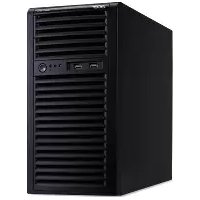

- ACER ALTOS G540 SERIES
- USER'S GUIDE
- NOTICES
- FCC NOTICE
- CLASS A EQUIPMENT
- CLASS B EQUIPMENT
- NOTICE: SHIELDED CABLES
- NOTICE: PERIPHERAL DEVICES
- USE CONDITIONS
- NOTICE: CANADIAN USERS
- LASER COMPLIANCE STATEMENT
- IMPORTANT SAFETY INSTRUCTIONS
- SYSTEM TOUR
- SYSTEM SETUP
- SYSTEM BIOS
- SYSTEM TROUBLESHOOTING
- APPENDIX A: SERVER MANAGEMENT TOOLS
- APPENDIX B: RACK MOUNT CONFIGURATION
- SYSTEM SPECIFICATIONS
- PERFORMANCE
- PROCESSOR
- CHIPSET
- MEMORY
- PCI INTERFACE
- VIDEO CONTROLLER
- NETWORKING
- MEDIA STORAGE
- I/O PORTS
- POWER SUPPLY AND SYSTEM FAN
- HARDWARE MONITORING AND SERVER MANAGEMENT
- OPERATING SYSTEM
- MECHANICAL
- CHASSIS
- MAINBOARD
- ENVIRONMENTAL
- TEMPERATURE
- HARDWARE OPTIONS
- EXTERNAL AND INTERNAL STRUCTURE
- FRONT BEZEL
- NO. COMPONENT
- FRONT PANEL
- REAR PANEL
- INTERNAL COMPONENTS
- SYSTEM BOARDS
- NO. CODE DESCRIPTION
- BACKPLANE BOARD
- SAS CONTROLLER BOARD
- BMC MODULE
- ARMC/3 MODULE
- SYSTEM LED INDICATORS
- FRONT PANEL LED INDICATORS
- HOT-PLUG HDD LED INDICATOR
- POWER SUPPLY MODULE LED INDICATORS
- INDICATOR COLOR STATUS DESCRIPTION
- SETTING UP THE SYSTEM
- PRE-INSTALLATION REQUIREMENTS
- SELECTING A SITE
- CHECKING THE PACKAGE CONTENTS
- CONNECTING PERIPHERALS
- TURNING ON THE SYSTEM
- POWER-ON PROBLEMS
- CONFIGURING THE SYSTEM OS
- RACK MOUNT CONFIGURATION
- TURNING OFF THE SYSTEM
- SYSTEM UPGRADE
- INSTALLATION PRECAUTIONS
- ESD PRECAUTIONS
- PRE-INSTALLATION INSTRUCTIONS
- POST-INSTALLATION INSTRUCTIONS
- OPENING THE SERVER
- REMOVING THE SIDE PANEL
- REMOVING THE FRONT BEZEL
- CONFIGURING THE HARD DRIVE
- INSTALLING A HDD CAGE
- REMOVING A HDD CAGE
- INSTALLING AN ADDITIONAL HARD DRIVE
- CONFIGURING A 5.25-INCH STORAGE DEVICE
- UPGRADING THE PROCESSOR
- PROCESSOR CONFIGURATION GUIDELINES
- UPGRADING THE SYSTEM MEMORY
- SYSTEM MEMORY INTERFACE
- INSTALLING AN EXPANSION CARD
- I/O INTERFACE
- INSTALLING THE SAS CONTROLLER BOARD
- INSTALLING THE BMC MODULE
- INSTALLING THE ARMC/3 MODULE
- INSTALLING A REDUNDANT POWER SUPPLY MODULE
- BIOS OVERVIEW
- ENTERING BIOS SETUP
- BIOS SETUP PRIMARY MENUS
- BIOS SETUP NAVIGATION KEYS
- MAIN MENU
- PARAMETER DESCRIPTION
- ADVANCED MENU
- ADVANCED PROCESSOR OPTIONS
- MEMORY CONFIGURATION
- ADVANCED CHIPSET CONTROL
- PCI CONFIGURATION
- I/O DEVICE CONFIGURATION
- PARAMETER DESCRIPTION OPTION
- ENABLED
- IDE CONFIGURATION
- I/O CHANNEL 0/SECONDARY MASTER/SLAVE
- FLOPPY CONFIGURATION
- BOOT CONFIGURATION
- SECURITY MENU
- SETTING A SYSTEM PASSWORD
- CHANGING A SYSTEM PASSWORD
- REMOVING A SYSTEM PASSWORD
- SERVER MENU
- SYSTEM MANAGEMENT
- CONSOLE REDIRECTION
- EVENT LOG CONFIGURATION
- BOOT MENU
- EXIT MENU
- RESETTING THE SYSTEM
- INITIAL SYSTEM STARTUP PROBLEMS
- INITIAL TROUBLESHOOTING CHECKLIST
- HARDWARE DIAGNOSTIC TESTING
- CHECKING THE BOOT-UP STATUS
- VERIFYING THE CONDITION OF THE STORAGE DEVICES
- CONFIRMING LOADING OF THE OPERATING SYSTEM
- SPECIFIC PROBLEMS AND CORRECTIVE ACTIONS
- SERVER MANAGEMENT OVERVIEW
- RAID CONFIGURATION UTILITIES
- ONBOARD SATA RAID CONFIGURATION UTILITY
- LSI 1068 SAS CONFIGURATION UTILITY
- LSI MEGARAID SAS RAID CONFIGURATION UTILITY
- RACK INSTALLATION INFORMATION
- RACK INSTALLATION PRECAUTIONS
- RACK MOUNT KIT
- COMPONENT QUANTITY USAGE
- SCREW TYPES
- SCREW TYPE QUANTITY FIGURE USAGE
- VERTICAL MOUNTING HOLE PATTERN
- RACK INSTALLATION PROCEDURES
- PREPARING THE SERVER FOR RACK INSTALLATION
- PREPARING THE RACK FOR SERVER INSTALLATION
- INSTALLING THE SERVER IN THE SYSTEM RACK
- INSTALLING THE CABLE ARM OPTION
- INDEX
- NUMERICS
- A
- B
- C
- D
- E
- F
- H
- M
- N
- P
- R
- S
- T
- U
- W
- Z
Brand : ACER
Model : Altos G540
Category : Server