
Pro UC350 - Headphones DELL - Free user manual and instructions
Find the device manual for free Pro UC350 DELL in PDF.


User questions about Pro UC350 DELL
0 question about this device. Answer the ones you know or ask your own.
Ask a new question about this device
Download the instructions for your Headphones in PDF format for free! Find your manual Pro UC350 - DELL and take your electronic device back in hand. On this page are published all the documents necessary for the use of your device. Pro UC350 by DELL.
USER MANUAL Pro UC350 DELL
Dell Pro Stereo Headset UC350
User's Guide
Notes, cautions, and warnings

NOTE: A NOTE indicates important information that helps you make better use of your computer.

CAUTION: A CAUTION indicates potential damage to hardware or loss of data if instructions are not followed.

WARNING: A WARNING indicates a potential for property damage, personal injury, or death.
Copyright © 2017 Dell Inc. All rights reserved. This product is protected by U.S. and international copyright and intellectual property laws. Dell ^™ and the DELL logo are trademarks of Dell Inc. in the United States and/or other jurisdictions. All other marks and names mentioned herein may be trademarks of their respective companies.
2017 - 03
Rev. A00
Contents
About your headset .... 5
Product features 5
Noise-cancelling mic 5
3.5mm jack for better connectivity....5
Plug-and-play setup. 5
Made for voice and music. 5
Passive noise cancellation 5
Easy call management 5
What's in the box 6
Features 7
Headset. 7
Call-control Unit. 8
Setting up your headset....9
Plug the headset into your smartphone or tablet ..... 9
Plug the headset into your computer 9
Configure the headset on your Computer ..... 10
Configuration for Skype for Business. 10
Configuration for other softphones. 10
Configuration to listen to music. 10
Adjusting the headset 12
Answering/ending a call 13
Answer an incoming call on the computer ..... 13
End an incoming call on the computer 13
Adjusting the volume. 14
Muting/unmuting a call 14
Troubleshooting 15
Common symptoms 15
Specifications....18
General 18
Physical characteristics 18
Environmental 18
Statutory information....19
Warranty 19
Limited warranty and return policies ..... 19
For U.S. customers: 19
For European, Middle Eastern and African customers: ..... 19
For non-U.S. customers: 19
About your headset
Product features
The features of the Dell Professional Stereo Headset UC350 include:
Noise-cancelling mic
State-of-the-art, noise-cancelling microphone eliminates background noise. Your conversation partner won't struggle to hear what you're saying.
3.5 mm jack for better connectivity
The 3.5 mm jack lets users connect to their personal devices - such as a smartphone or tablet - to work or listen to music wherever they may be.
Plug-and-play setup
Works out of the box with all leading systems. Installation is as easy as plugging the headset to your device.
Made for voice and music
World-class speakers built for both voice and music. Quickly and easily switch between conversing and listening to your favorite tracks.
Passive noise cancellation
Simply wear the headset to eliminate high-frequency noise, such as human voices - all thanks to the specially designed ear cushions. We call this “passive noise cancellation”.
Easy call management
The call controller offers access to large buttons and easy-to-see LED indicators. Answer or end calls, control the volume, or simply mute the call.
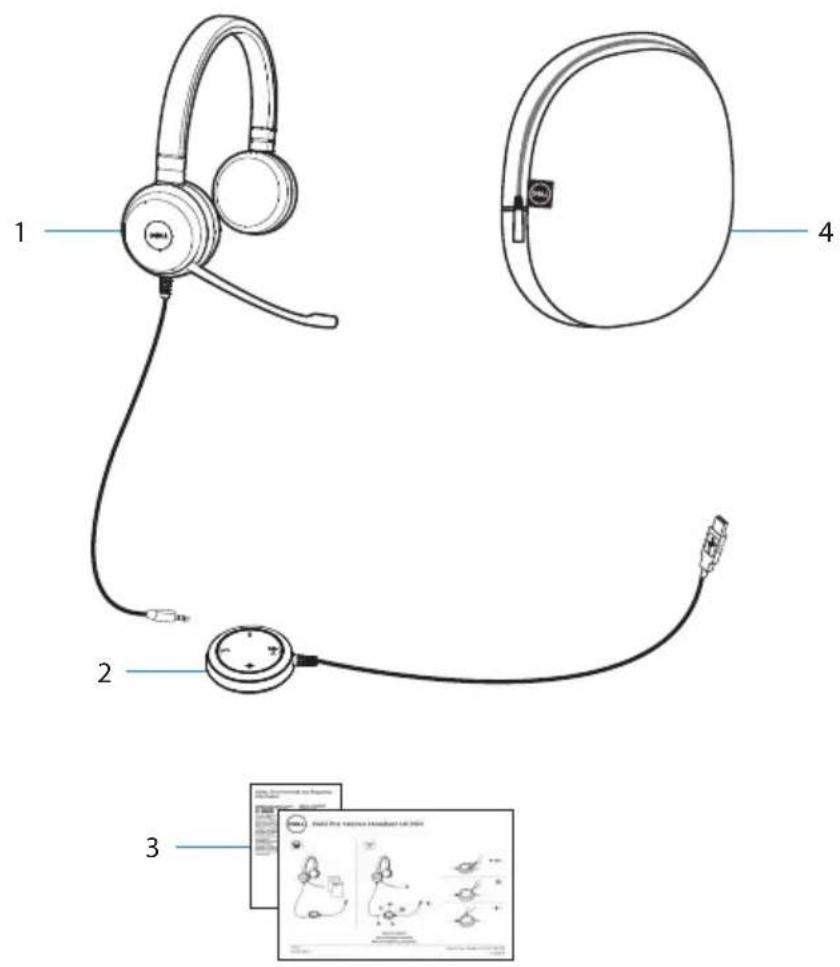
What's in the box

NOTE: The documents shipped with the headset may vary based on your region.
text_image
Diagram of a headset with labeled parts including head, ear, and cable connections, plus an inset image showing a medical device.1 Headset 2 USB controller
3 Documents 4 Travel pouch
Features
Headset
text_image
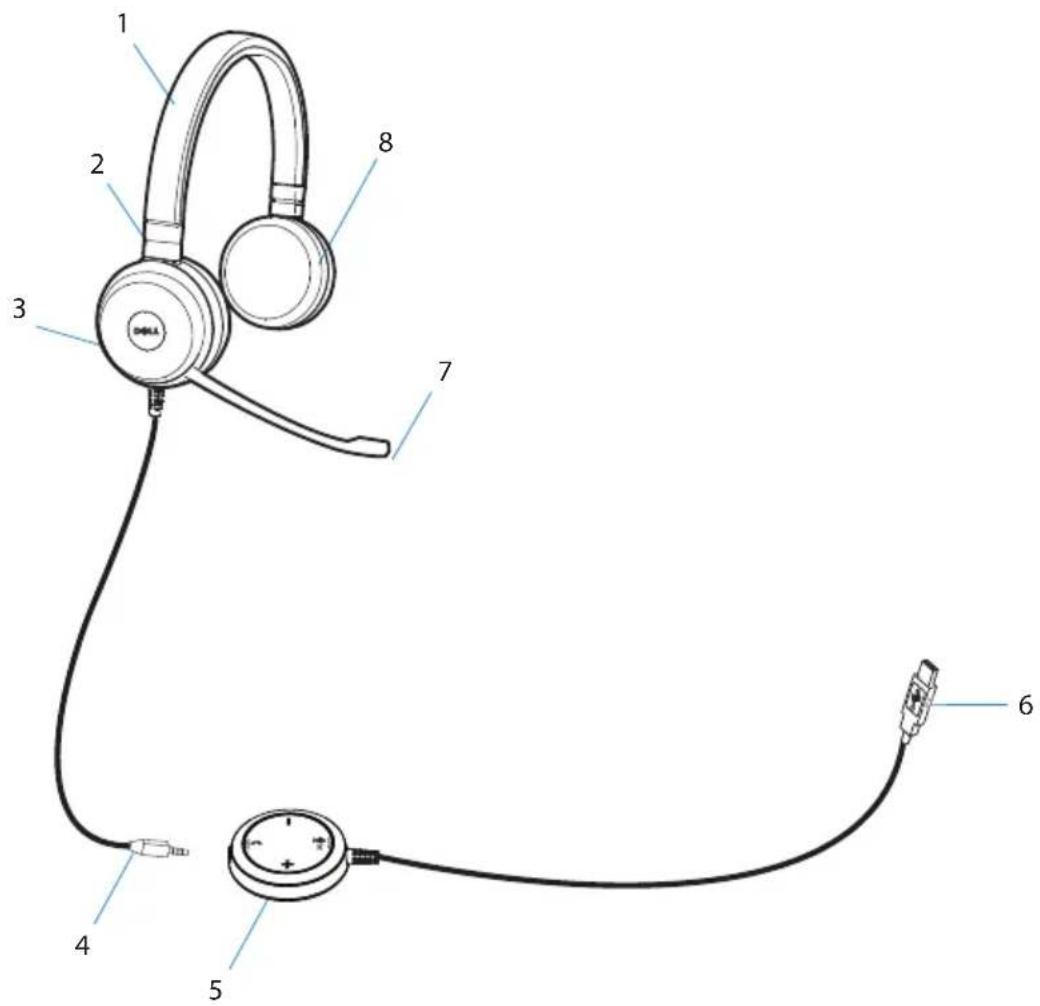
Diagram of a headset with numbered parts for identification and assembly reference1 Headband 2 Adjustable speaker chambers
3 Speaker 4 3.5 mm jack
5 Call control unit 6 USB plug
7 Noise cancelling microphone 8 Speaker
Call-control Unit
text_image
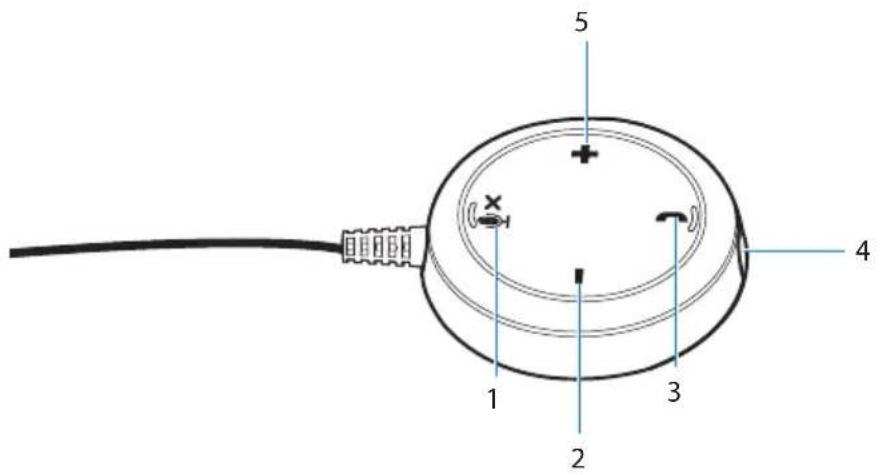
5 4 1 2 31 Mute button 2 Volume down button
3 Phone button 4 3.5 mm port
5 Volume up button
Setting up your headset
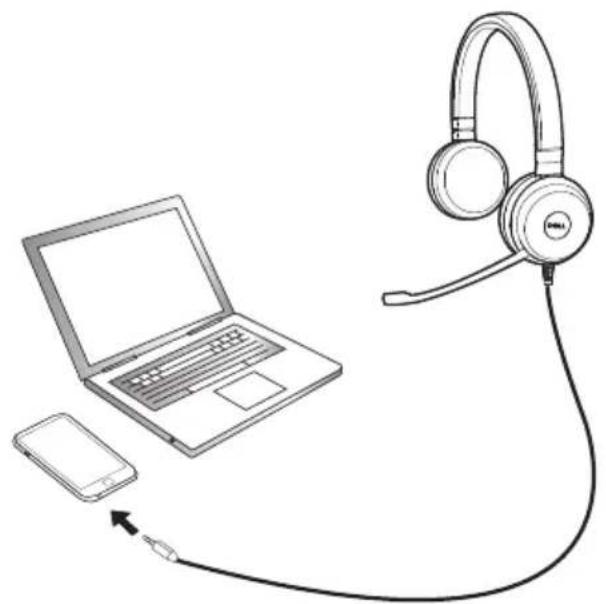
Plug the headset into your smartphone or tablet
Plug the headset into a 3.5 mm jack port on your smartphone or tablet.
natural_image
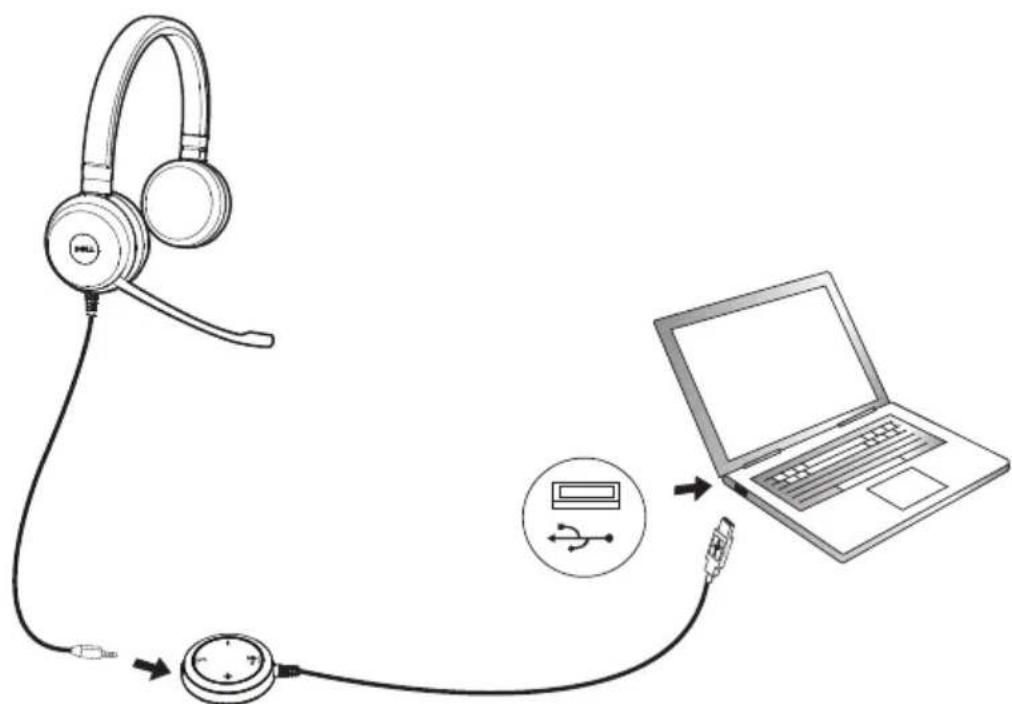
Line drawing of a laptop connected to a headset via cable, with a smartphone nearby (no text or symbols)Plug the headset into your computer
Plug the headset into a USB port on your computer.
text_image
Diagram showing audio headset connection to laptop via USB cable, with labeled components and signal flowConfigure the headset on your Computer
Configuration for Skype for Business
The Dell Pro Stereo Headset UC350 is certified and optimized for Skype for Business. Connect the headset to your device via USB. Once the headset is detected, it is ready to use.
Configuration for other softphones
The Dell Pro Stereo Headset UC350 is also certified and optimized for all leading Unified Communications platforms. First, you have to install the Jabra Direct software application on your computer to be able to use the call-control unit functionalities.
- Connect the headset to your computer via USB.
- Download the latest release of Jabra Direct at www.jabra.com/direct and follow the installation guide at www.dell.com/support.
- Once done, the headset is ready to use.
Configuration to listen to music
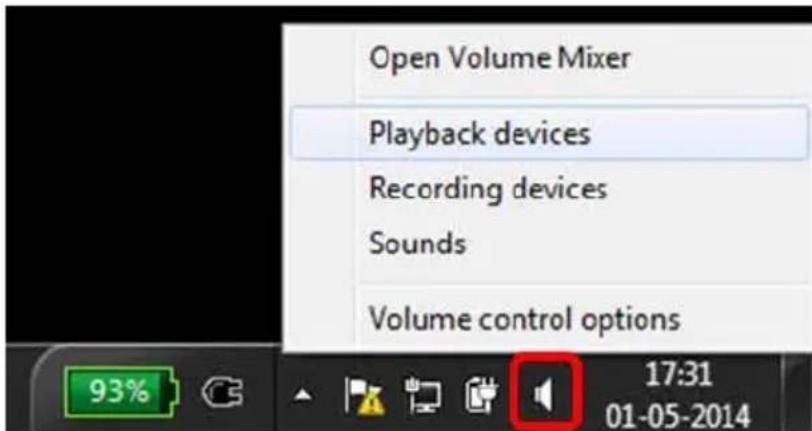
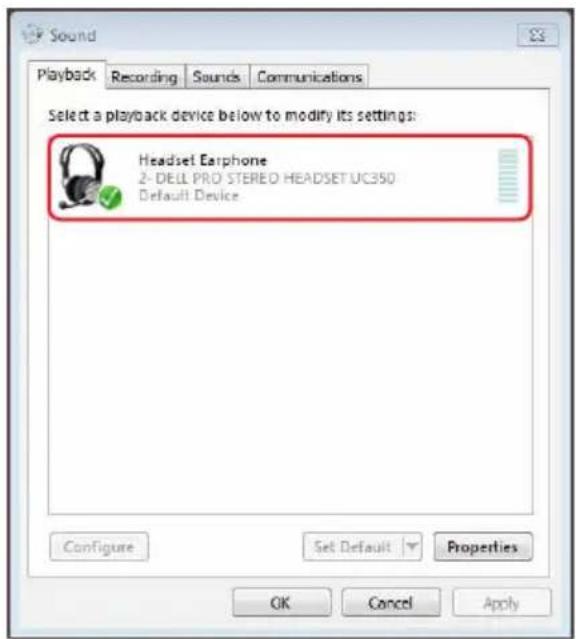
To use your headset to listen to music from your computer, the headset has to be selected as the default playback device in Windows Audio Settings.
- Right click on the speaker icon on the Windows toolbar to access the Windows Audio Settings.
text_image
Open Volume Mixer Playback devices Recording devices Sounds Volume control options 93% 17:31 01-05-2014- Set the Headset Earphone (Dell Pro Stereo Headset UC350) as the Default Playback Device.
text_image
Sound Playback Recording Sounds Communications Select a playback device below to modify its settings: Headset Earphone 2- DELL PRO STEREO HEADSET UC350 Default Device Configure Set Default Properties OK Cancel ApplyAdjusting the headset
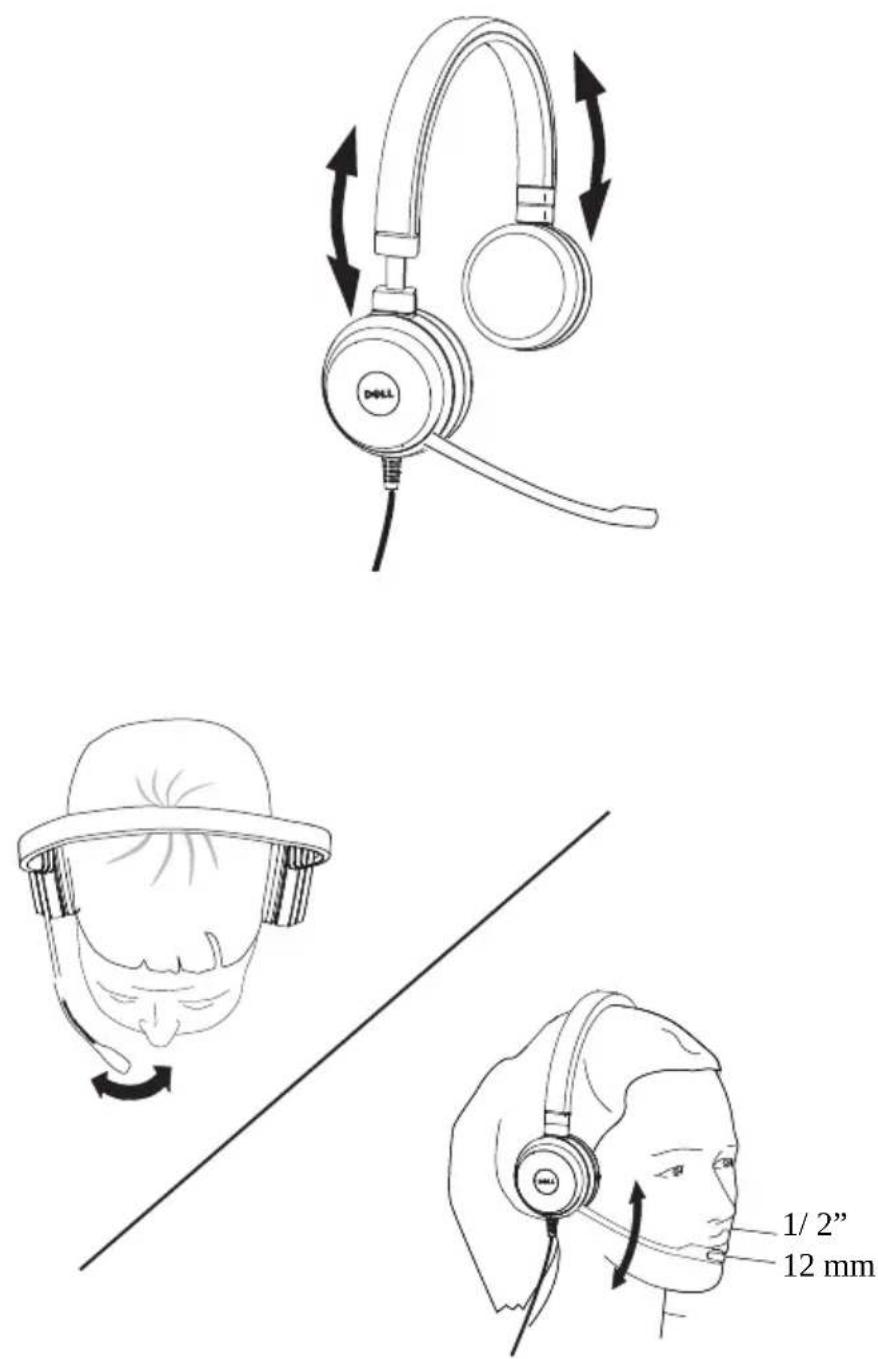
Adjust the headband to get the optimal fit for your headset. Adjust the headset boom arm to have the microphone around 2 centimeters (cm) away from the mouth.
text_image
1/2" 12 mmAnswering/ending a call
Answer an incoming call on the computer
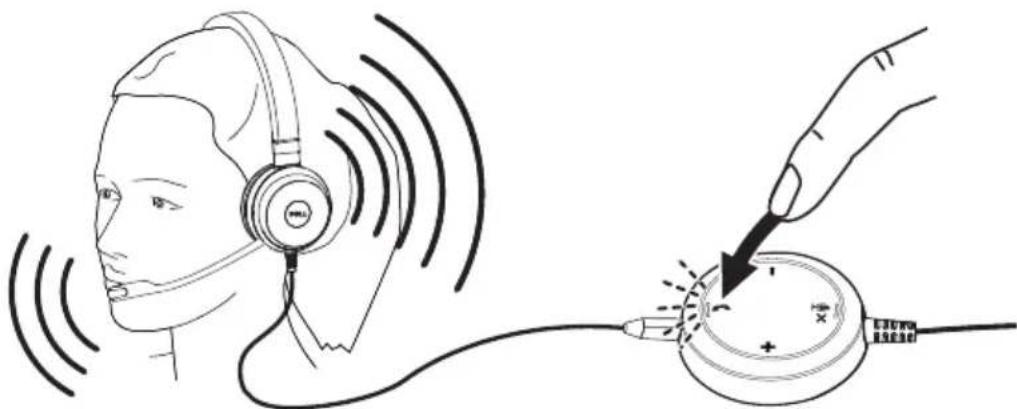
You will hear a ringtone on the headset on an incoming call from the soft phone. Answer the call by doing one of the following:
-
Accept the call on the softphone.
-
Press the Phone button on the headset as shown below.
natural_image
Illustration of a person using a headset to interact with a device, showing sound waves and a magnified view (no text or symbols)End an incoming call on the computer
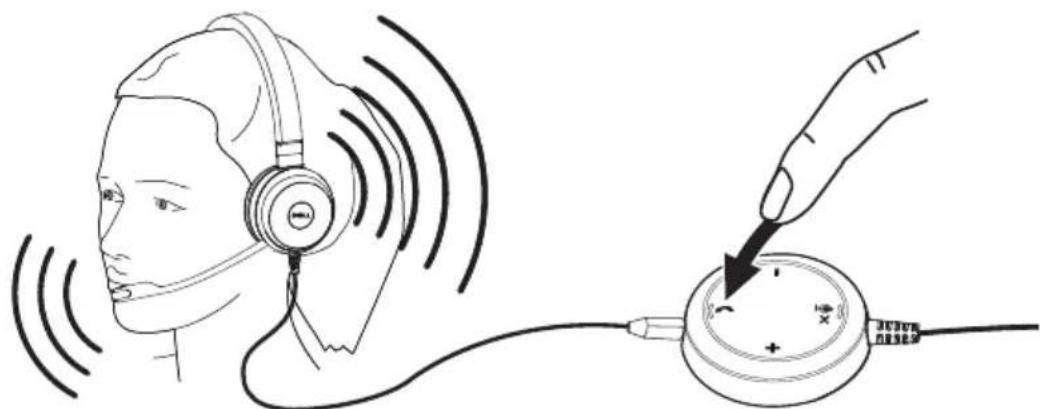
Perform one of the following actions to terminate the call:
-
Press the end-call button on your softphone.
-
Press the Phone button on the headset as shown below.
natural_image
Line drawing of a person wearing headphones connected to a device with a probe inserted (no text or symbols)Adjusting the volume
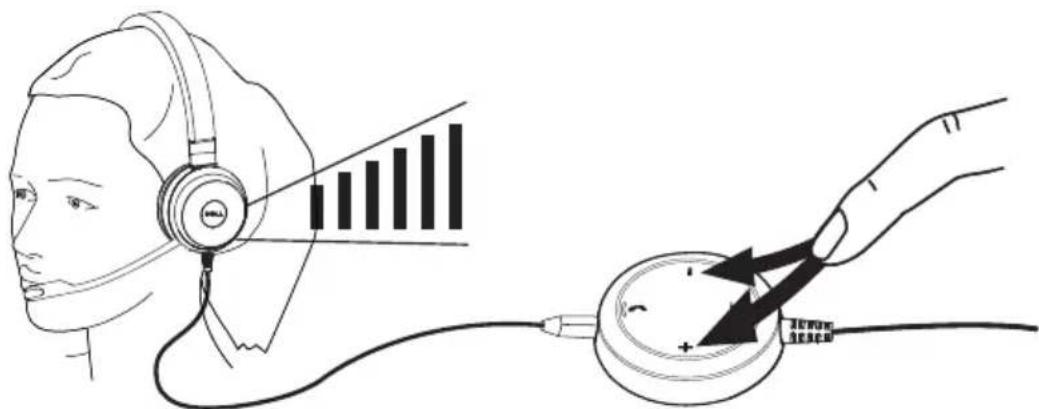
Use the + and – button located at the center of the call control unit to adjust the volume. Press + to increase the volume level and – to decrease the volume as shown below.
text_image
Diagram illustrating ear health monitoring with a hand using a stethoscope to test ear data, showing bar chart and plus/minus signs.Muting/unmuting a call
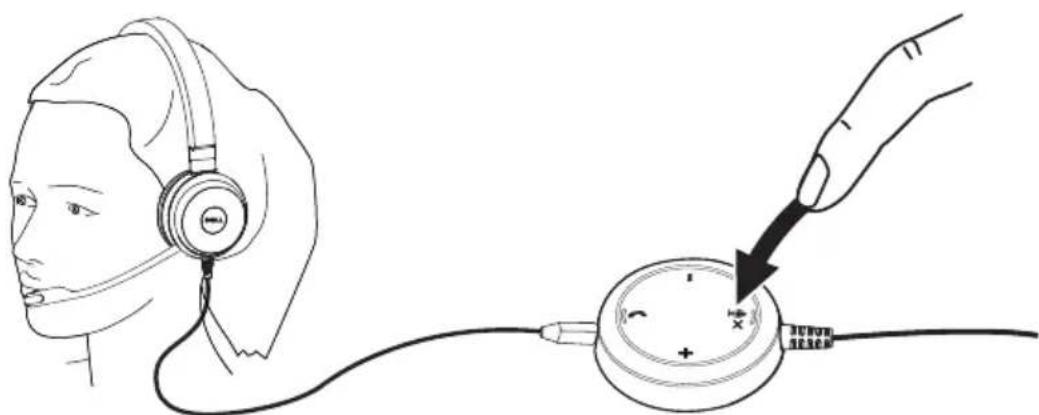
Press the mute button to mute and unmute the microphone as shown below. Whenever the microphone is muted, a red LED glows indicating that the microphone is muted, and whenever the microphone is unmuted, the red LED stops.
natural_image
Line drawing of a person wearing headphones connected to a device with a magnified inset showing a switch (no text or symbols)Troubleshooting
Common symptoms
The following table contains general information about common Dell Pro Stereo Headset UC350 symptoms you might encounter and the possible solutions.
| Common symptoms | What you experience | Possible solutions |
| Headset does not power up upon connecting to the smartphone, tablet or PC | The red and green LEDs on the call-control unit are not glowing after connection | Make sure that the smartphone, tablet or PC is powered up.Make sure that the headset is plugged into the smartphone or tablet through a 3.5 mm jack port, or the PC through a USB port.Try using the headset on another smartphone, tablet or PC. |
| Smartphone, tablet or PC cannot detect the headset | Cannot be detected by the smartphone, tablet or PC | Make sure that the headset is plugged into the smartphone, tablet through a 3.5 mm jack port, or the PC through a USB port.Try using the headset on another smartphone, tablet or PC |
| No audio in the headset –Using phone app on smartphone or tablet, or using Softphone on a PC | Cannot hear sound in the headset from phone app or softphone | Make sure that the headset is connected properly and powered up.Make sure that the speaker volume is appropriately set on the headset.Make sure that the speaker is not muted on the phone app or softphone and volume is set to the appropriate level.Make sure that the caller has not muted his/her microphone. |
| No audio in the headset –Using a media player on the smart phone, tablet or PC | Cannot hear sound in the headset from a media player | Make sure that the headset is connected properly and powered up.Make sure that the speaker volume on the headset is set to an appropriate level.Make sure that the speaker on the media player is not muted and volume is set to an appropriate level. |
| Audio not clear in headset | The sound is not clear | Make sure that the speaker volume is set to an appropriate levelMake sure that the person on the other end has set the transmit volume to the appropriate level.Make sure that the person on the other end, if using a headset, has positioned his/her microphone properly (close enough to the mouth - approximately 2 cm/less than 1 inch). |
| No microphone audio from headset – Using phone app on Smartphone or tablet, or using Softphone on a PC | Person on the other end cannot hear you | Make sure that the headset is connected properly and powered up.Make sure that the microphone is not muted, and the transmit volume is set to the appropriate level, both on the softphone and headset.Make sure that the caller has not muted his/her speaker and that it is set to an appropriate level. |
| No microphone audio from headset – Using voice/recording application on smartphone, tablet or PC | Microphone does not work using voice/ recording application | Make sure that the headset is connected to the smartphone, tablet or PC and is powered up.Make sure that the Microphone on the headset is not muted. |
| Microphone audio not clear from headset | Person on the other end cannot hear you clearly | Make sure that the microphone is close enough to the mouth - approximately 2 cm/less than 1 inch.Make sure that the person on the other end has set the speaker (receive) volume on computer / desk phone and headset to the appropriate level. |
Specifications
General
Model number UC350
USB compliance USB 2.0
(General and Audio Class specifications)
LED Green for in use, red for mute
Supported operating systems Windows 7 (32 and or 64 bit), Windows 8 and Windows 8.1, Windows 10
Physical characteristics
Weight 171 g without packaging
Dimension Headset 181 mm × 151 mm × 54 mm
Controller 54 mm × 14.5 mm
Cord length PC to USB 0.95 m, USB to headset 1.2 m
Washable item None (general cleaning with damp cloth)
Environmental
Operating temperature +10° to +40°C
Operating humidity 5% to 93% relative humidity
Storage temperature 0° to +60°C
Statutory information
Warranty
Limited warranty and return policies
Dell-branded products carry a 1-year limited hardware warranty. If purchased together with a Dell system, it will follow the system warranty.
For U.S. customers:
This purchase and your use of this product are subject to Dell's end user agreement, which you can find at www.dell.com/terms. This document contains a binding arbitration clause.
For European, Middle Eastern and African customers:
Dell-branded products that are sold and used are subject to applicable national consumer legal rights, the terms of any retailer sale agreement that you have entered into (which will apply between you and the retailer) and Dell's end user contract terms.
Dell may also provide an additional hardware warranty – full details of the Dell end user contract and warranty terms can be found by going to
www.dell.com, selecting your country from the list at the bottom of the “home” page and then clicking the “terms and conditions” link for the end user terms or the “support” link for the warranty terms.
For non-U.S. customers:
Dell-branded products that are sold and used are subject to applicable national consumer legal rights, the terms of any retailer sale agreement that you have entered into (which will apply between you and the retailer) and Dell's warranty terms. Dell may also provide an additional hardware warranty – full details of Dell's warranty terms can be found by going to:
www.dell.com, selecting your country from the list at the bottom of the “home” page and then clicking the “terms and conditions” link or the “support” link for the warranty terms.