
TS10 - Mobile Phone TOSHIBA - Free user manual and instructions
Find the device manual for free TS10 TOSHIBA in PDF.


| Product Type | Mobile Phone |
| Brand | Toshiba |
| Model | TS10 |
| Dimensions (approx.) | 90 x 45 x 20 mm |
| Weight (approx.) | 100 g |
| Network Bands | GSM 900 / 1800 / 1900 |
| Main Display | 65536-color TFT |
| External Display | Monochrome LCD |
| Camera | VGA (640x480) with zoom and effects |
| Battery Type | Li-Ion, 800 mAh (typical) |
| Standby Time (approx.) | Up to 300 hours |
| Talk Time (approx.) | Up to 5 hours |
| Messaging | SMS, MMS, Cell Broadcast |
| Phonebook | 1000 entries (SIM + phone) |
| Connectivity | GPRS, WAP 2.0 |
| Games | Pre-installed |
| Organizer | Scheduler, ToDo, Notepad, Alarm, Calculator, Currency Converter |
| Voice Memo | Up to 36 seconds |
| Special Features | Conference call, Call divert, SOS key, T9 predictive text |
| Security | PIN, PIN2, PUK, Phone lock, Fixed dialing, Call barring |
| Care Instructions | Keep dry, avoid dust and extreme temperatures, use only Toshiba batteries and chargers |
| Repairability | No user-serviceable parts; contact Toshiba authorized service |
Frequently Asked Questions - TS10 TOSHIBA
User questions about TS10 TOSHIBA
0 question about this device. Answer the ones you know or ask your own.
Ask a new question about this device
Download the instructions for your Mobile Phone in PDF format for free! Find your manual TS10 - TOSHIBA and take your electronic device back in hand. On this page are published all the documents necessary for the use of your device. TS10 by TOSHIBA.
USER MANUAL TS10 TOSHIBA
Warranty and Safety 4
After Sales Service 4
Safety Guidelines 4
General 4
Operating Environment 4
Electronic Devices 5
Battery Safety 6
SOS Soft Key 6
European RF Exposure Information 7
FCC RF Exposure Information 7
FCC Notice 9
Care and Maintenance 9
Licenses 10
Declaration of Conformity ....12
Setting up the Phone 13
SIM Card 13
Inserting or Removing the SIM Card ....13
Battery 14
Changing or Removing the Battery 15
Charging the Battery 16
Charging Indicator 17
Personal Identification Numbers (PINs) 17
General Information 18
Parts and Functions 18
Keys 19
The 4-Way Key 20
Quick keys 21
Soft Keys 22
Main menu 22
Icons 25
External screen 25
Main Screen 25
Basic Phone Use 27
Making an Emergency Call 27
Making/Ending a Call 27
Receiving/Rejecting a Call 28
Holding a Call 28
Making/Receiving a Second Call 29
Making a Conference Call 29
Receiving a Third Call 29
Text Entry 29
Changing Entry Mode 30
T9 Language 30
Character Table 32
Messages 33
Creating/Sending/Saving SMS Messages ....33
SMS Message Editing Options 34
SMS Settings 34
Memory Status ....34
Creating/Sending/Saving MMS Messages 35
MMS Message Editing Options 35
MMS Message Insertion Feature ....35
MMS Settings 35
Memory Status ....36
Templates 36
Cell Broadcast 36
Phonebook ....37
Service Dialling Numbers (SDN) 37
Fixed Dialling Numbers (FDN) 37
Adding Entries 38
Managing Phonebook ....38
Searching Phonebook 38
Alphabet Search ....38
Searching by Group ....38
Searching by Record No. 39
Editing an Entry 39
Deleting Entries 40
Deleting an Entry 40
Deleting All Entries 41
Grouping Entries 41
Creating a Group Name 41
Adding a Contact to a Group 41
Removing a Contact or All Entries from a Group 42
Changing Group Image 42
Assigning Ringtone/Melody to a Group ....42
Moving an Entry from Phone to SIM/SIM to Phone 42
Copying an Entry from Phone to SIM/SIM to Phone 43
Copying All Entries from Phone to SIM/SIM to Phone 43
Own Number 43
Voice Mail 43
Setting up Your Voice Mailbox 44
Calling your Voice Mailbox 44
Changing your Voice Mailbox Number 44
Call Options 45
Dialled Calls 45
Call Lists 45
Time & Costs 46
Charge Settings 46
Applications 47
Scheduler 47
ToDo List 48
Notepad 49
Alarm Clock 49
Auto On 50
Countdown 50
Stopwatch 50
Calculator 51
Calculation keys 51
Currency Converter 51
Composer 52
Composer Keys 52
Voice Memo 52
Data Rate 53
Camera 54
Settings ....56
Voice Volume ....56
Answer Options ....56
Seconds Reminder 56
ALS Setup ....57
Time/Date 57
Shortcuts Setting 58
Language ....58
Phone Modes ....58
Ringer Setting 59
Ringer 59
Ringer Volume 59
Key Tone 60
Info Tones 60
Vibrator 60
Illumination ....60
Auto Answer 60
Greetings 61
Wallpaper 61
Colour Style 61
Animation 62
Brightness 62
2nd-LCD 62
Calls 62
Call Diversion 62
Call Waiting 63
Auto Redial 64
Withhold ID 64
Security 64
Changing PIN/PIN2 ....64
Phone Lock 65
Barring Calls 65
Fixed Dialling 66
Network 66
Network Info 66
Choose Network 67
Auto Network 67
Preferred Network 67
Band 67
Connectivity 68
GPRS Info 68
T9 Input 68
Reset Settings 69
My Data 70
Record Voice 70
Pictures/Photos 71
Sounds 71
Memory Status 72
Games 73
Browser 74
WAP Setup 74
WAP Page Connection ....75
WAP Push 75
Index 76
TOSHIBA CORPORATION
IMPORTANT NOTE: PLEASE READ BEFORE USING YOUR MOBILE PHONE
BY ATTEMPTING TO USE ANY SOFTWARE ON THE SUPPLIED HANDSET THIS CONSTITUTES YOUR ACCEPTANCE OF THESE EULA TERMS. IF YOU REJECT OR DO NOT AGREE WITH ALL THE TERMS OF THIS EULA, PLEASE DO NOT ATTEMPT TO ACCESS OR USE THE SUPPLIED SOFTWARE.
End User License Agreement
This End User License Agreement (“EULA”) is a legal agreement between you (as the user) and TOSHIBA CORPORATION (“Toshiba”) with regard to the copyrighted software as installed in a Toshiba 2.5G mobile phone handset supplied to you (the “Handset”).
Use or disposal of any software installed in the Handset and related documentations (the “Software”) will constitute your acceptance of these terms, unless separate terms are provided by the Software supplier on the Handset, in which case certain additional or different terms may apply. If you do not agree with the terms of this EULA, do not use or dispose the Software.
-
License Grant. Toshiba grants to you a personal, non-transferable and non-exclusive right to use the Software as set out in this EULA. Modifying, adapting, translating, renting, copying, making available, transferring or assigning all or part of the Software, or any rights granted hereunder, to any other persons and removing any proprietary notices, labels or marks from the Software is strictly prohibited, except as expressly permitted in this EULA. Furthermore, you hereby agree not to create derivative works based on the Software.
-
Copyright. The Software is licensed, not sold. You acknowledge that no title to the intellectual property in the Software is or will be transferred to you. You further acknowledge that title and full ownership rights to the Software will remain the exclusive property of Toshiba, Toshiba's affiliates, and/or their suppliers, and you will not acquire any rights to the Software, except as expressly set out in this EULA. You may keep a back-up copy of the Software only so far as necessary for its lawful use. All copies of the Software must contain the same proprietary notices as contained in or on the Software and are subject to the terms of this EULA. All rights not expressly granted
under this EULA are reserved to Toshiba, Toshiba's affiliates and/or their suppliers.
-
Reverse Engineering. You agree that you will not attempt, and if you are a business organisation, you will use your best efforts to prevent your employees, servants and contractors from attempting to reverse engineer, decompile, modify, translate or disassemble the Software in whole or in part except to the extent that such actions cannot be excluded by mandatory applicable law and only if those actions are taken in accordance with such applicable law. Any failure to comply with the above or any other terms and conditions contained herein will result in the automatic termination of this license and the reversion of the rights granted hereunder to Toshiba.
-
LIMITED WARRANTY. Only during the warranty period for the Handset, Toshiba, Toshiba's affiliate, its suppliers or its authorized service company will repair or replace, at Toshiba's sole discretion, defective Software unless such defect results from acts or phenomenon beyond the reasonable control of Toshiba. EXCEPT AS PROVIDED IN THIS EULA: (A) TOSHIBA, TOSHIBA'S AFFILIATES, AND THEIR SUPPLIERS DISCLAIM ALL WARRANTIES, CONDITIONS OR OTHER TERMS (WHETHER EXPRESS OR IMPLIED), INCLUDING BUT NOT LIMITED TO WARRANTIES, CONDITIONS AND TERMS OF SATISFACTORY QUALITY, MERCHANTABILITY, FITNESS FOR A PARTICULAR PURPOSE AND NON-INFRINGEMENT OF THIRD-PARTY RIGHTS; AND (B) THE ENTIRE RISK AS TO THE QUALITY AND PERFORMANCE OF THE SOFTWARE IS WITH YOU. YOU ACCEPT THAT SOFTWARE MAY NOT MEET YOUR REQUIREMENTS AND NO WARRANTY CAN BE GIVEN THAT OPERATION OF THE SOFTWARE WILL BE UNINTERRUPTED OR ERROR-FREE.
-
LIMITATION OF LIABILITY. TO THE FULLEST EXTENT LEGALLY PERMITTED, IN NO EVENT SHALL TOSHIBA, TOSHIBA'S AFFILIATES OR THEIR SUPPLIERS BE LIABLE TO YOU FOR ANY DAMAGES FOR (A) LOST BUSINESS OR REVENUE, BUSINESS INTERRUPTION, LOSS OF BUSINESS DATA; OR (B) CONSEQUENTIAL, SPECIAL, INCIDENTAL OR INDIRECT DAMAGES OF ANY KIND (WHETHER UNDER CONTRACT, TORT OR OTHERWISE) ARISING OUT OF: (I) THE USE OR INABILITY TO USE THE SOFTWARE, EVEN IF TOSHIBA, TOSHIBA'S AFFILIATES OR THEIR SUPPLIER HAS BEEN ADVISED OF THE POSSIBILITY OF SUCH DAMAGES; OR (II) ANY CLAIM BY A
THIRD PARTY. SAVE AS SET OUT IN THIS SECTION, TOSHIBA'S ENTIRE LIABILITY UNDER THIS EULA SHALL NOT EXCEED THE PRICE PAID FOR THE SOFTWARE, IF ANY.
THE ABOVE DISCLAIMER AND LIMITATION DOES NOT EXCLUDE OR LIMIT (A) LIABILITY FOR DEATH OR PERSONAL INJURY CAUSED BY NEGLIGENCE OR (B) ANY MANDATORY LEGAL RIGHT OR LIABILITY TO THE EXTENT THAT IT CANNOT BE LAWFULLY EXCLUDED OR LIMITED UNDER APPLICABLE LAW.
PLEASE MAKE AND RETAIN A COPY OF ALL DATA YOU HAVE INSERTED INTO YOUR PRODUCT, FOR EXAMPLE NAMES, ADDRESSES, PHONE NUMBERS, PICTURES, RINGTONES ETC, BEFORE SUBMITTING YOUR PRODUCT FOR A WARRANTY SERVICE, AS SUCH DATA MAY BE DELETED OR ERASED AS PART OF THE REPAIR OR SERVICE PROCESS.
-
Laws. This EULA will be governed by the laws of England and Wales. All disputes arising out of this EULA shall be subject to the exclusive jurisdiction of the English Court.
-
Export Laws. Any use, duplication or disposal of the Software involves products and/or technical data that may be controlled under the export laws of applicable countries or region and may be subject to the approval of the applicable governmental authorities prior to export. Any export, directly or indirectly, in contravention of the export laws of applicable countries or region is prohibited.
-
Third Party Beneficiary. You agree that certain suppliers of the Software to Toshiba have a right as a third party beneficiary to enforce the terms of this EULA against you as a user.
-
Transfers. The Software may be transferred only as installed on the Handset to a lawful third party user, where that party accepts the terms of this EULA which will continue to apply.
-
IF YOU ARE DEALING AS A CONSUMER IN THE UK & THE SOFTWARE QUALIFIES AS 'GOODS' YOUR STATUTORY RIGHTS UNDER APPLICABLE LAW ARE NOT AFFECTED.
Warranty and Safety
This section addresses important warranty and safety issues. You should read and thoroughly familiarise yourself with this section before using your phone.
After Sales Service
Your Toshiba mobile telephone contains no user serviceable parts. For further information on service, please contact your retailer or service provider.
Safety Guidelines
Follow the guidelines below to use your phone in a safe and legal manner.
General
- Use your phone in the intended manner, for example, hold it to your ear. Incorrect usage may effect its performance.
- Use only compatible batteries and accessories. Using incompatible items may permanently damage the phone.
- Do not connect the phone to any other device without reading the provided documentation. The other device may be incompatible.
- When making emergency calls from your phone, ensure that the phone is switched on and in service.
- Interference may effect your phone's performance. Once you move away from the source of interference, the phone should function as usual.
Operating Environment
- Do not use the phone hand-held while driving or otherwise operating machinery. If using the phone hand-held, park the vehicle before conversing. If using an integrated hands-free device, make sure the phone is securely in its holder.
-
Switch your phone off when entering a hospital or other such institutions. Medical equipment may be effected by the phone so you should observe any building regulation governing phone usage.
-
Switch your phone off when on an aircraft. The aircraft's systems may be effected by the phone signal. You are legally obliged to comply with this recommendation.
- Switch your phone off in any facility where posted notices so require.
- Do not use your phone when refuelling. You should keep your phone away from fuel and chemicals.
- Switch your phone off when blasting is in progress. Observe any provided guidelines or regulations.
- Switch your phone off when in an area of a potentially explosive atmosphere (for example fuel storage areas, spray paint facilities etc.).
- Only qualified personnel should install the device in a vehicle. Faulty installation or service may be dangerous and may invalidate any warranty. For more information, check with the manufacturer, or its representative of your vehicle.
Electronic Devices
- If you wear a pacemaker, or are in the company of someone who does, you should be aware that there is a small risk of your phone interfering with the operation of the pacemaker. Only certain types of pacemakers are effected and only if the mobile phone is placed directly next to one. You should consult your doctor or the pacemaker manufacturer for more information.
- Your phone may interfere with some hearing aids. If this happens you should contact your service provider or doctor.
- Your phone may interfere with the functionality of inadequately shielded medical devices. Consult a physician or the device manufacturer to ensure safe procedure.
- Your phone may interfere with the functionality of any inadequately shielded electronic system in a motor vehicle. Examples include air-bags and fuel injection systems. You should contact the vehicle manufacturer to ensure that it is properly shielded.
Battery Safety
Your device is powered by a rechargeable batty. The full performance of a new battery is achieved only after two or three complete charge and discharge cycles. The battery can be charged and discharged hundreds of times but it will eventually wear out. When the talk and standby times are noticeably shorter than normal, buy a new battery.
- A new battery or one that has not been used for a long time could have reduced capacity the first few times it is used. The battery can only be charged in temperatures between 0 °C (+32 °F) and +45 °C (+113 °F).
- Only use batteries approved by Toshiba and only recharge the battery with the recommended charger supplied by Toshiba.
- When the charger is not in use disconnect it from the power source.
- Do not leave the battery connect to the charger and power source for longer then necessary as overcharging it will shorten its life.
- Do not short-circuit the battery. Accidental short-circuiting can occur when a metallic object causes a direct connection between the + and - terminals of the battery.
- Do not expose the battery to extreme temperatures, for example, a fridge or a car, exposed to direct sunlight as this will effect its performance.
- Do not dispose of the battery in a fire.
- Do not dispose of the battery in an ordinary bin. The battery contains toxic chemicals and must be disposed of in the correct manner. Contact your local authority for more information.
SOS Soft Key
The SOS soft key enables you to call the emergency services without entering your PIN or when your phone is blocked.
The SOS soft key is only active prior to the PIN being entered. To use it simply press and confirm with the Yes soft key.
European RF Exposure Information
Your mobile device is a radio transmitter and receiver. It is designed not to exceed the limits for exposure to radio waves recommended by international guidelines. These guidelines were developed by the independent scientific organization ICNIRP and include safety margins designed to assure the protection of all persons, regardless of age and health.
The guidelines use a unit of measurement known as the Specific Absorption Rate, or SAR. The SAR limit for mobile devices is 2 W/kg and the highest SAR value for this device when tested at the ear was 0.69 W/kg at GSM 1800 band. As mobile devices offer a range of functions, they can be used in other positions, such as on the body as described in this user guide**. In this case, the highest tested SAR value is 0.521 W/kg at GSM 900 band.
As SAR is measured utilizing the devices highest transmitting power the actual SAR of this device while operating is typically below that indicated above. This is due to automatic changes to the power level of the device to ensure it only uses the minimum level required to reach the network.
The World Health Organization has stated that present scientific information does not indicate the need for any special precautions for the use of mobile devices. They note that if you want to reduce your exposure then you can do so by limiting the length of calls or using a 'hands-free' device to keep the mobile phone away from the head and body. Additional information can be found on the websites of the World Health Organization (http://www.who.int/emf).
* The tests are carried out in accordance with international guidelines for testing.
** Please see the
FCC RF Exposure Information
In August 1996 the Federal Communication (FCC) of the United States with its action in Report and Order FCC 96-326 adopted an updated safety standard for human exposure to radio frequency (RF) electromagnetic energy emitted by FCC regulated transmitters. Those guidelines are consistent with the safety standard previously set by both U.S. and international standards bodies. The design of this phone complies with the FCC guidelines and these international standards. Use
only the supplied or an approved internal antenna. Unauthorized antennas, modifications, or attachments could impair call quality, damage the phone, or result in violation of FCC regulations.
Your handset is a radio transmitter and receiver. It is designed and manufactured not to exceed the emission limits for exposure to radio frequency (RF) energy set by the Federal Communications Commission of the U.S. Government.
The guidelines are based on standards that were developed by independent scientific organizations through periodic and thorough evaluation of scientific studies. The standards include a substantial safety margin designed to assure the safety of all persons, regardless of age and health.
The exposure standard for wireless handsets employs a unit of measurement known as the Specific Absorption Rate, or SAR. The SAR limit set by the FCC is 1.6 W/kg. The tests are performed in positions and locations (e.g., at the ear and worn on the body) as required by the FCC for each model. The highest SAR value for this model handset when tested for use at the ear is 1.28 W/kg at PCS 1900 band and when worn on the body, as described in this user guide, is 0.245 W/kg at PCS 1900 band. Body-worn Operation; This device was tested for typical body-worn operations with the back of the handset kept 1.5 cm from the body. To maintain compliance with FCC RF exposure requirements, use accessories that maintain a 1.5 cm separation distance between the user's body and the back of the handset. The use of beltclips, holsters and similar accessories should not contain metallic components in its assembly. The use of accessories that do not satisfy these requirements may not comply with FCC RF exposure requirements, and should be avoided.
The FCC has granted an Equipment Authorization for this model handset with all reported SAR levels evaluated as in compliance with the FCC RF emission guidelines. SAR information on this model handset is on file with the FCC and can be found under the Display Grant section of http://www.fcc.gov/oet/fccfid after searching on FCC ID HFS-CD3-E01.
Additional information on Soecific Absorption Rates (SAR) can be found on the Cellular Telecommunications & Internet Association (CTIA) website at http://www.phonefacts.net.
FCC Notice
This device complies with Part 15 of the FCC rules. Operation is subject to the following two conditions: (1) This device may not cause harmful interference, and (2) This device must accept any interference received, including interference that may cause undesired operation.
Care and Maintenance
If you maintain your phone and all other parts and accessories supplied with the original box, (“phone”), in good condition, the quality of your phone usage as well as the phone life span will be greatly enhanced. If you follow the suggestions below, this will also help you fulfil warranty obligations.
- Keep the phone and all the parts and accessories out of the reach of small children.
- Keep the phone dry as moisture of any kind can contain minerals that will corrode the electronic circuits.
- Do not use or store the phone in dusty or dirty locations as the movable parts of the phone can be damaged.
- Do not use or store the phone in excessively hot places. High temperatures will shorten the life-span of the phone, damage the battery or warp/melt the plastic used in the phone's manufacture.
- Do not store the phone in excessively cold places. When there is a difference in temperature between the room and the phone, condensation can form inside the phone, causing damage to the electronic circuits.
- Do not open the phone unless absolutely necessary, for example, to install the battery or SIM card. We recommend that you go to your dealer when problems arise with either of these items and allow their experts to handle the phone instead.
- Do not mishandle or abuse the phone. Dropping, knocking or shaking it can damage the internal circuits.
- Do not use harsh chemicals, strong detergents, or cleaning solvents to clean the phone. If you must clean it, then use a soft, clean and dry lint-free cloth.
- Do not apply paint or other such substances to the phone. This could clog the phone's movable parts.
- If the phone or any of the accessories are not working as they should, please consult your dealer who can provide you with the expert assistance required.
- Electrical interference may effect your phone's performance. This is perfectly normal and once you move away from the source of interference, the phone should function as usual.
- Do not attempt to disassemble your product, including accessories. Only Toshiba authorised personnel should perform the service.
The following information is for EU member states only:
The use of the symbol indicates that this product may not be treated as household waste. By ensuring the correct disposal of this product, you will help prevent potential negative consequences to the environment and human health, which could otherwise be caused by inappropriate waste handling of this product. For more detailed information about recycling this product, please contact your local city council, your household waste disposal service or the shop from where you purchased the product.

natural_image
Symbol of a trash bin with crossed lines indicating no waste, and a solid black rectangle below (no text or labels)Licenses
- T9® Text Input and the T9® logo are registered trademarks of Tegic Communication."T9 Text Input is licensed under one or more of the following:
U.S. Pat. Nos. 5,187,480, 5,818,437, 5,945,928, 5,953,541, 6,011,554, 6,286,064, 6,307,548, 6,307,549, and 6,636,162, 6,646,573; Australian Pat. Nos. 727539, 746674, and 747901; Canadian Pat. Nos. 1,331,057, 2,302,595, and 2,227,904; Japan Pat. No. 3532780, 3492981; United Kingdom Pat. No. 2238414B; Hong Kong Standard Pat. No. HK1010924; Republic of Singapore Pat. No. 51383, 66959, and 71979; European Pat. Nos. 0 842 463 (96927260.8), 1 010 057 (98903671.0), 1 018 069 (98950708.2); Republic of Korea Pat. Nos. KR201211B1 and KR226206B1. People's Republic of China Pat. Application Nos. 98802801.8, 98809472.X and 96196739.0; Mexico Pat. No. 208141; Russian Federation Pat. No. 2206118; and additional patents are pending worldwide"

- This product contains Openwave Systems Inc.'s Openwave internet browser software.
Copyright © 2000-2005 Openwave Systems Inc..
Openwave ^® is a registered trademark or trademark of Openwave Systems Inc. in Japan and selected countries worldwide. It is certified with Master browser license agreement No. 000336.
• C€ 0168
Declaration of Conformity
TOSHIBA
TOSHIBA INFORMATION SYSTEMS (U.K.) LTD
MOBILE COMMUNICATIONS DIVISION
Watchmoor Park, Riverside Way, Camberley, Surrey GU15 3YA
Tel: +44 (0)1276 405100 Fax: +44 (0)1276 405111
DECLARATION OF CONFORMITY
We, Toshiba Information Systems UK (Ltd), Mobile Communications Division
of Toshiba Court
Weybridge Business Park
Addlestone Road
Weybridge
KT15 2UL
declare under our sole responsibility that the product
TS10
Type (Model) Name is CD3-E01
GSM/DCS/PCS Terminal (Tri band 900, 1800 & 1900)
to which this declaration relates, is in conformity with the following standards and/or other normative documents.
3GPP TS 51.010-1, EN 301 489-1, EN 301 489-7, EN 60950 and EN 50360
We hereby declare that all essential radio test suites, EMC & safety requirements have been carried out and that the above named product is in conformity to all the essential requirements of Directive 1999/5/EC.
The conformity assessment procedure referred to in Article 10(5) and detailed in Annex IV of Directive 199/5/EC has been followed with the involvement of the following Notified Body(ies):
BABT, Claremont House, 34 Molesey Road, Walton-on-Thames, KT12 4RQ
Identification mark: 0168
The technical documentation relevant to the above equipment will be held at:
Toshiba Information Systems UK (Ltd), Mobile Communications Division Riverside Way, Camberley, Surrey, GU15 3YA
Name:- Noritaka Tanigawa
Title:- Deputy Managing Director of TIU
General Manager Mobile Communications Division
Signature:-

Date:- 10.8.2005

INVESTOR IN PEOPLE
Registered Office: Toshiba Court, Weybridge Business Park, Addlestone Road, Weybridge, Surrey KT16 2UL
Registered Number: 918861 England. Telephone (Switchboard) 01932 841600 Facsimile 01932 852455
www.toshiba.co.uk

P&14782
Setting up the Phone
This section describes basic operations such as inserting your SIM card, charging the battery, and entering your PIN.
The following must be completed before you begin using the phone:
- Ensure that the SIM card is inserted
- Ensure that the battery is inserted
- Charge the phone's battery
SIM Card
Your SIM card identifies your phone on the network and stores your details, including your PIN, call history, and subscription information. It can also be used to store some phone book data - see "Phonebook" on page 37 for more information.
You should only remove your SIM card when absolutely necessary. If it is lost or damaged, the information stored on it cannot be retrieved.
Inserting or Removing the SIM Card
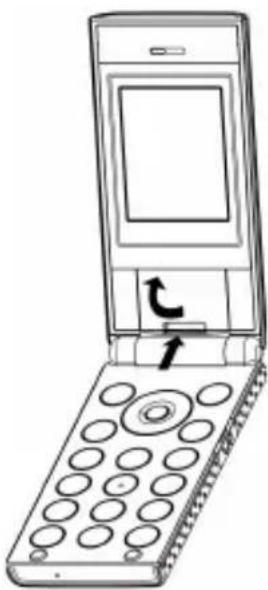
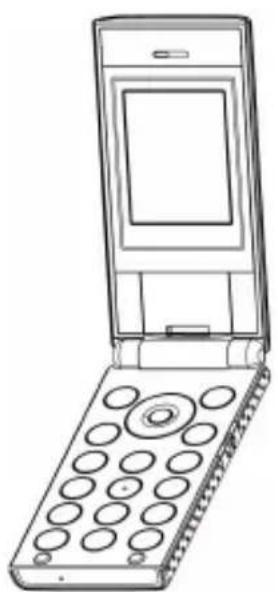
With the phone open and facing you, the SIM door is located beneath the main display, as shown. To insert your SIM card (Step 1-3):
natural_image
Line drawing of a mobile phone with a scroll wheel and keypad, showing no text or symbolsStep 1:
Open the SIM door.
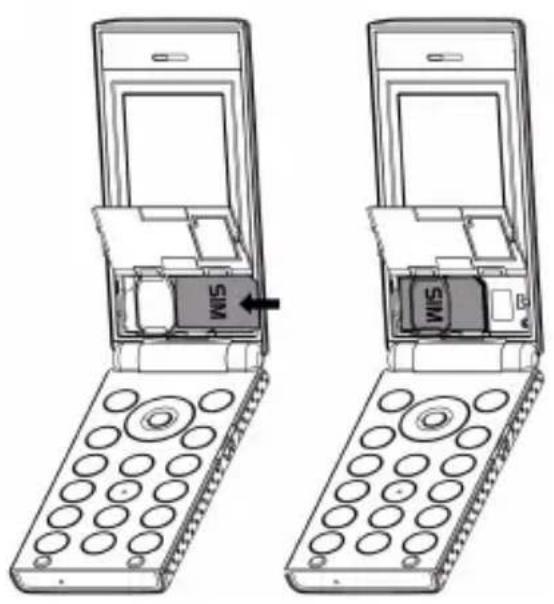
Step 2: Insert your SIM card into the SIM card holder with the card's metallic connector in contact with the phone's and the notched corner on the right.
natural_image
Line drawing of a flip mobile phone with keypad and screen (no text or symbols)Step 3: Close the SIM door.
To remove your SIM card, reverse the above steps.
Battery
The battery included with your phone is not charged. Before you can switch on your phone for the first time, you need to install the phone's battery and charge it.
Changing or Removing the Battery
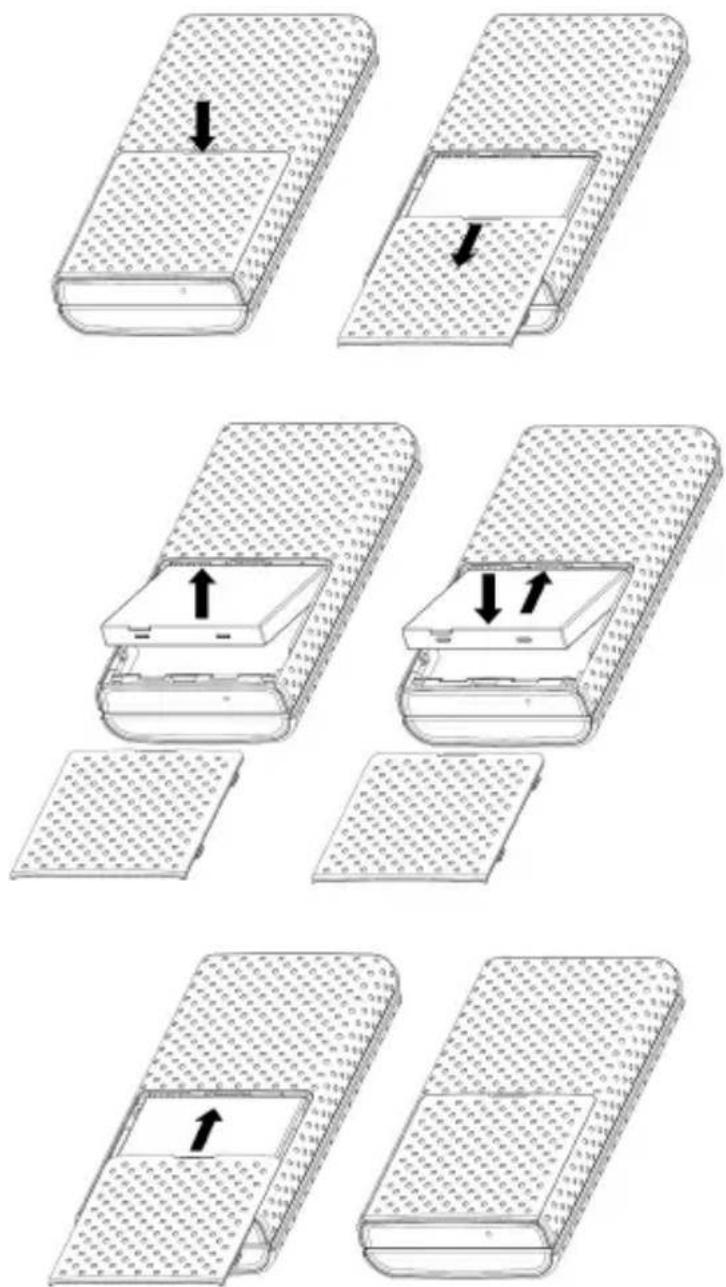
To remove the battery (Steps 1-3):
Step 1:
Slide the battery door downwards and remove it.
Step 2:
Lift up the battery and remove it. Install the new battery with the metallic connectors facing forward and gently press it down.
Step 3:
Slide the battery door upwards to lock it into place.
Charging the Battery
To charge the battery:
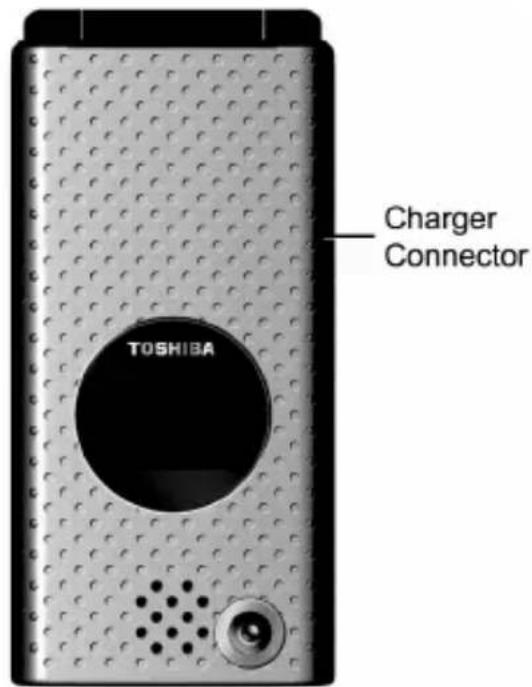
Step 1:
Uncover the charger connector on the right hand side of the phone.
natural_image
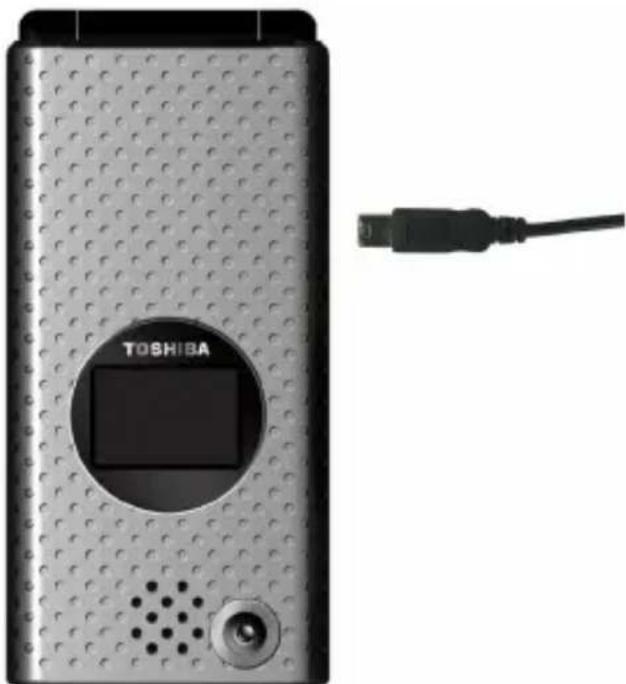
Exterior view of a Toshiba portable electronic device with a USB cable (no text or symbols visible on the device body)Step 2:
Connect the charger to the phone. Plug the charger into a power socket. The charger connection screen will be displayed.
Disconnecting the charger
To disconnect the charger, grip it tightly and pull. You should disconnect the charger from the power outlet before disconnecting the charger from the phone.
Charging Indicator
The first time you charge your battery, you should leave it charging for 8 hours. The battery only achieves optimum performance after two or three complete charges.
When the battery power is low, the phone starts beeping and "Battery Low" will be displayed. When in use and during charging, the indicator shows the following icons:
| Icon Description Icon Description | ||
| Battery full Battery nearly empty | ||
| Battery nearly full Battery empty | ||
| Battery half full |
When the battery is fully discharged, the charging indicator is not displayed and will not appear after the phone has recharged sufficiently. For safety information regarding the battery, please refer to "Battery Safety" on page 6.

Always turn off the phone before removing the battery.
Personal Identification Numbers (PINs)
When you switch on your phone, you may be requested to enter your PIN or phone code if your phone requires you to do so. This number should be in the documentation supplied by your service provider.
If you enter the wrong PIN three consecutive times, your phone will become blocked. You will then require your PUK number to unblock it.
For more information about your PIN and PUK number, see "Security" on page 64.
General Information
Parts and Functions
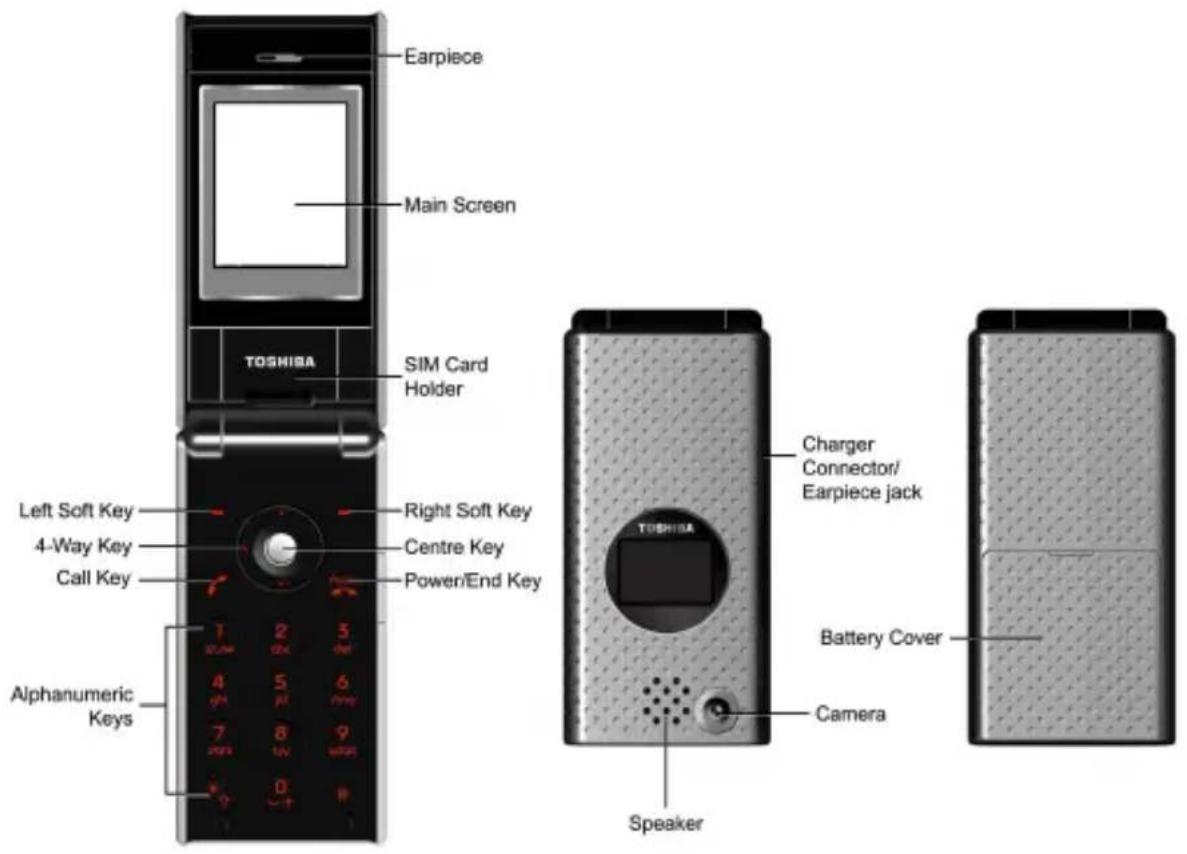
Keys
Each of the keys on your phone has one or more functions, as explained in the table below.
| Key Function(s) | |
| 4-way key | To navigate the phone's menu system. For more information see "The 4-Way Key" on page 20. |
| Centre key | To enter the selected menu, confirm the selection, submit an entered number or piece of text, and to launch the camera from the idle screen. For more information see "The 4-Way Key" on page 20. |
| Soft keys | Press to access the functions available for the soft keys. For more information see "Soft Keys" on page 22. |
 | To dial a number or accept an incoming call; also from the idle screen, press once to display the Dialled calls list, and press twice to redial the last number called. |
 | To turn on/off the phone, reject an incoming call, end a call, cancel a selection, return to the idle screen from any phone menu. |
 | From the idle screen, press and hold to access voice mail. |
 | Press to access shortcut functions. For more information see "Shortcuts Setting" on page 58. |
 | From the idle screen, press and hold to enter "+" and display the "+List (for international codes)." |
 | In call, press and hold to turn on/off the speaker. In camera preview mode, press to display menu options. During text editing, press to turn T9 entry on/off. |
 | In call, press and hold to turn on/off the mute. In camera preview mode, press to turn on/off camera icons. During text editing, press to change entry modes. |
The 4-Way Key
Your phone has an easy-to-use menu system that you can navigate using the 4-way key.

Up
• To scroll up lists or move the cursor upwards.
• To access Phone modes menu from the idle screen.
- Press and hold to toggle the silent mode on/off.
- To zoom in under camera preview mode.
• To increase Volume during a call.
Left
- To scroll left or move the cursor to the left of the screen.
• To access Messages menu from the idle screen.
• To reduce Exposure under camera preview mode.

natural_image
Simple concentric circle diagram with no text or symbolsRight ▶
- To scroll right or move the cursor to the right of the screen.
• To access Phonebook menu from the idle screen. -
To increase Exposure under camera preview mode.
-
To scroll down or move the cursor downwards.
• To access My data menu from the idle screen.
• To zoom out under camera preview mode.
• To decrease Volume during a call.
Down
Centre key
- To confirm the function.
• To access Camera and press again to take a picture. - To toggle your desired function on/off in each menu screen.
Quick keys
| To Key Sequence Mode | ||
| View recent calls | Press  once once | Standby |
| Call voice mail | Press and hold  | Standby |
| Access Phone modes | Press | Standby |
| Access My data | Press | Standby |
| Access Messages | Press | Standby |
| Access Phonebook | Press | Standby |
| Quick-dial a phonebook number | Enter a Record No. and press to quickly display the number and pre  to dial the number to dial the number | Standby |
| Switch on/off the phone | Press and hold [TCA2] | Standby |
| Select a menu item | Press Centre key or Left soft key | When In the menu |
| Exit a menu | Press  | When in the menu |
| Put a call on hold or retrieve a call on hold | Press Hold or Retrieve soft keys | During a call |
| Reject or end a call | Press  | When receiving a call |
| Enter a space | Press  once once | When entering text |
| Enter a symbol | Press  correct symbol appears or press correct symbol appears or press  to display the symbols chart to display the symbols chart | When entering text |
Soft Keys
Your phone has two keys called "soft keys." The function of these keys depends on the menu being displayed at the time. The available function is displayed above the soft keys, as shown below.
The default soft keys (i.e. the ones displayed in stand-by mode) are Menu and Browser. Pressing the soft keys will take you directly to the functions.

If PIN entry is required when you turn on your phone, the SOS soft key will be available before you enter the PIN. see "SOS Soft Key" on page 6 for more information.
Main menu
Your phone's menu structure starts with the 9 Main menu icons in a grid view. To access press Menu from the idle screen. Navigate to the desired menu by using the 4-way key, then press Centre key or Select to access the sub-menu.
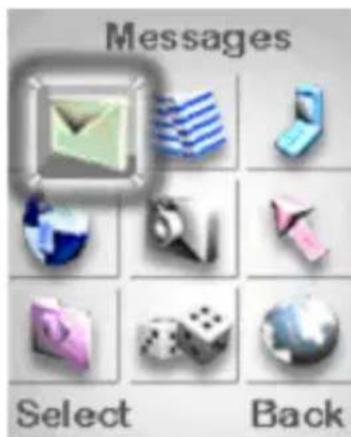
Messages Phonebook Call Options



Applications Camera Settings



| Menu Description | |
| Messages | SMS/MMS messaging functions. For more information, see "Messages" on page 33. |
| Phonebook | Stores a list of phone contacts. For more information, see "Phonebook" on page 37. |
| Call options | Records a list of call histories. For more information, see "Call Options" on page 45. |
| Applications | Provides SIM tool kit, calendar, clock, calculator and other functions. For more information see "Applications" on page 47. |
| Camera | Allows you to take a picture using the display as a view finder. For more information see "Camera" on page 54. |
| Settings | Includes a variety of settings. For more information,see "Settings" on page 56. |
| My data | Stores a list of picture and sound files. For more information, see "My Data" on page 70. |
| Games | Provides a number of games in your phone. For more information, see "Games" on page 73. |
| Browser | Provides access to the Internet. For more information, see "Browser" on page 74. |
Menu Structure

Alternatively, when in the Main Menu screen, you can press the number keys (1-9) to access any menu directly. For example, press 6 in Main menu to access Settings.
| Key | Main Menu 2nd Level |
| 1 Messages Create | |
| 2 Phonebook Lists | |
| 3 Call options Dialled calls | |
| 4 Applications SIM Tool kit* | |
| Key | Main Menu 2nd Level |
| 5 Camera | |
| 6 Settings Phone | |
| Phone modes | |
| Display | |
| Calls | |
| Security | |
| Network | |
| T9 input | |
| Reset settings | |
| 7 My data Record voice | |
| 8 Games | |
| 9 Browser Homepage | |
* The feature is subscription dependent. Please contact your service provider.
Icons
Your phone has one 65536-colour main LCD and one monochrome external LCD. The icons displayed on the two screens are explained below.
External screen
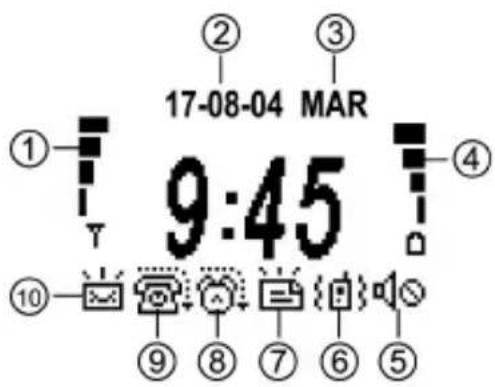
| No. Description No. Description | ||
| 1 Signal Strength 6 Vibrate on2 Date 7 WAP alert3 Day of the week 8 Missed Alarm4 Battery level 9 Missed Call5 Silent mode 10 New message |
Main Screen
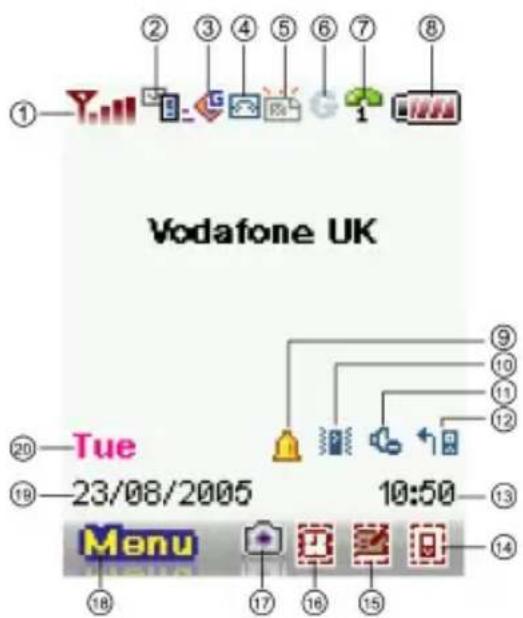
| No. | Icon Description | |
| 1 | Sign (to high) | |
| 2 | New message(s) on server. | |
 | SIM is full. | |
| Mailbox is full. | ||
 | Unread message(s) | |
| 3 | MMS for GPRS transmit. | |
 | MMS for CSD transmit. | |
| 4 | New voice message(s) | |
 | New voice message(s) on ALS 1 | |
| New voice message(s) on ALS 2 | ||
 | Roaming | |
| 5 | WAP alert. | |
| 6 | GPF tach | |
| 7 | Line status GSM (ALS1) | (Green) |
 | Line status GSM (ALS2) (Green) | |
| 8 | Battery level (Empty to full) | |
| 9 | Alar tting | |
| 10 | Vibrate on | |
| 11 | Silent & vibrate on | |
| Silent mode | ||
| Meeting mode | ||
| Outdoor mode | ||
| Car mode | ||
| 12 | Call divert | |
| 13 | Time | |
| 14 | Missed calls | |
| 15 | Missed appointment | |
| 16 | Missed alarm | |
| 17 | Camera | |
| 18 | Menu | |
| 19 | Date | |
| 20 | Day of the week | |
Basic Phone Use
Making an Emergency Call
Emergency calls can be made without credit on your phone and in some cases without a SIM card inserted. To make an emergency call, dial 112, 999 or if available press SOS, followed by Yes.
Making/Ending a Call
Before you can make a call, you need to insert your SIM card and make sure your phone is switched on.
To make/end a call (Steps 1-3):
- Enter a phone number (including the area codes if necessary) using keypad keys.
- Press to dial the number.
- Press to end the call.
Alternatively, you may select a contact from Phonebook and press to dial the number.
To make a call from Phonebook (Steps 1-3):
- Press Menu > Phonebook > Lists
- Scroll to the desired entry.
- Press
When you enter a new entry in your phonebook, the phone assigns the entry a Record No.. With this, you can quick dial a number.
To quick-dial a number (Steps 1-3):
- Enter a Record No. by using the keypad keys.
- Press to request the phone number from the phonebook.
- Press
To dial a number from the Dialled Calls list (Steps 1-3):
- Press from the idle screen.
- Scroll to the desired number.
- Press
Receiving/Rejecting a Call
When there is an incoming call, the phone rings/vibrates (depending on your phone mode) and the screen displays the name (if recorded in your phonebook) or phone number of the caller (this feature is network dependent).
To receive a call, press 📄 or Reply. To reject a call, press 🌐 or Reject.
Holding a Call
A call may be put on hold.
To place a call on hold:
- Press Hold. Also press Main menu and select Hold.
Making/Receiving a Second Call
Your first call is put automatically on hold by your phone when you receive or dial a second call.
To make a second call (Steps 1-3):
-
During a call, press Main menu to select a number from Phonebook or enter the number using keypad keys.
-
Press to make the second call.

When you press ,the first call will automatically be put on hold.
- Press Swap to switch between two calls.
Making a Conference Call
When you have one active call and another one on hold, you may connect the two for a conference call.
To make a conference call (Steps 1-2):
-
Press Main menu > Conference to connect the two calls.
-
Press Main menu > Private to disconnect the two calls.

When two calls are disconnected, the phone returns to the previous state of one call active and one call on hold.
Receiving a Third Call
When you have a third call incoming while you have one call on hold and another active, answering the third call will end the active call and replace it with the newly received one. Alternatively, you may receive a third call when you have the first two calls connected (using the Conference Call feature).
Text Entry
This section describes how to enter text using your keypad keys.
Changing Entry Mode
In an edit screen, an indicator displays the currently applied entry mode. When creating a new SMS or MMS, there is a word counter beside the indicator, telling you how many characters you have entered.
To turn T9 predictive text input on/off, press and hold key.
To change entry mode, press key to switch between the following modes:
T9 Entry Method Normal Entry Method
T9 abc abc
T9 Abc Abc
T9 ABC ABC
123 123
T9 Language
Your phone supports T9 predictive text input in a number of languages.
To select a T9 language (Steps 1-3):
-
Press Menu > Settings > T9 input > T9 language.
-
Scroll to the desired language.
-
Press Select.

To set the T9 language to be Automatic allows the phone to select a language for you.
The T9 preferred setting displays the preferred T9 language when you edit SMS or MMS messages. If the setting is off, the T9 entry will be switched off when you edit messages.
To disable T9 preferred (Steps 1-2):
-
Press Menu > Settings > T9 input > T9 preferred.
-
Press Change.
T9 English Entry Method
T9 predictive text offers possible word combinations by searching the T9 dictionary. Below is an example of how this is done.
To enter "Cat" in your edit screen (Steps 1-4):
- Press using keypad keys. "Act" appears on the screen.
- Press Left soft key to go to the next possible combination such as Cat, Bat, Abu, Cau, etc.
- Stop pressing Left soft key when "Cat" appears on the screen.
- Press ▶ to add the word or press ⏻ to enter the word with an added space behind.
Other key functions:
- : Enters the word and add a space behind it.
- Right soft key: Deletes the letter on the left of the cursor.
- Left soft key: Opens Options menu or go to the next possible T9 word combination.
- : Press to switch between entry modes (upper or lower case).
- : Press once to open the symbols chart; press and hold to turn T9 entry on/off.
Add new words to T9 dictionary
T9 dictionary offers as many word combinations as possible when you enter a letter. Yet if there is any word that is not in the T9 dictionary, you can add it.
To add a new word to T9 dictionary (Steps 1-4):
- Enter a word.
- Press Left Soft key to scroll to "--".
- Press Spell to spell the new word.
- Press Save.
Normal Entry Method
To enter "Act" in your edit screen (Steps 1-3):
- Press once to enter "A".
- Press three times to display to jump to "c".
- Press once for "t."
Numeric Entry Method
Press the numeric key to enter the number.
Character Table
Numeric keys have different functions under different entry methods. Please refer to the following table for details.
| Lower case Upper case | ||
 | Press once to bring up the symbols chart; press and hold to turn T9 text entry on/off. | |
 | Press once to switch between different entry methods: ABC, Abc, abc or 123. | |
 | Space 0 | |
 | ‘“; / @ : ? ! . , 1 | |
 | a, b, c, 2, ä, à, ç A, B, C, 2, Ä | |
 | d, e, f, 3, é, è D, E, F, 3, È | |
 | g, h, i, 4, ì G, H, I, 4 | |
 | j, k, l, 5 J, K, L, 5 | |
 | m, n, o, 6, ö, ñ, ò M, N, O, 6, Ö, Ń | |
 | p, q, r, s, 7, β P, Q, R, S, 7 | |
 | t, u, v, 8, ü, ù T, U, V, 8, Ü | |
 | w, x, y, z, 9, æ, ø, å W, X, Y, Z, 9, Æ, ∅, Å | |

To change upper/lower case, press to switch between different entry mode (i.e. abc or ABC).

Messages
Messages is an SMS/MMS messaging function. You can send an SMS message of up to 160 characters, including punctuation marks and spaces. The messages that you create, send and receive are stored in the Draft, Outbox and Inbox.
When you navigate through the list of messages in Inbox, press Options to access the following features:
- View: Displays message contents.
- Reply via SMS : Replies an SMS message to the sender.
- Reply via MMS: Replies an MMS message to the sender.
-
Forward: Forwards the message to other recipients.
-
Detail: Displays the date, time and sender information (available in Inbox > View mode only).
-
Delete: Deletes the selected message.
-
Delete all: Deletes all messages in the current folder.
When you navigate through the list of messages in Outbox and Draft, press Options to access the following features:
- View: Displays message contents.
- Edit: Edits the message.
- Delete: Deletes the selected message.
- Delete all: Deletes all messages in the current folder.
Creating/Sending/Saving SMS Messages
To create a new message (Steps 1-4):
- Press Menu > Messages > Create > SMS.
- Input your message.
- When done, press Options > Send.
- Or press Options > Save to store in Draft.
For more information on entry methods, see "Text Entry" on page 29.

To enter multiple recipients' numbers, press and hold to get the semi-icon"; ", then you can enter another number.
SMS Message Editing Options
In SMS edit screen, press Options to access the following features:
- Send: Sends the message.
- Save: Stores the message in Draft.
- Insert object: Inserts objects such as Predefined sounds/animations, and Own animations/pictures/sounds.
- Format: Selects Text format and Text colour for the message.
- Templates: Provides 10 predefined texts. You may select one to add to your message.
- Insert number: Select a number from Phonebook and add it to your message.
SMS Settings
To access SMS settings, press Menu > Messages > Settings > SMS settings. The following describes the setting items:
- Service centre: Edits your SMS Message centre number.
- Message type: Selects your message type from Standard text/Fax/X.400/Paging/E-mail/ERMES/Voice mail.
- Validity period: Selects the period from 1 hour/12 hours/1 day/1 week/Maximum. It determines the duration the SMS message is stored at the SMS centre. The selection will have its radio button marked.
- Status report: This feature allows you to get a receipt when the SMS message is successfully delivered. Press Select to activate the feature and the check box will be marked. This feature is network dependent.
- Direct reply: If the feature is enabled and available by your service provider, you may pay for the message sent back to you. Press Select to activate the feature, and the check box will be marked.
- SMS via GPRS: The feature allows you to send your SMS via GRPS rather than CSD. Press Select to activate the feature, and the check box will be marked.
Memory Status
To check how much memory is used and left on SIM/phone, press Menu > Messages > Memory status.
Creating/Sending/Saving MMS Messages
To create a new message (Steps 1-4):
-
Press Menu > Messages > Create > MMS.
-
Press Insert to add objects to your MMS message.
-
When done, press Options > Send.
-
Input recipient's number (To field, Cc or Bcc fields), or Subject.
-
Or press Options > Save to store in Draft.

To enter multiple recipients' numbers, press and hold to get the semi-icon"; ", then you can enter another number.
MMS Message Editing Options
In MMS edit screen, press Options to access the following features:
- Send: Sends the message.
- Store: Stores the message in Draft.
- View details: Selects to view information about the message (Slide timing and Message size).
- Page timing: Sets how long the page is displayed on the screen. You can set the timing for text, image and sound files.
- Preview Page: Previews the selected page.
- Preview msg: Previews the MMS message.
MMS Message Insertion Feature
In MMS edit screen, press Insert to insert files such as picture, text, photo, sound, voice, and page.
MMS Settings
To access MMS settings, press Menu > Messages > Settings > MMS settings. The following describes the setting items:
- Send options: Under the menu, you may adjust settings such as Delivery report, Own address, Lifetime, and Priority.
- Receive options: Under this menu, you may adjust settings such as Normal, Anonymous sender or Advertisements.
Memory Status
To check how much MMS memory is used and left, press Menu > Messages > Memory status.
Templates
Your phone contains 10 predefined texts that you can insert into your messages.
To add a predefined text (Steps 1-2):
-
Press Menu > Messages > Templates.
-
Press Options > Select.
Cell Broadcast
Broadcast messages are network dependent. You need to register with your service provider. To access this feature, press Menu > Messages > Cell broadcast. Under the menu, you can set up the following options:
-
Message list: Displays a list of received cell broadcast messages.
-
Broadcast: Press Select to activate the feature and the check box will be marked.
-
Topic list: You can add a number of topics for your list. You can enter five entries at most using the channel number (ID) and if required, the name itself.
-
Auto display: This feature allows cell broadcast messages to be displayed automatically in standby mode. Press Select to activate the feature and the check box will be marked.
-
CB languages: This feature allows you to specify the language in which your cell broadcast message is displayed.

When cell broadcast service is activated, the battery will be used up more quickly.

Phonebook
Phonebook is used to store names, phone numbers, and other personal details. There are two storage areas: SIM card and phone memory. Your phone has 8 different lists of contacts:
- Complete (a list of all the numbers stored in all phonebooks: Phone, SIM, FDN, except SDN numbers)
- Contacts in SIM
- Contacts in your phone memory (Phone)
- Own number
- Service dialling numbers (SDN)
- Fixed dialling numbers (FDN)
- Groups
- Voice mailbox
To access phonebook lists, press Menu > Phonebook > Lists.
Alternatively, press ▶ from the idle screen. To scroll to a desired contacts directory, press ◀ or ▶. The name and icon of the directory is display at the top of the screen.
Service Dialling Numbers (SDN)
SDN phonebook supplies numbers that are installed by your service provider, which cannot be edited or changed by you. The SDN are hidden, and your phone only displays their text title.

Although your phone supports SDN, its availability depends on your SIM. Please contact your service provider.
Fixed Dialling Numbers (FDN)
This feature allows you to limit the dialling out numbers. If the feature is set to ON, you may only make calls to numbers in the FDN phonebook and emergency numbers.

Although your phone supports FDN, its availability depends on your SIM. Please contact your service provider.
Adding Entries
You may add entries to your phonebook. Adding entries to the FDN list requires PIN2 number.
To add an entry (Steps 1-6):
- Press Menu > Phonebook > Lists or press ▶ from the idle screen.
- Press ◀ or ▶ to scroll to the desired directory.
- Select
. - Press Select to choose SIM or Phone memory.
- Enter the information.
- Press Save.
Managing Phonebook
You can search through your phonebook to call, modify, copy or delete entries.
Searching Phonebook
Alphabet Search
To search a contact alphabetically (Steps 1-5):
- Press Menu > Phonebook > Lists or press ▶ from the idle screen.
- Press ◀ or ▶ to scroll to the desired directory.
-
Press a number key corresponding to the first letter of the contact's name (i.e. Press twice to access contact names that begins with E).
-
Press ▲ or ▼ to scroll to the desired contact.
-
Press to call the number.
Searching by Group
To search a contact according to the Group it is assigned to (Steps 1-6):
- Press Menu > Phonebook > Lists or press ▶ from the idle screen.
- Press ◀ or ▶ to scroll to Groups.
-
Scroll to the desired group (Friends, Colleagues, Family, Biz partner, and VIP).
-
Press Options > View group.
- Press ▲ or ▼ to scroll to the desired contact.
- Press to call the number.
Searching by Record No.
To search a phone number by its corresponding Record No. (Steps 1-3):
- From the idle screen, enter a Record No..
- Press to access the contact's number in the phonebook.
- Press to call the number.
Alternatively,
- Press Menu > Phonebook > Lists or press ▶ from the idle screen.
- Go to a desired entry.
- Press Options > Go to location.
- Enter Record No..
- Press OK.
Editing an Entry
The edit function enables any stored phone number to be edited and have additional information/attributes added to it.
To access the Options menu (Steps 1-5):
- Press Menu > Phonebook > Lists or press ▶ from the idle screen.
- Scroll to a desired contact.
- Press Options > Edit.
- Press ▲ or ▼ to the desired field and add information.
- Press Save.

If the entry is SIM protected, you are requested to enter PIN2 for editing.
The SIM entry includes the following information:
- Name: Enters a name for the contact.
- Home number: Enters a phone number. (You need to at least input the number to save a contact).
- Location: Selects between SIM, Protected SIM, or Phone. You will have to enter your PIN2 code when you select Protected SIM as the location before you store the record.
- Record No.: The phone will assign a number for the contact. Or you may select one by pressing ◀ or ▶.
The phone entry includes the following details:
- Name: Enters a name for the contact.
- Home/Office/Mobile/Fax number
- E-mail 1/E-mail 2
- Other information: Note, Company, Street, Post code, City, Country and URL.
- Group: There are six groups (No group, Friends, Colleagues, Family, Biz partner, and VIP).
- Caller picture/ringtone: Sets a picture or ringtone for the contact.
Deleting Entries
There are two options for deleting contacts from your phonebooks:
- Delete each entry individually.
- Delete all your phonebook entries at once.
Deleting an Entry
To delete an entry (Steps 1-4):
- Press Menu > Phonebook > Lists or press ▶ from the idle screen.
- Scroll to Complete, SIM or Phone directory.
- Press Options > Delete.
- Press Select.
Deleting All Entries
To delete all entries (Steps 1-4):
- Press Menu > Phonebook > Lists or press ▶ from the idle screen.
- Scroll to SIM or Phone directory.
- Press Options > Delete all.
- Press Select.
Grouping Entries
It can be a good idea to sort your entries into groups for easier access. There are 6 groups available to allocate phone numbers to (including "No group"). Note that only entries stored in phone memory can be categorised to different group.
Creating a Group Name
To change a group name (Steps 1-6):
- Press Menu > Phonebook > Lists or press ▶ from the idle screen.
- Press ◀ or ▶ to scroll to Groups.
- Press ▲ or ▼ to scroll to the desired group name.
- Press Options > Rename Group.
- Enter a new name.
- Press OK.
Adding a Contact to a Group
To add a phone contact to a group (Steps 1-6):
- Press Menu > Phonebook > Lists or press ▶ from the idle screen.
- Select an entry from Phone.
- Press Options > Edit.
- Press ▲ or ▼ to scroll to the Group field.
- Press ◀ or ▶ to scroll to the desired group name.
- Press Save.
Removing a Contact or All Entries from a Group
To remove a contact from its allocated group (Steps 1-4):
- Press Menu > Phonebook > Lists or press ▶ from the idle screen.
- Press Options> Edit.
- Press ◀ or ▶ to scroll to Group field.
- Select
.
To remove all contacts from their allocated group (Steps 1-4):
- Press Menu > Phonebook > Lists or press ▶ from the idle screen.
- Select an entry from Phone.
- Press Options > Remove entries.
- Press Save.
Changing Group Image
To change the group image (Steps 1-4):
- Press Menu > Phonebook > Lists or press ▶ from the idle screen.
- Press ◀ or ▶ to scroll to Group field.
- Press Options > Group image.
- Press Select.
Assigning Ringtone/Melody to a Group
To assign a specific ringtone/melody stored in your phone to a group (Steps 1-4):
- Press Menu > Phonebook > Lists or press ▶ from the idle screen.
- Press ◀ or ▶ to scroll to Group field.
- Press Options > Set ringtone.
- Press ▲ and ▼ and confirm by pressing Select.
Moving an Entry from Phone to SIM/SIM to Phone
To move a phonebook entry in SIM to Phone or vice versa:
- Press Menu > Phonebook > Lists or press ▶ from the idle screen.
- Select an entry from Phone or SIM.
- Press Options > Move to phone or Move to SIM.
- Press Select.
Copying an Entry from Phone to SIM/SIM to Phone
To copy one phonebook entry in SIM to Phone or vice versa (Steps 1-4):
- Press Menu > Phonebook > Lists or press ▶ from the idle screen.
- Select an entry from Phone or SIM.
- Press Options > Copy to phone or Copy to SIM.
- Press Select.
Copying All Entries from Phone to SIM/SIM to Phone
To copy all phonebook entries in SIM to Phone or vice versa (Steps 1-4):
- Press Menu > Phonebook > Lists or press ▶ from the idle screen.
- Select an entry from Phone or SIM.
- Press Options > Copy all to phone or Copy all to SIM.
- Press Select.
Own Number
Own number menu allows you to store and display your Own number.
To add your Own number (Steps 1-5):
- Press Menu > Phonebook > Lists or press ▶ from the idle screen.
- Press ◀ or ▶ to select Own number.
- Select
and then Edit. - Enter your Own number and Name.
- Press Save.
Voice Mail
Voice mail is a network dependent feature that enables you to retrieve recorded messages from people who called your number when you were out of coverage, were engaged on another call and did not activate Call waiting, or had your phone switched off.
Setting up Your Voice Mailbox
To set up your voice mailbox (Steps 1-5):
- Press Menu > Phonebook > Lists or press ▶ from the idle screen.
- Press ◀ or ▶ to select Voice mailbox.
- Select Number.
- Enter your voice mail service centre number.
- Press Save.
Calling your Voice Mailbox
To call your voice mailbox (Steps 1-4):
- Press Menu > Phonebook > Lists or press ▶ from the idle screen.
- Press ◀ or ▶ to select Voice mailbox directory.
- Press ▲ or ▼ to select Voice mailbox.
- Press to end the call.
Changing your Voice Mailbox Number
To change your voice mailbox number (Steps 1-5):
- Press Menu > Phonebook > Lists or press ▶ from the idle screen.
- Press ◀ or ▶ to select Voice mailbox.
- Select Number.
- Change your voice mail service centre number.
- Press Save.
Call Options
This option provides three lists of call histories, including Dialled calls, Missed calls, and Received calls. There is also a record of time/cost of calls and a charge setting feature.
Dialled Calls
To access Dialled calls, press Menu > Call Options > Dialled calls.
Alternatively, you may press the ⓣ to display a list of previously dialled calls.
Call Lists
There is a total of three call histories in your phone:
- Dialled calls
- Missed calls
- Received calls
The three call lists detail the following information for each call:
• Name of caller (if it is stored in your Phonebook)
- Phone number
• Time of the call
To access the three call lists (Steps 1-2):
- Press Menu > Call options
- Press ▲ or ▼ to access a call list. Or press 1 for Dialled calls, 2 for Missed calls and 3 for Received calls.
Alternatively, press ⓕ from the idle screen and ◀ or ▶ to scroll to the desired call list. In the call list press Options to access the following features:
- Extract number: Shows the phone number and store it to Phonebook.
- Copy to...: Copies the phone number from SIM/Phone to Phone/SIM.
- Delete: Deletes the number.
- Delete all: Deletes the call history.
Time & Costs
This feature keeps a record of the duration and cost of all types of calls you make or receive on your phone.
To view the time and cost information (Steps 1-3):
- Press Menu > Call options > Time/Costs.
- Press ▲ or ▼ to select the desired call types (Last call, All voice calls, Total incoming, Total outgoing, and Cost left).
- Press OK to return or press Reset in Last call and All voice calls lists if you would like to reset the call counter.
Charge Settings
This feature allows you to set a limit in units so that you can no longer dial out from your phone once the limit is reached. Note that this feature is SIM and network dependent.
To set the charge limit (Steps 1-5):
- Press Menu > Call options > Charge settings.
- Select Currency to set the unit price for each call. Enter your PIN2 before you make a change.
- Select Cost/unit to set the cost Per unit and Per min. Enter your PIN2 before you make a change.
- Select A/c limit to edit Display credit and Max cost. Enter your PIN2 before you make a change.
- Select to turn on/off Auto display. Press Select to activate the feature and the check box will be marked.

Applications
Press Menu > Applications to access this menu, which allows you to utilize the following features:
- Organisation (including Scheduler, ToDo list, and Notepad)
- Clock (including Alarm clock, Auto on, Countdown, and Stopwatch)
• Calculator (including Calculator and Currency Conv.)
-Composer
• Voice memo (including Record and Play and Data rate)
Scheduler
Scheduler allows you to record an appointment in your phone and remind you of it later. Note that the phone will automatically switch itself on from off and alert you of the appointment when Agenda is set to On.
To set the calendar display format (Steps 1-2):
- Press Menu > Applications > Organisation > Scheduler.
- Press Options > Week. Note that Month is the default display format.
To set an appointment (Step 1-4):
-
Press Menu > Applications > Organisation > Scheduler.
-
Press Options > Agenda >
. -
Fill in appointment details.
-
Press Save.
Agenda information includes:
- Type: Selects event type (Memo, Call, and Meeting)
• Description: Adds more description about the event
• Status: Selects to Activate/Deactivate the event
• Reoccurrence: Sets event frequency (Once, Daily, Weekly, Monthly, and Annual) - Start date/time: Sets event starting date and time.
• End date/time: Sets event ending date and time.

If you have missed an appointment, an icon will be displayed on the screen. Press the Right soft key to check details.
Options for an existing event include:
• View: Views details of the event.
- Edit: Edits the event.
- Add new: Creates a new event.
- Delete: Deletes the event.
- Delete all: Deletes all events.
- Capacity: Checks the Maximum and Free memory.
ToDo List
This feature allows you to set up events with reminders on selected dates and times.
To set up an event in ToDo list (Steps 1-4):
- Press Menu > Applications > Organisation > ToDo list.
- Select
. - Fill in entry details.
- Press Save.
Entry information includes:
- Type: Selects event type (Memo, Call, and Meeting)
• Description: Adds more description about the event - Status: Selects to Activate/Deactivate the event
- Reoccurrence: Sets event frequency (Once, Daily, Weekly, Monthly, and Annual)
- Start date/time: Sets event starting date and time.
- End date/time: Sets event ending date and time.
Options for an existing entry include:
• View: Views details of the event.
- Edit: Edits the event.
- Add new: Creates a new event.
- Delete: Deletes the event.
- Delete all: Deletes all events.
- Capacity: Checks the Maximum and Free memory.
Notepad
This feature allows you to write down some text for later reference.
To use the Notepad (Steps 1-4):
- Press Menu > Applications > Organisation > Notepad.
- Select
. - Write down information.
- Press Options > Save.
Options for Notepad include:
- Save: Stores the new entry.
- Insert new line: Inserts a new line to the entry.
- Clear text: Clears the written text.
- Send: Sends the entry.
Alarm Clock
When an alarm is set, it will ring even if the phone is turned off.
To set an alarm (Steps 1-5):
- Press Menu > Applications > Clock > Alarm clock.
- Press ▲ or ▼ to select an empty alarm profile.
- Press Options > Edit.
- Set alarm details.
- Press Save.
Options for an alarm profile:
- Activate: Turns on/off alert tone
- Edit: Edits profile details (Time, Week of the day, Status, Description)
- Delete: Deletes the existing profile.
- Delete all: Deletes all alarm profiles.
Auto On
When this feature is set to On, the phone will automatically turn on at a specific time. Press Menu > Applications > Clock > Auto on. Press Select to activate the feature and the check box will be marked.
Countdown
This feature allows you to set a specific duration which will be counted down. An alarm will sound at the end of your specified time.
To start counting down (Steps 1-5):
- Press Menu > Applications > Clock > Countdown.
- Press Set to enter a period of time.
- Press OK to confirm.
- Press Start to begin countdown.
- Press Stop to stop countdown.
Stopwatch
This feature allows you to time events, so you can register a lap time during the time event.
To record a time with Stopwatch (Steps 1-5):
- Press Menu > Applications > Clock > Stopwatch.
- Press Start.
- Press Stop to record a time, or Stop 1 to record a first time.
- Press Stop 2 to record a second time.
- Press Reset to reset the counter.
Calculator
You can perform calculations as if using a calculator. A maximum of 8 digits can be inputted to this calculator, which will display a 9-digit or 6-decimal result. If the result exceeds 9 digits, the screen will display an "Over range" message.
Calculation keys
- ▲: Addition
- ▼: Multiplication
- ▶: Division
- ◀: Subtraction
- Right soft key: Clear
- Left soft key: Equals to (=)
- : Decimal point (.)
- : Negative (-)
To perform a calculation (Step 1-3):
- Press Menu > Applications > Calculator > Calculator.
- Enter the digits with numeric keys and other calculation keys (listed above).
- Press to return to the idle screen.
Currency Converter
This function allows you to enter an exchange rate and convert from one currency to another.
To set an exchange rate (Steps 1-5):
- Press Menu > Applications > Calculator > Currency conv. > Rate setting.
- Enter the rate.
- Press Compute and Save to return to Currency conv. menu screen.
- Select Rate compute.
- Enter a number and press Convert.
Composer
This function allows you to create your own sound by composing one main track and three sub tracks.
Composer Keys
- Number key 1-7: Inserts notes C, D, E, F, G, A, B.
- ▲ or ▼ key: Moves the composed melody up or down by one note.
- : Increases/Decreases the length of a note/rest.
- : Raises/lowers the note by a semitone.
To compose a melody (Steps 1-5):
- Press Menu > Applications > Composer.
- Press Options >Composer to select a sound file.
- Scroll to the desired track and press Select.
- Compose the melody.
- Press Options to Save/Play the melody or change Instrument/Tempo.
Voice Memo
This function allows you to record a voice clip (of up to 36 seconds) using your phone's microphone. You may send the recorded voice clip as an MMS message attachment.
To record a voice clip (Steps 1-6):
- Press Menu > Applications > Voice memo > Record.
- Press Record to start recording.
- Press Stop/Pause to cease/hold the recording.
- When done, press Save to save the sound.
- Name the sound file on the Rename screen.
- Press Save.
To access Record voice options menu, press Menu > Applications > Voice memo > Play. Options include:
- Send as MMS: Sends the recorded voice clip as an MMS attachment.
- Rename: Renames the file.
- Delete: Deletes the file.
- Delete all: Deletes all the files.
- Info: Details include File name, Creation time, File type, and File size.
Data Rate
The lower the data rate, the longer the sound file can be recorded.
To set the data rate (Steps 1-3):
- Press Menu > Applications > Voice memo > Data rate.
- Scroll to the desired rate (6.70 kbps, 7.40 kbps, 7.95 kbps, 10.20 kbps, 12.20 kbps).
- Press Select and the selected rate will be marked.
Your phone has an integrated camera that allows you to take pictures and send them as an MMS message. The pictures are taken and saved in JPEG format, which can be viewed by most picture viewing programmes.

Do not apply force to your camera lens, it might get damaged.
To take a picture (Steps 1-4):
-
Press Menu > Camera or press Centre key to launch camera.
-
Press Centre key to take the picture.
-
Press Save to store the picture.
-
Press Back to go back to the camera's view finder screen.

Note that you might be violating privacy law if you take a picture of others and send it as MMS without their consent.
While you are on the camera's view finder screen, you may utilize the following two features:
- Zoom: Press ▲ to zoom in and press ▼ to zoom out. The function is not available for image size 640 x 480. You may zoom twice when the image size is 320 x 240, and six times for size 160 x 120.
- Brightness: Press ◀ or ▶ to adjust the level of brightness on the camera's view finder screen. Or you may press Options > Brightness on the view finder screen to adjust the brightness level.
Options for the view finder screen include:
- Twilight: This feature increases the exposure time when there is insufficient light for taking a picture. Press Select to turn on/off the feature.
- Close up: Your phone allows you to take a close-up picture when the feature is set to On.
• Screen mode: Switchs between Normal mode or Full mode.
- Photo size: Selects your photo size: VGA (640 x 480), QVGA (320 x 240), and QQVGA (160 x 120). The larger the photo size, the more memory it uses up.
- Image quality: Selects the image quality (Fine, Normal, and Economy)
- Effect: Selects a different colour for your photo (Normal, Monochrome, Sepia, and Blue)
- Help: Guidelines on how to use shortcuts.
- Default setting: Restores your options menu settings to default value.

The phone will return to the idle screen after three minutes in camera mode.
Options for saved pictures include:
• View finder: Selects to return to the camera's view finder.
- Send as MMS: Sends the stored picture as an MMS.
- Set as wallpaper: Uses the stored picture as wallpaper.
- Go to my photos: Goes to the folders of the saved pictures.

Settings
You may customise your phone by changing the following options in Settings.
Voice Volume
To change voice volume (Steps 1-4):
- Press Menu > Settings > Phone > Voice volume.
- Press ▲/▶ or number key to increase volume.
- Press ▼/◀ or number key to decrease volume.
- Press OK to confirm.
Answer Options
To access Answer Options, press Menu > Settings > Phone > Answer options. There are three answer settings:
- Any key answer: When the feature is activated, you can answer an incoming call by pressing any keypad keys except the
- Fold answer: When the feature is activated, you can answer an incoming call when you unfold the phone.
- Ring silencer: When the feature is activated, your phone is turned to silent mode.
Seconds Reminder
This feature allows you to set a reminder for how long you have talked on the phone in seconds.
To set a reminder (Steps 1-4):
- Press Menu > Settings > Phone > Seconds reminder.
- Select On/Off to activate/deactivate the reminder.
- Select Timer to enter the duration in minutes.
- Press Save.
ALS Setup
This feature allows you to select an ALS (Alternative Line Service) between line 1 and line 2. Please contact your service provider to find out more about the availability of this service.
To select a line (Steps 1-3):
- Press Menu > Settings > Phone > ALS Setup.
- Scroll to the desired ALS.
- Press Select.
Time/Date
This feature allows you to set the time and date.
To set a time zone (Steps 1-5):
- Press Menu > Settings > Phone > Time/date > Set time zone.
- Press ▲ or ▼ to navigate through the time zone map.
- Press Select to confirm the time zone.
- Press Yes to confirm Daylight saving when applicable.
- Press OK to Set the city to local.
To set date/time (Steps 1-4):
- Press Menu > Settings > Phone > Time/date > Set date/time.
- Scroll to Date and press Edit.
- Scroll to Time and press Edit.
- Press Save.
To set time format (Steps 1-3):
- Press Menu > Settings > Phone > Time/date > Set time format.
- Scroll to 12 hour or 24 hour.
- Press Select.
To set date format (Steps 1-3):
- Press Menu > Settings > Phone > Time/date > Set date format.
- Scroll to DD/MM/YYYY, DD.MM.YYYY, MM/DD/YYYY, MM/DD/YYYY, MM.DD.YYYY, YYYY/MM/DD, or YYYY.MM.DD.
- Press Select.
Shortcuts Setting
Shortcuts setting allows you to access the phone's major functions at the press of a key.
To set a fast access key (Steps 1-4):
- Press Menu > Settings > Phone > Shortcut Settings.
- Press Select to choose from Shortcut 2-9.
- Scroll to a desired feature.
- Press OK.
Language
To set a language for your phone (Steps 1-3):
- Press Menu > Settings > Phone > Language.
- Press Select to choose a language.
- Press OK.
Phone Modes
There are four phone modes:
- Normal mode
- Meeting mode
- Pocket mode
- Car mode
To select a phone mode (Steps 1-4):
- Press Menu > Settings > Phone modes or press ▲ key from the idle screen.
- Scroll to the desired mode.
- Press Options > Activate (before you activate a phone mode, you may press Options > Change settings to customise it).
- Press OK.
Settings for a phone modes menu include:
- Ringer setting (On/Off)
-
Ringer (for Any call/Phonebook call/Alarm/Messages/Friends/Colleagues/Family/Biz partner/VIP)
-
Ringer volume (for Any call/Phonebook call/Alarm/Messages/Friends/Colleagues/Family/Biz partner/VIP)
• Key tone (On/Off) - Info tones (for Warning tone/Cell broadcast/Message sent)
- Vibrator (On/Off)
- Illumination (Off/LCD only/Key & LCD)
• Auto answer (On/Off for Car mode only)
Ringer Setting
To change the ringer setting (Steps 1-3):
- Press Menu > Settings > Phone modes.
- Press Options > Change settings > Ringer setting.
- Press Select. The option will be marked when it is activated.
Ringer
To set a ringer for different types of calls (Steps 1-6):
- Press Menu > Settings > Phone modes.
- Press Options > Change settings > Ringer.
- Scroll to a type of call.
- Press Select to open Sounds screen.
- Scroll to a desired sound file.
- Press Select.
Ringer Volume
To adjust the ringer volume (Steps 1-6):
- Press Menu > Settings > Phone modes.
- Press Options > Change settings > Ringer volume.
- Scroll to a type of call.
- Press Select.
- Press ▲/▼ to increase/decrease the volume.
- Press OK.
Key Tone
To change the key tone (Steps 1-3):
- Press Menu > Settings > Phone modes.
- Press Options > Change settings > Key tone.
- Press Select. The option will be marked when it is activated.
Info Tones
There are three types of info tones (Warning tone, Cell broadcast and Message sent). To change the Info tones status (Steps 1-3):
- Press Menu > Settings > Phone modes.
- Press Options > Change settings > Info tone > the desired tone type.
- Press Select. The option will be marked when it is activated.
Vibrator
To change the vibrate mode setting (Steps 1-3):
- Press Menu > Settings > Phone modes.
- Press Options > Change settings > Vibrator.
- Press Select. The option will be marked when it is activated.
Illumination
To change the illumination setting (Steps 1-3):
- Press Menu > Settings > Phone modes.
- Press Options > Change settings > illumination > the desired setting.
- Press Select. The option will be marked when it is activated.
Auto Answer
The feature is for Car mode only. To set Auto answer (Steps 1-3):
- Press Menu > Settings > Car mode.
- Press Options > Change settings > Auto answer > On/Off.
- Press Select. The option will be marked when it is activated.
Greetings
This feature provides a text greeting when the phone is switched on.
When the text greeting is on, the animation is disabled.
To set a text greeting (Steps 1-4):
- Press Menu > Settings > Display > Greetings
- Press Select to open the edit screen.
- Enter text.
- Press OK. The text greeting is activated.

To deactivate text greeting, press Clear on edit screen.
Wallpaper
You may select an image from Photos/Pictures folder and set it as the background image to the idle screen.
To set the wallpaper (Steps 1-4):
- Press Menu > Settings > Display > Wallpaper > Set wallpaper.
- Press Select to choose a file folder (Picture/Photo).
- Scroll to a desired image file.
- Press Select.
To set a wallpaper style (Steps 1-3):
- Press Menu > Settings > Display > Wallpaper > Style.
- Scroll to a desired style (Fit to screen/Tile/Best fit/Centre)
- Press Select.
Colour Style
To set a different colour style for your phone (Steps 1-3):
- Press Menu > Settings > Display > Colour style.
- Scroll from Theme 1-4.
- Press Select to confirm.
Animation
To select an animation for your phone (Steps 1-3):
- Press Menu > Settings > Display > Animation.
- Scroll between Animation 1 and Animation 2.
- Press Select to confirm.
Brightness
To adjust the phone's brightness level (Steps 1-3):
- Press Menu > Settings > Display > Brightness.
- Scroll to a desired level (Low/Medium/High/Max).
- Press Select.
2nd-LCD
To set the screen display mode for the second display screen (Steps 1-3):
- Press Menu > Settings > Display > 2nd-LCD > Screen display.
- Scroll to the desired mode (Normal mode/Clock mode).
- Press Select. The option will be marked when it is activated.
To set the contrast for the second display screen (Steps 1-3):
- Press Menu > Settings > Display > 2nd-LCD > Contrast.
- Adjust the value.
- Press OK.
Calls
The calls screen provides four settings: Call diversion, Call waiting, Auto redial, and Withhold ID.
Call Diversion
To divert a call (Steps 1-3):
- Press Menu > Settings > Calls > Call Divert.
- Scroll to the type of call you would like to divert.
- Press Select.
Types of calls for diversion include:
- Divert for all calls (diverts all incoming calls to the number you assigned).
- Not reachable (diverts all incoming calls to the number you assigned when the phone is turned off or out of signal range).
- No reply (diverts an incoming call when it is not answered for a period of time determined by your network).
- Busy (diverts the incoming call when the line is busy).
- Receiving fax (diverts the incoming call when the phone is receiving a fax).
- Receiving data (diverts the incoming call when the phone is receiving data).
To check the phone's call diversion status, press Menu > Settings > Calls > Call Divert > Status check. To cancel all the diversion settings, press Menu > Settings > Calls > Call Divert > Cancel all. Press Yes to confirm cancellation.
Call Waiting
This feature allows you to answer a second call when you are already on one call. This feature is subscription dependent. Please contact your service provider.
To activate Call waiting (Steps 1-3):
- Press Menu > Settings > Calls > Call waiting.
- Scroll to Active.
- Press Select.
To check Call waiting status (Steps 1-3):
- Press Menu > Settings > Call waiting.
- Scroll to Check status.
- Press OK.
To cancel Call waiting (Steps 1-3):
- Press Menu > Settings > Call waiting.
- Scroll to Active.
- Press Select.
Auto Redial
This feature allows you to redial a number for up to 10 times.
To turn on Auto redial (Steps 1-2):
- Press Menu > Settings > Call > Auto redial.
- Press Select. The option will be marked when it is activated.
Withhold ID
This feature allows you to withhold your ID when you call others.
Note: Once you enable this feature, it will withhold your number until you disable the feature.
To withhold your ID (Steps 1-3):
- Press Menu > Settings > Calls > Withhold ID.
- Press Select. The phone asks whether you would like to withhold your ID.
- Press Yes.
Security
Security menu provides settings that prevent unauthorised use of your phone. Before you can change any security settings, you will be asked to enter the following codes:
- PIN code (a protection code if your SIM is stolen. It is provided by your network)
• PIN2 code (a protection code for charging information and FDN service) - PUK/PUK 2 code (unblocking codes in case you forget your PIN/PIN2 codes)
- Phone code (provided by the phone)
Changing PIN/PIN2
You will be requested to enter your PIN when the phone is switched on. However, this feature can be turned off, which leaves your phone at the risk of unauthorised use if it is stolen or lost.
You can only change PIN codes, when they are active.
To activate PIN (Steps 1-3):
- Press Menu > Settings > Security > PIN active.
- Enter your PIN.
- Press OK.
To change PIN/PIN2/phone code (Steps 1-5):
- Press Menu > Settings > Security > Code > Change PIN/ Change PIN2/ Chg. Phone code.
- Key in the current code.
- Key in the new code.
- Enter the new code again.
- Press OK.
Phone Lock
This feature allows you to enable phone lock feature, preventing from the unauthorised use. Note that the default phone lock code is 0000 (4 zeros).
To set your phone lock (Steps 1-2):
- Press Menu > Settings > Security > Phone lock.
- Press Select. The option will be marked when it is activated.
Barring Calls
This feature allows you to bar different types of calls made or received on your phone. Ask your service provider for a 4-digit password if you want to activate the feature. There are four types of calls that can be barred
- All outgoing (except emergency calls)
- Outgoing international (only calls within the home country can be dialled)
-
Outgoing international except home (international calls to your home network are allowed, but all other international calls are barred.)
-
All incoming (bars all incoming calls)
-
When roaming (bars incoming calls when you are out of your home network range)
To bar a call (Steps 1-5):
- Press Menu > Settings > Security > Bar calls.
- Press Select to choose a barred call type.
- Press Options > Set.
- Enter your call barring password.
- Press OK.
To check call barring status (Steps 1-4):
- Press Menu > Settings > Security > Bar calls.
- Press Select to choose a barred call type.
- Press Options > Check status.
- Press OK.
To cancel call barring (Steps 1-5):
- Press Menu > Settings > Security > Bar calls.
- Press Select to choose a barred call type.
- Press Options > Clear.
- Enter your Bar password.
- Press OK.
Fixed Dialling
Fixed dialing allows you to only dial certain predefined numbers.
To turn on Fixed dialling (Step 1-3):
- Press Menu > Settings > Security > Fixed dialling.
- Enter PIN2 code. An activating/deactivating message will be displayed on the screen.
- Press OK.
Network
Network menu provides the following settings.
Network Info
To select a network you want to connect to (Steps 1-3):
- Press Menu > Settings > Network > Network info.
- Scroll to the desired network
- Press Select.
Choose Network
- Press Menu > Settings > Network > Change network.
- Press Select. A message asks whether you would like to change network.
- Press Yes.
Auto Network
This feature allows you to search the network automatically.
To activate Auto network (Steps 1-2):
- Press Menu > Settings > Network > Auto network.
- Press Select.
Preferred Network
This feature gives a list of available networks. You may view, edit and delete a network from the list.
To create a Pref. network (Steps 1-5):
- Press Menu > Settings > Network > Pref. network.
- Press List.
- Press Options > Insert/add to end.
- Press Select to select a network.
- Press OK.
To delete a Pref. network (Steps 1-4):
- Press Menu > Settings > Network > Pre. network.
- Press List.
- Press Options > Delete.
- Press OK.
Band
To select a network band (Steps 1-3):
- Press Menu > Settings > Network > Band.
- Scroll to the desired band (900 MHz, 1800 MHz, 1900 MHz, 900/1800 MHz, and 900/1900 MHz).
- Press Select. The radio button will be marked when it is activated.
Connectivity
To select a network connection type (Steps 1-4):
- Press Menu > Settings > Network > Connectivity.
- Scroll to the desired profile.
- Press Options or Centre key.
- Press Activate.
You may edit the following details for the connectivity profile:
- Server address: Enters a new address for WAP or MMS field.
- IP address: Enters a gateway IP for WAP or MMS field.
- Port number: Enters a port number for WAP or MMS field.
- Linger time: If the connection is not used for the preset linger time, the connection will cease.
- Connection mode: Selects to use CSD or GPRS for Auto, WAP and MMS connections.
- CSD setting: Sets either WAP or MMS connection details under CSD setting (Connection type, Dialup number, User name, Password, and DNS).
- GPRS setting: Sets either WAP or MMS connection details under GPRS setting (APN, Authentication, User name, Password, and DNS).
For details, please see "Browser" on page 74.
GPRS Info
This feature provides information on the volume of GPRS data used and the length of time spent accessing this data.
To view/reset GPRS info (Steps 1-3):
- Press Menu > Settings > Network > GPRS info.
- Press Reset. A message displays asking you to confirm resetting.
- Press Yes.
T9 Input
Please refer to "Text Entry" on page 29 in the current version of User manual.
Reset Settings
This feature allows you to restore your phone settings to default values. Executing Reset settings will not reset data in My data, Messages and Phonebook menu.
To restore your phone settings (Steps 1-3):
- Press Menu > Settings > Reset settings.
- Press Yes.
- Enter your security code.

If you have set a security code, this will be needed to reset settings.

My Data
You can save images, sounds, and recorded voice files in My data. This feature allows you to manage the files in your phone.
To access My data, press Menu > My data or press ▼ key from the idle screen.
Note: If your phone memory is full, you will not be able to save new files.
Record Voice
To record voice (Steps 1-6):
- Press Menu > Applications > Voice memo > Record.
- Press Select > Record.
- Press Stop to terminate recording.
- Press Save to open the Rename screen.
- Enter a file name.
- Press Save. The recorded file is stored in the Record Voice file under My data.
To view a list of recorded voice files, press Menu > My data > Record Voice.
Options for the Record voice menu include:
- Send as MMS: Sends voice files as MMS message attachments.
- Rename: Renames the voice files.
- Delete: Deletes the selected voice file.
- Delete all: Deletes all the voice files.
• Info: Details of the voice files.
Pictures/Photos
The Pictures and Photos folders allow you to manage downloaded pictures and photos taken with your phone. You can attach these to MMS messages.
To view Pictures/Photos (Steps 1-3):
- Press Menu > My data > Pictures/Photos.
- Scroll to the desired file.
- Press Options > View.
Options for Photos/Pictures include:
• View: Views the selected file.
- Send as MMS: Sends the file as an MMS message.
- Set as wallpaper: Sets the file as the idle screen wallpaper.
- Rename: Renames the file.
- Delete: Deletes the file.
- Delete all: Deletes all files.
- Info: Displays the File name, Resolution, Bit depth, Creation time, File type, and File size.
Sounds
This folder stores ringtones and recorded voice clips (for details, please see "Record Voice" below).
To set a sound as ringtone (Steps 1-5):
- Press Menu > My data > Sounds.
- Scroll to a desired sound profile.
- Press Options > Set as ringtone.
- Select a ringer type.
- Press OK.
To view sound file details (Steps 1-5):
- Press Menu > My data > Sounds.
- Scroll to a desired sound profile.
- Press Options > Info.
- Press Back.
Info screen details include File name, Creation time, File type, File size
Memory Status
To check the memory available on your phone (Steps 1-2):
-
Press Menu > My data > Memory status.
-
Press Back.

Games
Your phone provides a number of games for your entertainment.
To play a game (Steps 1-4):
- Press Menu > Games.
- Scroll to the desired game name.
- Press Select.
- Press Options > New.
Options for a game include:
- New: Starts a new game
• Edit: Edits game settings (Sounds and Silent alert)
• Level: Selects the difficulty level of a game
• Top score: Views the highest score of a game - Instructions: Describes how a game is played

Browser
Your phone provides WAP service, enabling you to get up to date information, content and downloads. The use of WAP service depends on your service provider and the WAP settings in your phone.
When you are connected to the WAP browser, the predefined starting browser page will be displayed. The available menu options depend on the page you connect to. To end the connection, long press to terminate the WAP connection.
WAP Setup
To select WAP connection profiles (Steps 1-3):
- Press Menu > Settings > Network > Connectivity.
- Scroll to a desired network service provider.
- Press Options > Activate.
Profile settings include the following items:
- Server address: Scrolls to WAP and MMS to enter addresses.
- IP address: Scrolls to WAP and MMS to enter addresses.
- Port number: Scrolls to WAP and MMS to enter the port number.
- Linger time: If the connection is not used for the preset linger time, the connection will cease.
- Connection mode: Scrolls to WAP and MMS to select the connection mode.
-
CSD settings: Selects WAP/MMS under CSD settings to change the following details.
-
Connect type (Analog or ISDN)
• Dial-up number (enter the ISP number) - User name (enter your user name or login name)
-
Password
-
GPRS settings: Select WAP/MMS under GPRS settings to change the following details.
• APN (enter your service provider address)
- Authentication (activate or deactivate Authentication)
- User name (enter your user name or login name)
- Password
WAP Page Connection
You may select to connect to WAP page in the following two ways. To connect to Homepage, press Menu > Browser > Homepage. Or you may select to connect to a previously saved URL by pressing Menu > Browser > Favourites > the desired bookmark.
WAP Push
The feature allows you to select your preferences for messages sent from your service provider.
To set WAP push (Steps 1-3):
- Press Menu > Browser > WAP push.
- Select Service centre only and input details.
- Press Save.
INDEX
A
Agenda 47
Alarm Clock 49
ALS Setup 57
Any key answer 56
Auto Answer 60
Auto Network 67
Auto On 50
Auto Redial 64
B
Band 67
Bar calls 66
Brightness 62
C
Calculator 51
Call Diversion 62
Call Lists
Dialled calls 45
Missed calls 45
Received calls 45
Call Options 45
Call Waiting 63
Calls 63
Camera 54
Brightness 54
Default setting 55
Effect 55
Image quality 55
Photo size 55
Twilight 54
Zoom 54
Cell Broadcast 36
Auto display 36
CB languages 36
Topic list 36
Change PINs 64
Changing or Removing the Battery 15
Charge Settings
Auto display 46
Currency 46
Display credit 46
Max cost 46
Charging the Battery 16
Colour Style 61
Composer 52
Countdown 50
Currency Converter 51
D
date format 57
Draft 33
E
Emergency services 27
F
Fixed Dialling Numbers (FDN) 37
G
Greetings 61
H
Holding a Call 28
|
Illumination 60
Inbox 33
Info Tones 60
Inserting or Removing the SIM
Card 13
K
Key Tone 60
L
Language 58
LCD Contrast 62
M
Messages 33
My Data 70
N
Network Info 66
Notepad 49
0
Outbox 33
P
Phone Lock 65
Phone Modes
Car mode 58
Meeting mode 58
Normal mode 58
Pocket mode 58
Photos 71
Pictures 71
PIN code 64
PUK code 64
Q
quick dial 28
R
Receiving/Rejecting a Call 28
Reset Settings 69
Ring tones 71
Ringer Setting 59
Ringer Volume 59
Roaming 65
S
Scheduler 47
Seconds Reminder 56
Security 64
Service Dialling Numbers (SDN) 37
Shortcuts 58
SIM 37
SMS via GPRS 34
Sounds 71
Stopwatch 50
T
T9 English Entry Method 30
T9 preferred 30
Text Entry 29
Time & Costs 46
time format 57
time zone 57
To take a picture 54
ToDo List 48
V
Voice Mail 43
Voice Volume 56
W
Wallpaper 61
- Warranty and Safety 4
- Setting up the Phone 13
- General Information 18
- Basic Phone Use 27
- Text Entry 29
- Messages 33
- Creating/Sending/Saving SMS Messages ....33
- Creating/Sending/Saving MMS Messages 35
- Templates 36
- Cell Broadcast 36
- Phonebook ....37
- Adding Entries 38
- Managing Phonebook ....38
- Searching Phonebook 38
- Editing an Entry 39
- Deleting Entries 40
- Grouping Entries 41
- Moving an Entry from Phone to SIM/SIM to Phone 42
- Copying All Entries from Phone to SIM/SIM to Phone 43
- Voice Mail 43
- Call Options 45
- Applications 47
- Camera 54
- Settings ....56
- TOSHIBA CORPORATION
- IMPORTANT NOTE: PLEASE READ BEFORE USING YOUR MOBILE PHONE
- End User License Agreement
- Warranty and Safety
- After Sales Service
- Safety Guidelines
- General
- Operating Environment
- Electronic Devices
- Battery Safety
- SOS Soft Key
- European RF Exposure Information
- FCC RF Exposure Information
- FCC Notice
- Care and Maintenance
- The following information is for EU member states only:
- Licenses
- Declaration of Conformity
- TOSHIBA
- Setting up the Phone
- SIM Card
- Inserting or Removing the SIM Card
- Battery
- Changing or Removing the Battery
- Charging the Battery
- Disconnecting the charger
- Charging Indicator
- Personal Identification Numbers (PINs)
- General Information
- Parts and Functions
- Keys
- The 4-Way Key
- Up
- Left
- Right ▶
- Down
- Centre key
- Quick keys
- Soft Keys
- Main menu
- Menu Structure
- Icons
- External screen
- Main Screen
- Basic Phone Use
- Making an Emergency Call
- Making/Ending a Call
- Receiving/Rejecting a Call
- Holding a Call
- Making/Receiving a Second Call
- Making a Conference Call
- Receiving a Third Call
- Text Entry
- Changing Entry Mode
- T9 Entry Method Normal Entry Method
- T9 Language
- T9 English Entry Method
- Add new words to T9 dictionary
- Normal Entry Method
- Numeric Entry Method
- Character Table
- Messages
- Creating/Sending/Saving SMS Messages
- SMS Message Editing Options
- SMS Settings
- Memory Status
- Creating/Sending/Saving MMS Messages
- MMS Message Editing Options
- MMS Message Insertion Feature
- MMS Settings
- Templates
- Cell Broadcast
- Phonebook
- Service Dialling Numbers (SDN)
- Fixed Dialling Numbers (FDN)
- Adding Entries
- Managing Phonebook
- Searching Phonebook
- Alphabet Search
- Searching by Group
- Searching by Record No.
- Editing an Entry
- Deleting Entries
- Deleting an Entry
- Deleting All Entries
- Grouping Entries
- Creating a Group Name
- Adding a Contact to a Group
- Removing a Contact or All Entries from a Group
- Changing Group Image
- Assigning Ringtone/Melody to a Group
- Moving an Entry from Phone to SIM/SIM to Phone
- Copying an Entry from Phone to SIM/SIM to Phone
- Copying All Entries from Phone to SIM/SIM to Phone
- Own Number
- Voice Mail
- Setting up Your Voice Mailbox
- Calling your Voice Mailbox
- Changing your Voice Mailbox Number
- Call Options
- Dialled Calls
- Call Lists
- Time & Costs
- Charge Settings
- Applications
- Scheduler
- ToDo List
- Notepad
- Alarm Clock
- Auto On
- Countdown
- Stopwatch
- Calculator
- Calculation keys
- Currency Converter
- Composer
- Composer Keys
- Voice Memo
- Data Rate
- Settings
- Voice Volume
- Answer Options
- Seconds Reminder
- ALS Setup
- Time/Date
- Shortcuts Setting
- Language
- Phone Modes
- Ringer Setting
- Ringer
- Ringer Volume
- Key Tone
- Info Tones
- Vibrator
- Illumination
- Auto Answer
- Greetings
- Wallpaper
- Colour Style
- Animation
- Brightness
- 2nd-LCD
- Calls
- Call Diversion
- Call Waiting
- Auto Redial
- Withhold ID
- Security
- Changing PIN/PIN2
- Phone Lock
- Barring Calls
- Fixed Dialling
- Network
- Network Info
- Choose Network
- Auto Network
- Preferred Network
- Band
- Connectivity
- GPRS Info
- T9 Input
- Reset Settings
- My Data
- Record Voice
- Pictures/Photos
- Sounds
- Games
- Browser
- WAP Setup
- WAP Page Connection
- WAP Push
- INDEX
- A
- B
- C
- D
- E
- F
- G
- H
- |
- K
- L
- M
- N
- 0
- P
- Q
- R
- S
- T
- V
- W
Brand : TOSHIBA
Model : TS10
Category : Mobile Phone