Aura - Gps Sygic - Free user manual and instructions
Find the device manual for free Aura Sygic in PDF.


| Product Type | GPS Navigation Software |
| Compatible Devices | Smartphones and Personal Navigation Devices (PNDs) |
| Version | Sygic Aura 2.0 |
| Main Functions | Turn-by-turn navigation, address entry, POI search, route planning, traffic alerts, speed camera warnings, community features, weather, city guides, travel book |
| Map Views | 2D and 3D, day/night automatic switching |
| Voice Guidance | Available with multiple languages |
| Lane Assistant | Displays lane information at junctions |
| Route Options | Avoid toll roads, motorways, ferries; fastest, shortest, economic routing |
| Online Features | Real-time traffic, speed camera alerts, weather, community messaging, Facebook integration |
| POI Database | Thousands of points of interest: gas stations, restaurants, hotels, etc. |
| Favourites & History | Save favorite destinations, view recent destinations |
| Friend Network | Add friends, share location and status, send messages |
| City Guides | Available for major cities |
| Travel Book | Route statistics and altitude profiles |
| Languages | User interface and voice in multiple languages |
| Maintenance | No physical maintenance required; software updates via internet |
| Safety | Use as aid only, obey traffic laws |
Frequently Asked Questions - Aura Sygic
User questions about Aura Sygic
0 question about this device. Answer the ones you know or ask your own.
Ask a new question about this device
Download the instructions for your Gps in PDF format for free! Find your manual Aura - Sygic and take your electronic device back in hand. On this page are published all the documents necessary for the use of your device. Aura by Sygic.
USER MANUAL Aura Sygic
© 2010 Sygic, a.s. All rights reserved.
I. Getting Started .... 1
Entering an Address....3
Turn by Turn Navigation 5
Acquiring GPS Position 6
II. Planning the Route....7
Action menu....7
Navigating to a Point of Interest....9
Navigating to Contacts 10
Navigating Home 11
Navigating to Favourite Destinations 13
III. Altering the Route....14
Route Menu 14
Modifying the Route 15
Map Browsing Mode 15
Avoid toll roads, motorways of ferries 16
IV. Online features....17
Connection....17
Trafic alerts....17
Reporting speed cameras and incidents....19
Weather Information 20
V. Community....21
Friends....21
Share your location and status....22
Send messages 23
Share position via SMS 23
VI. City guides and Travel Book 24
City Guides 24
Travel book 24
VII. Settings....25
I. Getting Started
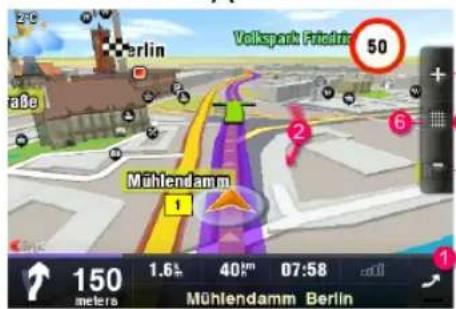
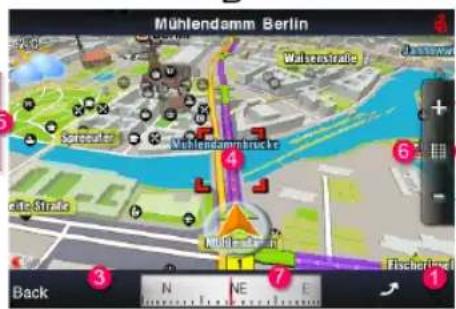
In Navigation Mode (A), the software tracks your position for visual reference of route and map around you. If you want to explore other locations, drag the map with your ingers to switch to Map Browsing Mode (B). To select destinations, review information about your route and alter settings, go to Menu (C).
Please note, that symbols and specify functionality available for following devices:
Devices with phone functionality.
(1) Smart phones or devices with internet connection.
A
B
C
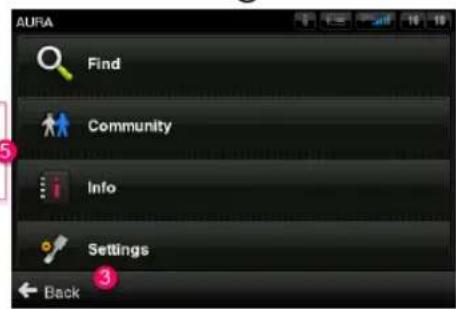
1 Menu
Enter the Menu by tapping the arrow on the right side of the information bar. You can scroll between the menu pages by sliding a inger across the screen on smart phones, or by using the scroll bar on the right side on Personal Navigation Devices (PNDs).
2 Map Browsing Mode
Drag the map with your ingers to enter the Map Browsing Mode (B).
3 Back
Return to the previous screen.
4 Target Square
Tap the Target Square for more actions related to the position inside. For more information see the chapter Action menu.
5 Zoom
Tap (+) button to zoom-in to more detailed view, (-) button to zoom out. Alternatively you can zoom using multi-touch gestures on certain devices (e.g. iPhone).
6 2D/3D view
Switch between 2D a 3D view by taping on the grid between the + and - symbols on the right side of the navigation screen
7 Compass
Use compass at the bottom of the screen to turn around and change direction of the view. Tap on the compass to return the map to the north-up position.
Entering an Address
To set your destination by entering its address select
Menu > Find > Destination
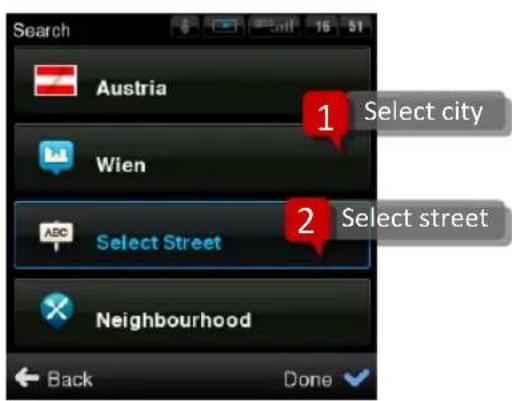
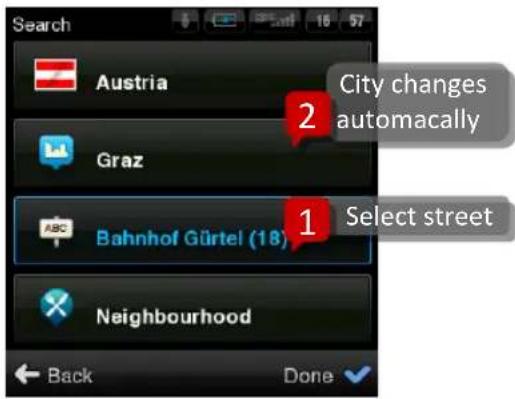
After you Select Country you can enter Select City or Postal Code or enter Select Street directly. Enter the irst few letters of the City/Street name to see a list of similar names.
Sygic Aura supports City-irst and Street-irst address entry.
City-irst address search
Street-irst address search
The list also features explanatory icons left to the city/street name:
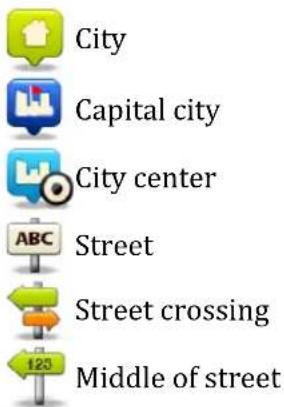
Select the desired city/street from the list.
Tap Done button and Action Menu with following options will appear: Drive to, Walk there, Travel via, Nearby POI, Add to favourites, Share location, Add POI.
For more information about Action Menu, see the chapter Action menu.
To select a different address altogether, tap the Back button.
If your device can determine your current position, your route will be calculated immediately from that positon. If your current position cannot be determined, you will be offered the following options:
Wait for valid position (Recommended)
Your route will be calculated from your current position as soon as a valid GPS signal is available (see the chapter Acquiring GPS Position).
Last valid position
Your route will be calculated from your last known position (i.e. where you were just before the device lost GPS signal).
Select from map
Allows you to select any starting point for the route calculation.
When route calculation is complete, the route summary is displayed with total distance, estimated time of arrival (ETA), time left to destination and icons indicating if parts of the route take you on Motorways, roads with Toll Charge or Ferry.
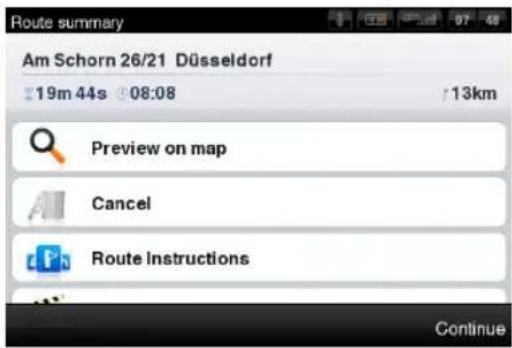
From Route menu, you can:
- Preview on map
- Cancel the route
- Show Route Instructions
- Demonstrate the route
To accept the route and start turn by turn navigation, tap Done. If you wish to return to planned route go to Menu > Info > Route.
Turn by Turn Navigation
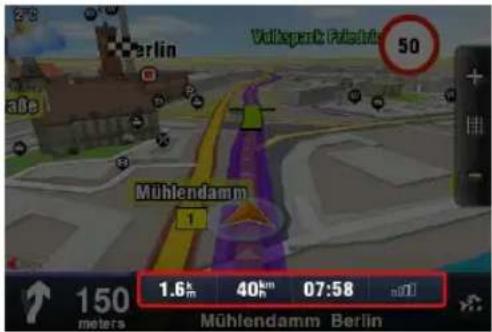
The Navigation Screen will show the map of your surrounding area with the calculated route highlighted in blue.
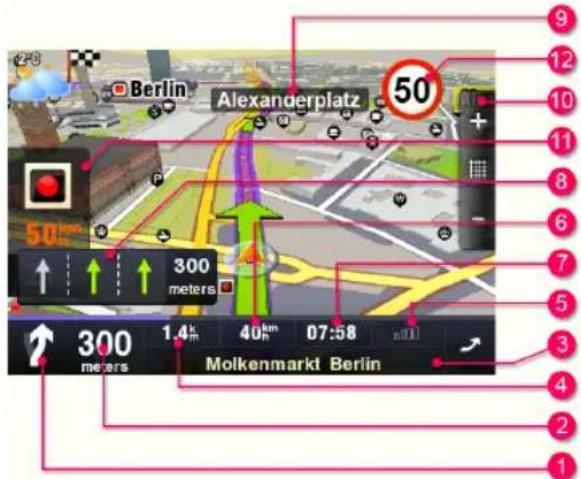
As you approach a junction, further directions are displayed to indicate which road to take.
In addition to turn by turn directions, the Navigation Screen also provides a range of further useful information:
1 Next maneuver
2 Distance to next change of direction
3 Current road/street
4 Distance to destination
5 GPS signal strength
6 Current speed
7 Estimated time of arrival at destination
8 Lane Assistant
9 Next road/street to take
10 Map zoom in/out
11 Speed camera warning
12 Current speed limit
Acquiring GPS Position
If there is no GPS signal, the GPS signal indicator on the right side of the screen will show empty bars. This can happen under any of the following conditions:
The device is in a tunnel or at a location where signals from the GPS satellites are obstructed by buildings, trees, electric
cables or other objects.
■ Device system settings or Product Settings are set incorrectly.
You can check and configure GPS settings in: Menu > Settings > Hardware, and Menu > Settings > Battery management
II. Planning the Route
Action menu
Action menu is the last step in the process of selecting any location in Sygic Aura. A variation of action menu is available after:
- Pushing a red Target Square in Map Browsing Mode
- Making a selection from any part of Find menu
- Selecting a contact or Aura Friend from Community > Friends menu (¶)

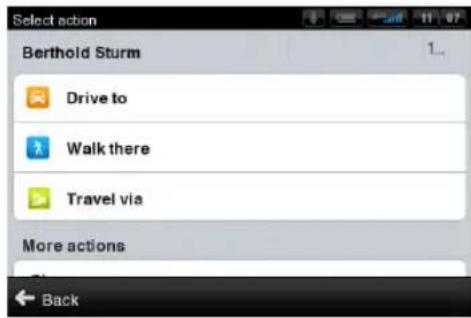
Drive to
Set selected location as destination and calculate route for car navigation.

Walk there
Set selected location as destination work Walk mode and calculate pedestrian route.

Travel via
Insert a waypoint to an existing route.
More actions
| Show on mapNot available from Map Browsing Mode. | |
| Nearby POIDisplay the list of POIs near the selected location. | |
| Add to favouritesAdd selected location to the list of favorite destinations. | |
| Share locationSend a message with position via e-mail, SMS or Facebook. | |
| Add POIAdd selected location to the database of points of interest. |
Actions related to Contacts / Friends (p)
| Call friend 📁Dial contact’s number. | |
| Send SMS 📁Compose SMS message to a selected contact. | |
| Send Message (💡)Send message via Aura Friend network. | |
| Remove this friend (💡)Selected friend will not be notified about his/her removal. |
| Assign new position (☎)Set GPS position linked to your contact/friend. | |
| Proile (☎)View the friend's profile from Aura network. |
Navigating to a Point of Interest
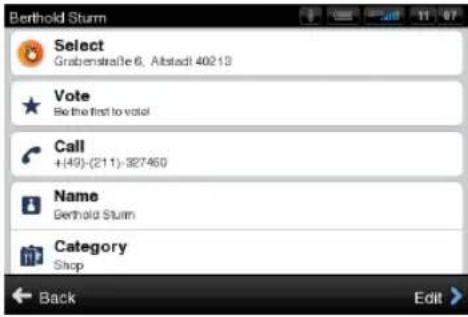
In addition to the road network, the map also stores the details of thousands of Points of Interest (POIs) such as gas stations, restaurants, hotels, tourist attractions and other facilities.
To set a POI as your destination, you have multiple options:
- Menu > Find > Destination Find POI in the city or near the selected address.
- Menu > Find > Nearby POI Shows a list of POIs near your current (or last valid) position.
- Select a position in Map Browsing Mode and choose Nearby POI from Action Menu
Searching POI by Name
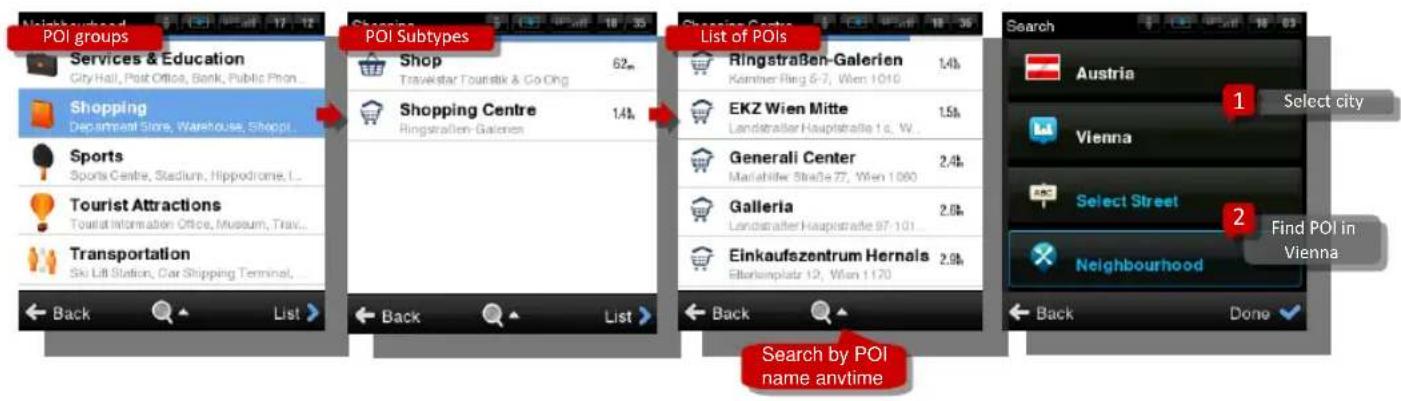
Anytime during the search process, you can start typing the name of POI (tap 📄 show the keyboard) to reine the results.
Searching POI by Categories
You can switch between List view (shows narrow list of POIs) and Groups view (shows POI categories and subcategories). To reine your search results, tap the 📄 on at the bottom of the screen and type the name of the POI you are looking for. You can also enter partial names. When inished, the Action Menu pops up. For more information, see the chapter Action menu.
10 User Guide
Navigating to Contacts

If you want to drive to your friend or business partner, you can select their name directly from your contact list. Select
Menu > Community > Friends
In the list, scroll to the desired contact, or tap on the magnifying glass 📄 and enter their name. You can also enter partial names. Tap on the name of the Contact and action menu will appear. To set the address assigned to a contact as your destination, tap the Drive to, Walk there or Travel via button. For more actions, see the chapter Action menu.
NOTE: To set your destination from the contact list, the selected contact must be stored with a full address.
Navigating Home
To start using this feature, you need to set your home location irst, select:
Menu > Find > Home
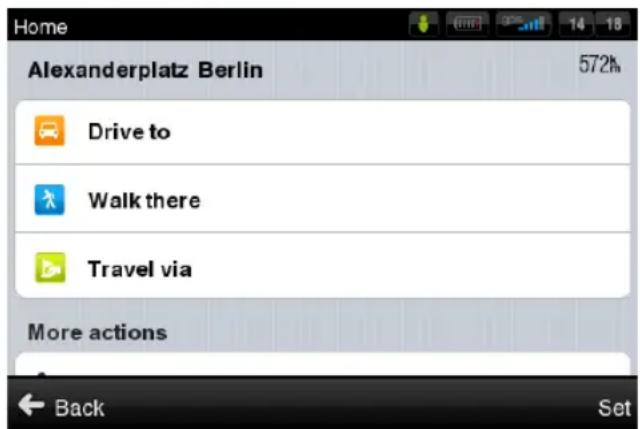
Once your home address is stored, you can navigate home from the same dialogue.
If you wish to change your Home address, tap the Set button.
Navigating to Recent Destinations
Sygic Aura keeps track of your recent destinations, making it easy to return to a previously set location.
When entering an address through
Menu > Find > Destination
the last entered address is preselected. If you are selecting City or Street, the list of previous selections appears. They are marked with icon

You can directly go to a list of recent destination by selecting
Menu > Find > History
and start navigation by selecting a previous destination from the list shown.
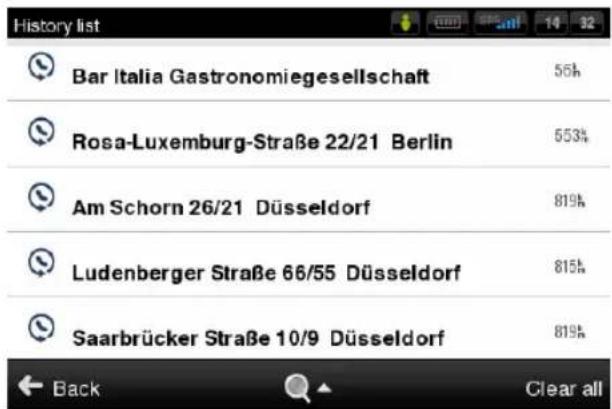
Tap on the item and select action.
Navigating to Favourite Destinations
To view a list of your favourite destinations, select Menu > Find> Favourites
You can start navigation by selecting a Favourite destination from the list shown.
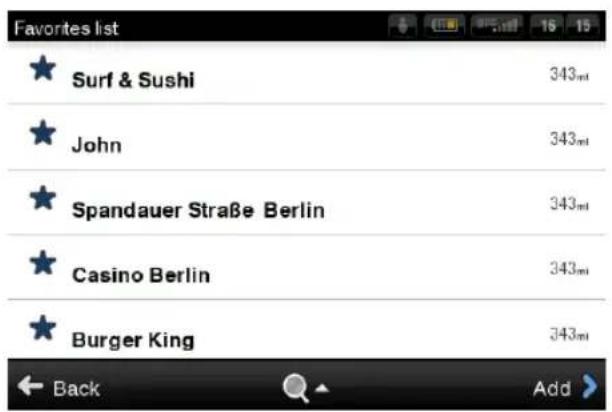
Select the desired Favourite destination by tapping it and then select your next option from the Action Menu.
Deining a new Favourite destination
To add new item to the list of your Favourite destinations tap on Add then set address by choosing from following options:
- My current position,
- Select from map, or
- Enter address.
III. Altering the Route
Route Menu
You can access detailed information about the calculated route from the Route menu. Select
Menu > Info > Route
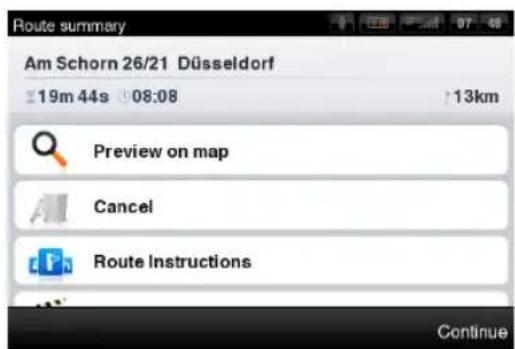
To see the entire route on the map, select Preview on map.
To get a detailed list of junctions and directions along the route, select Route Instructions. The icons highlighted in blue indicate specific types of roads included in the route.
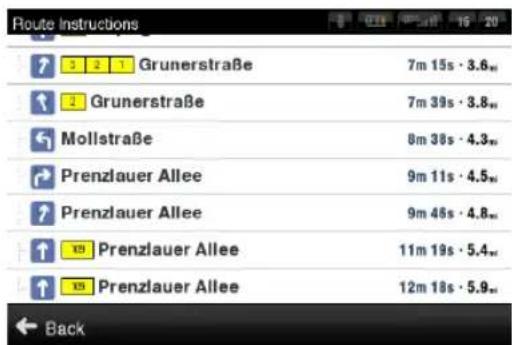
To see the calculated route as if you were driving along (ly over mode) select Demonstrate.
Modifying the Route
If you wish to travel through a certain place on your trip, use option Travel via in Action Menu. For more information, see the chapter Action menu.
Map Browsing Mode
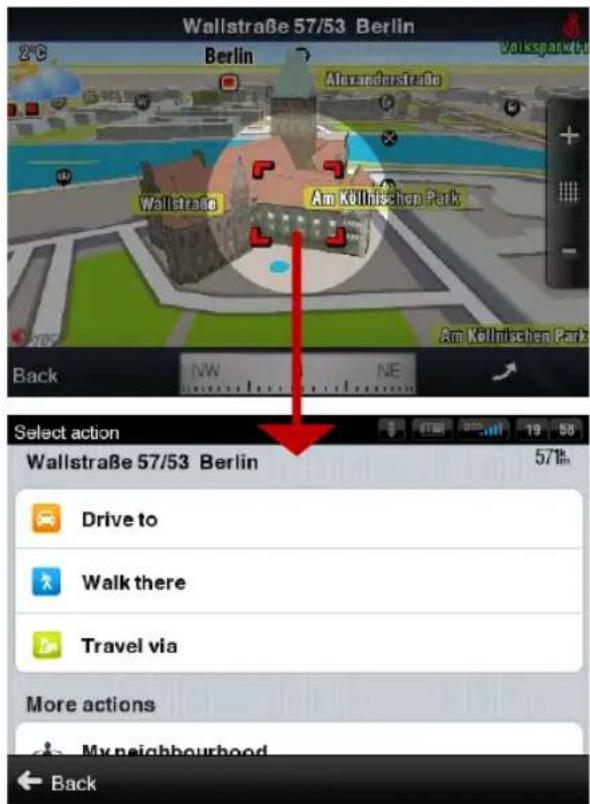
When you drag the map a red Target Square will appear. Tap into the square and the Action Menu will appear.
Actions available for the selected location: Drive to, Walk there, Travel via 1 , Nearby POI, Add to favourites, Share location, Add POI.
For more information about available actions, see the chapter Action menu.
Note: The action menu appears only if you zoom into a part of map that is included in your product license.
Avoid toll roads, motorways of ferries
To Avoid motorways, Avoid toll roads or Avoid ferries tap on the icons shown in the header of the route.

If you have added some waypoints to your route, you can set Avoid motorways, Avoid toll roads or Avoid ferries for each via point separately.
If you wish to cancel the calculated route entirely, and use the navigation system only as an indicator of your current position, select
Menu > Info > Route > Cancel route
IV. Online features

The entire chapter Online features applies only to smart phones or devices with internet connectivity.
Connection
In order to use online services (e.g. real time traffic and safety camera alerts) you will need to connect your device to the internet. Select
Menu > Settings > Connection
Tap the button Connect to go online. A confirmation screen will pop up, to go online tap on yes.
Tap the button Disconnect to go offline.
NOTE: The cost of data transfer depends on your mobile phone tariff. Make sure you know the cost before you start using online features. The costs can be considerably higher when you are roaming abroad.
Trafic alerts

Availability of the traffic service depends on your product configuration.
Visit www.sygic.com/shop for more information about availability and pricing of trafic service in your region.
For more options, including roaming preferences, go to
Menu > Settings > Connection
To view real time alerts of traffic incidents along your calculated route, select
Menu > Info > Trafic
The screen will show the incidents ordered by their distance from your current position. You can select which of them you want to avoid.
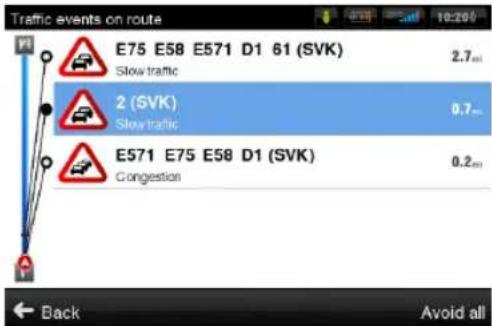
To select all the listed incidents, tap the Avoid all button.
To select individual incidents, irst tap the incident. To show its extent on the map tap on Show on map, to avoid it tap Avoid.
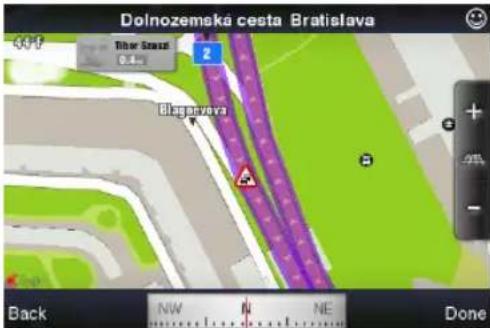
Incidents selected for avoidance are marked with a solid black circle.
Tap Optimize route to recalculate the route avoiding traffic incidents.
Reporting speed cameras and incidents
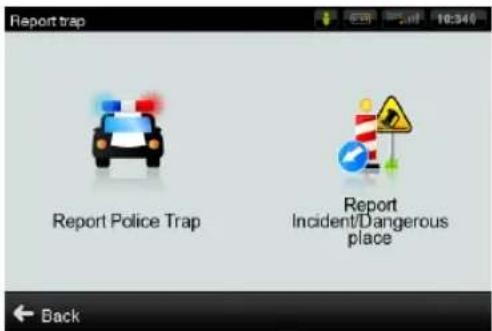
If you observe a speed camera or traffic incident on-route, tap the bottom bar of the Navigation Screen.
Select your option from the menu.
To change the way you receive reported camera and incident information, select
Menu > Settings > Speed cameras
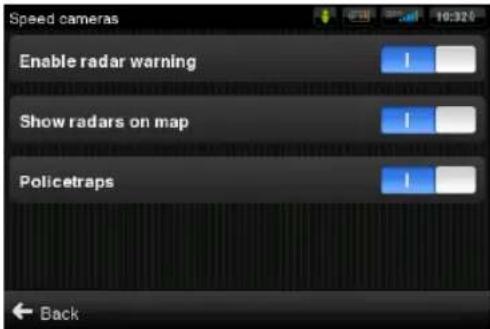
Join the growing Policetraps.com community, where other users meet to make further improvements to the database. For more information, visit www.policetraps.com
Weather Information
To check the weather information for a specific area, select
Menu > Info > Weather
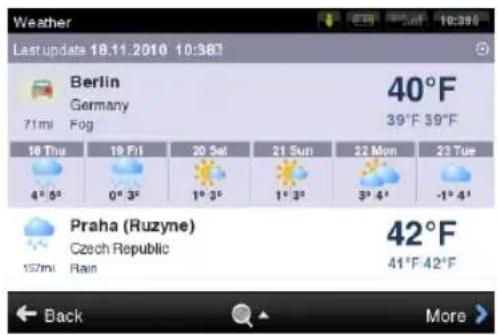
To switch between ° C/ ° F select:
Menu > Settings > Regional
V. Community

The entire chapter Community applies only to smart phones or devices with internet connectivity.
Friends
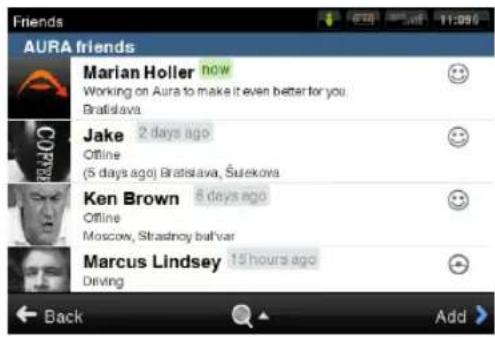
To add friends go to
Menu > Community > Friends
Tap on Add.
To search for your friends among the growing Aura community tap on Aura search and enter the name. The list of possible results will appear. Tap on
Sygic Aura 2.0 21
chosen name and tap on Add to compose an invitation message.
Tap on Send e-mail invitation to invite your friend by email.
To add your Facebook friends tap on Match Facebook friends.
When you receive a friend request it will be displayed in
Menu > Community > Events
Tap on event to accept or deny the request.
Share your location and status
To set your status and share it with friends go to Menu > Community > My status
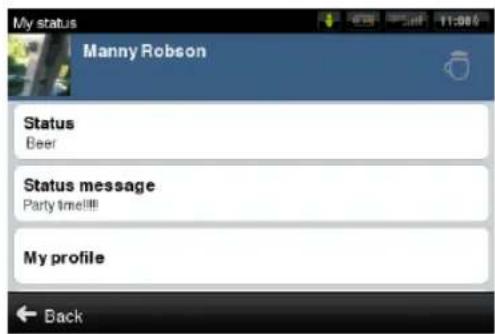
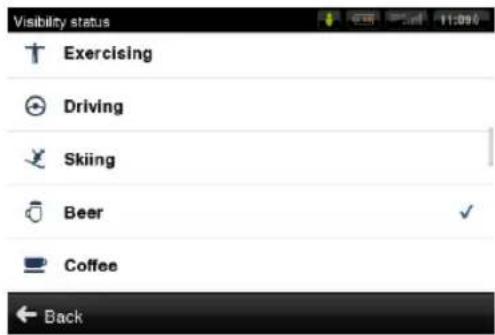
Tap on Status and choose one of the options. Tap on Status message to share your mood with other friends.
22 User Guide
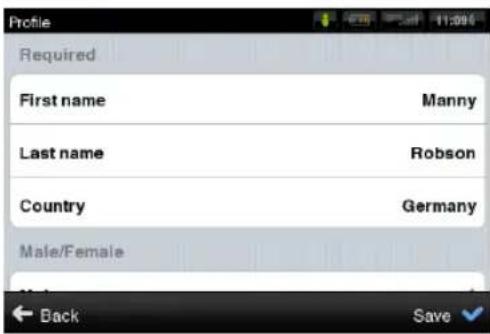
To edit or add details into your proile tap on My proile.
To change settings for sharing of your Location, Status and Status message on Aura, Twitter and Facebook tap on Share.
Send messages
To send, view and delete messages go to
Menu > Community > Messages
The screen will show the most recent messages grouped by sender. To view all messages from certain person tap on the name of the sender.
You can choose to Reply to a message or Remove message by taping on it. To delete all messages from this sender tap on Remove All.
Share position via SMS

This feature is not available on iPhone, Android and Maemo devices.
Sygic Aura enables you to share your current position or any other location with others via SMS text message.
To send your current position to your contacts or to receive their position, chose location the same way, as setting the destination in chapter II. Planning the Route or select a point on map using the target square.
From action menu options choose Share location.
VI. City guides and Travel Book
City Guides
To learn more about important cities go to Menu > Find > City Guides
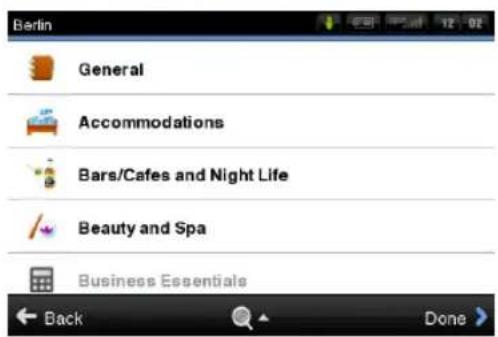
If a city guide is available for the city you are currently in, it will be already preselected for you. If a city guide for your current location is not available you will see a list of states or cities depending on the product package.
Select state to see the list of cities available.
Use the search function, the magnifying glass on the bottom of the page, to look up a certain name.
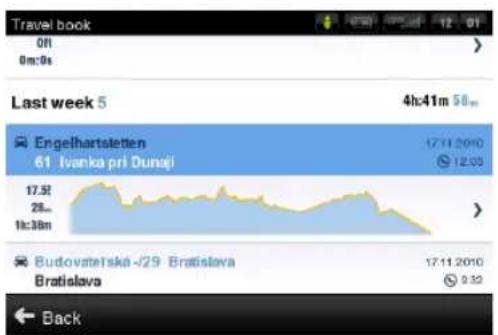
Travel book
To see traveled routes statistics and altitude proiles, go to
Menu > Info > Travel book
VII. Settings

IMPORTANT: Menu items marked with * are not available in all devices.
To change factory settings, go to Menu > Settings.

Sound
Enable sounds or Disable sounds
Voice guidance
Volume settings * - set the sound intensity separately for low driving speed and for high speeds.
Set sounds for notifications
- Trap/Radar sounds
■ Speed limit
■ Friend notifications
■ Message notification

Display
2D / 3D- change between 2D and 3D
map view
Map details - see POIs, town blocks and landmarks displayed on map.
Set Day /Night colours, or choose automatic switching between them.
Signpost info
Lane assistant
Autozoom
Photos - see photos of places on map.

Connection
Connect or Disconnect your device from internet
Change password
Create New Account
Clear login data
Sign me in automatically
Ask before connecting

Route planning
Avoid toll roads - set the preference of paid road segments: avoid them, do not avoid them, or always ask.
Route computing - Set the routing algorithm to Fastest, Shortest, Economic.

Speed cameras
Enable radar warning
Show radars on map
Policetraps
Activate / Deactivate speed cameras reported by Policetraps.com community. For more information, see the chapter Reporting speed cameras and incidents.

Regional
Voice - language of voice instructions.
Language - language of user interface.
Keyboard layout
Set kilometers/miles, format of time, temperature and GPS coordinates.

Battery management
GPS always on
Switch GPS off after... X minutes.

Hardware
Settings for advanced users only. Set the GPS communication port manually.

Travel book
Set laps while in walking mode to be Stopwatch triggered, Distance triggered or on automatic Lap detection. For more information, see the chapter Travel book.

Autoclose dialog
Dialogs will be hidden automatically
after speciied time.

About
Information about version, device code and available application memory. Please provide this information in communication with Sygic support.

Reset to defaults
The information contained in this document is the property of Sygic a.s. and may be used only for the purposes of operating and supporting the relevant software created by Sygic a.s.
Sygic a.s. reserves all rights concerning the information contained herein. This document or any part thereof may not be reproduced, distributed, or translated into other languages in any way or form except with the written approval of Sygic a.s.
This document is provided to the user on an 'as is' basis. Although maximum care was taken during preparation of this manual to provide accurate information and to avoid errors, some technical inaccuracies or editorial errors may occur, for which Sygic a.s. accepts no responsibility.
In the interest of improving the content of the document, Sygic a.s. reserves the right to modify, amend or delete any part of the document at any time without prior notice.
For more information and updates, visit www.sygic.com


- GETTING STARTED .... 1
- PLANNING THE ROUTE....7
- ALTERING THE ROUTE....14
- ONLINE FEATURES....17
- COMMUNITY....21
- CITY GUIDES AND TRAVEL BOOK 24
- SETTINGS....25
- GETTING STARTED
- 1 MENU
- 2 MAP BROWSING MODE
- 3 BACK
- 4 TARGET SQUARE
- 5 ZOOM
- 6 2D/3D VIEW
- 7 COMPASS
- ENTERING AN ADDRESS
- WAIT FOR VALID POSITION (RECOMMENDED)
- LAST VALID POSITION
- TURN BY TURN NAVIGATION
- ACQUIRING GPS POSITION
- PLANNING THE ROUTE
- ACTION MENU
- NAVIGATING TO A POINT OF INTEREST
- SEARCHING POI BY NAME
- SEARCHING POI BY CATEGORIES
- NAVIGATING TO CONTACTS
- NAVIGATING HOME
- NAVIGATING TO RECENT DESTINATIONS
- NAVIGATING TO FAVOURITE DESTINATIONS
- DEINING A NEW FAVOURITE DESTINATION
- ALTERING THE ROUTE
- ROUTE MENU
- MODIFYING THE ROUTE
- MAP BROWSING MODE
- AVOID TOLL ROADS, MOTORWAYS OF FERRIES
- ONLINE FEATURES
- CONNECTION
- TRAFIC ALERTS
- REPORTING SPEED CAMERAS AND INCIDENTS
- WEATHER INFORMATION
- COMMUNITY
- SHARE YOUR LOCATION AND STATUS
- SEND MESSAGES
- SHARE POSITION VIA SMS
- CITY GUIDES AND TRAVEL BOOK
- CITY GUIDES
- TRAVEL BOOK
- SETTINGS
- SOUND
- DISPLAY
- ROUTE PLANNING
- SPEED CAMERAS
- REGIONAL
- BATTERY MANAGEMENT
- HARDWARE
- AUTOCLOSE DIALOG
- ABOUT
- RESET TO DEFAULTS
Brand : Sygic
Model : Aura
Category : Gps