Hybrid T - Smartwatch Allview - Free user manual and instructions
Find the device manual for free Hybrid T Allview in PDF.


| Product Type | Hybrid Smartwatch |
| Brand | Allview |
| Model | Hybrid T |
| Dimensions | 45 x 45 x 11 mm (approx.) |
| Weight | 50 g (approx.) |
| Display Type | Analog with hidden digital sub-display |
| Battery Type | CR2032 coin cell (approx. 6 months life) |
| Connectivity | Bluetooth 5.0 |
| Compatibility | iOS 10+ and Android 6+ |
| Sensors | Heart rate, Accelerometer, Pedometer |
| Water Resistance | IP68 (1.5m for 30 min) |
| Functions | Step tracking, Sleep monitoring, Call & message notifications, Silent alarm, Remote camera control |
| Band Material | Silicone (standard 22 mm, replaceable) |
| Charging | No charging required (battery replacement) |
| Maintenance | Wipe with damp cloth; avoid chemicals |
| Safety | Not a medical device; avoid high impact activities |
| Spare Parts | Battery CR2032, standard 22 mm bands |
| Repairability | Battery replacement by technician; band easily replaceable |
Frequently Asked Questions - Hybrid T Allview
User questions about Hybrid T Allview
0 question about this device. Answer the ones you know or ask your own.
Ask a new question about this device
Download the instructions for your Smartwatch in PDF format for free! Find your manual Hybrid T - Allview and take your electronic device back in hand. On this page are published all the documents necessary for the use of your device. Hybrid T by Allview.
USER MANUAL Hybrid T Allview
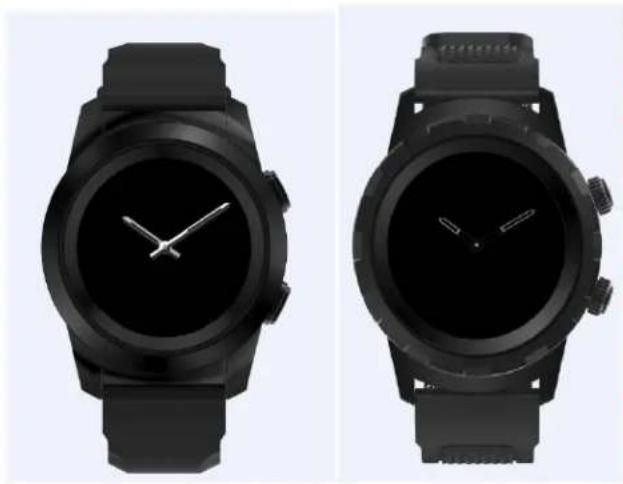
Allview Hybrid S / Allview Hybrid T
natural_image
Two black smartwatches with analog clock faces, shown from top and side views (no text or symbols visible)EN
USER MANUAL....2
RO MANUAL DE UTILIZARE....22
УПЪТВАНЕ ЗА УПОТРЕБА....42
DE BETRIEBSANLEITUNG......62
ES MANUAL DE USUARIO....82
HU HASZNÁLATI UTASÍTÁS......103
PL INSTRUKCJA OBSŁUGI....122
RU ИНСТРУКЦИИ ПО ЭКСПЛУАТАЦИИ......142
Content
-
Safety measures
-
Precautions and warnings regarding health
-
General presentation: 3.1) Upper button features
3.2) Lower button features
3.3) Touchscreen operations -
Charging
- Device connection and pairing
- Calibration: 6.1) Calibration by scanning
6.2) Manual calibration - Call log: 7.1) Received calls
7.2) Missed calls - Messages
- View E-mail
- Notifications
- Reminder
- Activities center
- Inactivity alerts
- Heart rate
- Sleep
- Alarm
- Camera control
- Music control
- Weather predictions
- Stopwatch
- Timer
- Find my phone
- Watch customization
- Home time zone
- Wrist flick
- Left hand mode
- Night mode
- Settings
- Firmware upgrade
- Watch belt
- Technical specs
1. Safety measures
IMPORTANT! Please read carefully the instructions presented below and apply them accordingly.
- Safety while driving: We recommend you not to use the device while driving.
- For an optimal compatibility with the device, make sure that your smartphone is upgraded and has the latest software version.
- Our company reserves its right to modify the content of the product without making it public. These modifications will be displayed on the company's site, at the product section to which these modifications are made. The content of the web user guide may differ from the one that comes with the product, but the first one shall be considered upgraded and valid.
- In order to consult the updated list of compatible ALLVIEW models, please visit www.allviewmobile.com
2. Precautions and warnings regarding health
- Prolonged usage of the ALLVIEW Hybrid S/T watch may cause skin irritations.
- If you notice any type of allergic symptoms (i.e. redness, swelling, itching), take off the device.
- If the allergic symptoms persist or get worse, please consult a doctor as fast as possible.
- Set the band adequately on your wrist and do not tighten more than necessary, in order to avoid blocking the blood flow.
- At certain time intervals, take off the device, in order to let the skin breathe.
- The ALLVIEW Hybrid S/T watch IS NOT a medical device, and as such we do not recommend its usage as a treatment, diagnosis or for a prevention purpose.
- Do not leave near children or pets. The device contains small components that can be easily swallowed.
- This product has an in-built battery. Do not expose to direct fire – may cause explosions and other dangers. Do not carelessly throw the product or put it in fire.
- The product may produce heat because of long-term usage or exposure to direct sunlight. In this case, immediately stop the usage.
- It is not recommended to use the product in environments with temperatures as lower than -20^ , or higher than 60^ ; otherwise, it may cause errors.
- If the product has been in contact with liquids, do not connect to the charger.
- We do not take responsibility for the situations in which the product is used in another way than the one it was intended for.
- Accessories: Only the accessories approved by the manufacturer can be used.
- Approved services: In order to avoid any issues that may appear with services that are no longer accepted by S.C. Visual Fan S.R.L. (because S.C. Visual Fan S.R.L. reserves its right to cease collaboration with
any formerly-accepted service, existent on the warranty certificate on the launching date of the product lot), before taking a product to the service, please consult the updated list of the existent accepted services from the Allview website at the "Support & Service – Authorized Service" section. For more details about the product, go to www.allviewmobile.com
- If you open up the device and try to repair to by yourself, you will lose the product's warranty.
- All applications provided by third parties and installed in this device, may be modified and/or stopped at any moment. Visual Fan Ltd will not be responsible in any way for modifications of the services or content of these applications. Any request or question regarding third party applications may be addressed to owners of these applications.
Note:
- The features of the ALLVIEW Hybrid S / T smartwatch and the content of this user guide may be subjected to changes. For the latest instructions regarding the use of these products, please refer to the user guide available at: www.allviewmobile.com.
• The declarations of conformity may be checked at www.allviewmobile.com.
3. General presentation
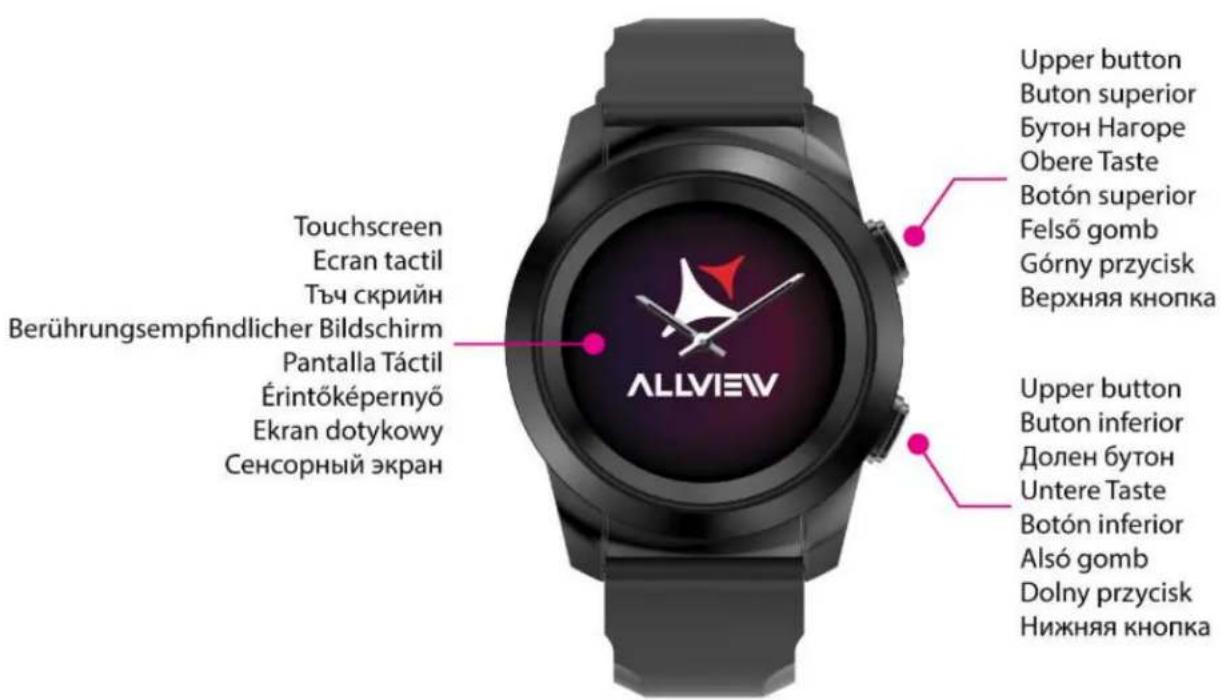
3.1. Upper button
- On/Off: In order to activate/deactivate the watch you must press the upper button for 7 seconds.
- Short press the upper button to light up the screen or to put the watch in stand-by mode.
- Press the button to return to the main screen.
3.2. Lower button
- At a single press of the lower button, the watch will enter in night mode.
-
At a second press, the watch will access the main screen.
-
When you are in the watch menu (or in its submenus) and you press the lower button, you will return in the previous menu/submenu (back function).
- When double pressing the lower button from the stand-by mode, AVI will open on your smartphone.
- In the active screen, Long press the lower button for approx. 5 seconds to get the necessary QR code for pairing the watch with its dedicated Allwatch H app.
3.3. Touchscreen operations
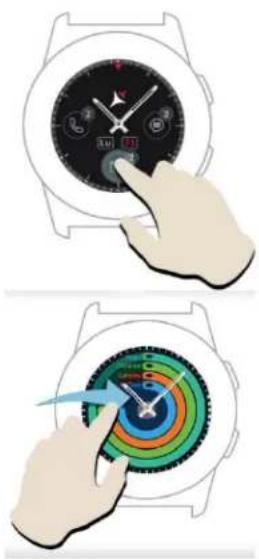
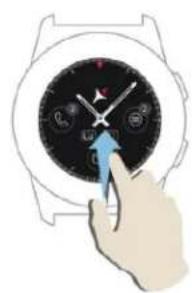
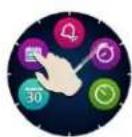
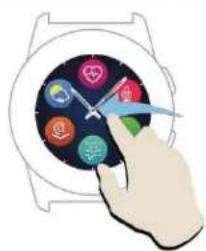
By long pressing the device screen you can choose a new watch interface, sliding left/right. For confirmation, press on the desired interface.
Slide to the right to access the activity center menu.
natural_image
Illustration of a hand interacting with a wristwatch displaying a black analog clock face (no text or symbols visible)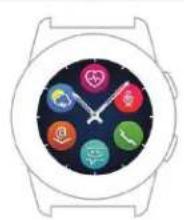
natural_image
Smartwatch with colorful circular app icons on a dark background (no text or symbols)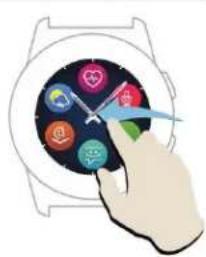
natural_image
Hand interacting with a smartwatch displaying colorful app icons (no text or symbols visible)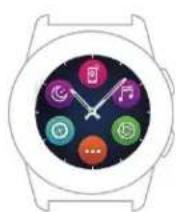
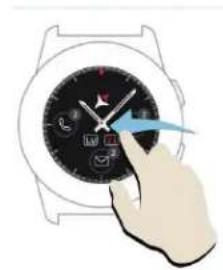
To access the main menu of the watch, slide to the left.
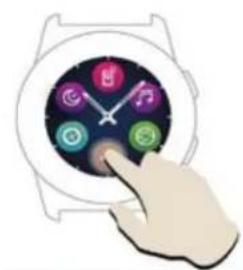
To navigate between the menu pages, slide left/right.
natural_image
Hand interacting with a smartwatch displaying a clock and app icons (no text or symbols visible)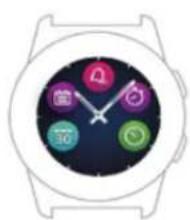
natural_image
Smartwatch face with colorful app icons (no text or symbols)To access the third page of the watch menu, go to
the second page and press the

natural_image
Hand interacting with a wristwatch displaying a black analog clock face (no visible text or symbols)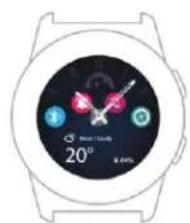
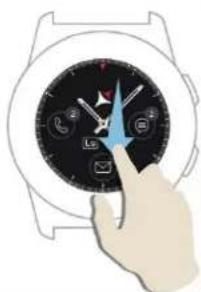
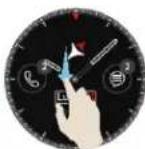
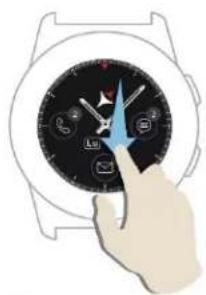
Slide up to display the shortcuts menu (Bluetooth, Watch vibrations, Alarm, Settings)
natural_image
Illustration of a hand interacting with a smartwatch displaying a dial and screen (no text or symbols visible)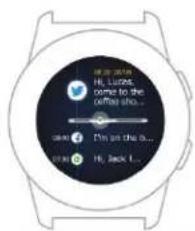
Slide down to display the notifications center.
Note: From any display of the watch menu – press once to open a feature.
4. Charging
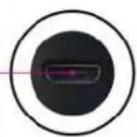
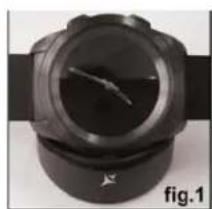
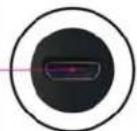
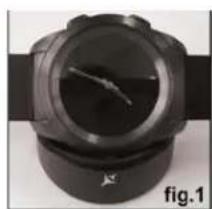
Connect the charging station to the micro USB cable from the package and to a charging adaptor of 5V/500mA (not included in the package / for example laptop, USB adaptor, power bank) then place the watch on the magnetic charging dock, with the buttons facing upwards, like in the image below:

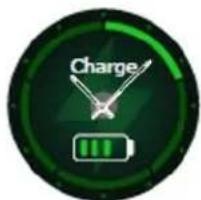
If the watch is correctly positioned on the charging dock, an animation will appear on the watch screen – showing you that the watch is charging.
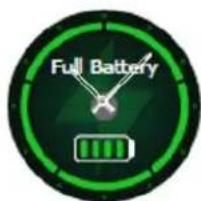
When the charging is over, the message and image that you see on the left will appear on the watch screen.
5. Connection and pairing of the Allview Hybrid S/T smartwatch
For an easy usage, upgrade, profile configuration and access to data history, you need to install the Allwatch H app, by scanning the QR code from the product box or by searching the Allwatch H application in Google Play™.
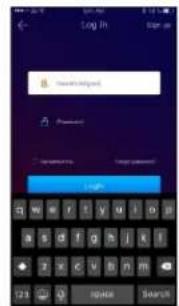
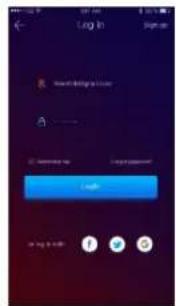
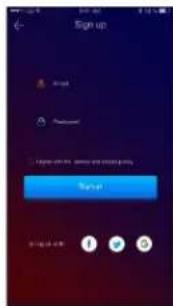
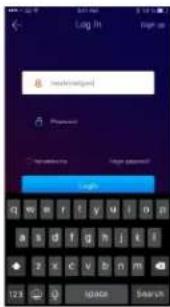
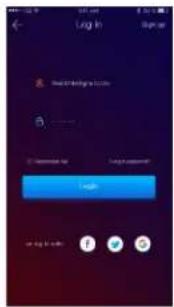
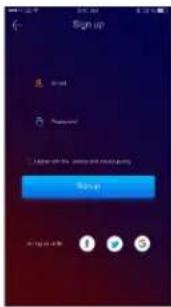
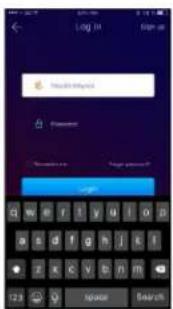
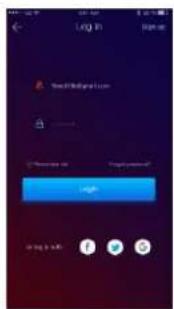
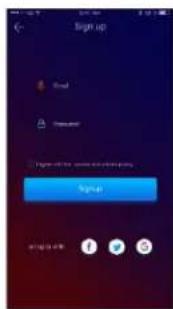
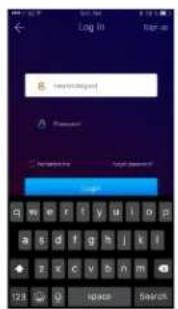
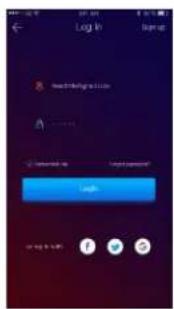
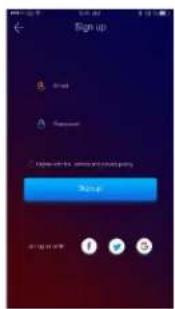
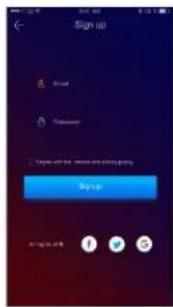
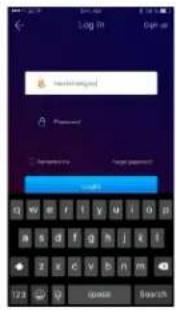
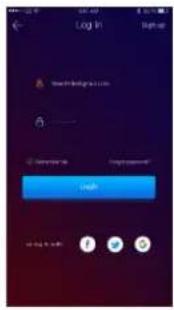
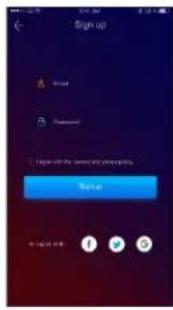
Once you have downloaded and installed the app in your smartphone, log in to your account. If you do not have an account, register for a new one.
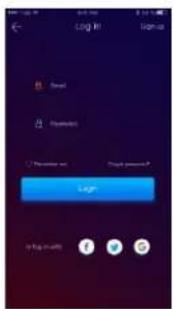
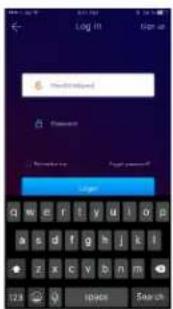
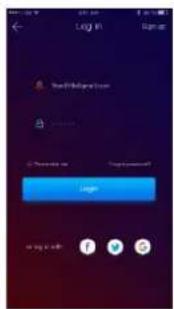
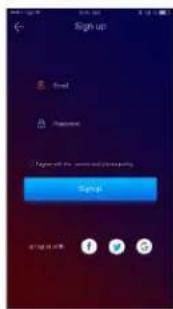
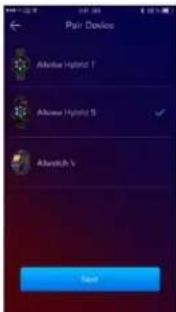
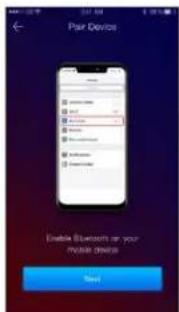
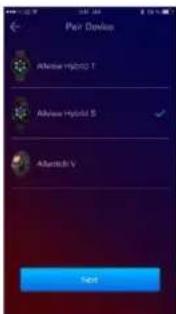
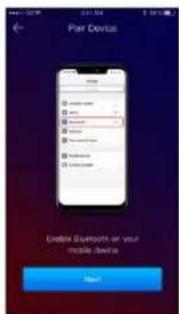
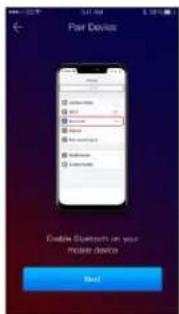
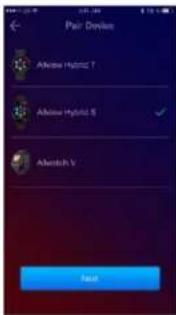
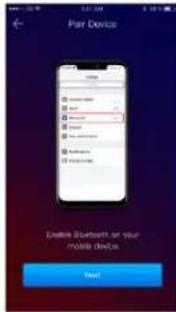
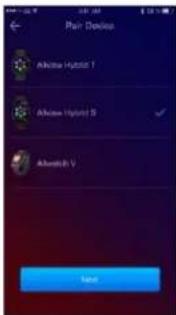
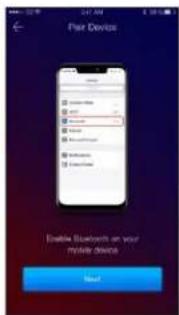
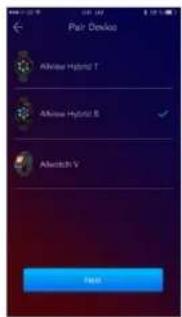
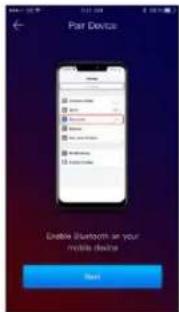
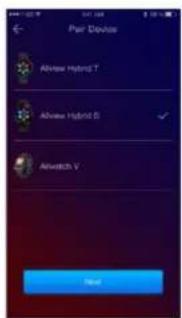
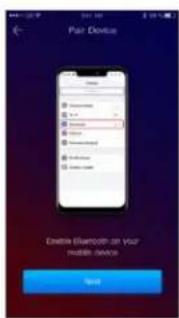
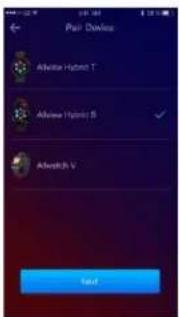
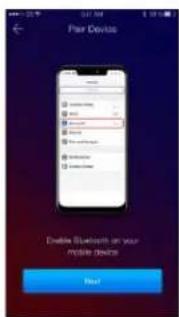
After registering in the app, in order to connect the watch to the smartphone, you must choose the model of your device. Activate the Bluetooth on your smartphone.
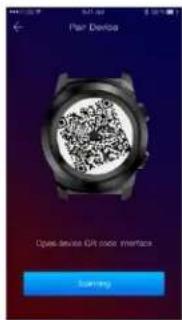
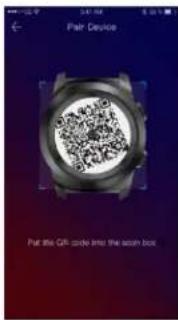
After following the previous steps, the following interfaces will appear in the app.

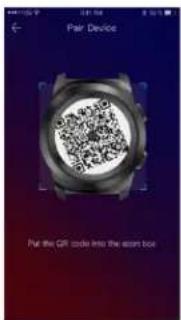
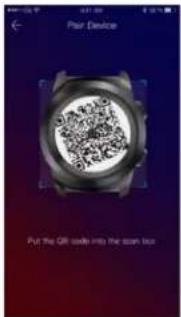
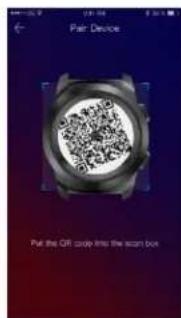
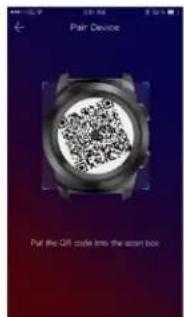
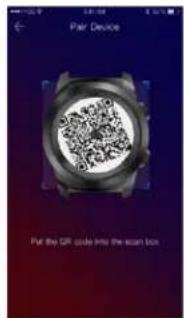
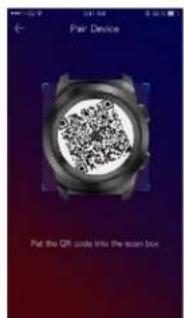
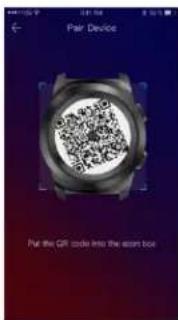
In order to get on your watch the QR code necessary for pairing, long press the lower button from your watch, until the QR code will be generated on its screen.
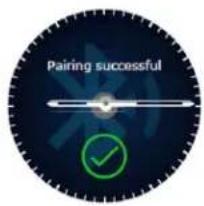
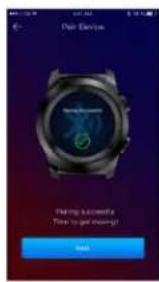
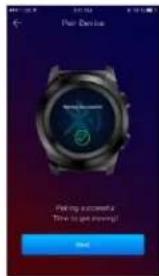
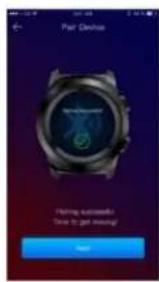
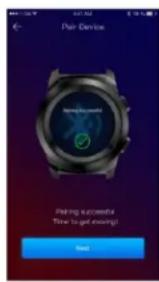
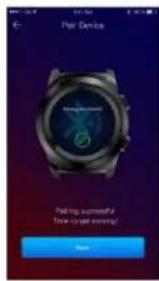
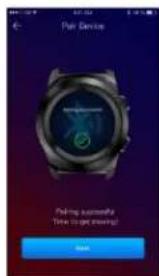
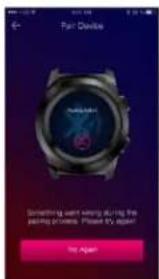
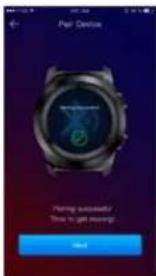
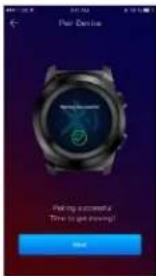
From the app, scan the QR code with the smartphone. If the connection succeeds, the interfaces from the left will appear on the watch screen and the app and you are ready to proceed.
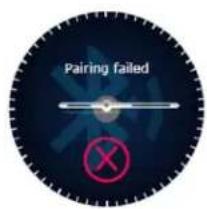
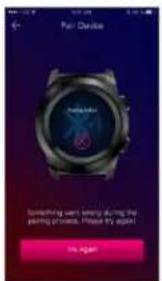
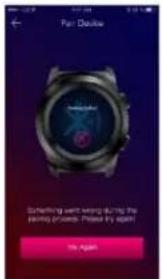
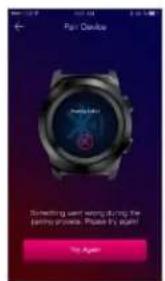
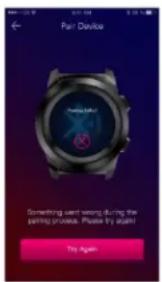
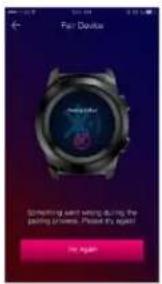
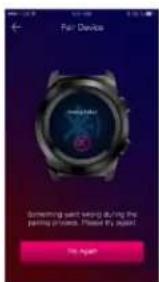
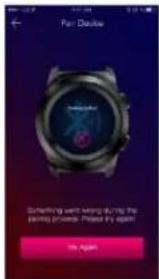
If the connection failed the interfaces from the left will appear on the watch screen and the app, and you will have to try again.
6. Calibration of the Hybrid S/T smartwatch
During the setting-up process, after pairing the watch with the smartphone, you will be requested to calibrate the watch. This step is mandatory in order for the watch to be perfectly synchronized with the smartphone.
The calibration can be done in two ways:
6.1) Calibration by scanning (automatically)
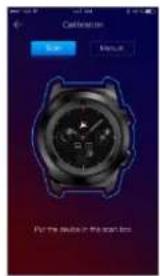
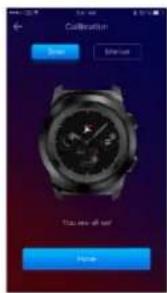
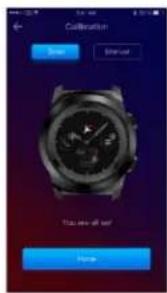
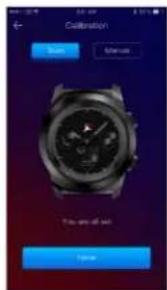
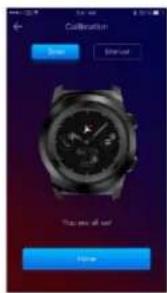
If you have chosen this method, in the app, on the smartphone screen, will appear the interface on the left. Choose the option Scan.
To calibrate the watch through this method, place the smartphone above the watch and follow the steps from the app.
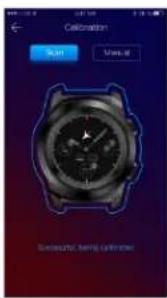
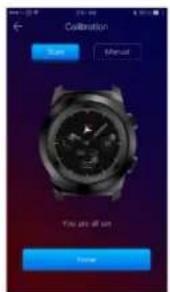
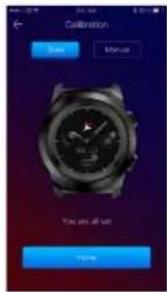
If the calibration process succeeded, in the smartphone app will appear the adjacent interfaces.
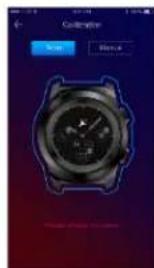
If the calibration process failed, in the smartphone app will appear the adjacent interface. In this case, you have to retry the calibration.
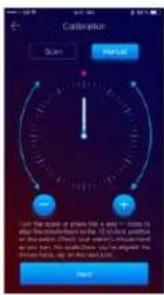
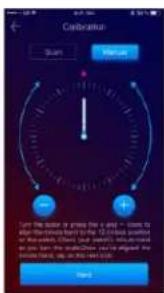
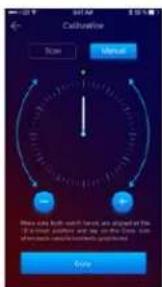
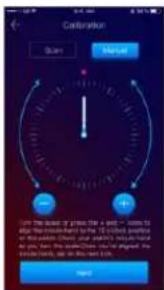
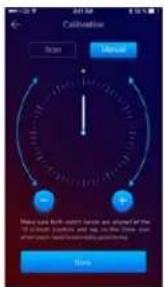
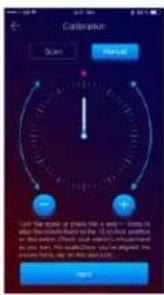
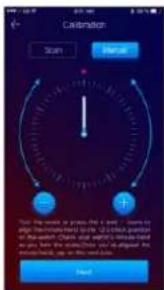
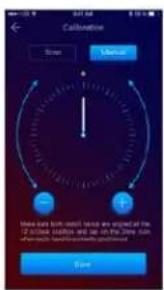
To calibrate the watch through this method, select the Manual option from the smartphone app.
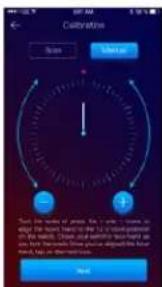
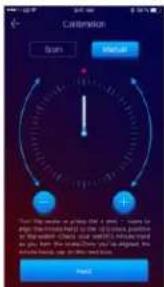
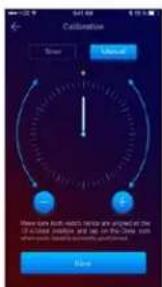
To start the calibration process, press Start and move the watch hands (from the app interface), slowly rotating on the virtual dial from the app. You can adjust the position of the hands with precision by pressing « + / - ». Align the hour hand with the red dot, in the upper part of the screen and the minute hand with the hour one. Afterwards, follow the steps to synchronize the watch with the smartphone.
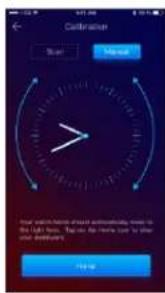
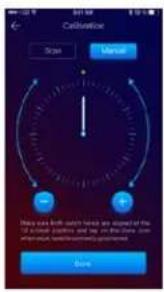
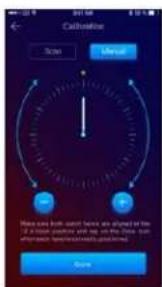
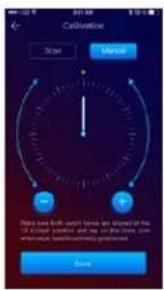
If the calibration succeeded, the watch hands will automatically indicate the time zone, and the calibration interface will appear on the smartphone screen.
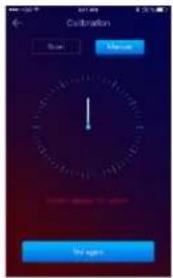
If the calibration failed, the adjacent interface will appear on the smartphone screen.
The calibration of the Hybrid S/T smartwatch may also be made later, with the help of the app, as such:
- Open the Allwatch H app,
- Click on Device – Settings – Advanced settings – Calibration
- Choose the calibration method
- Follow the instructions from the screen.
If you will travel in a region with a different time zone, do not forget to synchronize the watch with the mobile app, so it can automatically set the local time.
7. Call logs

7.1)Received calls
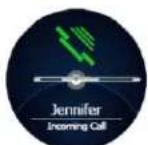
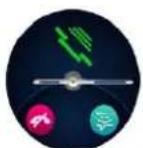
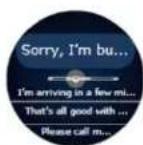
When receiving a call, a notification will appear on the Allview Hybrid S / T smartwatch. You can directly reject the call from the watch by pressing the dedicated icon, or you can answer by
sending a short text message, by pressing the dedicated icon.
7.2) Missed calls
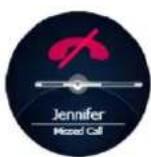
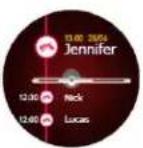
The missed calls can be seen on the watch screen by sliding down from the main screen, in the notification center, in the dedicated option from the watch.
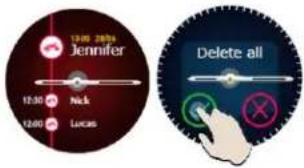
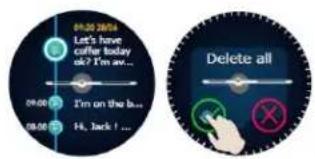
To delete all missed calls, go to the dedicated option, long press on the screen and click the green tick.
8. Messages

With the Allview Hybrid S / T smartwatch, directly from its screen, you can:
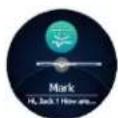
- Receive messages
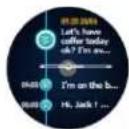
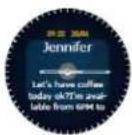
- Read messages
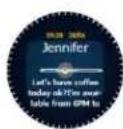
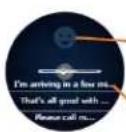
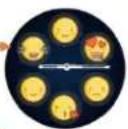
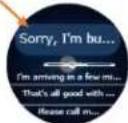
- Answer to messages with short, predetermined texts or with emojis. To use this option, go to the received message and slide up until you viewed it entirely. Then, in the upper part of the watch screen, an icon for emojis will appear. If you press it, you will see different emojis. If you wish to send a predetermined text, slide up until the text of the desired predetermined message will
be displayed in the upper part of the watch screen (above the watch hands). For sending, press on the message you chose. If you want to send an emoji, press on the dedicated icon and on the emoji that you wish to send. You can create your own predetermined answers, using the Allwatch H app – Settings – Advanced settings – Predetermined answers.
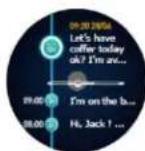
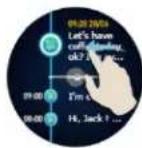
To delete a message, select it and slide left.
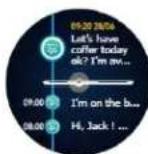
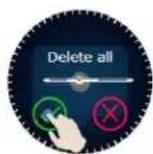
To delete all message notifications, go to the message list and long press on the screen. For confirmation, press the green tick.
9. E-mail

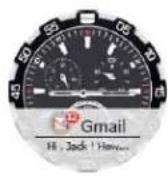
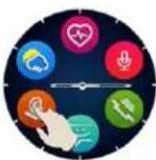
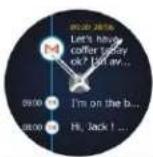
When receiving an e-mail on your smartphone, you will receive a notification on the watch screen. The e-mail can be read when received by pressing on the notification from the watch, or later, by going to the watch menu – E-mail
option. Here, you can find all your received e-mails.
10. Notifications
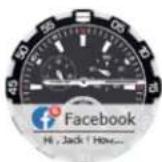
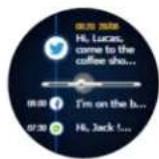
The Allview Hybrid S / T smartwatch can receive almost all notifications that you also get on your smartphone.
Each received notification will appear on the watch screen, with its icon, to identify its service.
To read a notification, touch the watch screen in its area and the notification will automatically open.
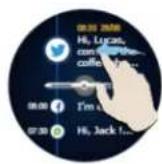
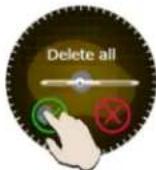
To delete a notification, select it and slide left.
To delete all notifications, long press on the notification list and confirm by pressing the green tick.

When you read messages, e-mails, notifications – the watch hands align horizontally.

Calendar events: the Allview Hybrid S / T smartwatch synchronizes the calendar events and you will be notified.
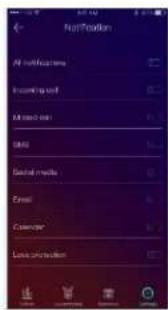
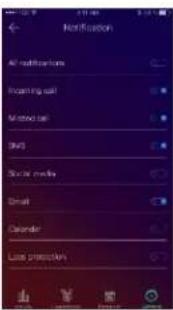
Notification settings:
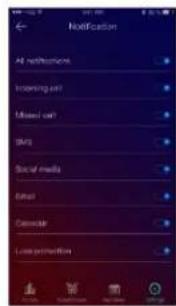
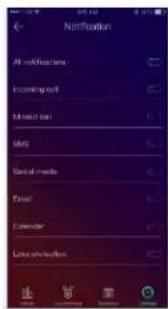
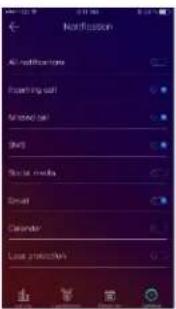
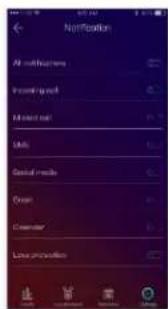
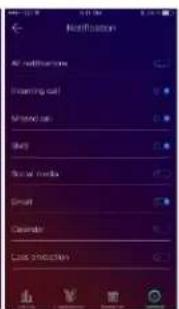
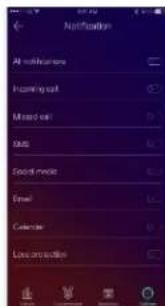
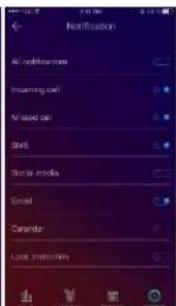
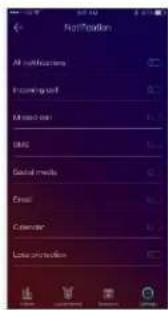
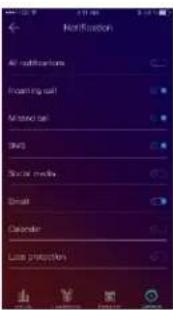
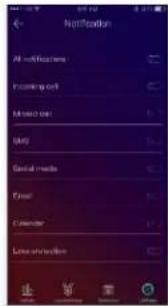
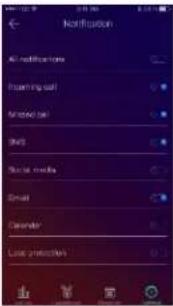
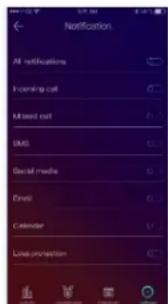
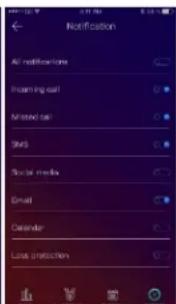
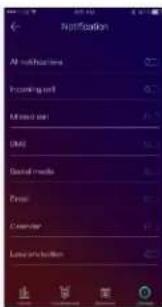
To choose the notifications you wish to receive on the watch, open the Allwatch H app, go to Device – Notifications. You will see that it is predetermined that all notifications be active.
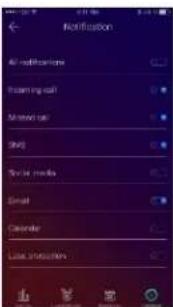
From the Allwatch H app you can activate/deactivate all notifications or only a part of them.
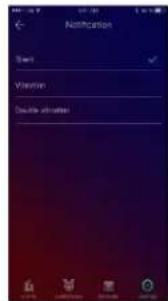
For each type of notification, you can select, by pressing on it, a certain type of warning: silent, vibration sau double vibration.
11.Reminder

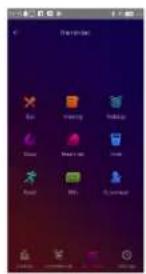
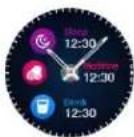
You can set and manage the reminders directly from the Allwatch H app. You can create up to 10 reminders at once.
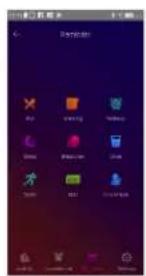
To set a reminder:
- Open the "Allwatch H" app
- Press the Reminder option
- Set the desired type of reminder
- Choose the date and time of the reminder.
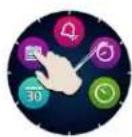
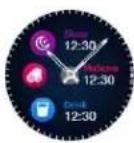
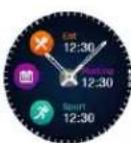
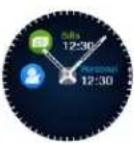
After setting the reminders in the app, they can be seen in the watch by accessing the dedicated icon from the third page of the watch menu.
12. Activities center
The Allview Hybrid S/T smartwatch has an accelerometer with 3 axes with sensors, with which you can monitor you daily activity, based on your moves. This option, along with the data from your profile, allows the watch to calculate the number of steps, the distance, the activity minutes and the burnt calories. For the results to be as precise as possible, we recommend you wear the watch at your left hand if you are right-handed and at your right hand if you are left-handed.
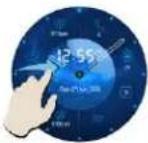
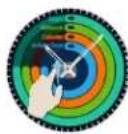
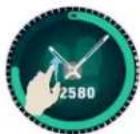
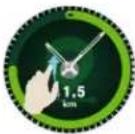
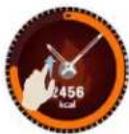
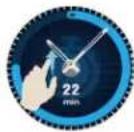
To monitor your activity, when the watch screen is lit, slide left to access the main screen of the activity center. To see the number of steps, the distance, the calories and the minutes of activity, form the global activities interface, slide up/down.
In the Allwatch H app, you have the following options:
- View the daily activity in real time
- View detailed reports (grafics) by day, month, year regarding your monitored activity
- Set other values as objectives
When the objectives are reached, the watch will vibrate and a notification will appear on screen.
13. Inactivity alerts
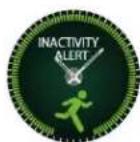
With these alerts you can always complete your daily activity volume. You can set when and with what frequency you wish to be warned by the Allview Hybrid S / T smartwatch.
To set the Inactivity alert, open the Allwatch H app, click on Settings – Advanced settings and select Inactivity alert. Customize the inactivity alerts template and then save.
To erase a received inactivity alert touch the screen or press any button from the watch.
14. Heart rate

With incorporated sensors, the Allview Hybrid S/ T smartwatch measures the heart rate manually or automatically.
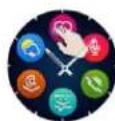
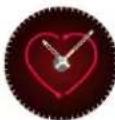
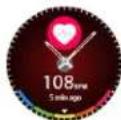
To start measuring the heart rate – search the option Heart rate in the watch and then touch the screen. After approximately 10 seconds, the measured value will appear on the watch screen.
In the Allwatch H app you can select automatic measuring, which requires activating the feature from the Settings menu, indicating the time between the measurements.
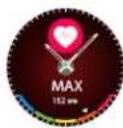
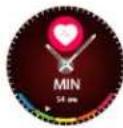
The watch can alert you when the heart rate is over or under the set limits. To set other values tan the ones already set, open the Allwatch H app – Settings menu and search for "Heart rate" - "Heart rate interval alert".
i Warning: setting the periodic measurement of the heart rate affects the battery life span.
15.Sleep

The Allview Hybrid S / T smartwatch can monitor both the time and the quality of your sleep. Detailed reports can be found in the Allwatch H app – Activities – Sleep.
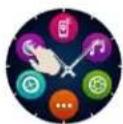
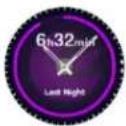
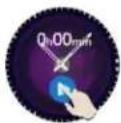
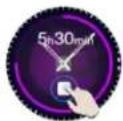
To start monitoring in the manual mode, from the watch, press the icon of the dedicated feature, then Start to begin and Stop to cease.
To custom the monitoring of the Sleep mode from the Allwatch H app:
- Go to Settings – Advanced settings – click on Preset Sleep – Automatic Inactivity mode.
- Set the sleeping and waking up hours.
- Save the settings and exit.
16.Alarm

For waking up in the morning or to notify you at a certain hour of the day, you can set one or more alarms.
To set alarms, go to the watch menu and press the icon of the Alarm feature.
You can set up to 10 custom alarms.
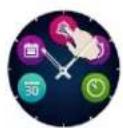
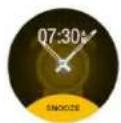
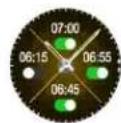
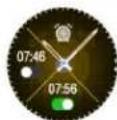
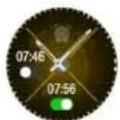
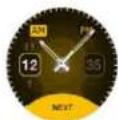
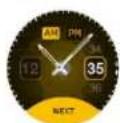
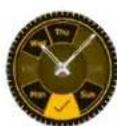
You can delete the alarms from the Allwatch H app.
The Allview Hybrid S / T smartwatch can be used to remotely take potos with your smartphone. This feature is useful if you want to take a group photo or a selfie. To use the watch as a remote camera, go to the Allwatch H app – Settings - Camera.
In the watch menu, look for the camera icon and press to open it.
Afterwards, tap the watch screen to take a photo.

Every photo taken with the watch will be saved in the smartphone gallery.
18. Music control

The Allview Hybrid S / T smartwatch has a music control feature. To control the music with the watch, follow the steps below:
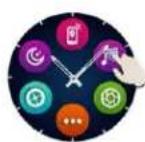
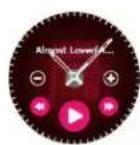
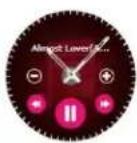
Open the player from your smartphone
Go to the watch menu, search for the icon dedicated to music control and press on it.
You can play, pause and skip tracks.
Volume can be adjusted by pressing on the watch screen “+” to increase the volume and “-” to decrease it.

On the Hybrid S/T smartwatch you can see information about the playing track: artist and track name.
19. Weather predictions
With the Allview Hybrid S / T smartwatch you can check the weather prediction for a certain city, after pairing the watch with the Allwatch H app.
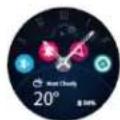
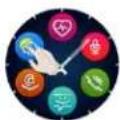
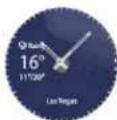
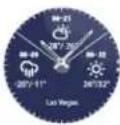
The weather prediction for the day can be seen in the shortcuts menu of the watch or by searching the Weather feature from the watch menu. By pressing the dedicated
icon, you can see the weather for the current day, and by sliding up you can see the weather prediction for the next 3 days.
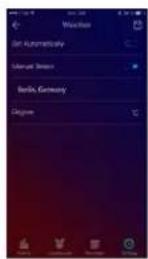
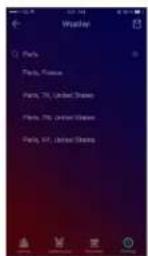
To see the weather in a certain city, open the Allwatch H app, go to Settings – Advanced settings – Weather.
Select the automatic mode to receive the weather prediction based on GPS tracking, or select the manual mode to choose another location.

20. Stopwatch
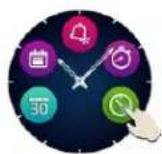
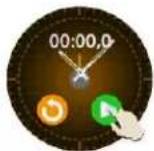
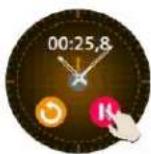
To use the stopwatch, search in the watch menu the dedicated icon and press it. Start the stopwatch by pressing the green icon. To stop it, press the red icon.
To start the stopwatch again, press the arrow from the yellow circle.
21. Timer

To use the timer, search for the icon dedicated to the feature in the shortcuts menu of the watch and press it.
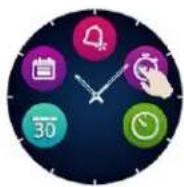
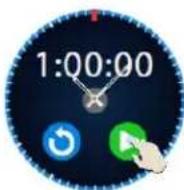
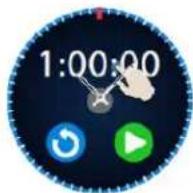
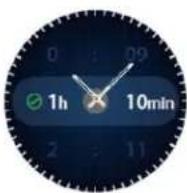
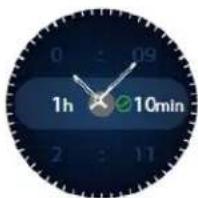
The preset time is one hour. You can set another duration of the timer by pressing the screen on the preset duration and sliding up/down. At the end of the countdown, the watch will vibrate.
If you don't know where your phone is, the Find my phone feature will make your phone ring or vibrate, so you can easily find it. To use this feature, the watch must be paired with the smartphone and you must make sure that both of them are in the same action range.
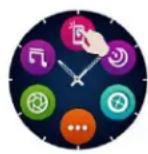
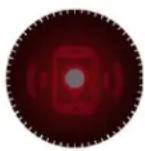
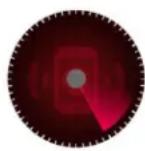
To activate this feature, search in the watch menu the dedicated icon and press it for activation.
23. Customize the Allview Hybrid S / T smartwatch
23.1. To change the face from your Allview Hybrid S/T smartwatch:
- in the active screen of the watch, long press on the current face
- slide left/right to view the different available faces
- press on the desired face
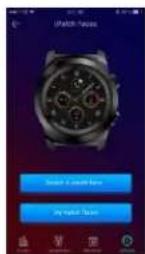
23.2. To change the face from the Allwatch H app
- Open the Allwatch H app and go to Settings
- Click on watch faces
- Click on the desired watch face
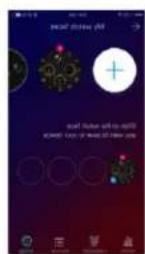
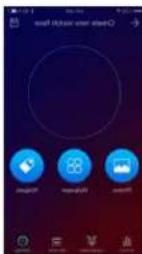
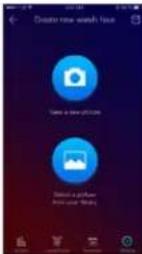
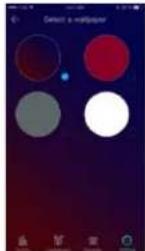
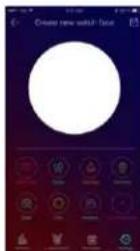
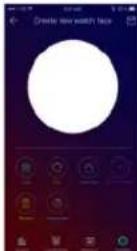
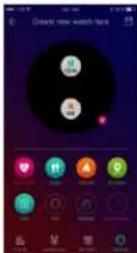
23.3. To create your own watch face from the Allwatch H app
- Open the Allwatch H app and go to Settings
- Click on watch faces, then choose the option My watch faces.
You can create and save up to 4 personal faces.
- You can select one of the default backgrounds or you can use a photo from the gallery, or directly from the camera.
- You can add up to 4 widgets on the face and a dial.
- When you're finished, save the face and apply it on the watch.
24. Home time zone (second time zone)
The Allview Hybrid S / T smartwatch can display two time zones on one screen. With the selected interface, the analogic hands will indicate the local hour vor indica ora locala, and a digital watch will display the hour of the second time zone. This feature is useful especially for those who permanently travel in between time zones.
In order to set the second time zone, access the Allwatch H app – Advanced settings – Home time zone. Select the city for which you want to see the time zone and save the setting.
25. Wrist flick
The Wrist flick mode allows you to light up the watch screen simply by raising the hand. This feature is deactivated by default, to save battery.
You can activate the feature from the watch, from Settings 📄 – Display – press to open, then slide the button from the watch screen – left for activation, right for deactivation.
This feature can also be activated from the Allwatch H app.
26. Left hand mode
The Allview Hybrid S / T smartwatch has a full mode for left-handed people, by rotating the displayed information on the watch screen and the analogic mechanism with 180° when it is worn on the right hand.
This feature can be activated from the watch Settings menu – Advanced settings – Left hand mode or from the Allwatch H app.
27. Night mode
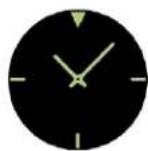
With a single press of the lower button of the Hybrid S / T smartwatch, the device's screen will light up for approximately 10 seconds, allowing you to see the time in the dark.
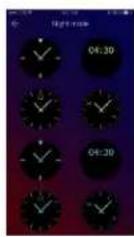
In the Allwatch H app you can choose between several interfaces for the Night mode.
To select another interface for the Night mode, open the Settings menu – Advanced settings – Night mode and choose the desired interface.
28. Firmware update
If firmware updates are available, you will have to install them. The updates can be done wireless, through the mobile app. Before starting the upgrade, make sure that both your smartphone and your watch are over 30% charged, preferably the watch is connected to the charger.
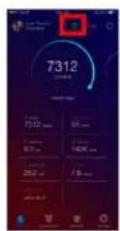
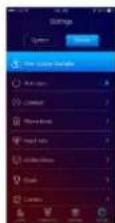
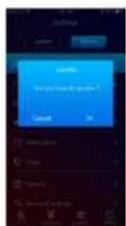
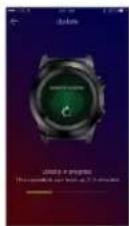
To upgrade the Hybrid S / T smartwatch: - Connect to the Allwatch H app
- If an upgrade is available, a message will appear on the main screen of the app, asking if you wish to upgrade.
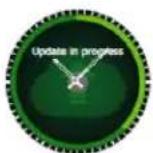
- You must confirm to start the upgrade, and the image on the left will appear on screen.
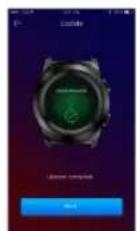
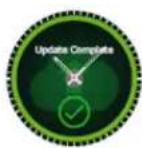
If the upgrade is successful, you will be notified on the watch screen and on the app.
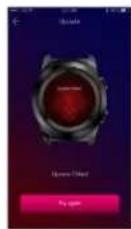
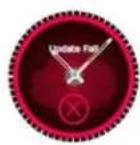
If the upgrade failed, you will be notified on the watch and in the app.

During the upgrades, the watch must be near the smartphone and the app must be open. Avoid using the smartphone during the upgrade.
29. Watch belt
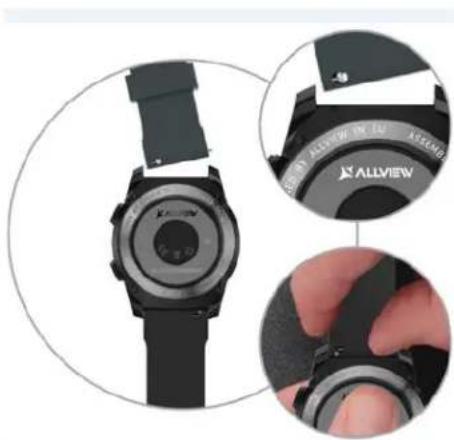
You can easily change the belt on your Allview Hybrid S / T smartwatch, so it perfectly adapts to your style.
natural_image
Close-up of a smartwatch with visible sensor and control buttons, showing front and side views (no text or symbols on the watch itself)To change the belt:
- Push the telescopic bar inwards to free the belt in the watch case.
- Take the new belt which you want to attach to the watch and push inwards the telescopic bar, aligning it with the holes from the other part of the watch case
- Release the telescopic bar to fix the belt in position
- Easily pull the belt to ensure that it is properly fixed.
Cuprins
-
Masuri de siguranta
-
Precautii si avetismente privind sanatatea
-
Prezentare generala: 3.1) Functii buton superior
natural_image
Illustration of a hand interacting with a smartwatch (no text or symbols visible)natural_image
Illustration of a hand pointing at concentric circular arrows on a target (no text or symbols)natural_image
Illustration of a hand interacting with a smartwatch displaying a clock face and icons (no text or symbols present)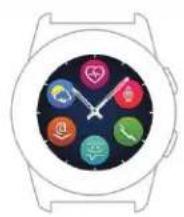
natural_image
Smartwatch with colorful circular app icons on a dark background (no text or symbols)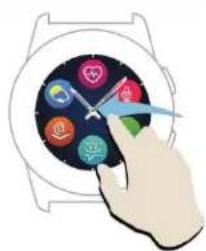
natural_image
Illustration of a hand interacting with a smartwatch displaying colorful app icons (no text or symbols)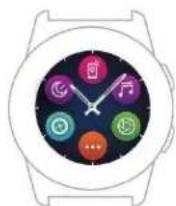
natural_image
Hand interacting with a smartwatch displaying colorful app icons (no text or symbols visible)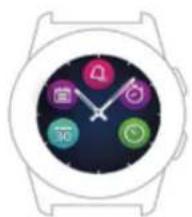
natural_image
Smartwatch with five app icons arranged in a circular frame (no text or symbols)natural_image
Hand interacting with a wristwatch displaying a black analog clock face (no visible text or symbols)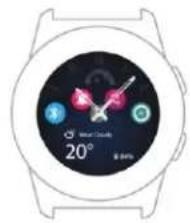
Glisati in sus pentru a afisa meniul de comenzi rapide (Bluetooth, Vibratii ceas, Alarma, Setari)
natural_image
Illustration of a hand interacting with a smartwatch displaying a dial and screen (no text or symbols visible)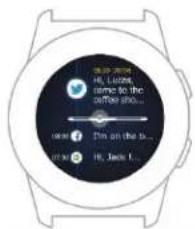
Glisati in jos a afisa centrul de notificari.
natural_image
Close-up of a black industrial knob with a metallic dial and star-shaped base (no text or symbols visible)mini USB slot
Statie de încărcare
natural_image
Close-up of a black wristwatch with a circular lens and strap, labeled 'fig.1' at bottom (no visible text or symbols on device)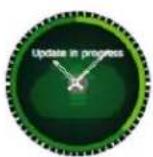
Dupa urmarea pasilor de mai sus, in aplicatie vor aparea interfetele alaturate.

Pentru a sterge un anumit SMS, selectati-l si glisati spre stanga.
Pentru fiecare tip de notificare puteti selecta, apasand pe notificare, un anumit tip de avertizare: silentios, vibratie sau dubla vibratie.
11.Memento

Puteti seta si administra memento-urile direct din aplicatia Allwatch H. Se pot crea pana la 10 memento-uri diferite.
Pentru a seta un memento:
- Dechideti aplicatia "Allwatch H"
- Apasati pe optiunea Memento
- Setati tipul de memento dorit
- Alegeti data si ora mementoului.
natural_image
Close-up of a smartwatch with visible sensor and head components, showing close-up views of the wrist (no text or symbols)Pentru a schimba cureaua:
natural_image
Illustration of a hand interacting with a wristwatch displaying a dial and gauge (no text or symbols visible)natural_image
Illustration of a hand pointing at concentric circular arrows on a watchtower (no text or symbols)natural_image
Hand interacting with a smartwatch displaying a black dial and control buttons (no text or symbols visible)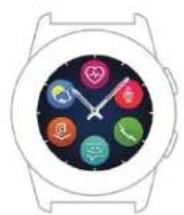
natural_image
Smartwatch face with colorful circular buttons and a white wristband (no text or symbols)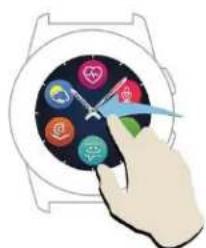
natural_image
Hand interacting with a smartwatch displaying colorful app icons (no text or symbols visible)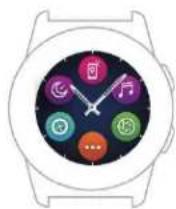
natural_image
Hand interacting with a smartwatch displaying colorful app icons (no text or symbols visible)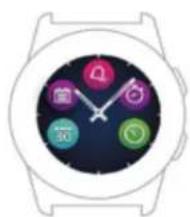
natural_image
Smartwatch with colorful app icons on a dark background (no text or symbols)natural_image
Hand holding a wristwatch with a circular dial and clock face, no visible text or symbols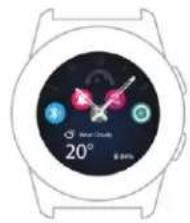
natural_image
Illustration of a hand interacting with a smartwatch (no text or symbols visible)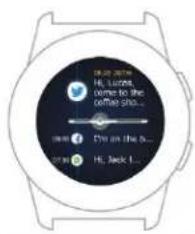
natural_image
Close-up of a black industrial knob with a metallic dial and star-shaped base (no text or symbols visible)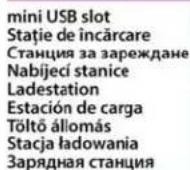
natural_image
Close-up of a black wristwatch with a circular dial and strap, labeled 'fig.1' at bottom (no visible text or symbols on device)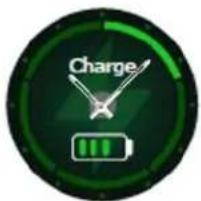
natural_image
Close-up of a smartwatch with a strap and sensor module, showing close-up details (no text or symbols visible)natural_image
Two-step illustration showing a hand interacting with a smartwatch and a colorful circular dial (no text or symbols)natural_image
Illustration of a hand interacting with a wristwatch displaying a digital clock (no text or symbols visible)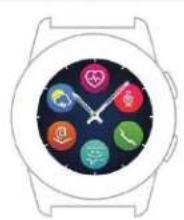
natural_image
Smartwatch with colorful circular app icons on a dark background (no text or symbols)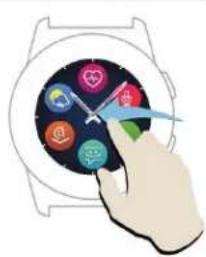
natural_image
Illustration of a hand interacting with a smartwatch displaying colorful app icons (no text or symbols)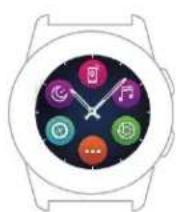
natural_image
Hand interacting with a smartwatch displaying colorful app icons (no text or symbols visible)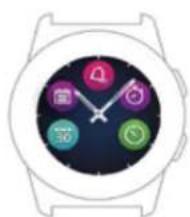
natural_image
Smartwatch with colorful app icons on a dark dial (no text or symbols)natural_image
Hand interacting with a wristwatch displaying a black analog clock face (no visible text or symbols)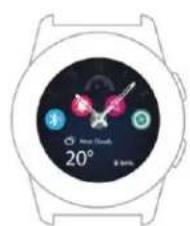
natural_image
Illustration of a hand interacting with a smartwatch (no text or symbols visible)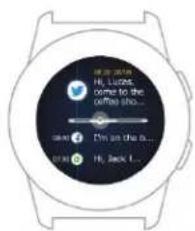
natural_image
Close-up of a black smartwatch with sensor strap and external camera module, showing close-up details (no readable text or symbols)natural_image
Illustration of a hand interacting with a wristwatch displaying a black analog clock face (no text or symbols visible)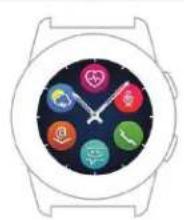
natural_image
Smartwatch with colorful circular app icons on a dark background (no text or symbols)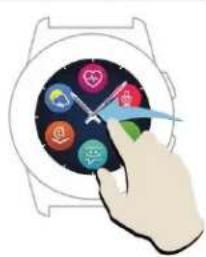
natural_image
Hand interacting with a smartwatch displaying colorful app icons (no text or symbols visible)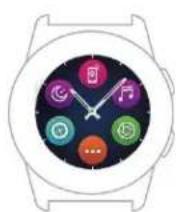
natural_image
Hand interacting with a smartwatch displaying colorful app icons (no text or symbols visible)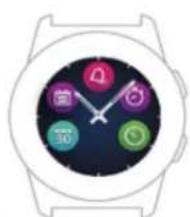
natural_image
Smartwatch with colorful app icons on a dark background (no text or symbols)natural_image
Hand interacting with a wristwatch displaying a black analog clock face (no visible text or symbols)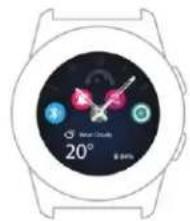
natural_image
Illustration of a hand interacting with a smartwatch (no text or symbols visible)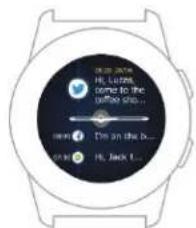
natural_image
Three circular icons: a green app icon with Wi-Fi signal, a blue Wi-Fi button with network, and a red Wi-Fi gear with a red square overlay (no text or symbols)natural_image
Close-up of a black smartwatch with sensor module and close-up views showing hand positioning (no visible text or symbols)Para cambiar la correa:
natural_image
Illustration of a hand interacting with a wristwatch displaying a black analog clock (no text or symbols visible)natural_image
Illustration of a hand pointing at a circular target with concentric rings and arrows (no text or symbols)natural_image
Hand interacting with a smartwatch displaying a black dial and icons (no text or symbols visible)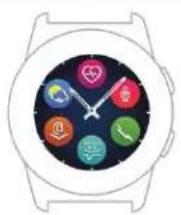
natural_image
Illustration of a hand interacting with a smartwatch displaying colorful app icons (no text or symbols)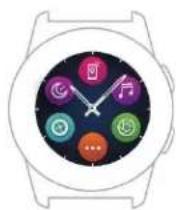
A
natural_image
Hand interacting with a smartwatch displaying colorful app icons (no text or symbols visible)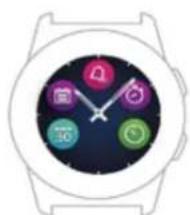
natural_image
Smartwatch with colorful app icons on a dark background (no text or symbols)natural_image
Hand interacting with a smartwatch displaying a black dial and control buttons (no text or symbols visible)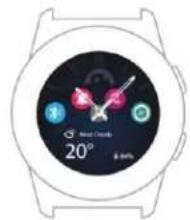
natural_image
Illustration of a hand interacting with a wristwatch displaying a black dial and control buttons (no text or symbols visible)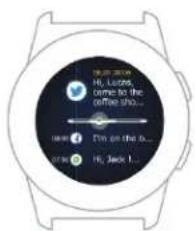
natural_image
Close-up of a black ALView smartwatch with sensor module, showing front and side views (no text or symbols visible)A szíj cseréjéhez:
natural_image
Hand interacting with a wristwatch displaying a black analog clock face (no visible text or symbols)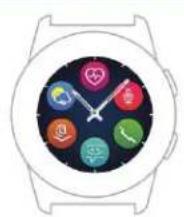
natural_image
Smartwatch with colorful circular app icons on a dark background (no text or symbols)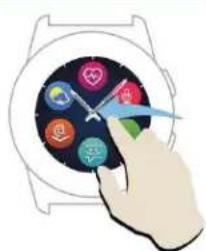
natural_image
Hand interacting with a smartwatch displaying colorful app icons (no text or symbols visible)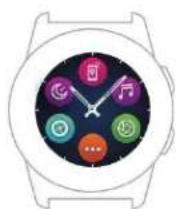
natural_image
Hand interacting with a smartwatch displaying colorful app icons (no text or symbols visible)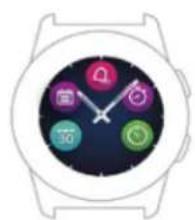
natural_image
Smartwatch face with colorful app icons (no text or symbols)natural_image
Hand holding a wristwatch with a blue arrow pointing to the dial (no text or symbols visible)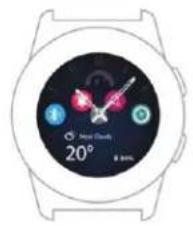
natural_image
Illustration of a hand interacting with a smartwatch displaying a clock face and finger (no text or symbols)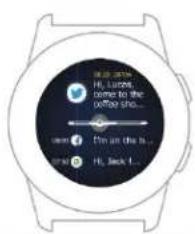
natural_image
Close-up of a smartwatch with visible sensor and control buttons, showing front and side views (no text or symbols on the watch itself)Aby zmienić pasek:
natural_image
Illustration of a hand interacting with a wristwatch displaying a digital dial (no text or symbols visible)natural_image
Illustration of a hand pointing at concentric circular arrows on a target (no text or symbols)natural_image
Illustration of a hand interacting with a smartwatch displaying a clock face and icons (no text or symbols present)
natural_image
Smartwatch with colorful circular app icons on a dark background (no text or symbols)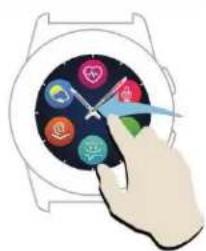
natural_image
Illustration of a hand interacting with a smartwatch displaying colorful app icons (no text or symbols)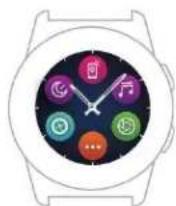
natural_image
Hand interacting with a smartwatch displaying colorful app icons (no text or symbols visible)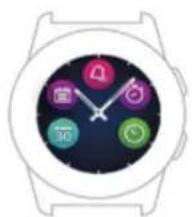
natural_image
Smartwatch with five app icons arranged in a circular frame (no text or symbols)natural_image
Hand holding a smartwatch with a blue arrow pointing to the dial (no text or symbols visible)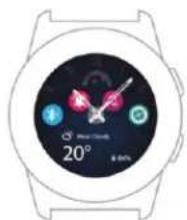
natural_image
Illustration of a hand interacting with a smartwatch (no text or symbols visible)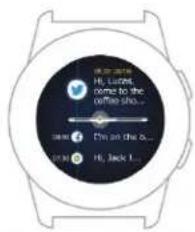
natural_image
Close-up of a black industrial knob with a metallic dial and star-shaped base (no text or symbols visible)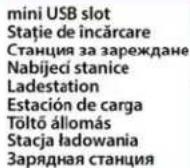
natural_image
Close-up of a black wristwatch with a circular lens and strap, labeled 'fig.1' at bottom (no visible text or symbols on device)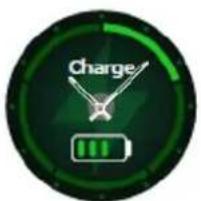
natural_image
Close-up of a smartwatch with visible sensor and wrist strap, showing close-up details (no text or symbols)- Allview Hybrid S / Allview Hybrid T
- Content
- Safety measures
- Precautions and warnings regarding health
- Note:
- General presentation
- Upper button
- Lower button
- Touchscreen operations
- Charging
- Connection and pairing of the Allview Hybrid S/T smartwatch
- Calibration of the Hybrid S/T smartwatch
- 6.1) Calibration by scanning (automatically)
- Call logs
- 7.1)Received calls
- 7.2) Missed calls
- Messages
- Notifications
- Notification settings:
- 11.Reminder
- Activities center
- Inactivity alerts
- Heart rate
- 15.Sleep
- 16.Alarm
- Music control
- Weather predictions
- Stopwatch
- Timer
- Customize the Allview Hybrid S / T smartwatch
- Home time zone (second time zone)
- Wrist flick
- Left hand mode
- Night mode
- Firmware update
- Watch belt
- Cuprins
- 11.Memento
Brand : Allview
Model : Hybrid T
Category : Smartwatch