
Le Hola FR - Smartphone LOGICOM - Free user manual and instructions
Find the device manual for free Le Hola FR LOGICOM in PDF.


| Product Type | Smartphone |
| Brand | Logicom |
| Model | Le Hola FR |
| Dimensions | 145 x 72 x 9 mm (approx) |
| Weight | 150 g (approx) |
| Display Size | 5.0 inches |
| Display Resolution | 854 x 480 pixels |
| Processor | Quad-core 1.3 GHz |
| RAM | 1 GB |
| Internal Storage | 8 GB |
| Expandable Storage | microSD up to 32 GB |
| Rear Camera | 5 MP with LED flash |
| Front Camera | 2 MP |
| Operating System | Android 6.0 (Marshmallow) |
| Battery Capacity | 2000 mAh (removable) |
| SIM Type | Dual SIM (Mini-SIM) |
| Connectivity | WiFi 802.11 b/g/n, Bluetooth 4.0, GPS, 3G |
| Sensors | Accelerometer, Proximity |
| Ports | micro USB 2.0, 3.5 mm jack |
| Power Supply | 5V/1A charger via micro USB |
| Maintenance | Clean with dry cloth; avoid liquids |
| Safety | Do not disassemble; use original charger |
| Spare Parts & Repairability | Battery and back cover replaceable; other repairs by authorized service |
| General Information | User manual available for download in PDF |
Frequently Asked Questions - Le Hola FR LOGICOM
User questions about Le Hola FR LOGICOM
0 question about this device. Answer the ones you know or ask your own.
Ask a new question about this device
Download the instructions for your Smartphone in PDF format for free! Find your manual Le Hola FR - LOGICOM and take your electronic device back in hand. On this page are published all the documents necessary for the use of your device. Le Hola FR by LOGICOM.
USER MANUAL Le Hola FR LOGICOM
text_image
Smartphone home screen displaying app icons including Google, YouTube, Google Mobile, and others in a scenic sunset background.Photo representative only
QUICK START GUIDE
Logicom Le Hola FR
Smartphone 4G-LTE/GPS/WIFI/BT
Trademarks
Android, Google, Google Play and other marks are trademarks of Google LLC.
Adobe Flash Player Copyright(C) 1996-2011 Adobe Systems
Incorporated. All rights reserved. Adobe and Flash are either registered trademarks or trademarks of Adobe Systems Incorporated in the United States and/or other countries.
THIS PRODUCT IS LICENSED UNDER THE AVC PATENT PORTFOLIO LICENSE FOR THE PERSONAL AND NON-COMMERCIAL USE OF A CONSUMER TO
(i) ENCODE VIDEO IN COMPLIANCE WITH THE AVC STANDARD ("AVC VIDEO") AND/OR
(ii) DECODE AVC VIDEO THAT WAS ENCODED BY A CONSUMER ENGAGED IN A PERSONAL AND NON-COMMERCIAL ACTIVITY AND/OR WAS OBTAINED FROM A
VIDEO PROVIDER LICENSED TO PROVIDE AVC VIDEO. NO LICENSE IS GRANTED OR SHALL BE IMPLIED FOR ANY OTHER USE. ADDITIONAL INFORMATION MAY BE OBTAINED FROM MPEG LA, L.L.C. SEE HTTP://MPEGLA.COM
Facebook, the Facebook logo, and the F logo are trademarks or registered trademarks of Facebook, Inc.
Foursquare is the registered trademark of Foursquare Labs, Inc. This software is partially based on the work of the Independent JPEG Group.
The MPEG Layer-3 audio encoding technology and patents are licensed by Fraunhofer IIS and Thomson.
THIS PRODUCT IS LICENSED UNDER THE MPEG4 PATENT PORTFOLIO LICENSE FOR THE PERSONAL AND NON-COMMERCIAL USE OF A CONSUMER TO
(i) ENCODE VIDEO IN COMPLIANCE WITH THE MPEG4 STANDARD ("MPEG4 VIDEO") AND/OR
(ii) DECODE MPEG4 VIDEOS THAT WAS ENCODED BY A CONSUMER ENGAGED
IN A PERSONAL AND NON-COMMERCIAL ACTIVITY AND/OR WAS OBTAINED FROM A VIDEO PROVIDER LICENSED TO PROVIDE MPEG4 VIDEO. NO LICENSE IS GRANTED OR SHALL BE IMPLIED FOR ANY OTHER USE. ADDITIONAL INFORMATION MAY BE OBTAINED FROM MPEG LA, L.L.C. SEE HTTP://MPEGLA.COM SD, SDHC, microSD and the microSDHC logos are trademarks of SD-3C, LLC.
The Twitter name, logo, Twitter T, Tweet, and Twitter bird are trademarks of Twitter, Inc. in the United States and other countries. THIS PRODUCT IS LICENSED UNDER THE VC-1 PATENT PORTFOLIO LICENSE FOR THE
PERSONAL AND NON-COMMERCIAL USE OF A CONSUMER TO (i) ENCODE VIDEO IN COMPLIANCE WITH THE VC-1 STANDARD (“VC-1 VIDEO”) AND/OR (ii) DECODE VC-1 VIDEO THAT WAS ENCODED BY A CONSUMER ENGAGED IN A PERSONAL AND NON-COMMERCIAL ACTIVITY AND/OR WAS OBTAINED FROM A VIDEO PROVIDER LICENSED TO PROVIDE VC-1 VIDEO.
NO LICENSE IS GRANTED OR SHALL BE IMPLIED FOR ANY OTHER USE. ADDITIONAL INFORMATION MAY BE OBTAINED FROM MPEG LA, L.L.C.
SEE HTTP://WWW.MPEGLA.COM
Wi-Fi, the Wi-Fi CERTIFIED logo, WPA, WPA2 and Wi-Fi Protected Setup are trademarks or registered trademarks of Wi-Fi Alliance. Windows Media is either a registered trademark or trademark of Microsoft Corporation in the United States and/or other countries. All other names of systems, products and services are trademarks or registered trademarks of their respective owners. The symbols ((TM)) or (R) are not used in this guide.
Got everything?
- 1 x Smartphone
- 1 x Chargeur adaptateur secteur – USB universel – (Model: DCS38-0501000E; 5V 1A) (SHENZHEN EAST SUN
● ELECTRONIC CO., LTD; Building B, No. 88, Xingye Road One, Fenghuang First Industrial Park, Fuyong Sub-district, Baoan District, Shenzhen City, Guangdong Province, P.R.China.) - 1 x USB cable
- 1 x Quick start guide
- 1 x Pedestrian kit
NOTE: The packaging materials, such as the adhesive tape, plastic film, string and labels, are not part of this product.
WARNING: For your safety, please do not remove the screen's protective film, located under the antistatic film (with tab). It protects your screen against slight scratches and provides optimum protection if the phone is dropped.
Logicom accepts no responsibility for personal injury sustained following removal of the protective film by the consumer. Note that this protective film does not increase the robustness of the product. For replacement of the protective film, please consult a specialist Smartphone dealer.
Installation guide
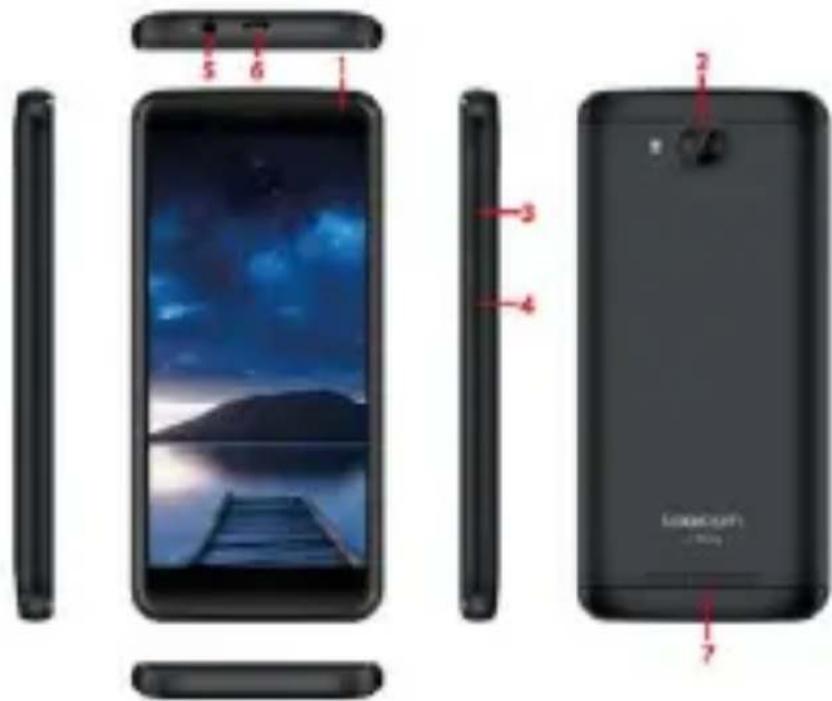
1. Description of the Smartphone.
1 – Front camera
2 – Rear camera & flash
3 - Volume
4 - ON/OFF button
5 - Jack
6 - Micro USB port
7 – Speakers
text_image
Diagram of a smartphone showing front, side, and back views with numbered labels pointing to each component.2. Inserting a SIM card
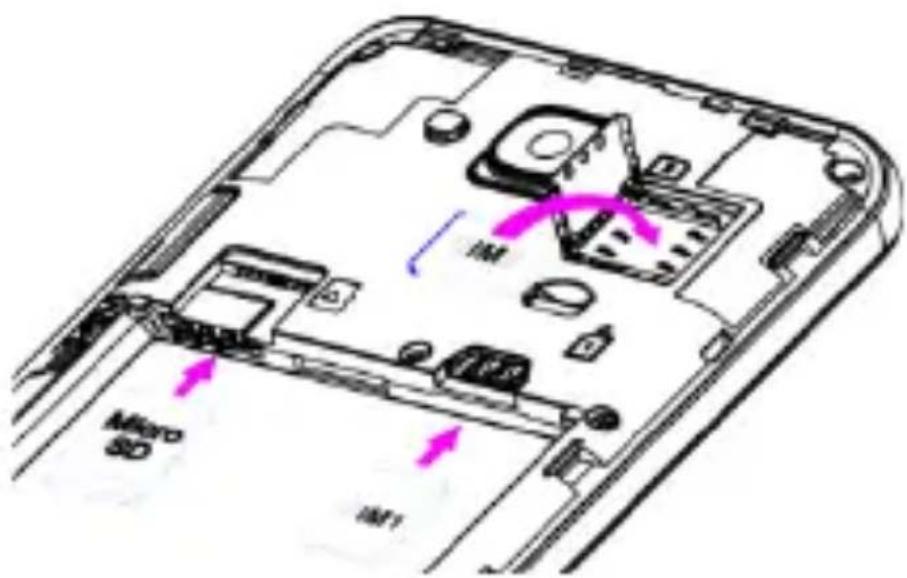
Your Smartphone is a mobile phone with dual SIM card, which enables you to use two lines on the same Smartphone. Your smartphone has two SIM slots (SIM 1 and SIM 2).
To insert the SIM card(s):
- Switch off the phone and remove the rear cover and battery.
- Insert the SIM card correctly into the relevant card slots. Observe the direction of insertion of cards, the contacts to the outside.
text_image
IM IM Micro SD IM1● SIM 1 uses a Nano-SIM card and SIM 2 uses a Nano-SIM card.
CAUTION: The 3G/4G function can only be used on one SIM card.
- Then replace the SIM compartment in place.
3. Inserting a MicroSD
It is possible to increase the internal memory of the Smartphone device with a MicroSD card. (Maximum 32GB MicroSD card).
- Switch off the phone and remove the rear cover and battery.
- Insert the memory card into the relevant slot.
- Then replace the battery and cover.
CAUTION: Inserting or removing a SIM card or a MicroSD card requires the Smartphone to be completely switched off. The SIM slot 2 is shared with the MicroSD slot, so you use a card (Nano SIM or microSD) at a time.
4. Charging the battery
Installing the battery:
- Remove the rear cover of your Smartphone.
- Insert the battery ensuring that the image shown here is facing you.
- Replace the rear cover of the Smartphone.
CAUTION: Risk of explosion if battery is replaced by an incorrect type.
Model: V395271ART (Li-ion - 3,8V - 2150mAh)
To replace the battery, please enquire with the after-sales service of your dealer.
Dispose of used batteries according to the instructions.
To replace the battery, please enquire with the after-sales service of your dealer.
Dispose of used batteries according to the instructions.
Charging the battery:
- To charge the battery, connect the USB cable (supplied) to the USB port of your Smartphone and the other end to the mains adaptor (supplied). Then connect the mains adaptor to a power outlet.
- The battery charge icon illuminates during charging and indicates the charge status.
- When the battery is fully charged, you can disconnect the USB cable from the device then from the power outlet.
IMPORTANT:
● The Smartphone is only recharged via its USB port.
- Ensure your Smartphone is fully discharged before charging it for the first time.
- The battery must be charged for at least 5 to 8 hours when first charged.
● After a long period without use, It should be necessary to do many cycles of charging / discharging to obtain maximum power capacity
Note: You can use the device when it is being charged. In this case, the battery may take longer to charge fully.

Safety information for charging the battery:
● To recharge the battery, only use the mains adaptor supplied with your device. Do not use any other power supply or electrical device.
● The power outlet to which the device is connected must be near the equipment and must always be easily accessible.
● Always wait at least 5 seconds after switching off the device before restarting it. Switching the device off and then back on again immediately may damage the electrical circuits.
- Do not disassemble, open or shred the battery contents. Do not dispose of batteries in fire or water. Do not charge the battery if the room temperature exceeds 45°C. Keep the battery in a clean and dry place. Avoid leaving the battery under sunlight.
- Do not short circuit the battery. Do not keep the battery in a place where it can be shorted by other metal objects.
- Keep the battery away from children, in case of swallowed, consult a doctor immediately. In case of battery leak, take care to not allow the liquid come in contact with skin or eyes, if this case happens, wash thoroughly with water and consult a doctor.
- For all repairs or to replace the battery, consult a qualified technician.
- The lifetime of the battery depends largely on how you use it. Do not expose the battery to temperatures less than 0°C or greater than 60°C. Its performance may be altered.
- Significant electromagnetic interference or electrostatic discharge may cause malfunction or loss of data. If the device is not working properly, restart the Smartphone or unplug the mains adaptor from the power outlet then plug it in again.
- Remove when it's possible the battery when the Smartphone is not used during a long period.
- Dispose of the battery and the Smartphone separately. Do not put the battery in the household waste, for further information about recycling of the battery, contact your municipality, your local waste or the store where you purchased the product.
Getting Started
1. Switching the Smartphone on and off
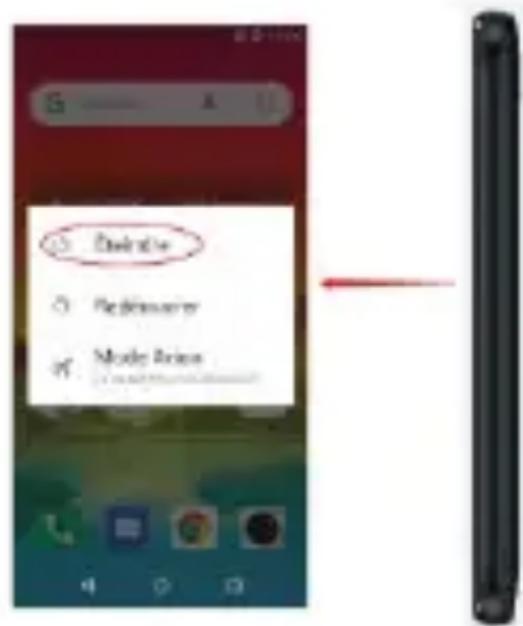
To switch the Smartphone on, press the On/Off button located on the side of the Smartphone for 3 seconds.
- If the Smartphone is switched on, press for less than a second on the button to put the device into standby mode. Press it again to leave
text_image
Delete Delete Myanmar Music Actionstandby mode.
● To switch off the Smartphone, press the On/Off button for 3 seconds
until a menu appears, then touch the Off button and confirm.
2. Locking / unlocking SIM cards
Your Smartphone is a dual SIM Smartphone. It enables you to phone using two lines from the same device.
There are two SIM card slots.
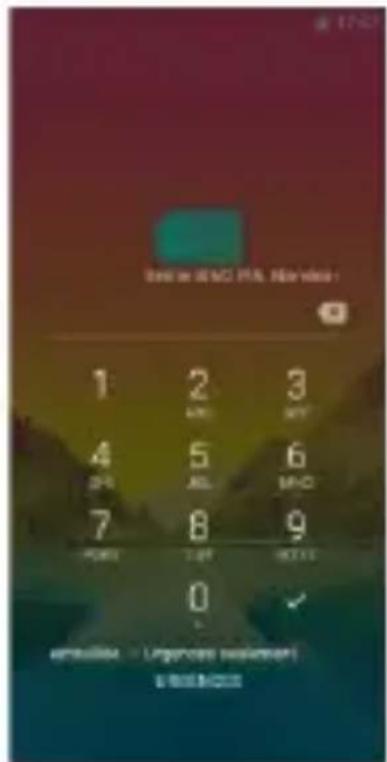
- When you start up your phone, the latter invites you to enter the PIN codes of your two SIM cards in succession. (SIM1 then SIM 2)
- The "emergency call" function enables you to call an emergency number without entering the PIN code.
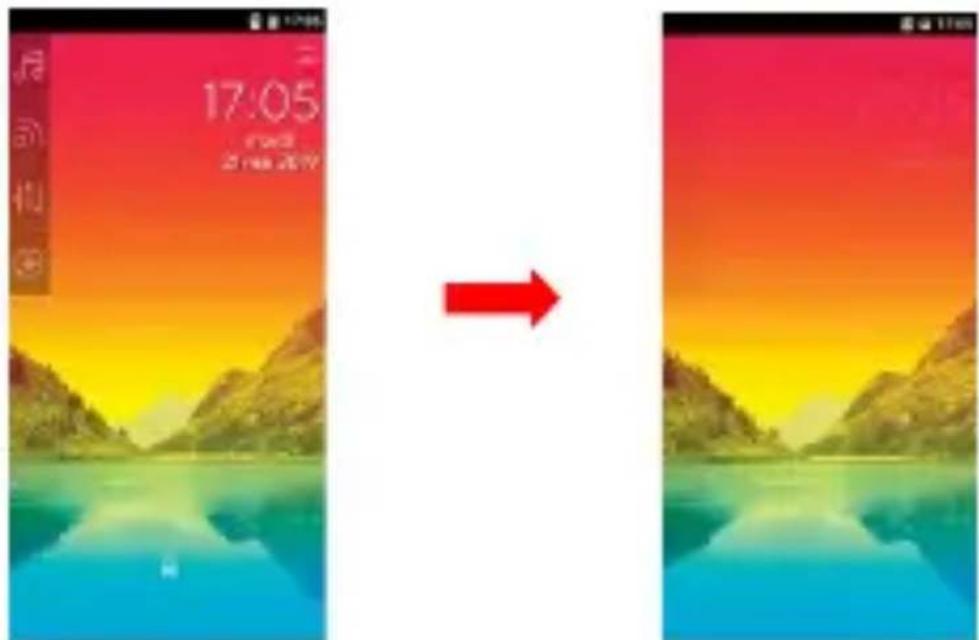
3. Locking / unlocking the screen
To unlock the screen:
- Press the power key on your phone.
● Hold and drag the unlock icon to the right to unlock the device.
text_image
17:05 2024.2019Logicom
text_image
Best in MSCI PTA. New video : 1 2 3 MCI MCI 4 5 6 MCI MCI 7 8 9 MCI MCI 0 √ amplifier = Ungroos waijnen #RMS/CCSYou can configure the screen lock by adding a password or pattern to be replicated when unlocking your Smartphone.
CAUTION: Forgetting your screen lock password, PIN code or pattern permanently blocks your Smartphone If this is forgotten or lost, the product warranty will not cover such an oversight. Even a “reset” cannot solve the problem. As a precaution, take a note of your password or pattern.
PASSWORD:
4. Receiving a call
- When a call is received, slide your finger over the
- When you want to end a call, press the icon.
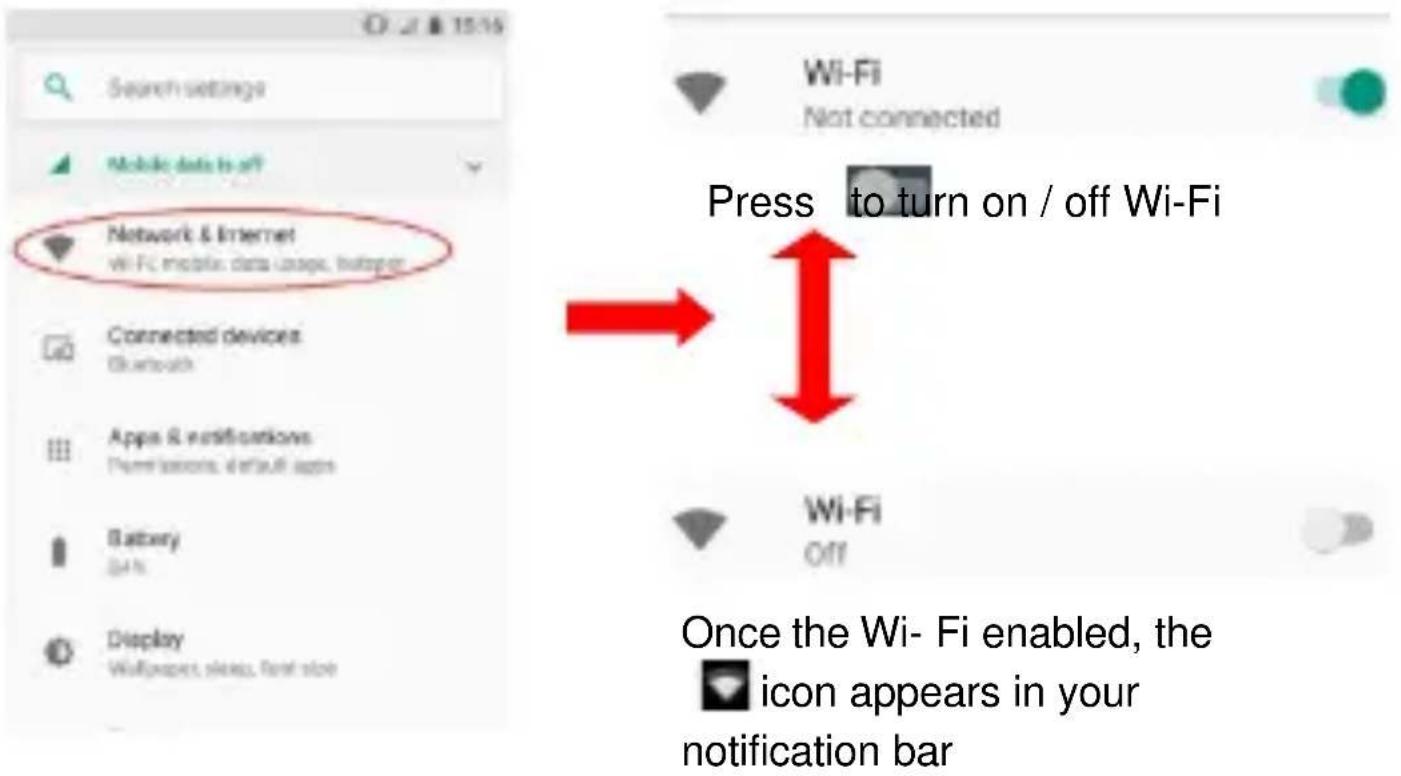
5. Enable / Disable the Wi-Fi connection
NOTE: To limit your exposure to electromagnetic fields we recommend you disable Wi-Fi when not in use.
In the settings, press to activate the Wi-Fi. The device automatically searches the available Wi-Fi networks. Click on the network of your choice to activate it and connect to it. You can also activate this function from the notifications panel. The icon is displayed in the system tray when you are connected to a wireless internet network or when wireless internet networks are detected by the device.
NOTE: Most Wi-Fi networks are locked with a password (WEP or WPA2 PSK key). To connect to a locked Wi-Fi network, click on it and enter the password for your network in the dialogue box which is displayed on the screen.
The WEP or WPA2 PSK key for a Wi-Fi network is generally noted on a label located on the back of your internet modem.
NOTE: Restart your Smartphone if necessary.
text_image
Search settings Mobile data is off Network & Internet Wi-Fi mobile data usage, throughput Connected devices Bluetooth Apps & notifications New! lessons, default apps Battery DAI Display Wirexpers, stereo, fan slot Wi-Fi Not connected Press to turn on / off Wi-Fi Wi-Fi Off Once the Wi- Fi enabled, the icon appears in your notification bar6. Enable / Disable Bluetooth connection
NOTE: To limit your exposure to electromagnetic fields we recommend you disable Bluetooth when not in use.
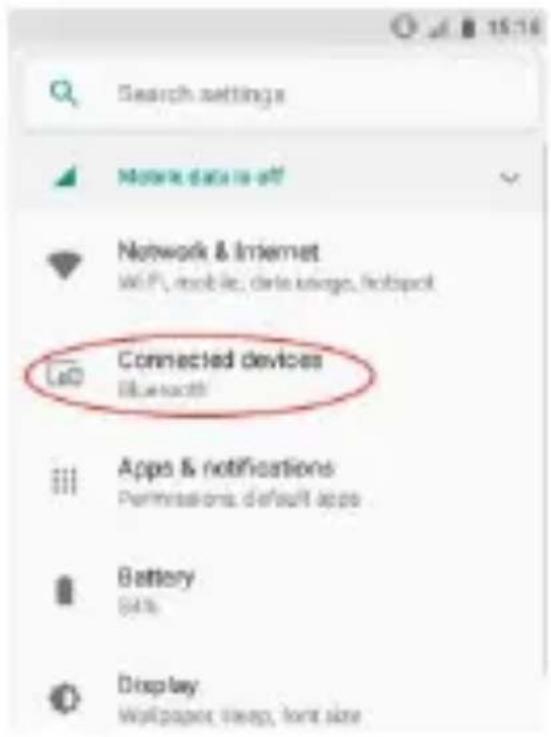
In the settings, press to activate the Bluetooth. You can also activate this function from the notifications panel.
text_image
Search settings More data as off Network & Internet WiFi, mobile, data megos, footprint Connected devices Bluetooth Apps & notifications Permissions default apps Battery Data Display Wallpaper sleep, font size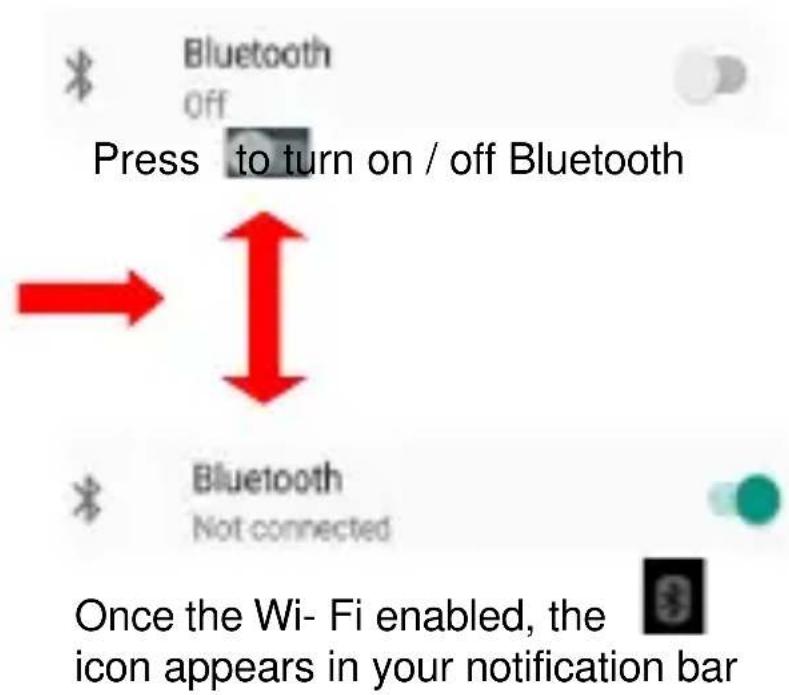
text_image
Bluetooth off Press to turn on / off Bluetooth → Bluetooth Not connected Once the Wi- Fi enabled, the icon appears in your notification bar7. Reset
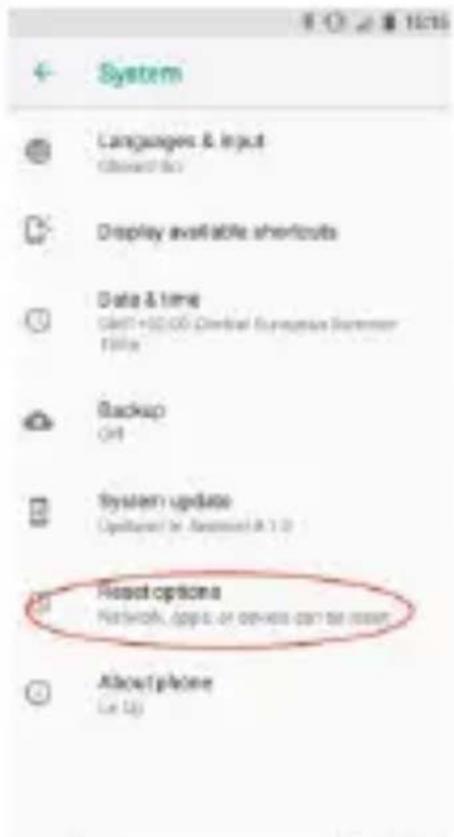
If you want to reset your smartphone, you can do a reset of data from the operating system Android.
CAUTION: A reset data erase all your personal data, all contacts in your phone and the applications you have installed. That is why we recommend that you make a backup of your data before starting the procedure. However the information stored on the external memory card will not be erased.
To do a reset of the data, you have two options:
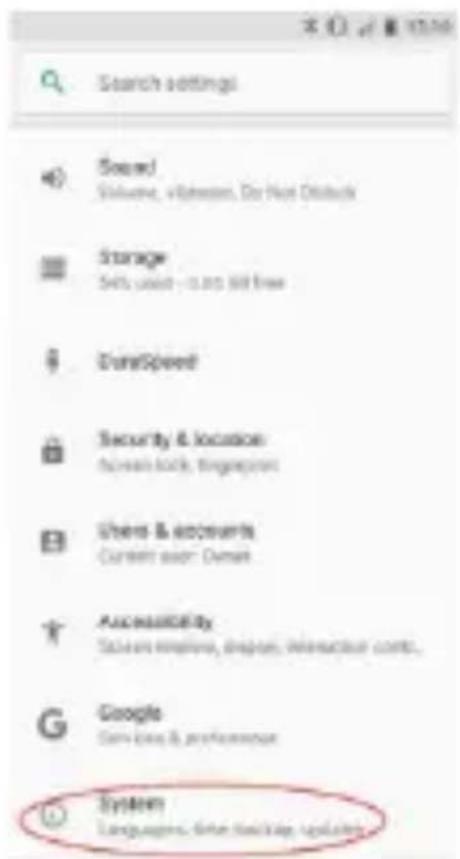
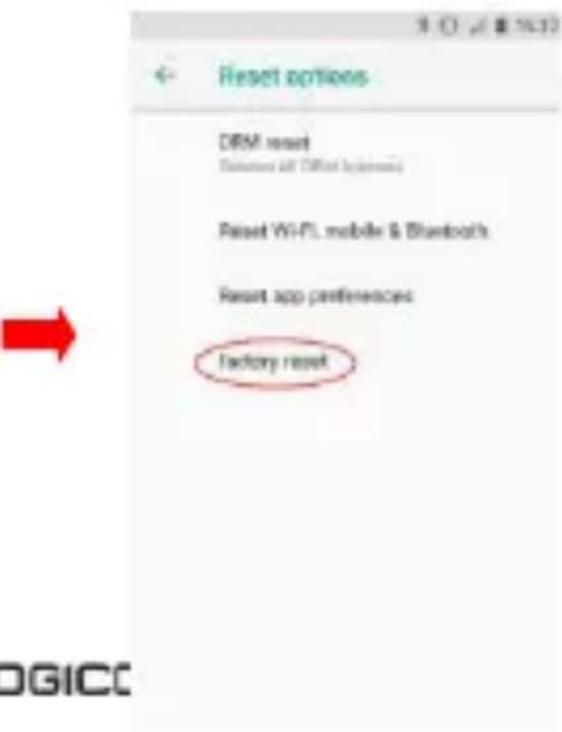
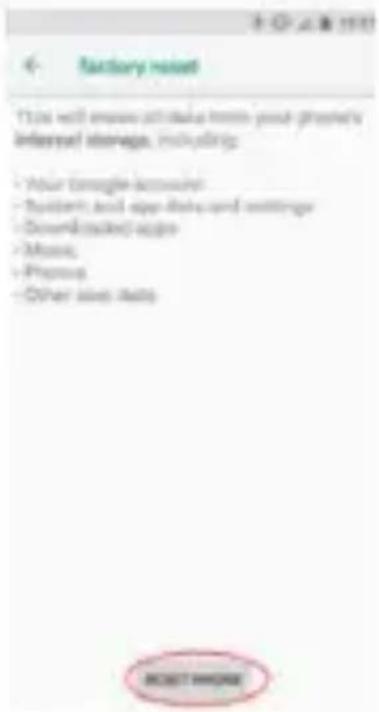
Reset the device by setting menu :
In Settings, click "Backup & reset", then "Factory data reset".
Click "Reset phone" and confirm "Erase everything".
The smartphone will turn off and on rebooting the system will reset.
text_image
Search settings Store! Volume, video, Do Not Oblock Storage Sets used - 0.05 kill free DurchSpeed Security & location: Software book, Imageprint Users & accounts Current user: Demax Accessibility Sales licenses, diagrams, interaction comps. Google Services & professional System Languages, other database updates
text_image
System Languages & input Access Info Display available shortcuts Data & time Audit+50.00 Clinical Europe/Summer File Backup Off System update Upstream (e- Access) A 1.0 Reset options Network, apps or services can be seen Allow phone Let up
text_image
Reset options DRM reset Options all Offed by (Windows) Reset Wi-Fi, mobile & Bluetooth Reset app preferences Factory reset
text_image
Factory reset This will ensure all data from your project's internet storage, including: - Your Google account - Supported and open data and settings - Downloaded app - Music - Preprint - Other save info ACNET INFOEReset the device in "recovery mode":
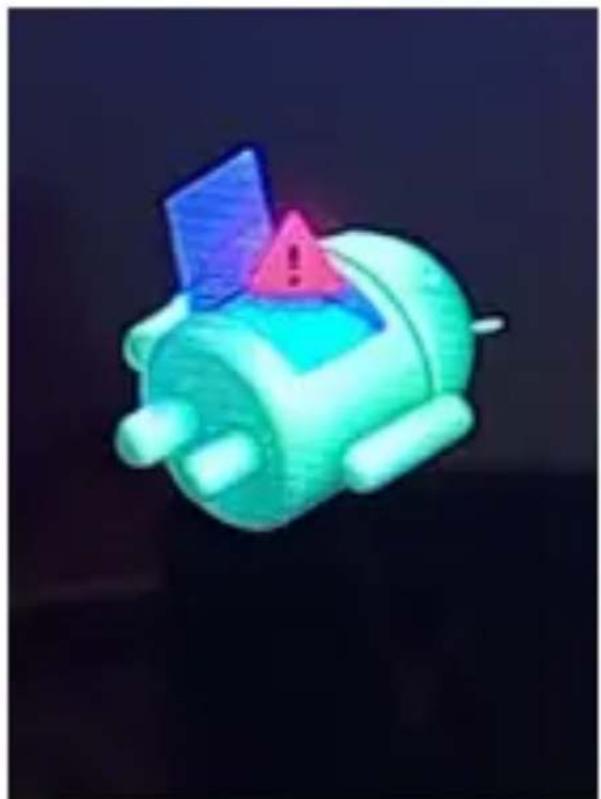
Switch off your device and then hold the "On / Off" button and press the Volume "+" button. After 3 seconds, the picture appears, release the buttons. Press the "On / Off" button and press the Volume "+" button to appear the "Factory Mode" menu. This menu is not tactile. To navigate, use the Volume button to move. To validate an action, use the "On / Off" button. Select "wipe data/factory reset", follow Confirm, the smartphone will reset. Select "reboot system now", the system will reboot.
natural_image
Illustration of a stylized hand holding a blue card with a pink warning triangle on top, against a dark background (no text or symbols)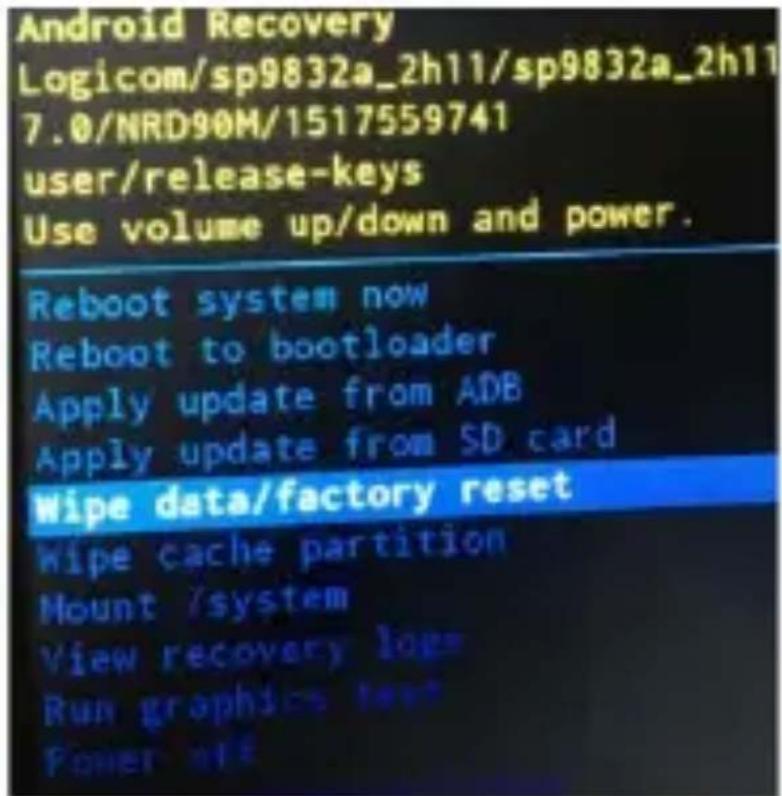
text_image
Android Recovery Logicom/sp9832a_2h11/sp9832a_2h11 7.0/NRD90M/1517559741 user/release-keys Use volume up/down and power. Reboot system now Reboot to bootloader Apply update from ADB Apply update from SD card Wipe data/factory reset Wipe cache partition Mount /system View recovery loge Run graphics text Power offNOTE: If you encounter any problems with the product, first do a system reset before returning it to after sales service.
8. Downloading an application
Your Smartphone is supplied with on-line store, Google Play Store enabling you to download applications such as utilities and games.
To access these to the store, tap the Play Store icon
NOTE: The availability of access to Google Play Store depends on your phone operator and the country in which you are located. Access to the on-line store requires an account to be created.
NOTE: LOGICOM shall under no conditions be responsible for the content on the on-line store. The product warranty will not cover any malfunction due to an application from on-line stores.
Warning on using the phone while driving
In France, in accordance with Article R412-6-1 of the French highway code, drivers are not permitted to use hand-held phones whilst the vehicle is moving.
The penalty for non-compliance with this article is a fine and point penalty on your driving licence.
It is also forbidden to wear any system such as earphones, pedestrian kits, headsets, headphones, susceptible to limit the attention or the hearing of the drivers.
NOTE: this legislation applies only in France. During trips abroad, please refer to the legislation in place in your country of origin before travelling.
Listening safety
- Before using the pedestrian kit, check that the volume is not set to maximum to prevent hearing loss.
● The high volume settings are intended for individuals with reduced hearing capacity and not for those with normal hearing. - Do not use the pedestrian kit while driving.
- Adjust the volume so that you can hear the sounds around you.
- Listening at high volumes can damage your hearing and lead to hearing impairment (deafness, ringing ears, tinnitus and hyperacusis).
In order to prevent these risks it is recommended not to use the device at full volume; use must not exceed one hour per day.
- This product complies with the EN62368-1:2014 standard in accordance with the order of 25 July 2013 implementing Article L. 5232-1 of the French public health code concerning portable audio players.
- Do not use pre-amplified or amplified models of headphones or earphones (i.e. with individual volume control and/or self-powered by batteries), as they do not ensure adherence to the maximum volume.
- To prevent possible hearing damage, do not listen at high volume levels for long periods.
natural_image
Warning symbol of an ear inside a triangle (no text or numbers)Electromagnetic waves safety information (SAR)
Your Smartphone is designed to not exceed the radio wave limits recommended by the European authorities. These limits include safety margins to ensure the protection of all persons regardless of their age or health.
The SAR (specific absorption rate) of mobile phones quantifies the maximum level of exposure of the user to electromagnetic waves, for aural use. French legislation stipulates that the SAR must not exceed 2 W/kg averaged over 10g of tissue.
The value of the SAR is determined on the basis of the highest level of radio frequencies emitted during laboratory tests.
The actual value of the SAR during use of the smartphone is lower than this level.
The value of the SAR of the smartphone can vary according to the following factors: how far/close the phone is to a relay antenna, use of accessories and others.
The maximum SAR level of your Smartphone is given in the following table:
| Position | Connectivity | SAR value |
| Head | GSM900 / DCS1800 /WCDMA900 / WCDMA2100 /LTE 800 / LTE 1800 / LTE 2100 /LTE 2600 | 0.230 W/Kg |
| Body(Separation distance 0 mm) | GSM900 / DCS1800 /WCDMA900 / WCDMA2100 /LTE 800 / LTE 1800 / LTE 2100 /LTE 2600 | 1.42 W/Kg |
NOTE: The SAR value may vary, depending on national reporting and testing requirements and the network band.
NOTE:
- Do not use your Smartphone in certain locations such as aircraft, hospitals, service stations and professional garages or while driving a vehicle. The electromagnetic waves from the Smartphone can disrupt the performance of electronic devices used in these locations.
- We recommend that you switch off your phone or switch it to flight mode in these locations to avoid interference.
- If you use an electronic implant (pacemakers, insulin pumps, neurostimulators, etc.), please keep a distance of 15cm between the Smartphone and your electronic implant.
- When using a pedestrian kit, pregnant women should keep the phone away from their abdomen and teenagers should keep the phone away from their lower abdomen.
Advice to reduce the level of exposure to radiation:
- Please use your Smartphone where reception is good to reduce the quantity of radiation received (avoid using in an underground car park or when travelling (train or car)).
● A reception icon indicates the quality of reception on your phone. A

4-full display means that reception is good
- Use of a pedestrian kit also allows the level of exposure to be reduced.
- To limit the bad consequences of the exposure to a prolonged radiation, we advise teenagers to hold the phone away from their lower abdomen, d the pregnant women to hold the phone away from their belly.
Safety and care information
- Read these instructions carefully.
- Keep these instructions.
- Follow all these instructions.
- Heed the warnings.
● Clean only with a soft cloth (dry or slightly damp). - Do not attempt to disassemble the device; it would no longer be covered by the warranty.
- Do not bring sharp objects directly into contact with the surface and do not spray any cleaning product directly onto the screen.
- Do not exert excessive pressure on the screen and do not put objects on it. This could damage the screen.
- Use the spare parts specified by the manufacturer.
● After any service or repair carried out on this product, ask the technician to perform a safety check.
● Use only the spare parts/accessories specified by the manufacturer. - Refer to a qualified person for any repairs. Repair is required if the device is damaged in some manner or other, if the power cord or plug is damaged, if liquid has been spilled or objects have fallen on the device, or if the device has been exposed to rain or moisture, or has been dropped.
- Do not expose the device to direct sunlight or other source of extreme heat or cold.
-
Respect the privacy of others when using your Smartphone.
-
Keep the device away from all metal objects (coins, keys, etc.).
- Do not leave near a magnetic field as this could cause data to be lost or could damage the device.
- Do not drop the device.
- Do not expose the device to shocks, friction or impact.
- In order to prevent data loss, remember to make a (computer or paper) back-up of information saved on the device.
- To prevent interference, do not use the device near other electronic devices, a pacemaker or medical equipment.
- Operating temperature: 0-40°C.
- Keep out of the reach of the children and young children, this product may contain small parts, which represents a dangerous suffocation.
NOTE: In order to reduce any risk of fire or electric shock:
- Do not expose this device to rain or moisture.
- Do not expose the product to water droplets or to splashes and do not place any object filled with liquid, such as a vase, on the device.
- Do not use the product near flammable or explosive materials.
- The power plug is used to disconnect the device and must always be easily accessible.
- In order to completely disconnect the device from the electricity supply, the power plug must be disconnected from the power outlet.
- Do not attempt to override the safety features of the polarised plug or the earth connection. A polarised plug has two pins, one of which is wider than the other. A plug with an earth connection has two flat pins and a third round pin for the earth connection. The widest pin and the third pin constitute the important safety features designed to protect you. If you cannot manage to fully insert the plug into the wall outlet, contact your electrician to replace the obsolete wall socket.
- Disconnect this device during electrical storms or when not in use for an extended period.
- Switch off the device in places presenting risk of explosion and when travelling by plane.
- Do not touch the power cord with wet hands and do not pull on the charger to disconnect it.
- The power cord must be placed so that it will not be stepped on or crushed particularly at the outlet, where it is plugged in or where it is connected to the device.
- Do not overload the power outlet. Use the power supply only as indicated.
- Do not install this device near heat sources such as electric hobs, cookers or others (including amplifiers).
Epilepsy warning
Please read before using a video game or allowing your children to use one.
Some people are susceptible to epileptic seizures or loss of consciousness when exposed to certain flashing lights or light patterns in everyday life. Such people may have a seizure while watching television images or playing certain video games. This may happen even if the person has no medical history of epilepsy or has never had any epileptic seizures. If you or anyone in your family has ever had symptoms related to epilepsy (seizures or loss of consciousness) when exposed to flashing lights, consult your doctor prior to playing. We advise that parents should monitor the use of video games by their children. If you or your child has the following symptoms while playing a video game, discontinue use IMMEDIATELY and consult your doctor: dizziness, blurred vision, eye or muscle twitches, loss of consciousness, disorientation, any involuntary movement or convulsion.
Precautions to take during use of any video game:
- Do not sit too close to the screen. Sit a good distance away from the television screen, as far away as the length of the cable allows.
- Preferably play the game on a small television screen. Avoid playing if you are tired or have not had much sleep.
● Make sure that the room in which you are playing is well lit. - Rest for ten to fifteen minutes per hour while playing a video game.
Technical informations
| Technologies | Frequency range | Transmit power max |
| 2G | GSM900 – DCS 1800 | GSM900: 1663.41mW PIRE (e.i.r.p) 32.21dBmDCS1800: 824.14W PIRE (e.i.r.p)29.16dBm |
| 3G | WCDMA 900 – WCDMA 2100 | WCDMA900: 140.93mW PIRE (e.i.r.p)21.49dBmWCDMA2100: 139.96mW PIRE (e.i.r.p)21.46dBm |
| 4G LTE | LTE FDD Band 1 / 3 / 7 / 20 | band1: 139.0mW PIRE (e.i.r.p)21.43dBmband3:143.55 mW PIRE (e.i.r.p)21.57dBmband7: 140.93mW PIRE (e.i.r.p)21.49dBmband20: 139.64mW PIRE (e.i.r.p)21.45dBm |
| Bluetooth | 2402MHz ~ 2480MHz | GFSK: 2.84mW PIRE (e.i.r.p)4.54dBmπ/4 DQPSK: 2.33mW PIRE (e.i.r.p)3.68dBm8DQPSK: 3.03mW PIRE (e.i.r.p)4.82dBm |
| Wifi 2.4 Ghz | 2412MHz ~ 2472MHz | 802.11b: 41.78mW PIRE (e.i.r.p)16.21dBm802.11g: 19.32mW PIRE (e.i.r.p)12.86dBm802.11n20: 9.48mW PIRE (e.i.r.p)9.77dBm |
Recycling
natural_image
Symbol of a trash bin crossed with no text or numbers, representing waste sorting or disposal (no text present)The symbol shown here and on the product means that the product is classed as Electrical or Electronic Equipment and should not be disposed with other household or commercial waste at the end of its working life.
The Waste Electrical and Electronic Equipment (WEEE) Directive (2012/19/EU) has been put in place to recycle products using best available recovery and recycling
techniques to minimise the impact on the environment, treat any hazardous substances and avoid the increasing landfill.
Product disposal instructions for residential users:
If you no longer use the device, remove and dispose of the battery, as well as the device, in compliance with the local recycling procedures. For more information please contact your local authority or the retailer where the product was purchased.
Product disposal instructions for business users:
Business users should contact their suppliers and check the terms and conditions of the purchase contract and ensure that this product is not mixed with other commercial waste for disposal.
Simplified EU declaration of conformity
CE
Hereby, LOGICOM SA – 55 rue de Lisbonne – 75008 PARIS, declare that the radio equipment type smartphone GPS/WIFI/BT/GSM/3G/4G-LTE model Le Hola FR is in compliance with Directive 2014/53/UE. The full text of the EU declaration of conformity is available at the following internet address:
https://www.logicom-europe.com/ce-doc
The warranty scope of application
If you encounter any problems:
A contact form and complete FAQ are available on our website:
www.logicom-europe.com
If none of these platforms does solve your problem, contact your retailer. The LOGICOM supplier warranty is valid for normal use of the device as defined in the instructions.
This warranty excludes damage caused by external circumstances. Specifically, the warranty does not apply if the device is damaged as a result of a bump or drop, an operating error, a connection that does not comply with these instructions, lightning, a surge, or inadequate protection against heat, humidity, or freezing temperatures. The warranty is applicable only in metropolitan France.
- The warranty does not cover user manuals or applications, settings, content or data of any kind.
- The warranty does not cover normal usury of the product. (Screens, batteries and camera)
- The warranty does not cover damage to the product due to misuse, including in particular those caused by objects, a pressure drop.
- The warranty does not cover any use of the label with the precautions outlined in the manual.
- The warranty does not cover defects caused to the product with another product connected or used with an accessory or software not provided by British Telecom.
- The warranty does not cover any damage to the battery.
- The warranty does not cover the product or its accessories if it has been disassembled or modified in any way.
- The warranty does not cover any unidentifiable product by serial number or (s) number (s) IMEI. If its elements have been removed, altered or defaced, the warranty does not apply.
- The warranty does not cover damage done to the product caused by exposure to moisture, conditions that extreme heat or cold, corrosion, oxidation, with any liquid whatsoever.
- The warranty does not cover any damage to (s) player (s) or SIM MicroSD reader.
The legal warranty for hidden defects applies in compliance with Articles 1641 et seq. of the French Civil Code.
Made in PRC
© 2019 Logicom SA.