
Ultra Stream SDI - Uncategorized Magewell - Free user manual and instructions
Find the device manual for free Ultra Stream SDI Magewell in PDF.


| Brand | Magewell |
| Model | Ultra Stream SDI |
| Product Type | Live Streaming Encoder |
| Dimensions (approx.) | 150 x 100 x 30 mm (5.9 x 3.9 x 1.2 in) |
| Weight (approx.) | 0.5 kg (1.1 lbs) |
| Power Supply | 5V DC, 2A via included adapter |
| Video Input | SDI (BNC) |
| Network | 10/100/1000Mbps Ethernet, IEEE 802.11 a/b/g/n/ac Wi-Fi |
| Streaming Protocols | RTMP, RTMPS, RTSP, Facebook Live, YouTube Live, Twitch |
| Simultaneous Streams | Up to 2 servers |
| Recording Media | USB flash drive, internal storage, smartphone (via app) |
| Recording Format | MP4 (H.264) |
| Encoding Profiles | Main stream and sub stream with customizable resolution, frame rate, bit rate |
| Audio Input | SDI embedded audio, 3.5mm microphone jack (mono) |
| Indicators | HDMI/SDI IN, Ethernet, Wi-Fi, USB, REC, LIVE |
| Control | On-device buttons, mobile app (iOS/Android), Web UI |
| Supported Mobile OS | Android 5.0+, iOS 9.0+ |
| Recommended Browser | Chrome 49+, Firefox 61+, Safari 11.1+, Edge, IE 11, Opera 55+ |
| Maintenance | Avoid dust, humidity, extreme temperatures. Keep connectors clean. |
| Safety | Use correct power adapter. Do not attempt repair. Contact support for issues. |
| Spare Parts & Repairability | Power adapter replaceable. Contact dealer or Magewell for parts/service. |
Frequently Asked Questions - Ultra Stream SDI Magewell
User questions about Ultra Stream SDI Magewell
0 question about this device. Answer the ones you know or ask your own.
Ask a new question about this device
Download the instructions for your Uncategorized in PDF format for free! Find your manual Ultra Stream SDI - Magewell and take your electronic device back in hand. On this page are published all the documents necessary for the use of your device. Ultra Stream SDI by Magewell.
USER MANUAL Ultra Stream SDI Magewell
natural_image
Smartphone displaying a scenic landscape with mountains, landscapes, and a lake (no text or symbols visible)Overview
Ultra Stream encoder makes live streaming remarkably simple even for non-professional users, enabling them to record or stream high-quality video with one click using on-device buttons or an intuitive smartphone app. Designed for users who want to stream but may have minimal technical knowledge, the encoder is ideal for everyone from church volunteers and educators to corporate communicators and live event organizers.
Users can stream to popular services including YouTube, Facebook Live or Twitch or to a custom-specified server. Streams can be output to a third-party service and custom server simultaneously, while real-time video preview in the app allows easy monitoring. In addition to outputting live streams, Ultra Stream can record video as files to a directly-connected USB drive, embedded storage or the associated smartphone.
Key Features
• Streaming to Facebook, Twitch and YouTube platforms
• Support for streaming to 2 servers simultaneously
• Recording to USB flash drive
• Recording to mobile device
• Recording to internal storage
• Remotely control recording and streaming
• Device configuration using Web UI
System Requirements
Network
• 10/100/1000Mbps Ethernet
- IEEE 802.11 a/b/g/n/ac
Supported Mobile Clients
- Android 5.0 and above
- iOS 9.0 and above
- iPhone 6s and above
- iPod Touch 7 and above
Supported Web Browser
• Microsoft Internet Explorer 11
- Microsoft Edge
- Mozilla Firefox version 61 and above
• Google Chrome version 49 and above
• Apple Safari 11.1 and above
• Opera 55.0.2994.44 and above
App
• For Android 5.0 and above, search Ultra Stream or Magewell in the Google Play or scan the QR code to download the Ultra Stream app.
- For iOS 9.0 and above, search Ultra Stream or Magewell in the App Store to download the Ultra Stream app.
Ultra Stream

Installation
Safety Information
Electrical Safety
- Seek professional assistance before using an adapter or extension cord. These devices could interrupt the grounding circuit.
- Make sure that you are using the correct power adapter for the local voltage. If you are not sure about the voltage of the electrical outlet you are using, contact your local power company.
- If the power adapter is broken, do not try to fix it by yourself. Contact a qualified service technician or your retailer for help.
Operation Safety
- Before using the product, make sure all cables are correctly connected and the power cables are not damaged. If you notice any damage, contact your dealer immediately.
• To avoid short circuits, keep paper clips, screws, and staples away from connectors, slots, sockets and circuitry. - Avoid dust, humidity, and temperature extremes. Do not place the product in any area where it may become wet.
• If you encounter technical problems with the product, contact your dealer or the Magewell Support Team via support@magewell.net.
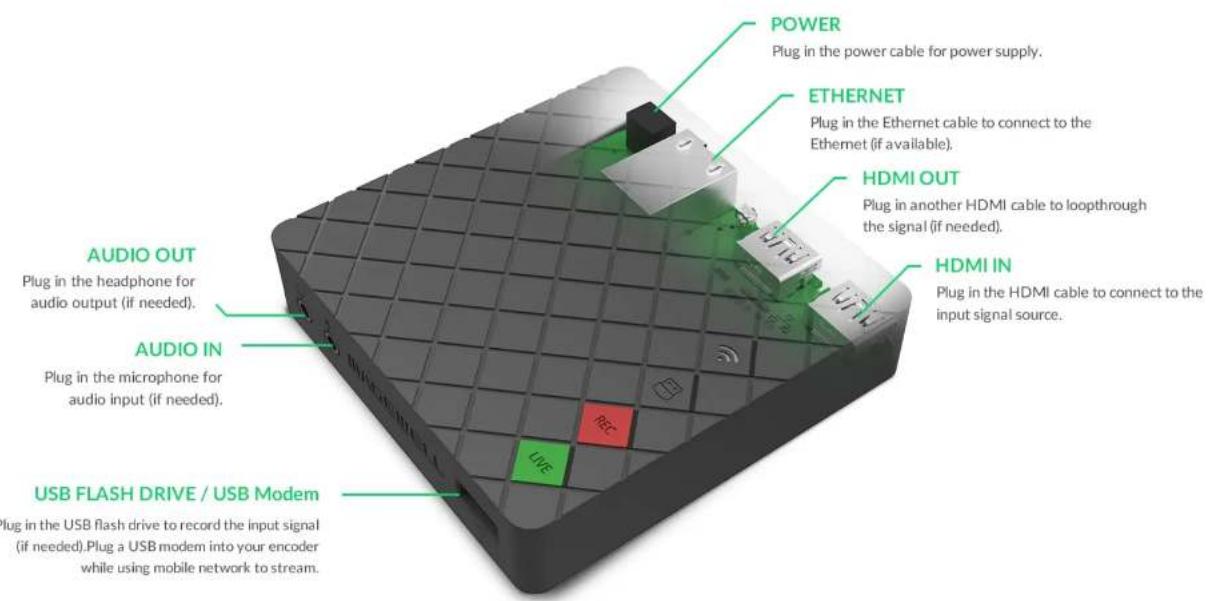
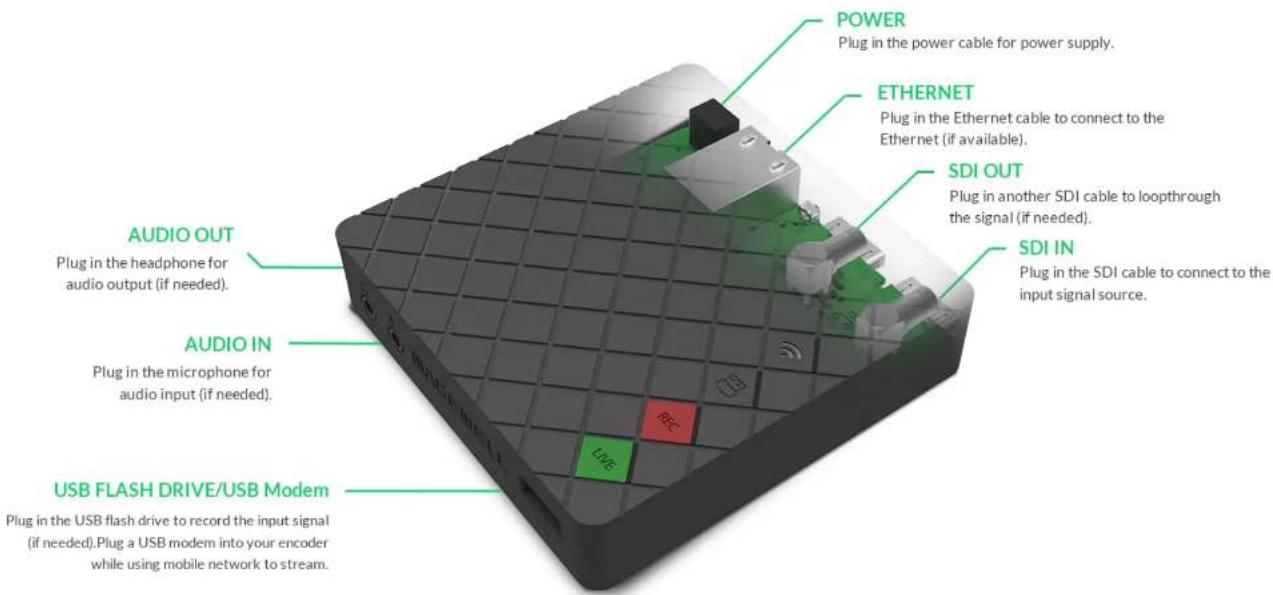
Interfaces & Indicators
Ultra Stream HDMI
Ultra Stream SDI
Indicators
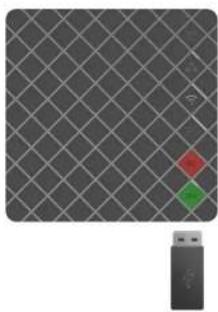
Descriptions of indicators status are as follows. The indicators are located on the device panel as shown in Interfaces.
HDMI/SDI IN
- On: input signal is detected.
• Pulsing slow: input signal is not detected.

Ethernet
• On: Ethernet is connected.
• Pulsing slow: Ethernet is disconnected.

Wi-Fi
- On: network is detected.
- Pulsing slow: network is not detected.
- Flashing: the encoder is connecting to Wi-Fi.

USB
- On: USB is available.
- Pulsing slow: USB is unavailable.
- Flashing: there is insufficient storage on the USB.
RECREC
- On: the encoder is under recording.
• Pulsing slow: input signal is not detected.
• Off: the USB flash drive is unavailable.
• Flash once and then restore to its former state: recording failed.
LIVELIVE
- On: the encoder is streaming to at least one streaming address.
- Pulsing slow: at least one streaming server is configured.
- Flashing: the encoder is connecting to at least one streaming address.
• Off: neither of the stream servers are configured. - Flashes once and then restore to its former state: live streaming failed to start.
Descriptions of multiple indicators status are as follows.
- The indicator lights flash in turn from HDMI/SDI IN to LIVE: system is booting up.
- The indicator lights flash in turn from LIVE to HDMI/SDI IN: firmware is updating.
- All indicator lights flash once simultaneously and then flash in turn from HDMI/SDI to LIVE: the encoder is rebooting.
- All indicator lights flash once simultaneously and then restore to their former state: in the device list of Ultra Stream app, choose an encoder and tap the device status icon at the upper right corner, and all the indicators on that encoder will light.
⚠️ If any other status appear, please try to unplug and re-plug in the power cable to your encoder.
Configuration
Network
There are 3 ways for the Ultra Stream app to discover the encoders, via Ethernet, Wi-Fi and Bluetooth. If there are multiple ways to detect the unit simultaneously, the priority is: Ethernet > Wi-Fi > Bluetooth.
Connect via Wi-Fi
⚠️ To ensure smooth live streaming experience, connecting to a wired Ethernet network is recommended.
- Plug the power cable into your encoder.
The LED indicators will light in rotation as the unit boots. Wait for about 1 minute and the boot up will be done.
-
Tap the Ultra Stream app icon on your phone.
-
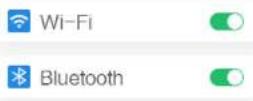
Turn on Wi-Fi and Bluetooth on your phone, and make it discoverable to nearby devices.
-
Turn on Location Services and authorize to the app for Android 6.0 and above.
- Your phone and encoder must be connected to the same Wi-Fi network.
-
Your phone and encoder must be close to each other (less than 10m apart).
-
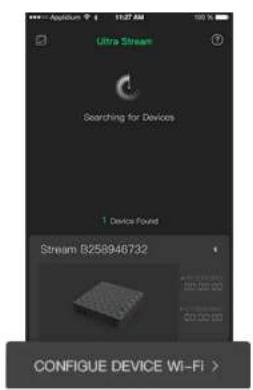
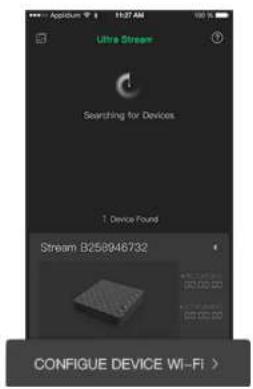
Tap the Ultra Stream app icon on your phone, then the app will search for devices automatically.
- Select your encoder and tap CONFIGURE DEVICE Wi-Fi.
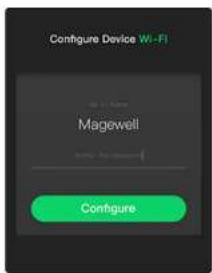
Enter the device passcode in Pair to device, if the encoder has a passcode.
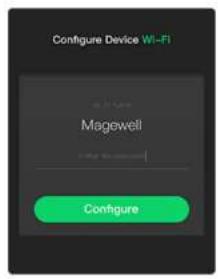
- Enter the Wi-Fi password in Configure Device Wi-Fi and tap Configure.
If there is no password, go to the next step.
- If the connection between app and encoder is established successfully, it will automatically go to the LOCAL interface.
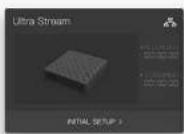
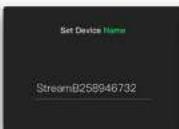
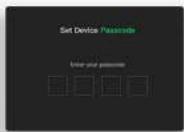
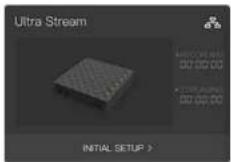
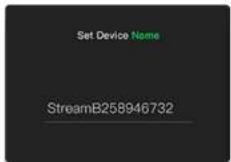
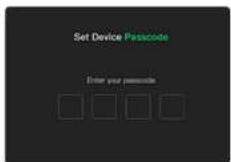
If you are connecting via Wi-Fi for the first time, initialize the encoder following the on-screen instructions: set the device name and passcode.

Wi-Fi


Bluetooth

Connect via Ethernet
- Plug the power cable and Ethernet cable into your encoder
The LED indicators will light in rotation as the unit boots. Wait for about 1 minute and the boot up will be done. Now the Ethernet indicator will be on. - Tap the Ultra Stream app icon on your phone.
- Search for devices in the app.
- Turn on Wi-Fi and Bluetooth on your mobile device as requested by the app, then the app will search for devices automatically.
The wireless network your mobile device is connected to and the wired network the encoder is connected to must be within the same network.
Showing the top right corner of a device indicates that the encoder is paired to the app; showing indicates the encoder is not paired.
- If there is not an available Wi-Fi network, you can connect to your encoder by enabling its AP (Access Point) mode.
Turn on Wi-Fi and Bluetooth on your mobile device, then the app will search for devices automatically.
Showing at the top right corner of a device indicates that the encoder is connected to the app.
Connect via AP Mode
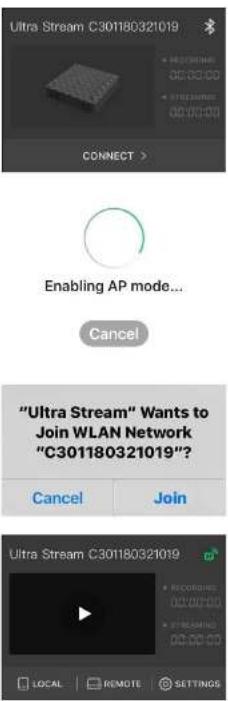
You can turn on the AP mode of the encoder in your Ultra Stream app to make your unit an Access Point, if there is neither a Wi-Fi nor an Ethernet network in your working environment. The encoder can communicate with the wireless clients, such as your smart phone, ipod, etc.
- Plug the power cable into your encoder.
The LED indicators will light in rotation as the unit boots. Wait for about 1 minute and the boot up will be done. - Tap the Ultra Stream app icon on your phone.
- Turn on Wi-Fi and Bluetooth on your phone, and make it discoverable to nearby devices.
- Turn on Location Services and authorize to the app for Android 6.0 and above. - Your phone and encoder must be close to each other (less than 10m apart, the closer, the better).
- Tap the Ultra Stream app icon on your phone, then the app will search for devices automatically.
- Select your encoder and tap "CONNECT".
-
Enter the device passcode in "Pair to device", if the encoder has a passcode.
-
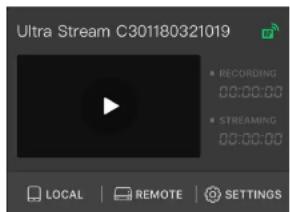
Showing in the top right corner of a device indicates that the encoder is paired to the app.
• Showing indicates the encoder is not paired.
If you are connecting via AP Mode for the first time, initialize the encoder following the on-screen instructions: set the device name and passcode.
Live Streaming
| 800x90 | 30 FPS | |
| 960x540 | 50 FPS | 1 Mbps |
| 1024x768 | 59.94 FPS | 1.5 Mbps |
| 1280x720 | 60 FPS | 2 Mbps |
| 1280x800 | Follow Input | 3 Mbps |
| 1280x960 | 4 Mbps | |
| 1280x1024 | 5 Mbps |
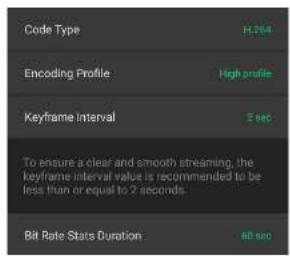
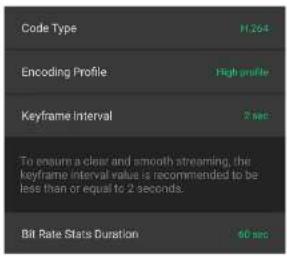
| Code Type | H.264 |
| Encoding Profile | High profile |
| Keyframe Interval | 2 sec |
| To ensure a clear and smooth streaming, the keyframe interval value is recommended to be less than or equal to 2 seconds. | |
| Bit Rate Stats Duration | 60 sec |
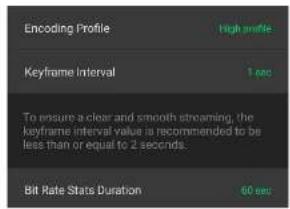
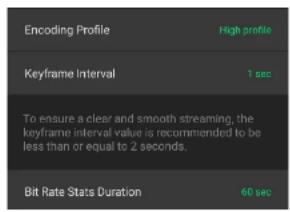
| Encoding Profile | High profile |
| Keyframe Interval | 1 sec |
| To ensure a clear and smooth streaming, the keyframe interval value is recommended to be less than or equal to 2 seconds. | |
| Bit Rate Stats Duration | 80 sec |
Modify Encoding Parameters
By default, live streaming uses the encoding parameters of sub stream.
- From the device list, tap to enter the SETTINGS interface.
- Tap to enter the Encoding Parameters.
- Tap Live Stream, choose the main or sub stream, then tap . √
- Customize encoding parameters for your choice.
• To set Customize Main Stream.
i. Turn on Customize Main Stream.
ii. Select proper resolution, frame rate, and bit rate, then tap. √
iii. Click and enter Advanced Set, select proper Code type, Encoding Profile, Keyframe Interval, Bit Rate Stats Duration, then tap Done.
• To set Customize Sub Stream.
i. Tap Edit Settings below Customize Sub Stream.
ii. Select proper resolution, frame rate, and bit rate, then tap. √
iii. Click and enter Advanced Set, select proper Encoding Profile, Keyframe Interval, Bit Rate Stats Duration, then tap Done.
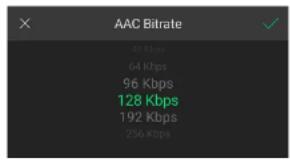
- Tap AAC Bitrate, select proper parameter, then tap . √ All audio streams will be affected by modifying the AAC Bitrate.
Create an RTSP Server
To ensure smooth live streaming experience, connecting to a wired Ethernet network is recommended.
- From the device list, tap to enter the SETTINGS interface.
- Tap to enter the Streaming Server settings.
- Tap + Add Server, select . RTSP
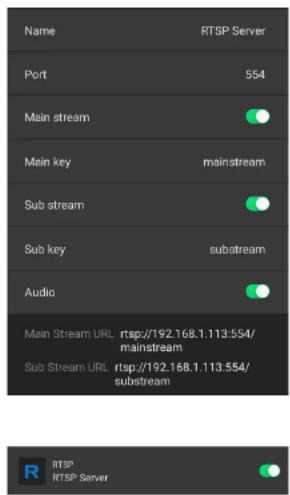
- Enter the Stream Name, Port, Streamkey and Audio.
The Port number ranges from 10000 to 65535, and the default 554 port.
⚠️ Turn off Audio to send image without sound. By default, the Audio is on.
-
The stream URL shown as the left figure after configuration.
-
Back to the Streaming Server page, turn on the added server.
⚠ Broadcasting one RTSP data as the main and sub stream is supported at a time, while you can not stream other data simultaneously. Both streams support 2 clients simultaneously.
- (Optional) To delete a server: touch the server and slide to the left, tap Delete.
When the prompt window shows up, tap Confirm.
Add Voice Comment during Streaming
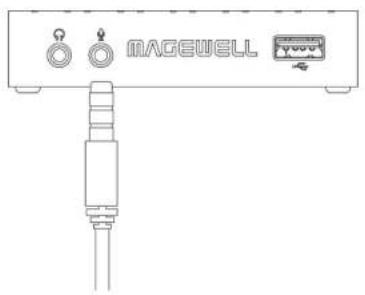
Plug in a microphone to your encoder audio jack, then you can stream and record your narration and comments.
Live Streaming to an RTMP Server
To ensure smooth live streaming experience, connecting to a wired Ethernet network is recommended.
- From the device list, tap to enter the SETTINGS interface.
- Tap to enter the Streaming Server settings.
- Tap + Add Server, select . RTMP
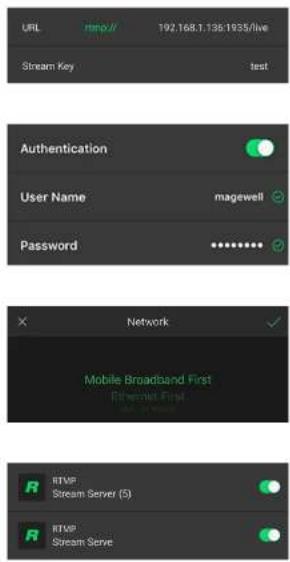
- Choose rtmp or rtmps by your destination. Then enter URL and Stream Key.
A green check icon will be displayed at the end of the line if you pass the verification.
- Obtain the streaming server address and stream key from your live streaming service providers.
- Full address example: rtmp://192.168.1.136:1935/live. 'rtmp://" can be omitted, and is not case sensitive; :1935 can be omitted, and the value range is 0 to 65535.
If the RTMP address is a domain name, live can be omitted. If the RTMP address is an IP address, live cannot be omitted.
• The stream key does not support /.
- Turn on Authentication, if your live streaming service provider requires.
Obtain the User Name and Password from your live streaming service provider.
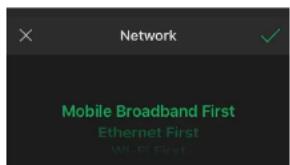
- Choose the prime network for streaming.
By default, the network connection priority is: Mobile Broadband >
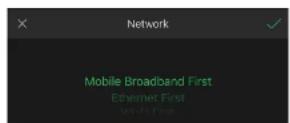
Ethernet > Wi-Fi.
The device scans the available network according to the order and connect to it for streaming. If the current network is disconnected, the unit automatically re-scans according to the priority.
Plug a USB modem into your encoder while using mobile network to stream.
- Tap Test to check the connection between the server and encoder.
- When prompted, tap OK.
- (Optional) To add other streaming servers, repeat step 3 to 5.
- (Optional) Choose where you want to post your live broadcast. You can stream simultaneously to 2 servers at most.
- (Optional) To delete a server: touch the server and slide to the left, tap Delete. When prompted, tap Confirm.
Live Streaming to Twitch
You can stream to Twitch if you have a Twitch account.
To ensure smooth live streaming experience, connecting to a wired Ethernet network is recommended.
- From the device list, tap to enter the SETTINGS interface.
- Tap to enter the Streaming Server settings.
- Tap + Add Server, select, follow the on-screen instructions to login and select server.
Your username and identification icon will be displayed after login.
- Choose the prime network for streaming
By default, the network connection priority is: Mobile Broadband >
Ethernet > Wi-Fi.
The device scans the available network according to the order and
connect to it for streaming. If the current network is disconnected, the unit
automatically re-scans according to the priority.
Plug a USB modem into your encoder while using mobile network to
stream.
-
Tap Test to check the connection between the server and encoder.
-
when prompted, tap OK.
-
(Optional) To add other Twitch accounts, repeat step 3 to 5.
-
(Optional) Choose where you want to post your live broadcast.
You can stream simultaneously to 2 accounts at most.
- (Optional) To delete a server: touch the server and slide to the left, tap
Delete. When prompted, tap Confirm.
Log in with YouTube
Next,visit https://www.google.com/device on your smartphone or computer and enter this code:

Cancel
Go to YouTube
Live Streaming to YouTube
You can stream to YouTube if you have a YouTube account, and you have enabled the Live streaming feature of your channel at least 24 hours before your stream.
⚠ To ensure smooth live streaming experience, connecting to a wired Ethernet network is recommended.
⚠️ To enable the Live streaming feature, refer to YouTube Help.
-
From the device list, tap to enter the SETTINGS interface.
-
Tap to enter the Streaming Server settings.
-
Tap + Add Server, select , e-mail:YouTube 'Stream Name', follow the on-screen instructions to login and select a server.
-
Click Log In. Follow the on-screen instructions to open YouTube, enter the code displayed on your device, and log in.
Your username and identification icon will be displayed after login.
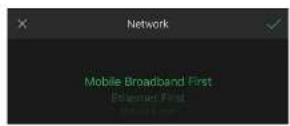
- Choose the prime network for streaming.
By default, the network connection priority is: Mobile Broadband > Ethernet > Wi-Fi.
The device scans the available network according to the order and connect to it for streaming. If the current network is disconnected, the unit automatically re-scans according to the priority.
Plug a USB modem into your encoder while using mobile network to stream.
Log in with Facebook
Next,visit
https://www.facebook.com/device
on your smartphone or computer
and enter this code:

Cancel
Go to Facebook
| Publish to | Timeline |
| Title | t |
| Description | d |
| Privacy | Only me |
- Tap and select Event to publish your stream.
- Tap Test to check the connection between the server and encoder.
- when prompted, tap OK.
- (Optional) To add other YouTube accounts, repeat step 3 to 5.
- (Optional) Choose where you want to post your live broadcast. You can stream simultaneously to 2 accounts at most.
- (Optional) To delete a server: touch the server and slide to the left, tap Delete. When prompted, tap Confirm.
Live Streaming to Facebook Live
You can live broadcast to Facebook if you have a Facebook account.
⚠️ To ensure smooth live streaming experience, connecting to a wired Ethernet network is recommended.
From the device list, tap to enter the SETTINGS > Streaming Server interface to start setting up your stream according to where you want to post your live broadcast.
- Tap + Add Server, select, enter the Stream Name.
- Click Log In. Follow the on-screen instructions to open Facebook, enter the code displayed on your device, and log in.
⚠️ Your username and profile image will be displayed after logging in.
- Choose the prime network for streaming.

By default, the network connection priority is: Mobile Broadband > Ethernet > Wi-Fi.
The device scans the available network according to the order and connect to it for streaming. If the current network is disconnected, the unit automatically re-scans according to the priority.
Plug a USB modem into your encoder while using mobile network to stream.
- Specify Publish to, Title, Description and Privacy for your broadcast. Stricter restriction works when the privacy here differs from that of the Facebook setting. Publishing to your page requires public privacy.
- Tap Test to check the network connection.
- After pass the test, click OK.
- Back to Streaming Server page, turn on the added server. You can stream simultaneously to 2 accounts at most.
- (Optional) To delete an account: touch the account and slide left, tap Delete.
When the prompt window shows up, tap Confirm.
Start/Stop Streaming
Make sure you have set the streaming servers before start streaming. To ensure smooth live streaming experience, connecting to a wired Ethernet network is recommended.
- Do any of the following to start/stop streaming.
- From the device list, tap to enter the REMOTE interface, then tap the green LIVE button.
- Press the green LIVE button located on the top panel of the encoder.
- Check streaming status in the right side of the REMOTE interface.
Record Videos to Your Smartphone
Start/Stop Recording
- From the device list, tap to enter the LOCAL interface.
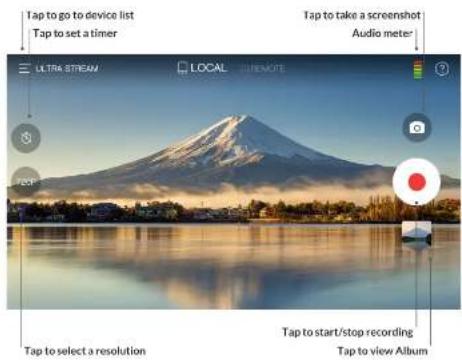
- Tap the record button to start recording; tap again to stop recording. The recorded files are automatically saved as MP4 format in app and your local album, where you can view, share or delete files from.
Make short Videos
The recorded videos (in MP4 format) are automatically saved in app and your phone photo library.
- From the device list, tap to enter the LOCAL interface.
- Tap to choose a timer (unlimited).
- Tap the recording button to start recording and the countdown starts. When the countdown ends, the recording stops simultaneously, or you can interrupt the recording manually. While choosing the unlimited timer, you would have to stop recording manually.
Modify Recording Resolution
- From the device list, tap to enter the LOCAL interface.
- Tap to choose a recording resolution .
By default, recording videos to your smartphone use the encoding parameters of sub stream, and the resolution set here should be smaller than or equal to the sub stream resolution.
Modify Preview Encoding Parameters
- Tap to enter General.
- Tap to enter the Encoding Parameters.
- Tap Preview, choose the main or sub stream, then tap. √
- Customize encoding parameters for your choice.
• To set Customize Main Stream.
i. Turn on Customize Main Stream.
ii. Select proper resolution, frame rate, and bit rate, then tap. √
iii. Tap to enter the Advanced Set, select code type, profile, keyframe interval, quantization, and bit rate statistics duration, then tap Done.
• To set Customize Sub Stream.
i. Tap Edit Settings below the Customize Sub Stream.
ii. Select proper resolution, frame rate, and bit rate, then tap. √
iii. Tap to enter the Advanced Set, select profile, keyframe interval, quantization, and bit rate statistics duration, then tap Done.
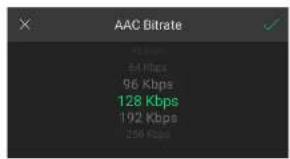
- Tap AAC Bitrate, select proper parameter, then tap. All audio streams will be affected by modifying the AAC Bitrate.
Take a Screenshot
- From the device list, tap to enter the LOCAL interface.
- Tap the screenshot button in the upper right side of the interface. Screenshots are automatically saved in app and and your local album, where you can view, share or delete files from.
Record to Device Internal Storage
Start/Stop Recording
-
Do any of the following to start/stop recording.
-
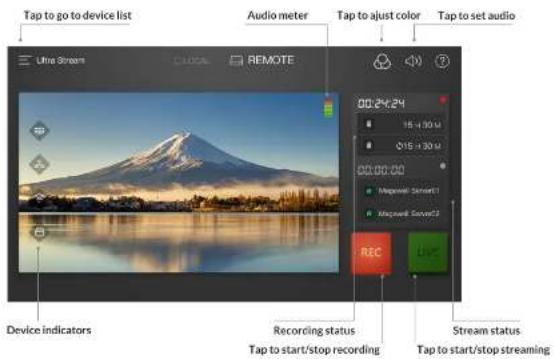
From the device list, tap to enter the REMOTE interface, then tap the REC button
- Press the red REC button ◆cated on the top panel of the device.
The recorded files are automatically saved as MP4 format in app and your local album, where you can view, share or delete files from.
- Check the r@ording status on the right side of the REMOTE interface, such as remaining time for normal recording, total recording time for loop recording.
Modify Storage Recording Parameters
- From the device list, tap to enter the SETTINGS interface.
- Set encoding parameters for storage recording
i. Tap to enter General > Record.
ii. (Optional) Turn on Auto-recording. When the prompt window shows up, tap YES. By default, it is disabled.
After turning on the function, when a stable input signal is detected by the device, the unit will automatically record to the USB and/or storage according to the configuration.
iii. Tap Record to set parameters. Tap Done to save changes after modifications.
- In normal recording mode, recording will stop automatically when the storage space is full. In the loop recording mode, the saved file is automatically overwritten with the newly generated one when the storage space is full. Loop recording is supported when recording To Storage.
- Note that a 4G or larger file is not allowed for an individual video clip.
- Customize encoding parameters.
i. Tap to enter the Encoding Parameters.
ii. Tap Record, choose the main or sub stream, then tap . √
iii. Customize encoding parameters for your choice.
• To set Customize Main Stream.
i. Turn on Customize Main Stream.
ii. Select proper resolution, frame rate, and bit rate, then tap
iii. Tap to enter the Advanced Set, select code type, profile, keyframe interval, and bit rate statistics duration, then tap Done.
• To set Customize Sub Stream.
i. Tap Edit Settings below the Customize Sub Stream.
ii. Select proper resolution, frame rate, and bit rate, then tap √.
iii. Tap to enter the Advanced Set, select profile, keyframe interval, and bit rate statistics duration, then tap Done.
- Tap and select proper AAC Bitrate for your session, then tap . √ All audio streams will be affected by modifying the AAC Bitrate.
Format Storage
The Storage data cannot be recovered after formatting. Please be cautious.
- From the device list, tap to enter the SETTINGS interface.
- Tap to enter Storage.
- Tap to start Format.
When the prompt window shows up, tap YES.
After formatting, the file system of USB will be changed to VFAT.
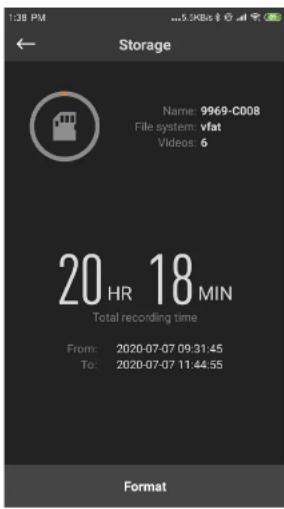
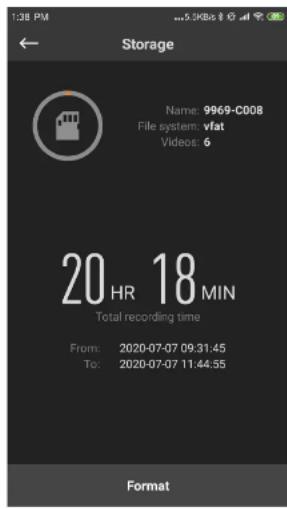
Check Storage Info
- From the device list, tap to enter the SETTINGS interface.
- Tap to enter Storage.
-
Check the USB info, such as File system, and Free space.
-
In Normal recording mode, Estimated remaining recording time will be shown.
• In Loop recording mode, Total recording time will be shown.
Record Videos to USB Flash Drive
natural_image
Black square grid with a red diamond and green diamond on the right side, next to a USB flash (no text or symbols visible)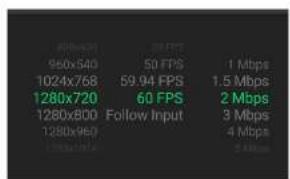
Start/Stop Recording
⚠️ Plug in a USB flash drive in your encoder before recording.
-
Do any of the following to start/stop recording.
-
From the device list, tap to enter the REMOTE interface, then tap the REC button
- Press the red REC button ◆cated on the top panel of the device.
The recorded files are automatically saved as MP4 format in app and your local album, where you can view, share or delete files from.
- Check the recording status on the right side of the REMOTE interface, such as recording time and USB remaining time.
Modify Encoding Parameters
By default, recording to USB uses the encoding parameters for main stream.
- From the device list, tap to enter the SETTINGS interface.
- Tap to enter the Encoding Parameters.
- Tap Record, choose the main or sub stream, then tap. √
- Customize encoding parameters for your choice.
• To set Customize Main Stream.
i. Turn on Customize Main Stream.
ii. Select proper resolution, frame rate, and bit rate, then tap. √
pie
| Category | Value | |---|---| | Required speed | 2.10 | | Your speed | 9% | | Completed | 9% | | Write(MB/s) | 1.025 |• To set Customize Sub Stream.
i. Tap Edit Settings below Customize Sub Stream.
ii. Select proper resolution, frame rate, and bit rate, then tap. √
Test USB Performance
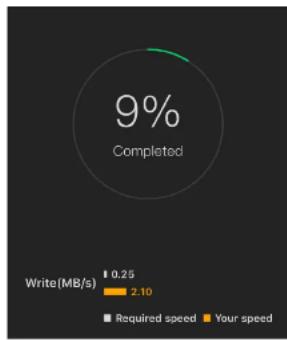
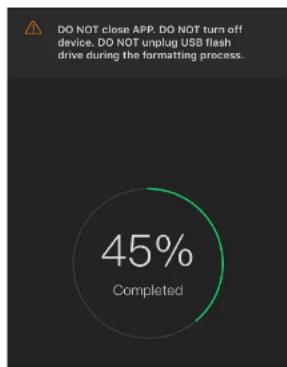
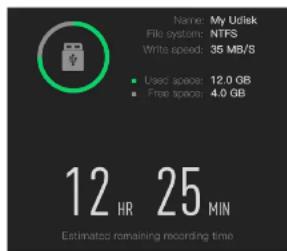
Test whether the write speed of USB flash drive meets the requirements before recording. If the USB fails the test, please change another one, or the recording may stop automatically.
- From the device list, tap to enter the SETTINGS interface.
- Tap to enter USB Flash Drive.
- Tap to start Performance Test.
Format USB
The USB Flash Drive data cannot be recovered after formatting. Please be cautious.
- From the device list, tap to enter the SETTINGS interface.
- Tap to enter USB Flash Drive.
- Tap to start Format.
When prompted, tap YES.
After formatting, the file system of USB will be changed to VFAT.
Check USB Info
It is recommended that you use a USB with the FAT32/VFAT file system.
- From the device list, tap to enter the SETTINGS interface.
- Tap to enter USB Flash Drive.
Check the USB info, such as File system, Free space, and Estimated remaining recording time.
Manage Album
natural_image
Grid of 16 grayscale landscape photos with green checkmarks highlighting specific locations, no visible text or symbols.View Photos/Videos
- To enter the Album, tap the icon in the top left corner of the device list.
- Do any of the following:
• To view all files, tap
• To view all photos, tap
• To view all videos, tap
Delete Photos/Videos
- To enter the Album, tap the icon in the top left corner of the device list.
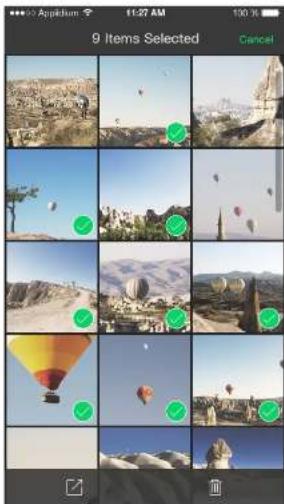
- Tap Select in the top right corner of Album, then select one or more files you want to delete.
The green check icon will be displayed in the bottom right corner of your chosen file.
- Tap the trash button and confirm to delete when prompted.
Share to other Apps
You can share your screenshots and videos directly to other apps.
- To enter the Album, tap the icon in the top left corner of the device list.
- Tap Select in the top right corner, then select one or more files you want to share.
The green check icon will be displayed in the bottom right corner of your chosen file.
- Tap the share button, choose the app you are willing to share, then follow the on-screen instructions to proceed.
![team C301180321019 a-zA-Z0-9_++,[] and spaces](/content/2026/05/813653/images/c8a33061cc1e167d6c420bc65323e8172fae366f7966ea61b5f7cf7bb42e701f.jpg)
Modify Device Name
- From the device list, tap to enter the SETTINGS interface.
- Tap to enter the General settings.
- Tap the Device Name and enter a new name.
Change Device Password
- From the device list, tap to enter the SETTINGS interface.
- Tap to enter General settings.
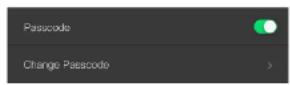
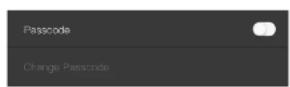
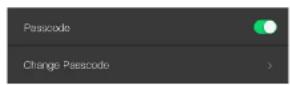
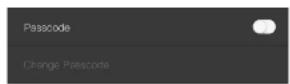
- Set passcode.
- To set passcode for the first time: turn on the Passcode. Enter and verify your passcode.
- To change device passcode: the Passcode has turned on, tap Change passcode.
Enter old passcode, enter your new passcode, and then verify your new passcode.
• To turn off Passcode, you need to enter your passcode to confirm.
Modify AP Password
- From the device list, tap to enter the SETTINGS interface.
- Tap to enter General settings.
- Tap to enter AP.
- Tap AP password, enter new password.
The password contains 8 to 16 characters, including lowercase letters (a-z), uppercase letters (A-Z), numbers (0-9), special symbols (_- + [] () and spaces.
The default AP password is the last eight numbers of the device serial number.
- Tap Done to save changes.
Control Volume
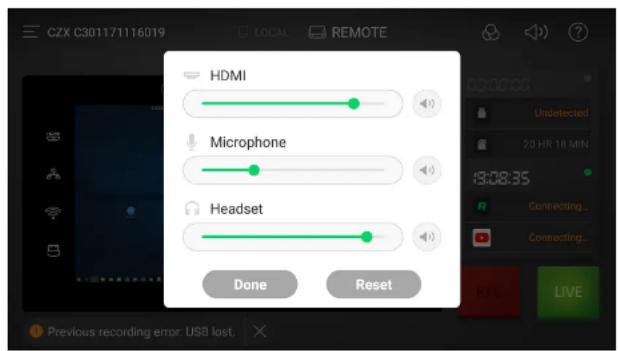
- From the device list, tap to enter the REMOTE interface.
- Tap the audio button in the top right corner.
- Tap the on /mute button to control the audio input/output of each channel.
Drag the volume slider left or right to change the volume level.
• HDMI: control the input audio signal. - Microphone: control the audio of the microphone connected to the encoder.
- Headset: control the audio of the headphone connected to the encoder.
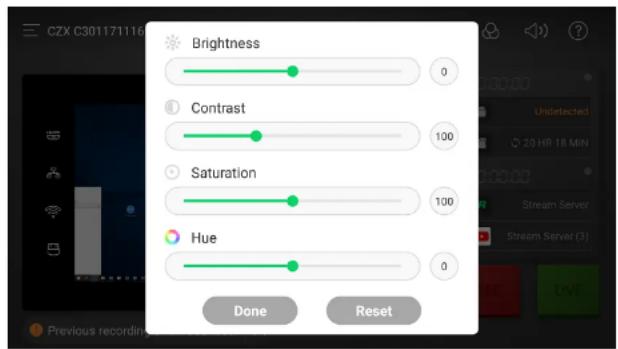
Modify Color Space
- From the device list, tap to enter the REMOTE interface.
- Tap the color icon in the top right corner.
- Drag the slider left or right to change the Brightness, Contrast, Saturation and Hue.
- Tap Done to save changes.
- (Optional) Tap Reset to restore to the default values.

Modify Date & Time
- From the device list, tap to enter the SETTINGS.
- Tap to enter General > Date & Time.
- Tap to choose your Timezone.
-
Set Date & Time.
-
Auto: Turn on Set Time Automatically. Then the device's time will synchronized to the world-time servers depending on the timezone you set.
- Manual: Turn off Set Time Automatically, tap Date & Time, specify the date and time, then tap √
Reset
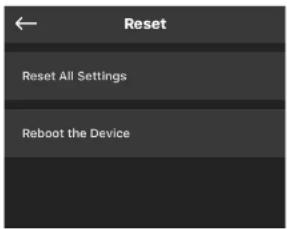
Reset All Settings
When you forget your device password, you can reset it with this function.
⚠ Warning: Resetting your device will lose all your configuration data.
- From the device list, tap to enter the SETTINGS interface.
- Tap to enter the General settings.
- Tap Reset > Reset All Setting. When prompted, tap Confirm.
Reboot the Encoder
- From the device list, tap to enter the SETTINGS interface.
- Tap to enter the General settings.
- Tap Reset > Reboot the Device. When prompted, tap Confirm.
Check Device Status
Device list displays encoders discovered by the Ultra Stream app and is pull-to-refresh. Multiple users (at most 2 users) can log in the same streamer through the mobile App client simultaneously. You can check device status in the Device list interface.
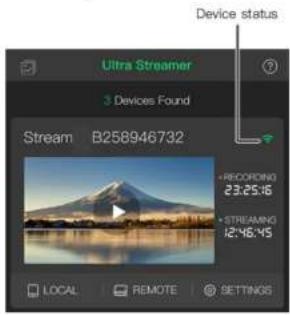
Icons in the upper right corner of devices indicate the detection type and pair mode between encoder and app. Descriptions of icons are as follows.
-
Detected via Wi-Fi, paired! According to the Wi-Fi signal strength, it is displayed as: strong medium, weak.
• : Detected via Wi-Fi, unpaired ^2
• : Detected via AP mode, paired ^1
• Detected via AP mode, unpaired?
• Detected via Ethernet, paired:
• Detected via Ethernet, unpaired ^2
• : Detected via Bluetooth, unpaired?
• : Offline. -
Being paired indicates the encoder either has no passcode or a passcode has been correctly entered in the app before. The encoder is ready to record and stream.
- Being unpaired indicates the encoder has a passcode but the passcode has not been entered correctly in the app. You can proceed to the next step according to the on-screen instructions.
Check Record and Streaming Status
In the REMOTE interface, users can check recording status including recording time, available USB storage (shown as available time for recording); streaming status including streaming time, streaming server address, streaming speeds, etc. Users can start/stop streaming or recording videos to the USB flash drive in this interface.
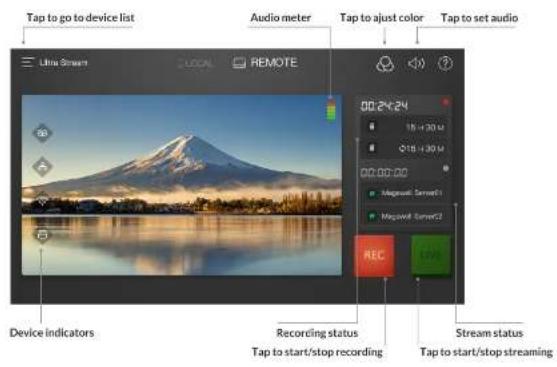
Descriptions of encoder indicators are as follows.
- HDMI/SDI IN: Light being on indicates input signal is detected; pulsing slowly indicates input signal is not detected.
- Ethernet: Light being on indicates Ethernet is connected; pulsing slowly indicates Ethernet is disconnected.
- Wi-Fi Light being on indicates network is detected; pulsing slowly indicates network is not detected.
• USB: Light being on indicates USB is available, pulsing slowly indicates there is insufficient storage on the USB.
Descriptions of stream status are as follows.
- Resolving DNS: Indicates that domain name resolution is being performed on the live streaming address.
- Connecting: Indicates that the encoder is connecting to the live streaming server
- Waiting: Indicates the previous connection to the streaming server failed, and the encoder is trying to reconnect.
- Authenticating: Indicates the encoder has connected to the live streaming server and live authentication is in progress.
- Authentication Failed: If you connect the encoder to an RTMP server, make sure your authentication settings are correct; if you connect the encoder to
a live streaming video platform, you can log out and re-log in.
Update Firmware
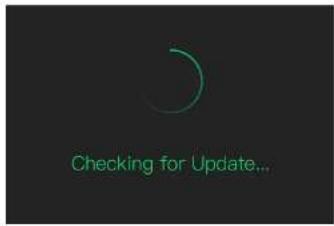
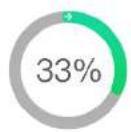
DOWNLOAD
INSTALL
REBOOT
You can update your encoder firmware version to get better performance.
- From the device list, tap to enter the SETTINGS interface. If there is a new version available, the icon will be displayed at the end of Firmware Update line.
- Tap Firmware Update and the unit will automatically detect if there is a new version.
- Tap Update Now, and confirm to update.
During the update, please do not disconnect the network, and do not exit the application.
- The encoder will restart after the update.
FAQ
TCP and UDP Ports Used By Ultra Stream
Network administrators can use this information to make sure that your Ultra Stream can connect to services such as the streaming servers through your LAN firewall.
- TCP port: 21, 80, 2019, 2020
- UDP port: 2538
How to connect to a Wi-Fi using bluetooth
Using bluetooth to connect the encoder to a Wi-Fi at the first connection. When the same Wi-Fi is connected again, it can automatically connect without configuration.
- Turn on the Bluetooth and Discoverable, turn on WLAN and Authorize Location Service, power on the encoder.
- Download and open Ultra Stream app, searching for devices.
- Tap CONFIGURE DEVICE Wi-Fi
- Type in the Wi-Fi password, then tap Configure.
What can a Wireless Access Point do for You
When there is no Wi-Fi network available, turning on the AP mode allows you to control your device through the Ultra Stream app in your smartphone.
How to turn on the Wireless AP mode of Ultra Stream
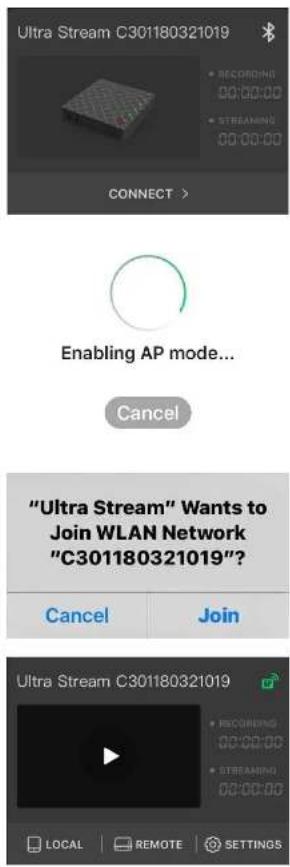
You can turn on the AP mode of the encoder in your Ultra Stream app to make your unit an Access Point, if there is no Wi-Fi in your working environment. The encoder can communicate with the wireless clients, such as your smart phone, ipod, etc.
-
Turn on Wi-Fi and Bluetooth on your phone, and make your device discoverable to nearby devices.
-
Turn on Location Services and authorize to the app for Android 6.0 and above.
-
Your phone and encoder must be close to each other (less than 10m apart).
-
Download and launch Ultra Stream app, searching for devices.
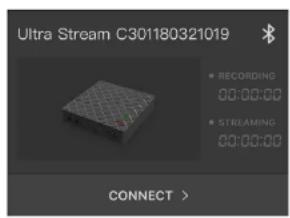
- Select your device and tap CONNECT to enable the AP mode.
- Tap Join to access the AP.
How to turn off AP mode
Do any of the following to turn off AP mode.
• Reboot your device to recovery from AP mode to Wi-Fi mode.
• In the Ultra Stream app, go to SETTINGS > Wi-Fi, turn off the AP mode.
- If you have a Wi-Fi network available now, you can connect your phone to the new Wi-Fi, and then configure the encoder to connect to the same Wi-Fi.
• Double click the green LIVE button on the device panel.
Use Mobile Broadband to Live Stream
This feature is especially designed for users who don't have Wi-Fi or Ethernet network. Instead, the device will be connected to the network via a 3G/4G USB modem. It gives you more flexibility in accessing the Internet so that you can stream your sessions anywhere at anytime.
- Plug a USB modem, the power cable, and HDMI input signal into your encoder.
- Turn on Wi-Fi and Bluetooth on your phone, and make your device discoverable to nearby devices.
- Turn on Location Services and authorize to the app for Android 6.0 and above.
-
Your phone and encoder must be close to each other (less than 10m apart).
-
Download and open Ultra Stream app, searching for devices.
-
Connect the unit via AP Mode.
i. Select your encoder and tap CONNECT.
ii. Enter the device passcode in Pair to device, if the encoder has a passcode.
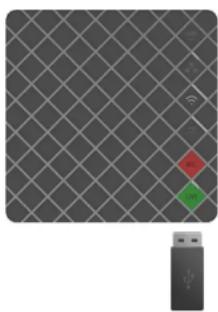
natural_image
Gray square grid with a red diamond and green diamond on the right side, next to a black USB drive (no text or symbols visible)- Stream through USB Modem.
i. From the device list, tap to enter the SETTINGS > Streaming Server, add the platform for live streaming.
ii. Enter URL, Stream Key, choose the Mobile Broadband as the prime network, click Done.
By default, the network connection priority is: Mobile Broadband > Ethernet > Wi-Fi. The device scans the available network according to the order and connect to it for streaming. If the current network is disconnected, the unit automatically re-scans according to the priority.
- Press the LIVE button located on the top panel of the device to start streaming.
How to record videos to a USB flash drive
Record videos to a USB flash drive to achieve while streaming, and monitor the recording process by loopthrough or the supporting application named Ultra Stream app.
- Plug the video source and USB flash drive, power up the encoder.
- Start recording by pressing the red REC button, after the encoder startup. If the recording failed to start, you can turn on the USB recording through the mobile app by tapping SETTINGS > General > Recording > To USB > Normal recording.
- (Optional) Mirror the recording process by loopthrough or watching the
REMOTE interface in the ultra stream app.
How to fix "Previous USB recording error"
- Re-plug the USB flash drive into your encoder.
- Replace the USB flash drive with a recommended new USB flash drive.
- Reboot the encoder.
- Contact your dealer for technical support or after-sales service.
- Contact Magewell Technical Support at support@magewell.net.
Can the Ultra Stream encoder be used as a USB capture device?
No. The Ultra Stream encoder is a standalone offline encoding device. It cannot be connected to the host via a USB port for use as a capture device.
Does the microphone jack of Ultra Stream HDMI only support mono audio?
Yes. It only supports mono audio input.
Does the Ultra Stream encoder support Wi-Fi that requires web page authentication?
No.
What to do if I forget the passcode of Ultra Stream encoder?
- If you have previously paired the encoder in the Ultra Stream app, the encoder will be automatically connected once the app is opened. You can refer to the following method to reset the passcode of your encoder:
- In the Ultra Stream app, select SETTINGS > General > Reset > Reset All Settings and then select Confirm in the pop-up dialog box.
- If the encoder cannot be automatically connected in the Ultra Stream app, you can refer to the following steps to reset the passcode of your encoder:
- Long-press the red REC button on the Ultra Stream encoder for 5 seconds until all the lights on it turn on at the same time. Then the device will be reset to its original configuration.
- In the Ultra Stream app, select CONFIGURE DEVICE Wi-Fi and then enter your Wi-Fi password.
- After the encoder is successfully connected to Wi-Fi, follow the prompts in the app to configure the initial set up.
Does the microphone jack of Ultra Stream HDMI support both microphone and headphone?
No. It only supports microphones.
Does the microphone jack of Ultra Stream HDMI support linear level audio input?
Yes. But the volume of the captured audio will be very high.
Can I use the functions of recording videos to usb flash drive and live streaming at the same time?
Yes. In the Ultra Stream app, the following three functions can be used at the same time:
• Record videos to your smartphone
- Record videos to a USB flash drive
- Record videos to internal storage
Live stream
Can Ultra Stream encoder stream live video to multiple servers at the same time?
The Ultra Stream encoder can simultaneously stream live video to two servers at most.
Can I set one live stream server to use the main stream and the other to use the sub stream?
No. When the Ultra Stream encoder streams live video to two servers at the same time, you must apply either main stream or sub stream on the two channels of video stream at the same time.
Can I set one live stream server to use mobile broadband and the other to use Ethernet?
Yes. When the Ultra Stream encoder streams live video to two servers at the same time, you can apply different network connection as prime network for the two servers respectively, such as to set one live stream server to use mobile broadband and the other to use Ethernet.
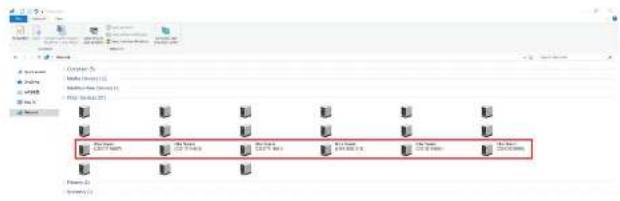
Find your Ultra Stream device in the Other Device section
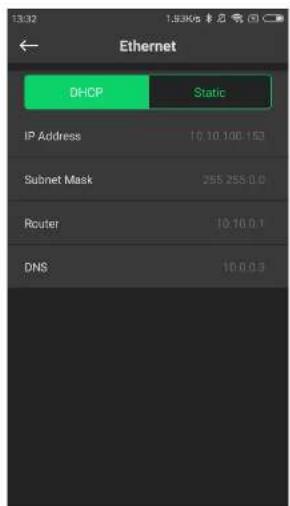
Ethernet IP Address
How to configure Ultra Stream via Web UI?
Ultra Stream allows you to set up and control it via a web-based user interface as an administrator account or a general user.
Make sure that at least one of the following web browsers is equipped in your system.
• Microsoft Internet Explorer 11
- Microsoft Edge
• Mozilla Firefox version 61 and above
• Google Chrome version 49 and above
• Apple Safari 11.1 and above
• Opera 55.0.2994.44 and above
• Method I: For Windows Users
For Windows 7/8/8.1/10 users, do the following steps to open the Web UI.
- Open a File Explorer window.
- Select the Network. Turn on the network discovery function if disabled.
- Find your Ultra Stream device in the Other Device section, where the detected device will be shown as Ultra Stream + (serial number).
- Double click the device icon to open the Web UI in your web browser.
- Enter your account and password in the SIGN IN page, and configure the device after you log in successfully. The default administrator account and password (case-sensitive) are as follows.
- Username: Admin
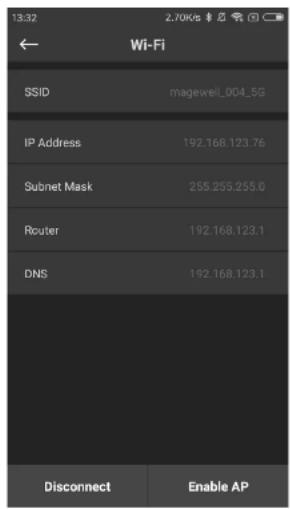
Wi-Fi IP Address
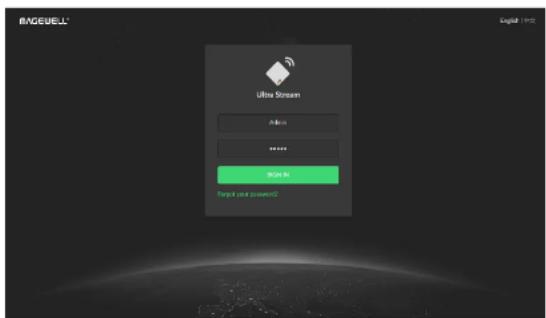
Enter your account and password in the SIGN IN page
- Password:Admin
• Method II: For all users, using the IP address in the Ultra Stream app.
- Search the device in the Ultra Stream app with smart phone.
- Find the IP address in Settings.
- Input the IP address to a web browser in the same LAN. Then the web UI of your chosen device pops up.
-
Enter your account and password in the SIGN IN page, and configure the device after you log in successfully. The default administrator account and password (case-sensitive) are as follows.
-
Username: Admin
- Password: Admin
How to disable network discovery of my device within LAN (Windows)?
UPnP (which stands for Universal Plug and Play) is used for Ultra stream network discovery in Windows. To disable access to your device, follow these steps:
- Log in Web UI.
- Click and enter General > Advanced settings > Extended Features, then turn off the UPnP switch.
After disabling, your device will not list in the Network section of the Windows File Manager.
How to lock live?
To enable lock live to prevent your live streaming being interrupted by misoperations, follow these steps.
- Log in Web UI.
- Click and enter General control panel, and turn on the Lock live. Then you can not change the broadcasting session by App or Web UI.
How to disable automatic update?
Disable online update to stop automatically check for the latest released firmware. Use manual update instead to update the device to a specified version. To disable automatic update, follow these steps.
- Log in Web UI.
- Click and enter Firmware control panel, and turn off Online Update.
How to export system configuration file?
You can export system configuration file from your streamer when you want to get help from the Magewell Support team. The file will help our support engineers get a better understanding of your device status and detailed settings. To export system configuration file, follow these steps.
- Log in Web UI.
- Click and enter About > Report section, and click Export... to generate a .html file. When the prompt appears, click Export.
What is the encoding format for live broadcast?
For now, we use CBR (constant bitrate) encoding, which is most commonly used for streaming video content using the Flash Media Server (rtmp). The fixed keyframe interval is 1s, and the bitrate of video indicates the average number of frames sent in the previous 60s. The Code Type and Keyframe Interval of encoding format can be modified in the Settings > Encoding Parameters > Advanced Set currently.
What to do if I forget the Web UI password?
You can refer to the following steps to reset the Web UI password to Admin.
- Do any of the following to reset all settings of your device.
- In the Ultra Stream app, go to SETTINGS > General > Reset, tap the Reset All Settings.
-
Long press the Red REC button on the Ultra Stream device for 5 seconds until all indicators lighting up simultaneously. Then all configurations will restore to factory default value.
-
After the device recovery is complete, use the Ultra Stream app to reconfigure your device.
-
Check the IP address of Wi-Fi or Ethernet in SETTINGS.
-
Enter the IP address in your PC browser, reconnect your device, open the Web UI and sign in with the default account: User name: Admin Password: Admin
Support
Get the Latest Information
If you have any problems using Magewell products or need more technical information, please visit the following.
- Tutorial video: http://www.magewell.com/tv
- YouTube channel: Magewell Video Capture Device
• Knowledge base: http://www.magewell.com/kb/ultra-stream
• Official website: http://www.rmagewell.com/ultra-stream-hdmi
Technical Support
Contact the Magewell Technical Support Team at support@magewell.net.
Warranty
Limited Warranty
Except otherwise set between you and Magewell in advance in a written form, the free limited warranty service starts from the date on your proof of purchase. The proof can be: sales contract, formal sales receipt, invoice or delivery note. The earliest date of these proofs is the starting date of the free limited warranty. The period of free limited warranty goes as below:
• Ultra Stream: two (2) years;
• The power adapter provided as accessories: one (1) year;
How to get the limited warranty
- Please contact the Magewell support team by email (support@magewell.net) first, to determine whether your problem can only be solved by returning it to Magewell for repair. Magewell might ask you to take photos of the front and back of the defective products.
- Magewell will issue an RMA letter to you if it is confirmed that you need to return the faulty product for further examination or repair. Please fill in the RMA with necessary information as required. If it is regular repair, you will be responsible for the shipping cost, duties and insurance cost (if applicable); if the product is DOA, Magewell will be responsible for the shipping cost.
- If some components need to be replaced, Magewell will decide to repair, renovate or replace the components by itself. Magewell may use new or repaired component to repair the product. The repaired product can be expected to work normally and the performance to remain the same. Repaired products can work in a good working condition and at least function the same as the original unit. The original replaced component will become the property of Magewell and components which are replaced for the client will become his/her property.
- If the product is within warranty, Magewell will repair or replace the faulty units at its own discretion. In circumstances where the faulty unit is replaced by another one, Magewell may use new, repaired or renovated units. The faulty unit will then become the property of Magewell while the replacement unit will become the property of the purchaser.
- If the warranty expires, Magewell will inform the purchaser whether the products can be repaired and the maintenance costs they need to pay. If purchasers
decide to repair, Magewell will repair, renovate, or replace the components after receiving the maintenance costs. If purchasers give up repairing, Magewell will dispose of the faulty unit if the purchaser chooses that option.
- The repaired or replaced product assumes 1) the remaining term of the Warranty of the replaced unit or faulty unit; 2) ninety (90) days from the date of replacement or repair, whichever provides longer coverage for you. The extended warranty is only valid for repaired/replaced components.
- The period of service depends on the client's location (country and area) and the product.
To view the complete warranty policy, please visit www.magewell.com/quality-assurance.
Notice
Copyright © 2020 Nanjing Magewell Electronics Co., Ltd.
All rights reserved. No part of this publication may be reproduced, distributed, or transmitted in any form or by any means, including photocopying, recording, or other electronic or mechanical methods, without the prior written permission of the publisher, except in the case of brief quotations embodied in critical reviews and certain other noncommercial uses permitted by copyright law.
Trademarks
HDMI, the HDMI logo and High-Definition Multimedia interface are trademarks or registered trademarks of HDMI Licensing LLC. Windows is trademark or registered trademark of Microsoft Corporation. Other trademarks and company names mentioned are the properties of their respective owners.
About this Document
• This document is for reference only. Please refer to the actual product for more details.
• The user shall undertake any losses resulting from violation of guidance in the document.
- In case that PDF document cannot be opened, please upgrade the reading tool to the latest version or use other mainstream reading tools.
- This company reserves rights to revise any information in the document anytime; and the revised contents will be added to the new version without prior announcement. Some functions of the products may be slightly different before and after revision.
- The document may include technically inaccurate contents, inconsistencies with product functions and operations, or misprint. Final explanations of the company shall prevail.
- The only warranties for Magewell products and services are set forth in the express warranty statements accompanying such products and services. Nothing herein should be construed as constituting an additional warranty. Magewell shall not be liable for technical or editorial errors or omissions contained herein.

- Overview
- Key Features
- System Requirements
- Network
- Supported Mobile Clients
- Supported Web Browser
- App
- Installation
- Safety Information
- Electrical Safety
- Operation Safety
- Indicators
- RECREC
- LIVELIVE
- Configuration
- Connect via Wi-Fi
- Connect via Ethernet
- Connect via AP Mode
- Live Streaming
- Modify Encoding Parameters
- Create an RTSP Server
- Add Voice Comment during Streaming
- Live Streaming to an RTMP Server
- Live Streaming to Twitch
- Log in with YouTube
- Live Streaming to YouTube
- Log in with Facebook
- Live Streaming to Facebook Live
- Start/Stop Streaming
- Record Videos to Your Smartphone
- Start/Stop Recording
- Make short Videos
- Modify Recording Resolution
- Modify Preview Encoding Parameters
- Take a Screenshot
- Record to Device Internal Storage
- Modify Storage Recording Parameters
- Format Storage
- Check Storage Info
- Record Videos to USB Flash Drive
- Test USB Performance
- Format USB
- Check USB Info
- Manage Album
- View Photos/Videos
- Delete Photos/Videos
- Share to other Apps
- Modify Device Name
- Change Device Password
- Modify AP Password
- Control Volume
- Modify Color Space
- Modify Date & Time
- Reset
- Reset All Settings
- Reboot the Encoder
- Check Device Status
- Check Record and Streaming Status
- Update Firmware
- FAQ
- TCP and UDP Ports Used By Ultra Stream
- How to connect to a Wi-Fi using bluetooth
- What can a Wireless Access Point do for You
- How to turn on the Wireless AP mode of Ultra Stream
- How to turn off AP mode
- Use Mobile Broadband to Live Stream
- How to record videos to a USB flash drive
- How to fix "Previous USB recording error"
- How to configure Ultra Stream via Web UI?
- How to disable network discovery of my device within LAN (Windows)?
- How to lock live?
- How to disable automatic update?
- How to export system configuration file?
- What is the encoding format for live broadcast?
- What to do if I forget the Web UI password?
- Support
- Get the Latest Information
- Technical Support
- Warranty
- Limited Warranty
- How to get the limited warranty
- Notice
- Trademarks
- About this Document
Brand : Magewell
Model : Ultra Stream SDI
Category : Uncategorized