
WIRELESS IMAGE HEADSET HS-13W - Headphones NOKIA - Free user manual and instructions
Find the device manual for free WIRELESS IMAGE HEADSET HS-13W NOKIA in PDF.

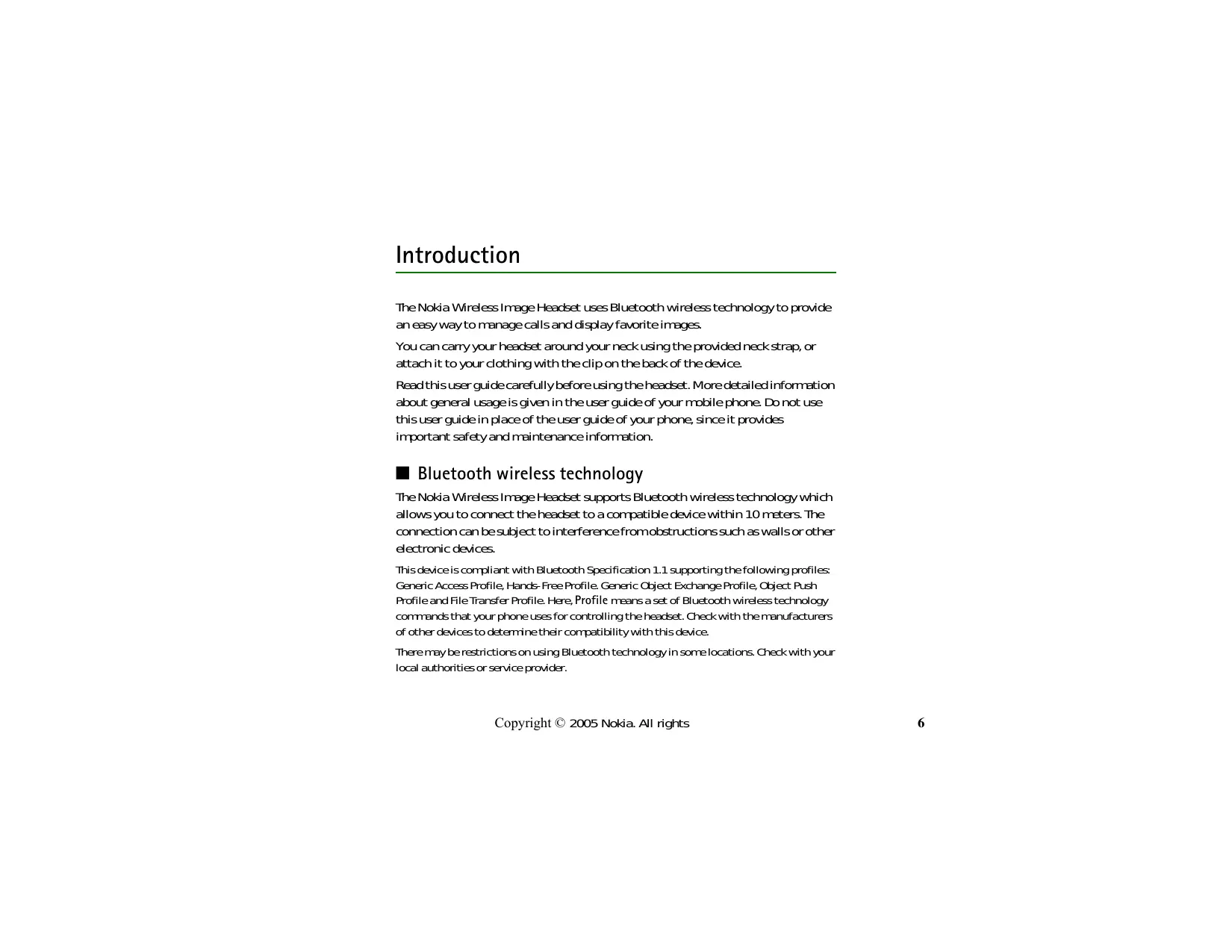

| Product type | Wireless audio headset with display and image functions |
| Brand | Nokia |
| Model | Wireless Image Headset HS-13W |
| Wireless technology | Bluetooth 1.1, Hands-Free, Object Push, File Transfer profiles |
| Range | Up to 10 meters |
| Display | Graphic display with standby and image modes |
| Power supply | Rechargeable Li-Ion battery, Nokia ACP-12, ACP-8 or LCH-12 charger |
| Talk time | Approximately 3 hours (estimated) |
| Standby time | Approximately 100 hours (estimated) |
| Weight | Approximately 50 g (with battery) |
| Dimensions | Approximately 70 x 40 x 20 mm |
| Phonebook | 250 names, 2 numbers per name |
| Call functions | Voice call, conference call (up to 6 participants), call waiting |
| Image display | JPEG and GIF formats, image mode, slideshows, wallpaper |
| Connectors | Charger connector, attachment clip, wrist strap |
| Maintenance and cleaning | Clean with a soft, dry cloth. Do not use chemicals. Avoid moisture. |
| Safety | Use only approved chargers and batteries. Do not expose to extreme temperatures. Do not open the casing. |
| Spare parts and repairability | Battery replaceable by authorized service. Charger available separately. |
| General information | CE and FCC certification. Manufactured by Nokia. Manual available online. |
| Bluetooth passcode | 0000 (unchangeable) |
Frequently Asked Questions - WIRELESS IMAGE HEADSET HS-13W NOKIA
User questions about WIRELESS IMAGE HEADSET HS-13W NOKIA
0 question about this device. Answer the ones you know or ask your own.
Ask a new question about this device
Download the instructions for your Headphones in PDF format for free! Find your manual WIRELESS IMAGE HEADSET HS-13W - NOKIA and take your electronic device back in hand. On this page are published all the documents necessary for the use of your device. WIRELESS IMAGE HEADSET HS-13W by NOKIA.
USER MANUAL WIRELESS IMAGE HEADSET HS-13W NOKIA
Nokia Wireless Image Headset HS-13W
9311902
Issue 1
DECLARATION OF CONFORMITY
We, NOKIA CORPORATION, declare under our sole responsibility that the product HS-13W is in conformity with the provisions of the following Council Directive: 1999/5/EC.
A copy of the Declaration of Conformity can be found at
http://www.nokia.com/phones/declaration_of_conformity/.
C€0682
Copyright © 2005 Nokia. All rights reserved.
Reproduction, transfer, distribution, or storage of part or all of the contents in this document in any form without the prior written permission of Nokia is prohibited.
Nokia and Nokia Connecting People are registered trademarks of Nokia Corporation. Other product and company names mentioned herein may be trademarks or tradenames of their respective owners.
Bluetooth is a registered trademark of Bluetooth SIG, Inc.
Nokia operates a policy of continuous development. Nokia reserves the right to make changes and improvements to any of the products described in this document without prior notice.
Under no circumstances shall Nokia be responsible for any loss of data or income or any special, incidental, consequential, or indirect damages howsoever caused.
The contents of this document are provided "as is". Except as required by applicable law, no warranties of any kind, either express or implied, including, but not limited to, the implied warranties of merchantability and fitness for a particular purpose, are made in relation to the accuracy, reliability, or contents of this document. Nokia reserves the right to revise this document or withdraw it at any time without prior notice.
The availability of particular products may vary by region. Please check with the Nokia dealer nearest to you.
9311902 / Issue 1
Contents
Introduction...... 6
Bluetooth wireless technology 6
Bluetooth passcode 7
1. Overview...... 8
Headset parts....8
Standby and image modes....9
Standby mode indicators....9
2. Get started 11
Charge the battery.... 11
Switch the headset on and off 12
Switch the headset on for the first time.... 12
3. Call functions 14
Make a call 14
Make a conference call 15
Answer or reject an incoming call.... 16
Call waiting.... 16
4. Menu usage 17
Move in the menu 17
Write with the text editor.... 18
List of menu functions.... 20
5. Menu functions 23
Call register 23
Recent calls lists.... 23
Call duration.... 24
Phone book....24
Select the phone book view.... 25
Save names and phone numbers.... 25
Edit a name or a number 26
Delete names and numbers.... 26
Copy from the phone book of the mobile phone.... 27
Send and receive a business card.... 28
Gallery 29
Images and text files.... 30
Shows 31
Receive and store new images.... 32
Settings 33
Bluetooth connections 33
Time and date settings 35
Summary after call 36
Language 36
Automatic keyguard 36
Help text activation.... 37
Display settings.... 37
Tone settings 39
Voice dial settings.... 40
Memory status....40
Download application.... 41
Restore factory settings.... 41
Keyguard 41
- Battery information.... 43
Charging and Discharging.... 43
CARE AND MAINTENANCE.... 44
FCC Notice - Nokia Wireless Image Headset 45
Introduction
The Nokia Wireless Image Headset uses Bluetooth wireless technology to provide an easy way to manage calls and display favorite images.
You can carry your headset around your neck using the provided neck strap, or attach it to your clothing with the clip on the back of the device.
Read this user guide carefully before using the headset. More detailed information about general usage is given in the user guide of your mobile phone. Do not use this user guide in place of the user guide of your phone, since it provides important safety and maintenance information.
■ Bluetooth wireless technology
The Nokia Wireless Image Headset supports Bluetooth wireless technology which allows you to connect the headset to a compatible device within 10 meters. The connection can be subject to interference from obstructions such as walls or other electronic devices.
This device is compliant with Bluetooth Specification 1.1 supporting the following profiles: Generic Access Profile, Hands-Free Profile. Generic Object Exchange Profile, Object Push Profile and File Transfer Profile. Here, Profile means a set of Bluetooth wireless technology commands that your phone uses for controlling the headset. Check with the manufacturers of other devices to determine their compatibility with this device.
There may be restrictions on using Bluetooth technology in some locations. Check with your local authorities or service provider.
Bluetooth passcode
You need a Bluetooth passcode to pair the Nokia Wireless Image Headset with compatible devices. The passcode is 0000, and you cannot change it.
In addition, use the passcode to protect the headset against unauthorized use.
When the passcode (or other number-based data, such as a timeout) is requested, press 📄 or 📋 repeatedly until the correct number is shown. Select Next to move to the next number, and OK to finish.
1. Overview
■ Headset parts
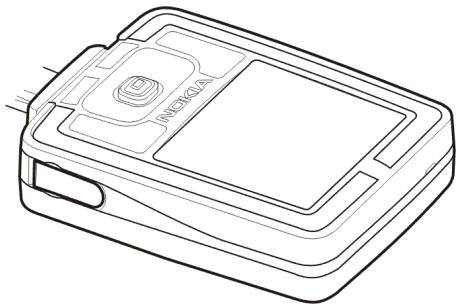
The headset has the following parts and keys. See Figure 1.
- Earpiece clip
- Strap
- Joystick ☐, ☐, ☐, ☐, and ☐ In the standby mode, 📋 and 🔒 function as shortcuts to the phone book. The function of ☐ and ☐ depends on the guiding text shown on the display, for example, Menu and Voice dial in the standby mode. has the same function as ☐, except when inserting data. See Write with the text editor on page 18).
- Display
- Buzzer
- Clip
- Charger cover
- Microphone
- Power key
A short press of the power key turns the display lights on and allows you to turn the audio tones on or off.
■ Standby and image modes
The headset is in the standby mode when it is ready for use and you have not opened the menu. See Figure 2.
- Signal indicator of the cellular network at your current location.
- Battery charge indicator. The higher the bar, the more power in the battery.
- The left selection key in the standby mode is Menu.
- The right selection key in the standby mode is Voice dial.
The headset automatically activates the image mode when it has been in the standby mode for 30 seconds, or when the keyguard is activated. See Keyguard on page 41.
The image mode is activated only if the Image mode is enabled. See Image mode on page 38.
In the image mode, the headset displays a single image, text, or a show stored in the headset. To define the images displayed in the image mode, see Image mode on page 38.
To exit the image mode, press the joystick.
Standby mode indicators

The keypad is locked. See Keyguard on page 41.
The audio sounds of the headset are turned off. See Tone settings on page 39.

Bluetooth is on. See Bluetooth connections on page 33.
The headset is connected to a device. See Bluetooth connections on page 33.
2. Get started
- Charge the battery
Check the model number of any charger before use with this device. This device is intended for use when supplied with power from the Nokia ACP-12, ACP-8, and LCH-12 chargers.

Warning: Use only batteries, chargers, and enhancements approved by Nokia for use with this particular model. The use of any other types may invalidate any approval or warranty, and may be dangerous.
When you disconnect the power cord of any accessory, grasp and pull the plug, not the cord.
Your device and its enhancements may contain small parts. Keep them out of reach of small children.
- Open the charger cover, and connect the lead from the charger to the charger connector. See Figure 3.
- Connect the charger to an AC wall socket.
The text "Charging" is displayed briefly if the headset is switched on. The battery charge indicator scrolls on the display until the battery is full. If the battery is completely discharged, it may take a few minutes before the indicator appears on the display.
You can use the headset while the charger is connected.
Switch the headset on and off
Press and hold the power key.
Bluetooth wireless technology is activated by default when the headset is turned on for the first time.

Warning: Do not switch the device on when wireless use is prohibited or when it may cause interference or danger.
Switch the headset on for the first time
When you switch the headset on for the first time, you must pair it with your mobile phone. Pairing is important, because each time you switch on the headset, it automatically attempts to connect to the first device with which you have paired.
Create a connection from your mobile phone to the headset using Bluetooth wireless technology. Follow the instructions in the user guide of your phone. The passcode of your headset is 0000.
Send the download application to the mobile phone
The download application must be running when you copy phone book entries from the mobile phone to the headset.
If the mobile phone does not have the application needed to copy the phone book to the headset, the headset automatically attempts to send it to the phone the first time you connect the phone to the headset. When the headset displays "Send contacts download application to phone?", press Yes.
If you want to send the application to the phone later, press No. To send the application later, see "Download application" on page 41.
After the application is successfully downloaded to the phone, you receive a notification in the phone Inbox. Install the application as instructed in the notification.
3. Call functions
Make a call
You can make a call by voice dialing or by using the numbers stored in the phone book or call register.
During a call, press the volume up key to increase and the volume down key to decrease the volume.
Make a call using the phone book
Select Menu > Contacts > Names (or press in the standby mode). Scroll to the name or number you want, and select Options > Call.
Make a call using the call register
Select Menu > Call register > Dialled numbers, Missed calls, or Received calls. Scroll to the name or number you want, and select Options > Call.
The call register contains the last 10 missed and last 10 received calls, and the last 20 numbers you have called. See Call register on page 23.
Make a call using voice dialing
Before you use voice dialing, change the voice dialing language to the language you speak. See Voice dial settings on page 40.
Press Voice dial. When the headset displays Speak now, and sounds a tone, say the name of the person you want to call. The headset plays the voice tag of the name, displays the name and the default number, and automatically makes the call after a short delay.
During the delay, you can cancel the call by pressing Quit, or change the number or person you are calling. If the displayed name is correct, but you want to call a different number, for example, the home number instead of the mobile phone number, press the up or down key to select the correct number. If the displayed name is wrong, press Change, and select the correct name from a list of similar names.
Since the headset automatically generates a voice tag each time a name is stored in the phone book, you do not need to separately record the voice tags.

Note: Using voice tags may be difficult in a noisy environment or during an emergency, so you should not rely solely upon voice dialing in all circumstances.
You can use voice dialing only if the name of the person you want to call is in the phone book of the headset. The headset plays the voice tag only if the voice tag playback is on. See Voice dial settings on page 40.
End a call
To end the call or to cancel the call attempt, press End call.
If End call is not available, for example, when the call is muted, select Options > End call.
Make a conference call
Conference calling (network service) allows up to six persons in a call. Please check the availability of the service with your network service provider.
- Make a call to the first participant.
- Make a call to the second participant by selecting Options > New call. The first call is automatically put on hold.
- When the new call has been answered, join the first participant in the conference call. Select Options > Conference.
- To add a new participant to the call, repeat steps 2 and 3.
- To end the conference call, select Options > End call.
■ Answer or reject an incoming call
To answer or reject an incoming call, press Answer or Reject.
If the Answer and Reject options are not available, select Options > Answer or Reject.
When somebody is calling you, the headset shows the caller's name and number, if known, or the text Call. If more than one name is found in the headset's phone book with the same phone number, only the phone number is displayed.
Call waiting
During a call, press Answer, or select Options > Answer to answer the waiting call. The first call is put on hold. To end the active call, select Options > End call.
The call waiting function must be activated before you can use it. You can activate the function from the paired mobile phone. For more information, see the user guide of your mobile phone.
4. Menu usage
The Nokia Wireless Image Headset offers an extensive range of functions, which are grouped in menus. Most of the menu functions are provided with a brief help text. To view the help text, scroll to the menu function you want, and wait for 14 seconds. To exit the help text, press Exit. See Help text activation on page 37.
■ Move in the menu
- Press Menu.
- Scroll with 📋 or 📋 through the menu, and select, for example, Settings, by pressing Select.
- If the menu contains submenus, select the one you want, for example, Display settings.
- If the submenu contains more submenus, select the one you want, for example, Wallpaper.
- Select the setting of your choice.
- Press Back or Exit to return to the previous menu level and to exit the menu. Pressing and holding Back exits the menu regardless of your present menu location.
■ Write with the text editor
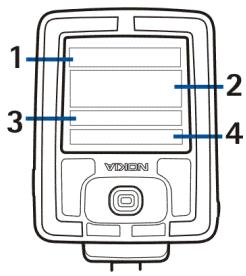
When you need to insert data into the headset, a text editor is displayed. The main areas of the text editor screen are:
- Prompt area—displays the objective of the screen.
- Editor area—displays the text you have entered.
- Character area—displays all the characters you can select from. The content of the list varies. For example, if you are inserting a phone number, only characters allowed in a phone number are available in the character area.
- Command area—displays all the available actions you can take. For example, the ⇧ and ➡ icons allow you to move the cursor in the editor area.
Press 📋 or 📋 to move between the areas. Press 📋 or 📋 to move within one area.
To insert data:
- Select the editing mode (such as lowercase letters, uppercase letters, and numbers):
- Press (☐) or (☐) to move to the command area, and press (☐) or (☐) until the +1 icon is highlighted.
- Press 📋 repeatedly until the mode you want is shown at the top of the screen.
- Insert the first character:
Press 🔒 to move to the character area, and press 🔒 or 🔒 until the correct character is highlighted. Press 🔒 to select it.
The selected character is added to the editor area.
- Repeat step 2 until you have inserted all the text you want.
- To save the data, select Options in the command area, press Ⓔ, and select Save.
To exit the editor without saving, select Options in the command area, press 📄, and select Exit editor.
■ List of menu functions
1. Call register
- Dialled numbers
- Missed calls
- Received calls
- Delete recent call lists
- Call duration
- Last call duration
- Received calls' duration
- Dialled calls' duration
- All calls' duration
- Clear timers
2. Contacts
- Names
- Add new contact
- Edit name
- Delete
- Copy from phone
- Add number
- Send bus. card
- Contacts view
3. Gallery
- Graphics


- Texts
- Shows
- All images
- All texts
- My show1
- My show2
- Digital clock
- Analog clock
4. Settings
- Bluetooth
- Bluetooth
- Search for Bluetooth devices
- Active device
- Paired devices
- Bluetooth settings
- Time and date settings
- Clock
- Date
- Summary after call
- Headset language
- Automatic keyguard
- Help text activation
- Display settings
- Wallpaper
- Image mode
- Colour schemes

- Display brightness
- Lights
- Tone settings
- Headset audio
- Incoming call alert
- Ringing tone
- Ringing volume
- Keypad tones
- Warning tones
- Voice dial settings
- Voice dial language
- Repeat dialled name
- Reset voice dial settings
- Memory status
- Contacts status
- Gallery status
- Send application to phone 12. Restore factory settings
5. Keyguard

5. Menu functions
■ Call register

The headset registers the phone numbers and the approximate length of the calls that have been missed, received, or dialed using the headset. In addition, the call register contains the calls that have been missed or received using the connected phone.
The headset registers missed and received calls only if the network supports these functions, the headset and phone are switched on and within the network service area, and the Bluetooth connection between the phone and the headset is active.
When you press Options in the Missed calls, Received calls and Dialled numbers menu, you can, for example, view the date and the time of the call.
Recent calls lists
Select Menu > Call register and one of the following:
- Dialled numbers—to view the list of the last 20 phone numbers that you have called or attempted to call.
- Missed calls—to view the list of the last ten phone numbers from which somebody has tried to call you (network service).

Tip: When a note about missed calls is being displayed, press List to access the list of phone numbers. Scroll to the number you would like to call back, and select Options > Call.
- Received calls—to view the list of the last ten phone numbers from which you have accepted or rejected calls (network service).
- Delete recent call lists—to delete the recent calls lists. Select whether you want to delete all the phone numbers in the recent call lists, or only those numbers in the missed calls, received calls, or dialed numbers lists. You cannot undo the operation.
Call duration
Select Menu > Call register > Call duration.
Scroll to view the approximate duration of your incoming and outgoing calls in hours, minutes, and seconds.
To clear the timers, you need the Bluetooth passcode. See Bluetooth passcode on page 7.
■ Phone book

You can save names and phone numbers in the phone book in the headset memory.
You can save a maximum of 250 names, with 2 numbers for each name.
You can access the phone book by selecting Menu > Contacts, or by pressing or in the standby mode.

Select the phone book view
To select how names and numbers are displayed, select Menu > Contacts > Contacts view.
Save names and phone numbers
- Select Menu > Contacts > Add new contact.
- Enter the name, and save it. See Write with the text editor on page 18.
- Enter the phone number, and save it. See Write with the text editor on page 18.
- Press Done.
The headset automatically creates a voice tag for the new name.
Save multiple numbers per name
You can save two types of phone numbers per name in the phone book.
Add a second number
- Select Menu > Contacts > Add number.
- Scroll to the name to which you want to add a new number, and press Add.
- Select one of the following number types: General, Mobile, Home, or Office.
- Enter the number, and save it.
- To return to the menu, press Back.
The first number saved is automatically set as the default number. When you select a name from the phone book, for example, to make a call, the default
number is used unless you select another number. The default number is always at the top of the list.
To change the default number, select Menu > Contacts > Names. Scroll to the name you want, and select Options > View details. Scroll to the number you want to set as the default number, and select Options > Set as default.
Edit a name or a number
To edit a name, select Menu > Contacts > Edit name. Scroll to the phone book entry you want to edit, and press Edit.
To edit a number, select Menu > Contacts > Names. Scroll to the name you want, and select Options > View details. Scroll to the number you want to edit, and select Options > Edit number.
To enter letters or numbers, see Write with the text editor on page 18.
You can play the voice tag to hear how the system pronounces the name of a contact. Select Options > Play voicetag.
Delete names and numbers
Select Menu > Contacts > Delete.
- To delete names and numbers one by one, select One by one, and scroll to the name and number you want to delete. Press Delete, and Yes to confirm.
- To delete names and numbers in the phone book all at once, select Delete all. Confirm the deletion, and give the Bluetooth passcode. See Bluetooth passcode on page 7.
Copy from the phone book of the mobile phone
You can copy names and phone numbers to the headset from the mobile phone to which it is connected. You can copy either the whole phone book or only selected names and numbers.
Only the name and the first two phone numbers are copied to the headset's phone book. All text items and additional phone numbers are ignored.
If your phone does not support File Transfer Profile or have the phone book download application, the headset must send the download application to the phone to enable copying. If you did not send the download application to the phone when you first connected the headset, see Download application on page 41.
- Select Menu > Contacts > Copy from phone.
If the headset is not connected to a phone or the phone does not support this function, the Copy from phone menu is unavailable.
- Select the source memory from which you want to copy: the internal memory of the phone (Phone) or the SIM card memory (SIM card).
- Select All entries or Selected entries.
If the phone does not support the Selected entries function, the menu item is unavailable.
If you select Selected entries, the headset displays the list of all names in the source memory. Scroll through the list, and mark all the entries you want to copy by pressing Mark. To delete a selection, press Unmark. When finished, press Done.
- To start copying, press OK. During the copying process, you can stop by pressing Quit.
When the copying is finished, the headset display shows how many entries were copied and how many were not. To exit the screen, press Back. The headset automatically creates voice tags for all the copied names.

Note: If the same number exists both in the headset and in the source memory, the entry in the headset is overwritten during the copying process.
Send and receive a business card
You can send and receive a person's contact information (business card) using Bluetooth wireless technology.
Receive a business card
- When you have received a business card to the headset, a notification is displayed.
- To view the business card, press Show. To discard the business card, press Exit and OK.
- To save the business card to the phone book of the headset, select Options > Save.

Note: If you attempt to send a business card from a mobile phone that is currently connected to your headset, and the phone does not support multiple simultaneous Bluetooth connections, you must disconnect from the phone, send the business card, and then activate the connection again.
Send a business card
- Search for the name and phone number you want to send from the phone book, and select Options > Send bus. card.
- The headset searches for compatible devices and displays them as a list. Select the device to which you want to send the business card.

Note: If you attempt to send a business card to a mobile phone that is currently connected to your headset and cannot see the phone in the displayed list, you must disconnect from the phone, send the business card, and then activate the connection again.
■ Gallery
You can save images, shows, and text items in the folders of the Gallery.

Images and text files
To see the list of image or text files, select Menu > Gallery > Graphics or Texts. Scroll to the desired file, press Options, and some of the following options are available:
- Add (only visible in the Texts folder)—to create a new text file.
- Edit (only visible in the Texts folder)—to edit an existing text file.
- Open—to open the selected file.
- Delete—to delete the selected file.
- Send or Send images (only visible in the Graphics folder)—to send one or several image files to a compatible device using Bluetooth wireless technology. The headset searches for compatible devices and displays them as a list. Select the device to which you want to send the files.
If you select Send images, you must select the images to send. Scroll through the list and mark all the images you want to send by pressing Mark. To delete a selection, press Unmark. When finished, press Save and confirm the selection.
- Rename (only visible in the Graphics folder)—to give a new name to the file.
- Set as wallpaper (only visible in the Graphics folder)—to have the selected file displayed as wallpaper in the standby mode.
- Set image mode—to have the selected file displayed in the image mode.
- Image orientation—to set whether the show is shown to other people (1) or to you (2). See Figure 4.
- Font size (only visible in the Texts folder)—to change the font size in the text files.
- Details (only visible in the Graphics folder)—to see the details of the file, for example, the name of the file.
- Sort (only visible in the Graphics folder)—to sort the files and folders by name, date, or size.
Shows
The headset contains the following four preset shows and two shows you can modify:
- All images shows all the images stored in the Graphics folder.
- All texts shows all the text files stored in the Texts folder.
- My show1 and My show2 are user-definable shows, and you can modify their contents. • Digital clock shows a digital clock with the current time.
- Analog clock shows an analog clock with the current time.
View and manage shows:
- Select Menu > Gallery > Shows.
- Select the desired show, and select from the following options:
- Open—to open a list of show files.
- Select images—to add new images to a user-definable show. Scroll through the list, and mark all the images you want to add by pressing Mark. To
delete a selection, press Unmark. When finished, press Done, and save the changes.
- Select texts—to add new text files to a user-definable show. Scroll through the list, and mark all the text files you want to add by pressing Mark. To delete a selection, press Unmark. When finished, press Done, and save the changes.
- Open in sequence—to view the show.
- Clear—to delete all the images in a user-definable show.
- Set image mode—to have the selected show displayed in the image mode.
- Set image interval—to define the time that elapses before the next file in the show is displayed. Select one of the predefined timeouts or Other. If you select Other, enter the timeout you want. To enter the timeout, press or repeatedly until the correct number is shown. Select Next to move to the next number, and OK to finish.
- Image orientation—to set whether the show is shown to other people (1) or to you (2). See Figure 4.
- Sort—to sort the images.
Receive and store new images
You can receive new images from compatible devices using Bluetooth wireless technology, and save the received images to the Gallery.
- When you receive files to the headset, a notification is displayed.
- To view the list of received files, press Show.
To delete the files without viewing them, press Exit and OK to confirm.
- Scroll to the desired file, and select from the following options:
- Save—to save the received file.
Accept the original name or define a new name for the file and select Options in the command area, press (☐), and select Save.
- Open or Delete—to open or delete the received file. • Details—to see the details of the received file.
Settings

Bluetooth connections
Features using Bluetooth wireless technology, or allowing such features to run in the background while using other features, increase the demand on battery power and reduce the battery life.
You can use Bluetooth wireless technology to connect the headset to other compatible devices. Through the connection, you can send and receive images and business cards.
Before you can create a connection to a compatible device, you must pair the device with your headset. If required by the device, you must give the device passcode to enable pairing. You can store a maximum of 10 pairings to your headset. When you attempt to connect to a device with which you are already paired, no passcode is required.
You can have one active audio and one active data connection at a time.
When you turn on the headset, it automatically attempts to connect to the default device (the first device the headset was connected to when it was used the first time). If the headset does not find the default device or the default device rejects the connection, the headset attempts to connect to the last device to which it was connected.
Select Menu > Settings > Bluetooth and one of the following:
- Bluetooth—to turn Bluetooth on or off. Bluetooth is automatically on when you switch the device on. Even if you turn it off, it is automatically turned on to transfer images or business cards. If you want to establish a connection from an external device to the headset, Bluetooth must be on.
- Search for Bluetooth devices—to search for compatible devices and connect to them. The headset lists the found devices on the display. When you see the device you want, press Stop, and select the device. If the device has not been previously paired with the headset and it requires a passcode, the headset requests it. Enter the passcode for the device to activate the connection. To enter the numbers, see Bluetooth passcode on page 7.
- Active device—to view information about the device to which the headset is currently connected. To end the connection, select Options > Disconnect.
- Paired devices—to view the list of devices that have been paired with the headset. You can simultaneously have a maximum of 10 paired devices.
To delete a pairing, select the pairing, and select Options > Delete pairing > OK.
- Bluetooth settings—to define additional setting.
- To define the devices to which your headset is visible, select My headset's visibility. If you select Shown to all, you are visible to all devices using Bluetooth wireless technology. If you select Hidden, only the devices you are paired with can see you, although you can still see all the compatible devices.
- To change the headset name that is used to help compatible devices recognize you, select My headset's name. To enter letters and numbers, see Write with the text editor on page 18.
When other devices attempt to connect to your headset, a notification is shown on the display. Press Accept to accept and Reject to reject the connection.
Time and date settings
Clock
Select Menu > Settings > Time and date settings > Clock.
To show or hide the time on the display in the standby mode, select Show clock or Hide clock. To adjust the clock to the correct time, select Set the time. See Write with the text editor on page 18. To select 12-hour or 24-hour time format, select Time format.
Date
Select Menu > Settings > Time and date settings > Date.
To show or hide the date on the display in the standby mode, select Show date or Hide date. To adjust the date, select Set the date. See Write with the text editor on page 18. You can also select the date format and separator.
Summary after call
To display the duration of the call after each call, select Menu > Settings > Summary after call > On.
Language
To select the language for the display texts, select Menu > Settings > Headset language. After you change the language, the headset asks if you want to change the voice dial language as well. See Voice dial settings on page 40.
Automatic keyguard
You can set the headset keys to lock automatically after a preset time delay when the headset is in the standby mode and no functions have been used.
Select Menu > Settings > Automatic keyguard.
- To activate the automatic keyguard, select On and the headset displays Set delay:. Enter the time, and press OK. To enter the numbers, press the key or key repeatedly until the correct number is shown. Select Next to move to the next number, and OK to finish.
- To deactivate the automatic keyguard, select Off.
See also Keyguard on page 41.
Help text activation
To show or hide the help texts, select Menu > Settings > Help text activation.
See also Menu usage on page 17.
Display settings
Wallpaper
You can set your headset to display a background image when it is in the standby mode. Some images are preserved in the Gallery. You can also receive images through Bluetooth wireless technology and save them in the Gallery. Your headset supports JPEG and GIF formats.
To select a wallpaper picture:
- Select Menu > Settings > Display settings > Wallpaper.
- Select Select wallpaper, and the contents of the Graphics folder in the Gallery are shown.
- Scroll to the desired image.
- To set the image as wallpaper, select Options > Set as wallpaper. The wallpaper is not displayed when the image mode is activated.
To activate or deactivate the wallpaper, select Menu > Settings > Display settings > Wallpaper > On or Off.
Image mode
Select Menu > Settings > Display settings > Image mode, and select from the following:
- On—to enable the image mode. When the image mode is enabled, it is activated after the image mode timeout is reached in the standby mode, or when the keyguard is activated.
- Off—to disable the image mode.
- Select image—to display the Gallery folders. Select a folder, scroll to the image or show you want, and select Options > Set as image mode.
- Image mode timeout—to define the timeout in the standby mode after which the image mode is activated. Select one of the predefined timeouts or Other. If you select Other, enter the timeout you want. To enter the timeout, press or repeatedly until the correct number is shown. Select Next to move to the next number, and OK to finish.
Color schemes
You can change the color in some display components, such as indicators and signal bars.
Select Menu > Settings > Display settings > Colour schemes. Select the desired color scheme.
Display brightness
You can change the brightness level of the display.
Select Menu > Settings > Display settings > Display brightness. Scroll with Ⓐ and 📋 to decrease and increase the brightness level, and press OK to save the new level.
Display backlight timeout
You can define how long the display backlight stays on if the joystick is not pressed.
Select Menu > Settings > Display settings > Lights. Select one of the predefined timeouts or Other. If you select Other, enter the timeout you want. To enter the timeout, press 📋 or 🌐 repeatedly until the correct number is shown. Select Next to move to the next number, and OK to finish.
Tone settings
Select Menu > Settings > Tone settings, and select from the following:
- Headset audio—to turn audio tones on or off. If the tones are off, no incoming call alert tones, keypad tones, or warning tones are played. This setting has no effect on the audio heard through the earpiece, since it is routed automatically from the phone.
- Incoming call alert—to select how the phone notifies you of an incoming voice call. The options are Ringing, Ascending, Ring once, Beep once, and Off.
- Ringing tone—to select the ringing tone for incoming voice calls.
- Ringing volume—to set the volume for incoming voice calls.
- Keypad tones—to set the headset to sound a tone each time a key is pressed.
- Warning tones—to set the headset to sound tones, for example, when the battery is running out of power.
Voice dial settings
Select Menu > Settings > Voice dial settings, and select from the following:
- Voice dial language—to set the language for voice dialing. The correct language enables the headset to recognize names with greater accuracy. After you change the language, the headset asks if you want to change the display text language as well.
- Repeat dialled name—to set the headset to repeat the name after you have said it to confirm your choice before dialing the number.
- Reset voice dial settings—to reset the changes. The language setting does not change.
Memory status
Select Menu > Settings > Memory status, and select from the following:
- Contacts status—to see how many contacts are stored in the phone book and how many new contacts can still be stored.
- Gallery status—to see how much memory is used for the Gallery files and how much is still free for saving new images and text files.
Download application
To send the download application to the connected phone, select Menu > Settings > Send application to phone. Confirm by pressing Yes.
For more information, and for instructions on how to activate the application in the phone, see Switch the headset on for the first time on page 12.
Restore factory settings
To reset some of the menu settings to their original values, select Menu > Settings > Restore factory settings. Enter the Bluetooth passcode and press OK. See Bluetooth passcode on page 7.
The data you have entered or copied from a phone, such as the names and phone numbers saved in the phone book, are not deleted.
■ Keyguard
You can lock the keys to prevent them from being accidentally pressed.

- Lock the keys: In the standby mode, select Menu > Keyguard. The image mode is activated, if it is enabled. See Image mode on page 38.
- Unlock the keys:
Press the joystick in any direction to exit the image mode. In the standby mode, press Unlock and then OK within 1.5 seconds.
If you receive an incoming call when the keyguard is on, the keyguard is automatically deactivated. When you end or reject the call, the keys will automatically lock again.
To set the keyguard to automatically activate when the keys have not been pressed for a while, see Automatic keyguard on page 36.
6. Battery information
■ Charging and Discharging
Your device is powered by a rechargeable battery. The battery can be charged and discharged hundreds of times but it will eventually wear out. When the talk and standby times are noticeably shorter than normal, take the device to an authorized service to replace the old battery. Use only Nokia approved batteries, and recharge your battery only with Nokia approved chargers designated for this device.
Unplug the charger from the electrical plug and the device when not in use. Do not leave the battery connected to a charger. Overcharging may shorten its lifetime. If left unused, a fully charged battery will lose its charge over time. Temperature extremes can affect the ability of your battery to charge.
Use the battery only for its intended purpose. Never use any charger or battery that is damaged.
Leaving the battery in hot or cold places, such as in a closed car in summer or winter conditions, will reduce the capacity and lifetime of the battery. Always try to keep the battery between 15°C and 25°C (59°F and 77°F). A device with a hot or cold battery may not work temporarily, even when the battery is fully charged. Battery performance is particularly limited in temperatures well below freezing.
Your device is a product of superior design and craftsmanship and should be treated with care. The suggestions below will help you protect your warranty coverage.
- Keep the device dry. Precipitation, humidity and all types of liquids or moisture can contain minerals that will corrode electronic circuits.
- Do not use or store the device in dusty, dirty areas. Its moving parts and electronic components can be damaged.
- Do not store the device in hot areas. High temperatures can shorten the life of electronic devices, damage batteries, and warp or melt certain plastics.
- Do not store the device in cold areas. When the device returns to its normal temperature, moisture can form inside the device and damage electronic circuit boards.
- Do not attempt to open the device.
- Do not drop, knock, or shake the device. Rough handling can break internal circuit boards and fine mechanics.
- Do not use harsh chemicals, cleaning solvents, or strong detergents to clean the device.
- Do not paint the device. Paint can clog the moving parts and prevent proper operation.
- Use only the supplied or an approved replacement antenna. Unauthorised antennas, modifications, or attachments could damage the device and may violate regulations governing radio devices.
All of the above suggestions apply equally to your device, battery, charger, or any enhancement. If any device is not working properly, take it to the nearest authorized service facility for service.
FCC Notice – Nokia Wireless Image Headset
This device complies with Part 15 of the FCC Rules. Operation is subject to the following two conditions:
- This device may not cause harmful interference; and
- This device must accept any interference received, including interference that may cause undesired operation. This equipment has been tested and found to comply with the limits for a Class B digital device, pursuant to Part 15 of the FCC Rules. These limits are designed to provide reasonable protection against harmful interference in a residential installation. This equipment generates, uses and can radiate radio frequency energy and, if not installed and used in accordance with the instructions, may cause harmful interference to radio communications. However, there is no guarantee that interference will not occur in a particular installation. If this equipment does cause harmful interference to radio or television reception, which can be determined by turning the equipment off and on, the user is encouraged to try to correct the interference by one or more of the following measures:
• Reorient or relocate the receiving antenna. - Increase the separation between the equipment and receiver. - Connect the equipment into an outlet on a circuit different from that to which the receiver is connected. - Consult the dealer or an experienced radio/TV technician for help.
Note: Modifications not expressly approved by Nokia could void the user's authority to operate the equipment.
FCC Radiation Exposure Statement: This equipment complies with FCC radiation exposure limits set forth for an uncontrolled environment. This transmitter must not be co-located or operating in conjunction with any other antenna or transmitter.


- NOKIA WIRELESS IMAGE HEADSET HS-13W
- DECLARATION OF CONFORMITY
- C€0682
- CONTENTS
- INTRODUCTION...... 6
- OVERVIEW...... 8
- GET STARTED 11
- CALL FUNCTIONS 14
- MENU USAGE 17
- MENU FUNCTIONS 23
- INTRODUCTION
- BLUETOOTH WIRELESS TECHNOLOGY
- BLUETOOTH PASSCODE
- OVERVIEW
- HEADSET PARTS
- STANDBY AND IMAGE MODES
- STANDBY MODE INDICATORS
- GET STARTED
- CHARGE THE BATTERY
- SWITCH THE HEADSET ON AND OFF
- SWITCH THE HEADSET ON FOR THE FIRST TIME
- SEND THE DOWNLOAD APPLICATION TO THE MOBILE PHONE
- CALL FUNCTIONS
- MAKE A CALL
- MAKE A CALL USING THE PHONE BOOK
- MAKE A CALL USING THE CALL REGISTER
- MAKE A CALL USING VOICE DIALING
- END A CALL
- MAKE A CONFERENCE CALL
- ANSWER OR REJECT AN INCOMING CALL
- CALL WAITING
- MENU USAGE
- MOVE IN THE MENU
- WRITE WITH THE TEXT EDITOR
- TO INSERT DATA
- LIST OF MENU FUNCTIONS
- CALL REGISTER
- CONTACTS
- GALLERY
- SETTINGS
- KEYGUARD
- MENU FUNCTIONS
- RECENT CALLS LISTS
- CALL DURATION
- PHONE BOOK
- SELECT THE PHONE BOOK VIEW
- SAVE NAMES AND PHONE NUMBERS
- SAVE MULTIPLE NUMBERS PER NAME
- ADD A SECOND NUMBER
- EDIT A NAME OR A NUMBER
- DELETE NAMES AND NUMBERS
- COPY FROM THE PHONE BOOK OF THE MOBILE PHONE
- SEND AND RECEIVE A BUSINESS CARD
- RECEIVE A BUSINESS CARD
- SEND A BUSINESS CARD
- IMAGES AND TEXT FILES
- SHOWS
- VIEW AND MANAGE SHOWS
- RECEIVE AND STORE NEW IMAGES
- BLUETOOTH CONNECTIONS
- TIME AND DATE SETTINGS
- CLOCK
- DATE
- SUMMARY AFTER CALL
- LANGUAGE
- AUTOMATIC KEYGUARD
- HELP TEXT ACTIVATION
- DISPLAY SETTINGS
- WALLPAPER
- TO SELECT A WALLPAPER PICTURE
- IMAGE MODE
- COLOR SCHEMES
- DISPLAY BRIGHTNESS
- DISPLAY BACKLIGHT TIMEOUT
- TONE SETTINGS
- VOICE DIAL SETTINGS
- MEMORY STATUS
- DOWNLOAD APPLICATION
- RESTORE FACTORY SETTINGS
- BATTERY INFORMATION
- CHARGING AND DISCHARGING
- FCC NOTICE – NOKIA WIRELESS IMAGE HEADSET
Brand : NOKIA
Model : WIRELESS IMAGE HEADSET HS-13W
Category : Headphones