
BH-940 - Headphones NOKIA - Free user manual and instructions
Find the device manual for free BH-940 NOKIA in PDF.


| Product Type | Wireless Bluetooth Stereo Headset |
| Brand | Nokia |
| Model | BH-940 (Nokia Purity Pro by Monster) |
| Connectivity | Bluetooth 3.0, wired 3.5mm audio cable |
| Bluetooth Profiles | A2DP 1.2, HFP 1.6, HSP 1.2, AVRCP 1.4 |
| NFC | Yes (pairing and connection) |
| Active Noise Cancellation (ANC) | Yes, automatic via proximity sensors |
| Multipoint Connection | Yes, up to 2 devices simultaneously |
| Battery Type | Internal, non-removable rechargeable |
| Battery Life (Wireless) | Up to 24 hours talk/music, up to 7 days standby |
| Charger | Nokia AC-50 (model varies by plug type) |
| Charging Time | Approximately 2-3 hours (estimated) |
| Keys/Controls | Multifunction, volume up/down, playback (forward/rewind), Bluetooth, power (auto on/off via folding) |
| Voice Prompts | Yes, can be switched off |
| Microphone | Built-in |
| Compatibility | Bluetooth devices (phones, computers), devices with 3.5mm audio jack |
| Weight | Approximately 160 g (estimated) |
| Dimensions | Folding design, typical over-ear size (estimated) |
| Safety Warnings | Hearing protection, magnetic parts, small parts, switch off in restricted areas |
| Surface Material | Nickel-free |
| Spare Parts / Repairability | Battery non-removable; repair by authorized service only |
| Warranty | 24 months (by Nokia) |
Frequently Asked Questions - BH-940 NOKIA
User questions about BH-940 NOKIA
0 question about this device. Answer the ones you know or ask your own.
Ask a new question about this device
Download the instructions for your Headphones in PDF format for free! Find your manual BH-940 - NOKIA and take your electronic device back in hand. On this page are published all the documents necessary for the use of your device. BH-940 by NOKIA.
USER MANUAL BH-940 NOKIA
Nokia Purity Pro Bluetooth Stereo Headset by Monster User Guide
Safety
Read these simple guidelines. Not following them may be dangerous or illegal. For further info, read the complete user guide.
SWITCH OFF IN RESTRICTED AREAS
Switch the device off when mobile phone use is not allowed or when it may cause interference or danger, for example, in aircraft, in hospitals or near medical equipment, fuel, chemicals, or blasting areas. Obey all instructions in restricted areas.
BATTERIES, CHARGERS, AND OTHER ACCESSORIES

Use only batteries, chargers, and other accessories approved by Nokia for use with this device. Do not connect incompatible products.
PROTECT YOUR HEARING
To prevent possible hearing damage, do not listen at high volume levels for long periods. Exercise caution when holding your device near your ear while the loudspeaker is in use.
Introduction
About your headset
The Nokia Purity Pro Bluetooth Stereo Headset by Monster combines superior audio quality with ease of use. Handle calls hands-free, or listen to your favourite tracks. Just unfold the headset, put it on, and you're ready to go.
The audio quality doesn't have to suffer in noisy environments - active noise cancellation (ANC) takes out unwanted background noise.
The surface of this product is nickel-free.

Warning:
This product may contain small parts. Keep them out of the reach of small children.
Parts of the product are magnetic. Metallic materials may be attracted to the product. Do not place credit cards or other magnetic storage media near the product, because info stored on them may be erased.
Read this user guide carefully before using the product. Also, read the user guide for the device that you connect to the product.

Warning:
When you use the headset, your ability to hear outside sounds may be affected. Do not use the headset where it can endanger your safety.
Obey all local laws. Using a mobile phone or some its features while driving may be prohibited. Always keep your hands free to operate the vehicle while driving. Your first consideration while driving should be road safety.
For support, go to www.nokia.com/support.
About Bluetooth connectivity
You can use Bluetooth to make a wireless connection to other compatible devices, such as mobile phones.
Devices do not need to be in direct line-of-sight, but they must be within 10 metres (33 feet) of each other. The connection may be affected by obstructions such as walls or other electronic devices.

10 m
This device is compliant with Bluetooth Specification 3.0 supporting the following profiles: A2DP (1.2), HFP (1.6), HSP (1.2) and AVRCP (1.4). Check with the manufacturers of other devices to determine their compatibility with this device.
About compatibility
You can use your headset with all kinds of devices, but not all devices support all features or connection types.
| Wireless (Bluetooth) connection | Wired connection | ||
| Compatible phones | Other devices with 3.5 mm audio connector | ||
| Music playback Yes | Yes Yes | ||
| Hands-free calling Yes | Yes Yes No | ||
| Media controls Yes | Yes No | ||
| Volume controls Yes | Yes No | ||
Nokia Symbian, Nokia S40, and Nokia N9 phones can only use a wireless connection.
The keys on the headset use Control Talk® technology.
Get started
Keys and parts

1 Fast-forward key
2 Multifunction key
3 Rewind key ▽
4 NFC area
5 Battery indicator light
6 Charger connector
7 Microphone
8 Cable connector (3.5 mm)
9 Volume keys
10 Bluetooth key


Charge the battery
Before using the headset, you must charge the battery.
When you unplug a charger, hold and pull the plug, not the cord.
1 When your headset needs recharging do the following:

2 When the battery is full and the yellow indicator light turns green, do the following:

Tip: You can also charge the headset from your computer with a compatible USB cable.
With a wireless connection, the fully charged battery has power for up to 24 hours of talk time or 24 hours music playing time, or up to 7 days of standby time.
When the battery charge is low, you hear a periodic voice prompt or beep, and the yellow indicator light flashes.
When the battery is empty, you can still use a wired connection without active noise cancellation (ANC).
Tip: The battery indicator light tells you the level of battery charge whenever you switch the headset on or off. A green light means there is enough power. If the light is yellow, you may need to recharge the battery soon. If the light is red, recharge the battery.
Switch the headset on
There's no power button to press – just unfold the headset, and it automatically switches on.

The headset beeps, and the battery indicator light flashes once, showing you the battery charge. The headset automatically connects to the last connected device. If you've never paired the headset with a device, or you've cleared the pairings, the headset goes into pairing mode.
Switch the headset off
Fold the headset. The headset beeps, and the battery indicator light flashes once. All connections close.
If the headset is not connected to a device within 10 minutes, it switches to standby mode. To wake the headset up, switch it off, and switch it back on again.
Wear the headset
Adjust the headband for a perfect fit.
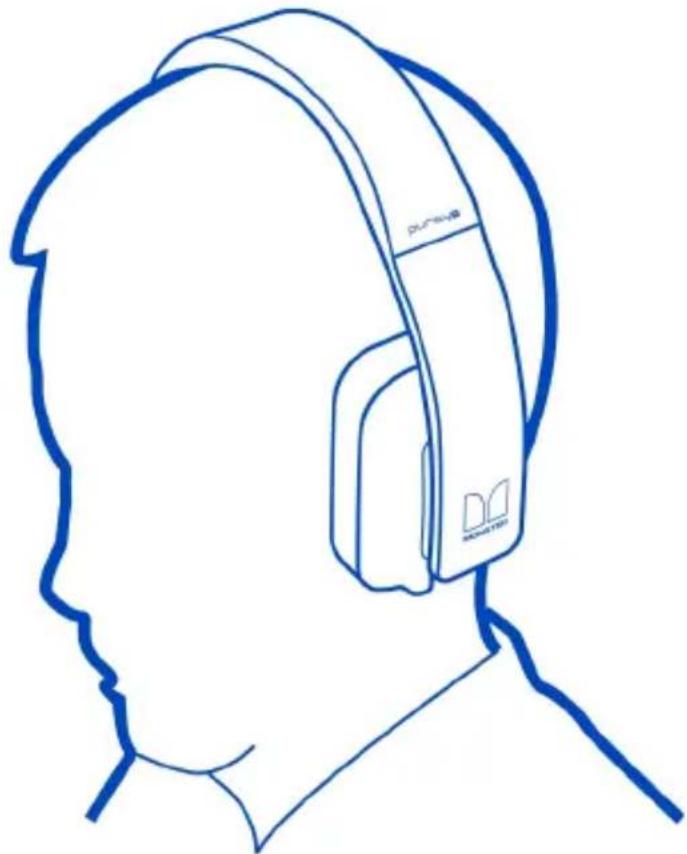
Put the earpiece marked with L over your left ear and the one marked with R over your right ear.
When you put the headset on, the earpiece proximity sensors switch active noise cancellation (ANC) on automatically.
If you're not wearing the headset for 10 minutes, ANC switches off, and the headset mutes itself to save power. To carry on using the headset, just put it back on your head.
Pair and connect to a device
About pairing and connecting wirelessly
Before using your headset, you must pair and connect it to a compatible device.
You can pair the headset with 8 devices.
Tip: You can even connect to 2 devices, such as your computer and your phone, at the same time. You first need to switch the multipoint feature on.
With some devices, you may need to make the connection separately after pairing.
When you switch your headset on, it automatically connects to the device it was used with last. If the last connected device can't be found, the headset connects to the next device on its paired devices list.
When the headset is connected to a device, the Bluetooth indicator light flashes slowly.
Tip: Can't connect the headset to a compatible device? Make sure the headset is charged, switched on, and paired with the device.
Pair and connect with NFC
With Near Field Communication (NFC), you can pair and connect your headset to your compatible device easily.
1 If your device supports NFC, switch NFC on.
2 Switch the headset on.
3 Touch the NFC area on the headset with the NFC area on your device. The headset connects to the device automatically.
You can also disconnect the headset using NFC. For details on NFC, see your device user guide.

If the device does not support NFC, pair the headset manually.
Pair and connect with Bluetooth
1 Make sure the headset is switched off.
2 Switch the compatible device on, and switch Bluetooth on.
3 Switch the headset on. If you've previously paired your headset with another device, press and hold *for 2 seconds. The blue indicator light starts to flash quickly.
4 Set your device to search for Bluetooth devices. For details, see your device user guide.
5 On your device, select the headset from the list of found devices.
6 If needed, type in the passcode 0000.
Connect to two devices at the same time
Would you like to listen to music on your computer, but still be ready for calls? When you've paired your headset and connected it to your phone, you can switch the multipoint feature on and connect your headset also to another compatible device, such as a computer.
1 Make sure Bluetooth is switched on in both devices.
2 Make sure the headset is switched on, and press and hold for 2 seconds.
3 Press and hold the volume up key and to switch the multipoint feature on.
4 Pair the headset with the second device.
5 Switch the headset off.
6 Switch the headset back on, and the headset connects to both devices.
To disconnect, repeat steps 1-3.
Connect with a cable
When you use the audio cable, the wireless connection switches off, so you can use your headset offline, for example, during a flight.

Connect the cable to the headset, and the other end to the headset connector on your device.
When you've connected the cable, your headset switches to flight mode. You can only connect the headset to one device at a time.
The headset keys work differently when the headset is used with a wired or wireless connection.
Not all phone models support a cable connection. For these phones, use the wireless connection.
Make calls
Make and receive calls
| Wireless connection Wired connection | ||
| Make a call Use your phone Use your phone | ||
| Answer or end a call | Press Press | ◀ |
| Decline a call Press twice Press twice | ◀ | |
| Switch a call from phone to headset | Press for 2 seconds Not available | |
| Redial the last called number | When not in a call, press twice. | Not available |
| Use voice dialling | When not in a call, press and hold for 2 seconds, and follow the instructions in your phone user guide. | When not in a call, press and hold for 2 seconds, and follow the instructions in your phone user guide. |
Some devices may not be fully compatible, and you may need to control your device on the device itself. In some cases, a feature may not be available for your device at all.
Handle calls from two phones
If your headset is connected to two phones, you can handle calls from both at the same time.
Continue an ongoing call, and decline a call on another phone
Press twice.
End an ongoing call, and answer a call on another phone
Press
Put an ongoing call on hold, and answer a call on another phone
Press and hold for 2 seconds.
Switch between active and held calls
Press and hold for 2 seconds.
End an ongoing call, and go back to a held call
Press
If you redial or use voice dialling, the call is made on the phone last used to make a call with the headset.
Play music
Listen to your favourite music wherever you are.

Warning:
Continuous exposure to high volume may damage your hearing. Listen to music at a moderate level.
| Wireless connection | Wired connection with a Nokia Lumia phone | Wired connection with other phones | |
| Play a song Select the | the song in the music player, and press ◀ | Select the song in the music player, and press ◀ | Select the song in the music player, and press ◀ |
| Pause or resume a song | Press Press Press | ◀ | ◀ |
| Play the next song P | Press Press twice Not available | ||
| Play the previous song | Press twice Press three times Not available | ||
| Start the current song from the beginning | Press Press Not available ▼ | ||
| Scroll through the current song quickly | Press and hold ▲ or ▽ | Press and hold ▲ or ▽ Not available | |
Some devices may not be fully compatible, and you may need to control your device on the device itself. In some cases, a feature may not be available for your device at all.
If you receive or make a call while listening to music, the music is paused.
Adjust volume and audio
Change the volume
Use the volume keys. To change the volume quickly, press and hold the volume keys.
You can set the volume for each of the devices you have paired and connected your headset with. The headset remembers the volume level the next time you connect it to the device.
With a wireless connection, if the volume is too low, make sure you have put the volume up on your phone as well.
Use active noise cancellation
Active noise cancellation (ANC) reduces background noise, so you can enjoy high quality audio also in noisy environments. As you can listen at a lower volume, ANC helps protect your hearing.

When you put your headset on, the earpiece proximity sensors switch ANC on automatically. When you take the headset off, ANC switches off.
Settings
About the Nokia Accessories app
If you have a Nokia Lumia phone, you can keep track of your headset easily. Get the accessories app from Store, and you can manage your headset from your phone.
You can use the app to, for example, switch voice prompts on or off.
The app also adds a headset tile to the start screen on your phone, so you can easily see the battery charge.
Clear the pairings
1 Switch the headset on, and press and hold for 2 seconds. The headset goes into pairing mode.
2 Press and hold and for 2 seconds. The red and green indicator lights flash, and all the pairings are cleared.
The headset switches on, and goes into pairing mode.
Switch the voice prompts off
Your headset gives you verbal feedback and instructions, for example, when the battery is running low. You can switch these voice prompts off.
Make sure the headset is switched on, and you are connected to a device. Press and hold the volume down key and *for 2 seconds. You hear a voice prompt, and a red indicator light flashes.
Switch the voice prompts back on
Press and hold the volume up key and *for 2 seconds. You hear a voice prompt, and a green indicator light flashes.
Product and safety information
Battery and charger information
This device has an internal, nonremovable, rechargeable battery. Do not attempt to remove the battery from the device as you may damage the device.
This device is intended for use when supplied with power from the following chargers: AC-50. The exact charger model number may vary depending on the type of plug. The plug variant is identified by one of the following: E, X, AR, U, A, C, K, B, or N.
The battery can be charged and discharged hundreds of times, but it will eventually wear out.
Talk and standby times are estimates only. Actual times are affected by, for example, device settings, features being used, battery condition, and temperature.
If the battery has not been used for a long time, to begin charging, you may need to connect the charger, then disconnect and reconnect it.
If the battery is completely discharged, it may take several minutes before the charging indicator is displayed.
When your charger is not in use, unplug it from the electrical plug and the device. Do not leave a fully charged battery connected to a charger, as overcharging may shorten the battery's lifetime. If left unused, a fully charged battery will lose its charge over time.
Always keep the battery between 15° C and 25° C ( 59° F and 77° F). Extreme temperatures reduce the capacity and lifetime of the battery. A device with a hot or cold battery may not work temporarily.
Do not dispose of batteries in a fire as they may explode. Dispose of batteries according to local regulations. Recycle when possible. Do not dispose as household waste.
Use the charger for its intended purpose only. Improper use or use of unapproved chargers may present a risk of fire, explosion, or other hazard, and may invalidate any approval or warranty. If you believe the charger is damaged, take it to a service centre for inspection before continuing to use it. Never use a damaged charger. Only use the charger indoors.
Take care of your device
Handle your device, charger and accessories with care. The following suggestions help you protect your warranty coverage.
- Keep the device dry. Precipitation, humidity, and all types of liquids or moisture can contain minerals that corrode electronic circuits. If your device gets wet, allow the device to dry.
• Do not use or store the device in dusty or dirty areas. Moving parts and electronic components can be damaged. - Do not store the device in high temperatures. High temperatures can shorten the life of the device, and warp or melt plastics.
- Do not store the device in cold temperatures. When the device warms to its normal temperature, moisture can form inside the device and damage electronic circuits.
- Do not attempt to open the device.
• Unauthorised modifications may damage the device and violate regulations governing radio devices.
• Do not drop, knock, or shake the device. Rough handling can break internal circuit boards and mechanics. - Only use a soft, clean, dry cloth to clean the surface of the device.
Recycle
Always return your used electronic products, batteries, and packaging materials to dedicated collection points. This way you help prevent uncontrolled waste disposal and promote the recycling of materials.
Crossed-out wheeled-bin symbol
The crossed-out wheeled-bin symbol on your product, battery, literature, or packaging reminds you that all electrical and electronic products, batteries, and accumulators must be taken to separate collection at the end of their working life. This requirement applies in the European Union. Do not dispose of these products as unsorted municipal waste. For more environmental information, see the product Eco profile at www.nokia.com/ecoprofile.
Copyright and other notices
DECLARATION OF CONFORMITY
CE0979
Hereby, NOKIA CORPORATION declares that this BH-940 product is in compliance with the essential requirements and other relevant provisions of Directive 1999/5/EC. A copy of the Declaration of Conformity can be found at http://www.nokia.com/global/declaration.
© 2012 Nokia. All rights reserved.
Nokia, Nokia Connecting People and Nokia Original Accessories logo are trademarks or registered trademarks of Nokia Corporation.
Reproduction, transfer, distribution, or storage of part or all of the contents in this document in any form without the prior written permission of Nokia is prohibited. Nokia operates a policy of continuous development. Nokia reserves the right to make changes and improvements to any of the products described in this document without prior notice.
The Bluetooth word mark and logos are owned by the Bluetooth SIG, Inc. and any use of such marks by Nokia or Monster, LLC is under license.
© 2012 Monster, LLC. Monster, the Monster logo, ControlTalk, the ControlTalk logo, Purity Pro, the product and packaging are trademarks or registered trademarks of Monster Cable Products, Inc., or its subsidiaries in the U.S. or other countries.
The aptX software is copyright CSR plc or its group companies. All rights reserved. The aptX mark and the aptX logo are trademarks of CSR plc or one of its group companies and may be registered in one or more jurisdictions.
To the maximum extent permitted by applicable law, under no circumstances shall Nokia or any of its licensors be responsible for any loss of data or income or any special, incidental, consequential or indirect damages howsoever caused.
The contents of this document are provided "as is". Except as required by applicable law, no warranties of any kind, either express or implied, including, but not limited to, the implied warranties of merchantability and fitness for a particular purpose, are made in relation to the accuracy, reliability or contents of this document. Nokia reserves the right to revise this document or withdraw it at any time without prior notice.
The availability of products may vary by region. For more info, contact your Nokia dealer. This device may contain commodities, technology or software subject to export laws and regulations from the US and other countries. Diversion contrary to law is prohibited.
FCC/INDUSTRY CANADA NOTICE
This device complies with part 15 of the FCC rules and Industry Canada licence-exempt RSS standard(s). Operation is subject to the following two conditions: (1) This device may not cause harmful interference, and (2) this device must accept any interference received, including interference that may cause undesired operation. Any changes or modifications not expressly approved by Nokia could void the user's authority to operate this equipment.
Note: This equipment has been tested and found to comply with the limits for a Class B digital device, pursuant to part 15 of the FCC Rules. These limits are designed to provide reasonable protection against harmful interference in a residential installation. This equipment generates, uses and can radiate radio frequency energy and, if not installed and used in accordance with the instructions, may cause harmful interference to radio communications. However, there is no guarantee that interference will not occur in a particular installation. If this equipment does cause harmful interference to radio or television reception, which can be determined by turning the equipment off and on, the user is encouraged to try to correct the interference by one or more of the following measures:
• Reorient or relocate the receiving antenna.
- Increase the separation between the equipment and receiver.
- Connect the equipment into an outlet on a circuit different from that to which the receiver is connected.
- Consult the dealer or an experienced radio/TV technician for help.
NOTE: FCC Radiation Exposure Statement: This equipment complies with FCC radiation exposure limits set forth for an uncontrolled environment. This transmitter must not be co-located or operating in conjunction with any other antenna or transmitter.
Nokia provides a 24-month warranty for this product. For details please visit the local Nokia online warranty text web site www.nokia.com/support.
/Issue 1.0 EN


- NOKIA PURITY PRO BLUETOOTH STEREO HEADSET BY MONSTER USER GUIDE
- SAFETY
- SWITCH OFF IN RESTRICTED AREAS
- BATTERIES, CHARGERS, AND OTHER ACCESSORIES
- PROTECT YOUR HEARING
- INTRODUCTION
- ABOUT YOUR HEADSET
- WARNING
- ABOUT BLUETOOTH CONNECTIVITY
- ABOUT COMPATIBILITY
- GET STARTED
- KEYS AND PARTS
- CHARGE THE BATTERY
- SWITCH THE HEADSET ON
- SWITCH THE HEADSET OFF
- WEAR THE HEADSET
- PAIR AND CONNECT TO A DEVICE
- ABOUT PAIRING AND CONNECTING WIRELESSLY
- PAIR AND CONNECT WITH NFC
- PAIR AND CONNECT WITH BLUETOOTH
- CONNECT TO TWO DEVICES AT THE SAME TIME
- CONNECT WITH A CABLE
- MAKE CALLS
- HANDLE CALLS FROM TWO PHONES
- PLAY MUSIC
- ADJUST VOLUME AND AUDIO
- CHANGE THE VOLUME
- USE ACTIVE NOISE CANCELLATION
- SETTINGS
- ABOUT THE NOKIA ACCESSORIES APP
- CLEAR THE PAIRINGS
- SWITCH THE VOICE PROMPTS OFF
- SWITCH THE VOICE PROMPTS BACK ON
- PRODUCT AND SAFETY INFORMATION
- BATTERY AND CHARGER INFORMATION
- TAKE CARE OF YOUR DEVICE
- RECYCLE
- CROSSED-OUT WHEELED-BIN SYMBOL
- COPYRIGHT AND OTHER NOTICES
- DECLARATION OF CONFORMITY
- CE0979
- FCC/INDUSTRY CANADA NOTICE
Brand : NOKIA
Model : BH-940
Category : Headphones