
DA300 - Uncategorized DELL - Free user manual and instructions
Find the device manual for free DA300 DELL in PDF.


| Product Type | USB-C Mobile Adapter |
| Upstream Port | USB-C (Thunderbolt or DisplayPort Alt Mode) |
| Downstream Video Ports | 1x HDMI 2.0 (up to 3840x2160 @60Hz), 1x DisplayPort 1.4 (up to 3840x2160 @60Hz), 1x VGA (up to 1920x1080 @60Hz) |
| Downstream Data Ports | 1x USB-A 3.1 Gen 2, 1x USB-C 3.1 Gen 2 (data only, no power delivery) |
| Network Port | 1x RJ45 Ethernet (10/100/1000 Mbps) |
| Supported Operating Systems | Windows 7/8/8.1/10 (32/64-bit), macOS 10.12.6, Chrome OS 61.0.3163.123 and 65.0.3325.209 |
| Maximum Operating Temperature | 35°C (ambient) |
| Warranty | 1-year limited hardware warranty (or system warranty if purchased with Dell system) |
| LED Indicators | Green solid (connection), Amber blinking (active link) |
| Display Output Mode | Single display only (one HDMI, DisplayPort, or VGA at a time) |
| Power Delivery Pass-through | Not supported |
| USB Port Limitations | When connected to a 7.5W USB-C port, only one USB port (A or C) works at a time; with 15W or Thunderbolt ports, both USB ports work simultaneously at USB 3.1 Gen 2 speeds (10 Gbps) on select Dell computers |
Frequently Asked Questions - DA300 DELL
User questions about DA300 DELL
0 question about this device. Answer the ones you know or ask your own.
Ask a new question about this device
Download the instructions for your Uncategorized in PDF format for free! Find your manual DA300 - DELL and take your electronic device back in hand. On this page are published all the documents necessary for the use of your device. DA300 by DELL.
USER MANUAL DA300 DELL
Dell USB-C Mobile Adapter DA300
User's Guide
Notes, cautions, and warnings

NOTE: A NOTE indicates important information that helps you make better use of your computer.

CAUTION: A CAUTION indicates either potential damage to hardware or loss of data and tells you how to avoid the problem

WARNING: A WARNING indicates a potential for property damage, personal injury, or death.
© 2017-2018 Dell Inc. or its subsidiaries. All rights reserved. Dell, EMC, and other trademarks are trademarks of Dell Inc. or its subsidiaries. Other trademarks may be trademarks of their respective owners.
2018 - 11
Rev. A01
Contents
What's in the box 4
Features 5
Front view 5
Back view 5
Using your mobile adapter 6
Troubleshooting 11
Specifications 13
Statutory information 15
Warranty 15
What's in the box
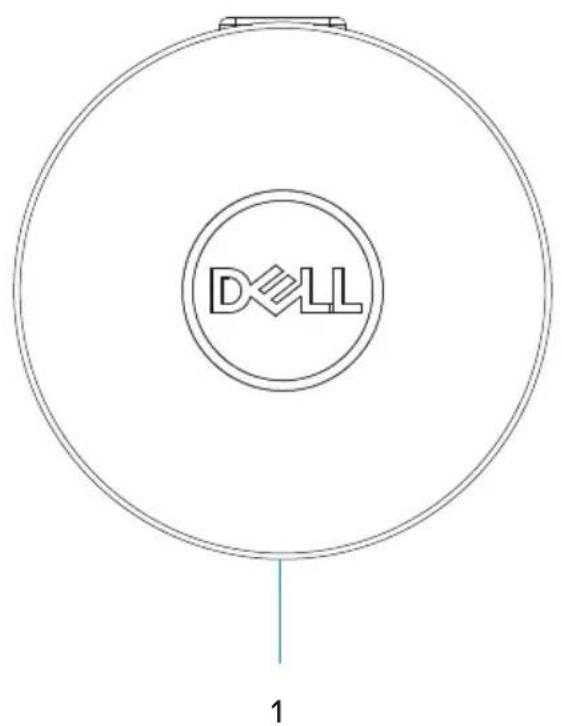
1 Mobile adapter
2 Documents
Front view
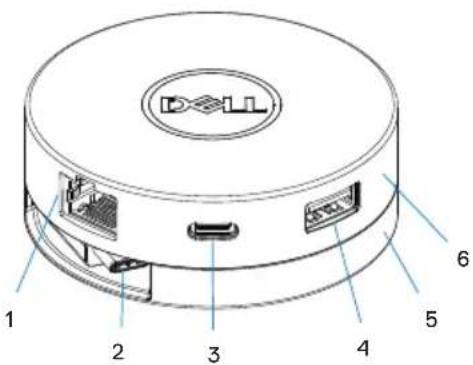
1 Ethernet port
2 USB-C cable
3 USB-C port
4 USB-A port
5 Bottom section
6 Top section
Back view
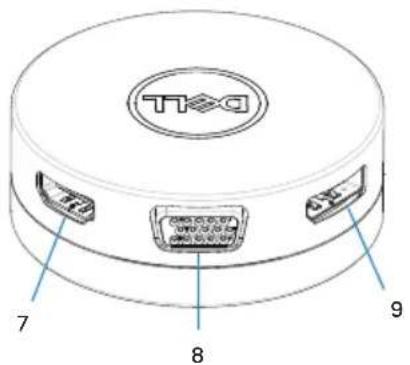
7 HDMI port
8 VGA port
9 DisplayPort
Using your mobile adapter
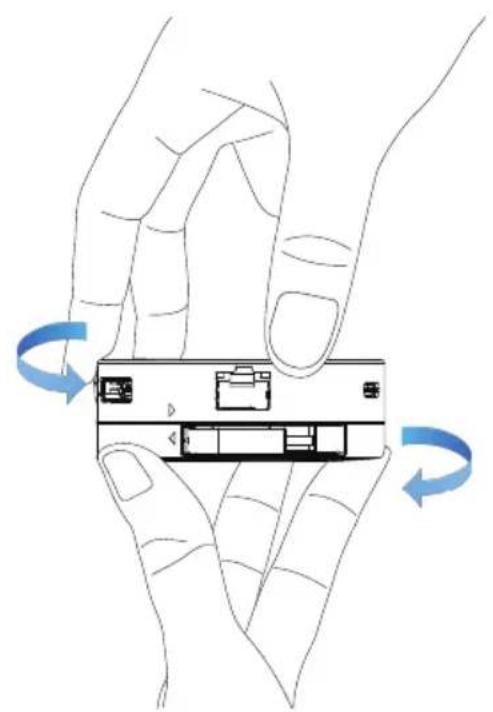
- Using your fingertips, hold the bottom section of the mobile adapter.
natural_image
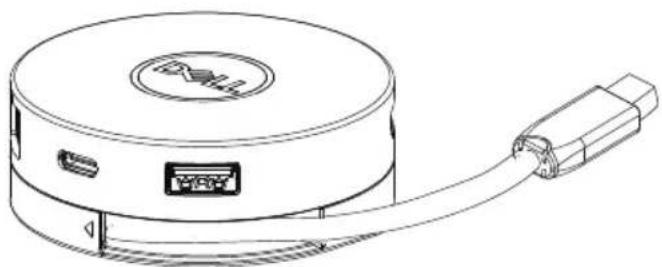
Illustration of two hands holding a device with blue circular arrows indicating rotation (no text or symbols)- With the USB-C cable facing you, turn the top section to release the USB-C cable.
natural_image
Line drawing of a circular device with an attached connector (no text or symbols)- Connect the USB-C cable of your mobile adapter to the Thunderbolt or USB-C (DisplayPort Alt Mode) port on your computer.
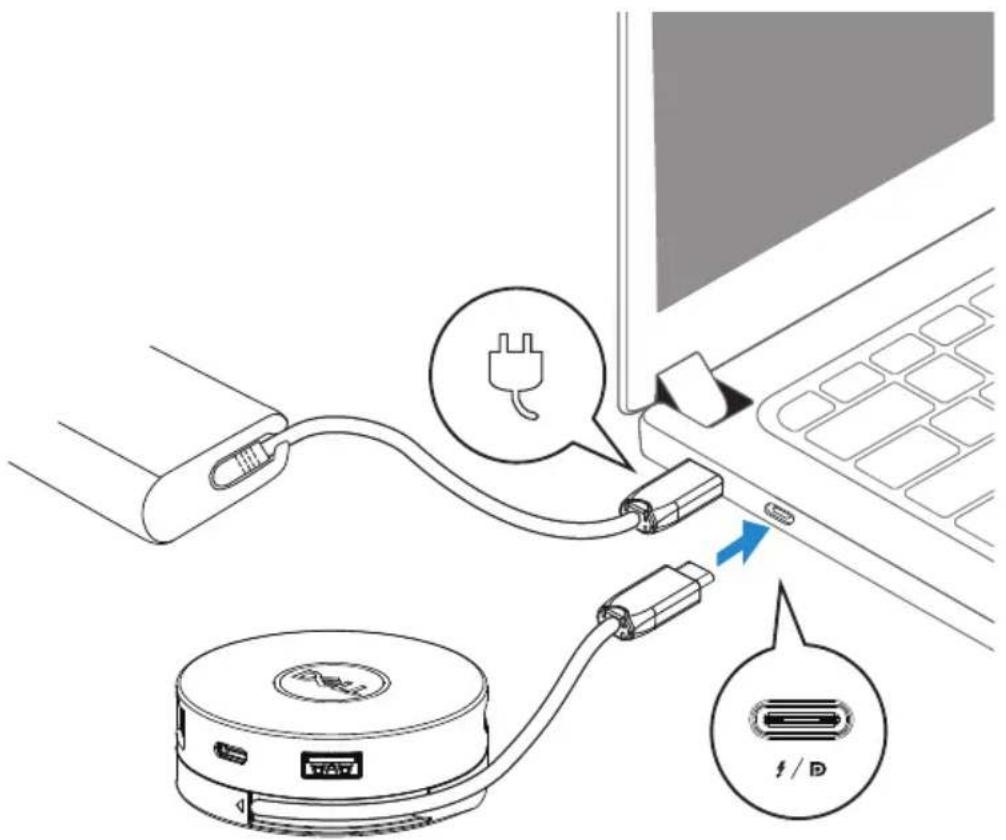

NOTE: Power delivery pass-through is not supported on the Thunderbolt or USB-C (DisplayPort Alt Mode) port on the adapter (DA300).
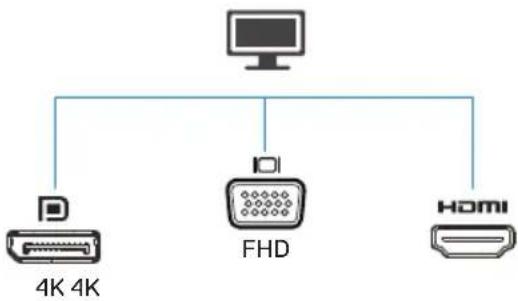
- Connect peripherals to the mobile adapter.
flowchart
graph TD
    A["Computer"] --> B["4K 4K"]
    A --> C["FHD"]
    A --> D["+"]
    A --> E["HDMI"]

NOTE: The mobile adapter supports only one display at a time.

Video port
Connect an external display or a projector.

Network port
Connect an Ethernet (RJ45) cable from a router or a broadband modem for network or internet access.
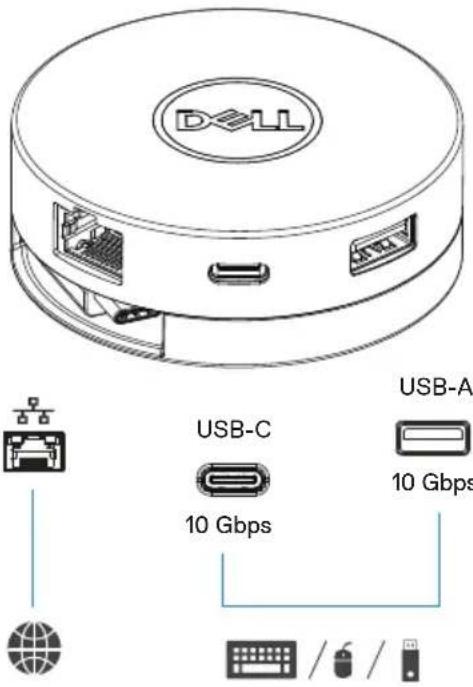
USB-C and USB-A ports
Connect peripherals such as keyboards, mice, and external storage devices.

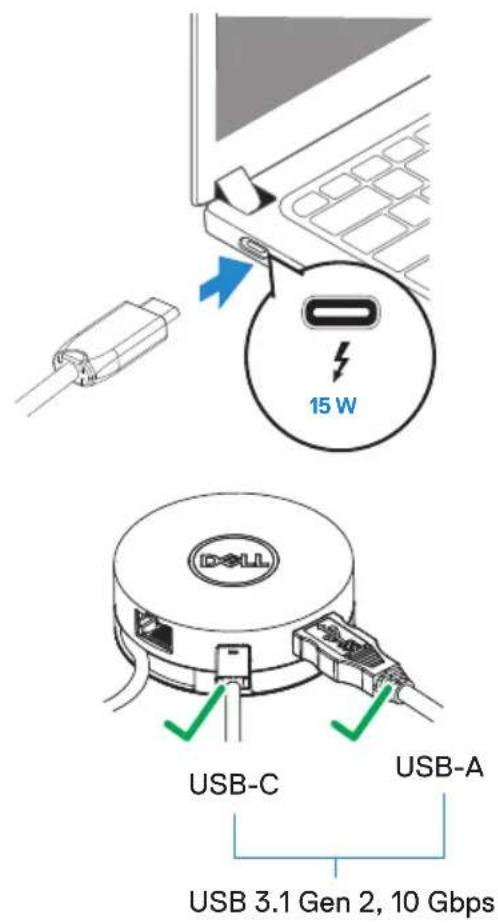
NOTE: When adapter is connected to the Thunderbolt or 15 W USB-C (DisplayPort Alt Mode) port on your computer, the downstream USB-A and USB-C ports will work at the same time with USB 3.1 Gen 2 (10 Gbps) data transfer rate on selected Dell computers.

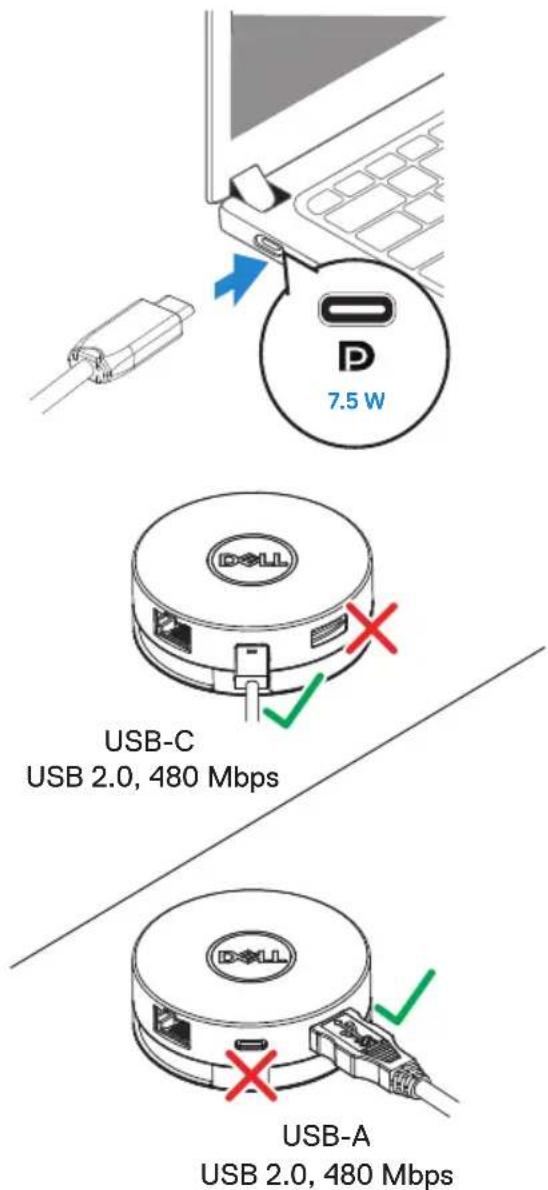
NOTE: When adapter is connected to the 7.5 W USB-C (DisplayPort Alt Mode) port on your computer, only one of the downstream USB-C or USB-A ports will work on a first-come-first-serve basis with USB 2.0 (480 Mbps) data transfer rate.
For example:
- When a peripheral is connected to the USB-C port on your mobile adapter, the USB-A will be disabled.
- When a peripheral is connected to the USB-A port on your mobile adapter, the USB-C will be disabled.
Troubleshooting
Problems Possible solutions
| The mobile adapter is not working on the USB-A port on your computer | The mobile adapter is compatible only with the USB-C port on your computer. That is, Thunderbolt port or USB-C (DisplayPort Alt Mode) port. |
| Multiple displays are not working | The mobile adapter supports only single display out. You can only connect a peripheral to the HDMI port, or DisplayPort, or the VGA port at a time. |
| Utilizing all the ports at the same time is not working | ·If you connect the mobile adapter to a Thunderbolt or 15 W USB-C (DisplayPort Alt Mode) port on your computer, you can use one video out port, one Ethernet port, and two USB ports.·If you connect the mobile adapter to a 7.5 W USB-C (DisplayPort Alt Mode) port on your computer, you can use one video out port, one Ethernet port, and only one USB port. |
| Power Surge message pops up when connecting a peripheral to the mobile adapter | ·The peripheral you connected to the mobile adapter needs more power.·Disconnect other peripherals connected to the mobile adapter.·For high-power peripherals, it is recommended to connect the peripheral to your computer directly. |
| Unable to read and write to an external SSD/HDD and optical (CD/DVD/Blu-ray) drive when connected to the mobile adapter | ·Some external SSD/HDD/Optical drives require higher power than what your mobile adapter can support.·It is recommended that you connect external SSD/HDD/Optical drive to your computer directly. |
| Problems | Possible solutions |
| Resolution on the monitor is lower than 4K 60 Hz when connected to the HDMI or DisplayPort of your mobile adapter | The 4K resolution at 60 Hz is supported on computers that have DisplayPort 1.3 or later with a display that is capable of 4K resolution at 60 Hz. On computers that support below DisplayPort 1.3, the maximum resolution supported is 4K at 30 Hz. |
| The mobile adapter is not charging your computer through the USB-C port | The mobile adapter does not support Power Delivery. The USB-C port supports only data transfer and does not allow power supply between devices. |
| The mobile adapter is not supporting MAC address pass-through and PXE boot | · The mobile adapter supports MAC address pass-through and PXE boot with system BIOS support.· If your computer's BIOS does not support MAC address pass-through and PXE boot, the mobile adapter will be unable to support these features. |
| PXE boot in UEFI/Legacy mode is not working | PXE boot support depends on the BIOS of your computer. For more information, check the documentation for your computer. |
| No video on the monitor attached to the mobile adapter | · Check the video connection cables.· Disconnect the peripheral from the mobile adapter, wait for 10 seconds then connect the peripheral. |
| Video on the attached monitor is distorted or corrupted | · Check the video connection cables.· Check and update the video resolution under Control Panel > All Control Panel Items > Display > Screen Resolution. |
| Video on the attached monitor is not displayed in extended mode | · Change the setting under Control Panel > All Control Panel Items > Display > Screen Resolution.· Switch modes by pressing the Windows Key + P.  |
Specifications
Upstream input
Downstream data ports
USB-C
• One USB 3.1 Gen 2 Type-A port
• One USB 3.1 Gen 2 Type-C port
- One RJ45 port
Downstream video out ports and resolutions supported
Single video out from one of the three ports:
• One DisplayPort 1.4 port (3840 x 2160 max)/60 Hz
• One HDMI 2.0 port (3840 × 2160 max)/60 Hz
• One VGA port
(1920×1080 max)/60 Hz
LAN port LED indication · Connection: Green (solid green)
• Active link: Amber (blinking)

NOTE: When the mobile adapter is connected to the Thunderbolt or 15 W USB-C (DisplayPort Alt Mode) port on your computer, the USB-A and USB-C ports will work at the same time with USB 3.1 Gen 2 (10 Gbps) data transfer rate on selected Dell computers.

NOTE: When the mobile adapter is connected to the 7.5 W USB-C (DisplayPort Alt Mode) port on your computer, only one of the USB-A or USB-C ports will work.
For example:
- When a peripheral is connected to the USB-C port on your mobile adapter, the USB-A will be disabled.
- When a peripheral is connected to the USB-A port on your mobile adapter, the USB-C will be disabled.

NOTE: The 4K resolution at 60 Hz is supported on computers that have DisplayPort 1.3 or later with a display that is capable of 4K resolution at 60 Hz. On computers that support below DisplayPort 1.3, the maximum resolution supported is 4K at 30 Hz.
Recommended system requirements
Supported operating system
- Windows 7, Windows 8, Windows 8.1, Windows 10 (32/64 bits)
• Mac OS 10.12.6 - Chrome OS 61.0.3163.123 and 65.0.3325.209
Operating temperature Product working at maximum ambient temperature of 35^ C.
Statutory information
Warranty
Limited warranty and return policies
Dell-branded products carry a 1-year limited hardware warranty. If purchased together with a Dell system, it will follow the system warranty.
For U.S. customers:
This purchase and your use of this product are subject to Dell's end user agreement, which you can find at www.dell.com/terms This document contains a binding arbitration clause.
For European, Middle Eastern and African customers:
Dell-branded products that are sold and used are subject to applicable national consumer legal rights, the terms of any retailer sale agreement that you have entered into (which will apply between you and the retailer) and Dell's end user contract terms.
Dell may also provide an additional hardware warranty—full details of the Dell end user contract and warranty terms can be found by going to www.dell.com, selecting your country from the list at the bottom of the “home” page and then clicking the “terms and conditions” link for the end user terms or the “support” link for the warranty terms.
For non-U.S. customers:
Dell-branded products that are sold and used are subject to applicable national consumer legal rights, the terms of any retailer sale agreement that you have entered into (which will apply between you and the retailer) and Dell's warranty terms. Dell may also provide an additional hardware warranty
—full details of Dell's warranty terms can be found by going to www.dell.com, selecting your country from the list at the bottom of the “home” page and then clicking the “terms and conditions” link or the “support” link for the warranty terms.

- Dell USB-C Mobile Adapter DA300
- Notes, cautions, and warnings
- Contents
- What's in the box
- Front view
- Back view
- Using your mobile adapter
- For example:
- Troubleshooting
- Specifications
- Upstream input
- Downstream data ports
- USB-C
- Downstream video out ports and resolutions supported
- Recommended system requirements
- Supported operating system
- Statutory information
- Warranty
Brand : DELL
Model : DA300
Category : Uncategorized