
VM0404H - Sélecteur vidéo ATEN - Free user manual and instructions
Find the device manual for free VM0404H ATEN in PDF.


User questions about VM0404H ATEN
0 question about this device. Answer the ones you know or ask your own.
Ask a new question about this device
Download the instructions for your Sélecteur vidéo in PDF format for free! Find your manual VM0404H - ATEN and take your electronic device back in hand. On this page are published all the documents necessary for the use of your device. VM0404H by ATEN.
USER MANUAL VM0404H ATEN
Simply Better Connections™
HDMI Matrix Switch
USER MANUAL
VM0404H
FCC INFORMATION
This equipment has been tested and found to comply with the limits for a Class B digital device, pursuant to Part 15 of the FCC Rules. These limits are designed to provide reasonable protection against harmful interference in a residential installation. This equipment generates, uses and can radiate radio frequency energy, and if not installed and used in accordance with the instruction manual, may cause interference to radio communications. However, there is no guarantee that interference will not occur in a particular installation. If this equipment does cause harmful interference to radio or television reception, which can be determined by turning the equipment off and on, the user is encouraged to try to correct the interference by one or more of the following measures:
◆ Reorient or relocate the receiving antenna;
◆ Increase the separation between the equipment and receiver;
- Connect the equipment into an outlet on a circuit different from that which the receiver is connected;
- Consult the dealer or an experienced radio/television technician for help.
RoHS
This product is RoHS compliant.
SJ/T 11364-2006
The following contains information that relates to China.
- For international online technical support – including troubleshooting, documentation, and software updates: http://support.aten.com
- For North American technical support:
| Email Support support@aten-usa.com | ||
| Online Technical Support | Troubleshooting Documentation Software Updates | http://www.aten-usa.com/support |
| Telephone Support 1-888-999-ATEN | ext 4998 | |
PACKAGE CONTENTS
The VM0404H 4x4 HDMI Matrix Switch package contains the following items:
◆ 1 IR Remote Control Unit
◆ 1 Power Adapter
◆ 1 Rack Mount Kit
◆ 1 User Manual*
◆ 1 Quick Start Guide
◆ 1 VM0404H 4x4 HDMI Matrix Switch
Check to make sure that all the components are present and that nothing got damaged in shipping. If you encounter a problem, contact your dealer.
Read this manual thoroughly and follow the installation and operation procedures carefully to prevent any damage to the unit, and/or any of the devices connected to it.
* Features may have been added to the VM0404H since this manual was printed. Please visit our website to download the most up-to-date version of the manual.
Copyright © 2009–2010 ATEN® International Co., Ltd.
Manual Part No. PAPE-1340-AT1G
Manual Date: 2010-06-10
ATEN and the ATEN logo are trademarks of ATEN International Co., Ltd. All rights
reserved. All other trademarks are the property of their respective owners.
OVERVIEW
With more and more HDMI devices entering the market, the need for simultaneous access to different HDMI sources is becoming increasingly important. Now, the VM0404H 4x4 HDMI Matrix Switch offers an easy and affordable way to add extra HDMI capabilities to your installation by allowing you to switch easily between four HDMI sources and four HDMI displays.
The VM0404H is a 4x4 HDMI Matrix Switch that provides a convenient way to route high definition video and audio from any of four HDMI sources to any of four HDMI displays. The VM0404H allows you to connect four HDMI devices (such as an HD camcorder or satellite box, HD-DVD player, hi-def Blu-ray player, home theater PC, stand-alone streaming media player, gaming console, etc.) to four HDMI monitors, displays, projectors or TVs at the same time. The remote control and convenient front panel pushbuttons allow you to quickly and easily cycle through HDMI sources and displays, while the front panel LEDs indicate the source device for each display at a glance.
Furthermore, for complete system and install integration, RS-232 control is standard through the VM0404H's built-in bi-directional RS-232 serial remote port that allows the switch to be controlled through a high-end controller, PC, and/or home automation / home theater software package.
FEATURES
- Connects any of four HDMI sources to any of four HDMI displays
- Switch between HDMI sources and displays using remote control or front panel pushbuttons
- Cascade via other VM0404Hs to provide up to 64 HDMI sources/displays for digital signage systems
◆ Supports high-resolution video – HDTV resolutions of 480p, 720p, 1080i, 1080p (1920x1080); VGA, SVGA, SXGA, UXGA (1600x1200), and WUXGA (1920 x 1200)
♦ HDMI 1.3b and HDCP 1.1 compliant
♦ HDMI CEC Compliant
◆ Supports 12-bit Deep Color for HDMI formats
◆ Supports Dolby True HD and DTS HD Master Audio
◆ Up to 60 Hz refresh rate - Long-distance transmission – up to 20 m (24 AWG) and 15 m (28 AWG)
◆ Built-in bi-directional RS-232 serial remote port for high-end system control - Power On Detection – if one HDMI source is powered off, the VM0404H will automatically switch to the next powered-on source.
- DDC compatible
- Signaling rates up to 2.25 Gbits in support of 1080p display.
- All-metal casing
- Easy and affordable way to add four HDMI inputs to your multiscreen home theater systems
SYSTEM REQUIREMENTS
SOURCE DEVICES
♦ HDMI Type A output connector(s)
Note: A DVI/HDMI adapter is required when connecting a DVI source device.
DISPLAY DEVICES
◆ Display devices or receivers with an HDMI Type A input connector
CABLES
◆ 1 HDMI cable for each source device you will be connecting.
◆ 1 HDMI cable for each display device you will be connecting.
Note: 1. No cables are included in this package. We strongly recommend that you purchase high-quality cables of appropriate length since this will affect the quality of the audio and video display. Contact your dealer to purchase the correct cable sets.
2. If you wish to utilize the VM0404H's high-end serial controller function, you need to purchase an appropriate RS-232 cable. See Installing the RS-232 Controller, page 11.
COMPONENTS
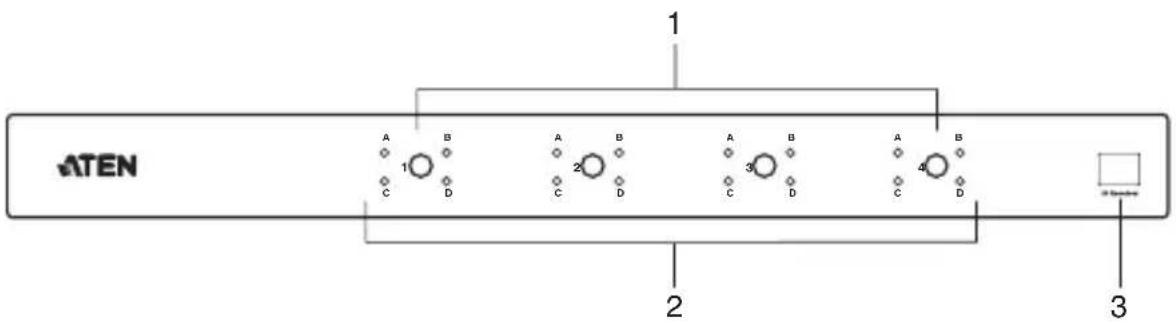
VM0404H FRONT VIEW
text_image
ATEN 1 2 3| No. | Component Function | |
| 1 | Output Port Selection Pushbuttons | Pressing a port selection pushbutton cycles through the four HDMI input sources (Source A, B, C, or D) to be displayed on the display device attached to the corresponding output port (Display 1, 2, 3, or 4). |
| 2 | Input Port LEDs The LEDs | (A, B, C, and D) light to indicate that the HDMI source attached to the corresponding input port is routed to the display device attached to the corresponding output port . |
| 3 | IR Receiver This receives $ignals from the IR remote control. | |

text_image
1 3 2 1 D C B A HOYA IN HOYA IN HOYA IN HOYA INHIND OUT HOYA OUT HOYA OUT HON OUT PS-232 21 3 4| No. | Component Function | |
| 1 | Power Jack The power adapter cable plugs in here. | |
| 2 | HDMI Out Ports The cables from your HDMI display devices plug into these ports. | |
| 3 | HDMI In Ports The cables from your HDMI source devices plug into these ports. | |
| 4 | RS-232 Serial Port This serial remote port is for input source selection and high-end system control. |
text_image
1 Port Up Port Down 2 Port Selection 1 2 3 4 ATEN| No. | Component Function | |
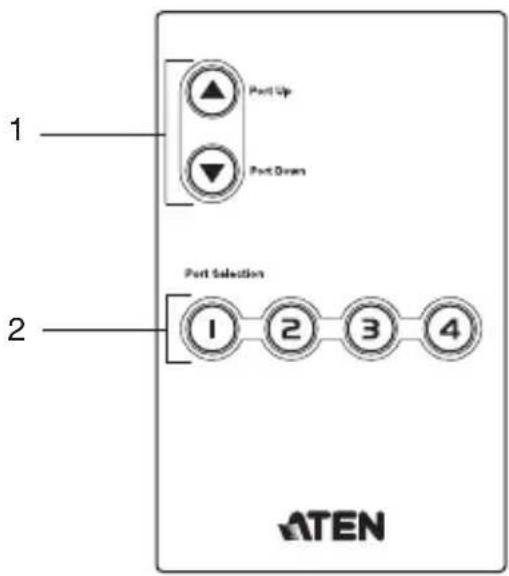
| 1 | Input Port Selection Buttons | Press the Port Up button to cycle forward through the HDMI source devices (A to B; B to C; C to D; D to A).Press the Port Down button to cycle backward through the HDMI source devices (A to D; D to C; C to B; B to A) |
| 2 | Output Port Selection Buttons | Press a button to bring the focus directly to the display device attached to its corresponding port. |
INSTALLATION

- Make sure that the power to any device that you connect to the installation has been turned off.
- Make sure that all devices you will be installing are properly grounded.
Installation of the VM0404H is simply a matter of plugging in the appropriate cables.
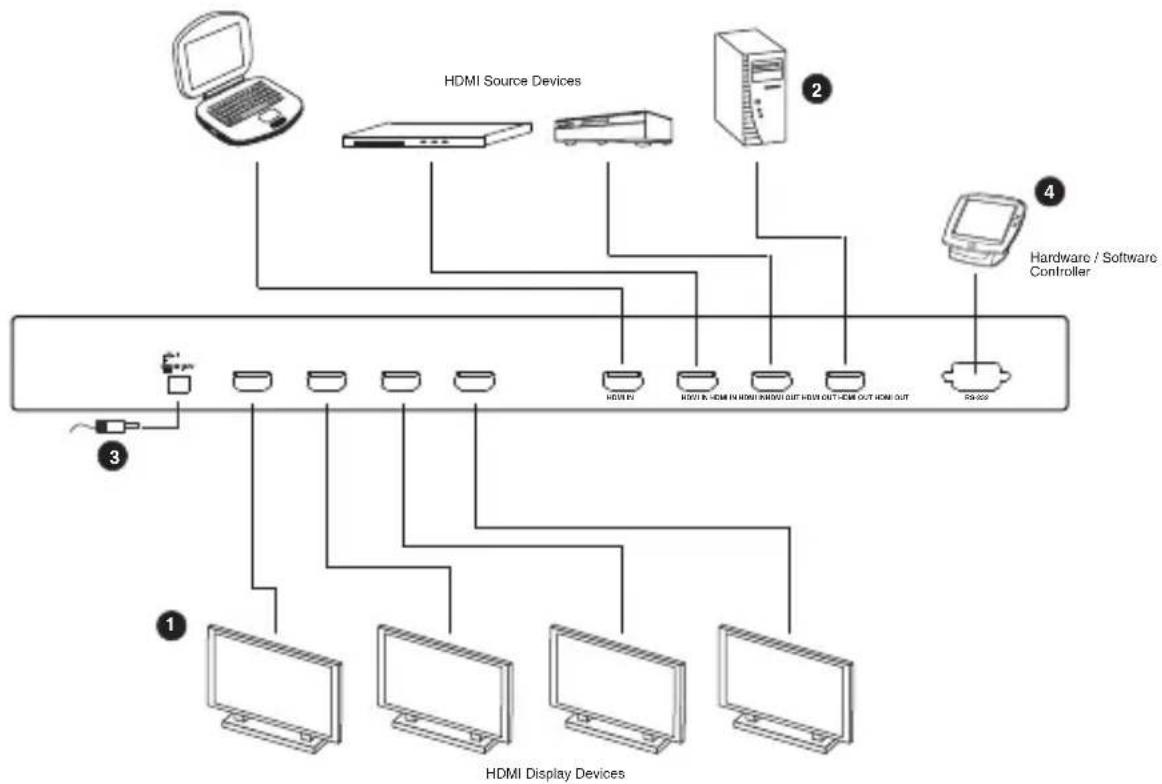
To install the switch, refer to the installation diagram on page 12 as you perform the following three steps:
- Use HDMI cables to connect the HDMI In ports on the video display devices to the HDMI Out ports on the rear of the VM0404H.
- Use HDMI cables to connect the HDMI Out ports on the source device(s) to the HDMI In ports on the VM0404H. Four HDMI In ports are located on the rear of the switch.
- Plug the provided power adapter into an appropriate AC power source; plug the power adapter cable into the Power Jack on the VM0404H.
This completes the basic installation of the 4x4 HDMI Matrix Switch. You may now power on the display and source devices.
INSTALLING THE RS-232 CONTROLLER
In order to use the RS-232 serial interface to attach a high-end controller (such as a PC) to the VM0404H, use a serial cable such as a modem cable. The end connecting to the VM0404H should have a 9-pin male connector. Connect this to the serial interface on the rear of the VM0404H. Refer to number 4 on the diagram on page 12.
Note: To configure the controller serial port, see page 14.
INSTALLATION DIAGRAM
flowchart
graph TD
    A["HDMI Source Devices"] --> B["HDMS"]
    A --> C["Hardware Controller"]
    D["HDMS Display Devices"] --> E["HDMS"]
    D --> F["Hardware Controller"]
    G["Hardware Controller"] --> H["59-602"]
CASCADING
To provide even more HDMI displays, additional VM0404H units can be cascaded from the parent VM0404H's HDMI Out ports, making it an excellent solution for digital signage systems. Simply use additional Male-to-Male Type A HDMI cables to connect an HDMI Out port on the parent unit to the HDMI In port on the child unit.
Recommended distances between devices in all cascade levels for transmitting a high resolution signal are as follows:
Source device to VM0404H 1.8 m
VM0404H to VM0404H 15 m
VM0404H to display device 20 m
SOURCE DEVICE SELECTION
The VM0404H offers easy and flexible source and display device selection with either the front panel pushbuttons, with the remote control, or through the RS-232 serial interface.
MANUAL SELECTION
To manually select an HDMI source for a display, press the pushbutton that corresponds to the port the display device is connected to. Pressing the pushbutton will cycle the four attached HDMI source devices through the display device.
Note: The Port LEDs light to indicate which source device is currently selected for each display.
REMOTE CONTROL SELECTION
To select an HDMI source for a display with the remote control, press the number button that corresponds to the port the display device is connected to.
Then, cycle through the source devices by pushing the Port Up and Port Down buttons on the remote control unit.
- Press the Port Up button to cycle forward through the HDMI source devices (A to B; B to C; C to D; D to A).
- Press the Port Down button to cycle backward through the HDMI source devices (A to D; D to C; C to B; B to A)
Note: Aim the remote control unit at the IR receiver located on the front panel of the VM0404H. For optimum performance, make sure there is a clear line-of-sight between the remote control unit and the IR receiver.
RS-232 SERIAL INTERFACE
The VM0404H's built-in bi-directional RS-232 serial interface allows system control through a high-end controller, PC, and/or home automation / home theater software package.
CONFIGURING THE SERIAL PORT
The controller's serial port should be configured as follows:
| Baud Rate 115200 | |
| Data Bits 8 | |
| Parity None | |
| Stop Bits 1 | |
| Flow Control None | |
| Control Function Protocol | Packet Format | ||||||||
| Start Code | Head Func-tion | Data Length | Data Data Check-sum | End Code | |||||
| Monitor 1 | Select Source A 0x5A0x7E | 0x81 0x08 0x02 | 0x31 0x31 0xED | 0x810xA5 | |||||
| Select Source B 0x32 0xEE | |||||||||
| Select Source C 0x33 0xEF | |||||||||
| Select Source D 0x34 0xF0 | |||||||||
| Monitor 2 | Select Source A 0x32 0x31 0xEE | ||||||||
| Select Source B 0x32 0xEF | |||||||||
| Select Source C 0x33 0xF0 | |||||||||
| Select Source D 0x34 0xF1 | |||||||||
| Monitor 3 | Select Source A 0x33 0x31 0xEF | ||||||||
| Select Source B 0x32 0xF0 | |||||||||
| Select Source C 0x33 0xF1 | |||||||||
| Select Source D 0x34 0xF2 | |||||||||
| Monitor 4 | Select Source A 0x34 0x31 0xF0 | ||||||||
| Select Source B 0x32 0xF1 | |||||||||
| Select Source C 0x33 0xF2 | |||||||||
| Select Source D 0x34 0xF3 | |||||||||
| Source A | Audio Mute On 0x09 0x01 0x31 N/A 0xBC | ||||||||
| Audio Mute Off 0x0A 0xBD | |||||||||
| Source B | Audio Mute On 0x09 0x32 0xBD | ||||||||
| Audio Mute Off 0x0A 0xBE | |||||||||
| Source C | Audio Mute On 0x09 0x33 0xBE | ||||||||
| Audio Mute Off 0x0A 0xBF | |||||||||
| Source D | Audio Mute On 0x09 0x34 0xBF | ||||||||
| Audio Mute Off 0x0A 0xC0 | |||||||||
| Support 1080p | 0x19 0x31 | 0xCC | |||||||
| Support 1080i | 0x1A 0xCD | ||||||||
| Function VM0404H | |||
| Display Connections Direct 4 | |||
| Max 64 (via cascade) | |||
| HDMI Input Connections 4 | |||
| Connectors D | Device HD | MI In 4 x HD | MI Type A Female (Black) |
| Display H | HDMI Out 4 x HDMI Type A Female (Black) | ||
| RS-232 Port 1 x DB-9 | Female (Black) | ||
| Power 1 x DC Jack | |||
| Switches Port | Selection 4 x Pushbuttons | ||
| LEDs Selected | 16 (Green) | ||
| Video Resolution | HDTV resolutions up to 1080p; computer resolutions up to WUXGA (1920x1200) | ||
| Power Consumption | DC 5.3 V, 9 W (max.) | ||
| Environment | Operating Temp. | 0–50°C | |
| Storage Temp. | -20–60°C | ||
| Humidity | 0–80% RH, Non-condensing | ||
| Physical Properties | Housing | Metal | |
| Weight | 1.86 Kg | ||
| Dimensions (L x W x H) | 43.20 x 15.40 x 4.40 cm | ||
LIMITED WARRANTY
IN NO EVENT SHALL THE DIRECT VENDOR'S LIABILITY EXCEED THE PRICE PAID FOR THE PRODUCT FROM THE DIRECT, INDIRECT, SPECIAL, INCIDENTAL OR CONSEQUENTIAL DAMAGES RESULTING FROM THE USE OF THE PRODUCT, DISK OR ITS DOCUMENTATION.
The direct vendor makes no warranty or representation, expressed, implied, or statutory with respect to the contents or use of this documentation, and specially disclaims its quality, performance, merchantability, or fitness for any particular purpose.
The direct vendor also reserves the right to revise or update the device or documentation without obligation to notify any individual or entity of such revisions, or update. For further inquires please contact your direct vendor.