
Portégé X20W-D - Tablet TOSHIBA - Free user manual and instructions
Find the device manual for free Portégé X20W-D TOSHIBA in PDF.


| Product Type | 2-in-1 Detachable Tablet / Laptop |
| Brand | Toshiba |
| Model | Portégé X20W-D |
| Display Size | 12.5 inches |
| Display Resolution | 1920 x 1080 pixels (Full HD) |
| Processor | Intel Core m3-7Y30 / m5-7Y54 / m7-7Y75 |
| RAM | 8 GB LPDDR3 |
| Storage | 128 GB / 256 GB SSD |
| Operating System | Windows 10 Pro |
| Dimensions (W x D x H) | 299.7 x 211.3 x 15.4 mm |
| Weight | Approximately 1.1 kg (2.4 lbs) |
| Battery Type | Lithium-ion polymer, 45 Wh |
| Battery Life | Up to 8 hours |
| Power Supply | AC adapter, 45 W |
| Ports | 2 x USB 3.0, 1 x USB-C, HDMI, microSD card reader, headphone/mic combo |
| Connectivity | Wi-Fi 802.11ac, Bluetooth 4.1 |
| Camera | Front: 2 MP, Rear: 8 MP |
| Keyboard | Detachable backlit keyboard with touchpad |
| Stylus Support | Yes, Wacom AES technology |
| Audio | Stereo speakers, DTS Studio Sound |
| Cleaning | Wipe with a soft dry cloth, avoid liquids |
| Safety | Kensington lock slot, TPM 2.0 |
| Spare Parts | Contact Toshiba authorized service centers |
| Reparability | Battery user-replaceable? No, requires professional service. |
Frequently Asked Questions - Portégé X20W-D TOSHIBA
User questions about Portégé X20W-D TOSHIBA
0 question about this device. Answer the ones you know or ask your own.
Ask a new question about this device
Download the instructions for your Tablet in PDF format for free! Find your manual Portégé X20W-D - TOSHIBA and take your electronic device back in hand. On this page are published all the documents necessary for the use of your device. Portégé X20W-D by TOSHIBA.
USER MANUAL Portégé X20W-D TOSHIBA
Satellite Radius X20W-D/X25W-D
Satellite Fusion X20W-D/X25W-D
Series
Table of Contents
Chapter 1
Legal, Regulatory, and Safety
Copyright, Disclaimer and Trademarks 1-1
Regulatory Information 1-2
Video Standard Notice 1-10
OpenSSL Toolkit License Issues 1-10
FreeType License Issues 1-12
ENERGY STAR® Program 1-16
Disposing of the computer and the computer's battery 1-16
General Precautions 1-16
Safety Icons 1-19
Chapter 2
Getting Started
Equipment checklist 2-1
Conventions 2-1
Using your computer for the first time 2-2
Getting to know Windows 2-8
Turning off the power 2-10
System Recovery 2-14
Chapter 3
The Grand Tour
Front with the display closed 3-1
Left side 3-1
Right side 3-2
Back 3-3
Underside 3-4
Front with the display open 3-5
Magnets location 3-8
Internal Hardware Components 3-9
Power Condition Descriptions 3-10
Chapter 4
Operating Basics
Operating in Tablet Mode 4-1
Using the Touch Screen 4-2
Using the Touch Pad 4-3
Using the Stylus Pen 4-4
The Keyboard 4-8
Using the Fingerprint Sensor 4-11
Battery 4-13
USB Type-C™ Adapters 4-16
Wireless display 4-21
Security lock 4-22
Optional TOSHIBA Accessories 4-22
Sound System and Video mode 4-23
Chapter 5 Utilities and Advanced Usage
Utilities and Applications 5-1
Special features 5-3
TOSHIBA Password Utility 5-5
TOSHIBA System Settings 5-7
USB Charge 5-8
TOSHIBA Setup Utility 5-10
Chapter 6 Troubleshooting
Problem-solving process 6-1
Hardware and system checklist 6-4
TOSHIBA support 6-15
Chapter 7 Appendix
Specifications 7-1
AC Power Cord and Connectors 7-2
Information for Wireless Devices 7-4
Information about Intel® AMT 7-14
Legal Footnotes 7-16
Glossary 7-19
Index
Chapter 1
Legal, Regulatory, and Safety
This chapter states the legal, regulatory, and safety information applicable to TOSHIBA computers.

TOSHIBA means Toshiba Corporation and/or its affiliates such as Toshiba Client Solutions Co., Ltd. where applicable.
Copyright, Disclaimer and Trademarks Copyright
© 2016 Toshiba Client Solutions Co., Ltd. All Rights Reserved. Under the copyright laws, this manual cannot be reproduced in any form without the prior written permission of TOSHIBA. No patent liability is assumed, with respect to the use of the information contained herein.
First edition September 2016
Copyright authority for music, movies, computer programs, databases and other intellectual property covered by copyright laws belongs to the author or to the copyright owner. Copyrighted material can be reproduced only for personal use or use within the home. Any other use beyond that stipulated above (including conversion to digital format, alteration, transfer of copied material and distribution on a network) without the permission of the copyright owner is a violation of copyright or author's rights and is subject to civil damages or criminal action. Comply with copyright laws in making any reproduction from this manual.
Disclaimer
This manual has been validated and reviewed for accuracy. The instructions and descriptions it contains are accurate for your computer at the time of this manual's production. However, succeeding computers and manuals are subject to change without notice. TOSHIBA assumes no liability for damages incurred directly or indirectly from errors, omissions or discrepancies between the computer and the manual.
Trademarks
Intel, Intel logo, Thunderbolt, Thunderbolt logo are trademarks of Intel Corporation or its subsidiaries in the United States and/or other countries.
Microsoft, Windows are either registered trademarks or trademarks of Microsoft Corporation in the United States and/or other countries.
The Bluetooth® word mark is a registered trademark owned by Bluetooth SIG, Inc.
The terms HDMI and HDMI High-Definition Multimedia Interface, and the HDMI Logo are registered trademarks or trademarks of HDMI Licensing LLC in the United States and other countries.
DTS, the Symbol, & DTS and the Symbol together are registered trademarks and DTS Studio Sound is a trademark of DTS, Inc.
Wi-Fi is a registered trademark of Wi-Fi Alliance.
USB Type-C ^TM and USB-C ^TM are trademarks of USB Implementers Forum.
All other company names, product names, and service names mentioned herein may be trademarks of their respective companies.
Regulatory Information

The regulatory information herein might vary. Check the ID information on the bottom of the device or box for specific information applicable to the model you purchased.
FCC information
FCC notice "Declaration of Conformity Information"
This equipment has been tested and found to comply with the limits for a Class B digital device, pursuant to part 15 of the FCC rules. These limits are designed to provide reasonable protection against harmful interference in a residential installation. This equipment generates, uses and can radiate radio frequency energy and, if not installed and used in accordance with the instructions, may cause harmful interference to radio communications. However, there is no guarantee that interference will not occur in a particular installation. If this equipment does cause harmful interference to radio or television reception, which can be determined by turning the equipment off and on, the user is encouraged to try to correct the interference by one or more of the following measures:
■ Reorient or relocate the receiving antenna.
■ Increase the separation between the equipment and receiver.
■ Connect the equipment into an outlet on a circuit different from that to which the receiver is connected.
Consult the dealer or an experienced radio/TV technician for help.

Only peripherals complying with the FCC class B limits can be attached to this equipment. Operation with non-compliant peripherals or peripherals not recommended by TOSHIBA is likely to result in interference to radio and TV reception. Shielded cables must be used between the external devices and the computer's Universal Serial Bus (USB 3.0) port, Thunderbolt™ 3/
USB Type-C™ port and Headphone/Microphone jack. Changes or modifications made to this equipment, not expressly approved by TOSHIBA or parties authorized by TOSHIBA could void the user's authority to operate the equipment.
FCC conditions
This device complies with part 15 of the FCC Rules. Operation is subject to the following two conditions:
- This device may not cause harmful interference.
- This device must accept any interference received, including interference that may cause undesired operation.
Contact
Address: TOSHIBA America Information Systems, Inc.
9740 Irvine Boulevard
Irvine, California 92618-1697
Telephone: (949) 583-3000

This information is only applicable for the countries/regions where it is required.
California Prop 65 Warning

This product contains chemicals, including lead, known to the State of California to cause cancer and birth defects or other reproductive harm. Wash hands after handling.

For the state of California only.
Export Administration Regulation
This document contains technical data that may be controlled under the U.S. Export Administration Regulations, and may be subject to the approval of the U.S. Department of Commerce prior to export. Any export, directly or indirectly, in contravention of the U.S. Export Administration Regulations is prohibited.
EU Declaration of Conformity
CE
This product is carrying the CE-Mark in accordance with the related European Directives. Responsible for CE-Marking is TOSHIBA EUROPE GMBH, Hammfelddamm 8, 41460 Neuss, Germany. The complete and official EU Declaration of Conformity can be found on TOSHIBA's web site
http://epps.toshiba-teg.com on the Internet.
CE compliance
This product is labeled with the CE Mark in accordance with the essential requirements and other relevant provisions of the applicable European Directives, notably Radio Equipment and Telecommunications Terminal Equipment (R&TTE) Directive 1999/5/EC, RoHS Directive 2011/65/EU, Ecodesign Directive 2009/125/EC (ErP) and the related implementing measures.
This product and the original options are designed to observe the applicable EMC (Electromagnetic Compatibility) standards. However, TOSHIBA cannot guarantee that this product still observes these EMC standards if options or cables not produced by TOSHIBA are connected or implemented. In this case the persons who have connected/implemented those options/cables have to provide assurance that the system (PC plus options/cables) still fulfils the required standards. To avoid in general EMC problems, the following guidance should be noted:
■ Only CE marked options should be connected/implemented
■ Only best shielded cables should be connected
Working environment
This product was designed to fulfil the EMC (Electromagnetic Compatibility) requirements to be observed for so-called “Residential, commercial and light industry environments”. TOSHIBA do not approve the use of this product in working environments other than the above mentioned “Residential, commercial and light industry environments”.
For example, the following environments are not approved:
Industrial Environments (e.g. environments where a mains voltage of 380 V three-phase is used)
■ Medical Environments
■ Automotive Environments
Aircraft Environments
Any consequences resulting from the use of this product in working environments that are not approved are not the responsibility of TOSHIBA.
The consequences of the use of this product in non-approved working environments may be:
■ Interference with other devices or machines in the near surrounding area.
■ Malfunction of, or data loss from, this product caused by disturbances generated by other devices or machines in the near surrounding area.
Therefore TOSHIBA strongly recommend that the electromagnetic compatibility of this product should be suitably tested in all non-approved working environments before use. In the case of automobiles or aircraft, the manufacturer or airline respectively should be asked for permission before use of this product.
Furthermore, for general safety reasons, the use of this product in environments with explosive atmospheres is not permitted.
VCCI Class B Information (Japan Only)
Canadian regulatory information (Canada only)
This digital apparatus does not exceed the Class B limits for radio noise emissions from digital apparatus as set out in the Radio Interference Regulation of the Canadian Department of Communications.
Note that Canadian Department of Communications (DOC) regulations provide, that changes or modifications not expressly approved by TOSHIBA could void your authority to operate this equipment.
This Class B digital apparatus meets all requirements of the Canadian Interference-Causing Equipment Regulations.
This device complies with ISCD (formerly Industry Canada) license-exempt RSS standard(s).
Operation is subject to the following two conditions: (1) this device may not cause interference, and (2) this device must accept any interference, including interference that may cause undesired operation of the device.
The above caution applies to products that operate with an 802.11a radio device.
Following information is only valid for EU-member States:
Information requirements Regulation EC 1275/2008
Additional information as required by Regulation (EC)
1275/2008 amended by Regulation (EU) 801/2013 implementing European Eco-Design Directive with regard to requirements for standby, off mode and networked standby electric power consumption of electrical and electronic household and office equipment can be found here:
http://www.toshiba.eu/Eco-Design
Disposal of products
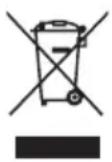
The crossed out wheeled dust bin symbol indicates that products must be collected and disposed of separately from household waste. Integrated batteries and accumulators can be disposed of with the product. They will be separated at the recycling centres.
The black bar indicates that the product was placed on the market after August 13, 2005.
By participating in the separate collection of products and batteries, you will help to assure the proper disposal of products and batteries and thus help to prevent potential negative consequences for the environment and human health.
For more detailed information about the collection and recycling programmes available in your country, please visit our website
( www.toshiba.eu/recycling ) or contact your local council office or the retail outlet where you purchased the product.
Disposal of batteries and/or accumulators
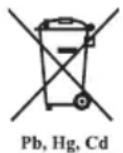
The crossed out wheeled dust bin symbol indicates that batteries and/or accumulators must be collected and disposed of separately from household waste.
If the battery or accumulator contains more than the specified values of lead (Pb), mercury (Hg), and/or cadmium (Cd) defined in the European Battery Directive, then the chemical symbols for lead (Pb), mercury (Hg) and/or cadmium (Cd) will appear below the crossed out wheeled dust bin symbol.
By participating in the separate collection of batteries, you will help to assure the proper disposal of products and batteries and thus help to prevent potential negative consequences for the environment and human health. To achieve this you should take any battery and/or accumulator to your local recycling site, or to a retail outlet or facility that offers to collect these devices for environmentally friendly disposal, ensuring that the terminal contacts are covered by non-conductive tape.
For more detailed information about the collection and recycling programmes available in your country, please visit our website
( www.toshiba.eu/recycling ) or contact your local council office or the retail outlet where you purchased the product.

These symbols might not stick depending on the country and region where you purchased.
REACH - Compliance Statement
The European Union (EU) chemical regulation, REACH (Registration, Evaluation, Authorization and Restriction of Chemicals), entered into force on 1 June 2007, with phased deadlines to 2018.
Toshiba will meet all REACH requirements and is committed to provide our customers with information about the presence in our articles of substances included on the candidate list according to REACH regulation.
Please consult the following website
www.toshiba.eu/reach for information about the presence in our articles of substances included on the candidate list according to REACH in a concentration above 0.1 % weight by weight.
Following information is only for Turkey:
■ Disposal of products:
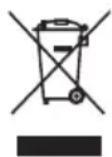
The crossed wheelie bin symbol means that this product should not be collected and disposed with other household wastes. When product become waste at the end-of-life, to protect environment and human health, it should be given to nearest collection recycling or disposal center. For more information about collection and recycling programs in your country please contact your local authority or the retailer where the product was purchased.
Toshiba meets all requirements of Turkish regulation 28300 "Restriction of the use of certain hazardous substances in electrical and electronic equipment".
The number of possible pixel failures of your display is defined according to ISO 9241-307 standards. If the number of pixel failures is less than this standard, they will not be counted as defect or failure.
Battery is a consumption product, since the battery time depends on the usage of your computer. If the battery can not be charged at all, then it is a defect or failure. The changes in battery time is not a defect or failure.
Following information is only for India:
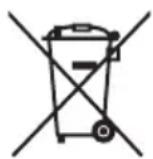
The use of this symbol indicates that this product may not be treated as household waste.
By ensuring this product is disposed of correctly, you will help prevent potential negative consequences for the environment and human health, which could otherwise be caused by inappropriate waste handling of this product.
For more detailed information about recycling of this product, please visit our website
( http://www.toshiba-india.com ) or contact call center (1800-200-6768).

These symbols might not stick depending on the country and region where you purchased.
Video Standard Notice
THIS PRODUCT IS LICENSED UNDER THE AVC, THE VC-1 AND MPEG-4 VISUAL PATENT PORTFOLIO LICENSE FOR THE PERSONAL AND NON-COMMERCIAL USE OF A CONSUMER FOR (I) ENCODING VIDEO IN COMPLIANCE WITH THE ABOVE STANDARDS ("VIDEO") AND/OR (II) DECODING AVC, VC-1 AND MPEG-4 VIDEO THAT WAS ENCODED BY A CONSUMER ENGAGED IN A PERSONAL AND NONCOMMERCIAL ACTIVITY AND/OR WAS OBTAINED FROM A VIDEO PROVIDER LICENSED BY MPEG LA TO PROVIDE SUCH VIDEO. NO LICENSE IS GRANTED OR SHALL BE IMPLIED FOR ANY OTHER USE. ADDITIONAL INFORMATION INCLUDING THAT RELATING TO PROMOTIONAL, INTERNAL AND COMMERCIAL USES AND LICENSING MAY BE OBTAINED FROM MPEG LA, L.L.C. SEE
http://www.mpegla.com
OpenSSL Toolkit License Issues
LICENSE ISSUES
The OpenSSL toolkit stays under a dual license, i.e. both the conditions of the OpenSSL License and the original SSLeay license apply to the toolkit. See below for the actual license texts. Actually both licenses are BSD-style Open Source licenses. In case of any license issues related to OpenSSL please contact openssl-core@openssl.org.
OpenSSL License
Copyright (c) 1998-2011 The OpenSSL Project. All rights reserved.
Redistribution and use in source and binary forms, with or without modification, are permitted provided that the following conditions are met:
- Redistributions of source code must retain the above copyright notice, this list of conditions and the following disclaimer.
- Redistributions in binary form must reproduce the above copyright notice, this list of conditions and the following disclaimer in the documentation and/or other materials provided with the distribution.
- All advertising materials mentioning features or use of this software must display the following acknowledgment:
"This product includes software developed by the OpenSSL Project for use in the OpenSSL Toolkit."
(http://www.openssl.org/)
-
The names "OpenSSL Toolkit" and "OpenSSL Project" must not be used to endorse or promote products derived from this software without prior written permission. For written permission, please contact openssl-core@openssl.org.
-
Products derived from this software may not be called "OpenSSL" nor may "OpenSSL" appear in their names without prior written permission of the OpenSSL Project.
-
Redistributions of any form whatsoever must retain the following acknowledgment:
"This product includes software developed by the OpenSSL Project for use in the OpenSSL Toolkit"
( http://www.openssl.org/ )
THIS SOFTWARE IS PROVIDED BY THE OpenSSL PROJECT "AS IS" AND ANY EXPRESSED OR IMPLIED WARRANTIES, INCLUDING, BUT NOT LIMITED TO, THE IMPLIED WARRANTIES OF MERCHANTABILITY AND FITNESS FOR A PARTICULAR PURPOSE ARE DISCLAIMED. IN NO EVENT SHALL THE OpenSSL PROJECT OR ITS CONTRIBUTORS BE LIABLE FOR ANY DIRECT, INDIRECT, INCIDENTAL, SPECIAL, EXEMPLARY, OR CONSEQUENTIAL DAMAGES (INCLUDING, BUT NOT LIMITED TO, PROCUREMENT OF SUBSTITUTE GOODS OR SERVICES; LOSS OF USE, DATA, OR PROFITS; OR BUSINESS INTERRUPTION) HOWEVER CAUSED AND ON ANY THEORY OF LIABILITY, WHETHER IN CONTRACT, STRICT LIABILITY, OR TORT (INCLUDING NEGLIGENCE OR OTHERWISE) ARISING IN ANY WAY OUT OF THE USE OF THIS SOFTWARE, EVEN IF ADVISED OF THE POSSIBILITY OF SUCH DAMAGE.
This product includes cryptographic software written by Eric Young (eay@cryptsoft.com). This product includes software written by Tim Hudson (tjh@cryptsoft.com).
*/
Original SSLeay License
/* Copyright (C) 1995-1998 Eric Young (eay@cryptsoft.com)
All rights reserved.
This package is an SSL implementation written by Eric Young (eay@cryptsoft.com).
The implementation was written so as to conform with Netscapes SSL.
This library is free for commercial and non-commercial use as long as the following conditions are aheared to. The following conditions apply to all code found in this distribution, be it the RC4, RSA, Ihash, DES, etc., code; not just the SSL code. The SSL documentation included with this distribution is covered by the same copyright terms except that the holder is Tim Hudson (tjh@cryptsoft.com).
Copyright remains Eric Young's, and as such any Copyright notices in the code are not to be removed.
If this package is used in a product, Eric Young should be given attribution as the author of the parts of the library used.
This can be in the form of a textual message at program startup or in documentation (online or textual) provided with the package.
Redistribution and use in source and binary forms, with or without modification, are permitted provided that the following conditions are met:
-
Redistributions of source code must retain the copyright notice, this list of conditions and the following disclaimer.
-
Redistributions in binary form must reproduce the above copyright notice, this list of conditions and the following disclaimer in the documentation and/or other materials provided with the distribution.
-
All advertising materials mentioning features or use of this software must display the following acknowledgement:
"This product includes cryptographic software written by Eric Young (eay@cryptsoft.com)"
The word 'cryptographic' can be left out if the rouines from the library being used are not cryptographic related :-).
- If you include any Windows specific code (or a derivative thereof) from the apps directory (application code) you must include an acknowledgement:
"This product includes software written by Tim Hudson (tjh@cryptsoft.com)"
THIS SOFTWARE IS PROVIDED BY ERIC YOUNG ``AS IS" AND ANY EXPRESS OR IMPLIED WARRANTIES, INCLUDING, BUT NOT LIMITED TO, THE IMPLIED WARRANTIES OF MERCHANTABILITY AND FITNESS FOR A PARTICULAR PURPOSE ARE DISCLAIMED. IN NO EVENT SHALL THE AUTHOR OR CONTRIBUTORS BE LIABLE FOR ANY DIRECT, INDIRECT, INCIDENTAL, SPECIAL, EXEMPLARY, OR CONSEQUENTIAL DAMAGES (INCLUDING, BUT NOT LIMITED TO, PROCUREMENT OF SUBSTITUTE GOODS OR SERVICES; LOSS OF USE, DATA, OR PROFITS; OR BUSINESS INTERRUPTION) HOWEVER CAUSED AND ON ANY THEORY OF LIABILITY, WHETHER IN CONTRACT, STRICT LIABILITY, OR TORT (INCLUDING NEGLIGENCE OR OTHERWISE) ARISING IN ANY WAY OUT OF THE USE OF THIS SOFTWARE, EVEN IF ADVISED OF THE POSSIBILITY OF SUCH DAMAGE.
The licence and distribution terms for any publicly available version or derivative of this code cannot be changed. i.e. this code cannot simply be copied and put under another distribution licence [including the GNU Public Licence.]
*/
FreeType License Issues
The FreeType Project LICENSE
2006-Jan-27
Copyright 1996-2002, 2006 by
David Turner, Robert Wilhelm, and Werner Lemberg
Introduction
The FreeType Project is distributed in several archive packages; some of them may contain, in addition to the FreeType font engine, various tools and contributions which rely on, or relate to, the FreeType Project.
This license applies to all files found in such packages, and which do not fall under their own explicit license. The license affects thus the FreeType font engine, the test programs, documentation and makefiles, at the very least.
This license was inspired by the BSD, Artistic, and IJG (Independent JPEG Group) licenses, which all encourage inclusion and use of free software in commercial and freeware products alike. As a consequence, its main points are that:
We don't promise that this software works. However, we will be interested in any kind of bug reports. ('as is' distribution)
- You can use this software for whatever you want, in parts or full form, without having to pay us. ('royalty-free' usage)
You may not pretend that you wrote this software. If you use it, or only parts of it, in a program, you must acknowledge somewhere in your documentation that you have used the FreeType code. ('credits')
We specifically permit and encourage the inclusion of this software, with or without modifications, in commercial products.
We disclaim all warranties covering The FreeType Project and assume no liability related to The FreeType Project.
Finally, many people asked us for a preferred form for a credit/disclaimer to use in compliance with this license. We thus encourage you to use the following text:
......
Portions of this software are copyright (C)
www.freetype.org
All rights reserved.
......
Please replace
Legal Terms
[EMPTY]
- Definitions
Throughout this license, the terms `package', `FreeType Project', and `FreeType archive' refer to the set of files originally distributed by the
authors (David Turner, Robert Wilhelm, and Werner Lemberg) as the 'FreeType Project', be they named as alpha, beta or final release.
`You' refers to the licensee, or person using the project, where `using' is a generic term including compiling the project's source code as well as linking it to form a `program' or `executable'. This program is referred to as `a program using the FreeType engine'.
This license applies to all files distributed in the original FreeType Project, including all source code, binaries and documentation, unless otherwise stated in the file in its original, unmodified form as distributed in the original archive. If you are unsure whether or not a particular file is covered by this license, you must contact us to verify this.
The FreeType Project is copyright (C) 1996-2000 by David Turner, Robert Wilhelm, and Werner Lemberg. All rights reserved except as specified below.
1. No Warranty
THE FREETYPE PROJECT IS PROVIDED 'AS IS' WITHOUT WARRANTY OF ANY KIND, EITHER EXPRESS OR IMPLIED, INCLUDING, BUT NOT LIMITED TO, WARRANTIES OF MERCHANTABILITY AND FITNESS FOR A PARTICULAR PURPOSE. IN NO EVENT WILL ANY OF THE AUTHORS OR COPYRIGHT HOLDERS BE LIABLE FOR ANY DAMAGES CAUSED BY THE USE OR THE INABILITY TO USE, OF THE FREETYPE PROJECT.
2. Redistribution
This license grants a worldwide, royalty-free, perpetual and irrevocable right and license to use, execute, perform, compile, display, copy, create derivative works of, distribute and sublicense the FreeType Project (in both source and object code forms) and derivative works thereof for any purpose; and to authorize others to exercise some or all of the rights granted herein, subject to the following conditions:
- Redistribution of source code must retain this license file ('FTL.TXT') unaltered; any additions, deletions or changes to the original files must be clearly indicated in accompanying documentation. The copyright notices of the unaltered, original files must be preserved in all copies of source files.
- Redistribution in binary form must provide a disclaimer that states that the software is based in part of the work of the FreeType Team, in the distribution documentation. We also encourage you to put an URL to the FreeType web page in your documentation, though this isn't mandatory.
These conditions apply to any software derived from or based on the FreeType Project, not just the unmodified files. If you use our work, you must acknowledge us. However, no fee need be paid to us.
3. Advertising
Neither the FreeType authors and contributors nor you shall use the name of the other for commercial, advertising, or promotional purposes without specific prior written permission.
We suggest, but do not require, that you use one or more of the following phrases to refer to this software in your documentation or advertising materials: `FreeType Project', `FreeType Engine', `FreeType library', or `FreeType Distribution'.
As you have not signed this license, you are not required to accept it. However, as the FreeType Project is copyrighted material, only this license, or another one contracted with the authors, grants you the right to use, distribute, and modify it. Therefore, by using, distributing, or modifying the FreeType Project, you indicate that you understand and accept all the terms of this license.
4. Contacts
There are two mailing lists related to FreeType:
freetype@nongnu.org
Discusses general use and applications of FreeType, as well as future and wanted additions to the library and distribution. If you are looking for support, start in this list if you haven't found anything to help you in the documentation.
freetype-devel@nongnu.org
Discusses bugs, as well as engine internals, design issues, specific licenses, porting, etc.
Our home page can be found at
http://www.freetype.org
ENERGY STAR® Program

Your Computer model may be ENERGY STAR® compliant. If the model you purchased is compliant, it uses the ENERGY STAR logo and the following information applies.
TOSHIBA is a partner in the ENERGY STAR Program and has designed this computer to meet the latest ENERGY STAR guidelines for energy efficiency. Your computer ships with the power management options preset to a configuration that will provide the most stable operating environment and optimum system performance for both AC power and battery modes.
To conserve energy, your computer is set to enter the low-power Sleep Mode which shuts down the system and display within 15 minutes of inactivity in AC power mode.
TOSHIBA recommends that you leave this and other energy saving features active, so that your computer will operate at its maximum energy efficiency. You can wake the computer from Sleep Mode by pressing the power button.
Your ENERGY STAR certified computer should be set by default to enter a low-power "sleep mode" after a period of inactivity. Simply touching the mouse or keyboard "wakes" the computer in seconds. These sleep features can save you up to \$23 per year (200 kWh per year in electricity) and prevent up to 300 pounds of greenhouse gas emissions annually. To learn how to adjust or activate these sleep settings on your computer, please go to:
www.energystar.gov/sleepinstructions
To activate sleep settings organization-wide quickly and easily through network tools, please go to:
www.energystar.gov/powermanagement
Disposing of the computer and the computer's battery
The computer's battery pack is not user-accessible. Contact an authorized TOSHIBA service provider for details regarding how to dispose of the computer and the battery pack.
General Precautions
TOSHIBA computers are designed to optimize safety, minimize strain and withstand the rigors of portability. However, certain precautions should be
observed to further reduce the risk of personal injury or damage to the computer.
Be certain to read the following general precautions and to note the cautions included in the text of the manual.
Provide adequate ventilation
Always make sure that your computer and AC adaptor have adequate ventilation and are protected from overheating when the power is turned on or when an AC adaptor is connected to a power outlet (even if your computer is in Sleep Mode). In this condition, observe the following:
■ Never cover your computer or AC adaptor with any object.
- Never place your computer or AC adaptor near a heat source, such as an electric blanket or heater.
- Never cover or block the air vents including those at the base of the computer.
■ Always operate your computer on a hard flat surface. Using your computer on a carpet or other soft material can block the vents.
■ Always provide sufficient space around the computer.
Overheating your computer or AC adaptor could cause system failure, computer or AC adaptor damage or a fire, possibly resulting in serious injury.
Creating a computer-friendly environment
Place the computer on a flat surface that is large enough for the computer and any other items you are using, such as a printer.
Leave enough space around the computer and other equipment to provide adequate ventilation. Otherwise, they might overheat.
To keep your computer in prime operating condition, protect your work area from:
■ Dust, moisture, and direct sunlight.
■ Equipment that generates a strong electromagnetic field, such as stereo speakers (other than speakers that are connected to the computer) or speakerphones.
■ Rapid changes in temperature or humidity and sources of temperature change such as air conditioner vents or heaters.
Extreme heat, cold, or humidity.
■ Liquids and corrosive chemicals.
Stress injury
Carefully read the Instruction Manual for Safety and Comfort. It contains information on the prevention of stress injuries to your hands and wrists that can be caused by extensive keyboard use. It also includes information on work space design, posture, and lighting that can help reduce physical stress.
Heat injury
Avoid prolonged physical contact with the computer. If the computer is used for long periods, its surface can become very warm. While the temperature will not feel hot to the touch, if you maintain physical contact with the computer for a long time, for example if you rest the computer on your lap or if you keep your hands on the palm rest, your skin might suffer a low-heat injury.
If the computer has been used for a long time, avoid direct contact with the metal plate supporting the various interface ports as this can become hot.
The surface of the AC adaptor can become hot when in use but this condition does not indicate a malfunction. If you need to transport the AC adaptor, disconnect it and let it cool before moving it.
Do not lay the AC adaptor on a material that is sensitive to heat as the material could become damaged.
Pressure or impact damage
Do not apply heavy pressure to the computer or subject it to any form of strong impact as this can damage the computer's components or otherwise cause it to malfunction.
Cleaning the computer
To help ensure long, trouble-free operation, keep the computer free of dust and dirt, and use care with all liquids around it.
- Be careful not to spill liquids into the computer. If the computer does get wet, turn the power off immediately and let the computer dry completely. In these circumstances, you should get the computer inspected by an authorized service provider in order to assess the scope of any damage.
- Clean the plastics of the computer using a cloth slightly dampened with water.
You can clean the display screen by spraying a small amount of glass cleaner onto a soft, clean cloth and then wiping the screen gently with the cloth.

Never spray cleaner directly onto the computer or let liquid run into any part of it. Never use harsh or caustic chemical products to clean the computer.
Moving the computer
While the computer is designed for flexible day-to-day usage, you should exercise a few simple precautions when moving it in order to help ensure trouble-free operation.
■ Make sure all disk/disc activity has ended before moving the computer.
■ Turn off (shut down) the computer.
- Disconnect the AC adaptor and all peripherals before moving the computer.
■ Close the display panel.
- Do not pick up the computer by its display panel.
Before carrying your computer, shut it down, disconnect the AC adaptor and allow it to cool down. A failure to follow this instruction might result in minor heat injury.
Do not expose the computer to rapid temperature changes (for example, in a situation where you carry the computer from a cold environment to a warm room). Do not turn on the power until condensation disappears.
- Be careful not to subject the computer to impact or shock. A failure to follow this instruction could result in damage to computer, computer failure, or loss of data.
- Never transport your computer with any cards installed. This might damage either the computer and/or the card resulting in computer failure.
■ Always use a suitable carry case when transporting the computer.
When carrying your computer, be sure to hold it securely so that it does not fall or hit anything.
Do not carry your computer by holding any of its protruding elements.
Mobile phones
Be aware that the use of mobile phones can interfere with the audio system. The operation of the computer will not be impaired in any way, but it is recommended that a minimum distance of 30 cm is maintained between the computer and a mobile phone that is in use.
Instruction Manual for Safety and Comfort
All important information on the safe and proper use of this computer is described in the enclosed Instruction Manual for Safety and Comfort. Be sure to read it before using the computer.
Safety Icons
Safety icons are used in this manual to bring important information to your attention. Each type of message is identified as follows.

Indicates a potentially hazardous situation, which could result in death or serious injury, if you do not follow instructions.

A caution informs you that improper use of equipment or failure to follow instructions might cause data loss, equipment damage, or might result in minor or moderate injury.

Please read. A note is a hint or advice that helps you make best use of your equipment.
Chapter 2
Getting Started
This chapter provides an equipment checklist, and basic information to start using your computer.

If you use an operating system that was not pre-installed by TOSHIBA, some of the features described in this manual might not function properly.
Equipment checklist
Carefully unpack your computer, taking care to save the box and packaging materials for future use.
Hardware
Check to make sure that you have all the following items:
TOSHIBA Portable Personal Computer
■ Stylus Pen (provided with some models)
One replacement pen tip (prepared for Stylus Pen and provided with some models)
One AAAA battery (provided with some models)(for operating check)
USB-C™ to HDMI™ Adapter
USB-C™ to HDMI™/USB Multiport Adapter
USB-C ^TM to VGA Adapter
(provided with some models and varies depending on the model you purchased)
■ AC adapter and power cord (2-pin plug or 3-pin plug)
■ Cleaning cloth (provided with some models)
Documentation
■ User Information Guide or Quickstart
Warranty Information
If any of the items are missing or damaged, contact your dealer immediately.
Conventions
This manual uses the following formats to describe, identify, and highlight terms and operating procedures.
Click Tap the Touch Pad or click the left Touch Pad control button once. Left-click the mouse once. Tap the touch screen once.
Right-click Click the right Touch Pad control button once.
■ Right-click the mouse once.
■ Press and hold on the touch screen.
Double-click Tap the Touch Pad or click the left Touch Pad control button twice.
■ Left-click the mouse twice.
Tap the touch screen twice.
Start The word "Start" refers to the "button in the lower-left corner of the screen.
Using your computer for the first time

Be sure to read the enclosed Instruction Manual for Safety and Comfort for information on the safe and proper use of this computer. It is intended to help you be more comfortable and productive while using a notebook computer. By following the recommendations in it, you can reduce your chance of developing a painful or disabling injury to your hand, arms, shoulders, or neck.
This section provides basic information to start using your computer. It covers the following topics:
Opening the display
■ Connecting the AC adaptor
■ Turning on the power
Initial setup
Getting to know Windows

Use a virus-check program and make sure that it is updated regularly.
Never format storage media without checking its content - formatting destroys all stored data.
It is a good idea to back up the internal Solid-State Drive or other main storage device to external media periodically. General storage media is not durable or stable over long periods of time and under certain conditions might result in data loss.
Before you install a device or application, save any data in memory to the internal Solid-State Drive or other storage media. Failure to do so might result in data loss.
Opening the display
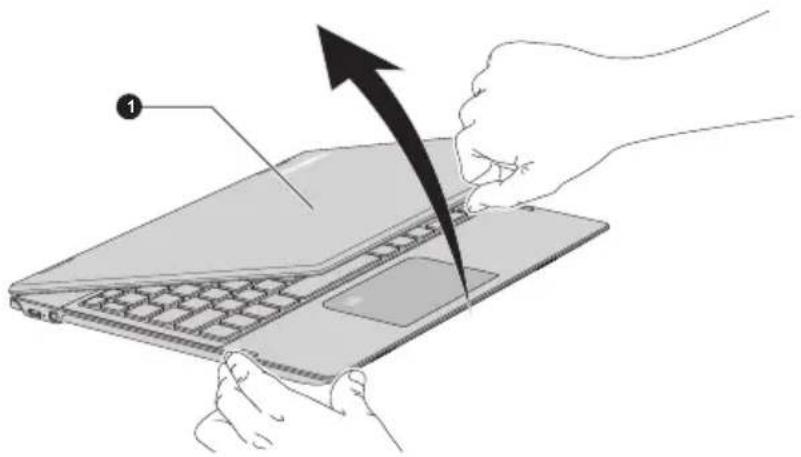
To open the display panel, slowly lift it with one hand holding the center of the display panel (as shown in the following figure) and the other hand holding the palm rest down so that the main body of the computer is not raised.
Figure 2-1 Opening the display panel
natural_image
Illustration of hands installing a laptop keyboard with an arrow indicating the process (no text or symbols present)1. Display panel

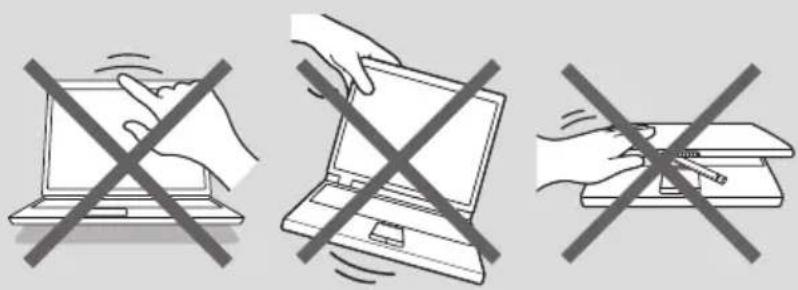
Open and close the display panel with reasonable care. Opening it vigorously or slamming it shut might damage the computer.

Do not lift the computer by the display panel.
Do not close the computer with pens or any other objects left in between the display panel and the keyboard.
When opening or closing the display panel, place one hand on the palm rest to hold the computer in place and use the other hand to slowly open or close the display panel (Do not use excessive force when opening or closing the display panel).
Do not press or push with excess force on the display screen, otherwise the computer might become unsteady and possibly fall over.
natural_image
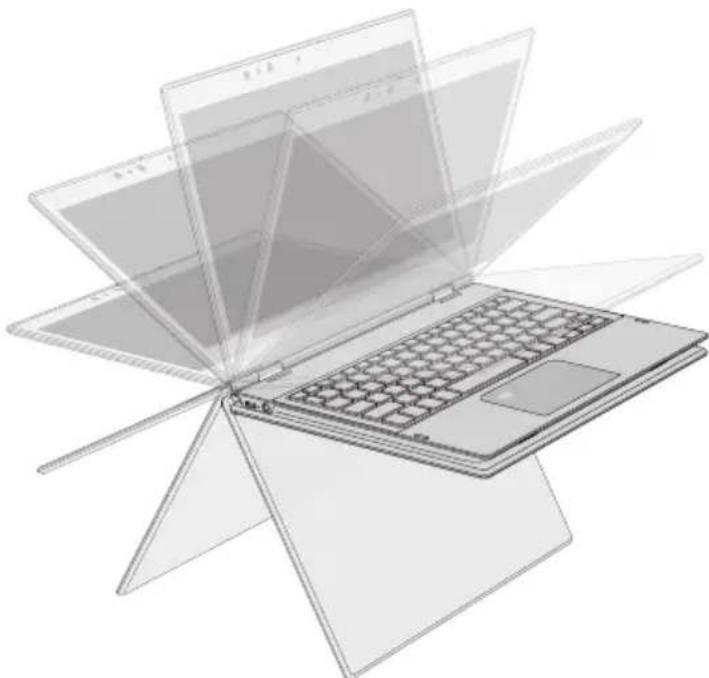
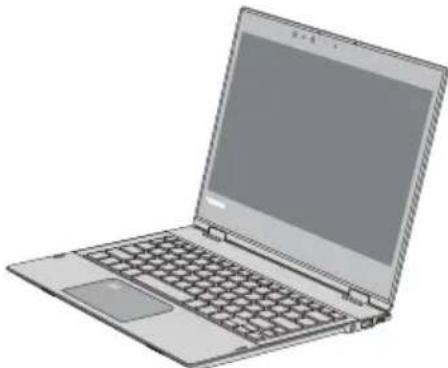
Three symbolic illustrations of hands crossed out of a laptop, no text or symbols presentThe display panel can be opened to any angle up to 360 degrees which offers you the flexibility and versatility to operate your computer in one of the following defined modes.
Figure 2-2 Opening the display panel to any angel
natural_image
Illustration of a laptop with transparent screen overlay, no text or symbols presentClamshell mode
natural_image
Illustration of a laptop computer with visible keyboard and screen (no text or symbols)Flat mode
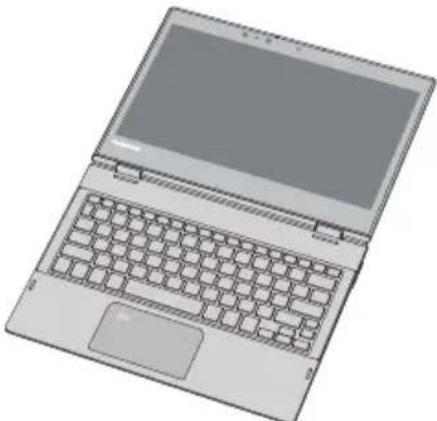
natural_image
Illustration of a laptop computer with visible keyboard, mouse, and screen (no text or symbols)Tablet mode
Do not put your fingers in the gap near the display hinge.
Do not put your finger in the gap between LCD panel and bottom of your computer.
Keyboard and Touch Pad are temporarily disabled when you operate the computer in tablet mode.
It is suggested that you hold the center of the display panel while rotating the display panel.
Before carrying or transporting your computer, make sure to close the display panel. Never transport your computer in tablet mode.
Connecting the AC adaptor
Attach the AC adaptor when you want to charge the battery or operate from AC power. The battery pack must be charged before you can operate from battery power.
The AC adaptor can automatically adjust to any voltage ranging from 100 volts to 240 volts and to a frequency of either 50 hertz or 60 hertz, enabling you to use this computer in almost any country/region. The adaptor
converts AC power to DC power and reduces the voltage supplied to this computer.

Always use the TOSHIBA AC adaptor that was included with your computer, or use AC adaptors specified by TOSHIBA to avoid any risk of fire or other damage to the computer. Use of an incompatible AC adaptor might cause fire or damage to the computer possibly resulting in serious injury. TOSHIBA assumes no liability for any damage caused by use of an incompatible adaptor.
Never plug the AC adaptor into a power source that does not correspond to both the voltage range and the frequency specified on the regulatory label of the unit. Failure to do so might result in a fire or electric shock, possibly resulting in serious injury.
Always use or purchase power cables that comply with the legal voltage and frequency specifications and requirements in the country of use. Failure to do so might result in a fire or electric shock, possibly resulting in serious injury.
The supplied power cord conforms to safety rules and regulations in the region the computer is bought and should not be used outside this region. For use in other regions, buy power cords that conform to safety rules and regulations in the particular region.
Do not use a 3-pin to 2-pin conversion plug.
When you connect the AC adaptor to the computer, always follow the steps in the exact order as described in this User's Manual. Connecting the power cable to a live electrical outlet should be the last step otherwise the adaptor DC output plug might hold an electrical charge and cause an electrical shock or minor bodily injury when touched. As a general safety precaution, avoid touching any metal parts.
Never place your computer or AC adaptor on a wooden surface, furniture, or any other surface that might be marred by exposure to heat since the computer base and the surface of the AC adaptor increase in temperature during normal use.
Always place your computer or AC adaptor on a flat and hard surface that is resistant to heat damage.
Refer to the enclosed Instruction Manual for Safety and Comfort for detailed precautions and handling instructions.
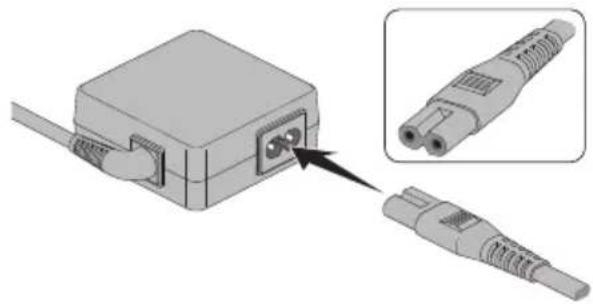
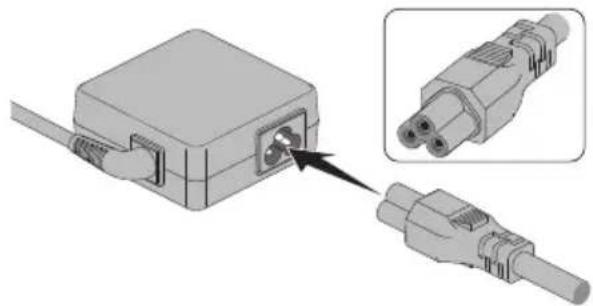
- Connect the power cord to the AC adaptor.
Figure 2-3 Connecting the power cord to the AC adaptor (2-pin plug)
natural_image
Diagram showing two connected electrical connectors with a magnified inset highlighting the internal structure (no text or symbols present)Figure 2-4 Connecting the power cord to the AC adaptor (3-pin plug)
natural_image
Diagram showing two connected electrical connectors with a close-up view of the connector (no text or symbols present)
Either a 2-pin or 3-pin adaptor/cord is included with the computer depending on the model.
-
Plug the power cord into a live wall outlet.
-
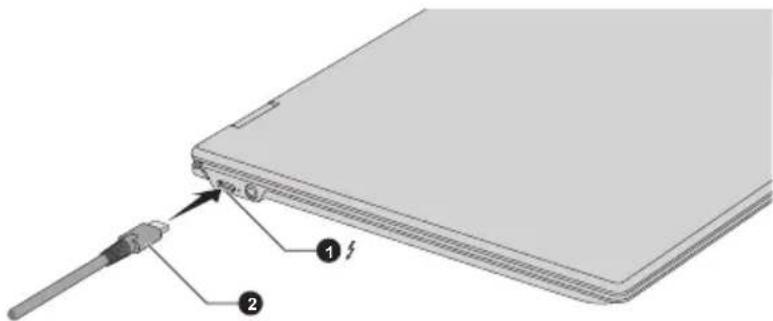
Connect the DC output plug of the AC adaptor to the Thunderbolt™ 3/USB Type-C™ port on your computer. The DC IN/Battery indicator glows.
You can also establish connection through the USB Type-C™ adapter (provided with some models). Refer to the USB Type-C™ Adapters section for more information.
Figure 2-5 Connecting the DC output plug to the computer
-
Thunderbolt™ 3/USB Type-C™ port
-
DC output plug
Turning on the power
This section describes how to turn on the power. The Power indicator indicates the status. Refer to the Power Condition Descriptions section for more information.

After you turn on the power for the first time, do not turn it off until you have set up the operating system.
Volume cannot be adjusted during Windows Setup.
Do not touch the display screen while turning on the computer.
-
Open the display panel.
-
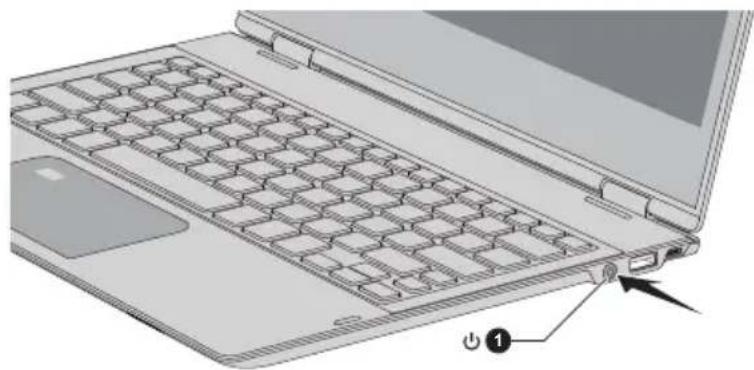
Press the power button.
Figure 2-6 Turning on the power
natural_image
Laptop keyboard diagram showing internal grid layout and a labeled power button (no text or symbols beyond basic component labels)1. Power button
Product appearance depends on the model you purchased.
Initial setup
The Windows Startup Screen is the first screen displayed when you turn on the power. To install the operating system properly, follow the on-screen instructions on each screen.

When it is displayed, be sure to read the license terms and license agreement carefully.
Getting to know Windows
For detailed information on what is new and how to operate Windows, refer to Get Started in the Start menu.
Start menu
The Start menu is the launching pad for everything you can do in the Windows operating system, providing easy ways to access your apps, programs, websites and other important information.
You can access the Start menu from an app or the desktop in the following ways:
Click the Start button (in the lower-left corner of the screen.
Press the Windows® logo key ( 📄 on your keyboard.
Most used allows quick access to your frequently used apps.
You can pin your favorite apps to the Start menu as tiles in grid-like pattern, and also group them. Typical tiles are the People tile and the Mail tile for instance. Tiles show you dynamic information from apps without having to open them.
Windows taskbar
By default, the bottom of the desktop is Windows taskbar. You can see all of your currently running apps on the Windows taskbar.
Task view
Task view (☐) is launched from Windows taskbar at the bottom of the screen. Task view allows you to view the apps that are currently running. Also, you can create custom desktops so that running apps can be grouped for entertainment, productivity, or what you just want.
To do this, click the Task view icon ☐, and then click New desktop. Open the apps you want to use on that desktop. To switch between desktops, click Task view again.
Search
Search on the Windows taskbar allows you to find apps, files, settings, and more on the computer. When Internet connection is available, it also shows you the best search result from the Internet.
The personal assistant called Cortana might be available depending on your country/region. You can ask questions or talk to Cortana in natural voice, and Cortana answers your questions using information from the Internet. To use Cortana, an internal or external microphone is required.
Action center
You can review important notifications from apps or Windows in action center, and take action without having to open apps. It also provides quick action buttons to access to most-used settings instantly. Select the action center icon ☐ on the Windows taskbar to view your notifications and quick actions.
Settings
Settings provides system settings including advanced settings in the Control Panel. They are divided in categories so that you can configure, optimize, or personalize Windows.
You can also type in the keyword, and use Search to find any setting.
To open Settings, click Start -> ⚙(Settings).
You can pin it to the Start menu as a tile by right-clicking on Settings and selecting Pin to Start.
Windows Store
Although many apps are pre-installed in your computer, you can also download many others from the Windows Store.
You can search for and browse thousands of apps, all grouped into easy-to-find categories there.
Windows Hello
Windows Hello is a more personal and secure way to sign in to your Windows system, apps, and services using fingerprint or face recognition.
To set up Windows Hello, click Start -> ⚙️ (Settings) -> Accounts -> Sign-in options.
Under Windows Hello, you will see options for Face Recognition and Fingerprint if your computer has fingerprint sensor and if your computer has face recognition sensor that supports it. Once you have set up, you will be able to sign in with a quick touch or glance.
You might need to add a PIN before you can set up Windows Hello.
Sign-in options
Windows offers a number of sign-in options including Password (☐), PIN (☐), Fingerprint (☐), Face (☐) and Picture password (☐) authentication to prevent from unauthorized access. If you have multiple sign-in methods set for a user account, you can select an option on the Windows login screen by clicking sign-in options.

It is highly recommended to use Windows Hello (Face recognition) indoors. Operating outdoors might cause enrollment/sign-in failure due to the possible sunlight affection.
Tablet mode
Tablet mode enables touch-optimized working environment without keyboard and Touch Pad.
After switching to tablet mode, Start menu and apps are running in full screen, giving you more space to work in. To use two apps side-by-side, drag an app to one side. You will see any open apps that can snap next to it. To close an app, drag it to the bottom of the screen.
Turning off the power
The power can be turned off in one of the following modes, either Shut Down Mode, Sleep Mode or Hibernation Mode.
Shut Down Mode
When you turn off the power in Shut Down Mode, no data will be saved and the computer will boot to the main screen of the operating system the next time it is turned on.
- If you have entered data, either save it to the internal storage drive or to other storage media.
- Make sure all disk/disc activity has stopped before removing the disk/disc.

If you turn off the power while a disk (disc) is being accessed, you might lose data or damage the disk.
- Never turn off the power while an application is running. Failure to do so can cause data loss.
Never turn off the power, disconnect an external storage device, or remove storage media during data read/write. Failure to do so can cause data loss.
-
Click Start -> (Power) and then select Shut down.
-
Turn off any peripheral devices connected to your computer.

Do not turn the computer or peripheral devices back on immediately. Wait a short period to avoid any potential damage.
Restarting the computer
Certain conditions require that you reset the computer, for example if:
■ You change certain computer settings.
To restart the computer, there are several ways this can be achieved:
Click Start -> (Power) and then select Restart.
Press CTRL, ALT, and DEL simultaneously (once) to display the menu window, and then select Restart by clicking the power icon (☐) in the lower-right corner.

Before restarting the computer, be sure to save your data.
Sleep Mode
If you have to interrupt your work, you are able to turn off the power without exiting from your software by placing the computer into Sleep Mode. In this mode, data is maintained in the main memory of the computer. When you turn on the power again, you can continue working right where you left off.

When you have to turn off your computer aboard an aircraft or in places where electronic devices are regulated or controlled, always shut down the computer. This includes turning off any wireless communication functionalities, and canceling settings that reactivate the computer automatically, such as a timer recording function. Failure to shut down the computer in this way might allow the operating system to reactivate and run pre-programmed tasks or preserve unsaved data, which might interfere with aviation or other systems, possibly causing serious injury.

Before entering Sleep Mode, be sure to save your data.
To prevent data loss, do not switch to Sleep Mode while transferring data to external media, such as USB devices, memory media, or other external memory devices.

When the AC adaptor is connected, the computer will go into Sleep Mode according to the settings in the Power Options (to access it, click Start -> Windows System -> Control Panel -> System and Security -> Power Options.)
To restore the operation of the computer from Sleep Mode, press and hold the power button or any key on the keyboard for a short amount of time. Note that keyboard keys can only be used if the Wake-up on Keyboard option is enabled within the TOSHIBA System Settings.
If the computer enters Sleep Mode while a network application is active, the application might not be restored when the computer is next turned on and the system returns from Sleep Mode.
To prevent the computer from automatically entering Sleep Mode, disable Sleep Mode within the Power Options.
To use the Hybrid Sleep function, configure it in the Power Options.
Benefits of Sleep Mode
The Sleep Mode feature provides the following benefits:
Restores the previous working environment more rapidly than the Hibernation Mode feature.
Saves power by shutting down the system when the computer receives no input or hardware access for the time period set by the System Sleep Mode feature.
- Allows the use of the panel power off feature.
Executing Sleep Mode
You can enter Sleep Mode in one of following ways:
Click Start -> (Power) and then select Sleep.
- Close the display panel. Note that this feature must be enabled within the Power Options.
- Press the power button. Note that this feature must be enabled within the Power Options.
When you turn the power back on, you can continue where you left off when you shut down the computer.

When the computer is in Sleep Mode, the Power indicator blinks white.
If you are operating the computer on battery power, you can lengthen the overall operating time by turning it off into Hibernation Mode. Sleep Mode consumes more power while the computer is off.
Sleep Mode limitations
Sleep Mode will not function under the following conditions:
■ Power is turned back on immediately after shutting down.
■ Memory circuits are exposed to static electricity or electrical noise.
Hibernation Mode
The Hibernation Mode feature saves the contents of memory to the internal storage drive when the computer is turned off so that, the next time it is turned on, the previous state is restored. Note that the Hibernation Mode feature does not save the status of any peripheral devices connected to the computer.

Save your data. While entering Hibernation Mode, the computer saves the contents of memory to the internal storage drive. However, for safety sake, it is best to save your data manually.
Data will be lost if you disconnect the AC adaptor before the save is completed.
To prevent data loss, do not switch to Hibernation Mode while transferring data to external media, such as USB devices, memory media, or other external memory devices.
Benefits of Hibernation Mode
The Hibernation Mode feature provides the following benefits:
■ Saves data to the internal storage drive when the computer automatically shuts down because of a low battery condition.
- You can return to your previous working environment immediately when you turn on the computer.
■ Saves power by shutting down the system when the computer receives no input or hardware access for the time period set by the System Hibernate feature.
- Allows the use of the panel power off feature.
Starting Hibernation Mode
To enter Hibernation Mode, click Start -> (Power) and then select Hibernate.

To show Hibernate in Power menu, set up according to the following steps:
- Click Start -> Windows System -> Control Panel -> System and Security -> Power Options.
- Click Choose what the power button does or Choose what closing the lid does.
- Click Change settings that are currently unavailable.
- Select the Hibernate check box from Shutdown settings.
- Click the Save changes button.
Automatic Hibernation Mode
The computer can be configured to enter Hibernation Mode automatically when you press the power button or close the display panel. To define these settings, do the following:
- Click Power Options and then click Choose what the power button does or Choose what closing the lid does.
- Enable the desired Hibernation Mode settings for When I press the power button and When I close the lid.
- Click the Save changes button.
Data save in Hibernation Mode
When you turn off the power in Hibernation Mode, the computer takes a moment to save the current data in memory to the internal storage drive.
After you turn off the computer, and the content of memory has been saved to the internal storage drive, turn off the power to any peripheral devices.

Do not turn the computer or devices back on immediately. Wait a moment to let all capacitors fully discharge.
System Recovery
There is a hidden partition allocated on the internal storage drive for the System Recovery Options in the event of a problem.
You can also create recovery media and restore the system.
The following items are described in this section:
Creating Recovery Media
■ Restoring the pre-installed software from your created Recovery Media
■ Restoring the pre-installed software from the Recovery Partition

If you choose TOSHIBA Maintenance Utility to erase the internal storage drive, all data including the operating system and recovery partition will be deleted. In that case, you cannot create recovery media or restore the pre-installed software from the recovery partition. Make sure that you have already created recovery media before you start TOSHIBA Maintenance Utility. This recovery media can be used to restore your system after you have erased your internal storage drive.
Creating Recovery Media
This section describes how to create Recovery Media.

Be sure to connect the AC adaptor when you create Recovery Media.
Be sure to close all other software programs.
Do not run software such as screen savers which can put a heavy load on the CPU.
- Operate the computer at full power.
Do not use power-saving features.
Do not write to the media when the virus check software is running. Wait for it to finish, then disable virus detection programs including any software that checks files automatically in the background.
Do not use utilities, including those intended to enhance internal storage drive access speed. They might cause unstable operation and damage data.
Do not shut down/log off or Sleep/Hibernate while writing or rewriting the media.
Set the computer on a level surface and avoid places subjected to vibrations such as airplanes, trains, or cars.
Do not use on an unstable surface such as a stand.
A recovery image of the software on your computer is stored on the internal storage drive, and can be copied to either disc media or USB Flash Memory by using the following steps:
- Select either blank disc or USB Flash Memory.
The application allows you to choose from a variety of different media onto which the recovery image can be copied including disc media and USB Flash Memory.

Some of the disc media might not be compatible with the optical disc drive connected to your computer. You should therefore verify that the optical disc drive supports the blank media you have chosen before proceeding.
USB Flash Memory will be formatted and all the data in the USB Flash Memory will be lost when proceeding.
-
Turn on your computer and allow it to load the Windows operating system from the internal storage drive as normal.
-
Insert the first blank disc into the external optical disc drive tray, or insert the USB Flash Memory into one available USB port.
-
For models with Recovery Media Creator pre-installed:
Click Start -> TOSHIBA -> Recovery Media Creator.
For models without Recovery Media Creator pre-installed:
Click Start -> Windows System -> Control Panel -> System and Security -> Security and Maintenance -> Recovery -> Create a recovery drive.
- Follow the on-screen instructions to finish creating the Recovery Media.

TOSHIBA Recovery Wizard option in TOSHIBA Maintenance Utility will not exist if you restore the computer from the recovery media you created by recovery drive creating option in Windows system.
If your computer is pre-installed with Recovery Media Creator, make sure that you create recovery media by using Recovery Media Creator.
Restoring the pre-installed software from your created Recovery Media
If the pre-installed files are damaged, you are able to use the Recovery Media you have created to restore the computer to the state it was in when you originally received it. To perform this restoration, do the following:

■ Make sure that the AC adaptor is connected during the restoring process.
Do not close the display panel during the restoring process.

When you reinstall the Windows operating system, the internal storage drive will be reformatted and all data will be lost.
If your model has fingerprint function, before you reinstall the Windows operating system, delete the registered fingerprints. Otherwise, same fingerprints cannot be registered after the reinstallation.
Make sure to use the default Boot Mode option in TOSHIBA Setup Utility before restoring.
- Launch the TOSHIBA Setup Utility.
Refer to the TOSHIBA Setup Utility section for further information.
- In the TOSHIBA Setup Utility screen, select Advanced -> System Configuration -> Boot Mode. Note: Please skip the following contents if you cannot find the Boot Mode option in your system.
-
Select UEFI Boot (Default). If you set the Boot Mode except for UEFI Boot, the recovery media created by Recovery Media Creator will NOT be able to restore. If you create a recovery image using advanced recovery tools from Control Panel, also make sure to use the default Boot Mode option (UEFI Boot) in the TOSHIBA Setup Utility before restoring.
-
Load the Recovery Media into the external optical disc drive or insert the recovery USB Flash Memory into one available USB port.
- Click Start -> (Power) and then select Restart.
- Hold down the F12 key and then release this key just after the computer is power on.
- Use the up and down cursor key to select the appropriate option from the menu according to your actual recovery media.
- A menu is displayed from which you should follow the on-screen instructions.

If you have previously chosen to remove the recovery partition without creating Recovery Media, the Recovery Media cannot be created.
However, if you have already created a Recovery Media, you can use it to restore the recovery partition.
If you have not created Recovery Media, contact TOSHIBA support for assistance.
Restoring the pre-installed software from the Recovery Partition
A portion of the total internal storage drive space is configured as a hidden recovery partition. This partition stores files which can be used to restore pre-installed software in the event of a problem.
If you set up your internal storage drive again later, do not change, delete, or add partitions in a manner other than specified in the manual, otherwise you might find that space for the required software is not available.
In addition, if you use a third-party partitioning program to reconfigure the partitions on your internal storage drive, you might find that it becomes impossible to set up your computer.

■ Make sure that the AC adaptor is connected during the restoring process.
Do not close the display panel during the restoring process.

When you reinstall the Windows operating system, the internal storage drive will be reformatted and all data will be lost.
If your model has fingerprint function, before you reinstall the Windows operating system, delete the registered fingerprints. Otherwise, same fingerprints cannot be registered after the reinstallation.
- Click Start -> ⏻ (Power) and then select Restart.
- Hold down 0 (zero) key and then release this key just after the computer is power on.
- Select Troubleshoot -> TOSHIBA Maintenance Utility -> TOSHIBA Recovery Wizard.
- Follow the on-screen instructions to finish the recovery.
Chapter 3
The Grand Tour
This chapter identifies the various components of the computer. It is recommended that you become familiar with each before you operate the computer.
Legal Footnote (Non-applicable Icons)
For more information regarding Non-applicable Icons, refer to the Legal Footnotes section.

Handle your computer carefully to avoid scratching or damaging the surface.
Front with the display closed
The following figure shows the front of the computer with the display panel in the closed position.
Figure 3-1 Front of the computer with display panel closed

natural_image
Exterior view of a modern office building (no signage)Left side
The following figure shows the left side of the computer.
Figure 3-2 The left side of the computer
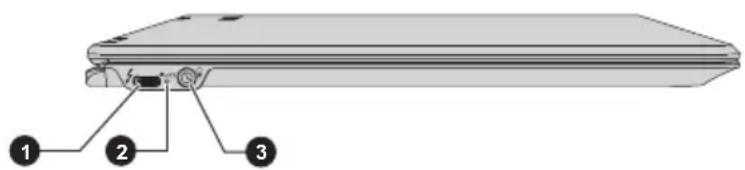
- Thunderbolt™ 3/USB Type-C™ port 3. Headphone/Microphone jack
- DC IN/Battery indicator

Thunderbolt™ 3/USB Type-C™ port

One Thunderbolt ^TM 3/USB Type-C ^TM port, which supports Thunderbolt ^TM 3 and USB 3.1 Gen2, is provided on the left side of the computer.
This port supports USB data transmission, Video output (audio stream can be included) and USB Power Delivery.
The AC adaptor connects to this port in order to power the computer and charge the battery. Note that you must use the TOSHIBA AC adaptor that was included with your computer, or use AC adaptors specified by TOSHIBA. Using the wrong AC adaptor can damage the computer.

Note that it is not possible to confirm the operation of all functions of all Thunderbolt™ devices/USB devices that are available. Some functions associated with a specific device might not operate properly.
Before removing a USB device from the Thunderbolt™ 3/USB Type-C™ port of your computer, click the Safely Remove Hardware and Eject Media icon on the Windows Taskbar, and then select the USB device that you want to remove.

Keep foreign metal objects, such as screws, staples, and paper clips, out of the Thunderbolt™ 3/USB Type-C™ port. Foreign metal objects can create a short circuit, which can cause damage and fire, possibly resulting in serious injury.

DC IN/Battery indicator
The DC IN/Battery indicator shows the condition of the DC IN and the battery charge status. White indicates that the battery is fully charged while the power is being correctly supplied from the AC power adaptor.
Refer to the Power Condition Descriptions section for more information on this feature.

Headphone/ Microphone jack
A 3.5 mm mini headphone/microphone jack enables connection of a monaural microphone, stereo headphones, or a headset.
Right side
The following figure shows the right side of the computer.
Figure 3-3 The right side of the computer
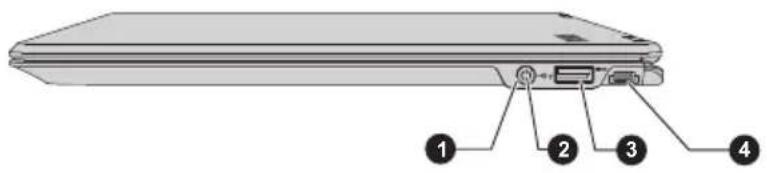
- Power indicator 3. Universal Serial Bus (USB 3.0) port
- Power button 4. Security lock slot

Power button Press this button to turn the computer's power on or off.
Power indicator The Power indicator normally glows white when the computer is turned on. However, if you turn off the computer into Sleep Mode, this indicator blinks white.

Universal Serial Bus (USB 3.0) port
One Universal Serial Bus port, which complies to the USB 3.0 standard, is provided on the right side of the computer.
The USB 3.0 port is compliant with USB 3.0 standard and backward compatible with USB 2.0 devices.
The port with the icon (⚡) has Sleep and Charge function.

Note that it is not possible to confirm the operation of all functions of all USB devices that are available. Some functions associated with a specific device might not operate properly.
Before removing a USB device from the USB port of your computer, click the Safely Remove Hardware and Eject Media icon on the Windows Taskbar, and then select the USB device that you want to remove.

Keep foreign metal objects, such as screws, staples, and paper clips, out of the USB port. Foreign metal objects can create a short circuit, which can cause damage and fire, possibly resulting in serious injury.

Security lock slot A security cable can be attached to this slot and then connected to a desk or other large object in order to deter theft of the computer.
Back
The following figure shows the back of the computer.
Figure 3-4 The back of the computer
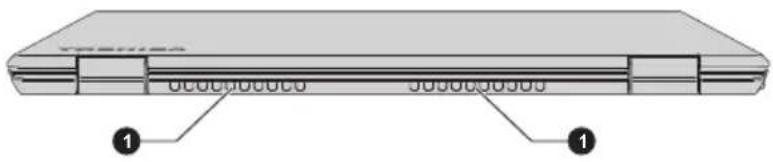
1. Cooling vents
Cooling vents The cooling vents help the processor to avoid overheating.

Do not block the cooling vents. Keep foreign metal objects, such as screws, staples, and paper clips, out of the cooling vents. Foreign metal objects can create a short circuit, which can cause damage and fire, possibly resulting in serious injury.
Carefully clean the dust on the surface of the cooling vents using a soft cloth.
Underside
The following figure shows the underside of the computer. Ensure that the display is closed before the computer is turned over to avoid causing any damage.
Figure 3-5 The underside of the computer
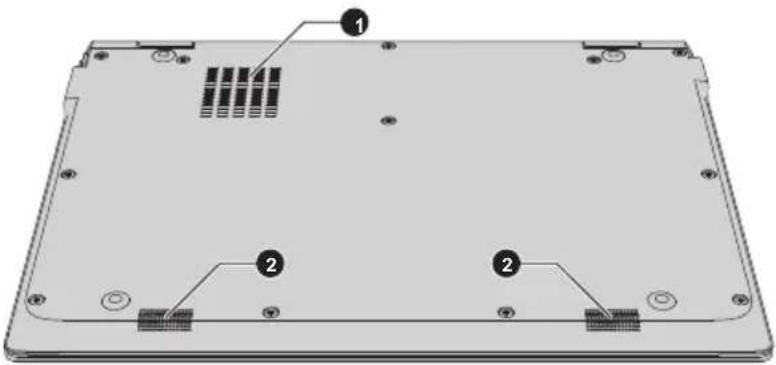
1. Cooling vents
2. Stereo speakers
Cooling vents The cooling vents help the processor to avoid overheating.

Do not block the cooling vents. Keep foreign metal objects, such as screws, staples, and paper clips, out of the cooling vents. Foreign metal objects can create a short circuit, which can cause damage and fire, possibly resulting in serious injury.
Carefully clean the dust on the surface of the cooling vents using a soft cloth.
Front with the display open
This section shows the computer with the display panel open. In order to open the display, lift up the display panel and position it at a comfortable viewing angle for you.
Figure 3-6 The front of the computer with the display panel open
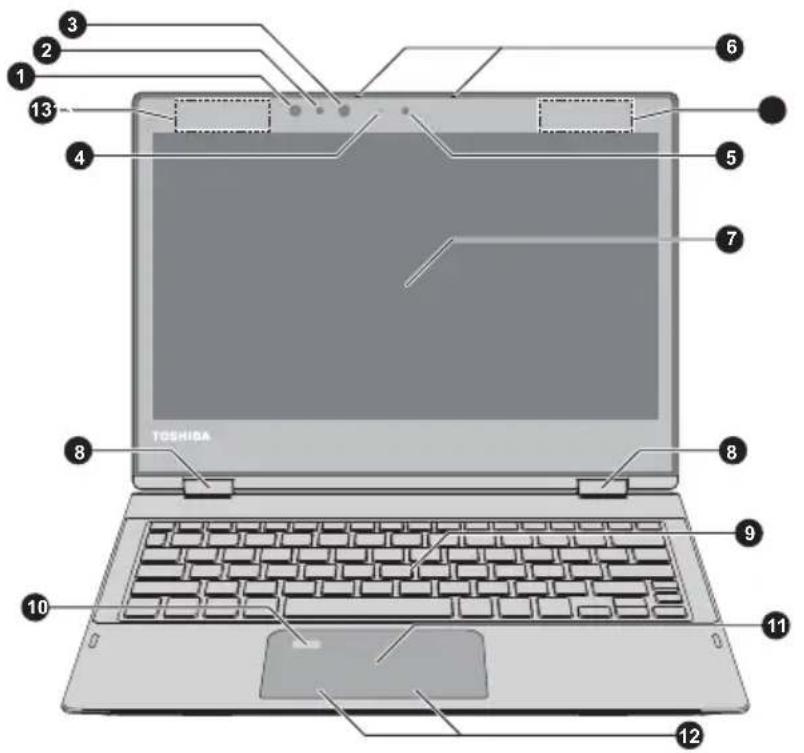
- Infrared LED* 8. Display hinges
- Face recognition sensor* 9. Keyboard
- Infrared LED* 10. Fingerprint Sensor*
- Web Camera LED 11. Touch Pad
- Web Camera 12. Touch Pad control buttons
- Microphones 13. Wireless communication antennas
(not shown) - Display screen
* Provided with some models.
Product appearance depends on the model you purchased.
Infrared LED The Infrared LED blinks when Windows Hello
(Face recognition) is operating.
Some models are equipped with Infrared LEDs.
Face recognition sensor
Face recognition sensor captures the face image for the operating system for enrolling and signing in. For more information, refer to the on-screen instructions in Windows Hello.
Some models are equipped with a Face recognition sensor.

It is highly recommended to use Windows Hello (Face recognition) indoors. Operating outdoors might cause enrollment/sign-in failure due to the possible sunlight affection.
Do not point the face recognition sensor directly at the sun.
Do not touch or press strongly on the face recognition sensor lens and infrared LEDs. Failure to do so might incorrectly recognize faces. Use an eyeglass cleaner (cleaner cloth) or other soft cloth to clean the lens and the LEDs if it becomes dirty.
When enrolling your face to Windows Hello, please make sure that there is no other face in preview of Windows Hello setup dialog.
While Face recognition sensor is capturing your face, make sure that your face is in front of the sensor, and you look directly at it.
Web Camera LED The Web Camera LED glows when the Web Camera is operating.
Web Camera Web Camera is a device that allows you to record video or take photographs with your computer. You can use it for video chatting or video conferences using a communication tool.

Do not point the web camera directly at the sun.
Do not touch or press strongly on the web camera lens. Failure to do so might reduce image quality. Use an eyeglass cleaner (cleaner cloth) or other soft cloth to clean the lens if it becomes dirty.
Microphone The built-in microphone allows you to record sounds for your application. Refer to the Sound System and Video mode section for more information.
Display screen 31.75 cm (12.5") LCD screen, is configured with the following resolution:
FHD, 1920 horizontal x 1080 vertical pixels Be aware that, when the computer is operating on the AC adaptor, the image displayed on the internal screen is somewhat brighter than when it operates on battery power. This difference in brightness levels is intended to save power when operating on battery.
Legal Footnote (LCD)
For more information regarding LCD, refer to the Legal Footnotes section.
Display hinges The display hinges allow the display panel to be positioned at a variety of easy-to-view angles.
Keyboard The keyboard contains character keys, control keys, function keys, and special Windows keys, providing all the functionality of a full-size keyboard.
Refer to the The Keyboard section for details.
Fingerprint Sensor This sensor enables you to enroll and sign in with a fingerprint in Windows Hello. For more information, refer to the on-screen instructions in Windows Hello.
Some models are equipped with a Fingerprint Sensor.
Touch Pad The Touch Pad located in the palm rest is used to control the movement of the mouse pointer.
To use the Touch Pad, simply touch and move your fingertip across it in the direction you want the mouse pointer to go.
Touch Pad control buttons The two buttons located on the bottom of the Touch Pad are used like the buttons on a standard mouse. Press the left button to select a menu item or to manipulate text or graphics designated by the mouse pointer, and press the right button to display a menu or other function depending on the software you are using.
Wireless communication antennas Depending on the configuration of your computer, one of the following antennas are built-in:
Wireless LAN/Bluetooth®

Do not cover the wireless communication antennas area with any metal objects, otherwise the wireless function might not work.
Legal Footnote (Wireless LAN)
For more information regarding Wireless LAN, refer to the Legal Footnotes section.
Magnets location
Please read the following information before using the computer.
Figure 3-7 Magnets location
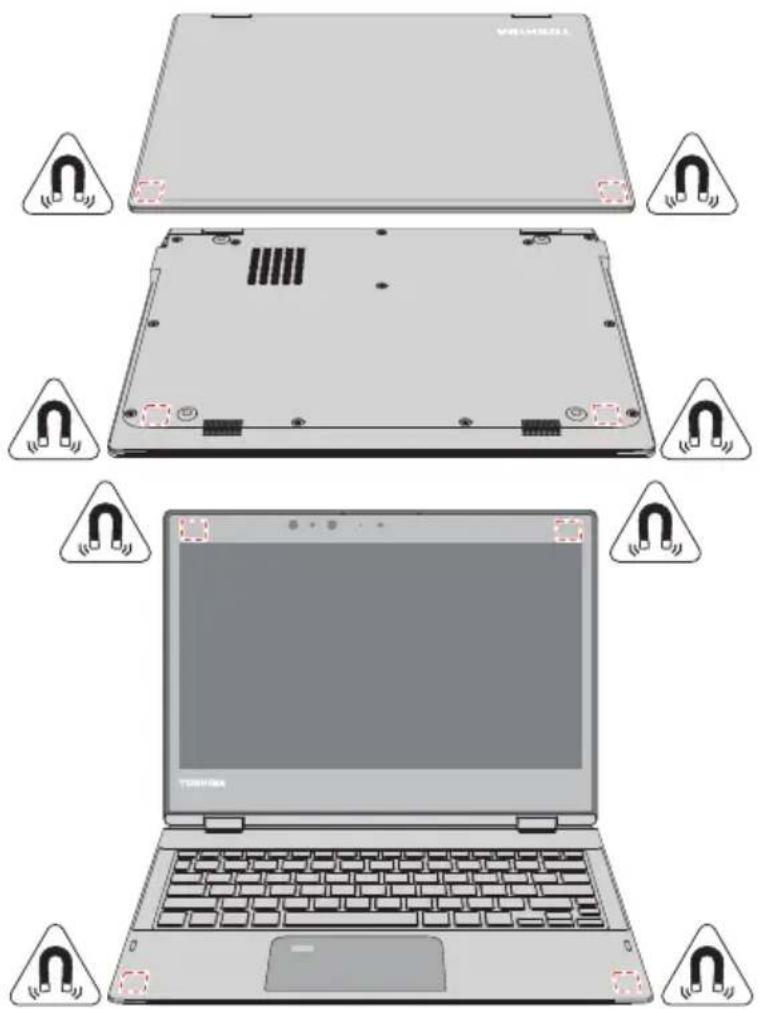

The computer contains magnets that might interfere with pacemakers, defibrillators, or other medical devices. If you wear a pacemaker, keep separation between your medical device and the computer. If you suspect that the computer is interfering with your medical device, discontinue use and consult your physician for information related to your specific device.

The marked areas in the preceding illustrations show the location of magnets. Do not place any products utilizing magnetic materials or magnetic data stored devices (for example, credit cards, compass) in close proximity to the computer as it might damage the magnetic products.
Internal Hardware Components
This section describes the internal hardware components of your computer. The actual specifications might vary depending on the model you purchased.
CPU The processor type varies depending on model.
To check which type of processor is included in your model, click Start -> Windows System -> Control Panel -> System and Security -> System.
Legal Footnote (CPU)
For more information regarding CPU, refer to the Legal Footnotes section.
Internal Storage Drive The capacity of the internal storage drive varies depending on the model.
Note that part of the internal storage drive overall capacity is reserved as administration space.

Your computer is equipped with a "Solid-State Drive (SSD)". In this manual, the word "internal storage drive" refers to SSD unless otherwise stated.
■ SSD is a large-capacity storage device which uses Solid-State Memory in place of a magnetic disk of the hard disk.

Under certain unusual conditions of prolonged non-use and/or exposure to high temperatures, the SSD might be vulnerable to data retention errors.
Legal Footnote (Internal Storage Drive Capacity)
For more information regarding Internal Storage Drive Capacity, refer to the Legal Footnotes section.
Video RAM The memory in the graphics adaptor of the
computer, used to store the image displayed on a bitmap display.
The amount of Video RAM available depends on the system memory of the computer.
Graphics Processing Unit
Graphics Processing Unit (GPU) performance might vary depending on product model, design configuration, applications, power management settings and features utilized. GPU performance is only optimized when operating in AC power mode and might decrease considerably when operating in battery power mode.
Legal Footnote (Graphics Processing Unit (GPU))
For more information regarding Graphics Processing Unit (GPU), refer to the Legal Footnotes section.
Intel® Display Power Saving Technology
Intel® GPU models might include the Display Power Saving Technology feature that can save the power consumption of the computer by optimizing picture contrast on the internal LCD.
This feature can be used if the computer is:
■ running in battery mode
■ using the internal LCD display
The Display Power Saving Technology feature is enabled at factory default. To turn this feature off, change it in the settings accordingly in the Intel® HD Graphics Control Panel.
You can access this control panel in the following way:
- Right-click on the desktop and click Intel® Graphics Settings.
- Click Power and then click On Battery in the upper-left corner.
- Click Disable under Display Power Saving Technology.
- Click Apply.
If you want to enable this feature, click Enable under Display Power Saving Technology.
Power Condition Descriptions
The computer operating capability and battery charge status are affected by different power conditions, including whether an AC adaptor is connected and what the battery charge level is.
DC IN/Battery indicator
Check the DC IN/Battery indicator to determine the status of the battery pack and the power status with the AC adaptor connected. The following indicator conditions should be noted:
Flashing Amber The battery charge is low. The AC adaptor must be connected to recharge the battery.
Amber Indicates that the AC adaptor is connected and the battery is charging.
White Indicates that the AC adaptor is connected and the battery is fully charged.
Flashing White Indicates a problem with the computer. Disconnect the AC adaptor for several seconds, and then reconnect the AC adaptor. After that, press the power button. If it still does not operate properly, you should contact your reseller or dealer.
No light Under any other conditions, the indicator does not light.

If the battery pack becomes too hot while it is being charged, the charge stops and the DC IN/Battery indicator goes out. When the temperature of the battery pack falls to a normal range, charging will resume. This process occurs regardless of whether the computer's power is on or off.
Power indicator
Check the Power indicator to determine the power status of the computer. The following indicator conditions should be noted:
White Indicates that power is being supplied to the computer, and the computer is turned on.
Flashing white Indicates that the computer is in Sleep Mode and that there is sufficient power available (AC adaptor or battery) to maintain this condition.
No light Under any other conditions, the indicator does not light.
Chapter 4
Operating Basics
This chapter describes the basic operations of your computer, and highlights the precautions that must be taken when using it.
Operating in Tablet Mode
When operating the computer in tablet mode, observe the following instructions.
Figure 4-1 Operating the computer in tablet mode
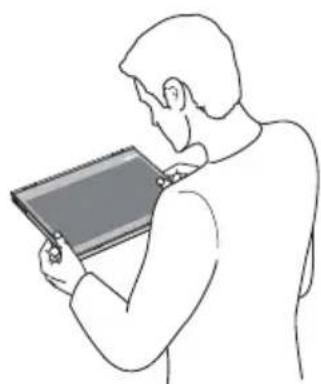
natural_image
Line drawing of a person using a tablet device (no text or symbols)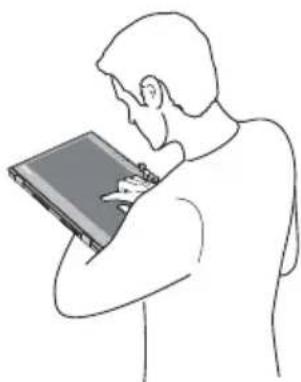
natural_image
Line drawing of a person using a laptop (no text or symbols)■ Remove all external peripheral devices and their connection cables from the computer before carrying.
■ Remove the AC adaptor from the computer when using it held in your forearm.
Do not use the computer while walking or driving a car.
Do not drop the computer or apply excessive impact to it. Do not leave the computer in a car or similar environment where it is exposed to direct sunlight.
Do not block the cooling vents when using the computer held in your forearm.
Changing the screen orientation
When operating the computer in tablet mode, you can change the screen orientation by rotating the computer sideways. The screen orientation automatically changes according to the rotation angle detected.
Figure 4-2 Rotating the computer sideways
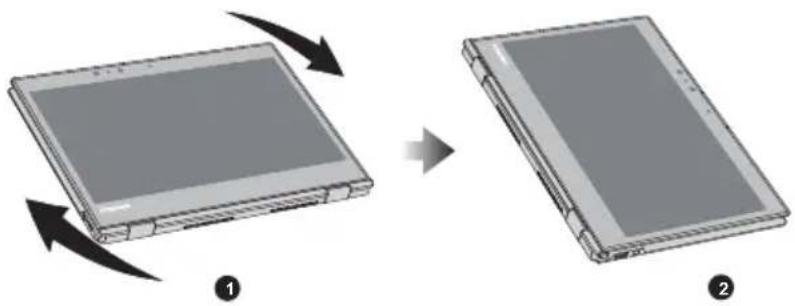
natural_image
Diagram showing two devices with arrows indicating rotation or assembly process (no text or symbols)- Landscape mode 2. Portrait mode
To manually disable the automatic screen orientation, do the following:
- Click the action center icon on the Windows taskbar.
- Click Rotation lock that the automatic screen orientation is currently disabled.
When operating the computer in clamshell and flat mode, however, the automatic screen orientation is locked, and stays in Landscape mode.

Avoid having direct contact with the other edges of the hand held device while the wireless device is turned on and transmitting. Only factories installed wireless transmitter can be used with this hand held device to satisfy RF exposure compliance.
In the Portrait mode, some drivers/utilities might not perform install and uninstall operation. If it occurs, switch to the Landscape mode to proceed.
Using the Touch Screen
You can use your finger to manipulate icons, buttons, menu items, the on-screen keyboard, and other items on the touch screen.

Tap Simply tap your finger once on the touch screen to activate an item, such as an app.
Press and hold Press your finger down and leave it there for a few seconds. This shows information to help you learn more about an item or opens a menu specific to what you are doing.
Pinch or stretch Touch the screen or an item with two or more fingers, and then move the fingers toward each other (pinch) or away from each other (stretch). This shows different levels of information or visually zooms in or out.
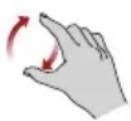
Rotate Put two or more fingers on an item and then turn your hand to rotate things in the direction you turn your hand. Only some items can be rotated.
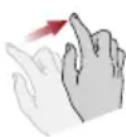
Slide Drag your finger on the touch screen to move through what is on the screen.
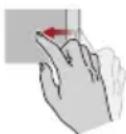
Swipe Quickly move your finger in from the edge of the screen, without pausing when you first touch it. Swipe from the left edge: views all your open apps in task view. Swipe from the right edge: opens the Action center. Swipe from the top edge: views title bars for full screened apps.
For details and more advanced touch screen gestures to interact with Windows operating system, refer to the Get Started.

Do not press or push with excess force on the touch screen.
Do not apply excess force when cleaning the touch screen.
Never touch the screen with a sharp object such as a ball-point pen which might scratch or damage the surface.
Do not use a protecting sheet for the touch screen as it might decrease its sensitivity to gestures.
Do not touch the screen with gloves, wet hands, or the tip of your fingernails as it might decrease the sensitivity.
The touch screen might not work correctly if part of the surface is slightly wet, or covered with an object.
Using the Touch Pad
The Touch Pad on the palm rest might support the following gestures:
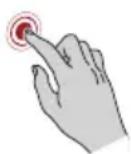
Tap Tap once on the Touch Pad to activate an item, such as an app.
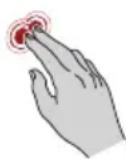
Two-Finger Tap Tap once on the Touch Pad with two fingers together to display a menu or other function depending on the software you are using. (Similar to right-click)
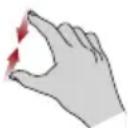
Pinch or stretch Place two or more fingers down on the Touch
Pad and move them toward each other (pinch) or away from each other (stretch). This shows different levels of information or visually zooms in or out.
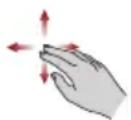
Two-Finger Scroll Place two fingers down and slide them vertically or horizontally from anywhere on the Touch Pad. This allows you to operate the scroll bars of a window.
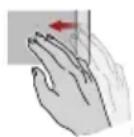
Three-Finger Swipe Quickly move in with three fingers together from the edge of the Touch Pad, without pausing when you first touch it.
Swipe from the top edge: shows the desktop.
Swipe from the bottom edge: views all your open apps in task view.
Swipe from the left or right edge: switches between your open apps. Slide your fingers slowly across the Touch Pad to flip through them all.

Do not put items on the Touch Pad surface to prevent abnormal action.

Some of the Touch Pad operations described in this section are only supported in certain applications.
Using the Stylus Pen
Some models are equipped with a Stylus Pen.
You can use the Stylus Pen to execute actions and enter data. Hold the Stylus Pen in a natural position, and tap, press, or trace on the screen lightly.
Figure 4-3 Stylus Pen
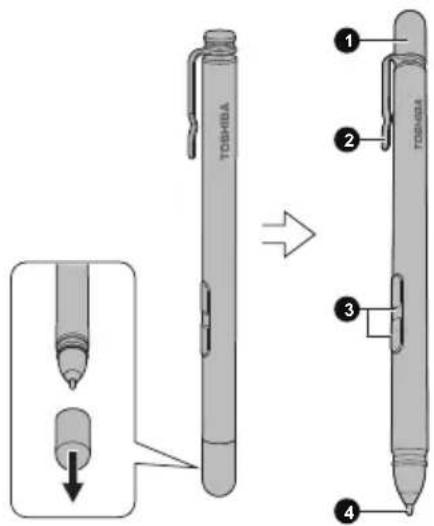
- Pen cap 3. Side buttons
- Pen clip 4. Pen tip
Pen cap Provides protection to the pen tip.
Pen clip The pen clip allows you to insert the pen into suitable places.
Side buttons The pen is equipped with two side buttons which support right-click and eraser functions.
■ Right-click: Press and hold the button and touch an object with the pen tip. This action displays a pop-up menu or executes a specific action. It functions the same as right-click of a mouse.
Eraser: The virtual eraser allows you to delete notes or sketches in applications that support eraser function.
By default, the lower button functions as eraser.
Pen tip You can use pen tip to operate same like as by your finger.
You can choose to enable/disable the Side buttons function in Pen Options. To access it, click Start -> Windows System -> Control panel -> Hardware and Sound -> Pen and Touch -> Pen Options

Observe the following precautions on the handling of the Stylus Pen.
To avoid damages to the display screen, refrain from doing anything other than the specified operation methods. Failure to do so could cause a malfunction or characteristic deterioration.
Do not tap or press the Stylus Pen forcefully against the display as this could damage the Stylus Pen and the screen itself.
Avoid using or keeping the Stylus Pen in areas where the temperature can change rapidly or in places, such as a car, where the Stylus Pen is exposed to direct sunlight. Store the Stylus Pen without any pressure being applied to the Side buttons. Failure to do so could cause a malfunction or characteristic deterioration.
The Stylus Pen is composed of precision parts. Do not drop the Stylus Pen. Strong impact causes a malfunction or characteristic deterioration.
Do not apply excessive force to the Stylus Pen tip and the Side buttons. Excessive force applied to these parts causes short life or characteristic deterioration.
Avoid water entering the Stylus Pen or condensation forming within it as either condition will cause a malfunction.
Do not disassemble the Stylus Pen. It could cause maladjustment or short life.
Do not stain the Stylus Pen with cosmetics or chemicals as this can cause a deterioration in appearance. Use a glass wiping cloth or dry cloth to clean the Stylus Pen. Do not use volatile liquids such as alcohol, thinner, or petroleum benzine to clean the Stylus Pen.
Do not apply excessive force to the Stylus Pen tip as a bent or deformed pen tip can cause a malfunction.
- Keep the small parts of the Stylus Pen, such as the pen tip or the knob of the Side buttons, away from infants and small children to prevent the accidental ingestion by them.
Do not use a ball point pen instead of the Stylus Pen included with the product.
Do not continue to use a broken pen tip as this could result in scratching of the display screen.

You can change the pen settings in Pen and Touch. To access it, click Start -> Windows System -> Control panel -> Hardware and Sound -> Pen and Touch
Keyboard is temporarily disabled when you use the Stylus Pen. This setting can be changed by TOSHIBA Input Assist in TOSHIBA System Settings.
TOSHIBA is not liable for any problems arising on the products due to the use of the Stylus Pen in an environment where the above conditions are not satisfied or because of its use by unspecified number of users.
Installing the battery
Install the battery before using the Stylus Pen.
Figure 4-4 Installing the battery
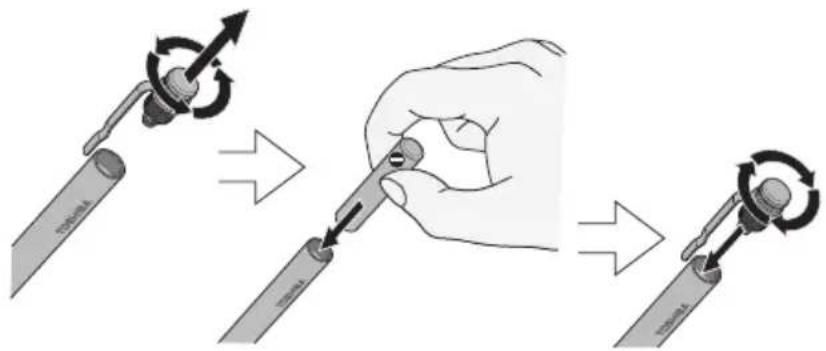
Pen actions
You can use the Stylus Pen to enter data, start programs, move objects and execute other actions.
Single tap
Lightly tap the tip of the Stylus Pen on an object and lift it immediately to activate an item.
Double tap
Lightly tap the tip of the Stylus Pen twice on an object and lift it immediately to execute an action.
Press and hold
Touch the tip of the Stylus Pen on the screen and hold until a white circle appears. Lift the Stylus pen to open a pop-up menu or execute a specific action.
Drag
Touch the Stylus Pen on the screen. Without lifting the Stylus Pen, drag it across the screen to select text or objects.
Drag and drop
Touch the Stylus Pen on the screen to select an object. Without lifting the Stylus Pen, drag it across the screen. Lift the Stylus Pen to drop the object to a new location.

The thickness and/or width of drawing lines are changing in response to pen pressure level. The harder the pen is pressed, the thicker and/or wider is the drawing line.
Replacing the pen tip
The pen tip of the Stylus Pen can be replaced with a new one which is provided when it is worn. To replace the pen tip, do the following:
- Pinch the tip with your fingers and pull it out.
- Insert a new pen tip into the Stylus Pen carefully (as shown in the following figure), and press it securely.
Figure 4-5 Replacing the pen tip
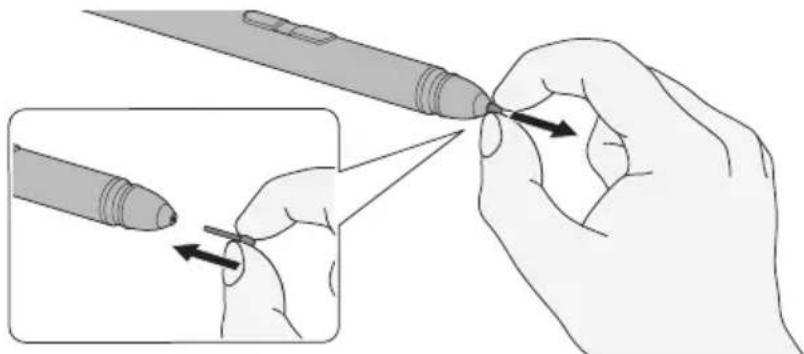
natural_image
Illustration of a hand holding a pen with an arrow indicating the tip, showing a close-up of the pen tip (no text or symbols present)
Do not continue to use a broken pen tip as this could result in scratching of the display screen. When the pen tip breaks, replace it with the refill delivered with the Stylus Pen. When these refills have run out, you can purchase a new pen set from a TOSHIBA authorized dealer.
Always use the refills delivered with the Stylus Pen. Use of an incompatible refill could cause a malfunction or characteristic deterioration.

A short and worn pen tip is difficult to pull out. Replace the pen tip with a refill before it becomes too short to remove.
You can buy replacement pen sets from your TOSHIBA authorized dealer.
The Keyboard
The number of keys available on your keyboard depends on which country/region your computer is configured for, with keyboards being available for numerous languages.
There are different types of keys, specifically typewriter keys, function keys, Windows special keys, and the keypad overlay.

Never remove the key caps on your keyboard. Failure to do so might damage the parts under the key caps.
Keyboard indicator
The following figure shows the position of the CAPS LOCK indicator. When the CAPS LOCK indicator glows, the keyboard produces capitals when any letter is typed.
Figure 4-6 CAPS LOCK indicator
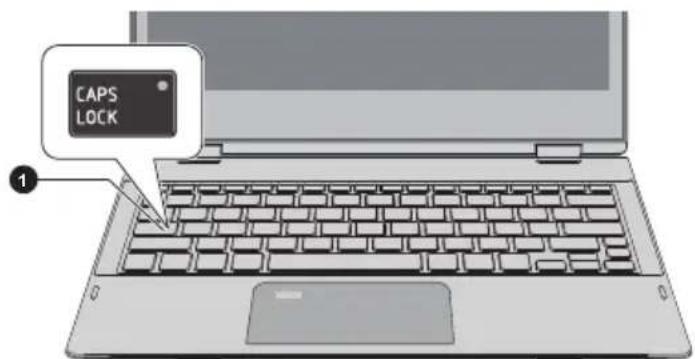
1. CAPS LOCK indicator
Product appearance depends on the model you purchased.
CAPS LOCK This indicator glows green when letter keys are locked into their uppercase format.
Function Keys
The function keys (F1 \~ F12) are the 12 keys at the top of your keyboard.

Function keys let you enable or disable certain features of the computer. The functions can be performed by pressing the associated function keys.
Key Combination Function
FN + F1 Enters "Lock computer mode".
To restore your desktop, you need to log on again.
FN + F2 Switches between the power plans.
FN + F3 Switches the system to Sleep Mode.
FN + F4 Switches the system to Hibernation Mode.
FN + F5 Changes the active display device.
To use a simultaneous mode, you must set the resolution of the internal display panel to match the resolution of the external display device.
FN + F6 Decreases the brightness of the display panel in individual steps.
| Key Combination Function | |
| FN + F7 Increases the brightness of the display panel in individual steps. | |
| FN + F8 Turns the Airplane mode on or off. | |
| FN + F9 Enables or disables the Touch Pad. | |
| FN + F10 Turns on Arrow Mode. | |
| FN + F11 Turns on Numeric Mode. | |
| FN + F12 Locks the cursor on a specific line. | |
| FN + ESC Turns the playback sound on or off. | |
| FN + 1 Reduces the icon size on the desktop or the font sizes within one of the supported application windows. | |
| FN + 2 Enlarges the icon size on the desktop or the font sizes within one of the supported application windows. | |
| FN + 3 Decreases the playback volume of the computer. | |
| FN + 4 Increases the playback volume of the computer. | |
| FN + Space Changes the display resolution. | |
| FN + S Allows you to search your computer, the web, or within an app. | |
| FN + Z ( [IMAGE] | Toggles the mode of the keyboard backlight between Timer, On, and Off.To set up the brightness, click Start -> TOSHIBA -> System Settings. Click Keyboard tab, and select a level under Keyboard Backlight Brightness Control.To set up the timer, launch the BIOS setup utility, select Power Management -> Keyboard Backlight Control Mode, and select TIMER.Adjust the timer under Backlight Lighting Time.This function is supported with some models. |

Some functions show the toast notification at the edges of the screen.
Those toast notifications are enabled by default. You can disable them in the Function Key settings.
To access it, click Start -> TOSHIBA -> System Settings -> Function Key.
Windows special keys
The keyboard provides two keys that have special functions in Windows, the Windows® logo key activates the Start menu while the application key has the same function as the secondary (right) mouse button.

This key activates the Windows Start menu.

This key has the same function as the secondary (right) mouse button.
Using the Fingerprint Sensor
Some models are equipped with the fingerprint sensor for the purpose of enrolling and recognizing fingerprints. Lightly touch and rest your finger on the fingerprint sensor to recognize fingerprints. During enrollment, you might need to touch and lift your finger on the sensor repeatedly until setup is complete. Follow the on-screen instructions to finish the setup.
By enrolling the ID and password onto the fingerprint authentication feature, it is no longer necessary to input the password from the keyboard. Fingerprint feature enables you to:
Sign-in to Windows
■ Unlock the password-protected screen-saver.
■ Authentication of the User Password (and, if applicable, the HDD/SSD Password) when booting up the computer (Pre-Boot authentication).
Single Sign-On feature
Figure 4-7 Using the Fingerprint Sensor
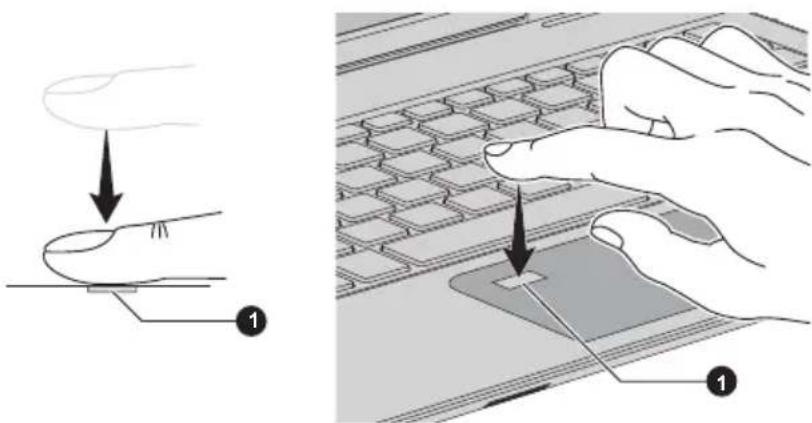
1. Fingerprint sensor

Fingerprint cannot be used in models that do not have a fingerprint function.
■ Total fingerprints which can be registered are 20 pcs.
Points to note about the Fingerprint Sensor
Be aware of the following considerations when using the fingerprint sensor. A failure to follow these guidelines might result in damage to the sensor, sensor failure, fingerprint recognition problems or a lower fingerprint recognition success rate.
- Do not scratch or poke the sensor with your nails or any hard or sharp objects.
Do not press the sensor strongly.
Do not touch the sensor with a wet finger or any wet objects. Keep the sensor surface dry and free from water vapor.
Do not touch the sensor with a soiled or dirty finger as minute foreign particles of dust and dirt might scratch it.
Do not paste stickers or write on the sensor.
Do not touch the sensor with a finger or any other object which might have a build-up of static electricity on it.
Observe the following before you place your finger on the sensor whether for fingerprint enrollment/registration or recognition.
■ Wash and dry your hands thoroughly.
■ Remove static electricity from your fingers by touching any metal surface. Static electricity is a common cause of sensor failures, especially when the weather is dry.
- Clean the sensor with a lint-free cloth. Do not use detergent or any other chemicals to clean the sensor.
Avoid the following finger conditions for enrollment or recognition as they might result in fingerprint enrollment errors or a drop in the fingerprint recognition success rate
Soaked or swollen finger, for example as might occur after taking a bath.
Injured finger
Wet finger
Soiled or oily finger
■ Extremely dry skin condition on finger
Observe the following to improve the fingerprint recognition success rate.
Enroll two or more fingers.
Enroll additional fingers if a recognition failure often occurs when using already enrolled fingers.
Check the condition of your finger. Any conditions which have changed since enrollment, such as injury, rough skin, and extremely dry, wet, soiled, dirty, oily, soaked or swollen fingers, might lower the recognition success rate. Also if the fingerprint is worn down or the finger becomes thinner or fatter, the recognition success rate might be lowered.
As the fingerprint for each finger is different and unique you should ensure that only the registered or enrolled fingerprint or fingerprints are used for identification.
The fingerprint sensor compares and analyzes the unique characteristics in a fingerprint. However, there might be instances where certain users are unable to register their fingerprints due to insufficient unique characteristics in their fingerprints.
The recognition success rate might differ from user to user.
Battery
This section explains battery types, use, recharging methods and handling.
Battery pack
When the AC adaptor is not connected, the main power source of the computer is a lithium ion battery pack, also referred to in this manual as the main battery.
Real-Time Clock (RTC) function
The Real-Time Clock (RTC) function is supported. The main battery provides power for the internal real-time clock and calendar function and also maintains the system configuration while the computer is turned off. If the RTC lasting time completely runs out, the system will lose this information and the real-time clock and calendar will stop working.
You can change the Real-Time Clock settings in the TOSHIBA Setup Utility. Refer to Real-Time Clock for further information.
Care and use of the battery pack
This section provides the important safety precautions in order to handle your battery pack properly.
Refer to the enclosed Instruction Manual for Safety and Comfort for detailed precautions and handling instructions.

Charge the battery pack only in an ambient temperature from 5 through 35 degrees Celsius. Otherwise, the electrolyte solution might leak, battery pack performance might deteriorate, and the battery life might be shortened.
Charging the battery
When the power in the battery pack becomes low, the DC IN/Battery indicator flashes amber to indicate that only a few minutes of battery power remain. If you continue to use the computer while the DC IN/Battery indicator flashes, the computer enters Hibernation Mode so that you do not lose any data, and automatically turn itself off.
You must recharge the battery pack when it becomes discharged.
Procedures
To recharge a battery pack, connect the AC adaptor to the Thunderbolt ^TM 3/USB Type-C ^TM port and plug the other end into a working outlet. The DC IN/Battery indicator glows amber while the battery is being charged.
Charging Time
The following table shows the approximate time required to charge an exhausted battery fully.
Battery type Power off Power on
Battery pack
about 3 hours about 3 \~ 10 hours
(44 Wh)

Be aware that the charging time when the computer is on is affected by ambient temperature, the temperature of the computer and how you are using the computer. If you make heavy use of external devices for example, the battery might scarcely charge at all during operation.
Note that charging time will vary depending on the ambient temperature, the computer's internal temperature, and how the computer is being used. For example, whether the display is set to shut off automatically when idle, whether you make heavy use of external devices powered by the computer, or if the computer's internal storage drive is being accessed frequently by an application.
The battery might not be charged depending on how the computer is being used, and the charge of battery decreases and battery might not be fully charged sometimes.
If AC adapter is connected via USB Type-C™ adapter, battery charging time might become longer.
Charging notice
The battery might not begin charging immediately under the following conditions:
The battery is extremely hot or cold (if the battery is extremely hot, it might not charge at all). To ensure the battery charges to its full capacity, charge it at room temperature of between 5°C to 35°C (41°F to 95°F).
The battery is nearly completely discharged. In this instance, leave the AC adaptor connected for a few minutes and the battery should begin charging.
The DC IN/Battery indicator might show a rapid decrease in battery operating time when you try to charge a battery under the following conditions:
The battery has not been used for a long time.
The battery has completely discharged and been left in the computer for a long time.
In such cases, do the following:
- Fully discharge the battery by leaving it in the computer with the power on until the system automatically turns itself off.
-
Connect the AC adaptor to the Thunderbolt™ 3/USB Type-C™ port of the computer, and to a wall outlet that is supplying power.
-
Charge the battery until the DC IN/Battery indicator glows white.
Repeat these steps two or three times until the battery recovers normal capacity.
Monitoring battery capacity
Remaining battery power can be monitored using the following methods.
- Clicking the battery icon on the Windows Taskbar
■ Via the Battery Status in the Windows Mobility Center window

Wait several seconds to monitor the remaining operating time because the computer needs time to check the remaining capacity of the battery pack and then calculate the remaining operating time, based on this together with the current power consumption.
Be aware that the actual remaining operating time might differ slightly from the calculated time.
With repeated discharges and recharges, the battery capacity will gradually decrease. In view of this, it is noted that an often used, older battery will not operate for as long as a new battery even when both are fully charged.
Maximizing battery operating time
The usefulness of a battery depends on how long it can supply power on a single charge, while how long the charge lasts in a battery depends on:
■ Processor speed
Screen brightness
■ Internal storage drive power off period
How often and for how long you use the internal storage drive and external disk drives, for example, optical disc
How much charge the battery contained to begin with
How you use optional devices, such as a USB device, to which the battery supplies power
■ Where you store your programs and data
Whether you close the display panel when you are not using the keyboard - closing the display saves power
The environmental temperature - operating time decreases at low temperatures
System Sleep Mode
System Hibernation Mode
■ Display power off period
Whether you enable Sleep Mode, which can conserve battery power if you are frequently turning the computer off and on
Battery pack exhausted time
When you turn off the power of your computer with the battery pack fully charged, the battery pack exhaust within the following approximate period.
Battery type Sleep Mode Shut Down Mode
Battery pack
about 8 days about 95 days
(44 Wh)

Be aware that the battery pack exhausted time is affected if there are any external devices connected.
Extending battery life
To maximize the life of your battery pack, do the following at least once a month.
- Turn off the computer's power.
- Disconnect the AC adaptor and turn on the computer's power. If it does not turn on then go to Step 4.
- Operate the computer on battery power for five minutes. If you find that the battery pack has at least five minutes of operating time, continue operating until the battery pack is fully discharged. However, if the DC IN/Battery indicator flashes or there is some other warning to indicate a low battery condition, go to Step 4.
- Connect the AC adaptor to the Thunderbolt™ 3/USB Type-C™ port of the computer, and to a wall outlet that is supplying power. The DC IN/Battery indicator glows amber to indicate that the battery pack is being charged. However, if DC IN/Battery indicator does not glow, this indicates that power is not being supplied. Check the connections for the AC adaptor and the power cord.
- Charge the battery pack until the DC IN/Battery indicator glows white.
USB Type-C™ Adapters
Your computer capabilities can be enhanced by connecting external devices such as RGB monitor and HDMI ^™ display device to the Thunderbolt ^™ 3/USB Type-C ^™ port via USB Type-C ^™ adapters. You can also charge your computer by connecting the AC adaptor via the USB Type-C ^™ adapter.
Depending on the model you purchased, one of the following USB Type-C™ adapters might be provided.

Always use the TOSHIBA USB Type-C™ adapter that is included with your computer or TOSHIBA accessories.
■ Disconnect any devices and cables from the USB Type-C™ adapter when connecting/disconnecting the AC adapter or the USB Type-C™ adapter.
When connecting the USB Type-C™ adapter, Thunderbolt function is not supported.
If AC adapter is connected via USB Type-C™ adapter, battery charging time might become longer.
Do not connect other USB Type-C™ adapter to USB Type-C™ port of USB Type-C™ adapter.
USB-C™ to HDMI™ Adapter
This adapter provides: USB Type-C™ port (Power Delivery Charging) and HDMI™ out port.
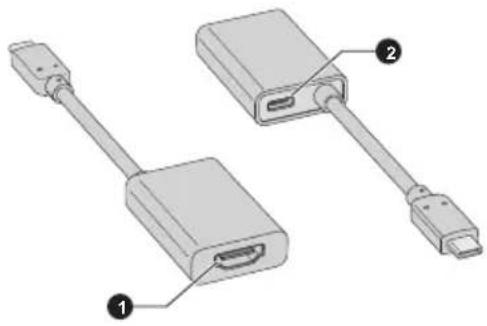
natural_image
Diagram of two connected electronic devices with labeled ports (no text or symbols present)- HDMI™ out port 2. USB Type-C™ port (Power Delivery Charging)

The output resolution of HDMI™ out port on this adapter is up to 3840x2160 @60Hz.
The USB Type-C™ port (Power Delivery Charging) on this adapter is used for connecting AC adaptor only. USB data transmission is not supported by this port.
USB-C™ to HDMI™/USB Multiport Adapter
This adapter provides: USB Type-C™ port (Power Delivery Charging), USB 3.0 port, and HDMI™ out port.
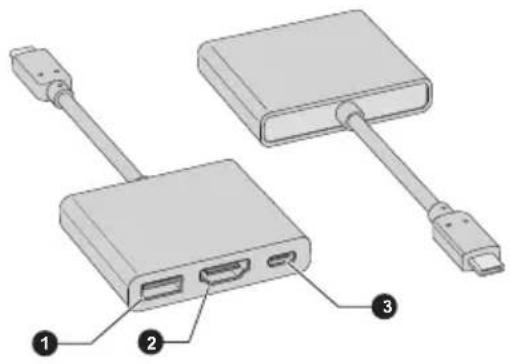
natural_image
Diagram of two connected electronic devices with labeled ports (no text or symbols present)-
USB 3.0 port 3. USB Type-C™ port (Power Delivery Charging)
-
HDMI ^TM out port

The output resolution of HDMI™ out port on this adapter is up to 3840x2160 @30Hz.
The USB Type-C™ port (Power Delivery Charging) on this adapter is used for connecting AC adaptor only. USB data transmission is not supported by this port.
USB-C™ to VGA Adapter
This adapter provides: USB Type-C™ port (Power Delivery Charging) and RGB monitor port.
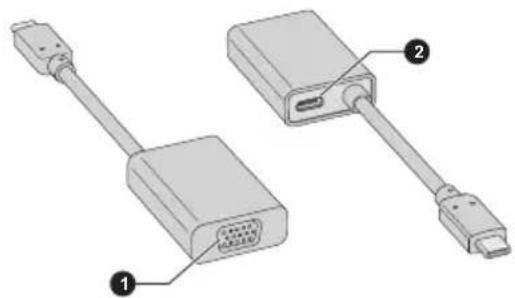
natural_image
Diagram of two connected audio/video connectors, one with a port and labeled component (1), the other with a USB cable and connector (2)- RGB monitor port 2. USB Type-C™ port (Power Delivery Charging)

The output resolution of RGB monitor port on this adapter is up to 1920x1200 @60Hz.
The USB Type-C™ port (Power Delivery Charging) on this adapter is used for connecting AC adaptor only. USB data transmission is not supported by this port.
USB Type-C™ port
The USB Type-C™ adapter provides you with a USB Type-C™ port which enables you to connect the AC adaptor when you want to charge the battery or operate from AC power.
- Connect the power cord to the AC adaptor.
- Connect the DC output plug of the AC adaptor to the USB Type-C ^TM port on the USB Type-C ^TM adapter.
- Plug the power cord into a live wall outlet.
- Connect the USB Type-C™ adapter to the Thunderbolt™ 3/USB Type-C™ port on your computer.
Figure 4-8 Connecting the AC adaptor via USB Type-C™ adapter
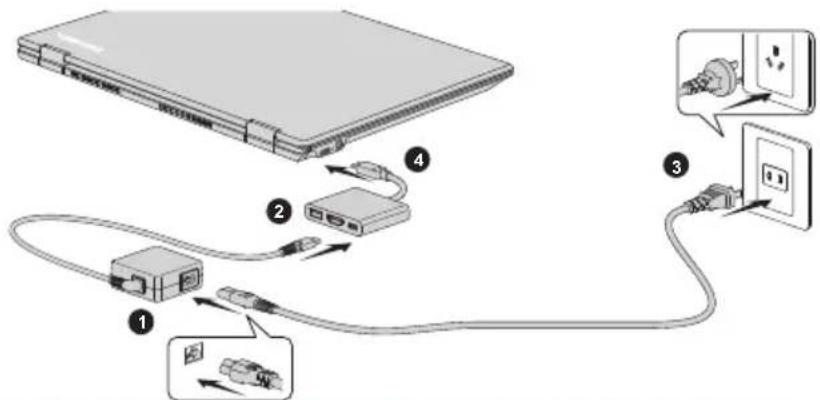
USB Type-C™ adapter appearance varies depend on the model you purchased.
HDMI™ out port
HDMI ^™ (High-Definition Multimedia Interface ^™ ) out port digitally transfers both video and audio data without reducing the quality. HDMI ^™ -compatible external display devices including televisions can be connected via the HDMI ^™ out port.

As the port operation of all external monitors have not been confirmed, some display devices might not function properly.

To connect an HDMI™-compatible display device, do the following:
To connect a device to the HDMI ^™ out port, you must purchase a suitable HDMI ^™ cable.
- Connect the USB Type-C™ adapter to the Thunderbolt™ 3/USB Type-C™ port on your computer.
- Plug one end of the HDMI ^TM cable into the HDMI ^TM in port of the HDMI ^TM display device.
- Turn the HDMI ^TM display device's power on.
- Plug the other end of the HDMI ^TM cable into the HDMI ^TM out port on USB Type-C ^TM adapter.
Figure 4-9 Connecting to the HDMI™ out port on USB Type-C™ adapter
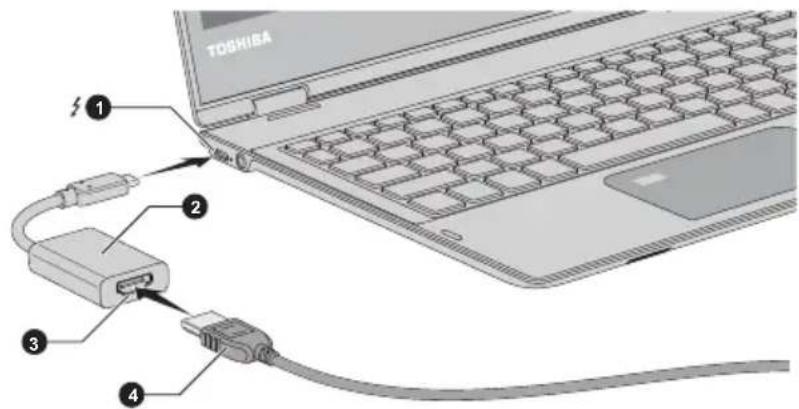
- Thunderbolt™ 3/USB Type-C™ port 3. HDMI™ out port
- USB Type-C™ adapter 4. HDMI™ cable
USB Type-C ^TM adapter appearance varies depend on the model you purchased.

Do not plug/unplug an HDMI™ device under the following conditions:
The system is starting up.
The system is shutting down.
When you unplug the HDMI™ cable and replug it, wait at least 5 seconds before you replug the HDMI™ cable again.
Settings for display video on HDMI™
To view video on the HDMI ^™ display device, be sure to configure the following settings otherwise you might find that nothing is displayed.

Be sure to select the display device or audio device before starting to play video. Do not change the display device or audio device while playing video.
Do not change the display device under the following conditions.
■ While data is being read or written
■ While communication is being carried out
Selecting HD Format
To select the display mode, do the following:
-
Click Start -> Windows System -> Control Panel -> Appearance and Personalization -> Display -> Change display settings -> Advanced settings -> List All Modes.
-
Select one of the modes at List All Modes.
RGB monitor port
An external analog monitor can be connected to the RGB monitor port on the USB Type-C ^TM adapter. To connect an external analog monitor, do the following:
- Connect the USB Type-C™ adapter to the Thunderbolt™ 3/USB Type-C™ port on your computer.
- Plug one end of the RGB cable into the RGB port of the external RGB monitor.
- Turn the external monitor's power on.
- Plug the other end of the RGB cable to the RGB monitor port on the USB Type-C™ adapter.

There are no fastening screws for an external monitor cable on the RGB monitor port. However, external monitor cables which have connectors with fastening screws can still be used.
Figure 4-10 Connecting the RGB cable to the RGB monitor port
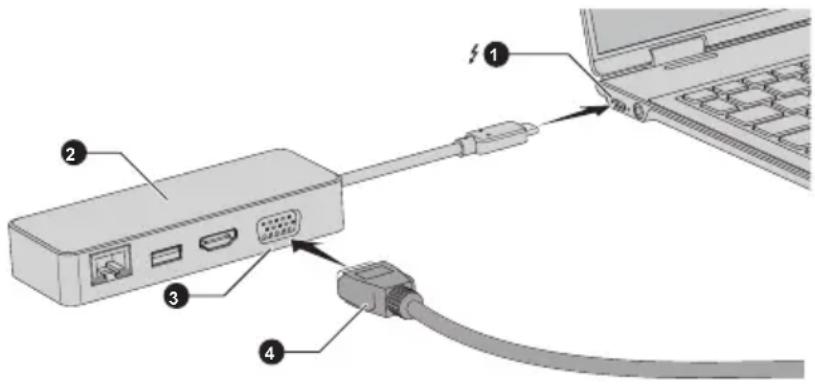
- Thunderbolt™ 3/USB Type-C™ port 3. RGB monitor port
- USB Type-C™ adapter 4. RGB cable
USB Type-C ^™ adapter appearance varies depend on the model you purchased.
When displaying desktop on an external RGB monitor, desktop is sometimes displayed on the center of the monitor with black bars around desktop (with small size).
At that time, read the manual of the monitor and set the display mode which is supporting at the monitor. Then it will be displayed with suitable size with correct aspect ratio.
Wireless display
Your computer might support wireless display, a wireless technology which utilizes Wi-Fi ^® to allow the computer to be wirelessly connected to external displays including TVs as extended screens. With wireless display, documents, streamed/local media contents or other online contents can be shared wirelessly with others.
To use wireless display, either one of the following devices is required:
A compatible external display with built-in support for wireless display.
An external display with HDMI™ port and a wireless display adaptor.
The wireless display adaptor is a device that connects to the external display via HDMI ^™ port and can receive Wi-Fi ^® signals from your computer.
To wirelessly connect to an external display, you can follow the steps as described below:
- Go to 📍 (Settings) and click Devices -> Connected devices.
- Click Add a device. Your computer starts searching for the wireless display device.
- After the wireless display device is searched, follow the on-screen instructions to finish connection.
After the connection is established, the name of the wireless display device appears under Projectors.
To disconnect the Wireless display device, click the wireless display device name and then click Remove device.
Security lock
A security lock enables you to anchor your computer to a desk or other heavy object in order to help prevent unauthorized removal or theft. The computer has a security lock slot into which you can attach one end of the security cable, while the other end attaches to a desk or similar object. The methods used for attaching security cables differ from product to product. Refer to the instructions for the product you are using for more information.

If a big security lock is used, computer chassis will be lifted up, your finger might be hurt, or your computer might be damaged.
Connecting the security lock
To connect a security cable to the computer, do the following:
- Turn the computer so the security lock slot faces you.
- Align the security cable with the lock slot and secure it in place.
Optional TOSHIBA Accessories
To make your computer even more powerful and convenient to use, you can add a number of options and accessories. For reference, the following list details some of the items that are available from your reseller or TOSHIBA dealer:
Universal AC Adaptor If you frequently use your computer at more than one site, it might be convenient to purchase an additional AC adaptor to be kept at each site in order to remove the need to carry the adaptor with you always.
USB Type-C™ Adapters
You can purchase different types of USB Type-C™ adapters as accessories from TOSHIBA. Please contact your reseller or TOSHIBA dealer regarding which type is available in your region.

Not all the accessories are available in your region. Contact your reseller or TOSHIBA dealer for more information.
Sound System and Video mode
This section describes some of the audio control functions.
Volume Mixer
The Volume Mixer utility lets you control the audio volume for playback of devices and applications under Windows.
To launch the Volume Mixer utility, right-click on the speaker icon on the Windows Taskbar, and then select Open Volume Mixer from the sub menu.
To adjust the volume level of speakers or headphones, move the Speakers slider.
To adjust the volume level of an application that you are using, move the slider for the corresponding application.
Microphone Level
To change the microphone recording level, do the following:
- Right-click on the speaker icon on the Windows Taskbar, and select Recording devices from the sub menu.
- Select Microphone, and click Properties.
- On the Levels tab, move the Microphone slider to increase or decrease the microphone volume level.
If you feel the microphone volume level is inadequate, move the Microphone Boost slider to a higher level.
Audio Enhancements
To apply the sound effects for your current speaker, do the following:
- Right-click on the Speakers icon on the Windows Taskbar, and then select Playback devices from the sub menu.
- Select Speakers, and click Properties.
- On the Enhancements tab, select the sound effects you would like, and click Apply.
DTS Studio Sound™
DTS Studio Sound™ is a premium audio enhancement suite that utilizes revolutionary audio technology to provide the most immersive and realistic listening experience ever offered for a two speaker playback environment.
DTS Studio Sound™ is provided with some models. It provides the following features:
■ Advanced audio rendering to match 2D and 3D video content for enveloping surround sound
Accurate placement of audio cues for immersive surround sound from any PC speaker configuration laptop / desktop speakers or headphones
- Broad sweet spot with elevated sound image
■ Maximum volume output delivering maximum volume without creating clipping or distortion
■ Dialog enhancement for clear and intelligible vocals
■ Bass enhancement for rich, low frequency production
■ High frequency definition for crisp details
■ Consistent volume level across content
To access the utility, click Start -> DTS, Inc -> DTS Studio Sound.
U.S. patents apply to this product. See http://patents.dts.com.
Manufactured under license from DTS Licensing Limited.
Realtek HD Audio Manager
You can confirm and change the audio configuration using the Realtek HD Audio Manager. To launch the Realtek HD Audio Manager:
Click Start -> Windows System -> Control Panel -> Hardware and Sound -> Realtek HD Audio Manager.
When you first launch the Realtek HD Audio Manager, you can see two device tabs. Speakers is the default output device. Microphone is the default input device. To change the default device, click the Set Default Device button under the chosen device tab.
Information
Click the Information button to view hardware information, software information, and language setting.
Power Management
The audio controller in your computer can be turned off when the audio function is not used. To adjust the configuration of audio power management, click the Power Management button ☐
When audio power management is enabled, the circle button at the upper left of the Power Management is blue and convex.
When audio power management is disabled, the button is black and concave.
Speaker Configuration
Click the Auto Test button to confirm the internal speakers or the headphone sound is coming from the right direction.
Default Format
You can change the sample rate and bit depth of sound.
Headphone/Microphone selection
To change the type of headphone or microphone, do the following:
- Plug a headphone or microphone into the headphone/microphone combo jack.
- Double-click on the circle button in the right side of the Realtek HD Audio Manager main screen.
- Select one from the device list for the device you plugged into.
Video mode
Video mode settings are configured via the Screen Resolution dialog.
To open the Screen Resolution dialog, click Start -> Windows System -> Control Panel -> Appearance and Personalization -> Display -> Change display settings -> Advanced display settings.

If you are running some applications (for example a 3D application or video playback), you might see some disturbance, flickering, or frame dropping on your screen.
If that occurs, adjust the resolution of display, lowering it until the screen is displayed properly.
Chapter 5
Utilities and Advanced Usage
This chapter describes the utilities and special features of this computer, and the advanced usage of some utilities.
Utilities and Applications
This section describes the pre-installed utilities that come with the computer and details how to start them. For further information on their operation, refer to online manual, help files, or README.TXT file (if applicable) of each utility.
| TOSHIBA Password Utility | This utility allows you to set a password in order to restrict access to the computer.You can also enable/disable Pre-Boot Authentication function that allows you to authenticate by scanning fingerprints instead of inputting a password before Windows boots up, and Single Sign-On function that allows you to sign on using a fingerprint for both Pre-Boot Authentication and Windows operating system under PBA Setting in Password utility.Please note that Pre-Boot Authentication and Single Sign-On function will be disabled if TOSHIBA Password Utility is uninstalled.To access this utility, click Start -> TOSHIBA -> Password Utility. |
| TOSHIBA System Settings | This utility allows you to customize your hardware settings according to the way you work with the computer and the peripherals you use.To access this utility, click Start -> TOSHIBA -> System Settings. |
| TOSHIBA Setup Utility | TOSHIBA Setup Utility is a BIOS setup utility that provides you a menu-based user interface so that you can easily view and change BIOS settings.For more information, refer to the TOSHIBA Setup Utility section. |
| TOSHIBA eco Utility This computer is equipped with "eco mode". This mode slightly lowers performance of some devices to reduce electric power consumption. You can realize measurable power savings by using it continuously.TOSHIBA eco Utility helps control the power consumption of your computer. Various information can help you understand your degree of contribution to the environment.Furthermore, this utility contains Peak shift function that can help reduce power usage during periods of peak demand by shifting some power consumption to periods when demand is lower.The utility also supports "eco charge mode". The battery will not be fully charged in this mode, thus extending the life cycle of the battery.It is recommended using the computer with AC adaptor connected as the battery operating time is comparatively short in this mode.Depending on the usage situation, the life cycle of the battery might not be extended properly.To access this utility, click Start -> TOSHIBA -> eco Utility.For details on TOSHIBA eco utility, see the help file. | |
| TOSHIBA Service Station | This application allows your computer to automatically search for TOSHIBA software updates or other alerts from TOSHIBA that are specific to your computer system and its programs.This application also provides hardware diagnostic and troubleshooting function and service. The diagnostic or troubleshooting activity log is stored in your computer. When "Send diagnostic and troubleshooting data log" is enabled, the log will be sent to TOSHIBA periodically. The transmission is completely anonymous since no personal identifiable information is collected.To access this utility, click Start -> TOSHIBA -> Service Station.For details on TOSHIBA Service Station, see the help file. |
TOSHIBA Maintenance Utility
TOSHIBA Maintenance Utility is provided to erase the internal storage drive. This utility allows you to delete all data and partitions, and also overwrite all sectors on the internal storage drive.
If there is an external hard disk drive connected to your computer, it can also be erased.
However, if you do not want to delete the data from the external hard disk drive, disconnect it from your computer.
To access this utility:
- Go to 📍 (Settings) and click Update & security -> Recovery.
- Click Restart now under Advanced startup.
- Click Troubleshoot -> TOSHIBA Maintenance Utility.
If you select the deletion method and continue with the operation, you will lose all data (including the operating system and recovery partition) on the internal storage drives. Make sure that you have already created recovery media if you want to use the computer after erasing your hard disk drive(s).

You might not have all the software listed in this section depending on the model you purchased.
Special features
The following features are either unique to TOSHIBA computers or are advanced features which make the computer more convenient to use.
Access each function using the following procedures.
*1 To access the Power Options, click Start -> Windows System -> Control Panel -> System and Security -> Power Options.
| Display automatic power off *1 | This feature automatically cuts off power to the computer's display panel when there is no keyboard input for a specified time, with power being restored the next time a key is pressed. This can be specified in the Power Options. |
| Internal storage drive automatic power off *1 | This feature automatically cuts off power to the internal storage drive when it is not accessed for a specified time, with power being restored when the internal storage drive is next accessed. This can be specified in the Power Options. |
| System automatic Sleep/Hibernation Mode *1 | This feature automatically shuts down the system into either Sleep Mode or Hibernation Mode when there is no input or hardware access for a specified time. This can be specified in the Power Options. |
| Power on password | Two levels of password security, supervisor and user, are available to prevent unauthorized access to your computer. |
| Intelligent power supply *1 | A microprocessor in the computer's intelligent power supply detects the battery charge, automatically calculates the remaining battery capacity, and protects electronic components from abnormal conditions such as a voltage overload from the AC adaptor. This can be specified in the Power Options. |
| Battery save mode *1 | This feature lets you configure the computer in order to save battery power. This can be specified in the Power Options. |
| Panel power on/off *1 | This feature automatically turns power to the computer off when the display panel is closed, and turns it back on when the display panel is opened. This can be specified in the Power Options. |
| Low battery automatic Hibernation Mode *1 | When battery power is exhausted to the point that computer operation cannot be continued, the system automatically enters Hibernation Mode and shuts itself down. This can be specified in the Power Options. |
| Sleep Mode If you have | to interrupt your work, you can use this feature to allow you to turn off power to the computer without exiting from your software. Data is maintained in the computer's main memory so that when you next turn on the power, you can continue working right where you left off. |
| Hibernation Mode This | feature lets you turn off the power to the computer without exiting from your software. The contents of main memory are automatically saved to the internal storage drive so that when you next turn on the power again, you can continue working right where you left off. You must enable the Hibernation Mode before using this feature. Refer to the Starting Hibernation Mode section for more details. |
| USB Wakeup function | This function restores the computer from Sleep Mode depending on the external devices connected to the USB ports.For example, if a mouse or USB keyboard is connected to a USB port, clicking the mouse button or pressing the keyboard will wakeup the computer. |
| Heat dispersal *1 | To protect against overheating, the processor is equipped with an internal temperature sensor which activates a cooling fan or lowers the processing speed if the computer's internal temperature rises to a certain level. You are able to select whether to control this temperature by either turning on the fan first, then if necessary lowering the processor speed, or by lowering the processor speed first, then if necessary turning on the fan. Both of these functions are controlled through the Power Options.When the processor's temperature falls within normal range, the fan and the processor operation returns to its standard speed.If the processor's temperature reaches an unacceptably high level with either setting, the computer automatically shuts down to prevent any damage. In this instance, all unsaved data in memory will be lost. |
TOSHIBA Password Utility
The TOSHIBA Password Utility provides two levels of password security: User and Supervisor.

Passwords set by the TOSHIBA Password Utility function are different from the Windows password.
User Password
To start the utility, click Start -> TOSHIBA -> Password Utility and click User Password.
User authentication might be required to validate user rights when using TOSHIBA Password Utility to delete or change passwords, and so on.
Set (button)
Click this button to register a password. After a password is set, you are prompted to enter it when you start the computer.

After you set the password, a dialog box appears asking whether you want to save it to other media. If you forget the password, you can open the password file on another computer. Be sure to keep the media in a safe place.
When entering the character string to register the password, enter from the keyboard character by character and do not enter as ASCII code or copy-and-paste the character string. In addition, ensure that the registered password is correct by outputting the character string to the password file.
When entering a password, do not enter any characters (for example "!" or "#") produced by pressing the SHIFT or ALT keys.
Delete (button)
Click this button to delete a registered password. Before you can delete a password, you must first enter the current password correctly.
Change (button)
Click this button to change a registered password. Before you can change a password, you must first enter the current password correctly.
Owner String (text box)
You can use this box to associate text with the password. After you enter text, click Apply or OK. When the computer is started, this text is displayed together with the prompt asking you to enter a password.
Supervisor Password
If you set a Supervisor Password, some functions might be restricted when a user logs on with the User Password. To set a Supervisor Password:
Click Start -> TOSHIBA -> Password Utility and click Supervisor Password.
This utility lets you do the following:
Register or delete the Supervisor Password.
■ Specify restrictions for general users.
Starting the computer using a password
If you have already registered a user password, there is one way to start the computer:
Enter the password manually.

The password is necessary if the computer was shut down in Hibernation mode, boot mode or Restart. It is not needed in Sleep mode.
To enter a password manually, do the following:
- Turn on the power as described in the Getting Started section. The following message appears in the screen:
Password =

At this point, the function keys do not work. They will function after you enter the password.
- Enter the Password.
- Press ENTER.

If you enter the password incorrectly three times in a row, or if you do not enter the password within 1 minute, the computer shuts down. In this case, some features that can power on the computer automatically (Task Scheduler, etc) might not work. You must turn the computer back on to retry password entry.
TOSHIBA System Settings
TOSHIBA System Settings is the TOSHIBA configuration management tool available through the Windows operating system.
To run TOSHIBA System Settings, click Start -> TOSHIBA -> System Settings.
The TOSHIBA System Settings window contains a number of tabs to allow specific functions of the computer to be configured.
In addition there are also three buttons: OK, Cancel and Apply.
OK Accepts your changes and closes the TOSHIBA System Settings window.
Cancel Closes the window without accepting your changes.
Apply Accepts all your changes without closing the TOSHIBA System Settings window.

Some options shown in gray are possible to confirm their status.
TOSHIBA System Settings screen might have the following tabs:
■ General—Allows you to view the current BIOS version or change certain settings back to their default values
Sleep and Charge/Sleep Utilities—Allows you to set advanced features for sleep mode, hibernate mode, and shutdown state
■ Display—Allows you to select the internal LCD and/or external monitor when the computer boots up
■ Boot Options—Allows you to modify boot settings
■ Keyboard—Allows you to access the wake-up on keyboard and Toshiba Input Assist function and set the brightness level of the keyboard backlight.
Function Key—Allows you to configure the function key options
USB—Allows you to set conditions for USB
■ SATA—Allows you to set conditions for SATA
■ Advanced options—Allows you to set the conditions for each device or function

The settings or options explained here might vary depending on the model you purchased.
After you changed the settings, a dialog box might appear to prompt you that the changes will take effect after the computer is restarted. Make sure to restart your computer immediately to apply these changes.
USB Charge
Your computer can supply USB Bus power (DC5V) to the USB port.
The port with the icon (⚡) supports the following feature:
USB Sleep and Charge
System ON CDP Charge
USB Sleep and Charge
You can use the Sleep and Charge function to charge certain USB-compatible external devices such as mobile phones or portable digital music players. Your computer can supply USB bus power (DC5V) to the compatible port even when the computer is turned OFF. "Power OFF" includes Sleep Mode, Hibernation Mode, or shutdown state.
To set USB Sleep and Charge feature, click Start -> TOSHIBA -> System Settings -> Sleep Utilities.
Move the slider to enable or disable the Sleep and Charge function.

The Sleep and Charge function might not work with certain external devices even if they are compliant with the USB specification. In those cases, turn the power of the computer ON to charge the device.
When Sleep and Charge function is enabled, USB bus power (DC5V) is supplied to compatible ports even when the power of the computer is turned OFF. USB bus power (DC5V) is similarly supplied to the external devices which are connected to the compatible ports. However, some external devices cannot be charged solely by supplying USB bus power (DC5V). As for the specifications of the external devices, contact the device manufacturer or check the specifications of the external devices thoroughly before use.
Using the sleep and charge function to charge external devices takes longer than charging the devices with their own chargers.
If Sleep and Charge function is enabled, the computer's battery discharges during hibernation or when the computer is turned off. It is recommended that you connect the AC adaptor to the computer while using Sleep and Charge function.
External devices connected to the USB bus power (DC5V) function that interfaces with the power ON/OFF of the computer might always be in an operational state.
When there is a current overflow of the external devices connected to the compatible ports, USB bus power (DC5V) supply might be stopped for safety reasons.
When Sleep and Charge function is enabled, the USB Wakeup function might not work for compatible ports. In that case, if there is a USB port that does not have the Sleep and Charge function, attach the mouse or keyboard to it. If all USB ports have the Sleep and Charge function, change to disable Sleep and Charge function. The USB Wakeup function now works, but the Sleep and Charge function is disabled.

Metal paper clips or hair pins/clips can generate heat if they come into contact with USB ports. Do not allow USB ports to come into contact with metal products, for example when carrying the computer in your bag.
Your PC has multiple charging modes so that many different USB devices can be supported for Sleep and Charge function.
Auto Mode (Default) is suitable for a wide range of digital audio players. While using Auto Mode, your computer can supply USB bus power at maximum 2.0A to the compatible ports while the computer is turned off. When USB device cannot be charged by Auto Mode, change to Alternate Mode.
This function might not be able to be used with some connected external devices even if the appropriate mode is selected. In this situation, disable and stop using this function.
Some external devices cannot use Auto Mode. As for the specifications of the external devices, contact the device's manufacture or check the specifications of the external device thoroughly before use.
Always use the USB cable that was included with your USB device.
Function under Battery Mode
This option can be used to enable/disable sleep and charge under battery mode. It also displays the remaining battery capacity.
Move the slider to enable or disable this function.
Enabled Enables Sleep and Charge function under battery mode.
Disabled Enables Sleep and Charge function only when the AC adaptor is connected.
Disable features when the battery level reaches
Specifies the lower limit of remaining battery life by moving the slider bar. If the remaining battery life falls below the setting, the Sleep and Charge function is stopped.
This setting is only available when the Function under Battery Mode is enabled.
System ON CDP Charge
This function enable/disable CDP (Charging Downstream Port) to use rapid USB charge while the computer is powered on. When "System ON CDP Charge Mode" is enabled, your computer can supply USB bus power (DC5V, 1.5A) to the compatible ports while the computer is turned on.
To set System ON CDP Charge Mode, click Start -> TOSHIBA -> System Settings -> USB.
Enabled Rapid USB battery charge at maximum 1.5A while PC is powered On.
Disabled Conventional USB battery charge while PC is powered On.

The "System ON CDP Charge Mode" might not work with certain external devices even if they are compliant with the USB specifications. In those cases, use a USB port without "USB Sleep and Charge function" or disable "System ON CDP Charge Mode".
It is recommended that AC adaptor be connected to the computer while supplying USB bus power (DC5V, 1.5A).
When your computer battery capacity is too low to continue, "System ON CDP Charge Mode" might not work. In those cases, connect the AC adaptor and reboot the computer.
Always use the USB cable that was included with your USB device.
When "System ON CDP Charge Mode" or "USB Sleep and Charge function" is enabled, the "USB Wakeup" function might not work. In that case, use a USB port without "USB Sleep and Charge function" or disable both "System ON CDP Charge Mode" and "USB Sleep and Charge function".
TOSHIBA Setup Utility
TOSHIBA Setup Utility is a BIOS setup utility that provides you a menu-based user interface so that you can easily view and change BIOS settings.
To enter the TOSHIBA Setup Utility, do the following:
- Save your work.
- Click Start -> (Power) and then select Restart.
- Hold down the F2 key and then release this key just after the computer is power on.
- Follow the on-screen instructions to proceed.
To save the changes and exit the utility, press the F10 key and proceed by selecting Yes or select Exit -> Exit Saving Changes -> Yes. The computer restarts immediately.
Chapter 6
Troubleshooting
TOSHIBA has designed this computer for durability, however, should problems occur you are able to use the procedures detailed in this chapter to help determine the cause.
You should become familiar with this chapter as knowing what might go wrong can help prevent problems from occurring in the first place.
Problem-solving process
If you observe the following guidelines, resolving problems will be much easier.
- Stop immediately when you recognize a problem exists as taking further action might result in data loss or damage, or you might destroy valuable problem-related information that can help solve the problem.
- Observe what is happening. Write down what the system is doing and what actions you performed immediately before the problem occurred. Make a screenshot of the current display.
Also be aware that the questions and procedures described in this chapter are meant only as a guide, they are not definitive problem-solving techniques. In reality many problems can be solved simply, but a few might require help from TOSHIBA Support. If you find you need to consult others, be prepared to describe the problem in as much detail as possible.
Preliminary checklist
You should always consider the simplest solution first. The items detailed in this checklist are easy to fix and yet can cause what appears to be a serious problem:
■ Make sure that you turn on all peripheral devices before you turn on the computer - this includes your printer and any other external device you are using.
Before you attach an external device you should first turn off the computer then when you turn the computer back on it recognizes the new device.
■ Make sure that all optional accessories are configured properly in the computer's setup program and that all required driver software has been loaded (refer to the documentation included with the optional accessories for further information on its installation and configuration).
- Check all cables to ensure that they are correctly and firmly attached to the computer - loose cables can cause signal errors.
- Inspect all connecting cables for loose wires and all connectors for loose pins.
- Check that your disc media is correctly loaded
Always try to make detailed notes of your observations and keep them in a permanent error log - this helps you to describe your problems to TOSHIBA Support. In addition, if a problem recurs, the log you have made helps to identify the problem faster.
Analyzing the problem
Sometimes the computer gives you clues that can help you identify why it is malfunctioning. In view of this, keep the following questions in mind:
Which part of the computer is not operating properly - keyboard, HDD/SSD, display panel, Touch Pad, Touch Pad control buttons - as each device produces different symptoms.
- Check the options within the operating system to ensure that its configuration is set properly.
What appears on the display? Does it display any messages or random characters? Make a screenshot of the current display and, if possible, look up the messages in the documentation included with the computer, software, or operating system.
- Check that all connecting cables are correctly and firmly attached as loose cables can cause erroneous or intermittent signals.
Do any indicators light, if so, which ones, what color are they and do they stay on or blink? Write down what you see.
Do you hear any beeps, if so how many, are they long or short and are they high pitched or low pitched? In addition, is the computer making any unusual noises? Write down what you hear.
Record your observations so you can describe them in detail to TOSHIBA Support.
Software The problems might be caused by your software
or disk. If you cannot load a software package, the media might be damaged or the program might be corrupted. In these instances, try loading another copy of the software if possible.
If an error message appears while you are using a software package, you should refer to the documentation supplied with it as this usually includes a problem-solving section or a summary of error messages.
Next, check any error messages against the operating system documentation.
Hardware If you cannot find a software problem, you should then check the setup and configuration of your hardware. First run through the items in the preliminary checklist as described previously then, if you still cannot correct the problem, try to identify the source. The next section provides checklists for individual components and peripherals.

Before using a peripheral device or application software that is not an authorized TOSHIBA part or product, make sure that the device or software can be used with your computer. Use of incompatible devices might cause injury or might damage your computer.
If something goes wrong
Your computer does not respond to the keyboard commands
If an error occurs and the computer does not respond to your keyboard commands, do the following:
Press the power button and hold it down for five seconds. Once the computer has turned itself off, wait 10-15 seconds before turning on the power again by pressing the power button.
Your program stops responding
If you are working with a program that suddenly freezes all operations, chances are the program has stopped responding. You can exit the failed program without shutting down the operating system or closing other programs.
To close a program that has stopped responding:
- Press CTRL, ALT, and DEL simultaneously (once), then click Task Manager. The Windows Task Manager window appears.
- Select the program you want to close, then click End Task. Closing the failed program should allow you to continue working. If it does not, continue with the next step.
- Close the remaining programs one by one by selecting the program name, then End Task. Closing all programs should allow you to continue working. If it does not, power off your computer and then restart it.
The computer does not start
Make sure that you attached the AC adaptor and power cord/cable properly.
If you are using the AC adaptor, check that the wall outlet is working by plugging in another device, such as a lamp.
Verify that the computer is on by looking at the Power indicator.
If the indicator is glowing, the computer is on. Also, try turning the computer off and then on.
If you are using an AC adaptor, verify that the computer is receiving power from the external power source by looking at the DC IN/Battery indicator. If the indicator is glowing, the computer is connected to a live external power source.
The computer does not load advanced options during startup
By holding down one of the following keys during startup, your computer can load the following advanced options.
Key Advanced option
F2 TOSHIBA Setup Utility
F12 Boot Menu
0 (zero) Recovery options
If your computer starts to load the Operating System instead of desired advanced options, do the following:
- Click Start -> (Power) and then select Restart.
- Hold down the corresponding key and then release this key just after the computer is power on.
- Follow the on-screen instructions to proceed.
Hardware and system checklist
This section discusses problems caused by your computer's hardware or attached peripherals. Basic problems might occur in the following areas:
Power
Keyboard
Internal display panel
Internal Storage
Pointing Device
Fingerprint sensor
USB device
Sound system
External monitor
Wireless LAN
Bluetooth®
Face recognition sensor
Power
When the computer is not plugged into an AC power outlet, the battery pack is the primary power source. Your computer also has Real-Time Clock (RTC) function. All of the power resources are interrelated with anyone having the ability to produce apparent power problems.
Overheating power down
If the processor's temperature reaches an unacceptably high level with either setting, the computer automatically shuts down to prevent any damage. In this instance, all unsaved data in memory is lost.
Problem Procedure
| Computer shuts down automatically. | Leave the computer off until it reaches room temperature. If the computer has reached room temperature and it still does not start, or if it starts but shuts down quickly, contact TOSHIBA Support. |
AC power
If you have trouble turning on the computer with the AC adaptor connected, check the status of the DC IN/Battery indicator. Refer to the Power Condition Descriptions section for further information.
Problem Procedure
| AC adaptor does not power the computer | Check the connections to make sure that the power cord/adaptor is firmly connected to the computer and a working power outlet. |
| Check the condition of the cord and terminals. If the cord is frayed or damaged it should be replaced, while if the terminals are soiled, they should be cleaned with a clean cotton cloth. | |
| When the USB Type-CTM adapter is used, remove it and connect the AC adaptor to the computer directly. | |
| If the AC adaptor still does not power the computer, you should contact TOSHIBA Support. |
Battery
If you suspect a problem with the battery, check the status of the DC IN/Battery indicator.
Problem Procedure
| Battery does not power the computer | The battery might be discharged. Connect the AC adaptor to recharge the battery. |
| Problem Procedure | |
| Battery does not charge when the AC adaptor is attached. | If the battery is completely discharged, it will not begin charging immediately. In these instances, wait a few minutes before trying again. If the battery still does not charge, check that the power outlet the AC adaptor is connected to its supplying power. This can be tested by plugging another appliance into it. |
| Battery does not power the computer as long as expected | If you frequently recharge a partially charged battery, the battery might not charge to its full potential. In these instances, you should fully discharge the battery and then attempt to charge it again. |
| Check the Power saver option under Choose or customize a power plan in the Power Options. | |
Real-Time Clock
| Problem Procedure | |
| The BIOS setting and system date/time are lost. | The lasting time of the Real-Time Clock (RTC) has run out. You must set the date and time in the TOSHIBA setup utility by using the following steps:1. Launch the TOSHIBA Setup Utility.Refer to theTOSHIBA Setup Utilitysection for further information.2. Set the date in theSystem Datefield.3. Set the time in theSystem Timefield.4. Follow the on-screen instructions to proceed. |
BIOS
Problem Procedure
| The computer cannot be powered on | Disconnect the AC adaptor for several seconds and then reconnect the AC adaptor. After that, press the power button.If it does not work, press the power button twice again.If it still does not work, press and hold the power button for 12 seconds.Real-Time Clock (RTC) information might be cleared if the power is turned on by pressing the power button. You should set the system date/time manually in TOSHIBA Setup Utility.If it still does not operate properly, you should contact your reseller or dealer. |
Keyboard
Keyboard problems can be caused by the setup and configuration of the computer. Refer to the The Keyboard section for further information.
Problem Procedure
| Output to screen is garbled | Refer to your software documentation to ensure that it is not remapping the keyboard in any way (remapping involves changing or reassigning the function of each key).If you are still unable to use the keyboard, you should contact TOSHIBA Support. |
Internal display panel
Apparent problems of the computer's display panel might be related to setup and configuration of the computer.
Problem Procedure
| No display Press the function keys to adjust the display priority, and to make sure that it is not set for output to an external monitor. |
Problem Procedure
| Markings appear on the computer's display panel. | These marks might have come from contact with the keyboard and Touch Pad while the display panel has been closed. Try to remove the marks by gently wiping the display panel with a clean dry cloth or, if this fails, with a good quality LCD screen cleaner. In this latter instance, you should always follow the instructions with the screen cleaner and always ensure that you let the display panel dry properly before closing it. |
Internal Storage Drive
| Problem Procedure | |
| Computer does not boot from internal storage | Check to see whether there is a disc in the external optical disc drive - if so remove it and try to start the computer again.If this has no effect, check theBoot Priority Optionssetting within the TOSHIBA System Settings. |
| Slow performance The files on the internal storage drive might be fragmented. In this instance you should run the disk defragmentation utility to check the condition of your files and the internal storage drive. Refer to the operating system's documentation or online Help File for further information on operating and using the Defragmentation utility.As a last resort, you should reformat the internal storage drive and then reload the operating system and all other files and data. If you are still unable to resolve the problem, contact TOSHIBA Support. | |
Pointing device
If you are using a USB mouse, you should also refer to both the USB mouse section and the documentation supplied with your mouse.
Touch Pad
| Problem Procedure | |
| The Touch Pad does not work. | Check the Device Settings.Click Start -> Windows System -> Control Panel -> Hardware and Sound -> Mouse. |
| Mouse pointer does not respond to pointing device operation | In this instance, the system might be busy. Try moving the mouse again after waiting a short while. |
| Double-tapping (Touch Pad) does not work | In this instance, you should initially try changing the double-click speed setting within the Mouse Control utility.1. To access this utility, click Start -> Windows System -> Control Panel -> Hardware and Sound -> Mouse.2. Within the Mouse Properties window, click the Buttons tab.3. Set the double-click speed as required and click OK. |
| The mouse pointer moves too fast or too slow | In this instance, you should initially try changing the speed setting within the Mouse Control utility.1. To access this utility, click Start -> Windows System -> Control Panel -> Hardware and Sound -> Mouse.2. Within the Mouse Properties window, click the Pointer Options tab.3. Set the mouse pointer speed as required and click OK. |
| The reaction of Touch Pad is either too sensitive or not sensitive enough. | Adjust the touch sensitivity.To access it, click Start -> Windows System -> Control Panel -> Hardware and Sound -> Mouse.If you are still unable to resolve the problem, contact TOSHIBA Support. |
USB mouse
| Problem Procedure | |
| Mouse pointer does not respond to mouse operation | In this instance, the system might be busy.Try moving the mouse again after waiting a short while. |
| Remove the mouse from the computer and then reconnect it to a free USB port in order to ensure that it is firmly attached. | |
| Double-clicking does not work | In this instance, you should initially try changing the double-click speed setting within the Mouse Control utility.1. To access this utility, click Start -> Windows System -> Control Panel -> Hardware and Sound -> Mouse.2. Within the Mouse Properties window, click the Buttons tab.3. Set the double-click speed as required and click OK. |
| The mouse pointer moves too fast or too slow | In this instance, you should initially try changing the speed setting within the Mouse Control utility.1. To access this utility, click Start -> Windows System -> Control Panel -> Hardware and Sound -> Mouse.2. Within the Mouse Properties window, click the Pointer Options tab.3. Set the mouse pointer speed as required and click OK. |
| The mouse pointer moves erratically | The elements of the mouse responsible for detecting movement might be dirty. Refer to the documentation supplied with the mouse for instructions on how to clean it.If you are still unable to resolve the problem, contact TOSHIBA Support. |
Fingerprint sensor
Problem Procedure
Fingerprints cannot be registered or deleted.
- Save your work.
- Click Start -> (Power) and then select Restart.
- Hold down the F2 key and then release this key just after the computer is power on to show the TOSHIBA Setup Utility.
- Select Security -> BIOS Password -> Supervisor, and then register the Supervisor Password. (If the User Password has been registered, clear it first.)
- Select Clear Fingerprint data, and then press Yes.
- Clear Supervisor Password. (If necessary, register the User Password again after that.)
- To save the changes and exit the utility, press the F10 key and proceed by selecting Yes or select Exit -> Exit Saving Changes -> Yes. The computer restarts immediately.
USB device
In addition to the information in this section, also refer to the documentation supplied with your USB device.
Problem Procedure
USB device does not work
Remove the USB device from the computer and then reconnect it to a free port in order to ensure that it is firmly attached.
Ensure that any required USB device drivers are properly installed. To achieve this, you should refer to both the device documentation and the operating system documentation.
Sleep and Charge function
For more information and settings, refer to the USB Charge section.
| Problem Procedure | |
| I cannot use the Sleep and Charge function. | Sleep and Charge function might be disabled. Enable the Sleep and Charge function in the TOSHIBA System Settings.When there is a current overflow of the external device connected to the compatible port, USB bus power (DC5V) supply might be stopped for safety reasons. When this happens, disconnect an external device if some external devices are connected. After that, turn the power of the computer ON/OFF to restore the function. If this function cannot be still used even if only one external device is connected, stop using the external device because its current is over the acceptable value of this computer.Some external devices might not be able to use the Sleep and Charge function. In this case, please try one or more of the following methods.Turn OFF the computer while external devices are connected.Connect external devices after turning OFF of the computer.If this function cannot be still used, change the setting to disable the function and stop using this function. |
| The battery depletes quickly even when I turned OFF the power of the computer. | If Sleep and Charge function is enabled, the computer's battery discharges during hibernation or when the computer is turned off.Connect the AC adaptor to the computer or disable the Sleep and Charge function. |
| External devices connected to the compatible ports do not work when connected to a compatible port. | Some external devices might not work when connected to a compatible port if the Sleep and Charge function is enabled.Reconnect the external device after turning the computer ON.If the external device still does not work, connect device to an USB port that does not have the Sleep and Charge function or change to disable the Sleep and Charge function. |
Problem Procedure
| The "USB Wakeup function" does not work. | When "System ON CDP Charge Mode" or "USB Sleep and Charge function" is enabled, the "USB WakeUp" function does not work for ports that support the Sleep and Charge function.In that case, use a USB port that does not have the USB Sleep and Charge function or change to disable both "System ON CDP Charge Mode" and "USB Sleep and Charge function". |
Sound system
In addition to the information in this section, also refer to the documentation supplied with your audio device.
Problem Procedure
| No sound is heard Press the function keys to increase or decrease volume.Check the software volume settings.Check to see if Mute is turned to OffCheck to make sure that the headphone connection is secure.Check within the Windows Device Manager application to ensure that the sound device is enabled and that the device is properly working. | |
| Annoying sound is heard | In this instance, you might be experiencing feedback from either the internal microphone or an external microphone connected to the computer.Refer toSound System and Video modefor further information.Volume cannot be adjusted during Windows start up or shut down.If you are still unable to resolve the problem, contact TOSHIBA Support. |
External monitor
Also refer to Operating Basics, and to the documentation supplied with your monitor for further information.
Problem Procedure
| Monitor does not turn on | After confirming that the monitor's power switch is on, check the connections to make sure that the power cord/adaptor is firmly connected to the monitor and to a working power outlet. |
| No display Try adjusting the contrast and brightness controls on the external monitor.Press the function key in order to change the display priority and ensure that it is not set for the internal display only.Check to see if the external monitor is connected.When the external monitor is set as the primary display device in extended desktop mode, it does not display when the computer wakes up from Sleep Mode if the external monitor has been disconnected while in Sleep Mode.To keep this from happening, do not disconnect the external monitor while the computer is in Sleep or Hibernation Mode.Remember to turn off the computer before disconnecting the external monitor.When the display panel and an external monitor are set to clone mode and they are turned off by the timer, the display panel or the external monitor might not display when turned on again.If this occurs, press the function key to reset the display panel and external monitor to clone mode.When booting up the computer, screen of BIOS setting and etc. might not be indicated correctly if the power saving function of external monitor is enabled. In this case, turn the power of external monitor OFF and ON once (to disable power saving function) and then restart your computer. | |
| Display error occurs Check that the cable connecting the external monitor to the computer is firmly attached.If you are still unable to resolve the problem, contact TOSHIBA Support. | |
Wireless LAN
Problem Procedure
| Cannot access | Make sure that the wireless communication function of the computer is on. |
| Wireless LAN | |
| If problems persist, contact your LAN administrator. |
Bluetooth®
Problem Procedure
| Cannot accessBluetooth® device | Check to ensure that the wireless communication function of the computer is on.Check to ensure that the Bluetooth® Manager application is running on the computer and that power to the external Bluetooth® device is turned on.Check to ensure that no optional Bluetooth® Adaptor is installed in the computer. The built-in Bluetooth® hardware cannot operate simultaneously with another Bluetooth® controller.If you are still unable to resolve the problem, contact TOSHIBA Support. |
Face recognition sensor
Problem Procedure
| Cannot sign in to Windows by Face recognition. | Sign in to Windows by PIN, etc. |
TOSHIBA support
If you require any additional help using your computer or if you are having problems operating the computer, you might need to contact TOSHIBA for additional technical assistance.
Before you call
Some problems you experience might be related to software or the operating system so it is important that you investigate other sources of assistance first. Before contacting TOSHIBA, try the following:
■ Review troubleshooting sections in the documentation supplied with your software and/or peripheral devices.
If a problem occurs when you are running software applications, consult the software documentation for troubleshooting suggestions and consider calling the software company's technical support department for assistance.
Consult the reseller or dealer from where you purchased your computer and/or software - they are your best resource for current information and support.
TOSHIBA technical support
If you are still unable to solve the problem and suspect that it is hardware-related, refer to the information listed in the accompanying warranty booklet.
Chapter 7
Appendix
Specifications
This section summarizes the technical specifications of the computer.
Physical Dimensions
The following physical dimensions do not include parts that extend beyond the main body. The physical dimensions vary depending on the model you purchased.
Size Approximately 299 (w) x 219 (d) x 15.4 (h) millimeters (not including parts that extend beyond the main body)
Environmental Requirements
| Conditions Ambient temperature Relative humidity | |
| Operating 5°C (41°F) to 35°C(95°F) | 20% to 80%(noncondensing) |
| Non-operating -20°C (-4°F) to 60°C(140°F) | 10% to 90%(noncondensing) |
| Wet-bulb temperature 29°C maximum | |
| Conditions Altitude (from sea level) | |
| Operating -60 to 3,000 meters | |
| Non-operating -60 to 10,000 meters maximum | |
Power Requirements
| AC adaptor 100-240V AC | 50 Hz or 60 Hz (cycles per second) |
| Computer 5V ~ 20V DC |
External RGB monitor port pin assignment
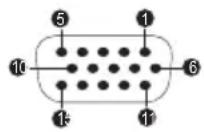
| Pin Signal Name Description I/O | |||
| 1 CRV Red Video Signal O | |||
| 2 CGV Green Video Signal O | |||
| 3 CBV Blue Video Signal O | |||
| 4 Reserved Reserved | |||
| 5 GND Ground | |||
| 6 GND Ground | |||
| 7 GND Ground | |||
| 8 GND Ground | |||
| 9 +5V | Power Supply | ||
| 10 | GND Ground | ||
| 11 | Reserved Reserved | ||
| 12 | SDA Serial Data Signal | I/O | |
| 13 | HSYNC | Horizontal Sync Signal | O |
| 14 | VSYNC | Vertical Sync Signal | O |
| 15 | SCL | Serial Clock Signal O | |
I/O (I): Input to computer
I/O (O): Output from computer
AC Power Cord and Connectors
The AC input plug of the power cord must be compatible with the various international AC power outlets and the cord must meet the standards for the country/region in which it is used. All cords must meet the following specifications:
| Wire size: | Minimum 0.75 mm^2 |
| Current rating: | Minimum 2.5 amperes |
Certification agencies
China: CQC
U.S. and Canada: UL listed and CSA certified
No. 18 AWG, Type SVT or SPT-2
Australia: AS
Japan: DENANHO
Europe:
Austria: OVE Italy: IMQ
Belgium: CEBEC The Netherlands: KEMA
Denmark: DEMKO Norway: NEMKO
Finland: FIMKO Sweden: SEMKO
France:
LCIE
Switzerland:
SEV
Germany:
VDE
United Kingdom:
BSI
In Europe, two conductors power cord must be VDE type, H05VVH2-F or H03VVH2-F and for three conductors power cord must be VDE type, H05VV-F.
For the United States and Canada, two-pin plug configuration must be a 2-15P (250 V) or 1-15P (125 V) and three-pin plug configuration must be 6-15P (250 V) or 5-15P (125 V) as designated in the U.S. National Electrical code handbook and the Canadian Electrical Code Part II.
The following illustrations show the plug shapes for the U.S.A. and Canada, the United Kingdom, Australia, Europe, and China.
USA
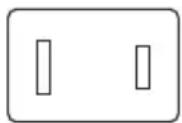
UL approved
Australia
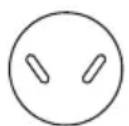
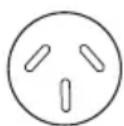
AS approved
United Kingdom
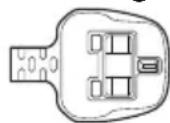
BS approved
Europe
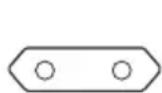
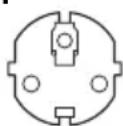
Approved by the appropriate agency
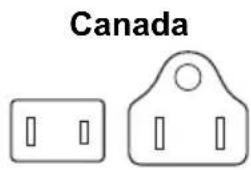
CSA approved
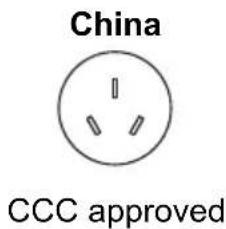
Information for Wireless Devices Wireless Technology Interoperability
The Wireless LAN is compatible with other LAN systems Direct Sequence Spread Spectrum (DSSS) / Orthogonal Frequency Division Multiplexing (OFDM) radio technology, and is compliant to:
The IEEE 802.11 Standard on Wireless LANs (Revision a/b/g/n, b/g/n or Revision a/b/g/n/ac), as defined and approved by the Institute of Electrical and Electronics Engineers.
Bluetooth® Modules are designed to be interoperable with any product with Bluetooth® wireless technology that is based on Frequency Hopping Spread Spectrum (FHSS) radio technology, and is compliant to:
Bluetooth® Specification (depending on the model you purchased), as defined and approved by the Bluetooth® Special Interest Group.
- Logo certification with Bluetooth® wireless technology as defined by the Bluetooth® Special interest Group.
This Bluetooth® product is not compatible with devices using Bluetooth® Version 1.0B specifications.

The wireless devices have not completed verification of connection and operation with all devices which are using the Wireless LAN or Bluetooth® radio technology.
Bluetooth® and Wireless LAN devices operate within the same radio frequency range and might interfere with one another. If you use Bluetooth® and Wireless LAN devices simultaneously, you might occasionally experience a less than optimal network performance or even lose your network connection.
If you experience any such problem, immediately turn off either one of your Bluetooth® or Wireless LAN.
If you have any questions about using Wireless LAN or Bluetooth® Module, visit http://www.pc.support.global.toshiba.com
In Europe, visit
http://www.toshiba-europe.com/computers/tnt/bluetooth.htm
Wireless devices and your health
Wireless products, like other radio devices, emit radio frequency electromagnetic energy. The level of energy emitted by wireless products however is far much less than the electromagnetic energy emitted by wireless devices like for example mobile phones.
Because wireless products operate within the guidelines found in radio frequency safety standards and recommendations, TOSHIBA believes wireless products are safe for use by consumers. These standards and recommendations reflect the consensus of the scientific community and result from deliberations of panels and committees of scientists who continually review and interpret the extensive research literature.
In some situations or environments, the use of wireless products might be restricted by the proprietor of the building or responsible representatives of the organization. These situations might for example include:
■ Using the wireless products equipment on board of airplanes, or
In any other environment where the risk of interference to other devices or services is perceived or identified as harmful.
If you are uncertain of the policy that applies on the use of wireless devices in a specific organization or environment (for example, airports), you are encouraged to ask for authorization to use the wireless device prior to turning on the equipment.
Wireless LAN Technology
The wireless communication function of the computer supports some wireless communication devices.
Only some models are equipped with both Wireless LAN and Bluetooth® functions.

Do not use the Wireless LAN (Wi-Fi®) or Bluetooth® functionalities near a microwave oven or in areas subject to radio interference or magnetic fields. Interference from a microwave oven or other source can disrupt Wi-Fi® or Bluetooth® operation.
Turn off all wireless functionalities when near a person who might have a cardiac pacemaker implant or other medical electric device. Radio waves might affect pacemaker or medical device operation, possibly resulting in serious injury. Follow the instruction for your medical device when using any wireless functionality.
Always turn off wireless functionality if the computer is near automatic control equipment or appliances such as automatic doors or fire detectors. Radio waves can cause malfunction of such equipment, possibly resulting in serious injury.
It might not be possible to make a network connection to a specified network name using the ad hoc network function. If this occurs, the new network (*) has to be configured for all computers connected to the same network in order to re-enable network connections. * Make sure to use new network name.
Security
TOSHIBA strongly recommends that you enable encryption functionality, otherwise your computer is open to illegal access by an outsider using a wireless connection. If this occurs, the outsider might illegally access your system, eavesdrop, or cause the loss or destruction of stored data.
■ TOSHIBA is not liable for the loss of data due to eavesdropping or illegal access through the wireless LAN and the damage thereof.
Card Specifications
Compatibility IEEE 802.11 Standard for Wireless LANs
Network Operating System
■ Microsoft Windows Networking
Media Access Protocol
CSMA/CA (Collision Avoidance) with Acknowledgment (ACK)
Radio Characteristics
Radio Characteristics of Wireless LAN module might vary according to:
Country/region where the product was purchased
Type of product
Wireless communication is often subject to local radio regulations.
Although Wireless LAN wireless networking products have been designed for operation in the license-free 2.4 GHz and 5 GHz band, local radio regulations might impose a number of limitations to the use of wireless communication equipment.
Radio Frequency Band 5 GHz (5150-5850 MHz) (Revision a, ac and n)
Band 2.4 GHz (2400-2483.5 MHz) (Revision b/g and n)
The range of the wireless signal is related to the transmit rate of the wireless communication. Communications at lower transmit range might travel larger distances.
The range of your wireless devices can be affected when the antennas are placed near metal surfaces and solid high-density materials.
Range is also impacted due to "obstacles" in the signal path of the radio that might either absorb or reflect the radio signal.
Radio Frequency Interference Requirements
This device is restricted to indoor use due to its operation in the 5.15 to 5.25GHz frequency range.
High-power radars are allocated as primary users (i.e. priority users) of the bands 5.25 to 5.35GHz and 5.65 to 5.85GHz and that these radars could cause interference and/or damage to LE-LAN devices.
Bluetooth® wireless technology
Some computers in this series have Bluetooth® wireless communication function which eliminates the need for cables between electronic devices such as computers, printers, and mobile phones. When it is enabled, Bluetooth® provides the wireless personal area network environment which is safe and trustworthy, that is quick and easy.
You cannot use the built-in Bluetooth® functions of the computer and an external Bluetooth® adaptor simultaneously. For reference, Bluetooth® wireless technology has the following features:
Security
Two advanced security mechanisms ensure a high level of security:
- Authentication prevents access to critical data and makes it impossible to falsify the origin of a message.
■ Encryption prevents eavesdropping and maintains link privacy.
Worldwide operation
The Bluetooth ^® radio transmitter and receiver operate in the 2.4 GHz band, which is license-free and compatible with radio systems in most countries in the world.
Radio links
You can easily establish links between two or more devices, with these links being maintained even if the devices are not within a line-of-sight of each other.
Radio Regulatory Information
The Wireless device must be installed and used in strict accordance with the manufacturer's instructions as described in the user documentation that comes with the product. This product complies with the following radio frequency and safety standards.
Europe
Restrictions for Use of 2400.0-2483.5MHz Frequencies in Europe
| France: Outdoor use limited to 10mW e.i.r.p. within the band 2454-2483.5MHz | Military Radiolocation use.Refarming of the 2.4GHz band has been ongoing in recent years to allow current relaxed regulation Full implementation planned 2012. |
| Italy: - For private use, a general authorization is required if WAS/RLAN's are used outside own premises. For public use, a general authorization is required. | |
| Luxembourg: Implemented General authorization required for network and service supply. | |
| Norway: Implemented This subsection does not apply for the geographical area within a radius of 20 km from the centre of Ny-Alesund. | |
| Russian Federation: - Only for indoor applications. | |
Restrictions for Use of 5150-5350MHz Frequencies in Europe
| Italy: - For private use, a general authorization is required if WAS/RLAN's are used outside own premises. | |
| Luxembourg: Implemented General authorization required for network and service supply. | |
| Russian Federation: | Limited e.i.r.p 100mW. Permitted to use only for indoor applications, closed industrial and warehouse areas, and on board aircraft. |
| 1. Permitted to use for local networks of aircraft crew service communications on board aircraft in area of the airport and at all stages of flight. | |
| 2. Permitted to use for public wireless access local networks on board aircraft during a flight at the altitude not less than 3000m. | |
Restrictions for Use of 5470-5725MHz Frequencies in Europe
| Italy: - For private use, a general authorization is required if WAS/RLAN's are used outside own premises. | |
| Luxembourg: Implemented General authorization required for network and service supply | |
| Russian Federation: Limited e.i.r.p 100mW. Permitted to use only for indoor applications, closed industrial and warehouse areas, and on board aircraft.1. Permitted to use for local networks of aircraft crew service communications on board aircraft in area of the airport and at all stages of flight.2. Permitted to use for public wireless access local networks on board aircraft during a flight at the altitude not less than 3000m. |
To remain in conformance with European spectrum usage laws for Wireless LAN operation, the above 2.4GHz and 5GHz channel limitations apply for outdoor usage. The user should use the wireless LAN utility to
check the current channel of operation. If operation is occurring outside of the allowable frequencies for outdoor use, as listed above, the user must contact the applicable national spectrum regulator to request a license for outdoor operation.
Canada - Industry Canada (IC)
This device complies with RSS-210 of the Industry Canada Rules.
Operation is subject to the following two conditions: (1) This device may not cause harmful interference, and (2) this device must accept any interference received, including interference that may cause undesired operation.
The term “IC” before the equipment certification number only signifies that the Industry Canada technical specifications were met.
USA-Federal Communications Commission (FCC)
This equipment has been tested and found to comply with the limits for a Class B digital device, pursuant to Part 15 of FCC Rules. These limits are designed to provide reasonable protection against harmful interference in a residential installation.
Refer to the FCC information section for the detailed information.
Caution: Exposure to Radio Frequency Radiation
The radiated output power of the Wireless device is far below the FCC radio frequency exposure limits. Nevertheless, the Wireless device shall be used in such a manner that the potential for human contact during normal operation is minimized.
In the usual operating configuration, the distance between the antenna and the user should not be less than 20cm. Please refer to the computer user's manual for the details regarding antenna location.
The installer of this radio equipment must ensure that the antenna is located or pointed such that it does not emit RF field in excess of Health Canada limits for the general population; consult Safety Code 6, obtainable from Health Canada's website
www.hc-sc.gc.ca
Caution: Radio Frequency Interference Requirements
This device is restricted to indoor use due to its operation in the 5.15 to 5.25GHz frequency range.
High-power radars are allocated as primary users (i.e. priority users) of the bands 5.25 to 5.35GHz and 5.65 to 5.85GHz and that these radars could cause interference and/or damage to LE-LAN devices.
Taiwan
Article 12 Without permission granted by the NCC, any company, enterprise, or user is not allowed to change frequency, enhance transmitting power or alter original characteristic as well as performance to an approved low power radio frequency devices.
Article 14 The low power radio-frequency devices shall not influence aircraft security and interfere legal communications; If found, the user shall cease operating immediately until no interference is achieved. The said legal communications means radio communications is operated in compliance with the Telecommunications Act. The low power radio-frequency devices must be susceptible with the interference from legal communications or ISM radio wave radiated devices.
Australia and New Zealand regulatory compliance
This equipment incorporates a radio transmitting device, in normal use a separation distance of 20cm will ensure radio frequency exposure levels complies with the Australian and New Zealand Standards.
Using this equipment in Japan
In Japan, the frequency bandwidth of 2,400MHz to 2,483.5MHz for second generation low-power data communication systems such as this equipment overlaps that of mobile object identification systems (premises radio station and specified low-power radio station).
1. Important notice
The frequency bandwidth of this equipment may operate within the same range as industrial devices, scientific devices, medical devices, microwave ovens, licensed radio stations and non-licensed specified low-power radio stations for mobile object identification systems (RFID) used in factory production lines (Other Radio Stations).
- Before using this equipment, ensure that it does not interfere with any of the equipment listed above.
- If this equipment causes RF interference to other radio stations, promptly change the frequency being used, change the location of use, or turn off the source of emissions.
- Contact an authorized TOSHIBA service provider if you have problems with interference caused by this product to Other Radio Stations.
2. Indication for Wireless LAN
The indication shown below appears on this equipment.
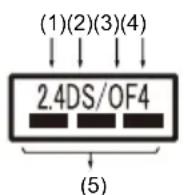
- 2.4 : This equipment uses a frequency of 2.4 GHz.
- DS : This equipment uses DS-SS modulation.
- OF : This equipment uses OFDM modulation.
-
4 : The interference range of this equipment is less than 40 m.
-
——: This equipment uses a frequency bandwidth from 2,400 MHz to 2,483.5 MHz. It is possible to avoid the band of mobile object identification systems.
3. Indication for Bluetooth®
The indication shown below appears on this equipment.
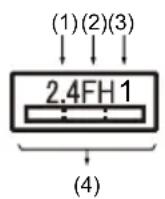
- 2.4 : This equipment uses a frequency of 2.4 GHz.
- FH : This equipment uses FH-SS modulation.
-
1 : The interference range of this equipment is less than 10 m.
-
: This equipment uses a frequency bandwidth from 2,400 MHz to 2,483.5 MHz. It is impossible to avoid the band of mobile object identification systems.
4. About the JEITA
5 GHz Wireless LAN supports W52/W53/W56 Channel.
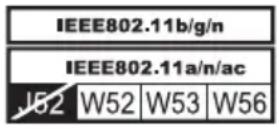
Device Authorization
This device obtains the Technical Regulation Conformity Certification and it belongs to the device class of radio equipment of low-power data communication system radio station stipulated in the Telecommunications Business Law of Japan.
Intel® Dual Band Wireless-AC 8265
The Name of the radio equipment: 8265NGW
DSP Research, Inc.
Approval Number: D160055003
The following restrictions apply:
Do not disassemble or modify the device.
- Do not install the embedded wireless module into other device.
Radio approvals for wireless devices
This equipment is approved to the radio standard by the countries/regions in the following table.

If you use this equipment in the countries/regions which are not listed in the following table, contact TOSHIBA Support.
As of September 2016
| Austria Belgium Bulgaria Canada | |||
| Cyprus Czech Rep Denmark Estonia | |||
| Finland France Germany Greece | |||
| Hong Kong Hungary Iceland India | |||
| Ireland Italy Japan Korea | |||
| Latvia Liechtenstein | Lithuania Luxemburg | ||
| Malta | Monaco | Netherlands | Norway |
Philippines Poland Portugal Romania
Slovak Republic Slovenia Spain Sweden
Switzerland UK USA
Information about Intel® AMT
Your computer might support Intel ^® Active Management Technology (AMT) depending on the model you purchased.
Using built-in platform capabilities and popular third-party management and security applications, Intel® AMT allows IT to better discover, heal, and protect their networked computing assets.
Consult with your system administrator about configurations of the AMT function before connecting to a network.
Disable the AMT function
Intel® AMT function is enabled by default, and in a situation where no system administrator presents, it is strongly recommended that you turn off the AMT function before connecting to a network.
If the AMT function is NOT turned off, there is a danger that the management of AMT function will be abused by other parties which possibly lead to the leak of sensitive and/or proprietary information, data loss, HDD/SSD erasure, or file overwritten.
First, you must do the following in the BIOS setup utility:
- Turn on the computer while pressing the F2 key.
- On the BIOS setup utility screen, change AMT Setup Prompt to Enabled.
- Press the F10 key, and press Y key to save the settings.
When the computer restarts, the message "Press < Ctrl - P > to enter Intel(R) ME Setup" appears. Press CTRL + P to enter the MEBx Setup.
To disable the AMT function, do the following:
-
Select MEBx Login, and enter the default password "admin" in the password field.
-
Enter a new password. Password must comply with the following requirements concerning character types and length:
Must be between 8 and 32 characters long.
Must contain at least one number ("0", "1-9").
Must contain a mix of lower-case ("a", "b", "z", etc.) and upper-case ("A", "B", "Z", etc.) letter.
Must contain at least one special character of the following: ` \~ ! @ \$ % ^ & * ( ) - = + [ ]; ' < . > / ?
Underscore (“_”) is considered the same as Roman alphabet characters, and is not counted as a special character.

Key input is based on the US keyboard layout. The following table shows examples of the special characters in US keyboard layout.
| Special character you want to input | Corresponding number key (SHIFT key + a number key) |
| ! | 1 |
| @ | 2 |
| # | 3 |
| $ | 4 |
| % | 5 |
| ^ | 6 |
| & 7 | |
| * | 8 |
| ( | 9 |
| ) | 0 |
-
Select Intel(R) AMT Configuration, and press the Enter key.
-
Select Manageability Features Selection, and press the Enter key.
-
Select Disabled, and press the Enter key.
-
Press the Y key, and press the ESC key.
-
Select MEBx Exit, and press Y key.
-
When the computer restarts, go to BIOS setup utility.
On the BIOS setup utility screen, change AMT Setup Prompt to Disabled.
- Press the F10 key to save the settings, and press the Y key.

When using the computer with the AC adaptor connected and the AMT function set to enabled, power might still be supplied to the system memory even when the computer power is turned off, or the computer is in Sleep Mode or Hibernation Mode.
When connecting the AC adaptor, the computer is powered and can be turned on. If the power is automatically turned off after approximately 5 to 7 seconds, it is because the RTC lasting time runs out, and the settings of AMT function have been cleared. This is normal and not an error. If it occurs, the settings of AMT function must be reconfigured.
If there is a problem when you start the computer, or initialize the Management Engine (ME) firmware after the RTC lasting time runs out, the system will automatically reset itself during setup. This is the function of AMT configurations and is not an error.
Enabling the AMT function might cause the network LAN Enable/Disable items to be no longer changeable in BIOS setup utility. Consult with your system administrator about details.
■ AMT function cannot be operated using a USB-LAN adaptor.

The useable system memory for models equipped with the AMT function is 16 - 64 MB, less than that of models not equipped with the AMT function. The amount of the difference depends on the amount of memory installed.
Notes for system administrators
Intel® AMT is enabled by default in the Management Engine (ME) firmware.
Both the security of management console and the network management must be thoroughly implemented through management of AMT function. Otherwise administrator privileges might be abused by other parties which possibly lead to the leak of sensitive and/or proprietary information, data loss, HDD/SSD erasure, or file overwritten.
The following functions are not supported:
RPAT (Remote PC Assist Technology)
Remote BIOS update
Legal Footnotes
Non-applicable Icons
Certain computer chassis are designed to accommodate all possible configurations for an entire product series. Therefore, be aware that your selected model might not have all the features and specifications
corresponding to all of the icons or switches shown on the computer chassis.
CPU
Central Processing Unit (CPU) Performance Legal Footnotes.
CPU performance in your computer product might vary from specifications under the following conditions:
■ use of certain external peripheral products
■ use of battery power instead of AC power
■ use of certain multimedia, computer generated graphics or video applications
■ use of standard telephone lines or low speed network connections
■ use of complex modeling software, such as high end computer aided design applications
■ use of several applications or functionalities simultaneously
■ use of computer in areas with low air pressure (high altitude >1,000 meters or >3,280 feet above sea level)
use of computer at temperatures outside the range of 5°C to 30°C (41-86°F) or >25°C (77°F) at high altitude (all temperature references are approximate and might vary depending on the specific computer model - contact TOSHIBA support for details).
CPU performance might also vary from specifications due to design configuration.
Under some conditions, your computer product might automatically shut down. This is a normal protective feature designed to reduce the risk of lost data or damage to the product when used outside recommended conditions. To avoid risk of lost data, always make back-up copies of data by periodically storing it on an external storage medium. For optimum performance, use your computer product only under recommended conditions. Read additional restrictions in your product documentation.
Contact TOSHIBA technical service and support, refer to TOSHIBA support section for more information.
64-Bit Computing
Certain 32-bit device drivers and/or applications might not be compatible with a 64-bit CPU/operating system and therefore might not function properly.
Memory (Main System)
Part of the main system memory might be used by the graphics system for graphics performance and therefore reduce the amount of main system memory available for other computing activities. The amount of main system memory allocated to support graphics might vary depending on the graphics system, applications utilized, system memory size, and other factors.
Battery Life
Battery life might vary considerably depending on product model, configuration, applications, power management settings, and features utilized, as well as the natural performance variations produced by the design of individual components. Published battery life numbers are achieved on select models and configurations tested by TOSHIBA at the time of publication. Recharge time varies depending on usage. Battery might not charge while computer is consuming full power.
After going through many charge and discharge cycles, the battery loses its ability to perform at maximum capacity and needs to be replaced. This is a normal phenomenon for all batteries. To purchase a new battery pack, see the accessories information that is shipped with your computer.
Internal Storage Drive Capacity
1 Gigabyte (GB) means 10^9 = 1,000,000,000 bytes using powers of 10. The computer operating system, however, reports storage capacity using powers of 2 for the definition of 1 GB = 2^30 = 1,073,741,824 bytes, and therefore shows less storage capacity. Available storage capacity will also be less if the product includes one or more pre-installed operating systems, such as Microsoft Operating System and/or pre-installed software applications, or media content. Actual formatted capacity might vary.
LCD
Over a period of time, and depending on the usage of the computer, the brightness of the LCD screen will deteriorate. This is an intrinsic characteristic of LCD technology.
Maximum brightness is only available when operating in AC power mode. Screen dims when the computer is operated on battery power and you might not be able to increase the brightness of the screen.
Graphics Processing Unit (GPU)
Graphics processing unit (GPU) performance might vary depending on product model, design configuration, applications, power management settings and features utilized. GPU performance is only optimized when operating in AC power mode and might decrease considerably when operating in battery power mode.
Total Available Graphics Memory is the total of, as applicable, Dedicated Video Memory, System Video Memory and Shared System Memory. Shared System Memory varies depending on system memory size and other factors.
Wireless LAN
The transmission speed over the wireless LAN and the distance over which wireless LAN can reach might vary depending on surrounding electromagnetic environment, obstacles, access point design and configuration, and client design and software/hardware configurations.
The actual transmission speed is lower than the theoretical maximum speed.
Copy Protection
Applicable copy protection standards included in certain media may prevent or limit recording or viewing of the media.
Glossary
The terms in this glossary cover topics related to this manual. Alternate naming is included for reference.
Abbreviations
AC: Alternating Current
AMT: Intel® Active Management Technology
ASCII: American Standard Code for Information Interchange
BIOS: Basic Input/output System
BD-ROM: Blu-ray Disc™ Read-only Memory
bps: bits per second
CD: Compact Disc
CD-ROM: Compact Disc Read-only Memory
CD-RW: Compact Disc-rewritable
CMOS: Complementary Metal-oxide Semiconductor
CPU: Central Processing Unit
DC: Direct Current
DDR: Double Data Rate
DIMM: Dual Inline Memory Module
DVD: Digital Versatile Disc
DVD-R: Digital Versatile Disc-recordable
DVD-RAM: Digital Versatile Disc-random Access Memory
DVD-R DL: Digital Versatile Disc Recordable Dual Layer
DVD-ROM: Digital Versatile Disc-read Only Memory
DVD-RW: Digital Versatile Disc-rewritable
DVD+R DL: Digital Versatile Disc Recordable Double Layer
FAT: File Allocation Table
FCC: Federal Communications Commission
FHD: Full High Definition
GB: gigabyte
GBps: gigabytes per second
HD: High Definition
HD+: High Definition Plus
HDD: Hard Disk Drive
HDMI™: High-definition Multimedia Interface™
HDMI™ CEC: High-definition Multimedia Interface™ Consumer Electronics Control
HTML: Hypertext Markup Language
IEEE: Institute of Electrical and Electronics Engineers
I/O: Input/Output
IRQ: interrupt request
ISP: Internet Service Provider
KB: kilobyte
LAN: Local Area Network
LCD: Liquid Crystal Display
LED: Light Emitting Diode
MB: megabyte
MBps: megabytes per second
MMC: MultiMediaCard
OCR: Optical Character Recognition (Reader)
PC: Personal Computer
PCI: Peripheral Component Interconnect
PCMCIA: Personal Computer Memory Card International Association
RAM: Random Access Memory
RGB: Red, Green, and Blue
RFI: Radio Frequency Interference
ROM: Read-Only Memory
RTC: Real-Time Clock
S/P DIF: Sony/philips Digital Interface Format
SD: Secure Digital
SDHC: Secure Digital High Capacity
SDXC: Secure Digital Extended Capacity
SDRAM: Synchronous Dynamic Random Access Memory
SSD: Solid-State Drive
TFT: Thin-film Transistor
URL: Uniform Resource Locator
USB: Universal Serial Bus
WAN: Wide Area Network
WQHD: Wide Quad High Definition
www: World Wide Web
Index
A
AC adaptor
additional 4-22
connecting 2-5
B
Battery
extending life 4-16
monitoring capacity 4-15
real time clock 4-13
save mode 5-4
Bluetooth® 7-7
C
Cleaning the computer 1-18
Cooling vents 3-4
D
DC IN/Battery indicator 3-10
Display
automatic power off 5-3
screen 3-7
Documentation list 2-1
Dual Pointing Device
Touch Pad 6-8
E
Equipment checklist 2-1
External monitor
problems 6-14
G
Graphics Processing Unit
3-10
H
Hard disk drive
automatic power off 5-3
K
Keyboard
function keys 4-9
Function keys F1...F12 4-9
problems 6-7
Windows special keys 4-11
M
Moving the computer 1-18
P
Password
power on 5-4
Starting the computer by
password 5-6
Supervisor 5-6
user 5-5
Power
Hibernation Mode 2-13
panel on/off 5-4
Shut Down mode 2-11
Sleep Mode 2-11
turning off 2-10
turning on 2-7
U
USB device
problems 6-11
Problems
AC power 6-5
Analyzing the problem 6-2
Battery 6-5
Dual Pointing device 6-8
External monitor 6-13
Hardware and system
checklist 6-4
HDD 6-8
Internal display panel 6-7
Keyboard 6-7
Overheating power
down 6-5
Power 6-4
Real Time Clock 6-6
Sound system 6-13
TOSHIBA support 6-15
Touch Pad 6-8
USB device 6-11
USB mouse 6-9
V
Video mode 4-25
Video RAM 3-9
W
Web Camera 3-6
Wireless communication 7-5
R
Recovery hard disk drive 2-17
Recovery Media 2-16
S
Security lock 4-22
Sleep Mode
setting 2-11
System automatic 5-4
Sound system
problems 6-13
T
Touch Screen 4-2
Instruction Manual for Safety and Comfort
Contents
Introduction......4
Safe Use of Product, Components and Accessories ....5
Power 5
Communication.... 11
Main Unit 14
Systems/Peripherals....21
Computer User Comfort Recommendations ....26
Good Working Posture ....26
Using the product with an external keyboard, mouse or monitor .....27
Typing style....28
Taking breaks and varying tasks ....28
Mobile computing tips....29
Transporting the product....29
Seeking additional help 29
Check list ....30
The product system you purchased may include Recordable and/or ReWritable optical media drive(s) and associated software, among the most advanced data storage technologies available. As with any new technology, you must read and follow all set-up and usage instructions in the applicable user guides and/or manuals enclosed or provided electronically. If you fail to do so, this product may not function properly and you may lose data or suffer other damage.
TOSHIBA, ITS AFFILIATES AND SUPPLIERS DO NOT WARRANT THAT OPERATION OF THE PRODUCT WILL BE UNINTERRUPTED OR ERROR FREE. YOU AGREE THAT TOSHIBA ITS AFFILIATES AND SUPPLIERS SHALL HAVE NO RESPONSIBILITY FOR DAMAGE TO OR LOSS OF ANY BUSINESS, PROFITS, PROGRAMS, DATA OR REMOVABLE STORAGE MEDIA ARISING OUT OF OR RESULTING FROM THE USE OF THE PRODUCT, EVEN IF ADVISED OF THE POSSIBILITY THEREOF.
While Toshiba has made every effort at the time of publication to ensure the accuracy of the information provided herein, such information is subject to change without notice.
TOSHIBA PROVIDES NO WARRANTY WITH REGARD TO THIS MANUAL OR ANY OTHER INFORMATION CONTAINED HEREIN. ALL EXPRESS OR IMPLIED WARRANTIES, INCLUDING THE IMPLIED WARRANTIES OF MERCHANTABILITY AND FITNESS FOR A PARTICULAR PURPOSE AND/OR NONINFRINGEMENT OF THIRD PARTY RIGHTS ARE HEREBY DISCLAIMED. TOSHIBA ASSUMES NO LIABILITY FOR ANY DAMAGES INCURRED DIRECTLY OR INDIRECTLY FROM ANY TECHNICAL OR TYPOGRAPHICAL ERRORS OR OMISSIONS CONTAINED HEREIN. IN NO EVENT SHALL TOSHIBA BE LIABLE FOR ANY INCIDENTAL, CONSEQUENTIAL, SPECIAL, OR EXEMPLARY DAMAGES, WHETHER BASED ON TORT, CONTRACT OR OTHERWISE, ARISING OUT OF OR IN CONNECTION WITH THIS MANUAL, OR ANY INFORMATION CONTAINED HEREIN OR THE USE THEREOF.
Trademarks
Wi-Fi is a registered trademark of the Wi-Fi Alliance.
Bluetooth is a trademark owned by its proprietor and used by TOSHIBA under license.
ExpressCard is a trademark of PCMCIA.
Blu-ray Disc ^™ , Blu-ray ^™ and the logos are trademarks of the Blu-ray Disc Association.
Other trademarks and registered trademarks not listed above may be used in this manual.
Introduction
Thank you for purchasing this Toshiba product.
All of the Safety Instructions contained in this Manual must be read carefully and must be fully understood before you attempt to use your product, in order to avoid potential hazards that could cause bodily injury, property damage, or damage the product.
Not all components or functions introduced in this Manual will be provided with your product. Some features are only available on certain models.
Store this Manual near your product, for convenient future reference.
This Manual contains:
Product Safety Instructions which should be observed to avoid hazards that could cause bodily injury and/or property damage.
User Instructions which should be observed to maximize the use and enjoyment of your product.
The Safety Instructions contained in this Manual have been categorized according to the seriousness of the potential hazards, through the use of Signal Words.
| Signal Words Meaning | |
| ⚠️DANGER | Indicates an imminently hazardous situation which, if not avoided, will result in death or serious injury. |
| ⚠️WARNING | Indicates a potentially hazardous situation which, if not avoided, could result in death or serious injury. |
| ⚠️CAUTION | Indicates a potentially hazardous situation which, if not avoided, may result in minor injury or moderate injury. |
| CAUTION | Indicates a potentially hazardous situation which, if not avoided, may result in property damage. |
| NOTE | Provides important information. |
Safe Use of Product, Components and Accessories
Power
WARNING
Handling of the battery pack
✿ Never attempt to dispose of a battery pack by burning or by throwing it into a fire, and never allow exposure to a heating apparatus (e.g., microwave oven). Heat can cause a battery pack to explode and/or release caustic liquid, both which may possibly cause serious injury.
✿Never attempt to disassemble, tamper with or repair a battery pack. The battery pack could overheat and ignite. Leakage of the caustic alkaline solution or other electrolytic substances could cause fire, possibly resulting in death or serious injury.
Never short-circuit the battery pack by either accidentally or intentionally bringing the battery terminals in contact with another conductive object. This could cause serious injury or a fire, and could also damage the battery pack and product. Always wrap the battery pack in plastic (or place it in a plastic bag) whenever transporting it, to avoid exposing the terminals to another conductive object which could result in serious injury. Always cover the metal terminals with insulating tape when disposing of the battery pack, to prevent accidental short-circuiting which could result in serious injury.
Never drive a nail or any other sharp object into the battery pack, hit battery pack with a hammer or other object or step on it. Doing so could cause a fire or explosion possibly resulting in serious injury.
Never charge the battery pack by a method other than as instructed in the User's Manual. Doing so could cause a fire or explosion possibly resulting in serious injury.
WARNING
- Never connect the battery pack to a plug socket or a car cigarette plug socket. The battery pack could rupture or ignite causing a fire or explosion possibly resulting in serious injury.
Never allow a battery pack to become wet. A wet battery pack will overheat or ignite causing rupture or fire, possibly resulting in death or serious injury.
- Never store a battery pack in an area of high humidity. This could cause a fire or explosion possibly resulting in serious injury.
✿ Never expose a battery pack to abnormal shock, vibration or pressure. Never use a battery pack which has been exposed to abnormal shock even if the appearance is normal. The battery pack's internal protective device could fail, causing it to overheat or ignite resulting in caustic liquid leakage, or explosion or fire, possibly resulting in death or serious injury.
Never subject a battery pack to heat, and never store it or use it near a heat source. The battery pack could ignite or explode when heated or burned, possibly resulting in death or serious injury. Subjecting a battery pack to heat could also cause caustic liquid to leak. It can also cause failure, malfunction, or loss of stored data.
Use of correct battery pack
Always use the battery pack supplied as an accessory or an equivalent battery pack specified in the User's Manual. Other battery packs have different voltage and terminal polarities. Use of non-conforming battery packs could generate smoke or cause fire or rupture, possibly resulting in serious injury.
Battery safety
✿ Never allow caustic electrolyte fluid leaked from the battery pack to contact your eyes, body or clothing.
Use appropriate protective gloves when handling a damaged battery.
If caustic electrolyte fluid from the battery pack should contact your eyes, immediately wash your eyes with large amounts of running water and obtain prompt medical attention, to help prevent permanent eye damage.
If electrolyte fluid should contact any part of your body, immediately wash it off under running water to help prevent skin rashes.
If electrolyte fluid should contact your clothes, promptly remove them to help prevent the electrolyte fluid from contacting your body, possibly resulting in serious injury.
WARNING
Battery pack warning indicators
Always immediately turn the power off and disconnect the power cable/cord plug from the plug socket and stop using the battery pack if you observe any of the following conditions:
- Offensive or unusual odor
- Excessive heat
- Discoloration
- Deformation, cracks or leaks
- Smoke
- Other unusual event during use, such as abnormal sound
In such an event, carefully and immediately remove the battery pack (for models with the removable battery pack) from your product. In some instances, you might have to wait for your product to cool down before removing the battery pack, in order to avoid any possible minor injury due to heat exposure. Do not turn on your product's power again until an authorized Toshiba service provider has checked it for safety. Continued use could cause a fire or rupture possibly resulting in serious injury or product failure including but not limited to the loss of data.
Disposal of used battery packs
Always dispose of used battery packs in compliance with all applicable laws and regulations. Put insulating tape, such as cellophane tape, on the electrode during transportation to avoid a possible short circuit, fire or electric shock. Failure to do so could possibly result in serious injury.
Never leave the dry cell battery in the product for a long time
✿Never leave the dry cell battery in the product (e.g., remote controller, wireless keyboard/mouse) for a long time if it is not in use. Failure to do so could possibly damage your product.
Indications of damage if your product is dropped
If your product is dropped, and emits smoke, unusual odor or excessive heat, immediately unplug the AC adaptor (if connected) and shut off your product.
Do not turn on your product's power again until an authorized Toshiba service provider has checked it for safety.
Continuing to use your product could cause a fire or battery rupture possibly resulting in serious injury. It could also cause a product failure including but not limited to the loss of data.
WARNING
Do not disassemble, modify, tamper with or repair your product
Do not attempt to disassemble, modify, tamper with or repair product (including AC adaptor and Battery Charger). Disassembly, modification, tampering or repairing your product could cause fire or electric shock, possibly resulting in serious injury.
Please contact an authorized Toshiba service provider for any repair service.
Disconnect the power cable/cord before moving your product
Before moving your product, shut down your product, disconnect the power cable/cord and wait until your product cools down and if the power button has a lock, set it to the lock position. Failure to follow this instruction may cause excessive force to be applied to the connector section, which could cause a product failure or fire, possibly resulting in serious injury.
Handling the AC adaptor and Battery Charger power cables/cords or plugs
When handling the power cable/cord, follow these precautions:
- Never tamper with the power cable/cord or plug.
- Never splice or alter a power cable/cord.
- Never bend or twist a power cable/cord.
- Never pull on a power cable/cord to remove a plug from a socket. Always grasp the plug directly.
- Never place heavy objects on a power cable/cord.
- Never run a power cable/cord through a pinch point such as a door or window.
- Never place a power cable/cord near a heat source.
- Never use nails, staples or similar objects to fasten or attach cord in place.
- Never attempt to disassemble or repair an AC adaptor or a Battery Charger.
Doing any of the above may damage the cables, and/or result in a fire or electric shock, possibly resulting in serious injury.
WARNING
Attaching the power cable/cord
Always confirm that the power plug (and extension cable plug if used) has been fully inserted into the socket, to ensure a secure electrical connection. Failure to do so may result in a fire or electric shock, possibly resulting in serious injury.
◆Be careful if you use a multiple connector. An overload on one socket could cause a fire or electric shock, possibly resulting in serious injury.
◆ The socket outlet must be near to your product and easily accessible.
Disconnecting electrical power
To disconnect electrical power to your product, remove the power cord/cable from the electrical outlet.
Dust on the power plug connectors or connector base
If dust gets on the power plug connectors or connector base, turn the power off and disconnect the power plug. Then clean the connector and/or connector base with a dry cloth. Continuing to use your product without cleaning the power plug may result in a fire or an electric shock, possibly resulting in serious injury.
Only use TOSHIBA AC adaptor and TOSHIBA Battery Charger
◆Always use the TOSHIBA AC adaptor that was provided with your product and the TOSHIBA Battery Charger (that may have been provided with your product), or use AC adaptors and battery chargers specified by TOSHIBA to avoid any risk of fire or other damage to your product. Use of an incompatible AC adaptor or Battery Charger could cause fire or damage to your product possibly resulting in serious injury. TOSHIBA assumes no liability for any damage caused by use of an incompatible adaptor or charger.
Use correct power source
Never plug the AC adaptor or Battery Charger into a power source that does not correspond to both the voltage and the frequency specified on the regulatory label of the unit. Failure to do so could result in a fire or electric shock, possibly resulting in serious injury.
Only use approved power cables/cords
Always use or purchase power cables/cords that comply with the legal voltage and frequency specifications and requirements in the country of use. Failure to do so could result in a fire or electric shock, possibly resulting in serious injury.
Do not handle the power plug with wet hands
- Never attempt to connect or disconnect a power plug with wet hands. Failure to follow this instruction could result in an electric shock, possibly resulting in serious injury.
Avoid prolonged contact the AC adaptor
The surface of the AC adaptor can become hot when in use for long periods. Avoid prolonged contact to prevent skin irritation and/or heat injury.
CAUTION
Inserting the battery pack
When installing a battery pack or before moving your product, always make sure the battery pack is inserted correctly and securely. If the battery falls out, while you are carrying your product, you could be injured or the battery pack could be damaged.
CAUTION
Do not use an impaired or exhausted battery pack
- Never continue to use a battery pack after its recharging capability has become impaired, or after the warning message indicating that the battery pack power is exhausted has been displayed. Continued use of an exhausted or impaired battery pack could result in the loss of data or damage to your product.
NOTE
Handling of the battery pack
◆Never attempt to install batteries in reverse polarity. For more information on batteries, please refer to your product User's Manual.
Storing your product
If you do not intend to use your product for a long period of time, disconnect the power plug from the plug socket and store your product in a plastic bag to avoid dust accumulation.
Communication
WARNING
Important safety instructions about using the modem on your product
When using your product's modem, basic safety precautions should always be followed to reduce the risk of fire, electric shock and injury to persons, including the following:
Never connect/disconnect or use your product's modem in a wet location.
Avoid using the modem with the telephone cable connected during an electrical storm. There may be a remote risk of electric shock from lightning.
Do not connect/disconnect or use your product's modem to report a gas leak while you are in the vicinity of the leak.
Turn Wi-Fi ^® , Bluetooth ^TM and Wireless WAN Functionalities off for Cardiac Pacemakers
- Turn Wi-Fi, Bluetooth and Wireless WAN Functionalities off when near a person who may have a cardiac pacemaker implant or other medical electric device. Radio waves may affect pacemaker or medical device operation, possibly resulting in serious injury. Follow the instruction of your medical device when using any Wi-Fi or Bluetooth or Wireless WAN functionality.
Turn off the power to your product in medical facilities or near electronic medical equipment
◆ Always turn off the power to your product when visiting medical facilities such as hospitals or when near electronic medical equipment.
Radio waves (antenna), line noise (AC adaptor) or electromagnetic waves (product circuits) could adversely affect electronic medical devices and equipment. This may result in an accident or malfunction of the device or equipment, which could possibly result in serious injury.
Turn Wi-Fi or Bluetooth or Wireless WAN Functionalities off when located close to automatic control equipment or appliances
◆Always turn off Wi-Fi or Bluetooth or Wireless WAN functionality if your product is near automatic control equipment or appliances such as
automatic doors or fire detectors. Radio waves can cause malfunction of such equipment, possibly resulting in serious injury.
Turn Wi-Fi or Bluetooth or Wireless WAN Functionalities off in aircraft
- Turn off the Wi-Fi or Bluetooth or Wireless WAN functionality in aircraft or in places that generate or can generate radio interference. Radio waves can potentially affect them, causing an accident due to malfunction.
Check if a car has adequate electromagnetic compatibility when using your product in a car
When using your product in a car, check with the automobile dealer if the car has an adequate electromagnetic compatibility (EMC). Radio waves from your product can potentially hamper safe driving. Depending on car model, your product can rarely affect car electronic equipment if it is used in a car.
CAUTION
Turn off the power to your product when it is interfering with radio equipment
If your product interferes with radio equipment, turn your product power off immediately. Such interference could cause equipment malfunction.
Do not use the product near a microwave oven
Do not use your product in the places near a microwave oven where a magnetic field generates and places where static electricity or radio interference generates.
Ensuring Wireless Network Security
A wireless LAN can greatly enhance the flexibility of your LAN configuration and operations. You can exchange data between products and other devices on the LAN without the restrictions inherent in cabling.
Toshiba strongly recommends that you take appropriate steps to ensure that the proper security is in place whenever you use a wireless connection to protect your privacy and guard against identity and/or data theft. However, please note that even with security settings activated, experienced malicious hackers may still be able to gain access to your network and/or secured data.
The Access Point (AP) security settings determine the wireless network security, not your wireless product. If the AP has not been configured for security, then your wireless product will not be able to use those features. Additionally, your wireless product's security settings must match those of
the AP or the feature will not function. Please contact the person responsible for the AP for information on security for wireless connections.
NOTE
Connecting your modem
◆Connect the built-in modem only to ordinary analog phone lines.
- Never connect the built-in modem to a digital line (ISDN).
◆Never connect the built-in modem to the digital connector on a public telephone or to a digital private branch exchange (PBX).
- Never connect the built-in modem to a key telephone system for residences or offices.
Connection to any communication line other than an analog phone line could cause a product system failure.
Main Unit
DANGER
Choking hazards
Never leave small parts such as covers, small batteries, small memory cards, caps and screws within the reach of infants or small children. Swallowing a small part may cause choking and suffocation resulting in death or serious injury. If a part is swallowed, immediately take appropriate emergency action and consult a doctor.
▲WARNING
Turning off your product where electronic devices are regulated or controlled
When you have to turn off your product aboard an aircraft or in places where electronic devices are regulated or controlled, always completely shut down your product. This includes turning off any wireless communication switches or devices, and canceling settings that reactivate your product automatically, such as a timer recording function. Failure to completely shut down your product in this way could allow the operating system to reactivate and run pre-programmed tasks or preserve unsaved data, which could interfere with aviation or other systems, possibly causing serious injury.
Provide adequate ventilation
Always make sure your product and AC adaptor have adequate ventilation and are protected from overheating when the power is turned on or when an AC adaptor is connected to a power outlet (even if your product is in Standby mode). In this condition, observe the following:
- Never cover your product or AC adaptor with any object.
- Never place your product or AC adaptor near a heat source, such as an electric blanket or heater.
- Never cover or block the air vents including those located at the base of your product.
- Always operate your product on a hard flat surface. Using your product on a carpet or other soft material can block the vents.
◆Always provide sufficient space around your product.
Overheating your product or AC adaptor could cause system failure, product or AC adaptor damage or a fire, possibly resulting in serious injury.
WARNING
Avoid liquids, moisture and foreign objects
Never allow any liquids to spill into any part of your product, and never expose your product to rain, water, seawater or moisture. Exposure to liquid or moisture can cause electric shock or fire, resulting in damage or serious injury. If any of these eventualities should accidentally occur, immediately:
- Turn off your product.
- Disconnect the AC adaptor from the power plug socket and product.
- Remove the battery pack (for models with the removable battery pack).
Do not turn on the power again, until you have taken your product to an authorized service center. Failure to follow these instructions could result in serious injury or permanent damage to your product.
✿Never allow metal objects, such as screws, staples and paper clips, to enter your product or keyboard. Foreign metal objects can create a short circuit, which can cause product damage and fire, possibly resulting in serious injury. If a metal object should accidentally enter your product, immediately:
- Turn off your product.
- Disconnect the AC adaptor from the power plug socket and product.
- Remove the battery pack (for models with the removable battery pack).
- Disconnect all cables from connectors (if any).
Do not turn on the power again, until you have taken your product to an authorized service center. Failure to follow these instructions could result in serious injury or permanent damage to your product.
Avoid moist or damp environments
Never use or place your product in a bathroom or any other damp environment or in an outdoor environment or location where it may be exposed to rain, mist, fog or other source of water or moisture. Such exposure could cause a fire or electric shock, possibly resulting in serious injury. It may also cause a product failure, or loss of data.
Do not use liquid cleaners or aerosol cleaners
Always turn off the power and unplug the product from the electrical outlet before cleaning. The injected combustible gas produced by these types of cleaners may remain inside of your product. The electrostatic spark from the motor or contact point of switch may ignite the gas residue, which
could result in an explosion, fire, or burn injury. Instead use a lightly dampened cloth for cleaning in general and remove dust with a dry cloth.
WARNING
Display screen safety
If the LCD panel is damaged, causing a liquid crystal leak, never ingest or touch the liquid. Serious injury could result.
If LCD liquid should accidentally contact your lips or mouth, always rinse immediately with large amounts of water.
If LCD liquid contacts your body, always use large amounts of water to wash it off immediately to prevent skin rash.
If LCD liquid should accidentally contact your eyes, always rinse them immediately with large amounts of water, and obtain prompt medical attention.
If any of the LCD liquid contacts your clothes, remove them immediately and wash with a synthetic detergent.
◆Failure to follow these instructions may result in serious injury.
Never touch the LCD if it is damaged or broken, as the liquid contained within the display may leak, possibly resulting in serious injury. Contact an authorized Toshiba service provider immediately for replacement of the damaged LCD and dispose of any damaged LCD in compliance with local laws and/or regulations.
- Never touch a cracked or damaged display screen as it could result in possible injury.
Experiencing discomfort
If you experience discomfort while operating your product, stop immediately and rest. Continuous operation for long periods without adequate rest may cause pain in the arms, wrists, hands, back, neck or other parts of the body. If pain persists despite rest, consult your doctor.
CAUTION
Avoid placing your product on unstable surfaces
Never place your product on a shaky table, uneven, tilted surface or other unstable location. your product may fall, causing damage to your product or possibly injury.
Depending on the direction and/or angle of tilt of your product, your product could automatically shut down to avoid overheating.
CAUTION
Avoid extended contact between your product base/palm rest and your skin
Product base and palm rest can become hot! Avoid prolonged contact to prevent skin irritation and/or heat injury.
Today's performance products generate heat under normal operating conditions, as a function of system activity. Avoid extended contact between your product base or palm rest and your skin. Under certain operating conditions such prolonged contact between your product base or Palm Rest and your skin may result in skin irritation and/or heat injury.
Consider using a hard product insulating pad or similarly suitable hard insulating material when using a product on your lap.
Disposal of this product
◆ Discard this product in accordance with applicable laws and regulations. For further information, contact your local government.
CAUTION
Never place your product in locations with excess heat
Never place your product where it will be exposed to excess heat, such as in direct sunlight, an unventilated vehicle or near a heater. This may result in a system failure, malfunction, loss of data or damage to your product.
Never place your product in a location with extremely low temperatures
✿ Never place your product in a location where it will be exposed to extremely low temperatures. This may result in a system failure, malfunction or loss of data.
Never subject your product to sudden temperature variations
✿ Never subject your product to sudden temperature variations. This may result in condensation, causing a system failure, malfunction or loss of data.
CAUTION
Never place your product in a dusty location
Do not expose your product to dusty environments. If dust gets inside your product, it could cause a system failure, malfunction or loss of data. If dust contaminates your product, do not turn on the power. Take it to an authorized Toshiba service provider before you use it.
Clean any dust accumulated on your product's air vents
Always remove the dust accumulated on your product's air vents. Failure to follow this instruction could cause overheating of your product or result in lower performance.
Never place your product or AC adaptor on a heat sensitive surface
Never place your product or AC adaptor on a wooden surface, furniture, or any other surface that could be marred by exposure to heat since your product base and AC adaptor's surface increase in temperature during normal use.
◆ Always place your product or AC adaptor on a flat and hard surface that is resistant to heat damage.
Never operate your product during a thunderstorm
Never operate your product on AC power during a thunderstorm. If you see lightning or hear thunder, never touch your product, cables and peripherals. An electric surge caused by the storm, may result in a system failure, loss of data or hardware damage.
Never place your product near magnets
✿ Never place your product near an object that generates a magnetic field, such as a speaker or TV. Do not wear magnetic bracelets while using your product. Exposure to magnetic fields can cause system failure, malfunction or loss of data.
Never place or drop heavy objects onto your product
- Never place a heavy object on your product and be careful not to drop a heavy object onto your product. It could damage your product or cause system failure.
Never place or drop objects onto your product's display screen
Never place or drop objects onto your product's display screen. Failure to follow this instruction could result in possible damage to your product.
Never use benzine, thinner or other chemicals to clean your product
Never use benzine or naphtha (petroleum), thinner or other chemicals when cleaning your product, AC adaptor, or storage device. The use of benzine or naphtha (petroleum), thinner or other chemicals may result in deterioration, deformation or discoloration of those items and the loss of data.
NOTE
Take a rest periodically
When using this product, rest your eyes periodically and relax or stretch your muscles to avoid strain.
Turn your product off when not in use
✿Never leave the power to your product on continuously for more than 24 hours. Turn the power off when this product is not in use.
Product installation environment
◆ Always provide sufficient space around your product to ensure adequate ventilation.
◆Never cover or block the air vents.
Use your product at temperatures and humidity levels within the recommended environmental ranges. These ranges may vary depending on the specific product model - please refer to your product documentation or Toshiba website for details.
◆ Always avoid abrupt changes of temperature or humidity.
◆ Never place close to heat radiating appliances such as a heater.
◆Never place close to corrosive chemicals.
- Never place close to magnetic field radiating appliances such as a stereo speaker.
◆Always place this product on a hard flat surface.
- Provide a sufficient space behind your product to allow easy adjustment of the display panel.
◆ Always provide sufficient space for operating a mouse and other peripheral devices.
(See “Provide adequate ventilation” section in this Instruction Manual for Safety and Comfort)
Systems/Peripherals
DANGER
Do not disassemble or repair your optical drive
Never attempt to disassemble, adjust or repair an optical drive (CD/DVD/Blu-ray™ drive, CD-RW drive, Multi-drive or equivalent drive). The appliance contains a laser system and is classified as a “CLASS 1 LASER PRODUCT to EN60825-1”. You could damage the drive. You would also be exposed to laser light or other safety hazard, resulting in serious injury. Always contact an authorized Toshiba service provider, if any repair or adjustment is required.
WARNING
Do not alter or disassemble your product
Never open any cover on your product, or remove screws or in any way attempt to alter or disassemble your product. Never try to connect a peripheral device except as instructed in the manual. Doing so could damage your product or cause serious injury including electric shock and burns.
Setting sound volume
Do not set the volume too high when using headphones. Continuous exposure to loud sound can harm your hearing.
CAUTION
Removing an ExpressCard ^® or PC card
ExpressCards and PC cards can sometimes become hot during product operation. Before you remove an ExpressCard or PC card always wait for it to cool. You could get burned removing a hot ExpressCard or PC card.
CAUTION
Connecting peripheral devices
Always turn the power off before connecting a peripheral device that is not approved for Hot Insertion. An electrical shock or system failure may result if the peripheral device is connected while the power is turned on.
Hot Insertion means connecting or disconnecting a device while your product power is on.
Do not use unauthorized peripheral devices or application software
Before using a peripheral device or application software that is not an authorized Toshiba part or product, make sure the device or software can be used with your product. Use of incompatible devices may cause injury or may damage your product.
Do not use cracked, deformed or repaired CDs, DVDs and Blu-ray™ discs
Never use a cracked, deformed or repaired CD/DVD/Blu-ray Disc™ Fragments from a damaged CD/DVD/Blu-ray Disc™ could cause injury.
Closing the optical drive
◆Always keep fingers away from the sides of the tray when closing the tray of an optical drive (CD/DVD/Blu-ray Disc™ drive, CD-RW drive, Multi-drive or any other optical drive) to avoid pinching your fingers.
Handling of the optical mouse or laser mouse
◆ Never look directly at the light source of an optical mouse or laser mouse.
Replacing the memory module
- Turn off the power and disconnect the AC adaptor when installing or replacing a memory module.
If you use your product for an extended period of time, the memory modules and the circuits located close to the memory modules will become hot. Allow them to cool to room temperature before you replace them.
CAUTION
Remove the ExpressCards and PC cards before transporting your product
✿ Never transport your product with ExpressCards and PC card installed. This could cause damage to your product and/or ExpressCard and PC card, resulting in product failure.
Never remove the key caps
✿ Never remove the key caps on your keyboard. Doing so could cause damage to the parts under the key caps.
CAUTION
Use the built-in modem only in specified countries and regions
The built-in modem can be used only in specified countries and regions. Using the modem in an area not specified for use may cause a system failure. Check the specified areas carefully before using it.
Do not turn off power while application software is running
✿ Never turn off the power while an application is running. Doing so could cause loss of data.
Do not turn power off or remove external storage device while it is writing or reading media
✿ Never turn off the power, disconnect an external storage device or remove storage media during data read/write. Doing so can cause data loss.
Formatting storage media
✿ Never format storage media without checking its content. Formatting destroys all stored data.
Periodic back up of stored data
It is a good idea to periodically back up the internal hard disk or other main storage device to external media. General storage media is not durable or
stable over long periods of time and under certain conditions may result in data loss.
Save data before installing devices or software
Before you install a device or application, save any data in memory to the hard disk drive or other storage media. Failure to do so may result in the loss of data.
Caring for CDs, DVDs and Blu-ray™ discs
Take proper care of your CD/DVD/Blu-ray™ discs to avoid data loss or damage to the disc or to the optical drive.
- Never bend a CD/DVD/Blu-ray Disc™.
- Never damage the surface of a CD/DVD/Blu-ray Disc™.
- Never place the CD/DVD/Blu-ray™ discs in direct sunlight.
- Never expose the CD/DVD/Blu-ray™ discs to extreme heat or cold.
- Never place a heavy object on a CD/DVD/Blu-ray Disc™.
- Never write on, or otherwise mar, the read surface of a CD/DVD/Blu-ray Disc™.
Always use AC power when writing to the optical drive
When writing to media using an optical drive, always connect the AC adaptor to a power plug socket or power source to ensure maximum performance. If data is written powered by the batteries, writing may sometimes fail due to low battery power and data loss may occur.
NOTE
Anti-virus software
Use a virus-check program and make sure it is updated regularly.
Use AC power when playing video of DVD/Blu-ray™
When playing video of DVD/Blu-ray™, always connect the AC adaptor to a power plug socket or power source to ensure maximum performance. Operation on battery power might result in skipped frames.
NOTE
Erasing data
If your hard disk or other storage media contains sensitive data, you should be aware that standard deletion procedures do not remove data from the media. These standard deletion procedures include:
- Selecting Delete for a target file
- Putting files in the Recycle Bin and emptying the Recycle Bin
- Reformatting the media
- Reinstalling an operating system from the recovery media
The procedures above delete only the initial part of the data used for file management. This makes the file invisible to the operating system, but the data can still be read by specialized utilities. If you dispose of your product, please delete all the data on its Hard Disk Drive/Solid State Drive. Doing so prevents unauthorized use of such data. To ensure your data is not used for unauthorized purposes, you can:
- Physically destroy the Hard Disk Drive/Solid State Drive
- Use a proven specialized utility to overwrite all data
• Take the Hard Disk Drive/Solid State Drive to a professional deletion service
All data deletion costs will be borne by you.
Computer User Comfort Recommendations
Good Working Posture
Adjust your chair height: your feet should be flat on the floor and the bottom of your thighs should be evenly supported by the seat. If your feet cannot reach the floor, use a foot rest. Avoid pressure points behind the knee or under the thigh.
The space under your desk should be free of clutter so that your legs and feet are not restricted, and you can get close enough to your product and other items that you use frequently.
Adjust the chair back rest: it should match the curve of your back and provide comfortable back support.
Adjust the chair arm rests: they should be about the same height as the keyboard and comfortably support your arms, allowing your shoulders to relax.
When using the keyboard, it should be centered in front of you.
The keyboard and pointing device should be close to your elbow level. The keyboard should be flat so that your wrists are straight when typing. However, if the product is on a worksurface that is above your elbow height you may need to slope the product to keep your wrists straight.
◆Work with relaxed shoulders.
When typing, keep your wrists straight and try not to rest your wrists on the product. Support your arms on your forearm area. The forearms can be supported by the chair arm supports or the desk surface.
◆The product display should be tilted so that the image on the screen is clear.
Avoid glare: position the product so that light sources (lamps or windows) do not shine or reflect directly into your eyes. Place the product display away from bright light sources or reduce the light intensity from windows by using blinds. Glare on the product display may cause eye strain, eye fatigue or headaches.
◆Certain product displays (e.g., displays on the Qosmio ^ ) have a brightness approaching that of a TV device. We recommend that you adjust the
brightness of your product display to a comfortable level to prevent possible eye strain.
◆ Keep your head level, facing forward and balanced over your torso.
Adjust the font size of text on your screen to make viewing comfortable.
Rest your eyes periodically by focusing on objects that are farther away.
Using the product with an external keyboard, mouse or monitor
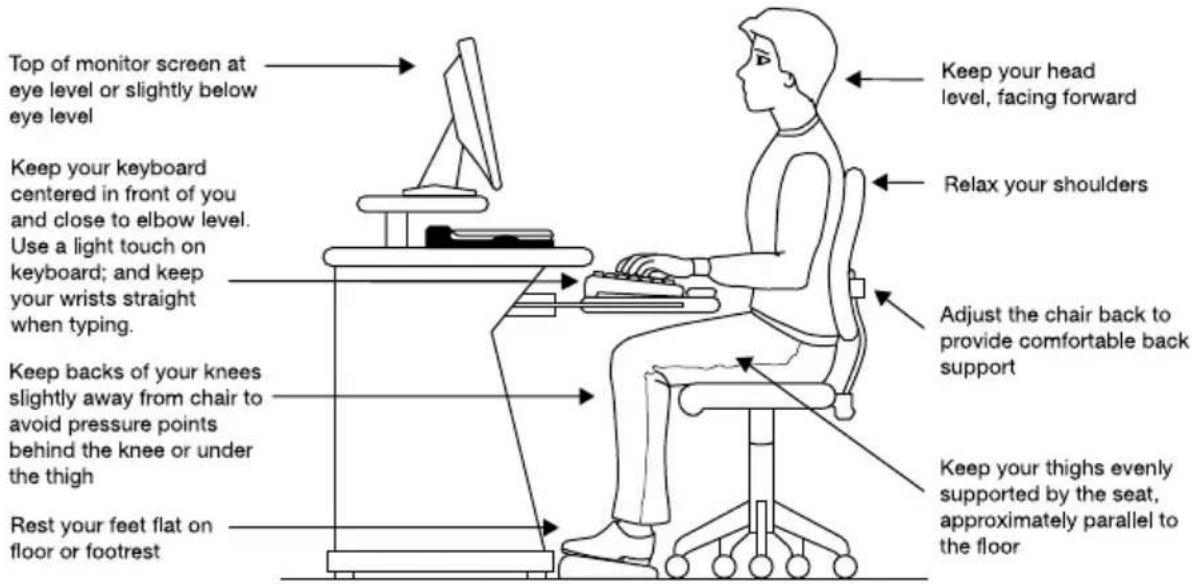
When using a product for long hours, it may be more comfortable to dock the product and use an external keyboard, mouse and monitor.
The keyboard and mouse (or trackball) should be close to your elbow level.
The mouse should be next to the keyboard to avoid a reach. If you have to reach, the arm should be supported in the forearm area by the desk surface or the chair arm supports.
Alternative keyboards, such as the split curved keyboard, may improve shoulder and arm comfort.
◆Select a mouse that is comfortable for you to use.
- Don’t rest your wrists on the edge of the keyboard or on the work surface when typing.
The monitor should be about an arm length away while sitting back in the chair.
◆The monitor should be centered in front of your body.
The top of the monitor should be at or slightly below eye level. A monitor that is too high or too low can cause awkward head and neck postures and may lead to discomfort in the neck muscles.
If you use bifocals you may need to lower the monitor. Alternatively, you might consider customized prescription product glasses.
Typing style
Learn to touch type so that you don't have to look down at the keyboard.
◆Type with straight wrists.
◆Type lightly.
Learn the keyboard shortcuts for your applications. You will be more productive.
Use the pointing device (e.g., touch pad, accupoint, or tablet pen whichever is available with your product, or other optional pointing devices like mouse or trackball) with a comfortable hand posture. Avoid awkward hand postures or high gripping force.
It is helpful to change the type of pointing device that you use on a regular basis to avoid working in just one hand posture.
Taking breaks and varying tasks
- Change they way you work so that you are not stuck in the same posture for long periods of time. Some people find it comfortable to occasionally stand while using the product. To do this properly, the product needs to be on an elevated surface. Make sure you follow the Good Working Posture points mentioned above while working.
Take short, strategically spaced rest breaks to avoid eye strain and body fatigue. For example, stand up and walk around or stretch for a few minutes every hour.
Taking regular breaks is especially important if you are working long hours on your product or working on a deadline.
If stress at work is affecting your health, try to identify the sources of the stress and evaluate ways to reduce the stress.
Mobile computing tips
When using the product at airports, on airplanes or trains, or at meetings, make sure that you take the time to consider the points just mentioned.
When working on the road it may be difficult to set up the product in an optimal position. In these situations it is important that you take frequent breaks and change your posture frequently to relieve the excess loads on your body.
Be creative, when in a hotel room, use a rolled up blanket or pillows to provide back support, or to provide arm support. To position the product at a good height, remember to operate the product on a hard flat stable surface. Using your product on a carpet, blanket or other soft materials can block the air vents including those located at the base of the product and possibly cause overheating of your product (See “Provide adequate ventilation” section in this Instruction Manual for Safety and Comfort).
Transporting the product
Carrying your product for a long time may lead to shoulder and arm fatigue. If you carry your product with other items, consider using an ergonomically-designed computer case.
Seeking additional help
Follow the advice from your company health and safety staff. Contact them if you need assistance making adjustment to your workstation or adjusting the lighting.
Again, if you experience persistent or recurrent pain, ache, numbness, burning, or stiffness you should promptly see a qualified health care provider. These sensations may be caused by serious medical conditions that can be treated.
For more specific recommendations on the safety and comfort of your product environment, customers in the United States may visit the United States Department of Labor, Occupational Safety & Health Administration website at: http://www.osha.gov/SLTC/etools/computerworkstations/
Check list
☐ Is your chair comfortable - does it support your back and arms well?
Are your feet flat on the ground?
☐ Is there adequate space under your desk for your legs?
☐Are the keyboard and mouse at elbow level?
☐Are your shoulders relaxed when using the keyboard?
Are your shoulders relaxed when using a mouse or other optional pointing device?
☐ Are your hands and wrists aligned in a comfortable, straight posture?
☐ Are your arms supported in the forearm area (not at the wrist)?
☐ Do you hold the mouse or trackball with a loose, relaxed hand?
☐Do you use a light touch when typing or using the mouse?
☐Do you clean your mouse or trackball regularly?
□Is the top of your monitor close to eye level?
☐Is the monitor about an arm length away?
☐Have you eliminated the glare on the monitor?
□Is the monitor tilted so that it is easy to read?
☐Do you change postures regularly?
☐Do you take breaks, at least once an hour?
- Table of Contents
- Chapter 1
- Legal, Regulatory, and Safety
- Chapter 2
- Getting Started
- Chapter 3
- The Grand Tour
- Chapter 4
- Operating Basics
- Chapter 5 Utilities and Advanced Usage
- Chapter 6 Troubleshooting
- Chapter 7 Appendix
- Index
- Copyright, Disclaimer and Trademarks Copyright
- Disclaimer
- Trademarks
- Regulatory Information
- FCC information
- FCC notice "Declaration of Conformity Information"
- FCC conditions
- Contact
- California Prop 65 Warning
- Export Administration Regulation
- EU Declaration of Conformity
- CE
- CE compliance
- Working environment
- VCCI Class B Information (Japan Only)
- Canadian regulatory information (Canada only)
- Following information is only valid for EU-member States:
- Disposal of products
- Disposal of batteries and/or accumulators
- REACH - Compliance Statement
- Following information is only for Turkey:
- Following information is only for India:
- Video Standard Notice
- OpenSSL Toolkit License Issues
- FreeType License Issues
- No Warranty
- Redistribution
- Advertising
- Contacts
- ENERGY STAR® Program
- Disposing of the computer and the computer's battery
- General Precautions
- Provide adequate ventilation
- Creating a computer-friendly environment
- Stress injury
- Heat injury
- Pressure or impact damage
- Cleaning the computer
- Moving the computer
- Mobile phones
- Instruction Manual for Safety and Comfort
- Safety Icons
- Equipment checklist
- Hardware
- Documentation
- Conventions
- Using your computer for the first time
- Opening the display
- Display panel
- Tablet mode
- Connecting the AC adaptor
- Turning on the power
- Power button
- Initial setup
- Getting to know Windows
- Start menu
- Windows taskbar
- Task view
- Search
- Action center
- Settings
- Windows Store
- Windows Hello
- Sign-in options
- Turning off the power
- Shut Down Mode
- Restarting the computer
- Sleep Mode
- Benefits of Sleep Mode
- Executing Sleep Mode
- Sleep Mode limitations
- Hibernation Mode
- Benefits of Hibernation Mode
- Starting Hibernation Mode
- Automatic Hibernation Mode
- Data save in Hibernation Mode
- System Recovery
- Creating Recovery Media
- Restoring the pre-installed software from your created Recovery Media
- Restoring the pre-installed software from the Recovery Partition
- Front with the display closed
- Left side
- DC IN/Battery indicator
- Headphone/ Microphone jack
- Right side
- Back
- Cooling vents
- Underside
- Stereo speakers
- Front with the display open
- Face recognition sensor
- Web Camera LED The Web Camera LED glows when the Web Camera is operating.
- Magnets location
- Internal Hardware Components
- Graphics Processing Unit
- Intel® Display Power Saving Technology
- Power Condition Descriptions
- Power indicator
- Operating in Tablet Mode
- Changing the screen orientation
- Using the Touch Screen
- Using the Touch Pad
- Using the Stylus Pen
- Installing the battery
- Pen actions
- Single tap
- Double tap
- Press and hold
- Drag
- Drag and drop
- Replacing the pen tip
- The Keyboard
- Keyboard indicator
- CAPS LOCK indicator
- Function Keys
- Key Combination Function
- Windows special keys
- Using the Fingerprint Sensor
- Fingerprint sensor
- Points to note about the Fingerprint Sensor
- Battery
- Battery pack
- Real-Time Clock (RTC) function
- Care and use of the battery pack
- Charging the battery
- Procedures
- Charging Time
- Battery type Power off Power on
- Charging notice
- Monitoring battery capacity
- Maximizing battery operating time
- Battery pack exhausted time
- Battery type Sleep Mode Shut Down Mode
- Extending battery life
- USB Type-C™ Adapters
- USB Type-C™ port
- HDMI™ out port
- Settings for display video on HDMI™
- Selecting HD Format
- RGB monitor port
- Wireless display
- Security lock
- Connecting the security lock
- Optional TOSHIBA Accessories
- Sound System and Video mode
- Volume Mixer
- Microphone Level
- Audio Enhancements
- DTS Studio Sound™
- Realtek HD Audio Manager
- Information
- Power Management
- Speaker Configuration
- Default Format
- Headphone/Microphone selection
- Video mode
- Chapter 5
- Utilities and Advanced Usage
- Utilities and Applications
- TOSHIBA Maintenance Utility
- Special features
- TOSHIBA Password Utility
- User Password
- Set (button)
- Supervisor Password
- Starting the computer using a password
- Password =
- TOSHIBA System Settings
- USB Charge
- USB Sleep and Charge
- Function under Battery Mode
- System ON CDP Charge
- TOSHIBA Setup Utility
- Chapter 6
- Troubleshooting
- Problem-solving process
- Preliminary checklist
- Analyzing the problem
- If something goes wrong
- Your computer does not respond to the keyboard commands
- Your program stops responding
- The computer does not start
- The computer does not load advanced options during startup
- Key Advanced option
- Hardware and system checklist
- Power
- Overheating power down
- AC power
- BIOS
- Keyboard
- Internal display panel
- Pointing device
- Fingerprint sensor
- Problem Procedure
- USB device
- Sleep and Charge function
- Sound system
- External monitor
- Wireless LAN
- Bluetooth®
- TOSHIBA support
- Before you call
- TOSHIBA technical support
- Chapter 7
- Appendix
- Specifications
- Physical Dimensions
- External RGB monitor port pin assignment
- AC Power Cord and Connectors
- Certification agencies
- Information for Wireless Devices Wireless Technology Interoperability
- Wireless devices and your health
- Wireless LAN Technology
- Security
- Card Specifications
- Radio Characteristics
- Radio Frequency Interference Requirements
- Bluetooth® wireless technology
- Worldwide operation
- Radio links
- Radio Regulatory Information
- Europe
- Restrictions for Use of 2400.0-2483.5MHz Frequencies in Europe
- Restrictions for Use of 5150-5350MHz Frequencies in Europe
- Canada - Industry Canada (IC)
- USA-Federal Communications Commission (FCC)
- Caution: Exposure to Radio Frequency Radiation
- Caution: Radio Frequency Interference Requirements
- Taiwan
- Australia and New Zealand regulatory compliance
- Using this equipment in Japan
- Important notice
- Indication for Wireless LAN
- Indication for Bluetooth®
- About the JEITA
- Device Authorization
- Radio approvals for wireless devices
- Information about Intel® AMT
- Disable the AMT function
- Notes for system administrators
- Legal Footnotes
- Non-applicable Icons
- CPU
- 64-Bit Computing
- Memory (Main System)
- Battery Life
- Internal Storage Drive Capacity
- LCD
- Graphics Processing Unit (GPU)
- Copy Protection
- Glossary
- A
- B
- C
- D
- E
- G
- H
- K
- M
- P
- U
- Problems
- V
- W
- R
- S
- T
- Contents
- Introduction
- Thank you for purchasing this Toshiba product.
- This Manual contains:
- Safe Use of Product, Components and Accessories
- WARNING
- Handling of the battery pack
- Use of correct battery pack
- Battery safety
- Battery pack warning indicators
- Disposal of used battery packs
- Never leave the dry cell battery in the product for a long time
- Indications of damage if your product is dropped
- Do not disassemble, modify, tamper with or repair your product
- Disconnect the power cable/cord before moving your product
- Handling the AC adaptor and Battery Charger power cables/cords or plugs
- Attaching the power cable/cord
- Disconnecting electrical power
- Dust on the power plug connectors or connector base
- Only use TOSHIBA AC adaptor and TOSHIBA Battery Charger
- Use correct power source
- Only use approved power cables/cords
- Do not handle the power plug with wet hands
- Avoid prolonged contact the AC adaptor
- CAUTION
- Inserting the battery pack
- Do not use an impaired or exhausted battery pack
- NOTE
- Storing your product
- Communication
- Important safety instructions about using the modem on your product
- Turn Wi-Fi ® , Bluetooth TM and Wireless WAN Functionalities off for Cardiac Pacemakers
- Turn off the power to your product in medical facilities or near electronic medical equipment
- Turn Wi-Fi or Bluetooth or Wireless WAN Functionalities off when located close to automatic control equipment or appliances
- Turn Wi-Fi or Bluetooth or Wireless WAN Functionalities off in aircraft
- Check if a car has adequate electromagnetic compatibility when using your product in a car
- Turn off the power to your product when it is interfering with radio equipment
- Do not use the product near a microwave oven
- Ensuring Wireless Network Security
- Connecting your modem
- Main Unit
- DANGER
- Choking hazards
- ▲WARNING
- Turning off your product where electronic devices are regulated or controlled
- Avoid liquids, moisture and foreign objects
- Avoid moist or damp environments
- Do not use liquid cleaners or aerosol cleaners
- Display screen safety
- Experiencing discomfort
- Avoid placing your product on unstable surfaces
- Avoid extended contact between your product base/palm rest and your skin
- Disposal of this product
- Never place your product in locations with excess heat
- Never place your product in a location with extremely low temperatures
- Never subject your product to sudden temperature variations
- Never place your product in a dusty location
- Clean any dust accumulated on your product's air vents
- Never place your product or AC adaptor on a heat sensitive surface
- Never operate your product during a thunderstorm
- Never place your product near magnets
- Never place or drop heavy objects onto your product
- Never place or drop objects onto your product's display screen
- Never use benzine, thinner or other chemicals to clean your product
- Take a rest periodically
- Turn your product off when not in use
- Product installation environment
- Systems/Peripherals
- Do not disassemble or repair your optical drive
- Do not alter or disassemble your product
- Setting sound volume
- Removing an ExpressCard ® or PC card
- Connecting peripheral devices
- Do not use unauthorized peripheral devices or application software
- Do not use cracked, deformed or repaired CDs, DVDs and Blu-ray™ discs
- Closing the optical drive
- Handling of the optical mouse or laser mouse
- Replacing the memory module
- Remove the ExpressCards and PC cards before transporting your product
- Never remove the key caps
- Use the built-in modem only in specified countries and regions
- Do not turn off power while application software is running
- Do not turn power off or remove external storage device while it is writing or reading media
- Formatting storage media
- Periodic back up of stored data
- Save data before installing devices or software
- Caring for CDs, DVDs and Blu-ray™ discs
- Always use AC power when writing to the optical drive
- Anti-virus software
- Use AC power when playing video of DVD/Blu-ray™
- Erasing data
- Computer User Comfort Recommendations
- Good Working Posture
- Using the product with an external keyboard, mouse or monitor
- Typing style
- Taking breaks and varying tasks
- Mobile computing tips
- Transporting the product
- Seeking additional help
- Check list
Brand : TOSHIBA
Model : Portégé X20W-D
Category : Tablet