Encore WT8-A32 - Tablet TOSHIBA - Free user manual and instructions
Find the device manual for free Encore WT8-A32 TOSHIBA in PDF.


| Product Type | Tablet |
| Brand | Toshiba |
| Model | Encore WT8-A32 |
| Display Size | 8 inches |
| Display Resolution | 1280 x 800 pixels |
| Processor | Intel Atom Z3735F (quad-core, 1.33 GHz) |
| RAM | 2 GB |
| Internal Storage | 32 GB (expandable via microSD) |
| Operating System | Windows 8.1 (upgradable to Windows 10) |
| Rear Camera | 5 MP |
| Front Camera | 2 MP |
| Battery Capacity | 4000 mAh |
| Battery Life | Up to 8 hours |
| Dimensions | 209 x 129 x 10.4 mm |
| Weight | 420 g |
| Connectivity | Wi-Fi 802.11 b/g/n, Bluetooth 4.0 |
| Ports | 1 x microUSB 2.0, 1 x microHDMI, 1 x audio jack |
| Sensors | Accelerometer, gyroscope |
| Expansion Slot | microSD up to 64 GB |
| Maintenance | Clean with a soft, dry cloth. Do not use liquid cleaners. |
| Safety | Avoid drops, keep away from water, and do not expose to extreme temperatures. |
| Spare Parts & Repairability | Battery and screen are not user-replaceable. Contact a professional for repairs. |
Frequently Asked Questions - Encore WT8-A32 TOSHIBA
User questions about Encore WT8-A32 TOSHIBA
0 question about this device. Answer the ones you know or ask your own.
Ask a new question about this device
Download the instructions for your Tablet in PDF format for free! Find your manual Encore WT8-A32 - TOSHIBA and take your electronic device back in hand. On this page are published all the documents necessary for the use of your device. Encore WT8-A32 by TOSHIBA.
USER MANUAL Encore WT8-A32 TOSHIBA
Leading Innovation >>>
encore™
User's Guide
If you need assistance:
Technical support is available online at Toshiba's Web site at support.toshiba.com. At this Web site, you will find answers for many commonly asked technical questions plus many downloadable software drivers, BIOS updates, and other downloads.
For more information, see "If Something Goes Wrong" on page 88 in this guide.
▲WARNING
Handling the cord on this product will expose you to lead, a chemical known to the State of California to cause birth defects or other reproductive harm. Wash hands after handling.

For the state of California only.
Model: WT8 - A Series
Recordable and/or ReWritable Drive(s) and Associated Software Warranty
The device system you purchased may include Recordable and/or ReWritable optical disc drive(s) and associated software, among the most advanced data storage technologies available. As with any new technology, you must read and follow all set-up and usage instructions in the applicable user guides and/or manuals enclosed or provided electronically. If you fail to do so, this product may not function properly and you may lose data or suffer other damage.
Protection of Stored Data
For your important data, please make periodic back-up copies of all the data stored on the hard disk or other storage devices as a precaution against possible failures, alteration, or loss of the data. IF YOUR DATA IS ALTERED OR LOST DUE TO ANY TROUBLE, FAILURE OR MALFUNCTION OF THE HARD DISK DRIVE OR OTHER STORAGE DEVICES AND THE DATA CANNOT BE RECOVERED, TOSHIBA SHALL NOT BE LIABLE FOR ANY DAMAGE OR LOSS OF DATA, OR ANY OTHER DAMAGE RESULTING THEREFROM. WHEN COPYING OR TRANSFERRING YOUR DATA, PLEASE BE SURE TO CONFIRM WHETHER THE DATA HAS BEEN SUCCESSFULLY COPIED OR TRANSFERRED. TOSHIBA DISCLAIMS ANY LIABILITY FOR THE FAILURE TO COPY OR TRANSFER THE DATA CORRECTLY.
Critical Applications
The device you have purchased is not designed for any “critical applications.” “Critical applications” means life support systems, medical applications, connections to implanted medical devices, commercial transportation, nuclear facilities or systems or any other applications where product failure could lead to injury to persons or loss of life or catastrophic property damage. ACCORDINGLY, TOSHIBA, ITS AFFILIATES AND SUPPLIERS DISCLAIM ANY AND ALL LIABILITY ARISING OUT OF THE USE OF THE device PRODUCTS IN ANY CRITICAL APPLICATIONS. IF YOU USE THE device PRODUCTS IN A CRITICAL APPLICATION, YOU, AND NOT TOSHIBA, ASSUME FULL RESPONSIBILITY FOR SUCH USE.
Radio Frequency (RF) Energy Exposure
When the transmitter and receiver on your device is powered ON, RF energy is received and transmitted. The power level your device transmits at is controlled by your network access while in communication.
Your device is approved to the radio standard by the country/region listed in the approved countries table for the module installed in your device.
FCC Notice “Declaration of Conformity Information”
This equipment has been tested and found to comply with the limits for a Class B digital device, pursuant to Part 15 of the FCC rules. These limits are designed to provide reasonable protection against harmful interference in a residential installation.
This equipment generates, uses and can radiate radio frequency energy and, if not installed and used in accordance with the instructions, it may cause harmful interference to radio communications. However, there is no guarantee that interference will not occur in a particular installation. If this equipment does cause harmful interference to radio or television reception, which can be determined by turning the equipment off and on, the user is encouraged to try to correct the interference by one or more of the following measures:
◆Reorient or relocate the receiving antenna.
◆ Increase the separation between the equipment and receiver.
Connect the equipment to an outlet on a circuit different from that to which the receiver is connected.
Consult the dealer or an experienced radio/TV technician for help.
NOTE
Only Peripherals complying with the FCC Class B limits may be attached to this equipment. Operation with noncompliant peripherals or peripherals not recommended by Toshiba is likely to result in interference to radio and TV reception. Shielded cables must be used between the external devices and your device's ports. Changes or modifications made to this equipment not expressly approved by Toshiba or parties authorized by Toshiba could void the user's authority to operate the equipment.
This device complies with Part 15 of the FCC Rules. Operation is subject to the following two conditions:
This device may not cause harmful interference.
This device must accept any interference received, including interference that may cause undesired operation.
Contact Toshiba's Support Web site at support.toshiba.com.
Bluetooth® Wireless Technology Interoperability
Bluetooth ^® modules are designed to be interoperable with any product with Bluetooth wireless technology that is based on Frequency Hopping Spread Spectrum (FHSS) radio technology, and is compliant to:
Bluetooth Specification as defined and approved by The Bluetooth Special Interest Group.
◆Logo certification with Bluetooth wireless technology as defined by The Bluetooth Special Interest Group.
CAUTION
Bluetooth modules enable wireless networks over two or more (up to a total of seven) TOSHIBA portable devices. Please contact TOSHIBA computer product support on Web site http://www.toshiba-europe.com/computers/tnt/bluetooth.htm in Europe or support.toshiba.com in the United States for more information.
When you use a Bluetooth module close to 2.4 GHz Wireless LAN devices, Bluetooth transmissions might slow down or cause errors. If you detect certain interference while you use a Bluetooth device, always change the frequency, move your device to the area outside of the interference range of 2.4 GHz Wireless LAN devices (40 meters/43.74 yards or more) or stop transmitting from your device. Please contact TOSHIBA computer product support on Web site http://www.toshiba-europe.com/computers/tnt/bluetooth.htm in Europe or support.toshiba.com in the United States for more information.
Bluetooth and Wireless LAN devices operate within the same radio frequency range and may interfere with one another. If you use Bluetooth and Wireless LAN devices simultaneously, you may occasionally experience a less than optimal network performance or even lose your network connection. If you should experience any such problem, immediately turn off either one of your Bluetooth or Wireless LAN. Please contact Toshiba computer product support on Web site http://www.toshiba-europe.com/computers/tnt/bluetooth.htm in Europe or support.toshiba.com in the United States for more information.
Bluetooth® Wireless Technology and Your Health
The products with Bluetooth ^® wireless technology, like other radio devices, emit radio frequency electromagnetic energy. The level of energy emitted by devices with Bluetooth wireless technology however is much less than the electromagnetic energy emitted by wireless devices such as mobile phones.
Because products with Bluetooth wireless technology operate within the guidelines found in radio frequency safety standards and recommendations, TOSHIBA believes Bluetooth wireless technology is safe for use by consumers. These standards and recommendations reflect the consensus of the scientific community and result from deliberations of panels and committees of scientists who continually review and interpret the extensive research literature.
In some situations or environments, the use of Bluetooth wireless technology may be restricted by the proprietor of the building or responsible representatives of the organization. These situations may for example include:
Using the equipment with Bluetooth wireless technology on board airplanes, or
In any other environment where the risk of interference to other devices or services is perceived or identified as harmful.
If you are uncertain of the policy that applies on the use of wireless devices in a specific organization or environment (e.g. airports), you are encouraged to ask for authorization to use the device with Bluetooth wireless technology prior to turning on the equipment.
CAUTION
Exposure to Radio Frequency Radiation
The radiated output power of the Bluetooth module is far below the FCC radio frequency exposure limits.
Nevertheless, the Bluetooth module shall be used in such a manner that the potential for human contact during normal operation is minimized.
Wireless Interoperability
Wireless LAN products are designed to be interoperable with any wireless LAN product that is based on Direct Sequence Spread Spectrum (DSSS) radio technology, and is compliant to:
The IEEE 802.11 Standard on Wireless LANs (Revision A/B/G), as defined and approved by the Institute of Electrical and Electronics Engineers.
The Wireless Fidelity (Wi-Fi ^® ) certification as defined by the Wi-Fi Alliance. The “Wi-Fi CERTIFIED” logo is a certification mark of the Wi-Fi Alliance.
CAUTION
Bluetooth ^® and Wireless LAN devices operate within the same radio frequency range and may interfere with one another. If you use Bluetooth and Wireless LAN devices simultaneously, you may occasionally experience a less than optimal network performance or even lose your network connection.
If you should experience any such problem, immediately turn off your Bluetooth or Wireless LAN device.
Please contact Toshiba computer product support on Web site http://www.toshiba-europe.com/computers/tnt/bluetooth.htm in Europe or support.toshiba.com in the United States for more information.
CAUTION
Radio Frequency Interference Requirements
This device is restricted to indoor use due to its operation in the 5.15 GHz to 5.25 GHz frequency range. FCC requires this product to be used indoors for frequency range 5.15 GHz to 5.25 GHz to reduce the potential for harmful interference to co-channel Mobile Satellite systems.
Please note that high-power radars are allocated as primary users of the 5.25 GHz to 5.35 GHz and 5.65 GHz to 5.85 GHz bands. These radar stations can cause interference with and/or damage this device.
NOTE
The above caution applies to products that operate with an 802.11a radio device.
Wireless LAN and Your Health
Wireless LAN products, like other radio devices, emit radio frequency electromagnetic energy. The level of energy emitted by Wireless LAN devices however is far much less than the electromagnetic energy emitted by wireless devices like for example mobile phones.
Because Wireless LAN products operate within the guidelines found in radio frequency safety standards and recommendations, TOSHIBA believes Wireless LAN is safe for use by consumers. These standards and recommendations reflect the consensus of the scientific community and result from deliberations of panels and committees of scientists who continually review and interpret the extensive research literature.
In some situations or environments, the use of Wireless LAN may be restricted by the proprietor of the building or responsible representatives of the organization. These situations may for example include:
◆Using the Wireless LAN equipment on board airplanes, or
In any other environment where the risk of interference to other devices or services is perceived or identified as harmful.
If you are uncertain of the policy that applies on the use of wireless devices in a specific organization or environment (e.g. airports), you are encouraged to ask for authorization to use the Wireless LAN device prior to turning on the equipment.
CAUTION
Exposure to Radio Frequency Radiation
The radiated output power of the Wireless LAN is far below the FCC radio frequency exposure limits. Nevertheless, the Wireless LAN shall be used in such a manner that the potential for human contact during normal operation is minimized. The antenna(s) used for this transmitter must not be co-located or operating in conjunction with any other antenna or transmitter.
Specific Absorption Rate (IEEE)
Your device is designed to be in compliance with Radio Waves exposure regulations and does not exceed the limits for exposure to radio waves (radio frequency electromagnetic fields) in accordance with the Federal Communications Commission (FCC) and Industry Canada (IC). A substantial safety margin is set to assure the safety of all persons, regardless of health.
A unit of measurement known as the Specific Absorption rate, or SAR is utilized for the radio wave exposure guidelines. The SAR measurement for devices does not exceed 1.6W/kg.
The actual SAR values for your device, while in use, are normally well below the stated values. The operating power of your device is automatically decreased when full power is not needed for the wireless connection to increase system efficiency and to minimize interference on the network. The lower the power output of the device the lower its SAR value.
As stated by the World Health Organization, present scientific information indicates no special precautions are needed for the use of this device. To further reduce any exposure, limit your usage.
WARNING
Tum Wi-Fi ^® , Bluetooth ^® , and Wireless WAN Functionalities off for Cardiac Pacemakers
✿Tum Wi-Fi ^® , Bluetooth ^® , and Wireless WAN functionality off when you are near a person who may have a cardiac pacemaker implant or other medical electric device. Radio waves may affect pacemaker or medical device operation, possibly resulting in serious injury. Follow the instructions of your medical device when using any Wi-Fi ^® or Bluetooth ^® or Wireless WAN functionality.
Canada - Industry Canada (IC)
This Class B digital apparatus complies with Canadian ICES-003.
This device complies with RSS 210 of Industry Canada.
CAUTION
The installer of this radio equipment must ensure that the antenna is located or pointed such that it does not emit RF field in excess of Health Canada limits for the general population; consult Safety Code 6, obtainable from Health Canada's Web site www.hc-sc.gc.ca/rpb. The RF device shall not be co-located with any other transmitter that has not been tested with this device.
Operation is subject to the following two conditions: (1) this device may not cause interference, and (2) this device must accept any interference, including interference that may cause undesired operation of this device.
The term “IC” before the equipment certification number only signifies that the Industry Canada technical specifications were met.
To prevent radio interference to the licensed service, this device is intended to be operated indoors and away from windows to provide maximum shielding. Equipment (or its transmit antenna) that is installed outdoors is subject to licensing.
This device is restricted to indoor use due to its operation in the 5.15 GHz to 5.25 GHz frequency range. Industry Canada requires this product to be used indoors for frequency range 5.15 GHz to 5.25 GHz to reduce the potential for harmful interference to co-channel Mobile Satellite systems.
Please note that high-power radars are allocated as primary users of the 5.25 GHz to 5.35 GHz and 5.65 GHz to 5.85 GHz bands. These radar stations can cause interference with and/or damage this device.
The above caution applies to products that operate with an 802.11a radio device.
Regulatory statements
This product complies with any mandatory product specification in any country/region where the product is sold. In addition, the product complies with the following:
EU Declaration of Conformity
TOSHIBA declares that this product conforms to the following Standards:

Supplementary Information:
*The product complies with the requirements of the Low Voltage Directive 73/23/EEC, the EMC Directive 89/336/EEC and/or the R&TTE Directive 1999/5/EC.
This product is carrying the CE-Mark in accordance with the related European Directives. The party responsible for CE-Marking is TOSHIBA Europe GmbH, Hammfelddamm 8, 41460 Neuss, Germany.
The European Union WEEE (Waste from Electrical and Electronic Equipment) Directive Information
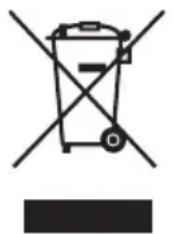
The European Union WEEE (Waste from Electrical and Electronic Equipment) Directive is intended to protect the quality of the environment and human health through the responsible use of natural resources and the adoption of waste management strategies that focus on recycling and reuse. This Directive requires producers of electrical and electronic products put on the market in European Union (EU) member countries after August 2005 to mark such products with a crossed-out wheeled bin with a black bar symbol. If the product's battery or accumulator contains more than the specified values of lead (Pb), mercury (Hg), and/or cadmium (Cd) defined in the Battery Directive (2006/66/EC), then the chemical symbols for lead (Pb), mercury (Hg) and/or cadmium (Cd) will appear below the crossed out wheeled bin symbol on the battery.
natural_image
Symbol of a trash bin crossed out by two diagonal lines, with a solid black rectangle below (no text or labels)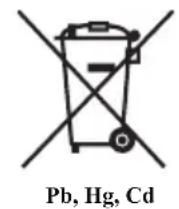
In the European Union, these symbols indicate that when the last end user wishes to discard this product, it must be sent to appropriate facilities for recovery and recycling. This Directive applies to EU member countries only and does not apply to end users in other countries such as the United States.
Although the initial emphasis is in Europe, Toshiba is already working with design engineers, suppliers, and other partners to determine appropriate worldwide product life cycle planning and end-of-life strategies for our products. Please contact your local government for applicable laws and regulations governing the disposal of this product. For information on how to trade-in or recycle your product, visit www.reuse.toshiba.com.
Europe - Restrictions for use of 2.4 GHz Frequencies in European Community Countries
| België/ Belgique: | For private usage outside buildings across public grounds over less than 300m no special registration with IBPT/BIPT is required. Registration to IBPT/BIPT is required for private usage outside buildings across public grounds over more than 300m. For registration and license please contact IBPT/BIPT. |
| Voor privé-gebruik buiten gebouw over publieke groud over afstand kleiner dan 300m geen registratie bij BIPT/IBPT nodig; voor gebruik over afstand groter dan 300m is wel registratie bij BIPT/IBPT nodig. Voor registratie of licentie kunt u contact opnemen met BIPT. | |
| Dans le cas d'une utilisation privée, à l'extérieur d'un bâtiment, au-dessus d'un espace public, aucun enregistrement n'est nécessaire pour une distance de moins de 300m. Pour une distance supérieure à 300m un enregistrement auprès de l'IBPT est requise. Pour les enregistrements et licences, veuillez contacter l'IBPT. | |
| Deutschland: License required for outdoor installations. Check with reseller for procedure to follow. | |
| Anmeldung im Outdoor-Bereich notwendig, aber nicht genehmigungspflichtig. Bitte mit Händler die Vorgehensweise abstimmen. | |
| France: Restricted frequency band: only channels 1 to 7 (2400 MHz and 2454 MHz respectively) may be used outdoors in France. Please contact A.R.T. (http://www.art-telecom.fr) for applicable procedures to follow. | |
| Bande de fréquence restreinte: seuls les canaux 1-7 (2400 et 2454 MHz respectivement) doivent être utilisés endroits extérieur en France. Vous pouvez contacter l'Autorité de Régulation des Télécommunications (http://www.art-telecom.fr) pour la procédure à suivre. | |
| Italia: License required for indoor use. Use with outdoor installations not allowed. | |
| È necessaria la concessione ministeriale anche per l'uso interno.Verificare con i rivenditori la procedura da seguire. | |
| Nederland: | License required for outdoor installations. Check with reseller for procedure to follow. |
| Licentie verplicht voor gebruik met buitenantennes. Neem contact op met verkoper voor juiste procedure. | |
Europe - Restrictions for Use of 5 GHz Frequencies in European Community Countries
| European Community Countries | 5150-5250 MHzChannels: 36, 40, 44, 48Indoor Only | 5250-5350 MHzChannels: 52, 56, 60, 64Indoor Only | 5470-5725 MHzChannels: 100, 104, 108, 112, 116, 120, 124, 128, 132, 136, 140Indoor/Outdoor |
| Austria O x x | |||
| Belgium, France, Switzerland/Liechtenstein | O | O | x |
| Denmark, Finland, Germany, Greece, Ireland, Italy, Luxembourg, Netherlands, Norway, Portugal, Sweden, UK | O | O | O |
| Iceland, Spain O O O |
O: allowed x: forbidden
To remain in conformance with European spectrum usage laws for Wireless LAN operation, the above 2.4 GHz and 5 GHz channel limitations apply. The user should use the wireless LAN utility to check the current channel of operation. If operation is occurring outside of the allowable frequencies as listed above, the user must cease operating the Wireless LAN at that location and consult the local technical support staff responsible for the wireless network.
The 5 GHz Turbo mode feature is not allowed for operation in any European Community country.
This device must not be operated in ad-hoc mode using channels in the 5 GHz bands in the European Community. Ad-hoc mode provides a direct communication between two client devices without a Wireless LAN Access Point.
This device must be used with Access Points that have employed and activated a radar detection feature required for European Community operation in the 5 GHz bands. This device will operate under the control of the Access Point in order to avoid operating on a channel occupied by any radar system in the area. The presence of nearby radar operation may result in temporary interruption of operation of this device. The Access Point's radar detection feature will automatically restart operation on a channel free of radar. You may consult with the local technical support staff responsible for the wireless network to ensure the Access Point device(s) are properly configured for European Community operation.
Taiwan
| Article 14 Unless approved, for any model accredited low power radio frequency electric machinery, any company, trader or user shall not change the frequency, increase the power or change the features and functions of the original design. | |
| Article 17 Any use of low power radio frequency electric machinery shall not affect aviation safety and interfere with legal communications. In the event interference is caused, the use of such electric machinery shall be immediately discontinued. Operation of such products can be resumed only when they are modified and can no longer cause interference. |
The legal communications mentioned in the above item refer to radio communications operated in accordance with telecommunication laws and regulations.
Low power radio frequency electric machinery shall resist against interference from legal communications or from industrial, scientific and medical radio emission electric machinery.
Using this Equipment in Japan
In Japan, the frequency bandwidth of 2,400 MHz to 2,483.5 MHz for second generation low-power data communication systems such as this equipment overlaps that of mobile object identification systems (premises radio station and specified low-power radio station).
1. Sticker
Please put the following sticker on devices incorporating this product.
The frequency bandwidth of this equipment may operate within the same range as industrial devices, scientific devices, medical devices, microwave ovens, licensed radio stations and non-licensed specified low-power radio stations for mobile object identification systems (RFID) used in factory product lines (Other Radio Stations).
- Before using this equipment, ensure that it does not interfere with any of the equipment listed above.
- If this equipment causes RF interference to other radio stations, promptly change the frequency being used, change the location of use, or turn off the source of emissions.
- Contact TOSHIBA Direct PC if you have problems with interference caused by this product to Other Radio Stations.
2. Indication
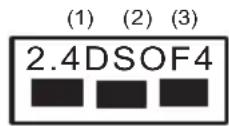
The indication shown below appears on this equipment.
(4)
1 2.4: This equipment uses a frequency of 2.4 GHz.
2 DS: This equipment uses DS-SS modulation.
OF: This equipment uses OFDM modulation.
3 The interference range of this equipment is less than 40m.
4 This equipment uses a frequency bandwidth from 2,400 MHz to 2,483.5 MHz.
It is possible to avoid the band of mobile object identification systems.
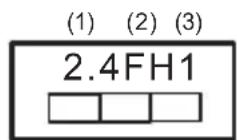
The indication shown below appears on this equipment.
(4)
1 2.4: This equipment uses a frequency of 2.4 GHz.
2 FH: This equipment uses FH-SS modulation.
3 The interference range of this equipment is less than 10m.
4 This equipment uses a frequency bandwidth from 2,400 MHz to 2,483.5 MHz.
3. TOSHIBA Direct PC
Monday – Friday: 10:00 – 17:00
Toll Free Tel: 0120-15-1048
Direct Dial: 03-3457-4850
Fax: 03-3457-4868
VCCI Class B Information
Device Authorization
This device obtains the Technical Regulation Conformity Certification and the Technical Conditions Compliance Approval, and it belongs to the device class of radio equipment of low-power data communication system radio station stipulated in the Radio Law and the Telecommunications Business Law of Japan.
Copyright
This guide is copyrighted by Toshiba America Information Systems, Inc. with all rights reserved. Under the copyright laws, this guide cannot be reproduced in any form without the prior written permission of Toshiba. No patent liability is assumed, however, with respect to the use of the information contained herein.
©2013 by Toshiba America Information Systems, Inc. All rights reserved.
Export Administration Regulation
This document contains technical data that may be controlled under the U.S. Export Administration Regulations, and may be subject to the approval of the U.S. Department of Commerce prior to export. Any export, directly or indirectly, in contravention of the U.S. Export Administration Regulations is prohibited.
Notice
The information contained in this manual, including but not limited to any product specifications, is subject to change without notice.
TOSHIBA CORPORATION AND TOSHIBA AMERICA INFORMATION SYSTEMS, INC. (TOSHIBA) PROVIDES NO WARRANTY WITH REGARD TO THIS MANUAL OR ANY OTHER INFORMATION CONTAINED HEREIN AND HEREBY EXPRESSLY DISCLAIMS ANY IMPLIED WARRANTIES OF MERCHANTABILITY OR FITNESS FOR ANY PARTICULAR PURPOSE WITH REGARD TO ANY OF THE FOREGOING. TOSHIBA ASSUMES NO LIABILITY FOR ANY DAMAGES INCURRED DIRECTLY OR INDIRECTLY FROM ANY TECHNICAL OR TYPOGRAPHICAL ERRORS OR OMISSIONS CONTAINED HEREIN OR FOR DISCREPANCIES BETWEEN THE PRODUCT AND THE MANUAL. IN NO EVENT SHALL TOSHIBA BE LIABLE FOR ANY INCIDENTAL, CONSEQUENTIAL, SPECIAL, OR EXEMPLARY DAMAGES, WHETHER BASED ON TORT, CONTRACT OR OTHERWISE, ARISING OUT OF OR IN CONNECTION WITH THIS MANUAL OR ANY OTHER INFORMATION CONTAINED HEREIN OR THE USE THEREOF.
Trademarks
Encore is a trademark of Toshiba America Information Systems, Inc. and/or Toshiba Corporation.
Adobe and Photoshop are either registered trademarks or trademarks of Adobe Systems Incorporated in the United States and/or other countries.
Bluetooth word mark and logos are owned by the Bluetooth SIG, Inc. and any use of such marks by Toshiba is under license. Other trademarks and trade names are those of their respective owners.
U.S. patents apply to this product. See http://patents.dts.com. Manufactured under license from DTS Licensing Limited. DTS, the Symbol, & DTS and the Symbol together are registered trademarks and DTS Premium Voice Pro is a trademark of DTS, Inc. ©DTS, Inc. All Rights Reserved.
The terms HDMI and HDMI High-Definition Multimedia Interface, and the HDMI logo are trademarks or registered trademarks of HDMI Licensing LLC in the United States and other countries.
Intel, Intel Core, Celeron, Centrino and Pentium are trademarks or registered trademarks of Intel Corporation or its subsidiaries in the United States and other countries.
Microsoft, Outlook, Windows, and Windows Media are either registered trademarks or trademarks of Microsoft Corporation in the United States and/or other countries.
microSD is a trademark or registered trademark of SD-3C, LLC in the United States, other countries or both.
Wi-Fi is a registered trademark of the Wi-Fi Alliance.
All other brand and product names are trademarks or registered trademarks of their respective companies.
Licenses
This Product is licensed under the AVC, the VC-1 and the MPEG-4 Part 2 Visual patent portfolio licenses for the personal and non-commercial use of a consumer to (i) encode video in compliance with the above standards (“Video Standards”) and/or (ii) decode AVC, VC-1 and MPEG-4 Part 2 Visual that was encoded by a consumer engaged in personal and non-commercial activity or was obtained from a video provider licensed to provide such video. None of the licenses extend to any other product regardless of whether such product is included with this product in a single article. No license is granted or shall be implied for any other use. Additional information may be obtained from MPEG LA, LLC. See www.mpegla.com.
Device Recycling Information
As part of a commitment to people and the future, Toshiba promotes the efficient use of resources by working to achieve our zero-waste-to-landfill goal at all our production sites. In addition to our existing waste reduction and recycling policies, Toshiba is strongly committed to reducing electronic waste. In order to ensure efficient use of resources and appropriate treatment of hazardous substances, in accordance with recycling regulations in each state, country, and territory, Toshiba wants to make it easy for customers to recycle products at the end of the life cycle. To learn more about Toshiba's sustainability commitment, visit us.toshiba.com/green.
Reuse, Donation, Recycling
Functional devices can be donated to a local charity or resold easily through a Toshiba-branded program.
Non working Toshiba devices can be mailed-back for free recycling.
For additional details, please visit us.toshiba.com/recycle.
Contents
Introduction......25
This guide 26
Safety icons 27
Other icons used.... 27
Your device's features and specifications ..... 28
Documentation 28
Service options 28
Precautions 29
File management tips.... 30
Chapter 1: Getting Started....31
Selecting a place to work 31
Features and components.... 32
Front.... 32
Back.... 33
Left side 33
Right side 34
Top.... 34
Bottom 35
Setting up your device.... 35
Connecting to a power source 36
Charging the battery 37
Using the device for the first time.... 38
Turning on the power 38
Initial setup.... 38
Setting up your software.... 39
Registering your device with Toshiba.... 39
To Shut down your device.... 40
To place your device in Sleep mode 40
Adding optional external devices.... 41
Recovering the Internal Storage Drive...... 41
Creating recovery media.... 42
Restoring from recovery media.... 50
Installing drivers and applications.... 54
Connecting an external device 55
Using external display devices 55
Selecting video cables.... 55
Connecting an HDMI™-compatible television or display device 56
Connecting an external monitor or projector.... 56
Directing the display output.... 56
Adjusting the quality of the external display.... 57
Customizing your device's settings.... 57
Caring for your device.... 58
Cleaning the device 58
Chapter 2: Learning the Basics.... 59
Computing tips 59
Touch screen 60
Touch screen navigation.... 61
Mouse properties.... 62
Starting an app 62
Starting an app using Search 62
Saving your work 63
Backing up your work.... 63
Toshiba's online resources.... 63
Chapter 3: Mobile Computing ......64
Toshiba's energy-saver design.... 64
Running the device on battery power.... 64
Battery Notice 65
Power management.... 66
Charging the battery 66
Charging the RTC battery 67
Determining remaining battery power...... 67
What to do when the battery runs low.... 68
Setting battery notifications 68
Conserving battery power 70
Power Plans 70
Changing the battery 72
Taking care of your battery.... 72
Safety precautions 72
Maintaining your battery 73
Disposing of your device 73
Traveling tips.... 73
Chapter 4: Exploring Your Device's Features .....75
Exploring the Start screen 75
Charms.... 76
Tiles....77
Exploring the desktop.... 77
Finding your way around the desktop ..... 77
Windows ^® Store....79
Setting up for communications.... 80
Connecting your device to a network ..... 80
Exploring audio features 81
Recording sounds.... 81
Using external speakers or headphones ..... 82
Using the Web Camera.... 82
Using a microSD™ Card.... 83
Inserting memory media 83
Removing memory media 84
Chapter 5: Utilities....85
Create Recovery Media 86
Service Station.... 86
TOSHIBA Application Installer 87
Chapter 6: If Something Goes Wrong 88
Problems that are easy to fix 88
Problems when you turn on the device 89
The Windows ^® operating system is not working 90
Using Startup options to fix problems...... 90
Internet problems....92
The Windows ^® operating system can help you.... 93
Fixing a problem with Device Manager 93
Checking device properties 94
Power and the batteries.... 94
Display problems 95
Disk or storage drive problems.... 97
Error-checking 97
Sound system problems.... 99
Printer problems 99
Wireless networking problems.... 100
Develop good computing habits.... 102
Data and system configuration backup in the Windows ^® operating system..... 103
If you need further assistance.... 107
Contacting Toshiba.... 107
Other Toshiba Internet Web sites 107
Toshiba's worldwide offices 108
Appendix A: Power Cord/Cable Connectors ..... 109
Glossary 110
Index.... 126
Introduction
Welcome to the world of powerful, portable, multimedia computing. With your Toshiba device, your work and entertainment can accompany you wherever you go.
NOTE
This device is compatible with European Union Directive 2002/95/EC, Restriction of the use of certain Hazardous Substances in electrical and electronic equipment (RoHS), which restricts use of lead, cadmium, mercury, hexavalent chromium, PBB, and PBDE. Toshiba requires its device component suppliers to meet RoHS requirements and verifies its suppliers' commitment to meeting RoHS requirements by conducting component sampling inspections during the product design approval process.
NOTE
Certain Microsoft® software product(s) included with this device may use technological measures for copy protection. IN SUCH EVENT, YOU WILL NOT BE ABLE TO USE THE PRODUCT IF YOU DO NOT FULLY COMPLY WITH THE PRODUCT ACTIVATION PROCEDURES. Product activation procedures and Microsoft's privacy policy will be detailed during initial launch of the product, or upon certain reinstallations of the software product(s) or reconfigurations of the device, and may be completed by Internet or telephone (toll charges may apply).
Some software may differ from its retail version (if available), and may not include user manuals or all program functionality.
NOTE
The product specifications and configuration information are designed for a product Series. Your particular model may not have all the features and specifications listed or illustrated. For more detailed information about the features and specifications on your particular model, please visit Toshiba's Web site at support.toshiba.com.
While Toshiba has made every effort at the time of publication to ensure the accuracy of the information provided herein, product specifications, configurations, prices, system/component/options availability are all subject to change without notice. For the most up-to-date product information about your device, or to stay current with the various computer software or hardware options, visit Toshiba's Web site at support.toshiba.com.
This guide
This guide introduces the device's features as well as some basic procedures needed to perform tasks in Windows 8.1. You can:
Read the entire guide from beginning to end.
◆Skim through and stop when a topic interests you.
Use the table of contents and the index to find specific information.
Safety icons
This manual contains safety instructions that must be observed to avoid potential hazards that could result in personal injuries, damage to your equipment, or loss of data. These safety cautions have been classified according to the seriousness of the risk, and icons highlight these instructions as follows:
DANGER
Indicates an imminently hazardous situation which, if not avoided, will result in death or serious injury.
▲WARNING
Indicates a potentially hazardous situation which, if not avoided, could result in death or serious injury.
▲ CAUTION
Indicates a potentially hazardous situation which, if not avoided, may result in minor or moderate injury.
CAUTION
Indicates a potentially hazardous situation which, if not avoided, may result in property damage.
NOTE
Provides important information.
Other icons used
Additional icons highlight other helpful or educational information:

TECHNICAL NOTE: This icon indicates technical information about the device.
HINT: This icon indicates helpful hints and tips.

DEFINITION: This icon indicates the definition of a term used in the text.
Your device's features and specifications
Certain device chassis are designed to accommodate all possible configurations for an entire product Series. Your select model may not have all the features and specifications corresponding to all of the icons or switches shown on the device chassis, unless you have selected all those features.
This information applies to all the features and icons described in this guide.
Below are examples of some of the many possible icons used on your device:

natural_image
Three simple icons: battery, wireless signal source, and database (no text or symbols)(Sample Illustration) System icons
Documentation
Your device comes with the following documentation:
◆An electronic version of the User’s Guide (this document)
A Quick Start document
It may also include other documentation
For accessory information, visit Toshiba's Web site at accessories.toshiba.com.
Service options
Toshiba offers a full line of service programs to complement its standard limited warranty. Toshiba's standard limited warranty, extended warranty, and service upgrade terms and conditions are available at warranty.toshiba.com.
To stay current on the most recent software and hardware options for your device, and for other product information, be sure to regularly check the Toshiba Web site at support.toshiba.com.
If you have a problem or need to contact Toshiba, see "If Something Goes Wrong" on page 88.
Precautions
Your device is designed to provide optimum safety and ease of use, and to withstand the rigors of travel. You should observe certain precautions to further reduce the risk of personal injury or damage to the device.
▲WARNING
Keep this device away from small children. This device is not a toy and may be hazardous to small children, for example, small detachable parts may be a choking hazard. Improper use of device could result in loud volume emitting from the device possibly causing hearing damage, and improper use and handling of batteries could result in possible injury.
CAUTION
Never place a heavy object on the device and be careful not to drop a heavy object onto the device. It could damage the device or cause system failure.
Turning off the device while it is reading from or writing to flash media may damage the flash media.
- Keep the device and disks away from objects that generate strong magnetic fields, such as large stereo speakers.
◆Scan all new files for viruses.
This precaution is especially important for files you receive via email or download from the Internet. Occasionally, even new programs you buy from a supplier may contain a virus. You need a special program to check for viruses.
File management tips
◆Back up your files to external media on a regular basis. Label the backup copies clearly and store them in a safe place.
As you work with data it exists in the device's memory. This memory is called “volatile memory” because it is only active while the device is turned on. When you turn off the device, all the data remaining in volatile memory is lost. To help avoid data loss, save your work to Internal Storage or network storage. Your work (data) will remain in internal storage to be called up when you need it. As long as the internal storage remains healthy, your data is relatively safe. However on occasion, hardware failures do happen. If you experience a hardware failure, your data could be lost. As an extra step to help avoid data loss, back up your data. See “Backing up your work” on page 63 for more information.
Scan all new files for viruses.
This precaution is especially important for files you receive via external media, email, or download from the Internet.
Chapter 1
Getting Started
This chapter provides tips for using your device effectively, summarizes how to connect components, and explains what to do the first time you use your device.
Please read the safety instruction information on the Quick Start document (that shipped with your device) carefully and make sure you fully understand the instructions before you attempt to use your device in order to avoid potential hazards that could cause bodily injury, property damage, or damage the device.
Selecting a place to work
Your device is portable and designed to be used in a variety of circumstances and locations.
Features and components
For further details on each of the items listed in the following section, be sure to follow the provided references to sections later in this document.
Front
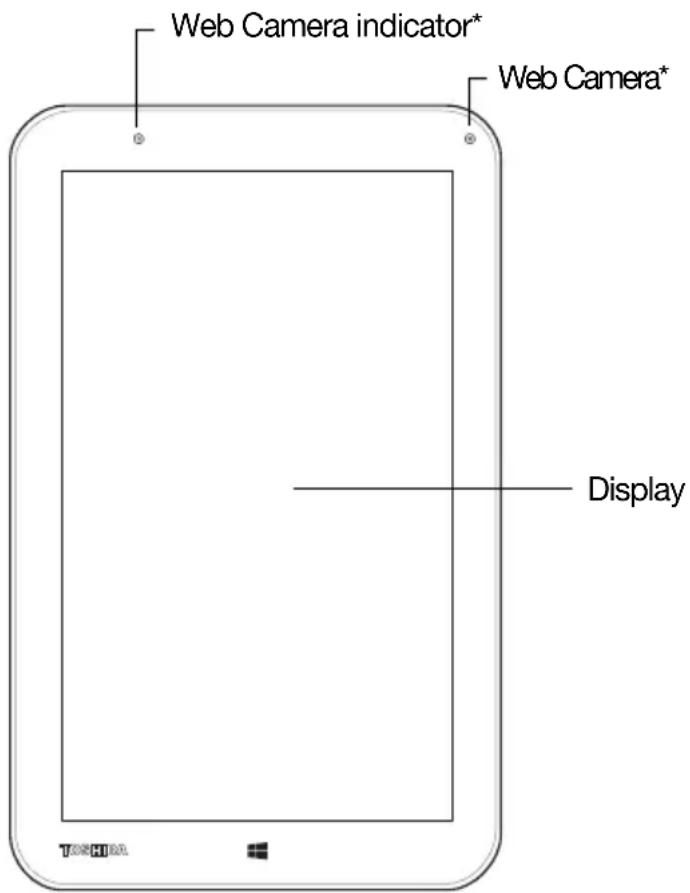
*Available on certain models
(Sample Illustration) Front view
Web Camera indicator*—Glows when the Web Camera is active. For more information, see “Using the Web Camera” on page 82.
- Web Camera*—Allows you to take still photos (includes flash settings) or record videos. For more information, see “Using the Web Camera” on page 82.
Back
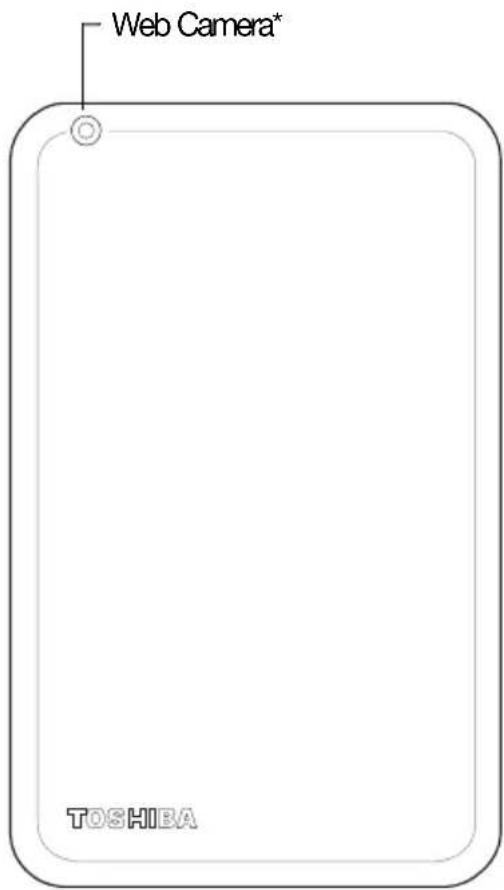
*Available on certain models
(Sample Illustration) Back view
Web Camera*—Allows you to take still photos (includes flash settings) or record videos. For more information, see "Using the Web Camera" on page 82.
Left side

(Sample Illustration) Left side view
microSD™ slot—Supports the use of microSD™ (SD™) media. For more information, see “Using a microSD™ Card” on page 105.
Right side
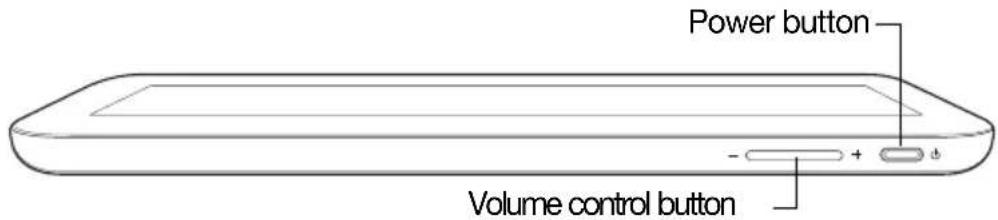
(Sample Illustration) Right side view
Volume control button—Allows you to increase/decrease the volume.
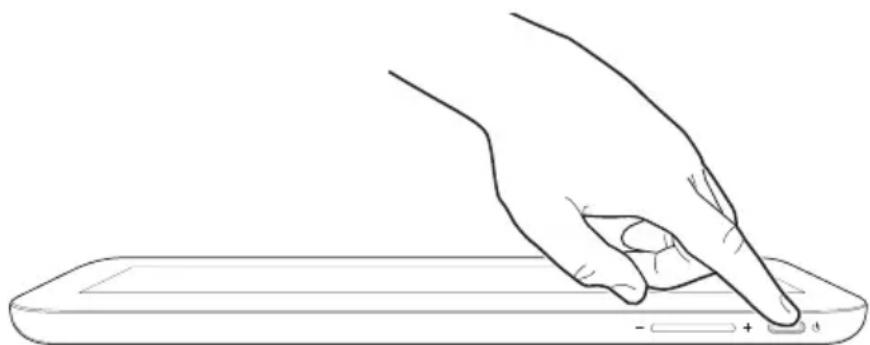
Power button—Turns the device on and off. Press and hold the button for several seconds to turn the device ON/OFF. Press the button quickly to wake the device from Sleep mode or to place it into Sleep mode. For more information, see “To Shut down your device” on page 40.
Top
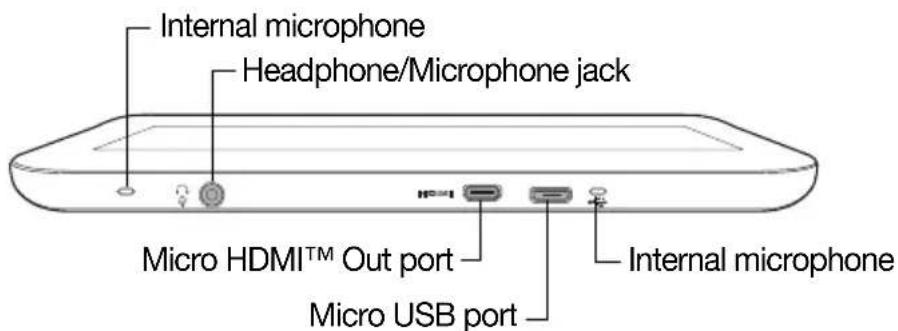
(Sample Illustration) Top view
Internal microphones—Allow you to record sounds using the device's internal microphones or an optional external microphone. You can listen to audio files using the built-in speakers, headphones, or external speakers.
Headphone/Microphone jack—Allows you to listen to or record sounds onto your device. For more information, see “Using external speakers or headphones” on page 82.
Micro HDMI™ port—Allows connection to an HDMI™-compatible television or external display device.
Micro USB port—Allows the transfer of data via the USB cable and charging of the battery via the USB/AC adaptor.
Bottom

(Sample Illustration) Bottom view
Speakers—Allow you to listen to sounds on your device. For more information, see “Using the built-in speakers” on page 104.
Setting up your device

TECHNICAL NOTE: You must complete all setup steps up to and including “Setting up your software” on page 39 before adding external or internal components to your device. These components include, but are not limited to, a mouse, keyboard, and printer.
Your device contains a rechargeable battery that need to be charged before you can use it.
To use external power or to charge the battery you must attach the USB/AC adaptor. See “Connecting to a power source” on page 36.
NOTE
Please handle your device carefully to avoid scratching or damaging the surface.
Connecting to a power source
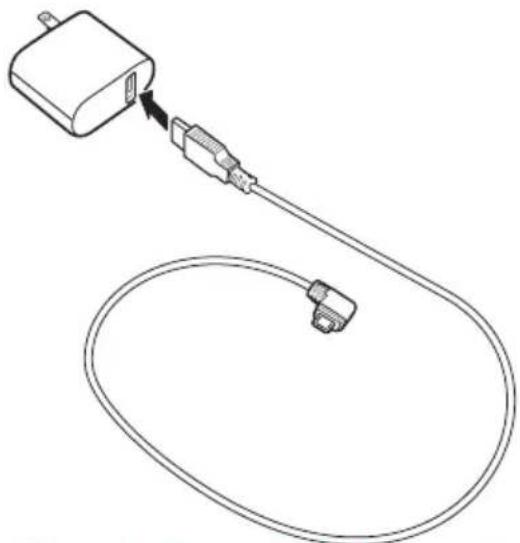
Your device requires power to operate. Use the USB Power cable and USB/AC adaptor to connect the device to a live electrical outlet, or to charge the device's battery.
▲WARNING
Always confirm that the USB/AC adaptor (and extension cable plug if used) has been fully inserted into the socket, to ensure a secure electrical connection. Failure to do so may result in a fire or electric shock, possibly resulting in serious injury.
Be careful if you use a multiple connector. An overload on one socket could cause a fire or electric shock, possibly resulting in serious injury.
▲WARNING
Always use the TOSHIBA USB/AC adaptor that was provided with your device, or use USB/AC adaptors specified by TOSHIBA to avoid any risk of fire or other damage to the device. Use of an incompatible USB/AC adaptor could cause fire or damage to the device possibly resulting in serious injury. TOSHIBA assumes no liability for any damage caused by use of an incompatible adaptor.
To connect AC power to the device:
1 Connect the USB Power cable to the USB/AC adaptor.
natural_image
Line drawing of a cable with two connectors, one inserted into a device (no text or symbols)(Sample Illustration) Connecting the USB Power cable to the USB/AC adaptor.
▲WARNING
Handling the cord on this product will expose you to lead, a chemical known to the State of California to cause birth defects or other reproductive harm.
Wash hands after handling.

2 Plug the USB Power cable into the Micro USB port on the device.
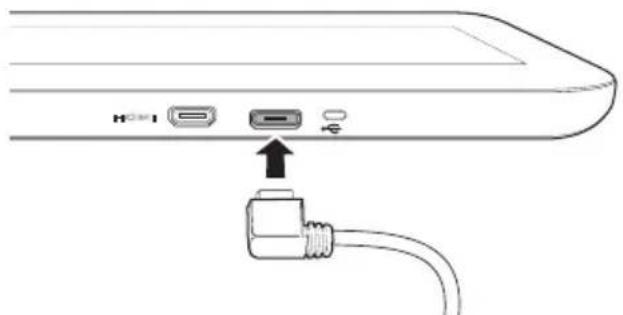
(Sample Illustration) Connecting the USB/AC adaptor cord to the device
NOTE
Do not force the plug into device.
3 Connect the USB/AC adapter to a live electrical outlet.
▲WARNING
Never attempt to connect or disconnect a power plug with wet hands. Failure to follow this instruction could result in an electric shock, possibly resulting in serious injury.
Charging the battery
NOTE
The device's battery is not accessible by the user.
Before using the battery to power the device, you must charge the battery.
To charge the battery, leave the device plugged into the USB/AC adaptor with the device turned off.
NOTE
Battery life and charge time may vary depending on the applications power management settings, and features used.
Using the device for the first time
The device is now ready for you to turn it on and begin using it, see “Exploring Your Device’s Features” on page 75.
Turning on the power
To turn on the device:
1 Make sure any external devices (such as the USB/AC adaptor, if you plan to use AC power rather than battery power) are properly connected and ready.
2 Check to ensure that all slots are empty.
3 Press and hold the Power button for several seconds.

natural_image
Line drawing of a hand pressing a button on a tablet device (no text or symbols)(Sample Illustration) Turning on the power
Small bright dots may appear on your screen display when you turn on your device. Your display contains an extremely large number of thin-film transistors (TFT) and is manufactured using high-precision technology. Any small bright dots that may appear on your display are an intrinsic characteristic of the TFT manufacturing technology. Over a period of time, and depending on the usage of the device, the brightness of the screen will deteriorate. This is also an intrinsic characteristic of the screen technology. When the device is operated on battery power, the screen will dim and you may not be able to increase the brightness of the screen while on battery power.
Initial setup
The Startup screen is the first screen displayed when you turn on your device for the first time. Follow the on-screen instructions on each screen in order to properly install the operating system and begin using your device.
Setting up your software
CAUTION
When you turn on the device for the first time, do not turn off the power again until the operating system has loaded completely.
NOTE
The names of windows displayed, and the order in which windows appear, may vary according to your software setup choices.
The first time you turn on your device, the setup guides you through steps to set up your software. Follow the on-screen instructions.
Registering your device with Toshiba
Product registration is strongly recommended, and allows Toshiba to send you periodic updates, announcements, and special offers applicable to your Product. Product registration can be completed by one of three methods:
1 From the Toshiba Web site at register.toshiba.com: Touch a field to activate the on-screen keyboard, type in the requested information, and complete the registration process.
2 From the Start or Desktop screen, swipe in from the right edge of the screen. When the Windows ^® charms appear, touch the Search ( )charm and, in the Search field, type Registration. In the list that appears, touch Toshiba Registration and complete the registration process.
Failure to complete Product Registration will not diminish your rights under the Toshiba Standard Limited Warranty.
NOTE
To register online, an Internet connection is required.
To Shut down your device
1 From the Start or Desktop screen, swipe in from the right edge of the screen.
2 When the Windows ^ charms appear, touch the Settings (pcharm.
CAUTION
Pressing the power button before shutting down the Windows ^® operating system could cause you to lose your work.
3 In the lower right of the screen touch the icon.
Power (⏻)
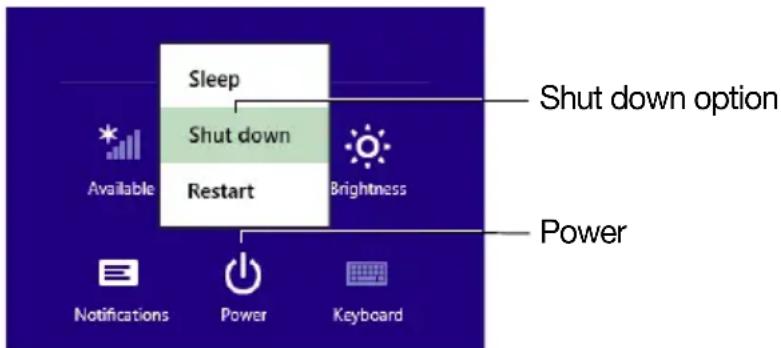
(Sample Image) Shut down
4 Highlight Shut down, and then touch the Shut down option.
The device closes all open applications, shuts down the operating system, and then turns off.
To place your device in Sleep mode
1 From the Start or Desktop screen, swipe in from the right edge of the screen.
2 When the Windows ^ charms appear, touch the Settings (☑charm.
CAUTION
If you power down using the Sleep command and the battery discharges fully, your unsaved information will be lost. Be sure to save your work first.
3 In the lower right of the screen touch the Power (u) icon.
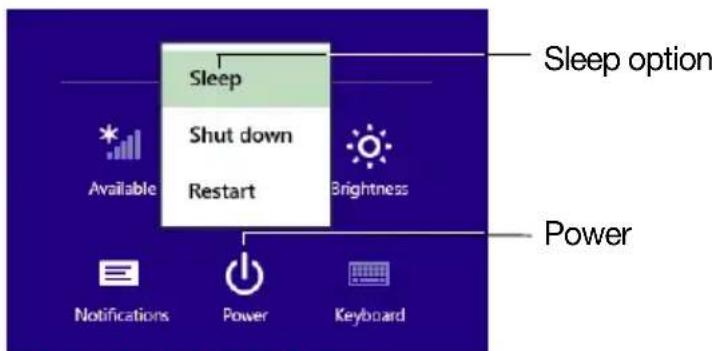
(Sample Image) Sleep
4 Highlight Sleep, and then touch the Sleep option. Sleep mode saves the current state of the device to memory so that, when you restart the device, you can continue working from where you left off.
Adding optional external devices
NOTE
Before adding external devices, Toshiba recommends setting up your software. See "Setting up your software" on page 39.
After starting your device for the first time you may want to:
Connect external devices (see “Connecting an external device” on page 55)
Connect an external monitor (see "Using external display devices" on page 55)
Recovering the Internal Storage Drive
Your device includes recovery utilities to allow you to recover your internal storage drive if necessary.
The following internal storage drive recovery options are available:
| Recovery option Description | |
| Creating recovery media | This option allows you to create the recovery media you will use to restore your device.See “Creating a PBR (Push Button Reset) USB Recovery” on page 43. |
| Recovery option | Description |
| Restoring from recovery media | This option allows you to restore your system from the recovery media you created. You can remove all data from your system and reinstall Windows®. See “Recovering from a USB Recovery PBR (Push Button Reset)” on page 50. |
A recovery image of your device is stored on the internal storage drive, and the image can be restored by running the recovery utilities directly from your internal storage drive as described in the sections below. However, it is strongly recommended that you create recovery media. If the recovery files on your internal storage drive become corrupted or are deleted, you can restore your system from your recovery media. Also, if your original internal storage drive fails, you can restore your system to a new internal storage drive from your recovery media. It is strongly recommended that you create recovery media before using your system for the first time. See “Creating a PBR (Push Button Reset) USB Recovery” on page 43 and “Recovering from a USB Recovery PBR (Push Button Reset)” on page 50.
NOTE
During the recovery process your device must first be fully charged via the USB/AC adaptor.
When you restore your system, only the operating system files and drivers originally shipped with the device are restored. Any files that you created are not restored during this process. Be sure to separately save the files you have created to external media using Windows® or another backup program. For more information, see “Backing up your work” on page 63.
Creating recovery media
It is strongly recommended that you create recovery media. If the recovery files on your internal storage drive become corrupted or are deleted, you can restore your system from your recovery media. Also, if your original internal storage drive fails, you can restore your system to a new internal storage drive from your recovery media.
| NOTE | During the recovery process your device must first be fully charged via the USB/AC adaptor. |
| NOTE | When you create recovery media, only the operating system files and drivers originally shipped with the device are backed up to the external media and can be restored from this media. Any files that you created are not backed up on the recovery media. You will need to separately back up the files you created; for more information, see “Backing up your work” on page 63. |
When you create recovery media, the system will prompt you to connect a USB flash drive (8GB minimum capacity) to your device.
| CAUTION | All information stored on your USB flash drive will be erased during the process of creating the recovery media. Be sure to save the information stored on your external media to another storage device before executing this procedure, or use blank media. |
Creating a PBR (Push Button Reset) USB Recovery
| NOTE | You will need two items before proceeding:1. USB Flash Drive (minimum 8GB)(sold separately)2. Micro USB to USB On-the-Go Adapter(sold separately) |
1 From the Start or Desktop screen, swipe in from the right edge of the screen. When the Windows ^® charms appear touch the Search ( )charm and, in the Search field, type Create Recovery Media. In the list that appears, touch your selection.
A pop-up screen displays the following message, “Do you want to allow the following program to make changes to this computer?”
2 Touch the Yes button.
The Recovery Image Utility dialog box appears.
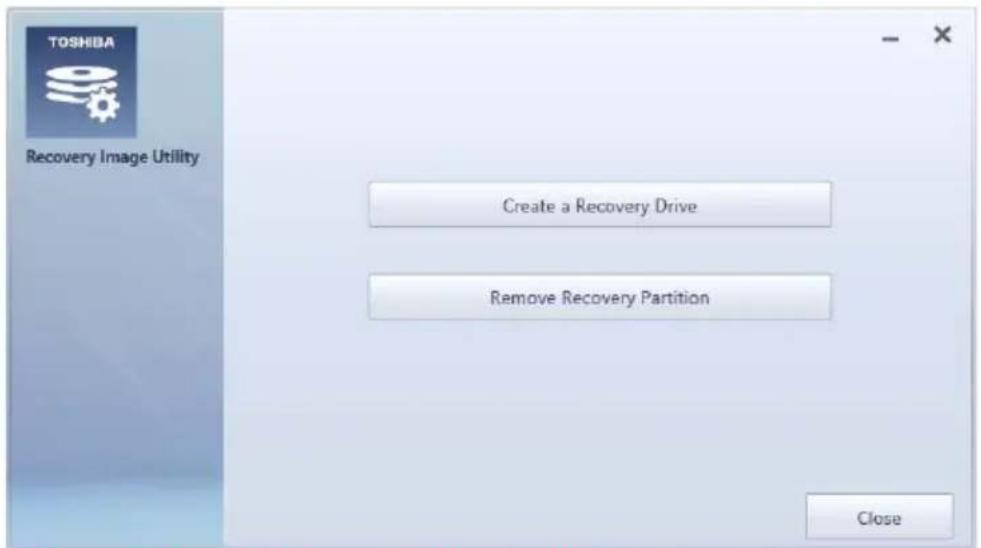
(Sample Image) Recovery Image Utility screen
3 Touch Create a Recovery Drive.
A message displays indicating that you will need two items before proceeding.
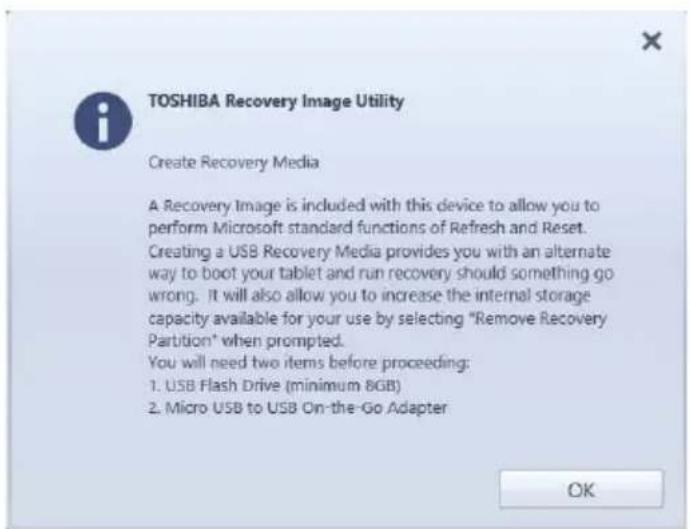
(Sample Image) Recovery Image Utility message screen
4 Touch OK to proceed.
The Recovery Drive screen appears.
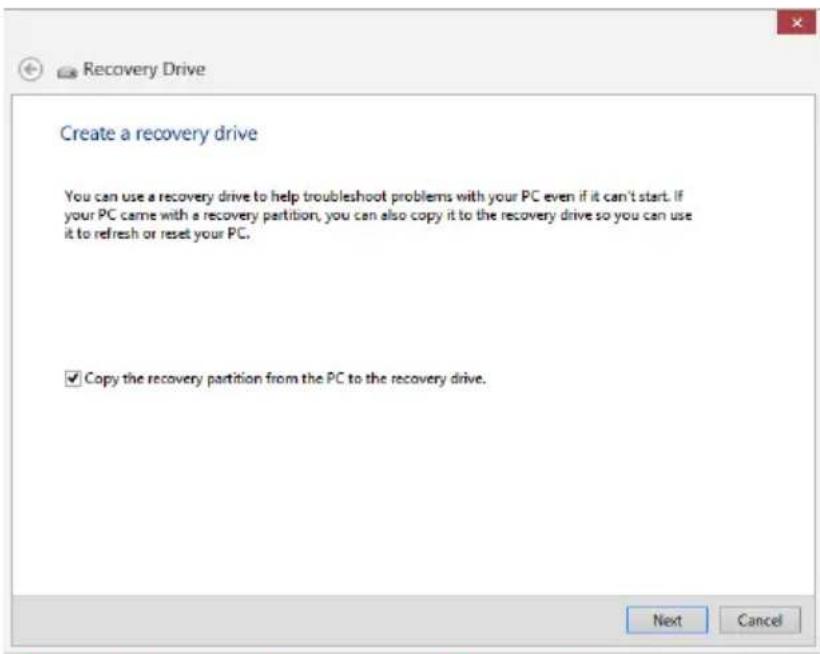
(Sample Image) Recovery Drive - Create a recovery drive screen
5 With the default checkbox checked, touch the Next button.
NOTE
You must have a Micro USB to USB On-the-Go adapter attached so that a USB flash drive of 8GB or higher can be attached.
NOTE
Recovery via microSD ^TM is not supported.
The Recovery Drive screen appears, displaying the available drive(s).
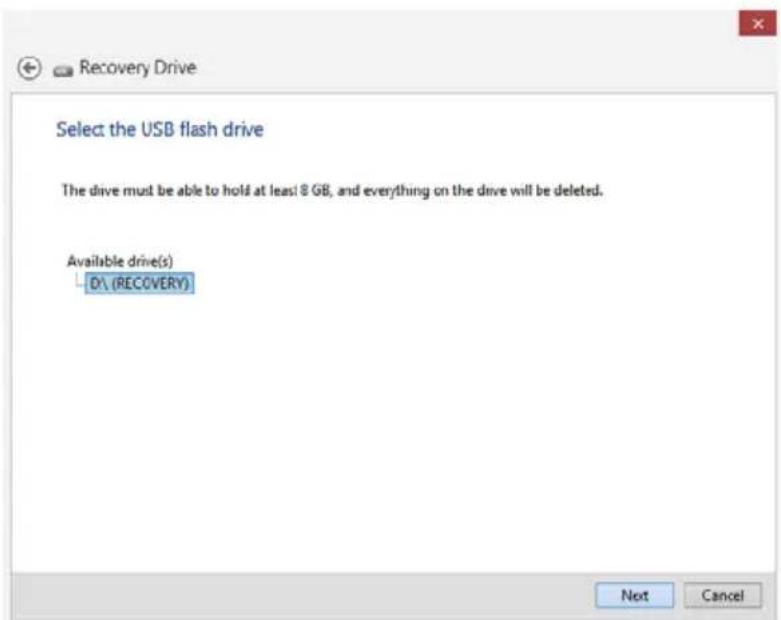
(Sample Image) Recovery Drive - available drive(s) screen
NOTE
The Next button is greyed out if the attached USB drive is not at least 8GB in size.
NOTE
If there are multiple USB flash drives connected to the device, the top drive will be selected by default. Be sure to select the correct drive intended for your recovery purpose.
6 Touch the Next button.
NOTE
The Recovery Drive screen appears, displaying a warning message, stating “Everything on the drive will be deleted. If you have any personal files on this drive, make sure you’ve backed up the files.”
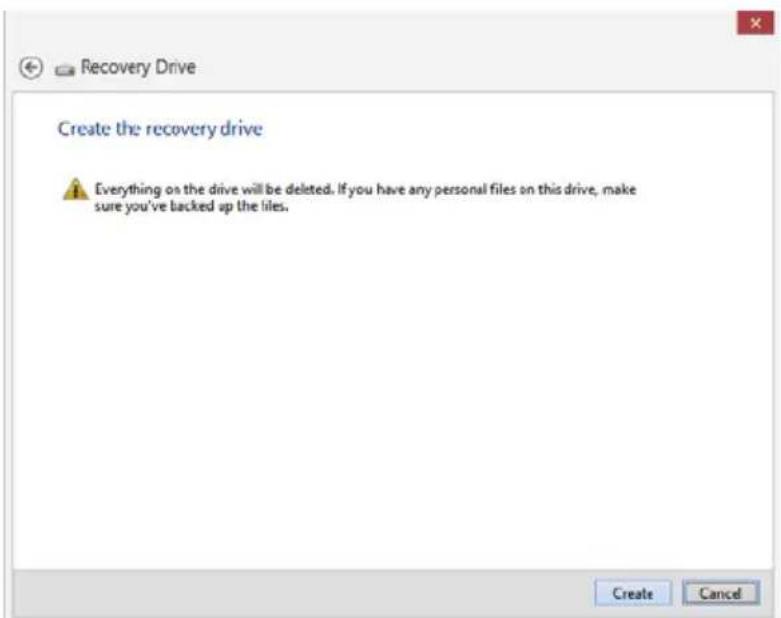
(Sample Image) Recovery Drive - Warning screen
7 When you are ready to begin, touch the Create button. The drive is then formatted and copies all files needed for the PBR (Push Button Reset).
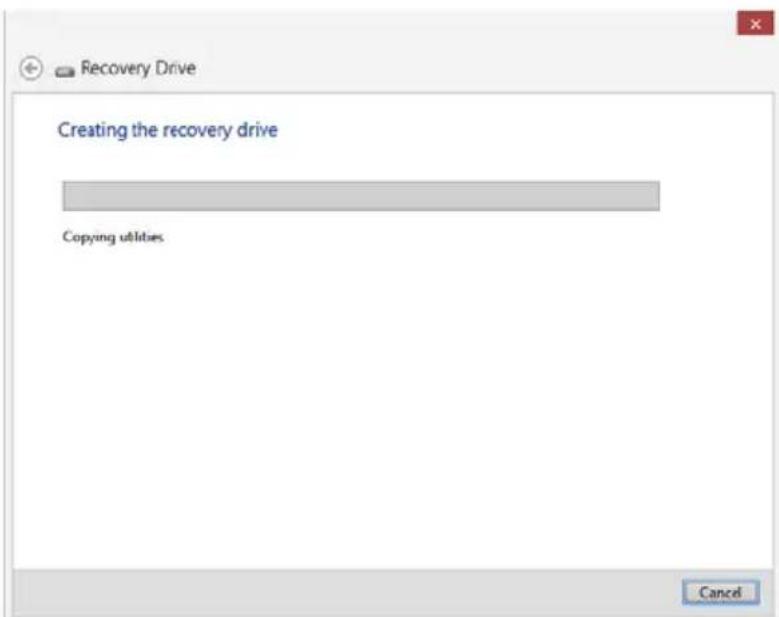
(Sample Image) Recovery Drive - Copying screen
The message, "the recovery drive is ready" appears when the copy process is complete.
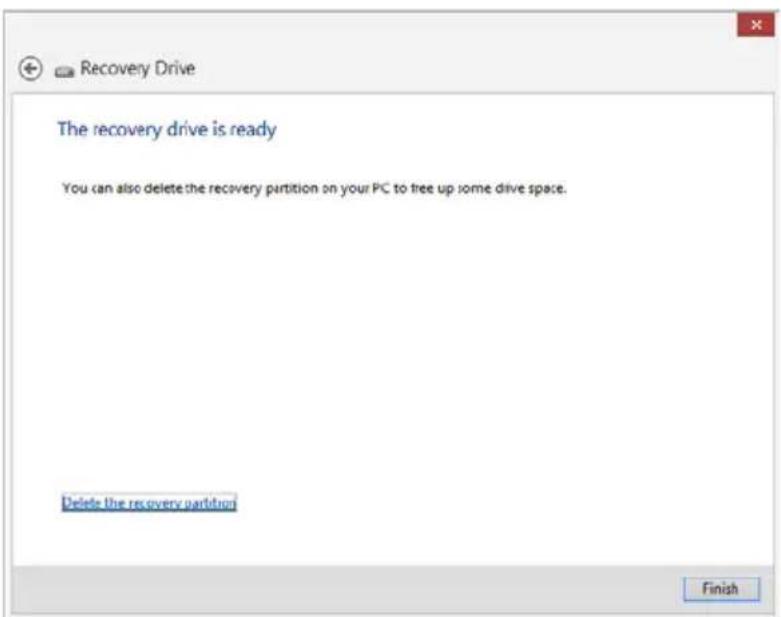
(Sample Image) Recovery Drive - The recovery drive is ready screen
8 Touch the Finish button if you are done, otherwise proceed to step 9.
NOTE
The Delete the recovery partition link is an option that allows you to reclaim the recovery partition space.
9 If you wish to reclaim the recovery partition space, touch the Delete the recovery partition link.
NOTE
You will not be able to make another USB recovery drive after this function is performed.
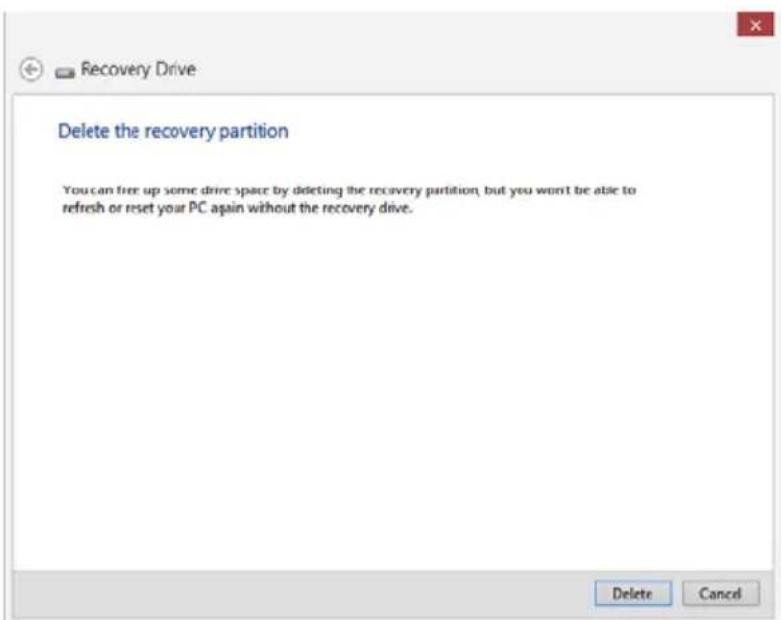
(Sample Image) Recovery Drive - Delete the recovery partition screen
10 Touch the Delete button when prompted. The partition drive will be deleted.
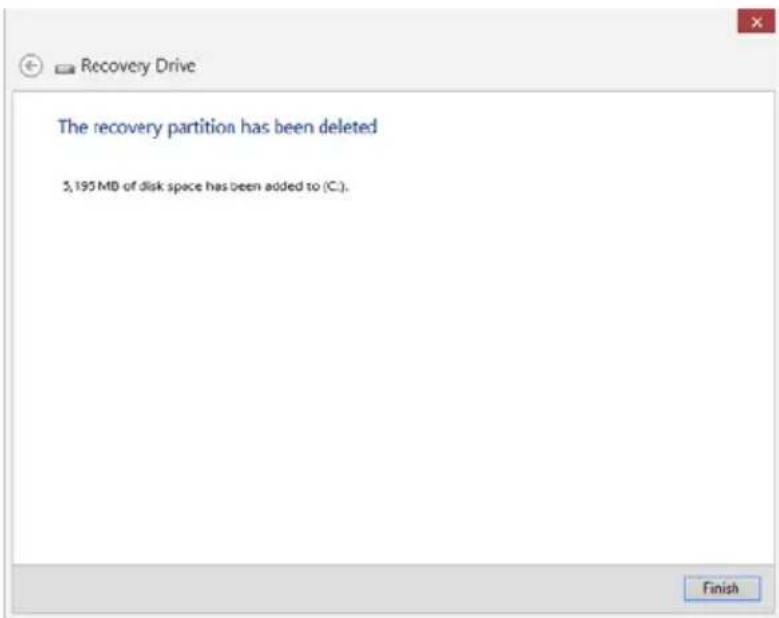
(Sample Image) Recovery Drive - recovery partition deleted screen
11 Touch the Finish button when completed.
| CAUTION | Toshiba does not guarantee successful data back up. Be sure to save your work to external media before executing the recovery (see “Backing up your work” on page 63). |
Restoring from recovery media
| CAUTION | The recovery process deletes information stored on the internal storage drive. Be sure to save your work to external media before executing the recovery (see “Backing up your work” on page 63). |
| NOTE | During the recovery process your device must first be fully charged via the USB/AC adaptor. |
NOTE
If you have created recovery media for your system, you can restore your system from such media, if necessary. For example, if your original internal storage drive fails, you can restore your system to a new internal storage drive from your recovery media. For instructions on creating recovery media, see “Creating recovery media” on page 42.
NOTE
When you restore your system, only the operating system files and drivers originally shipped with the device are restored. Any files that you created are not restored during this process. Be sure to separately save the files you have created to external media using Windows ^® or another backup program. For more information, see “Backing up your work” on page 63.
Recovering from a USB Recovery PBR (Push Button Reset)
1 Insert the USB recovery drive you created using the USB to Micro USB On-the-Go adapter.
2 With your device off, push the Volume up ( + ) button and hold it down while pressing the Power button until the Boot menu appears.
3 Select your USB boot device.
The device reboots, and then the "Choose your keyboard layout" menu appears.
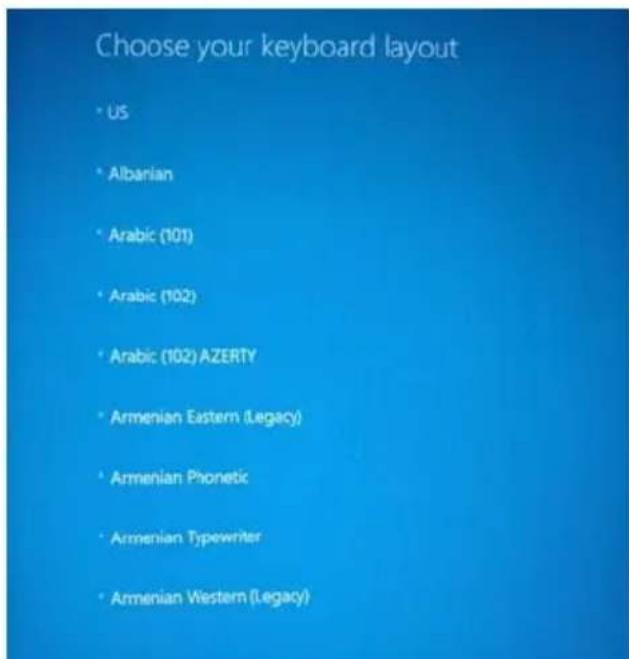
(Sample Image) Choose your keyboard layout menu
4 Touch US (for a US keyboard) to continue. The “Choose an option” menu appears.
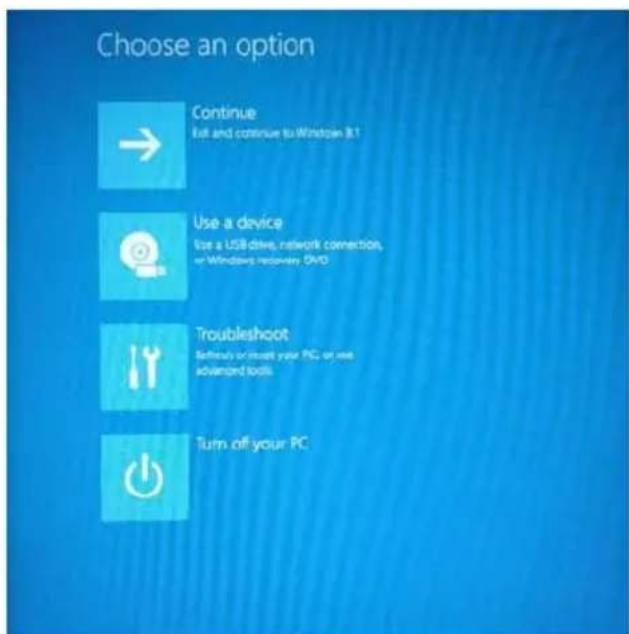
(Sample Image) Choose an option menu
5 Touch Troubleshoot.
The "Troubleshoot" menu appears.
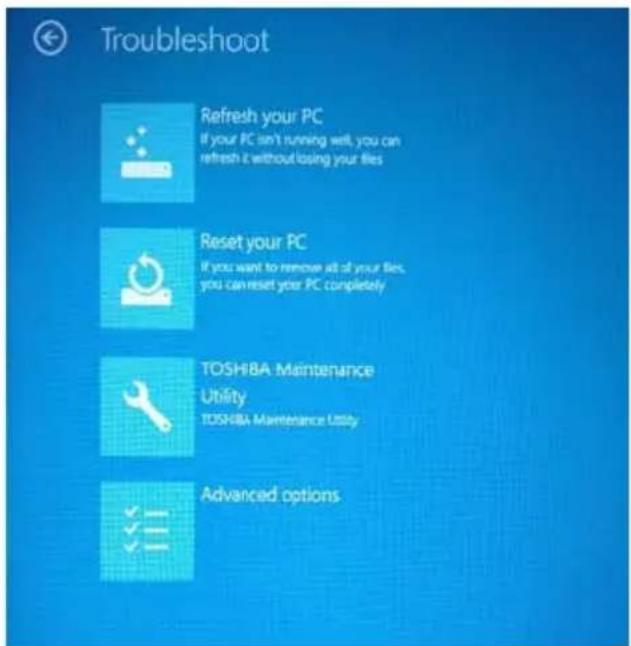
(Sample Image) Troubleshoot menu
6 Touch Reset your PC to perform the recovery.
The "Reset your PC" menu appears.
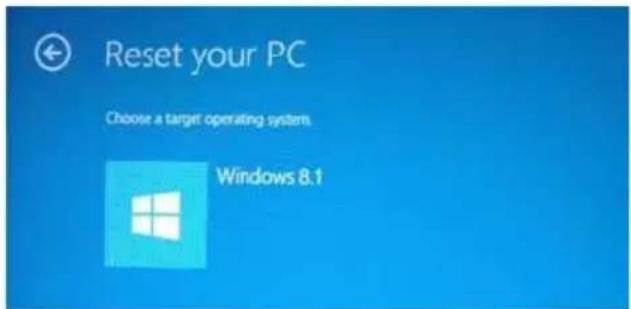
(Sample Image) Reset your PC menu
7 Touch Windows 8.1 to choose your target operating system.
A message appears stating "Here's what will happen." This may take a few moments.
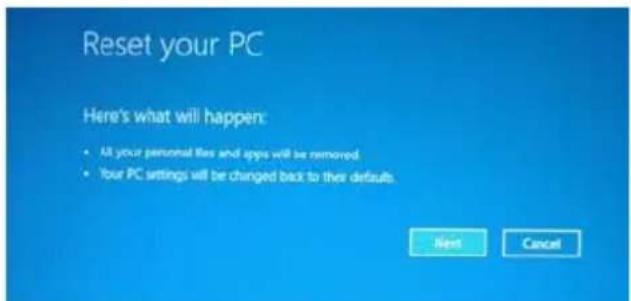
(Sample Image) Reset your PC - "Here's what will happen" menu
8 Touch Next.
Two options are now available:
- Yes, repartition the drives
◆No, keep the existing partitions
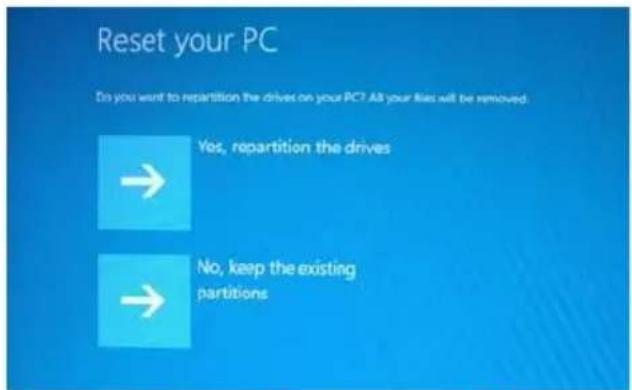
(Sample Image) Reset your PC menu
9 If you select Yes, two more options become available:
Just remove my files
◆Fully clean the drive
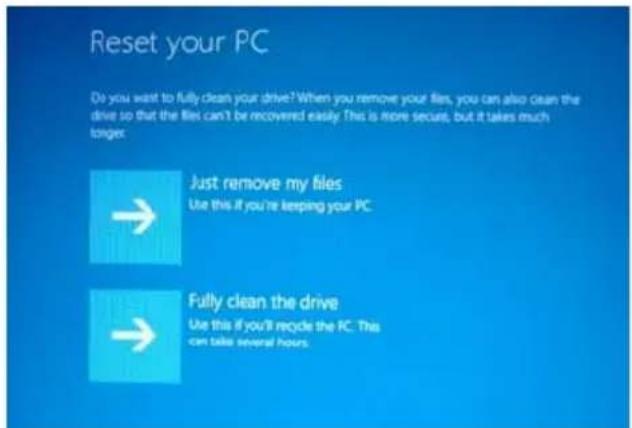
(Sample Image) Reset your PC menu
NOTE
Choosing the first option formats the drive quickly and restores it in the normal fashion. The second option may take several hours.
Once you have made the selection, a message appears stating "All ready to go."
10 Touch Reset to continue or Cancel to exit.
Installing drivers and applications
The TOSHIBA Application Installer allows you to reinstall the drivers and applications that were originally bundled with your device.
NOTE
You must have an Internet connection to reinstall applications.
To reinstall drivers and applications:
1 Swipe in from the right edge of the screen. When the Windows ^® charms appear touch the Search ( ) charm. Then touch the Search field and type TOSHIBA Application Installer. In the list that appears, touch your selection.
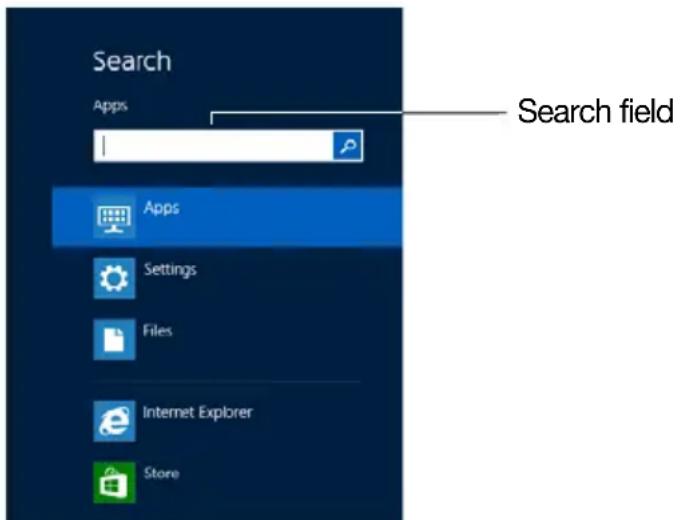
(Sample Image) Installing drivers and applications
2 Touch Next.
3 Touch the item you want to install.
4 Touch Install.
5 Follow the on-screen prompts to complete the installation process, see "TOSHIBA Application Installer" on page 87.
Connecting an external device
You can easily attach an external device to your device.
To do this:
1 Read the directions that came with the external device to see if you first need to install new software.
2 Connect the external device's video or USB cable to the port on your device and to the external device.
3 Connect the external device's power cable to a live electrical outlet (if applicable).
4 Turn on the external device (if applicable).
Your device may automatically detect the external device.

Using external display devices
Your device comes with a built-in display, but you can also connect an HDMI ^™ -compatible television or external display device via the Micro HDMI ^™ Out port.
NOTE
To locate your Micro HDMI™ Out port, please refer to your Quick Start document.
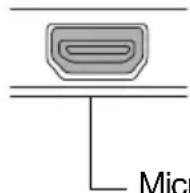
Micro HDMI™ Out port on display panel/tablet
(Sample Illustration) Video port
Selecting video cables
To connect a device to the Micro HDMI ^™ Out port, you must purchase the appropriate cable.
Connecting an HDMI™-compatible television or display device
To connect an HDMI ^TM -compatible television or display device:
Connect one end of the cable (not included with your device) to the Micro HDMI™ Out port on the side of the display panel/tablet, and then connect the other end of the cable to your television or display device. Refer to the manual that came with the television or display device for more information.
Your device should automatically detect the external display device.
Connecting an external monitor or projector
You can easily attach an external monitor or projector to your device if you need a larger screen.
To do this:
1 Read the directions that came with the monitor to see if you first need to install new software.
2 Connect the monitor's video cable to the Micro HDMI™ Out port on the side of the display panel/tablet.
3 Connect the device's power cable to a live electrical outlet.
4 Turn on the external device.
Your device will automatically detect the external display device.
Directing the display output
You can select the display output using the following steps:
1 Swipe in from the right edge of the screen.
2 When the Windows ^ charms appear, touch Devices (D).
3 Touch Project (C) .
4 Touch Second screen.
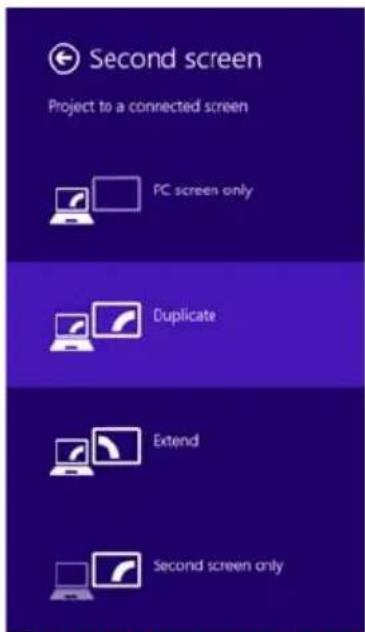
(Sample Image) Display options window
5 Select the desired display setting.
Adjusting the quality of the external display
To obtain the best picture quality from your television (or other video display device), you may need to adjust the video settings. See the video device documentation for additional configuration steps.
Customizing your device's settings
There are several ways in which you can customize your device to suit your particular requirements. You can go into your device settings to make adjustments to your device to suit your needs.
Swipe in from the right edge of the screen. When the Windows® charms appear, touch the Settings ⚙charm, and then touch Change PC Settings. Then choose a category you wish to change. Refer to your operating system documentation or Help and Support for details.
You may also wish to customize your power usage settings. For more information, see "Power Plans" on page 70. There are additional custom settings you can choose. See "Utilities" on page 85.
Caring for your device
This section gives tips on cleaning and moving your device. For information about taking care of your device's battery, see “Taking care of your battery” on page 72.
NOTE
Please handle your device carefully to avoid scratching or damaging the surface.
Cleaning the device
CAUTION
Keep liquids, including cleaning fluid, out of the device's speakers and other openings. Never spray cleaner directly onto the device and/or display. Never use harsh or caustic chemical products to clean the device.
To keep your device clean, gently wipe the display panel/tablet and exterior case with a lightly dampened cloth.
Chapter 2
Learning the Basics
This chapter gives some computing tips and provides important information about basic features.
Computing tips
◆Save your work frequently.
Your work stays in the device's temporary memory until you save it to the internal storage drive. If the network you are using goes down and you must restart your device to reconnect, or your battery runs out of charge while you are working, you will lose all work since you last saved.
See “Saving your work” on page 63 for further information.

HINT: Some programs have an automatic save feature that can be activated. This feature saves your file to the internal storage drive at preset intervals. See your software documentation for details.
◆Back up your files to external media on a regular basis. Label the backup copies clearly and store them in a safe place. It is easy to put off backing up because it takes time. However, if your internal storage drive suddenly fails, you will lose all the data on it unless you have a separate backup copy. For more information, see “Data and system configuration backup in the Windows® operating system” on page 103.
Use Error-checking and Disk Defragmenter regularly to check and optimize disk space and improve performance.
Scan all new files for viruses.
This precaution is especially important for files you receive via external media, email, or download from the Internet.
Take frequent breaks to avoid repetitive-motion injuries and eyestrain.
Do not turn off the device if a drive is active.
Turning off the device while it is reading from or writing to a disk may damage the disk, the drive, or both.
NOTE
The Windows ^® operating system records information, such as your desktop setup, during its shutdown procedure. If you do not let the Windows ^® operating system shut down normally, details such as new icon positions may be lost.
Touch screen
NOTE
Your device may come with a digitizer feature, enabling direct interaction with display, apps, and programs.
Your device comes with a touch screen, enabling direct interaction with displayed apps and programs through simple or multi-touch gestures.
Touch screen navigation
Use your finger to manipulate the on-screen icons, buttons, menu items, and other items on the touch screen. You can also change the screen's orientation.
▲ CAUTION
The screen is made of glass so avoid contact with sharp, rough, or abrasive objects or substances as screen may break or scratch if not handled properly. If you see a crack in the glass, discontinue use of the device to avoid injury.
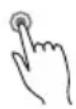
Touch—Touch to activate items displayed on the screen, such as app and setting icons or on-screen buttons. Touch to type using the keyboard.
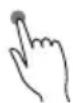
Touch & hold—Touch and hold an item on the screen by touching and holding the item in place until an action occurs.
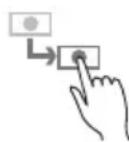
Drag—Touch and hold an item for a moment and then, without lifting your finger, move the item until you reach the target position. For example, drag items on any app screen to reposition them.
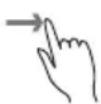
Swipe or slide—To swipe or slide, quickly move your finger across the surface of the screen without pausing. For example, swipe your finger to the left from the right edge of the screen to display the Windows ^® charms.
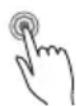
Double-tap—Tap quickly twice to zoom in. For example, double-tap a section of a Web page to zoom in on that section. Double-tap again to zoom out.

Pinch—In some apps (such as Maps and Games), you can zoom in and out by placing two fingers on the screen at once and pinching them together (to zoom out) or spreading them apart (to zoom in).

Rotate—Place two or more fingers on an item and rotate your hand. The item rotates in the direction you turn your hand. (Not functional in all apps).
Mouse properties
If you have attached an external mouse to your device, Mouse properties allow you to change your pointing device or mouse settings.
To access Mouse properties:
1 Swipe in from the right edge of the screen. When the Windows ^® charms appear, touch the Search D charm, touch Settings and, in the Search field, type Mouse. In the list that appears, touch your selection.
The Mouse screen appears.
Adjust the settings as desired, and then touch OK.
Starting an app
To Start an app on the Start screen, swipe left or right as needed to reveal the desired app. Then touch the appropriate tile.
Starting an app using Search
To Start an app using the Search function, swipe in from the right edge of the screen. When the Windows® charms appear, touch the Search ( )charm.
To use the Search field:
1 Touch the Search field to open the on-screen keyboard.
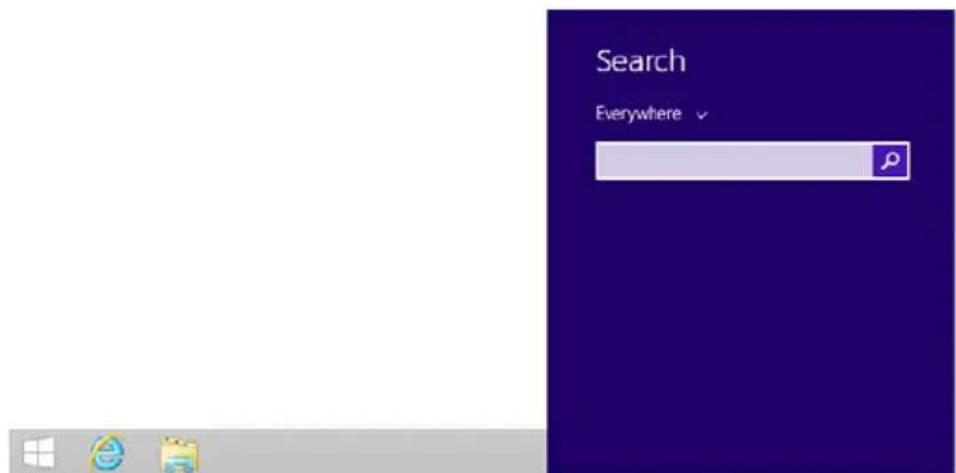
(Sample Image) Searching for apps
2 Start typing the app's name in the Search field.
As you type, all matching files and apps are displayed.
3 Touch the app you wish to open.
Saving your work
Before you turn off the device using the Shut down command, save your work on the internal storage drive, external media, or flash media. This is one of the most important rules of computing.
Many applications offer a feature that saves documents at regular intervals. Check your program's documentation to see if it has an automatic save feature.
Backing up your work
Back up all the files you create in case something happens to your device. You can back up your files to different types of media such as an external storage drive, or to a network, if available.
To back up several files at one time, use the Microsoft® Windows® file recovery program preinstalled on the device's internal storage drive. Also see “Backing up your data or your entire device with the Windows® operating system” on page 105.

HINT: Backing up all the files on your internal storage drive may take a considerable amount of time. You may prefer to use a high-capacity file recovery system, such as an external hard drive or a high-capacity microSD™ Card.
Toshiba's online resources
Toshiba maintains a number of online sites to which you can connect. These sites provide information about Toshiba products, give help with technical questions and keep you up to date with future upgrades. For more information, see “Contacting Toshiba” on page 107.
Chapter 3
Mobile Computing
This chapter covers all aspects of using your device while traveling.
Toshiba's energy-saver design
Your device enters a low-power suspension mode when it is not being used, thereby conserving energy and saving money in the process. It has a number of other features that enhance its energy efficiency.
Many of these energy-saving features have been preset by Toshiba. We recommend you leave these features active, allowing your device to operate at its maximum energy efficiency, so that you can use it for longer periods while traveling.
Running the device on battery power
The device contains a Lithium-Ion (Li-Ion) battery that provides power when you are away from an AC outlet. You can recharge it many times.
Battery Notice
Battery life rating is for comparison purposes only, and does not indicate the battery life that will be obtained by any individual user. Actual battery life may vary considerably from specifications depending on product model, configuration, applications, power management settings and features utilized, as well as the natural performance variations produced by the design of individual components. The battery life rating is only achieved on the select models and configurations tested by Toshiba under the specific test settings at the time of publication and is not an estimate of a system's battery life under any conditions other than the specific test settings.
Recharge time varies depending on usage. Battery may not charge while the device is consuming full power. After a period of time, the battery will lose its ability to perform at maximum capacity and will need to be replaced. This is normal for all batteries.
To ensure that the battery maintains its maximum capacity, operate the device on battery power at least once a month. The Lithium-Ion battery has no memory effect so it is not necessary to let the battery fully discharge each time. However, for better accuracy of the battery meter, it is helpful to fully discharge the battery periodically. Please see "Maintaining your battery" on page 73 for procedures. If the device is continuously operated on AC power, either through an USB/AC adaptor or a port replicator (if applicable to your system), for an extended period (more than a month), the battery may fail to retain a charge. This may shorten the life of the battery, and may cause the battery meter to be inaccurate.
NOTE
For best performance when playing streaming media (especially streaming video), either power the device from its USB/AC adaptor, or set up a power plan that keeps the device running at full performance even when powered from its battery. For more information about Windows® power plans, see “Power Plans” on page 70.
The device also has an internal real-time-clock (RTC) battery.
The RTC battery powers the RTC memory that stores your system configuration settings and the current time and date information. It maintains this information for up to a month while the device is turned off.

TECHNICAL NOTE: Depending on your system, the RTC battery may only charge while the device is turned on.
Power management
Your device ships with the power management options preset to a configuration that will provide the most stable operating environment and optimum system performance for both AC power and battery modes.
CAUTION
Changes to these settings may result in system performance or stability issues. Users who are not completely familiar with the power management component of the system should use the preset configuration. For assistance with setup changes, contact Toshiba's Customer Support Center.
Charging the battery
▲WARNING
If the device is leaking or its case is cracked, put on protective gloves to handle it.
NOTE
Your device's battery is not accessible to the user.
Your device contains a rechargeable battery that may need to be charged prior to use.
To use external power or to charge the battery you must attach the USB/AC adaptor. See “Connecting to a power source” on page 36.
To charge the device plug it into a power source.
NOTE
Battery life and charge time may vary depending on the external conditions, or the applications and features used.
NOTE
Please handle your device carefully to avoid scratching or damaging the surface.
Wall Outlet—The fastest way to charge your tablet is with the included USB/AC adaptor plugged into a wall outlet.
Charging the RTC battery
Your device has an internal real-time clock (RTC) battery. The RTC battery powers the System Time Clock and BIOS memory used to store your device's configuration settings. When fully charged, it maintains this information for up to a month when the device is powered off.
The RTC battery may have become completely discharged while your device was shipped, resulting in a CMOS error message during startup. The error message may vary by device model.
NOTE
Depending on your system, the RTC battery may only charge while the device is turned on.
To recharge the RTC battery, plug the device into a live electrical outlet via the USB/AC adaptor and leave the device powered on for 24 hours.
NOTE
It is seldom necessary to charge the RTC battery because it charges while the device is on. If the RTC battery is low, the real-time clock and calendar may display the incorrect time and date or stop working.
The device can be used while the RTC battery is being charged, although the charging status of the RTC battery cannot be monitored.
Determining remaining battery power
NOTE
Wait a few moments after turning on the device before trying to monitor the remaining battery power. The device needs this time to check the battery's remaining capacity and perform its calculations.

Touch the power icon in the notification area. (See “Finding your way around the desktop” on page 77 for more information on the notification area.) The window displays the remaining battery power as a percentage.
With repeated discharges and recharges, the battery's capacity gradually decreases. A frequently used older battery does not power the device for as long as a new battery, even when fully charged.

TECHNICAL NOTE: The device drains the battery faster at low temperatures. Check your remaining charge frequently if you are working in temperatures below 50 degrees Fahrenheit.
The device calculates the remaining battery charge based on your current rate of power use and other factors such as the age of the battery.
What to do when the battery runs low
When the battery run low you can:
Plug the device into an external power source and recharge the battery via the Micro USB port, using the USB Power cable and USB/AC adaptor. See "Connecting to a power source" on page 36
◆Save your work and turn off the device
If you do not manage to do either of these things before the battery completely runs out of power, the device automatically enters a power-saving state and turns itself off so that when you turn on the power again after connecting the USB/AC adaptor, you can continue where you left off.
Setting battery notifications
You can set two notifications. Each notification can be set to alert you when a specified percentage of remaining battery power has been reached. You can also set the device to enter Sleep mode or to completely shut down when the notification goes off.
To change the default notification settings:
1 While on the desktop, touch the notification area.
Battery (icon in the
A window appears displaying the power level of the battery.

71% available (plugged in, charging)
Adjust screen brightness More power options

(Sample Image) Power Options screen
2 Touch More power options.
The Power Options window appears.
3 Touch Change plan settings under the power plan to be customized.
The Edit Plan Settings window appears.
4 Touch Change advanced power settings.
The Advanced settings tab of the Power Options window appears.
5 Touch Battery to display the battery options.
![Power Options Advanced settings Select the power plan that you want to customize, and then choose settings that reflect how you want your computer to manage power. Change settings that are currently unavailable Balanced [Active] Battery Critical battery action Low battery level Critical battery level On battery: 2% Plugged in: 2% Low battery notification Low battery action Reserve battery level Restore plan defaults OK Cancel Apply](/content/2026/06/1146897/images/2591bebf2039b635cb56d34ef74fa491bb88eea0a389fdf0b33e0f230e6d81da.jpg)
(Sample Image) Advanced settings tab of Power Options screen
6 Configure the alarm settings to suit your needs.
Conserving battery power
How long a fully charged battery lasts when you are using the device depends on a number of factors, such as:
How the device is configured
How much you use the internal storage drive or other optional devices
◆Where you are working, since operating time decreases at low temperatures
There are various ways in which you can conserve power and extend the operating time of your battery:
◆Enable Sleep, which saves power when you turn off the device and turn it back on again
Use the Windows ^® power-saving option plans
These power-saving options control the way in which the device is configured. By using them, you can increase the length of time you can use the device before you need to recharge the battery.
Microsoft ^® has combined these options into preset Power Plans. Using one of these power plans lets you choose between maximum power savings and peak system performance. You may also set individual power-saving options to suit your own needs.
The following sections describe how to choose a Power Plan and discuss each power-saving option.
Power Plans
You can choose a predefined Power Plan or select your own combination of power options.
To do this:
1 While on the desktop, touch the notification area.
Battery ( ) icon in the
2 Touch More power options.
The Power Options window appears.
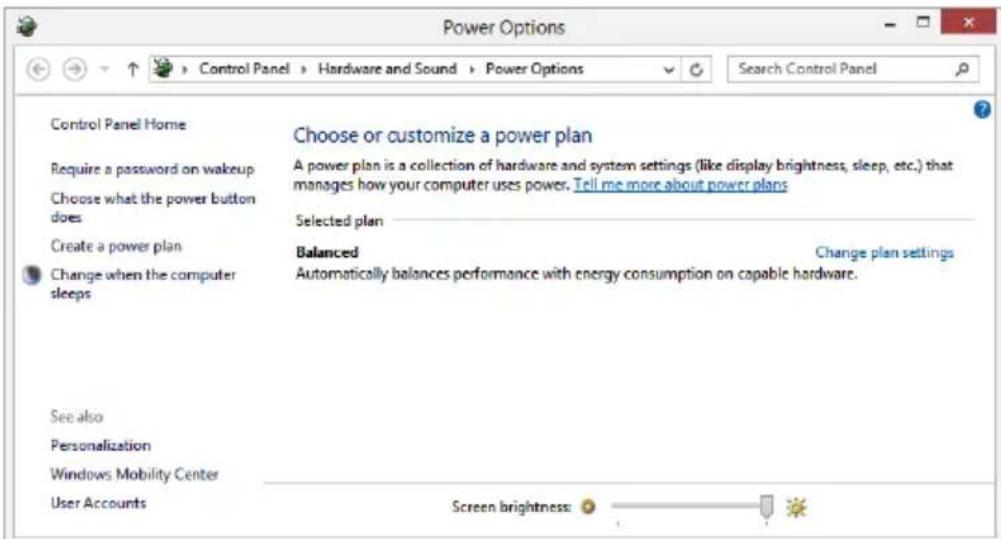
(Sample Image) Power Options window
3 Select an appropriate plan for your work environment or create your own custom plan.
4 Touch Create a power plan in the left pane to set up a new plan.
NOTE
To edit a plan or to edit advanced settings, continue to the following steps.
5 Touch Change plan settings to choose the plan you want to edit.
This screen allows you to change basic settings.
6 Touch Change advanced power settings to access settings for battery notification levels, internal storage drive power save time, etc.
You can touch the plus signs to expand each item and to see what settings are available for each item.
7 Touch OK to save the plan changes you have performed.
Changing the battery
NOTE
The device's battery is not accessible by the user.
When your battery has run out of power, plug in the USB/AC adaptor.
If you find that a new battery is needed, contact the location where you purchased the device for more information on replacing the battery. Toshiba will not be responsible for any product damage, data loss, service, or part replacement made necessary by improper installation of a new battery.
▲WARNING
If the device is leaking or its case is cracked, put on protective gloves to handle it.
Taking care of your battery
The following sections offer tips on how to take care of your battery and prolong its life.
Safety precautions
▲WARNING
Always immediately turn the power off and disconnect the power cable/cord plug from the plug socket and stop using the device if you observe any of the following conditions:
◆Offensive or unusual odor
Excessive heat
Discoloration
◆ Deformation, cracks, or leaks
Smoke
- Other unusual events during use, such as abnormal sound
Do not expose the device to fire. The batteries could explode.
Do not turn on the device's power again until an authorized Toshiba service provider has checked it for safety. Continued use could cause a fire or rupture possibly resulting in serious injury or device failure including but not limited to the loss of data.
Maintaining your battery
Fully discharging a battery will allow better accuracy of the battery meter.
To fully discharge your battery:
Periodically, disconnect the device from a power source and operate it on battery power until the battery fully discharges.
Disposing of your device
▲WARNING
Never attempt to dispose of a device by burning or by throwing it into a fire, and never allow exposure to a heating apparatus (e.g., microwave oven). Heat can cause a device to explode and/or release caustic liquid, both which may possibly cause serious injury.
Discard this device in accordance with applicable laws and regulations.
Disposal of this product may be regulated due to environmental considerations. For disposal, reuse or recycling information, please contact your local government.
For more information, see “Device Recycling Information” on page 20, or for complete information about Toshiba's recycling programs and initiatives, please visit http://us.toshiba.com/recycle.
Traveling tips
The environmental precautions listed in “Selecting a place to work” on page 31, also apply while traveling.
✿Never leave your device on a sunny ledge or in a place where it could get wet or covered in dust.
Always travel with the device in a carrying case. Toshiba offers a choice of carrying cases for the device. They all provide plenty of extra space for manuals, power cords, and compact discs. Contact your authorized Toshiba representative for more information or visit Toshiba's Web site at accessories.toshiba.com.

TECHNICAL NOTE: When traveling by air, you may be required to pass your device through airport security equipment. The X-ray equipment will not harm your device.
NOTE
Before using your device aboard an aircraft, make sure the Wireless antenna is OFF (Airplane mode is ON) if your device has wireless LAN capability.
NOTE
To enable/disable the wireless antenna, use the Airplane mode switch located under Networks, see “Setting up for communications” on page 80.
Chapter 4
Exploring Your Device's Features
In this chapter, you will explore some of the special features of your device.
Exploring the Start screen
The Start screen is the launching pad for everything you can do in the Windows ^® operating system, providing new and easy ways to access everything from your favorite apps and Web sites to your contacts and other important information.
When you swipe in from the right edge of the screen, a list of Windows ^® charms will slide out from the right. These Windows ^® charms perform various commands, including basics tasks like turning off the power and advanced PC settings.
You can go to the Start screen by touching the Start charm, see "Charms" on page 76. You can also use the Windows® button (on the LCD screen to go to the Start screen. For detailed information, please refer to the Windows® Help and Support.
By or touching the Desktop tile from the Start screen, you will find the Windows® settings and features you are most familiar with.
For detailed information on the new functionality, refer to the Windows® Help and Support.
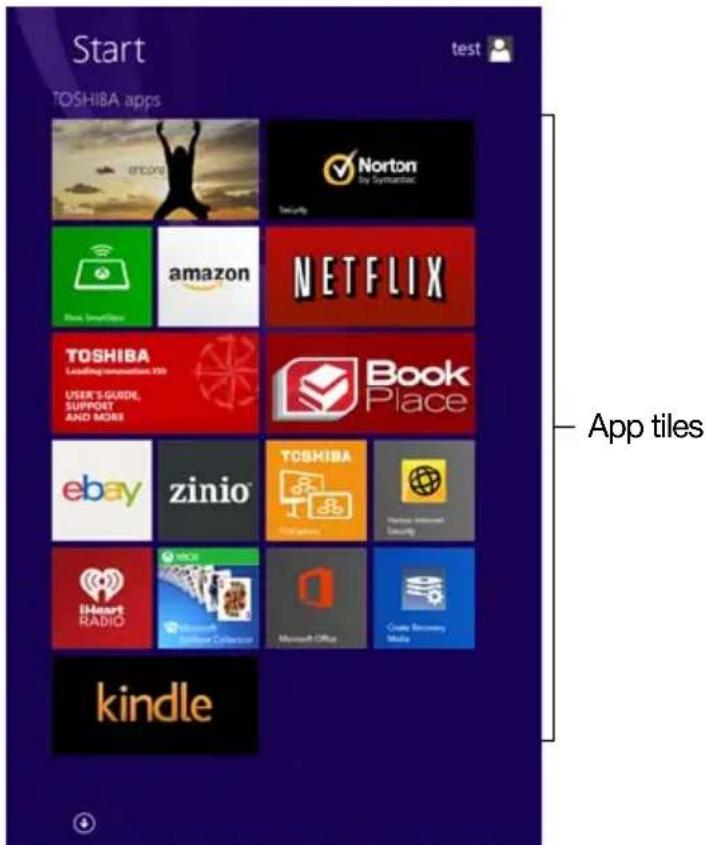
(Sample Image) Windows® Start screen
Charms
Use the Windows ^® charms to start apps, find documents, set up system components, and perform most other computing tasks.
By swiping in from the right edge of your screen, you will find a list of charms: Search, Share, Start, Devices and Settings.

Search—This charm allows you to search for most anything you need to locate on your device. It can help you find apps, documents, photos, and your favorite music.

Share—This charm allows you to share music and photos with your favorite social Web sites.

Start—This charm allows you to view all of the available apps downloaded to your system.

Devices—This charm allows you to manage your hardware devices.

Settings—This charm allows you to manage your system settings.
Tiles
Tiles can be accessed and launched from the Start screen.
Typical Start screen tiles are the Desktop tile and Mail tile, as well as tiles representing all other applications downloaded to your system.
Exploring the desktop
You can use its features to start applications, find documents, set up system components, and perform most other computing tasks.

HINT: The illustrated examples in this guide may appear slightly different from the screens displayed by your system. The differences are not significant and do not indicate any change in the functionality of your system.
Finding your way around the desktop
Your device's desktop includes several standard features: icons, taskbar, notification area, notifications, and background pattern.
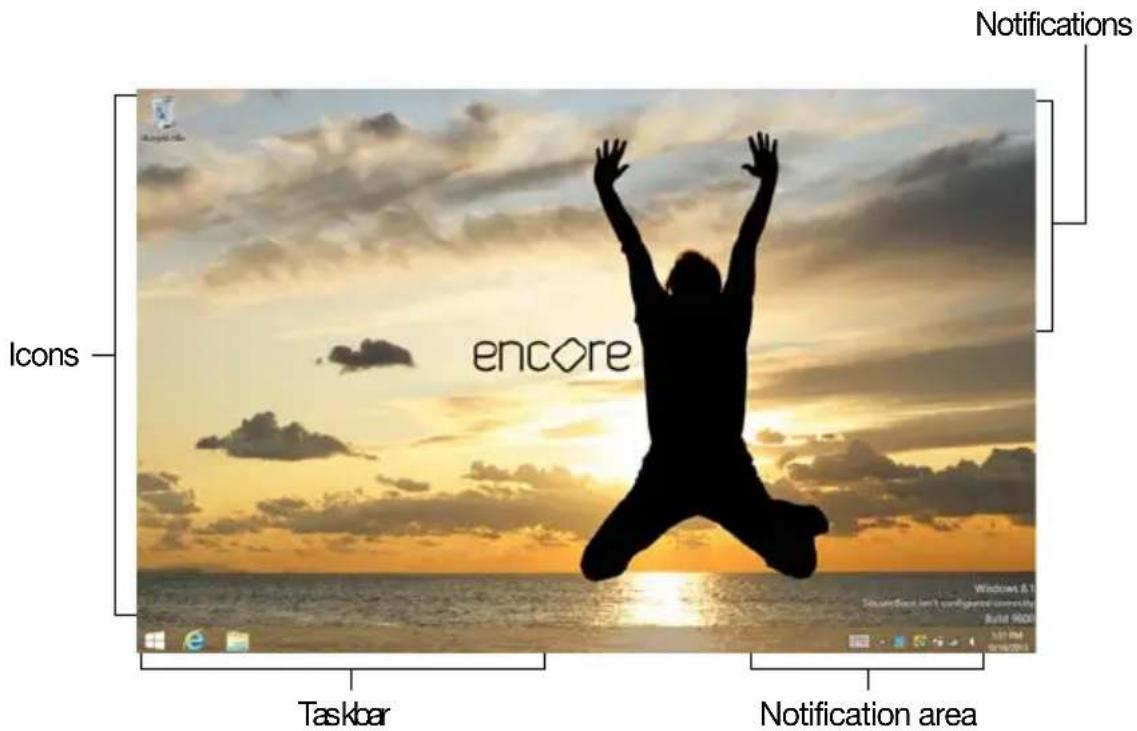
(Sample Image) Windows® Desktop screen
Icons
An icon represents a folder, file, or program that can be quickly activated by touching the icon.
You can create a new desktop icon for any folder, file, or program by dragging the element's icon from its location in a window to the desktop area.
You may see various icons displayed on your system desktop, for example:

Recycle Bin—Holds files you have deleted. You may be able to retrieve these files until you empty the Recycle Bin.

- TECHNICAL NOTE: If you delete a large number of files or very large files from the internal storage drive, there may be insufficient space available in the Recycle Bin to hold these files. In this case, Windows® will prompt you to either permanently delete the file(s) or cancel the deletion.
If you delete a file (of any size) from an external media or flash media, it does not go into the Recycle Bin. The file is permanently deleted. - Permanently deleted files cannot be recovered from the Recycle Bin. For more information on the Recycle Bin, see Windows® online Help.
NOTE
Touch and hold an icon to display a popup description of the file contents.
Your desktop may contain other icons depending on your configuration. See Windows ^® online Help for more specific information on each icon and how to use it.
Taskbar
Each time you open a program, a button associated with that program appears on the taskbar. With some programs, a button appears on the taskbar for each document or window you open. You can use these buttons to quickly switch between the programs or windows.
To make a program or window the currently active one, touch the associated taskbar button.
Notification area
The notification area displays icons of tasks or programs that run continuously in the background and displays notifications.
Typical tasks in the notification area are Current time, Power usage mode, network connectivity status, and speaker volume.
To activate a specific task, touch the appropriate notification area icon.
Notifications
There are many types of notifications you can employ to help you with the many tasks you perform every day.
User experience notifications can be set for toast, tile, badge, and raw notifications.
Toast notifications—Designed for time-sensitive delivery of personalized content, such as an instant message from a friend.
Tile notifications—Used by applications that are not currently running with an at-a-glance characteristic, giving you a quick preview of the subject line of your latest email or the current weather conditions.
Badge notifications—A specialized type of tile notification (shown on the Start screen tile) using glyphs to indicate the number of applications that have updates available or the status of a running application.
Raw notifications—These run a background task on behalf of an application while that application is not running in order to make available the latest content, such as an online newspaper.
Windows® Store
Although many applications will be pre-installed or built-in to your device, you will also have the ability to download many other applications with just a touch.
In the Windows ^® Store you can search for and browse thousands of apps, all grouped into easy to find categories.
Setting up for communications
To connect to the Internet you need:
◆A browser or communications program
An Internet Service Provider (ISP) or online service if you plan to use the Internet
A way to connect to the ISP (for example Wi-Fi®/broadband connection, etc.)
Connect to the Internet
NOTE
Wireless connectivity and some features may require you to purchase additional software, external hardware or services. Availability of public wireless LAN access points may be limited.
Follow the steps below to set up your Wireless connection.
1 Swipe in from the right edge of the screen. When the Windows ^® charms appear, touch the Settings (💡) charm.
2 Touch the Wi-Fi (图标) icon.
The Networks screen appears.
3 Select your network.
4 Touch Connect.
5 Enter the network security key (if applicable).
6 Touch Next.
Your device should then be connected.
NOTE
To enable/disable the wireless antenna, use the Airplane mode switch located under Networks.
For help with common Wi-Fi ^® networking problems, see “Wireless networking problems” on page 100.
Connecting your device to a network
You can connect your device to a network to increase its capabilities and functionality.
Accessing a network
For specific information about connecting to the network, consult your network administrator. Many hotels, airports, and offices offer Wi-Fi ^® access.
Exploring audio features
You can use your device to record sounds using the device's internal microphones (available on certain models) or an optional external microphone. You can listen to sound files or audio CDs using the built-in speakers, headphones, or external speakers.
Recording sounds
You may record sounds using the device's internal microphones or by connecting an optional external microphone.
Using a microphone
NOTE
To locate your headphone/microphone jack, please refer to your Quick Start document.

1 If you want to use an external microphone, connect it to the device.
2 Swipe in from the right edge of the screen. When the Windows ^® charms appear, touch the Search 📄charm and, in the Search field, type Sound Recorder.
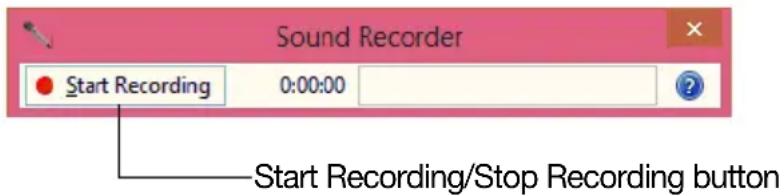
(Sample Image) Sound Recorder screen
3 Touch the Start Recording button.
4 Speak normally into the microphone.
5 When you have finished recording, touch the Recording button.
Stop
The Save As dialog box appears.
6 To save the file, touch the field to open the on-screen keyboard. Then type a file name and touch Save.
Using external speakers or headphones
NOTE
To locate your headphone/microphone jack, please refer to your Quick Start document.
Your device is equipped with a full stereo sound system with internal speakers. Instead of using the internal speakers, you can connect headphones or a pair of external stereo speakers.
▲ CAUTION
Before putting on headphones to listen, turn the volume down. Do not set the volume too high when using headphones. Continuous exposure to loud sound can harm your hearing.

TECHNICAL NOTE: When using amplified speakers, use speakers that require an external power source. Other types of speakers will be inadequate to produce sound from the device.

To play back sound files through external speakers or headphones:
1 Locate the headphone/microphone jack on the device.
2 Using any necessary adapters, plug the cable from the headphones or external speakers into the headphone/microphone jack.
The headphone/microphone jack requires a 16-ohm stereo mini connector.
To adjust the volume:
For external speakers, use the volume controls on each speaker.
For headphones, use the device's volume control.

Using the Web Camera
Your device comes with a built-in Web Camera. With this Web Camera you can do the following:
Take pictures and record videos with your device
◆Chat with others and have them see you while using instant messaging (IM) programs
Have video conference calls
NOTE
To email, instant message or video conference, you must be connected to the Internet.
To access the Web Camera, on the Start screen touch the Camera tile. The Web Camera indicator light glows when the Web Camera is active.
NOTE
When the Web camera is not active the indicator light is off.
Using a microSD™ Card
The Memory card reader supports the use of a microSD ^™ Card. This medium can be used with a variety of digital products: digital music players, cellular phones, PDAs, digital cameras, digital video camcorders, etc.
NOTE
Do not use the Copy Disk function for this type of media. To copy data from one media to another, use the drag-and-drop feature of the Windows ^® operating system.
Inserting memory media
NOTE
To locate your Memory card reader, please refer to your Quick Start document.
The following instructions apply to all types of supported media devices.
1 Turn the media so that the contacts (metal areas) are facing down, away from the display.
2 Push the media into the microSD ^TM slot until it stops.
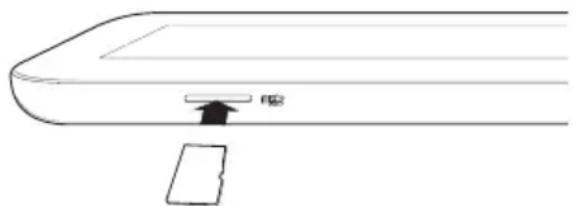
natural_image
Simple line drawing of a device with a handle and base, no text or symbols present(Sample Illustration) Inserting memory media
CAUTION
When inserting memory media, do not touch the metal contacts. You could expose the storage area to static electricity, which can destroy data.
NOTE
Always remove memory media when not in use.
Removing memory media
1 If you are not currently on the Desktop, choose the Desktop tile on the Start screen, otherwise skip to step 2.
2 Prepare the card for removal by touching the Show hidden icons button (▲) if necessary, in the notification area and then selecting the Safely Remove Hardware and Eject Media icon.
3 Touch the item you would like to eject.
If the system is unable to prepare the media for safe removal, a message will tell you to try again later. If the media can be removed now, the system displays Safe to Remove Hardware.
If the device has a spring-loaded adapter slot, see step 4; otherwise, skip to step 5.
4 Gently press the card inward to release it.
The card pops out slightly.
5 Grasp the card and pull it straight out.
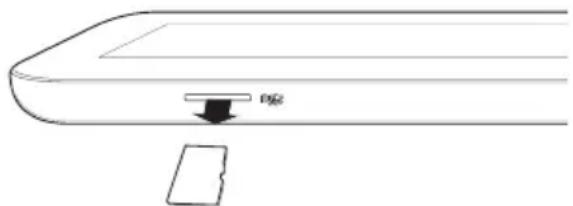
natural_image
Simple line drawing of a device with a paper clip and arrow pointing to it (no text or symbols)(Sample Illustration) Removing memory media
CAUTION
Do not remove memory media while data is being written or read. Even when the Windows ^® message “copying...” disappears, writing to the media might still be in progress and your data could be destroyed. Wait for the indicator light to go out.
Chapter 5
Utilities
Your device includes several utilities designed to help you to reconfigure your system to best meet your individual needs. Together, these allow you to ascertain certain system details, set additional options, or change default options. These utilities are described in this chapter.
NOTE
The utilities described in this chapter, and the icons shown in the sample images are applicable only if the related utility is available on your system.
◆Create Recovery Media
Service Station
TOSHIBA Application Installer
Create Recovery Media
The Create Recovery Media utility enables you to create recovery media that can be used to return your system to its out-of-box state, if necessary. For detailed information on using the utility to create recovery media, see “Creating recovery media” on page 42.
Service Station
The Service Station helps you keep your new device running at its best by notifying you when updated software, firmware, documentation or other information is available for your device. The Service Station will alert you when updates are available, and you can then choose to install the updates if you wish.
TOSHIBA Application Installer
The TOSHIBA Application Installer allows you to reinstall the drivers and applications that were originally bundled with your device.
NOTE
You must have an Internet connection to reinstall applications.
To reinstall drivers and applications:
1 Swipe in from the right edge of the screen. When the Windows ^® charms appear, touch the Search charm. Then touch the Search field, and begin typing Application Installer.
2 Touch TOSHIBA Application Installer.
The TOSHIBA Application Installer window appears.
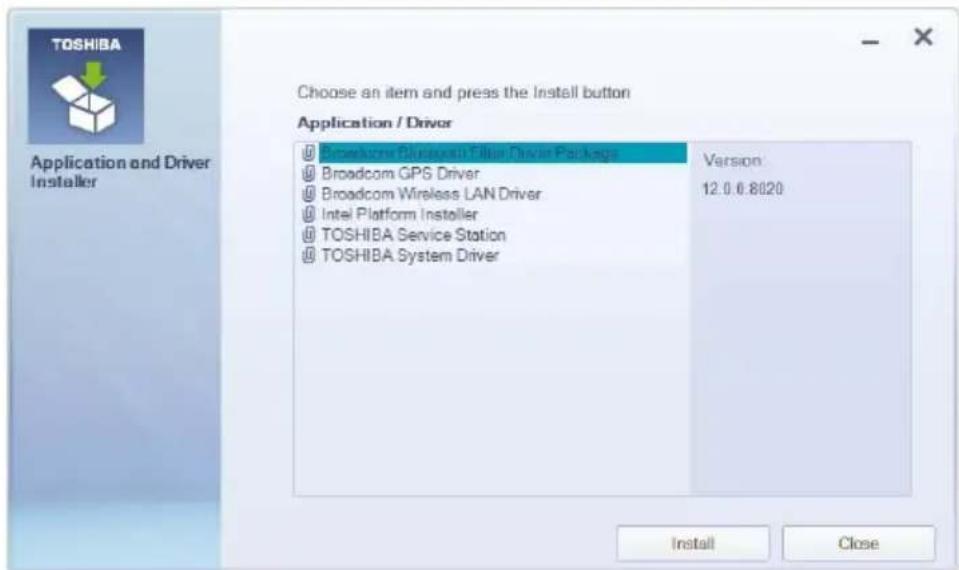
(Sample Image) TOSHIBA Application Installer selection screen
3 Touch the item you want to install.
4 Touch Install, then follow the on-screen prompts to complete the installation process.
Chapter 6
If Something Goes Wrong
Some problems you may encounter when using your device are relatively easy to identify and solve. Others may require help from your network administrator or the manufacturer of the software program.
This chapter aims to help you solve many problems by yourself. It covers the problems you are most likely to encounter.
If all else fails, contact Toshiba. You will find information on Toshiba's support services at the end of this chapter.
Problems that are easy to fix
Your program or application stops responding.
NOTE
The operating system allows for the use of both applications (“Apps” used with the Windows® “Modern UI”) and programs (used in the traditional Windows® desktop environment). For the purpose of simplifying the information we will use the terms interchangeably in this chapter.
If you are working in a program that suddenly freezes, chances are the program has stopped responding. You can exit the program without shutting down the operating system or closing other programs.
Problems when you turn on the device
These problems may occur when you turn on the power.
The device will not start.
Make sure you attached the USB Power cable to the USB/AC adaptor properly.
Press and hold the Power button for at least 5 seconds, and then swipe down where indicated.
If you are using the USB/AC adaptor, check that the wall outlet is working by plugging in another device, such as a lamp.
The device displays the WARNING RESUME
FAILURE/ Windows Error Recovery – Windows did not shut down successfully message.
To continue, select Start Windows normally. This can happen if the device was put into Sleep mode and the battery has discharged. If you performed a shutdown before this message was displayed, a program or driver may have prevented Windows ^® from shutting down.
Data stored in the device's memory has been lost. Data stored in the device's internal storage drive may not be affected.
Always save your data even when you are using Sleep mode. If your battery fully discharges, information that has not been saved will be lost. Your device can be configured to warn you when a battery is running low see “What to do when the battery runs low” on page 68.
If you are running on battery power, it is recommended that you do not leave the device in Sleep mode for long periods of time.
To charge a battery, leave the device plugged into a live wall outlet for several hours. For more information see “Charging the battery” on page 66.
The Windows® operating system is not working
Once you are familiar with your device and used to the way the operating system responds to your work routine, you can easily detect if the operating system is not working correctly. For example:
The operating system fails to start after the initial startup appears.
The operating system takes a long time to start.
The operating system responds differently from the normal routine.
◆The screen does not look right.
Unless a hardware device has failed, problems usually occur when you change the system in some way such as installing a new program or adding a device.
If you experience any of these problems, use the options in the Startup menu to fix the problem.
Using Startup options to fix problems
If the operating system fails to start properly, you may need to troubleshoot the Operating System and/or its settings. There are several options to choose from depending on the severity of the problem and your level of expertise with computers.
If Windows ^® fails to start properly twice, the Windows ^® Boot menu will launch. To enter the Advanced Startup options manually:
1 Swipe in from the right edge of the screen.
2 When the Windows ^ charms appear, touch the Settings (charm.
3 Touch Change PC Settings.
4 Touch Update and recovery.
5 Touch Recovery.
6 Touch Restart Now under Advanced Startup.
The device restarts.
7 Touch Troubleshoot from the menu.
You now have several options:
Refresh your device
- Your files and personalization settings won't change
- Your device settings will be changed back to their defaults
- Your Apps from the Windows ® Store are retained
◆Apps you installed from discs or Web sites are removed
A list of removed apps is saved to your desktop
For more information, see “Recovering from a USB Recovery PBR (Push Button Reset)” on page 50.
Reset your device
All of your personal files and apps are removed
- Your device settings are changed back to their defaults
For more information, see “Recovering from a USB Recovery PBR (Push Button Reset)” on page 50.
Advanced options
Choosing this option presents you with another set of options:
System Restore
System Restore allows you to use a Restore point to return the device to a state at which it was performing properly. Restore points may be created:
When new hardware or software is installed
◆Manually by the user
System Image Recovery
Windows ^® will “Recover” the Operating system using a specific image provided by the user.
Startup Repair
This feature automates the repair process. The Operating System will automatically look for problems and repair them if possible.
Command Prompt
The command prompt is a very powerful tool for advanced users.
Startup Settings
In previous Operating Systems the majority of the options found on this menu were available by pressing the F8 key during the Windows® boot process:
◆Enable low resolution video mode
Restarts Windows ^® using your current video driver at low resolution. This allows you to reset your display settings in the event they have been improperly set.
◆Enable debugging mode
Starts Windows ^® in an advanced troubleshooting mode
◆Enable boot logging
Creates a file that lists all the drivers that are installed during startup
Enable Safe Mode
Starts Windows ^® with a minimal set of drivers and services. If the device starts and runs in Safe Mode, you will know the Operating System is most likely working properly and that you should look to third-party applications or drivers for the source of your problem.
◆Disable driver signature enforcement
Allows drivers containing improper signatures to be installed
◆Disable early-launch anti-malware protection
Allows drivers to initialize without being measured by the Anti-malware driver
◆Disable automatic restart on system failure
Prevents Windows ^® from automatically restarting if an error causes it to fail. Choose this option only if Windows ^® is stuck in a loop where it fails, attempts to restart, and fails again repeatedly.
Internet problems
My Internet connection is very slow.
Many factors contribute to the speed with which you can surf the Internet. They include: network speed, network conditions, time of day (when everyone else is surfing, your access can be slow) and popularity of the sites you are trying to access. If accessing a particular site is very slow, try later.
My browser cannot find the URL address I typed in.
Make sure you separated the domain names of the address with the forward slash (/). Check the spelling of each name and the syntax of the address carefully. A single incorrect letter or missed character will make it impossible for your browser to locate the site.
My browser cannot find a site I bookmarked.
The World Wide Web is constantly changing. A site you bookmarked yesterday may not be available today or its server may be down for temporary repair. Try again later.
The Windows® operating system can help you
If the operating system has started properly but you still have a problem using your device, the online Help can assist you in troubleshooting the problem. To open online Help:
✿ Swipe in from the right edge of the screen. When the Windows® charms appear, touch the Search Ocharm. Then touch the Search field, and begin typing Help and Support.
When the “Windows Help and Support” screen appears, do one or both of the following:
◆ Touch the search field, type the topic you need help with, and follow the on-screen instructions
◆ Touch one of the options listed in the window and follow the instructions
You can connect to Support Online by going to Toshiba support at support.toshiba.com.
Fixing a problem with Device Manager
Device Manager provides a way to check and change the configuration of a device.
CAUTION
Changing the default settings using Device Manager can cause other conflicts that make one or more devices unusable. Device Manager is a configuration tool for advanced users who understand configuration parameters and the ramifications of changing them.
Checking device properties
Device Manager provides a way to view the properties of a device. Properties include the name of the manufacturer, the type of device, the drivers installed, and the system resources assigned to the device.
To check a device's properties:
1 Swipe in from the right edge of the screen. When the Windows ^® charms appear, touch the Search 📁charm. Then touch the Search field, and begin typing Device Manager.
2 Touch Device Manager.
The Device Manager screen appears.
3 In the list of device(s), touch the device type.
4 To view the device(s) installed, touch the device.
The operating system displays the device Properties dialog box, which provides an array of tabs. They may include:
The General tab, which provides basic information about the device.
The Resources tab, which lists resources assigned to the device. This tab does not appear if the device is not using resources.
The Driver tab, which displays the drivers being used by the device. This tab also provides options for updating the driver or rolling back the driver in case the new version is causing a problem.
The tabs that appear in the dialog box vary from one device to another.
For more information about Device Manager, refer to Windows ^® online Help.
Power and the batteries
NOTE
The device's battery is not accessible by the user.
Your device receives its power through the USB Power cable to the USB/AC adaptor or from the system batteries (one main battery and a real-time clock (RTC) battery). Power problems are interrelated. For example, a faulty USB Power cable or USB/AC adaptor will neither power the device nor recharge the batteries.
Here are some typical problems and how to solve them:
The USB Power cable to the USB/AC adaptor work correctly, but the battery will not charge.
The tablet's battery does not charge while the device is consuming full power. Try turning off the device.
The battery may be too hot or too cold to charge properly. If you think this is the probable cause, let the battery reach room temperature and try again.
If the battery has completely discharged, it will not begin charging immediately. Leave the USB/AC adaptor and power cord/cable connected, wait 20 minutes and see if the battery is charging.
The battery appears not to power the device for as long as it usually does.
If you frequently repeat shallow charge and discharge, the battery meter may become inaccurate. Let the battery discharge completely, then try charging it again.
Check the power options via your Power Plans (see “Power Plans” on page 70). Have you added a device that takes its power from the battery? Is your software using the internal storage drive more? Is the display power set to turn off automatically? Was the battery fully charged to begin with? All these conditions affect how long the charge lasts.
After a period of time, the battery will lose its ability to perform at maximum capacity and will need to be replaced. This is normal for all batteries. Visit the Toshiba Web site at accessories.toshiba.com. Refer to this site often to stay current on the most recent software and hardware options for your device, and for other product information.
For more information on maintaining battery power, see "Changing the battery" on page 72.
Display problems
Here are some typical display problems and their solutions:
The screen is blank.
Display Auto Off may have gone into effect. Touch the screen to activate it.
If you are using the built-in screen, make sure the display priority is not set for an external monitor. To do this, swipe in from the right, and when the charms appear, touch Devices (☐). Touch Project (☐), and then touch Second screen.
If you are using an external monitor:
◆Check that the monitor is turned on.
Check that the monitor's Power cable is firmly plugged into a working power outlet.
◆Check that the cable connecting the external monitor to the device is firmly attached.
◆ Try adjusting the contrast and brightness controls on the external monitor.
◆Check the display priority as described above.
The screen does not look correct.
Choose a theme for your desktop background, under Change the visuals and sounds on your device, in the Themes panel. You can also change the setting for individual components separately by selecting an item from just below the Themes panel (Desktop Background, Color, Sounds, and Screen Saver).
For more information, see the Windows ^® online Help.
A message displays saying that there is a problem with your display settings and that the adapter type is incorrect or the current settings do not work with your hardware.
Reduce the size of the color palette to one that is supported by the device's internal display.
To change the display properties:
1 Touch & hold in a blank area of the Windows ^® desktop.
2 Touch Personalize, and then Display.
3 Use the menu on the right hand side of the page to:
Adjust resolution
Adjust brightness
Calibrate color
◆Change display settings
◆Project to a second screen
Adjust ClearType text
4 Touch OK.
The display mode is set to Simultaneous and the external display device does not work.
Make sure the external monitor is capable of displaying at resolutions of 1280 x 800 or higher. Devices that do not support this resolution will only work in Internal/External mode, and not simultaneous mode.
Small bright dots appear on your TFT display when you turn on your device.
Small bright dots may appear on your screen display when you turn on your device. Your display contains an extremely large number of thin-film transistors (TFT) and is manufactured using high-precision technology. Any small bright dots that may appear on your display are an intrinsic characteristic of the TFT manufacturing technology. Over a period of time, and depending on the usage of the device, the brightness of the screen will deteriorate. This is also an intrinsic characteristic of the screen technology. When the device is operated on battery power, the screen will dim and you may not be able to increase the brightness of the screen while on battery power.
Disk or storage drive problems
Problems with the storage drive or with external media usually show up as an inability to access the drive or as sector errors. Sometimes a drive problem may cause one or more files to appear to have garbage in them.
Error-checking
Run Error-checking, which analyzes the directories and files on the storage drive and repairs any damage it finds.
To run Error-checking:
1 Swipe in from the right edge of the screen. When the Windows ^® charms appear, touch the Search charm. Then touch the Search field, and begin typing computer.
2 Touch This PC in the list that appears.
3 Touch and hold the drive you wish to check.
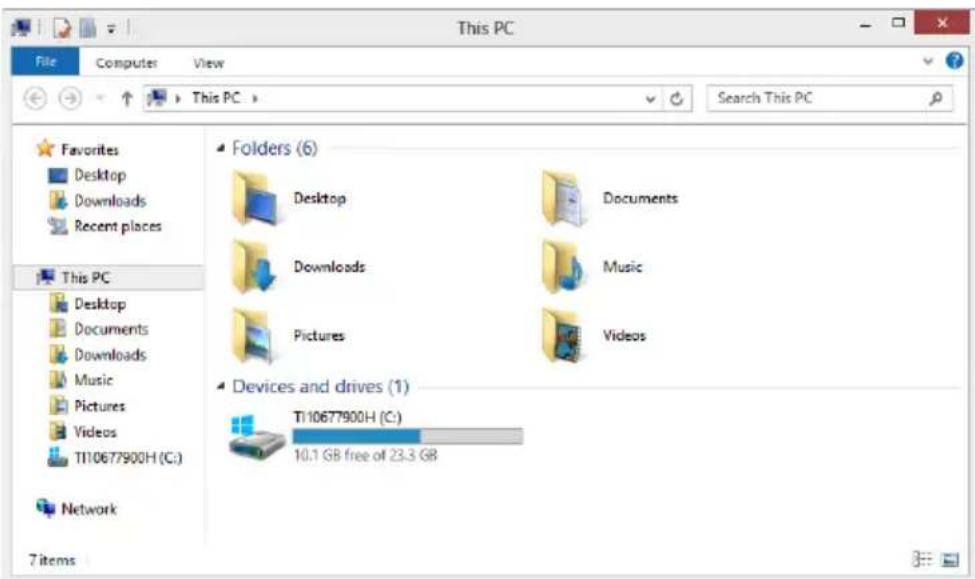
(Sample Image) Selecting the drive
4 In the pop-up menu, touch Properties.
The drive's Properties box appears.
5 Touch the Tools tab.
6 Touch the Check button.
The Error Checking box appears.
The system will alert you if you need to scan the drive.
7 Even if you do not need to scan the drive for errors you can scan by touching Scan drive.
Error-checking tests and repairs the storage drive.
Your hard disk seems very slow.
If you have been using your device for a long time, your files may have become fragmented. Run Disk Defragmenter.
To do this:
1 Swipe in from the right edge of the screen. When the Windows® charms appear, touch the Search ( )charm, then type Defragment in the Search field.
2 Touch Defragment and Optimize Drives.
3 From the Optimize Drives menu touch the drive you wish to defragment.
4 Touch the Optimize button.
The system will display the status as it optimizes and defragments the drive.
Your data files are damaged or corrupted.
Refer to your software documentation for file recovery procedures. Many software packages automatically create backup files.
You may also be able to recover lost data using utility software. Consult your network administrator.
Some programs run correctly but others do not.
This is probably a configuration problem. If a program does not run properly, refer to its documentation and check that the hardware configuration meets its needs.
Sound system problems
No sound is coming from the device's speakers.
Adjust the volume control.
Check that the volume control on the device is turned up.
If you are using external headphones or speakers, check that they are securely connected to your device.
The device emits a loud, high-pitched noise.
This is feedback between the microphone and the speakers. It occurs in any sound system when input from a microphone is fed to the speakers and the speaker volume is too loud. Adjust the volume control.
Printer problems
This section lists some of the most common printer problems.
The printer will not print.
Check that the printer is connected to a working power outlet, turned on and ready (on line).
Check that the printer has plenty of paper. Some printers will not start printing when there are just two or three sheets of paper left in the tray.
Make sure the printer cable is firmly attached to the device and the printer.
Run the printer's self-test to check for any problem with the printer itself.
Make sure you installed the proper printer drivers as shown in the instructions that came with the printer.
You may have connected the printer while the device is on. Disable Sleep mode, turn off the device, and turn off the printer. Turn the printer back on, make sure it is online, and then turn the device back on.
Try printing another file. For example, you could create and attempt to print a short test file using Notepad. If a Notepad file prints correctly, the problem may be in your original file.
If you cannot resolve the problem, contact the printer's manufacturer.
The printer will not print what you see on the screen.
Many programs display information on the screen differently from the way they print it. See if your program has a print preview mode. This mode lets you see your work exactly as it will print. Contact the software manufacturer for more information.
Wireless networking problems
NOTE
This section provides general troubleshooting tips for networking problems, specifically wireless (Wi-Fi®) networking.
The terms and concepts used assume a basic understanding of networks, and may be for more advanced users. If you need assistance or if you are not familiar with the terminology, please see Windows® Help and Support or contact your computer technician.
If your device is equipped with an internal Wi-Fi ^® adapter, verify that Airplane mode is OFF, see “Setting up for communications” on page 80.
◆Verify that your device can detect access points or routers. If it can detect a Wi-Fi® access point or router then it may be a configuration issue.
- Verify that signal strength is good using the utility provided with the Wi-Fi® adapter.
If another device is on the same network, verify that it has network access, and can connect to the Internet. If, for example, the other device cannot browse to a public Web site, the ISP's (Internet Service Provider) service may be disrupted.
◆Verify that the Service Set Identifier (SSID), or network name, is correct - i.e., that it matches the SSID assigned to the access point you are attempting to connect through. SSIDs are case-sensitive.
Check the Windows ^ Control Panel's Device Manager to verify that the Wi-Fi ^ adapter is recognized by the Windows ^ operating system, and that the driver is loaded. To access the Device Manager, swipe in from the right edge of the screen. When the Windows ^ charms appear touch the Search ( )charm, and then type Control Panel. Touch Control Panel, and then select System and Security, and then System. Launch the Device Manager and carefully note any error messages - these will be very helpful if you should confer with a support technician at a later time.
NOTE
To enable/disable the wireless antenna, use the Airplane mode switch located under Networks, see “Setting up for communications” on page 80.
Use IPCONFIG to verify that the device has a useful IP address - one other than the private address of 169.254.xxx.xxx assigned by Windows®.
1 Swipe in from the right edge of the screen. When the Windows ^® charms appear, touch the Search (☐) charm. Then touch the Search field, and begin typing Cmd.
2 Touch Command Prompt.
3 Enter IPCONFIG/ALL, and then press ENTER.
The IP address for each active network adapter will be displayed.
If you have enabled any security provisions (closed system, MAC address filtering, Wired Equivalent Privacy [WEP], etc.), check the access point vendor's Web site for recent firmware upgrades. Problems with WEP keys, in particular, are frequently addressed in new firmware releases.
Develop good computing habits
Save your work frequently.
You can never predict when your device will lock, forcing you to close a program and lose unsaved changes. Many software programs build in an automatic backup, but you should not rely solely on this feature. Save your work! See “Computing tips” on page 59 for instructions.
On a regular basis, back up the information stored on your internal storage drive.
Use Windows ^® to back up files, or the entire device, to an external hard disk. Here are some ways you can do this:
Use the Windows ^® operating system to back up files or your entire device to an external hard disk.
◆ Copy files to a rewritable external storage device.
Connect your device to the office network and copy files to your network partition.
Some people use a combination of these methods, backing up all files weekly and copying critical files to external media on a daily basis.
If you have installed your own programs, you should back up these programs as well as your data files. If something goes wrong that requires you to reformat your internal storage drive and start again, reloading all your programs and data files from a backup source will save time.
Read the documentation.
It is very difficult to provide a fail-safe set of steps you can follow every time you experience a problem with the device. Your ability to solve problems will improve as you learn about how the device and its software work together.
Get familiar with all of the documentation provided with your device, as well as the information that may come with the programs and devices you purchase.
Your local computer store or book store sells a variety of self-help books you can use to supplement the information in the manuals.
Data and system configuration backup in the Windows® operating system
The Windows ^® operating system offers some easy-to-use features for backing up your Windows ^® settings and your data - documents and other important files. Take advantage of these features to protect yourself from much more difficult and time-consuming restoration procedures, and to safeguard your valuable data from loss.
Saving system configuration with restore points
The System Restore feature of the Windows® operating system quickly creates restore points - ‘snapshots’ of your Windows® operating system configuration - and saves them for later recall. If you experience problems after installing some new hardware or software, you can easily select a previously established Control Point to ‘turn back the clock,’ restoring the Windows® operating system to the state it was in just prior to the installation. This is much easier and more effective than uninstalling the hardware or software, which often leaves behind unwanted files and settings. It is also easy to undo a restore point selection, if you change your mind.
Follow these steps to create a restore point using the System Restore utility:
1 Swipe in from the right edge of the screen. When the Windows ^® charms appear, touch the Search Charm. Then touch the Search field, and type Control. Touch Control Panel in the list that appears.
2 Touch System and Security, and then System.
3 In the left pane, touch System Protection. The System Protection tab of the System Properties window appears.
4 Touch Configure.
5 Under Restore settings select Turn on System Protection.
6 Touch OK.
7 Touch Create.
8 Touch the input field, and enter a name that is descriptive enough to be easily understood in the future, such as “Before installing Brand X Accounting app.” Then touch Create.
The Windows ^® operating system creates the restore point, automatically stamps it with the current date and time, and displays a message that the restore point was successfully created.
9 Touch Close.
Then, at a later time, you can re-establish your Windows ^® configuration using the saved restore point. To do this:
1 Swipe in from the right edge of the screen. When the Windows ^® charms appear, touch the Search 📁charm. Then touch the Search field, and type Control. Touch Control Panel in the list that appears.
2 Touch System and Security, and then System.
3 In the left pane, touch System Protection. The System Protection tab of the System Properties window appears.
6 Touch the Restore point you want to use, and then touch Next.
The time stamp and description of each Restore point is displayed.
NOTE
At this point you can touch “Scan for affected programs” to determine what the impact of using the chosen Restore Point will be.
7 Verify that the Restore point you chose is the correct one. If it is not, touch Back to return to the previous step.
8 Close all programs and save all open files.
9 Touch Finish, and then Yes to begin the system restore.
Your Windows ^® operating system configuration will now be restored to the state it was in when the chosen restore point was created, and then the device will be automatically restarted.
Backing up your data or your entire device with the Windows® operating system
The most valuable component of your device system is the data you create and store on its internal storage drive. Since problems with either hardware or software can make the data inaccessible or even destroy it, the next most valuable component of your device system may be a recent backup of your data.
Fortunately, the Windows ^® operating system offers a convenient way to back up your device or just your important files to or hard drives. An external hard drive is recommended in case the internal storage drive fails. No additional software is required.
Follow these steps to back up your device or files to external media, or a storage drive:
NOTE
You cannot back up the device while running on battery power. Connect the USB/AC adaptor before continuing.
1 Swipe in from the right edge of the screen. When the Windows® charms appear, touch the Search charm. Then touch the Search field, and type Control. Touch Control Panel in the list that appears.
2 Touch Save backup copies of your files with File History under the System and Security heading. Follow the on-screen instructions to back up your files.
For additional Help, launch the Windows® Help and Support screen, and search for “back up files,” see “The Windows® operating system can help you” on page 93.
General tips for installing hardware and software
Here are a few tips to help ensure safe and easy installation of new hardware (printers, pointing devices, external hard drives, scanners, etc.) and software (applications like Microsoft® Office and Adobe® Photoshop®, or utility software such as special toolbars for your web browser).
- Create a restore point (refer to “Saving system configuration with restore points” on page 103). Before installing anything, use the System Restore utility to set a restore point (see the section titled restore points). If anything goes wrong, you will then be able to easily
restore the Windows ^® operating system to the state it was in prior to the installation, undoing any changes that the installation process introduced.
- Back up your critical data (see “Backing up your data or your entire device with the Windows® operating system” on page 105).
Have your back up media on hand in case you need any files from them.
Do not guess - follow directions carefully! It is often necessary to run an installation utility first - before connecting a new hardware item to the device. If the device is connected first, it may be very difficult to complete the installation successfully. Always carefully follow the installation instructions that accompany the hardware or software.
◆Restart the Windows ^® operating system. Always restart the Windows ^® operating system after each installation, even if the installation utility does not prompt you to do so. This will ensure that the installation is completed, and will clean up anything that the installation utility left behind.
Do one installation at a time. If you have several new items to add to your device system, install just one at a time, creating restore points immediately before each successive installation. This will make it much easier to determine the origin of any new problems. For best results, follow this sequence:
1 Back up critical data.
2 Create a restore point.
3 Install one item of hardware or software.
4 Restart the Windows ^® operating system.
5 Use the new hardware or software for a while, noting any new problems. Make sure that your critical applications (email, business applications, etc.) are working correctly, and verify that important devices are still functioning.
6 For each additional hardware or software item, repeat these steps, starting at step 1 if any of your critical data has changed, or starting at step 2 if no critical data has changed.
If you need further assistance
If you have followed the recommendations in this chapter and are still having problems, you may need additional technical assistance.
Since some problems may be related to the operating system or the program you are using, it is important to investigate all sources.
◆ Review the troubleshooting information in your operating system documentation.
If the problem occurs while you are running a program, consult the program's documentation for troubleshooting suggestions. Contact the software company's technical support group for their assistance.
- Consult the dealer from whom you purchased your device and/or program. Your dealer is your best source for current information.
For the detailed specifications for your device, visit support.toshiba.com.
Contacting Toshiba
Toshiba's Technical Support Web site
For technical support, or to stay current on the most recent software and hardware options for your device, and for other product information, be sure to regularly check the Toshiba Web site at support.toshiba.com.
Other Toshiba Internet Web sites
| toshiba.com | Worldwide Toshiba corporate site |
| us.toshiba.com | Marketing and product information in the USA |
| accessories.toshiba.com | Accessories information in the USA |
| www.toshiba.ca | Canada |
| www.toshiba-Europe.com | Europe |
| www.toshiba.co.jp/index.htm | Japan |
| latin.toshiba.com | Mexico and all of Latin America |
| acclaim.toshiba.com | Toshiba USA Self-Service support web site |
| laptopforums.toshiba.com | Community discussion forums for Toshiba laptop users |
Toshiba's worldwide offices
Australia
Toshiba (Australia) Pty. Limited
84-92 Talavera Road
North Ryde NSW 2113
Sydney
Australia
France
Latin America and Caribbean
Toshiba America Information
Systems, Inc.
9740 Irvine Boulevard
Irvine, California 92618
United States
Spain
Toshiba Information Systems
(España) S.A.
Parque Empresarial San Fernando
Edificio Europa, 1a Planta
Escalera A
28831 (Madrid) San Fernando de
Henares
Spain
United States
Toshiba America Information
Systems, Inc.
9740 Irvine Boulevard
Irvine, California 92618
United States
Canada
Toshiba Canada Ltd.
191 McNabb Street
Markham, Ontario
L3R - 8H2
Canada
Germany
Toshiba Europe GmbH
Leibnizstraße 2
D-93055 Regensburg
Germany
Japan
Toshiba Corporation, PCO-IO
1-1, Shibaura 1-Chome
Minato-Ku, Tokyo, 105-8001
Japan
Mexico
Col. Lomas de Chapultepec.
CP 11000 Mexico, DF.
United Kingdom
Toshiba Information Systems
(U.K) Ltd.
Toshiba Court
Weybridge Business Park
Addlestone Road
Weybridge, Surrey KT15 2UL
United Kingdom
The Rest of Europe
Power Cord/Cable Connectors
Your device ships with the correct power supply for the country of purchase. This appendix shows the shapes of the typical AC power cord/cable connectors for various parts of the world.
USA
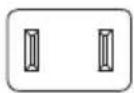
UL approved
Canada
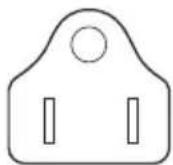
CSA approved
United Kingdom
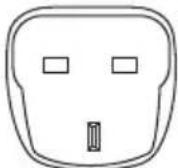
BS approved
Europe
VDA approved
NEMKO approved
Australia
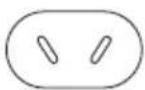
AS approved
Glossary

TECHNICAL NOTE: Some features defined in this glossary may not be available on your device.
Acronyms
The following acronyms may appear in this User's Guide.
AC Alternating Current
Apps Applications
BIOS Basic Input/Output System
BD-ROM Blu-ray Disc Read-Only Memory
bps bits per second
CD Compact Disc
CD-ROM Compact Disc Read-Only Memory
CD-RW Compact Disc Rewrite Memory
CMOS Complementary Metal-Oxide Semiconductor
CPU Central Processing Unit
DC Direct Current
DMA Direct Memory Access
DIMM Dual Inline Memory Module
DOS Disk Operating System
DPI Dots Per Inch
DVD Digital Versatile (or Video) Disc
DVD-ROM Digital Versatile (or Video) Disc Read-Only Memory
eSATA external Serial Advanced Technology Attachment
FAT File Allocation Table
FCC Federal Communications Commission
GB gigabyte
GBps gigabytes per second
HDD Hard Disk Drive
HDMI High-Definition Multimedia Interface
HDMI CEC High-Definition Multimedia Interface Consumer Electronics Control
HTML Hypertext Markup Language
IEEE Institute of Electrical and Electronics Engineers
I/O Input/Output
IRQ interrupt request
ISP Internet Service Provider
KB kilobyte
LAN Local Area Network
LCD Liquid Crystal Display
LED Light Emitting Diode
MB megabyte
MBps megabytes per second
MIDI Musical Instrument Digital Interface
PC Personal Computer
PCI Peripheral Component Interconnect
PCMCIA Personal Computer Memory Card International Association
RAM Random Access Memory
RGB Red, Green Blue light (monitor)
RFI Radio Frequency Interference
ROM Read-Only Memory
RTC Real-Time Clock
SD Secure Digital
SDRAM Synchronous Dynamic Random Access Memory
SSD Solid State Drive
TFT Thin Film Transistor
USB Universal Serial Bus
URL Uniform Resource Locator
WAN Wide Area Network
www World Wide Web
Terms
The following terms may appear in this User's Guide.
A active-matrix display—A liquid crystal display (LCD) made from an array of liquid crystal cells using active-matrix technology. Also known as a “TFT display,” in its simplest form there is one thin film transistor (TFT) for each cell. This type of display works well with computers because of its shallow depth and high-quality color. Active-matrix displays are viewable from wider angles than most passive-matrix displays.
adapter—A device that provides a compatible connection between two units. For example, the computer's internal display adapter receives information from the software and translates it into images on the screen. An adapter can take a number of forms, from a microprocessor to a simple connector. An intelligent adapter (one that is capable of doing some processing) may also be called a controller.
Alternating Current (AC)—The type of power usually supplied to residential and commercial wall outlets. AC reverses its direction at regular intervals. Compare Direct Current (DC).
application—A computer program that you use to perform tasks of a specific type. Applications include word processors, spreadsheets, and database management systems. See also program.
B
backup—A copy of a file, usually on a removable disk, kept in case the original file is lost or damaged.
Basic Input/Output System (BIOS)—See BIOS.
baud rate—The speed at which a communication device, such as a printer or modem, transmits information. Baud rate is the number of signal changes per second (not necessarily the same as bits per second). See also bits per second.
Blu-ray Disc (BD)—Offering more storage capacity than DVDs, the format was developed to allow for more data storage and to enable recording and playback of high-definition video (HD).
BIOS (Basic Input/Output System)—Basic instructions, stored in read-only memory (ROM), containing the information the computer needs to check hardware and load the operating system when you start up the computer.
bits per second (bps)—A way of measuring the speed at which information is passed between two devices. This is the basic unit of measure used in modem communications, and is similar, but not identical, to the baud rate. See also baud rate.
boot—To start the computer. The term “boot” originates from bootstrap program (as in “pulling itself up by its bootstraps”), a program that loads and initializes the operating system. See also reboot
boot disk—See system disk.
boot priority (startup sequence)—The order in which the computer accesses its internal storage drives to locate the startup files. Under the default startup sequence, the computer looks for the startup files in the external media before checking the internal storage drive.
bus—An electrical circuit that connects the central processing unit (CPU) with other parts of the computer, such as the video adapter, disk drives, and ports. It is the pathway through which data flows from one device to another. See also bus speed, frontside bus.
bus speed—The speed at which the central processing unit (CPU) communicates with the other parts of the computer.
C
cache—A section of very fast memory in which frequently used information is duplicated for quick access. Accessing data from cache is faster than accessing it from the computer's main memory. See also CPU cache, L1 cache, L2 cache.
CD—An individual compact disc. See also CD-ROM.
CD-ROM (Compact Disc Read-Only Memory)—A form of high-capacity storage that uses laser optics instead of magnetic means for reading data. See also CD. Compare DVD-ROM.
Central Processing Unit (CPU)—The chip that functions as the “brain” of the computer. It takes information from outside sources, such as memory or keyboard input, processes the information, and sends the results to another device that uses the information.
character—Any letter, number, or symbol you can use on the computer. Some characters are non-printing characters, such as a paragraph break in a word-processing program. A character occupies one byte of computer storage.
Charm/charms—Start screen icons that slide out from the right side of the screen and direct you to various Windows® functions.
chip—A small piece of silicon containing computer logic and circuits for processing, memory, input/output, and/or control functions. Chips are mounted on printed circuit boards.
click—To press and release the pointing device's primary button without moving the pointing device. In the Windows® operating system, this refers to the pointing device's left button, unless otherwise stated. See also double-click.
color palette—A set of specified colors that establishes the colors that can be displayed on the screen at a particular time.
compatibility—The extent to which computers, programs, or devices can work together harmoniously, using the same commands, formats, or language as another.
configuration—(1) The collection of components that make up a single computer system. (2) How parts of the system are set up (that is, configured).
controller—A device that controls the transfer of data from a computer to a peripheral device and vice versa. For example, disk drives, monitors, keyboards, and printers all require controllers.
CPU—See Central Processing Unit (CPU).
CPU cache—A section of very fast memory residing between the CPU and the computer's main memory that temporarily stores data and instructions the CPU will need to execute commands and programs. See also cache, L1 cache, L2 cache.
cursor—An on-screen symbol (usually a flashing vertical line) that indicates the position where characters will appear when you enter data.
D
Desktop—Offers the traditional look and feel of the Windows ^® desktop found in Windows ^® 7 and earlier releases of the Windows ^® operating system.
default — The setting selected by a program when the user does not specify an alternative setting.
device—A component attached to the computer. Devices may be external (outside the computer's case) or internal (inside the computer's case). Printers, disk drives, and modems are examples of devices.
device driver—A program (called a “driver”) that permits a computer to communicate with a device.
dialog box—An on-screen window displayed by the operating system or a program giving a direction or requesting input from the user.
Direct Current (DC)—The type of power usually supplied by batteries. DC flows in one direction. Compare Alternating Current (AC).
Direct Memory Access (DMA)—A dedicated channel, bypassing the CPU, that enables direct data transfer between memory and a device.
directory—See folder.
disable—To turn a computer option off. See also enable.
disc—A round, flat piece of material, designed to be read from and written to by optical (laser) technology, and used in the production of optical discs, such as CDs and DVDs. Compare disk.
disk—A round, flat piece of material that can be magnetically influenced to hold information in digital form, and used in the production of magnetic disks, such as hard disks. Compare disc. See also hard disk.
disk drive—The device that reads and writes information and programs on external media or hard disk. It rotates the disk at high speed past one or more read/write heads.
document—Any file created with an application and, if saved to disk, given a name by which it can be retrieved. See also file.
double-click—To press and release the pointing device's primary button rapidly twice without moving the pointing device. In the Windows® operating system, this refers to the pointing device's left button, unless otherwise stated.
download—(1) In communications, to receive a file from another computer through a modem or network. (2) To send font data from the computer to a printer. See also upload.
drag—To hold down the mouse button while moving the pointer to drag a selected object. In the Windows ^® operating system, this refers to the left mouse button, unless otherwise stated.
driver—See device driver.
DVD—An individual digital versatile (or video) disc. See also DVD-ROM.
DVD-ROM (Digital Versatile [or Video] Disc Read-Only Memory)—A very high-capacity storage medium that uses laser optics for reading data. Each DVD-ROM can hold as much data as several CD-ROMs. Compare CD-ROM.
E emulation—A technique in which a device or program imitates another device or program.
enable—To turn on a computer option. See also disable.
eSATA—An external device that supports hot swapping and fast data transfer. Very useful in storing and transferring large files.
executable file—A computer program that is ready to run. Application programs and batch files are examples of executable files. Names of executable files usually end with a .bat or .exe extension.
expansion device—A device that connects to a computer to expand its capabilities. Other names for an expansion device are port expander, port replicator, docking station, or network adapter.
extension—See file extension.
external device—See device.
file—A collection of related information, saved on disk with a unique name. A file may be a program, information used by a program, or a document. See also document.
File Allocation Table (FAT)—The section of a storage drive that keeps track of the location of stored files.
file name—A set of characters that uniquely identifies a file within a particular folder. It consists of two parts: the actual name and the file name extension. See also file extension.
file extension—The three characters following the period (pronounced "dot") at the end of a file name. The extension indicates the type of file. Examples are .exe for program files and .hlp for help files. See also file name.
folder—Also called directory. A container for organizing files saved to a disk. A folder is symbolized on screen by a graphical image (icon) of a file folder. A folder can contain files and other folders.
format—(verb) To prepare a blank disk for use with the computer's operating system. Formatting creates a structure on the disk so the operating system can write information to the disk or read information from it.
frontside bus—The primary pathway (bus) between the CPU and the computer's main memory. Also called “system bus.” See also bus.
Function key—(1) A feature in which certain keys in combination with the Fn key can set system options or control system parameters, such as the battery save mode. (2) A key or combination of keys that activates a memory resident program.
function keys—The keys labeled F1 through F12, typically located on the keyboard. Their function is determined by the operating system and/or individual programs.
G ground—A conductor to which all components of an electric circuit are connected. It has a potential of zero (0) volts, is connected to the earth, and is the point of reference for voltages in the circuit.
hard disk—A storage device composed of a rigid platter or platters that can be magnetically coded with data. Hard disks hold much more information than some external media and are used for long-term storage of programs and data. The primary (or only) hard disk in a computer is usually fixed, but some computers have secondary hard disks that are removable.
hardware—The physical components of a computer system. Compare software.
HDMI (High-Definition Multimedia Interface)—An interface used to transmit high quality audio and video signal via a single cable in digital format, providing better picture quality than analog signal.
HDMI-CEC (HDMI Consumer Electronics Control)—One A/V component can control another while using this function, if connected with HDMI cables. See also HDMI.
Hibernation—A feature of many Toshiba computers that saves to the internal storage drive the current state of your work, including all open files and programs, when you turn the computer off. When you turn on the computer again, your work is returned to the same state it was when the computer was turned off. See also Sleep, Suspend
hot swapping—The ability to add or remove devices from a computer while the computer is running and have the operating system automatically recognize the change.
icon—A small image displayed on the screen that represents a function, file, or program.
interlaced—A method of refreshing a computer screen, in which only every other line of pixels is refreshed. Interlaced monitors take two passes to create a complete screen image. Compare non-interlaced.
internal device—See device.
Internet—The decentralized, world-wide network of computers that provides electronic mail, the World Wide Web, and other services. See also World Wide Web.
K keyboard shortcut—A key or combination of keys that you use to perform a task instead of using a pointing device such as a mouse.
L1 (level one) cache—Memory cache built into the processor to help improve processing speed. See also cache, CPU cache, L2 cache.
L2 (level two) cache—Memory cache installed on the motherboard to help improve processing speed. It is slower than L1 cache and faster than main memory. See also cache, CPU cache, L1 cache.
LAN (Local Area Network)—A group of computers or other devices dispersed over a relatively limited area and connected by a communications link that enables any device to interact with any other on the network.
LED (Light Emitting Diode)—A solid state lamp (SSL) that uses light-emitting diodes (LEDs) as the source of light, which offers long life and high efficiency output. Multiple diodes are used together, since the light created by individual light-emitting diodes is small compared to incandescent and compact fluorescent lamps.
LCD (Liquid Crystal Display)—A type of display that uses a liquid substance between two transparent electrode panels. When an electric current passes through the electrodes, the molecules in the liquid form a crystalline pattern that polarizes the light passing through it. A filter over the electrodes permits only non-polarized light to pass to the surface of the display, creating light and dark pixels.
load—To move information from a storage device (such as a hard disk) into memory for processing.
local area network—See LAN.
logical drive—A section of a disk that is recognized by the operating system as a separate disk drive. A system's logical drives may differ from its physical drives. For example, a single hard disk drive may be partitioned into two or more logical drives.
M
memory—Typically refers to the computer's main memory, where programs are run and data is temporarily stored and processed. Memory can be volatile and hold data temporarily, such as RAM, or it can be nonvolatile and hold data permanently, such as ROM. A computer's main memory is RAM. See also RAM, ROM.
microprocessor—See Central Processing Unit (CPU).
MIDI (Musical Instrument Digital Interface)—A standard for connecting musical instruments, synthesizers, and computers. The MIDI standard provides a way of translating music into a form computer can use, and vice versa.
motherboard—The computer's main circuit board that contains the processor, memory, and other primary components.
MS-DOS prompt—See system prompt.
multi-function drive—A DVD drive that can read and write to CD and DVD media.
multimedia—A combination of two or more media, such as sound, animation, and video in a computer program or presentation.
Musical Instrument Digital Interface—See MIDI.
N
network—A collection of computers and associated devices that are connected by communications facilities. A network allows you to share data and peripheral devices, such as printers, with other users and to exchange electronic mail.
non-interlaced—A method of refreshing a computer screen, in which each pixel of every line is refreshed as the electron beam scans across and down the screen. Compare interlaced.
non-system disk—A disk for storing programs and data that cannot be used to start the computer. Compare system disk.
O
online—Available through the computer. Online may refer to information being read from your own computer's internal storage drive, such as online documentation or online Help, or to information coming from another company on a company network or the Internet.
operating system—A set of programs that controls how the computer works. Examples of operating systems are the Windows Vista ^® , Windows ^® 7, and Windows 8 operating systems.
optical disc drive—A drive which reads plastic coated discs on which information is recorded digitally, and uses a laser to read data, music, or videos.
P
palette—See color palette.
password—A unique string of characters entered by a user to verify his or her identity to the computer or the network.
PC Card—A credit-card-sized expansion card designed to increase the capabilities of computers. PC Cards provide functions such as modem, fax/modem, hard disk drive, network adapter, sound card, or SCSI adapter.
peripheral—Any device, such as a printer or joystick, that is attached to the computer and controlled by the computer's CPU.
pixel—Short for “picture element.” The smallest dot that can be produced on a screen or printer.
Plug and Play—Generally, refers to the computer's ability to automatically configure itself to work with peripheral devices. When capitalized, refers to a standard that, when followed by a device manufacturer, allows a computer to configure itself automatically to work with the device.
pointer—An icon (usually an arrow) that moves on the screen when you slide your finger across the touch pad or move a mouse. Used to point to and select/activate on-screen items, such as icons, menu items, and buttons. The shape and purpose of the pointer varies depending on the program you are using and what you are doing.
pointing device—Any device, such as the touch pad or a mouse, that enables you to move the pointer on the screen.
port—A socket on the computer where you plug in a cable for connection to a network or a peripheral device.
processor—See Central Processing Unit (CPU).
program—A set of instructions that can be executed by a computer. The general classes of programs (also called software) are operating system, application, and utility. See also operating system, application, utility.
properties—The attributes of an object or device. For example, the properties of a file include the file's type, size, and creation date.
R
RAM (Random Access Memory)—Volatile memory that can be written to as well as read. Volatile here means that information in RAM is lost when you turn off your computer. This type of memory is used for your computer's main memory. See also memory. Compare ROM.
Random Access Memory—See RAM.
Read-Only Memory—See ROM.
reboot—See boot, restart
removable disk—A disk that can be removed from a disk drive. A Flash drive is one example of a removable disk.
resolution—A measure of the sharpness of the images that can be produced by a printer or displayed on a screen. For a printer, resolution is expressed in dots per inch (dpi). For a screen, it is expressed as the number of pixels available horizontally and vertically.
restart—Synonymous with reboot. To reset the computer by reloading the operating system without turning the computer off. See also boot.
RGB (Red, Green, Blue) monitor—A monitor that reproduces all colors by mixing red, green, and blue light in various combinations.
RJ45 connector—An eight-wire connector used to connect a computer to a network.
ROM (Read-Only Memory)—Non-volatile memory that can be read but not written to. Non-volatile here means that information in ROM remains whether or not the computer is receiving power. This type of memory is used to store your computer's BIOS, which is essential instructions the computer reads when you start it up. See also BIOS, memory. Compare RAM.
S
Secure Digital (SD)—A small, portable, non-volatile memory card used to store and transfer data between digital products, providing encryption capability for content security.
select—To highlight or otherwise specify text, data, or graphics with the intent to perform some operation on it.
shortcut—See keyboard shortcut.
Sleep—A feature of some Windows ^® operating systems that allows you to turn off the computer without exiting your open applications and to continue from where you left off when you turn the computer on again.
software—See program. Compare hardware.
solid state drive—A data storage device that utilizes solid-state memory as opposed to a hard disk (see also hard disk). Solid state drives hold a large amount of information and are used for storage of programs and data.
Start screen—Displays the new Windows ^® operating system look and feel.
Suspend—A feature of some Windows ^® operating systems that allows you to turn off the computer without exiting your open applications and to continue from where you left off when you turn the computer on again.
Swipe—Swipe an open window to the left or right of the screen to display the next or previous window.
system prompt—The symbol (in the MS-DOS ^® operating system, generally a drive letter followed by a “greater than” sign) indicating where users are to enter commands.
T TFT display—See active-matrix display.
Touch—To activate items displayed on the screen, such as apps, setting icons, and on-screen buttons by touching them with your finger.
Tile/Tiles—A list of square or rectangular icons on the Start screen representing applications that can be accessed by selecting them.
Universal Serial Bus (USB)—USB is a serial bus that supports data transfer. USB allows hot swapping of peripherals. See also bus, hot swapping, serial.
upload—To send a file to another computer through a modem or network. See also download.
USB—See Universal Serial Bus (USB).
USB Flash drive—A small, portable flash memory card that plugs into a computer's USB port and functions as a portable hard drive. They are smaller and more durable than an external hard drive because they do not contain any internal moving parts, but have less storage capacity. See also Universal Serial Bus (USB).
utility—A computer program designed to perform a narrowly focused operation or solve a specific problem. Utilities are often related to computer system management.
W Web—See World Wide Web
Wi-Fi®—A registered trademark term of the Wi-Fi Alliance that stands for Wireless Fidelity, and is another term for the communication protocol to permit an Ethernet connection using wireless communication components.
World Wide Web (www)—The worldwide network of Web sites linked together over the Internet. A user of the Web can jump from site to site regardless of the location of the computer hosting the site. See also Internet.
Index
A
AC power 66
accessing
network 81
adding
optional external devices 41
apps
searching 62
starting from Start screen 62
audio features 81
B
backing up data 30
backing up files 60, 63
battery
battery life 65
care 72, 73
changing 72
charge time 66
charger 66
charging 37, 66
charging the real-time clock (RTC) 67
conserving power 70
determine remaining power 67
low charge 68
maintaining 73
maximum capacity 65
power management 66
power options 68
real-time clock (RTC) 65
recharge time 65
RTC memory 65
running device on battery power 64
safety precautions 72
setting notifications 68
taking care of 72
when the battery runs low 68
button
power 38
buttons
power button 34
volume control button 34
C
caring for your device 58
changing
battery 72
charging the battery 37
cleaning the device 58
communications
set up 80
computing habits
troubleshooting 102
computing tips 59
connecting
device to a network 80
external device 55
HDMI™-compatible TV or display device 56
monitor 56
power source 36
USB/AC adaptor 36
USB/AC adaptor cord to Micro USB port 37
connecting power
USB/AC adaptor 37
customize
device settings 57
D
data
backing up 30
data/entire system backup
troubleshooting 105
desktop
creating new icon 78
exploring the 77
icons 78
recycle bin 78
standard features 76, 77
device
caring for 58
cleaning 58
disposal 73
environmental precautions 73
running on battery power 64
setting up 35
Device Manager
fixing a problem 93
device will not start
troubleshooting 89
display
troubleshooting 96
display devices
external 55
display, external
adjusting 57
disposal information 20
disposing of your device 73
documentation 28
E
exploring
desktop 77
Start screen 75
external display device
Micro HDMI™ Out port 55
external display, adjusting 57
F
features
features and components 32
features and components
back view 33
bottom view 35
front view 32
left side view 33
right side view 34
top view 34
files
backing up 60, 63
saving 63
H
headphone jack 34
headphones
using 82
|
icon
desktop 78
moving to desktop 78
recycle bin 78
safety 27
Shut down 40, 41
Initial setup
using your device for the first time 38
internal microphones 34
internal storage drive recovery 41
L
Licenses 19
M
maintaining your battery 73
Memory card reader inserting memory media 83 removing memory media 84
Micro USB port 35
microphone using 81
microphone jack 34
microSD™ Card using 83
microSD™ slot 33
monitor connecting 56
monitor problems troubleshooting 96
mouse properties 62
N
network accessing 81 connecting your device 80
networking wireless 80
notification area 79
notifications 79
O
online resources Toshiba 63
optional external devices adding 41
P
port
Micro HDMI™ 55
ports
headphone 34
internal microphones 34
Micro USB 35
microphone 34
microSD™ slot 33
power
connecting cable to USB/AC adaptor 36
cord/cable connectors 109
energy-saving features 64
turning on 38
USB/AC adaptor 37
power button 34, 38
power down
shut down 40
power management 66
optimum performance 66
power plans
selecting power plan options 70
power saving options 70
precautions
safety 29
printer
troubleshooting 99
problem solving
contacting Toshiba 107
Startup options 90
projector
connecting 56
R
real-time clock (RTC) battery 65
recording sounds 81
recovery
create a PBR 43
creating recovery media 42
installing drivers and applications 54
internal storage drive 41
recovering from a USB
Recovery PBR 50
restoring from recovery media 50
recycle bin icon 78
registering device 39
restore points
troubleshooting 103
running device on battery power 64
S
safety
device 73
disposing of device 73
icons 27
precautions 29
safety precautions
battery 72
saving files 63
selecting
a place to work 31
power plan options 70
video cables 55
Service Station 86
setting
low battery notifications 68
setting up
communications 80
device 35
software 39
USB/AC adaptor 36
settings
customize device settings 57
Shut down
device 40, 41
icon 40, 41
Sleep mode 40
sounds
recording 81
speakers 35
using external 82
Start screen
exploring the 75
starting an app 62
starting an app from Search 62
starting an app from Start screen 62
Startup menu
problem solving 90
T
taking care of the battery 72
taskbar 78
television
adjusting display 57
Tiles
Start screen 77
Tips
file management tips 30
tips
for computing 59
Toshiba
online resources 63
registering device
Toshiba Web site 39
worldwide offices 108
TOSHIBA Application Installer 87
touch screen navigation 61
traveling tips 73
troubleshooting 95
bookmarked site not found 93
checking device properties 94
contacting Toshiba 107
corrupted/damaged data files 99
data/entire system backup 105
Device Manager 93
device will not start 89
display error message 96
display problems
screen is blank 95
error message, warning
resume failure 89
Error-checking 97
external display problems 97
external monitor 96
good computing habits 102
hard disk drive is slow 98
high-pitched noise 99
installing hardware/software 105
missing files/trouble accessing a drive 97
power and batteries 94
printer 99
restore points 103
screen does not look correct/ flickers 96
slow Internet connection 92
sound system 99
trouble running programs 99
URL address not found 93
Windows® operating system not working 90
wireless networking 100
turning on
power 38
U
USB/AC adaptor 36
using
a microphone 81
Web Camera 82
Utilities 85
utility
Creating Recovery Media 86
V
video projector
adjusting display 57
volume control button 34
W
warranty
standard limited warranty 28
Web Camera
Back 33
using 82
Web camera
Front 32
indicator light 32
Web Camera light82
Web sites 107
Wi-Fi®
wireless networking 80
Windows® Charms
Devices 76
Search 76
Settings 76
Share 76
Start 76
Windows® charms 76
Windows® operating system
desktop 77, 84
troubleshooting 90
Windows® Store 79
wireless networking 80
troubleshooting 100