USER MANUAL 1110I NOKIA
Nokia 1110i/1112 User Guide
9247813
Issue 2 EN
Hereby, NOKIA CORPORATION declares that this RH-93 product is in compliance with the essential requirements and other relevant provisions of Directive 1999/5/EC.
A copy of the Declaration of Conformity can be found at http://www.nokia.com/phones/declaration_of_conformity/.
C€0434

The crossed-out wheeled bin means that within the European Union the product must be taken to separate collection at the product end-of-life. This applies to your device but also to any enhancements marked with this symbol. Do not dispose of these products as unsorted municipal waste.
Copyright© 2007 Nokia. All rights reserved.
Reproduction, transfer, distribution or storage of part or all of the contents in this document in any form without the prior written permission of Nokia is prohibited.
US Patent No 5818437 and other pending patents. T9 text input software Copyright © 1997-2007. Tegic Communications, Inc. All rights reserved.
Nokia, Nokia Connecting People are trademarks or registered trademarks of Nokia Corporation. Other product and company names mentioned herein may be trademarks or tradenames of their respective owners.
Nokia tune is a sound mark of Nokia Corporation.
Nokia operates a policy of continuous development. Nokia reserves the right to make changes and improvements to any of the products described in this document without prior notice.
Under no circumstances shall Nokia be responsible for any loss of data or income or any special, incidental, consequential or indirect damages howsoever caused.
The contents of this document are provided "as is". Except as required by applicable law, no warranties of any kind, either express or implied, including, but not limited to, the implied warranties of merchantability and fitness for a particular purpose, are made in relation to the accuracy, reliability or contents of this document. Nokia reserves the right to revise this document or withdraw it at any time without prior notice.
The availability of particular products may vary by region. Please check with the Nokia dealer nearest to you.
This device may contain commodities, technology, or software subject to export laws and regulations from the U.S. and other countries. Diversion contrary to law is prohibited.
9247813 / Issue 2 EN
Contents
For your safety.... 6
Access codes.... 12
Shared memory.... 13
1. Get started 14
Keys and parts.... 14
Insert a SIM card and battery 15
Charge the battery.... 16
Switch on or off.... 17
Demo mode.... 18
Shortcuts in the standby mode.... 18
Lock the keypad.... 19
2. Call functions 20
Make and answer a call 20
Loudspeaker 21
3. Write text 22
Messages 24
Contacts.... 28
Call register.... 29
Settings 31
Clock 36
Reminders.... 37
Extras.... 37
SIM services 39
Charging and discharging.... 40
Nokia battery authentication guidelines.... 42
6. Enhancements 46
Care and maintenance 47
Additional safety information.... 49
For your safety
Read these simple guidelines. Not following them may be dangerous or illegal. Read the complete user guide for further information.

natural_image
Warning symbol depicting a hand pressing a small object on a surface (no text or numbers present)
SWITCH ON SAFELY
Do not switch the phone on when wireless phone use is prohibited or when it may cause interference or danger.

natural_image
Traffic warning sign showing a car inside a triangle (no text or symbols)
ROAD SAFETY COMES FIRST
Obey all local laws. Always keep your hands free to operate the vehicle while driving. Your first consideration while driving should be road safety.

natural_image
Warning symbol depicting a tree with roots and lightning bolts inside a triangle (no text)
INTERFERENCE
All wireless phones may be susceptible to interference, which could affect performance.

natural_image
Warning symbol with a triangle containing a plus sign (no text or numbers present)
SWITCH OFF IN HOSPITALS
Follow any restrictions. Switch the phone off near medical equipment.

natural_image
Warning symbol of an airplane inside a triangle (no text or numbers)
SWITCH OFF IN AIRCRAFT
Follow any restrictions. Wireless devices can cause interference in aircraft.

natural_image
Warning symbol of a fuel pump inside a triangle (no text or numbers)
SWITCH OFF WHEN REFUELLING
Do not use the phone at a refuelling point. Do not use near fuel or chemicals.

natural_image
Warning symbol depicting a explosive hazard inside a triangle (no text or numbers)
SWITCH OFF NEAR BLASTING
Follow any restrictions. Do not use the phone where blasting is in progress.

USE SENSIBLY
Use only in the normal position as explained in the product documentation. Do not touch the antenna unnecessarily.

QUALIFIED SERVICE
Only qualified personnel may install or repair this product.

ENHANCEMENTS AND BATTERIES
Use only approved enhancements and batteries. Do not connect incompatible products.

WATER-RESISTANCE
Your phone is not water-resistant. Keep it dry.

BACK-UP COPIES
Remember to make back-up copies or keep a written record of all important information stored in your phone.

CONNECTING TO OTHER DEVICES
When connecting to any other device, read its user guide for detailed safety instructions. Do not connect incompatible products.

EMERGENCY CALLS
Ensure the phone is switched on and in service.
Press the end key as many times as needed to clear the display and return to the start screen. Enter the emergency number, then press the call key. Give your location. Do not end the call until given permission to do so.
About your device
The wireless device described in this guide is approved for use on the EGSM 900 and GSM 1800 networks. Contact your service provider for more information about networks.
When using the features in this device, obey all laws and respect privacy and legitimate rights of others.

Warning: To use any features in this device, other than the alarm clock, the device must be switched on. Do not switch the device on when wireless device use may cause interference or danger.
Network services
To use the phone you must have service from a wireless service provider. Many of the features in this device depend on features in the wireless network to function. These network services may not be available on all networks or you may have to make specific arrangements with your service provider before you can utilize network services. Your service provider may need to give you additional instructions for their use and explain what charges will apply. Some networks may have
limitations that affect how you can use network services. For instance, some networks may not support all language-dependent characters and services.
Your service provider may have requested that certain features be disabled or not activated in your device. If so, they will not appear on your device menu. Your device may also have been specially configured. This configuration may include changes in menu names, menu order and icons. Contact your service provider for more information.
- Chargers and enhancements
Always switch the device off and disconnect the charger before removing the battery.
Check the model number of any charger before use with this device. This device is intended for use when supplied with power from an AC-2, ACP-7 or ACP-12 charger.

Warning: Use only batteries, chargers, and enhancements approved by Nokia for use with this particular model. The use of any other types may invalidate any approval or warranty, and may be dangerous.
For availability of approved enhancements, please check with your dealer.
Access codes
- The security code, supplied with the phone, helps to protect your phone against unauthorized use. The preset code is 12345.
- The PIN code, supplied with the SIM card, helps to protect the card against unauthorized use.
- The PIN2 code, supplied with some SIM cards, is required to access certain services.
- PUK and PUK2 codes may be supplied with the SIM card. If you enter the PIN or PIN2 code incorrectly three times in succession, you will be asked for the PUK or PUK2 code. If you do not have them, contact your local service provider.
To set how your phone uses the access codes and security settings, select Menu > Settings > Security settings.
Shared memory
The following features in this device may share memory: Messages, Contacts, and Composer. Use of one or more of these features may reduce the memory available for the remaining features sharing memory. For example, saving many text messages may use all of the available memory. Your device may display a message that the memory is full when you try to use a shared memory feature. In this case, delete some of the information or entries stored in the shared memory features before continuing. Some of the features, such as Contacts may have a certain amount of memory specially allotted to them in addition to the memory shared with other features.
1. Get started
Keys and parts
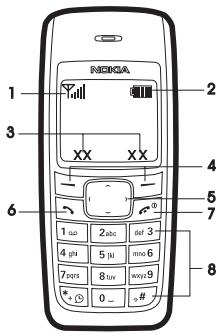
When the phone is ready for use and no characters have been keyed in, the phone is in the standby mode.
• Network intensity (1)
- Battery charge level (2)
• Selection key functions (3)
- Selection keys (4)
- Scroll keys (5)
- Call key (6)
• End key and power key (7)
- Keypad (8)
■ Insert a SIM card and battery
Keep all SIM cards out of the reach of small children.
For availability and information on using SIM card services, contact your SIM card vendor. This may be the service provider, network operator, or other vendor.
This phone is intended for use with BL-5CA battery.
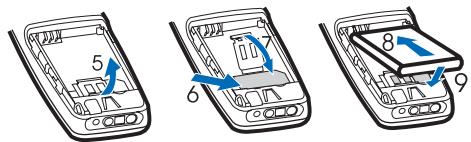
- Press the back cover release button (1), open the back cover, and remove it (2, 3). Lift the battery from the finger grip, and remove it (4).
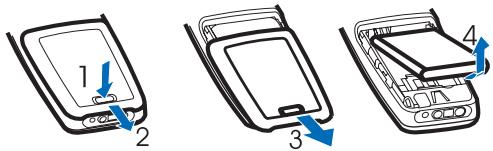
- Carefully lift the SIM card holder from the finger grip of the phone (5). Insert the SIM card, ensuring that the bevelled corner is on the upper right side and that the golden contact is facing downward (6). Close the SIM card
holder (7), and press it to lock it into place. Insert the battery (8, 9).
Charge the battery
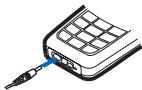
- Connect the charger to a wall outlet.
- Connect the charger to the phone. The battery indicator bar starts scrolling.
If Not charging is displayed, wait for a
natural_image
Illustration of a handheld electronic device with a blue cable inserted (no text or symbols visible)
while, disconnect the charger, plug it in again, and retry. If charging still fails, contact your dealer.
- When the battery is fully charged, the bar stops scrolling.
Disconnect the charger from the phone and the wall outlet.
Switch on or off
Press and hold the end key for a few seconds.
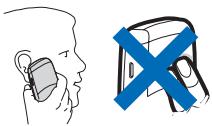
Use the phone only in its normal operating position.
Your device has an internal antenna.
natural_image
Illustration of a person's head and ear with a medical device, alongside a blue X symbol (no text or labels)

Note: As with any other radio transmitting device, do not touch the antenna unnecessarily when the device is switched on.
Contact with the antenna affects call quality and may cause the device to operate at a higher power level than otherwise needed. Avoiding contact with the antenna area when operating the device optimizes the antenna performance and the battery life.

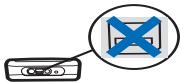
Note: Avoid touching this connector as it is sensitive to electrostatic discharge.
Demo mode
You may view how to use certain features of your phone. If the SIM card is not installed, select Demo > Basics, More or Games.
If the SIM card is installed, select Menu > Extras > Demo > Basics or More.
■ Shortcuts in the standby mode
Scroll up to access Call register.
Scroll down to access the names and numbers saved in Contacts.
Scroll left to write a message.
Scroll right to access the demo mode.
Press and hold * to activate the speaking clock.
Press the call key once to access the list of dialed numbers. Scroll to the name or number that you want, and to call the number, press the call key.
Lock the keypad
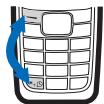
To lock the keypad to prevent accidental keypresses, select Menu, and press * quickly; to unlock, select Unlock, and press * quickly.
When the keypad lock is on, calls may be possible to the official emergency number programmed into your device.
natural_image
Illustration of a mobile phone keyboard with a blue arrow pointing to the left side (no text or symbols)
Enter the emergency number, and press the call key. The emergency number you have entered may not be displayed on the screen.
2. Call functions
■ Make and answer a call
To make a call, do the following:
- Enter the phone number including the area code if necessary. The country code should be included, if necessary.
- Press the call key to call the number. Scroll right to increase or left to decrease the volume of the earpiece or headset during the phone call.
To answer an incoming call, press the call key. To reject the call without answering, press the end key.
Loudspeaker
If available, you may select Loudsp. or Hands. to use the loudspeaker or the earpiece of the phone during a call.

Warning: Do not hold the device near your ear when the loudspeaker is in use, because the volume may be extremely loud.
3. Write text
You can enter text in two different ways: the traditional text input indicated by 🎨 or predictive text input (built-in dictionary) indicated by :≡.
To use traditional text input, press the key marked with the letter that you want repeatedly until the letter appears.
To turn on predictive text input when writing text, select Options > Dictionary and the desired language; to turn it off, select Options > Dictionary off.
To use predictive text input, do the following:
- To enter the word you want, press each key once for a single letter.
- If the displayed word is the one you want, press 0, and start writing the next word.
To change the word, press * repeatedly until the word you want appears.
If ? is displayed after the word, the word is not in the dictionary. To add the word to the dictionary, select Spell, enter the word (using traditional text input), and select OK.
Tips for writing text with traditional and predictive text input:
• To add a space, press 0.
- To quickly change the text input method when writing text, press # repeatedly and check the indicator at the top of the display.
• To add a number, press and hold the desired number key.
- To get a list of special characters when using traditional text input, press *; when using predictive text input, press and hold *.
In the standby mode, select Menu and the desired menu and submenu. To exit the current level of menu, select Exit or Back. Press the end key to return to the standby mode directly.
Not all menu functions or option items are described here.
Messages

Message settings
To edit your message settings, select Menu > Messages > Message settings.
To save the phone number needed for sending text and picture messages, select Sending profile > Message centre number. You obtain this number from your service provider.
To set full or reduced coding when sending a text message, select Character support (network service) > Full or Reduced.
To view or edit the list of filtered numbers, select No.
screening.
Create message
Your device supports the sending of text messages beyond the character limit for a single message. Longer messages will be sent as a series of two or more messages. Your service provider may charge accordingly. Characters that use accents or other marks, and characters from some language options like Chinese, take up more space limiting the number of characters that can be sent in a single message.
The number of available characters and the current part number of a multipart message is shown on the top right of the display, for example, 917/1.
- Select Menu > Messages > Create message.
- Write the message.
- To send the message, select Options > Send, enter the recipient's phone number, and select OK.

Note: When sending messages, your device may display Message Sent. This is an indication that the message has been sent by your device to the message center number programmed into your device. This is not an indication that the message has been received at the intended destination. For more details about messaging services, check with your service provider.
Read a text message
When you receive text messages, the number of new messages as well as an icon 📋 are shown on the display in the standby mode.
Select Show to view the messages immediately or Exit to view messages later in Menu > Messages > Inbox.
Drafts and sent items
In the Drafts menu, you can view the messages that you saved with the Save message menu. In the Sent items menu, you can view the copies of the messages that you sent.
Picture messages
You can receive and send messages that contain pictures (network service). Received picture messages are saved in the Inbox. Note that each picture message comprises several text messages. Therefore, sending one picture message may cost more than one text message.

Note: The picture message function can be used only if it is supported by your network operator or service provider. Only compatible devices that offer picture message features can receive and display picture messages. The appearance of a message may vary depending on the receiving device.
Delete messages
To delete all read messages or all the messages in a folder, select Menu > Messages > Delete messages > All read or the desired folder.
You can save names and phone numbers in the phone memory and in the SIM card memory. The internal phone book can store up to 200 names.

natural_image
Simple black-and-white pixelated graphic of a curved arrow inside a square frame (no text or symbols)
Search for a name and phone number
Scroll down in the standby mode, and enter the first letters of the name. Scroll to the name that you want.
You can also use the following options in the Contacts menu:
Add contact—to save names and phone numbers in the phone book
Delete—to delete names and phone numbers from the phone book individually or all at once
Copy—to copy names and phone numbers all at once or one by one from the internal phone book to the SIM phone book, or vice versa
Select Menu > Contacts > Settings and from the available options:
Memory in use—To select whether the names and phone numbers are saved in Phone or SIM card. When you change the SIM card, SIM card memory is automatically selected.
Contacts view—To select how the names and phone numbers are shown. When you view the Details of a contact with Contacts view set to Name list or Name only, the name or phone number saved in the SIM card memory is indicated by ☐ and the name or phone number saved in the phone memory is indicated by ☐.
Memory status—To check how many names and phone numbers are already saved and how many can still be saved in each phone book
Call register
The phone registers the phone numbers of missed, received, and dialed calls; the approximate length of your calls; and the number of sent and received messages.

The phone registers missed and received calls if it is switched on, within the network service area, and the network supports these functions.
Call timers
To view the approximate duration of the last call, all received calls, all dialled calls, or the approximate duration of all calls, select Menu > Call register > Call duration.
To reset the timers, select Clear timers, enter the security code, and select OK.

Note: The actual invoice for calls and services from your service provider may vary, depending upon network features, rounding off for billing, taxes and so forth.
Settings
In this menu, you can adjust various phone settings. To reset some menu settings to their default values, select Restore factory settings.

Tone settings
Select Menu > Settings > Tone settings and from the available options:
Ringing tone—to set the tone for incoming calls
Ringing volume—to set the volume level for the ringing and message alert tones. If you set Ringing volume to be level 2 or above, your phone rings with the ringing volume ascending from level 1 to the level you have set when there is an incoming call.
Vibrating alert—to set the phone to vibrate when you receive a call or a text message
Message alert tone—to set the tone to sound when you receive a text message
Warning tones—to set the phone to sound tones, for example, when the battery is running out of power
Display settings
Select Menu > Settings > Display settings.
To set the phone to show the digital or classic clock and all the main display icons as a screen saver, select Power saver clock.
Profiles
You can customize the profiles to use certain features, such as ringing tones and screen saver.
Select Menu > Settings > Profiles, the profile that you want to modify, and Personalise.
Time settings
To hide or show the clock, to set the time, or to edit the time format, select Menu > Settings > Time settings > Clock.
If the battery was removed from the phone, you may need to set the time and date again.
Call settings
Select Menu > Settings > Call settings.
To divert your incoming calls to your voice mailbox or to some other phone number, select Call divert (network service) and the desired divert option. Select Activate to set the selected divert option on and Cancel to set it off; to check whether the selected option is active, select Check status; to specify a delay for certain diverts, select Set delay time (not available for all divert options). Several divert options may be active at the same time. When Divert all voice calls is activated, 📋 is shown on the display in the standby mode. To deactivate all call diverts, select Cancel all diverts.
To determine if your phone number is displayed to or hidden from the person you are calling, select Send my caller identity (network service).
To set your phone to make up to 10 attempts to connect the call after an unsuccessful call attempt, select Automatic redial.
To let the network notify you of a new incoming call while you have a call in progress, select Call waiting service (network service).
Language setting
To select the language for the display texts, select Menu > Settings > Phone settings > Language.
Cost settings

Note: The actual invoice for calls and services from your service provider may vary, depending on network features, rounding off for billing, taxes, and so forth.
Select Menu > Settings > Cost settings and from the following settings:
Prepaid tracker (network service)—to view information of prepaid credit
In-call timer—to turn the call time display on or off
Call summary—to turn the approximate call time report on or off

Note: When no more charging units or currency units are left, calls may only be possible to the official emergency number programmed into the device.
Enhancement settings
Select Menu > Settings > Enhancement settings > Headset or Loopset.
To set the phone to automatically answer an incoming call after 5 seconds, select Automatic answer.
The accessory settings menu item becomes visible only after one of the accessories has been connected to the phone.
Right selection key setting
In the standby mode, you may select Go to access a list of shortcuts. To define or organize the shortcuts, select Menu > Settings > Right selection key settings. Scroll to Select options
to select the functions that you want as shortcuts; scroll to Organise to organize the order of the functions in the shortcut list.
Clock
To set the time for the alarm, select Menu > Clock > Alarm time. Scroll to Alarm tone to select the tone for the alarm, Repeat alarm to set the alarm to sound only once or repeatedly on certain days of the week, and Speaking clock to let the phone speak the time.
When the alarm sounds, select Stop to stop the alarm or Snooze to stop the alarm and set it to ring again in 10 minutes.
If the alarm time is reached while the device is switched off, the device switches itself on and starts sounding the alarm tone. If you select Stop, the device asks whether you want to activate the device for calls. Select No to switch off the device or Yes to make and receive calls. Do not select Yes when wireless phone use may cause interference or danger.

Reminders
To save a short text note with an alarm, select Menu > Reminders > Add new. When the reminder time is reached, select Quit to stop the alarm or Postp. to let the phone alarm again in 10 minutes.

Calculator


Note: This calculator has limited accuracy and is designed for simple calculations.
Select Menu > Extras > Calculator.
- Press keys 0 to 9 to insert digits and # to insert a decimal point. To change the sign of the entered number, press *.
- Scroll up or down to highlight +, -, x, or /.
- Repeat steps 1 and 2 if necessary.
- To get the result, select Equals.
Converter
You can convert different measurement units.
Select Menu > Extras > Converter. To access your last five conversions, select Last 5 conv. You can also select from the six predefined unit categories.
You can add your own conversions with My conversions.
When doing a conversion, you may scroll up or down to swap the positions of the units in the conversion.
Composer
Select Menu > Extras > Composer and a tone. To create your own ringing tones, enter the notes. For example, press 4 for note f. Press 8 to shorten (-) and 9 to lengthen (+) the duration of the note or rest. Press 0 to insert a rest, * set the octave, and # to make the note sharp (not available for notes e and b).
After you complete the ringing tone, select Options > Play, Save, Tempo, Send, Clear screen or Exit.
Leaving applications running in the background increases the demand on battery power and reduces the battery life.
SIM services
Your SIM card may provide additional services that you can access. This menu is shown only if it is supported by your SIM card. The name and contents of the menu depend on the SIM card.
For information, contact your service provider.

- Charging and discharging
Your device is powered by a rechargeable battery. The full performance of a new battery is achieved only after two or three complete charge and discharge cycles. The battery can be charged and discharged hundreds of times, but it will eventually wear out. When the talk and standby times are noticeably shorter than normal, replace the battery. Use only Nokia approved batteries, and recharge your battery only with Nokia approved chargers designated for this device.
If a replacement battery is being used for the first time or if the battery has not been used for a prolonged period, it may be necessary to connect the charger and then disconnect and reconnect it to start the charging.
Unplug the charger from the electrical plug and the device when not in use. Do not leave fully charged battery connected to a charger, since overcharging may shorten its lifetime. If left unused, a fully charged battery will lose its charge over time.
If the battery is completely discharged, it may take a few minutes before the charging indicator appears on the display or before any calls can be made.
Use the battery only for its intended purpose. Never use any charger or battery that is damaged.
Do not short-circuit the battery. Accidental short-circuiting can occur when a metallic object such as a coin, clip, or pen causes direct connection of the positive (+) and negative (-) terminals of the battery. (These look like metal strips on the battery.) This might happen, for example, when you carry a spare battery in your pocket or purse. Short-circuiting the terminals may damage the battery or the connecting object.
Leaving the battery in hot or cold places, such as in a closed car in summer or winter conditions, will reduce the capacity and lifetime of the battery. Always try to keep the battery between 15°C and 25°C (59°F and 77°F). A device with a hot or cold battery may not work temporarily, even when the battery is fully charged. Battery performance is particularly limited in temperatures well below freezing.
Do not dispose of batteries in a fire as they may explode. Batteries may also explode if damaged. Dispose of batteries according to local regulations. Please recycle when possible. Do not dispose as household waste.
■ Nokia battery authentication guidelines
Always use original Nokia batteries for your safety. To check that you are getting an original Nokia battery, purchase it from an authorized Nokia dealer, look for the Nokia Original Enhancements logo on the packaging, and inspect the hologram label using the following steps:
Successful completion of the four steps is not a total assurance of the authenticity of the battery. If you have any reason to believe that your battery is not an authentic original Nokia battery, you should refrain from using it and take it to the nearest authorized Nokia service point or dealer for assistance. Your authorized Nokia service point or dealer will inspect the battery for authenticity. If authenticity cannot be verified, return the battery to the place of purchase.
Authenticate hologram

-
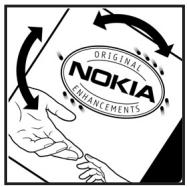
When looking at the hologram on the label, you should see the Nokia connecting hands symbol from one angle and the Nokia Original Enhancements logo when looking from another angle.
-
When you angle the hologram left, right, down, and up, you should see 1, 2, 3, and 4 dots on each side respectively.
-
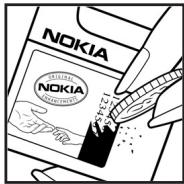
Scratch the side of the label to reveal a 20-digit code, for example,
-
Turn the battery so that the numbers are facing upwards. The 20-digit code reads starting from the number at the top row followed by the bottom row.
natural_image
Line drawing of hands using a mobile phone to interact with a keyboard, no text or symbols present
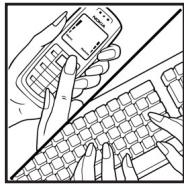
- Confirm that the 20-digit code is valid by following the instructions at www.nokia.com/batterycheck.
To create a text message, enter the 20-digit code, for example, 12345678919876543210, and send to +44 7786 200276.
National and international operator charges will apply.
You should receive a message indicating whether the code can be authenticated.
What if your battery is not authentic?
If you cannot confirm that your Nokia battery with the hologram on the label is an authentic Nokia battery, please do not use the battery. Take it to the nearest authorized Nokia service point or dealer for assistance. The use of a battery that is not approved by the manufacturer may be dangerous and may result in poor performance and damage to your device and its enhancements. It may also invalidate any approval or warranty applying to the device.
To find out more about original Nokia batteries, visit www.nokia.com/battery.
6. Enhancements
A few practical rules about accessories and enhancements:
- Keep all accessories and enhancements out of the reach of small children.
- When you disconnect the power cord of any accessory or enhancement, grasp and pull the plug, not the cord.
- Check regularly that enhancements installed in a vehicle are mounted and are operating properly.
- Installation of any complex car enhancements must be made by qualified personnel only.
Care and maintenance
Your device is a product of superior design and craftsmanship and should be treated with care. The suggestions below will help you protect your warranty coverage.
- Keep the device dry. Precipitation, humidity and all types of liquids or moisture can contain minerals that will corrode electronic circuits. If your device does get wet, remove the battery and allow the device to dry completely before replacing it.
- Do not use or store the device in dusty, dirty areas. Its moving parts and electronic components can be damaged.
- Do not store the device in hot areas. High temperatures can shorten the life of electronic devices, damage batteries, and warp or melt certain plastics.
-
Do not store the device in cold areas. When the device returns to its normal temperature, moisture can form inside the device and damage electronic circuit boards.
-
Do not attempt to open the device other than as instructed in this guide.
- Do not drop, knock, or shake the device. Rough handling can break internal circuit boards and fine mechanics.
- Do not use harsh chemicals, cleaning solvents, or strong detergents to clean the device.
- Do not paint the device. Paint can clog the moving parts and prevent proper operation.
- Use only the supplied or an approved replacement antenna. Unauthorized antennas, modifications, or attachments could damage the device and may violate regulations governing radio devices.
• Use chargers indoors.
- Always create a backup of data you want to keep (such as contacts and calendar notes) before sending your device to a service facility.
All of the above suggestions apply equally to your device, battery, charger, or any enhancement. If any device is not working properly, take it to the nearest authorized service facility for service.
Your device and its enhancements may contain small parts. Keep them out of the reach of small children.
Operating environment
Remember to follow any special regulations in force in any area, and always switch off your device when its use is prohibited or when it may cause interference or danger. Use the device only in its normal operating positions. This device meets RF exposure guidelines when used either in the normal use position against the ear or when positioned at least 1.5 centimeters (0.6 inch) from the body. When a carry case, belt clip or holder is used for body-worn operation, it should not contain metal and should position the device the above-stated distance from your body.
In order to transmit data files or messages, this device requires a good quality connection to the network. In some cases, transmission of data files or messages may be delayed until such a connection is available. Ensure the above separation
distance instructions are followed until the transmission is completed.
Parts of the device are magnetic. Metallic materials may be attracted to the device. Do not place credit cards or other magnetic storage media near the device, because information stored on them may be erased.
Medical devices
Operation of any radio transmitting equipment, including wireless phones, may interfere with the functionality of inadequately protected medical devices. Consult a physician or the manufacturer of the medical device to determine if they are adequately shielded from external RF energy or if you have any questions. Switch off your device in health care facilities when any regulations posted in these areas instruct you to do so. Hospitals or health care facilities may be using equipment that could be sensitive to external RF energy.
Pacemakers
Pacemaker manufacturers recommend that a minimum separation of 15.3 centimeters (6 inches) be maintained
between a wireless phone and a pacemaker to avoid potential interference with the pacemaker. These recommendations are consistent with the independent research by and recommendations of Wireless Technology Research. Persons with pacemakers should:
- Always keep the device more than 15.3 centimeters (6 inches) from the pacemaker
• Not carry the device in a breast pocket
- Hold the device to the ear opposite the pacemaker to minimize the potential for interference.
If you suspect interference, switch off your device and move the device away.
Hearing aids
Some digital wireless devices may interfere with some hearing aids. If interference occurs, consult your service provider.
Vehicles
RF signals may affect improperly installed or inadequately shielded electronic systems in motor vehicles such as electronic fuel injection systems, electronic antiskid (antilock)
braking systems, electronic speed control systems, air bag systems. For more information, check with the manufacturer or its representative of your vehicle or any equipment that has been added.
Only qualified personnel should service the device, or install the device in a vehicle. Faulty installation or service may be dangerous and may invalidate any warranty that may apply to the device. Check regularly that all wireless device equipment in your vehicle is mounted and operating properly. Do not store or carry flammable liquids, gases, or explosive materials in the same compartment as the device, its parts, or enhancements. For vehicles equipped with an air bag, remember that air bags inflate with great force. Do not place objects, including installed or portable wireless equipment in the area over the air bag or in the air bag deployment area. If in-vehicle wireless equipment is improperly installed and the air bag inflates, serious injury could result.
Using your device while flying in aircraft is prohibited. Switch off your device before boarding an aircraft. The use of wireless teledevices in an aircraft may be dangerous to the operation of
the aircraft, disrupt the wireless telephone network, and may be illegal.
■ Potentially explosive environments
Switch off your device when in any area with a potentially explosive atmosphere and obey all signs and instructions. Potentially explosive atmospheres include areas where you would normally be advised to turn off your vehicle engine. Sparks in such areas could cause an explosion or fire resulting in bodily injury or even death. Switch off the device at refuelling points such as near gas pumps at service stations. Observe restrictions on the use of radio equipment in fuel depots, storage, and distribution areas, chemical plants or where blasting operations are in progress. Areas with a potentially explosive atmosphere are often but not always clearly marked. They include below deck on boats, chemical transfer or storage facilities, vehicles using liquefied petroleum gas (such as propane or butane), and areas where the air contains chemicals or particles such as grain, dust, or metal powders.
Emergency calls

Important: Wireless phones, including this device, operate using radio signals, wireless networks, landline networks, and user-programmed functions. Because of this, connections in all conditions cannot be guaranteed. You should never rely solely on any wireless device for essential communications like medical emergencies.
To make an emergency call:
- If the device is not on, switch it on. Check for adequate signal strength.
Some networks may require that a valid SIM card is properly inserted in the device.
- Press the end key as many times as needed to clear the display and ready the device for calls.
- Enter the official emergency number for your present location. Emergency numbers vary by location.
- Press the call key.
If certain features are in use, you may first need to turn those features off before you can make an emergency call. Consult this guide or your service provider for more information.
When making an emergency call, give all the necessary information as accurately as possible. Your wireless device may be the only means of communication at the scene of an accident. Do not end the call until given permission to do so.
THIS MOBILE DEVICE MEETS GUIDELINES FOR EXPOSURE TO RADIO WAVES.
Your mobile device is a radio transmitter and receiver. It is designed not to exceed the limits for exposure to radio waves recommended by international guidelines. These guidelines were developed by the independent scientific organization ICNIRP and include safety margins designed to assure the protection of all persons, regardless of age and health.
The exposure guidelines for mobile devices employ a unit of measurement known as the Specific Absorption Rate or SAR. The SAR limit stated in the ICNIRP guidelines is 2.0 watts/kilogram (W/kg) averaged over 10 grams of tissue. Tests for
SAR are conducted using standard operating positions with the device transmitting at its highest certified power level in all tested frequency bands. The actual SAR level of an operating device can be below the maximum value because the device is designed to use only the power required to reach the network. That amount changes depending on a number of factors such as how close you are to a network base station. The highest SAR value under the ICNIRP guidelines for use at the ear is 0.78 W/kg.
Use of device accessories and enhancements may result in different SAR values. SAR values may vary depending on national reporting and testing requirements and the network band. Additional SAR information may be provided under product information at www.nokia.com.