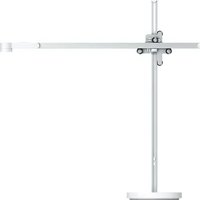
Lightcycle Morph floor - Lighting DYSON - Free user manual and instructions
Find the device manual for free Lightcycle Morph floor DYSON in PDF.


| Product Type | Floor Lamp |
| Brand | Dyson |
| Model | Lightcycle Morph Floor |
| Power Source | Mains powered (plug-in) |
| Assembly Required | Yes (vertical stem into base, screw tightening) |
| Rotation | 360° rotation of optical head, arm, and stem |
| Color Temperature Adjustment | Yes (swipe from warm to cool) |
| Brightness Adjustment | Yes (swipe to change) |
| Auto Mode | Adjusts to ambient light for constant brightness |
| Motion Sensor | Auto-off after 5 minutes of no movement |
| Bluetooth | Enabled by default, can be disabled |
| App Control | Dyson Link app (iOS and Android) |
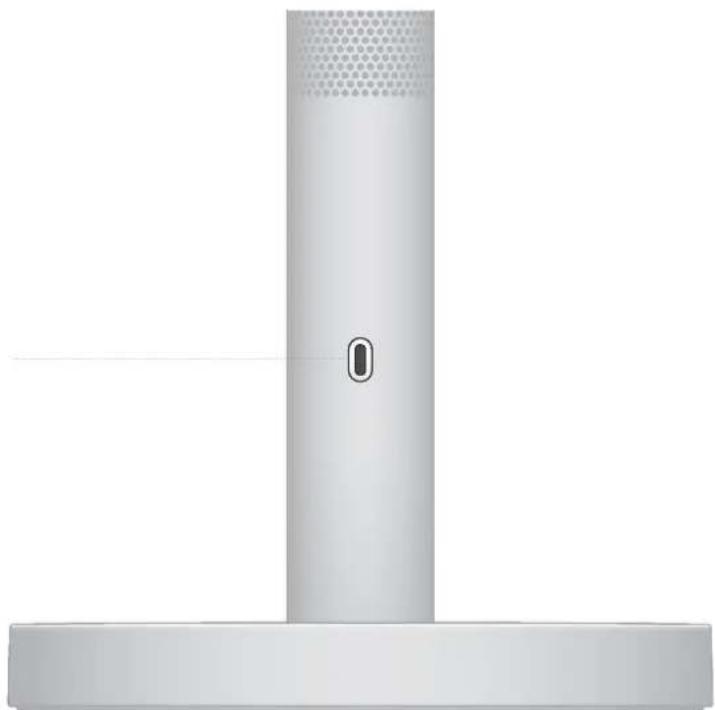
| USB-C Charging | Up to 1.5A at 5V |
| Warranty | Standard warranty (serial number on rating plate at bottom) |
| Manual Included | Digital manual available at dyson.com/support |
| Cleaning Instructions | Wipe with dry cloth |
Frequently Asked Questions - Lightcycle Morph floor DYSON
User questions about Lightcycle Morph floor DYSON
0 question about this device. Answer the ones you know or ask your own.
Ask a new question about this device
Download the instructions for your Lighting in PDF format for free! Find your manual Lightcycle Morph floor - DYSON and take your electronic device back in hand. On this page are published all the documents necessary for the use of your device. Lightcycle Morph floor by DYSON.
USER MANUAL Lightcycle Morph floor DYSON
dyson lightcycle morph
User manual
natural_image
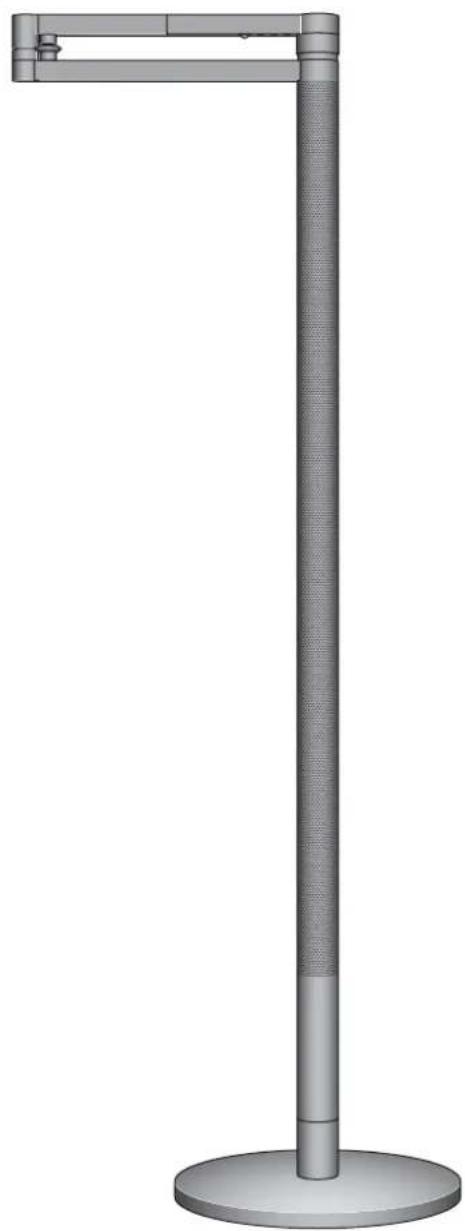
3D rendering of a vertical metallic stand with a circular base (no text or symbols)2 Warranty information
3 Assembling your light
3 Positioning your light
4 Color temperature and brightness
4 Settings
5 Disabling/Enabling Bluetoothless technology
5 USB-C charging point
Thank you for choosing to buy a Dyson Light
Take full control with the Dyson Link app.
Get step-by-step set up and support.
Control how and when your Dyson Light operates.
Download the Dyson Link app
Download the Dyson Link app from the App store or Google Play.
Open the app and follow the on-screen instructions to create a new account.
For further information and support:
www.dyson.com
866-693-9766


Apple and the Apple logo are trademarks of Apple Inc., registered in the U.S. and other countries. App Store is a service mark of Apple Inc., registered in the U.S. and other countries.
Google Play and the Google Play logo are trademarks of Google Inc.
The Bluetooth® word mark and logos are registered trade marks owned by the Bluetooth SIG, Inc. and any use of such marks by Dyson is under license.
Your machine warranty
We don't stop caring about our machines once they're yours.
Even after your warranty has ended, we'll still be on hand to help.
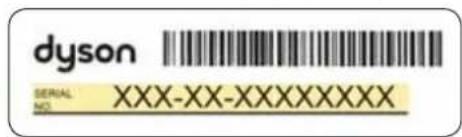
Your serial number can be found on the rating plate located on the bottom of your light.
Note your serial number for future reference.
This illustration is for example purposes only.
Assembling your light
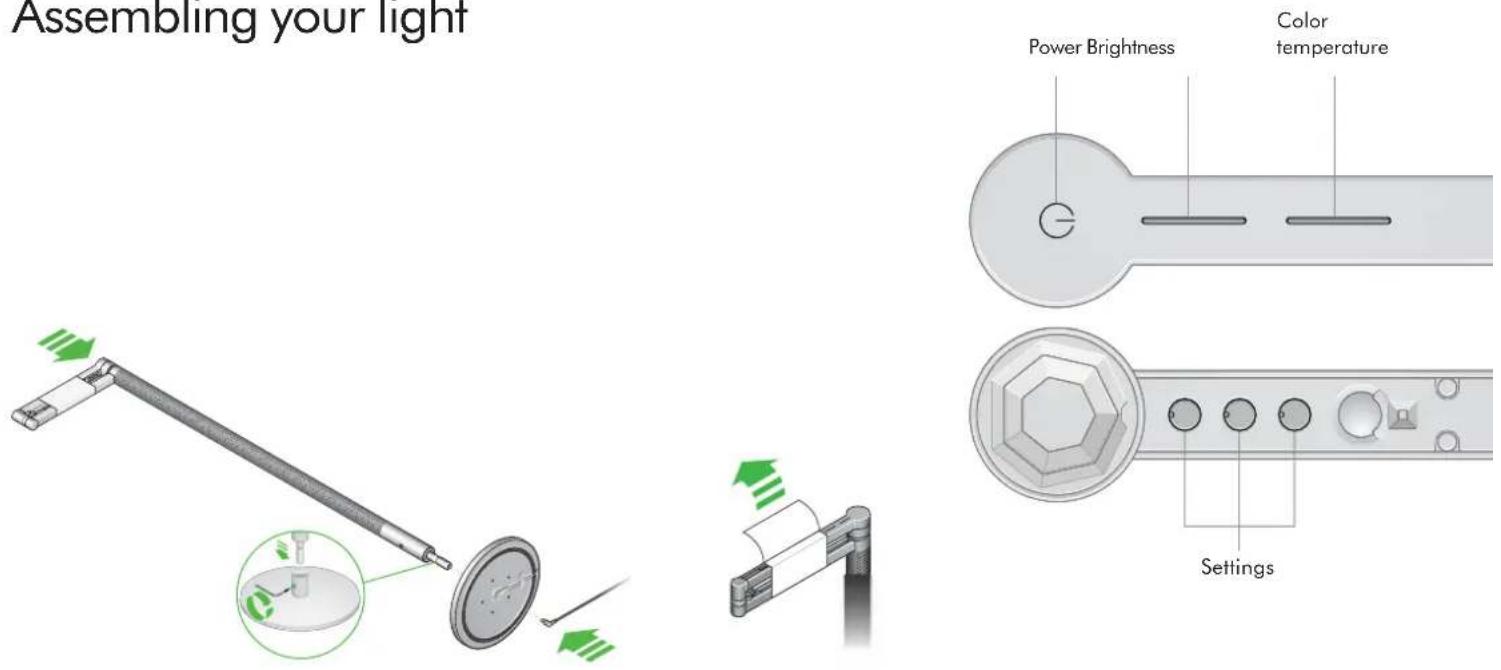
Don't remove the protective wrapping from the horizontal arm before your light has been assembled.
Place the base on the floor and insert the vertical stem into the base.
Insert the screw into the vertical stem and tighten fully, with the tool supplied.
Insert the power cable into the base, making sure it sits in the cable guide.
Remove any protective wrapping from your light.
Plug in and switch on.
Download the Dyson link app and add your light.
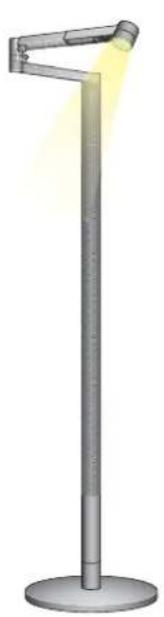
Positioning your light
natural_image
Illustration of a modern floor lamp with a glowing beam and base (no text or symbols)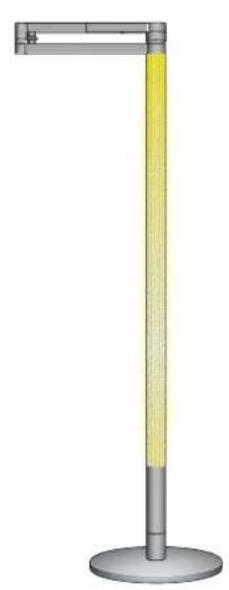
natural_image
3D rendering of a vertical yellow and gray pole with a base (no text or symbols)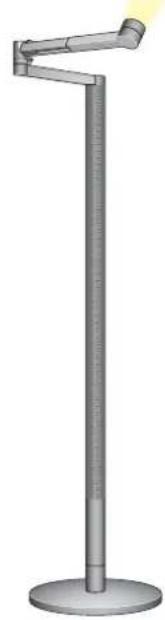
natural_image
Illustration of a standard adjustable floor lamp with a vertical pole and base (no text or symbols)You can easily change the position of your light by independently rotating the optical head, arm and stem up to 360^ .
Color temperature and brightness
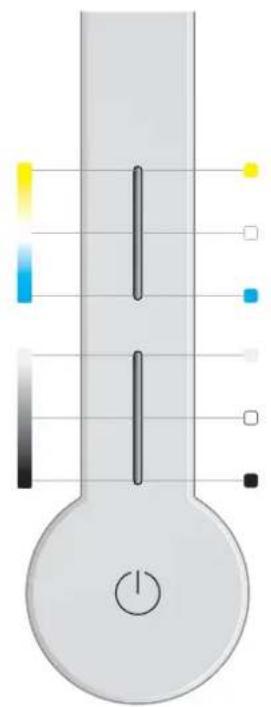
Swipe to change the color temperature of the light from warm through to cool.
Swipe to change the brightness of the light.
natural_image
Illustration of a thermometer with color-coded indicators (no text or symbols)Tap to change quickly between color temperatures.
Tap to change quickly between brightness levels.
To find out more about color temperature and brightness levels, and to get the best from your light, go to the Dyson Link app or online at: www.dyson.com/support
Settings

AUTO
The light will adjust to background light conditions and keep the workspace at a constant brightness.

Automatically changes the brightness and color, according to your geographical location, throughout the day when connected by Bluetooth® wireless technology to the Dyson Link app.
natural_image
Illustration of a vertical metallic device with four circular buttons and a hexagonal base (no text or symbols)
The light will turn off after five minutes if no movement is detected.
For more information about using your light without connecting to the Dyson Link app: www.dyson.com/support
Disabling/Enabling Bluetooth® wireless technology
Your light has Bluetooth® wireless technology enabled by default.
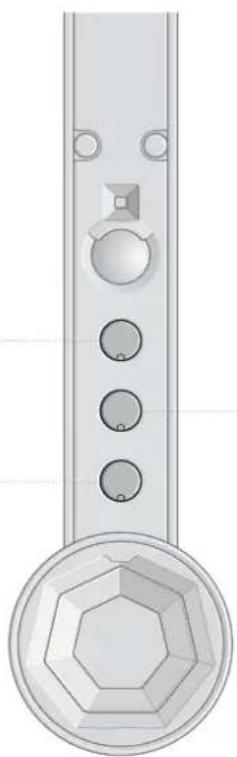
Press and hold the middle button until the LED lights on the three buttons blink. The main light source will turn off and then on again to show that Bluetooth has been disabled.
To re-enable Bluetooth, repeat the instructions above. The main light will blink twice to show that Bluetooth has been re-enabled.
natural_image
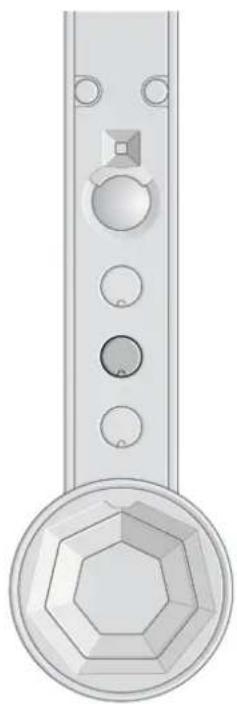
Illustration of a vertical metallic device with circular components and mounting holes (no text or symbols)USB-C charging point

Plug in your mobile devices to charge up to 1.5A at 5V.