
Yi Smart Dash Camera - Camera Xiaomi - Free user manual and instructions
Find the device manual for free Yi Smart Dash Camera Xiaomi in PDF.


| Product Type | Dash Camera (Car DVR) |
| Brand | Xiaomi |
| Model | Yi Smart Dash Camera |
| Maximum Video Resolution | 2304x1296p @ 30FPS |
| Other Resolutions | 1920x1080p @ 60FPS / 30FPS |
| Lens Aperture | F1.8 |
| Field of View | 165° wide angle |
| Video Compression | H.264, MP4 |
| Image Enhancement | 2nd Generation WDR Enhanced Edition |
| Storage Media | microSDHC/SDXC (Class 10, 8-64GB) |
| Display | 2.7-inch TFT display (16:9) |
| WiFi Standard | 802.11n with WPA2 encryption |
| Power Supply | 5V via Micro-USB (cable included 3.5m) |
| Car Charger | Input 12-24V, Output 5V 2.1A |
| Battery | Built-in Li-On 240mAh |
| Weight | 74g |
| Mounting Method | Suction cup holder on windshield |
| App Compatibility | Android 4.1+ / iOS 7.0+ (Car DVR Yi app) |
| ADAS Feature | Advanced Driver Assistance System (lane departure, forward collision warning) |
| Collision Detection | Adjustable sensitivity (weak, medium, high) with auto emergency recording |
| Warranty | 7-day money-back, 15-day replacement, 1-year limited warranty |
Frequently Asked Questions - Yi Smart Dash Camera Xiaomi
User questions about Yi Smart Dash Camera Xiaomi
0 question about this device. Answer the ones you know or ask your own.
Ask a new question about this device
Download the instructions for your Camera in PDF format for free! Find your manual Yi Smart Dash Camera - Xiaomi and take your electronic device back in hand. On this page are published all the documents necessary for the use of your device. Yi Smart Dash Camera by Xiaomi.
USER MANUAL Yi Smart Dash Camera Xiaomi
7) Emergency video shooting
8) Video shooting
9) Play
10) Status indicator
11) Display
12) MicroUSB power port
13) Reset
14) Settings/power button
15) The status of charge indicator
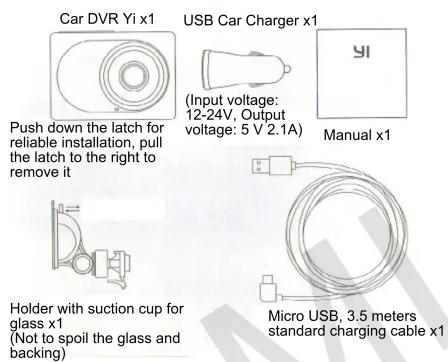
- Standard equipment
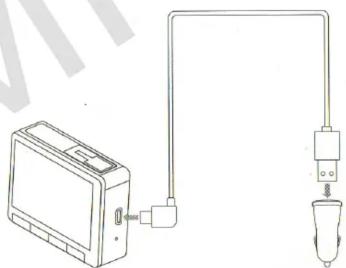
- Charging
natural_image
Simple line drawing of a device connected to a plug and cable (no text or symbols)Use the 3.5 meters charging cable, added to the Car DVR Yi USB Car Charger.
(Charger: Input voltage: 12-24V, output voltage 5 V 2.1a)
- Accesories
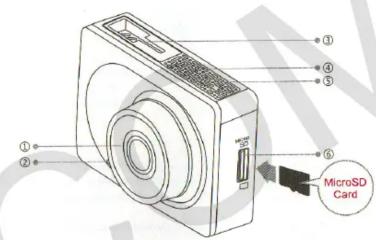
1) Lens
2) Microphone
3) T-shaped slot latch
4) Speaker
5) ventilation grating
6) MicroSD slot
Recommendation: We recommend using genuine MicroSD card to 8-64GB (Class 10 and higher read speed of 80 mbps and above), otherwise it can negatively affect the quality of the video, or may cause interruption of recording.
- Connecting Smart Car DVR Yi to smartphone
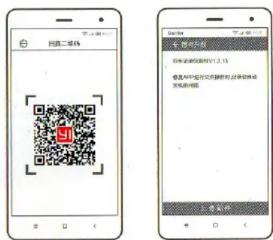
Installing Car DVR Yi application
Scan the QR-code, download Car DVR Yi application and complete the installation by following the instructions. Recommendation: You can also download the application by APP Store (supports system Android 4.1 and above or iOS 7.0 and above).
6. Short description of Car DVR Yi App
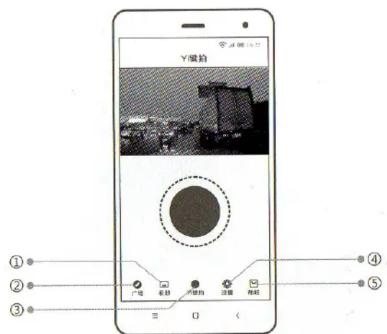
- Photo album
- Setup
2.Browse -
Store
3.Yi shutter button -
Photo album - View and download video, one click to share photos in Weixin, microblogs and other social media;
- Browse - latest and most interesting videos online;
- Yi shutter button - one click to record a short video, include shooting and enjoy;
- Setup - remote configuration of Car DVR, easy firmware updates;
- Store - Yi Cam store, make a purchase in just one click.
Firmware update
To improve the conditions for use of the device, we may periodically update the firmware registrar. The application can automatically detect the latest firmware, following the instructions manual, you can one-click upgrade.
ADAS and mandatory training before first use
Getting to know all functions of ADAS, use of the APP and the installation process of Car DVR Yi APP.

7. Main Instructions
8) Shutter button (shooting)
14) Set up/power button
15) Charge indicator
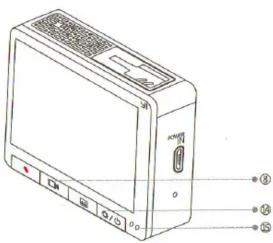
On / Off
Switching on: short pressing the shutter button (shooting);
Turn off: long press the shutter button (shooting) (during a low battery level indicator may be lit in red);
Enabling button battery state: 10 seconds automatic shutdown device as a result of lack of supply.
Settings
After switching click on the setup/power button to open the Settings menu:
Image quality: Set the default resolution 1920h1080r / 30FPS. By clicking «Confirm», choose a different rohdilnist 1920h1080r / 30FPS, 1920h1080r / 60FPS, 2304h1296r / 30FPS;
Record: press the «Confirm» to turn on/off the record;
Collision Detection: The default definition of average force of impact. By clicking «Confirm», choose the recording of weak, medium, high impact strength;
In the event of a collision or emergency braking automatically save the recording video for 20 seconds before pressing the button and after 20 seconds to preserve the evidence underlying road traffic incident.
ADAS: click «Confirm» to enable / disable function more Smart ADAS. More precisely and timely provision of information on the traffic situation at a vehicle speed 50-90km/h
More comfortable driving through GPS data.
Wifi: click «Confirm» to enable / disable Wifi.
Formatting a memory card: click on the «Confirm» to format the memory card and delete all entries.
Record of emergencies
To enable this mode, press the «Record of emergencies.» Automatically save the current image, including simultaneous recording of an emergency 10-second delay. In the process of shooting the upper red dot will blink continuously and at the bottom of the display will be a red stripe, which will increase depending on the length of the recording.
After shooting the recording indicator disappears, cyclic video recording with a 10-second delay turns into a 20-second video of the emergency, then resumed normal operation of the camera.
Recommendation: We recommend using genuine MicroSD card to 8-64GB (Class 10 and higher read speed of 80 mbps and above), otherwise it can negatively affect the quality of the video, or may cause interruption of recording.
Recording
After turning on the power button and switch shooting mode to recording, an indicator light turns yellow; at the top of the display will be flashing red dot, and if you press the record button, stop shooting video, and the indicator will lights continuously.
(Note: when a cyclic video recording, old files will be gradually erased if the memory card is full. Select the appropriate length of fragment of the video according to volume of your memory card).
8. Main Instructions
Playback
Click on the «Play» and the recorder automatically opens a list of media thumbnails, choose the necessary video by «Right» and «Left» buttons. While playing a video, click on the «Confirm» to stop it on a pause, while at the same time there will be two windows to remove or play a video. Using the «Right» or «Left» buttons, select «Cancel» or «Confirmation» to remove certain video.
Indicators
Battery Status Indicator
-
When device is charging, light is continuous;
-
After full charging, battery status indicator no lights.
Status indicator
-
During shooting: flicker every second;
-
During Update: flicker every two seconds.
11. Safe driving
This device has ADAS * (Advanced Driver Assistance System) - Smart extra system that detects the distance between vehicles, road markings and performs other useful functions. When ADAS system is on, you get useful information about vehicles, ADAS helps to examine the current situation on the road. However, driver must closely monitor the situation on the road, observe traffic rules and be careful. The presence of the device does not give guaranties of avoiding accidents.
After purchasing the device, its applications, features, interface, etc. can be improved and updated. If while using this device and its applications, you find some inconsistencies, follow the instructions on official website of the company, because updates are not sent to each user individually.
9. Wiring
Firmly establish a lock with sucker and check the reliability of fixing of device.
Route the cable inside the car, carefully tucking it under the upholstery.
Insert the USB Car Charger into the cigarette lighter of the car.
Proper use of suction cup holder:
- Clean an area of glass in the rear vision mirror (this is the optimum installation holder with suction cup);
- Remove the protective film;
- Open the latch, then apply the suction cup to clean area of glass;
- Carpentry press the suction cup to the glass, close the latch. Installation completed successfully.
Recommendation: Cold northern residents encouraged to use 3M adhesive tape.
Thanl you for choosing Car DVR Yi
Before first use carefully read the instructions and enjoy running your vehicle!
Manufacturer: OOO «Shanghai Yi Technology» Address: h.Shanghai, Mr. Bodongxin, st. Jinke, Zhangtai area, zd.E 6 fl.
12. Warranty
If, during the warranty period you have production problems, you can use the warranty service:
-
Within 7 days of purchase, in case of problems you can return the money or choose a free product replacement. Return of goods is only possible with its packaging
-
Within 15 days of purchase, in the event of problems, you can get free product replacement of the same value; If you have an annual warranty card. Return of goods is only possible with its packaging.
10. Main characteristics
Maximum resolution/pixels: 2304x1296p 3Mp
Quality: 1296p 30FPS/ 1080p 60FPS/ 1080p 30FPS
Lens: wide F1.8 1650
Sound: built-in microphone/speaker
Video coding: H.264, MP4
Image enhancing: 2 generation WDR Enhanced Edition
Memory: micro SD (Class 10 8-64GB)
Weight: 74g
Display: 2.7" TFT display
Display resolution: 23Mp wide 16:9
Wifi standard: 802.11n
Support: Anroid/iOS
Wireless crypting: WPA2
Power cable lenght: 3.5m
Power port: 5V Micro-USB
Built-in Li-On battery: 240mAh
- Data warranty card can not be corrected, otherwise it will be considered invalid.
13. List of faults
• Cracks / breakages due to material design and device
- Problems in using the device after charging or problems with unit functionality
• Problems with the display
- Problems with shooting, with operation buttons and reading a micro SD card
• Abnormal shooting of the device, blurred or missing images
- Problems with Wifi connection and its operation
14. Warranty Terms
The list of circumstances (including, but not limited), when warranty service impossible:
- Completion of maintenance, fall, neglect, abuse, water impact, accident, corrosion product due to improper use and storage;
- Warranty period has expired;
- Damage arising under force majeure such as lightning, fire or flood.
11. Presence of toxic and harmful substances
| Name | Toxic and harmful substances or elements | |||||
| Pl. | Hg. | Cd. | Cr ^+ | FBB | PBDE | |
| Camera basis | 0 | 0 | 0 | 0 | 0 | 0 |
| Electronic plate | x | 0 | 0 | 0 | 0 | 0 |
| Charger | 0 | 0 | 0 | 0 | 0 | 0 |
| Accessories | 0 | 0 | 0 | 0 | 0 | 0 |
| Clarification | O: toxic and harmful substances in all accessories of this device to contain in quantity below limit value S/I/T11363-2006 "Requirements of Restriction Existence of Toxic and Harmful Agents in Goods" agrees.X: means existence of toxic and harmful substances at least in one of in accessories of this device in the quantity exceeding limit value according to S/I/T11363-2006 "Requirements of Restriction Existence of Toxic and Harmful Agents in Goods". | |||||
These goods correspond European requirements to RoHS and standards for environmental protection; the international countries can't still replace or reduce the content of aluminum in a copper alloy.
Thank you for choosing Car DVR Yi, thank you for giving credibility of Yi Technology.
WWW.XIAOMI-MI.COM
- Short description of Car DVR Yi App
- Firmware update
- ADAS and mandatory training before first use
- Main Instructions
- On / Off
- Settings
- More comfortable driving through GPS data.
- Record of emergencies
- Recording
- Main Instructions
- Playback
- Indicators
- Status indicator
- Safe driving
- Wiring
- Thanl you for choosing Car DVR Yi
- Warranty
- Main characteristics
- List of faults
- Warranty Terms
- Presence of toxic and harmful substances
Brand : Xiaomi
Model : Yi Smart Dash Camera
Category : Camera