
Yi Home Camera 2 - Camera Xiaomi - Free user manual and instructions
Find the device manual for free Yi Home Camera 2 Xiaomi in PDF.
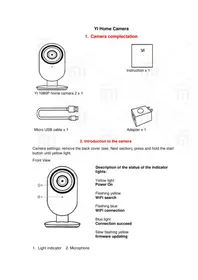


| Product Type | Indoor Security Camera |
| Brand | Xiaomi (YI Technology) |
| Model | Yi Home Camera 2 |
| Video Resolution | 1080p Full HD |
| Field of View | Approximately 110° (diagonal) |
| Night Vision | Yes (IR LEDs, up to 5m) |
| Two-Way Audio | Yes (microphone and speaker) |
| Storage | MicroSD card (8GB-64GB, Class 4 or higher, FAT32) |
| Wireless Connectivity | WiFi 802.11 b/g/n, 2.4GHz |
| Power Supply | 5V DC, 1A via Micro USB (adapter included) |
| Dimensions | Approx. 10.2 x 7.0 x 7.0 cm |
| Weight | Approx. 100 g |
| Operating Temperature | 0°C to 40°C (indoor use only) |
| Mobile App | YI Home (iOS and Android) |
| Motion Detection | Yes (push notifications via app) |
| LED Indicators | Yellow (power on), flashing yellow (WiFi search), flashing blue (connecting), blue (connected) |
| Regulatory Compliance | FCC Part 15, Industry Canada RSS |
| Cleaning | Clean with dry cloth only |
| Spare Parts Available | Micro USB cable, power adapter (official store) |
| Repairability | User replaceable microSD card; other parts not user-serviceable |
Frequently Asked Questions - Yi Home Camera 2 Xiaomi
User questions about Yi Home Camera 2 Xiaomi
0 question about this device. Answer the ones you know or ask your own.
Ask a new question about this device
Download the instructions for your Camera in PDF format for free! Find your manual Yi Home Camera 2 - Xiaomi and take your electronic device back in hand. On this page are published all the documents necessary for the use of your device. Yi Home Camera 2 by Xiaomi.
USER MANUAL Yi Home Camera 2 Xiaomi
1. Camera completion
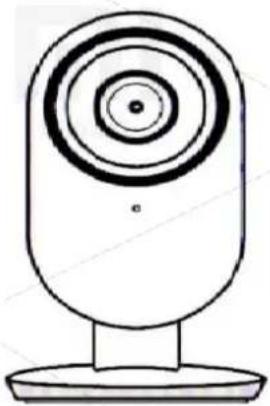
YI 1080P home camera 2 x 1
Instruction x 1
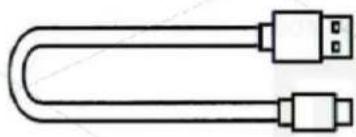
Micro USB cable x 1
Adapter x 1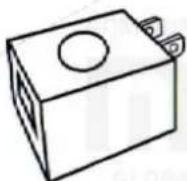
2. Introduction to the camera
Camera settings: remove the back cover (see next section), press and hold the start button until yellow light.
Front View
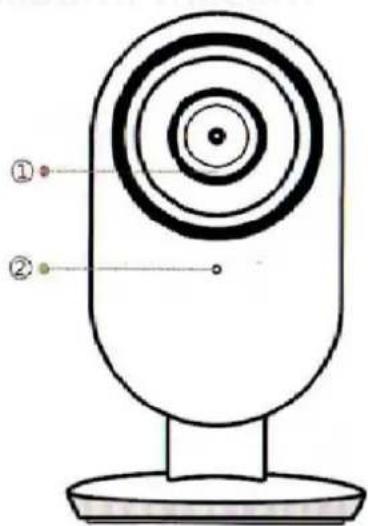
Description of the status of the indicator lights:
Yellow light
Power On
Flashing yellow
WiFi search
Flashing blue
WiFi connection
Blue light
Connection succeed
Slow flashing yellow
firmware updating
- Light indicator 2. Microphone
3. Removing the back cover
Squeeze the left and right bottom grooves and slide the cover up.
Side view:
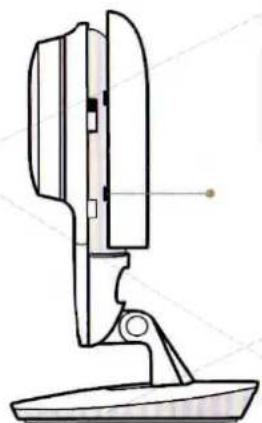
To remove the back cover, squeeze a left and right bottom grooves and slide the cover up.
4. Installing MicroSD card
Remove the back cover and insert a Micro-SD card to slot on the side, as shown below.
Back view:
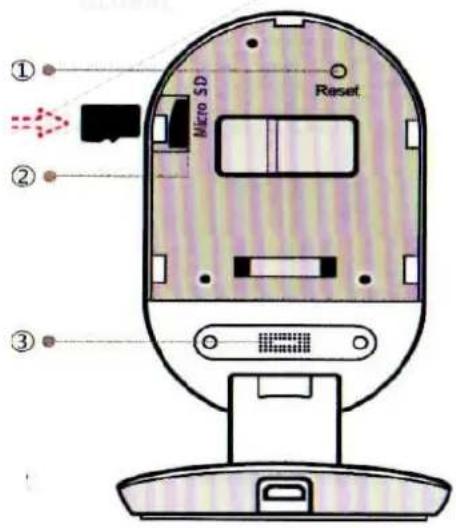
Detail Name / Description
Micro-SD Card Slot
To enable local video recording, insert a Micro-SD card to slot as shown in the picture.
Supports Class 4 or higher Micro-SD cards, 8GB-64GB, FAT32 file system.
Reset button
To launch the camera, press and hold the start button until the indicator lights yellow.
Dynamic
The speaker is used for 2-way audio. For best results, do not cover.
- Reset button
- Micro-SD card slot
- Dynamic
5. Installing the App
Download the app by searching "YI Home" on the App Store or Google Play. Alternatively, you can open the app to scan the QR code and scan the Yi Home QR code shown below to install the application.
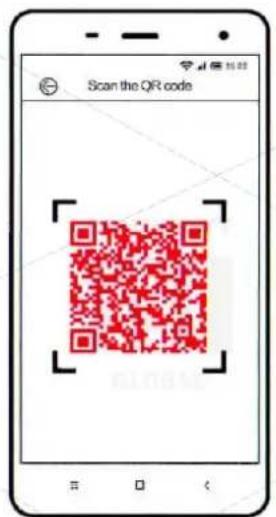
YI Home App QR-code
6. Registration and login
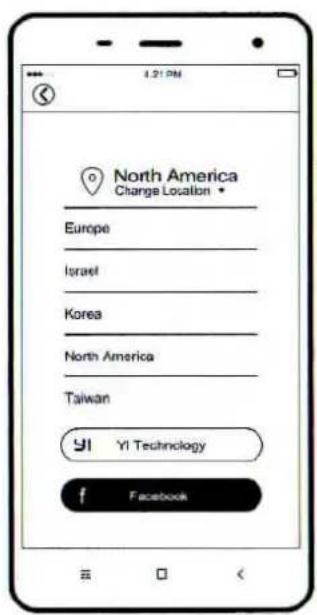
- Open YI Home App and select "North America" as a point of entry into the system.
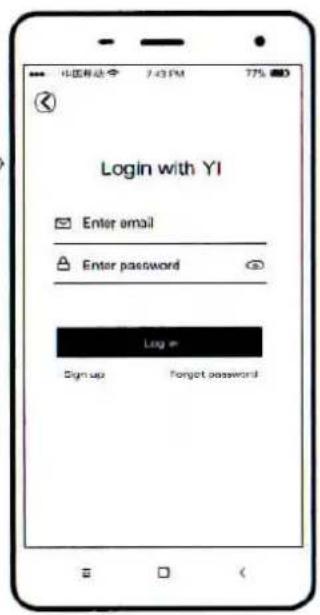
- Enter your login credentials. If you do not have a private page, you can create one by clicking "Register" and follow the instructions in the application to create a YI account. Also, in order to log in, you can use your Facebook page.
7. Turning on the camera's power
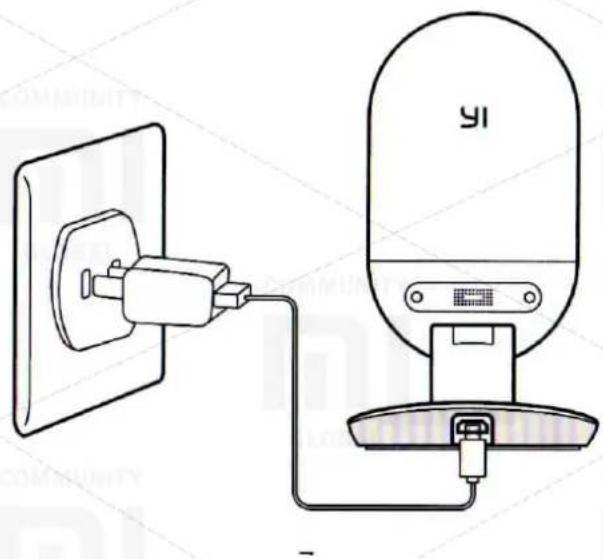
Install the camera close to a router and make sure that you have access to WiFi, then connect a cable to the Micro-USB port on the back of the camera to a power outlet as shown in the picture.
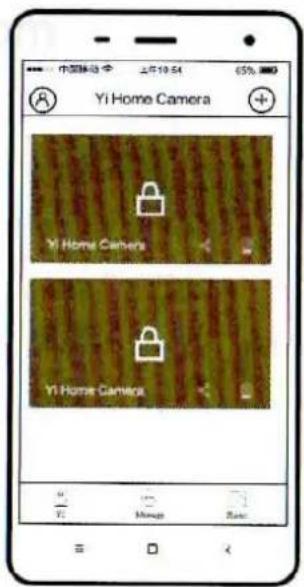
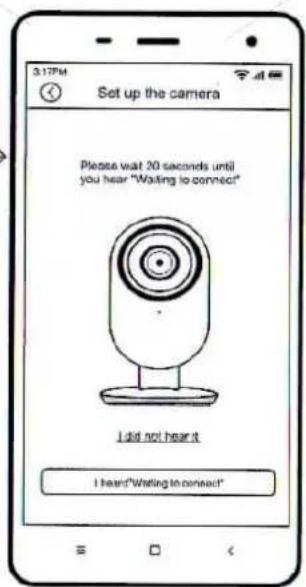
8. Connecting the camera to a phone
- To connect the camera to the home screen, touch the adding badge "+" in the upper right corner.
- Follow simple instructions to configure the application. You can set up multiple cameras one at a time.
9. Preview, live shooting
Use the YI Home app to watch what happens live on your phone. You can also record and save video or images.
Note: in many countries, it is illegal to record audio conversations without the permission of all persons. When using the YI Home camera, follow all applicable laws.
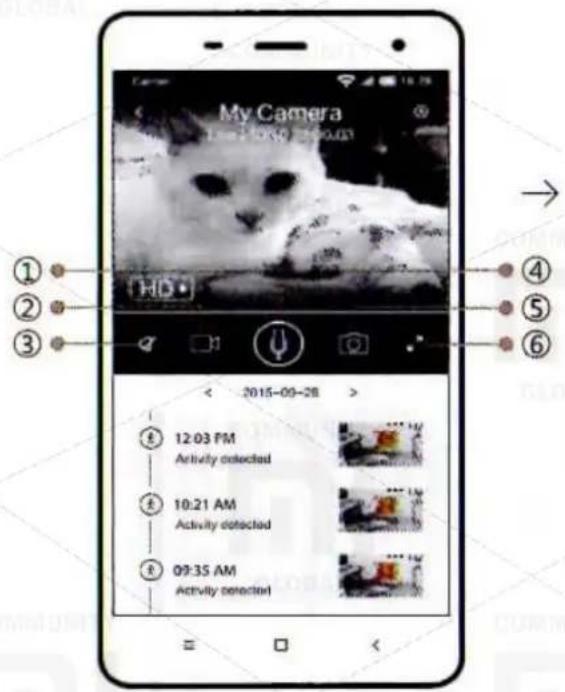
- Hold to talk;
- Video Recording;
- Silent;
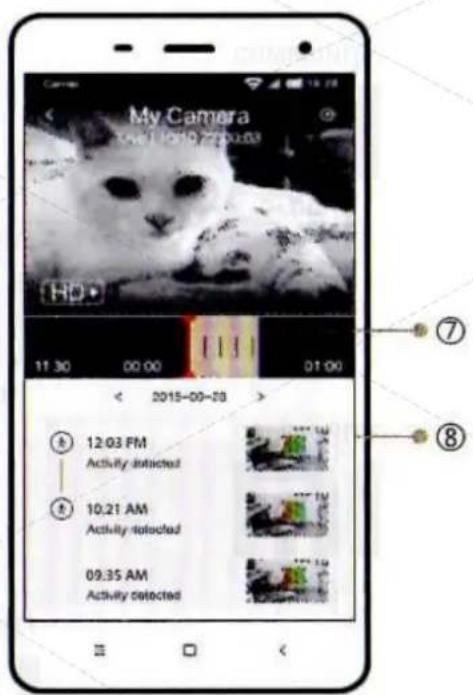
- Show Timeline;
- Take photos;
- Full Screen;
- Play history;
- Warning.
10. Switching WiFi network
When you need to switch a WiFi network or update your WiFi password, follow the instructions below:
- Use a clamp to press the start button on the back of the camera, and wait until the LED turns yellow.
- Open the YI Home App on your phone, and then go to step 6 - Connecting the camera to a phone. Your videos stored on the Micro-SD will not be damaged.
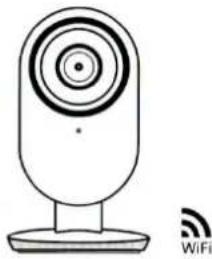
Recommendations
- Set the camera in an open place for WiFi signal and away from metal objects.
- Avoid placing the camera behind furniture, near the microwave, and in places with cables twisted together.
This product is designed, manufactured, and assembled in China. Sales and intended operating environment of this product are limited to the United States. So it is not guaranteed that this part or all of the services and functionality will be available when using this product outside the United States.

FAQ
Important safety instructions
- Read these instructions.
- Clean only with a dry cloth.
- This camera is designed for indoor use only.
- Use only device / accessories specified by the manufacturer.
- Do not forget to switch off the device during lightning storms or when it's not used for a long period of time.
- To achieve the best use of this product, please consistently update to the latest version our application and firmware.
WARNING:
Open flame sources such as candles should not be placed near or on the product.
Note:
"Xiaomi" and "YI" logo are trademarks of Shanghai Xiaoyi Technology Co., Ltd.
This device complies with Part 15 of the Rules of FCC (Federal Communications Agency) / Industry Canada released from a licensed standard (s) RSS. The operation is possible if the following two conditions: (1) This device may not cause harmful interference, and (2) this device must accept any interference received, including interference that may cause undesired operation.
Congratulations!
Your YI 1080P Home Camera is ready for use.
Changes or modifications not approved by the party responsible for compliance could void the user's authority to operate the equipment.
This equipment has been checked for compliance with limits for Class B digital device, pursuant to Part 15 of the Rules FCC. These limits are designed to provide moderate protection against harmful interference in residential areas. This equipment generates, uses, and can radiate radio frequency energy and, if installed and used in accordance with the instructions, may cause interference to radio communications. However, there is no guarantee that interference will not occur at a particular installation. In case of improper installation causes interference to radio or television reception, which can be determined by the inclusion and exclusion of equipment, the user can try to correct the interference by one or more of the following measures:
• Reorient or relocate the receiving antenna. - Increase the separation between the equipment and receiver. - Connect the equipment into an outlet different from that to which the receiver is connected. - Contact your service provider or a qualified radio / TV.
- CAMERA COMPLETION
- INTRODUCTION TO THE CAMERA
- REMOVING THE BACK COVER
- INSTALLING MICROSD CARD
- INSTALLING THE APP
- REGISTRATION AND LOGIN
- TURNING ON THE CAMERA'S POWER
- CONNECTING THE CAMERA TO A PHONE
- PREVIEW, LIVE SHOOTING
- SWITCHING WIFI NETWORK
- RECOMMENDATIONS
- IMPORTANT SAFETY INSTRUCTIONS
- WARNING
- NOTE
- CONGRATULATIONS
- YOUR YI 1080P HOME CAMERA IS READY FOR USE
- CHANGES OR MODIFICATIONS NOT APPROVED BY THE PARTY RESPONSIBLE FOR COMPLIANCE COULD VOID THE USER'S AUTHORITY TO OPERATE THE EQUIPMENT
Brand : Xiaomi
Model : Yi Home Camera 2
Category : Camera