
MiJia 4K Action Camera - Camera Xiaomi - Free user manual and instructions
Find the device manual for free MiJia 4K Action Camera Xiaomi in PDF.


| Product Type | Action Camera |
| Brand | Xiaomi |
| Model | MiJia 4K Action Camera (YDXJ01FM) |
| Dimensions | 71.5 x 42.7 x 29.5 mm |
| Weight | 99 g (with battery) |
| Aperture | F2.8 |
| Focal Length | 3.2 mm |
| Field of View | 145° |
| Screen | 2.4" LED, touch sensor |
| Maximum Video Resolution | 3840 x 2160 @ 30 fps |
| Maximum Photo Resolution | 3840 x 2160 px |
| Audio Recording | Dual microphones |
| Wireless Connectivity | Wi-Fi IEEE 802.11b/g/n |
| Battery Type | Removable lithium-ion |
| Charging | USB cable, 5V 1A adapter |
| Memory Card | Micro SD up to 64 GB (UHS-3 recommended for 4K) |
| Operating Temperature | 0°C to 45°C |
| Storage Temperature | -20°C to 60°C |
| Accessories Included | Camera, Battery, USB Cable |
Frequently Asked Questions - MiJia 4K Action Camera Xiaomi
User questions about MiJia 4K Action Camera Xiaomi
0 question about this device. Answer the ones you know or ask your own.
Ask a new question about this device
Download the instructions for your Camera in PDF format for free! Find your manual MiJia 4K Action Camera - Xiaomi and take your electronic device back in hand. On this page are published all the documents necessary for the use of your device. MiJia 4K Action Camera by Xiaomi.
USER MANUAL MiJia 4K Action Camera Xiaomi
MiJia Action Camera User's Manual
Before using the device, carefully read the user's manual and save it properly.

1. Accessories
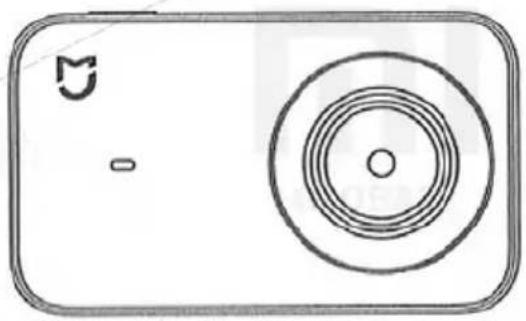
Camera × 1
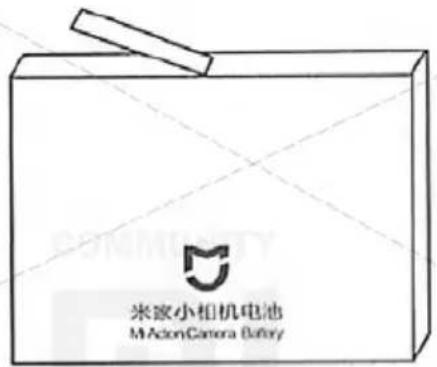
Battery × 1
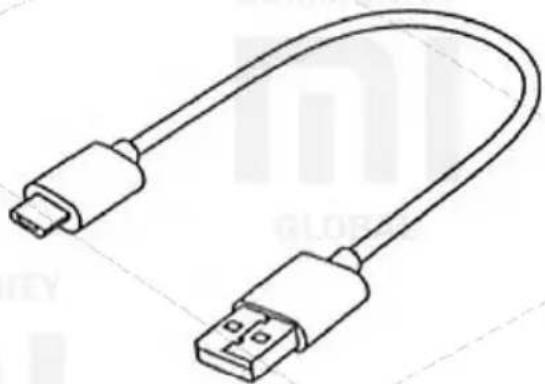
Cable USB × 1
- Lens;
- High LED-indicator;
- Micro USB slot cover;
- Front LED-indicator;
- Microphone;
- Micro USB slot;
- Function button;
- Speaker;
- Microphone.
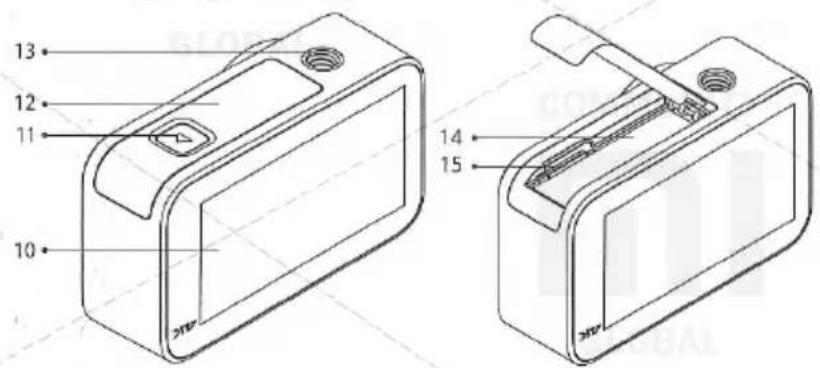
- Sensor screen;
- Battery compartment cover;
- Battery;
- Cover button;
- Tripod slot 1/4";
- Micro SD.
2. Inserting and Removing the Battery and Memory Card
- To install the battery, open the battery compartment cover (see the figure), contacts should point toward the lens, insert the battery; To remove it, pull lightly by a special tape.
- To install a Micro SD memory card, the side of the card with the label should point toward the back of the camera, insert the card into the slot; to extract, click on its upper part, after the memory card jumps out of the slot, remove it.
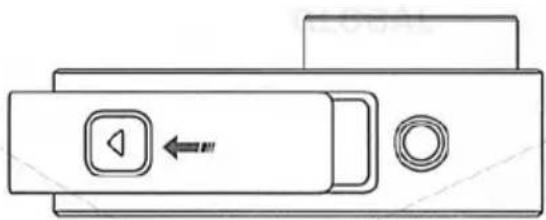
Press the battery compartment cover button, slide the cover to the side (outward).
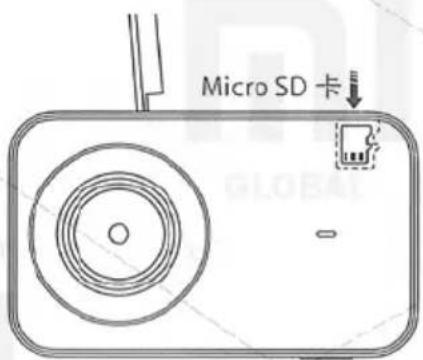
Do not damage the tape to remove the battery, this may affect the convenience of working with it.
4. Charging the Battery
- Using a USB cable, you can charge the battery from the power adapter or PC. Use a power supply or a universal battery with the parameters 5V - 1A, charging is recommended when the camera is off.
- During charging, the LED indicator on the front panel will glow red, after the charging is completed, the indicator will automatically turn off.
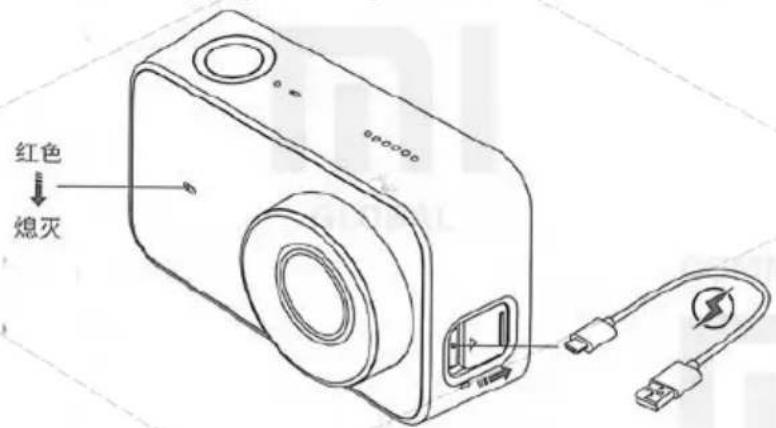
Note: if you use the camera with an external power source connected for a long time, it is recommended to remove the battery.
5. Using the device
1. Power on/off
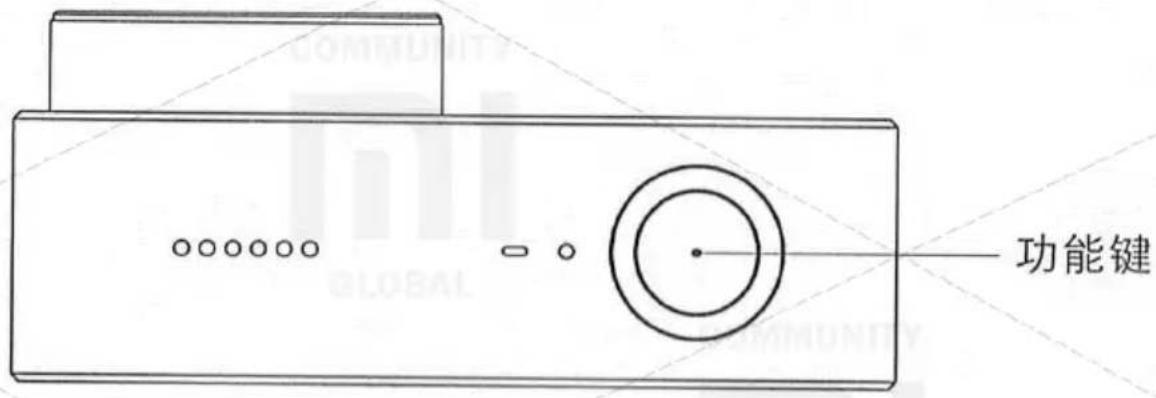
On: press and hold the function button for 3 seconds until the unit turns on and you hear an audible alarm.
Shutdown: press and hold the function button for 3 seconds until the device turns off and you hear an audible alarm.
2. Photographing
After selecting the appropriate photography mode, briefly pressing the function button takes the photo.
3. Video recording
After selecting the appropriate video mode, a short press of the function button starts recording the video, and another short press stops the video recording.
Note:
- During video recording in 4K format, it is recommended to use a Micro SD card of UHS-3 class with a memory capacity of not less than 16 GB to ensure video quality. Video recordings are stored in the FAT32 file system, the maximum size of one video file is 4 GB, and video recordings that exceed the size of one file will be saved in parts.
4. Working interface
When the device is turned on, the preview page will be displayed (in the locked camera screen mode, double-click the screen or briefly press the function button to wake the camera).
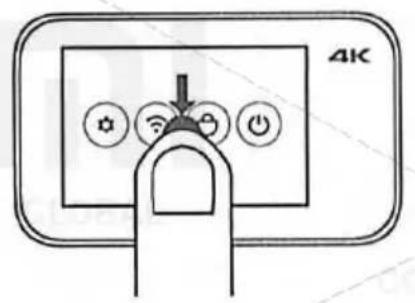
Settings
On the preview page, swipe your finger down the screen to open the settings page; slide your finger backwards or press the function button to return to the preview page.
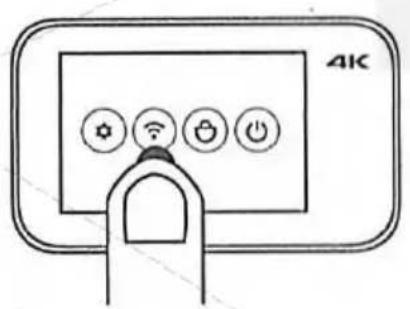
Wi-Fi settings
On the preview page, swipe your finger on the right side of the screen to open the mode selection page. Slide your finger backwards or press the function button to return to the preview page.
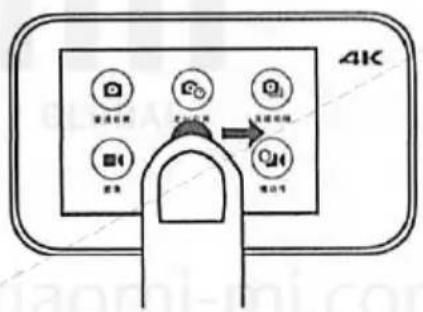
On the preview page, swipe your finger on the left side of the screen to open the gallery preview page. Swipe backwards or press the function button to return to the preview page.
Note: you need to install a Micro SD memory card.
6. Quick settings
This device is compatible with the smart platform Mi Home. It can be controlled using the Mi Home mobile application and synchronized with other smart devices of the "Smart Home" ecosystem.
1. Install the app
Enter "Mi Home" in the search box of the App Store / Play Market, or scan the QR code below to download and install the Mi Home application.

2. Add the device and connect to the camera
- To add a device, open the "My devices" page in the Mi Home application, press "+" in the upper right corner of the screen, select "MiJia Action Camera" and install the plug-in. After completion, "MiJia Action Camera" will appear.
- Open the MiJia Action Camera plug-in.
- Turn on the camera, slide your finger down the screen to open the context menu, and turn on Wi-Fi.
Click the "Connect to camera" button in the mobile application, follow the prompts in the mobile application and the Wi-Fi settings in your mobile phone to connect to the camera via Wi-Fi.
3. Buy more
To purchase more "smart" devices and other quality items, download the Mi Home application and go to the "Shop" section, or scan the QR code below to browse the store's website.

Caution:
- On some mobile phone models, to connect the MiJia Action Camera via Wi-Fi, you need to include GPS satellites.
- After connecting the mobile application to the camera, on Android-based mobile phones there will be a disconnection from the Internet, on some mobile phone models, "Unable to connect to the Internet" will be displayed. When this alert is displayed, select the option to continue the current connection.
- To update the firmware of the camera, you must restore the connection of the mobile phone to the Internet.
7. Explanation of LED indicator
| Status | Function | |
| Front LED-indicator | Lights constantly | Notification of power supply connection |
| Front and upper LED-indicators | Slowly blinking | There is a process of photo-video-shooting |
| Front LED-indicator | Rapidly blinking by red | Memory error, or no SD card in slot |
| Front and upper LED-indicators | Slowly blinking alternately | ROM updating |
8. Name and content of harmful substances in the product
This table is created in accordance with the provisions of the standard SJ/T 11364.
A: The content of this harmful substance in all homogeneous materials of this component is within the requirements of the standard GB/T 26572.
X: The content of this harmful substance in at least one of the homogeneous materials of this component exceeds the limits of the requirements of the standard GB/T 26572.
9. Main specifications
| Name: | MiJia Action Camera | Aperture: | F2.8 |
| Model: | YDXJ01FM | Focal lenght: | 3,2 mm |
| Dimensions: | 71,5 × 42,7 × 29,5 mm | View angle: | 145° |
| Weight: | 99 r (with battery) | Sound recording: | Double microphone |
| Wireless interface: | Wi-Fi IEEE 802.11b/g/n | Rated temperature: | 0°C ~ 45°C |
| Screen: | 2,4" LED, sensor | Storage temperature : | -20°C ~ 60°C |
| Photo resolution, max: | 3840 × 2160 px | Standard: | Q/BJFMK0005-2017 |
| Video resolution, max: | 3840 × 2160 × 30 fps | Micro SD: | До 64 ГБ |
10. Caution!
- Do not dispose of the battery in a fire; do not beat the battery with great force; the capacity of the lithium battery can be significantly reduced under low temperature conditions, do not use it at temperatures below 0°C.
- Store the camera properly, prevent scratches and contamination of the lens; for cleaning use a special brush, a pear for cleaning the lens with air; Keep the device away from dust and moisture.
Customer: Xiaomi Communication Technology Co. Ltd.
Manufacturer: Beijing Feimi Technology Co., Ltd (Xiaomi Eco-Chain Enterprise).
Address: Room 348, Floor 3, Complex 1, Qinghe Yongtai Garden, Haidian District, Beijing.
- MIJIA ACTION CAMERA USER'S MANUAL
- ACCESSORIES
- INSERTING AND REMOVING THE BATTERY AND MEMORY CARD
- CHARGING THE BATTERY
- USING THE DEVICE
- POWER ON/OFF
- PHOTOGRAPHING
- VIDEO RECORDING
- NOTE
- WORKING INTERFACE
- SETTINGS
- WI-FI SETTINGS
- QUICK SETTINGS
- INSTALL THE APP
- ADD THE DEVICE AND CONNECT TO THE CAMERA
- BUY MORE
- CAUTION
- EXPLANATION OF LED INDICATOR
- NAME AND CONTENT OF HARMFUL SUBSTANCES IN THE PRODUCT
- MAIN SPECIFICATIONS
Brand : Xiaomi
Model : MiJia 4K Action Camera
Category : Camera