IN-8003 - Security Camera Instar - Free user manual and instructions
Find the device manual for free IN-8003 Instar in PDF.


User questions about IN-8003 Instar
0 question about this device. Answer the ones you know or ask your own.
Ask a new question about this device
Download the instructions for your Security Camera in PDF format for free! Find your manual IN-8003 - Instar and take your electronic device back in hand. On this page are published all the documents necessary for the use of your device. IN-8003 by Instar.
USER MANUAL IN-8003 Instar
natural_image
Close-up of a white surveillance camera with a circular lens (no text or symbols visible)flowchart
graph TD
    A["Top view of camera"] --> B["Internal cable with sensor"]
    B --> C["Bottom view of camera"]
    C --> D["Internal cable with rotating fan"]
    D --> E["Bottom view of camera"]
Schraubenschlüssel
text_image
Diagram illustrating three stages of a mechanical or electrical device operation: pinning, rotating arm, and mounting mechanism.natural_image
Line drawings showing two steps of a device being placed on top, with one hand holding the lid and the other showing a red upward arrow (no text or symbols)5. Installation
https://www.youtube.com/INSTARTV
10.4. Wiki, Kundenforum & Social Media
natural_image
Close-up of a white surveillance camera with a circular lens (no text or symbols visible)IN-8003 Full HD PoE Indoor and Outdoor Camera
www.instar.com

natural_image
Close-up of a white surveillance camera with a black lens and circular head (no text or symbols visible)- Panasonic Wide Dynamic Range (WDR) full HD image sensor
- User-friendly and modern HTML5 web user interface (WebUI)
- Supports all modern web browsers (IE 11, Edge, Firefox, Chrome, Safari, etc.)
- Supports MicroSD cards (max. 128GB) for alarm or manual recording
- Alarm notifications by email, push and / or to an alarm server
- Supports FTP(S) upload of alarm images, videos and / or photo series
- Supports TLS / SSL encryption for secure HTTPS and FTPS communication
- Supports secure video upload to the INSTAR Cloud (optional)
Table of Content
- Camera Introduction 2-EN
- Safety Warnings 3-EN
- Product Features 4-EN
- Camera Structure 5-EN
- Installation 8-EN
- Smartphone Apps 9-EN
- Remote Access 10-EN
- Camera Reset 11-EN
- Lens Adjustment 11-EN
12-EN10. Online IV
- INSTAR Cloud 13-EN
- Technical Data 14-EN
- Warranty & Disposal 15-EN
- Legal Information 16-EN
1. Camera Introduction
The IN-8003 is the newest Full HD PIR Indoor and Outdoor IP Camera from INSTAR. With a built-in passive infrared (PIR) motion sensor and four separately configurable alarm areas that can be linked together, the camera prevents false alarms and notifies you only when a real alarm has been triggered.
Equipped with one of the latest Panasonic Full HD CMOS image sensor, which features low noise, high speed and new Wide Dynamic Range (WDR) functionality, the IN-8003 is able to achieve the best image quality in daylight as well as clear image in night vision mode with the help of its high-power LEDs. Hence, the IN-8003 is able to deliver accurate motion detection and alarm notification.
The design of this camera was completely new developed in order to fulfill the wishes of our customers. If you need to pull the cable through the wall, a small hole in the size of the cable diameter would be sufficient, as you can simply take off the cable from inside the casing, pull it through the wall and connect the cable back to the board inside.
This camera is running an embedded Linux operating system and a Webserver which supports TLS/SSL encryption for security and privacy. It provides a built-in, modern HTML5 based Web User Interface (WebUI) with focus on usability and simplicity, supporting all recent devices (desktop, tablet, smartphone) and operating systems (Windows, MacOS, Linux,...). Thanks to the built-in Camera Setup Wizard and the (built-in) help function, INSTAR users can enjoy a very easy initial set-up of the IP camera.
For your camera installation, please go to:
http://install.instar.com
2. Safety Warnings
Read the safety warnings carefully and keep them in a safe place.
- Make sure the power cord is not near any hot or heating up surfaces.
- Place the power and network cable properly to prevent injuries.
- This device shall not be used by people (including children) with limited physical, sensory and mental capabilities. Only a trained person who knows how to use the device carefully should use it.
- Children should be supervised in order to ensure they do not play with the device.
- If the power cord of this device gets damaged, it can only be replaced by the manufacturer, a customer service person or a similar qualified person to avoid any injury to you and damage to the device.
- Never try to repair the device by yourself. By opening the device the warranty will automatically expire. If any repair is needed, please contact your INSTAR Service Center.
- When cleaning, please never put the device in water or other liquids.
• Make sure you only install the device in a 110V - 240V power socket. - Only use this device to secure your home, office and similar places. If you are planning to install the device in a public area, please make sure you have all certificates to do so.
- This device is suitable for indoor and outdoor use.
- Don't use the camera for any other purpose than it is made for.
- Never install the device near explosive or flammable substances.
- INSTAR does not give any warranty if you use any third party firmware.
- The power supply has to be installed in a dry area, it is not made for outdoor use.
3. Product Features
Hardware
WDR Sensor Full HD WDR Panasonic CMOS sensor / resolution 1920 x 1080px
Wide-Angle Lens 4.3mm lens with a 90^ diagonal field of view
MicroSD Card Max. 128GB (16GB incl.) for alarm or manual recording (15 sec.)
PIR Sensor Integrated passive infrared motion detector
Microphone Integrated microphone
Software
Privacy Areas Mask up to four areas for privacy concerns
Alarm Areas Define four areas for software motion detection and link with PIR
Alarm Triggers Supports motion, heat and noise detection
Pre-Recording Alarm videos start three seconds before the trigger event
Notifications Alarm emails and push (text) notifications in case of an alarm trigger
Alarm Server Send alarm triggers to third party devices such as home automations
Video Recording 15s alarm and/or manual recording on SD
Video Stream Supports stream protocols like RTSP, RTP, RTMP, ONVIF, MJPEG...
Photo Series Interval snapshots for website integration or time lapse videos
Free App Our free app InstarVision is available for iOS, Android and WinPhone
Connectivity
P2P Free point-2-point connectivity with InstarVision, works with IPv6
DDNS Free DDNS address to connect to your camera via the internet
Cloud Optional upload & management of alarm videos in the INSTAR Cloud
FTP Upload Upload alarm images / videos to an FTP server (FTP or secure FTPS)
PoE Power over Ethernet, IEEE 802.3af (+ Pin 4 and 5 / - Pin 7 and 8)
HTTPS Access the WebUI via HTTPS with secure TLS/SSL encryption
4. Camera Structure
4.1. Delivery Content

text_image
Camera MicroSD Card Power Adaptor LAN Cable Screws & Dowels ToolsDelivery contents in the camera package
4.2. Camera Structure
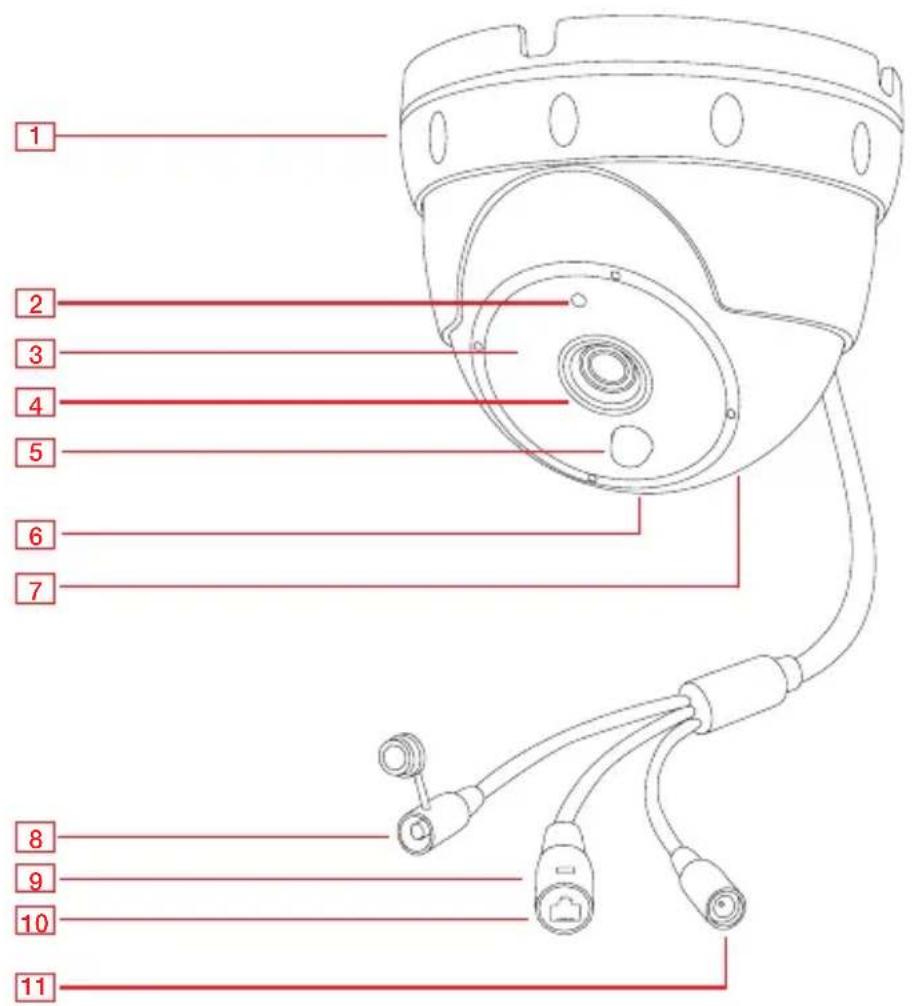
text_image
1 2 3 4 5 6 7 8 9 10 111 - Bracket For Ceiling Mount
2 - Photosensor Twilight switch for IR LEDs
3 - Infrared LED for Night vision - 12 IR-LEDs (@ 850nm)
4 - Lens Wide-angle (focal length: 4.3mm / field of view: \~ 90° dia.)
5 - PIR Detector Integrated passive infrared (PIR) motion detector
6 - Microphone For noise detection / audio rec.
7 - MicroSD Card Slot Slot for MicroSD/SDXC cards (max. 128GB - 16GB included) - inside the camera -
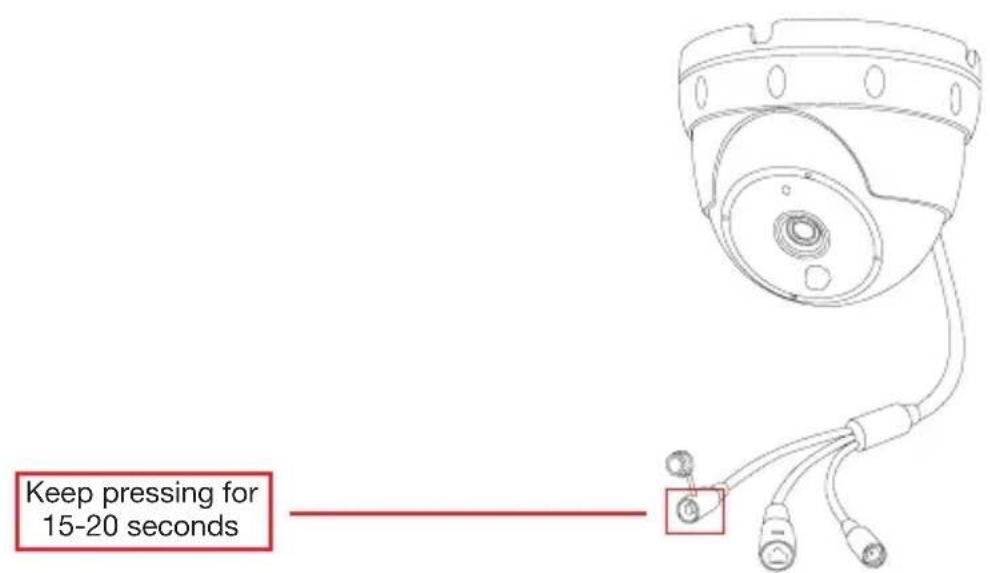
8 - Reset Press 15-20 seconds for reset
9 - Network LED Off: No Power / No signal, Flashing: Network Signal
10 - Network Port RJ45 LAN port / connector for Cat5e LAN cable or higher
11 - Power Connector For included 12V / 1A power supply
4.3. Camera Tools
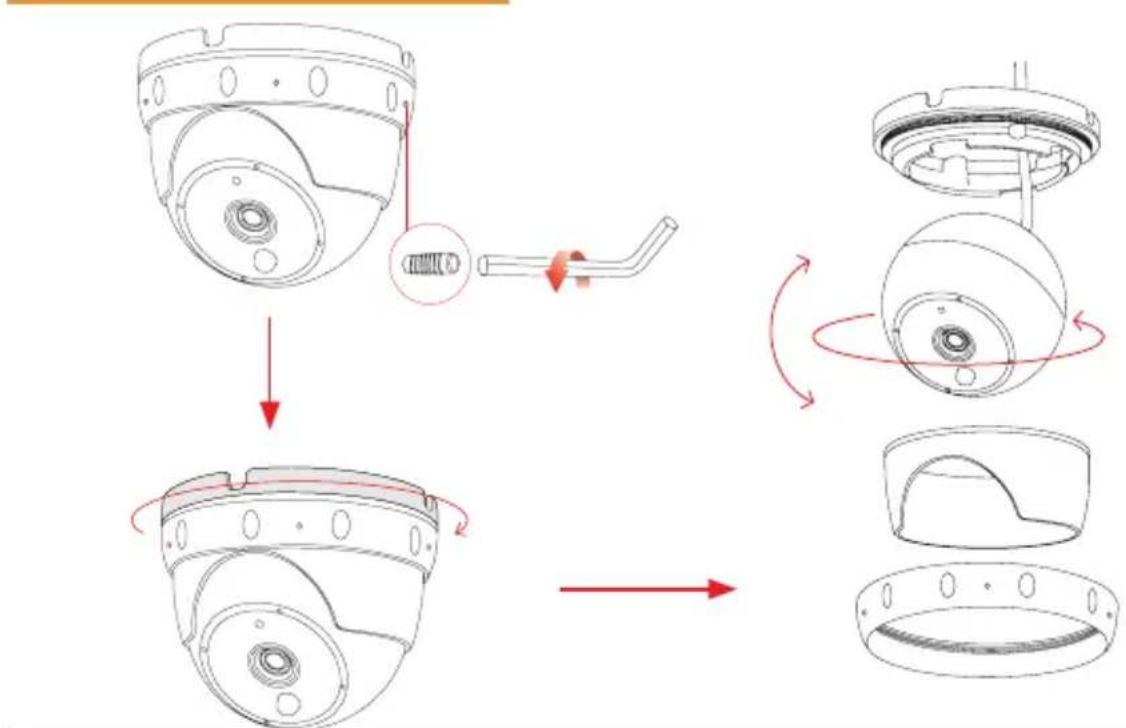
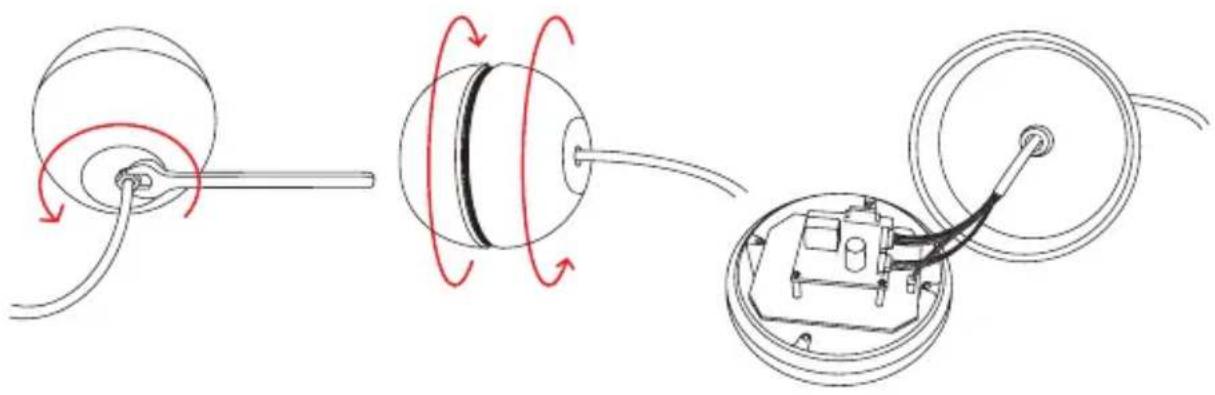
In the delivery content, you will find 3 tools for loosening the camera bracket, opening the camera dome from the back to access the cables, and opening the camera from the glass front to adjust the lens.
Alley Key
flowchart
graph TD
    A["Top view of camera"] --> B["Internal cable with screw head"]
    B --> C["Internal body with circular components"]
    C --> D["Internal body with curved arrows indicating rotation"]
    D --> E["Internal body with inner ring and blade"]
    E --> F["Internal body with curved arrow indicating rotation"]
    F --> G["Internal body with outer ring and blade"]
Wrench
The wrench tool is to be used for opening the cable nut at the back of the dome casing. You can use this tool to access the cable inside the casing. In case you want to place the cable through a wall, you can unplug the cables from the board and take them out through the cable hole. Please do it with special caution in order not to damage any wires.
text_image
Diagram illustrating three stages of a mechanical or electrical device operation: wire connection, rotation, and assembly.Glass Front Tools
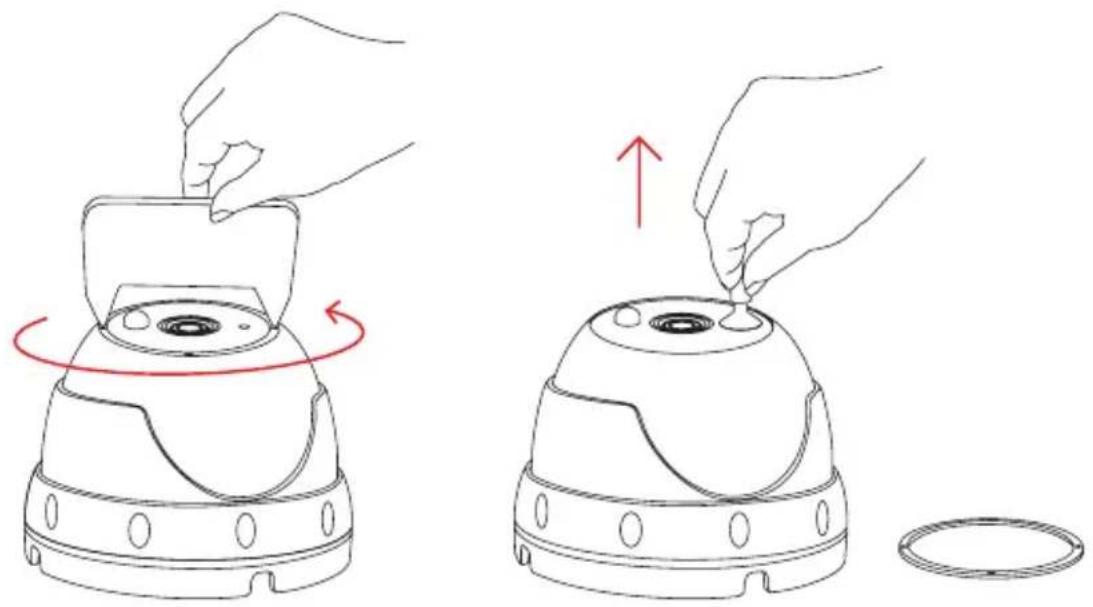
In rare cases, you may need to adjust the lens focal. We provide also tools for you to open the the glass front.
First, please use the metal tool to carefully open the metal ring that is fixed on top of the glass through the holes. Then you can use the rubber tool to lift up the glass front as shown in below instruction.
natural_image
Line drawings showing two steps of a device being placed on top, with one hand holding the lid and the other showing a red upward arrow (no text or symbols)5. Installation
For installation, please simply follow the steps below:
Step 1 Please open the web browser and go to:
http://install.instar.com
to open the Camera Installation Guide.
Step 2 Choose your language and camera model IN-8003.
Step 3 Select the type of network connection:
a) Connection via LAN cable and power supply b) Connection via PoE
Step 4 Follow each step of the installation process according to your choice.
Step 5 On the login page of your camera, please type in the default login credentials shown as below:
Username: admin Password: instar
Step 6 You will be greeted with the Camera Setup Wizard. Please follow those steps to finalize the setup process. You can start configuring your camera by using the Web User Interface (WebUI).
6. Smartphone Apps
INSTAR offers free apps for Android, iOS (iPhone / iPad), Blackberry, Amazon-Kindle, Windows Phone and Windows 8.1 / 10 (Metro). To install the app, please search for “InstarVision” on the app store of your device.
text_image
InstarVision Your APP STORE android BLACKBerry. amazonkindle iOS Metro UI Windows PhoneThe Difference between the App and the Web User Interface (WebUI)
App:
The InstarVision app offers you an easy way to access your camera and view the livestream at any time in any place. Also, it allows you to use the most important settings for every day usage such as alarm activation, alarm recordings playback, switching on/off the night vision as well as activating the integrated microphone.
The app is not designed for the initial setup of your camera. For the initial setup of INSTAR cameras, please use the Web User Interface (WebUI).
Web User Interface (WebUI):
You can open the WebUI using a modern HTML5 based web browser on your computer. You only need to use the INSTAR Camera Tool to search for your camera's IP address and then open it inside your default web browser.
The WebUI allows you to set up your camera according to your needs. In the WebUI you can, for example, set the alarm areas for software motion detection, and you can also choose to link the motion detection and PIR to prevent false alarms. Once you set this in the WebUI, you can then activate or deactivate the alarm detection in the InstarVision app.
7. Remote Access
The camera supports two ways to remotely access the live video from all over the world using internet connection.
7.1. P2P Protocol
The P2P protocol provides you with a simple and fast way to connect and communicate with your camera, using our InstarVision app, available for all major platforms and devices. It works with any type of internet connection (local and public IPv4/6, mobile data like LTE, 3G, etc.) as no port forwarding is necessary.
a) Install our newest InstarVision app using the app store on your device
b) Open the app, click the “+” symbol and choose New P2P Camera
c) Open your camera's WebUI, navigate to the menu Network -> Remote access and scan the QR code to add your camera
7.2. DDNS Service - HTTP(S) Protocol
The DDNS service provides you with the possibility to directly access your camera remotely via your internet router. Therefore you can use any modern web browser, our InstarVision software/app and/or third party software for communication via the http(s) protocol.
a) Open the WebUI and go to Network -> IP configuration. Provide each camera with a unique HTTP (e.g. 8081, 8082,...), HTTPS (e.g. 443, 444,...) and RTMP Port (e.g. 1935, 1936,...)
b) Access your router and set up port forwarding rules for each port
c) Open the app, click the “+” symbol and choose New IP camera
d) Open your camera's WebUI, navigate to the menu Network -> Remote access and scan the QR Code to add your camera. Please be aware that the DDNS service might not work from your local network - always test with your LTE / data connection.
Please consider that port forwarding only works if your router has a public IPv4 address. For detailed description to port forwarding on your router model and DDNS service in general, please refer to:
http://remote.instar.com
8. Camera Reset
In order to reset your camera, please follow the instructions below:
- Keep pressing the reset button for 15-20seconds
- After the reset, the camera will restart, which can take up to 60 seconds. All data in the camera will be reset to factory defaults. Therefore, it is necessary to do all settings in your camera again. For more information on how to install your camera again, please visit: http://install.instar.com. Once you connect the camera to the network, use the INSTAR Camera Tool to find out the camera's IP address and open the camera's WebUI to start configurating your camera again.
text_image
Keep pressing for 15-20 seconds9. Lens Adjustment
The IN-8003 Full HD standard lens has a depth of field (also focus range) that is adjusted to a distance of approx. 5 - 8m. In case your area of interest is out of focus, you will have to adjust the lens accordingly. To do that, please open the glass front shown in step 4.3. Once you can reach the lens, please turn it to the right or left side until the camera image is shown clear. Once adjusted, you can reinstall the glass front carefully.
10. Online Material
10.1. Online Manual
This user manual is a printed version. Therefore it represents the specifications and software features from the date printed (August 2018). As we are constantly improving our cameras, please always refer to the up-to-date online manual:
http://manual.instar.com
The online manual offers you many important topics for using your camera. Below are some of the topics covered by the online manual:
- How to use the DDNS address
- How to set a port forwarding rule
- How to set up motion detection
- How to download videos from the built-in SD card etc...
10.2. Firmware Update
INSTAR cameras will be provided with free firmware updates. Open the WebUI and navigate to System -> Firmware Update to check if there is a new update available for your camera model. You can then download and install the latest firmware directly through the WebUI. The latest firmware can also be found here:
http://firmware.instar.com
10.3. Youtube Installation/Setup Video
For installation you may also check out our installation videos explaining topics like port forwarding, FTP(S) upload, motion detection and many more ... Just go to YouTube and search for INSTARTV or go directly to

https://www.youtube.com/INSTARTV
10.4. Wiki, Forum & Social Media
INSTAR offers an IP Camera Wiki, customer forum and a Facebook page.

https://wiki.instar.com
https://forum.instar.com
https://www.facebook.com/instar.deutschland
11. INSTAR Cloud

https://cloud.instar.de
text_image
INSTAS Air ENSA Cloud Kamassa Kamarsatz Alama Administration Ihre Kamoraz Ade Ensignose (2013) Ensignose Name Ade EnsignoseWhat's the INSTAR Cloud?
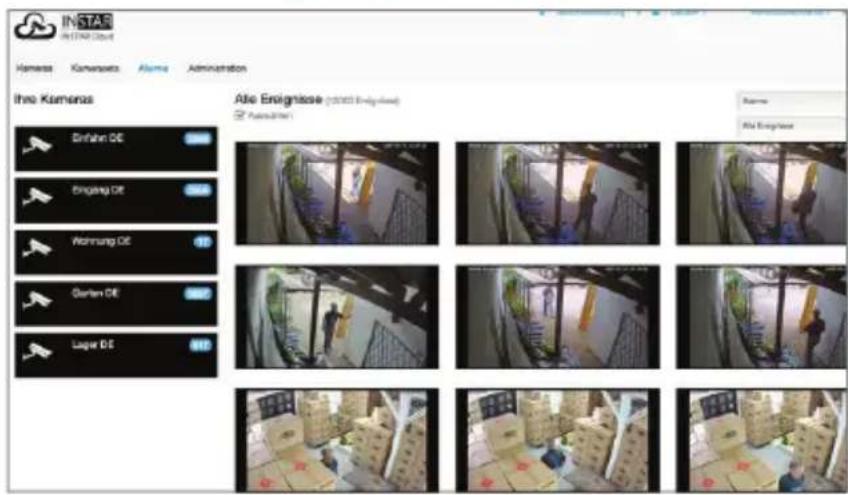
The INSTAR Cloud is a purely optional and paid service to backup your recordings. Try the INSTAR Cloud free of charge for 30 days at https://cloud.instar.de. The INSTAR Cloud costs only about 1/3 of what other cloud platforms demand. If you are planning with a storage unit of 10GB for a camera (you can store about 2,500 alarm events on 10GB), you can even save up to \~70% in comparison. INSTAR Cloud also helps you sort out the false alarms from true alarm events.
INSTAR Cloud Feature: Smart, Secure and Scalable
Smart:
- False alarm detection through an advanced motion analysis
- Lock and download important alarm events
- Automatic alarm-events deletion after a custom time-threshold
- 3-level user management and flexible access right settings
- Supports modern HTML5 web browsers, no plugins needed for video view
- Fast preview for quick surveillance & full view for detailed surveillance
Secure:
- Servers located in Germany (ISO 27001 certificated)
- Safety of your data thanks to two different physical locations of servers
- Secure and encrypted data transfer
Scalable:
- Extendable storage space per year without any subscription
- Alarm events can be removed automatically after custom selected period
12. Technical Data
Image Sensor
| Sensor 1/3" Full HD Panasonic WDR CMOS MN34229 |
| Lens f = 4.3mm; F/2.1 (IR Lense) / M12 - S-Mount |
| Angle of View ~90° diagonal |
Video Properties
| Video Encoding h.264/MPEG-4 AVC (Level3) / MJPEG |
| Video Framerate Up to 25fps |
| Supported Resolutions 1920 x 1080, 640 x 352 and 320 x 176 Pixels |
| Flip / Mirror Image Horizontal / Vertical |
| Video Settings Brightness / Contrast / Saturation / Exposure... |
Communication
| Network Interface 10Base-T/100Base-TX Ethernet Port |
| PoE Compliance IEEE 802.3af (+ Pin 4 and 5 / - Pin 7 and 8) |
Hardware
| PIR Detector Passive Infrared Motion Detector |
| Infrared LEDs 12 LEDs / 8-12m effective range |
| MicroSD Card Reader For MicroSD / SDXC cards up to 128 GB |
| Power Supply Output: 12V DC 1A / Input: 110-240V |
| Power Consumption Max. 7,5W (in normal operation 3W) |
| Operating Temperature | - 5°C to 55°C (-25°C with optional heater) |
Requirements
| Web Browser | Web browser supporting HTML5 |
| CPU / Graphic Card | Dual Core (min. 2Ghz) / 256MB+ Graphic Card |
| Bandwidth | Min. 512kbs per camera |
13. Warranty & Disposal
13.1. Warranty
INSTAR offers a 2-year warranty on its products. During this period you can send in your camera for free repair (the shipping cost to our service center will have to be paid by the customer). This excludes cameras installed with custom-made or third party firmware and WebUIs which have not been approved by INSTAR. The warranty is limited to hardware parts of the camera.
If you are calling our service team, please keep your model and serial number ready. In case your camera is defective and you want to send it for repair, please contact support@instar.com to request a RMA number. With this RMA number you can then send your camera for repairment.
You can find the INSTAR SERVICE CENTER at the following address:
Company:
Email: support@instar.com
13.2. Disposal of old electrical appliances
The European Directive 2012/19/EU on Waste Electrical and Electronic Equipment (WEEE) requires that old household electrical appliances must not be disposed of in the normal unsorted municipal waste stream. Old appliances must be collected separately in order to optimize the recovery and recycling of the materials they contain, and reduce the impact on human health and the environment. The crossed out “wheeled bin” symbols on the product reminds you of your obligation that, when you dispose of the appliance, it must be separately collected. Consumers should contact their local authority or retailer for information concerning the correct disposal of their old appliance.
The packaging material is recyclable. Dispose the packaging in an environmentally friendly manner and forward it to the recyclables collection.
14. Legal Information
CE-Declaration of Conformity
Hereby, the INSTAR Deutschland GmbH, declares that
this device is in compliance with the essential requirements
and other relevant provisions of the Directive 2014/53/EU.
The complete copy of the EU Declaration and Conformity
can be found on this website: http://www.instar.com/legal/eu-declarations
FCC
This device complies with Part 15 of the FCC rules. Operation is subject to the following two conditions: (1) this device may not cause harmful interference, and (2) this device must accept any interference received, including interference that may cause undesired operation.
The complete FCC Compliance Statement can be found on the following website: http://www.instar.com/legal/fcc
© INSTAR is a registered trademark of the INSTAR Deutschland GmbH.
natural_image
Close-up of a white surveillance camera with a circular lens and black frame (no text or symbols visible)INSTAR Deutschland GmbH Your Specialist for Network and Security Equipments
INSTAR