
LIFE P89655 (MD 90228) - NAS MEDION - Free user manual and instructions
Find the device manual for free LIFE P89655 (MD 90228) MEDION in PDF.


| Product Type | Network Attached Storage (NAS) |
| Brand | Medion |
| Model | LIFE P89655 (MD 90228) |
| Hard Drive Capacity | 3 TB (SATA) |
| USB Ports | 2x USB 3.0 (blue), 1x USB 2.0 (white) |
| Network Interface | RJ45 Gigabit Ethernet (10/100/1000 Mbit) |
| Power Supply | Input: 100-240V~, 50/60Hz, 0.6A; Output: 12V---, 1.5A |
| Dimensions (W x H x D) | Approx. 65 x 195 x 135 mm |
| Weight | Approx. 1.25 kg |
| Operating Temperature | 5°C to 35°C |
| Supported Protocols | TCP/IP, UPnP/DLNA, Samba, FTP, CIFS |
| One-Touch Copy (OTC) | Copy files from USB to NAS with OTC button |
| Wake on LAN | Supports WOL for remote wake-up |
| Integrated Media Server | DLNA-compliant for streaming to network devices |
| Software Included | LifeCloud web interface, LifeCloud agent (PC/Mac), LifeCloud app (iOS/Android) |
| Backup Software | Memeo Instant Backup (optional installation) |
| Package Contents | LifeCloud hardware, LAN cable, mains adapter, software CD, manual |
| Maximum User Accounts | 5 (unlimited with premium account) |
| Supported File Systems | FAT32, NTFS, XFS |
| Safety Features | Overheating protection, surge protection recommended |
| Cleaning | Use dry soft cloth; unplug before cleaning |
| Disposal | Do not dispose with household waste; follow local regulations |
Frequently Asked Questions - LIFE P89655 (MD 90228) MEDION
User questions about LIFE P89655 (MD 90228) MEDION
0 question about this device. Answer the ones you know or ask your own.
Ask a new question about this device
Download the instructions for your NAS in PDF format for free! Find your manual LIFE P89655 (MD 90228) - MEDION and take your electronic device back in hand. On this page are published all the documents necessary for the use of your device. LIFE P89655 (MD 90228) by MEDION.
USER MANUAL LIFE P89655 (MD 90228) MEDION
natural_image
Diagram showing a network device connected to a server via cable, with an inset magnified view of the device's internal connection (no text or symbols present)Navigation zum Lifecloud (www)
(Ethernet 10/100 MBit & Gigabit)
CIFS – Common Internet File System
natural_image
Diagram showing a network device connected to a server via cable, with an inset magnified view of the device's internal connection (no text or symbols present)
OPMERKING!
Switch User
Explore my LifeCloud folders
Open Lifecloud application
Wake up using "Wake On LAN"
Exit LifeCloud Agent
15.1. My Library/FamilyLibrary
FamilyLibrary
Share Selected Items
Copy/Cut/Paste/Rename/Delete
17. Preferences
17.1. User Preferences
User
What to do when a file already exists
What to do when adding files to albums
Share new albums with other family accounts by default
Share new albums with media players by default
CIFS – Common Internet File System
LAN – Local Area Network (lokaal netwerk)
1. Notes on how to use these instructions .... 97
NL
1.1. Warning symbols and key words used in these instructions ..97
2. Proper use
3. Safety instructions
3.1. Keep electrical equipment out of reach of children .....99
3.2. General points 99
3.3. Set-up location 100
3.4. Never attempt to repair the product! 100
3.5. Cleaning and care.... 101
3.6. Data backup 101
3.7. Power supply 101
3.8. Information on electrostatic charge 102
3.9. Notes on conformity.... 103
4. General information 103
4.1. Supported systems and formats 103
4.2. Capabilities of the LifeCloud system.... 104
4.3. How the LifeCloud system and its components work ...... 104
4.4. Features of the LifeCloud system 105
4.5. System requirements 105
5. Package contents...... 105
6. Overview of the product 106
6.1. Hardware front and rear 106
7. About the LifeCloud 107
8. Start of operation 107
8.1. Connecting to a network.... 107
9. Switching the system on or off 108
10. Initial operation 108
10.1. Setting up an account for the LifeCloud system.... 108
11. Copying files with the OTC button 112
12. RESET button.... 112
12.1. Reset password.... 112
12.2. Resetting to the system to the default settings.... 115
13. Using the LifeCloud agent.... 115
13.1. Installing the LifeCloud agent.... 115
13.2. Using the LifeCloud desktop 116
14. The web interface 118
14.1. Opening the web interface 118
14.2. Features and settings of the web interface 118
15. Media library 119
15.1. My Library/Family Library 119
15.2. New folder/delete folder.... 120
15.3. Context menu for opening folders and files 120
15.4. Albums 122
15.5. Uploading files to the LifeCloud system 123
15.6. Entries in the media file context menu 123
16. Albums 124
17. Settings 125
17.1. User settings 125
17.2. Server Preferences 127
17.3. Administration 128
18. Using the LifeCloud app on smart devices 130
18.1. Main menu 130
18.2. Media library view 130
18.3. Album view 131
19. Using Memeo Backup 133
20. Run LifeCloudDetect 134
20.1. Do you need more help? 135
- Cleaning.... 135
- Disposal 136
- Technical data 137
- Glossary 138
- Legal notice 142
1. Notes on how to use these instructions

Before using the product for the first time, you should read these operating instructions thoroughly and follow the safety advice!
This product should only be used as directed and specified in these instructions.
Please keep these instructions in a safe place for future reference. and pass them on with the product to any new owner.
1.1. Warning symbols and key words used in these instructions
 | DANGER!Warning of immediate risk of fatal injury!WARNING!Warning of possible risk of fatal injury and/or serious irreversible injuries! |
 | CAUTION!Please follow the instructions to prevent injuries and property damage!ATTENTION!Please follow the instructions to prevent property damage! |
 | PLEASE NOTE!Please follow the operating instructions! |
 | PLEASE NOTE!Additional information on using the product. |
 | WARNING!Warning of risk of electric shock! |
| • Bullet | point / information on operating steps and results |
| ▶ Instructions to be carried out | |
2. Proper use
This product is designed for the provision of data to a network and for the management of audio, video and image files stored on data media which are connected to the product directly or via a network.
The LifeCloud System is a file server. A server is a device which is used to store various types of files and to make them available to the users in a local network.
The server is supplied with software which allows multiple users to back up, store, share and protect their files on the built-in hard disk drive.
This product is intended for use in dry, indoor areas only.
The product is only intended for private use and not for industrial or commercial use.
3. Safety instructions
3.1. Keep electrical equipment out of reach of children
- This product may be used by children aged 8 and above and by people with reduced physical, sensory or mental abilities or who lack the experience and/or knowledge to use it if they are supervised or have been instructed in the safe use of the product and have understood the dangers that result from it. Children must not play with the product. Cleaning and product care must not be carried out by children unless they are aged 8 or above and are supervised.
- Children below the age of 8 should be kept away from the product and the mains cable.
- Never allow children to use electrical devices unattended.

DANGER!
Keep packaging material, e.g. plastic bags, out of reach of children. Failure to do so may lead to suffocation.
3.2. General points
- Never open the product casing or the mains adapter (risk of electric shock, short circuit and fire hazard).
- Never insert any objects through the slots and openings (risk of electric shock, short circuit and fire hazard).
- The slots and openings on the product are for ventilation purposes. Do not cover these openings (risk of overheating, fire hazard).
- Do not place containers containing liquid, e.g. vases, on or near the product or the mains adapter, and protect all the parts from water and splashes. The container may tip over and the liquid may impair the electrical safety of the product.
- If the plug, cable or product is damaged, remove the plug from the power supply immediately.
- If the product has been moved from a cold room to a warm room, wait before connecting it to the power supply. The resulting condensation may damage the product. The product can be plugged in and operated safely as soon as it reaches room temperature.
3.3. Set-up location
- Set up and operate all the components on a stable, level and vibration-free surface to prevent the product from falling.
- Do not subject the product to knocks and vibrations. Knocks and vibrations may damage the sensitive electronics.
- Do not place the product near heat sources (e.g. heaters) that could affect it.
- Do not place naked flames (e.g. lit candles) on or near the product.
- Make sure that the vents are never covered so as to ensure that there is always adequate ventilation.
- Do not place any objects on the cables to avoid damaging them.
- Maintain a minimum distance of approx. 10 cm between the product or mains adapter and any walls. Ensure adequate ventilation.
- Do not use the product outdoors as it could be damaged by rain, snow, etc.
- To avoid malfunctions, keep the product at a distance of at least one metre from high frequency or magnetic interference sources (televisions, loudspeakers, mobile telephones, etc.).
- Major changes in temperature or fluctuations in humidity can cause moisture to build up within the product due to condensation – this can cause an electrical short circuit.
3.4. Never attempt to repair the product!
If the mains adapter, connecting cable or product is damaged, remove the plug from the power outlet immediately.
Do not use the product if the product or the connecting cable is visibly damaged or if the product itself has been dropped.

WARNING!
Never try to open and/or repair the product yourself. There is a risk of electric shock!
If there is a fault, contact the MEDION Service Centre or another specialist repair shop in the interests of safety.
3.5. Cleaning and care
• Always disconnect the mains adapter from the power outlet before cleaning the product.
- Only use a dry, soft cloth to clean the product. Do not use chemical solutions and cleaning products because these may damage the surface and/or the inscriptions on the product.
3.6. Data backup
Attention! Back up your data on external storage media after each update. We do not accept any liability for claims for compensation arising from a loss of data or for any consequential damages.
3.7. Power supply
Please note that even when the mains switch is off, some components of the product are live. To disconnect the product from the power supply or to completely isolate the product from voltage sources, unplug the product completely from the mains.
- Only operate the mains adapter on earthed AC 100-240 V\~50 Hz power outlets. Contact your electricity provider if you are not sure if the socket is earthed or not.
- Only use the power cable supplied with the product (Ktec KSASB0241200150HE). Never try to connect the mains adapter plug to other sockets as this may cause damage.
-
For extra safety, we recommend using an overvoltage protector to prevent the product from being damaged as a result of power surges or lightning strikes.
-
To interrupt the power supply, pull the plug out of the mains socket.
- The mains adapter must remain easily accessible after connection so that it can be unplugged quickly in an emergency.
- To avoid overheating, do not cover the mains adapter.
- If you are using an extension cable, make sure that it complies with VDE requirements. If in doubt, contact your electrician.
- Position the cables so that they cannot be stepped on or tripped over.
- Do not place any objects on the cables to avoid damaging them.
3.8. Information on electrostatic charge
If the product does not work correctly due to an electrostatic charge, reset it by disconnecting it from the mains for a short time.
3.9. Notes on conformity
The product fulfils the requirements for electromagnetic compatibility and electrical safety.
MEDION AG hereby declares that these products comply with the fundamental requirements and the other relevant regulations set out in Directives 2006/95/EC and 2011/65/EU.
This product satisfies the basic requirements and relevant regulations of the Ecodesign Directive 2009/125/EC (Commission Regulation 1275/2008).
However, due to its mode of operation (continuous permanent provision of data on a network), no provision is made in respect of this product to minimise power consumption in accordance with the Ecodesign Directive.
To minimise power consumption, switch it off using the on/off button or disconnect the product from the power outlet when not required.
Full declarations of conformity are available at www.medion.com/conformity.
4. General information
4.1. Supported systems and formats
Your LifeCloud system supports the following file systems, protocols and applications:
- TCP/IP network protocol
• UPnP, integrated DLNA server - Samba server
- FTP server
- FAT32, NTFS, XFS
• Time Machine for MAC - iTunes server
- Windows Backup
• WOL (Wake on LAN)
4.2. Capabilities of the LifeCloud system
The LifeCloud system can be used for the following network tasks:
- As a central storage location for files that you want to make available to other users via the local network or the internet.
- For the automatic creation and updating of backup copies of all your files.
- For the provision of files, such as contracts, presentations and reports, via the local network or the internet.
- To be able to restore your data quickly and keep on working in the event of computer damage or data loss, such as hard drive failure, computer theft, etc..
- To be able to access the LifeCloud system from anywhere in the world via the internet to download or upload files that you want to store securely or make available for other users while you are travelling.
- To be able to connect a USB printer to the LifeCloud system so that other users on the local network can also use it.
- To enable any user with DLNA-enabled equipment to access the photos, videos and music on the LifeCloud system in the local network via the integrated media server.
4.3. How the LifeCloud system and its components work
- LifeCloud (hardware): the hardware with built-in hard drive where you can store and back up your files.
- LifeCloud web interface: a built-in user interface with which you can set up, customise and monitor the LifeCloud system via a web browser from your computer (or even remotely).
- LifeCloud agent: a program for PCs or MACs with which you can log on to the LifeCloud system from your desktop computer in the local network and access the web interface as well as the network folders of the LifeCloud system.
- LifeCloud app: an app for iOS or Android mobile devices, such as tablet PCs or smartphones. You can access the LifeCloud system on these devices using this app.
4.4. Features of the LifeCloud system
The features of the LifeCloud system are as follows:
• 1 SATA hard drive (Serial ATA)
- An Ethernet or LAN connection which allows access to the server via the local network or the internet.
• 2 USB ports on the rear (1x USB 2.0, 1x USB 3.0)
• 1 USB port on the front (1x USB 3.0)
- OTC (one-touch copy) button to copy data between USB data media and the internal hard disk of the LifeCloud system.
4.5. System requirements
For access via the browser on a desktop PC:
- Java Runtime Environment from version 7
- Adobe Flash Player from version 11
For access via a mobile iOS or Android device:
- Adobe Integrated Runtime (abbreviated to "Adobe AIR") app
5. Package contents
Please check your purchase to ensure that all the items are included and contact us within 14 days of purchase if any parts are missing.
The following items are supplied with the product you have purchased:
• LifeCloud (hardware)
• LAN cable
- Mains adapter
- Software CD (optional)
- Operating instructions and warranty documents

NOTE!
Remove the protective films from the product before use!

DANGER!
Keep packaging material, e.g. plastic bags, out of reach of children. Failure to do so may lead to suffocation.
6. Overview of the product
6.1. Hardware front and rear
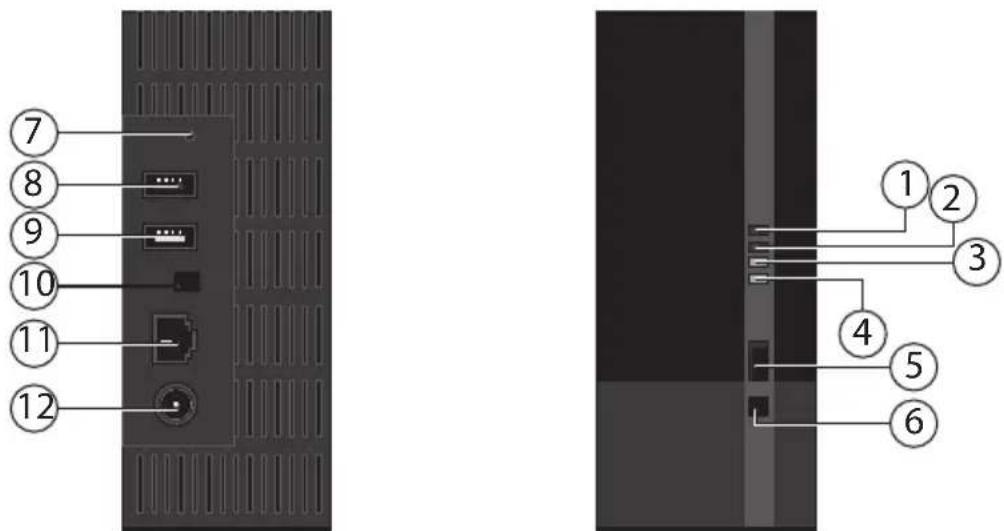
1) LED 1 (BLUE/RED): Power indicator hard drive (lights up blue when switched on, lights up red in the event of a hardware failure)
2) LED 3 (BLUE/RED): Power indicator (lights up blue when switched on, flashes blue during system boot, lights up red in the event of a hardware failure)
3) LED (GREEN): LAN display (lights up when a network connection is established, flashes during data transfer)
4) LED (ORANGE): OTC display for the front USB port (lights up when a data carrier is detected on the front USB port, flashes during transfer of data between the LifeCloud system and the USB data carrier
5) USB: USB port (USB 3.0) for using the one-touch copy function
6) OTC: One-touch copy button
7) RESET: RESET button
8) USB: USB port (USB 3.0)
9) USB: USB port (USB 2.0)
10) On/off switch
11) RJ45: LAN port for network cable
12) DC: Mains adapter input

NOTE!
LED 1 lights up red before the hard disk configuration process has been carried out.
7. About the LifeCloud
In the basic version, you can create up to five user accounts on your LifeCloud.
If you have a premium account on www.lifecloudmedion.com, you can set up unlimited user accounts and also upgrade the LifeCloud with a torrent client and a USB backup solution.
8. Start of operation
8.1. Connecting to a network
natural_image
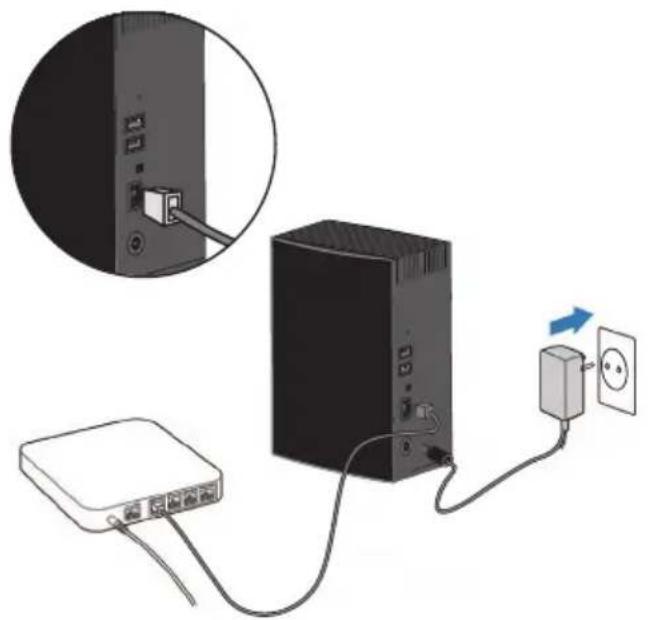
Diagram showing a server connected to a tower via cable, with an inset magnified view of the device's internal components (no text or symbols present)Connect the RJ45 socket (Ethernet/LAN) on the LifeCloud system to a network interface (e.g. a router) by attaching a network cable to a vacant network port.
Ensure that DHCP is activated on the router as the LifeCloud system is set up as a DHCP client.
▶ Attach the barrel jack of the mains adapter to the DC IN socket on the LifeCloud system and then connect the mains adapter to a wall outlet.
▶ Ensure that the computer that you want to use to configure the LifeCloud system is in the same network.
Ports for USB devices
▶ You can connect external USB drives to the USB ports or a USB printer which will be available to all the users in the local network. The USB port on the front of the server can also be used for the one-touch copy function.

NOTE!
Before using the one-touch copy function, please read the relevant instructions in "Copying files with the OTC button" on page 112
9. Switching the system on or off
To switch the LifeCloud system on, press the on/off button for about 3 seconds until you hear a short beep.
The operating system of the LifeCloud system will boot up. Afterwards, LED 3 lights up permanently blue.
10. Initial operation

NOTE!
Make sure that no devices are connected to the USB ports of the LifeCloud system before initial start-up.
Before you use the product for the first time, you are required to
enter a name for the LifeCloud system and to set up a user account via your browser (on your computer or smart device).
10.1. Setting up an account for the LifeCloud system
Follow these instructions to set up an account for access.
▶ Open the site www.lifecloudmedion.com in the web browser of your PC.
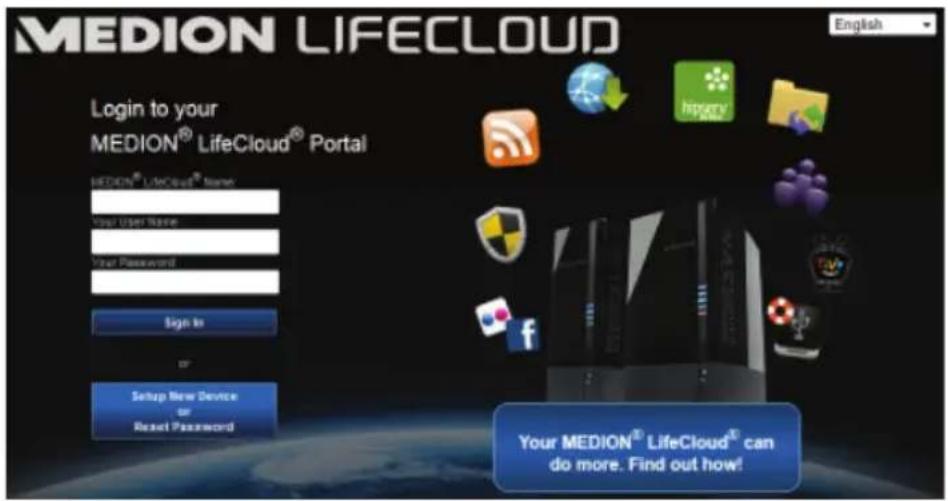
▶ Click on the entry Setup New Device.
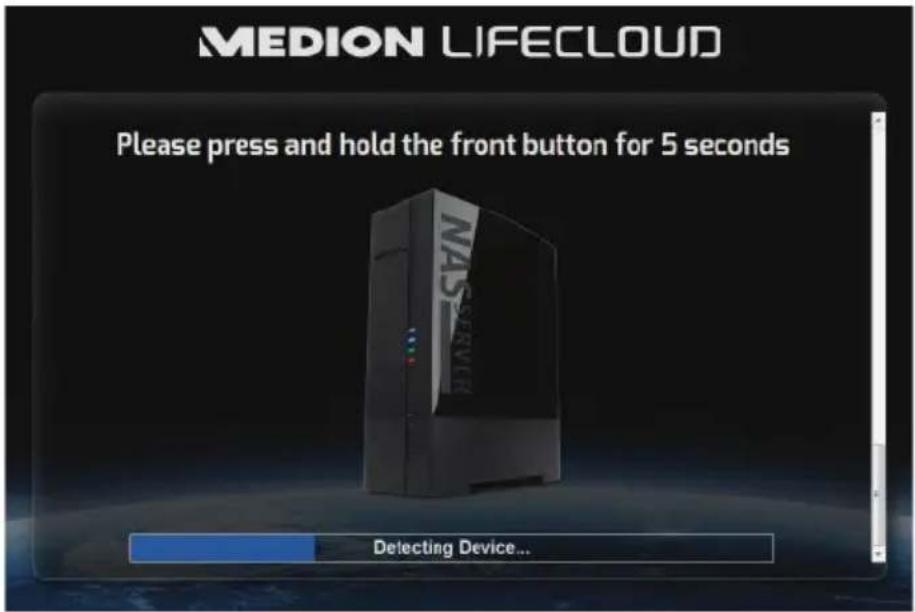
In the next window, you will be prompted to press the front button (OTC BUTTON) on the LifeCloud system for 5 seconds until you hear a beep. The blue bar must be displayed.
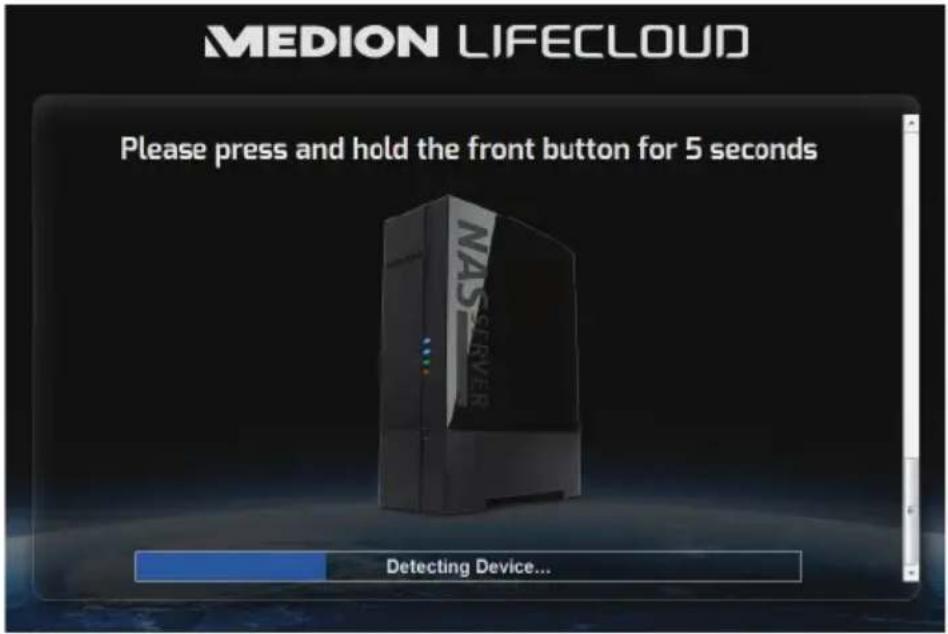
The LifeCloud server will now register your LifeCloud system. The progress will be displayed on a blue bar.
Then set up a user account by specifying a name for your LifeCloud system and a user name and password for LifeCloud access.
![MEDION LIFECLOUD Device Registration Enter a name for your Medion LifeCloud. Registration Device Name: [cloud] 11](/content/2026/05/804901/images/acb574b7e436d9dd5b3fa6d5d45b2ee67c2929bd788cbeb81dfa2e1b174eabee.jpg)
Tap the arrow pointing right.
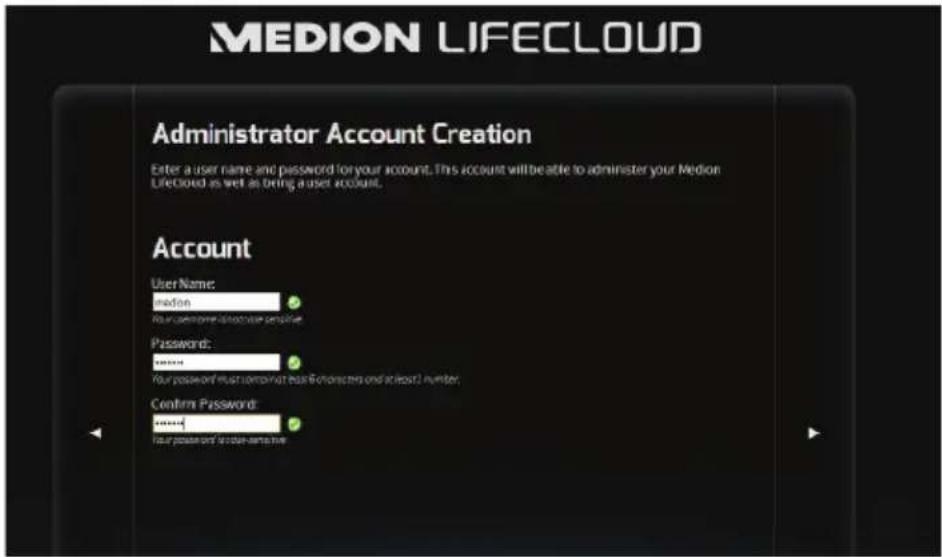

NOTE!
After registration, you can create up to 5 user accounts on the LifeCloud system. If you have a premium account on www.lifecloudmedion.com, you can open an unlimited number of user accounts on the LifeCloud system.
Using the QR code (also shown in the web browser) you can download the app for your mobile device (tablet PC/smartphone).
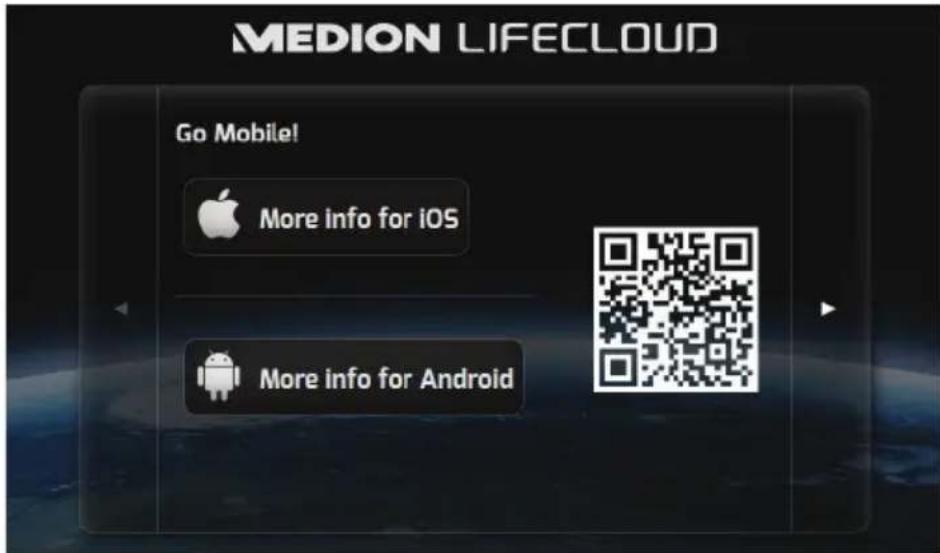
Open the QR code link to install the app on your tablet PC/smartphone (see "18. Using the LifeCloud app on smart devices" on page 130 on how to use the app).
▶ Click on the arrow pointing right.
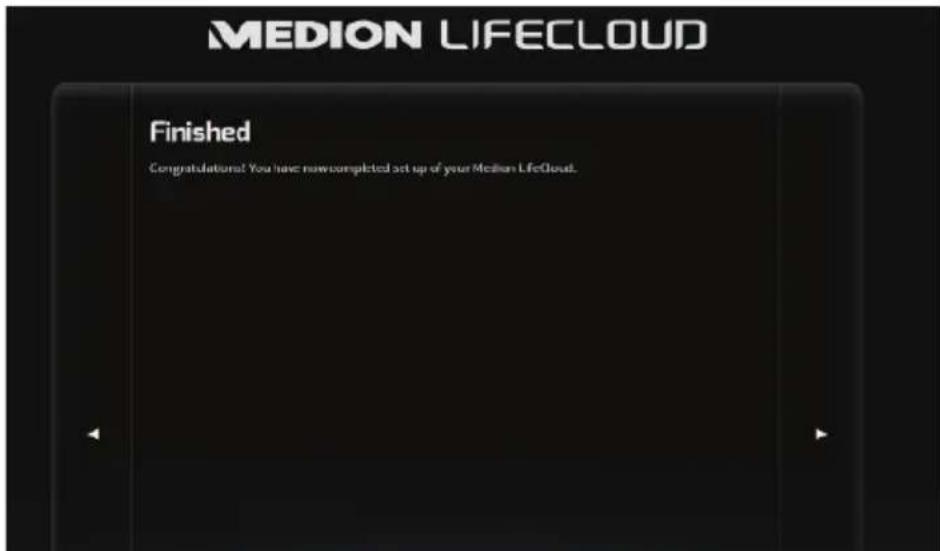
▶ Finish the set-up process by pressing the right arrow.
The web interface of the LifeCloud system will now be displayed (see "14. The web interface" on page 118 for more information).
11. Copying files with the OTC button
Connect a USB data carrier, which you want to use to copy data between the LifeCloud system and the USB data carrier, to the USB port on the front side of the LifeCloud system.
▶ Wait until the OTC indicator lights up orange and the LifeCloud system has detected the USB data carrier.
You can now perform the following functions with the OTC button:
▶ Press the OTC button once briefly to copy the files from the USB data carrier into the directory /OurFolders/USB-Downloads/[DATE] [TIME] on the LifeCloud system.
The OTC indicator flashes orange during the copying process.
As soon as the copying process has finished, the OTC indicator lights up permanently orange.
12. RESET button
You can use RESET button on the back of the LifeCloud system if you need to reset the LifeCloud system.
You can push the RESET button with a pointed object (such as a paper clip).
12.1. Reset password
If you forget your password, you can use the RESET button to reset the password.
Press and hold the RESET button for about 3 seconds and release the button as soon as you hear a short beep.
▶ Open the site www.lifecloudmedion.com in the web browser of your PC.
Click on the entry Setup New Device or Reset Password.
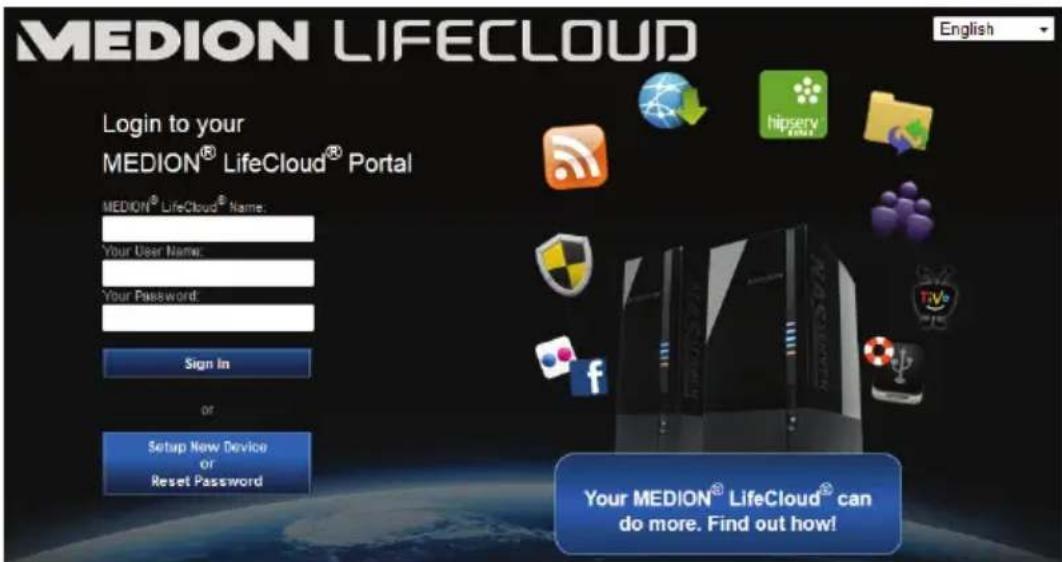
In the next window, you will be prompted to press the front button (OTC BUTTON) on the LifeCloud system for 5 seconds until you hear a beep.
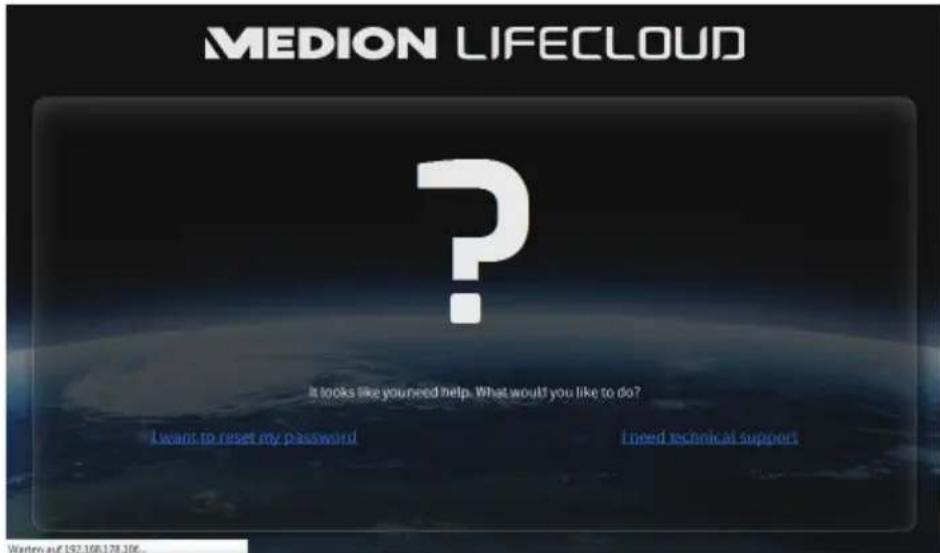
The LifeCloud web interface has now detected that the RESET button on the system has been pressed and the following dialogue box will appear.
▶ Select the entry I want to reset my password and follow the instructions.
▶ Select the appropriate user account and assign a new password.
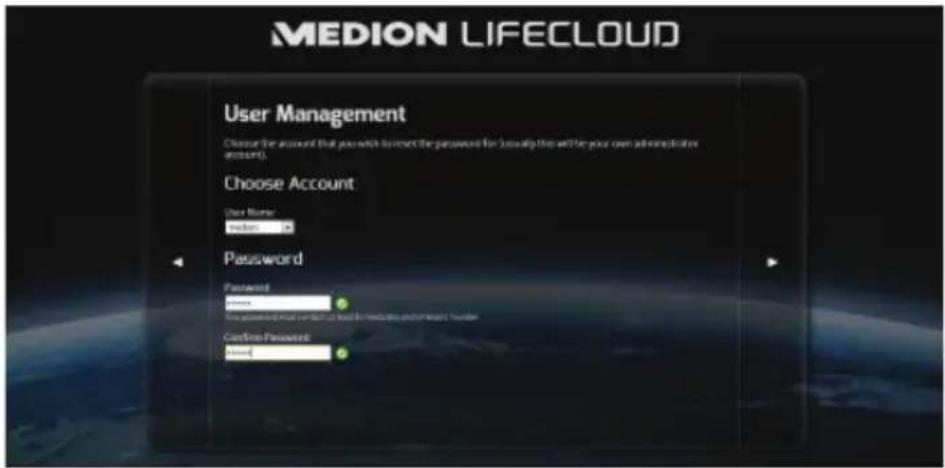
▶ Afterwards, click the right arrow to finish the reset process.
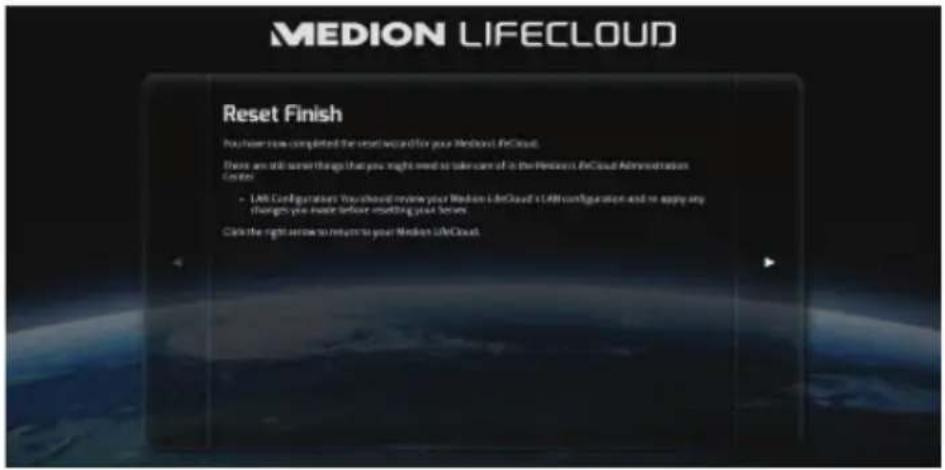
12.2. Resetting to the system to the default settings
It may be necessary to restore the default settings of the LifeCloud system if it fails to react correctly or if you no longer have access to the system.
To reset the system, hold down the RESET button for approximately 30 seconds. You will hear a short beep after 3 seconds and a long beep after 30 seconds.
Now release the RESET button. The system will be reset to the default settings and will then reboot. You can now perform the initial start-up again.
13. Using the LifeCloud agent
13.1. Installing the LifeCloud agent
- You can log on to the LifeCloud system on your computer in the local network via the LifeCloud agent. This allows you to access the web interface as well as the network folders of the LifeCloud system.
How to install the LifeCloud agent:
- Insert the software CD supplied with the system into the disk drive of your computer and open the Autorun.exe file.
- Follow the instructions in the installation wizard.
- If you want to use the backup software Memeo Instant Backup, you can also install it in the next step ("Using Memeo Backup" on page 133).
After the installation, you can open the LifeCloud agent via the icon in the system:


NOTE!
The LifeCloud system will not be detected in the network until all the steps for initial start-up have been carried out, as instructed in “10. Initial operation” on page 108.
13.2. Using the LifeCloud desktop
- You can see the login status in the top entry in the menu. If the status is "Not logged in", you will need to enter the name of your LifeCloud system and a user name and password in order to log on and access the LifeCloud system on the local network.
- Click on the entry Sign in....
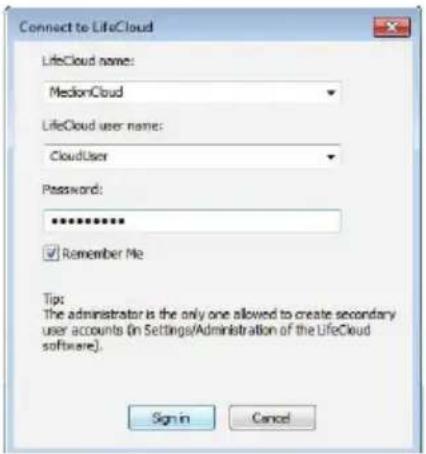
After logging on, you can use the following functions of the LifeCloud agent:
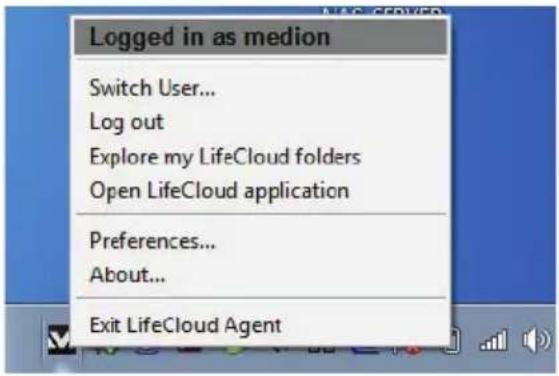
Change user
Here you can log on to the LifeCloud system with a different user name.
Log out
Here you can log the LifeCloud agent off from the LifeCloud system, in order, for example, to log onto another LifeCloud.
Explore my LifeCloud folders
Use this entry to call up the Windows Explorer or Mac Finder to open the folders on the LifeCloud system as network shares.
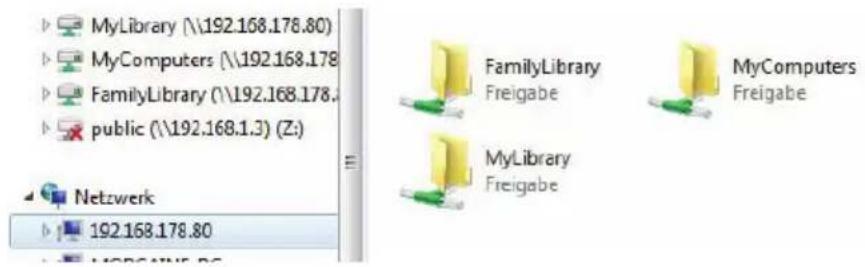
DE
NL
EN
GPL
Open Lifecloud application
Use this entry to open the web interface in your computer's default browser.
Preferences
Here you can search for available software updates for the LifeCloud agent and display the IP address of the LifeCloud system.
Wake up using "Wake On LAN"
Here you can activate or deactivate the wake on LAN (WOL) function of the LifeCloud system (see "Wake ON LAN" on page 127).
About...
Here you will find the manufacturer and licensing information for the LifeCloud agent.
Exit LifeCloud Agent
Use this entry to close the LifeCloud agent.
14. The web interface
The web interface is an HTML-based user interface of the LifeCloud system which you can access via your web browser.
- You will need at least Internet Explorer 6.0 or Mozilla Firefox 2.00 or newer versions of these browsers.
- The screen resolution should be 1024 x 768 pixels or higher.
- The latest Java and Flash plug-ins must be enabled in the browser.
- Pop-ups must be allowed in the web browser and the Windows pop-up blocker turned off.
14.1. Opening the web interface
- Open your default web browser and enter the IP address displayed in the Medion LifeCloud agent in the address bar of your web browser
or
- Enter "http://www.lifecloudmedion.com" in the address bar of the web browser
or
- Click with the right mouse button on the Medion LifeCloud agent icon and then select the entry Navigate to LifeCloud (www).
14.2. Features and settings of the web interface
The standard web browser will open and the login page will appear. The start page (Home) will be initially displayed for all users (including the administrator) after logging in.
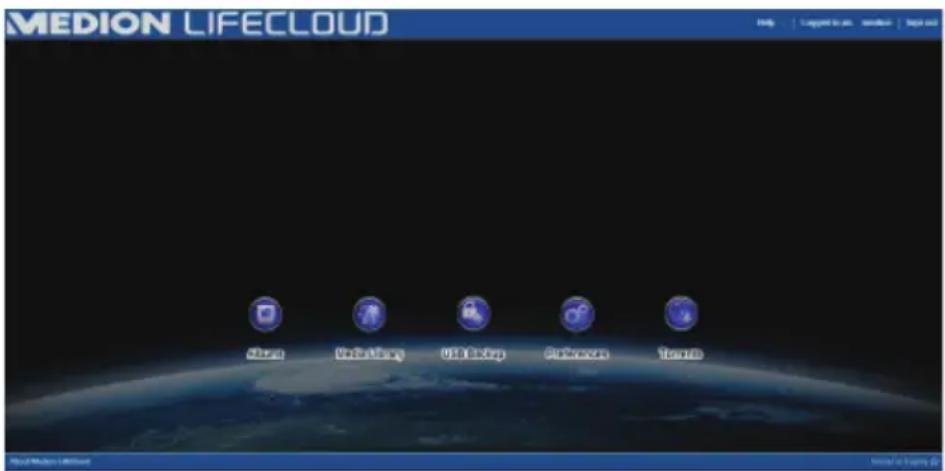
The various menus and functions are explained in the following sections.
15. Media library
You can manage the media files stored on the LifeCloud system in the media library.
You can use the top menu bar to sort or customise the file view or search for files.
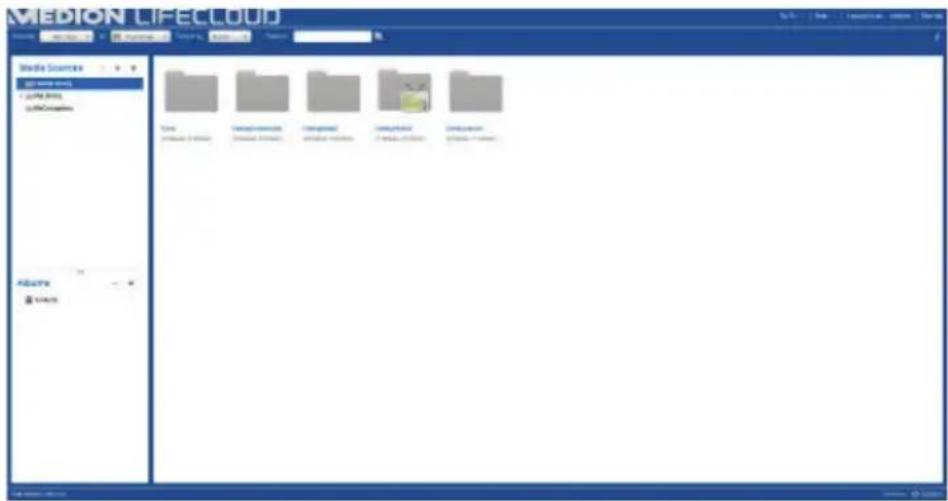
The pre-installed root directories Family Library and My Library cannot be deleted but their subdirectories can.
If there are data media connected to the rear USB ports, these will also appear in the library.
15.1. My Library/Family Library
Our Folders
The folders and content in Family Library can be displayed and edited by any user who is logged in to the LifeCloud.

NOTE!
You can enable or disable user access to
Family Library via the settings.
My Folders
The folders and content located here can only be viewed and edited by the LifeCloud user who is currently logged in.
15.2. New folder/delete folder
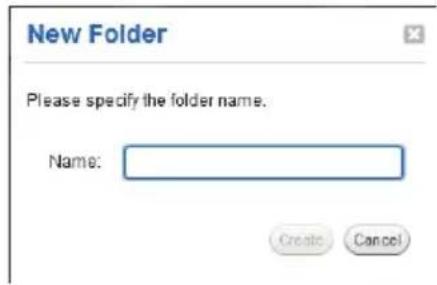
▶ Select the folder/root directory in which you want to open a new folder.
Click on the plus sign at the top of the folder view and then enter a name for the new subdirectory. Confirm your selection by pressing Create.
To delete a folder, select the folder and then select the minus sign at the top of the folder view. Confirm your selection by pressing Yes.
15.3. Context menu for opening folders and fi les
▶ Move the mouse pointer over a folder/file and click on the arrow next to the folder/file name to open the context menu:
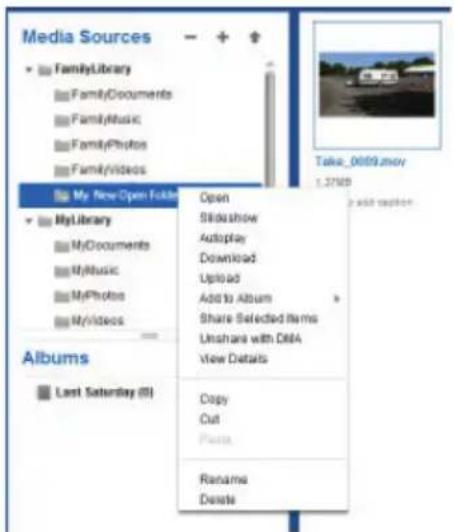
▶ Click on Open to see the contents of the folder in the right-hand window or to play a media file.
Automatic playback of media content (only for folders)
Click on Slideshow to start a slide show of all the images in this folder.
Click oAutoplay to play back all the audio files in this folder with the music player.
Download
Click on Download to download the folder onto your device as a .zip file.
Upload (only for folders)
Click on Upload to open the window to upload files. Here you can upload files into Upload current folder via the file path or via the Drag und Drop function (see "15.5. Uploading files to the LifeCloud system" on page 123).
Add to album
Select an album here or create a new album to which you would like to add this folder (see also "16. Albums" on page 124).
Share selected items
Here you can create an album for this folder to share it via direct link on the network (see also "16. Albums" on page 124).
Share with DMA
▶ Click on Share with DMA to share the media content of this folder via the digital media adapter (DMA) of the LifeCloud system with UPnP-enabled media players in the network.
Shared media files are displayed with a TV icon above the folder icon.
To cancel the media sharing facility for this folder, click on Unshare with DMA.
View details
▶ Click on this entry to display the folder/file properties.
- You can change file names, file tags (audio/video files) under the folder/file properties.
- Click on the "Info" button in the top right-hand corner to hide the folder/file properties again.
Copy/cut/paste/rename/delete
You can use these functions to manage folders and files as you would on your computer.
15.4. Albums
Here you can create new albums or delete albums and also view the contents of an album.
Creating a new album
▶ Click on the + symbol next to the item Albums.
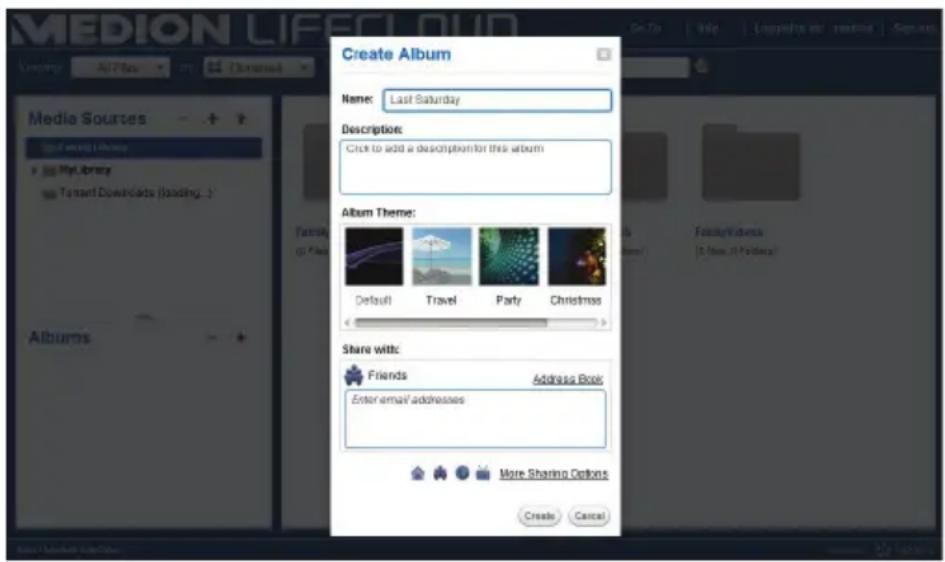
▶ Enter a name and description for the album.
▶ Select a theme to be displayed as the background when viewing the album.
The default share type is shown below (friends). Click on More Sharing Options to select a different type of sharing.
Then click on Create to create the album.
Deleting an album
▶ Select the album that you want to delete and click on the - symbol.
▶ Confirm the following query by pressing Yes.
15.5. Uploading fi les to the LifeCloud system
Proceed as follows to upload files to the LifeCloud system:
▶ Click on a folder in the media library into which you want to upload the files.
▶ Select Upload in the context menu of the folder or click the ↑ arrow at the top of the folder view.
The upload window will open.
- In the Manual Upload view, click on Add File and then select a file from your computer that you want to add the upload list.
- In the Drag und Drop view you can use the mouse to drag a file from your computer and drop it into the white box at the bottom of the upload window in order to add it to the upload list.

NOTE!
The latest version of JavaScript must be enabled in your browser to use the drag and drop function to upload files.
▶ Use one of the two methods described to add files the upload list and then click Upload to upload the files into the previously selected folder.
15.6. Entries in the media fi le context menu
Additional entries appear in the context menu for media files, such as photo, audio and video files.
Photo files
View, opens the photo directly in the Photo Viewer. You can also rotate the image Rotate Clockwise or Rotate Counterclockwise or set it as the Use as Home Background for the start page.
Audio files
The play option opens the audio file directly in the music player.
Video files
The play option opens the video file directly in the video player.
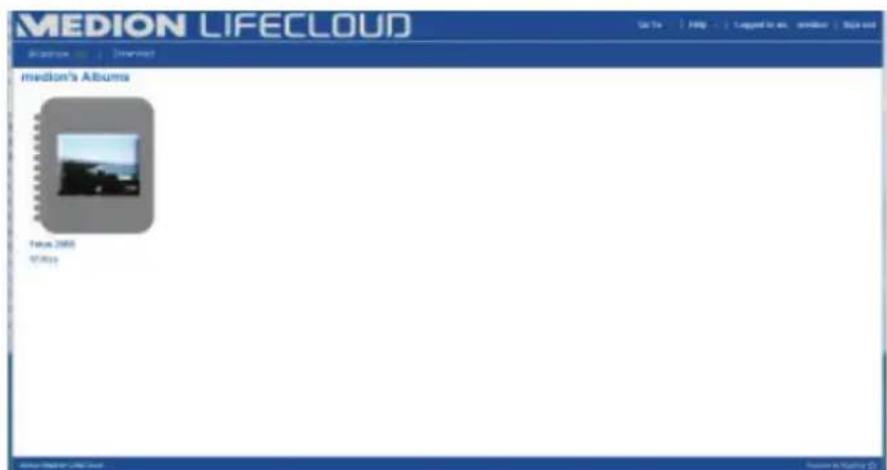
16. Albums
Here you will see the albums you have created in the media library.
The albums list contain links to files which you highlighted in the media library and added to an album.
• Albums can also be shared with users outside the LifeCloud by sending them a link to the album. This link can be permanent or temporary.
- You can create new albums in the media library.
17. Settings
You can enter all the settings for the LifeCloud system on this screen. If you are logged onto the LifeCloud system as an administrator, you can access all the system settings. As a normal user, you can only configure the user settings:
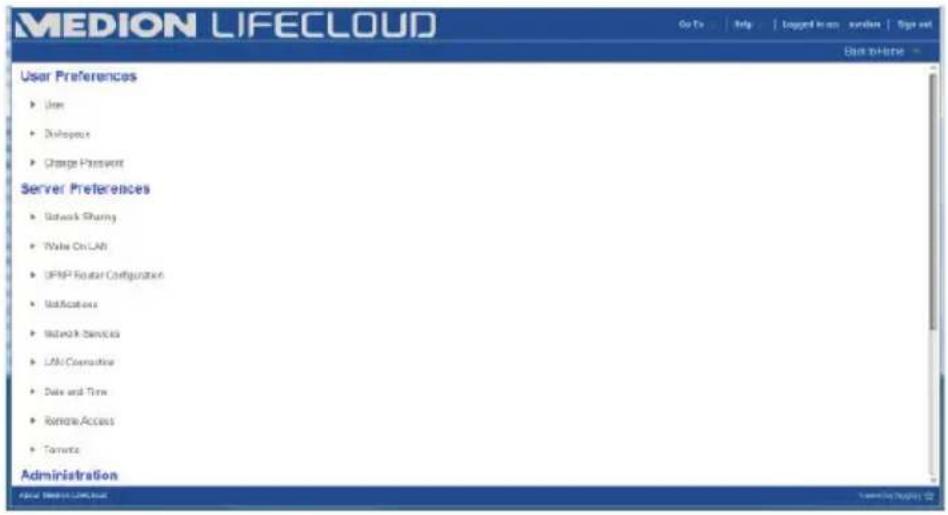
17.1. User settings
User
You can customise the profile and the configuration for the current user in the user menu.
Language
Enter the language in which the menus will be displayed in the LifeCloud system.
Your email
Enter an email address here that is to be used to send the user notifications from the LifeCloud system.
Home Background Position
You can use images that are stored in the media library on the LifeCloud system as wallpaper.
Here you can set how the start wallpaper is to be displayed.
Clear Home Background
Here you can delete the current wallpaper and reset it to the default wallpaper.
What to do when a file already exists
Here you can set the desired response of the LifeCloud system on uploading files that already exist on the server.
What to do when adding files to albums
- Ask each time
- Include subfolders
- Don't include subfolders
Share new albums with other family accounts by default
If you set this function to YES, all new albums will be shared with family accounts by default.
Share new albums with media players by default
If you set this function to YES, all new albums will be shared with the media player by default.
Hide help tips
If you set this function to YES, tips will no longer be displayed after logging on to the LifeCloud.
Resume Audio Playback
If you set this function to YES, playback will be resumed at the same point the next time you open a previously played media file.
Reset all «Do not show again» prompts
Here you can see all the checkboxes in which you have previously selected "Do not show again".
Diskspace
Here you can see the available and used disk space.
Change password
To change the current password, enter a new password here and confirm by clicking Submit.
17.2. Server Preferences
Network Sharing
Enter the name of your Windows homegroup here and set the function to Yes to make your files and folders available to the homegroup
Wake ON LAN
Set this function to Yes so that network devices can switch on ("wake") the LifeCloud system when it is in sleep mode.
UPNP Router Configuration
Set the "Configure router via UPNP" function to Yes so that the LifeCloud system can configure the port sharing function on your router.
In the next field, you can specify whether the LifeCloud system can overwrite the current configuration of your router.
Notification
Here you can enter the email address which is to be used for system notifications. Separate multiple email addresses with commas.
System notifications are sent when there is a problem with the hard drive or if the hard drive is full.
Network Services
Here you can set up FTP access to the LifeCloud system.
▶ Set the function for the local network and/or the internet to Yes to enable FTP access to the folders on the LifeCloud system.
LAN Connection
Here you can connect the LifeCloud system to a LAN network via DHCP or assign it a fixed IP address.
▶ Set the function "Optain IP address automatically" to Yes so that IP addresses can be obtained automatically from the DHCP server of the router.
If you want to configure the IP address manually, set the function to No and then enter the IP address, subnet mask, gateway and DNS server manually.
Date and Time
The LifeCloud system can update the date and time settings via a time server on the internet or you can set the time and date yourself.
If you select Yes to set the date and time from the internet, you must then enter a standard NTP server (Network Time Protocol) via which the settings can be obtained.
Remote Access
Here you can activate or deactivate remote access to the LifeCloud system via the internet.
17.3. Administration
Add new user
To add a new user to the system, enter the user name in the field Account User Name.
User names must begin with a letter and contain at least three characters. They are not case-sensitive. You cannot add two users with the same user name.
▶ Enter a display name for the user. This name can be different from the user name for the account.
▶ Enter a password and confirm.
The password must be at least six characters long and contain a digit. Passwords are case-sensitive.
▶ Select Create as Administrator to provide the new user with administrator rights.
▶ Select Let user access family folder to allow the new user access to the files and folders in the root directory FamilyFolder.
Edit User
Select an existing user whose name, password or rights you want to change.
Shut down
Here you can select Shut down or Restart to shut down or restart the Life-Cloud system.
Software Updates
Here you can check if new updates are available via the internet.
Medion LifeCloud Pro
Here you can purchase a subscription to a Medion LifeCloud Pro account or view your status with reference to a Medion LifeCloud Pro account.
Disk Management
Here you can see the status of the disk configuration.
To format the hard drive so that you can subsequently reinstall it, select the entry Format.
External Storage
Here you can see the status of any external storage medium that is connected to the USB port of the LifeCloud system.
Power Timer
- Here you can activate and set the power timer function. When the power timer is activated, the LifeCloud system switches itself on and off automatically according to a preset schedule. Please note that if you set a switch-off time for the system, data transfer processes may be interrupted and pending backups may not be carried out.
- Network devices can switch the LifeCloud system back on if the WOL (Wake On LAN) feature has been enabled (see "Wake ON LAN" on page 127).

NOTE!
The earliest possible time for the automatic shut-off is around 5 minutes from the time when you make this setting.
18. Using the LifeCloud app on smart devices
▶ Download the LifeCloud app for smart devices via the link provided on the cover and install the app.
▶ After successful installation, tap on the icon of the LifeCloud app on your mobile smart device.
The LifeCloud app will start up (the Android app is shown in this example).
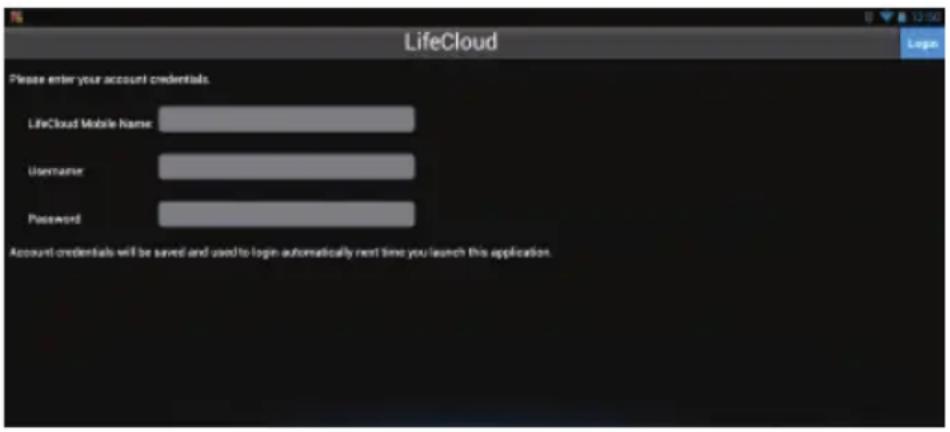
▶ Enter the name of your LifeCloud as well as the relevant user name and password to register the app on the LifeCloud.
You can now access your LifeCloud or your LifeCloud system via the app on your mobile device from anywhere via the internet.
18.1. Main menu
You can access albums or the media library of the LifeCloud system on the start screen of the LifeCloud app.
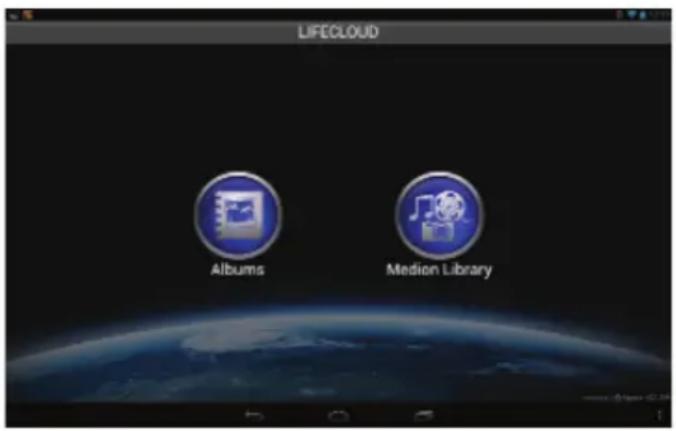
Tap on an icon to call up the corresponding menu.
18.2. Media library view
In the main menu, click on Medion Library to display the LifeCloud media library.
In the media library, the public and private folders will be displayed.
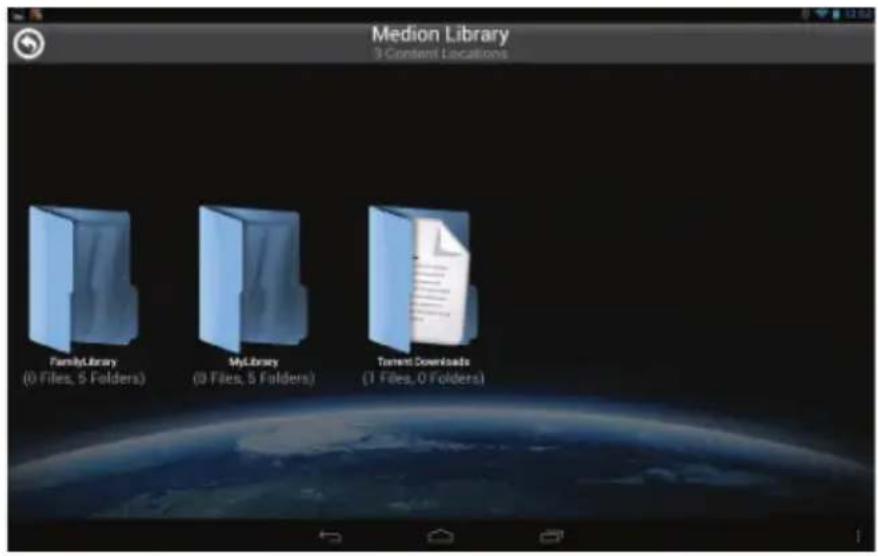
▶ Open one of the root directories FamilyLibrary or MyLibrary.
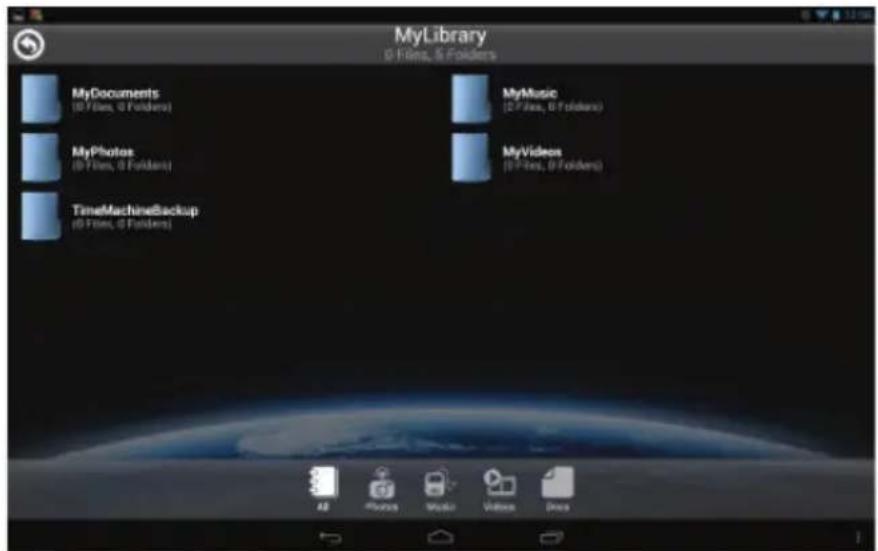
You can customise the view of the folder contents via the menu icons at the bottom edge of the screen.
Tap on the ≡ button at the bottom of the screen to display the menu bar.

You can search for files, refresh the view, create folders, upload files to the current folder or log off from the LifeCloud.
18.3. Album view
In the main menu, click on Albums to display the albums on the LifeCloud.
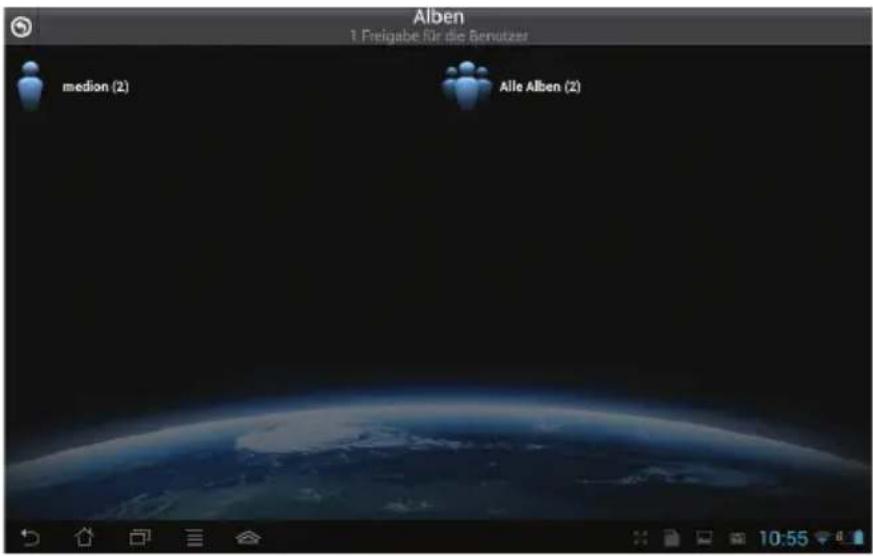
You can customise the view of the folder contents via the menu icons at the bottom edge of the screen.
Tap on the ≡ button at the bottom of the screen to display the menu bar.
You can search for files, refresh the view or log off from the LifeCloud.
19. Using Memeo Backup
You will find the backup software Memeo Instant Backup on the software CD supplied with the product. You can install this when installing the LifeCloud agent ("Using the LifeCloud agent" on page 115).
How to set up the backup function with Memeo Instant Backup on your Life-Cloud system:
Creating a network drive for data backup
Connect to the LifeCloud system via the LifeCloud agent on your PC as described in "Explore my LifeCloud folders" on page 116.
Click on the icon "network drive(s)".
To back up data in a public folder, log in with the appropriate user account.
▶ Select a drive letter (e.g. "Z:").
▶ Select the folder in which the backup copies of the data are to be stored (e.g. "Z:").
▶ Check the box "Restore Connection at Windows logon".
Backing up data with Memeo Backup
▶ Start Memeo Instant Backup by clicking on the "Memeo Backup" icon on the desktop.
In the "Help" menu, click on the entry "Register" and enter the product key which is located on the sleeve of the software CD supplied with the product.
Skip the start page by clicking on "No Thanks, I want to start a Backup now".
Now select the network drive you have just created as the target for the data backup (in the example above: (Z:))
Click on "Start Backup".
Now all the files from the C: drive of your computer will be backed up on the LifeCloud system. The following folders on the C: drive will not be backed up:
• The folder "Program Files"
- Temporary files and log files as well as virtual disk files
- The "Windows" folder.

NOTE!
For more information on Memeo Instant Backup, call up the item "Getting Started Guide" in the "Help" menu.
20. Run LifeCloudDetect
You can search for the LifeCloud system in the network by executing the medionlifeclouddetect.exe file which is located in the util folder on the software CD supplied with the product.
▶ After running the file, a window will appear in which you will be prompted to press the front button on the device so that the LifeCloud system can be found on the network.
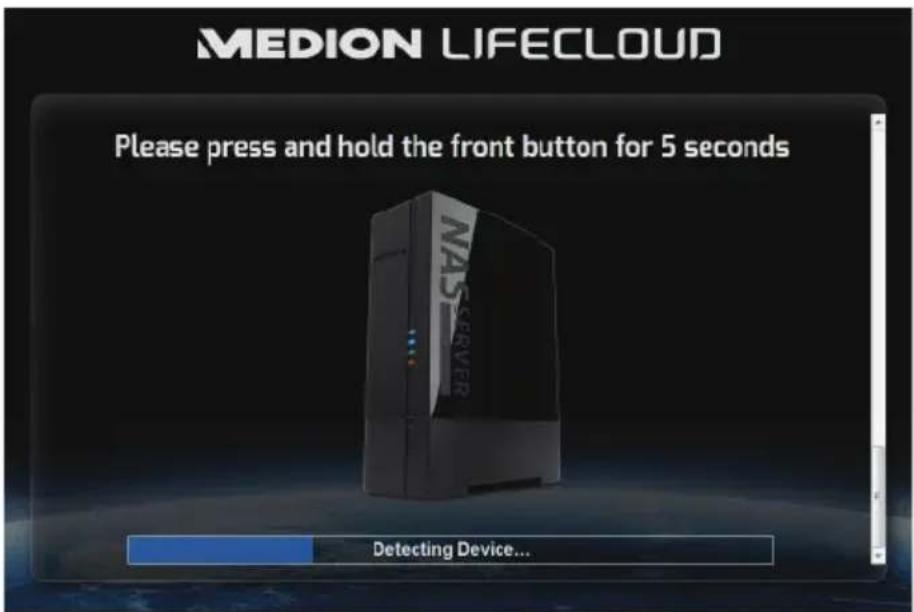
20.1. Do you need more help?
If the above suggestions did not solve a specific problem, please contact us. The following information would help us:
• What external devices are connected?
• What messages appear on the screen?
- When operating the product, at which step did the problem occur?
• How is your computer configured?
• What software were you using when the problem occurred?
• What steps have you already taken to try and rectify the problem?
- Please provide your customer number if you have one.
21. Cleaning
Follow the instructions below to increase the service life of the product:
- Always unplug the mains adapter and disconnect all the cables before cleaning the product.
- Do not use solvents, corrosive agents or aerosol-based detergents to clean the product.
- Clean the product with a soft, lint-free cloth.
Please keep the packaging and do not use anything other than this packaging to transport the product.

ATTENTION!
None of the parts inside the device require cleaning or maintenance.
22. Disposal

Packaging
The product is packaged to protect it from damage in transit. Packaging materials are raw materials and can therefore be reused or recycled.

Hardware
Do not under any circumstances dispose of the product with the household rubbish at the end of its service life. Please consult your local authority for advice on correct and eco-friendly methods of disposal.
23. Technical data
Power supply mains adapter Ktec Ktec KSASB0241200150HE
Input (primary):
100-240 V \~ 50/60 Hz, 0.6 A
Output (secondary):
12 V ---
Connections
3 USB ports (front/rear): 2x USB 3.0 (blue), 1x USB 2.0 (white)
LAN port: RJ45
(Ethernet 10/100 MBit & Gigabit)
Network adaptor input: 12 V 1.5 A
-
Hard drives
Interfaces: SATA
Capacity: 3 TB (corresponds to 3000 GB*)
General data
Dimensions (approx.): 65 x 195 x 135 mm (W x H x D)
Total weight (approx.) 1.25 kg
Operating temperature 5°C to 35°C
Humidity during operation 5% to 65%
*1 GB is equal to 1 billion bytes. The available memory capacity may vary.
CE
24. Glossary
BitTorrent
See Torrent.
CIFS – Common Internet File System
The recommended data sharing protocol for the Windows platform in which users can access shares over the network. Mac OS X and newer versions also support the CIFS protocol. See also Protocol.
DHCP – Dynamic Host Configuration Protocol
A protocol to assign an IP address to devices in the network. Dynamic addresses allow a device to have a different IP address each time it connects to a network. In some systems, the IP address changes automatically while the device is connected. DHCP also supports a combination of static and dynamic IP addresses. See also Protocol.
DLNA – Digital Living Network Alliance
The group of companies in the consumer electronics and computer industry as well as mobile device manufacturers who define standards for product compatibility and thus enable users to share contents at home.
DMA – Digital media adapter
A device that allows home entertainment devices to transfer media, such as music, photos and videos, to and from other devices over a network.
DNS – Domain Name Service
A system used by a network name server to translate text host names into numerical IP addresses in order to uniquely identify a device connected to the internet.
Ethernet
A standard method for connecting a computer to a local network (LAN).
FTP – File Transfer Protocol
A network protocol for transferring files from one computer to another via a network. FTP is frequently used to exchange files regardless of the operating system used.
Host
The computer via which the other computers and peripherals are connected.
Host adapter
A plug-in card that functions as the interface between the system bus of the
computer and the hard drive.
Host interface
The point at which a host and a drive are connected to each other.
Host transfer rate
The speed at which a host computer can transfer data via an interface.
HTTP – HyperText Transfer Protocol
The protocol used by the World Wide Web to transfer information between servers and browsers. See also Protocol.
IP – Internet Protocol
A system that controls how data messages are split into packets, transferred from the sender to the recipient, and reassembled at their destination. See also Protocol.
IP address
A binary 32-bit number that uniquely identifies any computer connected to the internet.
iTunes
An audio playback program that is used for importing songs and other media files from your hard drive.
LAN – Local Area Network
A system in which computer users are connected within a company or an organisation and are often also connected to central data collections stored on LAN servers.
Media server
A device which stores and releases media files (digital audio, video and photo files).
Media storage device
A device which stores media files (digital audio, video and photo files).
NAS
Network-attached storage – a hard disk storage device which is set up with its own network address instead of being connected to the computer and which is used by workstation users in the network.
Operating system
Software with which the user and the other software installed on the system can communicate with the computer hardware and the hard drive.
Partition
A logical area of a hard drive which the operating system treats as a separate hard drive. Each partition is assigned a unique drive letter. Partitions which are connected as fixed drives are also known as "volumes".
Peer
See Torrent.
Port (hardware)
A special output on a device to connect with other devices by means of a cable or connector. Examples include Ethernet ports, power connections and USB ports.
Protocol
A convention for data transmission which determines the run-time performance, control format and data markers.
Share
An area, similar to a folder or directory, which has been set up to organise files and access them from the network. Shares can be “public”, i.e. available to everyone on the network, or “private”, i.e. only accessible to selected users on your network.
Seeder
See Torrent.
Streaming
Media, such as audio, video and photos, which can be continuously received at the same time as being delivered by a streaming supplier.
TCP/IP
Transmission Control Protocol/Internet protocol – a series of protocols used for communication via connected networks. The standard for data transmission via networks. See also Protocol.
Torrent
BitTorrent (bit: smallest data unit, torrent: fast-moving stream of water, from the Latin torrens) is a file-sharing protocol which is particularly suitable for rapid distribution of large amounts of data. Torrents are usually a few dozen kilobytes in size and are available for download on the provider's website or on index sites.
The initial seeder peer provides the link to the file which will be offered as a torrent and keeps this available to other peers.
The client software receives a list of remote stations from the tracker which have all or some of the data or are interested. As soon as one peer has a segment of a file and the checksum has been verified, this is reported to the tracker and this piece of data can now be passed on to the other peers.
The group of peers who are interested in the same torrent is known as the swarm. Peers who are in possession of the complete file and are therefore no longer downloading from other clients but only distributing data are known as seeders. Peers who do not yet have the entire torrent content and are still downloading segments are usually called leechers.
UPnP
Universal Plug and Play – a series of computer network protocols which simplify the implementation of networks at home by device-to-device connection. See also Protocol.
Volume
See Partition
25. Legal notice
Copyright © 2014
All rights reserved.
This operating manual is protected by copyright.
Mechanical, electronic and any other form of reproduction is prohibited without the written permission of the manufacturer
Copyright is owned by the company:
Medion AG
Am Zehnthof 77
45307 Essen
Germany
The operating manual can be reordered via the service hotline and is available for download via the service portal at www.medion.com/gb/service/start/.
You can also scan the QR code above and download the operating manual onto your mobile device via the service portal.
Lizenzinformation

HINWEIS!
I. GNU General Public Licence
Version 2, June 1991
Copyright (C) 1989,
1991 Free Software Foundation, Inc.
51 Franklin Street, Fifth Floor, Boston,
MA 02110-1301, USA
Everyone is permitted to copy and distribute verbatim copies
of this license document, but changing it is not allowed.
Preamble
The licenses for most software are designed to take away your freedom to share and change it. By contrast, the GNU General Public License is intended to guarantee your freedom to share and change free software--to make sure the software is free for all its users. This General Public License applies to most of the Free Software Foundation's software and to any other program whose authors commit to using it. (Some other Free Software Foundation software is covered by the GNU Lesser General Public License instead.) You can apply it to your programs, too.
When we speak of free software, we are referring to freedom, not price. Our General Public Licenses are designed to make sure that you have the freedom to distribute copies of free software (and charge for this service if you wish), that you receive source code or can get it if you want it, that you can change the software or use pieces of it in new free programs; and that you know you can do these things.
To protect your rights, we need to make restrictions that forbid anyone to deny you these rights or to ask you to surrender the rights. These restrictions translate to certain responsibilities for you if you distribute copies of the software, or if you modify it.
For example, if you distribute copies of such a program, whether gratis or for a fee, you must give the recipients all the rights that you have. You must make sure that they, too, receive or can get the source code. And you must show them these terms so they know their rights.
We protect your rights with two steps: (1) copyright the software, and (2) offer you this license which gives you legal permission to copy, distribute and/or modify the software.
Also, for each author's protection and ours, we want to make certain that everyone understands that there is no warranty for this free software. If the software is modified by someone else and passed on, we want its recipients to know that what they have is not the original, so that any problems introduced by others will not reflect on the original authors' reputations.
Finally, any free program is threatened constantly by software patents. We wish to avoid the danger that redistributors of a free program will individually obtain patent licenses, in effect making the program proprietary. To prevent this, we have made it clear that any patent must be licensed for everyone's free use or not licensed at all.
The precise terms and conditions for copying, distribution and modification follow.
TERMS AND CONDITIONS FOR COPYING, DISTRIBUTION AND MODIFICATION
- This License applies to any program or other work which contains a notice placed by the copyright holder saying it may be distributed under the terms of this General Public License. The „Program“, below, refers to any such program or work, and a „work based on the Program“ means either the Program or any derivative work under copyright law: that is to say, a work containing the Program or a portion of it, either verbatim or with modifications and/or translated into another language. (Hereinafter, translation is included without limitation in the term „modification“.) Each licensee is addressed as „you“.
Activities other than copying, distribution and modification are not covered by this License; they are outside its scope. The act of running the Program is not restricted, and the output from the Program is covered only if its contents constitute a work based on the Program (independent of having been made by running the Program). Whether that is true depends on what the Program does.
- You may copy and distribute verbatim copies of the Program's source code as you receive it, in any medium, provided that you conspicuously and appropriately publish on each copy an appropriate copyright notice and disclaimer of warranty; keep intact all the notices that refer to this License and to the absence of any warranty; and give any other recipients of the Program a copy of this License along with the Program.
You may charge a fee for the physical act of transferring a copy, and you may at your option offer warranty protection in exchange for a fee.
- You may modify your copy or copies of the Program or any portion of it, thus forming a work based on the Program, and copy and distribute such modifications or work under the terms of Section 1 above, provided that you also meet all of these conditions:
a) You must cause the modified files to carry prominent notices stating that you changed the files and the date of any change.
b) You must cause any work that you distribute or publish, that in whole or in part contains or is derived from the Program or any part thereof, to be licensed as a whole at no charge to all third parties under the terms of this License.
c) If the modified program normally reads commands interactively when run, you must cause it, when started running for such interactive use in the most ordinary way, to print or display an announcement including an appropriate copyright notice and a notice that there is no warranty (or else, saying that you provide a warranty) and that users may redistribute the program under these conditions, and telling the user how to view a copy of this License. (Exception: if the Program itself is interactive but does not normally print such an announcement, your work based on the Program is not required to print an announcement.)
These requirements apply to the modified work as a whole. If identifiable sections of that work are not derived from the Program, and can be reasonably considered independent and separate works in themselves, then this License, and its terms, do not apply to those sections when you distribute them as separate works. But when you distribute the same sections as part of a whole which is a work based on the Program, the distribution of the whole must be on the terms of this License, whose permissions for other licensees extend to the entire whole, and thus to each and every part regardless of who wrote it.
Thus, it is not the intent of this section to claim rights or contest your rights to work written entirely by you; rather, the intent is to exercise the right to control the distribution of derivative or collective works based on the Program.
In addition, mere aggregation of another work not based on the Program with the Program (or with a work based on the Program) on a volume of a storage or distribution medium does not bring the other work under the scope of this License.
- You may copy and distribute the Program (or a work based on it, under Section 2) in object code or executable form under the terms of Sections 1 and 2 above provided that you also do one of the following:
a) Accompany it with the complete corresponding machine-readable source code, which must be distributed under the terms of Sections 1 and 2 above on a medium customarily used for software interchange; or,
b) Accompany it with a written offer, valid for at least three years, to give any third party, for a charge no more than your cost of physically performing source distribution, a complete machine-readable copy of the corresponding source code, to be distributed under the terms of Sections 1 and 2 above on a medium customarily used for software interchange; or,
c) Accompany it with the information you received as to the offer to distribute corresponding source code. (This alternative is allowed only for noncommercial distribution and only if you received the program in object code or executable form with such an offer, in accord with Subsection b above.)
The source code for a work means the preferred form of the work for making modifications to it. For an executable work, complete source code means all the source code for all modules it contains, plus any associated interface definition files, plus the scripts used to control compilation
and installation of the executable. However, as a special exception, the source code distributed need not include anything that is normally distributed (in either source or binary form) with the major components (compiler, kernel, and so on) of the operating system on which the executable runs, unless that component itself accompanies the executable.
If distribution of executable or object code is made by offering access to copy from a designated place, then offering equivalent access to copy the source code from the same place counts as distribution of the source code, even though third parties are not compelled to copy the source along with the object code.
- You may not copy, modify, sublicense, or distribute the Program except as expressly provided under this License. Any attempt otherwise to copy, modify, sublicense or distribute the Program is void, and will automatically terminate your rights under this License. However, parties who have received copies, or rights, from you under this License will not have their licenses terminated so long as such parties remain in full compliance.
- You are not required to accept this License, since you have not signed it. However, nothing else grants you permission to modify or distribute the Program or its derivative works. These actions are prohibited by law if you do not accept this License. Therefore, by modifying or distributing the Program (or any work based on the Program), you indicate your acceptance of this License to do so, and all its terms and conditions for copying, distributing or modifying the Program or works based on it.
- Each time you redistribute the Program (or any work based on the Program), the recipient automatically receives a license from the original licensor to copy, distribute or modify the Program subject to these terms and conditions. You may not impose any further restrictions on the recipients' exercise of the rights granted herein. You are not responsible for enforcing compliance by third parties to this License.
- If, as a consequence of a court judgment or allegation of patent infringement or for any other reason (not limited to patent issues), conditions are imposed on you (whether by court order, agreement or otherwise) that contradict the conditions of this License, they do not excuse you from the conditions of this License.
If you cannot distribute so as to satisfy simultaneously your obligations under this License and any other pertinent obligations, then as a consequence you may not distribute the Program at all. For example, if a patent license would not permit royalty-free redistribution of the Program by all those who receive copies directly or indirectly through you, then the only way you could satisfy both it and this License would be to refrain entirely from distribution of the Program.
If any portion of this section is held invalid or unenforceable under any particular circumstance, the balance of the section is intended to apply and the section as a whole is intended to apply in other circumstances.
It is not the purpose of this section to induce you to infringe any patents or other property right claims or to contest validity of any such claims; this section has the sole purpose of protecting the integrity of the free software distribution system, which is implemented by public license practices. Many people have made generous contributions to the wide range of software distributed through that system in reliance on consistent application of that system; it is up to the author/donor to decide if he or she is willing to distribute software through any other system and a licensee cannot impose that choice.
This section is intended to make thoroughly clear what is believed to be a consequence of the rest of this License.
- If the distribution and/or use of the Program is restricted in certain countries either by patents or by copyrighted interfaces, the original copyright holder who places the Program under this License may add an explicit geographical distribution limitation excluding those countries, so that distribution is permitted only in or among countries not thus excluded. In such case, this License incorporates the limitation as if written in the body of this License.
- The Free Software Foundation may publish revised and/or new versions of the General Public License from time to time. Such new versions will be similar in spirit to the present version, but
may differ in detail to address new problems or concerns.
Each version is given a distinguishing version number. If the Program specifies a version number of this License which applies to it and „any later version“, you have the option of following the terms and conditions either of that version or of any later version published by the Free Software Foundation. If the Program does not specify a version number of this License, you may choose any version ever published by the Free Software Foundation.
- If you wish to incorporate parts of the Program into other free programs whose distribution conditions are different, write to the author to ask for permission. For software which is copyrighted by the Free Software Foundation, write to the Free Software Foundation; we sometimes make exceptions for this. Our decision will be guided by the two goals of preserving the free status of all derivatives of our free software and of promoting the sharing and reuse of software generally.
NO WARRANTY
- BECAUSE THE PROGRAM IS LICENSED FREE OF CHARGE, THERE IS NO WARRANTY FOR THE PROGRAM, TO THE EXTENT PERMITTED BY APPLICABLE LAW. EXCEPT WHEN OTHERWISE STATED IN WRITING THE COPYRIGHT HOLDERS AND/OR OTHER PARTIES PROVIDE THE PROGRAM „AS IS“ WITHOUT WARRANTY OF ANY KIND, EITHER EXPRESSED OR IMPLIED, INCLUDING, BUT NOT LIMITED TO, THE IMPLIED WARRANTIES OF MERCHANTABILITY AND FITNESS FOR A PARTICULAR PURPOSE. THE ENTIRE RISK AS TO THE QUALITY AND PERFORMANCE OF THE PROGRAM IS WITH YOU. SHOULD THE PROGRAM PROVE DEFECTIVE, YOU ASSUME THE COST OF ALL NECESSARY SERVICING, REPAIR OR CORRECTION.
- IN NO EVENT UNLESS REQUIRED BY APPLICABLE LAW OR AGREED TO IN WRITING WILL ANY COPYRIGHT HOLDER, OR ANY OTHER PARTY WHO MAY MODIFY AND/OR REDISTRIBUTE THE PROGRAM AS PERMITTED ABOVE, BE LIABLE TO YOU FOR DAMAGES, INCLUDING ANY GENERAL, SPECIAL, INCIDENTAL OR CONSEQUENTIAL DAMAGES ARISING OUT OF THE USE OR INABILITY TO USE THE PROGRAM (INCLUDING BUT NOT LIMITED TO LOSS OF DATA OR DATA BEING RENDERED INACCURATE OR LOSSES SUSTAINED BY YOU OR THIRD PARTIES OR A FAILURE OF THE PROGRAM TO OPERATE WITH ANY OTHER PROGRAMS), EVEN IF SUCH HOLDER OR OTHER PARTY HAS BEEN ADVISED OF THE POSSIBILITY OF SUCH DAMAGES.
END OF TERMS AND CONDITIONS
LGPL VERSION 2.1
GNU LESSER GENERAL PUBLIC LICENSE
Version 2.1, February 1999
Copyright (C) 1991, 1999 Free Software Foundation, Inc.
51 Franklin Street, Fifth Floor, Boston, MA 02110-1301 USA
Everyone is permitted to copy and distribute verbatim copies of this license document, but changing it is not allowed.
[This is the first released version of the Lesser GPL. It also counts as the successor of the GNU Library Public License, version 2, hence the version number 2.1.]
Preamble
The licenses for most software are designed to take away your freedom to share and change it. By contrast, the GNU General Public Licenses are intended to guarantee your freedom to share and change free software--to make sure the software is free for all its users.
This license, the Lesser General Public License, applies to some specially designated software packages--typically libraries--of the Free Software Foundation and other authors who decide to use it. You can use it too, but we suggest you first think carefully about whether this license or the ordinary General Public License is the better strategy to use in any particular case, based on the explanations below.
When we speak of free software, we are referring to freedom of use, not price. Our General Pu-
blic Licenses are designed to make sure that you have the freedom to distribute copies of free software (and charge for this service if you wish); that you receive source code or can get it if you want it; that you can change the software and use pieces of it in new free programs; and that you are informed that you can do these things.
To protect your rights, we need to make restrictions that forbid distributors to deny you these rights or to ask you to surrender these rights. These restrictions translate to certain responsibilities for you if you distribute copies of the library or if you modify it.
For example, if you distribute copies of the library, whether gratis or for a fee, you must give the recipients all the rights that we gave you. You must make sure that they, too, receive or can get the source code. If you link other code with the library, you must provide complete object files to the recipients, so that they can relink them with the library after making changes to the library and recompiling it. And you must show them these terms so they know their rights.
We protect your rights with a two-step method: (1) we copyright the library, and (2) we offer you this license, which gives you legal permission to copy, distribute and/or modify the library.
To protect each distributor, we want to make it very clear that there is no warranty for the free library. Also, if the library is modified by someone else and passed on, the recipients should know that what they have is not the original version, so that the original author's reputation will not be affected by problems that might be introduced by others.
Finally, software patents pose a constant threat to the existence of any free program. We wish to make sure that a company cannot effectively restrict the users of a free program by obtaining a restrictive license from a patent holder. Therefore, we insist that any patent license obtained for a version of the library must be consistent with the full freedom of use specified in this license.
Most GNU software, including some libraries, is covered by the ordinary GNU General Public License. This license, the GNU Lesser General Public License, applies to certain designated libraries, and is quite different from the ordinary General Public License. We use this license for certain libraries in order to permit linking those libraries into non-free programs.
When a program is linked with a library, whether statically or using a shared library, the combination of the two is legally speaking a combined work, a derivative of the original library. The ordinary General Public License therefore permits such linking only if the entire combination fits its criteria of freedom. The Lesser General Public License permits more lax criteria for linking other code with the library.
We call this license the „Lesser“ General Public License because it does Less to protect the user's freedom than the ordinary General Public License. It also provides other free software developers Less of an advantage over competing non-free programs. These disadvantages are the reason we use the ordinary General Public License for many libraries. However, the Lesser license provides advantages in certain special circumstances.
For example, on rare occasions, there may be a special need to encourage the widest possible use of a certain library, so that it becomes a de-facto standard. To achieve this, non-free programs must be allowed to use the library. A more frequent case is that a free library does the same job as widely used non-free libraries. In this case, there is little to gain by limiting the free library to free software only, so we use the Lesser General Public License.
In other cases, permission to use a particular library in non-free programs enables a greater number of people to use a large body of free software. For example, permission to use the GNU C Library in non-free programs enables many more people to use the whole GNU operating system, as well as its variant, the GNU/Linux operating system.
Although the Lesser General Public License is Less protective of the users' freedom, it does ensure that the user of a program that is linked with the Library has the freedom and the wherewithal to run that program using a modified version of the Library.
The precise terms and conditions for copying, distribution and modification follow. Pay close attention to the difference between a „work based on the library“ and a „work that uses the library“. The former contains code derived from the library, whereas the latter must be combined with the library in order to run.
TERMS AND CONDITIONS FOR COPYING, DISTRIBUTION AND MODIFICATION
- This License Agreement applies to any software library or other program which contains a notice placed by the copyright holder or other authorized party saying it may be distributed under the terms of this Lesser General Public License (also called „this License“). Each licensee is addressed as „you“.
A „library“ means a collection of software functions and/or data prepared so as to be conveniently linked with application programs (which use some of those functions and data) to form executables.
The „Library“, below, refers to any such software library or work which has been distributed under these terms. A „work based on the Library“ means either the Library or any derivative work under copyright law: that is to say, a work containing the Library or a portion of it, either verbatim or with modifications and/or translated straightforwardly into another language. (Hereinafter, translation is included without limitation in the term „modification“.)
„Source code“ for a work means the preferred form of the work for making modifications to it. For a library, complete source code means all the source code for all modules it contains, plus any associated interface definition files, plus the scripts used to control compilation and installation of the library.
Activities other than copying, distribution and modification are not covered by this License; they are outside its scope. The act of running a program using the Library is not restricted, and output from such a program is covered only if its contents constitute a work based on the Library (independent of the use of the Library in a tool for writing it). Whether that is true depends on what the Library does and what the program that uses the Library does.
- You may copy and distribute verbatim copies of the Library's complete source code as you receive it, in any medium, provided that you conspicuously and appropriately publish on each copy an appropriate copyright notice and disclaimer of warranty; keep intact all the notices that refer to this License and to the absence of any warranty; and distribute a copy of this License along with the Library.
You may charge a fee for the physical act of transferring a copy, and you may at your option offer warranty protection in exchange for a fee.
- You may modify your copy or copies of the Library or any portion of it, thus forming a work based on the Library, and copy and distribute such modifications or work under the terms of Section 1 above, provided that you also meet all of these conditions:
a) The modified work must itself be a software library.
b) You must cause the files modified to carry prominent notices stating that you changed the files and the date of any change.
c) You must cause the whole of the work to be licensed at no charge to all third parties under the terms of this License.
d) If a facility in the modified Library refers to a function or a table of data to be supplied by an application program that uses the facility, other than as an argument passed when the facility is invoked, then you must make a good faith effort to ensure that, in the event an application does not supply such function or table, the facility still operates, and performs whatever part of its purpose remains meaningful.
(For example, a function in a library to compute square roots has a purpose that is entirely well-defined independent of the application. Therefore, Subsection 2d requires that any application-supplied function or table used by this function must be optional: if the application does not supply it, the square root function must still compute square roots.)
These requirements apply to the modified work as a whole. If identifiable sections of that work are not derived from the Library, and can be reasonably considered independent and separate works in themselves, then this License, and its terms, do not apply to those sections when you distribute them as separate works. But when you distribute the same sections as part of a whole which is a work based on the Library, the distribution of the whole must be on the terms of this License, whose permissions for other licensees extend to the entire whole, and thus to each and
every part regardless of who wrote it.
Thus, it is not the intent of this section to claim rights or contest your rights to work written entirely by you; rather, the intent is to exercise the right to control the distribution of derivative or collective works based on the Library.
In addition, mere aggregation of another work not based on the Library with the Library (or with a work based on the Library) on a volume of a storage or distribution medium does not bring the other work under the scope of this License.
- You may opt to apply the terms of the ordinary GNU General Public License instead of this License to a given copy of the Library. To do this, you must alter all the notices that refer to this License, so that they refer to the ordinary GNU General Public License, version 2, instead of to this License. (If a newer version than version 2 of the ordinary GNU General Public License has appeared, then you can specify that version instead if you wish.) Do not make any other change in these notices.
Once this change is made in a given copy, it is irreversible for that copy, so the ordinary GNU General Public License applies to all subsequent copies and derivative works made from that copy. This option is useful when you wish to copy part of the code of the Library into a program that is not a library.
- You may copy and distribute the Library (or a portion or derivative of it, under Section 2) in object code or executable form under the terms of Sections 1 and 2 above provided that you accompany it with the complete corresponding machine-readable source code, which must be distributed under the terms of Sections 1 and 2 above on a medium customarily used for software interchange.
If distribution of object code is made by offering access to copy from a designated place, then offering equivalent access to copy the source code from the same place satisfies the requirement to distribute the source code, even though third parties are not compelled to copy the source along with the object code.
- A program that contains no derivative of any portion of the Library, but is designed to work with the Library by being compiled or linked with it, is called a „work that uses the Library“. Such a work, in isolation, is not a derivative work of the Library, and therefore falls outside the scope of this License.
However, linking a „work that uses the Library“ with the Library creates an executable that is a derivative of the Library (because it contains portions of the Library), rather than a „work that uses the library“. The executable is therefore covered by this License. Section 6 states terms for distribution of such executables.
When a „work that uses the Library“ uses material from a header file that is part of the Library, the object code for the work may be a derivative work of the Library even though the source code is not. Whether this is true is especially significant if the work can be linked without the Library, or if the work is itself a library. The threshold for this to be true is not precisely defined by law.
If such an object file uses only numerical parameters, data structure layouts and accessors, and small macros and small inline functions (ten lines or less in length), then the use of the object file is unrestricted, regardless of whether it is legally a derivative work. (Executables containing this object code plus portions of the Library will still fall under Section 6.)
Otherwise, if the work is a derivative of the Library, you may distribute the object code for the work under the terms of Section 6. Any executables containing that work also fall under Section 6, whether or not they are linked directly with the Library itself.
- As an exception to the Sections above, you may also combine or link a „work that uses the Library“ with the Library to produce a work containing portions of the Library, and distribute that work under terms of your choice, provided that the terms permit modification of the work for the customer's own use and reverse engineering for debugging such modifications.
You must give prominent notice with each copy of the work that the Library is used in it and that the Library and its use are covered by this License. You must supply a copy of this License. If the
work during execution displays copyright notices, you must include the copyright notice for the Library among them, as well as a reference directing the user to the copy of this License. Also, you must do one of these things:
a) Accompany the work with the complete corresponding machine-readable source code for the Library including whatever changes were used in the work (which must be distributed under Sections 1 and 2 above); and, if the work is an executable linked with the Library, with the complete machine-readable „work that uses the Library“, as object code and/or source code, so that the user can modify the Library and then relink to produce a modified executable containing the modified Library. (It is understood that the user who changes the contents of definitions files in the Library will not necessarily be able to recompile the application to use the modified definitions.)
b) Use a suitable shared library mechanism for linking with the Library. A suitable mechanism is one that (1) uses at run time a copy of the library already present on the user's computer system, rather than copying library functions into the executable, and (2) will operate properly with a modified version of the library, if the user installs one, as long as the modified version is interface-compatible with the version that the work was made with.
c) Accompany the work with a written offer, valid for at least three years, to give the same user the materials specified in Subsection 6a, above, for a charge no more than the cost of performing this distribution.
d) If distribution of the work is made by offering access to copy from a designated place, offer equivalent access to copy the above specified materials from the same place.
e) Verify that the user has already received a copy of these materials or that you have already sent this user a copy.
For an executable, the required form of the „work that uses the Library“ must include any data and utility programs needed for reproducing the executable from it. However, as a special exception, the materials to be distributed need not include anything that is normally distributed (in either source or binary form) with the major components (compiler, kernel, and so on) of the operating system on which the executable runs, unless that component itself accompanies the executable.
It may happen that this requirement contradicts the license restrictions of other proprietary libraries that do not normally accompany the operating system. Such a contradiction means you cannot use both them and the Library together in an executable that you distribute.
- You may place library facilities that are a work based on the Library side-by-side in a single library together with other library facilities not covered by this License, and distribute such a combined library, provided that the separate distribution of the work based on the Library and of the other library facilities is otherwise permitted, and provided that you do these two things:
a) Accompany the combined library with a copy of the same work based on the Library, uncombined with any other library facilities. This must be distributed under the terms of the Sections above.
b) Give prominent notice with the combined library of the fact that part of it is a work based on the Library, and explaining where to find the accompanying uncombined form of the same work. - You may not copy, modify, sublicense, link with, or distribute the Library except as expressly provided under this License. Any attempt otherwise to copy, modify, sublicense, link with, or distribute the Library is void, and will automatically terminate your rights under this License. However, parties who have received copies, or rights, from you under this License will not have their licenses terminated so long as such parties remain in full compliance.
-
You are not required to accept this License, since you have not signed it. However, nothing else grants you permission to modify or distribute the Library or its derivative works. These actions are prohibited by law if you do not accept this License. Therefore, by modifying or distributing the Library (or any work based on the Library), you indicate your acceptance of this License to do so, and all its terms and conditions for copying, distributing or modifying the Library or works based on it.
-
Each time you redistribute the Library (or any work based on the Library), the recipient automatically receives a license from the original licensor to copy, distribute, link with or modify the Library subject to these terms and conditions. You may not impose any further restrictions on the recipients' exercise of the rights granted herein. You are not responsible for enforcing compliance by third parties with this License.
-
If, as a consequence of a court judgment or allegation of patent infringement or for any other reason (not limited to patent issues), conditions are imposed on you (whether by court order, agreement or otherwise) that contradict the conditions of this License, they do not excuse you from the conditions of this License. If you cannot distribute so as to satisfy simultaneously your obligations under this License and any other pertinent obligations, then as a consequence you may not distribute the Library at all. For example, if a patent license would not permit royalty-free redistribution of the Library by all those who receive copies directly or indirectly through you, then the only way you could satisfy both it and this License would be to refrain entirely from distribution of the Library.
If any portion of this section is held invalid or unenforceable under any particular circumstance, the balance of the section is intended to apply, and the section as a whole is intended to apply in other circumstances.
It is not the purpose of this section to induce you to infringe any patents or other property right claims or to contest validity of any such claims; this section has the sole purpose of protecting the integrity of the free software distribution system which is implemented by public license practices. Many people have made generous contributions to the wide range of software distributed through that system in reliance on consistent application of that system; it is up to the author/donor to decide if he or she is willing to distribute software through any other system and a licensee cannot impose that choice.
This section is intended to make thoroughly clear what is believed to be a consequence of the rest of this License.
-
If the distribution and/or use of the Library is restricted in certain countries either by patents or by copyrighted interfaces, the original copyright holder who places the Library under this License may add an explicit geographical distribution limitation excluding those countries, so that distribution is permitted only in or among countries not thus excluded. In such case, this License incorporates the limitation as if written in the body of this License.
-
The Free Software Foundation may publish revised and/or new versions of the Lesser General Public License from time to time. Such new versions will be similar in spirit to the present version, but may differ in detail to address new problems or concerns.
Each version is given a distinguishing version number. If the Library specifies a version number of this License which applies to it and „any later version“, you have the option of following the terms and conditions either of that version or of any later version published by the Free Software Foundation. If the Library does not specify a license version number, you may choose any version ever published by the Free Software Foundation.
- If you wish to incorporate parts of the Library into other free programs whose distribution conditions are incompatible with these, write to the author to ask for permission. For software which is copyrighted by the Free Software Foundation, write to the Free Software Foundation; we sometimes make exceptions for this. Our decision will be guided by the two goals of preserving the free status of all derivatives of our free software and of promoting the sharing and reuse of software generally.
NO WARRANTY
- BECAUSE THE LIBRARY IS LICENSED FREE OF CHARGE, THERE IS NO WARRANTY FOR THE LIBRARY, TO THE EXTENT PERMITTED BY APPLICABLE LAW. EXCEPT WHEN OTHERWISE STATED IN WRITING THE COPYRIGHT HOLDERS AND/OR OTHER PARTIES PROVIDE THE LIBRARY „AS IS“ WITHOUT WARRANTY OF ANY KIND, EITHER EXPRESSED OR IMPLIED, INCLUDING, BUT NOT LIMITED TO, THE IMPLIED WARRANTIES OF MERCHANTABILITY AND FITNESS FOR A PARTICULAR PURPOSE. THE ENTIRE RISK AS TO THE QUALITY AND PERFORMANCE OF THE LIBRARY IS WITH YOU. SHOULD THE LIBRARY PROVE DEFECTIVE, YOU ASSUME THE COST OF ALL NECESSARY SERVICING, REPAIR OR CORRECTION.
- IN NO EVENT UNLESS REQUIRED BY APPLICABLE LAW OR AGREED TO IN WRITING WILL ANY COPYRIGHT HOLDER, OR ANY OTHER PARTY WHO MAY MODIFY AND/OR REDISTRIBUTE THE LIBRARY AS PERMITTED ABOVE, BE LIABLE TO YOU FOR DAMAGES, INCLUDING ANY GENERAL, SPECIAL, INCIDENTAL OR CONSEQUENTIAL DAMAGES ARISING OUT OF THE USE OR INABILITY TO USE THE LIBRARY (INCLUDING BUT NOT LIMITED TO LOSS OF DATA OR DATA BEING RENDERED INACCURATE OR LOSSES SUSTAINED BY YOU OR THIRD PARTIES OR A FAILURE OF THE LIBRARY TO OPERATE WITH ANY OTHER SOFTWARE), EVEN IF SUCH HOLDER OR OTHER PARTY HAS BEEN ADVISED OF THE POSSIBILITY OF SUCH DAMAGES.
END OF TERMS AND CONDITIONS
- Navigation zum Lifecloud (www)
- CIFS – Common Internet File System
- OPMERKING!
- Switch User
- Explore my LifeCloud folders
- Open Lifecloud application
- Wake up using "Wake On LAN"
- Exit LifeCloud Agent
- My Library/FamilyLibrary
- FamilyLibrary
- Share Selected Items
- Copy/Cut/Paste/Rename/Delete
- Preferences
- User Preferences
- User
- What to do when a file already exists
- What to do when adding files to albums
- Share new albums with other family accounts by default
- Share new albums with media players by default
- LAN – Local Area Network (lokaal netwerk)
- Notes on how to use these instructions .... 97
- Proper use
- Safety instructions
- General information 103
- Package contents...... 105
- Overview of the product 106
- About the LifeCloud 107
- Start of operation 107
- Switching the system on or off 108
- Initial operation 108
- Copying files with the OTC button 112
- RESET button.... 112
- Using the LifeCloud agent.... 115
- The web interface 118
- Media library 119
- Albums 124
- Settings 125
- Using the LifeCloud app on smart devices 130
- Using Memeo Backup 133
- Run LifeCloudDetect 134
- Notes on how to use these instructions
- Warning symbols and key words used in these instructions
- Keep electrical equipment out of reach of children
- DANGER!
- General points
- Set-up location
- Never attempt to repair the product!
- WARNING!
- Never try to open and/or repair the product yourself. There is a risk of electric shock!
- Cleaning and care
- Data backup
- Power supply
- Information on electrostatic charge
- Notes on conformity
- General information
- Supported systems and formats
- Capabilities of the LifeCloud system
- How the LifeCloud system and its components work
- Features of the LifeCloud system
- System requirements
- Package contents
- NOTE!
- Overview of the product
- Hardware front and rear
- About the LifeCloud
- Start of operation
- Connecting to a network
- Ports for USB devices
- Switching the system on or off
- Initial operation
- Setting up an account for the LifeCloud system
- Copying files with the OTC button
- RESET button
- Reset password
- Resetting to the system to the default settings
- Using the LifeCloud agent
- Installing the LifeCloud agent
- Using the LifeCloud desktop
- Change user
- Log out
- Preferences
- About...
- The web interface
- Opening the web interface
- Features and settings of the web interface
- Media library
- My Library/Family Library
- Our Folders
- My Folders
- New folder/delete folder
- Context menu for opening folders and fi les
- Automatic playback of media content (only for folders)
- Download
- Upload (only for folders)
- Add to album
- Share with DMA
- View details
- Albums
- Creating a new album
- Deleting an album
- Uploading fi les to the LifeCloud system
- Entries in the media fi le context menu
- Photo files
- Audio files
- Video files
- Albums
- Settings
- User settings
- Language
- Your email
- Home Background Position
- Clear Home Background
- Hide help tips
- Resume Audio Playback
- Reset all «Do not show again» prompts
- Diskspace
- Change password
- Server Preferences
- Network Sharing
- Wake ON LAN
- UPNP Router Configuration
- Notification
- Network Services
- LAN Connection
- Date and Time
- Remote Access
- Administration
- Add new user
- Edit User
- Shut down
- Software Updates
- Medion LifeCloud Pro
- Disk Management
- External Storage
- Power Timer
- Using the LifeCloud app on smart devices
- Main menu
- Media library view
- Album view
- Using Memeo Backup
- Creating a network drive for data backup
- Backing up data with Memeo Backup
- Run LifeCloudDetect
- Do you need more help?
- Cleaning
- ATTENTION!
- Disposal
- Packaging
- Hardware
- Technical data
- Connections
- Hard drives
- General data
- Glossary
- BitTorrent
- DHCP – Dynamic Host Configuration Protocol
- DLNA – Digital Living Network Alliance
- DMA – Digital media adapter
- DNS – Domain Name Service
- Ethernet
- FTP – File Transfer Protocol
- Host
- Host adapter
- Host interface
- Host transfer rate
- HTTP – HyperText Transfer Protocol
- IP – Internet Protocol
- IP address
- iTunes
- LAN – Local Area Network
- Media server
- Media storage device
- NAS
- Operating system
- Partition
- Peer
- Port (hardware)
- Protocol
- Share
- Seeder
- Streaming
- TCP/IP
- Torrent
- UPnP
- Volume
- Legal notice
- Lizenzinformation
- HINWEIS!
- GNU General Public Licence
- Preamble
- NO WARRANTY
Brand : MEDION
Model : LIFE P89655 (MD 90228)
Category : NAS