
Book 2060 - Tablet ENERGY SISTEM - Free user manual and instructions
Find the device manual for free Book 2060 ENERGY SISTEM in PDF.


| Product Type | Tablet |
| Brand | Energy Sistem |
| Model | Book 2060 |
| Display Size | 10.1 inches |
| Dimensions (approx.) | 24.0 x 16.5 x 0.9 cm |
| Weight (approx.) | 520 g |
| Battery Capacity | 5000 mAh |
| Operating System | Android |
| Processor | Quad-core 1.3 GHz |
| RAM | 2 GB |
| Storage | 32 GB (expandable via microSD) |
| Connectivity | Wi-Fi 802.11 b/g/n, Bluetooth 4.0 |
| Cameras | Front 2 MP, Rear 5 MP |
| Ports | Micro USB, 3.5 mm headphone jack |
| Power Supply | 5V/2A DC via USB |
| Usage Tips | Charge fully before first use; avoid extreme temperatures |
| Cleaning | Wipe with a soft, dry cloth; do not use liquid cleaners |
| Safety Precautions | Do not expose to water or moisture; use only supplied accessories |
| Repairability | Limited; contact authorized service center |
| Spare Parts | Contact Energy Sistem support |
Frequently Asked Questions - Book 2060 ENERGY SISTEM
User questions about Book 2060 ENERGY SISTEM
0 question about this device. Answer the ones you know or ask your own.
Ask a new question about this device
Download the instructions for your Tablet in PDF format for free! Find your manual Book 2060 - ENERGY SISTEM and take your electronic device back in hand. On this page are published all the documents necessary for the use of your device. Book 2060 by ENERGY SISTEM.
USER MANUAL Book 2060 ENERGY SISTEM
natural_image
Illustration of a stylized heart symbol inside a tablet device (no text or symbols on the diagram itself)User Manual
I. Precautions ...... 4
2. Reading the User's Manual on the eBook Energy 2060 .... 5
3. Front and rear view....6
3.1. Front....6
3.2. Rear....6
- Using the ebook for the first time .....7
4.1. Charging ....7
4.2. Switching On the eBook 8
4.3. Switching Off the eBook 8
4.4. Importing content to the eBook through SD cards 9
4.4.1. Inserting the SD/MMC Card 9
4.4.2. Removing the SD card from the Media slot .....10
- Main Menu......II
- Books....13
- Reading interface and features ...... 15
- Search Function....19
8.I. Search Results ...... 20
8.2. Text Search Results ...... 21
- Music....22
9.1. Playing Audio Files 22
9.2. Music player Interface 23
- Photo Explorer 24
II. File Explorer ...... 27
II.I. Navigation....27
II.I. Navigation....27
II.I. Navigation....27
II.I. Navigation....27
II.I. Navigation....27
II.I. Navigation....27
II.I. Navigation....27
II.I. Navigation....27
II.1. Navigation....27
II.I. Navigation....27
II.I. Navigation....27
II.I. Navigation....27
II.I. Navigation....27
II.1. Navigation....
II.I. Navigation....27
II.I. Navigation....27
II.I. Navigation....27
II.I. Navigation....27
- Settings....31
II.2. Creating New Folder 28
II.2. Creating New Folder 28
II.2. Creating New Folder 28
II.2. Creating New Folder 28
II.2. Creating New Folder 28
II.1. Navigation....27 II.2. Creating New Folder....28
II.2. Creating New Folder 28
II.1. Navigation....27 II.2. Creating New Folder....28
II.1. Navigation....27 II.2. Creating New Folder....28
II.1. Navigation....27 II.2. Creating New Folder....28
II.1. Navigation....27 II.2. Creating New Folder....28
II.3. Moving and Copying Folders and Files ......29
II.3. Moving and Copying Folders and Files ......29
II.3. Moving and Copying Folders and Files ......29
II.3. Moving and Copying Folders and Files ......29
II.3. Moving and Copying Folders and Files ......29
II.3. Moving and Copying Folders and Files ......29
II.3. Moving and Copying Folders and Files ......29
II.3. Moving and Copying Folders and Files ......29
11.3. Moving and Copying Folders and Files .... 29
II.3. Moving and Copying Folders and Files ......29
II.3. Moving and Copying Folders and Files ......29
II.3. Moving and Copying Folders and Files ......29
II.3. Moving and Copying Folders and Files ......29
II.3. Moving and Copying Folders and Files ......2
II.3. Moving and Copying Folders and Files ......2
II.3. Moving and Copying Folders and Files ......2
II.3. Moving and Copying Folders and Files ......2
II.3. Moving and Copying Folders and Files ......2
II.4. Delete Folders and Files ....30
II.4. Delete Folders and Files ....30
II.4. Delete Folders and Files ....30
II.4. Delete Folders and Files ....30
II.4. Delete Folders and Files ....30
II.4. Delete Folders and Files ....30
II.4. Delete Folders and Files ....30
II.4. Delete Folders and Files ....30
11.4. Delete Folders and Files 30
II.4. Delete Folders and Files ....30
II.4. Delete Folders and Files ....30
II.4. Delete Folders and Files ....30
II.4. Delete Folders and Files ....30
II.4. Delete Folders and Files ......3
II.4. Delete Folders and Files ......3
II.4. Delete Folders and Files ......3
II.4. Delete Folders and Files ......3
II.4. Delete Folders and Files ......3
-
Troubleshooting.... 33
-
Troubleshooting.... 33
-
Troubleshooting.... 33
-
Troubleshooting.... 33
-
Troubleshooting.... 33
-
Specifications.... 34
-
Troubleshooting.... 33
-
Specifications.... 34
-
Troubleshooting.... 33
-
Specifications.... 34
-
Troubleshooting.... 33
-
Specifications.... 34
-
Troubleshooting.... 33
-
Specifications.... 34
-
Troubleshooting.... 33
-
Specifications.... 34
-
Warranty....34
15.1. Warranty procedure.... 34
-
Trademarks......35
-
Declaration of confirmity.... 35
-
Trademarks....35
- Declaration of confirmity....35
I. PrecaUtions
We strongly recommend reading the points below before operating this product:
- Back up the data periodically to another safe media. Under no circumstances there is any liability regarding to data damage or loss.
Do not place the reader near devices that emit strong magnetic fields. It may cause data damage or loss. -
Do not place the reader near devices that emit strong magnetic fields. It may cause data damage or loss.
-
Do not disassemble or remodel the device.
- Do not let the device drop or shock.
- Do not use the device under heavy moisture or wet.
▶ Do not press the device screen. - Do not use the device in a dirty or dusty environment.
- Do not use chemicals to clean the device screen.
2. reading the User's ManUal on the eBookEnergy 2060
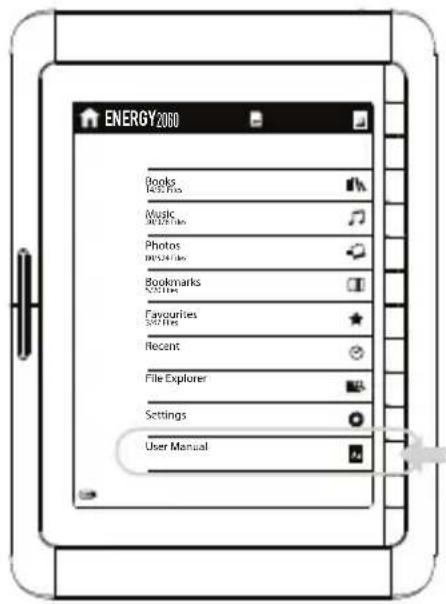
From the Main Menu, select User Manual to access the content of digital User's Manual
text_image
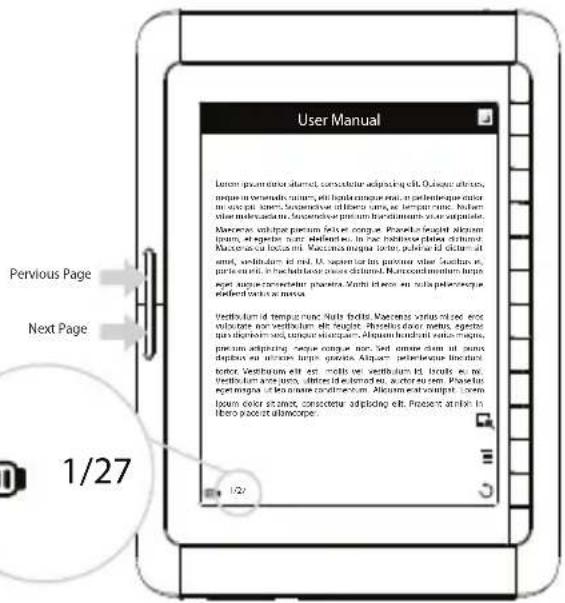
ENERGY2060 Books 327 Files Music 327 Files Photos 327 Files Bookmarks 327 Files Favourites 327 Files Recent File Explorer Settings User Manual- Scroll through the pages of the manual using the "Previous Page" and "Next Page" buttons located on the left side of the eBook.
text_image
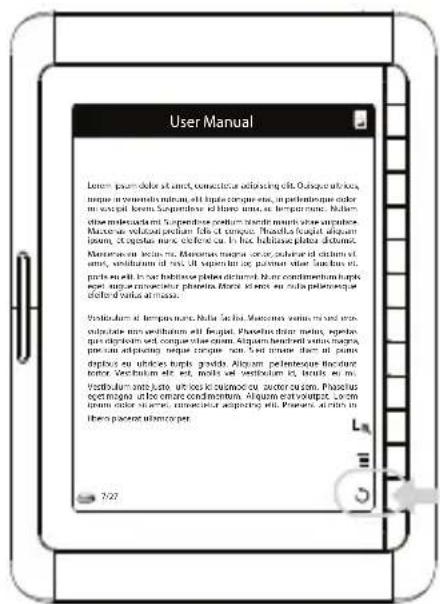
User Manual Pervious Page Next Page 1/27To return to the Main Menu, press the Direct Access Button indicated with the icon (Return).
text_image
User Manual Lower power data is sent, connector allocating off. Onshore water, torque in contents of main, incl. triple torque one, in platinum gear order in each level. Superiorate at home, as temperature, balthier materials and properties of the material must not be applied. Motor use will be without protection fails to compete. No heat, fuel, liquid, sodium, 30g/100 min, 30g/100 min, 30g/100 min, 30g/100 min, 30g/100 min, 30g/100 min, 30g/100 min, 30g/100 min, 30g/100 min, 30g/100 min, 30g/100min, 30g/100min, 30g/100min, 30g/100min, 30g/100min, 30g/100min, 30g/100min, 30g/100min, 30g/100min, 30g/100min, 30g/100m Marinees on them, Measles may be used in different parts of them, with liquid in red, 25 ppm water or similar water levels, and gas flow in our habitat areas. The best performance of this is also for a suitable solution of water. For example, the best solution of water is also for a suitable solution of water. For example, the best solution of water is also for a suitable solution of water.3. Front and rear view
text_image
ENERGY SYSTEM ENERGY BOOK 2060 E-Ink Vortex technology3.1. Front
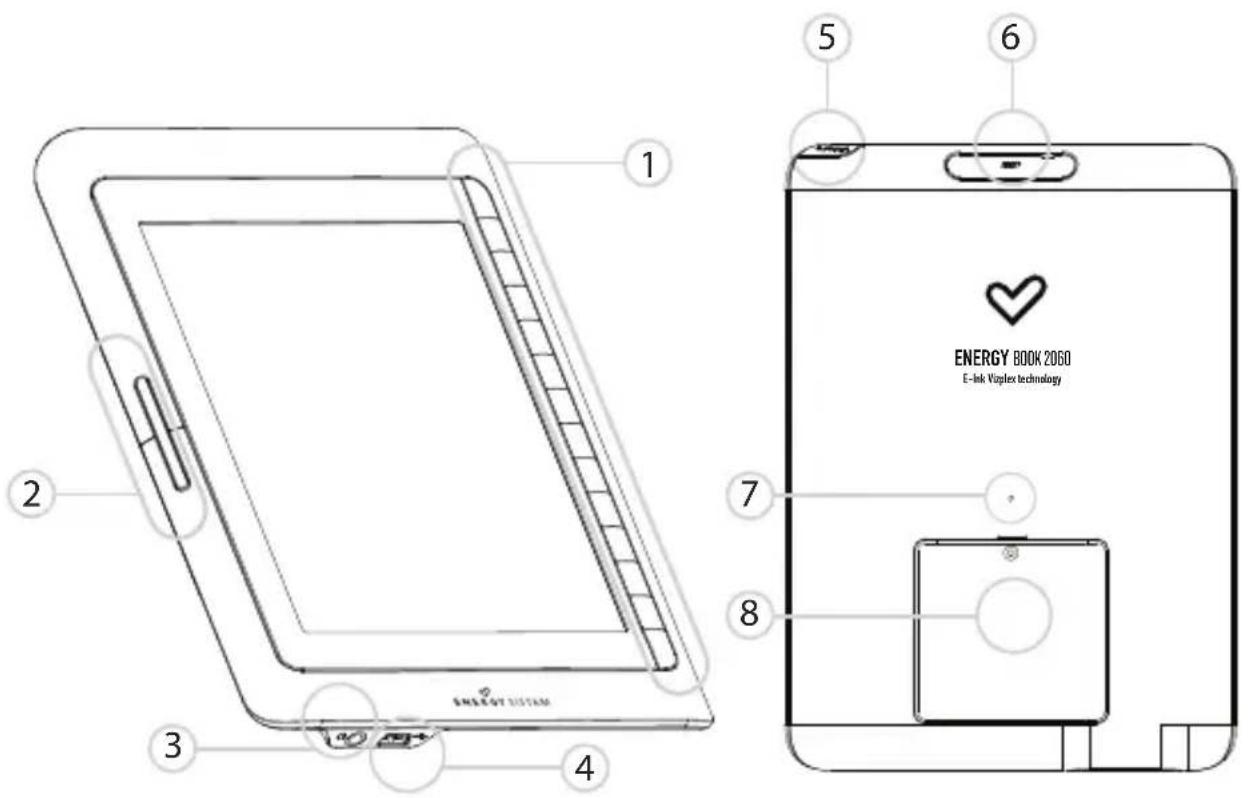
- Direct Access Buttons To select the items on the screen.
- Page Turning Buttons To turn to the next page or previous page.
- 3.5 mm Headphone Jack To connect the earphones for audio playback.
- USB connector To charge the device through PC USB port or with the power adapter.
3.2. rear
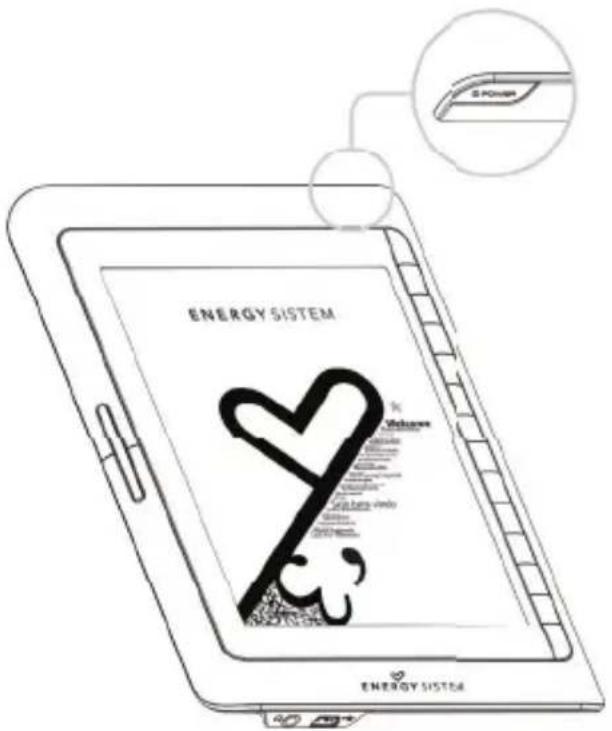
- Power To switch on/off the device.
- SD card slot For inserting SD memory cards.
-
Reset Button To reset the Ebook if no operation is possible.
-
Battery Cover Only to be accessed by authorized personnel. Unauthorized removal might damage the Ebook and consequent warranty cancellation.
4. Using the eBooK For the First tiMe
4.1. charging
*Fully charge the E-book's battery prior to the first use, as there might be insufficient power in the battery for normal operations.
Connect the eBook to the USB-AC/DC adapter or computer's free USB port via the supplied USB Cable.
A charging icon will be displayed on screen (bottom left corner) to indicate the charging status.

The eBook Energy 2060 will switch off automatically when the device battery is running low.

text_image
Diagram illustrating the connection between a laptop and an electronic device via cable, showing internal components like USB cable and battery plug.4.2. sWitching on the eBook
Press and hold the "Power" Button to switch on the eBook. It will take a few moments for the eBook to start up. A loading page like the image displayed above will be shown. Please wait.
text_image
ENERGY SISTEM G POWER ENERGY SISTEM4.3. sWitching oFF the eBook
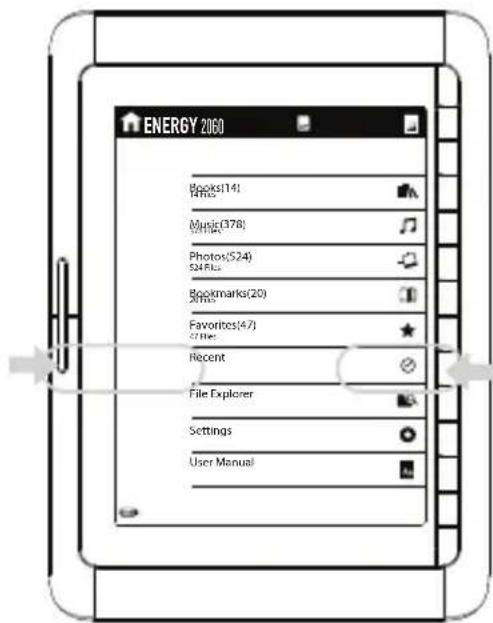
Press and hold the "Power" button to switch off the eBook. A confirmation dialog box will appear to validate the shut down operation. Press on the following buttons to confirm or cancel the shut down.
text_image
ENERGY 2060 Books(14) Titles: Music(378) Titles: Photos(524) SAPBus: Bookmarks(20) Titles: Favorites(47) STRe: Recent File Explorer Settings User Manual4.4. IMPORTING CONTENT TO THE EBOOK THROUGH SD CARDS
The SD/MMC card is the primary storage media of the eBook reader; all contents are to be stored on the SD/MMC card.
▶ Copy the desired files to the SD card from the PC.
Insert the SD card into the eBook reader's card slot.
The eBook will compile all contents stored on the SD/MMC card and load them to the eBook Energy 2060. The process can take a few moments if the contents stored on the SD card are large, according with the card capacity and size.
The eBook reader Energy 2060 is compatible with SD/SDHC cards up to 16GB, however using a high capacity memory card will require a larger loading time, sometimes generating some instability to the device regular use.
4.4.1. Inserting the SD/MMC Card
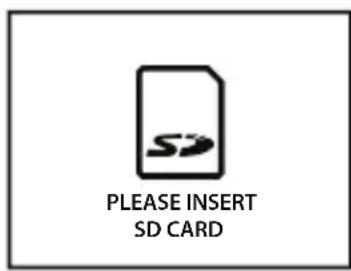
When the SD/MMC card is not inserted, the following dialog window will be shown.
text_image
PLEASE INSERT SD CARDUse only compliance SD/MMC cards with the eBook, usage of non-compliance SD/MMC Card might damage the eBook and the SD card. Insert the SD card in the right direction as illustrated; inserting it in the wrong direction would damage the media card slot as well as the SD card.
Open the SD card cover to reveal the eBook's SD Card Slot, insert the memory card in the direction as illustrated, you should hear a "click" assuring that the SD card have been properly inserted. Return the SD Card cover to the original position.
After inserting the SD card, it will take a few moments to load the contents to the eBook reader; meanwhile the eBook will display a dialog box to indicate the loading status.
LOADING
*Do not remove the SD card during this process, as it could lead to data loss or other errors.
4.4.2. Removing the SD card from the Media slot
Push the SD card as illustrated to disengage the SD card from the card slot; you should hear a “click” as the SD card disengages from the eBook’s card slot.
5. Main MenU
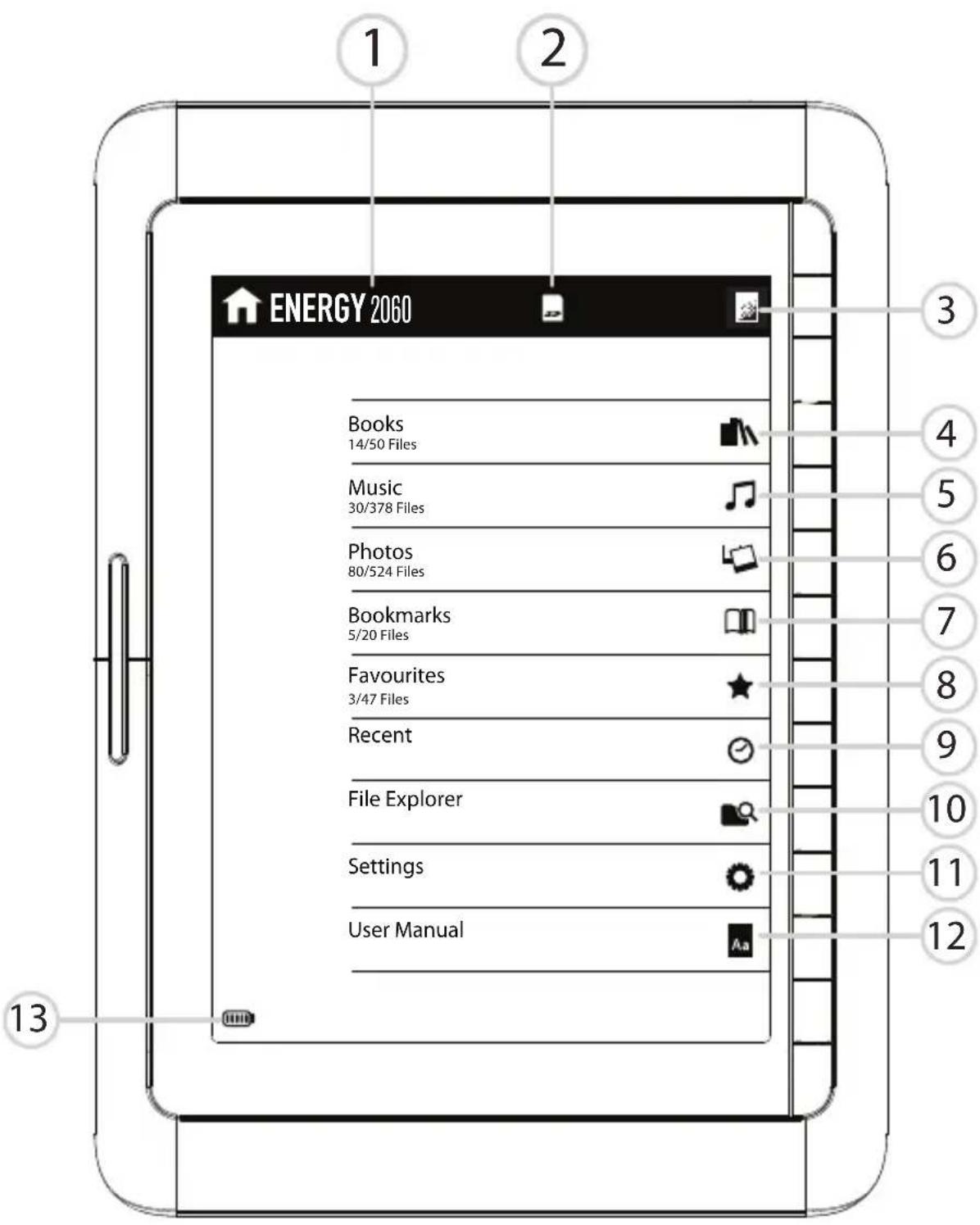
The eBook reader Energy 2060 contents and applications are accessible through the main menu, it is organized in an index format which is accessible via the direct access buttons situated on the right side of the screen.
text_image
ENERGY 2060 Books 14/50 Files Music 30/378 Files Photos 80/524 Files Bookmarks 5/20 Files Favourites 3/47 Files Recent File Explorer Settings User Manual 13-
The eBook name can be customized. (For detail instructions, refer to the device Settings section)
-
SD card icon
This icon will be displayed on the system bar when the SD memory card is inserted in the card slot.
-
After turning a few pages the display might look "cloudy" with display residues from previous pages. This is to allow you to "Refresh" the electronic paper display manually
-
Books
Access books and documents loaded in the eBook.
- Music
This application let you access and play audio files stored on the eBook.
- Photos
This application let you view photos available in your eBook.
- Bookmarks
This will show up the whole list of bookmarks available made by the user.
- Favourites ★
This will show up the whole list of items set as favourite by the user.
- Recent
Items read or used by the user recently will be shown.
- File explorer
Helps organizing the files.
II. Settings
To customize and adjust the device settings.
- User Manual Aa
Access the eBook user manual.
- IThe battery level indicator is located at the bottom left corner of the screen. The following are the various battery levels and charging indicator.

flowchart
graph LR
    A["Battery Full"] --> B["..."]
    B --> C["..."]
    C --> D["Low Battery"]
Charging states:
Charging
Filly Charged

6. Books
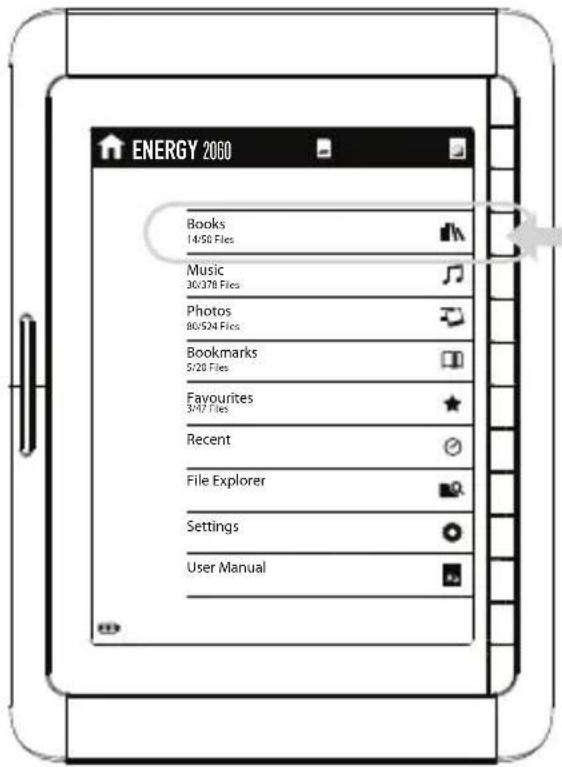
From the main menu select the option Books to access the eBooks and documents available.
text_image
ENERGY 2060 Books 14/50 Files Music 30/378 Files Photos 80/524 Files Bookmarks 5/20 Files Favourites 3/47 Files Recent File Explorer Settings User ManualAll supported eBook formats are listed in the Books' menu in alphabetical order.
text_image
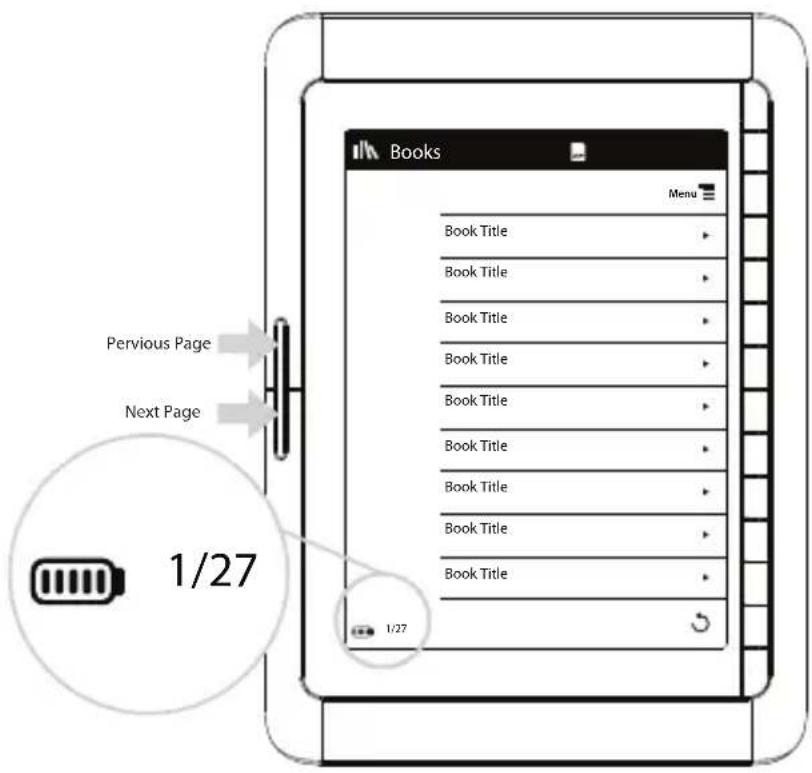
Pervious Page Next Page 1/27 Books Menu Book Title Book Title Book Title Book Title Book Title Book Title Book Title Book Title Book Title 1/27The Books menu is a multiple pages menu. The current page and total pages are displayed at the bottom left corner of the screen. Press on the “Previous Page” and “Next Page” buttons to browse through the pages.
Press on the corresponding direct access button to select the book you want to read.
To return to the main menu, press on the direct access button indicated with
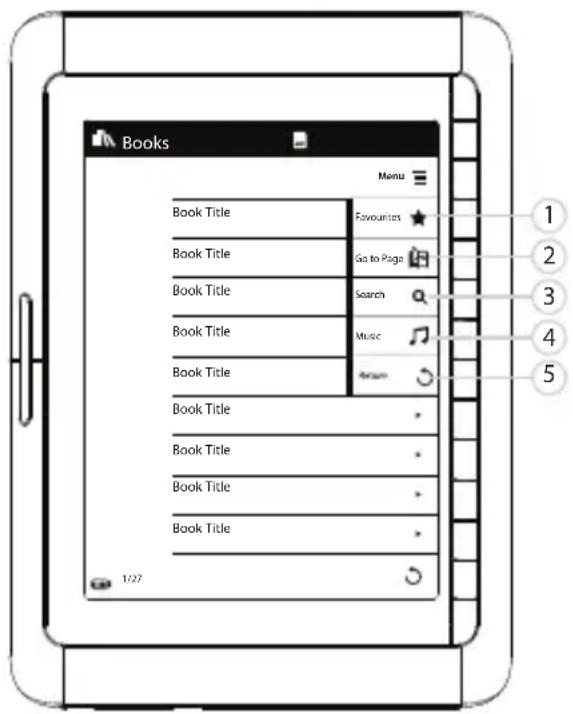
Additional navigation tools are located in the drop down menu, accessible by pressing on the direct access button indicated with the icon Menu ≡.
text_image
Books Menu Book Title Favourites Book Title Go to Page Book Title Search Book Title Music Book Title Book Title Book Title Book Title Book Title 1/27- Favourites

Add books to your list of Favourites.
- Go to Page

Go directly to a desired page by inputting the page number.
- Search

Find a book or document stored in the eBook by inputting a word or phrase from its title.
- Music

Go to music playback interface to access and control the music available on the device.
- Return

Close the drop down menu and return to the Books' menu.
*The drop down menu overlaps the previous menu. Items on the previous menu may be visible but are not accessible when the drop down menu is displayed.
7. reading interFace and FeatUres
Press the “Previous Page” or “Next Page” buttons located at the left side of the eBook, to turn the pages.
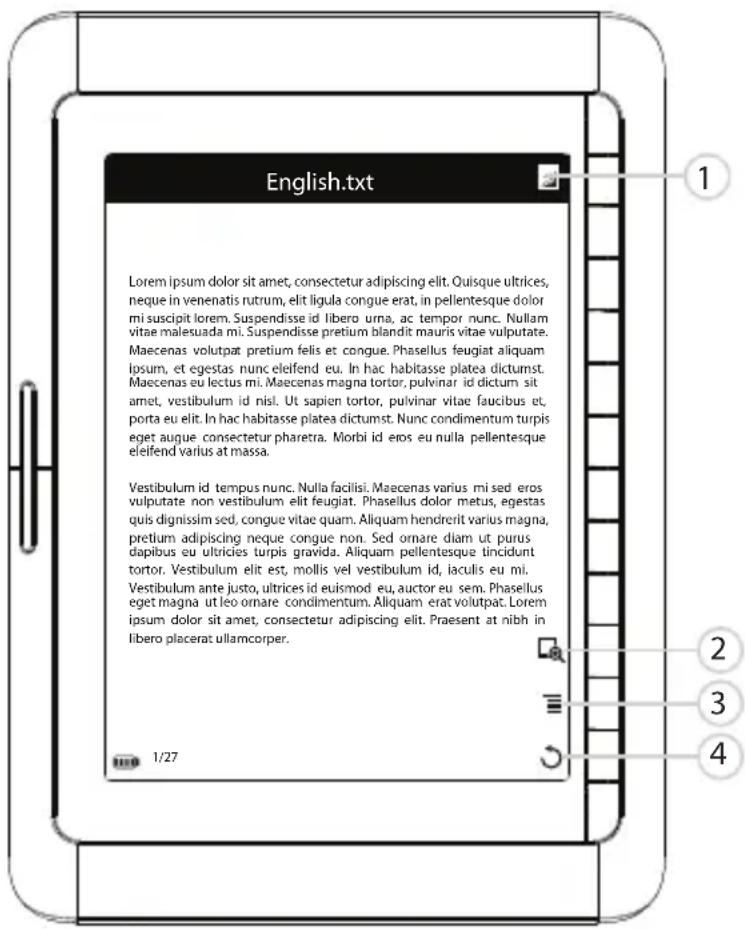
The reading interface included a few other accessibility features to improve your reading experience.
text_image
English.txt Lorem ipsum dolor sit amet, consectetur adipiscing elit. Quisque ultrices, neque in venenatis rutrum, elit ligula congue erat, in pellentesque dolor mi suscipit lorem. Suspendisse id libero urna, ac tempor nunc. Nullam vitae malesuada mi. Suspendisse pretium blandit mauris vitae vulputate. Maecenas volutpat pretium felis et congue. Phasellus feugiat aliquam lpsum, et egestas nunc eleifend eu. In hac habitasse platea dictumst. Maecenas eu lectus mi. Maecenas magna tortor, pulvinar id dictum sit amet, vestibulum id nisl. Ut sapien tortor, pulvinar vitae faucibus et, porta eu elit. In hac habitasse platea dictumst. Nunc condimentum turpis eget augue consectetur pharetra. Morbi id eros eu nulla pellentesque eleifend varius at massa. Vestibulum id tempus nunc. Nulla facilisi. Maecenas varius mi sed eros vulputate non vestibulum elit feugiat. Phasellus dolor metus, egestas quis dignissim sed, congue vitae quam. Aliquam hendrerit varius magna, pretium adipiscing neque congue non. Sed ornare diam ut purus dapibus eu ultricies turpis gravida. Aliquam pellentesque tincidunt tortor. Vestibulum elit est, mollis vel vestibulum id, laculis eu mi. Vestibulum ante justo, ultrices id euismod eu, auctor eu sem. Phasellus eget magna ut leo ornare condimentum. Aliquam erat volutpat. Lorem ipsum dolor sit amet, consectetur adipiscing elit. Praesent at nibh in libero placerat ullamcorper. 1/271. Refresh Screen

Manually refresh the screen to remove marks left from the previous page. After a few pages, the display might look “cloudy” with marks left from the previous page.
2. Font Size

Increases the size of the text of the book. There are 4 sizes to suit your preferences.
3. Menu

Accessibility features are located in this menu. (Refer to the next section for detailed list of features)
4. Return

Closes the drop down menu and return to the Book's menu
text_image
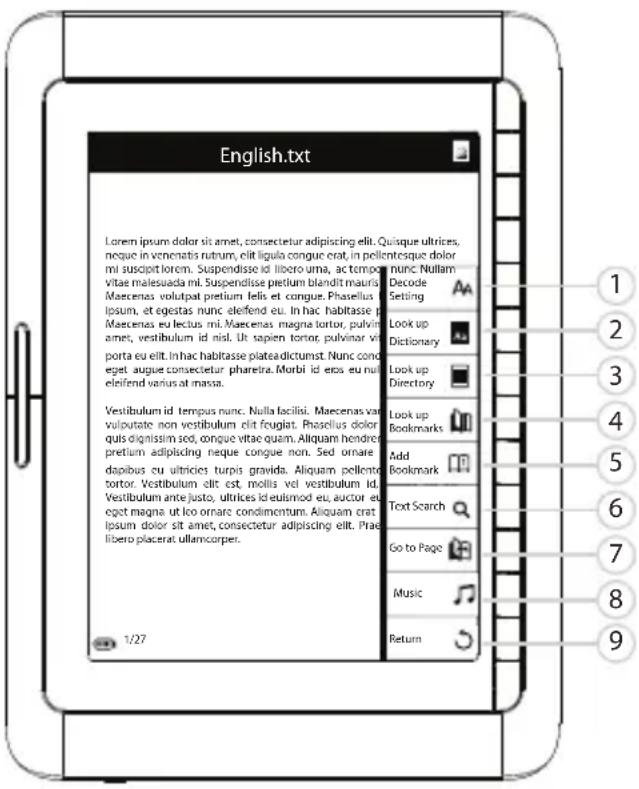
English.txt Lorem ipsum dolor sit amet, consectetur adipiscing elit. Quisque ultrices, neque in venonatis rutum, elit ligula congue crat, in pellcntesque dolor mi suscript lorem. Suspendisse id. libero urma, ac temporale nunc Nullam vitae malesuada mi. Suspendisse pretium blandit mauria Maecenas volutpat pretium felis et congue. Phasellus lipsum, et egestas nunc eleifend eu. In hac habitasse p Maecenas eu lectus mi. Maecenas magna tortor, pulvinar amet, vestibulum id nisl. Ut sapien tortor, pulvinar vir porta eu elit. In hac habitasse plateadictumst. Nunc conde eget augue consectetur phareira. Morbi id eros eu nu eleifend varius at massa. 1/27 Look up Dictionary Look up Directory Look up Bookmarks Add Bookmark Text Search Go to Page Music Return 1 2 3 4 5 6 7 8 9- Select on the "Decode Setting AA" when the text or characters do not appear as they should. This allows you to manually select on a suitable decode mode for the eBook.
- Look up Directory 📄 Shows the Content/Index page of the book or document you are reading if it is available.
- Look up Bookmarks 📁 To view the list of bookmarks marked in this book.
- Add Bookmark ☐ To create a new bookmark on the current page.
- Text Search Search for text within the book. (For detail instructions, refer to the Search Function.)
- Go to Page Allow you to go to a desired page directly by entering the page number.
- Music Go to music playback interface to access and control the music available.
- Return ⬇ It closes the drop down menu and return back to the reading page.
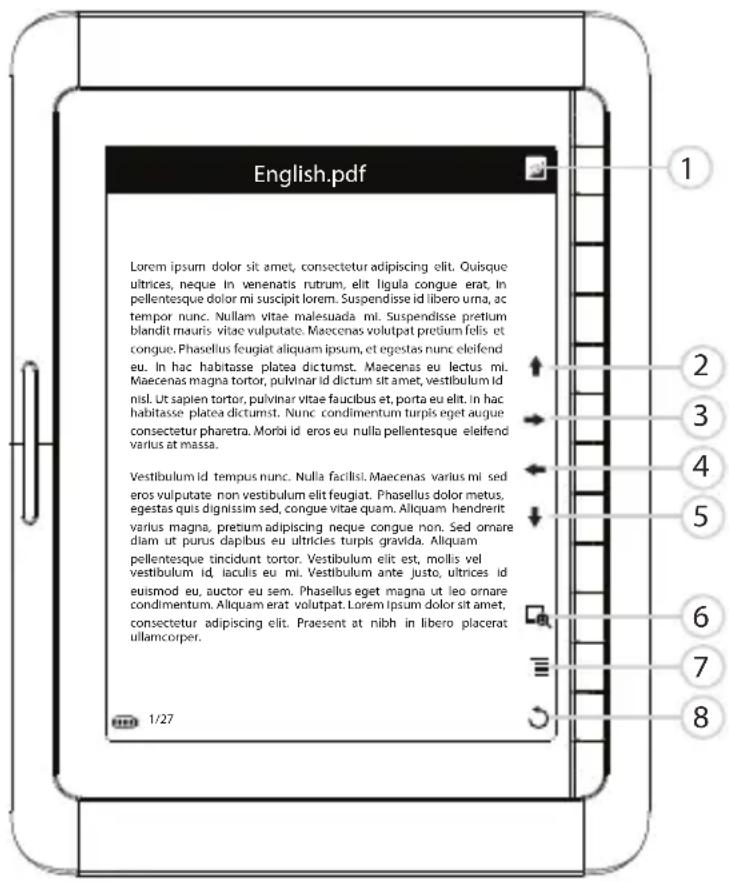
Navigation features, like zoom and directional buttons are located at the right side of the screen to aid reading file formats. It allows you to pan the page while reading it in a zoomed mode. Other accessibility features are located on the drop down menu. ≡
text_image
English.pdf Lorem ipsum dolor sit amet, consectetur adipiscing elit. Ousque ultrices, neque in venenatis rutrum, elit ligula congue erat. In pellentesque dolor mi suscipit lorem. Suspendisse id libero urna, ac tempor nunc. Nullam vitae malesuada mi. Suspendisse pretium blandit mauris vitae vulputate. Maecenas volutpat pretium felis et congue. Phasellus feugiat aliquam ipsum, et egestas nunc eleifend eu. In hac habitasse platea dictumst. Maecenas eu lectus mi. Maecenas magna tortor, pulvinar id dictum sit amet, vestibulum id nisl. Ut sapien tortor, pulvinar vitae faucibus et, porta eu elit. In hac habitasse platea dictumst. Nunc condimentum turpis eget augue consectetur pharetra. Morbi id eros eu nulla pellentesque eleifend varius at massa. Vestibulum id tempus nunc. Nulla facilisl. Maecenas varius mi sed eros vulputate non vestibulum elit feugiat. Phasellus dolor metus, egestas quis dignissim sed, congue vitae quam. Allquam hendrerit varius magna, pretium adipiscing neque congue non. Sed ornare diam ut purus dapibus eu ultricles turpis gravida. Allquam pellentesque incidunt tortor. Vestibulum elit est, mollis vel vestibulum id, laculis eu mi. Vestibulum ante justo, ultrices id euismod eu, auctor eu sem. Phasellus eget magna ut leo ornare condimentum. Allquam erat volutpat. Lorem ipsum dolor sit amet, consectetur adipiscing elit. Praesent at nibh in libero placerat ullamcorper. 1/27-
After turning a few pages the display might look "cloudy" with display residues from previous pages. You can manually "Refresh" the screen by selection this option located at the top right hand corner of the eBook.
-
Up ↑
- Right →
- Left
- Down ↓
- Font Size
Allows you to increase the font size of the pages. There are 4 font sizes available.
- Menu ≡
Accessibility features like "Go to Page", "Add Bookmark" and "Look up Bookmarks" are located in this menu.
- Return
Closes the drop down menu and return to the previous menu.
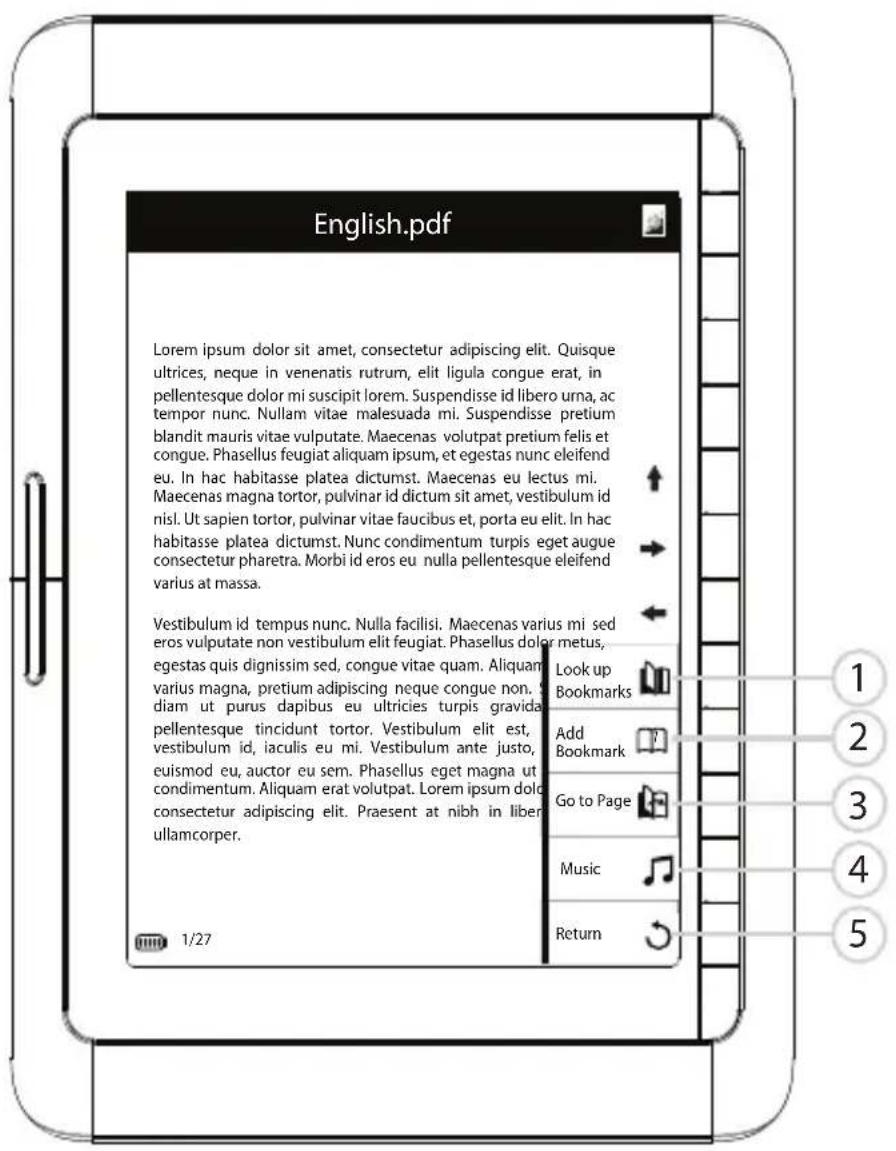
Press ≡ 'Menu' to access the options available below indicated.
text_image
English.pdf Lorem ipsum dolor sit amet, consectetur adipiscing elit. Quisque ultrices, neque in venenatis rutrum, elit ligula congue erat, in pellentesque dolor mi suscipit lorem. Suspendisse id libero urna, ac tempor nunc. Nullam vitae malesuada mi. Suspendisse pretium blandit mauris vitae vulputate. Maecenas volutpat pretium felis et congue. Phasellus feugiat aliquam ipsum, et egestas nunc eleifend eu. In hac habitasse platea dictumst. Maecenas eu lectus mi. Maecenas magna tortor, pulvinar id dictum sit amet, vestibulum id nisl. Ut sapien tortor, pulvinar vitae faucibus et, porta eu elit. In hac habitasse platea dictumst. Nunc condimentum turpis eget augue consectetur pharetra. Morbi id eros eu nulla pellentesque eleifend varius at massa. Vestibulum id tempus nunc. Nulla facilisi. Maecenas varius mi sed eros vulputate non vestibulum elit feugiat. Phasellus dolor metus, egestas quis dignissim sed, congue vitae quam. Aliquam varius magna, pretium adipiscing neque congue non. S diam ut purus dapibus eu ultricies turpis gravidae pellentesque tincidunt tortor. Vestibulum elit est, vestibulum id, iaculis eu mi. Vestibulum ante justo, euismod eu, auctor eu sem. Phasellus eget magna ut condimentum. Aliquam erat volutpat. Lorem ipsum dolor consectetur adipiscing elit. Praesent at nibh in liber ullamcorper. Look up Bookmarks Add Bookmark Go to Page Music Return 1/27 1 2 3 4 5- Look up Bookmarks

View the bookmarks list in this book.
- Add Bookmark

Create a new bookmark on the current page.
- Go to Page

Go to the desired page by entering the page number.
- Music

Go to music playback interface to access and control the music available.
- Return

Closes the drop down menu and return back to the reading page.
8. search FUnction
Press on the "Search" button to start the search interface.
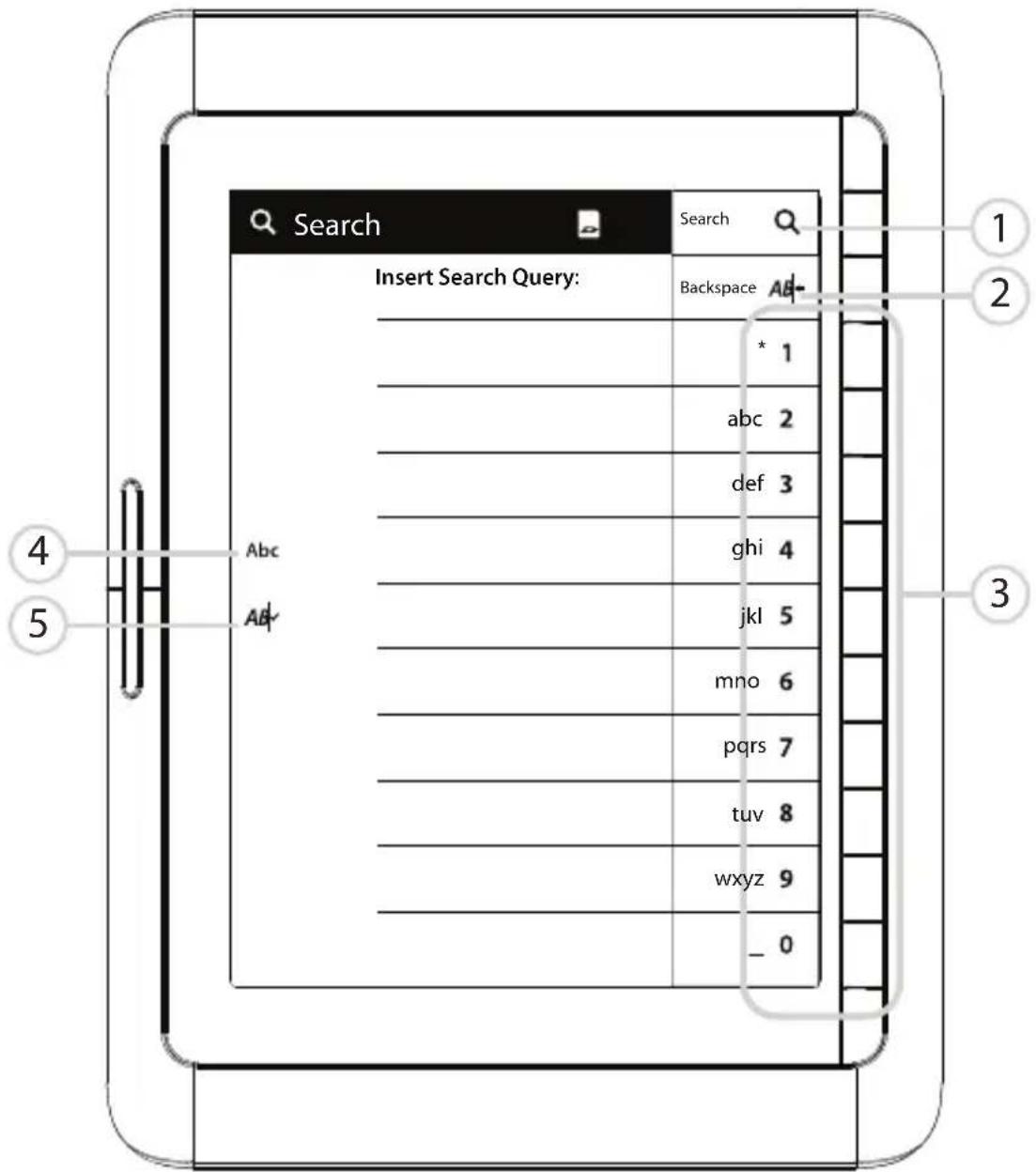
Input any word or phases into the search field. Press "Search 🔒" to begin the search.
The text input methods will be further described in the following pages.
Text Input
text_image
Search Insert Search Query: Backspace A&- * 1 abc 2 def 3 ghi 4 jkl 5 mno 6 pqrs 7 tuv 8 wxyz 9 _ 01. Search

Begin searching for a word/phrase.
2. Return

Return to the previous menu or delete the last character.
3. Text input buttons
Press these buttons to input letters into the search field. Press the text input buttons to cycle through the alphabet assigned to the button in order to form the desired words.
4. ABC
Toggle between different text input methods.
123
Number
ABC
Capital letters
abc
Lower case
5. AB
To validate the selected alphabet input method.
8.1. search resUlts
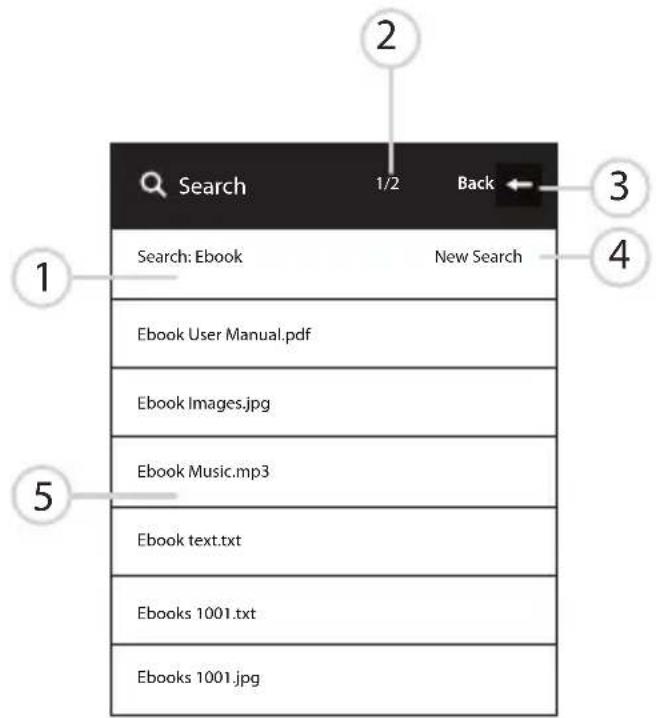
When you enter a word / phrase for searching, the following dialog window will be shown:
text_image
Search 1/2 Back Search: Ebook New Search Ebook User Manual.pdf Ebook Images.jpg Ebook Music.mp3 Ebook text.txt Ebooks 1001.txt Ebooks 1001.jpg- Inputted text.
- Number of pages with search results found, use the "Previous Page" and "Next Page" buttons to browse through the pages.
- To return back to the book or document.
- To input a new search entry.
- Search results list.
8.2. teXt search resUlts
When you enter a word / phrase to search for in the book page, the text searching results will appear in a lighter shade among the texts.
| User Manual |
| Contents |
| Disclaimer |
| Using this User's Manual |
| Product Specifications |
| Introduction to Parts of the Ebook |
| Using the Ebook for the First Time |
| - Charging the Ebook |
| - Turning on/off the Ebook |
| - Inserting and removing the SD Card |
| Charging |
| *Fully charge the Ebook's battery prior to first use, as there might be insufficient power in the battery for normal operations. |
| Connect the Ebook to the USB charger or computer's USB Port via the supplied USB Cable. |
| A charging icon, will be displayed on screen (bottom left corner) to indicate the charging status. |
9. MUsic
Plug in the supplied earphones to the 3.5mm audio connector to listen your audio files.
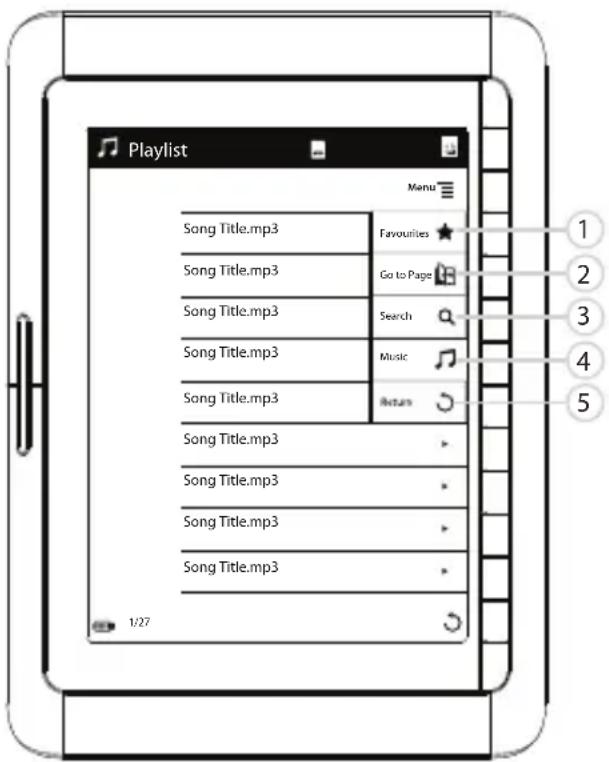
From the Main Menu, select "Music" to browse the Playlist files stored in the eBook.
text_image
Playlist Favourites ★ Go to Page Search Music 1/279.1. PlaYing aUdio Files
1. Favourites

Add audio tracks to your list of Favourites. This allows contents to be easily accessed from the main menu.
2. Go to Page

Go directly to the desired page by inputting the page number.
3. Search

Find an audio file stored in the eBook by inputting a word or phrase from it's filename.
4. Music

Go to music playback interface to access and control the music available.
5. Return

Close the drop down menu and return to the Music Player.
You can browse through the Playlist pages by pressing on the "Next Page" and "Previous Page" buttons. To listen to a track, press on the corresponding direct access button.
9.2. MUsic PlaYer interFace
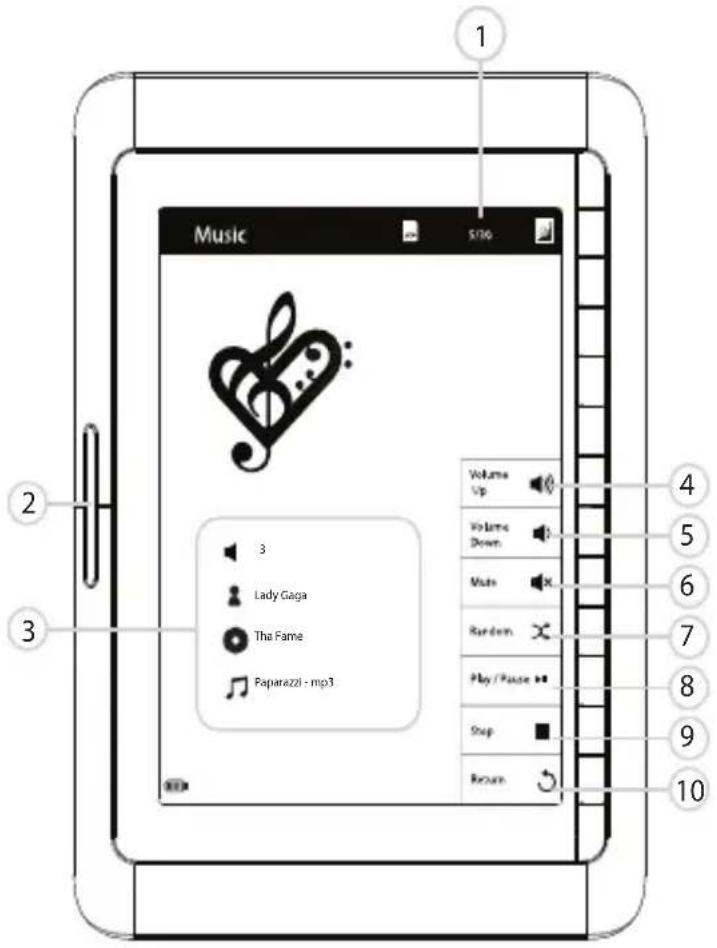
The Music Player interface display information about the song as well as controls the audio playback.
text_image
Music Volume Up Volume Down Mute Random Play / Pause Stop Round 1 2 3 4 5 6 7 8 9 10- Indicates the current track number / total number of songs available.
- To skip to the next track or return to the previous track, press on the "Next Page" and "Previous Page" buttons.
- Volume level ▶, Artist Name □, Album Name Ⓧ and Song Title ♪.
- Volume Up
- Volume Down
- Mute
- Play Mode
Play modes are Random ✗, Loop ⬇ and Repeat Once ⏱. Keep pressing on the corresponding direct access button to select the desired playback mode.
- Play/Pause ▶
Play or pause current audio playback.
- Return to Music list
10. Photo eXPlorer
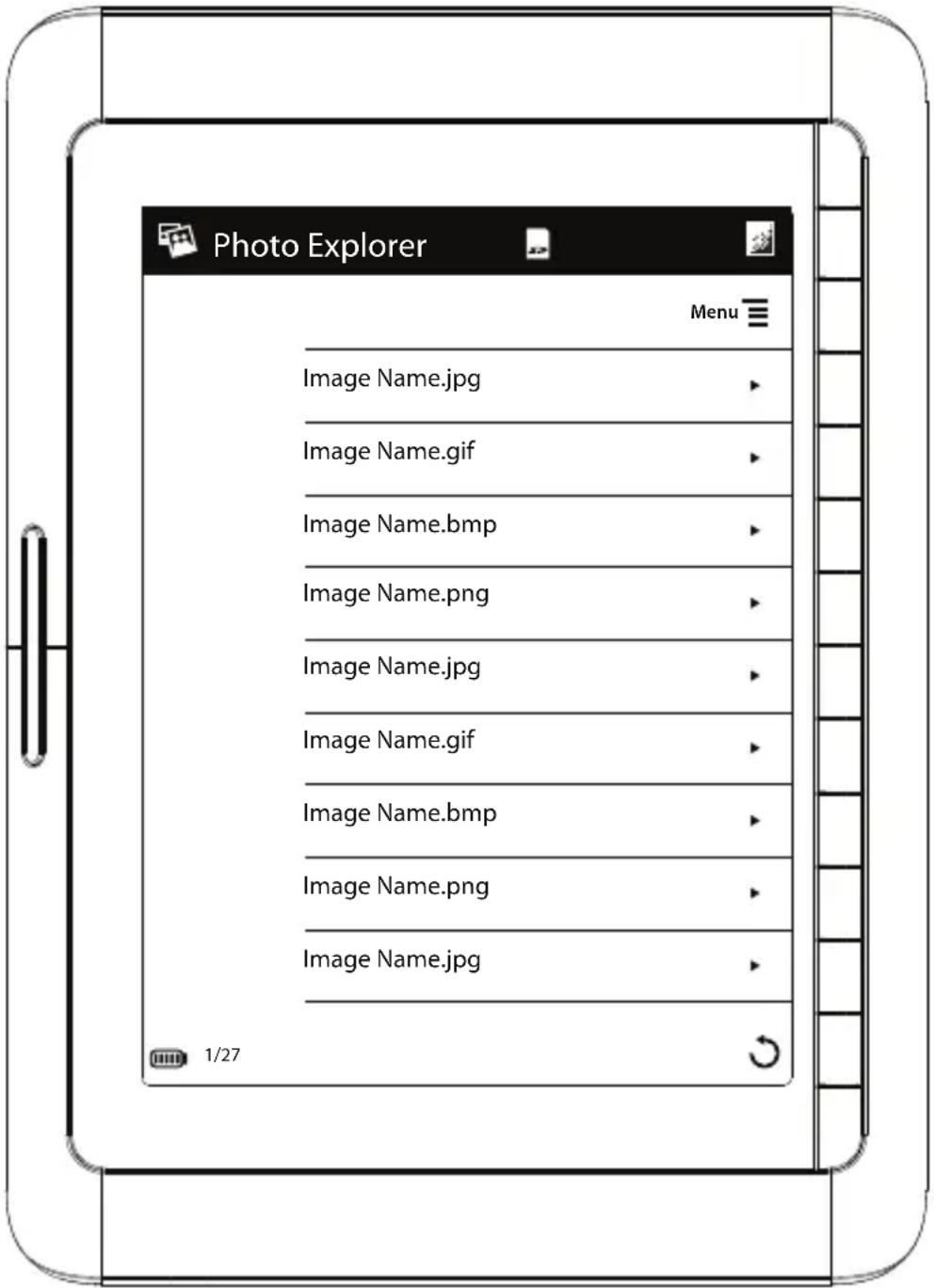
BMP, JPEG, GIF, TIF file formats can be viewed with the Photo Explorer application.
Select 'Photos' from the Main Menu to view the images available in the SD card

text_image
Photo Explorer Menu Image Name.jpg Image Name.gif Image Name.bmp Image Name.png Image Name.jpg Image Name.gif Image Name.bmp Image Name.png Image Name.jpg 1/27The Photo Explorer lists all the photos stored in the eBook as illustrated above. To view an image, press the direct access button corresponding to the desired image.
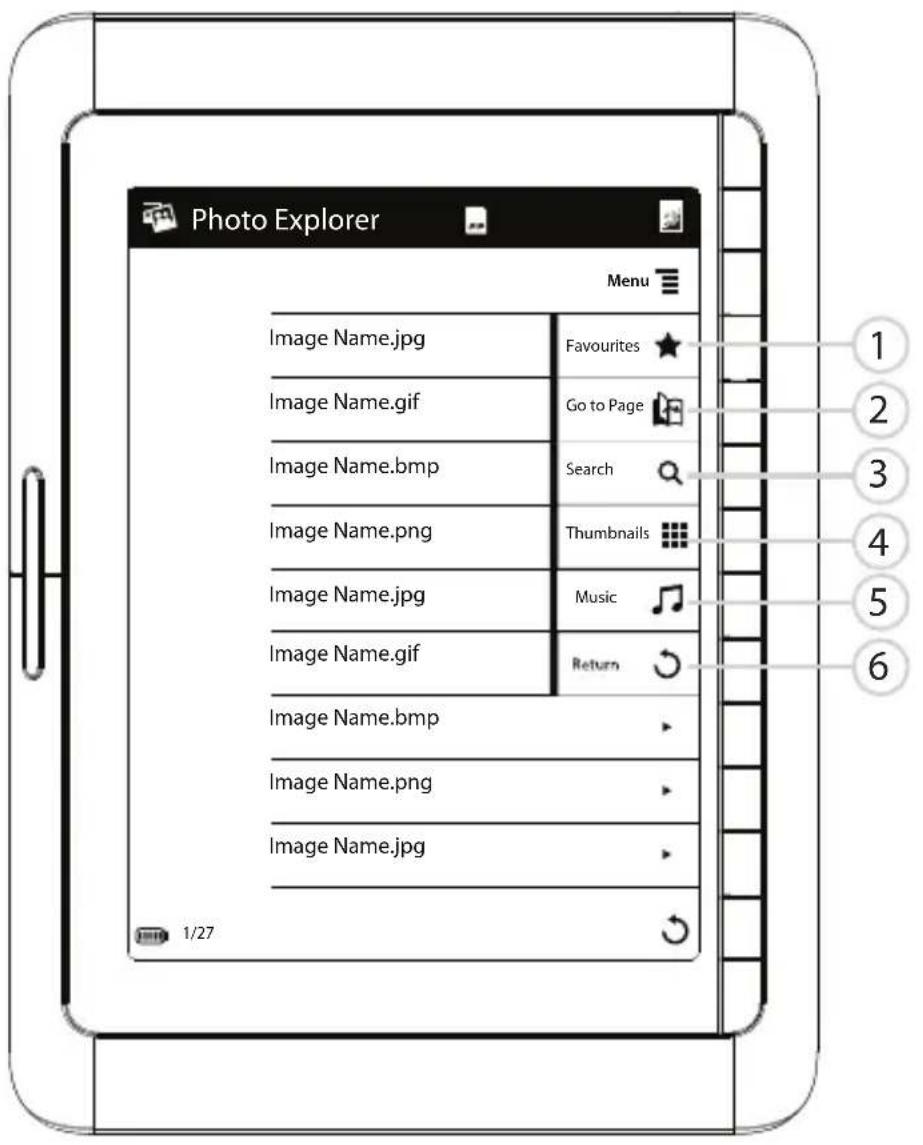
Additional options are available through the M≡ u option to help you to organize and view your photos.
text_image
Photo Explorer Menu Image Name.jpg Favourites ★ Image Name.gif Go to Page Image Name.bmp Search Image Name.png Thumbnails Image Name.jpg Music Image Name.gif Return Image Name.bmp Image Name.png Image Name.jpg 1/27- Favourites

Adds photos to your Favourites list.
- Go to Page

Go directly to the desired page, by inputting the page number.
- Search

Find a photo stored in the eBook; by inputting a word from its title.
- Thumbnails

View the images in thumbnails.
- Music

Go to music playback interface to access and control the music available.
- Return

Closes the drop down menu and return to the Photo Explorer.
text_image
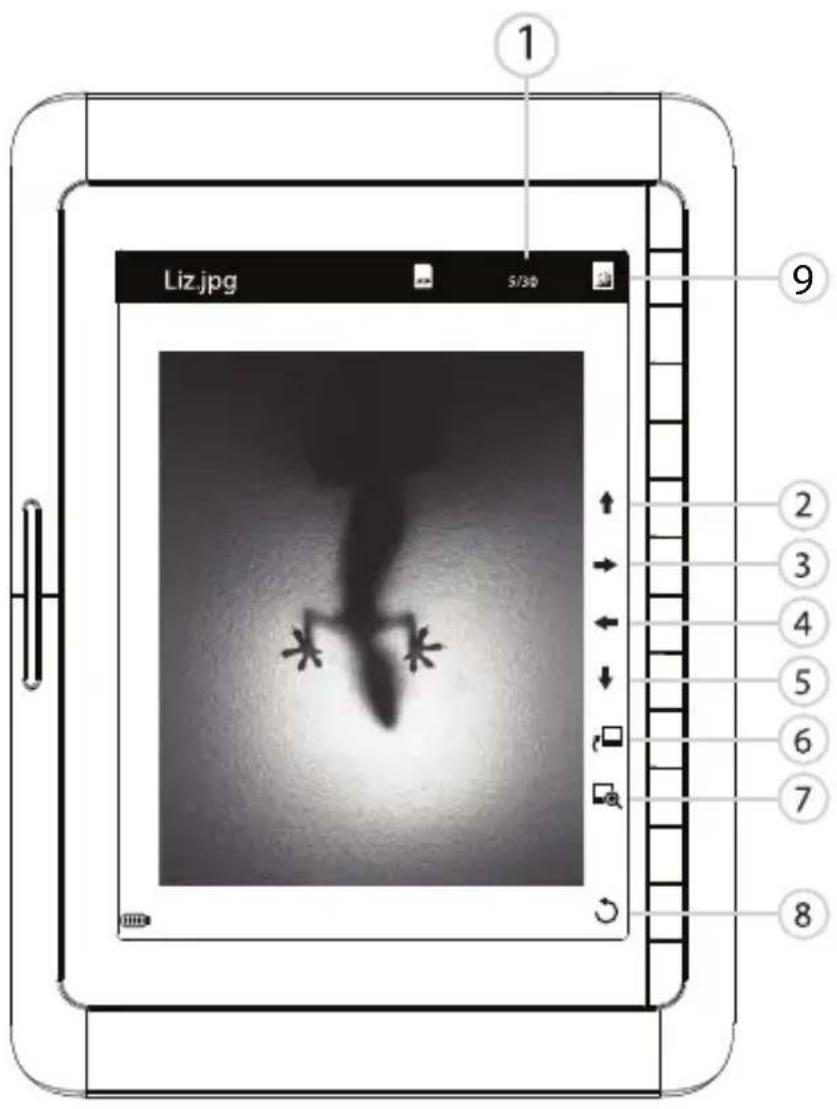
Liz.jpg 5/30 ① ⑨ ② ③ ④ ⑤ ⑥ ⑦ ⑧In the Photo viewer, you are able to navigate between photos by pressing the "Next Page" and "Previous Page" buttons.
- Photo number.
Number of Photo/total number of photos available.
2.↑p
-
→ht
-
←ft
-
D ↓ n
-
Rotate photo clock □ e.
-
Zoom
-
Return to photo list or thumbnails ⬇ w.
-
Retch
Manually refreshing screen to remove marks left from the previous pages.
II. File eXPlorer
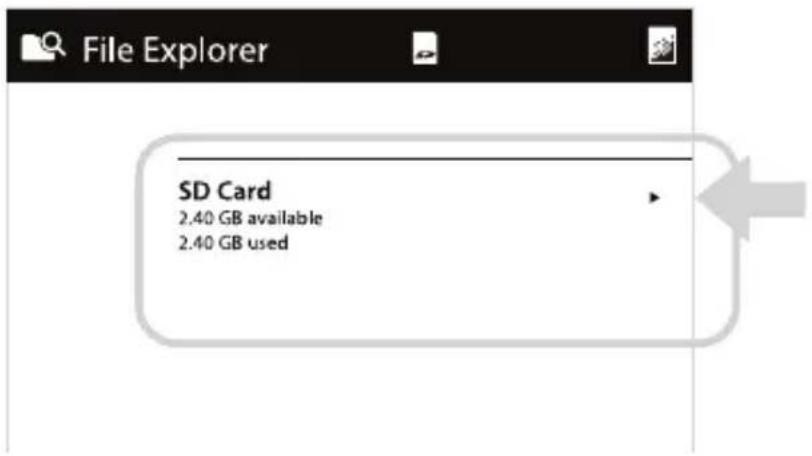
The File Explorer allows you to access and modify files and folders stored in the eBook.
text_image
File Explorer SD Card 2.40 GB available 2.40 GB usedThe overview of the memory usage is shown on the first page of the File Explorer. Press on the corresponding direct access button to browse the folders and files stored in the SD Card.
II.1. navigation
text_image
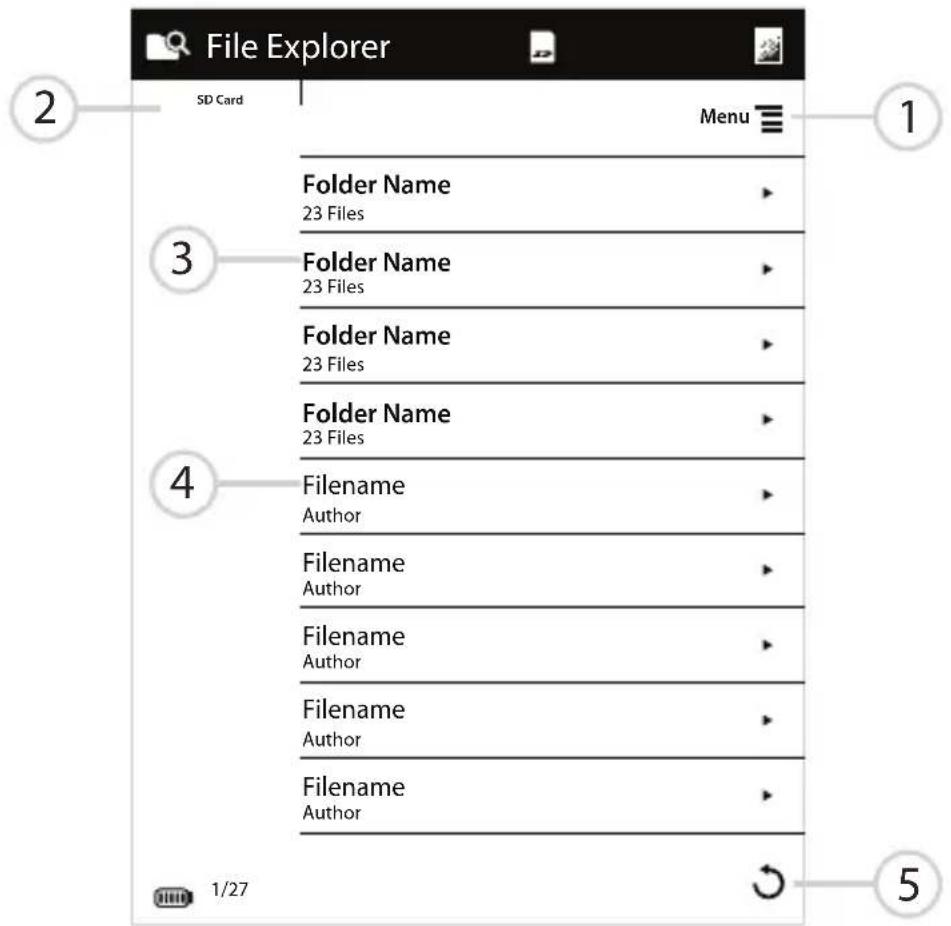
File Explorer SD Card Menu 1 Folder Name 23 Files Folder Name 23 Files Folder Name 23 Files Folder Name 23 Files Filename Author Filename Author Filename Author Filename Author Filename Author 1/27 51. Menu
Options are accessible through this button.
- Directory path for files and folders.
- Folder Names are in bold letters. Press on the corresponding direct access button to open the folder.
- Filenames are in regular letters. Press on the corresponding direct access button to access the desired file.
- Return
Return to previous menu or exit current directory level.
II.2. creating neW Folder
You can create new folders to organize your files.
| File Explorer | ||
| SD Card | Sub Folder | Menu |
| Folder Name 23 Files | Move ▶ | |
| Folder Name 23 Files | Copy ▶ | |
| Folder Name 23 Files | Delete ▶ | |
| Folder Name 23 Files | Paste ▶ | |
| Filename Author | Collection ▶ | |
| Filename Author | Go to Page 📄 | |
| Filename Author | New Folder ▶ | |
| Filename Author | Search 🔒 | |
| Filename Author | Return ↻ | |
Select "Menu" ≡ in the Directory you want to create the new folder. Press on "New Folder" on the drop down menu to create the folder.
| File Explorer | Done √ | |
| AbcAB√ | New Folder Name_ | Backspace AB+ |
| * 1 | ||
| abc 2 | ||
| def 3 | ||
| ghi 4 | ||
| jkl 5 | ||
| mno 6 | ||
| pqrs 7 | ||
| tuv 8 | ||
| wxyz 9 | ||
| - 0 | ||
Use the text input menu to input the desired folder name. Press on "Done" to confirm it.
11.3. Moving and coPYing Folders and Files
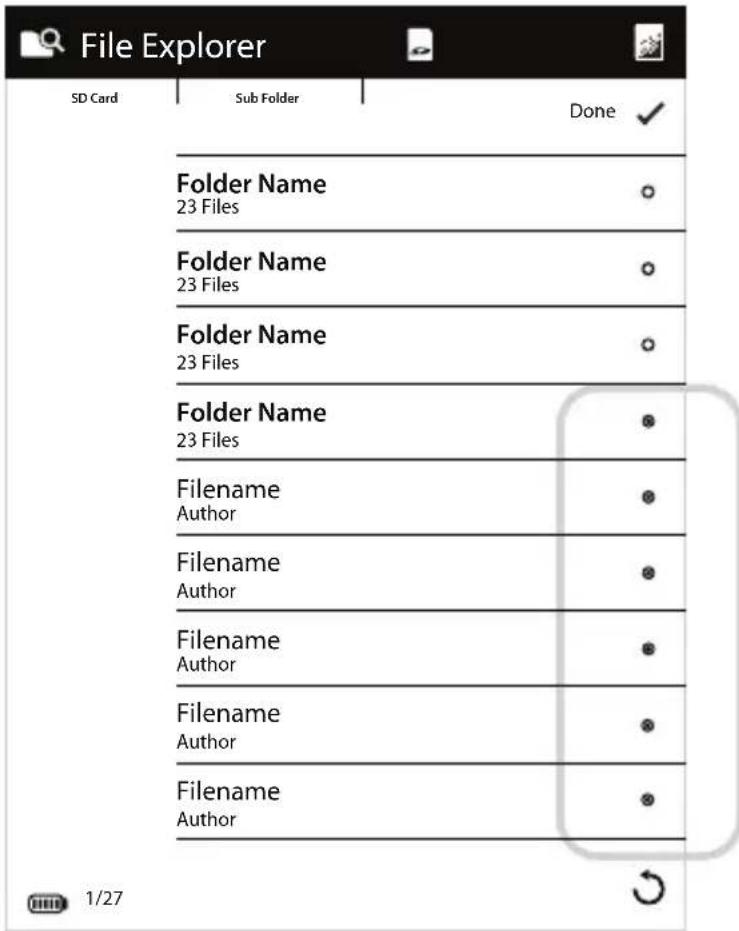
To move / copy files and folders, select "Move" or "Copy" on the drop down menu. A selection menu will be available for selecting the desired files and folders
Selected items are marked by a filled circle • ; whereas unselected items are indicted by an unfilled circle ○ .You can select multiple files to move or copy.
text_image
File Explorer SD Card Sub Folder Done ✓ Folder Name 23 Files Folder Name 23 Files Folder Name 23 Files Folder Name 23 Files Filename Author Filename Author Filename Author Filename Author Filename Author 1/27Press "Done √" to confirm the selected files and folders.
Navigate to the destination where you wish to move or copy the files to. Select "Paste" from the drop down menu to complete the move/ copy operation.
*“Copy” function duplicates the files and folders whereas “Move” relocate the files and folders.
II.4. delete Folders and Files
Select "Delete" from the drop down menu to delete files or folders stored on the SD Card.
Select files or folders in the selection menu. Press the "Done √" button to confirm files or folders that will be deleted.
*WARNING: Files and folders deleted are non-recoverable.
12. settings
text_image
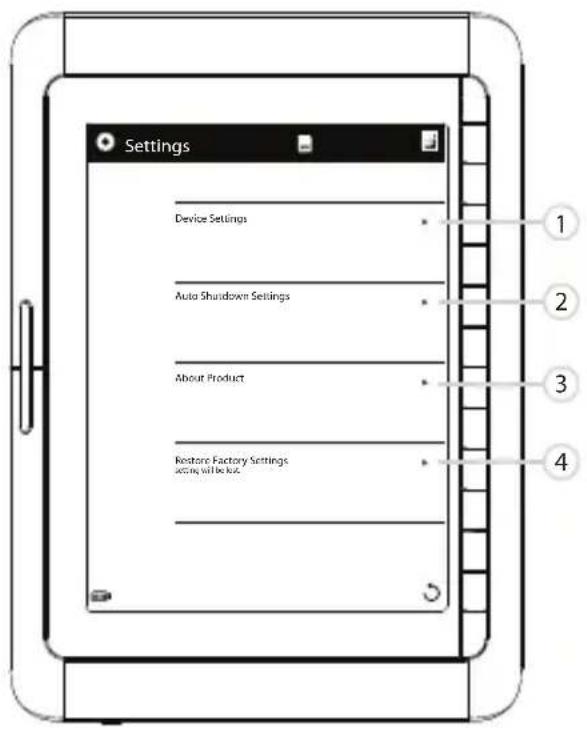
Settings Device Settings Auto Shutdown Settings About Product Restore Factory Settings setting will be setThe "Settings" menu allows you to customize the eBook to suit your preferences. Settings menu is accessible from the Main Menu by pressing on the corresponding direct access button.
12.1. device settings
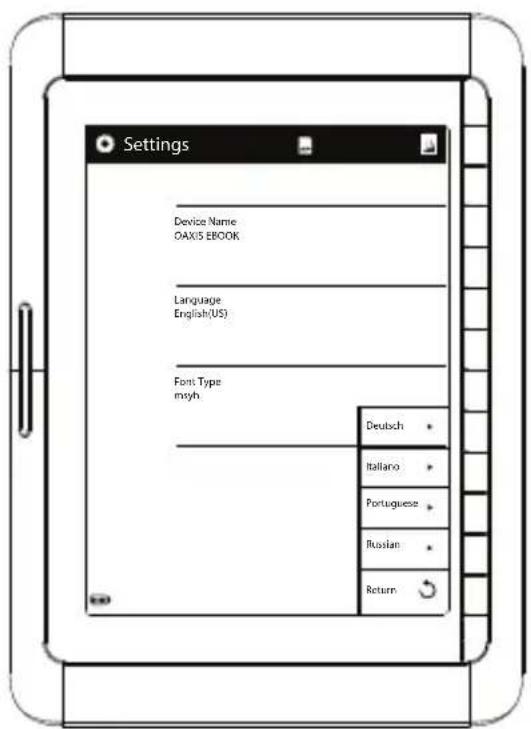
Device Name
You can personalize the device name which appears on the system bar in the Main Menu.
text_image
Settings Device Name OAX15 EBOOK Language English(US) Font Type myh Deutsch Italiano Portuguese Russian ReturnLanguage
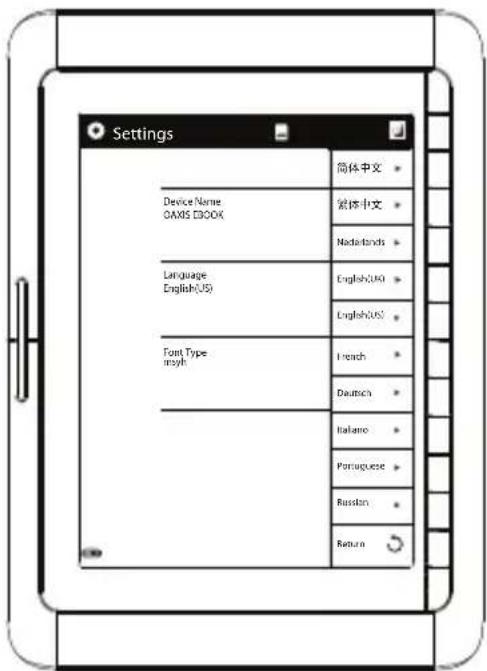
To change the user interface language, press the direct access button corresponding to the
desired option.
text_image
Settings Device Name OAMS EBOOK 简体中文 繁体中文 Nadafonds Language English(US) English(US) English(US) Font Type myth French Deutsch Italiano Portuguese Russian ReturnFont Type
Fonts on the eBook can be customized to suit your preferences. To change the font type, press on the corresponding direct access button.
12.2. aUto shUtdoWn settings
This feature allows the eBook to shut down itself automatically after it idles for a preset duration.
To modify the "Auto Shutdown Settings", press on the corresponding direct access button to select the desired time.
12.3. aBoUt ProdUct
Information about the eBook including software and system version.
To restore all settings back to the factory original settings.
*All preferences, presets and data will be lost.
A confirmation dialog window will appear to validate the restoration.

text_image
Auto Shutdown Settings Refer Confirm Warning: setting will be lost.Press on the button indicating "Return ⬇" to exit the restoration. Press on the "Confirm √" to validate the restoration.
The eBook will be restored to the original factory settings
13. troUBleshooting
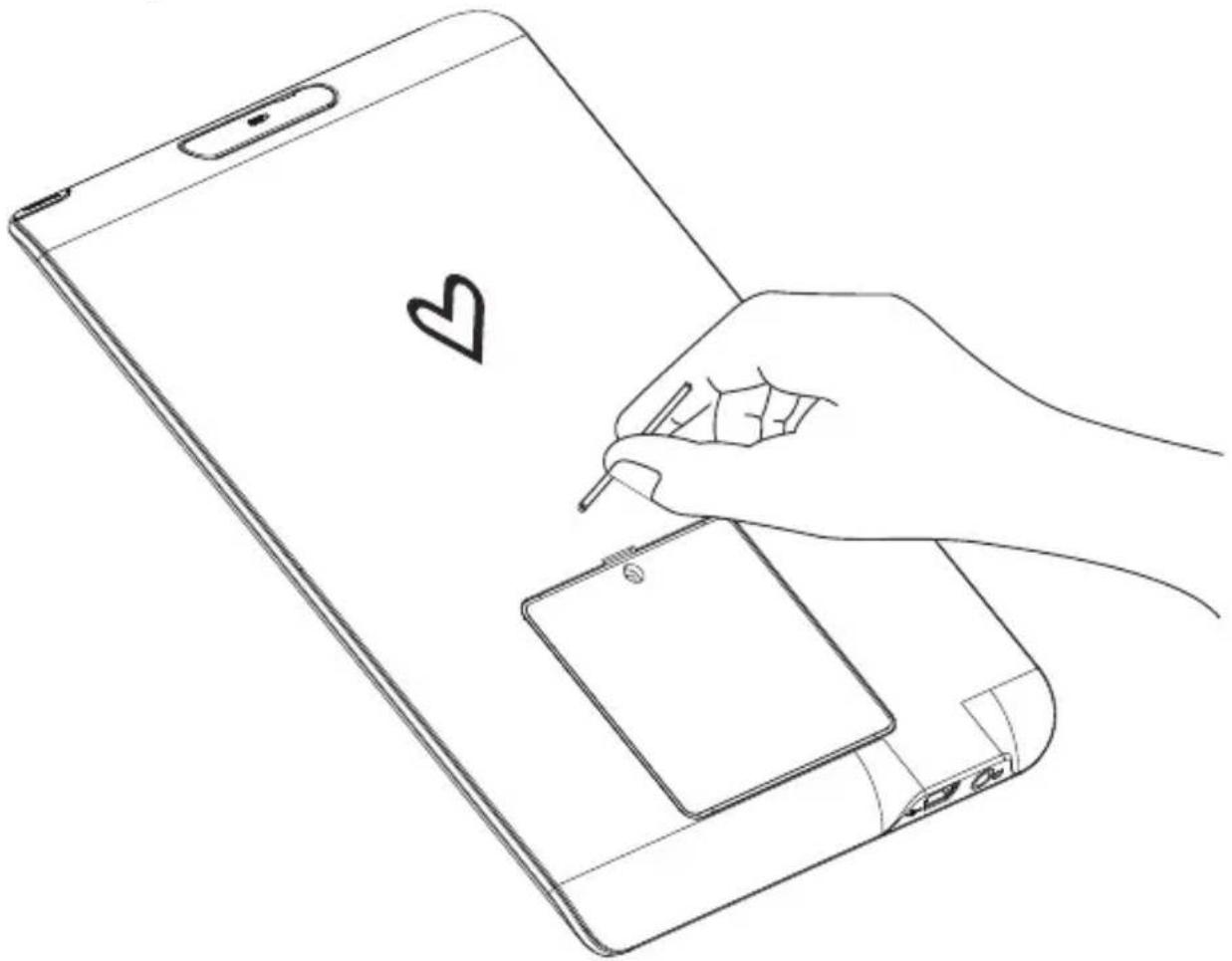
If the eBook does not respond, try resetting the eBook. Use a small pin to reset the eBook as illustrated.
natural_image
Line drawing of a hand holding a smartphone with a heart symbol and a stylus, no text or symbols presentAfter pressing the Reset button, restart the eBook by pressing on the Power switch.
14. sPeciFications
▶Processor: Samsung ARM 9 Core
▶ Resolution : 600x800 pixels (4 levels grayscale)
▶ Display: 6" Electronic Paper Display
RAM: 64 MB SDRAM
▶ Operating System: Linux 2.6
▶ Battery: Li-Ion
▶ Charging Port: USB
▶ Expandable Memory: SD/MMC Cards
▶ Supported Text Formats: PDF, EPUB, RTF, TCR, PDB, PRC, MOBI, OPF, OEB, HTM, HTML, TXT, CHM, FB2, DJVU, DJV
▶ Supported Audio Formats: MP3
▶ Supported Image Formats: JPEG,TIF, GIF, BMP
▶ Dimensions: 178x128.4x 9.9mm
Weight: 228g
15. WarrantY
Energy Sistem Soyntec S.A. warrants its products to be free from defects in materials and workmanship at the time of purchase.
The warranty period is 36 months from the date of purchase.
15.1. WarrantY ProcedUre
Visit the Support section at http://support.energysistem.com and select your product to view the FAQ (Frequently Asked Questions). The solution to your problem is very likely to have been already published there. You will also be able to download user manuals, user guides, drivers and updates
If you cannot find an appropriate solution in the Support section, you may send us your enquiry or warranty service request by email: support@energysistem.com
Alternatively, you may prefer to contact the distributor from which you purchased the product, presenting the purchase receipt or invoice.
Specifications are subject to change without notice.
© 2009 by Energy Sistem®. All rights reserved.
16. traderMarks
All company, brand and product names are trademarks or registered trademarks of their respective companies.
17. declaration of conFirMitY
Manufacturer Name: Energy Sistem Soyntec S.A.
Address: Pol. Ind. Finestrat, C/.Calpe n°l, 03509, Finestrat Alicante (Spain)
Tel: 902 388 388
Fax: 902119034
NIF: A53107488
We declare under our own exclusive responsibility that the product:
Energy Sistem® Electronic Book reader Energy™ 2060
Manufacturing country: China
Is in compliance with the essential directives, norms and standards of the European Union 89/336/EEC (EMC Directive).