Color eReader C4+ Touch - Tablet ENERGY SISTEM - Free user manual and instructions
Find the device manual for free Color eReader C4+ Touch ENERGY SISTEM in PDF.


| Type de produit | Tablet / eReader |
| Marque | ENERGY SISTEM |
| Modèle | Color eReader C4+ Touch |
| Écran | 7 pouces (estimation) |
| Résolution | 1024 x 768 pixels (estimation) |
| Type d'écran | TFT LCD couleur |
| Processeur | 1.2 GHz (estimation) |
| Mémoire RAM | 512 MB (estimation) |
| Stockage interne | 4 GB (estimation) |
| Stockage extensible | microSD jusqu'à 32 GB (estimation) |
| Connectivité | Wi-Fi 802.11 b/g/n (estimation) |
| Formats supportés | ePUB, PDF, TXT, HTML, JPEG, BMP (estimation) |
| Batterie | Lithium-ion 2000 mAh (estimation) |
| Autonomie | Jusqu'à 8 heures (estimation) |
| Dimensions | 190 x 120 x 10 mm (estimation) |
| Poids | 300 g (estimation) |
| Alimentation | USB 5V 1A (estimation) |
| Système d'exploitation | Android 4.2 (estimation) |
| Fonctions principales | Liseuse couleur, écran tactile, lumière intégrée, dictionnaire, notes |
| Entretien | Nettoyer avec un chiffon doux et sec |
| Sécurité | Ne pas exposer à l'eau ou l'humidité |
| Pièces détachées / Réparabilité | Batterie non remplaçable par l'utilisateur (estimation) |
| Informations générales | Fabriqué par ENERGY SISTEM, Espagne |
Frequently Asked Questions - Color eReader C4+ Touch ENERGY SISTEM
User questions about Color eReader C4+ Touch ENERGY SISTEM
0 question about this device. Answer the ones you know or ask your own.
Ask a new question about this device
Download the instructions for your Tablet in PDF format for free! Find your manual Color eReader C4+ Touch - ENERGY SISTEM and take your electronic device back in hand. On this page are published all the documents necessary for the use of your device. Color eReader C4+ Touch by ENERGY SISTEM.
USER MANUAL Color eReader C4+ Touch ENERGY SISTEM
text_image
ENERGY SISTEM M ←User manual
INTRODUCTION
Energy Sistem™ Thank you for purchasing the Energy Color eReader C+ Touch. The following sections provide an overview of your new device and its basic features. Please read everything carefully before start using the product.
ImPORTaNT SaFeTy INSTRUCTIONS
text_image
Caution RISK OF ELECTRIC SHOCK DO NOT OPENTo ensure your safety and the safety of others, please ensure that you read all the safety information before operating this product.
Keep this information in a safe place for future reference.
Cautions
We strongly recommend reading the points below before operating this product:
- Back up the data periodically to another safe media. Under no circumstances there is not any liability regarding data damage or loss.
Do not place the reader near devices that emit strong magnetic fields. It may cause data damage or loss. - Do not disassemble or remodel the device.
- Do not let the device drop or shock.
- Do not use the device under heavy moisture or wet.
▶ Do not press strongly the device screen. - Do not use the device in a dirty or dusty environment.
Do not remove micro SD/SDHC card or turn off the device during data writing or reading to prevent damage to data and to the device.
Make sure the micro SD/SDHC card is unlocked before writing or deleting data in the SD card.
Mantenimiento
There are no user serviceable parts in the Energy Color eReader C+ Touch.
Limpieza
Always POWER off your Energy Color eReader C+ Touch before clean it.
VISUaLIZaTION
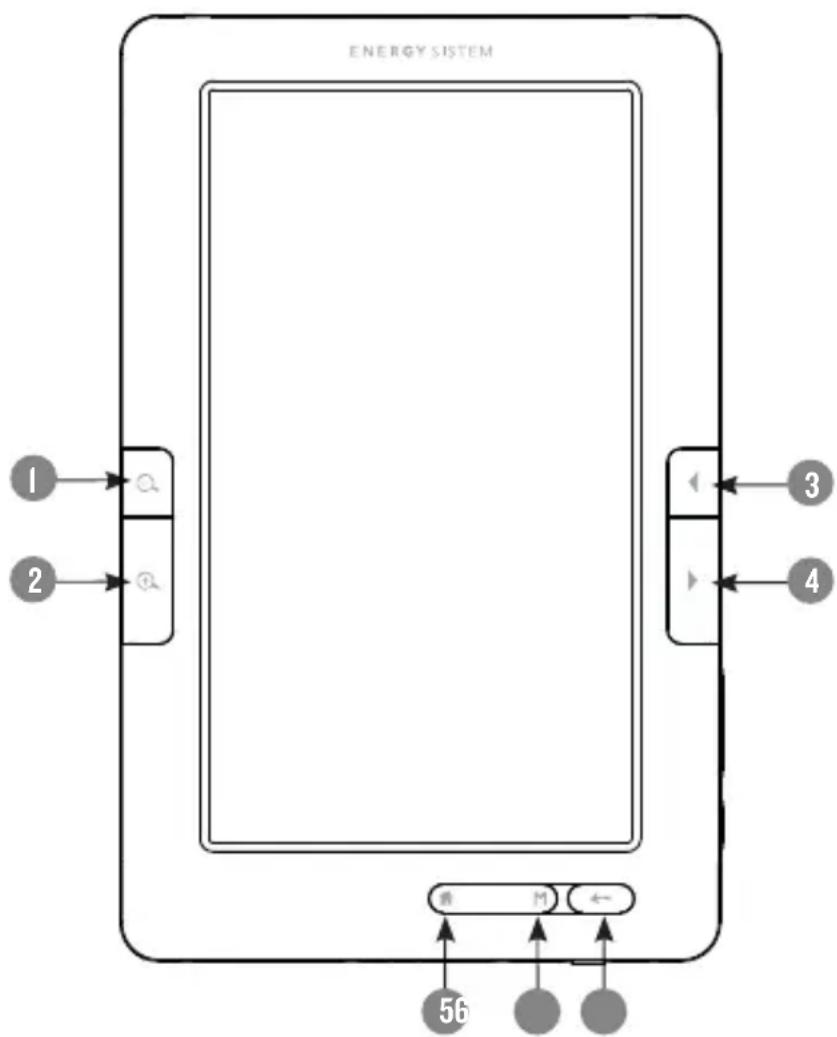
- 🔒: to reduce the fonts size during reading. Press to make zoom out on pictures.
- 🔒: to increase the fonts size during reading. Press to make zoom in on pictures.
- ◀: To turn to the previous page when reading. It is also used to select the previous track (short press) or to make a fast reverse (long press) during the audio or video playback.
- ▶: To turn to the next page when reading. It is also used to select the next track (short press) or to make a fast forward (long press) during the audio or video playback.
- : to access/return to main menu.
- M: To access to the sub-menu and to confirm the selection of a file or setting. In reading mode, images or music playback press to access to the settings menu.
- ←: to cancel the current process or to return to the previous menu.
flowchart
graph TD
    A["1"] --> B["Q"]
    C["2"] --> D["Q"]
    E["3"] --> F["←"]
    G["4"] --> H["←"]
    I["56"] --> J["M"]
    J --> K["←"]
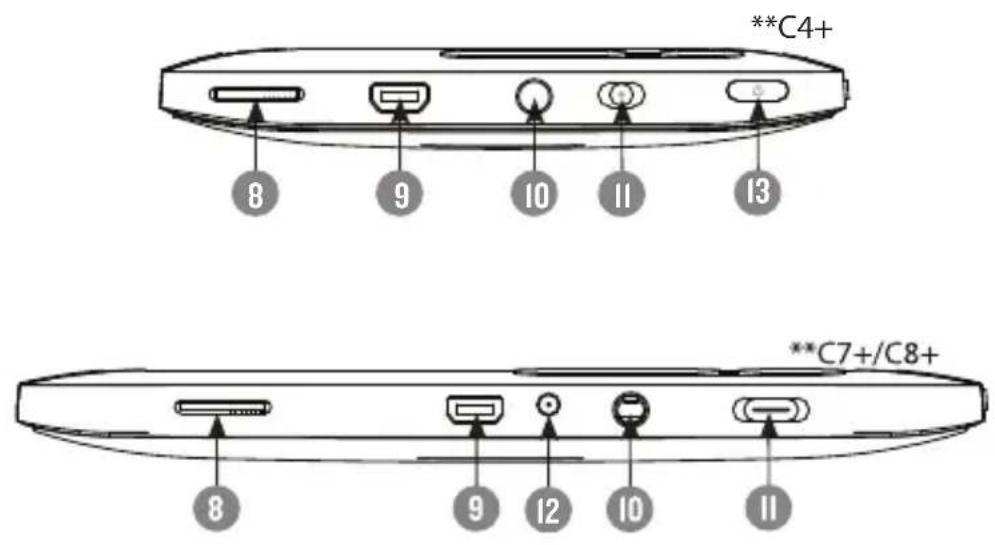
- MicroSD card reader slot.
- Mini USB port: Mini USB jack for data transfer or battery charging via computer.
- TV OUT/ Headphone jack.
- Off/On switch: to power on the switch must be always in the position ON.
- DC in: to charge the eReader with a power adapter (not included). Only available in C7+ and C8+ models.
- POWER: press for 2 seconds to power on/off the eBook.
text_image
**C4+ 8 9 10 11 13 **C7+/C8+- +/-: to increase/reduce the volume during the music or video playback.
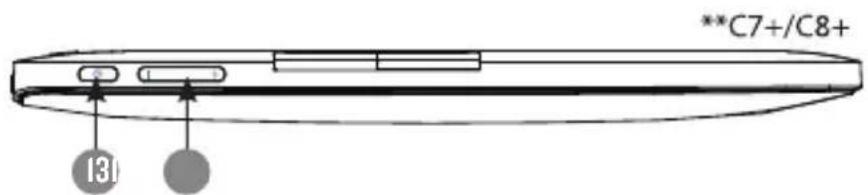
text_image
**C7+/C8+ 131GETTING STARTED
- We recommend making a full charge of the battery before first use. Connect the ebook through the supplied USB cable to your personal computer (must be turned on).
- Your eReader is powered by a special Li-ion polymer rechargeable battery. When the battery becomes low, connect the reader through the micro USB cable to your computer USB port.
The charging status is shown as below:
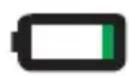
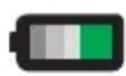
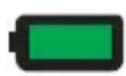
battery low charging fully charged
- Please handle the device with care to prevent damage to the display screen.
POWER ON/OFF
To power on your Color eReader the power switch must be on the ON position. Press the power button for 2 seconds to start the device.
The first time you use your eReader the touch screen calibration process will be started. After complete the calibration, the welcome message will be showed, please wait till the process is complete.
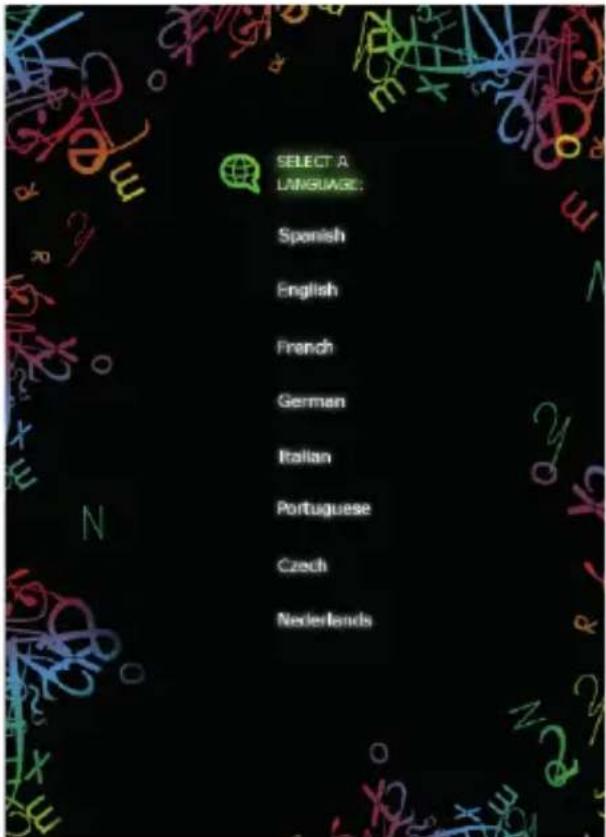
Also the first time you use the device the system will allow you to select your language for the user interface.
text_image
SELECT A LANGUAGE: Spanish English French German Italian Portuguese Czech NederlandsTo power off the device press during 3 seconds. The turn off message will be show before power off.
We recommend always keep the Power switch on the OFF position while the eBook is OFF to prevent the device get started accidentally.
| Ítem Function | |
| Mini USB cable | Use the mini USB cable to connect the eReader to your computer and start the data transfer or to start the battery charge process. |
| Earphones | Connect them to the earphones output on your eReader to enjoy your audio files. |
| TV OUT cable | Use the TV out cable to connect your eReader to any TV and enjoy the videos stored on the device. |
FILeS maNaGemeNT
From the browser of your computer you can copy, delete and organize files or folders.
When you connect the device to the computer, it is not possible to use the device at the same time.
The internal memory files are organized in various folders (factory default). You can create, delete and organize internal folders.
If you have a micro SD/SDHC card inserted, the device will compile all the information stored in it.
USING mICRO SD/SDHC CaRDS
The Energy Color eReader C+ Touch supports standard Micro SD/SDHC cards for storing thousands of books, music and pictures.
The Energy Color eReader C+ Touch supports standard Micro SD/SDHC cards up to 32 GB.
To begin, slide in the card into the slot, be sure that contacts of the card must be face down and the label face up.
▶ To eject the card, just push it in slightly.
Notes:
- You will know when the Micro SD/SDHC is ready to use when it appears as TFCard device in the Explorer.
If Micro SD/SDHC card cannot be recognized by the device, you should remove the
Micro SD/SDHC card again and reboot the device.
When the system is reading or writing data, please do not remove the memory card or reset the system.
If you need to reformat the Micro SD/SDHC card please create a backup copy of your files previously and format the Micro SD/SDHC card in FAT/FAT32 file system.
USING yOUR COLOR eReaDeR C+ TOUCH
maIN meNU
Thanks to the touch screen and to simple moves with your fingers, it is really easy to access to any menu and to open files on your Color eReader C+ Touch.
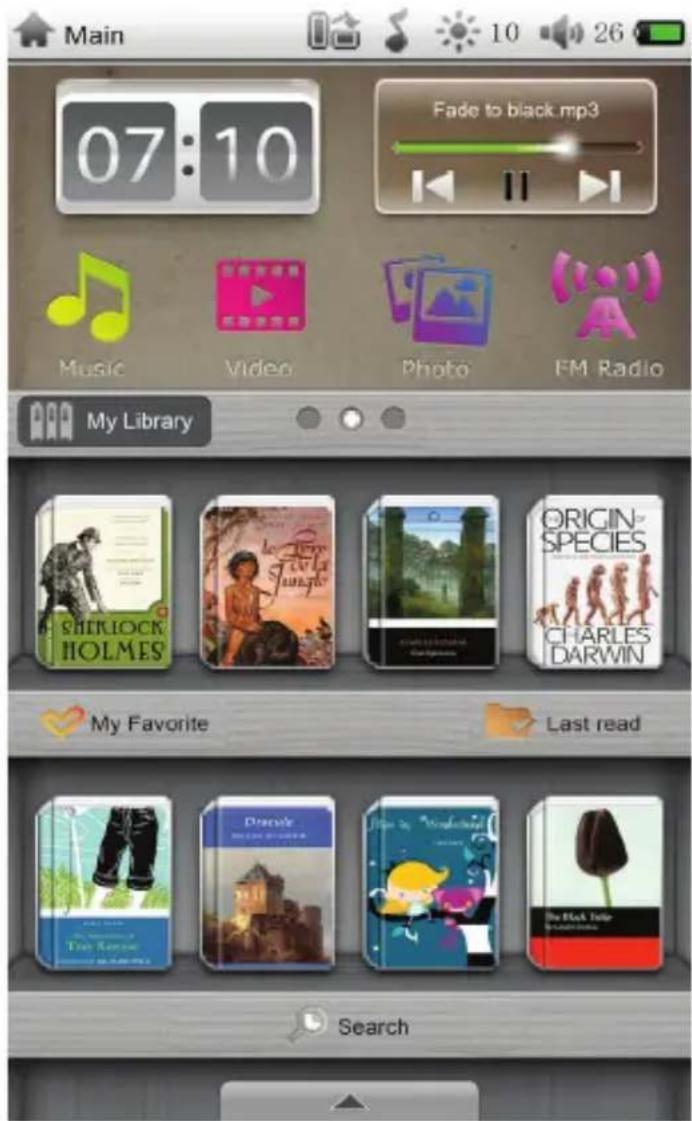
The main menu appears automatically when power on the Color eReader C+ Touch. You can return to the Main Menu always you need by pressing the 🔊 button or by long press on ← button.
text_image
Main 07:10 Fade to black.mp3 Music Video Photo FM Radio My Library Shirlock Holmes Origin-Species CHARLES DARWIN My Favorite Last read Search- : displays the current time.
- : displays the music mini player.
- : by tapping this icon you can access to the explorer for the audio files stored in the reader internal memory (flash memory) or at the micro SD/SDHC memory card.
- : by tapping this icon you can access to the explorer for the video files stored in the reader internal memory (flash memory) or at the micro SD/SDHC memory card.
- : by tapping this icon you can access to the explorer for the images files stored in the reader internal memory (flash memory) or at the micro SD/SDHC memory card.
- “目”:by tapping this icon you can access to the explorer for the eBooks stored in the reader internal memory (flash memory) or at the micro SD/SDHC memory card.
- My Library : by tapping this icon you can access to the Library.
- My Favorite: by tapping this icon you can access to the all the Ebooks you have marked as Favorites.
- Last read : tap this icon to access to the last read eBooks.
- Search: tap this icon to start the search of any file. Insert the name of the file and the search results will be displayed. To open the file just tap on the name and it will automatically opened.
II. : tap to open the options menu thumbnail. - : tap to open the calendar.
- : tap to open the calculator.
- : tap to access to the voice notes recorder application.
- (10) : tap to open the FM radio.
-
: tap to change the wallpaper image of Main Menu. There are 5 options for wallpapers; by tapping the next/previous arrows you can switch between them.
-
: tap to open the files explorer.
- : tap to open the power management.
- 📄: We have included an electronic copy of our manual for your review. Simply tap the option to read it.
- : press to select the language for the user interface.
- : tap to access to the settings menu.
- : displays a small preview of the images files stored in the reader internal memory (flash memory) or at the micro SD/SDHC memory card.
- : tap this icon from any menu to return directly to the home screen.
- : tap this icon to adjust the screen brightness.
- : tap to adjust the volume level, by sliding to the right/ left along the volume bar till the desired level.
OPTIONS aND aPPLICATIONS meNUS
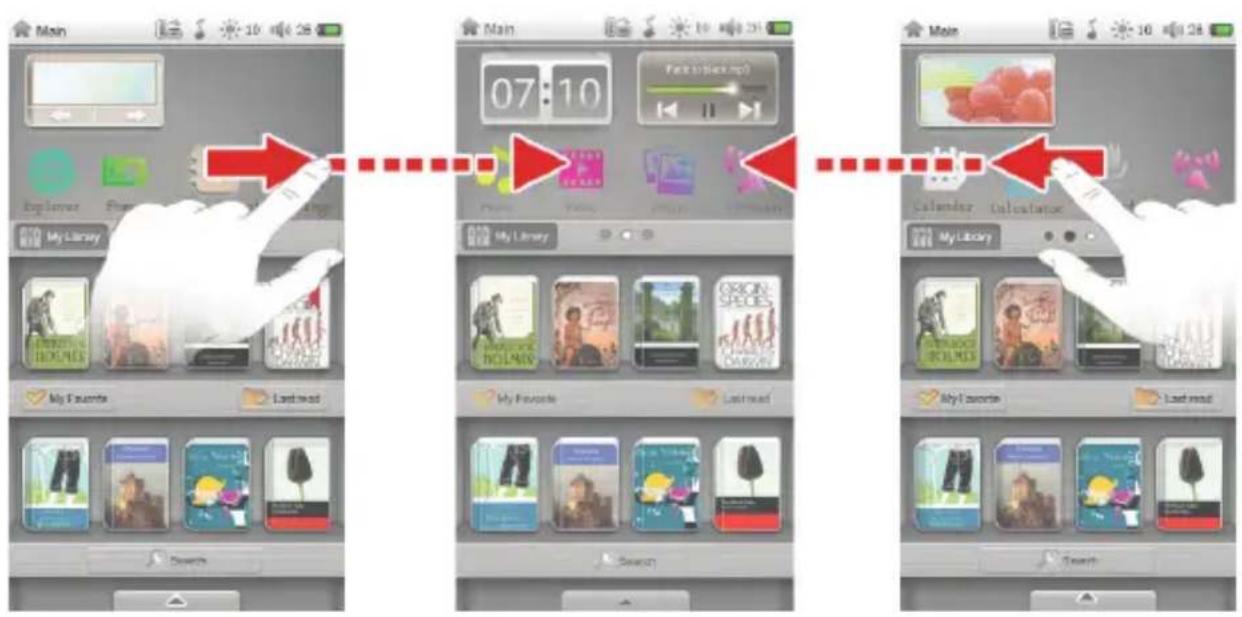
To navigate between the 3 options menus just drag the screen toward the left or right until the new screen appears. The white point on the top of the library indicates the numbers of screens the device has and which one you are viewing.
text_image
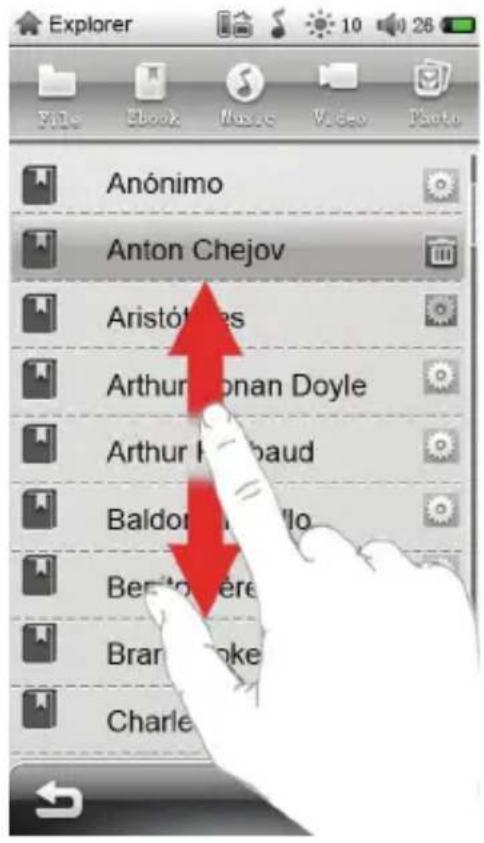
Main Explorer My Library My Favorites Last read 07:10 My Library My Favorites Last read 07:10 My Library My Favorites Last readTo move up or down in any sub-menu just drag your finger up or down.
text_image
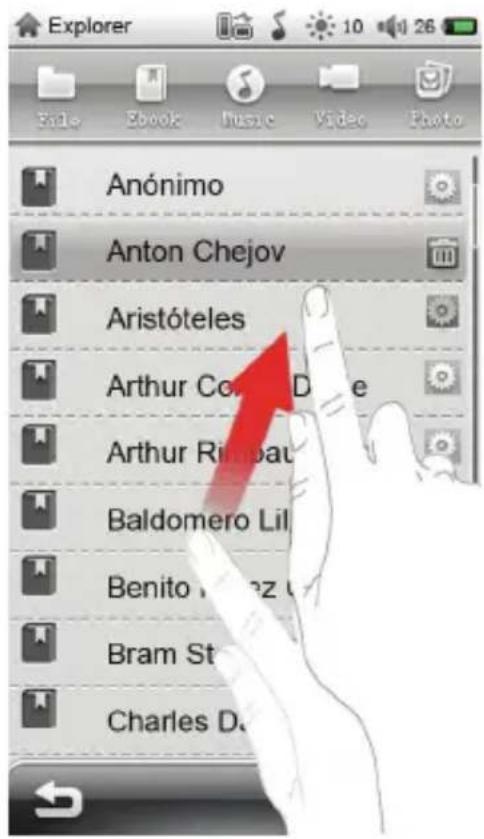
Anónimo Anton Chejov Aristófides Arthur Jocnan Doyle Arthur H. Raubaud Baldon M. Rello Beníto Pereira Brancó Pake CharleTo move up/down quickly swipe your finger as it is showed on the illustration below. You can stop the scrolling by taping in any point of the screen or wait till its stop.
text_image
Anónimo Anton Chejov Aristóteles Arthur Co. Arthur Rinnbau Baldomero Lil Benito Lopez Bram St Charles DeXPLORReR
From this option you can explore all the files stored in the reader internal memory (flash memory) or at the micro SD/SDHC memory card.
Tap the icon 📋 to access to the files explorer. Also you can sort the files by type: eBooks, music, videos, photos or all files.
- : by tapping this icon you can copy, paste, delete the files or folders from the explorer.

this icon to sort the files or folders by name.
eBOOK
This option allows you to access to the complete library of eBooks stored in the reader internal memory (flash memory) or at the micro SD/SDHC memory card.
Tap the icon eBook to access to the eBooks files explorer.
- You can choose the location of the file by tapping on the desired option (flash memory or micro SD/SDHC memory card).
The folders stored on the selected location will be displayed.
You can move across the eBooks list by dragging the finger up or down.
To open an eBook just tap on it.
ReaDING BOOKS
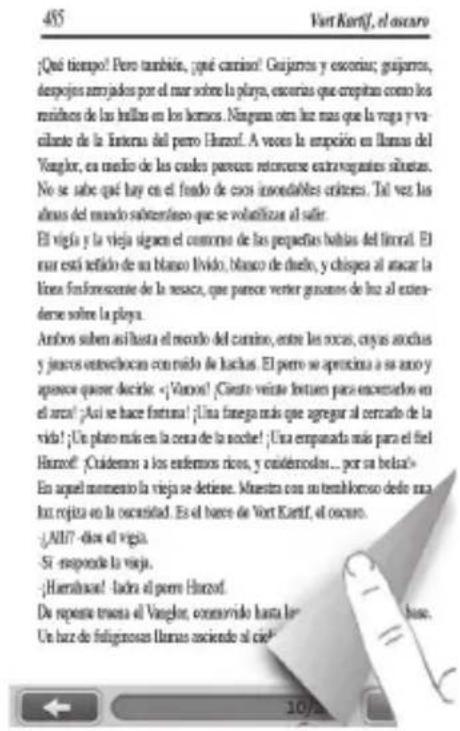
Next page: to turn to the next page just drag your finger from the right corners as it is showed on the below illustration. Also, you can touch the icon to turn to the next page.
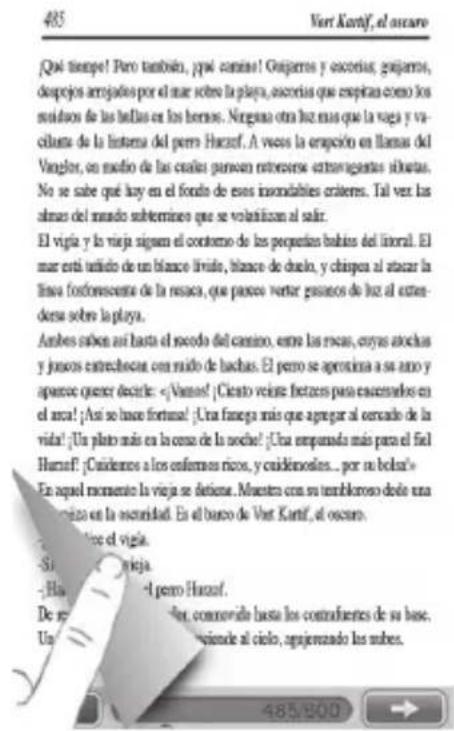
Previous page: to turn to the previous page just drag your finger from the left corner as it is showed on the below illustration. Also, you can touch the icon to turn to the previous page.
eBOOK ReaDING FeaTUReS
After you open an eBook, you can use the following features to adjust the read settings as your preferences. To access to the reading features just tap in any point of the screen and the settings thumbnail will appear. From here, tap this icon is to access to the following features:
Font size: tap this icon 📄 to choose between the different font size: 14 pts, 18 pts, 22 pts or 26 pts. This option is not available for PDF files.
Zoom in : increase the font size during PDF files reading.
Zoom out : reduce the font size during PDF files reading.
Font color: tap the icon 📁 to change the font color. The available colors are: black, blue, green, red, white, light blue, light pink and yellow.
Rotate screen: your color book allows you to change the orientation of the text on-screen reading vertical to horizontal. Tap this icon to rotate the screen 90° counter clockwise.
Page turn effect: to change the page turning effect. By tapping the icon 📄 you can choose from automatic mode or book mode.
Background: tap the icon to set the background color. There are 8 background colors available.
▶ Automatic page turning: tap the icon 🔒 to set the time interval between the automatic turning page. (5, 10, 15, 20 y 30 seconds).
Go to page: to jump to any page quickly. Tap the icon 📋 and the numeric keyboard will appear. Insert the number of the desired page and tap on the OK button.
▶ Auto type : enable/unable the aligning function during PDF files reading.
Encoding: It allows you to set the code type for an eBook. Tap the icon to choose the desired option.
: enable/unable the night mode. This function changes the background color to black and the font colour to white making easier to read poorly-lit rooms.

: tap this icon to start the music playback during reading.
: tap this icon to add an eBook to your favorite collection or to add, open and delete a bookmark.
To add an eBook to your favorite collection tap on the icon Add to My favorites.
For readability, you can set markers. Bookmarks are sorted and accessible when you are reading the corresponding book. To add a bookmark tap on the icon Add Bookmark. The total of bookmark for each book is 8. It is not necessary that you add a bookmark each time you stop the reading, your Color eReader C+ Touch will automatically open the ebook on the last page you read the next time you resume the reading.
To open a bookmark tap on the icon Open Bookmark.
To delete a bookmark tap on the icon Delete Bookmark.

Tap this icon to start the automatic page turning. To set the interval of time for automatic turning remember to access to the automatic page turning option. To the automatic page turning just tap on any part of the screen.

tap on this icon to return to the previous menu.
mUSIC
This option allows you to access to the complete library of audio files stored in the reader internal memory (flash memory) or at the micro SD/SDHC memory card.
- On the options menu tap the icon
- All the songs stored in the reader internal memory or micro SD/SDHC card will be displayed.
- You can listen music at the same time you are reading an eBook (except PDF files) or while you are viewing photos. Tap the icon 📋 to start the music playback.

Nota: Books and files in PDF format consume many processor resources memory, so it do not allow images rotation or music playback simultaneously when you have open an PDF extension eBook.

text_image
Music The Best Damn Thirgump3 ARTNER TOURS EDITION ALBUM ENERGY 01:35 05:28You can access to the following features during the music playback by tapping on each icon:
: to start or resume the music playback.

tap to display the EQ during the music playback.
: tap to show the lyrics of a song during the playback. Be sure that file which is the song lyrics have same name that the song file and also must be in .Irc

: tap on this icon to return to the previous menu.

: to play the previous track. To fast rewind tap and hold the icon. The longer you the control, the faster the track fast-rewinds. Also you can skip to any point in a just by sliding the track progress bar to fast rewind.

: to pause or stop the music playback.

: to play the next track. To fast forward tap and hold the icon. The longer you hold control, the faster the track fast-forwards. Also you can skip to any point in a track by sliding the track progress bar to fast forward.

to access to the advanced music playback features.

to adjust the playback mode. You can choose from repeat one, repeat all, or sequential.

: to adjust the EQ mode. There are the following sound effects available: Normal, Pop, Rock, Classic, Jazz, Vocal, Dance and Soft.
: to rate a song. Tap to give the song zero to five stars.
: to set the font color for the songs lirycs.
PICTURES
This option allows you to access to the complete library of images files stored in the reader internal memory (flash memory) or at the micro SD/SDHC memory card.
From options and applications menu, tap the icon menu.

to access to the pictures After you open an image file, you can adjust the following features according to your preferences. To access to the images advanced features menu, just tap in any area of the image and the control bar will appear.

: tap on this icon to return to the previous menu.

: to start the automatic images playback. To stop just tap in any point of the
: to rotate the picture 90° counter clockwise.
: to open the pictures preview side bar.
: tap to start the music playback during the images slide show.
: Select a picture transformation effect, there are eleven different effects to choose: random, fade out, persian blinds H, persian blinds V, slide up, slide down, slide left, slide right, mosaic, zoom in, zoom out.

: to set the image automatic playback mode. You can choose between random, upward or downward.

: you can set the interval time for a slide show.
To make (zoom in) or (zoom out) in a picture use your fingers as it is indicated on the below illustration:

natural_image
Close-up portrait of a man with red arrows pointing to the nose area, wearing a white glove (no text or symbols visible)VIDeO
This option allows you to access to the complete library of video files stored in the reader internal memory (flash memory) or at the micro SD/SDHC memory card.
From options and applications menu, tap the icon 🏠 to access to the video menu.
To access to the control bar just tap in any point of the video and it will appear automatically:

: to start or resume the video playback.

: to pause or stop the video playback.

: to play the next video. To fast forward tap and hold the icon. The longer you hold the control, the faster the video fast-forwards. Also you can skip to any point of the video video just by sliding the track progress bar to fast forward.

to play the previous video. To fast rewind tap and hold the icon. The longer you hold the control, the faster the video fast-rewinds. Also you can skip to any point of the video just by sliding the track progress bar to fast rewind.

to access to the advanced video playback features.


: tap to set the subtitles font color.
: tap to set the subtitles font size.: normal, large, extra large.
: tap to set the audio output: stereo, left channel or right channel.
to set the playback mode: repeat one, repeat all, random, or sequential.
: to adjust the screen size: full screen, original size, 4:3, 16:9, PAL, NTSC.
: to activate or desactivate the subtitles (if available).
: to set the audio track (if available).
tap on this icon to return to the previous menu.
CONNeCTING yOUR COLOR eReaDeR TO a TV
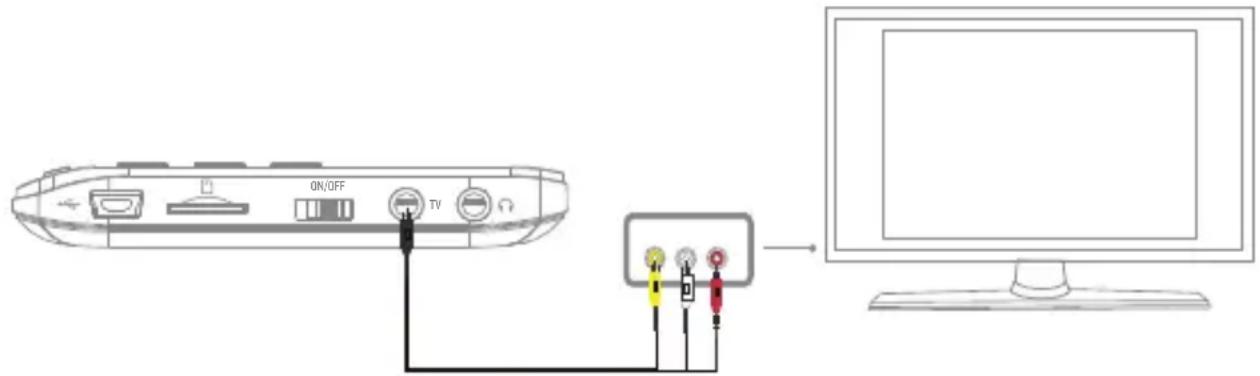
You can enjoy the videos stored on your eReader in any TV. For this, just connect the AV cable to the TV output of your eBook and to the A/V input of your tv, as it is indicated on the illustration below:
text_image
ON/OFF TVWhen you have the device connected to your TV set on the eReader the TV signal (PAL or NTSC) to start the video playback on your TV.
Note: When you connect your Color eReader C+ Touch to any TV, the device loses the control functions and the screen will turn off. To recover the playback on your Color Book, simply disconnect the AV cable.
VOICe NOTeS
Your Color eReader C+ Touch allows you to record voices notes in MP3 format. To access to this application tap the icon from the options menu.
To start recording a voice note just tap the button . To stop recording tap the button .
Also you can adjust the recording quality by tapping the . You can record voice notes in low, standard and high quality.
To save your voice notes tap the icon and the file will be stored on the default folder "My recordings".
RaDIO Fm
You can enjoy FM Radio with your Color eReader C+ Touch. To access to this application tap the icon (●) from the options menu.
To start the automatic search for dial stations tap the icon

To add presets just tap the icon and mark the position where you want to save the dial.
To delete the preset just tap the icon

Note: the earphones must be connected in order to tune dials.
SetTINGS
From Main Menu you can access to the Settings menu by tapping . The Settings menu consists of the following options:
Language: You can change the user interface language
Auto-Shutdown: allows you to set the time when the device should shutdown after non -activity period. You can choose 5 minutes, 10 minutes, 30 minutes, 1 hour or desactivate this option.
Saving time: to set automatic screen light time (how many seconds of inactivity to turn off the screen after 30 seg, 1, 5, 10, 20 or 30 minutes) and also desactivate this option.
Keytone: to activate or desactivate the keytone.
▶ Display Settings: to adjust the brightness.
- Touch Screen Calibration: to calibrate the touch screen by tapping slightly the center of the calibrating point till the complete message is displayed.
About product: displays the information of your Color eReader C+ Touch (Manufacturer, Model, Firmware version, Hardware version and available internal memory).
Default Settings: Restores the factory-default settings. Take into account that with this option you will delete all your configurations set previously.
aDOBe ReaDeR© INSTRUCTION DRm
Adobe DRM protected PDF and EPUB files are supported only if Adobe Digital Editions 1.5 or later is installed on your computer and your Ebook is connected to the computer.
Setup:
- Install the Adobe Digital Edition on your computer.
-
After installation, open the above software, and enter your Adobe account.
-
After turning on the Ebook, (click on "Set DRM" which is included in the "Settings" interface. Please ignore this item if you cannot find it). Then, keep the Adobe Digital Edition open, and connect the Ebook to the computer, there will show a window for activation. Click "Authorization", then DRM activation is completed.
Notes:
- The authorization information is stored in microSD card. Thus, you need to active the device again if using a new microSD card.
- After activated, if you want to use a new account to active, please delete the hidden folder under SD root “.adobe-digital-editions”.
Please refer to below website for more information.
www.adobe.com/products/digitaleditions
TROUBLESHOOTING
The device hang or cannot be switched on.
If battery has been fully deplete the device will not have enough capacity to power on.
- Charge the device using the USB cable at least for one hour or using the power adapter (only available for C7+ and C8+ models - cable not included). Press the POWER button and if the device can not still be switched on, continue with the next step.
- If you have the eBook connected to the computer, please disconnect and press the POWER button.
- Check if the Off/On switch is on the ON position.
- As last resource we recommend you to update the firmware with the last version available in our website.
Battery capacity seems short:
The battery was not used for a long time. Please charge the device completely. The battery is not fully charged. Please charge the device for approximately 6 hours. We recommend you to use Energy Sistem™ chargers K Series to charge your Color eReader C+ Touch. For more information please visit: http://www.energysistemstore.com/es-es/productos/complementos_audio_video
Cannot read/open en ebook:
Check if the book format is supported by device.
The book has copyright protection DRM. You must download the Adobe® Digital Editions software (http://www.adobe.com/products/digitaleditions/). Use it to
download and purchase digital content to read online and offline. Download eBooks with copy protection to your PC and transfer them to your Energy Color eReader C+ Touch. Adobe® Digital Editions is compatible with e-book formats supported by your Energy Color eReader C+ Touch.
The device cannot be operated during mini USB connection
The device cannot be operated while it is transferring data to a computer to prevent any damage on reader internal memory or microSD card.
MicroSD card is not being detected:
After inserted a microSD card, if your device is has no response, please take out and insert again.
Do not remove microSD card or turn off during data writing or reading to prevent damage to data and your device.
Make sure the microSD card is unlocked before writing or deleting data in the microSD card.
Backup your files and data before formatting the microSD card. Please format the microSD card in FAT/FAT32.
Your eBook only can read microSD cards up to 32 GB.
Why do some EPUB documents not look right on my Energy Book?
Many publishers and convert software are supporting this format, but without maintaining a single standar set. One of the most common problems is when the creator puts everything EPUB e-book content in a “chapter” in EPUB. This can cause the document reading differs with formatted text, margins, gaps, etc.
Can I listen music while reading?
Yes, except in PDF format.
Why some video files can not be played?
If the resolution exceed 800x480, you might experience some troubles to play these files. Change the resolution or try with another video. The file format/codec may not be also compatible. Please convert the file with a specialized program to ensure compliance and obtain a file which occupies less space in reader memory
FIRmwaRe UPDaTe
To update the firmware of your Color eReader C+ Touch, visit our download section in our website: www.energysistem.com You will find all the files and instructions needed to update successfully your device.
| TECHNICAL SPECIFICATION | ||
| Display | Type C4+/C7+; Resistive color touch screen TFT 16:9.C8+; Resistive color touch screen TFT 4:3. | |
| Resolution C4+: 480 * 272. | C7+: 800* 480.C8+: 800* 600. | |
| Size C4+: 4.3 “inches. | C7+: 7” inchesC8+: 8” inches. | |
| Power | Battery C4+: Built-in Li Polymer II50 mAH.C7+: Built-in Li Polymer 2800 mAH.C8+: Built-in Li Polymer 2800 mAH. | |
| Reading mode autonomy 6 hours(it depends on the screen brightness) | ||
| Music mode autonomy 20 hours(it depends on the screen brightness) | ||
| eBook + music mode autonomy | 5 hours(it depends on the screen brightness) | |
| Video autonomy 4 hours(it depends on the screen brightness) | ||
| Charging time 4-6 hours | ||
| Formatos soportados | eBook Supported formats EPUB - PDF - TXT - FB2 - EPUB - HTML - PDB - CHM - HTM - MOBI - RTF. | |
| Video Supported formats AVI - MP4 - MKV - MOV - 3GP - VOB - MPG - FLV - RM - RMVB. | ||
| Audio Supported formats MP3 - WMA - AAC - WAV - OGG - FLAC - APE. | ||
| Images Supported formats JPG - JPEG- BMP - PNG - GIF. | ||
| Subtitle Supported formats SRT-SSA- SMI-ASS. | ||
| Storage | MicroSD card reader | MicroSD/SDHC, up to 32 GB |
| USB | Mini USB 2.0 | |
| FM Radio | Range frequency | 87.5-108MHZ |
| Internal Memory (Flash) | Color Ereader C4+ Touch Titanium Grey | 4GB (3.5GB available). |
| Color Ereader C4+ Touch Titanium Red | 8GB (7.5GB available). | |
| Color Ereader C7+ Touch Titanium Grey | 4GB (3.5GB available). | |
| Color Ereader C7+ Touch Titanium Black | 8GB (7.5GB available). | |
| Color Ereader C8+ Touch Titanium Red | 8GB (7.5GB available). | |
| Dimensions and weight | Color Ereader C4+ Touch | Dimensions: 7,5 mm x 90 mm x 140 mm.Weight: 155,5 gr. |
| Color Ereader C7+ Touch | Dimensions: 8,5 mm x 124 mm x 195 mm.Weight: 305 gr. | |
| Color Ereader C8+ Touch | Dimensions: 8,5 mm x 165 mm x 214 mm.Weight: 465 gr. | |
waRRaNTy
Energy Sistem Soyntec SA is liable for any lack of conformity which exists at the time the goods were purchased during a period of 36 months. Batteries are excluded from the 36-month warranty, having a warranty period of 12 months.
This warranty covers any defects in workmanship or materials. This warranty doesn't cover any failure of the product due to accidents, misuse or alteration made by an unauthorized person.
The special 36-months warranty is valid for the European Union. For other countries, please refer to your specific legislation or your local distributor.
waRRaNTy PROCeDURE
- Visit the Support section at http://support.energysistem.com and select your product to view the FAQ (Frequently Asked Questions). The solution to your problem is very likely to have been already published there. You will also be able to download user manuals, user guides, drivers and updates.
You can check the availability of the user manual in your language at http://www.energysistem.com/es-es/support/manuals
- Alternatively, you may prefer to contact the distributor from which you purchased the product, presenting the purchase receipt or invoice.
Important: This warranty doesn't cover any damage or loss to any data stored in the product memory, therefore Energy Sistem™'s Technical Service will not assume any loss of the above mentioned information so it is recommended to make a backup of your data and to remove any data or personal info from its internal memory before you send the product, or to send it only with the original factory default values.
Specifications are subject to change without notice.
Trademarks. All company, brand and product names are trademarks or registered trademarks of their respective companies.
© 2012 by Energy Sistem™. All rights reserved.
CE
DECLARATION OF CONFORMITY
01/01/2013
Manufacturer Name: Energy Sistem Soyntec S.A.
Address: Pol. Ind. Finestrat, C/. Calpe, I - 03509, Finestrat Alicante (Spain)
Tel: 902 388 388
Fax: 902119034
NIF: A53107488
We declare under our own exclusive responsibility that the product:
Energy Sistem™ Electronic Book reader Energy Color eReader C+ Touch
Manufacturing country: China
Is in compliance with the essential norms and standards of the Directive 2004/108/EC of the European Parliament and of the Council of December 15th 2004.

This symbol on the product or the instructions means that your electrical and electronic equipment should be disposed at the end of life separately from your household waste. For more information, please contact the local authority or dealer where you purchased the product