
Pro 4 - Tablet ENERGY SISTEM - Free user manual and instructions
Find the device manual for free Pro 4 ENERGY SISTEM in PDF.


| Product Type | Tablet |
| Brand | Energy Sistem |
| Model | Pro 4 (Energy Tablet 10" Pro 4) |
| Screen Size | 10.1 inches |
| Screen Resolution | 1920 x 1200 pixels (FHD) |
| Processor | Quad Core ARM Cortex A53 1.5 GHz |
| GPU | Mali-T720 |
| Operating System | Android 7.0 Nougat |
| RAM | 2 GB |
| Internal Storage | 32 GB |
| Expandable Storage | microSD up to 256 GB |
| Rear Camera | 5 MP |
| Front Camera | 2 MP |
| Speakers | 2 x 1 W |
| Battery Capacity | 6200 mAh Li-Ion |
| Charging Time | 4 to 5 hours |
| Wi-Fi | 802.11 a/b/g/n, 2.4 & 5 GHz |
| Bluetooth | 4.0 class 2 |
| GPS | Yes |
| FM Radio | Yes |
| Dimensions (approx.) | 240 x 170 x 9 mm |
| Weight (approx.) | 500 g |
| Power Supply | AC 100-240V 50-60Hz / DC 5V 2A |
| Warranty | 36 months (battery 24 months) |
Frequently Asked Questions - Pro 4 ENERGY SISTEM
User questions about Pro 4 ENERGY SISTEM
0 question about this device. Answer the ones you know or ask your own.
Ask a new question about this device
Download the instructions for your Tablet in PDF format for free! Find your manual Pro 4 - ENERGY SISTEM and take your electronic device back in hand. On this page are published all the documents necessary for the use of your device. Pro 4 by ENERGY SISTEM.
USER MANUAL Pro 4 ENERGY SISTEM
Thank you for your trust in our company and for buying the new Energy Tablet 10" Pro 4. We hope you enjoy it.
Your tablet features a 10" IPS screen (1920 x 1200 pixels), two speakers of 1 W each, a 1.5 GHz Quad Core processor, Bluetooth and 5 GHz Wi-Fi, a slot for microSD cards of up to 256 GB, a front camera, a rear camera, a 6200 mAh battery, GPS and FM radio.
We strongly recommend to read this manual in order to familiarize yourself with your tablet before you start using it. By doing so, you will be able to make the most of it.
Care and maintenance
- Do not expose your tablet to impacts, dust, direct sunlight, humidity or high temperatures.
- Do not use neither corrosive nor abrasive cleaning products.
- Keep the device clean and free of dust using a soft and dry cloth.
- Do not leave your tablet completely discharged for a long time. Always use the charger provided with the product or any other with the same features.
- Please do not dismantle the device. All reparation works should be carried out exclusively by qualified staff of Energy Sistem Technology, S.A.
Main features
SCREEN
• 10.1" IPS LED backlit screen
- Widescreen: 16:10
• FHD resolution (1920 x 1200 pixels)
• Anti-fingerprint coating
PROCESSOR
• Quad Core ARM Cortex A53 1.5 GHz processor
• Mali-T720 GPU
OPERATING SYSTEM
- Android 7.0 Nougat
MEMORY
- 2 GB RAM
- 32 GB internal memory expandable by a further 256 GB via microSD-HC/XC cards
OTHER FEATURES
- 5 MP rear camera
- 2 MP front camera
- 2 x 1 W built-in speaker
- Omnidirectional microphone
• Motion sensor (accelerometer)
BATTERY
• Battery capacity: 3.8 V / 6200 mAh, Li-Ion battery
- Power supply using an AC/DC power adapter (Input: AC 100-240 V 50-60 Hz. Output: DC 5 V/2.0 A)
WI-FI
• Standard: 802.11 a/b/g/n
- Operating frequency: 2.4 GHz (2.412-2.472 GHz) / 5 GHz (5.180-5.320 GHz)
• Maximum output power: 12.30 dBm
BLUETOOTH
- Bluetooth 4.0 class 2
- Operating frequency: 2.4 GHz (2.402-2.480 GHz)
• Maximum output power: 4.88 dBm
CONNECTIONS
- Micro HDMI
- USB-Host function
- USB-OTG function
Product content
• Energy Tablet 10" Pro 4
• USB cable to charge the battery and transfer data
- MicroUSB cable to connect external USB devices
• AC/DC power adapter (EU plug): 100-240 V AC 50-60 Hz / 5 V 2 A
General overview

- MicroHDMI connection
- MicroUSB port
- Headphones output
- MicroSD card slot
- Rear camera
- Front camera
- Microphone
- Power button
- Volume +
- Volume -
- Speakers
Charging the device
Your tablet has a rechargeable 6200 mAh battery. The charging time ranges from 4 to 5 hours, depending on whether the device is on or off. We strongly recommend to use the cable and the power adapter that come with the product to comply with battery charging times.
Switching the device on and off
Press and hold the power button (6) for a few seconds to turn on your tablet. Once the operating system has loaded completely, please unlock the device by sliding up your finger on the lock screen. Please follow the setup wizard to adjust basic settings when you switch on the device for the first time. This process may take a few minutes.
To turn off the device, press and hold the same button until the power off menu appears on screen and then select the Switch off option.
Briefly press the power button (6) to lock/unlock the tablet thus, turning the screen off/on.
Main gestures
- Tap: Touch the screen briefly

• Double tap: Touch the screen twice quickly

- Drag: Move your finger over the screen while maintaining continuous contact

natural_image
Two gray hand icons pointing at a right angle, no text or symbols present- Slide: Slide your finger quickly over the screen

natural_image
Gray icon of a hand holding a right angle with a stylized arrow (no text or symbols)- Press: Touch the screen for an extended period of time

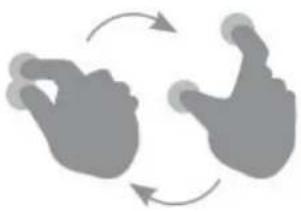
- Zoom: Pinch the screen with two fingers to zoom in or out
natural_image
Two gray hand gestures forming a circular motion diagram with curved arrows (no text or symbols)Main screen

-
Search: direct access to Google's search engine.
-
Status bar: displays information about the signal status, battery and clock. If you slide down your finger over this area, you will access the notifications menu. The quick settings panel will be displayed if you slide down your finger once again. You can also access this panel by sliding down two fingers over the status bar on the main screen.
-
Desktop: you can customize background as well as app, folder and widget shortcuts.
-
Menu: Access to the app menu.
-
Multitask: shows the recently used applications.
-
Home: brings you back to the main screen.
-
Back: allows you to go back to the previous screen shown by any application that is running.
Widgets
In order to add a widget to one of your desktops, tap and hold the centre of the desktop and then, select WIDGETS.

Slide your finger up or down to see all your installed widgets. Select the one you want to add to your desktop by keeping it pressed and then releasing it on the selected area.

To relocate a widget that is already placed on the desktop, select it by pressing it for a few seconds and release it on a free area. Drag it and release it on the X on the top part of the screen if you want to delete it.
Wireless settings
Bluetooth
Your tablet features Bluetooth technology to connect it to headphones, computers, tablets or any device that supports such communication protocol. You just need to go to Settings > Bluetooth and turn on the switch on the top part of the screen. Once enabled, the screen will start to show a list of available devices among which you will be able to select one to establish the connection.


- Settings > Bluetooth
- Enable the Bluetooth option
- Select the device you want to connect to
4. Accept the pairing request
Wi-Fi
Your tablet has Wi-Fi connection. In order to connect your device to any wireless network, please go to Settings >Wi-Fi and turn on the switch situated on the top part of the screen. Once enabled, the screen will start to show a list of available devices among which you will be able to select one to establish the connection.


To see available networks, turn Wi-Fi on.
To improve location accuracy, system apps and services can still scan for Wi-Fi networks. You can change this in scanning settings.

natural_image
Pure black background with three white geometric shapes (angle, square, horizontal line) — no text or symbols present.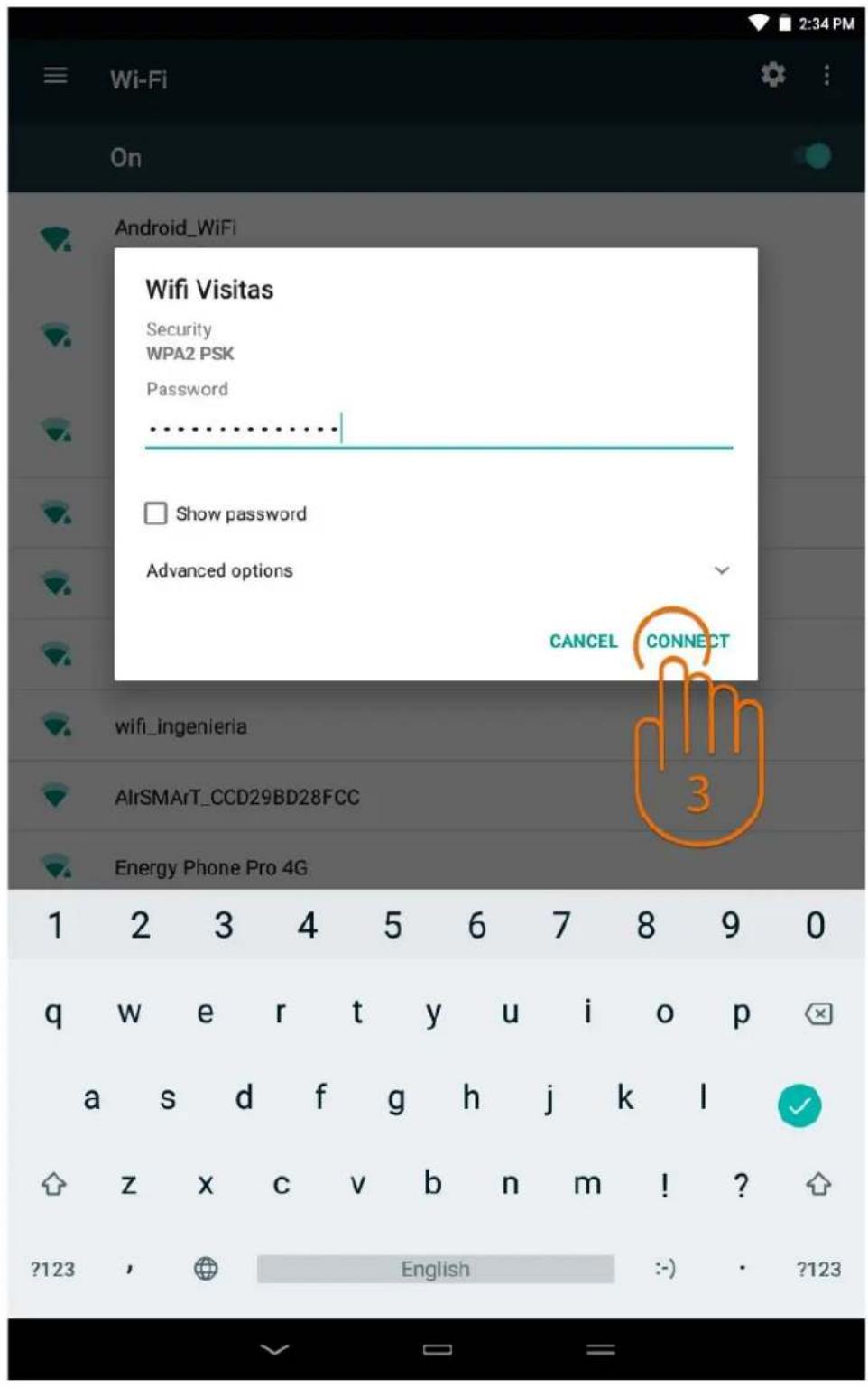
- Settings > Wi-Fi
- Enable the Wi-Fi option
- Select your Wi-Fi network
4. Connect
Note: Your tablet is compatible with the following security and encryption standards: WEP, WPA, WPA2, TKIP and AES. Once you have completed the authentication process successfully, your tablet will save the Wi-Fi access data and your device will be ready to access the Internet. The device will remember the network and will automatically connect to it whenever is available.
Main applications
Internet browser
Your new tablet has the Google web browser among the list of installed default applications. You will be able to surf the Internet smoothly and easily with it. Once the device is connected to the Internet, press the Chrome icon on the desktop or in the application menu to start the browser.
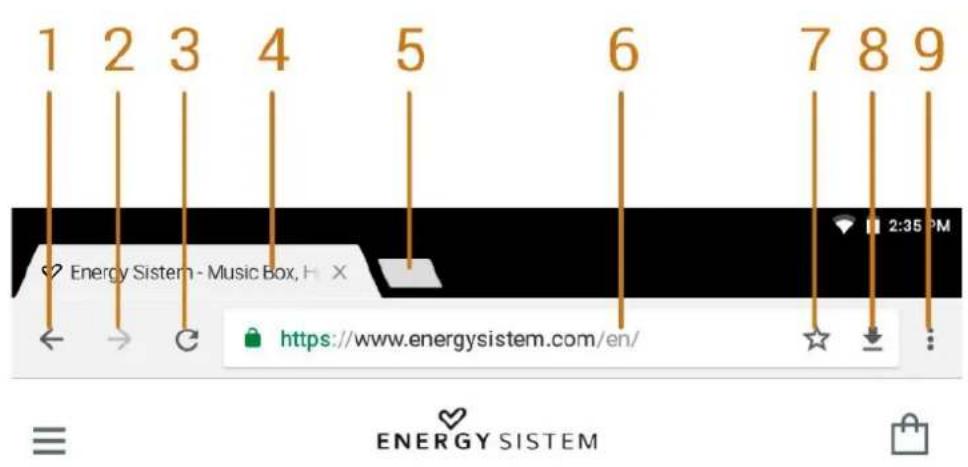

- Back
- Forward
-
Refresh
-
Close tab
- Open tab
- Search on Google or go to web address
- Bookmark this page
- Download manager
- Options menu
E-mail settings
Gmail is the default e-mail client. This app allows you to access Google e-mail, as well as any other e-mail account with the correct settings. Note: In order to get to know your account settings, please ask your e-mail service provider.

- Accounts and folders
- Features and options menu
- Search
- Mailing list
- New e-mail
Music player
Play your favourite music using the Energy Music app. Run the app and it will scan the memory of your device to search for all audio files available.
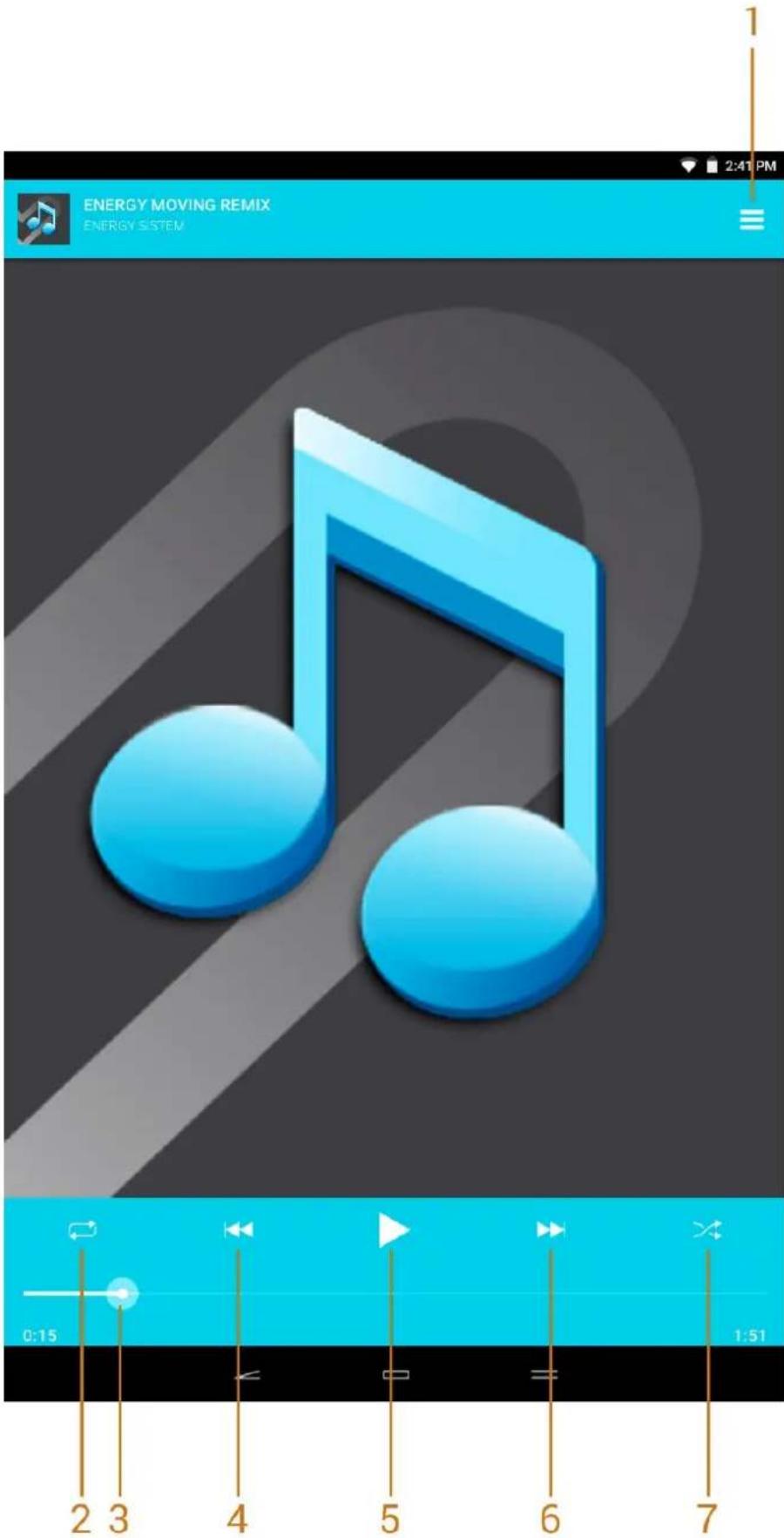
- Playlist
-
Repeat
-
Progress bar
- Previous song
- Play / Pause
- Next song
- Random playback
Camera
You will be able to take photos and record videos easily with the built-in camera of your tablet. In order to switch between photo mode and video mode, you just have to slide your finger from the left edge to the right to see the dropdown menu. This screen will allow you to access the settings by pressing the gear icon located on the upper-right corner.

- Camera settings
- Panoramic mode
-
Beauty mode
-
Normal mode
- HDR
- Switch between rear and front camera
- Image gallery
- Shutter button
- Record button
- Settings
Gallery
Your tablet has the Google Photos app installed by default. You will be able to watch all your photos and videos without worrying about your storage capacity, since this app automatically saves them to the cloud so that you will always have access to them anywhere. Note: You can enable the backup option automatically when starting the app or accessing the settings menu later on.

Thu, Oct 5

natural_image
Person sitting on a skateboard against a solid red background (no text or symbols visible)Fri, Sep 15

natural_image
Person wearing green sunglasses and blue headband, holding a small object (no visible text or symbols)Fri, Aug 4

natural_image
Four-panel collage showing a woman in yellow clothing, a girl in casual wear, a man holding a smartphone, and a woman taking a selfie with a smartphone (no visible text or symbols)
natural_image
Man sitting on a couch using a smartphone in a modern living room with speakers and TV equipment (no visible text or symbols)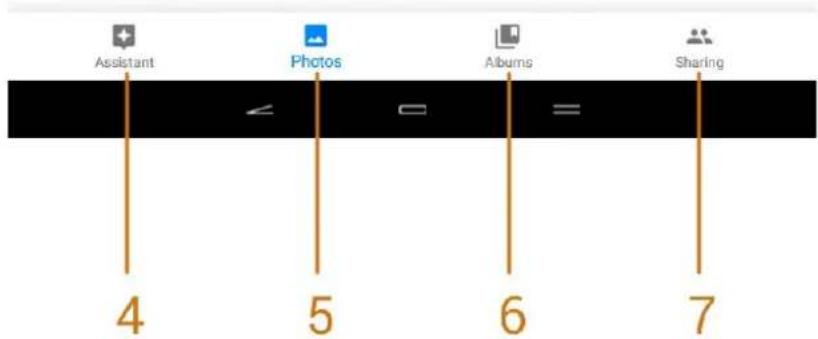
- Settings and folders
- Search
-
Design and creation
-
Assistant
- Gallery
- Albums and folders
- Share
Updates
Your Energy Tablet 10" Pro 4 has an Android based operating system that can be reinstalled or updated if necessary. Updates will be carried out via OTA (Over-The-Air) by default, so your tablet will automatically connect to our servers, will download the update and will install it as soon as it is available.
You can also update your tablet using your PC. The process is simple but has to be done carefully and only when is really necessary. If the device does not respond, restarts unexpectedly or you experience problems accessing the content stored on the internal memory, you should reinstall or update the operating system to the latest compatible version available.
Please follow these steps to install it:
- Make sure that the battery of your tablet has at least a 60% charge. If this is not the case, plug it to the external power source using the provided power adapter.
- Access www.energysistem.com/en from your computer.
- Access the Support section and choose Tablet from the product range list.
- Choose your Energy Tablet model from the dropdown list that appears and then download the latest firmware version available.
Important:
Please make sure the firmware version you are downloading is intended for your model and serial number.
- Unzip the file on your computer.
- Open the text file that you will find in the folder and follow the instructions to install the firmware.
Warranty
Your Energy Tablet comes with a 36-month warranty that starts on purchase date. Energy Sistem Technology, S.A. is liable for any lack of conformity that exists at the time the goods are purchased. Batteries are excluded from the 36 month warranty, having a warranty period of 24 months.
This warranty covers any defects in workmanship or materials. This warranty does not cover any product failure due to accidents, misuse or alteration made by an unauthorized person.
The special 36 month warranty is valid for the European Union. For other countries please refer to your specific legislation or your local distributor.
Warranty and support
Visit the Support section at http://www.energysistem.com/en/support (http://www.energysistem.com/en/support) and select your product to view the FAQ (Frequently Asked Questions), manuals, drivers and updates available. You will also have the possibility to submit a query to our Technical Support or manage the warranty.
You may also contact the distributor that sold the product by presenting the purchase receipt or invoice.
Important: we strongly recommend to send the product with an empty internal memory or to send it only with the original data. Information may be erased during repair works or you may not recover it if you get a new device in exchange for the faulty one.
Specifications are subject to change without notice.
Trademarks
All company, brand and product names are trademarks or registered trademarks of their respective companies.
© 2018 by Energy Sistem Technology, S.A. All rights reserved.
IMPORTANT: The present device could contain links to other sites or websites operated by third parties not related to Energy Sistem Technology, S.A. These links are provided for your information or convenience; Energy Sistem is not responsible for their availability, content, update, adequacy or accuracy. These external web sites might contain link references to trademarks, patents, registered information, technologies, products, processes or rights property of other companies or individuals. All rights reserved are property of their respective owners.
Declaration of conformity
CE
Issuer?s name: Energy Sistem Technology, S.A. - CIF: A53107488
Address: C/ Calpe, 1 - 03509 Finestrat - Alicante (Spain)
Tel: +34 966 83 03 24
We declare under our own exclusive responsibility that the product
Description: Tablet
Brand: Energy Sistem
Model: Energy Tablet 10" Pro 4
Manufacturer: Energy Sistem Technology, S.A.
Manufacturing Country: China
referred to in this declaration is in compliance with the essential norms and standards
EN 60950-1:2006 + A11:2009 + A1:2010 + A12:2011 + A2:2013
IEC 60950-1:2015 + A1:2009 + A2:2013
ETSI EN 300 328 V2.1.1 (2016-11)
ETSI EN 303 413 V1.1.1 (2017-06)
ETSI EN 301 489-1 V2.2.0 (2017-03)
ETSI EN 301 489-19 V2.1.0 (2017-03)
ETSI EN 301 489-17 V3.2.0 (2017-03)
EN 62479:2010
EN 55032:2015
EN 55024:2010 + A1:2015
EN 61000-3-2:2014
EN 61000-3-3:2013
ETSI EN 301 893 V2.1.1 (2017-05)
in conformity with the essential norms and standards of the Directive 2014/53/EU of the European Parliament and of the Council of April 16th 2014.
Finestrat, 01st February 2018

natural_image
Abstract line drawing with intersecting curves and a diagonal line (no text or symbols)Marco Antonio Velázquez Fierro
Product Management Director


- Care and maintenance
- Main features
- SCREEN
- PROCESSOR
- OPERATING SYSTEM
- MEMORY
- OTHER FEATURES
- BATTERY
- WI-FI
- BLUETOOTH
- CONNECTIONS
- Product content
- General overview
- Charging the device
- Switching the device on and off
- Main gestures
- Main screen
- Widgets
- Live visiting
- Wireless settings
- Accept the pairing request
- Connect
- Main applications
- Internet browser
- E-mail settings
- Music player
- Camera
- Gallery
- Updates
- Important:
- Warranty
- Warranty and support
- Trademarks
- Declaration of conformity
- CE
Brand : ENERGY SISTEM
Model : Pro 4
Category : Tablet