PANASONIC TH-65EF1-IR - Screen

TH-65EF1-IR - Screen PANASONIC - Free user manual and instructions

Find the device manual for free TH-65EF1-IR PANASONIC in PDF.

📄 98 pages English EN Download 💬 AI Question 10 questions ⚙️ Specs
Notice PANASONIC TH-65EF1-IR - page 1
Pick your language and provide your email: we'll send you a specifically translated version.
Product Type Professional Display
Brand Panasonic
Model TH-65EF1-IR
Screen Size 65 inches (diagonal)
Resolution 3840 x 2160 (4K UHD)
Panel Type IPS LCD
Brightness 700 cd/m² (typical)
Contrast Ratio 4000:1 (typical)
Viewing Angle 178° horizontal / 178° vertical
Dimensions (without stand) Approx. 1460 x 840 x 80 mm
Weight (without stand) Approx. 35 kg
Power Consumption (typical) 250 W
Power Supply AC 100-240V, 50/60Hz
Connectivity HDMI (x2), DisplayPort, USB, RS-232C, LAN
Built-in Speakers 10 W + 10 W stereo
Touch Function Infrared (IR) touch, up to 10 points
Operating Temperature 0°C to 40°C
Safety Use only with approved wall mount; ensure proper ventilation
Cleaning Wipe gently with dry soft cloth; avoid liquids
Spare Parts Availability Contact Panasonic authorized service center
Repair Do not disassemble; refer to qualified service personnel

Frequently Asked Questions - TH-65EF1-IR PANASONIC

How do I mount the TH-65EF1-IR on a wall?
Use a VESA-compliant wall mount (400x400 mm). Ensure the wall can support at least 4 times the display weight. Follow the mounting instructions in the manual and use safety cables.
What is the native resolution of this display?
The native resolution is 3840 x 2160 (4K UHD), supporting 60 Hz refresh rate.
Can I use this display with a touch interface?
Yes, the TH-65EF1-IR features infrared touch technology, supporting up to 10 simultaneous touch points without drivers.
How do I clean the screen?
Turn off the display and unplug it. Use a soft, dry microfiber cloth to gently wipe the screen. Do not use any liquids, cleaners, or abrasive materials.
Does the display have built-in speakers?
Yes, it includes dual 10W speakers providing stereo sound, suitable for basic audio output.
What inputs are available?
The display has HDMI (x2), DisplayPort, USB, RS-232C, and LAN inputs for connectivity with various devices.
Is the display suitable for 24/7 operation?
Yes, it is designed for continuous commercial use with a panel rated for 50,000+ hours of operation.
What is the power consumption?
Typical power consumption is 250 W, with standby mode consuming less than 0.5 W.
How can I get spare parts or service?
Contact the Panasonic authorized service center in your region. Parts are available through official channels only.
Does the display support HDMI 2.0?
Yes, the HDMI ports support HDMI 2.0 with 4K@60Hz and HDCP 2.2.

User questions about TH-65EF1-IR PANASONIC

0 question about this device. Answer the ones you know or ask your own.

Ask a new question about this device

The email remains private: it is only used to notify you if someone responds to your question.

No questions yet. Be the first to ask one.

Download the instructions for your Screen in PDF format for free! Find your manual TH-65EF1-IR - PANASONIC and take your electronic device back in hand. On this page are published all the documents necessary for the use of your device. TH-65EF1-IR by PANASONIC.

USER MANUAL TH-65EF1-IR PANASONIC

Operating Instructions

Functional Manual

FULL HD LCD Display For business use

Model No. TH-65EF1U

65-inch model

TH-65EF1E

65-inch model

TH-65EF1W

65-inch model
PANASONIC TH-65EF1-IR - Functional Manual - 1

natural_image Empty white rectangle with a thin border (no text or symbols)
PANASONIC TH-65EF1-IR - Functional Manual - 2

* This manual is common to all the models regardless of suffixes of the model number.

U : for US, Canada and Mexico

E : for EU and CIS

W : for South East Asia and Middle East Asia

English

Please read these instructions before operating your set and retain them for future reference.

EU

PANASONIC TH-65EF1-IR - Functional Manual - 3

Dear Panasonic Customer

Welcome to the Panasonic family of customers. We hope that you will have many years of enjoyment from your new LCD Display.

To obtain maximum benefit from your set, please read these Instructions before making any adjustments, and retain them for future reference.

Retain your purchase receipt also, and note down the model number and serial number of your set in the space provided on the rear cover of these instructions.

Visit our Panasonic Web Site http://panasonic.com

Table of Contents

Before use

- Illustrations and screens in this Operating Instructions are images for illustration purposes, and may be different from the actual ones.

Important Safety Instructions......4

FCC STATEMENT......5

Important Safety Notice....6

Safety Precautions....8

Precautions for use....11

Accessories ....13

Accessories Supply 13

Remote Control Batteries 14

Kensington security....14

Connections......15

AC cord connection and fixing 15

Cable fixing 15

Video equipment connection 16

Before connecting 17

HDMI 1 and HDMI 2 terminals connection……17

DVI-D IN terminal connection 18

PC IN terminal connection 19

VIDEO terminal connection 20

SERIAL terminal connection 21

IR IN/IR OUT terminal connection 22

AUDIO OUT terminal connection 23

USB terminal connection 23

Identifying Controls....25

Main unit 25

Remote Control Transmitter 26

Basic Controls 27

Selecting the input signal 28

RECALL 29

Volume Adjustment 29

Sound mute On / Off 30

OFF TIMER 30

ASPECT Controls ....31

Digital ZOOM....32

On-Screen Menu Displays ....33

Adjusting Position....35

Auto setup 35

Sound Adjustment....37

Picture Adjustments....38

Picture Profiles ....40

Saving profiles 41

Loading profiles 41

Editing profiles 42

Setup menu 43

Signal 43

Screensaver (For preventing image retention)…… 46

Input label 47

Power management settings 47

Image settings 49

Wobbling....50

No activity power off 50

OSD language 50

Multi display settings 51

Set up timer 52

Date and time 52

Network settings 53

USB media player settings 54

Function button settings 55

Display orientation 56

OSD position 56

Menu display duration 56

Menu transparency 56

Options Adjustments ....57

Using Network Function 64

Necessary environment for computers to be connected 64

Example of network connection ……64

Command control 64

Control Command via LAN 65

PJLink protocol....68

Early Warning Software 69

Multi Monitoring & Control Software 69

Video Wall Manager 69

Connecting with LAN 70

Computer operation....70

Using Web Browser Control....70

Before Using Web Browser Control 70

Access from Web Browser 71

Operating with Web Browser 72

Using Web Browser Control 76

USB media player....78

Function description 78

Preparation....79

Playing back the files 81

Network environment (Multi Media Player only)……83

Starting / ending Media Player 84

Resume Play function 84

Data Cloning 85

Copying the display data to the USB memory …… 85

Copying the USB memory data to the display 86

ID Remote Control Function......87

Setting the remote control's ID number 87

Cancelling the setting of remote control's ID number (ID "0")....87

Entering characters......88

Preset Signals......89

Shipping condition....91

Troubleshooting 92

Specifications 95

Software License 97

CAUTION RISK OF ELECTRIC SHOCK.DO NOT OPEN

WARNING: To reduce the risk of electric shock, do not remove cover or back.

No user-serviceable parts inside. Refer servicing to qualified service personnel.

PANASONIC TH-65EF1-IR - Before use - 2

The lightning flash with arrow-head within a triangle is intended to tell the user that parts inside the product are a risk of electric shock to persons.

PANASONIC TH-65EF1-IR - Before use - 3

The exclamation point within a triangle is intended to tell the user that important operating and servicing instructions are in the papers with the appliance.

WARNING:

To prevent damage which may result in fire or shock hazard, do not expose this apparatus to rain or moisture.

Do not place containers with water (flower vase, cups, cosmetics, etc.) above the set.

(including on shelves above, etc.)

WARNING:

1) To prevent electric shock, do not remove cover. No user serviceable parts inside. Refer servicing to qualified service personnel.

2) Do not remove the grounding pin on the power plug. This apparatus is equipped with a three pin grounding-type power plug. This plug will only fit a grounding-type power outlet. This is a safety feature. If you are unable to insert the plug into the outlet, contact an electrician.

Do not defeat the purpose of the grounding plug.

Important Safety Instructions

1) Read these instructions.

2) Keep these instructions.

3) Heed all warnings.

4) Follow all instructions.

5) Do not use this apparatus near water.

6) Clean only with dry cloth.

7) Do not block any ventilation openings. Install in accordance with the manufacturer's instructions.

8) Do not install near any heat sources such as radiators, heat registers, stoves, or other apparatus (including amplifiers) that produce heat.

9) Do not defeat the safety purpose of the polarized or grounding-type plug. A polarized plug has two blades with one wider than the other. A grounding type plug has two blades and a third grounding prong. The wide blade or the third prong are provided for your safety. If the provided plug does not fit into your outlet, consult an electrician for replacement of the obsolete outlet.

10) Protect the power cord from being walked on or pinched particularly at plugs, convenience receptacles, and the point where they exit from the apparatus.

11) Only use attachments / accessories specified by the manufacturer.

12) Use only with the cart, stand, tripod, bracket, or table specified by the manufacturer, or sold with the apparatus. When a cart is used, use caution when moving the cart / apparatus combination to avoid injury from tip-over.

PANASONIC TH-65EF1-IR - Important Safety Instructions - 1

13) Unplug this apparatus during lightning storms or when unused for long periods of time.

14) Refer all servicing to qualified service personnel. Servicing is required when the apparatus has been damaged in any way, such as power-supply cord or plug is damaged, liquid has been spilled or objects have fallen into the apparatus, the apparatus has been exposed to rain or moisture, does not operate normally, or has been dropped.

15) To prevent electric shock, ensure the grounding pin on the AC cord power plug is securely connected.

FCC STATEMENT

This equipment has been tested and found to comply with the limits for a class A digital device, pursuant to Part 15 of the FCC Rules. These limits are designed to provide reasonable protection against harmful interference when the equipment is operated in a commercial environment. This equipment generates, uses and can radiate radio frequency energy and, if not installed and used in accordance with the instructions manual, may cause harmful interference to radio communications. Operation of this equipment in a residential area is likely to cause harmful interference in which case the user will be required to correct the interference at his own expense.

FCC CAUTION:

To assure continued compliance, follow the attached installation instructions and use only the provided power supply cord. Any changes or modifications not expressly approved by Panasonic Corp. of North America could void the user's authority to operate this device.

Declaration of Verification

Model No.

TH-65EF1U

Responsible Party:

Panasonic Corporation of North America

Two Riverfront Plaza, Newark, New Jersey

07102-5490

Contact Source:

Panasonic System Communications Company of North America

1-877-655-2357

General Contact:

http://shop.panasonic.com/support

This device complies with Part 15 of the FCC Rules and all applicable IC RSS standards. Operation is subject to the following two conditions: (1) This device may not cause harmful interference, and (2) this device must accept any interference received, including interference that may cause undesired operation.

CANADIAN NOTICE:

This Class A digital apparatus complies with Canadian ICES-003.

WARNING:

  • Not for use in a computer room as defined in the Standard for the Protection of Electronic Computer/Data Processing Equipment, ANSI/NFPA 75.
  • For permanently connected equipment, a readily accessible disconnect device shall be incorporated in the building installation wiring.
  • For pluggable equipment, the socket-outlet shall be installed near the equipment and shall be easily accessible.

Note:

Image retention may occur. If you display a still picture for an extended period, the image might remain on the screen. However, it will disappear when a general moving picture is displayed for a while.

Trademark Credits

  • Microsoft, Windows and Internet Explorer are the registered trademarks or trademarks of Microsoft Corporation in the United States and/or other countries.
    • Macintosh, Mac, Mac OS, OS X and Safari are the trademarks of Apple Inc. registered in the United States and other countries.
    • PJLink is a registered or pending trademark in Japan, the United States, and other countries and regions.
    •HDMI, the HDMI Logo, and High-Definition Multimedia Interface are trademarks or registered trademarks of HDMI Licensing LLC in the United States and other countries.
  • JavaScript is a registered trademark or a trademark of Oracle Corporation and its subsidiary and associated companies in the United States and/or other countries.
    •RoomView, Crestron RoomView and Fusion RV are registered trademarks of Crestron Electronics, Inc. Crestron Connected is the trademark of Crestron Electronics, Inc.

Even if no special notation has been made of company or product trademarks, these trademarks have been fully respected.

Important Safety Notice

WARNING

1) To prevent damage which may result in fire or shock hazard, do not expose this appliance to dripping or splashing.
Do not place containers with water (flower vase, cups, cosmetics, etc.) above the set. (including on shelves above, etc.)
No naked flame sources, such as lighted candles, should be placed on / above the set.

2) To prevent electric shock, do not remove cover. No user serviceable parts inside. Refer servicing to qualified service personnel.
3) Do not remove the earthing pin on the power plug. This apparatus is equipped with a three pin earthing-type power plug. This plug will only fit an earthing-type power outlet. This is a safety feature. If you are unable to insert the plug into the outlet, contact an electrician.
Do not defeat the purpose of the earthing plug.
4) To prevent electric shock, ensure the earthing pin on the AC cord power plug is securely connected.

CAUTION

This appliance is intended for use in environments which are relatively free of electromagnetic fields.

Using this appliance near sources of strong electromagnetic fields or where electrical noise may overlap with the input signals could cause the picture and sound to wobble or cause interference such as noise to appear.

To avoid the possibility of harm to this appliance, keep it away from sources of strong electromagnetic fields.

WARNING:

This equipment is compliant with Class A of CISPR32. In a residential environment this equipment may cause radio interference.

IMPORTANT INFORMATION

If a display is not positioned in a sufficiently stable location, it can be potentially hazardous due to falling. Many injuries, particularly to children, can be avoided by taking simple precautions such as:

  • Using cabinets or stands recommended by the manufacturer of the display.
  • Only using furniture that can safely support the display.
  • Ensuring the display is not overhanging the edge of the supporting furniture.
  • Not placing the display on tall furniture (for example, cupboards or bookcases) without anchoring both the furniture and the display to a suitable support.
  • Not standing the displays on cloth or other materials placed between the display and supporting furniture.
    • Educating children about the dangers of climbing on furniture to reach the display or its controls.

IMPORTANT: THE MOULDED PLUG FOR YOUR SAFETY, PLEASE READ THE FOLLOWING TEXT CAREFULLY.

This display is supplied with a moulded three pin mains plug for your safety and convenience. A 10 amp fuse is fitted in this plug. Shall the fuse need to be replaced, please ensure that the replacement fuse has a rating of 10 amps and that it is approved by ASTA or BSI to BS1362.

Check for the ASTA mark or the BSI mark on the body of the fuse.

If the plug contains a removable fuse cover, you must ensure that it is refitted when the fuse is replaced.

If you lose the fuse cover the plug must not be used until a replacement cover is obtained.

A replacement fuse cover can be purchased from your local Panasonic dealer.

Do not cut off the mains plug.

Do not use any other type of mains lead except the one supplied with this display.

The supplied mains lead and moulded plug are designed to be used with this display to avoid interference and for your safety.

If the socket outlet in your home is not suitable, get it changed by a qualified electrician.

If the plug or mains lead becomes damaged, purchase a replacement from an authorized dealer.

WARNING : — THIS DISPLAY MUST BE EARTHED.

How to replace the fuse.

Open the fuse compartment with a screwdriver and replace the fuse.
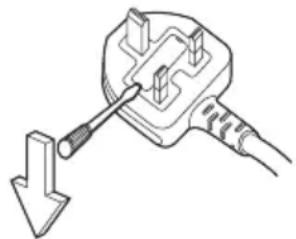
PANASONIC TH-65EF1-IR - How to replace the fuse. - 1

natural_image Line drawing of a plug with a screwdriver inserted, showing a downward arrow (no text or symbols)

Safety Precautions

WARNING

Setup

Optional accessory

  • Early Warning Software ET-SWA100 series*
    * Suffix of the part number may differ depending on the license type.

Note

- The part number of the optional accessories are subject to change without notice.

Small parts can present choking hazard if accidentally swallowed. Keep small parts away from young children. Discard unneeded small parts and other objects, including packaging materials and plastic bags/sheets to prevent them from being played with by young children, creating the potential risk of suffocation.

Do not place the Display on sloped or unstable surfaces, and ensure that the Display does not hang over the edge of the base.

• The Display may fall off or tip over.

Install this unit at a location with minimal vibration and which can support the weight of the unit.

- Dropping or falling of the unit may cause injury or malfunction.

Do not place any objects on top of the Display.

- If foreign objects or water get inside the Display, a short-circuit may occur which could result in fire or electric shock. If any foreign objects get inside the Display, please consult your local Panasonic dealer.

Transport only in upright position!

- Transporting the unit with its liquid crystal panel facing upright or downward may cause damage to the internal circuitry.

Ventilation should not be impeded by covering the ventilation openings with items such as newspapers, table cloths and curtains.

For sufficient ventilation, see page 11.

Caution - For use only with UL Listed Wall Mount Bracket with minimum weight/load 24.0 kg(52.0 lbs).

When installing the Display vertically;

When installing the Display vertically, be sure that the Power Indicator comes to the downside. Heat is generated and it may cause fire or damage to the Display.
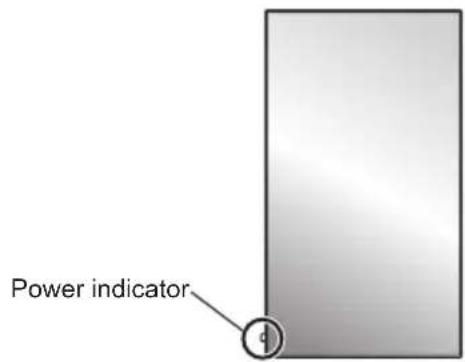
Power indicator

Cautions for Wall Installation

  • The installation should be performed by an installation professional. Installing the Display incorrectly may lead to an accident that results in death or serious injury.
  • When installing on a wall, a wall hanging bracket that conforms to VESA standards must be used.

65-inch model : VESA 400 × 400

(see page 11)

  • Before installation, be sure to check if the mounting location has enough strength to support the weight of the LCD display and the wall hanging bracket for anti drop.
  • If you terminate the use of the Display on the Wall, ask a professional to remove the Display as soon as possible.
  • When mounting the Display on the wall, prevent the mounting screws and power cable from contacting metal objects inside the wall. An electric shock may occur if they contact metal objects inside the wall.

Do not place the display where it may be affected by salt or corrosive gas.

- Doing so may cause the display to fall due to corrosion. Also, the unit may malfunction.

Do not install the product to a place where the product is exposed to direct sunlight.

- If the screen is exposed to direct sunlight, the liquid crystal panel may have adverse effect.

■ When using the LCD Display

The Display is designed to operate on 110 - 127 or 220 - 240 V AC, 50/60 Hz.

Do not cover the ventilation holes.

- Doing so may cause the Display to overheat, which can cause fire or damage to the Display.

Do not stick any foreign objects into the Display.

- Do not insert any metal or flammable objects into the ventilations holes or drop them onto the Display, as doing so can cause fire or electric shock.

Do not remove the cover or modify it in any way.

- High voltages which can cause severe electric shocks are present inside the Display. For any inspection, adjustment and repair work, please contact your local Panasonic dealer.

Ensure that the mains plug is easily accessible.

The mains plug shall be connected to a mains socket outlet with a protective earthing connection.

Do not use any power supply cord other than that provided with this unit.

- Doing so may cause short-circuit, generates heat, etc., which could cause electric shock or fire.

Do not use the supplied power supply cord with any other devices.

- Doing so could cause electric shock or fire.

Securely insert the power supply plug as far as it will go.

- If the plug is not fully inserted, heat may be generated which could cause fire. If the plug is damaged or the wall socket is loose, they shall not be used.

Do not handle the power supply plug with wet hands.

- Doing so may cause electric shocks.

Do not do anything that may damage the power cable. When disconnecting the power cable, pull on the plug body, not the cable.

- Do not damage the cable, make any modifications to it, place heavy objects on top of it, heat it, place it near any hot objects, twist it, bend it excessively or pull it. To do so may cause fire and electric shock. If the power cable is damaged, have it repaired at your local Panasonic dealer.

Do not touch the power supply cord or the plug directly by hand when they are damaged.

• Electric shock could occur.

Do not remove covers and NEVER modify the Display yourself

- Do not remove the rear cover as live parts are accessible when it is removed. There are no user serviceable parts inside. (High-voltage components may cause serious electrical shock.)

- Have the Display checked, adjusted, or repaired at your local Panasonic dealer.

Keep the AAA/R03/UM4 batteries (supplied) out of reach of children. If accidentally swallowed, it will be harmful to the body.

- Please contact a doctor immediately in case you doubt that the child may have swallowed it.

If the Display is not going to be used for any prolonged length of time, unplug the power supply plug from the wall outlet.

Picture noise may occur if you connect / disconnect the cables connected to the input terminals you are currently not watching, or if you turn the power of the video equipment on / off, but it is not a malfunction.

To prevent the spread of fire, keep candles or other open flames away from this product at all times.

PANASONIC TH-65EF1-IR - ■ When using the LCD Display - 1

PANASONIC TH-65EF1-IR - ■ When using the LCD Display - 2

CAUTION

If problems or malfunction occur, stop using immediately.

■ If problems occur, unplug the power supply plug.

  • Smoke or an abnormal odour come out from the unit.
  • No picture appears or no sound is heard, occasionally.
  • Liquid such as water or foreign objects got inside the unit.
    • The unit has deformed or broken parts.

If you continue to use the unit in this condition, it could result in fire or electric shock.

  • Turn the power off immediately, unplug the power supply plug from the wall outlet, and then contact the dealer for repairs.
  • To cut off the power supply to this Display completely, you need to unplug the power supply plug from the wall outlet.
  • Repairing the unit yourself is dangerous, and shall never be done.
  • To enable to unplug the power supply plug immediately, use the wall outlet which you can reach easily.

■ Do not touch the unit directly by hand when it is damaged.

Electric shock could occur.

■ When using the LCD Display

Do not bring your hands, face or objects close to the ventilation holes of the Display.

- Heated air comes out from the ventilation holes at the top of Display will be hot. Do not bring your hands or face, or objects which cannot withstand heat, close to this port, otherwise burns or deformation could result.

At least 2 people are required to carry or unpack this unit.

- If this is not observed, the unit may drop, resulting in injury.

Be sure to disconnect all cables before moving the Display.

- If the Display is moved while some of the cables are still connected, the cables may become damaged, and fire or electric shock could result.

Disconnect the power supply plug from the wall socket as a safety precaution before carrying out any cleaning.

• Electric shocks can result if this is not done.

Clean the power cable regularly to prevent it becoming dusty.

- If dust built up on the power cord plug, the resultant humidity can damage the insulation, which could result in fire. Pull the power cord plug out from the wall outlet and wipe the mains lead with a dry cloth.

Do not step on, or hang from the display.

• They might tip over, or might be broken and it may result in injury. Pay special attention to the children.

Do not reverse the polarity (+ and -) of the battery when inserting.

- Mishandling the battery may cause its explosion or leakage, resulting in fire, injury or damage to surrounding properties.

- Insert the battery correctly as instructed. (see page 14)

Do not use batteries with the outer cover peeling away or removed.

(The outer cover is attached to the battery for safety. It must not be removed. Doing so may cause short circuits.)

- Mishandling the batteries may cause the batteries to short circuit, resulting in fire, injury or damage to surrounding properties.

Remove the batteries from the remote control transmitter when not using for a long period of time.

- The battery may leak, heat, ignite or burst, resulting in fire or damage to surrounding properties.

Do not burn or breakup batteries.

- Batteries must not be exposed to excessive heat such as sunshine, fire or the like.

Do not turn the Display upside down.

Do not position the unit with its liquid crystal panel facing upright.

Precautions for use

Cautions when installing

Do not set up the Display outdoors.

• The Display is designed for indoor use.

Install this unit at a location which can support the weight of the unit.

- Use the installation bracket that conforms to VESA standards

Environmental temperature to use this unit

- When using the unit where it is below 1 400 m (4 593 ft) above sea level: 0 °C to 40 °C (32 °F to 104 °F)

- When using the unit at high altitudes (1 400 m (4 593 ft) and higher and below 2 800 m (9 186 ft) above sea level): 0 °C to 35 °C (32 °F to 95 °F)

Do not install the unit where it is 2 800 m (9 186 ft) and higher above sea level.

- Failure to do so may shorten the life of the internal parts and result in malfunctions.

We are not responsible for any product damage, etc. caused by failures in the installation environment even during the warranty period.

Do not place the display where it may be affected by salt or corrosive gas.

- Failure to do so may shorten the life of the internal parts and result in malfunctions due to corrosion.

Required space for ventilation

- For the outermost periphery of the display, leave a space of 10 cm (3.94") or more at the top, bottom, left and right.

At the rear, leave a space of 5 cm (1.97") or more.

About the screws used when using a wall hanging bracket that conforms to VESA standards

Inch modelScrew pitch for installationDepth of screw holeScrew (quantity)
65 400mm × 400 mm 14 mm M6 (4)

Be careful of the movable structure of the power indicator and remote control sensor.

- As factory default, the power indicator and remote control sensor are stored in the main unit. For normal use, pull out the remote control sensor from the edge side of the main unit by operating the lever on the rear panel. Depending on the setup condition such as when using the multi display, store the remote control sensor in the main unit. (see page 25)

Do not grab the liquid crystal panel.

- Do not forcibly press the liquid crystal panel, or push it with a pointed object. Applying a strong force to the liquid crystal panel will cause unevenness of the screen display, resulting in malfunction.

Depending on the temperature or humidity conditions, uneven brightness may be observed. This is not a malfunction.

- This unevenness will disappear while applying current continuously. If not, consult the distributor.

Request Regarding Security

When using this product, take safety measures against the following incidents.

• Personal information being leaked via this product
- Unauthorized operation of this product by a malicious third party
• Interfering or stopping of this product by a malicious third party

Take sufficient security measures. (see page 71, 73)

- Set a password for the LAN control and restrict the users who can log in.

• Make your password difficult to guess as much as possible.

- Change your password periodically.

- Panasonic Corporation or its affiliate companies will never ask for your password directly. Do not divulge your password in case you receive such inquiries.

- The connecting network must be secured by a firewall, etc.

- When disposing the product, initialize the data before disposing. [Shipping] (see page 91)

Notes on Using Wired LAN

When setting up the Display at a place, where electric statistic occurs often, take a sufficient antistatic measure before start using.

- When the Display is used at a location, where static electricity occurs often, such as on a carpet, a wired LAN communication is disconnected more often. In that case, remove static electricity and the noise source that may cause problems with an antistatic mat, and re-connect the wired LAN.

- In rare cases, the LAN connection is disabled due to static electricity or noise. In that case, turn off the power of the Display and the connected devices once and then re-turn on the power.

The Display may not work properly due to strong radio wave from the broadcast station or the radio.

- If there is any facility or equipment, which outputs strong radio wave, near the installation location, set up the Display at a location sufficiently far from the source of the radio wave. Or, wrap the LAN cable connected to the LAN terminal by using a piece of metal foil or a metal pipe, of which is grounded at both ends.

Cleaning and maintenance

The front of the liquid crystal panel has been specially treated. Wipe the surface of the liquid crystal panel gently using only a cleaning cloth or a soft, lint-free cloth.

  • If the surface is particularly dirty, wipe with a soft, lint-free cloth which has been soaked in pure water or water in which neutral detergent has been diluted 100 times, and then wipe it evenly with a dry cloth of the same type until the surface is dry.
  • Do not scratch or hit the surface of the panel with fingernails or other hard objects, otherwise the surface may become damaged. Furthermore, avoid contact with volatile substances such as insect sprays, solvents and thinner, otherwise the quality of the surface may be adversely affected.

If the cabinet becomes dirty, wipe it with a soft, dry cloth.

  • If the cabinet is particularly dirty, soak the cloth in water to which a small amount of neutral detergent has been added and then wring the cloth dry. Use this cloth to wipe the cabinet, and then wipe it dry with a dry cloth.
  • Do not allow any detergent to come into direct contact with the surface of the Display. If water droplets get inside the unit, operating problems may result.
  • Avoid contact with volatile substances such as insect sprays, solvents and thinner, otherwise the quality of the cabinet surface may be adversely affected or the coating may peel off. Furthermore, do not leave it for long periods in contact with articles made from rubber or PVC.

Usage of a chemical cloth

  • Do not use a chemical cloth for the panel surface.
  • Follow the instructions for the chemical cloth to use it for the cabinet.

Disposal

When disposing the product, ask your local authority or dealer about the correct methods of disposal.

Accessories

Accessories Supply

Check that you have the accessories and items shown

TH-65EF1U, TH-65EF1E

Operating Instructions (CD-ROM × 1)
Panasonic

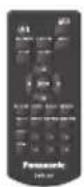
Remote Control Transmitter × 1

N2QAYA000099
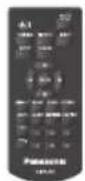
PANASONIC TH-65EF1-IR - Accessories Supply - 2

Batteries for the Remote Control Transmitter × 2

(AAA/R03/UM4 type)
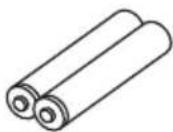
PANASONIC TH-65EF1-IR - Accessories Supply - 3

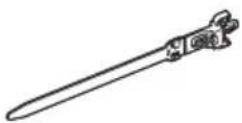
Clamper × 3

DPVF1056ZA

PANASONIC TH-65EF1-IR - Accessories Supply - 4

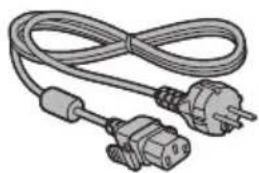
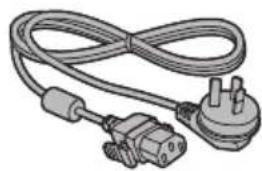
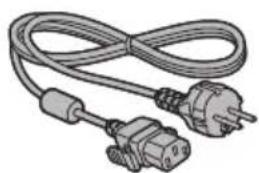
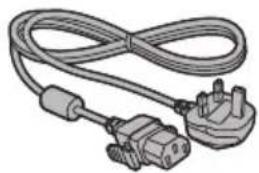
Power supply cord

(Approx. 2 m)

TH-65EF1U

1JP155AF1U
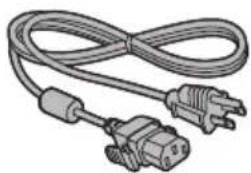
PANASONIC TH-65EF1-IR - Power supply cord - 1

natural_image Illustration of a coiled electrical power plug with two terminal connectors (no text or symbols)

TH-65EF1E

2JP155AF1W

3JP155AF1W

PANASONIC TH-65EF1-IR - Power supply cord - 2

natural_image Illustration of a coiled electrical plug with two terminal connectors (no text or symbols)
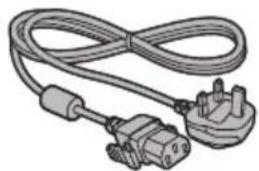
PANASONIC TH-65EF1-IR - Power supply cord - 3

natural_image Illustration of a straight electrical plug with two terminal blocks (no text or symbols)

TH-65EF1W

1JP155AF1W

PANASONIC TH-65EF1-IR - Power supply cord - 4

natural_image Line drawing of a cord with two plug connectors and a terminal outlet (no text or symbols)

- 2JP155AF1W

PANASONIC TH-65EF1-IR - Power supply cord - 5

natural_image Coiled electrical plug and terminal connector (no text or symbols visible)

- 3JP155AF1W

PANASONIC TH-65EF1-IR - Power supply cord - 6

natural_image Illustration of a cord with two connected electrical plugs (no text or symbols)

Attention

  • Store small parts in an appropriate manner, and keep them away from young children.
  • The part numbers of accessories are subject to change without notice. (The actual part number may differ from the ones shown above.)
  • In case you lost accessories, please purchase them from your dealer. (Available from the customer service)
  • Dispose the packaging materials appropriately after taking out the items.

Remote Control Batteries

  1. Pull and hold the hook, then open the battery cover.
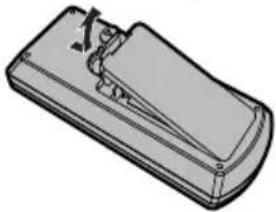
PANASONIC TH-65EF1-IR - Remote Control Batteries - 1

natural_image Illustration of a flatbed rectangular object with a triangular clip and mounting holes (no text or symbols)
  1. Insert batteries - note correct polarity (+ and -).
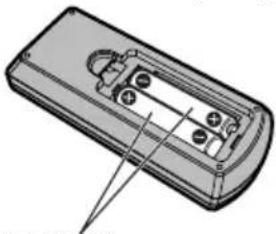
PANASONIC TH-65EF1-IR - Remote Control Batteries - 2

natural_image Illustration of a remote control device with labeled ports and an arrow pointing to the interior (no text or symbols present)

AAA/R03/UM4 type

  1. Replace the cover.

Helpful Hint

- For frequent remote control users, replace old batteries with Alkaline batteries for longer life.

PANASONIC TH-65EF1-IR - Helpful Hint - 1

Precaution on battery use

Incorrect installation of the batteries can cause battery leakage and corrosion that will damage the remote control transmitter.

Disposal of batteries should be in an environment-friendly manner.

Observe the following precaution:

  1. Batteries shall always be replaced as a pair. Always use new batteries when replacing the old set.
  2. Do not combine a used battery with a new one.
  3. Do not mix battery types (example: "Zinc Carbon" with "Alkaline").
  4. Do not attempt to charge, short-circuit, disassemble, heat or burn used batteries.
  5. Battery replacement is necessary when remote control acts sporadically or stops operating the Display set.
  6. Do not burn or breakup batteries.
  7. Batteries must not be exposed to excessive heat such as sunshine, fire or the like.

Kensington security

The security slot of this unit is compatible with the Kensington security slot.
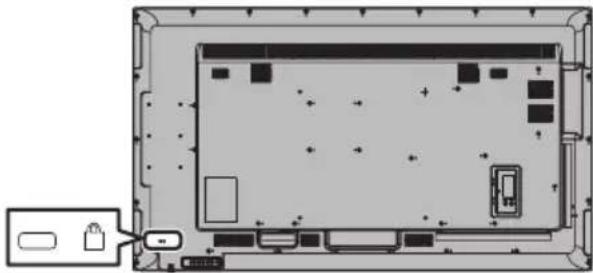
PANASONIC TH-65EF1-IR - Kensington security - 1

natural_image Top-down schematic of a computer monitor layout with indicator lights and ports (no text or labels)

Connections

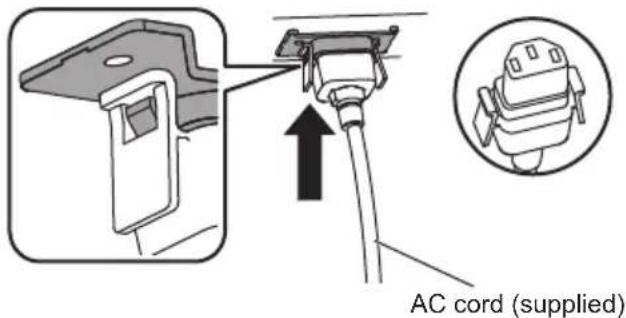
AC cord connection and fixing

Back of the unit
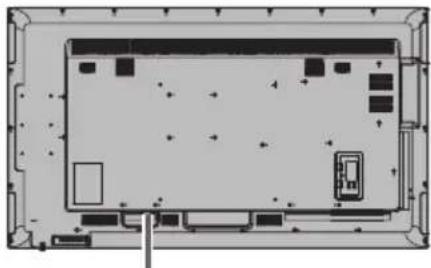
PANASONIC TH-65EF1-IR - AC cord connection and fixing - 1

natural_image Top-down schematic of a device layout with labeled components (no text or symbols)

AC cord fixing

AC cord (supplied)

Plug the connector into the display unit.

Plug the connector until it clicks.

Note

- Make sure that the connector is locked on both the left and right sides.

Unplug the AC cord
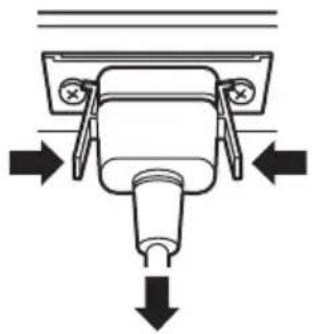
PANASONIC TH-65EF1-IR - Note - 1

natural_image Pure mechanical diagram showing a piston-cranked piston assembly with directional arrows indicating force or movement (no text or symbols)

Unplug the connector pressing the two knobs.

Note

  • When disconnecting the AC cord, be absolutely sure to disconnect the AC cord plug at the socket outlet first.
  • The supplied AC cord is for this unit exclusive use. Do not use this for other purposes.

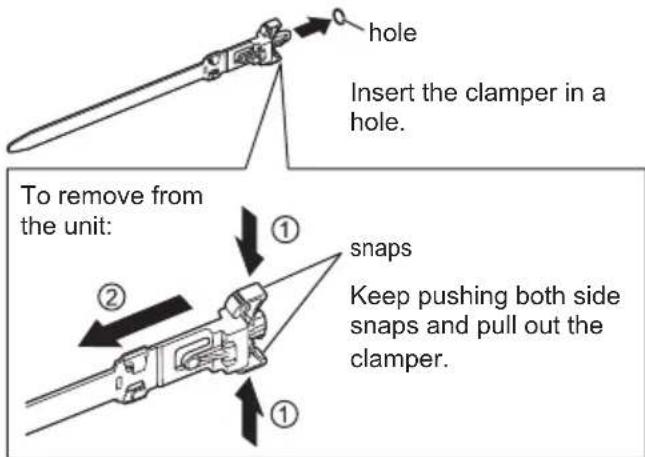
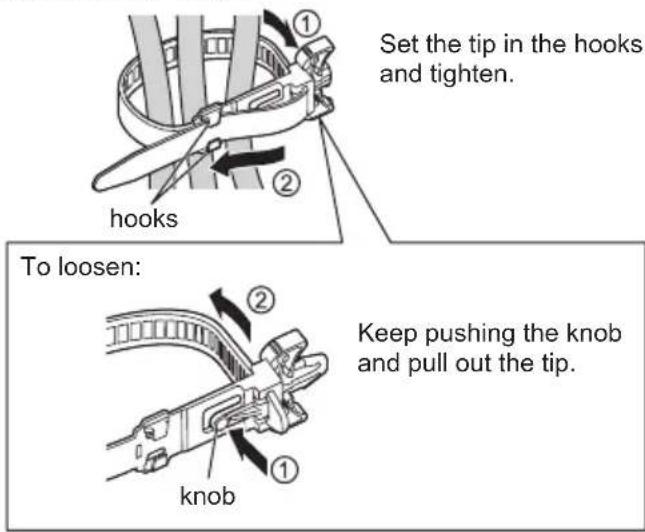
Cable fixing

Note

- 3 clampers are supplied with this unit. Fix the cables at 3 locations using the holes for clampers as shown below.

If you need more clampers, purchase them from your dealer. (Available from the customer service)
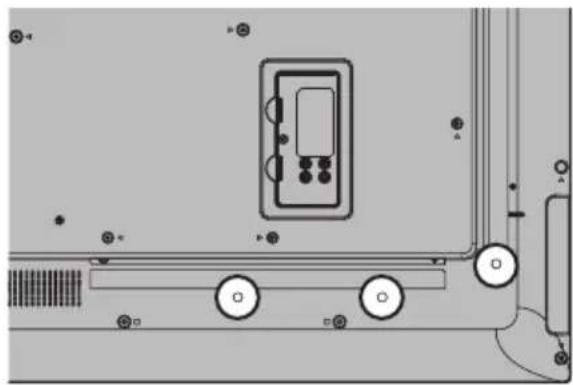
PANASONIC TH-65EF1-IR - Note - 1

natural_image Diagram of a device panel with control buttons and a central display unit (no text or symbols)
  1. Attach the clamper
    PANASONIC TH-65EF1-IR - Note - 2
  1. Bundle the cables
    PANASONIC TH-65EF1-IR - Note - 3

Video equipment connection
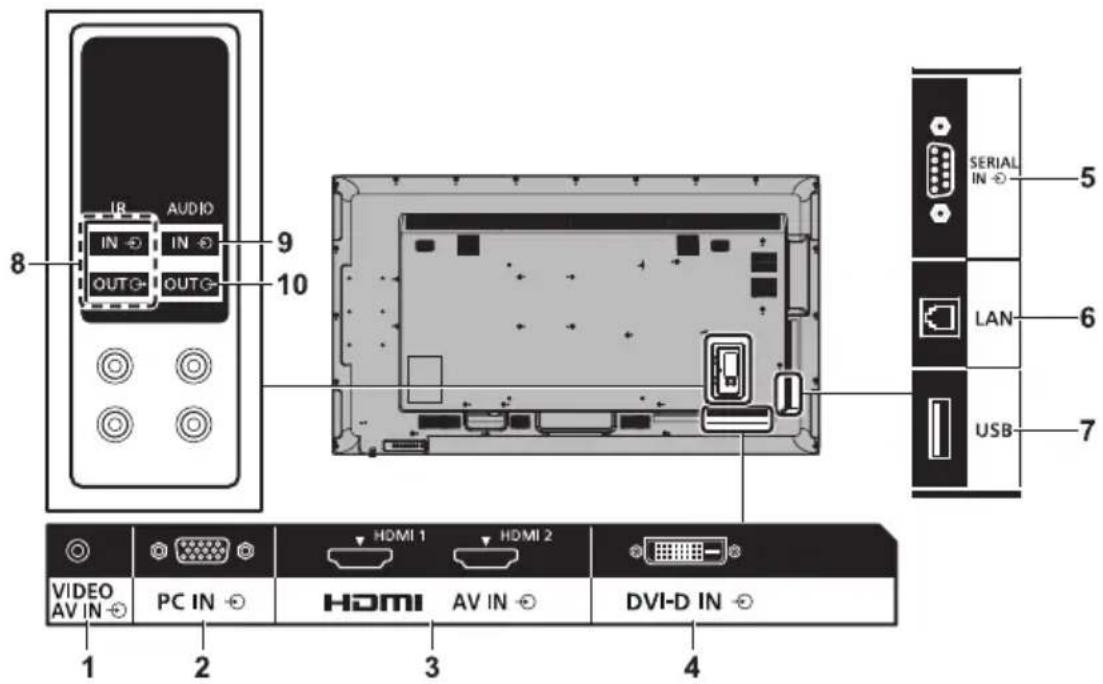
8 IN AUDIO IN IN OUT OUT 9 10 SERIAL IN 5 LAN 6 USB 7 VIDEO AV IN PC IN HDMI 1 HDMI 2 HDMI AV IN DVI-D IN 1 2 3 4

1 AV IN (VIDEO): Composite Video / Audio Input Terminal

Connect to video equipment with Composite signal output. (see page 20)

2 PC IN: PC Input Terminal

Connect to video terminal of PC, video equipment with "YPBPR / YCBCR" or "RGB" output. (see page 19)

3 AV IN HDMI Input Terminal

(HDMI 1, HDMI 2):Connect to video equipment such as VCR or DVD player, etc. (see page 17)

4 DVI-D IN: DVI-D Input Terminal

Connect to video equipment with DVI-D output. (see page 18)

5 SERIAL IN: SERIAL Input Terminal

Control the Display by connecting to PC.
(see page 21)

6 LAN: LAN Terminal

Control the Display by connecting to Network.
(see page 64)

7 USB: USB Terminal

Connect the USB memory to use [USB media player]. Also, this can be used to supply power of up to 5V/1A to an external device when the picture is displayed. (see page 23)

8 IR IN, IR OUT: Infrared Signal Input / Output Terminal

Use this when operating more than one display with one remote control.
(see page 22)

9 AUDIO IN: Audio input terminal shared with DVI-D IN and PC IN

(see page 18, 19)

10 AUDIO OUT: Analogue Audio Output Terminal

Connect to audio equipment with analogue audio input terminal. (see page 23)

Before connecting

  • Before connecting cables, carefully read the operating instructions for the external device to be connected.
  • Turn off the power of all devices before connecting cables.
  • Take note of the following points before connecting the cables. Failure to do so may result in malfunctions.

- When connecting a cable to the unit or a device connected to the unit itself, touch any nearby metallic objects to eliminate static electricity from your body before performing work.

- Do not use unnecessarily long cables to connect a device to the unit or to the unit body. The longer the cable, the more susceptible to noise it becomes. Since using a cable while it is wound makes it act like an antenna, it is more susceptible to noise.

- When connecting cables, connect GND first, then insert the connecting terminal of the connecting device in a straight manner.

• Acquire any cable necessary to connect the external device to the system that is neither supplied with the device nor available as an option.

- If the outer shape of the plug of a connection cable is large, it may come in contact with the periphery such as a back cover or the plug of an adjacent connection cable. Use a connection cable with the suitable plug size for the terminal alignment.

- When connecting the LAN cable with plug cover, be aware that the cover may come in contact with the back cover and it may be difficult to disconnect.

- If video signals from video equipment contain too much jitter, the images on the screen may wobble. In this case, a time base corrector (TBC) must be connected.

- When the sync signals output from PC or video equipment are disturbed, for example, when changing settings of video output, the colour of the video may be disturbed temporarily.

- The unit accepts Composite video signals, YCBCR/YPBPR signals (PC IN), analogue RGB signals (PC IN) and digital signals.

- Some PC models are not compatible with the unit.

- Use cable compensator when you connect devices to the unit using long cables. Otherwise the image may not display properly.

- Refer to "Preset Signals" (see page 89) for the types of video signals that can be displayed with the unit.

HDMI 1 and HDMI 2 terminals connection

Note

  • Video equipment and HDMI cable shown are not supplied with this unit.
  • Some HDMI equipment may not be able to display picture.
  • This Display does not support HDMI-CEC (HDMI Consumer Electronics Control) (VIERA LINK).
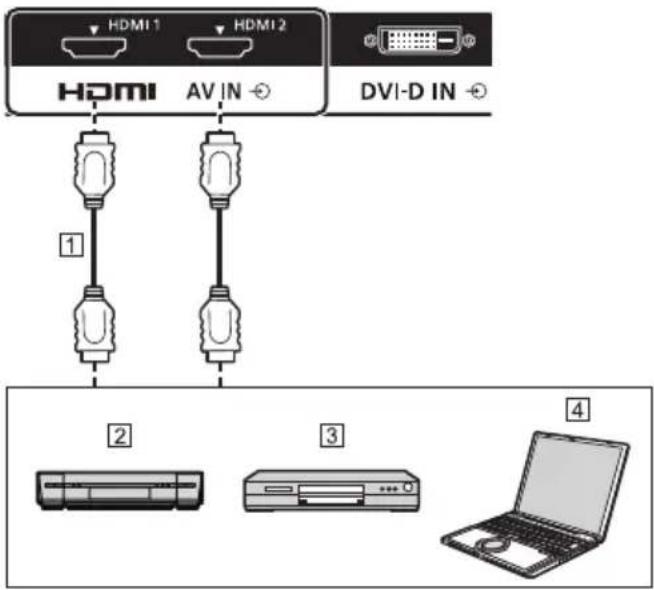
HDMI 1 HDMI 2 AV IN DVI-D IN 1 2 3 4

① HDMI cable (commercially available)
② Video Cassette Recorder
③ DVD Player
4 PC

Pin assignments and signal names for HDMI Terminal
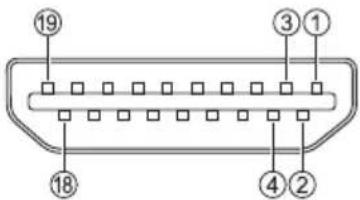
⑲ ③① ④② ④ ⑱

Pin No. Signal name
1T.M.D.S Data2+
2T.M.D.S Data2 Shield
3T.M.D.S Data2-
4T.M.D.S Data1+
5T.M.D.S Data1 Shield
6T.M.D.S Data1-
7T.M.D.S Data0+
8T.M.D.S Data0 Shield
9T.M.D.S Data0-
10T.M.D.S Clock+
11T.M.D.S Clock Shield
12T.M.D.S Clock-
13——
14——
15SCL
16SDA
17Ground
18+5V DC
19Hot Plug Detect

DVI-D IN terminal connection

Note

  • Video equipment and cables shown are not supplied with this unit.
  • Use the DVI-D cable complying with the DVI standard. Image deterioration may occur depending on the length or the quality of the cable.
    • DVI-D IN terminal is for Single Link only.

Shared with PC IN.
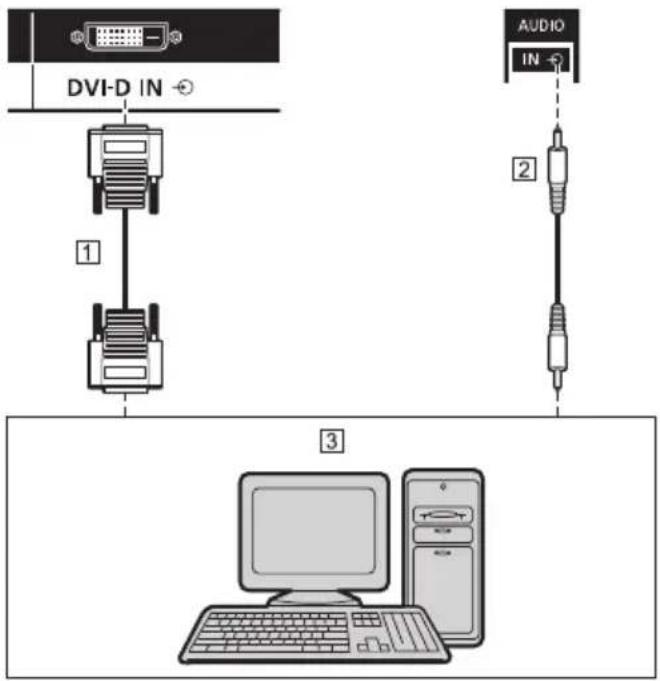
DVI-D IN 1 AUDIO IN 2 3

① DVI-D video cable (Within 5 m) (commercially available)

② Stereo mini plug (M3) cable (commercially available)

③ PC with DVI-D video out

Pin assignments and signal names for DVI-D Input
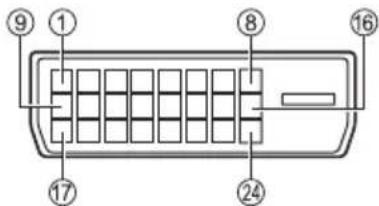
Diagram of a device rear panel with numbered labels pointing to different components

Pin No. Signal Name
1T.M.D.S. data 2-
2T.M.D.S. data 2+
3T.M.D.S. data 2 shield
4____
5____
6DDC clock
7DDC data
8____
9T.M.D.S. data 1-
10T.M.D.S. data 1+
11T.M.D.S. data 1 shield
12____
13____
14+5 V DC
15GND (Ground)
16Hot plug detect
17T.M.D.S. data 0-
18T.M.D.S. data 0+
19T.M.D.S. data 0 shield
20____
21____
22T.M.D.S. clock shield
23T.M.D.S. clock+
24T.M.D.S. clock-

PC IN terminal connection

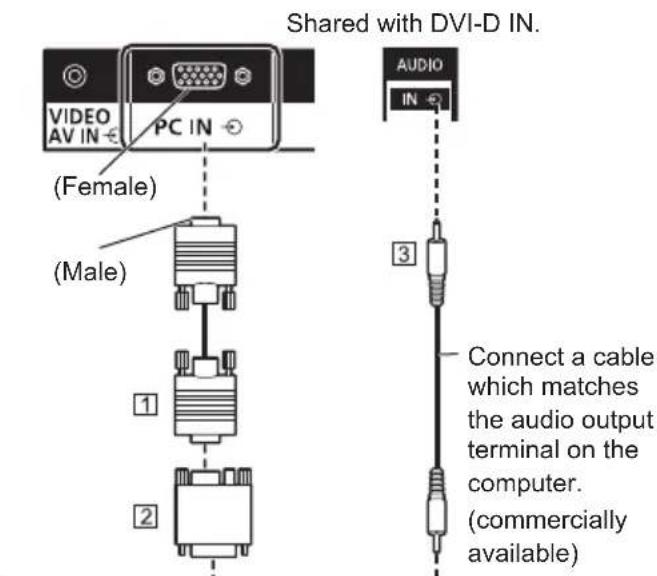
Shared with DVI-D IN. VIDEO AV IN PC IN (Female) (Male) 1 2 AUDIO IN 3 Connect a cable which matches the audio output terminal on the computer. (commercially available)

PANASONIC TH-65EF1-IR - PC IN terminal connection - 2

natural_image Line drawing of a laptop computer with a screen and keyboard (no text or symbols)

① Mini D-sub 15p cable (commercially available)
② Conversion adapter (if necessary) (commercially available)
3 Stereo mini plug (M3) cable (commercially available)
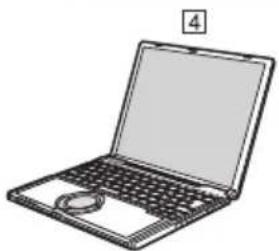
4 PC

The type of computer signal that can be connected

  • With regard to the typical PC input signals that are described in "Preset Signals" (see page 89), adjustment values such as for the standard picture positions and sizes have already been stored in this unit.
    (Computer signals which can be input are those with a horizontal scanning frequency of 30 to 110 kHz and vertical scanning frequency of 48 to 120 Hz.)
  • The display resolution is a maximum of 1 440 × 1 080 dots when the aspect mode is set to [4:3], and 1 920 × 1 080 dots when the aspect mode is set to [16:9]. If the display resolution exceeds these maximums, it may not be possible to show fine detail with sufficient clarity.
  • In [ENGLISH(US)] OSD language, [16:9] is displayed as [FULL].

( Note

  • The PC IN terminal is DDC2B-compatible. If the computer being connected is not DDC2B-compatible, you will need to make setting changes to the computer at the time of connection.
  • There is no need to use an adapter for computers with DOS/V compatible Mini D-sub 15P terminal.

  • The computer shown in the illustration is for example purposes only.
    • Additional computer, cables and conversion adapter shown are not supplied with this set.

  • Do not set the horizontal and vertical scanning frequencies for PC signals which are above or below the specified frequency range.
  • Component Input is possible with the pin 1, 2, 3 of the Mini D-sub 15P Connector.
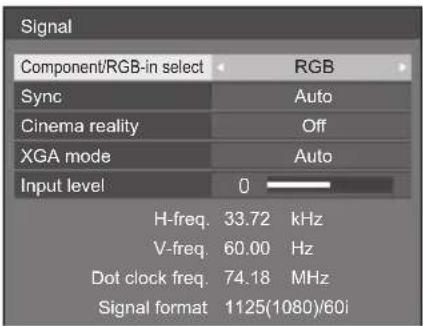
  • Change the [Component/RGB-in select] setting in the [Signal] menu to [Component] (when Component signal connection) or [RGB] (when RGB signal connection). (see page 43)

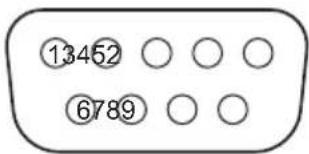
Pin assignments and signal names for PC Input Terminal (Mini D-sub 15P)
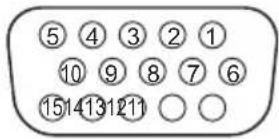
PANASONIC TH-65EF1-IR - ( Note - 1

Pin No. Signal Name
1R (PR/CR)
2G (Y)
3B (PB/CB)
4NC (not connected)
5GND (Ground)
6GND (Ground)
7GND (Ground)
8GND (Ground)
9+5 V DC
10GND (Ground)
11NC (not connected)
12SDA
13HD/SYNC
14VD
15SCL

VIDEO terminal connection

Note

- Video equipment, connection cables and conversion plugs are not supplied with this unit.
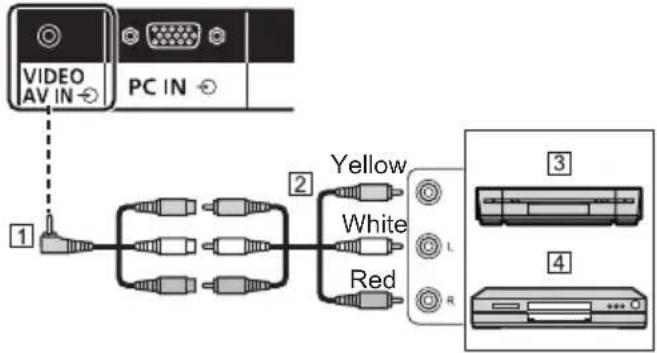
VIDEO AV IN PC IN 1 2 Yellow White Red 3 L R 4

① 4-pole mini plug conversion cable (commercially available)
② Audio video pin cable (commercially available)
③ Video Cassette Recorder
4 DVD Player

Wiring specifications for 4-pole mini plug

Note

- Use a 4-pole mini plug (M3) with the following wiring specifications for the VIDEO terminal of this unit. If the wiring of a plug is different, audio and video are not correctly input.
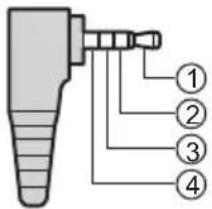
Diagram of a mechanical device with numbered parts labeled 1 to 4

1Audio L (White)
2Video (Yellow)
3GND (Ground)
4Audio R (Red)

SERIAL terminal connection

The SERIAL terminal conforms to the RS-232C interface specification, so that the Display can be controlled by a computer which is connected to this terminal.

Note

• Additional computer and cables shown are not supplied with this set.
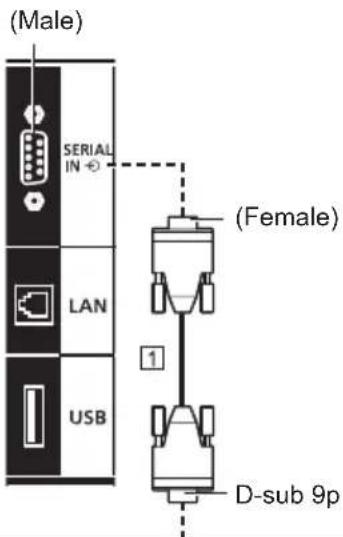
(Male) SERIAL IN LAN USB (Female) 1 D-sub 9p

PANASONIC TH-65EF1-IR - Note - 2

natural_image Line drawing of a laptop computer with a blank screen and a circular button on the side (no text or symbols)

1 RS-232C Straight cable (commercially available)

② PC

Note

- Use the RS-232C straight cable to connect the computer to the Display.

Pin assignments and signal names for SERIAL Terminal

PANASONIC TH-65EF1-IR - Note - 1

Pin No. Signal Name
1NC (not connected)
2RXD
3TXD
4Non use
5GND (Ground)
6Non use
7RTSShorted in this set
8CTS
9NC (not connected)

These signal names are those of computer specifications.

Communication parameters

Signal level: RS-232C compliant

Synchronization method: Asynchronous

Baud rate: 9600 bps

Parity: None

Character length: 8 bits

Stop bit: 1 bit

Flow control: None

Basic format for control data

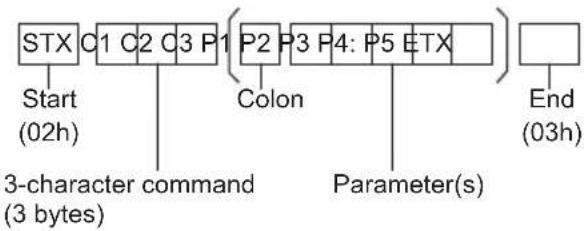
The transmission of control data from the computer starts with a STX signal, followed by the command, the parameters, and lastly an ETX signal in that order. If there are no parameters, then the parameter signal does not need to be sent.

PANASONIC TH-65EF1-IR - Basic format for control data - 1

flowchart
graph TD
    A["STX"] --> B["C1 C2 C3 P1"]
    B --> C["P2 P3 P4: P5 ETX"]
    C --> D["End (03h)"]
    E["Start (02h)"] --> B
    F["3-character command (3 bytes)"] --> B
    G["Colon"] --> C
    H["Parameter(s)"] --> C

Command

Command Parameter Control details
PON NonePower ON
POF NonePower OFF
AVL *** Volume 000 – 100
AMT0Audio MUTE OFF
1Audio MUTE ON
IMSNone Inputselect (toggle)
HM1HDMI 1 input (HDMI1)
HM2HDMI 2 input (HDMI2)
DV1DVI-D IN input (DVI-D)
PC1PC IN input (PC)
VD1VIDEO input (VIDEO)
UD1USB input (USB)
DAMNoneScreen mode select (toggle)
ZOOMZoom1
FULL 16:9
NORM4:3
ZOM2Zoom2

Note

  • If multiple commands are transmitted, be sure to wait for the response for the first command to come from this unit before sending the next command. When sending a command which does not require parameter, a colon (:) is not needed.
  • If an incorrect command is sent by mistake, this unit will send an "ER401" command back to the computer.
  • In Standby condition (power OFF with remote control), the unit responds to PON command only.
  • Consult your local Panasonic dealer for detail instructions on command usage.
    For more details, visit the following web site. http://panasonic.net/prodisplays/

IR IN/IR OUT terminal connection

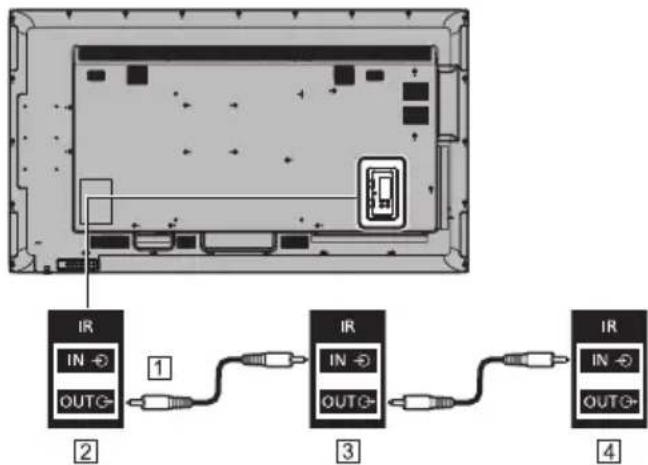
Connect the mini plug (M3) cable from the IR OUT terminal of the first display to the IR IN terminal of the second display.

The infrared signal of the first display is sent to the second display.

In this case, the IR (infrared ray reception on the remote control sensor) on the second display does not operate.

Repeating the above connections enables the daisy chain connection.

Note

  • Connection cables are not supplied with this unit.
  • Daisy chain connection is possible only between the displays of the same series.

IR IN → OUTG→ ① IR IN → OUTG→ ② IR IN → OUTG→ ③ IR IN → OUTG→ ④

① Stereo mini plug (M3) cable (commercially available)
② Firstdisplay
③ Second display
4 Thirddisplay

AUDIO OUT terminal connection

Note

- Audio equipment and the cable shown are not supplied with this set.
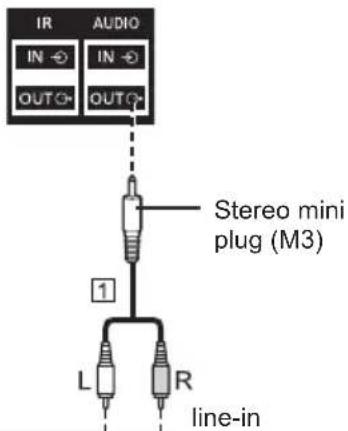
IR AUDIO IN IN OUT OUT Stereo mini plug (M3) 1 L R line-in

PANASONIC TH-65EF1-IR - Note - 2

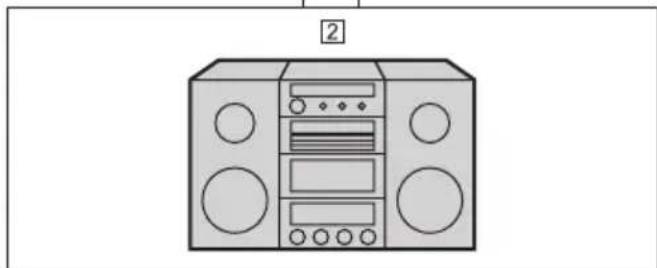
natural_image Line drawing of a multi-tiered electronic device with front panel and buttons (no text or symbols)

1 Stereo audio cable (commercially available)
② Audio equipment

Note

- To output sound from AUDIO OUT terminal of the unit, be sure to set [Output select] in the [Sound] menu to [AUDIO OUT]. (see page 37)

USB terminal connection

Connect the USB memory (commercially available) to use [USB media player]. (see page 78)

Also, power is supplied when a separately sold stick PC, etc. are connected.

Note

- A stick PC and connection cables are not supplied with this unit.
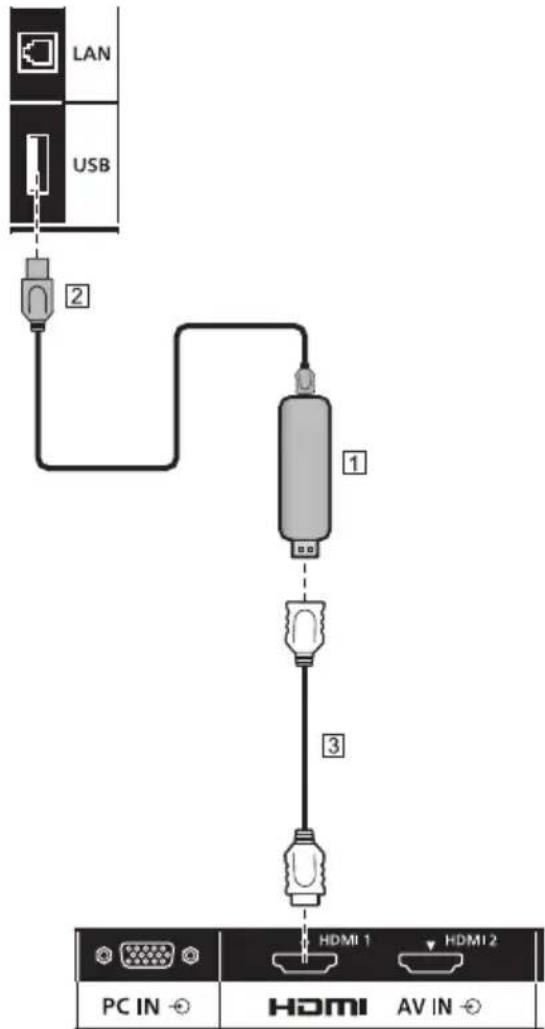
LAN USB 2 1 3 HDMI 1 HDMI 2 PC IN HDMI AV IN

①StickPC
② USB cable (commercially available)
③ HDMI extension cable (commercially available)

Pin assignments and signal names for USB Terminal
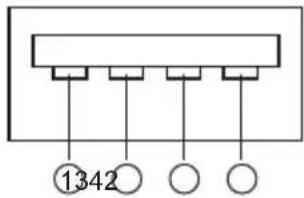
⑬342

Pin No. Signal name
1+5 V DC
2DATA -
3DATA +
4GND (Ground)

Power of up to 5V/1A can be supplied to an external device when the picture is displayed.

- If the electric current exceeding the power supplying capability is applied, the output is blocked, and the following message is displayed.

[USB DC5V OUT overload. Please remove cable or equipment, then turn the display off/on.]

In this case, remove the equipment and then turn the power off/on using the remote control, etc.

Note

  • If the direct connection to this unit is not possible due to the size of a stick PC, etc. use a commercially sold extension cable.
  • Depending on the type of a USB memory device, it may come in contact with the periphery such as a back cover, and cannot be attached. Use a commercially sold extension cable, or use a small type of a USB memory device connectable to this unit.
  • Depending on the USB memory, the access lamp may remain blinking even when it is not being accessed. In this case, remove the device after switching to the input other than USB.

Also, when reading the user image, remove the device after the menu screen display finishes (see page 43). When performing the data cloning, remove the device after the completion screen is displayed. (see page 85)

Identifying Controls

Main unit
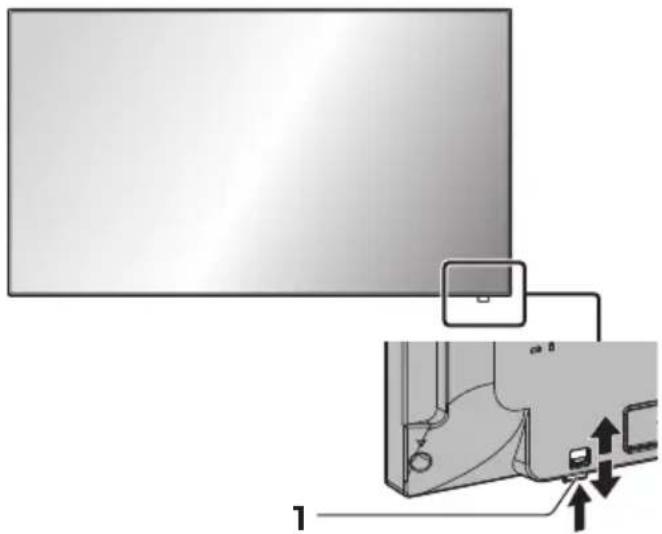
PANASONIC TH-65EF1-IR - Main unit - 1

natural_image Diagram showing a monitor connected to a device with an attached cable, and a close-up of the cable being inserted (no text or symbols present)

- Slide the lever on the rear panel to eject the power indicator and remote control sensor.

To store them, slide the same lever, or directly push in the bottom surface of the remote control sensor.

Note

- For normal use, pull out the power indicator and remote control sensor from the edge side of the main unit by operating the lever on the rear panel. Depending on the setup condition such as when using the multi display, store them in the main unit.

1 Power Indicator / Remote control sensor

The Power Indicator will light.

When the power of the unit is ON (Main Power On / Off button: ON)

• Picture is displayed: Green
• Power OFF (standby) with remote control:
- When [Network control] is set to [Off]: Red
- When [Network control] is set to [On]: Orange (Red/Green)
About [Network control] settings, see page 53.
- Power OFF with "Power management" function: Orange (Red/Green) About "Power management" function, see page 47.

When the power of the unit is OFF (Main Power On / Off button: OFF): No light

Note

  • Even if the display unit is turned off with the power indicator off, some of the circuits are in power-on status.
  • When the power indicator is orange, power consumption during standby is generally larger than that of when the power indicator is red.
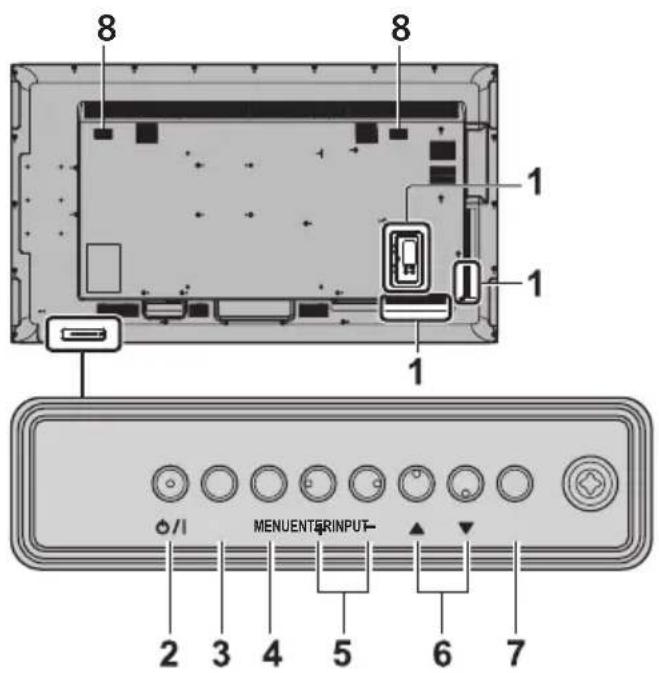
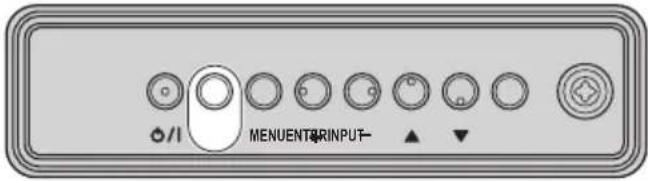
8 8 1 1 1 2 3 4 5 6 7 MENUENTEINPUT-

1 External Input Terminal

Connects to video equipment, PC, etc. (see page 16)

2

Turns the power On / Off.

3

Selects the connected device. (see page 28)

4

Displays the menu screen. (see page 33)

5 <+ (Unit)> / <- (Unit)>

Adjusts the volume. (see page 29)

On the main screen, switches settings or adjusts settings level. (see page 33)

6 < ▲ (Unit) > / < ▼(Unit)>

Selects the setting item on menu screen. (see page 33)

7

Configures the item on menu screen. (see page 33) Switches aspect mode. (see page 31)

8 Built-in speakers

Sound is output backward and upward.

Note

- To output sound from the built-in speakers of the unit, be sure to set [Output select] in the [Sound] menu to [SPEAKERS]. (see page 37)

Remote Control Transmitter
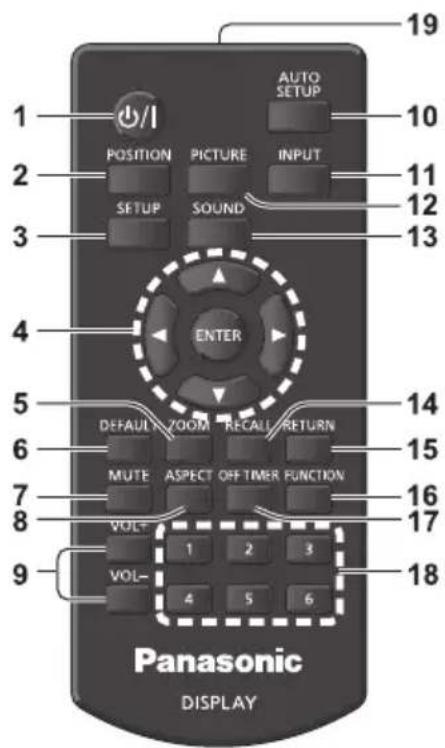
1 2 3 4 5 6 7 8 9 1 2 3 4 5 6 7 8 9 10 11 12 13 14 15 16 17 18 19 AUTO SETUP POSITION PICTURE INPUT SETUP SOUND ENTER DEFAULT ZOOM RECALL RETURN MUTE ASPECT OFF-TIMER FUNCTION VOL- VOL- Panasonic DISPLAY

1 Standby (ON/OFF) button (∅)

- Turns the power on or off when the Display is turned on at the

. (see page 27)

2 POSITION

(see page 35)

3 SETUP

(see page 43)

4 ENTER / Cursor buttons (▲▼)

• Used to operate the menu screens. (see page 33)

5 ZOOM

Enters the digital zoom mode. (see page 32)

6 DEFAULT

- Resets the settings of picture, sound, etc., to defaults. (see page 35, 37, 38)

7 MUTE

• Sound mute on / off. (see page 30)

8 ASPECT

• Adjusts the aspect. (see page 31)

9 VOL + / VOL -

• Adjusts sound volume level. (see page 29)

10 AUTO SETUP

• Automatically adjusts the position/size of the screen. (see page 35)

11 INPUT

- Switches input to display on the screen. (see page 28)

12 PICTURE

(see page 38)

13 SOUND

(see page 37)

14 RECALL

- Displays the current setting status of Input mode, Aspect mode, etc. (see page 29)

15 RETURN

• Used to return to the previous menu. (see page 33)

16 FUNCTION

• Displays [Function button guide]. (see page 55)

17 OFF TIMER

- Switches to stand-by after a fixed period. (see page 30)

18 Numeric buttons (1 - 6)

• Used as shortcut buttons by assigning frequently used operations. (see page 56)

19 Signal emission

Note

- In this manual, buttons of the remote control and the unit are indicated as < >. (Example: .)

The operation is mainly explained indicating the remote control buttons but you can also operate with the buttons on the unit when there are the same buttons.

Basic Controls
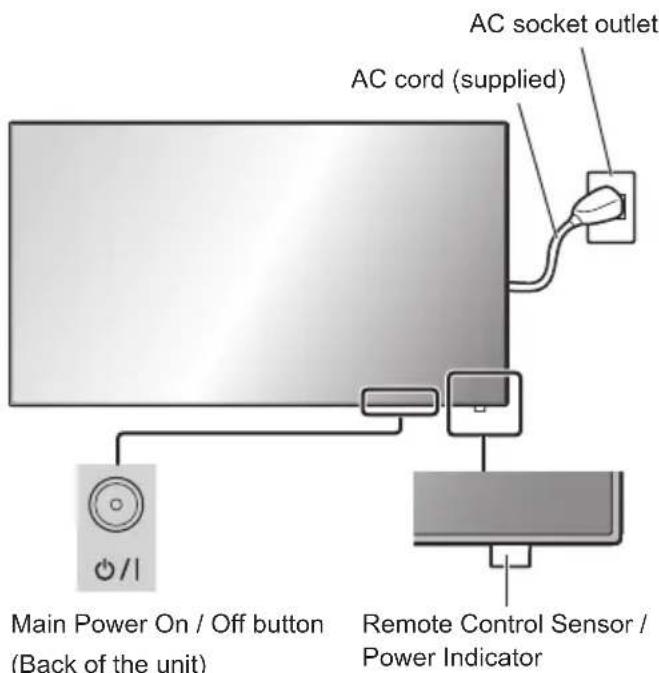
AC socket outlet AC cord (supplied) Main Power On / Off button (Back of the unit) Remote Control Sensor / Power Indicator

Operate pointing the remote control directly at the unit's Remote Control Sensor.
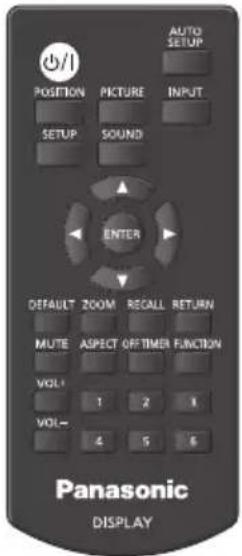
Position SETUP PICTURE SOUND AUTO SETUP INPUT ENTER DEFAULT ZOOM RECALL RETURN MUTE ASPECT OFFTIMER FUNCTION VOL- 1 2 3 VOL- 4 5 6 Panasonic DISPLAY

Note

  • For normal use, pull out the remote control sensor from the edge side of the main unit by operating the lever on the rear panel. (see page 25)
  • Do not put an obstacle between the remote control sensor of the main unit and the remote control.
  • Operate the remote control in front of the remote control sensor or from the area where the sensor can be seen.
  • When directly aiming the remote control at the remote control sensor of the main unit, the distance from the front of remote control sensor should be approx. 7 m or less. Depending on the angle, the operation distance may be shorter.
  • Do not subject the remote control sensor of the main unit to the direct sunlight or strong fluorescent light.

1 Connect the AC cord plug to the Display.

(see page 15)

2 Connect the plug to the socket outlet.

Note

  • Main plug types vary between countries. The power plug shown at left may, therefore, not be the type fitted to your set.
  • When disconnecting the AC cord, be absolutely sure to disconnect the AC cord plug at the socket outlet first.
  • The settings may not be saved if the power plug is disconnected immediately after changing settings with on-screen menu. Disconnect the power plug after a enough period of time. Or, disconnect the power plug after turning the power off with the remote control, RS-232C control or LAN control.

3 Press the
on the unit to turn the set on: Power-On.

• Power Indicator: Green (Picture is displayed.)
- When the power of the unit is ON, remote control operation is possible.

■ To turn the power ON/OFF with the remote control

Press the to turn the Display on.

• Power Indicator: Green (Picture is displayed.)
Press the to turn the Display off.
• Power Indicator: Red (standby)

Press the

on the unit to turn the unit off, when the power of the unit is turned on or in standby mode.

( Note

  • During operation of the "Power management" function (see page 47), the power indicator turns orange in the power off state.
    • After the power plug is disconnected, the power indicator may remain lit for a while. This is not a malfunction.

■ When the Unit is turned on for the first time

Following screen will be displayed.

1 Select the language with ▲ and press .
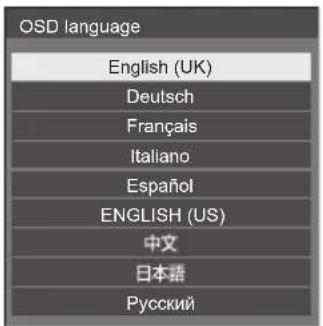
OSD language English (UK) Deutsch Français Italiano Español ENGLISH (US) 中文 日本語 Русский

2 For vertical installation, select [Portrait] with ▲ and press .
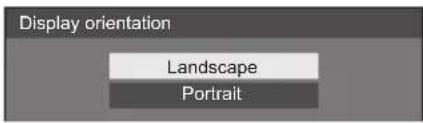
Display orientation Landscape Portrait

Note

- Once the items are set, the screens won't be displayed when switching on the unit next time.

Each item can be reset in the following menus.

[OSD language] (see page 50)

[Display orientation] (see page 56)

■ Power ON message

The following message may be displayed when turning the unit power ON:

No activity power off Precautions

'No activity power off' is enabled.

When [No activity power off] in the [Setup] menu is set to [Enable], a warning message is displayed every time the power is turned ON. (see page 50)

"Power management" Information

Last turn off due to 'Power management'.

When "Power management" is functioned, an information message is displayed every time the power is turned ON. (see page 47)

These message displays can be set with the following menu:

- [Options] menu

Power on message(No activity power off) (see page 62)

Power on message(Power management) (see page 62)

Selecting the input signal

Select the signals input to the unit.

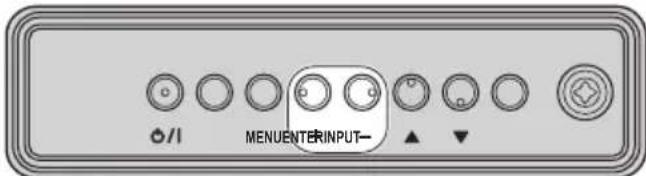
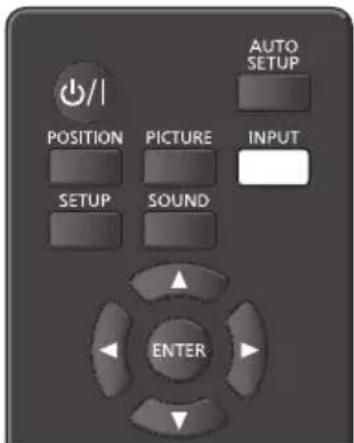
Press or
OUTPUT SETUP POSITION PICTURE INPUT SOLUTION SOUND ENTER

Unit

MENUENT/RINPUT-

Switches input every time the buttons are pressed.
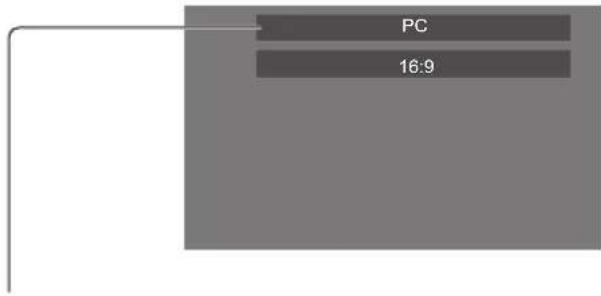
PC 16:9

[HDMI1] → [HDMI2] → [DVI-D] → [PC] → [VIDEO] → [USB]

[HDMI1]:

HDMI 1 terminal, HDMI input

[HDMI2]:

HDMI 2 terminal, HDMI input

[DVI-D]:

DVI-D IN terminal, DVI-D input

[PC]:

PC IN terminal, PC input

[VIDEO]:

VIDEO terminal, composite video input

[USB]:

USB terminal, USB input

Note

  • Displays the signal name as set in [Input label]. (see page 47)
  • Input will not be switched unless [Input lock] is set to [Off]. (see page 59)
  • Image retention (image lag) may occur on the LCD liquid crystal panel when a still picture is kept on the panel for an extended period. To prevent such a problem, using the screensaver and wobbling is recommended. (see page 46, 50)

RECALL

It is possible to check the setting status of input label, picture mode, etc.

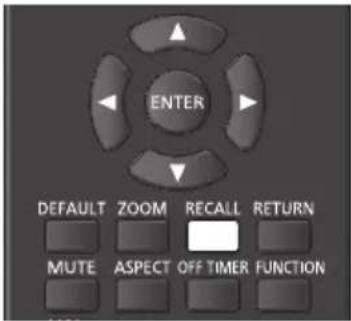
Press .
ENTER DEFAULT ZOOM RECALL RETURN MUTE ASPECT OFF TIMER FUNCTION

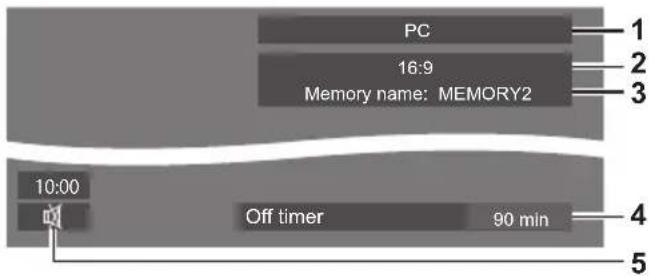
Current setting status will be displayed.
PC 16:9 Memory name: MEMORY2 10:00 Off timer 90 min 4 5

1 Input label
2 Aspect mode (see page 31)
3 Profile name (see page 42)
4 Off timer remaining time (see page 30)
5 Clock / Mute (see page 30, 62)

  • When there is no video signal to the selected input, [No signal] is displayed for about 30 seconds at the end.
  • When a USB memory is not connected to the USB terminal at the time of using the USB input, [No external media] is displayed for about 30 seconds. Even when a USB memory is connected, if it does not contain any playable file, [No play file] is displayed at all times.
  • When [No signal image settings] - [Display setting] is set to [On] (see page 49), the message [No signal] / [No external media] / [No play file] are not displayed. Instead, the image set in [No signal image settings] will be displayed.

- To display the clock, set [Date and time] and then set [Clock display] to [On]. (see page 52, 62)

Volume Adjustment

Press or <+ (Unit)> <- (Unit)> to adjust volume.
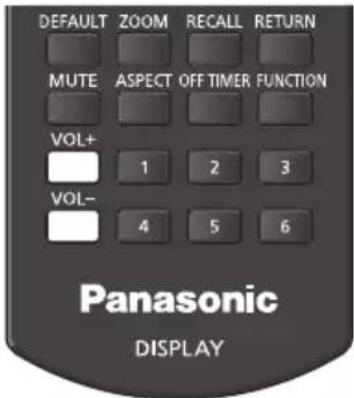
DEFAULT ZOOM RECALL RETURN MUTE ASPECT OFF TIMER FUNCTION VOL+ 1 2 3 VOL- 4 5 6 Panasonic DISPLAY

Unit

MENUENTERINPUT

Volume (SPEAKERS) 20

  • The current sound volume level is memorised even if the power is turned off.
  • When [Maximum VOL level] is set to [On], the volume can only be adjusted to the maximum point you set, and the displayed value turns red when it reached its maximum. (see page 59)
  • When [Initial VOL level] is set to [On], the volume will be at the set level when the display is turned on. (see page 59)

Sound mute On / Off

It is useful when you want to mute the sound temporarily, for example, when answering the phone or door.

Press .

• 📂 appears on the screen and the sound is muted. Press again to reactivate the sound.
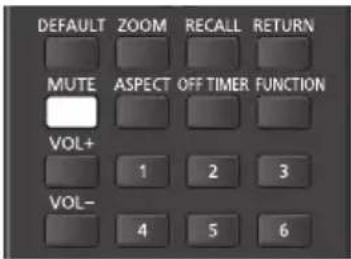
DEFAULT ZOOM RECALL RETURN MUTE ASPECT OFF TIMER FUNCTION VOL+ 1 2 3 VOL- 4 5 6

  • It is also reactivated when the power is turned on / off or the volume level is changed.
  • While MUTE is active, ☑ is displayed as a reminder after operation.
  • When the image set in [No signal image settings] (see page 49) is displayed, ☑ is not displayed after operation.
  • In [ENGLISH(US)] OSD language, 📋 is displayed as [MUTE].

OFF TIMER

The Display can be preset to switch to stand-by after a fixed period. (30 min, 60 min, 90 min)

The setting switches each time is pressed.

• [0 min] → [30 min] → [60 min] → [90 min] → [0 min] (Cancel)
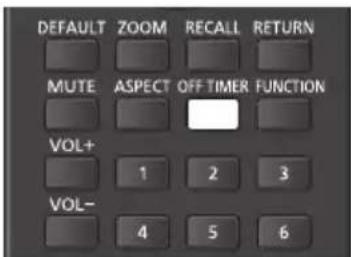
DEFAULT ZOOM RECALL RETURN MUTE ASPECT OFF TIMER FUNCTION VOL+ 1 2 3 VOL- 4 5 6

  • When three minutes remain, the remaining time will flash (Red). After that, it switches to stand-by.
  • To see the Off timer remaining time, press .
  • The Off timer is cancelled if a power interruption occurs. When the power is turned on later on, it will be in stand-by condition.
  • When the image set in [No signal image settings] (see page 49) is displayed, remaining time is not displayed even when the timer expires in 3 minutes. Instead, the image is displayed until the power is turned off. Press to check the remaining time.

ASPECT Controls

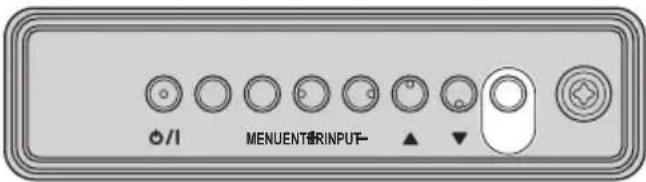
Press or repeatedly to move through the aspect options:
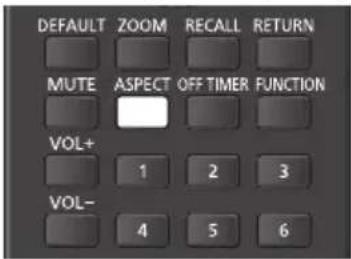
DEFAULT ZOOM RECALL RETURN MUTE ASPECT OFF TIMER FUNCTION VOL+ 1 2 3 VOL- 4 5 6

Unit

○/1 MENUENT#INPUT- ▲ ▼

[4:3] → [Zoom1] → [Zoom2] → [16:9]

Note

  • The aspect mode is memorised separately for each input terminal.
  • When input from USB, the aspect mode is fixed to [16:9].

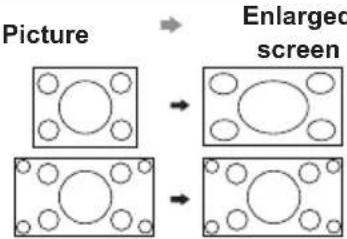
■ List of Aspect Modes

Aspect modeDescription
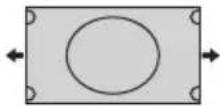
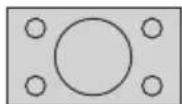
16:9PANASONIC TH-65EF1-IR - Note - 1Pictures are displayed filling the screen.
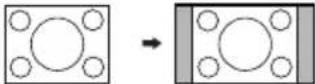
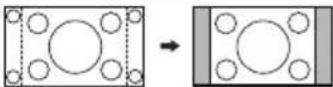
4:3PANASONIC TH-65EF1-IR - Note - 2Pictures are displayed in the 4:3 area. Pictures with a 4:3 aspect ratio are displayed as is. PC signals are enlarged or reduced to be displayed in the 4:3 area. Side panels are displayed both at the right and left edges of the screen.
PANASONIC TH-65EF1-IR - Note - 3Pictures with a 4:3 aspect ratio in 16:9 signals are displayed with their original aspect ratio. The left and right edges of the pictures are masked by side panels.
Aspect modeDescription
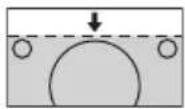
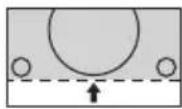
Zoom1PANASONIC TH-65EF1-IR - Note - 4
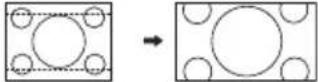
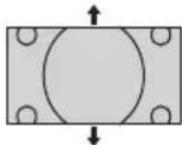
Letterbox pictures with a 16:9 aspect ratio are enlarged vertically to fill the screen. The top and bottom edges of the pictures are cut off.
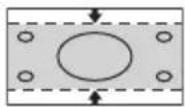
Zoom2PANASONIC TH-65EF1-IR - Note - 5
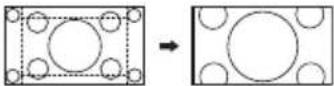
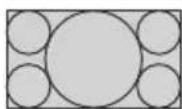
Letterbox pictures with a 16:9 aspect ratio are enlarged vertically and horizontally to fill the screen. The top and bottom edges as well as the left and right edges of the pictures are cut off.

Note

  • Be aware that if you put the display in a public place for commercial purposes or a public showing and then use the aspect mode select function to shrink or expand the picture, you may be violating the copyright under copyright law. It is prohibited to show or alter the copyrighted materials of other people for commercial purposes without the prior permission of the copyright holder.
  • In [ENGLISH(US)] OSD language, [16:9] is displayed as [FULL].

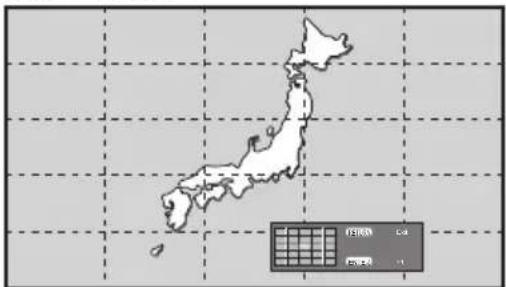
Digital ZOOM

Select the screen areas (25 areas) to zoom in, and zoom in the selected image areas ×2, ×3 or ×4. (Use the remote control. The main unit's buttons cannot be used for operation.)
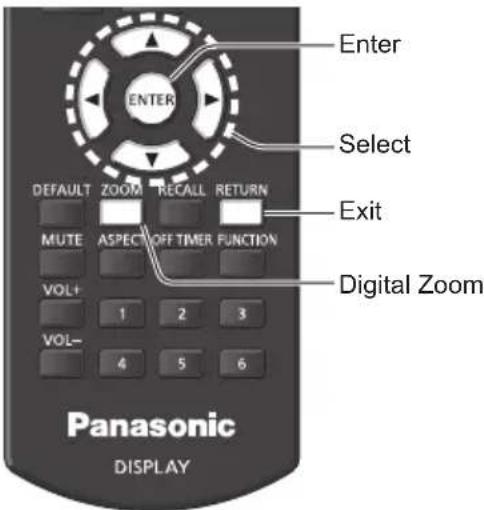
Enter Select Default ZOOM RECALL RETURN MUTE ASPECT OFF TIMER FUNCTION VOL+ 1 2 3 VOL- 4 5 6 Digital Zoom Panasonic DISPLAY

1 Set the digital zoom mode.

Press .
PANASONIC TH-65EF1-IR - Set the digital zoom mode. - 1

The screen aspect is set to [16:9], and the digital zoom operation guide is displayed.

2 Select the image areas to zoom in.

Select pressing ▼▲◀▶
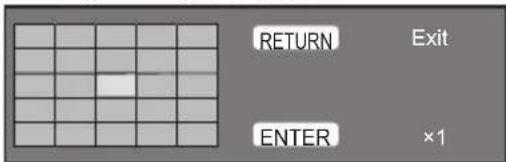
RETURN EXIT ENTER ×1

Digital Zoom operation guide

3 Switch the zoom ratio for the screen areas.

Switches every time is pressed.
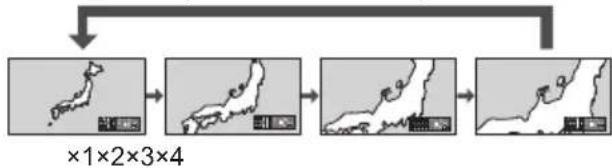
PANASONIC TH-65EF1-IR - Switch the zoom ratio for the screen areas. - 1

flowchart
graph TD
    A["Japan Map"] --> B["Step 1: ×1×2×3×4"]
    B --> C["Step 2: [Crosshatch Icon"]]
    C --> D["Step 3: [Crosshatch Icon"]]
    D --> E["Step 4: [Crosshatch Icon"]

- If no operation is performed for the period set for [Menu display duration] (see page 56) (5 - 180 seconds) when the zoom ratio for the screen is "×1", the unit exits the zoom mode.

- If no operation is performed for approx. 3 seconds when the zoom ratio for the screen is “×2”, “×3” or “×4”, the digital zoom operation guide display disappears. Pressing any of the ▼▲◀▶ buttons displays the guide again.

4 Exit the digital zoom mode.

Press to exit the mode.

The screen returns to the previous state just before entering the digital zoom mode, and the digital zoom operation guide display disappears.

- Press any of the following buttons to exit the mode. Then, the operation of the pressed button is performed.

Remote Control:

$$ \begin{array}{l} < \text { AUTO SETUP } > < \text { POSITION } > < \text { PICTURE } > \ < \text { INPUT } > < \text { SETUP } > < \text { SOUND } > \ < \text { DEFAULT } > < \text { RECALL } > < \text { MUTE } > \ < \text { ASPECT } > < \text { OFF TIMER } > < \text { FUNCTION } > \ < \text { VOL } + > < \text { VOL } - > < 1 > - < 6 > \ \end{array} $$

Unit:

$$ < \text { INPUT } (\text { Unit }) > < \text { MENU } (\text { Unit }) > < + (\text { Unit }) > $$

$$ < - (\text { Unit }) > \triangle \nabla < \text { ENTER } (\text { Unit }) > $$

- When the screen saver timer starts up, the digital zoom mode finishes.

- When the power is turned OFF, a force-quit is performed.

  • When the power is turned OFF by pressing the .
  • When the display is turned OFF at the
  • When the power is turned OFF by the off-timer
  • When the power is turned OFF by No signal power off or [Power management].

( Note

- In the following cases, the digital zoom mode is not available.

  • When [Multi display setting] is [On]
  • When the screen saver is in operation
  • When USB input is selected.

- The zoomed image is rougher than the original image.

- For multi display use, use the functions in [Multi display settings]. (see page 51)

On-Screen Menu Displays

1 Display the menu screen.
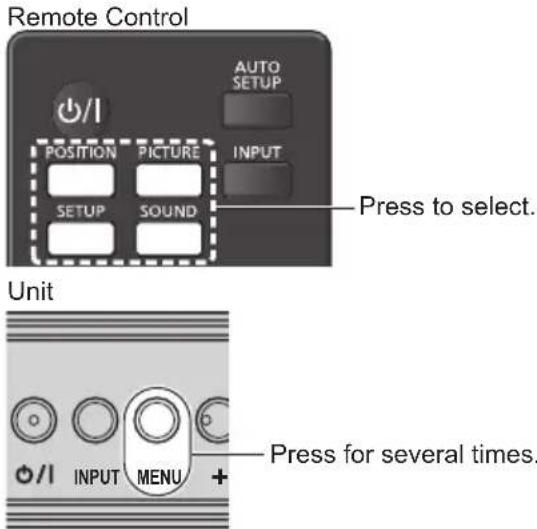
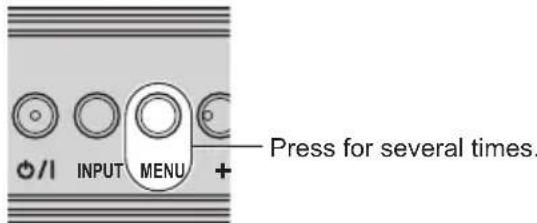
Remote Control AUTO SETUP POSITION PICTURE INPUT SETUP SOUND Press to select. Unit Press for several times. INPUT MENU +

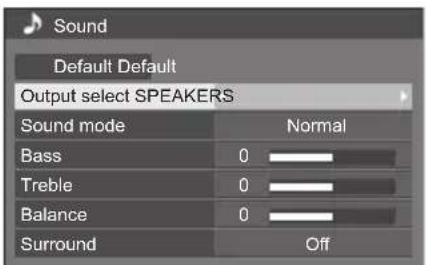
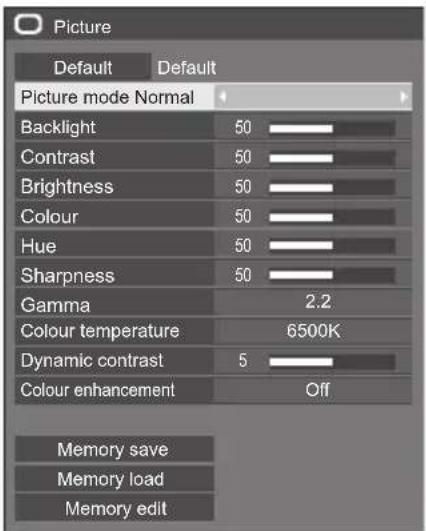
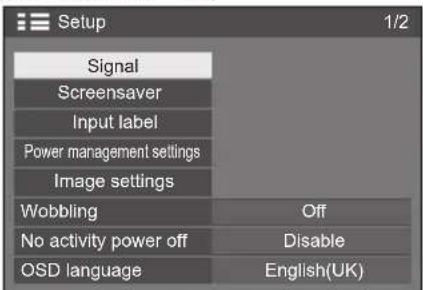
Each time the button is pressed, the menu screen will switch.

Normal Viewing → [Picture] → [Setup] → [Position] → [Sound]

2 Select the item.
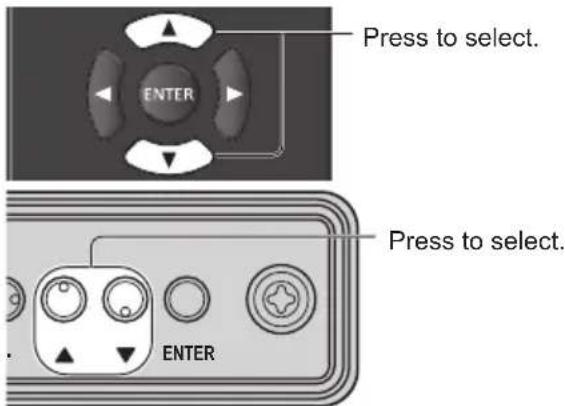
Press to select. ENTER Press to select. ENTER

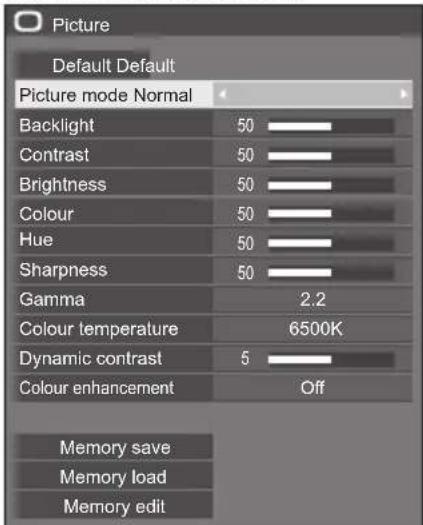
(Example: [Picture] menu)

Picture Default Default Picture mode Normal Backlight 50 Contrast 50 Brightness 50 Colour 50 Hue 50 Sharpness 50 Gamma 2.2 Colour temperature 6500K Dynamic contrast 5 Colour enhancement Off Memory save Memory load Memory edit

To display the submenu, press .

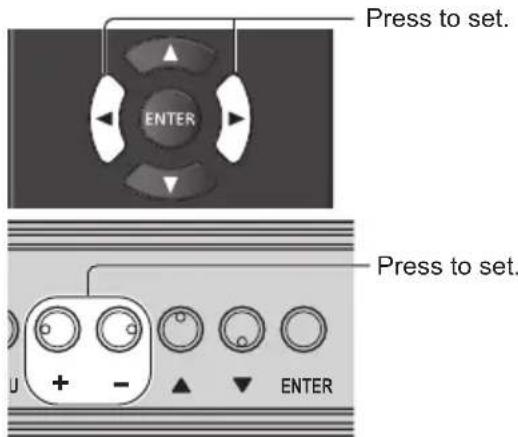
3 Set.

Press to set. ENTER Press to set. U + - ▲ ▼ ENTER

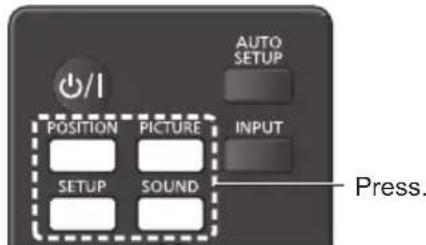
4 Exit from the menu.

AUTO SETUP POSITION PICTURE INPUT SETUP SOUND Press.

Press to return to the previous screen. Alternatively, press the button selected in step 1 to exit from the menu.

I / I INPUT MENU + Press for several times.

Note

- When changing the settings of the display, picture or sound disturbance may occur temporarily. This is not a malfunction.

- Menu that cannot be adjusted is greyed out. Adjustable menu changes depending on signal, input and menu setting.

[Position] menu

(see page 35 - 36)
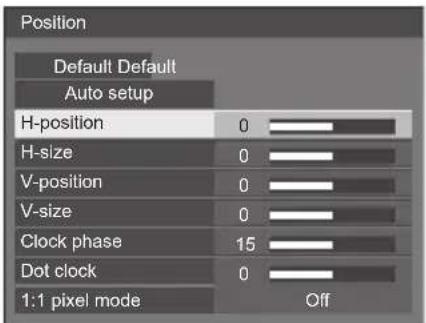
Position Default Default Auto setup H-position 0 H-size 0 V-position 0 V-size 0 Clock phase 15 Dot clock 0 1:1 pixel mode Off

[Sound] menu

(see page 37)

Sound Default Default Output select SPEAKERS Sound mode Normal Bass 0 Treble 0 Balance 0 Surround Off

[Picture] menu

(see page 38 - 42)

Picture Default Default Picture mode Normal Backlight 50 Contrast 50 Brightness 50 Colour 50 Hue 50 Sharpness 50 Gamma 2.2 Colour temperature 6500K Dynamic contrast 5 Colour enhancement Off Memory save Memory load Memory edit

[Setup] menu

(see page 43 - 56)

Setup 1/2 Signal Screensaver Input label Power management settings Image settings Wobbling Off No activity power off Disable OSD language English(UK)

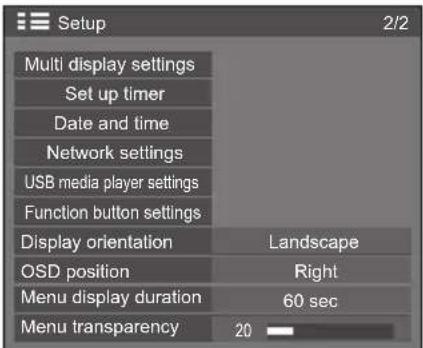
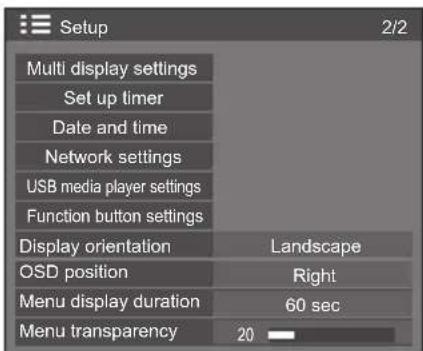
Setup 2/2 Multi display settings Set up timer Date and time Network settings USB media player settings Function button settings Display orientation Landscape OSD position Right Menu display duration 60 sec Menu transparency 20

Adjusting Position

1 Press to display the [Position] menu.
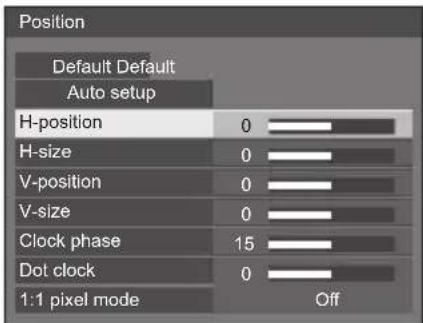
Position Default Default Auto setup H-position 0 H-size 0 V-position 0 V-size 0 Clock phase 15 Dot clock 0 1:1 pixel mode Off

2 Select the item to adjust with ▲.▼

- Unadjustable items are greyed out. Adjustable items differ depending on the signal, input and the display mode.

3 Adjust with ◀▶

4 Press to exit from adjust mode.

■ To return to the previous screen

Press .

■ To reset to defaults

When [Default] is selected, pressing resets the adjustment values of all the displayed menus to default.

When adjusting each item, pressing resets the adjustment value of the item to default.

Note

  • Settings for [Position] are memorised separately for each input signal.
  • With USB input, each item in the [Position] menu cannot be adjusted.

Setting [Position] when the display is installed vertically

When adjusting, please note that even when the display is installed vertically, setting directions of position / size are the same as that of horizontal installation.

Auto setup

When inputting a PC signal, [H-position] / [V-position], [H-size] / [V-size], [Clock phase] and [Dot clock] are automatically corrected.

This setting is enabled under the following condition:

- When inputting an analogue signal (PC).

While displaying the picture of the corresponding signal, select [Auto setup] and press .

Using Remote Control

Press .

When Auto Setup does not work, [Invalid] is displayed.

Auto mode

When the [PC auto setting] is set to [On] in the [Options] menu (see page 60), automatic position adjustment starts under the following conditions:

  • When the display power is turned ON.
  • When the input signal is switched.

Note

  • When the dot clock frequency of a PC signal is 162 MHz or higher, [Clock phase] and [Dot clock] cannot be automatically corrected.
  • Auto Setup may not work when a cropped or dark image is input. In such case, switch to a bright image with borders and other objects are clearly shown, and then try auto setup again.
  • Depending on the signal, out of alignment may occur after Auto Setup. Carry out fine tuning for the position/size as required.
  • If Auto Setup cannot set properly for XGA signal (1024×768, 1280×768, 1366×768), pre-selecting the individual signal in [XGA mode] (see page 44) may results in correct Auto Setup.
  • Accurate auto setup is not possible when a signal such as additional information is superimposed out of valid image period or when intervals between synchronizing signal and image signal are short. Also, accurate auto setup is not possible when image signals with tri level synchronizing signal added, or when some SYNC ON G signals are input.
  • If Auto Setup does not work well, select [Default], press , and then adjust the position/size manually.

[H-position] Adjust the horizontal position with

PANASONIC TH-65EF1-IR - Note - 1

PANASONIC TH-65EF1-IR - Note - 2

PANASONIC TH-65EF1-IR - Note - 3

[H-size] Adjust the horizontal size with

PANASONIC TH-65EF1-IR - Note - 4

PANASONIC TH-65EF1-IR - Note - 5

PANASONIC TH-65EF1-IR - Note - 6

[V-position] Adjust the vertical position with

PANASONIC TH-65EF1-IR - Note - 7

PANASONIC TH-65EF1-IR - Note - 8

PANASONIC TH-65EF1-IR - Note - 9

[V-size] Adjust the vertical size with

PANASONIC TH-65EF1-IR - Note - 10

PANASONIC TH-65EF1-IR - Note - 11

PANASONIC TH-65EF1-IR - Note - 12

[Clock (For PC IN input)

phase]

In some cases, frame of the screen appears blurred or smudged, when PC signal is input.

[Dot clock] (For PC IN input)

Periodic striped pattern interference (noise) may occur when a striped pattern is displayed. If this happens, adjust so that any such noise is minimized.

[Over scan] Turn image over scan On/Off.

Applicable input signal:

525i, 525p, 625i, 625p, 750/60p, 750/50p (Component Video, RGB, DVI-D, HDMI)
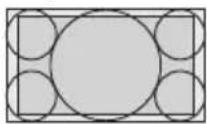
PANASONIC TH-65EF1-IR - Note - 13

PANASONIC TH-65EF1-IR - Note - 14
[On] [Off]

Note

- When [Off] is set, [H-size] and [V-size] cannot be adjusted.

[1:1 pixel mode] Adjusts the display size when 1125i or 1125p signal is input.
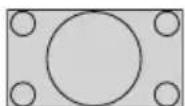
PANASONIC TH-65EF1-IR - Note - 1

PANASONIC TH-65EF1-IR - Note - 2
[Off] [On]

Applicable input signal:

1125 / 50i, 60i, 24PsF, 24p, 25p, 30p, 50p, 60p

Note

  • Select [Off] when flickering is shown around the image.
    • [H-size] and [V-size] cannot be adjusted when [On] is selected.

Note

- In some cases, noise appears outside the area picture is displayed, but it is not a malfunction.

Sound Adjustment

1 Press to display the [Sound] menu.
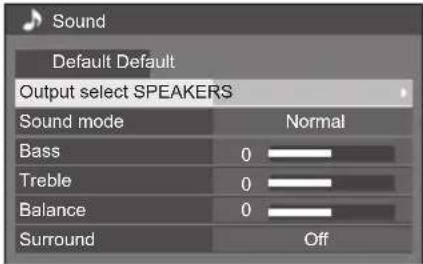
Sound Default Default Output select SPEAKERS Sound mode Normal Bass 0 Treble 0 Balance 0 Surround Off

2 Select the item to adjust with ▲.▼

- Menu that cannot be adjusted is greyed out.

3 Adjust with ◀▶

4 Press to exit from adjust mode.

■ To return to the previous screen

Press .

■ To reset to defaults

Press while the menu is displayed, or press when [Default] is selected, then the adjustment values of all the displayed menus are reset to default.

[Output select] Select the audio output.

[SPEAKERS]:

Internal speakers

[AUDIO OUT]:

AUDIO OUT terminal output

  • When [AUDIO OUT] is selected, the other menus are greyed out and cannot be selected.
    • Audio volume setting is memorized separately for each output.

[Sound mode] Select for best audio.

[Normal]:

Emits the original sound.

[Dynamic]:

Accentuates sharp sound.

[Clear]:

Attenuates human voice.

- In [ENGLISH(US)] OSD language, [Sound mode] and [Normal] are displayed as [AUDIO MENU] and [STANDARD].

[Bass] Adjusts low pitch sounds.

[Treble] Adjusts high pitch sounds.

[Balance] Adjusts left and right volumes.

[Surround] [Off]:

Normal sound

[On]:

Surround sound

( Note

• [Bass], [Treble] and [Surround] settings are memorised separately for [Normal], [Dynamic] and [Clear] in [Sound mode].

Picture Adjustments

1 Press to display the [Picture] menu.
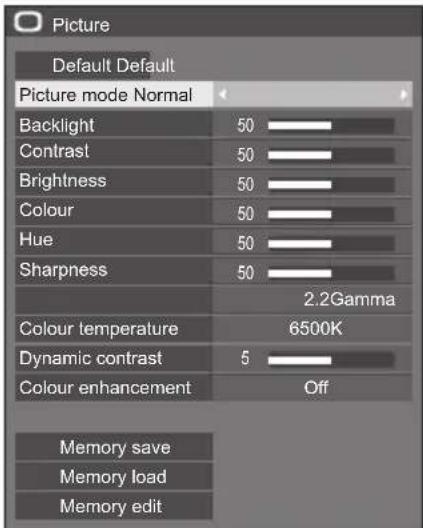
Picture Default Default Picture mode Normal Backlight 50 Contrast 50 Brightness 50 Colour 50 Hue 50 Sharpness 50 2.2Gamma Colour temperature 6500K Dynamic contrast 5 Colour enhancement Off Memory save Memory load Memory edit

2 Select the item to adjust with ▲.▼

- Menu that cannot be adjusted is greyed out.

3 Adjust with ◀▶

4 Press to exit from adjust mode.

■ To return to the previous screen

Press .

■ To reset to defaults

When [Default] is selected, pressing resets the adjustment values of all the displayed menus to default.

When adjusting each item, pressing resets the adjustment value of the item to default.

Note

  • During PC IN input, the following settings cannot be made.
    [Colour], [Hue], [Sharpness], [Dynamic contrast], [Colour enhancement]
  • When displaying still picture with USB input (USB media player), only the following settings have an effect on the picture.
    [Backlight], [Gamma], [Colour temperature]

[Picture mode] This menu switches to easy-to-see pictures suitable to the picture source or environment where this unit is used.

[Normal]

For viewing in standard (evening lighting) environments.

[Dynamic]

For viewing in brighter environments.

[Cinema]

For use in viewing tone-focused pictures with brightness reduced.

- The settings are memorised separately for each input terminal.

- In [ENGLISH(US)] OSD language, [Picture mode] and [Normal] are displayed as [PICTURE MENU] and [STANDARD].

[Backlight] Adjusts luminance of the back light.

Darker Brighter

[Contrast] Selects the proper brightness and density for the room.

Less More

- In [ENGLISH(US)] OSD language, [Contrast] is displayed as [PICTURE].

[Brightness] Adjusts for easier viewing of dark pictures.

Darker ↔ Brighter

[Colour] Adjusts colour saturation.

Less ↔ More

[Hue] Adjusts hue of skin colour.

Reddish ↔ Greenish

- In [ENGLISH(US)] OSD language, [Hue] is displayed as [TINT].

[Sharpness] Adjusts picture sharpness.

Less More

[Gamma] Adjusts gamma.

[2.0], [2.2], [2.4], [2.6]:

Small tilt - Large tilt

[Colour] Adjusts colour tone.

temperature] [3200K], [4000K], [5000K], [6500K], [7500K], [9300K], [10700K], [Native], [USER1], [USER2]

Note

  • Emphasizes red when the numerical value of [Colour temperature] is small, and emphasizes blue when it is big.
  • [Native] is a colour tone of the panel element. When this is selected, [Gamma] is fixed to 2.2 or equivalent and it cannot be adjusted.

User setting of [Colour temperature]

2 kinds of detailed [Colour temperature] settings ([USER1] and [USER2]) can be stored.

1 Press while setting [Colour temperature].

Gamma2.2
Colour temperature6500K

Example:

When [Colour temperature] is [6500K], it is possible to reflect the set point, [6500K], to the set point of [USER1] and [USER2].

2 Select the user to memorise settings with ▲▼and press .
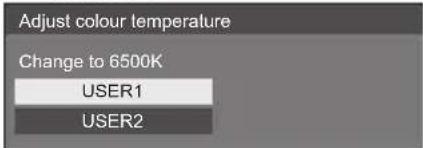
Adjust colour temperature Change to 6500K USER1 USER2

3 Select [Yes] with ◀ and press .

Adjust colour temperature Overwrite colour temperature "USER1"? Yes No

4 Set each item on detail settings screen.
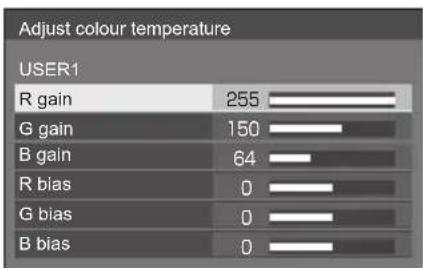
Adjust colour temperature USER1 R gain 255 G gain 150 B gain 64 R bias 0 G bias 0 B bias 0

[R gain]

Adjusts the white balance for light red areas.

0 - 255

[G gain]

Adjusts the white balance for light green areas.

0 - 255

[B gain]

Adjusts the white balance for light blue areas.

0 - 255

[R bias]

Adjusts the white balance for dark red areas.

-127 - 128

[G bias]

Adjusts the white balance for dark green areas.

-127 - 128

[B bias]

Adjusts the white balance for dark blue areas.

-127 - 128

The settings are saved for the user.

When you return to [Picture] menu, the user you have set is selected for [Colour temperature].

Gamma2.2
Colour temperatureUSER1

[Dynamic contrast]

Automatically adjusts the contrast by determining the changes in the use of colours for images that constantly change, such as motion pictures.

No effect Large effect

[Colour enhancement]

While set to [On], displays images by emphasising colours.

Picture Profiles

Up to 6 combinations of picture adjustment values (in the [Picture] menu) can be stored in the display memory as profiles and applied as needed, for a convenient way to enjoy your preferred picture settings.
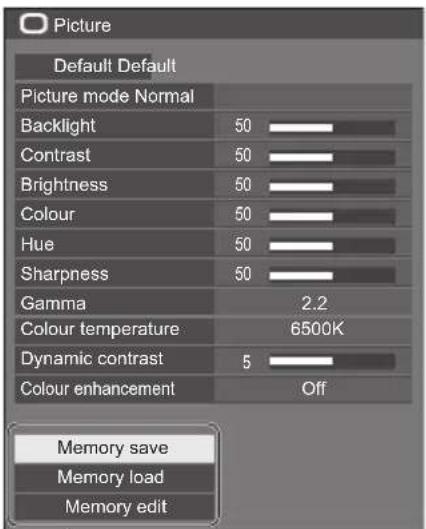
Picture Default Default Picture mode Normal Backlight 50 Contrast 50 Brightness 50 Colour 50 Hue 50 Sharpness 50 Gamma 2.2 Colour temperature 6500K Dynamic contrast 5 Colour enhancement Off Memory save Memory load Memory edit

[Memory save]

(see page 41)

[Memory load]

(see page 41)

[Memory edit]

(see page 42)

1. [ ] MEMORY1 2. [ * ] MEMORY2 3. [ * ] MEMORY3 4. [ ] MEMORY4 5. [ ] MEMORY5 6. [ ] MEMORY6

Overview of Picture Profiles

Original picture

PANASONIC TH-65EF1-IR - Overview of Picture Profiles - 1

natural_image Black-and-white street scene with a tall tower and adjacent buildings, no visible text or signage

Adjust picture.

(see page 38 - 39)

PANASONIC TH-65EF1-IR - Overview of Picture Profiles - 2
Custom picture

PANASONIC TH-65EF1-IR - Overview of Picture Profiles - 3

natural_image Black-and-white street scene showing a tall tower and multi-story buildings with pedestrians (no visible text or signage)

Example:

Save the picture adjustment values in the [MEMORY1] profile.

[Memory save]

Original picture

PANASONIC TH-65EF1-IR - Overview of Picture Profiles - 4

natural_image Black-and-white street scene showing a tall column topped with a statue and adjacent buildings (no visible text or signage)

Example:

Load [MEMORY1].

[Memory load]

PANASONIC TH-65EF1-IR - Overview of Picture Profiles - 5

Custom picture
PANASONIC TH-65EF1-IR - Overview of Picture Profiles - 6

natural_image Black-and-white street scene featuring a tall column topped with a statue, flanked by multi-story buildings and pedestrians (no visible text or signage)

[Memory edit] screen
PANASONIC TH-65EF1-IR - Overview of Picture Profiles - 7

Example:

Change the memory name to [MY PICTURE].

[Memory edit]

PANASONIC TH-65EF1-IR - Overview of Picture Profiles - 8

PANASONIC TH-65EF1-IR - Overview of Picture Profiles - 9

Saving profiles

Follow these steps to save picture adjustment values as profiles.

1 Specify the picture quality in the [Picture] menu.

(see page 38 - 39)

2 In the [Picture] menu, select [Memory save] with ▲ and press .
Memory save Memory load Memory edit

3 Select a profile name for saving the picture adjustment values with ▲▼ and press .

Memory save 1. [ ] MEMORY1 2. [★] MEMORY2 3. [★] MEMORY3 4. [ ] MEMORY4 5. [ ] MEMORY5 6. [ ] MEMORY6

• [*] appears for a profile in which the picture adjustments have already been saved.

4 Select [Ok] with ◀nd press .
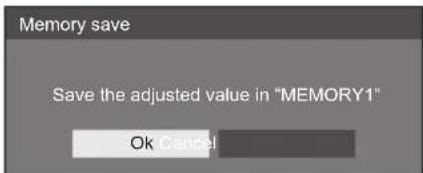
Memory save Save the adjusted value in "MEMORY1" Ok Cancel

5 Enter a profile name with ▲▼.◀▶

- Entering characters (see page 88)
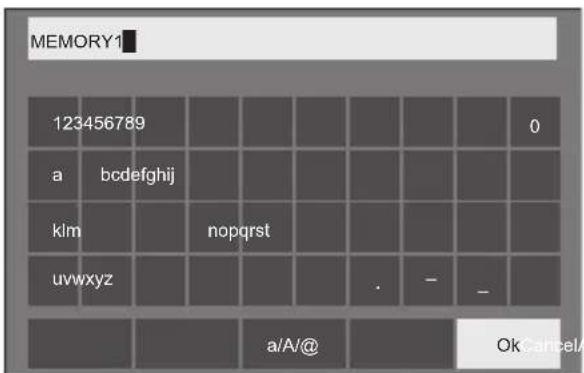
MEMORY1 123456789 a bdefghij klm nopqrst uvwxyz . - - a/A@ Ok Cancel/

6 When you finished entering the profile name, select [Ok] with ▲▼ and press .
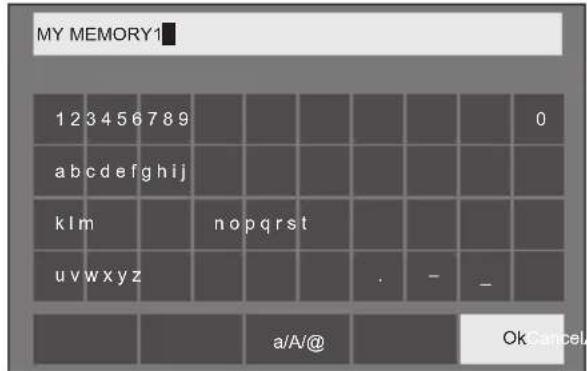
MY MEMORY1 1 2 3 4 5 6 7 8 9 0 a b c d e f g h i j k l m n o p q r s t u v w x y z . - _ a/A@ Ok Cancel

- To cancel saving the profile, select [Cancel].

Loading profiles

Load profiles and apply the picture adjustment values to the display as follows.

1 In the [Picture] menu, select [Memory load] with ▲ and press .
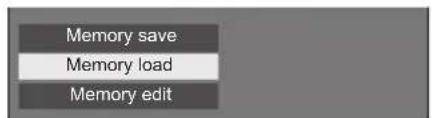
Memory save Memory load Memory edit

2 Select the profile to load with ▲ and press .

Memory load 1. [★] MEMORY1 2. [★] MEMORY2 3. [★] MEMORY3

Loading profiles using numeric buttons on the remote control.

Each numeric button <1> - <6> is allocated for loading [MEMORY1] to [MEMORY6]. [Function button settings] (see page 55)

1 Press any of <1> - <6>.

2 Select [Ok] with ◀ and press .
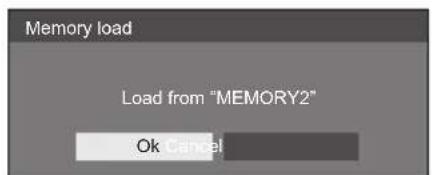
Memory load Load from "MEMORY2" Ok Cancel

When profile is being loaded, profile name is displayed.
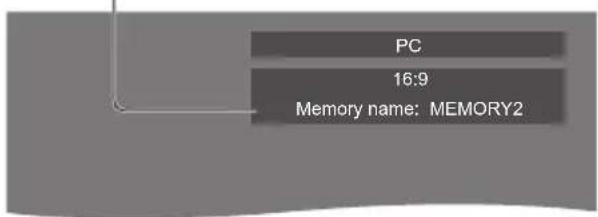
PC 16:9 Memory name: MEMORY2

Note

- Loaded profiles are stored in memory according to the selected input terminal.

Editing profiles

Delete or rename profiles as follows.

■ Deleting profiles

1 In the [Picture] menu, select [Memory edit] with ▲ and press .
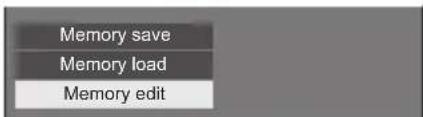
Memory save Memory load Memory edit

2 Select [Memory delete] with ▲ and press .
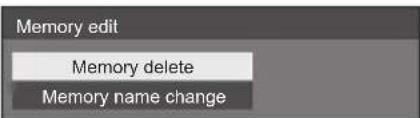
Memory edit Memory delete Memory name change

3 Select the profile to delete with ▲▼ and press .

Memory delete 1. [★] MEMORY1 2. [★] MEMORY2 3. [★] MEMORY3 All delete

• To delete all profiles, select [All delete].

4 Select [Ok] with ◀ and press .
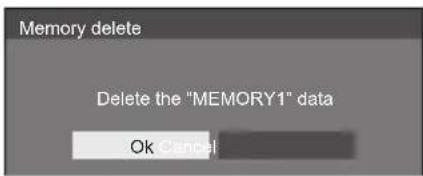
Memory delete Delete the "MEMORY1" data Ok Cancel

■ Renaming profiles

1 In the [Picture] menu, select [Memory edit] with ▲ and press .
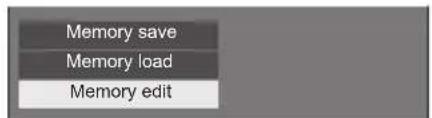
Memory save Memory load Memory edit

2 Select [Memory name change] with ▲▼ and press .
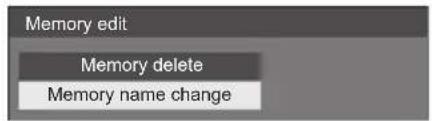
Memory edit Memory delete Memory name change

3 Select the profile to rename with ▲▼ and press .

Memory name change 1. [ * ] MEMORY1 2. [ * ] MEMORY2 3. [ * ] MEMORY3

4 Enter a name for the profile with ▲▼ ◀▶.

- Entering characters (see page 88)
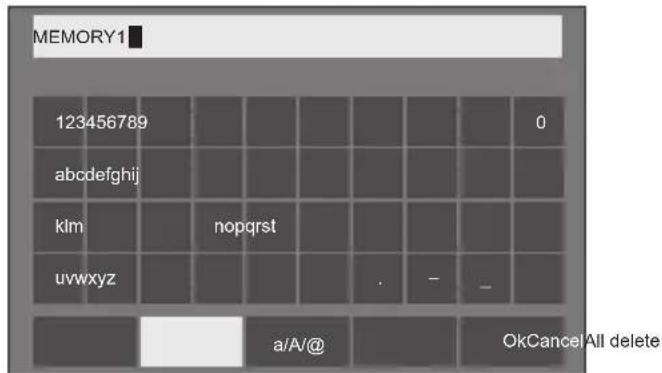
MEMORY1 123456789 0 abcdefghijklmnopqrstuvwxyz noprst . - - a/A@ OkCancel All delete

5 When you finished entering the profile name, select [Ok] with ▲▼ and press .

a/A@ OkCancel

- To cancel renaming the profile, select [Cancel].

Setup menu

1 Press to display the [Setup] menu.
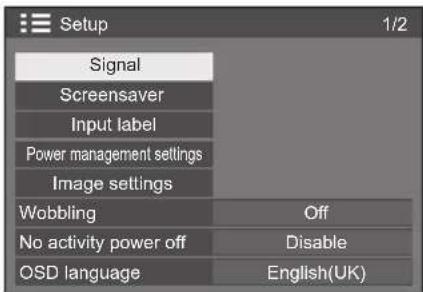
Setup 1/2 Signal Screensaver Input label Power management settings Image settings Wobbling Off No activity power off Disable OSD language English(UK)

Setup 2/2 Multi display settings Set up timer Date and time Network settings USB media player settings Function button settings Display orientation Landscape OSD position Right Menu display duration 60 sec Menu transparency 20

2 Select the item to set with ▲.▼

- Menu that cannot be adjusted is greyed out. Adjustable menu changes depending on signal, input and menu setting.

3 Set with ◀▶

4 Press to exit from adjust mode.

■ To return to the previous screen

Press .

Signal

Examples of [Signal] submenu screen When HDMI / DVI is selected
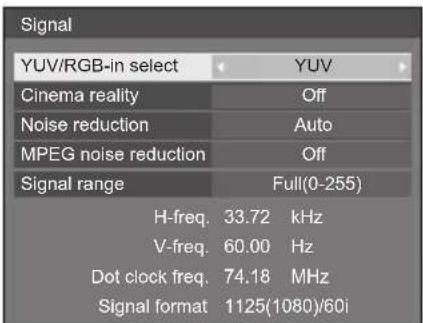
Signal YUV/RGB-in select YUV Cinema reality Off Noise reduction Auto MPEG noise reduction Off Signal range Full(0-255) H-freq. 33.72 kHz V-freq. 60.00 Hz Dot clock freq. 74.18 MHz Signal format 1125(1080)/60i

When PC is selected

Signal Component/RGB-in select RGB Sync Auto Cinema reality Off XGA mode Auto Input level 0 H-freq. 33.72 kHz V-freq. 60.00 Hz Dot clock freq. 74.18 MHz Signal format 1125(1080)/60i

When VIDEO is selected

Signal 3D Y/C filter Off Colour system Auto Cinema reality Off Noise reduction Auto MPEG noise reduction Off Input level 0 H-freq. 15.73 kHz V-freq. 59.94 Hz Dot clock freq. -- MHz Signal format NTSC

When USB is selected

Signal Noise reduction Auto MPEG noise reduction Off

Note

  • [Signal] setup menu displays a different setting condition for each input signal.
  • Menu that cannot be adjusted is greyed out.

■ [Component/RGB-in select]

This menu is displayed at PC signal input.

Select to match the signals from the source connected to PC IN terminal.

[Component] YP B PR/YC B CR signals

[RGB] RGB signals

■ [YUV/RGB-in select]

This menu is displayed at HDMI 1, HDMI 2 and DVI-D IN inputs.

Select to match the signals from the source connected to each terminal.

[YUV] YUV signals

[RGB] RGB signals

Note

- Set for each input terminal (HDMI 1, HDMI 2, DVI-D IN).

■ [Sync]

This menu is displayed at PC IN input.

Setting RGB/PC sync signal

[Auto]:

The H and V sync or synchronized signal is automatically selected. When both of them have sync signal, H and V sync will be selected.

When displaying CS signal, connect to HD input terminal.

[on G]:

Uses a synchronized signal on the Video G signal, which is input from the G connector.

[HV sync]:

Uses a synchronized signal on the Video HD/VD signal, which is input from the HD/VD connector.

Setting Component sync signal

[Auto]:

The H and V sync or synchronized signal is automatically selected. When both of them have sync signal, H and V sync will be selected.

When displaying CS signal, connect to HD input terminal.

[on Y]:

Uses a synchronized signal on the Video Y signal, which is input from the Y connector.

[HV sync]:

Uses a synchronized signal on the Video HD/VD signal, which is input from the HD/VD connector.

[Cinema reality]

Faithfully reproduces videos shot with cinema films. Set this to [Off] normally.

(Note)

  • In [ENGLISH(US)] OSD language, [Cinema reality] is displayed as [3:2 PULLDOWN].
  • If [Cinema reality] is set to [On], videos including movies shot at 24 frames per second are reproduced more naturally.
  • If the video is unnatural with [On] set, set it to [Off].

■ [Noise reduction]

Reduces picture noise.

[Off]:

Disables Noise Reduction.

[Min], [Mid], [Max]:

Sets strength of Noise Reduction.

[Auto]:

Noise reduction will be automatically selected from [Min], [Mid] or [Max].

Note

- This menu is not displayed during PC IN input.

■ [MPEG noise reduction]

Reduces block noise and mosquito noise on MPEG videos.

[Off]:

Disables Noise Reduction.

[Min], [Mid], [Max]:

Sets strength of Noise Reduction.

Note

- This menu is not displayed during PC IN input.

[XGA mode]

This menu is displayed at PC IN input.

This unit supports XGA signals (1024 × 768, 1280 × 768, 1366 × 768) having different aspect ratios and sampling rates.

[Auto]:

Automatically detects the signal.

Switch the setting to suit the input signal for better display depends on the angle of view or display resolution condition.

Note

- After making this setting, be sure to make each adjustment (such as [Auto setup]) on the [Position] menu as necessary. (see page 35)

■ [Signal range]

This menu is displayed at HDMI1, HDMI2 and DVI-D IN inputs. Switches the dynamic range to match the signals from the source connected to each terminal.

[Video(16-235)]:

If the input signal is the video range

Example: HDMI terminal output for DVD player

[Full(0-255)]:

If the input signal is full range

Example: HDMI terminal output for personal computer

[Auto]:

Switches the dynamic range automatically between [Video(16-235)] and [Full(0-255)] according to the input signal.

Note

• [Auto] can be selected when the HDMI signal input.

■ [Input level]

This menu is displayed at PC IN and VIDEO inputs.

Adjustment of parts which are extremely bright and hard to see.

-16 - +16:

(Level low) - (Level high)

■ [3D Y/C filter]

Set this if the video looks unnatural at VIDEO input. Set this to [On] normally.

Note

- Depending on the signalling system, this setting may be less effective or may not be effective at all.

■ [Colour system]

Sets the colour system according to the signal method at VIDEO input. Set this to [Auto] normally. This automatically detects the input signal format.

[Auto], [PAL], [SECAM], [NTSC], [NTSC 4.43], [PAL M], [PAL N]:

Set this to [Auto] when viewing PAL-60 videos.

When images are unstable

When the system is set to [Auto], images become unstable in rare case under the condition that the input signals are at low level or have many noises. In this case, set the system so it conforms with the input signal format.

■ Input signal display

Displays the frequency and the type of the current input signal.

H-freq. 33.72 kHz

V-freq. 60.00 Hz

Dot clock freq. 74.18 MHz

Signal format 1125(1080)/60i

Display range:

Horizontal (15 kHz - 135 kHz)

Vertical (24 Hz - 120 Hz)

The dot clock frequency is displayed when Digital and PC signal are input.

Screensaver (For preventing image retention)

Do not display a still picture, especially in 4:3 mode, for any length of time.

If the display must remain on, a Screensaver should be used.

[Screensaver] - submenu screen
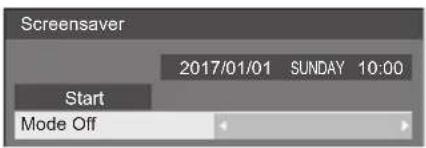
Screensaver 2017/01/01 SUNDAY 10:00 Start Mode Off

■ Screensaver settings

Screensaver operation

When the Screensaver is operating, the following 5 patterns are displayed full screen for 5 seconds each, and it will be repeated.

Black → Dark grey → Grey → Light grey → White → Light grey → Grey → Dark grey

To start Screensaver now

① Select [On] in [Mode].
② Select [Start] and press .

• The Screensaver will be activated.

Screensaver 2017/01/01 SUNDAY 10:00 Start Mode On

Note

- If the following buttons are pressed while the screen saver is operating, the screen saver is cancelled.

Remote control:

Main unit:

<+ (Unit)> <- (Unit)> ▲ ▼

- When the display is turned off, the Screensaver will be deactivated.

To set interval of Screensaver

① Select [Interval] in [Mode].
② Set [Periodic time].

  • Press ◀▶to change the time by 15 minutes.
  • In [ENGLISH(US)] OSD language, [Periodic time] is displayed as [SHOW DURATION].

③ Set [Operating time].

  • Press ◀▶once to change the time by 1 minute. Keep pressing down to change the time by 15 minutes.
  • In [ENGLISH(US)] OSD language, [Operating time] is displayed as [SAVER DURATION].

Screensaver 2017/01/01 13:00 DAY Start Mode Interval Periodic time 0:00 Operating time 0:00

Periodic time
PANASONIC TH-65EF1-IR - To set interval of Screensaver - 2
Deactivated. Operating time

Note

- It is not possible to set the duration of [Operating time] longer than that of [Periodic time].

To set start and finish time of Screensaver

① Select [Time designation] in [Mode].
② Set [Start time] and [Finish time].

  • Press ◀▶once to change the time by 1 minute. Keep pressing down to change the time by 15 minutes.
  • In [ENGLISH(US)] OSD language, [Time designation] is displayed as [TIME OF DAY].

Screensaver 2017/01/01 SUNDAY 10:00 Start Mode Time designation Start time 0:00 Finish time 0:00

Note

- When the current time is displayed as [- -], set [Date and time] before setting [Start time] and [Finish time]. (see page 52)

To turn the power off after Screensaver

①Select[Standby after SCR saver] in [Mode].
② Set [Screensaver duration].

- Press ◀▶once to change the time by 1 minute. Keep pressing down to change the time by 15 minutes.

③ Select [Start] and press .
- Screensaver will be activated and the power will be turned off (standby) at the time set.

Screensaver 2017/01/01 SUNDAY 10:00 Start Mode Standby after SCR saver Screensaver duration 0:00

Note

- [Screensaver duration] can be set from 0:00 to 23:59.

When this is set to [0:00], [Standby after SCR saver] will not be activated.

Input label

This function can change the label of the Input signal to be displayed.

[Input label] - submenu screen

Input label
HDMI1HDMI1
HDMI2HDMI2
DVI-DDVI-D
PCPC
VIDEOVIDEO
[HDMI1] [HDMI1] / [DVD1] / [DVD2] /[DVD3] / [Blu-ray1] / [Blu-ray2] /[Blu-ray3] / [CATV] / [VCR] /[STB] / (Skip)
[HDMI2] [HDMI2] / [DVD1] / [DVD2] /[DVD3] / [Blu-ray1] / [Blu-ray2] /[Blu-ray3] / [CATV] / [VCR] /[STB] / (Skip)
[DVI-D] [DVI-D] / [DVD1] / [DVD2] /[DVD3] / [Blu-ray1] / [Blu-ray2] /[Blu-ray3] / [CATV] / [VCR] /[STB] / (Skip)
[PC] [PC] / [DVD1] / [DVD2] /[DVD3] / [Blu-ray1] / [Blu-ray2] /[Blu-ray3] / [CATV] / [VCR] /[STB] / (Skip)
[VIDEO] [VIDEO] / [DVD1] / [DVD2] /[DVD3] / [Blu-ray1] / [Blu-ray2] /[Blu-ray3] / [CATV] / [VCR] /[STB] / (Skip)

(Skip): When is pressed, the input will be skipped.

Power management settings

Set each item to reduce power consumption.

This function works only for the input terminal that is currently selected.

[Power management settings] - submenu screen

Power management settings
Power management modeCustom
No signal power offDisable
HDMI1 power managementOff
HDMI2 power managementOff
DVI-D power managementOff
PC power managementOff
Power saveOff

■ [Power management mode]: [On]

The following fixed values are set to the menu of power consumption reduction. Individual setting is not available.

■ [Power management mode]: [Custom]

The menu of the power consumption reduction is individually set. This setting is enabled when [Power management mode] is set to [Custom].

[No signal power off]

When this is set to [Enable], the power supply of the unit goes off automatically (standby) when there is no operation or sync signal for about 10 minutes.

Note

  • With the USB input, the unit determines no signal is present when the USB memory is not connected to the USB terminal, or the connected USB memory does not contain any playable file.
  • This function operates regardless of the [On] / [Off] settings of [No signal image settings].
  • This function may not operate depending on the video output devices.

[HDMI1 power management]

When this function is set to [On], it operates under the following conditions to turn the power on or off automatically.

When no pictures (sync signal) are detected for 60 seconds or so at HDMI1 input:

Power is turned off; the power indicator lights up orange.

When pictures (sync signal) are subsequently detected at HDMI1 input:

Power is turned on; the power indicator lights up green.

Note

- This function may not operate depending on the video output devices.

[HDMI2 power management]

When this function is set to [On], it operates under the following conditions to turn the power on or off automatically.

When no pictures (sync signal) are detected for 60 seconds or so at HDMI2 input:

Power is turned off; the power indicator lights up orange.

When pictures (sync signal) are subsequently detected at HDMI2 input:

Power is turned on; the power indicator lights up green.

Note

- This function may not operate depending on the video output devices.

[DVI-D power management]

When this function is set to [On], it operates under the following conditions to turn the power on or off automatically.

When no pictures (sync signal) are detected for 60 seconds or so at DVI-D input:

Power is turned off; the power indicator lights up orange.

When pictures (sync signal) are subsequently detected at DVI-D input:

Power is turned on; the power indicator lights up green.

Note

- This function may not operate depending on the video output devices.

[PC power management] (DPMS function)

When this function is set to [On], it operates under the following conditions to turn the power on or off automatically.

When no pictures (HD/VD sync signals) are detected for 60 seconds or so at PC input:

Power is turned off; the power indicator lights up orange.

When pictures (HD/VD sync signals) are subsequently detected at PC input:

Power is turned on; the power indicator lights up green.

Note

  • This function is effective when [Sync] in [Signal] is set to [Auto] or [HV sync] and [Component/RGB-in select] are set to [RGB]. (see page 43)
  • This function may not operate depending on the video output devices.

[Power save]

This function adjusts the brightness of the backlight to reduce power consumption.

[Off]:

This function does not operate.

[On]:

Backlight brightness is reduced.

Note

- If [Input search] is set to items other than [Off], the [Input search] function is prioritised. (The "Power management" function does not operate for each terminal.) (For details of [Input search] function, see page 58.)

Image settings

Sets the image displayed on the screen when the power is turned on or no signal is input.

[Image settings] - submenu screen

Image settings Startup image settings No signal image settings

[Startup image settings]:

Sets the image displayed when the power is turned on.

[No signal image settings]:

Sets the image displayed when there is no signal at the selected input terminal.

Conditions of the image that can be set in [Read user image]

• Image size: 1920 × 1080 only
- jpg files / bmp files (except for the ones that cannot be played back with USB media player (see page 79))
- jpg files (Applies only to a no-signal image of 3.5 MB or less in file size.)

File and folder names are displayed on the file list with conditions as below.

  • If a file or folder is placed directly under the root directory of the USB device.
  • Up to 246 characters of file name (including the extension) are properly displayed.
    Note that the file list may disappear due to the display time of the on-screen menu before the entire display of file names completely appears.
  • Up to 244 characters of folder name are properly displayed.
  • If the folder is placed hierarchically, the number of characters displayed decreases by the number of characters for the file path (folder information).
  • Only the files with file names described with ASCII characters excluding control code are displayed.

Note

• [Picture] cannot be adjusted when setting the startup image.
- Only [Backlight] and [Colour temperature] can be adjusted when setting the no-signal image.
- Images displayed for the startup image and no-signal image may slightly differ from images confirmed on the computer.

■ [Startup image settings] / [No signal image settings]

Operate [No signal image settings] in the same way as [Startup image settings].

[Startup image settings] - submenu screen

Startup image settings Display setting On Image select User image Read user image Clear user image

[Display setting]

Sets the image display when the power is turned on.

[Off]: The function does not operate.

[On]: Enables the function.

Note

  • When no-signal image is displayed, the screen position moves at certain intervals and images are displayed to alleviate burn-in on the LCD panel.
  • Shifts the display position regardless of the setting of [Wobbling] (see page 50).
  • When this function is operating, part of the screen may appear to be missing.

[Image select]

Select the image to display.

[Default image]: Panasonic logo (blue background)

[User image]: Image registered by the user

Note

  • Only when [Default image] is displayed, the logo automatically rotates when displayed, according to the [Display orientation] (see page 56) setting ([Landscape] / [Portrait]).
  • When [User image] is selected, the image does not rotate according to the [Display orientation] setting. Prepare an image of 1920 × 1080 aspect ratio compatible with the installation direction.
  • [Default image] of [No signal image settings] is the Panasonic logo (black background).

[Read user image]

Register the image read from a USB memory device.

[Read user image] - submenu screen

Read user image Select a no signal image. usb/picture/ ... 0_folder_sample g_sample z_sample 1sample.jpg 2sample.jpg 3sample.jpg a_sample.jpg j_sample.jpg v_sample.jpg

Note

  • Set the input to something other than USB, and read the image.
    • One user image can be registered for [Startup image settings] and [No signal image settings] respectively.
  • Do not turn the power off while reading the user image.
  • The selected image is previewed on the [Read user image] submenu screen.
  • While the [Read user image] submenu screen is being displayed, the USB media player stops playback.
  • When USB memory device is not connected to the USB terminal, [Read user image] is greyed out and cannot be selected.
  • If starting to read the image while creating the preview image, an access error will occur, and the image may not be recognized as a image file.
    Confirm the preview image display, and then start reading process.
    • The displayed file names are restricted as follows.
    • Applicable extension: jpg, jpe, jpeg or bmp
  • The file name is not ".jpg", ".jpe", ".jpeg", or ".bmp" which start with dot (.).
  • Depending on the OS setting, folders or files in the USB memory invisible on your computer may be displayed on this unit.

[Clear user image]

Clears the image registered in [Read user image].

[Startup image settings] - submenu screen

Startup image settings

Display settingOn
Image selectUser image
Read user image
Clear user image

Note

  • When there is no [User image] that have been read, [Clear user image] is greyed out and cannot be selected.
  • When [Image select] is set to [User image], performing [Clear user image] will change the setting of [Image select] to [Default image].

Wobbling

Automatically shifts the display image (therefore unnoticeable to the eye) to prevent image retention of sharper contour of image.

Setting this to [On] moves the screen position at certain intervals and displays the images.

Note

  • If [Multi display setting] is set to [On], this function does not operate. (see page 51)
  • When this function is operating, part of the screen may appear to be missing.

No activity power off

When this function is set to [Enable], the power is turned off (standby) automatically when there is no operation of the Display for 4 hours.

Starting from 3 minutes before the turn off, the remaining time will be displayed.

Press any key to abort.
No activity power off3 min

When the power is turned off due to this function, a message [Last turn off due to 'No activity power off'.] is displayed next time the power is turned on.

When the image set in [No signal image settings] (see page 49) is displayed, remaining time is not displayed even when the power is going to be turned off in 3 minutes. Instead, the image is displayed until the power is turned off.

Note

- While the screensaver is running, this function is disabled.

OSD language

Select your preferred language.

Selectable languages

English(UK)

Deutsch

Français

Italiano

Español

ENGLISH(US)

中文 : Chinese

日本語 : Japanese

Русский : Russian

Multi display settings

1 to 5 displays can be aligned in horizontal direction and vertical direction respectively, and those displays are regarded as one group. The enlarged image is shown on the combined display.

[Multi display settings]- submenu screen

Multi display settings
Multi display settingOff
Horizontal scale2
Vertical scale2
Bezel H adjustment0
Bezel V adjustment0
LocationA1

Note

  • The settings are memorised separately for each input terminal.
  • When the multi display is set to [Off], adjust to the same angle of view for [Position] (see page 35). Then, set the multi display to [On]. Again, make fine adjustment of the angle of view for [Position].
  • The [Position] menu can be adjusted in the multi display status.
  • The multi display mode is not available with USB input.

[Multi display setting]

[Off]:

The display is not divided when enlarged.

[On]:

The display is divided when enlarged.

When [On] is set, the display aspect is [16:9].

[Horizontal scale]

Set the horizontal scale in the multi display.

1 - 5

[Vertical scale]

Set the vertical scale in the multi display.

1 - 5

Example:

[Horizontal scale] [5] and [Vertical scale] [5] is set in the multi display

PANASONIC TH-65EF1-IR - [Vertical scale] - 1

natural_image Black-and-white landscape photo of snow-capped mountains reflected in a calm lake, with grid overlay (no text or symbols)

■ [Bezel H adjustment] / [Bezel V adjustment]

Adjust the area of image hidden in the joint horizontally and vertically respectively.

$$ 0 - 1 0 0 $$

Display example

Setting value: 0
Exa mple

Displays the entire image including the joint area. (Suitable when displaying character information on PC.)

Setting value: 100
Example

Does not display the image of the joint area. (Suitable when displaying motion pictures.)

■ [Location]

Assign the multi display position.

Example:

[Horizontal scale] [5], [Vertical scale] [5]

A1A2A3A4A5
B1B2B3B4B5
C1C2C3C4C5
D1D2D3D4D5
E1E2E3E4E5

Select from A1 to A5, B1 to B5, C1 to C5, D1 to D5, E1 to E5.

  • The displayed content for setting changes according to the settings for the [Horizontal scale] and [Vertical scale].
  • By setting [Multi display setting] to [Off], it is possible to check the location on the screen while the setting menu is displayed.

Set up timer

Sets the program to turn the power on with the specified time and video input, or to turn the power off at the specified time. Up to 20 programmes can be set.

Note

  • When the current time is displayed as [- -], set [Date and time] before setting [Set up timer]. (see page 52)
  • When multiple programs are set at the same time, the program with the smallest program number is enabled.
  • If [Power mode] is set to [Power on], executing the program at power-on will switch to the input set for [Input].

[Set up timer] - submenu screen

Setting Example

Program 1, Every Monday, 12:00,

Power On, Input: HDMI1

Set up timer 2017/01/01 SUNDAY 10:00 Program 1 Timer function On Day MONDAY Power mode Power on Time 12:00 Input HDMI1

1 Set the program number.
2 To execute the program, set to [On].
The program is disabled when [Off] is set.

3 Set the day.

The program is executed every day when [Everyday] is set.

4 Set the power On/Off.

5 Set the time.

Pressing ◀ once changes time 1 minute.

Pressing continuously changes time by 15 minutes.

6 Set the input.

Date and time

Set date and time. ([- -] shows no programme is set.) [Date and time] - submenu screen

Date and time 2017/01/01 SUNDAY 10:00 Set Year 2017 Month 1 Day 1 Hour 10 Minute 0

■ Set date and time

①Select[Year / Month / Day / Hour / Minute].
② Set the selected item.

PANASONIC TH-65EF1-IR - ■ Set date and time - 1

Date and time 2017/01/01 SUNDAY 10:00 Set Year 2017 Month 1 Day 1 Hour 10 Minute 0

③Select[Set] and press .

Date and time 2017/02/05 SUNDAY 18:00 Set Year 2017 Month 2 Day 5 Hour 18 Minute 0

Note

  • If the present date and time are not set, the time settings for [Set up timer], [Screensaver], etc. cannot be made.
  • The present date and time setting is reset in the following case.
    When the main unit is left unattended for 7 days or longer after the main unit is turned off with the
    , the power plug is removed, or power failure has occurred, etc.
  • Date and time cannot be set when [Year / Month / Day / Hour / Minute] are set to [- -].

Network settings

Set when networking with a computer.

[Network settings] submenu will be displayed.

Network settings Network control Off Display name EF1-00 LAN setup Network status AMX D. D. Off Crestron Connected™ Off Reset

■ [Network control]

Set when controlling with the unit's LAN terminal.

[On]:

Controls via LAN using the LAN terminal of the Display. The power indicator lights orange when the power is turned off with the remote control (standby).

[Off]:

Invalidates control with LAN terminal.

(In this case, the power consumption of Standby condition (when the power is turned off with the remote control) will be slightly reduced.)

Note

- When using the LAN control function for "Using Network Function" (see page 64 – 77), set this function to [On].

■ [Display name]

The name of the Display that is shown on the network can be changed.

[LAN setup]

Detailed network settings for the LAN established via the LAN terminal of the Display can be configured.

Select [LAN setup] with ▲▼ and press .

LAN setup Save DHCP Off IP address 192.168. 0. 8 Subnet mask 255.255.255. 0 Gateway 192.168. 0. 1 Port 1024

DHCP, IP address, Subnet mask, Gateway

①Press ◀ set [On] / [Off] of DHCP and press .

When [Off] is selected, IP address and other settings can be set manually.

[DHCP]:

(DHCP client function)

[On]:

Obtains an IP address automatically when a DHCP server exists in the network the Display is going to be connected.

[Off]:

When a DHCP server does not exist in the network the Display is going to be connected, set IP address, Subnet mask and Gateway manually.

[IP address]:

(IP address display and setting)

Enter an IP address when DHCP server is not used.

[Subnet mask]:

(Subnet mask display and setting)

Enter a Subnet mask when DHCP server is not used.

[Gateway]:

(Gateway address display and setting)

Enter a gateway address when DHCP server is not used.

Note

- When DHCP is set to [On], the IP address, etc. will be displayed in grey.

Entering numbers

IP address 192.168.000.008

  1. Select the address and press .
  2. Select digits with◀▶.
  3. Change numbers with▲▼.
  4. Press.

You can cancel the change by pressing .

②Select[Save] and press .

Save the current network Setup.

Note

  • To use a DHCP server, make sure the DHCP server is started.
  • Contact your network administrator for details on IP address, Subnet mask and Gateway.
  • Shipping condition

[Port]

Set the port number used for command control.

Select [Port] and press to set the number.

• The available setting range is 1024 – 65535.
- Entering numbers (see page 53)

Note

- When the PJLink protocol is used, the port setting is not necessary.

■ [Network status]

Checks the current Network settings status.

Network status
DHCPOff
IP address192.168.0.8
Subnet mask255.255.255.0
Gateway192.168.0.1
MAC address12:34:56:78:9A:BC

■ [AMX D. D.]

Set whether to allow the Display to be detected by AMX Device Discovery.

[On]:

Enables detection by AMX Device Discovery.

[Off]:

Disables detection by AMX Device Discovery.

- For more details, visit the following web site.

http://www.amx.com/

[Crestron Connected™]

When this function is set to [On], the Display can be monitored or controlled via the network using equipment and application software of Crestron Electronics, Inc.

This Display supports the following application software from Crestron Electronics, Inc.

  • RoomView® Express
    •Fusion RV®
    •RoomView® Server Edition

[Crestron Connected™] is a function to connect to a system developed by Crestron Electronics, Inc. which manages and controls multiple system devices connected to the network.

  • For details of "Crestron Connected™", refer to the Crestron Electronics, Inc. web site (Provided only in English).
    http://www.crestron.com/
    For the download of "RoomView® Express", refer to the Crestron Electronics, Inc. web site (Provided only in English).
    http://www.crestron.com/getroomview

[Reset]

You can reset the network setting to the factory default of the Display.

Select [Yes] with ◀▶ and press .

Network settings Reset Yes No

USB media player settings

Set for USB media player function.

[USB media player settings] - submenu screen

USB media player settings USB media player Enable Video playback mode Standard Resume play On Scenario file check No scenario file Slide show duration 10 sec

■ [USB media player]

Set to enable or disable the USB media player function.

■ [Video playback mode]

Sets the video playback mode.

If image disturbance occurs at the switching timing of motion picture files during playback in the Standard mode, switch to the Adjust mode.

[Standard]: Plays without a black image at the joint between video files.

[Adjust]: Plays with a black image (approx. 2 seconds) inserted at the joint between video files.

Note

  • When using the Multi Media Player, a black screen is displayed for a certain period of time at the switching timing of motion picture files regardless of the [Video playback mode] settings.
  • The display may be disturbed at the switching timing of files during playback in the Standard mode.

■ [Resume play]

Set resume play off/on.

■ [Scenario file check]

Execute the contents check of the USB memory which is connected to the USB terminal. If any error is detected, the error code and file name will be displayed.

For details of the error codes, refer to "USB memory contents check". (see page 83)

Select [Scenario file check] with ▲ and press .

Scenario file check Available

■ [Slide show duration]

Select the displaying duration for still images.

[10 sec] - [600 sec]

Function button settings

Assigns specific functions to the numeric buttons (<1> to <6>). The buttons can be used as shortcut keys by assigning frequently used operations.

1 Switch [Function group] with ◀

[Function button settings] - submenu screen

Function button settings Function group Input Function button 1 HDMI1 Function button 2 HDMI2 Function button 3 DVI-D Function button 4 PC Function button 5 VIDEO Function button 6 USB Function button guide On Input ↓ Memory load ↓ Shortcut

2 Select the numeric button with ▲▼ and set the function to assign with ◀.

■ Functions assignable to the numeric buttons

[Input] (Direct input select)

Input can be selected with single-touch operation.

[HDMI1] / [HDMI2] / [DVI-D] / [PC] / [VIDEO] / [USB]

[Memory load]

Memory can be loaded with single-touch operation. Memory load (see page 41)

[MEMORY1] to [MEMORY6]

- [MEMORY1] to [MEMORY6] load functions are already assigned to <1> to <6> respectively. These settings cannot be changed.

[Shortcut]

[Signal], [Screensaver], [Set up timer], [Power management settings], [Network settings]

- Pressing the numeric button displays the menu screen. Pressing the button again exits the menu screen.

[AV mute]

- Pressing the numeric button mutes the audio and pictures.

To cancel, press any button on the remote control except the .

Shipping condition

The following functions are assigned to the numeric buttons as factory default.

[Input][Memory load][Shortcut]
1HDMI1 MEMORY1[Signal]
2HDMI2 MEMORY2[Screensaver]
3DVI-D MEMORY3[Set up timer]
4PC MEMORY4[Power management settings]
5VIDEO MEMORY5[Network settings]
6USB MEMORY6AV mute

■ [Function button guide]

Sets the function display when numeric buttons are pressed. Set this for each function group.

[On]:

Displays the function list for the numeric buttons.

[Off]:

Does not display the function list. Operation starts when numeric buttons are pressed.

Note

- When is pressed, [Function button guide] will be displayed regardless of the [On] / [Off] settings.

■ To use shortcut (numeric buttons)

1 Press or <1> - <6>.

[Function button guide] will be displayed.

[Function button guide]: When [Off] is set, pressing the numeric button starts operation.

Example: Input

Input 1. HDMI1 2. HDMI2 3. DVI-D 4. PC 5. VIDEO 6. USB

2 Press to switch function group.

Example: Memory load

Memory load 1. MEMORY1 2. MEMORY2 3. MEMORY3 4. MEMORY4 5. MEMORY5 6. MEMORY6

3 Press <1> - <6>.

The function for the pressed button starts to operate.

Example: When <2> is pressed.

Memory load Load from "MEMORY2" Ok Cancel

Display orientation

Sets the on-screen display orientation in the portrait setting.

[Landscape]:

On-screen display angle is for horizontal installation.

[Portrait]:

The on-screen display rotates anticlockwise by 90 degrees for easy view in the portrait setting.

Power indicator

Note

- In the portrait setting, the power indicator shall come to the downside.

OSD position

Sets the display position of the on-screen menu.

Each time ◀ or ▶ is pressed, the display position of the on-screen menu changes.

Display example:

Left 18:00

10:00 Centre

Sets the display duration time for the on-screen menu.

[5 sec] - [180 sec]

Sets the transparency rate of the on-screen display background.

0 - 100

Options Adjustments

This unit offers special functions conveniently used according to the installation location and application.

■ Remote control

1 Press .

[Setup] menu screen will be displayed.

2 Select [OSD language] with ▲▼ and press for more than 3 seconds.

Following screen will be displayed.

Options Display software information Software licenses USB data cloning Shipping

3 Select [Options] with ▲ and press .

[Options] menu screen will be displayed.

Options1/3
Input search
Onscreen displayOn
Initial inputOff
Initial VOL levelOff 0
Maximum VOL levelOff 0
Input lockOff
Button lockOff
Controller user levelOff
PC auto settingOff
Options2/3
Off-timer functionEnable
Initial startupLast memory
Display ID0
Controller ID functionOff
Serial ID functionOff
LAN control protocol Protocol 1
Information timing
Options3/3
Power on screen delayOff
Clock displayOff
Power on message(No activity power off)On
Power on message(Power management)On
POWER button lock Off

Note

• [POWER button lock] function is only for TH-65EF1U.

4 Select the item to set with ▲.▼

For [Input search] and [Information timing], the submenu screen will be displayed when you press .

(see page 58, 61)

5 Set with ◀▶

6 Press to exit from [Options] menu.

Unit

1 Press for several times and display the [Setup] menu.

2 Select [OSD language] with ▲,▼ and then press and hold for more than 5 seconds.

3 Select [Options] with ▲ and press

[Options] menu screen will be displayed.

4 Select the item to set with ▲.▼

For [Input search] and [Information timing], the submenu screen will be displayed when you press .

(see page 58, 61)

5 Set with <- (Unit) > or <+ (Unit)>.

6 Press for several times to exit from [Options] menu.

Note

  • The remote control is necessary to operate [Initial VOL level] and [Maximum VOL level] in the [Options] menu.
  • Press to return to the previous menu.
  • The serial number and the software version of this unit are displayed when [Display software information] is selected in step 3.
  • The software License is displayed when [Software licenses] is selected in step 3.

When a signal is not detected, another input with a signal is automatically selected.

Select the item with ▲.▼

Select the set point with ◀▶.

Input search
Input searchCustom
1st search input(None)
2nd search input(None)

[Input search]

[Off]:

When there is no signal, the input is not switched automatically.

[All inputs]:

Searches all inputs and switches to an input with a signal.

Input search is executed in the following order.

(Example) When the current input is [HDMI1]

[HDMI2] → [DVI-D] → [PC] → [VIDEO] → [USB]

→ [HDMI1]

Note

- The inputs set to [(Skip)] in [Input label] (see page 47) are skipped when searching.

[Custom]:

Repeatedly searches [Current input], [1st search input] and [2nd search input] in order, and switches to an input with a signal.

[Input detection]:

Switches to the input where a signal is present by monitoring the PC input and digital input.

Note

- Set one of the following for the digital input for [Detect digital input].

[HDMI1], [HDMI2], [DVI-D]

PC 16:9 Searching...

[Searching...] is displayed during the input search.

Note

- When [Input detection] is set, [Input detection] is displayed while monitoring the input.

[1st search input], [2nd search input]

Set the input to search when [Custom] is selected.

[HDMI1] / [HDMI2] / [DVI-D] / [PC] / [VIDEO] / [USB] / (None)

[Detect digital input]

Sets the digital input to monitor during [Input detection].

[HDMI1] / [HDMI2] / [DVI-D]

[Changing delay]

Sets the delay time until the input is switched during [Input detection].

[Off]:

Switches the input if a signal is interrupted even for a very short period.

1 - 10:

Sets the delay time (sec.).

Switches the input when the set time has elapsed after detecting no signal is present.

However, if the detection period during which no signal is present is shorter than the set delay time, the input is not switched.

Note

- With the USB input, the unit determines no signal is present when the USB memory is not connected to the USB terminal.

In addition, even when a USB memory is connected, if there is no playable file, the unit determines no signal is present.

- This menu will be greyed out and cannot be set under the following conditions.

- [Input lock] is not set to [Off]. (see page 59)

- When [Setup] - [Image settings] - [No signal image settings] - [Display setting] is set to [On]. (see page 49)

- If the input is changed by this function, the last input is selected when the power is turned on next time.

If you wish to retain the original input when the power is turned on, set [Initial input] to the original input. (see page 59)

- [Input detection] is the function that automatically switches the input as below by monitoring the presence of PC input signal and digital input signal.

- This function is enabled when the displayed input is the PC input or digital input set for [Detect digital input].

- Switches to the other input if no signal is detected for the displayed input.

Also switches to the other input if no signal is present for the displayed input when the power is turned on or when the input is switched.

- If a video signal is input to the input that is not displayed (The status has changed from signal absent to signal present.), the input is selected and switched.

- [Changing delay] is the function to prevent the accidental input switch during a short period, such as when the signal is interrupted due to the frequency change for the input signal while [Input detection] is operating. If a signal is detected again within the set period (sec.), the input is not switched.

Onscreen display

Set to display / hide the following Onscreen display.

• Power on display
• Input signal switch display
- No signal display
• No external media display (at USB input)
• MUTE display after displaying the menu screen
- MUTE and off timer remaining time display after is pressed
- Off timer remaining time display when 3 minutes remaining

[On]:

Displays the Onscreen display.

[Off]:

Hides the Onscreen display.

Initial input

Adjusts the input signal when the unit is turned on.

[Off] / [HDMI1] / [HDMI2] / [DVI-D] / [PC] / [VIDEO] / [USB]

Note

This menu is available only when [Input lock] is [Off]. (see page 59)

Initial VOL level

Adjusts the sound volume level when the unit is turned on.

[Off]:

It will be the sound volume level which had been set before the power of the unit was turned off.

[On]:

Sets your preferred volume.

- Outputs with the set volume when [Initial VOL level] in [On] state is selected on the menu.

■ To adjust sound volume level

Press .

Note

- When [Maximum VOL level] is [On], the volume cannot be set to the level higher than the level set for [Maximum VOL level].

Maximum VOL level

Adjusts the maximum volume.

[Off]:

The sound volume level can be set up to 100 (maximum).

[On]:

The sound volume level will not exceed the set point.

- Outputs with the set volume when [Maximum VOL level] in [On] state is selected on the menu.

■ To adjust sound volume level

Press .

Note

- When the [Maximum VOL level] is switched from [Off] to [On], if the [Maximum VOL level] is set lower than the [Initial VOL level], the [Initial VOL level] automatically becomes the same as the [Maximum VOL level].

Input lock

Locks the input switch operation.

[Off] / [HDMI1] / [HDMI2] / [DVI-D] / [PC] / [VIDEO] / [USB]

Note

- Input switch can be used when this is set to [Off].

Button lock

Limits operation of the buttons on the unit.

[Off]:

All the buttons on main unit can be used.

[On]:

All button operations except for the

are disabled.

[MENU & ENTER]:

Locks

and buttons.

■ To set [Button lock]

Set with the buttons on the unit.

[Off]:

①Press <+ (Unit)> for 4 times.
②Press for 4 times.
③Press<- (Unit)> for 4 times.
④Press

[On]:

①Press<- (Unit)> for 4 times.
②Press for 4 times.
③Press <+ (Unit)> for 4 times.
④Press

①Press for 4 times.
②Press <+ (Unit)> for 4 times.
③Press for 4 times.
④Press

Note

- About how to reset the settings to defaults: "Initialization" (see page 63)

Controller user level

Limits operation of the buttons on the remote control.

[Off]:

You can use all of the buttons on the remote control.

[User1]:

You can only use , , , , and buttons on the remote control.

[User2]:

You can only use on the remote control.

[User3]:

Locks all the buttons on the remote control.

Note

- About how to reset the settings to defaults: "Initialization" (see page 63)

PC auto setting

Sets the operational mode of the automatic position adjustment in the [Position] menu.

[Off]:

Automatic position adjustment starts when is pressed on the remote control or automatic position adjustment is executed from the [Position] menu.

[On]:

Other than remote control or menu operation, automatic position adjustment starts:

  • When the display power is turned ON.
  • When the input signal is switched.

Off-timer function

Enables / disables Off timer function.

[Enable]:

Enables the [Off-timer function].

[Disable]:

Disables the [Off-timer function].

Note

- When [Disable] is set, the Off-timer is cancelled.

Initial startup

Sets the power mode of the unit for when the power recovers from failure or after plugging off and in again.

[Last memory]:

Power returns in as the same state as before the power interruption.

[On]:

Power returns in power On. (Power Indicator: green)

[Standby]:

Power returns in standby mode. (Power Indicator: red/orange)

Note

- When using multiple displays, [Standby] is preferred to be set in order to reduce a power load.

Display ID

Sets ID number when controlling the Display with [Controller ID function] and [Serial ID function].

0 - 100 (Standard value: 0)

Controller ID function

Enables/Disables the ID remote control function. To operate this function, please purchase ID remote controller sold separately. (see page 87)

[Off]:

Disables the ID remote control function. (Can be operated as normal remote control.)

[On]:

Enables the ID remote control function. Effective on switching to [On].

Note

- To use the ID remote control function, setting ID numbers both for the remote control and for the display unit is required.

For ID number setting for the remote control and display unit, see page 87 and [Display ID] respectively.

- About how to reset the settings to defaults: "Initialization" (see page 63)

Serial ID function

Set to control external control with the PC connected to SERIAL terminal according to the Display's ID number (Panel ID).

[Off]:

Disables external control by the ID.

[On]:

Enables the external control by the ID.

LAN control protocol

Select the LAN control protocol.

[Protocol 1]:

Control with the Panasonic Display sequence.

[Protocol 2]:

Control with the sequence that is compatible with Panasonic Projector.

Note

- For PJLink and WEB browser control, the operation is possible regardless of the setting.

- When operating the "Early Warning Software" or "Multi Monitoring & Control Software", select [Protocol 2].

Information timing

Set up the informing manner for no signal.

During RS-232C controls:

Warning or error message sent from the display automatically.

During LAN controls:

Acquire the warning or error message from the display.

1 Select the item with ▲.▼

Select the set point with ◀▶.

Information timing No signal warning On No signal warning timing 5min No signal error On No signal error timing 10min

[No signal warning]

When set to [On], the display sends out the no signal warning.

[No signal warning timing]

Set up the detecting time for no signal warning.

(Range: 01 – 60, Interval: 1 minute)

[No signal error]

When set to [On], the display sends out the no signal error.

[No signal error timing]

Set up the detecting time for no signal error.

(Range: 01 – 90, Interval: 1 minute)

- The warning of [No signal warning] and the error of [No signal error] are not sent when the no signal state is detected through any of the following functions: No signal power off, HDMI1 power management, HDMI2 power management, DVI-D power management, PC power management (see page 47)

Setting Example:

- If there is no signal when [PC IN] is input, PC power management is activated first and the Display enters the standby mode.

[No signal warning timing]: 5 minutes

[No signal error timing]: 10 minutes

Note

  • The [No signal error timing] cannot be set shorter than [No signal warning timing].
  • With the USB input, the unit determines no signal is present when the file is not playable.

Power on screen delay

You can set the power-on delay time of the displays to reduce the power load, when you press

to turn on the multiple displays that are set together.

Set each display's setting individually.

[Off]:

The display will be turned on at the same time as

is pressed.

[Auto]:

Sets the delay time automatically according to the number set for [Display ID].

The delay time is determined by multiplying [Display ID] × 0.3 seconds.

Example:

When [Display ID] is 3 → 0.9 seconds

1 - 30:

Set the power-on delay time (second).

After pressing

, the display will be powered on with time delay depending on this setting.

Note

  • While this function is working, the power indicator is blinking green.
  • This function also works when the power recovers from failure or after plugging off and in again the power cord.

Clock display

Sets to display / hide the clock.

[Off]:

Hides the clock.

[On]:

Displays the clock.

Note

  • The clock is displayed at the lower left of the screen when button is pressed.
    Display duration is approx. 5 seconds.
  • When current date and time is not set, the clock is not displayed even when [Clock display] is [On]. (see page 52)

Power on message(No activity power off)

Sets to show/hide [No activity power off] precautions when the power is turned on.

[On]:

The warning precautions are shown when the power is turned on.

[Off]:

The warning precautions are not shown when the power is turned on.

Note

- This setting is enabled only when [No activity power off] is [Enable] (see page 50).

Power on message(Power management)

Sets to show/hide an information message that tells the power has been turned off by "Power management" function when the power is turned on.

[On]:

The information is shown when the power is turned on.

[Off]:

The information is not shown when the power is turned on.

Note

- This setting is enabled only when "Power management" function is [On] (see page 47).

POWER button lock

Sets the lock setting for the display

.

[On]:

operation is disabled. [Off]:
operation is enabled.

Note

• This function is only for TH-65EF1U.

Initialization

When both main unit buttons and remote control buttons are disabled due to the [Button lock], [Controller user level] and [Controller ID function] settings, set all the values [Off] so that all the buttons are enabled again.

Press <- (Unit)> together with and hold for more than 5 seconds.

[Shipping] is displayed and the lock is released when it disappears. ![](images/27b7a24fa2d2005c0b6c1fd53a6e349ecba9d41cd50ccad0855a80c313a9edfe.jpg) \- Settings for [Button lock], [Controller user level] and [Controller ID function] will be back to [Off].

Using Network Function

This unit has a network function and you can control the Display connected to the network using your computer.

Necessary environment for computers to be connected

First of all, confirm your computer whether it has a wired LAN. Before connecting the Display to the computer, be sure to check the following settings.

Check 1: About LAN cable

- Connect the cable properly. - Use LAN cable that is compatible with category 5 or above.

Check 2: Wired LAN settings

Computer with a built-in wired LAN function

- Switch on the wired LAN. - Check that your wired LAN adapter is recognized properly and it is switched on. • Install the wired LAN adapter driver beforehand. For details on how to install the driver, refer to the instructions accompanying the wired LAN adapter.

Computer without a built-in wired LAN function

■ About Web Browser

Web Browser is necessary to use WEB control. - Compatible OS: Windows, Mac OS • Compatible Web Browser: Internet Explorer 7.0 / 8.0 / 9.0 / 10.0 / 11.0 (Windows) Safari 4.x / 5.x / 6.x (Mac OS)

Example of network connection

Note

- To use the network function, set each item in [Network settings] and make sure to set [Network control] to [On]. (see page 53) When it is set to [On], power indicator lights orange under the condition of power "Off" with remote control (stand-by state).

■ LAN Terminal connection

![](images/b41da51674f00ff0100d4489e06546f899c6eb83b0bda348d7adef88a2c4d284.jpg) ① Display (Back of the unit) ② PC ③ LAN Terminal 4 LAN cable (commercially available) ⑤ Hub or broadband router

Note

- For LAN cable, use shielded cable, otherwise picture noise may be caused. • Make sure the broadband router or hub supports 10BASE-T/100BASE-TX. - Touching the LAN Terminal with a statically charged hand (body) may cause damage to the device due to its discharge. Do not touch the LAN Terminal or the metal part of the LAN cable. - For instructions on connection, consult your network administrator.

Command control

Network function of the unit can control the unit in the same way as serial control from a network.

Supported commands

Commands used in the serial control are supported. (see page 22)

Control Command via LAN

The communication differs whether [Options] - [LAN control protocol] is set to [Protocol 1] or [Protocol 2].

1. When [LAN control protocol] is set to [Protocol 1].

Communicates using the display-specific protocol.

■ When the WEB control administrator privileges password has been set (Protect mode)

Connection method

1 Obtain the display's IP address and the port number (Default is 1024), and request connection to the display. The IP address and the port number can be obtained from the following menus. \- IP address: [Setup] → [Network settings] → [LAN setup] or [Network status] \- Port number: [Setup] → [Network settings] → [LAN setup] \- For more detail of the settings, see page 53. 2 The display responds. Response data
Data partSpace Mode SpaceRandom number partLast terminal symbol
[PDPCONTROL] (ASCII character string)[] 0x20[1] 0x31[] 0x20[zzzzzzzzz] (ASCII code hex number)(CR) 0x0d
10 bytesbyte 1 bytebyte 1 byte8 bytes1 byte
Mode: 1 = Protect mode 3 Hash the following data with the MD5 algorithm, and generate a 32-byte hash value. [zzzzzzzzzyyyyy] ZZZZZZZZ : 8-byte random number obtained in step 2 yyyy : Password of the WEB control administrator privileges user \- Default user name and password are as follows: User name: admin1 Password: panasonic

Command transmission method

Transmit in the following command format Transmitted data
HeaderControl symbolData partControl symbolLast terminal symbol
Hash value (see “Connection method”)(STX)0x02Control command (ASCII character string)(ETX)0x03(CR)0x0d
32 bytes 1byte Undefined 1 byte1 byte
Received data
Control symbolData partControl symbolLast terminal symbol
(STX)0x02Control command(ASCII character string)(ETX)0x03(CR)0x0d
1 byteUndefined1 byte1 byte
Error response
Error messageLast terminal symbol
“ERR1”:Undefinedcontrol command(CR)0x0d
“ERR2”: Out of parameter range
“ERR3”: Busy status or reception invalid period
“ERR4”: Timeout or reception invalid period
“ERR5”: Wrong data length
“PDPCONTROLERRA”:Mismatchingof password
4 bytes or 15 bytes1 byte

■ When the WEB control administrator privileges password has not been set (Non-protect mode)

Connection method

1 Obtain the display's IP address and the port number (Default is 1024), and request connection to the display. The IP address and the port number can be obtained from the following menus. - IP address: [Setup] → [Network settings] → [LAN setup] or [Network status] - Port number: [Setup] → [Network settings] → [LAN setup] - For more detail of the settings, see page 53. 2 The display responds. Response data
Data part Space ModeLast terminal symbol
[PDPCONTROL] (ASCII character string)[] 0x20[0] 0x30(CR) 0x0d
10 bytes 1 byte 1 byte 1 byte
Mode: 0 = Non-protect mode

Command transmission method

Transmit in the following command format Transmitted data
Control symbolData partControl symbolLast terminal symbol
(STX)0x02Control command(ASCII character string)(ETX)0x03(CR)0x0d
1 byte Undefined 1 byte1 byte
Received data
Control symbolData partControl symbolLast terminal symbol
(STX)0x02Control command (ASCII character string)(ETX)0x03(CR)0x0d
1 byte Undefined 1 byte1 byte
Error response
Error messageLast terminal symbol
“ERR1”:Undefinedcontrol command“ERR2”: Out of parameter range“ERR3”: Busy status or reception invalid period“ERR4”: Timeout or reception invalid period“ERR5”: Wrong data length(CR)0x0d
4 bytes 1 byte

2. When [LAN control protocol] is set to [Protocol 2].

Communicates with the same protocol as that of a Panasonic projector

■ When the WEB control administrator privileges password has been set (Protect mode)

Connection method

1 Obtain the display's IP address and the port number (Default is 1024), and request connection to the display. The IP address and the port number can be obtained from the following menus. - IP address: [Setup] → [Network settings] → [LAN setup] or [Network status] - Port number: [Setup] → [Network settings] → [LAN setup] - For more detail of the settings, see page 53. 2 The display responds. Response data
Data partSpaceModeSpaceRandom number partLast terminal symbol
[NTCONTROL](ASCII character string)[]0x20[1]0x31[]0x20[zzzzzzzz](ASCII code hex number)(CR)0x0d
9 bytes1 byte1 byte1 byte8 bytes1 byte
Mode: 1 = Protect mode 3 Hash the following data with the MD5 algorithm, and generate a 32-byte hash value. [xxxxxx:yyyyMMdd:zzzzzzzzz] XXXXXX : WEB control administrator privileges user name yyyy : Above administrator privileges user password \- Default user name and password are as follows: User name: admin1 Password: panasonic ZZZZZZZZ : 8-byte random number obtained in step 2

Command transmission method

Transmit in the following command format Transmitted data
Header Data partLast terminal symbol
Hash value (see “Connection method”)‘0’ 0x30‘0’ 0x30Control command (ASCII character string)(CR) 0x0d
32 bytes 1byte 1 byteUndefined1 byte
Received data
Header Data partLast terminal symbol
‘0’0x30‘0’0x30Control command(ASCII character string)(CR)0x0d
1 byte 1 byte Undefined1 byte
Error response
Error messageLast terminal symbol
“ERR1”:Undefinedcontrol command“ERR2”: Out of parameter range“ERR3”: Busy status or reception invalid period“ERR4”: Timeout or reception invalid period“ERR5”: Wrong data length“ERRA”:Mismatchingof password(CR)0x0d
4 bytes 1 byte

■ When the WEB control administrator privileges password has not been set (Non-protect mode)

Connection method

1 Obtain the display's IP address and the port number (Default is 1024), and request connection to the display. The IP address and the port number can be obtained from the following menus. \- IP address: [Setup] → [Network settings] → [LAN setup] or [Network status] \- Port number: [Setup] → [Network settings] → [LAN setup] \- For more detail of the settings, see page 53. 2 The display responds. Response data
Data partSpaceModeLast terminal symbol
[NTCONTROL](ASCII character string)[]0x20[0]0x30(CR)0x0d
9 bytes1 byte1 byte1 byte
Mode: 0 = Non-protect mode

Command transmission method

Transmit in the following command format Transmitted data
Header Data partLast terminal symbol
‘0’0x30‘0’0x30Control command (ASCII character string)(CR)0x0d
1 byte 1 byte Undefined1 byte
Received data
Header Data partLast terminal symbol
‘0’0x30‘0’0x30Control command(ASCII character string)(CR)0x0d
1 byte 1 byte Undefined1 byte
Error response
Error messageLast terminal symbol
“ERR1”:Undefinedcontrol command“ERR2”: Out of parameter range“ERR3”: Busy status or reception invalid period“ERR4”: Timeout or reception invalid period“ERR5”: Wrong data length(CR)0x0d
4 bytes 1 byte

Note

- With some of the commands, a part of character string of the transmitted data may not be included in the received data. - Consult your local Panasonic dealer for detail instructions on command usage. For more details, visit the following web site. http://panasonic.net/prodisplays/ The unit's Network function is compatible with PJLink Class 1. The following operations can be performed from a computer when PJLink protocol is used. - Setting the Display • Querying the Display status

Supported commands

The commands to control the unit with PJLink protocol are as follows.
Command Control
POWR Power control0: Standby1: Power On
POWR? Power status query0: Standby1: Power On
INPT Input switch11: PC IN input (PC)21: VIDEO input (VIDEO)31: HDMI 1 input (HDMI1)32: HDMI 2 input (HDMI2)33: DVI-D IN input (DVI-D)41: USB input (USB)
INPT? Input switch query11: PC IN input (PC)21: VIDEO input (VIDEO)31: HDMI 1 input (HDMI1)32: HDMI 2 input (HDMI2)33: DVI-D IN input (DVI-D)41: USB input (USB)
AVMT Shutter control10: Picture On(picture mute deactivated)11: Picture Off(picture on mute)20: AudioOn(audio mute deactivated)21: AudioOff(audio on mute)30: Shutter mode Off(picture and audio mute deactivated)31: Shutter mode On(picture and audio on mute)
AVMT?Shutter control query11: Picture Off (picture on mute)21: Audio Off (audio on mute)30: Shutter mode Off(picture and audio mute deactivated)31: Shutter mode On(picture and audio on mute)
ERST? Error status queryFirst byte: 0Second byte: 0Third byte: 0Fourth byte: 0Fifth byte: 0Sixth byte: Other error. 0 or 2.Meaning of 0, 2.0: Error is not detected,2: Error
LAMP? Lamp status queryNot supported
INST? Input switch list query11: PC IN input (PC)21: VIDEO input (VIDEO)31: HDMI 1 input (HDMI1)32: HDMI 2 input (HDMI2)33: DVI-D IN input (DVI-D)41: USB input (USB)
NAME? Display name queryThe name selected in [Display name]is returned.
INF1? Manufacturer name queryReturns “Panasonic”.
INF2? Model name queryReturns “65EF1U” / “65EF1E” /“65EF1W”.
INFO? Other information queryReturns version number.
CLSS? Class information queryReturns “1”.
The password used for PJLink is the same as the password set for the WEB control. (see page 71) When using PJLink without security authorization, set use without the password for administrator privileges and the password for user privileges of Web browser control. \- Concerning the specification of PJLink, see the web site of Japan Business Machine and Information System Industries Association (JBMIA) below: http://pjlink.jbmia.or.jp/english/index.html

Early Warning Software

This unit supports "Early Warning Software" which monitors the statuses of devices (projectors or displays) connected to an intranet, reports failures of devices and gives advance warning by detecting a predicted abnormality. The maximum number of devices that can be registered to monitor differs according to the type of license. Up to 2048 devices can be registered and used for free for a maximum of 90 days after the installation to PC has completed. \- For more details, visit the following web site. http://panasonic.net/prodisplays/products/et-swa100/index.html

Multi Monitoring & Control Software

This unit supports "Multi Monitoring & Control Software" which monitors and controls devices (projectors or displays) connected to an intranet. For details, see the following website. http://panasonic.net/prodisplays/download/software/index.html

Video Wall Manager

This unit supports the "Video Wall Manager" software which adjusts multiple displays simultaneously or separately on one computer without rearranging cables. For more details, visit the following web site. http://panasonic.net/prodisplays/download/software/index.html

Note

\- This unit does not support Auto Display Adjustment Upgrade Kit (TY-VUK10).

Connecting with LAN

Note

\- To use the network function, set each item in [Network settings] and be sure to set [Network control] to [On]. (see page 53)

Computer operation

1 Turn on the computer. 2 Make the network setting according to your system administrator. When the Display settings are the default settings (see page 54), the computer can be used with the following network settings.
IP address 192.168.0.9
Subnet mask 255.255.255.0
Gateway 192.168.0.1

Using Web Browser Control

You can use a Web browser to control the unit and set up a network and password.

Before Using Web Browser Control

To use the Web browser control, the unit and computer set ups are required. ■ About Web Browser Set each item in [Network settings] and be sure to set [Network control] to [On]. (see page 53) ■ Computer Setup Disable the proxy server settings and enable JavaScript. \- The setting procedure differs depending on the software version. Please refer to description in HELP, etc. of the software.

(Windows)

Windows 7 is used as an example.

Disable proxy server settings

1 Display [Internet Properties] window. Click [Start] - [Control Panel] - [Network and Internet] - [Internet Options]. \- If the on screen display looks different, please set [View by:] to [Category]. 2 Click the [Connections] tab and then [LAN Settings]. 3 Deselect the [Use automatic configuration script] and [Use a proxy server for your LAN] boxes. 4 Click [OK].

Enable JavaScript

1 Display [Internet Properties] window. Click [Start] - [Control Panel] - [Network and Internet] - [Internet Options]. \- If the on screen display looks different, please set [View by:] to [Category]. 2 Set the security level on the [Security] tab to [Default Level]. Alternatively enable [Active scripting] from the [Custom Level] button.

(Macintosh)

Disable proxy server settings

1 From the [Safari] menu, click [Preferences]. General screen is displayed. 2 From the [Advanced] tab, click the [Change Settings...] button next to [Proxies]. Click [Proxies] and set up a proxy server. 3 Deselect the [Web Proxy] and [Automatic Proxy Configuration] boxes. 4 Click [Apply Now].

Enable JavaScript

1 Display [Security] of Safari. 2 Select [Enable JavaScript] under [Web content].

Access from Web Browser

Access to the TOP screen of the Web browser control using a Web browser. 1 Start your Web browser. 2 Enter the IP address set with the [LAN setup] of the unit. (see page 53) ![](images/9ec1d76fc8acf2d6851244ac38cdecc8fe5225f809036e6b4dfd6b9ae2e205c6.jpg) 3 Enter the user name and password when the Authentication screen is displayed. ![](images/88431ce64b9eb5334453deb6d15e8af0343cfc0c517ebff343ede5b145ec790d.jpg) 4 Click [OK]. After logged in, the TOP screen of the Web Browser Control is displayed.

Note

\- The password used here is the same password used for command control and the PJLink security authentication. - Default user name and password are as follows: User name: user1 (user rights), admin1 (administrator rights) Password: panasonic Change password first. \- The password can be changed on the Password Setup screen after logging in (see page 73). Log in with administer privileges to change this. \- When using "Crestron Connected™" (see page 76), log in with the administrator rights. \- Under no circumstances, Panasonic Corporation or its associated companies will ask customers their password directly. Even if you are asked directly, please do not reveal your password.

Operating with Web Browser

■ Description of each section

![](images/141b50a835c78cfb53ebcea1e0ac78789de9739c1d5e6f4fb6dcc126ac5682f0.jpg)

① Page tab

Click these to switch pages.

② [Status]

Click this item, and the status of the Display is displayed.

③ [Display control]

Click this item to display the Display control page.

④ [Detailed set up]

Click this item to display the advanced settings page.

⑤ [Change password]

⑥ [Crestron Connected™]

Click this item to display the Crestron Connected™ operation page.

⑦ [Browser Remote Control]

Click this item to display the Browser Remote Control on the WEB browser, which is the same as the supplied remote control.

Display status page

Click [Status], then [Display status] to display the Status information page. This page displays the Display statuses established for the items shown below. ![](images/af4b67dfd0c8fb3d71d06c9d5c50e3dc763335d02e50871f9b1d07cc0d7edcf4.jpg) ① Displays the type of Display. ② Displays the firmware version of the Display main unit.

Network status page

Click [Status], then [Network Status] to display the Status information page. Displays the current configuration information of the network. ![](images/2fe9fcbdfdf16c3eed4501011a53122ae8172db5ab20c9e7d0c215c4c3f2cbff.jpg) ① Displays the configuration details of wired LAN.

Basic control page

To move from another page, click [Display control], then [Basic control]. ![](images/230ce8c7bbd33f937f830dd9e2f88967ee0bb05bbf8cfb17beec85bd628f5454.jpg) ① Power On/Off control ② Use these to select the input signals ③ AUDIO mute ④ Switches aspect mode

Detail control page

Click [Display control], then [Advanced control] to display the Detail control page. ![](images/000ec4d6948df89360d40db9713ece30dc62fd3b2d01327ec5fb5a661c33df68.jpg) ① Enter a command. Use the same command used for the serial control. ② Response from the unit is displayed. ③ Command is sent and run.

Note

\- After the settings are changed, it may take a while till the display status is displayed.

Change Password page

Click [Change password]. ![](images/6c32c01e5c2460d224ad0520467e041be442295b9ef3a3f3bdd51089803965fd.jpg) ① Administrator ② User

■ Administrator mode

![](images/17290aabfa0b0b610690b7de1e939a37ef39296db076517ad4dfdfec05adaa51.jpg)
flowchart
graph TD
    A["Start"] --> B{Use name}
    B --> C["Cancel"]
    B --> D["New"]
    C --> E["Password"]
    D --> F["Password"]
    G["OR"] --> H["Change password"]
    I["Accrust : Administrator"] --> J["1"]
    I --> K["2"]
    I --> L["3"]
    I --> M["4"]
    I --> N["5"]
    I --> O["6"]
    I --> P["7"]
① Account ② Current user name input field ③ Current password input field ④ New user name input field ⑤ New password input field ⑥ New password input field (re-enter for confirmation) ⑦ Button for executing password change

■ User account

![](images/3773a4d42489c7f517818a4a8f502e0bce13f05aabbc1ff8552d2b26e103f470.jpg)
flowchart
graph TD
    A["New"] --> B["Change password"]
    B --> C["Account / User"]
    C --> D["User name"]
    C --> E["Password"]
    C --> F["Password Range"]
    D --> G["Output"]
    E --> G
    F --> G
    style A fill:#333,stroke:#fff,color:#fff
    style B fill:#999,stroke:#000,color:#fff
    style C fill:#999,stroke:#000,color:#fff
    style D fill:#ccc,stroke:#000,color:#fff
    style E fill:#ccc,stroke:#000,color:#fff
    style F fill:#ccc,stroke:#000,color:#fff
    style G fill:#ccc,stroke:#000,color:#fff
① Account ② New user name input field ③ New password input field ④ New password input field (re-enter for confirmation) ⑤ Button for executing password change

User mode

A user can change password only. ![](images/e77dff297bb7adc570e7f40725319d013cb4db5f3e22b4ccbd3b8b2760a71c49.jpg)
flowchart
graph LR
    A["Old Password"] --> B["OR"]
    C["New Password"] --> B
    D["Renotype"] --> B
    B --> E["①"]
    B --> F["②"]
    B --> G["③"]
    B --> H["④"]
① Current password input field ② New password input field ③ New password input field (re-enter for confirmation) ④ Button for executing password change

Note

- Up to 16 alphanumeric characters can be used for a password. - When changing the administrator account, both "Current user name" and "Current password" are required.

Network config page

When connecting by logging in with administer privileges, you can make detailed settings for network related to display.

■ LAN settings

1 Click [Detailed set up] in the menu.

![](images/d2a52577fd8414bd7ebfb9186fa087c7eb2e27425d2bc308c652b06d3d711dbd.jpg)

2 Click [Next].

The settings window appears, showing the current settings. • To change the LAN settings, click [Change]. • To return to the previous window, click [Back]. ![](images/67b088f15bec6be75c7217a5cc88dfda89358e0e158419c740c9f427058745b9.jpg)

3 Complete the detailed settings and click [Next].

Setting contents here are the same as the address information contents set for the [LAN setup] menu of the Display. After all required items have been entered, click [Next]. Then, a confirmation window appears. ![](images/b62eeefa9997ed69e5dca4548cef67bcecb5954c9d64c1b1eedad4ca14a433dc.jpg)

4 Click [Submit].

The settings will be registered. ![](images/f5d447c42548e7479ad40685bb58bf3106fb5563d72f943d058ffa325e7cfe4e.jpg)

Note

\- Changing the setting of LAN while connected with LAN might disconnect the connection.

Adjust clock page

Click [Detailed set up], then [Adjust clock] to display the Adjust clock page. ![](images/b45555a686038ceaafe9b661a60e334af2b57f82e8ac02e8cc54d7e3e19e1ca8.jpg) ① New date field ② New time field ③ Button to update time and date settings

Note

- Date and time is displayed as [- -] when they are not set. - When [Network control] is set to [On] and it is in standby mode, date and time display will be blank and they cannot be set. - If the time becomes incorrect immediately after setting the correct time, contact the dealer where you bought the Display.

Ping test page

This page makes it possible to check whether the network is connected to the DNS server, etc. Click [Detailed set up], then [Ping test] to display the Ping test page. ![](images/d80c0ec7ce60f9426c186aec198413fde4087e4181f3b67445d86dc2a2708ef0.jpg) ① Enter the IP address of the server to be tested. ② Button for conducting the test Display which appears when the connection was successful. ![](images/3b5d23706ce28162e54348dd5083c710888208f8ccf280f8c01eab3567bb10d1.jpg) Display which appears when the connection failed. ![](images/8ffeb84da70d320cd7ad243e570147cc17341ce5b42b6ba78aedc641acfb85d0.jpg)

Command port set up page

Set the port number to be used with command control. Click [Detailed set up], then [Command port set up] to display the Command port set up page. ![](images/3b7d9f78945d7b42e7190b087bca5dff1aa93ab5cbac63d3924b1ac90fd12937.jpg) ① Input the port number to be used with command control. ② Setting update button.

[Browser Remote Control]

It is possible to operate the display with the operation buttons displayed on the WEB browser. Click [Browser Remote Control]. The [Browser Remote Control] screen is displayed. ![](images/c3cdd72b3fd06e9a6c8487281ee2e4e79d4df0ecd2bf81d784b01b2703157f1c.jpg) Browser Remote Control ![](images/1d74d9a012db30918237e07a3c11b76c9642a32901d02f0e9900236495297133.jpg) The Browser Remote Control can be operated in the same way as the supplied remote control. For allocation / function of each button, see page 26. To finish the Browser Remote Control, click [Display Control Window] or exit the browser.

Note

- To use this function, set [Network control] to [On]. (see page 53) - The Browser Remote Control can also be displayed by entering "http://xxx.xxx.xxx.xxx/remote/" in the WEB browser URL entry field. \- xxx.xxx.xxx.xxx is the IP address set for this display. - The button long press operation is invalid. • [Options] menu (see page 60) cannot be displayed. - The restriction for the remote control button operation set for [Options] - [Controller user level] (see page 60) does not apply. - Avoid operating the multiple Browser Remote Control simultaneously. - The same operations are applicable to both administrator privileges and user privileges. - If the Browser Remote Control screen is not displayed, consult your network administrator. - The screen may turn white for a moment when updating the Browser Remote Control screen, but it is not a malfunction. - While operating the Browser Remote Control, do not operate the unit by other methods such as WEB control screen, remote control and external control command. - If the "Back" or "Forward" functions on the WEB browser is used, the screen display may be abnormal. In this case, the subsequent operations are not guaranteed. Update the WEB browser.

Using Web Browser Control

Crestron Connected™ (Crestron Connected™ operation screen)

You can monitor or control the Display using "Crestron Connected™". If Adobe Flash Player is not installed in your computer, or if the browser does not support Flash, this page does not appear. In this case, return to the previous page by clicking [Back] in the operation page. • Operation page ![](images/34623e2bc198282ba17fd077ce07f4897f9a7436316f5d6057238698eb7ae1fb.jpg) ① [Tools], [Info], [Help] Switches the pages for tools, information, help using the tab. ② [POWER] Switches between on and off of the power. ③ [VOL DOWN], [AV MUTE], [VOL UP] Sets the volume, AV mute. When the power of the Display is turned off, these operations are not available. ④ [Input Select] Sets the input selection. When the power of the Display is turned off, this operation is not available. ⑤ Operation buttons on the menu screen Operates on the menu screen. ⑥ Image quality adjustments Operate items related to image quality. ⑦ [Back] Returns to the previous page. \- [Tools] page Click [Tools] on the operation page. ![](images/a271b4a346db2da1f3f43e478ea7ea9a3e16e8c637de53bcb492aee6be58ee9a.jpg) ① [Control System] Sets the information required for the communication with the controller that is connected to the Display. ② [User Password] Sets the password for the user rights in the operation page of "Crestron Connected™". ③ [Admin Password] Sets the password for the administrator rights in the operation page of "Crestron Connected™". ④ [Network Status] Displays the setting of LAN. • [DHCP] • [IpAddress] - [SubnetMask] - [DefaultGateway] Displays the value in the current setting. ⑤ [Exit] Returns to the operation page.

Note

\- When you monitor or control the Display using "Crestron Connected™", set [Crestron Connected™] to [On] in the [Network settings] menu. • [Info] page Click [Info] on the operation page. ![](images/ac8a1e19b015cfa2cae1f3a28b9150d95e66f8d89bfe14c4d55ab17dde121794.jpg) ① [Display Name] Displays the name of the Display. ② [Mac Address] Displays the MAC address. ③ [Resolution] Displays the resolution of the Display. ④ [Power Status] Displays the status of the power. ⑤ [Source] Displays the selected video input. ⑥ [Exit] Returns to the operation page. • [Help] page Click [Help] on the operation page. The [Help Desk] screen is displayed. ![](images/95b85ed972619b42a6985131d7b7f2c7a60eb2b7a30a344a6e468fdf423b9786.jpg) ① [Help Desk] Sends or receives messages to the administrator who uses "Crestron Connected™".

USB media player

Function description

The USB media player displays still pictures and motion pictures saved in a USB memory by inserting the USB memory device into the display unit.

Note

- To use this function, set [USB media player] to [Enable] in [Setup] - [USB media player settings]. (see page 54) - When using the "Single Media Player", the unit prevents a black screen from appearing at the switching timing of still pictures or motion pictures. Note the following restrictions. (1) A black screen appears when switching a motion picture codec. (2) A black screen may appear or images may be disturbed when switching to motion pictures of a different frame rate or aspect ratio. If an angle of view for something other than for 16:9 is used, images may be disturbed near the end of playback. Inserting a black screen (approx. 2 sec.) at the switching timing for all the motion pictures can avoid image disturbance in above (2). ([USB media player settings] (see page 54)) - Using the content list delivery function of the Multi Monitoring & Control Software (see page 69), content (still/motion pictures) played back on a USB media player and the playback list can be delivered. (Still pictures that can be delivered are only jpg files.) For details, refer to the manual of Multi Monitoring & Control Software. \- The multi display mode is not available with USB input.

Single Media Player

Files are played by a single unit. ![](images/183fb19e65e2dd8f1aebc7211ee9f9494f9e372eea3024cc7f5425ccc0a52408.jpg)

Multi Media Player

Connecting more than one unit using LAN cables plays back files in the USB memory simultaneously. One of the multiple units becomes the parent, and the others are children. The two-unit configuration example is shown below. For LAN connection, see "Network environment (Multi Media Player only)" (see page 83). ![](images/e37415f7c53e07367878edd4903e394b63b9eae3956b781ef20cd18b67ed14da.jpg)
flowchart
graph TD
    A["Parent Child"] --> B["USB memory"]
    A --> C["USB memory"]
    B --> D["Hub or broadband router"]
    C --> D
    style A fill:#f9f,stroke:#333
    style B fill:#ccf,stroke:#333
    style C fill:#ccf,stroke:#333
    style D fill:#dfd,stroke:#333

Note

- For Multi Media Player, one USB memory device is required for one unit. - For Multi Media Player, the parent requires both "scenario.dat" and "filelist.dat", and the child requires "filelist.dat" only. - Describe "GroupID:G01" without changing characters other than numbers (2-digit description required). Without description, the Multi Media Player does not function. - When motion pictures are played on the multi media player, a black screen may be displayed for a certain period of time at the switching timing of motion pictures.

Preparation

■ Supported device

- Commercially available USB memory devices are supported. (Those with security functions are not supported. Operation is not guaranteed.) - USB memory devices other than those formatted in FAT16 or FAT32 cannot be used. - Up to 32 GB of USB memory in size are supported. - Only single partition configuration is supported.

■ Preparation

Prepare the following files in the USB memory for the media player. - Play file - Scenario (as necessary) - File list (as necessary)

Note

- Delete files irrelevant to playback from the USB memory device. - Up to 999 files can be played back. If more than the maximum number of files are present, some files are not played back. An error is displayed by the scenario file check (see page 54). - Up to 999 lines of Scenario files are valid.

Play file

The unit's Media Player supports the formats below. Still pictures
ExtensionFormat Limitation
jpg/ jpeg/ jpeJPEG Maximum number of pixels: 4096 × 4096(supports baseline only)YUV format: supports YUV444, YUV442 and YUV440Colour mode: supports RGB only
bmp Windows BitmapMaximum number of pixels: 4096 × 4096(1 bit, 4 bits, 8 bits, 24 bits)Following formats are not supported:Run-length encoding, bit field, top-down, transparent data
Motion pictures
ExtensionCodec
Video Audio
avi MPEG4 AVC/H.264MPEG-4VisualMPEG-1/2 Audio Layer-3(MP3)Linear PCM
mkv MPEGG4 AVC/H.264MPEG-4VisualMPEG-1/2 Audio Layer-3Linear PCMAACHE-AAC
asf/wmv MPEG4 AVC/H.264MPEG-4VisualVC-1AdvancedVC-1Simple&MainMPEG-1/2 Audio Layer-3WMA StandardWMA9/10Pro
ts/mts MPEG4 AVC/H.264MPEG-4VisualMPEG-1/2 Audio Layer-3HE-AAC
mp4 MPEG4 AVC/H.264MPEG-4VisualMPEG-1/2 Audio Layer-3AACHE-AAC
3gp MPEG4 AVC/H.264MPEG-4VisualAACHE-AAC
mov MPEG4 AVC/H.264MPEG-4VisualMPEG-1/2 Audio Layer-3Linear PCMAACHE-AAC
flv/f4v4 AVC/H.264MPEG-1/2 Audio Layer-3AACLinear PCM
Limitation
Video
Codec
MPEG-4AVC/H.264High ProfileMaximum resolution: 1920 × 1080Maximum frame rate: 30fps (progressive)Maximum bit rate: 30MbpsLevel 4.2 or lessMVC (Multi-view Video Coding) unsupported
MPEG-4VisualSimpleProfile and Advanced Simple ProfileMaximum resolution: 1920 × 1080Maximum frame rate: 30fps (progressive)Maximum bit rate: 30MbpsOnly 1 warp-point GMC supportedData Partitioning is not supported.
VC-1SimpleProfile andMain ProfileMaximum resolution: 1920 × 1080Maximum frame rate: 30fps(progressive)Maximum bit rate: 20Mbps
VC-1AdvancedProfileMaximum resolution: 1920 × 1080Maximum frame rate:24fps (progressive), 30fps (interlace)Maximum bit rate: 30Mbps• Level: L3 or less supported
Audio
Codec Sampling frequency (kHz)Bit rate (kbps)
MP3 8/10.02512/16/8 – 320
WMA Standard22.05/24/32/44.1/4832 – 384
WMA 9 32 – 384
WMA 10 Pro 32 – 384
LPCM 64 – 1536Supportedquantization bit:8/16/24/32
AAC 8 – 1440
HE-AAC 8 – 256

Note

• Maximum size per one file is 2 GB. - Some files may not be played back even if their formats are supported as described here. - Files protected by Digital Rights Management (DRM) cannot be played back. - Make sure that both audio codec and video codec are supported. If the audio codec of motion picture file is incompatible in format, the pictures may not be correctly displayed. In addition, files which contain only audio cannot be played back. - Playback is not possible if the maximum bit rate specified in the codec Profile or Level is exceeded. Also, depending on the USB memory device, playback may be impossible even if the bit rate is less than the indicated maximum bit rate. - A part of information of still pictures/motion pictures can be confirmed on the computer accessible to the target files. • Example of an operation

(Windows)

1. Right-click the file, and then click [Properties]. 2. Click the [Details] tab.

(Macintosh)

1. Control-click the file, and then click [Get Info]. 2.Click[Details].

Scenario

The play order and time can be specified for a play file. Save under the name (one-byte alphabetical characters) "scenario.dat" immediately below root in USB memory. - Save files as UTF-8N format. • 1 to 999 lines can be specified for Scenario.

File list

It is a list of play files. Save under the name (one-byte alphabetical characters) "filelist.dat" immediately below root in USB memory. \- Save files as UTF-8N format.

■ Scenario- / File list-associated terms

File name

It is the name of a play file. A file name needs to include its extension. Example: Introduction.jpg Contents\_Video01.wmv \- Enter the extension of a file name using one-byte alphanumeric characters.

File definition

It is a file definition that is shared among scenarios and files. PHOTO\_xxx: still image file definition VIDEO\_xxx: moving image file definition - The "xxx" portion can be set from 001 to 999. - Enter a file definition using one-byte alphanumeric characters.

Play time

It is the play time of a file. Play time can be specified from 3 seconds to 24 hours. (Unit: second) Example: 10: 10 seconds 86400: 24 hours 10.5: 10.5 seconds It can be set down to one-tenth (1/10) of a second using a decimal point (full stop). Play time is omissible. For still images, a file will be played for the period of time that you selected in [USB media player settings] - [Slide show duration]. (see page 54) For moving images: a file will be played for the duration of the play time of the file. - Enter play time using one-byte numeric characters. - When playing back large sized files, if you set the playing back duration short, it may not be played back properly, for example, noise appears on the screen. In that case, set the playing back duration longer (10 seconds or longer).

Group ID (for Multi Media Player)

It is an ID used for grouping on a network during Multi Media Player conditions. GroupID:Gxx : Group xx - The "xx" portion can be set from 01 to 10. - Enter a group ID using one-byte alphanumeric characters.

Note

- "UTF-8N": UTF-8 encoding without BOM. Notepad for windows doesn't support this encoding. Please use another editor supported UTF-8 encoding without BOM.

Playing back the files

■ Example of setting in each mode

Single Media Player (Type 1)

Files will be played in the order in which their names appear in USB memory.

Scenario and file list

Scenario: Unnecessary File list: Unnecessary

Setting example

USB memory contents

T 000_Introduction.jpg
T 001_Contents_Video1.wmv
T 002_Contents_Video2.wmv
T 003_Contents_Video3.wmv 

Play contents

For the above setting example, the following contents will be played on repeat (loop). 1. 000\_Introduction.jpg ( \*1) 2. 001\_Contents\_Video1.wmv (\*2) 3. 002\_Contents\_Video2.wmv (\*2) 4. 003\_Contents\_Video3.wmv (\*2) \*1: Played for the duration set in [Slide show duration]. \*2: Played for the duration of the play time of the file.

Single Media Player (Type 2)

Files will be played in the order they were listed in a scenario.

Scenario and file list

Scenario: Enter [File name: Play time]. File list: Unnecessary

Setting example

USB memory contents

T scenario.dat
| Introduction.jpg
| Contents_Video1.wmv
| Contents_Video2.wmv
| Contents_Video3.wmv 

scenario.dat (scenario)

Introduction.jpg:10
Contents_Video1.wmv:10
Contents_Video2.wmv:20
Contents_Video3.wmv: 

Play contents

For the above setting example, the following contents will be played on repeat (loop). 1. Introduction.jpg (10 seconds) 2. Contents\_Video1.wmv (10 seconds) 3. Contents\_Video2.wmv (20 seconds) 4. Contents\_Video3.wmv (Played for the duration of the play time of the file)

Single Media Player (Type 3)

Files will be played in the order they were listed in a scenario.

Scenario and file list

Scenario: Enter [File definition: Play time]. File list: Enter [File definition: File name].

Setting example

USB memory contents

filelist.dat
scenario.dat
Introduction.jpg
Contents_Video1.wmv
Contents_Video2.wmv
Contents_Video3.wmv 

scenario.dat (scenario)

PHOTO_001:10
VIDEO_001:10
VIDEO_002:20
VIDEO 003: 

filelist.dat (file list)

PHOTO_001:Introduction.jpg
VIDEO_001:Contents_Video1.wmv
VIDEO_002:Contents_Video2.wmv
VIDEO_003:Contents_Video3.wmv 

Play contents

For the above setting example, the following contents will be played on repeat (loop). 1. Introduction.jpg (10 seconds) 2. Contents\_Video1.wmv (10 seconds) 3. Contents\_Video2.wmv (20 seconds) 4. Contents\_Video3.wmv (Played for the duration of the play time of the file)

Multi Media Player

Files will be played in the order they were listed in the scenario for Parent.

Scenario and file list

Parent side

Scenario: Enter [File definition: Play time]. File list - The first line: Enter [Group ID]. File list - The second and subsequent lines: Enter [File definition: File name].

Child side

Scenario: Unnecessary File list - The first line: Enter [Group ID]. File list - The second and subsequent lines: Enter [File definition: File name].

Setting example

Parent side

USB memory contents

T filelist.dat scenario.dat L\_Introduction.jpg L\_Contents\_Video1.wmv L\_Contents\_Video2.wmv L\_Contents\_Video3.wmv

scenario.dat (scenario)

PHOTO\_001:10 VIDEO\_001:10 VIDEO 002:20 VIDEO 003:

filelist.dat (file list)

GroupID:G01 PHOTO\_001:L\_Introduction.jpg VIDEO\_001:L\_Contents\_Video1.wmv VIDEO\_002:L\_Contents\_Video2.wmv VIDEO\_003:L\_Contents\_Video3.wmv

Child side

USB memory contents

T filelist.dat R\_Introduction.jpg R\_Contents\_Video1.wmv R\_Contents\_Video2.wmv R\_Contents\_Video3.wmv

filelist.dat (file list)

GroupID:G01 PHOTO\_001:R\_Introduction.jpg VIDEO\_001:R\_Contents\_Video1.wmv VIDEO\_002:R\_Contents\_Video2.wmv VIDEO 003:R Contents Video3.wmv

Play contents

For the above setting example, the following contents will be played on repeat (loop).

Parent side

1. L\_Introduction.jpg (10 seconds) 2. L\_Contents\_Video1.wmv (10 seconds) 3. L\_Contents\_Video2.wmv (20 seconds) 4. L\_Contents\_Video3.wmv (\*1)

Child side

1. R\_Introduction.jpg (10 seconds) 2. R\_Contents\_Video1.wmv (10 seconds) 3. R\_Contents\_Video2.wmv (20 seconds) 4. R\_Contents\_Video3.wmv (\*1) \*1: Played for the duration of the play time of L\_Contents\_Video3.wmv (Parent side).

Note

\- While the menu screen is not displayed, you can skip to the next playback file with ▶, to the previous playback file with ▶ or play back again from the beginning of the file with ▶ (Remote control operation only). When this operation is performed, a black screen is inserted before playback.

■ USB memory contents check

You can run a USB memory contents check in [USB media player settings] - [Scenario file check]. (see page 54) If an error is present, the information is given with the following details. A(B): C D A: Name of the file with an error B: Row with an error C: Error code D: Detail of the error

Note

• Shows leading error codes. Details of the detected errors are as follows.
Error codeDetail of the error
1. NoUSB memory is inserted.
2. scenario.dat/filelist.dat cannot be opened.
3.There is an error in the contents of scenario.dat/filelist.dat.
4. The play file format is not supported.
5. Noplay file exists.
6.The necessary group ID for Multi Media Player has not been specified.
7. There are several identical file definitions.
8. The scenario's play time is over the limit.
9.The file definition listed in the scenario is not in the file list.
10.The scenario contains 0 or over 1000 play files.
11.There are 0 or over 1000 play files. (Single Media Player (Type 1) only)
12.Only the group ID is listed on the file list. (Multi Media Player only)
\- For error code 1 and 11, only the error code and the detail of the error are displayed as shown below. 1 No USB memory is inserted.

Supplementary note

The USB memory contents check does not determine whether or not a play file is playable. If a file cannot be played while Media Player is active, an error message will be displayed. When performing the synchronized playback on the Multi Media Player, check in the menu [USB media player settings] - [Scenario file check] that the file is playable.

Network environment (Multi Media Player only)

■ Example of setting up LAN connection and IP address / Subnet mask

As mentioned below, connect several units together with LAN cables and set up IP addresses / Subnet masks so that all the displays exist on the same network. ![](images/bf80127acfe716882a88252dadb379f15256bf68df3d85a1cee5c47a5f7e9d4e.jpg)
flowchart
graph TD
    A["8-pin Device"] --> B["Parent"]
    A --> C["Child"]
    A --> D["Child"]
    A --> E["Child"]
IP address: 192.168.10.1 Subnet mask: 255.255.255.0 IP address: 192.168.10.2 Subnet mask: 255.255.255.0 IP address: 192.168.10.3 Subnet mask: 255.255.255.0 IP address: 192.168.10.4 Subnet mask: 255.255.255.0

Note

- Set [Network control] of all displays to [On]. (see page 53) - Depending on the network environment, synchronization may be largely lost. - Do not connect other devices to prevent network traffic jam. - With a router put in between, you cannot set up connection. Use them within the same subnet. - Do not use wireless LAN for connection since playback may not be performed normally.

Starting / ending Media Player

■ For Single Media Player

Start

1. Insert USB memory for Media Player.

Note

\- Depending on the type of a USB memory device, it may come in contact with the periphery such as a back cover, and cannot be attached. Use a commercially sold extension cable, or use a small type of a USB memory device connectable to this unit. ![](images/72745424659b5f8e0edbaba31b3e3fbcaebcd065c146c02b06e2c9d00849dd71.jpg) 2. Run a USB memory contents check. 3. Change INPUT to [USB]. Ending Change INPUT to other than [USB].

■ For Multi Media Player

Start

1. Connect several units with LAN cables. (See "Example of setting up LAN connection and IP address / Subnet mask in the previous section.) 2. Insert USB memory for Media Player into each Display. 3. Executes USB memory contents check on each Display. 4. Change INPUT for Child to [USB]. 5. Change INPUT for Parent to [USB]. Ending Change INPUT for Parent to other than [USB].

Resume Play function

After Media Player ends, the file to be played back next time varies depending on the setting of [USB media player settings] - [Resume play].

When set to [On]:

The file played prior to the end of Media Player starts playing from the beginning.

When set to [Off]:

Play starts from the beginning of the first file of the scenario.

Note

\- The resume play function is retained until the unit is turned off or the USB memory device is taken out.

Data Cloning

Menu settings and adjusted values set on a single display can be copied to multiple displays using a USB memory.

■ Data that can be copied

Settings and set values of [Picture], [Sound], [Setup], [Position] and [Options] menus User image registered in [Setup] - [Image settings] \- The following data cannot be copied. Setting is required for each display. [Date and time] Setting for [Network settings] - [LAN setup] Display ID in [Options]-[Display ID]

■ Supported device

- Commercially available USB memory devices are supported. (Those with security functions are not supported. Operation is not guaranteed.) - USB memory devices other than those formatted in FAT16 or FAT32 cannot be used. - Up to 32 GB of USB memory in size are supported. - Only single partition configuration is supported.

Note

- If the sizes of the displays are different, the cloning function does not operate. Use the common sized displays. - Set the input to something other than [USB], and perform the data cloning. - [USB data cloning] menu can also be displayed using the main unit buttons. Operate in the same way as described in "Options Adjustments" - "Unit" (see page 57).

Copying the display data to the USB memory

1 Insert the USB memory device to the USB terminal of the display of data copy source.

After the [Select Copy Type] screen is displayed, go to the step 5. ![](images/98312aef4e76de64ea4880822bc1e62f589773e62ac43e2473da985407cd8761.jpg)

Note

- If the USB memory containing the data for cloning is connected in power-on state, the [Select Copy Type] message in step 5 is displayed. - Depending on the type of a USB memory device, it may come in contact with the periphery such as a back cover, and cannot be attached. Use a commercially sold extension cable, or use a small type of a USB memory device connectable to this unit. - Failure to save in or read from the USB memory displays an error message.

2 Display [Setup] menu pressing .

3 Select [OSD language] with ▲ and press for over 3 seconds.

The following display appears. ![](images/2c990556eb717f52b61f22fd6ba7a22b324d37afb6e74b77508a2ccfbacafd76.jpg)

4 Select [USB data cloning] with ▲▼ and press .

5 Select [Display → USB Memory] with ▲▼and press .

![](images/4be13eeba7a30582d39297f3787f7cc85e8380110bba3adf76d39aa5ce9cde41.jpg)

6 Select [YES] with ◀ and press .

Data copy to the USB memory starts. ![](images/a36b0e492b33922110c45e58adec8044b9da50e9ee1c1a6d503168742c7966eb.jpg) When data copy starts, a message to show the data is being copied is displayed. The following message is displayed after data copy has finished. Data copy finished.

7 After data copy has finished, remove the USB memory device from the USB terminal.

Copying the USB memory data to the display

1 Insert the USB memory device with copied data to the USB terminal of the display of data copy destination (same as the step 1 on page 85).

After the [Select Copy Type] screen is displayed, go to the step 5.

Note

\- If the USB memory containing the data for cloning is connected in power-on state, the [Select Copy Type] message in step 5 is displayed.

2 Display [Setup] menu pressing .

3 Select [OSD language] with ▲ and press for over 3 seconds.

The following display appears. ![](images/ad07820401ecd942e305e42005a5469533df64f652ad1f3ae1a52cc3a152e993.jpg)

4 Select [USB data cloning] with ▲▼ and press .

5 Select [USB Memory → Display] with ▲▼and press .

![](images/f0072b03a8f20f0b05f7663698591c0b0bb4f8c208a1d84c9c8b1c7c09251a50.jpg)

6 Select [YES] with ◀ and press .

Data copy to the display starts. ![](images/b1075ffbf4bf952d2fb5434f2082d5781bef72ab4794f6adcd92228588bd8033.jpg) When data copy starts, a message to show the data is being copied is displayed. The following message is displayed after data copy has finished. Cloning finished. Please turn off the power.

7 After data copy has finished, remove the USB memory device from the USB terminal.

8 Press the
to turn the power OFF, and turn the power ON again.

The copied content is applied to the display. - If the
is locked, please disconnect the AC cord plug from the wall outlet. - When USB memory is not removed in the step 7, the message [Select Copy Type] is displayed when the display is turned on again.

Note

- If the data is copied with [POWER button lock] set to [On], this function operates after turning the power off, and the
cannot be used to turn the power on. In this case, remove the power plug, wait sufficient time, and then connect the power plug again to turn the power on. • [POWER button lock] function is only for TH-65EF1U.

ID Remote Control Function

You can set the remote control ID when you want to use this remote control on one of several different displays. In that case, you need to set the remote control's ID number to match the Display's ID number you have set in [Options]-[Display ID] following the steps below.

Note

\- To operate this function, please purchase ID remote controller sold separately. Object model: N2QAYA000093 ![](images/74eaa37b73cd2f72aa8fb3efe0d254813ca8d898293387a081ca6ed1f1a4145c.jpg) ![](images/0daa8316c38fb6f6864ad389c0a19acb398766fd5294442c6ce7c4f05fe22a88.jpg)

Setting the remote control's ID number

1 Set [Controller ID function] to [On]. (see page 61) - While displaying [Options] menu, you can operate even if the ID does not match. 2 Set the remote control's switch to . 3 Pointing the remote control at the Display you want to control, press .
ID set
Display ID0
Controller ID?
4 Press one of <0> - <9>. Sets the tens digit.

5 Press one of <0> - <9>.

Sets the units digit. \- The steps from 3 to 5 need to be done within 5 seconds. - Adjustable ID number range is 0 – 100. Example: - To set the ID to "1": After step 3, press <0> and then <1> . - To set the ID to "12": After step 3, press < 1> and then < 2> . - To set the ID to "100": After step 3, press <1> <0> <0> .

Cancelling the setting of remote control's ID number (ID "0")

You can operate even if the ID does not match the ID set in [Options]-[Display ID].

Press for more then 3 seconds.

This has the same effect as pressing <0> <0>.

Note

\- The ID remote control cannot be used when [Options]-[Display ID] is set to anything other than "0", and the remote control ID is not the same as the [Options]-[Display ID] number. (see page 61)

Entering characters

Some settings require to enter characters. To enter text, select characters in the on-screen keyboard. Example: Entering profile names ([Memory save]) ![](images/c277fb4f76a4374e89a59c5a19a3158acfb50099f5c74251409318d72f986319.jpg) The default profile name is [MEMORY1], here, we are changing it to [MY PICTURE] as an example. 1 Select [All delete] with ▲▼,◀▶ and press . ![](images/728a513180fc7bc2c274ace2359904da2487cae46a69200daf98f58be3cde57a.jpg) All text is deleted. To delete individual characters, select [Delete]. 2 Select [a / A / @] with ▲▼, ▶ and press . ![](images/8f4739e7dc2f4b90a181b3ac465e8823cb26f6b554c4d94be25f55e030aba68a.jpg) Switches the keyboard to the upper case alphabet. Each time is pressed, the keyboard is switched in the order of lower case, upper case and symbols. 3 Select [M] with ▲▼,◀▶d press . ![](images/9c392128b66c33bda45a8d0ee27c2d373d984ca4fd273614bdf36c046480c4db.jpg) Repeat this process to enter the next character. 4 Select Space key with ▲▼,◀▶d press . ![](images/92ad9d28dc4c9e3ff7a5d3ee84195eac894cfb86d66293b9c5847758e38c241f.jpg) As shown in step 3, select the characters to enter [PICTURE]. 5 When you finished entering the profile name, select [Ok] with ▲▼. ![](images/1217c96e240bf0ce5510dd41a94927b590054ba054e55d14b6ffb45affe57d93.jpg) • To cancel saving the profile, select [Cancel]. This unit can display the video signals shown in the table below. ■ Video signal
Corresponding signalResolution (Dot)Scanning frequency Dot clockfrequency(MHz) Format^*3
Horizontal (kHz)Vertical (Hz)
NTSC/NTSC4.43/PAL-M/PAL60720 × 480i 15.73 59.94 - V
PAL/PAL-N/SECAM 720 × 576i 15.63 50.00 - V
525i(480i) 720 × 480i 15.73 59.94 13.50 R/Y
625i(576i) 720 × 576i 15.63 50.00 13.50 R/Y
525i(480i) 720(1440) × 480i *215.73 59.9427.00 D/H
625i(576i) 720(1440) × 576i *215.63 50.0027.00 D/H
525p(480p)720 × 48031.4759.9427.00R/Y/D/H
625p(576p)720 × 57631.2550.0027.00R/Y/D/H
750(720)/60p 1 280 × 72045.00 60.00 74.25R/Y/D/H
750(720)/50p 1 280 × 72037.50 50.00 74.25R/Y/D/H
1 125(1 080)/60i*11 920 × 1 080i 33.75 60.00 74.25R/Y/D/H
1 125(1 080)/50i1 920 × 1 080i 28.13 50.00 74.25R/Y/D/H
1 125(1 080)/24p1 920 × 1 08027.0024.0074.25R/Y/D/H
1 125(1 080)/24PsF1 920 × 1 080i 27.00 48.00 74.25 R/Y
1 125(1 080)/25p1 920 × 1 08028.1325.0074.25R/Y/D/H
1 125(1 080)/30p1 920 × 1 08033.7530.0074.25R/Y/D/H
1 125(1 080)/60p1 920 × 1 08067.5060.00148.50R/Y/D/H
1 125(1 080)/50p1 920 × 1 08056.2550.00148.50R/Y/D/H
PC signal
Corresponding signalResolution (Dot)Scanning frequency Dot clockfrequency(MHz)Format*3
Horizontal (kHz)Vertical (Hz)
640 × 400640 × 40031.47 70.0925.18R/Y/D/H
640 × 40037.86 85.0831.50R/Y/D/H
640 × 480640 × 48031.47 59.9425.18R/Y/D/H
640 × 48035.00 66.6730.24R/Y/D/H
640 × 48037.86 72.8131.50R/Y/D/H
640 × 48037.50 75.0031.50R/Y/D/H
640 × 48043.27 85.0136.00R/Y/D/H
800 × 600800 × 60035.16 56.2536.00R/Y/D/H
800 × 60037.88 60.3240.00R/Y/D/H
800 × 60048.08 72.1950.00R/Y/D/H
800 × 60046.88 75.0049.50R/Y/D/H
800 × 60053.67 85.0656.25R/Y/D/H
832 × 624 832 × 62449.72 74.55 57.28R/Y/D/H
852 × 480 852 × 48031.47 59.94 34.24D/H
1 024 × 7681 024 × 76839.55 50.0051.89D/H
1 024 × 76848.36 60.0065.00R/Y/D/H
1 024 × 76856.48 70.0775.00R/Y/D/H
1 024 × 76860.02 75.0378.75R/Y/D/H
1 024 × 76865.55 81.6386.00R/Y/D/H
1 024 × 76868.68 85.0094.50R/Y/D/H
1 066 × 600 1066 × 60037.64 59.9453.00D/H
1 152 × 8641 152 × 86453.70 60.0081.62R/Y/D/H
1 152 × 86463.99 70.0294.20R/Y/D/H
1 152 × 86467.50 75.00108.00R/Y/D/H
1 152 × 86477.09 85.00119.65R/Y/D/H
1 152 × 870 1152 × 87068.68 75.06100.00R/Y/D/H
1 280 × 720 1280 × 72044.76 60.0074.48R/Y/D/H
1 280 × 7681 280 × 76839.5549.94 65.18R/Y/D/H
1 280 × 76847.7060.00 80.14R/Y/D/H
1 280 × 76847.7859.87 79.50R/Y/D/H
1 280 × 8001 280 × 80041.20 50.0068.56R/Y/D/H
1 280 × 80049.31 59.9171.00R/Y/D/H
1 280 × 80049.70 59.8183.50R/Y/D/H
1 280 × 9601 280 × 960 60.00 60.00 108.00 R/Y/D/H
1 280 × 960 85.94 85.00 148.50 R/Y
1 280 × 1 0241 280 × 1 024 63.98 60.02 108.00 R/Y/D/H
1 280 × 1 024 79.98 75.02 135.00 R/Y/D/H
1 280 × 1 024 91.15 85.02 157.50 R/Y/D/H
1 360 × 7681 360 × 768 47.71 60.02 85.50 D/H
1 360 × 768 47.70 60.00 84.72 D/H
1 360 × 768 47.72 59.80 84.75 D/H
1 366 × 7681 366 × 768 39.55 50.00 69.92 D/H
1 366 × 768 48.39 60.03 86.71 R/Y/D/H
1 366 × 768 48.00 60.00 72.00 R/Y/D/H
1 366 × 768 39.56 49.89 69.00 R/Y/D/H
1 366 × 768 47.71 59.79 85.50 R/Y/D/H
1 400 × 1 0501 400 × 1 050 65.22 60.00 122.61 D/H
1 400 × 1 050 82.20 75.00 155.85 R/Y/D/H
1 440 × 9001 440 × 900 55.47 59.90 88.75 R/Y/D/H
1 440 × 900 55.92 60.00 106.47 R/Y/D/H
1 600 × 9001 600 × 900 46.30 50.00 97.05 D/H
1 600 × 900 60.00 60.00 108.00 D/H
1 600 × 900 55.99 59.95 118.25 D/H
1 600 × 900 55.92 60.00 119.00 D/H
1 680 × 1 050 1680 × 1 050 65.29 59.95 146.25 R/Y/D/H
1 600 × 1 200 1600 × 1 200*475.00 60.00162.00 R/Y/D/H
1 920 × 1 0801 920 × 1 080*566.59 59.93138.50 R/Y/D/H
1 920 × 1 080 67.50 60.00 148.50 R/Y/D/H
1 920 × 1 200 1920 × 1 200*474.04 59.95154.00 R/Y/D/H
\*1: When 1 125(1 035)/60i signal is input, it is displayed as 1 125(1 080)/60i signal. \*2: Pixel-Repetition signal (dot clock frequency 27.0 MHz) only \*3: Signals to represent formats are as follows. V: Composite Video (VIDEO IN) R: D-sub RGB (PC IN) Y: YCBCR/YPBPR (PC IN) D: DVI-D (DVI-D IN) H: HDMI (HDMI 1, HDMI 2) The analogue input supports onG and onY. \*4: Displayed with image elements thinned out in the image processing circuit. \*5: Based on VESA CVT-RB (Reduced Blanking) standard

Note

- An auto detected signal format may be differently displayed from the actual input signal. • [i] shown after the number of dots of resolution means the interlace signal. - When 1 125(1 080)/30PsF signal and 1 125(1 080)/25PsF signal are input, they are processed as 1 125(1 080)/60i signal and 1 125(1 080)/50i signal, and then displayed.

Shipping condition

It is possible to reset the following data to the factory settings. Settings and set values of [Picture], [Sound], [Setup], [Position] and [Options] menus User image registered in [Setup] - [Image settings]

■ Remote control

1 Press to display the [Setup] menu. 2 Select [OSD language] with ▲▼ and press for more than 3 seconds. The following screen will be displayed. ![](images/92f924803a75b57c00cd71bba6ec983a76b38b854ccd768c036da296a247923d.jpg) 3 Select [Shipping] with ▲ and press . ![](images/4b963ac26da5f62d1713c2c2dddcfa44b6a12e28f8a8bb7dc9c3cb0c110eda59.jpg) 4 Select [YES] with ◀ and press . The message [Shipping (Wait a moment)] will be displayed. 5 After the message [Please turn off the power] is displayed, turn the power off pressing
. \- If the
is locked, please disconnect the AC cord plug from the wall outlet.

Unit

1 Press for several times and display the [Setup] menu. 2 Select [Menu display duration] with ▲▼, and then press and hold for more than 5 seconds. 3 Select [YES] with <- (Unit)> or <+ (Unit)> and press . The message [Shipping (Wait a moment)] will be displayed. 4 After the message [Please turn off the power] is displayed, turn the power off pressing
. \- If the
is locked, please disconnect the AC cord plug from the wall outlet. Before you call for service, determine the symptoms and make a few simple checks as shown below.
Symptoms Check
Picture SoundElectrical AppliancesCars / MotorcyclesFluorescent light
PANASONIC TH-65EF1-IR - Unit - 1Interference NPANASONIC TH-65EF1-IR - Unit - 2
PANASONIC TH-65EF1-IR - Unit - 3Normal PicturePANASONIC TH-65EF1-IR - Unit - 4 No SoundVolume(Check whether the mute function has been activated on the remote control.)
PANASONIC TH-65EF1-IR - Unit - 5No Picture NoPANASONIC TH-65EF1-IR - Unit - 6Not plugged into AC outletNot switched onPicture and Brightness/Volume setting(Check by pressing the <Main Power On / Off button> or the <Standby (ON/OFF) button>.)
PANASONIC TH-65EF1-IR - Unit - 7No Picture NoPANASONIC TH-65EF1-IR - Unit - 8ndIf a signal with a non-applicable colour system format, or frequency is input, only the input terminal indication is displayed.
PANASONIC TH-65EF1-IR - Unit - 9No Colour NoPANASONIC TH-65EF1-IR - Unit - 10ndColour controls set at minimum level (see page 38, 39)
A display error such as “no picture” occurs, or remote control operation is suddenly disabled.This unit incorporates highly-advanced software. If you notice an abnormal operation such as “Remote control cannot be operated” or “Display is disturbed”, remove the power plug from the socket outlet, and inset it again after 5 seconds or more to turn the power on. (see page 27)
Power automatically turns off unexpectedly.Check the settings of [No signal power off], [HDMI1 power management], [HDMI2 power management], [DVI-D power management], [PC power management] and [No activity power off]. Any of them may be set to [On (Enable)]. (see page 47)
Power indicator is blinking in red.There is possibility of malfunction. Please contact an Authorized Service Centre.
No remote control operations can be performed.Check whether the batteries have discharged completely and, if they have not, whether they were inserted properly.Check whether the remote control sensor is exposed to an outdoor light or a strong fluorescent light.Check whether any obstacle is present between the remote control sensor and the remote control.If the installation condition is normal, pull out the remote control sensor from the edge side of the main unit when using.Check whether the remote control designed specifically for use with the unit is being used. (The unit cannot be operated by any other remote control.)Check whether the option other than [Off] is selected in [Controller user level] in the [Options] menu. (see page 60)Check whether [Controller ID function] in [Options] menu is set to [On]. (see page 61)Check whetherswitch is set to. (When using ID remote controller) (see page 87)
[Controller ID function] function cannot be used.(When using ID remote controller)Check whether [Controller ID function] is set to [On], orswitch is set to. (see page 61)(When [Controller ID function] is set to [On], you need to setswitch to and set the ID number.)
The top or bottom of the picture on the screen is cut off.The image position has been adjusted in the [Position] menu.Adjust the position of the picture on the screen.(see page 35, 36)
There are areas at the top and bottom of the screen where picture is not displayed.When using a video software program (such as a cinema size program) with a screen wider than one in the 16:9 mode, blank areas separate from the images are formed at the top and bottom of the screen.
Parts of the unit become hot.Even when the temperature of parts of the front, top and rear panels has risen, these temperature rises will not pose any problems in terms of performance or quality.
There is no picture displayed or sound output sometimes.When HDMI or DVI signals are input to the Display using a selector or distributor, sound or images may not be output in the normal fashion depending on the selector or distributor used.The symptoms may be improved by turning the power off and on again, or by replacing the selector or distributor.
The RS-232C is uncontrollable.Check whether the connection has been made properly.(see page 21)
The LAN is uncontrollable.Check that the connection has been made properly.(see page 64)To control with WEB browser control or command control, check that [Network control] is set to [On].(see page 53)Check that [LAN setup] is set properly.(see page 53)When connecting to a device of AMX or Crestron Electronics, Inc. set [AMX D. D.] or [Crestron ConnectedTM] according to the device to use.(see page 54)
LCD Display panel
Symptoms Check
The screen darkens slightly when bright pictures with minimal movements are shown.The screen will darken slightly when photos, still images of a computer or other pictures with minimal movements are shown for an extended period. This is done to reduce image retention on the screen and the shortening of the screen's service life: It is normal and not indicative of malfunctioning.
It takes a while for the picture to appear.The unit digitally processes the various signals in order to reproduce esthetically pleasing images. As such, it sometimes takes a few moments for the picture to appear when the power has been turned on, when the input has been switched.
The edges of the images flicker.Due to the characteristics of the system used to drive the liquid crystal panel, the edges may appear to flicker in the fast-moving parts of the images: This is normal and not indicative of malfunctioning.
There may be red spots, blue spots, green spots and black spots on the screen.This is a characteristic of liquid crystal panels and is not a problem. The liquid crystal panel is built with very high precision technology giving you fine picture details. Occasionally, a few non-active pixels may appear on the screen as fixed points of red, blue, green, or black. Please note this does not affect the performance of your LCD.
PANASONIC TH-65EF1-IR - Unit - 11Image retention appearsImage retention may occur. If you display a still picture for an extended period, the image might remain on the screen. However, it will disappear when a general moving picture is displayed for a while. This is not considered as malfunction.
This LCD Display uses special image processing. Hence a slight time lag may occur between image and audio, depending on the type of input signal. However, this is not a malfunction.

Specifications

Model No.

TH-65EF1U TH-65EF1E TH-65EF1W

Power Consumption

175 W

Power off condition

0.3 W

Stand-by condition

0.5 W

LCD Display panel

65-inch VA panel (Direct LED backlight), 16:9 aspect ratio

Screen size

1 428 mm (W) × 803 mm (H) × 1 638 mm (diagonal) / 56.2" (W) × 31.6" (H) × 64.5" (diagonal)

Resolution

2 073 600 (1 920 (Horizontal) × 1 080 (Vertical))

Dimensions (W × H × D)

1 459 mm × 835 mm × 82 mm / 57.5" × 32.9" × 3.3"

Mass

approx. 24.0 kg 52.0 lbs net

Power source

TH-65EF1U: 110 – 127 V \~ (110 – 127 V alternating current), 50/60 Hz TH-65EF1E, TH-65EF1W: 220 - 240 V \~ (220 - 240 V alternating current), 50/60 Hz

Operating condition

Temperature

0^ C-40^ C (32°F-104°F)\*1

Humidity

20% - 80% (no condensation)

Storing condition

Temperature

-20^-60^(-4^-140^)

Humidity

20% - 80% (no condensation)

Connection terminals

HDMI 1

HDMI 2

TYPE A Connector ^*2 × 2 Audio signal: Linear PCM (sampling frequencies - 48 kHz, 44.1 kHz, 32 kHz)

DVI-D IN

DVI-D 24 Pin × 1: Compliance with DVI Revision 1.0 Content Protection: Compatible with HDCP 1.1

VIDEO

Audio/Video 4-pole mini jack (M3) × 1 (see page 20) Video: 1.0 Vp-p (75 Ω) Audio: 0.5 Vrms

PC IN

Mini D-sub 15 Pin (Compatible with DDC2B) × 1 Y/G: 1.0 Vp-p (75 Ω) (with sync signal) 0.7 Vp-p (75 Ω) (without sync signal) P_B/C_B/B: 0.7 Vp-p (75 Ω) (without sync signal) PR/CR/R: 0.7 Vp-p (75 Ω) (without sync signal) HD/VD: 1.0 - 5.0 Vp-p (high impedance)

AUDIO IN

Stereo mini jack (M3) × 1, 0.5 Vrms Shared with DVI-D IN and PC IN

AUDIO OUT

Stereo mini jack (M3) × 1, 0.5 Vrms Output: Variable ( - - 0 dB) (1 kHz 0 dB input, 10 kΩ load)

SERIAL IN

External Control Terminal D-sub 9 Pin × 1: RS-232C compatible

LAN

RJ45 × 1: For network connection, compatible with PJLink Communication method: RJ45 10BASE-T/100BASE-TX

IR IN

Stereo mini jack (M3) × 1

IR OUT

Stereo mini jack (M3) × 1

USB

TYPE A USB connector × 1 DC 5V / 1A (USB 3.0 is not supported.)

Sound

Speakers

80 mm × 30 mm × 2

Audio Output

20 W [10 W + 10 W] (10 % THD)

Remote Control Transmitter

Power source

DC 3 V (battery (AAA/R03/UM4 type) × 2)

Operating range

Approx. 7 m (22.9 ft) (when operated directly in front of remote control sensor)

Mass

Approx. 63 g / 2.22 oz (including batteries)

Dimensions (W × H × D)

44 mm × 105 mm × 20.5 mm / 1.74" × 4.14" × 0.81" \*1: Environmental temperature to use this unit at high altitudes (1 400 m (4 593 ft) and higher and below 2 800 m (9 186 ft) above sea level): 0 °C to 35 °C (32 °F to 95 °F) \*2: VIERA LINK is not supported.

Note

\- Design and specifications are subject to change without notice. Mass and dimensions shown are approximate. This product incorporates the following software: (1) the software developed independently by or for Panasonic Corporation, (2) the software owned by third party and licensed to Panasonic Corporation, (3) the software licensed under the GNU General Public License, Version 2.0 (GPL V2.0), (4) the software licensed under the GNU LESSER General Public License, Version 2.1 (LGPL V2.1), and/or (5) open source software other than the software licensed under the GPL V2.0 and/or LGPL V2.1. The software categorized as (3) - (5) are distributed in the hope that it will be useful, but WITHOUT ANY WARRANTY, without even the implied warranty of MERCHANTABILITY or FITNESS FOR A PARTICULAR PURPOSE. For details, see the license conditions displayed by selecting [Software licenses], following the specified operation from the [Settings] menu of this product. At least three (3) years from delivery of this product, Panasonic will give to any third party who contacts us at the contact information provided below, for a charge no more than our cost of physically performing source code distribution, a complete machine-readable copy of the corresponding source code covered under GPL V2.0, LGPL V2.1 or the other licenses with the obligation to do so, as well as the respective copyright notice thereof. Contact Information: oss-cd-request@gg.jp.panasonic.com

Notice about AVC/VC-1/MPEG-4

This product is licensed under the AVC Patent Portfolio License, VC-1 Patent Portfolio License and MPEG-4 Visual Patent Portfolio License for the personal use of a consumer or other uses in which it does not receive remuneration to (i) encode video in compliance with the AVC Standard, VC-1 Standard and MPEG-4 Visual Standard (“AVC/VC-1/MPEG-4 Video”) and/or (ii) decode AVC/VC-1/MPEG-4 Video that was encoded by a consumer engaged in a personal activity and/or was obtained from a video provider licensed to provide AVC/VC-1/MPEG-4 Video. No license is granted or shall be implied for any other use. Additional information may be obtained from MPEG LA, LLC. See http://www.mpegla.com.

Disposal of Old Equipment and Batteries

Only for European Union and countries with recycling systems

![](images/b79ffe304af8f9f5d9cfb1751d8b13130396a10ea6e369db1be066cb88924446.jpg) These symbols on the products, packaging, and/or accompanying documents mean that used electrical and electronic products and batteries must not be mixed with general household waste. For proper treatment, recovery and recycling of old products and used batteries, please take them to applicable collection points in accordance with your national legislation. By disposing of them correctly, you will help to save valuable resources and prevent any potential negative effects on human health and the environment. For more information about collection and recycling, please contact your local municipality. Penalties may be applicable for incorrect disposal of this waste, in accordance with national legislation. ![](images/49ecf382446022323a0ae84df2f5150a011be911417483c3aca4cd9ac4015582.jpg)

Note for the battery symbol (bottom symbol)

This symbol might be used in combination with a chemical symbol. In this case it complies with the requirement set by the Directive for the chemical involved.

Information on Disposal in other Countries outside the European Union

These symbols are only valid in the European Union. If you wish to discard these items, please contact your local authorities or dealer and ask for the correct method of disposal. Notice (U.S.A. only) Disposal may be regulated in your community due to environmental considerations. For disposal or recycling information, please visit Panasonic website: http://www.panasonic.com/environmental or call 1-888-769-0149.

Customer's Record

The model number and serial number of this product may be found on its rear panel. You should note this serial number in the space provided below and retain this book, plus your purchase receipt, as a permanent record of your purchase to aid in identification in the event of theft or loss, and for Warranty Service purposes. Model Number Serial Number

For TH-65EF1U

Panasonic System Communications Company of North America

Unit of Panasonic Corporation of North America

Executive Office :

Two Riverfront Plaza, Newark, New Jersey 07102-5490

Panasonic Canada Inc.

5770 Ambler Drive Mississauga, Ontario L4W 2T3

For TH-65EF1E

Panasonic Testing Centre Panasonic Service Europe, a division of Panasonic Marketing Europe GmbH Winsbergring 15, 22525 Hamburg, F.R. Germany
Table of contents Click a title to access it
Manual assistant
Powered by Anthropic
Waiting for your message
Product information

Brand : PANASONIC

Model : TH-65EF1-IR

Category : Screen