
Eclipse - Headphones JABRA - Free user manual and instructions
Find the device manual for free Eclipse JABRA in PDF.


| Product Type | Bluetooth monaural headset (right ear) |
| Brand | Jabra |
| Model | Eclipse |
| Headset Dimensions | 49.95 x 17.58 x 24.82 mm |
| Charging Case Dimensions | 62.2 x 54 x 25.5 mm |
| Headset Weight | 5.5 g (0.19 oz) |
| Charging Case Weight | 35 g (1.23 oz) |
| Battery Talk Time | Up to 10 hours (3 hours headset + 7 hours charging case) |
| Standby Time | Up to 3 days (normal), up to 7 days (Power Nap mode) |
| Charging Time | Approx. 2 hours (headset only), approx. 3 hours (headset + case) |
| Charging Interface | USB (5V, >100 mA) |
| Bluetooth Version | 4.2 |
| Wireless Range | Up to 30 m (98 ft) |
| Audio Profiles | HSP v1.2, HFP v1.6, A2DP v1.3, PBAP v1.0 |
| MultiPoint | Yes (up to 2 connected devices, 8 paired) |
| Microphones | 2 x Omnidirectional MEMS (noise cancellation) |
| Speaker | 6 mm dynamic, 94 dB SPL, 16 ohm, 20 Hz - 20 kHz |
| Key Features | Button-free tap control, NFC, HD voice, voice guidance, voice commands, caller ID, Power Nap, Jabra Assist app, charging case with battery status |
| Included Accessories | USB cable, EarGels (XS, S, M, L) |
| Spare Parts & Repairability | EarGels and charging case available online at jabra.com |
| Care Instructions | Store with power off, avoid extreme temperatures (-20°C to 70°C storage) |
| Safety Note | Tapping headset too hard may cause hearing damage |
Frequently Asked Questions - Eclipse JABRA
User questions about Eclipse JABRA
0 question about this device. Answer the ones you know or ask your own.
Ask a new question about this device
Download the instructions for your Headphones in PDF format for free! Find your manual Eclipse - JABRA and take your electronic device back in hand. On this page are published all the documents necessary for the use of your device. Eclipse by JABRA.
USER MANUAL Eclipse JABRA
natural_image
Simple line drawing of a curved object inside an oval frame (no text or symbols)User Manual
jabra.com/eclipse
© 2015 GN Audio A/S (GN Netcom A/S). All rights reserved. Jabra® is a registered trademark of GN Audio A/S (GN Netcom A/S). The Bluetooth® word mark and logos are owned by the Bluetooth SIG, Inc. and any use of such marks by GN Audio A/S (GN Netcom A/S) is under license. All other trademarks included herein are the property of their respective owners.
MADE IN CHINA
MODEL: OTE25

- WELCOME......5
- PRODUCT OVERVIEW ...... 6
2.1 INCLUDED ACCESSORIES
- hOW TO WEAR......8
3.1 SELECTING The CORRECT EARGELS
3.2 GETTING The CORRECT FIT
- hOW TO Charge....10
4.1 ON-ThE-GO ChARGING
4.2 USB ChARGING
- hOW TO CONNECT....14
5.1 TURNING The hEAdSET ON/OFF
5.2 CONNECT USING The APP
5.3 CONNECT VIA BLUETOOTH
5.4 CONNECT WITH AN NFC-ENABLEd dDEVICE
-
JABRA ASSIST APP .....17
-
hOW TO USE 18
7.1 CALLS
7.2 hEAdSET VOICE CONTROLS
7.3 hEAdSET VOICE GUIDANCE
7.4 PHONE VOICE COMMANDS (SIRI ® , GOOGLE NOW TM , CORTANATM)
7.5 CALLER Id
7.6 MULTIPLE CALL hANdLING
7.7 hOW TO Change hEAdSET LANGUAGE
7.8 hOW TO UPDATE hEAdSET FIRMWARE
7.9 hOW TO RESET The hEAdSET
8. SUPPORT 25
8.1 FAQ
8.2 hOW TO CARE FOR yOUR hEAdSET
9. TECHNICAL SPECIFICATIONS ..... 26
1. WELCOME
Thank you for using the Jabra Eclipse. We hope you will enjoy it!
JABRA eCliPSe feATUReS
- Button-free headset - gently tap/double tap the headset*
- Up to 10 hours talk time (up to 3 hours in the headset and up to 7 hours in the charging case)**
■ Power Nap for extended standby time
■ Dual microphones for noise cancellation
■ Connect with NFC**
■ HD voice compatible**
■ Headset voice guidance*** - Headset voice control***
■ Phone voice commands - supports Siri/Google Now™/Cortana™**
■ Wireless freedom - Up to 30 meters/98 feet**
■ Portable charging case included
■ Comfortable EarGels in various sizes (XS, S, M and L) included
*Tapping the headset too hard may create a sound that could damage your hearing
**Phone/network dependent
*** 11 language options available if using the Jabra Assist app
2. PRODUCT OVERVIEW
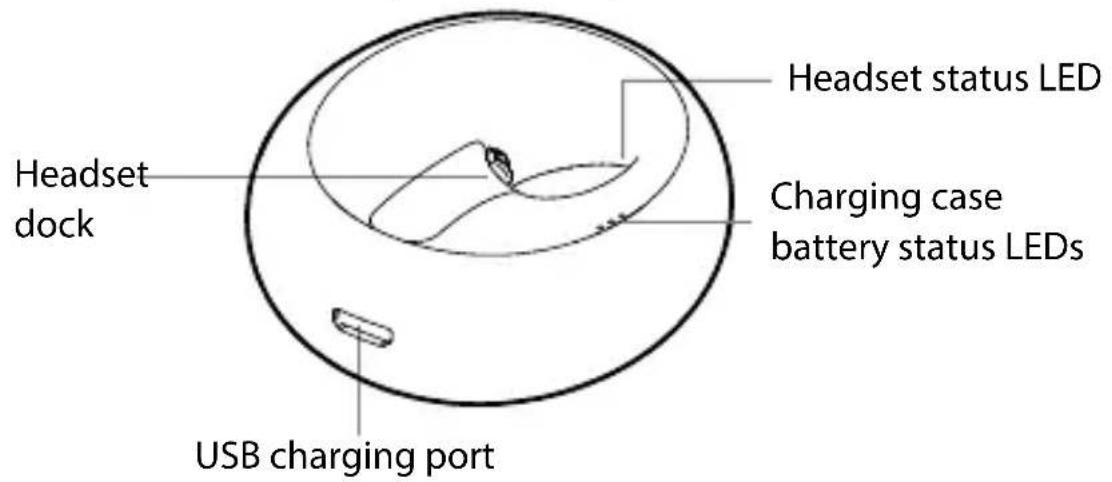
HeADSeT

CHARGING CASE (TOP View)
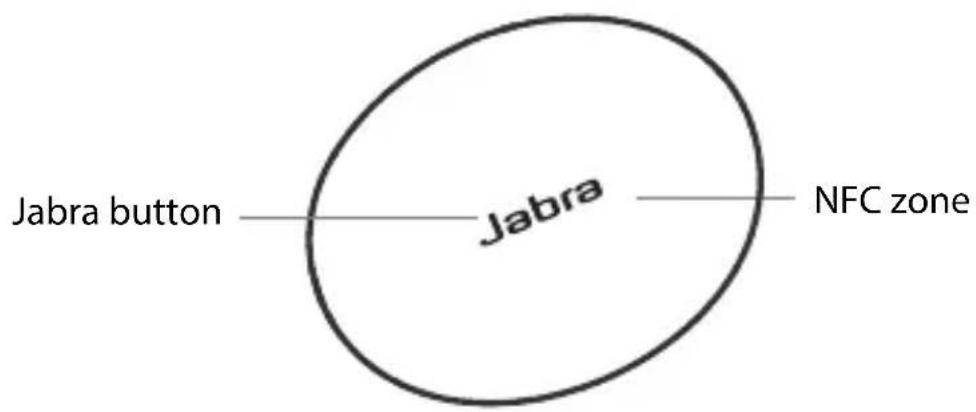
CHARGING CASE (BOTTOM View)
2.1 INCLUDED ACCESSORIES

natural_image
Simple line drawing of a USB cable with two connectors (no text or symbols)USB cable Large

EarGel

Medium EarGel

Small
EarGel

Extra-
small
EarGel
NOTE: You can purchase an additional charging case and accessories online at jabra.com
3. hOW TO WEAR
The headset is designed for right ear wearing. For the optimal sound quality and the most comfortable fit, select the correct EarGel size and ensure the headset is fitted correctly into your ear.

natural_image
Line drawing of a person's head showing ear with a small Bluetooth device (no text or symbols)3.1 SELECTING THE CORRECT EARGELS
The headset is supplied with four EarGel sizes: large, medium, small and extra small. The correct EarGel will feel tight and seal out background disturbances.

natural_image
Illustration of a hand holding a small object with five sequential steps, showing transformation from a circular object to a conical shape (no text or symbols present)3.2 GETTING THE CORRECT FIT
Fit the headset firmly inside your right ear, and angle the microphone down towards your mouth.

4. hOW TO ChARGE
It is recommended to fully charge the headset and the charging case before first-time use.
Fully charged the headset will have up to 3 hours of talk time, and the charging case will have up to 7 hours of battery.
4.1 ON-THE-GO CHARGING
Dock the headset in the charging case for on-the-go charging. It takes approx. 2 hours to fully charge the headset.

Plug the charging case into a USB power supply using the supplied USB cable to charge the headset and/or the charging case. It takes approx. 3 hours to charge the headset and the charging case together.

natural_image
Line drawing of a laptop connected to a circular device with a connector (no text or symbols)4.3 BATTERY STATUS
To hear the current remaining talk time in your headset, gently tap the headset when it is in your ear and you are not on a call.
To see the charging case battery status and/or the headset battery status (when docked), tap the Jabra button on the bottom of the charging case.
HeADSeT BATTeRY STATUS

natural_image
Simple line drawing of a stylized object resembling a hammer or stylus with a spiral head (no text or symbols)
20-100% battery

0-20% battery

natural_image
Simple line drawing of a stylized object inside an oval frame with radiating lines (no text or symbols)
20-100% battery

0-20% battery
CHARGING CASE BATTsRY STATUS

natural_image
Simple line drawing of a stylized object inside an oval frame with radiating lines (no text or symbols)
66-100% battery

33-66% battery

0-33% battery
To extend standby time the headset will automatically enter Power Nap mode when the headset is out of range of your connected mobile device for more than 15 minutes, or when the headset has not been moved for 1 hour. Power Nap provides up to 7 days of battery readiness/standby time.
To exit Power Nap simply move the headset. Your mobile device must be switched on, within range, and have Bluetooth enabled.
To answer an incoming call when the headset is in Power Nap mode, simply wear the headset and double-tap it to answer the call.
5. how to connect
5.1 TURNING THE HEADSET ON/OFF
ON: Undock the headset from the charging case. Off: Dock the headset in the charging case. The Headset status LED will briefly light up white when the headset is docked.
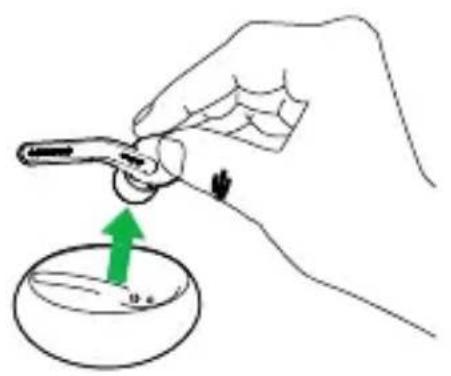
natural_image
Hand holding a tool above a circular object with an upward arrow, no text or symbols presentON
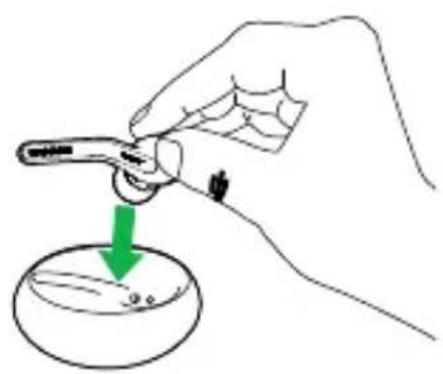
natural_image
Hand holding a tool above a bowl with a green arrow indicating direction (no text or symbols)OFF
5.2 CONNECT USING THE APP
The easiest way to connect to your mobile device is to download and use the Jabra Assist app for iOS or Android devices.

5.3 CONNECT VIA BLUETOOTH
- Dock the headset in the charging case, and ensure the headset is charged.
- Press and hold (3 secs) the Jabra button on the bottom of the charging case until the light flashes blue.

- Wear the headset and follow the voice-guided instructions.
NOTE: Connecting via Bluetooth only needs to be completed the first time you are connecting to a new device.
5.4 CONNECT WITH AN NFC-ENABLED DEVICE
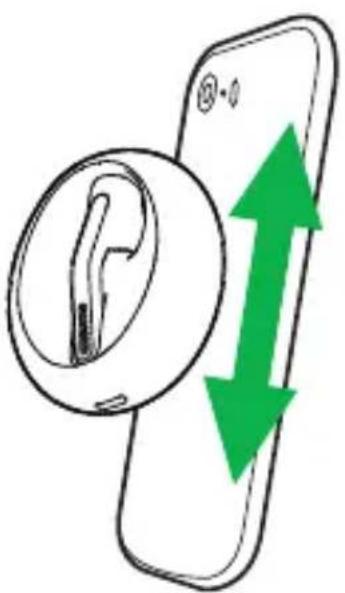
Dock the headset in the charging case, and slide your NFC-enabled device against the NFC zone on the bottom of the charging case until a connection is confirmed on your mobile device.
6. JABRA ASSIST APP
The Jabra Assist app is a free app for iOS or Android devices that enables you to:
■ Customize your in-call audio
■ Change headset language
■ Automatic text message read-out
■ Update headset firmware
■ Enable/disable headset voice guidance
■ And more..

natural_image
Yellow square icon with a stylized orange 'G' shape and the text 'Jahwar' below it (no additional text or symbols)Jabra Assist
Android download - Google Play iOS download - App Store
7. hOW TO USE

7.1 CALLS
| USiNG The CHARGiNG CASE | ||
 | Turn on headset | Undock the headset from the charging case |
| Turn off headset | Dock the headset in the charging case | |
| Answer call | Undock the headset from the charging case | |
| End/reject call | Dock the headset in the charging case | |
HeADSeT iN eAR

natural_image
Simple line drawing of a key inserted into a ring with a green arrow pointing to the insertion point (no text or symbols)| Answer call | Gently double-tap the headset, or say 'Answer' |
End call Gently double-tap the headset
Reject call Say 'Ignore'
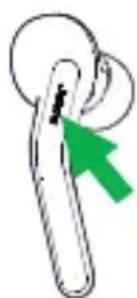
| ActivateSiri®/GoogleNowTM/CortanaTM(phone dependent) | |
| Gently double-tap the headset when not on a call |
| Headset | Gently tap the headset when not on a call |
| battery status |
7.2 HEADSET VOICE CONTROLS
Headset voice controls are commands you can speak to control the headset.
WHAT YOU CAN SAY WHAT iT MeANS
Answer Answer incoming call
Ignore Reject incoming call
Voice controls are available in the following languages: English (US), Chinese (Mandarin), Japanese, French, German, Russian, Polish, Dutch, Spanish, and Italian.
Language packs can be downloaded using the Jabra Assist app. If the headset language is changed, please refer to that language's user manual for the correct voice controls.
7.3 HEADSET VOICE GUIDANCE
Headset voice guidance are voice announcements intended to guide you or give headset status updates (e.g. connection and battery status).
Voice guidance is available in the following languages: English (US), Chinese (Mandarin), Japanese, French, German, Russian, Polish, Dutch, Spanish, Italian and Farsi.
Language packs can be downloaded using the Jabra Assist app.
7.4 PHONE VOICE COMMANDS (SIRI ® , GOOGLE NOW TM , CORTANA TM )
Phone voice commands enable you to speak to Siri®/Cortana™/Google Now™ on your mobile phone using your headset. For more information on using Siri®, Google Now™, or Cortana™, please refer to your phone's user manual.
natural_image
Simple line drawing of a mechanical component with a green arrow pointing to a specific part (no text or symbols)Activate Siri®/Google Now™/Cortana™ (phone dependent)
Gently double-tap the headset when not on a call
Caller ID is the voice announcement of a contact name when there is an incoming call.
The following requirements for Caller ID must be met:
■ The mobile phone must support the Bluetooth Phone Book Access Profile (PBAP)
- The incoming call’s phone number must be associated with a stored contact in the phone
■ The incoming call must not be from an unknown, unlisted, or blocked caller
NOTE: Japanese Caller ID supports phone number readout only. Chinese Caller ID supports Chinese Simplified only.
7.6 MULTIPLE CALL HANDLING
The headset can answer or reject calls when you are already on a call.

natural_image
Simple line drawing of a keychain with a green arrow pointing to the chain (no text or symbols)End current call and answer incoming call
Gently double-tap the headset
Reject incoming call, when on a call
Gently tap the headset
7.7 HOW TO CHANGE HEADSET LANGUAGE
The headset language can be changed using the Jabra Assist app.
The headset language can be changed to one of the following languages: English (US), Chinese (Mandarin), Japanese, French, German, Russian, Polish, Dutch, Spanish, Italian, and Farsi.
7.8 HOW TO UPDATE HEADSET FIRMWARE
To update headset firmware to the latest version, download and use the Jabra Assist app for iOS or Android, or go to jabra.com/eclipse for more help.
7.9 HOW TO RESET THE HEADSET
Resetting the headset will clear the list of connected devices. You will need to reconnect to your mobile device/s.
- Dock the headset in the charging case, and connect the charging case to power using the USB cable.
- Press and hold (8 secs) the Jabra button on the bottom of the charging case until the light flashes purple rapidly. Release the button.

8. SUPPORT
8.1 FAQ
View the FAQs on jabra.com/eclipse
8.2 HOW TO CARE FOR YOUR HEADSET
■ Always store the headset with the power off and safely protected.
- Avoid storage at extreme temperatures (above 70°C/158°F or below -20°C/-4°F). This can shorten battery life and may affect the headset.
9. TECHNICAL SPECIFICATIONS
JABRA eCliPSe SPeCifiCATiON
| Weight: | Headset 5.5 g (0.19 oz)Charging case 35 g (1.23 oz) |
| Dimensions: | HeadsetL 49.95 mm x W 17.58 mm xH 24.82 mmCharging caseL 62.2 mm x W 54 mm xH 25.5 mm |
| Microphones: | 2 x Omnidirectional MEMSmicrophones |
| Microphone frequenyrange: | 100 Hz - 8 kHz |
| Microphone sensitivity: 14 dB +/- 3 dB (SWR) | |
| Speaker type: 6 mm dynamic speaker | |
| Speaker sensitivity: 94 dB SPL at 1 mW /1 kHz | |
| Speaker impedance: 16 ohm | |
| Speaker max input power: 5 mW | |
| Speaker frequency range: 20 Hz - 20 kHz | |
| Operating range: | Up to 30 m/98 ft (phonedependent) |
JABRA eCliPSe SPeCifiCATiON
| Bluetooth version: 4.2 | |
| Paired devices: | Up to 8, connected to two at the same time (MultiUseTM) |
| Supported Bluetooth profiles: | Headset profile (v1.2), hands free profile (v1.6), A2DP (v1.3), phone book access profile (v1.0) |
| Talk/battery time: | Up to 10 hours (up to 3 hours in headset, and up to 7 hours in charging case) |
| Standby time: Up to 3 days | |
| Power Nap time: Up to 7 days | |
| Charging time: | Approx. 2 hours for headset only.Approx. 3 hours for headset and charging case together |
| USB charging cable: 5 V, >100 mA | |
| Operating temperature: -10°C to 55°C (14°F to 131°F) | |
| Storage temperature: -20°C to 70°C (-4°F to 158°F) | |
| Pairing passkey or PIN: 0000 | |
| Product materials: | Eargel: Thermoplastic Elastomer (TPE), Silicon Rubber.Headset and charging case: Polycarbonate/Acryl Butadien Styren (PC/ABS), Polycarbonate (PC), Silicon Rubber |
- SUPPORT 25
- TECHNICAL SPECIFICATIONS ..... 26
- WELCOME
- JABRA eCliPSe feATUReS
- PRODUCT OVERVIEW
- INCLUDED ACCESSORIES
- hOW TO WEAR
- SELECTING THE CORRECT EARGELS
- GETTING THE CORRECT FIT
- hOW TO ChARGE
- ON-THE-GO CHARGING
- BATTERY STATUS
- how to connect
- TURNING THE HEADSET ON/OFF
- CONNECT USING THE APP
- CONNECT VIA BLUETOOTH
- CONNECT WITH AN NFC-ENABLED DEVICE
- JABRA ASSIST APP
- hOW TO USE
- CALLS
- HEADSET VOICE CONTROLS
- WHAT YOU CAN SAY WHAT iT MeANS
- HEADSET VOICE GUIDANCE
- PHONE VOICE COMMANDS (SIRI ® , GOOGLE NOW TM , CORTANA TM )
- MULTIPLE CALL HANDLING
- HOW TO CHANGE HEADSET LANGUAGE
- HOW TO UPDATE HEADSET FIRMWARE
- HOW TO RESET THE HEADSET
- SUPPORT
- FAQ
- HOW TO CARE FOR YOUR HEADSET
- TECHNICAL SPECIFICATIONS
Brand : JABRA
Model : Eclipse
Category : Headphones