
Jaybird X3 - Earphones LOGITECH - Free user manual and instructions
Find the device manual for free Jaybird X3 LOGITECH in PDF.


| Product Type | Wireless Bluetooth Earphones |
| Brand | Logitech |
| Model | Jaybird X3 |
| Bluetooth Version | 4.1, Multipoint |
| Wireless Range | 10 meters (30 feet) |
| Audio Codecs | AAC, SBC, Modified SBC |
| Bluetooth Profiles | Handsfree, Headset, A2DP, AVCRP, SPP |
| Play Time | Up to 8 hours |
| Standby Time | Up to 110 hours |
| Charging Time | 2.5 hours |
| Quick Charge | 20 minutes for 1 hour play |
| Power Input | 5V, 0.5A |
| Earbud Dimensions | 27 x 24 mm |
| Cord Length | 490 mm |
| Weight | Approx. 13 g |
| Voice Commands | Siri or Google Now (1 sec press Power button) |
| Custom Sound Profile | Via MySound app (saved on buds) |
| Multipoint Connection | Connect to two devices simultaneously |
| ShareMe Feature | Share music with another X3 |
| Ear Tips Included | Silicone (S, L) and Comply™ foam (S, M, L) |
| Ear Fins Included | Silicone (S, L) |
| Accessories Included | Charge clip, USB cable, cord clips, shirt clip, carry pouch |
| Eartip Cleaning | Remove from buds; clean with warm water and mild soap; dry before reattaching |
| Safety Warnings | Do not use while driving/cycling; avoid excessive volume to prevent hearing damage |
| Warranty | See jaybirdsport.com/warranty |
Frequently Asked Questions - Jaybird X3 LOGITECH
User questions about Jaybird X3 LOGITECH
0 question about this device. Answer the ones you know or ask your own.
Ask a new question about this device
Download the instructions for your Earphones in PDF format for free! Find your manual Jaybird X3 - LOGITECH and take your electronic device back in hand. On this page are published all the documents necessary for the use of your device. Jaybird X3 by LOGITECH.
USER MANUAL Jaybird X3 LOGITECH
X3
USER GUIDE

Jaybird
BC
WELCOME
In The Box 2
Charging / Battery Status 3
Pairing....5
Finding Your Perfect Fit....7
Choosing Your Setup 7
Fit for Sport Use 8
Fit for Casual Use 11
DETAILED INSTRUCTIONS
Button Functionality....14
The MySound App 17
Multipoint - Connection to multiple devices 19
ShareMe 20
Smartwatches....22
Troubleshooting 23
Specifications 24
Warranty, Warnings & Safety 25
WELCOME
THANKS FOR PURCHASING JAYBIRD X3. WE BRING MUSIC WHERE YOU SWEAT.
For detailed video instructions please visit javybirdsport.com/support/
Please refer to the safety warnings for important product safety information prior to installation or use of the product.


Silicone Ear Fins (S, L)
Cord Clips

Silicone Ear Tips (S, L) Carry Pouch

Comply™ Isolation Ear Tips (S, M, L)
Shirt Clip

CHARGING/BATTERY STATUS
We recommend you charge your buds through any 5V 500mA USB power source. Wall/car adapters/chargers that supply more than 5.5 Volt will damage your Jaybird buds and should not be used.


Take your included charge clip and USB cable and plug it into a USB power source.
2.5 hours charging gives 8 hours of playtime.
20 mins charging gives 1 hour of play time.
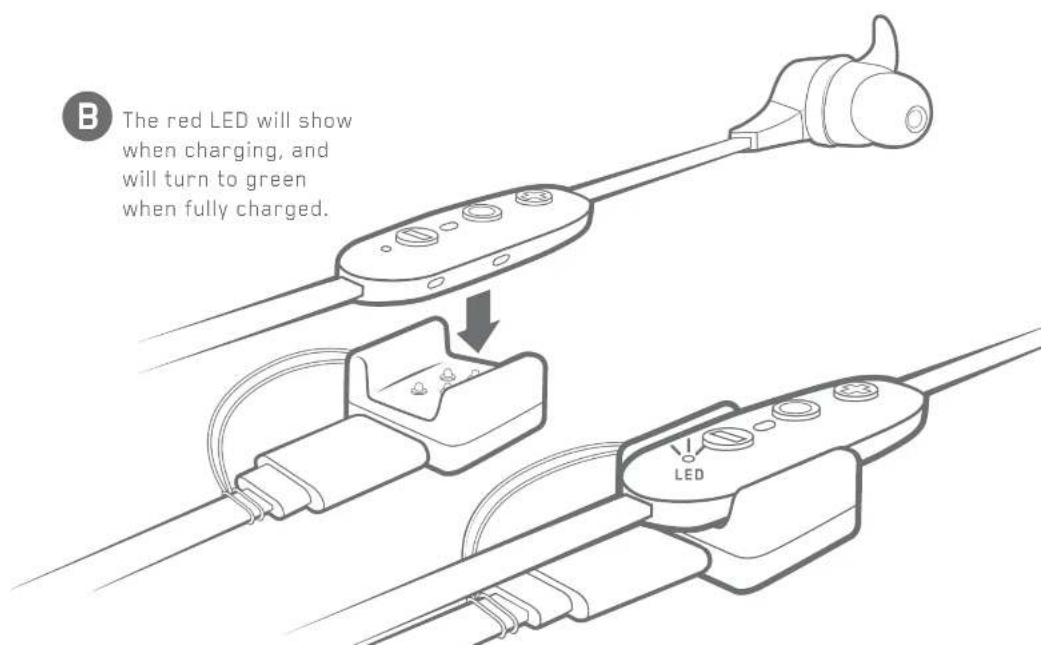
CHARGING/BATTERY STATUS
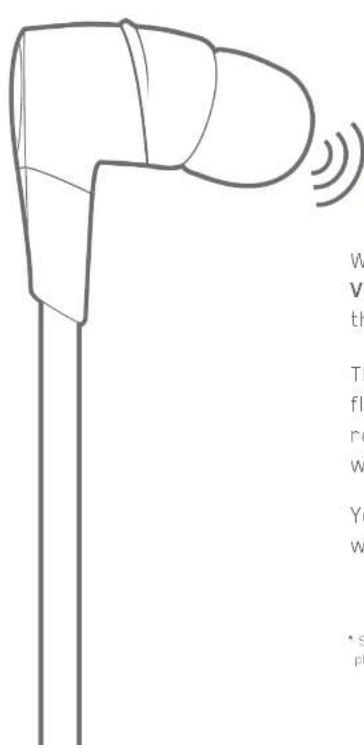
When not playing music, pressing Volume + or Volume - will announce the battery level.*
The LED will indicate a single green flash for more than 10% battery remaining and a single red flash when below 10%.
Your phone and the MySound App will also indicate battery status.
* Standby Mode: Powered and not playing music or on a phone call.

PAIRING![graph TD A["On your phone/music device, turn Bluetooth on and ensure it is actively searching for Bluetooth devices."] --> B["With your X3 turned off, press and hold the Power Button until you see the LED flashing red/green. A voice prompt will say "SEARCHING FOR YOUR MUSIC DEVICE""] B -->…](/content/2026/05/797650/images/36204fee4134c8977e51b09fd5daf9c579050d4e0d8030d2fd4202b3bfdc78d7.jpg)
PAIRING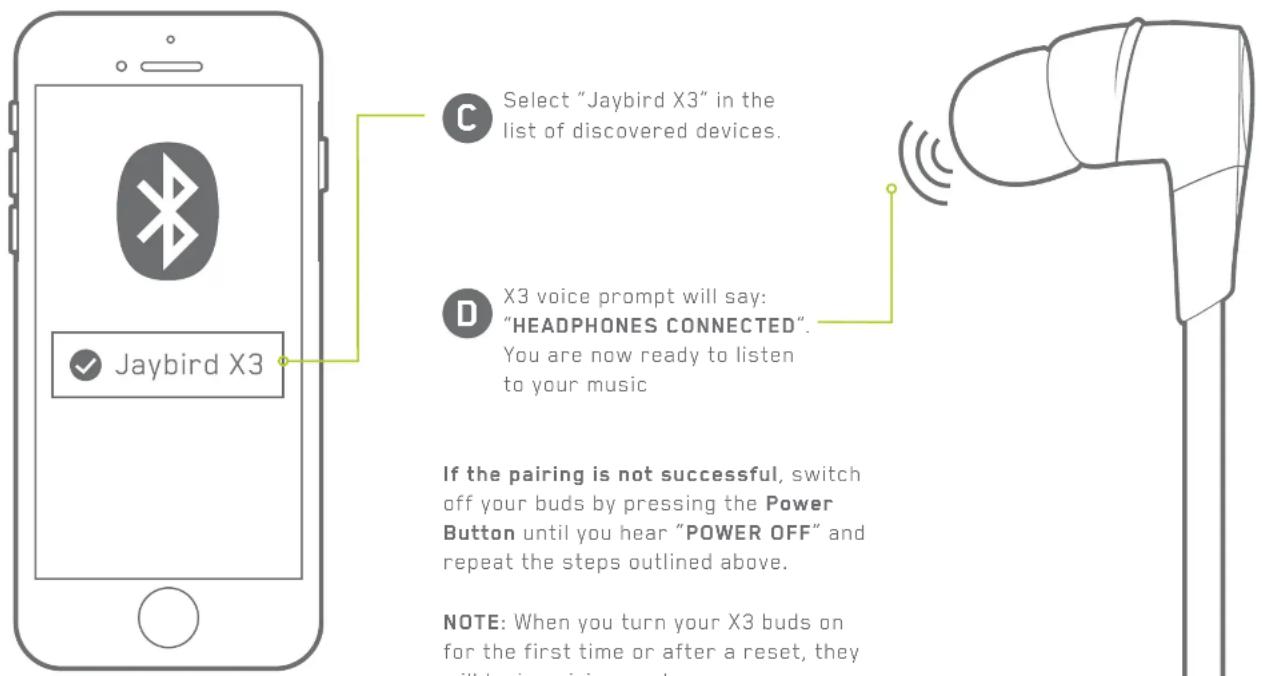
FINDING YOUR PERFECT FIT
CHOOSING YOUR SETUP BASED ON USE
We recommend choosing a fit based on how you plan to use your Jaybird X3.


FINDING YOUR PERFECT FIT
- SET UP YOUR FINS


Place your X3 over your ear with the inline remote on your left side.
FINDING YOUR PERFECT FIT
- FINDING THE RIGHT SIZED TIPS AND FINS

Starting with the medium-sized tips and fins attached, try placing your buds firmly within your ear while in the over-ear position.


If your buds are not comfortable, or feel loose, try alternative sized tips and/or fins. You can also try the Comply™ foam tips or remove the fins completely. Be patient, it may take some time to get the perfect fit.
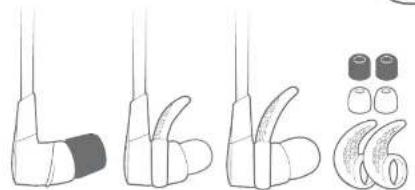

Once you are happy with the fit, move onto step 3.

FINDING YOUR PERFECT FIT
- CORD CLIPS


FINDING YOUR PERFECT FIT
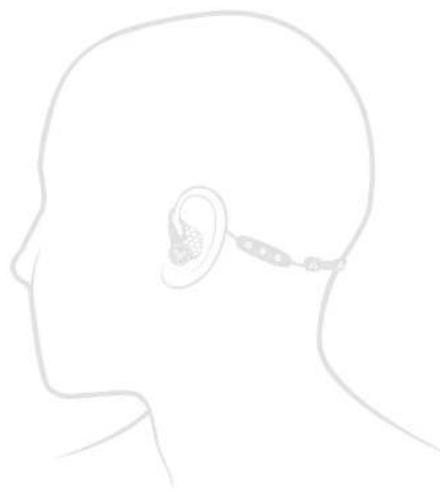
If you intend to use Jaybird X3 for casual use, we recommend the under-ear setup.



FINDING YOUR PERFECT FIT
- FINDING THE RIGHT SIZED TIPS AND FINS

With the medium-sized tips and fins attached, place your buds firmly within your ear while in the under-ear position. The inline remote should be on the right side.

If your buds are not comfortable, or feel loose, try alternative sized tips and/or fins. You can also try the Comply™ foam tips or remove the fins completely. Be patient, it may take some time to get the perfect fit.

Once you are happy with the fit, you are good to go.



FINDING YOUR PERFECT FIT
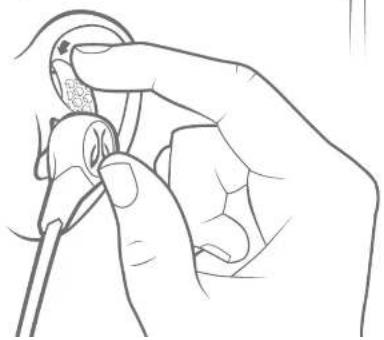
2. SHIRT CLIP
Use the included Shirt clip to secure your X3 buds to the back of your shirt.
Long side of the clip on the outside of the shirt.


DETAILED INSTRUCTIONS
BUTTON FUNCTIONALITY

4 SEC PRESS
DETAILED INSTRUCTIONS
SHORT PRESS 1 SEC PRESS
PLAYING MUSIC

VOLUME +
SKIP FORWARD
PLAY / PAUSE
VOICE COMMANDS
VOLUME -
SKIP BACKWARD
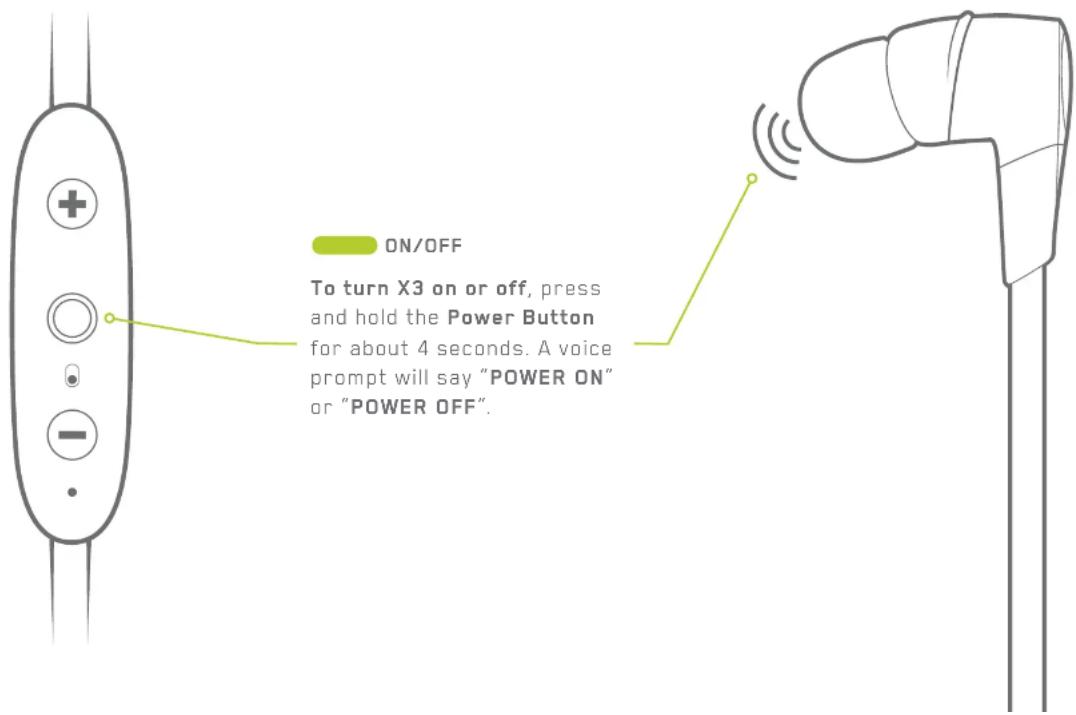
Play or pause a song or video with a short press and release of the Power Button.
To skip a song, press the Vol. + button for 1 second.
To go backwards, press the Vol. - button for 1 second.
To change the volume + or -, short press the Vol. + or Vol. - button.
To activate voice commands (Siri or Google Now), press the Power Button for 1 second.
DETAILED INSTRUCTIONS
SHORT PRESS DOUBLE PRESS 1 SEC PRESS
PHONE CALLS

SWITCH A CALL
ACCEPT A CALL DECLINE A CALL
REDIAL
MUTE / UNMUTE
Accept a phone call with a short press of the Power Button.
To decline a phone call, press the Power Button for 1 second.
To mute or unmute a call, press the Vol. - button for 1 second.
To redial a phone number, double press the Power Button.*
To switch a call from your phone speaker to your X3 buds, short press the Vol. + button.
*Standby Mode: Powered and not playing music or on a phone call.
DETAILED INSTRUCTIONS
THE MYSOUND APP
MySound lets you customize the sound profile on your X3 buds.

Download on the App Store

GET IT ON Google Play
Your new sound settings are saved right on your buds, so you can take your custom sound with you no matter where you go with any device you use.

DETAILED INSTRUCTIONS
THE MYSOUND APP
NOTE: The MySound app works with Jaybird X3 and Freedom. Other manufacturers and older Jaybird buds are not supported.
Adding additional bass to your sound profile through the MySound app will reduce play time.

DETAILED INSTRUCTIONS
MULTIPOINT - CONNECTION TO MULTIPLE DEVICES
Multipoint allows you to be connected to two devices simultaneously. You can for instance be connected to your laptop and your mobile phone. While listening to music on your laptop, you will be able to accept an incoming call on your phone.

Ensure your X3 buds are paired and connected to both devices. Follow pairing instructions on page 5-6.

Make sure that only the two devices you want to connect to are turned on and in proximity.
Your X3 can remember up to eight paired Bluetooth® devices and can be actively connected two devices at a time.

DETAILED INSTRUCTIONS
SHARE ME
The ShareMe feature allows you to share the music you are listening to with another pair of X3 buds.

Power on both pairs of X3 buds.

Only connect one device to your music device. Ensure the second device is not connected to any Bluetooth device.
DETAILED INSTRUCTIONS
SHARE ME
The ShareMe feature allows you to share the music you are listening to with another pair of X3 buds.


Press and hold 'VOL +' on the connected buds, while you press and hold the 'VOL -' on the second buds until the LEDs on both buds are flashing red/green.


Both buds will be connected when the LEDs stop flashing and you will hear 'Headphones Connected'. Play some music and enjoy the shared experience.
DETAILED INSTRUCTIONS
SMARTWATCHES
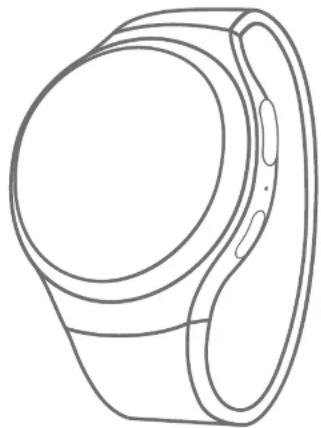
With the right smartwatch you can leave your phone at home. Just sync music to your smartwatch and pair X3 to your smartwatch. Use your smartwatch user manual for instructions on how to pair a Bluetooth device.
Apple WatchOS Android WearSamsung Tizen


TROUBLESHOOTING
If your buds are not responding, connect the charge clip and USB cable to a power source. This will turn your buds off and perform a soft reset.
If this does not resolve your problem we recommend to reset your buds to their original factory Settings.

NOTE: Once your buds have been reset you will have to pair it again to your devices. Select "FORGET" or "REMOVE" Jaybird X3 from your device's Bluetooth menu. Follow the pairing instructions on page 5-6 to repair your devices.
SPECIFICATIONS
Bluetooth Version 4.1, Multipoint
Codec AAC, SBC, Modified SBC
Profile Handsfree, Headset, A2DP, AVCRP, SPP
Effective Range 10 meters (30 feet)
Play Time 8 Hrs*
Standby Time 110 Hrs*
Power Bluetooth headset: 5.0V
==, 0.5A
Charging Time 2.5 Hrs
Quick Charge 20 Min = 1 Hr play time
Dimensions 27 x 24 mm earbud size, 490 mm cord length
Weight Approx 13 g
*Play time and standby time may vary due to usage conditions. Adding additional bass to your sound profile through the MySound app will reduce play time.
WARRANTY, WARNINGS & SAFETY
Full warranty, care & maintenance details at: jaybirdsport.com/warranty +1.866.244.3395
WARNING: Due to the isolating characteristics of these headphones do not use while driving, riding a bike or where vehicular traffic is present, or in any other activity where failure to hear surrounding sounds could be dangerous. Use of these headphones at excessive volumes may cause permanent hearing damage. Always turn the volume down before use. Take caution in regards to inserting objects into ear canal, use at own risk. Do not wear the device while it is connected to a power source driven from main 110V or 220V lines.
Copyright 2016 Jaybird, LLC. All rights reserved. Jaybird, and the Jaybird logo are trademarks of Jaybird, LLC. Bluetooth is a trademark owned by Bluetooth SIG, Inc. USA, and licensed to Jaybird, LLC. iPhone, iPad and iPod are trademarks of Apple, Inc., registered in the US and other countries and App Store is a service mark of Apple Inc. All other trademarks are the property of their respective owners. Android is a trademark of Google Inc. in the United States and other countries. Manufactured under Freebit patent numbers EP2177045, US8630436, USB976995 and corresponding international patents. Assembled in Malaysia.
EARTIP CLEANING
Keeping your Jaybird Buds eartips clean is essential for safe, hygienic use.
IMPORTANT: DO NOT attempt to clean the eartips without first removing them from the headphones. Getting the delicate circuitry inside your Jaybird Buds wet may cause permanent damage.
- Firmly grip the eartip with one hand and the earphone with the other. Carefully remove the eartip from the bud.
- Use warm water and mild soap on a damp cloth to remove dirt and earwax from the eartip. Do NOT use harsh cleaning agents.
- Rinse and completely dry your eartip before placing them back on your buds.
- Carefully push the eartips back onto the buds.

LISTEN RESPONSIBLY
Avoid excessive volume levels and prolonged periods of listening. Prolonged listening at excessive volume levels may cause permanent hearing disability.
Do not use around road traffic.
Video instructions at jaybirdsport.com
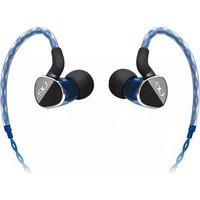

Brand : LOGITECH
Model : Jaybird X3
Category : Earphones