U-1190 - Computer Accessories ST Lab - Free user manual and instructions
Find the device manual for free U-1190 ST Lab in PDF.


User questions about U-1190 ST Lab
0 question about this device. Answer the ones you know or ask your own.
Ask a new question about this device
Download the instructions for your Computer Accessories in PDF format for free! Find your manual U-1190 - ST Lab and take your electronic device back in hand. On this page are published all the documents necessary for the use of your device. U-1190 by ST Lab.
USER MANUAL U-1190 ST Lab
USB 3.1 Type-C to Dual Video
Docking Station
User Manual
Ver. 1.00
All brand names and trademarks are properties of their respective owners.
Contents:
Chapter 1: Introduction......3
1.1 Product Introduction....3
1.2 Features .... 3
1.3 System Requirements ....4
1.4 Package Contents......4
1.5 Hardware Layout .... 5
Chapter 2: Getting Started ....6
2.1 Driver Installation....6
2.1.1 Installation for Windows 6
2.1.2 Installation for Mac OS X ...... 7
2.2 Hardware Installation ....8
2.3 Verifying the installation....10
2.3.1 Verifying for Windows....10
2.3.2 Verifying for Mac OS X....11
2.4 Display Configuration ....12
Chapter 1: Introduction
1.1 Product Introduction
This USB 3.1 Type-C to Dual Video Docking Station is designed to expand connectivity to your Ultrabook™ or Hybrid tablet/laptop via single USB Type-C port. It features dual display ports (1 HDMI and 1 DVI) to enable your system's display capability, supporting HD resolution and multiple display modes including primary, extended and mirrored. This USB 3.1 Type-C to Dual Video Docking Station offers 2 USB 3.0 ports to satisfy multiple device connectivity needs.
1.2 Features
- Easy Installation
- An ideal solution for expanding the connectivity of Laptop, Ultrabook and Macbook
- Adds dual displays and 2 USB 3.0 ports to your USB 3.0 enabled system
● Compatible with SuperSpeed USB 3.0 and backwards compatible
with USB 2.0 specification
- Extended Desktop (Default), Mirror Desktop, Primary Display
● High resolutions for display up to 2048 x 1152
1.3 System Requirements
- Windows® 7/8/8.1 (32/64 bit); Mac OS X 10.8 or above
● Available USB Type-C port
1.4 Package Contents
● 1 x USB 3.1 Type-C to Dual Video Docking Station
● 1 x User Manual
- 1 x Driver CD
1.5 Hardware Layout
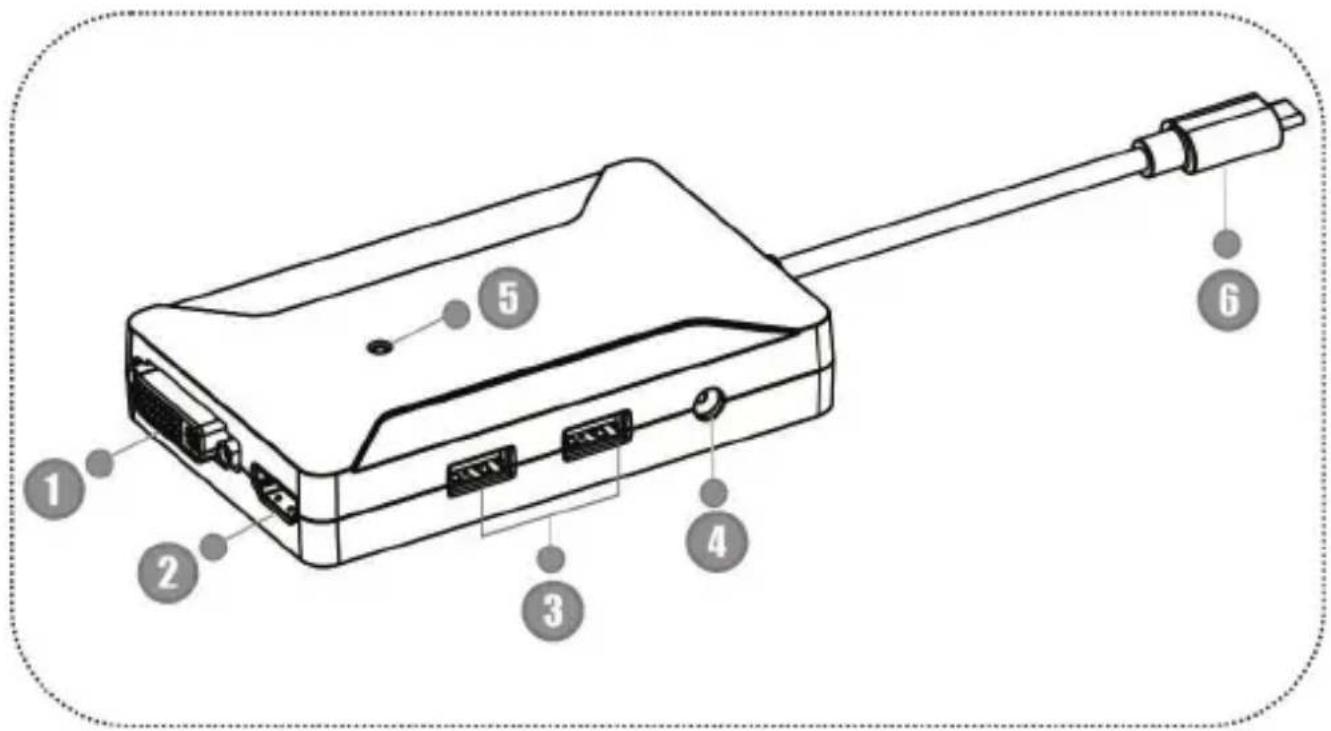
text_image
Diagram of an electronic device with labeled ports and connectors, showing internal components and pin connections.- DVI output port: Connect to a DVI monitor
- HDMI output port: Connect to a HDMI monitor
- USB 3.0 downstream ports: Connect USB peripheral devices
- Power jack: Connect to the optional power adapter
- Power indicator: Lights up when the power is on
- USB 3.1 Type-C upstream cable: Connect to the USB Type-C port of the host computer
Chapter 2: Getting Started
2.1 Driver Installation
Follow the procedures below to install the driver and then connect the USB 3.1 Type-C to Dual Video Docking Station to your system.
2.1.1 Installation for Windows
- Insert the provided CD into your disk drive. The CD-ROM will start automatically. The following screen will show up and please click “Install Driver”.
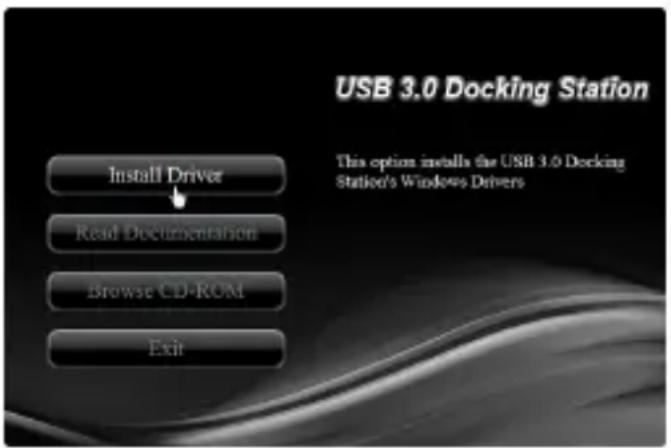
text_image
USB 3.0 Docking Station This option installs the USB 3.0 Docking Station's Windows Drivers Install Driver Read Documentation Browse CD-ROM Exit*Note: Actual image may vary
Note: If the install program doesn't run automatically, please locate and double-click on the Autorun.exe file in the CD to
launch the install program.
- Please wait while Windows configures DisplayLink Core Softare. Your screens may temporarily go black or flashing during this process.
DisplayLink Core Software

Please wait while Windows configures DisplayLink Core Software. Your screens may temporarily go black or flash during this process.

Cancel
- When finished, the installation screen will disappear and you will return to your desktop.
Note: On some machines, you may need to reboot before you can use USB 3.1 Type-C to Dual Video Docking Station.
2.1.2 Installation for Mac OS X
- Insert the provided CD into your CD-ROM drive.
- Double-click the “U3 Dock” disc icon, double-click package file “mac.dmg”, the following “U3 Dock” virtual disk will be appeared on the Desktop of your Mac OS X system. Then double
click "Drivers" folder.
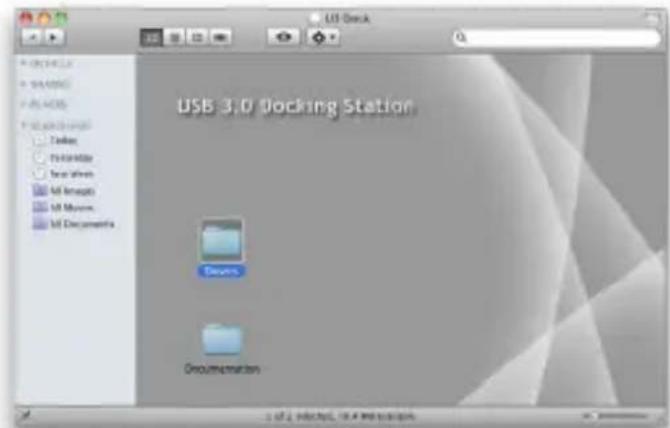
text_image
USB 3.0 Docking Station Design Documentation- Select “DisplayLink Software Installer” to begin installing the DisplayLink Driver on your Mac.
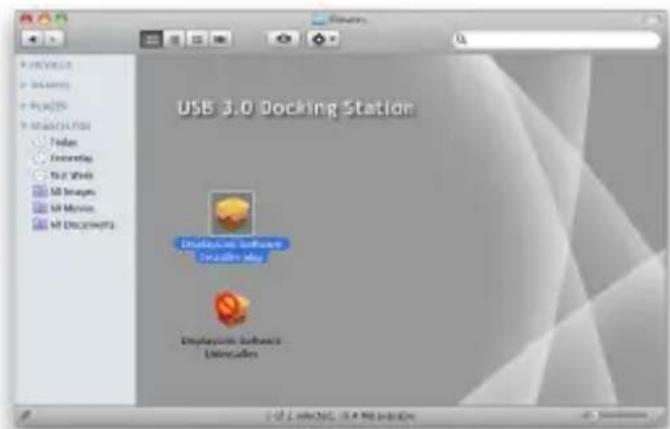
text_image
USB 3.0 Docking Station Displayless Software Create key Displayless Software Uniculated- Follow the instructions on screen to install the driver. After driver installation is complete, you must restart your computer.
2.2 Hardware Installation
- (Optional): Plug the power adapter into the power jack of the
Docking Station.
- Connect the USB 3.1 Type-C to Dual Video Docking Station:
Connect the USB 3.1 Type-C to Dual Video Docking Station to an available USB Type-c port on the host computer. Then a pop-up message will appear in the notification area indicating the installation is complete.

text_image
Installing device driver software Click here for status. 12:47 AM 11/8/2013* Actual strings depend on your operation system. This screen shot is from Windows 7 and might vary slightly for each operating system.
- Connecting HDMI monitor
- Use a HDMI cable (not provided) to connect the HDMI port to a monitor equipped with HDMI input jack
- Connecting DVI monitor
- Use a DVI cable (not provided) to connect the DVI port to a monitor equipped with DVI input jack
- Connecting USB 2.0/USB 3.0 device
Connect your USB device to the USB 3.0 port on the Docking Station. As long as one USB device is connected to the port and
the connection works properly.
2.3 Verifying the installation
2.3.1 Verifying for Windows
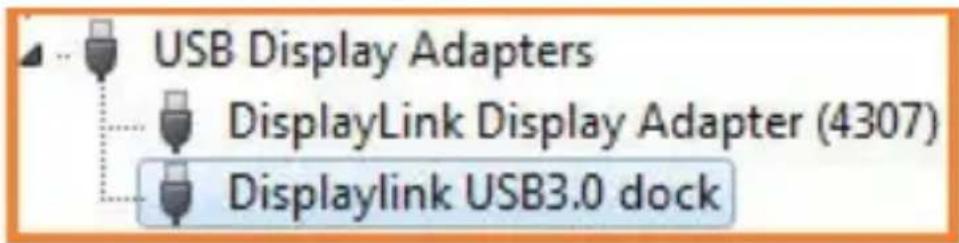
- Click on the “Device Manager” tab in the Windows Control Panel.
Start > Control Panel > Device Manager
- In the USB Display Adapters group, an item named Displaylink USB 3.0 dock should be displayed.
text_image
USB Display Adapters DisplayLink Display Adapter (4307) Displaylink USB3.0 dockNote: If there is a question or exclamation mark next to that item, then the driver is not properly installed. Please delete the item, select the Delete the driver software for this device option (if provided), unplug the USB 3.1 Type-C to Dual Video Docking Station from your computer and then repeat the installation steps.
2.3.2 Verifying for Mac OS X
- Choose About this Mac from the Apple menu.
- Click on More Info...
- In the Contents sidebar select USB from the Hardware section.
- Scroll the list to reveal the USB 3.1 Type-C to Dual Video Docking Station information
| Hardware ATA Audio Bluetooth Camera Card Reader Diagnostics Disc Burning Ethernet Cards Fibre Channel FireWire Graphics/Displays Hardware RAID Memory PCI Cards Parallel SCSI Power Printers SAS SATA/SATA Express SPI Storage Thunderbolt USB Network Firewall Locations Volumes WWAN Wi-Fi | USB Device Tree USB 3.0 Hi-Speed Bus USB 3.0 SuperSpeed Bus USB3.0 Hub ADATA USB Flash Drive USB3.0 Hub USB Storage Displaylink USB3.0 dock USB Mass Storage Device USB Hi-Speed Bus Hub USB2.0 Hub USB2.0 Hub FaceTime HD Camera (Built-in) USB Hi-Speed Bus Hub Hub Apple Internal Keyboard / Trackpad BRCM20702 Hub Bluetooth USB Host Controller |
| Displaylink USB3.0 dock: | |
| Product ID: 0x4307 Vendor ID: 0x17e9 (DisplayLink (UK) Ltd.) Version: 7.71 Serial Number: SUNR360100028 Speed: Up to 5 Gb/sec Manufacturer: DisplayLink Location ID: 0x15220000 / 30 | |
| Current Available (mA): 900 Current Required (mA): 2 |
2.4 Display Configuration
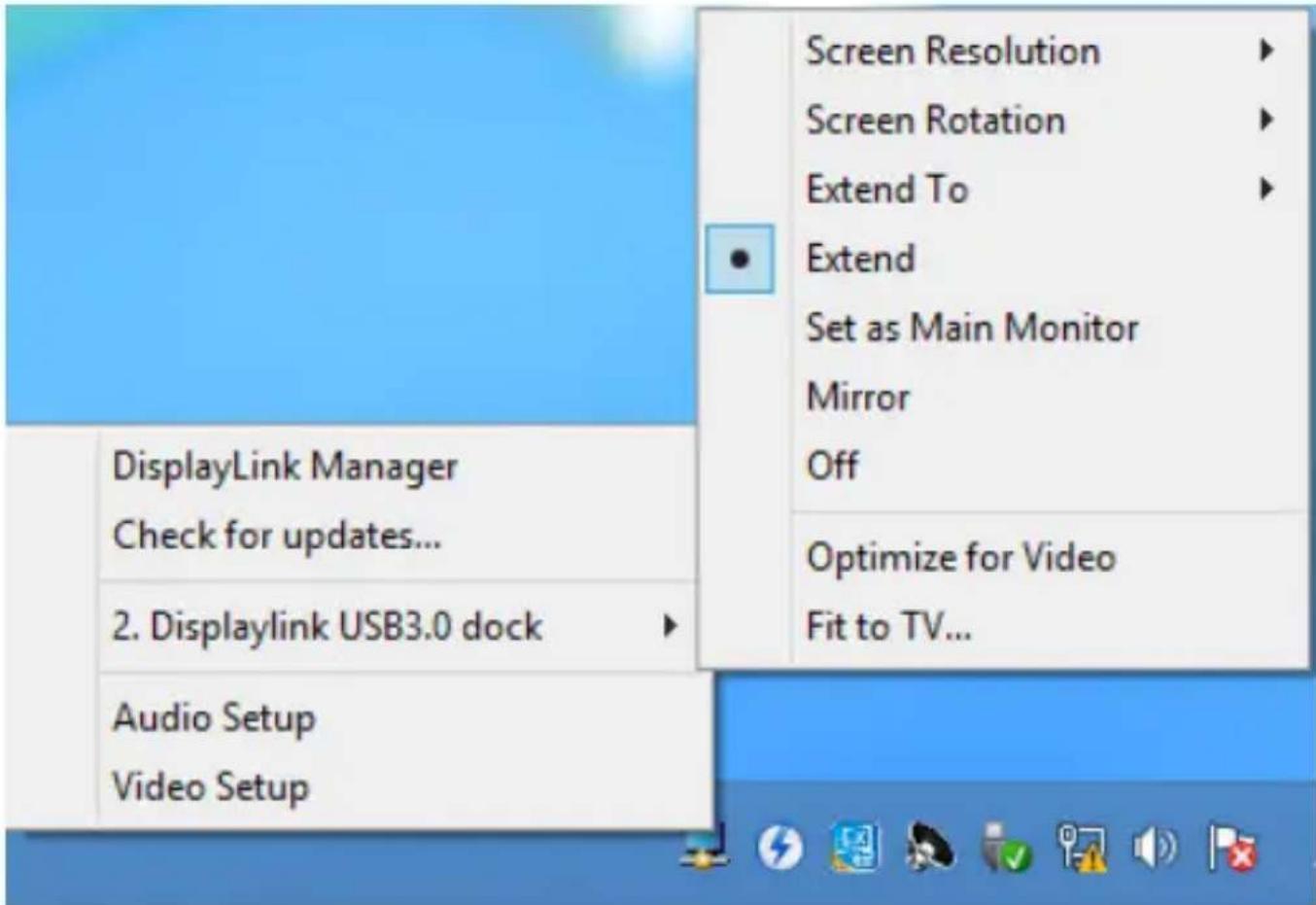
When USB 3.1 Type-C to Dual Video Docking Station is attached, an icon appears in the taskbar. This gives you access to the DiaplayLink manager menu.
To use the DisplayLink Manager Menu
- From the taskbar, click the DisplayLink icon

- A menu appears with several options. These are shown and described below.
text_image
Screen Resolution Screen Rotation Extend To Extend Set as Main Monitor Mirror Off Optimize for Video Fit to TV... DisplayLink Manager Check for updates... 2. Displaylink USB3.0 dock Audio Setup Video Setup- Screen Resolution: Click to select an available resolution. Note: This function is disabled in mirror mode, as the resolution is defined by the resolution of the primary monitor
- Screen Rotation: Rotates the screen according to the desired orientation
- Extend to: Extends the screen according to the desired orientation
- Extend: This is the default settings of the USB 3.1 Type-C to Dual Video Docking Station. This mode extends your desktop for
easy viewing of multiple windows. The window will move off the primary display from the right side and enter the extended display from the left side
- Set as Main Monitor: Sets the extended screen as the main screen
- Mirror: Duplicates the primary monitor to the monitor which connects with the USB 3.1 Type-C to Dual Video Docking Station
- Off: Turns off the USB 3.1 Type-C to Dual Video Docking Station
- Optimize for Video: Optimize the video quality when playing back. Text may appear less clear when enabling
• Fit to TV: Adjusts the size of the desktop on the TV. Note: This function works only when one display is connected