
TB3CDK2DPUE - Computer Accessories StarTech.com - Free user manual and instructions
Find the device manual for free TB3CDK2DPUE StarTech.com in PDF.


| Product Type | Thunderbolt 3 Dock |
| Model | TB3CDK2DPUE |
| Brand | StarTech.com |
| Host Interface | Thunderbolt 3 / USB-C (DP Alt Mode) |
| Video Output | 2x DisplayPort (dual 4K @ 60Hz via Thunderbolt 3; dual Full HD @ 60Hz via DP Alt Mode) |
| Power Delivery | 60W to host computer via Thunderbolt 3 host port |
| Front Ports | 1x Thunderbolt 3 host, 1x USB-A (BC 1.2 fast charging), 1x 3.5mm audio |
| Rear Ports | 2x USB-A (10Gbps), 2x USB-C (1x charging, 1x data 10Gbps), 2x DisplayPort, 1x RJ45 (Gigabit Ethernet), DC 20V power |
| Network | Gigabit Ethernet (RJ45) |
| Audio | 3.5mm combo audio (headphones/speakers/microphone) |
| Power Input | DC 20V 6.75A (Universal AC adapter with interchangeable power cords) |
| Included Cables | Thunderbolt 3 cable (0.7m), universal power adapter, power cords (UK/EU) per TB3CDK2DPUE |
| Operating Systems Supported | Windows 8/10, macOS 10.12-10.14 |
| Warranty | 3 years |
| Compliance | FCC Class B |
| Mounting | Mountable with VESA or similar hardware (sold separately); four mounting holes on bottom |
| LED Indicators | Power (white), RJ45 (green link, amber activity) |
| Video Resolution (Thunderbolt 3) | Single up to 4096x2160 @ 60Hz; dual up to 3840x2160 @ 60Hz |
| Video Resolution (DP Alt Mode) | Single up to 3840x2160 @ 30Hz; dual up to 1920x1200 @ 60Hz |
| Operating Temperature | Ambient room temperature; device may warm up under load |
| Safety | Installation by certified professional; cables routed to avoid tripping hazards |
| Cleaning | Use a dry, soft cloth; avoid liquids and abrasives |
| Spare Parts and Repairability | No user-serviceable parts; contact StarTech.com support for repairs |
Frequently Asked Questions - TB3CDK2DPUE StarTech.com
User questions about TB3CDK2DPUE StarTech.com
0 question about this device. Answer the ones you know or ask your own.
Ask a new question about this device
Download the instructions for your Computer Accessories in PDF format for free! Find your manual TB3CDK2DPUE - StarTech.com and take your electronic device back in hand. On this page are published all the documents necessary for the use of your device. TB3CDK2DPUE by StarTech.com.
USER MANUAL TB3CDK2DPUE StarTech.com
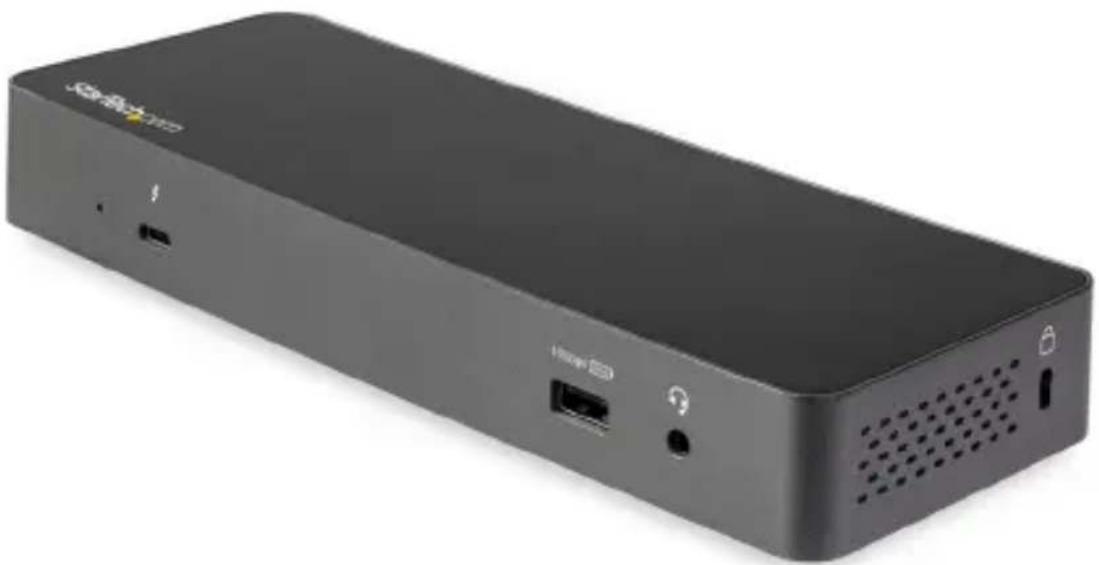
Thunderbolt™ 3 Dock with USB-C Laptop Compatibility | Dual 4K DisplayPort | 60W PD
natural_image
Black rectangular electronic device with ports and ventilation slots (no visible text or symbols)Actual product may vary from photos
User Manual
SKU#: TB3CDK2DP/TB3CDK2DPUE
For the latest information and specifications visit
www.startech.com/TB3CDK2DP
www.startech.com/TB3CDK2DPUE
Compliance Statements
FCC Compliance Statement
This equipment has been tested and found to comply with the limits for a Class B digital device, pursuant to part 15 of the FCC Rules. These limits are designed to provide reasonable protection against harmful interference in a residential installation. This equipment generates, uses and can radiate radio frequency energy and, if not installed and used in accordance with the instructions, may cause harmful interference to radio communications. However, there is no guarantee that interference will not occur in a particular installation. If this equipment does cause harmful interference to radio or television reception, which can be determined by turning the equipment off and on, the user is encouraged to try to correct the interference by one or more of the following measures:
• Reorient or relocate the receiving antenna
- Increase the separation between the equipment and receiver
- Connect the equipment into an outlet on a circuit different from that to which the receiver is connected
- Consult the dealer or an experienced radio/TV technician for help
Use of Trademarks, Registered Trademarks, and other Protected Names and Symbols
This manual may make reference to trademarks, registered trademarks, and other protected names and/or symbols of third-party companies not related in any way to StarTech.com. Where they occur these references are for illustrative purposes only and do not represent an endorsement of a product or service by StarTech.com, or an endorsement of the product(s) to which this manual applies by the third-party company in question. Regardless of any direct acknowledgement elsewhere in the body of this document, StarTech.com hereby acknowledges that all trademarks, registered trademarks, service marks, and other protected names and/or symbols contained in this manual and related documents are the property of their respective holders.
To view manuals, videos, drivers, downloads, technical drawings, and more visit www.startech.com/support
Safety Statements
Safety Measures
- Wiring terminations should not be made with the product and/or electric lines under power.
- Product installation and/or mounting should be completed by a certified professional as per the local safety and building code guidelines.
- Cables (including power and charging cables) should be placed and routed to avoid creating electric, tripping or safety hazards.
Mesures de sécurité
To view manuals, videos, drivers, downloads, technical drawings, and more visit www.startech.com/support
Säkerhetsåtgärder
Compliance Statements....1
Safety Statements....2
Product Diagram....6
Front View 6
Rear View....7
Product Information 8
Package Content 8
Requirements 8
Installation 9
Powering the Docking Station 9
Connecting Devices to the Front of the Docking Station......10
Thunderbolt 3 Host Port....10
USB-A Port (Charging)....10
3.5 mm Audio Port....12
Connecting Devices to the Back of the Docking Station ....12
RJ45 Port (Network Device)....12
USB-A Port 13
USB-C Port (Charging) 13
USB-C Port 14
DisplayPort Port....14
To view manuals, videos, drivers, downloads, technical drawings, and more visit www.startech.com/support
LED Indicators....15
Power LED....15
RJ45 LED 16
Video Resolution....17
Mounting the Docking Station 18
Product Diagram
Front View
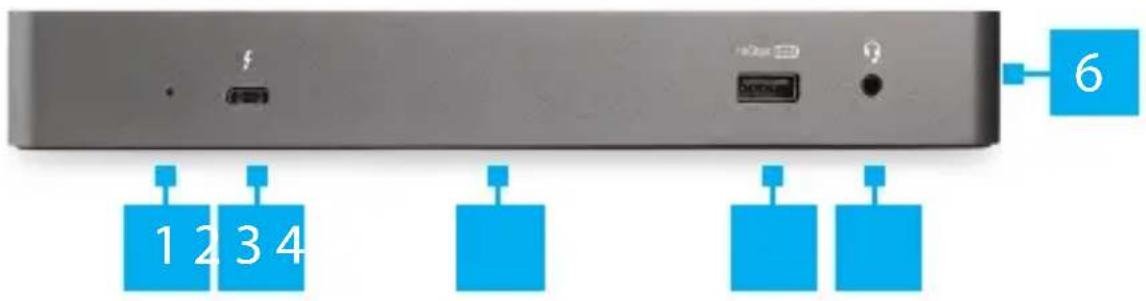
| 1 | Power LED | 4 | USB-A Port |
| 2 | Thunderbolt 3 Host Port | 5 | 3.5 mm Audio Port |
| 3 | Mounting Holes x 4 (bottom) | 6 | Lock Slot (side) |
To view manuals, videos, drivers, downloads, technical drawings, and more visit www.startech.com/support
Rear View
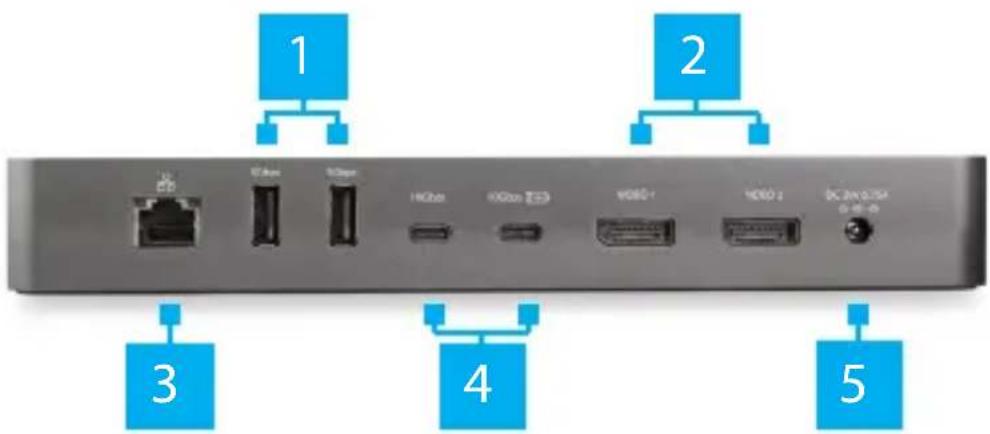
| 1 | USB-A Ports x 2 | 4 | USB-C Ports x 2 |
| 2 | DisplayPort Ports x 2 | 5 | DC 20V Port |
| 3 | RJ45 Port | ||
To view manuals, videos, drivers, downloads, technical drawings, and more visit www.startech.com/support
Product Information
Package Contents
- Docking Station x 1
• Universal Power Adapter x 1
• Power Cords (NA/JP, ANZ) x 2 - TB3CDK2DP
• Power Cords (UK, EU) x 2 - TB3CDK2DPUE
• Thunderbolt 3 Cable (0.7 m) x 1 - User Manual x 1
Requirements
For the latest requirements, please visit www.startech.com/TB3CDK2DP or www.startech.com/TB3CDK2DPUE
Host
- Host Computer with a Thunderbolt 3 or USB-C Port x 1
Note: The Thunderbolt 3 or USB-C port must support USB Power Delivery to power and charge the Host Computer.
Display
• Displays (DisplayPort input) x 2
Note: To connect to a different display (HDMI, VGA, or USB-C), an additional adapter (sold separately) is required. See the Compatible Active Adapters section for further details.
Cables
- DisplayPort Cable x 1
• Thunderbolt 3 Cable x 1
To view manuals, videos, drivers, downloads, technical drawings, and more visit www.startech.com/support
Operating System
- Windows® 8 or 10
• macOS 10.12 10.13 or 10.14
Operating Temperature
Due to the high performance of Thunderbolt technology, Thunderbolt products sometimes generate more heat than traditional hardware. Therefore, it's normal for the docking station to warm up when in use. As such, it's recommended that you don't place your laptop on the docking station's surface, as doing so will result in even higher temperatures.
These higher temperatures do not present a safety hazard to users or to hardware.
Installation
Powering the Docking Station
- Select the appropriate regional Power Cord and connect it to the Universal Power Adapter.
- Connect the Universal Power Adapter to the DC 20V Port on the Docking Station and to an AC Electrical Outlet.
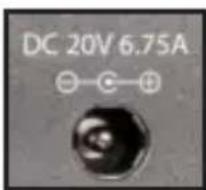
DC 20V Port
To view manuals, videos, drivers, downloads, technical drawings, and more visit www.startech.com/support
Driver Installation
The Docking Station will automatically detect and install the required drivers when connected to a Thunderbolt 3 or USB-C port on the Host Computer.
Windows
- Click on the pop-up message.
- Select Always Connect from the list.
- Click OK.
- If required, follow any other on-screen instructions to complete the installation.
Connecting a Host
Thunderbolt 3 Host
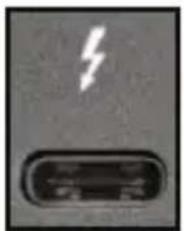
The Thunderbolt 3 Host Port lets you connect your Host Computer to the Docking Station while charging the Host Computer.
A maximum of 60 watts of Power Delivery is available for the connected Host Computer.
- Connect a Thunderbolt 3 Cable (included) to the Thunderbolt 3 Host Port on the Docking Station and to a Thunderbolt 3 port on the Host Computer.
To view manuals, videos, drivers, downloads, technical drawings, and more visit www.startech.com/support
Note: The Thunderbolt 3 Port will have a Thunderbolt icon above the port, indicating that the port has Thunderbolt 3 capabilities.
natural_image
Close-up of a black USB flash drive with a white lightning bolt symbol (no text or labels visible)Thunderbolt 3 Port
USB-C Host
To ensure maximum video compatibility, the Host Computer must support DP Alt Mode when connecting to the Docking Station through the Thunderbolt 3 Port.
- Connect a Thunderbolt 3 Cable to the Thunderbolt 3 Port on the Docking Station and to a USB-C port on the Host Computer.
Connecting Peripherals
USB-A Port (Charging)
The USB-A Port can be used as a charging port (e.g. cell phone, tablet, etc.), or used to connect a USB storage device (e.g. flash drive) to display data/files on the connected Host Computer, or used with a USB peripheral device (e.g. keyboard, mouse, etc.).
Notes: This USB-A port can only fast-charge devices that comply with USB Battery Charging Specification Revision 1.2.
If you're only using the front USB 3.0 port to charge a device, a connection to a host laptop isn't required.
To view manuals, videos, drivers, downloads, technical drawings, and more visit www.startech.com/support
- Connect a USB-A Cable to the USB-A Port on the Docking Station.
- Connect the other end of the USB-A Cable to a USB port on a compatible device.
- or -
Connect a USB Peripheral's USB-A Connector to the USB-A Port on the Docking Station.
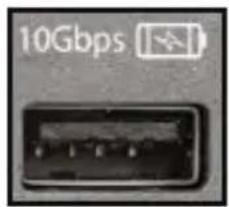
USB-A Port (Charging)
3.5 mm Audio Port
The 3.5 mm Audio Port is used to connect an Audio Device (e.g. headphones, speakers, headset, etc.) to the Docking Station for use with the connected Host Computer.
- Connect a 3.5 mm Audio Cable to the 3.5 mm Audio Port on the Docking Station.
- If connecting speakers, connect the other end of the 3.5 mm Audio Cable to the Audio In Port on the Audio Device.
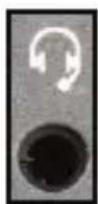
3.5 mm Audio Port
To view manuals, videos, drivers, downloads, technical drawings, and more visit www.startech.com/support
RJ45 Port (Network Device)
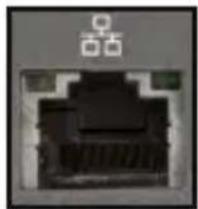
The RJ45 Port lets you connect a Network Device to the Docking Station.
- Connect a CAT5e/6 Cable to the RJ45 Port on the Docking Station and to a compatible Network Device.
natural_image
Close-up of a black Ethernet port connector (no visible text or symbols)RJ45 Port
USB-A Port
The USB-A Port can be used to connect a USB storage device (e.g. flash drive) to display data/files on the connected Host Computer, or used with a USB peripheral device (e.g. keyboard, mouse, etc.).
- Connect a USB Peripheral's USB-A Connector to the USB-A Port on the Docking Station.
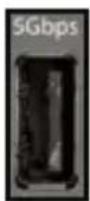
USB-A Port
USB-C Port (Charging)
The USB-C Port can be used as a charging port (e.g. cell phone, tablet, etc.).
To view manuals, videos, drivers, downloads, technical drawings, and more visit www.startech.com/support
- Connect a USB-C Cable to the USB-C Port on the Docking Station and to a USB port on a compatible device.
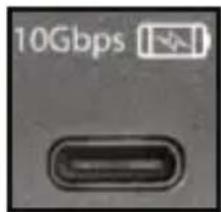
USB-C Port (Charging)
USB-C Port
The USB-C Port is used to connect a USB storage device (e.g. flash drive) to display data/files on the connected Host Computer or used with a USB peripheral device.
- Connect a USB Peripheral's USB-C Connector to the USB-C Port on the Docking Station.
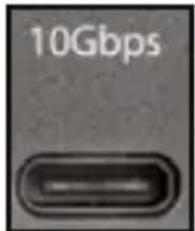
USB-C Port
DisplayPort Port
The two DisplayPort Ports let you connect two Displays to the Host Computer.
To view manuals, videos, drivers, downloads, technical drawings, and more visit www.startech.com/support
- Connect a DisplayPort Cable to the DisplayPort Port on the Docking Station and to a DisplayPort port on the Video Display Device.
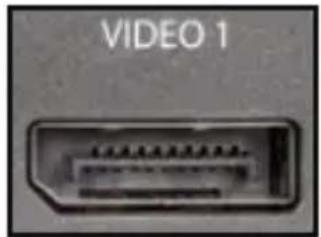
DisplayPort Port
Note: To connect an HDMI, DVI or VGA monitor, an active adapter is required.
Compatible Active Adapters
| Type of Display | Adapter Needed (sold separately) |
| HDMI DisplayPort to HDMI 4K Audio/Video Converter (DP2HD4KS) | |
| DVI DisplayPort to DVI Adapter (DP2DVIS) | |
| VGA DisplayPort to VGA Adapter (DP2VGA2) | |
To view manuals, videos, drivers, downloads, technical drawings, and more visit www.startech.com/support
LED Indicators
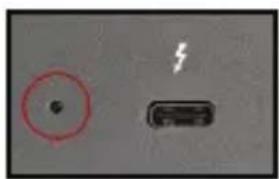
Power LED
- White: Indicates that the Docking Station is connected and properly receiving power.
natural_image
Close-up of a red circle containing a small dark spot next to a black connector with a lightning bolt symbol (no text or labels)Power LED
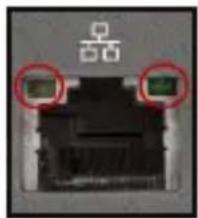
RJ45 LED
- Green: Indicates that the Docking Station is receiving a link speed of 10Mbps, 100Mbps or 1Gbps.
- Flashing Amber: Indicates network activity.
natural_image
Close-up of a black electronic device with two red circular annotations highlighting features (no readable text or symbols)Amber and Green RJ45 LEDs
To view manuals, videos, drivers, downloads, technical drawings, and more visit www.startech.com/support
Video Resolution
| Host Connection Resolution Frequency | Single/Mirror Mode | Dual Screen Extended | ||
| DP Alt Mode | Full HD:1920x1080 or 1920x1200 | 60Hz Yes | Yes | |
| 2K: 2560x1440 or 2560x1600 | 60Hz Yes | No | ||
| UHD:3840x2160 | 30Hz Yes | No | ||
| Thunderbolt 3 | Full HD:1920x1080 or 1920x1200 | 60Hz Yes | Yes | |
| 2K: 2560x1440 or 2560x1600 | 60Hz Yes | Yes | ||
| UHD:3840x2160 | 60Hz Yes | Yes | ||
| 4K: 4096x2160 60Hz Yes Yes | ||||
To view manuals, videos, drivers, downloads, technical drawings, and more visit www.startech.com/support
Mounting the Docking Station
The Docking Station can be mounted using Mounting Hardware (sold separately).
Notes: Product mounting should be completed by a certified professional as per the local safety and building code guidelines.
Mounting surfaces can vary, and it's important to make sure that the type of structure and mounting hardware that you're using will properly support the mounted equipment. Failure to do so may result in personal injury, equipment damage, and/or surface damage.
Warranty Information
This product is backed by a three-year warranty.
For further information on product warranty terms and conditions, please refer to www.startech.com/warranty.
Limitation of Liability
In no event shall the liability of StarTech.com Ltd. and StarTech.com USA LLP (or their officers, directors, employees or agents) for any damages (whether direct or indirect, special, punitive, incidental, consequential, or otherwise), loss of profits, loss of business, or any pecuniary loss, arising out of or related to the use of the product exceed the actual price paid for the product.
Some states do not allow the exclusion or limitation of incidental or consequential damages. If such laws apply, the limitations or exclusions contained in this statement may not apply to you.
Hard-to-find made easy. At StarTech.com, that isn't a slogan. It's a promise.
StarTech.com is your one-stop source for every connectivity part you need. From the latest technology to legacy products — and all the parts that bridge the old and new — we can help you find the parts that connect your solutions.
We make it easy to locate the parts, and we quickly deliver them wherever they need to go. Just talk to one of our tech advisors or visit our website. You'll be connected to the products you need in no time.
Visit www.startech.com for complete information on all StarTech.com products and to access exclusive resources and time-saving tools.
StarTech.com is an ISO 9001 Registered manufacturer of connectivity and technology parts. StarTech.com was founded in 1985 and has operations in the United States, Canada, the United Kingdom and Taiwan servicing a worldwide market.
Reviews
Share your experiences using StarTech.com products, including product applications and setup, what you love about the products, and areas for improvement.
StarTech.com Ltd.
45 Artisans Cres.
London, Ontario
N5V 5E9
Canada
StarTech.com LLP
2500 Creekside Pkwy.
Lockbourne, Ohio
43137
U.S.A.
StarTech.com Ltd.
Unit B, Pinnacle
15 Gowerton Rd., Brackmills
Northampton
NN4 7BW
United Kingdom
FR: fr.startech.com
DE: de.startech.com
ES: es.startech.com
NL: nl.startech.com
IT: it.startech.com
JP: jp.startech.com



- Thunderbolt™ 3 Dock with USB-C Laptop Compatibility | Dual 4K DisplayPort | 60W PD
- User Manual
- Compliance Statements
- FCC Compliance Statement
- Use of Trademarks, Registered Trademarks, and other Protected Names and Symbols
- Safety Statements
- Safety Measures
- Mesures de sécurité
- Säkerhetsåtgärder
- LED Indicators....15
- Video Resolution....17
- Mounting the Docking Station 18
- Product Diagram
- Front View
- Rear View
- Product Information
- Package Contents
- Requirements
- Host
- Display
- Cables
- Operating System
- Operating Temperature
- Installation
- Powering the Docking Station
- Driver Installation
- Windows
- Connecting a Host
- Thunderbolt 3 Host
- USB-C Host
- Connecting Peripherals
- USB-A Port (Charging)
- mm Audio Port
- RJ45 Port (Network Device)
- USB-A Port
- USB-C Port (Charging)
- USB-C Port
- DisplayPort Port
- LED Indicators
- Power LED
- RJ45 LED
- Mounting the Docking Station
- Warranty Information
- Limitation of Liability
- Hard-to-find made easy. At StarTech.com, that isn't a slogan. It's a promise.
- Reviews
Brand : StarTech.com
Model : TB3CDK2DPUE
Category : Computer Accessories