KX-TG6583 - Phone PANASONIC - Free user manual and instructions
Find the device manual for free KX-TG6583 PANASONIC in PDF.


User questions about KX-TG6583 PANASONIC
0 question about this device. Answer the ones you know or ask your own.
Ask a new question about this device
Download the instructions for your Phone in PDF format for free! Find your manual KX-TG6583 - PANASONIC and take your electronic device back in hand. On this page are published all the documents necessary for the use of your device. KX-TG6583 by PANASONIC.
USER MANUAL KX-TG6583 PANASONIC
Operating Instructions
Link-to-Cell Cellular Convergence Solution
Model No. KX-TG6582
KX-TG6583

natural_image
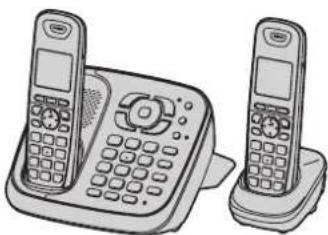
Illustration of two vintage mobile phones with keypad and front panels (no text or symbols)Model shown is KX-TG6582.
DECT
6.0
Bluetooth®
Before initial use, see "Getting Started" on page 8.
Thank you for purchasing a Panasonic product.
Please read these operating instructions before using the unit and save them for future reference.
This unit is compatible with Caller ID. You must subscribe to the appropriate service offered by your service provider/telephone company.
For assistance, visit our Web site: http://www.panasonic.com/help for customers in the U.S.A. or Puerto Rico.
Please register your product: http://www.panasonic.com/prodreg






Table of Contents
Introduction
Model composition 3
Accessory information....3
Expanding your phone system ..... 4
Important Information
For your safety 5
Important safety instructions ..... 6
For best performance 6
Other information....7
Specifications 7
Getting Started
Setting up 8
Note when setting up. 9
Intelligent eco mode ..... 10
Controls. 10
Initial settings....14
Link to Cell
Link to cell feature ..... 15
Registering a cellular phone ..... 15
Link to cell settings ..... 16
Making/Answering Calls Using the Handset
Making cellular calls ..... 20
Making landline calls ..... 20
Answering calls 21
Useful features during a call ..... 21
Making/Answering Calls Using the Base Unit
Making cellular calls 25
Making landline calls 25
Answering calls 25
Useful features during a call ..... 26
Shared Phonebook
Shared phonebook 29
Programming
Programmable settings ..... 32
Special programming 40
Registering a unit 42
Caller ID Service
Using Caller ID service 43
Caller list. 44
Using Bluetooth Devices
Copying phonebook from a cellular
phone (phonebook transfer) ..... 47
Using a Bluetooth wireless headset
(optional) for landline calls ..... 48
Answering System for Landline
Answering system for landline ..... 50
Turning the answering system on/off 50
Greeting message 51
Listening to messages using the base
unit 51
Listening to messages using the
handset....52
Voice memo 53
Remote operation. 53
Answering system settings ..... 55
Voice Mail Service for Landline
Voice mail service for landline ..... 57
Intercom/Locator
Intercom 59
Handset locator 59
Transferring calls, Conference calls . 59
Useful Information
Wall mounting....61
Error messages 62
Troubleshooting 63
FCC and other information ..... 72
Customer services 83
Warranty (For United States and Puerto
Rico) 84
Index
Index. 86
Introduction
Model composition
| Series Model No. | Base unit Handset | |||
| Part No. Part | No. Quantity | |||
| KX-TG6581 series | KX-TG6582 KX-TG6581 KX-TGA651 2 | |||
| KX-TG6583 KX-TG6581 KX-TGA651 3 | ||||
Accessory information
Supplied accessories
| No. | Accessory item/Order number | Quantity | |
| KX-TG6582 | KX-TG6583 | ||
| 1AC | adaptor/PQLV219Y 2 3 | ||
| 2Telephone line cord/PQJA10075Z | 1 | 1 | |
| 3Rechargeable batteries/HHR-4DPA(Part No. HHR-55AAABU orN4DHYYY00004) | 4 | 6 | |
| 4Handset cover *1/PNYNTGA652BR | 2 | 3 | |
| 5Bell clip/PNKE1054Z1 2 3 | |||
| 6Charger/PNLC1010ZT | 1 2 | ||
*1 The handset cover comes attached to the handset.
①

②

③

④

⑤

⑥









Introduction
Additional/replacement accessories
Please contact your nearest Panasonic dealer for sales information (page 83).
| Accessory item Order number | |
| Rechargeable batteries | HHR-4DPA^*1 ●To order, please call 1-800-332-5368 or visit http://www.panasonic.com/batterystore |
| Battery type:-Nickel metal hydride (Ni-MH)-2 x AAA (R03) size for each handset | |
| Headset KX-TCA60, KX-TCA93, KX-TCA94, KX-TCA400, KX-TCA430 | |
| T-adaptor KX-J66 | |
| Battery back-up power supply | KX-TCA230 |
*1 Replacement batteries may have a different capacity from that of the supplied batteries.
Expanding your phone system
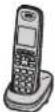
You can expand your phone system by registering the following units to a single base unit.
- Optional handsets may be a different color from that of the supplied handsets.
| Handset KX-TGA651 (optional): 6 max. | Range extender KX-TGA405*1 (optional): 2 max. | Your Bluetooth® cellular phone*2: 2 max. (for cellular calls: page 15) | Your Bluetooth headset*2: 1 max. (for a wireless hands-free conversation: page 48) |
 |  |  |  |
*1 You can extend the range of your phone system to include areas where reception was previously not available. This product can be purchased online. Please visit our Web site: http://www.panasonic.com/RangeExtender
*2 Your cellular phone and headset must be Bluetooth wireless technology compatible. For more details and the list of compatible cellular phones, please visit our Web site: http://www.panasonic.com/LinkToCell
Important Information
For your safety
To prevent severe injury and loss of life/property, read this section carefully before using the product to ensure proper and safe operation of your product.
WARNING
Power connection
- Use only the power source marked on the product.
- Do not overload power outlets and extension cords. This can result in the risk of fire or electric shock.
- Completely insert the AC adaptor/power plug into the power outlet. Failure to do so may cause electric shock and/or excessive heat resulting in a fire.
- Regularly remove any dust, etc. from the AC adaptor/power plug by pulling it from the power outlet, then wiping with a dry cloth. Accumulated dust may cause an insulation defect from moisture, etc. resulting in a fire.
● Unplug the product from power outlets if it emits smoke, an abnormal smell, or makes an unusual noise. These conditions can cause fire or electric shock. Confirm that smoke has stopped emitting and contact the Panasonic Call Center at 1-800-211-PANA (1-800-211-7262). - Unplug from power outlets and never touch the inside of the product if its casing has been broken open.
- Never touch the plug with wet hands. Danger of electric shock exists.
Installation
- To prevent the risk of fire or electrical shock, do not expose the product to rain or any type of moisture.
- Do not place or use this product near automatically controlled devices such as automatic doors and fire alarms. Radio waves emitted from this product may cause such devices to malfunction resulting in an accident.
- Do not allow the AC adaptor or telephone line cord to be excessively pulled, bent or placed under heavy objects.
Operating safeguards
● Unplug the product from power outlets before cleaning. Do not use liquid or aerosol cleaners.
- Do not disassemble the product.
- Do not spill liquids (detergents, cleansers, etc.) onto the telephone line cord plug, or allow it to become wet at all. This may cause a fire. If the telephone line cord plug becomes wet, immediately pull it from the telephone wall jack, and do not use.
Medical
- Consult the manufacturer of any personal medical devices, such as pacemakers or hearing aids, to determine if they are adequately shielded from external RF (radio frequency) energy. (The product operates in the frequency range of 1.92 GHz to 1.93 GHz, and the RF transmission power is 115 mW (max..))
- Do not use the product in health care facilities if any regulations posted in the area instruct you not to do so. Hospitals or health care facilities may be using equipment that could be sensitive to external RF energy.
CAUTION
Installation and location
- Never install telephone wiring during an electrical storm.
- Never install telephone line jacks in wet locations unless the jack is specifically designed for wet locations.
- Never touch uninsulated telephone wires or terminals unless the telephone line has been disconnected at the network interface.
- Use caution when installing or modifying telephone lines.
- The AC adaptor is used as the main disconnect device. Ensure that the AC outlet is installed near the product and is easily accessible.
- This product is unable to make calls when:
- the handset batteries need recharging or have failed.
- there is a power failure.







Important Information
Battery
- We recommend using the batteries noted on page 4. USE ONLY rechargeable Ni-MH batteries AAA (R03) size.
- Do not mix old and new batteries
- Do not open or mutilate the batteries. Released electrolyte from the batteries is corrosive and may cause burns or injury to the eyes or skin. The electrolyte is toxic and may be harmful if swallowed.
- Exercise care when handling the batteries. Do not allow conductive materials such as rings, bracelets, or keys to touch the batteries, otherwise a short circuit may cause the batteries and/or the conductive material to overheat and cause burns.
- Charge the batteries provided with or identified for use with this product only, in accordance with the instructions and limitations specified in this manual.
- Only use a compatible base unit (or charger) to charge the batteries. Do not tamper with the base unit (or charger). Failure to follow these instructions may cause the batteries to swell or explode.
Attention:

A nickel metal hydride battery that is recyclable powers the product you have purchased. Please call 1-800-8-BATTERY (1-800-822-8837) for information on how to recycle this battery.
Important safety instructions
When using your product, basic safety precautions should always be followed to reduce the risk of fire, electric shock, and injury to persons, including the following: 1. Do not use this product near water for example, near a bathtub, washbowl,
kitchen sink, or laundry tub, in a wet basement or near a swimming pool.
- Avoid using a telephone (other than a cordless type) during an electrical storm. There may be a remote risk of electric shock from lightning.
- Do not use the telephone to report a gas leak in the vicinity of the leak.
- Use only the power cord and batteries indicated in this manual. Do not dispose of batteries in a fire. They may explode. Check with local codes for possible special disposal instructions.
SAVE THESE INSTRUCTIONS
For best performance
Base unit location/avoiding noise
The base unit and other compatible Panasonic units use radio waves to communicate with each other.
- For maximum coverage and noise-free communications, place your base unit:
- at a convenient, high, and central location with no obstructions between the handset and base unit in an indoor environment.
- away from electronic appliances such as TVs, radios, personal computers, wireless devices, or other phones.
- facing away from radio frequency transmitters, such as external antennas of mobile phone cell stations. (Avoid putting the base unit on a bay window or near a window.)
- Coverage and voice quality depends on the local environmental conditions.
- If the reception for a base unit location is not satisfactory, move the base unit to another location for better reception.
Environment
- Keep the product away from electrical noise generating devices, such as fluorescent lamps and motors.
- The product should be kept free from excessive smoke, dust, high temperature, and vibration.
● The product should not be exposed to direct sunlight. - Do not place heavy objects on top of the product.
Important Information

- When you leave the product unused for a long period of time, unplug the product from the power outlet.
- The product should be kept away from heat sources such as heaters, kitchen stoves, etc. It should not be placed in rooms where the temperature is less than 0^ (32°F) or greater than 40^ (104°F). Damp basements should also be avoided.
- The maximum calling distance may be shortened when the product is used in the following places: Near obstacles such as hills, tunnels, underground, near metal objects such as wire fences, etc.
- Operating the product near electrical appliances may cause interference. Move away from the electrical appliances.
Routine care
●Wipe the outer surface of the product with a soft moist cloth.
- Do not use benzine, thinner, or any abrasive powder.
Other information
CAUTION: Risk of explosion if battery is replaced by an incorrect type. Dispose of used batteries according to the instructions.
Notice for product disposal, transfer, or return
- This product can store your private/confidential information. To protect your privacy/confidentiality, we recommend that you erase information such as phonebook or caller list entries from the memory before you dispose of, transfer, or return the product.
Notice
As an ENERGY STAR® Partner, Panasonic has determined that this product meets the ENERGY STAR guidelines for energy efficiency. ENERGY STAR is a U.S. registered mark.

Specifications
Standard:
DECT 6.0 (Digital Enhanced Cordless Telecommunications 6.0) Bluetooth wireless technology 2.0
■Frequency range:
1.92 GHz to 1.93 GHz (DECT)
2.402 GHz to 2.48 GHz (Bluetooth)
■ RF transmission power: 115 mW (max.)
■ Power source: 120 V AC, 60 Hz
■Power consumption: Base unit:
Standby: Approx. 1.2 W Maximum: Approx. 4.5 W
Charger:
Standby: Approx. 0.1 W Maximum: Approx. 2.6 W
■Operating conditions:
0 °C - 40 °C (32 °F - 104 °F), 20 % - 80 % relative air humidity (dry)
Note:
- Design and specifications are subject to change without notice.
●The illustrations in these instructions may vary slightly from the actual product.







Getting Started
Setting up
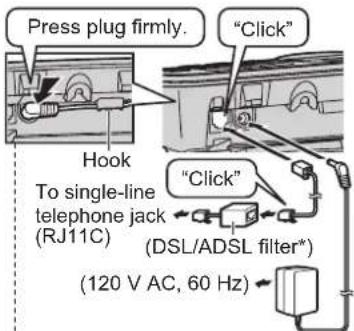
Connections
- Use only the supplied Panasonic AC adaptor PQLV219.
■Base unit
- If you do not connect the telephone line cord and use only cellular lines, set the cellular line only mode to use this unit more conveniently (page 17).
text_image
Press plug firmly. "Click" Hook To single-line telephone jack (RJ11C) (DSL/ADSL filter*) (120 V AC, 60 Hz)Correct Wrong
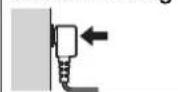

*DSL/ADSL filter (not supplied) is required if you have DSL/ADSL service.
■Charger
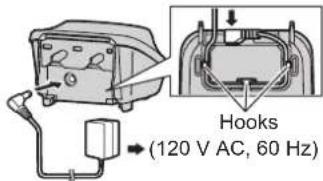
text_image
Hooks (120 V AC, 60 Hz)Battery installation
- USE ONLY Ni-MH batteries AAA (R03) size.
- Do NOT use Alkaline/Manganese/Ni-Cd batteries.
- Confirm correct polarities (, ) .
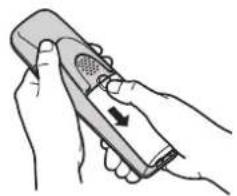
natural_image
Illustration of hands holding a handheld device with a scroll wheel (no text or symbols)(Rechargeable Ni-MH ONLY
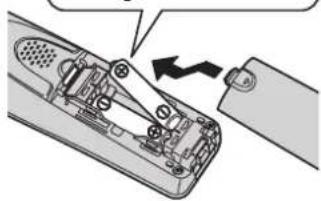
natural_image
Diagram of a remote control device with a switch and cable, showing internal components without any text or symbols.Battery charge
Charge for about 7 hours.
- When the batteries are fully charged, the charge indicator goes off and "Fully charged" is displayed.
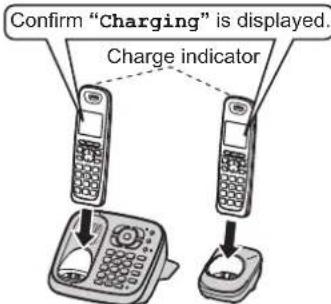
text_image
Confirm "Charging" is displayed. Charge indicatorGetting Started
Note when setting up
Note for connections
●The AC adaptor must remain connected at all times. (It is normal for the adaptor to feel warm during use.)
- The AC adaptor should be connected to a vertically oriented or floor-mounted AC outlet. Do not connect the AC adaptor to a ceiling-mounted AC outlet, as the weight of the adaptor may cause it to become disconnected.
During a power failure
The unit will not work during a power failure. We recommend connecting a corded-type telephone (without AC adaptor) to the same telephone line or to the same telephone line jack using a Panasonic T-adaptor (page 4).
Emergency power can be supplied to the unit by connecting a Panasonic battery back-up power supply noted on page 4.
Note for battery installation
- Use the supplied rechargeable batteries. For replacement, we recommend using the Panasonic rechargeable batteries noted on page 4, 6.
- Wipe the battery ends (⊕, ⊖) with a dry cloth.
- Avoid touching the battery ends (⊕, ⊖) or the unit contacts.
Note for battery charge
- It is normal for the handset to feel warm during charging.
- Clean the charge contacts of the handset, base unit, and charger with a soft and dry cloth once a month. Clean more often if the unit is exposed to grease, dust, or high humidity.
Battery level
| Icon Battery level |
| High |
| Medium |
| Low |
| Needs charging. |
| Empty |
Panasonic Ni-MH battery performance (supplied batteries)
| Operation Operating time | |
| In continuous use | 9 hours max.*1 |
| Not in use (standby) | 8 days max.*1 |
*1 If Eco mode is on.
Note:
- Actual battery performance depends on usage and ambient environment.
- Even after the handset is fully charged, the handset can be left on the base unit or charger without any ill effect on the batteries.
●The battery level may not be displayed correctly after you replace the batteries. In this case, place the handset on the base unit or charger and let it charge for at least 7 hours.







Getting Started
Intelligent eco mode
This feature automatically reduces handset power consumption by suppressing handset transmission power when the handset is close to the base unit.
- When this feature is activated, ECO is displayed. However, during a cellular call, ECO is not displayed even though this feature is activated.
- Eco mode is turned off when the clarity booster is activated (page 22).
Controls
Base unit
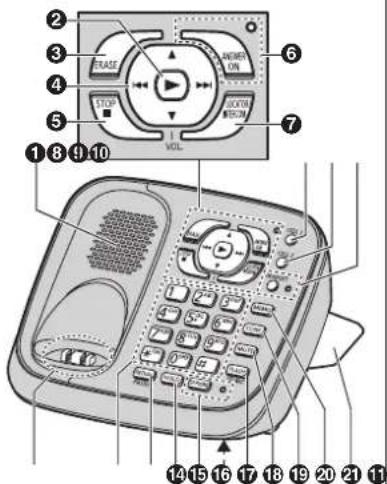
text_image
Diagram of a landline telephone with numbered parts and control panel labels in Chinese①Speaker
②[▶] (Play)
Message indicator
③[ERASE]
④ [▲]/[▼] (VOL.: Volume up/down)
[◀◀]/[▶◀] (Repeat/Skip)
⑤[■] (STOP)
⑥[ANSWER ON] ANSWER ON indicator
⑦ [LOCATOR] [INTERCOM]
⑧[CELL 1] CELL 1 indicator
⑨[CELL 2] CELL 2 indicator
⑩[HEADSET] HEADSET indicator
⑪Charge contacts
⑫ Dial keypad (【*】: TONE)
⑬ [REDIAL] [PAUSE]
14[HOLD]
⑮[SP-PHONE] (Speakerphone) SP-PHONE indicator
⑯Microphone
⑰ [FLASH] [CALL WAIT]
⑱[MUTE]
⑲[CONF] (Conference)
⑳[MEMO]
②Bracket *1
*1 The base unit has an unremovable bracket for desk or wall mounting. To mount on a wall, see page 61.
12 13
Getting Started
Handset
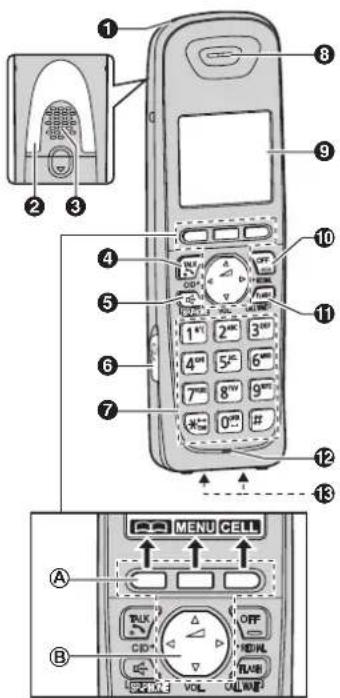
text_image
Diagram of a mobile phone with labeled parts including control panel, keypad, and function buttons①Charge indicator
Ringer indicator
Message indicator
②Nonslip pad
- Nonslip pad offers support when you cradle the handset between your shoulder and ear.
③Speaker
④[\~] (TALK)
⑤[◀] (SP-PHONE: Speakerphone)
6Headset jack
⑦ Dial keypad (【*】: TONE)
8Receiver
⑨Display
10[OFF]
⑪ [FLASH] [CALL WAIT]
⑫Microphone
⑬Charge contacts
■Control type
Ⓐ Soft keys
The handset features 3 soft keys. By pressing a soft key, you can select the feature shown directly above it on the display.
⑧ Navigator key
- [▲], [▼], [◀], or [▶]: Scroll through various lists and items.
- ∠ VOL. (Volume: [▲] or [▼]): Adjust the receiver or speaker volume while talking.
- 【◀】CID (Caller ID): View the caller list.
-【▶】REDIAL: View the redial list.
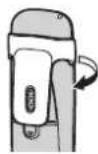
Belt clip
■ To attach
■ To remove
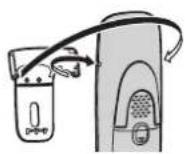
Display/Indicators
Handset display items
| Item Meaning | |
| Within base unit range | |
| Out of base unit range | |
| The landline is in use.When flashing:The call is put on hold.When flashing rapidly: An incoming call is now being received. |






Getting Started
| Item Meaning | |
| A cellular line is in use.●When flashing: the cellular call is put on hold.●When flashing rapidly: a cellular call is being received. | |
| ^1_2 | A cellular phone is connected. ^*1 Ready to make/receive cellular calls.●When turned off: a cellular phone is not connected to the base unit (page 17). |
| C1C2 | - The cellular line is selected for the ringer setting.- A cellular call is being received on that line. |
| ECO Eco mode is on. ^*2 (page 10) | |
| Speakerphone is on.(page 20) | |
| ^*1_2 | Ringer volume is off. ^*3 (page 39) |
| Silent mode is on.(page 40) | |
| PRIV Privacy mode is on.(page 23) | |
| Alarm is on.(page 40) | |
| Handset number | |
| Battery level | |
| Blocked call (page 41) | |
| Clarity booster is on. ^*2 (page 23) | |
| In use Answering system is being used by another handset or the base unit. | |
| Item | Meaning |
| Cell1in use | Someone is using the cellular line. |
| Cell2in use | |
| Line in use | Someone is using the landline. |
*1 Corresponding cellular line(s) is indicated next to the item.
*2 During a cellular call, the item is not displayed even though the feature is activated.
*3 Corresponding lines (1, 2: cellular line, L: landline) are indicated next to the item. If all lines are turned off, no line is indicated.
CELL 1/CELL 2 indicators on the base unit
The CELL 1/CELL 2 indicators show each cellular line status.
| Status Meaning | ||
| Color | Light pattern | |
| Green | On | A cellular phone is connected. Ready to make/receive cellular calls. |
| Flashing | - The cellular line is in use.- Phonebook entries are being copied from a cellular phone (page 47). | |
| Flashing rapidly | A cellular call is being received. | |











Getting Started
| Status Meaning | ||
| Color Light pattern | ||
| Amber On A cellular phone is not connected to the base unit (page 17). | ||
| Red Flashing – The base unit is registering a cellular phone. – A cellular call is put on hold. | ||
| Light off | –A cellular phone is not registered to the base unit. | |
| Status Meaning | ||
| Color Light pattern | ||
| Amber On The Bluetooth headset is not connected to the base unit. | ||
| Red Flashing – The base unit is registering a headset.- Mute is turned on. | ||
| Light off | – A Bluetooth headset is not registered to the base unit. | |
HEADSET indicator on the base unit The HEADSET indicator shows the Bluetooth headset status.
| Status Meaning | ||
| Color Light pattern | ||
| Green On A Bluetooth | headset is connected to the base unit. Ready to use it. | |








Getting Started
Initial settings
Symbol meaning: Example: [▼]/[▲]: "Off" Press [▼] or [▲] to select the words in quotations.
Display language
You can select either "English" or "Español" as the display language. The default setting is "English".
1 [MENU] → [#][1][1][0]
2 [▼]/[▲]: Select the desired setting.
3 [SAVE] → [OFF]
Voice guidance language
You can select either "English" or "Español" as the voice guidance language of the answering system. The default setting is "English".
1 [MENU] → [#][1][1][2]
2 [▼]/[▲]: Select the desired setting.
3 [SAVE] → [OFF]
Dialing mode
If you cannot make calls, change this setting according to your telephone line service. The default setting is "Tone". "Tone": For tone dial service.
"Pulse": For rotary/pulse dial service.
1 [MENU] → [#][1][2][0]
2 [▼]/[▲]: Select the desired setting.
3 [SAVE] → [OFF]
Date and time
1 [MENU] → [#][1][0][1]
2 Enter the current month, date, and year by selecting 2 digits for each.
Example: July 15, 2010
[0][7][1][5][1][0]
3 [OK]
4 Enter the current hour and minute (12-hour clock format) by selecting 2 digits for each.
Example: 9:30
[0][9][3][0]
5 [AM/PM]: Select "AM" or "PM".
6 [SAVE] → [OFF]
Note:
- When English is selected as the display language, 12-hour clock format is used. When Spanish is selected, 24-hour clock format is used.
- To correct a digit, press [◀] or [▶] to move the cursor to the digit, then make the correction.
- The date and time may be incorrect after a power failure. In this case, set the date and time again.
Link to Cell
Link to cell feature
To use this feature, you must first register and connect your cellular phones to the base unit (page 15).
Your cellular phones must be Bluetooth wireless technology compatible with this product.
This feature allows you to:
- make or answer cellular calls using your home phone (handset or base unit) with better reception.
– maximize the benefits of cellular services (such as free night and weekend calls, or cellular to cellular call plans) by utilizing unused peak minutes with your home phone.
– conserve the battery power of your cellular phone while the unit is on a cellular call. (We recommend charging your cellular phone during the cellular call as your cellular phone battery is being consumed.)
Important:
- Up to 2 cellular phones can be registered. However, only one Bluetooth device (cellular phone or headset) can be connected to the base unit at a time.
- Locate your cellular phone near the base unit. If the cellular phone is too close to the base unit during a cellular call, you may hear noise. For best performance, we recommend placing the cellular phone between 0.6 m to 3 m (2 feet to 10 feet) away from the base unit.
Trademarks
- The Bluetooth ^® word mark and logos are owned by the Bluetooth SIG, Inc. and any use of such marks by Panasonic Corporation is under license. Other trademarks and trade
names are those of their respective owners.
Registering a cellular phone
Important:
- For more details and the list of compatible cellular phones, please visit our Web site: http://www.panasonic.com/LinkToCell
- Before registering a Bluetooth enabled cellular phone to the base unit:
- we recommend you change the PIN (page 18).
— make sure that no Bluetooth device such as a Bluetooth headset is connected to your cellular phone.
1 Handset:
[MENU] →
For CELL 1: [☐][6][2][4][1]
For CELL 2: [#][6][2][4][2]
● After the CELL 1 or CELL 2 indicator on the base unit starts flashing red, the rest of the procedure must be completed within 5 minutes.
2 Your cellular phone:
While the CELL 1 or CELL 2 indicator is flashing red, follow the instructions of your cellular phone to enter the registration mode.
- Depending on your cellular phone, it may ask you to enter the base unit PIN (default: "0000").
3 Handset:
Wait until a long beep sounds.
- It may take more than 10 seconds to complete registration.
- When the CELL 1 or CELL 2 indicator lights green, the cellular








Link to Cell
phone is connected to the base unit. You are ready to make cellular calls.
4 To select which unit receives calls for the cellular line, press [OK] then continue from step 3, "Selecting which unit receives cellular calls", page 16.
- If not required, go to step 5.
5 [OFF]
Note:
- Make sure that your cellular phone is set to connect to this product automatically. Refer to your cellular phone's operating instructions.
- Make sure you cancel your cellular phone's current registration if you want to register it to the other line (page 19).
Link to cell settings
Selecting which unit receives cellular calls
You can select which unit rings and receives calls for a cellular line. When "A11" is selected, all handsets and the base unit ring.
1 [MENU]
2 For CELL 1: [#][6][2][7][1]
For CELL 2: [#][6][2][7][2]
3 [▼]/[▲]: Select the desired handset or "A11".
4 [SAVE] → [OFF]
Note:
- When you select a specific handset to receive calls for a cellular line: - other handsets cannot answer the calls.
- the base unit can answer the calls even though it does not ring. However, you can make the base unit ring by adjusting the base unit ringer volume (page 36).
- When you change the setting to "All", the base unit ringer volume also returns to the lowest level even if the ringer volume has been changed.
Ring as cell mode
Once this feature is turned on, the handset and base unit ring using the same ringer tone as your cellular phone. The following settings are available:
- "off": Turn this feature off to use the ringer tones of the handset and base unit. Caller information is announced depending on the Talking Caller ID setting (page 35).
- “On (with Talking CID)” (default): The handset and base unit use your cellular phone’s ringer tone. Caller information is announced even if the Talking Caller ID is turned off.
- "On (without Talking CID)": The handset and base unit use your cellular phone's ringer tone. Caller information is not announced even if the Talking Caller ID is turned on.
Important:
- To use this feature, your cellular phone must support Bluetooth in-band ringtone. Refer to your cellular phone's operating instructions.
1 [MENU]
2 For CELL 1: [☐][6][1][4][1]
For CELL 2: [☐][6][1][4][2]
3 [▼]/[▲]: Select the desired setting.
4 [SAVE] → [OFF]
Note:
●The units use the preset ringer tones (page 36) instead of your cellular
Link to Cell
phone's ringer tone when a cellular call is being received if:
- your cellular phone is in silent mode. (depending on your cellular phone)
- the base unit or 2 or more handsets are on a landline call or an intercom call.
- If your cellular phone is in silent mode with "On (with Talking CID)" set, the unit announces caller information even when Talking Caller ID is turned off (page 35).
To use the handset ringer tone instead of your cellular phone's ringer tone
Select "off" in step 3, "Ring as cell mode", page 16.
To change the handset ringer tone for a cellular line, see page 36.
Auto connection to the cellular phone
After registration, your cellular phone is connected to the base unit. If you move the cellular phone out of base unit range, the cellular phone is disconnected from the base unit. This feature allows the base unit to try to reconnect the cellular phone at regular intervals when it returns within base unit range. You can set the interval. The default setting is "1 min".
Important:
- When you are using a cellular line or a Bluetooth headset, the base unit loses its connection from other Bluetooth devices (cellular phone or headset). To automatically resume the connection to cellular phones, leave the auto connection on.
- Some cellular phones lose connection after usage, please check the specification of your cellular phone for more details.
1 [MENU] → [#][6][3][2]
2 [▼]/[▲]: Select the desired setting.
3 [SAVE] → [OFF]
Note:
- Some cellular phone may ask you if you accept the connection requirement from the base unit. In that case, select "Off" in step 2. Check the specification of your cellular phone.
Connecting/disconnecting the cellular phone manually
When you make or answer calls with your cellular phone, we recommend disconnecting it from the base unit, otherwise received audio may not be heard on your cellular phone. You can also manually reconnect the cellular phone to the base unit without waiting for the auto connection feature to resume the connection.
1 [MENU]
2 To connect/disconnect: For CELL 1: [#][6][2][5][1] For CELL 2: [#][6][2][5][2]
●A long beep sounds.
3 [OFF]
Cellular line only mode (If you do not use the landline)
If you do not use the landline, we recommend setting the unit to the cellular line only mode.
1 [MENU] → [#][1][5][7]
2 To turn on:
$$ [ \nabla ] / [ \triangle ]: ^ {\prime \prime} \text {On}" \rightarrow [ \text {SELECT} ] \rightarrow $$
$$ [ \nabla ] / [ \triangle ]: ^ {\prime \prime} \text {Yes} ^ {\prime \prime} \rightarrow [ \text {SELECT} ] $$
$$ \text { To turn off: } $$
$$ [ \nabla ] / [ \triangle ]: \text { "off" } \rightarrow [ \text { SELECT } ] $$








Link to Cell
Note:
- Once you set this mode, you can use the following buttons to make cellular calls:
- for the handset, press [◀] or [◀] instead of [CELL] (page 20).
- for the base unit, press [SP-PHONE] instead of the line button ([CELL 1] or [CELL 2]) set for the cellular line selection (page 18, 25).
- Once you set this mode, the following features cannot be used:
- Landline features (page 34, 37)
- Answering system (page 50). Messages cannot be received. However, you can only record voice memo messages (page 53).
– Voice mail features (page 57).
● After this mode is turned on or off, the base unit reboots. - Bluetooth connections from cellular phones or headset are disconnected. If the auto connection is turned on (page 17), the cellular phones are reconnected.
- Y will be displayed on the handset momentarily. The handset can be used once Y is displayed.
When you use the landline again
Before connecting the telephone line to the base unit, select "off" in step 2, "Cellular line only mode (If you do not use the landline)", page 17.
Cellular line selection
This feature determines which cellular line is selected to make cellular calls when:
- you press [CELL] on the handset.
- you press [◀] or [◀] on the handset while the cellular line only mode is turned on.
- you press [SP-PHONE] on the base unit while the cellular line only mode is turned on.
The following settings are available:
- "Manual" (handset only: default): You can select the desired cellular line when making a call.
- "Cellular phone 1" (base unit default): CELL 1 is selected.
- "Cellular phone 2": CELL 2 is selected.
1 [MENU]
2 For handset: [☐][6][3][4] For base unit: [☐][*][6][3][4]
3 [▼]/[▲]: Select the desired setting.
4 [SAVE] → [OFF]
Storing your area code (for dialing only a 7-digit phone number to make a local call)
You need to add your area code when making cellular calls to a phone number in your area. Once you store your area code, it is automatically added to the beginning of the 7-digit phone number when making cellular calls.
1 [MENU] → [☐][6][3][3]
2 Enter the 3-digit area code. • To correct a digit, press [CLEAR].
3 [SAVE] → [OFF]
Changing the Bluetooth PIN (Personal Identification Number)
The PIN is used to register cellular phones to the base unit. The default PIN is "0000". To prevent unauthorized access to this product, we recommend that you change the PIN, and keep it confidential.








Link to Cell
Important:
- Please make note of your new PIN. The unit does not reveal the PIN to you. If you forget your PIN, see page 71.
1 [MENU] → [☐][6][1][9]
2 Enter the new 4-digit PIN. → [OK]
3 Enter the new 4-digit PIN again. → [SAVE]
4 [OFF]
Changing the PIN for the second time
Follow step 1, "Changing the Bluetooth PIN (Personal Identification Number)", page 19. Enter the current 4-digit PIN, then continue from step 2.
Deregistering Bluetooth devices
A handset can cancel a registration of another Bluetooth devices (cellular phone or headset) that is stored to the base unit.
1 [MENU] → [#][1][3][4]
2 [▼]/[▲]: Select the desired device. → [SELECT]
- 📞 indicates a cellular phone, and 🔒 indicates a headset.
3 [▼]/[▲]: "Yes" → [SELECT]
- When the cellular phone is deregistered, the CELL 1 or CELL 2 indicator is turned off.
- When the headset is deregistered, the HEADSET indicator is turned off.
4 [OFF]
![PANASONIC KX-TG6583 - [OFF] - 1](/content/2026/05/794973/images/958daefa29dd8030d4524a12b408fa9706434ad29a8fafdd365ee69c9e52fd5a.jpg)
![PANASONIC KX-TG6583 - [OFF] - 2](/content/2026/05/794973/images/f3917c8e82a51dc1e021c92e1a767c7027b560dcfe27106db1c8ac5a5e5bc0db.jpg)
![PANASONIC KX-TG6583 - [OFF] - 3](/content/2026/05/794973/images/0709d29d7e1db50937ba667a70d118620f7cde5d8c1095593e49337a920640a3.jpg)
![PANASONIC KX-TG6583 - [OFF] - 4](/content/2026/05/794973/images/0db96c630fb8a3b7d246b7752a623a1978f95d3fd0a1312e25272c3470ef7090.jpg)
![PANASONIC KX-TG6583 - [OFF] - 5](/content/2026/05/794973/images/6e3a10a07a7bcc7a43426d9c9e5e280483003489aff395dcb6a6ff2658f29845.jpg)
![PANASONIC KX-TG6583 - [OFF] - 6](/content/2026/05/794973/images/5c8fe3d1f0c5901e9fd732bf4a677bb31eccfcf7e1c61c2d4c21ad9ca181622c.jpg)
![PANASONIC KX-TG6583 - [OFF] - 7](/content/2026/05/794973/images/ad8b10efe97eaf927ddcc45792ba0a1e61525330f7b6ef337a332b08e6591b74.jpg)
![PANASONIC KX-TG6583 - [OFF] - 8](/content/2026/05/794973/images/c9b89127fbf61e80842b53e05afac59b852e03784da4f2dc4253dccbbb3fbc10.jpg)
![PANASONIC KX-TG6583 - [OFF] - 9](/content/2026/05/794973/images/3920e37b9b5b6dd7adc676bec899127e19b9351276f9d07f7557f9b5ca394897.jpg)
Making/Answering Calls Using the Handset
Making cellular calls
Important:
- Only 1 cellular line can be used at a time.
- Before making calls, confirm that the CELL 1 or CELL 2 indicator lights green (page 12).
1 Lift the handset and dial the phone number.
• To correct a digit, press [CLEAR].
2 [CELL]
●The unit starts dialing when:
- only 1 cellular phone is registered.
- a specific line is set to make cellular calls (page 18).
Go to step 4.
3 [▼]/[▲]: Select the desired cellular phone. → [SELECT]
4 When you finish talking, press [OFF] or place the handset on the base unit or charger.
Note:
- To switch to the speaker, press [✿]. To switch back to the receiver, press [↘].
Adjusting the receiver or speaker volume
Press [▲] or [▼] repeatedly while talking.
Making a cellular call using the redial list
The last 5 phone numbers dialed are stored in the redial list (each 48 digits max.).
1 [▶] REDIAL
2 [▼]/[▲]: Select the desired phone number.
3 [CELL]
●The unit starts dialing when:
- only 1 cellular phone is registered.
- a specific line is set to make cellular calls (page 18).
4 [▼]/[▲]: Select the desired cellular phone. → [SELECT]
Erasing a number in the redial list
1 [▶] REDIAL
2 [▼]/[▲]: Select the desired phone number. → [ERASE]
3 [▼]/[▲]: "Yes" → [SELECT]
4 [OFF]
Making landline calls
1 Lift the handset and dial the phone number.
• To correct a digit, press [CLEAR].
2 [\~]
3 When you finish talking, press [OFF] or place the handset on the base unit or charger.
Using the speakerphone
1 Dial the phone number and press 【✿】.
- Speak alternately with the other party.
2 When you finish talking, press [OFF].
Note:
- For best performance, use the speakerphone in a quiet environment.
- To switch back to the receiver, press [\~].








Making/Answering Calls Using the Handset
Making a call using the redial list
1 Follow steps 1 and 2, "Making a cellular call using the redial list", page 20.
2 [\~]
Pause (for PBX/long distance service users)
A pause is sometimes required when making calls using a PBX or long distance service. When storing a calling card access number and/or PIN in the phonebook, a pause is also needed (page 31).
Example: If you need to dial the line access number "9" when making outside calls with a PBX:
1 [9] → [PAUSE]
2 Dial the phone number. → [\~]
Note:
- A 3.5 second pause is inserted each time [PAUSE] is pressed. Repeat as needed to create longer pauses.
Answering calls
When a call is being received, the ringer indicator flashes rapidly.
1 Lift the handset and press [◀] or [◀] when the unit rings.
- To answer a cellular call, you can also press [CELL].
- You can also answer the call by pressing any dial key from [0] to [9], [*], or [#]. (Any key answer feature)
2 When you finish talking, press [OFF] or place the handset on the base unit or charger.
Auto talk
You can answer calls simply by lifting the handset off the base unit or charger. You do not need to press [\~]. To turn this feature on, see page 36.
Adjusting the handset ringer volume Press [▲] or [▼] repeatedly to select the desired volume while the handset is ringing for an incoming call.
Note:
- You can also program the handset ringer volume beforehand (cellular lines: page 36, landline: page 37).
Temporary handset ringer off
While the handset is ringing for a call, you can turn the ringer off temporarily by pressing [∅].
Useful features during a call
Hold
This feature allows you to put an outside call on hold.
1 Press [MENU] during an outside call.
2 [▼]/[▲]: "Hold" → [SELECT]
3 To release hold on the cellular line:
[CELL]
- Another handset user can take the call: [CELL]^*1 [SELECT]
*1 The call is taken when:
– only 1 cellular phone is registered.
– the line is set to make cellular calls (page 18).
Making/Answering Calls Using the Handset
- The base unit user can take the call by pressing [CELL 1] or [CELL 2].
To release hold on the landline: [\~]
- Another handset user can take the call by pressing [→].
- The base unit user can take the call by pressing [SP-PHONE].
Note:
- If a call is kept on hold for more than 9 minutes, an alarm tone starts to sound and the ringer indicator flashes rapidly. After 1 additional minute on hold, the call is disconnected.
- If another phone is connected to the same line (page 9), you can also take the landline call by lifting its handset.
Mute
While mute is turned on, you can hear the other party, but the other party cannot hear you.
1 Press [MUTE] during conversation.
• [MUTE] flashes.
2 To return to the conversation, press [MUTE] again.
Note:
- [MUTE] is a soft key visible on the handset display during a call.
Flash for landline calls
[FLASH] allows you to use the special features of your host PBX such as transferring an extension call, or accessing optional telephone services.
Note:
- To change the flash time, see page 38.
For call waiting or Call Waiting Caller ID service users
To use call waiting, you must first subscribe to call waiting from your service provider/telephone company. This feature allows you to receive calls while you are already talking on the phone. If you receive a call while on the phone, you will hear a call waiting tone. If you subscribe to both Caller ID and Call Waiting with Caller ID services, the 2nd caller's information is displayed after you hear the call waiting tone on the handset.
1 Press [CALL WAIT] to answer the 2nd call.
2 To switch between calls, press [CALL WAIT].
Note:
- Please contact your service provider/telephone company for details and availability of this service in your area.
Temporary tone dialing for landline calls (for rotary/pulse service users)
You can temporarily switch the dialing mode to tone when you need to access touch-tone services (for example, answering services, telephone banking services, etc.).
Press [✗] (TONE) before entering access numbers which require tone dialing.
Handset clarity booster
This feature can improve sound clarity when the handset is used in an area where there may be interference. During an outside call, this feature is turned on automatically when necessary.
Making/Answering Calls Using the Handset
- When this feature is turned on, BOOST is displayed. However, during a cellular call, BOOST is not displayed even though the feature is activated.
Call share
This feature allows you to join an existing outside call.
Important:
- When the privacy mode is on, you cannot join the conversation. Turn it off.
■While another unit is on a cellular call:
1 To join the conversation, press [CELL]. - You can only join the conversation when - only 1 cellular phone is registered. - the line is set to make cellular calls (page 18).
2 [▼]/[▲]: Select the desired cellular phone. → [SELECT]
■While another unit is on a landline call: To join the conversation, press [\~].
Note:
● A maximum of 3 parties (including 1 outside party) can join a conversation using 2 extensions. (3-way conference)
Privacy mode
When the privacy mode is "On", the unit prevents other users from joining your conversations with outside callers. To allow other users to join your conversations (call share), leave this feature off. The default setting is "Off".
1 [MENU] → [#][1][9][4]
2 [▼]/[▲]: Select "On" or "Off".
3 [SAVE] → [OFF]
- When the privacy mode is turned on, PRIV. is displayed during an outside call.
Transferring a cellular call between the handset and a cellular phone
Transferring a cellular call from the handset to a cellular phone
1 Press [MENU] during a cellular call.
2 [▼]/[▲]: "Transfer to cell" → [SELECT]
●The cellular call is transferred to the cellular phone.
Note:
- Depending on your cellular phone type, you may need to set the cellular phone ready to talk before transferring. For example, if your cellular phone has a top cover, open it beforehand.
Transferring a cellular call from a cellular phone to the handset
During a conversation using a cellular phone, the call cannot be transferred to the handset by the cellular phone. Perform the following with the handset.
1 During a conversation using a cellular phone, press [CELL].
●The call is transferred to the handset when:
- only 1 cellular phone is registered.
– the line is set to make cellular calls (page 18).
2 [▼]/[▲]: Select the desired cellular phone. → [SELECT]
●The call is transferred to the handset.
Making/Answering Calls Using the Handset
Using the other line during a conversation
You can handle a cellular call and a landline call at the same time. When another call is being received during a conversation, the interrupt tone sounds (page 35), and the 2nd caller's information is displayed if you subscribe to Caller ID (page 43). You can answer the 2nd call while holding the 1st call.

- To hold the 2nd call: [MENU] → [▼]/[▲]: "Hold" → [SELECT]
4 To hang up the 2nd call and return to the 1st call (cellular call), press [OFF], then press [CELL].
Making/answering a cellular call during a conversation on the landline
1 Press [MENU] during a landline call.
2 [▼]/[▲]: "Hold" → [SELECT]
3 To make a 2nd call: Dial the phone number. → [CELL] ^*1 → [▼]/[▲]: Select the desired cellular phone. → [SELECT]
*1 The unit starts dialing when: - only 1 cellular phone is registered. - a specific line is set to make cellular calls (page 18).
To answer a 2nd call: [CELL] • To hold the 2nd call: [MENU] → [▼]/[▲]: "Hold" → [SELECT]
4 To hang up the 2nd call and return to the 1st call (landline call), press [OFF], then press [\~].
Making/answering a landline call during a conversation on a cellular line
1 Press [MENU] during a cellular call.
2 [▼]/[▲]: "Hold" → [SELECT]
3 To make a 2nd call: Dial the phone number. → [\~] To answer a 2nd call:
Making/Answering Calls Using the Base Unit
Making cellular calls
1 Press [CELL 1] or [CELL 2].
2 Dial the phone number. ^*1 Press [CELL 1] or [CELL 2] again or wait for 5 seconds.
*1 Dial the next digit within 5 seconds, otherwise the unit starts dialing.
3 When the other party answers, speak into the microphone.
- Speak alternately with the other party.
4 When you finish talking, press [SP-PHONE].
Note:
- For best performance, use the speakerphone in a quiet environment.
●While on a call, you can switch from the base unit to the handset: With the privacy mode off (page 23), press [CELL] on the handset. → [▼]/[▲]: Select the desired cellular phone. → [SELECT] → Press [SP-PHONE] on the base unit.
- When only 1 cellular phone is registered or the line is set to make cellular calls (page 18), press [CELL] on the handset, then press [SP-PHONE] on the base unit. If the handset is on the base unit, simply lift it.
Adjusting the speaker volume
Press [▲] or [▼] repeatedly while talking.
Redialing the last number dialed
1 To make a cellular call: Press [CELL 1] or [CELL 2].
2 [REDIAL]
Making landline calls
1 [SP-PHONE] Dial the phone number.
2 When the other party answers, speak into the microphone.
3 When you finish talking, press [SP-PHONE].
Note:
- While on a call, you can switch from the base unit to the handset: Press [→] on the handset, then press [SP-PHONE] on the base unit with the privacy mode off (page 23).
Redialing the last number dialed [SP-PHONE] → [REDIAL]
Answering calls
Answering calls
When a cellular call is being received, the CELL 1 or CELL 2 indicator flashes rapidly. When a landline call is being received, the SP-PHONE indicator flashes rapidly.
1 Press [SP-PHONE] when the unit rings.
- You can also answer the cellular call by pressing [CELL 1] or [CELL 2].
2 Speak into the microphone.
3 When you finish talking, press [SP-PHONE].
Note:
- If the cellular line only mode is turned on (page 17), the SP-PHONE indicator flashes rapidly when a cellular call is being received.
Making/Answering Calls Using the Base Unit
Adjusting the base unit ringer volume Press [▲] or [▼] repeatedly to select the desired volume while the base unit is ringing for a call.
- To turn the ringer off, press and hold [▼] until the unit beeps.
Note:
- You can also program the base unit ringer volume beforehand (cellular lines: page 36, landline: page 37).
Useful features during a call
Hold
This feature allows you to put an outside call on hold.
1 Press [HOLD] during an outside call.
2 To release hold on the cellular line:
Press [CELL 1] or [CELL 2].
- A handset user can take the call: [CELL]^*1 [SELECT]
*1 The call is taken when: - only 1 cellular phone is registered.
– the line is set to make cellular calls (page 18).
To release hold on the landline: Press [SP-PHONE].
- A handset user can take the landline call by pressing [→].
Note:
●While a cellular line is on hold, the CELL 1 or CELL 2 indicator flashes red. While a landline call is on hold, the SP-PHONE indicator flashes.
- If a call is kept on hold for more than 9 minutes, an alarm tone starts to
sound. After 1 additional minute on hold, the call is disconnected.
- If another phone is connected to the same line (page 9), you can also take the landline call by lifting its handset.
Mute
While mute is turned on, you can hear the other party, but the other party cannot hear you.
1 Press [MUTE] during conversation.
●The SP-PHONE indicator on the base unit flashes.
2 To return to the conversation, press [MUTE] again.
Flash for landline calls
[FLASH] allows you to use the special features of your host PBX such as transferring an extension call, or accessing optional telephone services.
Note:
- To change the flash time, see page 38.
For call waiting service users
To use call waiting, you must first subscribe to call waiting from your service provider/telephone company. This feature allows you to receive calls while you are already talking on the phone. If you receive a call while on the phone, you will hear a call waiting tone.
1 Press [CALL WAIT] to answer the 2nd call.
2 To switch between calls, press [CALL WAIT].
Note:
- Please contact your service provider/telephone company for details and availability of this service in your area.
Making/Answering Calls Using the Base Unit
Temporary tone dialing for landline calls (for rotary/pulse service users)
You can temporarily switch the dialing mode to tone when you need to access touch-tone services (for example, answering services, telephone banking services, etc.).
Press 【*】(TONE) before entering access numbers which require tone dialing.
Call share
This feature allows you to join an existing outside call.
Important:
- When the privacy mode is on, you cannot join the conversation. Turn it off (page 23).
To select the line that is being used for the call:
- for a cellular line press [CELL 1] or [CELL 2].
- for the landline press [SP-PHONE].
Note:
● A maximum of 3 parties (including 1 outside party) can join a conversation using 2 extensions. (3-way conference)
Transferring a cellular call between the base unit and a cellular phone
Transferring a cellular call from the base unit to a cellular phone
During a cellular call, press and hold [CELL 1] or [CELL 2] until the SP-PHONE indicator goes out.
●The cellular call is transferred to the cellular phone.
Transferring a cellular call from a cellular phone to the base unit During a conversation using a cellular phone, press [CELL 1] or [CELL 2].
●The cellular call is transferred to the base unit.
Using the other line during a conversation
You can handle a cellular call and a landline call at the same time. When another call is being received during a conversation, the interrupt tone sounds (page 35). You can answer the 2nd call while holding the 1st call.
Making/answering a cellular call during a conversation on the landline
1 Press [HOLD] during a landline call.
2 To make a 2nd call:
Press [CELL 1] or [CELL 2]. →
Dial the phone number.*1 → Press
[CELL 1] or [CELL 2] again or wait
for 5 seconds.
*1 Dial the next digit within 5 seconds, otherwise the unit starts dialing.
To answer a 2nd call:
Press [CELL 1] or [CELL 2].
- To hold the 2nd call, press [HOLD].
3 To hang up the 2nd call and return to the 1st call (landline call), press [SP-PHONE] 2 times.







Making/Answering Calls Using the Base Unit
Making/answering a landline call during a conversation on a cellular line
1 Press [HOLD] during a cellular call.
2 To make a 2nd call:
[SP-PHONE] → Dial the phone number.
To answer a 2nd call:
[SP-PHONE]
• To hold the 2nd call, press
[HOLD].
3 To hang up the 2nd call and return to the 1st call (cellular call), press [SP-PHONE], then press [CELL 1] or [CELL 2].
Shared Phonebook
Shared phonebook
The shared phonebook allows you to make calls without having to dial manually. Any handset registered to the base unit can use the shared phonebook. You can add 650 names and phone numbers to the shared phonebook, and assign each phonebook entry to the desired group ("Home", "Cell 1", "Cell 2").
Important:
- Only 1 person can access the shared phonebook at a time.
- Caller ID subscribers can use group ringer tone features (page 44).
- You can copy phonebook entries from a Bluetooth cellular phone to the unit's shared phonebook (page 47).
| Key Character | |
| [3]D E | F 3 |
| d e f 3 | |
| [4]G H | l 4 |
| g h i 4 | |
| [5]J K | L 5 |
| j k l 5 | |
| [6]M N | O 6 |
| m n o 6 | |
| [7]P Q | R S 7 |
| p q r s 7 | |
| [8]T U | V 8 |
| t u v 8 | |
| [9]W X | Y Z 9 |
| w x y z 9 | |
| [0]Space | 0 |
| [#]# | |
Adding entries
1 [☐] → [ADD]
2 Enter the party's name (16 characters max.). → [OK]
3 Enter the party's phone number (24 digits max.). → [OK]
4 [▼]/[▲]: Select the desired group. → [SELECT] 2 times
- To add other entries, repeat from step 2.
5 [OFF]
Character table for entering names
While entering characters, you can switch between uppercase and lowercase by pressing [✗] (A→a).
| Key Character | |
| [1]Space &'() * | |
| , - . / 1 | |
| [2]A B C 2 | |
- To enter another character that is located on the same dial key, first press [▶] to move the cursor to the next space.
- If you do not press any dial key within 5 seconds after entering a character, the character is fixed and the cursor moves to the next space.
Correcting a mistake
Press [◀] or [▶] to move the cursor to the character or number you want to erase, then press [CLEAR]. Enter the appropriate character or number.
- Press and hold [CLEAR] to erase all characters or numbers.
Groups
Groups can help you find entries in the phonebook quickly and easily. When adding an entry to the phonebook, you can assign it to one of 3 groups. You can search for phonebook entries by group. The group ringer tone feature is








Shared Phonebook
available for Caller ID subscribers (page 44).
Finding and calling a phonebook entry
Scrolling through all entries
■ Using a cellular line
1 [ ]
2 [▼]/[▲]: Select the desired entry.
3 [CELL]
●The unit starts dialing when:
- only 1 cellular phone is registered.
- a specific line is set to make cellular calls (page 18).
4 [▼]/[▲]: Select the desired cellular phone. → [SELECT]
■ Using the landline
1 [ ]
2 [▼]/[▲]: Select the desired entry.
3 [\~]
Searching by first character
1 [book]
2 Press the dial key ([0] - [9] or [#]) which contains the character you are searching for (page 29).
- Press the same dial key repeatedly to display the first entry corresponding to each character located on that dial key.
- If there is no entry corresponding to the character you selected, the next entry is displayed.
3 [▼]/[▲]: Scroll through the phonebook if necessary.
4 To make a cellular/landline call, continue from step 3, "Scrolling through all entries", page 30.
Searching by query
You can narrow down the search to enter the first characters of a name.
1 [book] → [∗]
2 To search for the name, enter the first characters (up to 4) in uppercase (page 29). → [OK]
- Characters cannot be entered in lowercase.
- If there is no entry corresponding to the characters you selected, the next entry is displayed.
3 [▼]/[▲]: Scroll through the phonebook if necessary.
4 To make a cellular/landline call, continue from step 3, "Scrolling through all entries", page 30.
Searching by group
1 [☐] → [GROUP]
2 [▼]/[▲]: Select the group you want to search. → [SELECT]
- If you select "A11", the unit ends the group search.
3 [▼]/[▲]: Select the desired entry.
4 To make a cellular/landline call, continue from step 3, "Scrolling through all entries", page 30.
Editing entries
1 Find the desired entry (page 30).
→ [MENU]
2 [▼]/[▲]: "Edit" → [SELECT]
3 Edit the name if necessary (16 characters max.; page 29). → [OK]
4 Edit the phone number if necessary (24 digits max.). → [OK]
5 [▼]/[▲]: Select the desired group (page 29). → [SELECT] 2 times
6 [OFF]
Shared Phonebook
Erasing entries
Erasing an entry
1 Find the desired entry (page 30).
2 [ERASE]
3 [▼]/[▲]: "Yes" → [SELECT] → [OFF]
Erasing all entries in a group
1 [☐] → [MENU]
2 [▼]/[▲]: "Erase all" → [SELECT]
3 [▼]/[▲]: Select the desired group.
→ [SELECT]
4 [▼]/[▲]: "Yes" → [SELECT]
5 [▼]/[▲]: "Yes" → [SELECT]
6 [OFF]
Chain dial
This feature allows you to dial phone numbers in the phonebook while you are on a call. This feature can be used, for example, to dial a calling card access number or bank account PIN that you have stored in the phonebook, without having to dial manually.
1 During an outside call, press [MENU].
2 [▼]/[▲]: "Phonebook" → [SELECT]
3 [▼]/[▲]: Select the desired entry.
4 Press [CALL] to dial the number.
Note:
- When storing a calling card access number and your PIN in the phonebook as one phonebook entry, press [PAUSE] to add pauses after the number and PIN as necessary (page 21).
- If you have rotary/pulse service, you need to press [★] (TONE) before pressing [MENU] in step 1 to change the dialing mode temporarily to tone. When adding entries to the phonebook, we recommend adding [★] (TONE) to the beginning of phone numbers you wish to chain dial (page 29).
Programming
Programmable settings
You can customize the unit by programming the following features using the handset.
To access the features, there are 2 methods:
- scrolling through the display menus (page 32)
– using the direct commands (page 35)
- Direct command is the main method used in these operating instructions.
Programming by scrolling through the display menus
1 [MENU]
2 Press [▼] or [▲] to select the desired main menu. → [SELECT]
3 Press [▼] or [▲] to select the desired item in sub-menu 1. → [SELECT]
- In some cases, you may need to select from sub-menu 2. → [SELECT]
4 Press [▼] or [▲] to select the desired setting. → [SAVE]
● This step may vary depending on the feature being programmed.
- To exit the operation, press [OFF].
Note:
- See page 35 for the default settings.
| Main menu | Sub-menu 1 | Sub-menu 2 | Page |
| Caller list | - | - | 44 |
| Answering device | Play new msg. - | 5 | 2 |
| Play all msg. - | 5 | 2 | |
| Erase all msg.*1 | - | 53 | |
| Greeting Record greeting | *1 | 51 | |
| Check greeting 51 | |||
| Pre-recorded*1 | 51 | ||
| Settings Ring count | *1 | 55 | |
| Recording time*1 | 55 | ||
| Remote code*1 | 53 | ||
| Screen call 50 | |||
| Answer on*1 | - | 50 | |
| Answer off*1 | - | 50 | |
| V.M.access *3 | - | - | 58 |



Programming
| Main menu | Sub-menu 1 | Sub-menu 2 | Page |
| Intercom | - | - | 59 |
| Bluetooth | Link to cell 1: Add | new device*2(for CELL 1)-Connect *1/Disconnect *1-Ringer volume(Handset/Base unit *1)-Ringer tone (Handset) -Select unit to ring *1-Ring as cell (limited) *1-Registration 15 | 1517-1616 |
| 2: Add new device*2(for CELL 2)-Connect *1/Disconnect *1-Ringer volume(Handset/Base unit *1)-Ringer tone (Handset) -Select unit to ring *1-Ring as cell (limited) *1-Registration 15 | 1517-1616 | ||
| Phonebook transfer | - | 47 | |
| Headset Add new device 48 | |||
| 48 | |||
| Settings Auto connect *1 | 17 | ||
| 18 | |||
| 17 | |||
| 18 | |||
| 18 | |||
| Set date & time | Date and time*1 | - | 14 |
| Alarm - | 40 | ||
| Time adjustment*1 | - | - | |










Programming
| Main menu | Sub-menu 1 | Sub-menu 2 | Page |
| Initial setting | Ringer setting Ringer volume ^*3 | - | - |
| -Handset-Base unit ^*1 | |||
| Ringer tone ^*3 | - | ||
| Interrupt tone-Handset-Base unit ^*1 | - | ||
| Silent mode-On/Off-Start/End | 40 | ||
| Set date & time Date and time ^*1 | 14 | ||
| Alarm 40 | |||
| Time adjustment ^*1 | - | ||
| Talking Caller ID Handset 43 | |||
| Base unit ^*1 | |||
| Handset name - | 4 | 1 | |
| Call block ^*1 | - | 41 | |
| Voice mail ^*3 | Store VM access ^*1 | 57 | |
| VM tone detect ^*1 | 57 | ||
| Message alert - | 5 | 6 | |
| Display setting LCD Contrast - | |||
| Key tone - | - | ||
| Caller ID edit - | 4 | 5 | |
| Auto talk - | 2 | 1 | |
| Set tel line ^*3 | Set dial mode ^*1 | 14 | |
| Set flash time ^*1 | 22 | ||
| Set line mode ^*1 | - | ||
| Privacy mode ^*1 | - | 23 | |
| Registration Register handset | 42 | ||
| Change language Display 14 | |||
| Voice prompt ^*1,*3 | 14 | ||
| Customer support | - | - | - |
*1 If you program these settings using one of the handsets, you do not need to program the same item using another handset.
*2 After the Bluetooth device is registered, "Add new device" changes to the device name.
Programming
*3 When the cellular line only mode is turned on, these menus are not displayed (page 17).
Programming using the direct commands
1 [MENU] → [#]
2 Enter the desired code.
3 Select the desired setting. → [SAVE]
● This step may vary depending on the feature being programmed.
• To exit the operation, press [OFF].
Note:
- In the following table, < > indicates the default settings.
| Feature Code Setting System | *1 | Page | ||
| Caller list | [2][1][3] | - | - | 44 |
| Intercom | [2][7][4] | - | - | 59 |
| Date and time | [1][0][1] | - | ● | 14 |
| Alarm | [7][2][0] | [1]: Once [2]: Daily [0]: | - | 40 |
| Interrupt tone*2 | Handset: [2][0][1] | [1]: [0]: Off | - | 23 |
| Base unit: [*][2][0][1] | [1]: [0]: Off | ● | 27 | |
| Silent mode (On/Off) | [2][3][8] | [1]: On [0]: | - | 40 |
| Silent mode (Start/End) | [2][3][7] | <11:00 PM/06:00 AM> | - | 40 |
| Talking Caller ID (Handset) | [1][6][2] | [1]: [0]: Off | - | 43 |
| Talking Caller ID (Base unit) | [*][1][6][2] | [1]: On [0]: | ● | 43 |
| Handset name | [1][0][4] | - | - | 41 |
| Call block | [2][1][7] | - | ● | 41 |
| Block w/o num (Block calls without phone number) | [2][4][0] | [1]: On [0]: | ● | 42 |
| LCD Contrast (Display contrast) | [1][4][5] | [1]-[6]: Level 1-6 <3> | - | - |
| Key tone*3 | [1][6][5] | [1]: [0]: Off | - | - |
| Caller ID edit (Caller ID number auto edit) | [2][1][4] | [1]: [0]: Off | - | 45 |







Programming
| Feature | Code | Setting | System*1 | Page |
| Auto talk*4 | [2][0][0] | [1]: On [0]: | - | 21 |
| Privacy mode | [1][9][4] | [1]: On [0]: | ● | 23 |
| Register handset | [1][3][0] | - | - | 42 |
| Deregistration | [1][3][1] | - | - | 42 |
| Display (Change language) | [1][1][0] | [1]: [2]: Español | - | 14 |
| Customer support*5 | [6][8][0] | - | - | - |
For Bluetooth: Link to cell
| Feature Code Setting System | *1 | Page | ||
| Connect/Disconnect(CELL 1) | [6][2][5][1] | - | ● | 17 |
| Connect/Disconnect(CELL 2) | [6][2][5][2] | |||
| Ringer volume(CELL 1) | Handset*6:[6][2][8][1] | [1]-[6]: Level 1-6 | - | - |
| Base unit*7:[*][6][2][8][1] | unit: 1>[0]: Off | ● | - | |
| Ringer volume(CELL 2) | Handset*6:[6][2][8][2] | - | - | |
| Base unit*7:[*][6][2][8][2] | ● | - | ||
| Ringer tone*8, *9(CELL 1) | Handset:[6][2][9][1] | [1]-[5]: Tone 1-5CELL 1:CELL 2:[6]-[0]: Melody 1-5 | - | - |
| Ringer tone*8, *9(CELL 2) | Handset:[6][2][9][2] | - | ||
| Select unit to ring (CELL 1) | [6][2][7][1] | [1]-[6]: Handset 1-6 | ●16 | |
| Select unit to ring (CELL 2) | [6][2][7][2] | [*]: | 16 | |
| Ring as cell(limited)(CELL 1) | [6][1][4][1] | [1]:[2]: On (without Talking CID)[0]: Off | ●16 | |
| Ring as cell(limited)(CELL 2) | [6][1][4][2] | 16 | ||
Programming
| Feature | Code | Setting | System*1 | Page |
| Registration (CELL 1) | [6][2][4][1] | - | - | 15 |
| Registration (CELL 2) | [6][2][4][2] | |||
| Auto connect | [6][3][2] | [1]: <1 min>[2]: 3 min[3]: 5 min[4]: 10 min[0]: Off | ●17 | |
| Cell area code | [6][3][3] | - | ● | 18 |
| Cell line only mode | [1][5][7] | [1]: On[0]: | ●17 | |
| Cell line select | Handset: [6][3][4] | [1]: Cellphone 1*10[2]: Cellphone 2*10[0]: | - | 18 |
| Base unit: [*][6][3][4] | [1]: Cellphone 1*10[2]: Cellphone 2*10 | ● | ||
| Set PIN | [6][1][9] | <0000> | ● | 18 |
| Deregistration | [1][3][4] | - | - | 19 |
For landline
| Feature | Code | Setting | System*1 | Page |
| V.M.access(V.M.:Voice mail) | [3][3][0] | - | - | 58 |
| Time adjustment*11 | [2][2][6] | [1]:[0]:Manual | ● | - |
| Ringer volume*6(Handset) | [1][6][0] | [1]-[6]:Level 1-6 <6>[0]:Off | - | - |
| Ringer volume*7(Base unit) | [*][1][6][0] | [1]-[6]:Level 1-6 <1>[0]:Off | ● | - |
| Ringer tone (Handset)*8, *9, *12 | [1][6][1] | [1]-[5]:Tone 1-5[6]-[0]:Melody 1-5 | - | - |
| Store VM access#(VM: Voice mail) | [3][3][1] | - | ● | 57 |
| VM tone detect | [3][3][2] | [1]:[0]:Off | ● | 58 |
Programming
| Feature | Code | Setting | System*1 | Page |
| Set dial mode | [1][2][0] | [1]: Pulse [2]: | ● | 14 |
| Set flash time*13 | [1][2][1] | [0]: 900 ms[1]: <700 ms>[2]: 600 ms [3]: 400 ms[4]: 300 ms [5]: 250 ms[*]: 200 ms [#]: 160 ms[6]: 110 ms [7]: 100 ms[8]: 90 ms [9]: 80 ms | ●22 | |
| Set line mode*14 | [1][2][2] | [1]: A [2]: | ● | - |
For Bluetooth: Using Bluetooth devices
| Feature Code Setting System | *1 | Page | ||
| Phonebook transfer | [6][1][8] | - | - | 47 |
| Registration (Headset) | [6][2][1] | - | - | 48 |
| Connect/Disconnect | [6][2][2] | - | ● | 48 |
For the answering system
| Feature | Code | Setting | System*1 | Page |
| Play new msg.(msg.:message) | [3][2][3] | - | - | 52 |
| Play all msg. | [3][2][4] | - | - | 52 |
| Erase all msg. | [3][2][5] | - | ● | 53 |
| Record greeting | [3][0][2] | - | ● | 51 |
| Check greeting | [3][0][3] | - | - | 51 |
| Pre-recorded (Reset to pre-recorded greeting) | [3][0][4] | - | ● | 51 |
| Ring count | [2][1][1] | 2-7 rings <4 rings>Toll saver | ●55 | |
| Recording time | [3][0][5] | 1 min <3 min>Greeting only | ●55 | |
| Remote code | [3][0][6] | <111> | ● | 53 |
| Screen call | [3][1][0] | <On>Off | - | 50 |
| Answer on | [3][2][7] | - | ● | 50 |
| Answer off | [3][2][8] | - | ● | 50 |
| Voice prompt(Change language) | [1][1][2] | [1]:[2]:Español | ●14 | |
| Message alert | [3][4][0] | [1]:<On>[0]: Off | - | 56 |


Programming
*1 If "System" column is checked, you do not need to program the same item using another handset.
*2 This tone lets you know when you receive an outside call while you are on another line or an intercom call. If you select "On", the tone sounds 2 times.
*3 Turn this feature off if you prefer not to hear key tones while you are dialing or pressing any keys, including confirmation tones and error tones.
*4 If you subscribe to a Caller ID service and want to view the caller's information after lifting up the handset to answer a call, turn off this feature.
*5 The handset can display the Internet address where you can download the operating instructions or get further information for this product, using your computer.
*6 When the ringer volume is turned off on the handset, is displayed followed by the line indication (1, 2: cellular line, L: landline). If all line ringer volumes are turned off, “ ” is displayed without the line indications. The handset does not ring for outside calls. However even when the ringer volume is set to off, the handset still rings for alarm (page 40), intercom calls, and paging (page 59).
*7 Even when the ringer volume is set to off, the base unit still rings for intercom calls (page 59).
*8 If you select one of the melody ringer tones, the ringer tone continues to play for several seconds even if the caller has already hung up. You may either hear a dial tone or no one on the line when you answer the call.
*9 The preset melodies in this product are used with permission of © 2009 Copyrights Vision Inc.
*10After the Bluetooth device is registered, the device name is displayed.
*11This feature allows the unit to automatically adjust the date and time each time caller information including date and time is received.
To turn this feature on, select "Caller ID auto". To turn this feature off, select "Manual". (Caller ID subscribers only)
To use this feature, set the date and time first (page 14).
*12If you subscribe to a distinctive ring service (such as IDENTA-RING), select a tone (tone 1 to 5). If you select a melody, you cannot distinguish lines by their ringers.
*13The flash time depends on your telephone exchange or host PBX. Contact your PBX supplier if necessary. The setting should stay at "700 ms" unless pressing [FLASH] fails to pick up the waiting call.
*14Generally, the line mode setting should not be changed. This setting automatically maintains receiver volume at the proper level depending on the current telephone line condition. Set the line mode to "A" if telephone line condition is not good.






Programming
Special programming
Alarm
An alarm sounds at the set time for 3 minutes once or daily. Alarm can be set for each handset.
Important:
- Set the date and time beforehand (page 14).
1 [MENU] → [#][7][2][0]
2 [▼]/[▲]: Select the desired alarm option. → [SELECT]
| Off Turns alarm off. Go to step 7. |
| Once An alarm sounds once at the set time. |
| Daily An alarm sounds daily at the set time. Go to step 4. |
3 Enter the desired month and date.
→ [OK]
4 Set the desired time.
5 [AM/PM]: Select "AM" or "PM". → [OK]
6 [▼]/[▲]: Select the desired alarm tone. → [SELECT]
- We recommend selecting a different ringer tone from the one used for outside calls.
7 [SELECT] → [OFF]
- When the alarm is set, Ⓑ is displayed.
Note:
- To stop the alarm, press any dial key or place the handset on the base unit or charger.
- When the handset is in use, the alarm will not sound until the handset is in standby mode.
Silent mode
Silent mode allows you to select a period of time during which the handset will not ring for outside calls. This feature is useful for time periods when you do not want to be disturbed, for example, while sleeping. Silent mode can be set for each handset.
Important:
- Set the date and time beforehand (page 14).
- We recommend turning the base unit ringer off (page 36, 37) in addition to turning the silent mode on.
- If you have set the alarm, the alarm sounds even if the silent mode is turned on.
Turning silent mode on/off
1 [MENU] → [#][2][3][8]
2 [▼]/[▲]: Select "On" or "Off". → [SAVE]
- If you select "OFF", press [OFF] to exit.
3 Enter the desired hour and minute you wish to start this feature.
4 [AM/PM]: Select "AM" or "PM". → [OK]
5 Enter the desired hour and minute you wish to end this feature.
6 [AM/PM]: Select "AM" or "PM".
7 [SAVE] → [OFF]
- When the silent mode is set, Zz_i is displayed.
Note:
- To correct a digit, press [◀] or [▶] to move the cursor to the digit, then make the correction.
Changing the start and end time
1 [MENU] → [#][2][3][7]
Programming
2 Continue from step 3, "Turning silent mode on/off", page 40.
Changing the handset name
Each handset can be given a customized name ("Bob", "Kitchen", etc.). This is useful when you make intercom calls between handsets. You can also select whether or not the handset name is displayed in standby mode. The default setting is "Off". If you select "On" without entering any handset name, "Handset 1" to "Handset 6" is displayed.
1 [MENU] → [#][1][0][4]
2 Enter the desired name (max. 10 characters; see the character table, page 29).
• If not required, go to step 3.
3 [SAVE]
4 [▼]/[▲]: Select the desired setting.
→ [SELECT]
5 [SELECT] → [OFF]
Call block (Caller ID subscribers only)
This feature allows the unit to reject calls when:
- the unit receives a call from a phone number stored in the call block list as unwanted ("Storing unwanted callers", page 41).
- the unit receives a call without phone number ("Block calls without phone number", page 42).
When a call is received, the unit rings for a short time while the caller is being identified. If the phone number matches an entry in the call block list:
– cellular calls are rejected.
- landline calls are disconnected after the unit first sends out a busy tone to the caller.
Important:
- When the unit receives a call from a number that is stored in the call block list or a call without a recognized phone number, the call is logged in the caller list (page 44) with ✗ after the call is disconnected.
Storing unwanted callers
You can store up to 30 phone numbers in the call block list by using the caller list or by entering the numbers directly.
Important:
- We recommend storing 10 digits (including an area code). If only 7 digits are stored, all numbers that have the same last 7 digits will be blocked.
■From the caller list:
1 [◀] CID
2 [▼]/[▲]: Select the entry to be blocked.
- To edit the number, press [SELECT], then press [EDIT] repeatedly until the phone number is shown in the 10-digit format.
3 [SAVE]
4 [▼]/[▲]: "Call block" → [SELECT]
5 [▼]/[▲]: "Yes" → [SELECT]
6 Edit the phone number if necessary (24 digits max.).
7 [SAVE] → [OFF]
■By entering phone numbers:
1 [MENU] → [#][2][1][7] → [ADD]
2 Enter the phone number (24 digits max.).
● To erase a digit, press [CLEAR].
3 [SAVE] → [OFF]
Programming
Block calls without phone number You can reject a call without phone number including "Out of area", "Private caller", or "Long distance".
1 [MENU] → [#][2][4][0]
2 [▼]/[▲]: Select the desired setting.
→ [SAVE] → [OFF]
Viewing/editing/erasing call block numbers
1 [MENU] → [#][2][1][7]
2 [▼]/[▲]: Select the desired entry.
• To exit, press [OFF].
3 To edit a number: [EDIT] → Edit the phone number. → [SAVE] → [OFF] To erase a number: [ERASE] → [▼]/[▲]: "Yes" → [SELECT] → [OFF]
Note:
- When editing, press the desired dial key to add, [CLEAR] to erase.
- When viewing, "Block w/o num" is displayed if the block calls without phone number feature is turned on. To turn the feature off: [ERASE] → [▼] → [SAVE] → [OFF]
Registering a unit
Operating additional units
Additional handsets
Up to 6 handsets can be registered to the base unit.
Important:
- See page 4 for information on the available model.
Registering a handset to the base unit
The supplied handset and base unit are pre-registered. If for some reason the handset is not registered to the base unit, re-register the handset.
1 Handset: [MENU] → [#][1][3][0]
2 Base unit:
Press and hold [LOCATOR] for about 5 seconds until the registration tone sounds.
- If all registered handsets start ringing, press the same button to stop. Then repeat this step.
● The next step must be completed within 90 seconds.
3 Handset:
Press [OK], then wait until a long beep sounds.
Note:
- While registering, "Base in registering" is displayed on all registered handsets.
- When you purchase an additional handset, refer to the additional handset's installation manual for registration.
Deregistering a handset
A handset can cancel its own registration (or the registration of another handset) that is stored to the base unit. This allows the handset to end its wireless connection with the system.
1 [MENU] → [#][1][3][1]
- All handsets registered to the base unit are displayed.
2 [▼]/[▲]: Select the handset you want to cancel. → [SELECT]
3 [▼]/[▲]: "Yes" → [SELECT]
4 [OFF]








Caller ID Service
Using Caller ID service
Important:
- This unit is Caller ID compatible. To use Caller ID features, you must subscribe to a Caller ID service. Contact your service provider/ telephone company for details.
Caller ID features
When an outside call is being received, the caller's name and phone number are displayed.
Caller information for the last 50 callers is logged in the caller list from the most recent call to the oldest.
- If the unit cannot receive caller information, the following is displayed:
- "Out of area": The caller dials from an area which does not provide a Caller ID service.
- "Private caller": The caller requests not to send caller information.
- "Long distance": The caller makes a long distance call.
- If the unit is connected to a PBX system, caller information may not be properly received. Contact your PBX supplier.
Missed calls
If a call is not answered, the unit treats it as a missed call. The display shows
"Missed call". This lets you know if you should view the caller list to see who called while you were away.
Note:
- Even when there are unviewed missed calls, "Missed call" disappears from the standby display if the following operation is performed by one of the registered handsets:
- Being replaced on the base unit or charger.
- Pressing [OFF].
Phonebook name display
When caller information is received and it matches a phone number stored in the phonebook, the stored name in the phonebook is displayed and logged in the caller list.
Talking Caller ID
This feature lets you know who is calling without looking at the display.
To use this feature, you must:
– subscribe to a Caller ID service of your service provider/telephone company.
- turn this feature on (page 35).
When caller information is received, the handsets and base unit announce the caller's name or phone number received from your service provider/telephone company following every ring.
The unit announces in English only.
- Name pronunciation may vary. This feature may not pronounce all names correctly.
- Caller ID service has a limit of how many characters can be displayed. If the caller's name is too long, the handset may not be able to display or announce the entire name.
●The announcement is heard at the same level as the ringer volume (page 36, 37).
- If you turn on the answering system and set the number of rings "2 rings" (page 55), the unit does not announce the caller information from the landline. If "Toll saver" is selected and there is a new message, the unit does not announce the caller information from the landline.

Caller ID Service
- When you receive a call while on the phone, the 2nd caller's name is not announced even if you subscribe to both Caller ID and Call Waiting with Caller ID services.
Phonebook name announcement
When caller information is received and it matches a phone number stored in the phonebook, the stored name in the phonebook is announced.
Group ringer tone for phonebook
You can select the desired ringer tone to a group that each phonebook entry is assigned (page 29). When a call is received from a caller assigned to a group, the ringer tone you selected for that group rings instead of the called line's ringer tone (page 16, 36, 37) after caller information is displayed. If you select "Current ringer" (default), the unit uses the called line's ringer tone when calls from this group are received.
1 [☐] → [MENU]
2 [▼]/[▲]: "Group" → [SELECT]
3 [▼]/[▲]: Select the desired group.
→ [SELECT]
4 [▼]/[▲]: Select the desired ringer tone. → [SAVE]
5 [OFF]
Caller list
Important:
- Only 1 person can access the caller list at a time.
- Make sure the unit's date and time setting is correct (page 14).
Viewing the caller list and calling back
■ Using a cellular line
1 [◀] CID
2 Press [▼] to search from the most recent call, or [▲] to search from the oldest call.
- If is displayed, not all of the information is shown. To see the remaining information, press [▶]. To return to the previous screen, press [◀].
3 To call back, press [SELECT]. To exit, press [OFF].
4 [CELL]
●The unit starts dialing when:
- only 1 cellular phone is registered.
- a specific line is set to make cellular calls (page 18).
5 [▼]/[▲]: Select the desired cellular phone. → [SELECT]
■ Using the landline
1 [◀] CID
2 Press [▼] to search from the most recent call, or [▲] to search from the oldest call.
- If is displayed, not all of the information is shown. To see the remaining information, press [▶]. To return to the previous screen, press [◀].









Caller ID Service
3 To call back, press [SELECT], then press [→].
To exit, press [OFF].
Note:
- If the entry has already been viewed or answered, "√" is displayed, even if it was viewed or answered using another handset.
- C1 or C2 indicates the caller information was received from the cellular line.
Editing a caller's phone number before calling back
You can edit a phone number in the caller list by removing its area code and/or the long distance code "1".
1 [◀] CID
2 [▼]/[▲]: Select the desired entry.
• If ▶ is displayed, not all of the information is shown. To see the remaining information, press [▶]. To return to the previous screen, press [◀].
3 Press [SELECT], then press [EDIT] repeatedly until the phone number is shown in the desired format.
①Local phone number Example: 321-555
②Area code – Local phone number Example: 555-321-5555
③1 – Area code – Local phone number Example: 1-555-321-5555
4 Using a cellular line:
To make a cellular call, continue from step 4, "Viewing the caller list and calling back", page 44.
Using the landline: To make a landline call, press [→]
Caller ID number auto edit feature
Once you call back an edited number, the handset which was used to call back remembers the area code and format of the edited number. The next time someone calls from the same area code, caller information is customized by the handset as follows:
- When the call is being received, the Caller ID number is displayed in the same format as the edited number. - After the call has ended, the caller's phone number is displayed in the same format as the edited number, when reviewed from the caller list.
For example, you can use this feature to set the handset to ignore the area code of callers in your area, so that you can call these local numbers using caller information without dialing the area code.
To activate this feature, you must edit an entry in the caller list, then call that number. After that, phone numbers from that caller's area code are edited automatically.
This feature can be set for each handset (page 35). The default setting is "On".
Note:
- Phone numbers from the 4 most recently edited area codes are automatically edited.
- If you move to another area, you can turn this feature off to erase previously edited area codes. To use this feature again, turn it on and reprogram the area codes you want to edit once again.

Caller ID Service
Erasing selected caller information
1 [◀] CID
2 [▼]/[▲]: Select the desired entry.
3 [ERASE] → [▼]/[▲]: "Yes" → [SELECT] → [OFF]
Erasing all caller information
1 [◀] CID
2 [ERASE] → [▼]/[▲]: "Yes" → [SELECT] → [OFF]
Storing caller information to the phonebook
1 [◀] CID
2 [▼]/[▲]: Select the desired entry.
- To edit the number, press [SELECT], then press [EDIT] repeatedly until the phone number is shown in the desired format.
3 [SAVE]
4 [▼]/[▲]: "Phonebook" → [SELECT]
5 Continue from step 3, "Editing entries", page 30.
![PANASONIC KX-TG6583 - [SAVE] - 1](/content/2026/05/794973/images/0f178efd67fae47b496a64161b18ef4541386bf63dabb8d9cb53f6cdd9ad0e0a.jpg)
![PANASONIC KX-TG6583 - [SAVE] - 2](/content/2026/05/794973/images/bf0cf3aa0538df83bb07cd0ac525470030086b0071c5d733228a248a4adc848d.jpg)
![PANASONIC KX-TG6583 - [SAVE] - 3](/content/2026/05/794973/images/53d3576c22142df09f319797c4aaa3938c596c9c66ff4bc583b01eea03ba1081.jpg)
![PANASONIC KX-TG6583 - [SAVE] - 4](/content/2026/05/794973/images/09f7b431e02c9c04ad4dd69411171fb5780103c6483c0e796dff7c913da1ae4e.jpg)
![PANASONIC KX-TG6583 - [SAVE] - 5](/content/2026/05/794973/images/f4a590fdaa7f5056111cc106422728cf8d396e60b36c92ca8441648a69ddf874.jpg)
![PANASONIC KX-TG6583 - [SAVE] - 6](/content/2026/05/794973/images/54850d08fe79478b858a5662f98e8c3921cfa482aadf7f257ee84318dfbf5c15.jpg)
![PANASONIC KX-TG6583 - [SAVE] - 7](/content/2026/05/794973/images/03de21dd8e7a82d253abf006f40c4a14967c659fcdafe9ad93f1c853d9cbce5f.jpg)
Using Bluetooth Devices
Copying phonebook from a cellular phone (phonebook transfer)
You can copy phonebook entries from the registered cellular phones or other cellular phones (not registered) to the unit's shared phonebook. A cellular phone must be Bluetooth wireless technology compatible.
Important:
- If a copied entry has 2 or more phone numbers, each phone number (6 max.) is stored as a separate entry with the same name.
- If a phonebook entry includes additional data such as a picture, that entry may fail to copy to the base unit.
1 Handset: [MENU] → [#][6][1][8]
2 [▼]/[▲]: Select the desired group to copy phonebook entries. → [SELECT]
3 For registered cellular phones: [▼]/[▲]: Select the cellular phone. → [SELECT] For other cellular phones (not registered): [▼]/[▲]: "Other cell" → [SELECT]
4 When "Transfer phonebook from cell." is displayed:
Go to step 5.
When "Select mode" menu is displayed:
[▼]/[▲]: Select "Auto" or "Manual". → [SELECT]
"Auto": Download all entries from the cellular phone automatically. Go to step 6. "Manual": Copy entries you selected.
- "Select mode" menu is displayed only when the cellular phone supports PBAP (Phone Book Access Profile) for Bluetooth connection.
5 Cellular phone:
Follow the instructions of your cellular phone to copy phonebook entries.
- For other cellular phones (not registered), you need to search for and select the base unit. The base unit's PIN (default: "0000") may be required.
●The entries being copied are displayed on the handset.
6 Handset:
Wait until "Completed" is displayed.
- You can continue copying other entries if necessary.
7 Handset: [OFF]
Note:
- Some copied entries may have characters which do not exist in the character table (page 29). These characters can be displayed but cannot be entered when editing an entry.
- The unit does not support some characters. If a copied entry includes those characters, they are replaced with other available characters or “*”.









Using Bluetooth Devices
Using a Bluetooth wireless headset (optional) for landline calls
By registering a Bluetooth headset to the base unit, you can have a hands-free conversation wirelessly for landline calls.
Important:
- 1 headset can be registered to the base unit. However, only one Bluetooth device (cellular phone or headset) can be connected to the base unit at a time.
- For best performance, we recommend using a Bluetooth headset within 1 m (3.3 feet) of the base unit. A headset can communicate with the base unit within a range of approximately 10 m (33 feet).
5 [OFF]
- When the HEADSET indicator on the base unit lights green, you are ready to use the headset.
Connecting/disconnecting a headset If you cannot connect the headset and base unit using the headset, you can connect using the unit.
To use your headset with another Bluetooth device such as a cellular phone, you may need to disconnect it from the base unit.
Important:
● Make sure that the headset is turned on.
Base unit
To connect: [HEADSET]
To disconnect:
Press and hold [HEADSET] until a long beep sounds.
Handset
1 To connect/disconnect: [MENU] → [#][6][2][2]
●A long beep sounds.
2 [OFF]
Deregistering a headset
You can cancel a registration of the headset that is stored to the base unit. See "Deregistering Bluetooth devices", page 19.
Operating a Bluetooth wireless headset using the landline
Important:
- For headset operations, refer to your headset operating instructions.

Registering a headset
Important:
- Make sure that the Bluetooth headset is not connected to any other Bluetooth device.
1 Your headset:
Set your headset to registration mode.
- Refer to the headset operating instructions.
2 Handset:
$$ [ \text { MENU } ] \rightarrow [ # ] [ 6 ] [ 2 ] [ 1 ] $$
3 Enter your headset PIN.
- Typically, default PIN is "0000". Refer to the headset operating instructions.
4 Press [OK], then wait until a long beep sounds.








Using Bluetooth Devices
Making landline calls
1 [SP-PHONE] → Dial the phone number.
2 Press [HEADSET] or operate the call with the headset referring to your headset operating instructions.
Answering landline calls
To answer a landline call, refer to your headset operating instructions.
Switching between the headset and base unit speakerphone
You can switch between the base unit speakerphone and headset:
– during a landline call or an intercom call.
- while listening to messages recorded on the base unit answering system.
To switch to the headset, press [HEADSET].
To switch to the base unit speakerphone, press [SP-PHONE].
Adjusting the headset receiver volume on the base unit
Press [▲] or [▼] repeatedly while using the headset.








Answering System for Landline
Answering system for landline
The answering system can answer and record calls for you when you are unavailable to answer the phone.
You can also set the unit to play a greeting message but not to record caller messages by selecting
"Greeting only" as the recording time setting (page 55).
Important:
- Only 1 person can access the answering system (listen to messages, record a greeting message, etc.) at a time.
- When callers leave messages, the unit records the day and time of each message. Make sure the date and time have been set correctly (page 14).
- When the cellular line only mode is set (page 17), the answering system cannot be used and any messages are not received. You can record voice memo messages (page 53).
Memory capacity (including your greeting message)
The total recording capacity is about 18 minutes. A maximum of 64 messages can be recorded.
Note:
- If message memory becomes full:
- "Messages full" is shown on the handset display.
- The ANSWER ON indicator on the base unit flashes rapidly when the answering system is turned on.
- When the message memory becomes full:
- If you use the pre-recorded greeting message, the unit automatically
switches to another pre-recorded greeting message asking callers to call again later.
- If you recorded your own greeting message, the same message is still announced to callers even though their messages are not recorded.
Turning the answering system on/off
Base unit
Press [ANSWER ON] to turn on/off the answering system.
Handset
1 To turn on:
$$ [ \text { MENU } ] \rightarrow [ # ] [ 3 ] [ 2 ] [ 7 ] $$
$$ \text { To turn off: } $$
$$ [ \text { MENU } ] \rightarrow [ # ] [ 3 ] [ 2 ] [ 8 ] $$
2 [OFF]
Note for base unit and handset:
- When the answering system is turned on, the ANSWER ON indicator on the base unit lights up.
Call screening
While a caller is leaving a message, you can listen to the call through the unit speaker.
Handset
To adjust the speaker volume, press [▲] or [▼] repeatedly. You can answer the call by pressing [▼]. Call screening can be set for each handset. The default setting is "On".
1 [MENU] → [#][3][1][0]
2 [▼]/[▲]: Select the desired setting.
→ [SAVE] → [OFF]








Answering System for Landline
Base unit
To adjust the speaker volume, press [▲] or [▼] repeatedly. You can answer the call by pressing [SP-PHONE].
To turn off while screening a call, press [▼] repeatedly until the sounds goes off. Note:
- If you adjust the speaker volume while listening to messages or talking on the intercom, the speaker volume for call screening is turned on again.
Greeting message
When the unit answers a call, a greeting message is played to callers.
You can use either:
- your own greeting message
- a pre-recorded greeting message
Recording your greeting message
1 [MENU] → [#][3][0][2]
2 [▼]/[▲]: "Yes" → [SELECT]
3 After a beep sounds, hold the handset about 20 cm (8 inches) away and speak clearly into the microphone (2 minutes max.).
4 Press [STOP] to stop recording.
5 [OFF]
Using a pre-recorded greeting message
The unit provides 2 pre-recorded greeting messages:
- If you erase or do not record your own greeting message, the unit plays a pre-recorded greeting asking callers to leave a message.
- If the message recording time (page 55) is set to "Greeting only", callers' messages are not recorded and the unit plays a different pre-recorded greeting message asking callers to call again.
Resetting to a pre-recorded greeting message
If you want to use a pre-recorded greeting message once you record your own greeting message, you need to erase your own greeting message.
1 [MENU] → [#][3][0][4]
2 [YES] → [OFF]
Playing back the greeting message
1 [MENU] → [#][3][0][3]
2 [OFF]
Listening to messages using the base unit
When new messages have been recorded, the message indicator on the base unit flashes.
Press [▶].
- If new messages have been recorded, the base unit plays back new messages.
- If there are no new messages, the base unit plays back all messages.
Operating the answering system during playback
| Key Operation | |
| [▲] or [▼]Adjust the speaker volume | |
| [◄◄]Repeat message | *1 |









Answering System for Landline
| Key Operation | |
| [▶▶]Skip message | |
| [■](STOP) | Stop playback |
| [ERASE]Erase currently playingmessage | |
*1 If pressed within the first 5 seconds of a message, the previous message is played.
Erasing all messages
Press [ERASE] 2 times while the unit is not in use.
Listening to messages using the handset
When new messages have been recorded:
- "New message" is displayed.
- The message indicator on the handset flashes slowly if the message alert feature is turned on (page 56).
1 To listen to new messages:
[MENU] → [#][3][2][3]
To listen to all messages:
[MENU] → [#][3][2][4]
2 When finished, press [OFF].
Note:
- To switch to the receiver, press [→].
Operating the answering system
[MENU] → [▼]/[▲]: "Answering
device" → [SELECT]
| Key Operation | |
| [▲] or [▼]Adjust the receiver/speaker volume (during playback) | |
| [1] or [◀] | Repeat message (during playback)*1 |
| [2] or [▶] | Skip message (during playback) |
| [3]Enter the | "Settings" menu |
| [4]Play new messages | |
| [5]Play all messages | |
| [6]Play greeting message | |
| [7][6] | Record greeting message |
| [8]Turn answering system on | |
| [PAUSE]Pause message *2 | |
| [9] or [STOP] | Stop recording Stop playback |
| [0]Turn answering system off | |
| [*][4]*3 | Erase currently playing message |
| [*][5]Erase all messages | |
| [*][6]Reset to a pre-recorded greeting message | |
*1 If pressed within the first 5 seconds of a message, the previous message is played.
*2 To resume playback:
[▼]/[▲]: "Playback" → [SELECT]
*3 You can also erase as follows:
[ERASE] → [▼]/[▲]: "Yes" →
【SELECT】










Answering System for Landline
Calling back (Caller ID subscribers only)
If caller information is received for the call, you can call the caller back while listening to a message.
1 Press [PAUSE] during playback.
2 [▼]/[▲]: "Call back" → [SELECT]
Editing the number before calling back
1 Press [PAUSE] during playback.
2 [▼]/[▲]: "Edit & Call" → [SELECT]
3 Press [EDIT] repeatedly until the phone number is shown in the desired format (page 45). → [\~]
- To call back using a cellular line, continue from step 2, "Making cellular calls", page 20.
Erasing all messages
1 [MENU] → [#][3][2][5]
2 [▼]/[▲]: "Yes" → [SELECT] → [OFF]
Voice memo
Recording a voice memo
You can use the base unit to leave a voice memo (voice message) for yourself or someone else (3 minutes max.). Voice memos can be played back later with the same operation used to play back answering system messages.
1 [MEMO]
2 After the unit beeps, speak clearly about 20 cm (8 inches) away from the microphone.
3 To stop recording, press [■] (STOP).
Remote operation
Using a touch-tone phone, you can call your phone number from outside and access the unit to listen to messages or change answering system settings. The unit's voice guidance prompts you to press certain dial keys to perform different operations.
Remote access code
A 3-digit remote access code must be entered when operating the answering system remotely. This code prevents unauthorized parties from listening to your messages remotely. The default setting is "111".
Important:
- To prevent unauthorized access to this product, we recommend that you regularly change the remote code.
1 [MENU] → [#][3][0][6]
2 Enter the desired 3-digit remote access code.
3 [SAVE] → [OFF]
Deactivating remote operation
Press 【*】 in step 2 on "Remote access code", page 53.
- The entered remote access code is deleted.
Using the answering system remotely
1 Dial your landline phone number from a touch-tone phone.
2 After the greeting message starts, enter your remote access code.








Answering System for Landline
- The unit announces the number of new messages.
● The voice guidance announcements are different depending on the voice guidance language setting (page 14).
3 Follow the voice guidance prompts as necessary or control the unit using remote commands (page 54).
4 When finished, hang up.
Note:
- You can also leave a message just as any outside caller can. After the greeting message starts, press [*] to skip the greeting message and record your message after the beep.
Voice guidance
When the English voice guidance is selected
During remote operation, the unit's voice guidance starts and prompts you to press [1] to perform a specific operation, or press [2] to listen to more available operations.
Note:
- If you do not press any dial keys within 10 seconds after a voice guidance prompt, the unit disconnects your call.
When the Spanish voice guidance is selected
To start the voice guidance, press [9]. The voice guidance announces the available remote commands (page 54).
Note:
- If you do not press any dial keys within 10 seconds after a voice guidance prompt, the unit disconnects your call.
Remote commands
You can press dial keys to access certain answering system functions without waiting for the voice guidance to prompt you.
| Key Operation | |
| [1]Repeat message(during playback) ^1 | |
| [2]Skip message(during playback) | |
| [4]Play new messages | |
| [5]Play all messages | |
| [9]Stop playback ^2 Start voice guidance ^3 | |
| [0]Turn answering system off | |
| [*][4]Erase currently playing message | |
| [*][5]Erase all messages | |
| [*][#]End remote operation(or hang up) |
*1 If pressed within the first 5 seconds of a message, the previous message is played.
*2 For English voice guidance only
*3 For Spanish voice guidance only
Turning on the answering system remotely
If the answering system is off, you can turn it on remotely.
1 Dial your phone number from a touch-tone phone.
2 Let the phone ring 15 times. ●A long beep is heard.
3 Enter your remote access code within 10 seconds after the long beep.








Answering System for Landline
● The greeting message is played back.
- You can either hang up, or enter your remote access code again and begin remote operation (page 53).
Answering system settings
Number of rings before the unit answers a call
You can change the number of times the phone rings "Ring count" before the unit answers calls. You can select 2 to 7 rings, or "Toll saver".
The default setting is "4 rings". "Toll saver": The unit's answering system answers at the end of the 2nd ring when new messages have been recorded, or at the end of the 5th ring when there are no new messages. If you call your phone from outside to listen to new messages (page 53), you know that there are no new messages when the phone rings for the 3rd time. You can then hang up without being charged for the call.
1 [MENU] → [#][2][1][1]
2 [▼]/[▲]: Select the desired setting.
→ [SAVE] → [OFF]
For voice mail service subscribers
If you subscribe to a flat-rate service package that includes Caller ID, call waiting, voice mail, and unlimited local/regional/long distance calls, please note the following:
- To use the voice mail service provided by your service provider/telephone company rather than the unit's
answering system, turn off the answering system (page 50).
- To use this unit's answering system rather than the voice mail service provided by your service provider/telephone company, please contact your service provider/telephone company to deactivate your voice mail service.
If your service provider/telephone company cannot do this:
- Set this unit's "Ring count" setting so that this unit's answering system answers calls before the voice mail service of your service provider/telephone company does. It is necessary to check the number of rings required to activate the voice mail service provided by your service provider/telephone company before changing this setting.
- Change the number of rings of the voice mail service so that the answering system can answer the call first. To do so, contact your service provider/telephone company.
Caller's recording time
You can change the maximum message recording time allowed for each caller. The default setting is "3 min".
1 [MENU] → [#][3][0][5]
2 [▼]/[▲]: Select the desired setting. → [SAVE] → [OFF]
Selecting "Greeting only"
You can select "Greeting only" which sets the unit to announce a greeting message to callers but not record messages. Select "Greeting only" in step 2 on "Caller's recording time", page 55.

Answering System for Landline
Note:
- When you select "Greeting only":
- If you do not record your own message, the unit will play the pre-recorded greeting-only message asking callers to call again later.
- If you use your own message, record the greeting-only message asking callers to call again later (page 51).
Message alert
You can select whether or not the message indicator on the handset flashes slowly when new messages are recorded. The default setting is "On".
Important:
- If you stored the voice mail access number (page 57), the message indicator also flashes for newly recorded voice mail messages from the landline (page 58).
1 [MENU] → [#][3][4][0]
2 [▼]/[▲]: Select the desired setting. → [SAVE] → [OFF]
Note:
●While message alert is on, battery operating time is shortened (page 9).










Voice Mail Service for Landline
Voice mail service for landline
Voice mail is an automatic answering service offered by your service provider/telephone company. After you subscribe to this service, your service provider/telephone company's voice mail system answers calls for you when you are unavailable to answer the phone or when your line is busy. Messages are recorded by your service provider/telephone company, not your telephone. Please contact your service provider/telephone company for details of this service.
Important:
- To use the voice mail service provided by your service provider/telephone company rather than the unit's answering system, turn off the answering system (page 50). For details, see page 55.
- You need to store the voice mail access number to activate the message alert feature (page 56) for voice mail service.
Storing the voice mail (VM) access number
In order to listen to your voice mail messages, you must dial your service provider/telephone company's voice mail access number. Once you have stored your voice mail access number, you can dial it automatically (page 58).
1 [MENU] → [#][3][3][1]
2 Enter your access number (24 digits max.). → [SAVE] → [OFF]
Note:
- When storing your voice mail access number and your mailbox password,
press [PAUSE] to add pauses (page 21) between the access number and the password as necessary. Contact your service provider/telephone company for the required pause time.
Example:
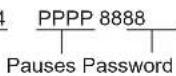
To erase the voice mail access number
1 [MENU] → [#][3][3][1]
2 Press and hold [CLEAR] until all digits are erased. → [SAVE] → [OFF]
Voice mail (VM) tone detection
Your service provider/telephone company sends special signals (sometimes called "voice mail tones" or "stutter tones") to the unit to let you know you have new voice mail messages. If you hear a series of dial tones followed by a continuous dial tone after you press [\~], you have new voice mail messages. Soon after you hang up a call or after the phone stops ringing, your unit checks the phone line to see if new voice mail messages have been recorded. Turn this feature off when:
- You do not subscribe to voice mail service.
- Your service provider/telephone company does not send voice mail tones.
- Your phone is connected to a PBX.
If you are not sure which setting is required, contact your service provider/telephone company.







Voice Mail Service for Landline
Turning VM tone detection on/off The default setting is "On".
1 [MENU] → [#][3][3][2]
2 [▼]/[▲]: Select the desired setting.
→ [SAVE] → [OFF]
Listening to voice mail messages
The unit lets you know that you have new voice mail messages in the following ways:
- "New Voice Mail" is displayed on the handset if message indication service is available.
- The message indicator on the handset flashes slowly if the message alert feature is turned on ("Message alert", page 56).
1 [MENU] → [#][3][3][0]
● The speakerphone turns on.
2 Follow the pre-recorded instructions.
3 When finished, press [OFF].
Note:
- If the handset still indicates there are new messages even after you have listened to all new messages, turn it off by pressing and holding [#] until the handset beeps.
- If your voice mail service uses voice mail tones and a message is over 3 minutes long, the handset may not indicate new messages.
- If your voice mail service uses voice mail tones, the tones are heard from any phone connected to the same line. If you want to use another phone to listen to voice mail messages, you have to dial your access number manually.
Intercom/Locator
Intercom
Intercom calls can be made:
- between handsets
– between the handset and base unit
Note:
- If you receive an outside call while talking on the intercom, you hear 2 tones.
- To answer the call with the handset, press [OFF], then press [→].
- To answer the call with the base unit, press [SP-PHONE] 2 times.
- When paging unit(s), the paged unit(s) beeps for 1 minute.
Making an intercom call
Handset
1 [MENU] → [INT]
2 [▼]/[▲]: Select the desired unit. → [SELECT]
• To stop paging, press [OFF].
3 When you finish talking, press [OFF].
Base unit
1 Press [INTERCOM].
When 2 or more handsets are registered:
- To page a specific handset, enter the handset number.
- To page all handsets, press [0] or wait for a few seconds.
- To stop paging, press [INTERCOM].
2 When you finish talking, press [INTERCOM].
Answering an intercom call
Handset
1 Press [\~] to answer the page.
2 When you finish talking, press [OFF].
Base unit
1 Press [INTERCOM] to answer the page.
2 When you finish talking, press [INTERCOM].
Handset locator
You can locate a misplaced handset by paging it.
1 Base unit: [LOCATOR]
- All registered handsets beep for 1 minute.
2 To stop paging:
Base unit: [LOCATOR] Handset:
Press [→], then press [OFF].
Transferring calls, Conference calls
Outside calls can be transferred or a conference call with an outside party can be made:
- between 2 handsets
- between the handset and base unit
Handset
1 During an outside call, press [INT] to put the call on hold.







Intercom/Locator
2 [▼]/[▲]: Select the desired unit. → [SELECT]
3 Wait for the paged party to answer.
- If the paged party does not answer, press [→] to return to the outside call.
4 To complete the transfer: Press [OFF].
- The outside call is being routed to the destination unit.
To establish a conference call: Press [CONF].
• To leave the conference, press [OFF]. The other 2 parties can continue the conversation.
- To put the outside call on hold, press [HOLD]. To resume the conference, press [CONF].
Base unit
1 During an outside call, press [INTERCOM]. When 2 or more handsets are registered:
- To page a specific handset, enter the handset number. - To page all handsets, press [0] or wait for a few seconds.
2 Wait for the paged party to answer.
- If paged party does not answer, press [INTERCOM] to return to the outside call.
3 To complete the transfer: Press [SP-PHONE].
- The outside call is being routed to the handset.
To establish a conference call: Press [CONF].
• To leave the conference, press [SP-PHONE]. The other 2 parties can continue the conversation.
• To put the outside call on hold, press [HOLD]. To resume the conference, press [CONF].
Answering a transferred call
Handset
Press [→] to answer the page.
Base unit
Press [SP-PHONE] to answer the page.
Useful Information
Wall mounting
The base unit can be mounted on a wall by revolving the bracket to "WALL" position (default: "DESK" stand position).
Note:
● Make sure that the wall is strong enough to support the weight of the unit.
Base unit
1 Turn the bracket 180 degrees counterclockwise in the "WALL" direction until a click is heard.
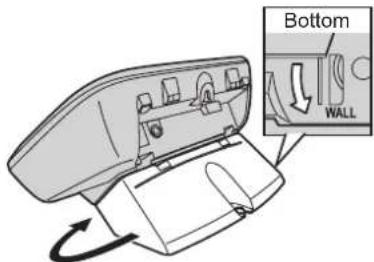
text_image
Bottom WALL- The bracket cannot be removed. Do not turn the bracket more than 180 degrees.
2 Tuck in the telephone line cord (1). Connect the AC adaptor cord and telephone line cord (2).
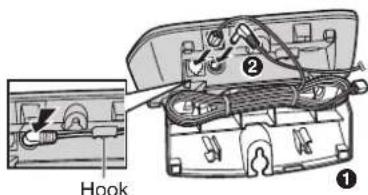
text_image
Hook ① ②3 Mount the unit on a wall then slide down to secure in place.
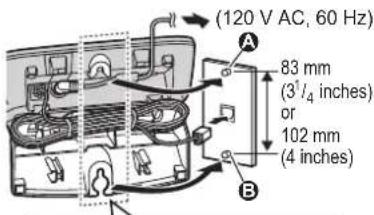
text_image
(120 V AC, 60 Hz) 83 mm (3½ inches) or 102 mm (4 inches)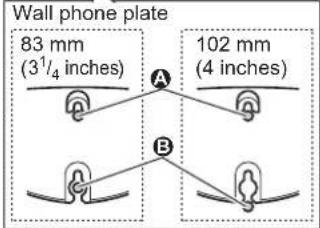
text_image
Wall phone plate 83 mm (3½/4 inches) 102 mm (4 inches) A BTo stand on a desk
Turn the bracket 180 degrees clockwise from the "WALL" position to the "DESK" direction until a click is heard.
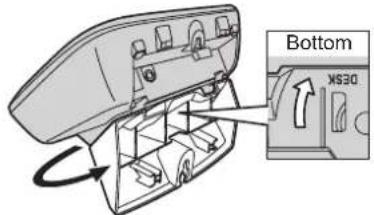
text_image
Bottom X530Charger
Drive the screws (not supplied) into the wall.
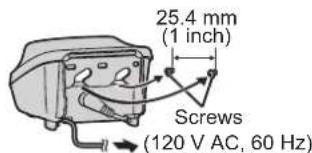
text_image
25.4 mm (1 inch) Screws (120 V AC, 60 Hz)





Useful Information
Error messages
If the unit detects a problem, one of the following messages is shown on the display.
| Display message Cause/solution | |
| Base no powerorNo link. Re-connectbase AC adaptor. | ●The handset has lost communication with the base unit. Move closer to the base unit and try again.●Unplug the base unit's AC adaptor to reset the unit. Reconnect the adaptor and try again.●The handset's registration may have been canceled. Re-register the handset (page 42). |
| Busy ●No cellular phone is registered to the base unit. Register a cellular phone (page 15).●The called unit is in use.●Other units are in use and the system is busy. Try again later.●The handset you are using is too far from the base unit. Move closer and try again. | |
| Call phone company for your access # | ●You have not stored the voice mail access number. Store the number (page 57). |
| Check tel line | ●The supplied telephone line cord has not been connected yet or not connected properly. Check the connections (page 8).●If you do not connect the telephone line cord and use only cellular lines, set the cellular line only mode (page 17). |
| Error!! ●Recording was too short. Try again.●Someone is using a cellular line or headset, or copying phonebook entries. Try again later.●The phonebook copy is incomplete (page 47). The cellular phone is disconnected from the base unit. Make sure that other Bluetooth devices are not connected to the cellular phone, and try again. | |
| Failed ●Although the unit tried to connect to the cellular phone or headset, the connection has been failed.- Someone is using a cellular line or headset. Try again later.- Make sure that the cellular phone or headset is not connected to other Bluetooth devices. | |



Useful Information
| Display message Cause/solution | |
| Invalid ●There is no handset | registered to the base unit matching the handset number you entered.●The handset is not registered to the base unit. Register the handset (page 42). |
| Requires subscription to Caller ID. | ●You must subscribe to a Caller ID service. Once you receive caller information after subscribing to a Caller ID service, this message will not be displayed. |
| Use rechargeable battery. | ●A wrong type of battery such as Alkaline or Manganese was inserted. Use only the rechargeable Ni-MH batteries noted on page 4, 6. |

Troubleshooting
If you still have difficulties after following the instructions in this section, disconnect the base unit's AC adaptor, then reconnect the base unit's AC adaptor. Remove the batteries from the handset, and then insert the batteries into the handset again.
General use
| Problem Cause/solution | |
| The handset does not turn on even after installing charged batteries. | ●Place the handset on the base unit or charger to turn on the handset. |
| The unit does not work. | ●Make sure the batteries are installed correctly (page 8).●Fully charge the batteries (page 8).●Check the connections (page 8).●Unplug the base unit's AC adaptor to reset the unit. Reconnect the adaptor and try again.●The handset has not been registered to the base unit. Register the handset (page 42). |








Useful Information
| Problem Cause/solution | |
| I cannot register a cellular phone to the base unit. | ·Depending on the compatibility of the cellular phone, you may not be able to register it to the base unit. Confirm that your cellular phone supports the hands-free profile (HFP) specification.·Confirm that the Bluetooth feature of your cellular phone is turned on. You may need to turn this feature on depending on your cellular phone.·The Bluetooth technology on your cellular phone may not be functioning normally. Turn off and on your cellular phone.·If your cellular phone is already connected to another Bluetooth device such as a Bluetooth headset, turn it off or disconnect it from your cellular phone.·Some cellular phones may require you to enter the base unit PIN to register. Confirm that you entered the correct PIN. |
| I cannot connect a cellular phone to the base unit. | ·Confirm that your cellular phone is turned on.·Confirm that your cellular phone is within base unit range (page 12).·Depending on the state of the wireless environment, such as the presence of any electrical interference, there may be a delay even if the auto connection feature is turned on. You can connect to the base unit manually (page 17).·The cellular phone has not been registered to the base unit. Register the cellular phone (page 15). |
| I cannot hear a dial tone. | ·Make sure the base unit's AC adaptor is connected properly (page 8).·Make sure that the CELL 1 or CELL 2 indicator lights green (page 12).·Make sure the telephone line cord is connected properly (page 8).·Disconnect the base unit from the telephone line and connect the line to a known working telephone. If the working telephone operates properly, contact our service personnel to have the unit repaired. If the working telephone does not operate properly, contact your service provider/ telephone company. |


Useful Information
| Problem Cause/solution | |
| The indicator on the handset flashes slowly. | New messages have been recorded. Listen to the new messages (page 52).New voice mail messages have been recorded.Listen to the new voice mail messages (page 58). |
Programmable settings
| Problem Cause/solution | |
| The display is in a language I cannot read. | ●Change the display language (page 14). |
| I cannot register a handset to a base unit. | ●The maximum number of handsets (6) is already registered to the base unit. Cancel unused handset registrations from the base unit (page 42). |
Battery recharge
| Problem Cause/solution | |
| The handset beeps and/orflashes. | ●Battery charge is low. Fully charge the batteries(page 8). |
| I fully charged the batteries, but– still flashes,– is displayed, or– the operating time seems to be shorter. | ● Clean the battery ends (⊕,⊖) and the charge contacts with a dry cloth and charge again.●It is time to replace the batteries (page 8). |
Making/answering calls, intercom
| Problem Cause/solution | |
| ▽ is displayed. | ● The handset is too far from the base unit. Move closer.●The base unit's AC adaptor is not properly connected. Reconnect AC adaptor to the base unit.●The handset is not registered to the base unit. Register it (page 42). |







Useful Information
| Problem Cause/solution | |
| Noise is heard, sound cuts in and out. | You are using the handset or base unit in an area with high electrical interference. Re-position the base unit and use the handset away from sources of interference.Move closer to the base unit.If you use a DSL/ADSL service, we recommend connecting a DSL/ADSL filter between the base unit and the telephone line jack. Contact your DSL/ADSL provider for details. |
| The handset or base unit does not ring. | The ringer volume is turned off. Adjust the ringer volume (page 36, 37).When one handset is selected to ring for cellular calls, other units do not ring. To change the selection, see page 16.Silent mode is turned on for the handset. Turn it off (page 40). |
| I cannot make local calls with the handset or base unit using a cellular line. | You need to add your area code when making cellular calls. Store your area code in order to automatically add it to the beginning of the 7-digit phone number when making cellular calls (page 18). |
| I cannot make or answer cellular calls with the handset or base unit. | Depending on the cellular phone's compatibility, you may not be able to make or answer cellular calls even if the cellular phone is connected to the base unit.Make sure that the CELL 1 or CELL 2 indicator lights green and the cellular phone is connected to the base unit (page 17).If someone is talking on a cellular call or using the headset, you cannot use the cellular feature. There can be only one active Bluetooth connection at a time.The cellular phone is being used separately from your system. |
| I can make and answer cellular calls but cannot hear a sound. | The Bluetooth technology on your cellular phone may not be functioning normally. Turn off and on your cellular phone.Disconnect and reconnect the base unit AC adaptor and try again. |
| I cannot switch cellular calls from the unit to the cellular phone. | Your cellular phone may not support this feature. Refer to the operating instructions of your cellular phone. |


Useful Information
| Problem Cause/solution | |
| I cannot make a call using the landline. | ●The dialing mode may be set incorrectly. Change the setting (page 14).●The handset is too far from the base unit. Move closer and try again.●The cellular line only mode is turned on. Turn it off (page 17). |
| I cannot make long distance calls. | ●Make sure that you have long distance service. |
Caller ID/Talking Caller ID
| Problem Cause/solution | |
| Caller information is not displayed. | ●You must subscribe to Caller ID service. Contact your service provider/telephone company for details.●If your unit is connected to any additional telephone equipment such as a Caller ID box or cordless telephone line jack, plug the unit directly into the wall jack.●If you use a DSL/ADSL service, we recommend connecting a DSL/ADSL filter between the base unit and the telephone line jack. Contact your DSL/ADSL provider for details.●The name display service for landline calls may not be available in some areas. Contact your service provider/telephone company for details.●Other telephone equipment may be interfering with this unit. Disconnect the other equipment and try again. |







Useful Information
| Problem Cause/solution | |
| Caller information is not announced. | ●The handset or base unit's ringer volume is turned off. Adjust it (page 36, 37).●When one handset is selected to ring for cellular calls, other units do not announce caller information. To change the selection, see page 16.●The Talking Caller ID feature is turned off. Turn it on (page 35).●The ring as cell mode is set to “On (without Talking CID)”. To change the mode, see page 16.●The number of rings for the answering system is set to “2 rings” or “Toll saver”. Select a different setting (page 55).●Your unit does not announce caller information if – the base unit or 2 or more handsets are on a call.– a headset is in use. |
| Caller information is displayed or announced late. | ●Depending on your service provider/telephone company, the unit may display or announce the caller's information at the 2nd ring or later.●Move closer to the base unit. |
| The caller list/incoming phone numbers are not edited automatically. | ●The Caller ID number auto edit feature is turned off. Turn it on and try again (page 35).●You need to call back the edited number to activate Caller ID number auto edit. |
| I cannot dial the phone number edited in the caller list. | ●The phone number you dialed might have been edited incorrectly (for example, the long distance “1” or the area code is missing). Edit the phone number with another pattern (page 45). |
| Time on the unit has shifted. | ●Incorrect time information from incoming Caller ID changes the time. Set the time adjustment to “Manual” (off) (page 37). |
| The 2nd caller's information is not displayed during an outside call. | ●In order to use Caller ID, call waiting, or Call Waiting Caller ID (CWID), you must first contact your service provider/telephone company and subscribe to the desired service. After subscribing, you may need to contact your service provider/telephone company again to activate this specific service, even if you already subscribed to both Caller ID and Call Waiting with Caller ID services (CWID). |


Useful Information
Using Bluetooth devices
| Problem Cause/solution | |
| I cannot copy phonebook entries from a cellular phone. | Confirm that the cellular phone supports Bluetooth wireless technology.Confirm that the cellular phone supports the Phone Book Access Profile (PBAP) or Object Push Profile (OPP) specification.If the cellular phone is already connected to another Bluetooth device such as a Bluetooth headset, turn it off or disconnect it from the cellular phone.Someone is using a cellular line or headset. Try again later.Turn the cellular phone off, then turn it on and try again.If an entry is already stored in the unit's shared phonebook, the entry cannot be copied even by selecting another group. |
| I cannot have a conversation using the headset. | Your Bluetooth headset is not registered. Register it (page 48).Turn your headset off, then turn it on and try again. |
| Noise is heard during a call on the headset. | A Bluetooth headset can communicate with the base unit within a range of approximately 10 m (33 feet). The connection may be subject to interference from obstructions such as walls or electronic devices. Move closer to the base unit. |
| I cannot connect my headset to the base unit. | Confirm that your headset is turned on.If your headset is already connected to another Bluetooth device such as your cellular phone, disconnect the headset from your cellular phone, then perform the connecting procedure from the base unit.If someone is using a cellular line, you cannot connect the headset. There can be only one active Bluetooth connection at a time.The headset has not been registered to the base unit. Register the headset (page 48). |
| Some headset enhanced features are not available. | The base unit does not support enhanced features such as Last number redial or Call reject. |



Useful Information
| Problem Cause/solution | |
| An error tone is heard when I try to program the Bluetooth feature. | ●The bluetooth feature cannot be accessed immediately after connecting the AC adaptor to the base unit. Wait a few seconds and try again.●The headset has not connected to the base unit yet, even though you performed the connecting procedure setting. Wait a few seconds and try again. |
Answering system
| Problem Cause/solution | |
| The unit does not record new messages. | ●The answering system is turned off. Turn it on (page 50).●The answering system does not answer or record calls from cellular lines.●The message memory is full. Erase unnecessary messages (page 52).●The recording time is set to “Greeting only”. Change the setting (page 55).●If you subscribe to a voice mail service, messages are recorded by your service provider/telephone company, not your telephone. Change the unit’s number of rings setting or contact your service provider/telephone company (page 55).●The answering system will not answer incoming calls while:– the base unit or 2 or more handsets are on a cellular call or an intercom call.– a headset is in use.Caller information is recorded in the caller list. |
| I cannot operate the answering system. | ●Someone is using the unit. Wait for the other user to finish.●A caller is leaving a message. Wait for the caller to finish.●The handset is too far from the base unit. Move closer. |
Useful Information
| Problem Cause/solution | |
| I cannot operate the answering system remotely. | The remote access code is not set. Set the remote access code (page 53).You are entering the wrong remote access code. If you have forgotten your remote access code, enter the remote access code setting to check your current code (page 53).Press each key firmly.The answering system is turned off. Turn it on (page 54).You cannot operate the answering system when calling a cellular phone registered to the base unit. |
Bluetooth PIN
| Problem Cause/solution | |
| I cannot remember the PIN. | ●Change the PIN using the following method.1 [MENU] → [#][6][1][9]2 [*][7][0][0][0]3 Enter the new 4-digit PIN. → [OK]4 Enter the new 4-digit PIN again. → [SAVE] → [OFF] |
Liquid damage
| Problem Cause/solution | |
| Liquid or other form of moisture has entered the handset/base unit. | ●Disconnect the AC adaptor and telephone line cord from the base unit. Remove the batteries from the handset and leave to dry for at least 3 days. After the handset/base unit are completely dry, reconnect the AC adaptor and telephone line cord. Insert the batteries and charge fully before use. If the unit does not work properly, contact an authorized service center. |
Caution:
- To avoid permanent damage, do not use a microwave oven to speed up the drying process.
Useful Information
FCC and other information
This equipment complies with Part 68 of the FCC rules and the requirements adopted by the ACTA. On the bottom of this equipment is a label that contains, among other information, a product identifier in the format US:ACJ----.
If requested, this number must be provided to the telephone company.
- Registration No......(found on the bottom of the unit)
• Ringer Equivalence No. (REN).....0.1B
A plug and jack used to connect this equipment to the premises wiring and telephone network must comply with the applicable FCC Part 68 rules and requirements adopted by the ACTA. A compliant telephone cord and modular plug is provided with the product. It is designed to be connected to a compatible modular jack that is also compliant.
The REN is used to determine the number of devices that may be connected to a telephone line. Excessive RENs on a telephone line may result in the devices not ringing in response to an incoming call. In most but not all areas, the sum of RENs should not exceed five (5.0). To be certain of the number of devices that may be connected to a line, as determined by the total RENs, contact the local telephone company. For products approved after July 23, 2001, the REN for the product is part of the product identifier that has the format US:AAAEQ##TXXXX. The digits represented by ## are the REN without a decimal point (e.g., 03 is a REN of 0.3).
If this equipment causes harm to the telephone network, the telephone company will notify you in advance that temporary discontinuance of service may be required. But if advance notice isn't practical, the telephone company will notify the customer as soon as possible. Also, you will be advised of your right to file a complaint with the FCC if you believe it is necessary.
The telephone company may make changes in its facilities, equipment, operations or procedures that could affect the operation of the equipment. If this happens the telephone company will provide advance notice in order for you to make necessary modifications to maintain uninterrupted service.
If trouble is experienced with this equipment, for repair or warranty information, please contact a Factory Service Center or other Authorized Servicer. If the equipment is causing harm to the telephone network, the telephone company may request that you disconnect the equipment until the problem is resolved.
Connection to party line service is subject to state tariffs. Contact the state public utility commission, public service commission or corporation commission for information.
If your home has specially wired alarm equipment connected to the telephone line, ensure the installation of this equipment does not disable your alarm equipment. If you have questions about what will disable alarm equipment, consult your telephone company or a qualified installer.
This equipment is hearing aid compatible as defined by the FCC in 47 CFR Section 68.316.
When you hold the phone to your ear, noise might be heard in your Hearing Aid. Some Hearing Aids are not adequately shielded from external RF (radio frequency) energy. If noise occurs, use an optional headset accessory or the speakerphone option (if applicable) when using this phone. Consult with your audiologist or Hearing Aid manufacturer about the availability of Hearing Aids which provide adequate shielding to RF energy commonly emitted by digital devices.








Useful Information
WHEN PROGRAMMING EMERGENCY NUMBERS AND(OR) MAKING TEST CALLS TO EMERGENCY NUMBERS:
1) Remain on the line and briefly explain to the dispatcher the reason for the call.
2) Perform such activities in the off-peak hours, such as early morning or late evenings.
This device complies with Part 15 of the FCC Rules. Operation is subject to the following two conditions:
(1) This device may not cause harmful interference, and (2) this device must accept any interference received, including interference that may cause undesired operation.
Privacy of communications may not be ensured when using this phone.
CAUTION:
Any changes or modifications not expressly approved by the party responsible for compliance could void the user's authority to operate this device.
NOTE:
This equipment has been tested and found to comply with the limits for a Class B digital device, pursuant to Part 15 of the FCC Rules. These limits are designed to provide reasonable protection against harmful interference in a residential installation. This equipment generates, uses, and can radiate radio frequency energy and, if not installed and used in accordance with the instructions, may cause harmful interference to radio communications.
However, there is no guarantee that interference will not occur in a particular installation. If this equipment does cause harmful interference to radio or television reception, which can be determined by turning the equipment off and on, the user is encouraged to try to correct the interference by one or more of the following measures:
- Reorient or relocate the receiving antenna.
– Increase the separation between the equipment and receiver. - Connect the equipment into an outlet on a circuit different from that to which the receiver is connected.
- Consult the dealer or an experienced radio/TV technician for help.
Some cordless telephones operate at frequencies that may cause interference to nearby TVs and VCRs. To minimize or prevent such interference, the base of the cordless telephone should not be placed near or on top of a TV or VCR. If interference is experienced, move the cordless telephone further away from the TV or VCR. This will often reduce, or eliminate, interference.
FCC RF Exposure Warning:
- This product complies with FCC radiation exposure limits set forth for an uncontrolled environment.
- To comply with FCC RF exposure requirements, the base unit must be installed and operated 20 cm (8 inches) or more between the product and all person's body (excluding extremities of hands, wrist and feet).
- This product may not be collocated or operated in conjunction with any other antenna or transmitter.
- The handset may be carried and operated with only the specific provided belt-clip. Other non-tested belt-clips or similar body-worn accessories may not comply and must be avoided.
Notice
- FCC ID can be found inside the battery compartment or on the bottom of the units.
Compliance with TIA-1083 standard:
Telephone handsets identified with this logo have reduced noise and interference when used with T-Coil equipped hearing aids and cochlear implants.








natural_image
Illustration of three mobile phones with one showing a hand gesture (no text or symbols present)text_image
[▲] [◄] CID VOL RETRL [▼] Bajar volumenCustomer Services Directory (United States and Puerto Rico)
Obtain Product Information and Operating Assistance; locate your nearest Dealer or Service Center; purchase Parts and Accessories; or make Customer Service and Literature requests by visiting our Web Site at:
http://www.panasonic.com/help
or, contact us via the web at:
http://www.panasonic.com/contactinfo
You may also contact us directly at: 1-800-211-PANA (1-800-211-7262), Monday - Friday 9 am to 9 pm; Saturday - Sunday 10 am to 7 pm, EST.
TTY users (hearing or speech impaired users) can call 1-877-833-8855.
Accessory Purchases (United States and Puerto Rico)
Purchase Parts, Accessories and Instruction Books online for all Panasonic Products by visiting our Web Site at:
http://www.pstc.panasonic.com
or, send your request by E-mail to:
npcparts@us.panasonic.com
You may also contact us directly at: 1-800-332-5368 (Phone) 1-800-237-9080 (Fax Only) (Monday - Friday 9 am to 9 pm, EST.) Panasonic Service and Technology Company 20421 84th Avenue South, Kent, WA 98032 (We Accept Visa, MasterCard, Discover Card, American Express, and Personal Checks.)
TTY users (hearing or speech impaired users) can call 1-866-605-1277.



Appendix
Warranty (For United States and Puerto Rico)
PANASONIC CORPORATION OF NORTH AMERICA
One Panasonic Way, Secaucus, New Jersey 07094
Panasonic Telephone Products Limited Warranty
Limited Warranty Coverage
If your product does not work properly because of a defect in materials or workmanship, Panasonic Corporation of North America (referred to as "the warrantor") will, for the length of the period indicated on the chart below, which starts with the date of original purchase ("Limited Warranty period"), at its option either (a) repair your product with new or refurbished parts, or (b) replace it with a new or a refurbished product. The decision to repair or replace will be made by the warrantor.
Parts
Labor
One (1) Year One (1) Year
During the "Labor" Limited Warranty period there will be no charge for labor. During the "Parts" Limited Warranty period, there will be no charge for parts. You must mail-in your product prepaid during the Limited Warranty period. This Limited Warranty excludes both parts and labor for batteries, antennas, and cosmetic parts (cabinet). This Limited Warranty only applies to products purchased and serviced in the United States or Puerto Rico. This Limited Warranty is extended only to the original purchaser and only covers products purchased as new.
Ship-In Service
For assistance in the continental United States and Puerto Rico in obtaining repairs please ship the product prepaid to:
PSTC (Panasonic) Exchange Center,
4900 George McVay Drive, Suite B Door #12, McAllen, TX 78503
panacare@us.panasonic.com
When shipping the unit carefully pack in a padded shipping carton, include all accessories, and send it prepaid. Include a letter detailing the complaint, a return address and provide a day time phone number where you can be reached. P.O. Boxes are not acceptable. Keep the tracking number for your records. A copy of valid registered receipt is required under the 1 year parts and labor Limited Warranty.
For Limited Warranty service for headsets if a headset is included with this product please follow instructions above.
IF REPAIR IS NEEDED DURING THE LIMITED WARRANTY PERIOD THE PURCHASER WILL BE REQUIRED TO FURNISH A SALES RECEIPT/PROOF OF PURCHASE INDICATING DATE OF PURCHASE, AMOUNT PAID AND PLACE OF PURCHASE. CUSTOMER WILL BE CHARGED FOR THE REPAIR OF ANY UNIT RECEIVED WITHOUT SUCH PROOF OF PURCHASE.
84
For assistance, please visit http://www.panasonic.com/help
Appendix

Limited Warranty Limits And Exclusions
This Limited Warranty ONLY COVERS failures due to defects in materials or workmanship, and DOES NOT COVER normal wear and tear or cosmetic damage. The Limited Warranty ALSO DOES NOT COVER damages which occurred in shipment, or failures which are caused by products not supplied by the warrantor, or failures which result from accidents, misuse, abuse, neglect, bug infestation, mishandling, misapplication, alteration, faulty installation, setup adjustments, misadjustment of consumer controls, improper maintenance, power line surge, lightning damage, modification, introduction of sand, humidity or liquids, commercial use such as hotel, office, restaurant, or other business or rental use of the product, or service by anyone other than a Factory Service Center or other Authorized Servicer, or damage that is attributable to acts of God.
THERE ARE NO EXPRESS WARRANTIES EXCEPT AS LISTED UNDER "LIMITED WARRANTY COVERAGE". THE WARRANTOR IS NOT LIABLE FOR INCIDENTAL OR CONSEQUENTIAL DAMAGES RESULTING FROM THE USE OF THIS PRODUCT, OR ARISING OUT OF ANY BREACH OF THIS LIMITED WARRANTY. (As examples, this excludes damages for lost time, lost calls or messages, cost of having someone remove or re-install an installed unit if applicable, travel to and from the servicer. The items listed are not exclusive, but are for illustration only.) ALL EXPRESS AND IMPLIED WARRANTIES, INCLUDING THE WARRANTY OF MERCHANTABILITY, ARE LIMITED TO THE PERIOD OF THE LIMITED WARRANTY.
Some states do not allow the exclusion or limitation of incidental or consequential damages, or limitations on how long an implied warranty lasts, so the exclusions may not apply to you. This Limited Warranty gives you specific legal rights and you may also have other rights which vary from state to state. If a problem with this product develops during or after the Limited Warranty period, you may contact your dealer or Service Center. If the problem is not handled to your satisfaction, then write to the warrantor's Consumer Affairs Department at the addresses listed for the warrantor.
PARTS AND SERVICE, WHICH ARE NOT COVERED BY THIS LIMITED WARRANTY, ARE YOUR RESPONSIBILITY.

When you ship the product
- Carefully pack your unit, preferably in the original carton.
- Attach a letter, detailing the symptom.
- Send the unit to PSTC (Panasonic) Exchange Center, prepaid and adequately insured.
- Do not send your unit to Panasonic Corporation of North America listed on the back cover or to executive or regional sales offices. These locations do not repair consumer products.







Index
Index
# 3-way conference: 23
A Additional handset: 42
Alarm: 40
Answering calls: 21
Answering system
Call screening: 50
Erasing messages: 52, 53, 54
Greeting message: 51
Greeting only: 55
Listening to messages: 51, 52, 53
MEMO: 53
Number of rings: 55
Recording time: 55
Remote access code: 53
Remote operation: 53
Ring count: 55
Toll saver: 55
Turning on/off: 50, 54
Auto talk: 21
B Battery: 8, 9
Belt clip: 11
Bluetooth wireless technology
Cellular phone (Link to cell): 15
Headset: 48
Phonebook transfer: 47
Booster (Clarity booster): 22
C Call block: 41
Caller ID number auto edit: 45
Caller ID service: 43
Caller list: 44
Caller list edit: 45
Call share: 23
Call waiting: 22
Call Waiting Caller ID: 22
Cellular calls: 20, 25
Cellular phone
Deregistration: 19
Registration: 15
Chain dial: 31
CID (Caller ID): 44
Conference calls: 59
Control type: 11
Customer support: 36
D Date and time: 14
Dialing mode: 14
Direct commands: 35
Display
Contrast: 35
Language: 14
E Eco mode: 10
Error messages: 62
F Flash: 22, 38
G Groups: 29, 44
H Handset
Deregistration: 42
Locator: 59
Name: 41
Registration: 42
Hold: 21, 26
I Intercom: 59
K Key tone: 35
L Landline calls: 20, 25
Line mode: 38
Link to cell
Area code: 18
Auto connection: 17
Cellular line only mode: 17
Cellular line selection: 18
Connection: 17
Ring as cell mode: 16
Select unit to ring: 16
M Making calls: 20
Missed calls: 43
Mute: 22
P Pause: 21
Phonebook: 29
PIN: 18
Power failure: 9
Privacy mode: 23
R Redialing: 20, 21
Ringer tone: 36, 37, 44
Rotary/pulse service: 22
S Silent mode: 40
SP-PHONE (Speakerphone): 20
T Talking caller ID: 43
Temporary tone dialing: 22









other
| Metric | Value | |---|---| | Time adjustment | 37 | | Transferring calls | 59 | | Troubleshooting | 63 | | TTY | 83 | | V VM (Voice mail) | 57 | | Voice guidance language | 14 | | Voice mail | 55, 57 | | Volume | | Receiver | 20 | | Ringer (Base unit) | 36, 37 | | Ringer (Handset) | 21, 36, 37 | | Speaker | 20 | | W Wall mounting | 61 | 87IMPORTANT!
If your product is not working properly...
① Reconnect AC adaptor to the base unit.
② Check if telephone line cord is connected.
③ Use rechargeable Ni-MH batteries.
(Alkaline/Manganese/Ni-Cd batteries CANNOT be used.)
④ Read troubleshooting page in the Operating Instructions.

Visit our Web site: http://www.panasonic.com/help
- FAQ and troubleshooting hints are available.
For your future reference
We recommend keeping a record of the following information to assist with any repair under warranty.
Serial No. Date of purchase
(found on the bottom of the base unit)
Name and address of dealer

Attach your purchase receipt here.
Panasonic Corporation of North America
One Panasonic Way, Secaucus, New Jersey 07094
Copyright:
This material is copyrighted by Panasonic System Networks Co., Ltd., and may be reproduced for internal use only. All other reproduction, in whole or in part, is prohibited without the written consent of Panasonic System Networks Co., Ltd.
© Panasonic System Networks Co., Ltd. 2010
Printed in Malaysia

*TG6582*
PNQX2427YA CM0210SN1010