vRouter 50 - Software LANCOM - Free user manual and instructions
Find the device manual for free vRouter 50 LANCOM in PDF.


User questions about vRouter 50 LANCOM
0 question about this device. Answer the ones you know or ask your own.
Ask a new question about this device
Download the instructions for your Software in PDF format for free! Find your manual vRouter 50 - LANCOM and take your electronic device back in hand. On this page are published all the documents necessary for the use of your device. vRouter 50 by LANCOM.
USER MANUAL vRouter 50 LANCOM
© 2017 LANCOM Systems GmbH, Würselen (Germany). All rights reserved.
While the information in this manual has been compiled with great care, it may not be deemed an assurance of product characteristics. LANCOM Systems shall be liable only to the degree specified in the terms of sale and delivery.
The reproduction and distribution of the documentation and software supplied with this product and the use of its contents is subject to written authorization from LANCOM Systems. We reserve the right to make any alterations that arise as the result of technical development.
Windows® and Microsoft® are registered trademarks of Microsoft, Corp.
The LANCOM Systems logo, LCOS and the name LANCOM are registered trademarks of LANCOM Systems GmbH. All other names or descriptions used may be trademarks or registered trademarks of their owners.
This product contains separate open-source software components which are subject to their own licenses, in particular the General Public License (GPL). The license information for the device firmware (LCOS) is available on the device's WEBconfig interface under "Extras > License information". If the respective license demands, the source files for the corresponding software components will be made available on a download server upon request
Subject to change without notice. No liability for technical errors or omissions.
Products from LANCOM Systems include software developed by the "OpenSSL Project" for use in the "OpenSSL Toolkit" (www.openssl.org).
Products from LANCOM Systems include cryptographic software written by Eric Young (eay@cryptsoft.com).
Products from LANCOM Systems include software developed by the NetBSD Foundation, Inc. and its contributors.
Products from LANCOM Systems contain the LZMA SDK developed by Igor Pavlov.
LANCOM Systems GmbH
Adenauerstr. 20/B2
52146 Würselen
Germany
www.lancom-systems.com/
Würselen, 06/2017
Introduction
Thank you for purchasing a LANCOM vRouter.
The LANCOM vRouter is a software-based router that runs on a hypervisor. Virtualization allows you to customize the vRouter exactly for your needs. As it operates the LCOS operating system, it offers the same features as a hardware-based LANCOM router and it offers considerable flexibility.
This installation guide describes how to put the LANCOM vRouter into operation. This consists of the following steps:
Installing the vRouter on a hypervisor (VMware ESXi server)
Initial setup of the vRouter
Licensing and activation of the vRouter
The document continues with further information about operating the vRouter, as well as information on the LANCOM Service & Support.
Installation
The LANCOM vRouter is operated on a VMware ESXi server. The following describes the prerequisites and steps for a successful installation.
Prerequisites
Following requirements must be met to successfully install the LANCOM vRouter on a VMware ESXi server:
The LANCOM vRouter is available as an OVA file.
VMware ESXi 6.0.0 or higher is running on a server with the Intel XEON processor with the AES extended instruction set (Intel AES-NI) and hardware virtualization (Intel VT-x).
VMware vSphere Client 6.0.0 or later must be installed on the device that is used to access the VMware ESXi server.
The virtual machine must meet the following minimum requirements:
1 virtual x86 CPU
512 MiB RAM
512 MiB hard drive memory
1–5 virtual network interfaces based on VMXnet3
Installation on the VMware ESXi Server
The following steps describe how to put the LANCOM vRouter into operation. Starting with logging in and executing the Installation Wizard.
- Launch the vSphere Client and enter the address of the ESXi server and your login data.
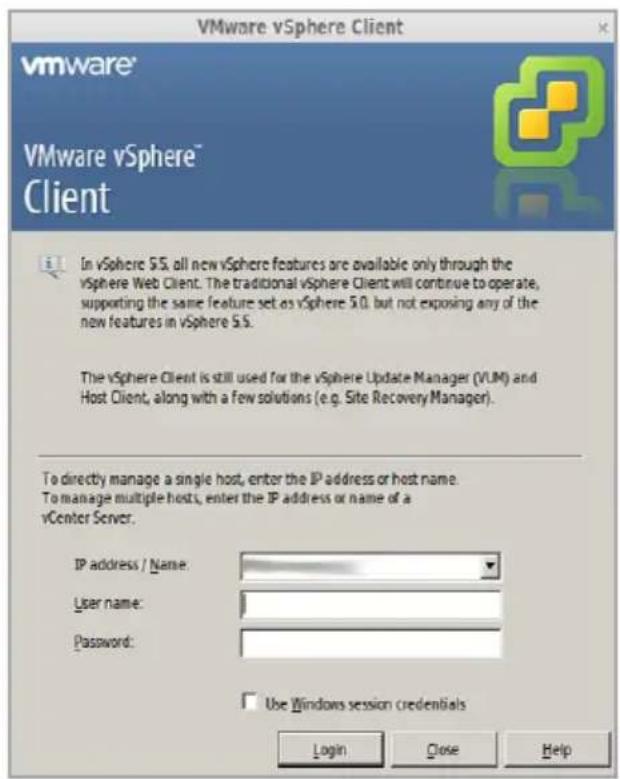
text_image
VMware vSphere Client vmware® VMware vSphere™ Client In vSphere 5.5, all new vSphere features are available only through the vSphere Web Client. The traditional vSphere Client will continue to operate, supporting the same feature set as vSphere 5.0, but not exposing any of the new features in vSphere 5.5. The vSphere Client is still used for the vSphere Update Manager (VUM) and Host Client, along with a few solutions (e.g. Site Recovery Manager). To directly manage a single host, enter the IP address or host name. To manage multiple hosts, enter the IP address or name of a vCenter Server. IP address / Name: User name: Password: Use Windows session credentials Login Close Help
- Go to File > Deploy OVF Template. This will start an Installation Wizard for the virtual machine.

text_image
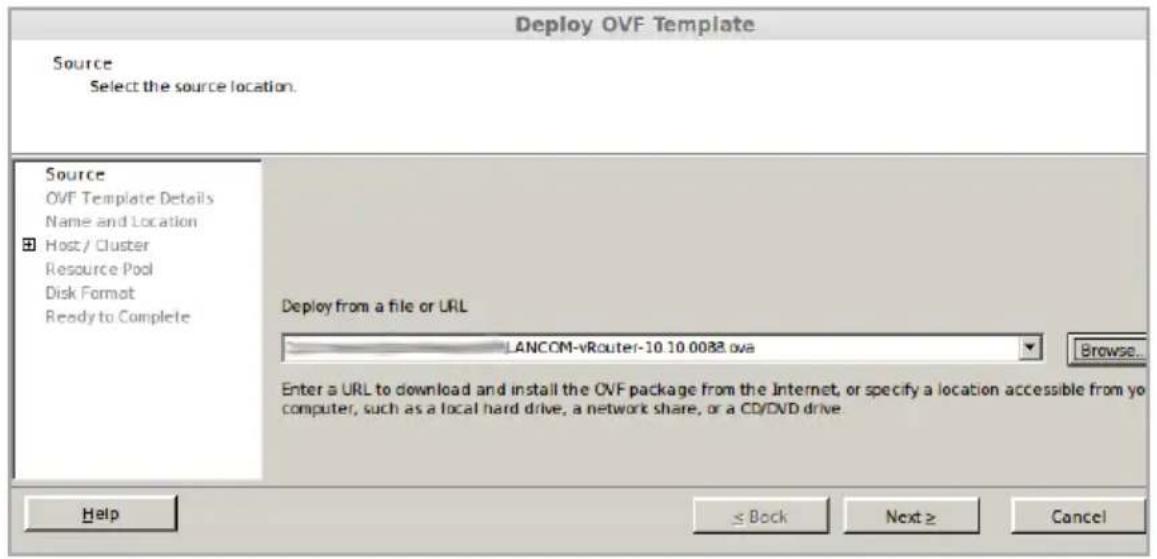
File Edit View Inventory Administration Plug-ins Help New Inventory VMs and Templates Deploy OVF Template... Export Report Browse VA Marketplace... Print Maps Exit VMware vCenter Server, S.S.O. 3252642 Getting Started Datacenters Virtual Machines Hosts Tasks & Events Alarms Name Hosts Virtual Machines Alarm Actions 1- Navigate to the location where the OVA file for the vRouter is stored, select it, and confirm your selection with the button Open. Use the Next button to go to the next step of the Installation Wizard.
text_image
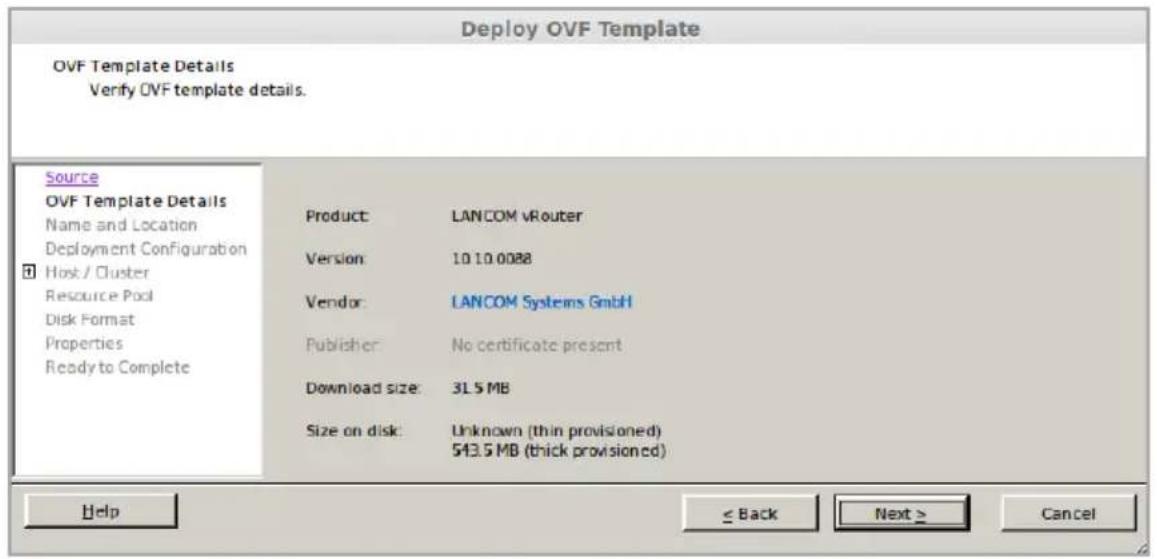
Deploy OVF Template Source Select the source location. Source OVF Template Details Name and Location Host / Cluster Resource Pool Disk Format Ready to Complete Deploy from a file or URL LANCOM-vRouter-10.10.0088.ova Browse... Enter a URL to download and install the OVF package from the Internet, or specify a location accessible from yo computer, such as a local hard drive, a network share, or a CD/DVD drive. Help ≤ Back Next ≥ Cancel- This window displays general information about the selected OVA file. Use the Next button to go to the next step of the Installation Wizard.
text_image
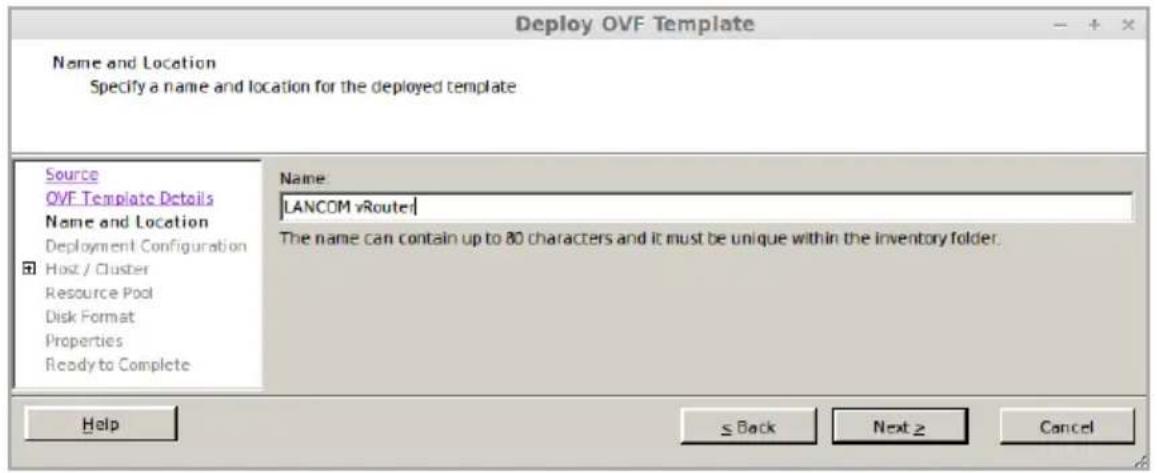
Deploy OVF Template OVF Template Details Verify OVF template details. Source OVF Template Details Name and Location Deployment Configuration Host / Cluster Resource Pool Disk Format Properties Ready to Complete Product: LANCOM vRouter Version: 10.10.0088 Vendor: LANCOM Systems GmbH Publisher: No certificate present Download size: 3L 5 MB Size on disk: Unknown (thin provisioned) 543.5 MB (thick provisioned) Help ≤ Back Next > Cancel- Here you enter the name under which your vRouter is to be found on the ESXi server. If necessary, you can also specify the storage location in the ESXi file structure. Use the Next button to go to the next step of the Installation Wizard.
text_image
Deploy OVF Template Name and Location Specify a name and location for the deployed template Source OVF Template Details Name and Location Deployment Configuration Host / Cluster Resource Pool Disk Format Properties Ready to Complete Name: LANCOM vRouter The name can contain up to 80 characters and it must be unique within the inventory folder. Help ≤ Back Next > Cancel
The name you enter here is the name of the vRouter in the ESXi server and not necessarily the name of the router in the LANCOM Management Cloud or in LANconfig.
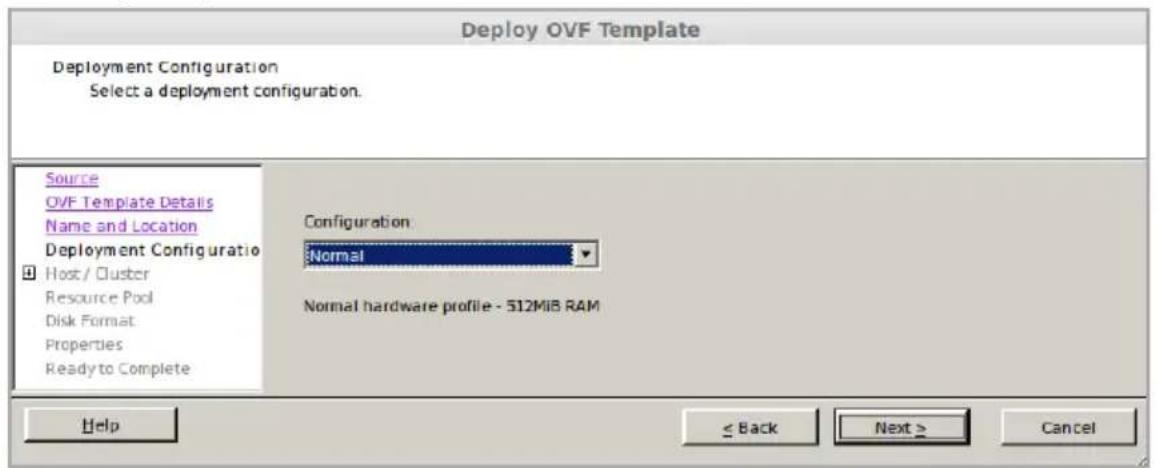
- Set how much RAM is available to the virtual router. The following settings are available. Use the Next button to go to the next step of the Installation Wizard.
Normal - 512 MiB RAM (recommended for vRouter 50 and vRouter 250)
Large - 1 GiB RAM (recommended for vRouter 1000)
Very Large - 3 GiB RAM (recommended for vRouter unlimited)
text_image
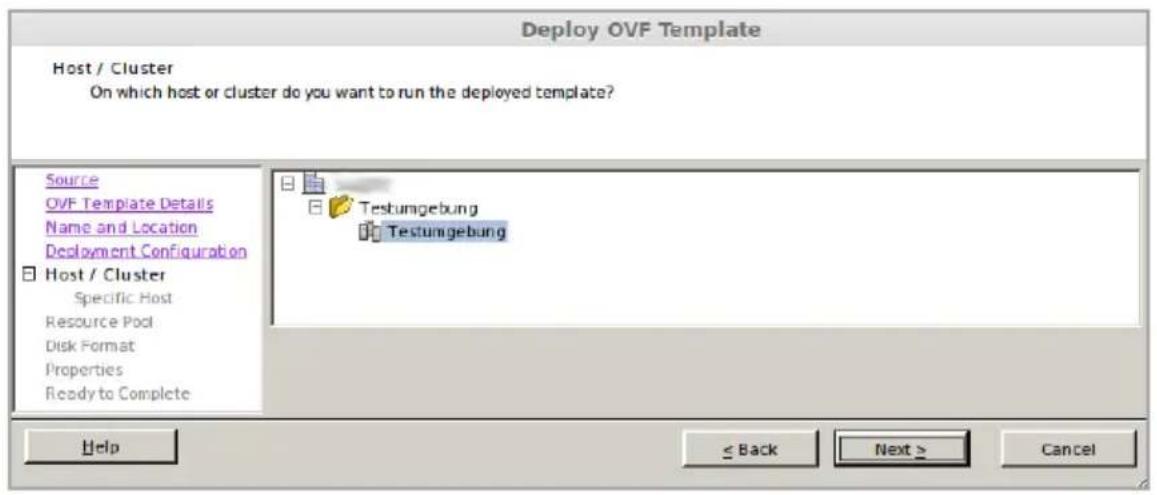
Deploy OVF Template Deployment Configuration Select a deployment configuration. Source OVF Template Details Name and Location Deployment Configuratio Host / Cluster Resource Pool Disk Format Properties Ready to Complete Configuration: Normal Normal hardware profile - 512MiB RAM Help < Back Next > Cancel- Here you set the location where the vRouter is stored. Use the Next button to go to the next step of the Installation Wizard.
text_image
Deploy OVF Template Host / Cluster On which host or cluster do you want to run the deployed template? Source OVF Template Details Name and Location Deployment Configuration Host / Cluster Specific Host Resource Pool Disk Format Properties Ready to Complete Testumgebung Testumgebung Help < Back Next > Cancel三
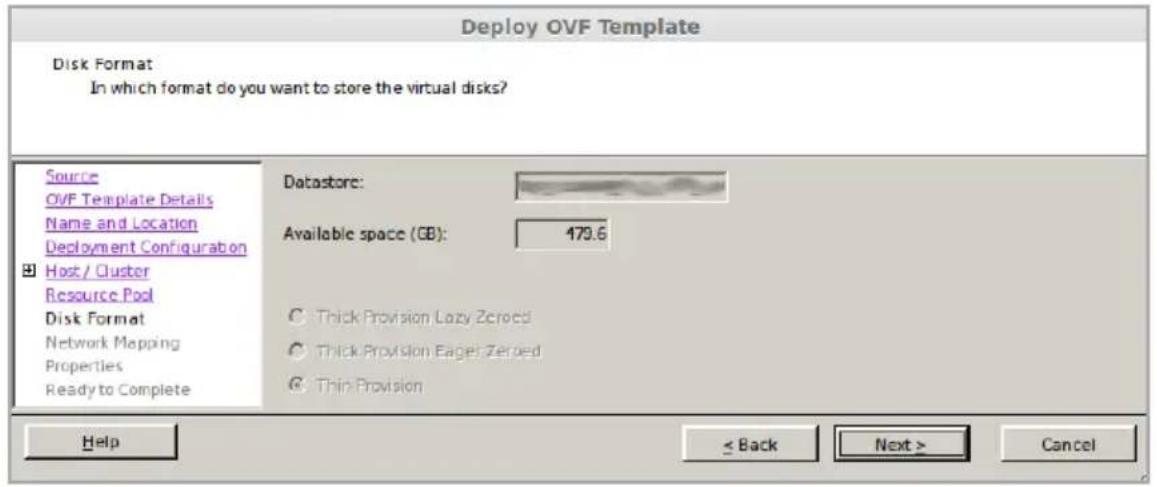
- Here you select the format in which to store the virtual hard drives. Use the setting Thin Provision. Use the Next button to go to the next step of the Installation Wizard.
text_image
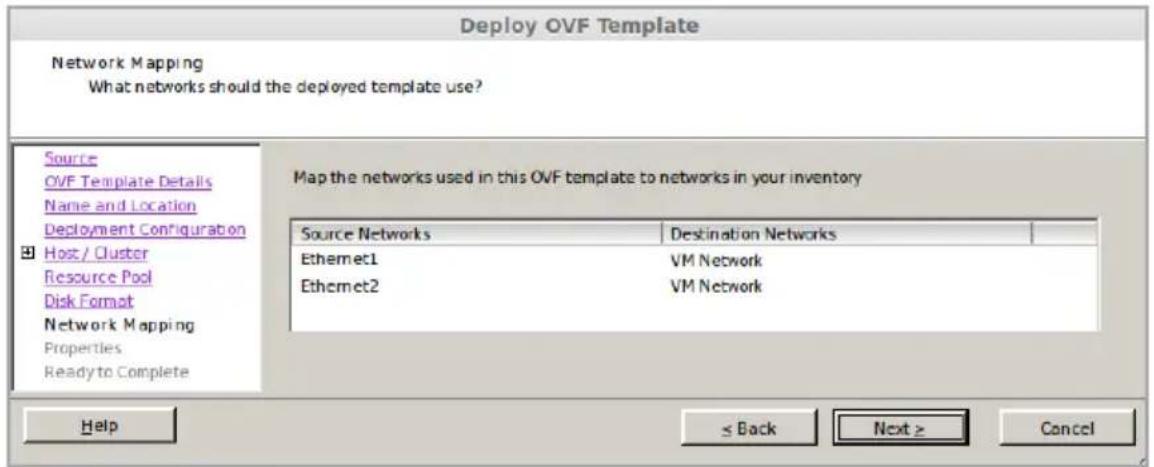
Deploy OVF Template Disk Format In which format do you want to store the virtual disks? Source OVF Template Details Name and Location Deployment Configurabon Host / Cluster Resource Pool Disk Format Network Mapping Properties Ready to Complete Datastore: Available space (GB): 479.6 ○ Thick Provision Lazy Zerped ○ Thick Provision Eagle Zerped ○ Thin Provision Help < Back Next > Cancel- At this stage, the Ethernet ports of the vRouter are listed under Source networks. Assign the destination networks of the ESXi server to the corresponding Ethernet ports. Use the Next button to go to the next step of the Installation Wizard.

The installation wizard initially creates two Ethernet ports. You can manually add more at a later stage.
text_image
Deploy OVF Template Network Mapping What networks should the deployed template use? Source OVF Template Details Name and Location Deployment Configuration Host / Cluster Resource Pool Disk Format Network Mapping Properties Ready to Complete Map the networks used in this OVF template to networks in your inventory Source Networks Destination Networks Ethernet1 VM Network Ethernet2 VM Network Help ≤ Back Next > Cancel三
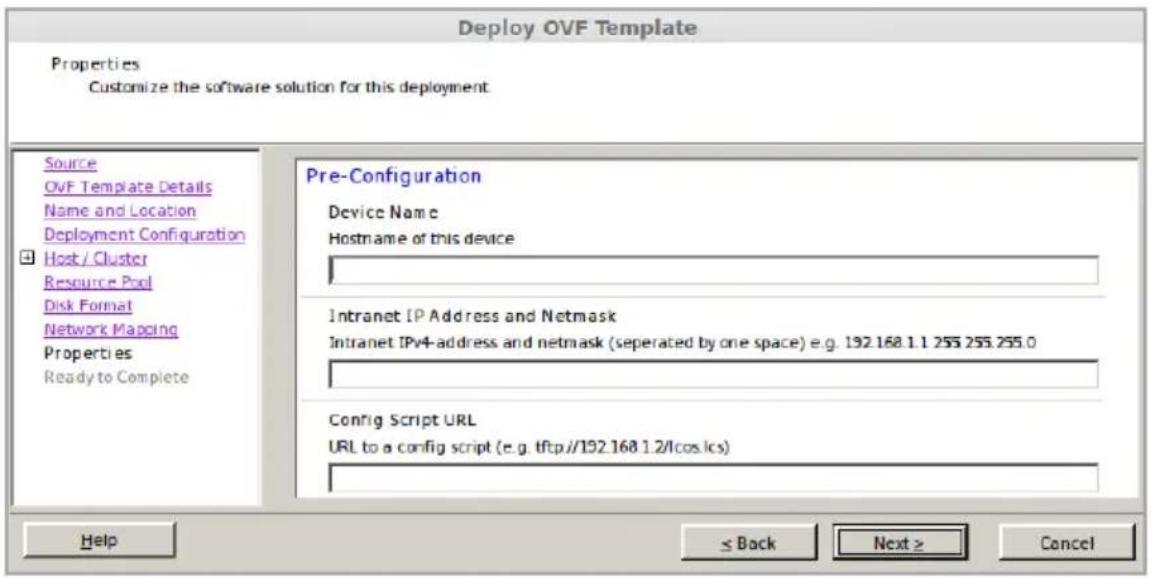
- (Optional) Here you specify some basic settings required by the vRouter for its deployment.
text_image
Deploy OVF Template Properties Customize the software solution for this deployment Source OVF Template Details Name and Location Deployment Configuration Host / Cluster Resource Pool Disk Format Network Mapping Properties Ready to Complete Pre-Configuration Device Name Hostname of this device Intranet IP Address and Netmask Intranet IPv4-address and netmask (separated by one space) e.g. 192.168.1.1.255.255.255.0 Config Script URL URL to a config script (e.g. tftp://192.168.1.2/lcos.lcs) Help ≤ Back Next > CancelDevice name
Device name of the vRouter for its identification in the LANCOM Management Cloud and LANconfig.
Intranet IPv4 address and netmask
The IPv4 address of the vRouter and its corresponding netmask (Ethernet-1 / LAN-1), separated by a space.
Configuration script URL
The URL to a script file (.lcs), which can contain additional configuration parameters for the vRouter (TFTP or HTTP).

The item may or may not be displayed depending on the VMware ESXi version and license. These settings are optional and can be entered later when you configure the vRouter.
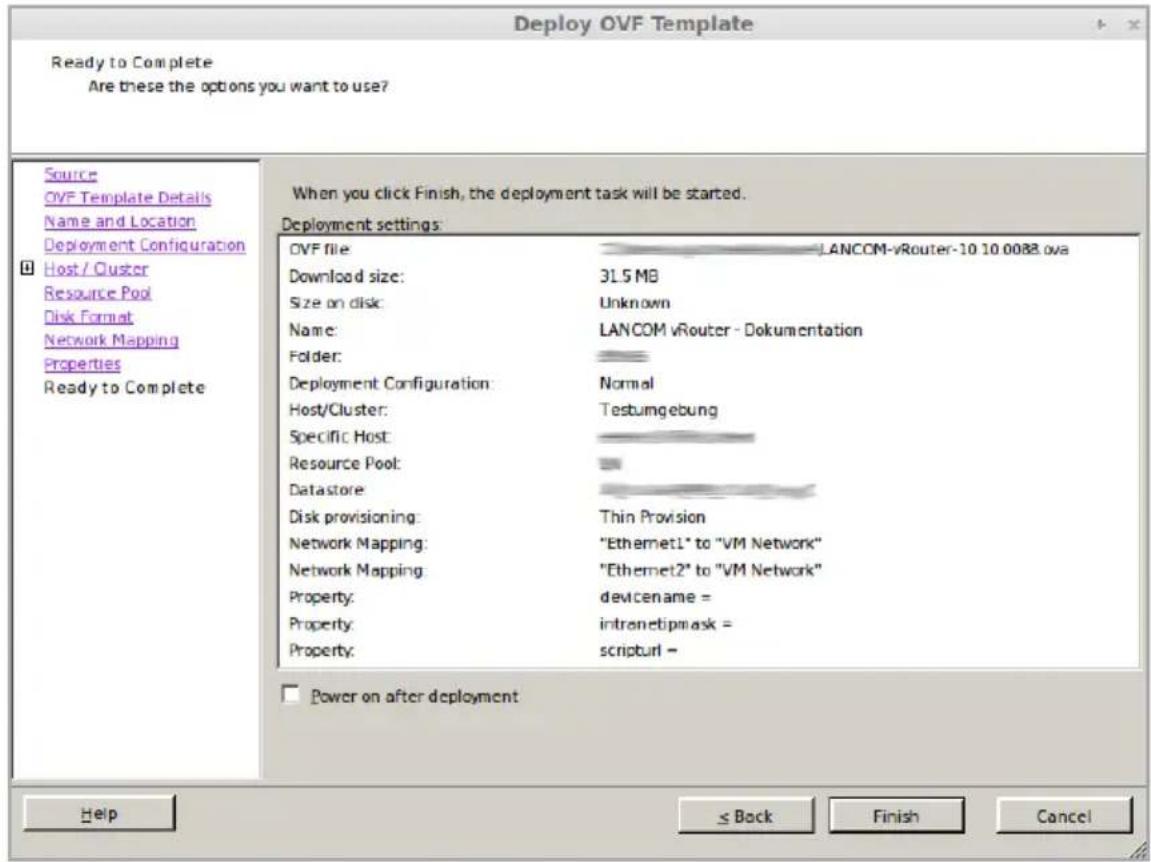
- The selected options are presented again in summary. If you wish to make any changes, use the menu on the left-hand side to jump back to the corresponding dialog of the Installation Wizard. If you want to start the vRouter directly after installing it, activate the checkbox Power on the virtual machine after creation. Use the button Finish to exit the Installation Wizard. This then starts the vRouter on the ESXi server based on the specified information.
text_image
Deploy OVF Template Ready to Complete Are these the options you want to use? Source OVF Template Details Name and Location Deployment Configuration Host / Cluster Resource Pool Disk Format Network Mapping Properties Ready to Complete When you click Finish, the deployment task will be started. Deployment settings: OVF file LANCOM-vRouter-10 10.0088 ova Download size: 31.5 MB Size on disk: Unknown Name: LANCOM vRouter - Dokumentation Folder: Deployment Configuration: Normal Host/Cluster: Testumgebung Specific Host: Resource Pool: Datastore: Disk provisioning: Thin Provision Network Mapping: "Ethernet1" to "VM Network" Network Mapping: "Ethernet2" to "VM Network" Property: devicename = Property: intranetipmask = Property: scripturl = Power on after deployment Help ≤ Back Finish Cancel- After the Installation Wizard is finished, the vRouter is ready for use. If the network assigned to Ethernet1 contains a DHCP server, or if an IP address was assigned during the configuration, the vRouter can be accessed and configured over this network.
Initial Setup
A LANCOM vRouter can be configured via the local area network (LAN). Make sure that the computer you are using for the configuration is on the same LAN as the vRouter. If a DHCP server is active on the same LAN, the vRouter is automatically given an IP address where it can be reached (and found in LANconfig). If the vRouter was installed with an IP address, this can be used to access the device. After the initial setup, the vRouter can be integrated into the LANCOM Management Cloud.
The following configuration options for the initial setup are available:
LANconfig
WEBconfig
Configuration with LANconfig
LANconfig is a part of LANtools, the free LANCOM solution package. LANconfig has a wide range of applications, from the user-friendly commissioning of a single device with various Installation Wizards, to the holistic management of several devices. It is available on the LANCOM website free of charge.
Basic settings
After starting, LANconfig automatically searches the local network for new devices and adds them to the overview.
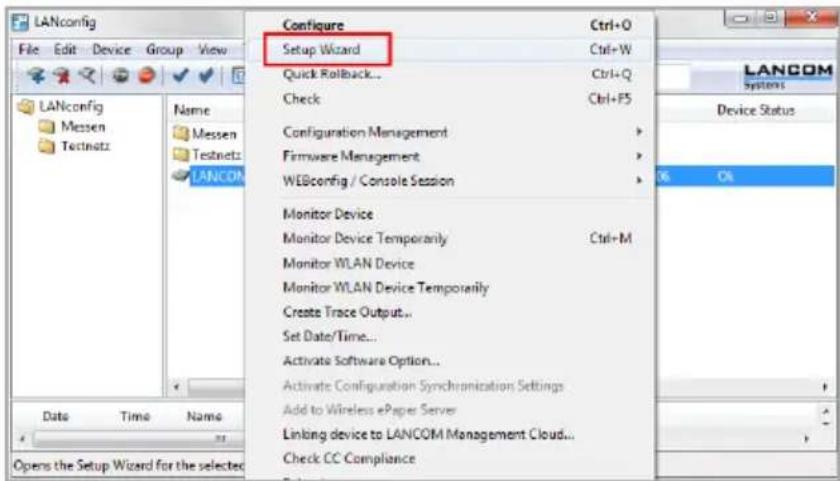
In the overview, you invoke a context menu for the device with a simple right-click of the mouse. This menu provides the options to Configure the device or to start a Setup Wizard.
Run the Setup Wizard. If the device has not yet been configured (e.g. during deployment on the ESXi server), a basic setup wizard starts
automati cally for the configuration of basic parameters such as the main device password, IP address, etc).
text_image
LANconfig File Edit Device Group View LANconfig Messen Testnetz Name Messen Testnetz LANCOM Configure Ctrl+O Setup Wizard Ctrl+W Quick Rollback... Ctrl+Q Check Ctrl+F5 Configuration Management > Firmware Management > WEBconfig / Console Session > Monitor Device Monitor Device Temporarily Ctrl+M Monitor WLAN Device Monitor WLAN Device Temporarily Create Trace Output... Set Date/Time... Activate Software Option... Activate Configuration Synchronization Settings Add to Wireless ePaper Server Linkong device to LANCOM Management Cloud... Check CC Compliance Data Time Name Opens the Setup Wizard for the selected LANCOM Systems Device Status OK

The main device password is essential for resetting the vRouter.
After running the basic setup wizard, you can continue with the configuration either manually or by means of the other Wizards.
Internet connection
Setting up an Internet connection is easily done with a Setup Wizard. Start the Setup Wizard from the context menu in LANconfig and follow the instructions.
Make sure that the Ethernet port you use for the Internet connection is not connected the LAN that is used to manage the vRouter.
Configuration with WEBconfig
WEBconfig is the Web-based configuration interface of LCOS. To start the configuration in WEBconfig, open a Web browser and type in the IP address assigned during the installation to your browser's address bar.
Basic Settings
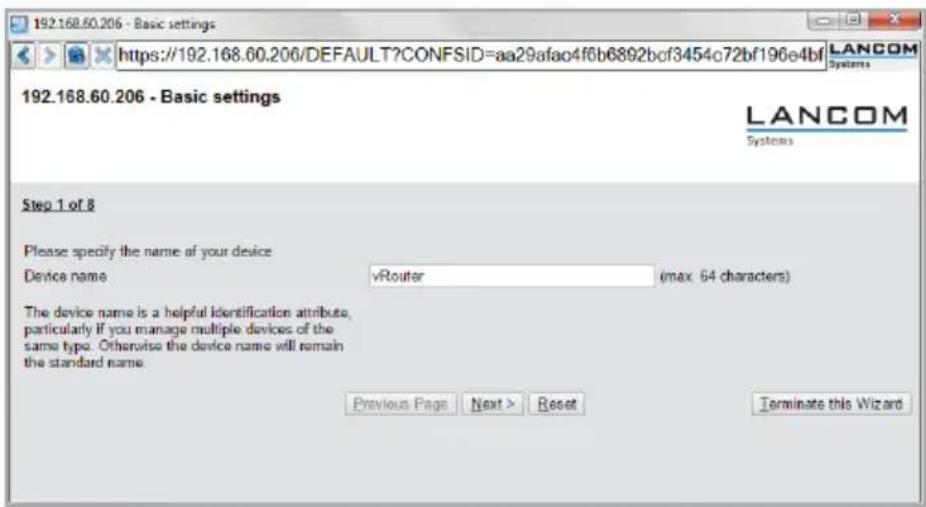
If the device has not yet been configured (e.g. during deployment on the ESXi server), a basic setup wizard starts automatically for the configuration of basic parameters, such as the main device password, device name, IP address, etc.
text_image
192.168.60.206 - Basic settings https://192.168.60.206/DEFAULT?CONFSID=aa29afao4f6b6892bcf3454c72bf196e4bf LANCOM Systems 192.168.60.206 - Basic settings LANCOM Systems Step 1 of 8 Please specify the name of your device Device name vRouter (max 64 characters) The device name is a helpful identification attribute, particularly if you manage multiple devices of the same type. Otherwise the device name will remain the standard name. Previous Page Next > Reset Terminate this Wizard
The main device password is essential for resetting the vRouter.
After running the basic setup wizard, you can continue with the configuration either manually or by means of the other Wizards.
Internet Connection
Setting up an Internet connection is easily done with a Setup Wizard. Start the Setup Wizard using the WEBconfig menu item Setup Wizards.

Make sure that the Ethernet port you use for the Internet connection is not connected the LAN that is used to manage the vRouter.
Registration & Activation
The functional scope of the LANCOM vRouter is determined by the license that was used to activate it. The license sets out framework conditions such as:
Maximum number of VPN tunnels
Maximum data throughput
Maximum number of ARF networks
A vRouter without an activated license is limited to a data throughput of 100 Kbps.
Registration using LANconfig
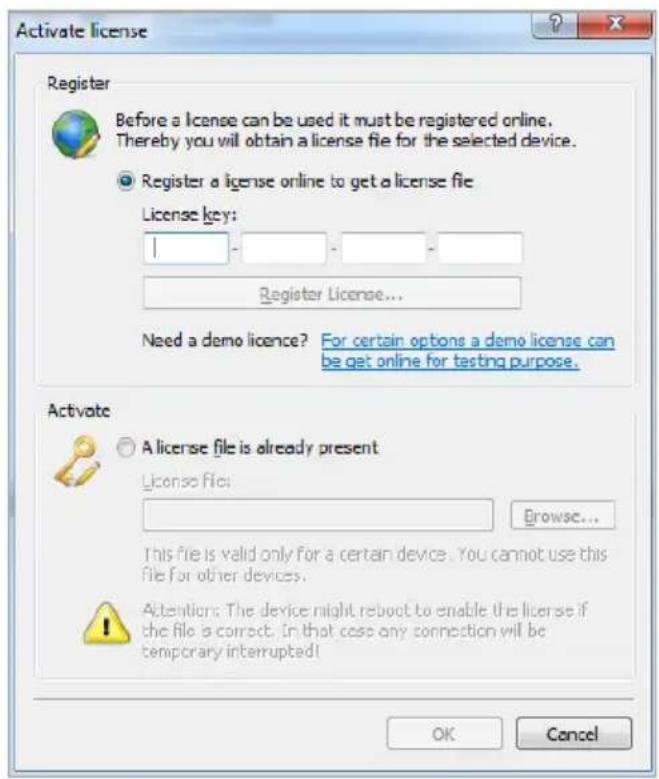
To register the LANCOM vRouter using LANconfig, right-click on the device to open the context menu and select Activate License.
In the dialog that opens, enter the purchased license key and click the button Register License. Your Web browser will then redirect you to the LANCOM Systems website to carry out the registration. After you enter the information, you can download the license file.
text_image
Activate license Register Before a license can be used it must be registered online. Thereby you will obtain a license file for the selected device. Register a license online to get a license file License key: 1 - - - Register License... Need a demo licence? For certain options a demo license can be get online for testing purpose. Activate A license file is already present License file: Browse... This file is valid only for a certain device. You cannot use this file for other devices. Attention: The device might reboot to enable the license if the file is correct. In that case any connection will be temporary interrupted! OK Cancel三
Activation using LANconfig
To activate the license, you can either drag & drop the downloaded license file onto the frame next to the button Browse or use the Browse button to navigate to where the license file is stored. Use the OK button to upload the license file to the vRouter and complete the registration.

Be aware, that deleting the vRouter on the ESXi server deletes the activated license, too.
Further Information
This chapter contains further information on the administration of the LANCOM vRouter. This includes integrating the vRouter into the LANCOM Management Cloud, and resetting the vRouter.
Resetting the vRouter
If you want to reconfigure the vRouter irrespective of any settings you have made, you can reset the vRouter to its default settings without affecting the license. You can perform the reset in the following ways:
Reset via the Command Line Interface (CLI)
Open the vRouter VGA command line interface on the ESXi server, or connect to the vRouter via SSH. Once you have logged on, you perform the reset with the command do /other/reset. If a main password has been set for the device, this is will be requested before the command is executed. After resetting, the vRouter boots.

Resetting the vRouter deletes all of the configuration settings, passwords and certificates.
Resetting via the Command Line Interface (CLI) while Retaining Certificates and the Main Device Password
In order to retain the main password and any uploaded certificates on the vRouter, you execute a command in the command line interface of the vRouter. Open the vRouter VGA command line interface on the ESXi server, or connect to the vRouter via SSH. After logging on, enter the following command from the root of the directory tree: default -r .

Default -r resets all of the configuration items in the current directory and its subdirectories to the default values. Certificates and the main device password in the vRouter remain unchanged.
三
Integration into the LANCOM Management Cloud
Only a few steps are required to integrate the LANCOM vRouter into the LANCOM Management Cloud.
Create an activation code
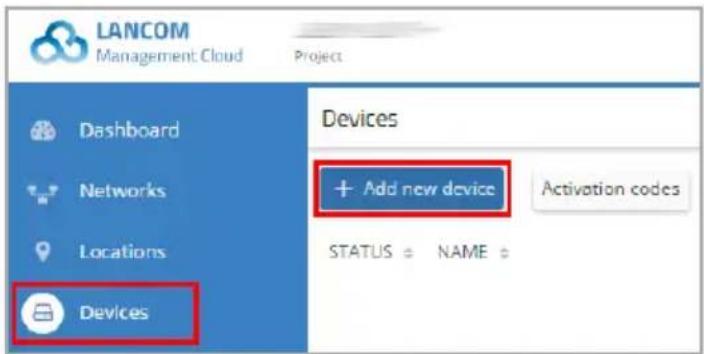
- In the LANCOM Management Cloud, open the Devices view and click Add new device.
text_image
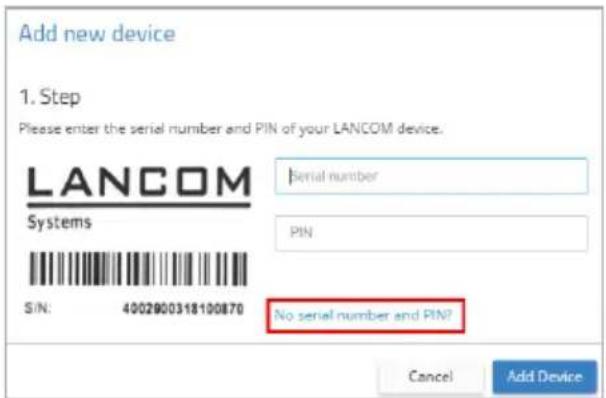
LANCOM Management Cloud Project Dashboard Networks Locations Devices Devices + Add new device Activation codes STATUS ○ NAME ○- In the following window, click the link No serial number or PIN available?
text_image
Add new device 1. Step Please enter the serial number and PIN of your LANCOM device. LANCOM Systems SIN: 4002900318100870 Serial number PIN No serial number and PIN? Cancel Add Device- Create an activation code by following the instructions in the dialog. This activation code allows you to integrate the LANCOM vRouter into the existing project.
The Activation code button displays all of the generated activation codes for this project in the Devices view.
Using the activation code
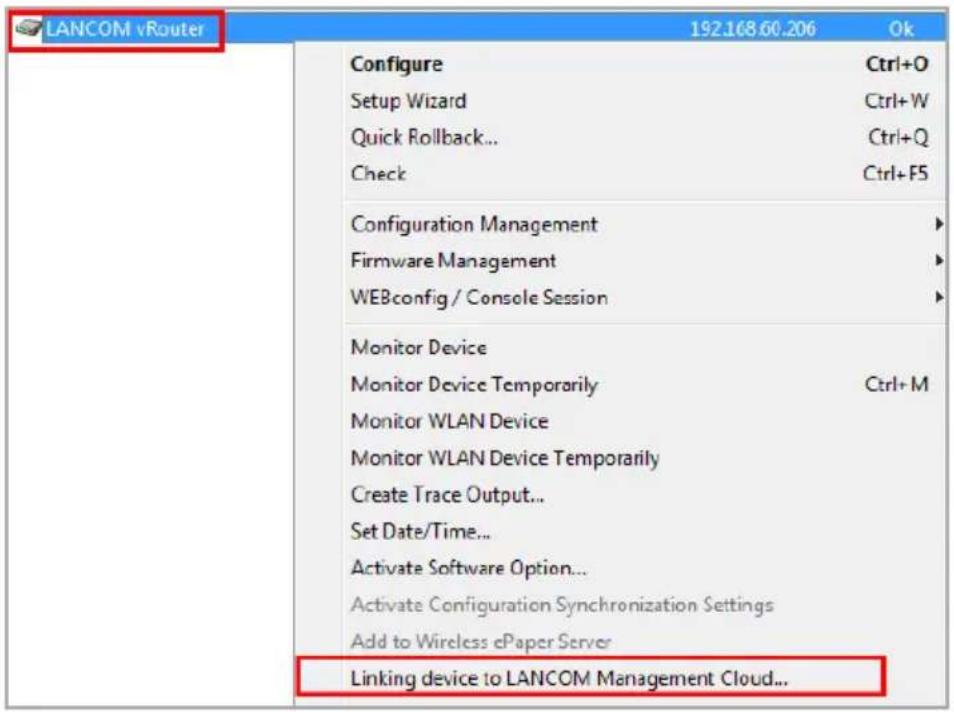
- In LANconfig, right-click to open the context menu of the vRouter and select the option Linking device to LANCOM Management Cloud...
text_image
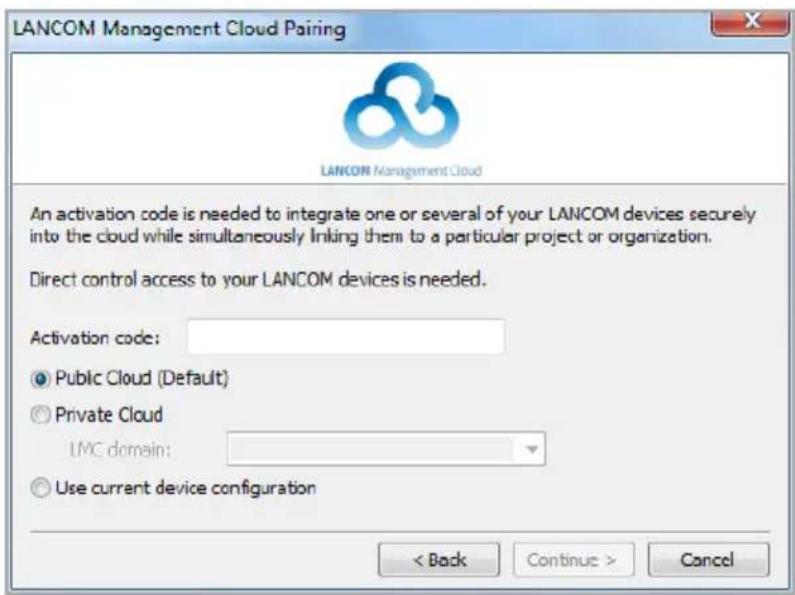
LANCOM vRouter 192.168.60.206 Ok Configure Ctrl+O Setup Wizard Ctrl+W Quick Rollback... Ctrl+Q Check Ctrl+F5 Configuration Management Firmware Management WEBconfig / Console Session Monitor Device Monitor Device Temporarily Ctrl+M Monitor WLAN Device Monitor WLAN Device Temporarily Create Trace Output... Set Date/Time... Activate Software Option... Activate Configuration Synchronization Settings Add to Wireless ePaper Server Linking device to LANCOM Management Cloud...- In the dialog window that opens, enter the activation code that you generated previously and click the button OK.
text_image
LANCOM Management Cloud Pairing LANCOM Management Cloud An activation code is needed to integrate one or several of your LANCOM devices securely into the cloud while simultaneously linking them to a particular project or organization. Direct control access to your LANCOM devices is needed. Activation code: ● Public Cloud (Default) ○ Private Cloud LMC domain: ○ Use current device configuration < Back Continue > Cancel

If you copied an activation code to the Clipboard, it is automatically entered into the field.
- After the device was linked to the LMC, it is shown in the device overview of the LMC. Additionally, the LMC icon is displayed in LANconfig instead of the device icon, showing the linking process was completed successfully.
Documentation
The full documentation for the LANCOM vRouter consists of these parts:
This Installation Guide offers an easy introduction for readers with knowledge of installing network components and routers and who are familiar with the workings of the basic network protocols.
The LCOS Reference Manual fully addresses issues concerning the LANCOM operating system LCOS for this and all other models.
The LCOS Menu Reference describes all of the parameters of LCOS in full.
The full documentation and the latest firmware and software are available from the download area of the LANCOM website.
Support
With your new LANCOM products, you are benefiting not only from our many years of experience in the field of data communication, but also from our excellent service. This document contains all of the information you should have ready if you ever need to contact us for product service.
LANCOM Support
Manual
If you encounter any problems when installing or operating your product, please refer to the manual first.
Internet
Actual support information and the LANCOM Knowledge Base can be obtained from the support pages on our web server:
www.lancom-systems.com/service-support
Firmware
The latest LCOS firmwares, drivers, tools and documentations can be downloaded free of charge from the download section on our web server:
www.lancom-systems.com/downloads
Further Help
If you should need personal assistance, please contact your local reseller.
Your LANCOM Team