
EL-738 - Calculator SHARP - Free user manual and instructions
Find the device manual for free EL-738 SHARP in PDF.


User questions about EL-738 SHARP
0 question about this device. Answer the ones you know or ask your own.
Ask a new question about this device
Download the instructions for your Calculator in PDF format for free! Find your manual EL-738 - SHARP and take your electronic device back in hand. On this page are published all the documents necessary for the use of your device. EL-738 by SHARP.
USER MANUAL EL-738 SHARP
- SHARP makes no guarantee that this product or this manual is suitable or accurate for any purpose, commercial or otherwise.
- Rules and practices in financial calculation vary according to country, locality, or financial institution. It is the consumer's responsibility to determine whether or not the results produced by this product conform to applicable rules and regulations.
- SHARP will not be liable nor responsible for any incidental or consequential economic or property damage caused by misuse and/or malfunctions of this product and its peripherals, unless such liability is acknowledged by law.
- The material in this manual is supplied without representation or warranty of any kind. SHARP assumes no responsibility and shall have no liability of any kind, consequential or otherwise, from the use of this material.
- SHARP assumes no responsibility, directly or indirectly, for financial losses or claims from third persons resulting from the use of this product and any of its functions, the loss of or alteration of stored data, etc.
- SHARP strongly recommends that separate permanent written records be kept of all important data. Data may be lost or altered in virtually any electronic memory product under certain circumstances. Therefore, SHARP assumes no responsibility for data lost or otherwise rendered unusable whether as a result of improper use, repairs, defects, battery replacement, use after the specified battery life has expired, or any other cause.
For Australia/New Zealand only: For warranty information please see www.sharp.net.au
Contents
Introduction 3
Operational Notes 3
Key Notations in This Manual 4
Chapter 1: Getting Started. 5
Preparing to Use the Calculator. 5
Resetting the Calculator In Case of Difficulty. 5
6
The SET UP Menu. 8
Operating Modes 10
Chapter 2: General Information. 11
Basic Calculations 11
Clearing the Entry and Memories 11
Editing and Correcting an Entry 13
Memory Calculations 14
Chapter 3: Financial Functions 17
General Information 17
TVM (Time Value of Money) Solver 22
Amortization Calculations 33
Discounted Cash Flow Analysis 37
Bond Calculations 44
Depreciation Calculations 48
Conversion between APR and EFF 51
Day and Date Calculations. 52
Percent Change/Compound Interest Calculations 54
Cost/Sell/Margin/Markup Calculations 56
Breakeven Calculations. 58
Chapter 4: Scientific Functions. 60
Constant Calculations 60
Chain Calculations 60
Scientific Calculations 61
Random Functions 62
Modify Function 63
Chapter 5: Statistical Functions. 64
Statistical Calculations and Variables. 67
Appendix 72
Financial Calculation Formulas 72
Statistical Calculation Formulas 75
Errors and Calculation Ranges 76
Battery Replacement 80
Priority Levels in Calculations 81
Specifications 82
Index 83
Thank you for purchasing a SHARP Business/Financial Calculator.
After reading this manual, store it in a convenient location for future reference.
- Display of examples shown in this manual may not look exactly the same as what is seen on the product. For instance, screen examples will show only the symbols necessary for explanation of each particular calculation.
- All company and/or product names are trademarks and/or registered trademarks of their respective holders.
Operational Notes
- Do not carry the calculator around in your back pocket, as it may break when you sit down. The display is made of glass and is particularly fragile.
- Keep the calculator away from extreme heat such as on a car dashboard or near a heater, and avoid exposing it to excessively humid or dusty environments.
- Since this product is not waterproof, do not use it or store it where fluids, for example water, can splash onto it. Raindrops, water spray, juice, coffee, steam, perspiration, etc. will also cause malfunction.
- Clean with a soft, dry cloth. Do not use solvents or a wet cloth.
- Do not drop the calculator or apply excessive force.
- Never dispose of batteries in a fire.
- Keep batteries out of the reach of children.
- This product, including accessories, may change due to upgrading without prior notice.
Key Notations in This Manual
Key operations are described in this manual as follows:
To specify log : 2ndF log
1 To specify 1 : or 1
To specify xy : ALPHA X^ ③
To specify CLR-D: 2ndF CLR-D ①
CLR0 To specify ENT :ENT
DATA To specify Z : ALPHA Z
To specify DATA : DATA ④
① Functions that are printed in orange above the key require 2ndF to be pressed first before the key.
② Number entry examples are shown with ordinary numbers (i.e., "100" will be indicated instead of "1 0 0").
③ To specify a memory function (printed in green on/above the key), press ALPHA first.
(4) Functions that are printed in black adjacent to the keys are effective in specific modes.
Example
Using the 2ndF and ALPHA keys
Press ON/C 2ndF ALPHA A X +/− 10.
- 2ndF and ALPHA A mean you have to press 2ndF followed by key and ALPHA followed by AMRT key.
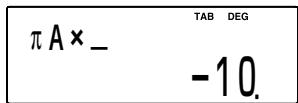
Notes:
- The multiplication instruction “ × ” and alphabetic letter “X” are distinguished as follows:
Key Display Multiplication instruction X X Alphabetic letter X
- Examples in this manual are performed using default settings (e.g., SET UP menu items) unless values are otherwise assigned.
Chapter 1
Getting Started
Preparing to Use the Calculator
Before using your calculator for the first time, you must reset (initialize) it.
Resetting the calculator
Press the RESET switch located on the back of the calculator with the tip of a ball-point pen or similar object. Do not use an object with a breakable or sharp tip.
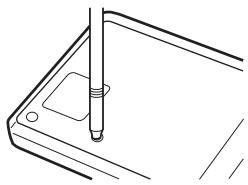
- After resetting the calculator, the initial display of the NORMAL mode appears.
TAB DEG
0.00
Resetting the Calculator In Case of Difficulty
Caution:
The RESET operation will erase all data stored in memory and restore the calculator's default setting.
In rare cases, all the keys may cease to function if the calculator is subjected to strong electrical noise or heavy shock during use. If pressing any of the keys (including ON/C) has no effect, reset the calculator.
Resetting the calculator
See the above procedure.
Note: Pressing (2ndF) M-CLR and 1 = will also erase all data stored in memory and restore the calculator's default setting.
Calculator and Display Layout
Calculator layout
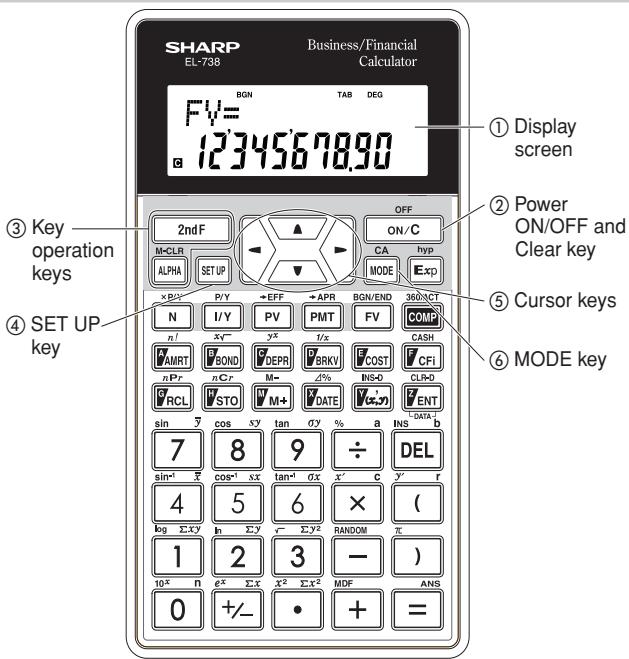
① Display screen: The calculator display consists of a 12-character dot matrix character line and a 12-digit 7-segment character line (10-digit mantissa and 2-digit exponent).
② Power ON/OFF and Clear key: Turns the calculator ON. This key also clears the display. To turn off the calculator, press 2ndF, then OFF.
③ Key operation keys:
2ndF: Activates the second function (printed in orange) assigned to the following key.
ALPHA): Activates the memory (printed in green) assigned to the following key.
④ SET UP key: Displays the SET UP menu to select the display notation, angular unit, depreciation method and date format.
⑤ Cursor keys: Move the cursor.
⑥ MODE key: Switches between NORMAL and STAT modes.
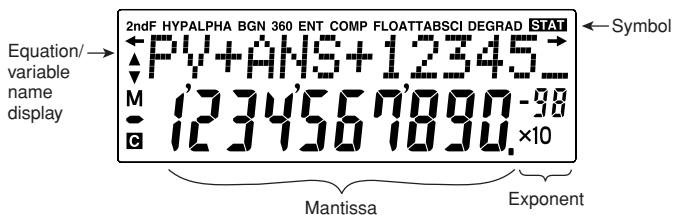
- During actual use, not all symbols are displayed at the same time.
- Only the symbols required for the operation being explained are shown in the screen examples of this manual.
/ : Appears when the entire equation cannot be displayed. Press & to see the remaining (hidden) part.
/ : Indicates that variables or data are present above/below the screen. Press / to scroll up/down.
2ndF : Appears when (2ndF) is pressed, indicating that the functions shown in orange are enabled.
HYP : Indicates that 2ndF hyp has been pressed and the hyperbolic functions are enabled.
ALPHA: Indicates that , or has been pressed, and storing or recalling memory values or TVM solvers/statistics variables can be performed.
BGN : Indicates that calculations are annuity due (payment at the beginning of each interval) calculations. When BGN is not displayed, calculations are ordinary annuity (payment at the end of each interval) calculations.
360 : Indicates that date calculations are based on a 360-day year (12 months with 30 days). When 360 is not displayed, date calculations use the actual calendar.
ENT : Indicates that a value can be assigned to the displayed variable using ENT.
COMP : Indicates that the displayed variable can be solved for by using
FLOAT A / FLOAT B / TAB / SCI: Indicates the notation used to display values. It can be changed in the SET UP menu.
DEG / RAD / GRAD : Indicates which angular units are in use. It can be changed in the SET UP menu.
STAT : Appears when statistics mode is selected.
M : Indicates that a numerical value is stored in the independent memory (M).
C : Indicates that the value of the displayed variable has not been calculated yet (for variables that can be calculated).
The SET UP Menu
Press SETUP to display the SET UP menu.

-
A menu item can be selected by:
-
Using 4 / 7 to select a number (the selected number will blink), then pressing = , or
-
pressing the number key corresponding to the menu item number.
-
If or is displayed on the screen, press or to view the previous/next part of the menu.
- Press ON/C to exit the SET UP menu.
Selecting the display notation and number of decimal places
The calculator has three display notation systems (fixed decimal point, scientific notation and floating point) for displaying calculation results.
- If 0 0 (TAB) is pressed, "DIG(0-9)?" will be displayed and the number of decimal places can be set to any value between 0 and 9.
- If 0 1 (SCI) is pressed, "SIG(0-9)?" will be displayed and the number of significant digit can be set to any value between 0 and 9. Entering 0 will set a 10-digit display.
- If a floating point number does not fit in the specified range, the calculator will display the result in scientific notation (exponential notation). See the next section for details.
- The default setting is a fixed decimal point with two decimal places.
Selecting the floating point number system in scientific notation
The calculator has two settings for displaying a floating point number:
FLO_A (FLOAT A) and FLO_B (FLOAT B). In each display setting, a number is automatically displayed in scientific notation outside the following preset ranges:
- FLO_A (SETUP) 0 2: 0.000000001 ≤ |X| ≤ 9,999,999,999
- FLO_B ( SETUP ) 0 3 : 0.01 ≤ |X| ≤ 9,999,999,999
Example Switching the notation setting
| Procedure | Key operation | Display |
| 100000 ÷ 3 = Fixed decimal point with two decimal places | ON/C 100000 ÷ 3 = | 100000 ÷ 3= 33333333 |
| → Scientific notation (SCI) with two significant digits | SET UP 0 1 2 | 100000 ÷ 3= 33.04×10 |
| → Floating point (FLO_A) | SET UP 0 2 | FLOAT A 100000 ÷ 3= 3333333333 |
| 3 ÷ 1000 = Floating point (FLO_A) | ON/C 3 ÷ 1000 = | 3÷1000= 0.003 |
| → Floating point (FLO_B) | SET UP 0 3 | FLOAT B 3÷1000= 3-03×10 |
| → Fixed decimal point with two decimal places | SET UP 0 0 2 | 3÷1000= 0.00 |
Selecting the angular unit (see page 61)
- DEG (°) : SETUP 1 0 (default setting)
RAD (rad): SETUP 1 1
GRAD (g): SETUP 1 2
Selecting the depreciation method (see page 48)
- SL (Straight-line method): SETUP 2 0 (default setting)
SYD (Sum-of-the-years' digits method): SETUP 2 1
DB (Declining balance method): SETUP 2 2
US (Month-Day-Year): SETUP 3 0 default setting)
EU (Day-Month-Year): SETUP 3 1
Operating Modes
This calculator has two operating modes, which can be selected using the MODE key.
Selecting a mode
- Press MODE
The menu display appears.
TAB DEG NORMAL STAT 0 1
-
Press 0 or to select NORMAL mode.
-
Press 1 or = to select STAT mode.
TAB DEG 0.00
SD LINE QUAD 0 1 2
Operations available in each mode
NORMAL mode:
Allows you to perform financial, arithmetic, or scientific calculations.
STAT (statistics) mode:
Allows you to perform statistical, arithmetic, or scientific calculations. The SIAI symbol appears in the display.
Chapter 2
General Information
Basic Calculations
Entering numbers and arithmetic operations
- Use the number keys 0 to 9, decimal point key , and sign change key (+/-) to enter numbers into the calculator. To clear the display or entry, press ON/C.
- Use the Exp key to enter a value in scientific notation.
- Use the arithmetic keys + - × ÷ to perform the standard arithmetic calculations of addition, subtraction, multiplication, and division. Press = to perform each calculation.
- Use the ( ) and () keys to place parentheses around inner parts of expressions. The closing parenthesis () just before = or M+ may be omitted.
- When you enter a series of operations in one sequence, the calculator performs the calculation according to the priority levels in calculation on page 81.
| Example | Key operation | Result |
| 45 + 285 ÷ 3 = | ON/C 45 + 285 ÷ 3 = | 14000 |
| 18 + 6/15 - 8 = | ( 18 + 6 ) ÷ ( 15 - 8 ) = | 343 |
| 42 × (-5) + 120 = | 42 ✘ +/- 5 + 120 = *1 (5 +/-) *1 | -9000 |
| (5 × 10^3) ÷ (4 × 10^-3) = | 5 Exp 3 ÷ 4 Exp (+/-) 3 = | 125000000 |
Clearing the Entry and Memories
The following methods of clearing the calculator (restoring default settings) are available:
: Cleared or restored to the default setting X: Retained
^1 N, I/Y, PV, PMT, and FV (P/Y and C/Y are not included.)
2 Note that listed financial variables sharing common memory with TVM variables, such as “COUPON (PMT)” used in bond calculations, are also cleared or restored to default settings.
3 Listed variables used in financial calculations (such as “RATE (I/Y),” etc.) including P/Y and C/Y
4 When you press AMRT to enter a financial calculation, AMRT P1 and AMRT P2 both revert to their default values. The same holds true for YEAR when you press DEPR.
5 With one of the variables of a listed group (such as those used in bond calculations) displayed, when 2ndF CA is pressed, all the variables in the listed group are cleared or restored to their default settings. Note that TVM variables sharing common memory with listed financial variables are also cleared or restored to default settings.
6 Press 2ndF CA when a cash flow value is displayed.
7 Statistical data (entered data) and variables (n, , etc.)
8 Are cleared when changing between sub-modes in STAT mode.
Notes:
- To clear any of the "A-H, M, X-Z" or "ANS" memories, press ON/C STO and then specify the memory.
- To clear or restore to the default setting one variable or value of TVM variables, listed financial variables, cash flow data, or STAT, refer to the relevant section.
- If you turn off the calculator (by pressing 2ndF OFF or by letting it turn itself off automatically), it will resume wherever you left off when you turn it on again.
Delete key
To delete a number/function, move the cursor to the number/ function you wish to delete, then press DEL. If the cursor is located at the right end of an equation or if you are entering a value, the DEL key will function as a back space key.
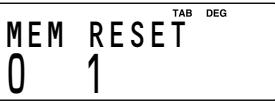
Press 2ndF M-CLR to display the menu.
To clear all (A-H, M, X-Z, ANS, TVM variables, listed financial
variables, cash flow data, and STAT), press 0 or 0 0 or 0 =
To RESET the calculator, press 1 or 1 =
The RESET operation erases all data stored in memory, and restore the calculator's default settings.
Editing and Correcting an Entry Cursor keys
- In a menu, such as the SET UP menu, use < or to select a number (the selected number will blink), then press = . If you need to scroll up or down the screen, use or .
- In financial calculations, such as bond calculations, press or to move through the variables (items).
Playback function
After obtaining an answer, pressing 4 brings you to the end of the equation and pressing 2 brings you to the beginning. Press 4 or 2 to move the cursor. Press 2ndF 4 or 2ndF 2 to jump the cursor to the beginning or end of the equation.
Insert and overwrite modes in the equation display
- This calculator has two editing modes: insert mode (default), and overwrite mode. Pressing (2ndF) (INS) switches between the two modes. A triangular cursor indicates an entry will be inserted at the cursor, while the rectangular cursor indicates existing data will be overwritten as you make entries.
- To insert a number in the insert mode, move the cursor to the place immediately after where you wish to insert, then make the desired entry. In the overwrite mode, data under the cursor will be overwritten by the number you enter.
- This mode setting will be retained until you press (2ndF) INS or RESET the calculator.
| Procedure | Key operation | Display |
| 15 ÷ 3 = | ON/C 15 ÷ 3 = | 15 ÷ 3= 5.00 |
| Enter the playback function. | ▷ | 15 ÷ 3 |
| Switch to overwrite mode. | 2ndF INS | 15 ÷ 3 |
| Change “15” to “25” and move the cursor to “3”. | 2 ➔ ➔ | 25 ÷ 3 |
| Change to insert mode. | 2ndF INS | 25 ÷ 3 |
| Change “3” to “13” and calculate. | 1 = | 25 ÷ 13= 1.92 |
Errors
An error will occur if an operation exceeds the calculation ranges, or if a mathematically illegal operation is attempted. When an error occurs, pressing or automatically moves the cursor to the place in the equation/number where the error occurred. Edit the equation/number or press ON/C to clear the equation. For details, see page 76.
Memory Calculations
This calculator has 11 temporary memories (A-H and X-Z), one independent memory (M) and one last answer memory (ANS). It also has various variables for use in financial calculations and statistical calculations.
Memory use in each mode for memory calculations
| Mode | A-H, X-Z | M | ANS | TVM variables*1 | Listed financial variables*2 | Statistical variables*3 |
| NORMAL | ○ | ○ | ○ | ○ | × | × |
| STAT | ○ | ○ | ○ | × | × | ○ |
O: Available X: Unavailable
^1 N, I/Y, PV, PMT, FV
2 All financial variables, except for TVM variables
^*3 ,sx,n, x, x^2,,sy, y, y^2, xy,r,a,b,c
Temporary memories (A-H, X-Z)
Press STO and the variable key to store a value in memory.
Press RCL and the variable key to recall a value from the memory.
To place a variable in an equation, press ALPHA and the variable key.
Independent memory (M)
In addition to all the other features of temporary memories, a value can be added to or subtracted from an existing memory value.
Press ON/C STO M to clear the independent memory (M).
Last answer memory (ANS)
- The calculation result obtained by pressing = or any other calculation ending instruction (including storing and recalling operations) is automatically stored in the last answer memory.
- Listed financial variables are automatically stored in the last answer memory by displaying the variable and the value.
TVM variables
TVM variables can be recalled using RCL in the same way as temporary memories. It is not necessary to press STO to store a value.
Listed financial variables
Financial variables are specific to the type of calculation they are used in. For example, the variable N is available to the TVM solver but not to discounted cash flow analysis calculations. If you want to carry a value from a variable over into a different type of calculation, use one of the following methods:
- Last answer memory (ANS): Within the original calculation, display the variable and value that you wish to carry over. The value is automatically entered into last answer memory. Press ON/O to exit the calculation (the listed financial variables will disappear from the screen), and press ALPHA ANS to bring up the value from the previous calculation. M-D-Y (D-M-Y) 1 and M-D-Y (D-M-Y) 2 are not stored in last answer memory.
- Variables common to both calculations: If the value that you wish to carry over is held in a variable that exists in both types
of calculation (for example, both bond calculations and the TVM solver use the variable I/Y), you can retrieve the value simply by switching calculation types and bringing up the variable.
Statistical variables
Statistical data is not entered into variables. Statistical variables are the results of the calculation of statistical data. Therefore, you cannot enter values directly into statistical variables. After calculation, however, you can use the values held in statistical variables in subsequent calculations.
Note: Use of RCL or ALPHA will recall the value stored in memory using up to 14 digits.
Example ^v Memory calculations
| Example | Key operation | Result |
| 24 ÷ (8 × 2) = (8 × 2) × 5 = | ON/C 8 X 2 STO M | 1600 |
| 24 ÷ ALPHA M = | 1.50 | |
| ALPHA M X 5 = | 8000 | |
| $150×3:M1 +) $250:M2=M1+250 - )M2×5% M | ON/C STO M | 000 |
| 150 X 3 M+ | 45000 | |
| 250 M+ | 25000 | |
| RCL M X 5 2ndF % | 3500 | |
| 2ndF M- RCL M | 66500 | |
| $1 = ¥110 ¥26,510 = ? | 110 STO Y | 11000 |
| 2,750 = ? | 26510 ÷ RCL Y = | 241.00 |
| 2750 X RCL Y = | 30250000 | |
| r = 3 cm (r→Y) πr² = ? | 3 STO Y | 300 |
| 2ndF π ALPHA Y * | 2827 | |
| 2ndF X² = | ||
| 24/4 + 6 = 2.4...(A) 3 × (A) + 60 ÷ (A) = | 24 ÷ (4 + 6) = | 240 |
| 3 X ALPHA ANS + 60 ÷ | 3220 | |
| ALPHA ANS = |
- Entry of the multiplication procedure is omitted between “ ” and a variable.
Chapter 3
Financial Functions
General Information
Financial calculations
The following financial functions are available. Use NORMAL mode to perform financial calculations.
TVM (Time Value of Money) solver: Analyze equal and regular cash flows. These include calculations for mortgages, loans, leases, savings, annuities and contracts or investments with regular payments.
Amortization calculations: Calculate and create amortization schedules using values stored in the TVM solver.
Discounted cash flow analysis: Analyze unequal cash flows and calculate NPV (net present value) and IRR (internal rate of return).
Bond calculations: Solve bond prices or yields to maturity with accrued interest.
Depreciation calculations: Obtain depreciation base values using three types of calculation methods.
Conversion between APR and EFF: Interest rates can be converted between APR (annual, or nominal percentage rate) and EFF (effective interest rate).
Day and date calculations: Calculate dates and the number of days between dates.
Percent change/Compound interest calculations: Calculate percent change (increase or decrease) and compound interest rates.
Cost/Sell/Margin/Markup calculations: Calculate cost, selling price and margin/markup.
Breakeven calculations: Calculate breakeven points (quantity) using fixed costs, variable costs per unit, unit prices, and profit.
Financial calculations use multiple variables. By entering known values into variables, you can obtain unknown values. Variables used in financial calculations are categorized into the following two types, depending on the entry method.
TVM variables:
Variables that are used in the TVM solver. These include N, I/Y, PV, PMT and FV. You can store, recall or calculate values directly using the corresponding keys.
Listed financial variables:
Variables that are organized into lists in different categories. These variables can be accessed using the / cursor keys in each calculation. P/Y and C/Y in the TVM solver are of this type of variable.
Variables shared among calculations
Financial variables are specific to the type of calculation they are used in. Values are stored in these variables and recalled as required. Some variables are shared (in the memory area) among calculations. If you change the value of a variable in one calculation, the value will change in all the other calculations as well. The following list shows the variables shared between calculations. While calculating, be aware of the values stored in these variables.
| TVM solver | Discounted cash flow analysis | Bond calculations | Depreciation calculations | Percent change/ Compound interest calculations | Day and date calculations |
| N | — | CPN/Y (N) | LIFE (N) | PERIODS (N) | — |
| I/Y | RATE (I/Y) | YIELD (I/Y) | DB (I/Y) | % (I/Y) | — |
| PV | — | PRICE (PV) | COST (PV) | OLD PRC (PV) | — |
| PMT | — | COUPON (PMT) | — | — | — |
| FV | — | REDEEMPT (FV) | SALVAGE (FV) | NEW PRC (FV) | — |
| — | — | M-D-Y 1* D-M-Y 1 | — | — | M-D-Y 1* D-M-Y 1 |
| — | — | M-D-Y 2* D-M-Y 2 | — | — | M-D-Y 2* D-M-Y 2 |
*The variable names vary according to the data format settings.
TVM variables (N, I/Y, PV, PMT, FV)
A. Entering a value
Enter a value and then press the corresponding TVM variable key.
Note: You can also enter values into variables using arithmetic operations.
Ex. 100 X 12 PMT
B. Displaying a value
Press RCL and the corresponding TVM variable key.
C. Executing calculation
Press COMP and the corresponding TVM variable key.
Listed financial variables
A. Entering a value
- Select the desired financial calculation method by pressing the corresponding financial calculation key.
- Use / to select the variable you wish to enter.
- Enter the value and press when the "ENT" symbol appears.
Note: In step 3, you can also enter values into variables using arithmetic operations.
Ex. 100 X 12 ENT
B. Displaying a value
- Use / to show the variable and value.
C. Executing calculation
- Use / to select the variable you wish to calculate.
- Press COMP when the "COMP" symbol appears.
Note: Pressing 2ndF CA resets all the variables in the displayed listed financial group to the default values. For details, see the relevant sections for each financial calculation.
Listed financial variables are categorized by whether they are known or unknown. When the variable is selected (displayed), the "ENT" and/or "COMP" symbols will appear to indicate that the current variable may be entered (known variable) and/or calculated (unknown variable), respectively. For details, refer to the explanations or examples for each financial function.
Note: TVM variables (N, I/Y, PV, PMT and FV) can be entered (known variables) and calculated (unknown variables), however, neither “ENT” nor “COMP” will appear on the display.
| Category | Display symbols | Descriptions |
| For entry only | ENT | Variable can be used as a known, but not as an unknown. |
| For calculation only | COMP | Variable can be used as an unknown, but not as a known. |
| For entry or calculation | ENT COMP | Variable can be used as either a known or an unknown. |
| Calculated automatically | — | Unknown variable, but the calculator calculates the value automatically. |
Notes:
- During financial calculation, the word "calculating!" will be displayed on the screen. You can press ON/C at this time to cancel the calculation.
- Calculation-only and automatically calculated variables have no default values.
- The G symbol will be displayed if the value of the displayed variable has not been calculated yet (for variables that can be calculated).
Compound interest
This calculator assumes interest is compounded periodically in financial calculations (compound interest). Compound interest accumulates at a predefined rate on a periodic basis. For example, money deposited in a passbook saving account at a bank accumulates a certain amount of interest each month, increasing the account balance. The amount of interest received each month depends on the balance of the account during that month, including interest added in previous months. Interest earns interest, which is why it is called compound interest.
It is important to know the compounding period of a loan or investment before starting, because the whole calculation is based on it. The compounding period is specified or assumed (usually monthly).
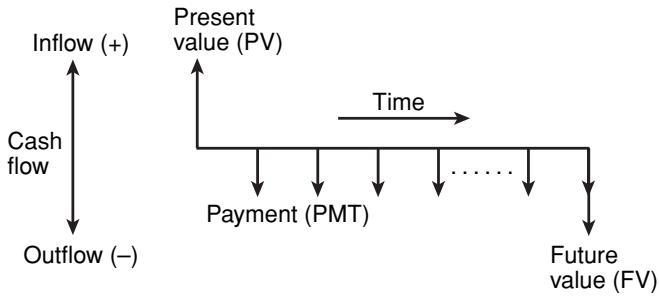
Cash flow diagrams
The direction of arrows indicates the direction of cash movement (inflow and outflow) with time. This manual uses the following cash flow diagrams to describe cash inflows and outflows.
TVM (Time Value of Money) Solver
Analyze equal and regular cash flows. These include calculations for mortgages, loans, leases, savings, annuities, and contracts or investments with regular payments.
Note: Discounted cash flow analysis can be done using unequal cash flows (see page 37).
An amortization schedule can be calculated using the information stored in the TVM solver (see page 33).
Variables used in the TVM solver
| Variable | Corresponding variable key | Description | Default value |
| N | N | Total number of payments | 1 |
| I/Y | I/Y | Interest rate per year | 0 |
| PV | PV | Present value | 0 |
| PMT | PMT | Payment | 0 |
| FV | FV | Future value | 0 |
| P/Y | 2ndF P/Y | Number of payments per year | 1 |
| C/Y | 2ndF P/Y▼ | Number of compounding periods per year | 1 |
Setting the payment period (payment due)
You can toggle between ordinary annuity (payment at the end of the period) and annuity due (payment at the beginning of the period) using 2ndF BGN/END. The default setting is ordinary annuity (BGN is not displayed).
Refer to page 28 for details.
Basic operations
Refer to page 19 for basic variable operations.
-
Press ON/C to clear the display.
-
Make sure the calculator is in NORMAL mode.
-
All the TVM solver variables retain their previously entered values. If you wish to clear all the data, press 2ndF CA
-
Select ordinary annuity or annuity due using 2ndF BGN/END
-
Enter values into TVM solver variables.
-
Enter a value and press the appropriate TVM variable key (N, I/Y, PV, PMT, FV).
- Press 2ndF P/Y and then enter a value for P/Y. The same value is automatically assigned to C/Y as well. Values entered into P/Y or C/Y must be positive. After entering values, press ON/C to quit the P/Y and C/Y settings.
- After setting P/Y (number of payments per year), you can use 2ndF × P / Y to enter N (total number of payments). Enter the number of years and press 2ndF × P / Y . The calculator automatically calculates the total number of payments.
- By pressing RCL ANS you can use the result of the previous normal calculation stored in ANS memory as a TVM variable.
-
Note that some variables are shared by other calculations and may have values assigned by those calculations.
-
Press COMP and the TVM variable key that you wish to solve.
-
The calculation is performed and the obtained values are displayed.
Basic examples for the TVM solver
Example 1 Calculating basic loan interest
A 56,000 mortgage loan (compounded monthly) requires monthly payments of440 during its 20-year amortization period. Calculate the annual interest rate on the mortgage.
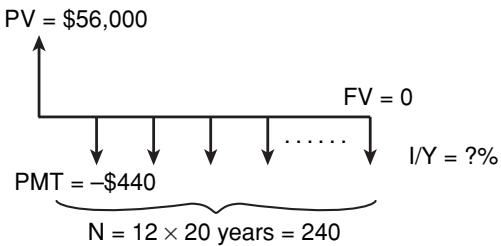
Default values for the number of payments per year (P/Y) and the number of compounding periods per year (C/Y) are both set to 1. Set these values before entering TVM variable values.
| Procedure | Key operation | Display |
| Set all the variables to default values. | 2ndF CA | 0.00 |
Make sure ordinary annuity is set (BGN is not displayed).
| Set the number of pay-ments per year to 12. | 2ndF P/Y 12 ENT | ,P/Y= 12.00 |
The number of compounding periods per year is automatically set to the same value as P/Y.
| Confirm the number of compounding periods per year. | ▼ | °C/Y= 12.00 |
| Quit the P/Y and C/Y settings. | ON/C | 0.00 |
| Calculate the total num-ber of payments and store in N. | 20 (2ndF xP/Y N) | ANS⇒N 240.00 |
| Enter the present value. | 56000 PV | 56000⇒PV 56000.00 |
| Enter payment. | +/− 440 PMT | (−440)⇒PMT -440.00 |
| Enter the future value. | 0 FV | 0⇒FV 0.00 |
| Calculate the annual interest rate. | COMP I/Y | I/Y= 7.17 |
Answer: The annual interest rate is 7.17% .
Note: If you make a mistake, press DEL to erase the number and enter the correct number to continue.
After pressing the TVM variable key, you must re-enter values from the beginning.
Example 2 Calculating basic loan payments
Calculate the quarterly payment for a (56,000 mortgage loan at 6.5\% compounded quarterly during its 20-year amortization period.
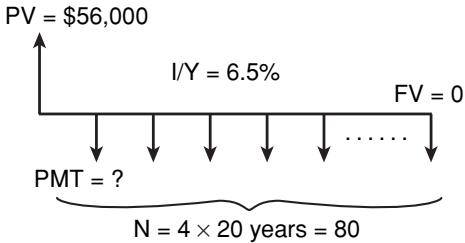
| Procedure | Key operation | Display |
| Set all the variables to default values. | 2ndF CA | 0.00 |
| Make sure ordinary annuity is set (BGN is not displayed). | ||
| Set the number of pay-ments per year to 4. | 2ndF P/Y 4 ENT | P/Y=4.00 |
| Confirm the number of compounding periods per year. | ▼ | C/Y=4.00 |
| Quit the P/Y and C/Y set-tings. | ON/C | 0.00 |
| Calculate the total number of payments and store in N. | 20 2ndF xP/Y N | ANS⇒N80.00 |
| Enter the present value. | 56000 PV | 56000⇒PV56000.00 |
| Enter the future value. | 0 FV | 0⇒FV0.00 |
| Enter the annual interest rate. | 6.5 I/Y | 6.5⇒I/Y6.50 |
| Calculate the quarterly payment. | COMP PMT | PMT=-1255.86 |
Answer: The quarterly payments are $1,255.86.
You will pay $200 at the end of each month for the next three years into a savings plan that earns 6.5% compounded quarterly. What amount will you have at the end of period if you continue with the plan?
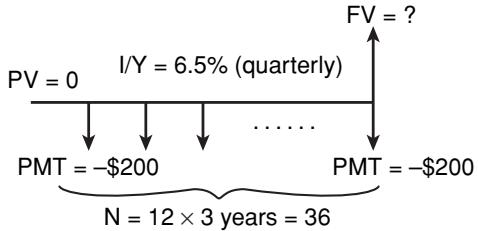
| Procedure | Key operation | Display |
| Set all the variables to default values. | 2ndF CA | 0.00 |
| Make sure ordinary annuity is set (BGN is not displayed). | ||
| Set the number of pay-ments per year to 12. | 2ndF P/Y 12 ENT | ,P/Y= 12.00 |
| Set the number of com-pounding periods per year to 4. | 4 ENT | ,C/Y= 4.00 |
| Quit the P/Y and C/Y settings. | ON/C | 0.00 |
| Calculate the total num-ber of payments and store in N. | 3 (2ndF xP/Y N) | ANS⇒N 36.00 |
| Enter the present value. | 0 PV | 0⇒PV 0.00 |
| Enter payment. | +/− 200 PMT | (-200)⇒PMT -200.00 |
| Enter the annual inter-est rate. | 6.5 I/Y | 6.5⇒I/Y 6.50 |
| Calculate the future value. | COMP FV | FV= 7922.19 |
Answer: You will have $7,922.19 at the end of the three-year period.
You open an account that earns 5% compounded annually. If you wish to have $10,000 twenty years from now, what amount of money should you deposit now?
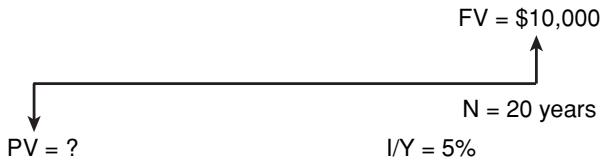
| Procedure | Key operation | Display |
| Set all the variables to default values. | 2ndF CA | 0.00 |
| Make sure ordinary annuity is set (BGN is not displayed). | ||
| Set the number of pay-ments per year to 1. | 2ndF P/Y 1 ENT | ,P/Y=1.00 |
| The number of compounding periods per year is automatically set to 1. Press ON/C to exit the P/Y and C/Y settings. | ||
| Enter the total number of payments. | ON/C 20 N | 20⇒N20.00 |
| Enter the future value. | 10000 FV | 10000⇒FV10000.00 |
| Set payment to zero. | 0 PMT | 0⇒PMT0.00 |
| Enter the annual interest rate. | 5 I/Y | 5⇒I/Y5.00 |
| Calculate the present value. | COMP PV | PV=-3768.89 |
Answer: You should deposit (3,768.89 now.
This calculator can select ordinary annuity or annuity due depending on the regular cash flow (payment) conditions.
Ordinary annuity (END):
This is the default setting for financial calculations. BGN is not displayed. A regular cash flow (payment) is received at end of each payment period. Often applied to loan calculations, etc.
Annuity due (BGN):
BGN appears on the display. A regular cash flow (payment) is received at the beginning of each payment period. Often applied to the finance lease of an asset.
To toggle between ordinary annuity and annuity due, press 2ndF BGNEND.
Note: The above selection only affects the TVM solver.
Example 1 Ordinary annuity
Your company wishes to accumulate a fund of 300,000 over the next 18 months in order to open a second location. At the end of each month, a fixed amount will be invested in a money market savings account with an investment dealer. What should the monthly investment be in order to reach the savings objective, assuming the account will earn3.6\%$ interest compounded monthly?
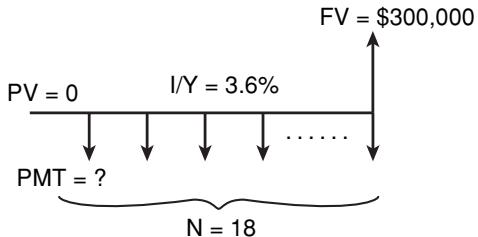
| Procedure | Key operation | Display |
| Set all the variables to default values. | 2ndF CA | 0.00 |
Make sure ordinary annuity is set (BGN is not displayed).
| Set the number of pay-ments per year to 12. | 2ndF P/Y 12 ENT | ,P/Y= 12.00 |
The number of compounding periods per year is automatically set to 12. Press ON/C to exit the P/Y and C/Y settings.
| Procedure | Key operation | Display |
| Enter the total number of payments. | ON/C 18 N | 18⇒N 1800 |
| Enter the future value. | 300000 FV | 300000⇒FV 30000000 |
| Set the present value to zero. | 0 PV | 0⇒PV 0.00 |
| Enter the annual interest rate. | 3.6 I/Y | 3.6⇒I/Y 3.60 |
| Calculate payment. | COMP PMT | PMT= -16245.70 |
Answer: The monthly investment should be (16,245.70.
Example 2 Annuity due
Your company wishes to obtain a computer system with a value of 2,995. The same system may be leased for 24 months at 145 per month, paid at the beginning of each month. At the end of the lease, the system may be purchased for 10% of the retail price. Should you lease or purchase the computer if you can obtain a two-year loan at 7.2%, compounded monthly, to purchase the computer?
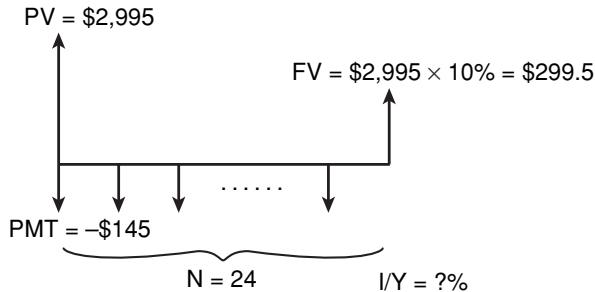
| Procedure | Key operation | Display |
| Set all the variables to default values. | 2ndF CA | 0.00 |
| Set to annuity due (BGN is displayed). | 2ndF BGND | 0.00 |
| Set the number of pay-ments per year to 12. | 2ndF P/Y 12 ENT | 12.00 |
Procedure
Key operation
Display
The number of compounding periods per year is automatically set to 12. Press ON/C to exit the P/Y and C/Y settings.
| Enter the total number of payments. | ON/C 24 N | BGN 24⇒N 24.00 |
| Enter the future value. | 2995 × 10 2ndF % FV | BGN ANS⇒FV 299.50 |
| Enter payment. | +/— 145 PMT | (-145)⇒PMT -14.500 |
| Enter the present value. | 2995 PV | BGN 2995⇒PV 2995.00 |
| Calculate the annual interest rate. | COMP I/Y | I / Y= 7.08 |
Answer: If you lease the computer system, the annual interest rate would be 7.08% , which is less than that of the interest rate on a two-year loan, so it would be more cost-effective to lease a computer system than to purchase one.
Example 3
Calculating the present value of a lease with trade-in value
Your client wishes to buy a machine currently leased from your company. On a five-year lease with payments of 200 at the beginning of each month, the machine has a trade-in value of 1,500 with 34 monthly payments remaining. If your company sells the machine at the present value of the lease, discounted at an annual interest rate of 18%, compounded monthly, how much should your company charge for the machine?
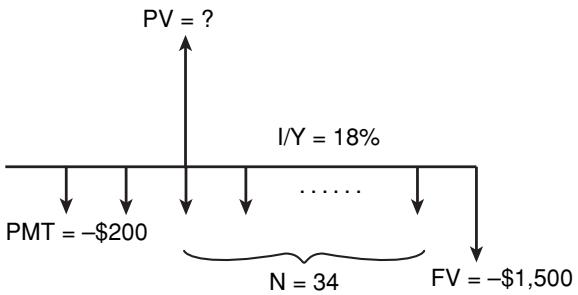
| Procedure | Key operation | Display |
| Set all the variables to default values. | 2ndF CA | 0.00 |
| Set to annuity due (BGN is displayed). | 2ndF BGND | 0.00 |
| Set the number of pay-ments per year to 12. | 2ndF P/Y 12 ENT | 12.00 |
The number of compounding periods per year is automatically set to 12. Press ON/C to exit the P/Y and C/Y settings.
| Enter the total number of payments. | ON/C 34 N | 34⇒N 34.00 |
| Enter payment. | +/- 200 PMT | -200)⇒PMT -200.00 |
| Enter the annual interest rate. | 18 I/Y | 18⇒I/Y 18.00 |
| Enter the future value. | +/- 1500 FV | -1500.00 |
| Calculate the present value. | COMP PV | PV= 6279.95 |
Answer: $6,279.95 should be charged for the machine.
Example 4
Calculating down payment and amount to borrow
You wish to buy a house for 180,000. The finance company charges a 5.5% APR, compounded monthly, on a 25-year loan. If you can afford a monthly payment of900, how much can you borrow? How much do you need for a down payment?
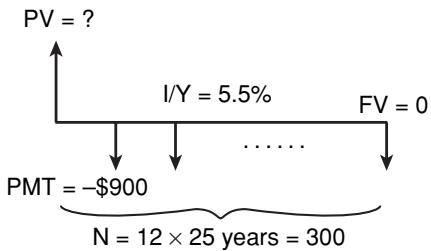
| Procedure | Key operation | Display |
| Set all the variables to default values. | 2ndF CA | 0.00 |
| Make sure ordinary annuity is set (BGN is not displayed). | ||
| Set the number of pay-ments per year to 12. | 2ndF P/Y 12 ENT | ,P/Y=12.00 |
| The number of compounding periods per year is automatically set to 12. Press (ON/C) to exit the P/Y and C/Y settings. | ||
| Enter the total number of payments. | ON/C 25 2ndF xP/Y N | ANS⇒N300.00 |
| Enter payment. | +/- 900 PMT | (-900)⇒PMT-900.00 |
| Enter the annual inter-est rate. | 5.5 I/Y | 5.5⇒I/Y5.50 |
| Set the future value to zero. | 0 FV | 0⇒FV0.00 |
| Calculate the present value. | COMP PV | PV=146558.92 |
| Calculate the down payment. | ON/C 180000 -RCL PV = | 180000-PV=33441.08 |
Answer: You can borrow 146,558.92 in total. The price of the house is180,000, so:
Down payment = $180,000 - present value
= 180,000 -146,558.92
You need (33,441.08 for a down payment.
Amortization Calculations
Calculate and create amortization schedules using values stored in the TVM solver.
Note: Prior to using amortization, you need to enter values into TVM variables.
Variables used in amortization
| Variable | Description | Default value |
| AMRT P1 | Start of payment (nth time) | 1 |
| AMRT P2 | End of payment (nth time) | 1 |
| BALANCE | Remaining balance after payment | — |
| ΣPRINCIPAL | Principal paid | — |
| ΣINTEREST | Interest paid over the specified periods | — |
- BALANCE, ΣPRINCIPAL and ΣINTEREST are calculated automatically, so no default values are set.
- AMRT P1 and AMRT P2 must be between 1 and 9,999.
Basic operations
Refer to page 19 for basic variable operations.
-
Press ON/C to clear the display.
-
Make sure the calculator is in NORMAL mode.
-
All the TVM solver variables retain their previously entered values. If you wish to clear all the data, press (2ndF) CA.
-
Select ordinary annuity or annuity due using 2ndF BGNEND
- Enter the appropriate numeric values for the variables used in the TVM solver.
- Confirm the values of N, I/Y, PV, PMT, FV, P/Y and C/Y.
- Press AMRT to use amortization calculation.
- Enter a value for "AMRT P1" and press (ENT).
- Press , enter a value for "AMRT P2" and press .
- Display values for BALANCE, PRINCIPAL and INTEREST by pressing once for each. Each value is calculated automatically.
$$ \begin{array}{c} \text {A M R T} ^ {\text {E N T}} \text {P 1} = \begin{array}{l l} \text {T A B} & \text {D E G} \ 1. 0 0 \end{array} \end{array} $$
- Press to calculate the next period of the amortization schedule.
-
Repeat steps 5 to 7 above.
-
If you press during "AMRT P1" and "AMRT P2" entry, the values for the next period of payment will be automatically calculated and displayed.
- To end amortization calculations, press ON/C. Pressing ON/C during entry will clear the value entered.
Example 1
Calculating mortgage payments and generating an amortization schedule
- Calculate the monthly payment of a 20-year loan with a loan amount of 90,000 and a 5.45% APR.
| Procedure | Key operation | Display |
| Set all the variables to default values. | 2ndF CA | 0.00 |
Make sure ordinary annuity is set (BGN is not displayed).
| Set TVM solver vari- ables and calculate payment. | 2ndF P/Y 12 ENT ON/C 20 2ndF xP/Y N 90000 PV 0 FV 5.45 I/Y COMP PMT | PMT= -616.56 |
Answer: The monthly payment is $616.56.
Now generate an amortization schedule for the first 5 years of the loan. If the first payment is in August, the first year has 5 payment periods and the following years have 12 payment periods each.
- Calculate the amortization schedule for the first year.
| Procedure | Key operation | Display |
| Change to amortization calculation and enter 1 (August) for the starting payment. | AMRT 1 ENT | ;AMRT P1= 1.00 |
| Enter 5 (December) for the ending payment. | 5 ENT | ;AMRT P2= 5.00 |
| Display the remaining balance. | ▼ | ;BALANCE= 88951.48 |
| Display the principal paid. | ▼ | ;ΣPRINCIPAL= -1048.52 |
| Display the interest paid. | ▼ | ;ΣINTEREST= -2034.28 |
- Calculate the amortization schedule for the second year.
| Procedure | Key operation | Display |
| Change amortization schedule to the second year and enter 6 (January) for the starting payment. | ENT | ;AMRT P1=6.00 |
| Enter 17 (December) for the ending payment. | ENT | ;AMRT P2=17.00 |
| Display the remaining balance. | ;BALANCE=86335.92 | |
| Display the principal paid. | ;ΣPRINCIPAL=-2615.56 | |
| Display the interest paid. | ;ΣINTEREST=-4783.16 |
- Calculate the amortization schedule for the third year.
| Procedure | Key operation | Display |
| Change amortization schedule to the third year and enter the next 12 months automatically. | COMP | ;AMRT P2=29.00 |
| Display the remaining balance. | ▼ | ;BALANCE=83574.21 |
| Display the principal paid. | ▼ | ;ΣPRINCIPAL=-2761.71 |
| Display the interest paid. | ▼ | ;ΣINTEREST=-4637.01 |
- Repeat the above operation for the fourth and fifth years.
Calculating payments, interest, and loan balance after a specified payment
You have taken out a 30-year loan for (500,000, with an annual interest rate of (8.5\%). If, after the 48th period, you want a balloon payment due, what amount of monthly payment must you make with monthly compounding and how much will the balloon payment be?
| Procedure | Key operation | Display |
| Set all the variables to default values. | ON/C 2ndF CA | 0.00 |
Make sure ordinary annuity is set (BGN is not displayed).
| Set TVM solver vari- ables and calculate payment. | 2ndF P/Y 12 ENT ON/C 30 (2ndF) xP/Y N 500000 PV 0 FV 8.5 I/Y COMP PMT | PMT= -3844.57 |
Answer: The monthly payment is 3,844.57 .
Now generate an amortization schedule from the first to the 48th payments.
| Procedure | Key operation | Display |
| Change to amortization calculation and enter 1 for the starting payment. | AMRT 1 ENT | ;AMRT P1= 1.00 |
| Enter 48 (December) for the ending payment. | 48 ENT | ;AMRT P2= 48.00 |
| Display the balance after 48 months. (balloon payment) | ▼ | ;BALANCE= 48275524 |
| Display the principal paid over 48 months. | ▼ | ;ΣPRINCIPAL= -17244.76 |
| Display the interest paid over 48 months. | ▼ | ;ΣINTEREST= -167294.60 |
Answer: The balloon payment after the 48th period would be ( \( {482},{755.24} ) .
Discounted Cash Flow Analysis
Analyze unequal cash flows and calculate the net present value (NPV) and the internal rate of return (IRR).
Note: Use the TVM solver for equal and regular cash flow analysis (see page 22).
Entering cash flow data
To find NPV and IRR using discounted cash flow analysis, enter cash flow data, one data item at a time, in the following format:
Single cash flows
Cash flow value DATA
Repeated cash flows
Cash flow value ,y (x,y) frequency value DATA
Notes:
- Before entering data, press CFi 2ndF CA to clear any previously entered cash flow data.
- Press +/ - to enter a negative cash flow (outflow).
- Make sure the calculator is in NORMAL mode. It is not possible to enter cash flow data when listed financial variables are shown on the display. Press ON/C to exit.
- You can enter a total of up to 100 cash flow and/or statistical data items. A single cash flow value is counted as one data item, while a cash flow value with an associated frequency value is counted as two.
- Frequency values must be integers between 1 and 999.
- If you wish to correct a value before pressing DATA, press ON/C to delete the entry and enter the correct value.
Example Entering cash flow data
Enter cash flow data according to the following cash flow diagram.
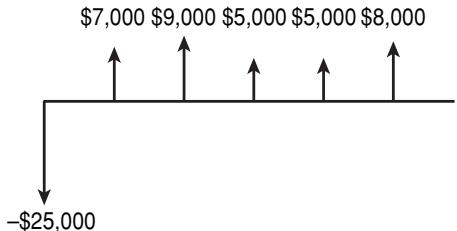
| Procedure | Key operation | Display |
| Bring up the initial dis-play in NORMAL mode. | ON/C *1 | 0.00 |
| Enter cash flow data. | +/- 25000 DATA | DATA SET:CF 0.00*2 |
| 7000 DATA | DATA SET:CF 1.00 | |
| 9000 DATA | DATA SET:CF 2.00 | |
| 5000 (x,y) 2 DATA | DATA SET:CF 3.00 | |
| 8000 DATA | DATA SET:CF 4.00 |
1 If there is cash flow data stored, press CFi 2ndF CA to clear it.
2 The format of the data set (cash flow and frequency values) number, which is initially set to "0.00," is dependent on calculator display notation settings.
Confirming and editing data
Confirming data
Press CFi to display any previously entered cash flow data.
The data is displayed in order by data item (identifier, number, and value).
Use / to display a data item from a previously entered data set.
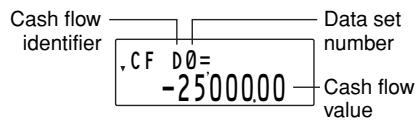
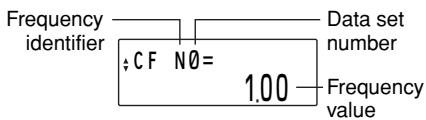
- Press 2ndF ▲ or 2ndF ▼ to jump to the first or the last data item, respectively.
- Each data item is displayed in the form CF Dn= (cash flow value) or CF Nn= (frequency), where n indicates the data set number.
Editing data
- Display the data item you wish to modify by using / , enter a new value and press DATA.
- If a frequency value is set to zero, then the associated data set is deleted.
Deleting data
- Display the data item to be deleted by using / , and press 2ndF CLR-D.
- If a cash flow value/frequency is deleted, the corresponding frequency/cash flow value is also deleted.
- If you wish to delete all data, press 2ndF CA.
Inserting data
Using the and keys, specify the correct place to insert your new data by displaying the value that is to come directly after, and then press 2ndF INS-D. A new data set with a cash flow value of zero and a frequency value of one will be inserted. Modify the new data set to include your data.
Example Correcting cash flow data
Currently the cash flow data is that shown in chart A. Change it according to chart B.
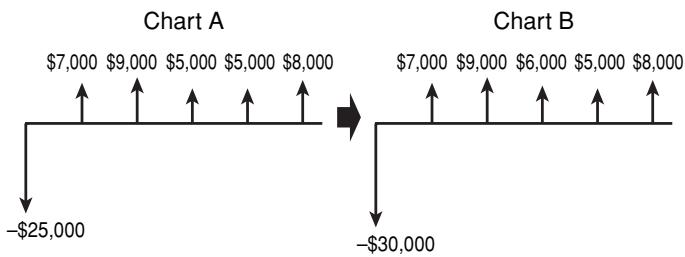
| Procedure | Key operation | Display |
| Display previously entered cash flow data. (Example on page 37) | ON/C CFI | ,CF D0= -25'000.00 |
| Change the first cash flow value from -25,000 to -30,000. | +/− 30000 DATA | CF D0= -30000.00 |
| Change the frequency of 5000 from 2 to 1. | ▼ ↓ ↓ ↓ ↓ 1 DATA | CF N3= 1.00 |
| Add a new data set (6000) immediately before 5000. | 2ndF INS-D 6000 DATA | CF D3= 6000.00 |
To confirm the corrections, press 2ndF to jump to the first data item and press to browse through each data item.
Variables used in discounted cash flow analysis
| Variable | Description | Default value |
| RATE (I/Y) | Internal rate of return (IRR) | 0 |
| NET_PV | Net present value (NPV) | — |
- The variable RATE (I/Y) is shared by the variable I/Y. NET_PV is for calculation only and has no default value.
- The BGN/END setting is not available for discounted cash flow analysis.
NPV and IRR
The calculator solves the following cash flow values:
Net present value (NPV):
The total present value of all cash flows, including cash paid out (outflows) and cash received (inflows). A profitable investment is indicated by a positive NPV value.
Internal rate of return (IRR):
The interest rate that gives a net present value of zero.
Basic operations
Refer to page 19 for basic variable operations.
-
Press ON/C to clear the display.
-
Make sure the calculator is in NORMAL mode.
-
Enter cash flow data.
Refer to page 37 for instructions on entering cash flow data.
-
Press 2ndF CASH to begin discounted cash flow analysis.
-
If a previously entered cash flow value is displayed, press ON/C to exit and then press 2ndF CASH.
-
To find NPV or IRR, do the following:
To obtain NPV:
Enter the interest rate (discounted rate) into RATE(I/Y) and press ENT. Move to NET_PV and calculate by pressing and COMP.
To obtain IRR:
Press COMP to calculate IRR (RATE(I/Y)).
Note: If "Error 5" is displayed in step 4, or if you want to find another IRR, enter an estimated value into RATE(I/Y) and calculate again in step 4.
Example 1 Solving for unequal cash flows
Your company pays 12,000 for a new network system, and expects the following annual cash flows:3,000 for the first year, 5,000 for the second to fourth years, and4,000 for the fifth year. At what IRR does the net present value of the cash flows equal zero?
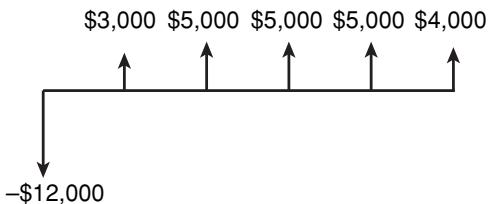
- Enter cash flow data.
| Procedure | Key operation | Display |
| Bring up the initial dis-play in NORMAL mode. | ON/C *1 | 0.00 |
| Enter cash flow data. | +/- 12000 DATA | DATA SET: CF 0.00 |
| 3000 DATA | DATA SET: CF 1.00 | |
| 5000 (x,y) 3 DATA | DATA SET: CF 2.00 | |
| 4000 DATA | DATA SET: CF 3.00 | |
| Return to the initial dis-play in NORMAL mode. | ON/C | 0.00 |
*1 If there is cash flow data stored, press CFi 2ndF CA to clear it.
2. Calculate IRR.
| Procedure | Key operation | Display |
| Select discounted cash flow analysis, and set all the variables to default values. | 2ndF CASH 2ndF CA | .RATE(I/Y)=0.00 |
| Calculate IRR (RATE(I/Y)). | COMP | .RATE(I/Y)=23.14 |
Answer: The net present value of the cash flows equals zero at an IRR of 23.14% .
Example 2 Calculating the present value of variable cash flows
Your company has prepared forecasts for the development costs and operating profits of the next generation of your product. Development costs for each of the next three years (Years 1 to 3) will be 50,000. Manufacturing equipment costing 100,000 will be purchased at the end of Year 3. Annual profits for the five-year product life (from Year 4 to Year 8) are projected to be 80,000. The salvage value of the manufacturing equipment at the end of Year 8 is 20,000. Given a 12% discount rate, should your company proceed with the product development?
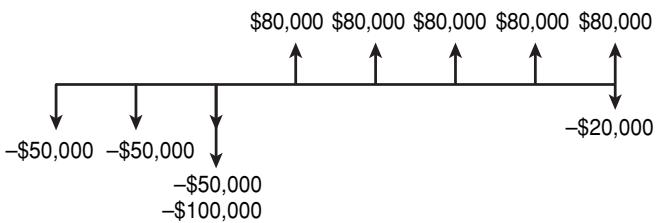
1. Enter the cash flow data.
| Procedure | Key operation | Display |
| Bring up the initial dis-play in NORMAL mode. | ON/C *1 | 000 |
| Enter cash flow data. | +/- 50000 (x,y) 2 DATA | DATA SET:CF 000 |
| +/- 150000 DATA | DATA SET:CF 1.00 | |
| 80000 (x,y) 4 DATA | DATA SET:CF 2.00 | |
| 60000 DATA | DATA SET:CF 3.00 | |
| Return to the initial dis-play in NORMAL mode. | ON/C | 000 |
*1 If there is cash flow data stored, press CFi 2ndF CA to clear it.
2. Calculate NPV.
| Procedure | Key operation | Display |
| Select discounted cash flow analysis, and set all the variables to default values. | 2ndF CASH 2ndF CA | .RATE(I/Y)=000 |
| Enter the discount rate. | 12 ENT | .RATE(I/Y)=1200 |
| Calculate NPV (NET_PV). | COMP | .NET_PV=6627.52 |
Answer: As NPV = 6,627.52 > 0 , the product can be developed.
Bond Calculations
Using bond calculations, you can obtain bond prices, yields to maturity, and accrued interest.
Variables used in bond calculations
| Variable | Description | Default value |
| COUPON (PMT) | Annual coupon rate (%) | 0 |
| REDEMPT (FV) | Redemption value *1 | 0 |
| M-D-Y 1 *2 | Settlement date (date of bond purchase) | 1-1-2001 |
| M-D-Y 2 *2 | Redemption date | 1-1-2001 |
| CPN/Y (N) *3 | Number of coupons per year | 1 |
| YIELD (I/Y) | Yield to maturity (%) | 0 |
| PRICE (PV) | Bond price *4 | 0 |
| ACCU INT | Accrued interest | — |
1 Redemption value of the security per $100 par value.
2 You can change the date format to D-M-Y (see page 10).
3 You can only enter "1" or "2" — "1" for annual coupons and "2" for semi-annual coupons.
4 Per $100 par value.
Note: Bonds are associated with payment methods known as coupons. A coupon is like an "interest-only payment," and it is based on the future value of the bond. COUPON is a percentage of the bond par value, usually annually, by the owner of the bond.
For bonds that have annual coupons, the owner receives one payment of the coupon amount each year. Some bonds have semi-annual coupons. For these, each year's coupon amount is paid in two equal payments six months apart. The date on which a coupon payment is made is called the "coupon date." The bond maturity date is usually the last coupon date.
Setting the day-count method
You can toggle between the actual calendar (365 days plus leap years) and a 360-day calendar (12 months of 30 days each) using 2ndF 360 / ACT . The actual calendar is set by default (360 is not displayed). The calendar range is from January 1, 1901 to December 31, 2099.
Refer to page 19 for basic variable operations.
-
Press ON/C to clear the display.
-
Make sure the calculator is in NORMAL mode.
-
Select bond calculations by pressing (BOND).
To end bond calculations, press ON/C.
- If you press ON/C during entry, any entered values will be cleared.
$$ \boxed { \begin{array}{c} E N T \ , C O U P O N (P M T) = \ 0. 0 0 \end{array} } $$
- Change the day-count setting, if necessary, by pressing 2ndF 360/ACT
- Enter the coupon rate (%) into COUPON (PMT) by entering the value and pressing ENT.
- Enter the redemption value into REDEMPT (FV) by pressing , entering the value, and pressing ENT.
-
Enter the date of bond purchase into M-D-Y 1 (or D-M-Y 1) by pressing , entering the date, and pressing .
-
For date entry, refer to page 47, "Entering dates".
-
Enter the redemption date into M-D-Y 2 (or D-M-Y 2) by pressing , entering the date, and pressing .
- For date entry, refer to page 47, "Entering dates".
- Enter the number of coupon payments per year into CPN/Y (N) by pressing , entering the value, and pressing ENT.
- To find bond price or yield to maturity, do the following:
To obtain bond price (PRICE (PV)):
Enter annual yield (%) into YIELD(I/Y) by pressing , entering the value, and pressing ENT. Move to PRICE (PV) and calculate by pressing and COMP. Display the accrued interest (ACCU INT) by pressing . The accrued interest is calculated automatically.
To obtain yield to maturity (YIELD (I / Y) ):
Move to PRICE (PV) and enter the bond price by pressing , entering the value, and pressing . Move to annual yield, YIELD (I/Y) and calculate by pressing . Display the accrued interest (ACCU INT) by pressing . The accrued interest is calculated automatically.
Example
Calculating bond price and accrued interest
A $100, 20-year, 6.5% coupon bond is issued to mature on August 15, 2023. It was sold on November 3, 2006 to yield the purchaser 7.2% compounded semiannually until maturity. At what price did the bond sell? Also calculate the accrued coupon interest.
| Procedure | Key operation | Display |
| Bring up the initial dis-play in NORMAL mode. | ON/C | 0.00 |
| Select bond calculations. | BOND | , COUPON(PMT) = 0.00 |
Make sure the actual calendar is set (360 is not displayed).
| Enter the coupon rate (%) | 6.5 ENT | .COUPON(PMT)= 6.50 |
| Enter the redemption value. | 100 ENT | ;REDEMPT(FV)= 100.00 |
| Enter the settlement date. | 11032006 ENT | :M-D-Y 1=[FR] 11-3-2006 |
| Enter the redemption date. | 08152023 ENT | :M-D-Y 2=[TU] 8-15-2023 |
| Enter the number of coupon payments per year. | 2 ENT | ;CPN/Y(N)= 2.00 |
| Enter the annual yield (%) | 7.2 ENT | ;YIELD(I/Y)= 7.20 |
| Calculate bond price. | COMP | ;PRICE(PV)= 93.23 |
| Calculate the accrued interest. | •ACCU INT= 1.41 | |
| Calculate bond price including accrued interest. | ON/C ALPHA PV + ALPHA ANS = | PV+ANS= 94.64 |
Answer: The bond sold at 93.23 and the accrued coupon interest was1.41 (the bond price including accrued interest would be $94.64).
The asking price on the above bond is $92.50. What will your yield be?
| Procedure | Key operation | Display |
| Change the bond price to $92.50. | BOND▼▼▼92.5ENT | ;PRICE(PV)=92.50 |
| Calculate the yield. | ▲COMP | ;YIELD(I/Y)=7.28 |
Answer: The yield will be 7.28% .
Entering dates
Refer to the following notes for date entry.
- Enter using US date format (MM-DD-YYYY) or EU date format (DD-MM-YYYY). Refer to the previous example and the following explanation.
Month entry
Enter two digits. From 2 to 9, the preceding zero may be omitted.
Day entry
Enter two digits. From 4 to 9, the preceding zero may be omitted.
Year entry
Enter four digits. From 2010 to 2099, the zero following the first "2" may be omitted. From 1901 to 1989, the "9" following the first "1" may be omitted.
- After entry, the date will be stored and the abbreviated day of the week will be displayed.
- [SU]: Sunday, [MO]: Monday, [TU]: Tuesday, [WE]: Wednesday, [TH]: Thursday, [FR]: Friday, [SA]: Saturday.
- The default value for dates is: January 1, 2001 (1-1-2001).
- The effective range of dates is: January 1, 1901 to December 31, 2099.
-
If an inappropriate date is entered (e.g., February 31), an error message (Error 7) will appear immediately after pressing . In this case, follow either of the following procedures:
-
Press ON/C to return to the display before the entry, enter the appropriate date, and press ENT.
-
Press 口 口 to go back to the display that was shown before you pressed ENT. Press ON/C or DEL, enter the appropriate date, and press ENT again.
-
If you wish to correct numbers during entry, use DEL as a backspace key.
Depreciation Calculations
Using depreciation calculations, you can obtain depreciation base values using three types of calculation methods: the straight-line method, the sum-of-the-years' digits method, and the declining balance method.
Variables used in depreciation calculations
| Variable | Description | Default value |
| DB (I/Y)*1 | Interest per year | 0 |
| LIFE (N) | Years of depreciation | 1 |
| START MONTH | Starting month | 1 |
| COST (PV) | Cost of asset | 0 |
| SALVAGE (FV) | Salvage value | 0 |
| YEAR | Year for calculating depreciation value | 1 |
| DEPRECIATE | Depreciation value of above year | — |
| RBV | Remaining book value | — |
| RDV | Remaining depreciation value | — |
*1 DB (I/Y) appears only when you select DB (declining balance method) for the depreciation method.
Setting the depreciation method
- Select the depreciation method in the SET UP menu. It is initially set to SL.
| Key operation | Description |
| SETUP 2 0 | SL (Straight-line method) |
| SETUP 2 1 | SYD (Sum-of-the-years' digits method) |
| SETUP 2 2 | DB (Declining balance method) |
Basic operations
Refer to page 19 for basic variable operations.
-
Press ON/C to clear the display.
-
Make sure the calculator is in NORMAL mode.
-
Select the depreciation method (see page 48).
-
Select depreciation calculations by pressing DEPR
-
When using the declining balance method, DB (I/Y) appears. Enter the number and
-
To end depreciation calculations, press ON/C. If you press ON/C during entry, any entered values will be cleared.
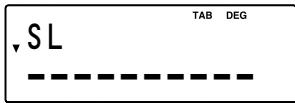
-
Enter the number of years of depreciation into LIFE (N) by pressing , entering the value, and pressing .
-
When using the straight-line method, the value should be a positive real number, while for the SYD or DB methods, it should be a positive integer.
-
Enter the starting month into START MONTH by pressing , entering the value, and pressing ENT.
-
You can enter values between 1 and 13.
- Generally, it is not necessary to enter a decimal value. However, if you wish to enter, for example, the middle of July, enter 7.5; where the decimal is equal to the number value of the given date divided by the total number of days in the month.
- Enter the cost of asset into COST (PV) by pressing , entering the value, and pressing ENT.
- Enter the salvage value into SALVAGE (FV) by pressing , entering the value, and pressing ENT.
- Enter the year for calculating depreciation value into YEAR by pressing , entering the value, and pressing .
- The year for calculating depreciation value is initially 1. Pressing increments this number by 1.
- This value must be a positive integer.
- Calculate depreciation for the year by pressing .
- Calculate the remaining book value by pressing .
- Calculate the remaining depreciation by pressing .
- To calculate depreciation value for another year, press three times to go back to YEAR, enter a value for the new year, and recalculate.
Example Calculating straight-line depreciation
In April, your company begins depreciation of a commercial building with a 30-year life and no salvage value. The building costs (1,500,000. Calculate the depreciation amount, remaining book value and remaining depreciable value for the third year using the straight-line depreciation method.
| Procedure | Key operation | Display |
| Bring up the initial display in NORMAL mode, and select the straight-line deprecia-tion method. | ON/C SET UP 2 0 | 0.00 |
| Select depreciation calculations. | DEPR | SL |
| Enter the number of years of depreciation. | 30 ENT | ;LIFE(N)=30.00 |
| Enter the starting month. | 4 ENT | ;START MONTH=4.00 |
| Enter the cost of asset. | 1500000 ENT | ;COST(PV)=1500000.00 |
| Enter the salvage value. | 0 ENT | ;SALVAGE(FV)=0.00 |
| Enter the year for calculating depreciation value. | 3 ENT | ;YEAR=3.00 |
| Calculate depreciation for the year. | ▼ | ;DEPRECIATE=50000.00 |
| Calculate the remaining book value. | ▼ | ;RBV=1362500.00 |
| Calculate the remaining depreciation value. | ▼ | ;RDV=1362500.00 |
Answer: At the third year, the depreciation amount is 50,000, the remaining book value is1,362,500, and the remaining depreciable value is $1,362,500.
Conversion between APR and EFF
Interest rates can be converted between APR (annual, or nominal percentage rate) and EFF (effective interest rate).
- The APR is an investment's annual rate of interest when compounding happens only once a year. The interest rate printed on a bond is an example of an APR.
- The EFF is an investment's annual rate of interest when compounding happens more often than once a year. It reflects the actual amount of return for a given nominal rate. For example, if your investment compounds monthly, then the stated nominal percentage rate becomes a monthly rate, and the EFF reflects your actual annual rate of return.
Basic operations
- Press ON/C to clear the display. Make sure the calculator is in NORMAL mode.
-
Enter the calculation data in the following format:
-
To change APR to EFF:
Number of compounding periods per year x,y Nominal percentage rate 2ndF EFF
- To change EFF to APR:
Number of compounding periods per year (x,y) Effective interest rate 2ndF APR
Example Converting between APR and EFF
| Procedure | Key operation | Display |
| Calculate the effective interest rate for twelve compounding periods with an 18% APR. | ON/C 12 (x,y) 18 2ndF EFF | 12,18→EFF 19.56 |
| Convert this rate back to the original APR. | 12 (x,y) 19.56 2ndF AP | 12,19.56→APR 18.00 |
Day and Date Calculations
Using day and date calculations, you can find dates and the numbers of days between dates.
Variables used in day and date calculations
| Variable | Description | Default value |
| M-D-Y 1*1 | The first date | 1-1-2001 |
| M-D-Y 2*1 | The last date | 1-1-2001 |
| DAYS | Number of days | 0 |
*1 You can change the date format to D-M-Y (see page 10).
Setting the day-count method
You can toggle between the actual calendar (365 days plus leap years) and a 360-day calendar (12 months of 30 days each) using 2ndF 360 / ACT . The actual calendar is set by default (360 is not displayed). The calendar range is from January 1, 1901 to December 31, 2099.
Basic operations
Refer to page 19 for basic variable operations.
-
Press ON/C to clear the display.
-
Make sure the calculator is in NORMAL mode.
-
Select day and date calculations by pressing DATE.
To end day and date calculations, press ON/C. If you press ON/C during entry, any entered
$$ \begin{array}{c} \text {M - D - Y 1 = [ M O ]} \ 1 - 1 - 2 0 0 1 \end{array} $$
-
Change the day-count method, using 2ndF 360/ACT, if necessary.
-
Enter the values of any two known variables: the first date, the last date, or the number of days.
-
For date entry, refer to page 47, "Entering dates".
-
Move to the variable you wish to calculate, using the and keys, and press to calculate.
-
If the calculator is set to 360-day calendar mode (360 is displayed), it is not possible to obtain either the first or last dates, only the number of days.
Example 1
Calculating number of days
Calculate the number of days between December 25, 2008 and August 10, 2009 (using US date format and the actual calendar).
| Procedure | Key operation | Display |
| Bring up the initial dis-play in NORMAL mode. | ON/C | 0.00 |
| Select day and date calculations, and set all the variables to default values. | DATE 2ndF CA | M-D-Y 1=[MO]1-1-2001 |
Make sure the actual calendar is set (360 is not displayed).
| Enter the first date. | 12252008 ENT | ,M-D-Y 1=[TH] 12-25-2008 |
| Enter the last date. | ▼ 8102009 ENT | ,M-D-Y 2=[MO] 8-10-2009 |
| Move to DAYS and calculate. | ▼ COMP | ▪ DAYS= 228.00 |
Answer: 228 days
- If the 360-day calendar is selected, the answer will be 225 days.
Example 2 Finding a date
Find the date 100 days after November 13, 2010 (using US date format and the actual calendar).
| Procedure | Key operation | Display |
| Bring up the initial dis-play in NORMAL mode. | ON/C | 0.00 |
| Select day and date calculations, and set all the variables to default values. | DATE 2ndF CA | M-D-Y 1=[MO]1-1-2001 |
Make sure the actual calendar is set (360 is not displayed).
| Enter the first date. | 1113210 ENT | M-D-Y 1=[SA] 11-13-2010 |
| Move to DAYS and en- ter the number of days. | ▼ ▼ 100 ENT | • DAYS= 100.00 |
| Procedure | Key operation | Display |
| Move to the last date and calculate. | COMP | ;M-D-Y 2=[MO] 2-21-2011 |
Answer: The last date is February 21, 2011.
Percent Change/Compound Interest Calculations
Using percent change/compound interest calculations, you can determine the values of percentage rates of change (increase or decrease) or interest rates compounding periodically.
Variables used in percent change/compound interest calculations
| Variable | Description | Default value |
| OLD PRC (PV) | Old price (old value) | 0 |
| NEW PRC (FV) | New price (new value) | 0 |
| % (I/Y) | Percent change | 0 |
| PERIODS (N) | Number of compounding periods | 1 |
Basic operations
Refer to page 19 for basic variable operations.
-
Press ON/C to clear the display.
-
Make sure the calculator is in NORMAL mode.
-
Select percent change/compound interest calculations by pressing 2ndF %
To end percent change/compound interest calculations, p
- If you press ON/C during entry, any entered values will be cleared.
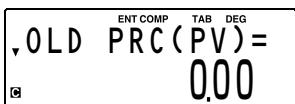
-
Enter the values of any three known variables: old price, new price, percent change, or number of compounding periods.
-
Move to the variable you wish to calculate, using the and keys, and press COMP to calculate.
Example 1
Calculating percent change
Sales in a company were 75,000 during the first year of operation. The second year's sales were 116,000. What percentage greater were the second year's sales than first year's sales? In this calculation, the number of compound periods is set to 1 (default).
| Procedure | Key operation | Display |
| Bring up the initial display in NORMAL mode. | ON/C | 0.00 |
| Select percent change/compound interest calculations, and set all the variables to default values. | 2ndF 4% 2ndF CA | .OLD PRC(PV)=0.00 |
| Enter the old value. | 75000 ENT | .OLD PRC(PV)=75000.00 |
| Enter the new value. | ▼ 116000 ENT | ;NEW PRC(FV)=116000.00 |
| Calculate the percent change. | ▼ COMP | ;%(I/Y)=54.67 |
Answer: The second year's sales increased by 54.67% over the first year's sales.
Example 2
Calculating compound interest rate
You opened an account compounding annually and deposited 8,000 eighteen years ago. You currently have 9,800. What is the compound interest rate?
| Procedure | Key operation | Display |
| Bring up the initial dis-play in NORMAL mode. | ON/C | 0.00 |
| Select percent change/compound interest calculations, and set all the variables to default values. | 2ndF 4% 2ndF CA | ,OLD PRC(PV)=0.00 |
| Enter the old value. | 8000 ENT | ,OLD PRC(PV)=8000.00 |
| Enter the new value. | 9800 ENT | ;NEW PRC(FV)=980000 |
| Set the number of compound periods to 18. | 18 ENT | ;PERIODS(N)=1800 |
| Calculate the compound interest rate. | COMP | ;%(I/Y)=1.13 |
Answer: The compound interest rate is 1.13% .
Cost/Sell/Margin/Markup Calculations
Using cost/sell/margin/markup calculations, you can determine costs, selling prices, margins and markup.
Variables used in cost/sell/margin/markup calculations
| Variable | Description | Default value |
| COST | Cost | 0 |
| SELL | Selling price | 0 |
| MARGIN | Profit margin (%) *1 | 0 |
| MARK UP | Markup (%) *2 | 0 |
1 Profit margin (%) is calculated based on selling price.
2 Markup (%) is calculated based on cost.
Basic operations
Refer to page 19 for basic variable operations.
-
Press ON/C to clear the display.
-
Make sure the calculator is in NORMAL mode.
-
Select cost/sell/margin/markup calculations by pressing (cost).
-
To end cost/sell/margin/mark-up calculations, press ON/C.
-
If you press ON/C during entry, any entered values will be cleared.
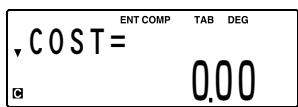
- Enter the values of any two known variables as follows:
| Unknown variable | Known variables |
| COST | SELL, and MARGIN or MARK UP *1 |
| SELL | COST, and MARGIN or MARK UP*1 |
| MARGIN | COST and SELL |
| MARK UP | COST and SELL |
*1 Because only either MARGIN or MARK UP is used in any cost/sell/margin/markup calculation, the unused variable is given a value of “-”. Initially, MARK UP is set to “-”. If you enter a value for MARK UP, MARGIN is set to “-”, and vice versa.
- Move to the variable you wish to calculate, using the and keys, and press to calculate.
Example Determining selling price
In a furniture business, it is desirable to realize a (95\%) markup from cost to retail price for each item. A certain sofa costs \(455.60. What should its selling price be?
| Procedure | Key operations | Display |
| Bring up the initial display in NORMAL mode. | ON/C | 0.00 |
| Select cost/sell/margin markup calculations, and set all the variables to default values. | COST 2ndF CA | ,COST=0.00 |
| Enter cost. | 455.6 ENT | ,COST=455.60 |
| Enter markup rate. | ▼ ENT 95 | ▪MARK UP=95.00 |
| Calculate selling price. | ▲ ▲ COMP | ;SELL=888.42 |
Answer: The selling price should be $888.42.
Breakeven Calculations
Using breakeven calculations, you can calculate fixed cost, variable cost per unit, unit price, profit and quantity.
Variables used in breakeven calculations
| Variable | Description | Default value |
| FIXED | Fixed cost | 0 |
| VARIABLE | Variable cost per unit | 0 |
| PRICE | Unit price | 0 |
| PROFIT | Profit | 0 |
| QUANTITY | Quantity | 0 |
Basic operations
Refer to page 19 for basic variable operations.
-
Press ON/C to clear the display.
-
Make sure the calculator is in NORMAL mode.
-
Select breakeven calculations by pressing .
To end breakeven calculations, press ON/C.
- If you press ON/C during entry, any entered values will be cleared.
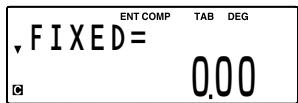
- Enter the values of any four known variables.
- Move to the variable you wish to calculate, using the and keys, and press COMP to calculate.
Example Calculating the breakeven point
Your company has developed a new product and plans to sell it at a price of 120 per unit. The variable cost per unit is 75.80 and the fixed costs total $15,000. What is the breakeven point for this product?
| Procedure | Key operation | Display |
| Bring up the initial dis-play in NORMAL mode. | ON/C | 0.00 |
| Select breakeven calculations, and set all the variables to default values. | BRKV 2ndF CA | FIXED=0.00 |
| Enter fixed cost. | 15000 ENT | FIXED=15000.00 |
| Enter variable cost per unit. | 75.80 ENT | ;VARIABLE=75.80 |
| Enter unit price. | 120 ENT | ;PRICE=120.00 |
| Leave profit as is. | ▼ | ;PROFIT=0.00 |
| Calculate quantity. | COMP | QUANTITY=339.37 |
Answer: The breakeven point of this product is 339.37 units.
Chapter 4
Scientific Functions
This calculator has a variety of functions. Press MODE 0 to select NORMAL mode and perform scientific calculations.
- For basic calculations, see page 11.
- When a listed financial variable is displayed, you can enter the result of a scientific calculation into it by pressing (ENT) immediately after completing the calculation.
- Scientific calculations can also be performed in STAT mode.
- The examples in this chapter are all performed under the SET UP menu's default settings. Before starting calculation, press ON/C to clear the display.
Constant Calculations
| Example | Key operation | Result |
| 34 + 57 = | ON/C 34 + 57 = | 91.00 |
| 45 + 57 = | 45 = | 102.00 |
| 68 × 25 = | 68 × 25 = | 170.00 |
| 68 × 40 = | 40 = | 272.00 |
- In constant calculations, the addend becomes a constant. Subtraction and division behave the same way. For multiplication, the multiplicand becomes a constant.
- In constant calculations, constants will be displayed as K.
Chain Calculations
A calculation result (ANS memory) can be used in a subsequent calculation. However, it cannot be recalled after entering multiple instructions.
| Example | Key operation | Result |
| 6 + 4 = ANS | ON/C 6 + 4 = | 10.00 |
| ANS + 5 = | + 5 = | 15.00 |
| 8 × 2 = ANS | 8 × 2 = | 16.00 |
| ANS² = | 2ndF x² = | 256.00 |
| 44 + 37 = ANS | 44 + 37 = | 81.00 |
| √ANS = | 2ndF √ = | 9.00 |
Scientific Calculations
| Example | Key operation | Display |
| sin 60 [°] = | ON/C 2ndF sin 60 = | sin60= DEG 0.87 |
| cos π/4 [rad] = | SET UP 1 1 2ndF cos (π/4) = | RAD cos(π/4)= 0.71 |
| tan-1 1 [g] = | SET UP 1 2 2ndF tan-1 1 = | tan-1= GRAD 50.00 |
| tan-1 1 [°] = | SET UP 1 0 2ndF tan-1 1 = | tan-1= DEG 45.00 |
- The range of the results of inverse trigonometric functions
| θ = sin-1.x, θ = tan-1.x | θ = cos-1.x | |
| DEG | -90 ≤ θ ≤ 90 | 0 ≤ θ ≤ 180 |
| RAD | -π/2 ≤ θ ≤ π/2 | 0 ≤ θ ≤ π |
| GRAD | -100 ≤ θ ≤ 100 | 0 ≤ θ ≤ 200 |
| Example | Key operation | Result | ||||
| (cosh 1.5 + sinh 1.5)2 = | ON/C | ( | 2ndF | hyp | cos 1.5 | |
| + | 2ndF | hyp | sin | 1.5 | ||
| 2ndF | X2 | = | 20.09 | |||
| tanh-15/7 = | 2ndF | hyp | tan-1 | ( | 5 ÷ 7 | 0.90 |
| ) | = | |||||
| log 50 = | 2ndF | log | 50 = | 1.70 | ||
| In 20 = | 2ndF | In | 20 = | 3.00 | ||
| 101.7 = | 2ndF | 10x | 1.7 = | 50.12 | ||
| e3 = | 2ndF | ex | 3 = | 20.09 | ||
| 1/6 + 1/7 = | 6 (2ndF) /x | + 7 (2ndF) /x = | 0.31 | |||
| 8-2-34×52 = | 8 (2ndF) yx | +/- 2 (-) 3 | 2 (-) 3 | |||
| 2ndF yx | 4 x | 5 (2ndF) X2 = | -2024.98 | |||
| (123)4 = | 12 (2ndF) yx | 3 (2ndF) yx | 4 | 645 | ||
| 2ndF /x = | ||||||
| √49 - 4√81 = | 2ndF √ | 49 - 4 (2ndF) √ | 4.00 | |||
| 81 = | ||||||
| Example | Key operation | Result |
| 4! = | 4 2ndF n! = | 24.00 |
| 10P3 = | 10 2ndF nPr 3 = | 72000 |
| 5C2 = | 5 2ndF nCr 2 = | 1000 |
| What is 25% of 500? | 500 × 25 2ndF % | 125.00 |
| What percentage of 400 is 120? | 120 ÷ 400 2ndF % | 30.00 |
| 500 + (500 × 25%) = | 500 + 25 2ndF % | 625.00 |
| 400 - (400 × 30%) = | 400 - 30 2ndF % | 280.00 |
Random Functions
This calculator has four kinds of random functions (the 2nd function of the - key).
Random numbers
A pseudo-random number, consisting of three significant digits from zero up to 0.999, can be generated by pressing 2ndF RANDOM 0 = . To generate further random numbers in succession, press = for each number. Press ON/C to exit.
- To display numbers with three significant digits, set the display notation settings to "floating point".
Random dice
To simulate a die roll, a random integer between 1 and 6 can be generated by pressing 2ndF RANDOM 1 = . To generate further random numbers in succession, press = for each number. Press ON/C to exit.
Random coin
To simulate a coin flip, 0 (heads) or 1 (tails) can be randomly generated by pressing 2ndF RANDOM 2 = . To generate further random numbers in succession, press = for each number. Press ON/C to exit.
Random integer
An integer between 0 and 99 can be generated randomly by pressing 2ndF RANDOM 3 = . To generate further random numbers in succession, press = for each number. Press ON/C to exit.
| Example | Key operation | Display |
| Pick a random number between zero and 9.99. | ON/C 2ndF RANDOM 0 × 10 = | RANDOM x 10=5.32 |
- The result will not be the same each time this operation is performed.
Modify Function
Calculation results are internally obtained in scientific notation with a mantissa of up to 14 digits. However, because calculation results are displayed in the form designated by the display notation and the number of decimal places indicated, a displayed calculation result may differ from that held internally. By using the modify function (the 2nd function of the + key), the internal value is converted to match that of the display, so that the displayed value can be used without change in subsequent operations.
| Example | Key operation | Result |
| 5 ÷ 9 = ANS | ON/C 5 ÷ 9 = | 0.56 |
| ANS × 9 = | X 9 = *1 | 5.00 |
| [FIX, TAB = 2] | 5 ÷ 9 = | 0.56 |
| 2ndF MDF X 9 = *2 | 5.04 |
^1 5.55555555555555 × 10^-1× 9
^2 0.56 × 9
Chapter 5
Statistical Functions
Statistical calculations can be performed in STAT mode. The STAT symbol will be visible if you are in STAT mode.
There are seven sub-modes within STAT mode, corresponding to each of the functions below:
| Key operation | Sub-mode | Display |
| MODE 1 0 | SD: Single-variable statistics | Stat 0 |
| MODE 1 1 | LINE: Linear regression | Stat 1 |
| MODE 1 2 | QUAD: Quadratic regression | Stat 2 |
| MODE 1 3 | EXP: Exponential regression | Stat 3 |
| MODE 1 4 | LOG: Logarithmic regression | Stat 4 |
| MODE 1 5 | PWR: Power regression | Stat 5 |
| MODE 1 6 | INV: Inverse regression | Stat 6 |
Entering statistical data
Before you can perform statistical calculations, you will need to enter your data. In STAT mode, use (x,y) and DATA (the ENT key) to enter the following:
For a single-variable data set:
Value DATA
Value (x,y) frequency DATA (To enter multiples of the same value)
For a two-variable data set:
xvalue (x,y) yvalue DATA
x value (x,y) y value (x,y) frequency DATA (To enter multiples of the same x and y values)
Note: Before entering data, clear any previously entered data from memory by doing either of the following:
- Press 2ndF CA in STAT mode.
-
Switch sub-modes within STAT mode.
-
You can enter a total of up to 100 statistical and/or cash flow data items. For single-variable data, a data set without a frequency is counted as one data item, and a data set with an assigned frequency is counted as two data items. For two-variable data, a data set without a frequency is counted as two data items, while a data set with an assigned frequency is counted as three data items.
- If you wish to correct a value before pressing DATA, press DEL or ON/C to delete the entry, then enter the correct value.
Example
Entering statistical data
Enter the data in the table to the right using the "Stat 0" sub-mode.
| DATA |
| 30 |
| 40 |
| 40 |
| 50 |
| Procedure | Key operation | Display |
| Enter the "Stat 0" sub-mode. | ON/C MODE 1 0 | Stat 0 0.00 |
| Enter statistical data.*1 | 30 DATA | DATA SET=1.00*2 |
| 40 (x,y) 2 DATA | DATA SET=2.00 | |
| 50 DATA | DATA SET=3.00 | |
| Return to the "Stat 0" display. | ON/C | Stat 0 0.00 |
1 If there is data stored in memory, press 2ndF CA (within STAT mode) to clear it.
2 The format of the data set (the sample and frequency values) number, which is initially set to "1.00", is dependent on calculator notation settings.
- Use / to display a data item from a previously entered data set.
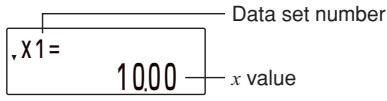
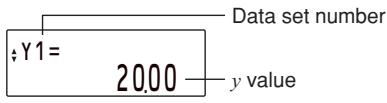
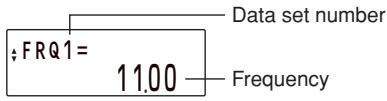
- Press 2ndF ▲ or 2ndF ▼ to jump to the first or last data item, respectively.
Each data item is displayed in the form: "Xn = (x value)", "Yn = (y value)", or "FRQn = (frequency)", where "n" is the data set number.
Editing data
- Display the data item you wish to modify by using / , enter a new value and press DATA.
Deleting data
- Display the data item to be deleted by using / , and press 2ndF CLR-D.
- If a value/frequency is deleted, the corresponding frequency/ value is also deleted.
- If you wish to delete all data, press 2ndF CA.
Inserting data
Using the and keys, specify the correct place to insert your new data by displaying the value that is to come directly after, and then press (2ndF) INS-D. A new data set with a value of zero and a frequency of one will be inserted. Modify the new data set to include your data.
Example Editing statistical data
Change the previously entered data from page 65 as follows:
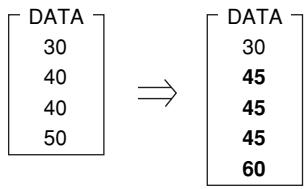
| Procedure | Key operation | Display |
| Display the statistical data. | ▼ | , X1= 30.00 |
| Change the “40, 2” data set to “45, 3”. | ▼ 45 DATA▼ 3 DATA | ; FRQ2= 3.00 |
| Delete “50”. | ▼ 2ndF CLR-D | Stat 0 0.00 |
| Add “60”. | 60 DATA | DATA SET= 3.00 |
Statistical Calculations and Variables
The following results can be obtained for each statistical calculation (refer to the table below):
Single-variable statistical calculations
Section ① results only.
Linear regression calculations
Section ① and ② results, except for coefficients c .
The estimate of y for a given x (estimate y' ) and the estimate of x for a given y (estimate x' ) can also be found.
Quadratic regression calculation
Section ① and ② results, and coefficients a , b , and c in the quadratic regression formula ( y = a + bx + cx^2 ). In quadratic regression calculations, no correlation coefficient r can be obtained.
The estimate of y for a given x (estimate y' ) and the estimate of x for a given y (estimate x' ) can also be found. When there are two x values, the COMP symbol will appear. Press [COMP] to switch between x values.
Exponential regression, logarithmic regression, power regression, and inverse regression calculations
Section ① and ② results, except for coefficients c .
The estimate of y for a given x (estimate y' ) and the estimate of x for a given y (estimate x' ) can also be found. Because the calculator converts each formula into a linear regression before actual calculation takes place, it obtains all statistics — except coefficients a and b — from converted data rather than from entered data.
| Variables | Content | |
| ① | n | Number of samples |
| x̄ | Mean of samples (x values) | |
| sx | Sample standard deviation (x values) | |
| αx | Population standard deviation (x values) | |
| Σx | Sum of samples (x values) | |
| Σx2 | Sum of squares of samples (x values) | |
| ② | ȳ | Mean of samples (y values) |
| sy | Sample standard deviation (y values) | |
| αy | Population standard deviation (y values) | |
| Σy | Sum of samples (y values) | |
| Σy2 | Sum of squares of samples (y values) | |
| Σxy | Sum of products of samples (x, y) | |
| a | Coefficient of regression equation | |
| b | Coefficient of regression equation | |
| c | Coefficient of quadratic regression equation | |
| r | Correlation coefficient |
- Use ALPHA or RCL to perform a variable calculation in STAT mode.
Example 1 Single-variable statistical calculation
| Example | Key operation | Result |
| DATA | MODE 1 0 2ndF | Stat 0 SXYZ |
| CA | 0.00 | |
| 95 | 95 DATA | DATA SET=1.00 |
| 80 | 80 DATA | DATA SET=2.00 |
| 80 | DATA | DATA SET=3.00 |
| 75 | 75 (x,y) 3 DATA | DATA SET=4.00 |
| 75 | ||
| 50 | 50 DATA | DATA SET=5.00 |
| x̅ = | RCL x̅ | x̅ = 75.71 |
| αx = | RCL Ωx | σx = 12.37 |
| n = | RCL n | n = 7.00 |
| Σx = | RCL Σx | Σx = 530.00 |
| Σx² = | RCL Σx² | Σx² = 41200.00 |
| sx = | RCL SX | Sx = 13.36 |
| sx² = | 2ndF x² = | Sx² = 178.57 |
| (95 - x̅)/sx × 10 + 50 = | (95 - ALPHA) | 64.43 |
| x̅) ÷ ALPHA) | ||
| SX × 10 + 50 |
| Example | Key operation | Result | |
| DATA | MODE 1 1 | Stat 1 STAT | |
| x y | 0.00 | ||
| 2 | 5 | 2 (x,y) 5 DATA | DATA SET=1.00 |
| 2 | 5 | DATA | DATA SET=2.00 |
| 12 | 24 | 12 (x,y) 24 DATA | DATA SET=3.00 |
| 21 | 40 | 21 (x,y) 40 (x,y) 3 DATA | DATA SET=4.00 |
| 21 | 40 | ||
| 21 | 40 | 15 (x,y) 25 DATA | DATA SET=5.00 |
| 15 | 25 | ||
| a = | RCL a | a= 1.05 | |
| b = | RCL b | b= 1.83 | |
| r = | RCL r | r= 1.00 | |
| sx = | RCL sx | Sx= 8.54 | |
| sy = | RCL sy | Sy= 15.67 | |
| x = 3 → y' = ? | 3 2ndF y' | 3y' 6.53 | |
| y = 46 → x' = ? | 46 2ndF x' | 46x' 24.62 | |
| DATA | MODE 1 2 | Stat 2 SIAN | |
| x y | 0.00 | ||
| 12 | 41 | 12 (x,y) 41 DATA | DATA SET=1.00 |
| 8 | 13 | 8 (x,y) 13 DATA | DATA SET=2.00 |
| 5 | 2 | 5 (x,y) 2 DATA | DATA SET=3.00 |
| 23 | 200 | 23 (x,y) 200 DATA | DATA SET=4.00 |
| 15 | 71 | 15 (x,y) 71 DATA | DATA SET=5.00 |
| a = | RCL a | a= 5.36 | |
| b = | RCL b | b= -3.12 | |
| c = | RCL c | c= 0.50 | |
| x = 10→y' = ? | 10 2ndF y' | 10y' 24.49 | |
| y = 22→x' = ? | 22 2ndF x' | x1= 9.63 | |
| COMP | x2= -3.43 | ||
| COMP | x1= 9.63 | ||
Financial Calculation Formulas
TVM solver
PMT, PV, FV, N
$$ i = \left(\frac {I / Y}{C / Y \times 1 0 0} + I\right) ^ {\frac {C / Y}{P / Y}} - I $$
Error
$$ \frac {I / Y}{C / Y} \leq - 1 0 0 $$
$$ - 1 < i < 0 o r 0 < i $$
$$ E N D \quad P M T = \frac {i \times (F V + P V \times (i + 1) ^ {N})}{I - (i + 1) ^ {N}} $$
$$ B G N \quad P M T = \frac {i \times (F V + P V \times (i + I) ^ {N})}{(i + 1) \times (I - (i + I) ^ {N})} $$
$$ i = 0 $$
$$ P M T = - \frac {P V + F V}{N} $$
$$ - 1 < i < 0 o r 0 < i $$
$$ E N D \quad P V = - \frac {F V}{(i + l) ^ {N}} + \frac {P M T \times ((i + l) ^ {- N} - l)}{i} $$
$$ \begin{array}{c} B G N P V = - \frac {F V}{(i + I) ^ {N}} + \frac {P M T \times (i + I) \times ((i + I) ^ {N} - I)}{i} \ i = 0 \end{array} $$
$$ P V = - (F V + N \times P M T) $$
$$ - 1 < i < 0 o r 0 < i $$
$$ E N D F V = \frac {P M T \times (1 - (i + I) ^ {N})}{I} - P V \times (i + I) ^ {N} $$
$$ \begin{array}{c} B G N F V = \frac {P M T \times (i + 1) \times (I - (i + 1) ^ {N})}{i} - P V \times (i + I) ^ {N} \ i = 0 \end{array} $$
$$ F V = - (P V + N \times P M T) $$
$$ - 1 < i < 0 o r 0 < i $$
$$ E N D \quad N = \frac {\log \left(\frac {P M T - F V \times i}{P M T + P V \times i}\right)}{\log (i + I)} $$
$$ \begin{array}{c} B G N \ i = 0 \end{array} \quad N = \frac {\log \left(\frac {P M T \times (i + 1) - F V \times i}{P M T \times (i + 1) + P V \times i}\right)}{\log (i + 1)} $$
$$ N = - \frac {(F V + P V)}{P M T} $$
I/Y
$$ I f P M T = 0 \text {t h e n} $$
$$ i = (- \frac {F V}{P V}) ^ {\frac {l}{N}} - 1 $$
$$ I f N = 1 t h e n $$
$$ E N D \quad i = - \frac {F V + P M T}{P V} - I $$
$$ B G N \quad i = - \frac {F V}{P V + P M T} - I $$
If PMT 0 or N 1 then find i using the following equations:
$$ E N D \quad O = P V + \frac {P M T \times (1 - (i + 1) ^ {- N})}{i} + \frac {F V}{(i + 1) ^ {N}} $$
$$ B G N \quad 0 = P V + \frac {P M T \times (I + i) \times (I - (i + J) ^ {- b})}{i} + \frac {F V}{(I + J) ^ {b}} $$
Error
$$ i \leq - 1 $$
$$ I / Y = \left(\left(I + i\right) ^ {\frac {P Y}{C T}} - I\right) \times C / Y \times 1 0 0 $$
Amortization calculations
Calculations
(for PV, PMT, and i , see the TVM solver)
$$ E N D \quad I N T (1) = R O U N D (- P V \times i) $$
$$ B G N \quad I N T (1) = 0 $$
$$ P R N (1) = - I N T (1) + R O U N D (P M T) $$
$$ B A L (1) = P R N (1) + P V $$
$$ I N T (m) = R O U N D (- B A L (m - 1) \times i) $$
$$ P R N (m) = - I N T (m) + R O U N D (P M T) $$
$$ B A L (m) = P R N (m) + B A L (m - 1) $$
ROUND(NUM): If a display notation tab setting has been chosen, NUM is rounded and truncated to the specified number of places after the decimal point.
Results
$$ B A L A N C E = B A L (P 2) $$
$$ \Sigma P R I N C I P A L = \sum_ {k = P I} ^ {P 2} P R N (k) \quad \Sigma I N T E R E S T = \sum_ {k = P I} ^ {P 2} I N T (k) $$
Error
$$ A M R T P 1 > A M R T P 2 $$
Discounted cash flow analysis
$$ S (j) = \sum_ {m = 0} ^ {j} N m (j \geq 0) \quad S (- 1) = 0 $$
$$ N P V = \sum_ {j = 0} ^ {C F \text {M a x}} \left(C F j \times \frac {1}{(i + I) ^ {S j - l}} \times \sum_ {h = 0} ^ {N j - l} (I + i) ^ {- h}\right) $$
where i = (I / Y)100 , CFimax = the maximum data set number
IRR is obtained as i, which satisfies NPV = 0 in the above equations.
In its bond calculations, this calculator conforms to rules set up by the book titled Standard Securities Calculation Methods, by Jan Mayle, Securities Industry Association, 1993.
Bond calculation is based on the following rules:
- Whenever the redemption date happens to be the last day of a month, coupons are also paid on the last days of months. For example, if coupon payments are semi-annual and the redemption date is September 30, coupon payments occur on March 31 and September 30.
- If coupons are to be paid twice a year and the redemption date is set to August 29, 30, or 31, coupon payments for February occur on the 28th (29th for leap years).
- The "Odd Coupon" is not supported.
- All data stored or calculated for bonds are assumed to be positive values. Negative values in any of the variables used by bond calculations will cause errors.
The formulas used for bond calculations are shown using the following variable definitions:
TD: Total number of days in the coupon period that begins with the coupon date previous to the settlement date and ends with the first coupon date after the settlement date. (On the 360-day calendar, TD is 180 for semi-annual coupon and 360 for annual coupon.)
PD: The number of days preceding the settlement date in the coupon period described above. (see "Day and date calculations")
FD: The number of days following the settlement date in the coupon period described above (in TD).
$$ F D = T D - P D $$
NP: The number of whole coupon periods between the settlement date and the redemption date (rounded up to the next highest whole number, if necessary).
For one coupon period or less until redemption of bond: PRICE = ( + 1 + ( × 00 × N ) - ( × ) .
For more than one coupon period until redemption:
$$ P R I C E = \frac {R D V}{(1 + \frac {Y I E L D}{1 0 0 \times N}) ^ {N P - l + \frac {F D}{T D}}} + (\sum_ {j = 1} ^ {N P} \frac {\frac {C P N}{N}}{(1 + \frac {Y I E L D}{1 0 0 \times N}) ^ {l - j + \frac {F D}{T D}}}) - (\frac {P D}{T D} \times \frac {C P N}{N}) $$
where CPN = COUPON(PMT) , RDV = REDEMPT(FV) , N = CPN/Y(N) , YIELD = YIELD(I/Y) , PRICE = PRICE(PY) .
Yield is obtained as YIELD, which satisfies the above equations.
Error
$$ C P N < 0 \text {o r} R D V < 0 \text {o r} P R I C E < 0 \text {o r} M - D - Y 1 \geq M - D - Y 2 \text {o r} Y I E L D \leq - 1 0 0 $$
Depreciation calculations
ROUND(NUM): If a display notation tab setting has been chosen, NUM is rounded and truncated to the specified number of places after the decimal point.
In the following equations, M01 = START MONTH, LIF = LIFE(N) CST = COST(PV) SAL = SALVAGE(FV) and DB = DB(I / Y)
$$ \begin{array}{l} F S T Y R = \frac {1 3 - M O I}{1 2} \ n = y e a r \end{array} $$
If M01 = 1 then end_year = LIF .
If M01 1 then end_year = LIF + 1 .
Straight-line method (SL)
Calculations
$$ R D V (0) = C S T - S A L $$
$$ R D V (I) = R D V (0) - \frac {C S T - S A L}{L I F} \times F S T Y R $$
If 1 < n < end_year then
$$ R D V (n) = R D V (I) - \frac {C S T - S A L}{L I F} \times (n - I) $$
If n ≥ end_year then RDV(n) = 0
Results
$$ \begin{array}{l} D E P R E C I A T E = R O U N D (R D V (\text {y e a r})) \ - R O U N D (R D V (\text {y e a r} - 1)) \end{array} $$
$$ R D V = R D V (y e a r) $$
$$ R B V = S A L + R D V (y e a r) $$
Sum-of-the-years' digits method (SYD)
Calculations
$$ R D V (O) = C S T - S A L $$
$$ R D V (1) = R D V (0) - \frac {\left(C S T - S A L\right) \times 2}{L I F + l} \times F S T Y R $$
If I < n < end_year then
$$ R D V (n) = R D V (n - 1) - $$
$$ \frac {(L I F + 2 - n - F S T Y R) \times (C S T - S A L) \times 2}{L I F \times (L I F + 1)} $$
If n ≥ end_year then RDV(n) = 0
Results
$$ D E P R E C I A T E = R O U N D (R D V (y e a r)) $$
$$ - R O U N D (R D V (y e a r - 1)) $$
$$ R D V = R D V (y e a r) $$
$$ R B V = S A L + R D V (y e a r) $$
Declining balance method (DB)
Calculations
$$ I f n = 1 t h e n $$
$$ \text {I f} \frac {C S T \times D B}{L I F \times 1 0 0} < C S T - S A L $$
$$ R B V (1) = C S T - \frac {C S T \times D B}{L I F \times 1 0 0} \times F S T Y R $$
$$ \operatorname {l f} \frac {C S T \times D B}{L I F \times 1 0 0} \geq C S T - S A L $$
$$ R B V (1) = C S T - (C S T - S A L) \times F S T Y R $$
$$ R D V (1) = R B V (1) - S A L $$
If I < n < end_year then
$$ I f R B V (I) \times (I - \frac {D B}{L I F \times 1 0 0}) ^ {n - l} \leq S A L $$
$$ R D V (n) = 0 $$
$$ I f R B V (I) \times \left(I - \frac {D B}{L I F \times 1 0 0}\right) ^ {n - l} > S A L $$
$$ R D V (n) = R B V (I) \times (I - \frac {D B}{L I F \times 1 0 0}) ^ {n - l} S A L $$
If n ≥ end_year then RDV(n) = 0
Results
$$ D E P R E C I A T E = R O U N D (R D V (y e a r)) $$
$$ - R O U N D (R D V (y e a r - 1)) $$
$$ R D V = R D V (y e a r) $$
$$ R B V = S A L + R D V (y e a r) $$
Error
$$ C S T < 0 $$
$$ S A L < 0 $$
$$ C S T < S A L $$
$$ \begin{array}{c} L I F: \text {w h e n S L , L I F} \leq 0 \ \text {w h e n S Y D o r D B , L I F i s n o t a p o s i t i v e} \ \text {i n t e g e r} \end{array} $$
$$ I / Y < 0 (D B o n l y) $$
Conversion between APR and EFF
N, EFF APR
$$ \left(\left(\frac {E F F}{1 0 0} + 1\right) ^ {\frac {l}{N}} - I\right) \times N \times 1 0 0 $$
$$ E r r o r $$
$$ E F F \leq - 1 0 0 $$
N,APR EFF
$$ \left(\left(\frac {\frac {A P R}{N}}{I O O} + I\right) ^ {N} - I\right) \times 1 0 0 $$
$$ E r r o r $$
$$ \frac {A P R}{N} \leq - I 0 0 $$
Day and date calculations
In day and date calculations, this calculator conforms to rules set up in the book titled Standard Securities Calculation Methods, by Jan Mayle, Securities Industry Association, 1993.
30/360
M-D-Y1 = M1(month) / D1(day) / Y1(year)
M-D-Y2 = M2(month) / D2(day) / Y2(year)
- Adjust D1 and D2 according to the following rules:
(1) If D2 and D1 are both the last day of February, change D2 to 30.
(2) If D1 is the last day of February, change D1 to 30.
(3) If D2 is 31 and D1 is 30 or 31, change D2 to 30.
(4) If D1 is 31, change D1 to 30.
- Calculate using the following formula:
$$ \begin{array}{l} D A Y S = (Y 2 - Y I) \times 3 6 0 + (M 2 - M I) \times \ 3 0 + (D 2 - D I) \end{array} $$
Actual
Percent change/Compound interest calculations
$$ N E W = O L D \times \left(I + \frac {\% C H}{100}\right) ^ {P D} \quad O L D = \frac {N E W}{\left(I + \frac {\% C H}{100}\right) ^ {P D}} $$
$$ P D = \frac {\log \frac {N E W}{O L D}}{\log (1 + \frac {\% C H}{1 0 0})} \quad \% C H = (\left(\frac {N E W}{O L D}\right) ^ {\frac {L}{P D}} - 1) \times 1 0 0 $$
where NEW = NEW PRC(FV), OLD = OLD PRC(PV),% CH = % (I / Y),PD = PERIOD(SN)
Error
$$ \% CH \leq -100 $$
$$ N E W \times O L D \leq 0 $$
Cost/Sell/Margin/Markup calculations
$$ C O S T = S E L L \times \left(1 - \frac {M A R}{1 0 0}\right) \quad C O S T = \frac {S E L L}{\frac {M U}{1 0 0} + 1} $$
$$ S E L L = \frac {C O S T}{1 - \frac {M A R}{1 0 0}} \quad S E L L = C O S T \times (\frac {M U}{1 0 0} + l) $$
$$ M A R = \frac {S E L L - C O S T}{S E L L} \times 1 0 0 \quad M U = \frac {S E L L - C O S T}{C O S T} \times 1 0 0 $$
where MAR = MARGIN , MU = MARK UP
Breakeven calculations
$$ P R I C E = \frac {F I X E D + P R O F I T}{Q U A N T I T Y} + V A R I A B L E $$
Statistical Calculation Formulas
| Type | Regression formula |
| Linear | y = a + bx |
| Quadratic | y = a + bx + cx2 |
| Exponential | y = a • e^bx |
| Logarithmic | y = a + b • Inx |
| Power | y = a • x^b |
| Inverse | y = a + b \(\frac{1}{x}\) |
$$ \bar {x} = \frac {\sum x}{n} $$
$$ s x = \sqrt {\frac {\Sigma x ^ {2} - n \bar {x} ^ {2}}{n - 1}} $$
$$ \sigma x = \sqrt {\frac {\Sigma x ^ {2} - n \bar {x} ^ {2}}{n}} $$
$$ \Sigma x = x _ {1} + x _ {2} + \dots + x _ {n} $$
$$ \Sigma x ^ {2} = x _ {1} ^ {2} + x _ {2} ^ {2} + \dots + x _ {n} ^ {2} $$
$$ \bar {y} = \frac {\Sigma y}{n} $$
$$ s y = \sqrt {\frac {\sum y ^ {2} - n \bar {y} ^ {2}}{n - 1}} $$
$$ \sigma y = \sqrt {\frac {\Sigma y ^ {2} - n \bar {y} ^ {2}}{n}} $$
$$ \Sigma y = y _ {1} + y _ {2} + \dots + y _ {n} $$
$$ \Sigma y ^ {2} = y _ {1} ^ {2} + y _ {2} ^ {2} + \dots + y _ {n} ^ {2} $$
$$ \Sigma x y = x _ {1} y _ {1} + x _ {2} y _ {2} + \dots + x _ {n} y _ {n} $$
An error will occur in a statistical calculation if:
- The absolute value of an intermediate or calculation result is equal to or greater than 1 × 10^100 .
- The denominator is zero.
- An attempt is made to find the square root of a negative number.
- No solution exists for a quadratic regression calculation.
Errors and Calculation Ranges
Errors
An error will occur if an operation exceeds the calculation ranges, or if a mathematically illegal operation is attempted. When an error occurs, pressing 4 or 2 automatically moves the cursor back to the place in the equation where the error occurred. Edit the equation or press ON/C to clear the equation.
Note: If an error occurs during the automatic calculation of a listed financial variable, pressing ON/C, or displays the first variable in the function.
Error codes and error types
Syntax error (Error 1):
An attempt was made to perform an invalid operation. Ex. 2 + -5 =
- During the editing or insertion of cash flow or statistical data, a value was entered but 2ndF -D was pressed before .
Calculation error (Error 2):
- The absolute value of an intermediate or final calculation result equals or exceeds 10^100 .
- An attempt was made to divide by zero.
- The calculation ranges were exceeded while performing calculations.
-
There was a financial calculation error, such as:
-
an error listed in "Financial Calculation Formulas" (see pages 72 - 75) occurred
- an attempt was made to find I/Y when PV, PMT × N, and FV contain all negative or all positive values
- an attempt was made to find IRR when the cash flow data contains all negative or all positive values
- an attempt was made to find YIELD in a bond calculation when any of COUPON, REDEMPT, or PRICE contain negative values
Depth error (Error 3):
- The available number of buffers was exceeded. (There are 10 buffers for numeric values and 24 buffers for calculation instructions).
- The number of entered cash flow and statistics data items combined exceeded 100.
Equation too long (Error 4):
- The equation exceeded its maximum input buffer (160 characters).
An equation must be shorter than 160 characters.
No solution (Error 5):
-
The iteration limit was exceeded while calculating one of the following values in an overly complex problem:
-
I/Y (TVM solver)
- IRR (Discounted cash flow analysis)*1
YIELD (Bond calculations)
*1 If you get an error while calculating IRR, enter an estimated value into RATE(I/Y) and calculate again.
Display error (Error 6):
- An attempt was made to display "9.999 × 1099" when the display notation tab number was set to "2".
If this happens, press ON/C and SETUP 0 2 to set the display notation settings to "floating point". Then try again.
Input value error (Error 7):
- An attempt was made to enter a nonexistent date.
Ex. February 30th
-
An attempt was made to enter an invalid numeric value into a financial calculation.
-
a negative value or 0 into P/Y or C/Y
- anything except an integer between 1 and 9,999 into AMRT P1 or AMRT P2
- a non-integer into DAYS
- anything except 1 or 2 into CPN/Y
- anything except an integer between 1 and 999 as a cash flow frequency
- anything except a positive integer into YEAR
-
anything except a value between 1 and 13 into START MONTH
-
Within the ranges specified, this calculator is accurate to within ± 1 of the least significant digit of the mantissa. However, a calculation error increases in continuous calculations due to accumulation of each calculation error. (This is the same for financial calculations, scientific calculations [y^x, [x]-, e^x, , n! , etc.], where continuous calculations are performed internally.)
Additionally, a calculation error will accumulate and become larger in the vicinity of inflection points and singular points of functions.
In financial calculations, a calculation error increases if the interest is low or the number of payments is high. Press ON/C if you'd like to cancel the calculation while the "calculating!" screen is displayed.
- Calculation ranges
$$ \pm 1 0 ^ {- 9 9} \text {t o} \pm 9. 9 9 9 9 9 9 9 9 9 \times 1 0 ^ {9 9} \text {a n d} 0. $$
If the absolute value of an entry or a final or intermediate result of a calculation is less than 10^-99 , the value is considered to be 0 in calculations and in the display.
| Function | Calculation range |
| sin x, cos x, tan x | DEG: |x| < 10^10 (tan x: |x| ≠ 90 (2n-1))* RAD: |x| < π/180 × 10^10 (tan x: |x| ≠ π/2 (2n-1))* GRAD: |x| < 10/9 × 10^10 (tan x: |x| ≠ 100 (2n-1))* |
| sin^-1 x, cos^-1 x | |x| ≤ 1 |
| tan^-1 x | |x| < 10^100 |
| ln x, log x | 10^-99 ≤ x < 10^100 |
| y^x | • y > 0: -10^100 < x log y < 100 • y = 0: 0 < x < 10^100 • y < 0: x = n (0 < |x| < 1: 1/x = 2n-1, x ≠ 0),• -10^100 < x log |y| < 100 |
| x√y | • y > 0: -10100 < 1/x log y < 100 (x ≠ 0) • y = 0: 0 < x < 10100 • y < 0: x = 2n - 1 (0 < |x| < 1: 1/x = n, x ≠ 0),* -10100 < 1/x log |y| < 100 |
| ex | -10100 < x ≤ 230.2585092 |
| 10x | -10100 < x ≤ 100 |
| sinh x, cosh x, tanh x | | x | ≤ 230.2585092 |
| sinh-1x | |x| < 1050 |
| cosh-1x | 1 ≤ x < 1050 |
| tanh-1x | |x| < 1 |
| x2 | |x| < 1050 |
| √x | 0 ≤ x < 10100 |
| 1/x | |x| < 10100 (x ≠ 0) |
| n! | 0 ≤ n ≤ 69* |
| nP r | 0 ≤ r ≤ n ≤ 9,999,999,999* n! (n-r)! < 10100 |
| nCr | 0 ≤ r ≤ n ≤ 9,999,999,999* 0 ≤ r ≤ 69 n! (n-r)! < 10100 |
*n,r:integer
Battery Replacement
Notes on battery replacement
Improper handling of battery can cause electrolyte leakage or explosion. Be sure to observe the following handling rules:
- Make sure the new battery is the correct type.
- When installing, orient the battery correctly, as indicated in the calculator.
- The factory-installed battery may be exhausted before it reaches the service life stated in the specifications.
Note on the erasure of memory contents
When the battery is replaced, the memory contents are erased. Erasure can also occur if the calculator is defective or when it is repaired. Make a note of all important memory contents in case accidental erasure occurs.
When to replace the battery
If the display has poor contrast, or if nothing appears on the screen, even when ON/C is pressed, it is time to replace the battery.
Caution
- Fluid from a leaking battery accidentally entering an eye could result in serious injury. Should this occur, wash with clean water and immediately consult a doctor.
- Should fluid from a leaking battery come into contact with your skin or clothes, wash them immediately with clean water.
- If the product is not to be used for some time, to avoid damage to the unit from leaking battery, remove it and store in a safe place.
- Keep battery out of the reach of children.
- Exhausted battery that is left in the calculator may leak and damage the unit.
- Explosion risk may be caused by incorrect handling.
-
Do not throw battery into a fire, as it may explode.
-
Turn the power off by pressing 2ndF OFF
- Loosen the screw and remove the battery cover. (see fig. 1)
- Remove the used battery using a ball-point pen or similar object. Do not use a mechanical pencil or any sharp or pointed object to remove the battery. (see fig. 2)
- Install a new battery into the battery housing with the positive side (+) facing up. (see fig. 3)
- Replace the battery cover and the screw.
- Press the RESET switch located on the back of the calculator with the tip of a ball-point pen or similar object. Do not use an object with a breakable or sharp tip. (see fig. 4)
- Make sure that the display appears as shown. If not, remove the battery, reinstall, and check the display again.
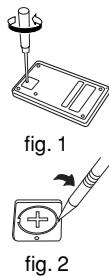

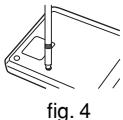
TAB DEG
0.00
Automatic power-off function
This calculator will turn its power off automatically if no key is pressed for about 10 minutes.
Priority Levels in Calculations
This calculator performs operations according to the following priority:
- Functions preceded by their argument (x^2,n! ,etc.)
- y^x,[x]x
- Implied multiplication of a memory value (2Y, etc.)
- Functions followed by their argument (sin, cos, etc.)
- Implied multiplication of a function (2sin 30, etc.)
- nCr, nPr
- × ,÷
- +, -
- = ,M + ,M - , M, and any other calculation ending instructions
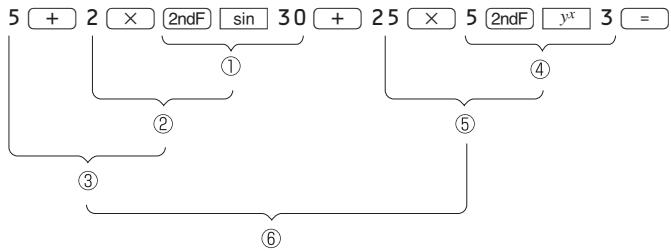
Example Key operation and calculation priority
- Parenthesized operations take precedence over other operations.
Specifications
| Calculations: | Financial calculations |
| General arithmetic calculations | |
| Scientific calculations | |
| Statistical calculations |
Calculation method: D.A.L. (Direct Algebraic Logic)
Internal calculations: Mantissas of up to 14 digits
Pending operations: 24 calculations, 10 numeric values
Power source: 3.0 V (DC) Lithium battery (CR2032) × 1
Power consumption: 0.0004 W
Operating life: Approx. 5 years (with 1 hour of daily use)
- May vary depending on the operating environment and operation method.
Operating temperature: 0^ - 40^ (32^ - 104^)
External dimensions: 83 mm (W) × 150 mm (D) × 11 mm (H) 3-9/32" (W) × 5-29/32" (D) × 7/16" (H)
Weight: Approx. 98 g (0.22 lb.) (including battery but not wallet-type case)
Accessories: Battery × 1 (installed), operation manual, and wallet-type case.
For more information about business/ financial calculators
Visit us on the Internet at:
http://sharpworld.com/calculator/
Index
(x,y),37,51,64
-
- X ,4,11
=,11,15
+/-,11,37,61
(),11,16,61
xP/Y23
√ x,60,61
% ,16,62
% ,54
△ △ △ △ △,6,13
APR EFF,51
,11
,16,61
1/x,61
10x,61
[2ndF], 4, 6, 7
360/ACT,44,45,52
ALPHA,4,6,7,15
AMRT,33
ANS,15,16,23
BGNIEND,22,28,33
[BOND].45
[BRKV], 58
CA,12,19
CASH, 41
CFI,37,38
CLR-D,39,66
COMP,7,19
[COst], 56
[DATA], 37, 64
DATE,52
DEL,12
DEPR,49
ENT,7,19
^x ,61
Exp,11
FV,22,23
hyp7,61
I/Y,22,23
INS,13
INS-D,39,66
In,61
log,61
M,15
M+ ,11,16
M- ,16
M-CLR,5,12,13
MDF,63
MODE,6,10,12
N,22,23
n!,62
nCr nPr 62
OFF,6
ON/C,6,12
P/Y,22,23
(PMT), 22, 23
PV22,23
RANDOM,62,63
RCL7,15
SETUP,6,8-10
STO,7,15
^2 ,16,60,61,69
y^x ,61
% (I/Y), 18, 54, 75
INTEREST, 33, 72
\SUPRINCIPAL, 33, 72
ACCU INT, 44
Amortization calculations, 17, 33-36, 72
AMRT P1, AMRT P2, 12, 33, 77
Angular unit, 8, 9, 61
Annuity due, 7, 22, 28
ANS (last answer memory), 14, 15
APR, 17, 51, 74
Arithmetic calculations, 11
Arithmetic operations (+, -, ×, ÷) , 11
Automatic power-off function, 81
BALANCE, 33, 72
Battery replacement, 80, 81
Bond calculations, 17, 18, 44-47, 73
Breakeven calculations, 17, 58, 59, 75
(c)(symbol), 8, 20
Calculation ranges, 78, 79
Calculator layout, 6
Calendar range, 44, 47, 52
Cash flow data, 12, 37-40, 76
Cash flow diagrams, 21
Chain calculations, 60
COMP (symbol), 7, 20
Compound interest, 21, 54-56, 75
Constant calculations, 60
Conversion between APR and EFF, 17, 51
COST, 56, 75
COST (PV), 18, 48, 74
Cost/sell/margin/markup calculations, 17, 56, 57, 75
COUPON(PMT),18,44,73,76
CPN/Y (N), 18, 44, 77
Cursor key, 6, 13
C/Y, 18, 22, 72, 77
Date format, 10, 44, 47, 52
Day and date calculations, 17, 18, 52-54, 74
Day-count method (ACT/360), 44, 52
DAYS, 52, 53, 75
DB,9,48,74
DB (I/Y), 18, 48, 74
Decimal place, 8, 9, 63
DEG,8,9,61,78
Delete key, 12
DEPRECIATE, 48
Depreciation calculations, 17, 18, 48-50, 74
Depreciation method, 9, 48
Discounted cash flow analysis, 17, 18, 37-43, 72
Display layout, 7
Display notation, 8
EFF, 17, 51, 74
ENT (symbol), 7, 20
Entering dates, 47
Entering numbers, 11
Error, 14, 76-78
EXP, 64
Financial calculations, 17, 18, 72
FIXED,58,75
FLO_A (FLOAT A), FLO_B (FLOAT B), 7, 9
Floating point, 8, 9
Formulas, 72-75
FV, 18, 22, 72
GRAD,8,9,61,78
Independent memory (M), 8, 12, 14, 15
Insert mode, 13
INV, 64
IRR, 40, 41, 72, 77
I/Y, 18, 22, 72, 77
LIFE (N), 18, 48, 74
LINE, 64
Listed financial variables, 12, 14, 15, 18, 19
LOG, 64
M (symbol), 8
MARGIN, 56, 75
MARK UP, 56, 75
M-D-Y 1, M-D-Y 2, 18, 44, 52, 73, 75
Memory clear key, 5, 12, 13
Modify function, 63
N, 18, 22, 72
NORMAL mode, 10, 17, 60
NET_PV, 40
NEWPRC(FV),18,54,75
NPV, 40, 41, 72
OLDPRC(PV),18,54,75
Ordinary annuity, 7, 22, 28
Overwrite mode, 13
Payment period (payment due), 22, 28
Percent change/compound interest
calculations, 17, 18, 54-56, 75
PERIODS (N), 18, 54, 75
Playback function, 13
PMT, 18, 22, 72
PRICE,58,75
PRICE (PV), 18, 44, 45, 73, 76
Priority levels in calculations, 81, 82
PROFIT, 58
PV, 18, 22, 72
PWR, 64
P/Y, 18, 22, 72, 77
QUAD,64
QUANTITY, 58
RAD,8,9,61,78
Random coin, 62
Random dice, 62
Random functions, 62-63
Random integer, 63
Random numbers, 62
RATE (I/Y), 18, 40, 72
RBV, 48, 74
RDV, 48, 74
REDEMPT (FV), 18, 44, 73, 76
RESET switch, 5, 12, 81
Resetting the calculator, 5
SALVAGE (FV), 18, 48, 74
SCI, 7, 8
Scientific calculations, 60-63
Scientific notation, 8, 9, 11, 63
SD, 64
SELL, 56, 75
SET UP menu, 8-10
SL, 9, 48, 74
Specifications, 82
START MONTH, 48, 74, 77
STAT (symbol), 8, 10, 64
STAT (statistics) mode, 10, 64
Statistical calculations, 10, 64-71
Statistical data, 12, 64-67, 76
Statistical variables, 12, 14, 16, 68
Symbol, 7
SYD,9,48,74
TAB, 7, 8
Temporary memory (A-H, X-Z), 12, 14, 15
TVM (time value of money) solver, 17, 22-32, 72
TVM variable, 12, 14, 15, 18, 19, 22
VARIABLE, 58, 75
YEAR, 12, 48, 77
YIELD (I/Y), 18, 44, 45, 73, 76, 77
MEMO
For USA only:
This product contains a CR Coin Lithium Battery which contains Perchlorate Material - special handling may apply, California residents,
See www.dtsc.ca.gov/hazardouswaste/perchlorate/