
VLZ300S - Calculator SHARP - Free user manual and instructions
Find the device manual for free VLZ300S SHARP in PDF.


User questions about VLZ300S SHARP
0 question about this device. Answer the ones you know or ask your own.
Ask a new question about this device
Download the instructions for your Calculator in PDF format for free! Find your manual VLZ300S - SHARP and take your electronic device back in hand. On this page are published all the documents necessary for the use of your device. VLZ300S by SHARP.
USER MANUAL VLZ300S SHARP
The "MNI" logo is a trademark.
This equipment complies with the requirements of Directives 89/336/ EEC and 73/23/EEC as amended by 93/68/EEC.
To prevent fire or shock hazard, do not expose this apparatus to dripping or splashing. No objects filled with liquids, such as vases, should be placed on the apparatus.
This equipment should be used with the recommended AC adapter or battery pack.
CAUTION
To prevent electric shocks and fire hazards, do NOT use any other power source.
Important:
Audio-visual material may consist of copyrighted works which must not be recorded without the authority of the owner of the copyright. Please refer to relevant laws in your country.
CAUTION
To prevent shock, do not open the cabinet. No user serviceable parts inside. Refer servicing to qualified dealer or service centre.
Power supply:
This unit can be operated by connecting it to either the AC adapter or battery pack. The AC adapter incorporates the AUTO VOLTAGE (AC 110-240 V, 50/60 Hz) function.
NOTE
The LCD panel of this camcorder is a very high technology product with more than 215,000 thin-film transistors*, giving you fine picture detail. Occasionally, a pixel may appear on the screen as a fixed point of blue, green, red, or black. Please note that this does not affect the performance of your camcorder.
*Specifications are subject to change without notice.
Supplied Accessories
Optional Accessories V
Precautions vi
Operation References Part Names 1
Warning Indicators 4
Preparation
Attaching and Removing the Battery Pack 5
Charging the Battery Pack 7
Powering the Camcorder from an AC Outlet 8
Inserting and Removing a Cassette 9
Installing the Lithium Batteries 10
Selecting the Language for the On-screen Display 12
Setting the Date and Time 13
Using the Lens Cap 14
Adjusting the Hand Strap 15
Using the Grip 15
Detaching the Lens Hood 16
Using the Viewfinder 16
Using the LCD Monitor 18
Tips on Recording Positions 19
Basic Operations
Camera Recording
Easy Camera Recording in Full Auto Mode 20
Zooming 21
Power Standby Mode 22
Turning on/off the Backlight 22
Auto Focus 23
Macro Shots 23
Remaining Recording Time Display 23
Remaining Battery Power Display 24
Information Display for Battery Usage 24
Playback
Playback 25
Volume Control 26
Still 26
Video Search 26
Watching Playback on a TV 27
Useful Features
Control Buttons 28
Using the Mode Screens 28
Using the Menu Screens 29
Camera Recording
Setting the Digital Zoom 30
Backlight Compensation (BLC) 31
Gain-up 32
Fade In and Fade Out 33
Quick Return 34
Edit Search 35
Still Recording 35
Digital Image Stabilization (DIS) 36
Wide Mode 36
Power Save Mode 37
Windbreak 37
Self Recording 38
Recording in LP (Long Play Recording) Mode ....40
Selecting the 16-bit Audio Recording Mode. 41
Playback
Using the Remote Control (Not supplied) 42
Selecting the Date and Time of Recording
Display 43
Picture Effect Playback 44
RotatePlayback 45
StretchPlayback 46
Advanced Features
Camera Recording
Manual Focus 47
Returning to Auto Focus 48
Displaying the Manual Setting Screen 48
Adjusting White Balance 49
Manual Iris 51
Manual Gain 52
Setting the Shutter Speed 53
Tips on Manual Settings 54
Setting the Camcorder to Full Auto Mode 54
Scene Menu (Program AE) 55
Digital Picture Effects 56
| Advanced Features | Playback |
| Using the Time Code 57 | |
| Audio Dubbing Feature 58 | |
| Selecting the Audio Playback Mode 60 | |
| Editing 61 | |
| Recording from an External Source (VL-Z300 only) 62 | |
| Editing with the DV Terminal (IEEE1394) 64 | |
| Using the Camcorder as a Converter (VL-Z300 only) 66 |
| Appendix | Picture/Backlight Adjustments | 67 |
| Turning off the Confirmation Sound | 68 | |
| Setting the Camcorder to Factory Presettings | 68 | |
| Demonstration Mode | 69 | |
| Useful Information | 70 | |
| Troubleshooting | 75 | |
| Specifications | 79 | |
| On-screen Display Index | 80 | |
| Index | 82 |
Note:
- Before requesting service, please read "Troubleshooting" carefully. (See pages 75-78.)
Supplied Accessories
| Battery pack BT-L227 | AC adapter | Power cord | Audio/video/S-video cable |
| × CR1216 type lithium battery for camcorder | Lens cap |
Optional Accessories
| Standard-life battery pack BT-L227 | External battery with hand strap BT-LCA1 |
- Before recording an important scene, please perform the recording test, then playback to check if the scene was recorded properly. If noise occurs, use a commercially available cleaning tape to clean the video heads (see page viii).
- When the camcorder is not in use, remember to remove the cassette tape, turn off the power, and disconnect the camcorder from the power source.
- Do not aim the lens at the sun.
Do not allow direct sunlight to strike the camcorder lens, whether or not recording is in progress, as it may damage the CCD sensor. Be particularly careful when recording outside.
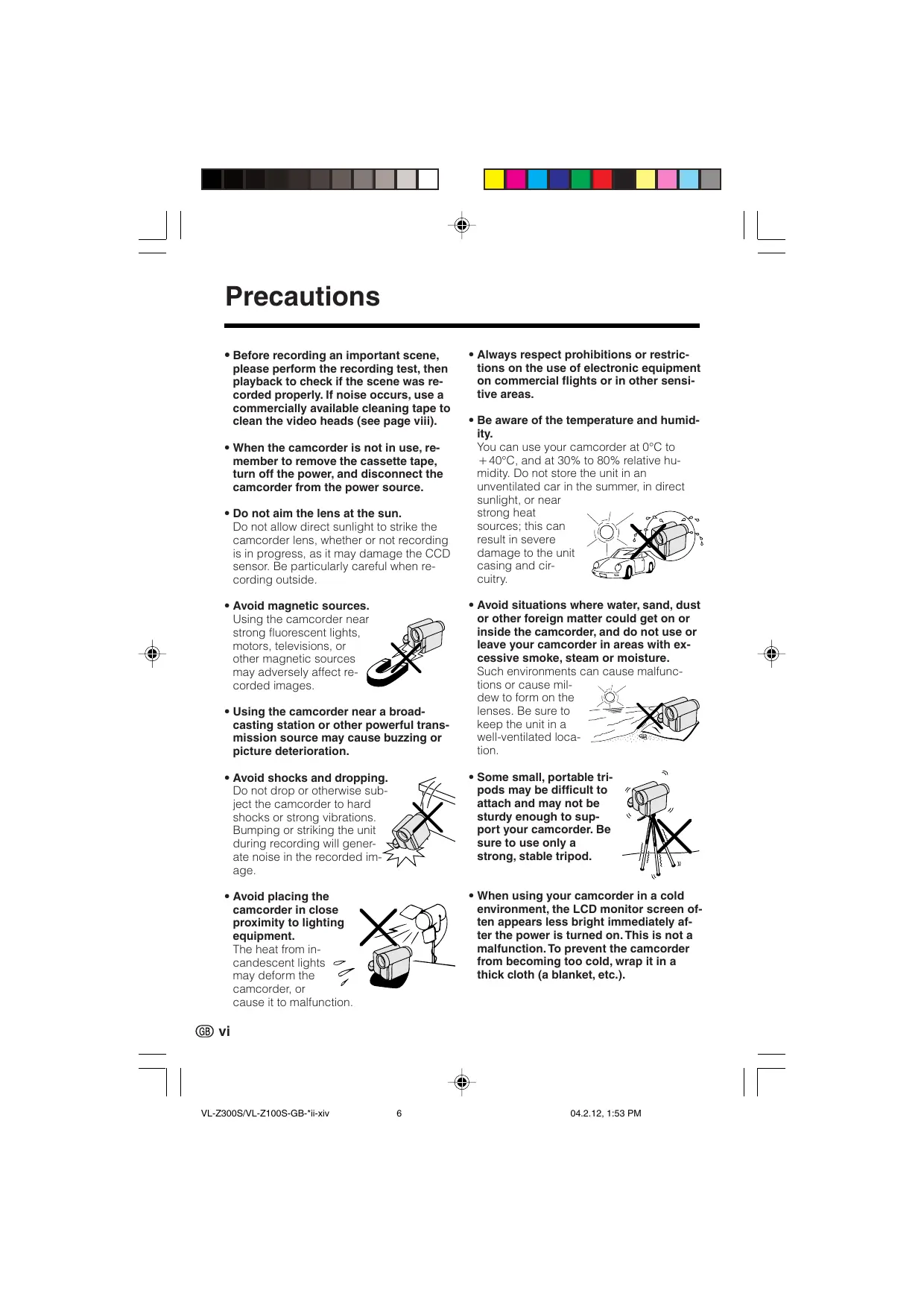
- Avoid magnetic sources.
Using the camcorder near strong fluorescent lights, motors, televisions, or other magnetic sources may adversely affect recorded images.
- Using the camcorder near a broadcasting station or other powerful transmission source may cause buzzing or picture deterioration.
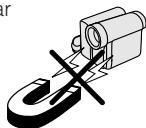
- Avoid shocks and dropping.
Do not drop or otherwise subject the camcorder to hard shocks or strong vibrations. Bumping or striking the unit during recording will generate noise in the recorded image.
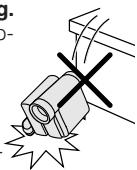
- Avoid placing the camcorder in close proximity to lighting equipment.
The heat from incandescent lights may deform the camcorder, or cause it to malfunction.
- Always respect prohibitions or restrictions on the use of electronic equipment on commercial flights or in other sensitive areas.
- Be aware of the temperature and humidity.
You can use your camcorder at 0^ to +40^ , and at 30% to 80% relative humidity. Do not store the unit in an unventilated car in the summer, in direct sunlight, or near
strong heat sources; this can result in severe damage to the unit casing and circuitry.
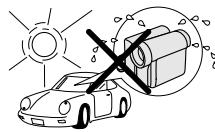
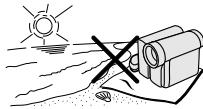
- Avoid situations where water, sand, dust or other foreign matter could get on or inside the camcorder, and do not use or leave your camcorder in areas with excessive smoke, steam or moisture.
Such environments can cause malfunction
tions or cause mildew to form on the lenses. Be sure to keep the unit in a well-ventilated location.
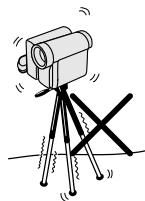
- Some small, portable tripods may be difficult to attach and may not be sturdy enough to support your camcorder. Be sure to use only a strong, stable tripod.
- When using your camcorder in a cold environment, the LCD monitor screen often appears less bright immediately after the power is turned on. This is not a malfunction. To prevent the camcorder from becoming too cold, wrap it in a thick cloth (a blanket, etc.).
Dew Formation
- What is "dew formation"?
When cold water is poured into a glass, dew drops form on the glass. This clinging of water drops is called dew formation.
- When dew forms in your camcorder.
Dew will gradually form on the head drum of your camcorder and make the video tape stick to the head. This causes damage both to the head and the tape. When dew forms, recording and playback may not function properly.
Dew is likely to form in the following circumstances:
- When moving the camcorder from a cold place to a warm place.
- When placing the camcorder in a cold room which is then heated rapidly.
- When moving the camcorder outdoors from an air conditioned room or car.
- When placing the camcorder in the direct path of air blowing from an air conditioner.
-When placing the camcorder in a humid room.
How to prevent trouble.
When using the camcorder in a place where dew is likely to form, allow the camcorder and the video tape to acclimatise to the surroundings for about one hour.
For example, when bringing the camcorder indoors after skiing, place it in a plastic bag.
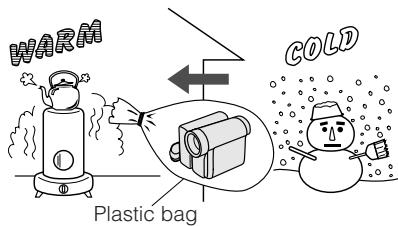
① Be sure to tightly seal the plastic bag containing the camcorder.
② Remove the bag when the air temperature inside it reaches the temperature of the room.
-Dew" warning feature
If dew forms, the word "DEW" flashes on the screen, and the power will automatically turn off in approximately 10 seconds.
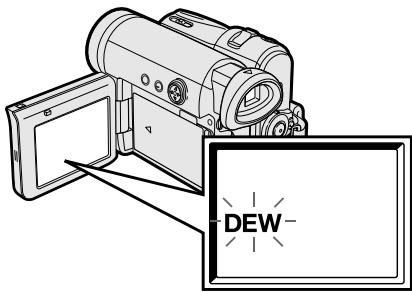
① If "DEW" flashes, remove the cassette, leave the cassette compartment open, and wait for a few hours to allow the camcorder to acclimatise to the surrounding temperature.
② To use the camcorder again, turn on the power after waiting for a few hours. Be sure that "DEW" has disappeared.
③ Do not insert a cassette while "DEW" is flashing; this may result in damage to the tape.
④ Since dew forms gradually, it may take 10 to 15 minutes before the dew warning feature engages.
Dirty Video Heads
When the video heads have become clogged with dirt (dust and tape coating particles),
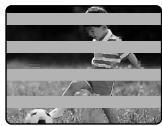
Striped noise
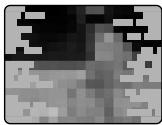
Mosaic noise
- mosaic-like noise appears on the playback picture. (See illustrations above.)
- playback pictures do not move.
- during playback, the whole screen becomes blue.
Causes of video head clogging
- High-temperature and high-humidity environment
A lot of dust in the air
Damaged tape
Worn tape - Long-time use
- Dew formation
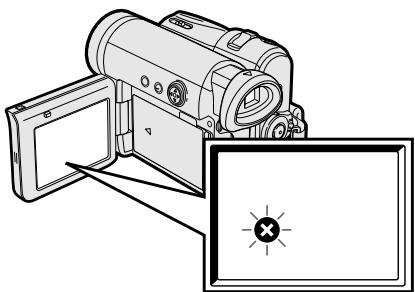
If the video heads become clogged, the indicator appears on the screen. Contact the nearest SHARP service centre or your dealer for further advice.
Using a Cleaning Tape (Commercially Available)
You can clean the video head with a commercially available cleaning tape.
Notes:
- Excessive use of the cleaning tape may cause damage to the video heads. Please read the instructions accompanying the cleaning tape carefully before using it.
- The fast forward and rewind functions cannot be used when the cleaning tape is in the camcorder.
- If the video heads again become clogged with dirt soon after cleaning, this might be caused by a damaged tape. In this case, stop using that cassette immediately.
1 Insert a cleaning tape into the camcorder.
2 Hold down the Lock button and set the Power switch to
- The video head cleaning screen appears.
3 Press on the Operation button to begin video head cleaning.
- "NOW CLEANING" flashes during cleaning.

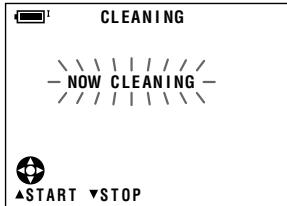
After about 20 seconds, video head cleaning automatically finishes, and "EJECT THE CASSETTE." displays.
4 Remove the cleaning tape.
To cancel cleaning, press .
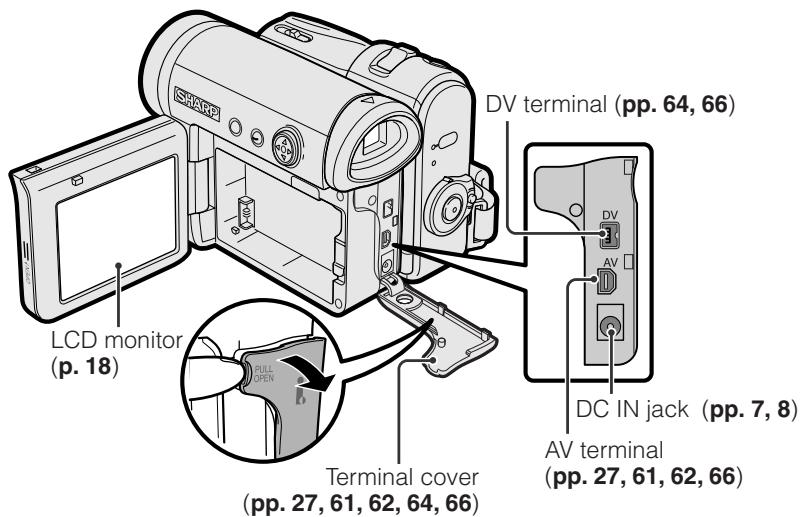
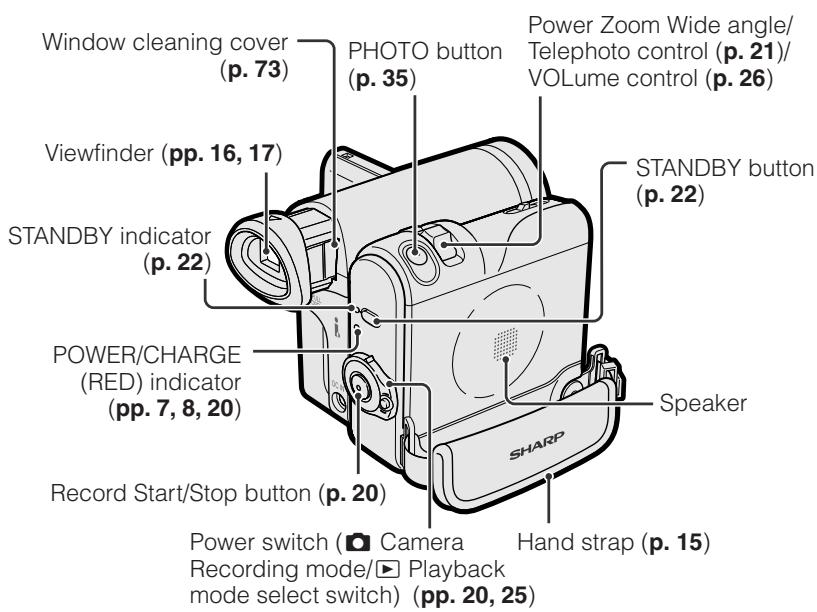
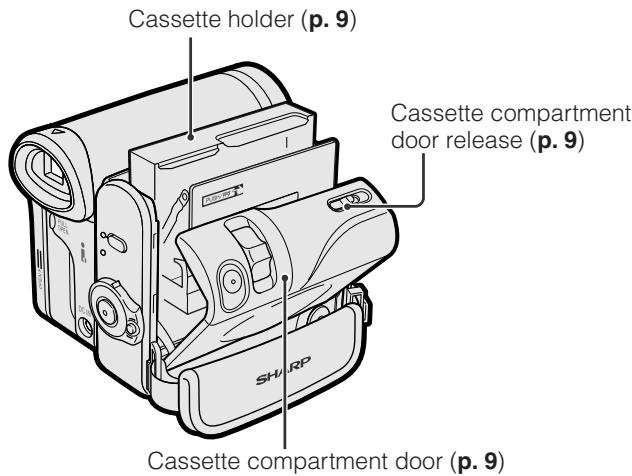
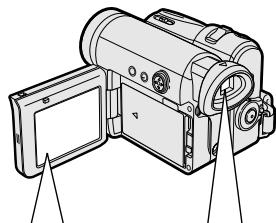
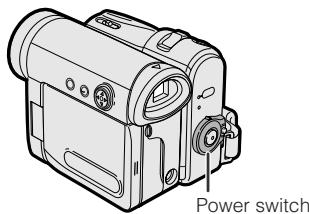
Part Names
For details on the use of each part, refer to the page number indicated in parentheses.
Front view
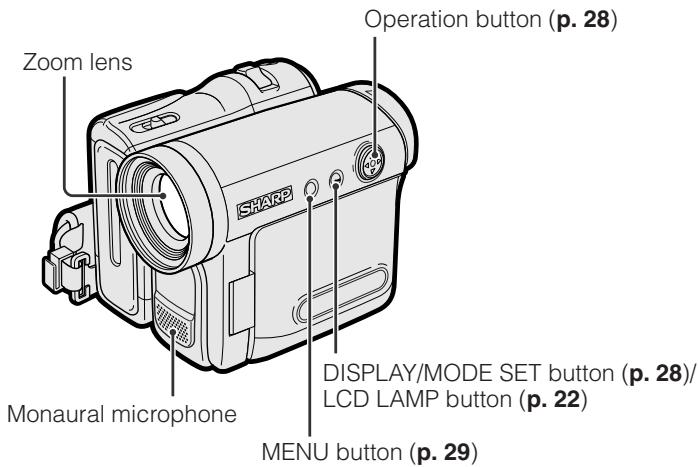
Left view
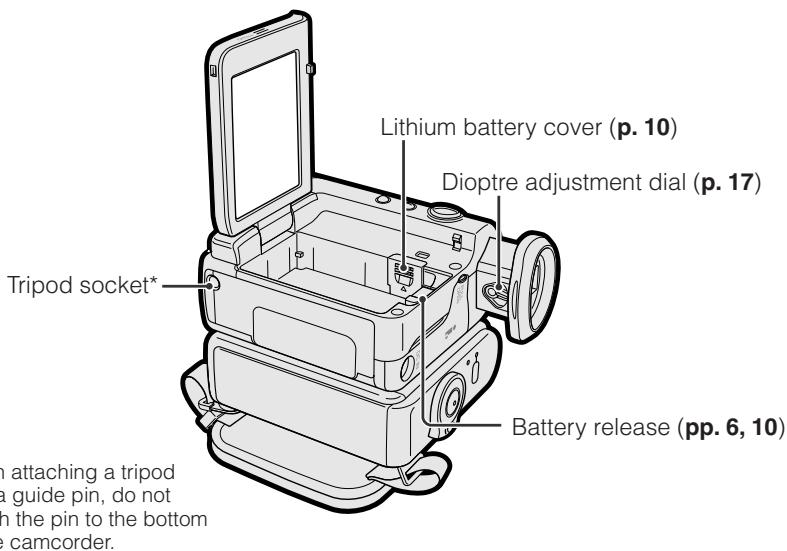
* When attaching a tripod with a guide pin, do not attach the pin to the bottom of the camcorder.
Right view
Warning Indicators
If a warning indicator appears on the screen, follow the specified instructions.
| Displayed for the first 3 seconds | Displayed after 3 seconds | Description of warning |
| INSERT A CASSETTE. | There is no video cassette in the camcorder. Insert a cassette (see page 9). | |
| EJECT THE CASSETTE. | EJECT THE CASSETTE. | The video cassette is defective and should be removed (see page 9). |
| CASSETTE NOT RECORDABLE. | -PROTECT. TAB | The erasure protect tab on the video cassette has been slid to the record-protect position, preventing recording (see page 71). |
| THE TAPE ENDS SOON. | -TAPE END | The tape is about to end. Prepare a new cassette (see page 9). |
| CHANGE THE CASSETTE. | TAPE END | The tape has reached the end. Replace it with a new cassette (see page 9). |
| BATTERY IS TOO LOW. | The battery is almost depleted. Replace it with a fully charged battery pack (see pages 5 and 6). | |
| DEW | -DEW | Dew has formed inside the camcorder. Wait a few hours for the dew to dry away (see page vii). About 10 seconds after this warning appears, the camcorder automatically turns off. |
| ⊗ | ⊗ | The video heads are clogged and should be cleaned (see page viii). |
| LAMP | LAMP | The fluorescent lamp behind the LCD monitor is close to the end of its service life. Call your local authorized Sharp dealer to have it replaced. |
Note:
- indicates a flashing display.
Attaching and Removing the Battery Pack
Attaching
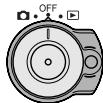
1 Make sure that the Power switch is set to OFF.
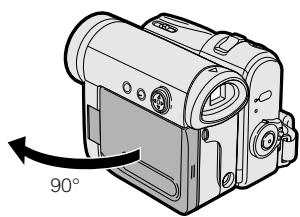
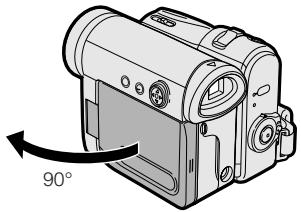
2 Open the LCD monitor to a 90^ angle to the camcorder body.
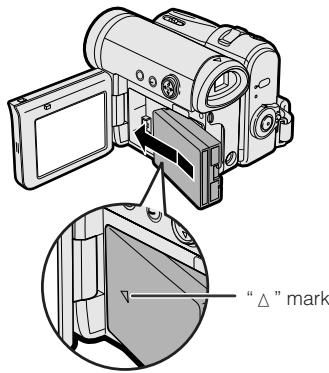
3 Slide the battery pack in the direction of the arrow with the “ ” mark facing out.
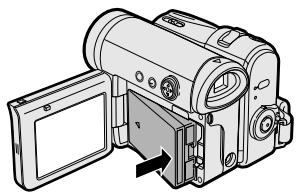
4 Push the battery pack in the direction of the arrow until it clicks.
Removing
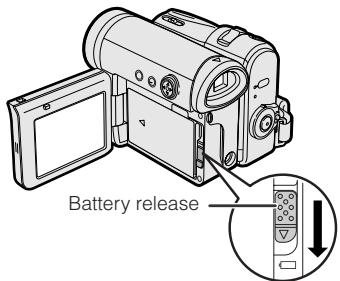
1 Make sure that the Power switch is set to OFF, then open the LCD monitor to a 90^ angle to the camcorder body.
2 Slide the battery release in the direction of the arrow.
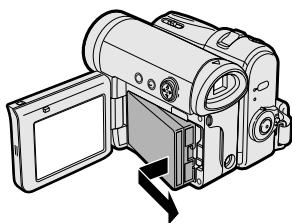
3 Take the battery pack out.
Notes:
BEFORE REMOVALBETARY PACK, ALWAYS STOP RECORDING OR PLAYBACK AND TURN THE POWER OFF.
Removing the battery pack while shooting or during playback may damage the tape by causing it to wrap around the video head drum.
- Remove the battery pack from the camcorder if you will not use the camcorder for a long period of time.
- Make sure that the battery pack is firmly attached during operation. If it is not, the battery pack may come off or camcorder operation may fail because of the poor contact pressure.
- To prevent damage to the battery pack when removing, be sure to firmly hold the battery pack while pressing the release.
- Use only SHARP model BT-L227 battery packs with this camcorder. Use of other batteries may create a risk of fire or explosion.
- Before closing the LCD monitor, make sure the battery pack is properly attached to the camcorder, otherwise the monitor may be damaged.
Charging the Battery Pack
1 Attach the battery pack to the camcorder, and make sure that the Power switch is set to OFF.
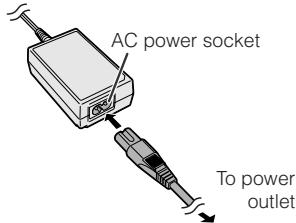
2 Connect the supplied power cord to the AC power socket on the AC adapter, and insert the AC plug into a power outlet.
3 Insert the DC plug into the DC IN jack of the camcorder.
The POWER/CHARGE (RED) indicator lights up red.
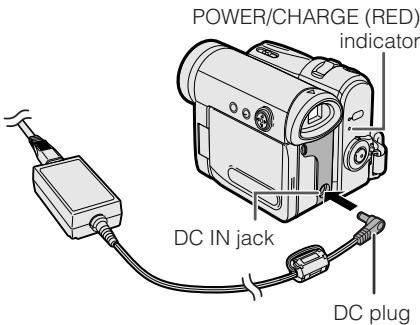
- The POWER/CHARGE (RED) indicator turns off when the battery is charged.
4 Remove the DC plug from the DC IN jack, then remove the AC adapter from the power outlet.
Charging time and maximum continuous recording and playback times in Tape modes
| Battery pack | Charging time | Max. continuous recording time | Max. continuous playback time on LCD | |
| LCD closed | LCD open | |||
| BT-L227 | 120 | 145 | 125 | 125 |
- The chart specifies the approximate times in minutes.
Notes:
- Charge the battery pack between 10^ and 30^ . The battery pack may not charge properly at temperatures too low or too high.
- The battery pack and AC adapter become warm during charging. This is not a malfunction.
- Using the zoom (see page 21) and other functions or turning the power on and off frequently will increase power consumption. This may result in a decrease in the actual recording time compared to the maximum continuous recording time listed above.
- The charging time and recording time may vary depending on the ambient temperature and the condition of the battery pack.
- See pages 72 and 73 for more information on using the battery pack.
- Charge only SHARP model BT-L227 battery packs. Other types of battery packs may burst, causing personal injury and damage.
- When attaching the supplied audio/video/S-video cable, remove the DC plug, open the terminal cover and connect it.
Powering the Camcorder from an AC Outlet
You can also power the camcorder from a power outlet by using the supplied AC adapter.
Note:
- The supplied AC adapter is specially designed for use with this camcorder, and should not be used as a power supply for other camcorders.
1 Make sure that the Power switch is set to OFF.
2 Connect the supplied power cord to the AC power socket on the AC adapter, and insert the AC plug into a power outlet.
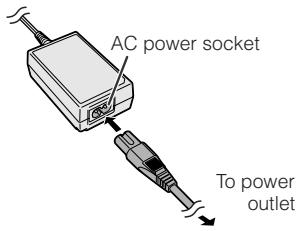
3 Insert the DC plug into the DC IN jack of the camcorder.
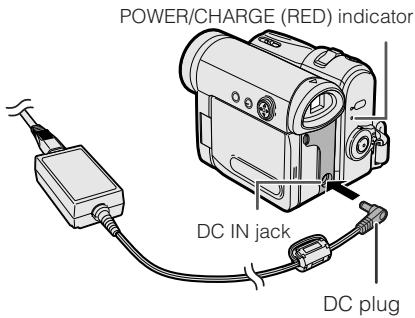
4 Hold down the Lock button and set the Power switch to or.
The POWER/CHARGE (RED) indicator lights up green.
Notes:
BEFORE REMOVIDING THE DC PLUG, ALWAYS STOP RECORDING OR PLAYBACK AND TURN THE POWER OFF.
Removing the DC plug while shooting or during playback may damage the tape by causing it to wrap around the video head drum.
- Disconnect the AC adapter from the camcorder if you will not use the camcorder for a long period of time.
Inserting and Removing a Cassette
Inserting
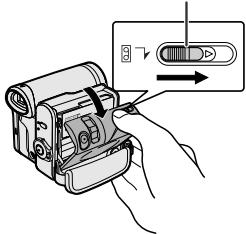
1 Attach the power source to the camcorder, then slide and hold the cassette compartment door release as you open the cassette compartment door.
- After confirmation sound, the cassette holder extends and opens automatically.
Cassette compartment door release
2 Insert a commercially available Mini DV cassette fully with the window facing outwards, and with the erasure protect tab facing upwards.
Erasure protect tab
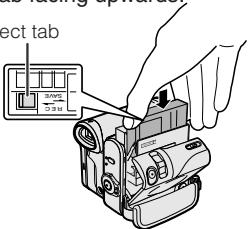
3 Press the "PUSH" mark gently until the cassette holder clicks into place.
- The cassette holder retracts automatically.
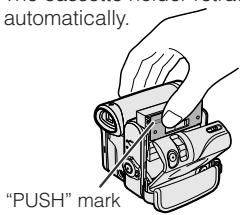
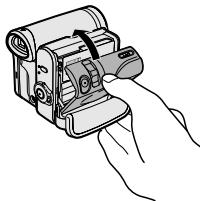
4 Wait for the cassette holder to fully retract. Close the compartment door by pressing its centre until it clicks into place.
Removing
Perform step 1 above, then take out the cassette.
Notes:
- Do not try to close the cassette compartment door while the cassette holder is extending or retracting.
- Be careful not to get your fingers caught in the cassette holder.
- Do not apply force to the cassette holder except when pressing the "PUSH" mark to close it.
- Do not tilt the camcorder or hold it upside down when you are inserting or removing a cassette. It may damage the tape.
- Remove the cassette if you will not use the camcorder for a long period of time.
- If you do not correctly close the cassette holder in step 3, the cassette protection mechanism of the camcorder might eject the cassette. If this happens, repeat the insertion procedure.
- Do not attempt to pick up the camcorder by the cassette compartment door.
- If the battery power is too low, you may not be able to eject the cassette. Replace the battery pack with a fully charged one.
- You can only use Mini DV cassettes. Large DV cassettes cannot be used. Be sure to use Mini DV cassettes with the M_ini mark.
See page 71 for more information on the video cassette tapes intended for use with this camcorder.
Installing the Lithium Batteries
Installing the Memory Battery
The supplied CR1216 type lithium battery is used to store the memory of the date and time settings.
1 Make sure that the Power switch is set to OFF.
2 Open the LCD monitor to a 90^ angle to the camcorder body.
3 Slide the battery release in the direction of the arrow, then take the battery pack out.
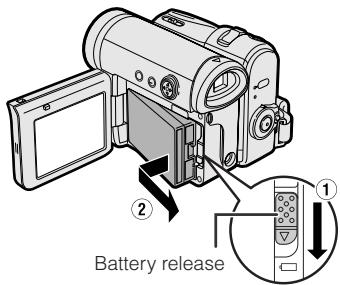
4 Pull out the lithium battery cover in the direction of the arrow.
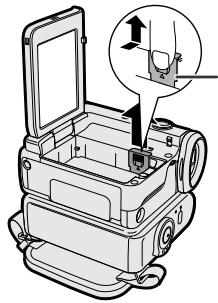
Lithium battery cover
5 Insert the CR1216 type lithium battery into the compartment with the + side of the battery facing out.
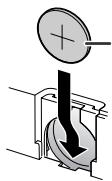
CR1216 type lithium battery
6 Close the lithium battery cover firmly until it clicks into place.
Removing the Memory Battery
Perform steps 1 to 4 above, then lift out the battery by using a pointed object such as the tip of a ballpoint pen.
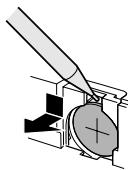
Installing the Battery to Remote Control (Not supplied)
The remote control (RRMCGA237WJSA) is not supplied with this camcorder.
Contact the nearest SHARP service centre or your dealer for purchasing as specified part.
The CR2032 type lithium battery is used to power the remote control unit.
1 Insert a pointed object such as the tip of a ballpoint pen to open the battery holder.
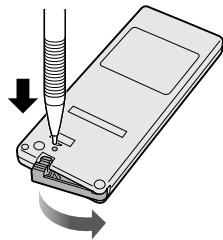
2 Place the CR2032 type lithium battery on the battery holder with the + side facing down.
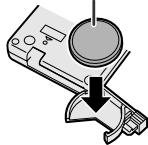
CR2032 type lithium battery
3 Close the battery holder until it clicks.
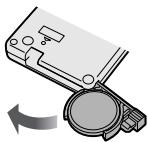
Notes on the Use of the Lithium Battery
CAUTION: Danger of explosion if battery is incorrectly replaced. For camcorder, replace only with same or equivalent type CR1216, for remote control unit, replace only with same or equivalent type CR2032, both recommended by the equipment manufacturer.
WARNING KEEP THIS BATTERY AWAY FROM CHILDREN. IF SWALLOWED, CONSULT A PHYSICIAN IMMEDIATELY FOR EMERGENCY TREATMENT.
CAUTION BATTERY MAY EXPLODE IF MISUSED OR INSTALLED WITH POLARITY REVERSED. DO NOT RECHARGE, DISASSEMBLE OR DISPOSE OF IN FIRE.
- Do not short-circuit, recharge, disassemble, or heat the lithium battery.
- Should the lithium battery leak, wipe the battery compartment clean, and then insert a new battery.
- The lithium batteries will last about one year under normal usage.
Selecting the Language for the On-screen Display
This camcorder allows you to choose English, German or French as the on-screen display language.
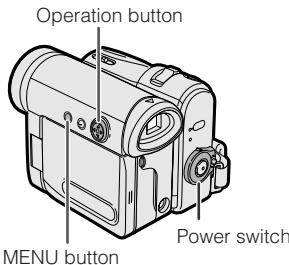
Operation button
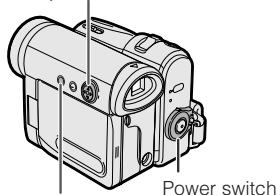
MENUButton
Setting
When using the camcorder for the first time, select your on-screen display language by following the steps below.
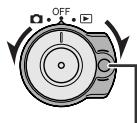
1 Hold down the Lock button and set the Power switch to 0.
- The language selection screen appears.
2 Press or on the Operation button to select the desired language, then press the centre of the Operation button.
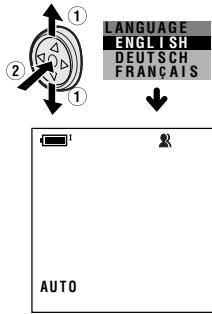
Changing
- The example screens shown are for Camera mode.
1 Press the MENU button to display the menu screen.
2 Press or to select 1, then press the centre of the Operation button.
3 Press or to select "LANGUAGE" ("SPRACHE" or "LANGUE"), then press the centre of the Operation button.
- The language selection screen appears.
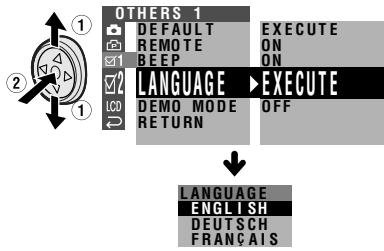
4 Press or to select the desired language, then press the centre of the Operation button.
- The menu screen displays in the language selected.
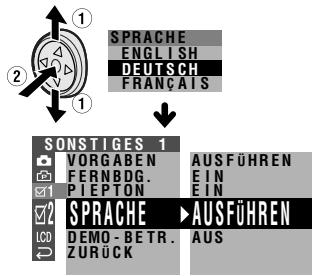
5 Press the MENU button to turn off the menu screen.
Note:
- The English, German and French portions of this operation manual are based on the use of on-screen displays in their respective languages. The portions of this manual in other language, however, are based on the use of English on-screen displays.
Setting the Date and Time
Example: Setting the date to 2 June 2005 (2.6.2005) and the time to 10:30 am (10:30).
Note:
- Before performing the steps below, make sure that the CR1216 type lithium battery has been installed (see page 10).
- The example screens shown are for Camera mode.
1 Hold down the Lock button and set the Power switch to or
Lock button
2 Press the MENU button to display the menu screen.
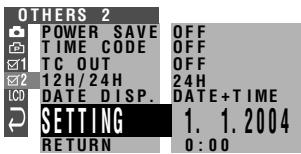
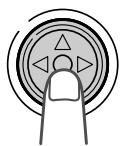
3 Press the centre of the Operation button.
4 Press or to select "2" (day), then press the centre of the Operation button.
SETTING 2.1.2004 0:00
5 Press or to select "6" (month), then press the centre of the Operation button.
SETTING 2.6.2004 0:00
6 Press or to select "2005" (year), then press the centre of the Operation button.
SETTING 2.6.2005 0:00
7 Press or to select "10" (hour), then press the centre of the Operation button.
SETTING 2.6.2005 10:00
8 Press or to select "30" (minute), then press the centre of the Operation button.
SETTING 2.6.2005 RETURN 10:30:00
- The internal clock now starts operating with the seconds display.
9 Press the MENU button to turn off the menu screen.
Note:
- If the date and time have been set, the SETTING 1 screen (▲) appears in step 2. Select "SETTING" in the OTHERS 2 screen (☑ 2) using the Operation button.
Changing to the 12-hour Time Mode
1 After performing step 8 on the previous page, press or to select "12H/24H", then press the centre of the Operation button.
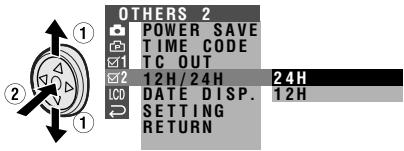
2 Press or to select "12H", then press the centre of the Operation button.
12H/24H 12H
3 Press the MENU button to turn off the menu screen.
Notes:
- The date and time, once set, are internally recorded even when not displayed on the screen.
- The menu screen automatically turns off if no settings are made within 5 minutes.
Using the Lens Cap
Attach the strap of the lens cap to the hand strap as shown below.
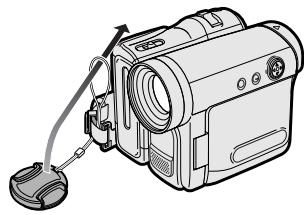
When attaching or removing the lens cap, grasp the indents on both sides of the cap.
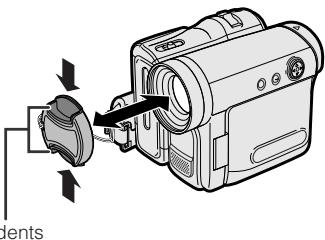
When recording, remove the lens cap and attach the lens cap cord to the fastener so that the cap will not get in the way.
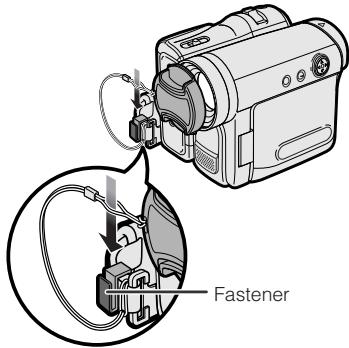
Note:
Always attach the lens cap over the lens when not using the camcorder.
Adjusting the Hand Strap
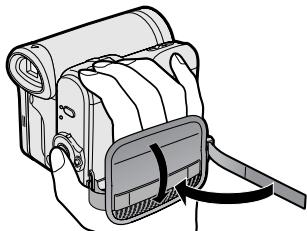
1 Open the hand strap flap (①) and grip strap (②).
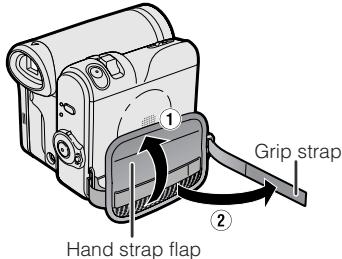
2 Loosen the grip strap, pass your right hand through the hand strap, and put your thumb close to the Record Start/ Stop button and your index finger on the Power Zoom control. Then, pull the grip strap tight until it fits snugly.
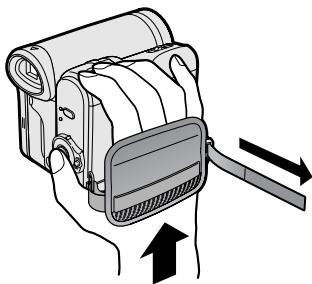
3 Seal the Velcro® fasteners of the grip strap and the hand strap flap.
Using the Grip
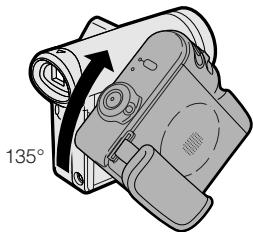
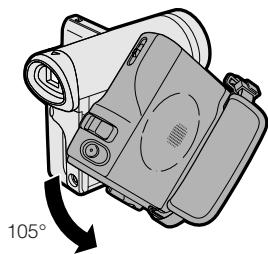
Rotate the grip 135^ forward or 105^ downward so that you can record images easily from high or low angle (see page 19).
Note:
- The grip cannot rotate when a tripod is attached.
Detaching the Lens Hood
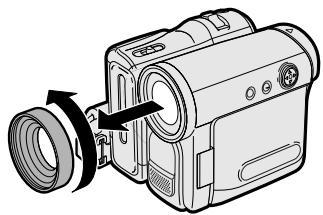
Before using a commercially available conversion lens, detach the lens hood as shown below.
Note:
- You cannot attach the supplied lens hood or lens cap to a conversion lens.
Using the Viewfinder
You can record the subject using the electronic viewfinder. You can also watch playback through the viewfinder.
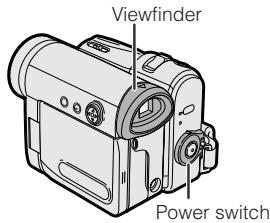
1 Pull out the viewfinder completely.
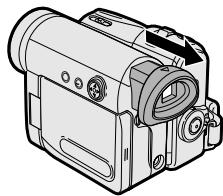
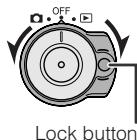
2 Hold down the Lock button and set the Power switch to or
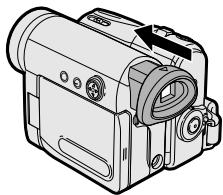
Closing the viewfinder
Push in the viewfinder completely.
Notes:
- Do not use excessive force when moving the viewfinder.
- Do not pick up the camcorder by the viewfinder.
- The viewfinder automatically turns off when the LCD monitor is opened. If the vertical rotation of the monitor is 180^ when Camera mode, however, the viewfinder is on and the subject is displayed both in the viewfinder and on the monitor (see page 38).
- You can adjust the settings on the MENU screen through the viewfinder by using the Operation button (see page 28 for use of the Operation button).
- Be sure to close the viewfinder after use.
Adjusting the dioptre
Adjust the dioptre according to your eyesight when the picture in the viewfinder or the characters on the on-screen display is not clear.
1 Pull out the viewfinder completely.
2 Hold down the Lock button and set the Power switch to 0.
3 While looking through the viewfinder, turn the dioptre adjustment dial until the indicators in the viewfinder are clearly visible.
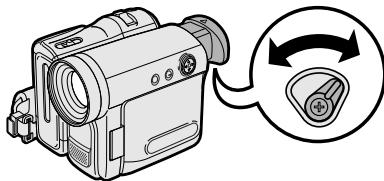
Dioptre adjustment dial
Note:
- For cleaning the viewfinder, see page 73.
Using the LCD Monitor
You can use the LCD monitor to play back recordings that you have made or to watch the subject during recording.
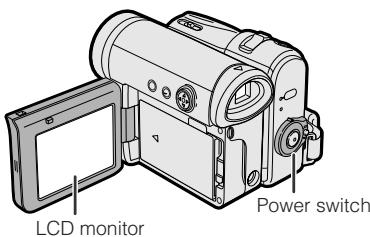
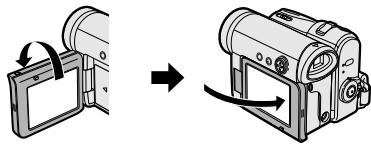
1 Open the LCD monitor to a 90^ angle to the camcorder body.
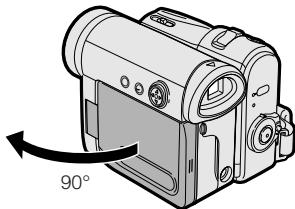
2 Adjust the LCD monitor to an angle that allow easy viewing of the on-screen picture.
- The LCD monitor rotates 270^ vertically.
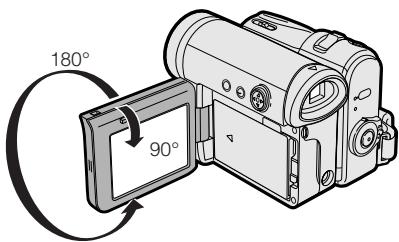
Note: Do not try to rotate the LCD monitor vertically until the monitor is completely opened.
- You can also fold the LCD monitor into the camcorder with the screen facing out for watching playback on the monitor.
3 Hold down the Lock button and set the Power switch to or
- A picture displays on the LCD monitor.
Lock button
Note:
- Battery consumption is larger when the LCD monitor is opened. Use the viewfinder instead of the LCD monitor when you want to save the battery power.
Closing the LCD monitor
Return the LCD monitor to the vertical 90^ position with the screen facing in, and fold it into the camcorder into place.
Notes:
- Do not use excessive force when moving the LCD monitor.
- When closing the LCD monitor, do not tilt it; otherwise the monitor may not close properly and may become damaged.
- Do not pick up the camcorder by the LCD monitor.
- Do not place the camcorder with the LCD monitor screen facing down.
- Close the LCD monitor completely with the screen facing in when not in use.
- Before closing the LCD monitor, make sure the battery pack is properly attached to the camcorder, otherwise the monitor may be damaged.
- When carrying the camcorder in a bag, for example, close the LCD monitor with the screen facing in.
Tips on Recording Positions
To create images that are easy to watch during playback, try to record with an upright posture and steady hands to prevent a shaky image.
Holding the camcorder
Put your right hand through the hand strap, and place your left hand under the camcorder for support.
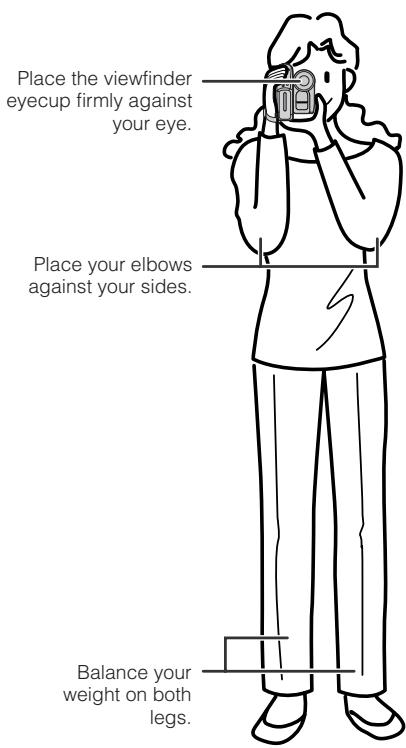
Basic posture
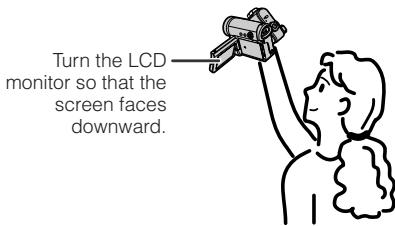
Shooting from a high angle
Shooting from a low angle
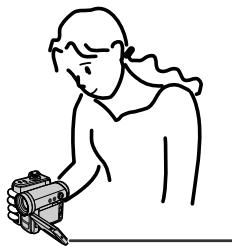
Turn the LCD monitor so that the screen faces upward.
Note:
- Take care not to touch the microphone with your fingers during recording. It will cause noise on the audio track.
Easy Camera Recording in Full Auto Mode
- Before you start recording, perform the operations described on pages 5 through 19 to prepare your camcorder for recording.
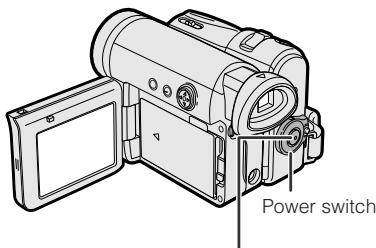
Record Start/Stop button
1 Remove the lens cap.
2 Hold down the Lock button and set the Power switch to 0.
- The picture from the lens now displays and the POWER/CHARGE (RED) indicator lights up green.
- The camcorder is now ready to record (Recording Standby mode).
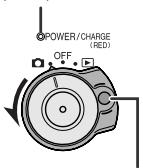
POWER/CHARGE
(RED) indicator
Lock button
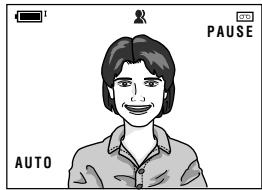
Note:
- If "AUTO" is not displayed at this time, set the camcorder to Full Auto mode (see page 54).
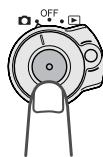
3 Press the Record Start/Stop button to begin recording.


REC
Note:
- Before recording an important scene, please perform the recording test, then playback to check if the scene was recorded properly. If noise occurs, use a commercially available cleaning tape to clean the video heads (see page viii).
Maximum continuous recording and actual recording times
| Battery pack | Max. continuous recording time | Actual recording time | ||
| LCD closed | LCD open | LCD closed | LCD open | |
| BT-L227 | 145 | 125 | 70 | 60 |
- The chart specifies the approximate times in minutes.
Note:
- Using the zoom (see page 21) and other functions or turning the power on and off frequently will increase power consumption. This may result in a decrease in the actual recording time compared to the maximum continuous recording time listed above.
To pause recording
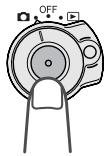
Press the Record Start/Stop button again. Recording pauses, and the camcorder enters Recording Standby mode.
PAUSE
To turn the power off
Set the Power switch to OFF without pressing the Lock button.
Remaining in Recording Standby mode for 5 minutes
If the camcorder remains in Recording Standby mode over 5 minutes, the camcorder automatically enters stop mode to protect the tape from damage.
To resume Recording Standby mode from stop mode, press the STANDBY button (see page 22).
To resume recording from stop mode directly, press the Record Start/Stop button. However, it may need several seconds to resume recording after pressing the Record Start/Stop button.
Zooming
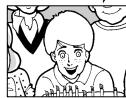
Zooming allows you to move visually closer to or further from a subject without physically changing your position.
When using the optical zoom, you can enlarge the subject up to 10×
Zooming in (when you want to centre attention on the subject)


Zooming out (when you want to include the surroundings)
Zooming in
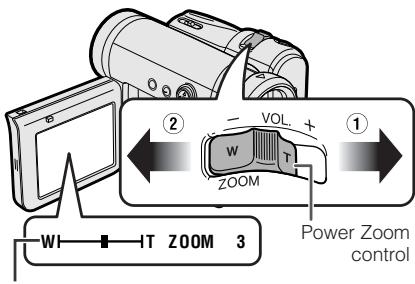
Push the Power Zoom control to the T (telephoto) side to get a close-up view (①).
Zooming out
Push the Power Zoom control to the W (wide angle) side to get a wide field of view (②) .
Zoom range indicator
- The zoom range indicator shows you the current zoom setting.
- The zoom speed depends on how far you push the Power Zoom control.
Notes:
- The camcorder is unable to focus when zooming in on subjects closer than 1.5m .
See page 30 for how to use the digital zoom.
Power Standby Mode
Power Standby mode allows you to prevent accidental recording by locking all operations except cancelling the mode.
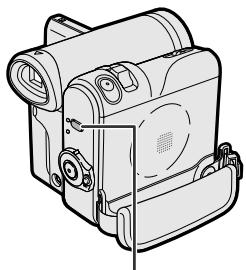
STANDBY button
Hold down the STANDBY button for more than 2 seconds when you pause recording.
- The screen turns off and the STANDBY indicator lights up.
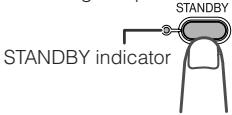
To resume operation
Press the STANDBY button again to return to the Recording Standby mode.
It takes about 2 seconds to be able to start recording.
Notes:
- Power Standby will cancel and the STANDBY indicator will turn off in these situations below:
- When the camcorder remains in Power Standby mode for more than 5 minutes
- When the camcorder is set to Playback mode
- When removing the battery pack
- When removing a cassette
- The camcorder will enter stop mode automatically 5 minutes after setting Power Standby mode if it remains in Recording Standby mode after cancelling Power Standby mode.
- When Power Standby mode, for example, is cancelled after 3 minutes, the camcorder will enter stop mode if
Turning on/off the Backlight
You can see the on-screen display outdoors on a sunny day or in a location with bright lighting even when the backlight turns off. Also, this function is useful when watching playback on a TV.
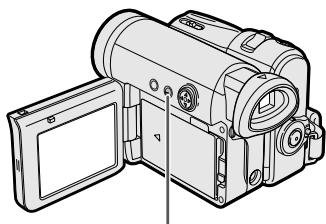
LCD LAMP button
Hold down the LCD LAMP button for more than 2 seconds to turn off the backlight.
will flash for 2 seconds, then lights up.
To turn on the backlight
Hold down the LCD LAMP button for more than 2 seconds.
Note:
- The backlight off mode will cancel when you close the LCD monitor.
Auto Focus
The camcorder is preset to Auto Focus mode, which is designed to focus on most types of subjects. In Auto Focus mode, the camcorder automatically focuses on the subject in the centre of the scene. Always keep the subject in the centre of the scene.
Notes:
- If no subject is in the centre of the scene, the focus area will expand and the subject nearest the centre will be focused on.
- Auto Focus may not work in the situations described on page 47. In these situations, use the manual focus function.
- The camcorder may not be able to focus correctly if the subject is closer than approximately 1.5m . Set the zoom control to wide angle, and try refocusing again.
- If the lens is dirty or fogged, the camcorder may not be able to focus correctly.
Macro Shots
This camcorder lets you shoot close-up images of small objects such as flowers and insects, or make title frames for your videos. When you want to record a magnified image of a subject which is within approximately 1.5m of the camcorder, do not zoom in on it. Instead, zoom out all the way by pushing the Power Zoom control to the W side, and then move the camcorder closer to the subject until you obtain the desired angle of view. The camcorder will automatically focus on the subject when the lens is set for the widest angle.
Note:
- When you are recording a macro shot, be sure that the subject receives sufficient illumination.
Remaining Recording Time Display
When the camcorder is recording, an on-screen indicator displays the approximate remaining tape time in minutes.
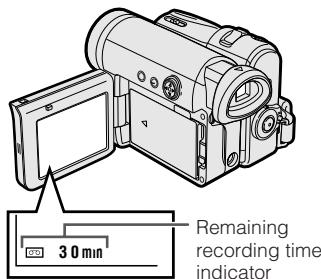
Notes:
- The remaining recording time indicator appears when the on-screen indicators are turned on.
- The remaining recording time indicator appears 10 seconds after pressing the Record Start/Stop button to begin recording.
- The remaining recording time indicator only shows the approximate time left. Also, it varies slightly depending on the length of the tape used. (This function is based on the DVM60 tape standard.)
When the remaining recording time reaches 1 minute, a warning indicator will appear. Prepare a new cassette.
| Warning indicator | Approx. remaining time |
| THE TAPE ENDS SOON. ↓ -TAPE END- | Less than 1 min. |
| CHANGE THE CASSETTE. ↓ -TAPE END | The tape has reached the end. |
Remaining Battery Power Display
When using the camcorder with the battery pack as the power source, the remaining battery power indicator is displayed. If the battery power becomes very low, a warning indicator appears. Replace the battery pack.
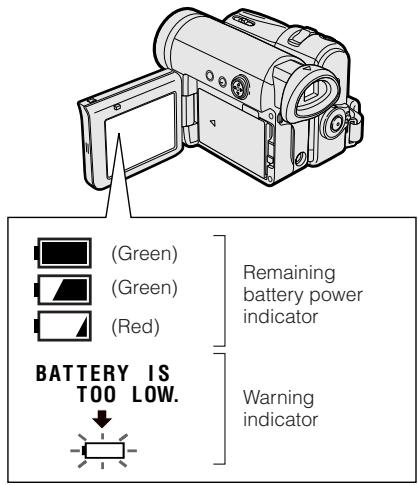
Notes:
- The remaining battery power indicator appears when the on-screen indicators are turned on.
- Use the remaining battery power indicator only as an approximate indication.
- The remaining battery power indicator may change to either a higher or lower level if you set the Power switch to OFF and then back to or.
- In cold environments, the red remaining battery power indicator may appear sooner.
- Use of the zoom functions when the warning indicator is displayed may cause the camcorder to suddenly lose power.
Information Display for Battery Usage
When the camcorder operates with the battery pack, the battery usage indicator appears beside the remaining battery power indicator.
Battery usage indicator for the battery pack attached to the camcorder
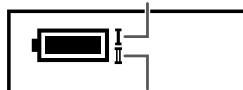
Battery usage indicator for the optional external battery with hand strap BT-LCA1
When both indicators appear, the camcorder consumes power from both battery packs.
When one indicator appears, it consumes power from the indicated battery pack.
Playback
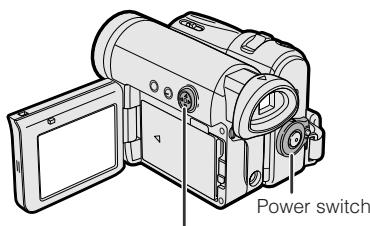
The LCD monitor screen functions as a handy playback monitor. Nothing needs to be connected, allowing instant on-screen playback with the sound through the built-in speaker.
Operation button
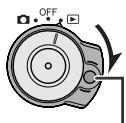
1 Hold down the Lock button and set the Power switch to l
Lock button
2 Press (or ) on the Operation button to rewind (or fast forward) the tape to the desired point.
3 Press to begin playback.
Note:
- If you press the Record Start/Stop button in Playback mode, the "I" mark appears and the camcorder enters Recording Standby mode. If you do not intend to record, press to turn the "I" mark off, then press to begin playback. This will ensure your previous recording is not erased (see pages 62-65).
To stop playback
Press
To turn the power off
Set the Power switch to OFF without pressing the Lock button.
Notes:
- The tape automatically rewrites when playback reaches the end of the tape.
- When selecting "5 MIN" or "10 MIN" in power save mode and remaining in stop mode without any operation for 5 or 10 minutes, the camcorder will turn off automatically.
Watching the playback in the viewfinder
You can also watch the playback in the viewfinder by closing the LCD monitor with the screen facing in. You cannot monitor the sound through the speaker when watching the playback in the viewfinder.
Volume Control
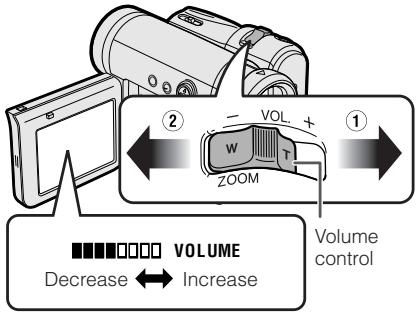
When the camcorder is in Playback mode, push the Volume control to the + or - side to increase (①) or decrease (②) the volume.
The volume level indicator will appear on the LCD screen during adjustment only. Once the Volume control is released, the volume level indicator will disappear shortly afterwards.
Still
The still function allows you to pause playback.
During playback, press on the Operation button.
To return to normal playback, press again.
Notes:
- The sound is off in Still mode.
- To protect the tape, the camcorder automatically returns to normal playback if it is left in Still mode for more than 5 minutes.
Video Search
The video search function makes it easy to search for a desired scene on the tape.
Searching for a Scene Near the Current Tape Position
1 During playback, press (or ) on the Operation button.
- The playback picture fast forwards (or reverses).
2 When you find the scene, press to return to normal playback.
Searching for a Scene Far from the Current Tape Position
1 During fast forward (or rewind), press and hold (or ) on the Operation button.
- The fast forward (or rewind) picture displays.
2 If the scene is still rather far from the current tape position, release the Operation button to normal fast forward (or rewind).
3 Repeat steps 1 and 2 above until you find the scene.
4 Press to begin normal playback.
Notes:
- The sound is off during search.
- You may experience picture noise during search. This is not a malfunction.
Watching Playback on a TV
You can connect the camcorder to a TV to allow a larger audience to enjoy playback.
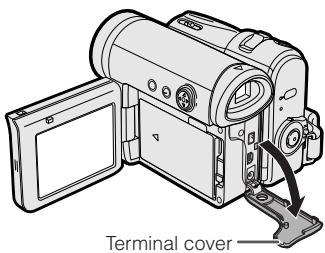
1 Open the terminal cover on the camcorder (see page 2).
2 Connect the camcorder to your TV (or VCR) with the supplied audio/video/S-video cable, as shown.
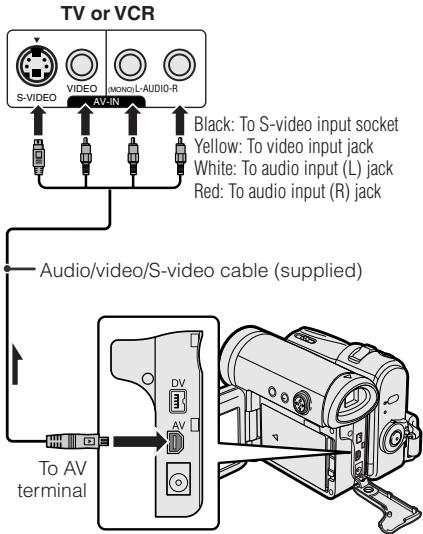
: The arrow shows the signal flow.
Note:
- Check that the camcorder, TV, VCR and other equipment to be used are turned off before making any connections. Picture noise or malfunction may occur if any of the above is left on while making a connection.
3 Turn on the TV and set it to the "AV" or "VIDEO" channel. (See the operation manual of your TV.)
- When connecting to a TV via a VCR, turn on the VCR and set it to the "AV" or "LINE" input channel. Operate the TV as you normally do to view the signal from the VCR. (See the operation manuals of your TV and VCR.)
4 Set the Power switch on the camcorder to l , and begin playback (see page 25).
Notes:
- If your TV or VCR has a 21-pin Euro-SCART connector, use a commercially available RCA/21-pin Euro-SCART conversion connector.
- If your TV or VCR has only one audio input jack, use the white plug for the audio connection on the TV or VCR.
- If your TV or VCR has an S-video input socket, you do not need to connect the yellow video plug.
- Close the terminal cover after use.
About the S-video socket
S-video sockets are used to separately pass the chroma (colour) and luminance (brightness) components of video signals. They serve to improve the picture quality in both recording and playback.
Control Buttons
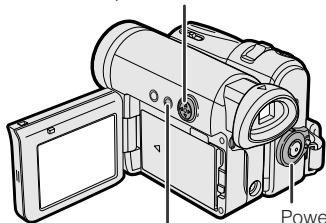
Operation button
Power switch
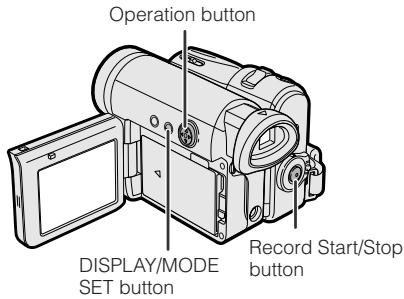
DISPLAY/MODE SET button
Operation button
Use the Operation button to select and set the desired setting.
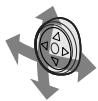
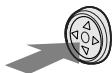
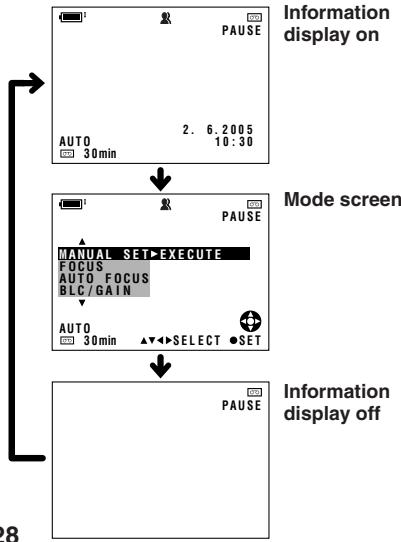
DISPLAY/MODE SET button
Each time you press the DISPLAY/MODE SET button, the screen changes as shown below.
- The example screens shown are for Camera mode.
Using the Mode Screens
In the mode screens, you can adjust the camcorder settings by using the Operation button.
1 Hold down the Lock button and set the Power switch to or.
- See pages 80 and 81 for the mode items you can select in each mode.
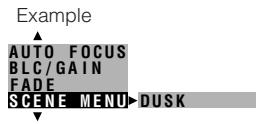
Steps 2 to 4 show how to change the ScENe MENU setting in Camera mode.
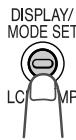
2 Press the DISPLAY/MODE SET button until the mode screen appears.
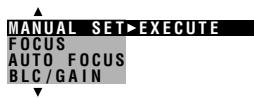
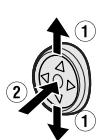
3 Press or on the Operation button to select the desired mode item (SCENE MENU), then press the centre of the Operation button.
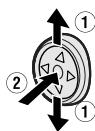
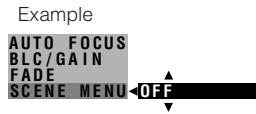
4 Press or to select the desired mode setting (DUSK), then press the centre of the Operation button.
To turn off the mode screen
Press the DISPLAY/MODE SET button.
Note:
- Items that are not selectable are greyed out.
Using the Menu Screens
Use the menu screens to adjust the various camcorder settings.
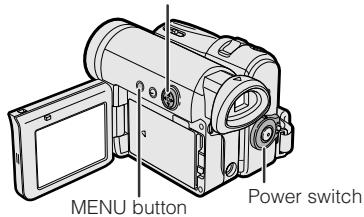
Operation button
1 Hold down the Lock button and set the Power switch to or.
- See pages 80 and 81 for the menu items you can select in each mode.
Steps 2 to 5 show how to change the DGTL ZOOM menu setting in Camera mode.
2 Press the MENU button to display the menu screen.
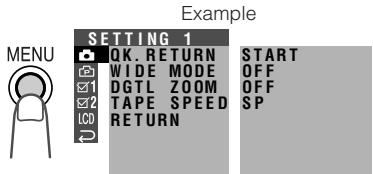
Note:
- The menu screen does not appear during recording.
3 Press or on the Operation button to select the desired menu screen (口), then press the centre of the Operation button.
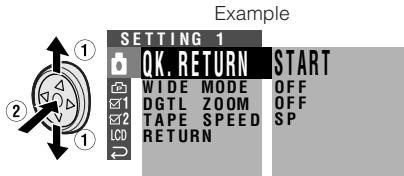
- You can press , instead of the centre of Operation button.
4 Press or to select the desired menu item (DGTL ZOOM), then press the centre of the Operation button.
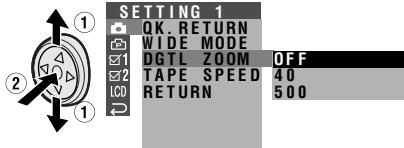
Example
- You can press , instead of the centre of the Operation button.
5 Press or to select the desired menu setting (40), then press the centre of the Operation button.
DGTL ZOOM 40
- You can press , instead of the centre of the Operation button.
- To adjust another menu item, press or to select "RETURN" and press the centre of the Operation button, then perform steps 3 to 5.
To turn off the menu screen
Press the MENU button.
Notes:
- Certain menu items are common in both Camera and Playback modes. If the BEEP menu item, for example, is set to "OFF" in Camera mode, it will be automatically set to "OFF" in Playback mode.
- The menu screen automatically turns off if no settings are made within 5 minutes.
- Items that are not selectable are greyed out.
Setting the Digital Zoom
You can select three different zoom ranges: 1 - 10× (optical zoom), 10 - 40× (digital zoom) or 10 - 500× (digital zoom). The digital zoom allows you to record powerful close-up pictures with the same operation as normal zooming.
Notes:
- The digital zoom is in addition to the optical zoom giving a combined maximum zoom range of 1 - 500 × .
- As the image is enlarged digitally, the picture quality decreases when higher digital zoom settings are used.
1 In Camera mode, press the MENU button to display the menu screen.
2 Press or on the Operation button to select , then press the centre of the Operation button.
3 Press or to select "DGTL ZOOM", then press the centre of the Operation button.
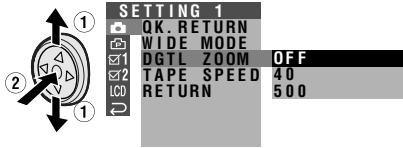
4 Press or to select "40" or "500", then press the centre of the Operation button.
DGTL ZOOM 40
5 Press the MENU button to turn off the menu screen.
The "D" digital zoom indicator is displayed during digital zooming.
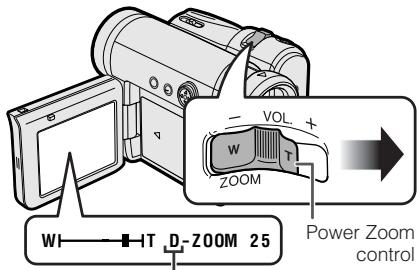
Digital zoom indicator
To use optical zoom only
Select "OFF" in step 4 above.
Backlight Compensation (BLC)
When the subject is backlit, the image will appear dark if it is recorded normally. Use the backlight compensation (BLC) function to brighten the entire screen.
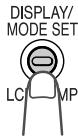
1 In Camera mode, press the DISPLAY/ MODE SET button until the mode screen appears.
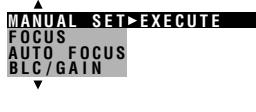
2 Press or on the Operation button to select "BLC/GAIN", then press the centre of the Operation button.
3 Press or to select "ON", then press the centre of the Operation button.
BLC/GAIN ON
4 Press the DISPLAY/MODE SET button to turn off the mode screen.
- "..." appears when on-screen indicators are turned on, indicating that the backlight compensation is now working.
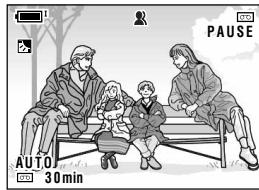
To cancel the backlight compensation function
Select "OFF" in step 3 above.
Gain-up
When you are recording in a dark or poorly illuminated location, "LIGHT" is displayed on the screen. Use the gain-up function to record a brighter picture.
Note:
- At locations where lighting is adequate, "LIGHT" will not appear. The gain-up function cannot be used in this case.
1 In Camera mode, press the DISPLAY/ MODE SET button until the mode screen appears.
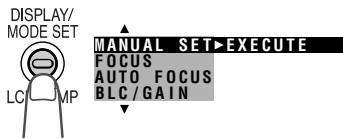
2 Press or on the Operation button to select "BLC/GAIN", then press the centre of the Operation button.
3 Press or to select "ON × ", then press the centre of the Operation button.
BLG/GAIN ON
4 Press the DISPLAY/MODE SET button to turn off the mode screen.
- "D" appears when on-screen indicators are turned on, indicating that the gain-up function is now working.
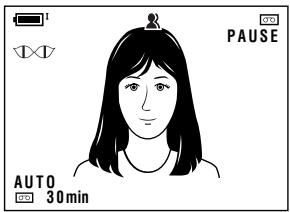
To cancel the gain-up function
Select "OFF" in step 3 above.
Notes:
- You may experience some picture noise in Gain-up mode, which increases when the × appears.
- When the DV indicator appears, you may get a shadow image behind a subject that is moving around a lot.
- Fine brightness adjustments are possible when using manual iris (see page 51).
- The DV indicator will disappear and Gain-up mode will cancel if you aim the camcorder in a bright location.
Fade In and Fade Out
The fade function allows you to gradually bring the image and sound in or out at the beginning or end of a scene for creating scene transitions. This is especially effective in creating a dramatic change in scenery.
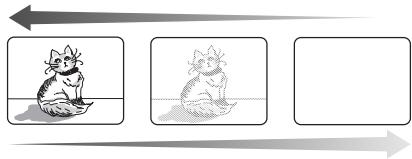
Fade in
Fade out
Using
1 In Camera mode, press the DISPLAY/ MODE SET button until the mode screen appears.
2 Press or on the Operation button to select "FADE", then press the centre of the Operation button.
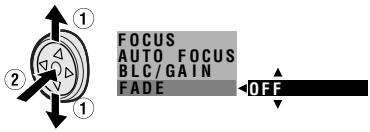
3 Press or to select "ON", then press the centre of the Operation button.
4 Press the DISPLAY/MODE SET button until on-screen indicators appear.
5 Press the Record Start/Stop button to begin recording.
- The picture turns white, and the image and sound fade in.
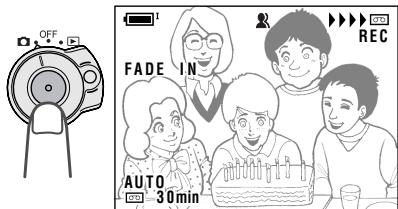
6 Press the Record Start/Stop button at the point where you wish to stop recording.
- The image and sound fade out as the picture gradually turns white. The camcorder then returns to Recording Standby mode.
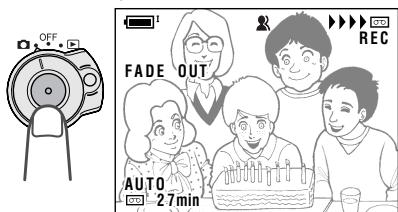
To cancel Fade mode
Select "OFF" in step 3 above.
To use Fade Out only
1 During camera recording, press the DISPLAY/MODE SET button until the mode screen appears.
2 Perform steps 2 and 3 in "Using".
3 Press the Record Start/Stop button at the point where you wish to stop recording.
Note:
- Fade mode automatically cancels after Fade Out.
Quick Return
If while playing back your tape you want to quickly return to the last recorded scene and start recording again, use the quick return function.
1 In Recording Standby mode, press the MENU button to display the menu screen.
2 Press or on the Operation button to select, then press the centre of the Operation button.
3 Press or to select "QK. RETURN", then press the centre of the Operation button.
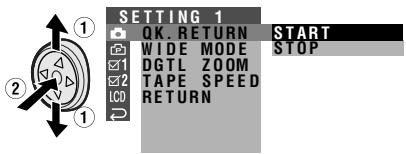
4 Press or to select "START", then press the centre of the Operation button.
- "SEARCH" flashes, and the tape begins fast forwarding or rewinding to the end of the last recorded scene.
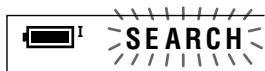
- When the tape reaches the end of the last recorded scene, "FINISHED" is displayed, and the camcorder enters Recording Standby mode.
5 Press the MENU button to turn off the menu screen.
Notes:
- To cancel the quick return function while "SEARCH" is flashing, press the centre of Operation button twice.
- Quick return will not work if you remove the cassette and reload it after recording or if nothing has been recorded since loading.
- When the camcorder remains in Recording Standby mode for more than 5 minutes and enters stop mode, quick return will not work.
Edit Search
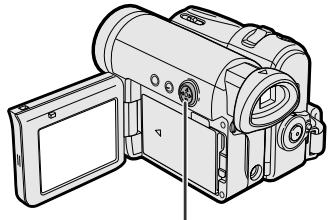
The edit search function lets you search, without switching from Camera mode to Playback mode, for the point on the tape where you wish to start recording next.
Operation button
1 In Recording Standby mode, press and hold down (reverse edit search) or (forward edit search) on the Operation button.
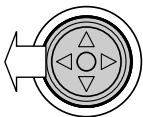
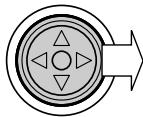
2 When you find the point where you want to begin recording, release the button.
Notes:
The sound is off during search.
- Forward edit search is performed at the same speed as normal playback, and reverse edit search at 6.5 times the normal playback.
- You may experience picture noise during reverse edit search.
- When the camcorder remains in Recording Standby mode for more than 5 minutes and enters stop mode, edit search will not work.
Still Recording
You can record continuous still images of subjects.
1 In Recording Standby mode, press the PHOTO button fully.
- A still image of the subject is displayed.
PHOTO
2 Press the Record Start/ Stop button.
- The still image of the subject will be recorded.
- During still recording, "RECORDED ON TAPE" appears on the screen.
To pause recording
Press the Record Start/Stop button.
To cancel the still image
Press the PHOTO button fully.
Notes:
- Still Recording can also be used during recording by pressing the PHOTO button fully.
- The picture quality in Still Recording function will be slightly lower than normal pictures.
Digital Image Stabilization (DIS)
The digital image stabilization (DIS) function allows you to stabilize the image by electronically compensating for relatively minor image shaking that is often annoying in close-up shots.
1 In Camera mode, press the MENU button to display the menu screen.
2 Press or on the Operation button to select , then press the centre of the Operation button.
3 Press or to select "DIS", then press the centre of the Operation button.
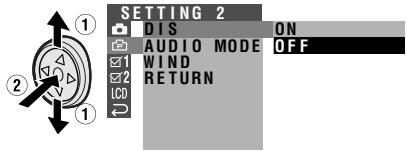
4 Press or to select "ON", then press the centre of the Operation button.
DIS ON
5 Press the MENU button to turn off the menu screen.
- The DIS indicator only appears when the on-screen indicators are turned on. DIS indicator
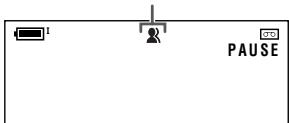
To cancel DIS function
Select "OFF" in step 4 above. The indicator will disappear.
Notes:
- The DIS function cannot compensate for excessive image shaking.
- When image shaking does not occur (e.g. when using the camcorder on a tripod), turn off the DIS function. The picture will appear more natural when the DIS function is off.
Wide Mode
The wide screen function lets you record scenes with the wide-screen feel of a movie shown in a theater. The top and bottom of the picture are masked with black bands to produce an effective screen aspect ratio of 16:9.
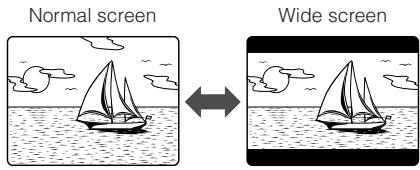
1 In Camera mode, press the MENU button to display the menu screen.
2 Press or on the Operation button to select , then press the centre of the Operation button.
3 Press or to select "WIDE MODE", then press the centre of the Operation button.
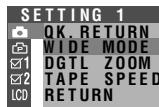
OF ON
4 Press or to select "ON", then press the centre of the Operation button.
- The picture is displayed with the top and bottom portions masked.
WIDE MODE ON
5 Press the MENU button to turn off the menu screen.
To return to normal screen
Select "OFF" in step 4 above.
Power Save Mode
Power save mode will turn off the camcorder automatically to save battery power when the camcorder is not in use for 5 or 10 minutes.
Note:
- To resume recording or playback, set the Power switch to OFF, then back to 0 or 1.
- The example screens shown are for Camera mode.
1 Turn on the camcorder, then press the MENU button to display the menu screen.
2 Press or on the Operation button to select 2, then press the centre of the Operation button.
3 Press or to select "POWER SAVE", then press the centre of the Operation button.
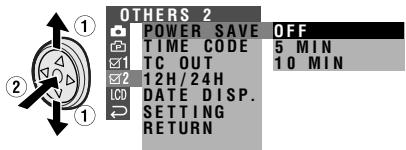
4 Press or to select "5 MIN" or "10 MIN", then press the centre of the Operation button.
POWER SAVE 5 MIN
5 Press the MENU button to turn off the menu screen.
To cancel the power save mode
Select "OFF" in step 4 above.
Notes:
- The camcorder will not turn off when recording or playing back. It will also not turn off when inputting AV or DV for VL-Z300.
- The camcorder will turn off prior to Power Standby mode.
Windbreak
The windbreak function allows you to reduce annoying noise from strong winds when recording.
1 In Camera mode, press the MENU button to display the menu screen.
2 Press or on the Operation button to select , then press the centre of the Operation button.
3 Press or to select "WIND", then press the centre of the Operation button.

4 Press or to select "ON", then press the centre of the Operation button.
WIND ON
5 Press the MENU button to turn off the menu screen.
To cancel Windbreak
Select "OFF" in step 4 above.
Note:
- Keep the windbreak function off during normal recording. If left on, the recorded audio may sound somewhat muffled when played back.
Self Recording
Normal self recording
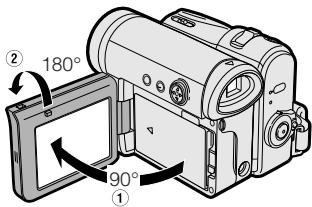
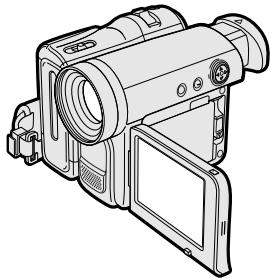
Open the LCD monitor and rotate it 180^ vertically so that the screen faces the other way and the subject can monitor the shot while you are recording with the viewfinder.
If the camcorder is steadied, you can record yourself in the scene by watching yourself on the LCD monitor.

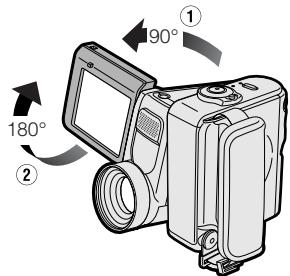
1 Pull out the viewfinder completely. Open the LCD monitor to a 90^ angle to the camcorder body (①), and then rotate it 180^ vertically (②).
2 Set the Power switch to a.
- The subject is displayed in the viewfinder, and a mirror image of the subject is displayed on the LCD monitor.
3 Begin recording.
Note:
- You can play back images while the monitor is in the self recording position. Set the camcorder to Playback mode.
Self recording with reversed grip
Rotate the grip 105^ and the LCD monitor 180^ vertically so that you can record yourself while holding the grip.
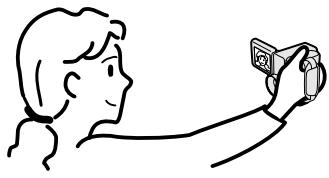
1 Turn the camcorder downward as shown below.
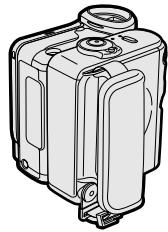
2 Rotate the lens section 105^ vertically as shown below.
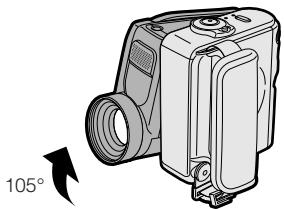
3 Open the LCD monitor to a 90^ angle to the camcorder body (①), and then rotate it 180^ vertically (②).
4 Set the Power switch to a.
5 Begin recording.
Notes:
- Do not rotate the monitor section to the self recording position during recording or playback.
- During self recording with reversed grip, the mode or menu screen cannot be displayed.
- All of the manual settings are set to AUTO and some other settings will set to OFF in self recording with reversed grip.
- You may experience image noise when using self recording.
To operate self recording with reversed grip correctly, make sure to turn the grip and the lens section so that the Record Start/Stop button and the tripod socket face upward, and the lens faces toward you. The indicator will appear. - Be sure that the LCD monitor rotation is exactly 180^ , otherwise the image recorded will be rotated 180^ upside-down.
- The viewfinder does not work in self recording with reversed grip.
Recording in LP (Long Play Recording) Mode
This camcorder allows you to record in LP (Long Play Recording) mode for approximately 50% more recording time with the same picture quality as that in SP (Standard Play Recording) mode.
1 In Camera mode, press the MENU button to display the menu screen.
2 Press or on the Operation button to select , then press the centre of the Operation button.
3 Press or to select "TAPE SPEED", then press the centre of the Operation button.
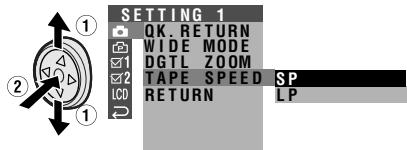
4 Press or to select "LP", then press the centre of the Operation button.
TAPE SPEED LP
5 Press the MENU button to turn off the menu screen.
- The long play recording mode indicator only appears when the on-screen indicators are turned on.
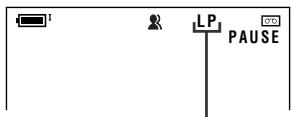
Long play recording mode indicator
To return to SP mode
Select "SP" in step 4 above.
Notes on the use of LP mode
- To record in LP mode, be sure to use a Mini DV cassette labelled for use with LP mode.
-
Frozen images, mosaic-pattern picture noise, audio interruptions or audio loss may occur in the following cases:
-
When using a tape which is not designated for use with LP mode.
-
When a tape recorded in LP mode under high temperature conditions is played back.
-
When a tape recorded in LP mode with the camcorder is played back on a Mini DV player or camcorder from another manufacturer.
When a tape recorded in LP mode is played back on a Mini DV player or camcorder without an LP function. -
Audio dubbing is not possible with LP mode recording.
Selecting the 16-bit Audio Recording Mode
The camcorder normally records audio in the 12-bit audio recording mode. For higher-quality audio recording, select the 16-bit audio recording mode.
1 In Camera mode, press the MENU button to display the menu screen.
2 Press or on the Operation button to select , then press the centre of the Operation button.
3 Press or to select "AUDIO MODE", then press the centre of the Operation button.
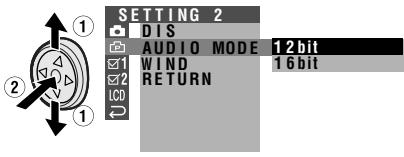
4 Press or to select "16bit", then press the centre of the Operation button.
AUDIO MODE 16bit
5 Press the MENU button to turn off the menu screen.
- The 16-bit audio recording mode indicator only appears when the on-screen indicators are turned on.
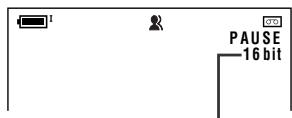
16-bit audio recording mode indicator
To return to 12-bit audio recording mode
Select "12bit" in step 4 above.
Note:
- When using Audio Dubbing with 16-bit audio recordings, both the dubbed and original sounds will be recorded in mono (see page 58).
Using the Remote Control (Not Supplied)
The remote control (RRMCGA237WJSA) is not supplied with this camcorder. Contact the nearest SHARP service centre or your dealer for purchasing as specified part.
Activating
- The example screens shown are for Playback mode.
1 Press the MENU button to display the menu screen.
2 Press or on the Operation button to select 1, then press the centre of the Operation button.
3 Press or to select "REMOTE", then press the centre of the Operation button.
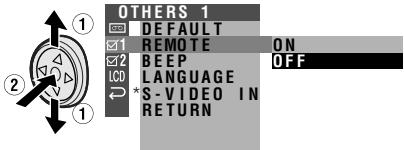
- "S-VIDEO IN" does not appear with VL-Z100.
4 Press or to select "ON", then press the centre of the Operation button.
REMOTE ON
5 Press the MENU button to turn off the menu screen.
Operating
Aim the remote control at the remote sensor of the camcorder, and press the control buttons to operate.
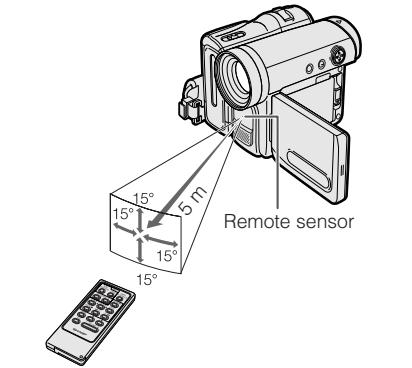
ZOOM (W/T) buttons
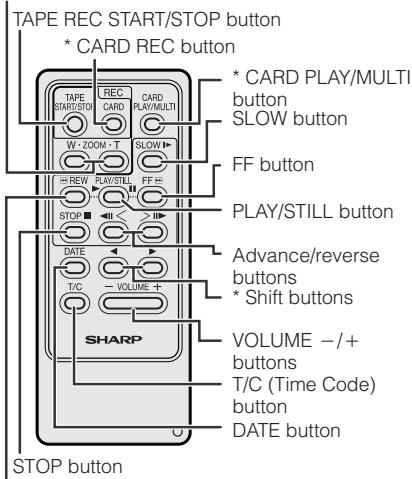
REW button
Notes:
- Be careful not to expose the remote sensor to direct sunlight or strong interior lighting, as this may prevent the remote control from operating properly.
- Be sure that there are no obstacles between the remote control and the remote sensor.
- The buttons with an asterisk mark (*) do not work with this camcorder.
Selecting the Date and Time of Recording Display
Follow the procedure below to select the date, or both the date and time, of recording display on the screen. You can display the date and time during both recording and playback.
- The example screens shown are for Playback mode.
1 Press the MENU button to display the menu screen.
2 Press or on the Operation button to select 2, then press the centre of the Operation button.
3 Press or to select "DATE DISP", then press the centre of the Operation button.
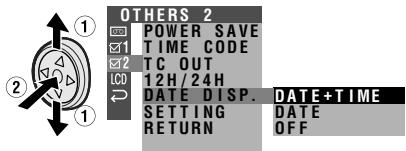
4 Press or to select the desired setting, then press the centre of the Operation button.
DATE DISP. DATE
5 Press the MENU button until the date (or date and time) appears.
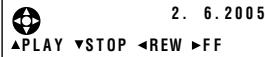
Notes:
- The date (or date and time) appears when the on-screen indicators are turned on.
- Before recording, make sure that the date and time have been correctly set. If they have not been set, the display will be left blank when playing back the recording. (The display will also be left blank for unrecorded or damaged portions of the tape.)
- In Playback mode, the current date and time are displayed when the tape is not being played back.
- You can also press the DATE button on the remote control (not supplied) to display the date (or date and time).
Picture EffectPlayback
These picture effects let you play back images with a more dramatic effect.
Types
B/W: The picture is displayed in black-and-white.
SEPIA: The picture is displayed in sepia colour similar to that of an old photograph.
SOLARI: The contrast of the subject is enhanced, creating an unique artistic image.
NEGA: The blacks and whites of the image are reversed and colours of the image are inverted.
1 During playback, press the DISPLAY/ MODE SET button until the mode screen appears.
2 Press or on the Operation button to select "PIC.EFFECT", then press the centre of the Operation button.
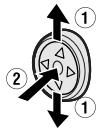
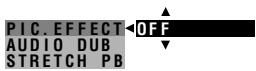
3 Press or to select the desired picture effect, then press the centre of the Operation button.
PIC.EFFECT B/W
4 Press the DISPLAY/MODE SET button to turn off the mode screen.
To cancel picture effect playback
Select "OFF" in step 3 above.
Note:
- Video images in picture effect playback mode cannot be transferred via DV cable to a personal computer.
RotatePlayback
This function allows you to play back images rotated 180^ .
1 In Playback mode, press the MENU button to display the menu screen.
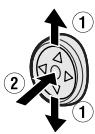
2 Press or on the Operation button to select 00 , then press the centre of the Operation button.
3 Press or to select "ROTATE PB", then press the centre of the Operation button.
- Rotate playback indicator appears. of the Operation button.
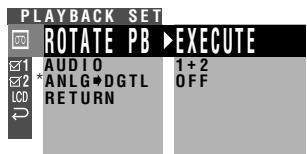
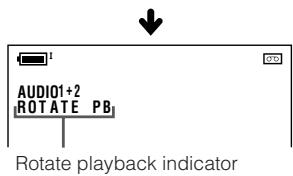
- "ANLGDGTL" does not appear with VL-Z100.
4 Press to begin rotate playback.
- The image is rotated 180^ upside down.
To cancel rotate playback
Press the centre of the Operation button in step 4 above.
Notes:
- When executing rotate playback during playback, playback will stop. Press to begin rotate playback.
- Even if the camcorder is in rotate playback mode, the image output via a DV connection will display as normal playback.
- When you want to display the menu screen during rotate playback, press the centre of the Operation button.
- In rotate playback mode, you cannot perform picture effect playback.
Stretch Playback
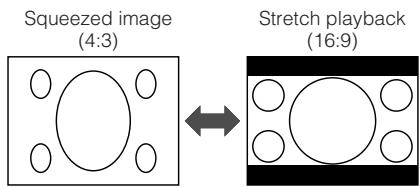
Stretch playback allows you to playback a squeezed image with the wide screen feel of a movie shown in a theatre. Useful when you want to play back images recorded by a camera other than this camcorder in wide mode on a 4:3 TV.
1 In Playback mode, press the DISPLAY/MODE SET button until the mode screen appears.
2 Press or on the Operation button to select "STRETCH PB", then press the centre of the Operation button.
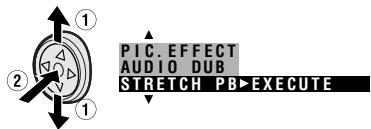
- Playback will stop after turning on stretch playback.
3 Press to begin stretch playback.
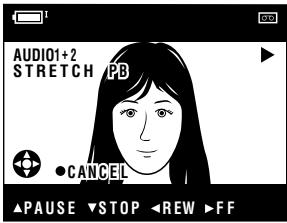
- The picture displays with black bands.
To cancel stretch playback
Press the centre of the Operation button in step 3 above.
Notes:
- "Squeeze" is an image compression technology. A 16:9 image is compressed and recorded (squeeze recorded) as a 4:3 image.
- In stretch playback mode, you cannot perform picture effect playback.
- When outputting the stretch playback image from the DV terminal, the original image signal will be output.
- When performing stretch playback, the normal recorded image (picture aspect ratio 4:3) will be stretched as shown below.
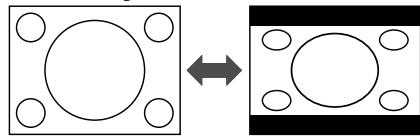
4:3 picture aspect ratio image
Manual Focus
Auto Focus may not be able to focus on the subject in the situations shown below. In such situations, set the camcorder to Manual Focus mode and focus manually.
| Subject is too dark. | Lack of contrast, e.g. snow scene. |
| Fast-moving subject. | Background is too bright. |
| Subject has horizontal stripes. | Subject is being shot through a dirty or wet window. |
| Light reflects off the subject. | Two subjects at different distances overlap in the same scene. |
| Subject has fine, repeated patterns. | Subjects at different distances appear in the centre of the scene at the same time. |
| Fast-speed shutter being used under fluorescent lighting. |
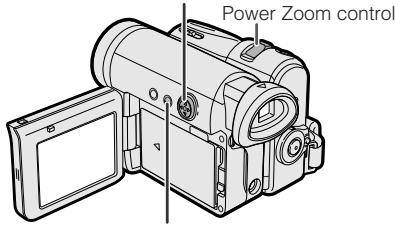
Operation button
DISPLAY/MODE SET button
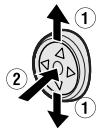
1 In Camera mode, press the DISPLAY/ MODE SET button until the mode screen appears.
2 Press or on the Operation button to select "FOCUS", then press the centre of the Operation button.
MANUAL SET
FOCUS
AUTO FOCUS
BLC/GAIN

3 Adjust the Power Zoom control to frame the subject as you desire.
4 Press or to focus on the subject.
To focus on a closer subject
To focus on a more distant subject
5 Press the DISPLAY/MODE SET button to turn off the mode screen.
- "MF" appears when the on-screen indicators are turned on.
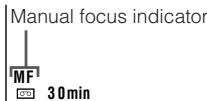
Note:
- When "MF" is displayed, you can manually adjust the focus by pressing or , even if the focus setting screen is not displayed.
Returning to Auto Focus
You can set Manual Focus mode to Auto Focus mode with the operation below.
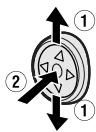
1 In Camera mode, press the DISPLAY/ MODE SET button until the mode screen appears.
2 Press or on the Operation button to select "AUTO FOCUS", then press the centre of the Operation button.
MANUAL SET FOCUS
AUTO FOCUS>EXECUTE BLC/GAIN
- The FOCUS setting returns to Auto Focus mode.
Note:
- You can return to Auto Focus mode when you press after selecting "FOCUS".
3 Press the DISPLAY/MODE SET button to turn off the mode screen.
Displaying the Manual Setting Screen
You can manually adjust these settings as shown below in the manual setting screen.
- White Balance (see pages 49, 50)
- Manual Iris (see page 51)
- Manual Gain (see page 52)
- Shutter speed (see pages 53, 54)
1 In Camera mode, press the DISPLAY/ MODE SET button until the mode screen appears.
2 Press or on the Operation button to select "MANUAL SET", then press the centre of the Operation button.
MANUAL SET>EXECUTE
FOCUS
AUTO FOCUS
BLC/GAIN

FULL AUTO EXECUTE
WHITE BAL. AUTO
IRIS AUTO
GAIN AUTO
SHUT.SPEED AUTO
RETURN
Notes:
- Items that are not selectable are greyed out.
- "MANUAL SET" cannot be selected when a scene setting is selected.
Adjusting White Balance
The colour of the subject on the screen looks different depending on lighting conditions. Selecting a White Balance setting that matches the lighting conditions.
Types
AUTO: Colouring adjusted automatically for the current lighting condition.
LOCK MODE: Fix the setting to the standard balance (White Balance Lock).
OUTDOOR: For recording outdoors on a sunny day.
INDOOR: For recording indoors with halogen lamps or incandescent lighting.
Selecting
1 In Camera mode, press the DISPLAY/ MODE SET button until the mode screen appears.
2 Press or on the Operation button to select "MANUAL SET", then press the centre of the Operation button (see page 48).
3 Press or to select "WHITE BAL.", then press the centre of the Operation button.
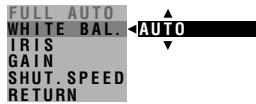
4 Press or to select a white balance setting, then press the centre of the Operation button.
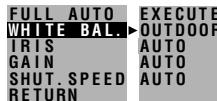
- When selecting "LOCK MODE", perform the steps in "Locking" on the next page.
5 Press the DISPLAY/MODE SET button to turn off the MANUAL SET screen.
Locking
1 Select "LOCK MODE" in step 4 in "Selecting" on the previous page.
2 Aim the lens at a white object.
- Adjust the distance of the object so that the entire screen is white.
White paper or white cloth
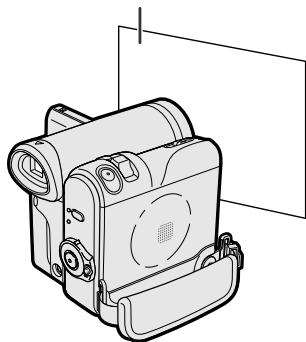
3 Press the centre of the Operation button to set the white balance lock.
- "LOCK MODE" will change to "LOCK" after pressing the centre of the Operation button.
- "LOCK" flashes during the locking procedure, and stops flashing after locking the white balance.
Note:
- If you move the camcorder while "LOCK" is flashing, "LOCK" may not stop flashing. If this occurs, repeat step 3.
4 Press the DISPLAY/MODE SET button to turn off the MANUAL SET screen.
To return to Auto White Balance mode
Press in step 4 in "Selecting" on the previous page or step 3 in "Locking" to display "AUTO".
To return to Full Auto mode
Set the camcorder to Full Auto mode (see page 54).
Note:
- White Balance setting cannot be used when a scene setting is selected.
Manual Iris
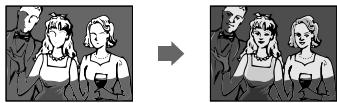
The camcorder is preset to Auto Iris mode, which automatically selects the optimal aperture. However, when there is too much contrast in brightness between the subject and background, you may not be able to record a clear image. In this case, use the manual iris function to correct the iris value.
Background is too bright and subject too dark (backlit subject).
- Decrease the iris value to allow more light through the lens.
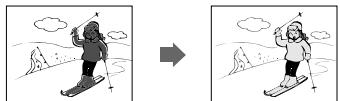
Subject is too bright against background.
- Increase the iris value to allow less light through the lens.
1 In Camera mode, press the DISPLAY/ MODE SET button until the mode screen appears.
2 Press or on the Operation button to select "MANUAL SET", then press the centre of the Operation button (see page 48).
3 Press or to select "IRIS", then press the centre of the Operation button.
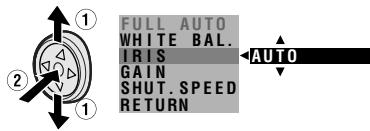
4 Press or to select the desired iris value, then press the centre of the Operation button.
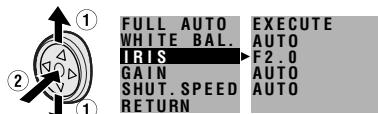
- The number shown is the selected iris value. The adjustment range is 15 steps from F1.8 (most light) to F19 (least light).
5 Press the DISPLAY/MODE SET button to turn off the MANUAL SET screen.
To return to Auto Iris mode
Press in step 4 above to display "AUTO".
To return to Full Auto mode
Set the camcorder to Full Auto mode (see page 54).
Note:
- Manual Iris mode cannot be used when a scene setting is selected.
Manual Gain
When recording in a dark or poorly illuminated location with Auto Gain mode, the light sensitivity of the camcorder (gain) will be automatically adjusted and the recorded image may be brighter than the subject actually is. If you want to faithfully record a dark scene in this case, use the manual gain function. You can also adjust the gain to record a backlit subject brighter.
Example of use
Faithfully recording a dark scene
- Select a smaller gain value (to decrease the light sensitivity).
Background is too bright and subject is too dark (backlit subject)
- Select a larger gain value (to increase the light sensitivity).
1 In Camera mode, press the DISPLAY/ MODE SET button until the mode screen appears.
2 Press or on the Operation button to select "MANUAL SET", then press the centre of the Operation button (see page 48).
3 Press or to select "GAIN", then press the centre of the Operation button.
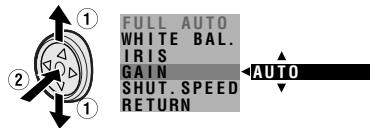
4 Press or to select the desired gain value, then press the centre of the Operation button.
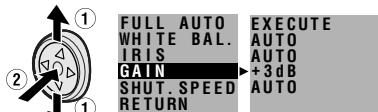
- The number shown is the selected gain value. The adjustment range is 7 steps from 0dB (lowest sensitivity) to +18dB (highest sensitivity).
Note: If you select a large gain value, the image may appear grainy.
5 Press the DISPLAY/MODE SET button to turn off the MANUAL SET screen.
To return to Auto Gain mode
Press in step 4 above to display "AUTO".
To return to Full Auto mode
Set the camcorder to Full Auto mode (see page 54).
Note:
- Manual Gain mode cannot be used when a scene setting is selected.
Setting the Shutter Speed
The shutter speed is preset to auto mode, which automatically selects the optimal shutter speed for the ambient light.
However, depending on the subject or situation, you may want to set the shutter speed manually to create a high-quality picture.
1 In Camera mode, press the DISPLAY/ MODE SET button until the mode screen appears.
2 Press or on the Operation button to select "MANUAL SET", then press the centre of the Operation button (see page 48).
3 Press or to select "SHUT.SPEED", then press the centre of the Operation button.
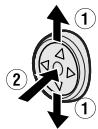
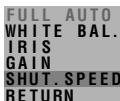

4 Press or to select the desired shutter speed, then press the centre of the Operation button.
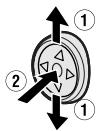
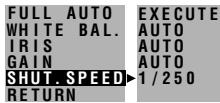
- In Camera mode, you can select 18 speeds from 1/12 sec. ("1/12") to 1/10,000 sec. ("1/10000").
5 Press the DISPLAY/MODE SET button to turn off the MANUAL SET screen.
To return to Auto Shutter Speed mode
Press in step 4 above to display "AUTO".
To return to Full Auto mode
Set the camcorder to Full Auto mode (see page 54).
Recommended Shutter Speeds
The faster the shutter speed, the darker the picture becomes. Select the most appropriate shutter speed for the ambient light.
| Situation | Recommended shutter speed |
| ·Recording sports action in bright daylight. ·Recording in bright daylight at a ski resort. | 1/10,000 sec. |1/1,000 sec. |
| ·Recording outdoor sports on a partially cloudy day. ·Recording an outside scene through a car window (when you want to minimize blur caused by the camera shaking). | 1/1,000 sec. |1/250 sec. |
| ·When you want to reduce the light by half. Use as a substitute for an ND2 filter. | 1/120 sec. |
| ·Recording in a poorly-illuminated location. ·When you want to create artistic trailing images of fast-moving subjects. | 1/25 sec. 1/12 sec. |
Tips on Using the Manual Shutter Speed
- Fast shutter speeds can be used with the still recording functions (see page 35) to record higher quality still images of fast-moving subjects.
- If the on-screen picture flickers when recording under fluorescent lighting, you may be able to compensate by setting the shutter speed to 1/120 sec.
Notes:
- Recording with a shutter speed faster than 1/50 sec. tends to darken the picture. Record in bright locations when you use a fast shutter speed.
- Using a fast shutter speed under fluorescent lighting will cause flickering in the picture and possibly periodic colour shifts.
- When selecting 1/25 sec. or 1/12 sec. shutter speed, you may get a shadow image behind a subject that is moving around a lot.
- The Manual Shutter Speed setting cannot be used when a scene setting is selected or the 1× 1 indicator appears.
- The shutter speed will be set to AUTO when selecting "ON 1× 1 " in gain-up function.
Tips on Manual Settings
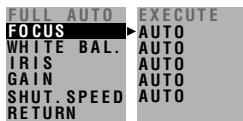
When the mode or menu screen is off, press and hold down the centre of the Operation button until the screen shown as below appears. You can set focus, white balance, iris, gain and shutter speed manually.

Setting the Camcorder to Full Auto Mode
You can set all the settings shown in the screen to Full Auto mode in one operation.
1 In Camera mode, press the DISPLAY/ MODE SET button until the mode screen appears.
2 Press or on the Operation button to select "MANUAL SET", then press the centre of the Operation button (see page 48).
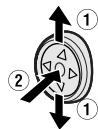
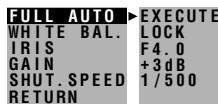
3 Press or to select "FULL AUTO", then press the centre of the Operation button.
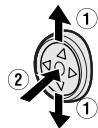
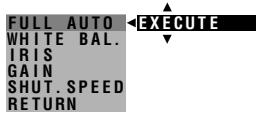
4 Press or to select "EXECUTE", then press the centre of the Operation button.
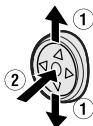
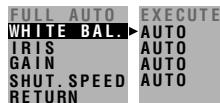
5 Press the DISPLAY/MODE SET button to turn off the MANUAL SET screen.
Note:
- You cannot select "FULL AUTO" when no manual settings are currently in use.
Scene Menu (Program AE)
You can set the camcorder to a shooting mode that will create the best results for a specific situation. Just select one of the six scene settings shown below. The camcorder will automatically set the exposure, white balance, and shutter speed to produce the optimum picture quality for the selected situation.
Types
SPORT (长) : When you want to record a fast-moving subject.
DUSK: When you want to faithfully record the red of the setting sun, and the surrounding twilight.
SUNLIGHT: When background is very bright.
PARTY () : When the illumination is from a spotlight or candle.
NIGHT LUMI (±b^) : When you want to record fireworks or an illuminated object in the dark.
SLOW SHUT. (2): When you want to record an object in a dim place and make it emerge brightly.
1 In Camera mode, press the DISPLAY/ MODE SET button until the mode screen appears.
2 Press or on the Operation button to select "SCENE MENU", then press the centre of the Operation button.
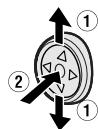
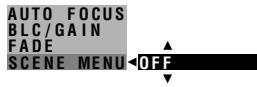
3 Press or to select the scene setting that best fits the recording situation, then press the centre of the Operation button.
- The selected scene setting displays on the mode screen.
SCENE MENU DUSK
4 Press the DISPLAY/MODE SET button to turn off the mode screen.
- The selected scene setting indicator displays when the on-screen indicators are turned on.
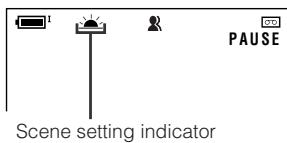
To cancel the scene setting
Select "OFF" in step 3 above.
Note:
- Scene settings cannot be used when using any manual setting except focus. Also not selectable when 1× 7 displays.
Digital Picture Effects
These digital picture effects let you record the subject with a more dramatic effect.
Types
B/W: To record in black-and-white.
SEPIA: To record in sepia colour similar to that of an old photograph.
SOLARI: To record with enhanced contrast, creating an unique artistic image.
NEGA: To record a picture whose blacks and whites of the image are reversed and colours of the image are inverted.
1 In Camera mode, press the DISPLAY/ MODE SET button until the mode screen appears.
2 Press or on the Operation button to select "PIC.EFFECT", then press the centre of the Operation button.
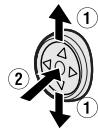
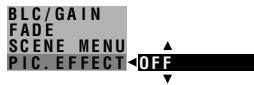
3 Press or to select the desired digital picture effect, then press the centre of the Operation button.
PIC.EFFECT B/W
4 Press the DISPLAY/MODE SET button to turn off the mode screen.
To cancel the digital picture effect
Select "OFF" in step 3 above.
Note:
- Digital picture effects will not work when a still image is displayed.
Using the Time Code
The time code shows the hour, minute and second of recording, and the frame number (1 frame = approx. 1/25 sec.). This is automatically recorded along with the subject when you are recording on the tape. You can display the time code on the screen as an accurate counter in both Playback and Camera modes.
Display format
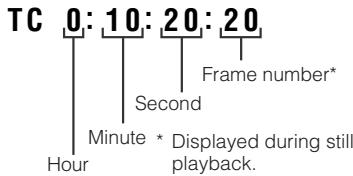
- The example screens shown are for Playback mode.
1 During playback or camera recording, press the MENU button to display the menu screen.
2 Press or on the Operation button to select 2, then press the centre of the Operation button.
3 Press or to select "TIME CODE", then press the centre of the Operation button.
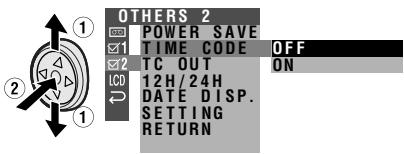
4 Press or to select "ON", then press the centre of the Operation button.
TIME CODE ON
5 Press the MENU button to turn off the menu screen.
- The time code appears when the on-screen indicators are turned on.
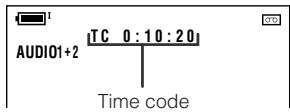
To turn off the time code
Select "OFF" in step 4 above.
Notes:
- When the tape reaches an unrecorded section, the time code returns to zero (TC 0:00:00). Once recorded, the time code cannot be changed.
- You can also press the T/C button on the remote control (not supplied) to display the time code.
Displaying the time code on a TV during playback
1 In Playback mode, press the MENU button to display the menu screen.
2 Press or on the Operation button to select 2, then press the centre of the Operation button.
3 Press or to select "TC OUT", then press the centre of the Operation button.
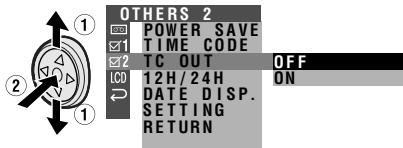
4 Press or to select "ON", then press the centre of the Operation button.
TC OUT ON
5 Press the MENU button to turn off the menu screen.
Audio Dubbing Feature
You can add narration to recordings made with this camcorder, while preserving the original audio and video recordings.
Microphone for Audio Dubbing
You can use the built-in monaural microphone to record narration.
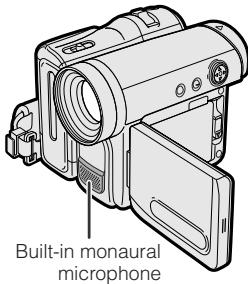
Note:
- You cannot use audio dubbing with recordings made in LP mode.
Audio Recording
In normal recording mode
12-bit audio recording
The audio is recorded in monaural on Audio 1.
Audio 1: Monaural sound
Audio 2: No audio
16-bit audio recording
The audio is recorded in monaural on two separate channels.
Audio 1: Monaural sound
Audio 2: Monaural sound
In Audio Dubbing mode
12-bit audio recording
The dubbed audio is recorded on Audio 2.
Audio 1: Original monaural sound
Audio 2: Dubbed monaural sound
16-bit audio recording
The dubbed audio is recorded on Audio 2 over the original monaural sound.
Audio 1: Original monaural sound
Audio 2: Dubbed monaural sound
Notes:
-
You can select the 12-bit or 16-bit audio recording mode by performing the procedure on page 41.
-
You can perform audio dubbing, such as music, on Audio 2 if you connect another source via the AV cable. If the audio to be dubbed was recorded in 12-bit audio recording mode, it can be recorded on Audio 2 in stereo sound.
Audio Dubbing
1 Play back the Mini DV cassette recorded in SP mode and locate the tape position where you wish to start audio dubbing.
2 Press on the Operation button to pause playback.
3 Press the DISPLAY/MODE SET button until the mode screen appears.
4 Press or to select "AUDIO DUB", then press the centre of the Operation button.
The audio dubbing screen appears.
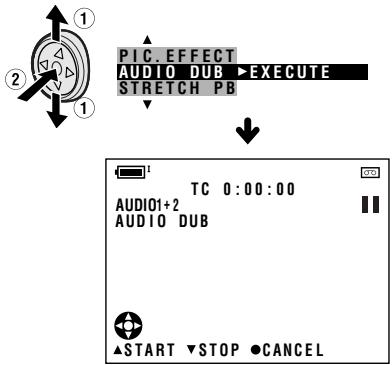
5 Press to begin audio dubbing. Record your narration.
To pause audio dubbing
Press . To resume audio dubbing, press again.
To cancel audio dubbing
Press the centre of the Operation button in step 4. The audio dubbing screen disappears.
If you wish to change the dubbed audio or dub additional scenes
1 Press the DISPLAY/MODE SET button to turn off the audio dubbing screen.
2 Repeat steps 1 to 5 above.
Notes:
- It is recommended that you use Audio Dubbing only with recordings made with this camcorder. Use of recordings made with other digital video equipment may result in poor audio quality.
- Audio dubbing will automatically pause if the original audio changes from 12-bit mode to 16-bit mode or vice versa. Press to resume operation.
- Audio dubbing will automatically stop if a portion recorded in LP mode or an unrecorded portion of the tape is encountered
- You can play back the dubbed audio and the original audio together or separately (see page 60).
"AUDIO DUB" cannot be selected when the Mini DV cassette is recorded in LP mode.
Selecting the AudioPlayback Mode
You can select any of the following audio playback modes.
Audio 1+2
12-bit recording in mono (Audio 1 and Audio 2 channels)
16-bit recording in mono
Audio 1
- 12-bit recording in mono (Audio 1 channel only)
16-bit recording in mono
Audio 2
12-bit recording in mono (Audio 2 channel only)
16-bit recording in mono
Note:
- This camcorder can output stereo sound when a tape is recorded in stereo.
1 Playback a Mini DV cassette with dubbed audio.
2 Press the MENU button to display the menu screen.
3 Press or on the Operation button to select [00], then press the centre of the Operation button.
4 Press or to select "AUDIO", then press the centre of the Operation button.
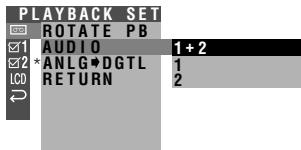
- "ANLGDGTL" does not appear with VL-Z100.
5 Press or to select the desired audio playback mode, then press the centre of the Operation button.
AUDIO 1+2
6 Press the MENU button to turn off the menu screen.
- The selected audio playback mode indicator only appears when the on-screen indicators are turned on.
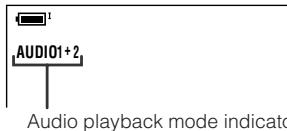
Note:
- The audio playback mode indicator, "AUDIO", displays in different colours depending on the recording mode (12- or 16-bit) used for the recording being played back. A white display indicates 12-bit recording mode, while a green indicates 16-bit.
Editing
Video editing lets you refine your videos by removing unwanted sequences from your tape, or transposing one sequence with another.
This camcorder lets you monitor the source program on the built-in LCD monitor without having to connect it to an external TV or video monitor.
Preparation
Connect the camcorder to a VCR with the supplied audio/video/S-video cable, as shown.
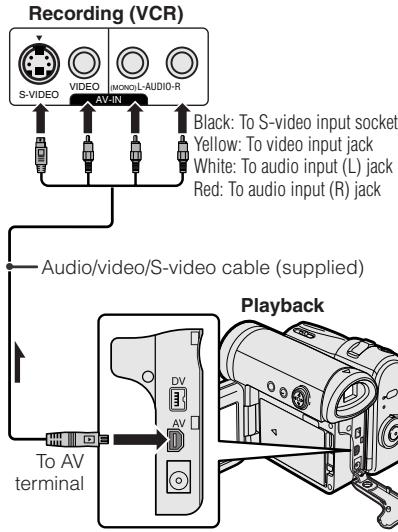
: The arrow shows the signal flow.
Notes:
- If your VCR has a 21-pin Euro-SCART connector, use a commercially available RCA/21-pin Euro-SCART conversion connector.
See page 2 for how to open the terminal cover. - If your VCR has only one audio input jack, use the white plug for the audio connection on the VCR.
- If your VCR has an S-video input socket, you do not need to connect the yellow video plug.
Cutting Unwanted Sequences
1 Play back the tape to be edited on the camcorder, and locate the beginning and end of the sequence you wish to cut. Write down the time code reading at the beginning and end of that sequence (see page 57). Then, rewind the tape to before the beginning of the portion that you wish to keep.
2 Load a video cassette into the recording VCR.
3 Press on the camcorder to begin playback, then press the Record button on the VCR to begin recording.
4 Press the Pause/Still button on the VCR to pause recording when the source tape reaches the beginning of the sequence to be cut.
5 Press the Pause/Still (or Record) button on the VCR to resume recording when the source tape reaches the end of the sequence to be cut.
To stop editing
Press on the camcorder and press the Stop button on the VCR.
Notes:
- Some of the transitions between edited sequences may be slightly off.
- There may be picture noise during video search or still playback. This does not imply a defect in the camcorder.
- The time code display will be recorded along with the edited sequences if the TC OUT menu item is set to "ON". Set to "OFF" before editing (see page 57).
Recording from an External Source (VL-Z300 only)
You can use this camcorder to record or edit videos from another source, such as a VCR or TV.
Preparation
Connect the camcorder to the source equipment with the supplied audio/video/S-video cable, as shown.
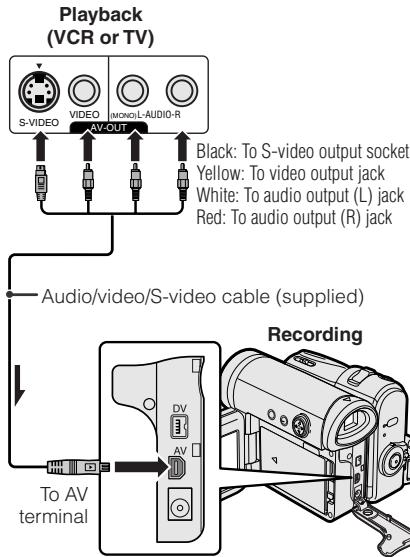
: The arrow shows the signal flow.
Notes:
This function cannot be used with VLZ100.
- If your TV or VCR has a 21-pin Euro-SCART connector, use the RCA/21-pin Euro-SCART conversion connector (QOSCZ0361CEZZ).
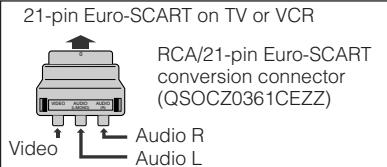
See page 2 for how to open the terminal cover.
- If the source equipment has only one audio output jack, use the white plug for the audio connection on the source equipment. (The input audio will only be recorded on the left channel of the tape.)
- Even if the source equipment has an S-video output socket, connect both the yellow video plug and S-video plug.
To Record from an External Source
1 In Playback mode, press the MENU button to display the menu screen.
2 Press or on the Operation button to select 1, then press the centre of the Operation button.
3 Press or to select "S-VIDEO IN", then press the centre of the Operation button.
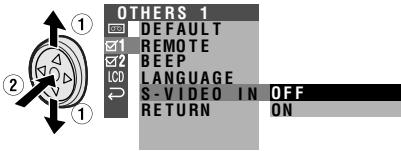
4 Press or to select "ON" (for S-video connection) or "OFF" (for video connection), then press the centre of the Operation button.
5 Press the MENU button to turn off the menu screen.
- "S-VIDEO" appears on the screen during a pause or Recording Standby mode when you set the S-VIDEO IN menu item to "ON" in step 4 above.
6 Begin playback on the source equipment connected to the camcorder.
- Check the camcorder screen to see if the picture is properly received.
7 Press the Record Start/Stop button on the camcorder, then press to begin recording.
Notes:
- To pause recording, press . Press again to resume recording.
To operate by remote control (not supplied), perform steps 1 to 6 above, and press the TAPE REC START/STOP button, then press the PLAY/STILL button (II). - If a digital video recording with a copyright protection signal is used as the playback source, "COPYRIGHT PROTECTED." appears on the camcorder monitor and the recording function is disabled.
Editing with the DV Terminal (IEEE1394)
This camcorder can be used as a digital video editor. A DV cable transfers all dubbing signals including video and audio directly to the camcorder.
Preparation
Connect the camcorder to video equipment with a DV terminal using a commercially available DV cable.
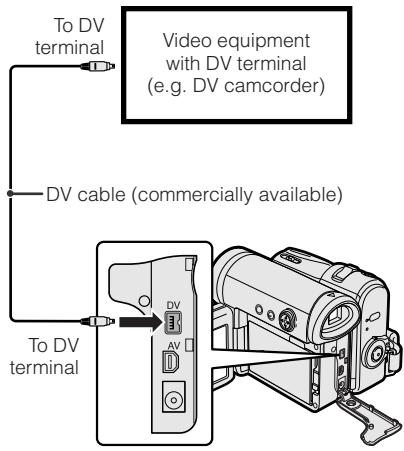
Note:
See page 2 for how to open the terminal cover.
To Record to Video Equipment
See "Cutting Unwanted Sequences" on page 61 using the video equipment as the recording source.
Note:
- Make sure that the video equipment to which you are recording can input dubbing signals via the DV terminal.
To Record from Video Equipment (VL-Z300 only)
1 Set the camcorder to Playback mode, and insert a Mini DV cassette.
2 Begin playback on the video equipment connected to the camcorder.
- Check the camcorder screen to see if the picture is properly received.
3 Press the Record Start/Stop button on the camcorder.
- The camcorder enters Recording Standby mode.
4 Press on the Operation button to begin recording.
To stop recording
Press on the Operation button.
Cutting Unwanted Sequences
1 Press to pause recording when the source tape reaches the beginning of the sequence to be cut.
2 Press to resume recording when the source tape reaches the end of the sequence to be cut.
Notes:
- Make sure that the video equipment from which you are recording can output dubbing signals via the DV terminal.
- If the video equipment is not set to playback mode or the DV cable is not properly connected, "NO SIGNAL" is displayed on the camcorder screen.
- If no picture or sound is input to the camcorder even if the DV cable is properly connected and you are playing back the source media from the video equipment, set the Power switch on the camcorder to OFF and then back to , or disconnect the DV cable and connect it again.
- If a digital video recording with a copyright protection signal is used as the playback source, "COPYRIGHT PROTECTED." appears on the camcorder monitor and the recording function is disabled.
- When displaying the playback picture on the PC, you may find black bands around the image. This is caused by the differences of the image display sizes.
- "i.LINK" refers to the IEEE 1394-1995 industry specification and extensions thereof. The i logo is used for products compliant with the i.LINK standard. This "i.LINK" mark is a trademark of Sony Corporation.
Using the Camcorder as a Converter (VL-Z300 only)
You can use this camcorder to convert from analog signal (e.g. video recorded on 8 mm or Hi8 tapes) to digital signal.
Preparation
Connect the audio/video/S-video cable and DV cable as shown below.
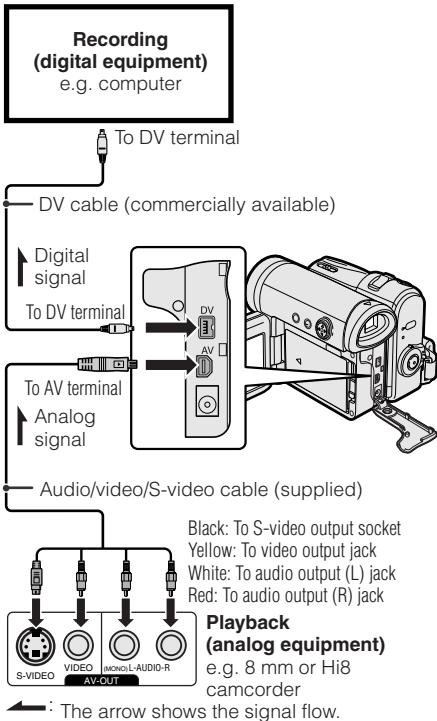
Note:
See page 2 for how to open the terminal cover.
1 Set the camcorder to Playback mode, and make sure that playback is stopped.
2 Press the MENU button to display the menu screen.
3 Press or on the Operation button to select 0 , then press the centre of the Operation button.
4 Press or to select "ANLGDGTL", then press the centre of the Operation button.
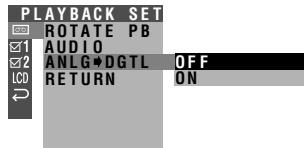
5 Press or to select "ON", then press the centre of the Operation button.
ANLGDGTLON
6 Press the MENU button to turn off the menu screen.
7 Press the Play button on the analog equipment.
- Check the monitor on the digital equipment to see if the picture is being properly received.
8 Press the Record button on the digital equipment.
Notes:
- This function cannot be used with VLZ100.
- The camcorder is not guaranteed to work with all digital/analog equipment. Contact the manufacturer of your equipment for advice.
- If the camcorder outputs a video recording with a copyright signal, the digital equipment cannot record or save it.
The camcorder may not convert some input video recordings properly (e.g. discolouration, picture noise, muted sound), depending on the input condition.
Picture/Backlight Adjustments
If the picture is difficult to see due to ambient light or other factors, adjust the monitor picture settings.
- The example screens shown are for Camera mode.
Adjusting the Picture
1 Press the MENU button to display the menu screen.
2 Press or on the Operation button to select LCD, then press the centre of the Operation button.
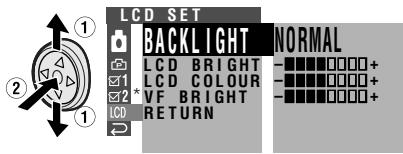
- "VF BRIGHT" does not appear with VL-Z100.
3 Press or to select "LCD BRIGHT", "LCD COLOUR" or "VF BRIGHT", then press the centre of the Operation button.
- The viewfinder turns on if you select "VF BRIGHT" (VL-Z300 only).
4 Press or to adjust the item to the desired setting, then press the centre of the Operation button.
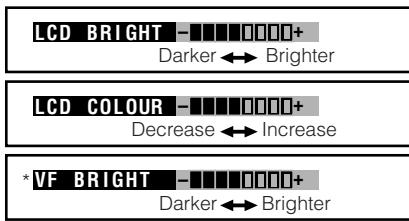
- "VF BRIGHT" does not appear with VL-Z100.
5 Press the MENU button to turn off the menu screen.
Note:
- When adjusting the colour, the picture on the LCD monitor may differ from the picture actually recorded. Do not change the colour setting unless necessary. (This adjustment only affects the monitor picture, not the recorded image.)
Adjusting the Backlight
1 Press the MENU button to display the menu screen.
2 Press or on the Operation button to select LCD, then press the centre of the Operation button.
3 Press or to select "BACK-LIGHT", then press the centre of the Operation button.
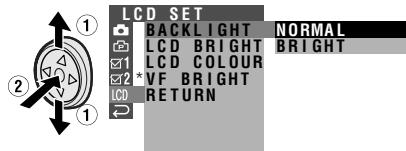
- "VF BRIGHT" does not appear with VL-Z100.
4 Press or to select "NORMAL" or "BRIGHT", then press the centre of the Operation button.
BACKLIGHT BRIGHT
NORMAL: For use indoors or under moderate lighting conditions.
BRIGHT: For use outdoors under strong lighting conditions, such as bright daylight.
5 Press the MENU button to turn off the menu screen.
Turning off the Confirmation Sound
A confirmation sound is made when you turn on or off the Power switch, press the Record Start/Stop button, or perform other designated operations. Use the procedure below to turn off the confirmation sounds.
- The example screens shown are for Camera mode.
1 Press the MENU button to display the menu screen.
2 Press or on the Operation button to select 1, then press the centre of the Operation button.
3 Press or to select "BEEP", then press the centre of the Operation button.
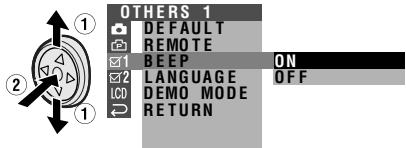
4 Press or to select "OFF", then press the centre of the Operation button.
BEEP OFF
5 Press the MENU button to turn off the menu screen.
To turn on the confirmation sound
Select "ON" in step 4 above.
Setting the Camcorder to Factory Presettings
You can set the camcorder to the factory presettings in one operation.
- The example screens shown are for Camera mode.
1 Press the MENU button to display the menu screen.
2 Press or on the Operation button to select 1, then press the centre of the Operation button.
3 Press or to select "DEFAULT", then press the centre of the Operation button.
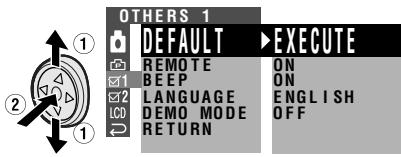
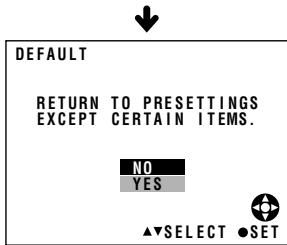
4 Press or to select "YES", then press the centre of the Operation button.
- To cancel the setting, select "NO".
5 Press the MENU button to turn off the menu screen.
Note:
Even when you perform the steps above, the clock and language settings will remain in the camcorder's memory.
Demonstration Mode
You can watch a brief demonstration of the special camcorder features in Demo mode. If the demonstration appears on the screen when you turn on the camcorder for the first time, cancel the Demo mode to use your camcorder.
Watching
1 Remove the Mini DV cassette from the camcorder (see page 9).
2 In Camera mode, press the MENU button to display the menu screen.
3 Press or on the Operation button to select 1, then press the centre of the Operation button.
4 Press or to select "DEMO MODE", then press the centre of the Operation button.
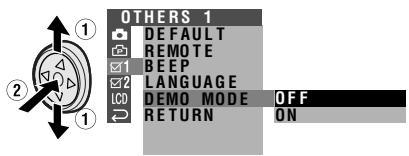
5 Press or to select "ON", then press the centre of the Operation button.
DEMO MODE ON
6 Set the Power switch to OFF, then hold down the Lock button and set the Power switch to .
The demonstration begins.
Cancelling
1 During the demonstration, press the centre of the Operation button to pause the demonstration.
2 Perform step 2 to 4 in "Watching", then select "OFF" in step 5.
Notes:
- The demonstration will pause if you press the centre of the Operation button. If you leave it for 60 seconds, or turn the power off temporarily and then set the Power switch to , the demonstration will begin again.
- Demonstration mode does not work in self recording with reversed grip.
Useful Information
Hints for Better Shooting
- Position the subject in the centre of the scene. When using auto focus, whatever is in the centre of the scene is kept in focus.
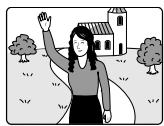
Position the subject in the centre.
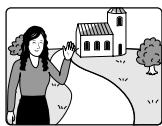
Focus manually when you need to position the subject off centre (see page 47).
- Avoid backlit subjects. For the best picture, shoot with the light source behind you.
When the background is brighter than the subject, the subject often becomes too dark. If you have to record in this lighting, use Backlight Compensation or correct the iris value to improve the picture (see pages 31 and 51).
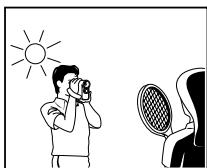
Light from behind
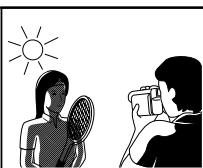
Backlighting
Before zooming, think about how to best frame the shot. Frequent zooming produces unattractive pictures. It also runs down the battery more quickly.
- When image shaking is noticeable during zoomed-in telephoto shooting, use a tripod or push the Power Zoom control to the W side to zoom out.
- Horizontal panning (lateral movement) and tilting (vertical movement) should be done slowly to emphasize the wide expanse of a scene or the height of a building, and to make scenes easy to watch during playback.
- Use a wide-angle setting for fast-moving subjects.
Note:
- It may take longer to focus when zooming and panning are used frequently.
Mini DV Cassette
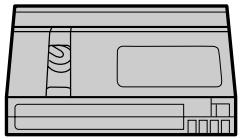
Precautions when using a Mini DV cassette
- Be sure to use only Mini DV cassettes with the Min mark.
- This camcorder can record and play back using Mini DV cassettes with cassette memory, but it cannot record or play back this memory.
- To record in LP mode, use a Mini DV cassette labelled for use with LP mode.
- Do not insert anything into the holes on the bottom of the Mini DV cassette or block them in any way.
- Avoid placing the Mini DV cassette in areas conducive to dust or mold.
- Do not place the Mini DV cassette near magnetic sources such as electric clocks or magnetic devices as this may adversely affect recorded material.
- When a previously recorded Mini DV cassette is used again for recording, the previously recorded material will be automatically erased.
- The Mini DV cassette will not operate if inserted in the wrong direction.
- Do not repeatedly insert and eject the Mini DV cassette without running the tape as this may cause uneven tape winding and damage the tape.
- Do not place the Mini DV cassette in direct sunlight, near strong heat sources, or in areas with excessive steam.
- Store the Mini DV cassette in its case and stand it in an upright position.
- If the tape is not properly wound, rewind the tape.
- Do not drop the Mini DV cassette or subject it to excessive shocks.
To protect recordings against accidental erasure
Slide the protect tab on the rear of the Mini DV cassette to the "SAVE" position.
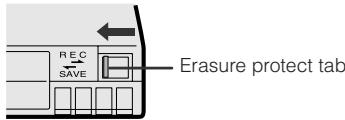
To record over a previously recorded tape, slide the protect tab to the "REC" position.
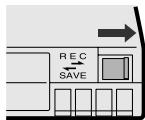
About a tape recorded with high-definition camcorder
This camcorder cannot play back a tape recorded with high-definition camcorder. If such a tape is played back, the screen becomes blue and the warning indicator, "NOT RECORDED ON DV FORMAT", will appear.
Battery Pack
This camcorder uses a lithium-ion type battery pack.
Charging
- Charge the battery pack immediately (or a day) before use. The battery pack gradually self-discharges even if stored in a fully charged state.
- Charge the battery pack between 10^ and 30^ .
- Fully charge the battery pack. Use of an insufficiently charged battery pack will shorten actual time of use.
- Refresh (discharging before charging) is unnecessary.
Use
- To conserve battery power, be sure to turn off the camcorder power when not in use.
- Battery consumption may vary depending on the condition of use. Recording with many starts and stops, frequent zooming, and recording in low temperatures will shorten actual recording times.
- Use of a weak battery pack may cause loss of power while operating the camcorder. Use a fully charged battery pack to protect both the battery pack and the unit.
- It is recommended that you have enough battery packs on hand to handle two or three times your estimated recording time. See page 20 for the approximate times of actual recording for the battery packs.
Battery power is consumed even when the camcorder power is turned off. If you are not going to use your camcorder immediately, remove the battery pack (see page 6).
Note:
- Use only SHARP BT-L227 battery packs. These are designed specifically for use with this camcorder.
Storage
- Store the battery pack in a fully discharged state.
- Store the battery pack in a dry, cool place.
- When storing the battery pack, put it in the original protective plastic bag.
Notes:
- Improper handling of the battery pack may present a risk of fire or explosion. Pay close attention to the following:
—Do not allow metallic objects to come in contact with the terminals. This can cause a short circuit.
—Do not attempt to disassemble or repair the battery pack.
—Do not use any battery charging equipment other than that designed for use with these battery packs.
—Do not place the battery pack under direct sunlight or in excessively hot places (over 60^ ) such as the dashboard of cars.
-Do not expose the battery pack to moisture or water.
-Do not drop the battery pack or subject it to strong force. - Keep the battery pack out of reach of children.
—Dispose of used battery packs promptly. Do not dispose of them in fire. - To protect the terminals, put the cover on the battery pack when it is not in use.
- The battery pack will become warm during charging and use. This is not a malfunction.
- The battery pack has a limited service life. If the period of use becomes noticeably shorter with a normal charge, the battery pack is at the end of its service life. Replace it with a new battery pack.
- If the terminals of the battery pack are dirty, wipe the terminals with a soft, dry cloth.
Extending battery pack life
Even when the battery pack is not used, the capacity of the battery pack will naturally deteriorate over time. To limit the deterioration of the capacity, it is recommended to perform the following procedure at least once every six months:
① Charge the battery pack until the POWER/CHARGE (RED) indicator turns off.
② Attach the battery pack to the camcorder, and set the Power switch to without inserting a cassette and turn off the power save mode. Allow the battery power to fully discharge by leaving it on the camcorder until the camcorder power automatically turns off.
③ Remove the battery pack and store it between 10^ and 20^ .
AC Adapter
- The AC adapter may interfere with reception if used near a radio.
- Prevent flammables, liquids, and metal objects from entering the adapter.
- The adapter is a sealed unit. Do not attempt to open or modify it.
- Do not damage, drop, or subject the adapter to vibration.
- Do not leave the adapter in direct sunlight.
- Avoid using the adapter in humid or extremely hot places.
Replacing the Fluorescent Lamp
This camcorder uses a fluorescent lamp to backlight the LCD monitor. If the monitor becomes dark or difficult to view, the fluorescent lamp may need to be replaced. Contact the nearest SHARP service centre or your dealer for further advice.
Cleaning
- Many plastic parts are used in the camcorder casing. Do not use thinner, benzene or other strong chemical cleaners. These may cause discolouration and damage to the casing.
- Clean the casing with a soft, dry cloth. If the casing is particularly dirty, wipe the casing with a tightly wrung cloth dampened with a diluted, neutral detergent. Then wipe it again with a soft, dry cloth.
- Use a soft cloth to wipe finger marks and other smudges off the LCD screen.
- Use a soft cloth, or compressed air and lens paper designed for photographic lenses to clean the lens.
- Pull out the viewfinder and open the window cleaning cover as shown below so that you can clean up the inside of the viewfinder with a camera blower.
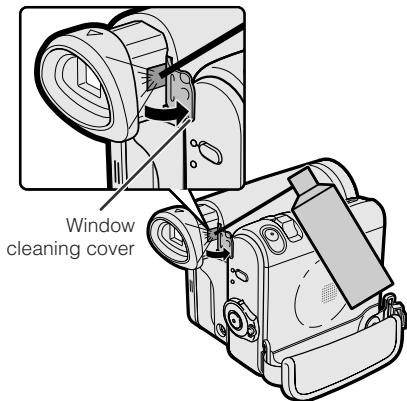
Note:
After cleaning, close the window cleaning cover securely. Closing the viewfinder with the window cleaning cover opened may cause malfunction.
Using Your Camcorder Abroad
Television signal standards and electrical voltages and frequencies vary substantially from country to country. When you are abroad, check the sections below before using the AC adapter or connecting the camcorder to a TV.
AC Adapter (Supplied Accessory)
The supplied AC adapter is compatible with 50Hz and 60Hz electrical systems in the range of 110V to 240V AC.
Television Signal Standards
In any country, you can always watch the video picture by using the LCD monitor screen. However, if you want to watch the picture on a TV screen, the TV must be PAL system compatible. PAL is used in the following areas: Germany, United Kingdom, Ireland, Sweden, Denmark, Austria, Belgium, Switzerland, Italy, Spain, Holland, Finland, Portugal, Norway, Hong Kong, Thailand, Australia, New Zealand, Singapore, Kuwait, China, etc.
Copyright Protection
The digital VCR has far superior recording and playback ability than the traditional analog VCR, and in order to protect digital video software copyrights, a system for managing copyrights has been established. Some digital video recording with prerecorded copyright protection signals can still be played back on this camcorder. If you play a digital video recording that has a copyright protection signal on video equipment with a DV terminal and attempt to record a copy of that software on this camcorder, "COPYRIGHT PROTECTED." appears on the screen and the recording is disabled.
This product incorporates copyright protection technology that is protected by method claims of certain U.S. patents and other intellectual property rights owned by Macrovision Corporation and other rights owners. Use of this copyright protection technology must be authorized by Macrovision Corporation, and is intended for home and other limited viewing uses only unless otherwise authorized by Macrovision Corporation. Reverse engineering or disassembly is prohibited.
Troubleshooting
Before calling for service, please check the following troubleshooting table.
| Symptom | Possible cause | Suggested solution | |
| Power | No power. | Power source is not properly con- nected. | Connect power source properly (pp. 5, 8). |
| Battery pack is not charged. | Charge battery pack sufficiently (p. 7). | ||
| Dew in camcorder. | Wait until dew dries (p. vii). | ||
| Safety function is in effect. | Set the Power switch to OFF and re- move battery pack. Wait for 2 sec- onds, then reinstall battery pack and turn on power (pp. 5, 6). | ||
| Camera mode | The Record Start/ Stop button does not work. | Erasure-protect tab on video cas- sette is open. | Close tab or use a new cassette (p. 71). |
| Power suddenly turns off. | POWER SAVE menu item is set to "5 MIN" or "10 MIN". | Set the POWER SAVE menu item to “OFF” (p. 37). | |
| Auto focus does not work. | Manual Focus mode is engaged. | Set to Auto Focus mode (p. 48). | |
| Zoom used on close subject. | Zoom out from subject (p. 21). | ||
| Subject has little contrast in bright- ness, or is full of horizontal or verti- cal stripes. | Focus manually (p. 47). | ||
| Bright subject pro-duces wide vertical lines. | Occurs when shooting subject with strong contrast to the background. Does not indicate a malfunction. | — | |
| Display automatically changes in Camera mode. | Camcorder is in Demo mode. | Set the DEMO MODE menu item to “OFF” (p. 69). | |
| Playback mode | No image appears on connected TV screen. | Video input channel on TV or TV channel is not selected properly. | Select video input channel or TV channel properly (p. 27). |
| Audio/video/S-video cable is not properly connected. | Connect audio/video/S-video cable properly (p. 27). | ||
| No image from an external source ap-pears on the camcorder screen. (VL-Z300 only) | DV cable or audio/video/S-video cable is not properly connected. | Connect DV cable or audio/video/S-video cable properly (pp. 62, 64, 66). | |
| The cable connection does not match the S-VIDEO IN menu setting. | Set the S-VIDEO IN menu item to “ON” for S-video connection, or “OFF” for video connection (p. 63). | ||
| Cannot rewind or fast forward tape. | Position at beginning or end of tape. | Rewind or fast forward tape to de-sired point (p. 25). | |
| Using a cleaning tape | The cleaning tape will automatically rewind after cleaning finishes (p. viii). | ||
| Video noise in image. | Dirty video heads. | Call for service or use a commerc-cially available cleaning tape (p. viii). | |
| Old or worn tape. | Use a new cassette. | ||
| No sound. | Using a 12-bit recording tape with AUDIO menu item set to “AUDIO 2”. | Set the AUDIO menu item to “AU-DIO 1” or “AUDIO 1+2” (p. 60). | |
| Tape does not work. | Battery pack is depleted. | Charge battery pack or replace it with a fully charged one (pp. 5-7). | |
| Motion images are rotated 180° upside down. | Improper self recording. | Turn on Rotate Playback (p. 45). | |
| General | Symptom | Possible cause | Suggested solution |
| Battery pack is easily depleted. | Using camcorder in extremely cold environment. | Warm up battery pack, for example in your pocket, just before using it. | |
| Battery pack is not fully charged. | Charge battery pack sufficiently (p. 7). | ||
| Clock has been reset. | Lithium battery is not properly installed. | Install lithium battery properly (p. 10). | |
| Lithium battery is depleted. | Replace new lithium battery (p. 10). | ||
| Cassette will not eject. | Power source is not properly connected. | Connect power source properly (pp. 5, 8). | |
| Battery pack is not charged. | Charge battery pack sufficiently (p. 7). | ||
| Camcorder is recording. | Stop recording and try again (p. 21). | ||
| No image on monitor. | Backlight has been turned off. | Turn on backlight (p. 22). | |
| Fluorescent lamp has burned out. | Call for service. | ||
| Viewfinder picture is hard to see. | Viewfinder dioptre is not properly adjusted. | Adjust dioptre (p. 17). | |
| Inappropriate picture adjustments. | Adjust picture (p. 67). | ||
| Monitor picture is hard to see. | Inappropriate picture adjustments. | Adjust picture (p. 67). | |
| POWER/CHARGE (RED) indicator flashes in red when charging battery pack. | AC adapter or battery pack may have malfunctioned. | Call for service. | |
| Cannot edit to connected VCR. | Audio/video/S-video cable is not properly connected. | Connect audio/video/S-video cable properly (p. 61). | |
| Symptom | Possible cause | Suggested solution | |
| General | “E007” is displayed on the screen, and unable to operate normally. | The camcorder may be damaged. | Do not take out a cassette, and call for service. |
Notes:
- This unit is equipped with a microprocessor. Its performance could be adversely affected by external electrical noise or interference. If this should happen, turn off the power and disconnect the unit from any power sources, including the lithium battery, etc. Then reconnect the power sources to resume operation.
- If the characters displayed in the viewfinder or on the LCD monitor screen appear to malfunction, disconnect the power source and remove the lithium battery, then reconnect the power source, insert the lithium battery, and turn the power on again. The characters on the monitor should be normal. Set the date and time, then resume operation.
Specifications
Camcorder
Signal System: PAL standard
Recording System: 2 rotary heads, helical scanning system
Cassette: Digital VCR Mini DV video cassette
Recording/Playback Time: 90 minutes (DVM60, LP mode)
Tape Speed: SP mode: 18.831 mm/second
LP mode: 12.568 mm/second
Pickup Device: 16 (4.2 mm, effective size: 4.5 mm) CCD image sensor
(with approx. 800,000 pixels including optical black, effective pixels: 414,000 pixels)
Lens: 10 × optical zoom lens (F1.8, f=3.8-38.0 mm)
Lens Filter Diameter: 30 mm
Monitor: 2.5'' (6.4 cm) CGSilicon
Viewfinder: 0.16" LCD panel, slide type
Built-in microphone: Electret monaural microphone
Colour Temperature Compensation: Auto white balance with white balance lock, outdoor or indoor
Minimum Illumination: 2 lux* (with gain-up, F1.8)
DV terminal: 4 pin connector (i.LINK)
Power Requirement: DC 7.4 V
Power Consumption: 3.4 W (during camera recording in Camera mode using the viewfinder in Full Auto mode with the DIS function on)
4.0 W (during camera recording in Camera mode using the LCD monitor in Full Auto mode with the DIS function on and backlight in normal mode)
Operating Temperature: 0^ to +40^
Operating Humidity: 30% to 80%
Storage Temperature: -20^ to +60^
Dimensions (W× H× D) (approx.): 82.9mm× 82.2mm× 100.8mm
Weight (approx.): 470 g (without battery pack, lithium battery, video cassette and lens cap)
AC Adapter (UADP-A053WJZZ)
Power Requirement: AC 110-240 V, 50/60 Hz
DC Output: 10 V
Dimensions (W× H× D) (approx.): 49.0mm× 27.5mm× 79.0mm
Specifications are subject to change without notice.
*Minimum illumination: Since there is no widely accepted testing procedure for determining minimum illumination capability, lux ratings are comparable only between models from the same manufacturer.
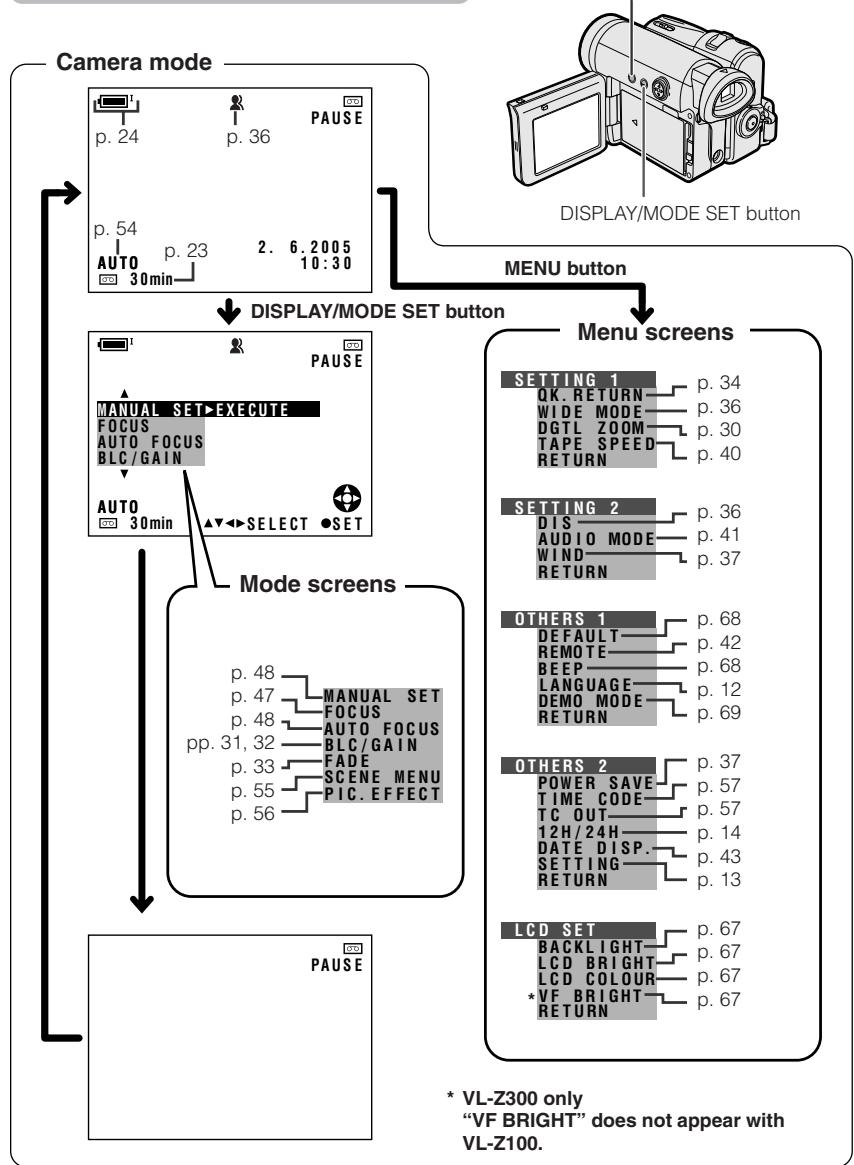
On-screen Display Index
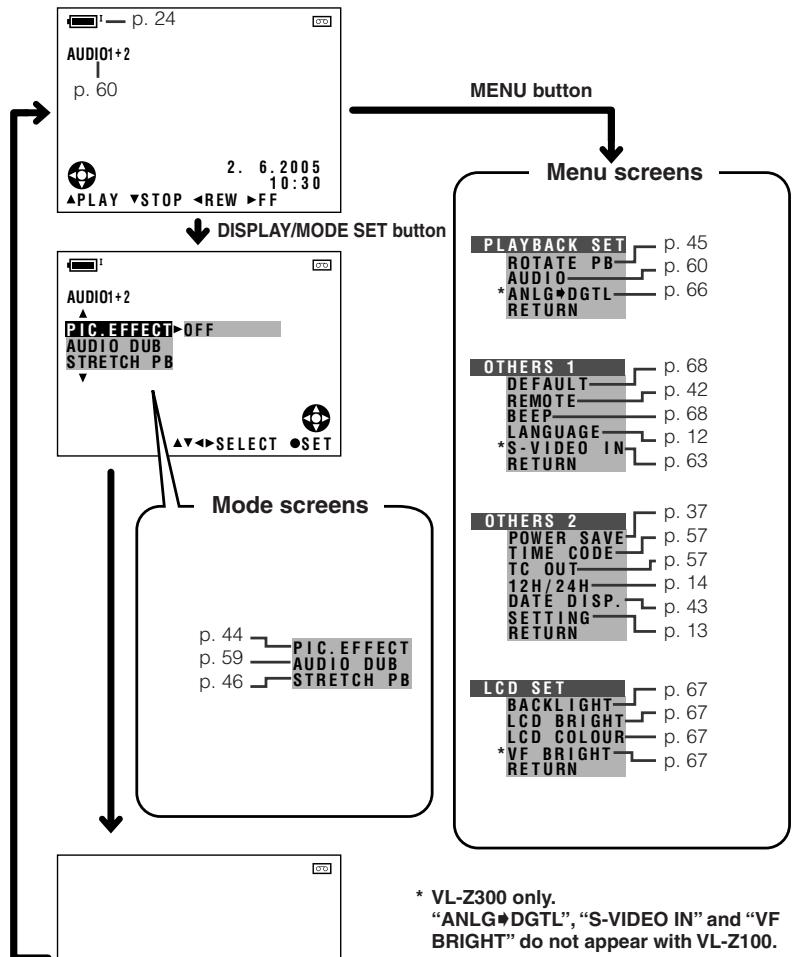
Playback mode
Index
A
ACadapter 7,8
Audio dubbing 58, 59
Audio playback mode 60
Audio recording mode 41
Auto focus 23
AV terminal 27,61,62,66
B
Backlight 22,67
Backlight compensation (BLC) 31
Battery release 6, 10
Battery pack. 5, 6, 72, 73
Beep 68
C
Charging 7
Conversion lens 16
D
Date and time 43
Default 68
Demo mode 69
Digital zoom 30
Dioptre adjustment dial 17
DIS 36
DISPLAY/MODE SET button 28
DV terminal 64, 66
E
Edit search 35
Erasure protect tab 71
F
Fade 33
Full Auto 54
G
Gain 52
Gain-up 32
H
Hand grip 15
Hand strap 15
1
Information display 28
Iris 51
L
LCD bright 67
LCD colour 67
LCD LAMP button 22
LCD monitor 18
Lens cap 14
Lithium battery 10, 11
LP mode 40
M
Manual focus 47
Manual setting 48
MENUButton 29
Menu screen 29
Mini DV cassette 9,71
Mode screen 28
0
Operation button 28
P
Part names 1-3
PHOTO button 35
Picture effect 56
Picture effect playback 44
Playback 25
POWER CHARGE (RED) indicator .... 7, 8, 20
Power save mode 37
Power standby mode 22
Power switch 20, 25
Power Zoom control 21
Q
Quick Return 34
B
Record Start/Stop button 20
Recording Standby mode 20, 21
Recording time 20
Remote control 42
Rotate playback 45
s
Scene menu 55
Self recording 38, 39
Shutter speed 53, 54
SP mode 40
STANDBY button 22
Still recording 35
Stretch playback 46
T
Tape speed 40
Terminal cover 2
Time Code 57
V
VF bright 67
Video search 26
Viewfinder 16, 17
Volume control 26
W
Warning indicator 4
White balance 49, 50
Wide mode 36
Windbreak 37
Window cleaning cover 73
Z
Zoom 21