
EL-520WG - Calculator SHARP - Free user manual and instructions
Find the device manual for free EL-520WG SHARP in PDF.


User questions about EL-520WG SHARP
0 question about this device. Answer the ones you know or ask your own.
Ask a new question about this device
Download the instructions for your Calculator in PDF format for free! Find your manual EL-520WG - SHARP and take your electronic device back in hand. On this page are published all the documents necessary for the use of your device. EL-520WG by SHARP.
USER MANUAL EL-520WG SHARP
Thank you for purchasing the SHARP Scientific Calculator Model EL-520WG.
About the calculation examples (including some formulas and tables), refer to the reverse side of this English manual. Refer to the number on the right of each title in the manual for use.
After reading this manual, store it in a convenient location for future reference.
Operational Notes
- Do not carry the calculator around in your back pocket, as it may break when you sit down. The display is made of glass and is particularly fragile.
- Keep the calculator away from extreme heat such as on a car dashboard or near a heater, and avoid exposing it to excessively humid or dusty environments.
- Since this product is not waterproof, do not use it or store it where fluids, for example water, can splash onto it. Raindrops, water spray, juice, coffee, steam, perspiration, etc. will also cause malfunction.
- Clean with a soft, dry cloth. Do not use solvents or a wet cloth.
- Do not drop it or apply excessive force.
- Never dispose of batteries in a fire.
- Keep batteries out of the reach of children.
- This product, including accessories, may change due to upgrading without prior notice.
NOTICE
- SHARP strongly recommends that separate permanent written records be kept of all important data. Data may be lost or altered in virtually any electronic memory product under certain circumstances. Therefore, SHARP assumes no responsibility for data lost or otherwise rendered unusable whether as a result of improper use, repairs, defects, battery replacement, use after the specified battery life has expired, or any other cause.
- SHARP will not be liable nor responsible for any incidental or consequential economic or property damage caused by misuse and/or malfunctions of this product and its peripherals, unless such liability is acknowledged by law.
◆ Press the RESET switch (on the back), with the tip of a ball-point pen or similar object, only in the following cases. Do not use an object with a breakable or sharp tip. Note that pressing the RESET switch erases all data stored in memory.
- When using for the first time
• After replacing the batteries
• To clear all memory contents
- When an abnormal condition occurs and all keys are inoperative.
If service should be required on this calculator, use only a SHARP servicing dealer, SHARP approved service facility, or SHARP repair service where available.
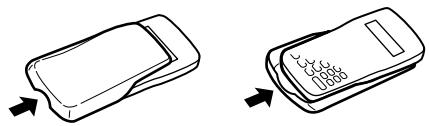
Hard Case
natural_image
Two line drawings of a mobile phone with arrows indicating movement, no text or symbols presentDISPLAY
text_image
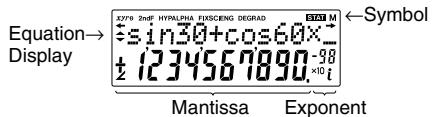
Equation→ Display x279 2ndF HYPALPHA FISKCIENG DEGRAD STAT M ÷sin30+cos60x_ ÷1234567890-98 ×10 i Mantissa Exponent- During actual use, not all symbols are displayed at the same time.
- Certain inactive symbols may appear visible when viewed from a far off angle.
- Only the symbols required for the usage under instruction are shown in the display and calculation examples of this manual.
←/→ : Appears when the entire equation cannot be displayed. Press ◀/▶ to see the remaining (hidden) section.
xy/r : Indicates the mode of expression of results in the complex calculation mode.
▲/▼ : Indicates that data can be visible above/below the screen. Press ▲/▼ to scroll up/down the view.
2ndF : Appears when 2ndF is pressed.
HYP : Indicates that hyp has been pressed and the hyperbolic functions are enabled. If 2ndF arc hyp are pressed, the symbols “2ndF HYP” appear, indicating that inverse hyperbolic functions are enabled.
ALPHA: Appears when ALPHA (STAT VAR), STO or RCL is pressed.
FIX/SCI/ENG: Indicates the notation used to display a value.
DEG/RAD/GRAD: Indicates angular units.
STAT : Appears when statistics mode is selected.
M : Indicates that a value is stored in the independent memory.
∠ : Appears when the calculator shows an angle as the result in the complex calculation mode.
i : Indicates an imaginary number is being displayed in the complex calculation mode.
BEFORE USING THE CALCULATOR
Key Notation Used in this Manual
In this manual, key operations are described as follows:
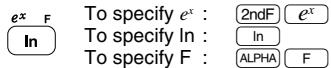
Functions that are printed in orange above the key require 2ndF to be pressed first before the key. When you specify the memory, press ALPHA first. Numbers for input value are not shown as keys, but as ordinary numbers.
Power On and Off
Press ON/C to turn the calculator on, and 2ndF OFF to turn it off.
Clearing the Entry and Memories
| Operation | Entry(Display) | M | A-F, X, YANS | STAT*1STAT VAR*2 |
| ON/C | ○ | × | × | × |
| 2ndF CA | ○ | × | ○ | ○ |
| Mode selection | ○ | × | ○ | ○ |
| 2ndF M-CLR 0 0 *3 | ○ | ○ | ○ | ○ |
| 2ndF M-CLR 1 0 *4 | ○ | ○ | ○ | ○ |
| RESET switch | ○ | ○ | ○ | ○ |
*3 All variables are cleared.
*4 This key combination functions the same as the RESET switch.
[Memory clear key]
Press 2ndF M-CLR to display the menu.
- To clear all variables (M, A-F, X, Y, ANS, STAT VAR), press 0 0 or 0 ENT
- To RESET the calculator, press 1 0 or 1 ENT. The RESET operation will erase all data stored in memory, and restore the calculator's default setting.
Entering and Correcting the Equation
[Cursor keys]
- Press ◀ or ▶ to move the cursor. You can also return to the equation after getting an answer by pressing ▶ (◀).
See the next section for using the ▲ and
- See 'SET UP menu' for cursor use in the SET UP menu.
[Insert mode and Overwrite mode in the Equation display]
- Pressing 2ndF INS switches between the two editing modes: insert mode (default); and overwrite mode. A triangular cursor indicates that an entry will be inserted at the cursor, while the rectangular cursor indicates to overwrite preexisting data as you make entries.
- To insert a number in the insert mode, move the cursor to the place immediately after where you wish to insert, then make a desired entry. In the overwrite mode, data under the cursor will be overwritten by the number you enter.
- The mode set will be retained until the next RESET operation.
[Deletion key]
- To delete a number/function, move the cursor to the number/function you wish to delete, then press DEL. If the cursor is located at the right end of an equation, the DEL key will function as a back space key.
Multi-line Playback Function [1]
Previous equations may be recalled in the normal mode. Equations also include calculation ending instructions such as “=” and a maximum of 142 characters can be stored in memory. When the memory is full, stored equations are deleted in the order of the oldest first. Pressing ▲ will display the previous equation and the answer. Further pressing ▲ will display preceding equations (after returning to the previous equation, press ▼ to view equations in order). In addition, 2ndF ▲ can be used to jump to the oldest equation.
- To edit an equation after recalling it, press ▶ (◀).
- The multi-line memory is cleared by the following operations: 2ndF CA, 2ndF OFF (including the Automatic Power Off feature), mode change, memory clear ((2ndF M-CLR), RESET, 2ndF RANDOM, ALPHA (RCL) ANS, constant calculation, chain calculation, angle unit conversion, coordinate conversion, N-base conversion, numerical value storage to the temporary memories and independent memory.
Priority Levels in Calculation
Operations are performed according to the following priority:
① Fractions (1-4, etc.) ② ∠, engineering prefixes ③ Functions preceded by their argument (x ^-1 , x ^2 , n!, etc.) ④ Y ^x , x ^ ⑤ Implied multiplication of a memory value (2Y, etc.) ⑥ Functions followed by their argument (sin, cos, etc.) ⑦ Implied multiplication of a function (2sin30, etc.) ⑧ nCr, nPr ⑨ x, ÷ ⑩ +, - ⑪ AND ⑫ OR, XOR, XNOR ⑬ =, M+, M-, ⇒M, ▶DEG, ▶RAD, ▶GRAD, DATA, CD, →rθ, →xy and other calculation ending instructions
- If parentheses are used, parenthesized calculations have precedence over any other calculations.
INITIAL SET UP
Mode Selection
MODE 0: Normal mode (NORMAL)
MODE 1: Statistic mode (STAT)
MODE 2: Complex number mode (CPLX)
SET UP menu [2]
Press SET UP to display the SET UP menu.
- A menu item can be selected by:
- moving the flashing cursor by using
▶◀, then pressing ENT (= key), or - pressing the number key corresponding to the menu item number.
- If ▲ or ▼ is displayed on the screen, press ▲ or ▼ to
view the previous/next menu screen. - Press ON/C to exit the SET UP menu.
[Selecting the Display Notation and Decimal Places]
Four display notation systems are used to display calculation results: Floating point; Fixed decimal point; Scientific notation; and Engineering notation.
- When the FIX, SCI, or ENG symbol is displayed, the number of decimal places (TAB) can be set to any value between 0 and 9. Displayed values will be reduced to the corresponding number of digits.
[Setting the Floating Point Numbers System in Scientific Notation] Two settings are used to display a floating point number: NORM1 (default setting) and NORM2. A number is automatically displayed in scientific notation outside a preset range:
• NORM1: 0.000000001 ≤ |x| ≤ 9999999999
• NORM2: 0.01 ≤ |x| ≤ 99999999999
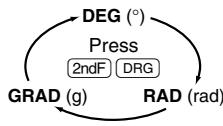
Determination of the Angular Unit
In this calculator, the following three angular units (degrees, radians, and grads) can be specified.
SCIENTIFIC CALCULATIONS
- Press MODE 0 to select the normal mode.
- In each example, press ON/C to clear the display. If the FIX, SCI, or ENG indicator is displayed, clear the indicator by selecting 'NORM1' from the SET UP menu.
Arithmetic Operations [3]
- The closing parenthesis ☐) just before = or M+ may be omitted.
Constant Calculations [4]
- In constant calculations, the addend becomes a constant. Subtraction and division are performed in the same manner. For multiplication, the multiplicand becomes a constant.
- In the constants calculations, constants will be displayed as K.
Functions [5]
• Refer to the calculation examples of each function.
- Before starting calculations, specify the angular unit.
Random Function
The Random function has four settings for use in the normal or statistics mode. (This function cannot be selected while using the N-Base function.) To generate further random numbers in succession, press ENT. Press ON/C to exit.
- The generated pseudo-random number series is stored in memory Y. Each random number is based on a number series.
[Random Numbers]
A pseudo-random number, with three significant digits from 0 up to 0.999, can be generated by pressing 2ndF RANDOM 0 ENT.
[Random Dice]
To simulate a die-rolling, a random integer between 1 and 6 can be generated by pressing 2ndF RANDOM 1 ENT.
[Random Coin]
To simulate a coin flip, 0 (head) or 1 (tail) can be randomly generated by pressing 2ndF RANDOM 2 ENT.
[Random Integer]
An integer between 0 and 99 can be generated randomly by pressing 2ndF RANDOM 3 ENT.
Angular Unit Conversions [6]
Each time 2ndF DRG▶ are pressed, the angular unit changes in sequence.
Memory Calculations [7]
| Mode | ANS | M | A-F, X, Y |
| NORMAL | |||
| STAT | × | × | |
| CPLX | × |
○ : Available
× : Unavailable
[Temporary memories (A-F, X and Y)]
Press STO and a variable key to store a value in memory.
Press RCL and a variable key to recall a value from the memory. To place a variable in an equation, press ALPHA and a variable key
[Independent memory (M)]
In addition to all the features of temporary memories, a value can be added to or subtracted from an existing memory value.
Press ON/C STO M to clear the independent memory (M).
[Last answer memory (ANS)]
The calculation result obtained by pressing = or any other calculation ending instruction is automatically stored in the last answer memory.
Note:
- Calculation results from the functions indicated below are automatically stored in memories X or Y replacing existing values.
• Random function ..... Y memory
- r, xy ...... X memory (r or x), Y memory (θ or y)
- Use of RCL or ALPHA will recall the value stored in memory using up to 14 digits.
Chain Calculations [8]
- The previous calculation result can be used in the subsequent calculation. However, it cannot be recalled after entering multiple instructions.
- When using postfix functions ( , sin, etc.), a chain calculation is possible even if the previous calculation result is cleared by the use of the ON/C key.
Fraction Calculations [9]
Arithmetic operations and memory calculations can be performed using fractions, and conversion between a decimal number and a fraction.
- If the number of digits to be displayed is greater than 10, the number is converted to and displayed as a decimal number.
Binary, Pental, Octal, Decimal, and Hexadecimal Operations (N-Base) [10]
Conversions can be performed between N-base numbers. The four basic arithmetic operations, calculations with parentheses and memory calculations can also be performed, along with the logical operations AND, OR, NOT, NEG, XOR and XNOR on binary, pental, octal and hexadecimal numbers.
Conversion to each system is performed by the following keys:
2ndF ← BIN (“b” appears.), 2ndF ← PEN (“P” appears.), 2ndF ← OCT (“o” appears.), 2ndF ← HEX (“H” appears.), 2ndF ← DEC (“b”, “P”, “o” and “H” disappear.)
Note: The hexadecimal numbers A - F are entered by pressing , ^x , ^2 , ^3 , , and , and displayed as follows:
$$ \mathsf {A} \rightarrow \mathcal {R}, \mathsf {B} \rightarrow b, \mathsf {C} \rightarrow \mathcal {L}, \mathsf {D} \rightarrow d, \mathsf {E} \rightarrow \mathcal {E}, \mathsf {F} \rightarrow F $$
In the binary, pental, octal, and hexadecimal systems, fractional parts cannot be entered. When a decimal number having a fractional part is converted into a binary, pental, octal, or hexadecimal number, the fractional part will be truncated. Likewise, when the result of a binary, pental, octal, or hexadecimal calculation includes a fractional part, the fractional part will be truncated. In the binary, pental, octal, and hexadecimal systems, negative numbers are displayed as a complement.
Time, Decimal and Sexagesimal Calculations 【11】
Conversion between decimal and sexagesimal numbers can be performed, and, while using sexagesimal numbers, conversion to seconds and minutes notation. The four basic arithmetic operations and memory calculations can be performed using the sexagesimal system. Notation for sexagesimal is as follows:
![SHARP EL-520WG - Binary, Pental, Octal, Decimal, and Hexadecimal Operations (N-Base) [10] - 1](/content/2025/01/79192/images/e2ec547bc346c8d64f8d4f63e2256306834c986c9ef2c1aa6d759c9402d9e4a6.jpg)
Coordinate Conversions
- Before performing a calculation, select the angular unit.
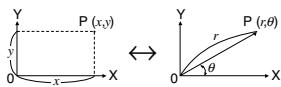
Rectangular coord.
Polar coord.
- The calculation result is automatically stored in memories X and Y.
• Value of r or x: X memory
• Value of θ or y: Y memory
Calculations Using Physical Constants [13]
See the quick reference card and the English manual reverse side. A constant is recalled by pressing CNST followed by the number of the physical constant designated by a 2-digit number.
The recalled constant appears in the display mode selected with the designated number of decimal places.
Physical constants can be recalled in the normal mode (when not set to binary, pental, octal, or hexadecimal), or statistics mode.
Note: Physical constants and metric conversions are based either on the 2002 CODATA recommended values or 1995 Edition of the “Guide for the Use of the International System of Units (SI)” released by NIST (National Institute of Standards and Technology) or on ISO specifications.
| No. | Constant | No. | Constant |
| 01 | Speed of light in vacuum | 27 | Stefan-Boltzmann constant |
| 02 | Newtonian constant of gravitation | 28 | Avogadro constant |
| 03 | Standard acceleration of gravity | 29 | Molar volume of ideal gas (273.15 K, 101.325 kPa) |
| 04 | Electron mass | 30 | Molar gas constant |
| 05 | Proton mass | 31 | Faraday constant |
| 06 | Neutron mass | 32 | Von Klitzing constant |
| 07 | Muon mass | 33 | Electron charge to mass quotient |
| 08 | Atomic mass unit-kilogram relationship | 34 | Quantum of circulation |
| 09 | Elementary charge | 35 | Proton gyromagnetic ratio |
| 10 | Planck constant | 36 | Josephson constant |
| 11 | Boltzmann constant | 37 | Electron volt |
| 12 | Magnetic constant | 38 | Celsius Temperature |
| 13 | Electric constant | 39 | Astronomical unit |
| 14 | Classical electron radius | 40 | Parsec |
| 15 | Fine-structure constant | 41 | Molar mass of carbon-12 |
| 16 | Bohr radius | 42 | Planck constant over 2 pi |
| 17 | Rydberg constant | 43 | Hartree energy |
| 18 | Magnetic flux quantum | 44 | Conductance quantum |
| 19 | Bohr magneton | 45 | Inverse fine-structure constant |
| 20 | Electron magnetic moment | 46 | Proton-electron mass ratio |
| 21 | Nuclear magneton | 47 | Molar mass constant |
| 22 | Proton magnetic moment | 48 | Neutron Compton wavelength |
| 23 | Neutron magnetic moment | 49 | First radiation constant |
| 24 | Muon magnetic moment | 50 | Second radiation constant |
| 25 | Compton wavelength | 51 | Characteristic impedance of vacuum |
| 26 | Proton Compton wavelength | 52 | Standard atmosphere |
Metric Conversions [14]
See the quick reference card and the English manual reverse side. Unit conversions can be performed in the normal mode (when not set to binary, pental, octal, or hexadecimal), and statistics modes.
| No. | Remarks | No. | Remarks | ||
| 1 | in | : inch | 23 | fl oz(US): fluid ounce(US) | |
| 2 | cm | : centimeter | 24 | m | : milliliter |
| 3 | ft | : foot | 25 | fl oz(UK): fluid ounce(UK) | |
| 4 | m | : meter | 26 | m | : milliliter |
| 5 | yd | : yard | 27 | J | : Joule |
| 6 | m | : meter | 28 | cal | : calorie |
| 7 | mile | : mile | 29 | J | : Joule |
| 8 | km | : kilometer | 30 | cal _15 | : Calorie (15n°C) |
| 9 | n mile | : nautical mile | 31 | J | : Joule |
| 10 | m | : meter | 32 | cal _17 | : I.T. calorie |
| 11 | acre | : acre | 33 | hp | : horsepower |
| 12 | m ^2 | : square meter | 34 | W | : watt |
| 13 | oz | : ounce | 35 | ps | : French horsepower |
| 14 | g | : gram | 36 | W | : watt |
| 15 | lb | : pound | 37 | ||
| 16 | kg | : kilogram | 38 | Pa | : Pascal |
| 17 | °F | : Degree Fahrenheit | 39 | atm | : atmosphere |
| 18 | °C | : Degree Celsius | 40 | Pa | : Pascal |
| 19 | gal (US) | : gallon (US) | 41 | (1 mmHg = 1 Torr) | |
| 20 | : liter | 42 | Pa | : Pascal | |
| 21 | gal (UK) | : gallon (UK) | 43 | ||
| 22 | : liter | 44 | J | : Joule | |
Calculations Using Engineering Prefixes [15]
Calculation can be executed in the normal mode (excluding N-base) using the following 9 types of prefixes.
| Prefix | Operation | Unit | ||||
| k | (kilo) | 2ndF | MATH | 0 | 0 | 10^3 |
| M | (Mega) | 2ndF | MATH | 0 | 1 | 10^6 |
| G | (Giga) | 2ndF | MATH | 0 | 2 | 10^9 |
| T | (Tera) | 2ndF | MATH | 0 | 3 | 10^12 |
| m | (milli) | 2ndF | MATH | 0 | 4 | 10^-3 |
| μ | (micro) | 2ndF | MATH | 0 | 5 | 10^-6 |
| n | (nano) | 2ndF | MATH | 0 | 6 | 10^-9 |
| p | (pico) | 2ndF | MATH | 0 | 7 | 10^-12 |
| f | (femto) | 2ndF | MATH | 0 | 8 | 10^-15 |
Modify Function [16]
Calculation results are internally obtained in scientific notation with up to 14 digits for the mantissa. However, since calculation results are displayed in the form designated by the display notation and the number of decimal places indicated, the internal calculation result may differ from that shown in the display. By using the modify function, the internal value is converted to match that of the display, so that the displayed value can be used without change in subsequent operations.
STATISTICAL CALCULATIONS [17]
Press MODE 1 to select the statistics mode. The seven statistical calculations listed below can be performed. After selecting the statistics mode, select the desired sub-mode by pressing the number key corresponding to your choice.
To change statistical sub-mode, reselect statistics mode (press MODE 1), then select the required sub-mode.
0 (SD) : Single-variable statistics
1 (LINE) : Linear regression calculation
2 (QUAD) : Quadratic regression calculation
3 (EXP) : Exponential regression calculation
4 (LOG) : Logarithmic regression calculation
5 (PWR) : Power regression calculation
6 (INV) : Inverse regression calculation
The following statistics can be obtained for each statistical calculation (refer to the table below):
Single-variable statistical calculation
Statistics of ① and value of the normal probability function
Linear regression calculation
Statistics of ① and ② and, in addition, estimate of y for a given x (estimate y' ) and estimate of x for a given y (estimate x' )
Exponential regression, Logarithmic regression,
Power regression, and Inverse regression calculation
Statistics of ① and ②. In addition, estimate of y for a given x and estimate of x for a given y. (Since the calculator converts each formula into a linear regression formula before actual calculation takes place, it obtains all statistics, except coefficients a and b, from converted data rather than entered data.)
Quadratic regression calculation
Statistics of ① and ② and coefficients a, b, c in the quadratic regression formula y = a + bx + cx^2 . (For quadratic regression calculations, no correlation coefficient (r) can be obtained.) When there are two x' values, press 2ndF .
When performing calculations using a, b and c, only one numeric value can be held.
| 1 | Mean of samples (x data) | |
| sx | Sample standard deviation (x data) | |
| x | Population standard deviation (x data) | |
| n | Number of samples | |
| x | Sum of samples (x data) | |
| x^2 | Sum of squares of samples (x data) | |
| 2 | Mean of samples (y data) | |
| sy | Sample standard deviation (y data) | |
| y | Population standard deviation (y data) | |
| y | Sum of samples (y data) | |
| y^2 | Sum of squares of samples (y data) | |
| xy | Sum of products of samples (x, y) | |
| r | Correlation coefficient | |
| a | Coefficient of regression equation | |
| b | Coefficient of regression equation | |
| c | Coefficient of quadratic regression equation |
- Use ALPHA and RCL to perform a STAT variable calculation.
Data Entry and Correction [18]
Entered data are kept in memory until 2ndF CA or mode selection. Before entering new data, clear the memory contents.
[Data Entry]
Single-variable data
Data DATA
Data (x,y) frequency DATA (To enter multiples of the same data)
Two-variable data
Data x (x,y) Data y DATA
Data x (x,y) Data y (x,y) frequency DATA (To enter multiples of the same data x and y.)
- Up to 100 data items can be entered. With the single-variable data, a data item without frequency assignment is counted as one data item, while an item assigned with frequency is stored as a set of two data items. With the two-variable data, a set of data items without frequency assignment is counted as two data items, while a set of items assigned with frequency is stored as a set of three data items.
[Data Correction]
Correction prior to pressing DATA immediately after a data entry: Delete incorrect data with ON/C, then enter the correct data.
Correction after pressing DATA:
Use ▲ ▼ to display the data previously entered.
Press ▼ to display data items in ascending (oldest first) order. To reverse the display order to descending (latest first), press the ▲ key.
Each item is displayed with 'Xn=', 'Yn=', or 'Nn=' (n is the sequential number of the data set).
Display the data item to modify, input the correct value, then press DATA. Using (x,y) , you can correct the values of the data set all at once.
- To delete a data set, display an item of the data set to delete, then press 2ndF CD. The data set will be deleted.
- To add a new data set, press ON/C and input the values, then press DATA.
Statistical Calculation Formulas [19]
| Type | Regression formula |
| Linear | y = a + bx |
| Exponential | y = a · e^bx |
| Logarithmic | y = a + b · x |
| Power | y = a · x^b |
| Inverse | y = a + b 1x |
| Quadratic | y = a + bx + cx^2 |
In the statistical calculation formulas, an error will occur when:
- The absolute value of the intermediate result or calculation result is equal to or greater than 1 × 10^100 .
• The denominator is zero. - An attempt is made to take the square root of a negative number.
- No solution exists in the quadratic regression calculation.
Normal Probability Calculations [17] [20]
- P(t), Q(t) , and R(t) will always take positive values, even when t < 0 , because these functions follow the same principle used when solving for an area.
Values for P(t) , Q(t) , and R(t) are given to six decimal places.
COMPLEX NUMBER CALCULATIONS [21]
To carry out addition, subtraction, multiplication, and division using complex numbers, press MODE 2 to select the complex number mode.
Results of complex number calculations are expressed in two modes:
① 2ndF →xy: Rectangular coordinate mode (xy appears.)
② 2ndF →rθ: Polar coordinate mode (rθ appears.)
Complex number entry
① Rectangular coordinates
x-coordinate + y-coordinate i or x-coordinate + i y-coordinate
② Polar coordinates
r
r: absolute value : argument
- On selecting another mode, the imaginary part of any complex number stored in the independent memory (M) will be cleared.
- A complex number expressed in rectangular coordinates with the y-value equal to zero, or expressed in polar coordinates with the angle equal to zero, is treated as a real number.
- Press 2ndF MATH 0 to return the complex conjugate of the specified complex number.
ERROR AND CALCULATION RANGES
Errors
An error will occur if an operation exceeds the calculation ranges, or if a mathematically illegal operation is attempted. When an error occurs, pressing (or ) automatically moves the cursor back to the place in the equation where the error occurred. Edit the equation or press ON/C to clear the equation.
Error Codes and Error Types
Syntax error (Error 1):
- An attempt was made to perform an invalid operation.
Ex. 2 2ndF →rθ
Calculation error (Error 2):
- The absolute value of an intermediate or final calculation result equals or exceeds 10^100 .
- An attempt was made to divide by 0 (or an intermediate calculation resulted in zero).
- The calculation ranges were exceeded while performing calculations.
Depth error (Error 3):
- The available number of buffers was exceeded. (There are 10 buffers* for numeric values and 24 buffers for calculation instructions).
*5 buffers in STAT mode and complex number mode.
• Data items exceeded 100 in the statistics mode.
Equation too long (Error 4):
- The equation exceeded its maximum input buffer (142 characters).
An equation must be shorter than 142 characters.
Calculation Ranges
[22]
- Within the ranges specified, this calculator is accurate to ± 1 of the least significant digit of the mantissa. However, a calculation error increases in continuous calculations due to accumulation of each calculation error. (This is the same for y^x, x^- , n! , e^x , ln , etc., where continuous calculations are performed internally.)
Additionally, a calculation error will accumulate and become larger in the vicinity of inflection points and singular points of functions.
• Calculation ranges
± 10^-99 ± 9.9999999999× 10^99 and 0.
If the absolute value of an entry or a final or intermediate result of a calculation is less than 10^-99 , the value is considered to be 0 in calculations and in the display.
BATTERY REPLACEMENT
Notes on Battery Replacement
Improper handling of batteries can cause electrolyte leakage or explosion. Be sure to observe the following handling rules:
- Replace both batteries at the same time.
- Do not mix new and old batteries.
- Make sure the new batteries are the correct type.
- When installing, orient each battery properly as indicated in the calculator.
- Batteries are factory-installed before shipment, and may be exhausted before they reach the service life stated in the specifications.
Notes on erasure of memory contents
When the battery is replaced, the memory contents are erased. Erasure can also occur if the calculator is defective or when it is repaired. Make a note of all important memory contents in case accidental erasure occurs.
When to Replace the Batteries
If the display has poor contrast or nothing appears on the display even when ON/C is pressed in dim lighting, it is time to replace the batteries.
Cautions
- Fluid from a leaking battery accidentally entering an eye could result in serious injury. Should this occur, wash with clean water and immediately consult a doctor.
- Should fluid from a leaking battery come in contact with your skin or clothes, immediately wash with clean water.
- If the product is not to be used for some time, to avoid damage to the unit from leaking batteries, remove them and store in a safe place.
- Do not leave exhausted batteries inside the product.
- Do not fit partially used batteries, and be sure not to mix batteries of different types.
- Keep batteries out of the reach of children.
- Exhausted batteries left in the calculator may leak and damage the calculator.
- Explosion risk may be caused by incorrect handling.
- Do not throw batteries into a fire as they may explode.
Replacement Procedure
- Turn the power off by pressing 2ndF OFF.
- Remove the two screws. (Fig. 1)
- Slide the battery cover slightly and lift it to remove.
- Remove the used batteries by prying them out with a ball-point pen or other similar pointed device. (Fig. 2)
- Install two new batteries. Make sure the “+” side is facing up.
- Replace the cover and screws.
- Press the RESET switch (on the back).
- Make sure that the display appears as shown below. If the display does not appear as shown, remove the batteries, reinstall them and check the display once again.
(Fig. 1)
(No text)
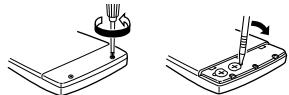
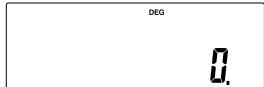
Automatic Power Off Function
This calculator will turn itself off to save battery power if no key is pressed for approximately 10 minutes.
SPECIFICATIONS
| Calculations: | Scientific calculations, complex number calculations, statistical calculations, etc. |
| Internal calculations: | Mantissas of up to 14 digits |
| Pending operations: | 24 calculations 10 numeric values(5 numeric values in STAT and complex number mode) |
| Power source: | Built-in solar cells3 V (DC):Backup batteries(Alkaline batteries (LR44 or equivalent) × 2) |
| Operating temperature: | 0°C – 40°C (32°F – 104°F) |
| External dimensions: | 79.6 mm (W) × 154.5 mm (D) × 13.2 mm (H)3-1/8” (W) × 6-3/32” (D) × 17/32” (H) |
| Weight: | Approx. 97 g (0.22 lb)(Including batteries) |
| Accessories: | Batteries × 2 (installed), operation manual, quick reference card and hard case |
FOR MORE INFORMATION ABOUT SCIENTIFIC CALCULATOR
Visit our Web site.
http://sharp-world.com/calculator/
EL-520WG
CALCULATION EXAMPLES
ANWENDUNGSBEISPIELE
EXEMPLES DE CALCUL
EJEMPLOS DE CÁLCULO
EXEMPLOS DE CÁLCULO
ESEMPI DI CALCOLO
REKENVOORBEELDEN
PÉLDASZÁMÍTÁSOK
PŘÍKLADY VÝPOČTŮ
RÄKNEEXEMPEL
LASKENTAESIMERKKEJÄ
ПРИМЕРЫ ВЫЧИСЛЕНИЙ
UDREGNINGSEKSEMPLER
ตัวอย่างการดำเนวลม
نمازج للحسابات
计算例子
CONTOH-CONTOH PENGHITUNGAN
CONTOH-CONTOH PERHITUNGAN
[1] ▲ ▼
| 13(5+2)= | ON/C 3 ( 5 + 2 ) = | 21. |
| 23×5+2= | 3 × 5 + 2 = | 17. |
| 33×5+3×2= | 3 × 5 + 3 × 2 = | 21. |
| →1 | 2ndF ▲ | 21. |
| →2 | ▼ | 17. |
| →3 | ▼ | 21. |
| →2 | ▲ | 17. |
【2】SET UP
| 100000÷3= | ||||
| [NORM1] | ON/C | 100000 | ÷ 3 = | 33'333.33333 |
| →[FIX] | SET UP | 0 | 0 | 33'333.33333 |
| [TAB 2] | SET UP | 1 | 2 | 33'333.33 |
| →[SCI] | SET UP | 0 | 1 | 3.33 × 10 ^04 |
| →[ENG] | SET UP | 0 | 2 | 33.33 × 10 ^03 |
| →[NORM1] | SET UP | 0 | 3 | 33'333.33333 |
| 3÷1000= | ||||
| [NORM1] | ON/C | 3 ÷ 1000 = | 0.003 | |
| →[NORM2] | SET UP | 0 | 4 | 3. × 10 ^-03 |
| →[NORM1] | SET UP | 0 | 3 | 0.003 |
【3】+ - × ÷ ( ) +/- Exp
| 45+285÷3= | ON/C 45 + 285 ÷ 3 = | 140. |
| 18+615-8 = | ( 18 + 6 ) ÷( 15 - 8 = | 3.428571429 |
| 42×(-5)+120= | 42 × +/- 5 + 120 =*1 (5 +/-)*1 | -90. |
| (5×10³)÷(4×10⁻³)= | 5 Exp 3 ÷ 4 Exp+/- 3 = | 1'250'000. |
[4]
| 34+57= | 34 + 57 = | 91. |
| 45+57= | 45 = | 102. |
| 68×25= | 68 × 25 = | 1'700. |
| 68×40= | 40 = | 2'720. |
【5】sin cos tan sin ^-1 cos ^-1 tan ^-1 π DRG hyp
| arc hyp | In | log | e^x | 10^x | x^-1 | x^2 | x^3 | |
| y^x | [x] | [3] | n! | nP r | nCr | % |
| sin60[°]= | ON/C | sin | 60 | = | 0.866025403 |
| cos 4 [rad]= | 2ndF | DRG | cos | ( | |
| ÷ | 4 | ) | = 0.707106781 | ||
| tan ^-1 1=[g] | 2ndF | DRG | 2ndF | tan ^-1 | 1 = 50. |
| 2ndF | DRG |
| (cosh 1.5 + sinh 1.5)^2 = | ON/C ( hyp cos 1.5 + hyp sin 1.5 ) x^2 = | 20.08553692 |
| ^-1 57 = | 2ndF arc hyp tan ( 5 ÷ 7 ) = | 0.895879734 |
| ln 20 = | In 20 = | 2.995732274 |
| log 50 = | log 50 = | 1.698970004 |
| e^3 = | 2ndF e^x 3 = | 20.08553692 |
| 10^1.7 = | 2ndF 10^x 1.7 = | 50.11872336 |
| 16 + 17 = | 6 2ndF x^-1 + 7 2ndF x^-1 = | 0.309523809 |
| 8^-2 - 3^4 × 5^2 = | 8 y^x +/- 2 - 3 y^x 4 × 5 x^2 = | -2'024.984375 |
| (12^3)^14 = | 12 y^x 3 y^x 4 2ndF x^-1 = | 6.447419591 |
| 8^3 = | 8 x^3 = | 512. |
| 49 - 481 = | √ 49 - 4 2ndF 81 = | 4. |
| ^327 = | 2ndF [3]27 = | 3. |
| 4! = | 4 2ndF n! = | 24. |
| _10P_3 = | 10 2ndF nPr 3 = | 720. |
| _5C_2 = | 5 2ndF nCr 2 = | 10. |
| 500×25%= | 500 × 25 2ndF % | 125. |
| 120÷400=?% | 120 ÷ 400 2ndF % | 30. |
| 500+(500×25%)= | 500 + 25 2ndF % | 625. |
| 400-(400×30%)= | 400 - 30 2ndF % | 280. |
- The range of the results of inverse trigonometric functions
- Der Ergebnisbereich für inverse trigonemetrische Funktionen
- Plage des résultats des fonctions trigonométriques inverses
- El rango de los resultados de funciones trigonométricas inversas
- Gama dos resultados das trigonométricas inversas
- La gamma dei risultati di funzioni trigonometriche inverse
- Het bereik van de resultaten van inverse trigonometrie
- Az inverz trigonometriai funkciók eredmény-tartománya
- Rozsah výsledků inverzních trigonometrických funkcí
- Omfång för resultaten av omvända trigonometriska funktioner
- Käänteisten trigonometristen funktioiden tulosten alue
- Диапазон результатов обратных тригонометрических функций
- Område for resultater af omvendte trigonometriske funktioner
- พิสัยของผลลัพท์ของฟังก์ชั้นตรีโกนเมตริกผกผัน
•Clinique نتائج الدول المثلثية المع Kosovo - 反三角函数计算结果的范围
- Julat hasil fungsi trigonometri songsang
- Kisaran hasil fungsi trigonometri inversi
| = ^-1 x, = ^-1 x | = ^-1 x | |
| DEG | -90 ≤ ≤ 90 | 0 ≤ ≤ 180 |
| RAD | -2 ≤ ≤ 2 | 0 ≤ ≤ |
| GRAD | -100 ≤ ≤ 100 | 0 ≤ ≤ 200 |
[6] DRG▶
| 90^ [rad] | ON/C | 90 | 2ndF | DRG▶ | 1.570796327 |
| → [g] | 2ndF | DRG▶ | 100. | ||
| → [°] | 2ndF | DRG▶ | 90. | ||
| ^-10.8 = [^] | 2ndF | ^-1 | 0.8 = | 53.13010235 | |
| → [rad] | 2ndF | DRG▶ | 0.927295218 | ||
| → [g] | 2ndF | DRG▶ | 59.03344706 | ||
| → [°] | 2ndF | DRG▶ | 53.13010235 | ||
【7】ALPHA RCL STO M+ M- ANS
| ON/C | 8 | × | 2 | STO | M | 16. | |
| 24÷(8×2)=(8×2)×5= | 24 | ÷ | ALPHA | M | = | 1.5 | |
| ALPHA | M | × | 5 | = | 80. | ||
| ON/C | STO | M | 0. | ||||
| 150×3:M1 | 150 | \times | 3 | M+ | 450. | ||
| +)250:M2=M1+250 | 250 | M+ | 250. | ||||
| -)M2×5% | RCL | M | \times | 5 | 2ndF | % | 35. |
| M | 2ndF | M- | RCL | M | 665. | ||
| 1=¥110 | 110 | STO | Y | 110. | |||
| ¥26,510=? | 26510 | \div | RCL | Y | = | 241. | |
| 2,750=¥? | 2750 | × | RCL | Y | = | 302'500. |
| r=3cm (r→Y)πr2=? | 3STO Y ALPHA Y ^2 = | 3.28.27433388 |
| 244+6 = 2.4...(A) | 24 ÷ ( 4 + 6 ) = | 2.4 |
| 3×(A)+60÷(A)= | 3 X ALPHA ANS + 60 ÷ ALPHA ANS = | 32.2 |
[8]
| 6+4=ANS | ON/C 6 + 4 = | 10. |
| ANS+5 | + 5 = | 15. |
| 8×2=ANS | 8 × 2 = | 16. |
| ANS ^2 | x^2 = | 256. |
| 44+37=ANS | 44 + 37 = | 81. |
| = | = | 9. |
[9] a^b/c d/c
| 312 + 43 = [a] | ON/C 3 a^b/c 1 a^b/c 2 +4 a^b/c 3 = | 4 Γ5Γ6* |
| →[a.xxx] | a^b/c | 4.833333333 |
| →[d/c] | 2ndF d/c | 29 Γ6 |
| 10^23 = | 2ndF 10^x 2 a^b/c 3 = | 4.641588834 |
| (75)^5 = | 7 a^b/c 5 y^x 5 = | 16807 Γ3125 |
| (18)^13 = | 1 a^b/c 8 y^x 1 a^b/c 3= | 1 Γ2 |
| 64225 = | 64 a^b/c 225 = | 8 Γ15 |
| 2^33^4 = | ( ) 2 y^x 3 ) a^b/c ( ) 3 y^x 4 ) = | 8 Γ81 |
| 1.22.3 = | 1.2 a^b/c 2.3 = | 12 Γ23 |
| 1°2'3''2 = | 1 D'M'S 2 D'M'S 3 a^b/c 2 = | 0°31'1.5" |
| 1× 10^32× 10^3 = | 1 Exp 3 a^b/c 2 Exp 3 = | 1 Γ2 |
| A = 7 | ON/C 7 STO A | 7. |
| 4A = | 4 a^b/c ALPHA A = | 4 Γ7 |
| 1.25 + 25 = [a.xxx] →[a-b/C] | 1.25 + 2 a^b/c 5 = a^b/c | 1.651 Γ13 Γ20 |
* 4 5 6 = 4 56
[10]
| DEC(25)→BIN | ON/C | 2ndF | ←DEC | 25 | 2ndF | ←BIN | 11001^b |
| HEX(1AC) | 2ndF | ←HEX | 1AC | ||||
| →BIN | 2ndF | ←BIN | 110101100^b | ||||
| →PEN | 2ndF | ←PEN | 3203^p | ||||
| →OCT | 2ndF | ←OCT | 654^o | ||||
| →DEC | 2ndF | ←DEC | 428. | ||||
| BIN(1010–100) | 2ndF | ←BIN | ( | 1010 | — | 100 | ) |
| ×11 = | × | 11 | = | 10010^b | |||
| BIN(111)→NEG | NEG | 111 | = | 1111111001^b | |||
| HEX(1FF)+ | 2ndF | ←HEX | 1FF | 2ndF | ←OCT | + | |
| OCT(512)= | 512 | = | 1511^o | ||||
| HEX(?) | 2ndF | ←HEX | 349^H | ||||
| 2FEC– | ON/C | STO | M | 2ndF | ←HEX | 2FEC | — |
| 2C9E=(A) | 2C9E | M+ | 34E^H | ||||
| +)2000– | 2000 | — | |||||
| 1901=(B) | 1901 | M+ | 6FF^H | ||||
| (C) | RCL | M | A4d^H | ||||
| 1011 AND | ON/C | 2ndF | ←BIN | 1011 | AND | ||
| 101 = (BIN) | 101 | = | 1^b | ||||
| 5A OR C3 = (HEX) | 2ndF | ←HEX | 5A | OR | C3 | = | db^H |
| NOT 10110 = (BIN) | 2ndF | ←BIN | NOT | 10110 | = | 1111101001^b | |
| 24 XOR 4 = (OCT) | 2ndF | ←OCT | 24 | XOR | 4 | = | 20^o |
| B3 XNOR | 2ndF | ←HEX | B3 | XNOR | |||
| 2D = (HEX) | 2D | = | FFFFFFFF61^H | ||||
| →DEC | 2ndF | ←DEC | -159. |
【11】D°M'S ↔DEG MATH (→sec, →min)
| 12°39'18.05"→[10] | ON/C 12 D'M'S 39 D'M'S 18.052ndF ↔DEG | 12.65501389 |
| 123.678→[60] | 123.678 2ndF ↔DEG | 123°40'40.8" |
| 3h30m45s +6h45m36s = [60] | 3 D'M'S 30 D'M'S 45 + 6 D'M'S45 D'M'S 36 = | 10°16'21." |
| 1234°56'12" +0°0'34.567" = [60] | 1234 D'M'S 56 D'M'S 12 +0 D'M'S 0 D'M'S 34.567 = | 1234°56'47." |
| 3h45m -1.69h = [60] | 3 D'M'S 45 - 1.69 =2ndF ↔DEG | 2°3'36." |
| sin62°12'24" = [10] | sin 62 D'M'S 12 D'M'S 24 = | 0.884635235 |
| 24°→[ " ] | 24 D'M'S 2ndF MATH 1 | 86'400. |
| 1500"→[ ' ] | 0 D'M'S 0 D'M'S 1500 2ndF MATH 2 | 25. |
【12】→rθ →xy , ←,→
| ON/C 6 2ndF , 4 | ||
| x = 6 y = 4 | 2ndF [r] | 7.211102551 |
| 2ndF ·s [] | 33.69006753 | |
| 2ndF ·s [r] | 7.211102551 | |
| 14 2ndF , 36 | ||
| r = 14 = 36[^] | 2ndF [x] | 11.32623792 |
| 2ndF ·s [y] | 8.228993532 | |
| 2ndF ·s [x] | 11.32623792 | |
【13】CNST
| V_0 = 15.3 m/s | ON/C | 15.3 | × | 10 | + | 2 | 2ndF | ^-1 | × |
| t = 10s | CNST | 03 | × | 10 | ^2 | = | 643.3325 | ||
| V_0 t + 12 gt^2 = ? m |
【14】 CONV
| 125yd = ?m | ON/C | 125 | 2ndF | CONV | 5 | = | 114.3 |
【15】MATH (k, M, G, T, m, μ, n, p, f)
| 100m×10k= | 100 2ndF MATH 0 4 X |
| 10 2ndF MATH 0 0 = 1'000. |
【16】 MDF SET UP
| 5÷9=ANS | ON/C | SET UP | 0 | 0 | SET UP | 1 | 1 | |
| ANS×9=[FIX,TAB=1] | 5 | ÷ | 9 | = | 0.6 | |||
| × | 9 | = | *1 | 5.0 | ||||
| 5 | ÷ | 9 | = | 2ndF | MDF | 0.6 | ||
| × | 9 | = | *2 | 5.4 | ||||
| SET UP | 0 | 3 | ||||||
*1 5.55555555555555×10-1×9
*2 0.6×9
| [17] | DATA | (x,y) | Sx | Gx | n | Σx | Σx2 | ||
| Sy | Gy | Σy | Σy2 | Σxy | r | a | b | c | |
| x' | y' | ←→ | MATH | (→t, P(, Q(, R)) | |||||
| DATA | |||
| 95 | MODE 1 0 | 0. | |
| 80 | 95 DATA | 1. | |
| 80 | 80 DATA | 2. | |
| 75 | DATA | 3. | |
| 75 | 75 (x,y) 3 DATA | 4. | |
| 75 | 50 DATA | 5. | |
| 50 | |||
| = | RCL | 75.71428571 | |
| x = | RCL x | 12.37179148 | |
| n= | RCL n | 7. | |
| x = | RCL x | 530. | |
| x^2 = | RCL x^2 | 41'200. | |
| sx= | RCL S.x | 13.3630621 | |
| sx^2 = | ^2 = | 178.5714286 | |
| (95- ) /sx ×10+50= | ( 95 — ALPHA )÷ ALPHA S.x × 10+ 50 = | 64.43210706 | |
| x = 60 → P(t) ? | 2ndF MATH 1 602ndF MATH 0 ) = | 0.102012 | |
| t = -0.5 → R(t) ? | 2ndF MATH 3 0.5+/- ) = | 0.691463 | |
| x | y | MODE 1 1 | 0. |
| 2 | 5 | 2 (x,y) 5 DATA | 1. |
| 2 | 5 | DATA | 2. |
| 12 | 24 | 12 (x,y) 24 DATA | 3. |
| 21 | 40 | 21 (x,y) 40 (x,y) 3 DATA | 4. |
| 21 | 40 | 15 (x,y) 25 DATA | 5. |
| 21 | 40 | RCL a | 1.050261097 |
| 15 | 25 | RCL b | 1.826044386 |
| RCL r | 0.995176343 | ||
| RCL S.x | 8.541216597 | ||
| RCL S'y | 15.67223812 | ||
| x=3 → y'=? | 3 2ndF y' | 6.528394256 | |
| y=46 → x'=? | 46 2ndF x" | 24.61590706 | |
| x | y | MODE 1 2 | 0. |
| 12 | 41 | 12 (x,y) 41 DATA | 1. |
| 8 | 13 | 8 (x,y) 13 DATA | 2. |
| 5 | 2 | 5 (x,y) 2 DATA | 3. |
| 23 | 200 | 23 (x,y) 200 DATA | 4. |
| 15 | 71 | 15 (x,y) 71 DATA | 5. |
| RCL a | 5.357506761 | ||
| RCL b | -3.120289663 | ||
| RCL c | 0.503334057 | ||
| x=10 → y'=? | 10 2ndF y' | 24.4880159 | |
| y=22 → x'=? | 22 2ndF x' | 9.63201409 | |
| 2ndF ←→ | -3.432772026 | ||
| 2ndF ←→ | 9.63201409 | ||
【18】DATA ▲ ▼
| DATA | ||
| 30 | MODE 1 0 | 0. |
| 40 | 30 DATA | 1. |
| 40 | 40 (x,y) 2 DATA | 2. |
| 50 | 50 DATA | 3. |
| ↓ | ||
| DATA | ||
| 30 | ▼ ▼ ▼ | |
| 45 | 45 (x,y) 3 DATA | X2= 45. |
| 45 | ▼ | N2= 3. |
| 45 | ||
| 60 | ▼ 60 DATA | X3= 60. |
【19】 = xn x = x^2 - n^2n
| sx=√(Σx2-nx2/n-1) | Σx=x1+x2+···+xn |
| Σx2=x12+x22+···+xn2 |
| = yn | y = y^2 - n^2n |
| sy=√ y^2-n^2n-1 | xy=x_1y_1+x_2y_2+·s+x_ny_n\ y=y_1+y_2+·s+y_n\ y^2=y_1^2+y_2^2+·s+y_n^2 |
[20]
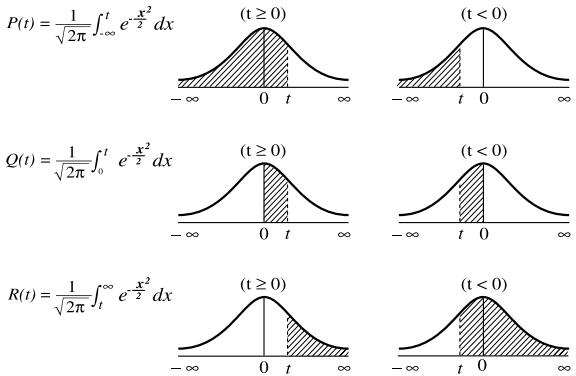

Standardization conversion formula
This equipment complies with the requirements of Directive 89/336/EEC as amended by 93/68/EEC.