Matrix2 AF62 - Headphones MEE audio - Free user manual and instructions
Find the device manual for free Matrix2 AF62 MEE audio in PDF.


| Product Type | Stereo Wireless Bluetooth Headphones |
| Brand | MEE audio |
| Model | Matrix2 AF62 |
| Connectivity | Bluetooth, NFC, 3.5mm wired |
| Microphone | Built-in |
| Battery Charging Time | First charge: 3-6 hours; Subsequent: 2-3 hours |
| Wired Use | Yes, via 3.5mm audio jack (cable included) |
| Multipoint Support | Yes, up to 2 devices simultaneously |
| NFC Pairing | Supported |
| Controls | Power, Volume, Play/Pause, Next/Previous, Call control |
| Voice Command | Supported (single press Power button) |
| Included Accessories | USB charging cable, 3.5mm audio cable, protective pouch |
| Cleaning Instructions | Wipe with soft cloth dampened with diluted soap water; no chemical cleaners |
| Safety Precautions | No user serviceable parts; avoid liquid exposure; store in protective pouch when not in use |
| Warranty | 1 year manufacturer warranty |
| Operating Temperature | Store between -10°C and 45°C (14°F to 113°F) |
| Bluetooth Profiles | AVRCP 1.3, HSP, HFP, A2DP (implied) |
Frequently Asked Questions - Matrix2 AF62 MEE audio
User questions about Matrix2 AF62 MEE audio
0 question about this device. Answer the ones you know or ask your own.
Ask a new question about this device
Download the instructions for your Headphones in PDF format for free! Find your manual Matrix2 AF62 - MEE audio and take your electronic device back in hand. On this page are published all the documents necessary for the use of your device. Matrix2 AF62 by MEE audio.
USER MANUAL Matrix2 AF62 MEE audio
Stereo Wireless Bluetooth® Headphones
model: AF62
TABLE OF CONTENTS
Product Overview 1
Charging 2
Powering On and Off 2
Pairing with Bluetooth® Devices 3
iPhone®, iPad®, and iPod touch® 3
Android™ Phones and Tablets 3
Computers and Laptops 3
Pairing with Bluetooth devices using NFC 4
Connecting to Paired Devices 4
Using the Matrix ^2 Headphones 5
Adjusting Volume 5
Controlling Phone Calls 5
Controlling Media Playback 6
Additional Functionality 6
Multipoint 7
Using as a Wired Headphone 8
Safety and Care 8
Specifications 8
Troubleshooting 8
Warranty 8
MATRIX ^2
MEE audio
MEE audio and its logo are registered trademarks of S2E, Inc. All rights reserved.
iPhone®, iPad®, iPod touch® is a registered trademark of Apple Inc.
Android ^™ is a registered trademark of Google Inc.
The Bluetooth® word mark and logos are registered trademarks owned by Bluetooth SIG, Inc. and any use of such marks by MEE audio is under license. Other trademarks and trade names are those of their respective owners.
MATRIX ^2
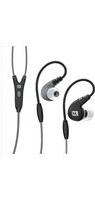
AF62 Stereo Bluetooth Wireless Headphones
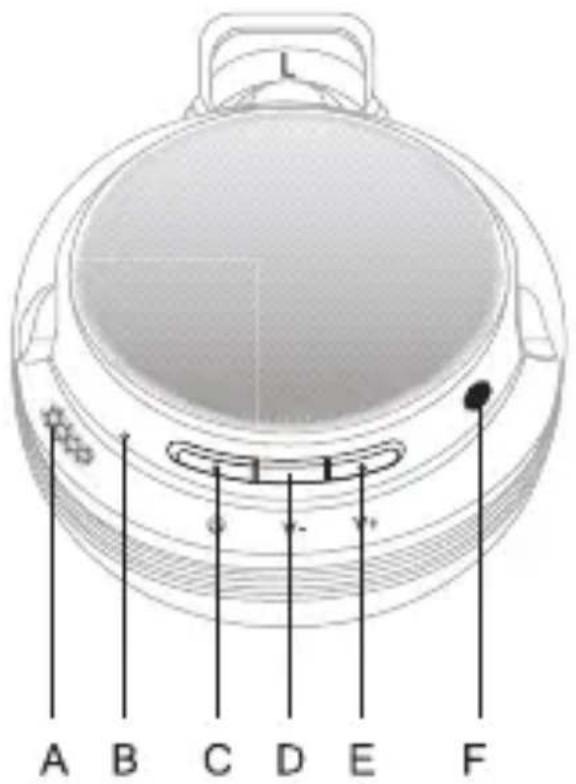
Left Ear Cup
A microphone
B LED indicator
C power/call button ⏻
D volume down V-
E volume up V+
F 3.5mm audio jack
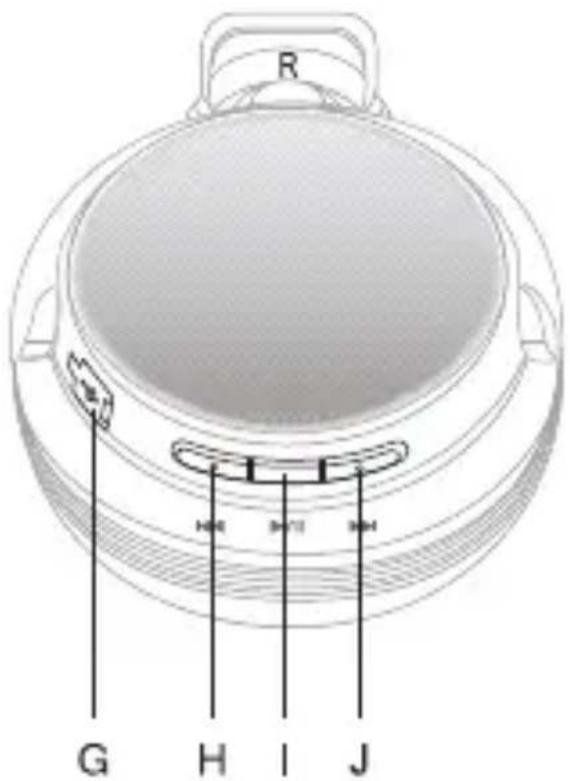
Right Ear Cup
G USB port for charging
H next track ▶▶
I play/pause button ▶/II
J previous track
CHARGING
*** You must completely charge the headset before the first use ***
Connect the USB charging cable to any powered USB port and to the USB jack on the right ear cup. The red LED indicator will light solid while charging. Charge time is typically 3-6 hours for the first charge and 2-3 hours for subsequent charges. When the battery is fully charged the bright red LED indicator will turn off.
Note: Bluetooth will function when the unit is charging, but leaving the Matrix2 on can increase charge time. The headphones can also be turned off and used with the included audio cable while charging. This will not affect charge time.
When the battery is low, the red LED will turn on. The Matrix2 will also provide a low battery voice notification every minute.
POWERING ON AND OFF
a) To power on, press and hold the Power button for approximately 3 seconds. The Matrix2 will say "power on" and the blue indicator light will flash every second to show the power is on.
b) To power off, press and hold the Power button for approximately 5 seconds. The Matrix2 will say "power off."
PAIRING WITH BLUETOOTH® DEVICES
*** It is only necessary to pair your Matrix2 once with each device ***
a) Open the Bluetooth menu* on the device you wish to pair. Some devices require you to select "search for devices" or "add new devices" in order to create a Bluetooth pairing.
b) Make sure the Matrix2 is off and within 1 meter of your device. Initiate pairing mode by pressing the Power button for 6 seconds, until you hear "ready to pair, turn on Bluetooth, the pin code is 0000". The red and blue LEDs will flash in an alternating pattern while the Matrix2 is in pairing mode. (Note: The Matrix2 will enter standby mode if not paired within 5 minutes.)
c) Wait until you see "Matrix2" appear on your device
d) Select "Matrix2" on your device and allow to pair. If your device asks for a pin, enter "0000". Once pairing is complete and a connection is established, the blue LED on the Matrix2 will be on continuously
If pairing fails, please repeat steps a) through d) above
*Locating the Bluetooth menu:
iPhone, iPad, and iPod touch
a) On your device, go to Settings
b) Select Bluetooth (Bluetooth is under the General menu in iOS 5.1.1 and older); if Bluetooth is not on, turn it on. The iPhone/iPad/iPod will automatically search for new devices
Android Phones and Tablets
a) On your device, go to Settings menu
b) Select Wireless & Networks → Bluetooth and if Bluetooth is not on, turn it on. Select "Search for Devices" if your phone or tablet does not automatically search for new devices
Computers and Laptops
Visit the Bluetooth Support Page at www.MEEaudio.com for pairing, connecting, and setup information.
If pairing fails after several tries, please refer to your device's user manual for further information.
PAIRING WITH BLUETOOTH DEVICES USING NFC
Note: When the volume reaches the minimum or maximum level there will be two short tones.
a) Put the Matrix2 in pairing mode
b) Place the NFC-compatible device against the left ear cup of the Matrix2 until pairing is complete.
c) A dialog box should automatically appear; if the dialog box does not appear, re-position the device until it does
d) Follow the instructions on the screen to pair the device with the Matrix2
CONNECTING TO PAIRED DEVICES
*** The Matrix2 must have been previously paired with your device before you can connect ***
When the Matrix2 is turned on and not in pairing mode, it should connect to the last connected device automatically. If the last connected device discoverable, the Matrix2 will connect to other paired devices in the order of last connection.
If the Matrix2 does not connect and remains in standby mode, a short press of the Play/Pause button will connect to the last connected device with Bluetooth on and within range.
Note: On some PC and Mac computers you will need to manually enable Bluetooth audio every time you connect.
USING THE MATRIX ^2 HEADPHONES
Adjusting Volume
| Function | Operation | Notes |
| Increase volume | Single press or press and hold the Volume Up v+ button | When the volume reaches the minimum or maximum level the Matrix will produce a short tone. |
| Decrease volume | Single press or press and hold the Volume Down v- button |
Note: In standby mode and while playing media with most devices, volume adjustments will only change the volume of the Matrix2. Adjust device volume as needed to further increase or decrease the volume. During a phone call the Matrix2 will control device volume. Some newer devices use AVRCP 1.3 Bluetooth Profile, which will allow the Matrix2 to change the device volume at all times.
Controlling Phone Calls
| Status | Function | Operation |
| Incoming call | Answer a call | Single press the Power ⏻ button |
| Reject a call | Press and hold the Power ⏻ button for 2 seconds | |
| Call in progress | End a call | Single press the Power ⏻ button |
| Call in progress, phone handset active1 | End a call | Single press the Power ⏻ button |
| Call in progress, second incoming call | Answer new call and place the current call on hold | Single press the Power ⏻ button |
| Reject incoming call | Press and hold the Power ⏻ button for 2 seconds | |
| One call active, one on hold | Switch active calls | Press and hold the Power ⏻ button for 2 seconds. There will be a single tone to indicate the calls have been switched. |
| End current call and switch to call on hold | Single press the Power ⏻ button |
^1 If you answer a call from your phone instead of the headset, most phones will activate the phone handset, not the Matrix2.
USING THE MATRIX ^2 HEADPHONES (Continued)
Controlling Media Playback
| Status | Function | Operation |
| No media playing1 | Play media | Press the Play/Pause ▶/|| button |
| Media playing | Pause media playback | Press the Play/Pause ▶/|| button |
| Either media playing or stopped2 | Skip to next track | Press the Next ▶▶ button |
| Restart the track/previous track | Press the Previous ◀◀ button |
^1 You may need to focus on the media player application for initial playback to start.
^2 Not all media players support this functionality.
Note: If you answer or make a call while listening to media, the media will be paused until the call has ended.
Additional Functionality
| Action / Status Button Function Sounds | ||
| Activate voice command / dialing1 | Single press the Power ⏻ button Short tone | |
| Redial last call1 | Double-press the Power ⏻ button Short tone | |
^1 Not all devices support this functionality. For more information, refer to the user manual for your device.
MULTIPOINT
Multipoint Pairing
Multipoint allows two Bluetooth devices to be connected to the Matrix2 simultaneously. Both devices will need to be paired before multipoint can be used.
To use two Bluetooth devices with the Matrix2, first pair them by following the pairing procedure described in the Pairing with Bluetooth devices section for each device and then turn off the headset.
When turned on again, the Matrix2 will automatically attempt to connect to the 2 most recently-paired devices, as long as they have Bluetooth enabled and are within range. If a device that has already been paired does not connect automatically, select “Matrix2” from the Bluetooth menu of the device.
If you no longer wish to connect to multiple devices, disable Bluetooth on the device you do not want connected to the Matrix2 or remove the “Matrix2” pairing from the Bluetooth menu of the device.
Multipoint Functionality
| Status Function Operation | ||
| Media playing on one device | Play media on other device | Pause audio playback on the active device and start audio playback on the other connected device* |
*It may take up to 60 seconds for audio to switch
Note: Incoming calls will always take precedence over media. If media is playing on one device and an incoming call is received on the other device, the Matrix2 will pause the media on the active device and activate the device with the incoming call. Once the call is ended, the Matrix2 will reactivate the original device and resume playback (with most media applications).
For phone call controls, see the Controlling Phone Calls section.
USING AS A WIRED HEADPHONE
The Matrix2 comes with a 3.5mm audio jack on the left ear cup and an audio cable for wired use. This allows use with in-flight entertainment devices, devices that don't have Bluetooth or aren't paired, or when the battery is depleted.
The Matrix2 can be used wired while still connected via Bluetooth to another device. Bluetooth audio takes precedence over wired audio; if a Bluetooth device is connected while listening to wired audio, wired audio will partially mute when audio is transmitted via Bluetooth. Wired audio will resume approximately 10 seconds after the Bluetooth transmission ends.
SAFETY AND CARE
a) When not in use, power the headphones off and store in the included protective pouch.
b) Clean with a soft cloth, damp with diluted soap water solution if necessary. Never use chemical cleaners.
c) There are no user replaceable/reparable parts in the headset. Disassembling it will void your warranty.
d) Do not expose the headphones to liquids. If submersed in water, do not turn the device on until completely dried.
Note: liquid submersion voids the warranty.
e) Battery performance will be severely decreased when stored in extreme temperatures: below -10^/14^ or above 45^/113^ .
SPECIFICATIONS
See the Matrix2 product page at www.MEEaudio.com for product specifications.
TROUBLESHOOTING
Visit MEEaudio.com for additional Bluetooth information and troubleshooting.
WARRANTY
The Matrix2 is covered by a 1-year manufacturer warranty. For more information, visit www.MEEaudio.com.

- Stereo Wireless Bluetooth® Headphones
- TABLE OF CONTENTS
- MATRIX 2
- AF62 Stereo Bluetooth Wireless Headphones
- Left Ear Cup
- Right Ear Cup
- CHARGING
- POWERING ON AND OFF
- PAIRING WITH BLUETOOTH® DEVICES
- Android Phones and Tablets
- Computers and Laptops
- PAIRING WITH BLUETOOTH DEVICES USING NFC
- CONNECTING TO PAIRED DEVICES
- USING THE MATRIX 2 HEADPHONES
- USING THE MATRIX 2 HEADPHONES (Continued)
- MULTIPOINT
- Multipoint Pairing
- USING AS A WIRED HEADPHONE
- SAFETY AND CARE
- SPECIFICATIONS
- TROUBLESHOOTING
- WARRANTY
Brand : MEE audio
Model : Matrix2 AF62
Category : Headphones