
WC2130 - Webcam SILVERCREST - Free user manual and instructions
Find the device manual for free WC2130 SILVERCREST in PDF.



| Product Type | Webcam |
| Brand | SilverCrest |
| Model | WC2130 |
| Connection Interface | USB 2.0 (compatible with USB 1.1) |
| Power Supply | USB bus powered (5V DC) |
| Lens | Manual focus via focus ring |
| Status Indicator | LED (on when recording) |
| Stand | Variable stand (adjustable) |
| Microphone | Built-in |
| Included Software | ArcSoft VideoImpression, PhotoImpression, Funhouse |
| Operating System | Windows XP, Windows Vista |
| Warranty | 36 months from date of purchase |
| Certification | CE |
| Cleaning | Clean with a dry cloth; do not open housing |
| Safety | Keep away from heat, moisture, and children |
| Disposal | Separate collection (WEEE) |
| Focus Adjustment | Rotate focus ring to sharpen image |
| Video Capture | Yes, with VideoImpression software |
| Image Capture | Yes, with PhotoImpression software |
| Support Hotline UK | 0207-3650744 |
Frequently Asked Questions - WC2130 SILVERCREST
User questions about WC2130 SILVERCREST
0 question about this device. Answer the ones you know or ask your own.
Ask a new question about this device
Download the instructions for your Webcam in PDF format for free! Find your manual WC2130 - SILVERCREST and take your electronic device back in hand. On this page are published all the documents necessary for the use of your device. WC2130 by SILVERCREST.
USER MANUAL WC2130 SILVERCREST
Owner's Manual & Service Information

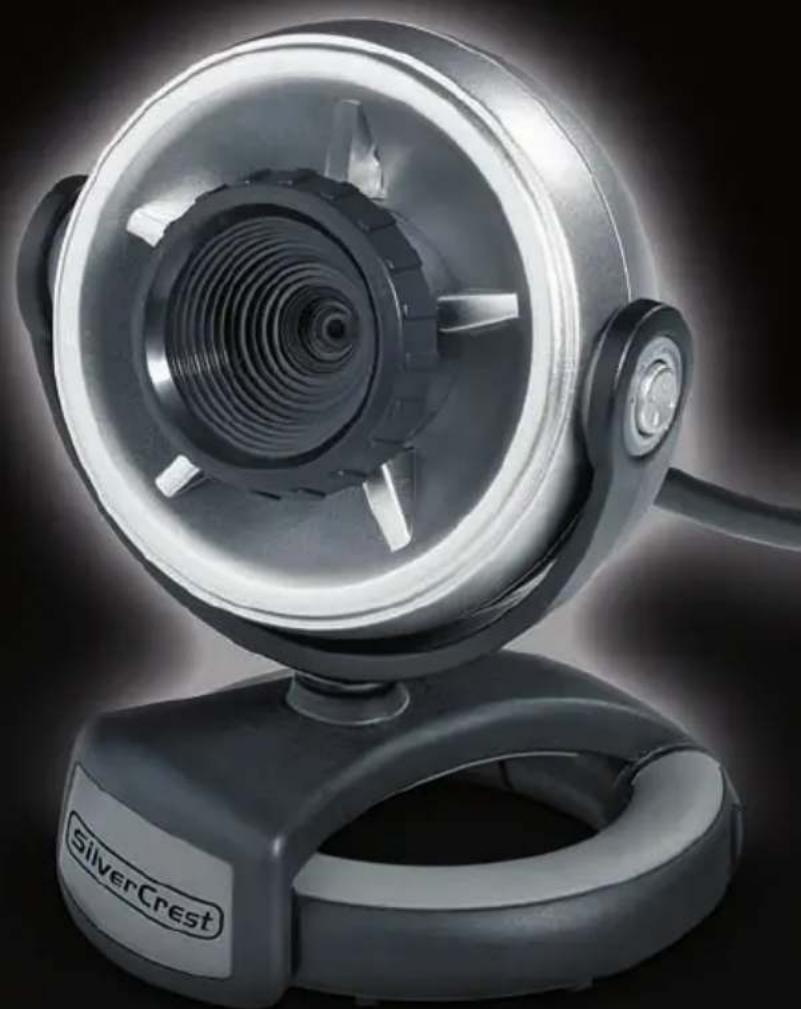
Overview
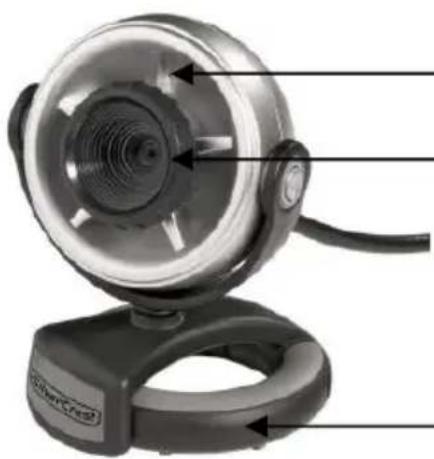
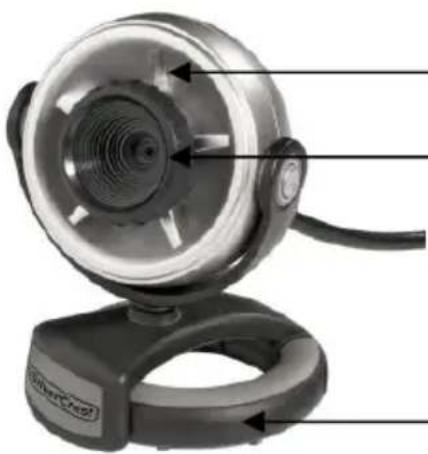
Status LED (On = recording active)
Focus ring for adjusting the image definition
Variable stand
Scope of supply
□ Webcam WC2130 □ Driver/Software CD □ Instruction Manual
Important notes
Before using the appliance for the first time, please carefully read through the following instructions and note all warnings, even if you are familiar with handling electronic equipment. Store this manual in a safe place for future reference. If you sell or give away the appliance, please ensure you handover this manual too.
OPERATING ENVIRONMENT
- The appliance is not designed for use in rooms with a high temperature or air humidity (e.g. bathrooms) or excessive dust. Please ensure that:
- no direct heat sources (e.g. heaters) act on the appliance
- the appliance is not exposed to direct sunlight or strong artificial light
- you avoid contact with splashing and dripping water and aggressive liquids
- the appliance is not exposed to large temperature fluctuations, as otherwise air humidity can condense
- The appliance is not exposed to excessive impacts and vibrations.
- Do not place any fire (e.g., candlelights) onto or next to the device.
MAINTENANCE AND CARE
Clean the appliance with a clean, dry cloth only. Never open the housing.
CHILDREN
Do not allow children to play with the webcam as there is a risk of suffocation if they swallow the small parts.
DISPOSAL OF OLD EQUIPMENT

If this symbol of a rubbish bin with a cross through it is attached to a product, the product is subject to the European Directive 2002/96/EC. All waste electrical and electronic equipment must be disposed of separately from normal domestic waste in officially provided collection points. By properly disposing of old equipment you avoid environmental damage and a risk to people's health.
CE DECLARATION OF CONFORMITY

This appliance has been tested and approved with respect to compliance with the basic requirements and other relevant regulations of the EMC Directive 89/336/EEC, the Directive for low voltage electrical equipment 73/23/EEC and the R&TTE Directive 99/5/EC.
Installation

Do not connect the webcam to your computer's USB connection until you have finished installing the software.
Please insert the driver and software CD in your CD/DVD drive. The CD starts automatically. If the installation window does not appear automatically, please right-click your CD/DVD drive in "My Computer" and select "Open". Then click "Setup.exe" to start the installation. In general, please follow the instructions on the screen.
Installing the software
To install the enclosed software, please select the relevant program in the installation window of the CD.
Please select "Install Device Driver" first. Then click "Next". The driver installation starts. In the following window, please click "Continue installation". Then "Finish". Under "Install Application Software", please select the programs you want to install and then click "Install Application Software".
Note
Please restart your computer when the installations have finished. You will be asked to restart now or restart your computer later after clicking on "Exit".
Installing the webcam
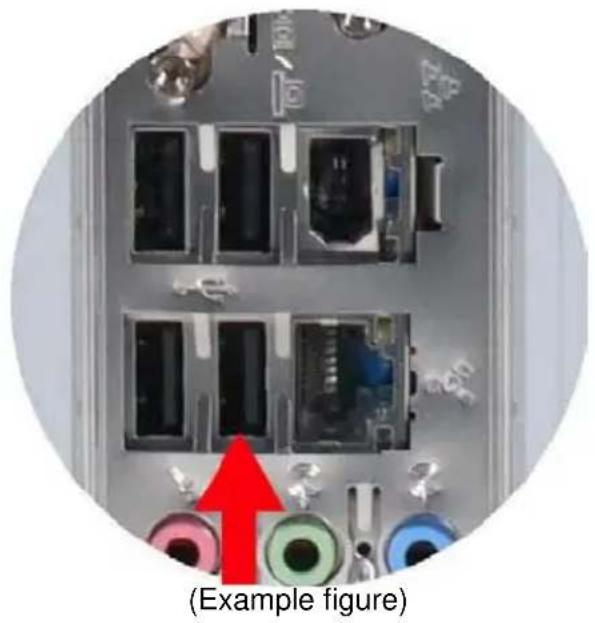
Connect the PC camera's connector to your computer's USB connection. Ensure the connector is correctly inserted.
Windows has recognized new hardware and starts the Assistant for new hardware. When you are asked whether to search for drivers online, please select "No, not this time" and click "Next". Select "Automatically install software" and click "Next". In the following window, please click "Continue installation". Please click "Finish" to complete the installation.
Note
If you use Windows Vista as your operating system, problems associated with the use of a USB 1.1 connection can occur with the microphone. Please connect the webcam to a USB 2.0 connection.
Initial steps with VideoImpression
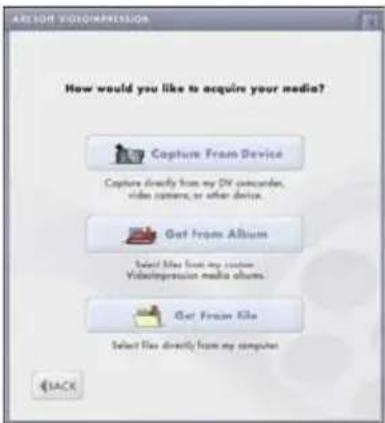
When you start the program, an Assistant is automatically opened, which helps you use the software. Select "Create a new video" to start a recording from the webcam. A new window opens. It contains several options for compiling your video contents.
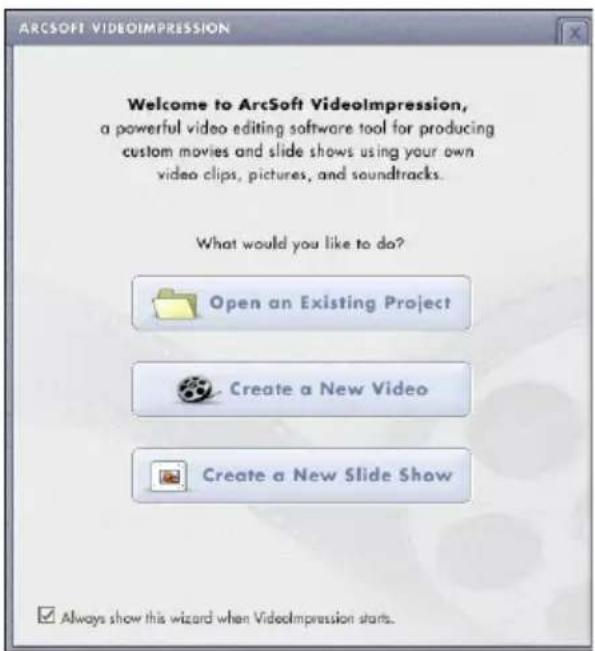
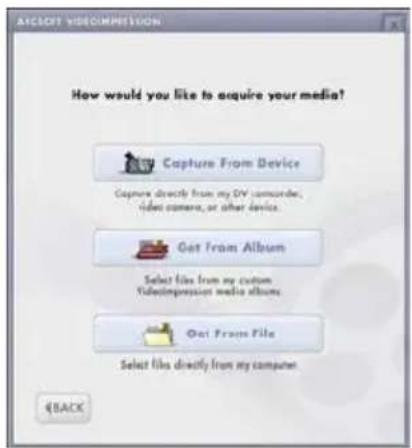
Here you can select which source you want to use to create a video. If you want to record a video from
the webcam select "Capture From Device".
A further window opens in which the live image of the webcam is displayed. If the webcam image is not displayed you may have to select "USB 2.0 PC Camera" under the device item. Quit the recording with "Finish".
If you want to view a complete introduction to using VideoImpression, select "Help" in the menu and then "Basics".
Note
If the image is out of focus, rotate the Webcam's focus ring until the image is focused.
Initial steps with PhotoImpression
When you start the program, an Assistant is automatically opened, which helps you use the software. Select "Video" to record and edit images from the webcam.
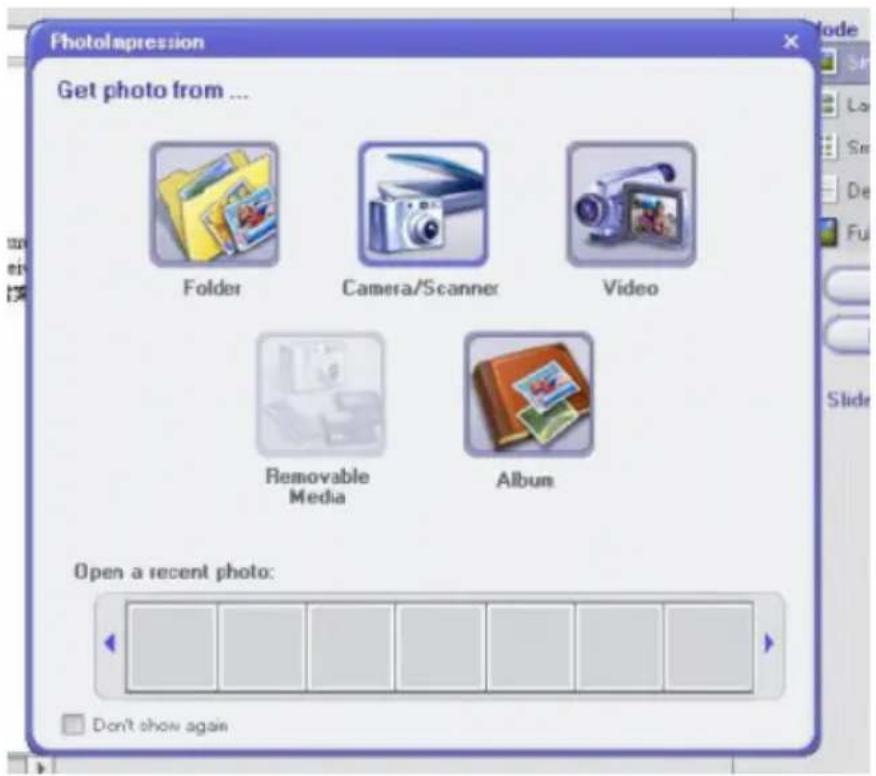
A new window opens. Select "Live" to display the current webcam image or select "Capture" to save an image.
An interactive Help facility is available under the menu item "Help".

If you select "Camera/Scanner" and then "USB 2.0 PC Camera" an error message appears. This is because the webcam does not have an internal memory from which images can be read. At this point you can read out e.g. a digital camera or import an image from a scanner.
Initial steps with Funhouse
You can use Funhouse to produce unique images by combining two or more photos. Place your head on famous monuments or use your head to decorate the cover page of magazines, the bodies of famous persons, animations or any other image.
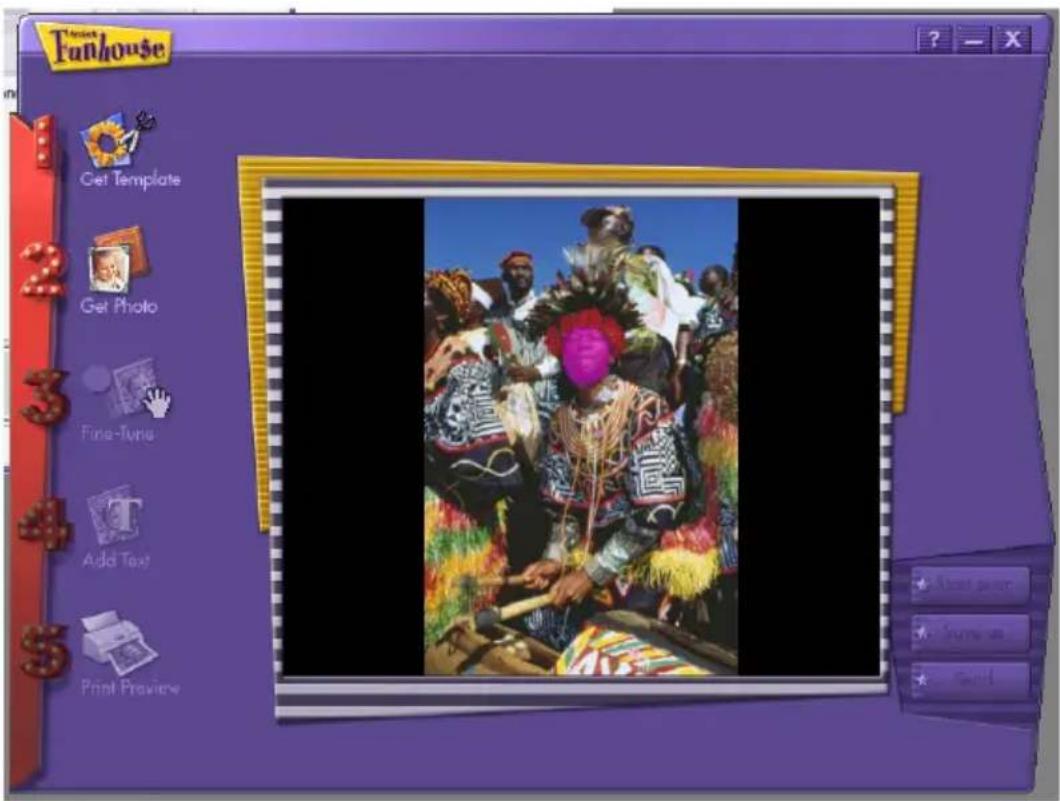
To create images, please work through the individual items, one after the other, in the left-hand menu and follow the instructions.
Further help is available with the "?" symbol in the top, right-hand corner.
Notes
36 month warranty from date of purchase

United Kingdom
Important warranty information

Dear Customer,
Thank you for purchasing a SILVERCREST product.
Please carefully read through the enclosed documentation or online help before putting your SILVERCREST product into service. If you have a problem, which can't be solved in this way, please contact our hotline.
If the problem cannot be solved over the phone, you will be given a reference number (RMA), which you should enclose together with a copy of the proof of purchase. After you have packaged the unit safe for transport and in plain packaging, please send it for warranty processing, with the RMA noted on the outside of the package, to the address given to you by our hotline employee. After receiving the unit we will correct the manufacturing and material defect free of charge.
Up-to-date information and answers to the most frequently asked questions are available on the internet from:
www.silvercrest.cc
This guarantee is valid in the UK.
Your statutory guarantees from the seller are in addition to this warranty and are not limited by it.

Hotline number: 0207-3650744
(Please have your serial number to hand!)
Manufacturer: TARGA GmbH, Postfach 2244.
D-59482 Soest
www.silvercrest.cc
36 month warranty from date of purchase

Important warranty information
SilverCrest
Dear Customer,
Thank you for purchasing a SILVERCREST product.
Please carefully read through the enclosed documentation or online help before putting your SILVERCREST product into service. If you have a problem, which can't be solved in this way, please contact our hotline.
If the problem cannot be solved over the phone, you will be given a reference number (RMA), which you should enclose together with a copy of the proof of purchase. After you have packaged the unit safe for transport and in plain packaging, please send it for warranty processing, with the RMA noted on the outside of the package, to the address given to you by our hotline employee. After receiving the unit we will correct the manufacturing and material defect free of charge.
Up-to-date information and answers to the most frequently asked questions are available on the internet from:
www.silvercrest.cc
This guarantee is valid in the Ireland.
Your statutory guarantees from the seller are in addition to this warranty and are not limited by it.

MONTH WARRANTY
Hotline number: 01-2421583
(Please have your serial number to hand!)
Manufacturer: TARGA GmbH, Postfach 2244,
D-59482 Soest
www.silvercrest.cc
Overview
- OWNER'S MANUAL & SERVICE INFORMATION
- OVERVIEW
- SCOPE OF SUPPLY
- IMPORTANT NOTES
- OPERATING ENVIRONMENT
- MAINTENANCE AND CARE
- CHILDREN
- DISPOSAL OF OLD EQUIPMENT
- INSTALLATION
- INSTALLING THE SOFTWARE
- NOTE
- INSTALLING THE WEBCAM
- INITIAL STEPS WITH VIDEOIMPRESSION
- INITIAL STEPS WITH PHOTOIMPRESSION
- INITIAL STEPS WITH FUNHOUSE
- NOTES
- MONTH WARRANTY FROM DATE OF PURCHASE
- IMPORTANT WARRANTY INFORMATION
- HOTLINE NUMBER
- SILVERCREST
Brand : SILVERCREST
Model : WC2130
Category : Webcam