
FO-3150 - Fax machine SHARP - Free user manual and instructions
Find the device manual for free FO-3150 SHARP in PDF.


| Product Type | Thermal Fax Machine |
| Brand | SHARP |
| Model | FO-3150 |
| Dimensions (W × D × H) | 306 × 265 × 130 mm |
| Weight | 3.2 kg |
| Power Supply | 220-240 V AC, 50/60 Hz |
| Power Consumption (standby) | 5 W |
| Power Consumption (active) | 150 W |
| Printing Type | Thermal Transfer |
| Printing Media | Thermal paper roll |
| Paper Width | 216 mm (A4) |
| Transmission Speed | 14.4 kbps |
| Printing Resolution | Standard: 203 × 98 dpi, Fine: 203 × 196 dpi |
| Memory | 20 pages (memory reception) |
| Main Functions | Send, receive, copy, speed dial, delayed transmission |
| Maintenance and Cleaning | Unplug before cleaning. Use a soft, slightly damp cloth. Do not use solvents. |
| Safety | Unplug during thunderstorms. Do not operate in humid conditions. |
| Spare Parts and Repairability | Thermal roll, thermal head, belt available at authorized dealers. |
| General Information | Compliant with Directive 1999/5/EC. Sound power < 70 dB(A). |
Frequently Asked Questions - FO-3150 SHARP
User questions about FO-3150 SHARP
0 question about this device. Answer the ones you know or ask your own.
Ask a new question about this device
Download the instructions for your Fax machine in PDF format for free! Find your manual FO-3150 - SHARP and take your electronic device back in hand. On this page are published all the documents necessary for the use of your device. FO-3150 by SHARP.
USER MANUAL FO-3150 SHARP
- Installation
- Sending Faxes
- Receiving Faxes
- Making Copies
- Answering Machine Connection
- Special Functions
- Printing Lists
- Maintenance
- Troubleshooting
CAUTION: For a complete electrical disconnection pull out the mains plug.
The mains outlet (socket-outlet) shall be installed near the equipment and shall be easily accessible.
This equipment complies with the requirements of Directive 1999/5/EC.
This is a facsimile product operating in Swedish, Danish, Finnish, Norwegian, Spanish, Portuguese, Greek analogue public switched telephone networks which follow the CTR21 Standard.
The Declaration of Conformity can be viewed at the following URL address.
Introduction
Welcome, and thank you for choosing a SHARP laser fax machine! The features and specifications of your laser fax are shown below.
| Automatic dialling | Rapid Key Dialling: 10 numbers Speed Dialling: 99 numbers |
| Memory size* | 1.8 MB (approx. 100 average pages) |
| Modem speed | 14,400 bps with auto fallback to lower speeds. |
| Transmission time* | Approx. 6 seconds (only when ECM is on) |
| Toner cartridge yield** (continuous printing, 4% page coverage, A4 paper) | Initial starter cartridge (included with fax machine): Approx. 1,800 pages Replacement cartridge FO-29DC: Approx. 3,700 pages |
| Drum cartridge yield** (continuous printing, 4% page coverage, A4 paper) | Initial starter cartridge (included with fax machine): Approx. 20,000 pages Replacement cartridge (FO-29DR): Approx. 20,000 pages |
| Scanning Resolution | Horizontal: 8 lines/mm Vertical: Standard: 3.85 lines/mm Fine /Halftone: 7.7 lines/mm Super fine: 15.4 lines/mm |
| Automatic document feeder | A4: 20 pages max. (80-g/m² paper) |
| Recording system | Laser |
| Halftone (grayscale) | 64 levels |
| Compatibility | ITU-T (CCITT) G3 mode |
*Based on Sharp Standard Chart at standard resolution, excluding time for protocol signals (i.e., ITU-T phase C time only).
**The yields may vary depending on coverage and operating conditions.
| Paper tray capacity | A4: Approx. 200 sheets of 70 g/m2copier paper, or 180 sheets of 80 g/m2copier paper (at room temperature; maximum stack height should not be higher than the line on the tray) Recommended paper weight: 70 g/m2Copy Bond |
| Compression scheme | MR, MH, MMR |
| Input document size | Automatic feeding: Width: 148 to 216 mm Length (20 pages): 140 to 297 mm Length (5 pages): 140 to 356 mm Manual feeding: Width: 148 to 216 mm Length: 140 to 600 mm |
| Effective scanning width | 210 mm max. |
| Effective printing width | 208 mm max. |
| Contrast control | Automatic/Dark selectable |
| Reception modes | TEL/FAX/AM |
| Copy function | Single/Multi/Sort (50 copies/page) |
| Applicable telephone line | Public switched telephone network / PBX |
| Display | 16-digit LCD display |
| Power requirements | 220-230 V AC, 50 Hz |
| Operating temperature | 10 - 30°C |
| Humidity | 20 - 85% RH |
| Power consumption | Standby: 7.5 W Maximum: 840 W |
| Dimensions (without attachments) | Width: 327 mm Depth: 380 mm Height: 173 mm |
| Weight (without attachments) | Approx. 6.0 kg |
As a part of our policy of continuous improvement, SHARP reserves the right to make design and specification changes for product improvement without prior notice. The performance specification figures indicated are nominal values of production units. There may be some deviations from these values in individual units.
Important:
This fax machine is not designed for use on a line which has call waiting, call forwarding, or certain other special services offered by your telephone company. If you attempt to use the fax machine in conjunction with any of these services, you may experience errors during transmission and reception of facsimile messages.
The fax machine is not compatible with digital telephone systems.
Important safety information
Do not disassemble this machine or attempt any procedures not described in this manual. Refer all servicing to qualified service personnel.
Do not install or use the machine near water, or when you are wet. For example, do not use the machine near a bath tub, wash bowl, kitchen sink or laundry tub, in a wet basement, or near a swimming pool. Take care not to spill any liquids on the machine.
Unplug the machine from the power outlet and telephone socket and consult a qualified service representative if any of the following situations occur:
- Liquid has been spilled into the machine or the machine has been exposed to rain or water.
- The machine produces odors, smoke, or unusual noises.
- The power cord is frayed or damaged.
- The machine has been dropped or the housing damaged.
Do not allow anything to rest on the power cord, and do not install the machine where people may walk on the power cord.
This machine must only be connected to a 220-230 V, 50 Hz, earthed (2-prong) outlet. Connecting it to any other kind of outlet will damage the machine and invalidate the warranty.
Never insert objects of any kind into slots or openings on the machine. This could create a risk of fire or electric shock. If an object falls into the machine that you cannot remove, unplug the machine and consult a qualified service representative.
Do not place this machine on an unstable cart, stand or table. The machine could be seriously damaged if it falls.
Never install telephone wiring during a lightning storm.
Never install telephone sockets in wet locations unless the socket is specifically designed for wet locations.
Never touch bare telephone wires or terminals unless the telephone line has been disconnected at the network interface.
Use caution when installing or modifying telephone lines.
Avoid using a telephone (other than a cordless type) during an electrical storm. There may be a remote risk of electric shock from lightning.
Do not use a telephone to report a gas leak in the vicinity of the leak.
The power outlet must be installed near the equipment and must be easily accessible.
Table of Contents
A Look at the Operation Panel 7
1. Installation 9
Unpacking Checklist. 9
Connections 10
Installing the Toner Cartridge 14
Loading Printing Paper 18
Entering Your Name and Fax Number 20
Setting the Date and Time 22
Setting the Reception Mode 24
Volume Adjustment 25
PBX and Display Settings. 29
2. Sending Faxes 32
Transmittable Documents. 32
Loading the Document 33
Adjusting the Resolution and Contrast 35
Sending a Fax by Normal Dialling 38
Sending a Fax by Automatic Dialling 39
Cover Sheet 52
Batch Page Numbering 54
Broadcasting (Sending a Fax to Multiple Destinations) 55
3. Receiving Faxes 60
Using FAX Mode 60
Using TEL Mode 61
Using A.M. Mode 63
Optional Reception Settings 64
Substitute Reception to Memory 67
- Making Copies 68
- Answering Machine Connection 70
Connecting an Answering Machine 70 Using the Answering Machine Connection 71 Optional A.M. Mode Settings 72
- Special Functions 76
Blocking Reception of Unwanted Faxes 76 Polling (Requesting a Fax Transmission) 78
- Printing Lists 85
- Maintenance 90
Scanning glass and rollers 90 The housing 91 Replacing the toner cartridge 91 Replacing the drum cartridge 92 Cleaning the drum cartridge. 95
- Troubleshooting 97
Problems and Solutions 97 Messages and Signals 102 Clearing Paper Jams 105
Index 109
A Look at the Operation Panel
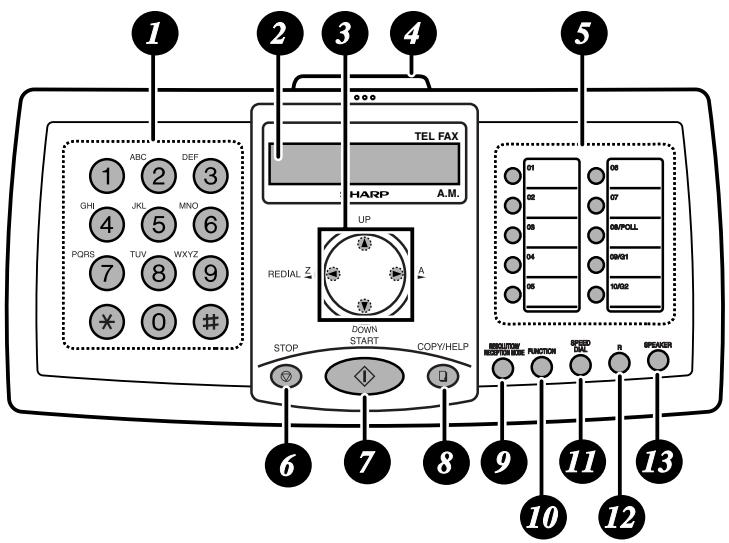
Number keys
Use these keys to dial numbers, and enter numbers and letters when storing auto-dial numbers.
Display
This displays messages and prompts to help you operate the machine.
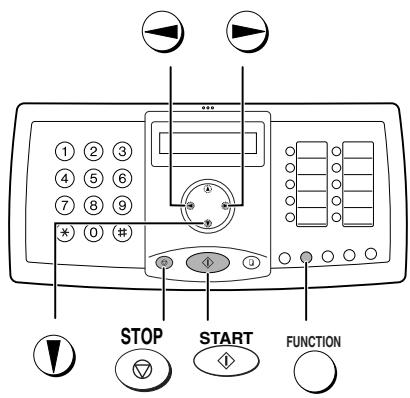
3 Arrow keys
Use these keys to scroll through and select settings, and to search for autodial numbers. Press the left arrow key (REDIAL) to select the last number dialled.
PANEL RELEASE
Pull this release to open the operation panel.
Rapid Dial Keys
Press one of these keys to dial a fax number automatically.
Press this key to cancel an operation before it is completed.
START key
Press this key after dialling to begin fax transmission. The key can also be pressed in the date and time display to show the percentage of memory currently used.

COPY/HELP key
When a document is in the feeder, press this key to make a copy of a document. At any other time, press this key to print out the Help List, a quick reference guide to the operation of your fax machine.

RESOLUTION / RECEPTION MODE key
When a document is in the feeder, press this key to adjust the resolution for faxing or copying. At any other time, press this key to select the reception mode (an arrow in the display will point to the currently selected reception mode).

FUNCTION key
Press this key followed by the arrow keys to select special functions and settings.

SPEED DIAL key
Press this key to dial a fax or voice number using an abbreviated 2-digit Speed Dial number.

R key
If you are on a PBX, use this key to transfer calls and make enquiry calls. If the PBX is a flash-type PBX, use the key to dial out.

SPEAKER key
Press this key to listen to the line and fax tones through the speaker when faxing a document.
Note: This is not a speakerphone. It cannot be used to speak if a person answers.
1. Installation
Unpacking Checklist
Before setting up, make sure you have all of the following items. If any are missing, contact your dealer or retailer.
Original document support
Toner cartridge
Drum cartridge (this is preinstalled in the machine)
Rapid Key labels
Received document tray

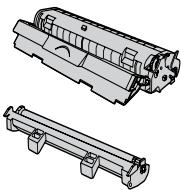
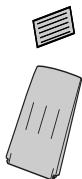

Operation manual
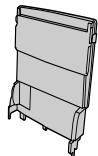
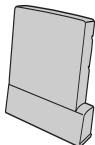
Paper tray
Paper tray cover
Points to keep in mind when setting up
Do not place the machine in direct sunlight.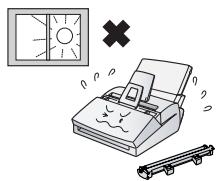
Do not place the machine near heaters or air conditioners.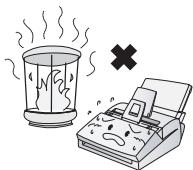
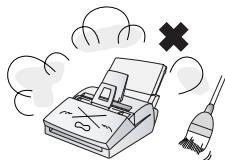
Keep dust away from the machine. Keep the area around the machine clear.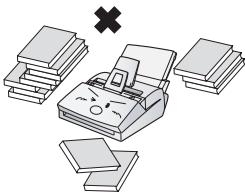
About condensation
If the machine is moved from a cold to a warm place, it is possible that condensation may form on the scanning glass, preventing proper scanning of documents for transmission. To remove the condensation, turn on the power and wait approximately two hours before using the machine.
Connections
Connecting the power cord
Plug the power cord into a 220-230 V, 50 Hz, earthed AC (2-prong) outlet.
Caution: The power outlet must be installed near the equipment and must be easily accessible.
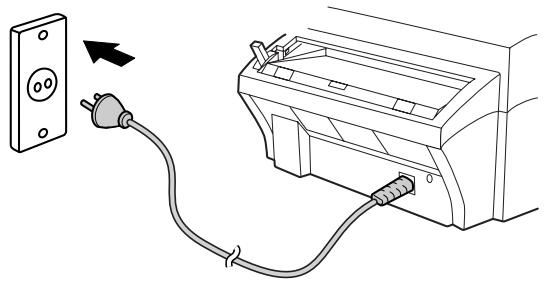
The machine does not have a power on/off switch, so the power is turned on and off by simply plugging in or unplugging the power cord.
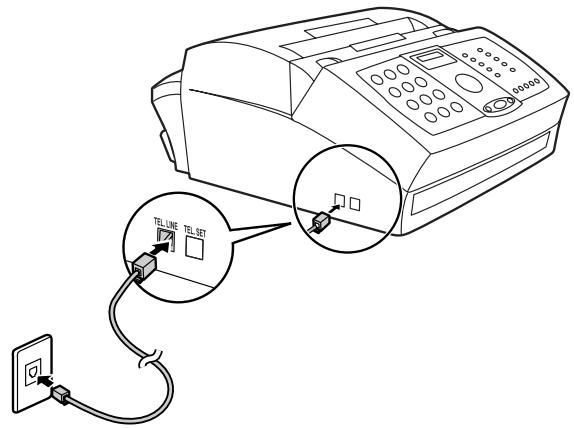
Connecting the telephone line cord
Insert one end of the line cord into the socket on the back of the machine marked TEL. LINE. Insert the other end into a wall telephone socket.
Make sure that the line cord is inserted into the TEL LINE socket. Do not insert it into the TEL. SET socket!
Note:
If your area experiences a high incidence of lightning or power surges, we recommend that you install surge protectors for the power and telephone lines. Surge protectors can be purchased from your dealer or at most telephone specialty stores.
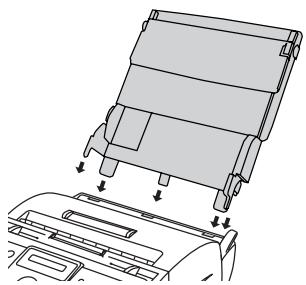
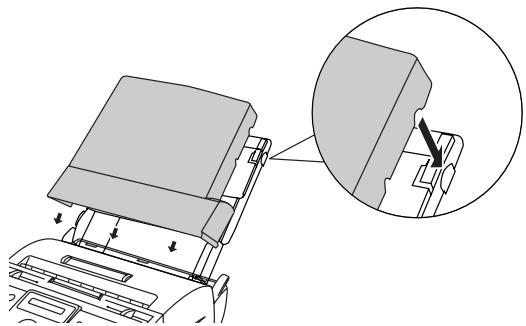
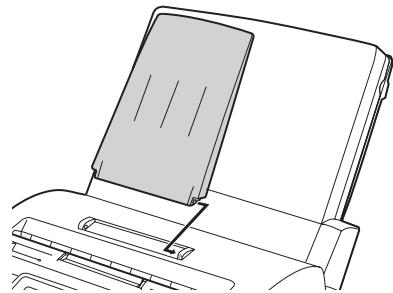
Attaching the paper trays
Attach the paper tray
Attach the paper tray cover
Attach the received document tray
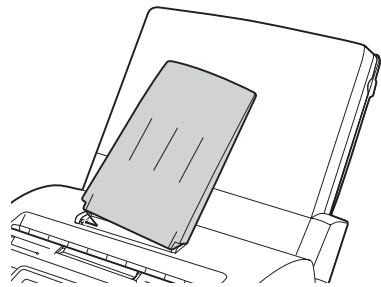
Attach the original document support
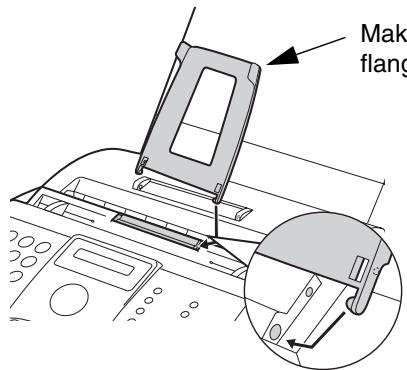
Make sure that the flanges face up

Extension phone (optional)
If desired, you can connect an extension phone to the TEL. SET socket on the machine.
To connect an answering machine to the machine, see page 70.
1 Remove the seal covering the TEL. SET socket.
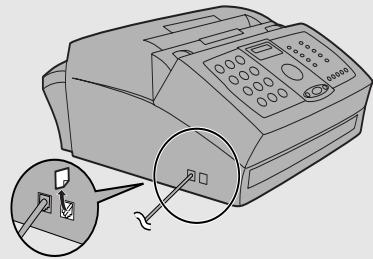
2 Connect the extension phone line to the TEL. SET socket.

Installing the Toner Cartridge
The laser printer in your fax machine uses a toner cartridge and a drum cartridge. The drum cartridge comes pre-installed, and the toner cartridge must be installed.
The starter toner cartridge included with your fax machine can print approximately 1,800 A4-size pages at 4% page coverage. When replacing the toner cartridge, use a Sharp FO-29DC toner cartridge. One cartridge can print about 3,700 A4-size pages at 4% coverage. The drum cartridge can print approximately 20,000 A4-size pages. When replacing the drum cartridge, use a Sharp FO-29DR drum cartridge.
Follow the steps below to install the toner cartridge and prepare the drum cartridge.
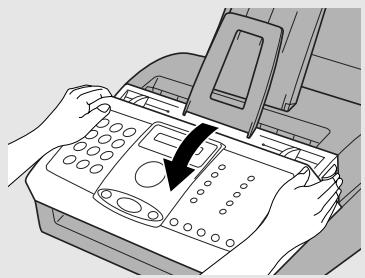
1 Grasp the print compartment cover at both sides as shown, and pull up to open the cover.
Caution!
The fusing unit inside the print compartment becomes very hot during operation. Do not touch the inside of the compartment or the paper guide on the underside of the print compartment cover.
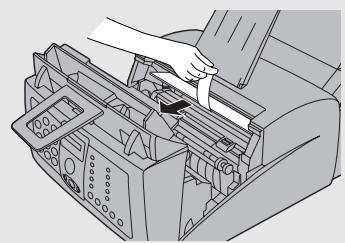
2 The drum cartridge has been installed at the factory. Remove the protective board from above the drum cartridge, and then grasp the tabs on the drum cartridge handle with both hands and gently pull the cartridge out of the machine. Remove the sheet of protective paper from the cartridge and then insert it back into the machine.
- When removing the drum cartridge, be careful not to tear the paper or leave any pieces of paper in the machine.
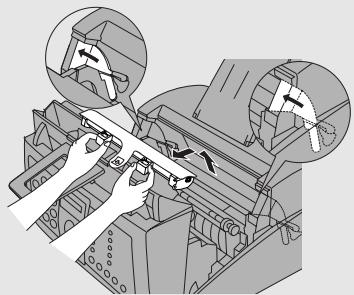
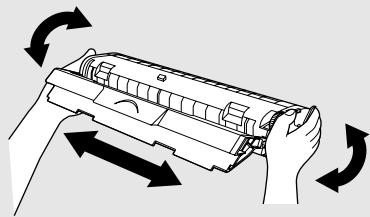
3 Remove the new toner cartridge from its packaging. Shake the cartridge side to side four or five times to distribute the toner evenly within the cartridge.
4 Hold the toner cartridge by the handle with the stamped markings on the cartridge facing upwards, and insert the cartridge into the print compartment.
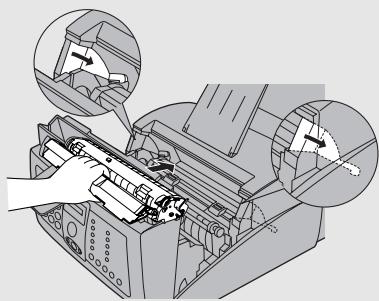
5 Place your thumb on the centre of the handle where it is marked PUSH, and push the handle down and in so that the cartridge fits into place.

6 Close the print compartment cover, pressing down firmly on each side to make sure it is completely closed.
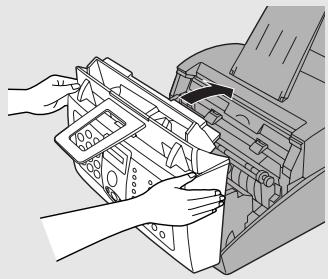
7 Reset the toner counter and the drum counter as explained below and on the following page.
Resetting the toner counter
Each time you install a new toner cartridge, follow the steps below to reset the toner counter to zero. (The machine uses the toner counter to inform you when the toner cartridge needs to be replaced.)
1
Press
FUNCTION

once and

four times.
Display:
PRINT SET-UP

2
Press

once and

twice.
CLR TONER CNT.

3
Press

once.
PRESS START KEY
4
Press

CLR DRUM COUNT
5
Press

to exit.
Resetting the drum counter
Each time you install a new drum cartridge, follow the steps below to reset the drum counter to zero.
1
Press

once and

four times.
Display:
PRINT SET-UP

2
Press

once and

once.
CLR DRUM COUNT
3
Press

once.
PRESS START KEY
4
Press

RECEIVE RATIO

5
Press

to exit.
Loading Printing Paper
The paper tray holds A4 paper.
Up to 200 sheets of 70 g/m² paper can be loaded. Up to 180 sheets of 80 g/m² paper can be loaded.
Caution!
Do not use the blank side of paper that has already been printed on.
1 Remove the paper tray cover.
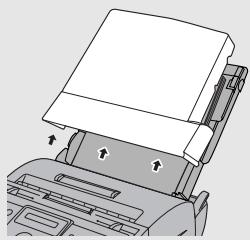
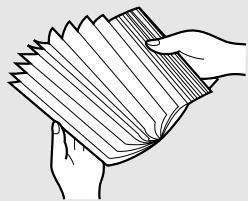
2 Fan the paper, and then tap the edge against a flat surface to even the stack.
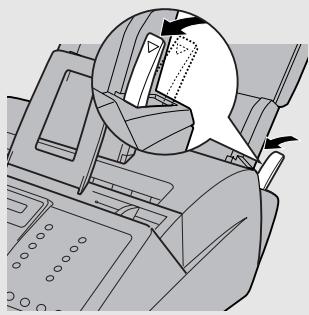
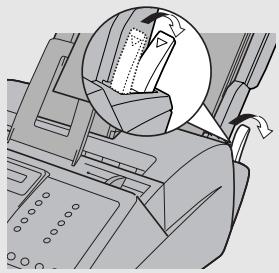
3 Pull the paper release lever toward you.
4 Insert the stack of paper firmly into the tray, print side up.
- Make sure that the stack is not higher than the marked line. Loading too much paper may cause paper jams and misfeeds.
- If paper remains in the tray, take it out and combine it into a single stack with the new paper before adding the new paper.
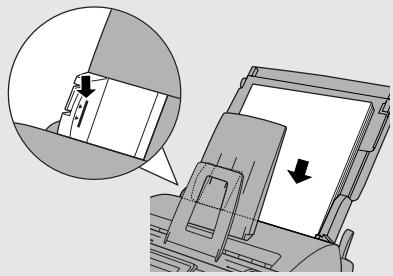
Important: Be sure to load the paper so that printing takes place on the print side of the paper. Printing on the reverse side may result in poor print quality.
5 Make sure the stack of paper is aligned against the right paper guide, and then gently move the left paper guide to the A4 position for A4 paper.
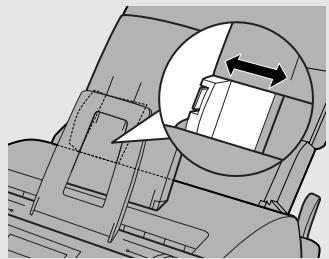
6 Push the paper release lever back down.
- Note: If the paper does not feed correctly, remove the entire stack from the tray and repeat the loading procedure from the beginning.
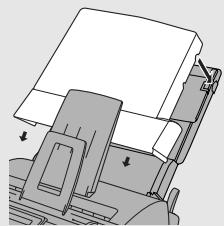
7 Replace the paper tray cover.
Entering Your Name and Fax Number
Before you begin sending faxes, enter your name and fax (telephone) number as explained below and enter the date and time as explained on page 22.
Once you enter this information, it will automatically appear at the top of each fax page you send.
1
FUNCTION
Press
once and

twice.
Display:
ENTRY MODE

2
Press

once.
OWN NUMBER SET
3
Press

once.
ENTER FAX #
4
Enter your fax number by pressing the number keys (max. 20 digits).
- To insert a space between digits, press #. To enter a "+" press ×.
To clear a mistake, press SPEAKER
5
Press

6
Enter your name by pressing number keys for each letter as shown in the chart below. Up to 24 characters can be entered.
Example: SHARP = 7777 44 2 777
SPACE = 1
A = 2
B = 22
C = 222
D = 3
E = 33
F = ③ ③ ③
G = ○
H = ○ ○ ○
I = ④ ④ ④
J = (5)
K = (5 5 \hline)
L = ⑥ ⑥ ⑥
M = ○
N = (6 6)
O = (6 6 6)
P = ○
Q = (7 7)
R = (⑦ ⑦ ⑦)
S = 7 7 7 7 \hline
T = (8)
U = ( 8 amp; 8 )
V = ( 8 amp; 8 amp; 8 )
W =
x =
Y = ⑨ ⑨ ⑨
z =
To enter two letters in succession that require the same key, press

after entering the first letter. To clear a mistake, press
SPEAKER

To enter a lower case letter, continue pressing the key for the letter until the lower case letter appears. To enter one of the following symbols, press
or repeatedly: . / ! " # $ % & ' ( ) * + , - : ; < = > ? @ [ ¥ ] ^ _ ' { } → ←
(Note: Characters particular to the selected display language will appear at the end of the symbol list.)
7
Press

Display:
SECURITY

8
Press to return to the date and time display.
Setting the Date and Time
The date and time appear in the display and are printed at the top of every page you fax. Set the date and time as shown below.
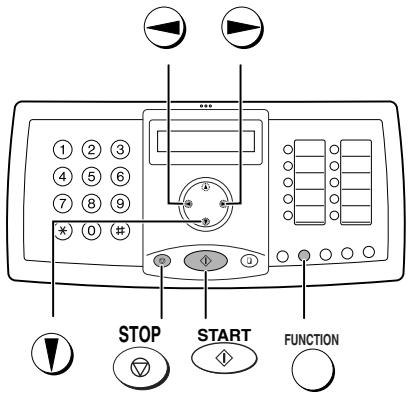
1
Press
FUNCTION
) once and

twice.
Display:
ENTRY MODE

2
Press

once and

3 times.
DATE&TIME SET

3
Press

The currently set date appears (example):
DATE 15-08-2004
4
Enter a two-digit number for the day ("01" to "31").
Example: the 5th


DATE 05-08-2004
- To correct a mistake, press ⊙ then enter the correct number.
to move the cursor back to the mistake and
5 Enter a two-digit number for the month ("01" for January, "02" for February, "12" for December, etc.).
Example: January ①

6 Enter the year (four digits).
Example: 2004 ② ① ④
The currently set time appears (example):
TIME 12:19
7 Enter a two-digit number for the hour ("00" to "23") and a two-digit number for the minute ("00" to "59").
Example: 9:25 → 0 9 2 5
8 Press START to start the clock.
05-JAN 09:25
9 Press STOP to return to the date and time display.
Note: The time setting will change automatically at the beginning and end of summertime.
Setting the Reception Mode
Your fax machine has three modes for receiving incoming faxes:
FAX mode:
Select this mode when you only want to receive faxes on your line. The fax machine will automatically answer all calls and receive incoming faxes.
TEL mode:
This mode is the most convenient for receiving phone calls. Faxes can also be received; however, all calls (including faxes) must first be answered by picking up an extension phone connected to the same line.
A.M. mode:
Use this mode only if you have connected an answering machine to the fax machine (see Chapter 5). Select this mode when you go out to receive voice messages in your answering machine and faxes on your fax machine.
Setting the reception mode
Make sure a document is not loaded in the document feeder, and then
Press RESOLUTION/RECEPTION MODE until the arrow in the display points to the desired mode.
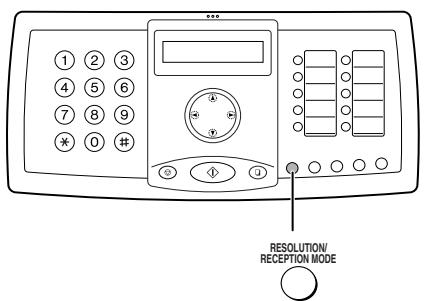
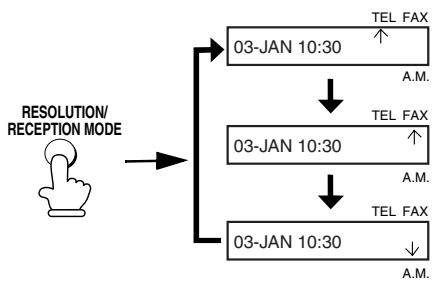
For more information on receiving faxes in FAX and TEL modes, see Chapter 3, Receiving Faxes. For more information on using A.M. mode, see Chapter 5.
Volume Adjustment
You can adjust the volume of the speaker and ringer using the up and down arrow keys.
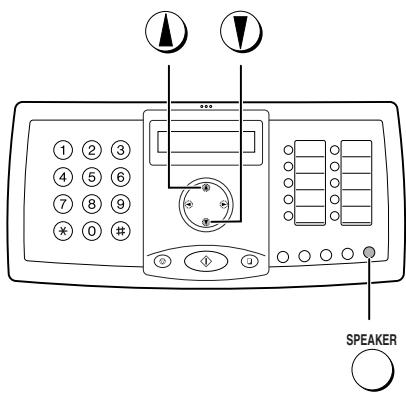
Speaker
1
Press
SPEAKER

2 Press ① or ⑦ to select the desired volume level.
- Press SPEAKER again to turn off the speaker.
Display:
SPEAKER: HIGH
SPEAKER: MIDDLE
SPEAKER: LOW
Ringer
1 Press ① or ⑦ to select the desired volume level.
(Make sure that SPEAKER has not been pressed and a document is not loaded in the feeder.)
- The ringer will ring once at the selected level.
Display:
RINGER: HIGH
RINGER: MIDDLE
RINGER: LOW
RINGER: OFF OK?
2 If you selected RINGER: OFF OK? to turn off the ringer, press

Error beep off
The machine normally sounds three beeps to alert you if an error occurs during transmission, reception, or copying. The machine also sounds a double-beep if you press an invalid key on the operation panel. If you wish to turn off the error beep, follow the steps below.
1
Press
FUNCTION
once and

3 times.
Display:
OPTION SETTING

2
Press

once and

3 times.
ERROR BEEP

3
Press

once.
1=YES, 2=NO
4
Press

to turn on the error beep or
The display briefly shows your selection, then:

to turn off the error beep.
END BEEP

5
Press
STOP
to return to the date and time display.
End beep off
The fax machine normally sounds one long beep when transmission, reception, or copying ends normally. If you wish to turn off the end beep, follow the steps below.
1 Press
FUNKTION
once and 3 times.
Display:
OPTION SETTING
2 Press
once and twice.
END BEEP

3 Press
once.
1=YES,2=NO
4 Press ① to turn on the end beep or
The display briefly shows your selection, then:
2 to turn off the end beep.
KEY TONE

5 Press

to return to the date and time display.
Key tone off
The fax machine normally sounds a beep (key tone) each time you press a key on the operation panel. If you wish to turn off the key tone, follow the steps below.
1 Press
FUNCTION
once and 3 times.
Display:
OPTION SETTING
2 Press
once and once.
KEY TONE

3 Press
once.
1=YES, 2=NO
4 Press ① to turn on the key tone or
The display briefly shows your selection, then:
2 to turn off the key tone.
FINE PRIORITY
5 Press to return to the date and time display.
PBX and Display Settings
PBX Connection
If the fax machine is connected to a PBX, you must set it for PBX operation.
1
Press
FUNCTION
once
and
3 times.
Display:
OPTION SETTING

2
Press

once and

10 times.
PBX CONNECTION

3
Press

once.
1=YES, 2=NO
4
Press

if the machine is connected
to a PBX. Press 2 if it is connected to a regular public line.
PBX SELECT
1:ID
2:FLASH
5
Set the mode for connecting calls from the PBX to an outside line. Press
1 for ID or 2 for FLASH. (Refer to your PBX manual or consult your supplier for the correct setting.)
- If you selected FLASH, go directly to Step 8.
6
If you selected ID in Step 5, enter your PBX ID number (maximum of 3 digits).
(Note: The ID number is automatically dialled for access to the public line when automatic dialling is used. Do not store it as part of the number when storing an auto-dial number.)
7
Press
START

8

Press
to return to the date and time display.
Flash Select Setting for PBX
Note: This setting is normally only used in Germany. In other countries, you can try changing the setting if you encounter difficulty with the default setting.
If your fax machine is connected to a PBX and the PBX uses the "Flash" method to connect to an outside line, you must select the appropriate Flash Select setting depending on whether your PBX line is a normal telephone line or an ISDN line (or other high-speed line).
1
FUNCTION
Press
once
and

3 times.
Display:
OPTION SETTING

2
Press

once and

9 times.
FLASH SELECT

3
Press

once.
1: SHORT TIME
4
Select (SHORT TIME) if your PBX line is a normal telephone line.
The display briefly shows your selection, then:
Select (LONG TIME) if your PBX line is an ISDN line (or other high-speed line).
FAX SIGNAL RX

5
STOP Press to return to the date and time display.
Setting the Display Language
If desired, you can change the language used in the display, reports and lists.
Press the keys on the operation panel as follows:
1
FUNCTION
Press
once and

3 times.
Display:
OPTION SETTING

2
Press

once and

9 times.
LANGUAGE

3
Press

once.
4
Press

or
until the desired language appears in the display.
5
Press
START
个
- The machine will beep and the display will change to the selected language.
6
STOP
Press
to return to the date and time display.
2. Sending Faxes
Transmittable Documents
Size and weight
Minimum document size:
Minimum size Minimum weight
52 g/m²
Maximum document size:
The maximum size and weight of documents that you can load in the document feeder depend on how many pages you load.
20 pages at once:
Size: A4 (210 x 297 mm)
Weight: 80 g/m²
1 page at a time (manual feeding):
Size: 210 x 600 mm
Weight: 157 g/m²
Letters or graphics on the edges of a document will not be scanned.
(The margin at each side of the document is 3 mm and the margin at the top and bottom is 4 mm.)

Letters in the shaded area will not be scanned.
Other restrictions
The scanner cannot recognize yellow, greenish yellow, or light blue ink. Ink, glue, and correcting fluid on documents must be dry before they pass through the document feeder. All clips, staples, and pins must be removed from documents before loading in the feeder. If these are not removed, they may damage the machine. Documents which are patched, taped, torn, smaller than the minimum size, carbon backed, easily smudged, or have a slick coated surface should be photocopied, and the copy loaded in the feeder.
Loading the Document
Up to 20 A4-size pages can be placed in the feeder at once. The pages will automatically feed into the machine starting from the bottom page.
If you need to send or copy more than the maximum number of pages, place the additional pages gently and carefully in the feeder just before the last page is scanned. Do not try to force them in, as this may cause double-feeding or jamming. If your document consists of several large or thick pages which must be loaded one at a time, insert each page into the feeder as the previous page is being scanned. Insert gently to prevent double-feeding.
1. Adjust the document guides to the width of your document.

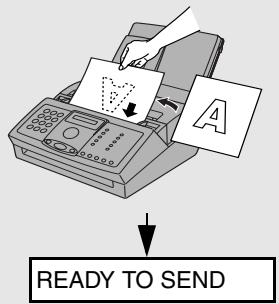
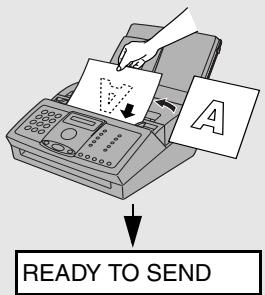
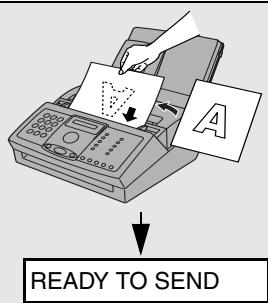
2. Insert the document face down in the document feeder. The top edge of the document should enter the feeder first.
- READY TO SEND will appear in the display.
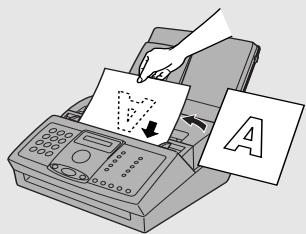
3. Adjust the resolution and/or contrast settings as explained on page 35, then dial the receiving machine as explained on page 38.
Removing a document from the feeder
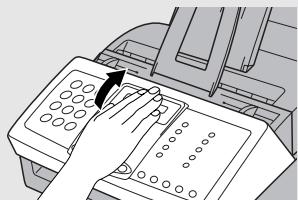
If you need to remove a document from the feeder, open the operation panel.
Important!
Do not try to remove a document without opening the operation panel. This may damage the feeder mechanism.
1. Open the operation panel.

2. Remove the document.
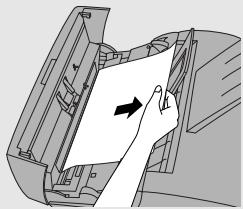
3. Close the operation panel, pressing down firmly on both front corners to make sure it clicks into place.
Adjusting the Resolution and Contrast
If desired, you can adjust the resolution and contrast before sending a document.
The default resolution setting is STANDARD and the default contrast setting is AUTO. You must adjust the settings each time you don't want to use the default settings.
Note: The resolution and contrast settings are only effective for sending a document. They are not effective for receiving a document.
Resolution settings
STANDARD
Use STANDARD for ordinary documents. This setting gives you the fastest and most economical transmission.
FINE
Use FINE for documents containing small letters or fine drawings.
SUPER FINE
Use SUPER FINE for documents containing very small letters or very fine drawings.
HALF TONE
Use HALF TONE for photographs and illustrations. The original will be reproduced in 64 shades of gray.
Contrast settings
AUTO
Use AUTO for normal documents.
DARK
Use DARK for faint documents.
1 Load the document(s).
- The document must be loaded before the resolution and contrast can be adjusted.
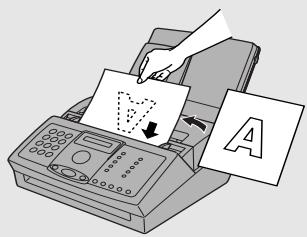
2 Press one or more times until the desired resolution and contrast settings appear in the display.
- The first time you move through the list of resolution settings, the contrast setting AUTO will appear next to each resolution setting. The second time you move through the list, the contrast setting DARK will appear.
Display: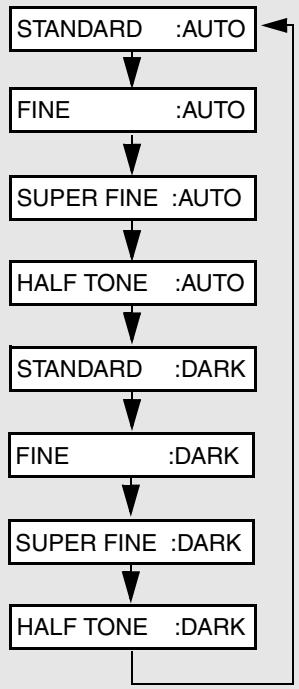
Note: In order to transmit in SUPER FINE resolution, the receiving fax machine must also have that resolution. If it doesn't, your machine will automatically step down to the next best available setting.
Changing the default resolution
If desired, you can change the default resolution for faxing documents to FINE. Follow the steps below.
1 Press

once and (V) 3 times.
Display:
OPTION SETTING
2 Press
once.
FINE PRIORITY

3 Press once.
1=YES, 2=NO
4 Press ① to set the default resolution to FINE, or ② to set it to STANDARD.
The display briefly shows your selection, then:
5 Press STOP to return to the date and time display.
Sending a Fax by Normal Dialling
With Normal Dialling, you press SPEAKER and dial by pressing the number keys.
♠ Normal Dialling allows you to listen to the line through the speaker to make sure the other fax machine is responding. (Note that the speaker is not a speakerphone; it cannot be used for talking.) You can also pick up an extension phone connected to the same line and dial using the extension phone (do not press on the fax machine). If a person answers, you will be able to speak to them through the phone before sending a fax.
SPEAKER Note: If you press to dial, you will not be able to speak using an extension phone connected to the line in the event that a person answers.
1 Load the document(s).
RESOLUTION/ RECEPTION MODE If desired, press to set the resolution and/or contrast.
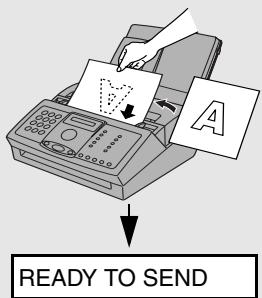
2 Press or pick up an extension phone connected to the same line. Listen for the dial tone. 3 Dial the number of the receiving machine by pressing the number keys. (If you are using an extension phone, dial using the keypad on the extension phone.)
- If you are on a Flash-type PBX and are dialing out, press ○, wait for the connection to the outside line, and then dial the number.
4 Wait for the connection. When you hear a fax tone, press START on the fax machine.
- If a person answers and you are using an extension phone, ask them to press their Start key. When you hear the fax tone, press START on your fax machine and then hang up.
- If the transmission is completed successfully, the machine will beep once.
- If an error occurs, the machine will beep three times and print a Transaction Report to inform you of the problem (see page 87).
Sending a Fax by Automatic Dialling
You can dial a fax number by simply pressing a Rapid Key, or by pressing

and entering a two-digit number.
To use Automatic Dialling, you must first store the full fax number in your fax machine. When you store a fax number, you select a two-digit Speed Dial number for it. Ninety-nine Speed Dial numbers are available.
Speed Dial numbers 01 through 10 are for Rapid Key (one-touch) Dialling.

Speed Dial numbers 11 through 99 are for
SPEED dialling with DIAL
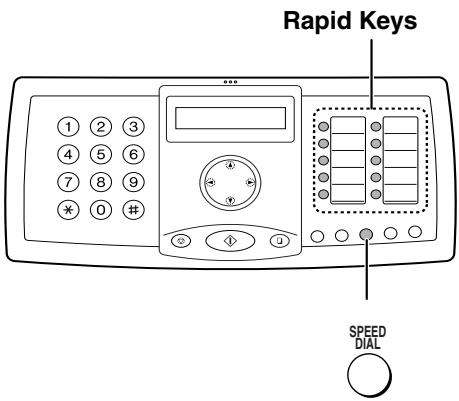
Attach the Rapid Key labels above the Rapid Keys.
When you store a number in a Rapid Key, write the name of the party on the label.
Storing fax numbers for automatic dialling
1
FUNCTION
Press
once and

once.
2
If you know the Speed Dial number that you want to use, enter that number (for example, press


for Speed Dial 01).
Otherwise, press once (the machine will suggest an available Speed Dial number at the end of the storing procedure).
Display:

ENTER FAX #
Speed Dial numbers 01 to 10 can be used for Rapid Key Dialling. Speed Dial numbers 11 to 99 are only for Speed Dialling.
3
Enter the fax number by pressing the number keys. (Note: A space cannot be entered.)
- To clear a mistake, press
SPEAKER
- If a pause is required between any of the digits to access a special service, press FUNCTION. The pause appears as a hyphen (four seconds per pause). Several pauses can be entered in a row.
- If you are on a PBX, do not enter the access code for the public line. If the number is within your PBX, enter an R before the number.
4 Press START
5 Enter a name by pressing number keys for each letter as shown in the chart below. Up to 20 characters can be entered. (If you do not wish to enter a name, go directly to Step 6.)
Example: SHARP = 7777 44 2 777
| SPACE=① | G=④ | N=⑥⑥ | U=⑧⑧ |
| A=② | H=④④ | O=⑥⑥⑥ | V=⑧⑧⑧ |
| B=②② | I=④④④ | P=⑦ | W=⑨ |
| C=②②② | J=⑤ | Q=⑦⑦ | X=⑨⑨ |
| D=③ | K=⑤⑤ | R=⑦⑦⑦ | Y=⑨⑨⑨ |
| E=③③ | L=⑤⑤⑤ | S=⑦⑦⑦⑦ | Z=⑨⑨⑨⑨ |
| F=③③③ | M=⑥ | T=⑧ |
• To enter two letters in succession that require the same key, press • after entering the first letter. • To enter a lower case letter, continue pressing the key for the letter until the lower case letter appears. • To enter one of the following symbols, press # or 串 repeatedly:
./! " # $ %&' ( ) * + , - ; < = > ? @ [ ¥ ] ^ _ - ' {1} → ←
(Note: Characters particular to the selected display language will appear at the end of the symbol list.)
6
Press

If you selected a Speed Dial number in Step 2, the display will briefly show STORED, and then . Go to Step 7.
If you did not select a Speed Dial number in Step 2, the display will show the next available Speed Dial number. If that number is acceptable,
press START and go to Step 7. If not, enter the desired two digit number,
Press START, and go to Step 7.
7
Return to Step 2 to store another number, or press STOP to return to the date and time display.
- To confirm that an auto-dial number has been stored correctly, print out the Telephone Number List as explained on page 85.
Editing and clearing auto-dial numbers
If you need to make changes to a previously stored auto-dial number, or clear a number, follow these steps:
1
Press
FUNCTION
once and once.
Display:

2
Enter the 2-digit Speed Dial number that you wish to edit or clear (for example, press 01), or press 1 or 1 until the number appears in the display.
3
Press

1=EDIT, 2=CLEAR
4 Press ① for EDIT or ② for CLEAR.
- If you selected CLEAR, go to Step 8.
5 If you selected EDIT, make the desired changes to the number.
- Press ○ or ○ to move the cursor to the digit or digits you wish to change, and then enter the new digit. The new digit will replace the old digit.
- If you do not wish to change the number, go directly to Step 6.
6 Press START
7 Make the desired changes to the name.
- Press or to move the cursor to the letter or letters you wish to change, and then press the appropriate number key repeatedly until the desired letter appears (see Step 5 on page 41). The new letter will replace the old letter.
- If you do not wish to change the name, go directly to Step 8.
8 Press START
9 Return to Step 2 to edit or clear another number, or press ○ to return to the date and time display.
Rapid Key Dialling
If the number you want to dial has been stored as a Speed Dial number from 01 to 10, you can dial it by pressing the corresponding Rapid Key.
1 Load the document(s).
If desired, press

to set the
resolution and/or contrast.
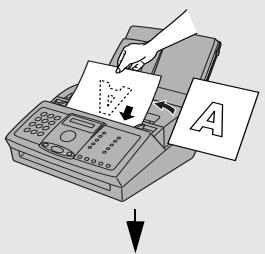
READY TO SEND
2 Press the Rapid Key corresponding to the desired Speed Dial number.
- The name of the receiving party will appear in the display. If no name was stored, the fax number will appear. (If the name or number is incorrect, press

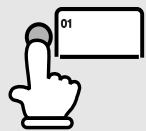
Example: To dial Speed Dial number 01, press Rapid Key 01.
- The document will be automatically transmitted once the connection is established.
- If the transmission is completed successfully, the machine will beep once.
- If an error occurs, the machine will beep three times and print a Transaction Report to inform you of the problem (see page 87).
Speed Dialling
Speed Dialling can be used to dial any number that has been stored as a Speed Dial number.
1 Load the document(s).
If desired, press

to set the
resolution and/or contrast.
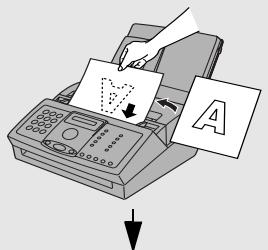
READY TO SEND
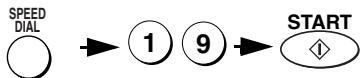
2 Press DIAL and then enter the 2-digit Speed Dial number.
- For example, to enter Speed Dial number 19, press 1 then 9.
3 Check the display. If the name or number shown is correct, press
START

(If not, press
STOP

and repeat Step 2.)
- If the transmission is completed successfully, the machine will beep once.
- If an error occurs, the machine will beep three times and print a Transaction Report to inform you of the problem (see page 87).
Searching for an auto-dial number
If you don't remember the Rapid Key or Speed Dial number in which you have stored a full fax number, follow these steps to search for the number.
1 Load the document(s).
If desired, press


to set the
resolution and/or contrast.
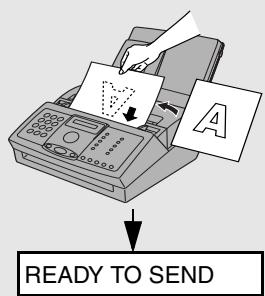
2 Press A (or REDIAL Z) until the name of the other party appears in the display (if no name was stored, the number will appear). 3 Press START. Dialling and transmission begins.
- If the transmission is completed successfully, the machine will beep once.
- If an error occurs, the machine will beep three times and print a Transaction Report to inform you of the problem (see page 87).
Sending a fax by Direct Keypad Dialling
You can also enter a full number with the number keys and then press the

key to begin dialling.
Note: Direct Keypad Dialling cannot be used to dial a number within the same PBX as your fax machine. To send a document to a fax machine in your PBX, use Normal Dialling.
1 Load the document(s).
If desired, press

to set the
resolution and/or contrast.
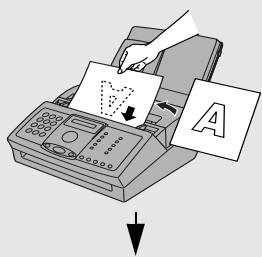
READY TO SEND
2 Enter the number of the receiving machine by pressing the number keys.
- If a pause is required between any of the digits to access a special service, press ○. The pause will appear as a hyphen (four seconds per pause). Several pauses can be entered in a row.
3 Check the display. If the number of the receiving machine shown is
correct, press START.
STOP
- If the number is not correct, press to backspace and clear one digit at a time, and then re-enter the correct digit(s).
Redial
You can automatically redial the last number dialled on the fax machine.
1 Load the document(s).
RESOLUTION/RECEPTION MODE: If desired, press to set the resolution and/or contrast.
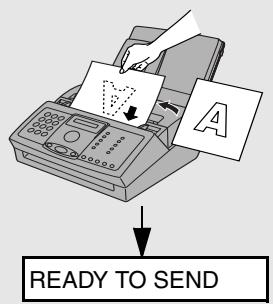
2 Press REDIAL once. The number appears in the display, followed by the last number dialled. Make sure the number that appears is the number you wish to dial. 3 Press START. Dialling begins.
Automatic redialling
If you use automatic dialling (including Direct Keypad Dialling) to send a fax and the line is busy, the fax machine will automatically redial the number. The fax machine will make two redial attempts at intervals of five minutes. During this time, RECALLING will appear in the display, followed by a two-digit number assigned to the fax job. You will not be able to dial any other locations while the message appears.
STOP
You can press
to clear the message and stop automatic redialling.
Under certain conditions (for example if a person answers the call on a telephone), automatic redialling may stop before the set number of redial attempts are made.
Recall interval for automatic redialling
If desired, you can change the interval at which the fax machine makes automatic redialling attempts.
1 Press

once and 3 times.
Display:
OPTION SETTING

2 Press
once and

) 3 times
RECALL INTERV.

3 Press
once.
ENTER (01-15) 05
4 Press the numeric keys to enter the desired interval in minutes (any 2-digit number from 01 to 15).
The display briefly shows your selection, then:
Example: 1 minute


RECALL TIMES

5 Press

to exit.
Recall times for automatic redialling
If desired, you can change the maximum number of automatic redialling attempts made when the line is busy.
1 Press
FUNCTION
once and 3 times.
Display:
OPTION SETTING
2 Press

once and (V) 3 times.
RECALL TIMES

3 Press

once.
ENTER (00-10) 02
4 Press the numeric keys to enter the desired number of recall attempts (any 2-digit number from 00 to 10).
Example: 5 attempts ① ⑤
The display briefly shows your selection, then:
FAX REMOTE #

5 Press to exit.
Error Correction Mode
The fax machine is set to automatically correct any distortions in a transmission due to noise on the telephone line before printing at the receiving end. This function is called Error Correction Mode (ECM). ECM is effective for both transmissions and receptions, and is only effective when the other fax machine has ECM as well.
When there is considerable noise on the line, you may find that transmission with ECM turned on takes longer than normal. If you prefer a faster transmission time, you can try turning ECM off.
1 Press once and 3 times.
Display:
OPTION SETTING
2 Press once and 4 times.
ECM MODE

3 Press once.
1=YES, 2=NO
4 Press ① to select YES, or ② to select NO.
The display briefly shows your selection, then:
ERROR BEEP

5 Press to return to the date and time display.
Cover Sheet
You can have the fax machine generate a cover sheet and send it as the last page of your fax transmission. The cover sheet includes the date and time, the receiver's name and number if a Rapid Key or Speed Dial number is used, the sender's name and number, and the total number of pages.
♠ Your name and number must be programmed in order for them to appear on the cover sheet (see page 20). ♠ To have the recipient's name appear, you must dial using a Rapid Key or Speed Dial number with the name programmed.
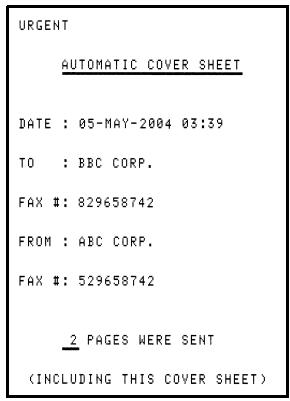
(Example)
Follow the steps below to turn on the cover sheet function. A cover sheet is automatically added to each fax transmission while the function is turned on. (To stop adding a cover sheet to your faxes, turn the function off.)
1
FUNCTION
Press
once and

3 times.
Display:
OPTION SETTING
2

once and

6 times.
COVER SHEET
3

once.
1=YES, 2=NO
4

to select YES, or


select NO.
The display briefly shows your selection, then:
AUTO PRINT OUT
5 Press to return to the date and time display.
Header message
You can select one of four messages to add as a header to a cover sheet. The message is selected at the time of transmission and is effective for one transmission only.
To select a message, the cover sheet function must be turned on. The following messages can be selected: URGENT, IMPORTANT, CONFIDENTIAL, PLS. DISTRIBUTE
1 Load the document(s).
- If desired, press resolution and/or
RESOLUTION RECEPTION MODE to set the contrast.
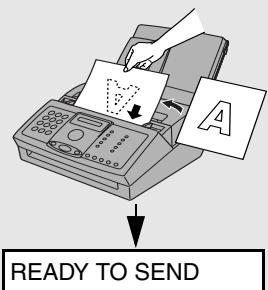
2 Press once and twice.
HEADER MESSAGE
3 Press
4 Press a number key to select a message:
1: URGENT
2: IMPORTANT
3: CONFIDENTIAL
4:PLS.DISTRIBUTE
5 Dial the receiving fax machine and send the fax.
Batch Page Numbering
You can change the page numbering of the transmitted document from simple numbering ("P.01", "P.02", etc.) to batch numbering, which means that a slash and the total number of pages being sent are added after each page number (for example, "P. 01/05", "P.02/05", etc.). This allows the recipient to check for missing pages.
1 Load the document(s).
RESOLUTION/ RECEPTION MODE If desired, press to set the resolution and/or contrast.
2 Press once and once.
Display:
3 Press once.
ENTER # (01 - 99)
4 Enter the total number of pages ("01" to "99") by pressing the numeric keys.
Example: 5 pages ① ⑤
5 Dial the receiving machine and send the fax.
If you need to cancel a batch number entry, remove the document from the
STOP Feeder or press
If the actual number of pages scanned is different from the entered number of pages, "PAGE COUNT ERROR" will appear in the display. Transmission will not take place if automatic dialing is used. If normal dialing is used, transmission will begin, however, an error will occur and a transaction report will be printed out with "PAGE E." in the NOTE column.
Broadcasting (Sending a Fax to Multiple Destinations)
This function allows you to send the same fax to as many as 20 different destinations in just one operation.
When sending to multiple destinations, only auto-dial numbers can be used to dial the numbers of the receiving machines.
1 Load the document(s).
- If desired, press resolution and/or

to set the
2 Select a destination using one of the methods below. IMPORTANT: The first destination that you select must be specified using the arrow key method below (press ▸ or ▸). Do not press a Rapid Key or enter a Speed Dial number for the first destination.
- Press ⏩ or ⏪ until the name of the destination appears in the display (if no name was stored, the number will appear).
- Press a Rapid Key (if other than the first destination).
- Press SPEED DIAL and enter a 2-digit Speed Dial number (if other than the first destination).
3 Press to store the destination.
4 Repeat Steps 2 and 3 for each of the other destinations to which you wish to send the fax (maximum of 20).
- To check your selected destinations, press ① to scroll through them. To
STOP delete a destination, scroll to the destination and then press
5 When you are ready to begin transmission, press START.
- A Transaction Report is automatically printed out after Broadcasting is completed. Check the "Note" column of the report to see if any of the destinations are marked "Busy" or have a communication error code. If so, send the document to those destinations again.
Broadcasting using a Group Key
If the fax machines to which you want to broadcast have all been programmed into one Group Key (see Storing numbers in Group Keys which follows), you can perform the broadcasting operation using the following simplified procedure:
1 Load the document(s).
- If desired, press RESOLUTION/RECEPTION MODE to set the resolution and/or contrast.
2 Press the appropriate Group Key. Transmission will begin.
Storing numbers in Group Keys
Group Keys allow you to send a fax to a group of fax machines by simply pressing the appropriate Group Key once. To store a group of numbers in a Group Key, follow the steps below.
♠ Rapid Keys 09/G1 and 10/G2 can be used as Group Keys. A key cannot be simultaneously programmed as both a Group Key and a Rapid Key. ♠ Up to 20 numbers can be stored in one Group Key.
Only Rapid Key and Speed Dial numbers can be stored in a Group Key. Full numbers cannot be stored.
1 Press

once and

twice.
Display:
ENTRY MODE

2 Press

once and

once.
GROUP ENTRY

3 Press

1=SET, 2=CLEAR
4 Press

to program a Group Key.
GROUP SET
(Press)

to clear a Group Key.)
PRESS GROUP KEY
5
Press the Group Key that you wish to program (Rapid Key 09/G1 or 10/G2).
(If you are clearing a Group Key, press the Group Key that you wish to clear and go to Step 9.)
(Example)
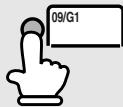
6
Select a destination using one of the following methods: Press a Rapid Key.
and enter a 2-digit Speed Dial number.
Press (or) until the name of the destination appears in the display (if no name was stored, the number will appear).
7
Press to store the destination.
8
Repeat Steps 6 and 7 for each of the other destinations that you want to store in the Group Key (maximum of 20).
- To check your selected destinations, press ① to scroll through them. To stop delete a destination, scroll to the destination and then press
9
When you have finished storing the destinations, press START
10
Stop Press to return to the date and time display.
If the memory becomes full...
If the memory becomes full while the document is being scanned, MEMORY IS FULL will appear in the display.
Press START if you want to transmit the pages which have been stored up to that point in memory. The remaining pages will be ejected from the feeder. After transmission, the memory will be cleared and you can transmit the remaining pages. You will also need to transmit the page which was being scanned when the memory filled up.
Press STOP if you want to cancel the entire transmission.
3. Receiving Faxes
Using FAX Mode
To select FAX mode, press (with no document in the feeder) until the arrow in the display points to FAX.
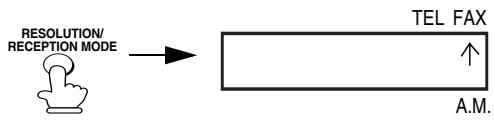
When the reception mode is set to FAX, the fax machine will automatically answer all calls on one ring and receive incoming faxes.
If you answer on an extension phone connected to the same line before the machine answers, you can talk to the other party and/or receive a fax as explained in Using TEL Mode on page 61.

Changing the number of rings
If desired, you can change the number of rings on which the fax machine answers incoming calls in FAX mode. Any number from 1 to 5 can be selected.
1
Press

once and

3 times.
Display:
OPTION SETTING

2
Press

once and

once.
NUMBER OF RING
3
Press

once.
ENTER # (1-5) 1
4
Enter the desired number of rings (any number from 1 to 5).
Example: 3 rings

The display briefly shows your selection, then:
RECALL INTERV.

5
Press

to return to the date and time display.
Important:
Do not let more than 50 pages accumulate in the received document tray. Too many pages in the tray will cause paper jams.
Using TEL Mode
To select TEL mode, press (with no document in the feeder) until the arrow in the display points to TEL.
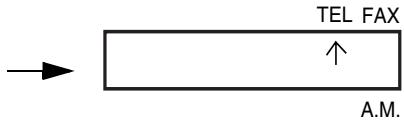
When the reception mode is set to TEL, you must answer all calls (even fax calls) by picking up an extension phone connected to the same line.
Answering on an extension phone connected to the same line
1 Answer the extension phone when it rings.

2 If you hear a soft fax tone, wait until your fax responds (the extension phone will go dead), then hang up.

3 If the fax doesn't respond, or if the other party first talks to you and then wants to send a fax, press 5 once and * twice on the extension phone (only on a tone dial phone). This signals the fax machine to begin reception. Hang up.
- The above step is necessary if you have set the Fax Signal Receive setting to NO.
- Your fax will not accept the signal to begin reception (5) (*) if a document is loaded in its feeder.
- You can also begin fax reception by pressing START on the fax machine (press START before you hang up the extension phone).
Using A.M. Mode
To select A.M. mode, press RESOLUTION/RECEPTION MODE until the arrow in the display points to A.M.
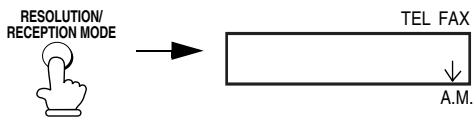
In A.M. mode, your fax will automatically receive voice and fax messages if you have connected an answering machine to the fax machine. See Chapter 5 for more details.
Optional Reception Settings
Fax Signal Receive
Your fax will automatically begin reception if you hear a soft fax tone after answering a call on an extension phone. If you use a computer fax modem to send documents on the same line, you must turn this function off in order to prevent your fax from mistakenly attempting to receive documents from the computer fax modem. Follow the steps below to change the setting.
1
Press

once and

3 times.
Display:
OPTION SETTING
2
Press

once and

8 times.
FAX SIGNAL RX
3
Press

once.
1=YES, 2=NO
4
Press

to turn on the function, or
The display briefly shows your selection, then:

to turn it off.
POLLING

5
Press

to return to the date and time display.
Changing the number for remote fax activation
If desired, you can use a number other than 5 to activate fax reception from an extension telephone. You can select any number from 0 to 9.
1
FUNCTION
Press
once and

3 times.
Display:
OPTION SETTING

2
Press

once and

four times.
FAX REMOTE #

3
Press

once.
ENTER (0-9) (5)
4
Enter the desired number (any number from 0 to 9).
The display briefly shows your selection, then:
Example:

TRANSACTION

5
Press
STOP
to return to the date and time display.
Reception Ratio
The fax has been set at the factory to automatically reduce the size of received documents to fit the size of the printing paper. This ensures that data on the edges of the document are not cut off. If desired, you can turn this function off and have received documents printed at full size.
If a document is too long to fit on the printing paper, the remainder will be printed on a second page. In this case, the cut-off point may occur in the middle of a line. Automatic reduction may not be possible if the received document is too large, contains too many fine graphics or images, or is sent at high resolution. In this case, the remainder of the document will be printed on a second page.
1

Press
once and

four times.
Display:
PRINT SET-UP

2
Press

once.
RECEIVE RATIO

3
Press

once.
1=AUTO,2=100%
4
Press ① to select AUTO, or ② to select 100%.
The display briefly shows your selection, then:
COPY CUT-OFF

5
Press to return to the date and time display.
Substitute Reception to Memory
In situations where printing is not possible, such as when your fax runs out of paper, the print cartridge needs replacement, or the paper jams, incoming faxes will be received to memory.
When you have received a document in memory, FAX RX IN MEMORY will appear in the display, alternating with ADD PAPER & PRESS START KEY, COVER OPEN, PAPER JAMMED, REPLACE TONER, or PRINTER ERROR.
When you add paper (and press START), or clear the jam, or replace the print cartridge, the stored documents will automatically print out.
♠ If you received documents in memory because the fax ran out of paper, be sure to add paper which is the same size as the paper previously used. If not, the document print-out size may not match the size of the printing paper.
Caution!
♠ When documents are stored in memory, do not turn the power off. This will erase all of the contents. ♦ If documents received in memory are lost due to a power failure or other interruption in the power supply, a CLEAR REPORT will be printed out when the power is restored. This gives information about the receptions lost, including the fax numbers of the transmitting machines if they are available.
4. Making Copies
Your fax machine can also be used to make copies. Single and multiple copies (up to 50 per original) can be made, enabling your fax to double as a convenience office copier.
1 Load the document(s) face down. (Maximum of 20 A4 pages.)
RESOLUTION / RECEPTION MODE: If desired, press to set the resolution and/or contrast. (The default resolution setting for copying is FINE.)
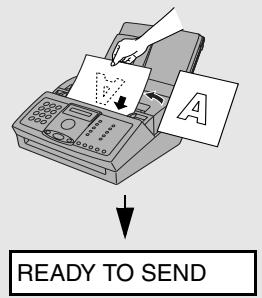
2 Select any of the following copy settings as needed:
- Enlarge/reduce: Press ① or ⑦ until the desired setting appears in the display. Settings are 100%, 125%, 150%, 200%, 50%, 73%, 88%, 94%, and AUTO (automatic adjustment to match the size of the paper). The default setting is 100%.
Example: Press twice COPY RATIO: 125%
- Number of copies per original: Press the number keys to enter a number from 1 to 50. The default setting is 1.
Example: Press 2 for two copies → 2
- Sorted copies: To sort the copies as shown below under "Sorted", first set the number of copies per original (at least "2" copies must be set), and then
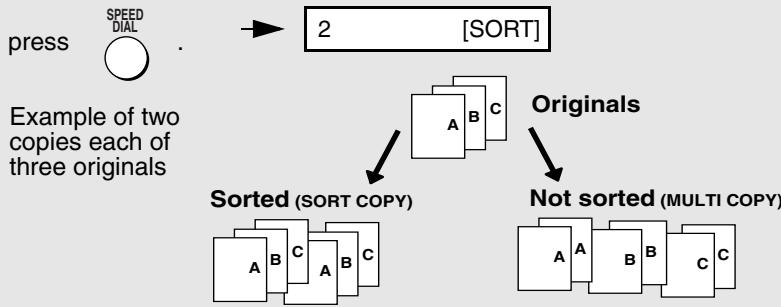
3 When you are ready to begin copying, press
COPY/HELP

If MEMORY IS FULL appears...
If you place a large number of originals in the feeder, the memory may become full before all pages can be scanned (the display will show MEMORY
IS FULL). If this happens, press START to copy the pages that have been scanned, and then repeat the copy procedure for the remaining pages, including the page that was being scanned when the memory became full.
Copy Cut-off
When making a copy of a document that is longer than the printing paper, use the copy cut-off setting to select whether the remaining part of the document will be cut off or printed on a second page. The initial setting is YES (cut off the remainder). To change the setting, follow the steps below.
1 Press
FUNCTION

once and (V) four times.
Display:
PRINT SET-UP

2 Press

once and once.
COPY CUT-OFF

3 Press

once.
1=YES, 2=NO
4 Press
1 to set copy cut-off to YES
The display briefly shows your selection, then:
(the remaining part of the document
will not be printed), or 2 to set copy cut-off to NO (the remaining part will be printed on a second page).
LIFE COUNTER

5 Press to return to the date and time display.
5. Answering Machine Connection
Connecting an Answering Machine
If desired, you can connect an answering machine to your fax machine's TEL. SET socket. This will allow you to receive both voice messages and faxes when you are out.
Important: If the answering machine is not connected to the TEL. SET socket on the fax as shown, the setup will not operate properly.
1 Remove the seal covering the TEL. SET socket.
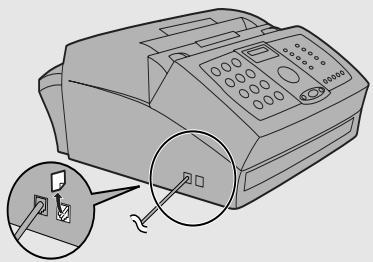
2 Connect the answering machine's telephone line socket to the TEL. SET socket.
- If desired, you can connect an extension phone to your answering machine's extension phone socket.
Make sure the TEL LINE socket is connected to the wall socket.
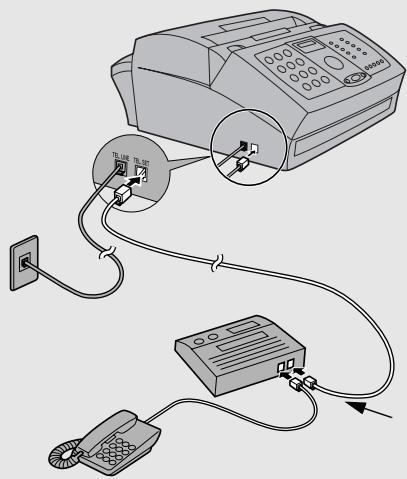
To answering machine's telephone line socket.
Changing the outgoing message
The outgoing message (OGM) of your answering machine should be changed to inform callers who want to send a fax to press their Start key. For example, your message might go as follows:
"Hello. You've reached the ABC company. No one is available to take your call right now. Please leave a message after the beep or press your facsimile Start key to send a fax. Thank you for calling."
It is advisable to keep the length of the message under 10 seconds. If it is too long, you may have difficulty receiving faxes sent by automatic dialling. If your outgoing message must be longer than 10 seconds, leave a pause of about four seconds at the beginning of the message. This will give your fax a chance to detect fax tones sent when automatic dialling is used.
Using the Answering Machine Connection
When you go out, activate the answering machine connection as follows:
1 Set the reception mode to A.M.
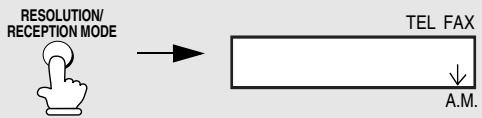
2 Set your answering machine to auto answer.
Your answering machine must be set to answer on a maximum of two rings. If not, you may not be able to receive faxes sent by automatic dialling. If your answering machine has a toll saver function, make sure that it will answer by the fourth ring.
Note: If your answering machine has a remote retrieval function, make sure the code used to activate remote retrieval is different from the code used to activate fax reception with an extension telephone (see page 65). If they are the same, entering the code from an outside telephone to retrieve messages will cause the fax machine to be activated.
How answering machine mode operates
While you are out, all of your incoming calls will be answered by your answering machine and its outgoing message will play. Voice callers can leave a message. During this time, your fax will quietly monitor the line. If your fax detects a fax tone or a duration of silence greater than four seconds, it will take over the line and begin reception.
If the connection is not good or there is noise on the line, the answering machine and/or fax machine may not respond properly. The call counter on your answering machine may indicate that voice messages were received, when only fax messages were received. To prevent the fax from taking over the line and beginning reception if you call in from an external phone or answer on an extension phone, press any three keys (other than the code to activate fax reception, "5", "×", and "×") on the dial pad of the phone. This can only be performed from a phone capable of tone dialling.
When you return and turn off your answering machine, be sure to change the reception mode back to FAX or TEL!
Optional A.M. Mode Settings
If necessary, you can use the following settings to improve the response of the answering machine connection to incoming calls.
Quiet Detect Time
This function causes the fax machine to take over the line and begin reception if a certain duration of silence is detected after the answering machine answers.
Time selections for the period of silence are 1 to 10 seconds. Quiet Detect Time has been set to 4 seconds at the factory. This gives the best performance with most answering machines; however, you may need to adjust this setting depending on the disconnect time of your answering machine.
Some answering machines may have unusually fast disconnect times (equal to or very slightly less than 4 seconds), which means that the answering machine may disconnect the line before fax reception can begin. In this case, try a Quiet Detect Time setting of about 3 seconds.
If the fax machine is interrupting callers before they can leave a message, try a longer Quiet Detect Time setting. If your outgoing message includes a period of silence, make sure that the setting is longer than that period of silence, or re-record your outgoing message to shorten the silence.
Note: Quiet Detect Time can be turned off by entering "00" for the time. Note, however, that the fax machine will not be able to receive faxes sent manually by Normal Dialling.
To change the setting, follow the steps below.
1
FUNCTION
Press
once and

3 times.
Display:
OPTION SETTING

2

once and

6 times.
QUIET TIME

3
Press

once.
ENTER (00-10) 04
4
Enter a number from 01 to 10, or enter 00 to turn off the function.
The display briefly shows your selection, then:
Example: 3 seconds


QUIET START

5
Press to return to the date and time display.
Quiet Detect Start Time
This setting can be used to delay the start of the Quiet Detect Time function. For example, if you want to insert a pause at the beginning of your answering machine's outgoing message to ensure clear detection of fax signals, you can use this setting to delay the start of silence detection so that the pause will not cause the fax to take over the line.
Quiet Detect Start Timing has been turned off at the factory. If you want to use this function, turn it on by entering a 2-digit number equal to the desired number of seconds of the delay. As general guide, the delay time should be slightly longer than the pause before the outgoing message.
| 1 Press FUNCTION once and 3 times. Display: OPTION SETTING |
| 2 Press once and 7 times. QUIET START |
| 3 Press once. ENTER (00-15) 00 |
| 4 Enter a 2-digit number (from 01 to 15) for the number of seconds of the delay, or enter 00 to turn off the function. The display briefly shows your selection, then: ON A.M. FAILURE |
| Example: 3 seconds 0 3 |
| 5 STOP Press to return to the date and time display. |
On A.M. Failure
When this function is turned on, your fax will answer the call after 5 rings if the answering machine for some reason fails to answer before that time. This ensures that you will receive fax messages even if the answering machine's tape fills up or the answering machine is not turned on.
This function has been turned off at the factory. If you want to turn it on, follow the steps below:
Note:
When this function is turned on, make sure that the answering machine is set to answer on 4 rings or less. If it isn't, the fax will always answer first, preventing callers from leaving voice messages.
1 Press

once and 3 times.
Display:
OPTION SETTING
2 Press

8 times.
ON A.M. FAILURE
3 Press

once.
1=YES, 2=NO
4 Press
1 to turn on the function, or
The display briefly shows your selection, then:

to turn it off.
LANGUAGE

5 Press
STOP
to return to the date and time display.
6. Special Functions
Blocking Reception of Unwanted Faxes
The Anti Junk Fax function allows you to block reception of faxes from parties that you specify. This saves paper by not printing out unwanted "junk" faxes. To use this function, follow the steps below to enter the fax numbers from which you do not wish to receive faxes. Up to five fax numbers can be entered.
1
Press
FUNCTION
) once and

twice.
Display:
ENTRY MODE

2
Press

once and

twice.
ANTI JUNK #

3
Press

once.

4
Press

ENTER FAX #
5
Enter the fax number (maximum of 20 digits).
6
Press


7
Return to Step 3 to store another number, or press date and time display.
STOP

to return to the
Editing and clearing anti junk numbers
If you need to make changes to a previously stored anti junk number, or clear a number, follow these steps:
1 Press
FUNCTION
once and twice.
Display:
ENTRY MODE

2 Press
once and twice.
ANTI JUNK #

3 Press

4 Press ① or ⑦ until the number you want to edit or clear appears in the display.
5 Press ▷
1=EDIT, 2=CLEAR
6 Press ① for EDIT or ② for CLEAR.
- If you selected CLEAR, go to Step 8.
7 If you selected EDIT, make the desired changes to the number.
- Press ○ or ○ to move the cursor to the digit or digits you wish to change, and then enter the new digit. The new digit will replace the old digit.
8 Press START

9 Return to Step 4 to edit or clear another number, or press ⊙ to return to the date and time display.
Polling (Requesting a Fax Transmission)
Polling allows you to call another fax machine and have it send a document (previously loaded in its feeder) to your machine without operator assistance. In other words, the receiving fax machine, not the transmitting fax machine, initiates the transmission.
To use the polling function, you must first set Rapid Key 08/POLL for use as a polling key.
When Rapid Key 08/POLL is set as a polling key, it cannot be used for Rapid Key dialling.
1 Press

once and (V) 3 times.
Display:
OPTION SETTING
2 Press
once and 7 times.
POLLING

3 Press once.
1=YES, 2=NO
4 Press 1 to use Rapid Key 08/POLL as a polling key.
The display briefly shows your selection, then:
(To turn off the polling function, press
COVER SHEET

5 Press to return to the date and time display.
Requesting transmission
1 Dial the fax machine you want to poll using one of the following methods:
- Press SPEAKER and dial the full number. Wait for the fax answerback tone.
- Press SPEAKER and press a Rapid Key. Wait for the fax answerback tone. Press SPEED DIAL and enter a 2-digit Speed Dial number.
- Enter the full number using the numeric keys.
2 Press 08/POLL
- Reception will begin.
Being polled (Memory polling)
To let another fax machine poll your fax machine, you must first store the document(s) in memory using the following procedure. Transmission will take place when the other fax machine calls your fax machine and activates polling. You can choose whether to allow polling only once, or an unlimited number of times. In the latter case, your fax machine can be used as an electronic "bulletin board".
If you allow polling only once, the document(s) will be automatically cleared from memory after polling. If you allow polling an unlimited number of times, the document will remain in memory until you clear it as explained in the following section, Clearing a memory polling document.
1 Load the document.
If desired, press

resolution and/or contrast.
to set the
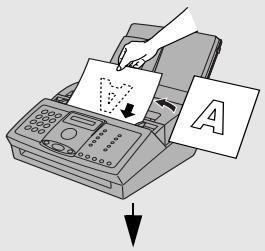
READY TO SEND
2
Press

once and

3 times.
MEMORY POLLED

3
Press

1=SET, 2=CLEAR
4
Press

to select SET.
1=ONCE,2=REPEAT
5
Press

to allow polling only once, or

to allow polling an
unlimited number of times.
6
Press
START

- The document will be scanned into memory, and your fax will go on polling standby.
7
Set the reception mode to FAX (press
RESOLUTION/ RECEPTION MODE
until the arrow in the display points to FAX).
Clearing a memory polling document
To clear a memory polling document from memory, follow these steps:
To clear a memory polling document from memory, follow these steps:
Press
Press

once and 3 times.
MEMORY POLLED
2
Press

1=SET, 2=CLEAR
3
Press 2 to select CLEAR.
4
Press

to clear the document.
5
Press to return to the date and time display.
Polling security
Polling Security allows you to prevent unauthorized polling of your machine. When this function is turned on, polling will only take place when the fax number of the polling fax machine has been entered in your machine's list of permitted fax numbers (called "passcode numbers"). The number of the polling fax must also be correctly programmed into itself for identification.
To use Polling Security, follow the steps below to turn the function on, and then enter permitted numbers as explained on the following page.
1
Press
FUNCTION
once and

twice.
Display:
ENTRY MODE

2
Press

once and

once.
SECURITY

3
Press

1=ON, 2=OFF
4
Press

to turn on polling security.
(Press

to turn off polling security.)
5
Press

The display briefly shows your selection, then:
PASSCODE MODE
6
Press

to return to the date and time display.
Storing fax numbers for polling permission
You can store up to 10 fax numbers in your machine's list of permitted numbers.
1 Press
FUNCTION
once and

twice.
Display:
ENTRY MODE

2 Press
once and twice.
PASSCODE MODE
3 Press

4 Press
ENTER FAX #
5 Enter the fax number (maximum of 20 digits).
6 Press START

7 Return to Step 3 to store another number, or press to return to the date and time display.
Editing and clearing polling permission numbers
If you need to make changes to a previously stored polling permission number, or clear a number, follow these steps:
1
Press

once and

twice.
Display:
ENTRY MODE

2
Press

once and

twice.
PASSCODE MODE
3
Press


4
Press

or
until the number you want to edit or clear appears in
5
Press

1=EDIT, 2=CLEAR
6
Press

for EDIT or

for CLEAR.
- If you selected CLEAR, go to Step 8.
7
If you selected EDIT, make the desired changes to the number.
- Press the left or right arrow key to move the cursor to the digit or digits you wish to change, and then enter the new digit. The new digit will replace the old digit.
8
Press


9
Return to Step 4 to edit or clear another number, or press to return to the date and time display.
STOP

to return
7. Printing Lists
You can print lists showing settings and information entered in the fax machine, and a report showing recent fax transactions. The lists and report are described below. To print a list or report, follow these steps.
1 Press
FUNCTION
) once and

once.
Display:
LISTING MODE

2 Press

once.
ACTIVITY LIST

3 Press <1> or <2> until the desired list appears in the display.
4 Press once.
PRESS START KEY
5 Press START to print the list.
Activity Report
This report shows information on your most recent 30 fax transactions. The report is divided into two parts: the TRANSMISSIONS ACTIVITY REPORT, which shows information on fax transmissions, and the RECEIPTIONS ACTIVITY REPORT, which shows information on fax receptions.
♠ All information is erased after a report is printed out. If information on 30 fax transactions accumulates, the information on the oldest transaction will be deleted each time a new transaction takes place. ♠ You can have the Activity Report printed out automatically each time information on 30 fax transactions accumulates. See page 89. ♠ The Activity Report contains the same headings as the Transaction Report. See page 87 for an explanation of the headings.
Telephone Number List
This list shows the fax numbers that have been stored for automatic dialling.
Group List
This list shows the fax numbers that have been stored in each Group Key.
Setup List
This list shows your current selections for the FUNCTION key settings. The list also shows your name and fax/telephone number as entered in the machine, and a sample of the header printed at the top of every page you transmit (HEADER PRINT).
| SETUP LIST | |
| FOR: | 19-JAN-2004 18:25 |
| ***ENTRY MODE*** | |
| POLLING MODE | SECURITY OFF |
| PASSCODE NUMBER | |
| ANTI JUNK NUMBER | |
| SENDER'S NAME | |
| SENDER'S TELEPHONE NUMBER | |
| HEADER PRINT | |
| 19-JAN-2004 16:25 | F.01 |
| ***OPTION SETTING*** | |
| FINE PRIORITY | NO |
| NUMBER OF RINGS | 1 RING |
| RECALL INTERVAL | 05 MINUTES |
| RECALL TIMES | 02 TIMES |
| TEL/FAX REMOTE NO. | (5)** |
| TRANSACTION PRINT SELECT | ERROR ONLY |
| QUIET DETECT TIME | 043 |
| QUIET DETECT START TIMING | 003 |
| SELECT AUTO RECEIVE | NO |
| LANGUAGE SELECT | ENGLISH |
| PBX CONNECTION | NO |
| PBX SELECT | ID |
| PBX ID NO. | 0 |
| FLASH SELECT | SHORT TIME |
| FAX SIGNAL RECEIVE | YES |
| POLLING | NO |
| COVER SHEET | NO |
| AUTO PRINT OUT | NO |
| ECM MODE | YES |
| ERROR BEEP | YES |
| END BEEP | YES |
| KEY TONE | YES |
| ***PRINT SET-UP*** | |
| RECEPTION RATIO | AUTO |
| COPY CUT OFF | YES |
Transaction Report
This report is printed out automatically after an operation is completed to allow you to check the result. Your fax machine is set at the factory to print out the report only when an error occurs.
The Transaction report cannot be printed on demand.
Headings in the Transaction Report
SENDER/ The name or fax number of the other machine involved in the RECEIVER transaction. If that machine does not have an ID function, the communication mode will appear (for example, "G3").
START The time at which transmission/reception started.
TX/RX TIME Total time taken for transmission/reception.
PAGES Number of pages transmitted/received.
NOTE (One of the following notes will appear under NOTE in the report to indicate whether the transaction was successful, and if not, the reason for the failure.)
OK - Transmission/reception was successful.
P.FAIL - A power failure prevented the transaction.
JAM - The printing paper or document jammed, preventing the transaction.
BUSY - The fax was not sent because the line was busy.
COM.E-X - (Where "X" is a number.) A telephone line error prevented the transaction. See Line error on page 97.
CANCEL - The transaction was cancelled because the STOP key was pressed, no document was in the feeder, or the other machine requested transmission using a function which your fax machine does not have. If you were attempting to fax, make sure a document is in the feeder. If you were receiving, contact the faxing party to see how they are trying to send to you.
Transaction Report print condition
You can change the condition under which a Transaction Report is printed out. Follow the steps below.
1
FUNCTION
Press
once and

3 times.
Display:
OPTION SETTING
2
Press

once and

5 times.
TRANSACTION

3
Press

once.
1: ALWAYS PRINT
(Selections appear alternately)
4
Press a number from (1) to (5) to select the condition for printing.
1 ALWAYS PRINT
A report will be printed after each transmission, reception, or error.
2 ERROR/MEMORY
A report will be printed after an error or a memory operation.
3 SEND ONLY
A report will be printed after each transmission.
4 ERROR ONLY
A report will be printed only when an error occurs.
NEVER PRINT
A report will never be printed.
The display briefly shows your selection, then:
QUIET TIME

5
Press
STOP
to return to the date and time display.
Auto print-out of Activity Report
You can set the Activity Report to print automatically whenever information on 30 fax transactions has accumulated. (A report can still be printed on demand at any time.) Follow these steps:
1 Press

once and 3 times.
Display:
OPTION SETTING
2 Press
once and 5 times.
AUTO PRINT OUT
3 Press once.
1=YES, 2=NO
4 Press ① to turn on auto print out, or ② to turn it off.
The display briefly shows your selection, then:
5 Press to return to the date and time display.
ECM MODE
Help List
This list provides a brief guide to the operation of the machine. Press COPY/HELP

while no document is loaded in the feeder to print the list.
8. Maintenance
Scanning glass and rollers
Clean the scanning glass and rollers frequently to ensure that your transmitted images and copies are of the highest quality.
Open the operation panel (grasp the panel release and pull up), and wipe the scanning glass, rollers and white backplate with a soft cloth.
♠ Make sure that all dirt and stains (such as correcting fluid) are removed, as dirt and stains will cause vertical lines on transmitted images and copies.
1 Squeeze the panel release and open the operation panel.
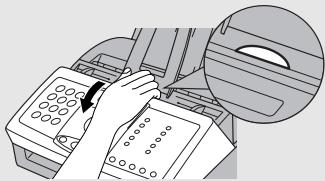
2 Wipe the scanning glass (under the white roller) and rollers with a cotton swab.
- Make sure that all dirt and stains (such as correcting fluid) are removed. Dirt and stains will cause vertical lines on transmitted images and copies.
Document rollers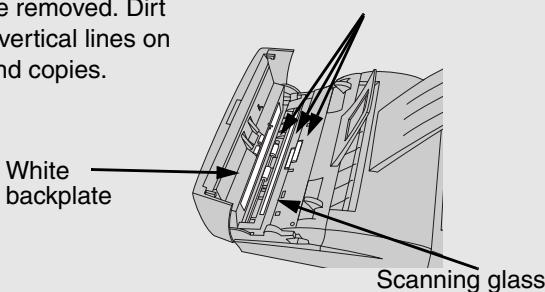
If the scanning glass is difficult to clean
If you find it difficult to remove dirt from the scanning glass, you can try moistening the swab with isopropyl alcohol or denatured alcohol. Take care that no alcohol gets on the rollers.
3 Close the operation panel.
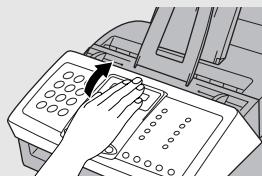
The housing
Wipe the external parts and surface of the machine with a dry cloth.
Caution!
Do not use benzene or thinner. These solvents may damage or discolor the machine.
Replacing the toner cartridge
When the toner cartridge nears empty (about 100 pages can still be printed), TONER NEAR EMPTY will appear in the display. When the toner cartridge is empty, TONER EMPTY, REPLACE TONER, and CLR TONER COUNT will appear alternately in the display. Printing will no longer be possible.
Replace the toner cartridge with the following cartridge:
Sharp FO-29DC toner cartridge
1 Grasp the print compartment cover at both sides as shown, and pull up to open the cover.
- Caution!
The fusing unit inside the print compartment becomes very hot during operation. Do not touch the inside of the compartment or the paper guide on the underside of the print compartment cover.
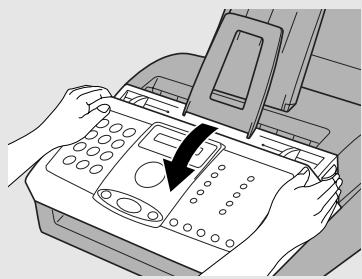
2 Grasp the finger hold on the toner cartridge handle where it is marked PUSH, and pull the handle out. Rehold the handle and pull the toner cartridge out of the compartment.
- Dispose of the old toner cartridge according to local regulations. If in doubt, contact your local waste disposal agency.
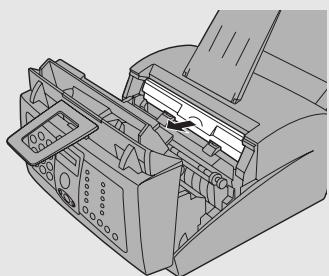
3 Install the new toner cartridge and reset the toner counter (see page 14).
Replacing the drum cartridge
Viewing the total number of pages printed
To maintain excellent printing quality, we recommend that you replace the drum cartridge after 20,000 pages have been printed. Follow these steps to view the total number of pages printed:

Press

once and (V) four times.
Display:
PRINT SET-UP


Press

once and

three times.
LIFE COUNTER


Press

once. The count will appear in the display.

When you are finished, press

to exit.
Replacing the drum cartridge
When 20,000 pages have been printed, DRUM LIFE OVER will appear in the display. Replace the drum cartridge with the following cartridge:
Sharp FO-29DR drum cartridge
1 Grasp the print compartment cover at both sides as shown, and pull up to open the cover.
- Caution!
The fusing unit inside the print compartment becomes very hot during operation. Do not touch the inside of the compartment or the paper guide on the underside of the print compartment cover.
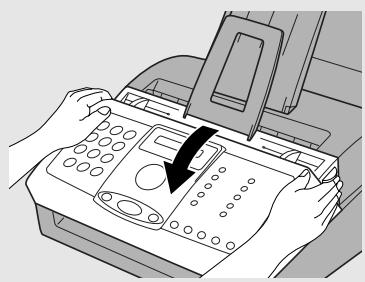
2 Grasp the finger hold on the toner cartridge handle where it is marked PUSH, and pull the handle out. Rehold the handle and pull the toner cartridge out of the compartment.
- Place the toner cartridge on a sheet of paper on a level surface.

3 Grasp the tabs on the drum cartridge handle with both hands and gently pull the cartridge out of the machine.
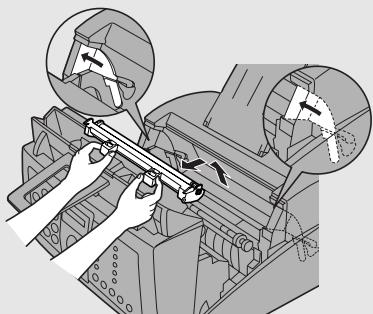
4 Remove the new drum cartridge from its packaging, and then remove the sheet of protective paper from the drum cartridge.
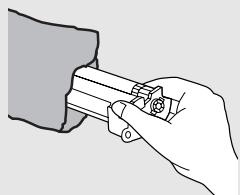
5 Insert the drum cartridge into the print compartment, holding the tabs on the drum cartridge handle with both hands.
- To insert the cartridge, align the guides on the cartridge with the runners on the sides of the compartment.
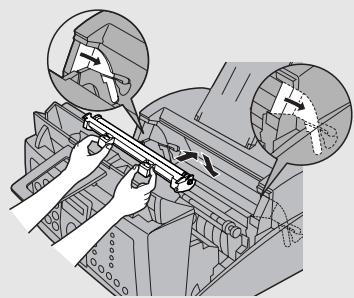
6 Replace the toner cartridge and close the print compartment cover (see page 14). When finished, reset the drum cartridge counter as explained on page 17.
Cleaning the drum cartridge
If you find that characters or parts of an image are missing from your printed pages, the drum in the drum cartridge may need cleaning. Follow the steps below to clean the drum.
1 Grasp the print compartment cover at both sides as shown, and pull up to open the cover.
- Caution! The fusing unit inside the print compartment becomes very hot during operation. Do not touch the inside of the compartment or the paper guide on the underside of the print compartment cover.
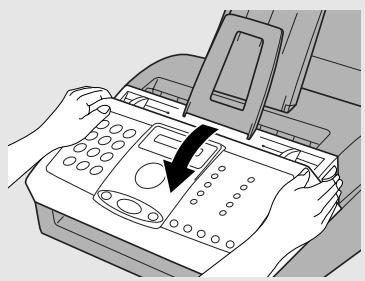
2 Grasp the finger hold on the toner cartridge handle where it is marked PUSH, and pull the handle out. Rehold the handle and pull the toner cartridge out of the compartment.
- Place the toner cartridge on a sheet of paper on a level surface.

3 Grasp the tabs on the drum cartridge handle with both hands and gently pull the cartridge out of the machine.
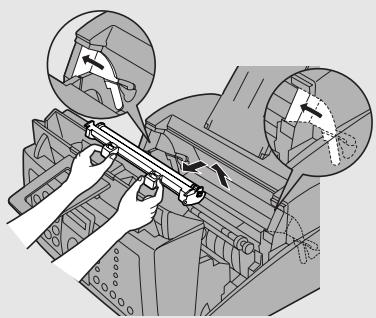
4 Take a sheet of clean paper and roll it into a tube. Roll it tightly so that the diameter of the holes at each end is less than the thickness of your little finger. 5 Gently wipe the surface of the drum with the rolled-up paper to remove any particles of toner caked on the drum.
- Do not let the drum surface come into contact with anything other than the rolled-up paper. Fingerprints, water, alcohol, and other solvents will damage the drum surface.
- Do not touch the drum surface with the edges of the rolled-up paper.
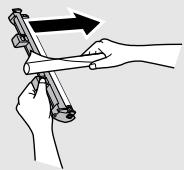
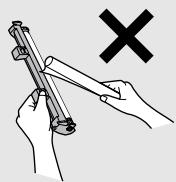
6 Replace the drum cartridge, holding the tabs on the drum cartridge handle with both hands.
- To insert the cartridge, align the guides on the cartridge with the runners on the sides of the compartment.

7 Replace the toner cartridge and close the print compartment cover (see page 14).
9. Troubleshooting
Problems and Solutions
If you have any problems with your fax machine, refer to the following troubleshooting guide.
Line error
| Problem | Solution |
| LINE ERROR appears in the display. | A line error occurs when your fax machine cannot communicate correctly with the other fax machine. The error is usually due to a problem on the phone line. Try the transaction again. If the error persists, check the following: • Check the connection. The cord from the TEL. LINE socket to the wall socket should be no longer than two meters. • Make sure there are no modem devices sharing the same telephone line. • Check with the other party to make sure their fax machine is functioning properly. • Have your telephone line checked for line noise. • Try connecting the fax machine to a different telephone line. • If the problem still occurs, your fax machine may need service. |
Dialling and transmission problems
| Problem | Solution |
| No dial tone when you press the SPEAKER key. | ·Make sure that the telephone line is properly connected to both the TEL. LINE socket and the wall socket (see page 10). ·Make sure that the telephone line is good. |
| Dialling is not possible. | ·Make sure the power cord is properly plugged into a power outlet. ·Make sure that the telephone line is properly connected to both the TEL. LINE socket and the wall socket (see page 10). |
| The power is on, but no transmission takes place. | ·Make sure that the receiving machine has paper. ·Make sure that the telephone line cord is plugged into the TEL. LINE socket, and not the TEL. SET socket. ·If the receiving machine is in manual mode with no attendant, reception will not be possible. ·Check the display for error messages. ·Press the SPEAKER key and check for a dial tone. Dial the receiving machine manually and make sure that it is responding (you should hear a fax tone). |
| Nothing is printed at the receiving end. | ·Make sure that the document for transmission is placed face down in the feeder. |
| A distorted image is received at the other end. | • Noise on the telephone line may cause distortion. Try sending the document again. • ECM mode (see page 51) will help prevent distortions due to line noise. Note that ECM mode must be turned on in the other machine as well. • Make a copy of the document on your fax machine. If the copy is also distorted, your fax machine may need service. |
Reception and copying problems
| Problem | Solution |
| The fax machine doesn't receive documents automatically. | Make sure that the reception mode is set to FAX. |
| The printing paper comes out blank when you try to receive a document. | Make sure that the document is loaded properly in the feeder of the transmitting machine. Make a copy or print a report to confirm the printing ability of your machine. |
| The received document is faint. | Ask the other party to send higher contrast documents. If the contrast is still too low, your fax machine may need service. Make a copy or print a report to check your machine's printing ability. The toner cartridge may need replacement. |
| Dots appear at regular intervals on received documents and copies. | The drum cartridge may be damaged. Replace the drum cartridge. |
| Received images are distorted. | • Noise on the telephone line may cause distortion. Have the other party try sending the document again. • ECM mode (see page 51) will help prevent distortions due to line noise. Note that ECM mode must be turned on in the other machine as well. • Make a copy or print a report on your fax machine. If the copy or report is also distorted, your fax machine may need service. |
| The quality of copies is poor and/or dark vertical lines appear. | • Any dirt or material on the scanning glass will cause spots to appear on copies and transmitted faxes. Clean the scanning glass as explained on page 90. |
| The power is on, but no reception takes place. | • Make sure that the telephone line cord is plugged into the TEL. LINE socket, and not the TEL. SET socket. |
General problems
| Problem | Solution |
| Nothing appears in the display. | Make sure the power cord is properly plugged into a power outlet. Connect another electrical appliance to the outlet to see if it has power. |
| The machine does not respond when you press any of its keys. | If a beep sound is not made when you press the keys, unplug the power cord and then plug it in again several seconds later. |
| Automatic document feeding does not work for transmission or copying. | Check the size and weight of the document (see Transmittable Documents on page 32). |
| Voice calls taken on an extension phone are interrupted by the fax. | The fax may interrupt during a voice call if the reception mode is set to A.M. To prevent interruption on a tone dial extension phone, press any three keys on the extension phone after answering. (Note: Do not enter the code to activate fax reception.) |
| No reception occurs when polling is attempted. | ·Make sure you have not run out of paper. ·Make sure the transmitting machine is in automatic reception mode. ·If the transmitting machine has polling security, make sure that your fax number has been entered both in your machine and in the transmitting machine. |
Answering machine connection
| Problem | Solution |
| The answering machine connection does not operate properly. | ·Make sure your machine's reception mode is set to AM. ·Make sure your machine's TEL LINE socket is connected to the wall socket. Make sure your machine's TEL. SET socket is connected to your answering machine's telephone line socket (not the answering machine's extension phone socket). ·Make sure your answering machine's outgoing message is under 10 seconds. ·Make sure that the Quiet Detect Time setting is set to three or four seconds (see page 72). |
Messages and Signals
Display messages
| ADD PAPER & / PRESS START KEY(alternating messages) | Check the printing paper. If the tray is empty, add paper and then press the START key. If there is paper in the tray, make sure it is inserted correctly (take out the stack, align the edges evenly, and then reinsert it in the tray) and then press the START key. |
| COVER OPEN | The print compartment cover is open. Close it. |
| DIAL WAITING | Dialling is not possible because the fax machine is sending or receiving a fax or an extension phone is being used. |
| DOCUMENT JAMMED | The original document is jammed. See the following section, Clearing Paper Jams. Document jams will occur if you load more than 20 pages at once or load documents that are too thick (see page 32). The document may also jam if the receiving machine doesn't respond properly when you attempt to send a fax. |
| DRUM LIFE OVER | This appears when the drum cartridge needs replacement. |
| FAX RX IN MEMORY | A fax has been received in memory because the toner cartridge needs replacement, you have run out of printing paper, or the paper is jammed. The fax will print out automatically when the problem is fixed. |
| FUNCTION MODE | The FUNCTION key has been pressed. |
| GROUP SPACE FULL | This appears if you attempt to program a Group Key when all Group Keys have already been programmed. |
| HEATER HIGH/HEATER LOW/HEATER ERROR | If one of these messages appears, unplug the power cord and then plug it back in. If the message still appears, call for service. |
| LINE ERROR | Transmission or reception was not successful. Press the STOP key to clear the message and then try again. If the error persists, see Line error on page 97. |
| LINE IS IN USE | An extension phone connected to the fax is being used. Do not attempt transmission at this time, as this will interrupt the conversation on the extension phone. |
| MEMORY IS FULL | If faxes have been received to memory because printing is not possible (an additional message will indicate the problem), resolve the problem so that printing can continue (see Substitute Reception to Memory on page 67).If you are attempting to transmit from memory, see If the memory becomes full on page 59.If you are copying, see If MEMORY IS FULL appears on page 69. |
| MEMORY PRINTING | The fax is preparing to or printing out a document from memory. |
| NO # STORED | This appears if you attempt to search for an auto-dial number when none have been stored. |
| ON HOOK DIAL | The SPEAKER key has been pressed and the fax machine is waiting for you to dial. |
| PAPER JAMMED | The printing paper is jammed. See page 106. |
| POLYGON ERROR | If this message appears, unplug the power cord and then plug it back in. If the message still appears, call for service. |
| PRINTER ERROR | A printer error has occurred. Open the printer compartment cover, make sure the toner cartridge is installed correctly, and then close the cover. |
| READY TO SEND | A document has been loaded and the fax machine is waiting for you to begin faxing or copying. |
| RECALLING | This appears if you attempt to send a fax by automatic dialling and the line is busy or the receiving fax machine does not answer. Your fax machine will automatically reattempts the call. (See Automatic redialling on page 49.) |
| TONER EMPTY/ REPLACE TONER/ CLR TONER COUNT (alternating messages) | The toner cartridge must be replaced. Printing is not possible until the toner cartridge is replaced. |
| TONER NEAR EMPTY | The toner cartridge is almost out of toner (approximately 100 pages can be printed). |
| TOTAL PAGE(S) 01 | Number of pages transmitted, received, or copied. |
Audible signals
| Continuous tone* | 3 seconds | Indicates the end of transmission, reception, or copying. |
| Intermittent tone** (3 beeps) | 5 seconds (1 second on, 1 second off) | Indicates incomplete transmission, reception, or copying. |
*This can be turned off with the "End beep off" setting (see page 27).
**This can be turned off with the "Error beep off" setting (see page 26).
Clearing Paper Jams
Clearing a jammed document
If the original document doesn't feed properly during transmission or copying, or DOCUMENT JAMMED appears in the display, first try pressing the START key. If the document doesn't feed out, open the operation panel and remove it.
Important:
Do not try to remove a document without opening the operation panel. This may damage the feeder mechanism.
1 Open the operation panel by grasping the panel release and pulling up.
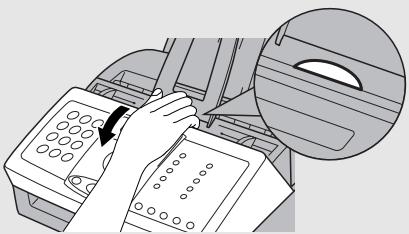
2 Remove the document.
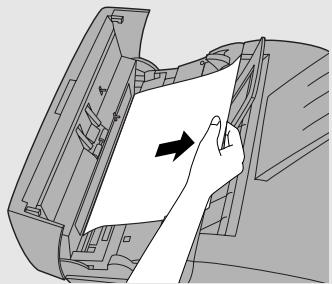
3 Close the operation panel, making sure it clicks into place.
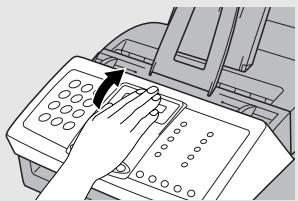
Clearing jammed printing paper
If most of the jammed page is protruding from the back of the fax, remove the paper tray cover, pull the paper release lever toward you, and try pulling the page out.

2 If the jammed page comes out, take out the rest of the paper in the tray, straighten the stack, put it back in the paper tray, and push down the paper release lever. Replace the paper tray cover.
- If you are unable to clear the jam in this way, continue with the following steps.
3 Grasp the print compartment cover at both sides as shown, and pull up to open the cover.
- Caution!
The fusing unit inside the print compartment becomes very hot during operation. Be careful not to touch the inside of the compartment.
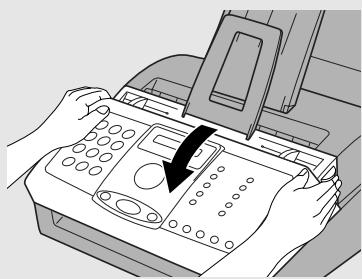
4 Grasp the finger hold on the toner cartridge handle where it is marked PUSH, and pull the handle out. Rehold the handle and pull the toner cartridge out of the compartment.
- Place the toner cartridge on a sheet of paper on a level surface.
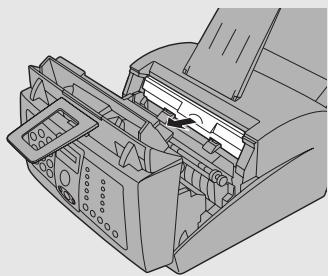
5
Grasp the tabs on the drum cartridge handle with both hands and gently pull the cartridge out of the machine.

6
Wrap the drum cartridge in a large sheet of paper as shown at right so that the green drum section is shielded from light, and place it gently on a level surface.
- Do not touch the green drum in the drum cartridge. This will damage the drum surface.
- Do not expose the drum to direct light. This will damage the drum.
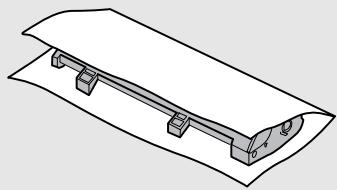
7
Gently pull the jammed paper out of the machine.
- If needed, turn the wheel on the right side of the fusing unit to eject the paper from the machine.
- Caution!
Do not use excessive force to pull the jammed paper out. If the paper tears and a piece remains inside the machine, a service call may be necessary to remove the remaining piece.
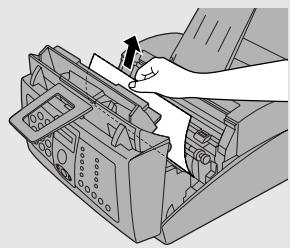
Fusing unit Wheel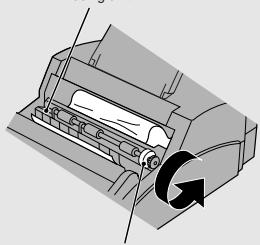
8 Replace the drum cartridge, holding the tabs on the drum cartridge handle with both hands.
- To insert the cartridge, align the guides on the cartridge with the runners on the sides of the compartment.

9 Replace the toner cartridge and close the print compartment cover (see page 14).
Index
A
Activity Report, 85
Activity Report, Auto Print Out, 89
AM reception mode, 24, 71
Answering machine connection Activating, 71
Connecting, 70
On A.M. Failure, 75
Quiet Detect Start Time, 74
Quiet Detect Time, 72
Troubleshooting, 101
Anti Junk Fax, 76
Audible signals, 104
Auto-dial numbers
Searching for, 46
Storing, 40
B
Batch page numbering, 54
Broadcasting, 55-56
C
Contrast, 35
Copies, 68
Copy cut-off setting, 69
Cover Sheet, 52
D
Date, setting, 22-23
Dialling
Direct Keypad, 47
Normal, 38
Rapid Key, 44
Searching, 46
Speed, 45
Direct Keypad Dialling, 47
Display messages, 102
Document feeder, 33
Document guides, 33
Document restrictions, 33
Document sizes, 32
Document, maximum scanning size, 32
Drum cartridge
Cleaning, 95
Preparing, 15
Replacing, 92
E
ECM (Error Correction Mode), 51
End beep off, 27
Error beep off, 26
Extension telephone
Connecting, 13
Using, 62
F
FAX reception mode, 24, 60
Fax Signal Receive, 64
Fine resolution priority, 37
Flash Select setting, 30
G
Group Keys, 57
Group List, 86
H
Halftone setting, 35
Header message, 53
Housing, cleaning, 91
J
Jams, clearing, 105-108
K
Key tone off, 28
L
Language used in display, 31
Letters, entering, 21, 41
Index
Line error, 97
Loading printing paper, 18
Loading the document, 33
M
Memory, substitute reception to, 67
N
Normal dialling, 38
Number of rings in FAX reception mode, 60
P
Page numbering, batch, 54
Paper jams, clearing, 105-108
Paper, loading, 18
PBX Connection, 29
Polling, 78
Power cord, 10
R
Rapid Key Dialling, 44
Recall interval, 50
Recall times, 50
Reception mode
AM mode, 24, 71
FAX mode, 24, 60
TEL mode, 24, 61
Reception Ratio setting, 66
Redialling, 48, 49
Removing original document, 34
Resolution, 35
Ringer volume, 26
s
Scanning glass, cleaning, 90
Sender's name and number, entering, 20-21
Setup List, 86
Speaker volume, 25
SpeedDialling,45
TEL reception mode, 24, 61
TEL LINE socket, 10
TEL. SET socket, 13, 70
Tel/Fax Remote Number, 65
Telephone line cord, 10
Telephone Number List, 86
Time, setting, 22-23
Toner cartridge
Installing, 14
Replacing, 91
Transaction Report, 87
Setting print condition, 88
This product contains a low power laser device. To ensure continued safety do not remove any cover or attempt to gain access to the inside of the product. Refer all servicing to qualified personnel.
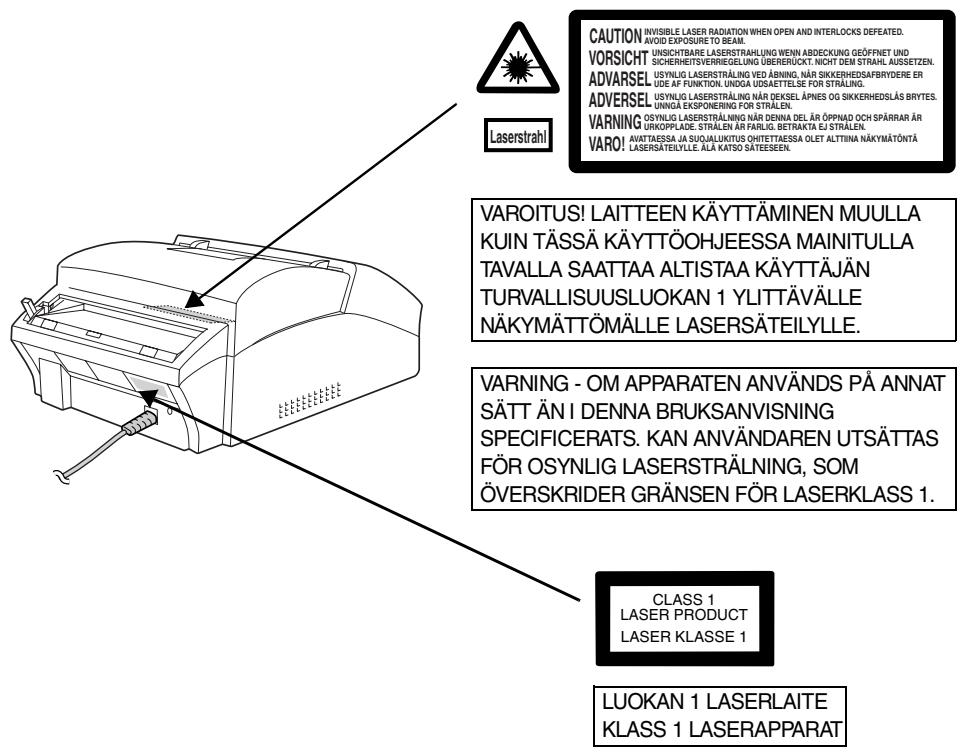
OUTPUT POWER : 0.37 mW ± 10%
LASER WAVELENGTH: 770 - 810 nm
PULSE TIMES: 49.2 ms
SHARP®
SHARP ELECTRONICS (NORDIC) AB
Box 14098, Gustavslundsvagen 12, S-167 14 Bromma, Sweden
Phone: (08) 634 3600
SHARP ELECTRONICA ESPANA S.A.
- INTRODUCTION
- IMPORTANT
- IMPORTANT SAFETY INFORMATION
- TABLE OF CONTENTS
- A LOOK AT THE OPERATION PANEL
- INSTALLATION
- SENDING FAXES
- RECEIVING FAXES
- NUMBER KEYS
- DISPLAY
- ARROW KEYS
- PANEL RELEASE
- RAPID DIAL KEYS
- START KEY
- COPY/HELP KEY
- RESOLUTION / RECEPTION MODE KEY
- FUNCTION KEY
- SPEED DIAL KEY
- R KEY
- SPEAKER KEY
- UNPACKING CHECKLIST
- POINTS TO KEEP IN MIND WHEN SETTING UP
- ABOUT CONDENSATION
- CONNECTIONS
- CONNECTING THE POWER CORD
- CONNECTING THE TELEPHONE LINE CORD
- NOTE
- ATTACHING THE PAPER TRAYS
- EXTENSION PHONE (OPTIONAL)
- INSTALLING THE TONER CARTRIDGE
- GRASP THE PRINT COMPARTMENT COVER AT BOTH SIDES AS SHOWN, AND PULL UP TO OPEN THE COVER
- CAUTION
- RESETTING THE TONER COUNTER
- RESETTING THE DRUM COUNTER
- LOADING PRINTING PAPER
- INSERT THE STACK OF PAPER FIRMLY INTO THE TRAY, PRINT SIDE UP
- MAKE SURE THE STACK OF PAPER IS ALIGNED AGAINST THE RIGHT PAPER GUIDE, AND THEN GENTLY MOVE THE LEFT PAPER GUIDE TO THE A4 POSITION FOR A4 PAPER
- PUSH THE PAPER RELEASE LEVER BACK DOWN
- REPLACE THE PAPER TRAY COVER
- ENTERING YOUR NAME AND FAX NUMBER
- SETTING THE DATE AND TIME
- SETTING THE RECEPTION MODE
- FAX MODE
- TEL MODE
- A.M. MODE
- VOLUME ADJUSTMENT
- SPEAKER
- RINGER
- ERROR BEEP OFF
- END BEEP OFF
- KEY TONE OFF
- PBX AND DISPLAY SETTINGS
- PBX CONNECTION
- FLASH SELECT SETTING FOR PBX
- SETTING THE DISPLAY LANGUAGE
- TRANSMITTABLE DOCUMENTS
- SIZE AND WEIGHT
- MINIMUM DOCUMENT SIZE
- MAXIMUM DOCUMENT SIZE
- PAGES AT ONCE
- OTHER RESTRICTIONS
- LOADING THE DOCUMENT
- REMOVING A DOCUMENT FROM THE FEEDER
- ADJUSTING THE RESOLUTION AND CONTRAST
- RESOLUTION SETTINGS
- CONTRAST SETTINGS
- LOAD THE DOCUMENT(S)
- PRESS ONE OR MORE TIMES UNTIL THE DESIRED RESOLUTION AND CONTRAST SETTINGS APPEAR IN THE DISPLAY
- CHANGING THE DEFAULT RESOLUTION
- SENDING A FAX BY NORMAL DIALLING
- WAIT FOR THE CONNECTION. WHEN YOU HEAR A FAX TONE, PRESS START ON THE FAX MACHINE
- SENDING A FAX BY AUTOMATIC DIALLING
- STORING FAX NUMBERS FOR AUTOMATIC DIALLING
- PRESS START
- EDITING AND CLEARING AUTO-DIAL NUMBERS
- PRESS ① FOR EDIT OR ② FOR CLEAR
- IF YOU SELECTED EDIT, MAKE THE DESIRED CHANGES TO THE NUMBER
- MAKE THE DESIRED CHANGES TO THE NAME
- RETURN TO STEP 2 TO EDIT OR CLEAR ANOTHER NUMBER, OR PRESS ○ TO RETURN TO THE DATE AND TIME DISPLAY
- RAPID KEY DIALLING
- PRESS THE RAPID KEY CORRESPONDING TO THE DESIRED SPEED DIAL NUMBER
- SPEED DIALLING
- PRESS DIAL AND THEN ENTER THE 2-DIGIT SPEED DIAL NUMBER
- CHECK THE DISPLAY. IF THE NAME OR NUMBER SHOWN IS CORRECT, PRESS
- START
- STOP
- SEARCHING FOR AN AUTO-DIAL NUMBER
- SENDING A FAX BY DIRECT KEYPAD DIALLING
- ENTER THE NUMBER OF THE RECEIVING MACHINE BY PRESSING THE NUMBER KEYS
- CHECK THE DISPLAY. IF THE NUMBER OF THE RECEIVING MACHINE SHOWN IS
- REDIAL
- AUTOMATIC REDIALLING
- RECALL INTERVAL FOR AUTOMATIC REDIALLING
- RECALL TIMES FOR AUTOMATIC REDIALLING
- ERROR CORRECTION MODE
- COVER SHEET
- PRESS TO RETURN TO THE DATE AND TIME DISPLAY
- HEADER MESSAGE
- PRESS ONCE AND TWICE
- PRESS
- PRESS A NUMBER KEY TO SELECT A MESSAGE
- DIAL THE RECEIVING FAX MACHINE AND SEND THE FAX
- BATCH PAGE NUMBERING
- PRESS ONCE AND ONCE
- PRESS ONCE
- ENTER THE TOTAL NUMBER OF PAGES ("01" TO "99") BY PRESSING THE NUMERIC KEYS
- DIAL THE RECEIVING MACHINE AND SEND THE FAX
- BROADCASTING (SENDING A FAX TO MULTIPLE DESTINATIONS)
- SELECT A DESTINATION USING ONE OF THE METHODS BELOW. IMPORTANT: THE FIRST DESTINATION THAT YOU SELECT MUST BE SPECIFIED USING THE ARROW KEY METHOD BELOW (PRESS ▸ OR ▸). DO NOT PRESS A RAPID KEY OR ENTER A SPEED DIAL NUMBER FOR THE FIRST DESTINATION
- PRESS TO STORE THE DESTINATION
- BROADCASTING USING A GROUP KEY
- STORING NUMBERS IN GROUP KEYS
- IF THE MEMORY BECOMES FULL
- USING FAX MODE
- CHANGING THE NUMBER OF RINGS
- USING TEL MODE
- ANSWERING ON AN EXTENSION PHONE CONNECTED TO THE SAME LINE
- USING A.M. MODE
- OPTIONAL RECEPTION SETTINGS
- FAX SIGNAL RECEIVE
- CHANGING THE NUMBER FOR REMOTE FAX ACTIVATION
- RECEPTION RATIO
- SUBSTITUTE RECEPTION TO MEMORY
- MAKING COPIES
- LOAD THE DOCUMENT(S) FACE DOWN. (MAXIMUM OF 20 A4 PAGES.)
- SELECT ANY OF THE FOLLOWING COPY SETTINGS AS NEEDED
- WHEN YOU ARE READY TO BEGIN COPYING, PRESS
- IF MEMORY IS FULL APPEARS
- COPY CUT-OFF
- ANSWERING MACHINE CONNECTION
- CONNECTING AN ANSWERING MACHINE
- CHANGING THE OUTGOING MESSAGE
- USING THE ANSWERING MACHINE CONNECTION
- SET THE RECEPTION MODE TO A.M
- SET YOUR ANSWERING MACHINE TO AUTO ANSWER
- HOW ANSWERING MACHINE MODE OPERATES
- OPTIONAL A.M. MODE SETTINGS
- QUIET DETECT TIME
- QUIET DETECT START TIME
- ON A.M. FAILURE
- SPECIAL FUNCTIONS
- BLOCKING RECEPTION OF UNWANTED FAXES
- EDITING AND CLEARING ANTI JUNK NUMBERS
- POLLING (REQUESTING A FAX TRANSMISSION)
- PRESS 1 TO USE RAPID KEY 08/POLL AS A POLLING KEY
- REQUESTING TRANSMISSION
- DIAL THE FAX MACHINE YOU WANT TO POLL USING ONE OF THE FOLLOWING METHODS
- PRESS 08/POLL
- BEING POLLED (MEMORY POLLING)
- LOAD THE DOCUMENT
- TO CLEAR A MEMORY POLLING DOCUMENT FROM MEMORY, FOLLOW THESE STEPS
- POLLING SECURITY
- STORING FAX NUMBERS FOR POLLING PERMISSION
- EDITING AND CLEARING POLLING PERMISSION NUMBERS
- PRINTING LISTS
- ACTIVITY REPORT
- TELEPHONE NUMBER LIST
- GROUP LIST
- SETUP LIST
- TRANSACTION REPORT
- HEADINGS IN THE TRANSACTION REPORT
- TRANSACTION REPORT PRINT CONDITION
- AUTO PRINT-OUT OF ACTIVITY REPORT
- HELP LIST
- MAINTENANCE
- SCANNING GLASS AND ROLLERS
- THE HOUSING
- REPLACING THE TONER CARTRIDGE
- GRASP THE FINGER HOLD ON THE TONER CARTRIDGE HANDLE WHERE IT IS MARKED PUSH, AND PULL THE HANDLE OUT. REHOLD THE HANDLE AND PULL THE TONER CARTRIDGE OUT OF THE COMPARTMENT
- REPLACING THE DRUM CARTRIDGE
- VIEWING THE TOTAL NUMBER OF PAGES PRINTED
- CLEANING THE DRUM CARTRIDGE
- GRASP THE TABS ON THE DRUM CARTRIDGE HANDLE WITH BOTH HANDS AND GENTLY PULL THE CARTRIDGE OUT OF THE MACHINE
- TROUBLESHOOTING
- PROBLEMS AND SOLUTIONS
- LINE ERROR
- MESSAGES AND SIGNALS
- AUDIBLE SIGNALS
- CLEARING PAPER JAMS
- CLEARING A JAMMED DOCUMENT
- CLEARING JAMMED PRINTING PAPER
- INDEX
- A
- B
- C
- D
- E
- F
- G
- H
- J
- K
- L
- M
- N
- P
- R
- S
- SHARP®
- SHARP ELECTRONICS (NORDIC) AB
- BOX 14098, GUSTAVSLUNDSVAGEN 12, S-167 14 BROMMA, SWEDEN
- SHARP ELECTRONICA ESPANA S.A
Brand : SHARP
Model : FO-3150
Category : Fax machine