EasyManual
LC-60LE635E - Television SHARP - Free user manual and instructions
Find the device manual for free LC-60LE635E SHARP in PDF.



User questions about LC-60LE635E SHARP
0 question about this device. Answer the ones you know or ask your own.
Ask a new question about this device
Download the instructions for your Television in PDF format for free! Find your manual LC-60LE635E - SHARP and take your electronic device back in hand. On this page are published all the documents necessary for the use of your device. LC-60LE635E by SHARP.
USER MANUAL LC-60LE635E SHARP
Hereby, SHARP Electronics (Europe) GmbH declares that the wireless LAN USB adapter (WN8522D 7-JU) is in compliance with the essential requirements and other relevant provisions of Directive 1999/5/EC. The declaration of conformity may be consulted at: http://www.sharp.de/doc/WN8522D_7.pdf.
NOTE
The wireless LAN USB adapter is designed for indoor use only.
SPECIAL NOTE FOR USERS IN THE U.K.
The mains lead of this product is fitted with a non-rewireable (moulded) plug incorporating a 13A fuse. Should the fuse need to be replaced, a BSI or ASTA approved BS 1362 fuse marked 艹 or
and of the same rating as above, which is also indicated on the pin face of the plug, must be used.
Always refit the fuse cover after replacing the fuse. Never use the plug without the fuse cover fitted.
In the unlikely event of the socket outlet in your home not being compatible with the plug supplied, cut off the mains plug and fit an appropriate type.
DANGER:
The fuse from the cut-off plug should be removed and the cut-off plug destroyed immediately and disposed of in a safe manner.
Under no circumstances should the cut-off plug be inserted elsewhere into a 13A socket outlet, as a serious electric shock may occur.
To fit an appropriate plug to the mains lead, follow the instructions below:
IMPORTANT:
The wires in the mains lead are coloured in accordance with the following code:
Blue: Neutral
Brown: Live
As the colours of the wires in the mains lead of this product may not correspond with the coloured markings identifying the terminals in your plug, proceed as follows:
The wire which is coloured blue must be connected to the plug terminal which is marked N or coloured black.
The wire which is coloured brown must be connected to the plug terminal which is marked L or coloured red.
Ensure that neither the brown nor the blue wire is connected to the earth terminal in your three-pin plug.
Before replacing the plug cover make sure that:
If the new fitted plug contains a fuse, its value is the same as that removed from the cut-off plug.
The cord grip is clamped over the sheath of the mains lead, and not simply over the lead wires.
IF YOU HAVE ANY DOUBT, CONSULT A QUALIFIED ELECTRICIAN.
Dear SHARP customer
Thank you for your purchase of the SHARP LCD colour TV product. To ensure safety and many years of trouble-free operation of your product, please read Important safety precautions carefully before using this product.
Contents
Introduction. 1
Dear SHARP customer. 1
Contents 1
Important safety precautions 2
Supplied accessories 4
Optional accessories 4
Preparation 5
Attaching the stand unit 5
Using the remote control unit. 6
Part names and functions. 7
TV(front/side view) 7
TV (rear view) 7
Remote control unit 8
Quick guide 9
Operation overview 9
Inserting the CA card into the CI module..... 11
Using the Menu screen 12
Initial auto installation 14
Initial auto installation. 14
Watching TV 19
Daily operation 19
EPG 21
Teletext 23
Connecting external devices.. 24
Introduction to connections 24
Video connections 25
Audio connections 27
AQUOS LINK 28
Controlling HDMI devices using AQUOS LINK... 28
AQUOS LINK connection 29
AQUOS LINK setup 30
Operating an AQUOS LINK device 30
Basic adjustment 32
Picture settings 32
Audio settings 34
Power save settings 35
View settings 36
TV start-up time setting. 39
Individual setting - PIN 39
Individual setting - Time 39
Individual setting - Language 40
Useful viewing functions 41
Optional features settings 41
Additional features 45
Other useful features 46
Using a USB device 46
Time shift 47
USB media/Home network 50
USB device compatibility 53
Home network server compatibility 53
Selecting the picture size for video mode.....53
Connecting a PC. 54
Connecting a PC 54
Displaying a PC image on the TV. 54
PC control of the TV. 57
Network setup 59
Connecting to the network. 59
Net TV 61
What is Net TV? 61
Operations in Net TV 61
Disclaimers and software licences for Net TV... 63
Appendix 64
Troubleshooting 64
Updating your TV via DVB-T/T2* 65
Getting update information 65
Information on the software licence for this
product 66
Updating your TV via USB/network 66
Trade marks 67
Specifications 68
Specifications (Wireless LAN USB adapter)..... 69
Environmental specifications 70
Mounting the TV on a wall. 70
Dimensional drawings 72
EU Energy Label for Televisions 73
NOTE
- The illustrations and the OSD in this operation manual are for explanation purposes and may vary slightly from the actual operations.
Important safety precautions
- Cleaning—Unplug the AC cord from the AC outlet before cleaning the product. Use a damp cloth to clean the product. Do not use liquid cleaners or aerosol cleaners.
- Use a soft damp cloth to gently wipe the panel when it is dirty. To protect the panel, do not use a chemical cloth to clean it. Chemicals may cause damage or cracks in the cabinet of the TV.
- Water and moisture—Do not use the product near water, such as bathtub, washbasin, kitchen sink, laundry tub, swimming pool and in a wet basement.
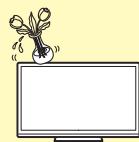
- Do not place vases or any other water-filled containers on this product. The water may spill onto the product causing fire or electric shock.
- Stand—Do not place the product on an unstable cart, stand, tripod or table. Doing so can cause the product to fall, resulting in serious personal injuries as well as damage to the product. Use only a cart, stand, tripod, bracket or table recommended by the manufacturer or sold with the product. When mounting the product on a wall, be sure to follow the manufacturer's instructions. Use only the mounting hardware recommended by the manufacturer.
- When relocating the product placed on a cart, it must be moved with utmost care. Sudden stops, excessive force and uneven floor surface can cause the product to fall from the cart.
- Ventilation—The vents and other openings in the cabinet are designed for ventilation. Do not cover or block these vents and openings since insufficient ventilation can cause overheating and/or shorten the life of the product. Do not place the product on a bed, sofa, rug or other similar surface, since they can block ventilation openings. This product is not designed for built-in installation; do not place the product in an enclosed place such as a bookcase or rack, unless proper ventilation is provided or the manufacturer's instructions are followed.
- The LCD panel used in this product is made of glass. Therefore, it can break when the product is dropped or impact applied. If the LCD panel is broken, be careful not to be injured by broken glass.
- Heat sources—Keep the product away from heat sources such as radiators, heaters, stoves and other heat-generating products (including amplifiers).
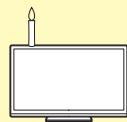
- To prevent fire, never place any type of candle or naked flames on the top or near the TV set.
- To prevent fire or shock hazard, do not place the AC cord under the TV set or other heavy items.

- Headphones—Do not set the volume at a high level. Hearing experts advise against extended listening at high volume levels.
- Do not display a still picture for a long time, as this could cause an afterimage to remain.
- There is power consumption always if main plug is connected.
Servicing—Do not attempt to service the product yourself. Removing covers can expose you to high voltage and other dangerous conditions. Request a qualified person to perform servicing.
The LCD panel is a very high technology product, giving you fine picture details.
Due to the very large number of pixels, occasionally a few non-active pixels may appear on the screen as a fixed point of blue, green or red. This is within product specifications and does not constitute a fault.
Precautions when transporting the TV
When transporting the TV, never carry it by putting pressure onto the display. Be sure to always carry the TV by two people holding it with two hands—one hand on each side of the TV.
Caring for the cabinet
- Use a soft cloth (cotton, flannel, etc.) and gently wipe the surface of the cabinet.
- Using a chemical cloth (wet/dry sheet type cloth, etc.) may deform the components of the main unit cabinet or cause cracking.
- Wiping with a hard cloth or using strong force may scratch the surface of the cabinet.
- If the cabinet is very dirty, wipe with a soft cloth (cotton, flannel, etc.) soaked in neutral detergent diluted with water and thoroughly wrung out, and then wipe with a soft dry cloth.
- Avoid using benzene, thinner, and other solvents, as these may deform the cabinet and cause the paint to peel off.
- Do not apply insecticides or other volatile liquids. Also, do not allow the cabinet to remain in contact with rubber or vinyl products for a long period of time. Plasticizers inside the plastic may cause the cabinet to deform and cause the paint to peel off.
Caring for the front panel
- Gently wipe the surface of the front panel with a soft cloth (cotton, flannel, etc.). To protect the front panel, do not use a dirty cloth, liquid cleaners, or a chemical cloth (wet/dry sheet type cloth, etc.). This may damage the surface of the front panel.
- Wiping with a hard cloth or using strong force may scratch the surface of the front panel.
- Use a soft damp cloth to gently wipe the front panel when it is really dirty (It may scratch the surface of the front panel when wiped strongly).
- If the front panel is dusty, use an anti-static brush, which is commercially available, to clean it.
WARNING
To prevent the spread of fire, keep candles or other open flames away from this product at all times.

Supplied accessories
Remote control unit (x1)
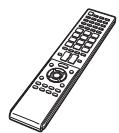
Pages 6 and 8
LR03 ("AAA" size alkaline) battery (x 2)
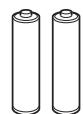
Page 6
Stand unit (x1)
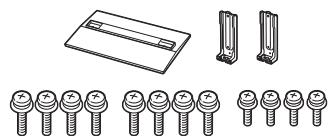
Page 5
Initial setup guide (printed document)
USB memory (operation manual)
Wireless LAN USB adapter (WN8522D 7-JU) (x1)
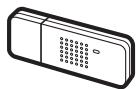
Page 60
Important safety precautions (printed document)
Optional accessories
The listed optional accessories are available for this LCD colour TV. Please purchase them at your nearest shop.
- Additional optional accessories may be available in the near future. When purchasing, please read the newest catalogue for compatibility and check the availability.
| No. | Part name | Part number | Notes |
| 1 | Wall mount bracket | AN-52AG4 | The centre of the TV screen is 18 mm below the mark “e” on the wall bracket. |
Attaching the stand unit
- Before attaching (or detaching) the stand, unplug the AC cord.
- Before performing work, spread cushioning over the surface on which you will be laying the TV. This will prevent it from being damaged.
CAUTION
- Attach the stand in the correct direction.
- Be sure to follow the instructions. Incorrect installation of the stand may result in the TV falling over.
1 Confirm that there are twelve screws (eight long screws and four short screws) supplied with the stand unit.

2 ① Set the supporting post for the stand unit onto the polystyrene foam.
② Attach the stand base to the supporting post.
③ Insert and tighten the eight screws into the eight holes on the bottom of the stand base.
- Hold the stand unit securely with one hand, and then tighten the screws.
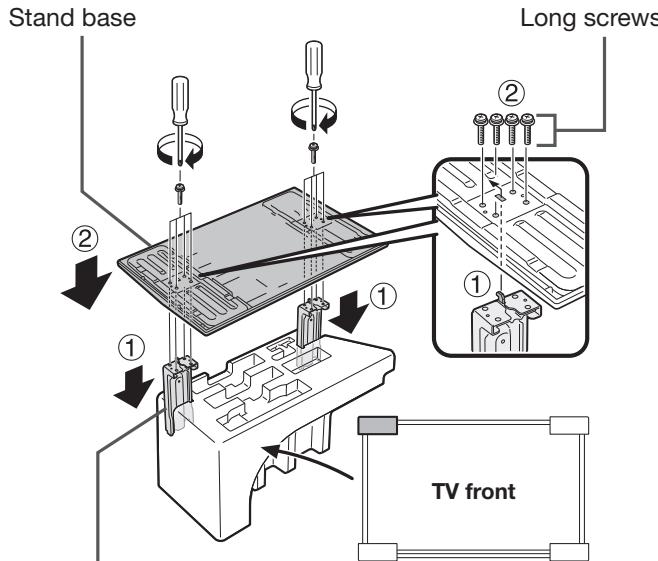
Supporting post
3 Insert the stand into the openings on the bottom of the TV (hold the stand so it will not drop from the edge of the base area).
- Make sure that the stand is firmly inserted into the TV. Improper installation may result in tilting of the TV set.
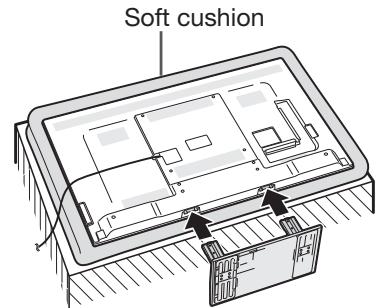
4 Insert and tighten the four screws into the four holes on the rear of the TV.
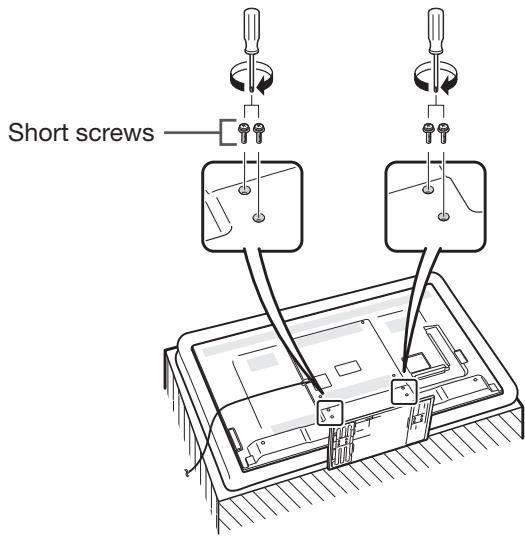
NOTE
- To detach the stand unit, perform the steps in reverse order.
- A screwdriver is not supplied with this product.
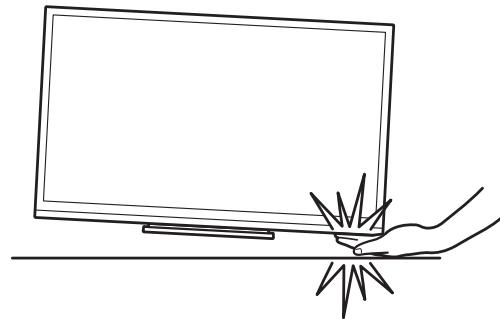
- In the installation procedure, be careful not to catch your fingers between the TV set and the floor.
Using the remote control unit
Inserting the batteries
Before using the TV for the first time, insert the two supplied LR03 ("AAA" size alkaline) batteries. When the batteries become depleted and the remote control unit fails to operate, replace the batteries with new LR03 ("AAA" size alkaline) batteries.
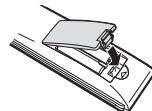
1 Open the battery cover.
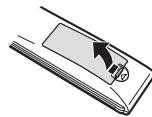
2 Insert the two supplied LR03 ("AAA" size alkaline) batteries.
- Place batteries with their terminals corresponding to the (+) and (-) indications in the battery compartment.
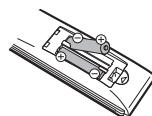
3 Close the battery cover.
CAUTION
Improper use of batteries can result in chemical leakage or explosion. Be sure to follow the instructions below.
- Do not mix batteries of different types. Different types of batteries have different characteristics.
- Do not mix old and new batteries. Mixing old and new batteries can shorten the life of new batteries or cause chemical leakage in old batteries.
- Remove batteries as soon as they have worn out. Chemicals that leak from batteries can cause a rash. If you find any chemical leakage, wipe thoroughly with a cloth.
- The batteries supplied with this product may have a shorter life expectancy due to storage conditions.
- If you will not be using the remote control unit for an extended period of time, remove the batteries from it.
- When replacing the batteries, use alkaline batteries instead of zinc-carbon ones.
Note on disposing batteries
The batteries provided contain no harmful materials such as cadmium, lead or mercury.
Regulations concerning used batteries stipulate that batteries may no longer be thrown out with the household rubbish. Deposit any used batteries free of charge into the designated collection containers set up at commercial businesses.
Angle of the remote control unit
Use the remote control unit by pointing it towards the remote control sensor. Objects between the remote control unit and sensor may prevent proper operation.
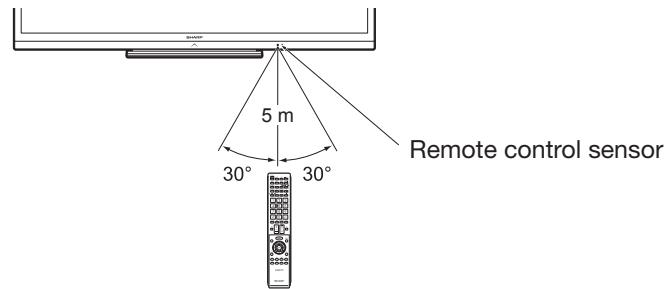
Cautions regarding the remote control unit
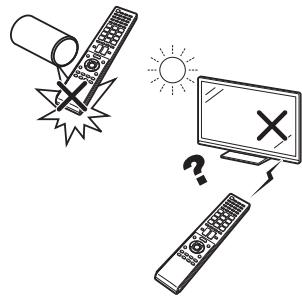
- Do not expose the remote control unit to shock. In addition, do not expose the remote control unit to liquids, and do not place in an area with high humidity.
- Do not install or place the remote control unit under direct sunlight. The heat may cause deformation of the unit.
- The remote control unit may not work properly if the remote control sensor of the TV is under direct sunlight or strong lighting. In such cases, change the angle of the lighting or the TV, or operate the remote control unit closer to the remote control sensor.
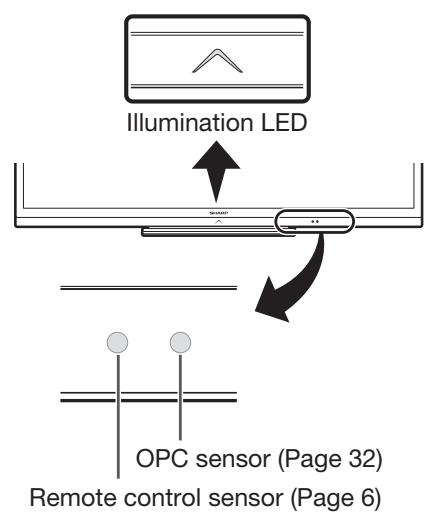
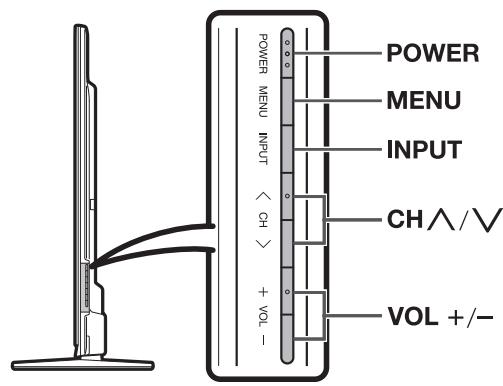
TV (front/side view)
TV (rear view)
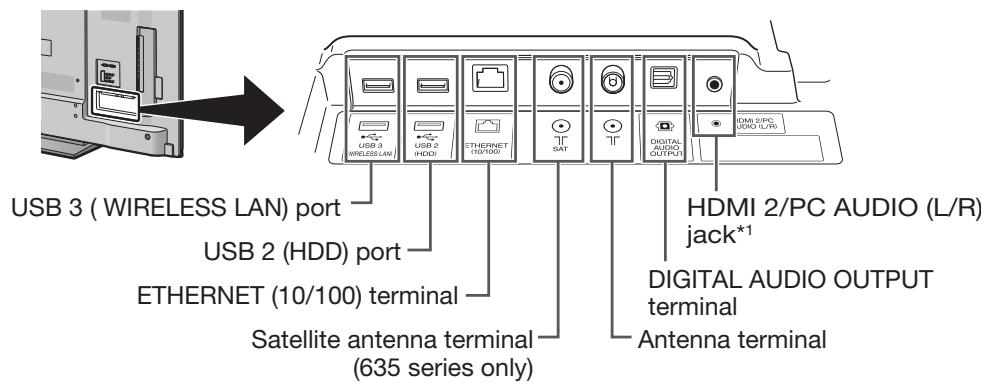
^ 1 The HDMI 2 and PC terminals can both use the same audio input terminal (HDMI 2/PC AUDIO (L/R)). However, the proper item must be selected in the "Audio select" menu (refer to page 42 for details).
TV (rear view) - continued
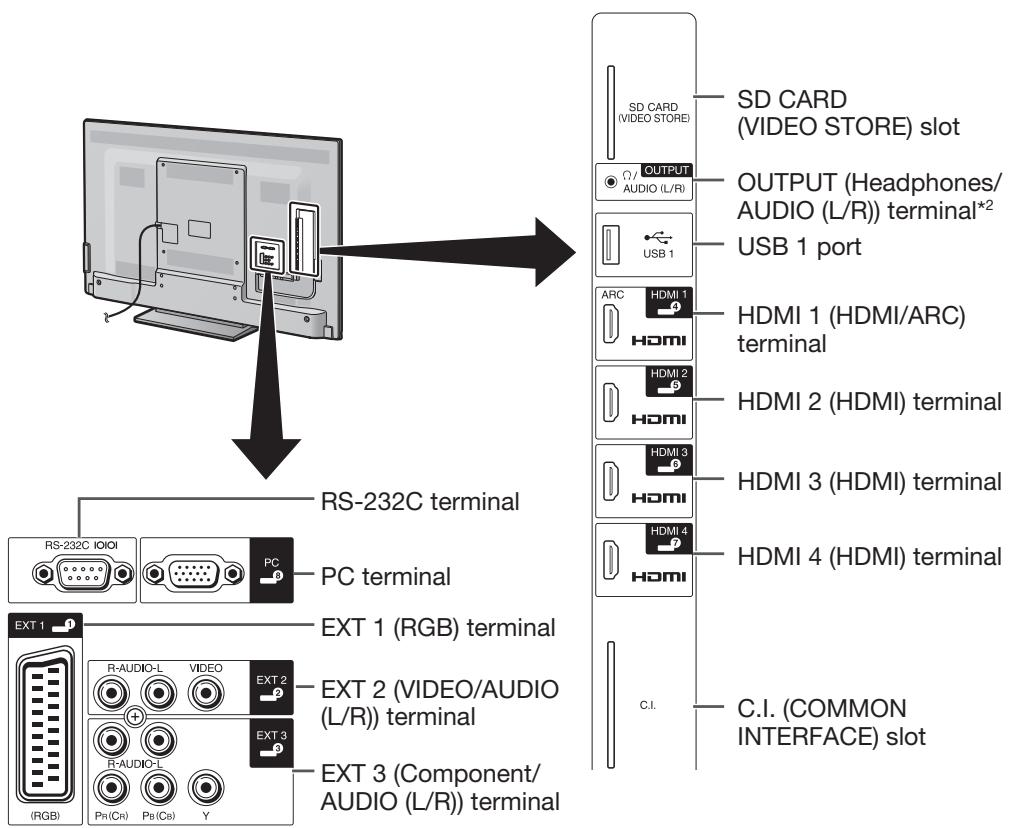
*2 When the headphone is connected to the OUTPUT terminal, the audio can be output from the speakers (Page 43).
WARNING
- Excessive sound pressure from earphones and headphones can cause hearing loss.
- Do not set the volume at a high level. Hearing experts advise against extended listening at high volume levels.
Important information:
Satellite services are only available for the 635 model series.
Remote control unit
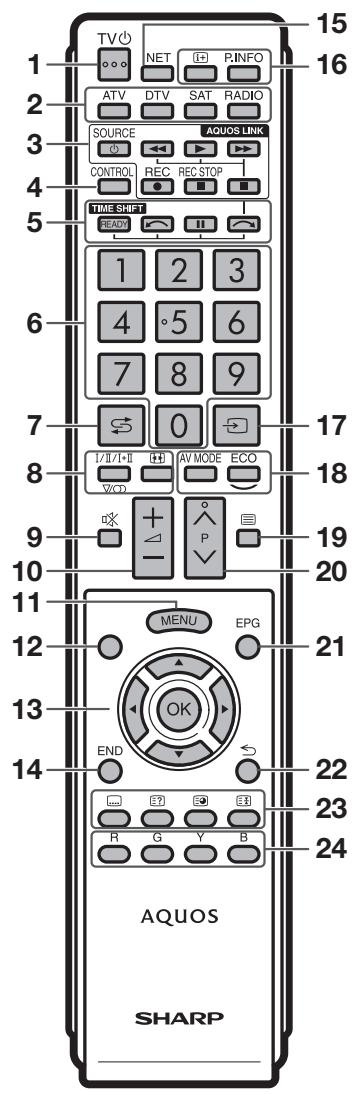
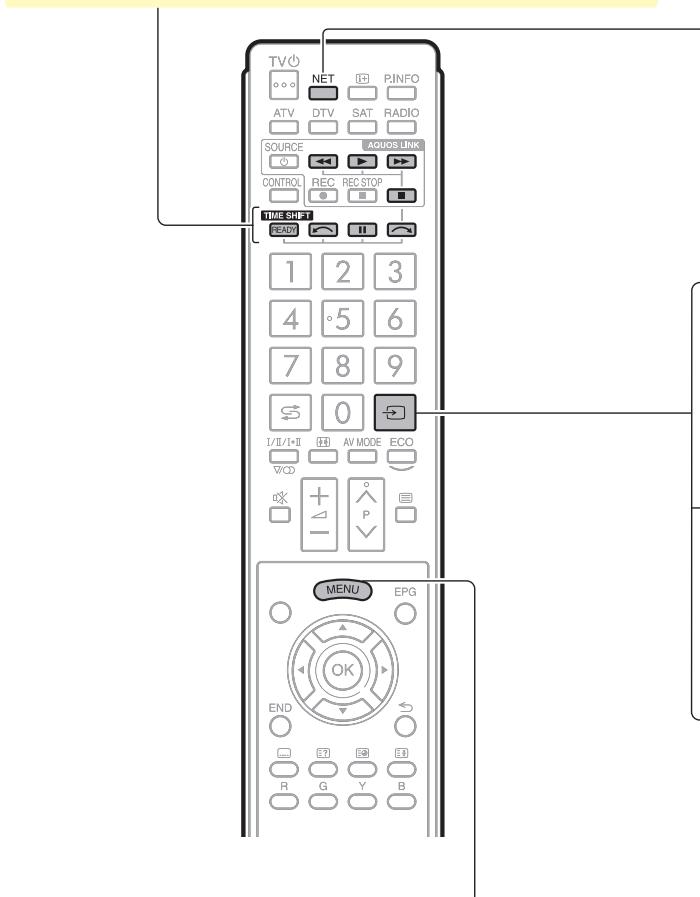
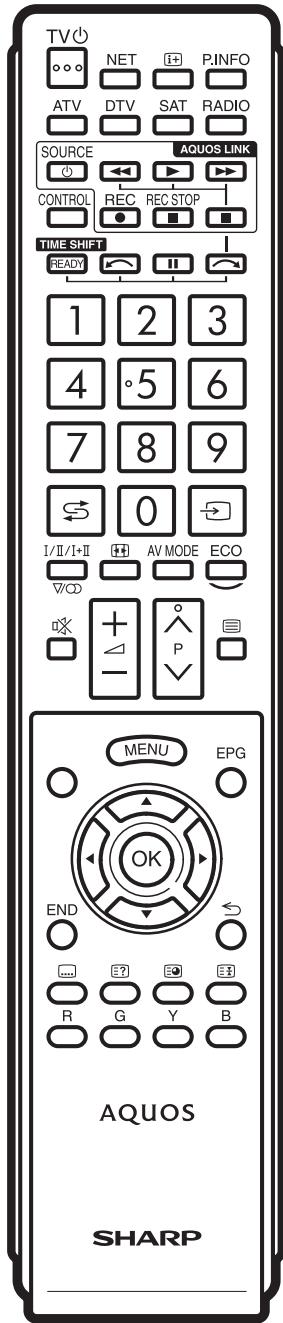
1 TV (Standby/On) (Page 19)
2 ATV
Access conventional analogue TV mode.
DTV
Access digital TV mode.
SAT
Access satellite mode.
RADIO
DTV/SAT: Switch between radio and data mode.
- When only data broadcasting (no radio broadcasting) is transmitted by DVB, the radio broadcasting will be skipped.
3 AQUOS LINK buttons (Pages 28 and 30)
4 CONTROL (Pages 47, 48, 52 and 61)
Display a panel to operate some functions on the screen.
NET: "NET MENU" screen on/off.
5 TIME SHIFT (READY/11111111) (Pages 47 and 48)
Temporarily record a programme you are watching.
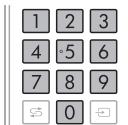
6 Numeric buttons 0-9
Set the channel. Enter desired numbers. Set the page in teletext mode.
- When the five Nordic countries (Sweden, Norway, Finland, Denmark or Iceland) are selected in the country setting from initial auto installation (Page 14), DTV services are four digits. When another country is selected, DTV services are three digits.
7 (Flashback)
Return to the previously selected channel or external input.
8 I/II/H+I (Sound mode) (Page 20)
Select a sound multiplex mode.
( Wide mode) (Pages 41, 53 and 54)
Select a wide mode.
9 (Mute)
TV sound on/off.
10 4 + / - (Volume)
Increase/decrease TV volume.
11 MENU
"Menu" screen on/off.
12 None
This button does not work on this model.
13 / /
Select a desired item.
OK
Execute a command.
ATV/DTV/SAT: Display "CH list" when no other "Menu" screen is running.
14 END
ATV/DTV/SAT: Exit the "Menu" screen.
NET: Return to the start page.
15 NET
Access Net TV.
16 1 + (Display information) (Page 20)
Display the station information (channel number, signal, etc.) on the screen.
P. INFO
Display programme information transmitted through digital video broadcasting (DTV/SAT only).
17 (INPUT) (Page 19)
Select an input source.
18 AV MODE (Page 32)
Select audio/video settings.
ECO(Standard/Advanced/Off)(Page35)
Select "Energy save" setting.
19 (Teletext) (Page 23)
ATV: Display analogue teletext.
DTV/SAT: Select MHEG-5 or teletext for DTV/SAT.
20 P∧/V
ATV/DTV/SAT: Select the TV channel.
NET: Scroll pages up/down.
21 EPG (Pages 21-23)
DTV/SAT: Display the EPG screen.
22 (Return)
ATV/DTV/SAT: Return to the previous "Menu" screen.
NET: Return to the previous page (This may not function for some services).
23 Buttons for useful operations
(Subtitle) (Pages 23 and 40)
Switch subtitle languages on/off.
(Reveal hidden teletext) (Page 23)
Subpage) (Page 23)
(Freeze/Hold) (Page 23)
Freeze a moving image on the screen.
Teletext: Stop updating teletext pages automatically or release the hold mode
24 R/G/Y/B (Colour) buttons
The coloured buttons are correspondingly used to select the coloured items on the screen (e.g., EPG, MHEG-5, teletext).
Important information:
Satellite services are only available for the 635 model series.
Operation overview
Follow the steps below one by one when using the TV. Some steps may not be necessary depending on your TV installation and connection.
1. Preparation - Connecting the TV
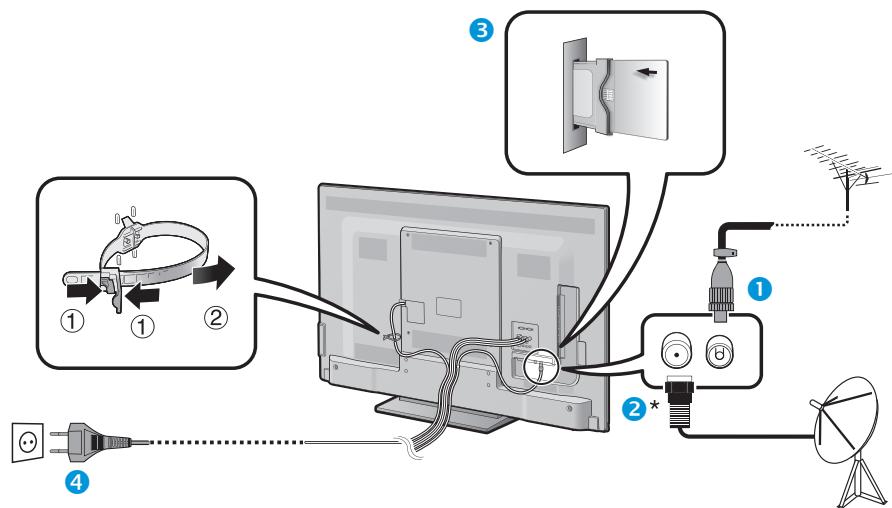
- Place the TV close to the AC outlet, and keep the power plug within reach.
- Product shape varies in some countries.
Plug the standard DIN45325 plug (IEC 169-2) 75Ω coaxial cable.
Connect the satellite antenna cable.
3 Insert a CA card into the CI slot to watch scrambled broadcasts (Page 11).
4 Plug in the AC cord.
*Important information:
Satellite services are only available for the 635 model series.
2. Preparation - Setting the TV
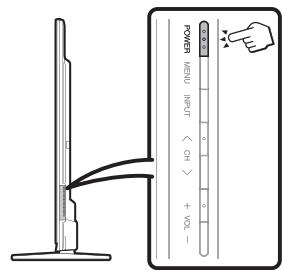
Press POWER on the TV (Page 19).
2 Run the initial auto installation (Page 14).
Language setting
Home/Store setting
Country setting
PIN setting
Channel search setting
Digital search
- Terrestrial
Cable
- Analogue search
- Satellite search

Start searching channels
3 Congratulations!
Now you can watch TV.
- If necessary, adjust the antenna to attain maximum signal reception (Page 18).
3. Watch TV - Daily operation
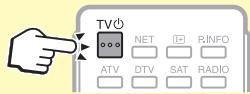
1 Turn on/off the TV
(Page 19)
- You can turn on/off the power using both the remote control and the TV.
2 Switch between digital, satellite and analogue broadcast
(Page 19)
3 Change channels
(Page 19)
- You can also select a channel from "Menu" > "CH list".

4 Select a programme using EPG
(Pages 21-23)
4. Watch TV - Advanced features
1 Use Time shift function
(Pages 47-49)
2 Adjust TV settings
(Pages 32-45)
- Some items cannot be selected depending on signal types, optional settings or connected devices.
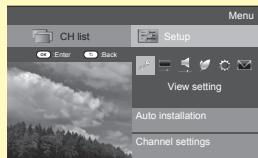
5. Enjoy additional features
1 Enjoy internet service* with the TV
(Pages 59-63)
- The following service is now available:
Net TV (Pages 61-62)

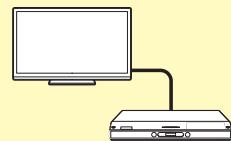
2 Connect external devices
Connection overview
(Pages 24-29)
- Be sure to turn off the TV and any devices before making any connections.
Switch input sources
(Page 19)
3 Enjoy photos, music and video stored in USB media/Home network
(Pages 50-53)
4 Display a PC image on the TV screen
(Pages 54-58)

Inserting the CA card into the CI module
In order to receive coded digital stations, a common interface module (CI module) and a CA card must be inserted in the CI slot of the TV.
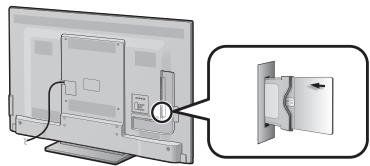
1 Carefully insert the CI module in the CI slot with the contact side forward.
2 The logo on the CI module must be facing outward from the rear of the TV.
Checking CI module information
Go to "Menu" > "Setup" > "Option" > "CI menu".
- This menu is only available for digital stations.
- The content of this menu depends on the provider of the CI module.
Module
General information on CI module displays.
Menu
Adjustment parameters of each CA card displays.
Enquiry
You can input numerical values such as passwords here.
NOTE
- It takes a few minutes to certify the licence key when you insert a CA card into the Cl + compatible Cl module for the first time. This process may fail when there is no antenna input or you have never run "Auto installation".
- The CI+ compatible CI module sometimes upgrades its firmware. You may not receive any TV images before upgrading. You can only use the power button during upgrading.
- Copy protected content may not be output or may be output with a copy control signal. The protect icon* is displayed when P.INFO is pressed while watching copy protected contents.
- Protect icon:
- If the TV displays an update confirmation message for the CA card while receiving Cl+ compatible broadcasts, follow the screen prompts.
- Make sure that the CI module is properly inserted.
Using the Menu screen
You need to call up the OSD to perform settings for the TV. The OSD for the settings is called "Menu". The "Menu" enables various settings and adjustments.

LCFONT
This product is embedded with LC Font technology, which was developed by SHARP Corporation for clearly displaying easy-to-read characters on LCD screens.
Basic operation
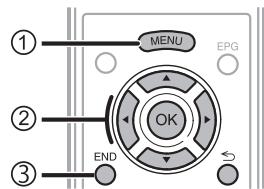
(1) Display the Menu screen
Press MENU and the "Menu" screen displays.
(2) Select an item
The "Menu" is classified by setting categories for improving TV viewing.

See the right column for details on the operations in the "Menu" screen.

Exit the Menu screen
The operation will exit the "Menu" screen if you press END before it is completed.
NOTE
- "Menu" options differ in the selected input modes, but the operating procedures are the same.
- Items with cannot be selected for various reasons.
- Some items cannot be selected depending on signal types, optional settings or connected devices.
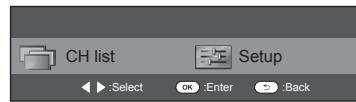
About the guide display
The guide display below the menu bar shows operations for the OSD.
- The bar above is an operational guide for the remote control unit. The bar will change in accordance with each menu setting screen.
Tips:
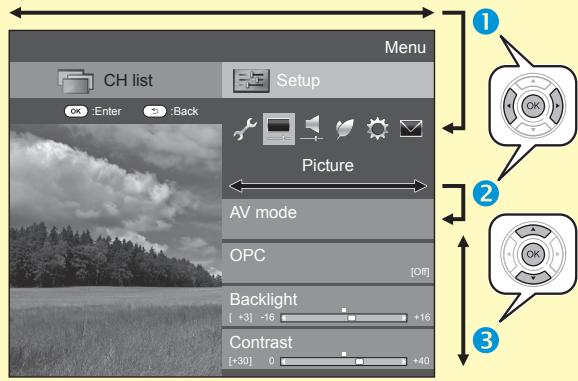
Selecting in the Menu
Press / to select the desired menu, and then press OK. Press to return to the previous menu category.
Press to select the desired submenu, and then press OK.
Press / to select the item you want to select/adjust, and then press OK.
Selecting options
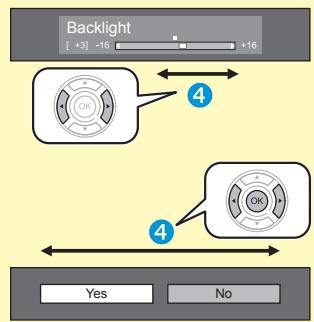
4 Press / or / to configure the control for improving TV viewing, and then press OK.
EXAMPLE
NOTE
Refer to the guide display below the menu bar to see when to press the OK button.
Regarding the instructions in the manual
In this manual, the following expression is often used in order to simplify instructions.
- Go to "Menu" > "Setup" > ...
This indicates how to navigate through the menu screen using the / .
and OK buttons.
Using Software keyboard
Use the software keyboard when you need to input text.
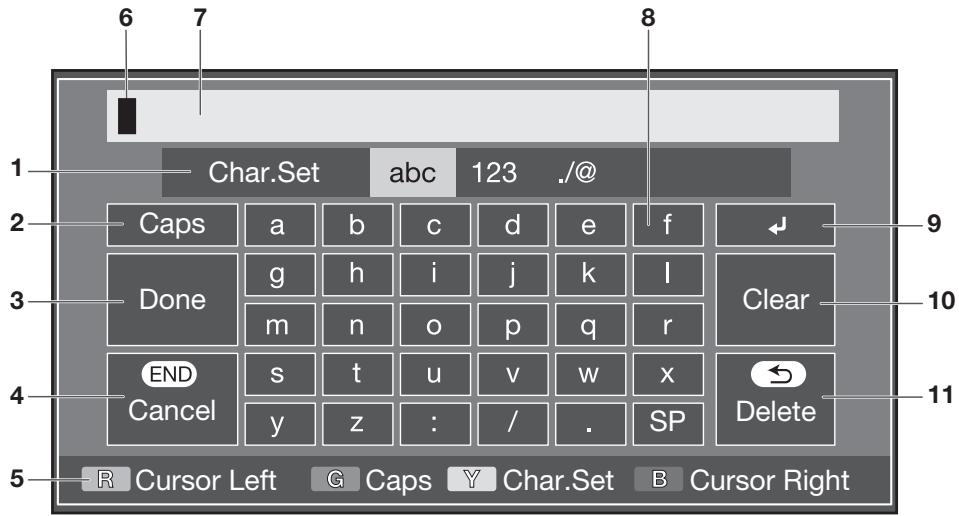
1 Char. Set
Changes character set into the alphabet, numbers, symbols, etc.
2 Caps
Changes characters to capital/ lower case.
3 Done
Confirm the entry.
4 Cancel
Abort input and close the software keyboard.
5 R/G/Y/B (Colour) buttons
Selects the coloured items on the screen.
6 Input cursor
Press to move the cursor when highlighted.
7 Input field
The text you enter is displayed as you type it in.
8 Character
Input characters by using these buttons.
9
Put a line break.
10 Clear
Erases the character string.
-
When the cursor is somewhere in a line: the character string to the right of the cursor will be erased.
-
When the cursor is at the right end of a line: the entire line will be erased.
11 Delete
If the cursor is at the right end of a line, this erases text one character at a time.
- You can also delete text by pressing on the remote control unit.
Initial auto installation
When the TV is powered on for the first time after purchase, the initial auto installation wizard appears. Follow the menus and make the necessary settings one after another.
Confirm the following before turning on the power
Is the antenna cable connected?
Is the AC cord plugged in?
Important information:
Satellite services are only available for the 635 model series.
1 Press POWER on the TV.
- The initial auto installation wizard appears.
2 Setting the OSD language.
Press / / to select the desired language, and then press OK.
3 Selecting the location of the TV.

Press to select where you will use this TV, and then press OK.
- The confirmation screen pops up only when selecting“STORE”.Press to select“Yes”or “No”.
- HOME: "STANDARD" will be the default value for the "AV mode" setting.
- STORE: "DYNAMIC (Fixed)" will be the default value for the "AV mode" setting. If the "AV mode" is changed, the TV will automatically switch back to "DYNAMIC (Fixed)" when there is no operation using the TV or remote control unit for 30 minutes.
- STORE: A demonstration image will be displayed after initial auto installation is completed. If you have chosen "STORE" by mistake, go to "Setup" > "View setting" > "Reset" > select "HOME" again.
4 Setting the country.
Press / / to select your country or area, and then press OK.
- This setting screen only appears during the initial auto installation.
NOTE
- Some functions may not display or be selectable depending on the country setting or cable provider selection.
5 Setting the PIN.
(1) Press / to select “Yes”, and then press OK.
- When "No" is selected, the PIN code setting is skipped.
② Enter a four-digit number as a PIN using the 0-9 buttons.
③ Enter the same four-digit number as in step ② to confirm.
④ Press OK.
NOTE
- When "France" is selected in the country setting, the PIN code setting cannot be skipped.
- "0000" cannot be set as the PIN code.
- When the PIN code setting is skipped, the default PIN code ("1234") will automatically be set.
- To change the PIN setting, refer to Individual setting - PIN (Page 39). To reset the PIN setting (PIN input will no longer be needed), refer to Reset the PIN (Page 64).
6 Starting channel search.
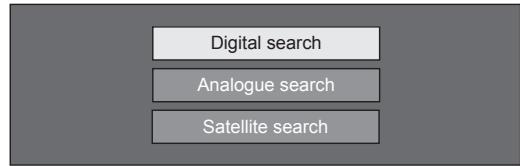
Press / to select "Digital search", "Analogue search" or "Satellite search", and then press OK.
- (635 series only) After performing "Digital search" or "Analogue search", the screen switches to the "Satellite search" setting. You should then execute "Yes" if you want to search for satellite channels.
- To watch both digital broadcasts and analogue broadcasts, you should perform "Digital search" or "Analogue search" from "Auto installation" under the "Setup" menu (Page 36).
- When you select "Satellite search", only satellite broadcasts will be searched.
- If you want to search for more broadcasts, execute "Additional search" from the "Programme setup" menu (Pages 36-38).
NOTE
- If you turn off the power on the TV while performing a channel search, the initial auto installation wizard will not appear. The auto installation function allows you to execute the installation again from "Setup" > "View setting" (Page 36).
- The initial auto installation wizard will abort if you leave the TV unattended for 30 minutes before searching for channels.
- When "Italy" or "France" is selected in the country setting, the default age restriction value is set to 18.
Digital broadcast setting
Press / to select "Terrestrial" or "Cable", and then press OK.

Searching for terrestrial broadcasts
The TV searches for, sorts and stores all the receivable TV stations according to their settings and the connected antenna.
- To abort the initial auto installation in progress, press .
NOTE
- A region or service selection screen may display depending on the country settings or cable providers selections. Follow the screen prompts to make the selections.

635 series only
After searching for terrestrial channels, the screen switches to the "Satellite search" setting (Page 16).
Searching for cable broadcasts
To change each item to the appropriate settings:
1 Press / to select the menu, and then press OK.
2 Press / / / or 0-9 to select or input the appropriate item/ value, and then press OK.
| Scrambled stations | [Yes] |
| Search method | [Channel] |
| Start frequency | [47.0] |
| Network ID | [None] |
| Symbol rate 1 | [6875] |
| Symbol rate 2 | [6900] |
| QAM modulation 1 | [64] |
| QAM modulation 2 | [256] |
| Reset | |
| Search start |
3 Press / to select "Search start", and then press OK.
4 Press to select "Yes" to start searching cable broadcasts, and then press OK.
5 The TV searches for, sorts and stores all the receivable TV stations according to their settings and the connected antenna.
- To abort the initial auto installation in progress, press .

635 series only
After searching for cable channels, the screen switches to the "Satellite search" setting (Page 16).
| Menu | Description | Selectable items |
| Scrambled stations | Specifies if you need to add pay-TV services. | Yes, No |
| Search method | Specifies how you search for channels.*2 | Channel, Frequency, Quick |
| Start frequency | From 47.0–858.0 MHz | |
| Network ID | Specifies the network.*3 | None, 0–65535 |
| Symbol rate 1/ Symbol rate 2*1 | Input the value received for CATV.*4 | 1000–9000 |
| QAM modulation 1 | 16, 32, 64, 128, 256 | |
| QAM modulation 2 | None, 16, 32, 64, 128, 256 |
^1 Set up "Symbol rate 2" if the cable provider uses several symbol rates.
2 Details about the "Search method" items are as follows:
- Channel: Extracts all information from a channel (quick, but needs corresponding TV stations).
- Frequency: Checks every frequency in range (slow).
- Quick: All services are searched by one frequency. This menu works only when your cable provider provides the frequency and the network ID (e.g., Homing channel). When "Quick" is selected, "Scrambled stations" is automatically set to "No", and "None" for the "Network ID" menu cannot be selected
^ 3 Set this to register only the specified network ID without registering any special services.
*4 The symbol rates are specified by the cable provider.
Analogue broadcast setting
The TV searches for, sorts and stores all the receivable TV stations according to their settings and the connected antenna.
- To abort the initial auto installation in progress, press .

635 series only
After searching for analogue channels, the screen switches to the "Satellite search" setting (Page 16).
Searching for satellite broadcasts (635 series only)
Press / to select "Yes", and then press OK.

- If you do not perform "Satellite search" setting, select "No", and then press OK.
- The current DVB-S/S2 setting screen is displayed.
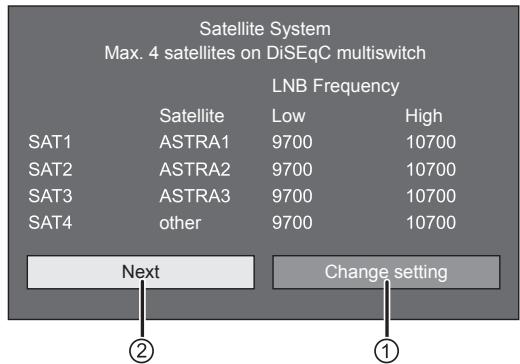
- You must first complete "Change setting" before moving to the "Next" setting.
(1) When you change the antenna connection setting:
Press / to select "Change setting", and then press OK.
- The antenna connection setting screen is displayed.
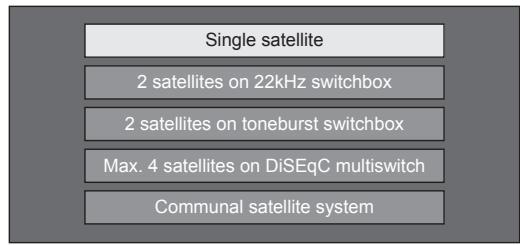
NOTE
- You can select the antenna connection method from the five types. Consult your dealers before using a method other than "Single satellite".
"Single satellite" setting
1 Press / to select "Single satellite", and then press OK.
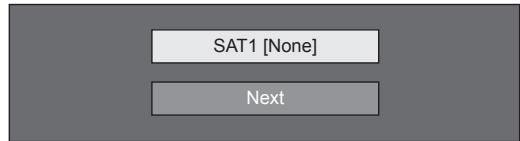
2 Press / to select "SAT1 [None]" to display the satellite broadcasts that the TV can receive, and then press OK.
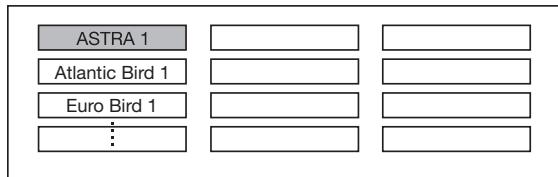
3 Press / / / to select your favorite satellite, and then press OK.
- You cannot select "Next" unless you set the satellite broadcast in step 3.
4 Press / to select "Next", and then press OK.

5 Press / to select "Yes (0/22kHz)" or "No" to set the LNB frequency, and then press OK.

6 Press / to select the item and press / to adjust 9,000 MHz to 12,000 MHz to the appropriate value.
EXAMPLE
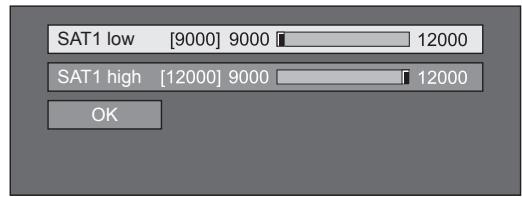
7 Press / to select "OK", and then press OK.

After completing this setting, the screen switches to the DVB-S/S2 setting screen shown in the left column on page 16.
NOTE
- Follow the instructions on the screen for "2 satellites on 22kHz switchbox", "2 satellites on toneburst switchbox", "Max. 4 satellites on DiSEqC multiswitch" and "Communal satellite system" settings.
- To set multiple satellite channels, go to "Max. 4 satellites on DiSEqC multiswitch".
- Follow the procedure below when the supply of power is needed for a satellite antenna: Go to "Menu" > "Setup" > "View setting" > "Channel settings" > "Antenna setup-DIGITAL" > "Satellite setup" > "Change setting" > "Communal satellite system".
(2) When starting the satellite search after setting the scrambled stations:
Press / to select "Next" on the DVB-S/S2 setting screen shown in the left column on page 16, and then press OK.
NOTE
- When you perform the initial auto installation, "Next" cannot be selected. Completing "Change setting" enables you to select "Next".
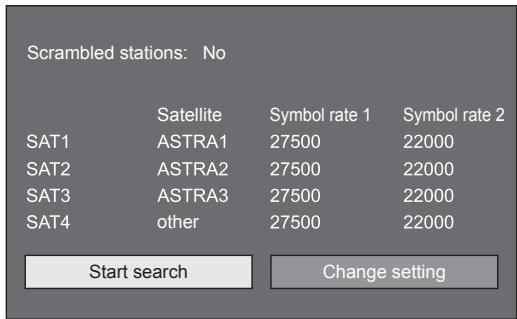
Start search:
DVB-S/S2 channel searching.
1 Press / to select "Start search", and then press OK.
2 The TV searches for and stores all the receivable TV stations according to their settings and the connected antenna.
- Select "Yes" to sort the search result in alphabetical order.
- To abort the initial auto installation in progress, press .
Change setting:
1 Press / to select "Change setting", and then press OK.
- The setting screen of "Scrambled stations" and "Symbol rate" is displayed.
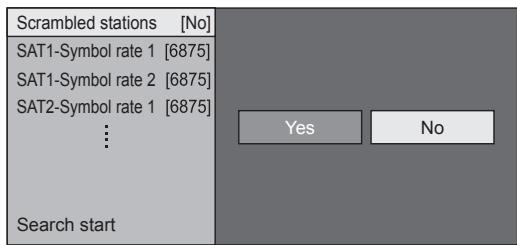
2 Press / to select "Scrambled stations", and then press OK.
- Scrambled stations: Specifies if you need to add pay-TV services.
3 Press / to select "Yes", and then press OK.
4 Press / to select the symbol rate you want to modify, and then press OK.
- Symbol rate: You need to set each symbol rate of all the satellite broadcasts that the TV can receive (eight is the maximum number of symbol rates that can be displayed).
5 Press / to select "Search start", and then press OK.
6 The TV searches for and stores all the receivable TV stations according to their settings and the connected antenna.
- Select "Yes" to sort the search result in alphabetical order.
- To abort the initial auto installation in progress, press .
Checking signal strength and channel strength (DVB-T/T2 ^*1 /C/S ^*2 /S2 ^*2 )
If you install a DVB-T/T2/C/S/S2 antenna for the first time or relocate it, you should adjust the alignment of the antenna to receive a good reception while checking the antenna setup screen.
*1 636 series only
^ 2 635 series only
1 Go to "Menu" > "Setup" > "View setting" > "Channel settings" > "Antenna setup-DIGITAL".
2 Press / to select "Digital setup" or "Satellite setup", and then press OK.
- Checking signal strength
3 Press / to select "Signal strength", and then press OK.
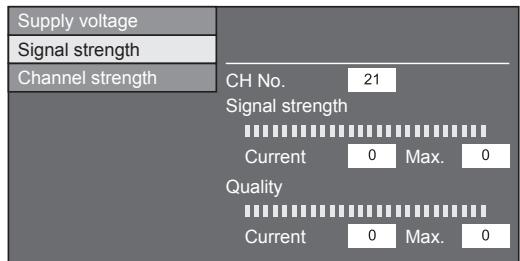
Signal strength for DVB-T/T2/C
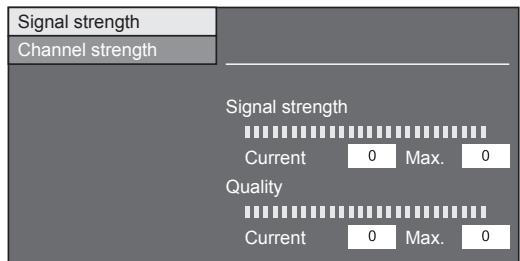
Signal strength for DVB-S/S2
Checking channel strength
4 Press / to select "Channel strength", and then press OK.
- You can input a specified frequency band using the 0-9 numeric buttons.
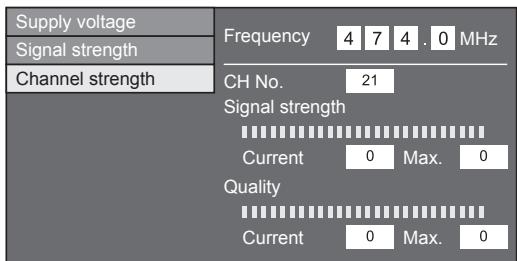
Channel strength of DVB-T/T2
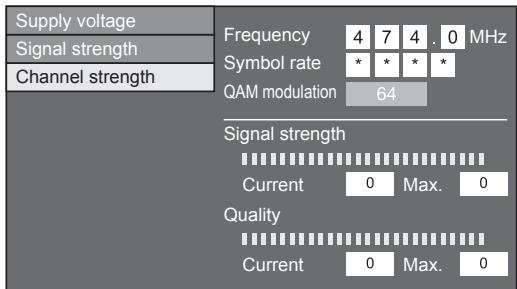
Channel strength of DVB-C
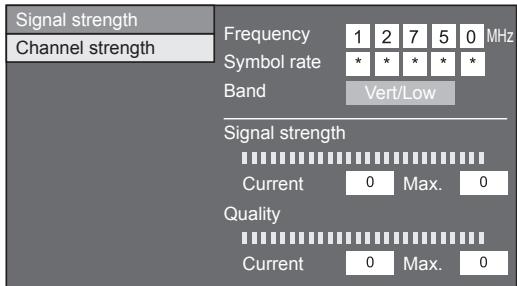
Channel strength of DVB-S/S2
5 Position and align the antenna so that the maximum possible values for "Signal strength" and "Quality" are obtained.
NOTE
- The values of "Signal strength" and "Quality" indicate when to check the appropriate alignment of the antenna.
Supplying power to the antenna
You must supply power to the antenna in order to receive digitally/terrestrially broadcast stations after connecting the antenna cable to the antenna terminal on the rear of the TV.
1 Go to "Menu" > "Setup" > "View setting" > "Channel settings" > "Antenna setup-DIGITAL" > "Supply voltage".
2 Press / to select "On", and then press OK.
Daily operation
Turning on/standby the power
Turning on the power
Press POWER on the TV or TV on the remote control unit.
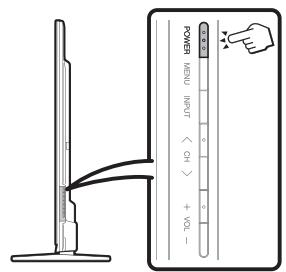
Standby mode
Press POWER on the TV or TV on the remote control unit when TV is on.
- The TV enters standby mode and the image on the screen disappears.
- Weak electric power is still consumed even when the TV is turned standby mode.
- To completely turn off the power to the TV, unplug the AC cord from the AC outlet. However, do not unplug the AC cord unless otherwise instructed.
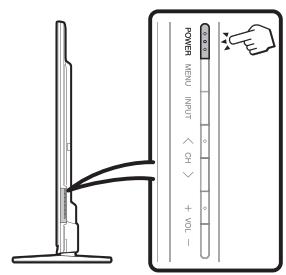
NOTE
- If you are not going to use this TV for a long period of time, be sure to remove the AC cord from the AC outlet.
Switching between digital, satellite* and analogue broadcasts
Watching digital broadcasts
Watching satellite broadcasts
*Important information:
Satellite services are only available for the 635 model series.
NOTE
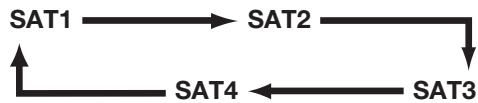
- If multiple satellite services are set, each time you press the SAT button the channel switches as follows.
Changing channels
With P ∧ ∨

With 0-9
Selecting an external video source
Once the connection is made, press to display the "INPUT" screen, and then press or / to switch over to the appropriate external source with OK.
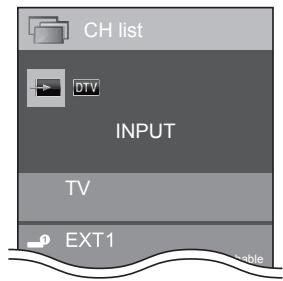
NOTE
- You can also select an external video source from "CH list" > "INPUT".
- Only HDMI inputs which are not set for "Input skip" (Page 42) and properly connected inputs can be selected.
Selecting a sound mode
DTV/SAT mode
If multi sound modes are received, each time you press / IV / C the mode switches as follows.
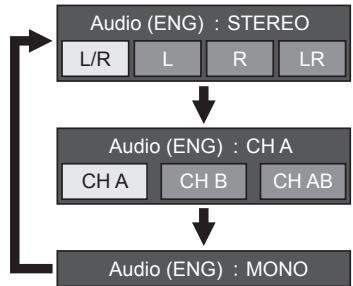
Press / to select L or R sound when the STEREO or DUAL MONO screen is displayed.
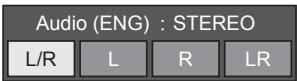
NOTE
- The sound mode screen disappears in six seconds.
- Selectable items vary depending on the received broadcasts.
- When the "Audio description setting" menu is set to "On", the audio description sound is selected depending on the main audio.
ATV mode
Each time you press / I + IV / O , the mode switches as shown in the following tables.
| NICAM TV broadcasts selection | |
| Signal | Selectable items |
| Stereo | NICAM STEREO, MONO |
| Bilingual | NICAM CH A, NICAM CH B, NICAM CH AB, MONO |
| Monaural | NICAM MONO, MONO |
| A2 TV broadcasts selection | |
| Signal | Selectable items |
| Stereo | STEREO, MONO |
| Bilingual | CH A, CH B, CH AB |
| Monaural | MONO |
NOTE
- When no signal is input, the sound mode will display "MONO".
Channel display
You can display the channel information by pressing i+ on the remote control unit.
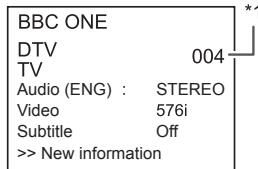
DTV mode
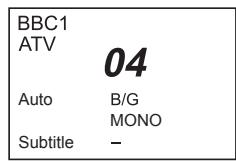
ATV mode
*1 Four digit numbers (e.g., 0001) are displayed after selecting the five Nordic countries in the country setting.
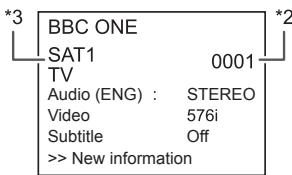
SAT mode
2 Satellite channels are displayed by four digit numbers (e.g., 0001).
3 You can set four satellite stations to "SAT1", "SAT2", "SAT3", "SAT4".
Time display in channel information
You can display the time information included in DTV, SAT and teletext broadcasts.
NOTE
- Skip step 1 if receiving DTV/SAT broadcasts.
1 Select a TV channel (the time information is automatically captured).
2 Press + . The channel display will appear on the TV.
3 Press + again within the several seconds that the channel display is on the screen. Time information will be shown in the lower-right corner of the screen for several seconds.
4 Even when you change the TV channel, you can display the time information with steps 2 and 3 above.
NOTE
- If acquired successfully, the time information will appear on the screen by pressing MENU.
Operation without a remote control unit
You can operate the menu settings using the TV control buttons.
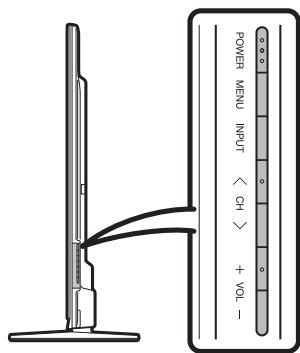
| TV control buttons | Remote control buttons |
| MENU | MENU |
| INPUT | OK |
| CH∧/∨ | ▲/▼ |
| VOL+/− | ►/← |
EPG
EPG is a programme list that is displayed on the screen. With the EPG, you can check the schedule for DTV/SAT/RADIO/DATA, view detailed information about them and tune to an event currently on-air.
Useful settings for using EPG

View setting
EPG
If you want to use the EPG for digital stations, select "Yes". The EPG data must be automatically captured while the TV is in standby mode. After setting to "Yes", it may take some time to turn off the power using the remote control unit or the TV due to the data capture process.
Go to "Menu" > "Setup" > "View setting" > "Individual setting" > "Standby search" > "EPG".

Option
Display range setup
The "Display range setup" allows you to select three types of time spans for display on the screen.
Go to "Menu" > "Setup" > "Option" > "EPG setup" > "Display range setup".
| Item | |
| Mode 1 (Wide angle) | Displays six hours of programme information. |
| Mode 2 (Zoom) | Displays three hours of programme information. |
| Mode 3 (Vertical angle) | Changes to the EPG display format with a vertical time span. |

Option
Genre icon setup
You can grey out or place a mark on desired genres and smoothly search for programmes you frequently watch.
1 Go to "Menu" > "Setup" > "Option" > "EPG setup" > "Genre icon setup".
2 Press / to select the desired genre, and then press OK.
Genre icon list
| Icon | Genre | Icon | Genre |
| Movie/Drama | Music/Ballet/Dance | ||
| News/Current affairs | Arts/Culture (without music) | ||
| Show/Game show | Social/Political issues/Economics | ||
| Sports | Education/Science/Factual topics | ||
| Children's/Youth programmes | Leisure hobbies |
3 Press / to select a level to pick out or search for programmes you want to watch ("Standard", "Light", "Remark").
Selecting a programme using EPG
The illustrations on this page are explained using three digit services.
Display/Close the EPG screen
Press EPG.
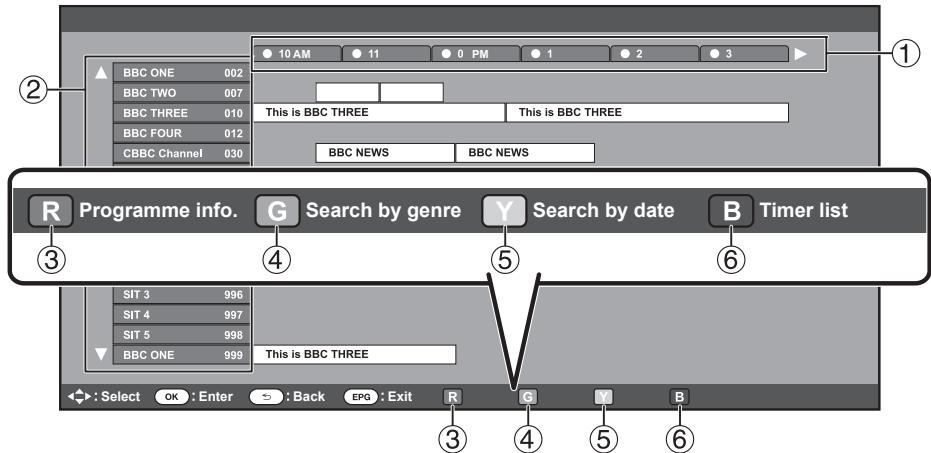
NOTE
- You can also display the EPG screen from "Menu" > "EPG" > "EPG".
Select a programme
(1) Select the time span
Press / to select the time span you want to search.
- Continue to press to display programmes in the next time span.
(2) Select the desired programme
Press / to select the desired programme.
- If or are displayed on the left of the services, continue to press / to display next or previous screen.
③ Check programme information
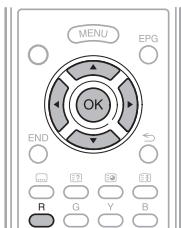
1 Press / / to select the programme you want to check.
2 Press R, and then press OK to tune to the selected programme.
(4) Search a programme in a category
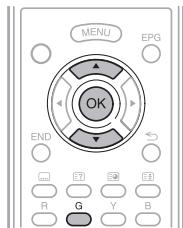
1 Press G.
2 Press / to select the desired genre, and then press OK.
3 Press / to select a programme you want to watch, and then press OK.
Refer to page 21 for the genre setting.
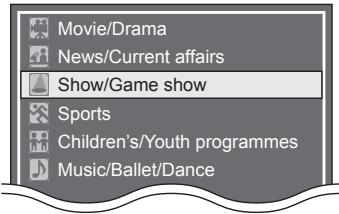
NOTE
- You can also display this setting screen from "Menu" > "EPG" > "Search by genre".
(5) Search for a programme by date/time
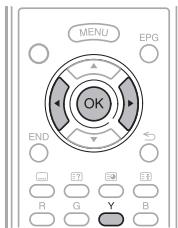
1 Press Y.
2 Press to select the desired time span, and then press OK.
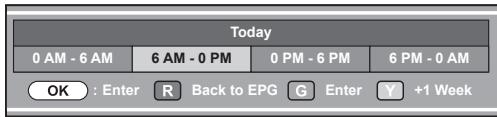
3 Press / to select the desired programme, and then press OK.
NOTE
- You can also display this setting screen from "Menu" > "EPG" > "Search by date".
⑥ Display the timer list for TV programmes
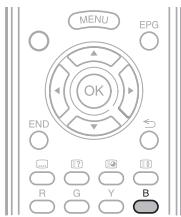
Press B.
Refer to page 23 for the timer setup.
Timer setup using EPG
You can switch to a programme at a set time.
1 Press EPG.
2 Press / / / to select the programme you want to set, and then press OK.
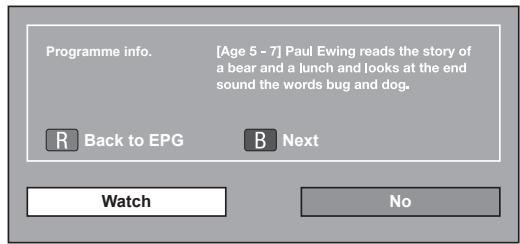
3 Press / to select "Watch", and then press OK.
- If you select "No", the TV returns to the EPG screen.
4 Press / to select "Yes", and then press OK.
- The selected TV programme is marked with an icon.
5 Press OK to select "Back".
Cancelling the timer setup
1 Press EPG.
2 Press / / / to select the programme with timer setup, and then press OK.
3 Press / to select "Cancel", and then press OK.
4 Press / to select "Yes", and then press OK.
Cancelling using B button on the remote control unit
1 Press EPG.
2 Press B to display the timer setup list.
3 Press / to select the programme you want to cancel timer setup, and then press OK.
4 Press to select "Cancel", and then press OK.
5 Press / to select "Yes", and then press OK.
Teletext
What is teletext?
Teletext broadcasts pages of information and entertainment to specially equipped TV. Your TV receives teletext signals broadcast by a TV network, and decodes them into graphical format for viewing. News, weather and sports information, stock exchange prices and programme previews are among the many services available.
Turning teletext on/off
1 Select a TV channel or external source providing a teletext programme.
2 Press to display the teletext.
- Many stations use the TOP operating system, while some use FLOF (e.g., CNN). Your TV supports both these systems. The pages are divided into topic groups and topics. After switching on the teletext, up to 2,000 pages are stored for fast access.
- If you select a programme with no teletext signal, "No Teletext available" displays.
- The same message displays during other modes if no teletext signal is available.
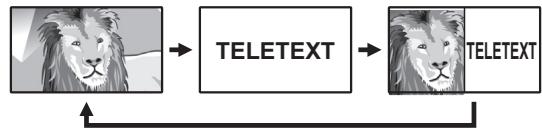
- Each time you press , the screen switches as shown above.
- Press again to display the teletext on the right screen and the normal image on the left screen.
NOTE
- Teletext will not work if the selected signal type is RGB (Page 43).
Buttons for teletext operations
| Buttons | Description |
| P∧/∨ | Increase or decrease the page number. |
| Numeric buttons 0–9 | Directly select any page from 100 to 899 by using the 0–9 numeric buttons. |
| Colour (R/G/Y/B) | Select a group or block of pages displayed in the coloured brackets at the bottom of the screen by pressing the corresponding colour (R/G/Y/B) on the remote control unit. |
| (Reveal hidden teletext) | Reveal or hide hidden information such as an answer to a quiz. |
| (Freeze/Hold) | Stop updating teletext pages automatically or release the hold mode. |
| (Subtitle for teletext) | Display the subtitle or exit the subtitle screen. • Subtitles will not be displayed when the service does not contain subtitle information. |
| (Subpage) | Reveal or hide subpages. • Move to the previous subspage (R). • Move to the following subspage (G). These two buttons are shown on the screen by the symbols “+” and “-”. |
| OK | Display the top menu. • The top menu will not be displayed when the service does not support top menus. |
MHEG-5 application (UK only)
Some services bring you programmes with the MHEG application encoded, letting you experience DTV interactively. When provided, the MHEG-5 application will start when you press l .
NOTE (636 series only)
- You can view some MHEG-5 content even if you do not perform "Network setup". Furthermore, "Network setup" allows you to view additional content such as interactive content from "Menu" > "Setup" > "View setting" > "Network setup".
- You cannot view MHEG-5 content when MHEG-5 content is not broadcast even if you perform the appropriate "Network setup". Carefully check the broadcast programme.
Introduction to connections
The TV is equipped with the terminals as shown below. Find the cable corresponding the TV's terminal and connect the device.
Before connecting ...
- Be sure to turn off the TV and any devices before making any connections.
- Firmly connect a cable to a terminal or terminals.
- Carefully read the operation manual of each external device for possible connection types. This also helps you get the best possible audiovisual quality to maximise the potential of the TV and the connected device.

Connection method for other devices
Page 54


Page 46

Pages 59 and 60

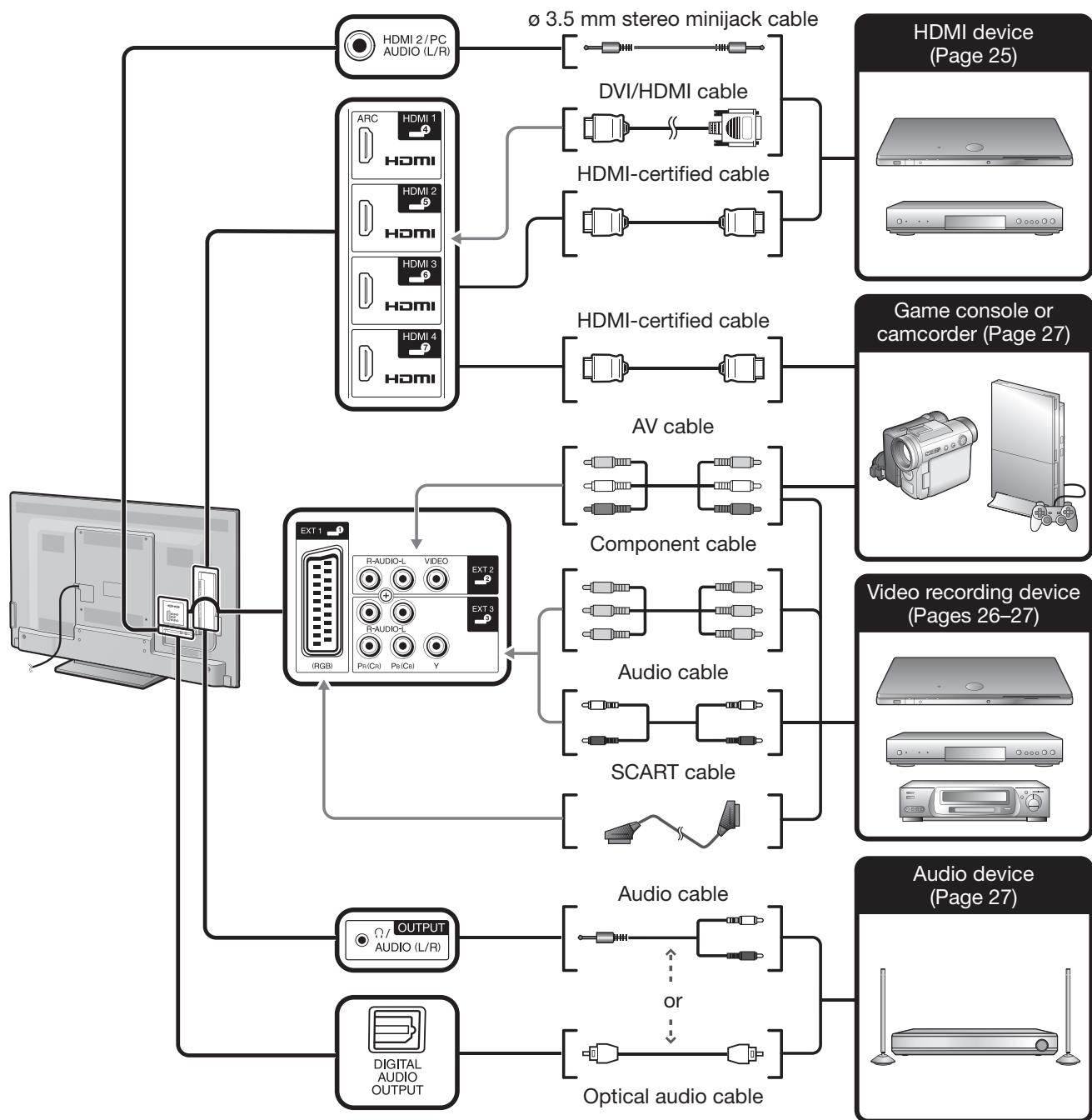
Video connections

HDMI connection
Example of connectable devices
DVD player/recorder
Blu-ray player/recorder
Game console
The HDMI connections permit digital video and audio transmission via a connection cable from a player/recorder. The digital picture and sound data are transmitted without data compression and therefore lose none of their quality. Analogue/digital conversion is no longer necessary in the connected devices, which also would result in quality losses.
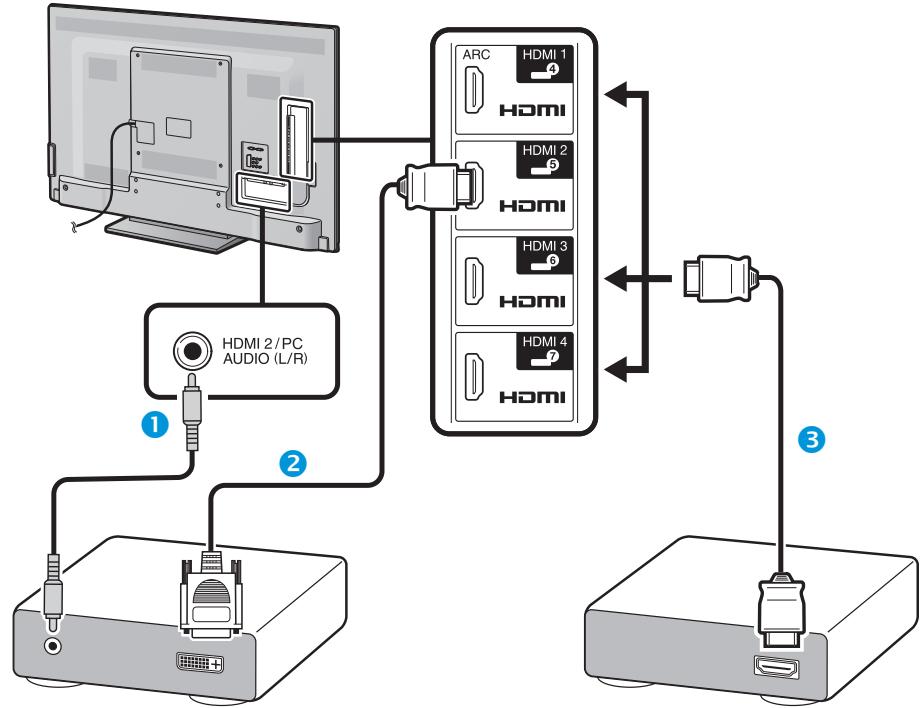
1 0 3.5 mm stereo minijack cable (commercially available)
DVI/HDMI cable (commercially available)
3 HDMI-certified cable (commercially available)
DVI/HDMI conversion
Using a DVI/HDMI cable, the digital video signals of a DVD can also be played via the compatible HDMI connection. The sound must be fed in additionally.
- When connecting a DVI/HDMI cable to the HDMI terminal, the image may not come in clearly.
- Both HDMI and DVI use the same HDCP copy protection method.
When using the HDMI 2 terminal
You must set the audio signal input source depending on the type of HDMI cable connected (refer to page 42 for details).
HDMI-certified cable
1 Press to select "HDMI 2" from the "INPUT" menu, and then press OK.
2 Go to "Menu" > "Setup" > "Option" > "Terminal setting" > "Audio select" > select "HDMI (Digital)".
DVI/HDMI cable
1 Press to select "HDMI 2" from the "INPUT" menu, and then press OK.
2 Go to “Menu” > “Setup” > “Option” > “Terminal setting” > “Audio select” > select “HDMI+Analog”.
NOTE
- If a connected HDMI device is AQUOS LINK compatible, you can take advantage of versatile functions (Pages 28-31).
- Video noise may occur depending on the type of HDMI cable used. Make sure to use a certified HDMI cable.
- When playing the HDMI image, the best possible format for the picture will be detected and set automatically.
- An ARC (Audio Return Channel) compatible audio receiver must be connected to the HDMI 1 terminal with an ARC-compatible cable.
Supported video signal
576i, 576p, 480i, 480p, 1080i, 720p, 1080p
See page 56 for PC signal compatibility.
Supported audio signal
Linear PCM, sampling rate 32/44.1/48kHz.

SCART connection
Example of connectable devices
VCR
DVD player/recorder
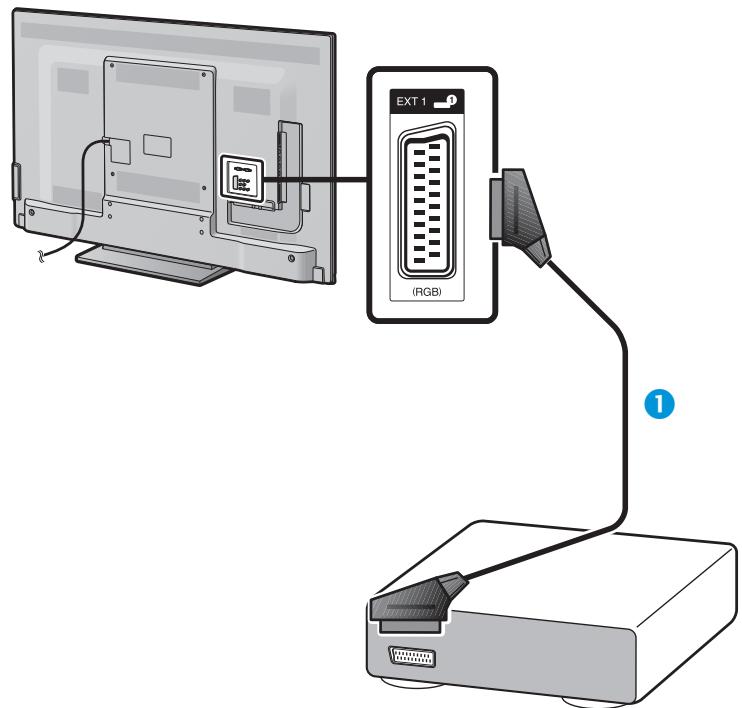
SCART cable (commercially available)
NOTE
-
Regarding the external output:
-
You can record programmes viewed on the TV with an external recording device by connecting the external output of the TV with an SCART cable (commercially available).
- If you change TV channels during recording from the external devices or turn off the power on the TV, the recorded content may change or be interrupted.
- The external output may not be performed depending on the status of use.


Component connection
Example of connectable devices
VCR
DVD player/recorder
You will enjoy accurate colour reproduction and high quality images through the EXT 3 terminal when connecting a DVD player/ recorder or other device.
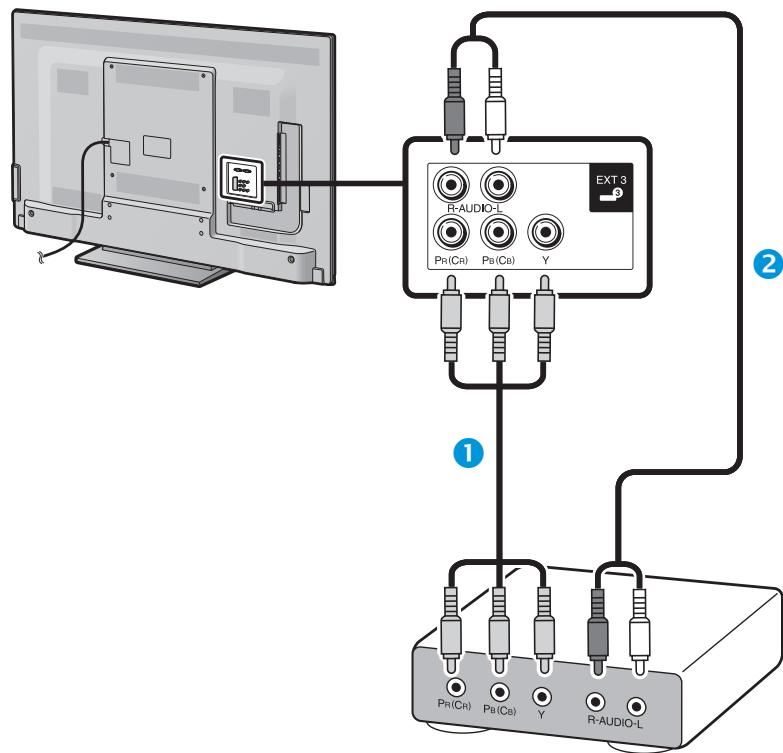
Component cable (commercially available)
Audio cable (commercially available)

VIDEO connection
Example of connectable devices
VCR
DVD player/recorder
Game console
Camcorder
You can use the EXT 2 terminal when connecting to a game console, camcorder, a DVD player/recorder or other device.
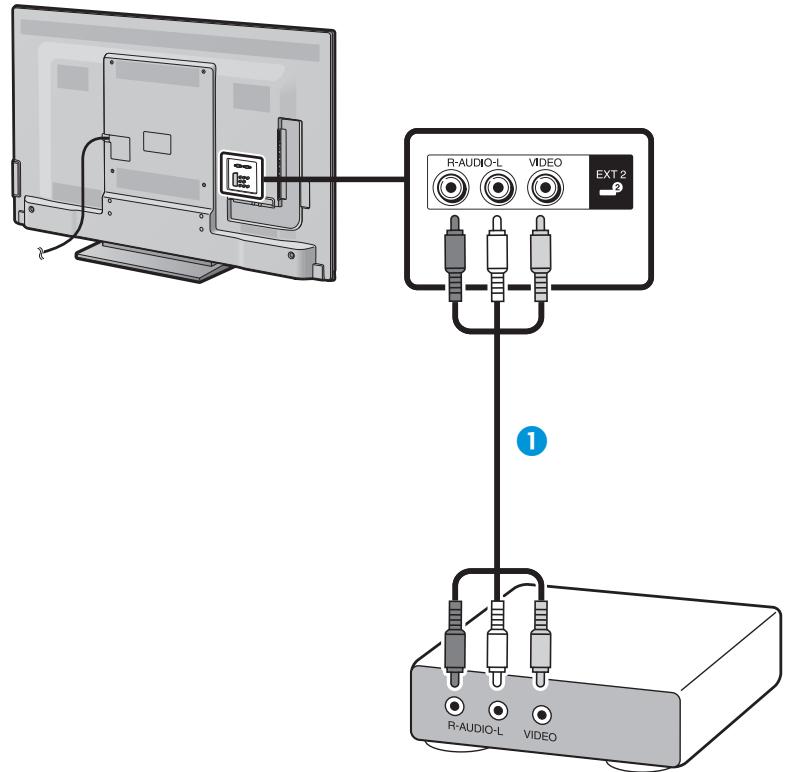
AV cable (commercially available)
Audio connections
Speaker/amplifier connection
Connect an amplifier with external speakers as shown below.
- Connecting an amplifier with digital/analogue audio inputs
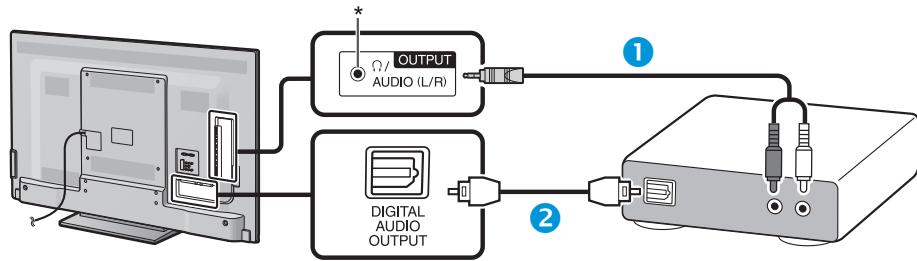
Stereo conversion cable (for analogue audio) (commercially available)
Optical audio cable (for digital audio) (commercially available)
- This terminal is also used for headphones. Reduce the volume before using headphones. Overwhelming sound may damage your hearing.
NOTE
- Optical digital audio will be output in 2-ch stereo when it is from the external equipment connected to the TV using an HDMI cable.
- If the image is not in sync with the audio, check the settings of the connected surround system.
After connecting
Digital audio output setting
After connecting an amplifier with digital audio input and external speakers as shown, you should set an audio output format compatible with the programme you are watching or the device connected.
- Go to "Menu" > "Setup" > "Option" > "Terminal setting" > "Digital audio output" > select "PCM" or "Dolby Digital".
NOTE
- When set to "Dolby Digital", Dolby Digital is output when the Dolby Digital or Dolby Digital Plus audio formats are received. When set to "PCM", PCM is output no matter what audio formats are received.
- When set to "Dolby Digital", HE-AAC audio formats can be output as Dolby Digital.
- When set to "Dolby Digital", Dolby Digital Plus can be output as Dolby Digital.
Controlling HDMI devices using AQUOS LINK
What is AQUOS LINK?
Using the HDMI CEC protocol, with AQUOS LINK you can interactively operate compatible system devices (AV amplifier, DVD player/recorder, Blu-ray player/recorder) using a single remote control unit.
NOTE
- AQUOS LINK-compatible AQUOS AUDIO speaker system and AQUOS recorder are scheduled to be on sale after the release of this TV.
- AQUOS LINK does not work while using time shift functions.
What you can do with AQUOS LINK
One touch recording (DTV/SAT only)
You do not have to search for the remote control unit of your recording device. Press the REC or REC STOP buttons to start/stop recording what you see on the recorder.
One touch play
When the TV is in standby mode, it will automatically turn on and play back the image from the HDMI source.
Single remote control operation
AQUOS LINK automatically recognises connected HDMI devices and you can control the TV and the devices as if using a universal remote control unit.
Operating title list of external devices
In addition to displaying the TV's own timer list (Page 22), you can also call up the external player's top menu or AQUOS BD player's/AQUOS recorder's title list provided that the devices support AQUOS LINK.
Multiple control of HDMI devices
You can select which HDMI device to operate using the "Link operation" menu.
NOTE
- When you use AQUOS LINK, make sure to use a certified HDMI cable.
- Point the remote control unit toward the TV, not to the connected HDMI device.
- Video noise may occur depending on the type of HDMI cable used. Make sure to use a certified HDMI cable.
- Up to three HDMI recording devices, one AV amplifier and three players can be connected using this system.
- These operations affect the HDMI device selected as the current external source. If the device does not operate, turn on the device and select the appropriate external source using .
- When you insert/remove HDMI cables or change connections, turn on all connected HDMI devices before turning on the TV. Confirm that picture and audio are correctly displayed/output by selecting "HDMI 1", "HDMI 2", "HDMI 3" or "HDMI 4" from the "INPUT" menu.
AQUOS LINK connection
First connect the AQUOS AUDIO speaker system or an AQUOS BD player/ AQUOS recorder that supports the HDMI CEC protocol.
Connecting an AQUOS BD player/AQUOS recorder via the AQUOS AUDIO speaker system
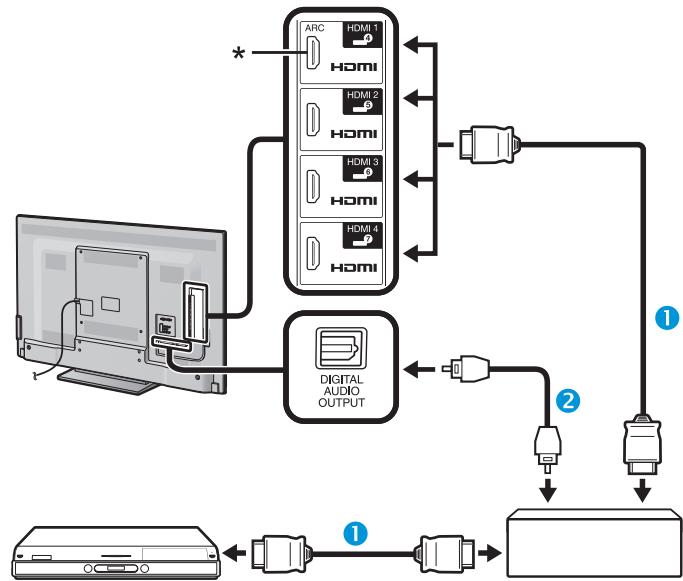
AQUOS BD player/AQUOS recorder
AQUOS AUDIO speaker system
HDMI-certified cable (commercially available)
Optical audio cable (commercially available)
- The ARC (Audio Return Channel) function works only when using the HDMI 1 terminal.
NOTE
- Refer to the operation manual of the device to be connected for further details.
- After unplugging connection cables or changing the connection pattern, turn on the power of the TV after all relevant devices' power have been turned on. Change the external input source by pressing , select the appropriate external source and verify the audiovisual output.
- The cables illustrated in the following explanation are commercially available items.
- The four buttons (, , , ) connected by a green line are used for time shift operations for the time shift function.
Connecting an AQUOS BD player/AQUOS recorder only
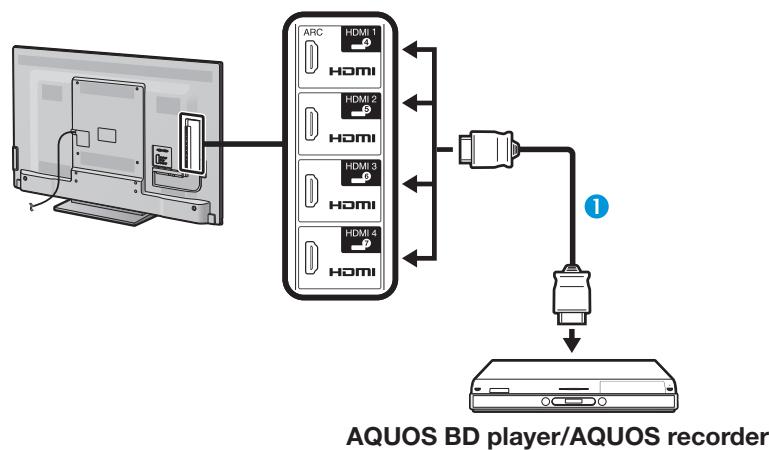
HDMI-certified cable (commercially available)
AQUOS LINK setup
Basic operation
Go to "Menu" > "Link operation" > "AQUOS LINK setup" > select the menu you want to set.
AQUOS LINK control
Set to "On" to enable HDMI CEC functions.
Auto power on
If this is activated, the one touch play function is enabled. While the TV is in standby mode, it automatically turns on and plays back the image from the HDMI source.
NOTE
- The factory default for this item is "Off".
Selecting recorder
Here, you can select a recorder for the recording from several connected recorders.
NOTE
- If you have connected the AQUOS AUDIO speaker system between the TV and an AQUOS recorder, the external source's indication changes (e.g., from "HDMI 1" to "HDMI 1 (Sub)").
Selecting channel key
This function allows you to select the channel of the connected HDMI device using the TV's remote control unit.
1 Press / to select the input source of the connected HDMI device you want to control using the TV's remote control unit, and then press OK.
2 Press / to select "On", and then press OK.
Using genre info.
This function allows you to automatically switch to the appropriate sound mode depending on the genre information included the digital broadcast.
Audio return channel (ARC)
If this function is set to "Auto", the TV can send audio data for video content shown on the TV to a connected audio device with just one ARC-compatible cable. Using this function eliminates the need to use a separate digital or analogue audio cable.
Connection for using "Audio return channel"
- You need to use ARC-compatible cables/devices and connect to the HDMI 1 terminal to activate this function. The connection method is the same as Connecting an AQUOS BD player/AQUOS recorder via the AQUOS AUDIO speaker system (Page 29).
Operating an AQUOS LINK device
AQUOS LINK allows you to operate the HDMI-connected device with a single remote control unit.
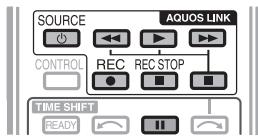
1 Press to start playback of a title.
- See the section Top menu/title list if you want to start playback using the list of the titles in the AQUOS BD player/AQUOS recorder.
2 Press to fast forward.
Press to reverse.
Press REC to start recording.
Press REC STOP to stop recording.
Press to stop.
Press to pause.
Press SOURCE | to turn the HDMI-connected device on/off.
AQUOS LINK menu
You can select the AQUOS LINK menu from the "Link operation" menu to arrange the settings for sound or an external device.
Recorder power on/off
You can call up the CEC-compatible recorder's EPG and preset timer recordings using the TV's remote control unit.
1 Press / to select "Recorder power on/off", and then press OK.
- The external input source switches and the recorder's EPG is displayed.
2 Select the programme to record.
Refer to the operation manual of the recorder for details.
Top menu/title list
This section explains how to play back a title in the AQUOS BD player/AQUOS recorder.
1 Press / to select "Top menu/title list", and then press OK.
- The linked recorder now powers on and the TV automatically selects the appropriate external input source.
- The title list data from the connected AQUOS BD player/AQUOS recorder displays.
2 Press MENU to hide the menu screen to operate / / / buttons.
3 Select the title with / / / , and then press PLAY.
Setup menu
You can call up the menu of an HDMI CEC-compatible external device (player, recorder, etc.) using the "Setup menu" function.
Press / to select "Setup menu", and then press OK.
NOTE
- If a connected device does not have this function or the device is in a status where the menu cannot be displayed (recording, entering standby, etc.), this function may not be available.
Media change
If your recorder has multiple storage media, select the media type here.
1 Press / to select "Media change", and then press OK.
2 Select the desired medium, such as DVD recorder or HDD. The media type changes every time you press OK.
Recorder EPG
You can call up the CEC-compatible recorder's EPG and preset timer recordings using the TV's remote control.
1 Press / to select "Recorder EPG", and then press OK.
- The external input source switches and the recorder's EPG is displayed.
2 Select the programme to record.
Refer to the operation manual of the recorder for details.
Change audio output device
By AQUOS audio SP
You can choose to listen to the TV sound only from the AQUOS AUDIO speaker system.
Press / to select "By AQUOS audio SP", and then press OK.
- The sound from the TV speaker and headphone terminal is silenced and only the sound from the AQUOS AUDIO speaker system is audible.
Audio description sound is not available.
By AQUOS SP
You can choose to listen to the TV sound only from the AQUOS TV speaker system.
Press / to select "By AQUOS SP", and then press OK.
Sound mode change
You can manually change the AQUOS AUDIO speaker system's sound mode.
1 Press / to select "Sound mode change".
2 The sound mode changes every time you press OK.
Refer to the operation manual of the AQUOS AUDIO speaker system for details.
Model select
If multiple HDMI devices are connected in a daisy chain, you can specify which device to control here.
Press / to select "Model select", and then press OK. The HDMI device changes every time you press OK.
Picture settings
Go to "Menu" > "Setup" > "Picture".
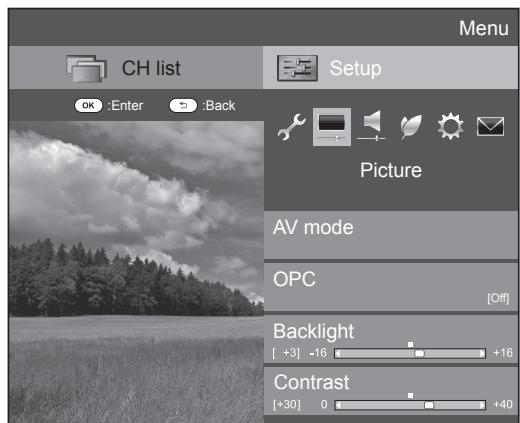

Picture
AV mode
"AV mode" gives you several viewing options to choose from to best match the system environment, which can vary due to factors like room-brightness, type of programme watched or the type of image input from external equipment.
Press / to select the desired mode, and then press OK.
- You can also switch the mode on the "Picture" and "Audio" menu screen by pressing AV MODE.
| Item | |
| AUTO | The TV automatically sets the appropriate selection from the “AV mode” menu depending on the lighting conditions and the type of programme watched. |
| STANDARD | For a highly defined image in a normally bright room. |
| MOVIE | For viewing a movie in a darkened room. |
| GAME | For playing of video games. |
| PC*1 | For PC. |
| USER | Allows you to customise settings as desired. You can set the mode for each input source. |
| x.v.Color*2 | Produce realistic colour on the TV screen unlike any other signal. |
| DYNAMIC | For a clear-cut image emphasising high contrast for sports viewing. |
| DYNAMIC (Fixed) | For a clear-cut image emphasising high contrast for sports viewing (the “Picture” and “Audio” settings cannot be adjusted). |
1 “PC” is available only when selecting “HDMI 1”, “HDMI 2”, “HDMI 3”, “HDMI 4” or “PC” from the “INPUT” menu.
^2 "x.v.Color" is available only when accepting an "x.v.Color" signal through an HDMI terminal.
NOTE
- If you select "AUTO", some selections in the "AV mode" menu may not be automatically set.

Picture
OPC
Automatically adjusts the brightness of the screen.
| Item | |
| Off | The brightness is fixed at the value set in “Backlight”. |
| On | Automatically adjusts. |
| On:Display | Displays the OPC effect on the screen while adjusting the brightness of the screen. |
NOTE
- When set to "On", the TV senses the surrounding light and automatically adjusts the backlight brightness. Make sure no object obstructs the OPC sensor, which could affect its ability to sense surrounding light.

Picture
Picture adjustments
Adjusts the picture to your preference with the following picture settings.
Adjustment items
| Selectable items | ← (Cursor) | ► (Cursor) |
| Backlight | The screen dims | The screen brightens |
| Contrast | For less contrast | For more contrast |
| Brightness | For less brightness | For more brightness |
| Colour | For less colour intensity | For more colour intensity |
| Tint | Skin tones become purplish | Skin tones become greenish |
| Sharpness | For less sharpness | For more sharpness |

Picture
Advanced
This TV provides various advanced functions for optimising the picture quality.
Go to "Menu" > "Setup" > "Picture" >
"Advanced".
C.M.S.-hue
This function adjusts the hue of a selected colour using a six-colour adjustment system.
C.M.S.-saturation
This function increases or decreases the saturation of a selected colour using a six-colour adjustment system.
C.M.S.-value
This function adjusts the brightness of a selected colour using a six-colour adjustment system.
Colour temp.
Adjusts the colour temperature to give the best white image.
| Item | |
| High | White with bluish tone. |
| Mid-High | Intermediate tone between “High” and “Middle”. |
| Middle | Natural tone. |
| Mid-Low | Intermediate tone between “Middle” and “Low”. |
| Low | White with reddish tone. |
| R/G/B Gain (LO), R/G/B Gain (HI) | Adjusts the white balance by changing the value of each item. |
Fine motion advanced
"Fine motion advanced" technologies provide superior solutions for digital display picture quality removing motion blur ("High", "Low", "Off").
NOTE
- This effect is greater on fast moving images.
- These functions will have no effect in the following cases.
1) The type of signal received is a PC signal.
2) An OSD is being displayed.
3) Teletext is activated.
- If images appear blurred, set to "Off".
Gamma adjustment
Selects the tone difference of the brightness and darkness of the image according to the type of programme watched from a maximum of +2 to a minimum of -2 .
Film mode
Automatically detects a film-based source (originally encoded at 24 or 25 frames per second, depending on the vertical frequency), analyses it and then recreates each still film frame for high-definition picture quality ("Advanced (High)", "Advanced (Low)", "Standard", "Off").
Active contrast
Automatically adjusts the contrast of an image according to the scene.
DNR
"DNR" produces a clearer image ("Auto", "High", "Middle", "Low", "Off").
NOTE
- This function may not be available depending on the input signal type.
Monochrome
For viewing a video in black & white.
Range of OPC
The brightness level range of the OPC sensor's automatic adjustments can be set according to your preferences. The adjustment range of the OPC sensor can be set to a maximum of +16 and a minimum of -16 .
NOTE
- This function is available only when the "OPC" setting is set to "On" or "On:Display".
- The maximum setting cannot be set to a smaller number than the minimum setting.
- The minimum setting cannot be set to a bigger number than the maximum setting.
- The maximum and minimum settings cannot be set to the same number.
- Depending on the brightness of the surrounding light, the OPC sensor might not operate if the adjustment range is small.
Audio settings
Go to "Menu" > "Setup" > "Audio".
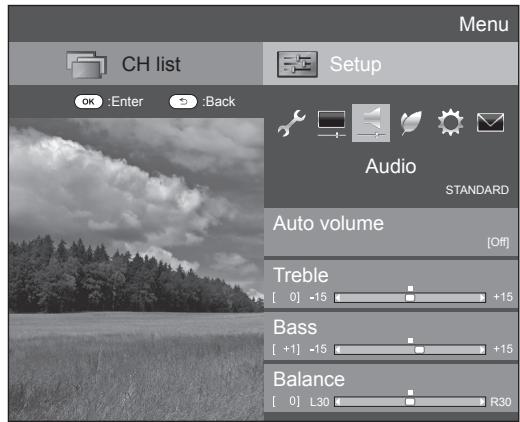

Audio
Auto volume
Different sound sources sometimes do not have the same volume level, such as a programme and its commercial breaks. This function reduces this problem by equalizing levels.
| Item | |
| High | Strongly reduces the volume gaps among different sound sources. |
| Middle | ↑ |
| Low | Slightly reduces the volume gaps among different sound sources. |
| Off | Does not adjust the volume gaps. |

Audio
Audio adjustment
You can adjust the sound quality to your preference with the following settings.
| Item | ( Cursor) | ( Cursor) |
| Treble | For weaker treble | For stronger treble |
| Bass | For weaker bass | For stronger bass |
| Balance | Decrease audio from the right speaker | Decrease audio from the left speaker |

Audio
Surround
This function produces a surround effect from the speakers.
| Item | |
| On | Provides limited surround sound. |
| Off | Outputs normal sound. |

Audio
Bass enhancer
This function allows you to enjoy bass-enhanced sound.

Audio
Clear voice
This function emphasises speech against background noise for greater clarity.

Audio
Audio description setting
This function allows you to enable output of audio description if the TV receives a signal including audio description.
NOTE
- When the "Audio description" is set to "On", the audio description sound is superimposed on the main audio when you select a broadcast compatible with audio description.
- If you do not clearly hear the sound for the visually impaired, go to "Menu" > "Setup" > "Audio" > "Audio description setting" > "Mix level", and select the upper level to turn up the volume.
- This function is available only for DTV broadcasts. This "Audio description setting" menu is not displayed for the ATV or the external inputs.
- The audio description sound is superimposed on the main audio only when the sound is output on the speaker sound output, headphone sound output and sound for audio out output. The sound is not output on the S/PDIF sound output and the SCART sound output.
- This function is not available for the AQUOS Audio speaker system.
- This function does not work during time shift playback.
Power save settings
Go to "Menu" > "Setup" > "ECO".
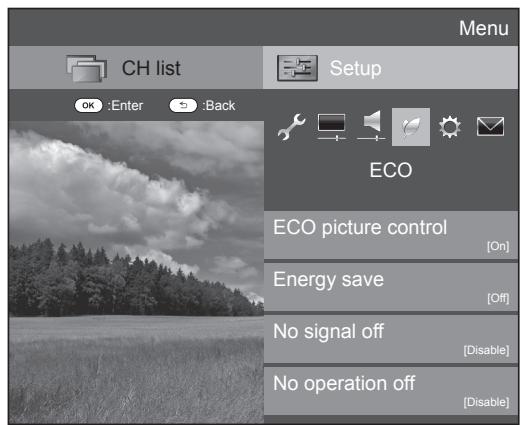

ECO
ECO picture control
This function automatically detects the image source and decreases the power consumption while keeping the brightness of the image unchanged.
NOTE
- This function does not work when "AV mode" is set to "DYNAMIC (Fixed)", "DYNAMIC" or "AUTO".
- This function does not work when "Energy save" is set to "Standard" or "Advanced".
ECO
Energy save
This function enables you to reduce the backlight brightness in order to decrease the power consumption and increase the backlight life span as shown in the following table.
| Item | |
| Standard | Reduces the backlight brightness. |
| Advanced | Reduces the backlight brightness more than “Standard”. |
| Off | The backlight brightness is the same value of your settings in the selected “AV mode”. |
NOTE
- This function does not work when "AV mode" is set to "DYNAMIC (Fixed)".

"Energy save" status icons
| Icon | Description |
| “Energy save” is set to “Standard”. | |
| “Energy save” is set to “Advanced”. |
When "Energy save" is set to "Standard" or "Advanced", "Energy save" status icons appear in the "Picture" menu and channel information windows.

ECO
No signal off
When set to "Enable", the TV will automatically enter standby mode if there is no signal input for 15 minutes.
NOTE
- Even if a TV programme finishes, this function may not operate because of interference from other TV stations or other signals.

ECO
No operation off
The TV will automatically enter standby mode if no operations are performed in three hours if "Enable" is selected.
NOTE
- Five minutes before the TV enters standby mode, the remaining time displays every minute.

ECO
Sleep timer
Allows you to set a time when the TV automatically enters standby mode. You can set the time span for entering standby mode after selecting "Change".
NOTE
- Select "Off" to cancel the sleep timer.
- When the time has been set, countdown automatically starts.
- Five minutes before the preset of time expires, the remaining time displays each minute.

ECO
Audio only
When listening to music from a music programme, you can set the TV off and enjoy audio only.
| Item | |
| On | Audio is output without a screen image. |
| Off | Both screen images and audio are output. |
View settings
Go to "Menu" > "Setup" > "View setting"
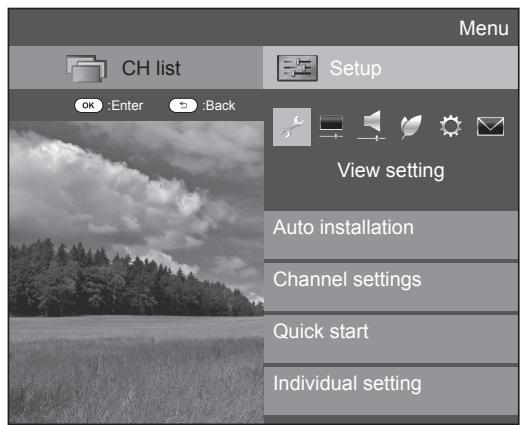

View setting
Auto installation
The TV automatically detects and stores all available services in your area. This function also allows you to perform the channel setting for digital, satellite and analogue individually and reconfigure the settings after the initial auto installation has been completed.
1 Go to "Menu" > "Setup" > "View setting" > "Auto installation".
2 Press to select "Yes", and then press OK.
3 Press / / to select the desired language, and then press OK.
NOTE
- PIN input is required when executing "Auto installation". The default PIN is "1234". To change the PIN setting, refer to Individual setting - PIN (Page 39). To reset the PIN setting (PIN input will no longer be needed), refer to Reset the PIN (Page 64).
- You cannot set the Home/Store setting and the country setting in "Auto installation" in the "Setup" menu. If you want to reconfigure those settings, automatically execute initial auto installation after executing "Reset" from the "Setup" menu.
- The current country setting is displayed on the screen.
4 Press / to select the broadcast standard you want to search, and then press OK.
Digital search
After selecting the service you want to search, either "Terrestrial" or "Cable", refer to Digital broadcast setting on page 15.
Analogue search
The TV searches for, sorts and stores all the receivable TV stations. Refer to Analogue broadcast setting on page 15.
Satellite search
After selecting "Satellite search", the current DVB-S/S2 setting screen is displayed. Refer to the "Satellite search" setting on pages 16-17.
Important information:
Satellite services are only available for the 635 model series.
NOTE
- After selecting "Next" in the DVB-S/S2 setting screen, you need to select your preferred satellite broadcast to start searching.

View setting
Programme setup
You can reconfigure the DTV service settings automatically or manually.
1 Go to "Menu" > "Setup" > "View setting" > "Channel settings" > "Programme setup".
2 Press / to select the broadcast standard you want to reconfigure, and then press OK.
NOTE
- PIN input is required when executing "Programme setup". The default PIN is "1234". To change the PIN setting, refer to Individual setting - PIN (Page 39). To reset the PIN setting (PIN input will no longer be needed), refer to Reset the PIN (Page 64).
Digital setting
Terrestrial
You can reconfigure the following settings when you select "Terrestrial" in the initial auto installation or the "Auto installation" menu.
Additional search
Use this menu to add new services automatically after "Digital search" in the "Auto installation" menu has been completed.
Manual search
Add new services within a specified frequency band.
- Enter the frequency using 0–9 numeric buttons.
- You can perform "Manual search" with a service number only when the five Nordic countries have been selected in the country setting.
Manual adjust
Configure various settings for each service using the colour (R/G/Y/B) buttons.
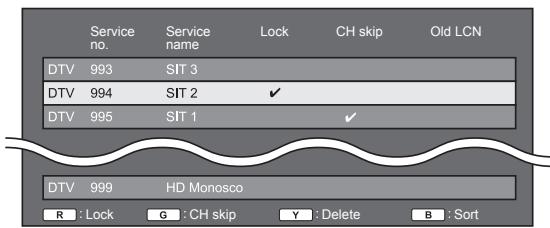
1 Press / to select the desired service.
2 Press the colour button on the remote control unit corresponding with the item you want to reconfigure.
- The mark indicates the operation is set to on. Each time the colour button is pressed, you can switch the corresponding operation on/off.
Buttons for "Manual adjust" operation
| Lock | Press R button. |
When the service is locked, you must enter your PIN whenever you tune to the service.
| CH skip | Press G button. |
Services with a mark are passed over when pressing P / on the TV or remote control unit.
| Delete | Press Y button. |
The selected service is deleted. If you want to watch the service you deleted once again, perform "Auto installation", "Additional search", or "Manual search".
| Sort | Press B button. |
The item position of services can be sorted.
(1) Press / to select the service whose item position you want to move, and then press OK.
| DTV 994 | SIT 2 | ✓ | |
| DTV 995 | SIT 1 | ✓ |
(2) Press / to move it to the desired position, and then press OK.
| DTV 994 | SIT 1 | ✓ |
| DTV 995 | SIT 2 | ✓ |
(3) Repeat steps 1 and 2 until all desired service items are sorted.
Cable
You can reconfigure the following settings when you select "Cable" in the initial auto installation or the "Auto installation" menu.
Additional search
Use this menu to add new services automatically after "Digital search" in the "Auto installation" menu has been completed. Follow steps 1 to 5 in Searching for cable broadcasts on page 15.
Manual search
Add new services within a specified frequency band. After setting the items on the following screen, the TV starts searching.
Refer to the table about menu items in the centre column on page 15.
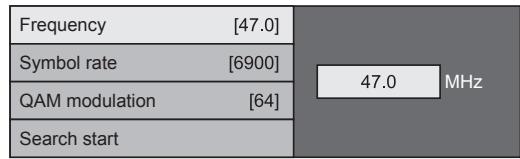
Manual adjust
This function is the same as in "Terrestrial". Refer to "Manual adjust" in "Terrestrial".
NOTE
- Some functions may not display or be selectable depending on the country setting or cable provider selection.
Satellite setting (635 series only)
Before selecting the type of search in "Satellite setting", you need to select the satellite broadcast.
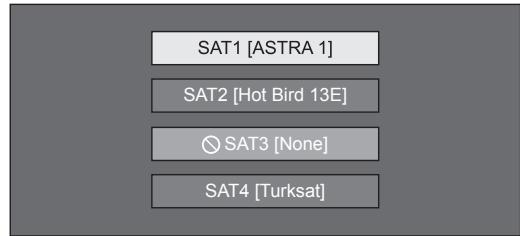
Additional search
Use this menu to add new services automatically after auto installation has been completed. Follow steps 1 to 6 in the right column on page 17.
Manual search
Add new services within a specified frequency band. After setting the items on the following screen, select "Yes" from "Search start" menu.
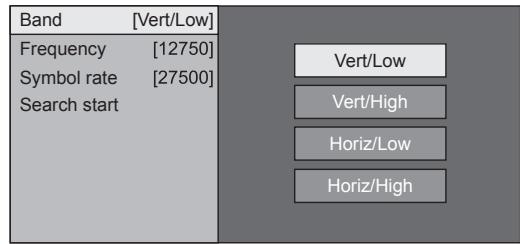
Manual adjust
This function is the same as in "Digital setting". Refer to "Manual adjust" in "Digital setting".
Analogue setting
You can reconfigure the analogue TV channels settings automatically or manually.
Additional search
Use this menu to add new services automatically after "Analogue search" in the "Auto installation" menu has been completed.
- Start searching channels after selecting the colour system and sound system.
Manual adjust
Use this menu to set up analogue TV channels manually.
After selecting “Yes” on the screen, press / / to select the channel you want to set and then press OK.
Fine
You can adjust the frequency to the desired position.
NOTE
- Adjust while checking the background picture as a reference.
Instead of pressing / to adjust the frequency, you can set by directly entering the frequency number of the channel with 0-9 numeric buttons.
EXAMPLE
179.25 MHz: Press 1 > 7 > 9 > 2 > 5
49.25 MHz: Press 4 > 9 > 2 > 5 > OK
Colour sys.
Select the optimum colour system to receive ("Auto", "PAL", "SECAM").
Sound sys.
Select the optimum sound systems (broadcasting systems) to receive ("B/G", "D/K", "I", "L/L").
Label
When a TV channel sends its network name, the "Auto installation" detects the information and assigns a name to it. However, you can change channel names individually.
Select each character of the new name for the channel with using the software keyboard (Page 13).
NOTE
- The name can be five characters or less.
Skip
Channels with "Skip" set to "On" are passed over when using P ∧ / ∨ even if selected while watching the image from the TV.
Lock
You can block the viewing of any channel.
NOTE
- See "PIN" for setting a PIN.
- When "Lock" is set to "On" for a channel, "Child lock has been activated" displays, and the image and sound of the channel are blocked.
- When pressing while "Child lock has been activated" displays, the PIN input window will display. Inputting the correct PIN unlocks the "PIN" temporarily until the power is turned off.
Sort
Channel positions can be sorted freely.
1 Press / to select "Yes", and then press OK.
2 Press / / to select the channel you want to move, and then press OK.
3 Press / / to move it to the desired position, and then press OK.
4 Repeat steps 2 and 3 until all desired channels are sorted.
Erase programme
Channels can be erased individually.
1 Press / to select "Yes", and then press OK.
2 Press / / to select the channel you want to erase, and then press OK.
- A message window pops up.
3 Press / to select "Yes", and then press OK to erase the selected channel. All the subsequent channels move up.
4 Repeat steps 2 and 3 until all desired channels are erased.
TV start-up time setting

View setting
Quick start
You can reduce the TV's start-up time after turning on the power with the remote control unit.
Go to "Menu" > "Setup" > "View setting" > "Quick start".
| Item | |
| On | The TV quickly starts up from standby. 14 W or more of power consumption is required during standby. |
| Off | Power consumption is small during standby. |
Individual setting - PIN

View setting
PIN
Allows you to use a PIN to protect certain settings from being accidentally changed.
Go to "Menu" > "Setup" > "View setting" > "Individual setting" > "PIN".
NOTE
- PIN input is required when executing "PIN". The default PIN is "1234". To reset the PIN setting (PIN input will no longer be needed), refer to Reset the PIN (Page 64).

When selecting "Yes"
Register a four-digit number to use the "PIN" function.
1 Press / to select "Yes", and then press OK.
2 Enter the four-digit number as a PIN using 0-9 numeric buttons.
3 Enter the same four-digit number as in step 2 to confirm.
- "The system PIN has been changed successfully" displays.
4 Press OK.
NOTE
- As a precautionary measure, make a note of your PIN and keep it in a safe place that children cannot reach.
- "0000" cannot be set as the PIN code.
- To view a locked channel, you must enter the PIN (see pages 37 and 38 for locking channels from viewing in DTV, SAT and ATV mode). When you select a locked channel, a PIN prompt message pops up. Press to display the PIN input window.

View setting
Parental rating
This function allows DTV services to be restricted. It prevents children from watching violent or sexual scenes that may be harmful.
1 Go to "Menu" > "Setup" > "View setting" > "Individual setting" > "Parental rating".
2 Repeat steps 1 to 4 in when selecting “Yes” to the left.
NOTE
- “Universal viewing” and “Parental approval pref.” are ratings used exclusively in France.
Refer to page 71 for details about ratings.
Individual setting - Time

View setting
Time display
Go to "Menu" > "Setup" > "View setting" > "Individual setting" > "Time display".
Time display
This function allows you to display the clock time in the lower-right corner of the screen.
| Item | |
| On | Displays the clock time. |
| On (half-hourly) | Displays the clock time in 30-minute increments. |
| Off | Hides the clock time. |
Time format
You can select the time format (either "24HR" or "AM/PM") for the clock time.
Individual setting - Language

View setting
Digital audio language
Set up to three preferred multi audio languages to display if the audio languages are available.
Go to "Menu" > "Setup" > "View setting" > "Individual setting" > "Digital audio language".
Switching the multi audio languages
Each time you press 1 / + on the remote control unit, the audio language switches.

View setting
Subtitle
Set up to two preferred subtitle languages (including subtitles for the hearing impaired) to display if subtitles are available.
Go to "Menu" > "Setup" > "View setting" >
"Individual setting" > "Subtitle".
Selectable items
1st language
2nd language
For hearing impaired
Switching subtitle languages
Each time you press on the remote control unit, the subtitle switches.

Set "For hearing impaired" to "Yes"
Subtitles for the hearing impaired have priority over each of the subtitle language settings (e.g., "1st language", "2nd language", etc.).
EXAMPLE
1st language

1st language
(For hearing impaired)
NOTE
- Subtitles will not be displayed when the programme does not contain subtitle information.

View setting
Language
You can select an OSD language from among 23 languages. Refer to the OSD language column in the specification table for the selectable languages (Page 68).
Go to "Menu" > "Setup" > "View setting" > "Language".
Optional features settings
Go to "Menu" > "Setup" > "Option".
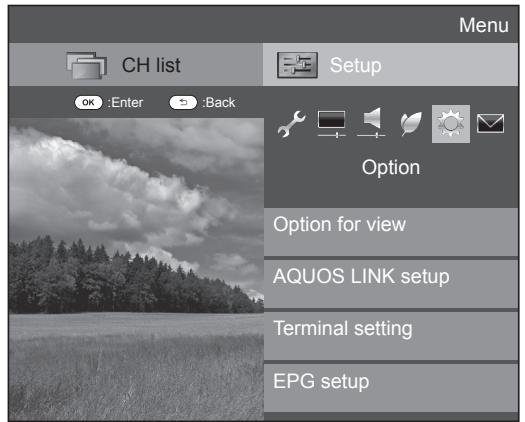
Selecting the picture size manually

Option
Wide mode
You can select the picture size. Selectable picture size varies with the type of signal received.
1 Go to "Menu" > "Setup" > "Option" > "Option for view" > "Wide mode".
- You can also select an item by pressing on the remote control unit.
- The menu lists the "Wide mode" options selectable for the type of video signal currently received.
2 Press / to select the desired item.
- As you toggle the options, each is immediately reflected on the screen. There is no need to press OK.
Basically, if you set "WSS" to "On" in the "Option" menu, the optimum "Wide mode" is automatically chosen for every broadcast or programme played using a VCR or DVD player/ recorder.
NOTE
- Even if you select your desired "Wide mode" manually, the TV may automatically switch to the optimum "Wide mode" depending on the signal received when "WSS" is set to "On".
| Item (for SD [Standard-Definition] signals) | |
| Normal | Keeps the original aspect ratio in a full screen display. |
| Zoom 14:9 | For 14:9 letterbox pictures. A thin side bar appears on each side, and you may also see bars on the top and bottom with some programmes. |
| Panorama | In this mode, the picture is stretched toward each side of the screen. The picture may appear similar to “Full” depending on broadcast signals. |
| Full | For 16:9 squeeze pictures. |
| Cinema 16:9 | For 16:9 letterbox pictures. Bars may appear on the top and bottom with some programmes. |
| Cinema 14:9 | For 14:9 letterbox pictures. Bars may appear on the top and bottom with some programmes. |
| Item (for HD [High-Definition] signals) | |
| Full | Displays with an overscan image. Crops all sides of screen. |
| Underscan | Displays with an underscan image only when receiving a 720p signal. Displays with the High-Definition image adjusted optimally. Noise may appear on the edge of the screen with some programmes. |
| Dot by Dot | Displays an image with the same number of pixels on the screen when receiving 1080i/1080p signals only. |
NOTE
- Some items do not appear depending on the type of received signal.
Refer to page 54 for PC signal inputs.
Selecting the WSS picture size automatically

Option
WSS
The "WSS" allows the TV to switch automatically among the different picture size.
Go to "Menu" > "Setup" > "Option" > "WSS".
NOTE
- Use "Wide mode" if an image does not switch to the appropriate picture size. When the broadcast signal contains no "WSS" information, the function will not work even if enabled.
Selecting the WSS picture size manually

Option 4:3 mode
The "WSS" signal has 4:3 auto-switching that allows you to select between "Normal" and "Panorama". Go to "Menu" > "Setup" > "Option" > "4:3 mode".
| Item | |
| Normal | Normal range keeping 4:3 or 16:9 aspect ratio. |
| Panorama | Wide image without side bars. |
WSS signal 4:3 screen
4:3 mode "Normal"
4:3 mode "Panorama"
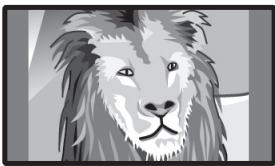
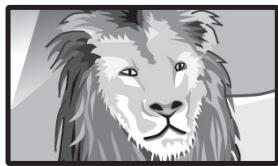
Terminal setting

Option Audio select
When using the PC terminal or HDMI 2 terminal, you must select which terminal uses the AUDIO (L/R) jack for analogue audio input.
Go to "Menu" > "Setup" > "Option" > "Terminal setting" > "Audio select".
When selecting "HDMI 2" from the "INPUT" menu
| Item | |
| HDMI (Digital) | When connecting devices (including a PC) with a HDMI cable to the HDMI 2 terminal. |
| HDMI+Analog | When connecting devices (including a PC) with a DVI/HDMI cable to the HDMI 2 terminal and inputting analogue audio signals from the AUDIO (L/R) jack. |
NOTE
- You must set this to "HDMI+Analog" when connecting devices (including a PC) with an HDMI-certified cable to the HDMI 2 terminal. If "HDMI (Digital)" is set, there will be no sound output.
When selecting "PC" from the "INPUT" menu
| Item | |
| Video | When connecting devices with an AV cable to the PC terminal, displays images without audio. |
| Video+Audio | When connecting a PC to the PC terminal, and inputting analogue audio signals from the AUDIO (L/R) jack. |
Skipping specified inputs

Option Input skip
This setting allows you to skip the SCART, HDMI, PC, ATV, DTV or SAT input on the input source selection operation.
Go to "Menu" > "Setup" > "Option" > "Terminal setting" > "Input skip".
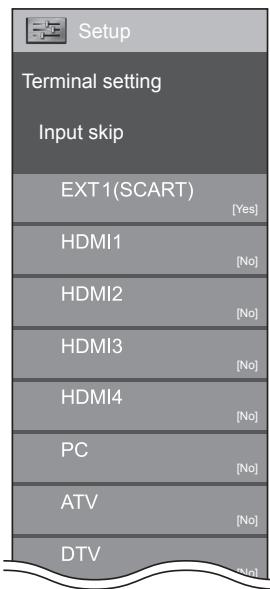
NOTE
- When you select "ATV", "DTV" or "SAT", the skip function works only when using the INPUT button on the front of the TV.
Input source settings

Option Input select
For setting the signal type of external equipment.
1 Press to select the input source for setting the input signal ("EXT1") from the "INPUT" menu, and then press OK.
2 Go to "Menu" > "Setup" > "Option" > "Terminal setting" > "Input select".
| Item | |
| EXT1 | Y/C, CVBS, RGB |
NOTE
- If no (colour) image displays, try changing to another signal type.
- Check the operation manual of the external equipment for the signal type.

Option Input label
You can label each input source with a custom description.
1 Press to select the desired input source from the "INPUT" menu, and then press OK.
2 Go to "Menu" > "Setup" > "Option" > "Terminal setting" > "Input label".
3 Select each character of the new name for the input source with using the software keyboard (Page 13).
NOTE
- The label can be six characters or less.
- You cannot change labels if the input source is "TV", "USB media", "Home network" or "NET".
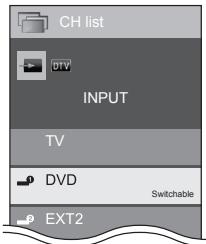
Selecting the HDMI picture size automatically

Option HDMI auto view
This function allows you to automatically change to the appropriate picture size when viewing an HDMI signal using the HDMI 1, 2, 3 and 4 terminals.
1 Press to select the input source ("HDMI 1", "HDMI 2", "HDMI 3" or "HDMI 4") connected to your HDMI device, and then press OK.
2 Go to "Menu" > "Setup" > "Option" > "Terminal setting" > "HDMI auto view".

Option Headphone/Audio out select
You can select which device is used for outputting audio.
Go to "Menu" > "Setup" > "Option" > "Terminal setting" > "Headphone/Audio out select".
| Item | |
| Headphone | Output audio through headphones. |
| Audio out | Output audio through an A/V receiver or surround audio controller. |
CAUTION
- This terminal is also used for headphones. Reduce the volume before using headphones. Overwhelming sound may damage your hearing.
NOTE
- If you select "Audio out" when a cable is inserted in the HDMI 2/PC AUDIO (L/R) terminal, the TV speakers are muted.
- When you select "Audio out", you can adjust the TV sound volume with the VOL + / - buttons on the TV or + / - buttons on the remote control unit.

Option Headphone out setting
You can select the headphone/speaker audio output when using the headphones.
Go to "Menu" > "Setup" > "Option" > "Terminal setting" > "Headphone out setting".
| Item | |
| Headphone | Audio output from headphones only. |
| Dual | Audio output from headphones and speakers. |
NOTE
- This function does not work when "Change audio output device" (Page 31) is set to "By AQUOS audio SP" or "Headphone/Audio out select" is set to "Audio out".
-
Regarding the volume adjustment when "Dual" is set:
-
Adjust the speaker volume with the + / - buttons on the remote control unit.
- Adjust the headphone volume with the VOL +/− buttons on the TV.
-
The headphone volume is not muted even by pressing (Mute) button on the remote control unit.
-
When not using the headphones:
-
Audio outputs from the speakers regardless of the settings.

Option Colour system
You can change the colour system to one that is compatible with the image on the screen.
Go to "Menu" > "Setup" > "Option" > "Colour system".
NOTE
- The factory preset value is "Auto".
- If "Auto" is selected, the colour system for each channel is automatically set. If an image does not display clearly, select another colour system (e.g., "PAL", "SECAM").
Screen effect settings

Option
Channel selecting effect
This function shows a screen effect when choosing or changing channels.
- Go to "Menu" > "Setup" > "Option" > "Screen effect" > "Channel selecting effect".

Option
Programme title display
This function allows you to display programme information such as the title and airtime by tuning a channel.
- Go to "Menu" > "Setup" > "Option" > "Screen effect" > "Programme title display".
NOTE
- This function is available only when the DTV/SAT mode is selected.
Adjusting image position

Option
Position
For adjusting a picture's horizontal and vertical position.
Go to "Menu" > "Setup" > "Option" > "Screen effect" > "Position".
| Item | |
| H-Pos. | Centres the image by moving it to the left or right. |
| V-Pos. | Centres the image by moving it up or down. |
NOTE
- Adjustments are stored separately for each input source.
- Depending on the input signal type, "Wide mode" setting or "Video mode" for the USB media mode, a position setting may not be available.
- This function is not available for DTV broadcasts with MHEG signals.
Additional features

Option
Illumination
This function makes the LED on the front of TV illuminated in several ways.
Go to "Menu" > "Setup" > "Option" > "Illumination".
| Item | |
| Off | The LED is not illuminated. |
| Standby | The LED is illuminated while the TV is in standby mode. |
| Watch | The LED is illuminated while you watch TV. |
| Always | The LED is illuminated all the time. |
NOTE
- The factory default for this item is "Watch". Set to "Off" if you do not want the LED to illuminate.

Option
Game play time
This function allows you to display the elapsed time on the screen when "AV mode" is set to "GAME".
Go to "Menu" > "Setup" > "Option" > "Game play time".
| Item | |
| On | Under connecting a game console to the TV, the elapsed time is displayed in 30-minute increments after you start playing a game. |
| Off | Hides the time. |
NOTE
- This menu is not selectable if the input source is "TV" or "USB media".

Option
Key lock
This function allows you to lock the buttons on the TV or remote control unit in order to prohibit children from changing the channel or volume.
Go to "Menu" > "Setup" > "Option" > "Key lock".
| Item | |
| Off | Unlocks the buttons. |
| RC control lock | Locks all buttons on the remote control unit. |
| Button control lock | Locks the buttons on the TV except the power switch. |
NOTE
- You cannot set both "RC control lock" and "Button control lock" at the same time.

Cancelling the lock
Press MENU on the TV and set to "Off" to cancel the "RC control lock". Press MENU on the remote control unit and set to "Off" to cancel the "Button control lock".
- Refer to page 20 for menu operation using MENU on the TV.
Using a USB device
The TV provides you some functions using a USB device. You can select which function to use after inserting a USB device in the USB port, and the TV starts the settings for each function.
USB usage
- Storage device for time shift
- USB media to enjoy photos, music and videos
Connecting a USB device
Connect a USB device to the TV as shown below.
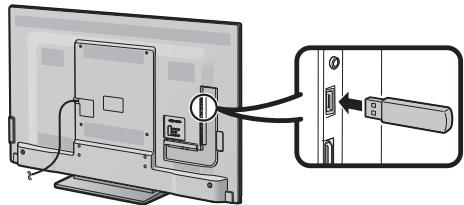
NOTE
- Some USB devices may not work properly for this function.
- Directly connect the USB storage device for time shift to the USB port.
- Do not connect and disconnect a USB device from the TV repeatedly.
Selecting USB usage
You need to select which function a USB device is used for when the USB device is inserted in the USB port.
1 Connect a USB device to one of the USB ports.
- The screen prompt pops up.
NOTE
- If a USB storage device is inserted during time shift operation, a screen prompt will not pop up.
2 Select the function you want to use.
Press / , and then press OK.
USB media
Time shift
NOTE
- When you want to configure a software update, you need to press END to close the window.
For time shift
You need to complete the following procedure to use the USB storage device for time shift. After selecting "Time shift", the TV starts initializing the USB storage device. Follow the screen prompt to complete the setting.
1 Press / to select "Yes", and then press OK.
- Reconfirm use of the USB storage device for time shift.
NOTE
- When you have inserted two or more USB storage devices in the ports, an error message appears. Insert only one USB storage device for time shift.
- You can also set the USB storage device to be used for time shift in the "Device registration" menu (Page 49).
- At least 1 GB is required for a USB storage device for time shift.
- A USB HDD cannot be used as a USB storage device for time shift.
2 Press / to select "Yes", and then press OK.
- The TV starts initializing the USB storage device.
- Delete the data in the USB storage device.
NOTE
- Do not disconnect the USB storage device when the TV is recognizing the memory for time shift.
3 Select "OK". Press OK.
NOTE
- If an error message is displayed on the screen, follow the screen prompts and remove the USB storage device.

Go to Time shift on page 47.
For USB media
After selecting "USB media", the TV switches to the USB media.

Go to USB media/Home network on page 50.
NOTE
- Depending on the USB device, the TV may not be able to recognise the contained data.
- Use only alphanumeric characters for naming files.
- File names over 80 characters (may vary depending on the character set) may not be displayed.
- Do not disconnect a USB device or memory card from the TV while transferring files, using the slide show function, when a screen is switching to another or before you exit "USB media" from the "INPUT" menu.
Disconnecting the USB device
When you disconnect the USB device, be sure to the following steps.
For time shift
Go to "Menu" > "Setup" > "Option" > "Time shift setting" > "Device removal".
NOTE
- This menu item cannot be selected when a USB storage device for time shift is not registered.
-
The USB storage device registration for time shift is cancelled in the following cases:
-
When the USB storage device is removed.
- When another USB storage device is registered for time shift; only one USB device can be registered for time shift.
For USB media
1 Press B on the remote control unit.
- Display "USB media menu".
2 Press / to select "USB device removal", and then press OK.
3 Press / to select "Yes", and then press OK.
Time shift
This function enables you to pause the digital TV or satellite programme you are watching and start watching it again from the paused scene.
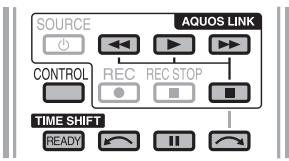
1 Press READY.
- The TV starts temporary recording of the real time broadcast in the background.
2 Press
- The TV shows the programme from the scene that the TV started recording and the recording carries on.
- When the TV again playbacks after once pressing to stop the programme, the TV shows the programme from the stopped scene.
Buttons for time shift operation
| Buttons | Description |
| READY | Start recording the programme you are watching. • You cannot playback the recorded programme until approximately three seconds after pressing READY to start recording. |
| ▲ | Playback the recorded programme. |
| ■ | Stop the programme in playback (time shift recording continues) and go back to the real time broadcast (live). |
| II | Pause the programme in playback (time shift recording continues). • This function is released in 15 minutes. |
| ← | Reverse (each time you press this button, the reverse speed changes in three levels). |
| ▶ | Fast forward (each time you press this button, the fast forward speed changes in three levels). |
| ← | Playback after jumping backwards by 10 seconds. |
| → | Playback after jumping forward by 30 seconds. |
| CONTROL*1 | Activate the control panel. |
| ○*2 | Playback will resume after jumping backwards by the time interval you set in “Jump time setting” (Page 48). |
| ○*2 | Playback will resume after jumping forward by the time interval you set in “Jump time setting” (Page 48). |
^1 The CONTROL button is only available on the remote control unit.
^2 The and buttons are only available on the control panel.
NOTE
Instead of pressing buttons on the remote control unit, most of the operations shown to the left are also available on the screen with the control panel. You can call up this control panel by pressing CONTROL on the remote control unit or select "Control (Time shift)" from "Option" > "Option for view".
- The control panel for time shift displays only during time shift operation.
- The "Audio description setting" menu does not work during time shift playback.
- When the amount of memory used for time shift reaches "Full" and the blue point is around the left edge of the bar (see 2 and 3 in the Counter section on page 48), you cannot operate some functions (1) (Pause), (Reverse), (Jumping backwards by 10 seconds), (Jumping backwards by the time interval you set in "Jump time setting" (Page 48)).
- Time shift recording stops if no operation detected for three hours.
- Time shift does not work for ATV, external inputs, data broadcasts and radio broadcasts.
- To release time shift, press READY, change the DTV/ SAT channel, change "INPUT" or turn off the power of the TV.
- Time shift will be released if no operations are performed for three hours.
- Some functions do not work during time shift.
- Time shift is not actually a recording function, so the recorded data is reset when you exit time shift.
- Time shift does not work automatically, it starts only when you press READY.
- The PIN is required when you use the buttons such as , , , , , . If you set the PIN and any options for "Parental rating" except "None" are selected.
- Time shift does not work for any copy protected programmes.
- For certain signals, resolution may be reduced during time shift playback.
- Do not disconnect the USB storage device used for time shift during time shift operation.
Examples of time shift usage
When you move away from the TV for a while (press READY when you move away from the TV)
| Without time shift |
| Away |
| You miss the scene while you are away. |
| With time shift |
| Away |
| You can watch the missed scene when you come back. |
When you want to watch the same scene again (you must press READY in advance for time shift to function)
| Without time shift | ||
| You cannot watch the same scene again. | ||
| With time shift | ||
| You can watch the same scene again. | ||
Display information regarding time shift
| Channel display |
| Channel information displays by pressing i+ on the remote control unit. |
| BBC ONE 1 DTV 004 City Hospital 11:00 - 12:00 Audio (ENG) : STEREO Video 576i Subtitle Off >> New information |
| 1 The time shift ready icon shows up when READY is pressed and the TV is recording the programme. |
| 2 The status icon shows up depending on what is shown on the screen. |
| Counter |
| The counter displays when you set “On” in “Display the Time shift memory” (Go to “Setup” > “Option” > “Time shift setting”). |
| Time shift Memory used: 1 2 |
| 1 The grey bar shows how much memory is in use. |
| 2 This blue point shows how much time has progressed. |
| 3 “FULL” shows up when the grey bar reaches the right edge. The TV starts overwriting the previously recorded data. |
NOTE
- You can also call up the information above by pressing CONTROL on the remote control unit or select "Control (Time shift)" from "Option" > "Option for view".

Option
Auto input selection
You can choose whether or not to switch the input source automatically when receiving an AQUOS LINK or an Euro SCART compatible signal on the TV during time shift operations.
Go to "Menu" > "Setup" > "Option" > "Time shift setting" > "Auto input selection".
| Item | |
| Enable | Release time shift when receiving an AQUOS LINK or a Euro SCART compatible signal. Switch input source automatically. |
| Disable | Time shift continues to work. The TV does not switch input source automatically even when receiving an AQUOS LINK or a Euro SCART compatible signal. |

Option
Jump time setting
You can set the time interval for playback to resume after jumping backwards/forward.
Go to "Menu" > "Setup" > "Option" > "Time shift setting" > "Jump time setting".
- A time interval from 1 to 99 minutes can be selected.
NOTE
- You can use the time interval you set using the or buttons on the control panel.

Option
Device registration
You need to perform this function to register the USB storage device for the time shift.
Go to "Menu" > "Setup" > "Option" > "Time shift setting" > "Device registration".
Refer to For time shift (Page 46) for registering a USB storage device.
NOTE
- Only one USB storage device can be registered for time shift. Remove all USB storage devices except the one used for time shift.
- At least 1 GB is required for a USB storage device for time shift.
- A USB HDD cannot be used as a USB storage device for time shift.
- Some USB storage devices, such as ones which have multiple drives, etc., cannot be used for time shift.

Option
Device check
You can manually check the condition of a USB storage device to be used for time shifting.
Go to "Menu" > "Setup" > "Option" > "Time shift setting" > "Device check" > select "Yes".
NOTE
- This menu item cannot be selected when a USB storage device for time shift is not registered.
USB media/Home network
USB media/Home network
In both modes, you can enjoy viewing photos, listening to music and watching videos from external USB devices (USB Memory, USB card reader (Mass Storage Class), USB HDD) or Home network server.
NOTE
- To connect a Home network server, refer to Network setup (Page 59).
- Some USB devices may not work properly for this function.
- The corresponding file format is different between "USB media" and "Home network".
- "Wide mode" is fixed during "Photo mode". During "Video mode", you can select "Auto" or "Original".
- Depending on the Home network server, the TV may not be able to recognise the contained data.
- Use only alphanumeric characters for naming files.
- Do not disconnect a Home network server from the TV while transferring files, using the slide show function, when a screen is switching to another or before you exit "Home network" from the "INPUT" menu.
- Do not connect and disconnect a Home network server from the TV repeatedly.
Selecting the mode
Common operation
Select "USB media" or "Home network" from the "INPUT" menu to enter this mode.
Another way to select the mode
- USB media
Select the USB media mode option on the screen when a USB device is connected to the TV.
Selecting modes and drives/server
1 Press B.
When the USB media menu is displayed
① Press / to select "Select USB drive", and then press OK.
- The available selections are "Select USB drive" and "Folder display setting".
② Press / / to select the USB device where you want to find your files, and then press OK.
- You can select from "All" or "Folder" for the type of folder directory in "Folder display setting".
When the Home network menu is displayed Press / to select the Home network server where you want to find your files, and then press OK.
- Press Y to search for servers.
2 Press / to select among "Photo mode", "Music mode" or "Video mode", and then press OK.
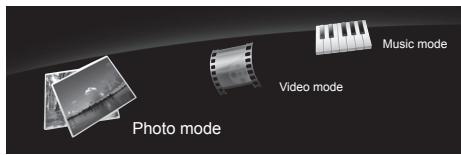
NOTE
- The explanations for the buttons that can be used in each mode are the explanations when using USB media mode. Some operations may differ in Home network mode. Follow the guide display during operations.
- You do not need to select the drive/server in step 1 when there is only one drive in the connected USB device or there is only one Home network server connected to the TV.
- 16 is the maximum number of drives that can be displayed in USB media mode.
- 10 is the maximum number of servers that can be displayed in Home network mode.
- You cannot enter these modes when there is no server connected to the TV in Home network mode.
Photo mode
Viewing thumbnails
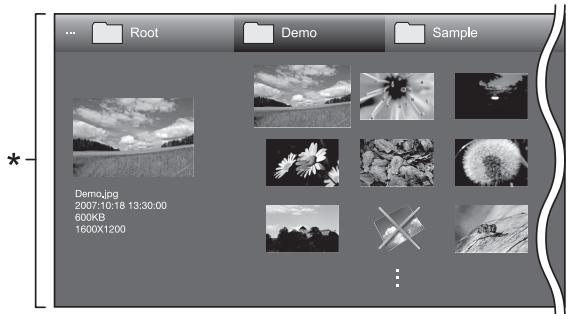
- This screen image is for the USB media mode. It may be slightly different in the Home network mode.
Buttons for thumbnail operations (When using USB media mode)
| Buttons | Description |
| OK | When selecting a folder icon: Enter this directory. When selecting a photo thumbnail: Enlarge the photo. |
| ▲/▼/▲(Cursor) | Select a desired item. |
| ← | Return to the previous operation. |
| R button | Select/deselect items (mark appears on the selected items). |
| G button | All*: Select BGM for the slide show. Folder*: Move to the parent folder. |
| Y button | Start the slide show. |
| B button | Display "USB media menu". • Select slide show interval • Select slide show BGM • Set all slide show image • Reset all slide show image • USB device removal |
- The mode selected in "Folder display setting"
NOTE
- When there are invalid photo files, the X mark will be displayed for the file.
- You can see the file name, shooting date, file size and pixel size of the selected photo on the left of the screen (shooting date is only available in the EXIF file format).
Viewing enlarged photos
Buttons for enlarged photo display operation (When using USB media mode)
| Buttons | Description |
| ▲/▲ (Cursor) | Go to the previous/next photo in the same directory. |
| ← | Return to the thumbnail selection screen. |
| R button | Rotate the photo by 90 degrees to the left. |
| G button | Rotate the photo by 90 degrees to the right. |
| B button | Display “USB media menu”. • USB device removal |
| i+ | Reveal/hide the guide display. |
NOTE
- Rotating photos only applies to the temporarily selected item and this setting is not saved.
Slide show
Selecting the BGM
Setup the slide show BGM from "USB media menu" by pressing B when selecting photo thumbnails. This function is available only for the USB media mode.
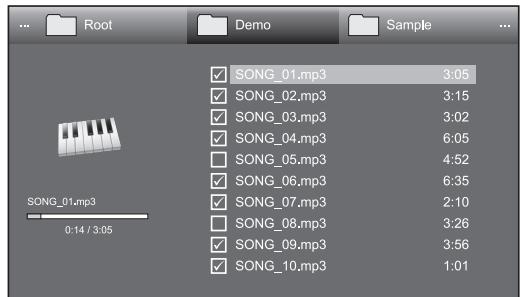
Buttons for slide show BGM select operation
| Buttons | Description |
| OK | When selecting a music file: Play music. |
| ▲/▼/▲(Cursor) | Select a desired item. |
| ← | When music is stopped: Return to the previous operation. When music is being played: Stop music. |
| R button | Select/deselect items (✔mark appears on the selected items). |
| G button | All*: Stop music. Folder*: Move to the parent folder. |
| Y button | Play/pause music. |
| B button | Display “USB media menu”. • Set all BGM • Reset all BGM • USB device removal |
- The mode selected in "Folder display setting"
NOTE
-
Slide show BGM will be reset in the cases below.
-
Select "Reset all BGM" by pressing B during selecting music files.
- Go back to the top menu.
-
Change the "INPUT".
-
When there are invalid music files, the X mark will be displayed for the file.
- The displayed play time may differ slightly from the actual play time depending on the files.
Slide show
Buttons for slide show operation (When using USB media mode)
| Buttons | Description |
| ← | Return to the previous operation. |
| B button | Display “USB media menu”. • Select slide show interval • USB device removal |
| i+ | Reveal/hide the guide display. |
NOTE
- The selected BGMs are played repeatedly.
- The slide show continues until you press .
- Depending on the photo, the slide show interval per photo may be longer than the interval selected in the settings.
Music mode
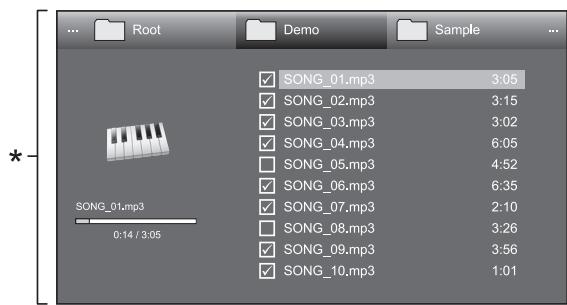
- This screen image is for the USB media mode. It may be slightly different in the Home network mode.
Buttons for music mode (When using USB media mode)
| Buttons | Description |
| OK | When selecting a music file: Play music. |
| ▲/▼/▲(Cursor) | Select a desired item. |
| ← | When music is stopped: Return to the previous operation. When music is being played: Stop music. |
| R button | Select/deselect items (mark appears on the selected items). |
| G button | All*: Stop music. Folder*: Move to the parent folder. |
| Y button | Play/pause music. |
| B button | Display “USB media menu”. • Set all auto play • Reset all auto play • USB device removal |
- The mode selected in "Folder display setting"
NOTE
- When there are invalid music files, the X mark will be displayed for the file.
- The displayed play time may differ slightly from the actual play time depending on the files.
Video mode
Buttons for file selecting operations (When using USB media mode)
| Buttons | Description |
| OK | When selecting a folder icon: Enter this directory. When selecting a video file: Play the video. |
| ▲/▼/▲(Cursor) | Select a desired item. |
| ← | Return to the previous operation. |
| R button | Select/deselect items (✔ mark appears on the selected items). |
| G button | All*: - Folder*: Move to the parent folder. |
| B button | Display “USB media menu”. • Set all auto play • Reset all auto play • USB device removal |
- The mode selected in "Folder display setting"
Buttons for playing mode (When using USB media mode)
| Buttons | Description |
| OK | When video is being played: Pause the video. When video is paused: Play the video. |
| ▲ (Cursor) | Go to the beginning of a file by pressing ▲ once and the previous file by pressing ▲ twice. |
| ▼ (Cursor) | Go to the next file. |
| ←/▶ (Cursor) | Reverse/fast forward a video. |
| ← | Go back to the file selection screen. |
| R button | Start playback from the previously stopped scene. |
| G button | Stop a video. |
| Y button | Display the USB control panel. |
| B button | Display “USB media menu”. • Title (edition) • Chapter • Show video information • USB device removal |
| 0-9 | Jump to scenes at 10% increments (0%-90%). • Limited to files without chapters. |
| {i+} | Reveal/hide the guide display. |
NOTE
- Reverse/fast forward continues from one file to another during continuous playback.
- Instead of pressing buttons on the remote control unit, the operations above are also available on the screen with the control panel. You can display this control panel by pressing CONTROL on the remote control unit or select "Control (USB)" or "Control (Home network)" from "Option" > "Option for view".

View setting
DivX® setup
This is the function to confirm your registration code.
You need to register the code at www.divx.com.
Go to "Menu" > "Setup" > "View setting" >
"DivX® setup".

DivX® VOD registration
You can find your registration code on this menu.
You need to register the TV at www.divx.com before playing the DivX content.

DivX® VOD deregistration
You can find your deregistration code on this menu.
You need to deregister the TV at www.divx.com to release the registration.
USB device compatibility
| USB device | USB memory, USB card reader (Mass Storage class), USB HDD |
| File system | FAT/FAT32, NTFS |
| Photo file format | JPEG (.jpg) (DCF2.0 compliant) |
| Music file format | MP3 (.mp3) Bitrate: 32 k, 40 k, 48 k, 56 k, 64 k, 80 k, 96 k, 112 k, 128 k, 160 k, 192 k, 224 k, 256 k, 320 kbps Sampling frequency: 32 k, 44.1 k, 48 kHz |
| Video file format | |||
| File extension | Container | Video | Audio |
| .avi | AVI | DivX 3.11/4.x/5.1/6.0 XviD H.264 MPEG4 Motion Jpeg | MP3 Dolby Digital LPCM ADPCM |
| .mkv | MKV | DivX 3.11/4.x/5.1/6.0 XviD H.264 MPEG4 | MP3 Dolby Digital LPCM ADPCM |
| .asf .wmv | ASF | DivX 3.11/4.x/5.1/6.0 XviD MPEG4 VC-1 Window Media Video v9 | MP3 Dolby Digital LPCM WMA |
| .mp4 .mov | MP4 | H.264 MPEG4 Motion Jpeg | MP3 AAC |
| .mpg .mpeg | PS | MPEG2 MPEG1 | Dolby Digital MPEG LPCM |
NOTE
- Progressive format JPEG files are not supported.
- Files in USB 1.1 devices may not be played properly.
Operation using USB hubs is not guaranteed. - Some video file formats may not be played depending on the file.
- Some USB devices may not work properly depending on the file system.
Home network server compatibility
| Photo file format | JPEG |
| Music file format | LPCM, MP3 |
| Video file format | MPEG2-PS, MPEG2-TS, WMV, ASF, MP4, MOV, AVI |
NOTE
- Progressive format JPEG files are not supported.
- Some video file formats may not be played depending on the file and server.
Selecting the picture size for video mode
You can select the picture size in "Video mode".
1 Select "Video mode".
Refer to Selecting modes and drives/server on page 50.
2 Press
- The "Wide mode" menu displays.
3 Press 加 or / to select the desired item.
- As you toggle the options, each is immediately reflected on the screen. There is no need to press OK.
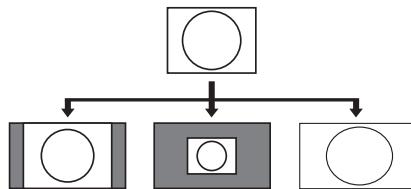
EXAMPLE
| Item | |
| Auto | Keeps the original aspect ratio in a full screen display. |
| Original | Keeps the original aspect ratio and size. |
| Full | An image fully fills the screen. |
Connecting a PC
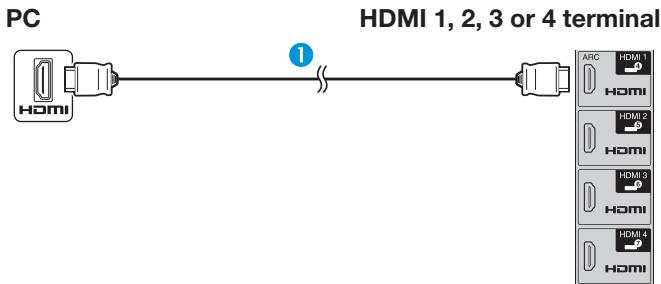
HDMI connection
HDMI-certified cable (commercially available)
2 0 3.5 mm stereo minijack cable (commercially available)
DVI/HDMI cable (commercially available)
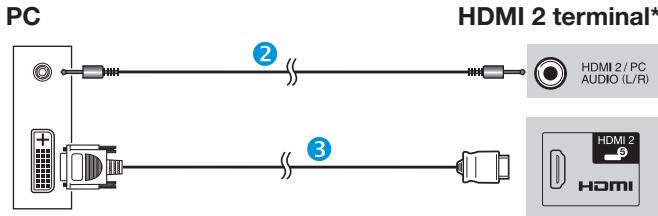
* When using the HDMI 2 terminal, you must select the proper item in the "Audio select" menu depending on the type of HDMI cable connected (refer to page 42 for details).
Analogue connection
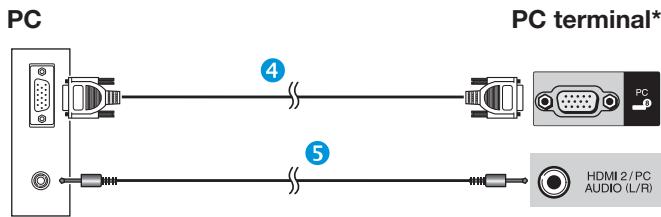
4 RGB cable (commercially available) 5 0.3.5 mm stereo minijack cable (commercially available)
DVI/RGB conversion cable (commercially available)
7 0 3.5 mm stereo minijack cable (commercially available)
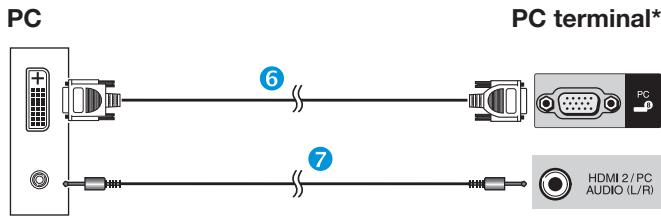
* When using the PC terminal, you must select "Video+Audio" in the "Audio select" menu (refer to page 42 for details).
NOTE
- The PC input terminals are DDC 2B-compatible.
Refer to page 56 for a list of PC signals compatible with the TV.
Displaying a PC image on the TV
Selecting the picture size
You can select the picture size.
1 Press H.
- The "Wide mode" menu displays.
2 Press 串 or / to select the desired item.
EXAMPLE
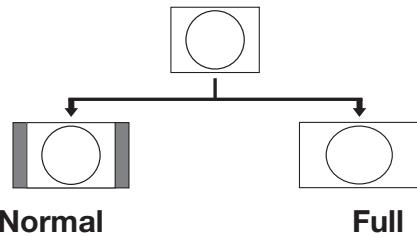
| Item | |
| Normal | Keeps the original aspect ratio in a full screen display. |
| Cinema | For letterbox pictures. Bars may appear on the top and bottom with some programmes. |
| Full | An image fully fills the screen. |
| Dot by Dot | Displays an image with the same number of pixels on the screen. |
NOTE
- You can also select an item from the "Wide mode" menu (Page 41).
- Connect the PC before making adjustments.
- Selectable picture size may vary with input signal type.
Refer to page 41 for AV signals.
HDMI: 480i/480p/576i/576p/720p/1080i/1080p
ANALOGUE RGB: 576p/720p (50 Hz)/1080i - The PC terminal is not compatible with 480i/576i/1080p signals.
Adjusting the PC image automatically

Option
Auto sync.
This function enables the screen to be automatically adjusted to its best possible condition when the analogue terminals of the TV and PC are connected with a commercially available DVI/RGB conversion cable, etc.
1 Press to select "PC" from the "INPUT" menu, and then press OK.
2 Go to "Menu" > "Setup" > "Option" > "Terminal setting" > "PC signal setting" > "Auto sync."
NOTE
- When "Auto sync." is successful, "Auto Sync completed successfully" displays. If not, "Auto sync." failed.
- "Auto sync." may fail even if "Auto Sync completed successfully" displays.
- "Auto sync." may fail if the PC image has low resolution, has unclear (black) edges, or is moved while executing "Auto sync".
- Be sure to connect the PC to the TV and switch it on before starting "Auto sync".
- "Auto sync." can be executed only when inputting analogue signals through the PC terminal.
Adjusting the PC image manually

Option
Fine sync.
Ordinarily you can easily adjust the picture as necessary to change image position using "Auto sync." In some cases, however, manual adjustment is needed to optimise the image.
1 Press to select "PC" from the "INPUT" menu, and then press OK.
2 Go to "Menu" > "Setup" > "Option" > "Terminal setting" > "PC signal setting" > "Fine sync".
3 Press / to select the specific adjustment item.
4 Press to adjust the item to the desired position.
| Item | |
| H-Pos. | Centres the image by moving it to the left or right. |
| V-Pos. | Centres the image by moving it up or down. |
| Clock | Adjusts when the image flickers with vertical stripes. |
| Phase | Adjusts when characters have low contrast or when the image flickers. |
NOTE
- For resetting all adjustment items to the factory preset values, press / to select "Reset", and then press OK.
- "Clock" and "Phase" in the "Fine sync." menu can be adjusted only when inputting analogue signals through the PC terminal.
PC compatibility chart
| Resolution | Horizontal frequency | Vertical frequency | Analogue (D-Sub) | Digital (HDMI) | VESA standard | |
| VGA | 640 x 480 | 31.5 kHz | 60 Hz | ✓ | ✓ | ✓ |
| SVGA | 800 x 600 | 37.9 kHz | 60 Hz | ✓ | ✓ | ✓ |
| XGA | 1,024 x 768 | 48.4 kHz | 60 Hz | ✓ | ✓ | ✓ |
| WXGA | 1,360 x 768 | 47.7 kHz | 60 Hz | ✓ | ✓ | ✓ |
| SXGA | 1,280 x 1,024 | 64.0 kHz | 60 Hz | ✓ | ✓ | ✓ |
| SXGA+ | 1,400 x 1,050 | 65.3 kHz | 60 Hz | ✓ | ✓ | ✓ |
| UXGA | 1,600 x 1,200 | 75.0 kHz | 60 Hz | ✓ | ✓ | ✓ |
| 1080p | 1,920 x 1,080 | 67.5 kHz | 60 Hz | ✓ | ✓ | |
VGA, SVGA, XGA, WXGA, SXGA, SXGA+ and UXGA are registered trademarks of International Business Machines Corporation.
NOTE
- This TV has only limited PC compatibility, correct operation can only be guaranteed if the video card conforms exactly to the VESA 60 Hz standard. Any variations from this standard will result in picture distortions.
PC control of the TV
- When a programme is set, the TV can be controlled from the PC using RS-232C or IP. The input signal (PC/video) can be selected, the volume can be adjusted and various other adjustments and settings can be made, enabling automatic programmed playing.
- Use an RS-232C serial control cable (cross type), ETHERNET cable (commercially available) or wireless LAN USB adapter for the connections.
NOTE
- This operation system should be used by a person who is accustomed to using PCs.
Communication conditions for IP

ETHERNET cable (commercially available)
Connect to the TV with the following settings made for IP on the PC.
| IP protocol | TCP/IP |
| Host IP address | Set the IP address on the TV menu |
| Service | None (Do not select Telnet or SSH) |
| TCP port# | Set a port number on the TV menu (Control port) |
When you set your ID and password on the TV menu, you need to enter them as soon as you connect to the TV.
NOTE
- The connection will be cut off when there has been no communication for 3 minutes.

View setting
IP Control setup
1 Go to "Menu" > "Setup" > "View setting" > "Network setup" > "IP Control setup" > select "Change".
2 To use IP Control, select "Enable".
3 Set the device name.
4 Set your login ID and password.
5 Set the port to use with IP Control.
6 Confirm the settings, and then press "OK".
Communication conditions for RS-232C

RS-232C serial control cable (cross type) (commercially available)
Set the RS-232C communications settings on the PC to match the TV's communications conditions. The TV's communications settings are as follows:
| Baud rate | 9,600 bps |
| Data length | 8 bits |
| Parity bit | None |
| Stop bit | 1 bit |
| Flow control | None |
Communication procedure
Send the control commands from the PC via the RS-232C connector.
The TV operates according to the received command and sends a response message to the PC.
Do not send multiple commands at the same time. Wait until the PC receives the OK response before sending the next command.
Make sure to send "A" with the carriage return and confirm that "ERR" returns before operating.
Command format
Eight ASCII codes +CR

Command four digits: Command. The text of four characters.
Parameter four digits: Parameter 0-9, blank, ?, minus
3 Return code (ODH): ←
Parameter
Input the parameter values, aligning left, and fill with blank(s) for the remainder (be sure that four values are input for the parameter).
When the input parameter is not within an adjustable range, "ERR" returns (refer to "Response code format").
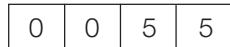
When “?” is input for some commands, the present setting value responds.
Response code format
Normal response
Return code (ODH)
Problem response (communication error or incorrect command)
Return code (ODH)
Command list
| CONTROL ITEM | COMMAND | PARAMETER | CONTROL CONTENTS | ||||||
| POWER SETTING | P | O | W | R | 0 | - | - | - | POWER OFF (STANDBY) |
| INPUT SELECTION A | I | T | G | D | - | - | - | - | INPUT SWITCHING (TOGGLE) |
| I | T | V | D | - | - | - | - | TV (CHANNEL FIXED) | |
| I | D | T | V | - | - | - | - | DTV (CHANNELFIXED) | |
| I | A | V | D | * | - | - | - | EXT 1-3 (1-3), HDMI 1-4 (4-7), PC (8) | |
| CHANNEL | D | C | C | H | * | * | - | - | TV DIRECT CHANNEL (1-99) |
| C | H | U | P | - | - | - | - | CHANNEL UP | |
| C | H | D | W | - | - | - | - | CHANNEL DOWN | |
| D | T | V | D | * | * | * | - | THREE DIGIT DIRECT CHANNEL (1-999) (Non-Nordic countries) | |
| D | T | V | D | * | * | * | * | FOUR DIGIT DIRECT CHANNEL (1-9999) (Nordic countries only)*1 | |
| I | D | E | G | - | - | - | - | DIGITAL NETWORK CHANGE*1 | |
| D | S | C | 1 | * | * | * | * | DVB-S/S2 1 DIRECT CHANNEL (1-9999)*1 | |
| D | S | C | 2 | * | * | * | * | DVB-S/S2 2 DIRECT CHANNEL (1-9999)*1 | |
| D | S | C | 3 | * | * | * | * | DVB-S/S2 3 DIRECT CHANNEL (1-9999)*1 | |
| D | S | C | 4 | * | * | * | * | DVB-S/S2 4 DIRECT CHANNEL (1-9999)*1 | |
| D | T | U | P | - | - | - | - | DTV CHANNEL UP | |
| D | T | D | W | - | - | - | - | DTV CHANNEL DOWN | |
| INPUT SELECTION B | I | N | P | 1 | 0 | - | - | - | EXT 1 (Y/C) |
| I | N | P | 1 | 1 | - | - | - | EXT 1 (CVBS) | |
| I | N | P | 1 | 2 | - | - | - | EXT 1 (RGB) | |
| CONTROL ITEM | COMMAND | PARAMETER | CONTROL CONTENTS | ||||||
| AV MODE SELECTION | A | V | M | D | 0 | _ | _ | _ | TOGGLE |
| A | V | M | D | 1 | _ | _ | _ | STANDARD | |
| A | V | M | D | 2 | _ | _ | _ | MOVIE | |
| A | V | M | D | 3 | _ | _ | _ | GAME | |
| A | V | M | D | 4 | _ | _ | _ | USER | |
| A | V | M | D | 5 | _ | _ | _ | DYNAMIC (Fixed) | |
| A | V | M | D | 6 | _ | _ | _ | DYNAMIC | |
| A | V | M | D | 7 | _ | _ | _ | PC | |
| A | V | M | D | 8 | _ | _ | _ | x.v.Color | |
| A | V | M | D | 1 | 0 | 0 | _ | AUTO | |
| VOLUME | V | O | L | M | * | * | _ | _ | VOLUME (0-60) |
| POSITION | H | P | O | S | * | * | * | _ | H-POSITION (AV/PC) |
| V | P | O | S | * | * | * | _ | V-POSITION (AV/PC) | |
| C | L | C | K | * | * | * | _ | CLOCK (0-180) | |
| P | H | S | E | * | * | _ | _ | PHASE (0-40) | |
| WIDE MODE | W | I | D | E | 0 | _ | _ | _ | TOGGLE (AV) |
| W | I | D | E | 1 | _ | _ | _ | NORMAL (AV) | |
| W | I | D | E | 2 | _ | _ | _ | ZOOM 14:9 (AV) | |
| W | I | D | E | 3 | _ | _ | _ | PANorama (AV) | |
| W | I | D | E | 4 | _ | _ | _ | FULL (AV) | |
| W | I | D | E | 5 | _ | _ | _ | CINEMA 16:9 (AV) | |
| W | I | D | E | 6 | _ | _ | _ | CINEMA 14:9 (AV) | |
| W | I | D | E | 7 | _ | _ | _ | NORMAL (PC) | |
| W | I | D | E | 8 | _ | _ | _ | CINEMA (PC) | |
| W | I | D | E | 9 | _ | _ | _ | FULL (PC) | |
| W | I | D | E | 1 | 0 | _ | _ | DOT by DOT (AV/PC) | |
| W | I | D | E | 1 | 1 | _ | _ | UNDERSCAN (AV) | |
| W | I | D | E | 1 | 2 | _ | _ | AUTO (USB-Video/ Home network-Video) | |
| W | I | D | E | 1 | 3 | _ | _ | ORIGINAL (USB-Video/Home network-Video) | |
| MUTE | M | U | T | E | 0 | _ | _ | _ | TOGGLE |
| M | U | T | E | 1 | _ | _ | _ | MUTE | |
| M | U | T | E | 2 | _ | _ | _ | MUTE OFF | |
| CONTROL ITEM | COMMAND | PARAMETER | CONTROL CONTENTS | ||||||
| SURROUND | A | C | S | U | 0 | _ | _ | _ | SURROUND TOGGLE |
| A | C | S | U | 1 | _ | _ | _ | SURROUND ON | |
| A | C | S | U | 2 | _ | _ | _ | SURROUND OFF | |
| AUDIO CHANGE | A | C | H | A | _ | _ | _ | _ | TOGGLE |
| SLEEP TIMER | O | F | T | M | 0 | _ | _ | _ | OFF |
| O | F | T | M | 1 | _ | _ | _ | SLEEP TIMER 30 MIN | |
| O | F | T | M | 2 | _ | _ | _ | SLEEP TIMER 1 HOUR | |
| O | F | T | M | 3 | _ | _ | _ | SLEEP TIMER 1 HOUR 30 MIN | |
| O | F | T | M | 4 | _ | _ | _ | SLEEP TIMER 2 HOUR | |
| O | F | T | M | 5 | _ | _ | _ | SLEEP TIMER 2 HOUR 30 MIN | |
| TEXT | T | E | X | T | 0 | _ | _ | _ | TEXT OFF |
| T | E | X | T | 1 | _ | _ | _ | TEXT ON (TOGGLE) | |
| D | C | P | G | * | * | * | _ | DIRECT PAGE JUMP (100-899) | |
| DEVICE NAME | T | V | N | M | 1 | _ | _ | _ | DISPLAY THE DEVICE NAME |
| MODEL NAME | M | N | R | D | 1 | _ | _ | _ | DISPLAY THE MODEL NAME |
| SOFTWARE VERSION | S | W | V | N | 1 | _ | _ | _ | DISPLAY THE SOFTWARE VERSION |
| IP PROTOCOL VERSION | I | P | P | Y | 1 | _ | _ | _ | DISPLAY THE IP PROTOCOL VERSION |
^ 1 635 series only
Connecting to the network
To enjoy internet services, you need to connect the TV to a router with a high speed connection to the internet. You can also connect the TV to your Home network server through a router or access point. The TV connection to the router can either be wired or wireless.
NOTE
- If you choose a wired connection to the router, you need an ETHERNET cable (commercially available).
- If you do not have a broadband internet connection, consult the store where you purchased your TV or ask your internet service provider or telephone company.
- An Ethernet and wireless connection cannot be used at the same time. Use only one of the connection types.
-
A wireless LAN connection and performance cannot be guaranteed for all residential environments. In the following cases, the wireless LAN signal may be poor or drop, or the connection speed may become slower.
-
When used in buildings made with concrete, reinforced steel, or metal
- When placed near objects that obstruct the signal
- When used with other wireless devices that emit the same frequency
-
When used in the vicinity of microwave ovens and other devices that emit a magnetic field, electrostatic charge, or electromagnetic interference
-
A stable connection speed is required to play back streaming content. Use an Ethernet connection if the wireless LAN speed is unstable.
Wired installation
Use an ETHERNET cable to connect the ETHERNET terminal on the TV to your broadcast router as shown below. This is recommended when enjoying services which require stable connection speeds, such as streaming media.
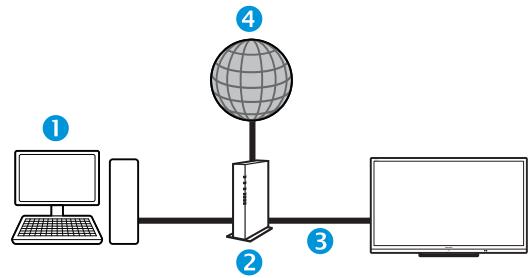
Wired connection overview
1 PC
Router (commercially available)
3 ETHERNET cable (commercially available)
4 Network

How to connect
1 ETHERNET cable (commercially available)
1 Switch on the router (commercially available). Refer to the router's operation manual for switching on.
2 Connect the ETHERNET terminal on the TV to the router (commercially available) with an ETHERNET cable (commercially available).
3 Go to "Menu" > "Setup" > "View setting" > "Network setup" > "Connection type".
4 Press / to select "Wired", and then press OK.
5 Select "OK" to confirm.
- If you have failed to connect to the internet in the above operation, an error message will appear. In this case, press ATV/DTV/SAT/ to return to the normal TV screen and check the relevant settings.
- If you want to change the IP settings manually, go to "Menu" > "Setup" > "View setting" > "Network setup" > "IP setup" and follow the on-screen instructions and the operation manual of the router.
Wireless installation
Use the wireless LAN USB adapter supplied with the TV.
Wireless connection overview
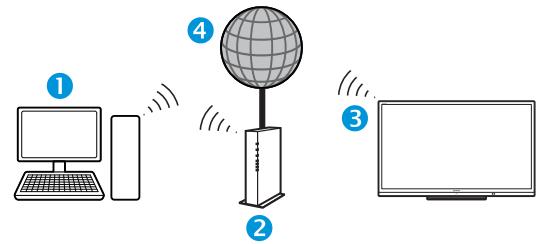
PC
Wireless LAN router/access point
3 Wireless LAN USB adapter (supplied)
4 Network
NOTE
- When using the SHARP wireless LAN USB adapter (supplied), try to provide as much free space around the device for best performance.
- Make sure the firewalls in your network allows access to the TV wireless connection.
- Operations cannot be guaranteed when used with access points that do not have Wi-Fi® certification.
- A wireless LAN access point is required to connect the TV to the Internet using a wireless LAN. See the operation manual of your access point for setup.
How to connect
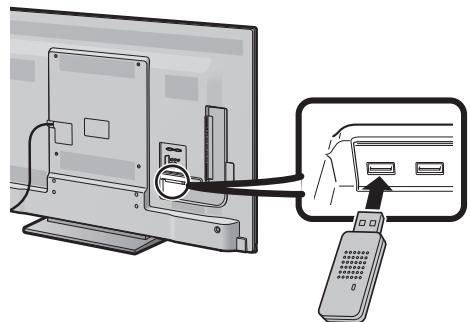
1 Switch on your router before starting the network installation.
2 Connect the wireless LAN USB adapter (supplied) to the USB 3 (WIRELESS LAN) port on the rear of the TV.
- Do not use a wireless LAN adapter other than the supplied SHARP wireless LAN adapter, as operations cannot be guaranteed.
3 Go to "Menu" > "Setup" > "View setting" > "Network setup" > "Connection type".
4 Press / to select "Wireless", and then press OK.
5 Select "OK" to confirm.
6 Press / to select "Wireless setup" in the "Network setup" menu.
7 Press to select "Change", and then press OK.
8 Press / to select "WPS", and then press OK.
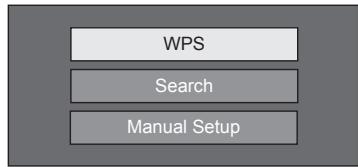
- If your router/access point does not support WPS (= Wi-Fi Protected Setup), select "Search" and follow the on-screen instructions and the operation manual of the router/access point.
- To establish the connection manually, select "Manual setup" and follow the on-screen instructions and the operation manual of the router/ access point.
9 Press / to select "Push button", and then press OK.
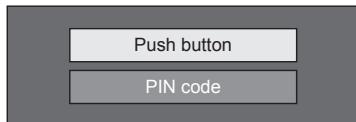
- To establish the connection manually, select "PIN code". Follow the on-screen instructions and the operation manual of the router/access point.
10 Select "Next" to proceed.
11 Press the WPS button on the router/access point. When you press the WPS button, a progress bar will appear on the display. Wait until the connection is established.
Select "OK" when the connection details are displayed.
- If you have failed to connect to the internet in the above operation, an error message will appear. In this case, press ATV/DTV/SAT/ to return to the normal TV screen and check the relevant settings.
NOTE
- To connect your TV to the internet, you must have a broadband internet connection.
- If you do not have a broadband internet connection, consult the store where you purchased your TV or ask your internet service provider or telephone company.
- There is no need to enter the security key for subsequent connections to the wireless network.
- If your access point is set to a stealth mode (that prevents detection by other devices), you may not be able to establish a connection. In this case, disable the stealth mode on the access point.
- If you want to change the IP settings manually, go to "Menu" > "Setup" > "View setting" > "Network setup" > "IP setup" and follow the on-screen instructions and the operation manual of the router.
- See page 69 to check the supplied SHARP wireless LAN adapter specifications.
What is Net TV?
Net TV offers internet service and websites tailored for your TV. Use the TV remote control unit to browse the Net TV internet pages. Net TV allows you to play movies, view pictures, listen to music, play games, rent a movie from a video store* and much more. Net TV provides variety of services for each country. You can browse other countries’ service as well. If a service is unsuitable for children, you can lock it as needed.
- Video store can only be used with country-exclusive special Net TV services.
NOTE
- Because Net TV is an online system, it can be modified over time to better serve its purpose.
- Some Net TV services may be added, changed or discontinued after some time.
- Some open internet websites may not be tailored for a TV screen and may not be displayed correctly.
- You cannot download and save files nor install plug-ins.
DISCLAIMERS
- SHARP corporation bears no responsibility regarding the content and quality of the content provided by the content serve provider.
Operations in Net TV
Basic operation
The illustrations on this page are for explanation purposes. They are subject to change without notice.
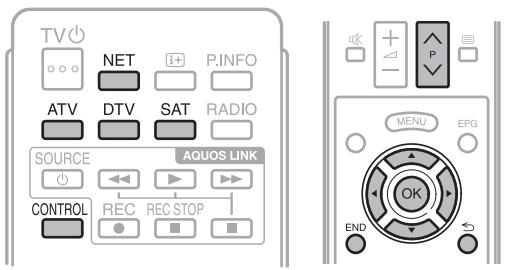
Display the start page
Press NET.
- You can also display the Net TV start page with pressing and select "NET" or go to "Menu" > "CH list" > "INPUT" > "NET".
NOTE
- When switching to Net TV, a message which requests a software update may display in some cases.

Select a service
Press / / to select the desired service, and then press OK.
- Press P ∧/V to scroll pages up/down (This may not function for some services).
- Press to return to the previous page (This may not function for some services).
- Press END to return to the Net TV start page.
Exit Net TV
Press ATV/DTV/SAT.
- You can exit from Net TV by pressing and select another input source.
Option menu
Press CONTROL and the option menu displays.
Press / to select the desired menu item, and then press OK.
User setting
Changes some settings, such as lock/unlock the service, for Net TV.
NOTE
- This may not function for some services.
1 Select "User setting", and then press OK.
2 Press / / to select the desired operation, and then press OK.
Control panel
Displays an on-screen control panel for watching online contents.
1 Select "Control panel", and then press OK.
2 Press / / to select the desired operation, and then press OK.
3 Press END to exit.
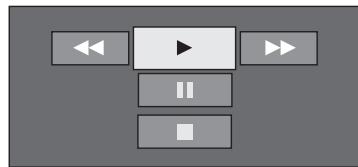
| Buttons | Description |
| ▲ | Playback |
| ■ | Stop |
| || | Pause |
| ▶ | Fast forward |
| ← | Reverse |
NOTE
- These operations can also be done by pressing the corresponding buttons (▶/■/■/▶/▲) on the remote control unit.
- The control panel may not function on some services.
Reload
Refreshes the page you are browsing. If an error occurs while loading the page, execute this function and reload it.
Select "Reload", and then press OK.
Zoom
Adjusts the display size of the page you are browsing.
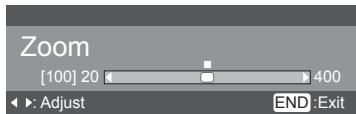
1 Select "Zoom", and then press OK.
2 Press to adjust the display size.
3 Press END to exit.
Security info.
Shows information regarding the security of the page you are browsing.
1 Select "Security info," and then press OK.
2 Select "OK" or press END to exit.
Inputting texts
Use the software keyboard (Page 13) when you need to input text.
Clear Net TV memory
You can clear the Net TV memory, which includes the lock code, passwords, cookies and browsing history.
Go to "Menu" > "Setup" > "View setting" > "Net TV setting" > "Clear Net TV memory".
NOTE
- PIN input is required when executing "Clear Net TV memory". The default PIN is "1234". To change the PIN setting, refer to Individual setting - PIN (Page 39). To reset the PIN setting (PIN input will no longer be needed), refer to Reset the PIN (Page 64).
- This function is available only while browsing Net TV.
CAUTION
- If you exercise this operation, Net TV will be completely initialized. If there is important information for you, take notes before executing.
Video store
You can enjoy watching your favourite movies from an online rental video store with Net TV.
NOTE
Video store can only be used with country-exclusive special Net TV services.
SD card
An SD memory card (commercially available) is required to rent and download a video from the video store. Be sure to use an SDHC (High capacity) card with a minimum of 4 GB memory (Class 6 is recommended).
1 Insert the SD card into the SD CARD (VIDEO STORE) slot.
2 The TV automatically starts formatting the SD card.
3 Leave the card in the slot when finished formatting.
NOTE
- A high-speed internet connection to the TV is also required to rent and download a video.
- For HD movies, a minimum of 8 GB memory will be needed.
- The TV could reject the SD card if the write speed is insufficient for video transfer.
- SD cards are sold separately.
- Some SD cards may not work properly for this function.
Rent and download a video
With Net TV, you can rent a video from "Video store". In most cases, you can rent a video for 1 day, for a couple of days, or just 1 hour.
1 Select the desired video store service and press OK.
2 Select the desired item on the video store page and press OK.
- The procedure to select and rent a video varies according to store.
3 Make the online payment.
- The store will ask you to login or create a new account if you don't have one. The login might consist of your e-mail address and PIN code.
4 Download the video.
- During the download, you can continue watching normal programmes until the TV notifies you that the download is completed.
5 With your login, select the store where you rented the video and press OK.
6 Select the rented video and press OK to play.
NOTE
- This service is exclusive to some areas.
- When you are creating the account, you can choose the payment method. Consult each video store website for more information on the payment terms.
- To enter a number code (PIN), use the numbers on the remote control.
- To enter an e-mail address, select the text field on the page and press OK. Select a character on the keyboard and press OK to enter it.
- Even if a download has been cancelled, the video can still be downloaded until the rental period expires.
- Register an SD card using the following procedure when the screen prompt pops up:
Go to "Menu" > "Setup" > "View setting" > "Net TV setting" > "SD card registration".
Disclaimers and software licences for Net TV
DISCLAIMERS
- This SHARP device facilitates the access to content and services provided by third parties. The content and services accessible via this device belong to and may be proprietary to third parties. Therefore, any use of such third party content and services must be in accordance with any authorization or terms of use provided by such content or service provider. SHARP shall not be liable to you or any third party for your failure to abide by such authorization or terms of use. Unless otherwise specifically authorized by the applicable content or service provider, all third party content and services provided are for personal and non-commercial use; you may not modify, copy, distribute, transmit, display, perform, reproduce, upload, publish, license, create derivative works from, transfer or sell in any manner or medium any content or services available via this device.
- SHARP is not responsible, nor liable, for customer service-related issues related to the third party content or services. Any questions, comments or service-related inquiries relating to the third party content or service should be made directly to the applicable content or service provider.
- You may not be able to access content or services from the device for a variety of reasons which may be unrelated to the device itself, including, but not limited to, power failure, other Internet connection, or failure to configure your device properly. SHARP, its directors, officers, employees, agents, contractors and affiliates shall not be liable to you or any third party with respect to such failures or maintenance outages, regardless of cause or whether or not it could have been avoided.
- ALL THIRD PARTY CONTENT OR SERVICES ACCESSIBLE VIA THIS DEVICE IS PROVIDED TO YOU ON AN "AS-IS" AND "AS AVAILABLE" BASIS AND SHARP AND ITS AFFILIATES MAKE NO WARRANTY OR REPRESENTATION OF ANY KIND TO YOU, EITHER EXPRESS OR IMPLIED, INCLUDING, WITHOUT LIMITATION, ANY WARRANTY OF MERCHANTABILITY, NON-INFRINGEMENT, FITNESS FOR A PARTICULAR PURPOSE OR ANY WARRANTY OF SUITABILITY, AVAILABILITY, ACCURACY, COMPLETENESS, SECURITY, TITLE, USEFULNESS, LACK OF NEGLIGENCE OR ERROR-FREE OR UNINTERRUPTED OPERATION OR USE OF THE CONTENT OR SERVICES PROVIDED TO YOU OR THAT THE CONTENT OR SERVICES WILL MEET YOUR REQUIREMENTS OR EXPECTATIONS.
- SHARP IS NOT AN AGENT OF AND ASSUMES NO RESPONSIBILITY FOR THE ACTS OR OMISSIONS OF THIRD PARTY CONTENT OR SERVICE PROVIDERS, NOR ANY ASPECT OF THE CONTENT OR SERVICE RELATED TO SUCH THIRD PARTY PROVIDERS.
- IN NO EVENT WILL SHARP AND/OR ITS AFFILIATES BE LIABLE TO YOU OR ANY THIRD PARTY FOR ANY DIRECT, INDIRECT, SPECIAL, INCIDENTAL, PUNITIVE, CONSEQUENTIAL OR OTHER DAMAGES, WHETHER THE THEORY OF LIABILITY IS BASED ON CONTRACT, TORT, NEGLIGENCE, BREACH OF WARRANTY, STRICT LIABILITY OR OTHERWISE AND WHETHER OR NOT SHARP AND/OR ITS AFFILIATES HAVE BEEN ADVISED OF THE POSSIBILITY OF SUCH DAMAGES.
This product includes the Opera™ browser.

OPERASoftware
- This product contains fonts provided by Monotype Imaging Inc.
- Monotype® is a trademark of Monotype Imaging Inc. registered in the United States Patent and Trademark Office and may be registered in certain jurisdictions.
- Tioga™ is a trademark of Monotype Imaging Inc. and may be registered in certain jurisdictions.
- Letter Gothic™ is a trademark of The Monotype Corp. and may be registered in certain jurisdictions.
- iType® is a trademark of Monotype Imaging Inc. registered in the United States Patent and Trademark Office and may be registered in certain jurisdictions.
- This product contains the iType® font engine from Monotype Imaging Inc.
Troubleshooting
| Problem | Possible solution |
| • No power. | • Is the AC cord disconnected? • Check if you pressed POWER on the TV. |
| • The TV cannot be operated. | • External influences such as lightning, static electricity, etc., may cause improper operation. In this case, operate the TV after first turning off the power, or unplugging the AC cord and re-plugging it in after one or two minutes. |
| • Remote control unit does not operate. | • Are batteries inserted with polarity (+,-) aligned? • Are batteries worn out? (Replace with new batteries.) • Are you using it under strong or fluorescent lighting? • Is a fluorescent light illuminating to the remote control sensor? |
| • Picture is cut off. | • Is the image position correct? • Are screen mode adjustments (Wide mode) such as picture size made correctly? (Pages 41, 53 and 54) |
| • Strange colour, light colour, or dark colour, or colour misalignment. | • Adjust the picture tone. • Is the room too bright? The picture may look dark in a room that is too bright. • Check the “Colour system” setting (Pages 38 and 43). |
| • Power is suddenly turned off. | • The TV's internal temperature has increased. Remove any objects blocking the vent or clean. • Is the “Sleep timer” set? Select “Off” from the “Sleep timer” menu (Page 35). • Is “No signal off” or “No operation off” activated? (Page 35) |
| • No picture. | • Are connections to external equipment correct? (Pages 24–29) • Is the input signal type selected correctly after connection? (Page 43) • Is the correct input source selected? (Page 19) • Is a non-compatible signal being input? (Page 56) • Is the picture adjustment correct? (Pages 32–33) • Is the antenna connected properly? (Page 9) • Is “On” selected in “Audio only”? (Page 35) |
| • No sound. | • Is the volume too low? • If you do not clearly hear the sound for the visually impaired, go to “Menu” > “Setup” > “Audio” > “Audio description setting” > “Mix level”, and select the upper level to turn up the volume. • Make sure that headphones are not connected. • Check if you pressed OK on the remote control unit. |
| • No sound. (continued) | • Is the proper item selected in the “Audio select” menu when connecting devices to the HDMI 2 terminal or the PC terminal? (Pages 25, 27 and 42) |
| • The TV sometimes makes a cracking sound. | • This is not a malfunction. This happens when the cabinet slightly expands and contracts according to changes in temperature. This does not affect the TV's performance. |
Reset the PIN
1 Go to "Menu" > "Setup".
2 Press / to select "Auto installation", "Programme setup", "PIN", "Parental rating" or "Reset", and then press OK. The PIN input window will display.
3 Press and hold both CH ∧ and VOL + on the TV simultaneously until the message appears on the screen.
NOTE
- When the PIN code is reset, the default PIN code ("1234") is set.
- The PIN is also available for the Net TV function.
Reset
If complex adjustments are made so that the settings cannot be restored to normal, you can reset the settings to the factory preset values.
1 Go to "Menu" > "Setup" > "View setting" > "Reset".
2 Press / to select "Yes", and then press OK.
- "Now, TV will restart automatically, OK?" displays on the screen.
3 Press / to select "Yes", and then press OK.
- "Now initialising..." displays on the screen and blinks.
- After the reset has completed, the power shuts off and then comes back on. The screen will have returned to its original settings.
NOTE
- PIN input is required when executing "Reset". The default PIN is "1234". To change the PIN setting, refer to Individual setting - PIN (Page 39). To reset the PIN setting (PIN input will no longer be needed), refer to Reset the PIN shown above.
Updating your TV via DVB-T/T2*
Ensure that your TV software version is always up to date. From time to time SHARP will make updated TV base software and DVB software available.
- 636 series only

View setting
Download setup
Go to "Menu" > "Setup" > "View setting" >
"Individual setting" > "Standby search" >
"Download setup".
Searching for updates*
- All countries except UK, Sweden and Italy are set to “No” for this function.
The TV automatically determines whether a new software version is available when the TV is in standby mode.
| Item | |
| Yes | Automatically searches for new software updates available when the TV is in standby mode. |
| No | Does not search for update information. |
| Now | Checks if there is new software immediately. |
Downloading the software
You can select the method of update.
1 If the software is updated, the confirmation message "New download information has been detected." appears.
- If the TV receives the update service while in standby mode, a confirmation message displays after turning on the power.
2 Follow the screen prompts.
| Item | |
| Yes | Starts downloading immediately. It takes approximately one hour to update. You cannot carry out other operations while downloading. • Cancels the download by pressing OK on the remote control unit when “Discontinue” is displayed on the screen during the update. |
| No | Starts downloading automatically several minutes after entering standby mode. |
NOTE
- Updating the software may take some time.
Getting update information

Information
Message list
When new software is detected, you can confirm the update information and download the software from "Message list".
Go to "Menu" > "Setup" > "Information" > "Message list".
NOTE
- When the TV succeeds at downloading new software, the message is updated in the "Message list" of the "Information" menu.
- The software update will not be carried out if there is no new software available at the specified download time.

Information
Receiver report
Display reports regarding failures and changes for timer settings.
Go to "Menu" > "Setup" > "Information" > "Receiver report".

Information
Identification
You can check the TV ID on the screen for reporting to customer service.
Go to "Menu" > "Setup" > "Information" > "Identification".
Information on the software licence for this product

Information
Software licence
You can read the software licences in this menu.
Go to "Menu" > "Setup" > "Information" > "Software licence".
Software composition
The software included in this product is comprised of various software components whose individual copyrights are held by SHARP or by third parties.
Updating your TV via USB/network

Information
Software update
This function allows you to update to the latest software via a USB device or network.
- To check the availability of the latest software versions, visit http://www.sharp.eu/software-download/ for links to the download pages for the appropriate countries.
1 Go to "Menu" > "Setup" > "Information" > "Software update" > "USB update".
- You can also update the software through the network. Go to "Menu" > "Setup" > "Information" > "Software update" > "Network update" and follow the on-screen instruction.
- A broadband connection and Network setup are required to update the software using the internet (Pages 59–60).
2 Press OK and then insert the USB device containing the software update file.
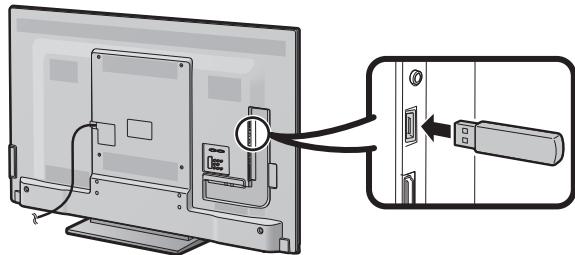
CAUTION
- Be sure to insert the USB device correctly into the terminal.
3 Press END to close the window when a screen prompt pops up.
4 The TV displays a confirmation screen while checking the data in the inserted USB device.
CAUTION
- If the data is not compatible with the system, an error message appears on the screen. Repeat steps 2 and 3 after pressing OK.
-
When an error message displays, check to see if:
-
The USB device is inserted firmly.
- The USB memory has two or more software update files.
- No data for updating the system exists in the USB memory.
- The software update file is broken.
- The software update file is not compatible with your TV's software.
- The current system is same as the system update data.
5 The TV displays the software version information after checking the data.
6 Press / to select “Yes” to update the system, and then press OK.
7 The TV restarts automatically, and the software update will be complete.
- This operation may take a while.
Warning regarding basic use
Cautions regarding use in high and low temperature environments
- When the TV is used in a low temperature space (e.g., room, office), the picture may leave trails or appear slightly delayed. This is not a malfunction, and the TV will recover when the temperature returns to normal.
- Do not leave the TV in a hot or cold location. Also, do not leave the TV in a location exposed to direct sunlight or near a heater, as this may cause the cabinet to deform and the LCD panel to malfunction. Storage temperature: +5^ to +35^ .
Devices connected to the protective earthing of the building installation through the MAINS connection or through other devices with a connection to protective earthing and to a television distribution system using coaxial cable, may in some circumstances create a fire hazard. Connection to a television distribution system therefore has to be provided through a device providing electrical isolation within a certain frequency range (galvanic isolator, see EN 60728-11).
NOTE
- For requirements in Norway and Sweden, the requirements for isolation are also relevant for devices that can be connected to television distribution systems.
Trade marks
- "HDMI, the HDMI logo and High-Definition Multimedia Interface are trademarks or registered trademarks of HDMI Licensing LLC in the United States and other countries."
Manufactured under license from Dolby Laboratories. - "Dolby" and the double-D symbol are trademarks of Dolby Laboratories.
- The "HD TV 1080p" Logo is a trademark of DIGITALEUROPE.
- The DVB logo is the registered trademark of the Digital Video Broadcasting—DVB—project.
- LCHonda、LCFONT、ルシーフONT and LC logo mark are registered trademarks of SHARP Corporation. This product is embedded with LC Font technology, which was developed by SHARP Corporation for clearly displaying easy-to-read characters on an LCD screen. However, other non-LCD fonts are used for displaying some screen pages.
- DivX®, DivX Certified®, DivX Plus® HD and associated logos are trademarks of Rovi Corporation or its subsidiaries and are used under license.
- ABOUT DIVX VIDEO: DivX® is a digital video format created by DivX, Inc. This is an official DivX Certified® device that plays DivX video. Visit divx.com for more information and software tools to convert your files into DivX video.
- ABOUT DIVX VIDEO-ON-DEMAND: This DivX Certified® device must be registered in order to play purchased DivX Video-on-Demand (VOD) movies. To obtain your registration code, locate the DivX VOD section in your device setup menu. Go to vod.divx.com for more information on how to complete your registration.
- "x.v.Color" and x.v.Color are trademarks of Sony Corporation.
- The Wi-Fi CERTIFIED Logo is a certification mark of the Wi-Fi Alliance.
- The Wi-Fi Protected Setup Mark is a mark of the Wi-Fi Alliance.
- DLNA®, the DLNA Logo and DLNA CERTIFIED™ are trademarks, service marks, or certification marks of the Digital Living Network Alliance.
- All other company or product names are trademarks or registered trademarks of their respective companies.
Specifications
| Item | LCD COLOUR TV (60"/152 cm), LC-60LE635E LC-60LE635RU LC-60LE636E LC-60LE636S | ||
| LCD panel | 152 cm (60") X-Gen panel | ||
| Resolution | 1,920 x 1,080 x 3 dots | ||
| Video colour system | PAL/SECAM/NTSC 3.58/NTSC 4.43/PAL 60 | ||
| TV function | TV-standard | Analogue | CCIR (B/G, I, D/K, L/L') |
| Digital (635 series) | DVB-T (2K/8K OFDM), DVB-C, DVB-S/S2 | ||
| Digital (636 series) | DVB-T (2K/8K OFDM), DVB-T2 (1K/2K/4K/8K/16K/32K OFDM), DVB-C | ||
| Receiving channel | VHF/UHF | IR A ch-E69 ch (Digital), E2-E69 ch, F2-F10 ch, I21-I69 ch, IR A-IR J ch | |
| CATV | Hyper-band, S1-S41 ch | ||
| Satellite (635 series only) | 950-2150 MHz*1 | ||
| TV-tuning system | Auto Preset 999 ch (non-Nordic [DTV]), Auto Preset 9999 ch (Nordic [DTV]), Auto Preset 99 ch (ATV), Auto Label, Auto Sort, Auto Preset 9999 ch (SAT [635 series only]) | ||
| Stereo/Bilingual | A2/NICAM | ||
| Audio amplifier | 10 W x 2 | ||
| Speaker | (150 mm x 32 mm) x 2 | ||
| Terminals | Antenna | VHF/UHF | 75 Ω Din type (analogue & digital) |
| Satellite (635 series only) | 75 Ω F type (DVB-S/S2) | ||
| RS-232C | D-sub 9 pin male connector | ||
| EXT 1 | SCART (AV input, Y/C input, RGB input, TV output) | ||
| EXT 2 | RCA pin (AV input/AUDIO L/R) | ||
| EXT 3 | Component (AV input/Audio L/R) | ||
| PC | mini D-sub 15 pin | ||
| HDMI 1 (EXT 4) | HDMI (ARC) | |
| HDMI 2 (EXT 5) | HDMI | |
| HDMI 3 (EXT 6) | HDMI | |
| HDMI 4 (EXT 7) | HDMI | |
| USB 1 | USB | |
| USB 2 (HDD) | USB | |
| USB 3 (WIRELESS LAN) | USB | |
| ETHERNET (10/100) | Network connector | |
| HDMI 2/PC AUDIO (L/R) | Ø 3.5 mm jack*2 | |
| DIGITAL AUDIO OUTPUT | Optical S/PDIF digital audio output | |
| C. I. (Common Interface) | EN50221, R206001, CI Plus specification | |
| OUTPUT/Headphones | RCA pin (AUDIO L/R)/Ø 3.5 mm jack (audio output) | |
| SD CARD (VIDEO STORE) | SD card | |
| OSD language | Czech, Danish, Dutch, English, Estonian, Finnish, French, German, Greek, Hungarian, Italian, Latvian, Lithuanian, Norwegian, Polish, Portuguese, Russian, Slovak, Slovenia, Spanish, Swedish, Turkish, Ukrainian, Romanian | |
| Power requirement | AC 220–240 V, 50 Hz | |
| Power consumption (method IEC62087) | 168 W (0.1 W standby*3) | |
| Weight | 30.0 kg (without stand) 33.0 kg (with stand) | |
| Operating temperature | 0 °C to + 40 °C | |
1 The satellite channel's frequency may vary according to satellites and antennas.
2 The HDMI 2 and PC terminals can both use the same audio input terminal.
^ 3 Standby power consumption applies when the TV is set to not receive EPG data.
- As a part of our policy of continuous improvement, SHARP reserves the right to make design and specification changes for product improvement without prior notice. The performance specification figures indicated are nominal values of production units.
There may be some deviations from these values in individual units.
Specifications (Wireless LAN USB adapter)
| Product name | Dual Band 802.11n USB2.0 adapter | ||
| Standard | IEEE 802.11a/b/g/n | ||
| Host interface | USB2.0 | ||
| Frequency band | 2412-2484 MHz 5150-5850 MHz | ||
| Security | Static WEP (64/128 bit, key index 1 only) WPA-PSK (TKIP) WPA2-PSK (AES) | ||
| Modulation | DBPSK@1 Mbps DQPSK@2 Mbps CCK@5.5/11 Mbps BPSK@6/9 Mbps QPSK@12/18 Mbps 16-QAM@24 Mbps 64-QAM@48/54 Mbps and above, Rx up to 300 Mbps | ||
| Transmit power and sensitivity | Tx output power: (Typical) | 2.4 GHz | 11b 17 +/- 1.5 dBm 11g 14 +/- 1.5 dBm 11n 13 +/- 1.5 dBm |
| 5 GHz (5150-5250 MHz, 5250-5350 MHz) | 11a 14 +/- 1.5 dBm 11n 13 +/- 1.5 dBm | ||
| 5 GHz (5470-5725 MHz, 5725-5850 MHz) | 11a 13 +/- 1.5 dBm 11n 13 +/- 1.5 dBm | ||
| Rx sensitivity: (Typical) | -84 dBm@11 Mbps -72 dBm@54 Mbps -64 dBm@64-QAM, 20 MHz channel spacing -61 dBm@64-QAM, 40 MHz channel spacing | ||
| Current Consumption (5V DC) | Tx: 2.2 W (Typical) Rx: 1.4 W (Typical) | ||
| Weight | 13 g | ||
| Dimensions | 20.0 (W) × 73.3 (D) × 8.0 (H) mm | ||
| Operating temperature | 0 °C to + 40 °C | ||
NOTE
- This TV has received the following certifications when connected in an environment using the supplied SHARP wireless LAN adapter.
- Wi-Fi CERTIFIED™ (certification program from the Wi-Fi Alliance®)
- Wi-Fi Protected Setup™ (certification program from the Wi-Fi Alliance®)
- When there is significant interference in the 2.4-GHz frequency (such as from other wireless LAN devices, Bluetooth® devices, 2.4-GHz cordless telephones, and microwave ovens), it is recommended that you use a wireless LAN access point that supports IEEE802.11a/n (5 GHz) and set the access point to transmit at 5 GHz. For setup details, see the operation manual of your access point.
- Before transferring to a third party or disposal, be sure to initialize the wireless LAN settings.
- Wireless LAN USB adapter (WN8522D 7-JU) is Peripheral Device for TV and supports WEP64, WEP128, TKIP and AES encryptions.
- Using a wireless LAN adapter other than the supplied SHARP wireless LAN adapter may result in radio communications that do not comply with regulations on radio communications. Therefore, do not use a wireless LAN adapter other than the supplied SHARP wireless LAN adapter.
Environmental specifications
| Item | |||
| *1 | On-Mode (W) (HOME MODE) | 101 W | |
| *2 | Energy-Save-Mode (W) | Advanced | 75 W |
| *3 | Standby-Mode (W) | 0.1 W | |
| *4 | Annual Energy Consumption (kWh) | 147 kWh | |
| *5 | Annual Energy Consumptioning Energy-Save-Mode (kWh) | Advanced | 110 kWh |
1 Measured according to IEC 62087 Ed. 2
^2 For further information about the Energy Save function, please see related pages in this operation manual
3 Measured according to IEC 62301 Ed. 1
4 Annual energy consumption is calculated on the basis of the On-Mode (HOME MODE) power consumption, watching TV 4 hours a day, 365 days a year
*5 Annual energy consumption is calculated on the basis of the Energy-Save-Mode power consumption, watching TV 4 hours a day, 365 days a year
NOTE
- The power consumption of On-Mode varies depending on the images the TV displays.
Mounting the TV on a wall
- This TV should be mounted on a wall only with a SHARP wall mount bracket (Page 4). The use of other wall mount brackets may result in an unstable installation and may cause serious injuries.
- Mounting the LCD colour TV requires special skills and should only be performed by qualified service personnel. Customers should not attempt to do the work themselves. SHARP bears no responsibility for improper mounting or mounting that results in accident or injury.
- You can ask qualified service personnel about using an optional bracket to mount the TV to a wall.
- When you mount the TV on a wall, you should attach the supporting post.
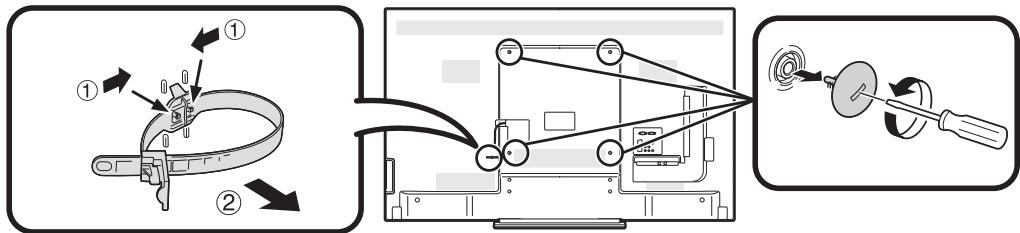
NOTE
- Detach the cable tie on the rear of the TV when using the optional mount bracket.
- Due to the terminal configuration on this TV, when you wall-mount this model, make sure there is enough space between the wall and the TV for the cables.
- To use this TV mounted on a wall, remove the AC cord holder and the covers at the 4 locations on the rear of the TV, and then use the screws supplied with the wall mount bracket to secure the bracket to the rear of the TV.
- Wall mount audio setup
When you mount the TV on a wall, you can adjust the sound to a more suitable one by setting this function to "Yes".
Go to "Menu" > "Setup" > "View setting" > "Wall mount audio setup".
Rating table for child lock
| User-adjusted rating | Broadcasted rating | ||||||||||||||
| AGE | |||||||||||||||
| 4 | 5 | 6 | 7 | 8 | 9 | 10 | 11 | 12 | 13 | 14 | 15 | 16 | 17 | 18 | |
| Universal viewing | ✓ | - | - | - | - | - | - | - | - | - | - | - | - | - | - |
| Parental approval pref. | ✓ | ✓ | ✓ | ✓ | ✓ | - | - | - | - | - | - | - | - | - | - |
| X-rated | ✓ | ✓ | ✓ | ✓ | ✓ | ✓ | ✓ | ✓ | ✓ | ✓ | ✓ | ✓ | ✓ | ✓ | ✓ |
| User-adjusted rating | Broadcasted rating | ||
| Universal viewing | Parental approval pref. | X-rated | |
| Universal viewing | - | - | - |
| Parental approval pref. | ✓ | - | - |
| X-rated | ✓ | ✓ | - |
Abbreviation list
| Abbreviated term | Stands for |
| ARC | Audio Return Channel |
| ATV | Analogue TV |
| CEC | Consumer Electronics Control |
| DivX® | Digital Video Express® |
| DNR | Digital Noise Reduction |
| DTV | Digital TV |
| DVB-C | Digital Video Broadcasting-Cable |
| DVB-S | Digital Video Broadcasting-Satellite |
| DVB-S2 | Digital Video Broadcasting-Satellite-Second Generation |
| DVB-T | Digital Video Broadcasting-Terrestrial |
| DVB-T2 | Digital Video Broadcasting-Terrestrial Version 2 |
| DVI | Digital Visual Interface |
| EPG | Electronic Programme Guide |
| HDCP | High-bandwidth Digital Content Protection |
| HDMI | High-Definition Multimedia Interface |
| LAN | Local Area Network |
| MHEG | Multimedia and Hypermedia Expert Group |
| OSD | On Screen Display |
| PCM | Pulse Code Modulation |
| SAT | Satellite |
| USB | Universal Serial Bus |
| WPS | Wi-Fi® Protected Setup |
| WSS | Wide Screen Signalling |
Dimensional drawings
LC-60LE635E
LC-60LE635RU
LC-60LE636E
LC-60LE636S
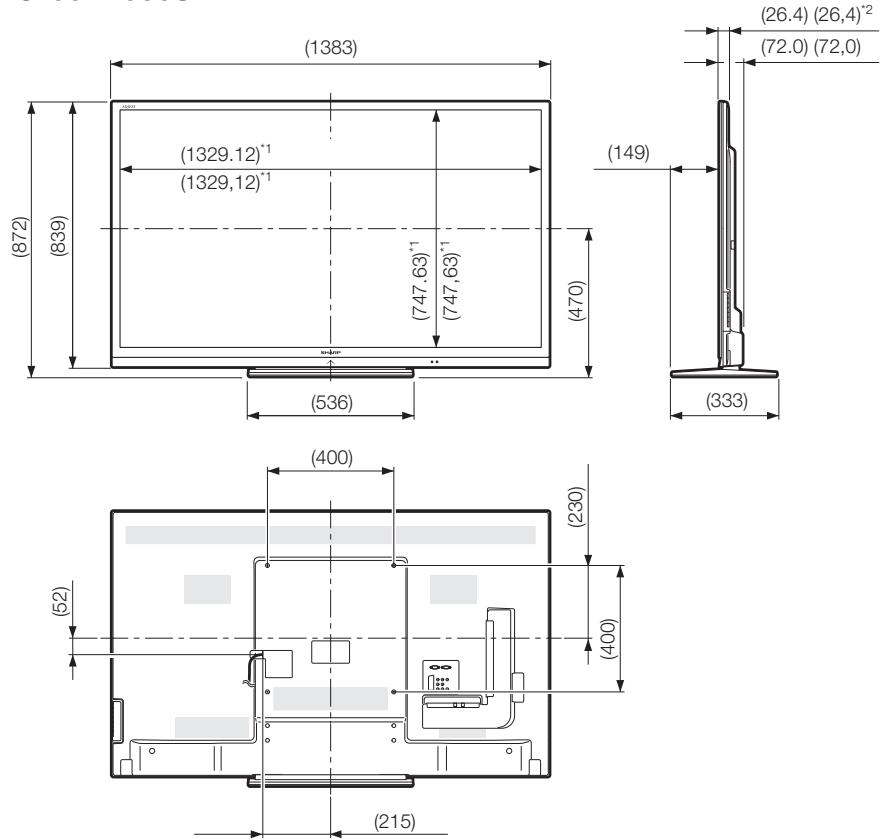
1 Active area
2 Thinnest part
NOTE
- Dimensions do not include protrusions such as screws and some parts.
EU Energy Label for Televisions
On 30 November, 2010 the European Commission adopted the Commission Delegated Regulation (EU) No 1062/2010 with regard to energy labelling of televisions.
The Regulation entered into force on 20 December 2010 and applies in all Member States.
Manufacturers and dealers are required to display the label shown below, on their televisions from 30 November 2011.
The label provides information to assist consumers in evaluating televisions for energy efficiency and energy consumption and to make a purchasing decision that contributes to the protection of the environment and to a lower carbon society.
The figure below shows the label design and explains the information included. For further information please visit the Sharp internet homepage (http://www. sharp.eu).
The retailer or online shop where you purchased your television from would have displayed the label and its corresponding rating. If in doubt please consult them.
In addition to saving energy many Sharp LCD televisions also carry the EU Ecolabel, a voluntary environmental label that is awarded to goods which meet the environmental requirements of the EU ecolabelling scheme (for details see http://ec.europa.eu/environment/ecomelabel/). This voluntary label enhances further the environmental credentials of our televisions.
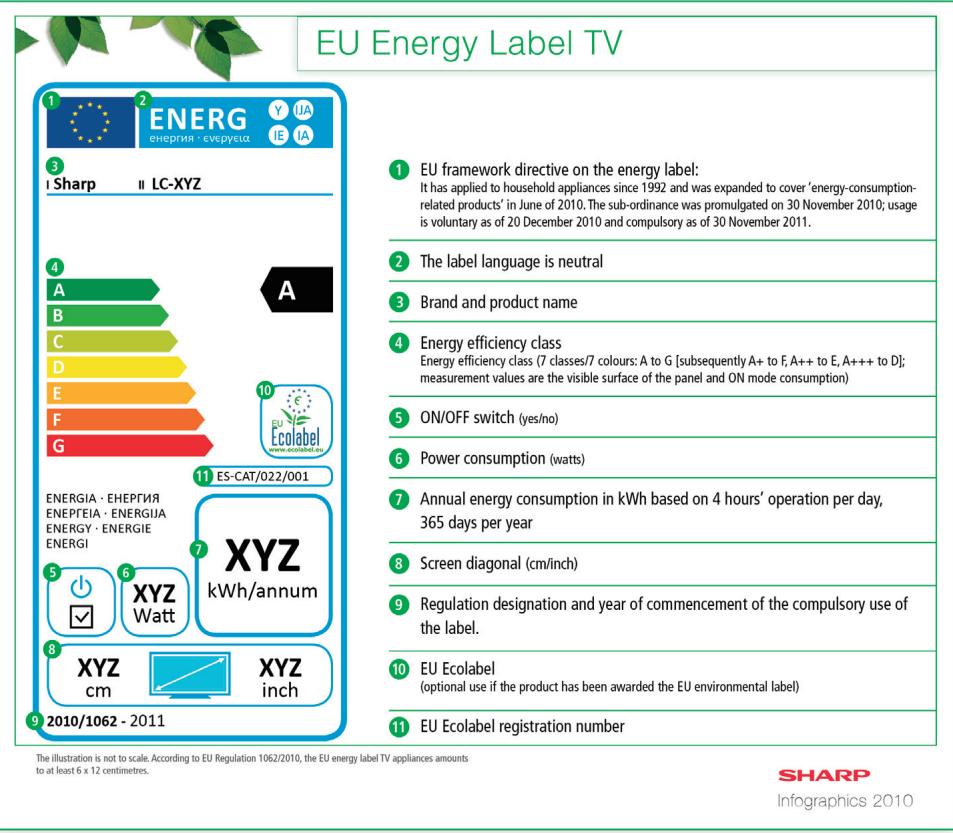
NOTE
- Methods for calculating the Energy Efficiency Index and the annual on-mode energy consumption are set out in Annex II of Regulation (EU) No 1062/2010. The determination of the on-mode consumption is based on the international standard IEC 62087 Ed. 2
SHARP
SHARP ELECTRONICS (Europe) GmbH