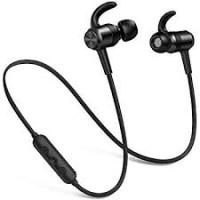
BT-ET07 - Headphones BLUMAX - Free user manual and instructions
Find the device manual for free BT-ET07 BLUMAX in PDF.


User questions about BT-ET07 BLUMAX
0 question about this device. Answer the ones you know or ask your own.
Ask a new question about this device
Download the instructions for your Headphones in PDF format for free! Find your manual BT-ET07 - BLUMAX and take your electronic device back in hand. On this page are published all the documents necessary for the use of your device. BT-ET07 by BLUMAX.
USER MANUAL BT-ET07 BLUMAX
natural_image
Line drawing of a portable ear with earbuds and control buttons (no text or symbols)V2.0 + EDR Version
Model No.: BT-ET07

Bluetooth™



Contents
-
Introduction ....5 Bluetooth headset technology....5
-
Charging and Basic Operation ....6 Headset BT-ET07 Structure Sketch ....6 Chargers and Batteries....7
Charging and the Using Time of Headset ....7 Turning on & off the headset....9
Pairing the Headset with a Compatible Device ....10 Disconnecting the Headset....11 Reconnecting the Headset ....11
-
Basic Use ....12 Wearing the Headset....12 Adjusting the Headset Ear hook....12 Adjusting the Headset Volume....13 Call Handling....13 Using the Headset with Several Phones ....14 Troubleshooting ....15
-
Battery Information .... 16
- Terms Interpretation .... 17
- Appendix .... 18
Appendix 1: Headset Standard Accessories ....18 Appendix 2: Specification ....19
Appendix 3: Indicator LED status ....20
Appendix 4: Operation Statement ......21
1. Introduction
Bluetooth Headset BT-ET07 can be used with any phones that support Bluetooth wireless technology. This allows you the freedom to make and receive calls while on any time and any where. Read this user manual carefully before using the headset. Read also the user manual for your phone, which provides important safety and maintenance information. Keep the headset away from children. For the user manual, all rights reserved to manufacturer.
Bluetooth headset technology
Bluetooth wireless technology allows you to connect compatible communication devices without cables. Bluetooth connection does not require that the phone and the headset be in line of sight, but both devices should be within 10 meters (30 feet) of each other. Connections may be subject to interference from obstructions, such as walls, or other electronic devices. The headset is compliant with the Bluetooth Specification 2.0 + EDR version supporting the following profiles: Headset Profile V1.2 and Hands-free Profile V1.0. Check with the manufacturers of other devices to determine their compatibility with this device. There may be restrictions on using Bluetooth technology in some location. Check with your local authorities or service provider.
*Bluetooth is a registered trademark of Bluetooth SIG, Inc.
2. Charging and Basic Operation
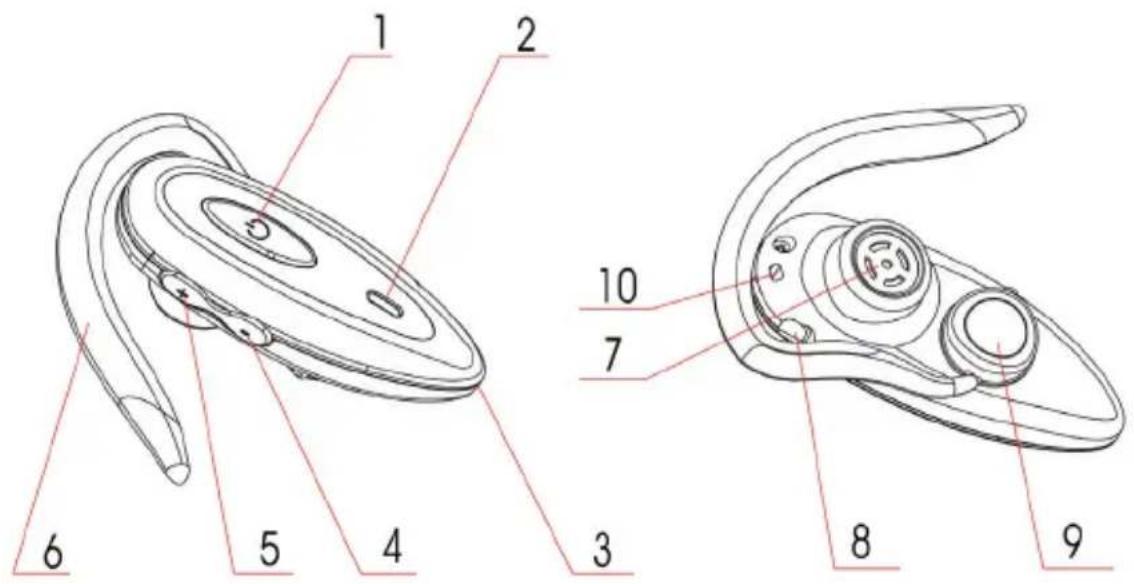
Headset BT-ET07 Structure Sketch
The headset contains the following parts:
text_image
1 2 5 6 5 4 3 8 9 10 71- Multifunction Button (MFB) 6- Ear Hook
2- LED Indicator 7- Speaker
3- Microphone 8- Charger socket
4- Volume down key (VL-) 9- Rotation axes
5- Volume up key (VL+) 10- Lanyard Hole
Before you can start to use the headset, you must charge the battery, and pair the headset with a compatible phone.
Note: Parts of the headset are magnetic. Metallic materials may be attracted to the headset. Do not place credit cards or other magnetic storage media near the headset, because information stored on them may be erased.
Chargers and Batteries
Check the model number of any charger before using it with this device.
Warning: Use only batteries and chargers approved by the manufacturer for use with this particular enhancement. The use of any other types may invalidate any approval or warranty, any may be dangerous. For availability of approval enhancements, please check with your dealer. When you disconnect the power cord of any enhancement, grasp and pull the plug, not the cord.
Charging and the Using Time of Headset
The headset has an internal, non-removable, rechargeable battery. Do not attempt to remove the battery from the device, as you may damage the device.
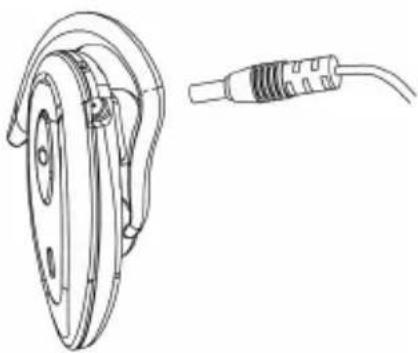
Connect the charger cable to the headset, as below picture.
natural_image
Technical line drawing of a mechanical component with a separate cable or connector (no text or symbols)Connect the charger to a wall outlet or the car charger (options) to the accessory power outlet of your car. The red indicator light turns on during charging.(If you do not use the headset for long periods, causing the battery out of power completely,the red LED will not light, it's normal).The red LED will turn off automatically or appear to flash after being fully charged. The charging time is for about 2-3 hours based on different models.
Note: To make sure the batteries to be fully charged drastically, please continue to charge about one and half an hour after the red indicator light turned off. So it takes about four and half an hour for fully charging when the battery is running out off power completely.
Disconnect the charger from the wall outlet or the accessory power outlet and the headset after charging. When you disconnect the power cord of the charger, grasp and pull the plug, not the cord.
The longest continued standby time after the headset is fully charged:
| Model The longest standby time | |
| BT-ET07 280 hours |
The longest continued standby time after the headset is fully charged:
| Model The longest talking time | |
| BT-ET07 11 hours |
However, the talking and standbz times maz varz when used with different mobile phones, products that use a Bluetooth connection, usage settings, usage styles, and environments. When the battery is running out of power, the headset beeps, and the red indicator light flashes every 2 seconds. Then please charge the battery asap.
Note: If charging the headset when it is on, the headset will automatically turn off when start charging. The headset can be turned on for using while in charging status.
Turning on & off the headset
- To turn on the headset, please press the Multifunction Button (MFB) about 2 seconds, until the headset beeps and the blue LED starts to flash for continued 4 times and red LED flashes 2 times(some headsets'red LED will not flash, it is also normal).
- The blue LED will flash every 2 or 5 seconds after turning on (before paired).
- To turn off, please press the Multifunction Button (MFB) about 5 seconds, until the headset beeps, and the red LED fl ashes for continued 4 times.
Pairing the Headset with a Compatible Device
- Turning on your phone and the headset.
- Activate the Bluetooth function on the phone. (See the user guide of your phone for instructions).
- Press and hold the Multifunktion key for 2 sec. until the blue and red indicator lights flashes in turn. When you release the key, the headset is ready to be paired.
Note: If the headset paired already, you should cut the current connection, then it can pair again.
-
Set the phone to search for Bluetooth devices. (See the user guide of your phone for instructions).
-
Select the headset BT-ET07 from the phone list of found devices.
-
Enter the pass key 0000 to pair and connect the headset to your phone. For some phones you may need to make the connection separately after pairing (See the user guide of your phone for details). You only need to pair the headset with your phone for one time. When the headset is connected to the phone and ready for use, the headset beeps, and the blue indicator light flashes every 10 seconds(some flash every 5 seconds). The headset model appears in the phone menu where you can view the current paired Bluetooth devices.
Note: If the headset can not connect any compliant mobiles or other devices successfully within 20 minutes after it turns on, the headset will turn off automatically.
Disconnecting the Headset
To disconnect the paired headset from your phone (for example, to connect the phone or headset to another Bluetooth device), turn off the headset, or disconnect the headset from the Bluetooth menu of your phone. You do not need to delete the paired headset from the phone in order to disconnect it.
Reconnecting the Headset
To reconnect the paired headset to your phone:
| The status of paired headset and phone Reconnecting methods | |
| The paired phone turns on, headset turns off | Turn on the headset, it will connect with phone automatically |
| The paired headset turns on, phone turns off | Turn on the phone, press the headset MFB button, it will connect automatically or connect from phone's Bluetooth menu. |
| If cutting the connection from phone's Bluetooth menu, but headset is still on | |
| Both paired headset and phone are on, but out of connection | Connect from phone's Bluetooth menu |
3. Basic Use
Wearing the Headset
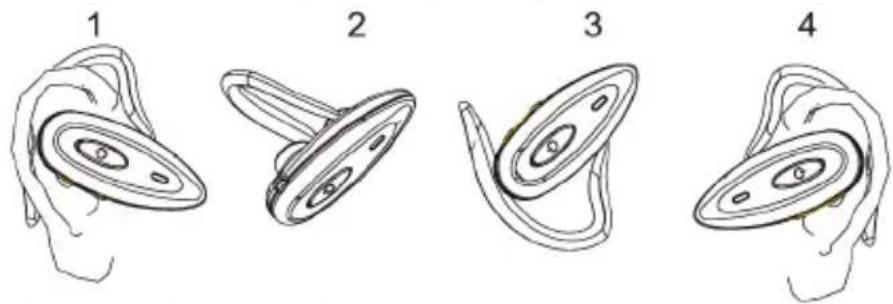
The headset is ready to wear on the right ear (Pic. 1). If you want to use it on the left ear, please softly lift up the earhook (Pic 2) and rotate it (Pic. 3), and push it back to the suitable place, then wear to your ear (Pic. 4).
Adjusting the Headset Ear hook
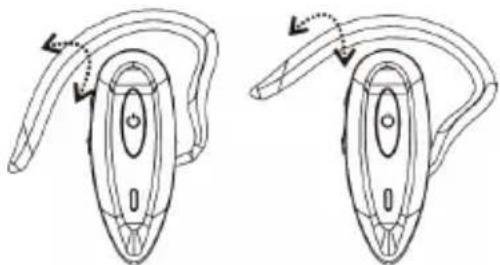
The ear hook can be adjusted to suit the different ear size and make you feel comfortable.
natural_image
Line drawing of two identical hand-painted views of a washing machine (no text or symbols)Warning: Make sure not to distort the ear hook always for a long time with large extent while adjusting the hook, otherwise may damage the ear hook.
Adjusting the Headset Volume
Press the VL+key to increase or the VL-key to decrease the volume.
Note: There are 15 volume levels available for adjusting to high or low, moreover high volume and low volume can be identified by different tone. Whenever it reaches the maxi / mini volume, you will hear two beeps.
Call Handling
To Make a Call
To make a call, dial the number with your phone, and press the answer key on your phone. If your phone supports redialing function, please press the VL+ key of the headset for 3 seconds, until it beeps then release the VL+key. If your phone supports voice dialing function, press the VL-key of the headset until it beeps, then please release the VL-key. And operate as described in the user guide of your phone.
To Answer a Call
To answer a call, press the headset MFB or the answer key on your phone. If the automatic answer function is set on in your phone, the phone automatically answers the incoming call after one ring. If you do not want to answer a call, press the headset MFB for 3 seconds until it beeps.
To End a Call
To end the current active call, press the headset MFB or press the ending key on your phone.
To Mute or Cancel Mute of Microphone
To mute the microphone during a call, press the headset MFB and VL+key simultaneously until it beeps. Repeating this operation can cancel the mute function.
Transferring a Call
To transfer the call from the headset to a compatible phone, press the headset MFB and VL- key for 3 seconds simultaneously until it beeps. Or use the related function in your phone.
Using the Headset with Several Phones
You can pair the headset with 8 phones, but connect only one phone at a time. If the headset is switched on within 10 meters (30 feet) among several paired phones, the headset tries to connect the last used phone. If the headset can not connect the last used phone, you should set connection from the last used phone or other phones' Bluetooth menu. If the headset still could not connect any phones within 20 minutes, it will turn off automatically.
Resetting the Headset
Under following status you have to reset the headset:
- Headset still does not work after being fully charged.
- Headset software needs reset.
Plug the charger to the headset and charge it for seconds to restart (Normally such situation seldom happens).
Troubleshooting
If you can't connect the headset to your phone, do as following:
- Ensure the headset is charged, turned on and paired and connect to your phone.
- Ensure the Bluetooth function is active on your phone. Check the headset is within 10 meters (30 feet) from your phone and there are no obstructions between the headset and the phone, such as walls or other electronic devices.
If you don't use headset for long time, or maintain the battery well, thus will make the battery invalid. If so, please contact supplier.
Note: If headset disconnects with phone due to the weak signal (Distance between headset and phone is out of 10 meters), the paired headset will connect with the phone automatically within 20 minutes in the available distance.
4. Battery Information
This headset is powered by rechargeable battery. The new battery can achieve the best function only after two or three times fully charged and discharged cycles. But it eventually will be invalid after being charged and discharged for hundreds of times. You only can charge the battery with our designated headset charger. Unplug the charger from the electrical plug and the device when you don't use it. Do not leave a fully charged battery to a charger, since overcharging may shorten its lifetime. If left unused, a fully charged battery will lose its power over time.
Note: Please charge the battery every three months if you don't use the headset for a long time.
Use the battery only for its intended purpose. Never use any damaged charger or battery!
Leaving the device in hot or cold places, such as in a closed car in summer or winter conditions, will reduce the capacity and lifetime of the battery. Please always try to keep the battery between 15 °C and 25 °C (59 °F and 77 °F). A Device with a hot or cold battery may not work temporarily, even when the battery is fully charged. The battery performance will be particularly limited when the temperature is below freezing. Do not dispose the batteries into a fire as they may explode. Batteries may also explode if damaged. Dispose the battery according to the local regulations. Please recycle the battery when possible. Do not dispose the battery as the household waste.
5. Terms Interpretation
Pairing: Verify between the two devices (Bluetooth headset and mobile phone)
Connect: The two devices build up connection for communication after been approved by each other.
Note: Normally, only need to make paring between the two devices once, but connection will not only once (Unless only one device connect with the headset, then it can connect to that device automatically); Unsuccessful pairing not stand for available communication, only successful connection can make communication. BT-ET07 stands for the name of the headset mentioned in this manual, the name will be showed on the discovered devices list of the mobile phone when making pairing.
6. Appendix
Appendix 1: Headset Standard Accessories
| Model No. | Accessories | Image Qty Remark | |||
| BT-ET07 Standard | Bluetooth Headset | 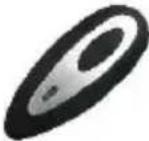 | 1 set | ||
| ear Hook 1 pc | 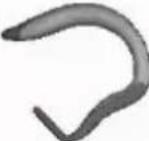 | ||||
| Charger 1pc |  | Subject to the item used | |||
Appendix 2: Specification
| Model No. BT-ET07 | |
| Solution CSR | |
| Main Chip BlueCore4-Audio | ROM |
| Bluetooth Version V2.0 + EDR | |
| Frequency 2.4GHz~2.4835GHz ISM Band | |
| Input Power 45mW | |
| RF Output Power 0dBm | |
| Data Transfer Rate 2Mbps ~ | 3Mbps |
| Headset Passkey 0000 | |
| Operation Range Up to 10 Meters(30 feet) | |
| Supply Current 5mA~20mA | |
| Battery 3.6V rechargeable Li-polymer battery | |
| Voltage DC 5.0V~6.5V | |
| Operating Temperature -10°C~+45°C | |
| Dimension (L)59mm,(W)24mm,(H)11mm | |
| Weight | 13g |
| Charging Time | 2 hours and 45 minutes |
| Talking Time | Up to 11hours |
| Standby Time | 280 hours |
Appendix 3: Indicator LED status
| LED Status Note | ||
| Blue | Flashing continued 4 times and red LED fl ashing 2 times (The red LED is not fl ashing for some headsets, it's normal) | Turning on mode |
| Flashing 1 time for every 2 seconds (or for every 5 seconds for some headsets) | Standby mode before pairing | |
| Flashing 1 time for every 10 seconds (or for every 5 seconds for some headsets) | Standby after successful pairing | |
| Flashing continued 2 times for every 8 seconds | Data transferring mode or on a call | |
| Red | Flashing continued 4 times rapidly Turning off mode | |
| Keeping on Lighting Charging Status | ||
| Flashing (not in charging status) Indicating low battery | ||
| Red & Blue | Flashing in turn rapidly | Pairing mode (last for about 5 minutes) |
| All indicator LED off | Finishing charging or charging the headset which ran out of the battery power or headset turned off | |
Appendix 4: Operation Statement. Part 1
| Operation Methods Status | ||
| Turning on | Long press the MFB key for 2 seconds | The blue LED fl ashes 4 times and red LED fl ashes 2 times.(The red LED does not fl ash for some headsets,it is normal)and hear a beep |
| Turning off | Long press the MFB key for 5 seconds | Red indicator fl ashes 4 times and hear a beep |
| Pairing | With the headset on, hold the volume VL+keyfor 2 seconds | Red and blue LED fl ash in turn |
| Answering a call Press the MFB key | Communication available after hearing a beep and both red and blue LED fl ash 1 time each(some headsets don’t fl ash,it is normal) | |
Note: Under some status of headsets, when you press the MFB/VL+/VL-key, the red LED and blue LED will flash 1 time (Some headsets will not flash, it is normal). They are normal flashing since you have pressed the key.
Appendix 4: Operation Statement. Part 2
| Operation Methods Status | ||
| Transferring a call from mobile to headset or headset to mobile | Press both the MFB key and volume VL-key simultaneously for 3 seconds | Hearing a beep |
| Increasing the volume | Press VL+key | Hearing a beep and both red and blue LED fl ash 1 time each (some headsets don’t fl ash, it is normal) Total 15 volume levels available |
| Decreasing the volume | Press VL-key | Hearing a beep and both red and blue LED fl ash 1 time each (some headsets don’t fl ash, it is normal) Total 15 volume levels available |
| Ending a call Press MFB key | Hearing a beep and both red and blue LED fl ash 1 time each (some headsets don’t fl ash, it is normal) | |
| Redialing | Press VL+key for 3 seconds | Automatically redial the last number you called after hearing a beep |

blumax
De
BLUETOOTH HEADSET Anleitung
natural_image
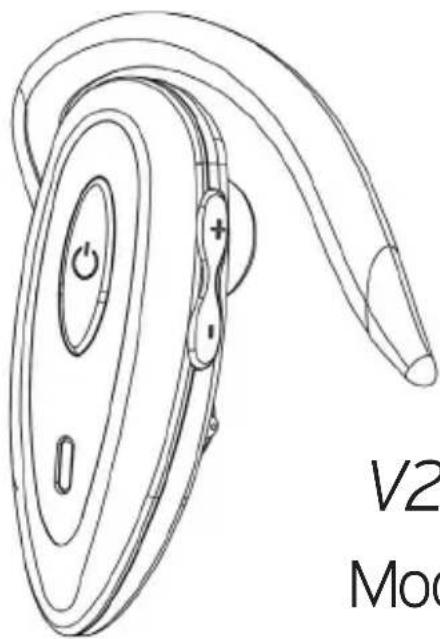
Line drawing of a portable ear with buttons and antenna (no text or symbols)V2.0 + EDR Version
Model No.: BT-ET07

Bluetooth™



Inhaltsverzeichnis
De
- Einführung 27
Bluetooth Headset Technik 27
*Bluetooth is a registered trademark of Bluetooth SIG, Inc.