
E355 - Digital Personal Assistant TOSHIBA - Free user manual and instructions
Find the device manual for free E355 TOSHIBA in PDF.


| Product Type | Digital Personal Assistant (Pocket PC) |
| Brand | Toshiba |
| Model | E355 |
| Dimensions | 125 x 80 x 12.4 mm |
| Weight | 145 g |
| Battery Type | Lithium-ion (built-in) |
| Processor | Intel PXA255 at 300 MHz |
| Memory | RAM: 64 MB, ROM: 16 MB |
| Display | 3.8" TFT trans-reflective color LCD, 240x320 pixels, 64K colors |
| Operating System | Microsoft Pocket PC 2002 |
| Interfaces | USB Host/Client, IrDA (SIR), DC-in, 3.5mm stereo headphone jack, SD card slot, cradle connection port |
| Audio | AC 97 Codec, mono record, stereo playback, built-in microphone and speaker, software volume control |
| Expansion | SD/MMC card slot (not SDIO secure) |
| Power Supply | AC adapter (supplied), USB client cable for charging |
| Accessories Included | AC adapter, USB client cable, stylus, cradle, USB host cable |
| Operating Temperature | 32°F to 104°F (0°C to 40°C) |
| Charging Temperature | 41°F to 104°F (5°C to 40°C) |
| Humidity Range | 30% to 80% |
| Safety Certifications | CE, FCC Class B, BSMI, Canadian DOC |
| Backup/Restore Function | DataBackup utility to SD card (.dbk file) |
| Reset Method | Reset button (stylus) or full initialization (power + reset) |
Frequently Asked Questions - E355 TOSHIBA
User questions about E355 TOSHIBA
0 question about this device. Answer the ones you know or ask your own.
Ask a new question about this device
Download the instructions for your Digital Personal Assistant in PDF format for free! Find your manual E355 - TOSHIBA and take your electronic device back in hand. On this page are published all the documents necessary for the use of your device. E355 by TOSHIBA.
USER MANUAL E355 TOSHIBA
Thank you very much for your purchase of this Toshiba Pocket PC.
Please be sure to read this user's guide before using the Toshiba Pocket PC, and ensure that you are aware of correct the handling procedures.
- Please be sure to read the "Safety precautions" section in this document to learn about important safety issues.
• After reading this document, keep it in a convenient place for future reference.
Copyright Information
© 2003 by Toshiba Corporation. All rights reserved. Under the copyright laws, this manual cannot be reproduced in any form without the prior written permission of Toshiba. No patent liability is assumed, with respect to the use of the information contained herein.
Toshiba Pocket PC e350/e355 User's Guide
First edition March 2003
Trademarks
Microsoft, ActiveSync, Outlook, Pocket Outlook, Windows, Windows NT, and the Windows logo are either registered trademarks or trademarks of Microsoft Corporation in the United States and/or other countries. Microsoft products are licensed to OEMs by Microsoft Licensing, Inc., a wholly owned subsidiary of Microsoft Corporation.
Safety precautions
- Please carefully read "Safety precautions" before using the Toshiba Pocket PC and ensure that you are aware of correct handling procedures.
- The precautions provide essential information for the protection of the user and others from possible injury and property damage. They also provide information on the safe handling of this product.
- Please check that you fully understand the definition of the following messages (signs and graphical symbols) before reading the text, and always follow the instructions provided.
Safety instructions
There are two categories of Safety Instructions included in this manual:
Product Warnings, (i.e., what must never be done to assure avoiding those hazards that could cause bodily injury or property damage); and User Directions (i.e., what must always be done to assure the safe use of your Pocket PC).
The Safety Instructions contained in this manual have been categorized in accordance with the seriousness of the potential hazards through the use of Signal Words.
Those Signal Words, and their intended meanings, are as follows:
Signal Word Meaning
DANGER Indicates that a failure to observe the Safety
Instructions could result in serious bodily injury.
CAUTION Indicates that a failure to observe the Safety
Instructions could result in minor bodily injury or property damage.
WARNING Designates important information that relates
to the safe use of your Pocket PC.
Your Pocket PC produces low levels of RF energy due to the generation of digital timing pulses by its clock oscillator circuits. Your Pocket PC has been equipped with internal shielding to minimize any stray emissions of RF energy.
Airlines may nevertheless prohibit the on-board use of all portable PCs (and all other portable electronic devices that could potentially emit stray RF energy), particularly during take-offs and landings, to prevent any possible interference with the reception of signals by airborne electronic navigational devices.
WARNING
Always request and obtain prior consent and approval of an authorized airline representative before using your Pocket PC aboard an aircraft.
Always follow the instructions of the airline representative whenever using your Pocket PC aboard an aircraft, to prevent any possible interference with airborne electronic equipment.
WARNING
Certain locations, such as hospitals, may restrict the use of Pocket PCs and other devices that emit low-level RF energy.
Always comply with posted prohibitions of the use of RF-emitting devices, such as in hospitals. Failure to follow such directives could result in the interference with medical equipment and/or devices.
Never come closer than 16cm (6inches) to a person with a heart pacemaker implant when using this Pocket PC in combination with a mobile cellular telephone. Failure to do so could result in interference with the function of the pacemaker.
WARNING
Never use a Pocket PC while driving an automobile or any other moving vehicle. Always pull out of traffic and come to a stop in a legally permissible and safe location before using your Pocket PC. Failure to do so could result in serious bodily injury in a traffic accident.
Never use your Pocket PC while walking. Usage while walking could result in bodily injury caused by inattention to automobile traffic or other pedestrian hazards.
WARNING
Never allow metallic objects, such as staples and paper clips, to enter inside your Pocket PC. Metallic objects, such as staples and paper clips, if allowed to enter your Pocket PC, could cause the generation of excess heat or fire.
Never connect terminals (metal parts) to metallic objects (such as wires). Connecting terminals to metal objects could cause excessive heat or fire.
Always immediately turn the battery switch to the "off" position and disconnect the AC Adaptor from the power outlet in the event the Pocket PC emits an unusual odor or sound or generates smoke.
WARNING
Never use or store your Pocket PC in the following locations:
Anywhere it may be exposed to water, such as a bathroom or sauna;
In conditions of high humidity, such as in the rain or fog; Where your Pocket PC will be exposed to high temperatures, such as near a fire or equipment that emits high temperatures; In direct sunlight; or In a sealed automobile left in the sun and subject to high temperatures.
Never drop your Pocket PC or subject it to severe shock. Dropping your Pocket PC or subjecting it to severe shock could cause the built-in battery to leak, ignite and/or rupture.
Always immediately remove your Pocket PC and its battery from the vicinity of any open flame in the event the built-in battery leaks liquid or emits an unusual odor. Continued use of your Pocket PC under either of these conditions could cause ignition (i.e., fire) of the leaked battery liquid, or rupture.
Never touch any fluid that might leak from the built-in battery. Such liquid when in contact with the eyes or skin, could cause injury to the skin or eyes. Should the liquid come into contact with the eyes, irrigate the eyes thoroughly with clean water and immediately seek medical attention. In the event the liquid comes into contact with the skin or clothing, wash it away immediately with clean water.
Never attempt to disassemble, repair or make any modification to your Pocket PC. Disassembly, modification or any attempt at repair could cause bodily injury or property damage, as well as damage to the Pocket PC itself.
Failure to follow the above directions concerning use and storage could result in damage to your Pocket PC or bodily injury and property damage due to battery liquid leakage, fire or rupture.
CAUTION
Never raise the sound volume level to high when using your Pocket PC with earphones. An excessive sound volume level could cause damage to your hearing.
Never touch the liquid that might leak from a broken liquid crystal display. Contact with this liquid could cause a skin rash. If the crystal display liquid should come into contact with the skin or clothing, wash it immediately with clear water.
Never allow infants or small children within reach of your Pocket PC. Infants or small children could injure themselves if allowed access to your Pocket PC.
DANGER
Never attempt to disassemble or repair an AC Adaptor, and never alter their Power Supply Cables or plugs as exposure to electric shock hazards could result.
Always contact an authorized service provider, if repair or replacement is required.
WARNING
Always use the AC Adaptor that has been provided with your Pocket PC.
Bodily injury or property damage could occur as a result of the use of an unauthorized and incompatible AC Adaptor in violation of this Warning.
Never connect or disconnect the AC Adaptor with wet hands. Connecting or disconnecting the AC Adaptor to a power source with wet hands could cause electric shock.
CAUTION
Never place an AC Adaptor on a wooden surface (or any other surface that could be marred by exposure to heat) while it is in use, since its surface temperature increases during normal use. Always rest it on a suitable heat-insulating material.
Never cover the AC Adaptor with any object while it is in use, and never place it adjacent to a heat source. An excessive temperature increase could detrimentally affect its performance.
Never place a Power Supply Cable near a heat source, as damage to the cord or to its insulation could result.
Always use a surge protector when utilizing the AC Adaptor during an electrical storm. Otherwise, a power surge could result in the loss of stored data.
Insert the power plug to a household electric outlet.
When travelling abroad, never plug the AC Adaptor into a power source that does not correspond to both the voltage and the frequency specified on the rating plate of the unit, as equipment damage will result.
Never attempt to connect or disconnect the power plug with damp or wet hands. Connecting or disconnecting the power plug with damp or wet hands could result in an electric shock.
Never leave an open container, such as a cup or glass, containing a liquid near the AC Adaptor. Spilled liquid coming in contact with the AC Adaptor could cause a fire or electric shock.
Always ensure the power plug pins are clean and free of dust or other foreign material by wiping the pins with a clean dry cloth. Dust or other foreign material accumulation on the power plug pins could cause fire.
Always unplug the power plug from an outlet by grasping the power plug itself. Never pull on the Power Supply Cable to disconnect the Power Supply Cable from an outlet. Pulling on the Power Supply Cable could cause a fire or electric shock as a result of damage to the Power Supply Cable.
Never use a worn or damaged AC Adaptor Power Supply Cable or plug, or a worn or damaged extension cord or plug. The use of a worn or damaged Power Supply Cable or plug could result in electric shock or fire. Always contact an authorized service provider immediately to obtain a suitable Power Supply Cable replacement.
Never bend or twist a Power Supply Cable, and never pull on a Power Supply Cable in an attempt to remove a plug from an outlet. Always grasp the plug directly when unplugging a Power Supply Cable to avoid causing any damage to the cord.
Never plug the AC Adaptor into an overloaded multiple outlet, power strip or surge protector to prevent blowing a fuse or tripping a circuit breaker.
Never place heavy objects on a Power Supply Cable, as that could result in damage to the cord.
Always confirm that the AC Adaptor plug (and the extension cord and plug, if any) have been fully inserted into the receptacle, to assure a secure electrical connection.
NOTE
Under certain conditions, data may be lost, including:
Misuse of your Pocket PC; Subjecting the main unit of your Pocket PC to static electricity and/or noise; Total loss of electric charge in the built-in battery; and Servicing of your Pocket PC.
Use your Pocket PC only in locations with the following ambient environmental conditions:
Under normal operational use with temperatures between 0^ C and 40^ C ( 32^ F and 104^ F); With humidity of 30% to 80%; and When charging the battery with temperatures between 5^ C and 40^ C ( 41^ F and 104^ F).
Do not store or use your Pocket PC in the following locations:
Those subject to extremely high or low temperatures; Dusty locations; and Locations or sites subject to strong vibration.
Use or storage in these location, sites or areas can result in product failure, malfunction or loss of data.
Do not subject your Pocket PC to sudden and severe temperature changes. This could result in moisture condensation in the Pocket PC that could cause damage to your Pocket PC, computer function loss, and/or the loss of data. In the event of moisture condensation, allow your Pocket PC to dry out completely.
It is normal for the AC Adaptor to become warm when charging
Disconnect the power plug from the outlet when not in use.
Take care not to sit on your Pocket PC when it is located in the back pocket of trousers, etc. This could cause damage to your Pocket PC or malfunction of the Pocket PC functions.
Do not place objects on top of your Pocket PC or drop them on top of your Pocket PC. This could cause damage to your Pocket PC and/or malfunction.
Clean terminals (metallic parts) on a regular basis with a cotton swab. Dirty terminals could affect battery charging.
Never use organic solvents such as benzene or paint thinner to clean your Pocket PC. Use of these solvents can cause deformation or discoloration.
Do not wipe the display with a damp or wet cloth or touch the display with damp or wet hands. Wiping or touching the display under this condition can cause product failure or malfunction. Always use a soft dry cloth to wipe the display.
When using the "SD memory card", be sure to read the relevant instruction manual and ensure that you know the proper procedures for their use.
Never subject the card to any severe shock while connected to your Pocket PC. Such a shock can cause damage to the card and a malfunction.
Do not carry your Pocket PC with the card connected to it. This can result in the damage or loss of the card.
Never connect cradle terminals with metallic objects, such as wires. Connecting these terminals with metallic objects may cause the production of excess heat, burns and damage to the charger and/or your Pocket PC.
A lithium ion battery is used in this Pocket PC. When a replacement is needed, please request the dealer from whom the PC was purchased to assist you.
Lithium ion batteries are recyclable. Never dispose of the battery with ordinary waste.
Supplementary Information: "The product complies with the
requirements of the Low Voltage
Directive 73/23/EEC and the EMC
Directive 89/336/EEC."
directive EMC 89/336/CEE."
This product was designed to fulfill the EMC (electromagnetic compatibility) requirements for “residential, commercial and light industry environments”.
Toshiba does not approve the use of this product in working environments other than “residential, commercial and light industry environments”.
For example, the following environments are not approved:
- Industrial Environments (environments with a main voltage >230V )
• Medical Environments
• Automotive Environments - Aircraft Environments
Any consequences resulting from the use of this product in working environments that are not approved are not the responsibility of Toshiba Corporation.
The consequences of the use of this product in non-approved working environments may be:
- Interference with other devices or machines in the nearby surrounding area
- Malfunction of, or data loss from, this product caused by disturbances generated by other devices or machines in the nearby surrounding area
Therefore Toshiba strongly recommends that the electromagnetic compatibility of this product be suitably tested in all non-approved working environments before use. In the case of automobiles or aircraft, the manufacturer or airline respectively should be asked for permission before use of this product.
Furthermore, for general safety reasons, the use of this product in environments with explosive atmospheres is not permitted.
CE compliance
This product and the original options are designed to observe the related EMC (Electromagnetic compatibility) and safety standards. However, Toshiba cannot guarantee that this product still observes these EMC standards if options or cables not produced by Toshiba are connected or implemented. In this case the persons who have connected / implemented those options / cables have to make sure that the system (PC plus options / cables) still fulfils the required standards. To avoid general EMC problems, the following advice should be observed:
- Only CE marked options should be connected / implemented
- Only best shielded cables should be connected
FCC Notice
"Declaration of Conformity"
This equipment has been tested and found to comply with the limits for a Class B digital device, pursuant to part 15 of the FCC Rules. These limits are designed to provide reasonable protection against harmful interference in a residential installation. This equipment generates, uses and can radiate radio frequency energy and, if not installed and used in accordance with the instructions, may cause harmful interference to radio communications. However, there is no guarantee that interference will not occur in a particular installation. If this equipment does cause harmful interference to radio or television reception, which can be determined by turning the equipment off and on, the user is encouraged to try to correct the interference by one or more of the following measures:
- Reorient or relocate the receiving antenna.
- Increase the separation between the equipment and receiver.
- Connect the equipment into an outlet on a circuit different from that to which the receiver is connected.
- Consult the dealer or an experienced radio/TV technician for help.

WARNING: Only peripherals complying with the FCC class B limits may be attached to this equipment. Operation with non-compliant peripherals or peripherals not recommended by Toshiba is likely to result in interference to radio and TV reception. Shielded cables must be used between the external devices and the computer's USB ports, external monitor port, PS/2 keyboard port and PS/2 mouse port. Changes or modifications made to this equipment, not expressly approved by Toshiba or parties authorized by Toshiba could void the user's authority to operate the equipment.
This device complies with part 15 of the FCC Rules. Operation is subject to the following two conditions:
- This device may not cause harmful interference
- This device must accept any interference received, including interference that may cause undesired operation.
Canadian Regulatory Information (Canada Only)
This digital apparatus does not exceed the Class B limits for radio noise emissions from digital apparatus as set out in the Radio Interference Regulation of the Canadian Department of Communications.
Note that Canadian Department of Communications (DOC) regulations provide, that changes or modifications not expressly approved by TOSHIBA Corporation could void your authority to operate this equipment.
This Class B digital apparatus meets all requirements of the Canadian Interference-Causing Equipment Regulations.
BSMI Notice (Taiwan Only)
FCC Class B Digital Devices & Peripheral Devices (Declaration of Conformity or Certification Authorization)
Declaration of Conformity Label & Marking Requirements
- User Manual must provide user information in accordance with ±15.19(a)(3), 15.21, 15.27 and 15.105(b):
Instruction Manual Federal Communication Commission Interference Statement
This equipment has been tested and found to comply with the limits for a Class B digital device, pursuant to Part 15 of the FCC Rules. These limits are designed to provide reasonable protection against harmful interference in a residential installation. This equipment generates, uses and can radiate radio frequency energy and, if not installed and used in accordance with the instructions, may cause harmful interference to radio communications.
However, there is no guarantee that interference will not occur in a particular installation. If this equipment does cause harmful interference to radio or television reception, which can be determined by turning the equipment off and on, the user is encouraged to try to correct the interference by one of the following measures:
- Reorient or relocate the receiving antenna.
- Increase the separation between the equipment and receiver.
- Connect the equipment into an outlet on a circuit different from that to which the receiver is connected.
- Consult the dealer or an experienced radio/TV technician for help.
FCC Caution: Assure continued compliance (for example, use only shielded interface cables when connecting to computer or peripheral devices). Any changes or modifications not expressly approved by the manufacturer of this device could void the user's authority to operate this equipment.
This device complies with Part 15 of the FCC Rules. Operation is subject to the following two conditions: (1) This device may not cause harmful interference, and (2) this device must accept any interference received, including interference that may cause undesired operation.
Responsible Party: Toshiba America Information Systems, Inc.
9740 Irvine Blvd.
Irvine, CA 92618-1697
Telephone No: 1-800-Toshiba
Table of Contents
COPYRIGHT INFORMATION......2
TABLE OF CONTENTS......14
CHAPTER 1: GETTING STARTED....15
CHAPTER 2: BASIC SKILLS....17
CHAPTER 3: MICROSOFT ACTIVESYNC ....57
CHAPTER 4: MICROSOFT POCKET OUTLOOK......59
CHAPTER 5: COMPANION PROGRAMS .....78
CHAPTER 6: POCKET INTERNET EXPLORER .....86
CHAPTER 7: GETTING CONNECTED....92
CHAPTER 8: OPTIONAL FUNCTIONS....94
CHAPTER 9: ADDITIONAL INFORMATION......113
Chapter 1:
Getting Started
Welcome
Congratulations on purchasing your Toshiba Pocket PC. Due to the size and capabilities of this device, you can keep your most important business and personal information up-to-date and close at hand. Microsoft® ActiveSync® increases the power of your device by allowing you to synchronize the information on your desktop or laptop computer with your device. Picture yourself in the following situations:
- While walking with a colleague, your cell phone rings and your manager asks if you two are free this afternoon for an emergency meeting. While your colleague fumbles through his paper organizer, you press a button on your device and instantly see a list of today's appointments and meetings. You are quickly able to tell your manager your available times. For more information on scheduling appointments and meetings, see Chapter 4.
- You're meeting your friends tonight for dinner and a movie. You download the latest movie information from the Internet to your computer and then synchronize it with your device. At dinner, you pull out your Toshiba Pocket PC device and review your movie options with your friends. For more information on downloading Web pages to your device, see Chapter 6.
- A Calendar reminder alerts you that it is time to catch the bus. You grab your Toshiba Pocket PC device and catch the bus just in time. Because ActiveSync keeps the information on your device up-to-date, you leisurely review your task list, make notes about the new books and CDs you want to buy, and read and respond to e-mail messages. When you get back to the office, ActiveSync transfers any task changes you made, your notes, and your e-mail message responses to your computer. For more information on ActiveSync, see Chapter 3.
Where to Find Information
This book describes your Pocket PC hardware, provides an overview of the programs on your Pocket PC, and explains how to connect your Pocket PC to a computer, a network, or the Internet. For instructions on setting up your Pocket PC and installing ActiveSync, see information to help you use your Pocket PC.
| For programs on your PC See this source: |
| Programs on your Pocket PC This User's Guide and device Help. To view Help, tap [icon] and then Help. |
| Connecting to and synchronizing The Quick Start Card or Active Sync Help on with a computer your computer. To view Help, click Help and then Microsoft Active Sync Help. |
| Last-minute updates and detailed The Read Me files, located in the Microsoft Active Sync folder on the computer and on the Pocket PC Companion CD |
| Up-to-date information on your http://www.pdatoshiba.comToshiba Pocket PC |
Chapter 2:
Basic Skills
Your Toshiba Pocket PC e350/e355 is easy to learn how to use. This chapter describes the use and customization of your Toshiba Pocket PC e350/e355.
Parts Names and Function
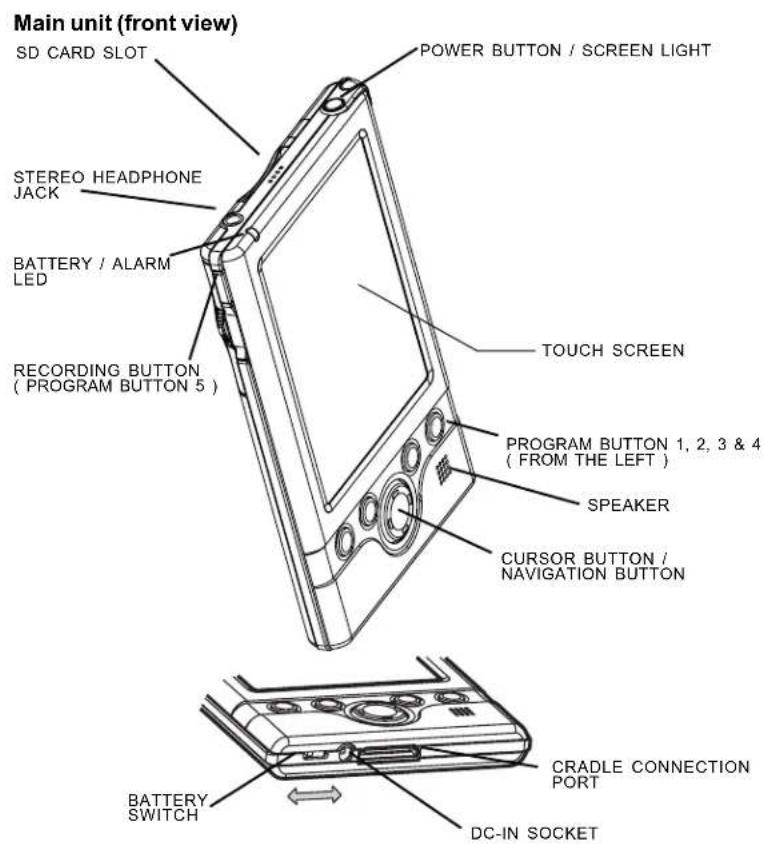
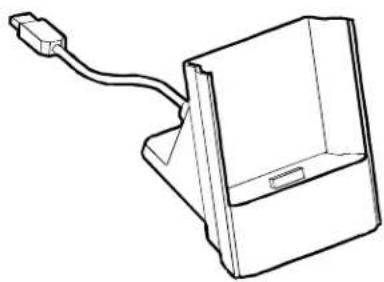
Cradle
natural_image
Line drawing of a computer monitor with an attached cable (no text or symbols)Initial Setting of Program Button
Program button 1 = Calendar

Program button 2 = Tasks

Program button 3 = Home

Program button 4 = Contacts

Program button 5 = Voice recorder

Main unit (back view)
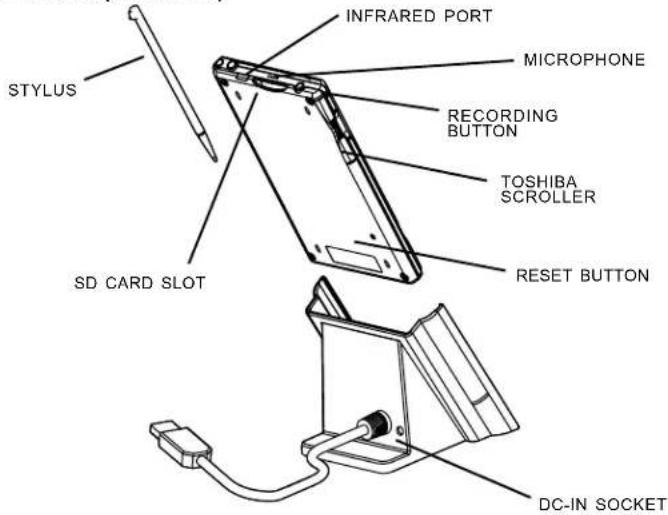
Power Button
The power button turns the unit and the screen light on and off.
| Power Button | When the power is off | When power is on |
| Press and hold. | The power turns on. | The screen light alternately turns on/off. |
| Press it quickly. | The power turns on. | The power turns off. |
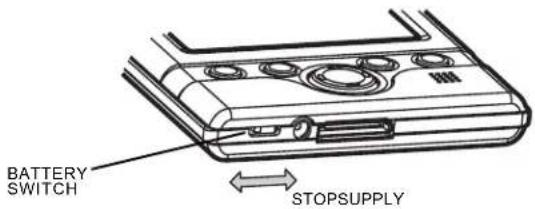
Battery Switch
The battery switch supplies/cuts off the battery power to the Toshiba Pocket PC e350/e355.
The setting of this switch at shipment is "stop." Before using the Toshiba Pocket PC e350/e355, slide this switch to the left (the "supply" side) with the stylus.

Switching the battery switch to the "stop" position at any time will lead to loss of data.
Battery / Alarm LED
The alarm lamp indicates the following conditions.
| Flashing orange | When the preset alarm time, which was set through Calendar or Tasks, goes off, the lamp starts flashing. |
| Orange Indicates charging of the battery. | |
| Yellow | The battery charging process is stopped due to the ambient temperature being too high or low. Charge the battery in an ambient temperature of approx. 41°F to 104°F. |
| Green Indicates full charge of the battery. | |
How to Use the Stylus
The stylus is used for menu selection or data input on the touch-screen of the Toshiba Pocket PC e350/e355.
Tap: Touch the screen once with the stylus to open items and select options.
Drag: Hold the stylus on the screen and drag it across to select text and images. Drag in a list to select multiple items.
Tap and hold: Tap and hold the stylus on an item to see a list of actions available for that item. On the pop-up menu that appears, tap the action you want to perform.

When you operate the touch screen of the Toshiba Pocket PC e350/e355, use the supplied stylus.
If the tip of the stylus is damaged, do not use it. If you operate the touch screen with a damaged stylus or a ballpoint pen, the touch screen may be damaged.
When the stylus is damaged, please purchase a new one.
About the Cursor Button
You can move a cursor (selection display) on the screen by pressing the upper, lower, right or left part of the cursor button.
You can select a program to launch by pressing the center part of the cursor button.

The cursor movement is different depending on the screen. When the cursor is at the right or the left side of the screen, it may not move.
About the Scroller
You can also move the cursor on the screen by moving the scroller up and down.
You can select a program to launch by pressing the scroller.
Method 2 : Connect the supplied AC adapter and the Toshiba Pocket PC
Battery Charging
A built-in battery is installed in the Toshiba Pocket PC e350/e355. When using the Toshiba Pocket PC for the first time, set the battery switch to the supply side, and then charge the built-in battery with the supplied AC adapter.
How to Charge the Battery
You can use two charging methods.

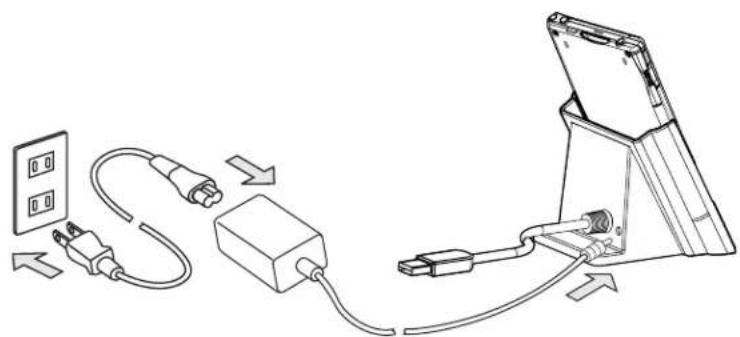
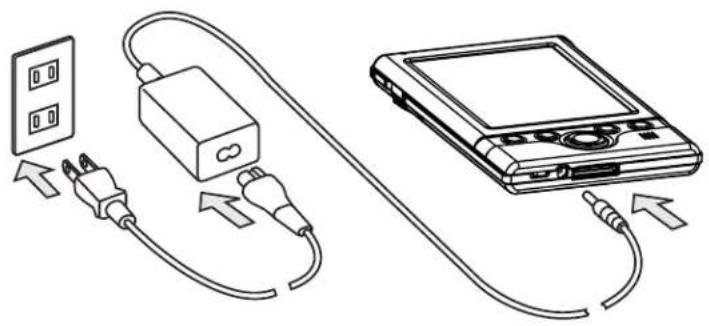
Turn the unit off before connecting the AC Adapter.
Method1: Connect the supplied AC adapter and the cradle as shown in the figure below, and then insert the Toshiba Pocket PC 340 into the cradle.
natural_image
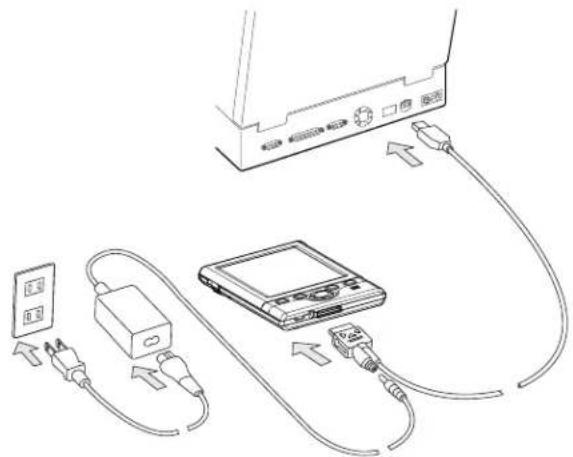
Diagram showing connections between a power plug, switch, and device (no text or symbols present)Method 2: Connect the supplied AC adapter and the Toshiba Pocket PC e350/e355 as shown in the figure below.
natural_image
Diagram showing connections between a power outlet, a plug-in socket, and a CD-ROM device (no text or symbols present)
For charging the battery, maintain an ambient temperature from approx. 41^ F to 104^ F.
When the lamp is lit in orange during the battery charging, you can use the Toshiba Pocket PC e350/e355.
When the battery is completely charged, the LED alarm lamp color will change to green.
How to Prolong Battery Life
■ Use the Toshiba Pocket PC e350/e355 with the AC adapter.
When you use the Toshiba Pocket PC e350/e355 under the following conditions, the power consumption will be high. Please use the AC adapter when:
The Toshiba Pocket PC e350/e355 is operated while connected to your computer.
The Toshiba Pocket PC e350/e355 is operated with storage card or with any other optional equipment.
Select the short power-off time in the setting menu. This will shorten the time the unit will remain on if not used. For more information, see "Customize Your Toshiba Pocket PC" on pg. 47
■ Turn off the screen light.
Set the screen brightness to power saving mode. Also shorten the light turn-off time. For more information, see "Customize Your Toshiba Pocket PC" on pg. 47.
Use the Toshiba Pocket PC e350/e355 with an ambient temperature between 59°F and 77°F. This temperature range is the most effective for the battery.
When you use the Toshiba Pocket PC e350/e355 in high or low temperature environments, the operable time is shortened due to the decrease of the battery capacity.
Battery Life
The built-in battery has a limited life. Repeated charging/discharging of the battery gradually decreases operable time.
Do not leave the Toshiba Pocket PC e350/e355 in a place of high or low temperature. It may shorten battery life.

If you have not used the Toshiba Pocket PC e350/e355 for several days, its battery charge level reading may be inaccurate. Fully recharge the battery before using.
Battery Charge Level and Stored Data Protection
If the battery charge level becomes extremely low, or is completely discharged, the memory data stored in the Toshiba Pocket PC e350/e355 could be lost.
When the low battery status icon or the alarm message appears, immediately connect the AC adapter to the Toshiba Pocket PC e350/e355 and charge the battery.
The built-in battery gradually discharges even if the device is not being used. When the Toshiba Pocket PC e350/e355 is left for a long time, the built-in battery may completely discharge.
As a precaution, it is recommended to save the Toshiba Pocket PC e350/e355/e355's memory data to your computer or to a storage card.
The manufacturer is not responsible for data change or clearance due to battery discharge.
How to use the Optional USB Host Cable
The optional USB Host Cable allows you to connect a USB keyboard to the Pocket PC.
To connect a USB keyboard to the Pocket PC:
- Turn off the power.
- Plug the optional USB Host Cable to the Pocket PC.
- Connect a USB keyboard to the USB Port of the optional USB Host Cable.

Charging the battery or connect AC adapter if the battery power is low. You cannot use a USB keyboard if the battery power is less than 15%.

Use only a Microsoft Pocket PC compatible keyboard.
Initial Setup
When using the Toshiba Pocket PC e350/e355 for the first time, follow the initial setup procedures below, after the battery has been charged.
-
Move the battery switch to the "supply" position. The Toshiba Pocket PC e350/e355 powers on automatically and the Welcome screen appears. Tap the screen to start the following setup.
-
Execute touch screen correction.
When the align screen appears, tap the center of the cross target with the stylus. The next target position changes upon tapping the target. Five taps completes the positioning correction. The screen then changes to the Stylus screen.
If a finger or any other object touches the screen during correction, the correction will be cancelled. Repeat the correction procedure.
- Read how to use the stylus.
Read and understand the stylus operation, and then tap NEXT.

For more information on stylus operation, see "How to Use the Stylus" on pg. 20.
- Learn the pop-up menu operation.
Read the on-screen explanation and then follow the instructions. Display the pop-up menu, and cut and paste the data according to the screen instructions.
■ After you finish the paste operation, this stage is completed. Tap NEXT.
-
Set the TIME ZONE.
-
When tapping the right ▼ mark, the city and the time zone lists appear. Tap the desired city and time zone.
■ When the setup is completed, tap NEXT. -
To complete the initial setup.
-
When the Complete screen appears, the initial setup is completed.
■ After tapping the screen, you can use the Toshiba Pocket PC e350/e355.

When you tap the Complete screen, the Today screen appears. For more information on the Today screen, see "Today screen" on pg. 31.
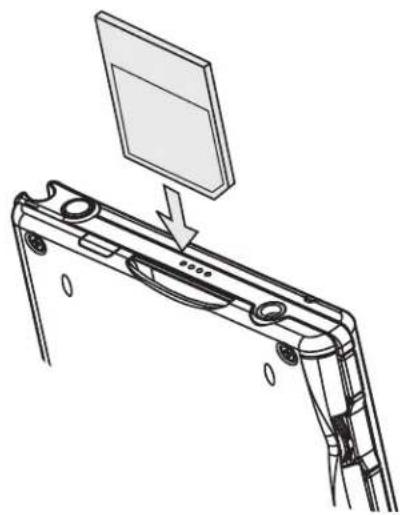
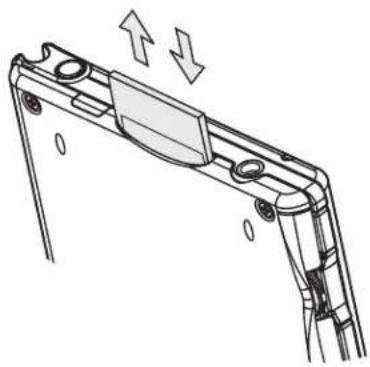
Inserting an SD Card
- Turn off the power.
- Remove the dummy card.
- Insert the card with its contact surface (metal contact surface) facing the back of the Toshiba Pocket PC e350/e355.
- Press down until a clicking sound is heard.
natural_image
Technical line drawing of a mechanical component with a panel and mounting holes (no text or symbols)To remove a card:
- Turn off the power.
- Lightly press down the card until a clicking sound is heard. The card will pop out slightly from the slot.
- Pull the card straight up to remove.
natural_image
Technical line drawing of a mechanical bracket with mounting holes and directional arrows indicating motion (no text or symbols)Connecting to a Computer
Before connecting your Toshiba Pocket PC e350/e355 to a computer, check the following.
■ ActiveSync has been installed on your computer. (See Chapter 3)
The position of connecting port on the computer may differ according to the computer type.
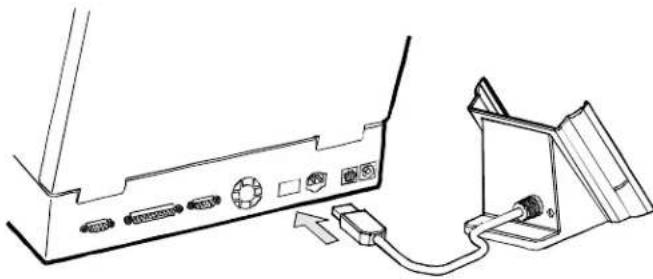
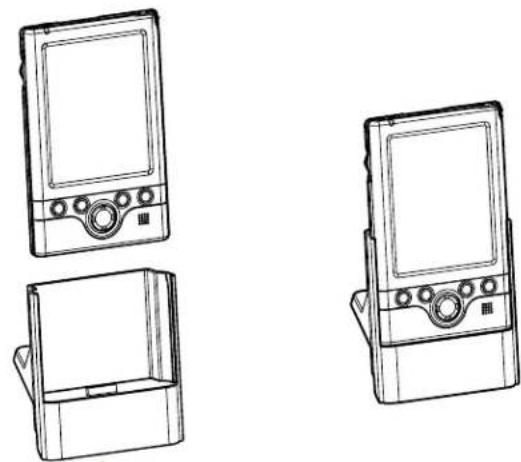
To Connect Using The Supplied Cradle:
- Connect the USB cradle to your computer as shown in the illustration below.
natural_image
Line drawing of a device rear panel with connectors and a separate cable outlet (no text or symbols)- Insert the Pocket PC into the cradle.
To connect directly using a connection cable:
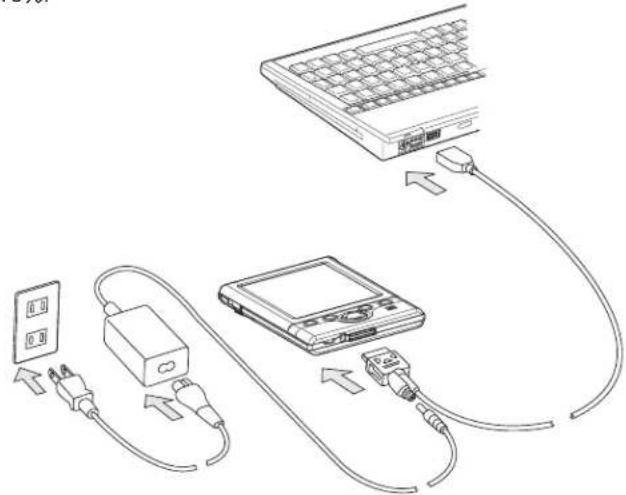
Connect the Toshiba Pocket PC e350/e355 directly to your computer using an optional USB Client Cable.
natural_image
Diagram showing connections between a device, cable, and power plug (no text or symbols present)
When the Toshiba Pocket PC e350/e355 is connected to another device via a USB Client Cable do not plug the AC adapter directly into the Pocket PC as this may lead to interference. Instead, plug the AC adapter into the port on the USB Client cable connector.
Today Screen
When you turn on your device for the first time each day (or after 4 hours of inactivity), you'll see the Today screen. You can also display it by tapping and then Today. On the Today screen, you can see at a glance important information for the day.
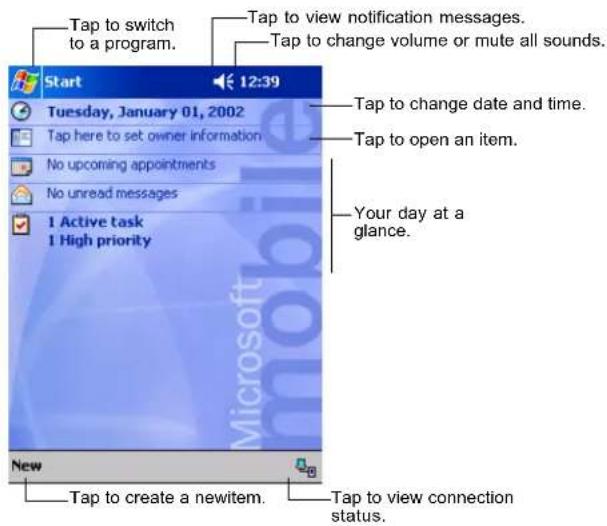
Following are some of the status icons you may see.
| Status Icon Meaning | |
| Tums all sounds on and off | |
| Main battery is charging | |
| Main battery is low | |
| Main battery is very low | |
| Main battery is full | |
| Connection is active | |
| Sy nchronization is beginning or ending | |
| Sy nchronization is occurring | |
| Notif ication that one or more instant messages were received | |
| Notif ication that one or more e-mail messages were received | |
If more notification icons need to be displayed than there is room to display them, the Notification icon, will display. Tap the icon to view all notification icons.
Programs
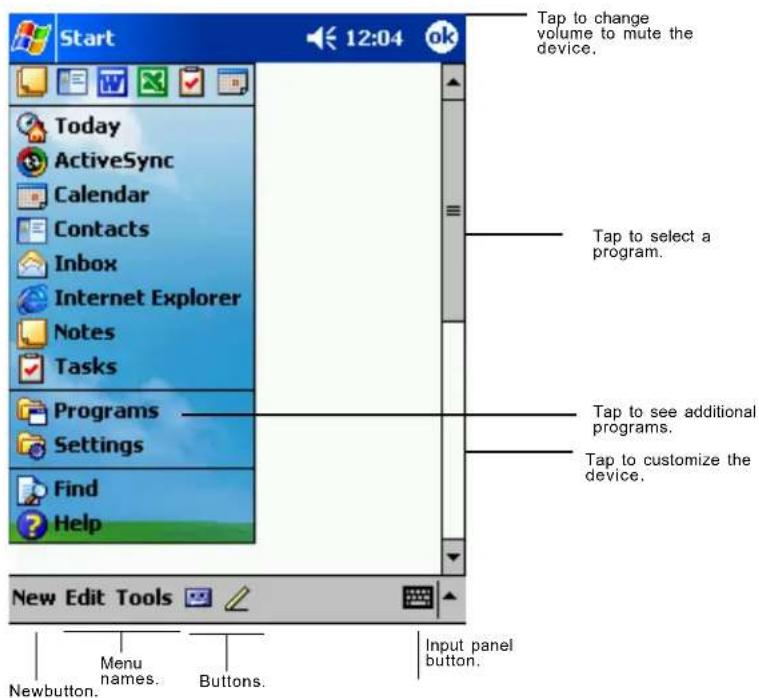
You can switch from one program to another by selecting it from the menu. (You can customize which programs you see on this menu. For information, see "Adjusting Settings," later in this chapter 2-16.) To access some programs, you'll need to tap Programs, and then the program name.
You can also switch to some programs by pressing a program button. Your device has one or more program buttons located on the front or side of the device. The icons on the buttons identify the programs they switch to.
Some programs have abbreviated labels for check boxes and drop-down menus. To see the full spelling of an abbreviated label, tap and hold the stylus on the label. Drag the stylus off the label so that the command is not carried out.
The following table contains a partial list of programs that are on your device. Look on the Toshiba Pocket PC Companion CD for additional programs that you can install onto your device.
| Icon | Program | Description |
| ActiveSync | Synchronize information between your device and computer. | |
| Calendar | Keep track of your appointments and create meeting requests. | |
| Contacts | Keep track of your friends and colleagues. | |
| Inbox | Send and receive e-mail messages. | |
| Pocket Internet Explorer | Browse Web and WAP sites, and download new programs and files from the Internet. | |
| Notes | Create handwritten or typed notes, drawings, and recordings. | |
| Tasks | Keep track of your tasks. | |
| Pocket Excel | Create new workbooks or view and edit Excel workbooks created on your computer. | |
| Pocket Word | Create new documents or view and edit Word documents created on your computer. |
Navigation Bar and Command Bar
The navigation bar is located at the top of the screen. It displays the active program and current time, and allows you to switch to programs and close screens.
Use the command bar at the bottom of the screen to perform tasks in programs. The command bar includes menu names, buttons, and the Input Panel button. To create a new item in the current program, tap New. To see the name of a button, tap and hold the stylus on the button. Drag the stylus off the button so that the command is not carried out.
Pop-up Menus
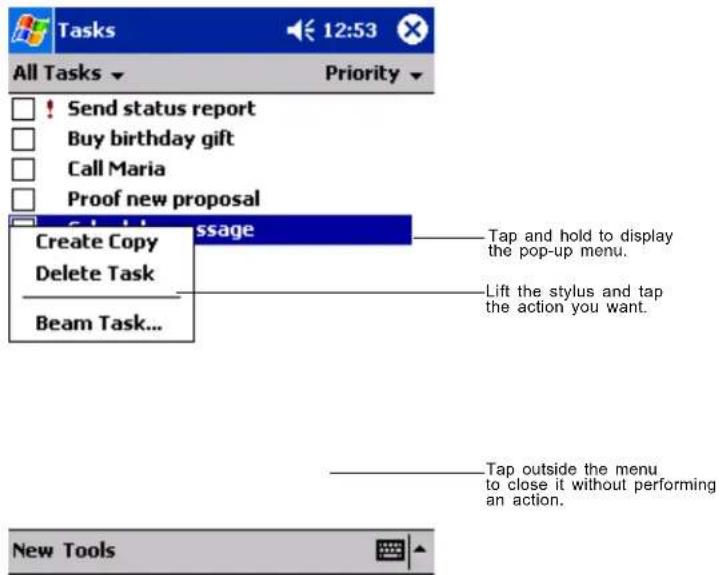
With pop-up menus, you can quickly choose an action for an item. For example, you can use the pop-up menu in the contact list to quickly delete a contact, make a copy of a contact, or send an e-mail message to a contact. The actions in the pop-up menus vary from program to program. To access a pop-up menu, tap and hold the stylus on the item name that you want to perform the action on. When the menu appears, lift the stylus, and tap the action you want to perform. To close the menu without performing an action, tap anywhere outside the menu.
Notifications
Your device reminds you in a variety of ways when you have something to do. For example, if you've set up an appointment in Calendar, a task with a due date in Tasks, or an alarm in Clock, you'll be notified in any of the following ways:
- A message box appears on the screen.
• A sound, which you can specify, is played.
• A light flashes on your device.
To choose reminder types and sounds for your device, tap 📋 and then Settings. In the Personal tab, tap Sounds & Notifications. The options you choose here apply throughout the device.
Enter Information on Your Toshiba Pocket PC
You have several options for entering new information:
- Use the input panel to enter typed text, either by using the soft keyboard or other input method.
- Write directly on the screen.
- Draw pictures on the screen.
- Speak into your device microphone to record a message.
- Use Microsoft ^ ActiveSync ^ to synchronize or copy information from your computer to your device. For more information on ActiveSync, see ActiveSync Help on your computer.
Entering Text Using the Input Panel
Use the input panel to enter information in any program on your device. You can either type using the soft keyboard or write using Letter Recognizer, or Block Recognizer. In either case, the characters appear as typed text on the screen.
To show or hide the input panel, tap the Input Panel button. Tap the arrow next to the Input Panel button to see your choices.
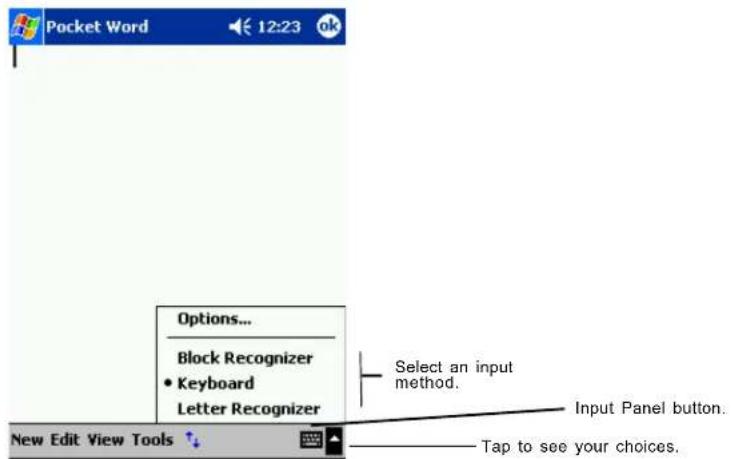
When you use the input panel, your device anticipates the word you are typing or writing and displays it above the input panel. When you tap the displayed word, it is inserted into your text at the insertion point. The more you use your device, the more words it learns to anticipate.
![Notes 9:31 ok Monthly mee meeting Tap here if this is the right word. 123 1 2 3 4 5 6 7 8 9 0 - = Tab q w e r t y u i o p [ ] CAP a s d f g h j k l ; * Shift z x c v b n m , . / Ctl äü ` \ ↓ ↑ ← → New Edit Tools ↻](/content/2026/05/787137/images/b37ddc9ea9ca74575f05dd50bc5e07dfb9fb3c790054912f8c399acbe60f862f.jpg)

To change word suggestion options, such as the number of words suggested at one time, tap 📋, Settings, Personal tab, Input, and then the Word Completion tab.
To type with the soft keyboard:
- Tap the arrow next to the Input Panel button and then Keyboard
- On the soft keyboard that is displayed, tap the keys with your stylus.
To use Letter Recognizer:
With Letter Recognizer you can write letters using the stylus just as you would on paper.
- Tap the arrow next to the Input Panel button and then Letter Recognizer.
- Write a letter in the box.
When you write a letter, it is converted to typed text that appears on the screen. For specific instructions on using Letter Recognizer, with Letter
Recognizer open, tap the question mark next to the writing area.
To use Block Recognizer:
With Block Recognizer you can input character strokes using the stylus that are similar to those used on other devices.
- Tap the arrow next to the Input Panel button and then Block Recognizer.
- Write a letter in the box.
When you write a letter, it is converted to typed text that appears on the screen. For specific instructions on using Block Recognizer, with Block Recognizer open, tap the question mark next to the writing area.
Writing on the Screen
In any program that accepts writing, such as the Notes program, the Notes tab in Calendar, Contacts, and Tasks, you can use your stylus to write directly on the screen. Write the way you do on paper. You can edit and format what you've written and convert the information to text at a later time.
To write on the screen:
- Tap the Pen button to switch to writing mode. This action displays lines on the screen to help you write.
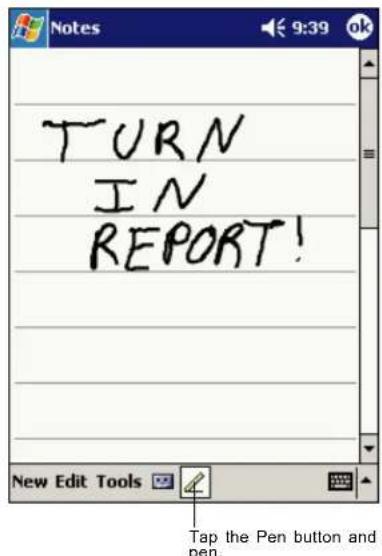

Some programs that accept writing may not have the Pen button. See the documentation for that program to find out how to switch to writing mode.
To select writing:
If you want to edit or format writing, you must select it first.
- Tap and hold the stylus next to the text you want to select until the insertion point appears.
- Without lifting, drag the stylus across the text you want to select.
If you accidentally write on the screen, tap Tools, then Undo and try again. You can also select text by tapping the Pen button to deselect it and then dragging the stylus across the screen.
You can cut, copy, and paste written text in the same way you work with typed text: tap and hold the selected words and then tap an editing command on the pop-up menu, or tap the command on the Edit menu.
To convert writing to text:
• Tap Tools and then Recognize.
If you want to convert only certain words, select them before tapping Recognize on the Tools menu (or tap and hold the selected words and then tap Recognize on the pop-up menu). If a word is not recognized, it is left as writing.
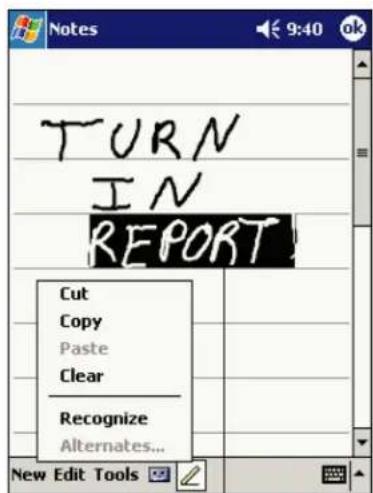
Select the text you want to convert and tap Recognize on the pop-up menu.
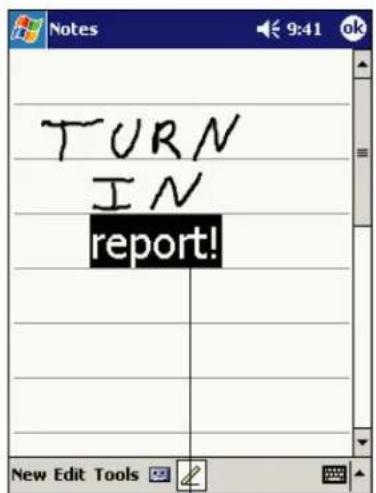
The writing is turned into text.
If the conversion is incorrect, you can select different words from a list of alternates or return to the original writing. To do so, tap and hold the incorrect word (tap one word at a time). On the pop-up menu, tap Alternates. A menu with a list of alternate words appears. Tap the word you want to use, or tap the writing at the top of the menu to return to the original writing.
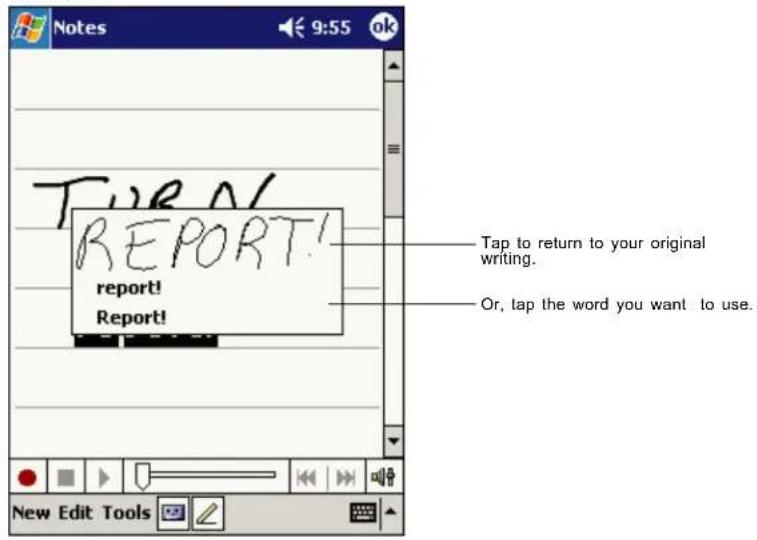
Tips for achieving better word recognition:
- Write neatly.
- Write on the lines and draw descenders below the line. Write the cross of the "t" and apostrophes below the top line so that they are not confused with the word above. Write periods and commas above the line.
- For better recognition, try increasing the zoom level to 300% using the Tools menu.
- Write the letters of a word closely and leave big gaps between words so that the device can easily tell where words begin and end.
- Hyphenated words, foreign words that use special characters such as accents, and some punctuation cannot be converted.
- If you add writing to a word to change it (such as changing a "3" to an "8") after you attempt to recognize the word, the writing you add will not be included if you attempt to recognize the writing again.
Drawing on the Screen
You can draw on the screen in the same way that you write on the screen. The difference between writing and drawing on the screen is how you select items and how they can be edited. For example, selected drawings can be resized, while writing cannot.
To create a drawing:
- Cross three ruled lines on your first stroke. A drawing box appears. Subsequent strokes in or touching the drawing box become part of the drawing. Drawings that do not cross three ruled lines will be treated as writing.
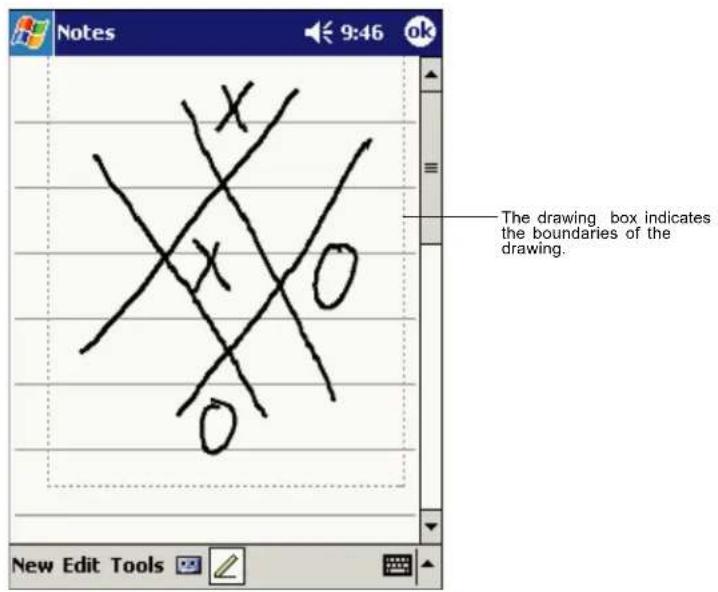
You may want to change the zoom level so that you can more easily work on or view your drawing. Tap Tools and then a zoom level.
To select a drawing:
If you want to edit or format a drawing, you must select it first.
- Tap and hold the stylus on the drawing until the selection handle appears. To select multiple drawings, deselect the Pen button and then drag to select the drawings you want.
You can cut, copy, and paste selected drawings by tapping and holding the selected drawing and then tapping an editing command on the popup menu, or by tapping the command on the Edit menu. To resize a drawing, make sure the Pen button is not selected, and drag a selection handle.
Recording a Message
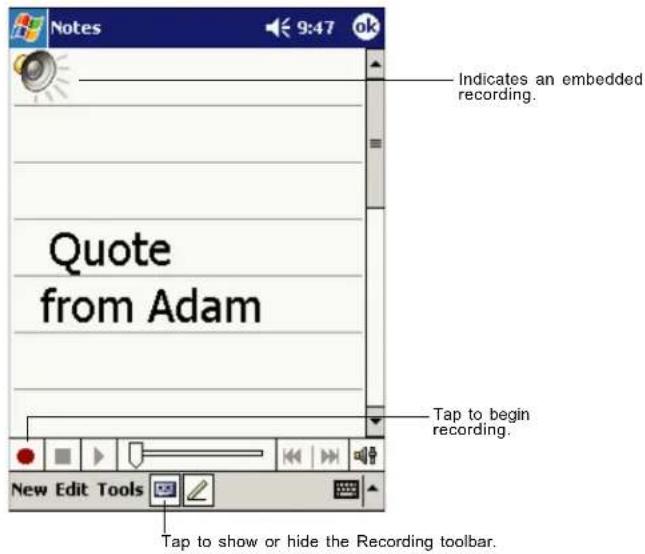
In any program where you can write or draw on the screen, you can also quickly capture thoughts, reminders, and phone numbers by recording a message. In Calendar, Tasks, and Contacts, you can include a recording in the Notes tab. In the Notes program, you can either create a standalone recording or include a recording in a written note. If you want to include the recording in a note, open the note first. In the Inbox program, you can add a recording to an e-mail message.
To create a recording:
- Hold your device's microphone near your mouth or other source of sound.
- Press and hold the Record hardware button on your device until you hear a beep.
- While holding down the Record button, make your recording.
- To stop recording, release the Record button. Two beeps will sound. The new recording appears in the note list or as an embedded icon.

You can also make a recording by tapping the Record button on the Recording toolbar.
To play a recording, tap it in the list or tap its icon in the note.
Using My Text
When using Inbox or MSN Messenger, use My Text to quickly insert preset or frequently used messages into the text entry area. To insert a message, tap My Text and tap a message.

You can add text after inserting a My Text message before sending it.
To edit a My Text message, in the Tools menu, tap Edit and then tap My Text Messages. Select the message you wish to edit and make any desired changes.
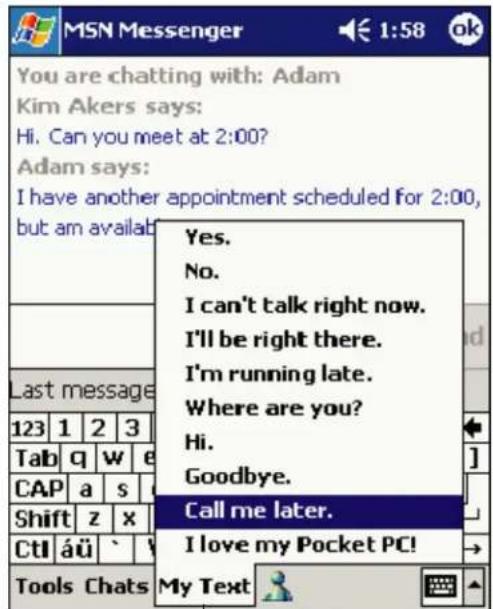
Tap to select a prewritten message.
Find and Organize Information
The Find feature on your device helps you quickly locate information.
- On the menu, tap Find. Enter the text you want to find, select a data type, and then tap Go to start the search.
To quickly find information that is taking up storage space on your device, select Larger than 64 KB in Type.
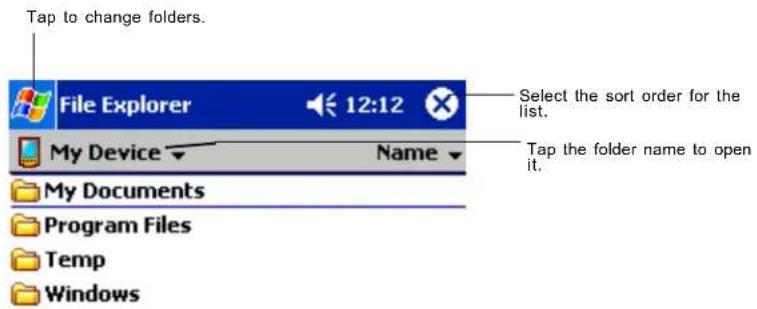
You can also use the File Explorer to find files on your device and to organize these files into folders. On the menu, tap Programs, and then File Explorer.
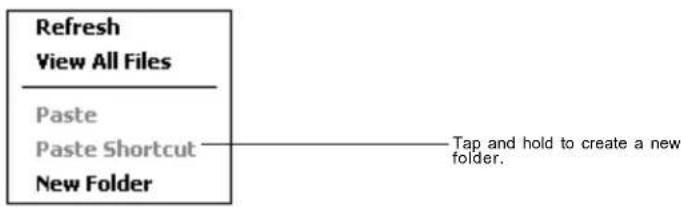
flowchart
graph TD
    A["Refresh\nView All Files"] --> B["Paste\nPaste Shortcut\nNew Folder"]
    B --> C["Tap and hold to create a new folder."]

You can move files in File Explorer by tapping and holding the item you want to move, and then tapping Cut or Copy and Paste on the pop-up menu.
Customize Your Toshiba Pocket PC
You can customize your device by adjusting device settings and installing additional software.
Adjusting Settings
You can adjust device settings to suit the way you work. To see available options, tap 📋, Settings, then the Personal or System tab located at the bottom of the screen.
You might want to adjust the following:
- Clock, to change the time or to set alarms
- Menus, to customize what appears on the pop-up menu from the New button
menu, and to enable a - Owner Information, to enter your contact information
- Password, to limit access to your device
• Power, to maximize battery life - Today, to customize the look and the information that is displayed on the Today screen
Adding or Removing Programs
Programs added to your device at the factory are stored in ROM (read-only memory). You cannot remove this software, and you'll never accidentally lose ROM contents. ROM programs can be updated using special installation programs with a *.zip extension. All other programs and data files added to your device after factory installation are stored in RAM (random access memory).
You can install any program created for your device, as long as your device has enough memory. The most popular place to find software for your device is on the Pocket PC Web site (http://www.microsoft.com/mobile/pocketpc).
To add programs using ActiveSync
You'll need to install the appropriate software for your device on your computer before installing it on your device.
- Determine your device and processor type so that you know which version of the software to install.
Tap and then Settings. On the System tab, tap About. In the Version tab, make a note of the information in Processor.
-
Download the program to your computer (or insert the CD or disk that contains the program into your computer). You may see a single *.zip, *.exe,, or *.zip file, a Setup.exe file, or several versions of files for different device types and processors. Be sure to select the program designed for the Toshiba Pocket PC and your device processor type.
-
Read any installation instructions, Read Me files, or documentation that comes with the program.
Many programs provide special installation instructions.
-
Connect your device and computer.
-
Double-click the *.exe file.
- If the file is an installer, the installation wizard will begin. Follow the directions on the screen.
Once the software has been installed on your computer, the installer will automatically transfer the software to your device.
- If the file is not an installer, you will see an error message stating that the program is valid but it is designed for a different type of computer. You will need to move this file to your device. If you cannot find any installation instructions for the program in the Read Me file or documentation, use ActiveSync Explore to copy the program file to the Program Files folder on your device. For more information on copying files using ActiveSync, see ActiveSync Help.
Once installation is complete, tap 📄, Programs, and then the program icon to switch to it.
To add a program directly from the Internet
- Determine your device and processor type so that you know which version of the software to install.
Tap and then Settings. On the System tab, tap About. In the Version tab, make a note of the information in Processor.
- Download the program to your device straight from the Internet using Pocket Internet Explorer. You may see a single *.xip, *.exe or *.zip file, a Setup.exe file, or several versions of files for different device types and processors. Be sure to select the program designed for the Toshiba Pocket PC and your device processor type.
- Read any installation instructions, Read Me files, or documentation that comes with the program. Many programs provide special installation instructions.
- Tap the file, such as a *.xip or *.exe file. The installation wizard will begin. Follow the directions on the screen.
To add a program to the Start menu
Tap Settings, Menus, the Start Menu tab, and then the check box for the program. If you do not see the program listed, you can either use File Explorer on the device to move the program to the Start Menu folder, or use ActiveSync on the computer to create a shortcut to the program and place the shortcut in the Start Menu folder.
- Using File Explorer on the device: Tap, Programs, File Explorer, and locate the program (tap the folder list, labeled My Documents by default, and then My Device to see a list of all folders on the device). Tap and hold the program and tap Cut on the pop-up menu. Open the Start Menu folder located in the Windows folder, tap and hold a blank area of the window, and tap Paste on the pop-up menu. The program will now appear on the menu. For more information on using File Explorer, see "Find and Organize Information," earlier in this chapter.
- Using ActiveSync on the computer: Use the Explorer in ActiveSync to explore your device files and locate the program. Right-click the program, and then click Create Shortcut. Move the shortcut to the Start Menu folder in the Windows folder. The shortcut now appears on the menu. For more information, see ActiveSync Help.
To remove programs
- Tap 📋 and then Settings. On the System tab, tap Remove Programs.
If the program does not appear in the list of installed programs, use File Explorer on your device to locate the program, tap and hold the program, and then tap Delete on the pop-up menu.
Setting Password
You can protect data or settings from a third person by setting a password which is requested when turning power on.
- Tap 📄 and then Settings. On the Personal tab, tap Password.
- Select the type of password you would like to use.
- Enter a password and tap OK.
- Tap YES on the confirmation screen. The password is saved and the screen returns to the Personal tab screen
If you tap YES on the confirmation screen to return to the Personal tab screen, it becomes necessary to enter the password even for displaying the Password setting screen.
In case you forget the password, it is necessary to initialize the Pocket PC. Please note that when initialization is executed, data or settings stored in the Pocket PC are all deleted.
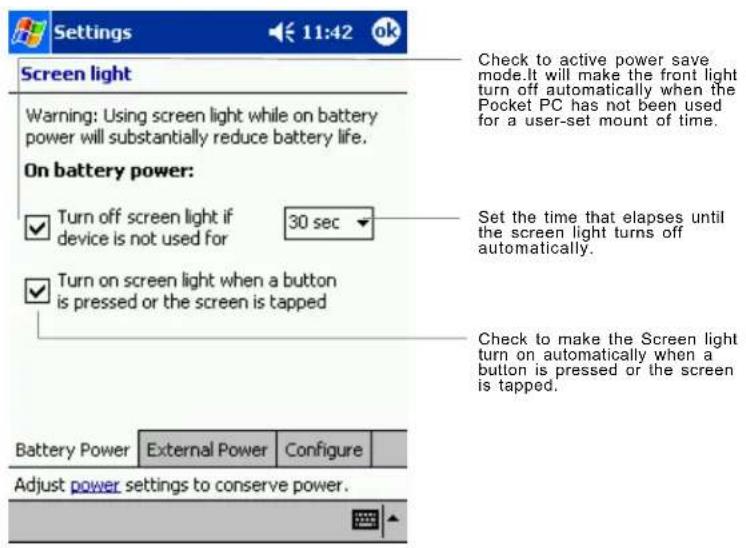
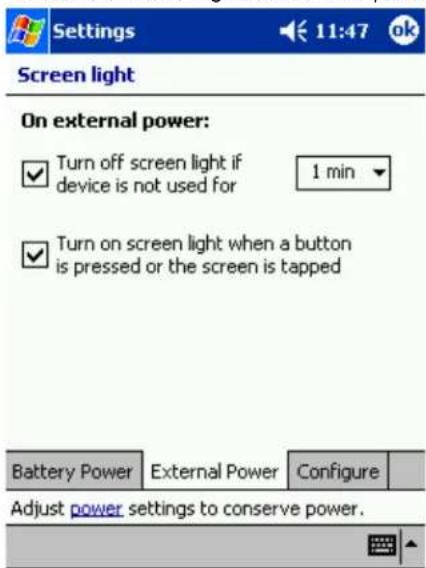
To Set Screen Light
You can set the screen brightness for better sight according to a place of use. You can also set the time that elapses until the front light turns off automatically after the last operation.
- Tap and then Settings. On the System tab, tap Screen Light.
- Set the Screen Light on battery power.
-or set the screen light on External power.
- Set the Brightness level.
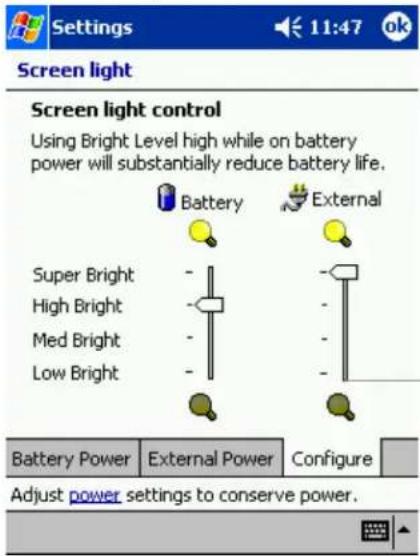
Tap and set the front light brightness level by move the cursor up or down. If Power Save is activated, the front light turns off.
- When finished, tap OK to return to the System tab screen.
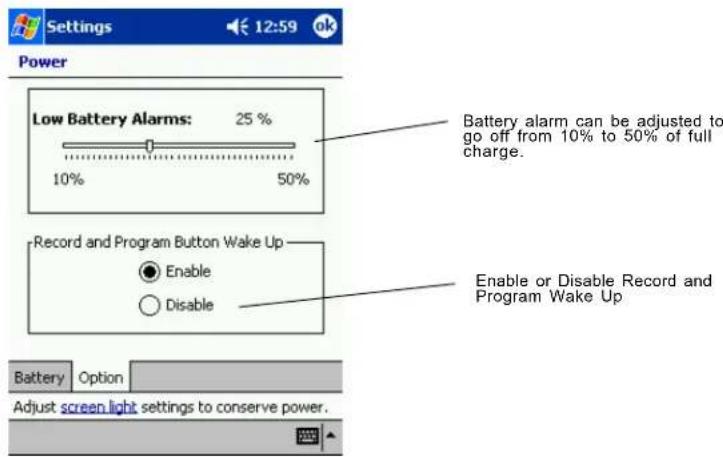
Setting Power
You can set to confirm the battery remaining power and the time that elapses until the power turns off after the last operation.
- Tap and then Settings. On the System tab, tap Power.
- Set the Power.
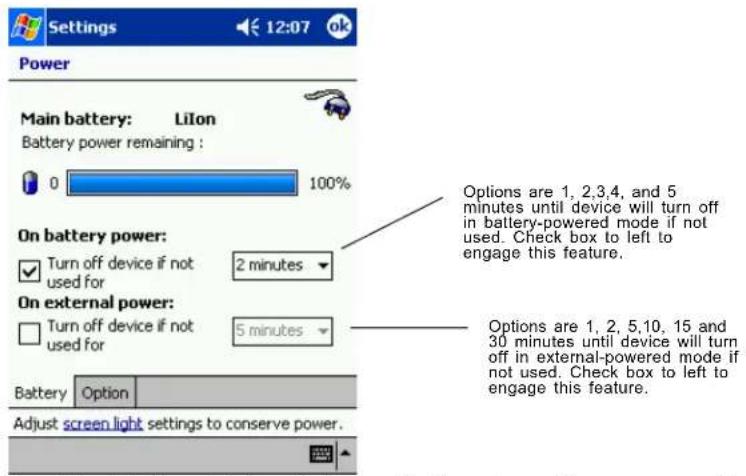
- Select Battery tab to adjust when battery alarm will come on, and to enable/disable Record and Program button wake up.
- When finished, tap OK to return to the System tab screen.
Setting Memory
You can adjust the data storing memory and the program running memory. You can also confirm the free space of a storage card and so on. Memory for the Pocket PC is managed automatically.
To change Memory allocation:
- Tap 📋 and then Settings. On the System tab, tap Memory to display the Memory setting screen.
- Drag the knob width wise to adjust the memory allocation between Storage and Program.
- When finished, tap OK to return to the System tab screen.
To confirm usage status of a storage card:
- Tap Storage card tab on the Memory setting screen.
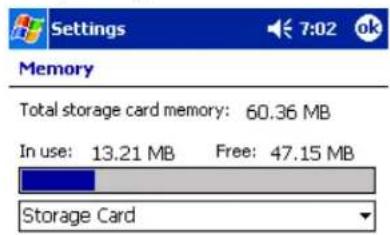
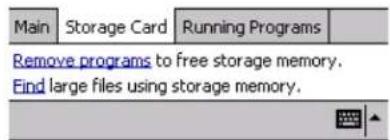
- When finished, tap OK to return to the System tab screen.
To release memory:
If memory is running short of its capacity, i.e., error message display, the following methods are available to release the memory.
- Transfer data to a storage card and the like and delete them from the Pocket PC.
- Delete unnecessary files.
- Quit a program in execution.
- Delete a program not in use.
For more information on detailed operation method or the memory release method other than the above, see online help.
Setting Advanced Sounds
This program allows you to adjust the volume of the built-in speaker and headphone speaker on your Pocket PC.
1 To adjust the system volume, tap Start, Settings, Personal tab, Sounds & Notifications.
2 Tap Start and then Settings. On the System tab, tap Advanced Sounds.
3 Select the Built-in tab and adjust the Volume of the built-in speaker as shown below.
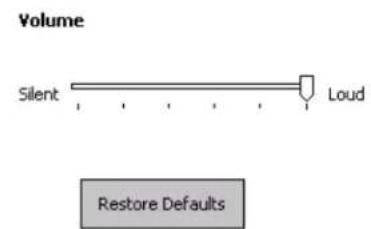
4 When using headphones, select the Headphone tab and make adjustments as shown in the figure on the following page.
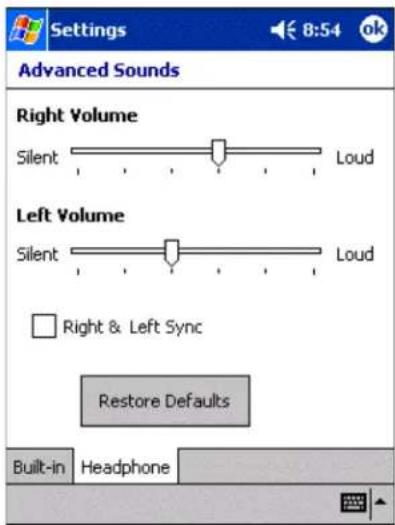
Setting Microphone
This program sets the Automatic Gain Control (AGC).
1 Tap and then Settings. On the System tab, tap Microphone.
2 Check the box below for auto or leave unchecked for manual control.

Microphone
Auto Gain Control
(Built_in Microphone Only)
Volume

mute
Boost
Restore Defaults

Chapter 3:
Microsoft ActiveSync
Using Microsoft® ActiveSync®, you can synchronize the information on your computer with the information on your device. Synchronization compares the data on your device with your PC and updates both computers with the most recent information. For example:
- Keep Pocket Outlook data up-to-date by synchronizing your device with Microsoft Outlook data on your PC.
- Synchronize Microsoft Word and Microsoft Excel files between your device and computer.
Your files are automatically converted to the correct format.
By default, ActiveSync does not automatically synchronize all types of information. Use ActiveSync options to turn synchronization on and off for specific information types.
With ActiveSync, you can also:
- Back up and restore your device data.
- Copy (rather than synchronize) files between your device and desktop computer.
- Control when synchronization occurs by selecting a synchronization mode. For example, you can synchronize continually while connected to your computer or only when you choose the synchronize command.
- Select which information types are synchronized and control how much data is synchronized. For example, you can choose how many weeks of past appointments you want synchronized.
Before you begin synchronization, install ActiveSync on your PC from the Toshiba Pocket PC Companion CD. For more information on installing ActiveSync, see your Quick Start card. ActiveSync is already installed on your device.
After installation is complete, the ActiveSync Setup Wizard helps you connect your Pocket PC to your PC, set up a partnership so you can synchronize information between your device and your computer, and customize your synchronization settings. Your first synchronization process will automatically begin when you finish using the wizard.
After your first synchronization, take a look at Calendar, Contacts, and Tasks on your device. You'll notice that information you've stored in Microsoft Outlook on your PC has been copied to your device, and you didn't have to type a word. Disconnect your device from your PC and you're ready to go!
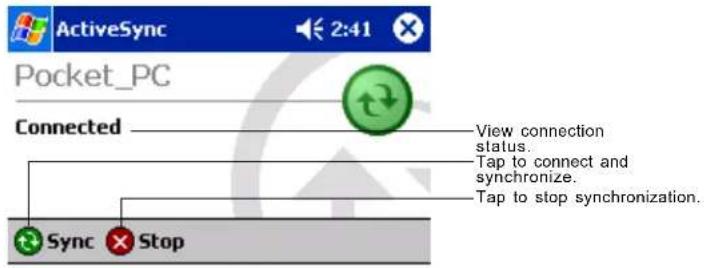
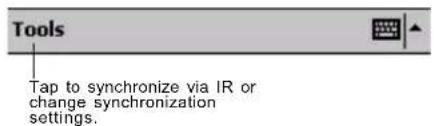
Once you have set up ActiveSync and completed the first synchronization process, you can initiate synchronization from your device. To switch to ActiveSync on your device, tap 📋, and then tap ActiveSync.
For information about using ActiveSync on your PC, start ActiveSync on your PC, and then see ActiveSync Help.
For more information about ActiveSync on your device, switch to ActiveSync, tap 📄, and then tap Help.
Chapter 4:
Microsoft Pocket Outlook
Microsoft® Pocket Outlook includes Calendar, Contacts, Tasks, Inbox, and Notes. You can use these programs individually or together. For example, e-mail addresses stored in Contacts can be used to address e-mail messages in Inbox.
Using ActiveSync ^® you can synchronize information in Microsoft Outlook or Microsoft Exchange on your computer with your device. You can also synchronize this information directly with a Microsoft Exchange server. Each time you synchronize, ActiveSync compares the changes you made on your device and computer or server and updates both computers with the latest information. For information on using ActiveSync, see ActiveSync Help on the computer.
You can switch to any of these programs by tapping them on the menu.
Calendar: Scheduling Appointments and Meetings
Use Calendar to schedule appointments, including meetings and other events. You can check your appointments in one of several views (Agenda, Day, Week, Month, and Year) and easily switch views by using the View menu.
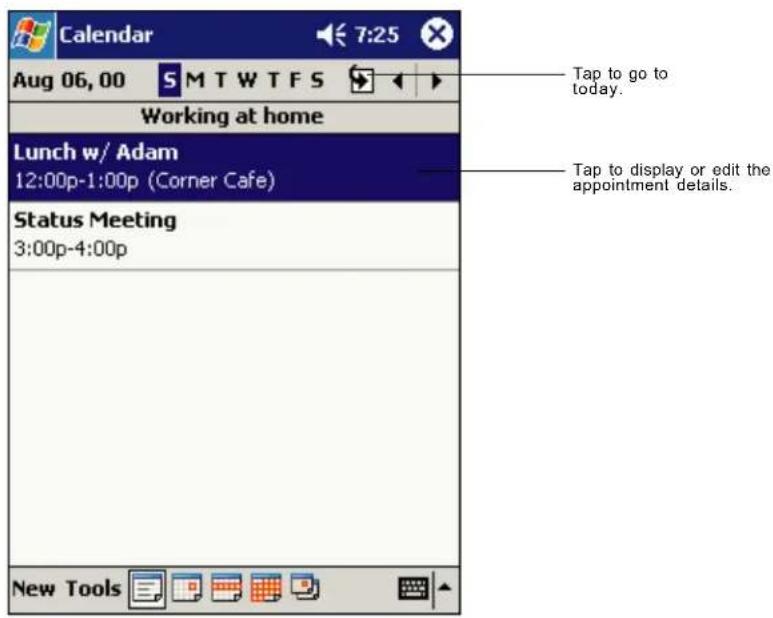

You can customize the Calendar display, such as changing the first day of the week, by tapping Options on the Tools menu.
To create an appointment:
- If you are in Day or Week view, tap the desired date and time for the appointment.
- Tap New.
![Tap to return to the calendar (the appointment is saved automatically). Subject: Location: Starts: 07/31/2002 12:00 PM Ends: 07/31/2002 1:00 PM Type: Normal Occurs: Once Reminder: Remind me 15 minute(s) Categories: No categories... Appointment Notes 123 1 2 3 4 5 6 7 8 9 0 - = Tab q w e r t y u i o p [ ] CAP a s d f g h j k l ; * Shift z x c v b n m , . / Ctl áü ` \ Edit](/content/2026/05/787137/images/d3a7cbc3eb4830b8b078bf262eedbac67f922e57df31e7504d858d8e52be55aa.jpg)
- Using the input panel, enter a description and a location. Tap first to select the field.
- If needed, tap the date and time to change them.
- Enter other desired information. You will need to hide the input panel to see all available fields.
- To add notes, tap the Notes tab. You can enter text, draw, or create a recording. For more information on creating notes, see "Notes: Capturing Thoughts and Ideas," later in this chapter.
- When finished, tap OK to return to the calendar.

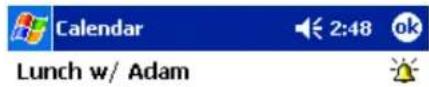
If you select Remind me in an appointment, your device will remind you according to the options set in 📄, Settings, Personal tab, Sounds & Notifications.
Using the Summary Screen
When you tap an appointment in Calendar, a summary screen is displayed. To change the appointment, tap Edit.
12:00p-1:00p Wed, 07/31/2002

View appointment details.
Remember portfolio.
View.

Tap to change appointment.
Creating Meeting Requests
You can use Calendar to set up meetings with users of Outlook or Pocket Outlook. The meeting request will be created automatically and sent either when you synchronize Inbox or when you connect to your e-mail server. Indicate how you want meeting requests sent by tapping Tools and then Options. If you send and receive e-mail messages through ActiveSync, select ActiveSync.
To schedule a meeting:
- Create an appointment by tapping NEW.
- In the appointment details, hide the input panel, and then tap Attendees.
- From the list of e-mail addresses you've entered in Contacts, select the meeting attendees.
The meeting notice is created automatically and placed in the Outbox folder. For more information on sending and receiving meeting requests, see Calendar Help and Inbox Help on the device.
Contacts: Tracking Friends and Colleagues
Contacts maintains a list of your friends and colleagues so that you can easily find the information you're looking for, whether you're at home or on the road. Using the infrared (IR) port on your device, you can quickly share Contacts information with other device users.
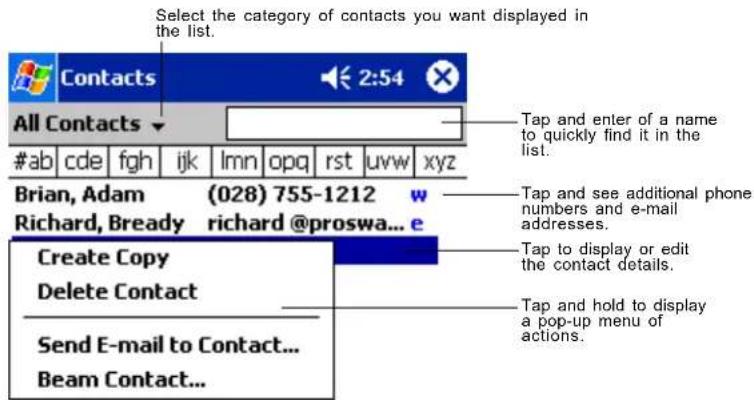

To change the way information is displayed in the list, tap Tools and then Options.
To create a contact:
- Tap New.
![Contacts Name: Job title: Department: Company: Work tel: Work fax: Work addr: E-mail: Mobile tel: Details Notes 123 1 2 3 4 5 6 7 8 9 0 - = Tab q w e r t-y=u>i pivot[ ] CAP a s d f g h j k,l ; Shift z x c v b n m , . /← CtI áü \_ Edit ( the contact is saved automatically. Scroll to see more fields. Notes is a good place for maps and directions.](/content/2026/05/787137/images/4e8f5a5cbfcd6096fc102b0b3c2ae2e6b4fd6647c18a202a401f12365384ad9b.jpg)
- Using the input panel, enter a name and other contact information. You will need to scroll down to see all available fields.
- To assign the contact to a category, scroll to and tap Categories and select a category from the list. In the contact list, you can display contacts by category.
- To add notes, tap the Notes tab. You can enter text, draw, or create a recording. For more information on creating notes, see "Notes: Capturing Thoughts and Ideas," later in this chapter.
- When finished, tap OK to return to the contact list.
Finding a contact
There are four ways to find a contact:
- In the contact list, enter a contact name in the box under the navigation bar. To show all contacts again, clear text from the box or tap the button to the right of the box.
- In the contact list, tap the category list (labeled All Contacts by default) and select the type of contact that you want displayed. To show all contacts again, select All Contacts. To view a contact not assigned to a category, select None.
- To view the names of companies your contacts work for, in the contact list, tap View > By Company. The number of contacts that work for that company will be displayed to the right of the company name.
- Tap Find, enter the contact name, select Contacts for the type, and then tap Go.
Using the Summary Screen
When you tap a contact in the contact list, a summary screen is displayed. To change the contact information, tap Edit.

Adam Brian
Engineer
R&D
Inspired Technologies
(028) 755-1212
111, First St.
Work tel
Work addr

Tasks: Keeping a To Do List
Use Tasks to keep track of what you have to do.
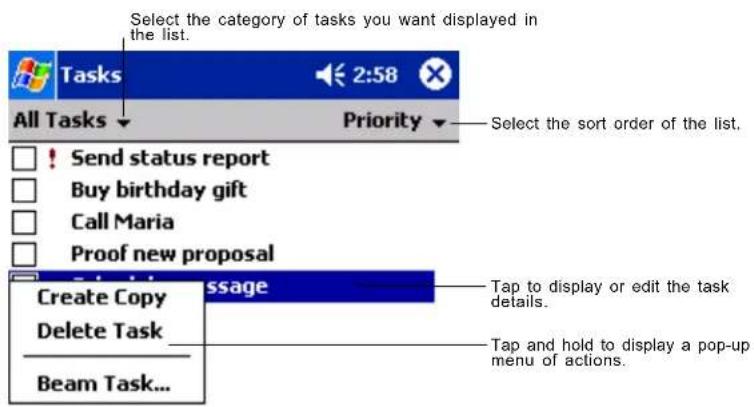
To change the way information is displayed in the list, tap Tools and then Options.
To create a task:
1. Tap New.
![Tap to return to the task list ( the task is saved automatically ). Tasks Subject: Priority: Normal Status: Not Completed Starts: None Due: None Occurs: Once Reminder: None Categories: No categories... Task Notes 123 1 2 3 4 5 6 7 8 9 0 - = Tab q w e r t y u i o p [ ] CAP a s d f g h j k l ; * Shift z x c v b n m , . / CtI äü ` \ Edit](/content/2026/05/787137/images/6d0f25597cebe1f21aeb3ae4675f1c90bb9602d3cfc6833c378c282441b0bcf4.jpg)
- Using the input panel, enter a description.
- You can enter a start date and due date or enter other information by first tapping the field. If the input panel is open, you will need to hide it to see all available fields.
- To assign the task to a category, tap Categories and select a category from the list. In the task list, you can display tasks by category.
- To add notes, tap the Notes tab. You can enter text, draw, or create a recording. For more information on creating notes, see "Notes: Capturing Thoughts and Ideas," later in this chapter.
- When finished, tap OK to return to the task list.

To quickly create a task with only a subject, tap Entry Bar on the Tools menu. Then, tap Tap here to add a new task and enter your task information.
Using the Summary Screen
When you tap a task in the task list, a summary screen is displayed. To change the task, tap Edit.
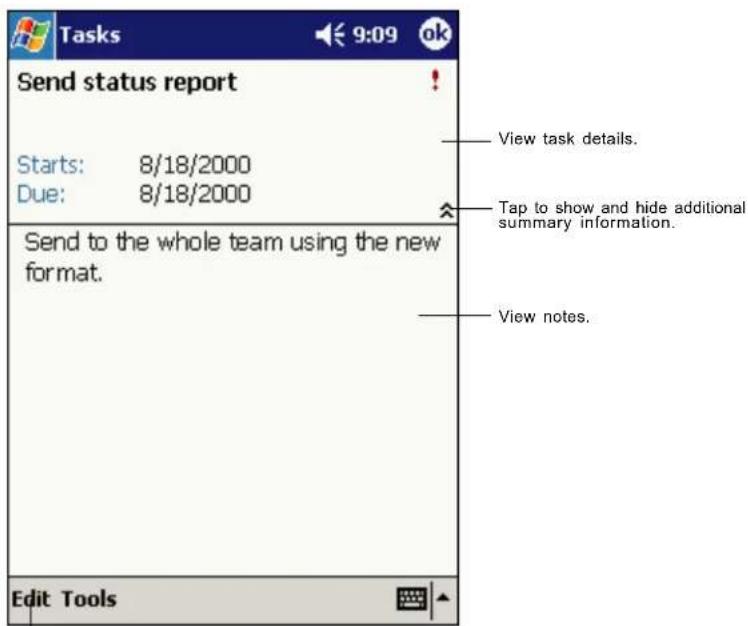
Tap to change task.
Notes: Capturing Thoughts and Ideas
Quickly capture thoughts, reminders, ideas, drawings, and phone numbers with Notes. You can create a written note or a recording. You can also include a recording in a note. If a note is open when you create the recording, it will be included in the note as an icon. If the note list is displayed, it will be created as a stand-alone recording.
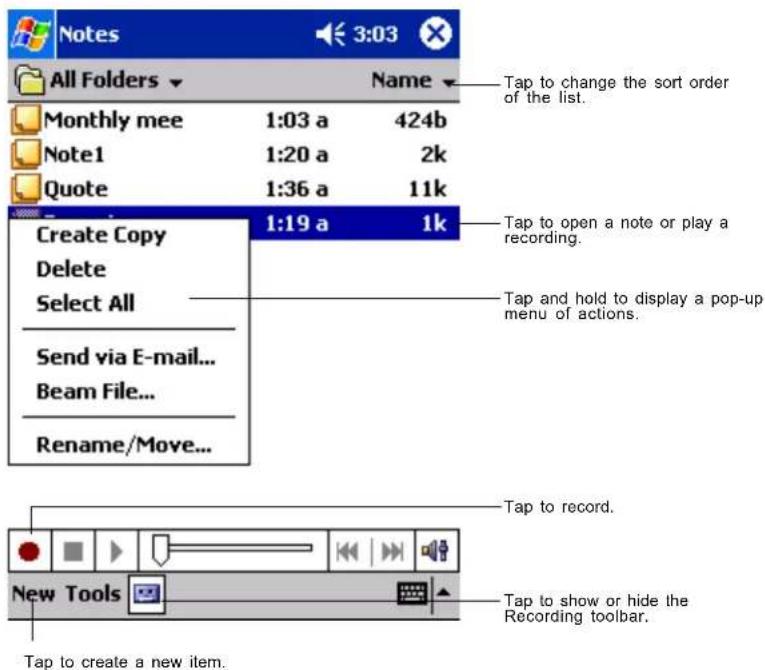
To create a note:
- Tap New.
- Create your note by writing, drawing, typing, and recording. For more information about using the input panel, writing and drawing on the screen, and creating recordings, see Chapter 2.
![Tap to return to the note list ( the note is saved automatically ). Team meeting notes: Adam will send current status to core team. Julie will get the revenue numbers. Tanner is back from the conference and reports that the product was a big hit. 123 1 2 3 4 5 6 7 8 9 0 - = Tab q w e r t y u i o p [ ] CAP a s d f g h j k l ; ' Shift z x c v b n m , . / Ctl äü ` \ New Edit Tools Tap to show or hide the input panel. Tap to write on the screen. Tap to add a recording to the note.](/content/2026/05/787137/images/43551a21ef2834b0dcb0c00cfe7c9f98733b753599729054939b3a1527277316.jpg)
Inbox: Sending and Receiving E-mail Messages
Use Inbox to send and receive e-mail messages in either of these ways:
- Synchronize e-mail messages with Microsoft Exchange or Microsoft Outlook on your PC.
Synchronizing E-mail Messages
E-mail messages can be synchronized as part of the general synchronization process. You will need to enable Inbox synchronization in ActiveSync. For information on enabling Inbox synchronization, see ActiveSync Help on the PC.
During synchronization:
- Messages are copied from the mail folders of Exchange or Outlook on your computer to the ActiveSync folder in Inbox on your device. By default, you will receive messages from the past five days only, the first 100 lines of each message, and file attachments of less than 100 KB in size.
- E-mail messages in the Outbox folder on your device are transferred to Exchange or Outlook, and then sent from those programs.
- E-mail messages in subfolders must be selected in ActiveSync on your desktop computer in order to be transferred.
Using the Message List
Messages you receive are displayed in the message list. By default, the most recently received messages are displayed first in the list.
Select the service and folder you want to display.
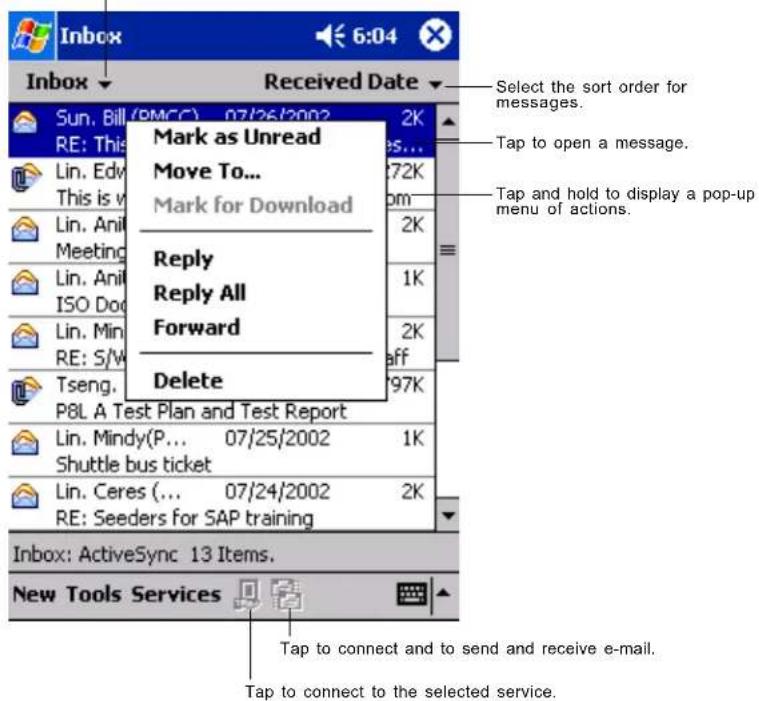
When you receive a message, tap it to open it. Unread messages are displayed in bold.
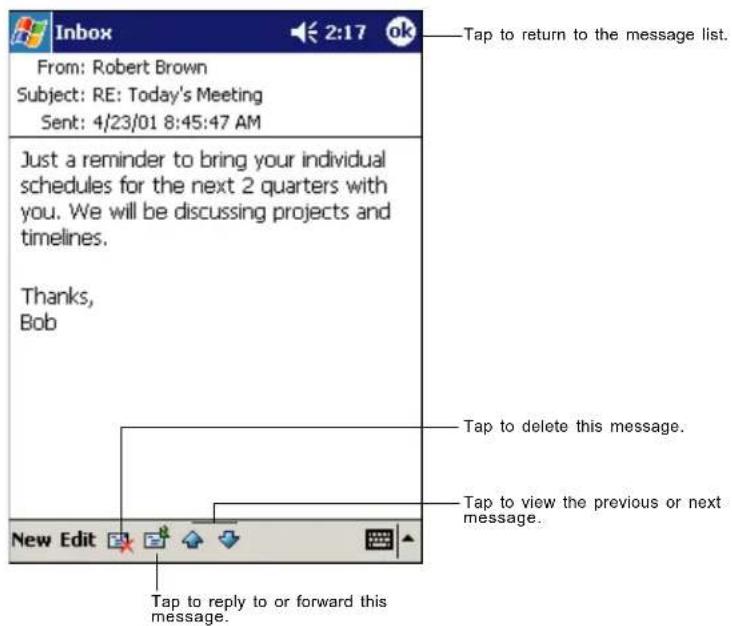
When you connect to your e-mail server or synchronize with your computer, by default, you'll receive messages from the last five days only, the first 100 lines of each new message, and file attachments of less than 100 KB in size. The original messages remain on the e-mail server or your computer.
You can mark the messages that you want to retrieve in full during your next synchronization or e-mail server connection. In the message list, tap and hold the message you want to retrieve. On the pop-up menu, tap Mark for Download. The icons in the Inbox message list give you visual indications of message status.
You specify your downloading preferences when you set up the service or select your synchronization options. You can change them at any time:
- Change options for Inbox synchronization using ActiveSync options. For more information, see ActiveSync Help.
- Change options for direct e-mail server connections in Inbox on your device. Tap Tools and then tap Options. On the Service tab, tap the service you want to change. Tap and hold the service and select Delete to remove a service.
Composing Messages
To compose a message:
- Tap New.
- In the To field, enter an e-mail or SMS address of one or more recipients, separating them with a semicolon, or select a name from the contact list by tapping the Address Book button. All e-mail addresses entered in the e-mail fields in Contacts appear in the Address Book.
Tap to send the message.

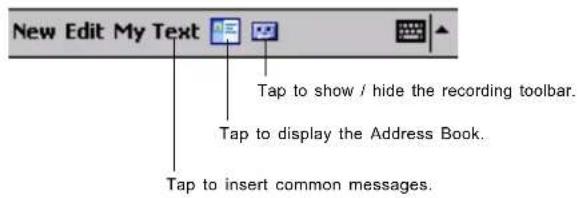
- Compose your message. To enter preset or frequently used messages, tap My Text and select a message.
- Tap Send when you've finished the message. If you are working offline, the message is moved to the Outbox folder and will be sent the next time you connect. If you are working online, it is sent immediately.
If you are sending an SMS message and want to know if it was received, tap Edit, Options, and select Request SMS text message delivery notification before sending the message.
Managing E-mail Messages and Folders
By default, messages are displayed in one of five folders for each service you have created: Inbox, Deleted Items, Drafts, Outbox, and Sent Items. The Deleted Items folder contains messages that have been deleted on the device. The behavior of the Deleted and Sent Items folders depends on the options you have chosen. In the message list, tap Tools and then Options. On the Message tab, select your options.
If you want to organize messages into additional folders, tap Tools, and then Manage Folders to create new folders. To move a message to another folder, in the message list, tap and hold the message and then tap Move to on the pop-up menu.
Folder behavior with a direct connection to an e-mail server
The behavior of the folders you create depends on whether you are using ActiveSync, SMS, POP3, or IMAP4.
- If you use ActiveSync, e-mail messages in the Inbox folder in Outlook will automatically be synchronized with your device. You can select to synchronize additional folders by designating them for ActiveSync. The folders you create and the messages you move will then be mirrored on the server. For example, if you move two messages from the Inbox folder to a folder named Family, and you have designated Family for synchronization, the server creates a copy of the Family folder and copies the messages into that folder. You can then read the messages while away from your computer.
- If you use SMS, messages are stored in the Inbox folder.
- If you use POP3 and you move e-mail messages to a folder you created, the link is broken between the messages on the device and their copies on the mail server. The next time you connect, the mail server will see that the messages are missing from the device Inbox and delete them from the server. This prevents you from having duplicate copies of a message, but it also means that you will no longer have access to messages that you move to folders created from anywhere except the device.
- If you use IMAP4, the folders you create and the e-mail messages you move are mirrored on the server. Therefore, messages are available to you anytime you connect to your mail server, whether it is from your device or computer. This synchronization of folders occurs whenever you connect to your mail server, create new folders, or rename/delete folders when connected.
Chapter 5:
Companion Programs
The companion programs consist of Microsoft® Pocket Word, and Microsoft® Pocket Excel.
To switch to a companion program on your device, tap Programs on the menu, and then tap the program name.

Some of the programs listed above may need to be installed from a companion CD included with the Toshiba Pocket PC e350/e355.
Pocket Word
Pocket Word works with Microsoft Word on your computer to give you easy access to copies of your documents. You can create new documents on your device, or you can copy documents from your computer to your device. Synchronize documents between your computer and your device so that you have the most up-to-date content in both locations.
Use Pocket Word to create documents, such as letters, meeting minutes, and trip reports. To create a new file, tap Programs, Pocket Word, and then New. A blank document appears. Or, if you've selected a template for new documents in the Options dialog box, that template appears with appropriate text and formatting already provided. You can open only one document at a time; when you open a second document, you'll be asked to save the first. You can save a document you create or edit in a variety of formats, including Word (.doc), Pocket Word (.psw), Rich Text Format (.rtf), and Plain Text (.txt).
Pocket Word contains a list of the files stored on your device. Tap a file in the list to open it. To delete, make copies of, and send files, tap and hold a
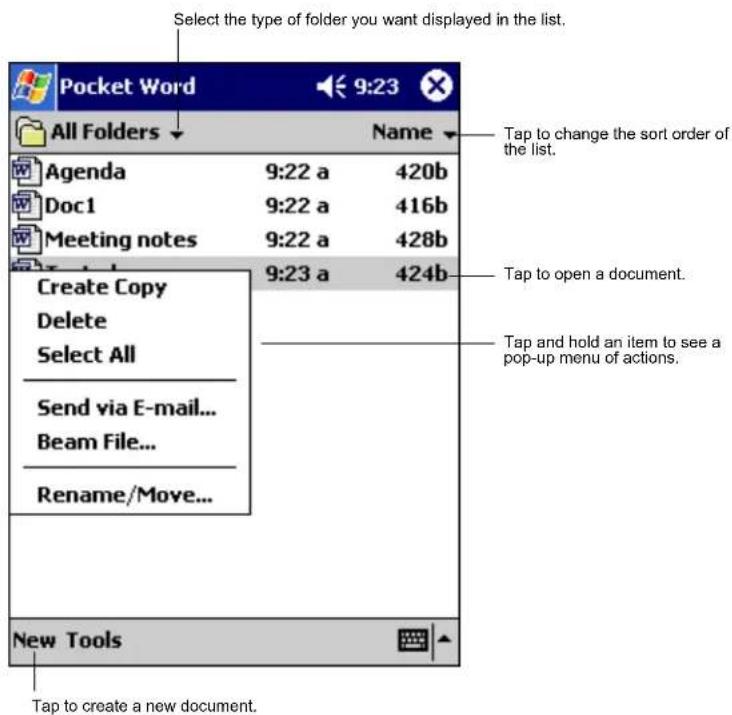
file in the list. Then, select the appropriate action on the popup menu.
You can enter information in Pocket Word in one of four modes (typing, writing, drawing, and recording), which are displayed on the View menu. Each mode has its own toolbar, which you can show and hide by tapping the Show/Hide Toolbar button on the command bar.

You can change the zoom magnification by tapping View and then Zoom. Then select the percentage you want. Select a higher percentage to enter text and a lower one to see more of your document. If you're opening a Word document created on a computer, select Wrap to Window on the View menu so that you can see the entire document.
Typing Mode
Using the input panel, enter typed text into the document. For more information on entering typed text, see Chapter 2.
To format existing text and to edit text, first select the text. You can select text as you do in a Word document, using your stylus instead of the mouse to drag through the text you want to select. You can search a document to find text by tapping Edit and then Find/Replace.
![Tap and hold to see a pop-up menu of actions. Pocket Word 12:06 ok Meetings not Cut Copy Paste Clear Format... Paragraph... Recognize Alternates... Spell Check Tap to return to the document list ( changes are saved automatically ). Tap to change fromting options. Tap to format text. 123 1 2 3 4 5 6 7 8 9 0 - = Tab q w e r t y u i o p [ ] CAP a s d f g h j k l ; ' Shift z x c v b n m , . / CtI áü ` \ New Edit View Tools ↑↓ Tap to show or hide the toolbar.](/content/2026/05/787137/images/219cbc8e6065229235448b80f0f96a90ad1693951a0269cd1f6a45e5c280cddc.jpg)
Writing Mode
In writing mode, use your stylus to write directly on the screen. Ruled lines are displayed as a guide, and the zoom magnification is greater than in typing mode to allow you to write more easily. For more information on writing and selecting writing, see Chapter 2.
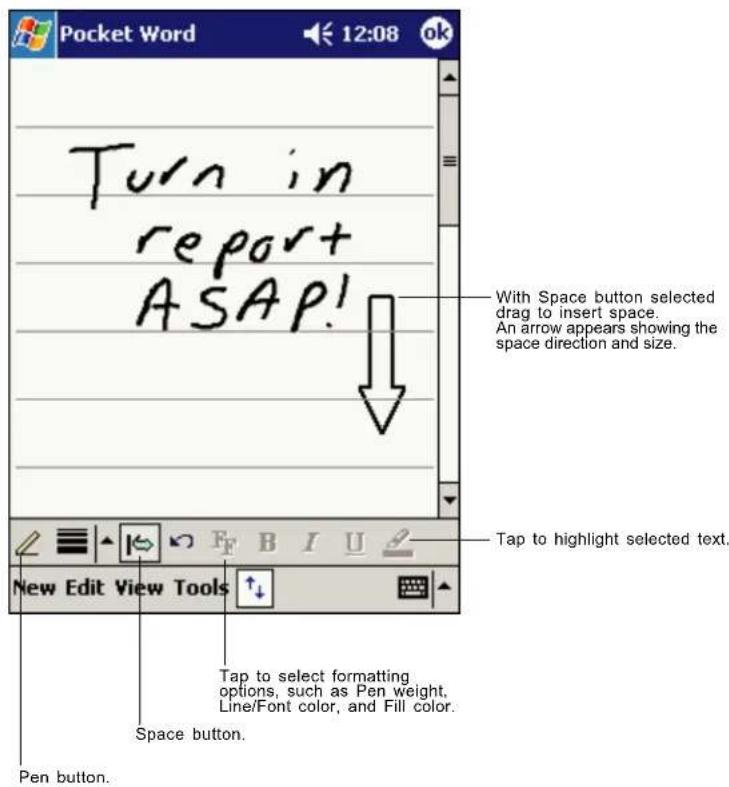
If you cross three ruled lines in a single stylus stroke, the writing becomes a drawing, and can be edited and manipulated as described in the following section. Written words are converted to graphics (metafiles) when a Pocket Word document is converted to a Word document on your computer.
Drawing Mode
In drawing mode, use your stylus to draw on the screen. Gridlines appear as a guide. When you lift your stylus off the screen after the first stroke, you'll see a drawing box indicating the boundaries of the drawing. Every subsequent stroke within or touching the drawing box becomes part of the drawing. For more information on drawing and selecting drawings, see Chapter 2.
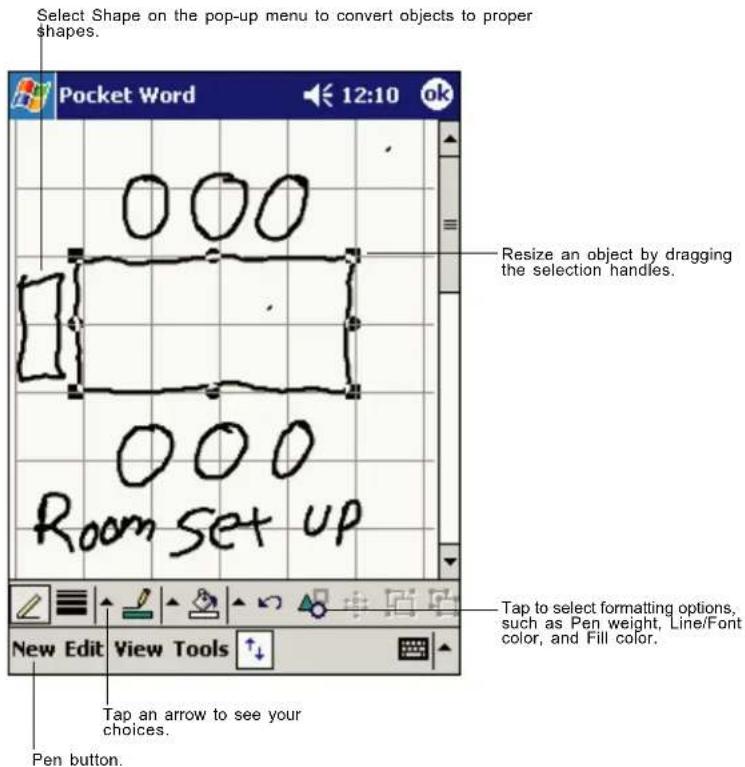
Recording Mode
In recording mode, embed a recording into your document. Recordings are saved as .wav files. For more information on recording, see Chapter 2.
For more information on using Pocket Word, tap and then Help.
Pocket Excel
Pocket Excel works with Microsoft Excel on your computer to give you easy access to copies of your workbooks. You can create new workbooks on your device, or you can copy workbooks from your computer to your device. Synchronize workbooks between your computer and your device so that you have the most up-to-date content in both locations.
Use Pocket Excel to create workbooks, such as expense reports and mileage logs. To create a new file, tap Programs, Pocket Excel, and then New. A blank workbook appears. Or, if you've selected a template for new workbooks in the Options dialog box, that template appears with appropriate text and formatting already provided. You can open only one workbook at a time; when you open a second workbook, you'll be asked to save the first. You can save a workbook you create or edit in a variety of formats, including Pocket Excel (.pxl) and Excel (.xls).
Pocket Excel contains a list of the files stored on your device. Tap a file in the list to open it. To delete, make copies of, and send files, tap and hold a file in the list. Then select the appropriate action from the pop-up menu.
Pocket Excel provides fundamental spreadsheet tools, such as formulas, functions, sorting, and filtering. To display the toolbar, tap View and then Toolbar.
![Pocket Excel A3 =SUM(A1:A2) Cell contents appear here as you enter them. 1 $44.00 2 $22.00 3 $66.00 4 Format button. 5 Auto Sum button. 6 Ready Sheet1 Sum=$66.00 F ≡≡≡ Σ $ .00 + 123 1 2 3 4 5 6 7 8 9 0 - = Tab q w e r t y u i o p [ ] CAP a s d f g h j k l ; ' Shift z x c v b n m , . / ← CtI áü ` \ ↓ ↑ ← → New Edit View Format Tools](/content/2026/05/787137/images/e96a22f6dea3e7bc96cc70fccb5046198f5478ac004924831e68773095fb9ed4.jpg)
If your workbook contains sensitive information, you can protect it with a password. To do so, open the workbook, tap Edit, and then Password. Every time you open the workbook, you will need to enter the password, so choose one that is easy for you to remember but hard for others to guess.
Tips for Working in Pocket Excel
Note the following when working in large worksheets in Pocket Excel:
- View in full-screen mode to see as much of your worksheet as possible. Tap View and then Full Screen. To exit full-screen mode, tap Restore.
• Show and hide window elements. Tap View and then tap the elements you want to show or hide. - Freeze panes on a worksheet. First select the cell where you want to freeze panes. Tap View and then Freeze Panes. You might want to freeze the top and leftmost panes in a worksheet to keep row and column labels visible as you scroll through a sheet.
- Split panes to view different areas of a large worksheet. Tap View and then Split. Then drag the split bar to where you want it. To remove the split, tap View and then Remove Split.
- Show and hide rows and columns. To hide a hidden row or column, select a cell in the row or column you want to hide. Then tap Format, then Row or Column, and then Hide. To show a hidden row or column, tap Tools, then Go To, and then type a reference that is in the hidden row or column. Then tap Format, then Row or Column, and then Unhide.
For more information on using Pocket Excel, tap 📁 and then Help.
Chapter 6:
Pocket Internet Explorer
Use Microsoft® Pocket Internet Explorer to view Web pages in either of these ways:
- During synchronization with your computer, download your favorite links and mobile favorites that are stored in the Mobile Favorites subfolder in Internet Explorer on the desktop computer.
- Connect to an Internet service provider (ISP) or network and browse the Web. To do this, you'll need to create the connection first, as described in Chapter 7.
When connected to an ISP or network, you can also download files and programs from the Internet or intranet.
To switch to Pocket Internet Explorer, tap and then Internet Explorer.
The Mobile Favorites Folder
Only items stored in the Mobile Favorites subfolder in the Favorites folder in Internet Explorer on your computer will be synchronized with your device. This folder was created automatically when you installed ActiveSync.
Favorite Links
During synchronization, the list of favorite links in the Mobile Favorites folder on your computer is synchronized with Pocket Internet Explorer on your device. Both computers are updated with changes made to either list each time you synchronize. Unless you mark the favorite link as a mobile favorite, only the link will be downloaded to your device, and you will need to connect to your ISP or network to view the content. For more information on synchronization, see ActiveSync Help on the desktop computer.
Mobile Favorites
If you are using Microsoft Internet Explorer 5.0 or later on your computer, you can download mobile favorites to your device. Synchronizing mobile favorites downloads Web content to your device so that you can view pages while you are disconnected from your ISP and computer.
Use the Internet Explorer plug-in installed with ActiveSync to create mobile favorites quickly.
To create a mobile favorite:
- In Internet Explorer on your computer, click Tools and then Create Mobile Favorite.
- To change the link name, enter a new name in the Name box.
- In Update, select a desired update schedule.
- Click OK. Internet Explorer downloads the latest version of the page to your computer.
- If you want to download the pages that are linked to the mobile favorite you just created, in Internet Explorer on the your PC, right-click the mobile favorite and then click Properties. In the Download tab, specify the number of links deep you want to download. To conserve device memory, go only one level deep.
- Synchronize your device and computer. Mobile favorites that are stored in the Mobile Favorites folder in Internet Explorer are downloaded to your device.

If you did not specify an update schedule in step 3, you will need to manually download content to keep the information updated on your computer and device. Before synchronizing with your device, in Internet Explorer on your computer, click Tools and then Synchronize. You will see the last time content was downloaded to the computer, and you can manually download content if needed.
You can add a button to the Internet Explorer toolbar for creating mobile favorites. In Internet Explorer on your computer, click View, Toolbars, and then Customize.
To save device memory
Mobile favorites take up storage memory on your device. To minimize the amount of memory used:
- In the settings for the Favorites information type in ActiveSync options, turn off pictures and sounds, or stop some mobile favorites from being downloaded to the device. For more information, see ActiveSync Help.
- Limit the number of downloaded linked pages. In Internet Explorer on the computer, right-click the mobile favorite you want to change and then Properties. In the Download tab, specify 0 or 1 for the number of linked pages you want to download.
Using AvantGo Channels
AvantGo is a free interactive service that gives you access to personalized content and thousands of popular Web sites. You subscribe to AvantGo channels directly from your device. Then, you synchronize your device and computer, or connect to the Internet to download the content. For more information, visit the AvantGo Web site.
To sign up for AvantGo:
- In ActiveSync options on the computer, turn on synchronization for the AvantGo information type.
- In Pocket Internet Explorer on your device, tap the Favorites button to display your list of favorites.
- Tap the AvantGo Channels link.
- Tap the Activate button.
- Follow the directions on the screen. You will need to synchronize your device with your computer and then tap the My Channels button to complete the AvantGo setup.
When synchronization is complete, tap the AvantGo Channels link in your list of favorites to see a few of the most popular channels. To add or remove channels, tap the Add or Remove link.
Using Pocket Internet Explorer
You can use Pocket Internet Explorer to browse mobile favorites and channels that have been downloaded to your device without connecting to the Internet. You can also connect to the Internet through an ISP or a network connection and browse the Web.
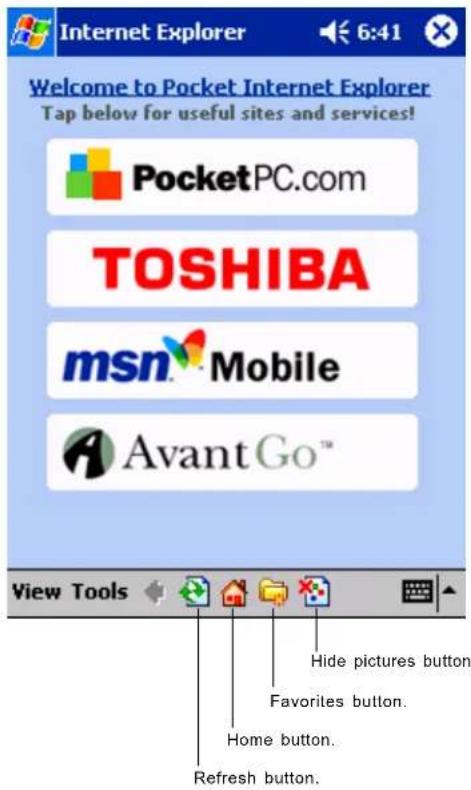
- Tap the page you want to view.
You'll see the page that was downloaded the last time you synchronized.
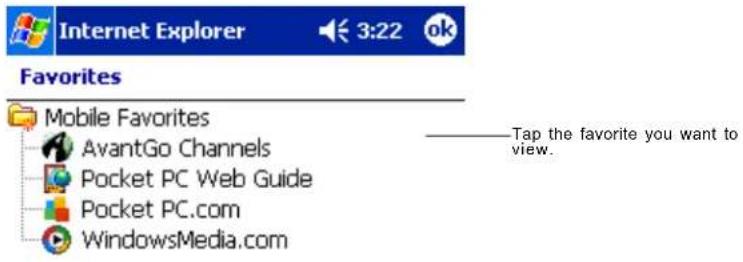
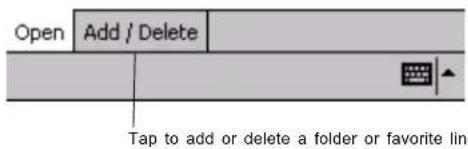
To view mobile favorites and channels:
Tap the Favorites button to display your list of favorites with your desktop computer.
If the page is not on your device, the favorite will be dimmed. You will need to synchronize with your desktop computer again to download the page to your device, or connect to the Internet to view the page.
To browse the Internet:
- Set up a connection to your ISP or corporate network using Connections, as described in Chapter 7.
-
To connect and start browsing, do one of the following:
-
Tap the Favorites button, and then tap the favorite you want to view.
- Tap View and then Address Bar. In the address bar that appears at the top of the screen, enter the Web address you want to visit and then tap Go. Tap the arrow to choose from previously entered addresses.

To add a favorite link while using the device, go to the page you want to add, tap and hold on the page, and tap Add to Favorites.
Chapter 7:
Getting Connected
You can use your device to exchange information with other mobile devices as well as your computer. You have the following connection options:
- Use the infrared (IR) port on your device to send and receive files between two devices. If this is the method you want to use, see the following section “Transferring Items Using Infrared.”
- Connect to your computer to synchronize remotely. Once connected, you can synchronize information such as your Pocket Outlook information. If this is the method you want to use, see ActiveSync Help on your computer or Connections Help on the device.
Transferring Items Using Infrared
Using infrared (IR), you can send and receive information, such as contacts and appointments, between two devices.
To send information:
- Switch to the program where you created the item you want to send and locate the item in the list.
- Align the IR ports so that they are unobstructed and within a close range.
- Tap and hold the item, and tap Beam Item on the pop-up menu.

You can also send items, but not folders, from File Explorer. Tap and hold the item you want to send, and then tap Beam File on the pop-up menu.
To receive information:
- Align the IR ports so that they are unobstructed and within a close range.
- Have the owner of the other device send the information to you. Your device will automatically receive it.
End a Connection
- When connected via cable or cradle, detach your device from the cable or cradle.
- When connected via Infrared, move the device away from the PC.
Get Help on Connecting
• Online Help on the device. Tap 📋 and then Help. Tap View, All Installed Help, and then Inbox or Connections.
- ActiveSync Help on the computer. In ActiveSync, click Microsoft ActiveSync Help on the Help menu.
- For troubleshooting information, see the Pocket PC Web site at: http://www.microsoft.com/mobile/pocketpc
Chapter 8:
Optional Functions
Home
You can launch the built-in or installed applications easily by tapping the icon displayed on the Home screen. You can also set to display a desired image on your screen background.
Launching an Application From the Home
- Tap 📄, Programs, and then Home to display the Home screen.
You can also launch the Home by pressing the Toshiba Pocket PC Home button.
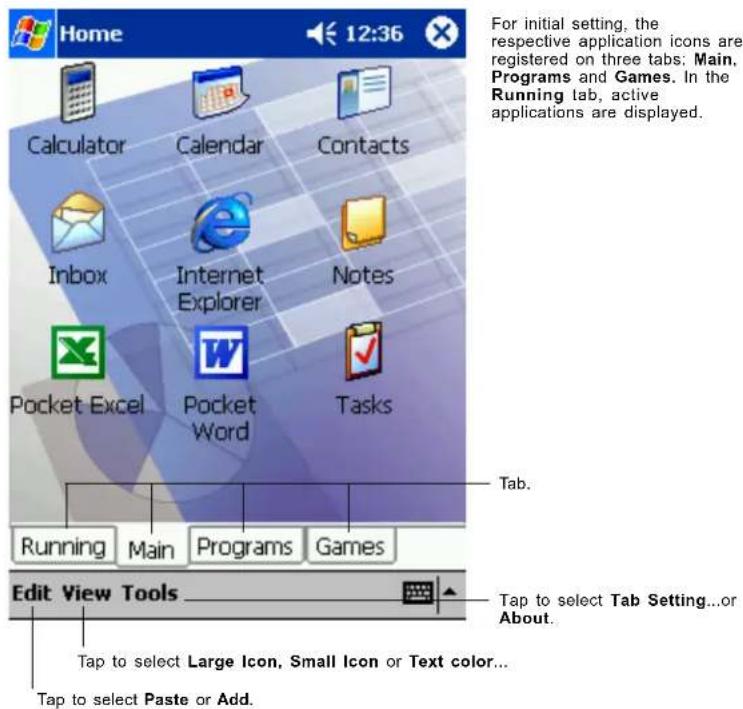
- Tap the desired tab, and then tap the application icon you want to launch. The selected application starts up.

Also, you can launch an application by moving the cursor button or scroller to select and pressing the center of the cursor button to confirm.
You can add tabs up to a maximum of 10 kinds and icons up to 18 in a tab.
About Running
In the Running tab, the active application names are displayed.
The icons do not appear.
Application Activate/Stop:
Tap the application name you want to activate. You can also activate the application from the pop-up menu displayed by tapping and holding the application name.
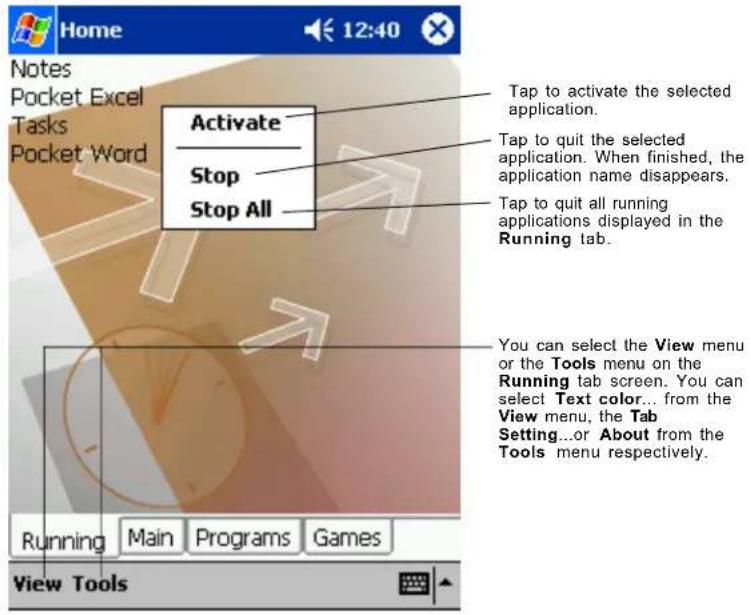

You can show a pop-up menu by tapping and holding any portion other than the application names displayed in the Running tab. In this case, only the Stop All is selectable.
Display Icon List
The following list shows the tabs and icons for the initial setup.
| Tabs Icons Applications | ||
| Running | - | - |
| Main |  | Pocket Internet Ex plorer |
| Notes | ||
|  | Tasks | |
| Inbox | ||
| C calendar | ||
| C onct a ts | ||
|  | Pocket Word | |
|  | Pocket Excel | |
| C alcula tor | ||
| Programs File Explorer | ||
|  | Data Backup | |
| Infrared Receive | ||
| Games Solitaire |  | |
Moving an Application Icon into Another Tab
The moved icon is placed next to the last icon on the tab screen. You cannot move an icon into a tab which already contains 18 icons.
To move using pop-up menu:
- Tap and hold the icon you want to move to display the pop-up menu.
- Tap Cut on the pop-up menu.
- Tap the destination tab, and then tap Paste on Edit menu. The selected icon is pasted on the screen.

You can also select Paste from the pop-up menu displayed by tapping and holding any portion other than the icon.
Deleting an Icon
- Tap and hold the icon you want to delete to display the pop-up menu.
- Tap Drop on the pop-up menu. The icon is deleted and the next icon positioned after the deleted icon automatically shifts to fill the deleted icon position. And all icons after the deleted icon likewise shift to fill the previous icon position.
Adding an Icon
You can add the application and your file icons to the Home screen.
- Tap Edit and then Add to display the Add Application screen.
You can also select Add from the pop-up menu displayed by tapping and holding any portion other than the icon.
- Tap ▼ of Application file to show the file list. If there is no desired file on the file list, you can find it by tapping Browse. To refer to all folders and files, tap Browse to show the Browse Dialog screen. When the file is selected, its name is displayed in the Application file box.
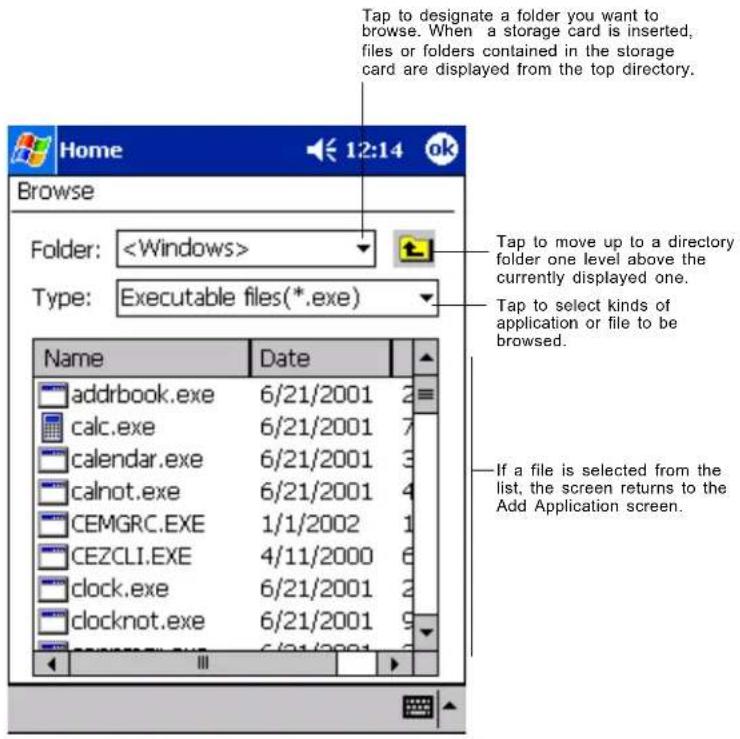
- Enter an icon name in the Application name box, which is to be displayed on the Home screen.
You can enter up to a maximum of 32 characters.
- When finished, tap OK to close the Add Application screen, and the new icon is added to the Home screen.

If the Application file is not designated, or if the Application name is not entered, you cannot add a new icon.
You cannot launch the icon added from the storage card, if the same card is not inserted in the Toshiba Pocket PC.
Tab Setting
You can set to add, delete or rename the tab on the Tab Settings screen. You can also set to display a desired image on your screen background.
To add a tab:
- Tap Tools and then Tab Settings to display the Tab Settings screen.
- Tap Tab Settings and then New to display a box to enter the new tab name.
- Enter a new tab name. When finished, tap OK return to the Tab Settings screen. You can enter up to a maximum of 10 characters.
- Tap OK on the Tab Settings screen to return to the Home screen.
To delete a tab:
- Tap Tools and then Tab Settings.
- Select the tab name to delete, and then tap Delete, the Delete tab dialog for confirming appears. Please note that all the icons contained in the same tab will also be deleted.
- Tap OK on the Delete tab dialog to delete the tab. When finished, the screen returns to Tab Settings screen.
- Tap OK on the Tab Settings screen to return to the Home screen.

You cannot delete the Running tab.
To change the name of a tab:
- Tap Tools and then Tab Settings to display the Tab Settings screen.
- Select the tab name you want to change, and then tap Rename.
- Enter a new tab name. When finished, tap OK to return to the Tab Settings screen. You can enter up to a maximum of 10 characters.
- Tap OK on the Tab Settings screen to return to the Home screen.

You cannot rename the Running tab.
To change a background:
- Select the background setup tab on the Tab Settings menu, and then tap Browse to display the Browse Dialog screen.
- Even if a storage card is inserted, the files in the storage card will not be displayed.
- Tap the desired file from the list to return to the Tab Settings screen.
- Tap OK on the Tab Settings screen to return to the Home screen.

If the selected file is not a designated file type, you cannot set it on your screen background. The displayable range of the image on the Home screen is 240(W) × 246(H) .
Text Color Setting:
You can set the color of application name for each tab using Text Color.
- Tap the tab whose color you want to set to display the selected tab screen.
- Tap View and then Text Color to display the color list.
You can set the color of the application name as desired. - Tap the color you want to set, and the color of the application name changes.
Home Help
Tapping an icon displayed at "Home" launches that application. In addition to applications, it is also possible to register icons for associated files here. The Home screen is divided into tabs. There are 4 tab types as default, and up to 10 types of tabs can be registered. As for the icons on the tab, up to 18 icons per one tab can be registered.
An image can be used as the background for the tab screen.
"Running" tab
The names of currently running applications are displayed at the "Running" tab.
Applications can be switched or stopped here.
"Text Color" can be selected from the "View" menu, and "Tab Settings" and "About" can be selected from the "Tools" menu.
- To activate applications, tap and hold the name of the application you want to activate to, then tap "Activate" from the pop-up menu.
- To stop an application, tap and hold the name of the application you want to stop, then choose "Stop" from the pop-up menu. If "Stop all" is selected from the pop-up menu, all currently running applications are stopped.
- "Stop all" can also be selected by tapping and holding on the "Running" tab screen without selecting an application name.
Launching applications
When an icon on the tab screen is tapped, the application or associated file registered at the icon is launched.
- Applications can also be launched by selecting them with the cursor button then pressing on the center of the cursor button.
Switching the icon display
Tap on the "View" menu to display the current display settings. Current display settings are indicated by a check mark at the left. To switch the display, select "Large Icon" or "Small Icon".
Icon settings
1. Moving icons (using the pop-up menu)
- Tap and hold the icon you want to move on the tab screen.
- When the pop-up menu appears, select "Cut" from the menu.
- Tap on the tab to which you want to move the icon, then tap "Paste" from the "Edit" menu to move the icon and display it on the tab screen.
- "Paste" can also be selected from the pop-up menu displayed when you tap and hold at a position on the screen other than on icon.
- It is not possible to move icons to tabs already containing 18 icons. When an icon is moved, it is positioned at the very end of the tab's icons.
2. Deleting icons
- Tap and hold the icon you want to delete. A pop-up menu appears.
- Tap "Drop" from the pop-up menu to delete the selected icon from the tab screen.
- When an icon is deleted, subsequent icons are all moved up one place.
3. Adding icons
- Tap the tab to which you want to add an icon to select that tab.
- Tap "Add" from the "Edit" menu to display the "Add Application" screen.
- Tap the "Application file" box.
- From the list, tap the application you want to add. To select a file not on the list, tap the "Browse" button, then select the file from the Browse Dialog.
- Input the name of the icon you want to add (up to 32 characters) in the "Application name" box.
-
Tap the "OK" button. The new icon is added.
-
Associated files can be specified for added icons.
- If either one of "Application file" or "Application name" is not filled in, an icon can not be added.
4. Browse Dialog
- Tap the "Folder" box to select the folder to be browsed.
- Tap the "Type" box to select the type of file to be browsed.
- The list of the files of the specified type and in the specified folder appears on the screen. Select the desired application or file or the image to be used as the background and tap it. The original screen reappears.
- If a storage card is inserted into the main unit when adding icons, icons of applications and files on the storage card are also displayed on the browse screen. The folders and files on the storage card can be displayed in the "Folder" box, beginning at the topmost level.
- If an icon on a storage card is added, that storage card must be inserted when the icon is tapped or the file will not be launched.
Tab settings
1. Switching tabs
Tap on another tab to switch the tab screen.
Initially four tabs are registered: "Running", "Main", "Programs" and "Games".
2. Changing tab names
- Select "Tab Settings" from the "Tools" menu. The "Tab Settings" screen appears.
-
Tap the "Select Tab" box to select the tab to be changed.
-
Tap the "Rename" button. The screen for inputting the new tab name appears.
- Input the new tab name (up to 10 characters) into the "Rename to" box.
- Tap the "OK" button. The tab name is changed and the "Tab Settings" screen reappears.
- Tap "OK" at the upper right to return to the Home screen.
3. Deleting tabs
- Select "Tab Settings" from the "Tools" menu. The "Tab Settings" screen appears.
- Tap the "Select tab" box to select the tab to be deleted.
- Tap the "Delete" button. A dialog asking "Are you sure you want to delete?" appears.
- Tap the "Yes" button. The tab is deleted and the "Tab Settings" screen reappears.
- Tap "OK" at the upper right to return to the Home screen.
- Note that when a tab is deleted, all the icons on that tab are also deleted.
- "Delete" cannot be selected if there are only two tabs on the Home screen.
4. Adding tabs
- Select "Tab Settings" from the "Tools" menu. The "Tab Settings" screen appears.
- Tap the "New" button. An input screen appears.
- Input the name you want to give the tab (up to 10 characters) into the "New tab" box.
- Tap the "OK" button. The new tab is added and the "Tab Settings" screen reappears.
- Tap "OK" at the upper right to return to the Home screen.
5. Setting the background image
- Select "Tab Settings" from the "Tools" menu. The "Tab Settings" screen appears.
- Select the tab whose background you want to set at the "Select tab" box.
- Tap the "Browse" button to display the Browse Dialog.
- Select and tap the image to be used as the background. The "Tab Settings" screen reappears.
- Tap "OK" at the upper right to return to the Home screen.
6. Setting the text color
Different colors can be set for the application names at the different tabs.
- Display the tab whose color you want to set, then select "Text Color" from the "View" menu.
- Tap the color you want to set from the list of display colors. That color is set for the application names.
How to Make a Backup
You can make a backup of the Toshiba Pocket PC e350/e355 data to a storage device. If you have backed up your data on the storage device, you can restore that data in your Toshiba Pocket PC e350/e355. You can also delete backup file data from the storage device. Periodical data backup is recommended.
Data of the following three types can be backed up:
File: Includes a file created by Pocket Word, Pocket Excel, Notes, etc. or an additionally installed program and so on.
Registry: Setting information on Pocket PC 2002 or Built-in Program.
Database: Database information of Microsoft Pocket Outlook.

- If you update ROM programs using special installation programs with a *.zip extension, do not use the backup data which you made before updating ROM programs.
- When using the DataBackup, beware of the remaining battery charge.
- If you make a backup to the CF/SD card by DataBackup Utility, please DO NOT remove the CF/SD card nor DO NOT turn off power of the device until the backup is completed.
- If you restore the data from the CF/SD card by DataBackup Utility, please DO NOT remove the CF/SD card nor DO NOT turn off the power of the device until the restore is completed.
- Before making a backup, disable the password protection. Tap Start, Settings, Personal tab, Password, and select No pass word.
Failure to follow any of the above procedures may result in the loss of data.
Making a Backup
The backup function allows you to back up the data from the main unit to a storage device. The backed up data can be restored and deleted. Before performing the backup or restore operations, do the following;
- Check that there is enough space in the main unit's memory and on the storage device. The data is saved as a backup file (.dbk) on your storage device.
- Make sure the main unit's power is off when loading and unloading the SD card.
- Save current data in the main unit's memory before backing it up on the SD card.
1 To make a backup to the SD card, insert a SD Card. Make sure to do so in the proper direction.
2. Tap Start, Programs, and then DataBackup to display the DataBackup screen shown below.
3. Select a Custom Name.
4. Select and tap The storage device.
5. Tap the Backup button.
6. Tap Yes. A message is displayed during the backup process. When the backup is completed, a backup finished message appears.
7. Tap OK to return to the previous screen.

If the available storage device capacity is inadequate to contain the data from the e350/e355, the backup process stops. Check the storage device capacity before starting the backup.
If the SD card is write protected, you cannot save the backup data. Cancel the write protection before starting the backup.
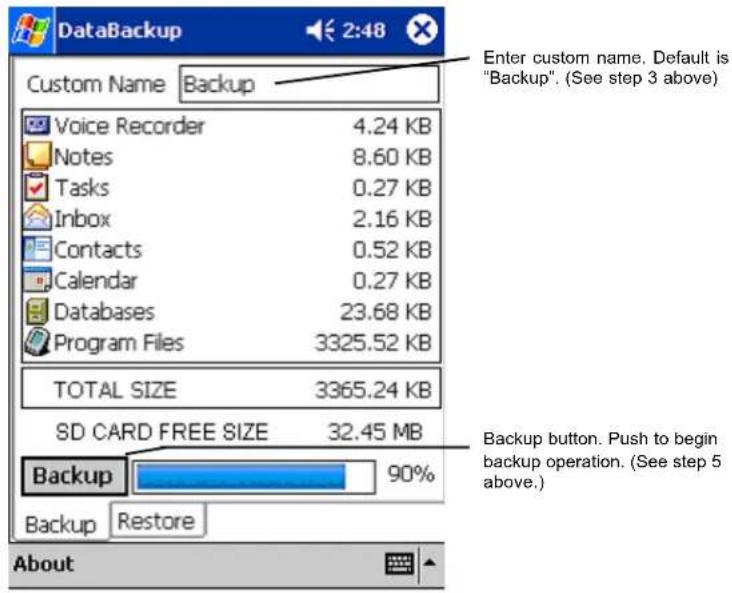
Carrying Out the Restore Operation
Use this operation to restore the backup data stored on the storage device onto the main unit. The restore function overwrites the backed up data from the storage device onto the main memory of your Toshiba Pocket PC e350/e355.
If the same file name exists in the main memory of your Toshiba Pocket PC e350/e355, the file data is replaced with the backup data from the storage device. If files exist in the main memory but not in the backup file, they will not be overwritten.
- To restore from the SD card, insert the SD card, which contains backup data into your Toshiba Pocket PC e350/e355.
- Tap Start, Programs, and then DataBackup to display the DataBackup screen shown on the following page.
- Select the Restore from tab, then select and tap The storage device.
- Select backup file from the restored files list.
- Tap Delete if you want to delete the backup file, and then Yes when prompted with a message screen. After tapping Yes, the screen on the following page will be displayed.
- Tap Refresh if you want to refresh the storage device, and then Yes when prompted with a message screen. After tapping Yes, the screen on the following page will be displayed.
- Tap Restore to display the Prompt message screen.
- Tap Yes. The Proceeding message is displayed during the restore process.
When the restore is completed, a restore finished message appears. - Tap OK. Your Toshiba Pocket PC e350/e355 is reset and restarts automatically.
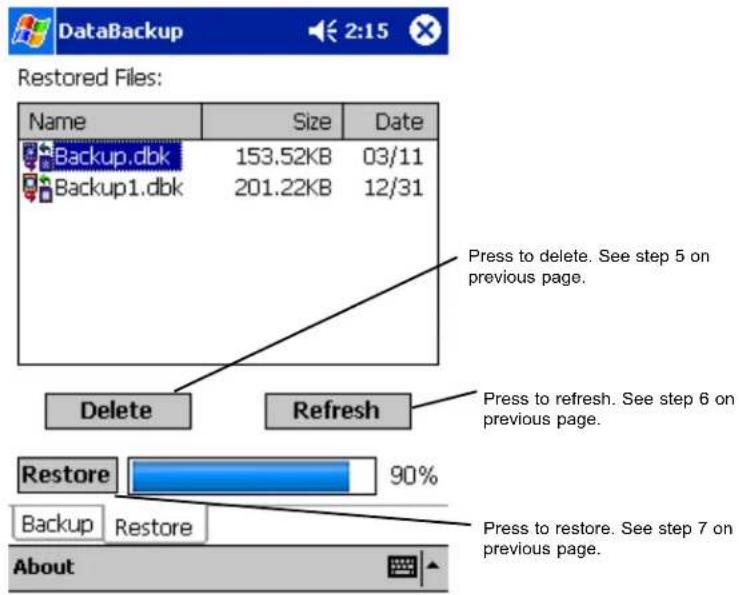
System Information
The System Information program displays the system information such as CPU clock, CPU stepping, Boot Loader Version, OS Version, PIC Version, and UUID. The information is displayed by accessing the Identity, Memory, Drivers, and System tabs.
To launch the program, Click Start > Settings > System > System Information.
The opening menu presents identification information for product service.
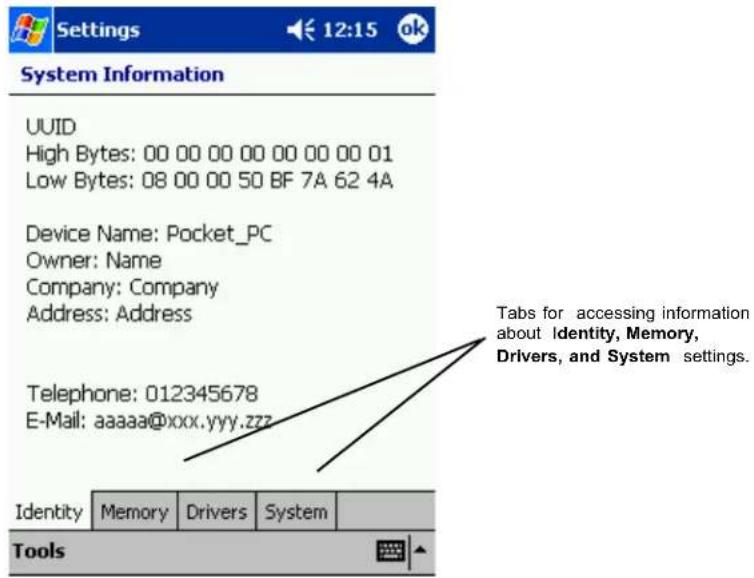
Memory tab
The Memory tab presents information about the systems RAM, ROM, and Flash ROM Disk.
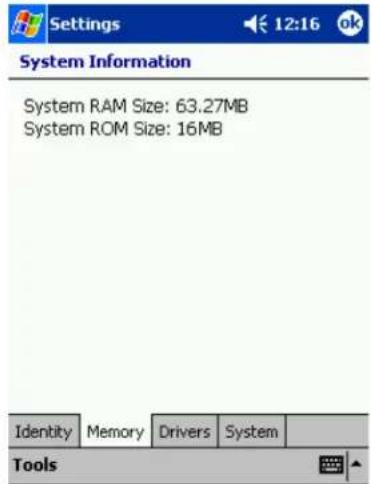
Driver tab
The Driver tab displays the drivers used by the system's software applications.
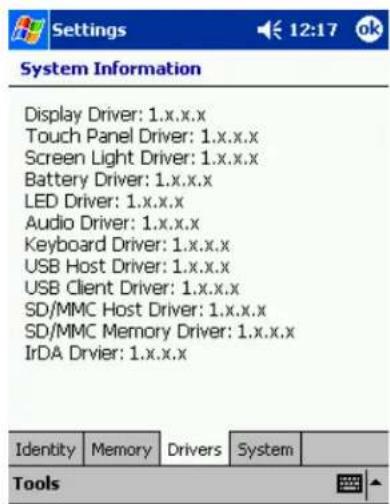
System tab
The System tab displays CPU, operating system, and other system information.
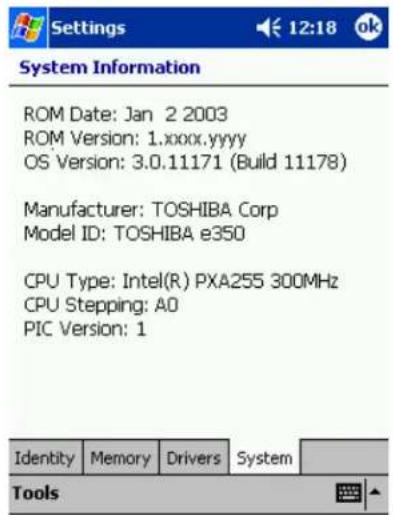
Tools Menu
The Tools menu displays the system information and allows it to be exported to a text (*.txt) file. "Export" exports all system information parameters to a text (*.txt), and "About" displays the system information version.
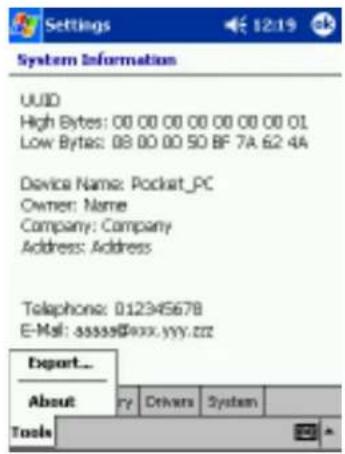
Chapter 9:
Additional Information
Troubleshooting
Check the following guide for the possible cause of a problem and how to correct it.
| Symptom Cause Correction | ||
| The power button is pressed and the power does not turn on. | The built-in battery power is exhausted. | Charge the battery. |
| The power was suddenly cut off. | The built-in battery power is exhausted. | Charge the battery. |
| Automatic suspend is active. | Select , Settings, System, Power to alter the power shut down time. | |
| The screen was tapped, but the correct action was not executed. | Touch screen adjustment is incorrect. | Select , Settings, System, Screen, Align Screen to adjust the touch screen. If the screen alignment loses calibration it may not be possible to adjust alignment using the above method. In that case, the Align Screen command can be executed by simultaneously pressing the power button and scroll button. |
Toshiba Pocket PC e350/e355 User's Guide
| The screen was tapped, but there is no response. The operation button does not work either. | Unresponsive operating system | Reset the system. If the symptom is not fixed after resetting the system, initialize the system. (NOTE: YOUR DATA WILL BE DELETED.) | |
| The screen is dark. The Screen light is off. | Press and hold the power button until the Screen light is turned on or touch the screen with the stylus. | ||
| The screen is hard to see. | Brightness setting is incorrect. | Select Settings, System, Screen Light to adjust the screen brightness for better sight. | |
| Cannot connect to your computer. | — | See | ActiveSync |
| ActiveSync does not function when your Toshiba Pocket PC is connected to your computer with a USB cradle or USB cable. | The USB driver of your computer may not be compatible. | Reselect the USB driver. | |
| Following message is displayed. “Not Enough Battery Power. There is not enough battery power to use USB Device” | USB devices cannot be used because PDA’s battery power is low, or | Charge the battery or connect AC adapter. | |
| The connecting USB devices require more power than the battery can provide. | This USB port supports total 500mA USB device. Confirm connected USB device. | ||
| Following message is displayed. “USB OVER CURRENT DETECT USB device is turned off. Please disconnect USB device.” | The total power consumption of connected USB devices is too large. | This USB port supports total 500mA USB device. Confirm connected USB device. To enable USB port again, turn off the power of Pocket PC or push Reset Switch. | |
Help.
Resetting
Reset is equal to "Restart" of a computer. Carry out when a button or tapping the screen does not respond. When your Toshiba Pocket PC is reset, all data that was not stored during operation will be deleted. Stored data will be saved.

If the function cannot be restored even if the reset button is pressed, initialize your Toshiba Pocket PC.
■ When the power is on, press the reset switch the stylus, then release.
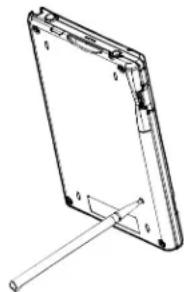
natural_image
Technical line drawing of a flat electronic device with a cylindrical rod inserted (no text or symbols)Initializing
When you initialize your Toshiba Pocket PC, it returns to the status when it was purchased.

When you initialize your Toshiba Pocket PC, all data stored in the memory is deleted. Your Toshiba Pocket PC's initially installed programs are not deleted.
Before initialization, remove all storage cards.
- Turn off the power.
- Press the power button while pressing and holding the reset switch with the stylus, and then release the power button.
- When a screen appears, release the reset switch. When initialization is completed, the Welcome screen appears. Set up the system according to the screen as in the case of startup procedure.
Specifications
External dimensions 125 x 80 x 12.4mm
| Weight 145g. | |
| Operating conditions Temperature: 32 F to 104 F, Relative Humidity: 30 to 80% when only the Toshiba Pocket e740 is operating. Temperature capable of charging 41 F to 104 F. | |
| Battery Type Lithium ion battery | |
| Processor Intel (R) PXA255 processor at 300 MHz | |
| Memory RAM: 64 MB, ROM: 16MB | |
| Display 3.8" TFT Trans-reflective Color LCD Screen, 240x320 pixels, up to 64 K colors | |
| Interfaces | |
| SIR | |
| DC-In | |
| Headphone 3.5mm, stereo mini plug compatible | |
| Microphone | |
| SD card slot | SD memory card, SD I/O card or Multimedia cardThe security function of the SD Memory card is not usable. Data encrypted by the SD memory card security function-compatible equipment is not usable. |
| cradle connection port USB Host/Client | |
| Audio AC 97 Codec, Mono record, Stereo playback, 8.0, 11.025, 22.05, and 44.1 KHz sample rate. Full Duplex record and playback. On board microphone. On board speaker. Stereo earphone/microphone jack, software volume control. | |
| Accessories Ac Adaptor, USB client cable, stylus pen, cradle, USB host cable stylus pen, cradle, battery pack, high capacity battery pack, battery charger | |
Although the display is manufactured using an extremely high order of technology, there may be a case that some dots do not light or always light. It is not a malfunction.
- Copyright Information
- Trademarks
- Safety precautions
- Safety instructions
- Signal Word Meaning
- WARNING
- CAUTION
- DANGER
- NOTE
- CE compliance
- FCC Notice
- "Declaration of Conformity"
- Canadian Regulatory Information (Canada Only)
- BSMI Notice (Taiwan Only)
- FCC Class B Digital Devices & Peripheral Devices (Declaration of Conformity or Certification Authorization)
- Table of Contents
- Getting Started
- Welcome
- Where to Find Information
- Basic Skills
- Cradle
- Initial Setting of Program Button
- Main unit (back view)
- Power Button
- Battery Switch
- Battery / Alarm LED
- How to Use the Stylus
- About the Cursor Button
- About the Scroller
- Battery Charging
- How to Charge the Battery
- How to Prolong Battery Life
- Battery Life
- Battery Charge Level and Stored Data Protection
- How to use the Optional USB Host Cable
- To connect a USB keyboard to the Pocket PC:
- Initial Setup
- Inserting an SD Card
- To remove a card:
- Connecting to a Computer
- To Connect Using The Supplied Cradle:
- To connect directly using a connection cable:
- Today Screen
- Programs
- Navigation Bar and Command Bar
- Pop-up Menus
- Notifications
- Enter Information on Your Toshiba Pocket PC
- Entering Text Using the Input Panel
- To type with the soft keyboard:
- To use Letter Recognizer:
- To use Block Recognizer:
- Writing on the Screen
- To write on the screen:
- To select writing:
- To convert writing to text:
- Drawing on the Screen
- To create a drawing:
- To select a drawing:
- Recording a Message
- Using My Text
- Find and Organize Information
- Customize Your Toshiba Pocket PC
- Adjusting Settings
- Adding or Removing Programs
- To add programs using ActiveSync
- To add a program directly from the Internet
- To add a program to the Start menu
- To remove programs
- Setting Password
- To Set Screen Light
- Setting Power
- Setting Memory
- To change Memory allocation:
- To confirm usage status of a storage card:
- To release memory:
- Setting Advanced Sounds
- Setting Microphone
- Microphone
- Volume
- Chapter 3:
- Microsoft ActiveSync
- Microsoft Pocket Outlook
- Calendar: Scheduling Appointments and Meetings
- To create an appointment:
- Using the Summary Screen
- Creating Meeting Requests
- To schedule a meeting:
- Contacts: Tracking Friends and Colleagues
- To create a contact:
- Finding a contact
- Adam Brian
- Tasks: Keeping a To Do List
- To create a task:
- Tap New.
- Notes: Capturing Thoughts and Ideas
- To create a note:
- Inbox: Sending and Receiving E-mail Messages
- Synchronizing E-mail Messages
- Using the Message List
- Composing Messages
- To compose a message:
- Managing E-mail Messages and Folders
- Folder behavior with a direct connection to an e-mail server
- Companion Programs
- Pocket Word
- Typing Mode
- Writing Mode
- Drawing Mode
- Recording Mode
- Pocket Excel
- Tips for Working in Pocket Excel
- Chapter 6:
- Pocket Internet Explorer
- The Mobile Favorites Folder
- Favorite Links
- Mobile Favorites
- To create a mobile favorite:
- To save device memory
- Using AvantGo Channels
- To sign up for AvantGo:
- Using Pocket Internet Explorer
- To view mobile favorites and channels:
- To browse the Internet:
- Chapter 7:
- Getting Connected
- Transferring Items Using Infrared
- To send information:
- To receive information:
- End a Connection
- Get Help on Connecting
- Chapter 8:
- Optional Functions
- Home
- Launching an Application From the Home
- About Running
- Application Activate/Stop:
- Display Icon List
- Moving an Application Icon into Another Tab
- To move using pop-up menu:
- Deleting an Icon
- Adding an Icon
- Tab Setting
- To add a tab:
- To delete a tab:
- To change the name of a tab:
- To change a background:
- Text Color Setting:
- Home Help
- "Running" tab
- Launching applications
- Switching the icon display
- Icon settings
- Moving icons (using the pop-up menu)
- Deleting icons
- Adding icons
- Browse Dialog
- Tab settings
- Switching tabs
- Changing tab names
- Deleting tabs
- Adding tabs
- Setting the background image
- Setting the text color
- How to Make a Backup
- Making a Backup
- Carrying Out the Restore Operation
- System Information
- Memory tab
- Driver tab
- System tab
- Tools Menu
- Additional Information
- Troubleshooting
- Resetting
- Initializing
Brand : TOSHIBA
Model : E355
Category : Digital Personal Assistant