
e830 - Digital Personal Assistant TOSHIBA - Free user manual and instructions
Find the device manual for free e830 TOSHIBA in PDF.


| Product Type | Digital Personal Assistant (Pocket PC) |
| Brand | Toshiba |
| Model | e830 (e830W with Wireless LAN and Bluetooth) |
| Dimensions (L x W x H) | Approx. 5.3 in x 3.0 in x 0.6 in (135 mm x 77 mm x 16.7 mm) |
| Processor | Intel PXA272 at 520 MHz |
| Memory | RAM: 128 MB, ROM: 64 MB, Flash ROM Disk: 24 MB |
| Display | 4.0" diagonal TFT Color LCD, 480 x 640 pixels, up to 64K colors |
| Operating System | Microsoft Windows Mobile (Pocket PC) |
| Battery | Removable rechargeable Lithium-Ion battery pack; backup battery included |
| Power Supply | AC adapter (5V/3A) or cradle; charging temperature 5°C to 35°C (41°F to 95°F) |
| Interfaces | USB Host/Client, RS-232 via cradle; Infrared (IrDA up to 115 kbps); SD Card slot (SD/SDIO/MMC); CF Type II slot (3.3V); 3.5 mm stereo headphone/mic; DC-IN |
| Wireless (e830W only) | Wi-Fi (Wireless LAN) and Bluetooth |
| Input Method | Touch screen with stylus; hardware buttons (Power, Cursor, Program, TOSHIBA Scroller, Record); soft keyboard; handwriting recognition (Letter Recognizer, Block Recognizer, Transcriber) |
| Main Functions | Calendar, Contacts, Tasks, Notes, Messaging, Pocket Internet Explorer, Pocket Word, Pocket Excel, MSN Messenger, Windows Media Player, File Explorer |
| Synchronization | Microsoft ActiveSync via USB or Serial cable/cradle |
| Expansion | SD/SDIO/MMC slot, CF Type II slot, optional USB Host/Client cables, optional high capacity battery pack |
| Maintenance & Cleaning | Wipe with a soft dry cloth; do not use organic solvents; clean terminals with cotton swab; avoid dust and moisture |
| Safety Instructions | Do not disassemble; avoid heat, water, metal objects; use only authorized accessories; handle battery with care; keep away from pacemakers; do not use while driving |
| Spare Parts & Repairability | Battery pack and optional battery are replaceable; contact authorized Toshiba service provider for repairs; do not attempt to open or modify |
| Operating Environment | Temperature: 0°C to 40°C (32°F to 104°F); humidity: 30% to 80% |
Frequently Asked Questions - e830 TOSHIBA
User questions about e830 TOSHIBA
0 question about this device. Answer the ones you know or ask your own.
Ask a new question about this device
Download the instructions for your Digital Personal Assistant in PDF format for free! Find your manual e830 - TOSHIBA and take your electronic device back in hand. On this page are published all the documents necessary for the use of your device. e830 by TOSHIBA.
USER MANUAL e830 TOSHIBA
Toshiba Pocket PC e830 Series User's Guide
▲WARNING
Handling the cord on this product will expose you to lead, a chemical known to the State of California to cause birth defects or other reproductive harm. Wash hands after handling.
Introduction
Thank you for purchasing this Toshiba Pocket PC e830.
Please be sure to read this user's guide before using your Toshiba Pocket PC e830, and ensure that you are aware of correct the handling procedures.
- Please be sure to read the "Safety instructions" section in this document to learn about important safety issues.
• After reading this document, keep it in a convenient place for future reference.
Copyright Information
© 2004 by Toshiba Corporation. All rights reserved. Under the copyright laws, this manual cannot be reproduced in any form without the prior written permission of Toshiba. No patent liability is assumed, with respect to the use of the information contained herein.
Microsoft®, Windows®, ActiveSync®, and PowerPoint® are registered trademarks, and Windows CE™ is a trademark, of Microsoft Corporation in the United States and other countries.
The names of other actual companies, products, and brand names mentioned herein may be trade names, service marks, trademarks, or registered trademarks of their respective owners.
First Edition August 2004
All rights reserved.
Toshiba Pocket PC e830 Series User's Guide
First Edition August 2004
Safety instructions
All safety instructions must be read carefully and must be fully understood, before attempting to use your Pocket PC (either Toshiba Pocket PC e830 or Toshiba Pocket PC e830W). This manual contains the safety instructions that must be observed in order to avoid potential hazards that could result in personal injuries or could damage your PC. The safety instructions have been classified according to the seriousness of the risk, as follows:
Signal Word Meaning
| ⚠️ DANGER | Indicates an imminently hazardous situation which, if not avoided, will result in death or serious injury. |
| ⚠️ WARNING | Indicates a potentially hazardous situation which, if not avoided, could result in death or serious injury. |
| ⚠️ CAUTION | Indicates a potentially hazardous situation which, if not avoided, may result in minor or moderate injury. |
| CAUTION | Indicates a potentially hazardous situation which, if not avoided, may result in property damage. |
| NOTE | Provides important information. |
Pocket PC
▲WARNING
To avoid the risk of electric shock or possible damage to your Toshiba Pocket PC e830, never remove the cover (or the back panel) of your Toshiba Pocket PC e830, except as specifically instructed by Toshiba, and never disassemble your Toshiba Pocket PC e830. Contact an authorized Toshiba service provider for assistance if repair or adjustment is necessary.
Your Toshiba Pocket PC e830 generates and dissipates heat under normal operating conditions as a function of system activity. Under some operating conditions, prolonged contact with your Toshiba Pocket PC e830's base may cause skin irritation. Therefore, it is advisable that you avoid extended contact with your Toshiba Pocket PC e830's base and place protective insulation under your Toshiba Pocket PC e830's base when using your Toshiba Pocket PC e830 on a heat-sensitive surface.
▲ CAUTION
Always make sure you secure all screws that you remove from your Toshiba Pocket PC e830 when opening the cover as specifically instructed by Toshiba.
Main battery pack
DANGER
Never heat or disassemble the battery pack, because doing so could cause the battery to leak alkaline solution or another electrolytic substance. Never dispose of the battery pack by burning it in a fire, because the battery pack may explode.
Never short-circuit the main battery pack by either accidentally or intentionally bringing both terminals in contact with another metal object. This could damage the battery pack and cause personal injury or a fire.
Never puncture, strike or step on the battery pack.
▲WARNING
Examine your battery pack before using it. If your battery pack is rusty, emits an unusual odor or excessive heat, or you notice anything else that seems unusual, do not use the battery pack. Take it to an authorized Toshiba service provider.
If your battery pack ever emits an unusual odor or excessive heat, becomes discolored or deformed, or leaks alkaline solution or another electrolytic substance, keep the battery pack away from heat and remove it from your Toshiba Pocket PC e830 or battery charger immediately. Dispose of the battery pack according to the following instructions:
- Never dispose of used battery packs with other ordinary solid wastes, as the battery packs contain toxic substances.
- Always dispose of used battery packs in accordance with the prevailing community regulations that apply to the disposal of batteries.
- Cover the metal terminals with insulating tape in order to prevent accidental short-circuiting.
▲ CAUTION
Always confirm that the battery pack is compatible with your Toshiba Pocket PC e830 before installing the battery pack in your Toshiba Pocket PC e830.
Never expose the terminals of the battery pack to any other metal object. Wrap the battery, or place it in a protective plastic bag, whenever transporting it.
Make sure that the battery temperature is between 5 degrees and 35 degrees Centigrade before charging the battery, to avoid leakage, excessive heat emissions, or deterioration of the battery pack. Never store or use the battery pack in an unventilated area, such as an automobile, where excessive temperatures may occur.
Keep the battery pack out of reach of infants or small children.
Never expose the battery pack to any liquid or direct sunlight.
Never drop or throw the battery pack.
If the battery pack leaks fluid, avoid any contact with eyes, skin or clothing. If contact occurs, wash eyes or skin immediately and thoroughly with water. Wash clothing in a synthetic detergent.
NOTE
Always confirm that a “click” sound has resulted when installing the main battery pack in your Toshiba Pocket PC e830. That sound confirms that the battery pack has been properly inserted.
Power cords
WARNING
Never use damaged or worn power cords or plugs. The use of damaged or worn power cords or plugs could result in electric shock, burns or fire. Contact an authorized Toshiba service provider immediately to obtain suitable replacements.
▲ CAUTION
Never bend or twist a power cord, and never pull on a power cord in an attempt to remove a plug from a socket. Never place heavy objects on a power cord, as this could result in damage to the cord. Always grasp the plug directly when unplugging a power cord to avoid causing any damage to the cord.
AC adapter
DANGER
Never attempt to disassemble or repair an AC Adapter, as exposure to electric shock hazards may result. Always contact an authorized Toshiba service provider if repair or replacement is required.
WARNING
Always use the Toshiba AC Adapter, provided with your Toshiba Pocket PC e830, to avoid any risk of fire or other damage to your Toshiba Pocket PC e830. Using an unauthorized and incompatible AC Adapter, in violation of this warning, could result in bodily injury or property damage.
Liquid Crystal Display (LCD)
▲WARNING
If your Toshiba Pocket PC e830's LCD is damaged, the liquid contained within the display may leak. Never ingest any of this liquid, as serious bodily injury or illness may result.
Use large amounts of water and immediately wash off any liquid that may accidentally contact any part of the body. Remove any liquid that has contacted your clothes by washing them immediately with a synthetic detergent.
Contact an authorized Toshiba service provider immediately for further instructions regarding safe disposal (and replacement) of the damaged LCD.
▲ CAUTION
Never pick up your Toshiba Pocket PC e830 by holding the LCD, and never push, squeeze, or otherwise apply force to the LCD or its surrounding screen. This will prevent accidental damage to the LCD.
Toshiba optional devices and accessories
▲WARNING
Always use authorized Toshiba optional devices and accessories. This will prevent incompatibility and avoid any risk of fire or other inadvertent damage to your unit. All authorized Toshiba optional devices and accessories are fully compatible with your Toshiba Pocket PC e830.
Using unauthorized and incompatible optional devices and accessories, in violation of this warning, could result in bodily injury or property damage.
Proper treatment of the unit
▲WARNING
To avoid any risk of short-circuit, fire, or other internal damage, never allow any metal objects such as screws or paper clips to fall into the unit or into the keyboard. If that should happen, immediately turn off the power and unplug the power cord. Contact an authorized Toshiba service provider for appropriate assistance.
Before using your Toshiba Pocket PC e830 in any aircraft, particularly during take-offs and landings, always obtain the prior consent and approval of an authorized airline representative. This will prevent interfering with any airborne electronic navigational equipment
▲ CAUTION
To avoid damage to your Toshiba Pocket PC e830, never allow any liquids to spill into any part of your Toshiba Pocket PC e830, and never expose your Toshiba Pocket PC e830 to rain or to water. If any of those events should occur, turn your Toshiba Pocket PC e830 off immediately. Contact an authorized Toshiba service provider for assistance before attempting to use your Toshiba Pocket PC e830 again.
To prevent a malfunction or equipment damage with your Toshiba Pocket PC e830, never place your Toshiba Pocket PC e830 on top of (or adjacent to) a heating device, and never expose it to direct sunlight. Never store your Toshiba Pocket PC e830 in a locked and unventilated vehicle (where excessive internal temperatures may be encountered).
Never press the reset button with the point of a pencil. A piece of the lead could break off and enter the unit, causing your Toshiba Pocket PC e830 malfunction or equipment damage.
Always unplug the power cord during lightning storms in order to protect the unit from possible damage as a result of a power surge.
If your Toshiba Pocket PC e830 is ever dropped and damaged, or if you ever detect the emission of an extraordinary odor or excessive heat, unplug the power cord and shut off your Toshiba Pocket PC e830 immediately. Contact an authorized Toshiba service provider for appropriate assistance.
▲ CAUTION
If your Toshiba Pocket PC e830 has been exposed to cold temperatures, allow it to warm to room temperature before turning it on. This will prevent the occurrence of harmful condensation within the unit. (This is a particularly important concern when the unit is being used in cold climates).
Avoid using your Toshiba Pocket PC e830 in dusty areas since dust particles can affect the reliability of your Toshiba Pocket PC e830. Contact an authorized Toshiba service provider if your unit has become contaminated with dust or dirt particles.
Work environment
▲ CAUTION
Your Toshiba Pocket PC e830 has been designed to be compact, light-weight and extremely portable, (and they include a self-contained battery pack), so that they can be easily carried and used almost anywhere.
Proper use of your Toshiba Pocket PC e830 does not pose any health hazards. When used in accordance with the safety instructions that follow, they also offer an alternative to Pocket PC users who wish to avoid exposure to the additional sources of electromagnetic field (EMF) emission that may be present in Pocket PCs.
Ideally, your Toshiba Pocket PC e830 should always be used at a well-designed work station so that your arms, shoulders, and hands are in natural and comfortable positions. This will minimize physical discomfort to the back, neck, wrists, and other parts of the body. During normal use, your forearms should be parallel to the floor, your wrists should be arched comfortably upward (i.e., so that your hands are above your forearms); your fingers should be gently curved downward, and your upper arms should be hanging freely at your side. This will avoid physical discomfort.
Furthermore, you should ideally always be seated in front of your Toshiba Pocket PC e830 in a comfortable chair that provides firm support for your back, permitting your feet to be flat on the floor, your knees to be bent at an angle of 90 degrees or more, and your thighs to be at an angle of 90 degrees or greater in relation to your torso. Since Toshiba Pocket PCs are specifically intended to be used in the field, it is foreseeable that they will not always be used at carefully designed and well illuminated work stations. Instead, they may often be used where lighting conditions are poor, where viewing distances and angles are inconvenient, where they will be subject to vibration or vehicle motion, where available seating conditions may require awkward arm and wrist positions, and where adequate neck and back support cannot be provided.
Furthermore, since the LCD is not detachable from the keyboard, conditions of use in the field may sometimes cause the LCD to be too low for comfort (or the keyboard to be too high for comfort). As a result, opportunities may often exist for the misuse of your Toshiba Pocket PC e830 under adverse conditions, which could result in eyestrain and in physical discomfort to various parts of the body.
The following safety instructions should always be followed to avoid the adverse consequences that could otherwise result from the misuse of your Toshiba Pocket PC e830 under sub optimum field conditions.
Prevention of eyestrain
Viewing angle and viewing distance of LCD
When using Pocket PCs, the operator is linked to the equipment through the eyes as well as through the hands. Viewing angle and viewing distance are two of the controllable factors which significantly affect the ability of the eyes to focus easily on the LCD.
Viewing distances of less than 16 inches can cause eyestrain and headaches, both in persons with normal vision and in persons who must wear corrective glasses or contact lenses. Consequently, viewing distances of at least 16 inches must be maintained. Closer viewing distances will create stress both on the binocular (eye aiming) system and on the accommodating (eye-focusing) system.
Most persons also find it to be more restful on the eyes if the top line of the LCD is located 20 degrees or more below eye-level, rather than straight ahead or upward. In general, the closer the location of the LCD, the lower it should be placed.
▲WARNING
Always locate the LCD directly in front of you, at a comfortable viewing distance, always greater than 16 inches both for persons with normal eyesight as well as for those who wear corrective glasses or contact lenses.
Always ensure that the top line of the LCD is located at least 20 degrees below eye-level.
Always tilt the top of the LCD away from you until you have located the position that affords maximum visibility.
Always adjust the brightness and contrast controls to maximize the character and image quality on the LCD.
Ambient lighting
Adequate lighting increases work effectiveness and reduces eyestrain. Sources of illumination should be selected that are located outside of the peripheral field of vision, to minimize both direct and reflected disability glare (i.e., glare that results in a reduction of the readability of the information displayed on the LCD), and discomfort glare (i.e., glare that produces visual distraction).
Ambient illumination, comprised of general lighting and local (task) lighting, must be sufficiently bright, uniform, and free from both disability and discomfort glare, or from flicker, to permit the use of your Toshiba Pocket PC e830 without any noticeable visual impairment or eyestrain.
▲WARNING
Always position your Toshiba Pocket PC e830 (in relation to the available sources of light) so that direct glare or reflected glare will be minimized at the LCD, in order to maximize visibility.
If the room in which you are working has windows, use available blinds, shades, or drapes to control the amount of direct or reflected light in the room. Always locate your Toshiba Pocket PC e830 so that the side of the unit faces the windows, in order to minimize direct, or reflected, glare on the screen.
Always position the LCD between rows of overhead lights, if possible, to avoid direct glare.
Always combine the available general and task lighting to best suit your lighting needs, but avoid placing bright light sources within your field of vision.
Always use indirect lighting where possible, in order to avoid bright spots on the LCD.
Vision care
All new users of Toshiba Pocket PCs should have vision tests performed before undertaking Pocket PC use, and all users should have vision tests performed periodically thereafter to ensure that they have adequately corrected their vision (if necessary) to satisfactorily handle such work.
An association between bifocal use and vulnerability to neck disorders is also known to exist. Bifocal use while operating your Toshiba Pocket PC e830 may result in more head movements from keyboard to screen, a backward declination of the head, and increased static loading of the neck muscles, which could cause neck discomfort. The use of bifocals reportedly may also result in awkward postural adjustments which could cause further discomfort to the body.
Consequently, all individuals who wear bifocals must have vision tests performed before beginning Pocket PC work, and must be evaluated periodically by a vision-care specialist, to determine whether their current lenses are appropriate for your Toshiba Pocket PC e830 work that they will be performing.
▲WARNING
Always have your eyes examined periodically by a vision care specialist, to maintain good vision.
Always wear corrective glasses or contact lenses, where required, to minimize eyestrain when using the CRT monitor.
If you wear bifocals, always have vision tests performed before your first use of your Toshiba Pocket PC e830, and then periodically thereafter, to protect against eyestrain and possibly physical discomfort as well.
Always keep your glasses, contact lenses, and the LCD as clean as possible.
Always take frequent rest breaks, and relax the focusing system of the eyes by looking at distant objects (objects located at a distance greater than 15 feet).
If you experience vision-related problems, including (but not limited to) eyestrain, irritation or pain, blurred or double vision, excessive tears or dry eyes or excessive blinking or squinting, always consult a vision-care specialist to protect your eyesight.
Prevention of physical discomfort
When Toshiba Pocket PCs are to be used under the less-than ideal conditions that may sometimes be encountered in the field, prudent precautions must be taken to prevent physical discomfort to the body or to the hands, wrists and arms. Physical discomfort can be avoided by taking frequent rest breaks and by periodically initiating changes in activity, environment or work-tempo.
Prevention of physical discomfort to the body
To prevent physical discomfort to the back, neck, shoulders and other parts of the body, even while using your Toshiba Pocket PC e830 under sub optimum field conditions, the following work practices should always be observed:
▲WARNING
Always avoid sitting in one position for long periods of time, by periodically performing alternate tasks or by periodically moving to a different environment.
In order to avoid exposing the body to physical discomfort, always initiate periodic changes in work-tempo and take periodic breaks when working with your Toshiba Pocket PC e830 over an extended period of time.
Always avoid any awkward working positions that could cause discomfort or stress to the back, neck, or shoulders.
Always take time to stretch and exercise your body periodically, throughout the workday, to avoid experiencing muscular and skeletal aches and pains.
Prevention of physical discomfort to the hands, wrists, and arms
To prevent physical discomfort to the hands, wrists, and arms, even while using your Toshiba Pocket PC e830 under sub optimum field conditions, the following work practices must always be observed:
WARNING
Always avoid performing repetitive tasks with your hands for long periods of time, either by taking periodic breaks or by periodically engaging in other activities.
Always avoid working in uncomfortable positions that result in discomfort or stress to either the hands, wrists, or arms.
Avoidance of exposure to electromagnetic field (EMF) emissions
Extremely low frequency (ELF) emissions (50Hz (Europe) or 60Hz (US))
▲ CAUTION
Since most Toshiba Pocket PCs are low-voltage direct current (DC) devices, your Toshiba Pocket PC e830 emits no EMF (Electro-Magnetic Field) energy in the ELF range when it is being powered by its main battery pack.
Your Toshiba Pocket PC e830, however, can also be powered by an alternating current (AC) Adapter, which converts a 60 Hz AC power source to DC.
When your Toshiba Pocket PC e830 is being powered by an AC Adapter, the AC Adapter and its associated AC power cord may themselves emit low levels of ELF energy. The intensity levels of those ELF emissions, however, even in close proximity to the AC Adapter and its associated AC power cord, is relatively low in comparison to those of other common household appliances.
The minute levels of EMF energy in the ELF range that are emitted by the AC Adapter and its AC power cord pose no known health hazards to human beings.
Very low frequency (VLF) emissions (30,000Hz to 66,000Hz)
▲ CAUTION
Since the LCD used in your Toshiba Pocket PC e830 for the presentation of visual information is a flat-panel, reflective device which requires no sweep-frequency, your Toshiba Pocket PC e830 emits no EMF emissions in the VLF range.
A cathode ray tube, on the other hand, is an emissive device that does require the presence of a sweep-frequency in the 15,000 to 20,000 Hz (VLF) range in order to perform its function.
Consequently, only desk-top computers which use cathode ray tube monitors for the presentation of visual information are emitters of EMF emissions in the VLF range.
Radio frequency (RF) emissions
▲ CAUTION
All personal Pocket PCs generate digital timing pulses at frequencies within the RF range, and consequently may emit minute levels of stray EMF emissions in the RF range.
As a result, all Pocket PCs have been tested and found to comply with the limits for a Class B digital device, pursuant to part 15 of the US Federal Communications Commission (FCC) Rules and also to comply with Canadian ICES-003 regulations as being “Class B” digital devices. (“Class B” digital devices are authorized for use in residential environments and are not permitted to intentionally emit RF energy. Nevertheless, they are permitted to unintentionally emit low levels of RF energy, as a result of the generation of digital timing pulses by their clock oscillator circuits.)
The allowable levels of RF energy that may be emitted by Toshiba Pocket PCs are severely limited in their intensity by existing FCC Regulations (47 CFR Section 15.109(a)) and ICES-003 to prevent interference with reception on nearby radio and TV receivers.
Toshiba Pocket PCs have therefore been equipped with internal shielding to significantly reduce the stray emission of RF energy.
Nevertheless, airlines may prohibit the use of Toshiba Pocket PCs (as well as other portable electronic devices that could emit stray RF energy) during take-offs and landings, because of possible interference with the reception of signals by airborne electronic navigation devices.
For instance, because FCC and ICES regulations for "Class B" digital devices severely limit the levels of RF energy that may be emitted by a Toshiba Pocket PC, the resulting emissions also fall well within the allowable limits that have been adopted by OSHA in 29 CFR § 1910.97, and
that have been adopted by the promulgators of all other known regulations and standards that relate to the emission of EMF energy in the RF range.
Consequently, the minute levels of EMF energy in the RF range that are emitted by Toshiba Pocket PCs comply with all existing regulations and standards, and pose no known health hazards to human beings.
Safety precautions
- Please carefully read "Safety instructions" on page 3 as well as these safety precautions before using your Toshiba Pocket PC e830 and ensure that you are aware of correct handling procedures.
- The precautions provide essential information for the protection of the user and others from possible injury and property damage. They also provide information on the safe handling of this product.
- Please check that you fully understand the definition of the following messages (signs and graphical symbols) before reading the text, and always follow the instructions provided.
▲WARNING
Certain locations, such as hospitals, may restrict the use of Pocket PCs and other devices that emit low-level RF energy.
Always comply was posted prohibitions of the use of RF-emitting devices, such as in hospitals. Failure to follow such directives could result in the interference with medical equipment and/or devices.
Never come closer than 16 cm (6 inches) to a person with a heart pacemaker implant when using your Toshiba Pocket PC e830 in combination with a mobile cellular telephone. Failure to do so could result in interference with the function of the pacemaker.
A WARNING
Never use your Toshiba Pocket PC e830 while driving an automobile or any other moving vehicle. Always pull out of traffic and come to a stop in a legally permissible and safe location before using your Pocket PC. Failure to do so could result in serious bodily injury in a traffic accident.
Never use your Toshiba Pocket PC e830 while walking. Usage while walking could result in bodily injury caused by inattention to automobile traffic or other pedestrian hazards.
▲WARNING
Never allow metallic objects, such as staples and paper clips, to enter inside your Toshiba Pocket PC e830. Metallic objects, such as staples and paper clips, if allowed to enter your Toshiba Pocket PC e830, could cause the generation of excess heat or fire.
Never connect terminals (metal parts) to metallic objects (such as wires). Connecting terminals to metal objects could cause excessive heat or fire.
Always immediately turn the battery switch to the “off” position and disconnect the AC Adaptor from the power outlet in the event your Toshiba Pocket PC e830 emits an unusual odor or sound or generates smoke.
▲WARNING
Never use or store your Toshiba Pocket PC e830 in the following locations:
- Anywhere it may be exposed to water, such as a bathroom or sauna;
- In conditions of high humidity, such as in the rain or fog; Where your Toshiba Pocket PC e830 will be exposed to high temperatures, such as near a fire or equipment that emits high temperatures; In direct sunlight; or In a sealed automobile left in the sun and subject to high temperatures.
▲WARNING
Never drop your Toshiba Pocket PC e830 or subject it to severe shock. Dropping your Toshiba Pocket PC e830 or subjecting it to severe shock could cause the removable battery to leak, ignite and/or rupture.
Always immediately remove your Toshiba Pocket PC e830 and its battery from the vicinity of any open flame in the event the removable battery leaks liquid or emits an unusual odor. Continued use of your Toshiba Pocket PC e830 under either of these conditions could cause ignition (i.e., fire) of the leaked battery liquid, or rupture.
Never touch any fluid that might leak from the removable battery. Such liquid when in contact with the eyes or skin, could cause injury to the skin or eyes. Should the liquid come into contact with the eyes, irrigate the eyes thoroughly with clean water and immediately seek medical attention. In the event the liquid comes into contact with the skin or clothing, wash it away immediately with clean water.
Never attempt to disassemble, repair or make any modification to your Toshiba Pocket PC e830. Disassembly, modification or any attempt at repair could cause bodily injury or property damage, as well as damage to your Toshiba Pocket PC e830 itself.
Failure to follow the above directions concerning use and storage could result in damage to your Toshiba Pocket PC e830 or bodily injury and property damage due to battery liquid leakage, fire or rupture.
▲ CAUTION
Never raise the sound volume level to high when using your Toshiba Pocket PC e830 with earphones. An excessive sound volume level could cause damage to your hearing.
Never touch the liquid that might leak from a broken liquid crystal display. Contact with this liquid could cause a skin rash. If the crystal display liquid should come into contact with the skin or clothing, wash it immediately with clean water.
Never allow infants or small children within reach of your Toshiba Pocket PC e830. Infants or small children could injure themselves if allowed access to your Toshiba Pocket PC e830.
▲WARNING
Never attempt to disassemble or repair an AC Adaptor, and never alter their Power Supply Cables or plugs as exposure to electric shock hazards could result.
Always contact an authorized service provider, if repair or replacement is required.
▲WARNING
Always use the AC Adaptor that has been provided with your Toshiba Pocket PC e830.
Bodily injury or property damage could occur as a result of the use of an unauthorized and incompatible AC Adaptor in violation of this Warning.
Never connect or disconnect the AC Adaptor with wet hands. Connecting or disconnecting the AC Adaptor to a power source with wet hands could cause electric shock.
▲WARNING
Never attempt to connect or disconnect the power plug with damp or wet hands. Connecting or disconnecting the power plug with damp or wet hands could result in an electric shock.
Never leave an open container, such as a cup or glass, containing a liquid near the AC Adaptor. Spilled liquid coming in contact with the AC Adaptor could cause a fire or electric shock.
Always ensure the power plug pins are clean and free of dust or other foreign material by wiping the pins with a clean dry cloth. Dust or other foreign material accumulation on the power plug pins could cause fire.
Always unplug the power plug from an outlet by grasping the power plug itself. Never pull on the Power Supply Cable to disconnect the Power Supply Cable from an outlet. Pulling on the Power Supply Cable could cause a fire or electric shock as a result of damage to the Power Supply Cable.
Never use a worn or damaged AC Adaptor Power Supply Cable or plug, or a worn or damaged extension cord or plug. The use of a worn or damaged Power Supply Cable or plug could result in electric shock or fire. Always contact an authorized service provider immediately to obtain a suitable Power Supply Cable replacement.
Never place an AC Adaptor on a wooden surface (or any other surface that could be marred by exposure to heat) while it is in use, since its surface temperature increases during normal use. Always rest it on a suitable heat-insulating material.
Never cover the AC Adaptor with any object while it is in use, and never place it adjacent to a heat source. An excessive temperature increase could detrimentally affect its performance.
Never place a Power Supply Cable near a heat source, as damage to the cord or to its insulation could result.
Always use a surge protector when utilizing the AC Adaptor during an electrical storm. Otherwise, a power surge could result in the loss of stored data.
Insert the power plug to a household electric outlet.
When travelling abroad, never plug the AC Adaptor into a power source that does not correspond to both the voltage and the frequency specified on the rating plate of the unit, as equipment damage will result.
Never bend or twist a Power Supply Cable, and never pull on a Power Supply Cable in an attempt to remove a plug from an outlet. Always grasp
the plug directly when unplugging a Power Supply Cable to avoid causing any damage to the cord.
Never plug the AC Adaptor into an overloaded multiple outlet, power strip or surge protector to prevent blowing a fuse or tripping a circuit breaker.
Never place heavy objects on a Power Supply Cable, as that could result in damage to the cord.
Always confirm that the AC Adaptor plug (and the extension cord and plug, if any) have been fully inserted into the receptacle, to assure a secure electrical connection.
▲ CAUTION
Under certain conditions, data may be lost, including:
Misuse of your Toshiba Pocket PC e830; Subjecting the main unit of your Pocket PC to static electricity and/or noise; Total loss of electric charge in the removable battery; and Servicing of your Toshiba Pocket PC e830.
Avoid connecting your Toshiba Pocket PC e830 to an external device such as a computer in an environment likely to be affected by static electricity. For example during low-humidity weather, shuffling your shoes upon a rag can produce static electricity. Before you handle your computer, you should touch a grounded object to discharge any static electricity from your body.
Avoid using your Toshiba Pocket PC e830 in environments that are likely to be affected by static electricity or are prone to high electrical noise. If you connect your Toshiba Pocket PC e830 to a computer via the docking cradle for data transfer or data restoration purposes, Toshiba will not be responsible for any Pocket PC or computer malfunction, problems with data transfer or data modifications/loss that may occur in these environments.
Use your Toshiba Pocket PC e830 only in locations with the following ambient environmental conditions:
Under normal operational use with temperatures between 0^ C and 40^ C ( 32^ F and 104^ F); With humidity of 30% to 80%; and when charging the battery with temperatures between 5^ C and 35^ C ( 41^ F and 95^ F).
Do not store or use your Toshiba Pocket PC e830 in the following locations:
Those subject to extremely high or low temperatures; Dusty locations; and Locations or sites subject to strong vibration.
Use or storage in these location, sites or areas can result in product failure, malfunction or loss of data.
Do not subject your Toshiba Pocket PC e830 to sudden and severe temperature changes. This could result in moisture condensation in your Toshiba Pocket PC e830 that could cause damage to your Toshiba Pocket PC e830, computer function loss, and/or the loss of data. In the event of moisture condensation, allow your Toshiba Pocket PC e830 to dry out completely.
It is normal for the AC Adaptor to become warm when charging.
Disconnect the power plug from the outlet when not in use.
Take care not to sit on your Toshiba Pocket PC e830 when it is located in the back pocket of trousers, etc. This could cause damage to your Toshiba Pocket PC e830 or malfunction of the Pocket PC functions.
Do not place objects on top of your Toshiba Pocket PC e830 or drop them on top of your Toshiba Pocket PC e830. This could cause damage to your Toshiba Pocket PC e830 and/or malfunction.
Clean terminals (metallic parts) on a regular basis with a cotton swab. Dirty terminals could affect battery charging.
Never use organic solvents such as benzene or paint thinner to clean your Toshiba Pocket PC e830. Use of these solvents can cause deformation or discoloration.
Do not wipe the display with a damp or wet cloth or touch the display with damp or wet hands. Wiping or touching the display under this condition can cause product failure or malfunction. Always use a soft dry cloth to wipe the display.
When using the “(SD) Secure Digital Memory Card” and/or “(CF) CompactFlash card,” be sure to read the relevant instruction manual and ensure that you know the proper procedures for their use.
Never subject the card to any severe shock while connected to your Toshiba Pocket PC e830. Such a shock can cause damage to the card and a malfunction.
Do not carry your Toshiba Pocket PC e830 with the card connected to it. This can result in the damage or loss of the card.
Never connect cradle terminals with metallic objects, such as wires. Connecting these terminals with metallic objects may cause the production of excess heat, burns and damage to the charger and/or your Toshiba Pocket PC e830.
Lithium-Ion batteries are recyclable. Never dispose of the battery with ordinary waste.
Never bend or twist your Toshiba Pocket PC e830. This could cause damage to your Toshiba Pocket PC e830 or malfunction of the Pocket PC functions.
Limitation of liability
■Toshiba Corporation is in no way liable for any damage resulting from earthquakes, lightning, wind, flood; or fire, actions on the part of a third party, or other accidents beyond the control of Toshiba Corporation; intentional acts, negligence or misuse on the part of the user, or any usage under abnormal conditions.
■Toshiba Corporation is in no way liable for any damage, including but not limited to change or loss of stored data, loss of business profit, loss of earnings, interruption of business, or lost communication opportunities that are caused by use or nonuse of this product.
■Toshiba Corporation is in no way liable for any damage resulting from failure to comply with the contents of this user's guide.
■Toshiba Corporation is in no way liable for any damage resulting from malfunction due to use with connection devices or software other than those provided by Toshiba Corporation.
■Toshiba Corporation cannot guarantee any data recorded in memory devices, such as internal memory and memory cards, regardless of the cause of damage or malfunction.
Usage conditions
Bluetooth was not developed or produced for use with equipment in systems that directly support the medical welfare of individuals or systems that are critical for the maintenance of public welfare and safety. Do not use the Bluetooth for these purposes.
- These include life-support systems, surgery room equipment, and other medical devices.
- These include the main equipment control systems and safety protection systems at nuclear power facilities, other critical safety systems, fleet transportation operating control systems, and air traffic control systems.
Do not disassemble, modify or try to service this product yourself.
This may cause injury. Unapproved changes or modifications to this product could void your authority to operate this product. Please contact the dealer from whom you purchased this product and request repair service.
Do not use this product in areas where the use of electrical devices is prohibited, such as on board an aircraft and in a hospital.
If you are uncertain whether electrical devices are prohibited, please consult the proper authorities and follow all instructions. Usage in prohibited
areas can cause an accident due to radio interference with equipment such as aviation and medical equipment.
Do not use the Bluetooth within 9 inches (22 cm) of persons with a heart pacemaker implant or defibrillator implant.
Failure to maintain this distance can cause a malfunction of the pacemaker due to radio interference.
Do not use the Bluetooth near an automated controlling device, such as an automatic door or fire alarm.
Failure to do so can cause an accident due to radio interference with the automated controlling device.
Immediately discontinue use of the Bluetooth if it causes radio interference with other devices.
Continued use of the Bluetooth can cause other devices to malfunction and thereby create an accident.
Keep the product out of the reach of children, as it may be accidentally swallowed or cause injury.
CAUTION
When you use your Bluetooth-enabled Toshiba Pocket PC close to 2.4 GHz Wireless LAN devices, Bluetooth transmissions might slow down or cause errors. If you detect certain interference while you use Bluetooth ^TM from TOSHIBA, always change the frequency, move your Toshiba Pocket PC e830W to the area outside of the interference range of 2.4 GHz Wireless LAN devices (40 meters/43.74 yards or more) or stop transmitting from your Toshiba Pocket PC e830W.
Please contact TOSHIBA PC product support on Web site http://www.toshiba-europe.com/computers/tnt/bluetooth.htm in Europe or http://www.pc.support.global.toshiba.com in the United States for more information.
CAUTION
Bluetooth ^TM and Wireless LAN devices operate within the same radio frequency range and may interfere with one another. If you use Bluetooth ^TM and Wireless LAN devices simultaneously, you may occasionally experience a less than optimal network performance or even lose your network connection.
If you should experience any such problem, immediately turn off either one of your Bluetooth ^TM or Wireless LAN.
Please contact TOSHIBA PC product support on Web site http://www.toshiba-europe.com/computers/tnt/bluetooth.htm in Europe or http://www.pc.support.global.toshiba.com in the United States for more information.
Table of Contents
CHAPTER 1: Getting Started .... 26
CHAPTER 2: Basic Skills ...... 28
CHAPTER 3: Microsoft ActiveSync 76
CHAPTER 4: Microsoft Pocket Outlook ...... 78
CHAPTER 5: Companion Programs 87
CHAPTER 6: Pocket Internet Explorer ...... 101
CHAPTER 7: Getting Connected ...... 106
CHAPTER 8: Wi-Fi Wireless LAN .... 114
CHAPTER 9: TOSHIBA IP Phone for Pocket PC ..... 134
CHAPTER 10: Bluetooth .... 147
CHAPTER 11: Optional Functions ...... 167
CHAPTER 12: Additional Information .... 200
Chapter 1:
Getting Started
Welcome
Congratulations on purchasing your Toshiba Pocket PC e830. Due to its size and capabilities, you can keep your most important business and personal information up-to-date and close at hand. Microsoft® ActiveSync® increases the power of your Toshiba Pocket PC e830 by allowing you to synchronize the information on your PC with your Toshiba Pocket PC e830.
The Toshiba Pocket PC e830 Series has two models:
• e830 (non wireless model)
• e830W (wireless model, supporting Wireless LAN and Bluetooth)
In this document, the Toshiba Pocket PC e830 Series will be referred to as "Toshiba Pocket PC e830" hereafter.
Finding Information
This book describes features, provides program overviews, and describes how to connect your Toshiba Pocket PC e830 to your PC, a network, or the Internet. For instructions on setting and installing ActiveSync, consult the documentation that came with ActiveSync.
| For information on See this source | |
| Programs on your Toshiba Pocket PC e830 | This User's Guide and online Help.To view Help, tap and then Help. |
| Additional programs that can be installed on your Toshiba Pocket PC e830 | The Pocket PC Companion CD. |
| Connecting to and synchronizing with a PC | The Quick Start Card or Active Sync Help on your PC. To view Help, open the Microsoft Active Sync application, and then click Help. |
| Last-minute updates and detailed technical information | The Read Me files, located in the Microsoft Active Sync folder on the PC and on the Pocket PC Companion CD. |
| Up-to-date information on your Toshiba Pocket PC e830 | http://www.pda.toshiba.com |
Chapter 2:
Basic Skills
This chapter identifies system components and describes the use and customization of your Toshiba Pocket PC e830.
System overview
Main unit (front view)
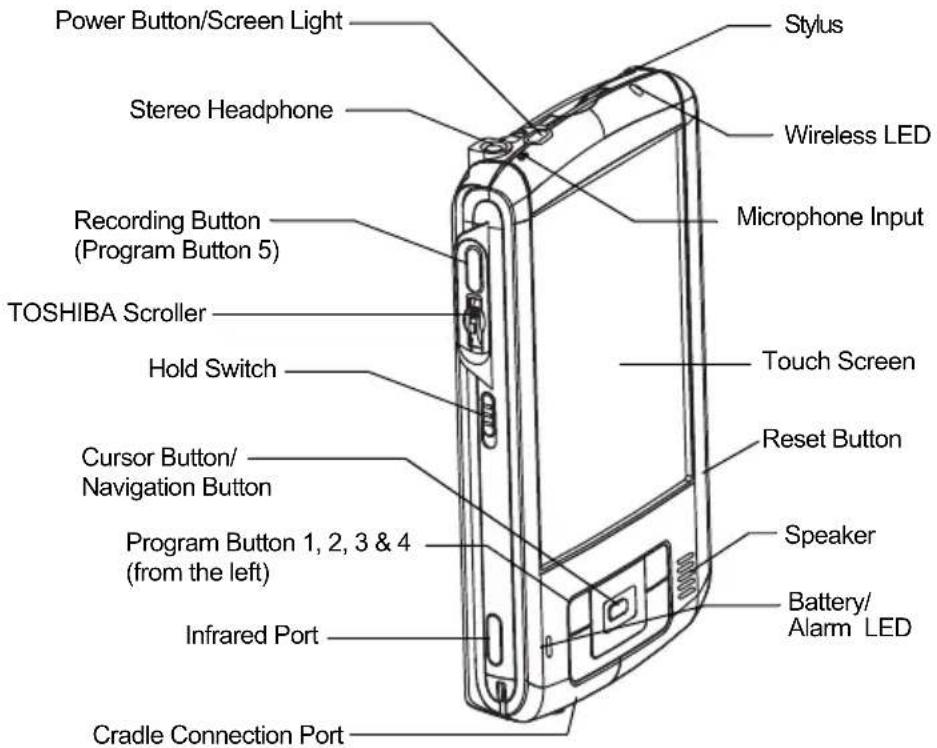
Program button initial settings
Program button 1 = Calendar

Program button 2 = Tasks

Program button 3 = Home

Program button 4 = Contacts

Program button 5 = Voice recorder

Main unit (end view)
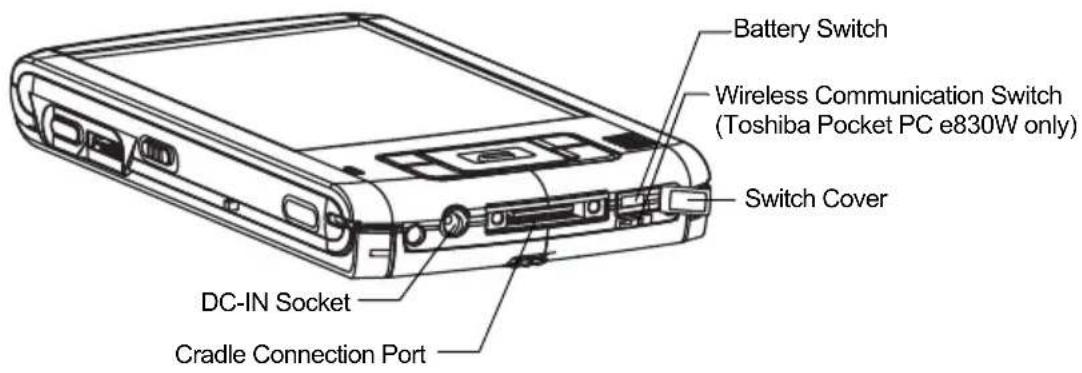
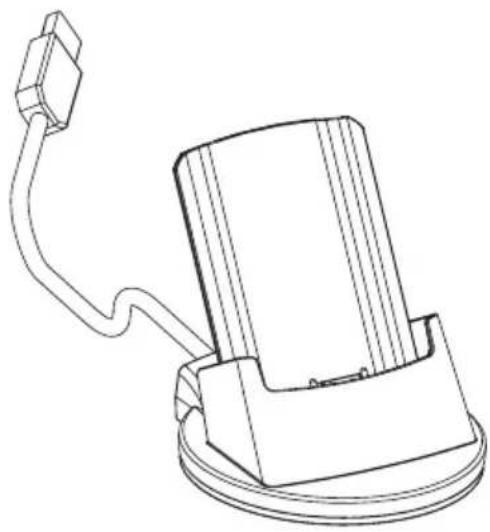
Cradle
natural_image
Line drawing of a mechanical device with a curved arm and base plate (no text or symbols)Main unit (back view)
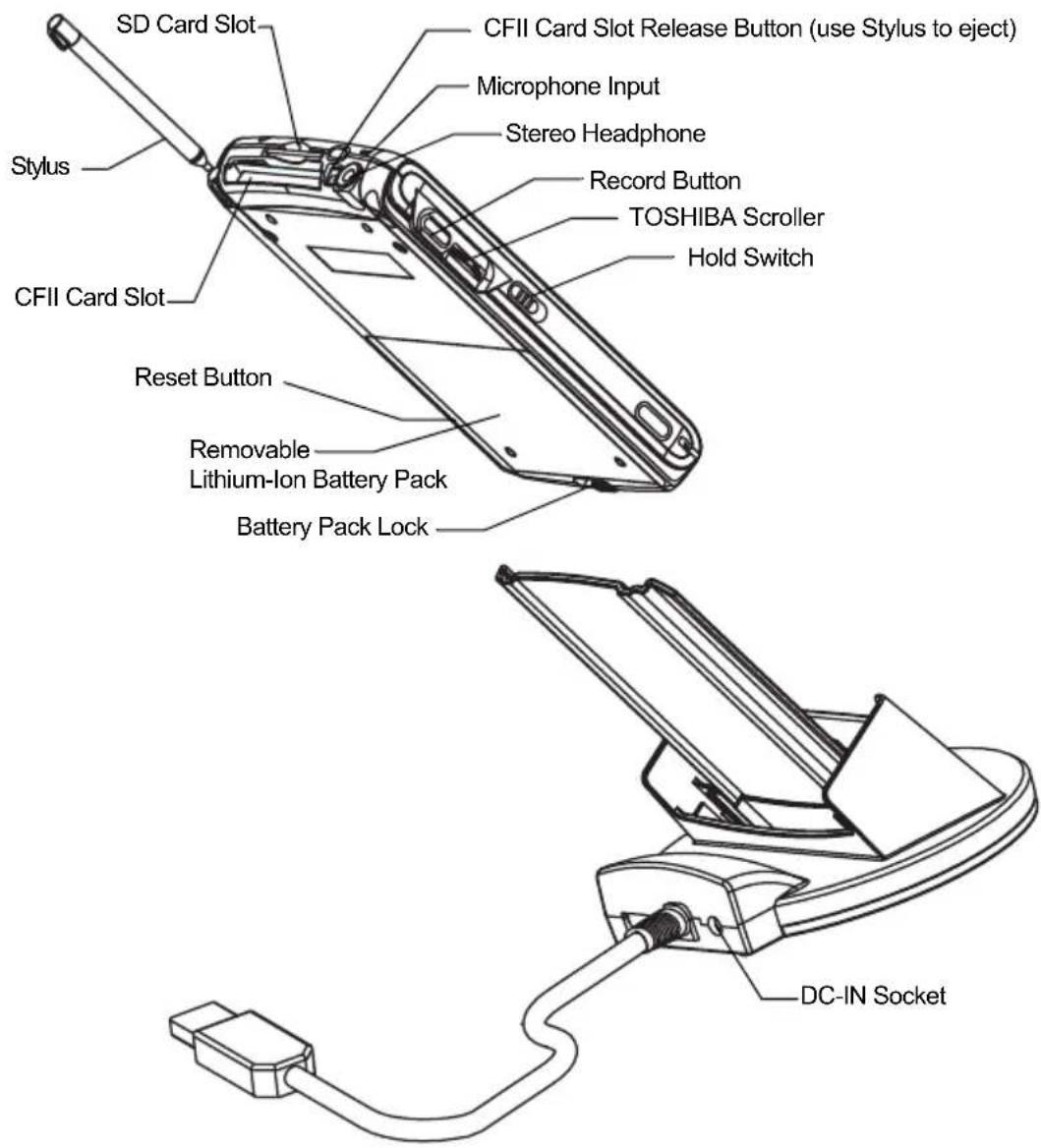
Power button
The power button performs the functions described in the table below.
Power button When the power is off When the power is on
Press and hold. The power turns on. The screen light alternately turns on/off.
Press it quickly. The power turns on. The power turns off.
Battery switch
The battery switch connects and disconnects battery power from the Pocket PC. When your Toshiba Pocket PC e830 is sent from the factory, the switch is set to the right (the “stop” side). When using your Toshiba Pocket PC e830 for the first time, open the switch cover, then use the stylus to slide the switch to the left (the “supply” side).
CAUTION
Switching the battery switch to the "stop" position at any time leads to loss of data.
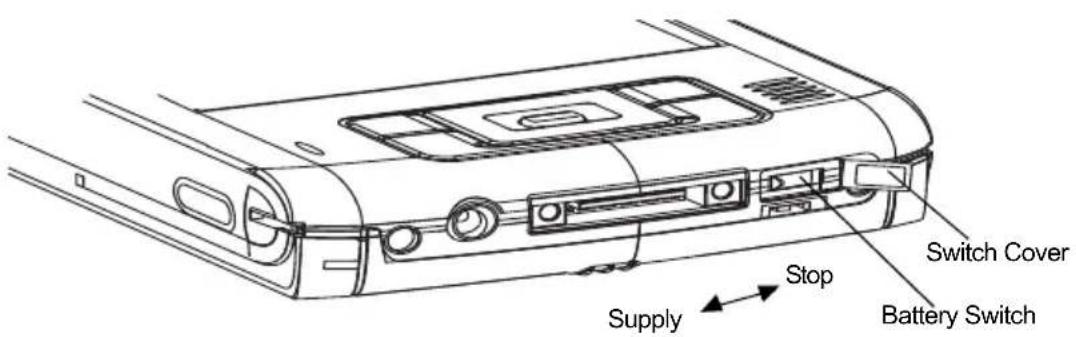
Setting the battery switch
- Open the switch cover.
- Slide the battery switch to the left.
Battery/Alarm LED descriptions
The Battery/Alarm LED indicates the Toshiba Pocket PC e830 battery condition.
Flashing orange When the preset alarm time (set through Calendar or Tasks) goes off, the lamp starts flashing.
Orange Indicates charging of the battery.
Yellow The battery charging process is stopped due to the extreme ambient temperature Charge the battery in an ambient temperature of approximately 41°F to 95°F (5°C to 35°C).
Green Indicates full charge of the battery.
Wireless communication switch
-
To enable the Wireless module (Toshiba Pocket PC e830W only), make sure the Wireless communication switch is turned on. (The default setting is power off. Slide the switch to the left to turn the power on.) If the switch is on, the Wireless Control setting screen, appears to set the power for the Wireless LAN/Bluetooth.
-
Select ON for your wireless communication network, then tap OK.
NOTE
For additional information on Wireless LAN configuration, see "Configuring a Wireless LAN" on page 119. For additional information on configuring Bluetooth, see "Configuring Bluetooth settings" on page 162.
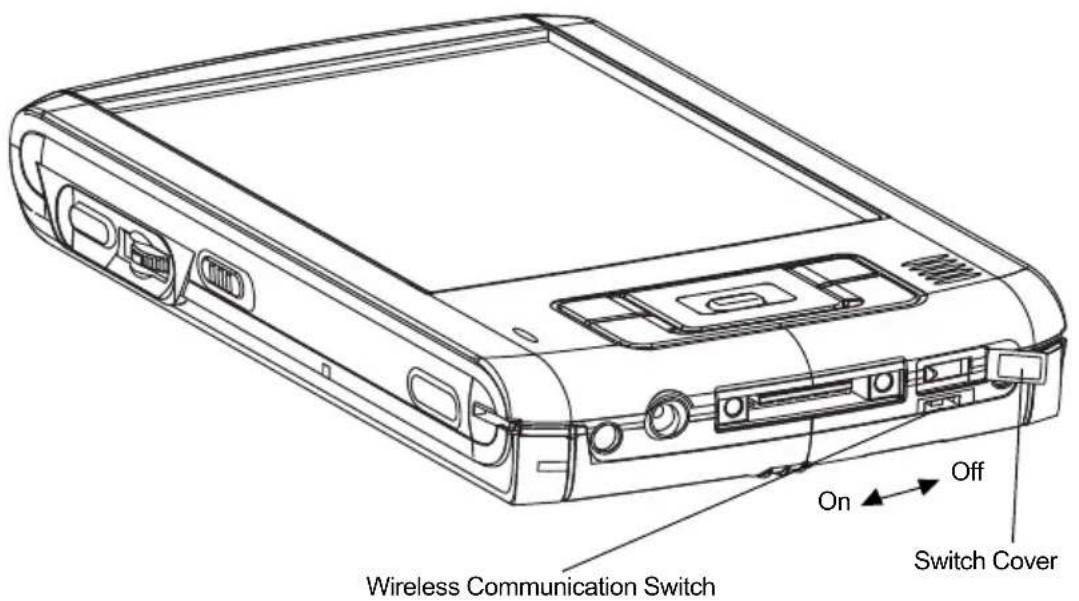
Wireless LED descriptions
LED Status
Off Wireless communication switch is turned off
Orange Wireless LAN module is enabled
Blue Bluetooth module is enabled
Flashing Orange/Blue Wireless LAN and Bluetooth modules are both enabled
Using the Hold switch
When the Hold switch is on, Program Buttons 1 through 5, Cursor Button, and Scroller are disabled. The Hold switch icon is displayed on the navigation bar. Conversely, when the Hold switch is off, these buttons are enabled.
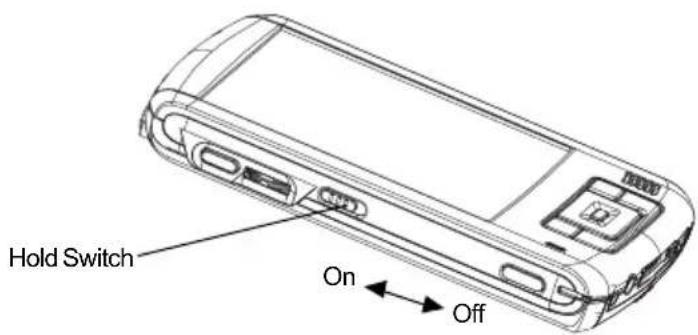
Using the Stylus
The stylus is used for menu selection or data input on the touch-screen of your Toshiba Pocket PC e830.
Tap—Touch the screen once with the stylus to open items and select options.
Drag—Hold the stylus on the screen and drag it across to select text and images. Drag in a list to select multiple items.
Tap and hold—Tap and hold the stylus on an item to see a list of actions available for that item. On the pop-up menu that appears, tap the action you want to perform.
CAUTION
When you operate the touch screen of your Toshiba Pocket PC e830, use the supplied stylus.
If the tip of the stylus is damaged, do not use it. If you operate the touch screen with a damaged stylus or a ball-point pen, the touch screen may be damaged.
When the stylus is damaged, please purchase a new one.
Using the Cursor button
There are two modes for cursor button control,
- 4-direction (upper, lower, right, or left)
- 8-direction (oblique angles are added).
You can select the either of these two modes by tapping Settings, and then Buttons. In either mode, you can move a cursor (selection display) on the screen by pressing the upper, lower, right, or left part of the cursor button. You can select a program to launch by pressing the center part of the cursor button.
NOTE
The cursor movement is different depending on the screen. When the cursor is at the right or left side of the screen, it may not move.
Using the TOSHIBA Scroller
You can move the cursor on the screen by moving the Scroller up and down, as well as launching a program by pressing the Scroller.
You can also activate the previous window by holding down the Scroller until the current window closes. To enable or disable this function, select the mode by tapping Settings, and then Buttons.
NOTE
The cursor movement is different depending on the screen. When the cursor is at the right or the left side of the screen, it may not move.
Charging the battery for the first time
When using your Toshiba Pocket PC e830 for the first time, you must assemble the cradle (see the section that follows, "Assembling the cradle" on page 35), set the battery switch to the supply side, and then charge the removable battery with the supplied AC adapter.
Assembling the cradle
Prior to charging the battery, the back plate that supports your Toshiba Pocket PC e830 during the charging process, needs to be inserted into the base of the cradle. To do this, insert the transparent plate (side A facing the cradle connection port) into the cradle base to cradle position P1 as shown below. If your Toshiba Pocket PC e830 is equipped with a High Capacity Battery Pack, insert the transparent plate into the cradle base at cradle position P2.
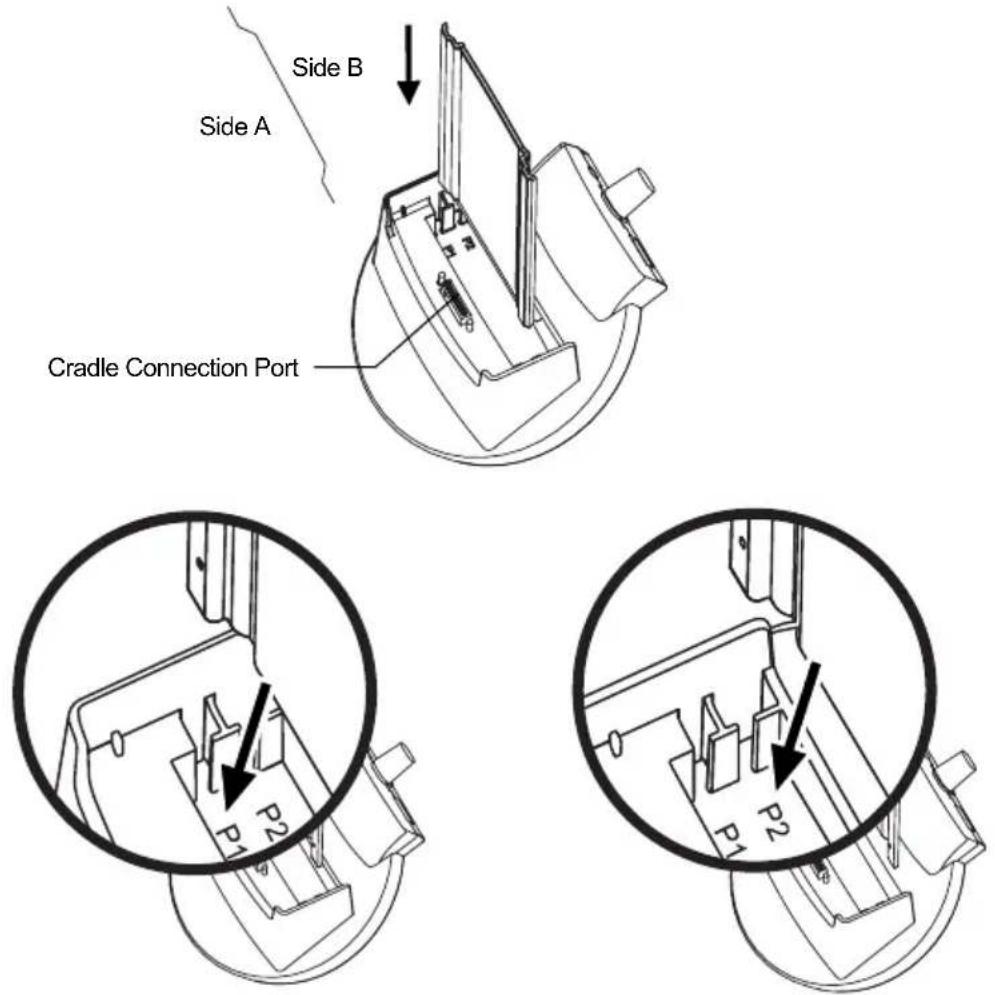
Main Battery Pack High Capacity Battery Pack
Charging the battery
You can use either of the following two charging methods:
NOTE
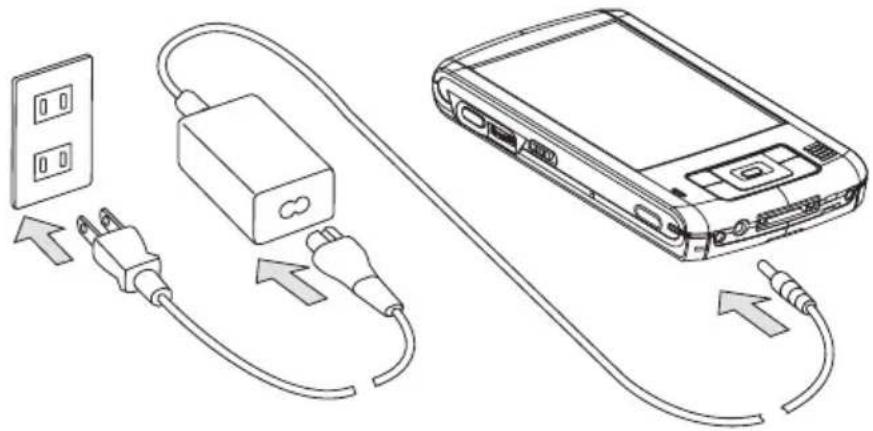
Turn the unit off before connecting the AC Adapter and your Toshiba Pocket PC e830.
Method 1: Connect the supplied AC adapter and your Toshiba Pocket PC e830 as shown in the figure below.
natural_image
Line drawing of a mobile phone connected to a power strip and cable, showing connections without any text or symbols.▲WARNING
Handling the cord on this product will expose you to lead, a chemical known to the State of California to cause birth defects or other reproductive harm. Wash hands after handling.
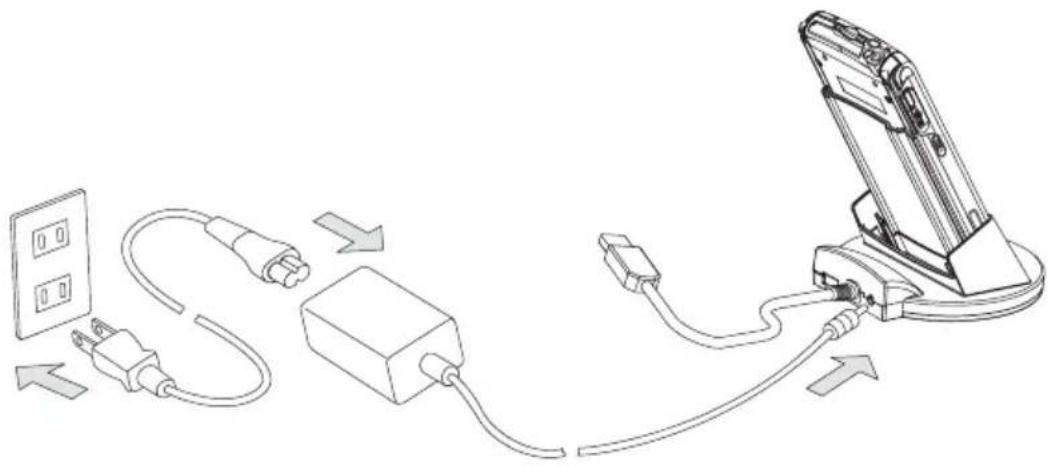
Method 2: Connect the supplied AC adapter and the cradle as shown in the figure below, and then insert your Toshiba Pocket PC e830 into the cradle.
natural_image
Diagram of a cable installation process showing connections between a power outlet, plug-in socket, and battery pack (no text or labels)NOTE
Maintain an ambient temperature from approximately 5^ C to 35^ C ( 41^ F to 95^ F) while charging the battery.
When the battery is charging, the LED alarm lamp color is orange; when the battery is completely charged, the LED alarm lamp color changes to green.
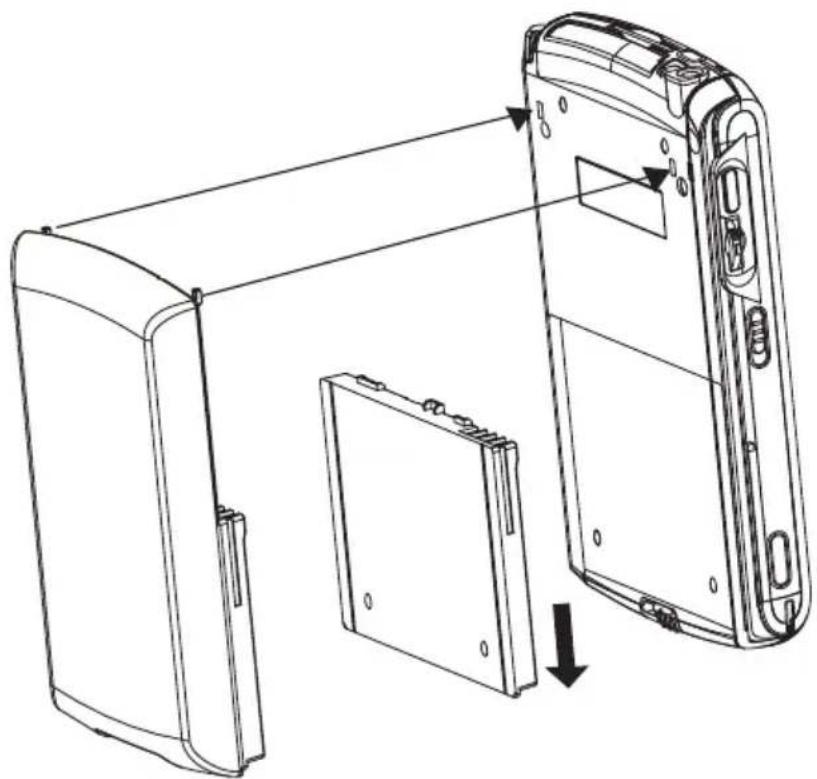
Attaching the Main Battery Pack
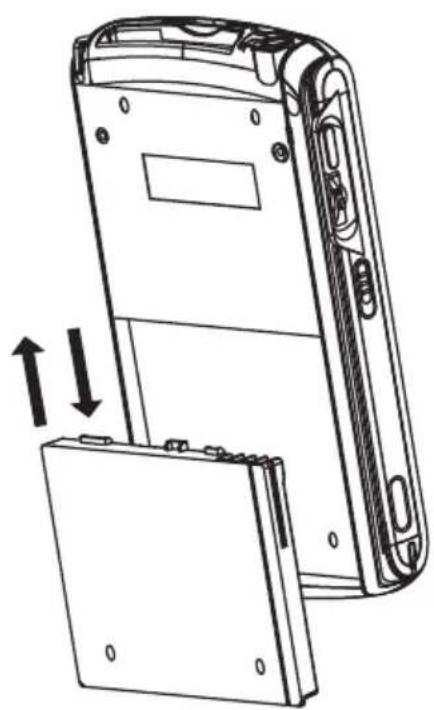
The following procedure details how to attach the Main Battery Pack. To detach the Main Battery Pack, follow the procedure in reverse order.
- Turn off the power.
- Switch the Battery Pack Lock to release the battery pack.
- Attach the Main Battery Pack to your Toshiba Pocket PC e830.
natural_image
Line drawing of a flip phone showing internal components and battery casing (no text or symbols)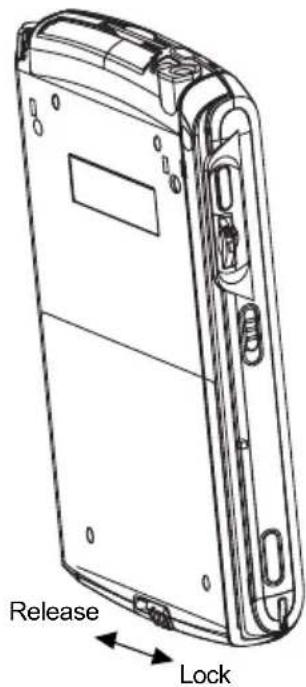
- Switch the Battery Pack Lock to lock the Main Battery Pack.
NOTE
You cannot turn on the power if the Battery Pack Lock is in the release position.
CAUTION
You can change the main battery without data loss because your Toshiba Pocket PC e830 has a rechargeable backup battery. However, the capacity of the backup battery is limited, therefore when you change the main battery, attach the new Main Battery Pack and switch the Battery Pack Lock to the lock side as soon as possible.
Attaching the optional High Capacity Battery Pack
The following procedure details how to attach the optional High Capacity Battery Pack. To detach the optional High Capacity Battery Pack, follow the procedure in reverse order.
- Turn off the power.
-
Detach the Main Battery Pack.
-
Attach the High Capacity Battery Pack to your Toshiba Pocket PC e830.
natural_image
Line drawing of a device's internal structure showing external and internal components (no text or symbols)- Switch the Battery Pack Lock to lock the High Capacity Battery Pack.
NOTE
You cannot turn on the power if the Battery Pack Lock is set to the "release" side.
CAUTION
You can replace the Main Battery Pack with the High Capacity Battery Pack without data loss because your Toshiba Pocket PC e830 has a rechargeable backup battery. However, the capacity of the backup battery is limited, therefore when you change the Main Battery Pack, attach the new High Capacity Battery Pack and switch the Battery Pack Lock to the lock side as soon as possible.
Prolonging battery life
■Use your Toshiba Pocket PC e830 with the AC adapter during the following high power consumption conditions:
■Operating while connected to your PC.
- Operating with a storage card or with any other optional equipment.
In addition,
- Select the short power-off time in the setting menu to shorten the amount the time the unit remains on if it is not used (see "Setting power management options" on page 68).
■Turn off the screen light.
■Set the screen brightness to power saving mode and shortening the light turn-off time (see "Adjusting Screen light levels" on page 66).
■Use your Toshiba Pocket PC e830 with an ambient temperature between 15°C and 25°C (59°F and 77°F). This temperature range is the most effective for the battery.
When you use your Toshiba Pocket PC e830 in high or low temperature environments, the operable time is shortened due to the decrease of the battery capacity.
■You can save power if the Wireless communication module is off.
The removable battery has a limited life. Repeated charging/discharging of the battery gradually decreases operable time. When the operable time has been diminished, it is time to replace the removable battery with a new one.
Do not leave your Toshiba Pocket PC e830 in a place of high or low temperatures. It may shorten battery life.
CAUTION
If you have not used your Toshiba Pocket PC e830 for several days, its battery charge level reading may be inaccurate. Fully recharge the battery before using.
Protecting data from low battery charge levels
If the battery charge level becomes extremely low or the battery becomes completely discharged, the memory data stored in your Toshiba Pocket PC e830 could be lost.
When the low battery status icon or alarm message appears, immediately connect the AC adapter to your Toshiba Pocket PC e830 and charge the battery.
The removable battery gradually discharges even if your Toshiba Pocket PC e830 is not being used. When your Toshiba Pocket PC e830 is left idle for a long time, the removable battery may completely discharge.
It is recommended to save your Toshiba Pocket PC e830's memory data to your PC or storage card.
■The manufacturer is not responsible for data change or clearance due to battery discharge.
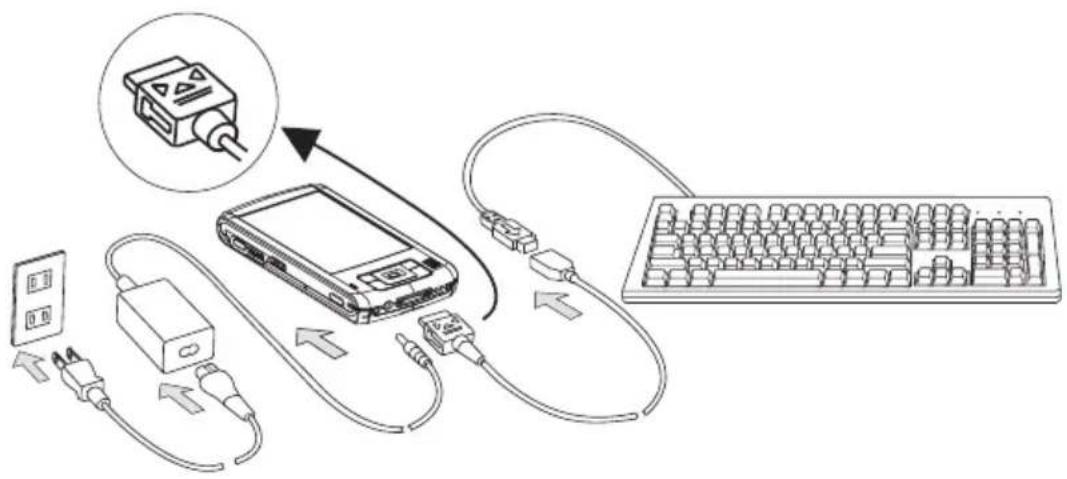
Using the optional USB Host Client Cable
The optional USB Host Client Cable allows you to connect a USB keyboard to your Toshiba Pocket PC e830.
Connecting a USB keyboard to the Pocket PC
NOTE
Use only a Microsoft Pocket PC-compatible keyboard. If the operating system does not recognize the USB keyboard, please unplug the keyboard, wait a moment and then plug the keyboard back in again. Sometimes, if the keyboard is unplugged and then plugged back in too quickly, it may not allow enough time for the operating system to recognize the keyboard.
- Plug the optional USB Host Cable to your Toshiba Pocket PC e830. Before connecting the USB Host cable with your Pocket PC, please make sure that the triangle imprint appears on the top side.
- Connect a USB keyboard to the USB Port of the optional USB Host Cable.
NOTE
Charge the battery or connect the AC adapter if the battery power is low.
You cannot use a USB keyboard if the battery power is less than 15%.
flowchart
graph TD
    A["Device"] --> B["Switch"]
    B --> C["Analog/USB"]
    C --> D["Cable"]
    D --> E["Computer"]
    style A fill:#f9f,stroke:#333
    style E fill:#ccf,stroke:#333
Initial setup and touch screen correction
When using your Toshiba Pocket PC e830 for the first time, follow the initial setup procedures below, after the battery has been charged. When you move the battery switch to the "supply" position, your Toshiba Pocket PC e830 powers on automatically and the Welcome screen appears. Tap the screen to start the following setup.
- Complete the touch screen correction.
When the align screen appears, tap the center of the cross target with the stylus. The next target position changes upon tapping the target. Five taps completes the positioning correction. The screen then changes to the Stylus screen.
If an object touches the screen during correction, the correction is cancelled. Repeat the correction procedure.
- Follow the onscreen instructions describing how to use the stylus, then tap NEXT.
NOTE
For more information on stylus operation, See "Using the Stylus" on page 33.
- Follow the pop-up menu instructions.
Read the on-screen explanation and then follow the instructions. Display the pop-up menu, then cut and paste the data according to the screen instructions.
■ After you finish the paste operation, tap NEXT.
- Set the TIME ZONE.
When tapping the right mark, the city and the time zone lists appear. Tap the desired city and time zone.
- When the setup is completed, tap NEXT.
- Complete the initial setup.
■When the Complete screen appears, the initial setup is completed.
■After tapping the screen, you can use your Toshiba Pocket PC e830.
NOTE
When you tap the Complete screen, the Today screen appears. For more information on the Today screen, see "Today Screen" on page 48.
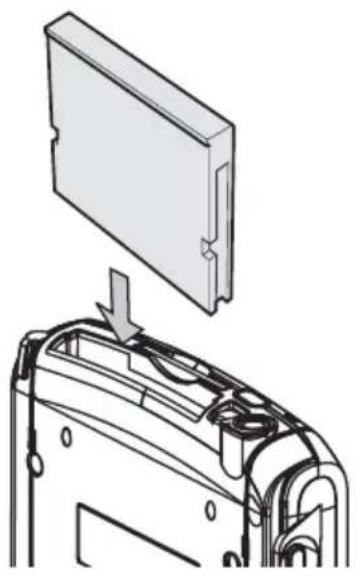
Inserting a CF Type II card
You can use a CompactFlash Type II card (CF Type II) to store data created on your Toshiba Pocket PC e830.
- Turn off the power.
- Remove the dummy card.
- Insert the CF Type II card.
natural_image
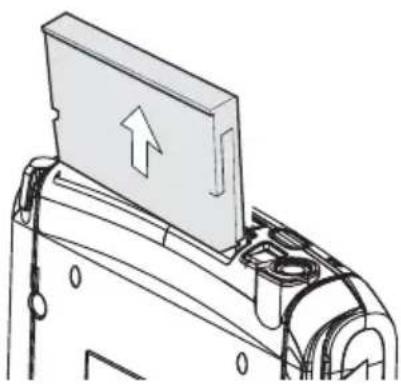
Technical illustration of a device rear panel with a plastic cover and internal components, showing no text or symbols.Removing a CF Type II card
-
Turn off the power.
-
Lightly press down the release button with the stylus. The button pops out. Press down on the release button again. The card withdraws slightly from the slot.
-
Pull the card straight up to remove.
natural_image
Technical line drawing of a mechanical device with an upward arrow indicator (no text or symbols present)NOTE
Use the stylus to release the CF Type II card.
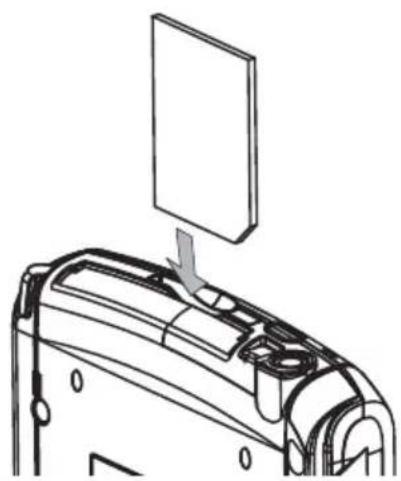
Inserting an SD Card
You can use a Secure Digital Card (SD) to store data created on your Toshiba Pocket PC e830.
-
Turn off the power.
-
Remove the dummy card.
-
Insert the card with its contact surface (metal contact surface) facing the back of your Toshiba Pocket PC e830.
-
Press down on the card until it clicks into place.
natural_image
Technical line drawing of a mechanical component with a paper clip above it (no text or symbols)Removing an SD Card
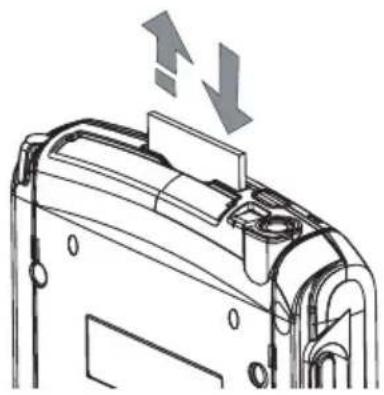
- Turn off the power.
- Lightly press down the card until a clicking sound is heard. The card pops out slightly from the slot.
- Pull the card straight up to remove.
natural_image
Technical line drawing of a mechanical device with no visible text or symbolsConnecting to a PC
Before connecting your Toshiba Pocket PC e830 to a PC, check the following.
■ActiveSync has been installed on your PC (for more information, see Chapter 3: Microsoft ActiveSync.)
■USB ports; the position of connecting USB port on your PC may differ according to the PC type.
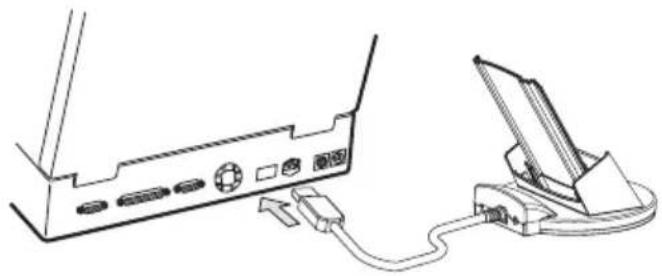
Connecting using the supplied Cradle
- Connect the USB Cradle to your PC as shown below.
natural_image
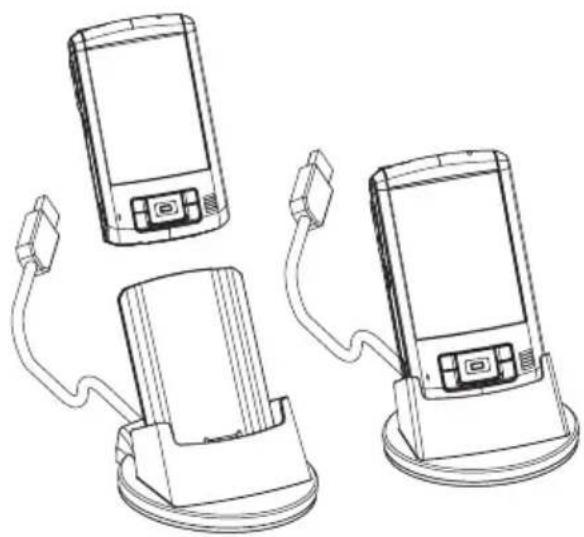
Line drawing of a device with ports and cables, showing a separate cable attachment (no text or symbols)- Insert your Toshiba Pocket PC e830 into the cradle.
natural_image
Line drawing of three mobile phones with attached cables, no text or symbols presentConnecting directly using a connection cable
You can use two methods to connect your Toshiba Pocket PC e830 directly to your PC (an optional Serial Client cable or an optional USB Client cable).
Using an optional Serial Client cable
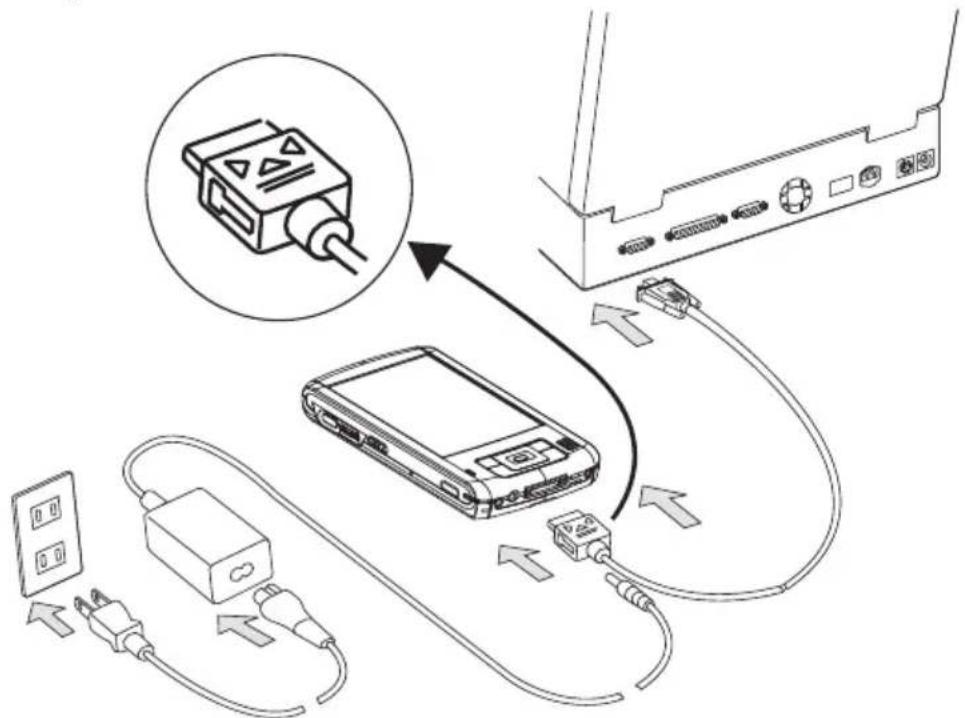
Before connecting the Serial Client cable with your Toshiba Pocket PC e830, please make sure that the triangle imprint appears on the top side.
Using an optional USB Client cable
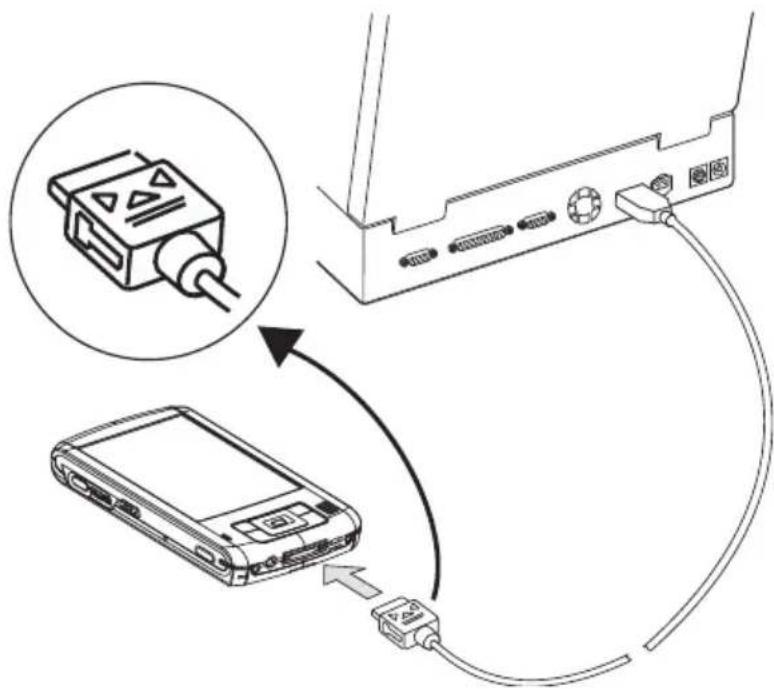
Before connecting the USB Client cable with your Toshiba Pocket PC e830, please make sure that the triangle imprint appears on the top side.
Today Screen
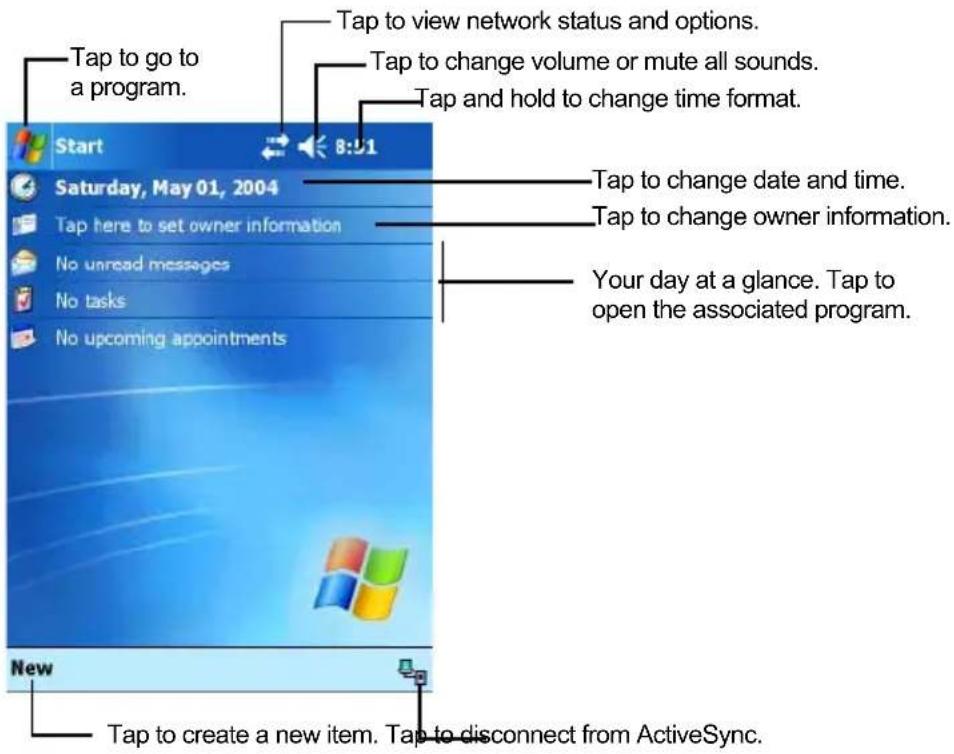
When you turn on your Toshiba Pocket PC e830 for the first time each day (or after 4 hours of inactivity), the Today screen displays. You can also display it by tapping 📁 and then Today. On the Today screen, you can see at a glance important information for the day.
The following are some of the status icons you may see.
| Status Icon Meaning | ||
 | Turns all sounds on and off | |
 | Main battery is charging | |
 | Main battery is low | |
 | Main battery is very low | |
 | Main battery is full | |
 | Connection is active | |
 | Connection is inactive | |
 | Synchronization is occurring | |
 | Notification that one or more instant messages were received | |
 | Notification that one or more email messages were received | |
 |   | Traffic Monitoring Utility (Toshiba Pocket PC e830W only) |
NOTE
If more notification icons need to be displayed than there is room to display them, the Notification icon, ≈displays. Tap the icon to view all notification icons.
Using Programs
You can switch from one program to another by selecting it from the menu. (You can customize which programs you see on this menu. For information, see "Customizing settings" later in this chapter.) To access some programs, tap Programs, and then the program name.
You can also switch to certain programs by pressing the program button assigned to those programs. Your Toshiba Pocket PC e830 has program buttons located on the front and left side of the device. The icons on the buttons identify the programs they activate.
NOTE
Some programs have abbreviated labels for check boxes and drop-down menus. To see the full spelling of an abbreviated label, tap and hold the stylus on the label. Drag the stylus off the label so that the command is not carried out.
The following contains a partial list of programs that are included on your Toshiba Pocket PC e830 (Look on your Toshiba Pocket PC Companion CD for additional programs).
| Icon Program Description | ||
| [6BAH] | ActiveSync | Synchronize information between your Toshiba Pocket PC e830 and PC. |
 | Calendar | Keep track of your appointments and create meeting requests. |
 | Contacts Keep track of your friends and colleagues. | |
 | Messaging Send and receive email messages. | |
| [T324] | Pocket Internet Explorer | Browse Web and WAP sites, and download new programs and files from the Internet. |
 | Notes | Create handwritten or typed notes, drawings, and recordings. |
| [TZXK] | Tasks Keep track of your tasks. | |
 | Pocket Excel | Create new workbooks or view and edit Excel workbooks created on your PC. |
| [07BD] | MSN Messenger | Send and receive instant messages with your MSN Messenger contacts. |
| [2BXY] | Pocket Word | Create new documents or view and edit Word documents created on your PC. |
Navigation and command bars
The navigation bar is located at the top of the screen. It displays the active program and current time, and allows you to switch to programs and close screens.
Use the command bar at the bottom of the screen to perform tasks in programs. The command bar includes menu names, buttons, and the Input Panel button. To create a new item in the current program, tap New. To see the name of a button, tap and hold the stylus on the button. Drag the stylus off the button so that the command is not carried out.
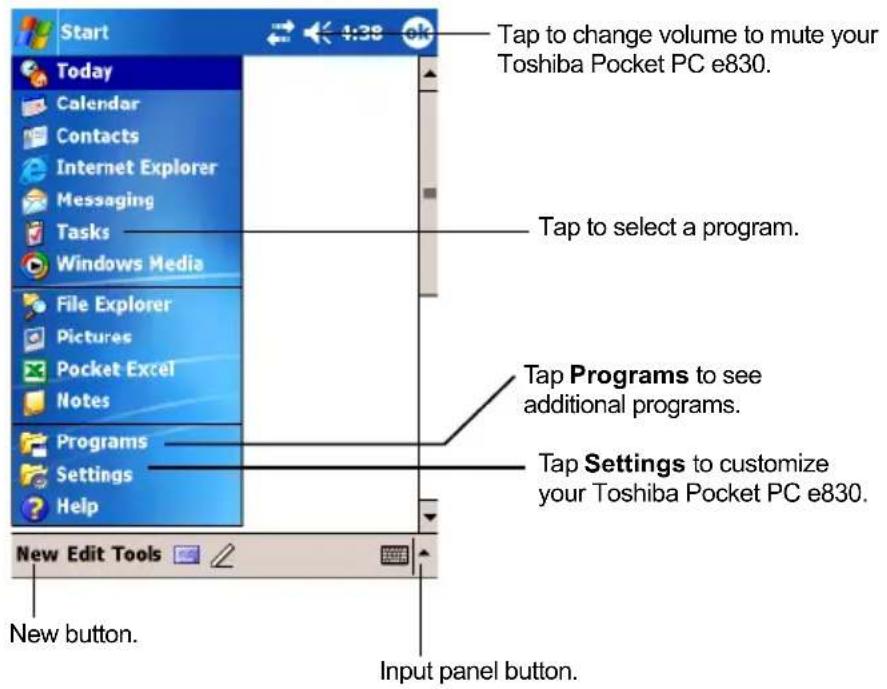
Pop-up menus
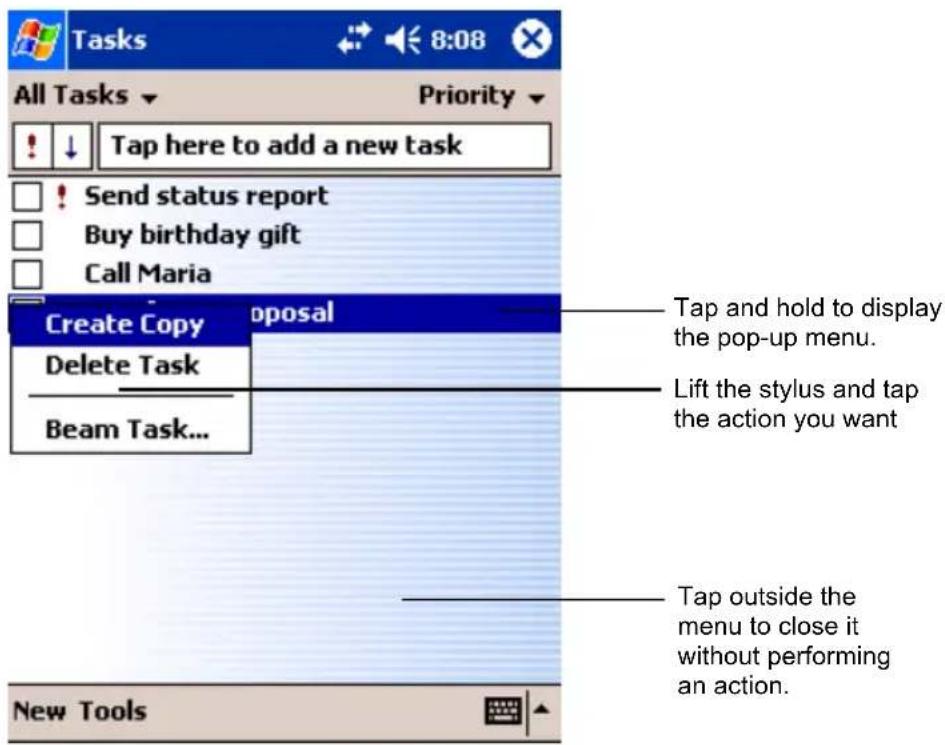
With pop-up menus, you can quickly choose an action for an item. For example, you can use the pop-up menu in the contact list to quickly delete a contact, make a copy of a contact, or send an email message to a contact. The actions in the pop-up menus vary from program to program. To access a pop-up menu, tap and hold the stylus on the item name that you want to perform the action on. When the menu appears, lift the stylus, and tap the action you want to perform. Additionally, you can tap anywhere outside the menu to close the menu without performing an action.
Notifications
There are a number of ways you can set up your Toshiba Pocket PC e830 to notify or remind you of schedules appointments or tasks, such as:
A message box can appear on the screen.
A sound can play.
A light can flashes from your Toshiba Pocket PC e830.
To choose reminder types and sounds, tap 📋 and then Settings. In the Personal tab, tap Sounds & Notifications. The options you choose here apply throughout your Toshiba Pocket PC e830.
Entering Information
You have several options for entering new information:
- Use the input panel to enter typed text, through the soft keyboard or other input method.
■Write directly on the screen.
■Draw pictures on the screen.
Speak into your Toshiba Pocket PC e830 microphone to record messages.
■Use Microsoft ^ ActiveSync ^ to synchronize or copy information from your PC to your Toshiba Pocket PC e830. For more information on ActiveSync, see ActiveSync Help on your PC.
Entering text using the Input Panel
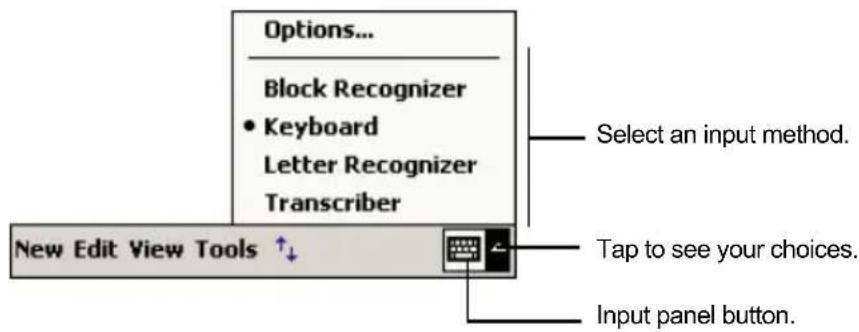
Use the Input Panel to enter information in any program on your Toshiba Pocket PC e830. You can type using the soft keyboard or write using Letter Recognizer, Block Recognizer, or Transcriber. In either case, the characters appear as typed text on the screen.
To show or hide the input panel, tap Input Panel. Tap the arrow next to the Input Panel button to see your choices.
NOTE
If the input panel blocks the text box while in Landscape mode (see "Customizing settings" on page 62), change the view to Portrait mode.
![Monthly mee When you use the input panel, your Toshiba Pocket PC e830 anticipates the word you are typing or writing, and displays it above the input panel. When you tap the displayed word, it is inserted into your text at the insertion point. The more you use your Toshiba Pocket PC e830, the more words it learns to anticipate. meeting Tap here if this is the right word. 123 1 2 3 4 5 6 7 8 9 0 - - Tab q w e r t y u i o p [ ] CAP a s d f g h j k l ; ' Shift z x c v b n m , . / CtI äü ` \ New Edit Tools](/content/2026/05/818066/images/1a75d066dfbe2b7f7fe6f873615e04e7b5ef77d48fe93a056949b701029f9496.jpg)
NOTE
To change word suggestion options, such as the number of words suggested at one time, tap 📋, Settings, Personal tab, Input, and then the Word Completion tab.
Typing with the soft keyboard
- Tap the arrow and then Keyboard.
- On the soft keyboard that is displayed, tap the keys with the stylus.
NOTE
To use larger keys, tap the arrow, Options, select Keyboard in Input method, and then select Large Keys.
Using Letter Recognizer
With Letter Recognizer you can write letters using the stylus just as you would on paper.
- Tap the arrow and then Letter Recognizer.
- Write a letter in the box.
When you write a letter, it is converted to typed text that appears on the screen. For specific instructions on using Letter Recognizer, with Letter Recognizer open, tap ? next to the writing area.
Using Block Recognizer
With Block Recognizer you can input character strokes using the stylus that are similar to those used on other devices.
- Tap the arrow and then Block Recognizer.
- Write a letter in the box.
When you write a letter, it is converted to typed text that appears on the screen. For specific instructions on using Block Recognizer, with Block Recognizer open, tap ? next to the writing area.
Using Transcriber
With Transcriber you can write anywhere on the screen using the stylus just as you would on paper. Unlike Letter Recognizer and Block Recognizer, you can write a sentence or more of information. After you finish writing, pause and let Transcriber change the written characters to typed characters.
- Tap the arrow and then Transcriber.
- Write anywhere on the screen.
For specific instructions on using Transcriber, with Transcriber open, tap the ? in the lower, right-hand corner of the screen.
Selecting typed text
If you want to edit or format typed text, you must select it first; drag the stylus across the text you want to select.
You can cut, copy, and paste text by tapping and holding the selected words and then tapping an editing command on the pop-up menu, or by tapping the command on the Edit menu.
Writing on the screen
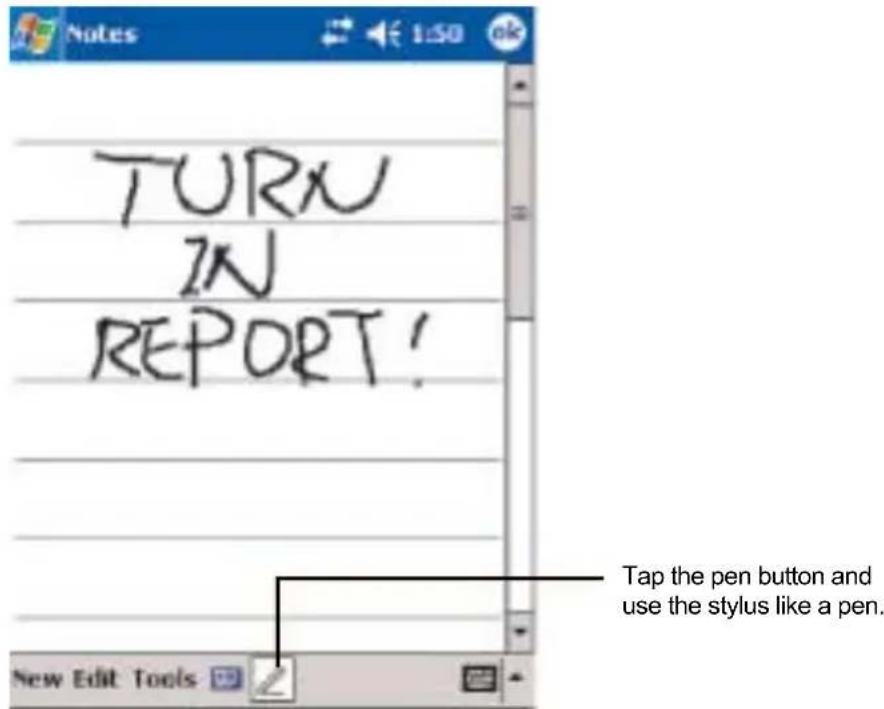
In programs that support writing (such as the Notes program as well as the Notes tab in Calendar, Contacts, and Tasks), you can use the stylus to write directly on the screen. Write the way you do on paper; you can edit and format what you have written and convert the information to text at a later time.
Tap the Pen to switch to writing mode. While in writing mode, lines display on the screen. These lines serve as a guide to help your Toshiba Pocket PC e830 recognize the word when you convert the writing to text.
NOTE
Some programs that accept writing may not have the Pen button. See the documentation for that program to find out how to switch to writing mode.
Selecting writing on the screen
If you want to edit or format writing, you must select it first.
-
Tap and hold the stylus next to the text you want to select until the insertion point appears.
-
Without lifting, drag the stylus across the text you want to select.
If you accidentally write on the screen, tap Edit, then Undo and try again. You can also select text by tapping Pen to deselect it and then dragging the stylus across the screen.
You can cut, copy, and paste written text in the same way you work with typed text: tap and hold the selected words and then tap an editing command on the pop-up menu, or tap the command on the Edit menu.
Converting writing to text
Tap Tools and then Recognize.
If you want to convert only certain words, select them before tapping Recognize on the Tools menu (or tap and hold the selected words and then tap Recognize on the pop-up menu). If a word is not recognized by the program, it remains as a handwritten word.
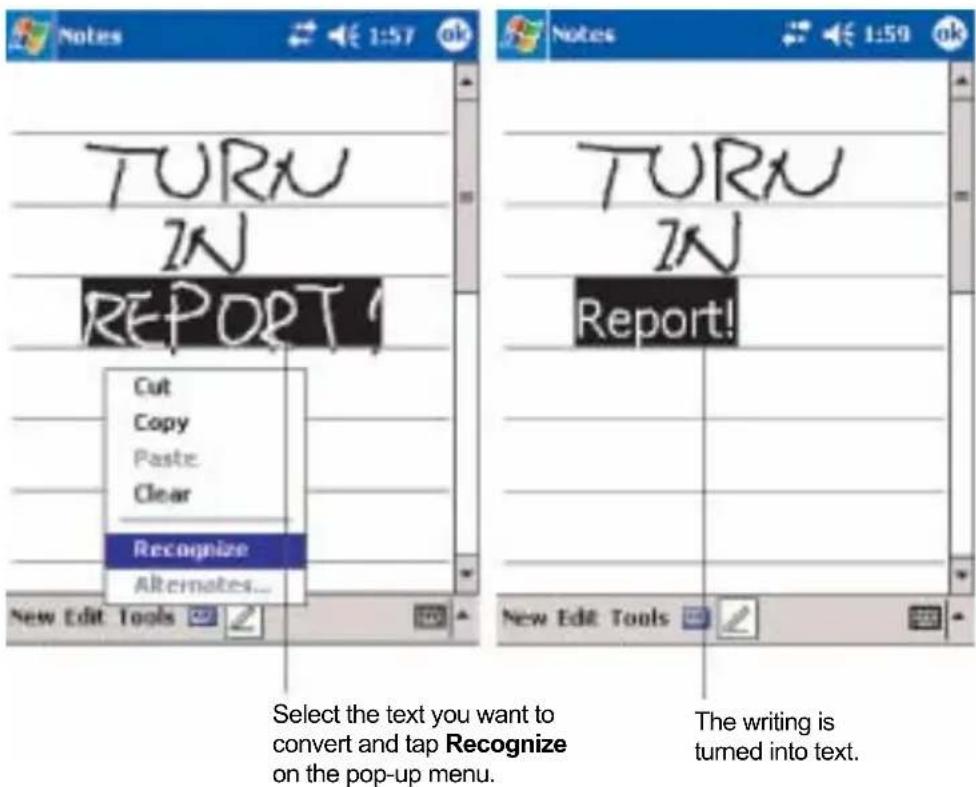
If the conversion is incorrect, you can select different words from a list of alternates or return to the original writing. To do so, tap and hold the incorrect word (tap one word at a time). On the pop-up menu, tap Alternates. A menu with a list of alternate words appears. Tap the word you want to use or the writing at the top of the menu to return to the original writing.
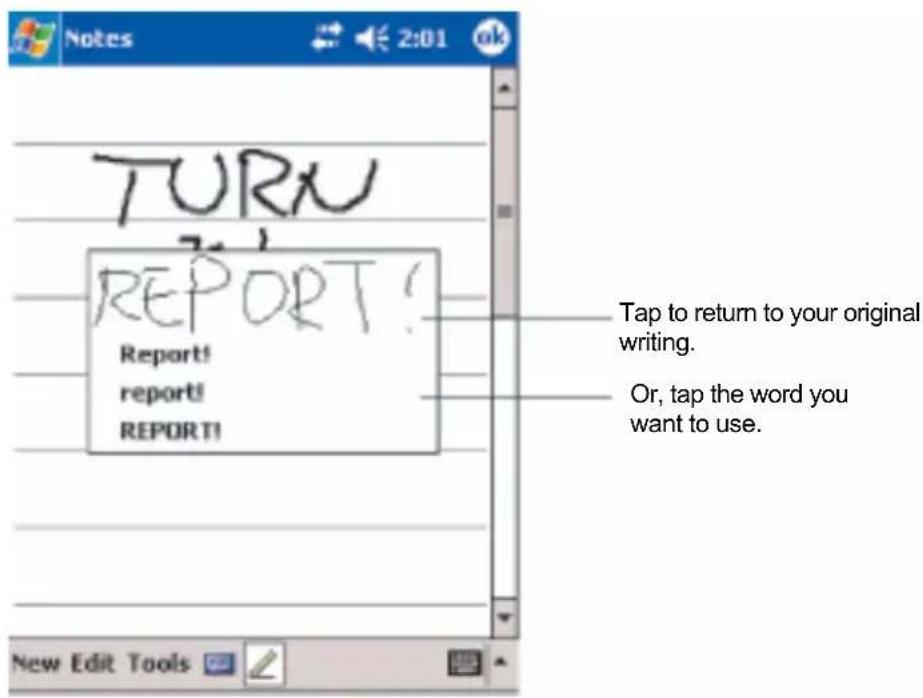
Tips for getting good recognition:
- Write neatly.
- Write on the lines and draw descendants below the line. Write the cross of the "t" and apostrophes below the top line so that they are not confused with the word above. Write periods and commas above the line.
- For better recognition, try increasing the zoom level to 300% using the Tools menu.
- Write the letters of a word closely and leave big gaps between words so that your Toshiba Pocket PC e830 can easily tell where words begin and end.
• Hyphenated words, foreign words that use special characters such as accents, and some punctuation cannot be converted. - If you add writing to a word to change it (such as changing a "3" to an "8"), after you attempt to recognize the word, the writing you add is not included if you attempt to recognize the writing again.
Drawing on the screen
You can draw on the screen in the same way that you write on the screen. The difference between writing and drawing on the screen is how you select items and how they can be edited. For example, selected drawings can be resized, while writing cannot.
Creating a drawing
Cross three ruled lines on your first stroke.
A drawing box appears. Subsequent strokes in or touching the drawing box become part of the drawing. Drawings that do not cross three ruled lines are treated as writing.
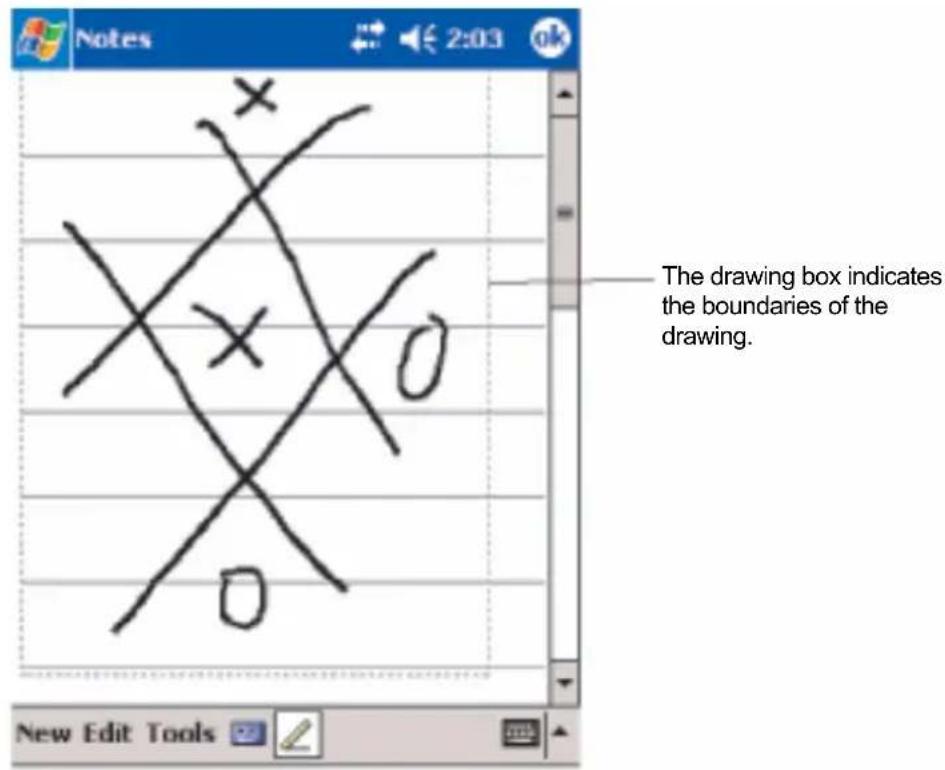
NOTE
You may want to change the zoom level so that you can more easily work on or view your drawing. Tap Tools and then a zoom level.
Selecting a drawing
To edit or format a drawing, you must first select it by tapping and holding the stylus on the drawing until the selection handle appears. To select multiple drawings, deselect the Pen button and then drag to select the drawings you want.
You can cut, copy, and paste selected drawings by tapping and holding the selected drawing and then tapping an editing command on the pop-up menu, or by tapping the command on the Edit menu. To resize a drawing, make sure the Pen button is not selected, then drag a selection handle.
Recording a message
In any program where you can write or draw on the screen, you can also quickly capture thoughts, reminders, and phone numbers by recording a message. In Calendar, Tasks, and Contacts, you can include a recording in the Notes tab. In the Notes program, you can either create a stand-alone recording or add a recording to an existing note. If you want to add a recording in a note, open the note first. In the Messaging program, you can add a recording to an email message.
Creating a recording
- If you do not see the Record/Playback toolbar, tap .
-
Hold your Toshiba Pocket PC e830's microphone near your mouth or other source of sound.
-
Tap and make your recording.
-
Tap when finished. If you are recording in an open note, an icon appears in the note. If you are creating a stand-alone recording, it appears in the note list.
NOTE
You can quickly create a recording by holding down the Record hardware button. When you hear the beep, begin your recording. Release the button when you are finished. The new recording is stored in the open note or as a stand-alone recording if no note is open.
To play a recording, tap the recording icon in the open note or tap the recording in the note list.
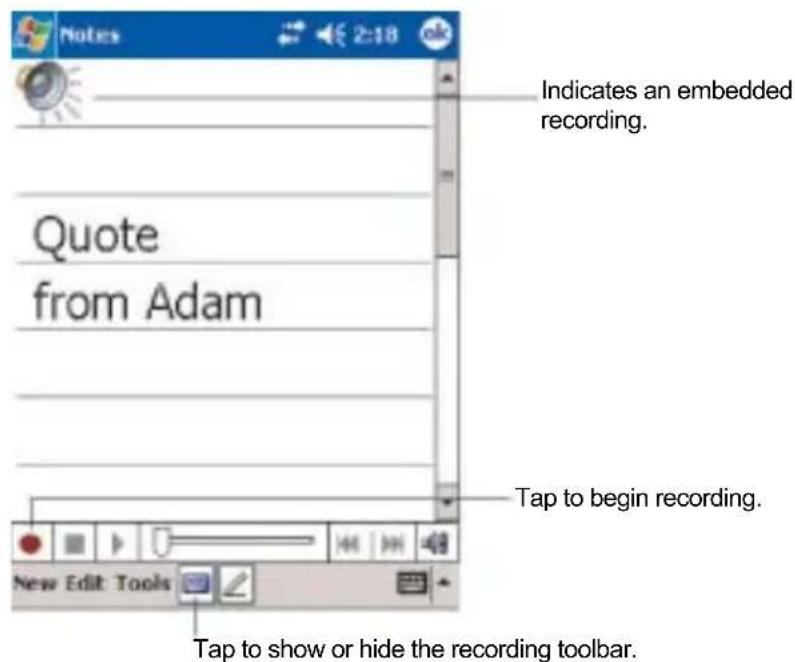
NOTE
This Pocket PC does not support the “Stay in the current program” option of Notes that allows recording in the background. To make a recording, you must close the current program and then launch the Notes application. If you change the program, Notes will stop recording.
Using My Text
When using Messaging or MSN Messenger, use My Text to quickly insert preset or frequently used messages into the text entry area. To insert a message, tap My Text and tap a message. Select the message you wish to edit and make the desired change.
NOTE
You can add text after inserting a My Text message before sending the message.
To edit a My Text message, tap Tools and then Edit My Text ....
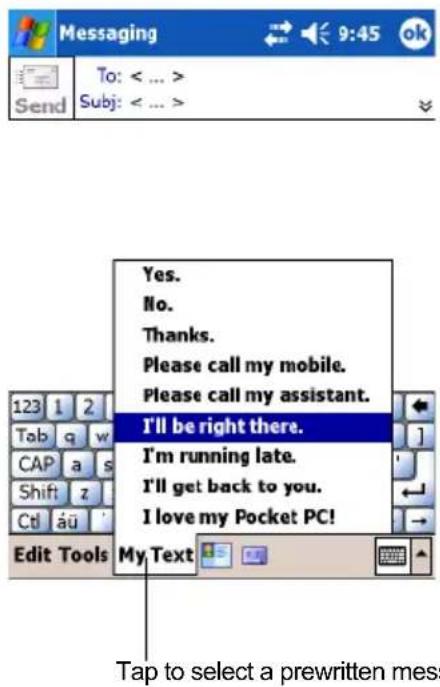
Finding and organizing information
The Find feature on your Toshiba Pocket PC e830 helps you quickly locate information.
- On the menu, tap Programs, then Find.
- Enter the text you want to find, select a data type, and then tap Go to start the search.
You can also use the File Explorer to find files on your Toshiba Pocket PC e830 and to organize these files into folders.
- On the menu, tap Programs, and then select File Explorer.
- Tap My Device, and then tap on any folder to open it.
- To change folders, tap My Device, point to your folder, and then tap to open. Tapping Name allows you to sort the folders by ascending or descending order.
- To create a new folder, tap and hold on the screen, and then select New Folder from the pop-up window.
NOTE
To quickly find information that is taking up storage space on your Toshiba Pocket PC e830, select Larger than 64 KB in Type.
Customizing settings
You can customize your Toshiba Pocket PC e830 by adjusting settings and installing additional software.
Adjust settings to suit the way you work. To see available options, tap Settings, then the Personal or System tab located at the bottom of the screen.
You might want to adjust the following:
• Clock & Alarms, to change the time or to set alarms
- Menus, to customize what appears on the menu, and to enable a pop-up menu from New
- Owner Information, to enter your contact information
- Password, to limit access to your Toshiba Pocket PC e830
• Power, to maximize battery life
- Today, to customize the look and the information that is displayed on the Today screen
- Screen, to change the display mode to Landscape or to align the screen
Adding or removing programs in ROM and RAM
Programs added to your Toshiba Pocket PC e830 at the factory are stored in read-only memory (ROM). You cannot remove this software, and ROM contents are never lost. ROM programs can be updated using special
installation programs with a *.xip extension. All other programs and data files added to your Toshiba Pocket PC e830 after factory installation are stored in random access memory (RAM).
Adding programs using ActiveSync
Install the appropriate software for your Toshiba Pocket PC e830 on your PC before installing it on your Toshiba Pocket PC e830.
- Determine your Toshiba Pocket PC e830 processor type so that you know which version of the software to install.
Tap 📄 and then Settings. On the System tab, tap About. In the Version tab, make a note of the information in Processor.
- Download the program to your PC (or insert the CD or disk that contains the program into your PC). You may see a single *.zip, *.exe, or *.zip file, a Setup.exe file, or several versions of files for different device types and processors. Be sure to select the program designed for your Toshiba Pocket PC e830 and its processor type.
- Read any installation instructions, Read Me files, or documentation that comes with the program.
Many programs provide special installation instructions.
- Connect your Toshiba Pocket PC e830 to your PC.
-
Double-click the *.exe file.
-
If the file is an installer, the installation wizard begins. Follow the directions on the screen.
Once the software has been installed on your PC, the installer automatically transfers the software to your Toshiba Pocket PC e830. - If the file is not an installer, an error message displays stating that the program is valid but it is designed for a different type of PC. Transfer this file to your Toshiba Pocket PC e830. If you cannot find any installation instructions for the program in the Read Me file or documentation, use ActiveSync Explore to copy the program file to the Program Files folder on your Toshiba Pocket PC e830. For more information on copying files using ActiveSync, see ActiveSync Help.
-
If the application is not for Windows Mobile 2003 Second Edition, a message displays stating that the program is designed for a previous version. In this case, the program you have installed may not properly display on the LCD.
-
Once installation is complete, tap Programs, and then the program icon to switch to it.
Adding programs directly from the Internet
- Determine your Toshiba Pocket PC e830 processor type so that you know which version of the software to install.
Tap 📄 and then Settings. On the System tab, tap About. In the Version tab, make a note of the information in Processor.
- Download the program to your Toshiba Pocket PC e830 straight from the Internet using Pocket Internet Explorer. You may see a single *.zip, *.exe or *.zip file, a Setup.exe file, or several versions of files for different device types and processors. Be sure to select the program designed for your Toshiba Pocket PC e830 processor type.
- Read any installation instructions, Read Me files, or documentation that comes with the program. Many programs provide special installation instructions.
- Tap the file, such as a *.xip or *.exe file. The installation wizard begins. Follow the directions on the screen.
If the application you have installed is not for Windows Mobile 2003 Second Edition, the program may not properly display on the LCD.
Adding programs to the Start menu
Tap 📄, Settings, Menus, the Start Menu tab, and then the check box for the program. If you do not see the program listed, you can either use File Explorer on your Toshiba Pocket PC e830 to move the program to the Start Menu folder, or use ActiveSync on your PC to create a shortcut to the program and place the shortcut in the Start Menu folder.
- Using File Explorer on your Toshiba Pocket PC e830—Tap Programs, File Explorer, and locate the program (tap the folder list, labeled My Documents by default, and then Local Device to see a list of all folders on your Toshiba Pocket PC e830). Tap and hold the program and tap Cut on the pop-up menu. Open the Start Menu folder located in the Windows folder, tap and hold a blank area of the window, and tap Paste on the pop-up menu. The program now appears on the menu. For more information on using File Explorer, see "Finding and organizing information", earlier in this chapter.
- Using ActiveSync on your PC—Use the Explorer in ActiveSync to explore your device files and locate the program. Right-click the program, and then click Create Shortcut. Move the shortcut to the Start Menu folder in the Windows folder. The shortcut now appears on the menu. For more information, see ActiveSync Help on your PC.
Removing programs
Tap 📄 and then Settings. On the System tab, tap Remove Programs. If the program does not appear in the list of installed programs, use File Explorer on your Toshiba Pocket PC e830 to locate the program, tap and hold the program, and then tap Delete on the pop-up menu.
Setting passwords
You can password-protect your data and settings.
- Tap 📄 and then Settings. On the Personal tab, tap Password.
- Select the type of password you would like to use.
- Enter a password and tap OK.
- Tap Yes on the confirmation screen. The password is saved and the screen returns to the Personal tab screen
If you tap Yes on the confirmation screen to return to the Personal tab screen, you must enter the password each time you use your Toshiba Pocket PC e830.
If you forget the password, you must initialize your Toshiba Pocket PC e830 (for more information, see "Clearing Memory" on page 204). Please note that when initialization is executed, data or settings stored in your Toshiba Pocket PC e830 are all deleted.
Changing screen settings
You can customize the screen orientation for enhanced readability. To access, tap 📁, Settings, the System tab, then Screen.
Changing screen orientation
Choose the orientation that best suits your needs; for reading long blocks of text, the Landscape mode allows for a wider view than Portrait mode.
- On the General tab, choose the orientation either Portrait/Landscape (right-handed) or Landscape (left-handed) mode.
- Tap OK.
The screen changes to the mode you selected. You can also use program buttons to change the screen orientation. To assign a program button to rotate the screen orientation, tap 📋, Settings, Buttons, then the Program Buttons tab. Choose a button, then select Rotate Screen from the program menu.
NOTE
If the input panel blocks the text box while in Landscape mode (see "Customizing settings" on page 62), change the view to Portrait mode.
Aligning the screen
Periodically, your touch display may not respond accurately to stylus taps; when this occurs, it is usually necessary to align the screen. For more information about touch screen correction, see "Initial setup and touch screen correction" on page 42.
When aligning the touch screen, tap the target firmly and accurately.
ClearType
ClearType smooths the edges of screen fonts, allowing for easier reading of the text in programs that support ClearType. Tap the ClearType tab, then check Enable ClearType. You must reset your Toshiba Pocket PC e830 before changes take effect. For more information about resetting, see "Resetting" on page 203.
NOTE
When you enable ClearType, the color displayed on the screen is slightly altered.
Changing the Text Size
To increase readability or see more content by adjusting the size of text in programs that support it, tap the Text Size tab, and then use the slider to make text larger or smaller.
Adjusting Screen light levels
You can set the screen brightness level to allow for better screen viewing. You can also set the time that elapses until the Screen light turns off automatically after the last operation to conserve battery power.
-
Tap 📋 and then Settings. On the System tab, tap Screen light.
-
Set the Screen light on battery power.
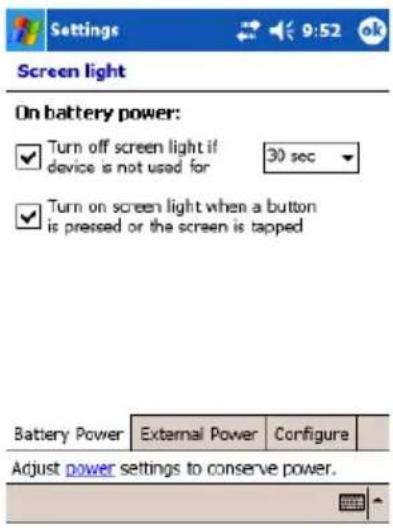
-or set the screen light on External power.
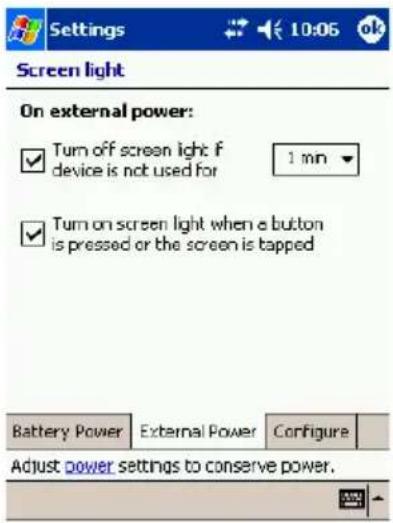
- Set the Brightness level.
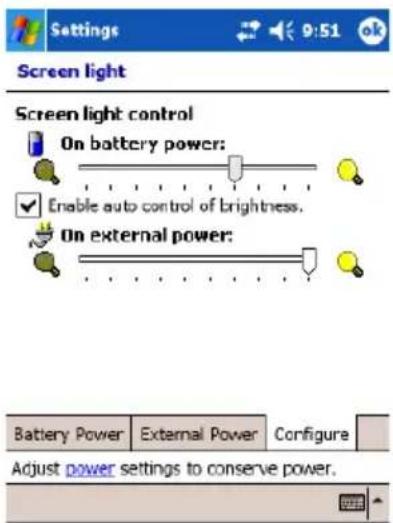
- When finished, tap OK to return to the System tab screen.
Setting power management options
You can select a number of power management options to conserve battery power.
- Tap and then Settings. On the System tab, tap Power to confirm the remaining battery power on the Battery tab.
- Select the Control tab to set the Power.
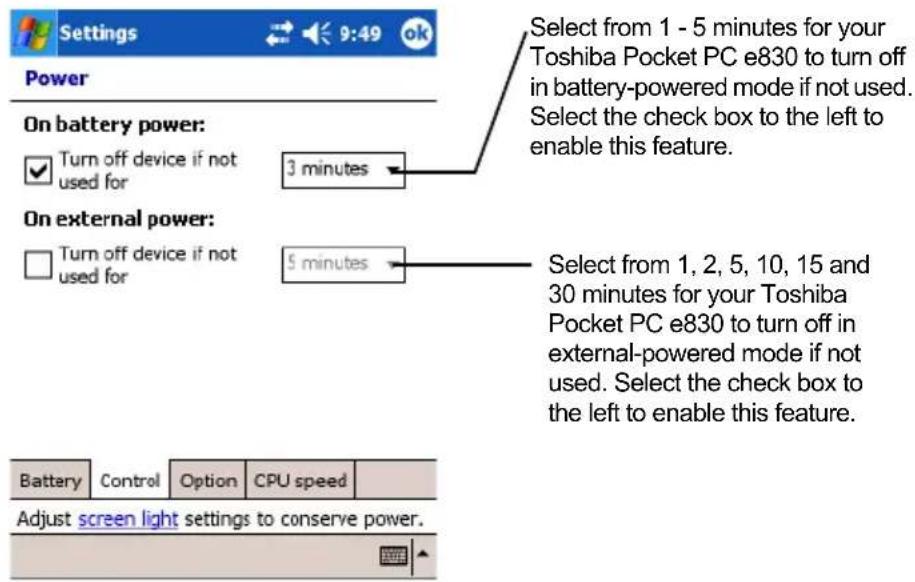
- Select the Option tab and adjust the slider for a low battery alarm. You can also select to supply power to CF cards when your Toshiba Pocket PC e830 is suspended.
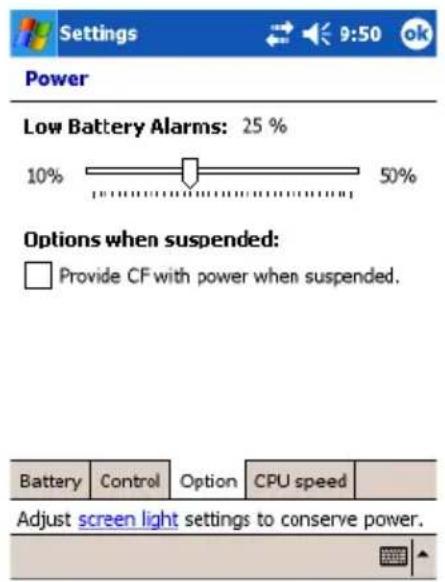
- To set the CPU performance, select the CPU speed tab. Selecting a higher processor speed consumes more battery power; conversely, selecting a lower processor speed conserves battery power. "Auto" controls CPU speed automatically, depending upon the device status.
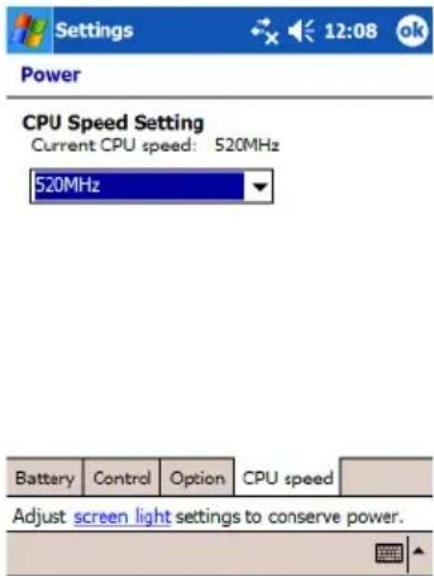
- Tap OK to change the setting.
Setting memory
Memory for your Toshiba Pocket PC e830 is managed automatically, but you can adjust the memory usage on your Toshiba Pocket PC e830 as well as check the amount of free memory space left on your storage card. If you select more data storing memory, there will be less program running memory available; conversely, if you select more program running memory, there will be less data storing memory available.
Changing memory allocation
-
Tap 📋 and then Settings. On the System tab, tap Memory to display the Memory setting screen.
-
Drag the knob left to right to adjust the memory allocation between Storage and Program.
-
When finished, tap OK to return to the System tab screen.
Confirming storage card usage
- Tap Storage card tab on the Memory setting screen.
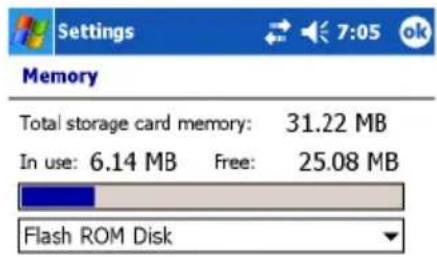
- When finished, tap OK to return to the System tab screen.
Releasing memory
If you run short on memory (you may receive an memory error message display), the following methods are available to release the memory:
- Transfer data to a storage card or PC for retrieval at a later time, then delete the data from your Toshiba Pocket PC e830.
- Delete unnecessary files.
- Quit a program in execution, and/or delete a program not in use.
For more information on configuring memory, refer to your Toshiba Pocket PC e830 online help.
Accessing the Flash ROM Disk
The Flash ROM Disk contains the built-in storage for the Pocket PC. Data, files, or programs can be stored on the Flash ROM Disk from the following sources: File Explorer, Pocket Word, Pocket Excel, Pocket Outlook Notes, and DataBackup.
Data can be accessed on the Flash ROM Disk by using File Explorer.
- On the Start menu, tap Programs, and then File Explorer.
- Open the My Device folder, and then tap Flash ROM Disk.
To confirm the memory available on the Flash ROM Disk, do the following:
- On the Start menu, tap Settings, System tab, and then Memory.
- Tap the Storage Card tab, and then select Flash ROM Disk.
To store data from Pocket Word, Pocket Excel, or Pocket Outlook Notes, open the application and do the following:
- Select a location for storage by tapping Tools, Options, and then select either CF Card, SD Card, or Flash ROM Disk.
- Tap OK.
CAUTION
When accessing the data on the Flash ROM Disk, DO NOT turn off the power, reset, or initialize your Toshiba Pocket PC e830.
NOTE
To store attachments in Messaging of Pocket Outlook, open the application and then Tools, Options, Storage tab. Select Store attachments on storage card. This stores the attachments on the Flash ROM Disk.
Data stored on the Flash ROM Disk are not backed up. See "Making a backup" on page 177 for information on backing up data on the Flash ROM Disk. Periodic backups of data stored on the Flash ROM Disk is recommended.
Adjusting speaker and headphone volumes
This program allows you to adjust the volume of the built-in speaker and headphone speaker on your Toshiba Pocket PC e830. To adjust the system volume, tap Start, Settings, Personal tab, Sounds and Notifications.
- Tap Start and then Settings. On the System tab, tap Advanced Sounds.
-
Select the Built-in tab and adjust the Volume of the built-in speaker.
-
If using headphones, select the Headphone tab and make adjustments.
Setting microphone recording levels
Your Toshiba Pocket PC e830 has three settings that adjust the built-in microphone levels to capture the highest quality recordings:
■Interview—Use this when recording within 4 inches (10 cm).
■Conference—Use this when recording over 4 inches and less than 20 inches (50 cm).
- Custom—Use this when you want to the most control over your recording. You can select between Auto Gain Control (AGC) and manual gain settings that either increase, decrease or set a limit on the recording level.
-
Tap Start, then Settings. On the System tab, tap Microphone.
-
Select one the three settings. If you select Custom, tap Configure to adjust the recording levels. When Auto Gain Control is selected, control over Volume, Mute, and Boost are is not available.
NOTE
Microphone settings can be controlled by third-party applications.
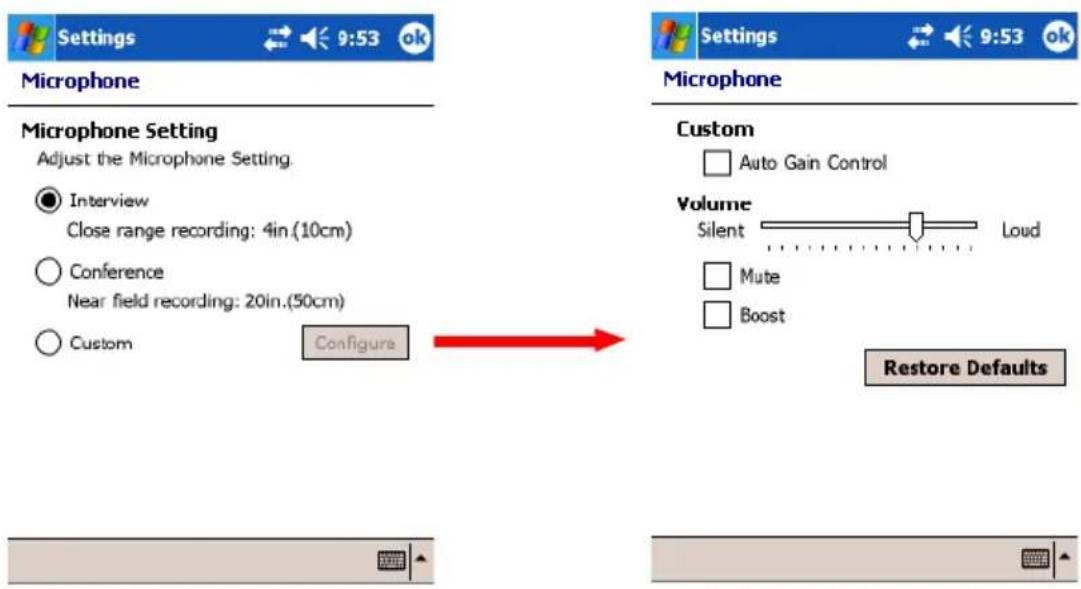
Checking System Information
The System Information program displays the system information such as CPU clock, CPU stepping, Boot Loader Version, OS Version, PIC Ver-
sion, MAC address (Toshiba Pocket PC e830W only), and UUID. The information is displayed by accessing the Identity, Memory, Drivers, System, and Wireless tabs.
To check system information, tap Start, Settings, System, and then System Information.
Identity tab
The opening menu presents identification information for product service.
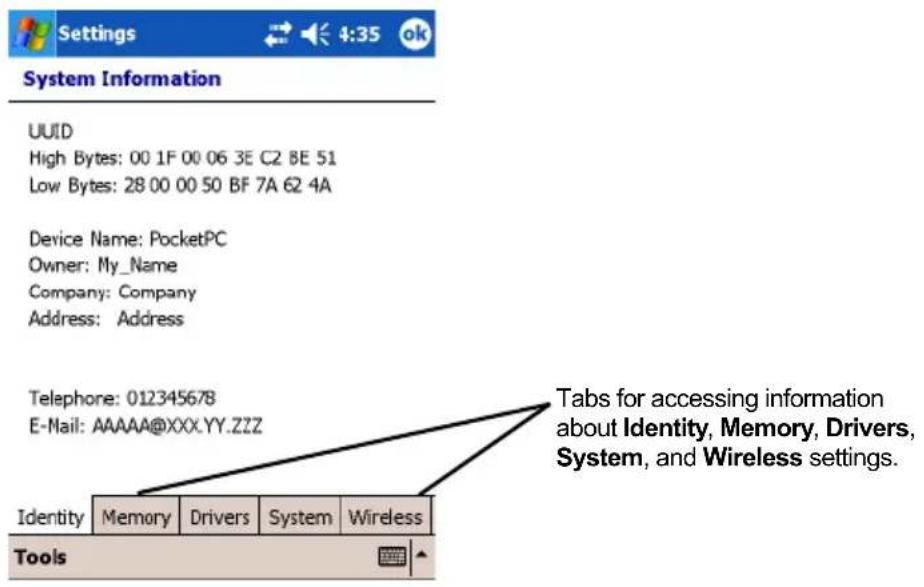
Memory tab
The Memory tab displays information about the system's RAM, ROM, and Flash ROM Disk.
Drivers tab
The Drivers tab displays the drivers used by the system's software applications.
System tab
The System tab displays CPU, operating system, and other system information.
Wireless tab
The Wireless tab displays information about the Built-in Wireless LAN adapter.
Tools menu
The Tools menu displays the system information and allows the text to be exported; Export exports all system information parameters to a text (*.txt) file, and About displays the system information version.
Setting power for Wireless Communication
NOTE
This utility is valid for the Toshiba Pocket PC e830W model only.
Before using Wireless LAN or Bluetooth communications, please make sure that both the Wireless communication switch and Wireless communication module are turned on.
Since your Toshiba Pocket PC e830W supports both Wireless LAN and Bluetooth communications, you can select either communications option.
You can check and configure the power status of the wireless communication modules.
- Tap 📋 and then Settings. On the System tab, tap Wireless Control.
Turning on the Wireless communication switch also launches this utility.
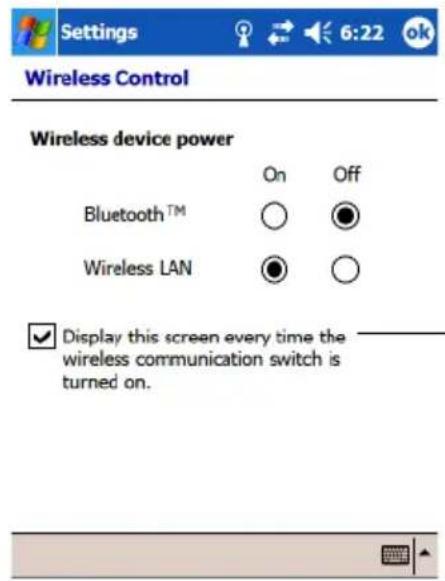
If this option is selected, Wireless Control launches every time the Wireless communication switch is turned on.
If this option is not selected, Wireless Control does not launch even if the Wireless communication switch is turned on.
- Select On next to the wireless communication option you plan to use, then tap OK.
If you select both communication modules, your Toshiba Pocket PC e830W consumes a significant amount of battery power. To save
battery power, Toshiba recommends selecting only one wireless communication option.
For more information on configuring wireless communication settings, refer to either "Configuring a Wireless LAN" on page 119 or "Configuring Bluetooth settings" on page 162.
Chapter 3:
Microsoft ActiveSync
Using ActiveSync, you can synchronize information between your Toshiba Pocket PC e830 and your PC or server. Synchronization compares the data on your Toshiba Pocket PC e830 with the data residing on your PC and updates both with the most recent information. For example:
- Keep Pocket Outlook data up-to-date by synchronizing your Toshiba Pocket PC e830 with Microsoft Outlook data on your PC.
- Synchronize Microsoft Word and Microsoft Excel files between your Toshiba Pocket PC e830 and your PC.
Your files are automatically converted to the correct format.
CAUTION
ActiveSync does not automatically synchronize all types of information. Use ActiveSync options to turn synchronization on and off for specific information types.
With ActiveSync, you can also:
- Change synchronization settings and synchronization schedule.
- Copy files between your Toshiba Pocket PC e830 and PC.
- Back up and restore your Toshiba Pocket PC e830 information.
- Add and remove programs on your Toshiba Pocket PC e830.
Before synchronizing, confirm that ActiveSync version 3.7.1 (build 4034) or later is installed on your PC. You can install ActiveSync 3.7.1 from the Toshiba Pocket PC Companion CD.
After installation is complete, the ActiveSync Setup Wizard helps you connect and synchronize information between your Toshiba Pocket PC e830 and your PC, and customize your synchronization settings. Your first synchronization process begins when you finish using the wizard.
After your first synchronization, take a look at Calendar, Contacts, and Tasks on your Toshiba Pocket PC e830. The information you stored in Microsoft Outlook on your PC has been copied to your Toshiba Pocket PC e830, and you did not have to type a word. Disconnect your Toshiba Pocket PC e830 from your PC and you are ready to go!
Once you have set up ActiveSync and completed the first synchronization process, you can initiate synchronization from your Toshiba Pocket
PC e830. To switch to ActiveSync, tap 📄, Programs, and then tap ActiveSync.
For information about using ActiveSync on your PC, start ActiveSync on your PC, then see ActiveSync Help.
For more information about ActiveSync on your Toshiba Pocket PC e830, switch to ActiveSync, tap 📄, then tap Help.
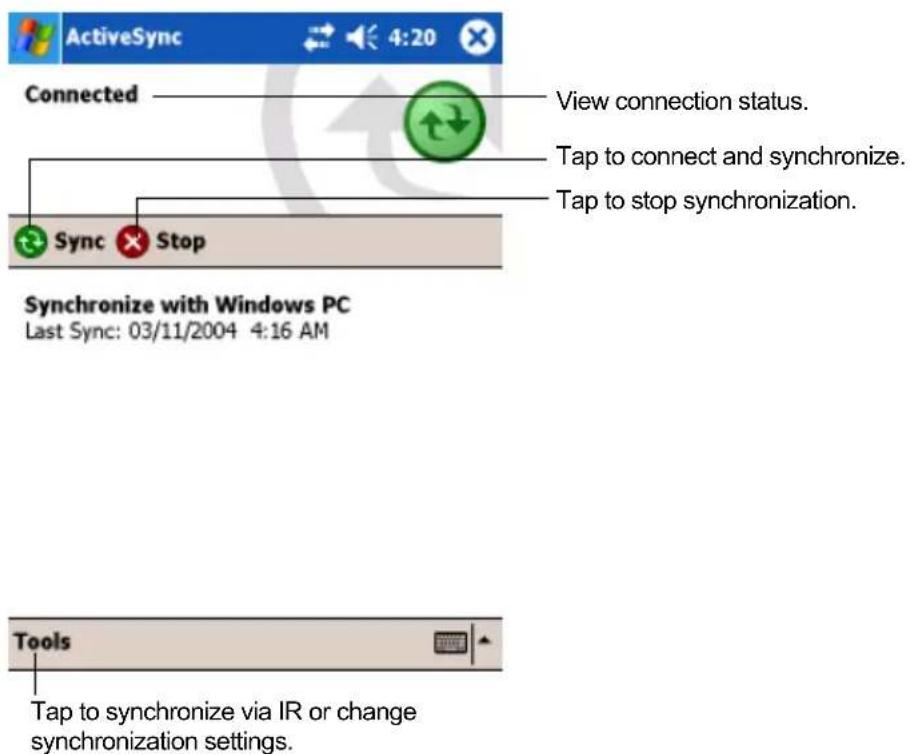
Changing the synchronization schedule
Using ActiveSync, you can schedule synchronization of your Toshiba Pocket PC e830 on two separate schedules. Use the peak times schedule to synchronize during working hours or other times you experience higher mail volumes. Use the off-peak schedule to synchronize during times when you experience lower mail volumes.
In ActiveSync on your Toshiba Pocket PC e830, tap Tools, Options, then select the Mobile Schedule tab.
- To synchronize periodically during peak times, select the frequency of synchronization in the Peak times: list.
- To synchronize periodically during off-peak times, select the frequency of synchronization in the Off-peak times: list.
- To set the days and hours for peak times, tap Peak Times.
Chapter 4:
Microsoft Pocket Outlook
Microsoft® Pocket Outlook includes Calendar, Contacts, Tasks, Messaging, and Notes. You can use these programs individually or together. For example, email addresses stored in Contacts can be used to address email messages in Messaging.
Using ActiveSync ^® you can synchronize information in Microsoft Outlook or Microsoft Exchange on your PC with your Toshiba Pocket PC e830. You can also synchronize this information directly with a Microsoft Exchange server. Each time you synchronize, ActiveSync compares the changes you made on your Toshiba Pocket PC e830 and your PC (or server) and updates both with the latest information. For information on using ActiveSync, see ActiveSync Help on your PC.
You can switch to any of these programs by tapping them on the menu.
Calendar—Scheduling appointments and meetings
Use Calendar to schedule appointments, including meetings and other events. You can check your appointments in one of several views (Agenda, Day, Week, Month, and Year) and set Calendar to remind you of appointments with a sound or other method.
NOTE
You can customize the Calendar display, such as changing the first day of the week, by tapping Options on the Tools menu.
Creating an appointment
- If you are in Day or Week view, tap the desired date and time for the appointment.
- Tap New.
- Using the input panel, enter a description and a location. Tap first to select the field. You can also tap and select available, predefined text or locations.
- If needed, tap the date and time to change them.
-
Enter other desired information. Hide the input panel to see all available fields.
-
To add notes, tap the Notes tab. You can enter text, draw maps, or create directions or recordings. For more information on creating notes, see "Notes—Capturing thoughts and ideas" on page 81.
- When finished, tap OK to return to the calendar (the appointment is automatically saved).
NOTE
If you select Remind me in an appointment, your Toshiba Pocket PC e830 reminds you according to the options you have set.
Using the Summary screen
When you tap an appointment in Calendar, a summary screen is displayed. To change the appointment, tap Edit on the command bar.
Creating meeting requests
You can use Calendar to set up meetings with users of Outlook or Pocket Outlook. The meeting request is created automatically and sent either when you synchronize Messaging or when you connect to your email server. Indicate how you want meeting requests sent by tapping Tools, Options, and then the Appointments tab. If you send and receive email messages through ActiveSync, select Outlook E-Mail.
Scheduling a meeting
- Create an appointment by tapping New.
- In the appointment details, hide the input panel, and then tap Attendees.
- From the list of email addresses you entered in Contacts, select the meeting attendees.
The meeting notice is created automatically and placed in the Outbox folder. For more information on sending and receiving meeting requests, see Calendar Help and Messaging Help on your Toshiba Pocket PC e830.
Contacts—Tracking friends and colleagues
Contacts gives you quick and easy access to a list of your friends and colleagues. Using the infrared (IR) port, you can quickly share Contacts information with other IR users.
NOTE
To change the way information is displayed in the list, tap Tools and then Options.
Finding a contact
- Tap All Contacts to select the category of contacts you want displayed in the list.
- Tap Find a name and enter of a name to quickly find it in the list.
- Tap the screen to see additional phone numbers and email addresses for the contact.
- Tap on the contact to display or edit the contact details.
- Tap and hold on the contact to display a pop-up menu.
Creating a contact
- Tap New.
- Using the input panel, enter a name and other contact information. Scroll down to see all available fields (use the scroll box or scroll arrows).
- To assign the contact to a category, scroll to and tap Categories and select a category from the list. In the contact list, you can display contacts by category.
- To add notes, tap the Notes tab. You can enter text, draw maps, or create directions or recordings. For more information on creating notes, see "Notes—Capturing thoughts and ideas" on page 81.
- When finished, tap OK to return to the contact list.
Finding a contact
There are four ways to find a contact:
- Tap Programs, then Find, enter the contact name (first, last, or middle), phone number, or address, select Contacts for the type, and then tap Go.
- From Contacts, start typing a contact name until you see it displayed on the screen. To show all contacts again, tap the text box at the top of the screen and clear the text, or tap the arrow icon to the right of the text box.
- In the contact list, tap the category list (labeled All Contacts by default) and tap the category to which you assigned a contact. To show all contacts again, select All Contacts.
- To view the names of companies your contacts work for, in the contact list, tap View, then By Company. The number of contacts that work for that company displays to the right of the company name.
Using the Summary screen
When you tap a contact in the contact list, a summary screen is displayed. To change the contact information, tap Edit and make the changes.
Tasks—Keeping a To Do list
Use Tasks to keep track of things you need to do.
- Tap All Tasks to select the category of tasks you want displayed.
- Tap the task to display or edit. Tapping Priority allows you to sort the folders by ascending or descending order.
NOTE
To change the way information is displayed in the list, tap Tools and then Options.
Creating a task
- Tap New.
- Using the input panel, enter a description.
- You can enter a start date and due date or enter other information by first tapping the field. If the input panel is open, hide it to see all available fields.
- To assign the task to a category, tap Categories and select a category from the list. In the task list, you can display tasks by category.
- To add notes, tap the Notes tab. You can enter text, draw maps, or create directions or recordings. For more information on creating notes, see "Notes—Capturing thoughts and ideas" on page 81.
- When finished, tap OK to return to the task list.
NOTE
To quickly create a task with only a subject, tap Entry Bar on the Tools menu. Then, tap Tap here to add a new task and enter your task information.
Using the Summary screen
When you tap a task in the task list, a summary screen is displayed. To change the task, tap Edit and make the changes.
Notes—Capturing thoughts and ideas
Quickly capture thoughts, reminders, ideas, drawings, and phone numbers with Notes. You can create a written note or recording as well as include a recording with a note. If a note is open when you create the
recording, it is included in the note as an icon; if the note list is displayed, it is created as a stand-alone recording.
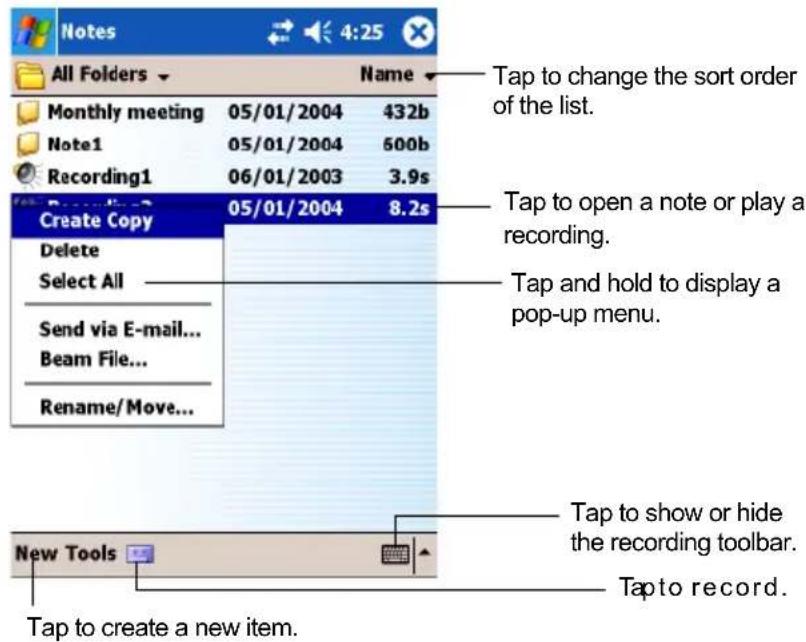
Creating a note
- Tap New.
- Create your note by writing, drawing, typing, and recording. For more information about using the input panel, writing and drawing on the screen, and creating recordings, see "Notes—Capturing thoughts and ideas" on page 81.
![Tap to return to the note list (the note is automatically saved). Adam will send current status to core team. Julie will get the revenue rumbers. Tanner is back from the conference and reports that the product was a big hit. Tap to add a recording to the note. Tap to write on the screen. 123 1 2 3 4 5 6 7 8 9 0 - = Tab q w e r t y u i o p [ ] CAP a s d f g h j k l ; ' Shift z x c v b n m , . / Ctä äü ` \ New Edit Tools Tap to show or hide the input panel.](/content/2026/05/818066/images/46e14a004494e7f83eb474551c325cc0284572cf6720cd6a7b9a435600677629.jpg)
Messaging—Sending and receiving email messages
Use Messaging to send and receive email messages in either of these ways:
- Synchronize email messages with Microsoft Exchange or Microsoft Outlook on your PC.
- Send and receive email messages by connecting directly to an email server through an Internet Service Provider (ISP) or a network.
Synchronizing email messages
Email messages can be synchronized through a general synchronization process. To do this, enable Messaging synchronization in ActiveSync. For information on enabling Messaging synchronization, see ActiveSync Help on your PC.
During synchronization:
- Messages are copied from the Inbox folder on your PC or Exchange server to the Inbox folder on your Toshiba Pocket PC e830. By default, messages are received from the last three days only, the first 100 lines of each new message, and file attachments of less than 100 KB in size.
- Messages in the Outbox folder on your Toshiba Pocket PC e830 are transferred to Exchange or Outlook and then sent from those programs.
- The messages on the two devices are linked. When you delete a message on your Toshiba Pocket PC e830, it is deleted from your PC the next time you synchronize.
- Messages in subfolders or other email folders in Outlook are synchronized only if they have been selected for synchronization in ActiveSync.
Using the message list
Messages you receive are displayed in the message list. By default, the most recently received messages are displayed first in the list.
Reading your messages
- Tap Inbox to select the service and folder you want to display.
-
Tap the message to open. Tap and hold on the message to display a pop-up menu of actions.
-
Tapping Received Date allows you to sort the messages by ascending or descending order
- To connect, send and receive email, tap the Send/Receive Mail icon on the command bar.
- To connect to a selected account, tap the Connect icon on the command bar.
NOTE
Unread messages are displayed in bold. When multiple messages appear, use the scroll arrows on the command bar to view the previous or next message.
Responding to a received message
- To reply to or forward the selected email, tap the Reply icon on the command bar.
- Tap the OK to return to the message list.
NOTE
To delete a message, tap the Delete E-mail icon on the command bar.
Composing messages
- In the message list, tap New.
- In the To field, enter the email address of one or more recipients, separating them with a semicolon or select a name from the contact list by tapping Address Book. All email addresses entered in the email fields in Contacts appear in the Address Book.
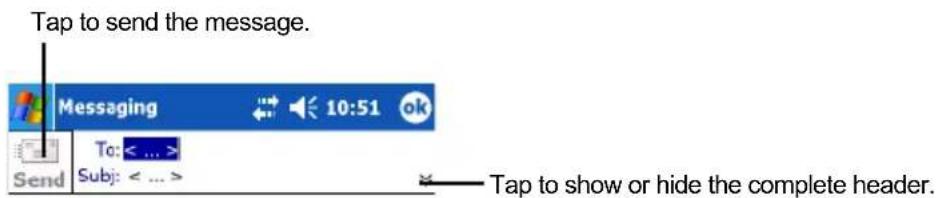
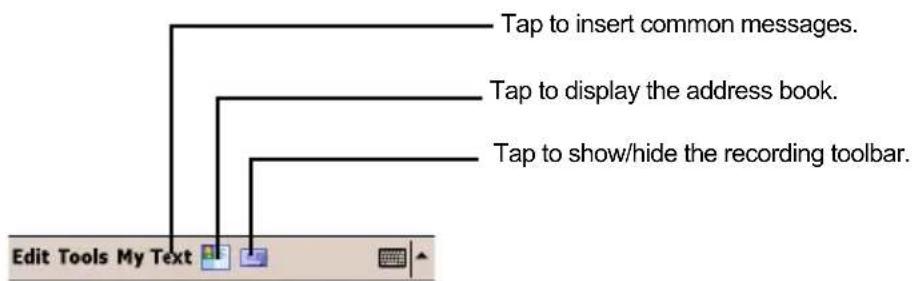
- Compose your message. To enter preset or frequently used messages, tap My Text and select a message.
- Tap Send when you've finished the message. If you are working offline, the message is moved to the Outbox folder and is sent the next time you connect. If you are working online, it is sent immediately.
Managing email messages and folders
Each email account has its own folder hierarchy with five default folders: Inbox, Outbox, Deleted Items, Drafts, and Sent Items. The messages you receive and send through the mail account are stored in these folders. You can also create additional folders within each hierarchy. The Deleted Items folder contains messages that have been deleted on your Toshiba Pocket PC e830. The behavior of the Deleted Items and Sent Items folders depends on the Messaging options you have chosen. In the message list, tap Tools and then Options. On the Message tab, select your options.
If you want to organize messages into additional folders, tap Tools, and then Manage Folders to create new folders. To move a message to another folder, in the message list, tap and hold the message and then tap Move on the pop-up menu.
Folder behavior with a direct connection to an email server
The behavior of the folders you create depends on whether you are using ActiveSync, POP3, or IMAP4.
- If you use ActiveSync, email messages in the Inbox folder in Outlook is automatically synchronized with your Toshiba Pocket PC e830. You can select to synchronize additional folders by designating them for ActiveSync. The folders you create and the messages you move are then mirrored on the server. For example, if you move two messages from the Inbox folder to a folder named Family, and you have designated Family for synchronization, the server creates a copy of the Family folder and copies the messages into that folder. You can then read the messages while away from your PC.
- If you use POP3 and you move email messages to a folder you created, the link is broken between the messages on your Toshiba Pocket PC e830 and their copies on the mail server. The next time you connect, the mail server notes that the messages are missing from your Toshiba Pocket PC e830 Inbox and deletes them from the server. This prevents you from having duplicate copies of a message, but it
also means that you no longer have access to messages that you move to folders created from anywhere except your Toshiba Pocket PC e830.
- If you use IMAP4, the folders you create and the email messages you move are mirrored on the server. Therefore, messages are available to you anytime you connect to your mail server, whether it is from your Toshiba Pocket PC e830 or PC. This synchronization of folders occurs whenever you connect to your mail server, create new folders, or rename/delete folders when connected.
Chapter 5:
Companion Programs
The companion programs consist of Microsoft® Pocket Word, Microsoft® Pocket Excel, MSN Messenger, Windows Media™ Player for Pocket PC, Microsoft® Reader and Pictures.
To launch or switch to a companion program on your Toshiba Pocket PC e830, tap Programs on the menu, then tap the program name.
Pocket Word
Pocket Word works with Microsoft Word on your PC to give you easy access to copies of your documents. You can create new documents on your Toshiba Pocket PC e830 or you can copy documents from your PC to your Toshiba Pocket PC e830. Synchronize documents between your PC and your Toshiba Pocket PC e830 so that you have the most up-to-date content in both locations.
Use Pocket Word to create documents, such as letters, meeting minutes, and trip reports. To create a new file, tap Programs, Pocket Word, and then New. A blank document appears. Additionally, if you selected a template for new documents in the Options dialog box, that template appears with appropriate text and formatting already provided. You can open only one document at a time; when you open a second document, you are asked to save the first. You can save a document in Word (.doc), Pocket Word (.psw), Rich Text Format (.rtf), and Plain Text (.txt) formats.
Pocket Word contains a list of the files stored on your Toshiba Pocket PC e830. Tap a file in the list to open it. To delete, copy, and send files, tap and hold a file in the list, then select the appropriate action from the pop-up menu.
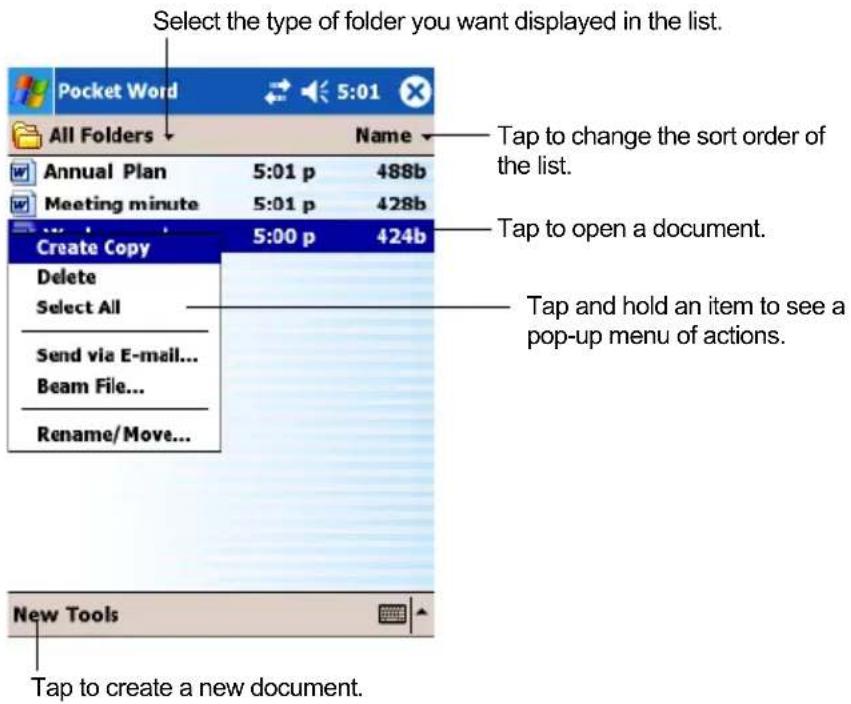
You can enter information by working in different modes, which you select from the View menu. For each mode, display the toolbar for that mode by tapping Show/Hide on the command bar.
NOTE
You can change the zoom magnification by tapping View and then Zoom: then, select the percentage you want. Select a higher percentage to enter text and a lower one to see more of your document. If you're opening a Word document created on your PC, select Wrap to Window on the View menu so that you can see the entire document.
Typing mode
Using the input panel, enter typed text into the document. For more information on entering typed text, see Chapter 2: Basic Skills.
To format or edit existing text, select the text. You can select text just as you do in a Word document, using the stylus instead of the mouse to drag through the text you want to select. You can search a document to find text by tapping Edit and then Find/Replace.
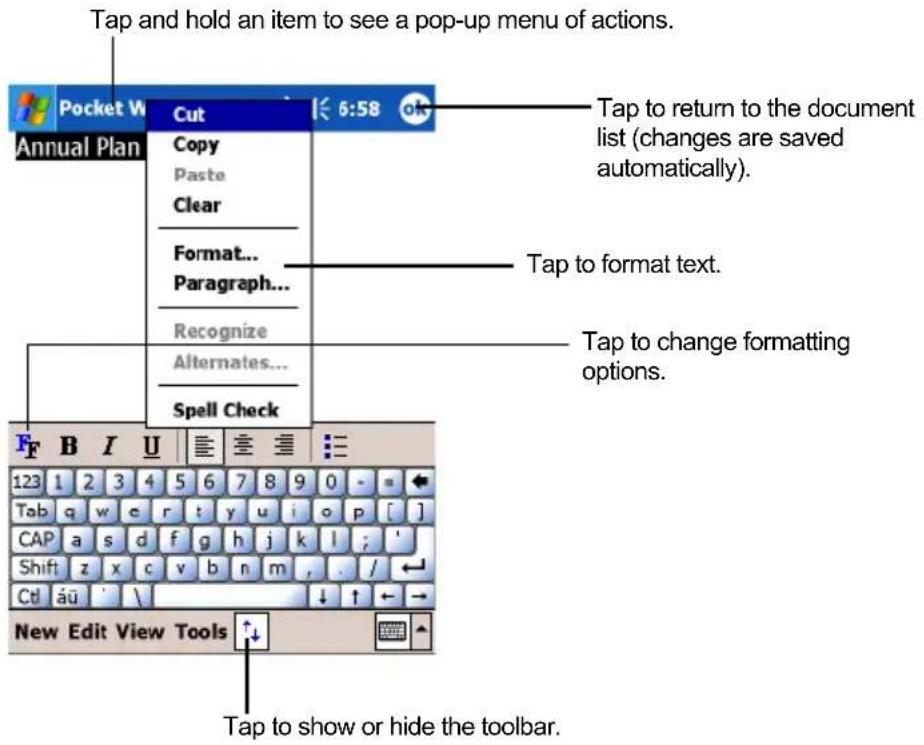
Writing mode
In writing mode, use the stylus to write directly on the screen. Ruled lines are displayed as a guide, and the zoom magnification is greater than in typing mode to allow you to write more easily. For more information on writing and selecting writing, see Chapter 2: Basic Skills
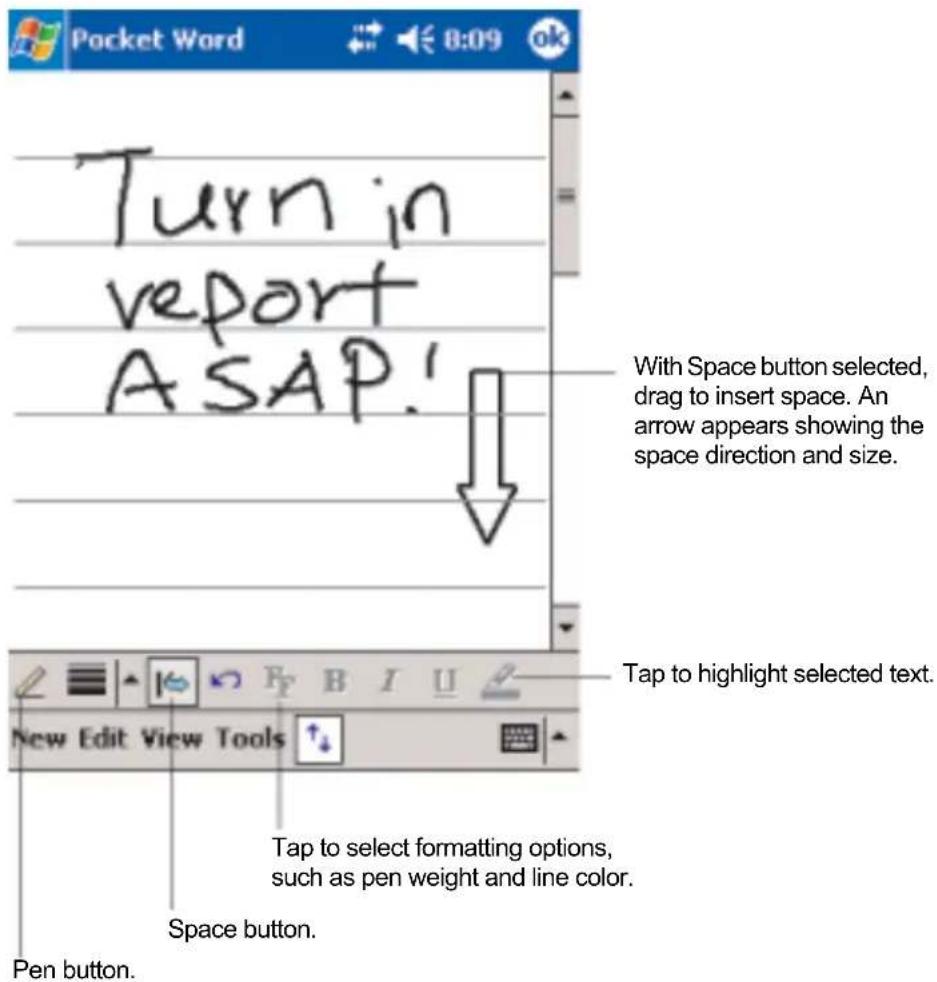
NOTE
If you cross three ruled lines in a single stylus stroke, the writing becomes a drawing, and can be edited and manipulated as described in "Drawing mode" on page 91. Written words are converted to graphics (metafiles) when a Pocket Word document is converted to a Word document on your PC.
Drawing mode
In drawing mode, use the stylus to draw on the screen. Gridlines appear as a guide. When you lift the stylus off the screen after the first stroke, a drawing box appears indicating the boundaries of the drawing. Every subsequent stroke within or touching the drawing box becomes part of the drawing. For more information on drawing and selecting drawings, see Chapter 2: Basic Skills.
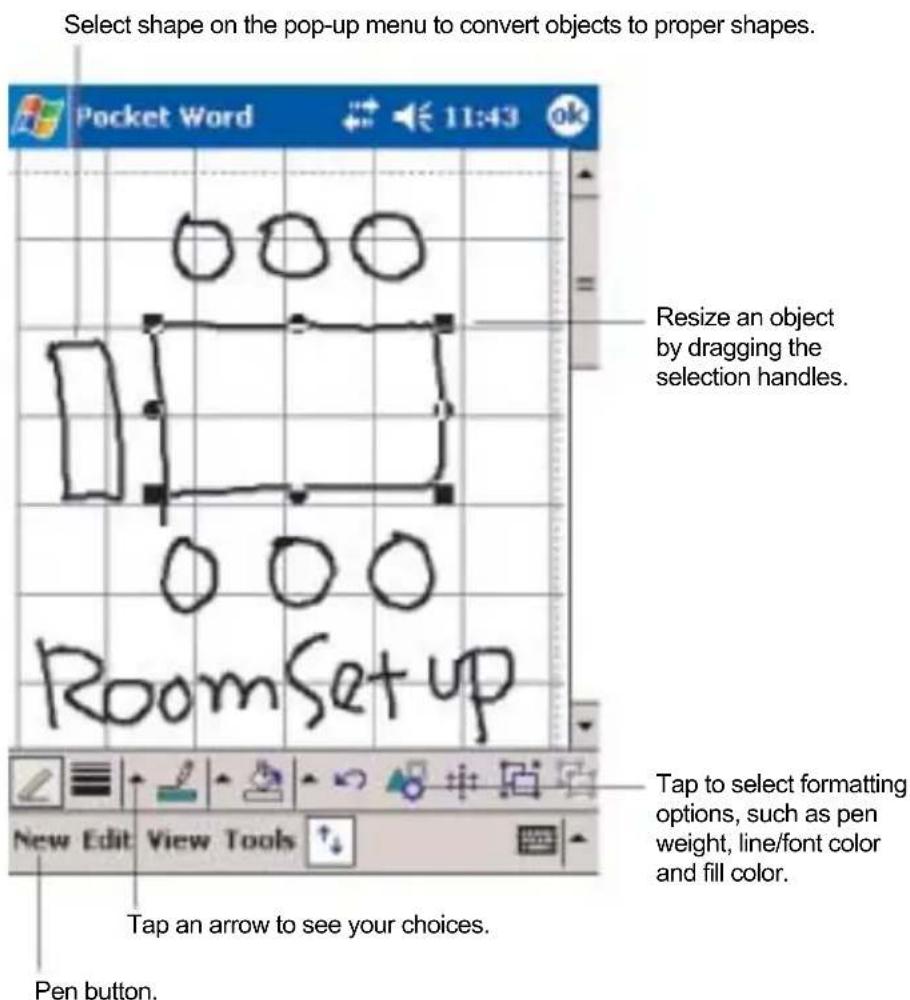
Recording mode
In recording mode, embed a recording into your document. Recordings are saved as .wav files. For more information on recording, see Chapter 2: Basic Skills.
For more information on using Pocket Word, tap 📋 and then Help.
Pocket Excel
Pocket Excel works with Microsoft Excel on your PC to give you easy access to copies of your workbooks. You can create new workbooks on your Toshiba Pocket PC e830 or you can copy workbooks from your PC to your Toshiba Pocket PC e830. Synchronize workbooks between your PC and your Toshiba Pocket PC e830 so that you have the most up-to-date content in both locations.
Use Pocket Excel to create workbooks, such as expense reports and mileage logs. To create a new file, tap Programs, Pocket Excel, and then New. A blank workbook appears. Additionally, if you have selected a template for new workbooks in the Options dialog box, that template appears with appropriate text and formatting already provided. You can open only one workbook at a time; when you open a second workbook, you are asked to save the first. You can save a workbook in either Pocket Excel (.pxl) or Excel (.xls) formats.
Pocket Excel contains a list of the files stored on your Toshiba Pocket PC e830. Tap a file in the list to open it. To delete, copy, and send files, tap and hold a file in the list, then select the appropriate action from the pop-up menu.
Pocket Excel provides fundamental spreadsheet tools, such as formulas, functions, sorting, and filtering. To display the toolbar, tap View and then Toolbar.
![Pocket Excel 6:57 ok A3 =SUM(A1:A2) Cell contents appear here as you enter them. 1 $44.00 2 $22.00 3 $66.00 4 5 6 Format button. Auto Sum button. Ready Sheet1 Sum=$66.00 Zoom button. 123 1 2 3 4 5 6 7 8 9 0 - - Tab q w e r t y u i o p [ ] CAP a s d f g h j k l ; ' Shift z x c v b n m , . / CtI äü ` \ New Edit View Format Tools](/content/2026/05/818066/images/04573233d540738eddfa111113406f5b73f3c506ad5cc6485e7c54ce079dcf8a.jpg)
NOTE
If your workbook contains sensitive information, you can protect it with a password. To do so, open the workbook, tap Tools, and then Password. Each time you open the workbook, enter the password, so choose one that is easy for you to remember but difficult for others to guess.
Tips for working in Pocket Excel
Note the following when working in large worksheets in Pocket Excel:
- View in full-screen mode to see as much of your worksheet as possible. Tap View, then Full Screen. To exit full-screen mode, tap Restore.
- Show and hide window elements. Tap View, then tap the elements you want to show or hide.
- Freeze panes on a worksheet. Select the cell where you want to freeze panes. Tap View, then Freeze Panes. You might want to freeze the top and leftmost panes in a worksheet to keep row and column labels visible as you scroll through a sheet.
- Split panes to view different areas of a large worksheet. Tap View, Split, then drag the split bar to where you want it. To remove the split, tap View, then Remove Split.
- Show and hide rows and columns. To hide a hidden row or column, select a cell in the row or column you want to hide. Tap Format, Row or Column, then Hide. To show a hidden row or column, tap Tools, Go To, then type a reference that is in the hidden row or column. Tap Format, Row or Column, then Unhide.
For more information on using Pocket Excel, tap 📋 and then Help.
MSN Messenger
MSN Messenger on your Toshiba Pocket PC e830 provides the same chat environment as MSN Messenger on your PC. These features include:
• Seeing who is online.
- Sending and receiving instant messages.
- Having an instant message conversation with a group of contacts.
- Telling contacts that you are unavailable.
- Blocking contacts from seeing your status or sending you messages.
To use MSN Messenger, you must have a Microsoft Passport™ account or a Microsoft Exchange email account. You must have a Passport to use MSN Messenger Service. If you have a Hotmail® or MSN account, you already have a Passport. Once you have obtained either a Microsoft Passport or a Microsoft Exchange account, you are ready to set up your account.
NOTE
You can sign up for a Microsoft Passport account at http://www.passport.com and get a free Microsoft Hotmail email address at http://www.hotmail.com.
To switch to MSN Messenger, tap 📋, Programs, then MSN Messenger.
Setting up MSN Messenger
Before you can use MSN Messenger, you must set up the Instant Messaging account(s) to use. For MSN Messenger Service, you must have a Microsoft Passport or Hotmail account. For Exchange Instant Messaging, you must have an Exchange account.
Setting up an account and signing in
- In the Tools menu, tap Options, then the Accounts tab.
- Select Enable MSN Messenger Service and/or Enable Exchange Instant Messaging.
- Enter your sign-in name and password for the selected account(s).
- If you selected both accounts, tap Settings .... on the screen, then select which account to sign in to first.
- To sign in, tap the sign-in screen, then Sign in.
NOTE
If you already use MSN Messenger on your PC, your contacts automatically appear on your Toshiba Pocket PC e830.
Working with Contacts
The MSN Messenger window shows all of your messenger contacts at a glance, divided into Online and Not Online categories. While connected in this view, you can chat, send an email, block the contact from chatting with you, or delete contacts from your list using the pop-up menu.
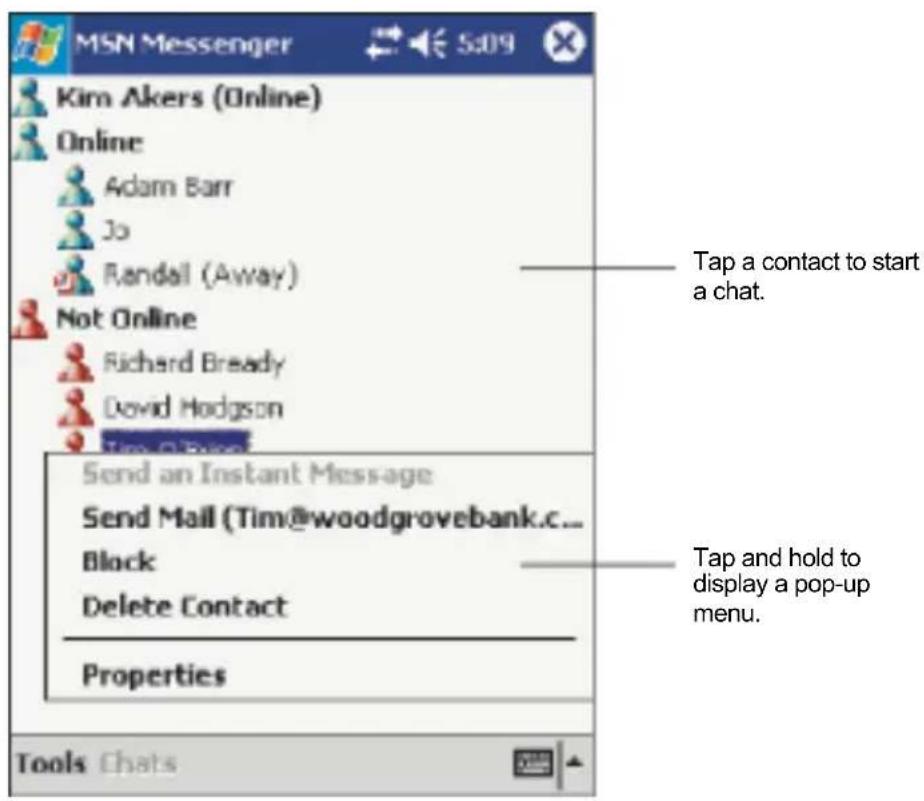
NOTE
To see others online without being seen, in the Tools menu, tap My Status and select Appear Offline.
If you block a contact, you appear offline but remain on the blocked contact's list. To remove the block on a contact, tap and hold the contact, then tap Unblock on the pop-up menu.
Chatting with Contacts
Tap a contact name to open a chat window. Enter your message in the text entry area at the bottom of the screen or tap My Text to enter a preset message, and tap Send. To invite another contact to a multi-user chat, in the Tools menu, tap Invite and tap the contact you want to invite.

You are chatting with: Adam
![Hi. Can you meet at 2:00? Enter message. Send Tap to send message. 123 1 2 3 4 5 6 7 8 9 0 - = Tab q w e r t y u i o p [ ] CAP a s d f g h j k l ; ' Shift z x c v b n m , . / ← Ctì áū ` \ ↓ ↑ ← → Tools Chats My Text](/content/2026/05/818066/images/7b80634e7f9c9f309477b23a9a36105b4b5ef4e48636631e562e0f68d4580874.jpg)
NOTE
To switch back to the main window without closing a chat, tap Contacts. To revert back to your chat window, tap Chats and select the person with whom you were chatting.
To know if the contact you are chatting with is responding, look for the message under the text entry area.

You are chatting with: Adam
Kim says:
Hi. Can you meet at 2:00?
View full chat.
![Adam is typing a message. 123 1 2 3 4 5 6 7 8 9 0 - = Tab q w e r t y u i o p [ ] CAP a s d f g h j k l ; ' Shift z x c v b n m , . / ← CtI áū ' \ Tools Chats My Text](/content/2026/05/818066/images/1bff4fb762d2d205d21f099bedde2e7a4bfbb5d9b597320649b52611a51b03dd.jpg)
View status of the chat.
For more information on using MSN Messenger, tap 📄 and then Help.
Windows Media Player
Use Microsoft Windows Media Player to play digital audio and video files that are stored on your Toshiba Pocket PC e830 or on a network. To switch to Windows Media Player for Pocket PC, tap 📋 and then tap Windows Media.
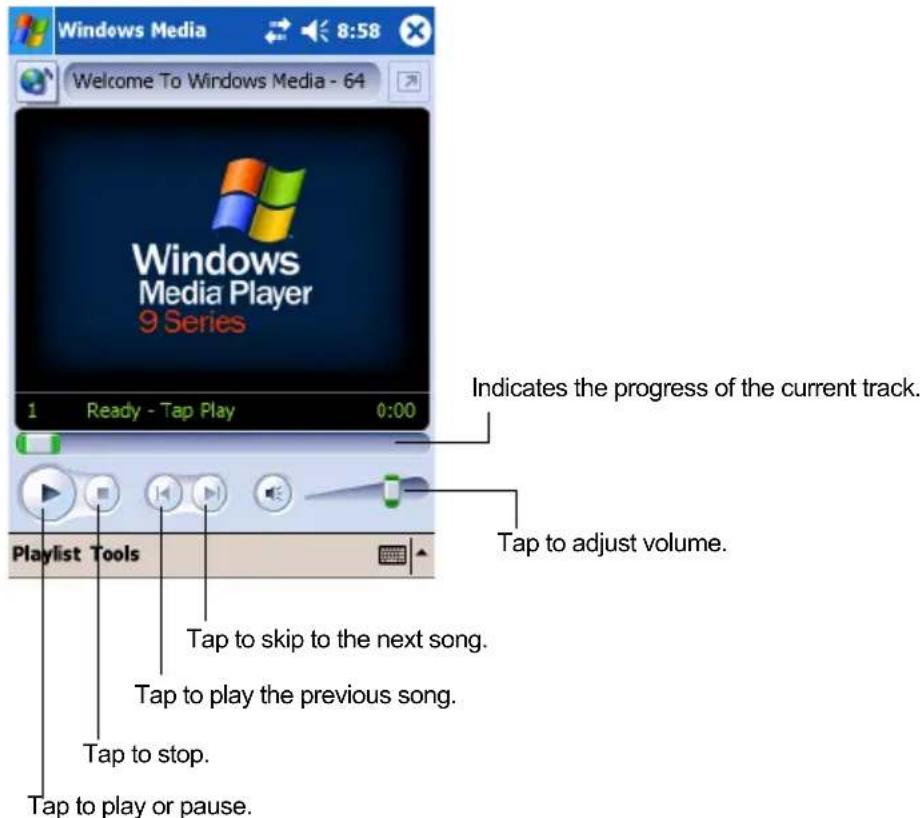
Use Microsoft Windows Media Player on your PC to copy digital audio (such as .mp3 files) and video (such as .mpeg) files to your Toshiba Pocket PC e830. For more information about using Windows Media Player for Toshiba Pocket PC e830, tap 📋, and then tap Help.
Pictures
You can use Pictures to view .jpg pictures stored on your Toshiba Pocket PC e830 or on a storage card, send pictures to others, view a slideshow of your pictures, or set a picture as the background on the Today screen.
Editing pictures
To view .jpg pictures, tap 📁, Programs, then Pictures. At the Pictures screen, tap the .jpg file name you want to view.
You can rotate, crop, zoom, and adjust the brightness and color contrast of your .jpg pictures.
- Tap to rotate a picture 90 degrees counter-clockwise.
- Tap to crop a picture by dragging and selecting the crop area. Tap outside of the box to stop cropping.
- Tap to display the Zoom panel, from which you can zoom in or out of a picture or return a picture to full-screen size.
- Tap Edit, then Brightness and Contrast to adjust the brightness and contrast levels of a picture.
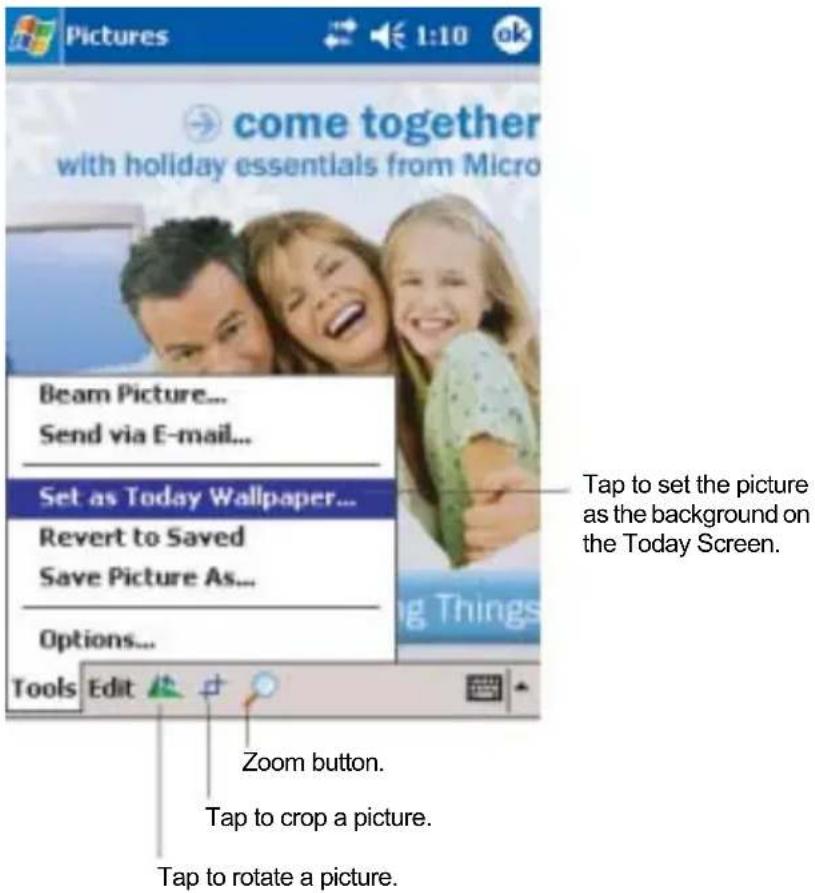
Sending pictures
You can send a .jpg picture to others as an email attachment. Tap Tools, then Send via E-mail to create an email message with the picture attached.
Setting a picture as a background
You can use one of your own .jpg pictures as the background on the Today screen, and specify how you want it displayed on the screen, such as adjusting the transparency level.
- In Pictures, tap the picture you want to set as the background.
- Tap Tools, then Set as Today Wallpaper.
Viewing a slideshow of pictures
You can view your .jpg pictures as a slideshow on your Toshiba Pocket PC e830. Pictures displays slides of the pictures shown in thumbnail view with five-second intervals between slides. In Pictures, tap 📋 to view pictures as a slideshow.
NOTE
Even if “Detect digital camera storage cards” is checked for Options on Pictures, the auto launching function is not available on this model. You will need to launch Pictures manually and select the storage cards.
Chapter 6:
Pocket Internet Explorer
Use Microsoft® Pocket Internet Explorer to view Web or WAP pages in either of these ways:
- During synchronization with your PC, download your favorite links and mobile favorites that are stored in the Mobile Favorites subfolder in Internet Explorer on your PC.
- Connect to an Internet service provider (ISP) or network and browse the Web. To do this, create the connection first, as described Chapter 7: Getting Connected.
When connected to an ISP or network, you can also download files and programs from the Internet or an intranet.
To switch to Pocket Internet Explorer, tap 📋 and then Internet Explorer.
Mobile Favorites folder
Favorites are stored in the Mobile Favorites subfolder of Favorites in Internet Explorer on your PC. This folder was created when you selected the Favorites information type for synchronization in ActiveSync on your PC. Favorites must be stored in this folder to be synchronized.
Favorite links
During synchronization, the list of favorite links in the Mobile Favorites folder on your PC is synchronized with Pocket Internet Explorer on your Toshiba Pocket PC e830. Both devices are updated with changes made to either list each time you synchronize. Unless you mark the favorite link as a mobile favorite, only the link is downloaded to your Toshiba Pocket PC e830. You must connect to your ISP or network to view the content. For more information on synchronization, see ActiveSync Help on your PC.
Mobile Favorites
If you are using Microsoft Internet Explorer 5.0 or later on your PC, you can download mobile favorites to your Toshiba Pocket PC e830. Synchronizing mobile favorites downloads Web content to your Toshiba Pocket PC e830 so that you can view pages while you are disconnected from your ISP and PC.
Use the Internet Explorer plug-in installed with ActiveSync to create mobile favorites quickly.
Creating a Mobile Favorite
- In Internet Explorer 5 or greater on your PC, browse to the page you want to view offline.
- Click Tools and then Create Mobile Favorite.
- To change the link name, enter a new name in the Name box.
- In the Update box, select a desired update schedule to keep the page in the Mobile Favorites folder up to date.
- To save the link in a subfolder of Mobile Favorites, click Create In and select the desired subfolder.
- Click OK. Internet Explorer downloads the latest version of the page.
- To download the pages that are linked to the mobile favorite you just created, in Internet Explorer on the PC, right-click the mobile favorite and then click Properties. On the Download tab, specify the number of links deep you want to download (To conserve Toshiba Pocket PC e830 memory, specify only first level links).
NOTE
If you did not specify an update schedule in step 4, manually download content to keep the information updated on your PC and your Toshiba Pocket PC e830. Before synchronizing with your Toshiba Pocket PC e830, in Internet Explorer on your PC, click Tools and then Synchronize. The last time content was downloaded to your PC is displayed, and you can manually download content if needed.
You can add a button to the Internet Explorer toolbar for creating mobile favorites. In Internet Explorer on your PC, click View, Toolbars, and then Customize.
Saving device memory
Mobile favorites take up storage memory on your Toshiba Pocket PC e830. To minimize the amount of memory used:
- In the settings for the Favorites information type in ActiveSync options, turn off pictures and sounds, or stop some mobile favorites from being downloaded to your Toshiba Pocket PC e830. For more information, see ActiveSync Help.
- Limit the number of downloaded linked pages. In Internet Explorer on your PC, right-click the mobile favorite you want to change and then
Properties. In the Download tab, specify 0 or 1 for the number of linked pages you want to download.
Using AvantGo Channels
AvantGo is a free interactive service that gives you access to personalized content and thousands of popular Web sites. You subscribe to AvantGo channels directly from your Toshiba Pocket PC e830, then synchronize your Toshiba Pocket PC e830 and your PC, or connect to the Internet to download the content. For more information, visit the AvantGo Web site.
Synchronizing an AvantGo Channel
- In Pocket Internet Explorer on your Toshiba Pocket PC e830, tap to display your list of favorites.

- Tap the AvantGo Channels link.
- Follow the directions on the screen. Synchronize your Toshiba Pocket PC e830 with your PC, then tap My Channels to complete the AvantGo setup.
When synchronization is complete, tap the AvantGo Channels link in your list of favorites to see a few of the most popular channels. To add or remove channels, tap the Add or Remove link.
Using Pocket Internet Explorer
You can use Pocket Internet Explorer to browse mobile favorites and channels that have been downloaded to your Toshiba Pocket PC e830 without connecting to the Internet. You can also connect to the Internet through an ISP or network connection and browse the Web.
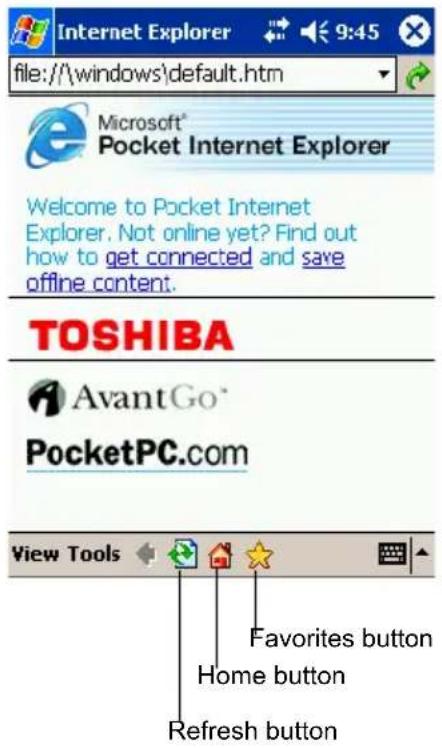
Viewing Mobile Favorites and Channels
- Tap Favorites to display your list of favorites.
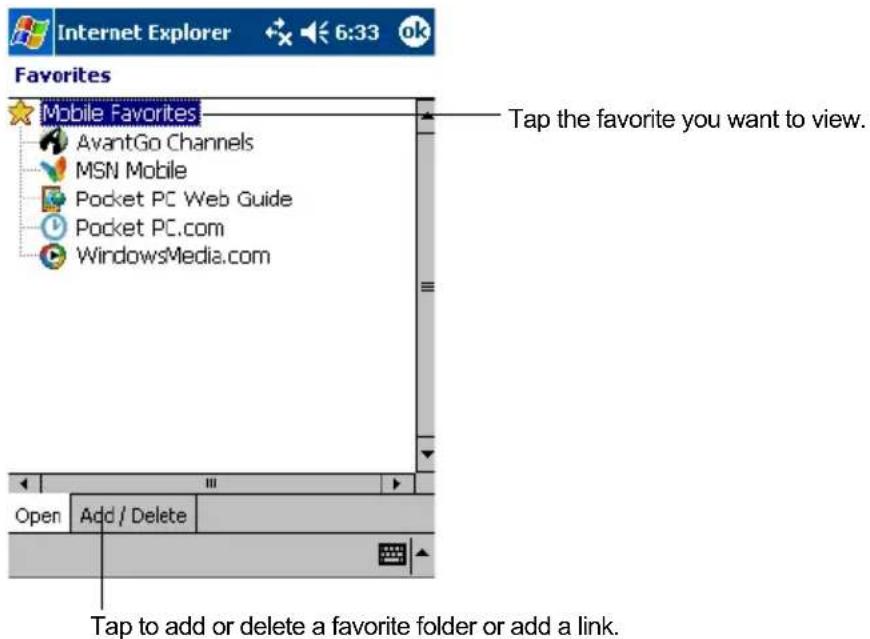
- Tap the page you want to view.
The page that was downloaded the last time you synchronized with your PC is displayed. If the page is not on your Toshiba Pocket PC e830, the favorite is dimmed. Synchronize with your PC again to download the page to your Toshiba Pocket PC e830 or connect to the Internet to view the page.
Browsing the Internet
- Set up a connection to your ISP or corporate network using Connections, as described in "Connecting to the Internet" on page 107.
- To connect and start browsing, do one of the following:
- Tap Favorites, and then tap the favorite you want to view.
- Tap View and then Address Bar. In the address bar that appears at the top of the screen, enter the Web address you want to visit and then tap Tap the arrow to choose from previously entered addresses.
NOTE
To add a favorite link while using your Toshiba Pocket PC e830, go to the page you want to add, tap and hold on the page, and tap Add to Favorites.
Chapter 7:
Getting Connected
You can use your Toshiba Pocket PC e830 to exchange information with other mobile devices as well as your PC, a network, or the Internet. You have the following connection options:
- Use the infrared (IR) port on your Toshiba Pocket PC e830 to send and receive files between two devices. If this is the method you want to use, see the following section entitled “Transferring files using infrared.”
- Connect to your Internet account provider (ISP). Once connected, you can send and receive email messages by using Messaging and view Web or WAP pages by using Microsoft® Pocket Internet Explorer. The communication software for creating an ISP connection is already installed on your Toshiba Pocket PC e830. Your account provider must provide the software needed to install other accounts, such as paging and fax accounts. If this is the method you want to use, see the section entitled “Connecting to the Internet” later in this chapter.
- Connect to the network at your company or organization where you work. Once connected, you can send and receive email messages by using Messaging, view Web or WAP pages by using Pocket Internet Explorer, and synchronize with your PC. If this is the method you want to use, see "Connecting to work" on page 109.
- Connect to your PC to synchronize remotely. Once connected, you can synchronize information such as your Pocket Outlook information. If this is the method you want to use, see ActiveSync Help on your PC or Connections Help on your Toshiba Pocket PC e830.
Transferring files using infrared
Using infrared (IR), you can send and receive information, such as contacts and appointments, between two IR-equipped devices.
Sending information
- Switch to the program where you created the item you want to send and locate the item in the list.
-
Align the IR ports so that they are unobstructed and within a close range.
-
Tap and hold the item, and tap Beam Item on the pop-up menu.
NOTE
You can also send items, but not folders, from File Explorer. Tap and hold the item you want to send, and then tap Beam File on the pop-up menu.
Receiving information
- Align the IR ports so that they are unobstructed and within a close range.
- Have the owner of the other device send the information to you. Your Toshiba Pocket PC e830 automatically receives it.
Connecting to the Internet
You can connect to your ISP, and use the connection to send and receive email messages and view Web or WAP pages.
You can connect to work in one of two ways:
- Create a modem connection. If this is the method you want to use, see “Creating a modem connection to an ISP” below.
- Use an Ethernet card and a net tap to connect to the network. If this is the method you want to use, see “Creating an Ethernet connection to an ISP or network.”
Creating a modem connection to an ISP
- Obtain the following information from your ISP: ISP dial-up access telephone number, user name, password, and TCP/IP settings. Some ISPs require information in front of the user name, such as MSN/username.
- If your Toshiba Pocket PC e830 does not have a built-in modem, install a modem card, or use or use a NULL modem cable and appropriate adapters to connect an external modem to your Toshiba Pocket PC e830 through the serial port.
- Tap 📄, Settings, Connections tab, Connections.
- In My ISP, tap Add a new modem connection, and follow the instructions in the New Connection wizard.
NOTE
To change modem connection settings, in either My ISP or My Work Network, tap Manage existing connections. Select the desired modem connection, tap Edit, and follow the instructions on the screen.
- Enter a name for the connection, such as your ISP's name.
- In the Select a modem list, tap your modem type. If you are using any type of external modem, in the Select a modem list, select the modem by name. If a listing does not exist for your external modem, tap Hayes Compatible on COM1.
- Enter the phone number exactly as you want it dialed. If you know part of the phone number will change frequently as you travel, use dialing rules to avoid creating numerous modem connections for the same phone number.
- Enter your user name, password, and domain name as provided by your ISP. If a domain name was not provided, try the connection without entering a domain name.
-
You should not need to change any advanced settings. Instances where advanced settings may change include:
-
baud rate settings, dialing string commands, or credit card options.
- port settings.
- the server you are connecting to does not use dynamically-assigned addresses, and you need to enter your TCP/IP settings.
To change advanced settings, tap Advanced. Otherwise, tap Finish.
To start the connection, simply start using one of the following programs. Your Toshiba Pocket PC e830 automatically begins connecting. Once connected, you can:
- Send and receive email messages by using Messaging. Before you can use Inbox, you need to provide the information it needs to communicate with the email server. For specific instructions, see "Connecting directly to an email server" on page 112.
- Visit Web and WAP pages by using Pocket Internet Explorer, see Chapter 6: "Mobile Favorites" on page 101.
- Send and receive instant messages with MSN Messenger. For more information, see Chapter 5: "MSN Messenger" on page 93.
Creating an Ethernet connection to an ISP or network
- You do not need to create a new connection on your Toshiba Pocket PC e830. Instead, you must purchase and configure an Ethernet card that is compatible with your Toshiba Pocket PC e830 and your PC.
-
Obtain the following information from your ISP or network administrator: user name, password, and domain name.
-
Insert the Ethernet card into your PC. For instructions on inserting and using the Ethernet card, see the documentation that came with your card.
- The first time you insert the card, Network Settings automatically appears so that you can configure the network card. If it does not appear, or to change settings later, tap 📄, Settings, the Connections tab, then Network Cards.
- If you need to enter specific server information, tap the appropriate adapter. Most networks use DHCP, so you should not have to change these settings unless your ISP or network administrator instructs you to do so.
- If necessary, connect the network card to the network by using a network cable. For information, see the documentation that came with your network card.
To start a connection, insert the network card, and begin using a desired program. For example, switch to Pocket Internet Explorer and browse to a Web page. Your Toshiba Pocket PC e830 automatically begins connecting.
Connecting to work
If you have access to a network at work, you can send email messages, view Intranet pages, synchronize your Toshiba Pocket PC e830, and possibly access the Internet. You can connect to work in one of two ways:
- Create a modem connection by using a RAS account. Before you can create this modem connection, your network administrator must set up a RAS account for you. If this is the method you want to use, see “To create a modem connection to a network.” Your network administrator may also give you VPN settings.
- Use an Ethernet card and a net tap to connect to the network. If this is the method you want to use, see “To create an Ethernet connection to a network.”
Creating a modem connection to a network
- Get the following information from your network administrator: dial-up access telephone number, user name, password, domain name, and TCP/IP settings.
- If your Toshiba Pocket PC e830 does not have a built-in modem, install a modem card.
-
Tap 📄, Settings, Connections tab, then Connections.
-
In My Work Network, tap Add a new modem connection, and follow the instructions in the New Connection wizard.
- Enter a name for the connection, such as your company's name.
- In the Select a modem list, tap your modem type. If you are using any type of external modem, in the Select a modem list, select the modem by name. If a listing does not exist for your external modem, tap Hayes Compatible on COM1.
- Enter the phone number exactly as you want it dialed. If you know part of the phone number will change frequently as you travel, use dialing rules to avoid creating numerous modem connections for the same phone number.
- Enter your user name, password, and domain name as provided by your network administrator. If a domain name was not provided, try the connection without entering a domain name.
-
You should not need to change any advanced settings. Instances where advanced settings may change include:
-
You want to change baud rate settings, dialing string commands, or credit card options.
- You need to change port settings.
- The server you are connecting to does not use dynamically-assigned addresses, and you need to enter your TCP/IP settings.
To change advanced settings, tap Advanced. Otherwise, tap Finish.
To start the connection, simply start using one of the following programs. Your Toshiba Pocket PC e830 automatically begins connecting. Once connected, you can:
- Send and receive email messages by using Messaging. Before you can use Inbox, you need to provide the information it needs to communicate with the email server. For specific instructions, see "Connecting directly to an email server" on page 112.
- Visit Internet or intranet Web or WAP pages by using Pocket Internet Explorer.
- Send and receive instant messages with MSN Messenger. For more information, see the section “MSN Messenger” in Chapter 5: Companion Programs.
- Synchronize. For more information, see ActiveSync Help on your PC.
Setting up a VPN server connection
- A VPN connection enables you to securely connect to servers, such as a corporate network, via the Internet. Ask your network adminis-
trator for your user name, password, domain name, TCP/IP settings, and host name or IP address of the VPN server.
- Tap 📄, Settings, the Connections tab, then Connections.
- To create a new VPN server connection, in My Work Network, tap Add a new VPN server connection and follow the instructions in the New Connection wizard.
NOTE
To change existing settings, in My Work Network, tap Manage existing connections, VPN tab. Select the desired VPN connection, tap Edit, and follow the instructions on the screen.
- In Name, enter a name for the connection, such as your company's name. In Host name/IP, enter the VPN server name or IP address. Next to VPN type, select the type of authentication to use with your Toshiba Pocket PC e830: IPSec/L2TP or PPTP. If you are not sure which option to choose, ask your network administrator.
- Select the type of authentication. If you select A pre-shared key, enter the key provided by your network administrator.
- Enter your user name, password, and domain name as provided by your ISP or network administrator. If a domain name was not provided, try the connection without entering a domain name.
-
You should not need to change any advanced settings. Instances where you must change advanced settings include:
-
The server to which you are connecting does not use dynamically-assigned addresses, and you need to enter your TCP/IP settings.
- You need to change server DNS or WINS settings.
To change advanced settings, tap Advanced. Otherwise, tap Finish.
Editing proxy settings
- Tap 📄, Settings, then the Connections tab.
- To change proxy server settings, in My Work Network, tap Edit my proxy server.
- Select This network connects to the Internet and This network uses a proxy server to connect to the Internet.
- In the Proxy server box, enter the proxy server name.
- To change such settings as port number or proxy server type, tap Advanced and change desired settings.
Ending a connection
To disconnect, do one of the following:
- When connected via dial-up or VPN, tap the Connection icon, , qm your navigation bar, and then tap Disconnect.
- When connected via cable or cradle, detach your Toshiba Pocket PC e830 from the cable or cradle.
- When connected via Infrared, move your Toshiba Pocket PC e830 away from your PC or other IR-equipped device.
- When connected via a network (Ethernet) card, remove the card from your PC.
- When connected via a wireless network, switch off the connection.
Connecting directly to an email server
You can set up a connection to an email server so that you can send and receive email messages by using a modem or network connection and Messaging on your Toshiba Pocket PC e830.
NOTE
The ISP or network must use a POP3 or IMAP4 email server and an SMTP gateway.
You can use multiple email accounts to receive your messages. For each email account you intend to use, first set up and name the email account. If you use the same account to connect to different mailboxes, set up and name each mailbox connection.
Setting up an email account
- In Messaging on your Toshiba Pocket PC e830, tap Accounts, and then New Account. Follow the directions in the New Account wizard.
For an explanation of a screen, tap 📄 and then Help. When finished, to connect to your email server, tap Accounts and then Connect. For more information on using the Messaging program, see "Messaging—Sending and receiving email messages" on page 83.
Getting Help on connecting
More information on the procedures described here, as well as information on additional procedures, can be found in the following locations:
- "Messaging—Sending and receiving email messages" on page 83.
- Online Help on your Toshiba Pocket PC e830. Tap 📋 and then Help. Tap View, All Installed Help, and then Messaging or Connections.
• ActiveSync Help on your PC. In ActiveSync, Tap 📄, then Help.
- For troubleshooting information, see the Pocket PC Web site at: http://www.microsoft.com/mobile/pocketpc.
Chapter 8:
Wi-Fi Wireless LAN
Wireless LAN overview
NOTE
This chapter is valid for the Toshiba Pocket PC e830W model only.
The Wi-Fi® (IEEE 802.11b) Wireless LAN (WLAN) adapter can connect your wireless Toshiba Pocket PC e830W to an existing IEEE 802.11b wireless network or from its own wireless network. Using the adapter in your Toshiba Pocket PC e830W, you can enjoy the complete mobile and high-speed wireless Internet connectivity while in range of a Wi-Fi compatible access point.
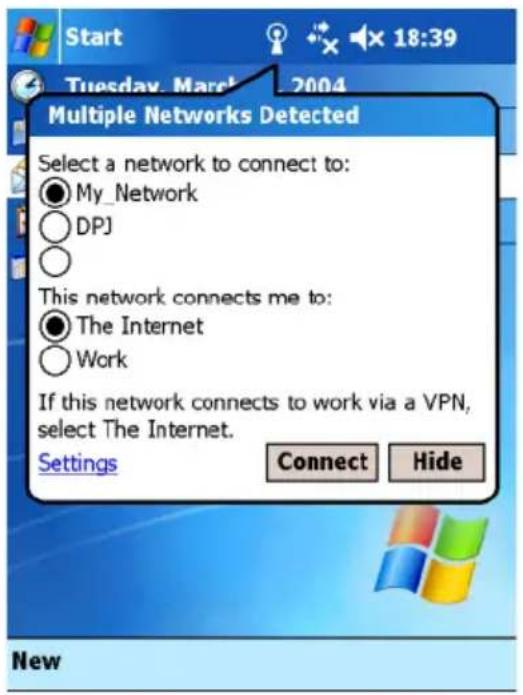
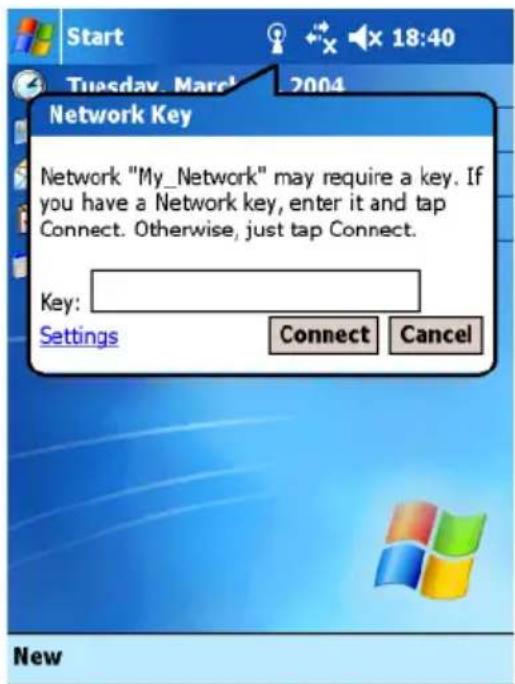
Joining an existing network
Your Toshiba Pocket PC e830W has a interface that enables you to join to a existing network. If your Toshiba Pocket PC e830W detects a wireless network, it shows the above menu. Also, if you join encrypted network(s), your Toshiba Pocket PC e830W requires you to enter a Network Wireless Equivalent Privacy (WEP) key.
Launching a wireless LAN
In order to launch a wireless LAN, you must use the Configure Wireless Networks screen to enable the correct settings within the Configure Wireless LAN Settings menu. To launch the Configure Wireless Networks Screen, tap the TMU (Traffic Monitoring Utility) Wireless LAN Indicator icon on the navigation bar, and then tap the Config WLAN link. You can also launch by tapping Start, Settings, System, then Wireless Networks.
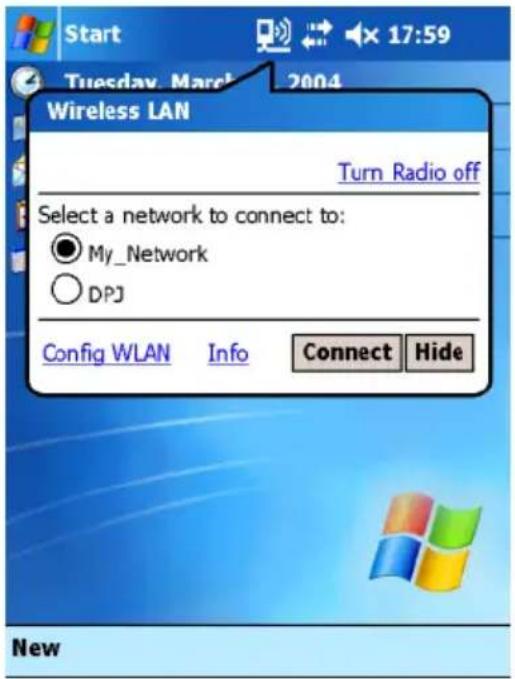
Turning off/on a wireless LAN connection
If you want to turn off/on the wireless LAN, tap the arrows icon on the navigation bar and launch the Connectivity window. If you tap the Turn off/on flight mode link, you can turn off/on the wireless LAN module.
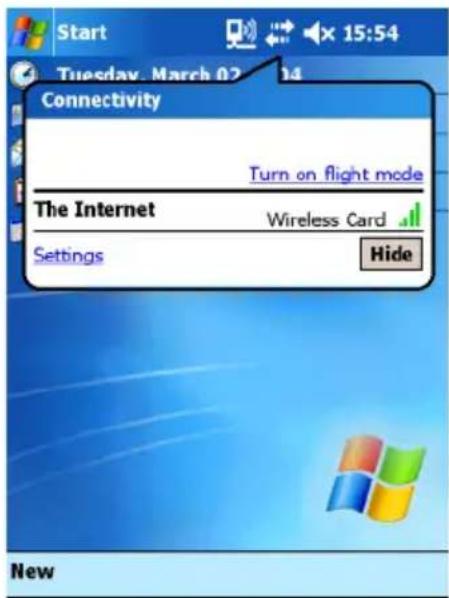
Traffic Monitor Utility (TMU) also supplies the wireless LAN power off/on module. If you want to turn off or turn on the wireless LAN, tap the TMU icon and launch the Wireless LAN window. If you tap the Turn radio off/on link, you can turn off or turn on the wireless LAN module. For more information about TMU, see "Monitoring through the Traffic Monitoring Utility (TMU)" on page 122.
The Wireless Control utility also turns off/on a wireless LAN module. To launch Wireless Control, tap Start, Settings, System tab, then Wireless Control.
Selecting a preferred network
TMU shows a Preferred network list where you can change wireless network connections from this preferred list. If you want to connect to wireless LAN network, you have to make a network setting and store to the preferred network list. See "Configuring a Wireless LAN" on page 119 to set up a wireless network.
Configuring the IP address, subnet mask, and default gateway
Use the IP Address Page to view and edit the IP address, subnet mask and default gateway. Tap Start, Settings, Connections, Network Cards, Network Adapters, then IEEE 802.11b WLAN Adapter.
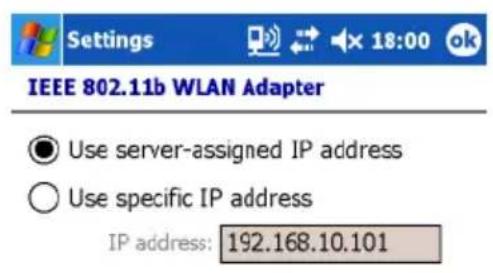
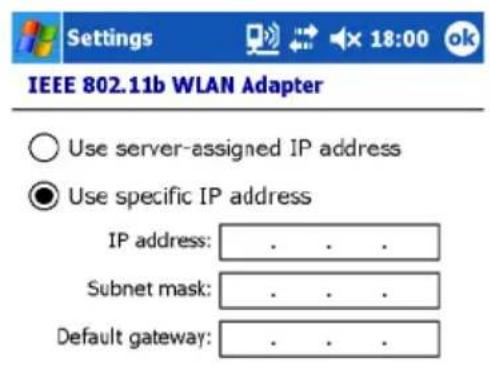
IP Address
The IP Address is the Internet Protocol Address; a numeric address (such as 10.37.238.100) that the domain name server translates into a domain name. Each node on the IP network should have a unique IP address.
Subnet mask
The subnet mask is a number used to identify a sub-network when multiple networks share an IP address. For example 255.255.255.0
Default gateway
This default gateway is used to forward IP packets to and from a remote destination.
NOTE
Please check with your network administrator for information on these connection settings.
Setting up the Name Servers screen
Use Name Servers Page to view and edit DNS, Alt DNS, WINS and Alt WINDS. Tap Start, Settings, Connections, Network Cards, Network Adapters, IEEE 802.11b WLAN Adapter, then Name Servers.
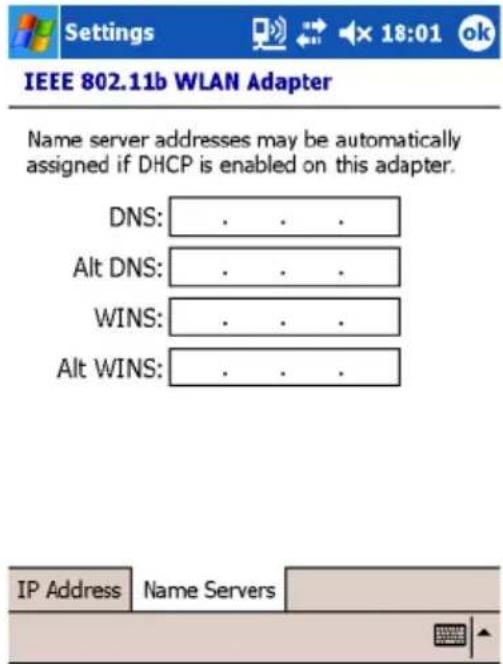
DNS
Domain Name System (DNS) is a database system that translates addressed and domain names. For example, the numeric address (such as 232.245.21.54) becomes something such as cba.com. DNS can also be used to control Internet email delivery.
WINS
The Toshiba Pocket PC e830W Windows Internet Naming Service (WINS) has two functions; one is a Microsoft NetBIOS name server that eliminates the broadcast needed to resolve computer names to IP addresses by providing a cache or database of translations. The other functions is to set the IP address of the host PC to function properly with the ActiveSync network adapter.
NOTE
Your Toshiba Pocket PC e830W cannot synchronize with your host PC without setting the IP address in WINS.
Alt DNS
Alternative Domain Name System (Alt DNS) is used to substitute for the main DNS when necessary.
Alt WINS
Alternative Windows Internet Naming Service (Alt WINS) is used as a substitute for the main WINS when necessary.
Configuring a Wireless LAN
Setting up a wireless network
Networks that you have already configured are preferred networks and are listed in Wireless networks. You can select to connect to only preferred networks or have your Toshiba Pocket PC e830W search for and connect to any available network whether it is preferred or not.
Tap Start, Settings, Connections, Network Cards, then the Wireless tab. You can also launch this by tapping Start, Settings, System, then Wireless Networks.
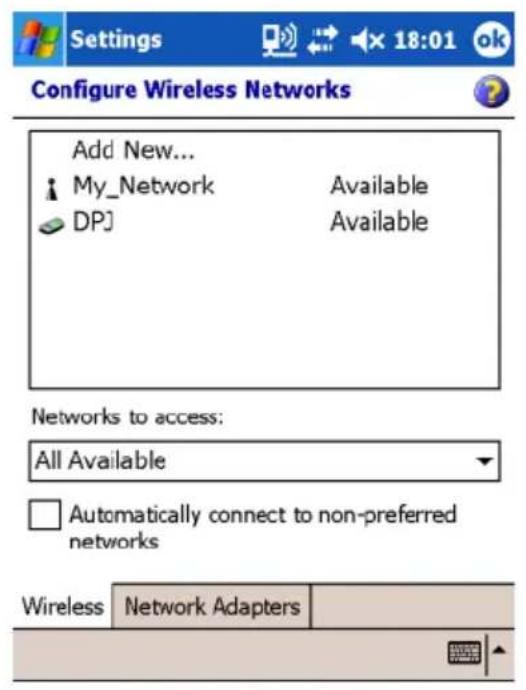
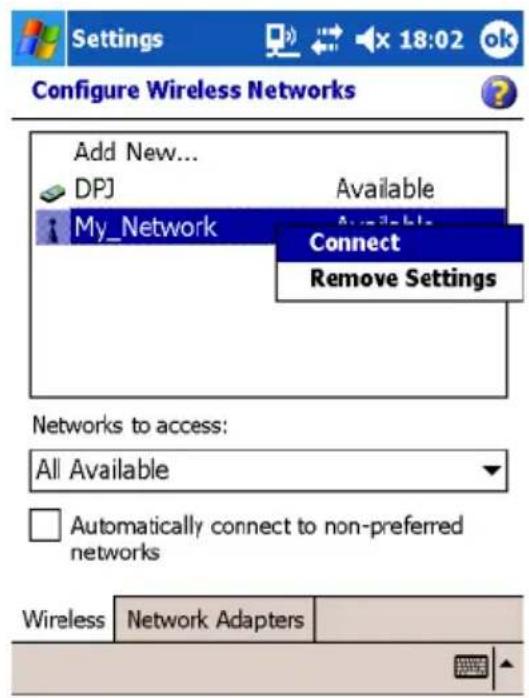
To change network settings within Wireless networks, tap a network. If you do not see a desired network, tap Add new ... and follow the instructions on the screen.
From Networks to access, select All available, Only access points, or Only computer-to-computer depending on the type of connected network(s). To connect only to networks you have already configured, clear the Automatically connect to non-preferred networks check box.
To change the network to connect in the preferred network, tap and hold a network that you want to connect and select Connect.
To delete the network in the list, tap and hold the network and select Remove Settings.
NOTE
If you select to automatically connect to non-preferred networks, your Toshiba Pocket PC e830W detects any new networks and provides you the opportunity to configure them.
Configuring a wireless network
A wireless network can be added either when the network is detected or manually by entering settings information.
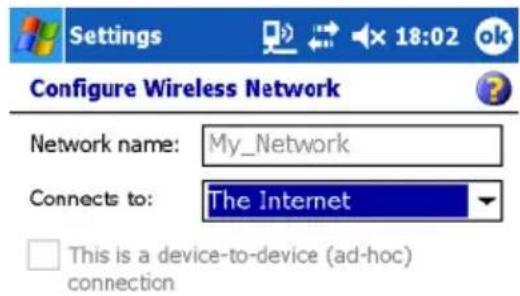
- Network name—Known as "SSID" and "ESSID", enters a network name. The network name is a name given to the groups that form the wireless LAN network (up to 32 single-byte English characters and symbols may be used). If the network was detected, the network name is automatically entered and cannot be changed.
- Connect to—Select Work or Internet.
- This is a device-to-device (ad hoc) connection—Select an ad hoc connection.
Configuring the Network Authentication screen
A wireless network can be added either when the network is detected or manually by entering settings information. To determine if authentication Information is needed, see your network administrator.
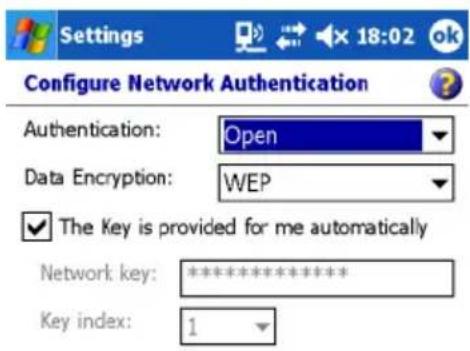
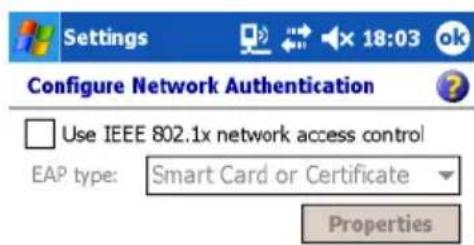
- Authentication
Tap to select the authentication method.
• Data Encryption (WEP/TKIP Enabled)
Tap to select the encryption method.
• The Key is provided for me automatically
Select if you can obtain WEP key automatically from the Access Point (AP). In most cases, this function is used with 802.1X function. Default is Enable.
• Network Key (WEP/Pre-Shared Key)
Enter the ASCII characters and symbols that correspond to the mode selected.
64 bits (ASCII)
5-digit ASCII characters or symbols can be entered in Network Key.
■128 bits (ASCII)
13-digit ASCII characters or symbols can be entered in Network Key.
64 bits (HEX)
Hexadecimal 10-digit English letters and numerals can be entered in Network Key. Letters and numerals that can be entered are 0-9 and A(a) - F(f).
128 bits (HEX)
Hexadecimal 26-digit English letters and numerals can be entered in Network Key. Letters and numerals that can be entered are 0-9 and A(a) - F(f).
■Pre-Shared Key (PSK)
8 to 64 ASCII characters or symbols can be entered in Network Key.
• Key Index
This becomes enabled when WEP is selected. Select 1 - 4.
- Use IEEE 802.1X network access control
Select to enable 802.1x validation function.
- EAP type
Select protocol for using 802.1x validation function.
PEAP
Protected EAP Protocol (PEAP) used by Windows.NET Server 2003, etc.
Smart Card or Certificate
Transport Layer Security (TLS) protocol used by Windows 2000 Server, etc.
Ask your network administrator for further 802.1x validation procedure details.
Monitoring through the Traffic Monitoring Utility (TMU)
TMU keeps users updated about the current WLAN Module's activity.
Icon Specification
Wireless communication switch off
The Wireless communication switch (located on the bottom of your Toshiba Pocket PC e830W) is turned off. Tapping on the 🔊 icon gives you a warning message, "Please turn on Wireless communication switch!"
Turn on the switch and the 🔊 icon turns to 🔊, depending on the original WLAN Module Power setting.

Wireless communication power off
The WLAN module is powered off. Tapping on the icon displays a "Power Wireless on" message. Tap the link to turn on the Wireless LAN module power and then the icon.


Wireless power on
The WLAN module is powered on. Tapping on the icon displays a "Power Wireless off" message. Tap the link to turn off the Wireless LAN module power and then the icon. The number of waves indicates the signal strength.
Configuring the Wireless LAN Manager
The Wireless LAN Manager enables you to control some power management settings and also enable you to gather information on the Wireless LAN adapter. To get the status of the Wireless LAN Manager, tap the Wireless LAN Indicator icon on the navigation bar, and then tap the Info link.
You can also launch the Wireless LAN Manager by tapping Start, Settings, System, then Wireless LAN Manager.
Link screen
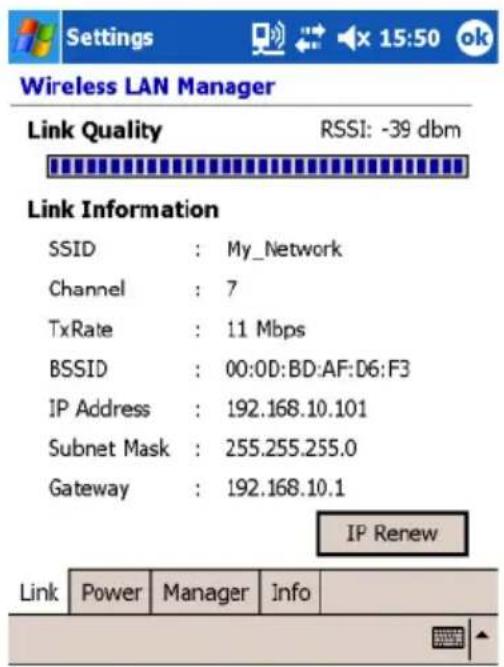
- Link Quality—Link Quality shows the quality of wireless LAN signal.
- Link Information—Link Information shows some information about your wireless LAN adapter.
■SSID—Displays the SSID currently connected to the access point or 802.11 ad hoc network.
■ Channel—The number of the channel being used by the access point or 802.11 ad hoc network.
■Tx Rate—Displays the transmission rate used.
BSSID—Displays the BSSID set on the access point or 802.11 ad hoc network.
■IP Address—Displays the IP address set.
■Subnet Mask—Displays the subnet mask set.
■ Gateway—Displays the gateway IP address set.
IP Renew—Use this button to renew an IP address only used if DHCP is being used.
Power screen
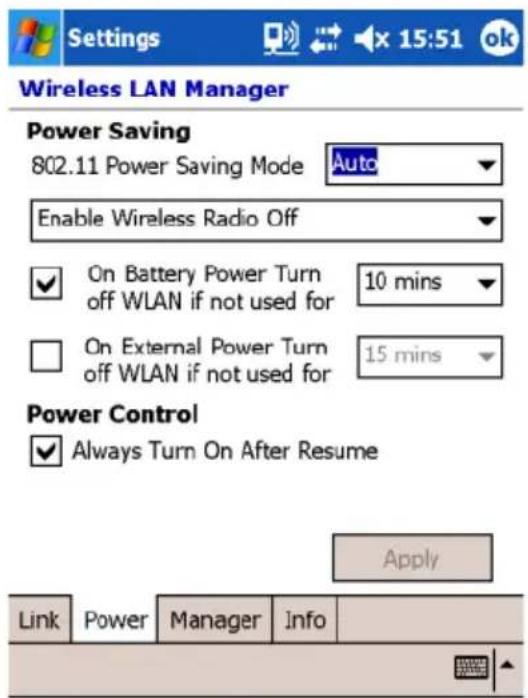
- 802.11 Power Saving Mode—You can enable 802.11-based power management functions from this pull-down menu (Default is Auto).
- Enable Wireless Radio/Power Off—Select this to run in power saving mode. Radio/Power is turned off if there is no transmission for the time specified.
■Enable Wireless Radio Off—Select this for high wireless radio responsitivity. Note that this option consumes more battery power.
■Enable Wireless Power Off—Select this for low wireless radio responsitivity to conserve battery power.
■Disable Auto. Power Management—Select this to use power saving mode.
On Battery Power—Select this to run in power saving mode when on battery power.
Power is turned off if there is no transmission for the time specified.
Select the length of time for power saving mode from the pull-down menu.
On External Power—Select this to run in power saving mode when on external power.
Power is turned off if there is no transmission for the time specified.
Select the length of time for power saving mode from the pull-down menu.
- Power Control—If you select Always Turn on after resume, Wi-Fi turns on after resuming.
Manager screen
- Enable Wireless Indicator—If you select this, the wireless LAN indicator is displayed in the navigation bar.
- Transmission Rate—Select transmission rate to be used from the pull-down menu. If you select Fully Auto, the adapter is automatically set to the highest available transmission rate.
- Ad-hoc Channel—If you can join an ad hoc network, select a channel from this list.
- 802.11 Preamble—Select preamble to use an 802.11 network.
- RTS Threshold—Enter the threshold that can enable RTS/CTS transmitting.
- Fragmentation Threshold—Enter the threshold that can enable Fragmentation of network frames.
Info screen
MAC Address

Version Information
| Firmware : | 1.08.02 |
| Driver : | 3.01.03 |
| Utility : | 1.02.01 |
- MAC (Media Access Control) Address—Displays the wireless LAN MAC address. The MAC address is a hardware address that uniquely identifies each device on the network.
- Version Information:
■Firmware—Displays FW version that included wireless LAN hardware.
■Driver—Displays the wireless LAN driver version.
■ Utility—Displays the wireless LAN configuration utility version.
TOSHIBA Enroller
The TOSHIBA Enroller is the tool for obtaining and administering certificates used for 802.1X validation, SSL connection with personal certification, and VPN connection. Consult your network administrator for configuration details.
TOSHIBA Enroller supports PCKS#12 (*.p12, *.pfx *1), PKCS#7 (*.p7b) and DER encored root certificates (*.cer) files. You can import these files as shown in the sample import screen below. Tap certificate file in File Explorer to access this screen. Toshiba Enroller supports only RC4 secret key encryption (supplied by a Microsoft Base Cryptographic Provider).
Import screen
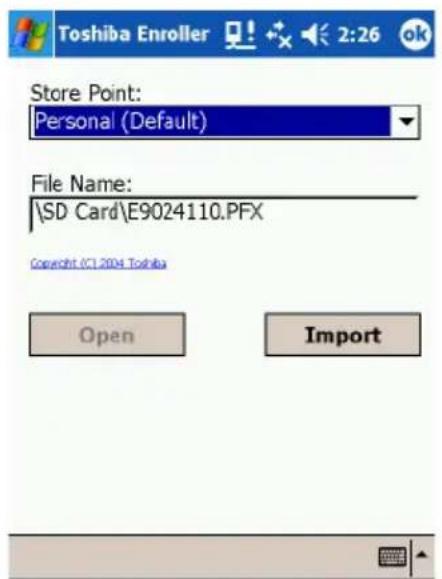
Store Point—You can choose storing point for certification. "Personal" is the default.
Open—Open file.
Import—Import certificate.
PKCS#12 requires pass phase for importing.
*1 = You must input pass phase for importing certificates (Toshiba Enroller doesn't support NULL password).
Launching TOSHIBA Enroller
- Tap Start, Settings, System tab, then Toshiba Enroller.
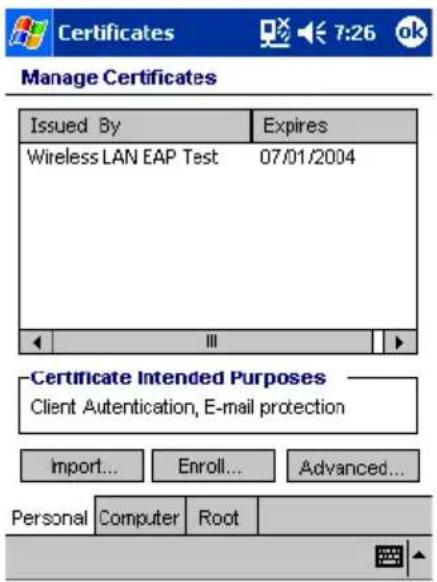
Certificate Intended Purposes—Show purposes of certificate.
Personal/Computer/Root tab—Choose type of certificate.
Import—Use this to launch the Toshiba Certificate Import Wizard.
Enroll—Use this to launch the Enroll Certificates screen.
Advanced—Use this to launch the Advanced Settings screen.
Toshiba Certificate Import Wizard
Toshiba Certificate Import Wizard helps you obtain certificates from a network or disk to certificate store more easily. The Toshiba Certificate Import Wizard requires an ActiveSync environment to obtain a certificate from a server. Please prepare the cradle and PC so that your Toshiba Pocket PC e830W can connect to a Certification Authority (CA) server.
The Toshiba Certificate Import Wizard obtains a Certification Authority via an ActiveSync path through a network connection.
Launching the Toshiba Certificate Import Wizard
- Tap Start, Settings, System, then Toshiba Enroller.
- To select the certificate type, tap either the Personal, Computer, or Root tabs.
- Tap Import.
NOTE
You can exit this wizard when you tap OK. All operations on this wizard are then cancelled.
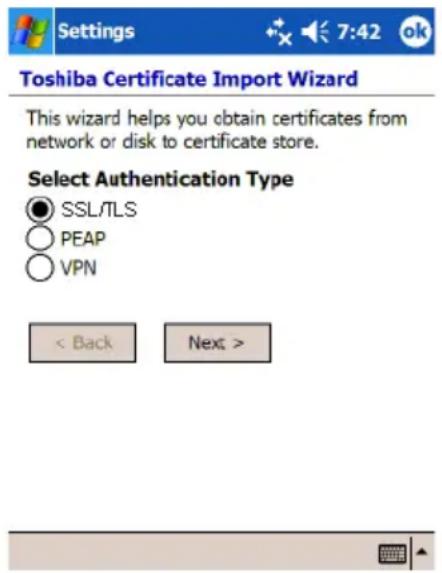
SSL/TLS—Choose this for Personal and Root Certificates for 802.1X connection, SSL Internet Browsing.
PEAP—Choose this for only root Certificate.
VPN—Choose this for Personal, Computer, and Root Certificates for L2TP VPN connection.
Enrolling Certificates
-
Tap Start, Settings, System, then Toshiba Enroller.
-
To select the certificate type, tap either the Personal, Computer, or Root tabs.
-
Tap Enroll.
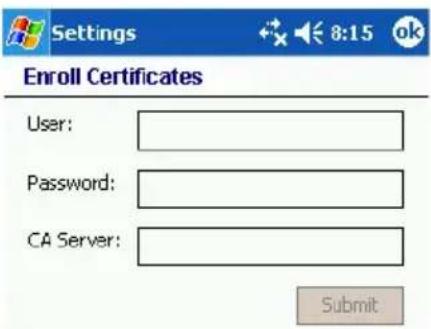

User—Enter the user name of the person obtaining the client certificate.
Password—Enter the password of the user obtaining the client certificate. The password may be up to 14 single-byte characters in length. If this length is exceeded, the password is blocked.
CA Server—Enter the URL or IP address of the certifying server issuing the client certificate. URLs with more than 255 characters are blocked.
Submit—After you have entered the user name, password and CA server, tap this button to request a certificate from the certifying server.
Configuring Advanced Settings
-
Tap Start, Settings, System, then Toshiba Enroller.
-
To select the certificate type, tap either the Personal, Computer, or Root tabs.
-
Tap Advanced.
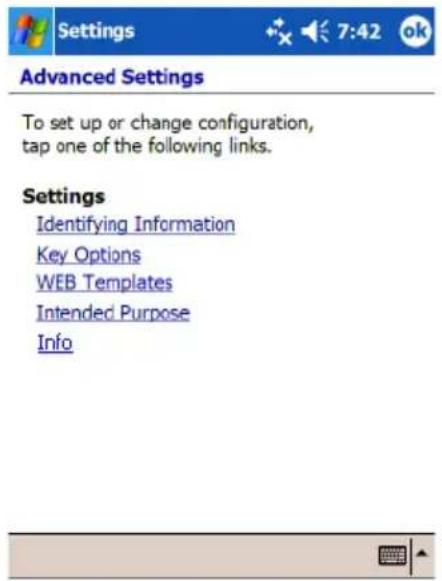
Consult your network administrator for operational procedures regarding the Identifying Information, Key Options, Web Templates, Intended Purpose, and Info settings.
Using ConfigFree™
ConfigFree is a suite of utilities used to set up a network, and includes the following utilities:
• Search for Wireless Devices
- Connectivity Doctor
- Profiles Settings
To launch the above utilities, tap 📄, Program, ConfigFree.
ConfigFree Launcher resides as an icon in the Command bar at the bottom of the Today Screen, and includes shortcuts to all of the ConfigFree utilities.
Search for Wireless Devices
Search for Wireless Devices displays nearby active IEEE 802.11b access points and Bluetooth devices.
- IEEE 802.11b access points—You can make a network connection by tapping the access point icon and dragging to the center of your Toshiba Pocket PC e830W icon.
- Bluetooth devices—You can launch Bluetooth Settings to register a selected Bluetooth device by tapping the Bluetooth device icon and dragging to the center of your Toshiba Pocket PC e830W icon.
Connectivity Doctor
Connectivity Doctor helps resolve networking issues that occur with your Toshiba Pocket PC e830W.
When Connectivity Doctor launches, it analyzes the network and all wireless LAN devices (not including infrared, Bluetooth, or dial-up devices), adds an exclamation mark ("!") next to any detected problems, and offers a solution. Tap the exclamation mark to display the cause of the problem and a solution.
Profile Settings
Profile Settings create profiles for TCP/IP, wireless LAN, and other network environments. By changing a profile, you can change quickly network settings.
Please refer to ConfigFree Help for more information.
Chapter 9:
TOSHIBA IP Phone for Pocket PC
NOTE
This chapter is valid for the Toshiba Pocket PC e830W model only.
You can use TOSHIBA IP Phone for Pocket PC in the two ways:
• Peer-to-Peer Communications (P2P Communications)
- Communications with Gphone Buddy Service
For P2P Communications, you can call an IP Phone in the following ways:
- IP address
- Device name
NOTE
You can set or confirm the Device name of your Pocket PC e830 by tapping 📄, Settings, System, About, then Device ID.
You can communicate using the Device name under the following conditions:
- A calling party and a called party are on a same subnet.
- The Device name is unique on a subnet.
You need to sign up prior to using the Gphone Buddy Service. Sign-up page of Gphone Buddy Service at http://www.gphoneonline.com.
TOSHIBA IP Phone for Pocket PC allows you to:
- Call an IP phone
- Use answering machine functions
- Send and receive instant messages while talking
- Check your buddies' current status (online, offline, busy, or away) *
- Notify your buddies of your current status (online, offline, busy, or away) *
* = Communications with Gphone Buddy Service Only
Launching TOSHIBA IP Phone
Tap 📄, Programs, and IP Phone.
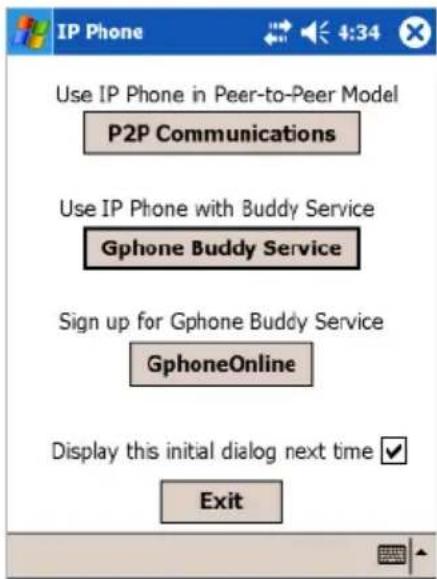
NOTE
It is recommended that you use headphones with a microphone when you talk.
You can hear the ring tone from the built-in speaker when you receive a call (even if you attach headphones).
For better audio quality, it is generally recommended that you adjust the headphone (speaker) volume by tapping the ☑ the top of the screen, rather than the microphone volume. If your party hears his or her own voice because of acoustic echo from your speaker to microphone, it is recommended that you lower your speaker volume. When you use the built-in microphone, a feature within TOSHIBA IP Phone automatically reduces the howling (feedback) and acoustic echo that commonly accompanies microphone and speaker volume problems.
Using P2P Communications
To start P2P Communications, tap 📋, Programs, and IP Phone and then P2P Communications.
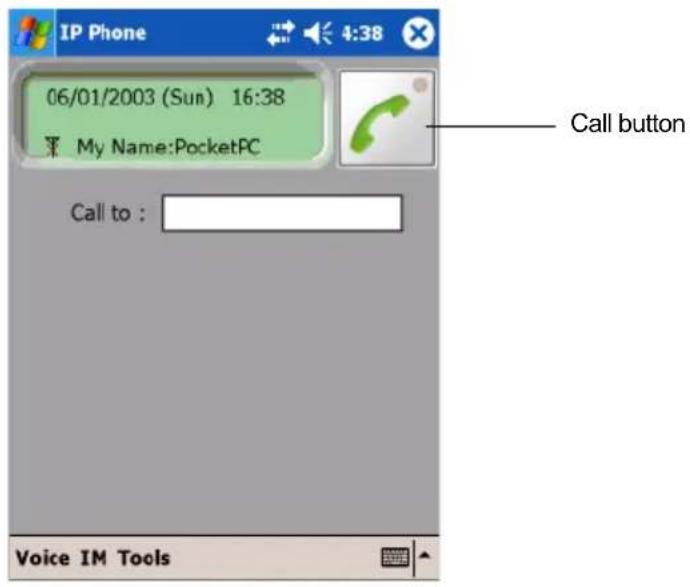
Calling an IP Phone
- Enter the Device name or IP address.
- Tap Call.
Answering a call automatically
You can configure TOSHIBA IP Phone to automatically answer a call. To enable automatic answer, tap Tools, Options, and check Automatic Answer. Enabling the Automatic Answering features allows your calling party to record a voice message (up to 20 seconds). Ten seconds after a call is received, TOSHIBA IP Phone answers and then sends a reply message to the calling party.
NOTE
Even while TOSHIBA IP Phone is automatically answering (or your calling party is recording) a message, you can cancel the message and talk with your calling party by tapping Hangup. During an automatic answering session, TOSHIBA IP Phone displays the recording state and recording time on the LCD.
Placing a call on hold
- Tap Voice, then tap Hold.
- To continue your call, tap Voice, then tap Hold.
Hanging up
To end your call, tap Hangup.
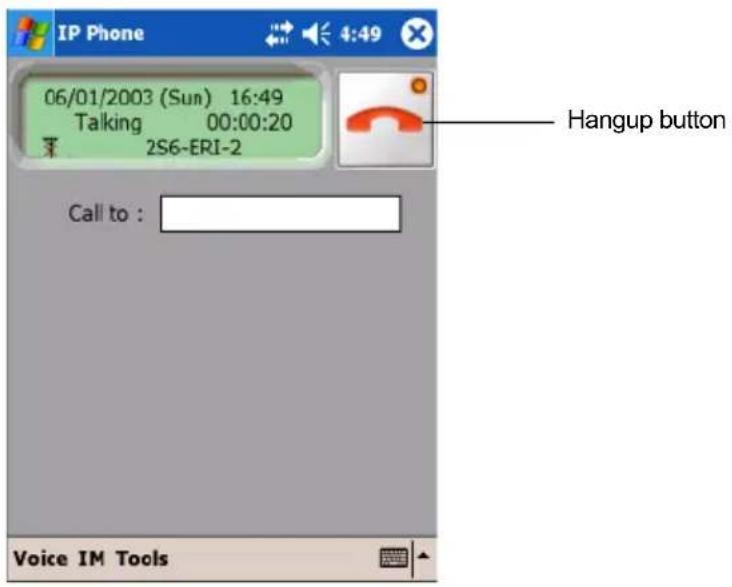
Playing back a voicemail
- Tap Tools, Call history.
- Tap the Incoming tab.
- Select a call with voicemail indication from the incoming call history.
- Tap Play back.
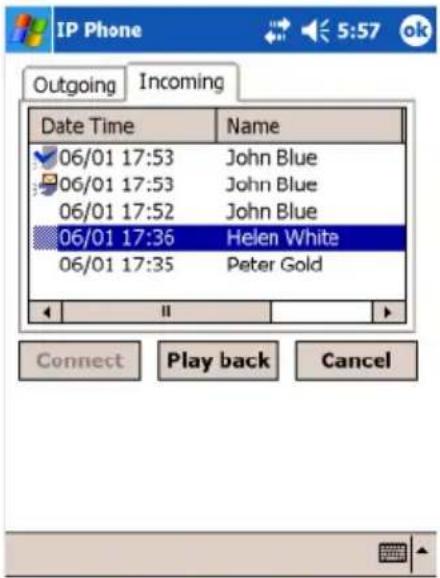
Voicemail indication

means you have already listened to the message.

means you have not yet listened to it.
NOTE
While using P2P Communications, the redial and callback functions are not provided because the IP address provided in call history might be assigned to a different Pocket PC.
Using Instant Messaging (IM)
You can send and receive instant message while talking.
- Tap IM, then Instant Message after a call is connected.
- Enter your message in the text box.
- Tap Send.
![and you ? hi [YourPDA]: how are you ? [MyPDA]: fine ! Tap to enter your message. Send Clear Exit 123 1 2 3 4 5 6 7 8 9 0 - = Tab q w e r t y u i c p [ ] CAP a s d f g h j k l ; ' Shift z x c v b n m , . / CtI äü ' \ ↓ ↑ ← →](/content/2026/05/818066/images/257e6bff79b68acc07d85ca97d9783723f8958eaf4f9519df788ee8d9ed34fc0.jpg)
NOTE
You can send up to 128 bytes per message.
- Communications with Gphone Buddy Service
To start Communications with Gphone Buddy Service, tap 📋, Programs, IP Phone, then Gphone Buddy Service.
Signing-in
To use Gphone Buddy Service, you need to sign in by the following steps.
- Enter your G-Number and password.
2. Tap Sign in.
![IP Phone 5:31 P2P Communications G-Number 000000000001 Password ******** Automatic sign-in Sign in Gphone Online Cancel 123 1 2 3 4 5 6 7 8 9 0 - = Tab q w e r t y u i o p [ ] CAP a s d f g h j k l ; ' Shift z x c v b n m , . / CtI áü ' \ ↓ ↑ ← →](/content/2026/05/818066/images/19bfa42bda1c40173196140258fe2ee370865cf45bfff9605982409a68d1143b.jpg)
If Automatic sign-in is checked, TOSHIBA IP Phone signs in automatically next time you launch it.
To launch P2P communications, tap P2P Communications.
Calling an IP phone
- Tap a buddy on your buddy list.
- Tap Call.
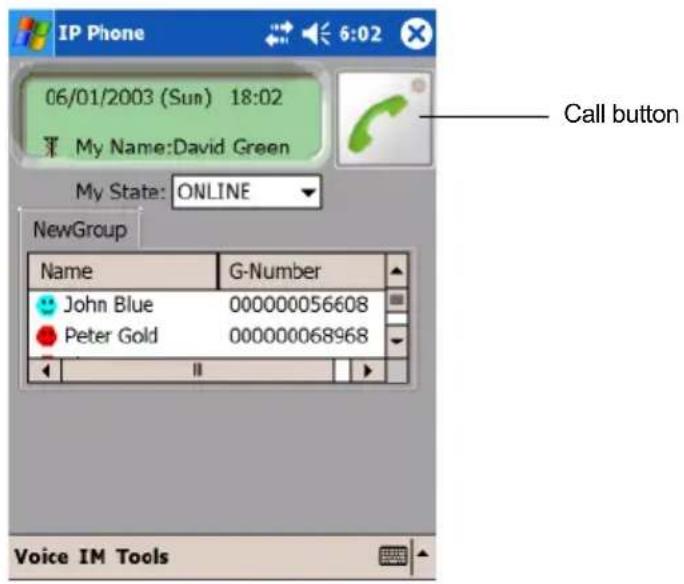
Answering a call automatically
You can configure TOSHIBA IP Phone to automatically answer a call. To enable automatic answer, tap Tools, Options, and check Automatic Answer. Enabling the Automatic Answering features allows your calling party to record a voice message (up to 20 seconds). Ten seconds after a call is received, TOSHIBA IP Phone answers and then sends a reply message to the calling party.
NOTE
Even while TOSHIBA IP Phone is automatically answering (or your calling party is recording) a message, you can cancel the message and talk with your calling party by tapping Hangup. During an automatic answering session, TOSHIBA IP Phone displays the recording state and recording time on the LCD.
Placing a call on hold
- Tap Voice, then Hold.
- To continue your call, tap Voice, then Hold.
Hanging up
To end your call, tap Hangup.
Playing back a voicemail
- Tap Tools, Call history.
- Tap the Incoming tab.
- Select an incoming call with a voicemail indication from the incoming call history log.
- Tap Play back.
Voicemail indication

means you have already listened to the message.

means you have not yet listened to it.
Using Instant Messaging (IM)
You can send and receive instant message while talking.
- Tap IM and Instant Message after a call is connected.
- Enter your message in the second text box from the top.
- Tap Send.
NOTE
You can send up to 128 bytes per message.
Redialing using the outgoing call history
- Tap Tools, Call history.
- Tap the Outgoing tab.
- Select an outgoing call history.
- Tap Connect.
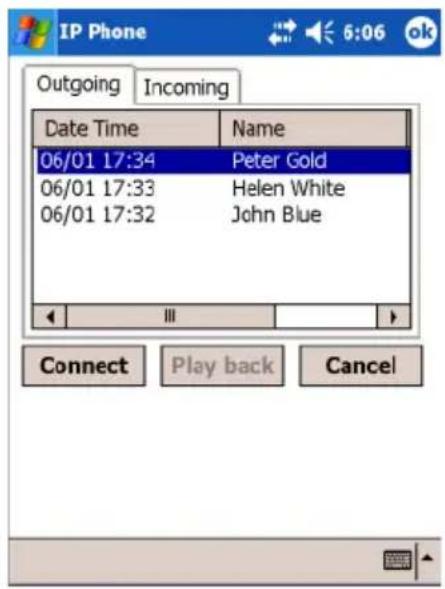
Calling back using the incoming call history
- Tap Tools, Call history.
- Tap Incoming.
- Select an incoming call from the incoming call history log.
- Tap Connect.
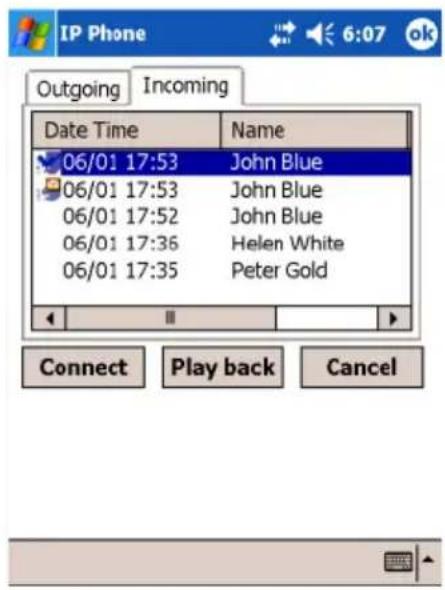
Adding a contact to your buddy list
- Tap Tools, then BuddyList.
- Tap Add.
- Enter the G-Number.
- Select an existing group name or enter a new group name.
- Tap Save.
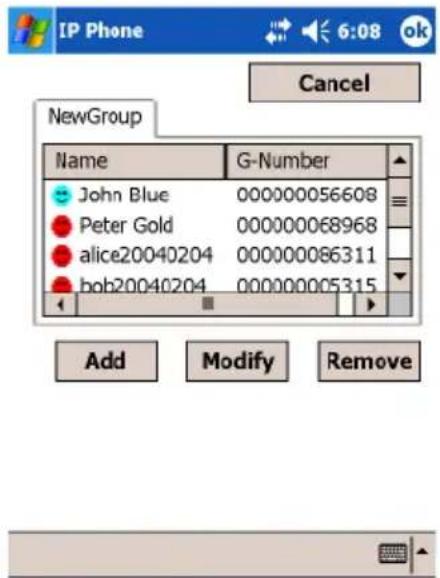
![IP Phone G-Number Group NewGroup Save Cancel 123 1 2 3 + 5 6 7 8 9 0 - = Tab q w e r t y u i o p [ ] CAP a s d f g h j k l ; ' Shift z x c v b n m , . / CtI áü ' \ ↓ ↑ ← →](/content/2026/05/818066/images/247581424519dda12ae67828a7f255115e3f50a74916dd2a514ef63cd9b5babb.jpg)
NOTE
You can make up to 10 groups in the buddy list.
Removing a contact from your buddy list
- Tap Tools and then BuddyList.
- Choose a contact from buddy list.
- Tap Remove.
Refreshing buddy status
TOSHIBA IP Phone automatically refreshes buddy status every several minutes. To refresh the buddy status manually, tap Tool and then Refresh.
Buddy status is as follows:

ONLINE (Blue icon)

OFFLINE (Red icon)

BUSY (Green icon)

AWAY (Yellow icon)
Presence Service (PS)
To show your status to your buddies, tap My State, then either ONLINE, OFFLINE, BUSY, or AWAY.
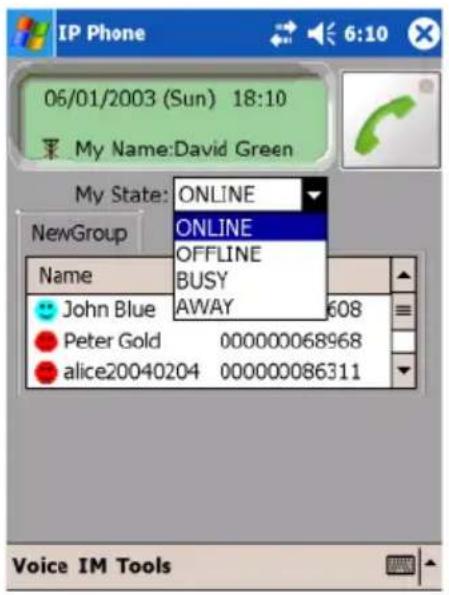
Using Gphone Buddy Service behind a NAT router
With Gphone Buddy Service, you can use this application behind a NAT router. You may have to configure port forwarding at your router regarding port numbers below in order for this application to receive a call through a NAT router.
- Port number to wait for call signaling request
- You can confirm its current value at UDP Port (Signal) by tapping Tools, then Options.
- Its default value is 28100.
- Port number to receive audio packet, or RTP (Real-time Transport Protocol) packet
- You can confirm its current value at UDP Port (Voice) by tapping Tools, then Options.
- Its default value is 29100.
- Port number to receive RTCP (RTP Control Protocol) packet
• RTCP uses the next higher port number than RTP.
- Its default value is 29101 because RTP uses 29100 by default.
When you use several IP phones behind a same NAT router, you may have to use different port numbers on each PC. For example, if you have three PCs, terminal A, B, and C behind the same NAT router and each PC has an IP Phone. In this case, you may need to change the port numbers
on two terminals, such as terminals B and C as shown in the sample configuration below.
- Terminal B
- Tap Tools, then Options.
- Change the value of UDP (Signal) from 28100 to 28110.
- Change the value of UDP (Voice) from 29100 to 29110.
- Terminal C
- Tap Tools, then Options.
- Change the value of UDP (Signal) from 28100 to 28120.
- Change the value of UDP (Voice) from 29100 to 29120.
Configuring IP Phone options
You can configure the automatic answer feature, select ringing audio, ringback audio, answering message and hold messages files by tapping Tools, then Options.
All audio files must be formatted in the following manner:
- . w a v
- PCM
• 8 K H z
• 16 bit - mono
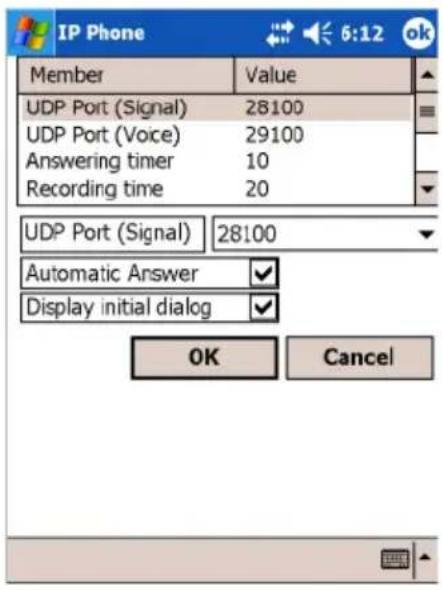
Automatic answer
You can enable or disable the Automatic answer feature that allows your Toshiba Pocket PC e830 to automatically answer and record an incoming call.
UDP Port (Signal)
If necessary, you can change the port number to wait for a call signaling request.
UDP Port (Voice)
If necessary, you can change the port number to receive an audio packet.
Ringing audio file
You can choose either Ring.wav or Ring1.wav to sound when the phone rings.
Ringback audio file
You can choose either Ringback.wav or Ringback1.wav to sound when the phone rings back.
Answering message file
You can choose either Ans.wav or Ans1.wav to sound after an automatic answer.
Hold message file
You can choose either Hold.wav, or Hold1.wav to sound when a call is on hold.
Chapter 10:
Bluetooth
Bluetooth software overview
NOTE
This chapter is valid for the Toshiba Pocket PC e830W model only.
The Toshiba Pocket PC e830 Series has two models:
• e830 (non wireless model)
• e830W (wireless model, supporting Wireless LAN and Bluetooth)
Your Toshiba Pocket PC e830 has two types of Bluetooth software; one is the Toshiba Bluetooth software, the other is the Microsoft standard Bluetooth software. The Toshiba Bluetooth software is available on the wireless model only. In other models, the Microsoft Bluetooth icon appears and some Bluetooth features are functional, but these do not work without an available Bluetooth device.
This section describes the Toshiba Bluetooth software only.
Specifications
By enabling the Bluetooth device on your Toshiba Pocket PC e830W, you can communicate with Bluetooth-enabled PCs, modems and other peripherals and chat with other Toshiba Pocket PCs. Although you have access to many Bluetooth-enabled devices, you can use Bluetooth to connect your Toshiba Pocket PC e830W to only one device at a time.
Your Toshiba Pocket PC e830W supports these Bluetooth services:
■COM service (Serial Port Profile)
This service enables you to connect to a PC via a serial port to send and receive data. COM service is also used when connecting to a PC with ActiveSync and when chatting with other Toshiba Pocket PCs.
■DUN service (Dial-up Networking Profile)
■LAP service (LAN Access Profile)
■FTP service (File Transfer Protocol Profile)
This service enables you to transfer files to and from a device with FTP service, such as a PC.
■OPP service (Object Push Profile)
This service enables you to connect to another Toshiba Pocket PC or
cell phone and exchange address books and owner information.
The data formats and maximum size of receiving messages are as follows.
| Contact(address book)Business card(owner information) | vCard format(vCard 2.1) | Other than memo......1,022 charactersMemo......Approximately 32,700characters |
| Schedule vCalendar format(vCalendar 1.0) | Subject......4,096 charactersLocation ......1,023 charactersCategory ......1,023 charactersAttendees......1,022 characters (per person)Memo......Approximately 2,500 characters | |
| Task vToDo format Subject......4,095 charactersCategory ......1,023 charactersMemo......Approximately 7,600 characters | ||
CAUTION
Depending on the specifications of the device to which you are connected, data sent and received may not be properly stored in the respective device.
■PAN service (Personal Area Networking Profile)
This service enables you to connect to a Bluetooth Access Point or PC to access the Internet or an intranet.
Supported profiles and specifications
| Profiles supported by your Toshiba Pocket PC e830W | Serial Port Profile |
| Dial-up Networking Profile | |
| Object Push Profile | |
| File Transfer Profile | |
| LAN Access Profile | |
| Personal Area Networking Profile | |
| General Access Profile |
Bluetooth specification V1.2
Not compatible with Bluetooth V1.0B devices.
The connection speed of the Bluetooth varies depending on the location and orientation of your Toshiba Pocket PC e830W, the communications range, the operating environment, the performance of the other party's device, and other factors.
The Bluetooth software cannot be used to communicate with devices for which it is unable to confirm the appropriate Bluetooth service.
Enabling Bluetooth
You can enable Bluetooth on your Toshiba Pocket PC by using the Wireless communication switch (see "Wireless communication switch" on page 32 for more information). The Bluetooth icon appears.
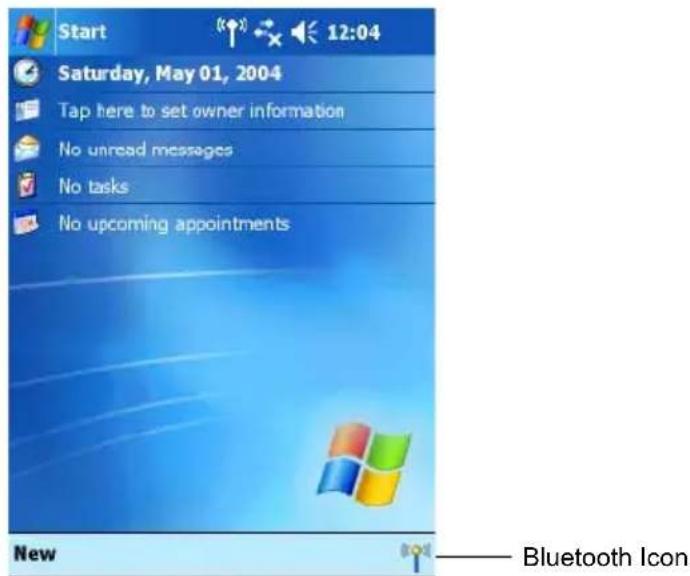
Bluetooth Environmental Settings
Follow the procedure below to configure environmental and security settings and change the device name for your Toshiba Pocket PC e830W.
- Tap the Bluetooth icon 📊 and select Bluetooth Settings from the pop-up menu.
When you use Bluetooth Settings for the first time or when a remote device (connected partner) is deleted, a dialog box appears. Tap OK.
You can also display the Bluetooth Settings screen by tapping Start, Programs, Bluetooth, then Bluetooth Settings.
- Tap Options on the command bar.
The Options menu appears.
- Tap Security Settings on the Options menu.
The Change Security Setting screen appears.
To change the security setting, tap the desired security setting and tap OK.
You can select from four security settings: Office, Mobile, Home, and Other. The default setting is Home.
Advanced Settings
To change an advanced setting, select the desired setting and tap OK.
The default settings are as follows.
| Discoverability Mode | Connectability Mode | Security Mode Encryption | |
| Office | Discoverable Connectable Security On Yes | ||
| Mobile | Non-discoverable Non-connectable Security On Yes | ||
| Home | Discoverable Connectable Non-secure No | ||
| Other | Discoverable Connectable Security On Yes | ||
In the default setting for Home, the Security Mode is set to Non-secure and, therefore, unspecified devices may be able to connect to Local Device. It is recommended that you set the Security Mode to Security On.
If you want to set the Connectability Mode to Non-connectable and you are operating your Toshiba Pocket PC e830W in an environment in which there are three or more operating Bluetooth devices, you should also set the Discoverability Mode to Non-discoverable.
- Tap the Options menu, then Local Device.
The Device Information screen for Local Device appears.
To change the name of the device, enter the new name in the Device Name box and tap OK.
■The default device name is "Toshiba BT."
■The device name can be a maximum of 248 alphanumeric characters.
If the device name exceeds 248 alphanumeric characters, an error message appears.
The Bluetooth environmental settings are now complete. Refer to the following for additional operations.
■COM service, see "Using COM service" on page 153.
■DUN/LAP service, see "Using DUN/LAP service" on page 154.
■PAN service, see "Using PAN service" on page 155.
■ OPP service, see "Using OPP service" on page 157.
■FTP service, see "Using FTP service" on page 160.
NOTE
If the Bluetooth icon "no longer appears in the program menu, it can be recovered by executing following program in Explorer:
\windows\bt_rescue.exe
Bluetooth connection preparation
Follow the procedure below to make preparations for a Bluetooth connection.
Search for peripheral devices
Bluetooth authentication and service update
- Tap the Bluetooth icon

When you use Bluetooth Settings for the first time or when a remote device (connected partner) is deleted, a dialog box appears. Tap OK.
You can also display the Bluetooth Settings screen by tapping Start, Programs, Bluetooth, then Bluetooth Settings.
- Tap the Bluetooth icon then Devices Search.

Local Device searches for Bluetooth devices in the vicinity while a message is displayed on the screen indicating that Local Device is searching for peripheral devices. It may take several minutes to complete the device search. Once the search is completed, the remote device list is updated with the latest remote device information.
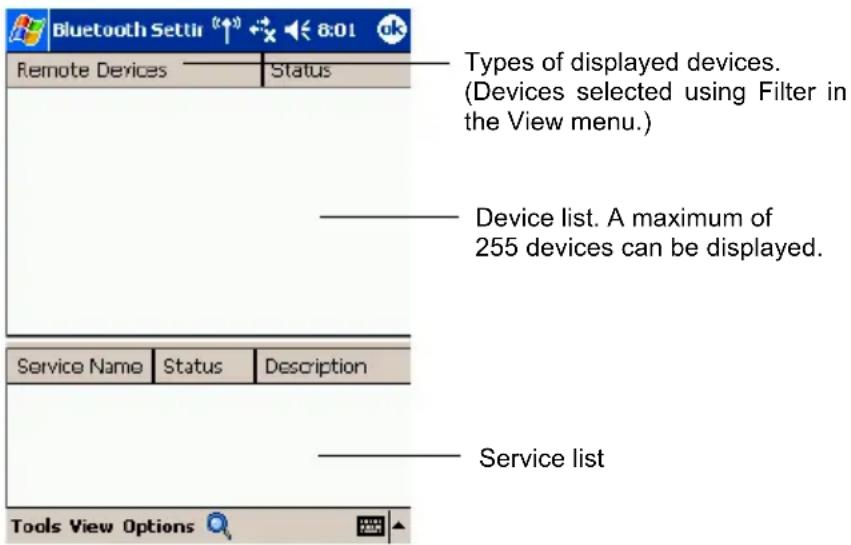
- Tap and hold on the name of the device to which you want to connect, then tap Update Service on the pop-up menu.
The Bluetooth Authentication screen appears on Local Device.
- Enter the Bluetooth passkey (PIN Code) within 20 seconds and tap OK.
The Bluetooth passkey can be a maximum of 16 alphanumeric characters. Depending on the remote device, the Bluetooth passkey may be a fixed value with a limit on the number of digits, so be sure to confirm these conditions.
If the Security Mode on either Local Device or the remote device is set to Security On, authentication is performed to confirm the remote device when connecting.
If either device has already been authenticated or the Security Mode on either Local Device or the remote device is set to Non-secure, the Bluetooth Authentication screen does not appear.
A message is displayed on the screen indicating that the service information is being updated.
![Bluetooth Passkey (PIN) Use the default PIN when a PIN is not entered. 00798807 Requested Bluetooth device Device Address: 00:03:7a:00:39:e6 Device Name: TOSHIEA PC 001 OK Cancel 123 1 2 3 4 5 6 7 8 9 0 - = Tab q w e r t y u i o p [ ] CAP a s d f g h j k l ; ' Shift z x c v b n m , . / CtI àü ` \ ↓ ↑ ← →](/content/2026/05/818066/images/5146c0e7ce53a124be7f003f59aaf47ad30c6565cc1883cdc6aad2feb1f8067e.jpg)
It may take several minutes to complete the service update. You are now prepared to connect with Bluetooth.
Using COM service
Establishing an ActiveSync connection with a PC
Preparing for connection
The PC to which you want to connect must be Bluetooth enabled and have ActiveSync installed. Your Toshiba Pocket PC e830W must also have been synchronized with the PC using a cradle or a cable at least once to establish a “partnership” with the PC.
-
From the service list on the Bluetooth Settings screen, tap and hold on the name of the COM service to which you want to connect, then tap ActiveSync Registration or Connection Registration on the pop-up menu. After this selection, an optional screen appears. If you select ActiveSync Auto Connect, ActiveSync is performed automatically and continuously. When the connection registration is complete, your Toshiba Pocket PC e830W and service icons change to registered connection icons.
-
Tap OK.
The screen closes and the Today screen appears.
- From the PC, set the port to be used when you are connecting with Bluetooth.
The PC is now ready to connect. This operation may vary depending on the PC. Please refer to the user's guide supplied with your PC for more information.
- Tap Start, Programs, Bluetooth, then Bluetooth Connection.
Your Toshiba Pocket PC e830W connects to your PC.
When the connection is complete, the Programs screen appears.
Using DUN/LAP service
Connecting to the Internet
This section explains how to use DUN service to connect to the Internet by connecting to a PC modem or cell phone. DUN and LAP services use the same method of connection.
Preparing for connection
To connect to a Bluetooth-enabled modem, tap Start, Settings Connection tab, then Connections. In the My ISP area, tap Add a new modem connection. The Make New Connection screen appears. From the Select Modem list, select Bluetooth Card.
NOTE
For additional modem or cell phone information, please refer to the user's guide of the respective device.
Any dial-up number can be used for LAP service. Select and enter the desired number.
- From the service list on the Bluetooth Settings screen, tap and hold on the name of the DUN or LAP service to which you want to connect, then tap Connection Registration on the pop-up menu.
The screen notifies you when your Toshiba Pocket PC e830W is connected to the DUN service.
When you disconnect from the Internet or exit your email application, the Bluetooth connection is also terminated.
2. Tap OK.
The screen closes and the Today screen appears. For further operations, please refer to "Messaging—Sending and receiving email messages" on page 83. When you exit or disconnect from the Internet or your email application, the Bluetooth connection is also terminated.
Using PAN service
Connecting to the network (Intranet, Internet, or Peer-to-Peer)
This section explains how to use PAN service to connect to the Network by connecting to the Access Point or PC. This service is similar to DUN/LAP service, but with a less complicated configuration (such as no modem or dialup settings).
- From the service list on the Bluetooth Settings screen, tap and hold on the name of the PAN service (GN or NAP) to which you want to connect, then tap Connection Registration on the pop-up menu.
When the connection registration is complete, the device and service icons change to registered connection icons.
- Tap OK.
The screen closes and the Today screen appears.
- Tap on the Bluetooth icon on the command bar.
The Bluetooth menu appears.
- Tap Start Personal Area Networking on the Bluetooth menu.
My Device connects to the remote device.
For further operations, please refer to "Messaging—Sending and receiving email messages" on page 83.
Ending PAN service
- Tap on the Bluetooth icon screen.
on the command bar of the Today
The Bluetooth menu appears.
- Tap End Personal Area Networking on the Bluetooth menu.
My Device disconnects from the remote device and the Bluetooth connection is terminated.
Changing the network configuration for PAN service
- Tap Start, Settings, the Connection tab, and then Network Cards. The Configure Network Adaptors screen appears.
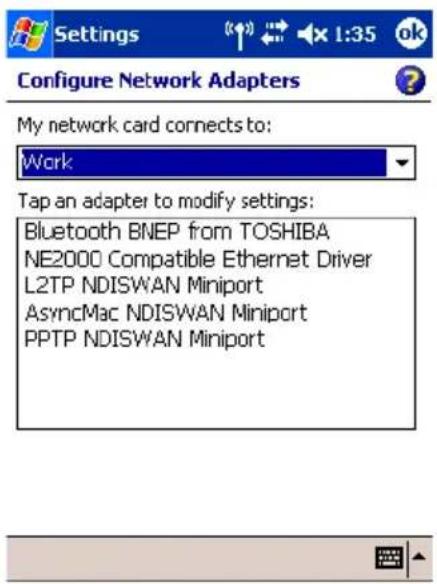
- Tap Bluetooth BNEP from TOSHIBA to configure the network driver.
- When the configuration screen appears, make the necessary network changes.
Using OPP service
This section explains how to use an OPP service to send and receive contacts, schedules, tasks, and business cards to and from other Toshiba Pocket PCs. “Business cards” here refers to your Toshiba Pocket PC e830W information. Please be aware that you cannot send voice data or handwritten data entered in the memo section.
Sending a contact
- Tap Start and Contacts, then tap and hold on the contact you want to send.
A pop-up menu appears.
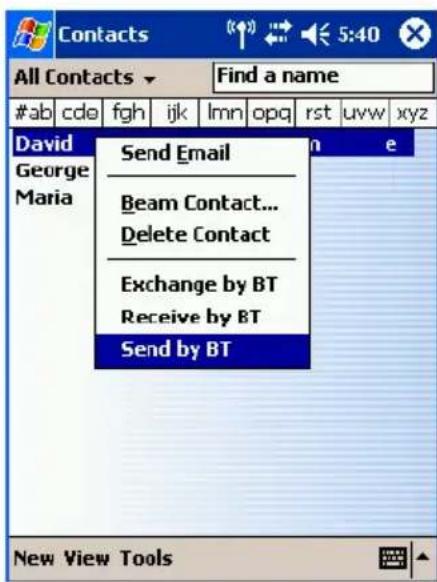
You can select multiple contacts by dragging them. You can also send a contact by tapping the Tools menu.
- Tap Send by BT on the pop-up menu.
The device search screen appears.
- Select View All Devices and tap Device Search.
The device list appears.
- Select the device to which you want to connect by tapping the device name, then tap Connect.
A message is displayed indicating that Local Device is now connected to the remote device. If the Bluetooth Authentication screen appears, enter the Bluetooth passkey (PIN Code) to perform authentication. A message is displayed indicating that the contact is being sent. After the contact is successfully sent, a message is displayed indicating this and the Bluetooth connection is terminated.
- Tap Close to return to the contact list screen.
A message is displayed on the remote device indicating that the contact has been received.
- Tap Close to close the screen.
Sending a schedule
- Tap Start and Calendar, then tap and hold on the schedule that you want to send.
A pop-up menu appears.
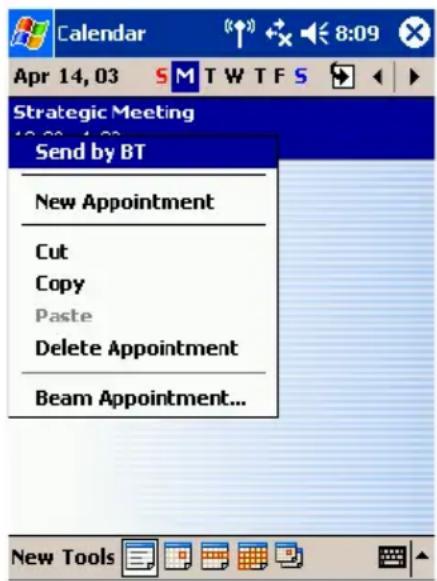
You can also send a schedule by tapping the Tools menu.
- Tap Send by BT on the pop-up menu.
The device search screen appears. For further operations, follow steps 3 and 4 in "Sending a contact" on page 157.
Sending a task
- Tap Start, Task, then tap and hold on the task that you want to send. A pop-up menu appears. You can also send a task by tapping the Tools menu.
- Tap Send by BT on the pop-up menu.
The device search screen appears. For further operations, follow steps 3 and 4 in "Sending a contact" on page 157.
Exchanging business cards
- Tap Start, Contact, and then Tools menu.
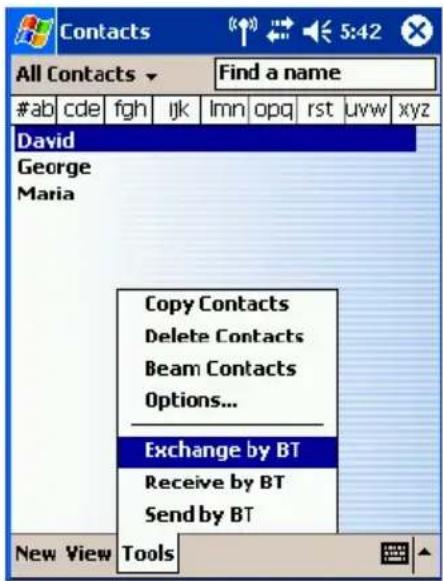
- Tap Exchange by BT.
The device search screen appears.
- Select View All Devices and tap Device Search.
The device list appears.
- Select the device to which you want to connect by tapping the device name, then tap Connect.
A message is displayed indicating that Local Device is now connected to the remote device. If the Bluetooth Authentication screen appears, enter the Bluetooth passkey (PIN Code) to perform authentication.
The exchange of business cards begins. When the exchange of business cards is completed, the name, email address, and phone number of the remote device user appears on the screen, and the Bluetooth connection is terminated.
- Tap Close to return to the contact list screen.
Receiving a business card
-
Tap Start, Contact, Tools menu.
-
Tap Receive by BT.
For further operations, follow steps 3 and 4 in "Exchanging business cards" as previously discussed.
When the business card is received, the name, email address, and phone number of the remote device user appears on the screen, and the Bluetooth connection is terminated.
Using FTP service
This section describes how to use FTP service to transfer files to and from another Toshiba Pocket PC.
Starting Bluetooth FTP
Tap Start, Programs, Bluetooth, and then Bluetooth FTP.
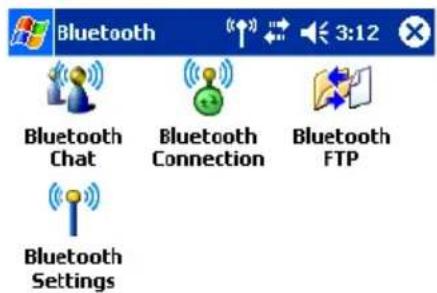

The server selection screen appears.
3. Tap Search.
Local Device searches for Bluetooth devices in the vicinity while a message is displayed on the screen indicating that Local Device is searching for peripheral devices and obtaining device names.
The discovered devices are displayed.
- Tap the device to which you want to connect, then tap OK.
If the FTP Authentication screen appears, enter the FTP password.
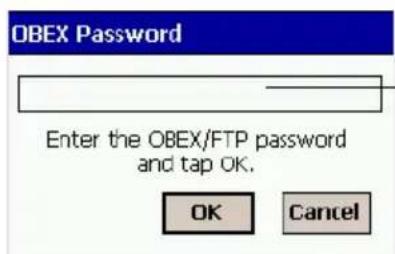
The FTP password can be a maximum of 16 alphanumeric characters.
On Local Device, the FTP (Client) screen appears. On the remote device, Bluetooth FTP starts automatically and the FTP (Server) screen appears.
Sending a file
- In the Local Device window, tap and hold on the folder or file that you want to send.
A pop-up menu appears. Tap on the file to start the associated application. You can also send a file by dragging that file to the remote device window.
Send—This sends the file to the remote device.
Execute—This starts the associated application.
New Folder—This creates a new folder in the Local Device window.
Delete—This deletes a folder or file.
Rename—This enables you to rename a folder or file.
- Tap Send on the pop-up menu.
The message Sending... appears.
- To exit, tap the Tools menu and Exit.
Receiving a file
- In the remote device window, tap and hold on the folder or file that you want to receive.
A pop-up menu appears. When you tap the file that you want to receive, the message Send/Execute Confirmation appears. You can also receive a file by dragging that file to the Local Device window.
Receive: This receives the file from the remote device.
Receive/Execute: This receives the file from the remote device and starts the associated application.
New Folder: This creates a new folder in the remote device window.
Delete: This deletes a folder or file.
- Tap Receive or Receive/Execute on the pop-up menu.
The message Receiving... appears.
When you tap Receive/Execute, Local Device receives the file from the remote device and starts the associated application. If there is no associated application, an error message appears.
- To exit, tap the Tools menu and Exit.
Enabling an FTP Authentication setting for a Bluetooth FTP server
You can enable OBEX Authentication and enter the FTP password. A password protects the personal information on your Toshiba Pocket PC e830W from remote devices from unauthorized use.
To enable OBEX Authentication and enter an FTP password, refer to the Options menu of Bluetooth Settings.
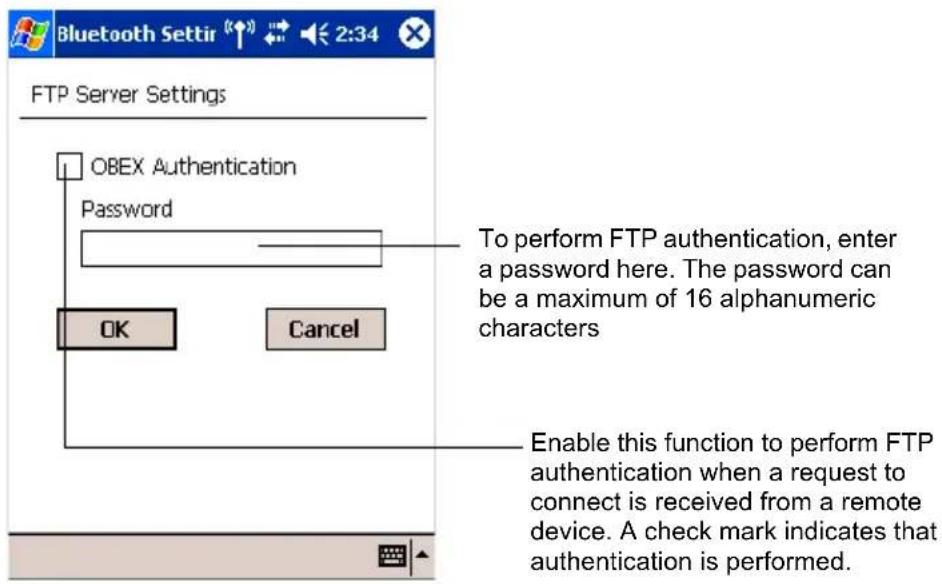
NOTE
The FTP password is not registered in initial setting.
Before using the FTP Server, we recommend you to set up the FTP password.
Configuring Bluetooth settings
The command bar on the Bluetooth Settings screen features three menus: Tools, View, and Options. You can use these menus to perform various Bluetooth operations. This section explains the various features of these menus.
Tools menu
Tap Tools on the command bar to display the Tools menu.
Searching for peripheral devices
When you tap Devices Search on the Tools menu, your Toshiba Pocket PC e830W searches for Bluetooth devices in the vicinity while a message is displayed on the screen indicating that the local device is searching for peripheral devices.
All discovered devices are displayed in the device list of the Bluetooth Settings screen.
Updating service
Tap Update Service to display the updated service information of the selected device in the service list of the Bluetooth Settings screen.
Tap Connection Registration to register a connection. The icons displayed in the device and service lists change to registered connection icons.
Tap Connecting Registrations in the pop-up menu of item in the service list to register a connection.
Properties
Tap Properties to display the detailed information of the selected remote device.
Delete
Tap Delete to delete the selected remote device from the device list, service list, and database of discovered peripheral devices. The selected device cannot be deleted if it is connected to Local Device.
Search options
Tap Search Options on the Tools menu to display a pop-up menu.
If you select Enable Device Name Search, the device names are searched for during the search for peripheral devices and listed in the device list.
If you select Disable Device Name Search, the device names are not searched for during the search for peripheral devices, thereby reducing the search time. In this case, only the device addresses are displayed in the device list.
Deleting ghost devices
Tap Delete Ghost Device on the Tools menu to delete all devices displayed in the device list as ghosts.
View menu
Tap View on the command bar to display the View menu.
Details
Tap Details on the command bar to display the device names in the device list.
Icons
Tap an icon on the command bar to display that icon in the device list.
Filter
The currently selected device is indicated with a black dot. Tap the desired type of device.
Among the devices discovered using Devices Search in the Tools menu, only the types of devices selected in this display menu are displayed in the device list.
Options menu
Tap Options on the command bar to display the Options menu.
FTP Server Settings
Tap FTP Sever Settings on the Options menu to display the FTP Server Settings screen.
You can enable OBEX Authentication and enter the FTP password.
Security Settings
Tap Security Settings on the Options menu to display the Change Security Setting screen.
You can select from four security settings: Office, Mobile, Home, and Other. The default setting is Home. To change the security setting, tap the desired security setting and OK.
Advanced Settings
The default settings are as follows.
| Discoverability Mode | Connectability Mode | Security Mode Encryption | |
| Office | Discoverable Connectable | Security On Yes | |
| Mobile | Non-discover-able | Non-connect-able | Security On Yes |
| Home | Discoverable Connectable | Non-secure No | |
| Other | Discoverable Connectable | Security On Yes |
In the default setting for Home, the Security Mode is set to Non-secure and, therefore, unspecified devices may be able to connect to Local Device. It is recommended that you set the Security Mode to Security On.
If you want to set the Connectability Mode to Non-connectable and you are operating your Toshiba Pocket PC e830W in an environment in which there are three or more operating Bluetooth devices, you should also set the Discoverability Mode to Non-discoverable.
NOTE
You can also change the security setting by tapping and holding on Bluetooth icon ☐ on the Today screen and tapping Change Security Setting. A menu with the four security settings appears. Tap the desired security setting.
Registration History
Tap Registration History on the Options menu to display the Auto Connection Registration History screen. Tap on the Category selection box to display the list of category. Each list displays the latest registration which can be a maximum of three items. The selected item is current available connection registration. You can change current available item, if you mark other item by tap to select.
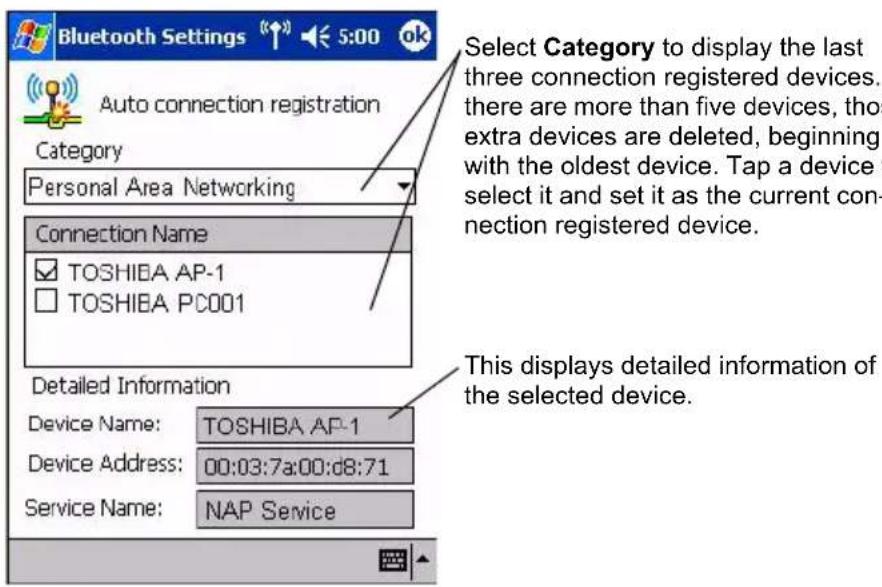
You can also change the connection registered device by tapping on the Bluetooth icon 📊 on the Today screen and tapping Registration History. A menu with the last three connected devices appears by each category. Tap a device to select it and set it as the current connection registered device.
Local Device
Tap Local Device on the Options menu to display the Device Information screen for Local Device.
To change the name of the device, enter a new name in the Device Name box and tap OK. The device name can be a maximum of 248 alphanumeric characters. If the device name exceeds 248 alphanumeric characters, an error message appears.
Function List
Tap Function List on the Options menu to display the Function List screen of Local Device. You can see the list of Bluetooth functions and current status of them visual. You can also change the setting to disable or enable this feature.
Version Information
Tap About on the Options menu to display the version information of Bluetooth Settings.
Search for Wireless Devices
Your Toshiba Pocket PC e830W can display Bluetooth devices graphically. This utility searches nearby discoverable Bluetooth devices and displays them.
By tapping the center of the circle, the utility begins searching for Bluetooth devices. When you tap the Bluetooth icon, the device information is displayed.
You can also launch Bluetooth Settings to register the selected Bluetooth device by tapping then dragging the Bluetooth icon to the center of the Pocket PC icon.
Starting Search for Wireless Devices
Tap the Bluetooth icon 📷 on Today screen, and select Search for Wireless Devices from the pop-up menu.
Chapter 11:
Optional Functions
Home screen overview
You can launch built-in or installed applications (programs) by tapping an icon displayed on the Home screen. It can display a list of running programs, and easily activate or stop a specific program. The Home screen displays the remaining battery power, Today information and frequently used setting icons, and can be personalized by changing the background or by adding icons and tabs.
To launch an application from the Home screen:
- Tap Start, Programs, and then Home to display the Home screen.
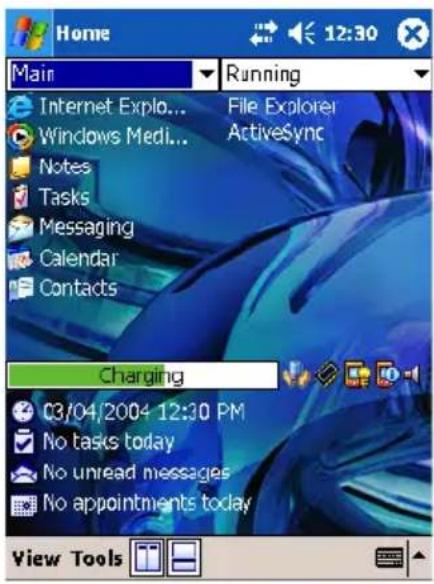
NOTE
You can also launch Home by pressing the Home button.
- Tap the application icon you want to launch. The selected application starts up.
About the Home screen
The Home screen displays information and ready access to all the applications on your Toshiba Pocket PC e830.
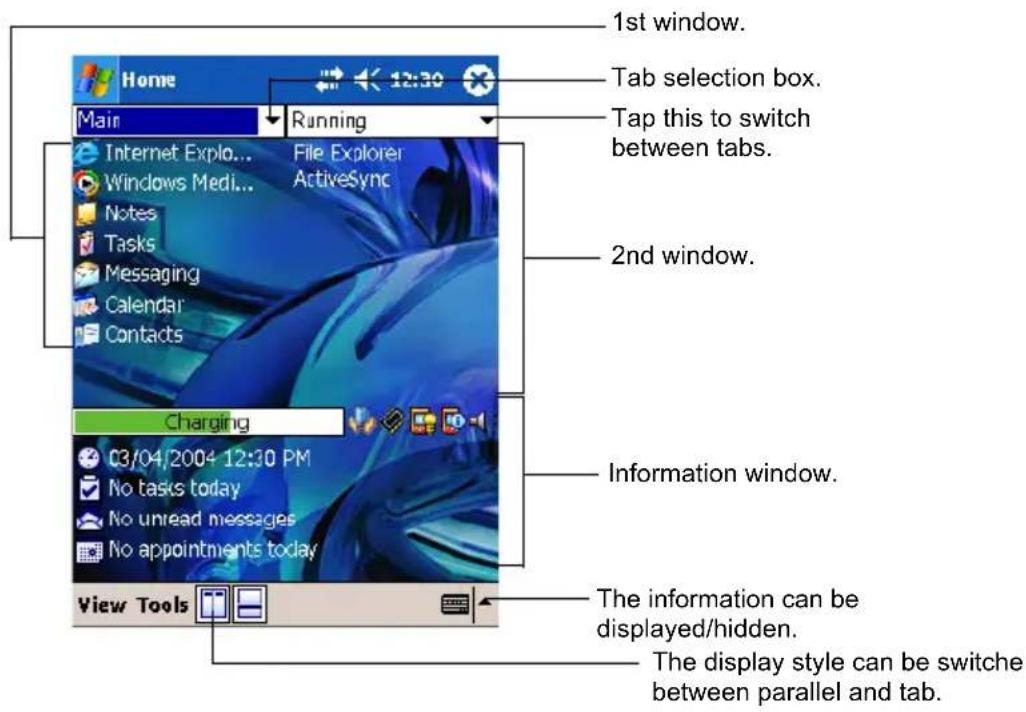
About the Information window
The information window displays the remaining battery power, hardware information and Today information such as today's tasks and appointments.
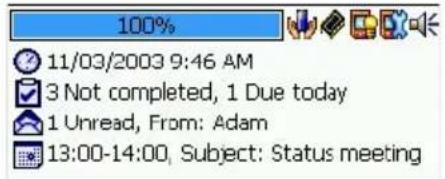
| [ATT2] | Displays the date and time. Tap to display the Clock setting screen |
 | Displays current tasks; the number to be finished or soon to be finished. Tap to launch Tasks. |
| [SDAH] | Displays the number of unread mail and the sender of the latest unread mail. Tap to launch Messaging. |
| [YCSZ] | Displays today's next appointment. Tap to launch Calendar. |
| Display item Name Description | ||
 | Power Tap to display the Power setting screen. | |
 | Memory Tap to display the Memory setting screen. | |
 | Screen light Tap to display the Screen light setting screen. | |
 | System Information | Tap to display the system information. |
 | Volume ON/OFF | Tap to toggle volume ON/OFF.This icon is interlocked with the display of volume ON/OFF that has been switched using the icon on the navigation bar. |
About Running
The Running tab displays the active application names (without icons).
Activating or stopping an application
Tap the application name you want to activate (or tap and hold the application name), then select Activate in the pop-up menu.
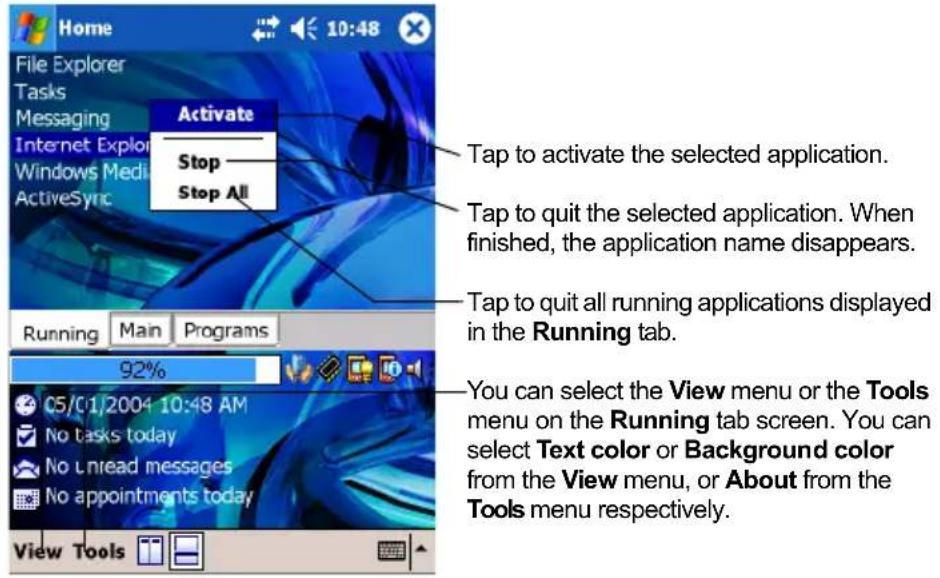
NOTE
To display the Running tab pop-up menu, tap and hold any portion of the screen other than the application name. In this case, only the Stop All is selectable.
System icons
The following lists the factory default tabs and icons.
| Tabs Icons Applications | Tabs Icons Applications | ||
| Running - - | Programs |  ActiveSync ActiveSync | |
| Main Pocket |  Internet Explorer Internet Explorer |  Calculator Calculator | |
| [TX60]Windows Media Player |  DataBackup DataBackup | ||
 Tasks Tasks |  File Explorer File Explorer | ||
 Messaging Messaging |  Find Find | ||
 Calendar Calendar |  MSN Messen-ger MSN Messen-ger | ||
| [W40C]Contacts Notes | [TXAY] | ||
 Pictures Pictures | |||
| [BHT7]Pocket Word | |||
| [MDY]Pocket Excel | |||
 ConfigFree Launcher(W-LAN model only) ConfigFree Launcher(W-LAN model only) | |||
 Search for Wireless(W-LAN model only) Search for Wireless(W-LAN model only) | |||
 TVR TVR | |||
 World Clock World Clock | |||
 Solitaire Solitaire | |||
| [273Y]Jawbreaker | |||
Configuring icons
You can move icons within between tabs, add, delete, and rename tabs as well as change the icon view (small or large). For more information on tabs, see "Configuring Tab Settings" on page 174.
Moving icons within tabs
- Drag and drop the desired icon to the desired position with the icon in a tapped state. When the icon is moved, the icon near where the icon is to be moved is highlighted. When the icon is dropped, the icon is moved to the position of the highlighted icon. If there is no highlighted icon when the icon is dropped, the icon is moved to the end of the icons.
NOTE
When “Icons are sorted as launched order (for all tabs)” is selected in the Tab Settings screen, icons in tabs are sorted in the order that they are launched. Icons cannot be moved in tabs when this is set.
Moving icons to another tab using the pop-up menu
- Tap and hold the icon you want to move to display the pop-up menu.
- Tap Cut on the pop-up menu.
- Tap the destination tab, then tap and hold any portion other than the icon, and then tap Paste on the pop-up menu. The selected icon is pasted next to the last icon on the tab screen.
NOTE
An icon cannot be moved into a tab that already includes 18 icons.
Moving icons to another tab using drag and drop
- Tap the icon you want to move.
- Drag the icon to the destination tab, and then drop it. The name of the destination tab is displayed inverted, the icon is moved, and that icon in the original tab screen is deleted.
NOTE
An icon cannot be moved into a tab that already includes 18 icons.
Deleting icons
-
Tap and hold the icon you want to delete to display the pop-up menu.
-
Tap Drop on the pop-up menu. The icon is deleted and the next icon automatically shifts to fill the deleted icon position.
Adding icons
You can add the application and your file icons to the Home screen.
- Tap Edit and then Add to display the Add Application screen.
You can also select Add from the pop-up menu displayed by tapping and holding any portion other than the icon.
- Tap or Application file box to show the file list. If you cannot locate the file, find it by tapping Browse. To refer to all folders and files, tap Browse to show the Browse screen. When the file is selected, its name is displayed in the Application file box.
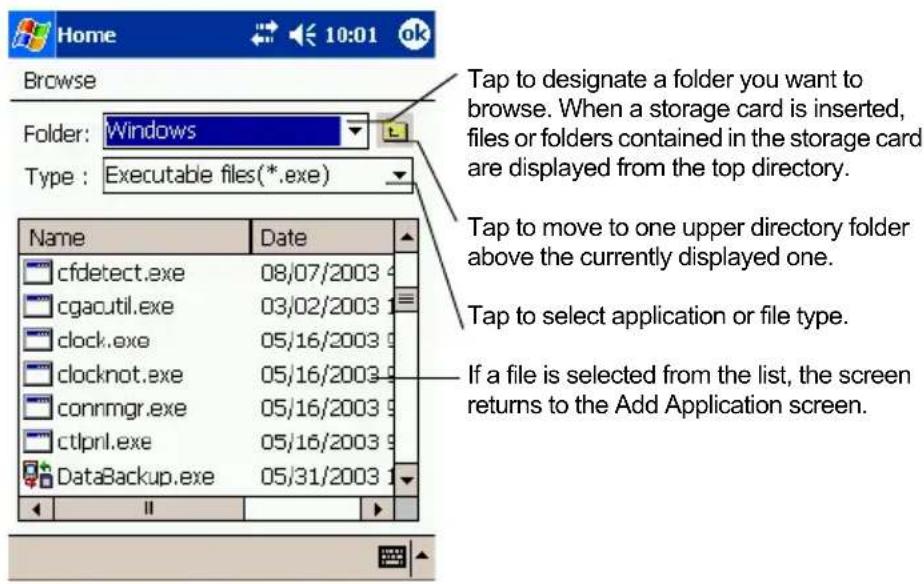
- Enter the icon name (up to a maximum of 32 characters) in the Application name box that is to be displayed on the Home screen.
- When finished, tap OK to close the Add Application screen, and the new icon is added to the Home screen.
NOTE
If the Application file is not designated, or if the Application name is not entered, you cannot add a new icon.
You cannot launch an icon added from the storage card, if the same card is not inserted in your Toshiba Pocket PC e830.
Renaming icons
You can rename icons (applications).
- Tap and hold the icon to rename. The pop-up menu is displayed.
- Tap Rename from the pop-up menu. The icon can be renamed.
- Change the name using the input panel, and tap the screen.
Switching the icon display
When icons are displayed in tab display style, their display can be switched from the View menu. Select Large Icon or Small Icon to suit your preference.
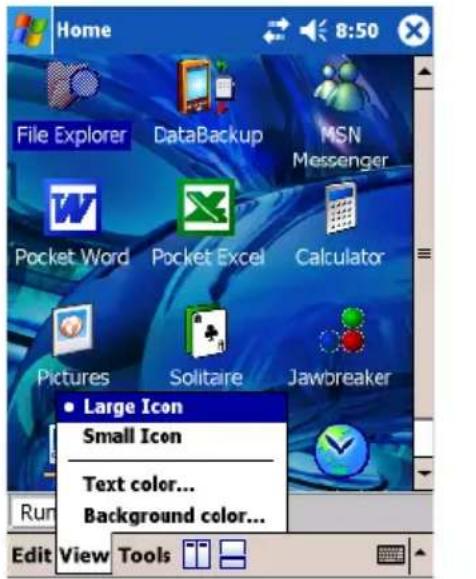
Large Icon Small Icon
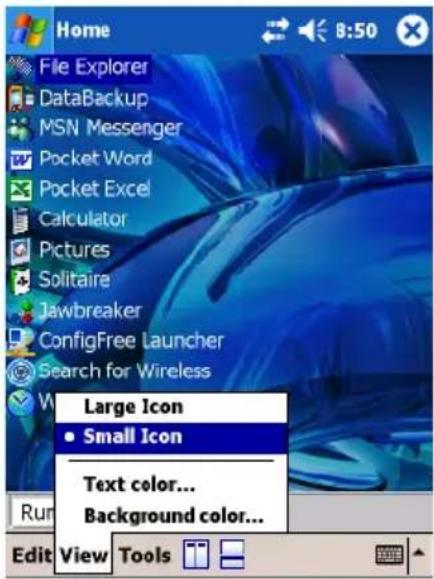
Configuring Tab Settings
On the Tab Settings screen you can add, delete, or rename a tab as well as select a bitmap image to display on the screen background.
Adding tabs
- Tap Tools, and then Tab Settings.
- Tap New to display a box to enter the new tab name.
- Enter a new tab name (up to a maximum of 10 characters). When finished, tap OK to return to the Tab Settings screen.
- Tap OK on the Tab Settings screen to return to the Home screen. A new tab is added to the right of the existing tab.
NOTE
The number of tabs can be increased to 10. The tab order cannot be re-arranged.
Deleting tabs
- Tap Tools, and then Tab Settings.
- Select the tab name to delete, and then tap Delete. The Delete tab confirmation dialog box appears. Please note that all the icons contained in the same tab are also deleted.
- Tap Yes on the Delete tab dialog to delete the tab. When finished, the screen returns to Tab Settings screen.
- Tap OK on the Tab Settings screen to return to the Home screen.
NOTE
You cannot delete the Running tab.
Changing tab names
- Tap Tools and then Tab Settings.
- Select the tab name you want to change, and then tap Modify.
- Enter a new tab name (up to a maximum of 10 characters). When finished, tap OK to return to the Tab Settings screen.
- Tap OK on the Tab Settings screen to return to the Home screen.
NOTE
You cannot rename the Running tab.
Sorting icons within tabs
Icons in tabs can be sorted in the order that they were last launched.
- Tap Tools and then Tab Settings.
- Select the "Icons are sorted as launched order (for all tabs)" check box.
- Tap OK on the Tab Settings screen to return to the Home screen.
NOTE
To move icons in a tab, clear the check box.
Changing a background
- Tap Tools and then Tab Settings.
- Select the tab name you want to change, and then tap Modify.
- Tap Browse. The Browse screen is displayed. Even if a storage card is inserted, the files in the storage card are not displayed.
- To return to the previous screen, tap the desired bitmap file from the list.
-
To return to the Tab Settings screen, tap OK.
-
Tap OK on the Tab Settings screen to return to the Home screen.
NOTE
If the selected file is not a designated file type, you cannot set it on your screen background. The Home screen image display range is 240 pixels (W) x 268 pixels (H).
Applying background color and text color
You can use Background Color to select a color for the background for each tab. Additionally, Text Color is available to apply a color for the application name for each tab.
- Tap Tools and then Tab Settings.
- Select the tab name you want to change, and then tap Modify.
- Tap Background color or Text color to display the color list.
- Select the color, and tap OK to return to the previous screen.
- To return to the Tab Settings screen, tap OK.
- Tap OK on the Tab Settings screen to return to the Home screen.
NOTE
When a background image is set, the background image stays intact and does not change even if a background color is set. Note, however, that if the image does not completely fill the background, the background color forms a border around the image. Background color and text color can also be set from the View menu.
Backup overview
Periodical backup of your data is highly recommended; you can easily make a backup of your data and store it on your PC or other storage device. Additionally, if you have backed up your data on a storage device, you can restore that data in your Toshiba Pocket PC e830 as well as delete backup file data from the storage device.
Data of the following three types can be backed up:
File—Includes a file created by Pocket Word, Pocket Excel, Notes, or an additionally installed program.
Registry—Settings information on Windows Mobile 2003 or built-in programs.
Database—Microsoft Pocket Outlook information.
CAUTION
- Data such as the password in Settings cannot be restored.
- The data stored in the Flash ROM disk cannot be backed up.
- Before backing up or restoring data, stop other applications, and connect the AC adapter to your Toshiba Pocket PC e830.
- If you back up data to a CF Card, SD Card, or Flash ROM Disk using the DataBackup Utility, please DO NOT: remove the CF or SD Card, reset your Toshiba Pocket PC e830, and/or turn off your Toshiba Pocket PC e830's power until the backup is completed.
- If you restore the data from the CF Card, SD Card, or Flash ROM Disk by DataBackup Utility, please DO NOT: remove the CF or SD Card, reset your Toshiba Pocket PC e830, and/or turn off your Toshiba Pocket PC e830's power until the restore is completed.
Failure to follow any of the above procedures may result in the loss of data.
Making a backup
Before performing the backup or restore operations, do the following;
- Check that there is enough space in your Toshiba Pocket PC e830's memory and on the storage device, such as a CF or SD Card. If the storage device does not have enough free space, you cannot save the backup data. The backup data is saved as a file named "backup.dat" on your storage device.
- Make sure your Toshiba Pocket PC e830's power is off when loading and unloading the CF or SD Card.
-
Save current data in your Toshiba Pocket PC e830's memory before backing it up on the storage device.
-
To back up to a CF or SD Card, insert the card and make sure to do so in the proper direction.
-
Tap Start, Programs, and then DataBackup to display the DataBackup screen.
-
Choose Backup as Functionality, and select the storage destination.
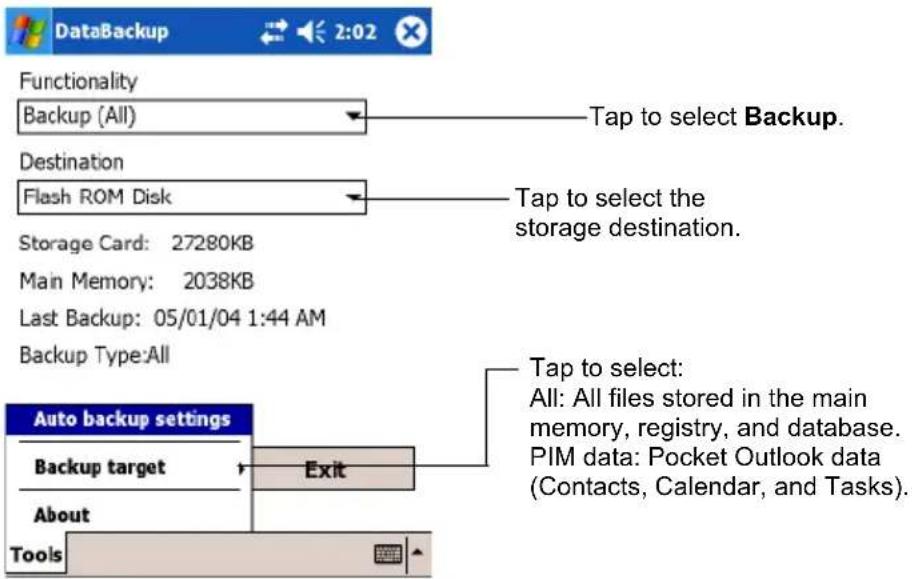
- Tap Start. The screen for confirming that other applications have ended appears.
- To display the backup password input screen, tap OK.
- Enter a password. You can enter a password up to a maximum of 16 characters. The backup can be made even without entering a password. If a password is entered, that password is required at the time of restore.
NOTE
Do not forget your password; if you forget the password, you cannot restore the backup data. Write down the password and keep it in a safe place where only you know.
- When finished, tap OK. The progress bar is displayed during the backup process. When the backup is completed, the backup finish message appears. The backup time that is displayed on screen is the time that the backup was started.
- Tap OK to return to the previous screen.
- Tap Exit to close the DataBackup screen.
NOTE
The backup process stops if the storage device becomes full before completing the backup. Before starting the backup, check the remaining storage device capacity.
If the storage card is write-protected, you cannot save the backup data. Cancel the write-protection before starting the backup.
Backups can also be made periodically. For more information, see "Making an auto backup" on page 181.
Backup files are always overwritten.
Restoring your system
You can restore or overwrite the backed up data from the storage device onto the main memory of your Toshiba Pocket PC e830. Prior to restoring your data, please consider the following:
- If the same file name exists in the main memory of your Toshiba Pocket PC e830, this file data is replaced with the backup data from the storage device.
-
If files exist in the main memory of your Toshiba Pocket PC e830 but do not exist in the backup file located on the storage device, the files in the main memory are not overwritten.
-
To restore from a CF or SD Card, insert the card that contains the backup data into your Toshiba Pocket PC e830.
-
Tap Start, Programs, and then DataBackup to display the DataBackup screen shown on the following page.
-
Choose Restore as Functionality, and select the storage destination.
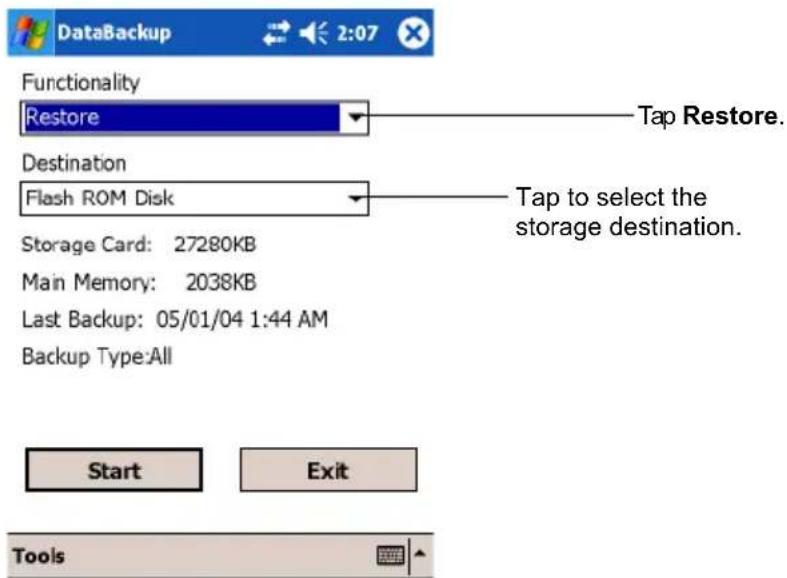
- Tap Start. The screen for confirming that other applications have ended appears.
- Tap OK to display the Restore password input screen.
- Enter the password used when backing up the data (if the file was previously created without a password, then a password is not required).
- When finished, tap OK. The progress bar is displayed during the restore process. When the restore is completed, the restore finish message appears.
- Tap OK. Your Toshiba Pocket PC e830 is now reset and it automatically restarts.
CAUTION
If your Toshiba Pocket PC e830 memory becomes short of its capacity during restore, the restore process stops. Increase the memory allocation of the main memory of your Toshiba Pocket PC e830 (see "Customizing settings" on page 62), and then restart the restore procedure.
Data backed up on a legacy model Toshiba Pocket PC or another manufacturer's Pocket PC (simply called "other Pocket PC" from here on) cannot be restored to your Toshiba Pocket PC e830. To load other Pocket PC data to your Toshiba Pocket PC e830, use ActiveSync to synchronize the PC with the other Pocket PC. Next, synchronize the PC with your Toshiba Pocket PC e830, and then load the data to your Toshiba Pocket PC e830.
Deleting a backup file
You can delete a backup file and replace it at another time or make room for more data on your Toshiba Pocket PC e830.
- Insert a CF or SD Card into your Toshiba Pocket PC e830.
- To display the backup screen, tap Start, Programs, then DataBackup.
- Tap Delete Backup File from Functionality, and select the storage destination.
- Tap Start.
- To delete the backup file, tap OK.
- Tap Exit to close to the DataBackup screen.
Making an auto backup
You can set up your Toshiba Pocket PC e830 to automatically back up files at a specified time intervals. Select the backup time, occurrence, and frequency that best suits your needs.
NOTE
Even if your Toshiba Pocket PC e830 is turned off, data is periodically backed up.
- Insert a CF or SD Card into your Toshiba Pocket PC e830.
- To display the DataBackup screen, tap Start, Programs, then DataBackup.
- Tap Auto backup settings from the Tools menu. The Settings screen is displayed.
4. Set the desired items.
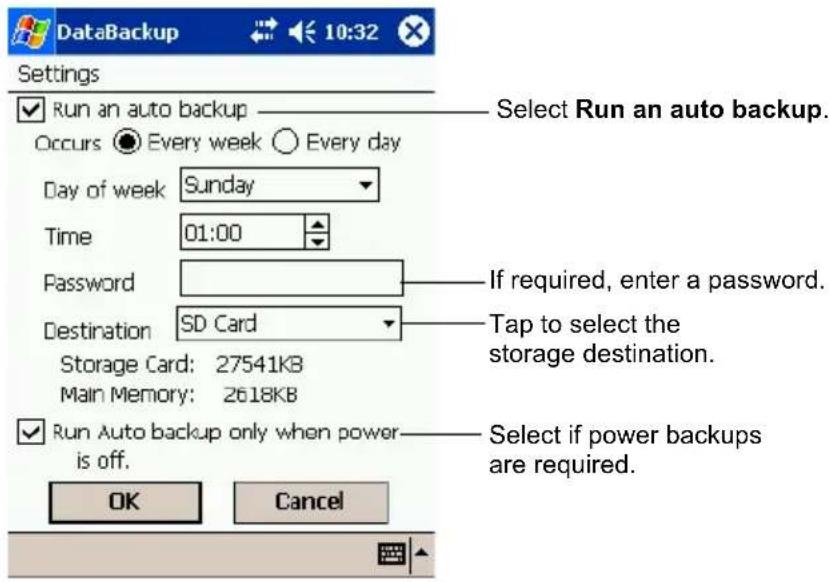
- Tap OK. The settings data is saved and periodical backups are made at the preset time.
- Tap Exit to close to the backup screen.
NOTE
If the “Run Auto backup only when power is off” check box is not selected, the auto backup confirmation screen is displayed if your Toshiba Pocket PC e830 is ON when the auto backup occurs. The backup is automatically started if you tap OK or about 30 seconds elapses after the confirmation screen is displayed. Tap Cancel to stop the backup.
If the “Run Auto backup only when power is off” check box is selected, the message screen is displayed, and the backup is started after about 10 seconds if your Pocket PC is off when the auto backup occurs.
Auto backups only occur if the AC Adapter is connected or the remaining battery charge is 50% or more.
You can confirm whether or not auto backups have occurred by checking when the last backup was made. Depending on the conditions, auto backups may not occur.
Auto backups do not occur if the preset storage card is not inserted in the card slot at the specified auto backup time.
Do not turn your Toshiba Pocket PC e830 off during an auto backup. Doing so might damage the data or your Toshiba Pocket PC e830.
If the storage device runs out of data storage space during an auto backup, the backup ends midway. Before an auto backup is made, check the amount of free space on the storage device.
Setting the World Clock
World Clock displays the time and date of multiple cities in a screen. You can select the cities easily, by tapping the map or pull-down list.
- Tap Start, Programs, and then World Clock.
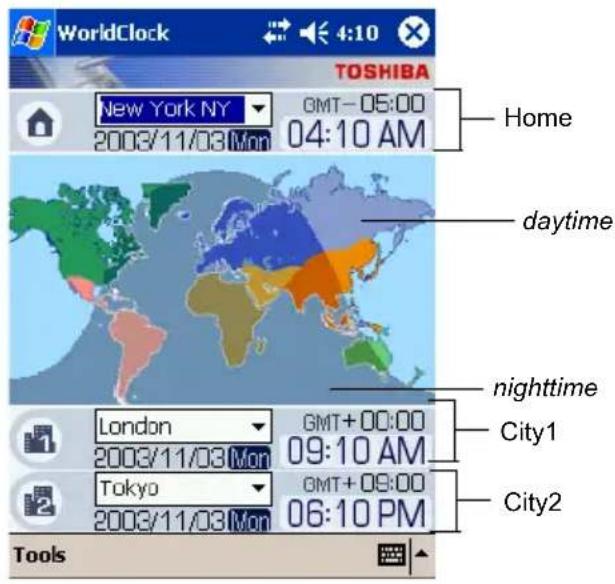
- Tap Tools.
-
Select any of the following:
-
Select from map—A zoomed map is displayed on the screen. You can select a city and assign to Home or others, by tapping on the map (For detail, refer to the next section "Selecting the city from a zoomed map").
- Alarm—Alarm setting is displayed. You can set alarm, or arrange the detail settings.
- About—The version information is displayed.
NOTE
DST (Daylight Saving Time) is applied automatically.
Selecting the city from a zoomed map
- Tap Select from map from Tools menu.
- Select the city by tapping on the zoomed map. The information of the selected city is displayed.
- Select Home, City1, or City2 from the pull-down list.
- Tap OK.
TOSHIBA Voice Recorder (TVR)
The TOSHIBA Voice Recorder (TVR) is a media player for Toshiba Pocket PCs. TVR offers a flexible way to record your voice as a .wav file. It can also play the recorded .wav on a PC.
Using TVR to record
- Tap Start, Programs, and then Voice Recorder.
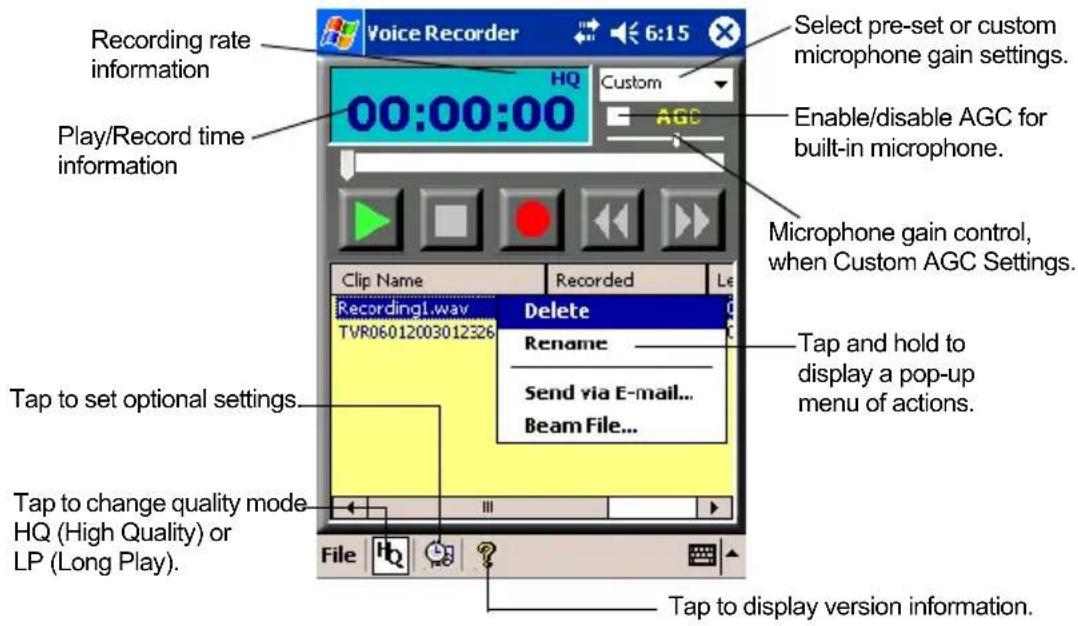
- Tap Record button. Your Pocket PC starts recording a clip immediately.
- Tap Stop button to stop recording. File names listed as "TVRMMD-DYYYYHHMMSS.wav". These are in the date (DD/MM/YEAR HH:MM:SS), length (HH:MM:SS) and quality (LP/HQ) format.
NOTE
You can toggle between time recorded and time available to record given storage in current media at the current record quality level.
Playing a file from the TVR
- On the TVR screen, tap on the clip name.
- Tap Play button. You can also play the file by scrolling with the scroller then pressing the scroller.
3. Tap Stop button to stop.
NOTE
You can tap on the time display to toggle between time played and time left to play.
Clips recorded on the TVR can be played on PCs with Windows 2000 and Windows XP operating systems with Windows Media Player.
The TVR offers several convenient features:
■ Pre-set mic gain—You can preset the mic gain level to best suit various recording conditions by selecting either Conference, Interview, or Custom.
■ AGC—If the Automatic Gain Control (AGC) is enabled, the slider is disabled.
■ Microphone gain slider—This is available when Custom is selected at pre-set mic gain and AGC is disabled.
Delete or Rename a clip—To delete or rename a clip, tap and hold the clip, then select the function from the pop-up menu.
Send a clip—You can send a clip by tapping and holding the clip. From the pop-up menu, select Send via E-mail or Beam File.
Setting TVR options
- On the TVR screen, tap the Settings icon .

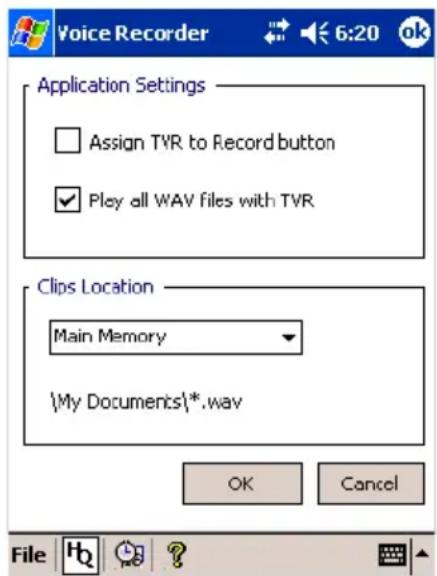
■You can assign TOSHIBA Voice Recorder to the hardware recording button if the Assign TVR to Record button check box is selected. You can play the .wav files recorded with Notes if Play all WAV files with TVR is selected.
■You can choose the folder to save a recording file.
NOTE
If you assign TVR to Record button, TVR starts every time you push the Record button, instead of starting Microsoft original recording function.
The files recorded with TVR cannot be played with Notes.
Using TOSHIBA Text to Speech for Pocket PC
TOSHIBA Text to Speech for Pocket PC (Text to Speech) synthesizes voice, and reads out emails, text files and text data on the clipboard. Text to Speech consists of the following applications; Mail Speech, Text Speech, and Speech Settings.
Mail Speech displays unread emails and reads them out. Text Speech picks up text files in Toshiba Pocket PC e830 and reads them out. It also reads out text data on clipboard. Speech Settings arranges the settings of Mail Speech and Text Speech. You can use one application of Text to Speech at a time. Please exit the current one to start another application.
Setting up Text to Speech from the Companion CD
- Make sure your Toshiba Pocket PC e830 is connected to your PC and that an ActiveSync connection has been established.
- Start the Text to Speech installation by running the Setup program.
- Check your Toshiba Pocket PC e830 screen for any additional steps required to complete the installation.
Starting Mail Speech
-
Open Messaging, and set the mail account you want to read out
-
Tap Start, Programs, then Mail Speech.
Mail Speech starts reading the message from the header information of unread email list. As the reading continues, the currently read phrase is highlighted.
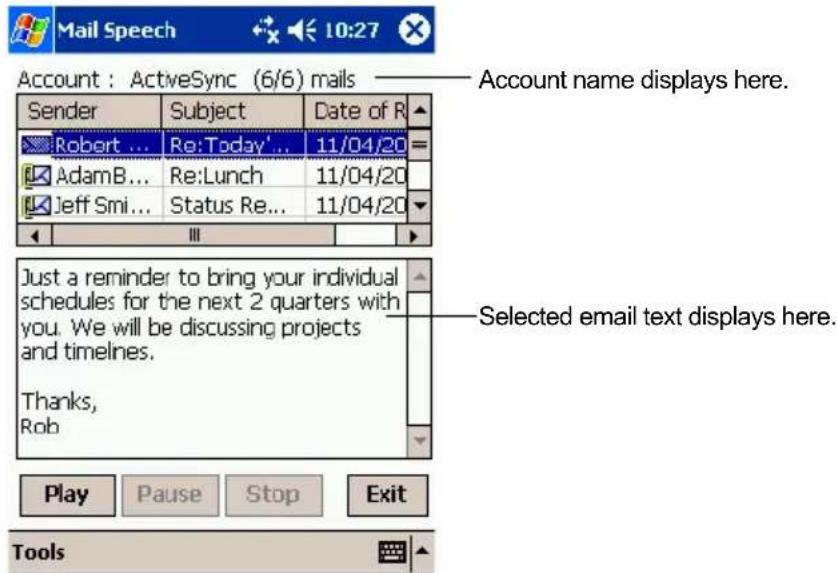
-
Select any of the following:
-
Play—Starts reading out the text of the selected email.
- Pause—Stops reading. If you tap Play after Pause, it starts from the position where it was paused.
- Stop—Stops reading the text.
-
Exit—Exits Mail Speech.
-
Tap Tools. Select any of the following:
-
Refresh—Refreshes the status of the email database.
- Settings—Starts the Speech Settings.
- Exit—Exits the program.
-
About—Displays the version information screen.
-
Tap and hold the selected words to display the pop-up Copy menu.
NOTE
If tap a mail header in unread email list while reading, it starts reading selected email.
Mail information displayed in the mail header information area is descending order, that is the older mails are on the top and newer mails are shown in the lower area.
When there is an attached file, the voice service announces, "with attached file". It does not announce the "TO" or "CC" of a mail header.
While reading an email, DO NOT synchronize your Toshiba Pocket PC e830 with your PC.
The text may not be displayed correctly depending on the mailer of the sender. US ASCII (us-ascii) and 8-bit Western Europe (iso-8859-x) character code are supported.
This application supports base 64, quoted-printable and non-encoded. If the text is encoded, it cannot to be displayed. UUENCODE is not supported. When the text is longer than 2K bytes, the part over 2K bytes is not read.
Text Speech—reading out a text file
Text Speech reads file aloud text and data from the clip board.
- Tap Start, Programs, then Text Speech.
- From the Tools of the command bar, tap Open. The list of the text files stored in your Toshiba Pocket PC e830 and storage device is displayed.
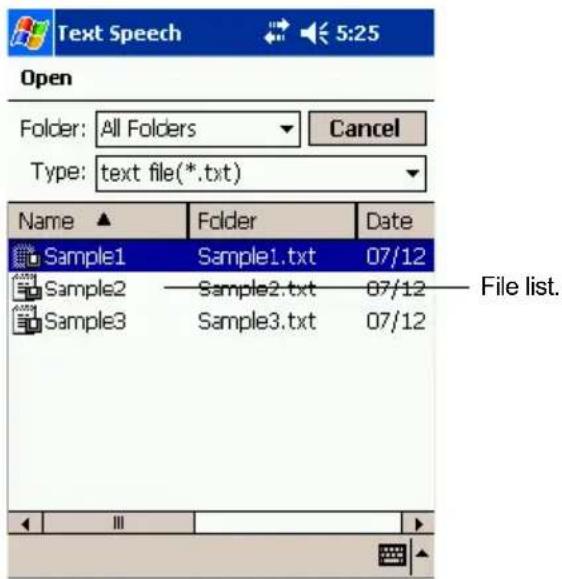
-
Select any of the following:
-
Folder: Select the folder from the pull-down menu.
- Cancel: Close the file selection screen and return to the Text Speech screen.
- Type: Only text file (*.txt) is available.
-
File list: Display Name, Folder, Date, Size, Type and Location. The file to read should be under \My Documents.
-
Tap the file you want read. The text is displayed.
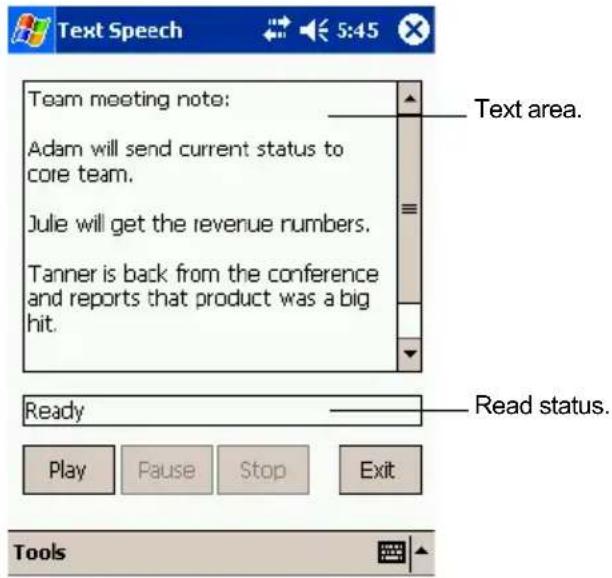
-
Select any of the following:
-
Play—Starts reading the text.
- Pause—Stops reading. If you tap Play after Pause, voice synthesis starts from the position where it was paused.
- Stop—Stops reading. If you tap Play after Stop, it starts from the beginning of the text.
- Exit—Exits the program.
Reading out the text copied on the clipboard
Copied data on clipboard, including data from Pocket Internet Explorer or Pocket Word, can be read aloud by Text Speech.
- Within Pocket Internet Explorer, copy the text data to the clipboard.
- Tap Start, Programs, then Text Speech. If the Text Speech application is already opened and a text data is displayed on text area, tap and hold the text, then Clear All from the pop-up menu.
- Tap and hold the text area, then select Paste from the pop-up menu. The data on the clipboard is displayed on text area.
- Tap Play.
NOTE
You can input text directly in the text area, using the Input Panel.
The maximum size of a text file or clipboard data to be read is about 16K characters.
Text Speech starts reading from the cursor position.
Configuring Speech Settings
To start Speech Setting, tap Start, Programs, then Speech Settings. You can also start Speech Settings by tapping Tools, then Settings on the Mail Speech or the Text Speech screen.
Reading tab
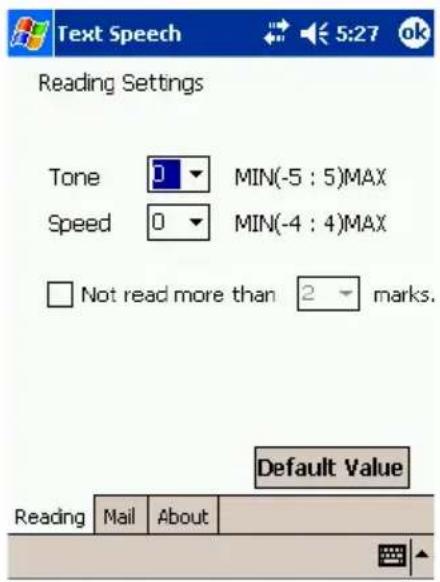
Select any of the following:
- Tone—Changes the tone of the voice (default value: 0).
- Speed—Changes the reading out speed (default value: 0).
- Default Value—Reset all values to the default.
- Not read more than 2/3 marks—If selected, the continuous marks on the text are skipped when reading out. You can define the skipping case (continuous 2 or 3 marks) from the pull-down list.
Mail tab
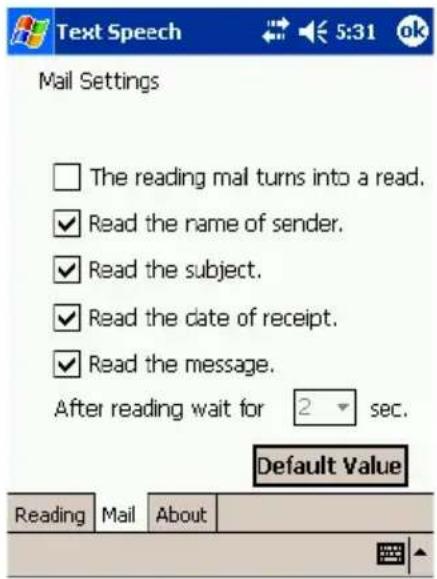
The reading mail turns into a read—Once selected, the status of the reading changes from read to unread.
Check at least one of the following—Read the name of the sender, Read the subject, Read the date of receipt, or Read the message.
■ After reading wait for—Sets the time interval for reading the following mail. To read the message while this setting is available, tap the message area within the interval time. This message is only available when the Read the message check box is cleared.
■ Default Value—Resets all the values to the default.
Voice Command overview
With Voice Command, you can use your voice to control your Toshiba Pocket PC e830 without tapping or pressing buttons.
The Voice Command application has three components:
Global Command—The command is always available
■ User Command—The command that you can assign freely, always available.
Command for each application—The command available only for the foreground windows.
Installing Voice Command
- Make sure your Toshiba Pocket PC e830 is connected to your PC and that an ActiveSync connection has been established.
-
Start the Voice Command installation by running the Setup program.
-
After the program is installed successfully, a message displays to inform you that the application has been allocated to the program button 5 (recording button) automatically.
- After installation, the system requires resetting (see "Resetting" on page 203).
NOTE
The Voice Command cannot "read" without the TOSHIBA Text to Speech for Pocket PC installed. Installation of the TOSHIBA Text to Speech for Pocket PC is highly recommended.
Once Voice Command is installed on your Toshiba Pocket PC e830, the program button 5 (recording button at initial setting) is "assigned" and recording with program button 5 is no longer available. If you want to use program button 5 for recording while the Voice Command is assigned, change the button assignment by tapping Start, Settings, and then Buttons.
Launching Voice Command
Once installed on your Toshiba Pocket PC e830, the Voice Command Settings icon is displayed on Today screen. Tap this icon to launch Voice Command Settings.
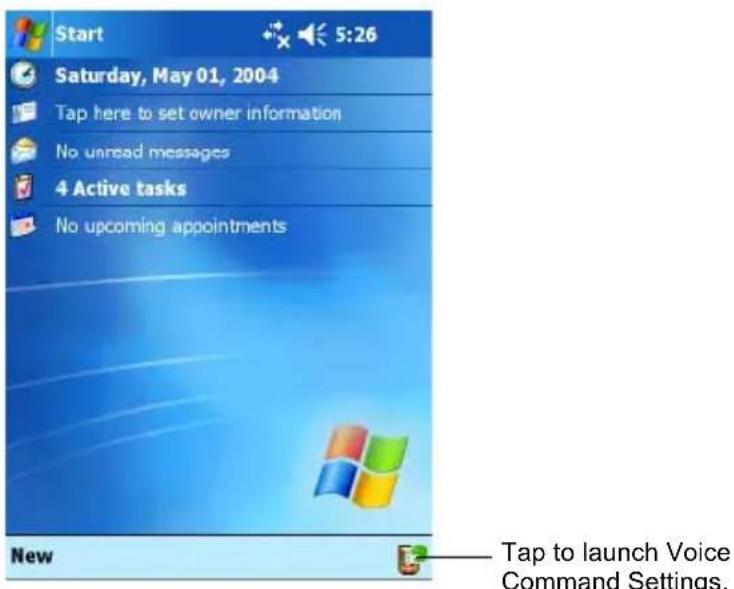
Using Global Command
- Press the recording button and release immediately. Voice Command Settings launches. Wait for a notification sound to start speaking.
- Say one of the available voice commands. For example, to launch Messaging, say "run Inbox". When the command is successfully recognized, a confirmation tone sounds, and the Messaging screen appears. If the command is not recognized, a rejection tone sounds and the screen does not change.
NOTE
To launch a message by using a Voice Command, be sure to use either the “Run Inbox” or “Run Mail,” command. The “Run Messaging” command is not supported on your Toshiba Pocket PC e830.
About User Command
You can define voice commands within the Voice Command Settings screen. There are two kinds of commands:
- Commands to insert text
- Commands to launch applications.
Using commands to insert text
-
On the User Commands tab within the Voice Command Settings screen, define a phrase to a command. For example, define "Thank you for your email about" for the command insert text one.
-
Open Messaging, then tap New from the command bar. At the Creating the message screen, say "insert text one." The "Thank you for your email about" is displayed on the screen.
Using commands to launch applications
-
On the User Commands tab within the Voice Command Settings screen, assign an application to a command. For example, assign Solitaire to the command run program one.
-
Say "run program one." The Solitaire screen is displayed.
NOTE
When you say an undefined command, nothing happens even if the command is recognized.
Using Voice Command for each application
For example, you can use voice commands within the Calendar application.
- With the Calendar open, say "very next appointment." The Listing mode screen appears, and it starts reading out the very next appointment. Additionally, you can display the Listing mode screen by saying, "Move to listing mode."
For command list details, refer to the Commands tab within the Voice Command Settings screen.
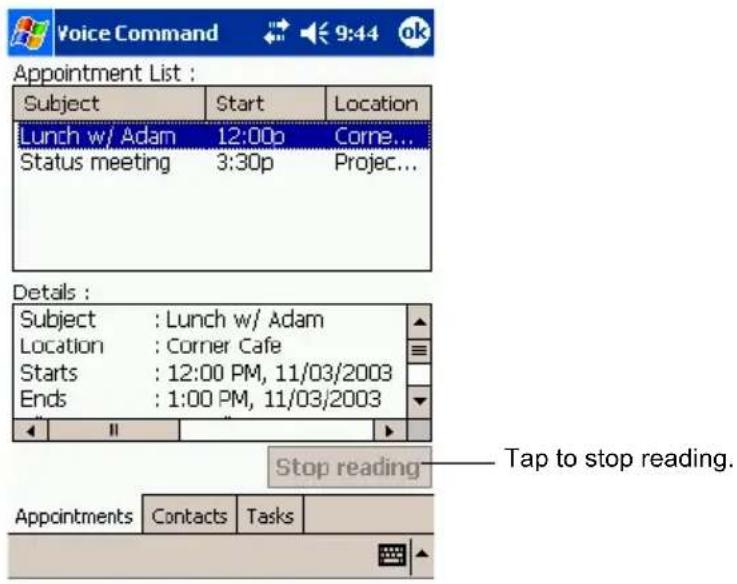
- In Listing mode, the voice command for Calendar is active for the current appointment. For example, saying "read subject" reads the subject of the current appointment.
NOTE
The appointment target term of one month before to one month after, based on the current time.
For other commands, you can check the command from the Commands tab within the Voice Command Settings screen.
Checking Voice Command Settings
You can check the voice command list or arrange the settings of voice command. To start the Voice Command Settings, tap Start, Programs, and then Voice Command Settings.
Checking the Command List
On the Commands tab, you can select the all commands installed.
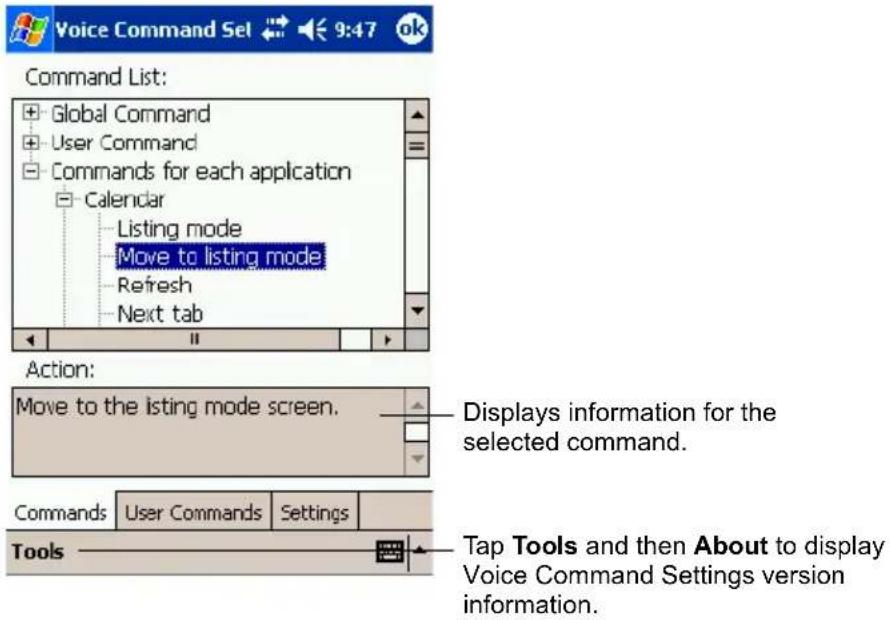
Arranging the recognition level of Voice Command
- Tap the Settings tab within the Voice Command Settings screen.
- Set the recognition level as required. The higher level of recognition that is set, the more sensitive the program is to the nuances of your voice, and it makes it easier for your Toshiba Pocket PC e830 to recognize the command. On the other hand, setting a higher level of recognition may decrease voice recognition within noisy environments. Toshiba recommends that you set the recognition level lower than normal when you are in noisy environments.
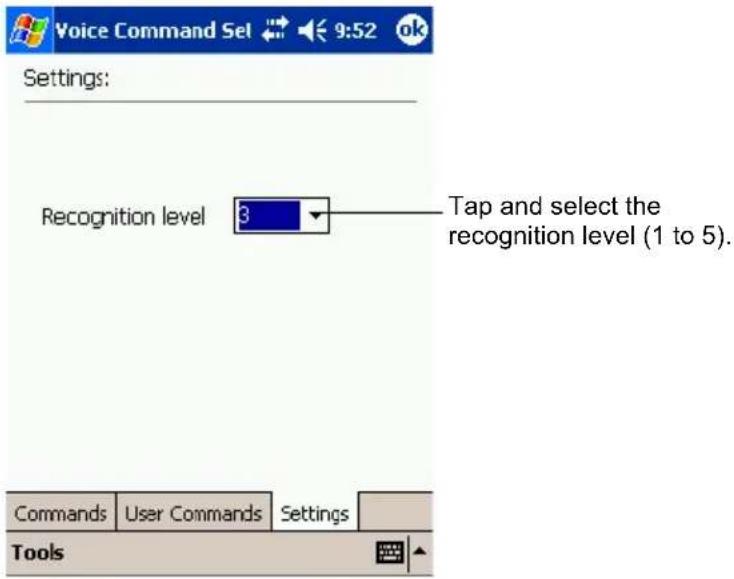
Defining the action for a User Command
To define an action, tap User Command tab within the Voice Command Settings screen.
Defining text for the command
- Tap and hold the command insert text xxx, then select Edit.
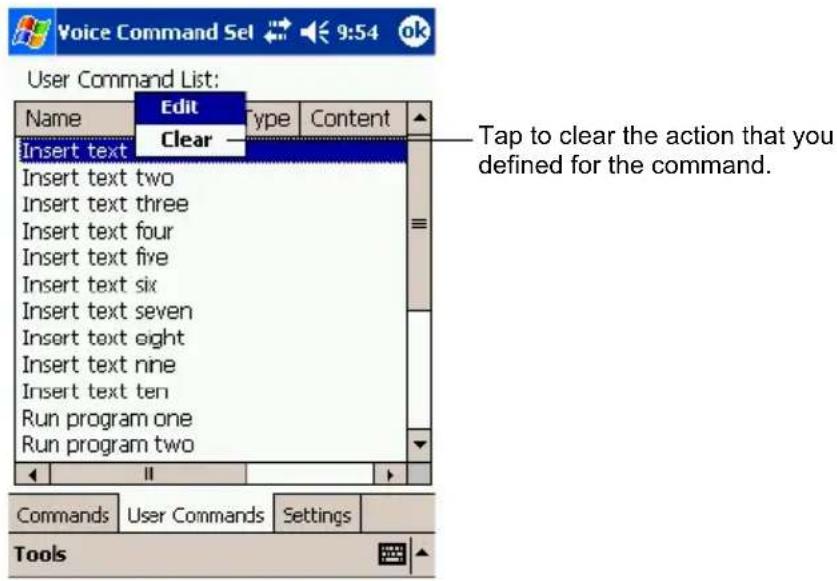
NOTE
You can only clear the action for the command; the command is not deleted.
- Input the text you want to define within the text area. For example, input "Thank you for your email about". Tap OK.
Assigning a program to the command
- Tap and hold the command run program xxx, then select Edit.
- Select the application you want to assign by tapping the Browse.
- Tap OK.
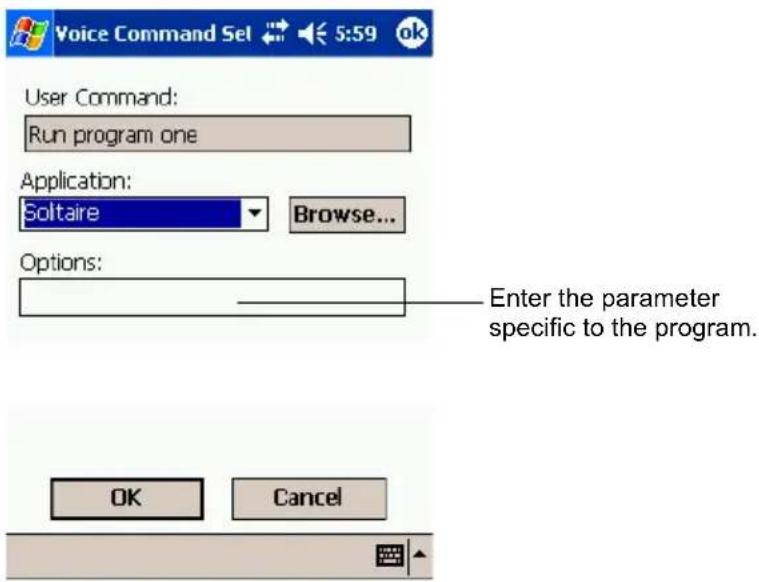
NOTE
There may be times when Voice Command does not capture the spoken word accurately or does not recognize the word at all. This can happen for a number of reasons, for instance, the words may be spoken too quickly or the background environment may be noisy.
If this happens, try the following:
- speak more slowly
- speak as clearly as possible
- move to a quiet environment and try again
Chapter 12:
Additional Information
Troubleshooting
Check the following table for the possible cause of a problem and how to correct it.
| Symptom Cause Correction | ||
| Even if the power button is pressed and the power does not turn on. | Battery power is exhausted. | Charge the battery. |
| The Main Battery or High Capacity Battery is not attached. | Attach the Main Battery/High Capacity Battery and switch the Battery Pack Lock to the Lock side. | |
| The power was suddenly cut off. | Battery power is exhausted. | Charge the battery. |
| Automatic suspend is active. | Select , Settings, System, Power to set to alter the power shut down time. | |
| Even if the battery is completely charged, it discharges after a short period of time. | Battery life has expired. | Replace the Main Battery with a new one. |
Symptom Cause Correction
| The screen was tapped, but the correct action was not executed. | Touch screen adjustment is incorrect. | Select, Settings, System, Screen, Align Screen to adjust the touch screen. |
| The operation is slow in response. | Insufficient memory Secure the free memory. Quit the application if it is not in use. | |
| Some malfunction. | Reset the system. If no action is observed after resetting the system, initialize the system. (However, the data is deleted.) | |
| The screen was tapped, but there is no response. The operation button does not work either. | Some malfunction. Reset the system. If no action is observed after resetting the system, initialize the system. (However, the data is deleted.) | |
| The screen is dark. The screen light is off. Press and hold the power button until the screen light is turned on. | ||
| The screen is hard to see. Brightness setting is incorrect. | Select, Settings, System, Screen light to adjust the screen brightness for better sight. | |
| Cannot connect to your PC. | — See ActiveSync Help. | |
| ActiveSync does not function when your Toshiba Pocket PC e830 is connected to your PC with a cradle or USB cable. | The USB driver on your PC may not be compatible. | Reselect the USB driver. |
| Symptom Cause Correction | ||
| Cannot access the Internet. | The cellular phone connection cable is not correct. | Check to make sure that the cellular phone connection cable is properly attached. |
| The cellular phone service signals are weak. | Relocate cellular phone to access stronger phone service signals. | |
| The communications settings are incorrect. | Carry out correct setting. | |
| The following message is displayed: | The battery power is too low to use USB devices. | Charge the battery or connect the AC adapter. |
| “NOT ENOUGH BATTERY POWER. USB devices can not be used. Because PDAs battery power is low.” | ||
| The following message is displayed: | The total power consumption of connected USB devices is too large. | The USB port supports a USB device that outputs a maximum of 500mA. Check the manufacturer's documentation to confirm that the connected USB device does not exceed this requirement. |
| “TOO MUCH USB CONNECTION. Connecting USB devices are too much.” | ||
| The following message is displayed: | The total power consumption of connected USB devices is too large. | The USB port supports a USB device that outputs a maximum of 500mA. Check the manufacturer's documentation to confirm that the connected USB device does not exceed this requirement. |
| “USB OVER CURRENT DETECT USB device is turned off. Please disconnect USB device.” | To enable the USB port again, either turn off your Toshiba Pocket PC e830 power or push the Reset Button (see "Resetting" on page 203). | |
Resetting
Resetting is equivalent to restarting a PC. Reset your Toshiba Pocket PC e830 when a button or tapping the screen does not respond. When your Toshiba Pocket PC e830 is reset, all data that was not stored during operation is deleted.
NOTE
If the functionality cannot be restored even if the reset button is pressed, initialize your Toshiba Pocket PC e830.
When the power is on, use the stylus to press and hold the reset switch, then release.
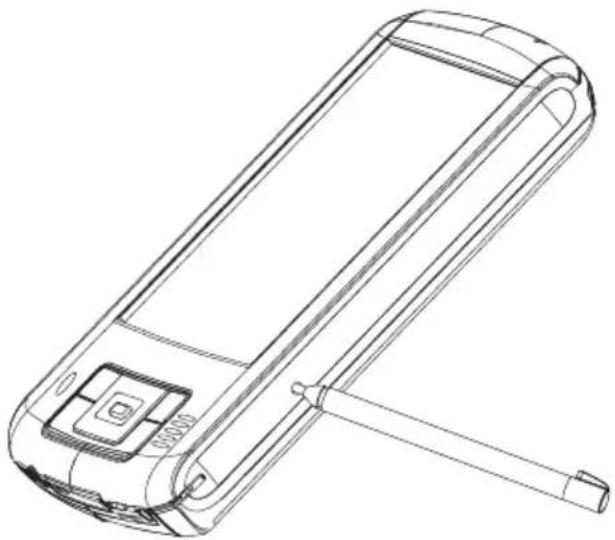
natural_image
Line drawing of a mobile phone with a stand and keypad (no text or symbols)Clearing Memory
When you initialize your Toshiba Pocket PC e830, it returns to the status when it was purchased.
CAUTION
When you initialize your Toshiba Pocket PC e830, all data stored in the memory is deleted. Your Toshiba Pocket PC e830's initially installed programs are not deleted.
Before initialization, remove all CF Type II or SD Cards.
The data stored in the Flash ROM Disk will not be deleted even after initializing. To delete the data in the Flash ROM Disk, use File Explorer.
- Turn off the power (see, "System overview" on page 28 to locate the power button).
- Press and hold the power button with one hand while using the stylus to press and hold the reset switch with the other hand.
- Release the power button.
- When a screen appears, release the reset switch. When initialization is complete, the Welcome screen appears.
- Follow the instruction on the screen to set up the system.
Troubleshooting for Wi-Fi
If you encounter problems, please refer to this troubleshooting section.
| Problems Solutions | |
| Cannot connect to the network | ■Make sure the Wireless communication switch is turned on.■Check if the SSID is correct (note that it is case-sensitive)■Check Link Quality in Wireless LAN Manager. If the link quality is poor, rescan or find another Access Point.■Check if the operating mode is set properly (see Chapter 8: "Configuring a Wireless LAN").■Check if the WEP key is correctly entered.■Be sure you are in the range of a working Access Point.■Make sure the channel been set is in the range of 1 to 11. |
| The host PC cannot wirelessly connect with my Toshiba Pocket PC e830 | ■Make sure you have setup the partnership for your Toshiba Pocket PC e830 and your host PC.■Make sure you are within the range of a working network.■Make sure you have entered the IP address of the host PC as the WINS server on your Toshiba Pocket PC e830.■Reset your PC or Toshiba Pocket PC e830 to make the TCP/IP settings take effect.■Make sure the SSID, WEP keys and channel for all devices in the network are set the same.■Make sure the channel been set is in the range of 1 to 11. |
| Cannot edit the "Channel" field in "Infrastructure" Mode? | In Infrastructure mode, the channel is decided by the Access Point. You can only join the existing network formed by the working Access Point, not to create a new Wireless Network. |
| Your Toshiba Pocket PC e830 freezes | Reset your Toshiba Pocket PC e830 (see "Resetting" on page 203). |
FAQ for Wi-Fi
A. Compatibility
A1: Should I use equipment with the same brand as the IEEE802.11b WLAN Adapter's to enable the wireless communication?
This is not necessary. The IEEE802.11b WLAN Adapter is Wi-Fi certified; it works well with differing brands of equipment as long as the equipment is also Wi-Fi certified.
A2: Can I connect IEEE802.11b WLAN Adapter to other devices using Bluetooth?
No, you can only connect the IEEE802.11b WLAN Adapter to other IEEE802.11b equipment.
B. Wireless LAN Connectivity
B1: How do I form a wireless network?
Typically, you can form a wireless network by connecting Access Points. Different Access Points should have different channels. Every devices connected to the network should have the same SSID. When you are using Access Points, set the mode to "Infrastructure" mode. Without Access Points, you can still build a network where adapters communicate peer-to-peer using a shared SSID. When you are not using Access Points, change the operating mode to be "802.11Ad Hoc". To set the operating mode, tap Start, Settings, System, then Wireless Networks.
B2: How can I connect my Toshiba Pocket PC e830 to the usable Wireless Network?
Tap Start, Settings, System, then Wireless Networks. Tap and hold the Wireless Network you desire, then tap Connect from the pop-up menu.
More Information
B4. What is 802.11 Ad Hoc Network? What should I do to form an 802.11 Ad Hoc Network?
B5. What is the difference between “Infrastructure” and “802.11 Ad Hoc” Network Mode?
How do I choose?
B6. Could I use the 802.11 Ad Hoc Mode to access the LAN resources? How can I access the LAN resource without an Access Point?
B7. What should I do if my host PC cannot wirelessly connect with my Toshiba Pocket PC e830?
E1. What is WEP?
E2. How many WEP security service mode does Wireless LAN support?
E3. How to set the WEP security service?
B3: How do I know whether or not my Pocket PC has already connected to an AP successfully?
- Check the Basic Service Set ID (BSSID). When there is a link, the current BSSID of the Access Point is shown in the BSSID field on the Link Page. When the adapter is disconnected from the Access Point, a "Non-associated" entry appears in the BSSID field. To view the BSSID from your Toshiba Pocket PC e830, tap Start, Settings, System, Wireless LAN Manager, then Link.
- Check Link Quality. Link Quality shows how clearly the adapter can hear the Access Point. If the quality is poor, it is better to rescan and find a better performing Access Point or re-arrange the Access Point's position for better performance. To view the Link Quality from your Toshiba Pocket PC e830, tap Start, Settings, System, Wireless LAN Manager, then Link.
B4: What is 802.11 Ad Hoc Network? What should I do to form an 802.11 Ad Hoc Network?
802.11 Ad Hoc Mode is used to create a peer-to-peer connection without an Access Point. The SSID must be the same among stations to enable the wireless communication within the local area network.
NOTE
You need to choose a proper SSID and channel for the first 802.11 Ad Hoc station. If other stations want to join the same SSID group, you must choose the same SSID as the first station for connection. The Channel setting for the 802.11 Ad Hoc Network stations to join the existing 802.11 Ad Hoc Network is automatically set as the channel number of the network
More Information
B5. What is the difference between "Infrastructure" and "802.11 Ad Hoc" Network Mode?
How do I choose?
B6. Could I use the 802.11 Ad Hoc Mode to access the LAN resources? How can I access the LAN resource without an Access Point?
B7. What should I do if my host PC cannot wirelessly connect with my Toshiba Pocket PC e830?
B5: What is the difference between “Infrastructure” and “802.11 Ad Hoc” Network Mode? How do I choose?
Infrastructure Mode is used to connect your Toshiba Pocket PC e830 with the Access Point. Usually, to form a Wireless Network, you can connect your Access Point to the ADSL, Cable Model or LAN Ethernet and then configure the Access Point base on the User Guide for the Access Point to set the proper SSID, Channel and WEP security service. After that, configure the IEEE 802.11b WLAN adapter. Set the same SSID, Channel and WEP as use for the Access Point. 802.11 Ad Hoc Mode allows your Toshiba Pocket PC e830 to form its own local network where devices communicate peer-to-peer, using a shared SSID, without Access Points. Under 802.11 Ad Hoc mode, the SSID must be the same among stations so that the devices can communicate properly within the Wireless Network. If you want to form your network without any Access Points, you should choose 802.11 Ad Hoc mode.
B6: Can I use the 802.11 Ad Hoc Mode to access the LAN resources? How can I access the LAN resource without an Access Point?
Yes, you can access the LAN resources without an Access Point. Follow the steps shown below:
(1) Make sure your host PC already successfully connect to the LAN or Internet through the LAN Adapter or the Modem.
(2) Install the Wireless LAN Adapter into your host PC successfully and set 802.11 Ad Hoc Mode and the proper SSID to form the 802.11 Ad Hoc Network. Install and enable the ICS (Internet Sharing Software, such as "SyGate"...) function in your host PC. (Note that the Windows 2000 supports the ICS function in Local Area Connection Properties? Sharing)
(3) Set your Toshiba Pocket PC e830 as 802.11 Ad Hoc Mode and choose the same SSID to join the 802.11 Ad Hoc Network (choose the DHCP to get the IP assigned).
(4) Check and make sure the Wireless LAN Adapter in the 802.11 Ad Hoc Network have the same IP group. (You can “ping” each other to make sure the connection is successful)
B7: What should I do if my host PC cannot wirelessly connect with my Toshiba Pocket PC e830?
(1) Make sure you have setup the partnership for your Toshiba Pocket PC e830 and your host PC.
(2) Make sure you are within the range of a working network.
(3) Make sure you have entered the IP address of the host PC as the WINS server on your Toshiba Pocket PC e830.
(4) Reset your Toshiba Pocket PC e830 to make the TCP/IP settings take effect
(5) Make sure the SSID, WEP keys and channel for all devices in the network are set the same.
(6) Make sure the channel been set is in the range of 1 to 11.
C. Application
C1: What should I do to use the ActiveSync Function through Wireless Network?
(1) Make sure you have already setup the partnership between your Toshiba Pocket PC e830 and your host PC through USB Interface and the ActiveSync can work properly. (The ActiveSync connection Interface should also choose the Ethernet interface for Wireless LAN ActiveSync Connection)
(2) Make sure you are within the range of a functioning Wireless Network.
(3) Make sure you can "ping" your Toshiba Pocket PC e830 from your host PC. (Make sure the SSID, WEP keys and channel for all devices in the network are set the same.)
(4) Make sure you have entered the IP address of the host PC as the WINS server on your Toshiba Pocket PC e830.
(5) Reset your Toshiba Pocket PC e830 to make the TCP/IP settings take effect and execute the ActiveSync function on your Toshiba Pocket PC e830.
C2: How do I wirelessly browse the Internet?
(1) If your network uses DHCP (Dynamic Host Configuration Protocol), an IP address and DNS (or WINS) is assigned automatically. On your Toshiba Pocket PC e830, simply tap Start, Settings, Connections, Network Cards, Network Adapters, then IEEE802.11b WLAN Adapter to configure the proper setting for your Internet connection.
(2) If your network does not use DHCP, you should enter the IP address, subnet mask, gateway and DNS (or WINS).
IP Address is Internet Protocol Address; a numeric address such as 10.37.238.100 that the domain name server translates into a domain name. Each node on the IP network should have a unique IP address.
Subnet mask is a number used to identify a subnetwork when multiple networks share one IP address. For example 255.255.255.0 Gateway is a device used to forward IP packets to and from a remote destination.
DNS (Domain Name System) is a database system that translates addresses and domain names. For example, a numeric address like 232.245.021.54 can become something like cba.com.
WINS (Windows Internet Naming Service) has two functions; one is a Microsoft Net BIO name server that eliminates the broadcasts needed to resolve computer names to IP addresses by providing a cache or database of translations. The other function is to set the host PC IP address of the previously constructed Network adapter Active Sync partnership.
To set the IP address, Subnet mask and Gateway, tap Start, Settings, Connections, Network Cards, Network Adapters, IEEE802.11b WLAN Adapter, then IP Address. To set the DNS or WINS, tap Start, Settings, Connections, Network Cards, Network Adapters, IEEE802.11b WLAN Adapter, then Name Servers.
(3) To ping your Toshiba Pocket PC e830 from your host PC. In the host PC, open the DOS command mode window, type the command "Ping" followed by the IP address, such as "Ping 140.124.40.112". If you can see the reply from this IP address, the connection is complete. You are now ready to browse the Internet on your Toshiba Pocket PC e830 using Internet Explorer.
C3: How do I check my email on my wireless Toshiba Pocket PC e830?
(1) Make sure that you can use the ActiveSync function through USB interface, then make sure you can use the ActiveSync to receive and send email. For corporate email, please check with your network administrator for necessary connection settings.
(2) Make sure you have entered the host PC IP address as the WINS server on your Toshiba Pocket PC e830.
(3) Reset your Toshiba Pocket PC e830 to make the TCP/IP settings take effect and execute the ActiveSync function on your Toshiba Pocket PC e830.
D. Settings
D1: What is SSID? What should I set in the SSID field?
SSID stands for Service Set Identification, which is the ID to form the Wireless Network. You can set up to 32 characters in the SSID field. For the Infrastructure Mode, you should set the SSID the same as the Access Point been connected with. To create an 802.11 Ad Hoc Network, the SSID must be the same among stations to enable the wireless communication within the local area network.
NOTE
You need to choose a proper SSID and channel for the first 802.11 Ad Hoc station. For other stations want to join the same SSID group, you could only choose the same SSID as the first station, but the channel does not take effect. The 802.11 Ad Hoc must enter the proper SSID. Blank SSID for the 802.11 Ad Hoc Mode is not allowed. The stations want to join the 802.11 Ad Hoc Network must have the same SSID and are suggested to have the same IP Address in the Network group.
D2: Why am I unable to choose the “Channel” field in “Infrastructure” Mode?
For the Infrastructure Mode, the Channel is decided by the Access Point. You cannot create a new Wireless Network; only join the existing Access Point formed Wireless Network.
D3: When should I set the IP address, Subnet mask and Default gateway settings?
When the Wireless Network does not have a DHCP server, you should set your own IP address, Subnet mask and Default gateway for your Wireless Network connection. Otherwise, the OS might set a different Network group IP address for you and disconnect you from the Wireless Network.
D4: How can I set the IP address, Subnet mask and Default gateway settings?
Tap Start, Settings, Connections, Network Cards, Network Adapters, IEEE802.11b WLAN Adapter, then IP Address to set the IP address, Subnet mask and Default gateway settings.
D5: What Transmit Rate should I choose for Wireless Connection?
Suggest you to use the “Fully Auto” option in the “Transmission Rate” field for full Transmission Data Rate range to automatically adjust the Best Communication Data Rate and to be compatible with other low speed 802.11 Wireless Device.
E. Security
E1: What is WEP?
Wired Equivalent Privacy (WEP) is a security service, used to prevent unauthorized access to your wireless network.
E2: How many WEP security service modes does my Wireless LAN support?
WEP stands for Wired Equivalent Privacy that is the security service for the Wireless Network. There are three WEP security service modes available for "IEEE 802.11b WLAN Adapter" formed Wireless Network. The first is "Disable" which disables the WEP security service; the second is "64bit" which supports 5 bytes Hexadecimal value WEP security service; the third is "128bit" which supports 13 bytes Hexadecimal value WEP security service.
E3: How do I set the WEP security service?
Tap Start, Settings, System, then Wireless Networks. Tap the network to which you want to connect, then the Network Key tab to set the WEP security service.
F. Performance
F1: Will IEEE802.11b WLAN Adapter work in the environment where Bluetooth network is employed?
Yes, IEEE802.11b WLAN Adapter can coexist with Bluetooth environment.
F2: How far is the working range of IEEE802.11b WLAN Adapter?
Working range depends on the data transmission rate and environmental conditions. The higher the data rate, the smaller the range it can cover. At 11 Mbps, the adapter can cover up to 300 meter in an outdoor environment; however, in an indoor environment, it can only cover up to 100 meter. Due to ceiling, higher RF, interior wall, and reflected signal interference, indoor range is usually shorter than outdoor range.
F3: How does the data transmission rate work?
IEEE802.11b WLAN Adapter allows you to choose one of the six data rate options: Fixed 1Mbps, Fixed 2Mbps, Fixed 5.5Mbps, Fixed 11 Mbps, Auto Select 1 or 2 Mbps, and Fully Auto.
The farther the distance between two communicating devices, the slower the data rate should be used. Basically a slower data rate ensures reliable data delivery. If you do not know which data rate should be used, select "Fully Auto", and the data rate automatically steps down from either 11 Mbps, 5.5 Mbps, 2 Mbps, to 1 Mbps as you move your Toshiba Pocket PC e830 further away from the Access Point or other connected mobile device.
F4: The Wireless LAN consumes too much power. What should I do to save power?
(1) Turn off the Wireless LAN Switch if you are not using the Wireless Network currently, or
(2) Tap Turn radio off on the TMU icon.
(3) Tap Start, Settings, System, then Wireless LAN Manager. On the Power tab, set each power saving mode, then tap Apply.
NOTE
(1) Turning off the Wireless Communication Switch will cause the disconnection of the Wireless Network, please make sure to close all the Wireless Connection before you execute this function.
(2) The Turn Off function on the TMU icon causes the disconnection of the Wireless Network, please make sure to close all the Wireless Connection before you execute this function.
(3) Enable “Power Saving Mode” keeps the connectivity but lowers the average throughput due to longer connection period for the Wireless Network.
(4) If you are in 802.11 Ad Hoc Mode, you are not allowed to enable “802.11 Power Saving Mode”, because Ad Hoc Mode doesn’t support this function.
F5: How do I make sure that the Wireless LAN software has been installed successfully and that Wireless LAN already work properly?
(1) Please check if the "IEEE 802.11b WLAN Adapter" already exist in Start, Settings, Connections, Network Cards, then Network Adapters tab; if not, the Wireless LAN Driver is not Installed successfully.
(2) Please check if the Wireless LAN Utility already exist and could be opened successfully by simply tapping Start, Settings, System, then Wireless Networks.
(3) Tap Start, Settings, System, Wireless LAN Manager, then Link to check the current Link information.
Error Messages for Bluetooth
This section explains the causes of and solutions for the various displayed error messages.
Error messages during COM/DUN service
An error has occurred with the Bluetooth SD Card. Confirm that the card is working properly.
Cause There was an error when loading the driver.
Solution Try reinserting the Card.
Unable to retrieve Local Device information.
Solution Reset your Toshiba Pocket PC e830.
Unable to retrieve Local Device information due to insufficient memory. Check the amount of available memory.
Solution Reset your Toshiba Pocket PC e830, increase the memory, and then restart Bluetooth Settings.
Remote device search failed due to insufficient memory. Check the amount of available memory.
Solution Increase the memory and then try the remote device search again.
Unable to retrieve remote device information.
Solution Display the remote device list again or try the remote device search again.
Unable to update remote device information.
Solution Depending on communications conditions, Local Device may not be able to locate the service of the remote device. Try the remote device search again or reset your Toshiba Pocket PC e830.
The maximum number of remote devices (255) has been exceeded. Delete all unneeded remote devices.
Solution Delete unneeded ghost devices and try the remote device search again. If more than 255 devices are discovered, some devices are not displayed.
Unable to delete remote device.
Solution Try deleting the remote device again or reset your Toshiba Pocket PC e830.
The device name that you entered exceeds the maximum byte count of 248 bytes. Enter a different device name.
Cause The name of Local Device exceeds 248 bytes after UTF-8 code conversion.
Solution Enter a name that does not exceed 248 bytes.
The retrieved information contains invalid data.
Cause The device information contains invalid data.
Solution Display the device list again or update the device information with the remote device search.
Unable to delete remote device due to insufficient memory. Check the amount of available memory.
Cause There is insufficient memory to delete the device.
Solution Increase the amount of available memory and then try to delete the device again.
Service list search failed due to insufficient memory. Check the amount of available memory.
Solution Increase the amount of available memory and then try the service list search again.
The maximum number of services (30) has been exceeded.
Cause Your Toshiba Pocket PC e830 has detected more than its maximum number of services (30).
Solution Have the remote device delete unneeded services, and then update the service list.
Unable to successfully connect. Check the status.
Cause An error occurred while trying to connect to a device or service.
Solution Check the status of the device or service and try connecting again.
Unable to successfully disconnect. Check the status.
Cause An error occurred while trying to disconnect from a device or service.
Solution Reset your Toshiba Pocket PC e830.
Unable to update service information.
Cause An error occurred while trying to update the service information.
The passkey was not entered within the 20-second time limit and, as a result, the program timed out.
An incorrect passkey was entered.
There are no available services.
Solution Try updating the service information again.
The Bluetooth authentication failed. Please retry to enter the correct Bluetooth passkey (PIN Code).
Cause An error occurred while trying to update the service information.
The passkey was not entered within the 20-second time limit and, as a result, the program timed out.
An incorrect passkey was entered.
Solution Try updating the service information again with correct pass-key.
Request was refused by security reason. Please check remote settings and try again.
Cause An error occurred while trying to update the service information.
Connection request was refused by security reason.
Solution Check remote settings and try updating the service information again.
Remote Bluetooth is not available or request was refused by security reason. Please check remote settings and try again.
Cause An error occurred while trying to update the service information.
Connection request was refused by security reason.
The passkey was not entered within the 20-second time limit and, as a result, the program timed out.
An incorrect passkey was entered.
Solution Check remote settings and try updating the service information again with correct passkey.
The connection is not registered. Use the Bluetooth Setup Utility to register the connection.
Solution Register the connection and try connecting again.
Unable to delete connection registration information.
Solution Reset your Toshiba Pocket PC e830.
An internal processing error has occurred.
Solution Reset your Toshiba Pocket PC e830
An internal processing error has occurred with the Discoverability Mode setting.
Solution. Reset your Toshiba Pocket PC e830.
An internal processing error has occurred with the Connectability Mode setting.
Solution Reset your Toshiba Pocket PC e830.
An internal processing error has occurred with the Security Mode setting.
Solution Reset your Toshiba Pocket PC e830.
An internal processing error has occurred with the Encryption setting.
Solution Reset your Toshiba Pocket PC e830.
Unable to register the device name. The previous device name will be used.
Solution Try registering the connection again.
The device name that you entered contains invalid characters. Enter a different device name.
Cause The device name contains only spaces or nothing at all.
Solution Enter a device name that does not contain only spaces.
Unable to retrieve service information.
Solution Display the service list again.
Unable to register connection information.
Solution Close Bluetooth Settings, turn off your Toshiba Pocket PC e830, then turn the power on again, or reset your Toshiba Pocket PC e830.
Unable to retrieve connection information.
Solution Close Bluetooth Settings, turn off your Toshiba Pocket PC e830, then turn the power on again, or reset your Toshiba Pocket PC e830.
Bluetooth icon does not appear on the command bar.
Solution Tap Start, Programs, Bluetooth Settings, or reset your Toshiba Pocket PC e830.
Error messages during Object Push Profile (OPP) service
Unable to connect to the specified device.
Cause The Bluetooth connection, authentication, or OPP service connection failed.
Request denied by the remote device.
The remote device does not support this function.
Cause The remote device does not support OPP service.
Unable to send the object.
Cause Local Device is unable to send a contact, schedule, task, or business card due to a problem with the signal or a similar communications error.
Unable to receive the object.
Cause Local Device is unable to receive a contact, schedule, task, or business card due to a problem with the signal or a similar communications error.
Select the item you want to send.
Cause You have not selected an item to send.
Unable to store all receiving data due to insufficient memory.
Cause A contact, schedule, or task cannot be stored due to insufficient memory.
Solution Delete any unneeded data to increase the memory capacity.
Name not specified in owner information.
Cause A name has not been specified in the Name area of the owner information.
Solution Complete the owner information setting. A name is required.
Bluetooth Settings has not been started.
Cause The Bluetooth Settings program has not been started because a Bluetooth device's power (your Toshiba Pocket PC e830) is not on.
Solution Check the wireless switch to on position, and turn on the Bluetooth power from utility.
Program cannot be started because Bluetooth receiving program is running.
Cause While the Bluetooth receiving program was running or the pop-up menu was displayed as you were trying to receive a contact, schedule, or task, you tried to send or receive another contact, schedule, or task.
Solution You can only receive one contact, schedule, or task at a time while the Bluetooth receiving program is running. Wait until you have finished receiving the first object before sending or receiving another object.
Program cannot be started because Bluetooth sending program is running.
Cause The Bluetooth receiving program was executed while the device search screen was displayed in the Bluetooth sending program.
Solution Close the device search screen and try again.
Bluetooth Settings encountered an error and could not be executed.
Cause An error occurred in the initial settings of the Bluetooth Settings program and the program could not be continued.
Solution Reset your Toshiba Pocket PC e830 (see "Resetting" on page 203).
Processing interrupted due to insufficient memory.
Cause The memory capacity was insufficient because a buffer could not be allocated.
Solution Shut down other operating programs or reset your Toshiba Pocket PC e830.
Unable to retrieve device information.
Unable to send business card.
Unable to receive business card.
Unable to exchange business cards.
Unable to save receiving data.
Cause Invalid data has been received or the contact, schedule, or task data cannot be saved for a reason other than an insufficient memory.
Solution Confirm that the data sent by the connected remote device is in a format supported by your Toshiba Pocket PC e830.
There is no response from the partner device.
Cause The remote device (server) did not respond to a request to connect or send/receive data within a set time.
Solution Confirm that the remote device is operating properly.
This cannot be sent because it contains invalid data.
Cause An error has occurred in the data conversion at the time the object was sent.
Processing interrupted due to an internal error.
Cause The processing could not be continued due to an internal error.
Solution Reset your Toshiba Pocket PC e830 (see "Resetting" on page 203).
Error messages during File Transfer Protocol (FTP) service The FTP server could not be started because the FTP client is operating.
Cause A request to start the Bluetooth FTP server was received from a peripheral device while the Bluetooth FTP client is operating on Local Device.
Solution If you exit Bluetooth FTP on Local Device, the request from the peripheral device to start the Bluetooth FTP server can be accepted.
The FTP client could not be started because the FTP server is operating.
Cause You tapped the Bluetooth FTP icon to try to start Bluetooth FTP while the Bluetooth FTP server is operating.
Solution Exit Bluetooth FTP on Local Device. Once the Bluetooth FTP server is closed, start up Bluetooth FTP.
Unable to delete (file/folder name).
Cause An error occurred while trying to delete a file or folder, or a separate file or folder exists within the specified folder.
Solution Remove the file or folder from the specified folder and try deleting it again.
Unable to delete read-only file.
Cause Local Device tried to delete a file on the remote device, but because it is a read-only file, it could not be deleted.
The selected file/folder already exists. Enter another file/folder name.
Cause The name you tried to enter already exists.
Solution Enter a different name.
Enter a file/folder name.
Cause Either nothing has been entered for the name or the name consists of spaces or begins with a period.
Solution Enter a correct name.
The following characters cannot be used in the file/folder name. \ / ; , : * ? " < > |
Cause You entered an invalid character in the file/folder name.
Solution Rename the file/folder using correct characters.
Cannot rename file/folder.
Cause A processing error occurred because the entered name exceeded the maximum length.
Solution Enter a shorter name.
Enter the folder name.
Cause After creating or changing a folder, either nothing has been entered for the name or the name consists of spaces or begins with a period.
Solution Enter a correct folder name.
The following characters cannot be used in the folder name. \ / ; , : * ? " < > |
Cause You entered an invalid character in the new folder name.
Solution Rename the folder using correct characters.
The folder name could not be created.
Cause A processing error occurred because the entered name exceeded the maximum length.
Solution Enter a shorter name.
The specified file could not be executed.
Cause You selected Execute or Receive/Execute, but the specified file is not executable or the associated application software could not be found.
The connection destination server is not selected. Select a server.
Cause You have not selected the device to which you want connect.
Sending or receiving failed. Cancelling process.
Cause Sending, receiving, deleting, or retrieval of folder information failed.
Solution Try the operation again.
The memory was exceeded while receiving files. Cancelling process.
Cause The memory to store the files or folders was insufficient when receiving or receiving/executing the files or folders.
Solution Delete any unneeded data to increase the memory capacity, and try again.
An error occurred during server search. Cancelling process.
Cause Local Device tried to send or receive a file, but was unable to connect to the remote device.
Unable to obtain usable COM port. Ending program.
Cause A COM port could not be opened during auto connect.
The OBEX password contains an invalid character. Enter the password again.
Cause On the FTP Server screen of the remote device, when Tools and Options were selected and the FTP authentication password entered, an invalid character was used.
Solution Use only alphanumeric characters when entering the password.
Unable to move folder or obtain folder information.
Solution Try the operation again.
Registry problem.
Cause A problem occurred in the registry data required for processing.
There is no response from the partner device. Ending application.
Cause Local Device tried to connect, disconnect, or perform a service search, but there was no response from the remote device and a time-out error occurred.
Solution Exit the Bluetooth FTP from Local Device.
An internal processing error has occurred. Cancelling process.
Could not allocate the memory for processing. Cancelling process.
Solution Delete any unneeded data to increase the memory capacity, and try again.
A file (or folder) with the same name exists. Skipping transfer.
Cause A file or folder exists with the same name as the file or folder that is being received.
An error occurred during server search.
Cause Local Device was unable to search for peripheral devices.
Solution Try the operation again.
Bluetooth Settings cannot be started.
Cause The Bluetooth may not be enabled in your Toshiba Pocket PC e830.
Solution Perform the steps to start Bluetooth Settings.
(Folder name) does not exist.
Cause The folder that you tried to locate in Local Device does not exist.
A communications error occurred.
Cause An internal OBEX error occurred when the remote device was started.
Solution If the device you to which you were unable to connect is not a Bluetooth SD Card, try the operation again without FTP authentication.
Troubleshooting for TOSHIBA IP Phone for Pocket PC
Cannot access Gphone Buddy Service
Refer to "Troubleshooting for Wi-Fi" on page 205 for more information about connecting to the Internet.
No network adapter
Make sure the wireless communication switch is turned on.
Communication Error
Confirm your network configuration, such as IP address setting.
Authentication Error
Check if you set your G-Number and password properly.
Cannot see your buddy list
Make sure you connect Gphone Buddy Server. If you log on to it properly, your state (Online, Offline, Busy, or Away) is displayed.
Cannot call an IP phone by using Gphone Buddy Service
Confirm you access Gphone Buddy Server. If you log on to it properly, your state (Online, Offline, Busy, or Away) is displayed. Check your party's state is not offline.
You cannot hear your party's voice
Check speaker volume on your Toshiba Pocket PC e830.
Your party cannot hear your voice
Check microphone volume on your Toshiba Pocket PC e830.
Make sure muting microphone is not activated by Voice and MIC mute.
Glossary for Bluetooth
General Bluetooth terms
Bluetooth Passkey
This is a password. It is also called a PIN Code.
Device Address
Each Bluetooth SD Card has a unique device address that is listed on the card as BDA:XXX... X.
Local Device
In Bluetooth communications, this refers to your local Toshiba Pocket PC e830. It is also called a client.
Remote Device
In Bluetooth communications, this refers to the connected partner device. It is also called a server.
Profile
This refers to the specifications (services) used in Bluetooth communications. The specifications (services) are determined by the type of communications.
Graphical User Interface (GUI) Bluetooth terms
Auto Connect
For a COM service, the program using COM is started and a connection is established with the connection registered Bluetooth device using the Serial Port Profile.
For a DUN service, Dial-up Networking is started and a connection is established with the connection registered Bluetooth device using the Dial-up Networking Profile.
Ghost
This is a device that was previously discovered, but is no longer found during the search for peripheral devices.
Discovered
This is a device discovered during the search for peripheral devices.
Search for Peripheral Devices
This function is used to search for Bluetooth-enabled devices.
Delete Ghost Device
This function is used to delete ghost devices from the device list.
Connected Device
This is a remote device that currently has a Bluetooth connection to a Local Device.
COM Service Device
This is a device that provides SPP (Serial Port Profile) service.
DUN Service Device
This is a device that provides DUN (Dial-up Networking Profile) service.
FTP Service Device
This is a device that provides FTP (File Transfer Profile) service.
LAP Service Device
This is a device that provides LAP (LAN Access Profile) service.
OPP Service Device
This is a device that provides OPP (Object Push Profile) service.
Security Settings
There are four security settings: Office, Mobile, Home, and Other.
Discoverability Mode
This setting determines whether Local Device can be discovered by other Bluetooth devices.
Connectability Mode
This setting determines whether Local Device can be connected to by other Bluetooth devices in response to a connection request.
Security Mode
This setting determines whether authentication is performed when connecting to a remote Bluetooth device, and whether data sent and received is encrypted.
Service Update
This function is used to search for and update information on services provided by a connected remote Bluetooth device.
Connection Registration
This function is used to register an automatic connection.
Device Name
This is the name of a Bluetooth device. It can be a maximum of 248 bytes (after UTF-8 code conversion).
Connection Status
This displays the current connection status (Connected, Discovered, or Ghost) of Bluetooth devices.
Device Address
This is the unique address given to each Bluetooth SD Card.
Device Class
This indicates the type of Bluetooth device (PC, cell phone, etc.). A Bluetooth SD Card is categorized as a PDA.
Authentication
This is the process of confirming an authentication password to allow a remote Bluetooth device to connect to Local Device. If the authentication passwords on both devices do not match, the connection is refused.
These are the following types of authentication:
Bluetooth authentication
This is requested when trying to establish a Bluetooth connection with a remote device. You must enter the Bluetooth passkey to connect.
■ OPP authentication
This is requested when trying to connect to a remote device to send all contacts by OPP service. You must enter the OPP password.
FTP authentication
This is requested when trying to connect to a remote device to start FTP service. You must enter the FTP password.
Authentication Status
For remote devices that have performed Bluetooth authentication, Pairable is displayed. For unauthenticated devices, Untrusted is displayed.
Service Name
This indicates the type of service (profile) provided by a Bluetooth device.
PIN Code
This is a password of up to 16 alphanumeric characters.
Depending on the remote device, the PIN Code might be a fixed value with a limit on the number of digits, so be sure to confirm these conditions.
It is also called a Bluetooth passkey.
Specifications
| External dimensions Approximately:5.3 in. (135 mm) x 3.0 in (77 mm) x 0.6 in. (16.7 mm)(L x W x H) | |
| Operating conditions | Temperature: 0°C to 40°C (32°F to 104°F), relative humidity: 30% to 80% when only the Toshiba Pocket e830 is operating. Temperature capable of charging 5°C to 35°C (41°F to 95°F). |
| Battery type Removable, rechargeable Lithium-Ion battery | |
| Processor | Intel® PXA272 Processor at 520 MHzCPU performance in your PC product may vary from specifications under the following conditions:use of certain external peripheral productsuse of battery power instead of AC poweruse of certain multimedia games or videos with special effectsuse of standard telephone lines or low speed network connectionsuse of complex modeling software, such as high end, PC-aided design applicationsuse of PC in areas with low air pressure (high altitude >1,000 meters or >3,280 feet above sea level)use of PC at temperatures outside the range of 5°C to 35°C (41°F to 95°F) or >25°C (77°F) at high altitude (all temperature references are approximate).CPU performance may also vary from specifications due to design configuration. Under some conditions, your PC product may automatically shut-down. This is a normal protective feature designed to reduce the risk of lost data or damage to the product when used outside recommended conditions. To avoid risk of lost data, always make back-up copies of data by periodically storing it on an external storage medium. For optimum performance, use your PC product only under recommended conditions. |
Memory RAM: 128 MB, ROM: 64 MB
Flash ROM Disk 24 MB
Display 4.0" diagonal, TFT Color, LCD screen, 480 pixels x 640 pixels, up to 64K colors
Interfaces
DC-IN 5V/3A
Headphone 3.5 mm, stereo, mini-plug compatible
Microphone Integrated with 3.5 mm, stereo, mini-plug
SD Card slot SD Card, SDIO Card, or MultiMediaCard
The security function of the SD Card is disabled. Data encrypted by the SD Card security function compatible equipment is not usable.
CF Type II card slot CompactFlash Type II card slot (3.3V only)
Infrared port Based on IrDA Ver.1.2
Maximum data transmission speed: 115 kbps.
Cradle connection USB Host/Client, RS232 port
Audio AC 97 codec, mono record, stereo playback, 8.0 KHz, 11.025 KHz, 22.05 KHz, and 44.1 KHz sample rate. Full duplex record and playback. On board microphone. on board speaker. Stereo earphone/microphone jack. Software volume control.
Accessories AC adapter, USB host cable, USB client cable, serial client cable, stylus pen, cradle, USB/serial cradle with USB port, battery pack, high capacity battery pack, battery charger.
Although the display is manufactured using an extremely high technology, there may be a case that some dots do not light or always light. It is not a malfunction.
- Toshiba Pocket PC e830 Series User's Guide
- Introduction
- Copyright Information
- First Edition August 2004
- Safety instructions
- Pocket PC
- ▲WARNING
- ▲ CAUTION
- Main battery pack
- DANGER
- NOTE
- Power cords
- WARNING
- AC adapter
- Liquid Crystal Display (LCD)
- Toshiba optional devices and accessories
- Proper treatment of the unit
- Work environment
- Prevention of eyestrain
- Viewing angle and viewing distance of LCD
- Ambient lighting
- Vision care
- Prevention of physical discomfort
- Prevention of physical discomfort to the body
- Prevention of physical discomfort to the hands, wrists, and arms
- Avoidance of exposure to electromagnetic field (EMF) emissions
- Very low frequency (VLF) emissions (30,000Hz to 66,000Hz)
- Radio frequency (RF) emissions
- Safety precautions
- A WARNING
- Limitation of liability
- Usage conditions
- CAUTION
- Table of Contents
- Chapter 1:
- Getting Started
- Welcome
- Finding Information
- Chapter 2:
- Basic Skills
- System overview
- Main unit (front view)
- Program button initial settings
- Power button
- Battery switch
- Setting the battery switch
- Battery/Alarm LED descriptions
- Wireless communication switch
- Wireless LED descriptions
- LED Status
- Using the Hold switch
- Using the Stylus
- Using the Cursor button
- Using the TOSHIBA Scroller
- Charging the battery for the first time
- Assembling the cradle
- Charging the battery
- Attaching the Main Battery Pack
- Attaching the optional High Capacity Battery Pack
- Prolonging battery life
- Protecting data from low battery charge levels
- Using the optional USB Host Client Cable
- Connecting a USB keyboard to the Pocket PC
- Initial setup and touch screen correction
- Inserting a CF Type II card
- Removing a CF Type II card
- Inserting an SD Card
- Removing an SD Card
- Connecting to a PC
- Connecting using the supplied Cradle
- Connecting directly using a connection cable
- Using an optional USB Client cable
- Today Screen
- Using Programs
- Navigation and command bars
- Pop-up menus
- Notifications
- Entering Information
- Entering text using the Input Panel
- Typing with the soft keyboard
- Using Letter Recognizer
- Using Block Recognizer
- Using Transcriber
- Selecting typed text
- Writing on the screen
- Selecting writing on the screen
- Converting writing to text
- Drawing on the screen
- Creating a drawing
- Selecting a drawing
- Recording a message
- Creating a recording
- Using My Text
- Finding and organizing information
- Customizing settings
- Adding or removing programs in ROM and RAM
- Adding programs using ActiveSync
- Adding programs directly from the Internet
- Adding programs to the Start menu
- Removing programs
- Setting passwords
- Changing screen settings
- Changing screen orientation
- Aligning the screen
- ClearType
- Changing the Text Size
- Adjusting Screen light levels
- Setting power management options
- Setting memory
- Changing memory allocation
- Confirming storage card usage
- Releasing memory
- Accessing the Flash ROM Disk
- Adjusting speaker and headphone volumes
- Setting microphone recording levels
- Checking System Information
- Identity tab
- Memory tab
- Drivers tab
- System tab
- Wireless tab
- Tools menu
- Setting power for Wireless Communication
- Chapter 3:
- Microsoft ActiveSync
- Changing the synchronization schedule
- Chapter 4:
- Microsoft Pocket Outlook
- Calendar—Scheduling appointments and meetings
- Creating an appointment
- Using the Summary screen
- Creating meeting requests
- Scheduling a meeting
- Contacts—Tracking friends and colleagues
- Finding a contact
- Creating a contact
- Tasks—Keeping a To Do list
- Creating a task
- Notes—Capturing thoughts and ideas
- Creating a note
- Messaging—Sending and receiving email messages
- Synchronizing email messages
- Using the message list
- Reading your messages
- Responding to a received message
- Composing messages
- Managing email messages and folders
- Folder behavior with a direct connection to an email server
- Chapter 5:
- Companion Programs
- Pocket Word
- Typing mode
- Writing mode
- Drawing mode
- Recording mode
- Pocket Excel
- Tips for working in Pocket Excel
- MSN Messenger
- Setting up MSN Messenger
- Setting up an account and signing in
- Working with Contacts
- Chatting with Contacts
- Windows Media Player
- Pictures
- Editing pictures
- Sending pictures
- Setting a picture as a background
- Viewing a slideshow of pictures
- Chapter 6:
- Pocket Internet Explorer
- Mobile Favorites folder
- Favorite links
- Mobile Favorites
- Creating a Mobile Favorite
- Saving device memory
- Using AvantGo Channels
- Synchronizing an AvantGo Channel
- Using Pocket Internet Explorer
- Viewing Mobile Favorites and Channels
- Browsing the Internet
- Chapter 7:
- Getting Connected
- Transferring files using infrared
- Sending information
- Receiving information
- Connecting to the Internet
- Creating a modem connection to an ISP
- Creating an Ethernet connection to an ISP or network
- Connecting to work
- Creating a modem connection to a network
- Setting up a VPN server connection
- Editing proxy settings
- Ending a connection
- Connecting directly to an email server
- Setting up an email account
- Getting Help on connecting
- Chapter 8:
- Wi-Fi Wireless LAN
- Wireless LAN overview
- Joining an existing network
- Launching a wireless LAN
- Turning off/on a wireless LAN connection
- Selecting a preferred network
- Configuring the IP address, subnet mask, and default gateway
- IP Address
- Subnet mask
- Default gateway
- Setting up the Name Servers screen
- DNS
- WINS
- Alt DNS
- Alt WINS
- Configuring a Wireless LAN
- Setting up a wireless network
- Configuring a wireless network
- Configuring the Network Authentication screen
- - Authentication
- • Data Encryption (WEP/TKIP Enabled)
- • The Key is provided for me automatically
- • Network Key (WEP/Pre-Shared Key)
- bits (ASCII)
- ■128 bits (ASCII)
- bits (HEX)
- bits (HEX)
- ■Pre-Shared Key (PSK)
- • Key Index
- - Use IEEE 802.1X network access control
- - EAP type
- PEAP
- Smart Card or Certificate
- Monitoring through the Traffic Monitoring Utility (TMU)
- Icon Specification
- Wireless communication switch off
- Wireless communication power off
- Wireless power on
- Configuring the Wireless LAN Manager
- Link screen
- Power screen
- Manager screen
- Info screen
- TOSHIBA Enroller
- Import screen
- Launching TOSHIBA Enroller
- Toshiba Certificate Import Wizard
- Launching the Toshiba Certificate Import Wizard
- Enrolling Certificates
- Configuring Advanced Settings
- Using ConfigFree™
- Search for Wireless Devices
- Connectivity Doctor
- Profile Settings
- Chapter 9:
- TOSHIBA IP Phone for Pocket PC
- Launching TOSHIBA IP Phone
- Using P2P Communications
- Calling an IP Phone
- Answering a call automatically
- Placing a call on hold
- Hanging up
- Playing back a voicemail
- Voicemail indication
- Using Instant Messaging (IM)
- Signing-in
- Tap Sign in.
- Redialing using the outgoing call history
- Calling back using the incoming call history
- Adding a contact to your buddy list
- Removing a contact from your buddy list
- Refreshing buddy status
- Presence Service (PS)
- Using Gphone Buddy Service behind a NAT router
- Configuring IP Phone options
- Automatic answer
- UDP Port (Signal)
- UDP Port (Voice)
- Ringing audio file
- Ringback audio file
- Answering message file
- Hold message file
- Chapter 10:
- Bluetooth
- Bluetooth software overview
- Specifications
- Supported profiles and specifications
- Bluetooth specification V1.2
- Enabling Bluetooth
- Bluetooth Environmental Settings
- Advanced Settings
- Bluetooth connection preparation
- Using COM service
- Establishing an ActiveSync connection with a PC
- Preparing for connection
- Using DUN/LAP service
- Tap OK.
- Using PAN service
- Connecting to the network (Intranet, Internet, or Peer-to-Peer)
- Ending PAN service
- Changing the network configuration for PAN service
- Using OPP service
- Sending a contact
- Sending a schedule
- Sending a task
- Exchanging business cards
- Receiving a business card
- Using FTP service
- Starting Bluetooth FTP
- Tap Search.
- Sending a file
- Receiving a file
- Enabling an FTP Authentication setting for a Bluetooth FTP server
- Configuring Bluetooth settings
- Searching for peripheral devices
- Updating service
- Properties
- Delete
- Search options
- Deleting ghost devices
- View menu
- Details
- Icons
- Filter
- Options menu
- FTP Server Settings
- Security Settings
- Registration History
- Local Device
- Function List
- Version Information
- Starting Search for Wireless Devices
- Chapter 11:
- Optional Functions
- Home screen overview
- About the Home screen
- About the Information window
- About Running
- Activating or stopping an application
- System icons
- Configuring icons
- Moving icons within tabs
- Moving icons to another tab using the pop-up menu
- Moving icons to another tab using drag and drop
- Deleting icons
- Adding icons
- Renaming icons
- Switching the icon display
- Configuring Tab Settings
- Adding tabs
- Deleting tabs
- Changing tab names
- Sorting icons within tabs
- Changing a background
- Applying background color and text color
- Backup overview
- Making a backup
- Restoring your system
- Deleting a backup file
- Making an auto backup
- Set the desired items.
- Setting the World Clock
- Selecting the city from a zoomed map
- TOSHIBA Voice Recorder (TVR)
- Using TVR to record
- Playing a file from the TVR
- Tap Stop button to stop.
- Setting TVR options
- Using TOSHIBA Text to Speech for Pocket PC
- Setting up Text to Speech from the Companion CD
- Starting Mail Speech
- Text Speech—reading out a text file
- Reading out the text copied on the clipboard
- Configuring Speech Settings
- Reading tab
- Mail tab
- Voice Command overview
- Installing Voice Command
- Launching Voice Command
- Using Global Command
- About User Command
- Using commands to insert text
- Using commands to launch applications
- Using Voice Command for each application
- Checking Voice Command Settings
- Checking the Command List
- Arranging the recognition level of Voice Command
- Defining the action for a User Command
- Defining text for the command
- Assigning a program to the command
- Chapter 12:
- Additional Information
- Troubleshooting
- Resetting
- Clearing Memory
- Troubleshooting for Wi-Fi
- FAQ for Wi-Fi
- Compatibility
- Wireless LAN Connectivity
- More Information
- B3: How do I know whether or not my Pocket PC has already connected to an AP successfully?
- B4: What is 802.11 Ad Hoc Network? What should I do to form an 802.11 Ad Hoc Network?
- B5: What is the difference between “Infrastructure” and “802.11 Ad Hoc” Network Mode? How do I choose?
- B6: Can I use the 802.11 Ad Hoc Mode to access the LAN resources? How can I access the LAN resource without an Access Point?
- B7: What should I do if my host PC cannot wirelessly connect with my Toshiba Pocket PC e830?
- Application
- C1: What should I do to use the ActiveSync Function through Wireless Network?
- C2: How do I wirelessly browse the Internet?
- C3: How do I check my email on my wireless Toshiba Pocket PC e830?
- Settings
- D1: What is SSID? What should I set in the SSID field?
- Security
- E2: How many WEP security service modes does my Wireless LAN support?
- E3: How do I set the WEP security service?
- Performance
- F1: Will IEEE802.11b WLAN Adapter work in the environment where Bluetooth network is employed?
- F2: How far is the working range of IEEE802.11b WLAN Adapter?
- F3: How does the data transmission rate work?
- F4: The Wireless LAN consumes too much power. What should I do to save power?
- F5: How do I make sure that the Wireless LAN software has been installed successfully and that Wireless LAN already work properly?
- Error Messages for Bluetooth
- Error messages during COM/DUN service
- The retrieved information contains invalid data.
- Unable to delete remote device due to insufficient memory. Check the amount of available memory.
- Service list search failed due to insufficient memory. Check the amount of available memory.
- The maximum number of services (30) has been exceeded.
- Unable to successfully connect. Check the status.
- Unable to successfully disconnect. Check the status.
- Unable to update service information.
- The Bluetooth authentication failed. Please retry to enter the correct Bluetooth passkey (PIN Code).
- Bluetooth Settings has not been started.
- Program cannot be started because Bluetooth receiving program is running.
- Program cannot be started because Bluetooth sending program is running.
- Bluetooth Settings encountered an error and could not be executed.
- Processing interrupted due to insufficient memory.
- Unable to retrieve device information.
- Unable to exchange business cards.
- Unable to save receiving data.
- There is no response from the partner device.
- This cannot be sent because it contains invalid data.
- Processing interrupted due to an internal error.
- Error messages during File Transfer Protocol (FTP) service The FTP server could not be started because the FTP client is operating.
- The FTP client could not be started because the FTP server is operating.
- Unable to delete (file/folder name).
- Unable to delete read-only file.
- The selected file/folder already exists. Enter another file/folder name.
- Enter a file/folder name.
- Cannot rename file/folder.
- Enter the folder name.
- The folder name could not be created.
- The specified file could not be executed.
- Sending or receiving failed. Cancelling process.
- An error occurred during server search. Cancelling process.
- Unable to obtain usable COM port. Ending program.
- The OBEX password contains an invalid character. Enter the password again.
- Unable to move folder or obtain folder information.
- Registry problem.
- There is no response from the partner device. Ending application.
- An internal processing error has occurred. Cancelling process.
- Could not allocate the memory for processing. Cancelling process.
- A file (or folder) with the same name exists. Skipping transfer.
- An error occurred during server search.
- Bluetooth Settings cannot be started.
- (Folder name) does not exist.
- A communications error occurred.
- Troubleshooting for TOSHIBA IP Phone for Pocket PC
- Glossary for Bluetooth
- General Bluetooth terms
- Bluetooth Passkey
- Device Address
- Remote Device
- Profile
- Graphical User Interface (GUI) Bluetooth terms
- Auto Connect
- Ghost
- Discovered
- Search for Peripheral Devices
- Delete Ghost Device
- Connected Device
- COM Service Device
- DUN Service Device
- FTP Service Device
- LAP Service Device
- OPP Service Device
- Discoverability Mode
- Connectability Mode
- Security Mode
- Service Update
- Connection Registration
- Device Name
- Connection Status
- Device Class
- Authentication
- Authentication Status
- Service Name
- PIN Code
Brand : TOSHIBA
Model : e830
Category : Digital Personal Assistant