IP 7 - Phone AUDIOLINE - Free user manual and instructions
Find the device manual for free IP 7 AUDIOLINE in PDF.


User questions about IP 7 AUDIOLINE
0 question about this device. Answer the ones you know or ask your own.
Ask a new question about this device
Download the instructions for your Phone in PDF format for free! Find your manual IP 7 - AUDIOLINE and take your electronic device back in hand. On this page are published all the documents necessary for the use of your device. IP 7 by AUDIOLINE.
USER MANUAL IP 7 AUDIOLINE
VoiceoverIPTelefon VoiceoverIPtelephone

natural_image
Close-up of a silver landline telephone with keypad and cord, no visible text or symbolsOperatingInstructions__34
1.1 Intendeduse36.
1.2Powerfailure36.
1.3 Installation location 36.
1.4 Temperature and ambient conditions ..... 36
1.5 Cleaning and upkeep 37
1.6 Disposing of old equipment 37
2 Features 38
3OperatingElements 39.....
4 Starting Up 40
4.1 Safety notes 40
4.2 Checking the package contents 40
4.3 Introduction 40
4.4 Connecting the IP-7 telephone to the PC 40
4.5 Setting up under Windows XP / 2000 41
5 Application Software 43
5.1 General information 43
5.2 About Skype ^TM 44
5.2.1 Downloading and installing the Skype™ software 44
5.2.2 Activating the magnetic hook contact, piezoelectric sound generator and other functions 44
5.3 About MSN®-Messenger 46
5.3.1 Downloading and installing the MSN®-Messenger software ..... 46
5.4 About Yahoo!®-Messenger 46
5.4.1 Downloading and installing the Yahoo!®-Messenger software ..... 46
5.5 About AOL™ -Messenger 47
5.5.1 Downloading and installing the AOL ^TM Messenger software ..... 47
6 Drivers 47
7 Telephoning Using Skype™, Operating Via PC 48
7.1 Making calls 48
7.2 Incoming calls 48
7.3 Ending calls 49
7.4 Using the telephone keypad with Skype™ 50
7.4.1 Entering a number manually 50
- Contents -
7.4.2Incomingcalls50....
7.4.3Endingcalls50....
7.4.4Mutingfunction50....
7.4.5Receivervolumecontrol51....
7.4.6 Setting the ringing melody 51
7.4.7 Selecting tab controls 51
8 Telephoning Using MSN®-Messenger 52
8.1 Making calls 52
8.2 Incomingcalls52....
8.3 Endingcalls53.
9 Telephoning Using Yahoo!® 54
9.1 Making calls 54
9.2 Incomingcalls55.
9.3 Endingcalls55.
10 Telephoning Using AOL ^TM 56
10.1 Making calls 56
10.2 Incoming calls 56
10.3 Ending calls 56
11 Settings 57
11.1 Special settings for using the Skype™ software ..... 57
11.2 Settings via the application 57
11.3 Settings via the operating system 57
12 Using a Headset 58
13 Deactivating the IP-7 Telephone 59
13.1 Deactivating under Windows XP / 2000 ..... 59
14 Troubleshooting 60
15 Important Information 61
15.1 Technical data 61
15.2 System requirements 61
15.3 Guarantee 61
16 Declaration of Conformity 62
17 Important Notes on the Guarantee 63
-GeneralInformation-
1 GeneralInformation
Pleasereadthisoperatinginstructionmanualthoroughly.Inthecaseofany questions,pleasecontactourServiceHotline01805001388(costvia Telekomattimeofgoingtoprint:12ct/min).Undernocircumstancesopenthe deviceorcompleteanyrepairworkyourself.Inthecaseofclaimsunderthe termsofguarantee,contactyoursalesoutlet.
Wereservetherighttomaketechnicalandopticalmodificationstotheproduct duringthecourseofproductimprovement.

Caution: Onlyusethisproductwithapowersourcethatmeetsthe "LimitedPowerSource"requirementsofIEC60950orequivalent safetystandards.
1.1 Intendeduse
ThistelephonehasbeendevelopedforuseviaaUSBportonaPC.
1.2 Powerfailure
Thetelephone cannot be used to make calls in the event of a power failure. Always have an standard cable-connected telephone closet hand, which can be used without connection to a PC and Internet, foremergencies.
1.3 Installation location
Placethetelephoneonalevel, non-slipsurface. Normally, thefootpadsofthe telephonedonotleaveanymarksonthesurfacewhereitislocated. However, duethediversetypesofpaintsandsurfaceswhichcomeintoquestion, it cannotbefullyruledoutthatthefootpadswillleavemarksonthesurfaceon whichitislocated.
Preventexcessiveexposureosmoke,dust,vibration,chemicals,humidity,heatordirectsunlight.
1.4 Temperature and ambient conditions
Thetelephoneisdesignedforuseinprotectedroomswithatemperature rangefrom10°Cto30°C.Itshouldnotbeusedinroomsexposedto moisture,suchasbathroomsorlaundries.Donotlocatethedeviceinthe
-GeneralInformation-
vicinityofsourcesofheatsuchasradiators,andneverexposeittodirect sunlight.
1.5Cleaningandupkeep
Cleanthehousing surfaces with adry, soft, fluff-freecloth. Never use cleaning agents or aggressives solvents. Apart from occasionally cleaning the housing, no other upkeep is necessary. Therubber foot pads are not resistant to all cleaning agents. Therefore, the manufacturer is not liable for any damage caused to furniture etc.
1.6 Disposing ofoldequipment
TodisposeofyouroldAUDIOLINEequipment,bringittothelocalcollectionpointprovidedbythepublicwastedisposalauthority(e.g.recyclingcenter).
Theadjacentsymbolonthetelephonesignifiesthatthisequipment mustnotbedisposedofindomesticwaste.

According to electric and electric equipment laws, oldelectric and electronic apparatus must be sorted prioritodisposal. You are contributing to environmental protection by adhering to the same law and not disposing of the old equipment in domestic waste.
- Features -
2Features
• HighperformanceVoIPtelephone(suitablefortelephone communicationfromPCtoPCandtelephonesofalltypes)
- Keypadwithfunctionbuttons
- CompatibletoallVoIPprovidersandVoIPservices
- CompatibletoUSB1.1
- UsestheUSBpowersupply(noexternalpowersupplyrequired)
- Ownaudiosource(independentofPCsoundcardandotheraudio applications)
- Piezoelectricsoundgenerator(driverrequired-refertoChapter6 "Drivers"forinformationondrivers)
- Supports Microsoft Netmeeting for IP Telephony, MSN®-Messenger, Skype™, Yahoo!®-Messenger, AOL™ -Messenger and manymoreVoIPserviceproviders
- 5differentrringingmelodies
•Full-speedcommunicationat12Mbit/s
•Magnetichookcontact
- BluestatusLEDindicatingthePCconnectionandhookstatus (on-hook/off-hook)
- SimpleinstallationthroughUSBPlugandPlaytechnology
•Excellent sound quality
- Loudspeaker and microphone acoustically isolated to prevent echo
- Headsetconnectionport
-OperatingElements-
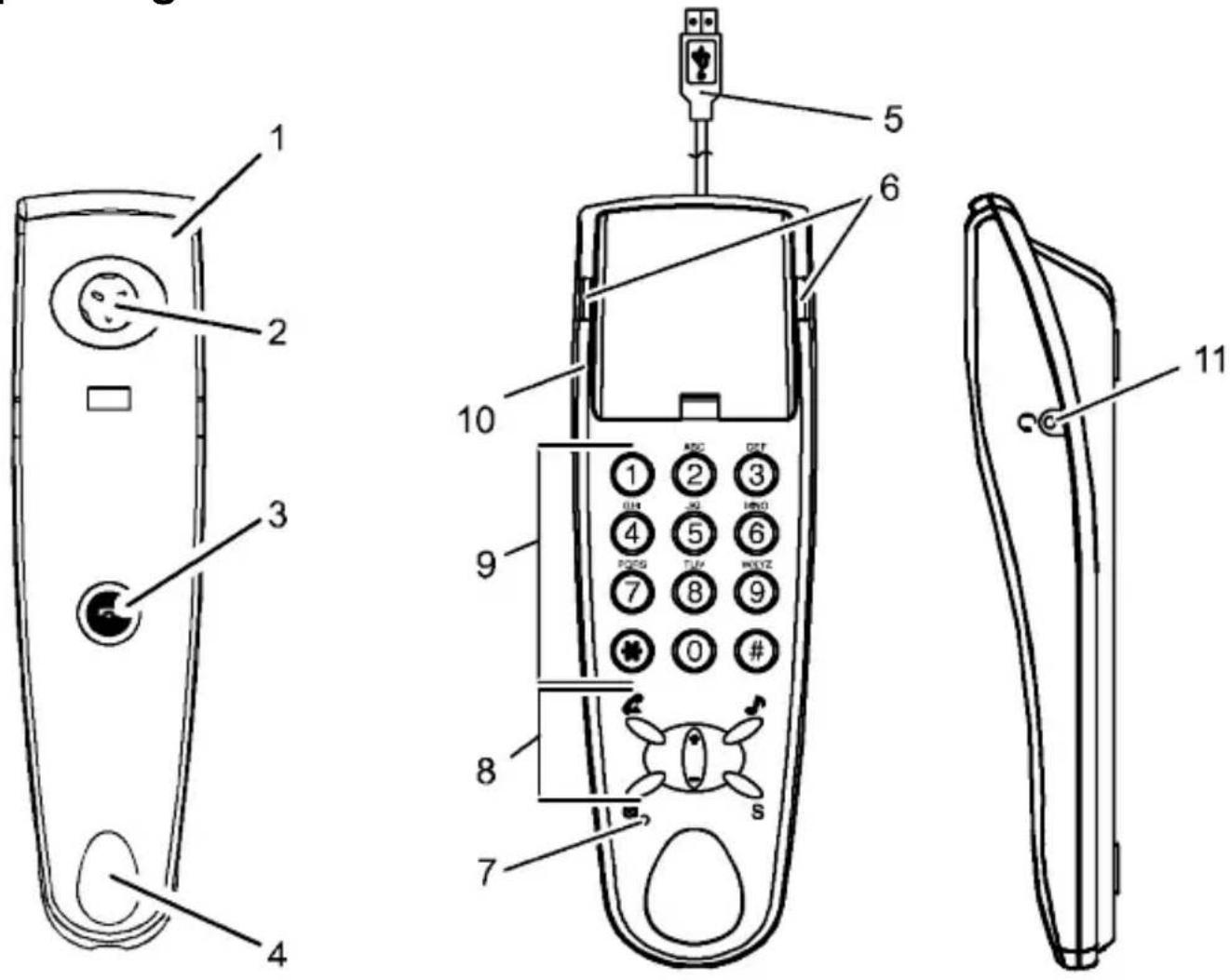
3OperatingElements
text_image
Technical diagram of a mobile phone with numbered parts for identification and assembly reference.- Receiver
- Loudspeaker
3.Hookswitchbutton - Microphone
5.USBplug
6.LEDs
Statusindicator(dependentondriver/applicationsoftware) - LEDformutingfunctionstatus
8.Functionkeys - Diallingkeys
- Receiver cradle with magnetichook contact
11.Headsetconnectionport
- Starting Up -
4 S t a r t i n g U p
4.1 Safetynotes

Caution: It is essential to read the General Information at the beginning of this manual before starting up.
4.2 Checking the package contents
ThematerialsuppliedconsistsoftheAudiolineIP-7telephone,aCD containingdriversandthisoperatinginstructionmanual.
4.3 Introduction
VoIP(VoiceoverInternetProtocol)isatechnologywhichusestheInternetto transmittelephoneconversations.
Analoguevoicesignalsarehighlycompressed and converted to adigital form. Thesedigitalsignalsare transmitted via computer networks or the Internet.
Underthecorrespondingconditions,VolPcanbeusedtotelephonefreeofcharge.ItmayonlybenecessaryforpaymenttocoverthecostsofyourInternetprovider!
Asaresult, VolPrepresentsaninterestingalternativetotraditionaltelephony.
TheIP-7isaUSB-basedVoIPtelephonewhichonlyneedstobeconnectedto yourPCinordertocarryoutVoIPtelephonecalls.
4.4 Connecting the IP-7 telephoneto the PC
ConnecttheUSBplugonthelP-7telephonetoaUSBportonthePC.
WhentheIP-7telephoneisconnectedtothePCforthefirsttime,Windows automaticallydetectsthenewhardwareandinstallsit.
Theaudiooutput, suchasmusic, andaudioinput, viathemicrophone for example, arethusdirected to the IP-7 telephone.
Note: If this is not done automatically, please carry out the following steps.
- Starting Up -
4.5SettingupunderWindowsXP/2000
Note: Thenamesofthemenuitemsandbuttonsmayvaryslightlyaccording totheoperatingsystembeingused,e.g.:Soundandaudiodevices= Multimedia.Thestepsforinstallation,however,areidentical.
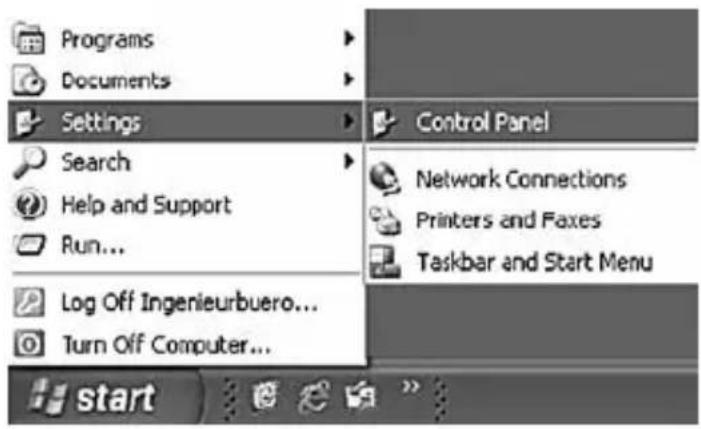
- Click on the Start button. Select Settings, Control Panel and then SoundsandAudioDevices.
text_image
Programs Documents Settings Search Help and Support Run... Log Off Ingenieurbuero... Turn Off Computer... Control Panel Network Connections Printers and Faxes Taskbar and Start Menu start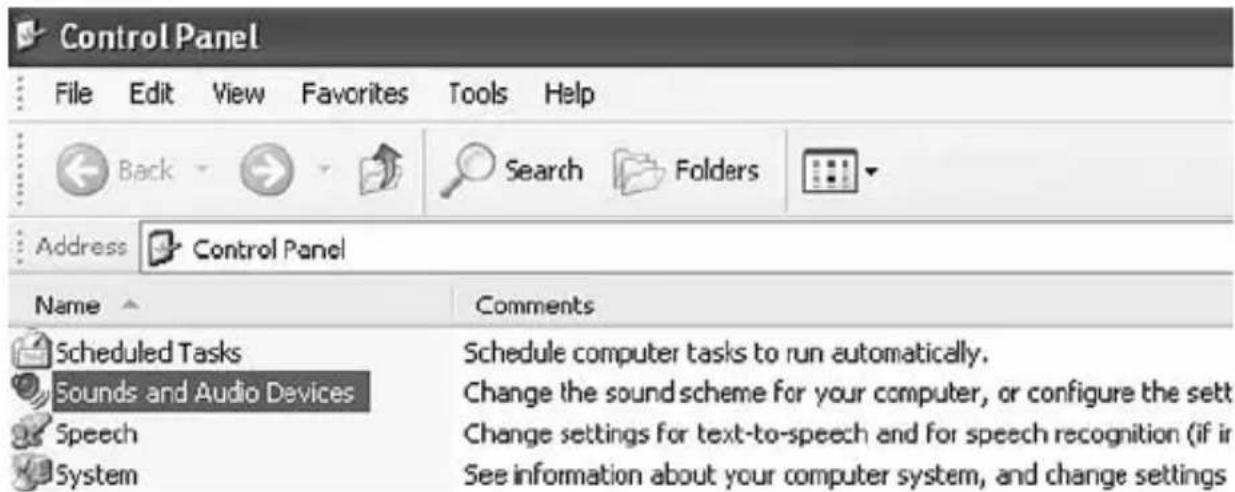
text_image
Control Panel File Edit View Favorites Tools Help Back Search Folders Address Control Panel Name Comments Scheduled Tasks Schedule computer tasks to run automatically. Sounds and Audio Devices Change the sound scheme for your computer, or configure the sett Speech Change settings for text-to-speech and for speech recognition (if in System See information about your computer system, and change settings- Clickonthe Audiotabcontrol.
- Starting Up -
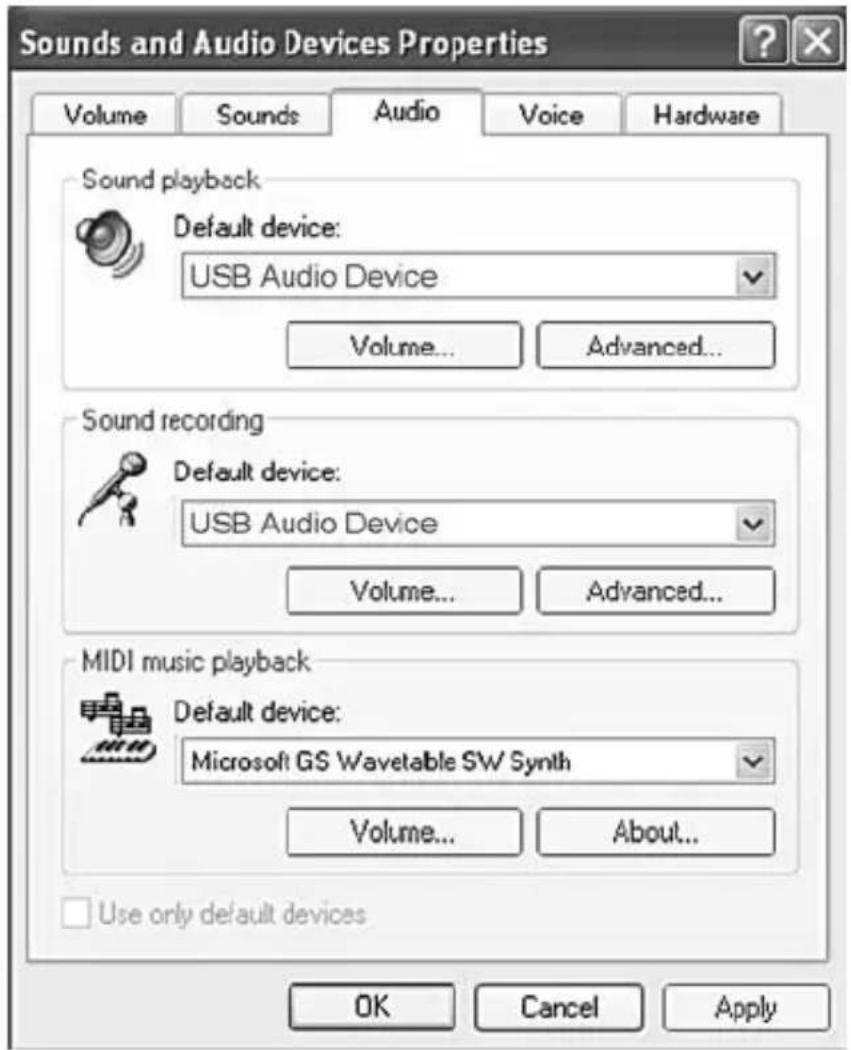
- Select USB Audio Device from the Default device pulldown menu. Complete this process for both the Sound playback as well as the Soundrecording.
text_image
Sounds and Audio Devices Properties Volume Sounds Audio Voice Hardware Sound playback Default device: USB Audio Device Volume... Advanced... Sound recording Default device: USB Audio Device Volume... Advanced... MIDI music playback Default device: Microsoft GS Wavetable SW Synth Volume... About... Use only default devices OK Cancel Apply- Click on the OK button to apply the settings and exit from the menu.
-ApplicationSoftware-
5ApplicationSoftware
Note: The Skype™, MSN®-Messenger, Yahoo!®-Messenger and AOL™ - Messenger application software are referred to in this operating instruction manual. Other providers for VoIP telephony are available in the Internet. The various services are offered there. The offerranges from “Internettelephony only” to “full availability inside and outsided dedicated and/or mobile telecommunication networks”. New services are being developed continuously. Select a provider which complies with your demands.
Note: The brief information on the Skype ^™ , MSN®-Messenger, Yahoo!®-Messenger and AOL ^™ -Messenger applications describes the procedures at the timetheoperating instruction manual went to print. In the case of software modifications / updates by them manufacturer / provider, the procedure itself for thenames of menu items, button setc. may deviate from that described. The descriptions should be seen as a general guide.
5.1 Generalinformation
- Chooseaprovider.
- DownloadtheapplicationfromtheInternet.
•InstallthesoftwareonyourPC. - Setup the application software according to your need with regard to appearance, contact lists, favourites and such.
Note: Detailed information on setting up the applications is available on the Internet pages of the application software provider.
-ApplicationSoftware-
5.2AboutSkype™
Skype ^™ is a software which allows you to have telephone conversations with otherSkype ^™ usersviaInternetfreeofcharge.
5.2.1 Downloading and installing the Skype™ software
DownloadthecurrentSkype™ softwareversionfromtheInternet (www.skype.com).InstallthesoftwareonyourPC.Completethefieldsinthe dialogueboxesandfollowtheinstructionsonregistration.
Note: RefertotheinstructionsintheInternetforfurther, more detailed information on the Skype ^™ software and functions at www.skype.com. It also explains whether, and how, call scan bemade and received in the dedicated and/or mobile telecommunications network.
5.2.2 Activating themagnetichookcontact, piezoelectricsound generator and other functions
InstalltheCDenclosedwiththeequipmentsuppliedinordertoactivatethe magnetichookcontact,internalpiezoelectricsoundgeneratorandother functionsprovidedbytheIP-7telephone.
Note: It is essential that any Voiceover IP driver already installed on the PC are deinstalled.
InserttheCDinthedrive.Theapplicationstartsautomatically.
Note: If the application does not start automatically, navigate to the CD drive and double-click on the Setupfile.
Followtheinstructionswhichappearonthescreenuntiltheinstallationis completed.Initiateanewstartinorderthatthemodificationstakeeffect.
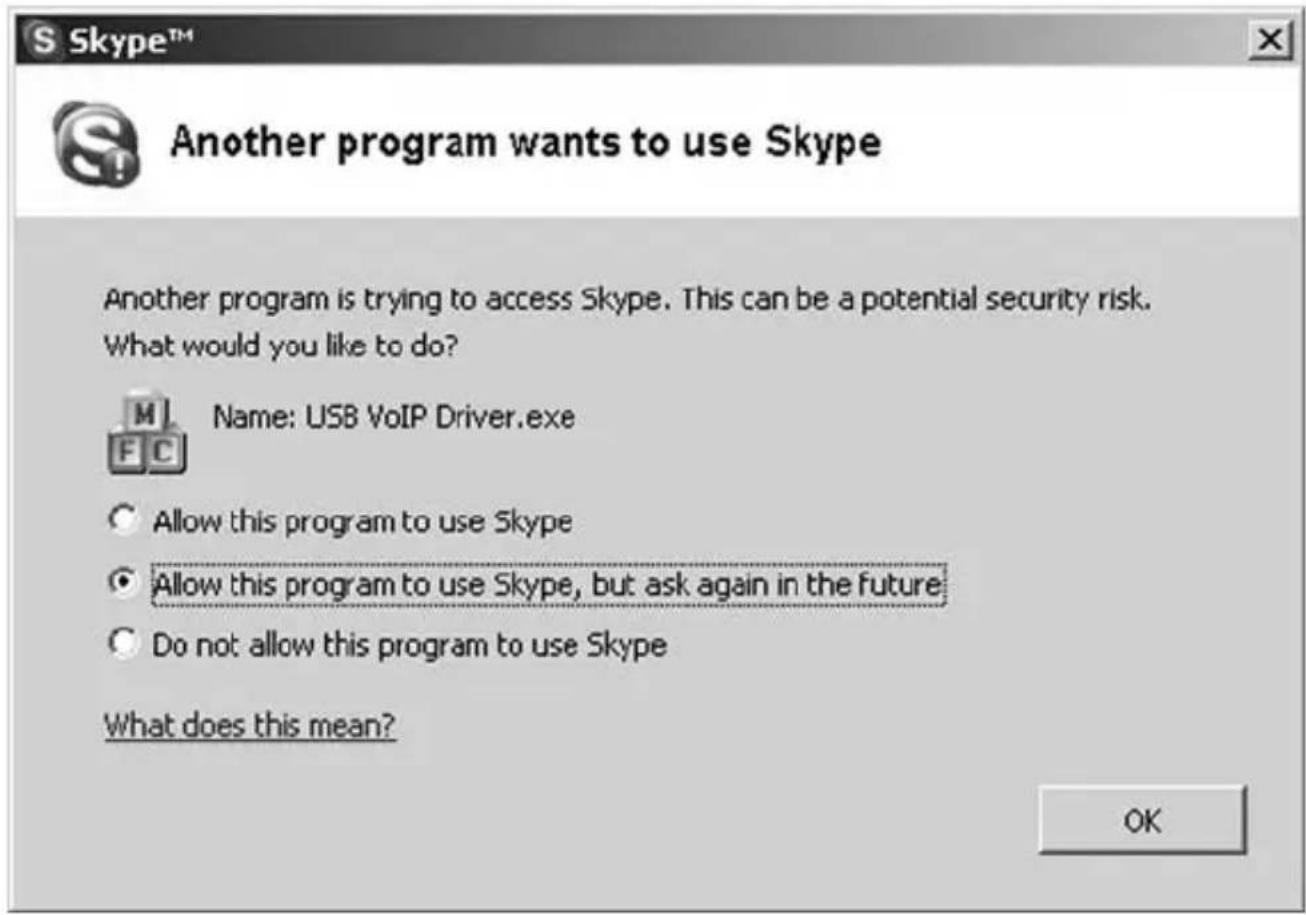
The next time Skype ^™ is started, the Enable Application dialogue box opens (refertodiagramonthenextpage).
- Topreventthedialogueboxappearingagainandautomatically ensuretheprogramalwaysaccessesSkype™,selectthefirst option.
-ApplicationSoftware-
- To ensure the dialogue box appears each time Skype ^TM is started, select these secondoption.
Onselectingthefirstorsecondoption,themagnetichookcontact,internal piezoelectricsoundgeneratorandotherIP-7telephonefunctionsare activated.
- To refuse access to Skype™ and, thus, prevent the functions being activated, select the third option.
text_image
Another program wants to use Skype Another program is trying to access Skype. This can be a potential security risk. What would you like to do? Name: USB VoIP Driver.exe Allow this program to use Skype Allow this program to use Skype, but ask again in the future Do not allow this program to use Skype What does this mean? OK-ApplicationSoftware-
5.3 AboutMSN®-Messenger
MSN®-Messengerisasoftwarewhichallowsyoutohavetelephone conversations with other MSN®-Messenger users via Internet free of charge.
5.3.1 Downloading and installing the MSN®-Messengers software
Download the current MSN®-Messenger software version from the Internet (www.msn.com).InstallthesoftwareonyourPCbyfollowingtheinstructions whichappearonthescreen.
Afterhavinginstalledthesoftware,amenuwindowappears.Clickonthe LogonbuttontostarttheMessenger.
Note: RefertotheinstructionsintheInternetforfurther, more detailed informationontheMSN®-Messengersoftwareandfunctionsat www.msn.com.Italsoexplainswhether,andhow,callscanbemadeand receivedinthededicatedand/ormobiletelecommunicationsnetwork.
5.4AboutYahoo!®-Messenger
Yahoo!®-Messenger is a software which allows you to have telephone conversations with other Yahoo!®-Messenger users via Internet free of charge.
5.4.1 Downloading and installing the Yahoo!®-Messenger software
Download the current Yahoo!®-Messenger software version from the Internet (www.yahoo.de).InstallthesoftwareonyourPCbyfollowingtheinstructions whichappearonthescreen.
Afterhavinginstalledthesoftware,amenuwindowappears.Clickonthe LogonbuttontostarttheMessenger.
Note: RefertotheinstructionsintheInternetforfurther, more detailed informationontheYahoo!®-Messengersoftwareandfunctionsat www.yahoo.de.Italsoexplainswhether,andhow,callscanbemadeand receivedinthededicatedand/ormobiletelecommunicationsnetwork.
-ApplicationSoftware-
5.5AboutAOL ^TM -Messenger
AOL ^™ -Messengerisasoftwarewhichallowsyoutohavetelephone conversations with other AOL ^™ -Messenger users via Internet free of charge.
5.5.1 Downloading and installing the AOL ^TM -Messengersoftware
Download the current AOL ^™ -Messenger software version from the Internet (www.aol.de).InstallthesoftwareonyourPCbyfollowingtheinstructions whichappearonthescreen.
Afterhavinginstalledthesoftware,amenuwindowappears.Clickonthe LogonbuttontostarttheMessenger.
Note: RefertotheinstructionsintheInternetforfurther, more detailed information on the AOL ^™ -Messenger software and functions at www.aol.de. It also explains whether, and how, call scan bemade and received in the dedicated and/or mobile telecommunications network.
6Drivers
Drivers are installed to activate functions on the IP-7 telephone. New drivers are being developed continuously.
TheIP-7driversareavailableattheaddresswww.audioline.deandcanbe downloadedfromthere.Updateddriversarealsoavailablefromthisaddress. Ifnecessary,searchfordriversorinformationondriverdownloadsonthe Internetpagessetupbytherespectiveprovidersinrespectofapplication software.
Note: Information on application software providers is available in Chapter 5, Application Software.

Caution: Supportfordrivers/functionsisalsodependentonthe applicationsoftware.
-TelephoningUsingSkype™-
7TelephoningUsingSkype™, OperatingViaPC
7.1 Makingcalls
Thereareseveralwayswithwhichtocallasubscriber.Examplesareprovided below.
Open the Contacts or Search for Skype users window:
- Choosetherequirednamewiththeright-handmousebuttonand selectCallfromthepop-upmenu
or
- Selectanamewiththeleft-handmousebutton. ThenpresstheCall icon.
There are further options in the Contact list for making calls:
- Double-clickonthenameofthepersontocall
or
- Enter the Skype ^TM name of another Skype ^TM user in the text field and presstheEnterbutton.
Note: The status of the connection, development, ringing etc., appear on the screen.
LiftupthereceiverofyourIP-7telephoneandcompletethecall.
7.2Incomingcalls
Incomingcallsareindicatedvisuallyand/oracousticallyaccordingthesettings defined.
Note: InstallthedriverfromtheCDsuppliedinordertousetheIP-7
telephone'sinternal, piezoelectricsoundgenerator. Information on this driver is provided in Chapter 5.2.2 "Activating themagnetichookcontact, piezoelectric soundgenerator and other functions".
Pickupthereceiverandpressthebuttontotakethecall.
Completethecall.
-TelephoningUsingSkype™-
7.3 Ending calls
Eithersubscribercanendthecallatanytime.Simplyclickontherelevant buttontoendthecall.

Caution: If the corresponding drivers haven not been installed, the call cannot be ended by replacing thereceiver on-hook.
InformationonthisdriversisprovidedinChapter6“Drivers”and Chapter5.2.2“Activatingthemagnetichookcontact, piezoelectric soundgeneratorandotherfunctions”.
Note: RefertotheinstructionsintheInternetforfurther, more detailed information on the Skype™ software and functions at www.skype.com. It also explains whether, and how, callscanbemade and received in the dedicated and/or mobiletelecommunications network.
7.4 Using the telephone keypad with Skype ^TM

Caution: Inordertousethesefunctions, itisessentialtohave installedthedriversprovidedontheCDsupplied.
InformationonthisdriversisprovidedinChapter6“Drivers”and Chapter5.2.2“Activatingthemagnetichookcontact, piezoelectric soundgeneratorandotherfunctions”.
7.4.1 Enteringanumbermanually
- Lift the receiver. The Skype™ window appears on the PC screen.
- Entertherelevantphonenumberusingthetelephonekeypad.
- Press the Call button ⬆ on the telephone keypad to establish the connectiontothenumberdialled.
7.4.2 Incomingcalls
Incomingcallsareindicatedvisuallyand/oracousticallyaccordingthesettings defined.
•Liftthereceiver.
or
- Press the Call button ⬆ on the telephone keypad to take the call.
7.4.3 Ending calls
• To end a call, press the On-Hook button 🤔 on the receiver
or
- replacethereceiver.
7.4.4Mutingfunction
- To deactivate the microphone (muting), press the Mute button Ⓧ on the telephonekeypad. TheredLEDlightsup.
-UsingtheTelephoneKeypad-Skype
TM
- To reactivate the microphone, press the Mute button Ⓧ on the telephonekeypadagain. TheredLEDgoesout.
7.4.5Receivervolumecontrol
Usethe+and/or-buttonsonthetelephonekeypadtoadjustthereceiver volumeduringacall. Thevaluesetisautomaticallystored.
Note: If you have set a call to every quiet, it is possible that a subsequent caller can hardly be heard if they talk quietly. In such cases, increase the volume again.
7.4.6 Settingtheringingmelody
Therearefivedifferentrringingmelodiesavailableforselection.
- Press the ringing melody button ♪ on the telephone keypad. The melodycurrentlysetisplayed.
- Press the ringing melody button ♪ again and the next melody is played.Selectthemelodyrequired.
- Thelastmelodyplayedisautomaticallystored.
7.4.7 Selectingtabcontrols
The tab controls in the Skype ^TM window can be selected using the telephone keypad.
- Press the S button on the telephone keypad as often as necessary until therequiredtabcontrolappears.
-TelephoningUsingMSN®-Messenger-
8TelephoningUsingMSN®-Messenger
8.1 Makingcalls
Thereareseveralwayswithwhichtocallasubscriber.Examplesareprovided below.
- Selectionfromthecontactlist:
- Click on the Actions menu in the MSN®-Messenger main menu.
- SelectStartanAudioConversation.
- SelecttherequiredsubscriberfromtheStartanAudio Conversationaldialoguebox.
- ClickontheOKbutton.
- Makingacallbyenteringdata:
- Click on the Actions menu in the MSN®-Messenger main menu.
- Select Startan Audio Conversation.
- Select the Other tab control in the Start an Audio Conversation dialoguebox.
4.Enterthe.NETPassportE-Mail-Addressoftherequiredsubscriber. - ClickontheOKbutton.
Note: Thesubscriberbeingcontactedrequiresa.NETPassportAccountandacomputeronwhichtheMessengerisinstalled.
Note: The status of the connection, development, ringing etc., appear on the screen.
LiftupthereceiverofyourIP-7telephoneandcompletethecall.
8.2Incomingcalls
Incomingcallsareindicatedvisuallyand/oracousticallyaccordingthesettings defined.
Pickupthereceiverandpressthebuttontotakethecall.Completethecall.
-TelephoningUsingMSN®-Messenger-
8.3 Ending calls
Eithersubscribercanendthecallatanytime.Simplyclickontherelevant buttontoendthecall.

Caution: If the corresponding drivers haven not been installed, the call cannot beended by replacing thereceiver on-hook. Information on drivers is available in Chapter 6 "Drivers".
Note: RefertotheinstructionsintheInternetforfurther, more detailed informationontheMSN®-Messengersoftwareandfunctionsat www.msn.com.Italso explains whether, and how, callscanbemade and received in the dedicated and/or mobile telecommunications network.
-TelephoningUsingYahoo!®-
9TelephoningUsingYahoo!®
9.1 Makingcalls
Thereareseveralwayswithwhichtocallasubscriber.Examplesareprovided below.
- Selectionfromthecontactlist:
- Double-click on the name of the required subscriber in the Yahoo!®-Messengermainmenu.
- The Yahoo! ® Helper-Instantwindowopens.
- PresstheCallicon.AnewcommandlinewithiconsandtheTalk buttonappear.
- Writethesubscriberamessage/invitationtomakeacallandpress theSendbutton.
- Whenthesubscribercalls, pickupthereceiveroftheIP-7telephone andcompletethecall.
Note: While talking, you must press the Talk button with the left-hand mouse button and keep it pressed. Releasethemousebuttonwhentheotherparty wantstotalk.
• Inachat-room:
- NavigatetoaYahoo!®-chat-roomofyourchoice.
- The.....-Chatwindowopens.
- PresstheCallicon.AnewcommandlinewithiconsandtheTalk buttonappear.
- Listentotheco conversation being carried out and contributetoitas and when required.
Note: While talking, you must press the Talk button with the left-hand mouse button and keep it pressed. Releasethemousebuttonwhentheotherparty wantstotalk.
-TelephoningUsingYahoo!®-
9.2Incomingcalls
Incomingcallsareindicatedvisuallyand/oracousticallyaccordingthesettings defined.
PickupthereceiverandpresstheCallicon.Anewcommandlinewithicons andtheTalkbuttonappear.
Completethecall.
Note: While talking, you must press the Talk button with the left-hand mouse button and keep it pressed. Releasethemousebuttonwhentheotherparty wantstotalk.
9.3 Ending calls
Eithersubscribercanendthecallatanytime. Todothis, clickontheactive Callicon. The commandline containing the icons and the Talkbutton disappear.
Alternatively, closethe Yahoo! ® Helper-Instantwindoworthe.....Chat windowdirectly.

Caution: If the corresponding drivers haven not been installed, the call cannot beended by replacing thereceiver on-hook. Information on drivers is available in Chapter 6 "Drivers".
Note: RefertotheinstructionsintheInternetforfurther, more detailed information on the Yahoo!® software and functions at www.yahoo.de. It also explains whether, and how, calls can be made and received in the dedicated and/or mobile telecommunications network.
-TelephoningUsingAOL™-
10TelephoningUsingAOL™
10.1 Makingcalls
Thereareseveralwayswithwhichtocallasubscriber.Examplesareprovided below.
Double-clickontherequirednameintheBuddyList.
- PresstheTalkicon.
or
- Select the Connect to Talk item from the People menu.
Note: The status of the connection, development, ringing etc., appear on the screen.
LiftupthereceiverofyourIP-7telephoneandcompletethecall.
10.2 Incoming calls
Incomingcallsareindicatedvisuallyand/oracousticallyaccordingthesettings defined.
Pickupthereceiverandpressthebuttontotakethecall.
Completethecall.
10.3 Ending calls
Eithersubscribercanendthecallatanytime.Simplyclickontherelevant buttontoendthecall.

Caution: If the corresponding drivers haven not been installed, the call cannot beended by replacing thereceiver on-hook. Information on drivers is available in Chapter 6 "Drivers".
Note: RefertotheinstructionsintheInternetforfurther, more detailed information on the AOL ^™ software and functions at www.aol.de. It also explains whether, and how, callscanbemade and received in the dedicated and/or mobiletelecommunications network.
-Settings-
11Settings
Note: All the necessary settings for the IP-7 telephone are made via the applicationsoftwareyouareusingoryouroperatingsystem.
11.1 SpecialsettingsforusingtheSkype™ software
When using the Skype ^™ application software, it is possible to define various settingsdirectlyontheIP-7.
Refer to Chapter 7.4 "Using the Telephone keypad - Skype™" for more details.
11.2 Settingsviatheapplication
Refertotheinstructionsinyourapplicationsoftwarefordetailedinformation.
Note: Information on application software providers is available in Chapter 5 "Application Software".
11.3 Settingsviatheoperatingsystem
Note: Thenamesofthemenuitemsandbuttonsmayvaryslightlyaccording to the operating system being used, e.g.: Sound and audio devices = Multimedia. Thestepsforinstallation,however,areidentical.
- ClickontheStartbutton.
- Select Settings, Control Panel and then Sounds and Audio Devices.
- Click on the Volume tab control and then on the Advanced button.
- Complete the necessary settings regarding thereceivervolume.
- Open the Options menu and select Properties.
- Select Record and click the OK button.
- Complete the necessary settings regarding themicrophonesensitivity.
- Closethewindow, thesettingsareapplied.
Note: Pleaserefertotheoperatingsystemdocumentationforfurther, more detailedinformation.
-UsingaHeadset-
12UsingaHeadset
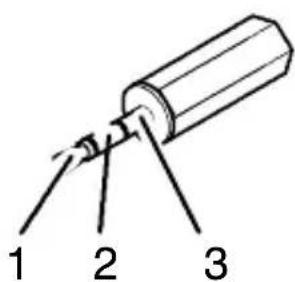
ItispossibletoconnectaheadsettoyourIP-7.
Theheadsetmusthavea2.5mm,3-pinphonejack.
text_image
1 2 3Assignment:
1-Microphone
2-Loudspeaker
3 - Earth
Plug the phone jack in the socket on theright-hand side of there receiver cradle. Only the headset can be used for listening and talking while the plug is connected in the socket.
Usethe+and/or-buttonsonthetelephonekeypadtoadjusttheheadset earpiecevolumeduringacall. Thevaluesetisautomaticallystored.
Note: If you have set a call to every quiet, it is possible that a subsequent caller can hardly be heard if they talk quietly. In such cases, increase the volume again.
-DeactivatingtheIP-7Telephone-
13DeactivatingtheIP-7Telephone
DeactivatetheIP-7telephoneandresetthedefaultcomputersettingsinorder,forexample,tobeabletolistentomusicviathecomputer'sloudspeakers.
13.1 Deactivating under Windows XP/2000
Note: Thenamesofthemenuitemsandbuttonsmayvaryslightlyaccording to the operating system being used, e.g.: Sound and audio devices = Multimedia. Thestepsforinstallation, however, are identical.
- Openthe Startmenu.
- Select Settings, Control Panel and then Sounds and Audio Devices.
- Clickonthe Audiotabcontrol.
- Select the device to be used from the Default device pulldown menu. Complete this process for both the Sound playback as well as the Soundrecording.
- Click on the OK button to apply the settings and exit from the pulldown menu.
TheIP-7telephoneisnowdeactivated.
-Troubleshooting-
14Troubleshooting
Shouldproblemsarisewith the telephone, refertothefollowing information. In the case of technical problems, contactour Hotline, tel. 01805001388
(Telekomcostsattimeofgoingtoprint: 12ct/min). In the case of claims under the terms of guarantee, contact your sales outlet. There is a year period of guarantee.
Ifnotelephonecallispossible, checkwhether
•thetelephoneisconnectedcorrectly,
•thePCisswitchedon,
- therequiredapplicationisproperlyinstalledandcorrectlyexecuted,
• theproviderisexperiencingfaults.
Note: Establishment of a connection and possible voiced delays could be caused by:
• thecurrentPCutilisationrate,
- thetypeandspeedoftheInternetconnection,
- theuseofsecurityfeatures,suchasafirewall.
- Important Information -
15 Important Information
15.1 Technicaldata
| Standard | VoIPtelephone(VoiceoverInternetProtocol) |
| PowersupplyViatheUSBport | |
| Permissibleambienttemperature | 10°Cto30°C |
15.2 Systemrequirements
| Windows2000(SP4)andlater |
| USBport |
| 32MBRAMormore |
| Pentiumllorhigher |
| Internetconnectionfrom28kb/sorbroadbandconnection |
15.3 Guarantee
AUDIOLINEequipmentisproducedandtestedaccordingtothelatest productionmethods. Theimplementationofcarefullychosenmaterialsand highlydevelopedtechnologiesensuretrouble-freefunctioningandalong servicelife. Thetermsofguaranteedonotapplywherethecauseof equipmentmalfunctionisthefaultofthetelephonenetworkoperatororany interposedprivatebranchextensionsystem. Theperiodofguaranteeis24 monthsfromthedateofpurchase.
Alldeficienciesresultingfrommaterialorproductionfaultswhichoccurduring theperiodofguaranteewillbeeliminatedfreeofcharge.Rightstocclaims underthetermsofguaranteeareannulledfollowinginterventionbythe purchaserorthirdparties.Damagecausedasaresultofimproperhandlingor operation,incorrectpositioningorstoring,improperconnectionorinstallation, ActsofGodorotherexternalinfluencearenotcoveredbythetermsof guarantee.Inthecaseofcomplaints,wereservetherighttorepairorreplace defectpartsorprovideareplacementdevice.Replacementpartsordevices
- Important Information -
becomeourproperty.Rightstocompensationinthecaseofdamageare excludedwherethereisnoevidenceofintentorgrossnegligencebythe manufacturer.
If your devices show sign of defect during the period of guarantee, please return to the sales outlet in which you purchase the AUDIOLINE device together with the purchase receipt. All right to claims under the terms of guarantee in accordance with this agreement must be asserted exclusively with regard to your sales outlet. Two years after the purchase and transfer of our products, claims under the terms of guarantee can longer be asserted.
16DeclarationofConformity
ThisdevicefulfilstherequirementsstipulatedintheEUdirective:
1999/5/EU directiveonradioequipmentandtelecommunicationsterminal equipmentandthemutualrecognitionoftheirconformity.Conformitywiththe abovementioneddirectiveisconfirmedbytheCEsymbolonthedevice.
ToviewthecompleteDeclarationofConformity, pleaserefertothefree downloadavailableonourwebsitewww.audioline.de.
CE
-ImportantNotesontheGuarantee-
1 Important Notes on the Guarantee
TheperiodofguaranteefortheAUDIOLINEproductbeginsonthedateof purchase.Rightstocclaimsunderthetermsofguaranteerelatetodeficiencies resultingfrommaterialorproductionfaults.Rightstocaimsunderthetermsof guaranteeareannulledfollowinginterventionbythepurchaserorthirdparties. Damagecausedasaresultofimproperhandlingoroperation,normalwear andtear,incorrectpositioningorstoring,improperconnectionorinstallation, ActsofGodorotherexternalinfluencearenotcoveredbythetermsof guarantee.
CLAIMSUNDERTHETERMSOFGUARANTEEMAYONLYBE ASSERTEDTOTHERETAILERWHERETHEEQUIPMENTWAS PURCHASED,WHEREBYTHEPURCHASERECEIPTMUSTALSOBE SUBMITTED.
TOPREVENTUNNECESSARYLONGDELAYS, PLEASEDONOT _ SEND EQUIPMENTUNDERCOMPLAINTTOOUROFFICEADDRESS.
INTHECASEOFQUESTIONSCONCERNINGOPERATIONORTHE TERMSOFGUARANTEE, PLEASEREFERTOTHEOPERATING MANUALORCONTACTOURHOTLINEINGERMANY:
01805001388(atyouowncost)
AUDIOLINEGmbH
Neuss
SERVICEHOTLINEINGERMANY01805001388
(atyouowncost)
Internet:www.audioline.de-E-mail:info@audioline.de