IP 8 - Phone AUDIOLINE - Free user manual and instructions
Find the device manual for free IP 8 AUDIOLINE in PDF.


User questions about IP 8 AUDIOLINE
0 question about this device. Answer the ones you know or ask your own.
Ask a new question about this device
Download the instructions for your Phone in PDF format for free! Find your manual IP 8 - AUDIOLINE and take your electronic device back in hand. On this page are published all the documents necessary for the use of your device. IP 8 by AUDIOLINE.
USER MANUAL IP 8 AUDIOLINE
VoiceoverIPTelefon VoiceoverIPtelephone
IP8
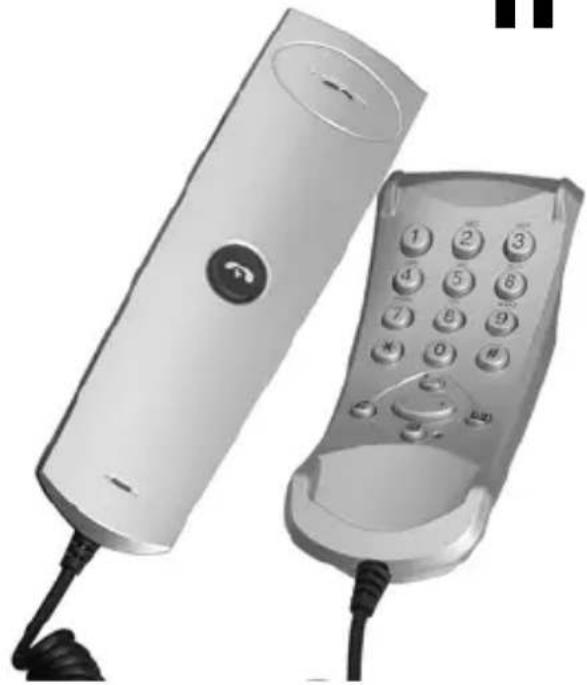
natural_image
Two vintage telephone devices, one with a curved screen and the other with a keypad (no visible text or symbols)text_image
Technical diagram of a mobile phone with labeled parts including front, side, and top views1Hörer
2Lautsprecher
3Auflegetaste
4 Mikrofon
5USB-Stecker
Pleasereadthisoperatinginstructionmanualthoroughly.
Intendeduse
ThistelephonehasbeendevelopedforoperationwhenconnectedtoaPC,laptopetc.viaaUSBconnection.Anyotheruseisconsideredunintendeduse.Unauthorisedmodificationorreconstructionisnotpermitted.Undernocircumstancesopenthedeviceorcompleteanyrepairworkyourself.

Caution: Thisproductmayonlybeusedinconnectionwithasourceof electricalpowerwhichfulfilstherequirementsinrespectof"sourcesof limitedpower"incompliancewithIEC60950orcorrespondingsafety standards.
Installationlocation
Preventexcessiveexposureosmoke,dust,vibration,chemicals,moisture,heat anddirectsunlight.
Donotusethehandsetinpotentiallyexplosiveareas.
Powerfailure
Thetelephone cannot be used to make calls in the event of a power failure.
Alwayshaveeastandardcable-connectedtelephoneclosetohand,whichcan beusedwithoutconnectiontoaPCandInternet,foremergencies.
Disposal
Inordertodisposeofyourdevice,bringittoacollectionpointprovided byyourlocalpublicwasteauthorities(e.g.recyclingcentre).Theadjacentsymbolindicatesthatthedevicemustnotbedisposedofinnormal domesticwaste!Accordingtolawsonthedisposalofelectronicand electricaldevices,ownersareobligedtodisposeofoldelectronicand electricaldevicesinaseparatewastecontainer.
Packagingmaterialsmustbedisposedofaccordingtolocalregulations.


2Features
• HighperformanceVoIPtelephone(suitablefortelephonecommunication fromPCtoPCandtelephonesofalltypes)
- Keypadwithfunctionbuttons
- CompatibletoallVoIPprovidersandVoIPservices
- Supports Microsoft Netmeeting for IP Telephony, MSN® Messenger, Skype™, Yahoo!® Messenger, AOL™ Messenger and many more VoIP serviceproviders
- CompatibletoUSB1.1/2.0
- UsestheUSBpowersupply(noexternalpowersupplyrequired)
- Ownaudiosource(independentofPCsoundcardandotheraudio applications)
- Piezoelectricsoundgenerator
•High-speedcommunicationat12Mbit/s
•Magneticon-hookcontact
- SimpleinstallationthroughUSBPlugandPlaytechnology
- Excellentsoundquality
• Loudspeaker and microphone acoustically isolated to prevent echo
- Headsetconnectionport
OperatingElements
3OperatingElements
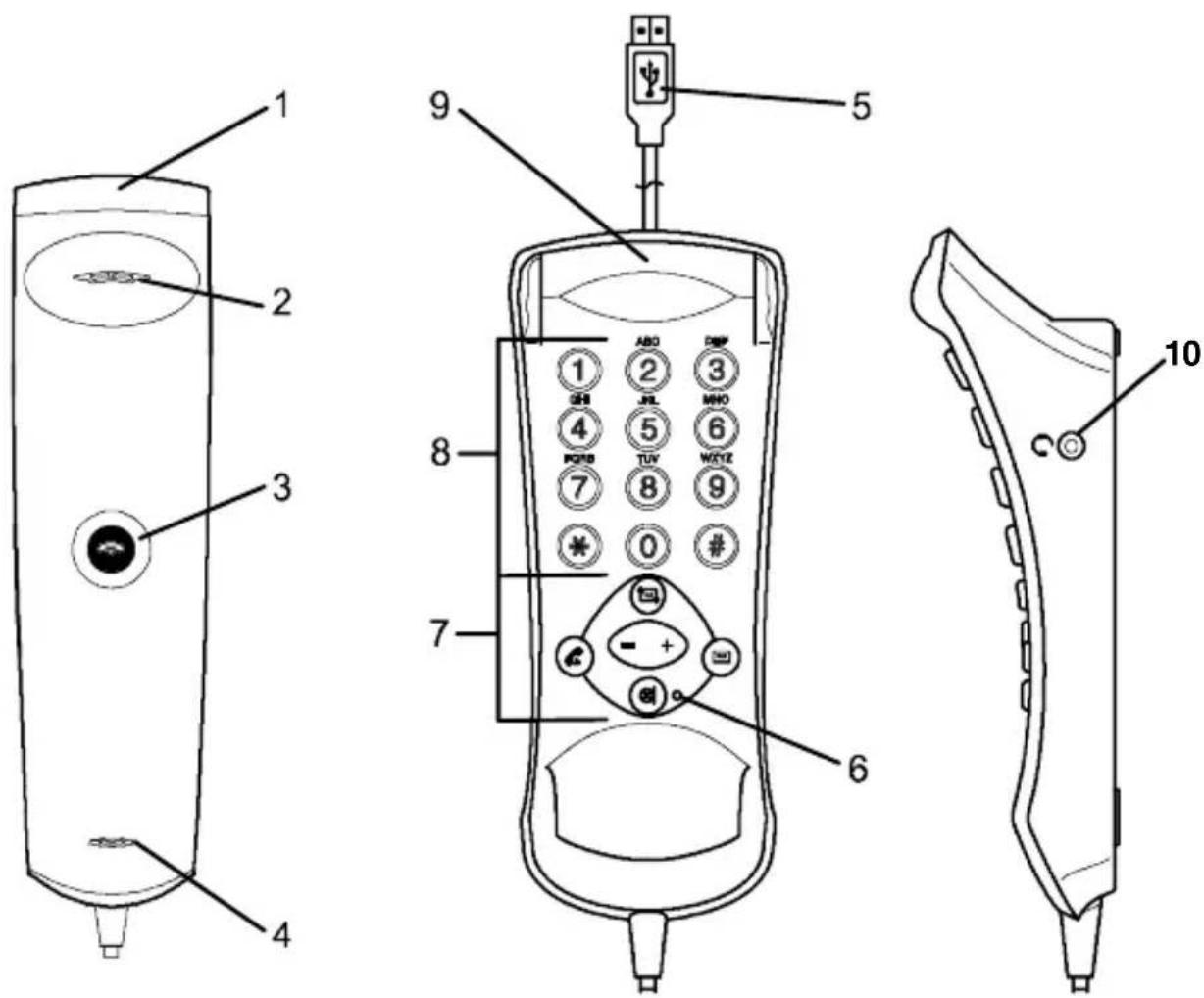
1Receiver
2Loudspeaker
3On-hookkey
4Microphone
5USBplug
6LEDformutingfunctionstatus
7Functionkeys
8Diallingkeys
9Receivercradlewithmagnetichookcontact
10Headsetconnectionport
4ApplicationSoftware
Introduction
VoIP(VoiceoverInternetProtocol)isatechnologywhichusestheInternetto transmittelephoneconversations.
Analoguevoicesignalsarecompressedandconvertedoadigitalform. These digitalsignalsaretransmittedviacomputernetworksortheInternet.
Underthecorrespondingconditions,VolPcanbeusedtotelephonefreeofcharge.It may only be necessary for payment to cover the costs of your Internet provider!
As a result, VoIP represents an interesting alternative to traditional telephony.
ThistelephoneisaUSB-basedVoIPtelephonewhichonlyneedstobeconnectedtoyourPCinordertocarryoutVoIPtelephonecalls.
Anapplicationsoftwareisrequiredinordertooperatethetelephone.
Operation of the telephone is described in this manual using the Skype ^™ applicationsoftware.
OtherprovidersforVolPtelephonyareavailableintheInternet.
The various services are offered there. The offerranges from "Internettelephony only" to "full availability inside and outsided dedicated and/ormobiletelecommunication networks". Moreservices with new developments will be added. Select a provider which complies with your demands.
Generalinformation
- Chooseaprovider.
- Alwaysdownloadthe latest version of the application from the Internet.
•InstallthesoftwareonyourPC. - Configurenetworkaccessandotherdata,ifnecessary.
- Setup the application software according to your needs with regard to appearance, contact lists, favourites and such.

Detailed information on setting up the applications is available on the Internet pages of the application software provider.
ApplicationSoftware
Skype™ information
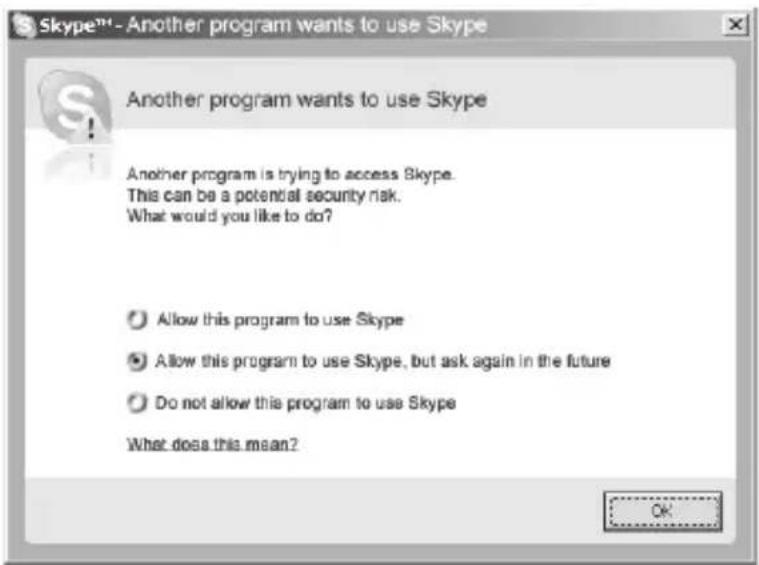
When Skype ^TM is started for the first time following installation, the Another programwantstouseSkypedialoguebox(refertofigurebelow).
- Topreventthedialogueboxappearingagainandautomaticallyensurethe programalwaysaccessesSkype™,selectthefirstoption.
- To ensure the dialogue box appears each time Skype ^™ is started, select the secondoption.
- To refuse access to Skype™ and, thus, prevent the functions being activated, select the third option.
text_image
Skype™ - Another program wants to use Skype Another program wants to use Skype Another program is trying to access Skype. This can be a potential security risk. What would you like to do? Allow this program to use Skype Allow this program to use Skype, but ask again in the future Do not allow this program to use Skype What does this mean? OK5 S t a r t i n g U p
Checkingthepackagecontents
ThematerialsuppliedconsistsoftheVoIPtelephone,adriverCDandthisoperatingmanual.
ConnectingthetelephonetoaPC

Operatingsystem:WindowsXPorWindows2000
InstallaVoIPapplicationfirstbeforecompletingthefollowingsteps(referto ChapterApplicationSoftware).
- SwitchthePCon.
- DeinstallanyexistingVolPdrivers.
- InserttheCDinthedrive.
Theinstallationprogramstartsupautomatically.

If the installation program does not start automatically, navigate to the CD drive and double-click on the Setup application.
- Followtheinstructionswhichappearonthescreenuntiltheinstallationis completed.
- Initiatearestartinorderthatthemodificationstakeeffect.
- ConnecttheUSBplugonthetelephonetoaUSBsocketonthePC. The system automatically detects the new component and configures it. Wait for theconfigurationroutinetofinish.
- Check the settings described in Chapter Configuration, if necessary.

Inordertomakeortakecallswiththetelephone,itisnecessarythatyou areconnectedtoyourapplicationprovidervialInternet.
Configuration
6Configuration
Allthenecessaryconfigurationsforthetelephonearemadeviatheapplication softwareusedoryouroperatingsystem.
If this is not done automatically, please carry out the following steps.

Thenamesofthemenuitemsandbuttonsmayvaryslightlyaccording to the operating system being used, e.g.: Sound and audio devices = Multimedia. Thestepsforinstallation, however, areidentical.
ConfiguringSkype™
OpentheSkype ^TM application.
Select Tools, Options and then Sound Devices.
Select USB Phone from the Sound Device pulldown menu. Complete this process for both the Audio Out as well as the Audio In.
Click on the Save button to apply the settings and close the pulldown menu.

Refertotheinstructionsinyourapplicationsoftwareforfurther, more detailedinformation.
ConfiguringWindowsXP/2000
OpentheStartmenu.
Select Settings, Control Panel and then Sounds and Audio Devices.
ClickontheAudiotabcontrol.
Select the device to be used from the Default device pulldown menu. Complete this process for both the Sound playback as well as the Sound recording.
Click on the OK button to apply the settings and close the pulldown menu.

Pleaserefertotheoperatingsystemdocumentationforfurther, more detailedinformation.
7HowtoOperatetheTelephone
Displayandnotationofoperationsequences

Enterdigits/letters
#
Pressthebutton

Acousticsignalonthetelephone

Takethetelephoneoff-hook

Replacethetelephoneon-hook
Thebuttonsinthisoperatingmanualaredepictedwithauniformcontour.Variationsinthesymbolsonthetelephonebuttonscomparedtothosedepictedhere arepossible.
TelephoningusingSkype™
8TelephoningusingSkype™
InformationonSkype™
The services offered by Skype ^™ currently range from simple Internet telephony uptocompleteavailabilityinandoutofconventionalandmobilecommunication networksandvoicemailfacilities.
Skypeln: You receive you own Skypetelephonenumber. This ensures you can be reached from conventional and mobile communication networks via the Skype™ connection.
SkypeVoicemail: If you cannot be accessed directly, calls a recorded and you can play them back later.
SkypeOut: You can make call to conventional and mobile communication networks from the Skype ^™ connection.

Allthenecessaryinformationregardingregistrationfortheseservices andanycostsinvolvedaswellasexplanationsonoperatingSkype ^TM isavailableintheSkype ^TM applicationmenus.
Takingacall

Takethecall
Endingacall


(Keyonreceiver)Endthecall
MakingcallsviatheContactstabcontrol

SelecttheContactstabcontrol

SelectContact

Dialthenumber
Makingcallsviaquickdial
Use the Skype ^™ application options to assign a quick dial number to subscribers ontheContactstabcontrol.
Using quick dial viathetelephonekeypad

SelecttheContactstabcontrol

Enterthequickdialnumberassigned

Dialthenumber
MakingcallsviatheHistorytabcontrol

SelecttheHistorytabcontrol

SelectContact

Dialthenumber
MakingCallPhonescalls
TomakeaCallPhonescall, enter the completenumber including international and local access codes. This also appliestolocal calls.

Instructions on how to operate Skype ^TM are available in the Skype ^TM applicationmenus.
Exampleusingtheinternationaldiallingcode49foracallinGermany:00494421941699
MakingcallsviatheDiaTabcontrol

SelecttheDiaTabcontrol

Enterthenumber

Dialthenumber
Voicemail
Whennewvoicemailshavebeenrecordedforyou,theredLEDflashesinthereceiver.

Voicemailsareplayedback

Thelastvoicemailreceivedisplayedfirst.

Thepreviousvoicemailisplayed
Receivervolumecontrol
Usethe+and/or-buttonsonthetelephonekeypadtoadjustthereceivervolume duringacall. Thevaluesetisautomaticallystored.

If you have set a call to every quiet, it is possible that a subsequent caller can hardly be heard if they talk quietly. In such cases, increase the volume again.
TelephoningusingSkype™
Mutingthemicrophone
| ☒I | Pressthebuttontoactivatethefunction |
| ☒I | Pressthebuttontodeactivatethefunction |
| Whenthemutingfunctionison,theredLEDbesidethebuttonlightsup. |
Connectingtheheadset
Theheadsetcanbeconnectedusingaconnectionportlocatedontheright-hand sideofthetelephone. Usea2.5mmstereophonejacktoconnecttheheadset. Thereisnoguaranteetheheadsetwillfunctionproperly.
9IntheCaseofProblems
ServiceHotline
Shouldproblemsarisewiththetelephone, pleaserefertothefollowinginformationfirst. In the case of technical problems, you can contact our hotlineservice, tel. 01805001388 (costvia Telekomattime of going to print: 12ct/min). In the case of claims under the term so guarantee, contact your sales outlet. There is a 2-year period of guarantee.
Problemsandsolutions
| ProblemsSolutions | |
| Notelephonecalls possible | -Thetelephoneisnotconnectedproperlyoris defective.-ThePCisswitchedon,-Acompletepowerfailurehasoccurred.-Therequiredapplicationisnotproperlyinstalled orisnotexecutedcorrectly,-Theproviderisexperiencingfaults. |
| Connectionisdisturbed orcutoff | -ChecktheconfigurationoftheInternetconnection* ). |
| Thesystemnolonger responds | -RestartthePC. |
*) Establishingaconnectionandpossiblevoicedelayscouldbecausedby:
- thecurrentPCutilisationrate,
- thetypeandspeedoftheInternetconnection,
•theuseofsecurityfeatures,suchasafirewall.
TechnicalProperties
10TechnicalProperties
Technicaldata
| FeatureValue | |
| StandardVoIP(VoiceoverInternetProtocol) | |
| PowersupplyViatheUSBport | |
| Permissibleambienttemperature 10^ Cto 30^ C | |
| Permissiblerelativehumidity20% to 75% | |
Systemrequirements
| OperatingsystemWindowsXP | Windows2000 |
| PortsUSBportfromUSB1.1 | |
| Memory | 128mbRAMormore |
| Processor | Pentium400MHzorhigher |
| Miscellaneous | Internetconnectionfrom33kb/sor broadbandconnection |
DeclarationofConformity
This device fulfil the requirements stipulated in the EU directive:
1999/5/EU directiveonradioequipmentandtelecommunicationster- minal
equipmentandthemutualrecognitionoftheirconformity.Conformity withtheabovementioneddirectiveisconfirmedbytheCEsymbolon thedevice.
ToviewthecompleteDeclarationofConformity, pleaserefertothe freedownloadavailableonourwebsitewww.audioline.de
CE
GB
11 Maintenance/Guarantee
Maintenance
- Cleanthehousing surfaces with asoft, fluff-freecloth.
- Neverusecleaningagentsorsolvents.
Guarantee
AUDIOLINEequipmentisproducedandtestedaccordingtothelatestproduction methods.Carefullyselectedmaterialsandhighlydevelopedtechnologyensure perfectfunctioningandalongservicelife.Thetermsofguaranteedonotapply wherethecauseofequipmentmalfunctionisthefaultofthetelephonenetwork operatororanyinterposedprivatebranchextensionsystem.Thetermsofguaranteedonotapplytothebatteriesorpowerpacksusedintheproducts.Theperiodofguaranteeis24monthsfromthedateofpurchase.
Alldeficienciesrelatedtomaterialormanufacturingerrorswithintheperiodofguaranteewillberedressedfreeofcharge.Rightstocaimsunderthetermsofguaranteeareannulledfollowingtamperingbythepurchaserorthirdparties.Damagecausedastheresulttofimproperhandlingoroperation,incorrectpositioningorstorage,improperconnectionorinstallationorActsofGodandotherexternalinfluencesareexcludedfromthetermsofguarantee.Inthecaseofcomplaints,wereservetherighttorepairdefectparts,replacethemorreplacetheentiredevice.Replacedpartsordevicesbecomeourproperty.Claimsfordamagesareexcludedexceptincasesofintentorgrossnegligenceonthepartofthemanufacturer.
If your device does show sign of a defect within the period of guarantee, please contact the sales outlet where you purchase the AUDIOLINE device, producing the purchase receipt evidence. All claims under the term so guarantee in accordance with this agreement can only be asserted that sales outlet. N claims under the term so guarantee can be asserted after a period of two years from the date of purchase and hand-over of the product.
Index
12Index
A
Applicationsoftware,23
C
Calls,28
Configuration,26
ConfiguringSkype,26
ConfiguringWindowsXP/2000,26
Connectingtheheadset,30
Connecting the telephone to a PC, 25
D
DeclarationofConformity,32
Displayandnotationof operationsequences,27
Disposal,20
E
Endingacall,28
F
Features,21
G
Guarantee,33
H
Howtooperatethe telephone,27
|
Inthecaseofproblems,31
InformationonSkype,28
Informationonsoftwareand hardwarenames,32
Installationlocation,20
Intendeduse,20
M
Maintenance,33
MakingCallPhonescalls,29
Makingcallsviathe Contactstabcontrol,28
Makingcallsviathe Dialtabcontrol,29
MakingcallsviatheHistory tabcontrol,29
MakingSkypecallsviaquick dial,28
Mutingthemicrophone,30
0
Operatingelements,22
P
Powerfailure,20
Problemsandsolutions,31
R
Receivervolumecontrol,29
S
Safetyinformation,20
ServiceHotline,31
Skypesettings,26
Skypeln,28
SkypeOut,28
SkypeVoicemail,28
Startingup,25
Systemrequirements,32
T
Takingacall,28
Technicaldata,32
TelephoningusingSkype,28
Troubleshooting,31
V
Voicemail,29
W
WindowsXP/
2000settings,26